Upgrade to Pro
— share decks privately, control downloads, hide ads and more …
Speaker Deck
Sign up for free
Menu
Search
Features
All features
Private URLs
Password Protection
Custom URLS
Scheduled publishing
Remove Branding
Restrict embedding
Deck Collections
Notes
Features
All features
Private URLs
Password Protection
Custom URLS
Scheduled publishing
Remove Branding
Restrict embedding
Deck Collections
Notes
Explore
Featured decks
Featured speakers
Programming
Technology
Storyboards
Explore
Featured decks
Featured speakers
Programming
Technology
Storyboards
Pricing
Search
Sign in
Sign up for free
taskingmanger
Search
MIKU
June 19, 2019
31
0
Share
Embed
Copy iframe code
Copy JS code
Copy link
Start on current slide
taskingmanger
MIKU
June 19, 2019
Featured
See All Featured
More Than Pixels: Becoming A User Experience Designer
marktimemedia
3
570
Pawsitive SEO: Lessons from My Dog (and Many Mistakes) on Thriving as a Consultant in the Age of AI
davidcarrasco
0
260
The State of eCommerce SEO: How to Win in Today's Products SERPs - #SEOweek
aleyda
2
12k
The Impact of AI in SEO - AI Overviews June 2024 Edition
aleyda
6
1.2k
How to Get Subject Matter Experts Bought In and Actively Contributing to SEO & PR Initiatives.
livdayseo
0
220
My Coaching Mixtape
mlcsv
0
360
The World Runs on Bad Software
bkeepers
PRO
72
12k
Context Engineering - Making Every Token Count
addyosmani
9
1.2k
Fantastic passwords and where to find them - at NoRuKo
philnash
53
4k
Joys of Absence: A Defence of Solitary Play
codingconduct
1
550
Reflections from 52 weeks, 52 projects
jeffersonlam
356
22k
Why Your Marketing Sucks and What You Can Do About It - Sophie Logan
marketingsoph
0
430
Transcript
Tasking Manager マニュアル 1A119133 長谷川未久
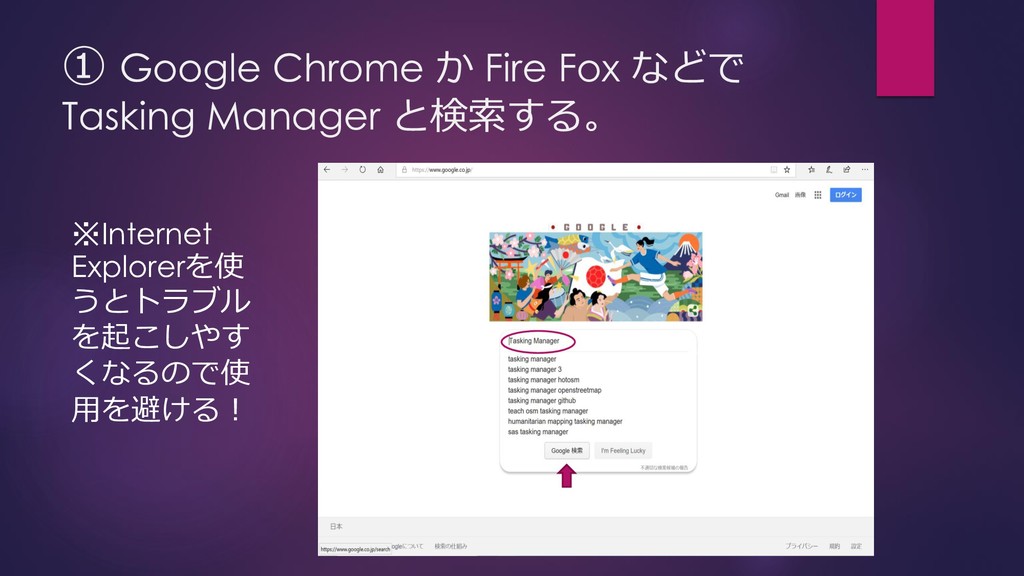
① Google Chrome か Fire Fox などで Tasking Manager と検索する。
※Internet Explorerを使 うとトラブル を起こしやす くなるので使 用を避ける!
② 右上のLoginボタンをクリックしメールア ドレスとパスワードを入力してログインする。 ③ログインしたら START MAPPING をクリックする。
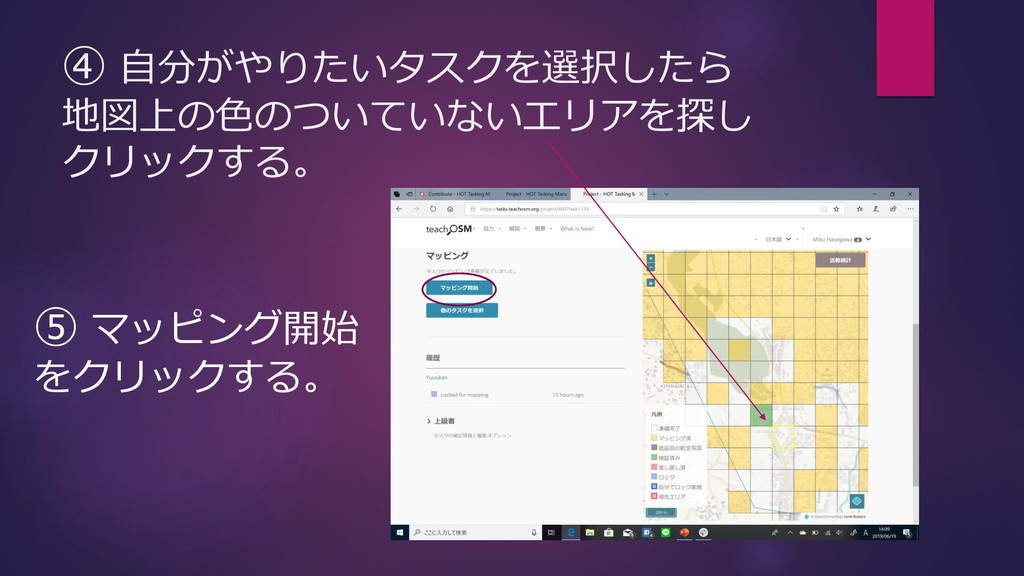
④ 自分がやりたいタスクを選択したら 地図上の色のついていないエリアを探し クリックする。 ⑤ マッピング開始 をクリックする。
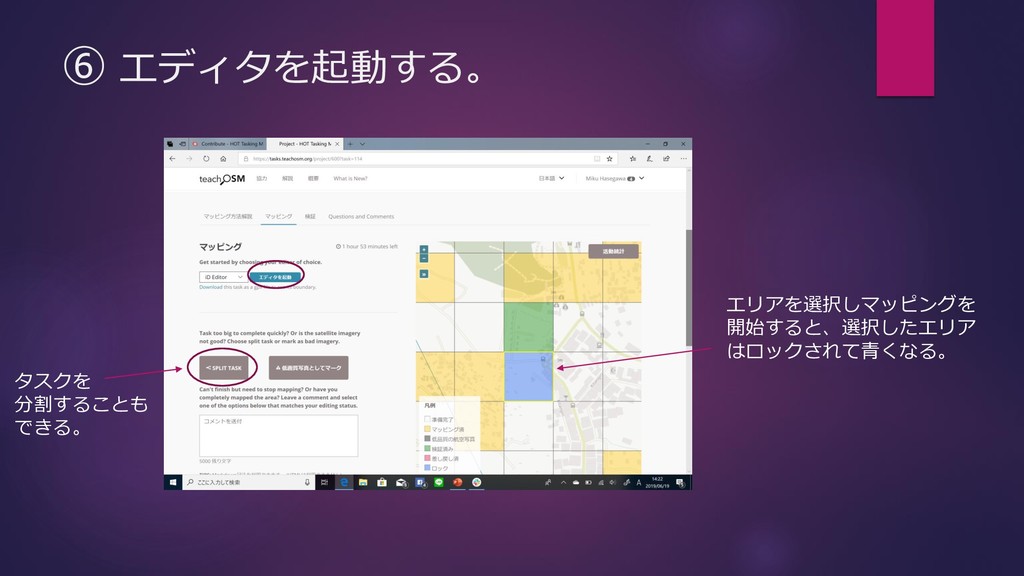
⑥ エディタを起動する。 エリアを選択しマッピングを 開始すると、選択したエリア はロックされて青くなる。 タスクを 分割することも できる。
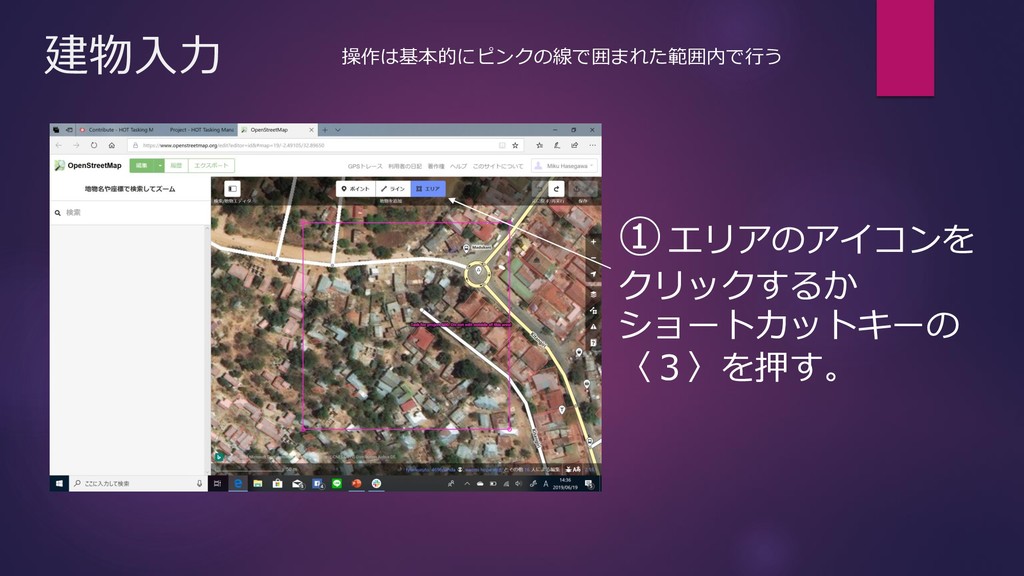
建物入力 ①エリアのアイコンを クリックするか ショートカットキーの 〈3〉を押す。 操作は基本的にピンクの線で囲まれた範囲内で行う
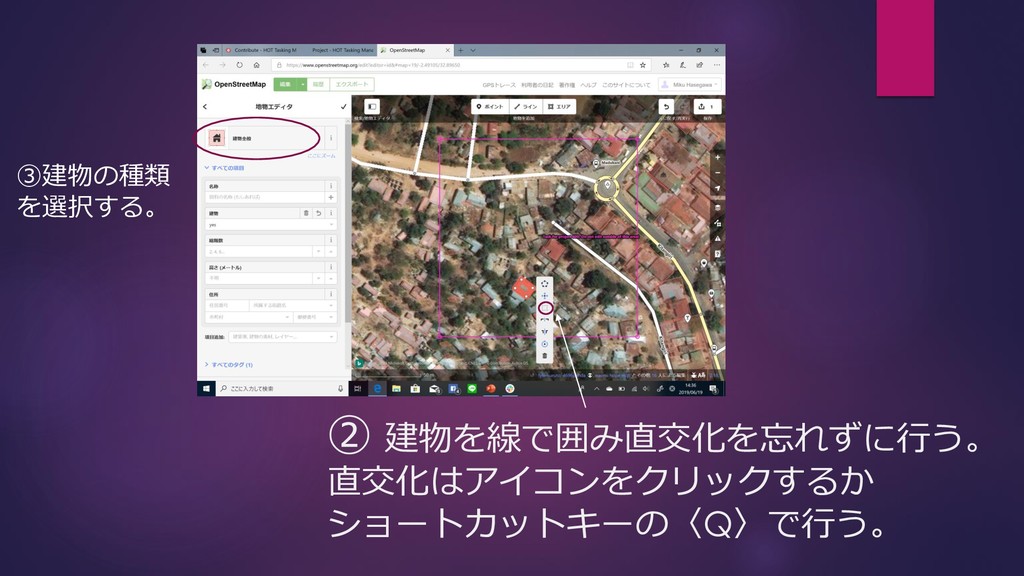
② 建物を線で囲み直交化を忘れずに行う。 直交化はアイコンをクリックするか ショートカットキーの〈Q〉で行う。 ③建物の種類 を選択する。
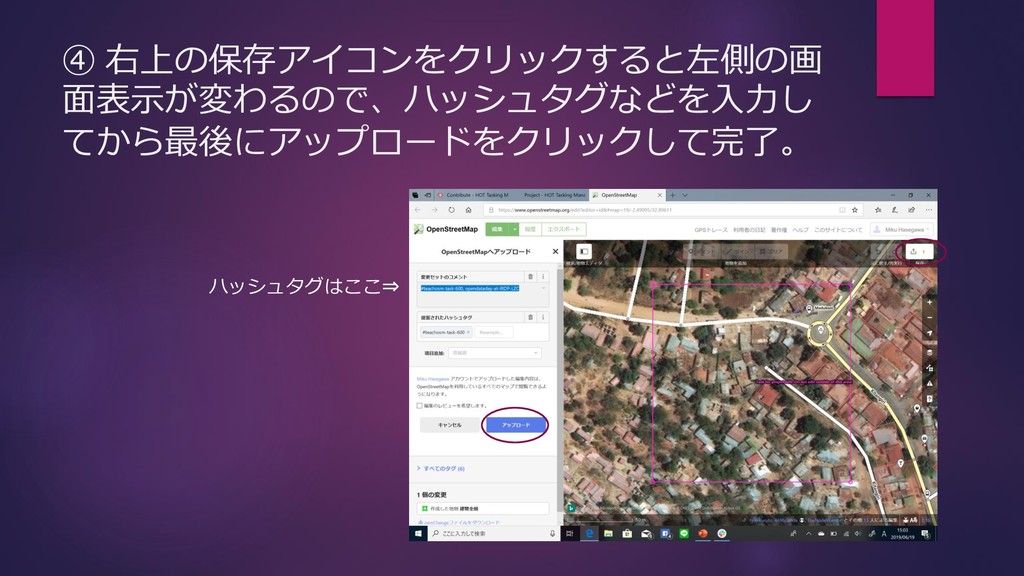
④ 右上の保存アイコンをクリックすると左側の画 面表示が変わるので、ハッシュタグなどを入力し てから最後にアップロードをクリックして完了。 ハッシュタグはここ⇒
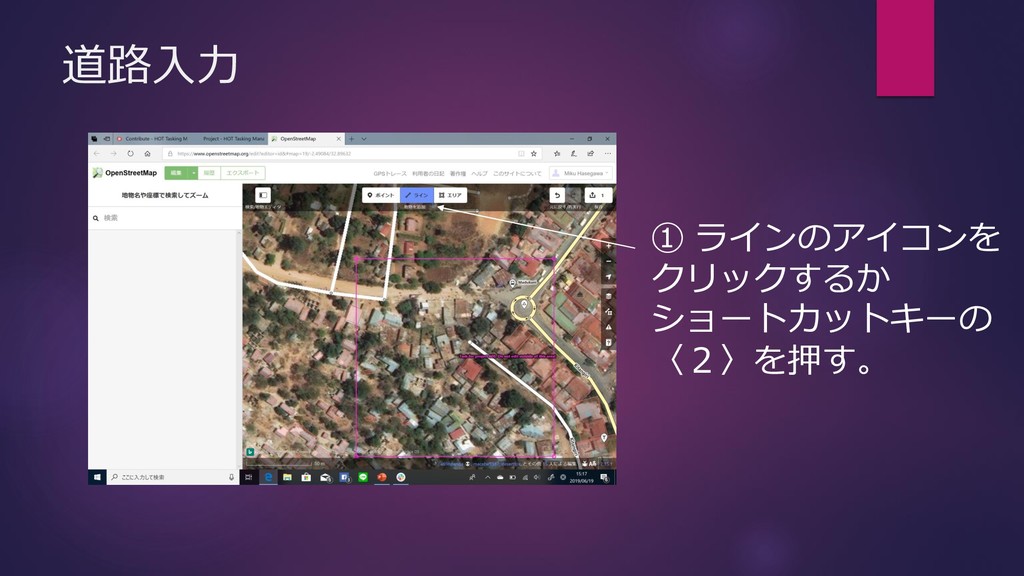
道路入力 ① ラインのアイコンを クリックするか ショートカットキーの 〈2〉を押す。
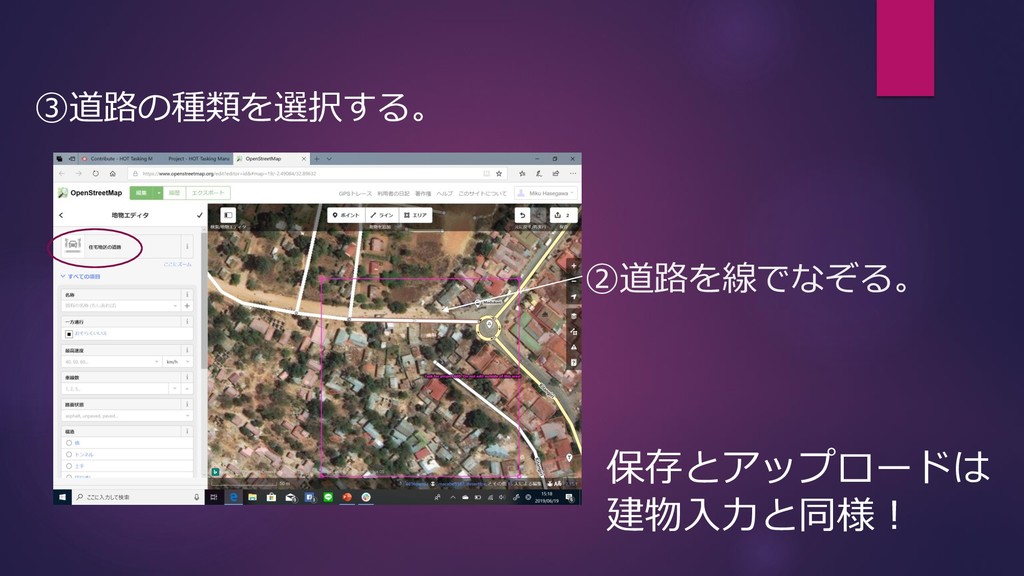
②道路を線でなぞる。 ③道路の種類を選択する。 保存とアップロードは 建物入力と同様!
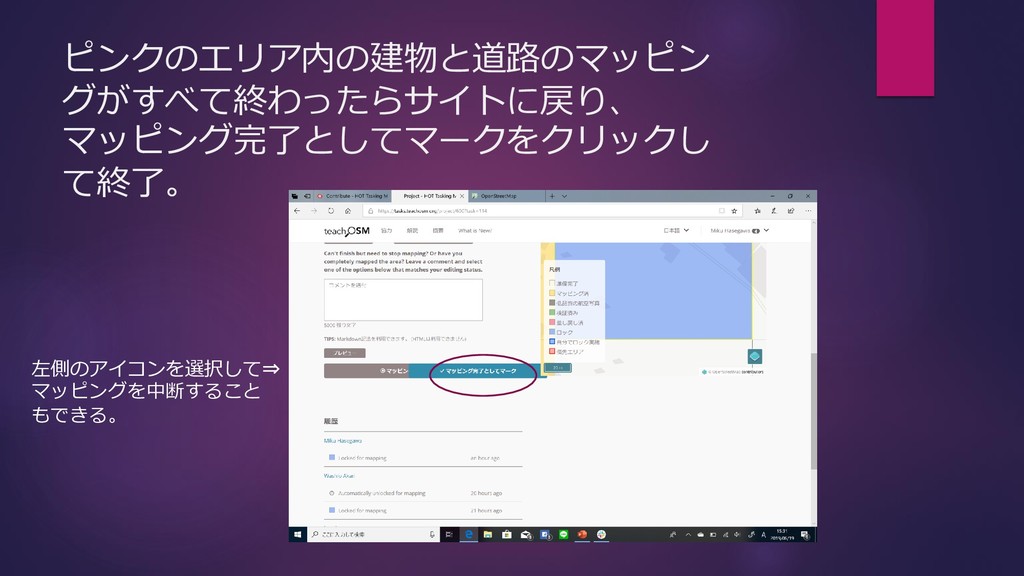
ピンクのエリア内の建物と道路のマッピン グがすべて終わったらサイトに戻り、 マッピング完了としてマークをクリックし て終了。 左側のアイコンを選択して⇒ マッピングを中断すること もできる。


 marktimemedia
 davidcarrasco
 aleyda
 livdayseo
 mlcsv
mlcsv
 bkeepers
 addyosmani
 philnash
 codingconduct
 jeffersonlam
 marketingsoph