Upgrade to Pro
— share decks privately, control downloads, hide ads and more …
Speaker Deck
Sign up for free
Menu
Search
Features
All features
Private URLs
Password Protection
Custom URLS
Scheduled publishing
Remove Branding
Restrict embedding
Deck Collections
Notes
Features
All features
Private URLs
Password Protection
Custom URLS
Scheduled publishing
Remove Branding
Restrict embedding
Deck Collections
Notes
Explore
Featured decks
Featured speakers
Programming
Technology
Storyboards
Explore
Featured decks
Featured speakers
Programming
Technology
Storyboards
Pricing
Search
Sign in
Sign up for free
空間情報システム入門1
Search
Time Hashimoto
June 22, 2016
58
0
Share
Embed
Copy iframe code
Copy JS code
Copy link
Start on current slide
空間情報システム入門1
Time Hashimoto
June 22, 2016
More Decks by Time Hashimoto
See All by Time Hashimoto
overpass Taimu Hashimoto
time
0
38
Featured
See All Featured
Navigating Algorithm Shifts & AI Overviews - #SMXNext
aleyda
1
1.7k
GraphQLの誤解/rethinking-graphql
sonatard
75
12k
Building Experiences: Design Systems, User Experience, and Full Site Editing
marktimemedia
1
630
The Impact of AI in SEO - AI Overviews June 2024 Edition
aleyda
6
1.2k
Self-Hosted WebAssembly Runtime for Runtime-Neutral Checkpoint/Restore in Edge–Cloud Continuum
chikuwait
0
890
Put a Button on it: Removing Barriers to Going Fast.
kastner
60
4.6k
Refactoring Trust on Your Teams (GOTO; Chicago 2020)
rmw
35
3.8k
Fashionably flexible responsive web design (full day workshop)
malarkey
409
67k
Typedesign – Prime Four
hannesfritz
42
3.2k
sira's awesome portfolio website redesign presentation
elsirapls
0
460
Six Lessons from altMBA
skipperchong
29
4.5k
Mobile First: as difficult as doing things right
swwweet
225
10k
Transcript
Open Street Mapにおける マッピング作業のマニュアル 空間情報システム1 1A116173 橋本 大夢
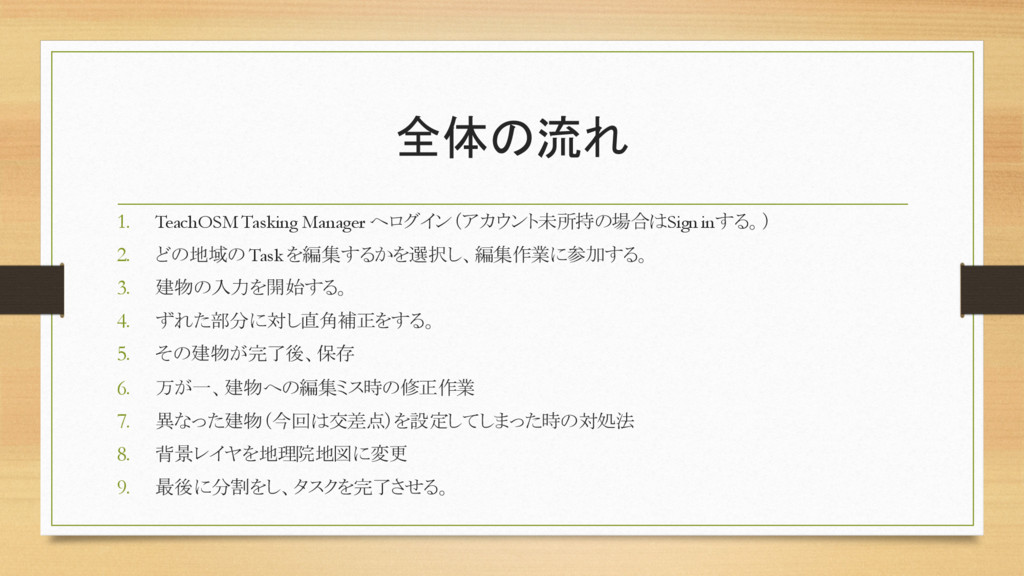
全体の流れ 1. TeachOSM Tasking Manager へログイン(アカウント未所持の場合はSign inする。) 2. どの地域の Taskを編集するかを選択し、編集作業に参加する。
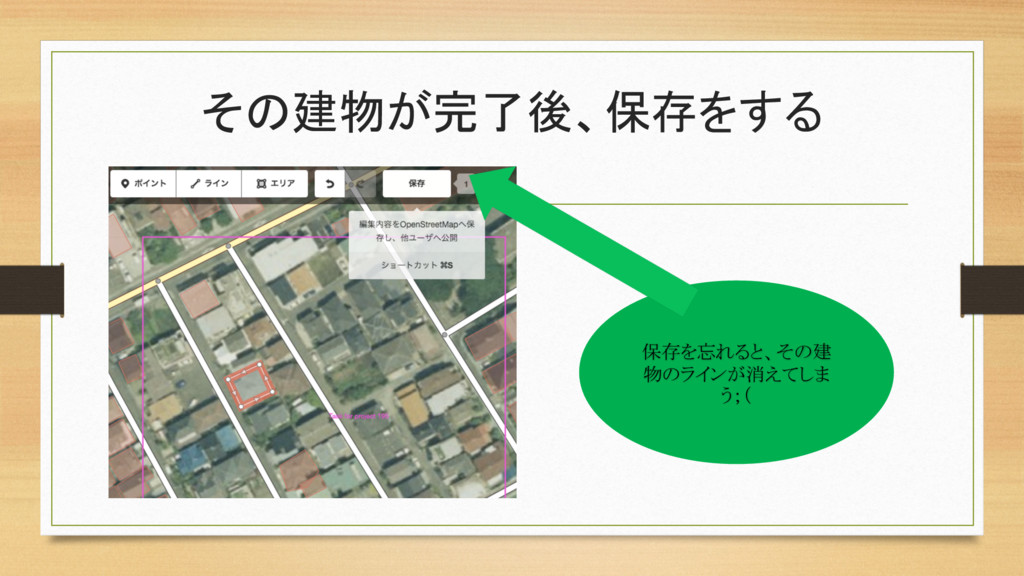
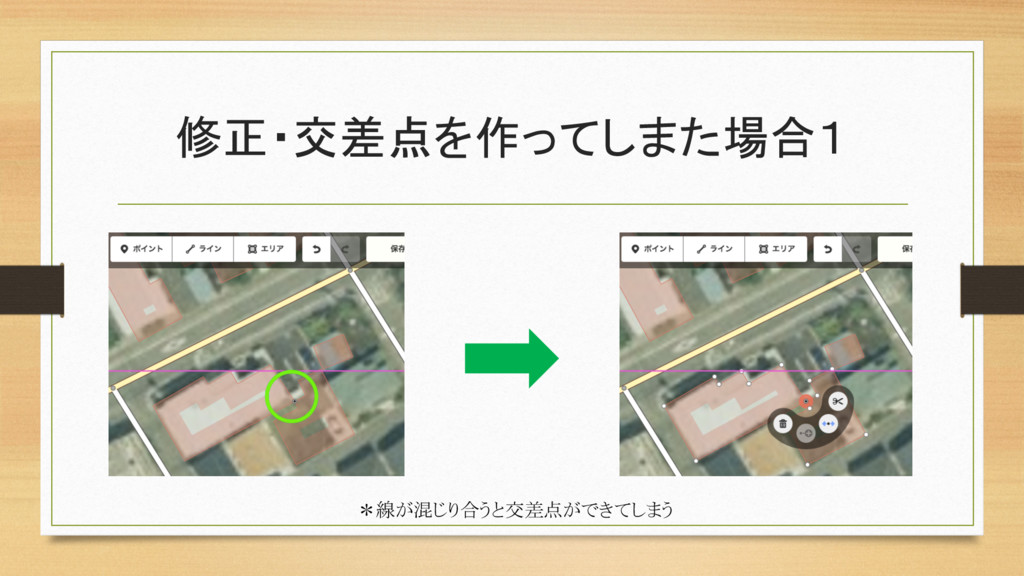
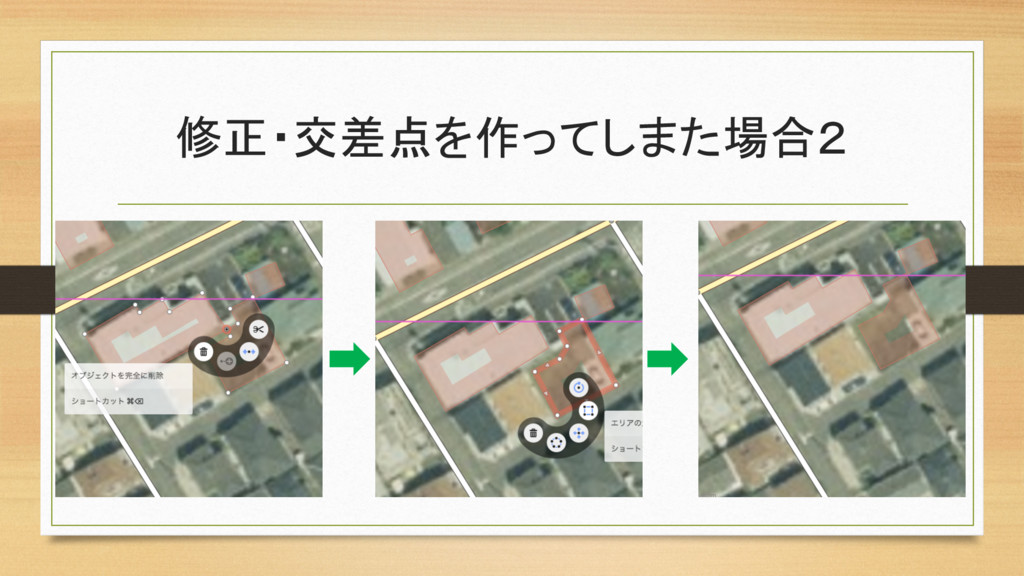
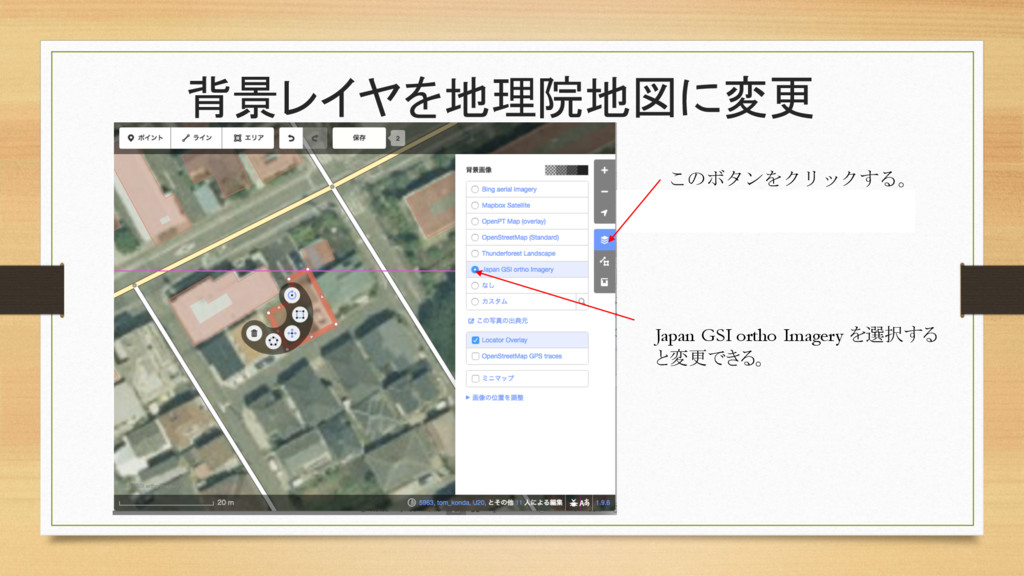
3. 建物の入力を開始する。 4. ずれた部分に対し直角補正をする。 5. その建物が完了後、保存 6. 万が一、建物への編集ミス時の修正作業 7. 異なった建物(今回は交差点)を設定してしまった時の対処法 8. 背景レイヤを地理院地図に変更 9. 最後に分割をし、タスクを完了させる。
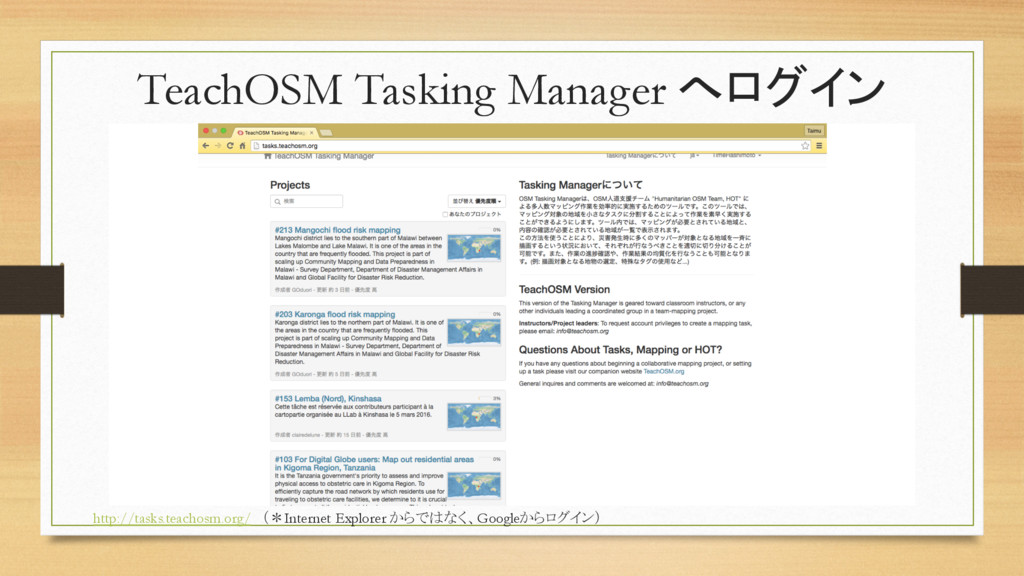
TeachOSM Tasking Manager へログイン http://tasks.teachosm.org/ (*Internet Explorer からではなく、Googleからログイン)
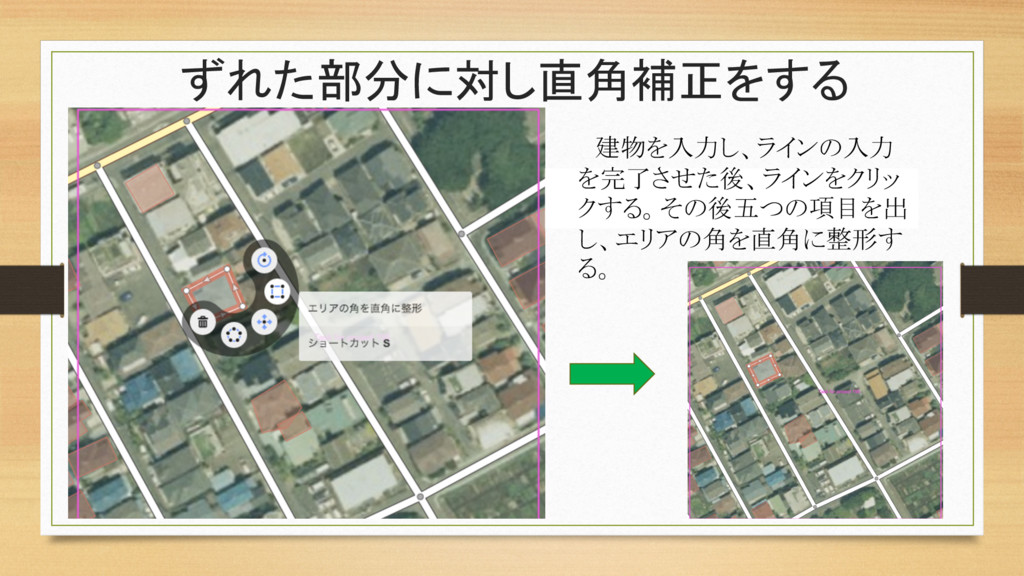
ずれた部分に対し直角補正をする 建物を入力し、ラインの入力 を完了させた後、ラインをクリッ クする。その後五つの項目を出 し、エリアの角を直角に整形す る。
その建物が完了後、保存をする 保存を忘れると、その建 物のラインが消えてしま う;(
修正・交差点を作ってしまた場合1 *線が混じり合うと交差点ができてしまう
修正・交差点を作ってしまた場合2
背景レイヤを地理院地図に変更 このボタンをクリックする。 Japan GSI ortho Imagery を選択する と変更できる。
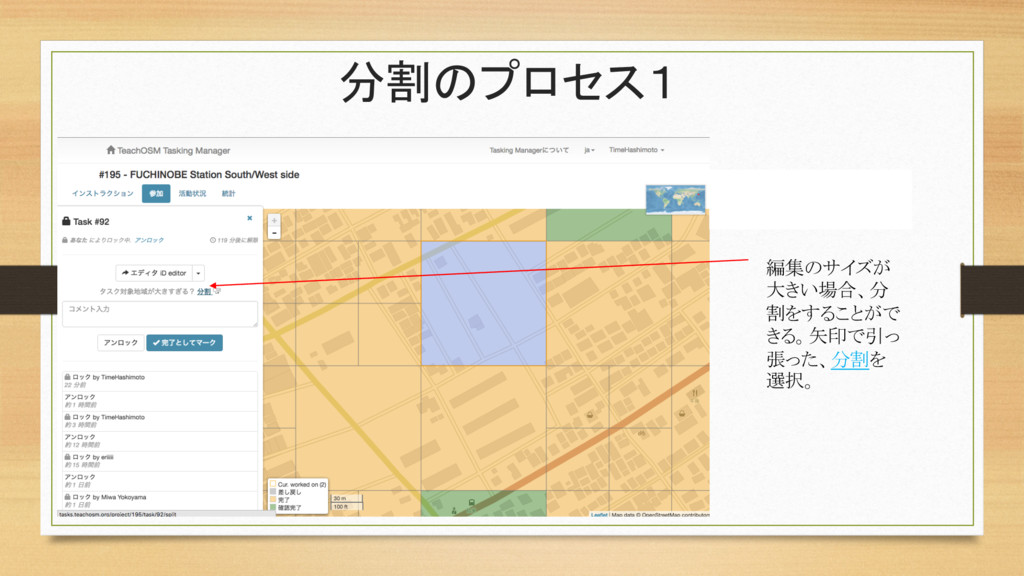
分割のプロセス1 編集のサイズが 大きい場合、分 割をすることがで きる。矢印で引っ 張った、分割を 選択。
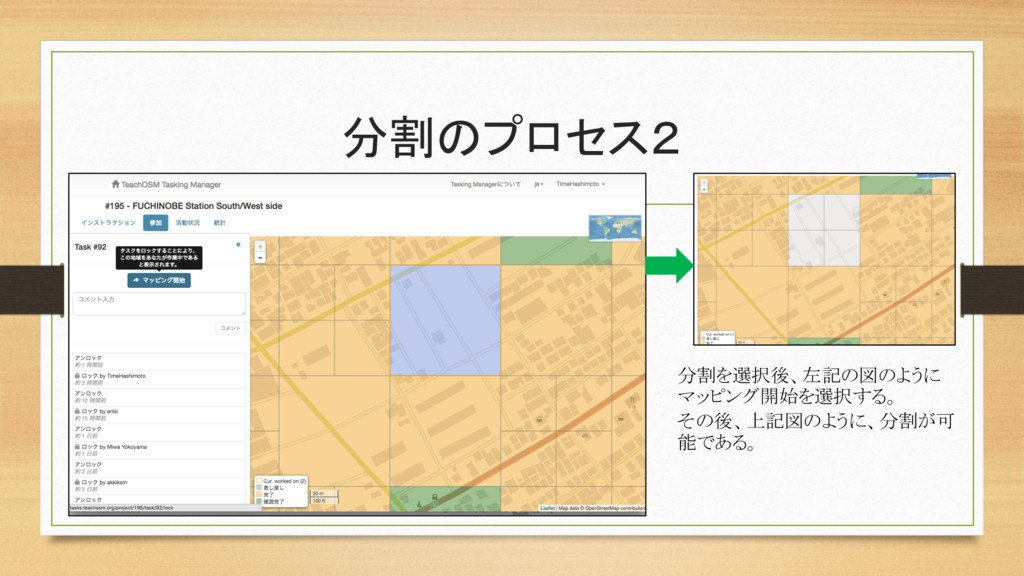
分割のプロセス2 分割を選択後、左記の図のように マッピング開始を選択する。 その後、上記図のように、分割が可 能である。
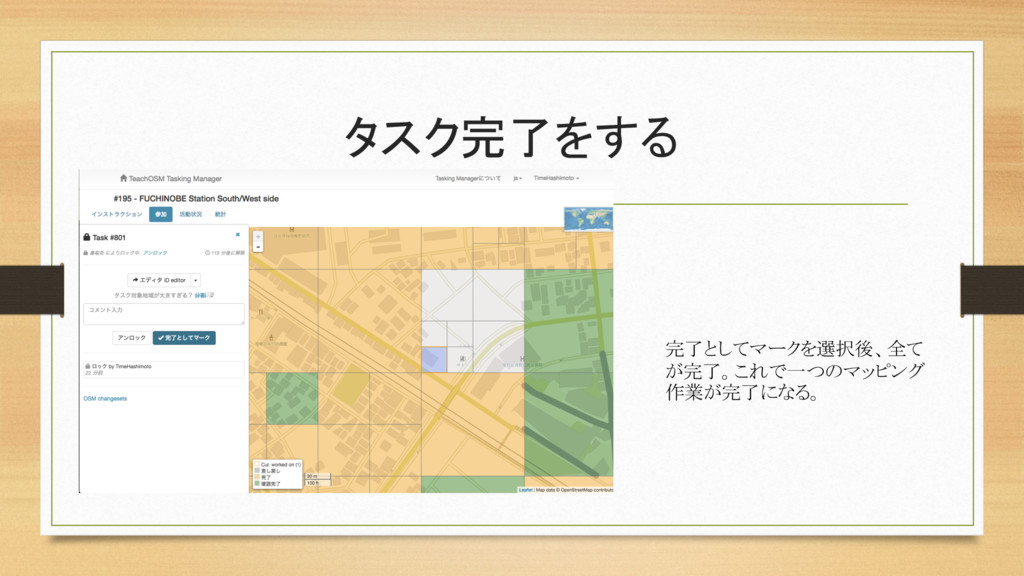
タスク完了をする 完了としてマークを選択後、全て が完了。これで一つのマッピング 作業が完了になる。


 time
time
 aleyda
 sonatard
 marktimemedia
 chikuwait
 kastner
 rmw
rmw
 malarkey
 hannesfritz
 elsirapls
 skipperchong
 swwweet