Upgrade to Pro
— share decks privately, control downloads, hide ads and more …
Speaker Deck
Sign up for free
Menu
Search
Features
All features
Private URLs
Password Protection
Custom URLS
Scheduled publishing
Remove Branding
Restrict embedding
Deck Collections
Notes
Features
All features
Private URLs
Password Protection
Custom URLS
Scheduled publishing
Remove Branding
Restrict embedding
Deck Collections
Notes
Explore
Featured decks
Featured speakers
Programming
Technology
Storyboards
Explore
Featured decks
Featured speakers
Programming
Technology
Storyboards
Pricing
Search
Sign in
Sign up for free
Blue Jeans
Search
Mozzie
April 14, 2017
36
0
Share
Embed
Copy iframe code
Copy JS code
Copy link
Start on current slide
Blue Jeans
Mozzie
April 14, 2017
Featured
See All Featured
How Fast Is Fast Enough? [PerfNow 2025]
tammyeverts
3
940
A better future with KSS
kneath
240
18k
We Have a Design System, Now What?
morganepeng
55
8.4k
Music & Morning Musume
bryan
48
7.4k
Intergalactic Javascript Robots from Outer Space
tanoku
273
28k
<Decoding/> the Language of Devs - We Love SEO 2024
nikkihalliwell
1
360
Context Engineering - Making Every Token Count
addyosmani
9
1.2k
Ecommerce SEO: The Keys for Success Now & Beyond - #SERPConf2024
aleyda
1
2.2k
Writing Fast Ruby
sferik
630
63k
Leo the Paperboy
mayatellez
10
2.4k
Design of three-dimensional binary manipulators for pick-and-place task avoiding obstacles (IECON2024)
konakalab
0
620
個人開発の失敗を避けるイケてる考え方 / tips for indie hackers
panda_program
123
22k
Transcript
J O I N I N G A M E
E T I N G L A P TO P O R D E S K TO P
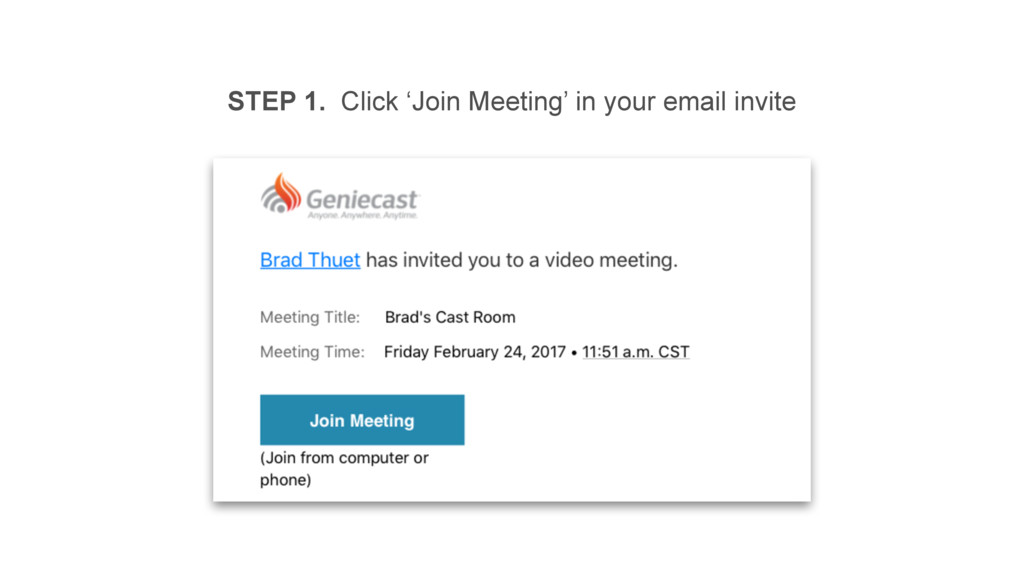
STEP 1. Click ‘Join Meeting’ in your email invite
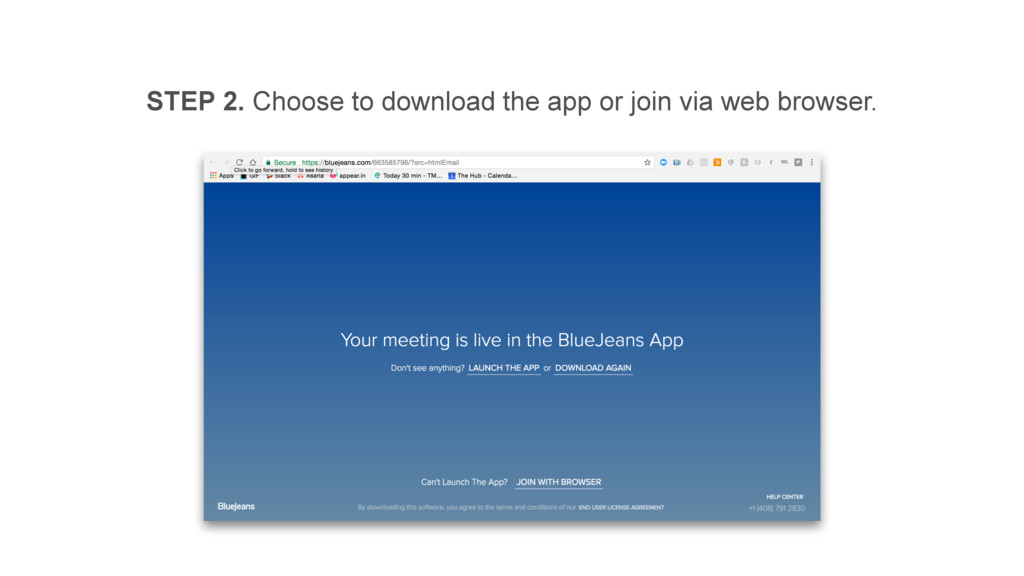
STEP 2. Choose to download the app or join via
web browser.
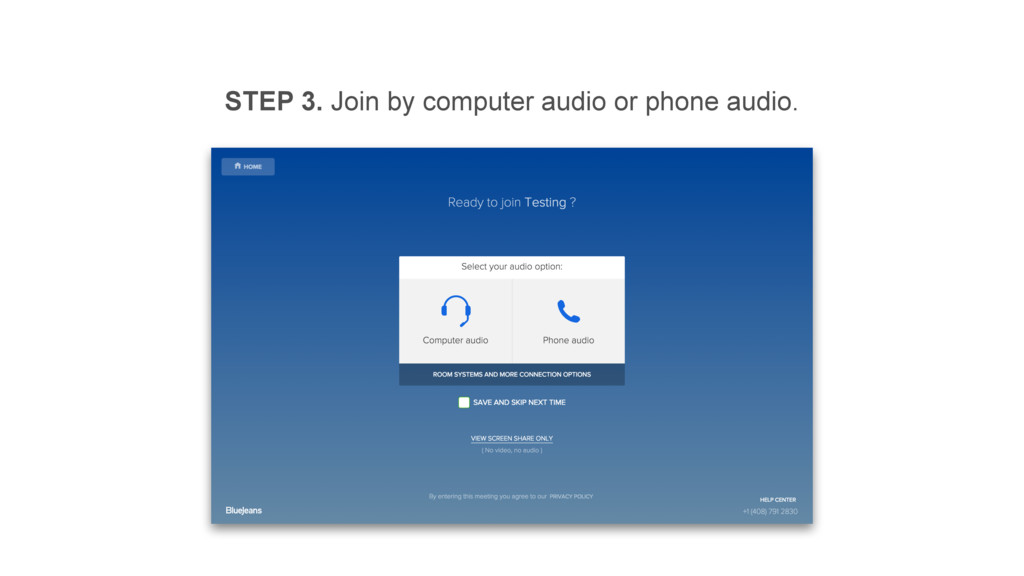
STEP 3. Join by computer audio or phone audio.
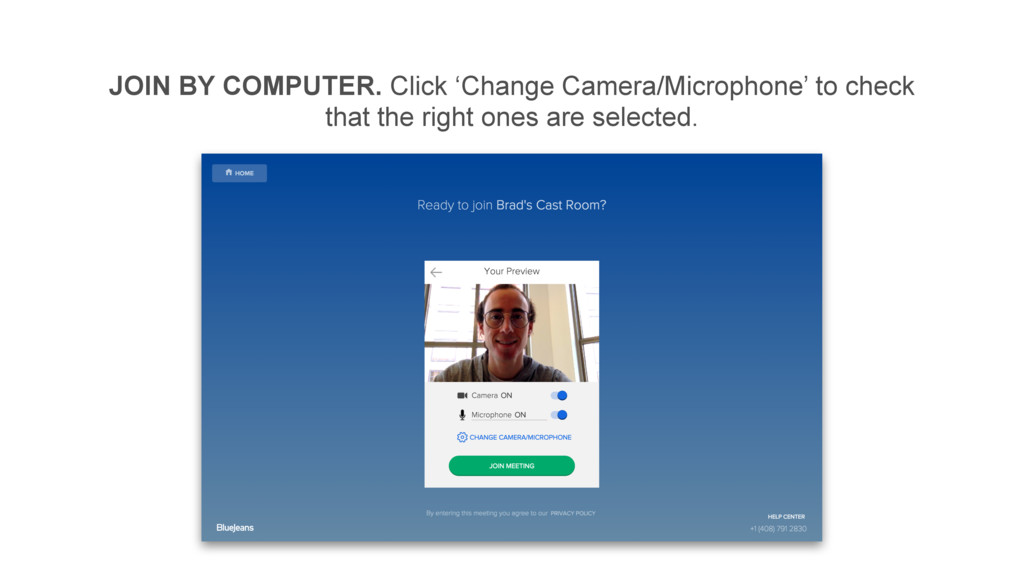
JOIN BY COMPUTER. Click ‘Change Camera/Microphone’ to check that the
right ones are selected.
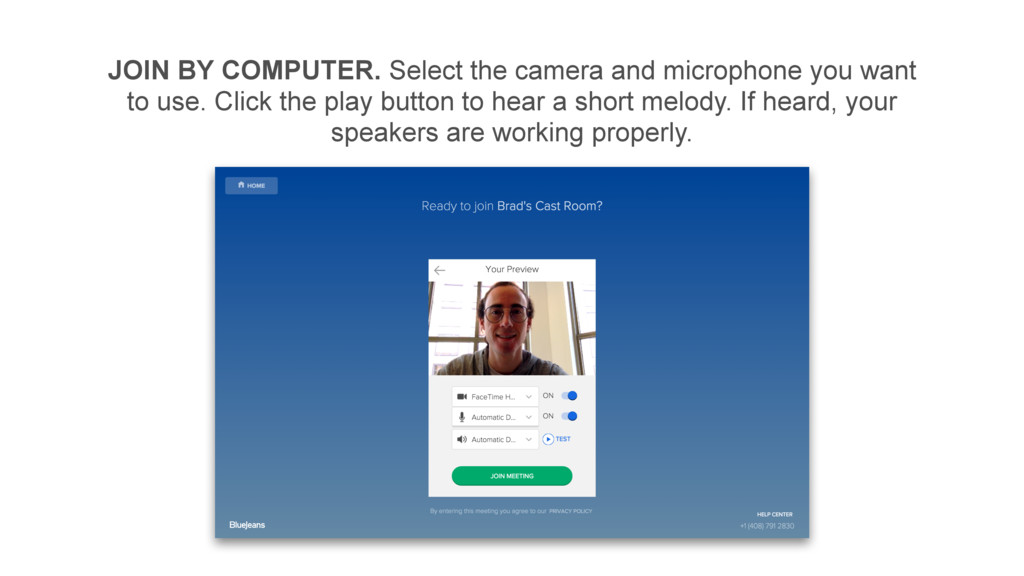
JOIN BY COMPUTER. Select the camera and microphone you want
to use. Click the play button to hear a short melody. If heard, your speakers are working properly.
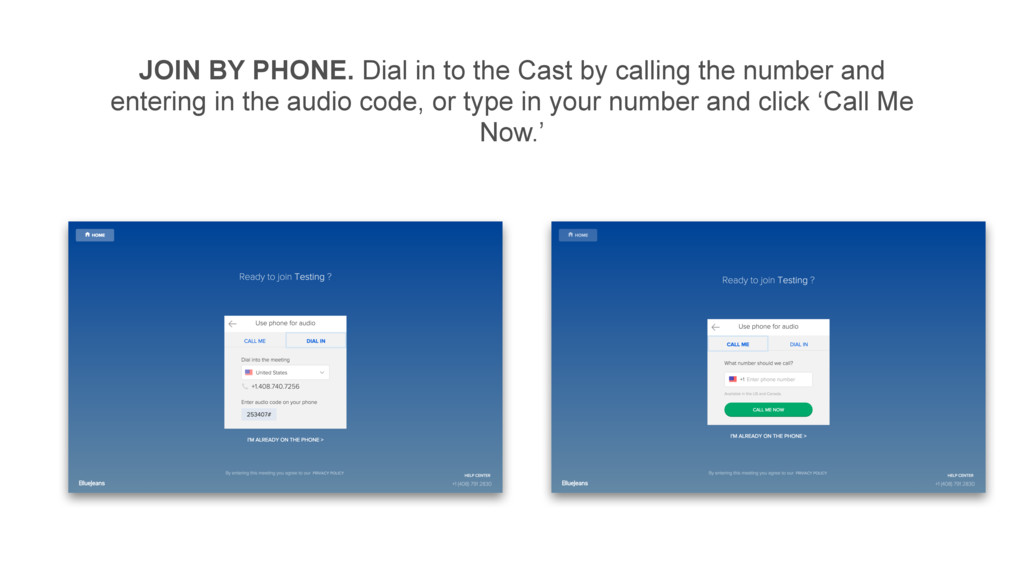
JOIN BY PHONE. Dial in to the Cast by calling
the number and entering in the audio code, or type in your number and click ‘Call Me Now.’
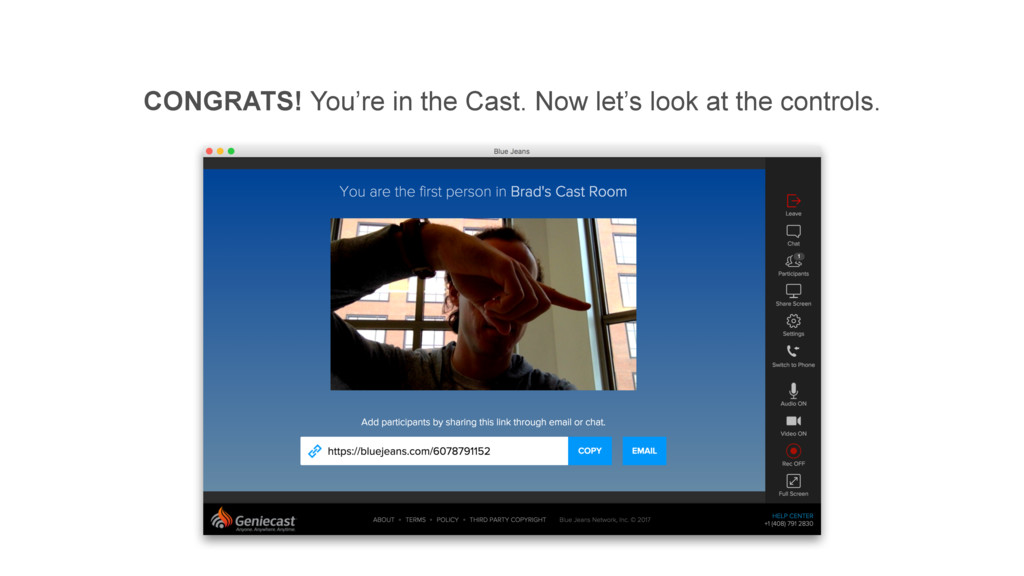
CONGRATS! You’re in the Cast. Now let’s look at the
controls.
CHAT. Chat with other participants publicly or privately.
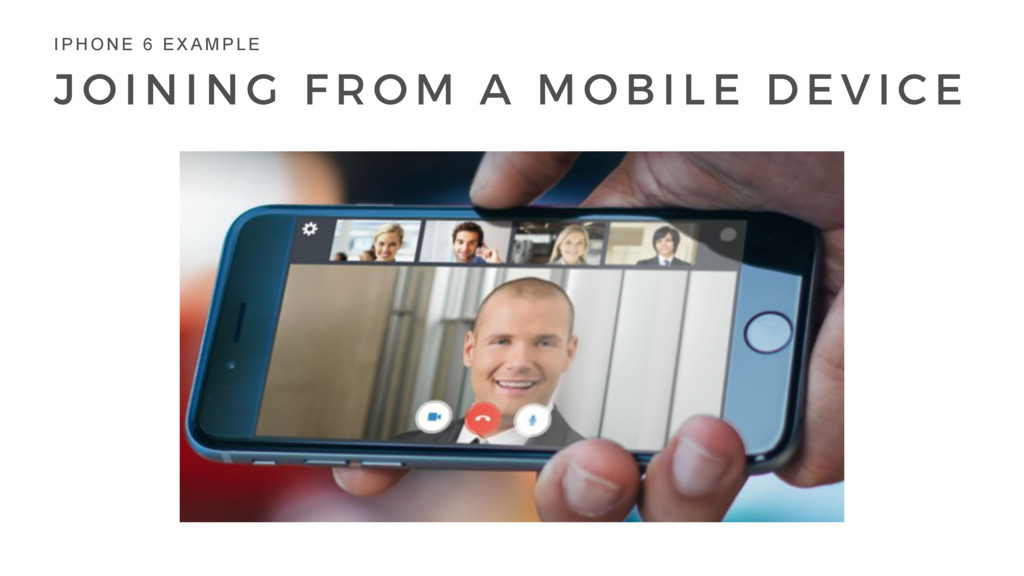
J O I N I N G F R O
M A M O B I L E D E V I C E I P H O N E 6 E X A M P L E
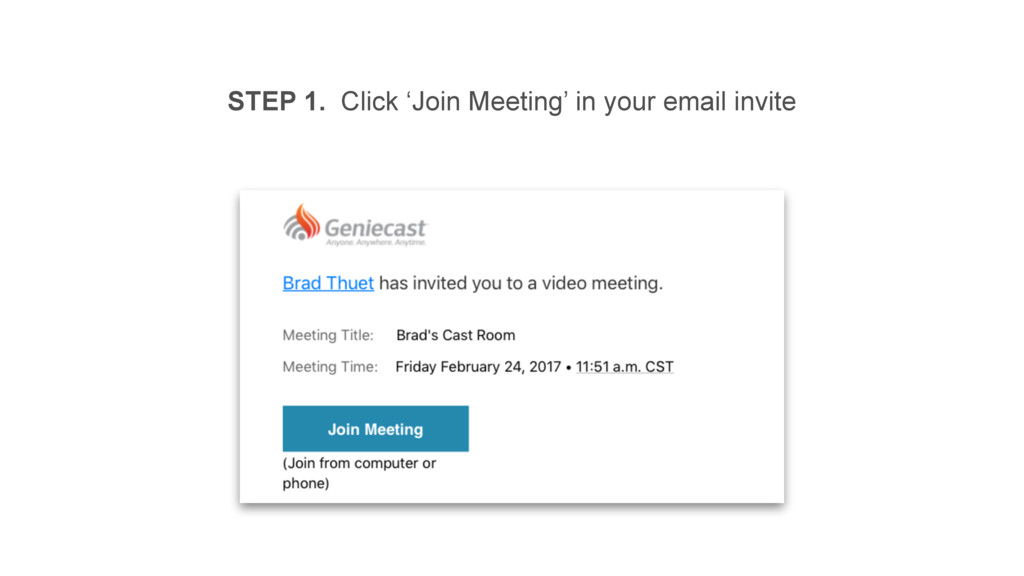
STEP 1. Click ‘Join Meeting’ in your email invite
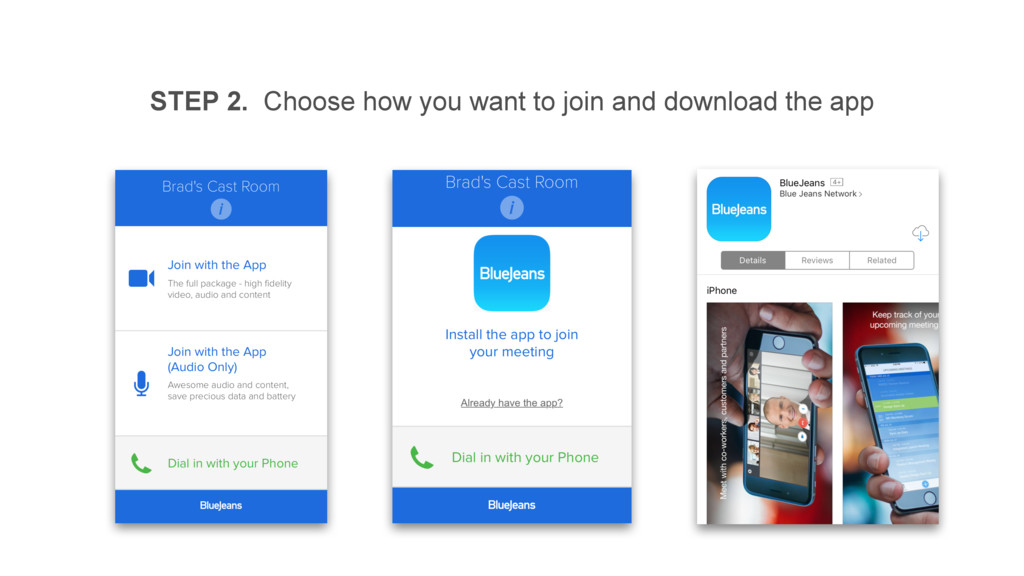
STEP 2. Choose how you want to join and download
the app
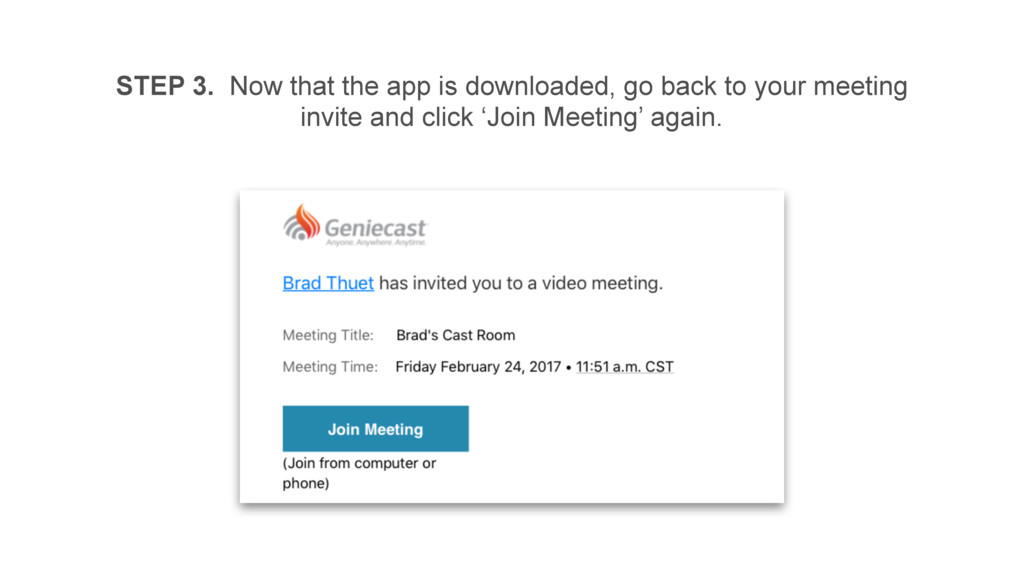
STEP 3. Now that the app is downloaded, go back
to your meeting invite and click ‘Join Meeting’ again.
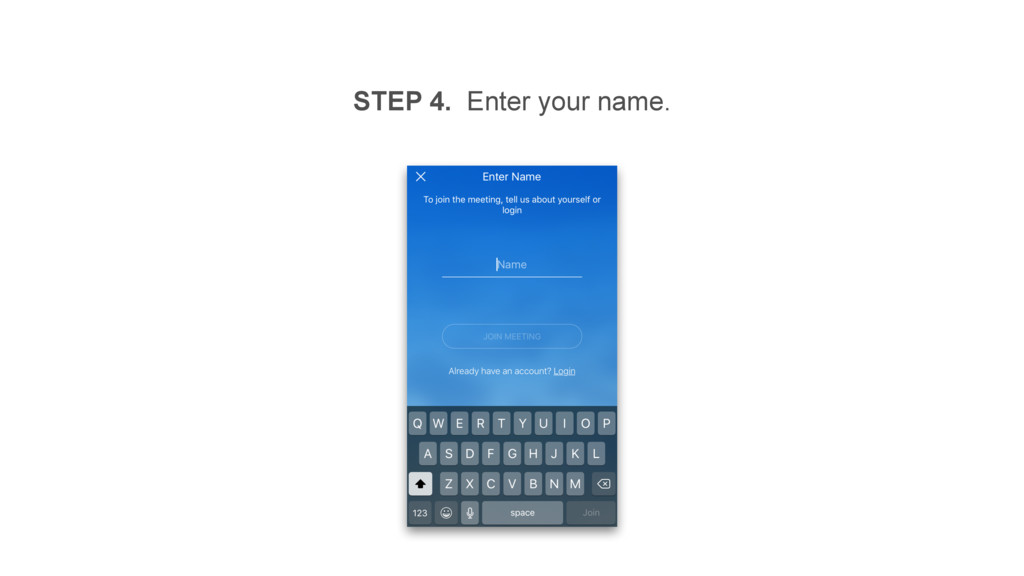
STEP 4. Enter your name.
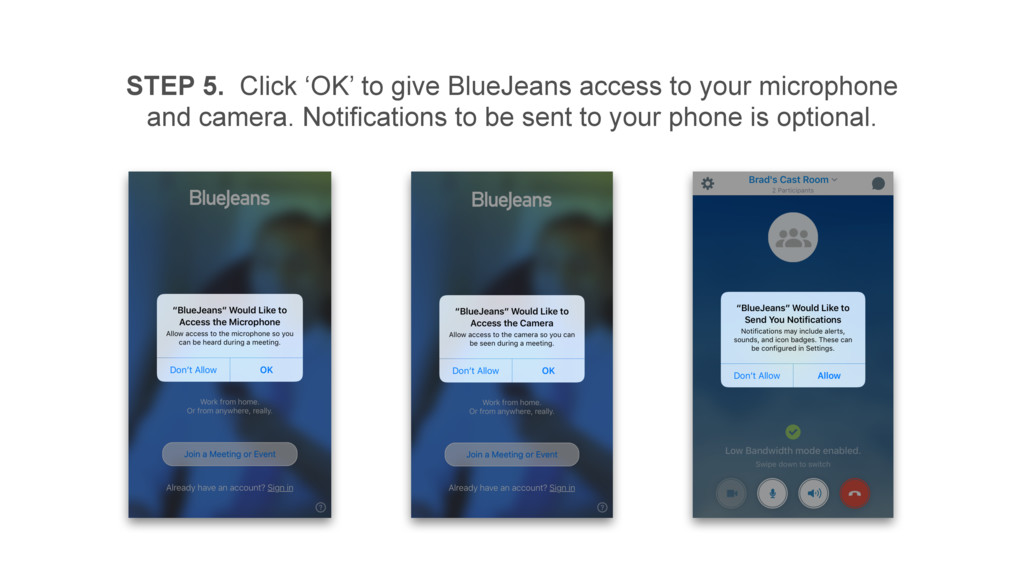
STEP 5. Click ‘OK’ to give BlueJeans access to your
microphone and camera. Notifications to be sent to your phone is optional.
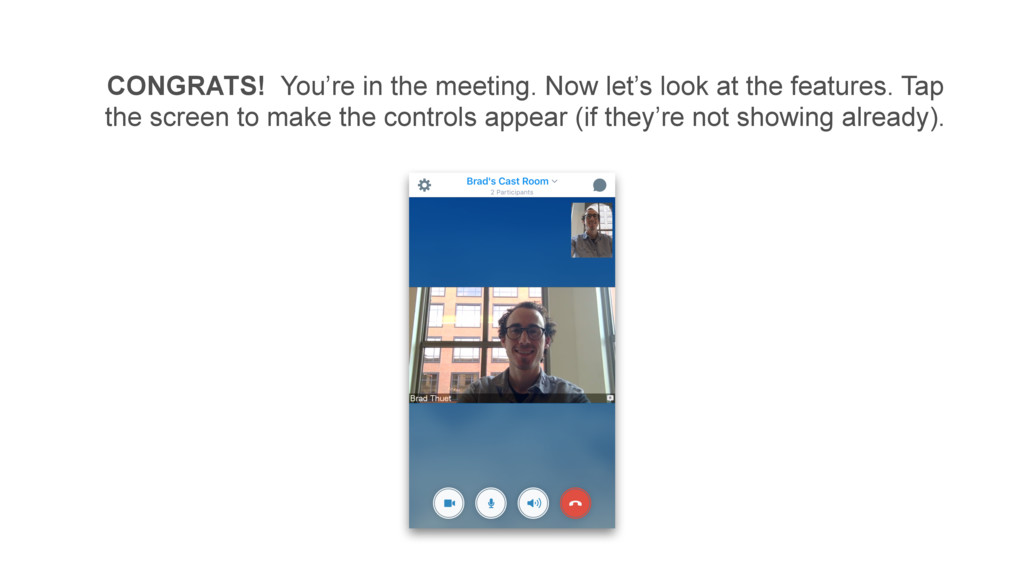
CONGRATS! You’re in the meeting. Now let’s look at the
features. Tap the screen to make the controls appear (if they’re not showing already).
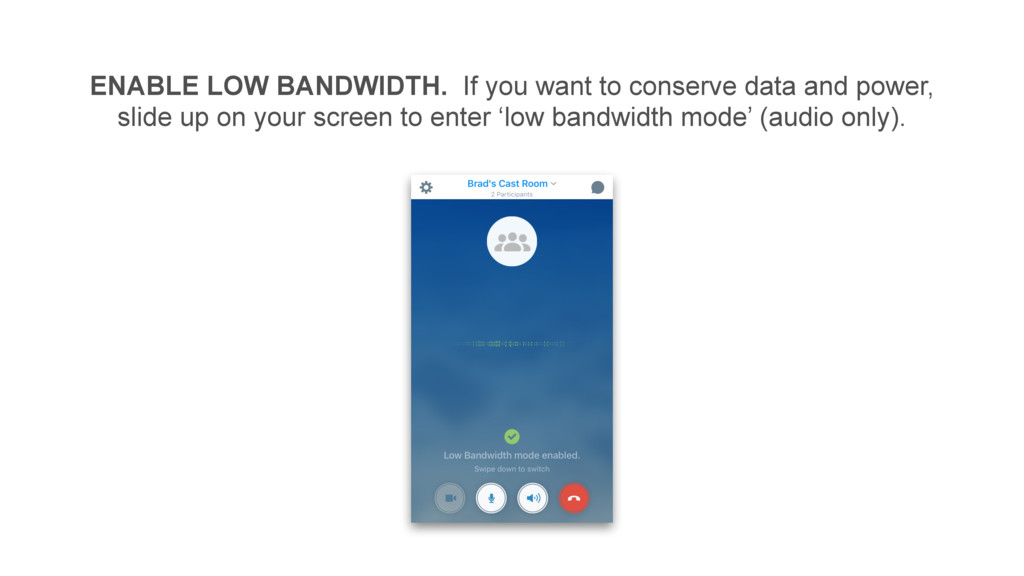
ENABLE LOW BANDWIDTH. If you want to conserve data and
power, slide up on your screen to enter ‘low bandwidth mode’ (audio only).
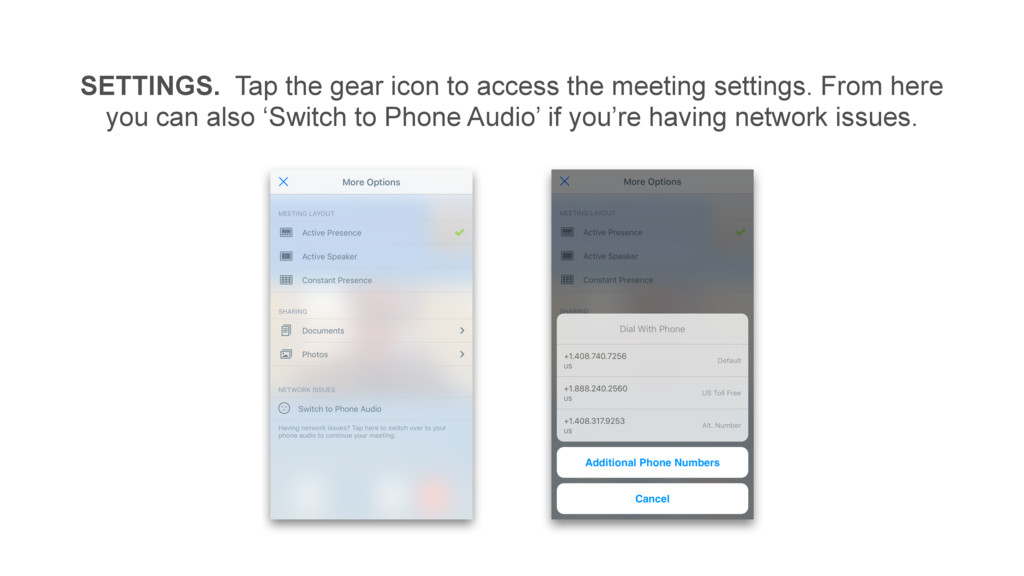
SETTINGS. Tap the gear icon to access the meeting settings.
From here you can also ‘Switch to Phone Audio’ if you’re having network issues.
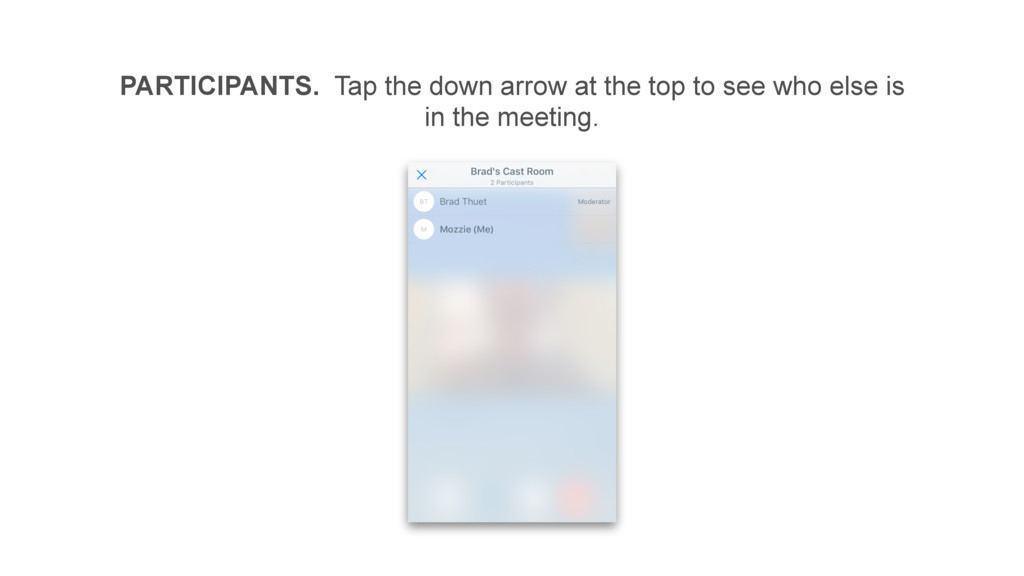
PARTICIPANTS. Tap the down arrow at the top to see
who else is in the meeting.
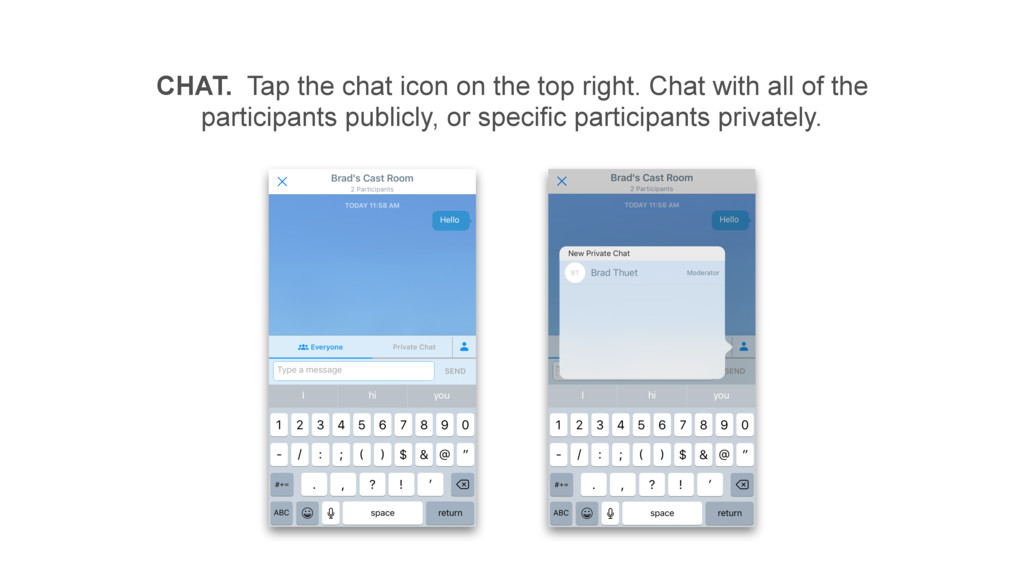
CHAT. Tap the chat icon on the top right. Chat
with all of the participants publicly, or specific participants privately.


 tammyeverts
 kneath
 morganepeng
 bryan
bryan
 tanoku
 nikkihalliwell
 addyosmani
 aleyda
 sferik
 mayatellez
 konakalab
 panda_program