Upgrade to Pro — share decks privately, control downloads, hide ads and more …

Android UI test in Espresso

Android UI test in Espresso

Developing scalable Android applications requires some level of discipline from the developers. One of this, is the act of Testing, which establishes some level of confidence in the code developers have written. While there are various ways to test your application, this talk focuses on Testing your Android Application using Espresso. We will discuss how Espresso enables you to test user interactions within your Android app to ensure that users do not encounter unexpected results or have a poor experience when interacting with your app. One of the great things about Espresso, is that its code looks a lot like English, which makes it predictable and easy to learn. The API is relatively small, and yet open for customization. Espresso tests run optimally fast (this will save you some development time). Why should I get into the habit of creating user interface (UI) tests and how do I verify that the UI of my app is functioning correctly? The answers to these questions and other questions relating to Android UI tests will be delivered to you. 'f u cn rd ths, u cn wrt Espresso tst.'

Avatar for Blessing Ekundayo

Blessing Ekundayo

November 11, 2017

Other Decks in Technology

Transcript

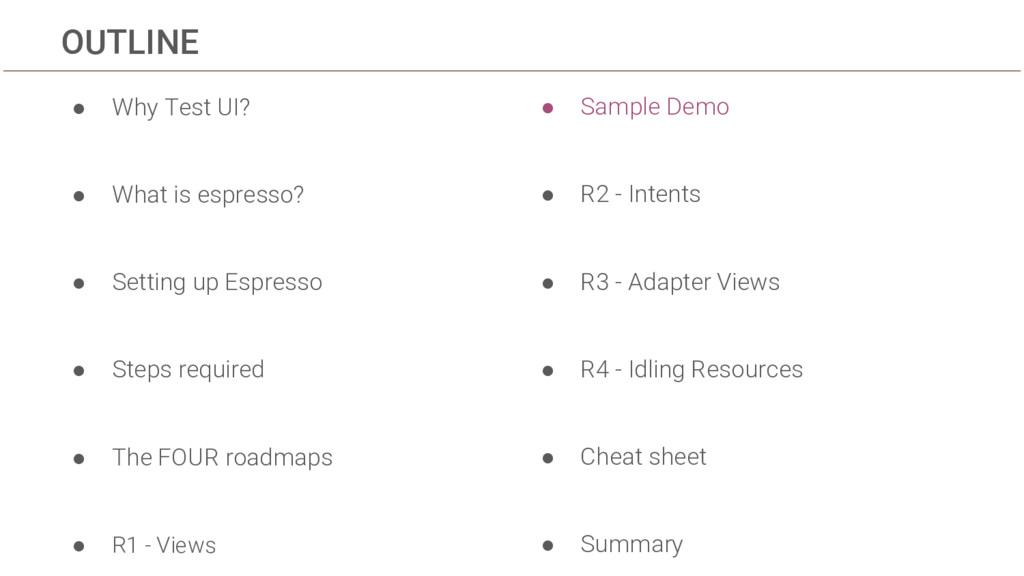
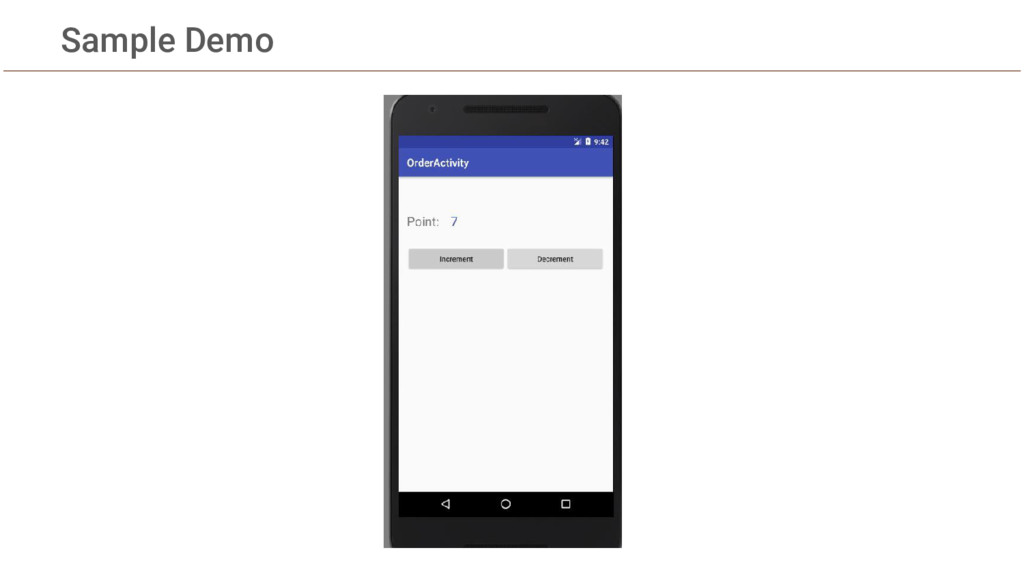
  1. • Sample Demo • R2 - Intents • R3 -

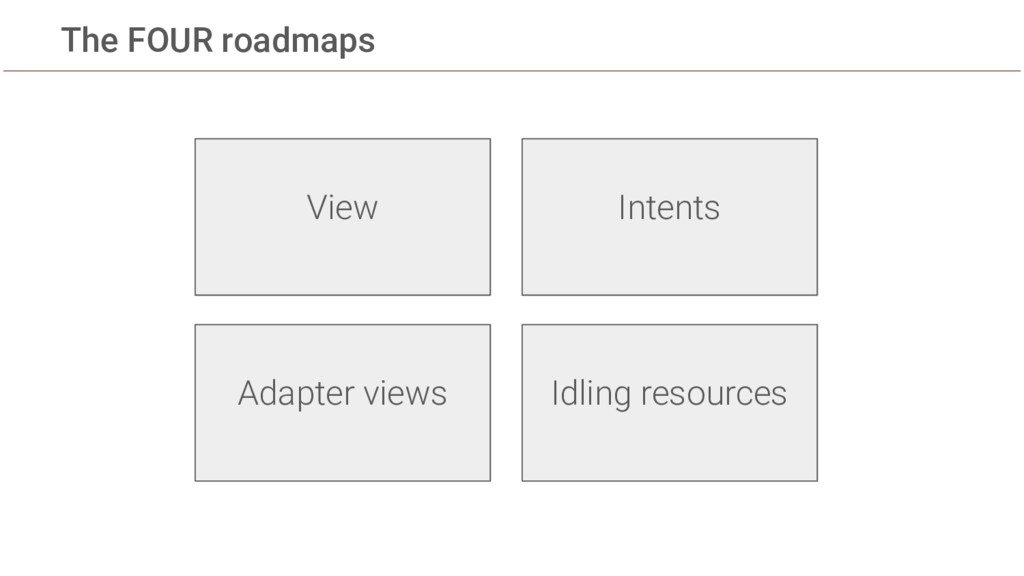
    Adapter Views • R4 - Idling Resources • Cheat sheet • Summary OUTLINE • Why Test UI? • What is espresso? • Setting up Espresso • Steps required • The FOUR roadmaps • R1 - Views
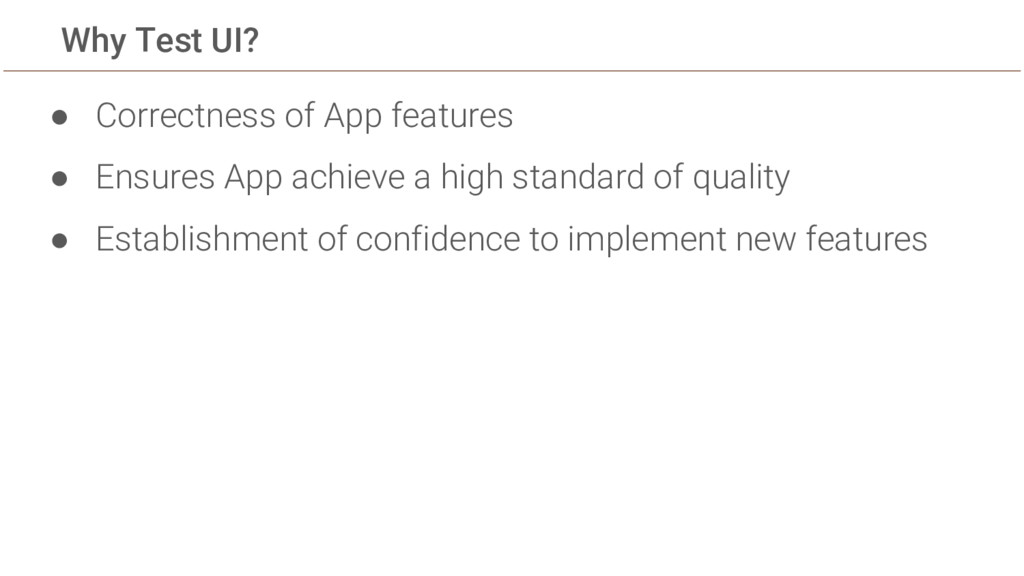
  2. Why Test UI? • Correctness of App features • Ensures

    App achieve a high standard of quality • Establishment of confidence to implement new features
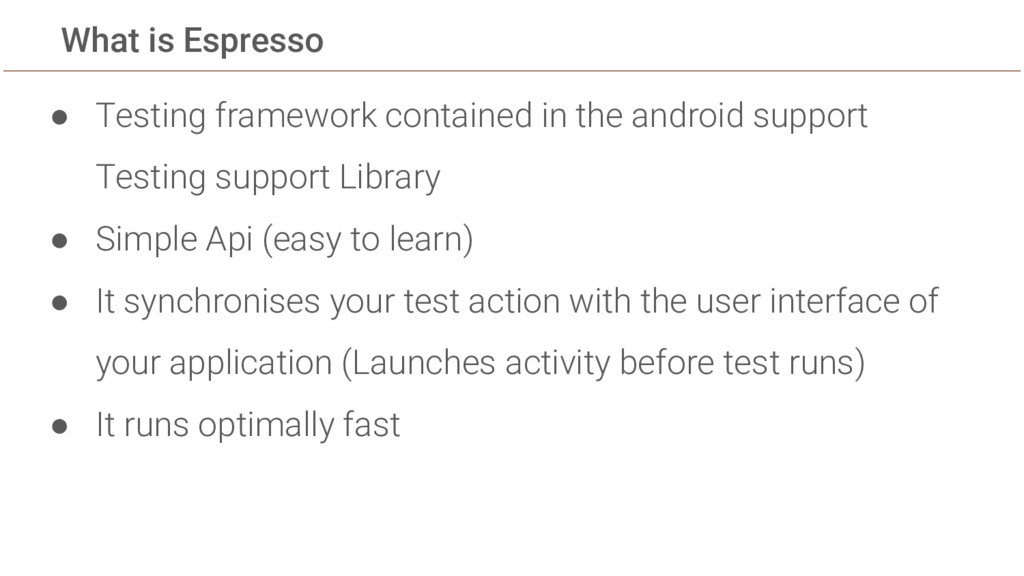
  3. What is Espresso • Testing framework contained in the android

    support Testing support Library • Simple Api (easy to learn) • It synchronises your test action with the user interface of your application (Launches activity before test runs) • It runs optimally fast
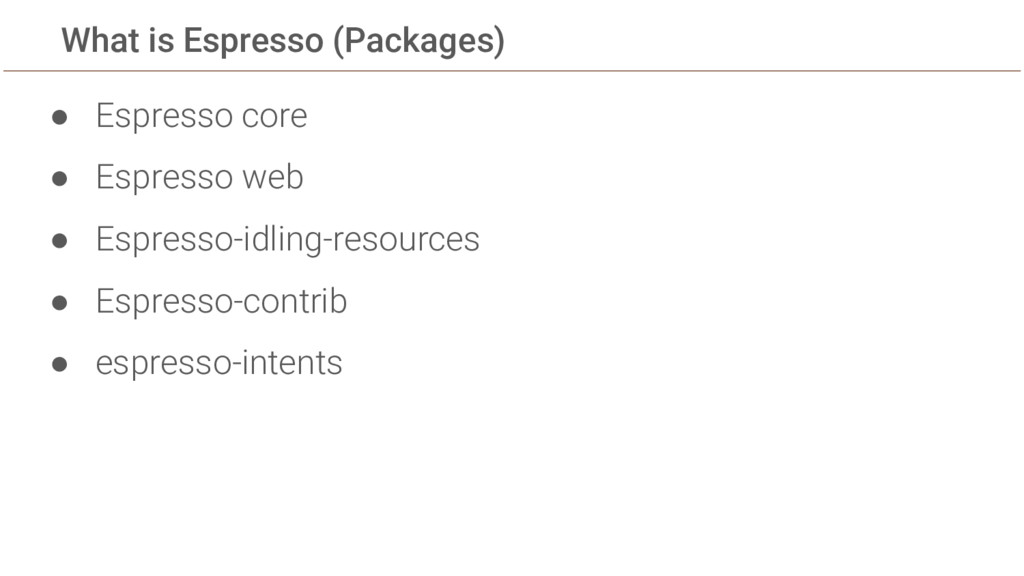
  4. What is Espresso (Packages) • Espresso core • Espresso web

    • Espresso-idling-resources • Espresso-contrib • espresso-intents
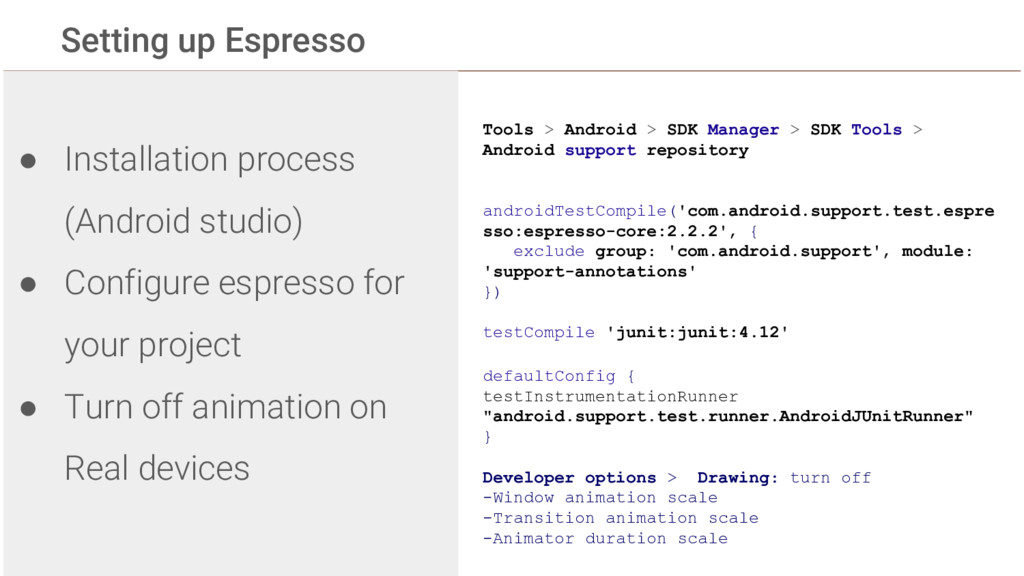
  5. Setting up Espresso • Installation process (Android studio) • Configure

    espresso for your project • Turn off animation on Real devices Tools > Android > SDK Manager > SDK Tools > Android support repository androidTestCompile('com.android.support.test.espre sso:espresso-core:2.2.2', { exclude group: 'com.android.support', module: 'support-annotations' }) testCompile 'junit:junit:4.12' defaultConfig { testInstrumentationRunner "android.support.test.runner.AndroidJUnitRunner" } Developer options > Drawing: turn off -Window animation scale -Transition animation scale -Animator duration scale
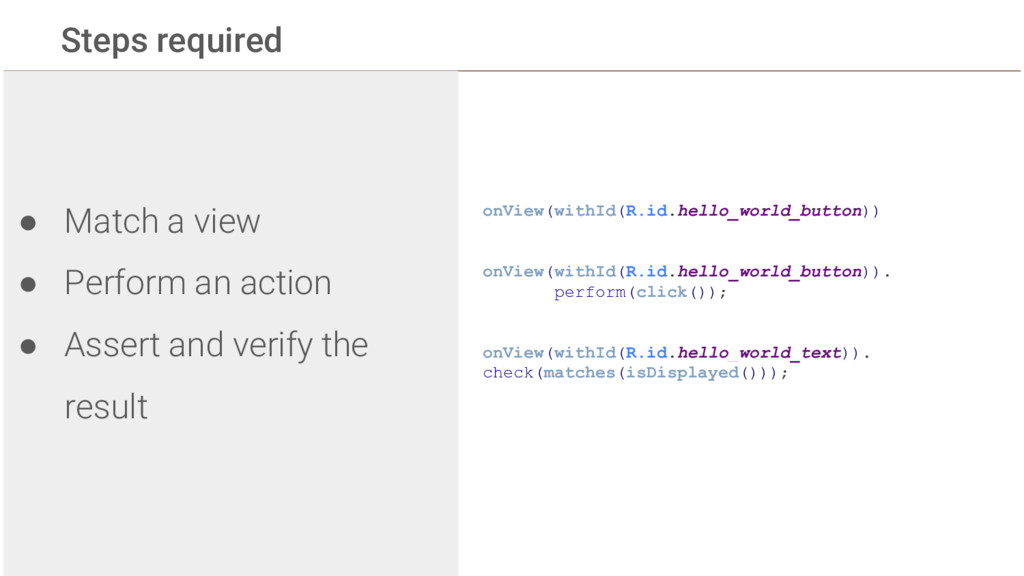
  6. Steps required • Match a view • Perform an action

    • Assert and verify the result onView(withId(R.id.hello_world_button)) onView(withId(R.id.hello_world_button)). perform(click()); onView(withId(R.id.hello_world_text)). check(matches(isDisplayed()));
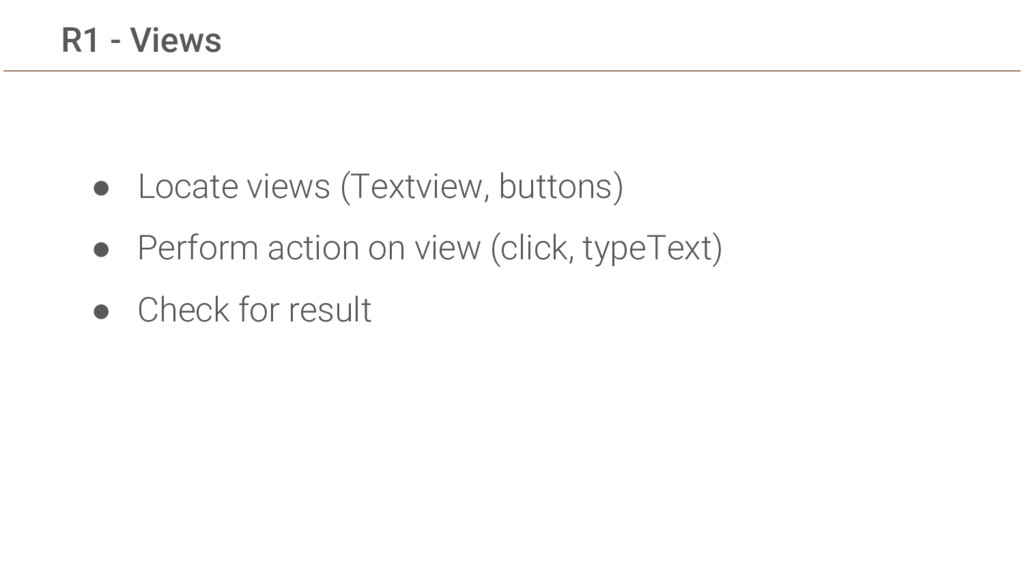
  7. R1 - Views • Locate views (Textview, buttons) • Perform

    action on view (click, typeText) • Check for result
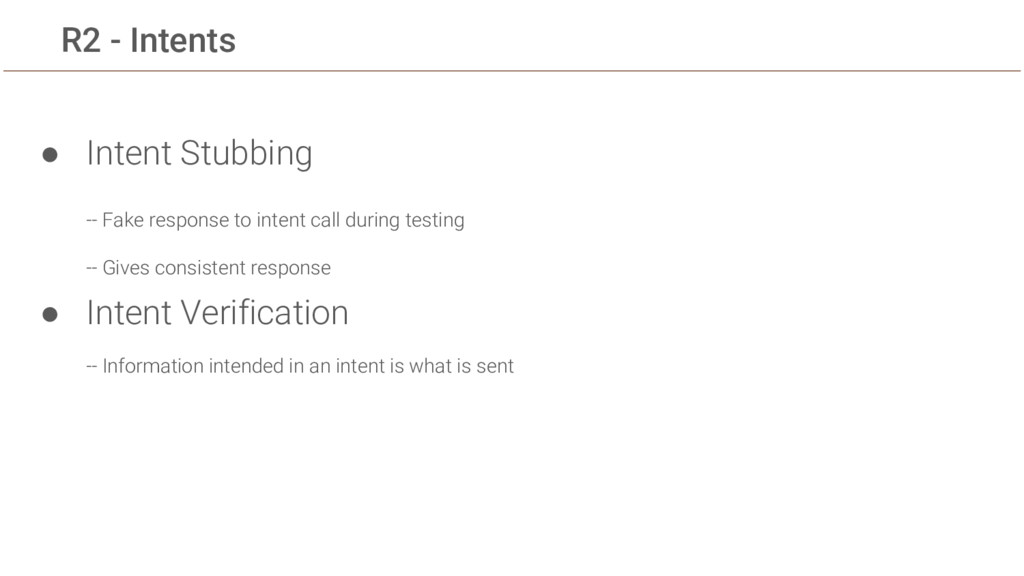
  8. R2 - Intents • Intent Stubbing -- Fake response to

    intent call during testing -- Gives consistent response • Intent Verification -- Information intended in an intent is what is sent
  9. R3 - Adapter Views String[] myArray = mActivityRule.getActivity().getResources() .getStringArray(R.array.labels_array); //

    Iterate through the spinner array of items. int size = myArray.length; for (int i=0; i<size; i++) { // Find the spinner and click on it. onView(withId(R.id.label_spinner)).perform(click()); // Find the spinner item and click on it. onData(is(myArray[i])).perform(click()); // Find the Submit button and click on it. onView(withId(R.id.button_main)).perform(click()); // Find the text view and check that the spinner item // is part of the string. onView(withId(R.id.text_phonelabel)) .check(matches(withText(containsString(myArray[i]))));
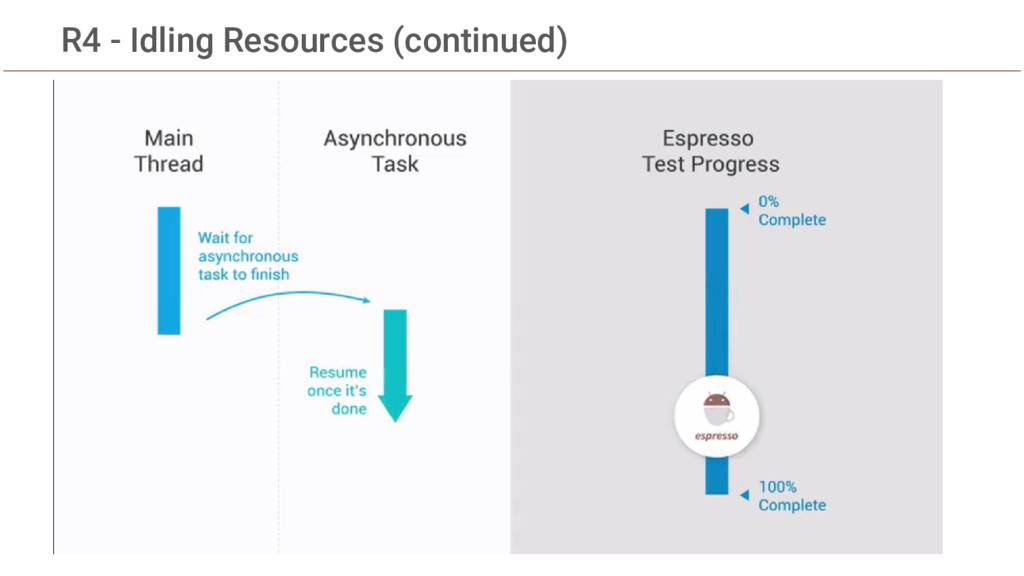
  10. R4 - Idling Resources Espresso waits till the app is

    idle before perfoming the next action Use case -- Performing network calls and showing result