Upgrade to Pro — share decks privately, control downloads, hide ads and more …

Priming Your WordPress Canvas – Essentials for ...

Sponsored · Ship Features Fearlessly Turn features on and off without deploys. Used by thousands of Ruby developers. →
Avatar for elida elida
June 29, 2013

Priming Your WordPress Canvas – Essentials for a Solid Foundation

Tags: wpmtl, wcmtl, Montreal, WordCamp, WordPress, 2013, beginners

http://2013.montreal.wordcamp.org/schedule/talks/

So you’re ready to create your very own WordPress masterpiece, but a little confused about the initial the setup process (before you paint your theme and content on the canvas). No worries. We’ll sort out a how to implement the steps and prioritize and elements/plugins you need. This is a technical talk that focuses on the not so obvious external elements that should be connected to your little WP ecosystem. You will walk away a workflow set-up tool kit and the confidence that your site will poised for future growth. Also, your OCD will rejoice.

Avatar for elida

elida

June 29, 2013

More Decks by elida

Other Decks in Technology

Transcript

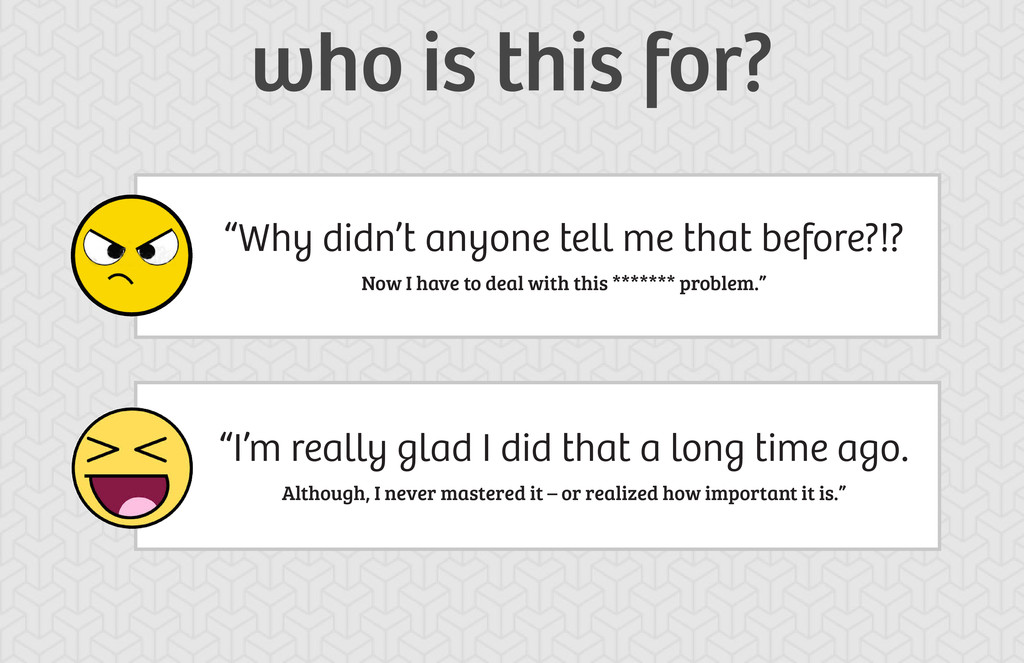
  1. who is this for? “Why didn’t anyone tell me that

    before?!? Now I have to deal with this ******* problem.” “I’m really glad I did that a long time ago. Although, I never mastered it – or realized how important it is.”
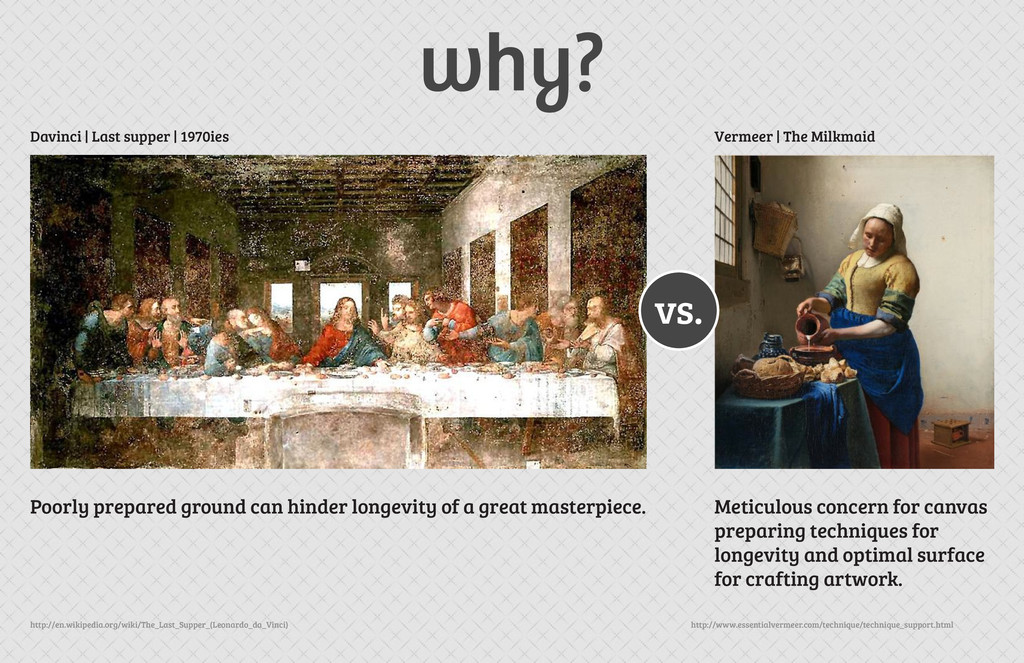
  2. why? http://www.essentialvermeer.com/technique/technique_support.html http://en.wikipedia.org/wiki/The_Last_Supper_(Leonardo_da_Vinci) Vermeer | The Milkmaid Davinci | Last

    supper | 1970ies Poorly prepared ground can hinder longevity of a great masterpiece. Meticulous concern for canvas preparing techniques for longevity and optimal surface for crafting artwork. vs.

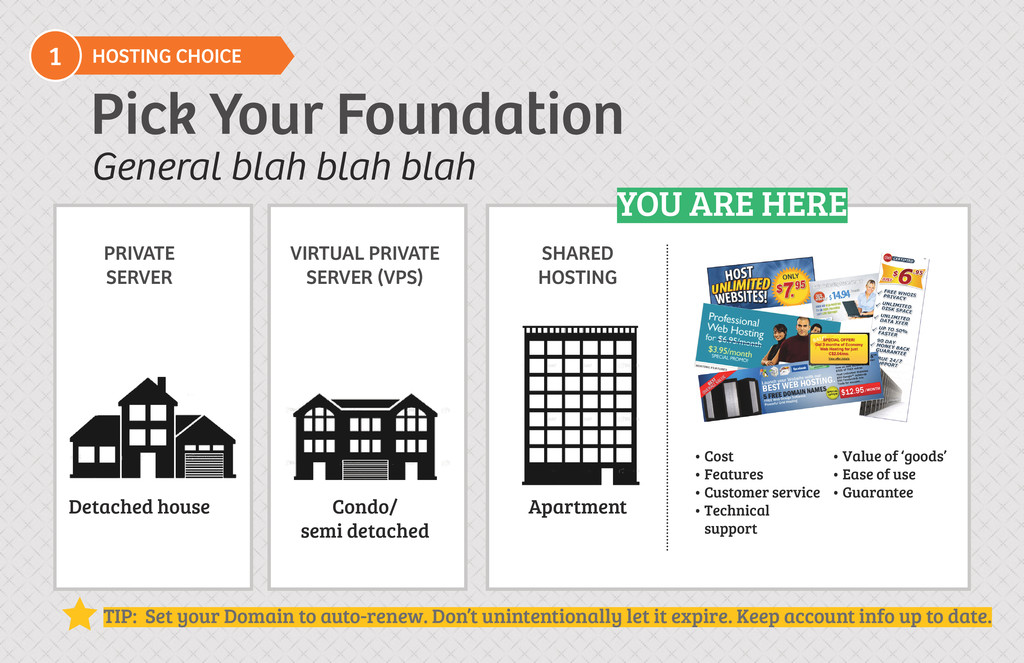
  3. HOSTING CHOICE 1 Pick Your Foundation • Cost • Features

    • Customer service •  Technical support • Value of ‘goods’ • Ease of use • Guarantee General blah blah blah YOU ARE HERE Detached house PRIVATE SERVER Condo/ semi detached VIRTUAL PRIVATE SERVER (VPS) Apartment SHARED HOSTING TIP: Set your Domain to auto-renew. Don’t unintentionally let it expire. Keep account info up to date.
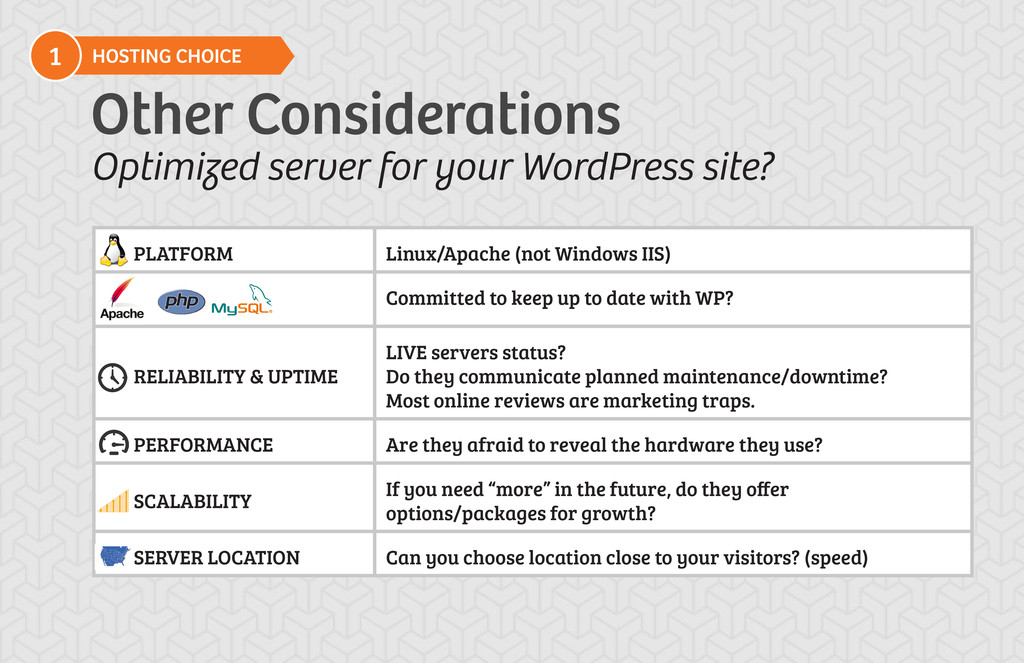
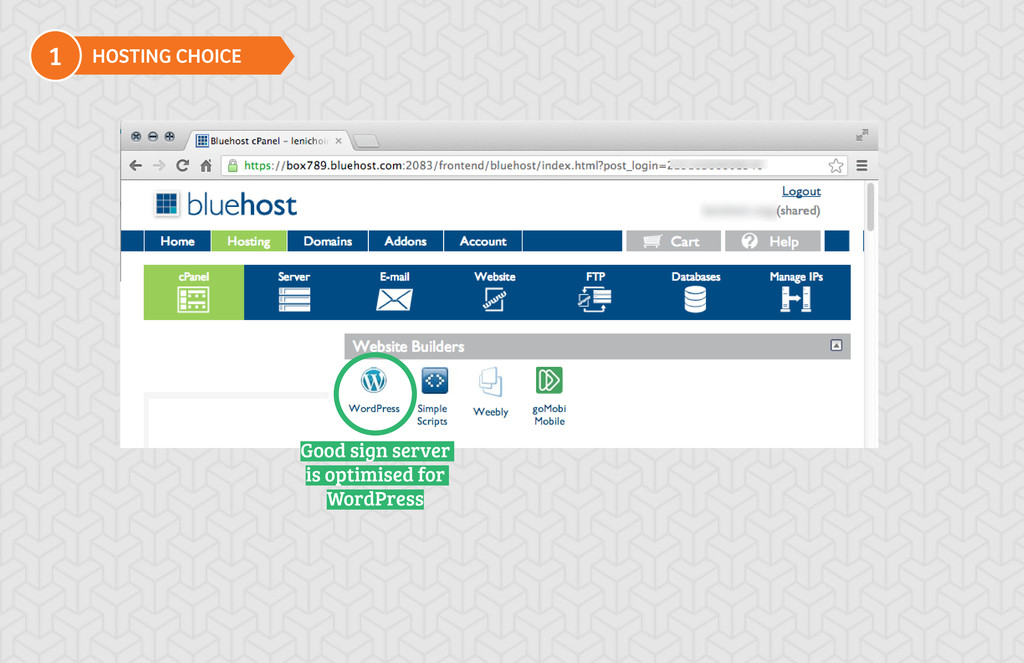
  4. HOSTING CHOICE 1 Other Considerations Optimized server for your WordPress

    site? PLATFORM Linux/Apache (not Windows IIS) Committed to keep up to date with WP? RELIABILITY & UPTIME LIVE servers status? Do they communicate planned maintenance/downtime? Most online reviews are marketing traps. PERFORMANCE Are they afraid to reveal the hardware they use? SCALABILITY If you need “more” in the future, do they offer options/packages for growth? SERVER LOCATION Can you choose location close to your visitors? (speed)
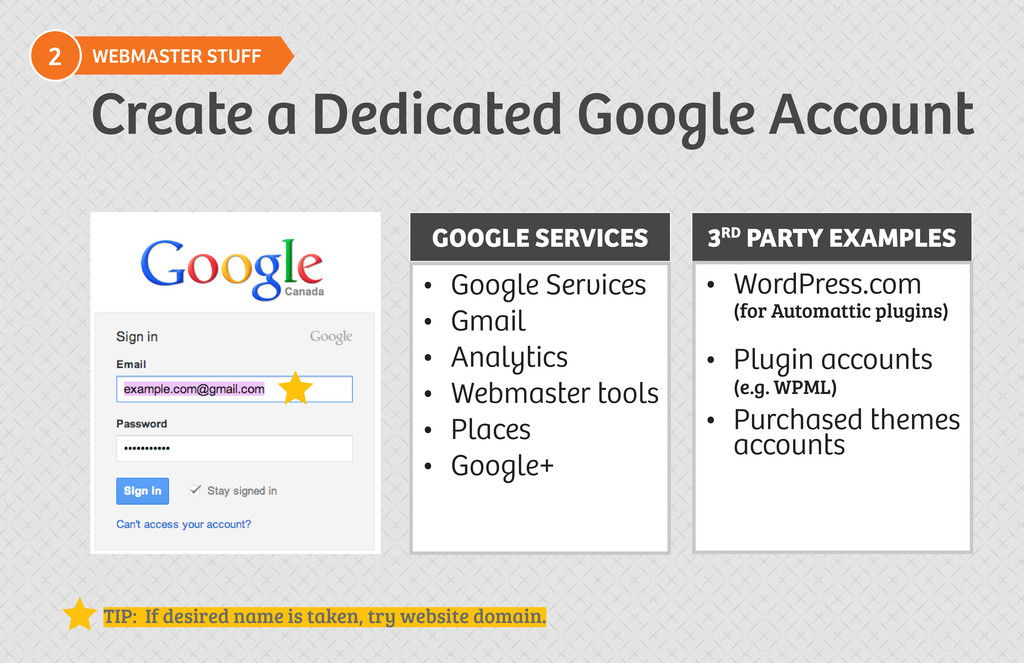
  5. WEBMASTER STUFF 2 Create a Dedicated Google Account GOOGLE SERVICES

    3RD PARTY EXAMPLES TIP: If desired name is taken, try website domain. • WordPress.com (for Automattic plugins) • Plugin accounts (e.g. WPML) • Purchased themes accounts • Google Services • Gmail • Analytics • Webmaster tools • Places • Google+
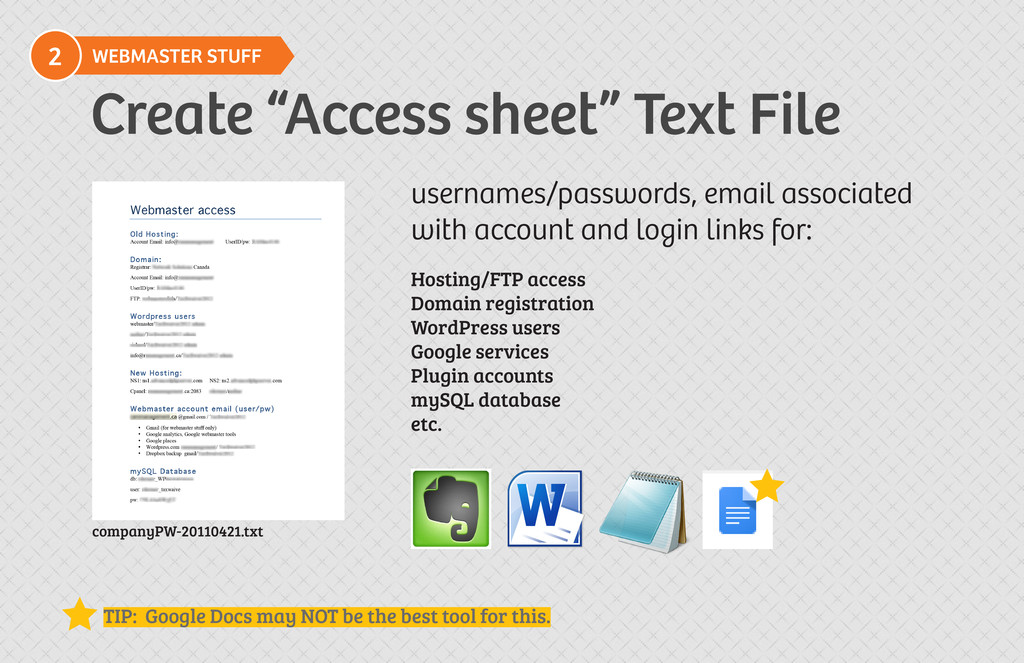
  6. Hosting/FTP access Domain registration WordPress users Google services Plugin accounts

    mySQL database etc. usernames/passwords, email associated with account and login links for: companyPW-20110421.txt WEBMASTER STUFF 2 Create “Access sheet” Text File TIP: Google Docs may NOT be the best tool for this.
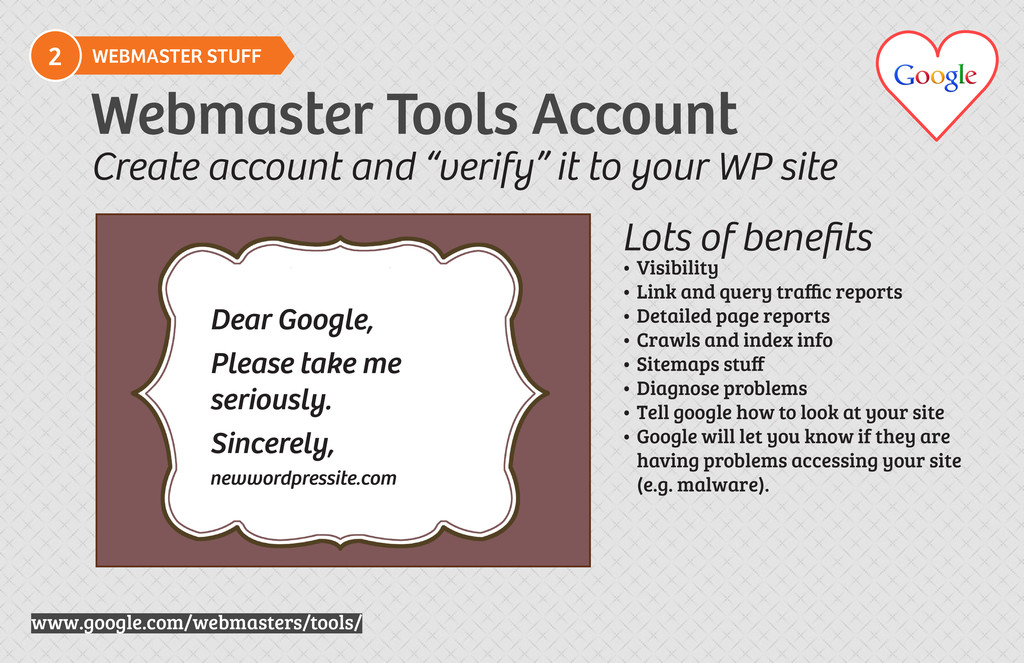
  7. Webmaster Tools Account www.google.com/webmasters/tools/ WEBMASTER STUFF 2 Lots of benefits

    • Visibility • Link and query traffic reports • Detailed page reports • Crawls and index info • Sitemaps stuff • Diagnose problems • Tell google how to look at your site • Google will let you know if they are having problems accessing your site (e.g. malware). Create account and “verify” it to your WP site Dear Google, Please take me seriously. Sincerely, newwordpressite.com
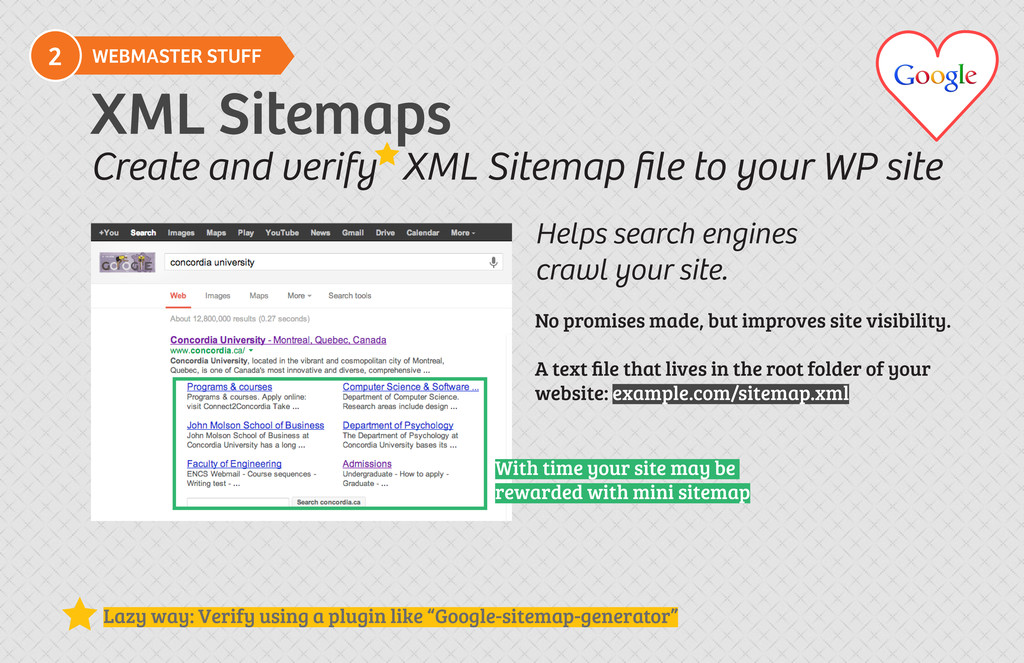
  8. XML Sitemaps WEBMASTER STUFF 2 Create and verify XML Sitemap

    file to your WP site Helps search engines crawl your site. No promises made, but improves site visibility. A text file that lives in the root folder of your website: example.com/sitemap.xml Lazy way: Verify using a plugin like “Google-sitemap-generator” With time your site may be rewarded with mini sitemap
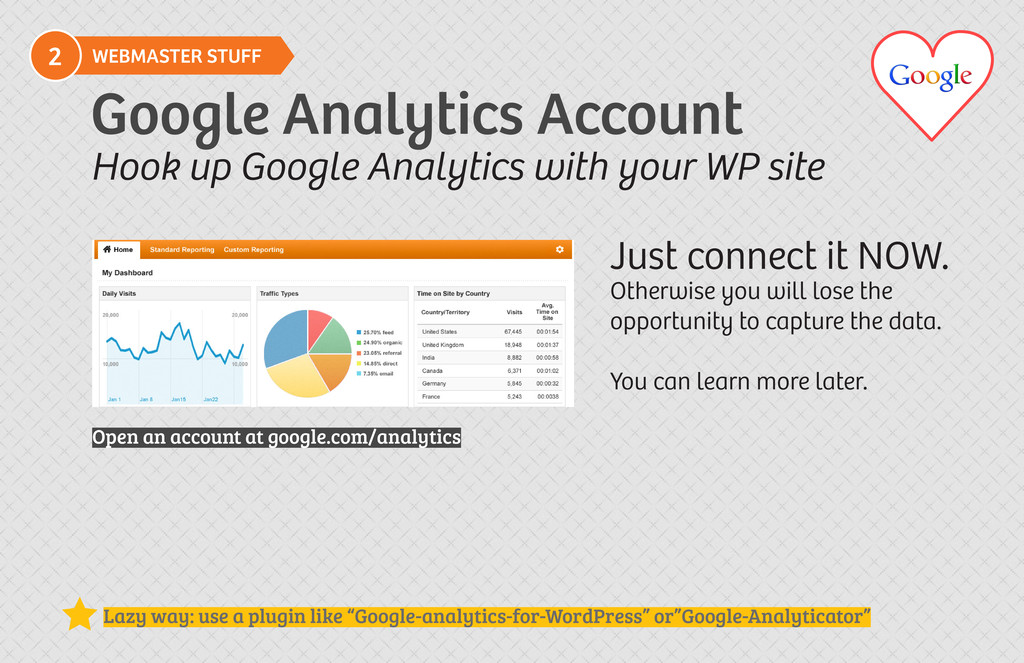
  9. Google Analytics Account Open an account at google.com/analytics WEBMASTER STUFF

    2 Hook up Google Analytics with your WP site Lazy way: use a plugin like “Google-analytics-for-WordPress” or”Google-Analyticator” Just connect it NOW. Otherwise you will lose the opportunity to capture the data. You can learn more later.
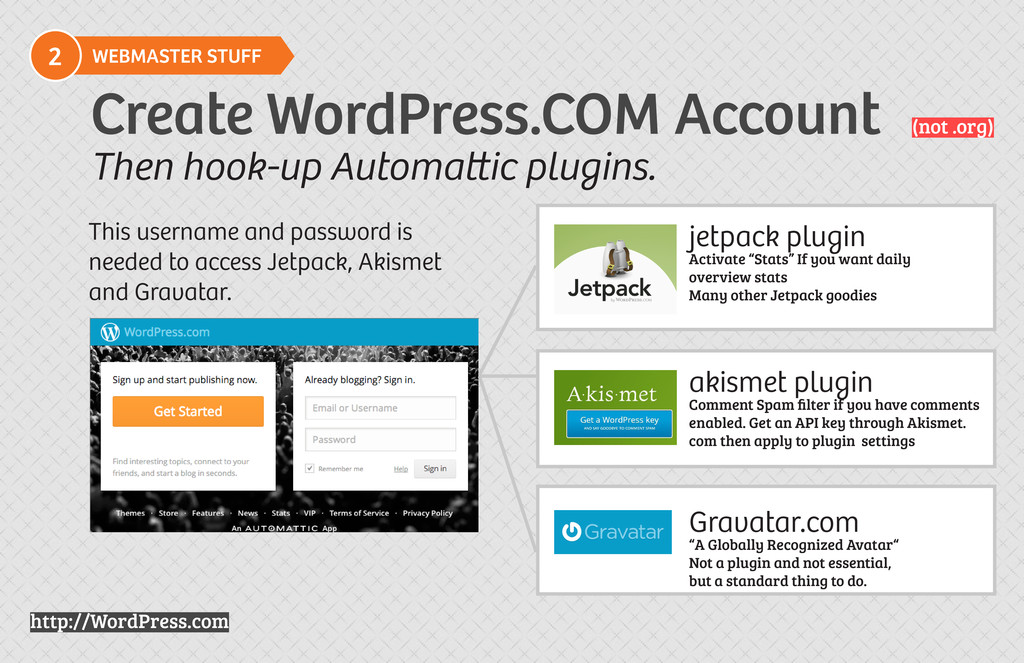
  10. Gravatar.com “A Globally Recognized Avatar“ Not a plugin and not

    essential, but a standard thing to do. http://WordPress.com Create WordPress.COM Account WEBMASTER STUFF 2 (not .org) Then hook-up Automattic plugins. jetpack plugin Activate “Stats” If you want daily overview stats Many other Jetpack goodies akismet plugin Comment Spam filter if you have comments enabled. Get an API key through Akismet. com then apply to plugin settings This username and password is needed to access Jetpack, Akismet and Gravatar.
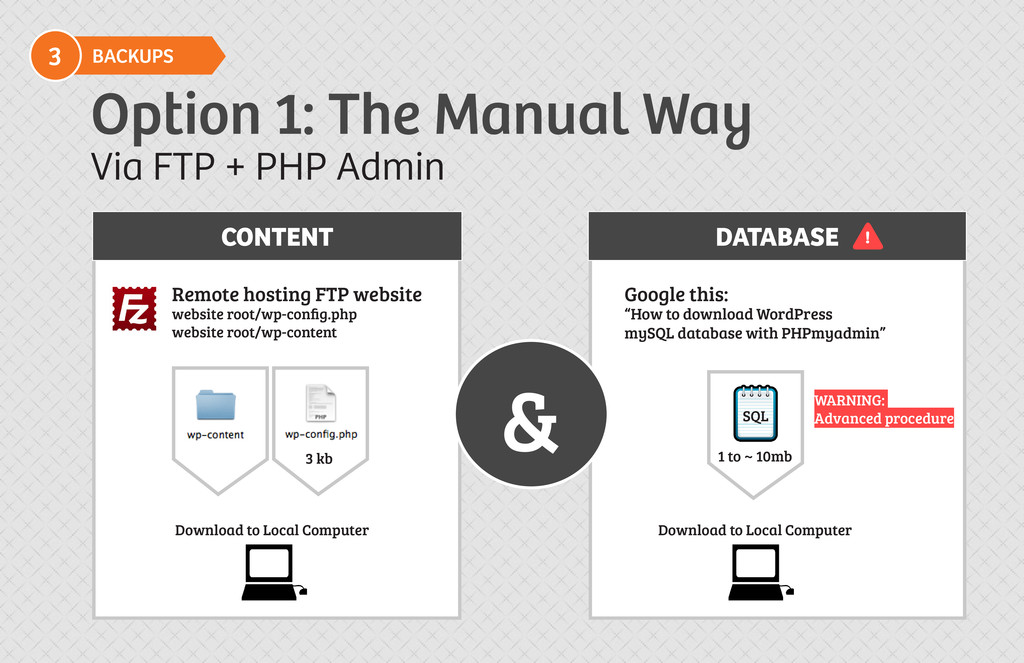
  11. CONTENT DATABASE Option 1: The Manual Way Google this: “How

    to download WordPress mySQL database with PHPmyadmin” BACKUPS 3 Via FTP + PHP Admin Remote hosting FTP website website root/wp-config.php website root/wp-content Download to Local Computer 3 kb 1 to ~ 10mb Download to Local Computer SQL & ! WARNING: Advanced procedure
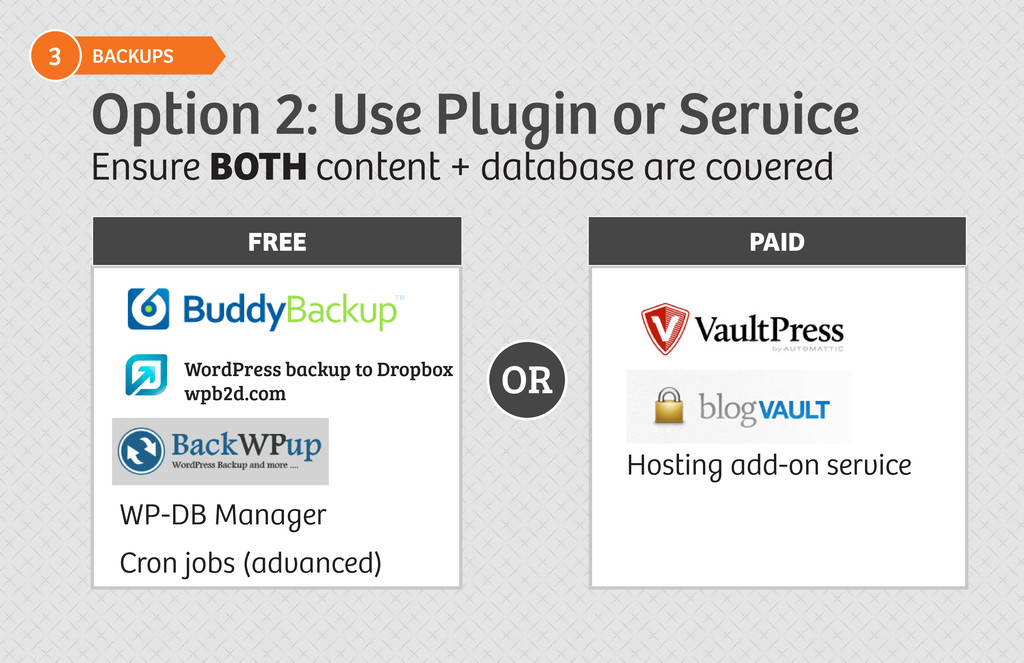
  12. WP-DB Manager Cron jobs (advanced) Hosting add-on service BACKUPS 3

    WordPress backup to Dropbox wpb2d.com Option 2: Use Plugin or Service FREE PAID OR Ensure BOTH content + database are covered
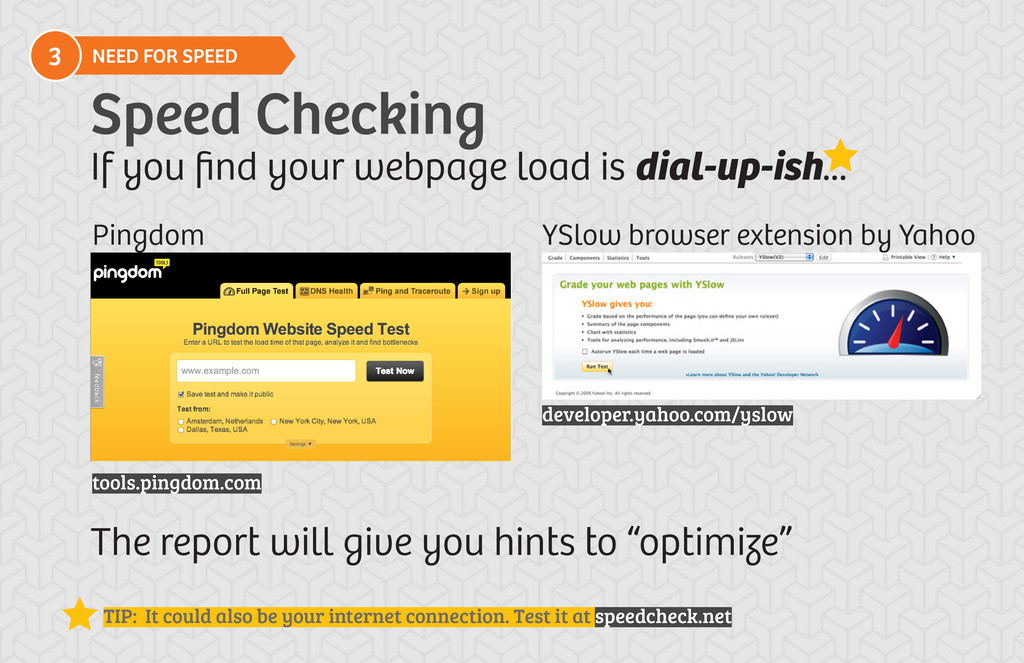
  13. Speed Checking Pingdom tools.pingdom.com YSlow browser extension by Yahoo developer.yahoo.com/yslow

    3 NEED FOR SPEED If you find your webpage load is dial-up-ish... The report will give you hints to “optimize” TIP: It could also be your internet connection. Test it at speedcheck.net
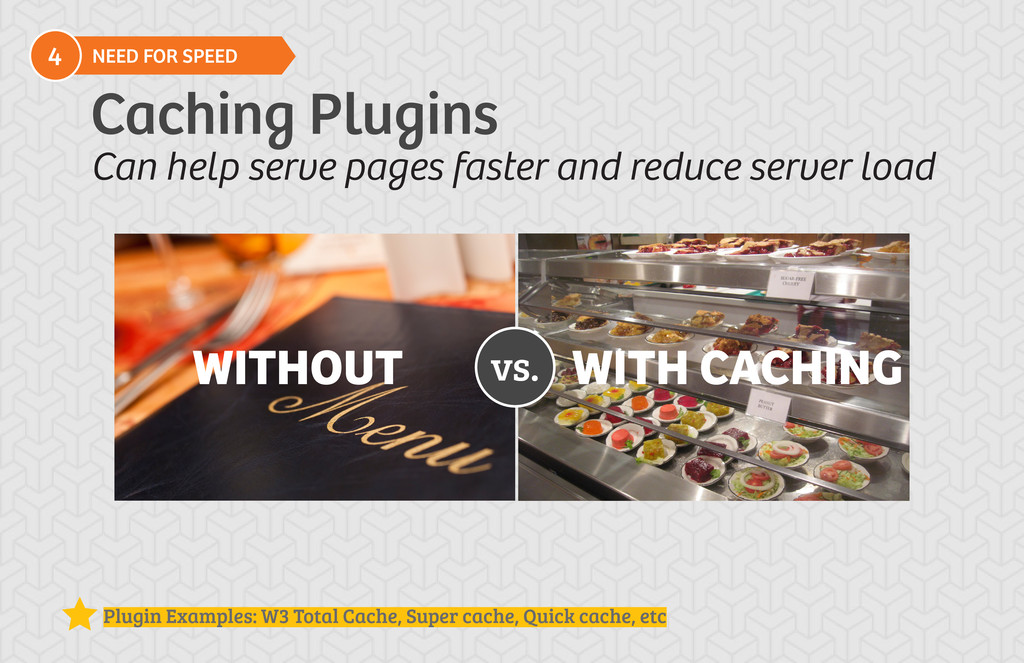
  14. Caching Plugins 4 NEED FOR SPEED vs. WITHOUT WITH CACHING

    Can help serve pages faster and reduce server load Plugin Examples: W3 Total Cache, Super cache, Quick cache, etc
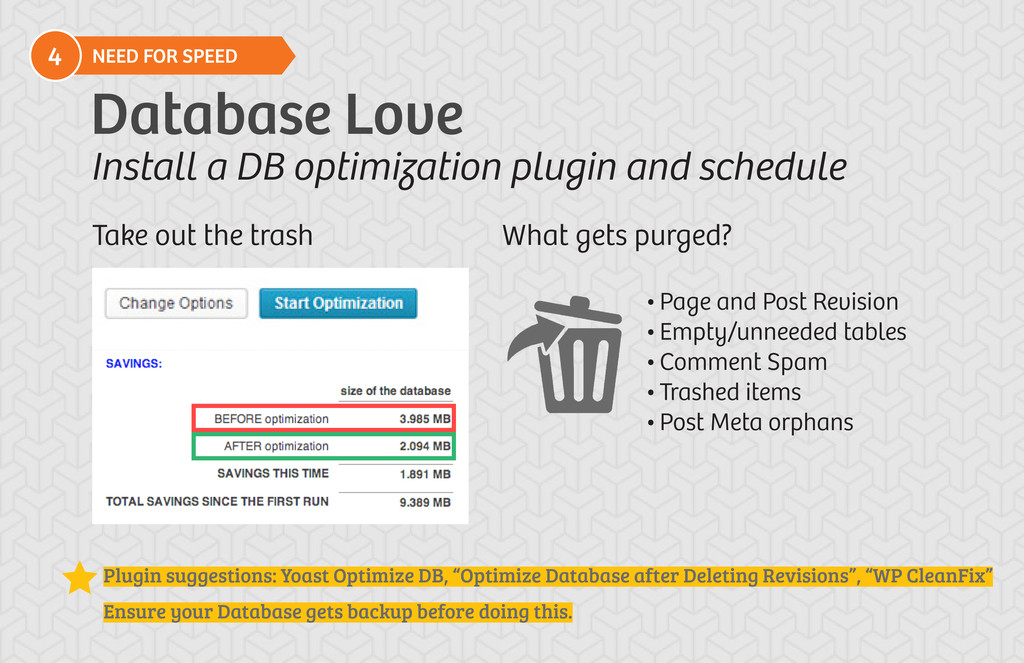
  15. Database Love 4 NEED FOR SPEED Install a DB optimization

    plugin and schedule Take out the trash • Page and Post Revision • Empty/unneeded tables • Comment Spam • Trashed items • Post Meta orphans What gets purged? Ensure your Database gets backup before doing this. Plugin suggestions: Yoast Optimize DB, “Optimize Database after Deleting Revisions”, “WP CleanFix”
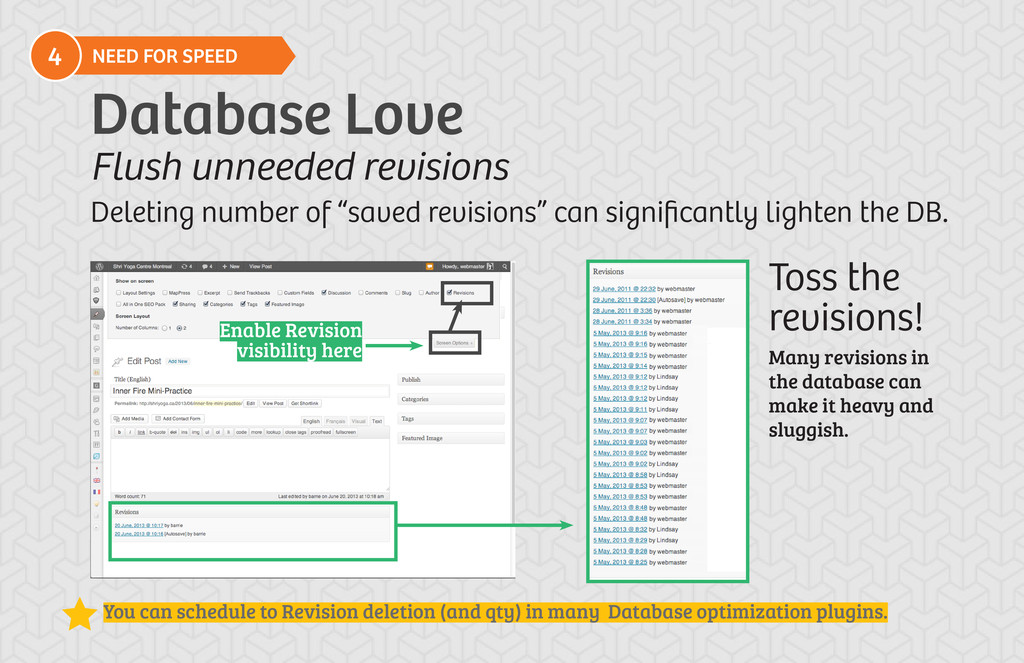
  16. Flush unneeded revisions 4 NEED FOR SPEED Database Love Deleting

    number of “saved revisions” can significantly lighten the DB. You can schedule to Revision deletion (and qty) in many Database optimization plugins. Many revisions in the database can make it heavy and sluggish. Toss the revisions! Enable Revision visibility here
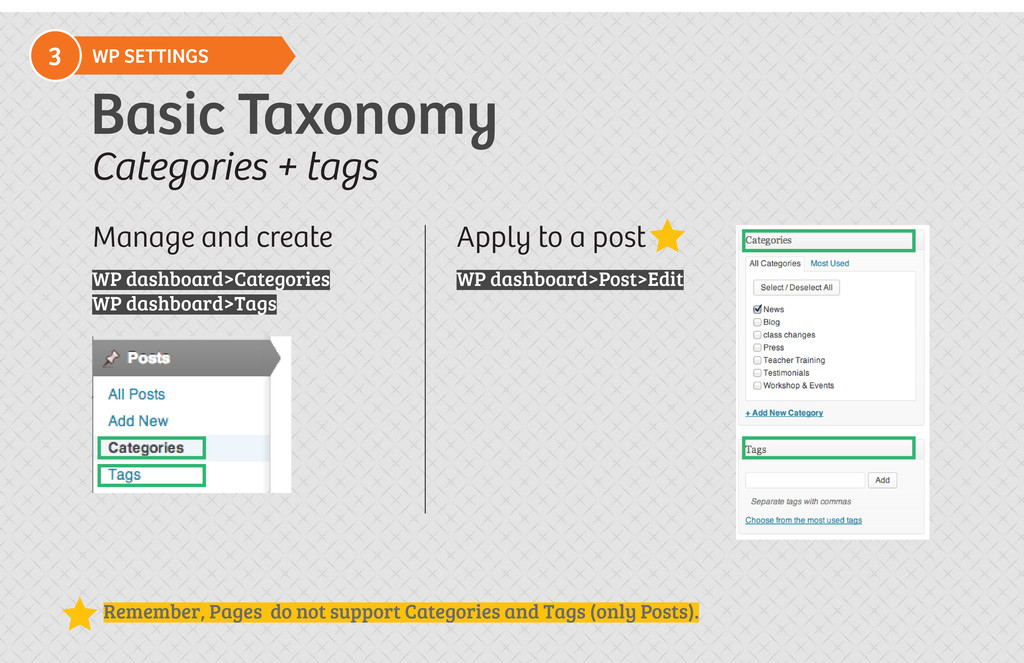
  17. WP dashboard>Categories WP dashboard>Post>Edit WP dashboard>Tags 3 WP SETTINGS Basic

    Taxonomy Categories + tags Manage and create Apply to a post Remember, Pages do not support Categories and Tags (only Posts).
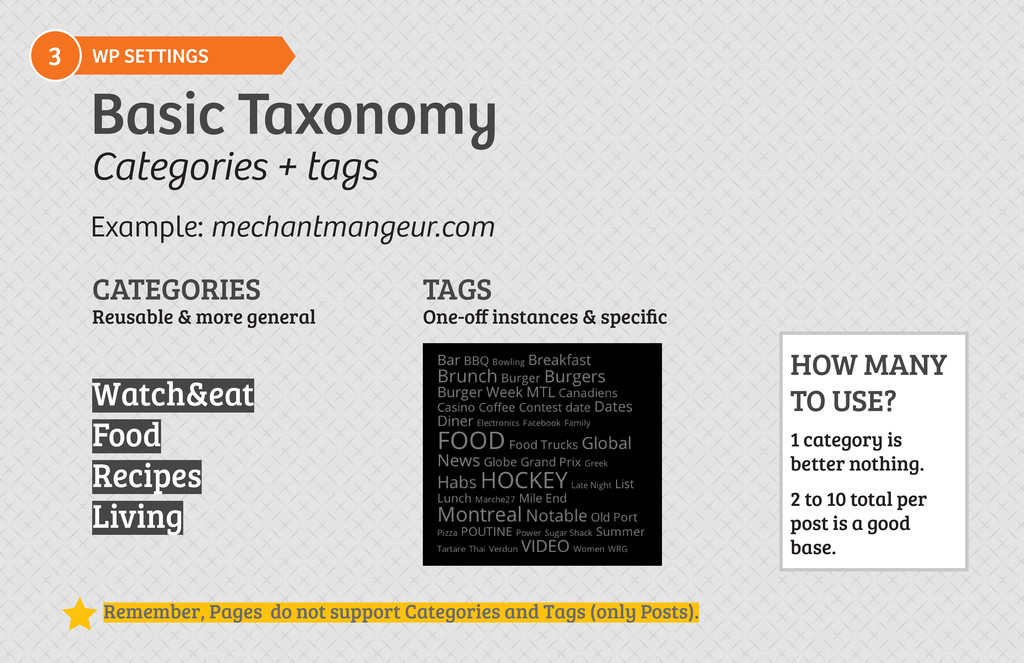
  18. 3 WP SETTINGS Basic Taxonomy Categories + tags Remember, Pages

    do not support Categories and Tags (only Posts). TAGS One-off instances & specific CATEGORIES Reusable & more general Example: mechantmangeur.com Watch&eat Food Recipes Living HOW MANY TO USE? 1 category is better nothing. 2 to 10 total per post is a good base.
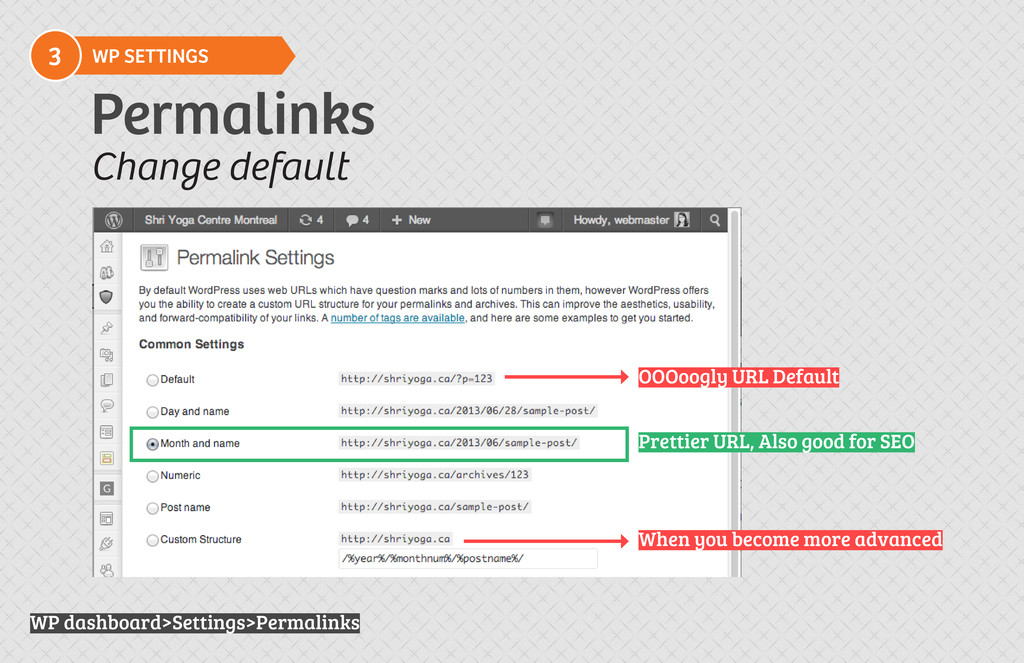
  19. WP dashboard>Settings>Permalinks 3 WP SETTINGS Permalinks Change default OOOoogly URL

    Default Prettier URL, Also good for SEO When you become more advanced
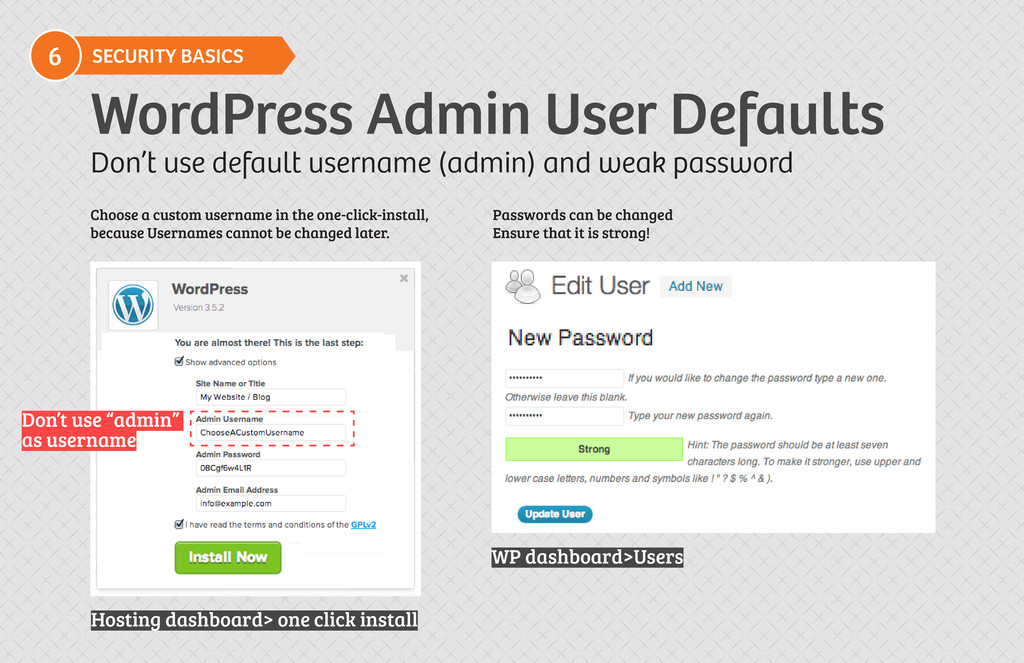
  20. Don’t use “admin” as username 6 SECURITY BASICS WordPress Admin

    User Defaults Don’t use default username (admin) and weak password Choose a custom username in the one-click-install, because Usernames cannot be changed later. Passwords can be changed Ensure that it is strong! WP dashboard>Users Hosting dashboard> one click install
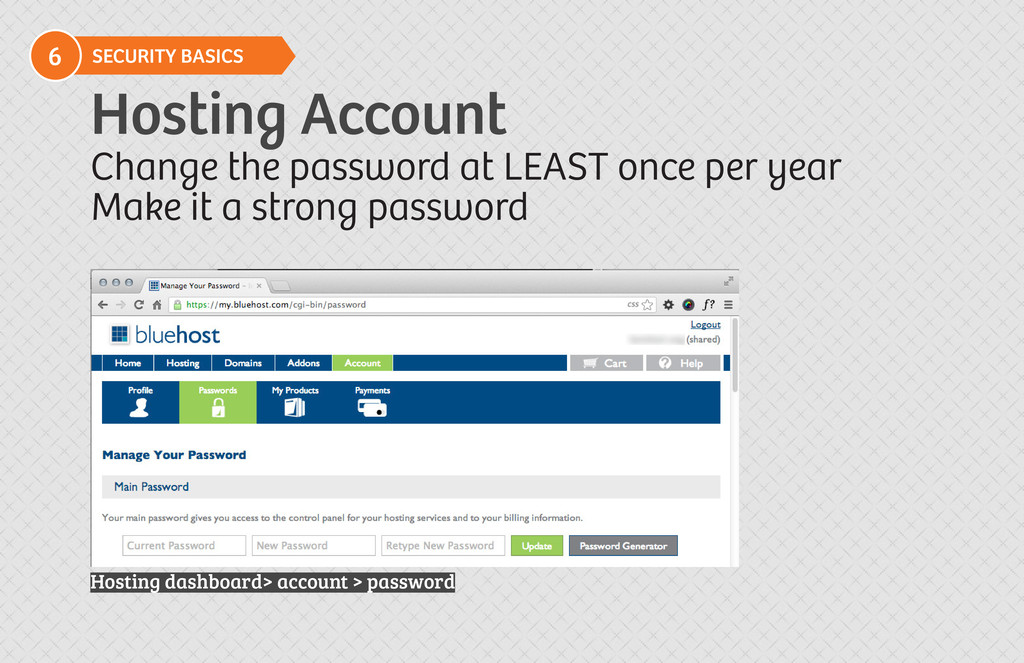
  21. 6 SECURITY BASICS Hosting Account Change the password at LEAST

    once per year Make it a strong password Hosting dashboard> account > password
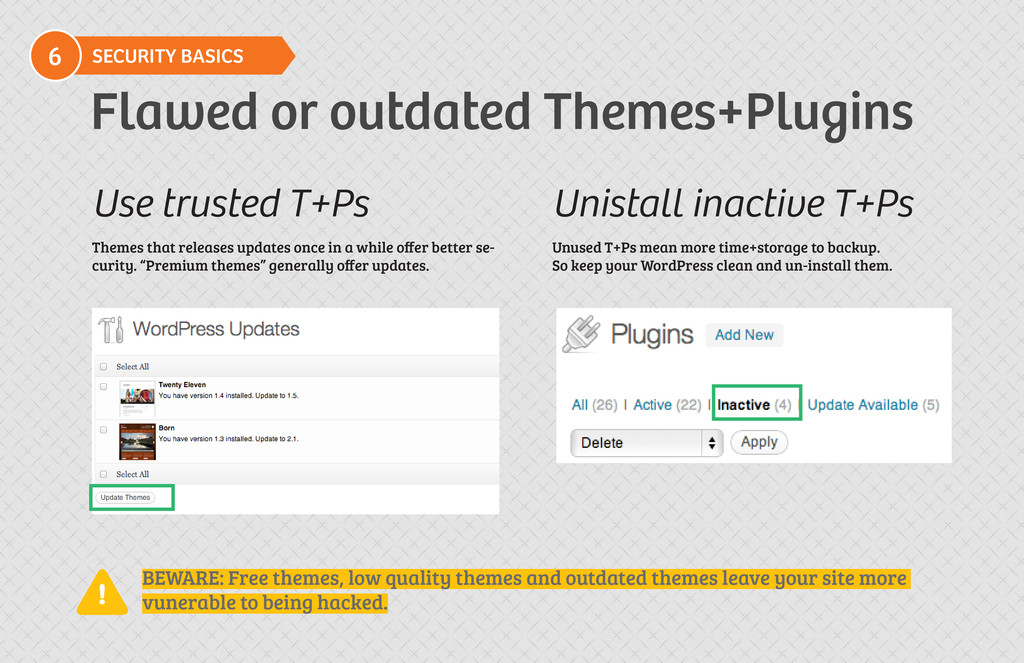
  22. 6 SECURITY BASICS Flawed or outdated Themes+Plugins Unistall inactive T+Ps

    Unused T+Ps mean more time+storage to backup. So keep your WordPress clean and un-install them. Use trusted T+Ps Themes that releases updates once in a while offer better se- curity. “Premium themes” generally offer updates. ! BEWARE: Free themes, low quality themes and outdated themes leave your site more vunerable to being hacked.
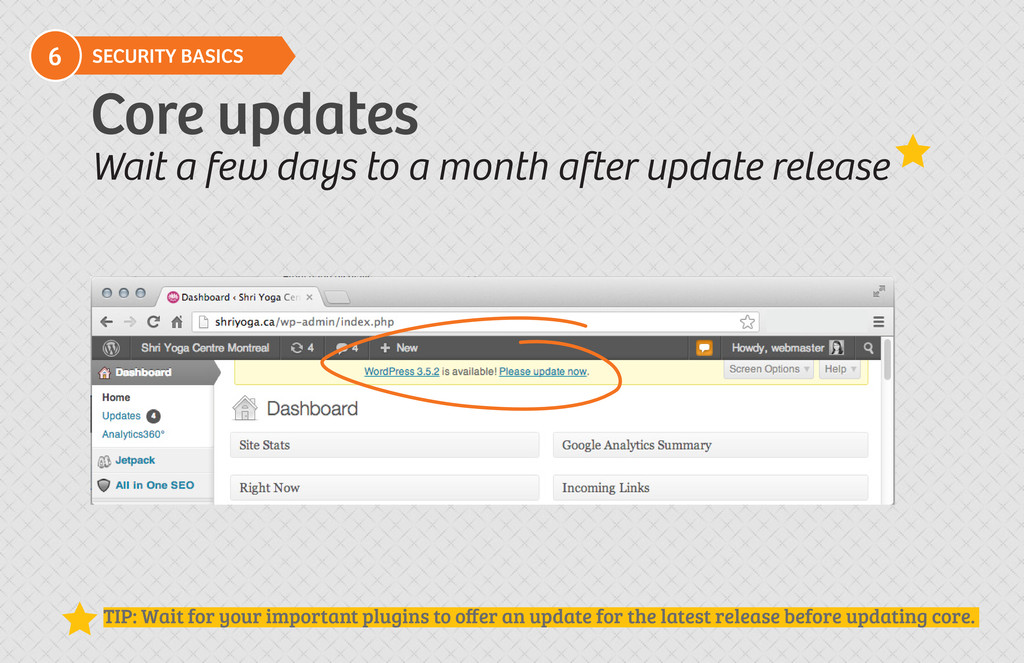
  23. 6 SECURITY BASICS Core updates Wait a few days to

    a month after update release TIP: Wait for your important plugins to offer an update for the latest release before updating core.
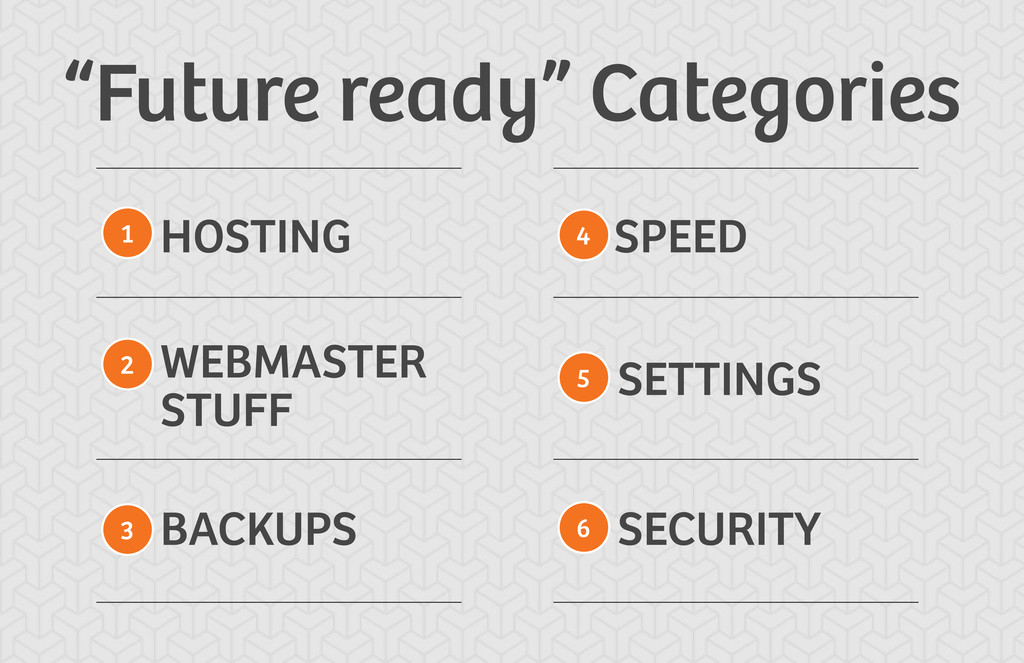
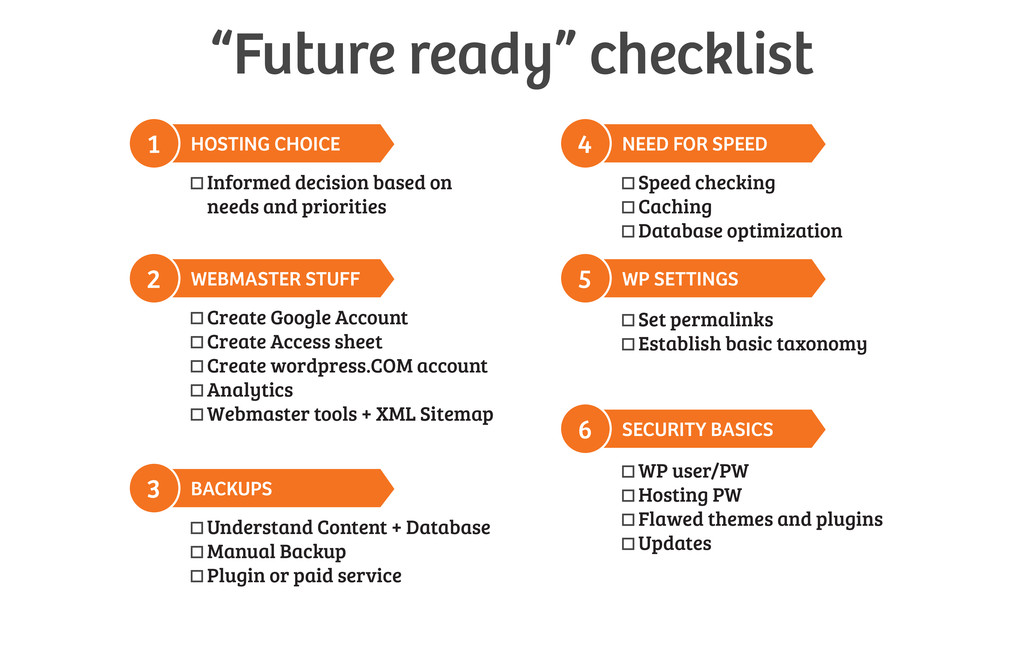
  24. 1 4 2 5 3 6 HOSTING CHOICE NEED FOR

    SPEED WEBMASTER STUFF WP SETTINGS BACKUPS SECURITY BASICS  Informed decision based on needs and priorities Speed checking Caching Database optimization Set permalinks Establish basic taxonomy WP user/PW Hosting PW Flawed themes and plugins Updates  Create Google Account  Create Access sheet  Create wordpress.COM account Analytics  Webmaster tools + XML Sitemap  Understand Content + Database  Manual Backup  Plugin or paid service “Future ready” checklist
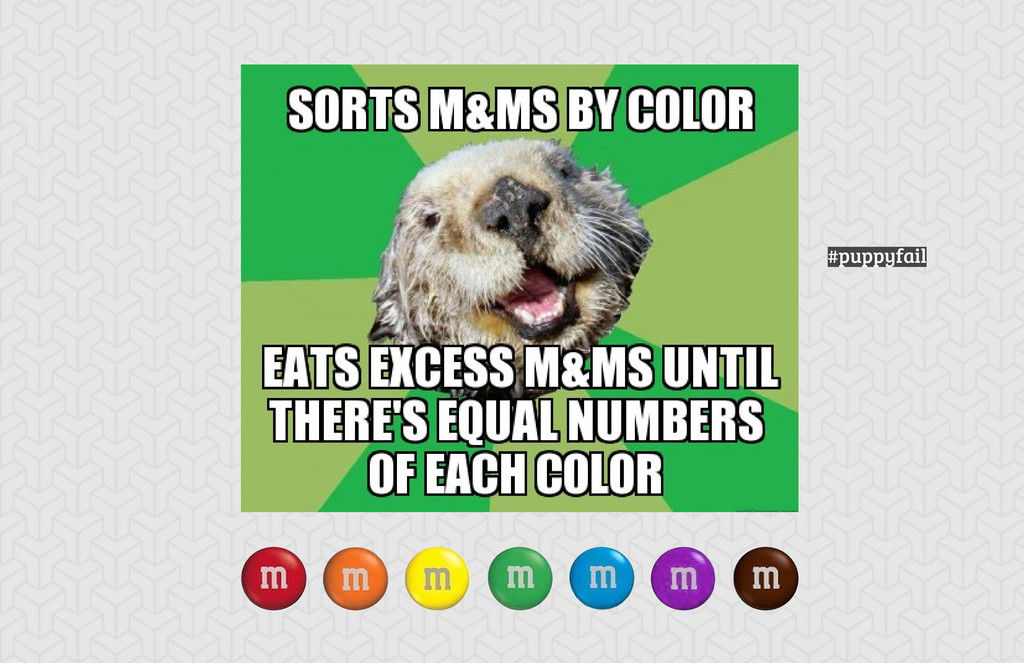
  25. OMG

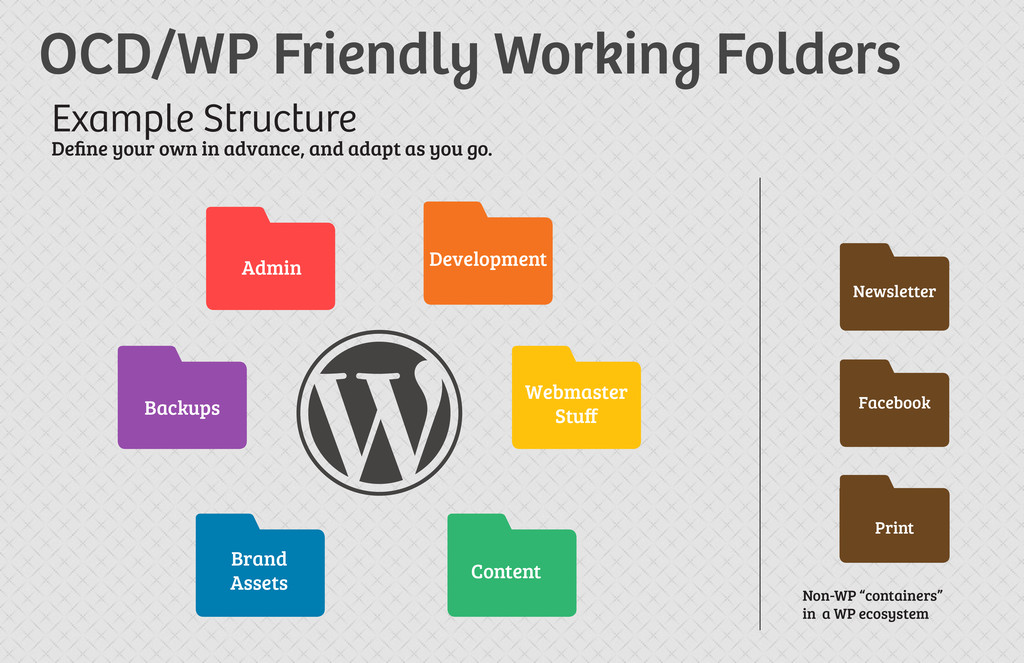
  26. Admin Webmaster Stuff Brand Assets Facebook Print Backups Newsletter Content

    Development Example Structure Define your own in advance, and adapt as you go. OCD/WP Friendly Working Folders Non-WP “containers” in a WP ecosystem
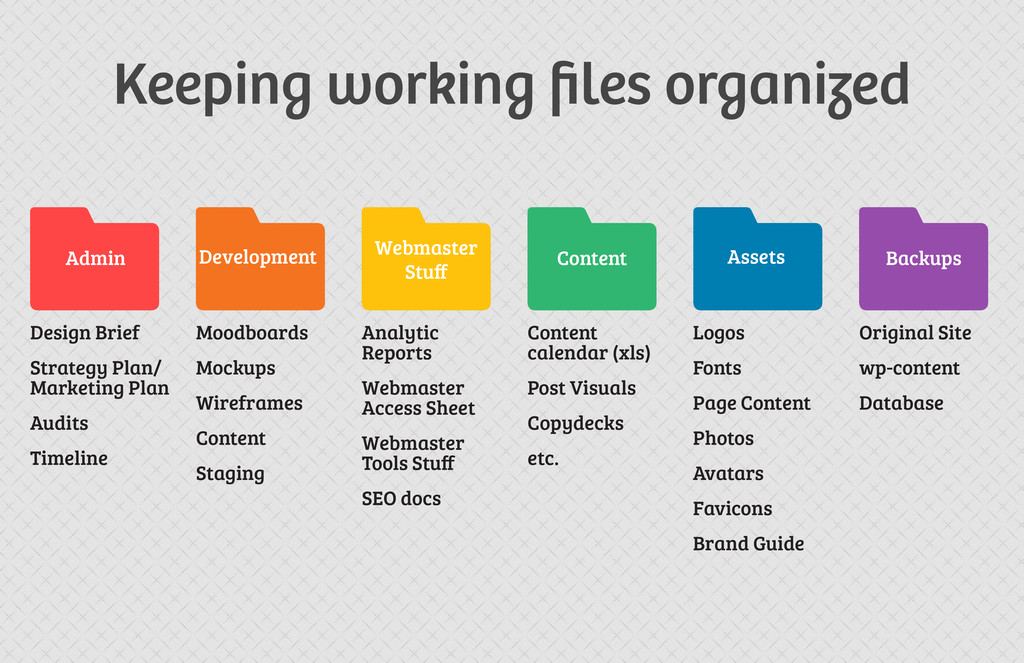
  27. Assets Content Backups Development Webmaster Stuff Admin Design Brief Strategy

    Plan/ Marketing Plan Audits Timeline Content calendar (xls) Post Visuals Copydecks etc. Moodboards Mockups Wireframes Content Staging Logos Fonts Page Content Photos Avatars Favicons Brand Guide Analytic Reports Webmaster Access Sheet Webmaster Tools Stuff SEO docs Original Site wp-content Database Keeping working files organized
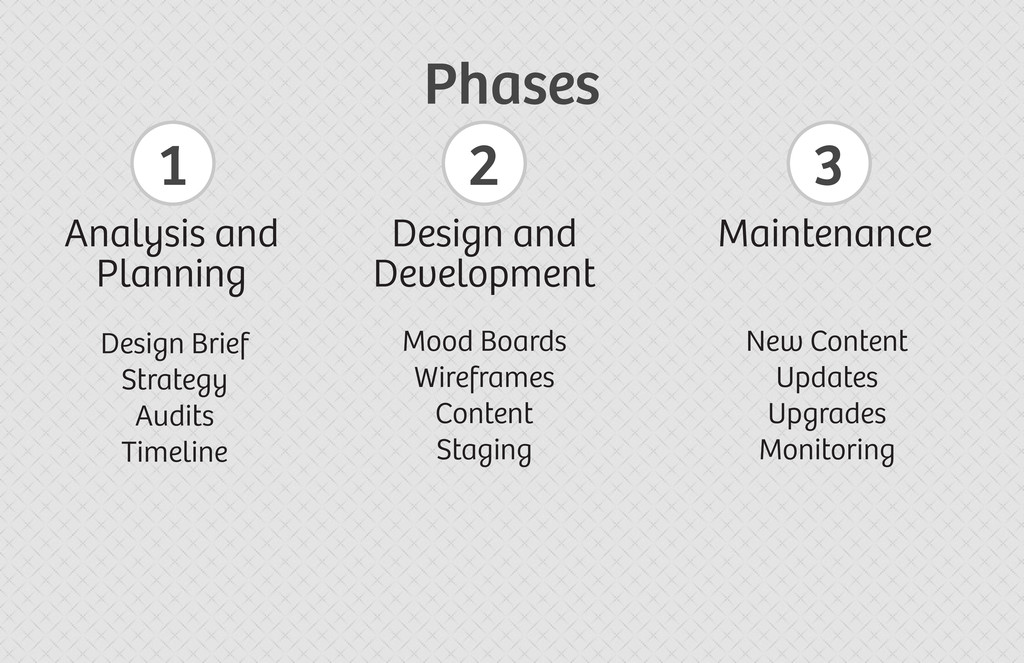
  28. Analysis and Planning Design and Development Maintenance Design Brief Strategy

    Audits Timeline Mood Boards Wireframes Content Staging New Content Updates Upgrades Monitoring Phases 1 2 3
  29. Questions? BACKGROUNDS by SubtlePatterns.com FONTS by Type Together, Bree and

    Bree serif Thanks for listening! slideshare.net/elida-arrizza [email protected]