Upgrade to Pro
— share decks privately, control downloads, hide ads and more …
Speaker Deck
Sign up for free
Menu
Search
Features
All features
Private URLs
Password Protection
Custom URLS
Scheduled publishing
Remove Branding
Restrict embedding
Deck Collections
Notes
Features
All features
Private URLs
Password Protection
Custom URLS
Scheduled publishing
Remove Branding
Restrict embedding
Deck Collections
Notes
Explore
Featured decks
Featured speakers
Programming
Technology
Storyboards
Explore
Featured decks
Featured speakers
Programming
Technology
Storyboards
Pricing
Search
Sign in
Sign up for free
空間情報システム入門Ⅰ
Search
EМI.S
June 22, 2016
41
0
Share
Embed
Copy iframe code
Copy JS code
Copy link
Start on current slide
空間情報システム入門Ⅰ
EМI.S
June 22, 2016
More Decks by EМI.S
See All by EМI.S
空間情報システム入門課題
emminto
0
46
Featured
See All Featured
WENDY [Excerpt]
tessaabrams
14
40k
Building Better People: How to give real-time feedback that sticks.
wjessup
371
20k
Self-Hosted WebAssembly Runtime for Runtime-Neutral Checkpoint/Restore in Edge–Cloud Continuum
chikuwait
0
890
Making the Leap to Tech Lead
cromwellryan
135
10k
First, design no harm
axbom
PRO
2
1.3k
Bootstrapping a Software Product
garrettdimon
PRO
306
120k
Visualization
eitanlees
153
17k
Building a Modern Day E-commerce SEO Strategy
aleyda
45
9.3k
Embracing the Ebb and Flow
colly
88
5.2k
Money Talks: Using Revenue to Get Sh*t Done
nikkihalliwell
0
520
The Invisible Side of Design
smashingmag
301
52k
From π to Pie charts
rasagy
1
400
Transcript
OPEN STREET MAP MANUAL 1A116120 鈴木絵美
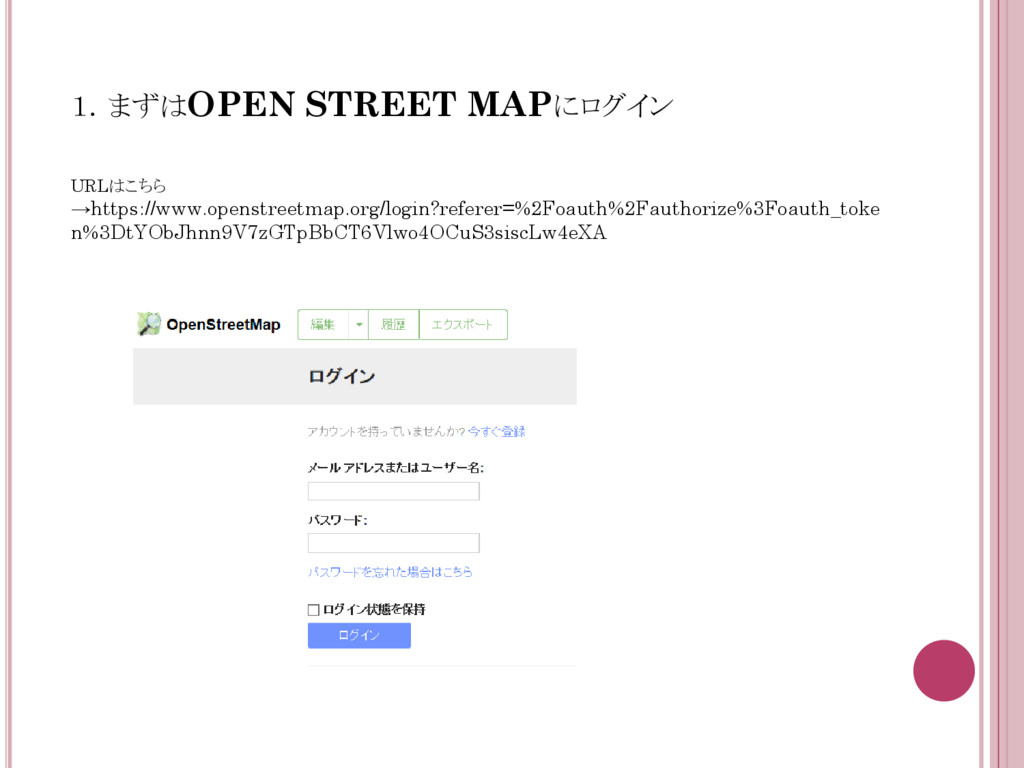
1.まずはOPEN STREET MAPにログイン URLはこちら →https://www.openstreetmap.org/login?referer=%2Foauth%2Fauthorize%3Foauth_toke n%3DtYObJhnn9V7zGTpBbCT6Vlwo4OCuS3siscLw4eXA
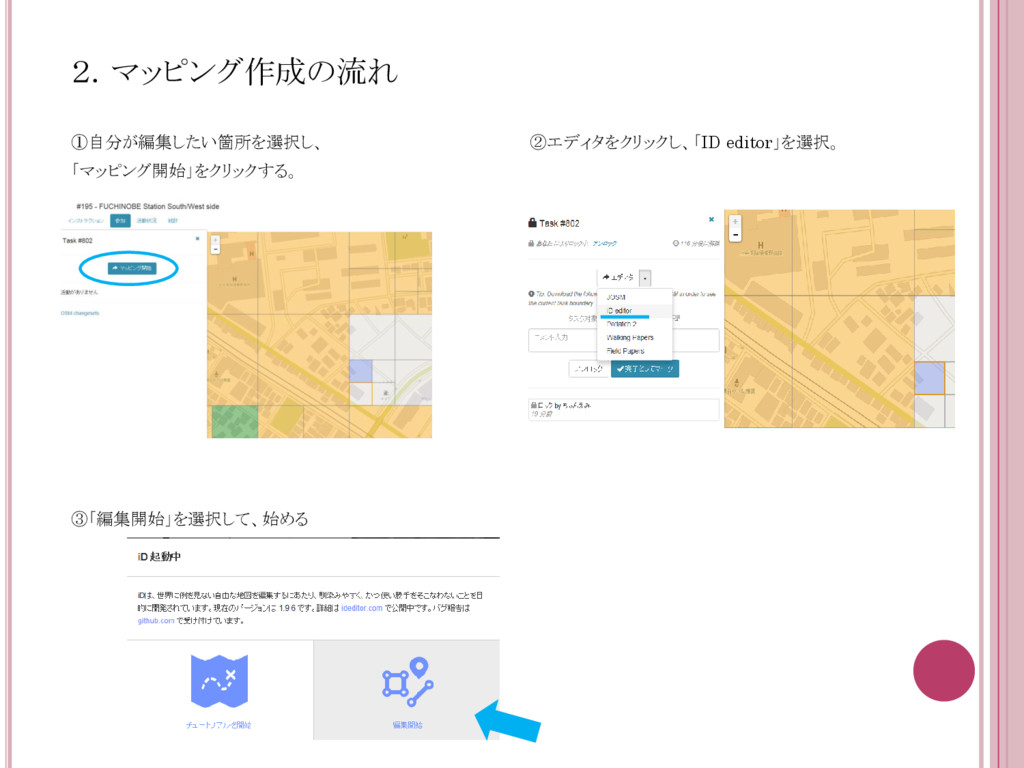
2.マッピング作成の流れ ①自分が編集したい箇所を選択し、 ②エディタをクリックし、「ID editor」を選択。 「マッピング開始」をクリックする。 ③「編集開始」を選択して、始める
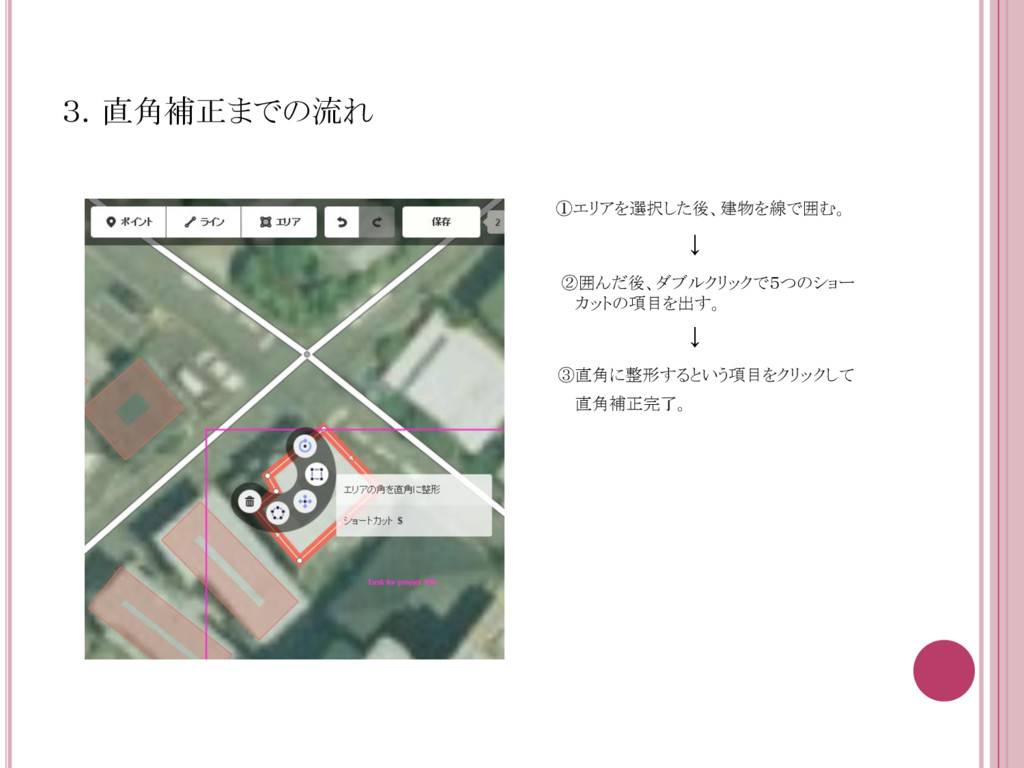
3.直角補正までの流れ ①エリアを選択した後、建物を線で囲む。 ↓ ②囲んだ後、ダブルクリックで5つのショー カットの項目を出す。 ↓ ③直角に整形するという項目をクリックして 直角補正完了。
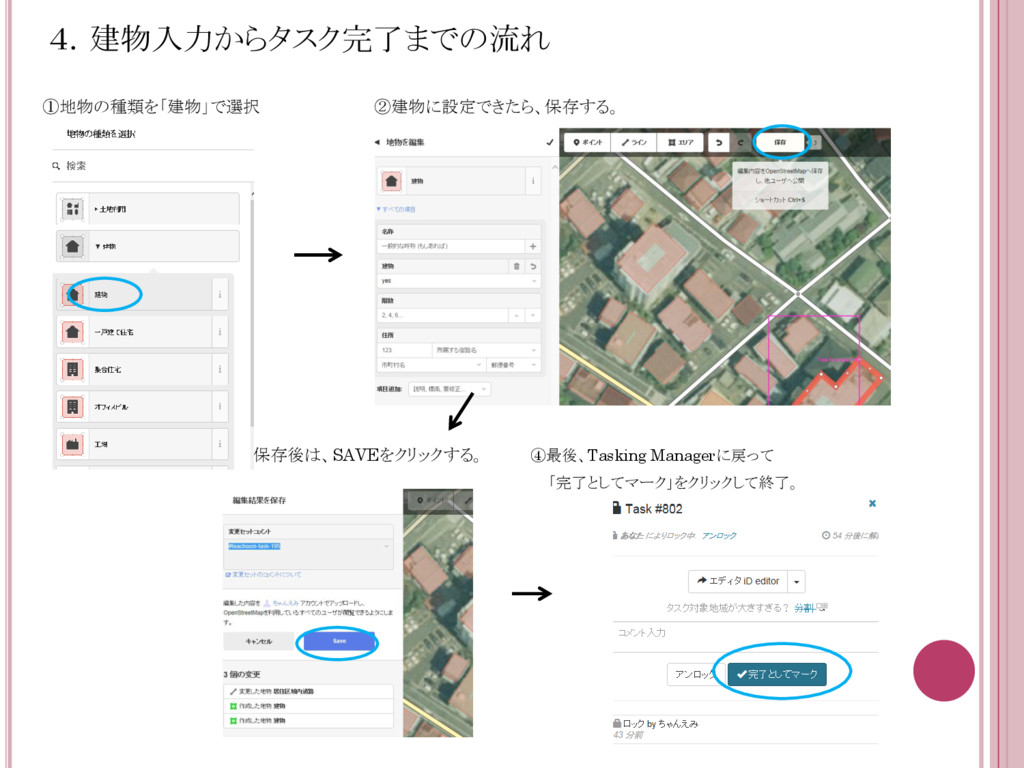
4.建物入力からタスク完了までの流れ ①地物の種類を「建物」で選択 ②建物に設定できたら、保存する。 ③保存後は、SAVEをクリックする。 ④最後、Tasking Managerに戻って 「完了としてマーク」をクリックして終了。
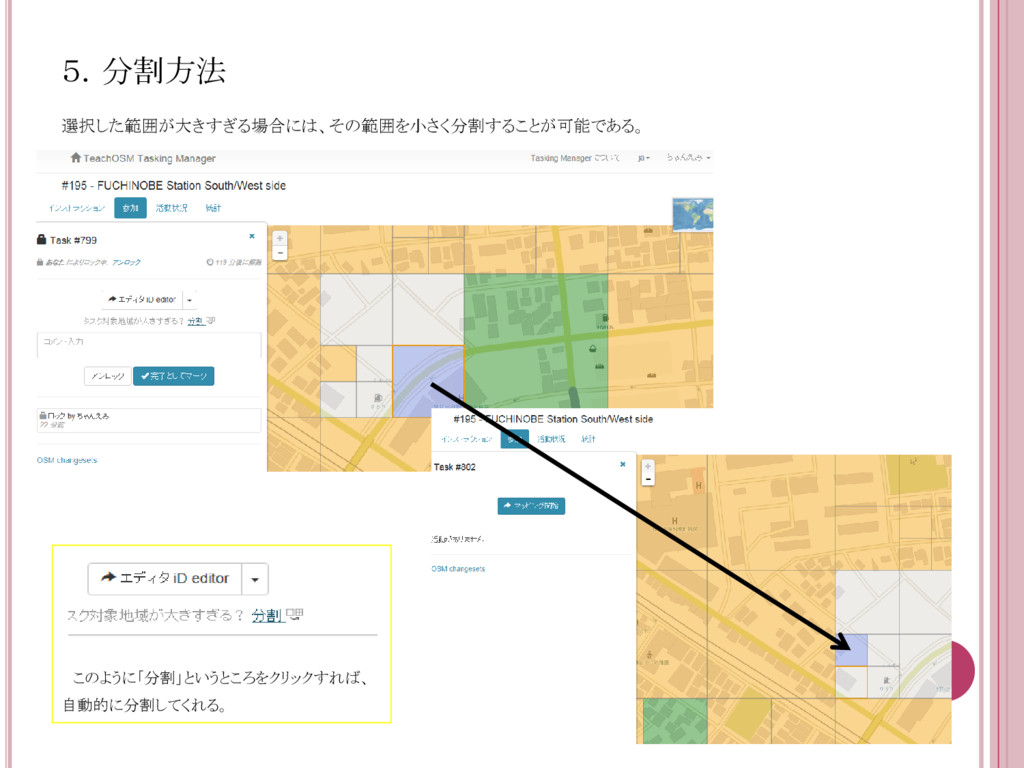
5.分割方法 選択した範囲が大きすぎる場合には、その範囲を小さく分割することが可能である。 このように「分割」というところをクリックすれば、 自動的に分割してくれる。
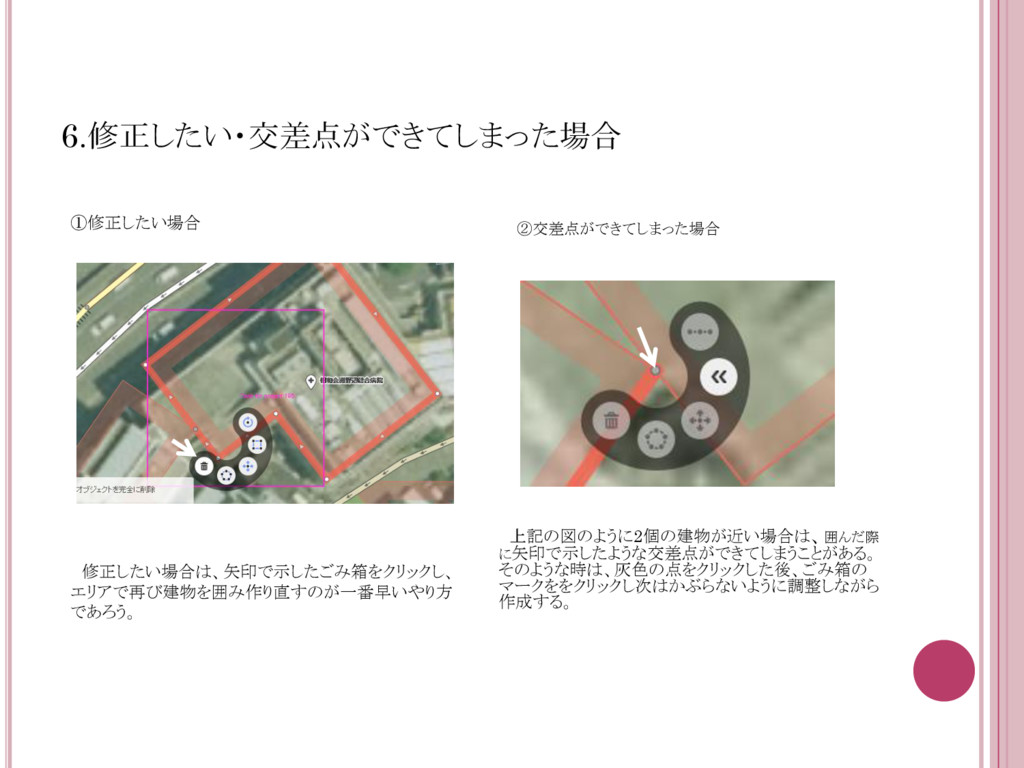
6.修正したい・交差点ができてしまった場合 ①修正したい場合 修正したい場合は、矢印で示したごみ箱をクリックし、 エリアで再び建物を囲み作り直すのが一番早いやり方 であろう。 ②交差点ができてしまった場合 上記の図のように2個の建物が近い場合は、囲んだ際 に矢印で示したような交差点ができてしまうことがある。 そのような時は、灰色の点をクリックした後、ごみ箱の マークををクリックし次はかぶらないように調整しながら
作成する。
7.背景レイヤの変更 マッピングを始める前に背景レイヤを見やすいものにしたほうが建物などを特定しやすい。 そのため、 ①画面右上にある中で青丸で囲ってあるところをクリック ↓ ②背景画像の欄が開けたら、下から3番目の「Japan GSI ortho imagenery] を選択する。
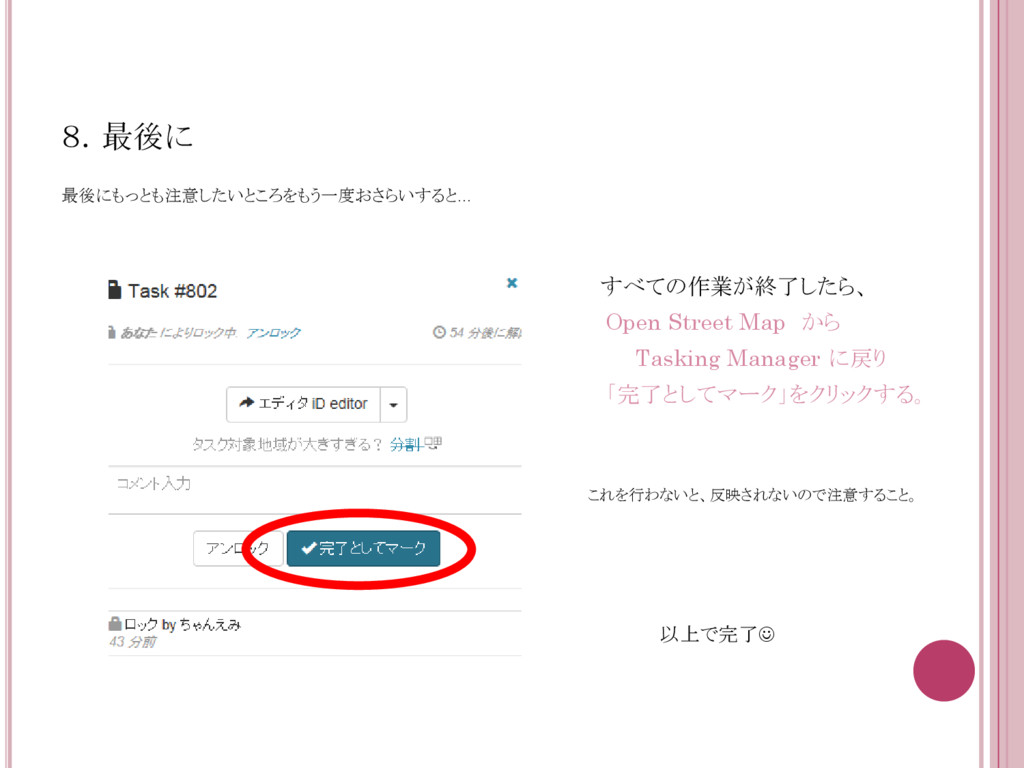
8.最後に 最後にもっとも注意したいところをもう一度おさらいすると… すべての作業が終了したら、 Open Street Map から Tasking Manager に戻り
「完了としてマーク」をクリックする。 これを行わないと、反映されないので注意すること。 以上で完了


 emminto
 tessaabrams
 wjessup
 chikuwait
 cromwellryan
 axbom
axbom
 garrettdimon
 eitanlees
 aleyda
 colly
colly
 nikkihalliwell
 smashingmag
 rasagy
![7.背景レイヤの変更 マッピングを始める前に背景レイヤを見やすいものにしたほうが建物などを特定しやすい。 そのため、 ①画面右上にある中で青丸で囲ってあるところをクリック ↓ ②背景画像の欄が開けたら、下から3番目の「Japan GSI ortho imagenery] を選択する。](https://files.speakerdeck.com/presentations/8de87b550ec34b71b2b7e10c26b5c94b/slide_7.jpg)