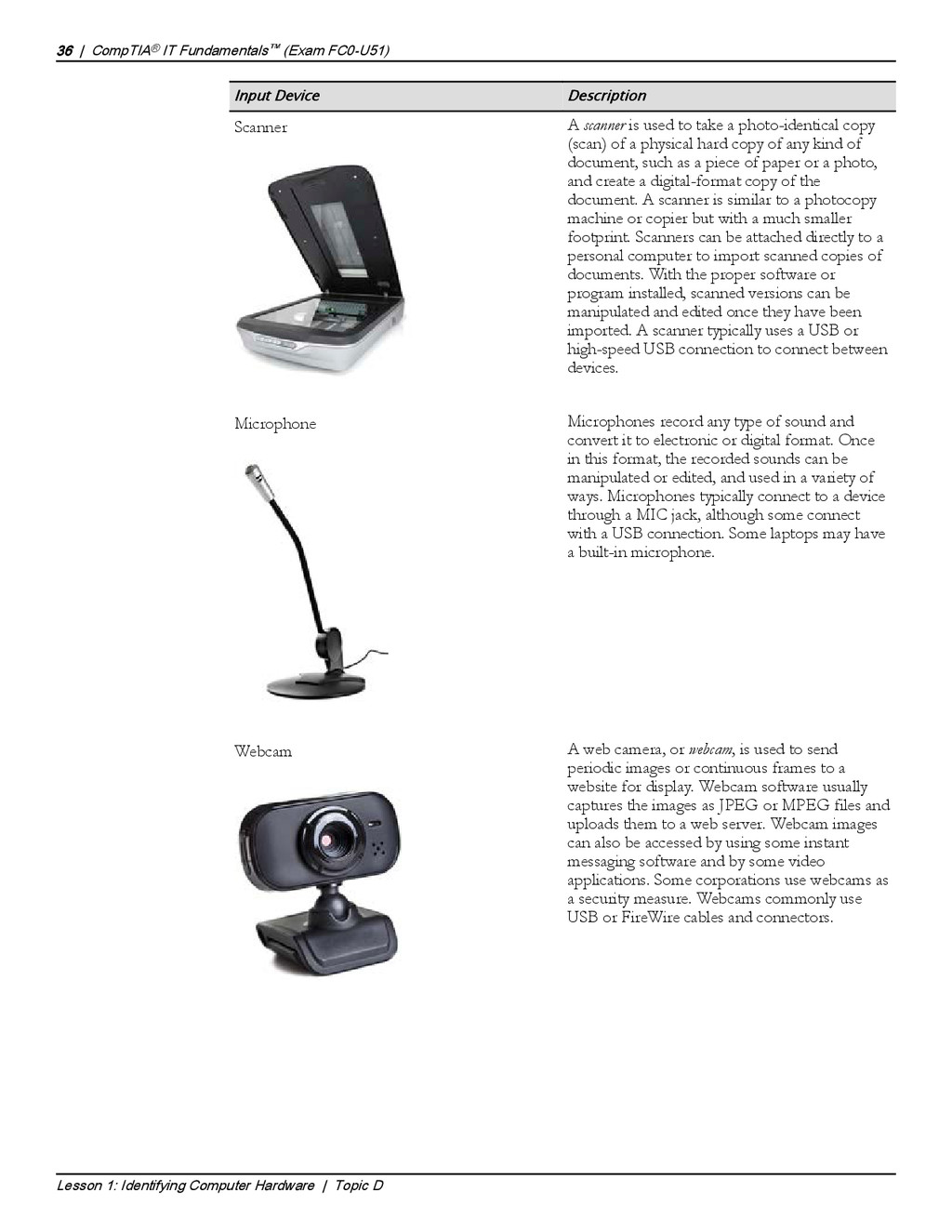
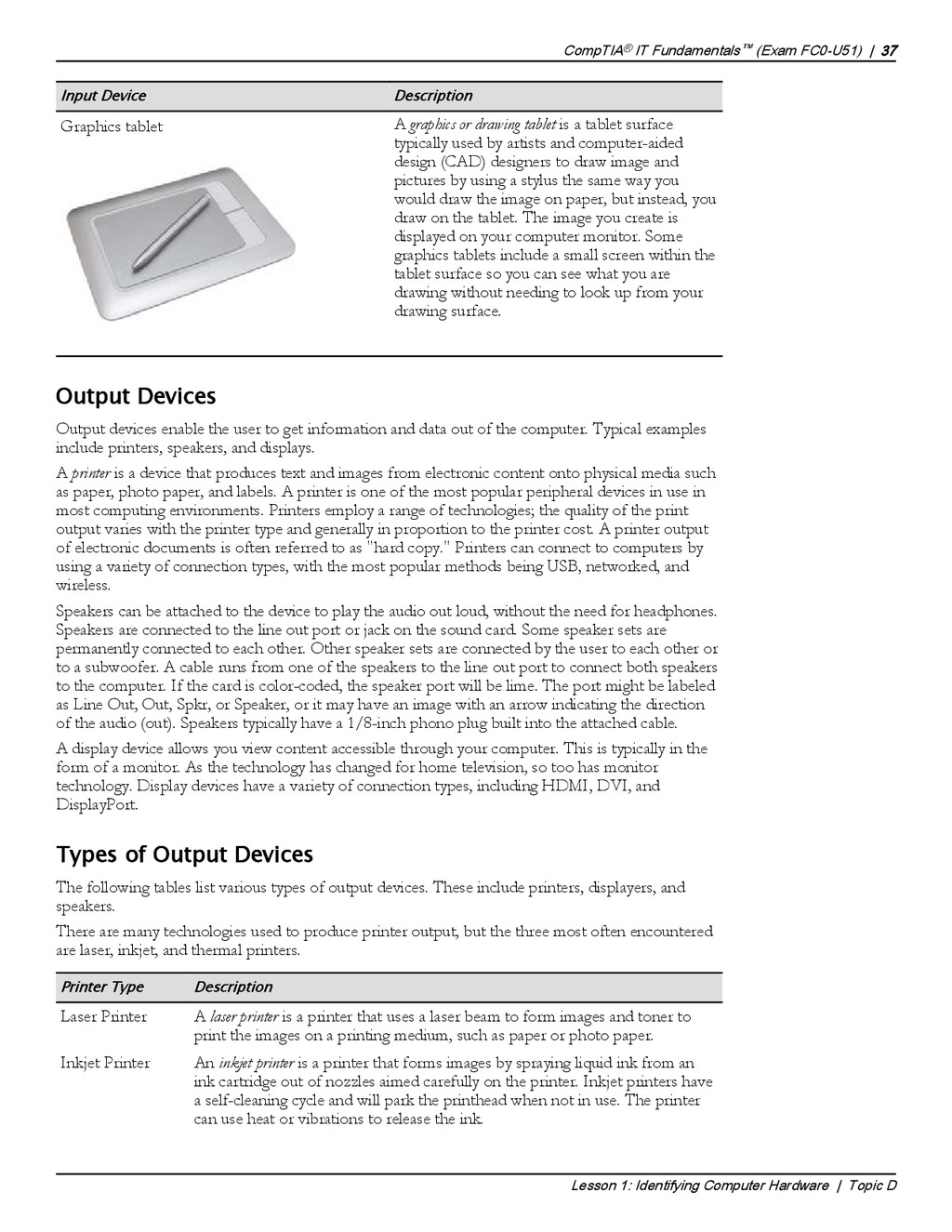
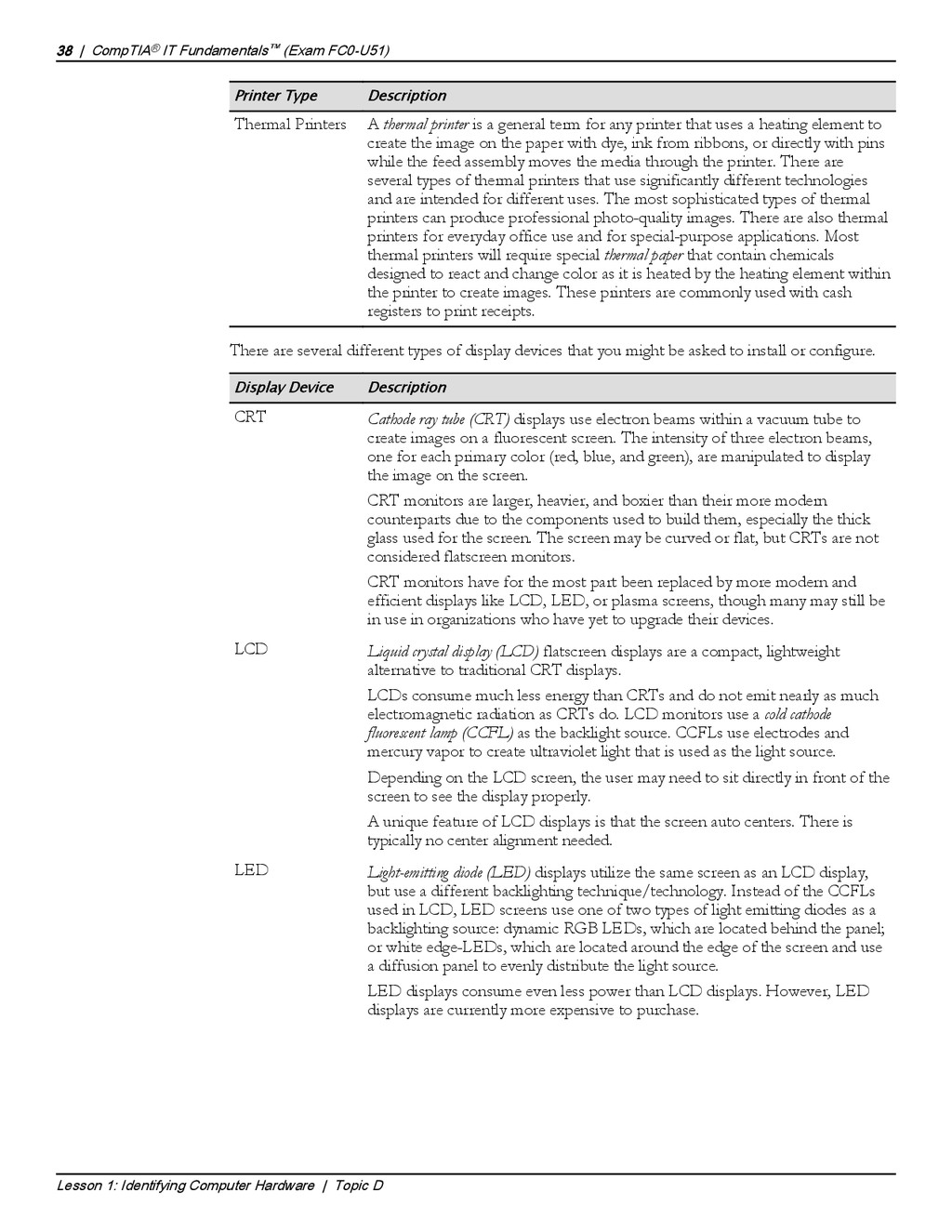
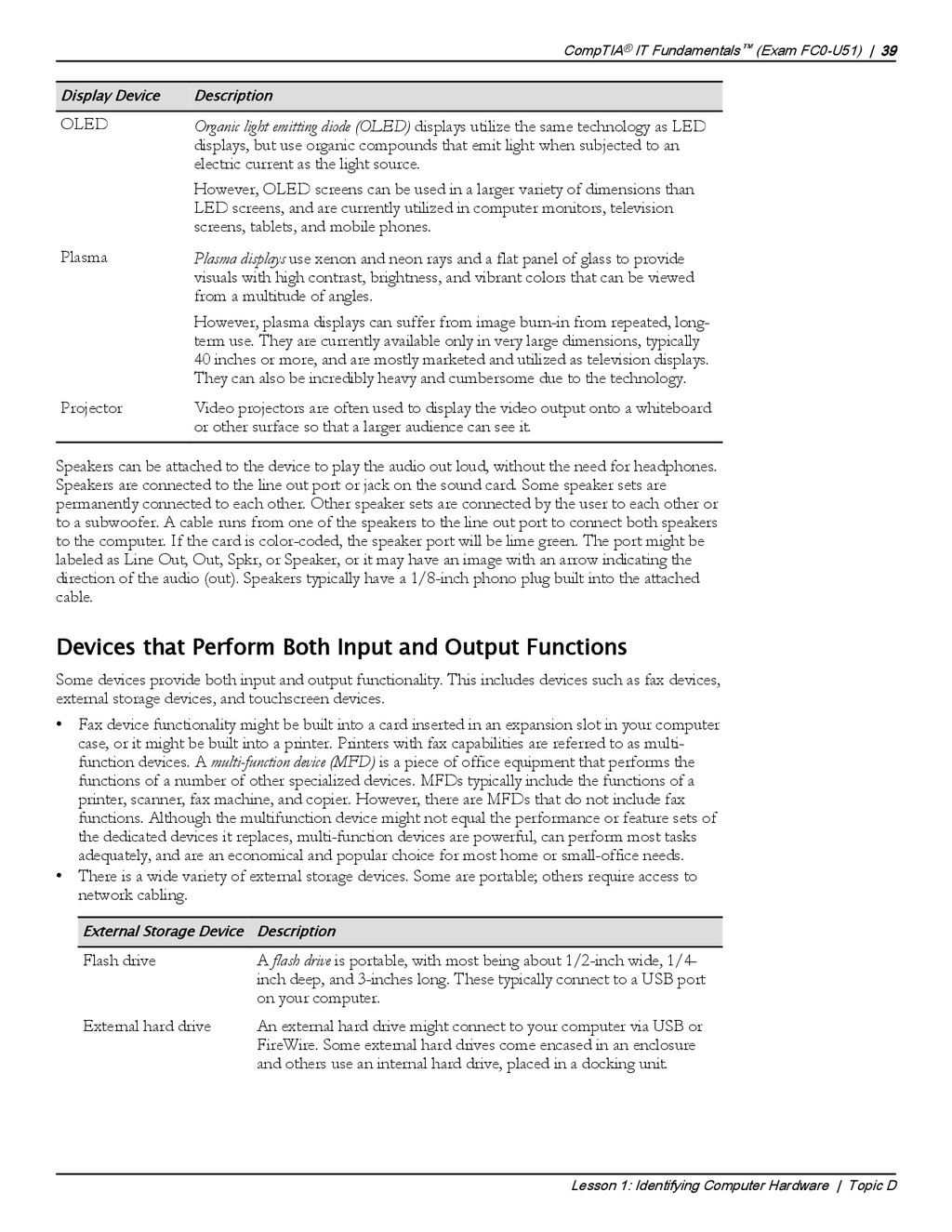
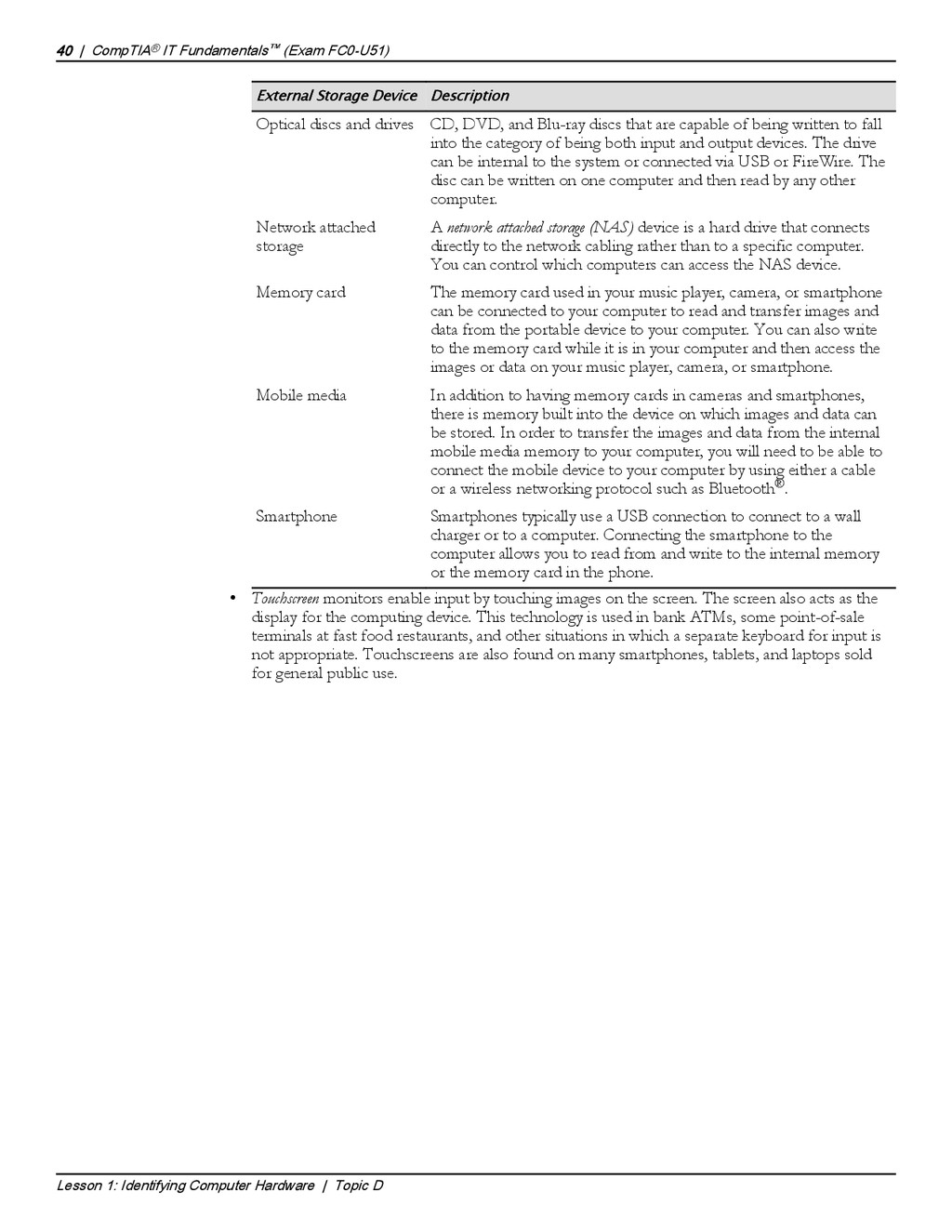
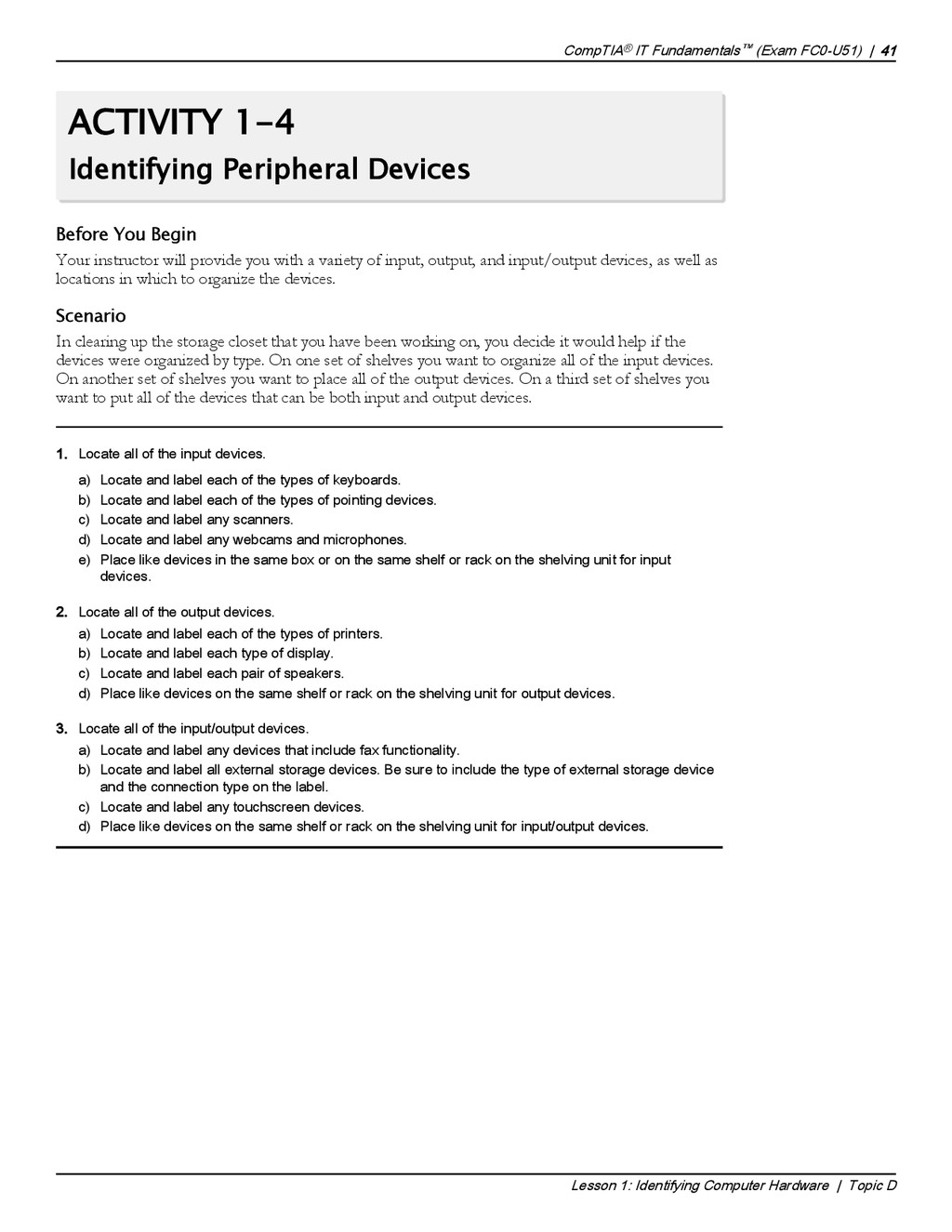
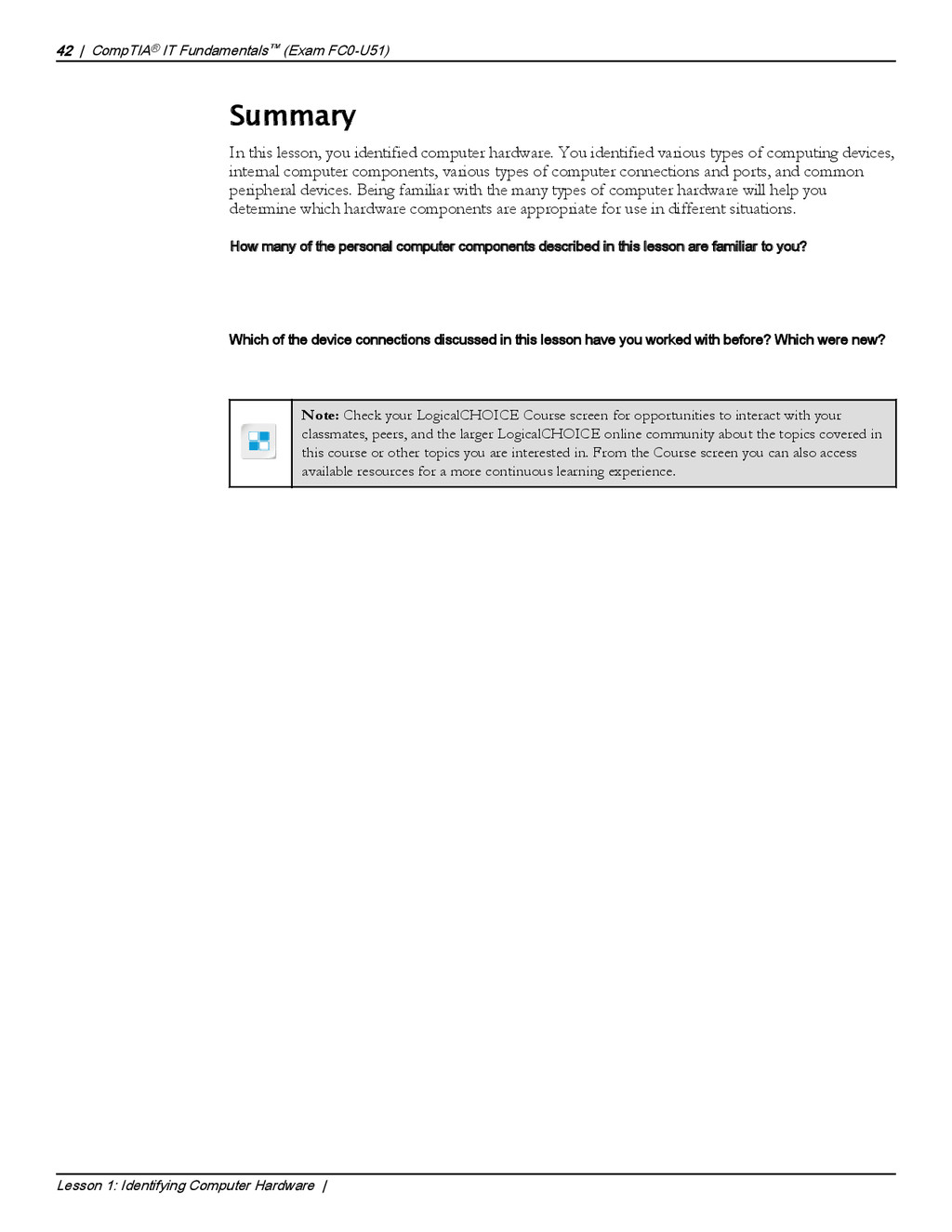
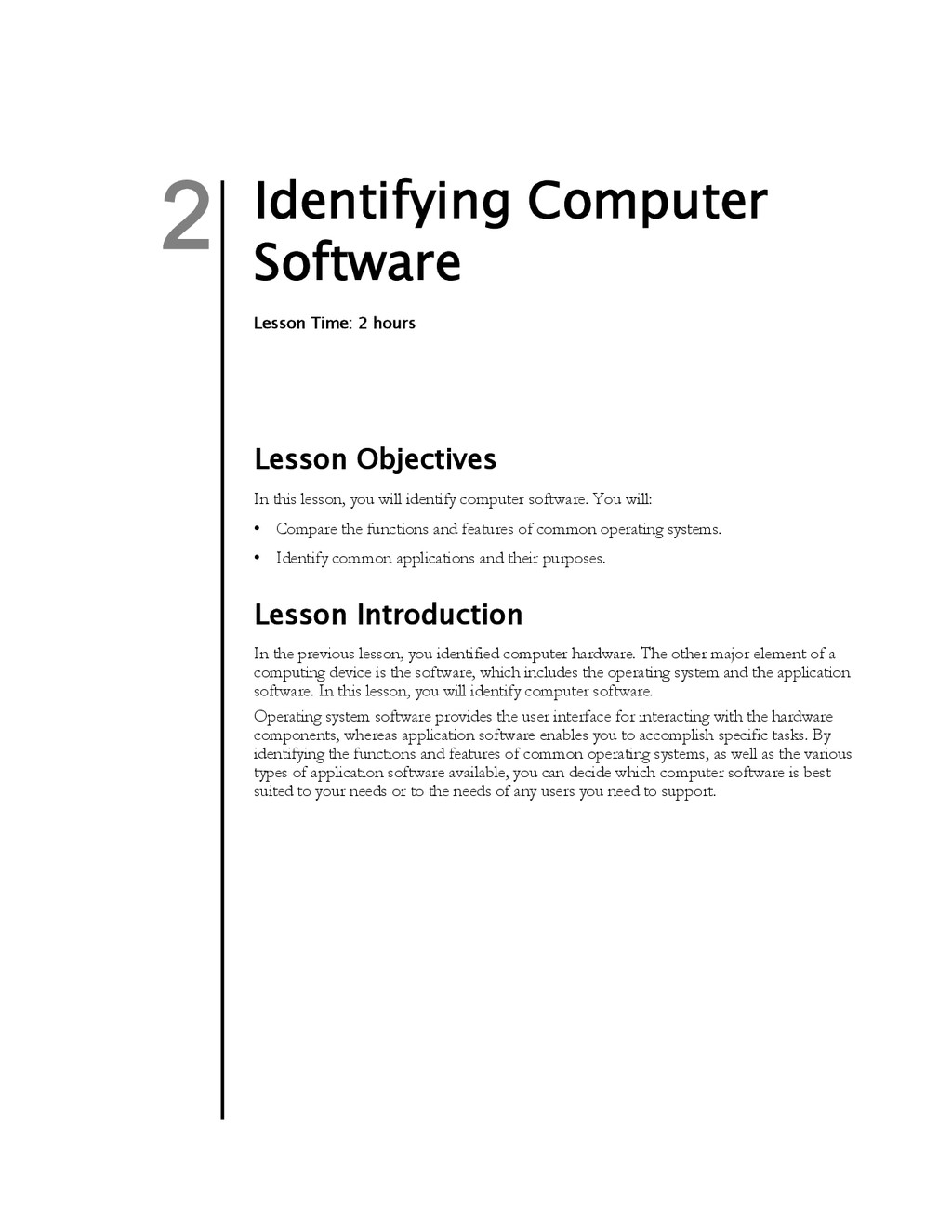
Upgrade to Pro — share decks privately, control downloads, hide ads and more …

Strata Exam

Strata Exam

Avatar for jgvangils

jgvangils

April 09, 2015

Other Decks in Technology

Transcript

  1. Learn Certify Work * Source: CompTIA 9th Annual Information Security

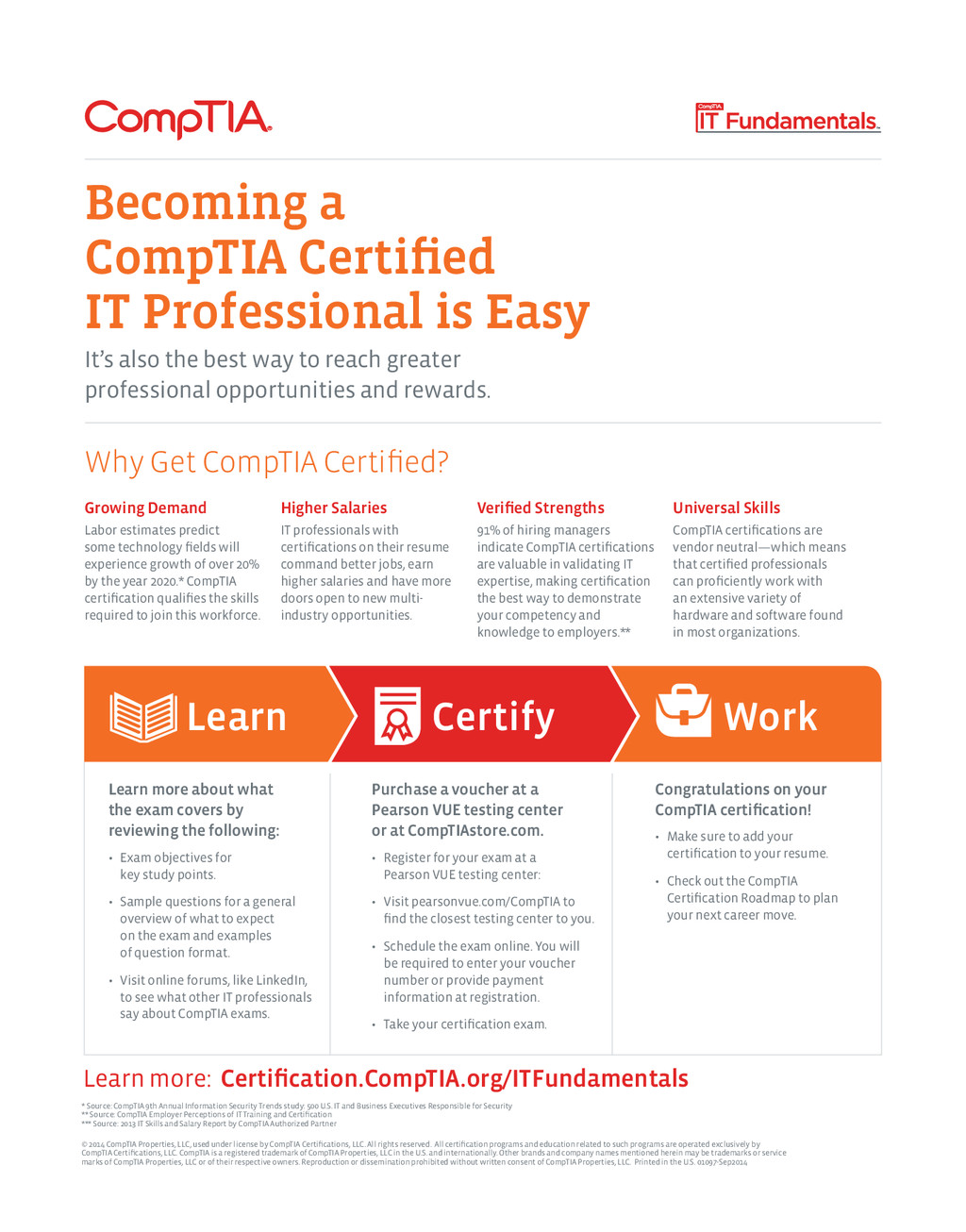
    Trends study: 500 U.S. IT and Business Executives Responsible for Security ** Source: CompTIA Employer Perceptions of IT Training and Certification *** Source: 2013 IT Skills and Salary Report by CompTIA Authorized Partner © 2014 CompTIA Properties, LLC, used under license by CompTIA Certifications, LLC. All rights reserved. All certification programs and education related to such programs are operated exclusively by CompTIA Certifications, LLC. CompTIA is a registered trademark of CompTIA Properties, LLC in the U.S. and internationally. Other brands and company names mentioned herein may be trademarks or service marks of CompTIA Properties, LLC or of their respective owners. Reproduction or dissemination prohibited without written consent of CompTIA Properties, LLC. Printed in the U.S. 01097-Sep2014 Why Get CompTIA Certified? Growing Demand Labor estimates predict some technology fields will experience growth of over 20% by the year 2020.* CompTIA certification qualifies the skills required to join this workforce. Higher Salaries IT professionals with certifications on their resume command better jobs, earn higher salaries and have more doors open to new multi- industry opportunities. Verified Strengths 91% of hiring managers indicate CompTIA certifications are valuable in validating IT expertise, making certification the best way to demonstrate your competency and knowledge to employers.** Universal Skills CompTIA certifications are vendor neutral—which means that certified professionals can proficiently work with an extensive variety of hardware and software found in most organizations. Learn more: Certification.CompTIA.org/ITFundamentals Becoming a CompTIA Certified IT Professional is Easy It’s also the best way to reach greater professional opportunities and rewards. Learn more about what the exam covers by reviewing the following: • Exam objectives for key study points. • Sample questions for a general overview of what to expect on the exam and examples of question format. • Visit online forums, like LinkedIn, to see what other IT professionals say about CompTIA exams. Purchase a voucher at a Pearson VUE testing center or at CompTIAstore.com. • Register for your exam at a Pearson VUE testing center: • Visit pearsonvue.com/CompTIA to find the closest testing center to you. • Schedule the exam online. You will be required to enter your voucher number or provide payment information at registration. • Take your certification exam. Congratulations on your CompTIA certification! • Make sure to add your certification to your resume. • Check out the CompTIA Certification Roadmap to plan your next career move.
  2. CompTIA® IT Fundamentals™ (Exam FC0-U51) Part Number: 093004 Course Edition:

    1.0 Acknowledgements We wish to thank the following project team for their contributions to the development of this certification study guide: Pamela J. Taylor, Laurie A. Perry, Gail Sandler, Jason Nufryk, Alex Tong, and Catherine M. Albano. Notices DISCLAIMER While CompTIA Properties, LLC takes care to ensure the accuracy and quality of these materials, we cannot guarantee their accuracy, and all materials are provided without any warranty whatsoever, including, but not limited to, the implied warranties of merchantability or fitness for a particular purpose. The name used in the data files for this course is that of a fictitious company. Any resemblance to current or future companies is purely coincidental. We do not believe we have used anyone's name in creating this course, but if we have, please notify us and we will change the name in the next revision of the course. Use of screenshots, photographs of another entity's products, or another entity's product name or service in this book is for editorial purposes only. No such use should be construed to imply sponsorship or endorsement of the book by, nor any affiliation of such entity with CompTIA Properties, LLC. This courseware may contain links to sites on the internet that are owned and operated by third parties (the "External Sites"). CompTIA Properties, LLC is not responsible for the availability of, or the content located on or through, any External Site. TRADEMARK NOTICES CompTIA® is a registered trademark and CompTIA® IT Fundamentals is a trademark of CompTIA in the U.S. and other countries. Other CompTIA products and services discussed or described may be trademarks or registered trademarks of CompTIA. Microsoft® Windows® is a registered trademark of Microsoft Corporation in the U.S. and other countries. Other Microsoft products and services discussed or described may be trademarks or registered trademarks of Microsoft Corporation. All other product and service names used may be common law or registered trademarks of their respective proprietors. Copyright © 2014 CompTIA Properties, LLC. All rights reserved. This publication, or any part thereof, may not be reproduced or transmitted in any form or by any means, electronic or mechanical, including photocopying, recording, storage in an information retrieval system, or otherwise, without express written permission of CompTIA, 3500 Lacey Road, Downers Grove, IL 60515. Contact CompTIA: call 866-835-8020 ext. 5 or email [email protected]. CompTIA’s World Wide Web site is located at www.comptia.org. This book conveys no rights in the software or other products about which it was written; all use or licensing of such software or other products is the responsibility of the user according to terms and conditions of the owner. Do not make illegal copies of books or software. Content used under license from CompTIA Properties, LLC. Logical Operations and the Logical Operations logo are trademarks of Logical Operations, Inc. and its affiliates.
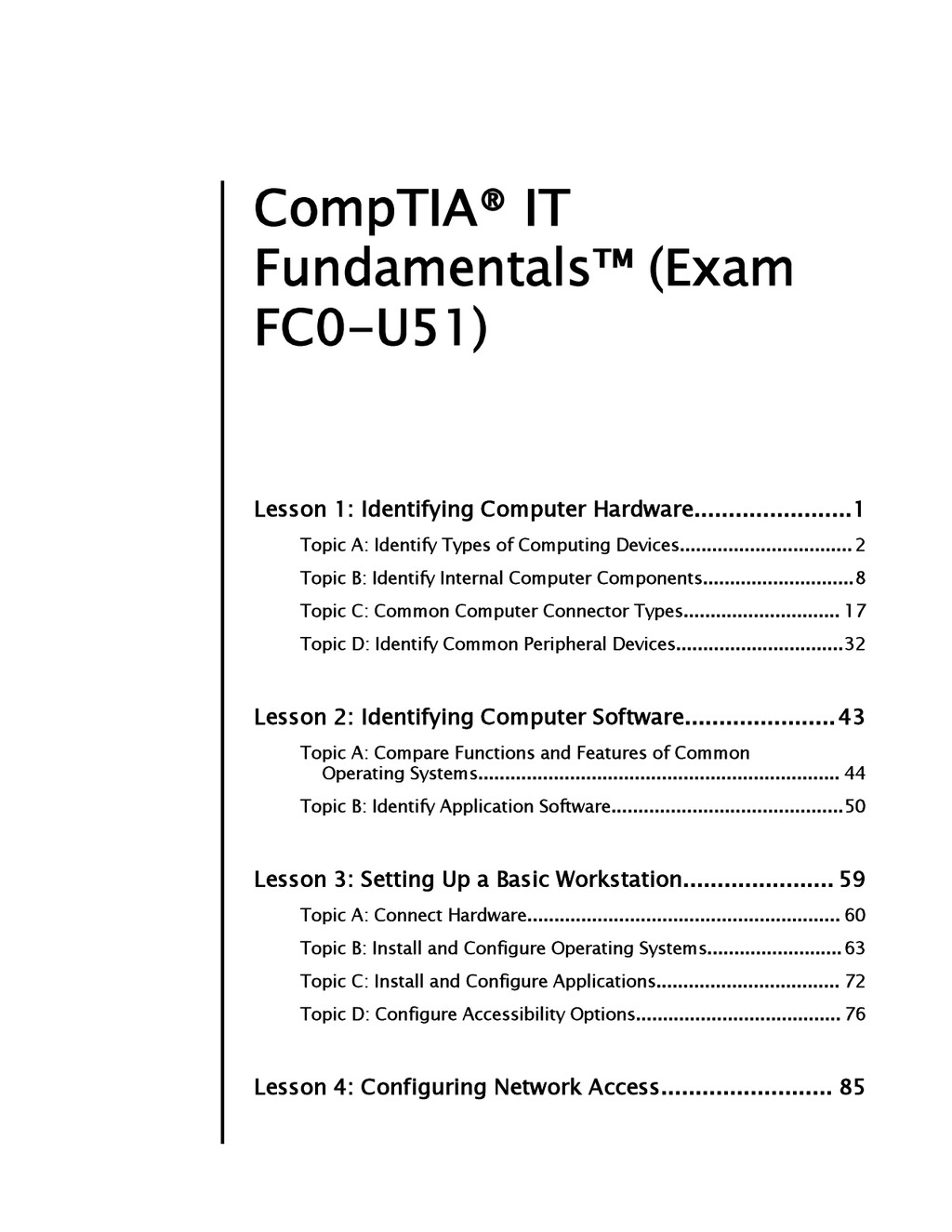
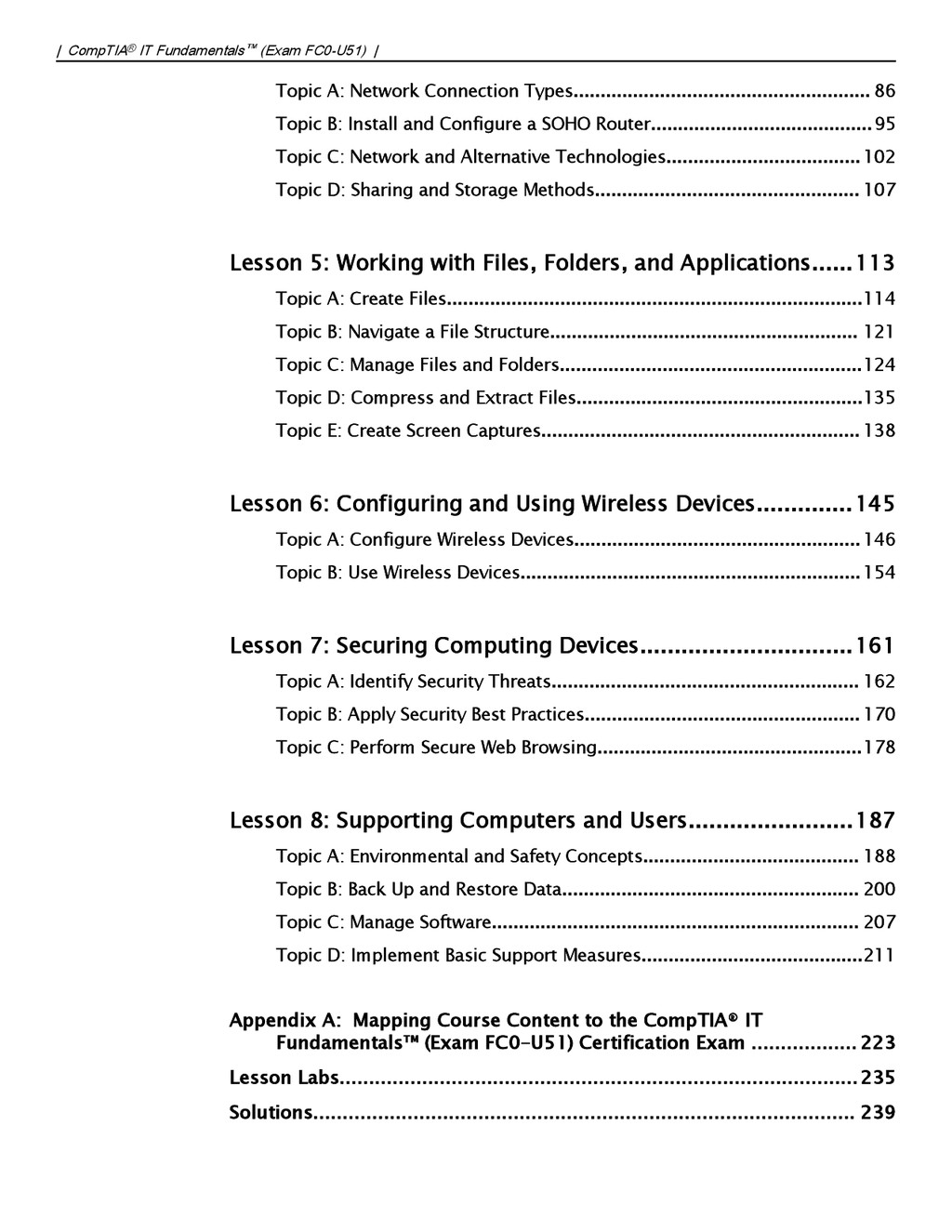
  3. CompTIA® IT Fundamentals™ (Exam FC0-U51) Lesson 1: Identifying Computer Hardware.......................1

    Topic A: Identify Types of Computing Devices................................ 2 Topic B: Identify Internal Computer Components............................8 Topic C: Common Computer Connector Types............................. 17 Topic D: Identify Common Peripheral Devices...............................32 Lesson 2: Identifying Computer Software......................43 Topic A: Compare Functions and Features of Common Operating Systems................................................................... 44 Topic B: Identify Application Software...........................................50 Lesson 3: Setting Up a Basic Workstation...................... 59 Topic A: Connect Hardware.......................................................... 60 Topic B: Install and Configure Operating Systems.........................63 Topic C: Install and Configure Applications.................................. 72 Topic D: Configure Accessibility Options...................................... 76 Lesson 4: Configuring Network Access......................... 85
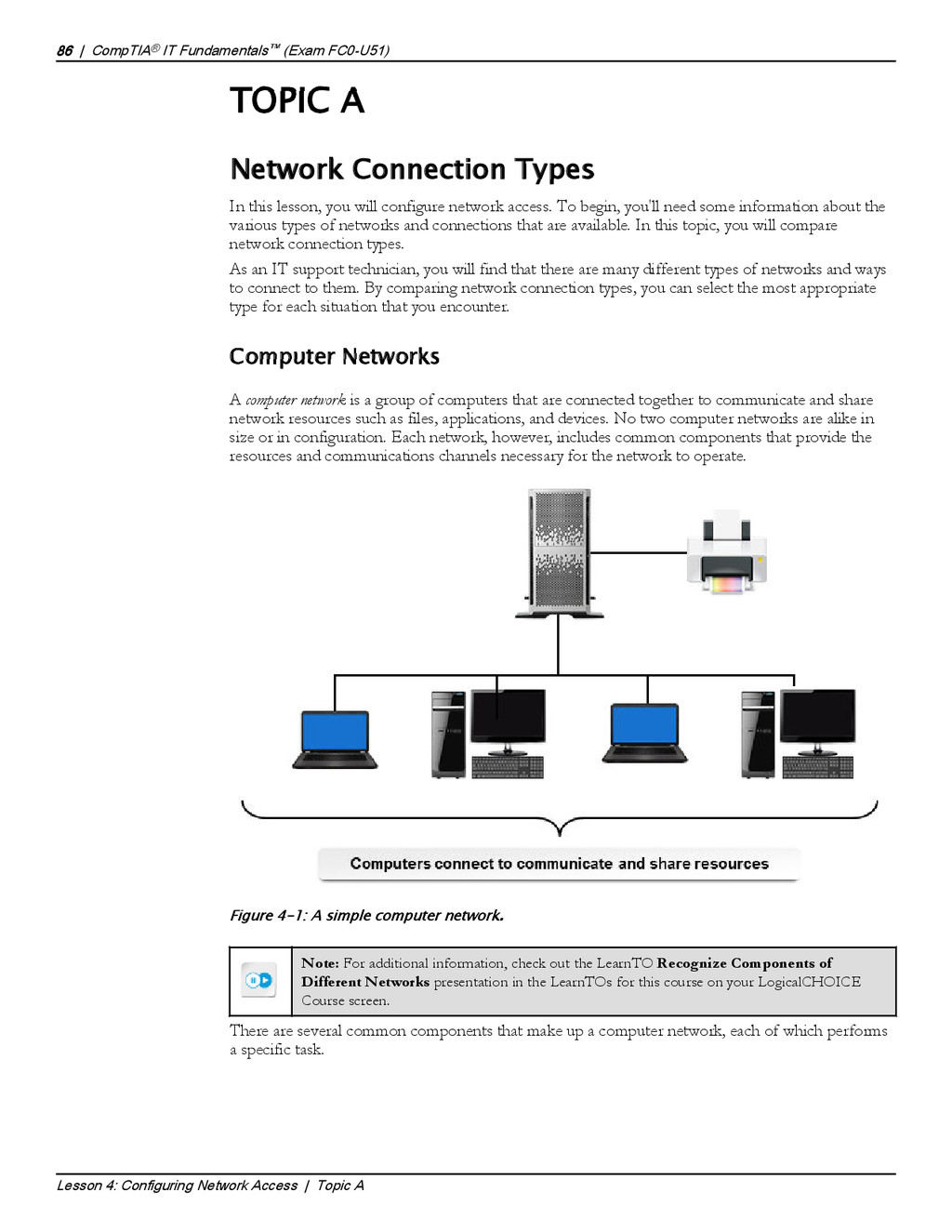
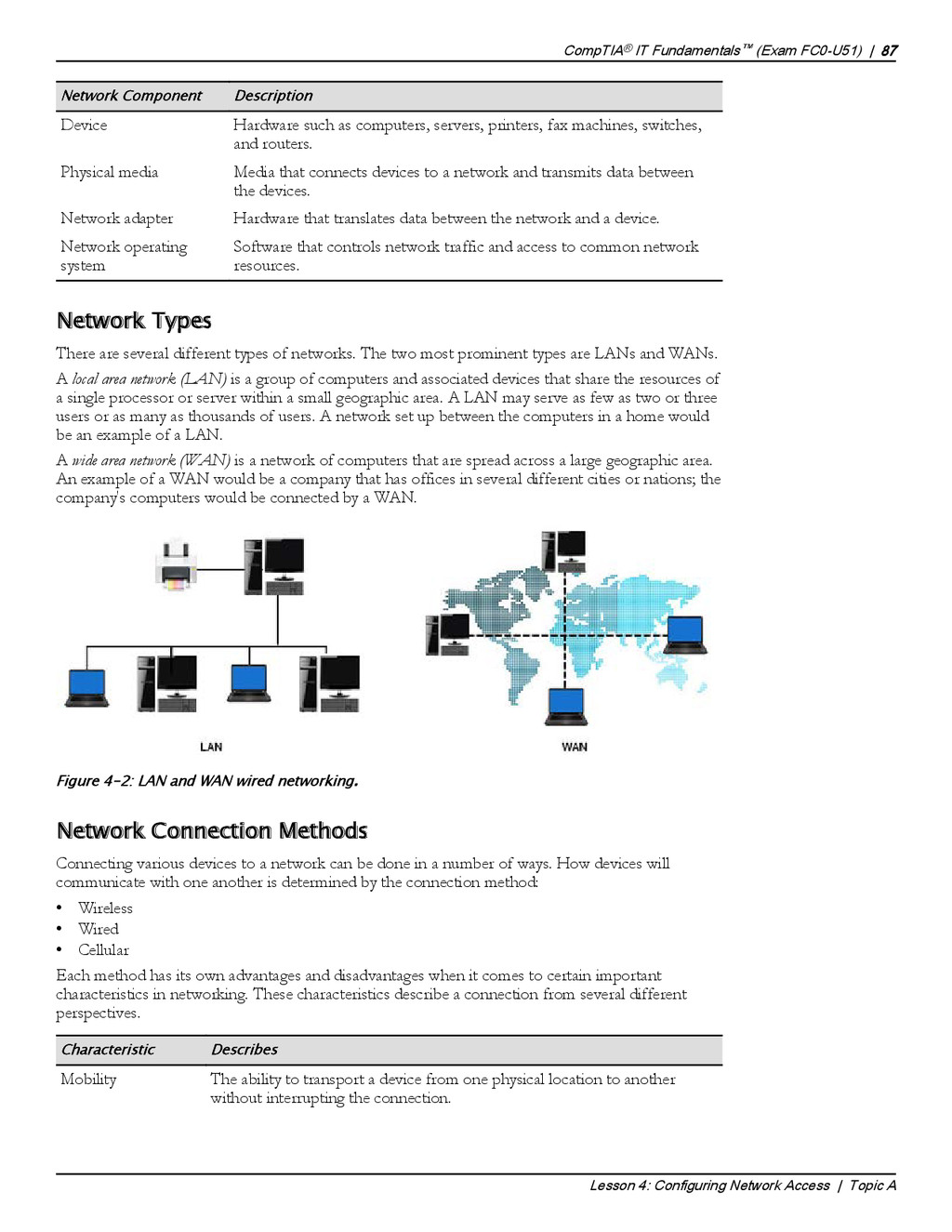
  4. Topic A: Network Connection Types....................................................... 86 Topic B: Install and

    Configure a SOHO Router.........................................95 Topic C: Network and Alternative Technologies.................................... 102 Topic D: Sharing and Storage Methods................................................. 107 Lesson 5: Working with Files, Folders, and Applications......113 Topic A: Create Files.............................................................................114 Topic B: Navigate a File Structure......................................................... 121 Topic C: Manage Files and Folders........................................................124 Topic D: Compress and Extract Files.....................................................135 Topic E: Create Screen Captures........................................................... 138 Lesson 6: Configuring and Using Wireless Devices..............145 Topic A: Configure Wireless Devices..................................................... 146 Topic B: Use Wireless Devices............................................................... 154 Lesson 7: Securing Computing Devices...............................161 Topic A: Identify Security Threats......................................................... 162 Topic B: Apply Security Best Practices................................................... 170 Topic C: Perform Secure Web Browsing.................................................178 Lesson 8: Supporting Computers and Users........................187 Topic A: Environmental and Safety Concepts........................................ 188 Topic B: Back Up and Restore Data....................................................... 200 Topic C: Manage Software.................................................................... 207 Topic D: Implement Basic Support Measures.........................................211 Appendix A: Mapping Course Content to the CompTIA® IT Fundamentals™ (Exam FC0-U51) Certification Exam .................. 223 Lesson Labs........................................................................................235 Solutions............................................................................................ 239 | CompTIA® IT Fundamentals™ (Exam FC0-U51) |
  5. About This Course If you are a high-end computer user

    at home or college considering a career in information technology, or interested in furthering your knowledge about personal computers, the CompTIA® IT Fundamentals™ (Exam FC0-U51) course is the first step in your preparation. In this course, you will identify PC components, work with files and folders, and conduct basic software installations. This course will provide you with the fundamental skills and concepts required to maintain, support, and work efficiently with personal computers. In addition, you will acquire the essential skills and information you need to set up, configure, maintain, troubleshoot, and perform preventative maintenance of the hardware and software components of a basic personal computer workstation and basic wireless devices. You will also implement basic security measures and implement basic computer and user support practices. Whether you are a home user, an experienced knowledge worker, or someone new to the work force considering an information technology (IT) career, the CompTIA® IT Fundamentals™ (Exam FC0-U51) course can benefit you in many ways. Having a basic foundational knowledge about personal computers and the skills required to work with them provides you with the starting point to build your career. If your existing job role is linked with personal computers, this course will provide you with the fundamental technical knowledge about personal computers that you need to work efficiently in your current role. It will also assist you if you are preparing to take the CompTIA® IT Fundamentals™ examination (Exam FC0-U51). Course Description Target Student This course is designed for individuals who are considering a career in information technology (IT) and who might be planning to pursue CompTIA IT Fundamentals certification, CompTIA A+™ certification, or other similar certifications. Course Prerequisites To ensure your success in your course you will need basic Windows end-user skills. You can obtain this level of skills and knowledge by taking either of the following LogicalCHOICE courses, or have equivalent experience: Using Microsoft® Windows® 8.1 Microsoft® Windows® 8.1 Transition from Windows 7 Course Objectives Upon successful completion of this course, you will be able to safely set up a basic workstation, including installing basic hardware and software and establishing basic network
  6. connectivity; identify and correct compatibility issues; identify and prevent basic

    security risks; and practice basic support techniques on computing devices. You will: • Identify hardware commonly found in or attached to computing devices. • Identify software commonly installed on computing devices. • Set up a basic workstation. • Configure network access. • Work with files, folders, and applications. • Configure and use wireless devices. • Secure computing devices. • Support computers and users. The LogicalCHOICE Home Screen The LogicalCHOICE Home screen is your entry point to the LogicalCHOICE learning experience, of which this course manual is only one part. Visit the LogicalCHOICE Course screen both during and after class to make use of the world of support and instructional resources that make up the LogicalCHOICE experience. Log-on and access information for your LogicalCHOICE environment will be provided with your class experience. On the LogicalCHOICE Home screen, you can access the LogicalCHOICE Course screens for your specific courses. Each LogicalCHOICE Course screen will give you access to the following resources: • eBook: an interactive electronic version of the printed book for your course. • LearnTOs: brief animated components that enhance and extend the classroom learning experience. Depending on the nature of your course and the choices of your learning provider, the LogicalCHOICE Course screen may also include access to elements such as: • The interactive eBook. • Social media resources that enable you to collaborate with others in the learning community using professional communications sites such as LinkedIn or microblogging tools such as Twitter. • Checklists with useful post-class reference information. • Any course files you will download. • The course assessment. • Notices from the LogicalCHOICE administrator. • Virtual labs, for remote access to the technical environment for your course. • Your personal whiteboard for sketches and notes. • Newsletters and other communications from your learning provider. • Mentoring services. • A link to the website of your training provider. • The LogicalCHOICE store. Visit your LogicalCHOICE Home screen often to connect, communicate, and extend your learning experience! How to Use This Book As You Learn This book is divided into lessons and topics, covering a subject or a set of related subjects. In most cases, lessons are arranged in order of increasing proficiency. | CompTIA® IT Fundamentals™ (Exam FC0-U51) | | About This Course |
  7. The results-oriented topics include relevant and supporting information you need

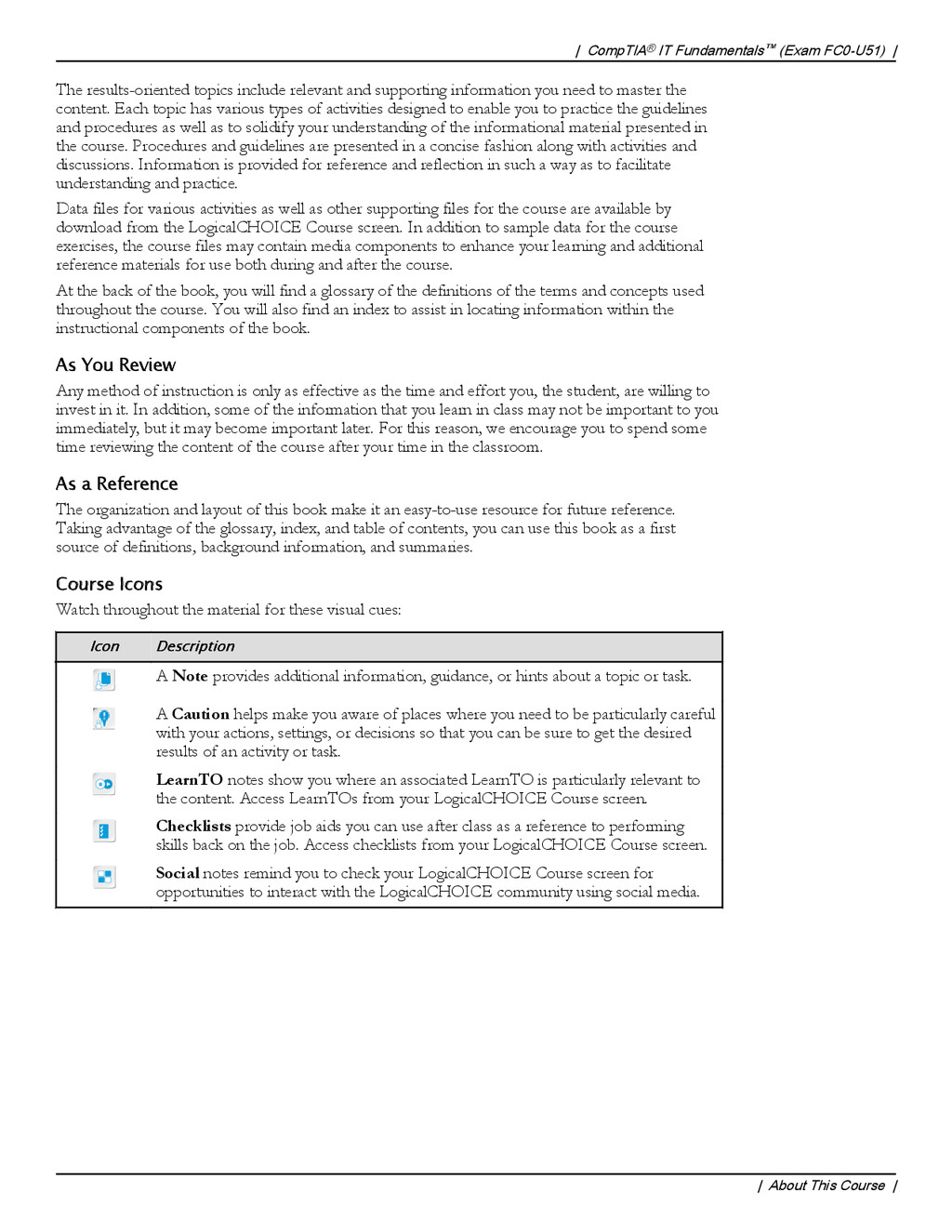
    to master the content. Each topic has various types of activities designed to enable you to practice the guidelines and procedures as well as to solidify your understanding of the informational material presented in the course. Procedures and guidelines are presented in a concise fashion along with activities and discussions. Information is provided for reference and reflection in such a way as to facilitate understanding and practice. Data files for various activities as well as other supporting files for the course are available by download from the LogicalCHOICE Course screen. In addition to sample data for the course exercises, the course files may contain media components to enhance your learning and additional reference materials for use both during and after the course. At the back of the book, you will find a glossary of the definitions of the terms and concepts used throughout the course. You will also find an index to assist in locating information within the instructional components of the book. As You Review Any method of instruction is only as effective as the time and effort you, the student, are willing to invest in it. In addition, some of the information that you learn in class may not be important to you immediately, but it may become important later. For this reason, we encourage you to spend some time reviewing the content of the course after your time in the classroom. As a Reference The organization and layout of this book make it an easy-to-use resource for future reference. Taking advantage of the glossary, index, and table of contents, you can use this book as a first source of definitions, background information, and summaries. Course Icons Watch throughout the material for these visual cues: Icon Description A Note provides additional information, guidance, or hints about a topic or task. A Caution helps make you aware of places where you need to be particularly careful with your actions, settings, or decisions so that you can be sure to get the desired results of an activity or task. LearnTO notes show you where an associated LearnTO is particularly relevant to the content. Access LearnTOs from your LogicalCHOICE Course screen. Checklists provide job aids you can use after class as a reference to performing skills back on the job. Access checklists from your LogicalCHOICE Course screen. Social notes remind you to check your LogicalCHOICE Course screen for opportunities to interact with the LogicalCHOICE community using social media. | CompTIA® IT Fundamentals™ (Exam FC0-U51) | | About This Course |
  8. Identifying Computer Hardware Lesson Time: 2 hours, 30 minutes Lesson

    Objectives In this lesson, you will identify computer hardware. You will: • Identify various types of computing devices used in today's workplace. • Identify internal computer components. • Compare common computer connector types. • Identify common peripheral devices. Lesson Introduction If you’ve worked with computers before, you know that they are useful and versatile machines that hold vast amounts of information and help you perform a wide range of tasks in a short amount of time. However, as a computer user, you may not know much about what goes on under the covers of the computers that you use every day. In this lesson, you’ll identify the hardware components commonly found in or attached to personal computers. By looking at the various types of computing devices that are available today, as well as the internal and external hardware that make up most computer systems, you'll be able to better describe their characteristics and functions. 1
  9. TOPIC A Identify Types of Computing Devices There is a

    wide variety of computer types in use today. Some of these you won't interact with directly, others might be too small or underpowered for your needs, and some might be overpowered and too bulky for your needs. Somewhere out there, though, is just the right computing device to meet your needs. You might also have different needs at work or school than you do for home and recreation. In this topic, you will explore a variety of computing devices from pocket-sized to room-sized and everything in between. Computing Devices A computing device is an electronic machine that uses binary data to automatically perform calculations. These calculations might be as simple as adding 1+1 and giving you the result of 2 or as complex as calculating the trajectory of an unmanned rocket into space or scanning your face to allow you into a locked room. These tools come in a variety of sizes and abilities. Some are small enough to fit in your pocket and some require a room to house them. In general, smaller devices contain fewer computing abilities. Personal Computers A personal computer, or PC, is a computing device designed to be used by one person at a time. These computing devices are found in offices, schools, and homes. PCs are used to run commercial software applications, access the Internet, communicate with other people over email, create new applications in any one of a number of programming languages, play games, do research, and much more. PCs are limited only by your imagination and your computer's computing power. Desktop Computers A desktop computer is a computing device designed to be placed on or near a user's desk. Its size and its need to be plugged in to a power source mean it typically needs to be placed where it will be used and not be moved. Desktop computers are usually tall, narrow rectangles that can be placed on or under the user's desk. The size varies greatly, but often is between 4 and 8 inches wide, about 10 to 16 inches tall, and about 14 to 20 inches front to back. 2 | CompTIA® IT Fundamentals™ (Exam FC0-U51) Lesson 1: Identifying Computer Hardware | Topic A Computing Devices The images that are included in this lesson are representative. Be prepared to augment these images with more current examples in your classroom and from the Internet. Personal Computers Desktop Computers
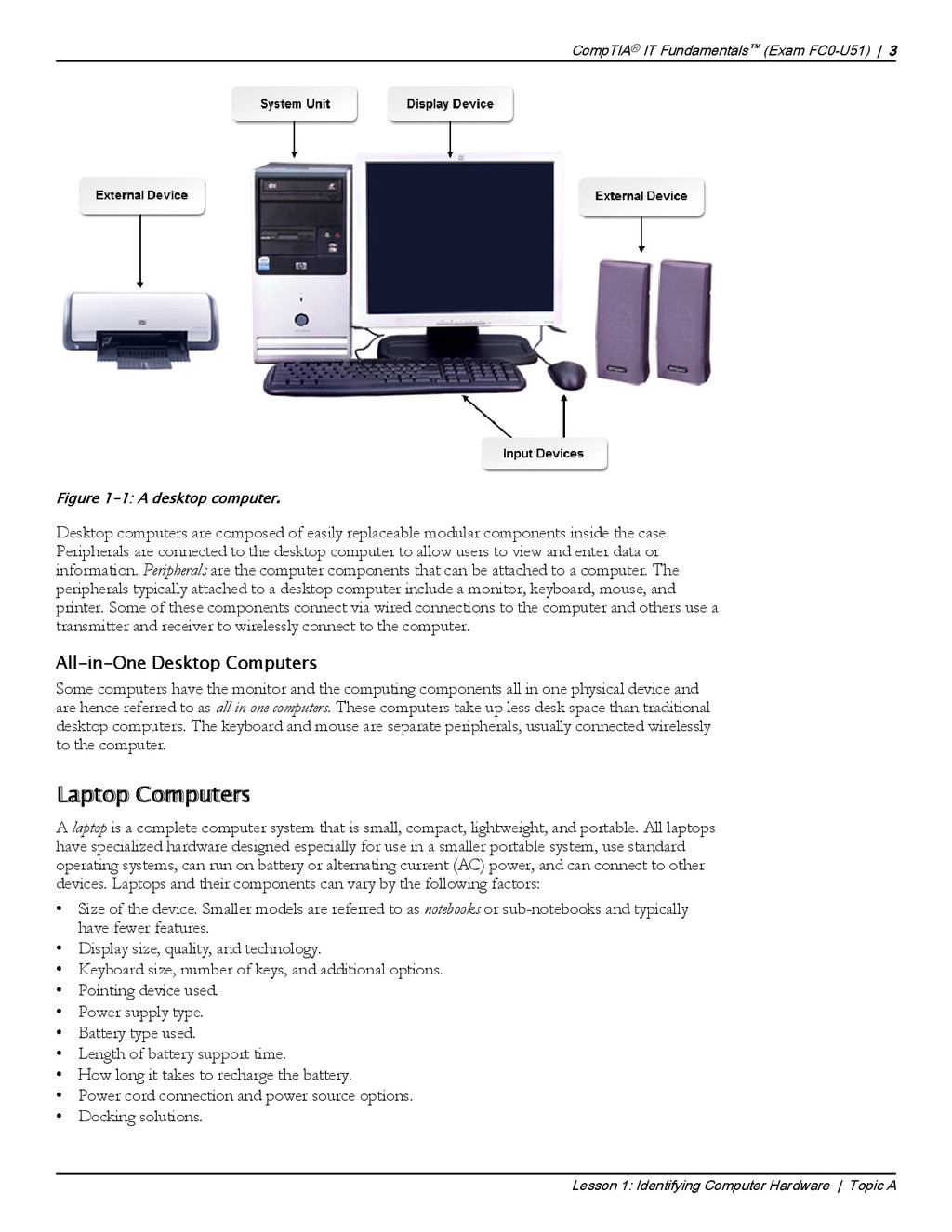
  10. Figure 1-1: A desktop computer. Desktop computers are composed of

    easily replaceable modular components inside the case. Peripherals are connected to the desktop computer to allow users to view and enter data or information. Peripherals are the computer components that can be attached to a computer. The peripherals typically attached to a desktop computer include a monitor, keyboard, mouse, and printer. Some of these components connect via wired connections to the computer and others use a transmitter and receiver to wirelessly connect to the computer. All-in-One Desktop Computers Some computers have the monitor and the computing components all in one physical device and are hence referred to as all-in-one computers. These computers take up less desk space than traditional desktop computers. The keyboard and mouse are separate peripherals, usually connected wirelessly to the computer. Laptop Computers A laptop is a complete computer system that is small, compact, lightweight, and portable. All laptops have specialized hardware designed especially for use in a smaller portable system, use standard operating systems, can run on battery or alternating current (AC) power, and can connect to other devices. Laptops and their components can vary by the following factors: • Size of the device. Smaller models are referred to as notebooks or sub-notebooks and typically have fewer features. • Display size, quality, and technology. • Keyboard size, number of keys, and additional options. • Pointing device used. • Power supply type. • Battery type used. • Length of battery support time. • How long it takes to recharge the battery. • Power cord connection and power source options. • Docking solutions. CompTIA® IT Fundamentals™ (Exam FC0-U51) | 3 Lesson 1: Identifying Computer Hardware | Topic A Laptops
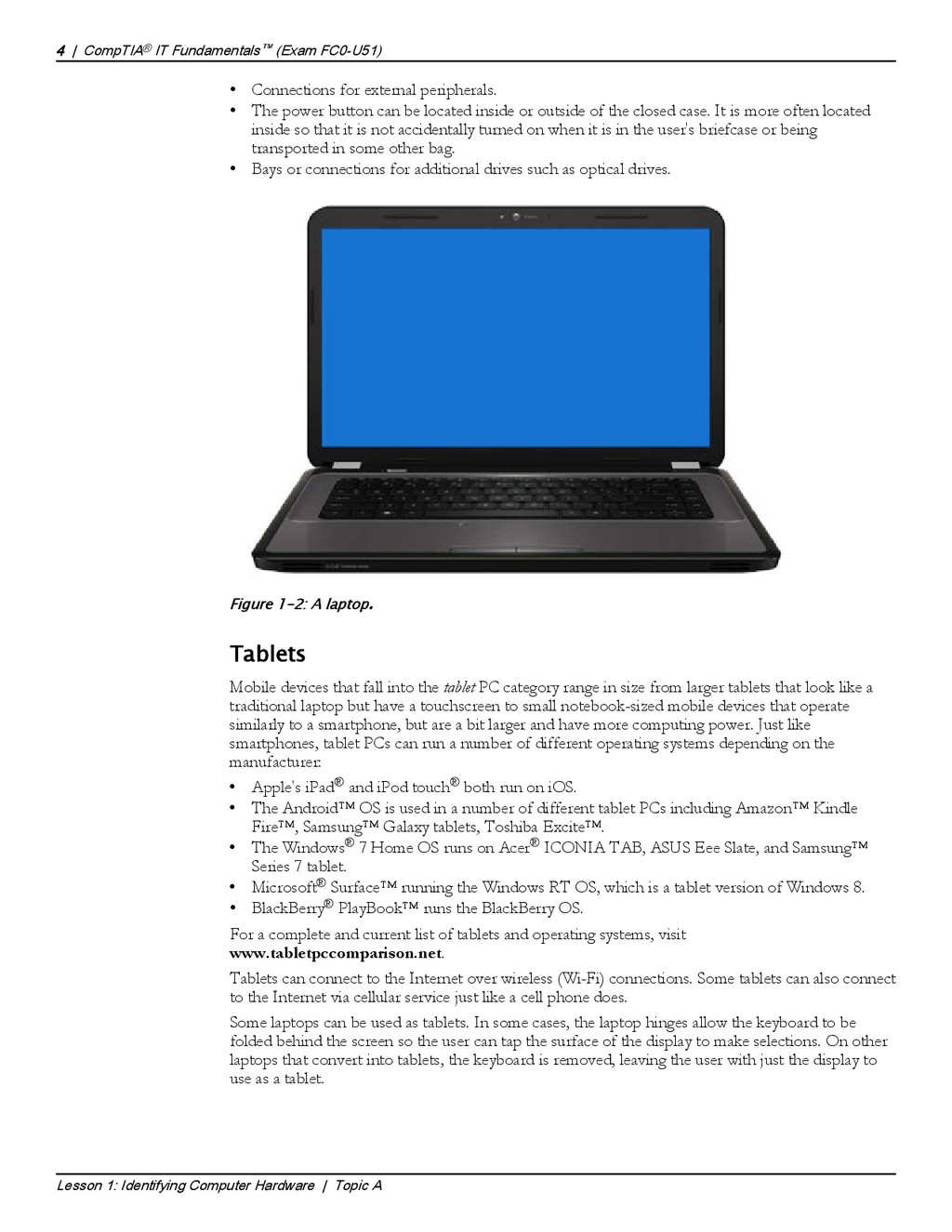
  11. • Connections for external peripherals. • The power button can

    be located inside or outside of the closed case. It is more often located inside so that it is not accidentally turned on when it is in the user's briefcase or being transported in some other bag. • Bays or connections for additional drives such as optical drives. Figure 1-2: A laptop. Tablets Mobile devices that fall into the tablet PC category range in size from larger tablets that look like a traditional laptop but have a touchscreen to small notebook-sized mobile devices that operate similarly to a smartphone, but are a bit larger and have more computing power. Just like smartphones, tablet PCs can run a number of different operating systems depending on the manufacturer: • Apple's iPad® and iPod touch® both run on iOS. • The Android™ OS is used in a number of different tablet PCs including Amazon™ Kindle Fire™, Samsung™ Galaxy tablets, Toshiba Excite™. • The Windows® 7 Home OS runs on Acer® ICONIA TAB, ASUS Eee Slate, and Samsung™ Series 7 tablet. • Microsoft® Surface™ running the Windows RT OS, which is a tablet version of Windows 8. • BlackBerry® PlayBook™ runs the BlackBerry OS. For a complete and current list of tablets and operating systems, visit www.tabletpccomparison.net. Tablets can connect to the Internet over wireless (Wi-Fi) connections. Some tablets can also connect to the Internet via cellular service just like a cell phone does. Some laptops can be used as tablets. In some cases, the laptop hinges allow the keyboard to be folded behind the screen so the user can tap the surface of the display to make selections. On other laptops that convert into tablets, the keyboard is removed, leaving the user with just the display to use as a tablet. 4 | CompTIA® IT Fundamentals™ (Exam FC0-U51) Lesson 1: Identifying Computer Hardware | Topic A Tablets
  12. Smartphones Smartphones are high-end mobile devices that provide users with

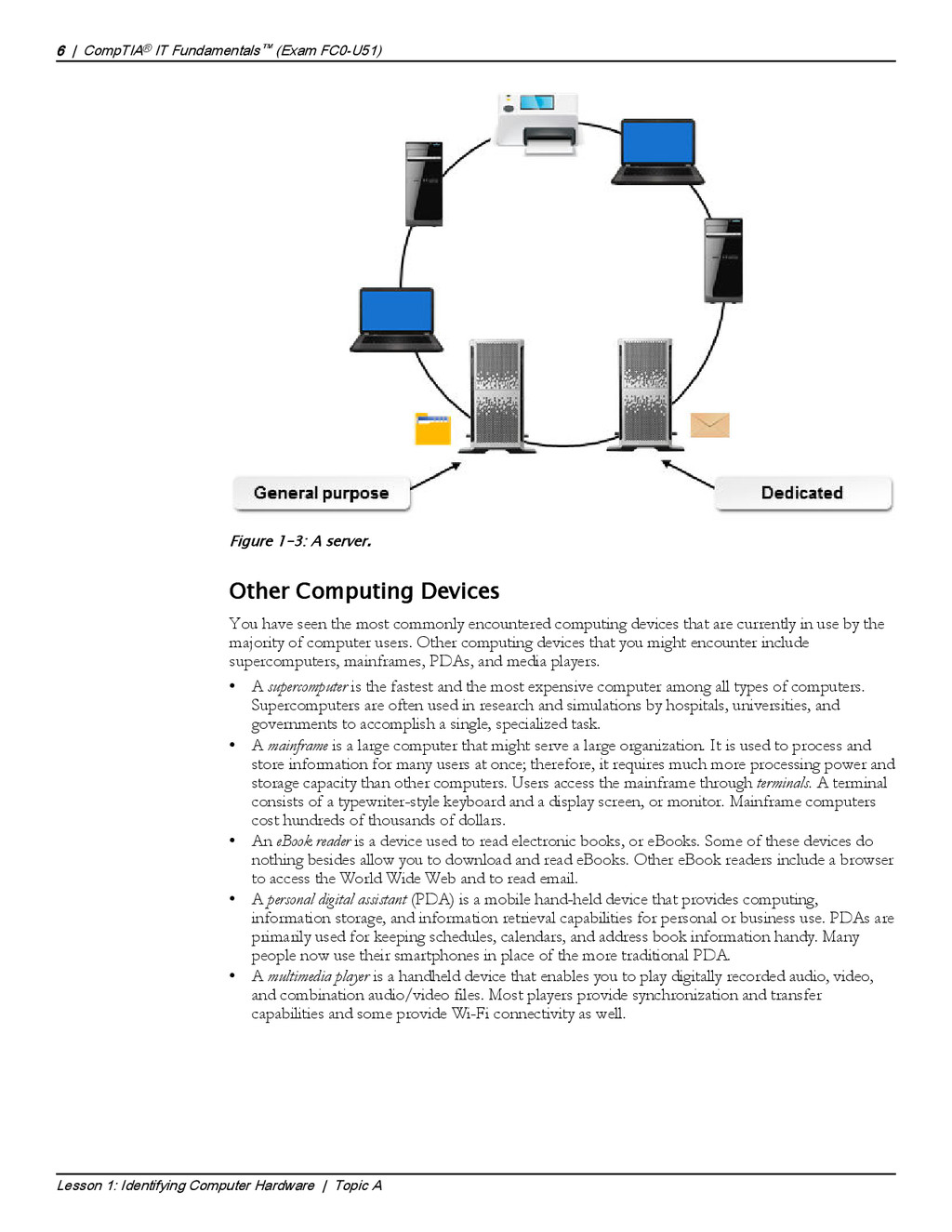
    a wide range of functions, such as portable media players, video cameras, GPS, high-resolution touchscreens, high-speed Wi-Fi, web browsers, and mobile broadband, along with phone service. New smartphones are emerging almost every day. The market is expanding and demand for powerful mobile devices has never been higher. Although Android and iOS dominate the smartphone device marketplace, there are many other technologies and devices available. It can be challenging for an IT technician to keep up with the mobile device market, as it is constantly changing and there are so many different smartphones all with unique features and functions. The most popular devices used in the marketplace are described in the following table. Mobile Smartphone Description Apple iPhone iPhones are a combination of phone, Internet gadget, and widescreen iPod, which runs on the iOS operating system. The common features of an iPhone include telephone, music player, camera, and games. The latest iPhone includes features such as video conferencing and Siri®—a voice-controlled software assistant to perform various tasks and run other applications through a multi-touch interface. iPhone applications utilize innovative iOS technology to facilitate Wi-Fi Internet connectivity with General Packet Radio Service (GPRS), an intuitive user interface, GPS, the accelerometer, audio, video and graphic capabilities, and other advanced features. Android smartphones Android-based smartphones have similar functions to the iPhone, except that the Android OS allows multiple applications to run simultaneously without interruption. Popular Android-based smartphones include: • Samsung Galaxy S® III • MOTOROLA® DROID RAZR M • HTC One™ X • HTC One™ S BlackBerry smartphone BlackBerry phones are primarily used by professionals to conduct business operations and tasks. The BlackBerry OS directly supports corporate business requirements with functions such as synchronizing with Microsoft® Exchange, IBM® Lotus® Domino®, or Novell® GroupWise® emails, contacts, and tasks by maintaining a high level of security. Windows smartphone Windows smartphones run on the Windows Phone OS, which is maintained and developed by Microsoft. Features include a suite of Microsoft® Office® applications, Outlook® Mobile, web browsing, Windows Media® Player, and other advanced features. Servers A server is a network computer that shares resources with and responds to requests from computers, devices, and other servers on the network. Servers provide centralized access and storage for resources that can include applications, files, printers, and other hardware as well as services, such as email. A server can be optimized and dedicated to one specific function, or it can serve general needs. Multiple servers of various types can coexist on the same network. CompTIA® IT Fundamentals™ (Exam FC0-U51) | 5 Lesson 1: Identifying Computer Hardware | Topic A Smartphones Servers
  13. Figure 1-3: A server. Other Computing Devices You have seen

    the most commonly encountered computing devices that are currently in use by the majority of computer users. Other computing devices that you might encounter include supercomputers, mainframes, PDAs, and media players. • A supercomputer is the fastest and the most expensive computer among all types of computers. Supercomputers are often used in research and simulations by hospitals, universities, and governments to accomplish a single, specialized task. • A mainframe is a large computer that might serve a large organization. It is used to process and store information for many users at once; therefore, it requires much more processing power and storage capacity than other computers. Users access the mainframe through terminals. A terminal consists of a typewriter-style keyboard and a display screen, or monitor. Mainframe computers cost hundreds of thousands of dollars. • An eBook reader is a device used to read electronic books, or eBooks. Some of these devices do nothing besides allow you to download and read eBooks. Other eBook readers include a browser to access the World Wide Web and to read email. • A personal digital assistant (PDA) is a mobile hand-held device that provides computing, information storage, and information retrieval capabilities for personal or business use. PDAs are primarily used for keeping schedules, calendars, and address book information handy. Many people now use their smartphones in place of the more traditional PDA. • A multimedia player is a handheld device that enables you to play digitally recorded audio, video, and combination audio/video files. Most players provide synchronization and transfer capabilities and some provide Wi-Fi connectivity as well. 6 | CompTIA® IT Fundamentals™ (Exam FC0-U51) Lesson 1: Identifying Computer Hardware | Topic A Other Computing Devices Be sure not to spend too much time on this information.
  14. ACTIVITY 1-1 Identifying Computing Devices Before You Begin Use the

    information from this topic and the Internet to research answers to the questions posed in this activity. Scenario You were recently hired as an intern for the IT department of Develetech Industries. Many employees are interested in getting a tablet for work. Some employees are also asking you for your advice for their home, personal use in deciding whether or not to purchase a tablet. In some cases, you believe the tablet would be a perfect fit, but in other cases you believe the person could be better served by using a desktop or laptop computer. Other employees want a tablet, but they will use it only for reading eBooks. 1. Ariana is taking company sponsored training at the local college next semester. She has always used either work computers or public computers at the library. She sees the Windows® Surface™ advertisements everywhere and thinks this would be what she would like to get. The course she is taking uses Adobe® Photoshop® and some custom applications designed by the instructor. Ariana has saved up about $500 for her new computing device. What computing device would best meet her needs? A: Answers will vary, but she should probably be looking at a lightweight laptop or notebook computer. Photoshop and the custom software might not work well on the Surface tablets available for under $500, although they should work on the more powerful Surface tablets that are out of her price range. 2. Stephanie is getting ready to retire. At work, she performed data entry, prepared management reports by using Microsoft Office applications, and responded to customer inquiries by using email. She will be traveling with her spouse for six months each year, visiting family and various parks across the country. They will reside at their beach-side home the other six months of the year. She has only ever used a standard desktop computer at work and would like to purchase a device that can be used in their RV to help with directions to their destinations. She wonders if she should also purchase a portable computer for accessing email, writing about their travels, and possibly creating a book about their experiences. What advice would you give her? A: Answers will vary, but a tablet with a detachable external keyboard might suit her needs. It would be small and light-weight for use by the RV passenger for route directions. If it has cellular connection, it could be used as a GPS unit that speaks the directions aloud. The keyboard would be helpful when she is accessing email and writing about their travels. Another choice might be a laptop or notebook computer. A desktop computer would not be as useful in this scenario. 3. Douglas is a company sales rep. He travels about 75 percent of the time, traveling by air, train, and car. He needs to be able to show customers images of the new products he is promoting, maintain his contact database, find directions to the companies he is visiting, and reply to emails. What device would you recommend? A: Answers will vary, but a tablet might suit his needs. It would be small and lightweight for use while traveling and meeting with customers. He may also want to attach an external keyboard to make typing easier. CompTIA® IT Fundamentals™ (Exam FC0-U51) | 7 Lesson 1: Identifying Computer Hardware | Topic A Encourage students to share stories of when they needed to provide advice about computing devices.
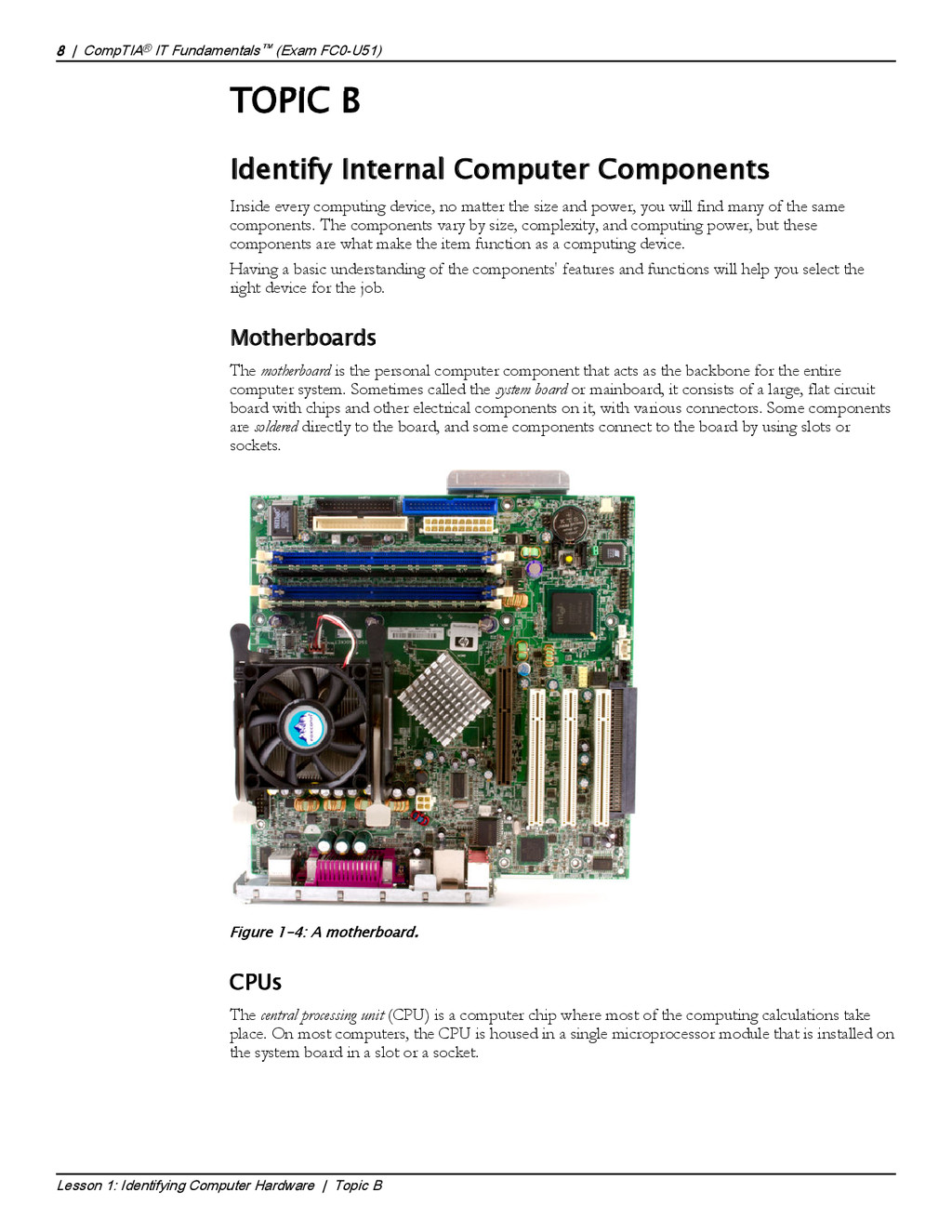
  15. TOPIC B Identify Internal Computer Components Inside every computing device,

    no matter the size and power, you will find many of the same components. The components vary by size, complexity, and computing power, but these components are what make the item function as a computing device. Having a basic understanding of the components' features and functions will help you select the right device for the job. Motherboards The motherboard is the personal computer component that acts as the backbone for the entire computer system. Sometimes called the system board or mainboard, it consists of a large, flat circuit board with chips and other electrical components on it, with various connectors. Some components are soldered directly to the board, and some components connect to the board by using slots or sockets. Figure 1-4: A motherboard. CPUs The central processing unit (CPU) is a computer chip where most of the computing calculations take place. On most computers, the CPU is housed in a single microprocessor module that is installed on the system board in a slot or a socket. 8 | CompTIA® IT Fundamentals™ (Exam FC0-U51) Lesson 1: Identifying Computer Hardware | Topic B The Motherboard CPUs
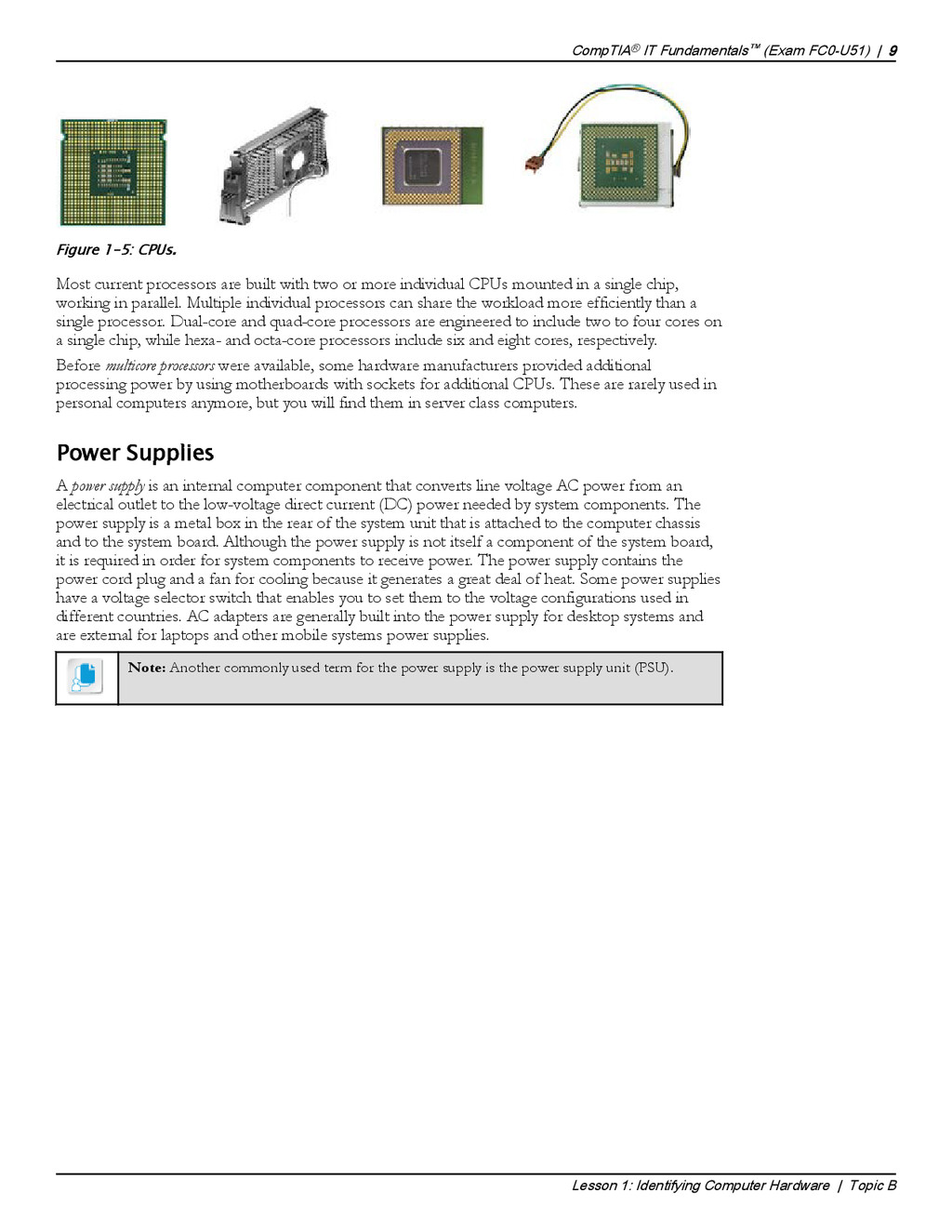
  16. Figure 1-5: CPUs. Most current processors are built with two

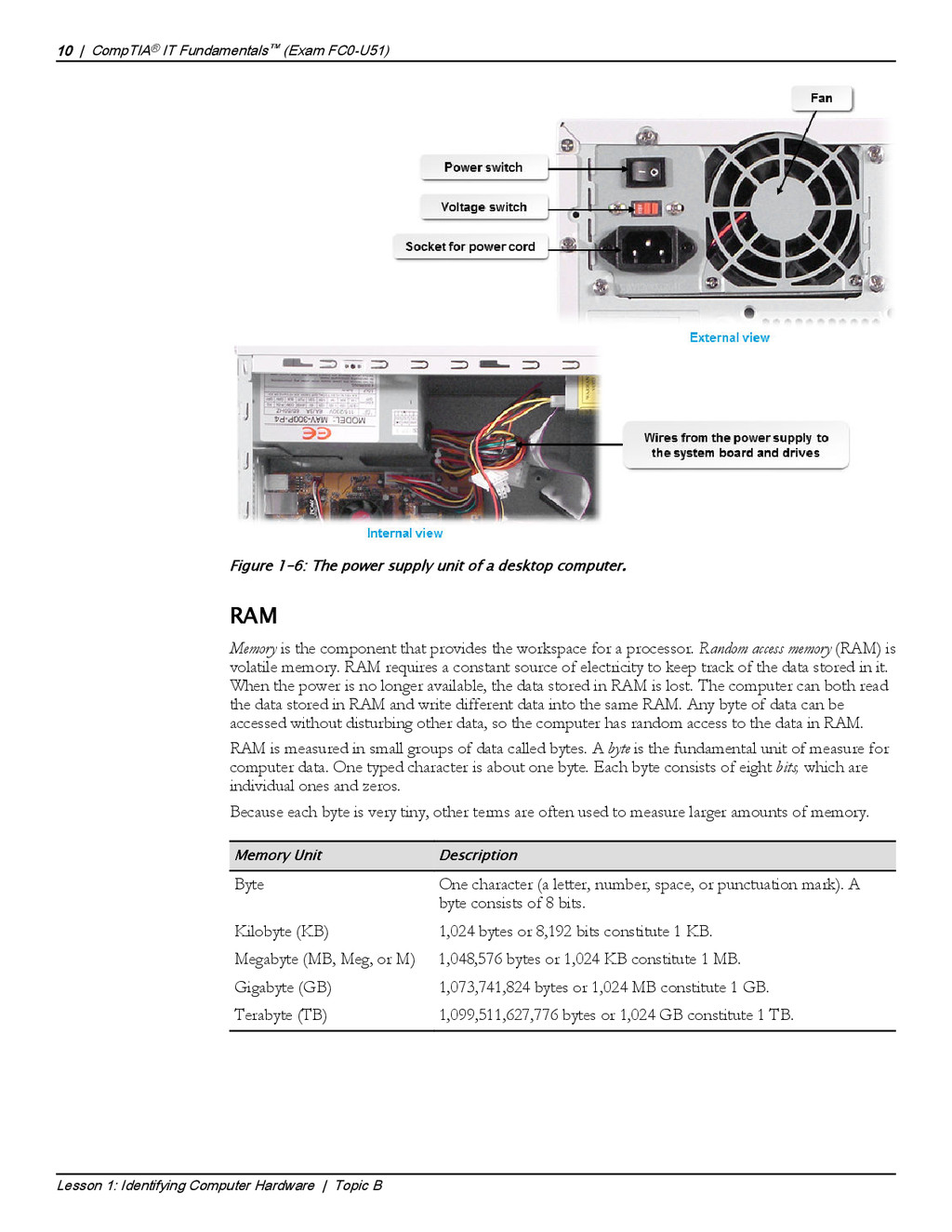
    or more individual CPUs mounted in a single chip, working in parallel. Multiple individual processors can share the workload more efficiently than a single processor. Dual-core and quad-core processors are engineered to include two to four cores on a single chip, while hexa- and octa-core processors include six and eight cores, respectively. Before multicore processors were available, some hardware manufacturers provided additional processing power by using motherboards with sockets for additional CPUs. These are rarely used in personal computers anymore, but you will find them in server class computers. Power Supplies A power supply is an internal computer component that converts line voltage AC power from an electrical outlet to the low-voltage direct current (DC) power needed by system components. The power supply is a metal box in the rear of the system unit that is attached to the computer chassis and to the system board. Although the power supply is not itself a component of the system board, it is required in order for system components to receive power. The power supply contains the power cord plug and a fan for cooling because it generates a great deal of heat. Some power supplies have a voltage selector switch that enables you to set them to the voltage configurations used in different countries. AC adapters are generally built into the power supply for desktop systems and are external for laptops and other mobile systems power supplies. Note: Another commonly used term for the power supply is the power supply unit (PSU). CompTIA® IT Fundamentals™ (Exam FC0-U51) | 9 Lesson 1: Identifying Computer Hardware | Topic B Power Supply
  17. Figure 1-6: The power supply unit of a desktop computer.

    RAM Memory is the component that provides the workspace for a processor. Random access memory (RAM) is volatile memory. RAM requires a constant source of electricity to keep track of the data stored in it. When the power is no longer available, the data stored in RAM is lost. The computer can both read the data stored in RAM and write different data into the same RAM. Any byte of data can be accessed without disturbing other data, so the computer has random access to the data in RAM. RAM is measured in small groups of data called bytes. A byte is the fundamental unit of measure for computer data. One typed character is about one byte. Each byte consists of eight bits, which are individual ones and zeros. Because each byte is very tiny, other terms are often used to measure larger amounts of memory. Memory Unit Description Byte One character (a letter, number, space, or punctuation mark). A byte consists of 8 bits. Kilobyte (KB) 1,024 bytes or 8,192 bits constitute 1 KB. Megabyte (MB, Meg, or M) 1,048,576 bytes or 1,024 KB constitute 1 MB. Gigabyte (GB) 1,073,741,824 bytes or 1,024 MB constitute 1 GB. Terabyte (TB) 1,099,511,627,776 bytes or 1,024 GB constitute 1 TB. 10 | CompTIA® IT Fundamentals™ (Exam FC0-U51) Lesson 1: Identifying Computer Hardware | Topic B RAM Memory Measurement Units Explain that on a typical machine, the RAM will be measured in gigabytes.
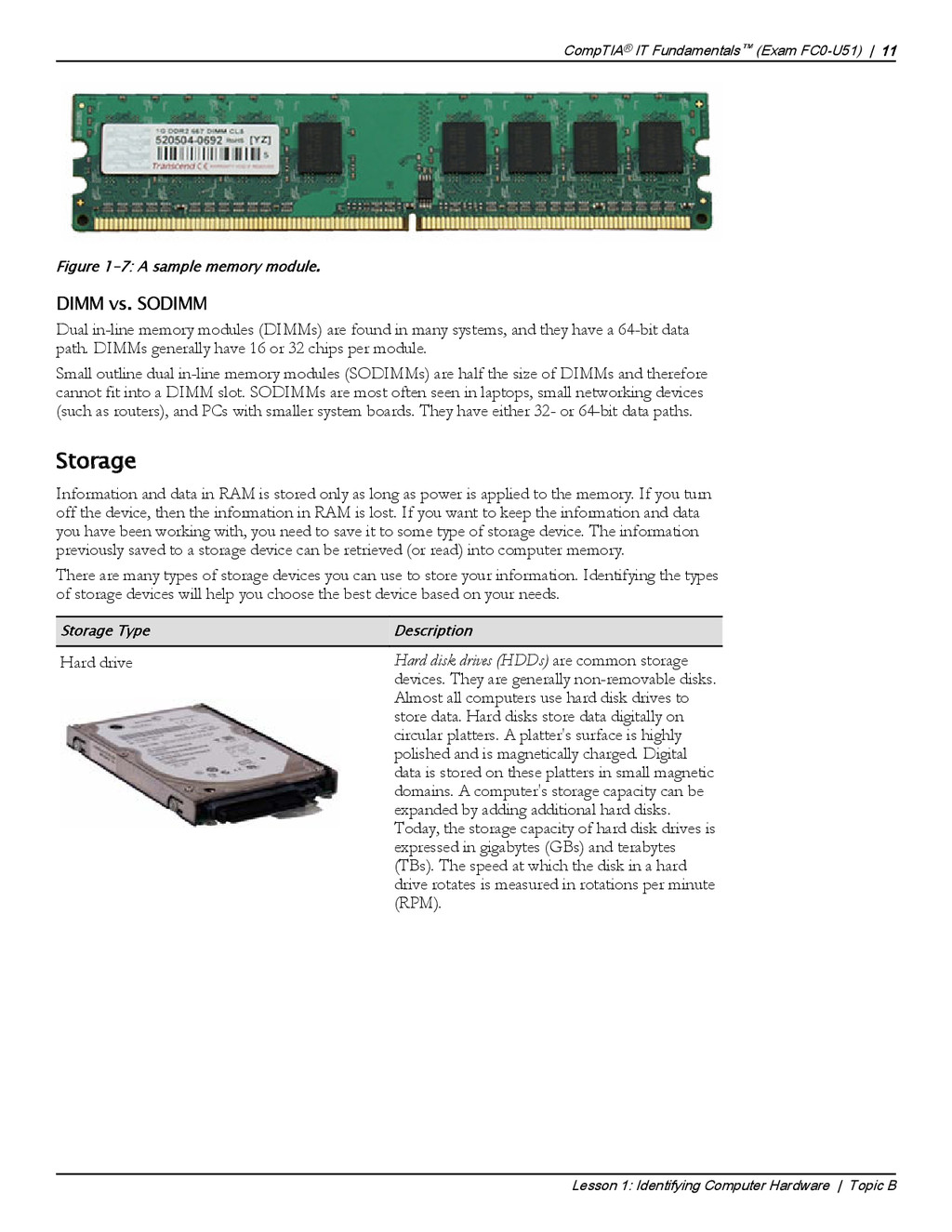
  18. Figure 1-7: A sample memory module. DIMM vs. SODIMM Dual

    in-line memory modules (DIMMs) are found in many systems, and they have a 64-bit data path. DIMMs generally have 16 or 32 chips per module. Small outline dual in-line memory modules (SODIMMs) are half the size of DIMMs and therefore cannot fit into a DIMM slot. SODIMMs are most often seen in laptops, small networking devices (such as routers), and PCs with smaller system boards. They have either 32- or 64-bit data paths. Storage Information and data in RAM is stored only as long as power is applied to the memory. If you turn off the device, then the information in RAM is lost. If you want to keep the information and data you have been working with, you need to save it to some type of storage device. The information previously saved to a storage device can be retrieved (or read) into computer memory. There are many types of storage devices you can use to store your information. Identifying the types of storage devices will help you choose the best device based on your needs. Storage Type Description Hard drive Hard disk drives (HDDs) are common storage devices. They are generally non-removable disks. Almost all computers use hard disk drives to store data. Hard disks store data digitally on circular platters. A platter's surface is highly polished and is magnetically charged. Digital data is stored on these platters in small magnetic domains. A computer's storage capacity can be expanded by adding additional hard disks. Today, the storage capacity of hard disk drives is expressed in gigabytes (GBs) and terabytes (TBs). The speed at which the disk in a hard drive rotates is measured in rotations per minute (RPM). CompTIA® IT Fundamentals™ (Exam FC0-U51) | 11 Lesson 1: Identifying Computer Hardware | Topic B Storage Devices
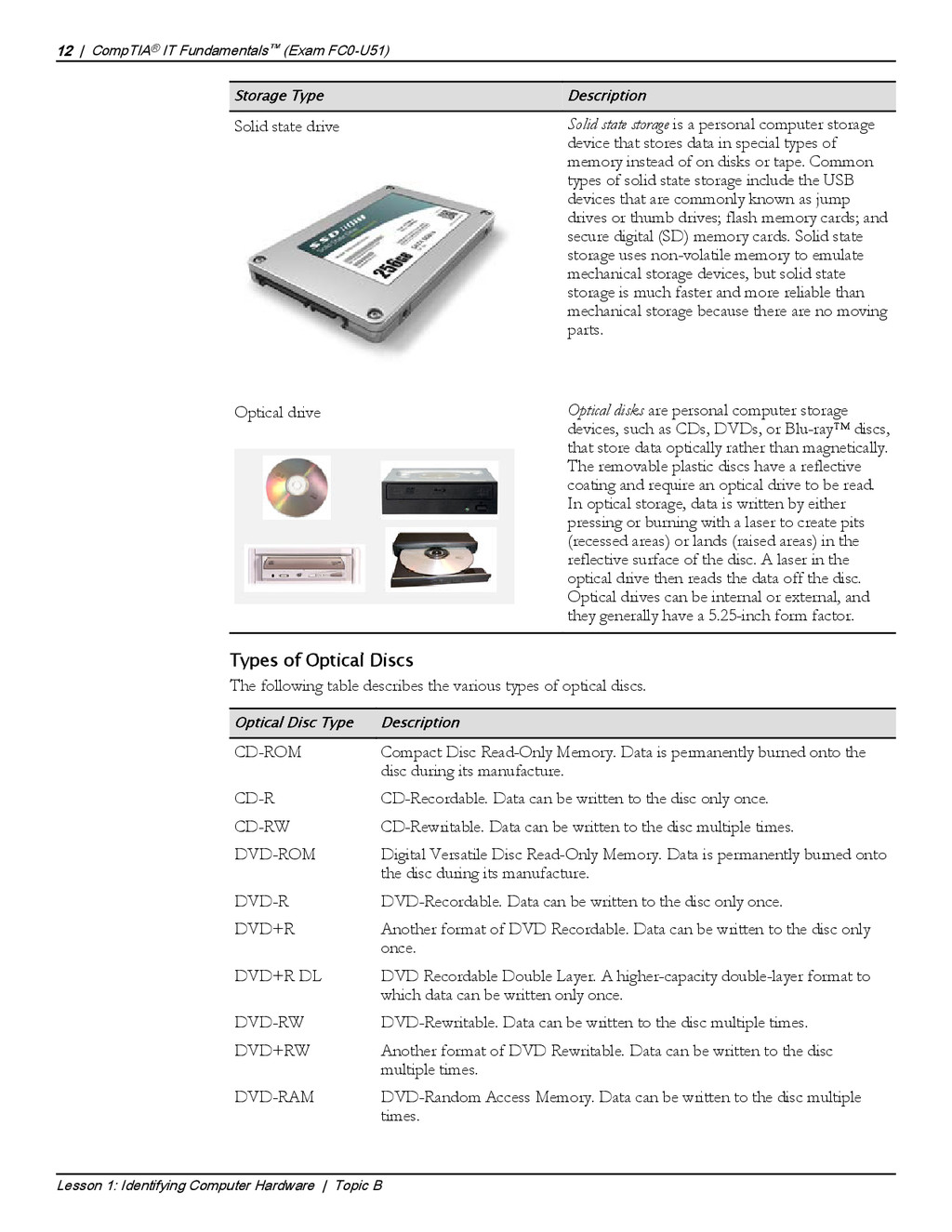
  19. Storage Type Description Solid state drive Solid state storage is

    a personal computer storage device that stores data in special types of memory instead of on disks or tape. Common types of solid state storage include the USB devices that are commonly known as jump drives or thumb drives; flash memory cards; and secure digital (SD) memory cards. Solid state storage uses non-volatile memory to emulate mechanical storage devices, but solid state storage is much faster and more reliable than mechanical storage because there are no moving parts. Optical drive Optical disks are personal computer storage devices, such as CDs, DVDs, or Blu-ray™ discs, that store data optically rather than magnetically. The removable plastic discs have a reflective coating and require an optical drive to be read. In optical storage, data is written by either pressing or burning with a laser to create pits (recessed areas) or lands (raised areas) in the reflective surface of the disc. A laser in the optical drive then reads the data off the disc. Optical drives can be internal or external, and they generally have a 5.25-inch form factor. Types of Optical Discs The following table describes the various types of optical discs. Optical Disc Type Description CD-ROM Compact Disc Read-Only Memory. Data is permanently burned onto the disc during its manufacture. CD-R CD-Recordable. Data can be written to the disc only once. CD-RW CD-Rewritable. Data can be written to the disc multiple times. DVD-ROM Digital Versatile Disc Read-Only Memory. Data is permanently burned onto the disc during its manufacture. DVD-R DVD-Recordable. Data can be written to the disc only once. DVD+R Another format of DVD Recordable. Data can be written to the disc only once. DVD+R DL DVD Recordable Double Layer. A higher-capacity double-layer format to which data can be written only once. DVD-RW DVD-Rewritable. Data can be written to the disc multiple times. DVD+RW Another format of DVD Rewritable. Data can be written to the disc multiple times. DVD-RAM DVD-Random Access Memory. Data can be written to the disc multiple times. 12 | CompTIA® IT Fundamentals™ (Exam FC0-U51) Lesson 1: Identifying Computer Hardware | Topic B
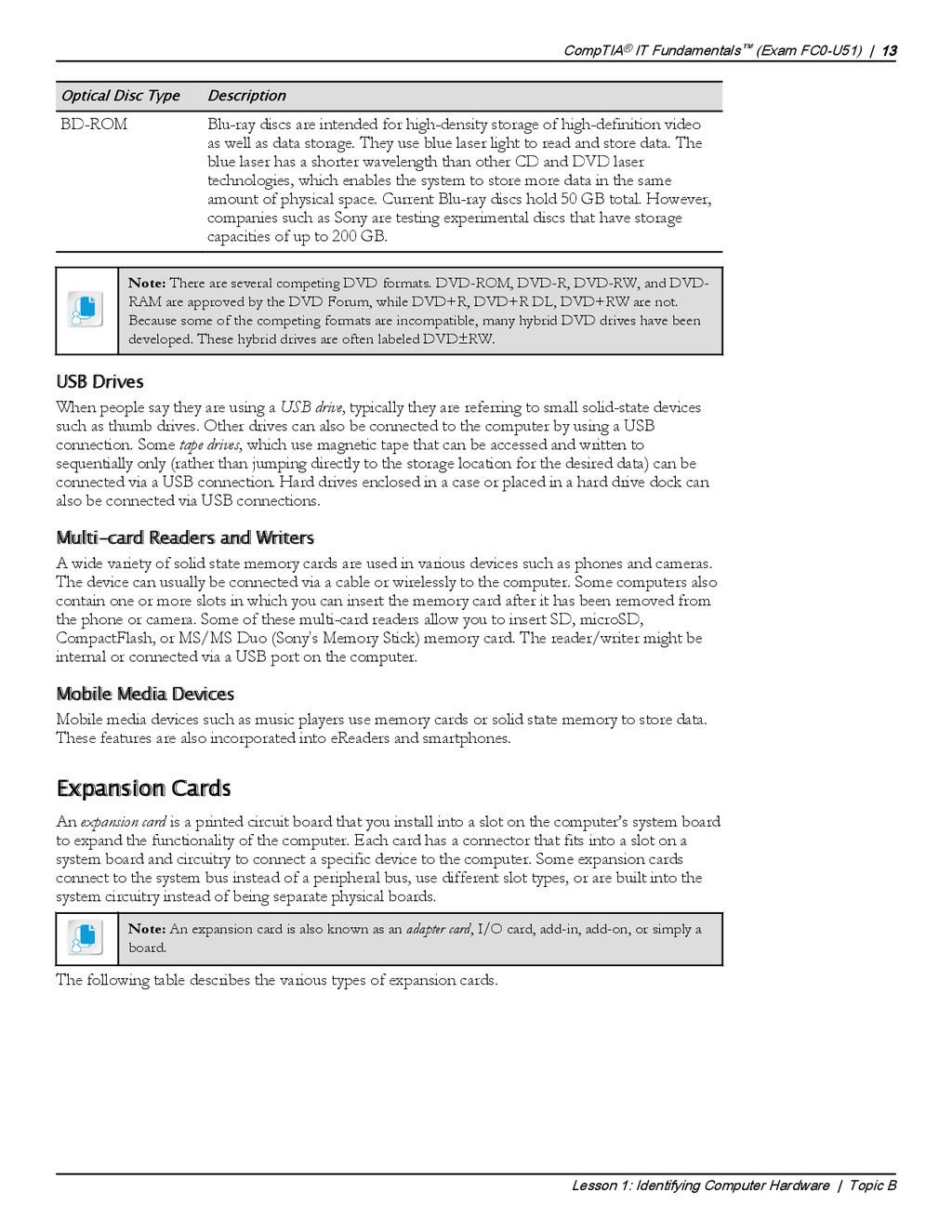
  20. Optical Disc Type Description BD-ROM Blu-ray discs are intended for

    high-density storage of high-definition video as well as data storage. They use blue laser light to read and store data. The blue laser has a shorter wavelength than other CD and DVD laser technologies, which enables the system to store more data in the same amount of physical space. Current Blu-ray discs hold 50 GB total. However, companies such as Sony are testing experimental discs that have storage capacities of up to 200 GB. Note: There are several competing DVD formats. DVD-ROM, DVD-R, DVD-RW, and DVD- RAM are approved by the DVD Forum, while DVD+R, DVD+R DL, DVD+RW are not. Because some of the competing formats are incompatible, many hybrid DVD drives have been developed. These hybrid drives are often labeled DVD±RW. USB Drives When people say they are using a USB drive, typically they are referring to small solid-state devices such as thumb drives. Other drives can also be connected to the computer by using a USB connection. Some tape drives, which use magnetic tape that can be accessed and written to sequentially only (rather than jumping directly to the storage location for the desired data) can be connected via a USB connection. Hard drives enclosed in a case or placed in a hard drive dock can also be connected via USB connections. Multi-card Readers and Writers A wide variety of solid state memory cards are used in various devices such as phones and cameras. The device can usually be connected via a cable or wirelessly to the computer. Some computers also contain one or more slots in which you can insert the memory card after it has been removed from the phone or camera. Some of these multi-card readers allow you to insert SD, microSD, CompactFlash, or MS/MS Duo (Sony's Memory Stick) memory card. The reader/writer might be internal or connected via a USB port on the computer. Mobile Media Devices Mobile media devices such as music players use memory cards or solid state memory to store data. These features are also incorporated into eReaders and smartphones. Expansion Cards An expansion card is a printed circuit board that you install into a slot on the computer’s system board to expand the functionality of the computer. Each card has a connector that fits into a slot on a system board and circuitry to connect a specific device to the computer. Some expansion cards connect to the system bus instead of a peripheral bus, use different slot types, or are built into the system circuitry instead of being separate physical boards. Note: An expansion card is also known as an adapter card, I/O card, add-in, add-on, or simply a board. The following table describes the various types of expansion cards. CompTIA® IT Fundamentals™ (Exam FC0-U51) | 13 Lesson 1: Identifying Computer Hardware | Topic B Expansion Cards
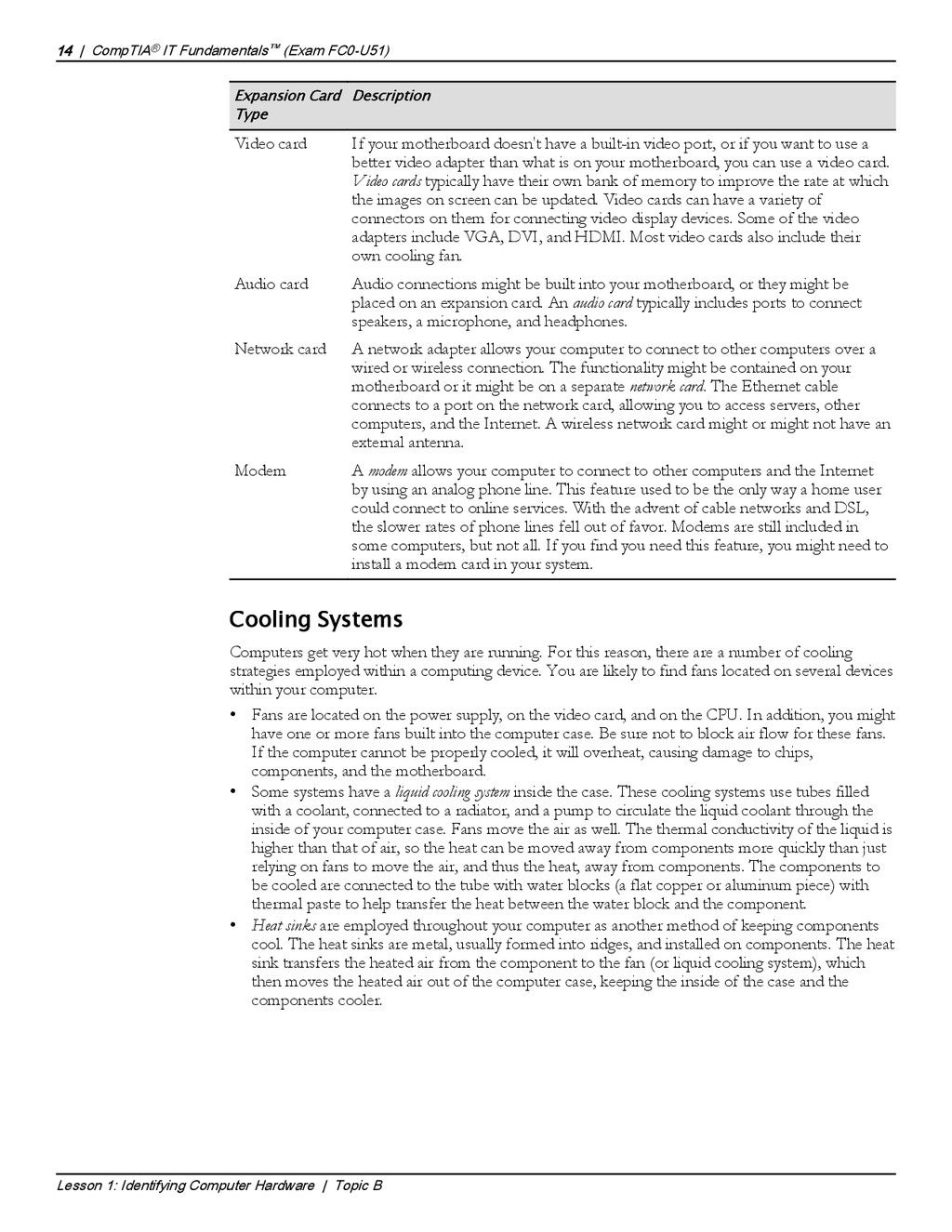
  21. Expansion Card Type Description Video card If your motherboard doesn't

    have a built-in video port, or if you want to use a better video adapter than what is on your motherboard, you can use a video card. Video cards typically have their own bank of memory to improve the rate at which the images on screen can be updated. Video cards can have a variety of connectors on them for connecting video display devices. Some of the video adapters include VGA, DVI, and HDMI. Most video cards also include their own cooling fan. Audio card Audio connections might be built into your motherboard, or they might be placed on an expansion card. An audio card typically includes ports to connect speakers, a microphone, and headphones. Network card A network adapter allows your computer to connect to other computers over a wired or wireless connection. The functionality might be contained on your motherboard or it might be on a separate network card. The Ethernet cable connects to a port on the network card, allowing you to access servers, other computers, and the Internet. A wireless network card might or might not have an external antenna. Modem A modem allows your computer to connect to other computers and the Internet by using an analog phone line. This feature used to be the only way a home user could connect to online services. With the advent of cable networks and DSL, the slower rates of phone lines fell out of favor. Modems are still included in some computers, but not all. If you find you need this feature, you might need to install a modem card in your system. Cooling Systems Computers get very hot when they are running. For this reason, there are a number of cooling strategies employed within a computing device. You are likely to find fans located on several devices within your computer. • Fans are located on the power supply, on the video card, and on the CPU. In addition, you might have one or more fans built into the computer case. Be sure not to block air flow for these fans. If the computer cannot be properly cooled, it will overheat, causing damage to chips, components, and the motherboard. • Some systems have a liquid cooling system inside the case. These cooling systems use tubes filled with a coolant, connected to a radiator, and a pump to circulate the liquid coolant through the inside of your computer case. Fans move the air as well. The thermal conductivity of the liquid is higher than that of air, so the heat can be moved away from components more quickly than just relying on fans to move the air, and thus the heat, away from components. The components to be cooled are connected to the tube with water blocks (a flat copper or aluminum piece) with thermal paste to help transfer the heat between the water block and the component. • Heat sinks are employed throughout your computer as another method of keeping components cool. The heat sinks are metal, usually formed into ridges, and installed on components. The heat sink transfers the heated air from the component to the fan (or liquid cooling system), which then moves the heated air out of the computer case, keeping the inside of the case and the components cooler. 14 | CompTIA® IT Fundamentals™ (Exam FC0-U51) Lesson 1: Identifying Computer Hardware | Topic B Cooling Systems Share any experiences you have had with systems overheating. Ask students to share any overheating experiences they have had.
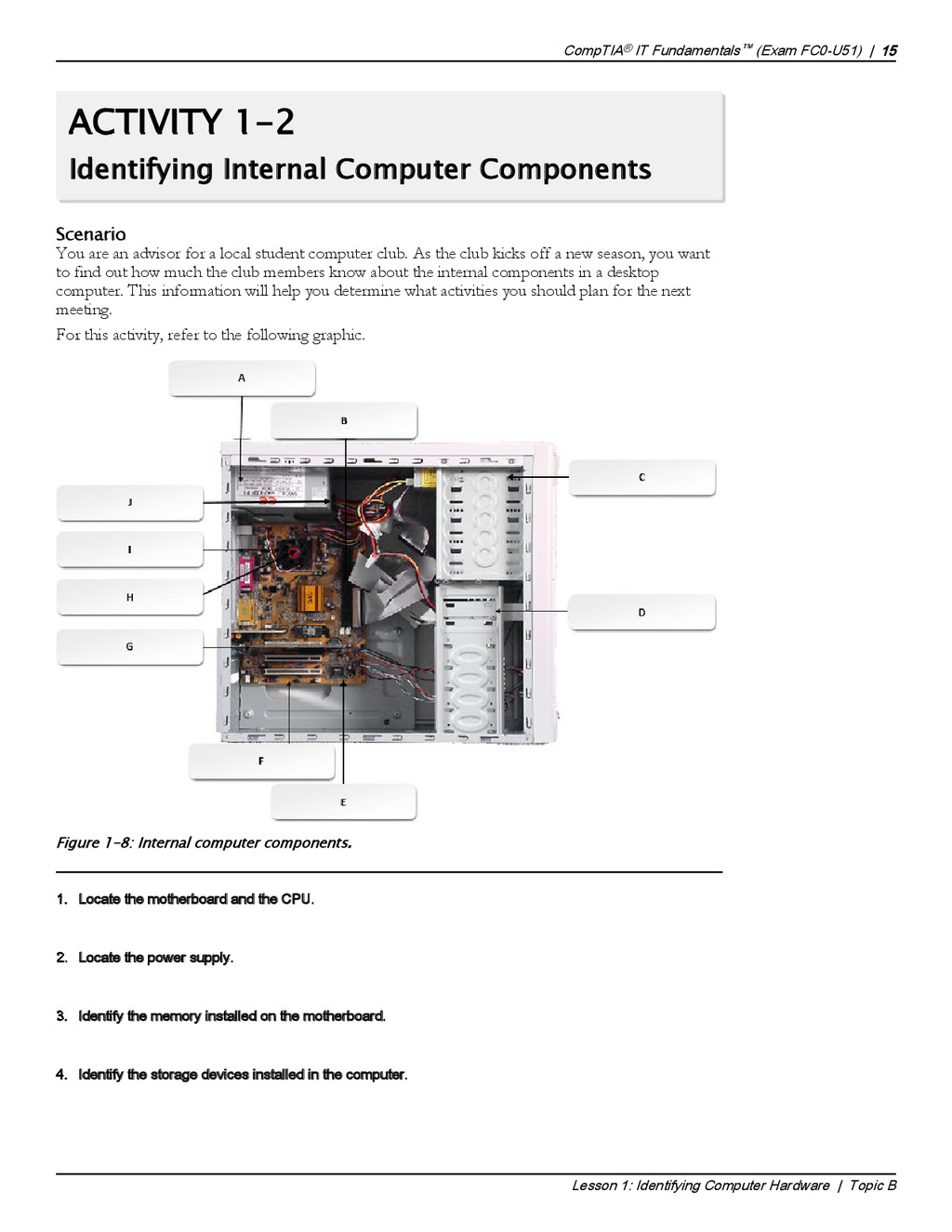
  22. ACTIVITY 1-2 Identifying Internal Computer Components Scenario You are an

    advisor for a local student computer club. As the club kicks off a new season, you want to find out how much the club members know about the internal components in a desktop computer. This information will help you determine what activities you should plan for the next meeting. For this activity, refer to the following graphic. Figure 1-8: Internal computer components. 1. Locate the motherboard and the CPU. A: The motherboard is labeled E, and the CPU is labeled I. 2. Locate the power supply. A: The power supply is labeled A. 3. Identify the memory installed on the motherboard. A: The memory is labeled B. 4. Identify the storage devices installed in the computer. A: The hard drive is labeled C, and the CD-ROM drive is labeled D. CompTIA® IT Fundamentals™ (Exam FC0-U51) | 15 Lesson 1: Identifying Computer Hardware | Topic B Internal Computer Components If students are co- located with you, consider opening up a computer case and having students do this activity live.
  23. 5. Locate and identify each of the expansion cards installed

    in the computer. A: The expansion card is labeled G, and it is probably a network interface card. 6. Locate and identify each of the cooling strategies employed in the computer. A: The CPU fan is labeled H, and the power supply fan is labeled J. 16 | CompTIA® IT Fundamentals™ (Exam FC0-U51) Lesson 1: Identifying Computer Hardware | Topic B
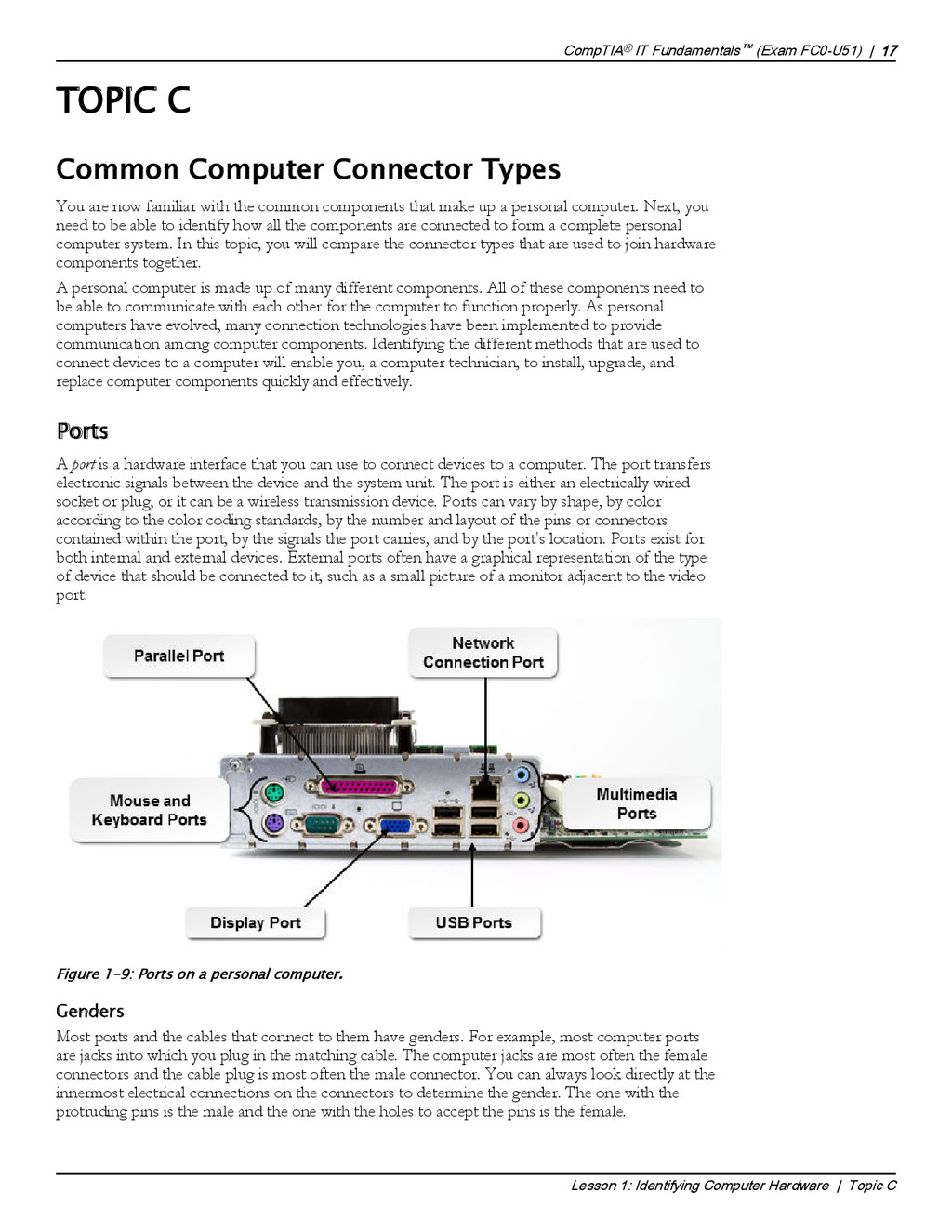
  24. TOPIC C Common Computer Connector Types You are now familiar

    with the common components that make up a personal computer. Next, you need to be able to identify how all the components are connected to form a complete personal computer system. In this topic, you will compare the connector types that are used to join hardware components together. A personal computer is made up of many different components. All of these components need to be able to communicate with each other for the computer to function properly. As personal computers have evolved, many connection technologies have been implemented to provide communication among computer components. Identifying the different methods that are used to connect devices to a computer will enable you, a computer technician, to install, upgrade, and replace computer components quickly and effectively. Ports A port is a hardware interface that you can use to connect devices to a computer. The port transfers electronic signals between the device and the system unit. The port is either an electrically wired socket or plug, or it can be a wireless transmission device. Ports can vary by shape, by color according to the color coding standards, by the number and layout of the pins or connectors contained within the port, by the signals the port carries, and by the port's location. Ports exist for both internal and external devices. External ports often have a graphical representation of the type of device that should be connected to it, such as a small picture of a monitor adjacent to the video port. Figure 1-9: Ports on a personal computer. Genders Most ports and the cables that connect to them have genders. For example, most computer ports are jacks into which you plug in the matching cable. The computer jacks are most often the female connectors and the cable plug is most often the male connector. You can always look directly at the innermost electrical connections on the connectors to determine the gender. The one with the protruding pins is the male and the one with the holes to accept the pins is the female. CompTIA® IT Fundamentals™ (Exam FC0-U51) | 17 Lesson 1: Identifying Computer Hardware | Topic C Ports Reassure students not to become overwhelmed at the sheer number of connectors and cables used to connect components to computing devices.
  25. Port Shapes Ports can have different physical shapes, such as

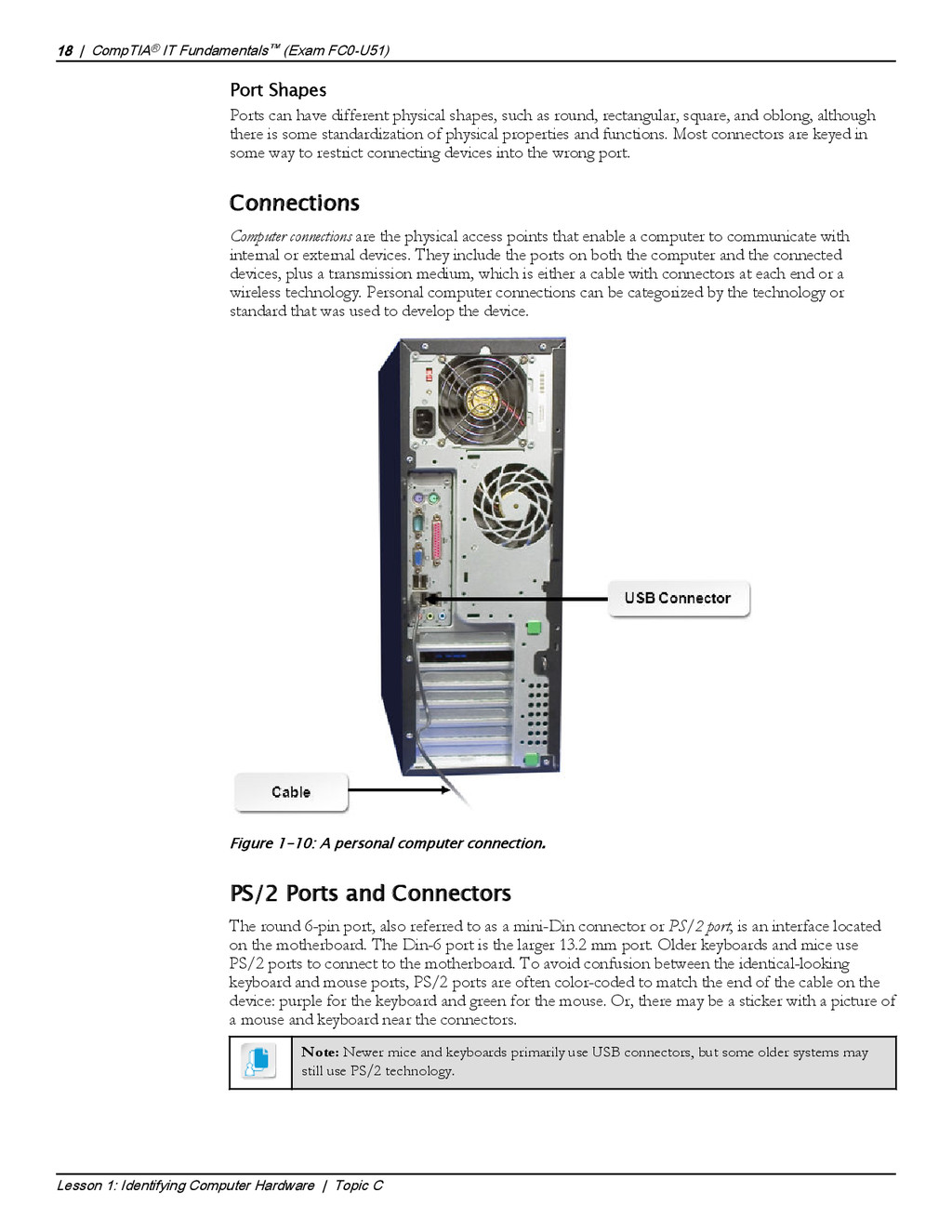
    round, rectangular, square, and oblong, although there is some standardization of physical properties and functions. Most connectors are keyed in some way to restrict connecting devices into the wrong port. Connections Computer connections are the physical access points that enable a computer to communicate with internal or external devices. They include the ports on both the computer and the connected devices, plus a transmission medium, which is either a cable with connectors at each end or a wireless technology. Personal computer connections can be categorized by the technology or standard that was used to develop the device. Figure 1-10: A personal computer connection. PS/2 Ports and Connectors The round 6-pin port, also referred to as a mini-Din connector or PS/2 port, is an interface located on the motherboard. The Din-6 port is the larger 13.2 mm port. Older keyboards and mice use PS/2 ports to connect to the motherboard. To avoid confusion between the identical-looking keyboard and mouse ports, PS/2 ports are often color-coded to match the end of the cable on the device: purple for the keyboard and green for the mouse. Or, there may be a sticker with a picture of a mouse and keyboard near the connectors. Note: Newer mice and keyboards primarily use USB connectors, but some older systems may still use PS/2 technology. 18 | CompTIA® IT Fundamentals™ (Exam FC0-U51) Lesson 1: Identifying Computer Hardware | Topic C Computer Connections PS/2 Ports
  26. Serial Ports and Connectors A serial connection is a personal

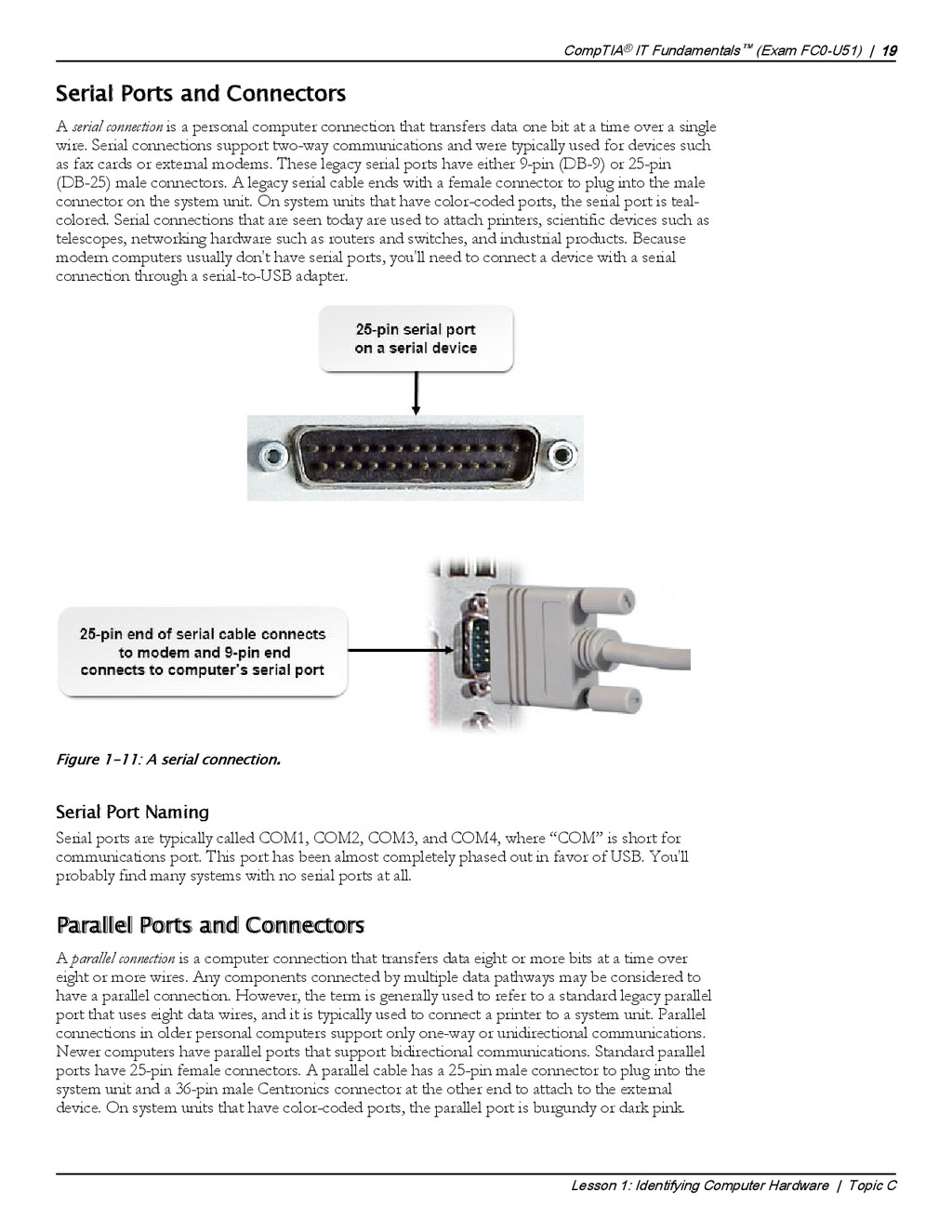
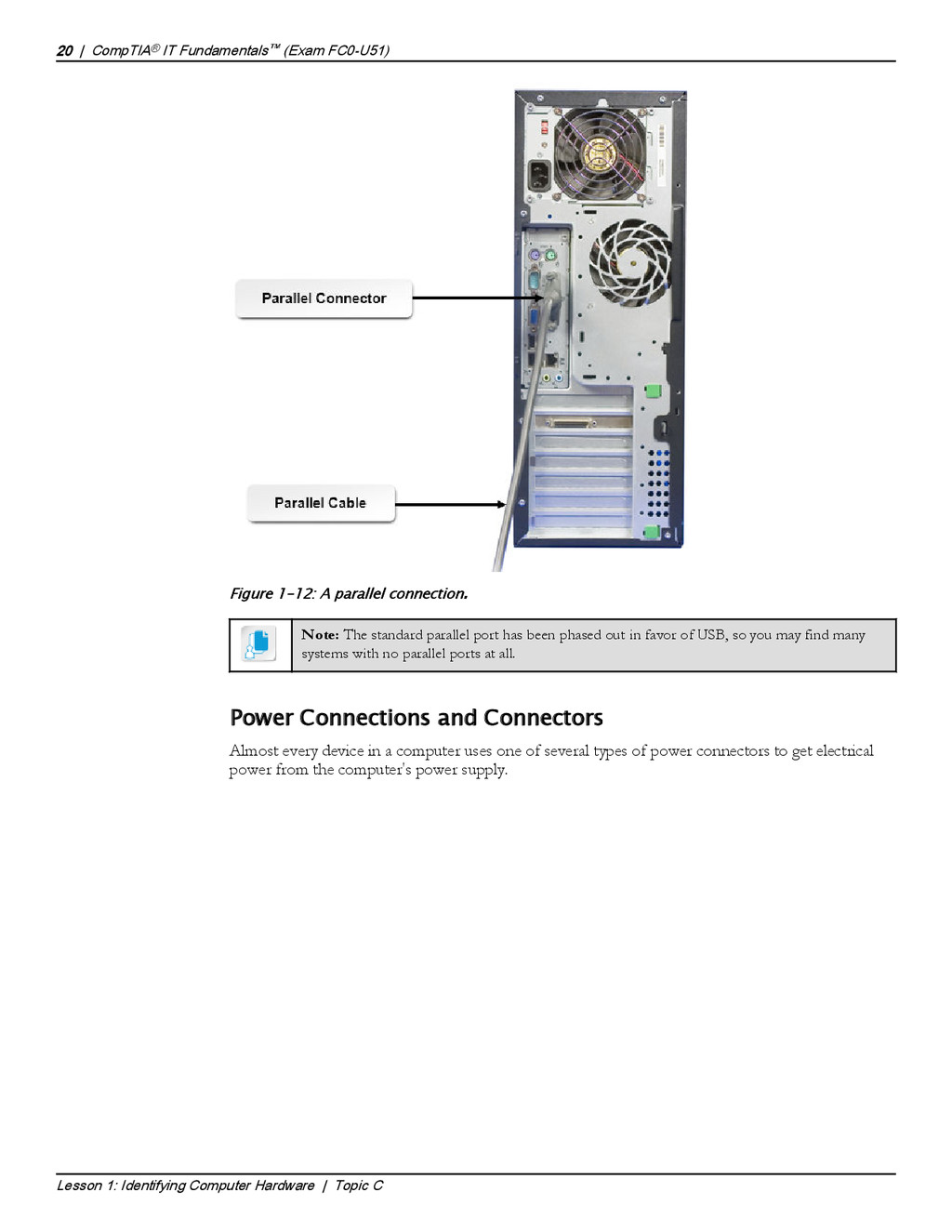
    computer connection that transfers data one bit at a time over a single wire. Serial connections support two-way communications and were typically used for devices such as fax cards or external modems. These legacy serial ports have either 9-pin (DB-9) or 25-pin (DB-25) male connectors. A legacy serial cable ends with a female connector to plug into the male connector on the system unit. On system units that have color-coded ports, the serial port is teal- colored. Serial connections that are seen today are used to attach printers, scientific devices such as telescopes, networking hardware such as routers and switches, and industrial products. Because modern computers usually don't have serial ports, you'll need to connect a device with a serial connection through a serial-to-USB adapter. Figure 1-11: A serial connection. Serial Port Naming Serial ports are typically called COM1, COM2, COM3, and COM4, where “COM” is short for communications port. This port has been almost completely phased out in favor of USB. You'll probably find many systems with no serial ports at all. Parallel Ports and Connectors A parallel connection is a computer connection that transfers data eight or more bits at a time over eight or more wires. Any components connected by multiple data pathways may be considered to have a parallel connection. However, the term is generally used to refer to a standard legacy parallel port that uses eight data wires, and it is typically used to connect a printer to a system unit. Parallel connections in older personal computers support only one-way or unidirectional communications. Newer computers have parallel ports that support bidirectional communications. Standard parallel ports have 25-pin female connectors. A parallel cable has a 25-pin male connector to plug into the system unit and a 36-pin male Centronics connector at the other end to attach to the external device. On system units that have color-coded ports, the parallel port is burgundy or dark pink. CompTIA® IT Fundamentals™ (Exam FC0-U51) | 19 Lesson 1: Identifying Computer Hardware | Topic C Serial Connections Ethernet and USB ports are technically also types of serial connections and operate similarly; however, the term "serial port" generally refers to legacy 9-pin or 25-pin serial connections. Parallel Connections
  27. Figure 1-12: A parallel connection. Note: The standard parallel port

    has been phased out in favor of USB, so you may find many systems with no parallel ports at all. Power Connections and Connectors Almost every device in a computer uses one of several types of power connectors to get electrical power from the computer's power supply. 20 | CompTIA® IT Fundamentals™ (Exam FC0-U51) Lesson 1: Identifying Computer Hardware | Topic C PATA ports are also technically types of parallel connections, and operate similarly, but the term "parallel port" specifically refers to the legacy parallel port connection. Power Connectors These connectors have been enlarged to show detail.
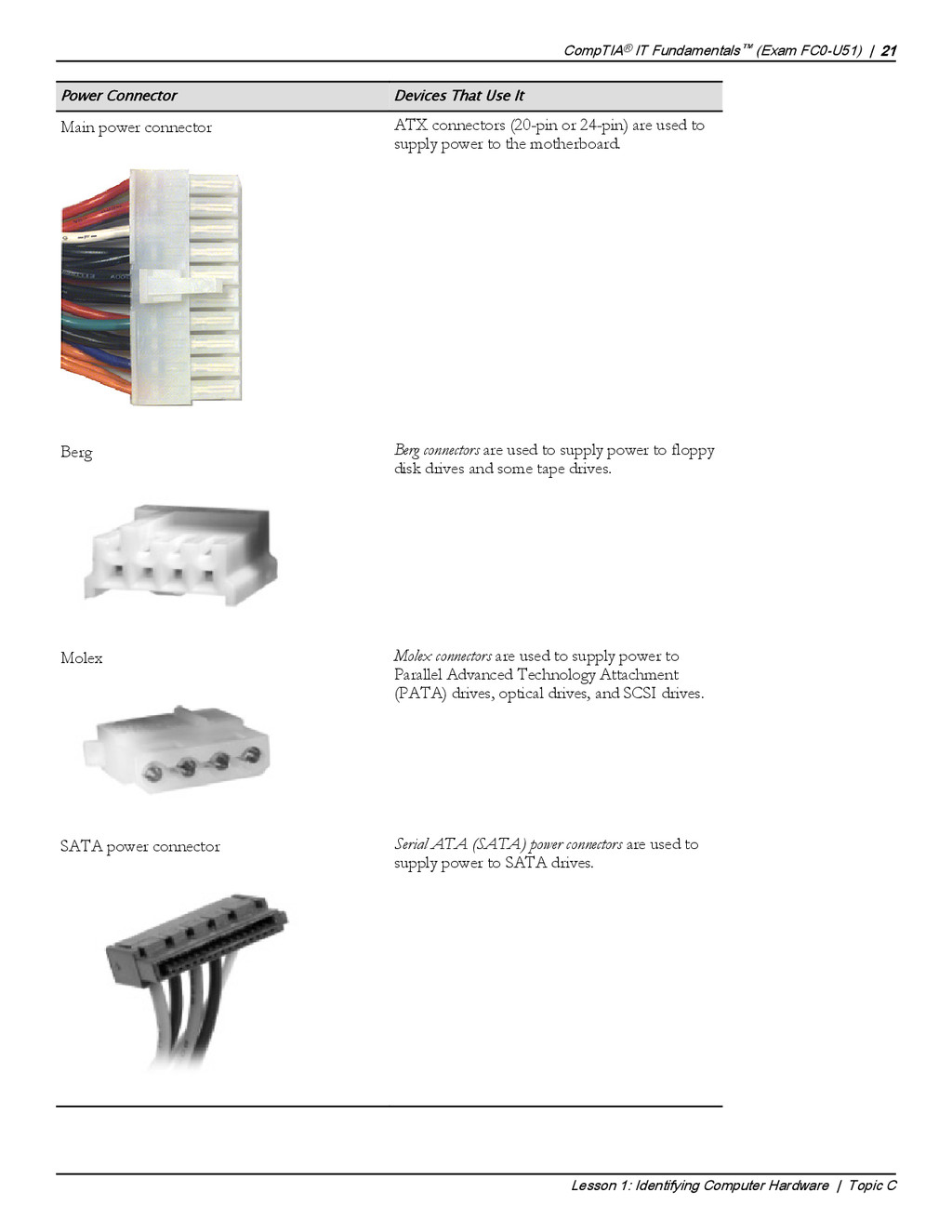
  28. Power Connector Devices That Use It Main power connector ATX

    connectors (20-pin or 24-pin) are used to supply power to the motherboard. Berg Berg connectors are used to supply power to floppy disk drives and some tape drives. Molex Molex connectors are used to supply power to Parallel Advanced Technology Attachment (PATA) drives, optical drives, and SCSI drives. SATA power connector Serial ATA (SATA) power connectors are used to supply power to SATA drives. CompTIA® IT Fundamentals™ (Exam FC0-U51) | 21 Lesson 1: Identifying Computer Hardware | Topic C
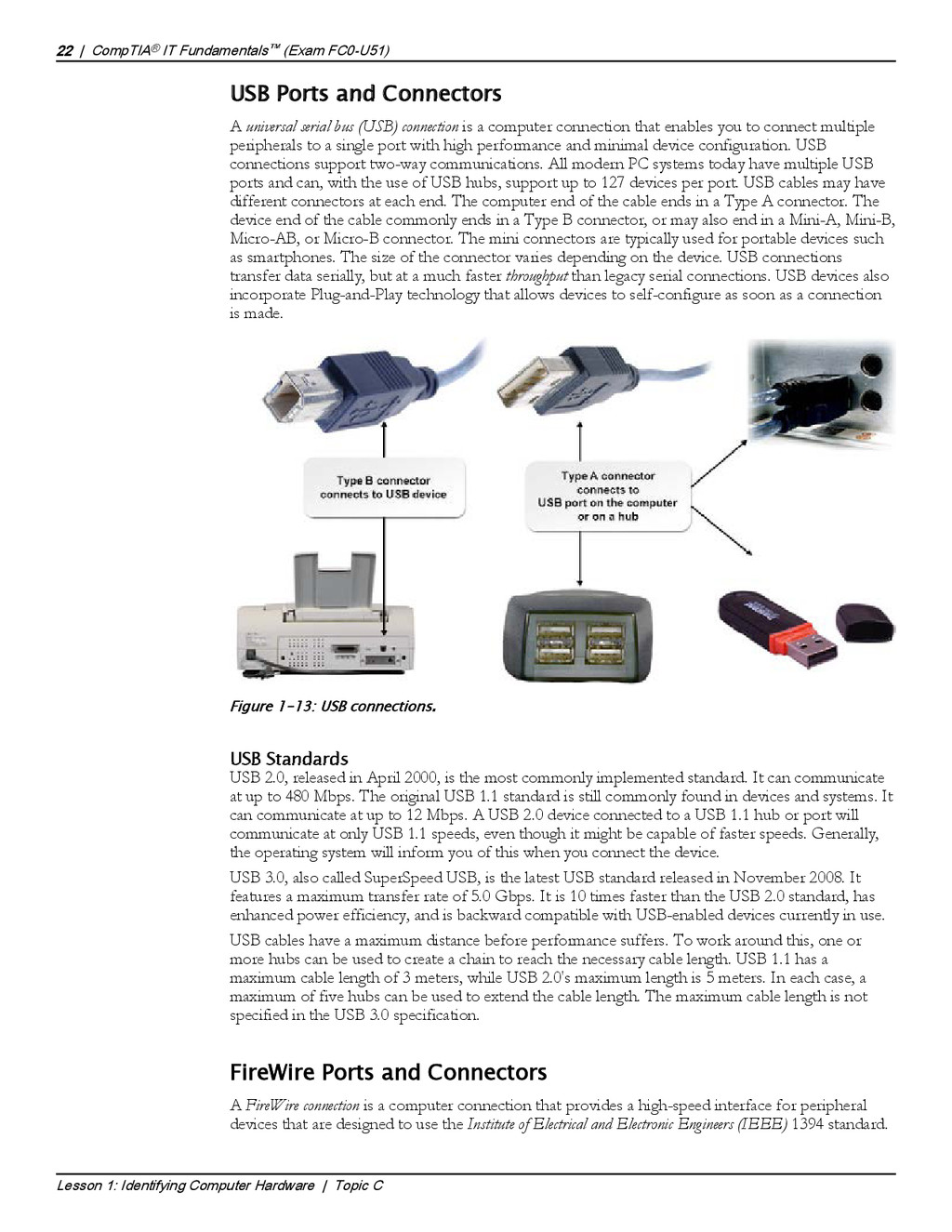
  29. USB Ports and Connectors A universal serial bus (USB) connection

    is a computer connection that enables you to connect multiple peripherals to a single port with high performance and minimal device configuration. USB connections support two-way communications. All modern PC systems today have multiple USB ports and can, with the use of USB hubs, support up to 127 devices per port. USB cables may have different connectors at each end. The computer end of the cable ends in a Type A connector. The device end of the cable commonly ends in a Type B connector, or may also end in a Mini-A, Mini-B, Micro-AB, or Micro-B connector. The mini connectors are typically used for portable devices such as smartphones. The size of the connector varies depending on the device. USB connections transfer data serially, but at a much faster throughput than legacy serial connections. USB devices also incorporate Plug-and-Play technology that allows devices to self-configure as soon as a connection is made. Figure 1-13: USB connections. USB Standards USB 2.0, released in April 2000, is the most commonly implemented standard. It can communicate at up to 480 Mbps. The original USB 1.1 standard is still commonly found in devices and systems. It can communicate at up to 12 Mbps. A USB 2.0 device connected to a USB 1.1 hub or port will communicate at only USB 1.1 speeds, even though it might be capable of faster speeds. Generally, the operating system will inform you of this when you connect the device. USB 3.0, also called SuperSpeed USB, is the latest USB standard released in November 2008. It features a maximum transfer rate of 5.0 Gbps. It is 10 times faster than the USB 2.0 standard, has enhanced power efficiency, and is backward compatible with USB-enabled devices currently in use. USB cables have a maximum distance before performance suffers. To work around this, one or more hubs can be used to create a chain to reach the necessary cable length. USB 1.1 has a maximum cable length of 3 meters, while USB 2.0's maximum length is 5 meters. In each case, a maximum of five hubs can be used to extend the cable length. The maximum cable length is not specified in the USB 3.0 specification. FireWire Ports and Connectors A FireWire connection is a computer connection that provides a high-speed interface for peripheral devices that are designed to use the Institute of Electrical and Electronic Engineers (IEEE) 1394 standard. 22 | CompTIA® IT Fundamentals™ (Exam FC0-U51) Lesson 1: Identifying Computer Hardware | Topic C USB Connections If you have examples of the three different USB logos, show them to students and point out the version of USB associated with each one. USB 3.1 is a new specification that was released in 2013. IEEE 1394 and FireWire Connections
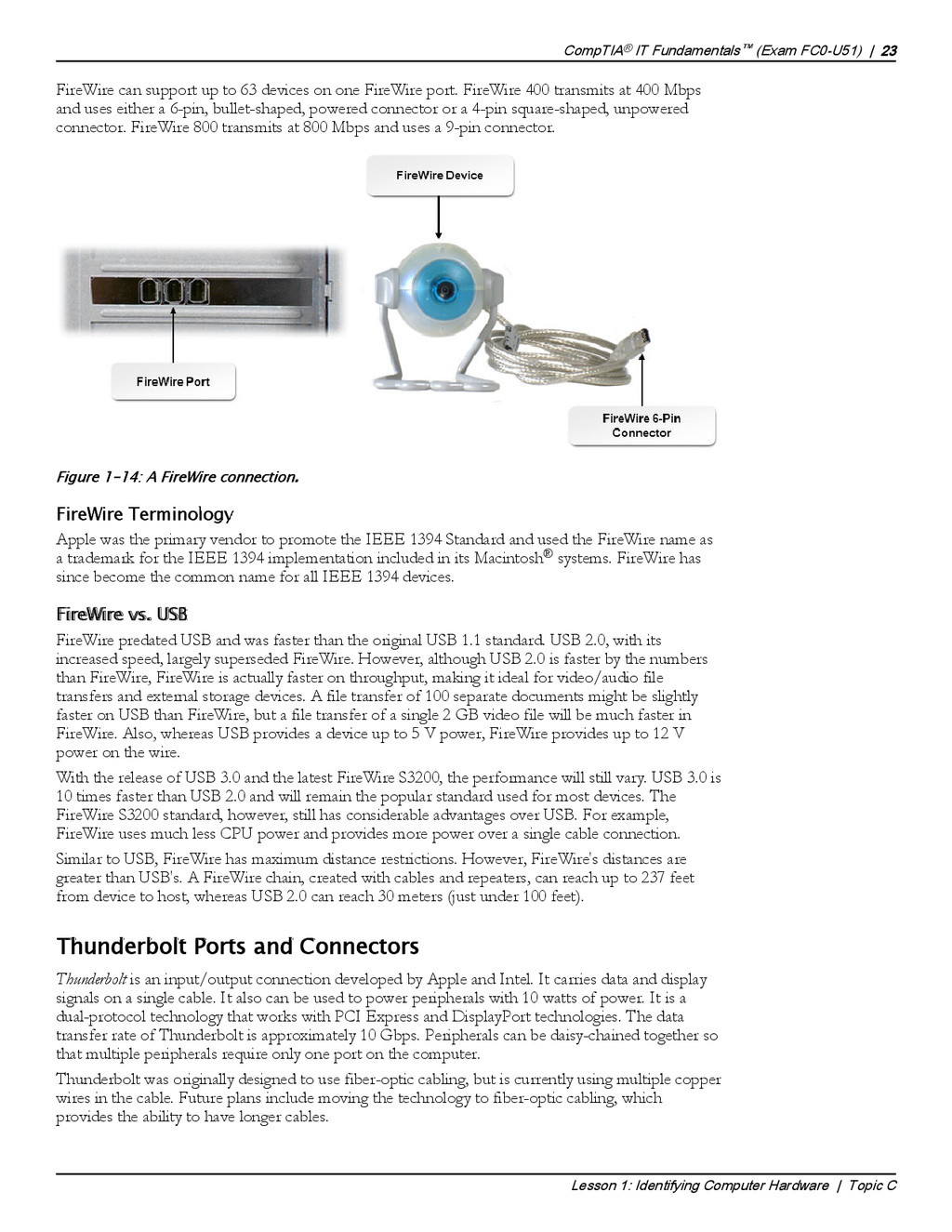
  30. FireWire can support up to 63 devices on one FireWire

    port. FireWire 400 transmits at 400 Mbps and uses either a 6-pin, bullet-shaped, powered connector or a 4-pin square-shaped, unpowered connector. FireWire 800 transmits at 800 Mbps and uses a 9-pin connector. Figure 1-14: A FireWire connection. FireWire Terminology Apple was the primary vendor to promote the IEEE 1394 Standard and used the FireWire name as a trademark for the IEEE 1394 implementation included in its Macintosh® systems. FireWire has since become the common name for all IEEE 1394 devices. FireWire vs. USB FireWire predated USB and was faster than the original USB 1.1 standard. USB 2.0, with its increased speed, largely superseded FireWire. However, although USB 2.0 is faster by the numbers than FireWire, FireWire is actually faster on throughput, making it ideal for video/audio file transfers and external storage devices. A file transfer of 100 separate documents might be slightly faster on USB than FireWire, but a file transfer of a single 2 GB video file will be much faster in FireWire. Also, whereas USB provides a device up to 5 V power, FireWire provides up to 12 V power on the wire. With the release of USB 3.0 and the latest FireWire S3200, the performance will still vary. USB 3.0 is 10 times faster than USB 2.0 and will remain the popular standard used for most devices. The FireWire S3200 standard, however, still has considerable advantages over USB. For example, FireWire uses much less CPU power and provides more power over a single cable connection. Similar to USB, FireWire has maximum distance restrictions. However, FireWire's distances are greater than USB's. A FireWire chain, created with cables and repeaters, can reach up to 237 feet from device to host, whereas USB 2.0 can reach 30 meters (just under 100 feet). Thunderbolt Ports and Connectors Thunderbolt is an input/output connection developed by Apple and Intel. It carries data and display signals on a single cable. It also can be used to power peripherals with 10 watts of power. It is a dual-protocol technology that works with PCI Express and DisplayPort technologies. The data transfer rate of Thunderbolt is approximately 10 Gbps. Peripherals can be daisy-chained together so that multiple peripherals require only one port on the computer. Thunderbolt was originally designed to use fiber-optic cabling, but is currently using multiple copper wires in the cable. Future plans include moving the technology to fiber-optic cabling, which provides the ability to have longer cables. CompTIA® IT Fundamentals™ (Exam FC0-U51) | 23 Lesson 1: Identifying Computer Hardware | Topic C Thunderbolt Connections If you have access to Thunderbolt technology, show it to students.
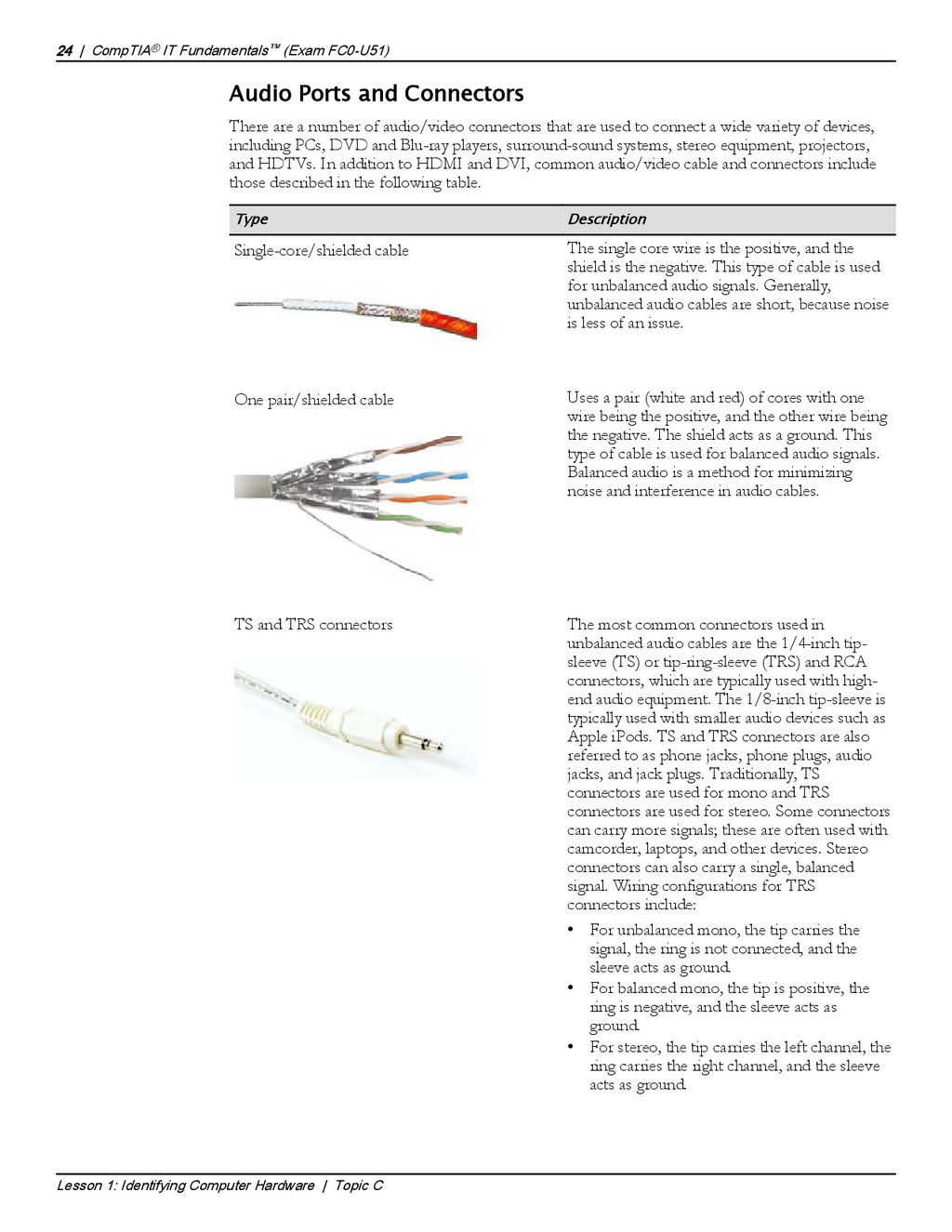
  31. Audio Ports and Connectors There are a number of audio/video

    connectors that are used to connect a wide variety of devices, including PCs, DVD and Blu-ray players, surround-sound systems, stereo equipment, projectors, and HDTVs. In addition to HDMI and DVI, common audio/video cable and connectors include those described in the following table. Type Description Single-core/shielded cable The single core wire is the positive, and the shield is the negative. This type of cable is used for unbalanced audio signals. Generally, unbalanced audio cables are short, because noise is less of an issue. One pair/shielded cable Uses a pair (white and red) of cores with one wire being the positive, and the other wire being the negative. The shield acts as a ground. This type of cable is used for balanced audio signals. Balanced audio is a method for minimizing noise and interference in audio cables. TS and TRS connectors The most common connectors used in unbalanced audio cables are the 1/4-inch tip- sleeve (TS) or tip-ring-sleeve (TRS) and RCA connectors, which are typically used with high- end audio equipment. The 1/8-inch tip-sleeve is typically used with smaller audio devices such as Apple iPods. TS and TRS connectors are also referred to as phone jacks, phone plugs, audio jacks, and jack plugs. Traditionally, TS connectors are used for mono and TRS connectors are used for stereo. Some connectors can carry more signals; these are often used with camcorder, laptops, and other devices. Stereo connectors can also carry a single, balanced signal. Wiring configurations for TRS connectors include: • For unbalanced mono, the tip carries the signal, the ring is not connected, and the sleeve acts as ground. • For balanced mono, the tip is positive, the ring is negative, and the sleeve acts as ground. • For stereo, the tip carries the left channel, the ring carries the right channel, and the sleeve acts as ground. 24 | CompTIA® IT Fundamentals™ (Exam FC0-U51) Lesson 1: Identifying Computer Hardware | Topic C Audio Ports and Connectors Poll students to find out who has experience with audio/video connections and how they used them.
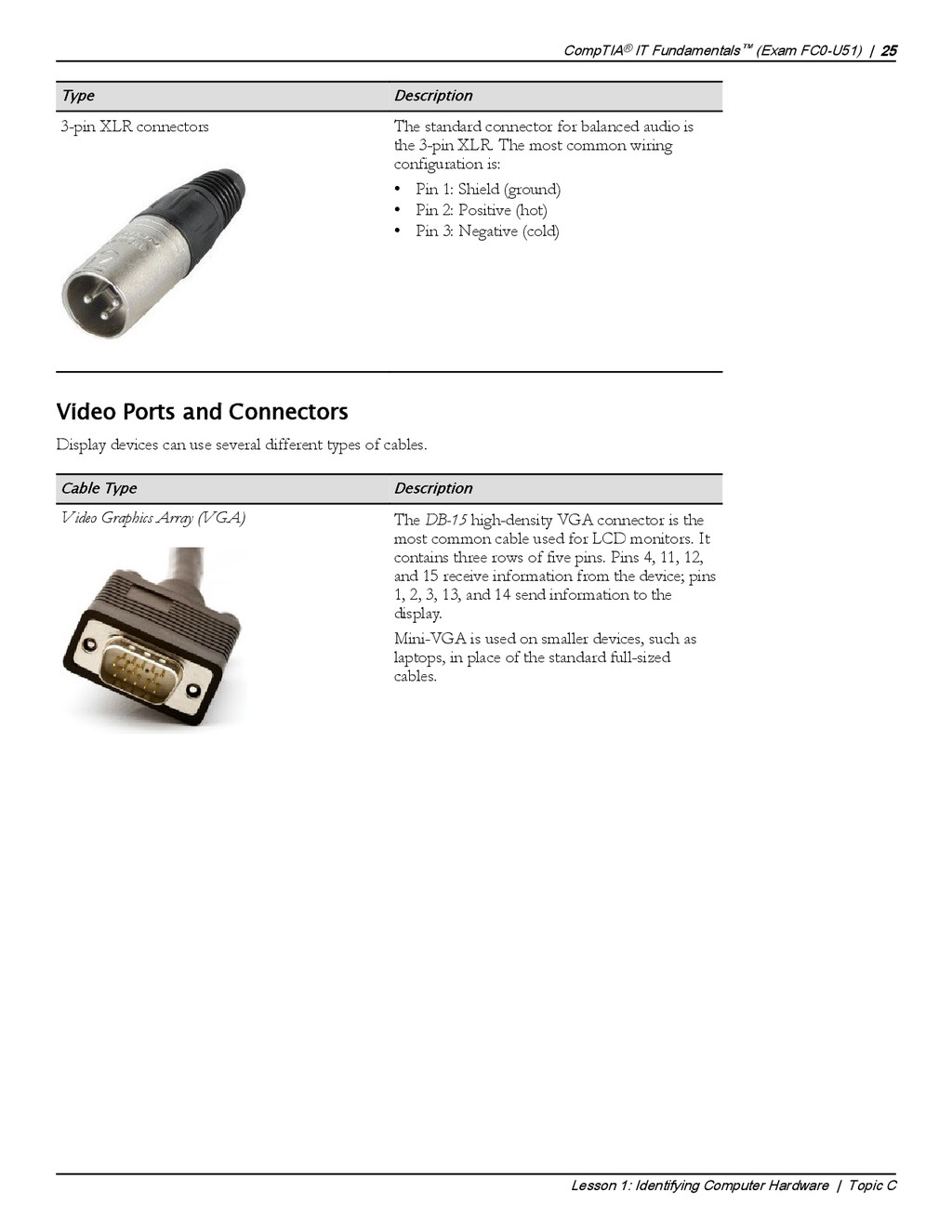
  32. Type Description 3-pin XLR connectors The standard connector for balanced

    audio is the 3-pin XLR. The most common wiring configuration is: • Pin 1: Shield (ground) • Pin 2: Positive (hot) • Pin 3: Negative (cold) Video Ports and Connectors Display devices can use several different types of cables. Cable Type Description Video Graphics Array (VGA) The DB-15 high-density VGA connector is the most common cable used for LCD monitors. It contains three rows of five pins. Pins 4, 11, 12, and 15 receive information from the device; pins 1, 2, 3, 13, and 14 send information to the display. Mini-VGA is used on smaller devices, such as laptops, in place of the standard full-sized cables. CompTIA® IT Fundamentals™ (Exam FC0-U51) | 25 Lesson 1: Identifying Computer Hardware | Topic C Video Ports and Connectors As you talk through all the different connector types, stop and ask students if they have used any of the connector types and when and how they used them.
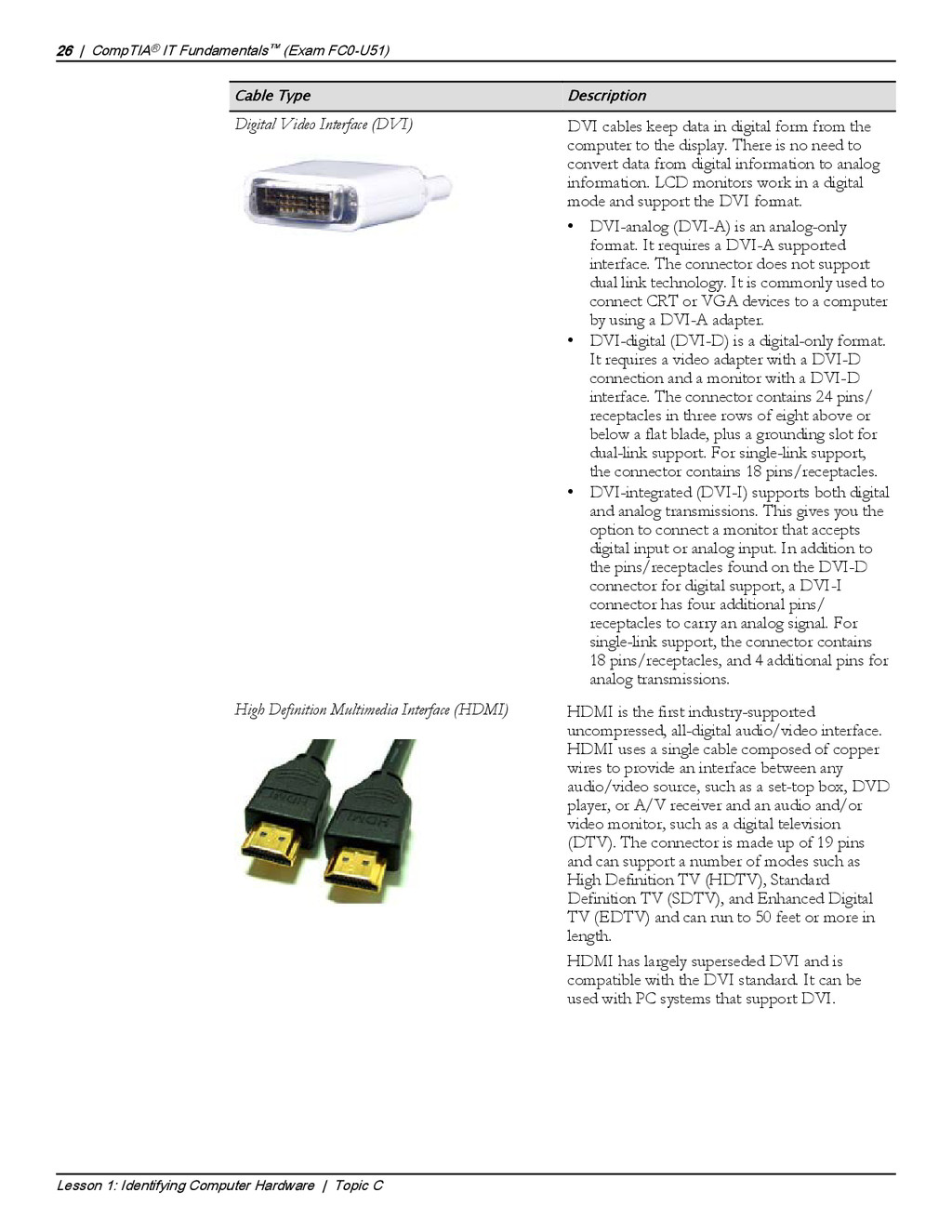
  33. Cable Type Description Digital Video Interface (DVI) DVI cables keep

    data in digital form from the computer to the display. There is no need to convert data from digital information to analog information. LCD monitors work in a digital mode and support the DVI format. • DVI-analog (DVI-A) is an analog-only format. It requires a DVI-A supported interface. The connector does not support dual link technology. It is commonly used to connect CRT or VGA devices to a computer by using a DVI-A adapter. • DVI-digital (DVI-D) is a digital-only format. It requires a video adapter with a DVI-D connection and a monitor with a DVI-D interface. The connector contains 24 pins/ receptacles in three rows of eight above or below a flat blade, plus a grounding slot for dual-link support. For single-link support, the connector contains 18 pins/receptacles. • DVI-integrated (DVI-I) supports both digital and analog transmissions. This gives you the option to connect a monitor that accepts digital input or analog input. In addition to the pins/receptacles found on the DVI-D connector for digital support, a DVI-I connector has four additional pins/ receptacles to carry an analog signal. For single-link support, the connector contains 18 pins/receptacles, and 4 additional pins for analog transmissions. High Definition Multimedia Interface (HDMI) HDMI is the first industry-supported uncompressed, all-digital audio/video interface. HDMI uses a single cable composed of copper wires to provide an interface between any audio/video source, such as a set-top box, DVD player, or A/V receiver and an audio and/or video monitor, such as a digital television (DTV). The connector is made up of 19 pins and can support a number of modes such as High Definition TV (HDTV), Standard Definition TV (SDTV), and Enhanced Digital TV (EDTV) and can run to 50 feet or more in length. HDMI has largely superseded DVI and is compatible with the DVI standard. It can be used with PC systems that support DVI. 26 | CompTIA® IT Fundamentals™ (Exam FC0-U51) Lesson 1: Identifying Computer Hardware | Topic C
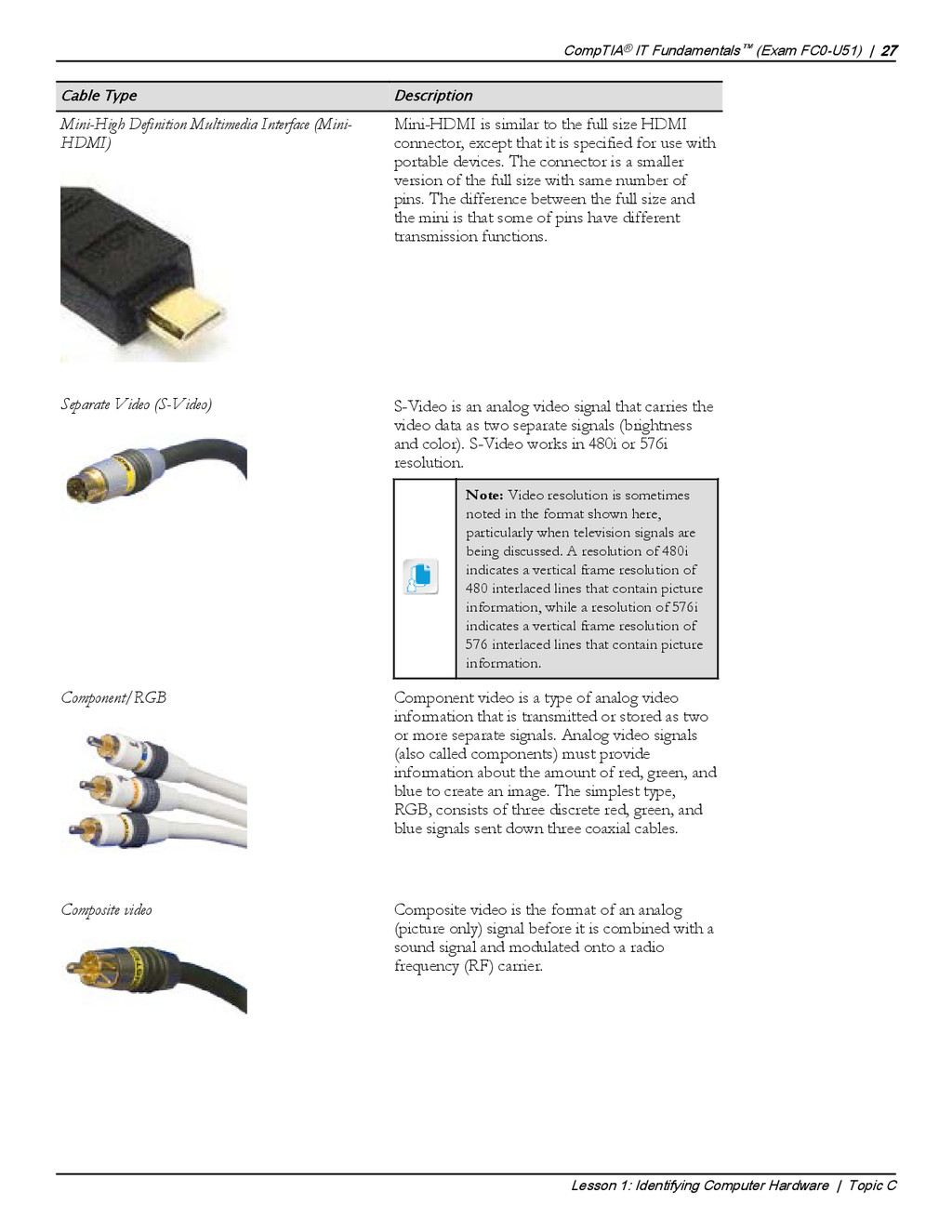
  34. Cable Type Description Mini-High Definition Multimedia Interface (Mini- HDMI) Mini-HDMI

    is similar to the full size HDMI connector, except that it is specified for use with portable devices. The connector is a smaller version of the full size with same number of pins. The difference between the full size and the mini is that some of pins have different transmission functions. Separate Video (S-Video) S-Video is an analog video signal that carries the video data as two separate signals (brightness and color). S-Video works in 480i or 576i resolution. Note: Video resolution is sometimes noted in the format shown here, particularly when television signals are being discussed. A resolution of 480i indicates a vertical frame resolution of 480 interlaced lines that contain picture information, while a resolution of 576i indicates a vertical frame resolution of 576 interlaced lines that contain picture information. Component/RGB Component video is a type of analog video information that is transmitted or stored as two or more separate signals. Analog video signals (also called components) must provide information about the amount of red, green, and blue to create an image. The simplest type, RGB, consists of three discrete red, green, and blue signals sent down three coaxial cables. Composite video Composite video is the format of an analog (picture only) signal before it is combined with a sound signal and modulated onto a radio frequency (RF) carrier. CompTIA® IT Fundamentals™ (Exam FC0-U51) | 27 Lesson 1: Identifying Computer Hardware | Topic C
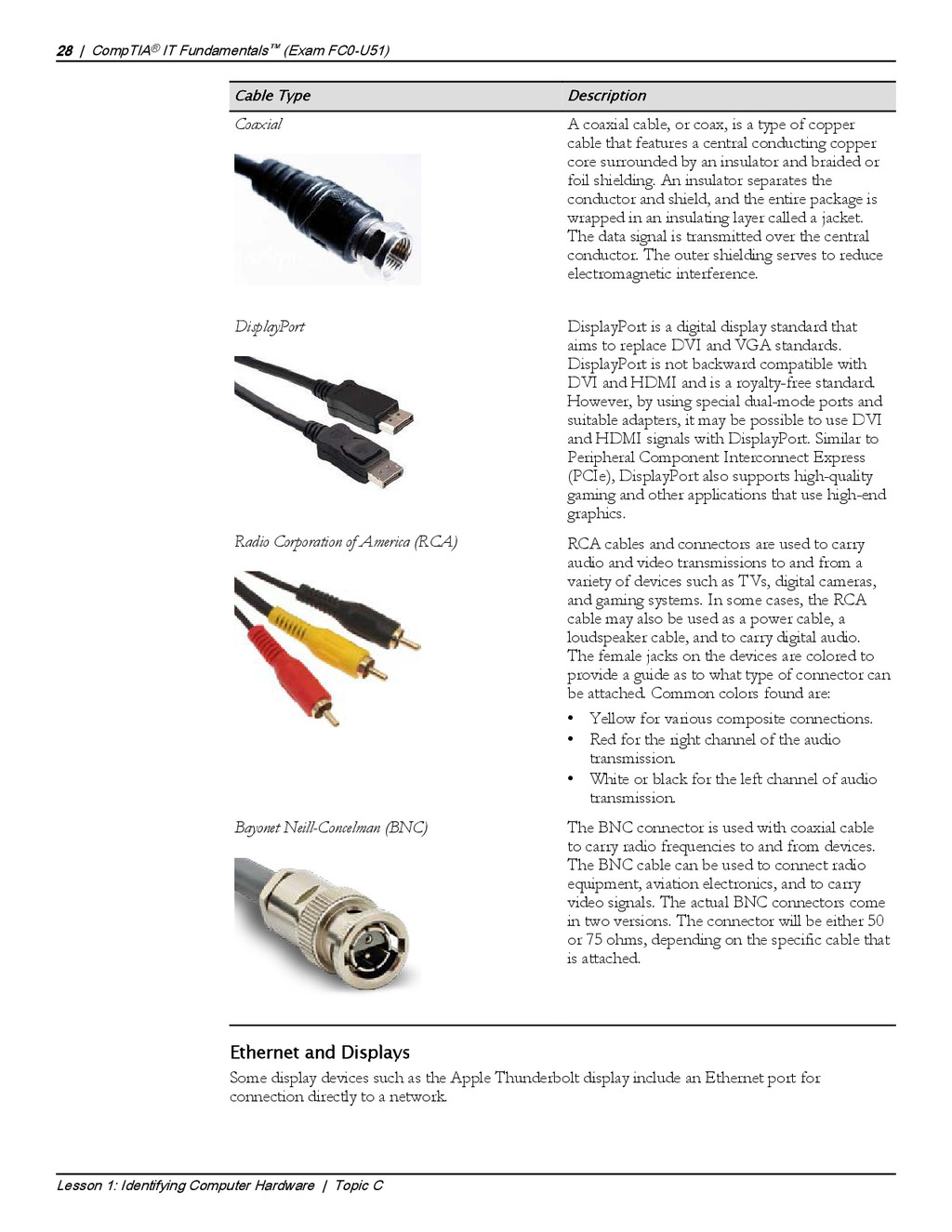
  35. Cable Type Description Coaxial A coaxial cable, or coax, is

    a type of copper cable that features a central conducting copper core surrounded by an insulator and braided or foil shielding. An insulator separates the conductor and shield, and the entire package is wrapped in an insulating layer called a jacket. The data signal is transmitted over the central conductor. The outer shielding serves to reduce electromagnetic interference. DisplayPort DisplayPort is a digital display standard that aims to replace DVI and VGA standards. DisplayPort is not backward compatible with DVI and HDMI and is a royalty-free standard. However, by using special dual-mode ports and suitable adapters, it may be possible to use DVI and HDMI signals with DisplayPort. Similar to Peripheral Component Interconnect Express (PCIe), DisplayPort also supports high-quality gaming and other applications that use high-end graphics. Radio Corporation of America (RCA) RCA cables and connectors are used to carry audio and video transmissions to and from a variety of devices such as TVs, digital cameras, and gaming systems. In some cases, the RCA cable may also be used as a power cable, a loudspeaker cable, and to carry digital audio. The female jacks on the devices are colored to provide a guide as to what type of connector can be attached. Common colors found are: • Yellow for various composite connections. • Red for the right channel of the audio transmission. • White or black for the left channel of audio transmission. Bayonet Neill-Concelman (BNC) The BNC connector is used with coaxial cable to carry radio frequencies to and from devices. The BNC cable can be used to connect radio equipment, aviation electronics, and to carry video signals. The actual BNC connectors come in two versions. The connector will be either 50 or 75 ohms, depending on the specific cable that is attached. Ethernet and Displays Some display devices such as the Apple Thunderbolt display include an Ethernet port for connection directly to a network. 28 | CompTIA® IT Fundamentals™ (Exam FC0-U51) Lesson 1: Identifying Computer Hardware | Topic C
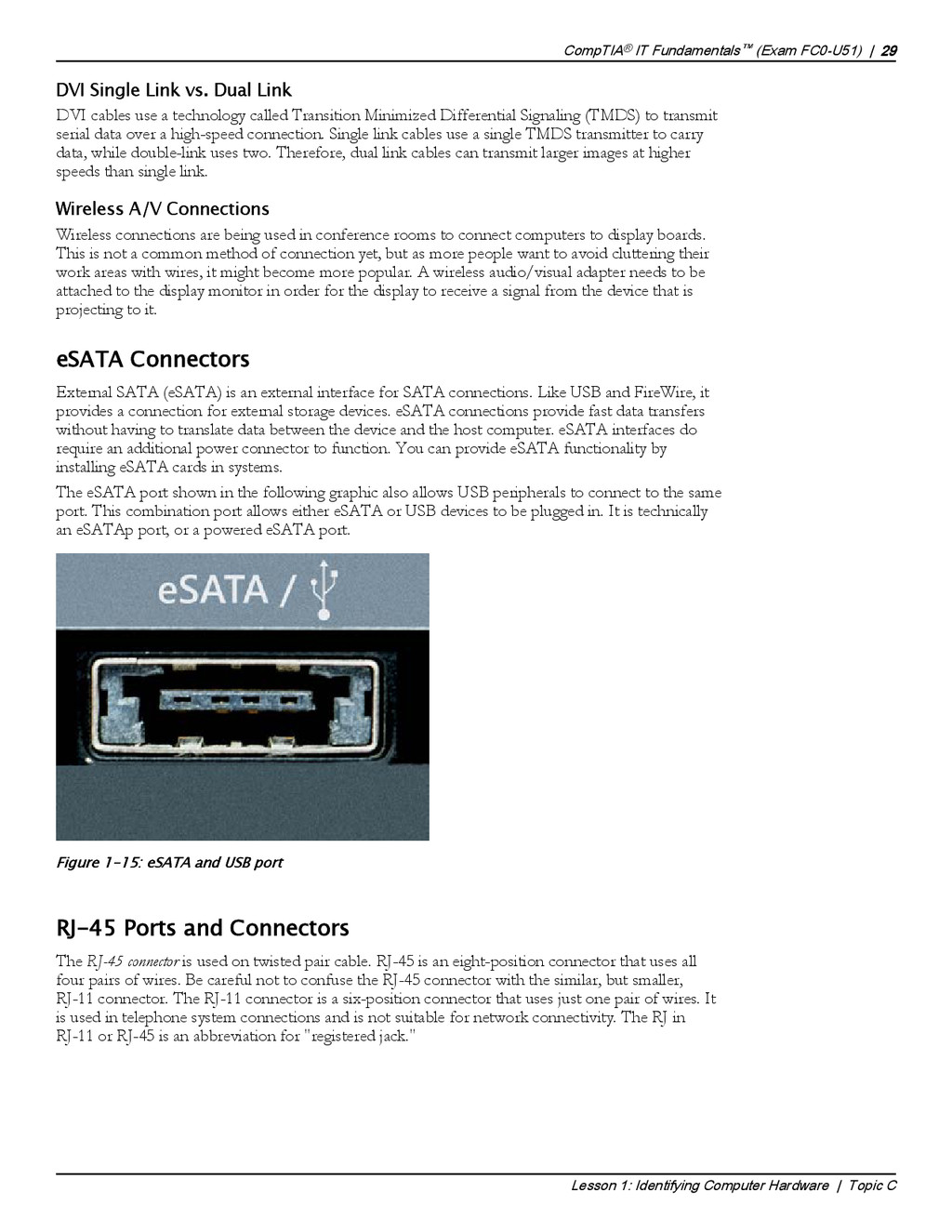
  36. DVI Single Link vs. Dual Link DVI cables use a

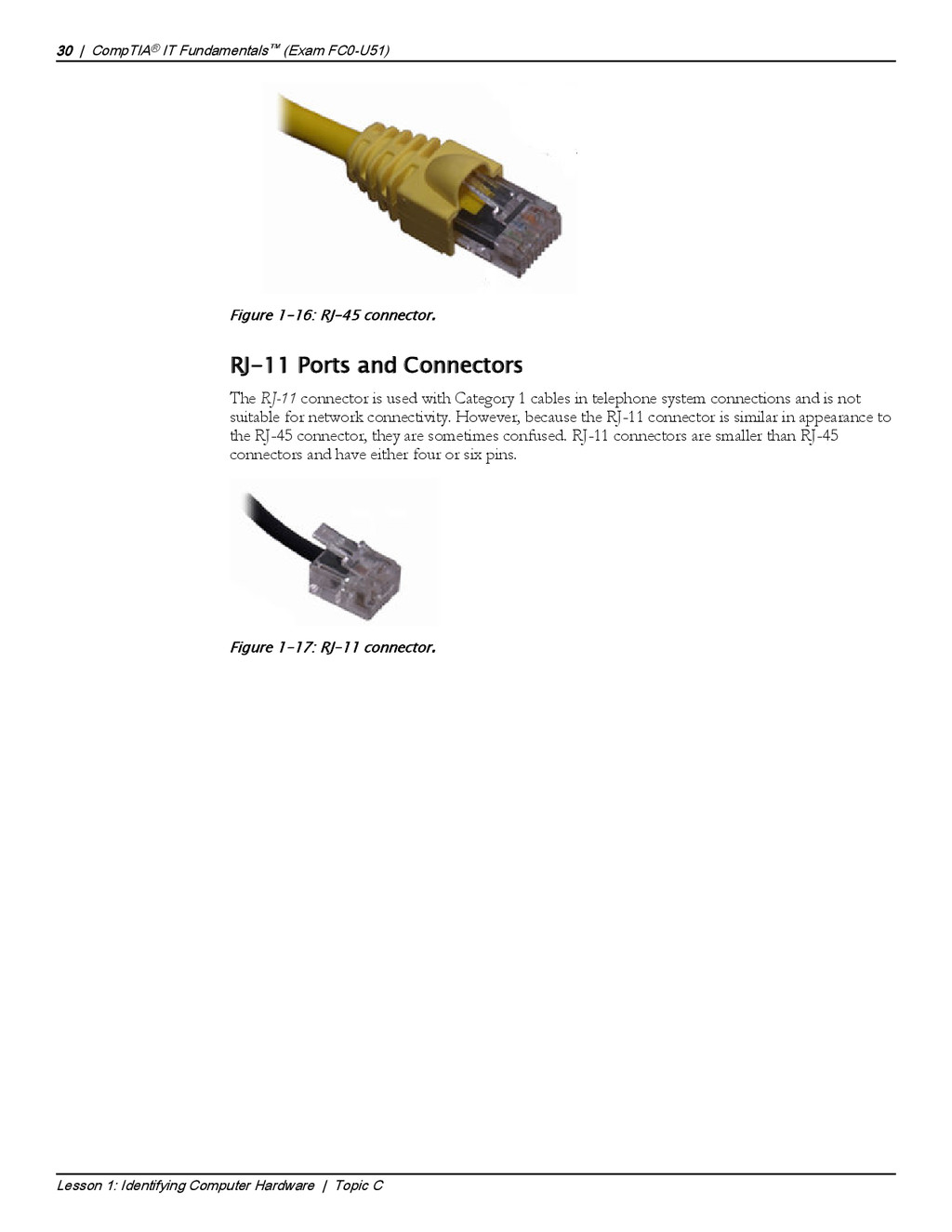
    technology called Transition Minimized Differential Signaling (TMDS) to transmit serial data over a high-speed connection. Single link cables use a single TMDS transmitter to carry data, while double-link uses two. Therefore, dual link cables can transmit larger images at higher speeds than single link. Wireless A/V Connections Wireless connections are being used in conference rooms to connect computers to display boards. This is not a common method of connection yet, but as more people want to avoid cluttering their work areas with wires, it might become more popular. A wireless audio/visual adapter needs to be attached to the display monitor in order for the display to receive a signal from the device that is projecting to it. eSATA Connectors External SATA (eSATA) is an external interface for SATA connections. Like USB and FireWire, it provides a connection for external storage devices. eSATA connections provide fast data transfers without having to translate data between the device and the host computer. eSATA interfaces do require an additional power connector to function. You can provide eSATA functionality by installing eSATA cards in systems. The eSATA port shown in the following graphic also allows USB peripherals to connect to the same port. This combination port allows either eSATA or USB devices to be plugged in. It is technically an eSATAp port, or a powered eSATA port. Figure 1-15: eSATA and USB port RJ-45 Ports and Connectors The RJ-45 connector is used on twisted pair cable. RJ-45 is an eight-position connector that uses all four pairs of wires. Be careful not to confuse the RJ-45 connector with the similar, but smaller, RJ-11 connector. The RJ-11 connector is a six-position connector that uses just one pair of wires. It is used in telephone system connections and is not suitable for network connectivity. The RJ in RJ-11 or RJ-45 is an abbreviation for "registered jack." CompTIA® IT Fundamentals™ (Exam FC0-U51) | 29 Lesson 1: Identifying Computer Hardware | Topic C eSATA If you have an eSATA connector available, let students see what the connector looks like. RJ-45 Connector
  37. Figure 1-16: RJ-45 connector. RJ-11 Ports and Connectors The RJ-11

    connector is used with Category 1 cables in telephone system connections and is not suitable for network connectivity. However, because the RJ-11 connector is similar in appearance to the RJ-45 connector, they are sometimes confused. RJ-11 connectors are smaller than RJ-45 connectors and have either four or six pins. Figure 1-17: RJ-11 connector. 30 | CompTIA® IT Fundamentals™ (Exam FC0-U51) Lesson 1: Identifying Computer Hardware | Topic C RJ-11 Connector
  38. ACTIVITY 1-3 Comparing Connector Types Before You Begin Your instructor

    has a pile of cables that have not been labeled. You also have a computer you can examine to see which cables can be connected to it. Scenario While cleaning out a storage cabinet, you found lots of cables. You decided that you should see how many of these cables might work with your current computer. You want to neatly organize the cables you might use with your computer in one box and those that you won't need into another box. You also want to label each cable so that in the future you know which cables are which. 1. From the pile of cables provided, locate a cable for each port on your computer and connect it to the appropriate port. 2. Determine if any of the cables provided cannot be connected to your computer. 3. Place any cables that cannot be used with your computer in a box. Label each of the cables with the connector type and place back in the box. 4. Remove the cables you connected to your computer and label each connector type and place them in a second box. CompTIA® IT Fundamentals™ (Exam FC0-U51) | 31 Lesson 1: Identifying Computer Hardware | Topic C If students are co- located, consider conducting this activity as a group exercise. Check students' work in labeling each connector type. Discuss any issues.
  39. TOPIC D Identify Common Peripheral Devices Much of the work

    that you will perform as a PC technician will involve installing and configuring various hardware and software components. As an IT professional, you will often find yourself setting up end-user workstations or helping those end users with the hardware they need to make their daily lives easier. Installing and configuring peripheral components—such as display devices, keyboards and mice, or even more specialized devices—are some of the more common tasks that you will perform. By identifying common peripheral devices, you will be better prepared when you are called on to install and configure them. Peripheral Devices A peripheral is a device that connects to a computer to expand the computer's functionality. This includes devices that enable the user to input, output, store, and share data. You can enhance the functionality of practically any personal computer by connecting different types of external devices to the system unit. Also called peripheral devices, external devices can provide alternative input or output methods or additional data storage. You connect external devices to the system unit via cable or a wireless connection. Some devices have their own power source, whereas others draw power from the system. Common examples of external devices include keyboards, mice or other pointing devices, microphones, cameras, scanners, printers, and external drives. Input Devices Computers need user input, such as directions or commands, and user interaction with the programs that are included in order to produce something of use. Keyboards and pointing devices are the standard input devices for personal computers these days, but there is an ever-growing number of input devices available for the user to interact with in a variety of ways. As a technician, part of your responsibilities will include installing and configuring all types of input devices. Types of Input Devices Common input devices include mice and keyboards, but even these two components come in a variety of implementations. The following tables describe some of the keyboards and pointing devices available in the market. This first table describes keyboards. 32 | CompTIA® IT Fundamentals™ (Exam FC0-U51) Lesson 1: Identifying Computer Hardware | Topic D Peripheral Devices Input Devices Keyboards
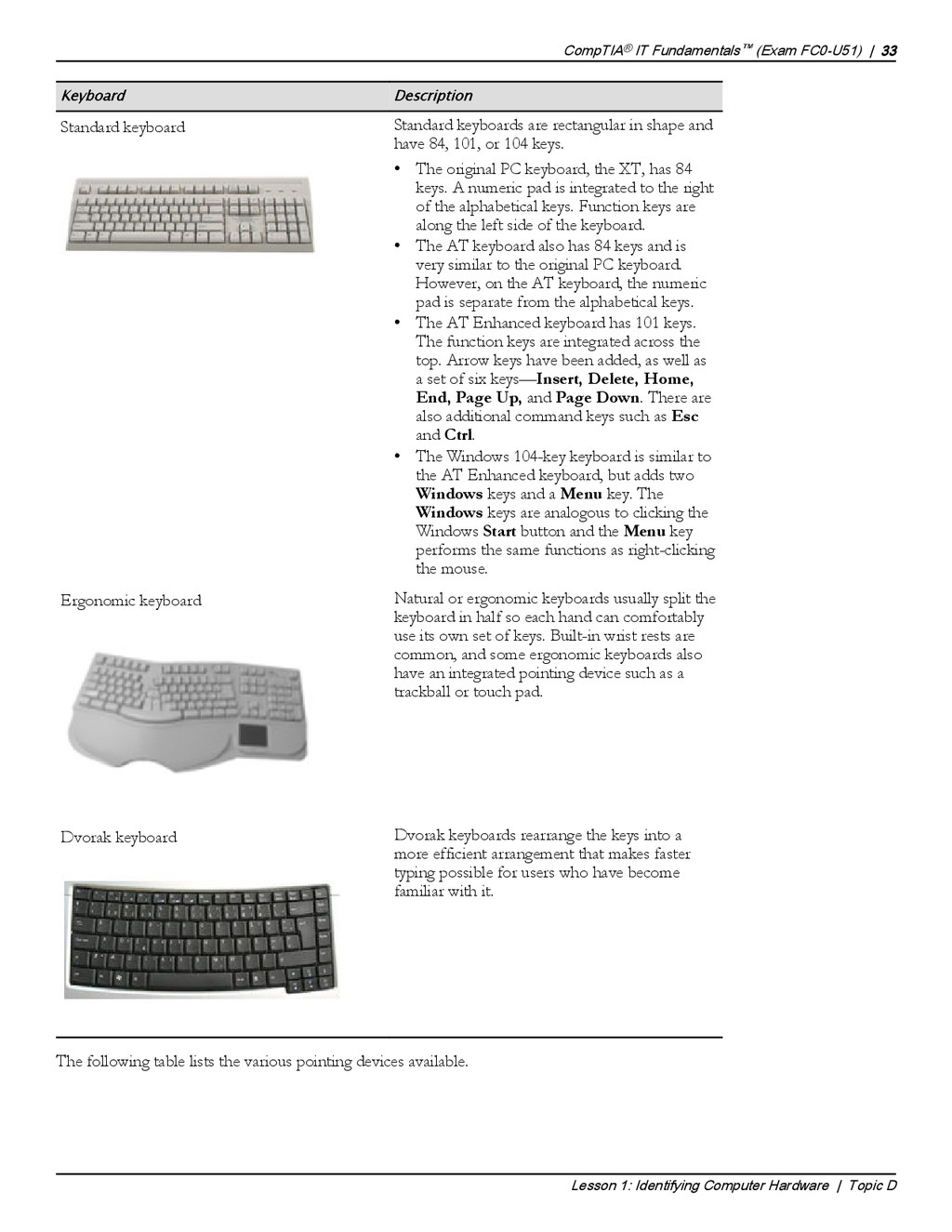
  40. Keyboard Description Standard keyboard Standard keyboards are rectangular in shape

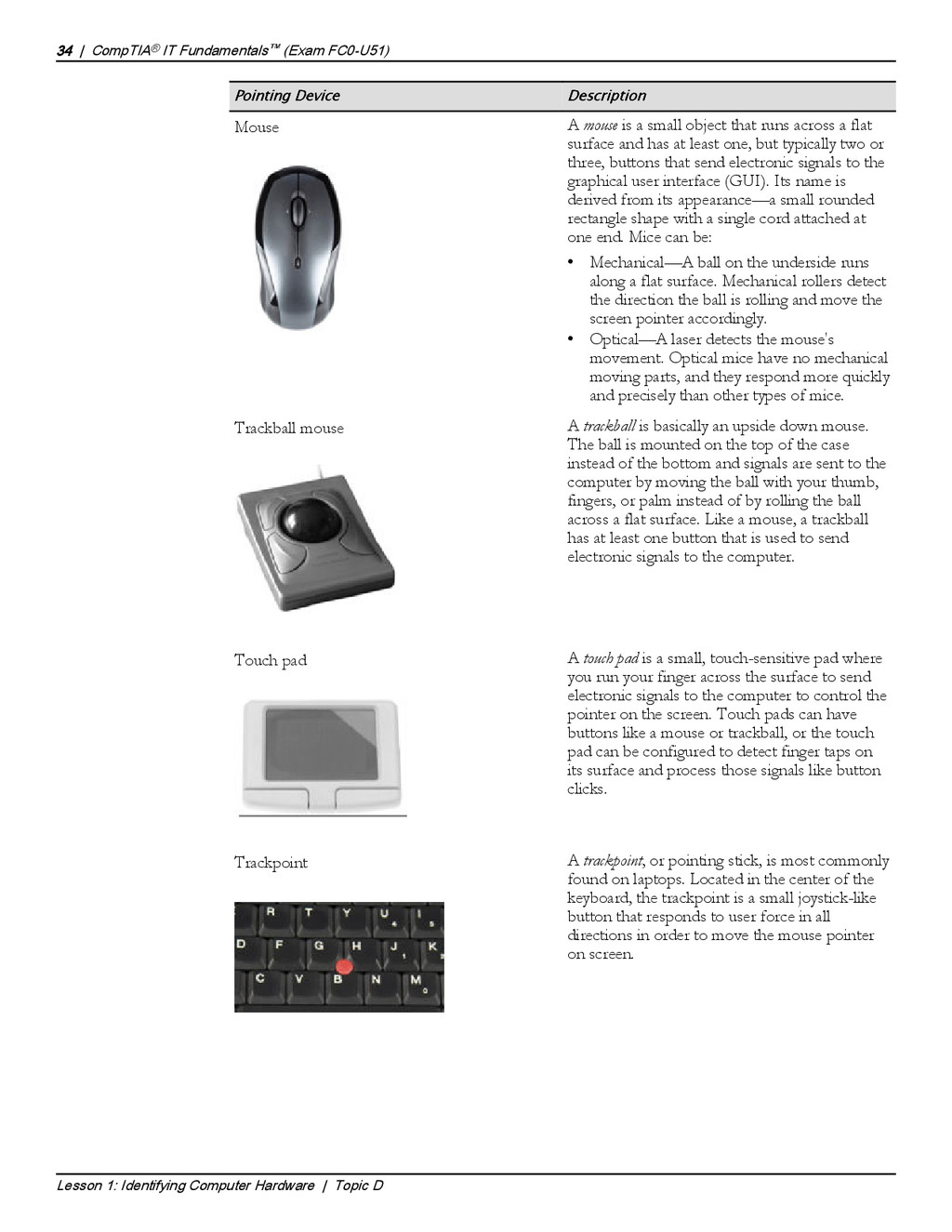
    and have 84, 101, or 104 keys. • The original PC keyboard, the XT, has 84 keys. A numeric pad is integrated to the right of the alphabetical keys. Function keys are along the left side of the keyboard. • The AT keyboard also has 84 keys and is very similar to the original PC keyboard. However, on the AT keyboard, the numeric pad is separate from the alphabetical keys. • The AT Enhanced keyboard has 101 keys. The function keys are integrated across the top. Arrow keys have been added, as well as a set of six keys—Insert, Delete, Home, End, Page Up, and Page Down. There are also additional command keys such as Esc and Ctrl. • The Windows 104-key keyboard is similar to the AT Enhanced keyboard, but adds two Windows keys and a Menu key. The Windows keys are analogous to clicking the Windows Start button and the Menu key performs the same functions as right-clicking the mouse. Ergonomic keyboard Natural or ergonomic keyboards usually split the keyboard in half so each hand can comfortably use its own set of keys. Built-in wrist rests are common, and some ergonomic keyboards also have an integrated pointing device such as a trackball or touch pad. Dvorak keyboard Dvorak keyboards rearrange the keys into a more efficient arrangement that makes faster typing possible for users who have become familiar with it. The following table lists the various pointing devices available. CompTIA® IT Fundamentals™ (Exam FC0-U51) | 33 Lesson 1: Identifying Computer Hardware | Topic D Pointing Devices
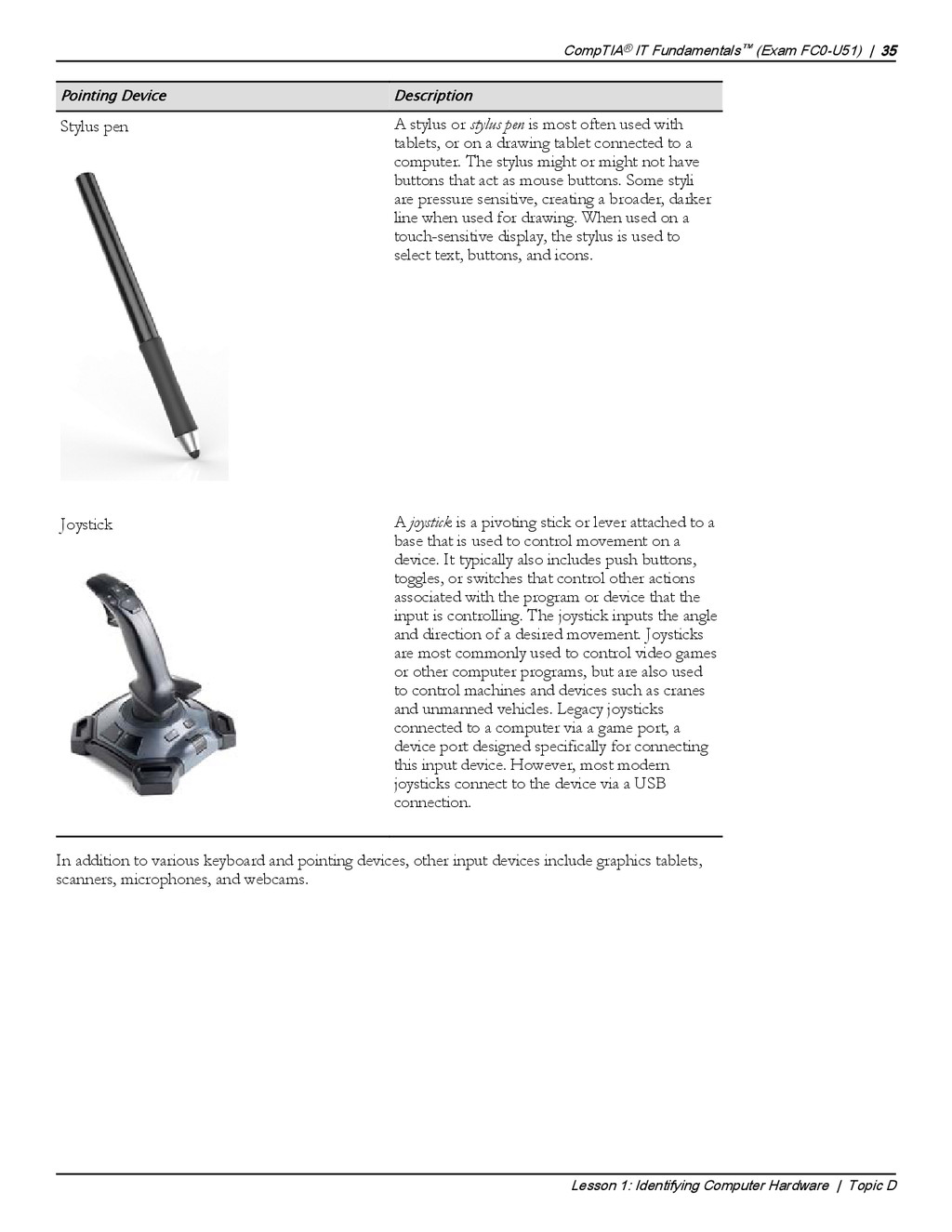
  41. Pointing Device Description Mouse A mouse is a small object

    that runs across a flat surface and has at least one, but typically two or three, buttons that send electronic signals to the graphical user interface (GUI). Its name is derived from its appearance—a small rounded rectangle shape with a single cord attached at one end. Mice can be: • Mechanical—A ball on the underside runs along a flat surface. Mechanical rollers detect the direction the ball is rolling and move the screen pointer accordingly. • Optical—A laser detects the mouse's movement. Optical mice have no mechanical moving parts, and they respond more quickly and precisely than other types of mice. Trackball mouse A trackball is basically an upside down mouse. The ball is mounted on the top of the case instead of the bottom and signals are sent to the computer by moving the ball with your thumb, fingers, or palm instead of by rolling the ball across a flat surface. Like a mouse, a trackball has at least one button that is used to send electronic signals to the computer. Touch pad A touch pad is a small, touch-sensitive pad where you run your finger across the surface to send electronic signals to the computer to control the pointer on the screen. Touch pads can have buttons like a mouse or trackball, or the touch pad can be configured to detect finger taps on its surface and process those signals like button clicks. Trackpoint A trackpoint, or pointing stick, is most commonly found on laptops. Located in the center of the keyboard, the trackpoint is a small joystick-like button that responds to user force in all directions in order to move the mouse pointer on screen. 34 | CompTIA® IT Fundamentals™ (Exam FC0-U51) Lesson 1: Identifying Computer Hardware | Topic D
  42. Pointing Device Description Stylus pen A stylus or stylus pen

    is most often used with tablets, or on a drawing tablet connected to a computer. The stylus might or might not have buttons that act as mouse buttons. Some styli are pressure sensitive, creating a broader, darker line when used for drawing. When used on a touch-sensitive display, the stylus is used to select text, buttons, and icons. Joystick A joystick is a pivoting stick or lever attached to a base that is used to control movement on a device. It typically also includes push buttons, toggles, or switches that control other actions associated with the program or device that the input is controlling. The joystick inputs the angle and direction of a desired movement. Joysticks are most commonly used to control video games or other computer programs, but are also used to control machines and devices such as cranes and unmanned vehicles. Legacy joysticks connected to a computer via a game port, a device port designed specifically for connecting this input device. However, most modern joysticks connect to the device via a USB connection. In addition to various keyboard and pointing devices, other input devices include graphics tablets, scanners, microphones, and webcams. CompTIA® IT Fundamentals™ (Exam FC0-U51) | 35 Lesson 1: Identifying Computer Hardware | Topic D Other Input Devices
  43. Input Device Description Scanner A scanner is used to take

    a photo-identical copy (scan) of a physical hard copy of any kind of document, such as a piece of paper or a photo, and create a digital-format copy of the document. A scanner is similar to a photocopy machine or copier but with a much smaller footprint. Scanners can be attached directly to a personal computer to import scanned copies of documents. With the proper software or program installed, scanned versions can be manipulated and edited once they have been imported. A scanner typically uses a USB or high-speed USB connection to connect between devices. Microphone Microphones record any type of sound and convert it to electronic or digital format. Once in this format, the recorded sounds can be manipulated or edited, and used in a variety of ways. Microphones typically connect to a device through a MIC jack, although some connect with a USB connection. Some laptops may have a built-in microphone. Webcam A web camera, or webcam, is used to send periodic images or continuous frames to a website for display. Webcam software usually captures the images as JPEG or MPEG files and uploads them to a web server. Webcam images can also be accessed by using some instant messaging software and by some video applications. Some corporations use webcams as a security measure. Webcams commonly use USB or FireWire cables and connectors. 36 | CompTIA® IT Fundamentals™ (Exam FC0-U51) Lesson 1: Identifying Computer Hardware | Topic D
  44. Input Device Description Graphics tablet A graphics or drawing tablet

    is a tablet surface typically used by artists and computer-aided design (CAD) designers to draw image and pictures by using a stylus the same way you would draw the image on paper, but instead, you draw on the tablet. The image you create is displayed on your computer monitor. Some graphics tablets include a small screen within the tablet surface so you can see what you are drawing without needing to look up from your drawing surface. Output Devices Output devices enable the user to get information and data out of the computer. Typical examples include printers, speakers, and displays. A printer is a device that produces text and images from electronic content onto physical media such as paper, photo paper, and labels. A printer is one of the most popular peripheral devices in use in most computing environments. Printers employ a range of technologies; the quality of the print output varies with the printer type and generally in proportion to the printer cost. A printer output of electronic documents is often referred to as "hard copy." Printers can connect to computers by using a variety of connection types, with the most popular methods being USB, networked, and wireless. Speakers can be attached to the device to play the audio out loud, without the need for headphones. Speakers are connected to the line out port or jack on the sound card. Some speaker sets are permanently connected to each other. Other speaker sets are connected by the user to each other or to a subwoofer. A cable runs from one of the speakers to the line out port to connect both speakers to the computer. If the card is color-coded, the speaker port will be lime. The port might be labeled as Line Out, Out, Spkr, or Speaker, or it may have an image with an arrow indicating the direction of the audio (out). Speakers typically have a 1/8-inch phono plug built into the attached cable. A display device allows you view content accessible through your computer. This is typically in the form of a monitor. As the technology has changed for home television, so too has monitor technology. Display devices have a variety of connection types, including HDMI, DVI, and DisplayPort. Types of Output Devices The following tables list various types of output devices. These include printers, displayers, and speakers. There are many technologies used to produce printer output, but the three most often encountered are laser, inkjet, and thermal printers. Printer Type Description Laser Printer A laser printer is a printer that uses a laser beam to form images and toner to print the images on a printing medium, such as paper or photo paper. Inkjet Printer An inkjet printer is a printer that forms images by spraying liquid ink from an ink cartridge out of nozzles aimed carefully on the printer. Inkjet printers have a self-cleaning cycle and will park the printhead when not in use. The printer can use heat or vibrations to release the ink. CompTIA® IT Fundamentals™ (Exam FC0-U51) | 37 Lesson 1: Identifying Computer Hardware | Topic D Output Devices Some Microsoft technical content makes a firm distinction between the software components that represent the printer, and the physical printer itself. You may find that Microsoft refers to the software representation of the printer as the "printer object," "logical printer," or simply "printer," and refers to the printer itself as the "print device" or "physical printer." However, Microsoft sometimes also uses the word "printer" as in common usage, to mean the physical print device. Be aware of the context usage of the terms. Types of Printers
  45. Printer Type Description Thermal Printers A thermal printer is a

    general term for any printer that uses a heating element to create the image on the paper with dye, ink from ribbons, or directly with pins while the feed assembly moves the media through the printer. There are several types of thermal printers that use significantly different technologies and are intended for different uses. The most sophisticated types of thermal printers can produce professional photo-quality images. There are also thermal printers for everyday office use and for special-purpose applications. Most thermal printers will require special thermal paper that contain chemicals designed to react and change color as it is heated by the heating element within the printer to create images. These printers are commonly used with cash registers to print receipts. There are several different types of display devices that you might be asked to install or configure. Display Device Description CRT Cathode ray tube (CRT) displays use electron beams within a vacuum tube to create images on a fluorescent screen. The intensity of three electron beams, one for each primary color (red, blue, and green), are manipulated to display the image on the screen. CRT monitors are larger, heavier, and boxier than their more modern counterparts due to the components used to build them, especially the thick glass used for the screen. The screen may be curved or flat, but CRTs are not considered flatscreen monitors. CRT monitors have for the most part been replaced by more modern and efficient displays like LCD, LED, or plasma screens, though many may still be in use in organizations who have yet to upgrade their devices. LCD Liquid crystal display (LCD) flatscreen displays are a compact, lightweight alternative to traditional CRT displays. LCDs consume much less energy than CRTs and do not emit nearly as much electromagnetic radiation as CRTs do. LCD monitors use a cold cathode fluorescent lamp (CCFL) as the backlight source. CCFLs use electrodes and mercury vapor to create ultraviolet light that is used as the light source. Depending on the LCD screen, the user may need to sit directly in front of the screen to see the display properly. A unique feature of LCD displays is that the screen auto centers. There is typically no center alignment needed. LED Light-emitting diode (LED) displays utilize the same screen as an LCD display, but use a different backlighting technique/technology. Instead of the CCFLs used in LCD, LED screens use one of two types of light emitting diodes as a backlighting source: dynamic RGB LEDs, which are located behind the panel; or white edge-LEDs, which are located around the edge of the screen and use a diffusion panel to evenly distribute the light source. LED displays consume even less power than LCD displays. However, LED displays are currently more expensive to purchase. 38 | CompTIA® IT Fundamentals™ (Exam FC0-U51) Lesson 1: Identifying Computer Hardware | Topic D Types of Display Devices
  46. Display Device Description OLED Organic light emitting diode (OLED) displays

    utilize the same technology as LED displays, but use organic compounds that emit light when subjected to an electric current as the light source. However, OLED screens can be used in a larger variety of dimensions than LED screens, and are currently utilized in computer monitors, television screens, tablets, and mobile phones. Plasma Plasma displays use xenon and neon rays and a flat panel of glass to provide visuals with high contrast, brightness, and vibrant colors that can be viewed from a multitude of angles. However, plasma displays can suffer from image burn-in from repeated, long- term use. They are currently available only in very large dimensions, typically 40 inches or more, and are mostly marketed and utilized as television displays. They can also be incredibly heavy and cumbersome due to the technology. Projector Video projectors are often used to display the video output onto a whiteboard or other surface so that a larger audience can see it. Speakers can be attached to the device to play the audio out loud, without the need for headphones. Speakers are connected to the line out port or jack on the sound card. Some speaker sets are permanently connected to each other. Other speaker sets are connected by the user to each other or to a subwoofer. A cable runs from one of the speakers to the line out port to connect both speakers to the computer. If the card is color-coded, the speaker port will be lime green. The port might be labeled as Line Out, Out, Spkr, or Speaker, or it may have an image with an arrow indicating the direction of the audio (out). Speakers typically have a 1/8-inch phono plug built into the attached cable. Devices that Perform Both Input and Output Functions Some devices provide both input and output functionality. This includes devices such as fax devices, external storage devices, and touchscreen devices. • Fax device functionality might be built into a card inserted in an expansion slot in your computer case, or it might be built into a printer. Printers with fax capabilities are referred to as multi- function devices. A multi-function device (MFD) is a piece of office equipment that performs the functions of a number of other specialized devices. MFDs typically include the functions of a printer, scanner, fax machine, and copier. However, there are MFDs that do not include fax functions. Although the multifunction device might not equal the performance or feature sets of the dedicated devices it replaces, multi-function devices are powerful, can perform most tasks adequately, and are an economical and popular choice for most home or small-office needs. • There is a wide variety of external storage devices. Some are portable; others require access to network cabling. External Storage Device Description Flash drive A flash drive is portable, with most being about 1/2-inch wide, 1/4- inch deep, and 3-inches long. These typically connect to a USB port on your computer. External hard drive An external hard drive might connect to your computer via USB or FireWire. Some external hard drives come encased in an enclosure and others use an internal hard drive, placed in a docking unit. CompTIA® IT Fundamentals™ (Exam FC0-U51) | 39 Lesson 1: Identifying Computer Hardware | Topic D Input/Output Devices
  47. External Storage Device Description Optical discs and drives CD, DVD,

    and Blu-ray discs that are capable of being written to fall into the category of being both input and output devices. The drive can be internal to the system or connected via USB or FireWire. The disc can be written on one computer and then read by any other computer. Network attached storage A network attached storage (NAS) device is a hard drive that connects directly to the network cabling rather than to a specific computer. You can control which computers can access the NAS device. Memory card The memory card used in your music player, camera, or smartphone can be connected to your computer to read and transfer images and data from the portable device to your computer. You can also write to the memory card while it is in your computer and then access the images or data on your music player, camera, or smartphone. Mobile media In addition to having memory cards in cameras and smartphones, there is memory built into the device on which images and data can be stored. In order to transfer the images and data from the internal mobile media memory to your computer, you will need to be able to connect the mobile device to your computer by using either a cable or a wireless networking protocol such as Bluetooth®. Smartphone Smartphones typically use a USB connection to connect to a wall charger or to a computer. Connecting the smartphone to the computer allows you to read from and write to the internal memory or the memory card in the phone. • Touchscreen monitors enable input by touching images on the screen. The screen also acts as the display for the computing device. This technology is used in bank ATMs, some point-of-sale terminals at fast food restaurants, and other situations in which a separate keyboard for input is not appropriate. Touchscreens are also found on many smartphones, tablets, and laptops sold for general public use. 40 | CompTIA® IT Fundamentals™ (Exam FC0-U51) Lesson 1: Identifying Computer Hardware | Topic D
  48. ACTIVITY 1-4 Identifying Peripheral Devices Before You Begin Your instructor

    will provide you with a variety of input, output, and input/output devices, as well as locations in which to organize the devices. Scenario In clearing up the storage closet that you have been working on, you decide it would help if the devices were organized by type. On one set of shelves you want to organize all of the input devices. On another set of shelves you want to place all of the output devices. On a third set of shelves you want to put all of the devices that can be both input and output devices. 1. Locate all of the input devices. a) Locate and label each of the types of keyboards. b) Locate and label each of the types of pointing devices. c) Locate and label any scanners. d) Locate and label any webcams and microphones. e) Place like devices in the same box or on the same shelf or rack on the shelving unit for input devices. 2. Locate all of the output devices. a) Locate and label each of the types of printers. b) Locate and label each type of display. c) Locate and label each pair of speakers. d) Place like devices on the same shelf or rack on the shelving unit for output devices. 3. Locate all of the input/output devices. a) Locate and label any devices that include fax functionality. b) Locate and label all external storage devices. Be sure to include the type of external storage device and the connection type on the label. c) Locate and label any touchscreen devices. d) Place like devices on the same shelf or rack on the shelving unit for input/output devices. CompTIA® IT Fundamentals™ (Exam FC0-U51) | 41 Lesson 1: Identifying Computer Hardware | Topic D If you don't have a wide variety of physical devices to use for this activity, consider printing images or cutting out images of a variety of devices, then attaching Velcro strips to the backs of the items and having students place them on flannel boards for each type of device. Check students' progress and discuss the results.
  49. Summary In this lesson, you identified computer hardware. You identified

    various types of computing devices, internal computer components, various types of computer connections and ports, and common peripheral devices. Being familiar with the many types of computer hardware will help you determine which hardware components are appropriate for use in different situations. How many of the personal computer components described in this lesson are familiar to you? A: Answers will vary. The different types of computing devices and peripheral devices will probably be familiar. However, the specifics of the internal components, expansion cards, various connectors, and ports might be unfamiliar. Which of the device connections discussed in this lesson have you worked with before? Which were new? A: Answers will vary based on the students' experiences. Most everyone has heard of a USB connector and port, but eSATA connectors might be more obscure. Note: Check your LogicalCHOICE Course screen for opportunities to interact with your classmates, peers, and the larger LogicalCHOICE online community about the topics covered in this course or other topics you are interested in. From the Course screen you can also access available resources for a more continuous learning experience. 42 | CompTIA® IT Fundamentals™ (Exam FC0-U51) Lesson 1: Identifying Computer Hardware | Encourage students to use the social networking tools provided on the LogicalCHOICE Home screen to follow up with their peers after the course is completed for further discussion and resources to support continued learning.
  50. Identifying Computer Software Lesson Time: 2 hours Lesson Objectives In

    this lesson, you will identify computer software. You will: • Compare the functions and features of common operating systems. • Identify common applications and their purposes. Lesson Introduction In the previous lesson, you identified computer hardware. The other major element of a computing device is the software, which includes the operating system and the application software. In this lesson, you will identify computer software. Operating system software provides the user interface for interacting with the hardware components, whereas application software enables you to accomplish specific tasks. By identifying the functions and features of common operating systems, as well as the various types of application software available, you can decide which computer software is best suited to your needs or to the needs of any users you need to support. 2
  51. TOPIC A Compare Functions and Features of Common Operating Systems

    In the last topic, you identified computer hardware. You can buy the newest computer and the shiniest peripherals, but without operating system software to communicate with the hardware, you will never be able to benefit from your investment. In this topic, you will compare the functions and features of common operating systems. As a professional IT support representative or PC service technician, your job will include installing, configuring, maintaining, and troubleshooting operating systems. Before you can perform any of these tasks, you need to understand the basics of what an operating system is, including the various versions, features, components, and technical capabilities. With this knowledge, you can provide effective support for all types of system environments. Operating Systems An operating system (OS) is a software package that enables a computer to function. It performs basic tasks, such as recognizing the input from a keyboard, sending the output to a display screen or monitor, and controlling peripheral devices such as disk drives and printers. It creates a user-friendly environment that enables users to use a computer efficiently without having to know the underlying technologies. Depending upon the version and manufacturer, the features of the user interface and functionality vary. Figure 2-1: An operating system software package allows a computer to function. Operating System Functions The operating system provides the following functions: • Provides the user-friendly environment to work with system features and applications. • Converts a user's input and sends it to the monitor or other display device. • Controls peripheral devices such as disk drives and printers. • Provides the structure for files and folders. • Monitors the operating system's health and functionality. 44 | CompTIA® IT Fundamentals™ (Exam FC0-U51) Lesson 2: Identifying Computer Software | Topic A Operating System Encourage students to share their experiences with operating systems and applications throughout this lesson. Operating System Functions
  52. Licensing A software license is a legal document used to

    control the distribution and use of software. There are five main types of software licenses. Note: These license types apply to applications, operating systems, and all other forms of software. License Type Description Open source Open source software enables users to access its source code and gives them the right to modify it. Open source licensing ensures that free and legal redistribution of the software is possible. Freeware Freeware applications can be downloaded from the Internet directly and used without any restrictions. Commercial A commercial software application is sold to users. As the name suggests, it is intended to meet commercial needs. Many commercial software publishers ask their users to register their copies within a specified period of time. This type of software does not allow users to access the source code or modify it. Copyleft Copyleft is the method of ensuring that all original work, and all the derivative works created from it, are kept free and open. The term “copyleft” is used to define a concept that is essentially the opposite of “copyright.” Software developer Richard Stallman proposed this concept to create a licensing arrangement under which software can be freely used, modified, and copied by others. The Free Software Foundation (FSF) recommends that all free software be copylefted and released under General Public License (GPL). Shareware Shareware applications are free applications that a user can download from the Internet directly. The only difference between a freeware and shareware application is that the shareware is usually provided on a trial basis. That is, the user will have to purchase the full version of the software once the trial period expires. Some shareware applications have restricted features. Users can use these features only once they purchase the full version. Software Registration It is always good practice to register the software you use. Registering your copy of a software application helps prevent software piracy. By registering the software, a user becomes eligible to receive regular updates, upgrades, and technical support. Types of Operating Systems for Workstations Operating system software is written to work in the background to create the working environment for a computer. The operating system software sets the rules for how a system and application work together, how security is handled, and in what format the data is stored in disk drives. CompTIA® IT Fundamentals™ (Exam FC0-U51) | 45 Lesson 2: Identifying Computer Software | Topic A Licensing Types of Operating Systems for Workstations
  53. Operating System Definition Windows Microsoft® Windows® is the single most

    popular and widely deployed operating system on both desktop computers and server systems in the world today. The various versions of Windows all feature a graphical user interface (GUI), support for a wide range of applications and devices, a minimum of 32-bit processing, native networking support, and a large suite of built-in applications and accessories such as the Internet Explorer® browser. Windows currently comes pre-installed on many personal computers sold commercially. There have been several versions of Windows since its inception. The most current version is often deployed on personal and professional computers. Mac OS X OS X® is the operating system developed by Apple Computing, Inc. OS X is a Linux® derivative, and consists of UNIX-based operating systems and GUIs. This proprietary operating system is included on all Macintosh computer systems. OS X features include: • Multiple user support. • Integrated Mac, Windows, and UNIX server, file, and printer browsing in the Finder. • The Safari® web browser. • Native TCP/IP networking. • Many file- and network-level security features. • Comprehensive hardware device support with a unique Macintosh computer system design. Linux Linux is an open-standards UNIX derivative originally developed and released by a Finnish computer science student named Linus Torvalds. The Linux source code was posted publicly on a computing newsgroup, and the code was developed and tested cooperatively all over the world. Because the source code is open, it can be downloaded, modified, and installed freely. However, many organizations prefer to purchase and implement a Linux distribution. A Linux distribution is a complete Linux implementation, including kernel, shell, applications, utilities, and installation media, that is packaged, distributed, and supported by a software vendor. Chrome OS Built on the open source Chromium OS, the Chrome operating system was developed by Google as its commercial OS. With manufacturing partners, the Chrome OS is installed on laptop computers that are known as Chromebooks. Types of Operating Systems for Mobile Devices Some operating systems are designed specifically to work with mobile devices such smartphones and tablets. Operating System Definition Apple iOS iOS is the base software that allows all other applications to run on an iPhone®, iPod touch®, or iPad®. The iOS user interface supports direct touch, multitouch, and using the accelerometer. Interface control elements consist of switches, buttons, and sliders. The response to user input is immediate and provides a fluid interface that includes swiping, tapping, pinching, and reverse pinching, all of which have specific definitions within the context of the iOS operating system and its multitouch interface. 46 | CompTIA® IT Fundamentals™ (Exam FC0-U51) Lesson 2: Identifying Computer Software | Topic A Types of Operating Systems for Mobile Devices
  54. Operating System Definition Android OS Android™, on the other hand,

    is a layered environment built on the Linux kernel foundation that includes not only the operating system, but middleware, which provides additional software for the operating system and additional built-in applications. The Android OS was developed by the Open Handset Alliance and is owned by Google. It supports open-source–developed applications and functions and comes with basic operating system services, message passing, and so on. The major difference between Android and iOS is that iOS runs on Apple products only, whereas the Android OS is used by many different mobile device manufacturers and is more widespread across a number of different mobile devices. Android also enables manufacturers to overlay a suite of applications that they support. BlackBerry OS BlackBerry® phones are primarily used by professionals to conduct business operations and tasks. The BlackBerry OS directly supports corporate business requirements with functions such as synchronizing with Microsoft Exchange, IBM® Lotus® Domino®, or Novell® GroupWise® emails, contacts, and tasks by maintaining a high level of security. Firefox OS Developed by Mozilla, the Firefox OS is an open source operating system based on Linux. Windows Phone OS Windows smartphones run on the Windows Phone OS, which is maintained and developed by Microsoft. Features include a suite of Microsoft® Office® applications, Outlook® Mobile, web browsing, Windows Media® Player, and other advanced features. Operating System Compatibility Issues If you are upgrading an existing computer to a different version of Microsoft Windows, you will need to ensure that the existing computer hardware is compatible with the target operating system. To do so, you can either run the Upgrade Assistant tool available on Microsoft's website, or you can download a third party utility that will scan your computer and generate a compatibility report. Note: The Windows Upgrade Assistant is available online at http:// windows.microsoft.com/en-us/windows-8/upgrade-assistant-download-online-faq. Another significant compatibility issue concerns the architecture of your OS and your computer. Modern operating systems are usually 64-bit. This means that they can take advantage of processors with larger memory addresses, which affords greater performance. However, older operating systems, and some still supported today, are 32-bit. The differences between these architectures can cause a number of conflicts, as described in the following table. Compatibility Issue Description Hardware The 32-bit and 64-bit OS architectures have different hardware requirements. The latter tends to require more random access memory (RAM) and storage space, or it may not function properly. Most important, however, is its processor. A 32-bit OS can usually run on a 64-bit processor, but a 64-bit OS cannot run on a 32-bit OS. CompTIA® IT Fundamentals™ (Exam FC0-U51) | 47 Lesson 2: Identifying Computer Software | Topic A Operating Systems Compatibility Issues
  55. Compatibility Issue Description Applications Applications designed to run on 64-bit

    operating systems are not compatible with 32-bit OSs. The reverse is not necessarily true, as 64-bit OSs can usually run 32- bit applications. However, there still may be compatibility issues, and the application may not run as intended. You may be able to select an appropriate application compatibility mode for the application after you have upgraded the operating system. For example, Windows 8.1 will allow you to emulate Windows 7 and earlier operating systems when you go to run an older application. Drivers A driver is specialized software that controls a device attached to a computer. A 64-bit driver will not work with a 32-bit OS, and this is also true vice versa. 48 | CompTIA® IT Fundamentals™ (Exam FC0-U51) Lesson 2: Identifying Computer Software | Topic A
  56. ACTIVITY 2-1 Comparing Functions and Features of Operating Systems Scenario

    As an intern, you are being exposed to operating systems you had previously not encountered. You are creating a list to help you remember which operating system is used on which equipment. Your list also includes information about when it would be most appropriate to use the operating system. 1. Identify the functions of operating system software. (Choose three.) ☐  Creates a working environment ☐  Performs specific tasks ☐  Sets rules for how a system and application work together ☐  Specifies how security is handled 2. Which operating system from Microsoft is available for desktop and server use? ◦  Linux ◦  Mac OS X ◦  Windows ◦  Chrome 3. Which operating system is freely available and comes in many distributions. ◦  Linux ◦  Mac OS X ◦  Windows ◦  Chrome 4. Which operating system distribution method is available by purchase only? ◦  Open source ◦  Freeware ◦  Shareware ◦  Commercial ◦  Copyleft 5. Which operating systems are for mobile devices, in particular, smartphones? (Choose two.) ☐  Linux ☐  Chrome OS ☐  Apple iOs ☐  Mac OS X ☐  Android OS CompTIA® IT Fundamentals™ (Exam FC0-U51) | 49 Lesson 2: Identifying Computer Software | Topic A
  57. TOPIC B Identify Application Software In the last topic, you

    compared the features and functions of common operating systems. Although today's OSs do perform many helpful functions, there is still a need for additional software to ensure that you can perform your tasks as efficiently as possible. In this topic, you will identify application software. Application software enable you to accomplish specific tasks, such as writing a letter, creating a slide presentation, or surfing the web. There are literally thousands of different applications out there to choose from, so being able to identify common types of application software, along with their uses, will help you to identify the specific software applications that will meet your needs or the needs of the users you are supporting. Application Software Application software is a program that provides specific functionality such as word processing, graphics creation, or database management. It is generally written to run on a specific operating system. This means that the word processor you purchased for a Microsoft Windows operating system may not work with a Macintosh operating system. Application programs may come pre-installed on a computer system or may need to be purchased and installed on the system. Figure 2-2: Software applications that run on a Windows operating system. Application Platforms Application software can be designed to run on multiple platforms. "Mobile" refers to the devices such as laptops, smartphones, iPads, and other tablet devices. "Desktop" is the traditional CPU and monitor with all the peripherals. Applications that users access and use through a web browser are known as "web-based." 50 | CompTIA® IT Fundamentals™ (Exam FC0-U51) Lesson 2: Identifying Computer Software | Topic B Application Software Application Platforms
  58. Types of Productivity Software Productivity software is a broad term

    that describes applications that range from those used to create documents to those used to manage your projects and organize your time. Some common examples include: • Word processing software is used to create and work with typed documents. Examples include Microsoft Word and Apple iWork Pages. • Spreadsheet software is used to calculate and analyze tables of numbers. Examples include Microsoft Excel and Apple iWork Numbers. • Email software is used to communicate with others. Examples include Microsoft Outlook and Gmail. • Basic database software is used to manage large volumes of lists and records. Examples include Microsoft Access and FileMaker Pro. • PDF software is used to view, create, and work with PDF documents. Examples include Adobe Acrobat and Foxit PhantomPDF. • Presentation software is used to create and work with slide shows. Examples include Microsoft PowerPoint and Apple iWork Keynote. • Desktop publishing software is used to work with page layouts and typography in documents and publications. Examples include Adobe InDesign and Microsoft Publisher. • Personal information managers (PIM) are used to manage your contacts and schedules. Examples include Windows Contacts and Google Calendar. • Remote desktop software is used to access another desktop to provide troubleshooting assistance. Examples include Windows Remote Desktop Protocol (RDP) and Virtual Network Computing (VNC). Types of Collaboration Software Collaboration software is designed to facilitate sharing data and resources between users in a variety of locations and using a variety of computing devices. Common types of collaboration software include: • Online workspace enables users to work with common files in a shared space on the web. Examples include Microsoft SharePoint. • Document storage/sharing provides a repository to store and share files between users in various locations. Examples include OneDrive and Dropbox. • Screen sharing software enables users to see each other's desktops from remote locations. Examples include Windows Remote Assistance and TeamViewer. • Video conferencing software enables users to communicate with audio and video functionality from diverse locations. Examples include Skype and Google Hangouts. • Instant messaging software enables users to exchange short notes, or chat, online in real time. Examples include Microsoft Lync and AOL Instant Messenger (AIM). • Email software also allows users to share contact and calendar information. Types of Utility Software Every operating system comes with a host of utilities designed to help you diagnose and troubleshoot problems and simplify tasks. If you are considering an IT career in computer support, knowledge of these tools will help you maintain equipment and troubleshoot issues with the operating system. • Antimalware detects and eliminates malicious software that resides on a computer. Examples include Windows Defender and Malwarebytes Anti-Malware. • Software firewalls filter incoming or outgoing network traffic depending on how they are configured. Examples include ZoneAlarm and Comodo Internet Security (CIS). CompTIA® IT Fundamentals™ (Exam FC0-U51) | 51 Lesson 2: Identifying Computer Software | Topic B Productivity Software Consider offering additional software examples throughout this topic. Collaboration Software Utility Software
  59. • Diagnostic/maintenance software reports on any problems or issues that

    a computer may be experiencing. Examples include Windows Action Center and PC-Doctor. • Compression software reduces the size of files so that they can be stored and transmitted more easily. Examples include WinZip and 7-Zip. Types of Specialized Software The specialized software category contains all of the other types that do not fit in the first three. Companies in architectural, engineering, medical, and financial fields require software applications that are specific for the documents and files that they need to create and use. Some common specialized software applications might include: • Computer-aided design (CAD) software is used to create design specifications for electronics, mechanical objects, animation, and other products. Examples include AutoCAD and SketchUp. • Graphic design software is used to create visual representations of concepts and ideas. Examples include Adobe Illustrator and CorelDRAW. • Medical software that is used to collect, analyze, and present data related to medical information. Examples include Kareo and athenaCollector. • Scientific software is used to collect, analyze, and present data used in experiments. Examples include LISREL and Sage. • Financial software is used to keep track of expenses, maintain a budget, file taxes, and manage other financial information. Examples include Quicken and Microsoft Dynamics. • Gaming software enables you to purchase, collect, and play video games on a computer. Examples include Steam and Origin. • Entertainment software enables you to purchase, collect, and experience entertainment media such as music and movies on a computer. Examples include Google Play and iTunes. Common File Types and Extensions Standard file extensions that follow the names of files can indicate whether a particular file is a program file or a data file. If it is a data file, the extension can indicate the application category that might be used to edit the file. Many common file extensions are three characters long, although there is no longer a strict character limit for the file name or extension in most modern operating systems. A period separates the extension from the file name itself. The following table lists a number of common file types and extensions. Types of Files File Extensions Description Documents .txt A plain text file that contains no formatting other than spaces and line breaks. You can open files that have a .txt extension in any text editing program, such as Notepad, or word processing programs, such as Microsoft Word. .rtf Rich Text Format (RTF), or a text file that includes a limited amount of formatting such as bold and italic. You can open files that have the .rtf extension in various applications, such as common word processors or Microsoft's WordPad accessory. .doc/.docx A data file created in a word processing program, such as Microsoft Word or WordPad. You might also see .docx, which is the Office 2007, 2010, and 2013 format. 52 | CompTIA® IT Fundamentals™ (Exam FC0-U51) Lesson 2: Identifying Computer Software | Topic B Specialized Software Common File Types and Extensions
  60. Types of Files File Extensions Description .xls/.xlsx Data files created

    in Microsoft Excel. Files® created in Office 2007, 2010, and 2013 are indicated by the .xlsx file extension. .ppt/.pptx Data files created in Microsoft PowerPoint® . Files created in Office 2007, 2010, and 2013 are indicated by the .pptx file extension. .pdf The versatile Portable Document Format (PDF) file format can be read by any computer with a free reader application, such as Adobe Reader. Audio .aac The Advanced Audio Coding file format. .flac The Free Lossless Audio Codec file format. .m4a The Apple Lossless Audio Codec file format used for digital music files. .mp3 The Moving Picture Experts Group Layer 3 format used to store and play audio files in digital audio players. .wav An audio file in the Waveform Audio File format that was developed by Microsoft and IBM. Images .bmp The Microsoft Windows bitmap image file format. .gif The Graphics Interchange Format image file format. .jpg/.jpeg The Joint Photographic Experts Group image file format that is commonly used in photographs. .png The Portable Network Graphic image file format. .tif/.tiff The Tagged Image File format. Video .avi The Microsoft Audio Video Interleaved file format that contains audio and video data. .flv The Adobe Flash video file format used for delivering videos over the Internet. .mp4 The Moving Picture Experts Group Layer 4 (MP4) format used to store and play video files. .mpg/.mpeg The Moving Picture Experts Group file format for audio and video files. .wmv The Microsoft Windows Media video file format. Executables .app The application program executable file format used by Apple. .bat A batch file; a small text file containing a list of system commands that execute in a batch rather than requiring the user to enter each command in succession. .com A command file or compiled application file. .exe Windows executable file that launches programs and applications. CompTIA® IT Fundamentals™ (Exam FC0-U51) | 53 Lesson 2: Identifying Computer Software | Topic B
  61. Types of Files File Extensions Description .msi A Windows Installer

    package; a file that can specify installation parameters for an application. .scexe A Linux self-extracting executable file. Compression formats .iso An optical disc image of a file system that is commonly used for archiving. .dmg A password-protected, compressed Apple Disk Image file format used by Mac OS X. .gzip/.gz The free file compression file format developed for the GNU Project. .jar A Java archive file format used to distribute Java class files and associated metadata files. .rar Developed by Eugene Roshal, this archive file format supports compression, among other features. .7zip/.7z The open archive file format that uses compression. .tar A compressed file created with the XZ compression format. .zip A file compression format that has built-in support in most operating systems. Note: Because Windows uses the file extension to determine how the system will use a file, if you alter a file name extension, you might find that a program file will not execute properly or that a data file will not automatically open in the associated application. 54 | CompTIA® IT Fundamentals™ (Exam FC0-U51) Lesson 2: Identifying Computer Software | Topic B
  62. ACTIVITY 2-2 Identifying Application Software Scenario You are going through

    some of the Help Desk tickets in the Application Software category. Some of the questions relate to which application the user should request to have installed on their computer to perform a specific task in their job. Other requests deal with which applications to use with which file types and extensions. 1. Laura needs to use her personal computer to analyze tables of numbers. Which application software would you recommend? ◦  Word processing ◦  Spreadsheet ◦  Database ◦  Web browsing 2. Daniel needs to display a series of images and text in a meeting with the sales reps. Which application software would you recommend? ◦  Word processing ◦  Database ◦  Presentation ◦  Spreadsheet 3. Gary is creating a newsletter for his department. It will highlight many of the accomplishments achieved over the past quarter. He knows that some of the information is contained in an Access file and some is contained in Excel files. Some of the managers have given him Word documents containing information they would like him to include in the newsletter. He would like to send the newsletter electronically rather than printing it. Which types of applications will he need to access these files? What do you recommend that he use to create the newsletter? A: He will need a database application to open the Access file and a spreadsheet application to open the Excel files. He will need a word processing document to open the Word documents. To send the newsletter electronically, he will need an email application. Depending on how fancy he wants to get with the newsletter, he could create a simple newsletter in the word processing application, or he could use a desktop publishing application to create a more polished looking newsletter. 4. Jordan works with an outside vendor that is constantly sending him files that have a .zip extension, or ZIP files. What type of application will he need to open these files? ◦  File compression software ◦  Presentation software ◦  Graphic design software ◦  Spreadsheet software CompTIA® IT Fundamentals™ (Exam FC0-U51) | 55 Lesson 2: Identifying Computer Software | Topic B
  63. 5. Josie has a USB drive with XLSX files on

    it. Which of the following applications should she use to open them? ◦  Microsoft Paint ◦  Adobe Reader ◦  Microsoft Excel ◦  Microsoft WordPad 56 | CompTIA® IT Fundamentals™ (Exam FC0-U51) Lesson 2: Identifying Computer Software | Topic B
  64. Summary In this lesson, you identified computer software. By comparing

    functions and features of common operating systems and identifying common application software types and file types, you have prepared yourself to be more effective in selecting the operating system and application software that is most appropriate for a specific situation. With which type of operating system (mobile, desktop, or web-based) do you have the most experience? Which do you have the least experience using? A: Answers will vary but the more common might be Windows 8 and Apple iOS. Linux is not as commonly used by end users. List one software application that you use most frequently. Which of its features do you like the most? A: Answers will vary, but may include: word processing software, with favorite features including copying and pasting, inserting pictures, rewriting and redoing changes, and formatting text in various styles. Note: Check your LogicalCHOICE Course screen for opportunities to interact with your classmates, peers, and the larger LogicalCHOICE online community about the topics covered in this course or other topics you are interested in. From the Course screen you can also access available resources for a more continuous learning experience. CompTIA® IT Fundamentals™ (Exam FC0-U51) | 57 Lesson 2: Identifying Computer Software | Encourage students to use the social networking tools provided on the LogicalCHOICE Home screen to follow up with their peers after the course is completed for further discussion and resources to support continued learning.
  65. Setting Up a Basic Workstation Lesson Time: 3 hours, 30

    minutes Lesson Objectives In this lesson, you will set up a basic workstation. You will: • Connect hardware. • Install and configure operating systems. • Install and configure applications. • Configure accessibility options. Lesson Introduction So far in this course, you've identified computer hardware and software. Now it's time to put them together and configure a computing device. In this lesson, you will set up a basic workstation. Setting up a basic workstation, whether it’s a laptop or a desktop, is a fundamental skill that you will perform many times in your career as a PC support technician. There are many variables you will need to master, such as connecting hardware components, installing and configuring operating systems, installing and configuring application software, and configuring accessibility options, in order to ensure that you are meeting the needs of your users. 3
  66. TOPIC A Connect Hardware In this lesson, you will set

    up a basic workstation. To start, you need to ensure that all of the physical components are properly attached to each other. In this topic, you will connect hardware. Even the most basic workstation usually needs to have a few external components connected to it, and as user needs become more complex, the number and variety of hardware components required to build a workstation also increases. Connecting hardware together into a basic workstation enables you to meet the needs of your users. Workstation Setup Process To set up a basic workstation, you can follow this process: 1. Gather and connect hardware components. At a minimum, you will probably need to plug in cables for a monitor, keyboard, and mouse. But, if you have additional hardware—a printer, speakers, and a webcam, for example—you should connect them to the desktop computer, too. 2. Power on the computer. 3. If necessary, run the operating system setup utility. 4. If necessary, configure the peripherals. In some cases, this might be accomplished during the operating system installation. 5. Configure and verify the Internet connection. In some cases, this might be accomplished during the operating system installation. 6. Install security software. 7. Identify which applications should be on the workstation, and install or uninstall applications as necessary. 8. Update operating system, security, and application software as needed to ensure that all software is up to date. 9. Configure user accounts as needed. 10. Perform basic cable management to reduce clutter and enhance physical safety. Cable Management In office environments where there are many computers, there can be many cables and power cords. If these cords and cables are lying on the floor, they could possibly cause a tripping hazard. Even with only one or a few computers, the cables that connect peripherals to computers and computers to networks can quickly become disorganized and unsightly. You can use some simple cable management techniques and tools to group and organize cables together to keep them out of the way and hidden from the general working space. Here are a few tips for managing cables: • If cords and cables must traverse a floor area where people need to walk, it is recommended that cord protectors be used to shield the cords and cables from being damaged by pedestrian traffic, as well as to minimize the chance of someone tripping on the cords and cables. • You can use Velcro® strips, twist ties, or even large binder clips to gather a computer's cables together so that they take up less space in your work area. Avoid using tie wraps, as they would need to be cut and replaced any time that you replace a cabled component. Access the Checklist tile on your LogicalCHOICE course screen for reference information and job aids on How to Connect Hardware. 60 | CompTIA® IT Fundamentals™ (Exam FC0-U51) Lesson 3: Setting Up a Basic Workstation | Topic A Workstation Setup Process Cable Management Ask students for other ideas for managing cables.
  67. ACTIVITY 3-1 Connecting Hardware Before You Begin You have a

    desktop computer equipped with a digital video interface and a 15-pin VGA-style monitor port, or you have a digital flat-panel LCD monitor that uses the 29-pin DVI connector or an HDMI connector. The computer is turned off, and a power cord, monitor, keyboard, and mouse are available. Other peripheral devices such as speakers, webcams, or USB hubs might also be available. Scenario You are a new computer support intern at Develetech Industries. Your first assignment is to build yourself a Windows 8.1 desktop computer to use during your internship. 1. Connect the monitor to the desktop computer. a) Verify that the computer is turned off. b) Locate the monitor cable and examine the connector. c) If you have a standard VGA CRT monitor, locate the VGA adapter port on the computer. If you have an LCD monitor, locate the VGA adapter, the 29–pin DVI adapter, the HDMI adapter, or the USB port on the computer. d) Insert the monitor connector into the appropriate port, making sure to align the pins carefully. If necessary, connect the other end of the video cable to the monitor. You might need to remove a plastic guard on the back of the monitor to access the port(s) on the monitor. e) Tighten the screws if the cable is equipped with screws. Do not over-tighten them. f) Plug the monitor's power cable into a free power source. g) If necessary, insert the other end of the power cable into the port on the monitor. 2. Connect the keyboard. a) Determine the connection type used by the available keyboard. b) Plug the keyboard into the appropriate PS/2 or USB port. If you are using a wireless keyboard, plug the receiver into the USB port and verify that the keyboard is turned on. 3. Connect the mouse. a) Determine the connection type used by the available mouse. b) Plug the mouse into the appropriate PS/2 or USB port. If you are using a wireless mouse, plug the receiver into the USB port and verify that the mouse is turned on. 4. If necessary, connect the speakers to the computer. a) Determine if you need to connect the speakers to each other and, if so, connect them to each other. b) Locate the speaker jack on the computer. c) Plug the speaker cable into the jack. d) If necessary, connect speakers to an external power source. 5. If necessary, connect the microphone to the MIC jack. a) Locate the MIC jack on the computer. b) Connect the microphone to the MIC jack. CompTIA® IT Fundamentals™ (Exam FC0-U51) | 61 Lesson 3: Setting Up a Basic Workstation | Topic A Provide each student with the hardware necessary to complete the activity. Remind students to be careful, as it is easy to bend the pins. Verify that students switched on their wireless devices if they are using any.
  68. 6. If necessary, connect the digital camera to a USB

    port. Note: If your digital camera uses a different connection type, use the appropriate cable and connect to the appropriate port. a) Locate a USB port on your computer. b) Insert the USB end of the cable into the appropriate port present in the computer. c) If necessary, insert the USB cable's connector into the port present in the camera. 7. If necessary, connect the network cable to the computer and the other end of the cable to a network connection. 8. Start the computer and verify that the peripherals are functional. a) If necessary, connect the computer power cable to the computer and the other end to an external power source. b) If necessary, turn on the power supply located next to the main power connector. c) Turn on the monitor and any other peripherals you connected. d) Press the power button on the computer to turn it on. e) After the system has started to boot, verify that the power light on the monitor is lit and is not flashing. f) Watch the monitor and verify that the display is clear. g) Verify that all other peripherals appear to be working properly. For some peripherals, you'll need to install the operating system before you can verify their functionality. 62 | CompTIA® IT Fundamentals™ (Exam FC0-U51) Lesson 3: Setting Up a Basic Workstation | Topic A Help students to turn on the power supply. Verify that all students have successfully completed the activity before you proceed. If students encountered any errors when they started their computers, help them to identify and correct the underlying issues.
  69. TOPIC B Install and Configure Operating Systems In the last

    topic, you connected hardware to make a basic workstation. For you to be able to use the workstation, it needs an operating system installed and configured on it. In this topic, you will install and configure the operating system. One of the most basic tasks you will perform as IT support technician is installing and configuring operating systems on computers. By installing and configuring operating systems, you provide the basic functionality required to use the computer hardware. Operating System Hardware Requirements Each operating system (OS) requires specific minimum hardware. This is commonly referred to as the Hardware Compatibility List (HCL). This information can be found on the packaging for commercial OSs or by doing a search at the vendor's website. Open source OSs will list the minimum hardware requirements somewhere on the page for their distribution of the OS. Information included in the HCL might include the minimum RAM, hard disk space, and monitor resolution needed. It might also list additional hardware required to use the OS. Operating System Installation Programs Depending on which operating system you plan to install, you might be required to run one of the following types of installation programs: • A Windows setup wizard, which prompts you for various types of information to install and initially configure the operating system. • A system image, which reflects the contents of an installation CD-ROM or DVD-ROM (ISO file), a virtual machine containing the installed OS, or a USB stick image containing the installed OS. Common Operating System Configuration Parameters No matter what type of OS you are installing, there are certain pieces of information that you'll need to supply to ensure that it operates properly after you install it. • Date • Time zone • Language • Keyboard type • Screen resolution • Audio settings Note: Parameters such as date, time zone, and language are commonly referred to as localization settings. In some cases, you might be asked for some or all of this information during the actual installation process; other times, you will need to configure the OS to provide this information. Multiple User Accounts A user account is an information profile that uniquely identifies a user on a computer. Every user account on a computer needs to have a unique user name and password. Users can set their own CompTIA® IT Fundamentals™ (Exam FC0-U51) | 63 Lesson 3: Setting Up a Basic Workstation | Topic B Operating System Hardware Requirements Operating System Installation Programs Common OS Configuration Parameters Multiple User Accounts
  70. passwords. Different users on the same computer may have different

    rights and permissions that enable them to access resources and perform specific tasks such as printing or installing new applications. User Account Information The following table provides more information about some of the characteristics of user accounts. User Account Characteristics Description User name A unique name identifying a user on a computer. Password A case-sensitive string of alphanumeric characters that must be typed before a user can access a computer. A password acts as a key to log on to your computer. A strong password is a combination of both upper- and lowercase letters, numbers, and special characters. Permissions and rights A set of rules that determines what things a user is allowed to do on a computer and what resources the user can access; by limiting a user's permissions and rights, you can keep the person from opening files, installing unwanted software, or changing certain computer settings. Peripheral Configuration Some operating system utilities are designed to help you configure peripheral devices. For example, in Windows 8.1, you can use the following Control Panel utilities to configure peripheral devices. • Use Devices and Printers to add devices, manage printers, configure the mouse, and access Device Manager, which enables you to scan for hardware changes. • Use Display to configure display devices, including adjusting screen resolution, configuring a second monitor, and adjusting screen brightness. • Use Keyboard to configure the keyboard properties including the device properties. • Use Mouse to configure mouse and pointer properties, such as primary button, double-click speed, and pointer options. • Use Sound to configure audio devices, such as speakers and microphones. • Use Speech Recognition to configure the microphone and computer for voice input. OS Updates Software updates are software programs or code intended to address security flaws and performance issues in an existing version of software. Software updates are often available free of cost. Software updates may be released for an operating system or a software application. Versioning provides information about the iteration of the software you are using. Software versions are changed every time the software is upgraded or newer features have been added to it. Operating system updates can be classified into four categories. Operating System Update Category Description Patch Patches are small units of supplemental code meant to address either a security problem or a functionality flaw in a software package or operating system. Hotfix A hotfix is a patch that is often issued on an emergency basis to address a specific security flaw. 64 | CompTIA® IT Fundamentals™ (Exam FC0-U51) Lesson 3: Setting Up a Basic Workstation | Topic B Peripheral Configuration OS Updates
  71. Operating System Update Category Description Service Pack A service pack

    is a larger compilation of system updates that can include functionality enhancements, new features, and typically all patches, updates, and hotfixes issued up to the point of the service pack release. Rollup A rollup is a collection of previously issued patches and hotfixes, usually meant to be applied to one component of a system, such as the web browser or a particular service. Automatic updates is a feature of an operating system or a software application that enables updates to be downloaded and installed automatically on a system at a scheduled time. After a manufacturer releases an update, it gets downloaded to your system the next time you connect to the Internet. You can configure the settings to allow for automatic installation of the updates the moment they are downloaded or to notify you of the downloaded update so that you can install it later. You can also disable automatic updates. Access the Checklist tile on your LogicalCHOICE course screen for reference information and job aids on How to Install and Configure Operating Systems. CompTIA® IT Fundamentals™ (Exam FC0-U51) | 65 Lesson 3: Setting Up a Basic Workstation | Topic B
  72. ACTIVITY 3-2 Installing Windows 8.1 Before You Begin You have

    connected a keyboard, mouse, and monitor to a desktop computer. You might also have connected speakers, a microphone, a webcam, or other peripheral devices to the desktop computer. All of these hardware components are compatible with installing Windows 8.1. Your instructor will provide you with a DVD or USB drive that contains the Windows 8.1 installation files, as well as a valid product key for installing the OS, and information related to a Microsoft account that has been created for you for this class. Note: Activities may vary slightly if the software vendor has issued digital updates. Your instructor will notify you of any changes. Scenario The next stage of your assignment at Develetech Industries as a new computer support intern is to install the Windows 8.1 operating system on your newly built desktop computer. 1. Insert the Windows 8.1 installation media and restart the computer. a) Locate the DVD or USB drive that contains the Windows 8.1 installation files. b) Insert the DVD or USB drive into the desktop computer. c) Press and hold the power button until the computer shuts down. d) Press the power button again to restart the computer. 2. Start the Windows 8.1 installation wizard. Note: Depending on what was previously installed on the system and the manufacturer of the system, you might need to make a menu selection in order to boot from the installation media. Follow your instructor's directions if you are not prompted to boot from the installation media. a) When you are prompted, press any key to boot from the installation media. b) On the Install Windows page, for Language to install, select English (United States). c) For Time and currency format, select English (United States). d) For Keyboard or input method, select US. e) Select Next. f) In the Windows Setup window, select Install now. 3. Provide a product key, accept the license terms, and specify the installation type. a) If the Enter the product key to activate Windows page appears, type the product key provided by your instructor and select Next. b) On the License terms page, read the license agreement, check I accept the license terms, and select Next. c) On the Which type of installation do you want? page, select Custom: Install Windows only (advanced). 4. Specify where the Windows 8.1 files should be installed. a) On the Where do you want to install Windows? page, examine the table. 66 | CompTIA® IT Fundamentals™ (Exam FC0-U51) Lesson 3: Setting Up a Basic Workstation | Topic B Distribute the installation media and product key at the beginning of the activity. For the Microsoft account information, you might want to create tent cards or text documents with the individual account information and distribute them to students after they complete the installation process. In addition, if your physical location has wireless networks available, you will need to determine which wireless network students should connect to, along with any password that might be required to connect to the wireless network. Notify students of any changes to activities based on digital software updates issued by the software vendor. If you have not already done so, provide each student with a valid product key.
  73. Depending on what was installed on this computer before your

    class, you might see entries for one or more drive partitions, a drive partition that contains unallocated space, or both. To simplify the installation, you will remove all drive partitions and install Windows 8.1 in the unallocated space. b) If necessary, select the first drive partition and then select Delete. If you are prompted to confirm the deletion, select OK. c) Delete any remaining drive partitions, and confirm the deletions as necessary. There should now be one drive entry, labeled Drive 0 Unallocated Space. d) Verify that Drive 0 Unallocated Space is selected, and then select Next. 5. Complete the installation. a) Wait while the Windows operating system files are installed and the computer reboots twice. b) On the Personalize page, select a color. CompTIA® IT Fundamentals™ (Exam FC0-U51) | 67 Lesson 3: Setting Up a Basic Workstation | Topic B If students have multiple physical drives, assist them in selecting one partition to install Windows on. If student computers contain a System Reserved partition, briefly explain that these partitions are created during the installation of certain versions of Windows. Because students are performing a clean installation for class purposes, they can safely remove all partitions. As Windows progresses through the installation, briefly explain what is being done during each phase of the process; for example, installing files, installing features, identifying hardware and installing drivers, and finalizing Registry settings.
  74. c) In the PC name text box, type the first

    part of your assigned Microsoft account name. For instance, if your assigned Microsoft account name were [email protected], you would enter ITFunStudent02 as the PC name. d) Select Next. e) If necessary, on the Wireless page, follow your instructor's directions to select and connect to an available wireless network and then select Next. f) On the Settings page, select Use express settings, and then select Next. You will configure Windows settings in upcoming activities, so you can accept the default settings for now. g) On the Sign in to your Microsoft Account page, type the email address associated with your assigned Microsoft account, and then select Next. h) On the Help us protect your info page, select I can't do this right now . i) On the OneDrive is your cloud storage page, select Next. Windows uses your Microsoft account information to create a local computer account and applies any personalized settings to that account. j) Observe the screen as Windows installs apps. Several messages are displayed that are intended to help you use the Windows 8.1 interface. When the Desktop screen is displayed, the Windows installation process is complete. 6. If necessary, change the Time Zone setting. a) In the taskbar, right-click the current date and time, then select Adjust date/time. b) Select the Change time zone button. c) From the Time zone drop-down listed, select the appropriate time zone for your location and then select OK. d) In the Date and Time dialog box, select OK. 7. Remove the installation media from the computer. 68 | CompTIA® IT Fundamentals™ (Exam FC0-U51) Lesson 3: Setting Up a Basic Workstation | Topic B If you have not already done so, provide students with their Microsoft account information. If a wireless network is available at your location, tell students the name of the wireless network and the password to use to connect to the network. If you have codes or have an email address or cell phone where the code could be sent, you can have students enter the code. If you are reusing email addresses, students might be prompted with "How should we set up your PC?" Have them select Set this up as a new PC instead and then select Next. If Windows boots to the Start screen instead of the Desktop, help students navigate to the Desktop. Verify that all students have successfully installed Windows and have changed the time zone before you proceed to the next topic.
  75. ACTIVITY 3-3 Configuring Windows 8.1 Before You Begin Windows 8.1

    is installed on your computer. Scenario You just installed Windows 8.1. You are eager to begin using it and know that other users will be using it soon as well. You are sure that users are going to have questions about some of the customization features they have heard are available on this operating system, such as various sign in options, changing the desktop image, changing video settings, and creating local accounts. Before the mass rollout of Windows 8.1 to the organization, you decide you should experiment with some of these features. 1. Switch between showing the Desktop and the Start screen when you log in. a) Display the Charms. b) Select Settings and then Change PC Settings. c) Select Control Panel. d) Select Appearance and Personalization. e) Under Taskbar and Navigation, select Navigation Properties. f) In the Taskbar and Navigation Properties dialog box, in the Start screen section, uncheck When I sign in or close all apps on screen, go to the desktop instead of Start and then select OK. g) From the Start screen, select your user name and then select Sign out. h) Sign in again. You now see the Start screen when you log in to the computer. 2. Change sign-in options. Note: Acknowledge any Windows 8.1 tips that are displayed. a) Display the Charms. b) Select Settings→Change PC Settings. c) Select Accounts. d) Select Sign-in options. e) Under PIN, select Add. CompTIA® IT Fundamentals™ (Exam FC0-U51) | 69 Lesson 3: Setting Up a Basic Workstation | Topic B If students have trouble opening the Charms, have them press Windows key+C.
  76. f) When prompted, type your user password and select OK

    g) Type and confirm a four-digit number of your choice, and then select Finish. Note: Consider writing down your PIN. h) Press the Windows key to return to the Start screen. i) Sign out. j) Select or swipe on the Lock screen. You are prompted for your PIN. However, don't type it yet. k) Select Sign-in options. l) Select the Microsoft account button. Notice that instead of being prompted for the PIN, you are now prompted to enter your password. m) Select the PIN button to switch sign-in to use a PIN instead of a password. n) Type the PIN you set. You don't need to press Enter after typing the numbers. 3. Change the Desktop background. a) From the Start screen, select the Desktop tile. b) Right-click the desktop and select Personalize. c) Select the Desktop Background link. d) Select the background of your choice. e) Select Save changes. 70 | CompTIA® IT Fundamentals™ (Exam FC0-U51) Lesson 3: Setting Up a Basic Workstation | Topic B
  77. 4. Change video settings. a) In the Personalization window, select

    Display. b) Select Adjust resolution. c) Select a lower resolution than you currently have set, and then select OK. If you have a low resolution monitor, you might not be able to change the resolution. d) Select Revert. If you don't make a selection, it will automatically revert to the previous resolution. e) Close the Screen Resolution window. 5. Create a local user account. a) Display the Charms. b) Select Settings→Change PC Settings. c) Select Accounts. d) Select Other Accounts. e) Select Add an account. f) Select Sign in without a Microsoft account (not recommended). g) Select Local account. h) In the User name text box, type LocalStudentAcct i) In the Password and Reenter password text boxes, type P@ssw0rd j) In the Password hint text box, type cap @ zero k) Select Next. l) Select Finish. m) Press the Windows key, select your username, and, from the list, select LocalStudentAcct. Log in using the LocalStudentAcct. Windows will install apps for this new account. Notice that the settings you made for your regular account did not apply to this account. You still land at the Desktop when you log in with this account and are not prompted for a PIN at login. n) Sign out. CompTIA® IT Fundamentals™ (Exam FC0-U51) | 71 Lesson 3: Setting Up a Basic Workstation | Topic B If time permits, you can have students try out other settings. Students are using different passwords throughout the course as a good security habit. Encourage them to write these passwords down or, if they are having trouble, consider just having them use a single password. Make sure that students successfully complete the activity before you proceed.
  78. TOPIC C Install and Configure Applications In the last topic,

    you installed and configured the operating system for a basic workstation. Although modern operating systems do offer a variety of built-in applications and utilities, the workstation will be more efficient to use once you install and configure applications on it. In this topic, you will install and configure applications. Sometimes it seems as if there are an infinite number of software applications to choose from. And in some cases, you'll find some applications already installed on a computer by the manufacturer. The challenge is to select, install, and configure only those applications that are actually required by the user. By installing and configuring applications, you can optimize a workstation to meet the needs of its users. Bundled Applications Bundled applications are software programs that are sold together as a set or suite or that are sold with an operating system or with a new computer. Examples of software suites include Microsoft Office and Google Apps. Some applications commonly bundled with a new computer include security software that might combine antivirus, antispyware, and antimalware programs with firewalls and other security utilities. Software Inventory A software inventory is a listing of the applications that are available on a computer. You can perform a manual inventory by identifying the various applications that are installed, or you can use an inventory utility to create the inventory list. For example, you can use programs such as Belarc Advisor - Free Personal PC Audit and Microsoft Software Inventory Analyzer (MSIA) to create a detailed profile of the hardware and software installed on a computer. Desired Applications There are certain applications that everyone expects to be on a computer for it to be considered optimized for usability. At a minimum, these include: • A web browser. • An email client. • Word processing software. • Security software. • Software updates, including OS updates. Bloatware As the cost of RAM and disk storage continues to decrease, there has been less emphasis among software developers to optimize the size of applications and the resources required to run those applications. Bloatware is a slang term that describes software that has lots of features and requires considerable disk space and RAM to install and run. 72 | CompTIA® IT Fundamentals™ (Exam FC0-U51) Lesson 3: Setting Up a Basic Workstation | Topic C This topic deals with the initial installation and configuration of applications. More comprehensive content about software management practices is covered later in the course. Bundled Applications Ask students to brainstorm other types of bundled applications. Consider listing the results on a whiteboard. Software Inventory Desired Applications Bloatware
  79. Application Sharing On computers that have multiple user accounts, you

    have the option to configure applications so that they are available for use only to the user who installed them or to each of the user accounts on the computer. Depending on the application being installed, you might have the opportunity to specify whether the application will be available to only your account or shared with all users on the computer. Typically, desktop applications installed on the computer are available to any account on that computer, with the proper permissions. Guidelines for Ensuring a Computer Contains Only the Necessary Applications Note: All of the Guidelines for this lesson are also available as checklists from the Checklist tile on the LogicalCHOICE Course screen. To ensure that you have the desired applications on your computer and reduce the amount of bloatware, you can use the following guidelines. • Conduct a manual inventory or purchase an inventory utility to identify the applications currently on the computer. • Identify one application for each of the following: • A web browser • An email client • Word processing software • Security software • Software updates, including OS updates • Remove any unnecessary applications. • Install any other necessary applications. Access the Checklist tile on your LogicalCHOICE course screen for reference information and job aids on How to Install and Configure Applications. CompTIA® IT Fundamentals™ (Exam FC0-U51) | 73 Lesson 3: Setting Up a Basic Workstation | Topic C Application Sharing Guidelines for Ensuring a Computer Contains Only the Necessary Applications
  80. ACTIVITY 3-4 Installing and Configuring Applications Scenario Your manager asked

    you to research Windows Store apps that can be used to manage passwords. He wants to prevent users from keeping a list of passwords in their cubicles or offices. After doing some research, you have decided to install and test a free password management app that has a high rating. The Password Padlock app in the Windows Store meets these requirements. You have also been asked to help the programmers select apps that can help them be more productive. Several programmers have suggested Notepad++ because it includes line numbers by default, so you want to install it to see how it works. 1. Access the Windows store. a) Log in with your IT_Fun_student##[email protected] account. b) From the Start screen, select the Store tile. 2. In the Store app, search for and select Password Padlock. a) In the Search text box, enter Password Padlock b) From the search results, select Password Padlock. 3. Observe the information about the app. Screenshots, reviews and other details are shown. 4. Select the Install button. The app begins installing. A message will be displayed when the app has finished installing. If you are prompted to add a payment method, select Ask me later. 5. Close the Store app. 6. Open Password Padlock. a) From the Start screen, select All Apps. b) Under P, select Password Padlock. 7. Configure the Password Padlock app. a) Select Tap here to set up your master password. b) Enter and confirm the password P@ssw0rd!! c) In the Optional Password hint text box, type cap @ zero double bang d) Select the Save button. e) In the Tip for New Users message box, select Close. f) In the What's New message box, select Close. g) Close Password Padlock. 8. Download the most recent version of Notepad++. a) Open Internet Explorer. The MSN page is displayed with the bing web search bar near the top. b) In the bing web search text box, enter notepad++ 74 | CompTIA® IT Fundamentals™ (Exam FC0-U51) Lesson 3: Setting Up a Basic Workstation | Topic C Assist students in locating the Store tile. At the time this course was written, Password Padlock was available in the Windows Store. If it is no longer available, select another security app for students to install. If time permits, you can have students perform further configuration of the app.
  81. c) From the results list, select Notepad++ - Official Site.

    d) On this page, on the navigation pane, select download. e) Under the DOWNLOAD button, select Notepad++ Installer. f) Select Save. 9. Install and run Notepad++. a) Select Run. b) In the User Account Control dialog box, select Yes. c) In the Installer Language dialog box, with English selected, select OK. d) Select Next. e) In the License Agreement page, select I Agree. f) In the Choose Install Location page, accept the default destination folder and select Next. g) In the Choose Components page, select Next. h) In the Choose Components page, check Create Shortcut on Desktop and then select Install. i) With Run Notepad++v6.6.9 checked, select Finish. j) Close Internet Explorer. k) Close the Notepad++ window. CompTIA® IT Fundamentals™ (Exam FC0-U51) | 75 Lesson 3: Setting Up a Basic Workstation | Topic C If time permits, have students log in with the local user they created, look at All Apps and see that the Password Padlock and Notepad++ apps do not appear for this user. Notepad++ is installed, but the shortcut does not appear on the Desktop for the local user.
  82. TOPIC D Configure Accessibility Options So far in this lesson,

    you have connected hardware, installed and configured an operating system, and installed and configured application software. To complete the basic setup of the workstation, you can configure options that help make it easier to get to and use the information on the workstation. In this topic, you will configure accessibility options. As an IT support technician, you will discover that each user has a unique set of needs. Some users' needs are based on what they intend to accomplish with their workstations, while other needs are directly connected to the abilities of the users themselves. By configuring accessibility options, you can ensure that users who have differing access requirements can retrieve and use the data stored on their workstations. Accessibility Accessibility is the use of assistive technology to make computers available and easier to use. For example, users with impaired or limited vision can configure their computers to narrate the screen text and they can also increase the size of the screen components to make them easier to see. Accessibility features can be built-into the operating system or provided through specially designed applications and software. Windows 8.1 Accessibility Options The Ease of Access menu provides a way to make your computer more accessible through assistive technology. With Ease of Access, you can have the Narrator feature read aloud the text on your screen, increase the size of the page for readability, turn on an on-screen keyboard, or access other functions that offer alternative methods of making things easier to see and use. The following table describes the features on the Ease of Access menu. Ease of Access Menu Choice Description Narrator Narrator will read aloud what is on the screen, including the text that you are typing, the contents of the active window, and menu options. This option is very helpful for the visually impaired. Narrator may not work with all applications. Magnifier Magnifier will enlarge the whole screen, or portions of the screen, to make viewing easier. On-Screen Keyboard Places a virtual keyboard on the screen. Useful for touchscreen PCs or when a keyboard is not available. High Contrast Provides a darker background to make text and images stand out for better viewing. Sticky Keys Sometimes two or more keys must be pressed at the same time to start an action, such as pressing Ctrl+Alt+Del to display Task Manager or to cause the computer to reboot. With the Sticky Keys feature turned on, you can press the keys in the combination one at a time. 76 | CompTIA® IT Fundamentals™ (Exam FC0-U51) Lesson 3: Setting Up a Basic Workstation | Topic D Accessibility Ease of Access Menu
  83. Ease of Access Menu Choice Description Filter Keys Filter Keys

    tells the PC how long to respond when a key is pressed and to ignore repeated keystrokes. This is helpful for users who shake, or who have difficulty pressing and lifting their fingers off of keys quickly enough when typing. Note: To further explore the Ease of Access menu, you can access the LearnTO Use the Magnifier presentation from the LearnTO tile on the LogicalCHOICE Course screen. Narrator The Narrator Settings dialog box contains a variety of configuration options that enable you to control how Narrator starts, how it looks on screen, and how it behaves and interacts with you. Use the Commands category to define the specific keyboard shortcuts to start, stop, and repeat the reading; navigate to read different items on the screen; and adjust the voice volume. The Voice category enables you to choose between several different voices as well as control its speed, volume, and pitch. Figure 3-1: The Narrator Settings dialog box. CompTIA® IT Fundamentals™ (Exam FC0-U51) | 77 Lesson 3: Setting Up a Basic Workstation | Topic D You may want to show the LearnTO Use the Magnifier presentation from the LogicalCHOICE Course screen or have students navigate out to the Course screen and watch it themselves as a supplement to your instruction. If not, please remind students to visit the LearnTOs for this course on their LogicalCHOICE Course screen after class for supplemental information and additional resources. The Narrator Settings Dialog Box
  84. Magnifier When running, the Magnifier toolbar is displayed and provides

    buttons for controlling the zoom level, what is affected, and the available options. The Views button contains the following choices: • By default, the Full Screen is affected by the zoom level. • Lens increases only the portion of the screen that's visible within the lens boundary. • Docked displays the active portion of the screen in a separate window at the top of the screen. Figure 3-2: Magnifier Toolbar and Options. Basic Accessibility Options in Other OSs The following table lists some of the accessibility options available in various other operating systems. 78 | CompTIA® IT Fundamentals™ (Exam FC0-U51) Lesson 3: Setting Up a Basic Workstation | Topic D Magnifier Toolbar and Options Examples of Accessibility in Other OSs Consider sharing any other accessibility features you are aware of.
  85. Operating System Accessibility Features Mac OS X • VoiceOver screen

    reader explains what is on the screen as well as reading screen text to you. • Zoom and Cursor Size enable you to magnify the full screen or a selected portion and the cursor. • Dictation enables you to input text by speaking instead of typing. • Invert Colors provides a high-contrast display to make it easier to see screen elements. • Closed Captions provide close captioning text when watching videos, movies, and podcasts. • Screen Flash flashes the screen to indicate that an app needs your attention. • Mono Audio plays both stereo channels in both ears. • Switch Control enables manipulating on-screen keyboards, menus, and the dock by using scanning. • Slow Keys adjusts the sensitivity of the keys. • Sticky Keys enables you to press keyboard shortcut combinations (such as Command+S) one at a time instead of simultaneously. • Speakable Items uses speech recognition to navigate within your Mac and applications, such as opening apps, switching between apps, closing windows, navigating menus, starting screen savers, and so on. • Simple Finder reduces the Dock to three folders. • Text to Speech converts highlighted text to audio. Chrome OS • ChromeVOX screen reader provides voice explanation and feedback to visually impaired users. • Accessibility settings enables you to configure the display (cursor size, high- contrast mode, screen magnifier) and other features (sticky keys and the on- screen keyboard). Android OS • TalkBack screen reader describes the results of actions. • Explore by Touch works with TalkBack to provide spoken feedback on the item that is being touched on screen. • Accessibility settings enables you to configure the display and sound options. Other Adaptive Technologies Adaptive technology includes tools that are designed to ensure that people with disabilities are able to use the software. Sometimes, the distinction is made that adaptive technology is used only by people with disabilities, whereas assistive technology tools are used by everyone. A variety of adaptive products are available on the market today. Many provide hands-free capabilities. A few examples of adaptive technologies include: • Braille translation software converts text documents to Braille and vice versa. • Eye-tracking devices that enable you to input by using eye movements instead of typing on a keyboard. • Tobii EyeMobile enables you to control a Windows 8 tablet with your eyes. For more information, you can go to the website of the non-profit organization Assistive Technology Industry Association (ATIA) and some of its partner organizations, such as the Alliance CompTIA® IT Fundamentals™ (Exam FC0-U51) | 79 Lesson 3: Setting Up a Basic Workstation | Topic D Examples of Adaptive Technologies
  86. for Technology Access (ATA). Both of these sites contain information

    and links to a variety of companies offering products and services that help make technology accessible for all. Access the Checklist tile on your LogicalCHOICE course screen for reference information and job aids on How to Configure Accessibility Options. 80 | CompTIA® IT Fundamentals™ (Exam FC0-U51) Lesson 3: Setting Up a Basic Workstation | Topic D
  87. ACTIVITY 3-5 Configuring Windows Accessibility Options Before You Begin To

    use the Narrator feature, you need speakers or headphones connected to your computer. Scenario As you are working through some of the help desk tickets, you see there is a category for helping users with accessibility options. You haven't used any of the accessibility options, so you decide to see how to use the magnification, high contrast, and narrator options. 1. Open the Ease of Access Center a) If necessary, from the Start screen, select the Desktop tile. b) Right-click the Desktop and select Personalize. c) In the left pane, select Ease of Access Center. 2. Use the Magnifier to enlarge the display. a) In the Ease of Access Center, select Start Magnifier. b) If necessary, select the magnifying glass to open the Magnifier window. c) In the Magnifier window, select the + to increase magnification to 300%. d) Select Views and observe the options. You can magnify the Full screen, a portion of the screen with Lens or divide the display into a normal view and a magnified view with Docked. e) From the Views menu, select Lens. f) Move the mouse around the screen to see the effects of magnifying through the lens option. g) In the Magnifier window, select Views→Full screen. Now the entire screen is magnified to 300%. Note: If the Magnifier window doesn't appear, select its icon in the taskbar to bring it forward. h) Move the mouse to the screen edges. Notice that the display automatically scrolls to display portions that are currently off screen. i) Select the Magnifying glass to display the Magnifier window. j) Select Views→Docked. The top portion of the screen shows a duplicate image of the screen and is magnified. k) Select the Magnifying glass to display the Magnifier window. l) Close the Magnifier window. CompTIA® IT Fundamentals™ (Exam FC0-U51) | 81 Lesson 3: Setting Up a Basic Workstation | Topic D
  88. 3. Enable High Contrast viewing on your display. a) In

    the Ease of Access Center, select Set up High Contrast. b) Verify that all of the check boxes are checked under Choose a High Contrast theme. c) Observe the first option. d) Select OK. e) Press left Alt+left Shift+Print Screen. f) In the High Contrast dialog box, read the window content, and then select Yes. The display changes to a black background with white and yellow lettering. g) Press left Alt+left Shift+Print Screen to turn off High Contrast. 4. Enable the Narrator feature. a) In the Ease of Access Center select Start Narrator. b) Point to various links, icons, and text on screen to have Narrator read the text. c) Press Caps Lock+Esc to exit Narrator. d) Close the Ease of Access window. 82 | CompTIA® IT Fundamentals™ (Exam FC0-U51) Lesson 3: Setting Up a Basic Workstation | Topic D If students have speakers, be aware that the narrator feature might be noisy.
  89. Summary In this lesson, you set up a basic workstation.

    By connecting hardware, installing and configuring various types of software, and configuring accessibility options, you can provide yourself and other users with computing devices that will meet the identified needs. If you have experience with installing and configuring operating systems, what problems did you encounter and how did you address them? A: Answers will vary. Some students will have encountered problems with installing Windows on outdated or incompatible hardware. What applications do you feel are important to include in your personal required software list? A: Answers will vary. Students who are supporting work environments will generally need to install productivity software such as the Microsoft Office suite. Depending on the job role that a user is in, they may need other apps, such as music, video, and security software. Note: Check your LogicalCHOICE Course screen for opportunities to interact with your classmates, peers, and the larger LogicalCHOICE online community about the topics covered in this course or other topics you are interested in. From the Course screen you can also access available resources for a more continuous learning experience. CompTIA® IT Fundamentals™ (Exam FC0-U51) | 83 Lesson 3: Setting Up a Basic Workstation | Encourage students to use the social networking tools provided on the LogicalCHOICE Home screen to follow up with their peers after the course is completed for further discussion and resources to support continued learning.
  90. Configuring Network Access Lesson Time: 2 hours, 30 minutes Lesson

    Objectives In this lesson, you will configure network access. You will: • Compare network connection types. • Install and configure a SOHO router. • Identify the purpose of network and alternative technologies. • Compare methods for sharing and storing information. Lesson Introduction You've set up your workstation, and now you're ready to connect to and communicate with others. In this lesson, you will configure network access. Although workstations offer some pretty powerful tools to help people be more productive, their reach and power increase dramatically when you connect them together to form a network. By configuring access to a network, you can share information and store your data in a central and easily accessible location. 4
  91. TOPIC A Network Connection Types In this lesson, you will

    configure network access. To begin, you'll need some information about the various types of networks and connections that are available. In this topic, you will compare network connection types. As an IT support technician, you will find that there are many different types of networks and ways to connect to them. By comparing network connection types, you can select the most appropriate type for each situation that you encounter. Computer Networks A computer network is a group of computers that are connected together to communicate and share network resources such as files, applications, and devices. No two computer networks are alike in size or in configuration. Each network, however, includes common components that provide the resources and communications channels necessary for the network to operate. Figure 4-1: A simple computer network. Note: For additional information, check out the LearnTO Recognize Components of Different Networks presentation in the LearnTOs for this course on your LogicalCHOICE Course screen. There are several common components that make up a computer network, each of which performs a specific task. 86 | CompTIA® IT Fundamentals™ (Exam FC0-U51) Lesson 4: Configuring Network Access | Topic A A Simple Computer Network You may want to show the LearnTO Recognize Components of Different Networks presentation from the LogicalCHOICE Course screen or have students navigate out to the Course screen and watch it themselves as a supplement to your instruction. If not, please remind students to visit the LearnTOs for this course on their LogicalCHOICE Course screen after class for supplemental information and additional resources.
  92. Network Component Description Device Hardware such as computers, servers, printers,

    fax machines, switches, and routers. Physical media Media that connects devices to a network and transmits data between the devices. Network adapter Hardware that translates data between the network and a device. Network operating system Software that controls network traffic and access to common network resources. Network Types There are several different types of networks. The two most prominent types are LANs and WANs. A local area network (LAN) is a group of computers and associated devices that share the resources of a single processor or server within a small geographic area. A LAN may serve as few as two or three users or as many as thousands of users. A network set up between the computers in a home would be an example of a LAN. A wide area network (WAN) is a network of computers that are spread across a large geographic area. An example of a WAN would be a company that has offices in several different cities or nations; the company's computers would be connected by a WAN. Figure 4-2: LAN and WAN wired networking. Network Connection Methods Connecting various devices to a network can be done in a number of ways. How devices will communicate with one another is determined by the connection method: • Wireless • Wired • Cellular Each method has its own advantages and disadvantages when it comes to certain important characteristics in networking. These characteristics describe a connection from several different perspectives. Characteristic Describes Mobility The ability to transport a device from one physical location to another without interrupting the connection. CompTIA® IT Fundamentals™ (Exam FC0-U51) | 87 Lesson 4: Configuring Network Access | Topic A Network Types Network Connection Methods