A Practical Guide to Diagnosing Network Problems
Slow internet does not always mean a slow internet connection.
Poor performance can be caused by Wi-Fi interference, DNS issues, packet loss, network congestion, bad routing, overloaded servers, or even the path your traffic takes across the internet.
This guide provides a simple, systematic process for finding the real cause.
1. Start by Identifying the Problem
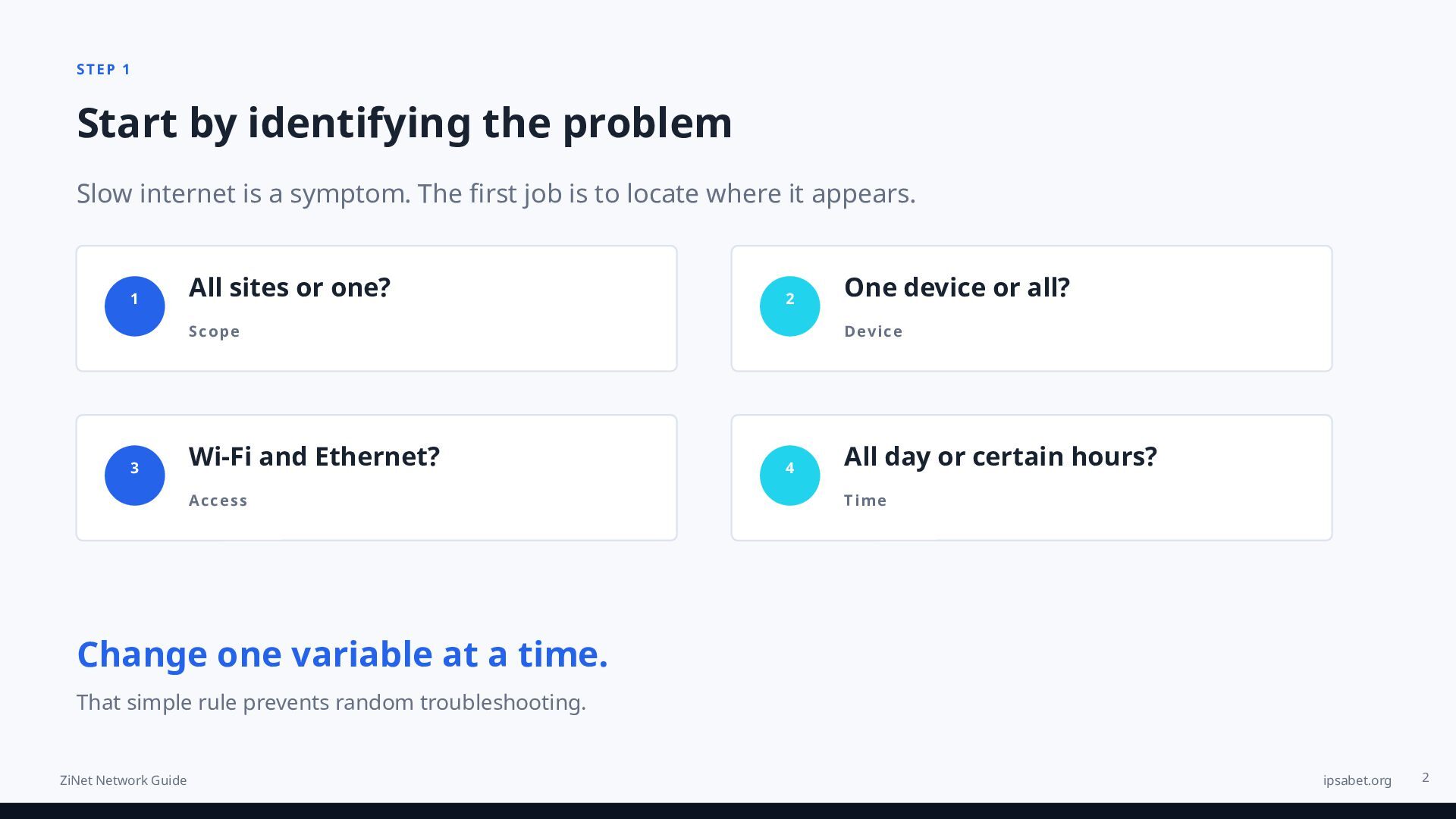
Before changing anything, determine exactly what feels slow.
Ask yourself:
Are all websites slow or only one?
Is the problem happening on one device or every device?
Does it happen over Wi-Fi and Ethernet?
Is the connection slow all day or only during certain hours?
Are downloads slow, or is browsing simply taking longer to start?
These details help narrow down the source of the problem.
2. Check Your Connection Speed
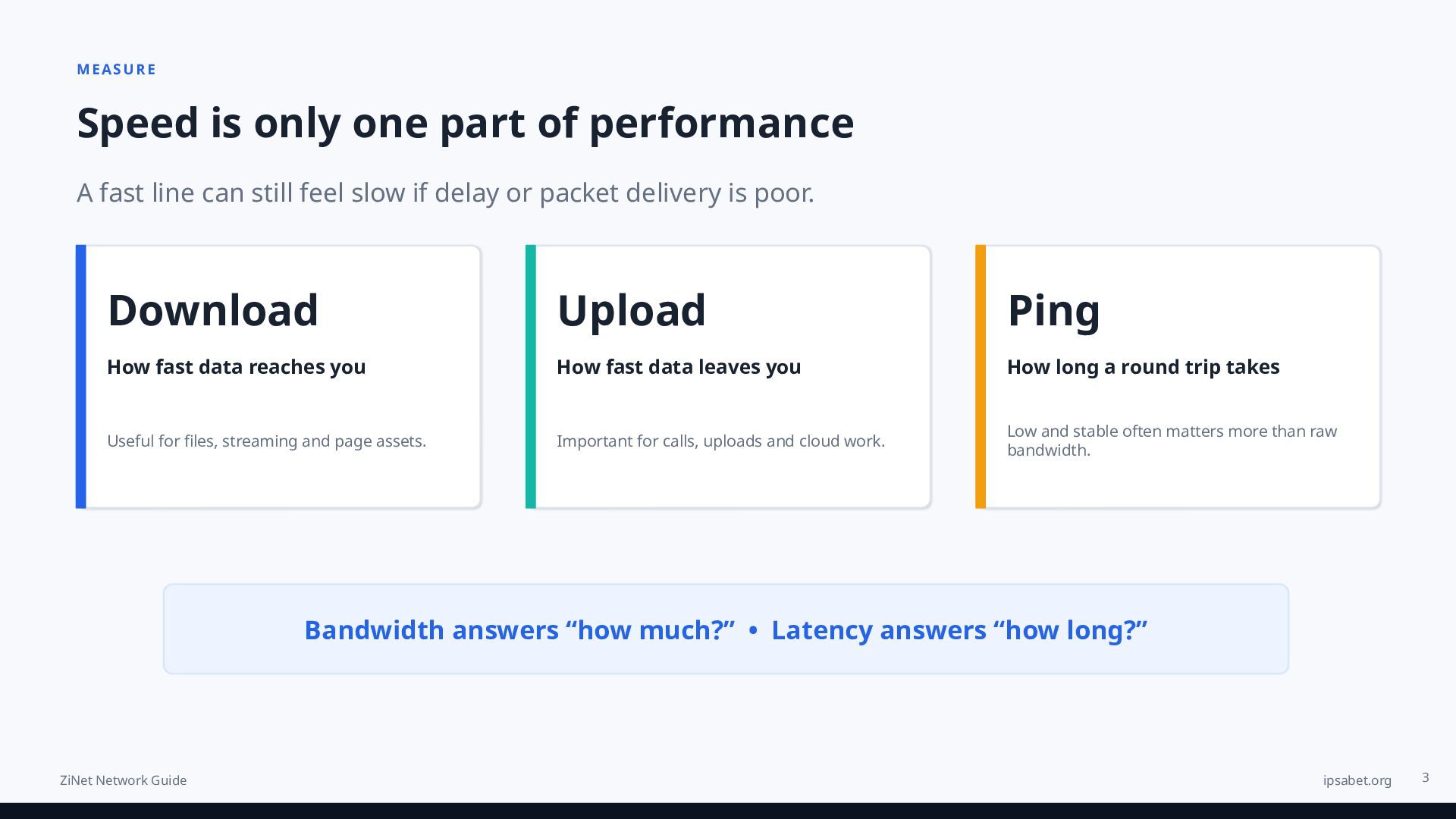
Run a basic internet speed test and look at three important metrics:
Download Speed
How quickly data reaches your device.
Upload Speed
How quickly your device sends data to the internet.
Ping
How long it takes for data to travel to a server and back.
A high download speed does not necessarily mean a fast browsing experience.
Latency and packet loss can sometimes matter more.
3. Check Your Latency
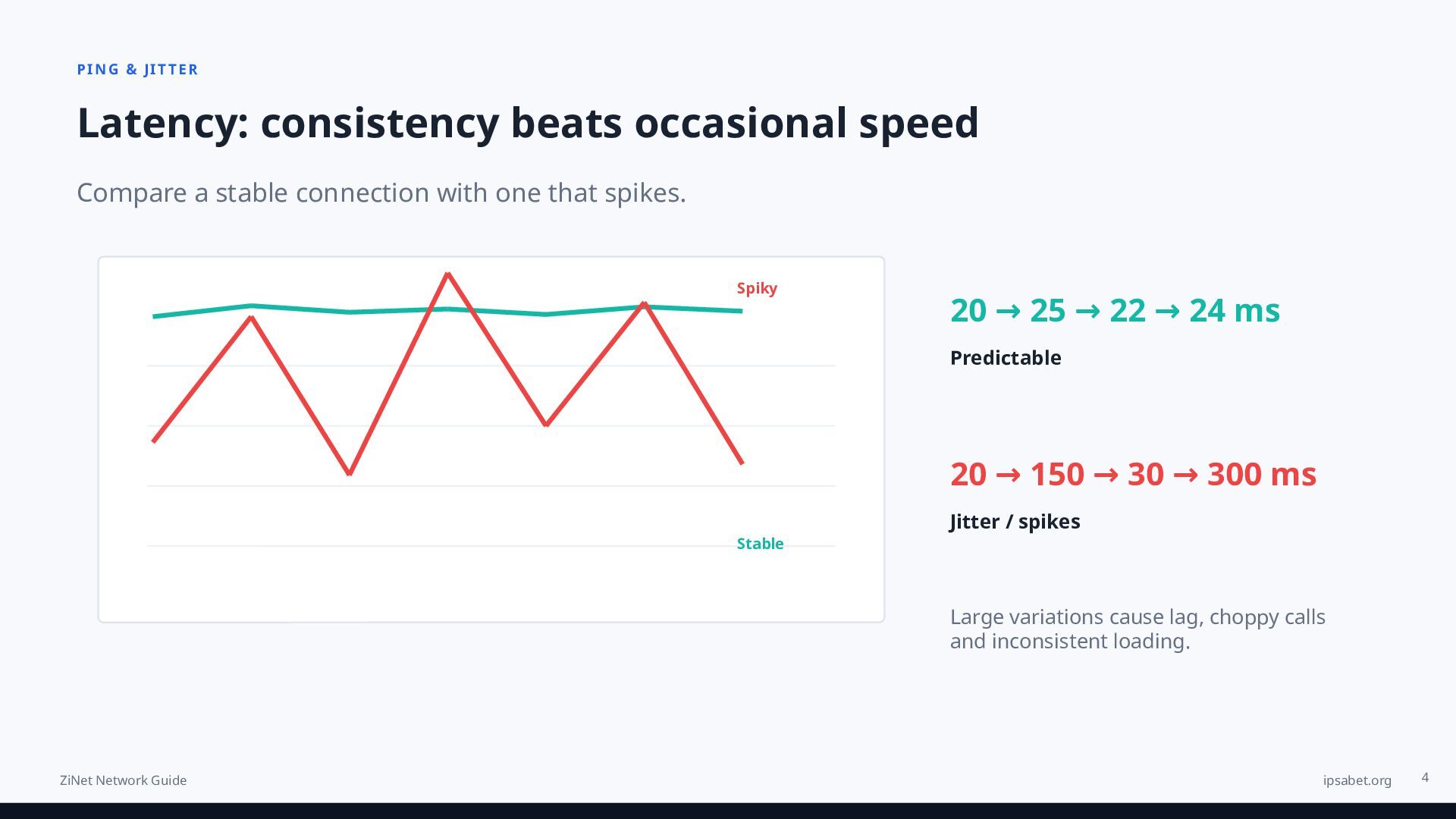
Latency is the delay between sending a request and receiving a response.
You can test it using:
ping 1.1.1.1ping 8.8.8.84. Look for Packet Loss
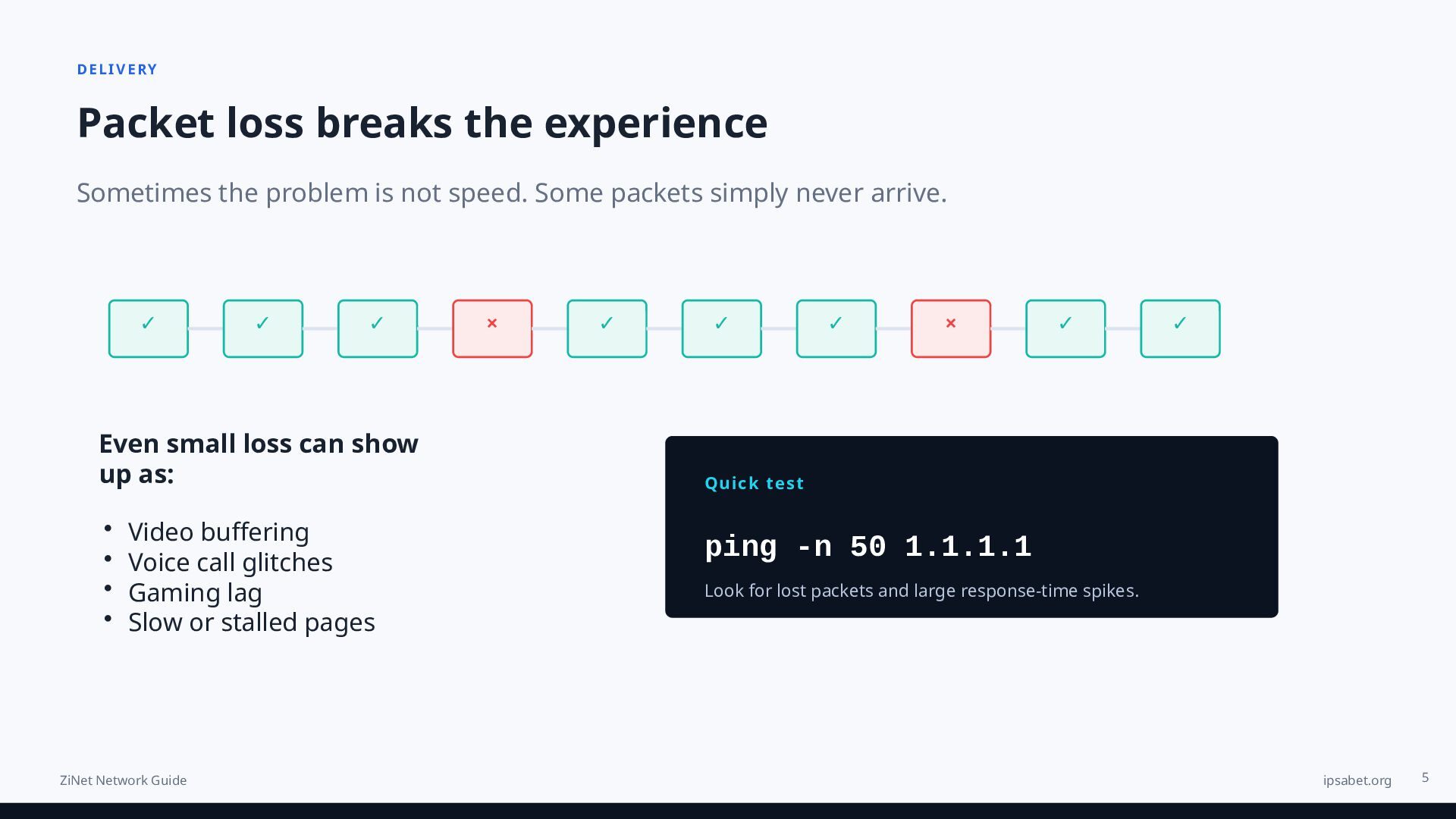
Packet loss occurs when some network packets never reach their destination.
Even a small amount of packet loss can cause:
Video buffering
Poor voice calls
Gaming lag
Slow website loading
Connection interruptions
Use a longer ping test:
ping -n 50 1.1.1.1ping -c 50 1.1.1.15. Compare Wi-Fi and Ethernet
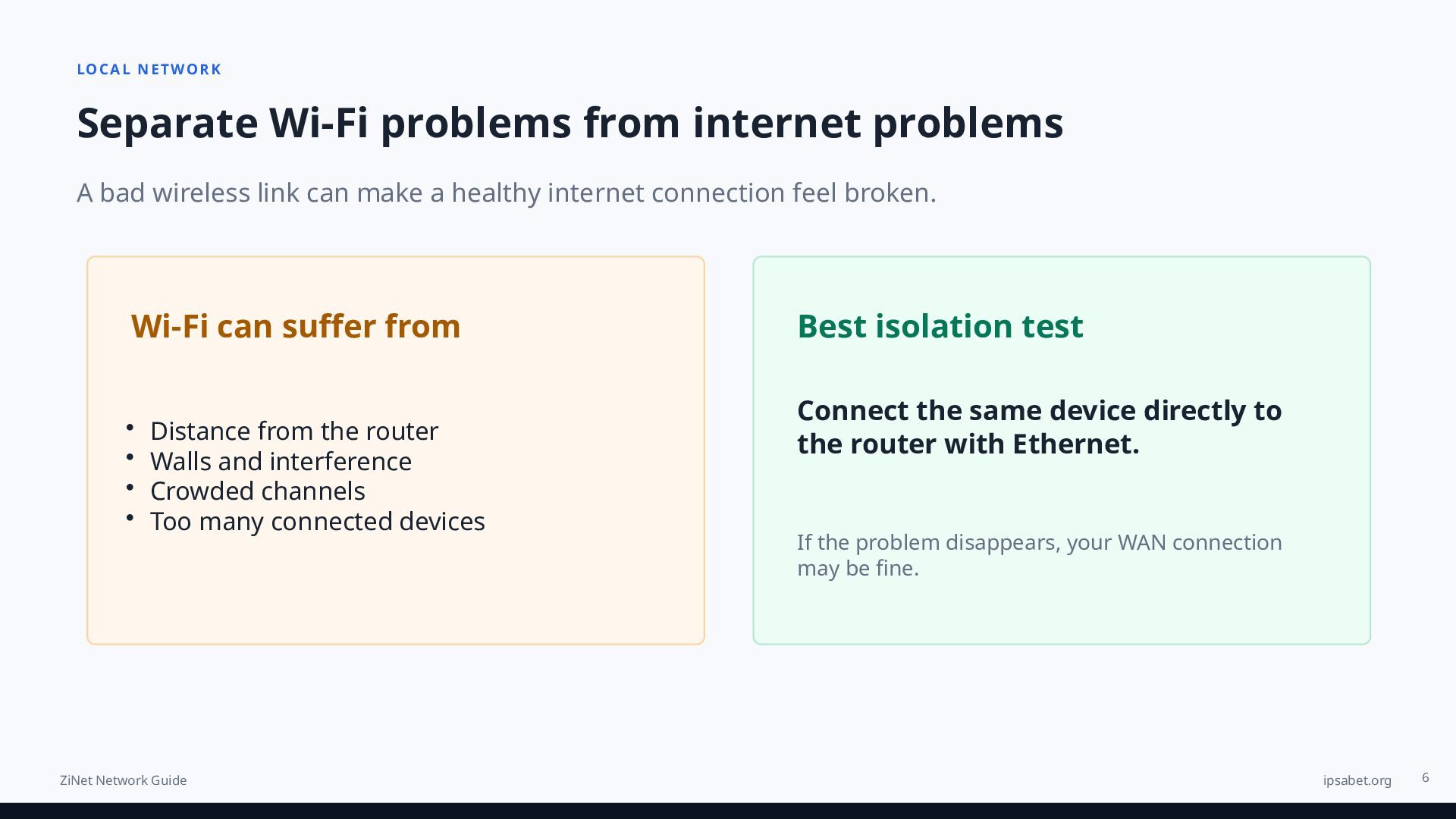
Wi-Fi introduces another layer of possible problems.
Common causes include:
Distance from the router
Thick walls
Interference
Crowded Wi-Fi channels
Weak router hardware
Too many connected devices
If possible, connect your computer directly to the router using Ethernet.
If the problem disappears, your internet connection may be fine and Wi-Fi may be the real bottleneck.
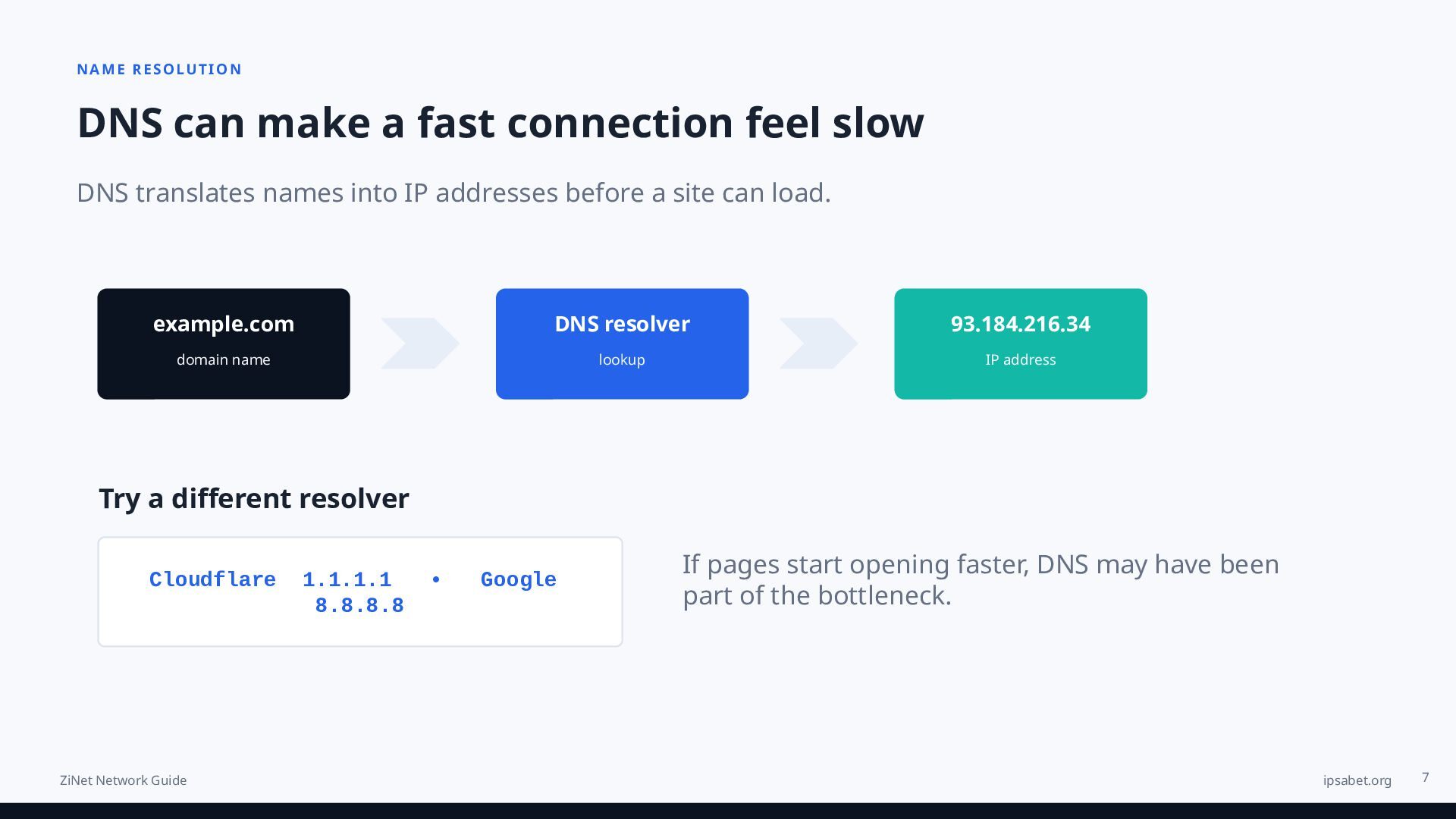
6. Test Your DNS
DNS converts domain names such as:
example.com1.1.1.1
1.0.0.18.8.8.8
8.8.4.47. Inspect the Network Route
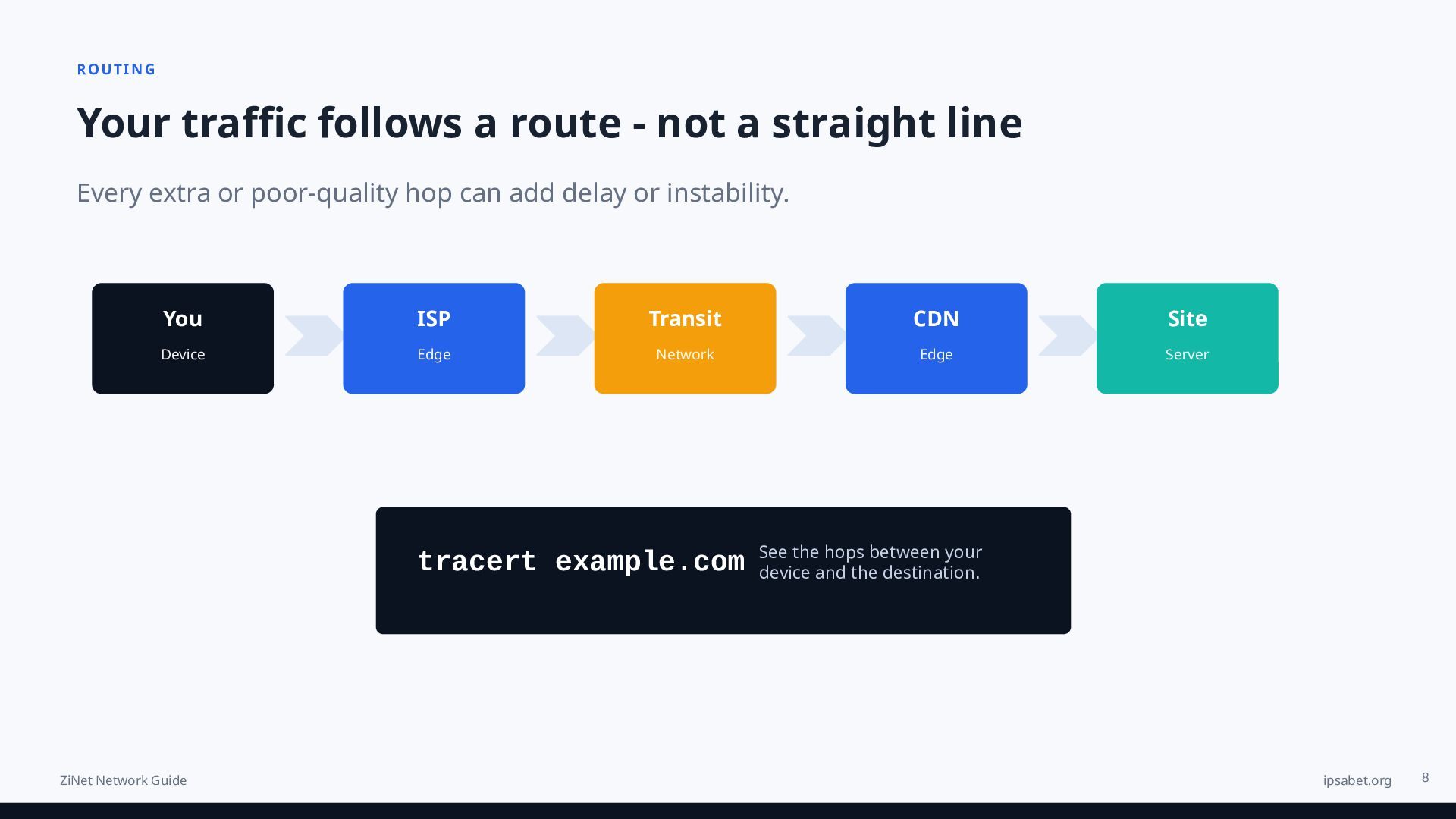
Your traffic does not travel directly from your computer to a website.
It passes through multiple networks and routers.
Use:
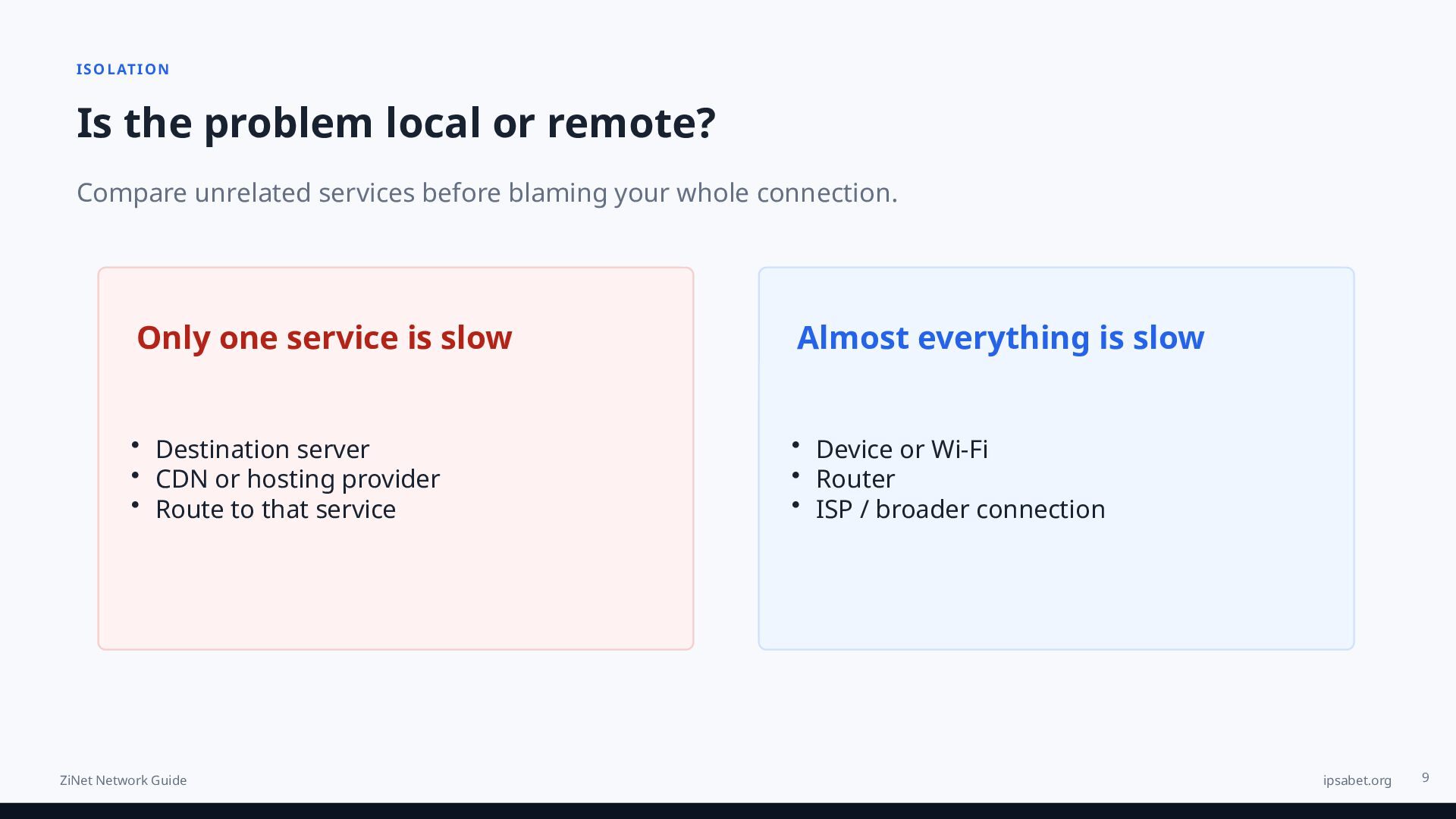
tracert example.comtraceroute example.com8. Check Whether the Problem Is Local or Remote
Try accessing multiple unrelated websites and services.
If only one service is slow, the issue may be related to:
The destination server
Its CDN
Its hosting provider
Its network route
If almost everything is slow, the problem is more likely to be closer to your device, router, ISP, or network connection.
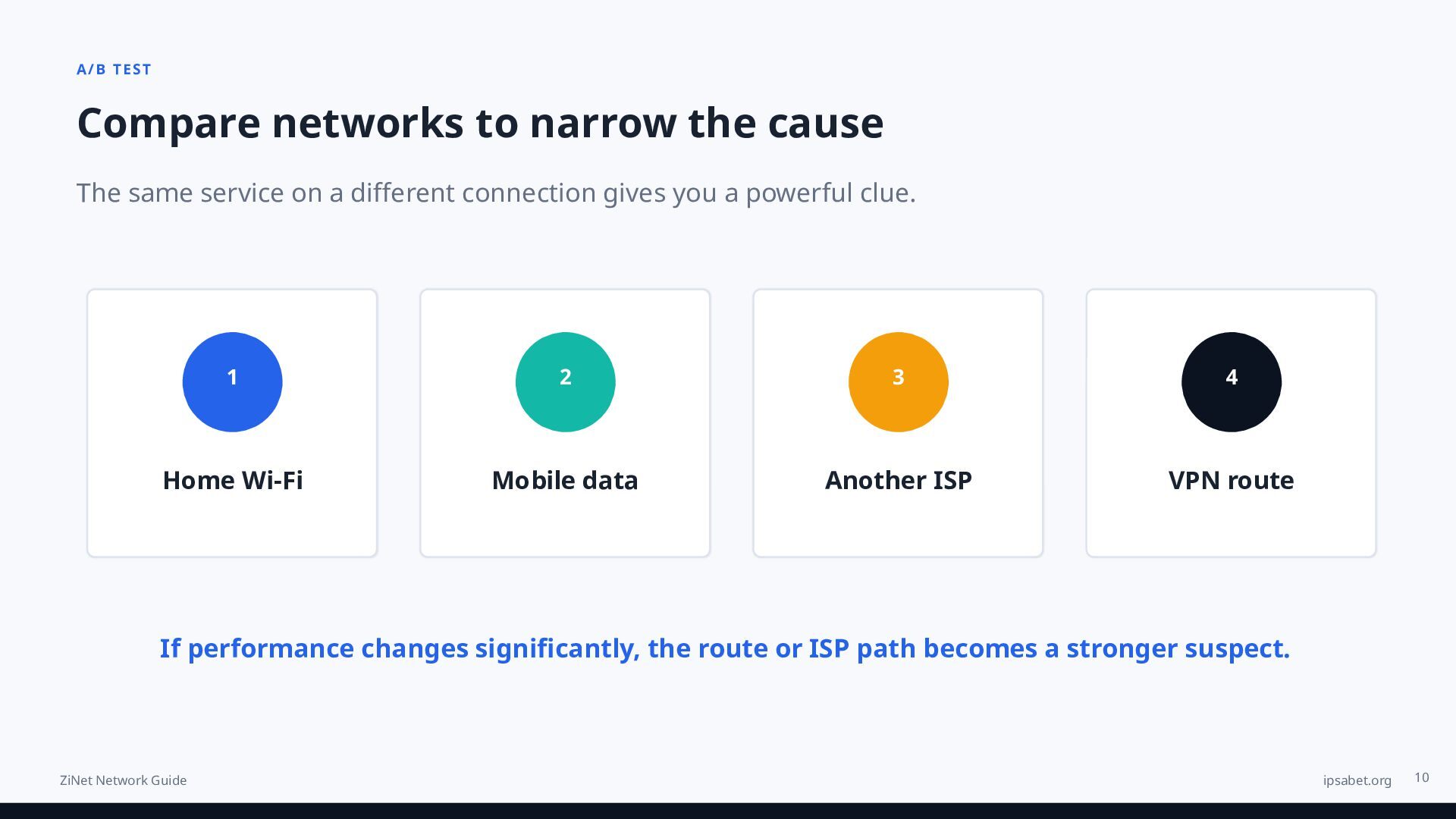
9. Test Different Networks
One of the easiest diagnostic techniques is comparing connections.
Try the same service using:
Your home internet
Mobile data
Another Wi-Fi network
A different ISP
If the service works normally on another connection, routing or ISP-related issues become more likely.
10. Can a VPN Improve the Connection?
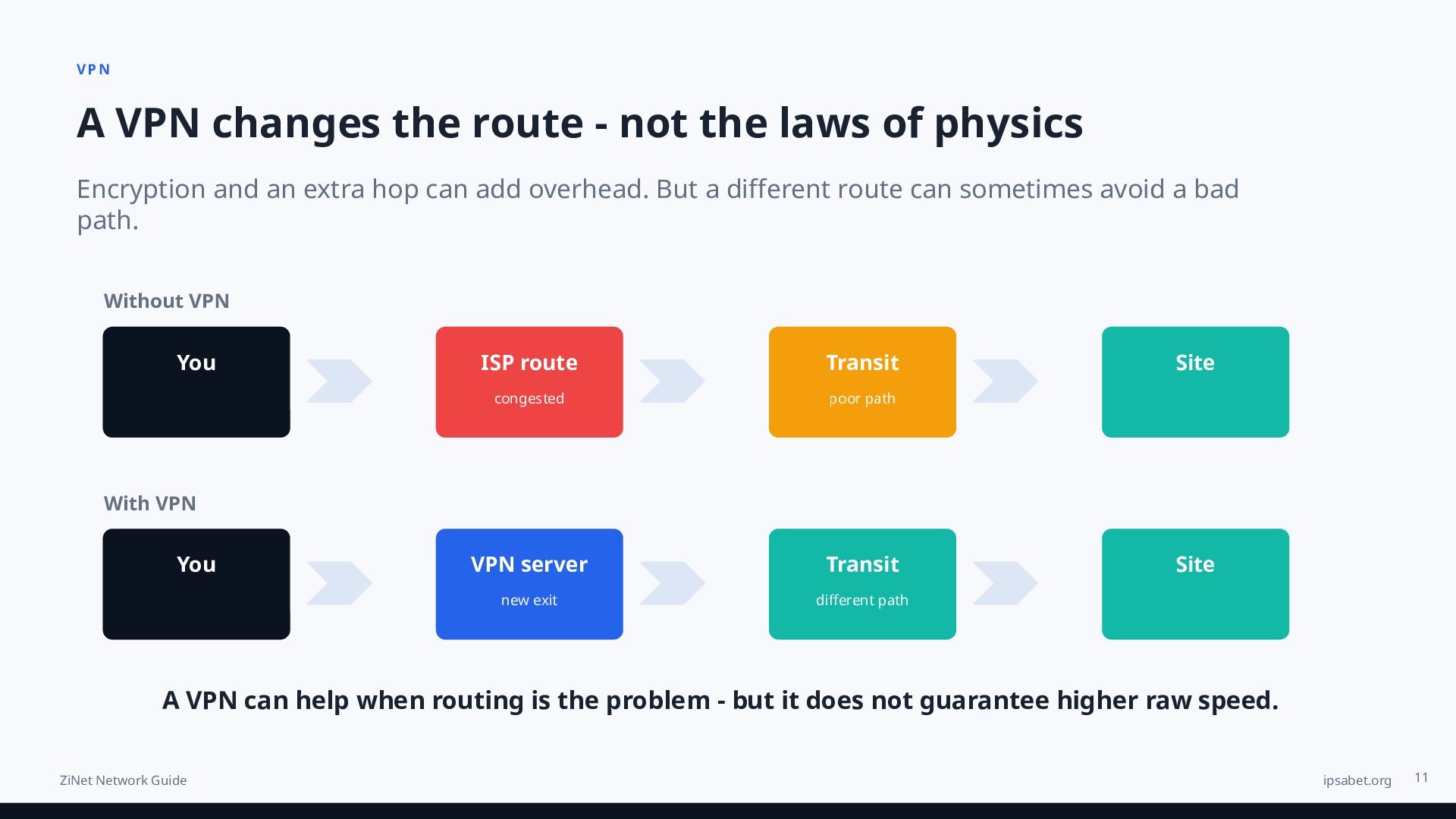
A VPN does not automatically make the internet faster.
In many situations, encryption and the additional network hop can slightly reduce raw connection speed.
However, a VPN changes the route between your device and the destination server.
Because of this, it may sometimes improve access when the original network route is:
Congested
Unstable
Poorly routed
Experiencing packet loss
Taking an unnecessarily long path
The key factor is not simply using a VPN.
It is using a stable server with a good network route.
11. VPN Server Location Matters
Server location can significantly affect VPN performance.
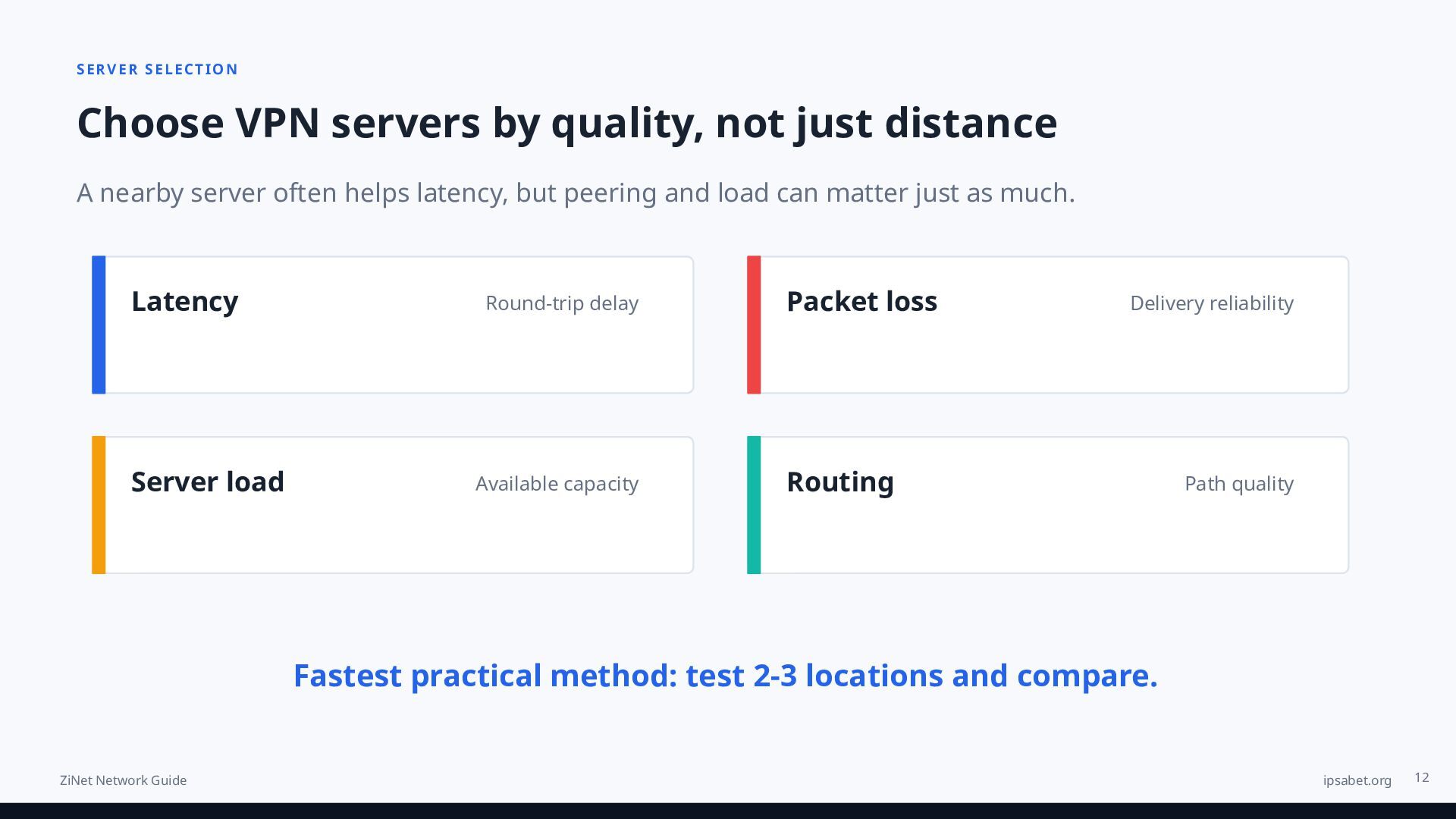
A nearby server generally provides lower latency, but geographical distance is not the only factor.
Network peering and routing quality also matter.
When choosing a VPN server, consider:
Latency
Packet loss
Server load
Routing quality
Physical distance
Testing multiple locations is often the fastest way to find the best route.
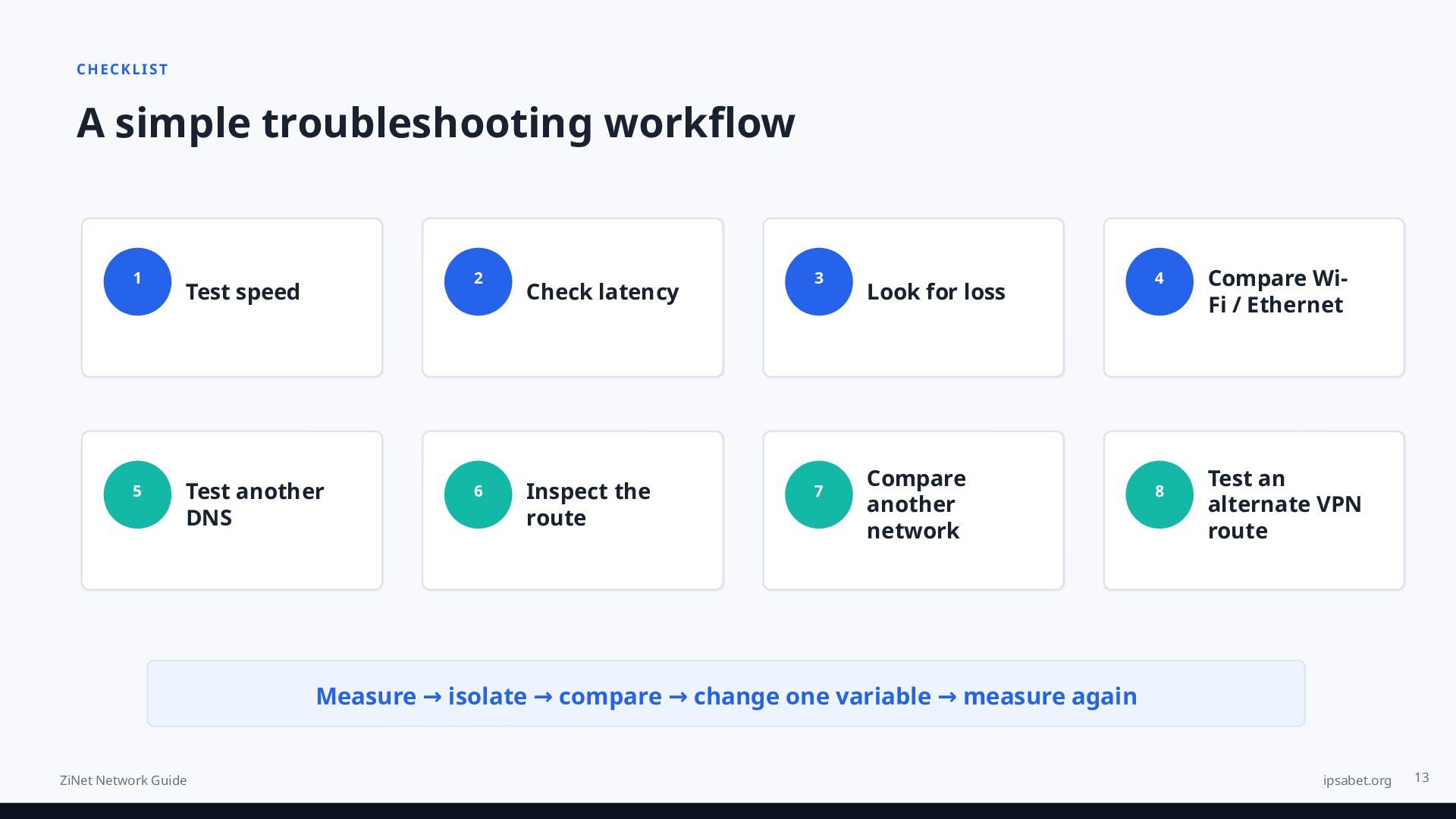
12. A Simple Troubleshooting Workflow
When your connection feels slow, follow this order:
Step 1: Test internet speed
Step 2: Check latency
Step 3: Look for packet loss
Step 4: Compare Wi-Fi with Ethernet
Step 5: Test another DNS resolver
Step 6: Check the network route
Step 7: Compare another internet connection
Step 8: Test alternative routes or VPN servers
Changing one variable at a time makes troubleshooting much easier.
13. The Most Important Lesson
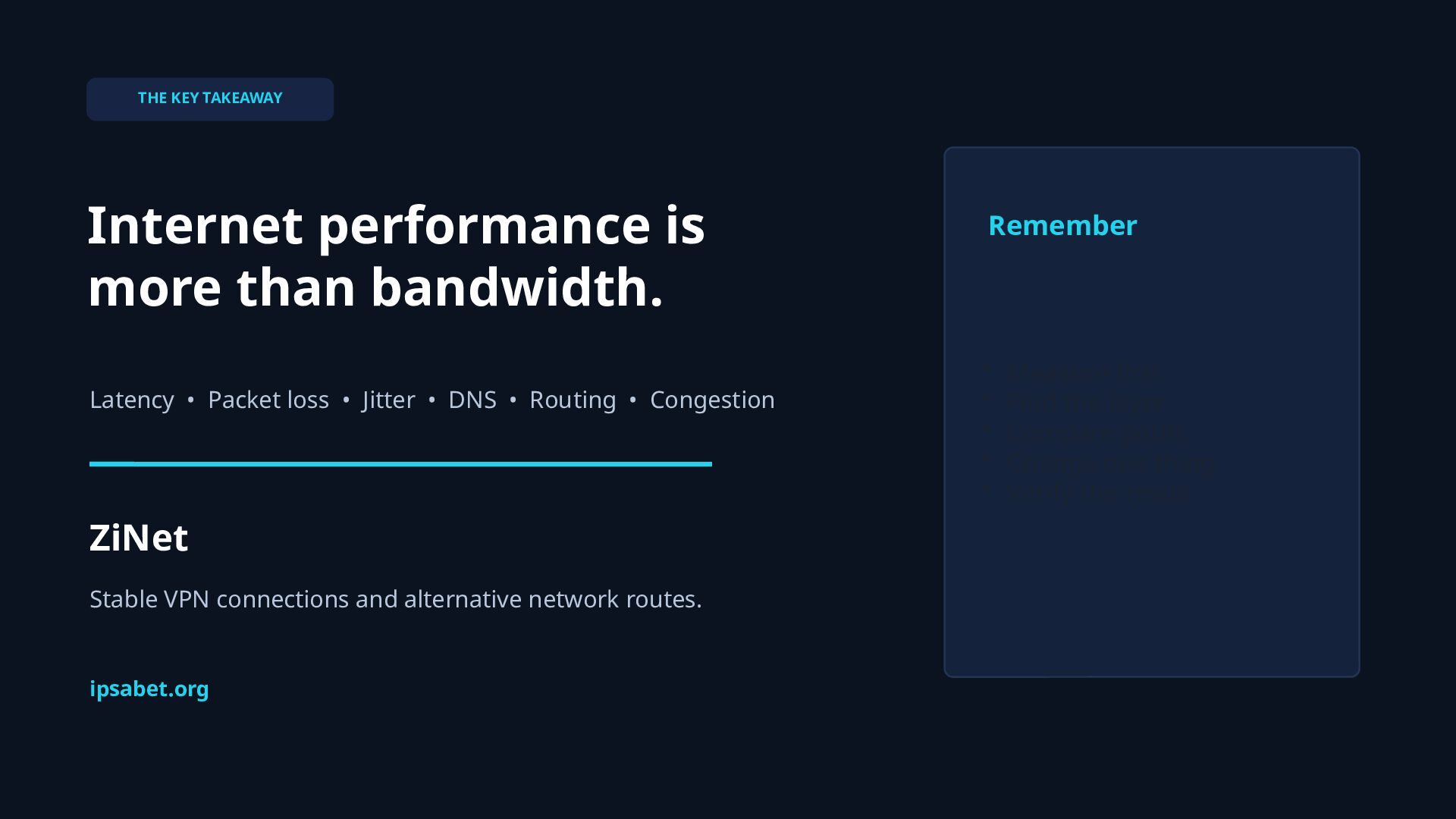
Internet performance is more than bandwidth.
A connection can have excellent download speed while still providing a poor experience because of:
High latency
Packet loss
Jitter
DNS problems
Congestion
Poor routing
Good network troubleshooting is about identifying the bottleneck instead of randomly changing settings.
About ZiNet
ZiNet provides VPN and network connectivity services with a focus on stable connections and reliable server routes.
Users can select different connection options based on their device, location, and networking requirements.
Learn more:
https://ipsabet.org/


 bermonpainter
 stephenakadiri
 tenderlove
 iamctodd
 tammielis
 konakalab
 mfonobong
 yeseniaperezcruz
 michaelherold
 bethany
 schroneko
 palkan