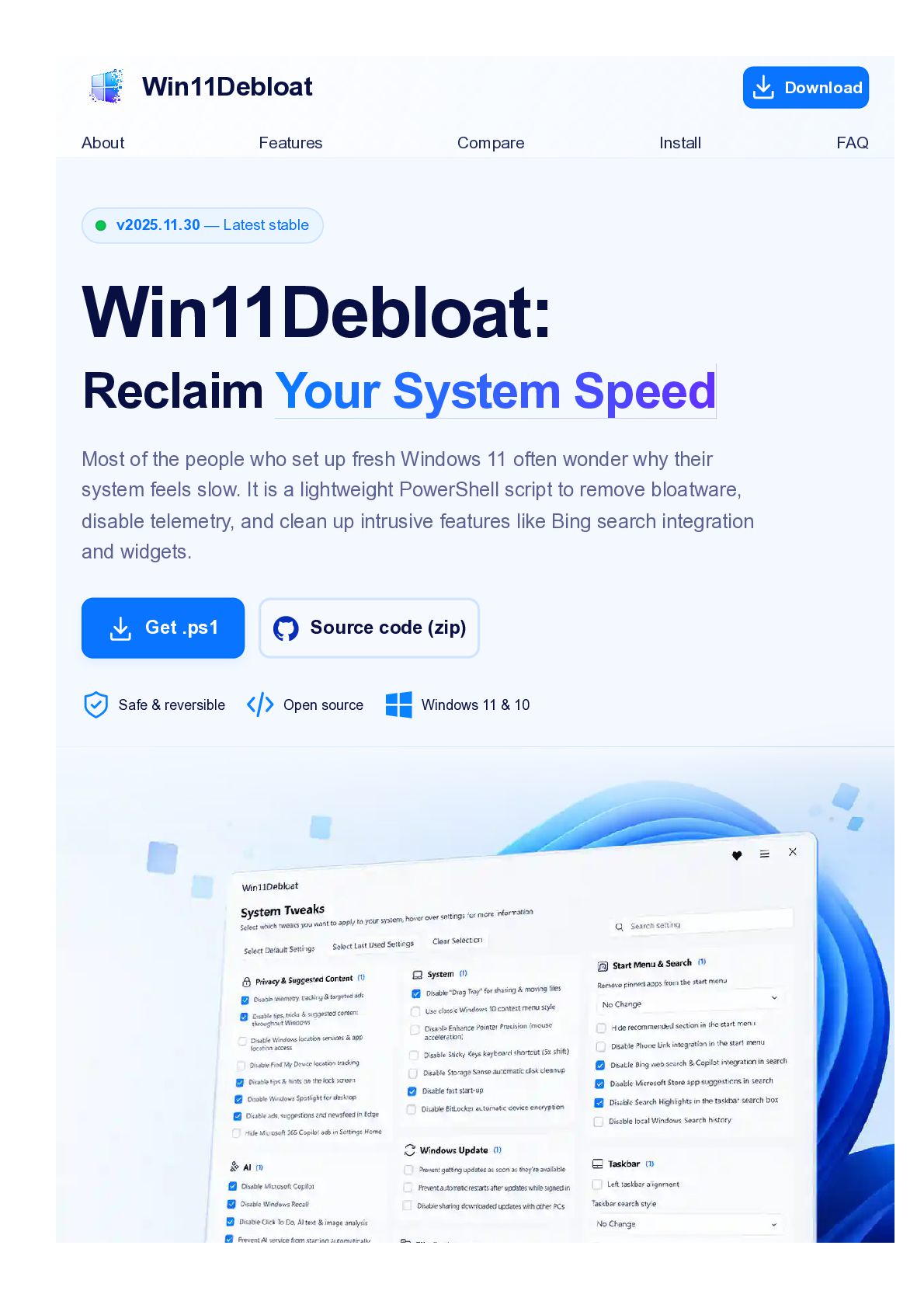
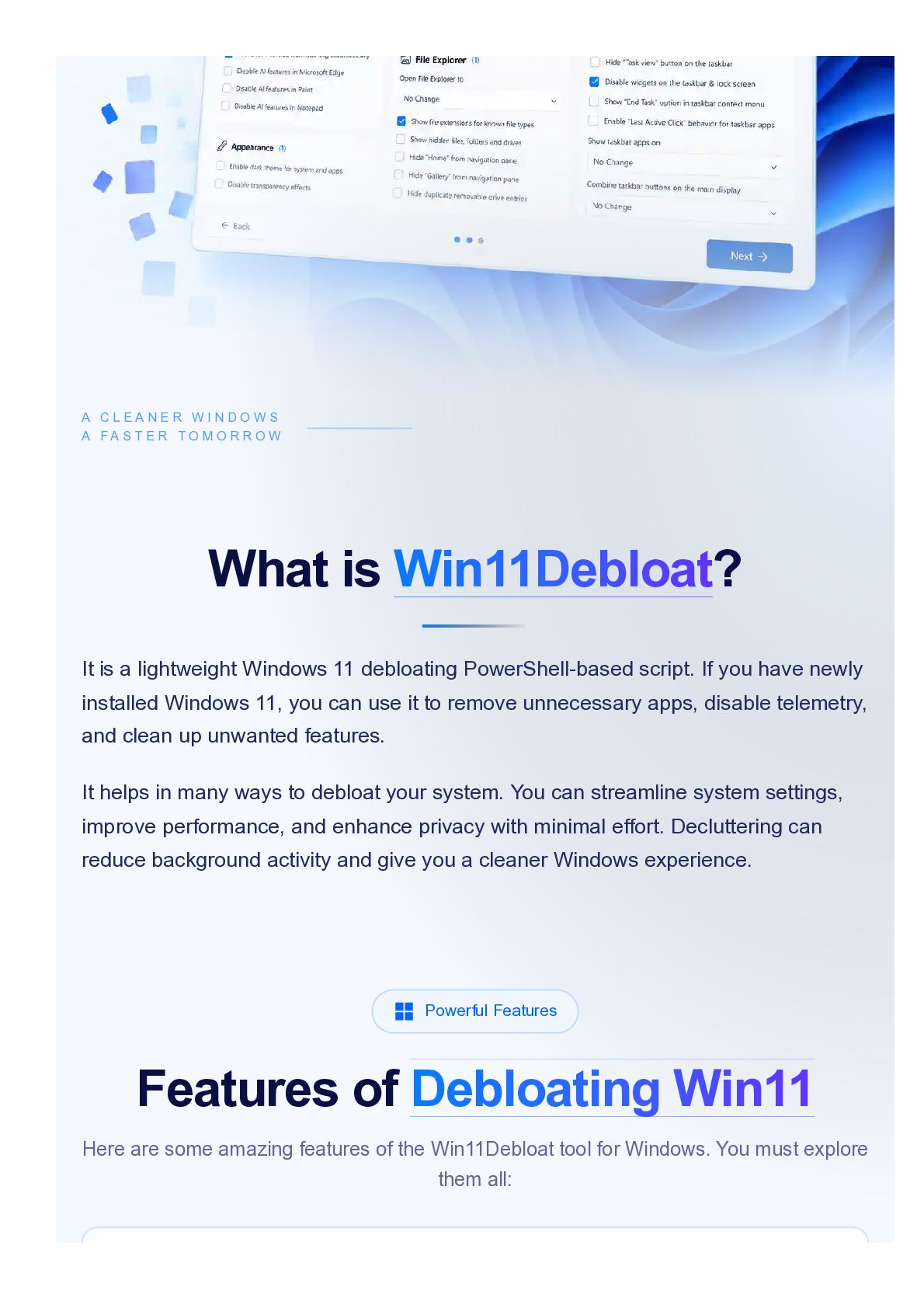
Win11Debloat: Reclaim Your System Speed Most of the people who set up fresh Windows 11 often wonder why their system feels slow. It is a lightweight PowerShell script to remove bloatware, disable telemetry, and clean up intrusive features like Bing search integration and widgets. Get .ps1 Safe & reversible Source code (zip) Open source Windows 11 & 10 FAQ
is a lightweight Windows 11 debloating PowerShell-based script. If you have newly installed Windows 11, you can use it to remove unnecessary apps, disable telemetry, and clean up unwanted features. It helps in many ways to debloat your system. You can streamline system settings, improve performance, and enhance privacy with minimal effort. Decluttering can reduce background activity and give you a cleaner Windows experience. Powerful Features Features of Debloating Win11 Here are some amazing features of the Win11Debloat tool for Windows. You must explore them all:
unused Microsoft Store apps. It uses a reliable Windows app removal script to remove these unwanted apps, helping to free up storage and reduce system clutter. Privacy & Telemetry Once you download, you can enjoy better privacy and fewer background data processes. This is possible because it disables Windows telemetry, diagnostic data collection, and targeted ads. UI & Experience Tweaks The tool also cleans up the Windows interface by disabling widgets, hiding the Chat icon, and removing the 3D Objects folder. In short, it simplifies the Windows context menu. Optimized Search It helps to make local searches faster and more relevant. Basically, it removes the Bing search, Bing AI, and Cortana integration from the Windows search to show you better results. Performance Optimization Improve the performance of the system. Most importantly, when you remove
time and battery life. Advanced Customization Supports various advanced customization features. These include interactive debloating, silent debloat mode, and custom PowerShell scripts. Access full control options for both beginners and experts. Search a better Windows... What’s new in v2025.11.30? NoRestartExplorer New NoRestartExplorer switch prevents Explorer restart. Fewer companion apps Easily remove Microsoft 365 Business companion apps. A cleaner Start menu Option to disable the “Start recommended” section on build 26200+. More removal options Includes OneDrive & Edge removal features.
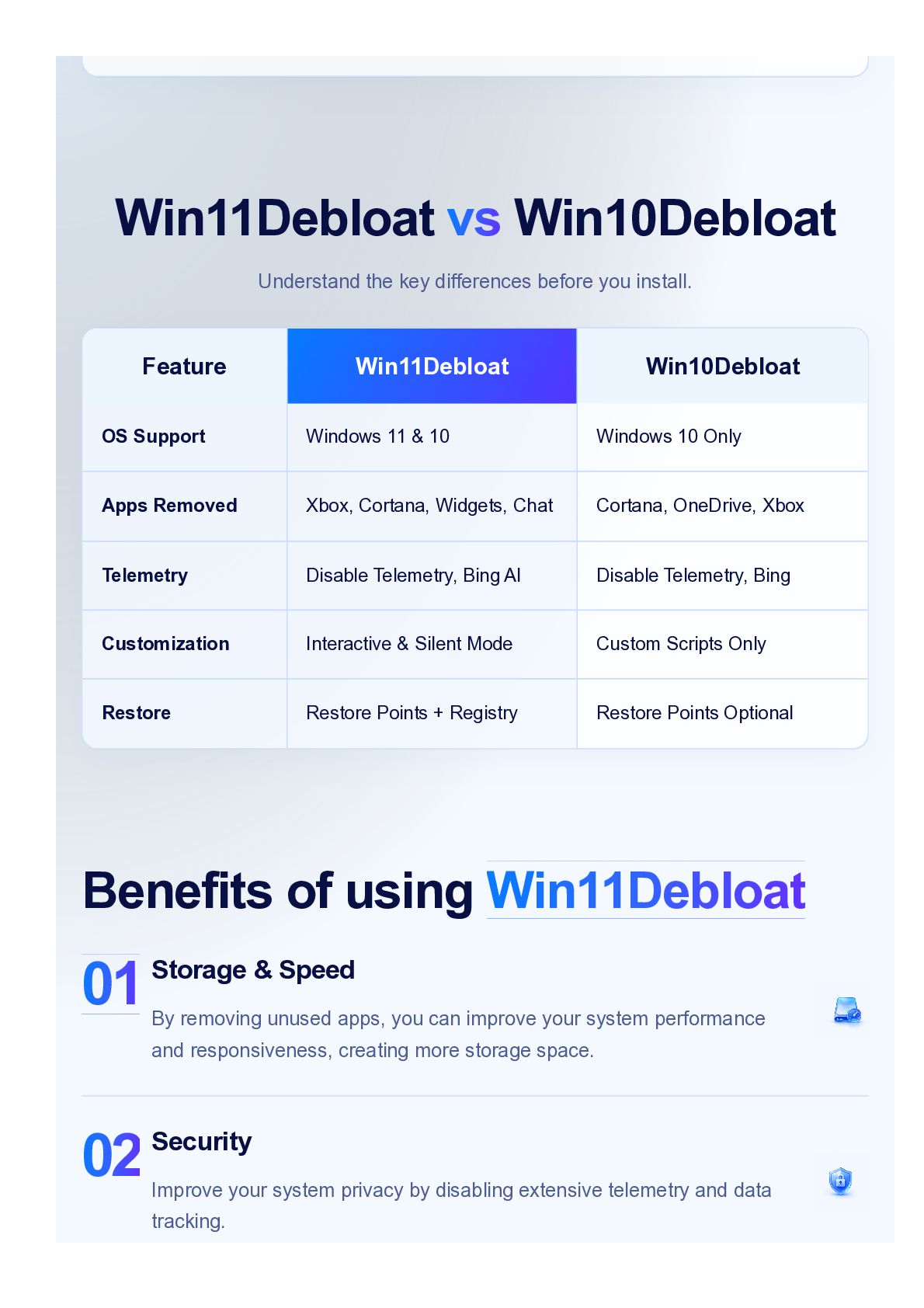
Feature Win11Debloat Win10Debloat OS Support Windows 11 & 10 Windows 10 Only Apps Removed Xbox, Cortana, Widgets, Chat Cortana, OneDrive, Xbox Telemetry Disable Telemetry, Bing AI Disable Telemetry, Bing Customization Interactive & Silent Mode Custom Scripts Only Restore Restore Points + Registry Restore Points Optional Benefits of using Win11Debloat 01 Storage & Speed By removing unused apps, you can improve your system performance and responsiveness, creating more storage space. 02 Security Improve your system privacy by disabling extensive telemetry and data tracking.
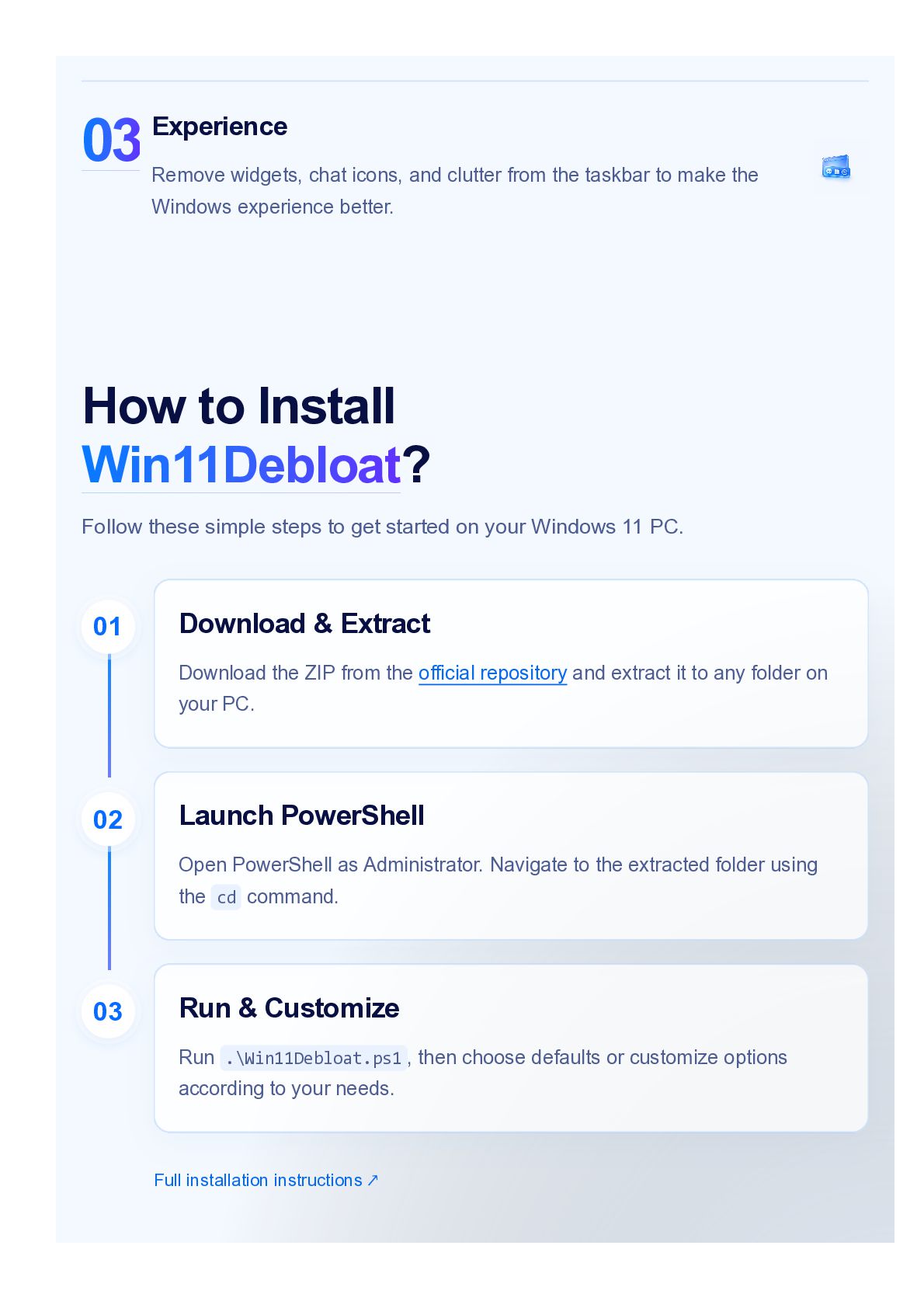
taskbar to make the Windows experience better. How to Install Win11Debloat? Follow these simple steps to get started on your Windows 11 PC. 01 Download & Extract Download the ZIP from the official repository and extract it to any folder on your PC. 02 Launch PowerShell Open PowerShell as Administrator. Navigate to the extracted folder using the cd command. 03 Run & Customize Run .\Win11Debloat.ps1 , then choose defaults or customize options according to your needs. Full installation instructions ↗
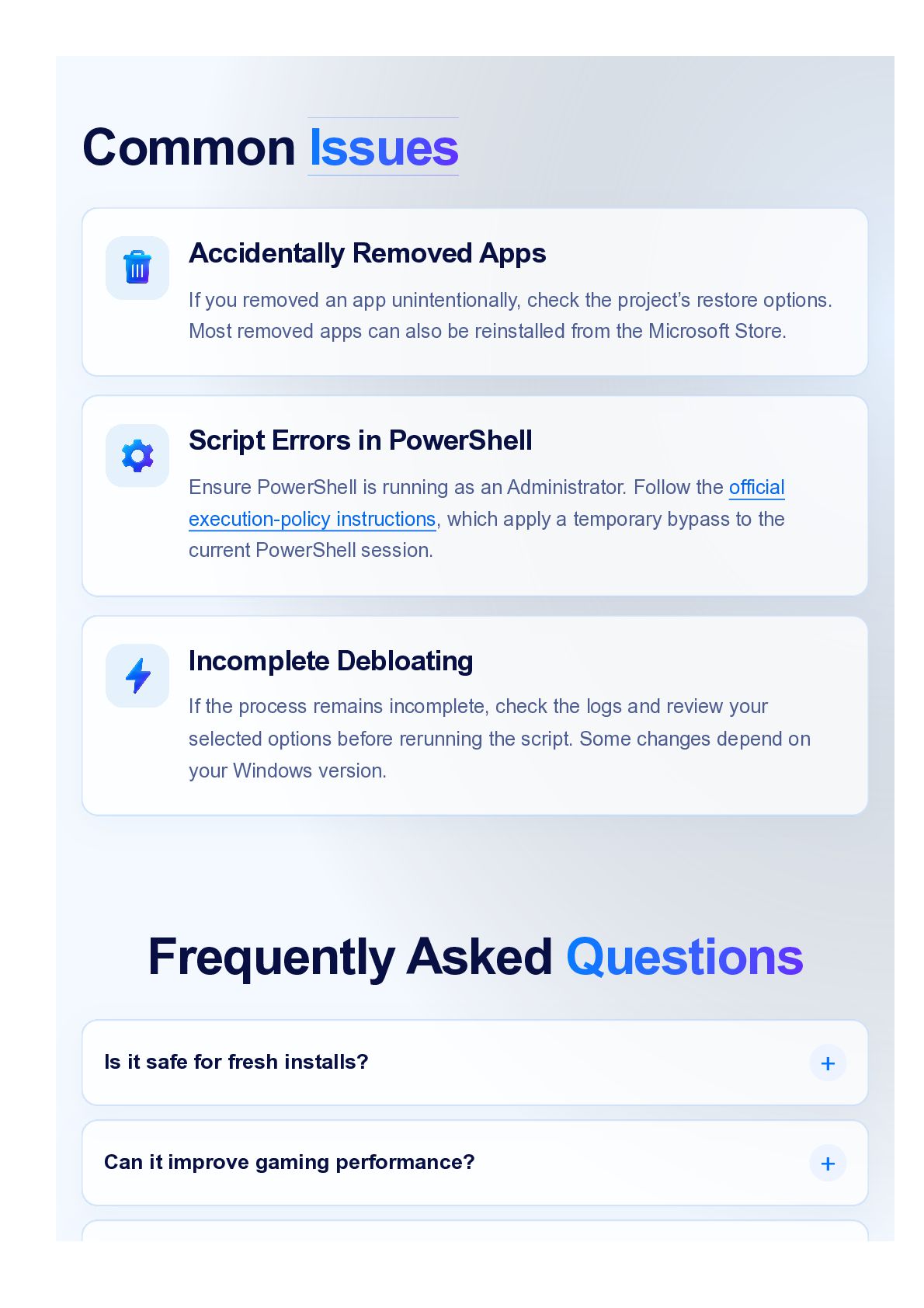
unintentionally, check the project’s restore options. Most removed apps can also be reinstalled from the Microsoft Store. Script Errors in PowerShell Ensure PowerShell is running as an Administrator. Follow the official execution-policy instructions, which apply a temporary bypass to the current PowerShell session. Incomplete Debloating If the process remains incomplete, check the logs and review your selected options before rerunning the script. Some changes depend on your Windows version. Frequently Asked Questions Is it safe for fresh installs? + Can it improve gaming performance? +
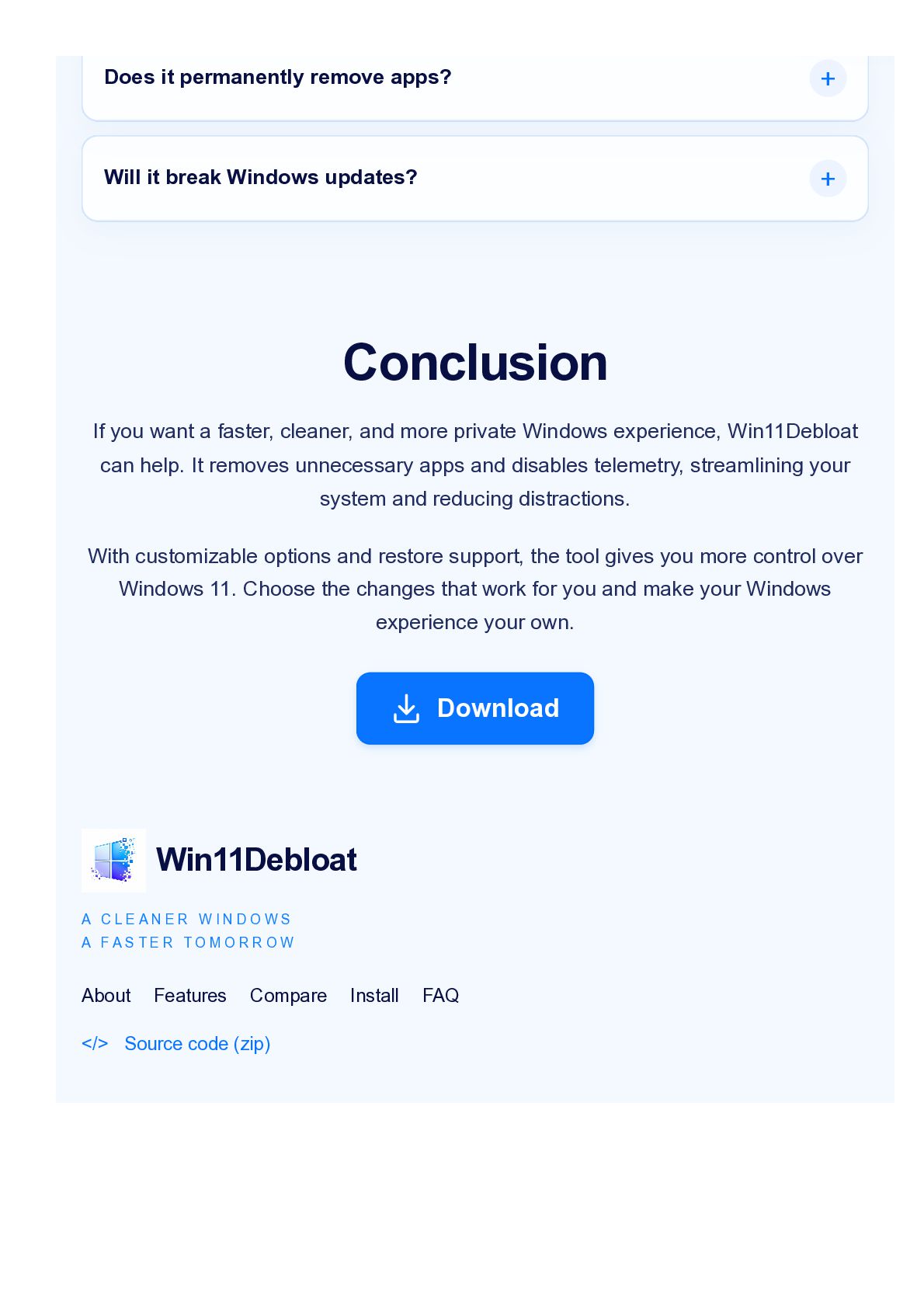
updates? + Conclusion If you want a faster, cleaner, and more private Windows experience, Win11Debloat can help. It removes unnecessary apps and disables telemetry, streamlining your system and reducing distractions. With customizable options and restore support, the tool gives you more control over Windows 11. Choose the changes that work for you and make your Windows experience your own. Download Win11Debloat A CLEANER WINDOWS A FASTER TOMORROW About Features Compare </> Source code (zip) Install FAQ


 jonoalderson
 reverentgeek
 axbom
axbom
 techseoconnect
 ianozsvald
 inesmontani
 codingconduct
 keithpitt
 bermonpainter
 greggifford
 marktimemedia
 mkilby