Upgrade to Pro
— share decks privately, control downloads, hide ads and more …
Speaker Deck
Sign up for free
Menu
Search
Features
All features
Private URLs
Password Protection
Custom URLS
Scheduled publishing
Remove Branding
Restrict embedding
Deck Collections
Notes
Features
All features
Private URLs
Password Protection
Custom URLS
Scheduled publishing
Remove Branding
Restrict embedding
Deck Collections
Notes
Explore
Featured decks
Featured speakers
Programming
Technology
Storyboards
Explore
Featured decks
Featured speakers
Programming
Technology
Storyboards
Pricing
Search
Sign in
Sign up for free
Open Street Map マニュアル
Search
Risa Enomoto
June 17, 2016
180
0
Share
Embed
Copy iframe code
Copy JS code
Copy link
Start on current slide
Open Street Map マニュアル
Risa Enomoto
June 17, 2016
More Decks by Risa Enomoto
See All by Risa Enomoto
how to map a OpenStreetMap Wiki
r7472
0
56
Featured
See All Featured
Test your architecture with Archunit
thirion
2
2.4k
実際に使うSQLの書き方 徹底解説 / pgcon21j-tutorial
soudai
PRO
203
77k
Public Speaking Without Barfing On Your Shoes - THAT 2023
reverentgeek
1
600
Bootstrapping a Software Product
garrettdimon
PRO
306
120k
Collaborative Software Design: How to facilitate domain modelling decisions
baasie
1
340
The State of eCommerce SEO: How to Win in Today's Products SERPs - #SEOweek
aleyda
2
12k
Design and Strategy: How to Deal with People Who Don’t "Get" Design
morganepeng
133
20k
The Limits of Empathy - UXLibs8
cassininazir
2
720
Helping Users Find Their Own Way: Creating Modern Search Experiences
danielanewman
31
3.4k
Distributed Sagas: A Protocol for Coordinating Microservices
caitiem20
333
23k
The Anti-SEO Checklist Checklist. Pubcon Cyber Week
ryanjones
0
270
Building Flexible Design Systems
yeseniaperezcruz
330
41k
Transcript
Open Street Mapマニュアル 1A116039 榎本 理紗
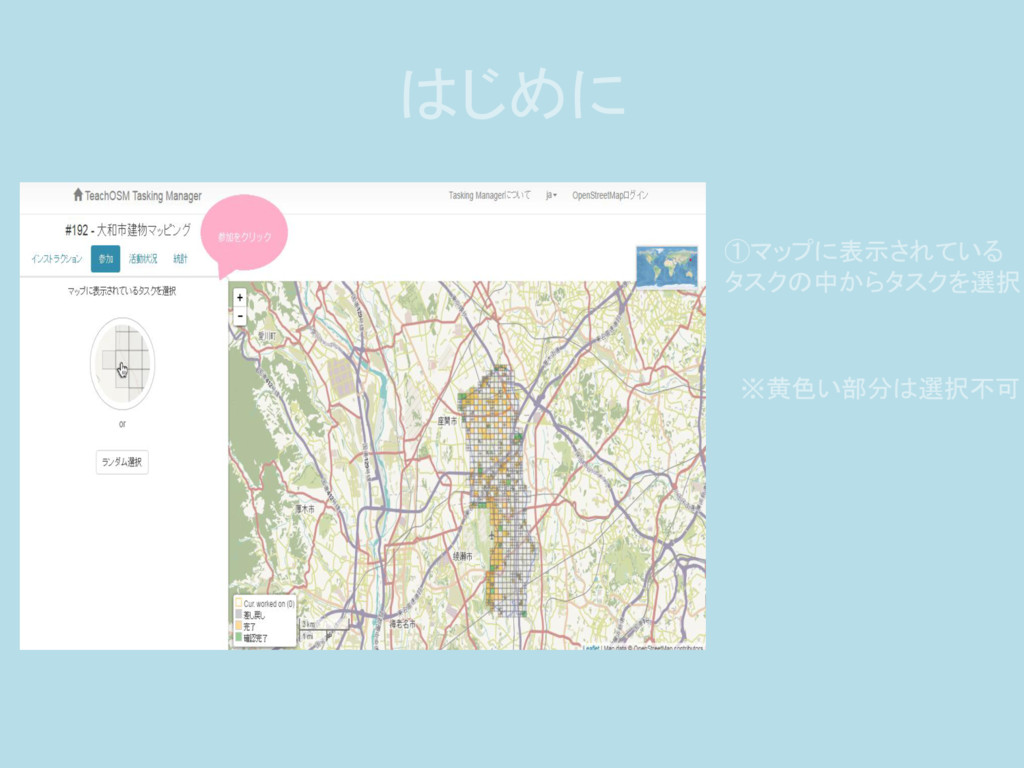
はじめに ①マップに表示されている タスクの中からタスクを選択 ※黄色い部分は選択不可
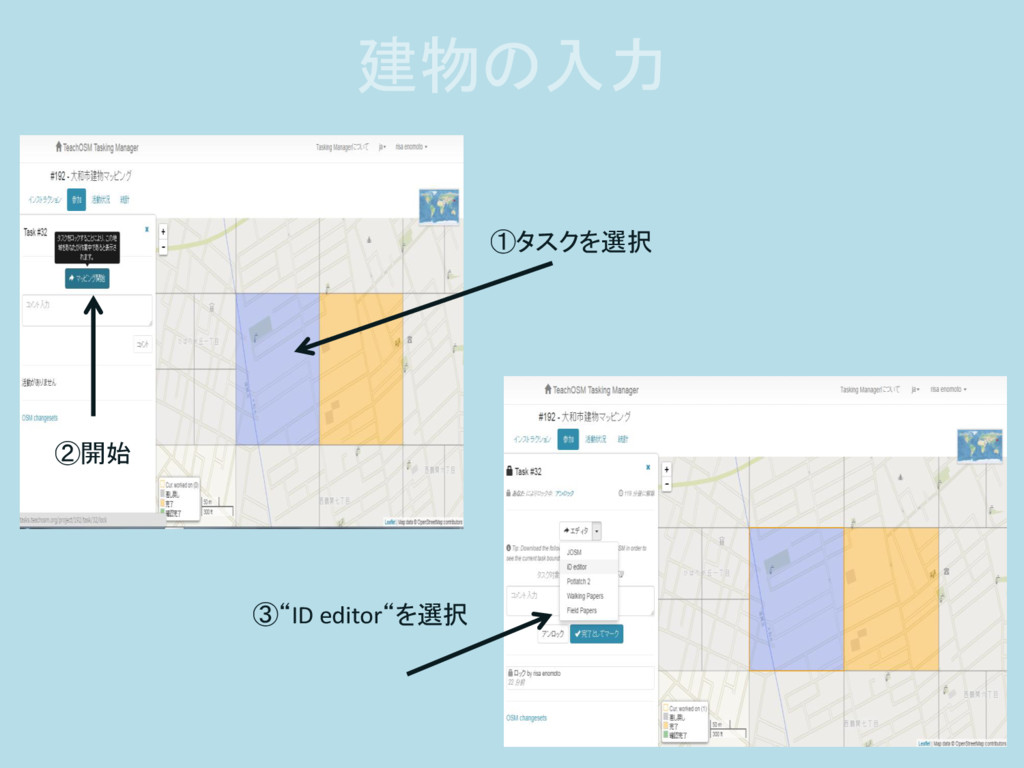
建物の入力 ②開始 ①タスクを選択 ③“ID editor“を選択
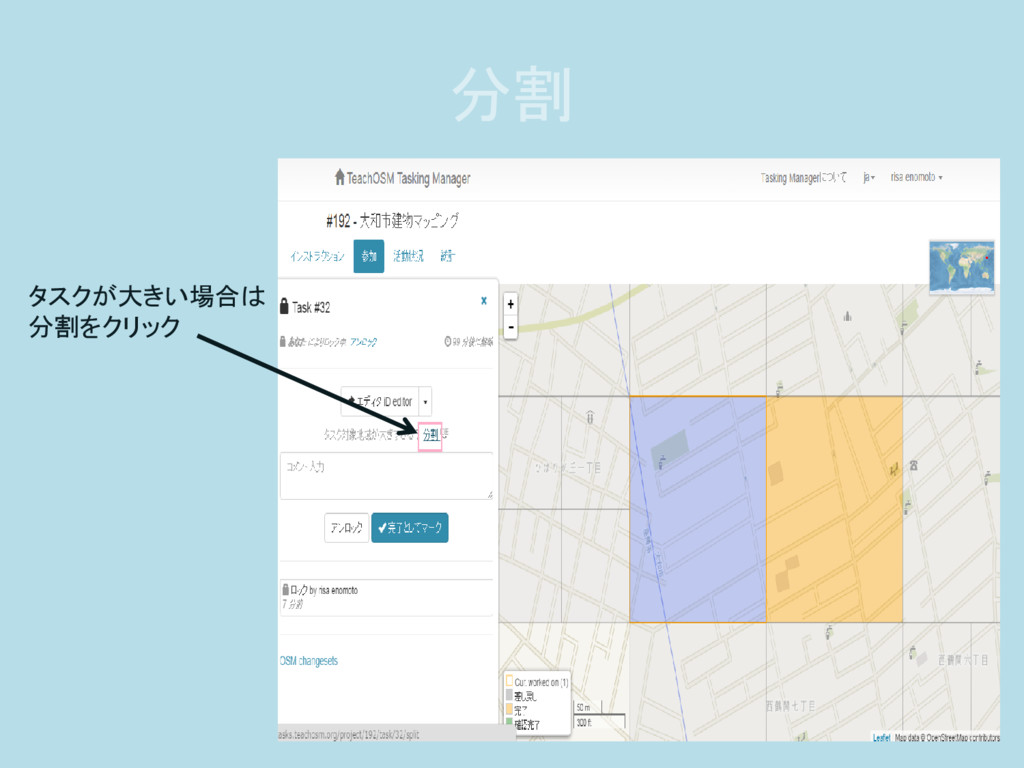
分割 タスクが大きい場合は 分割をクリック
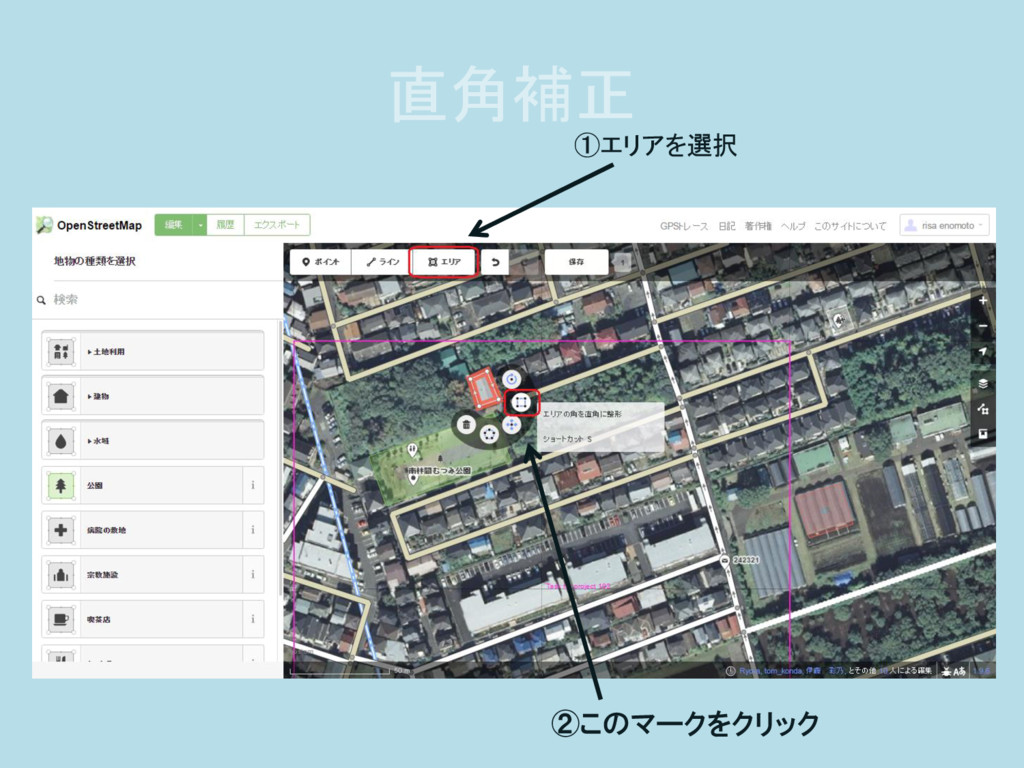
直角補正 ①エリアを選択 ②このマークをクリック
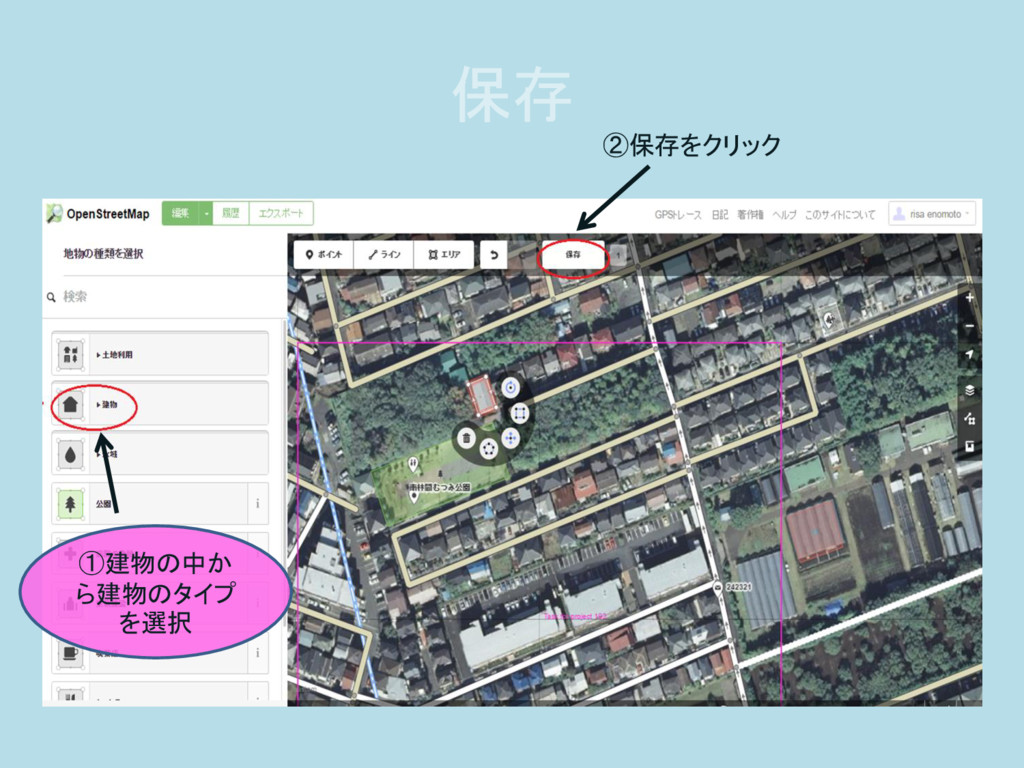
保存 ①建物の中から 建物のタイプを選ぶ ①建物の中か ら建物のタイプ を選択 ②保存をクリック
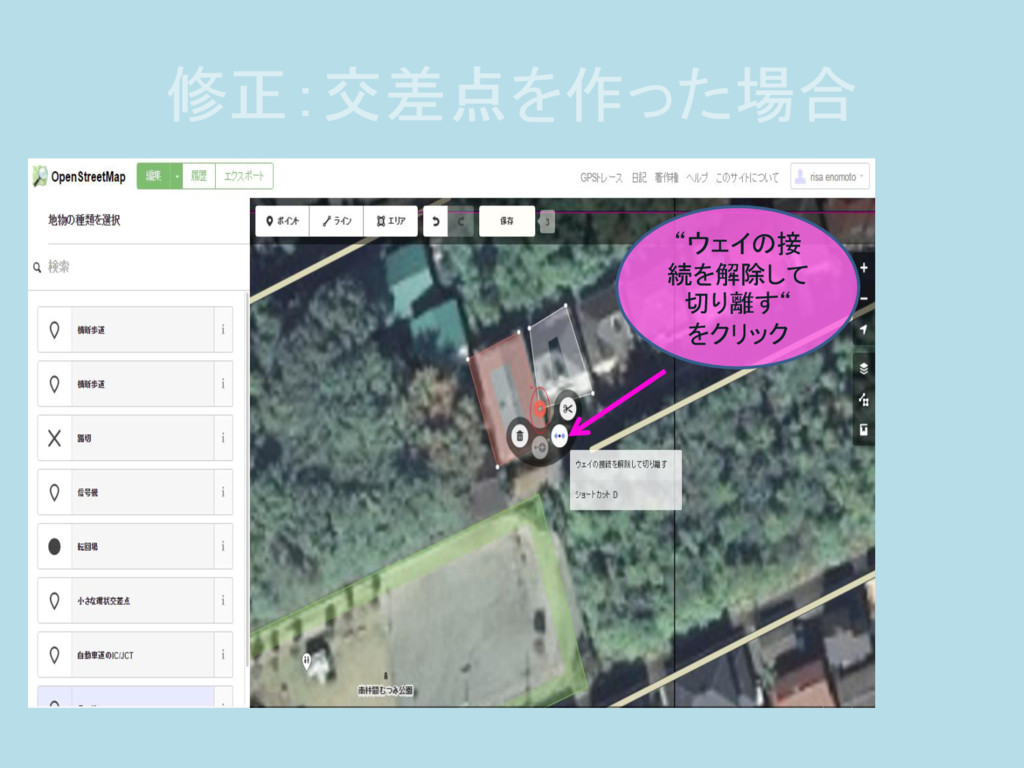
修正:交差点を作った場合 “ウェイの接 続を解除して 切り離す“ をクリック
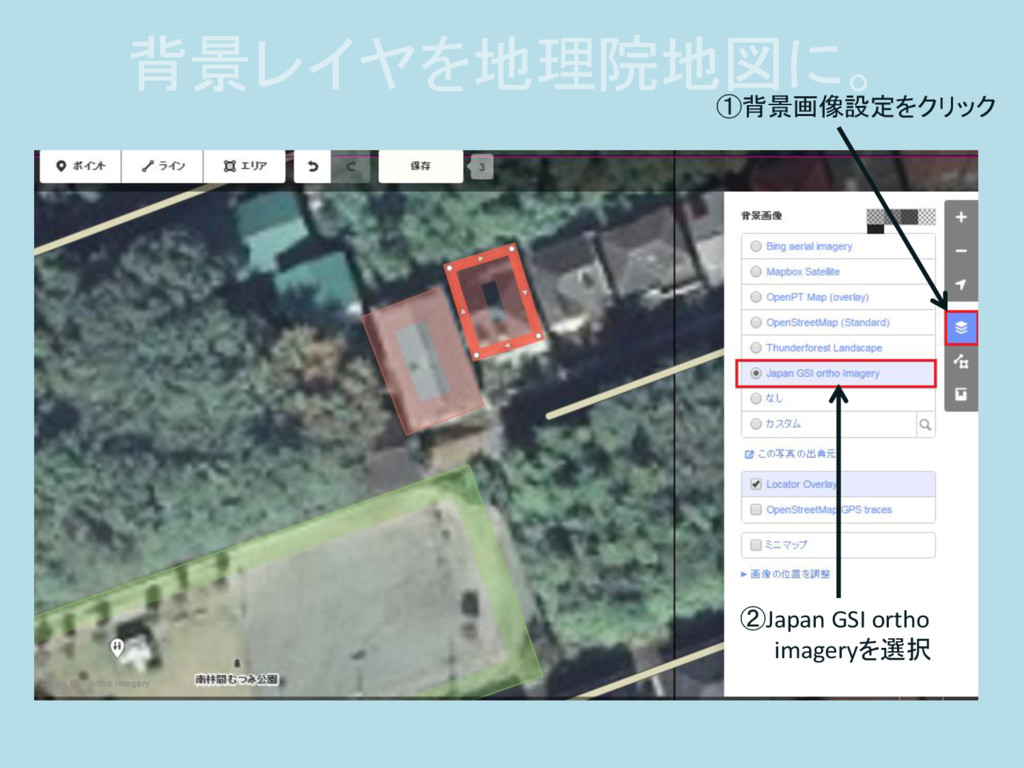
背景レイヤを地理院地図に。 ①背景画像設定をクリック ②Japan GSI ortho imageryを選択
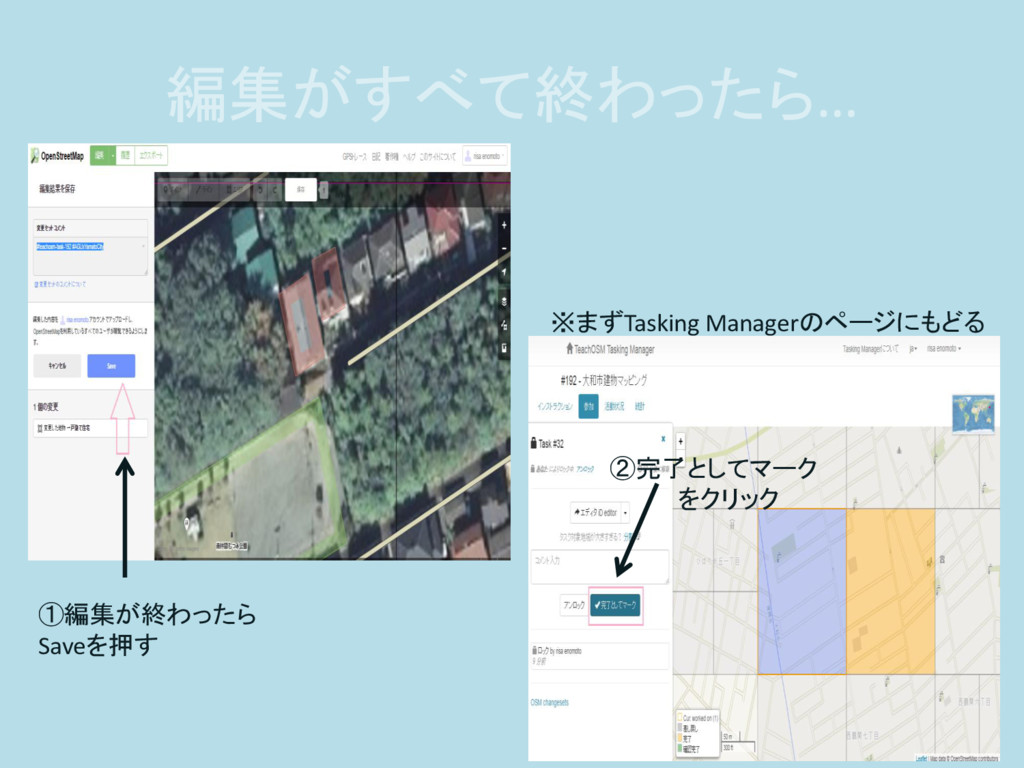
編集がすべて終わったら… ②完了としてマーク をクリック ①編集が終わったら Saveを押す ※まずTasking Managerのページにもどる


 r7472
r7472
 thirion
 soudai
 reverentgeek
 garrettdimon
 baasie
 aleyda
 morganepeng
 cassininazir
 danielanewman
 caitiem20
 ryanjones
 yeseniaperezcruz