Upgrade to Pro — share decks privately, control downloads, hide ads and more …

How It Works

Sponsored · Your Podcast. Everywhere. Effortlessly. Share. Educate. Inspire. Entertain. You do you. We'll handle the rest. →
Avatar for United Way of Mumbai United Way of Mumbai
December 10, 2014
2.6k

How It Works

Follow these simple steps to create your own online fundraising page for Standard Chartered Mumbai Marathon 2016. Start supporting a cause of your choice today!

Avatar for United Way of Mumbai

United Way of Mumbai

December 10, 2014

Transcript

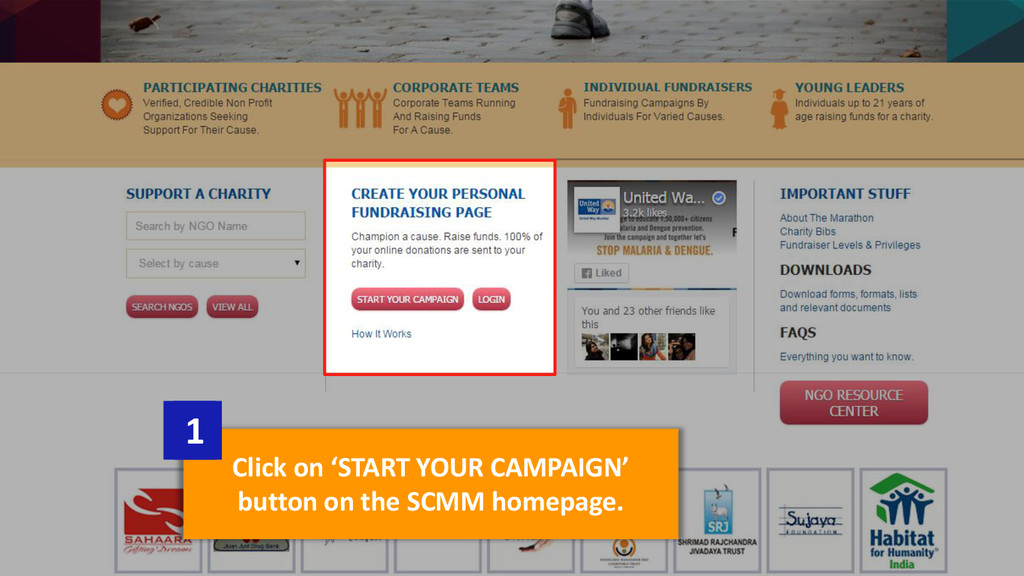
  1. Follow these simple steps to create your own SCMM 2016

    fundraising page now! www.unitedwaymumbai.org/scmm
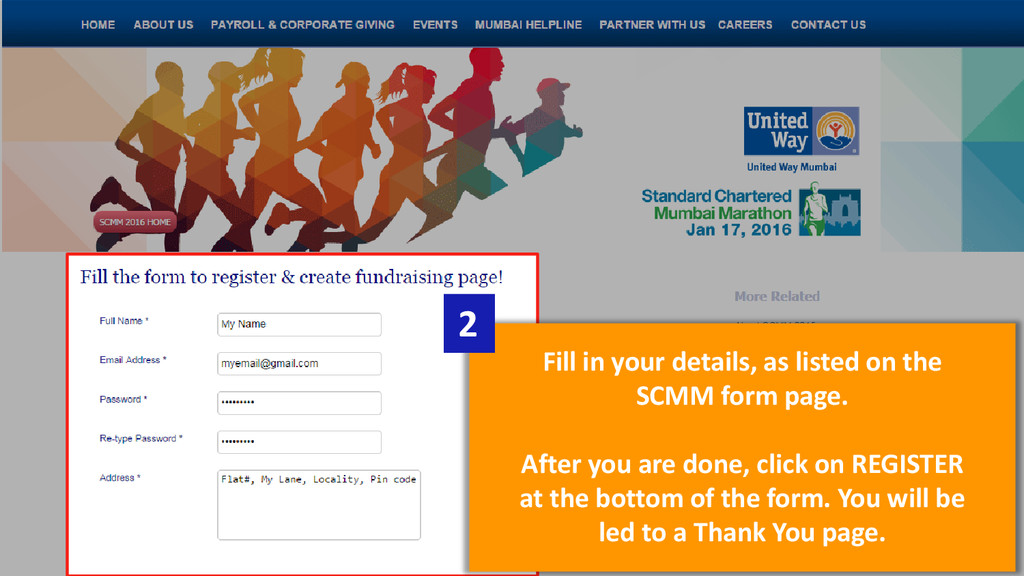
  2. Fill in your details, as listed on the SCMM form

    page. After you are done, click on REGISTER at the bottom of the form. You will be led to a Thank You page. 2
  3. Login to your account from “Fundraiser Login” on the login

    page. If you have registered with SCMM previously, simply use your old email address (you can reset the password by clicking on Forgot Password.) 4
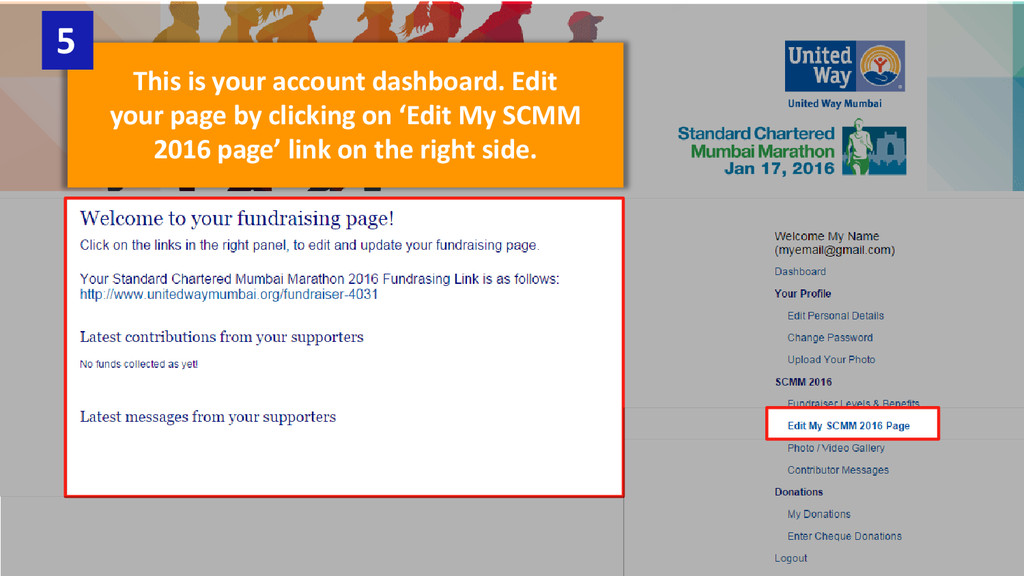
  4. This is your account dashboard. Edit your page by clicking

    on ‘Edit My SCMM 2016 page’ link on the right side. 5
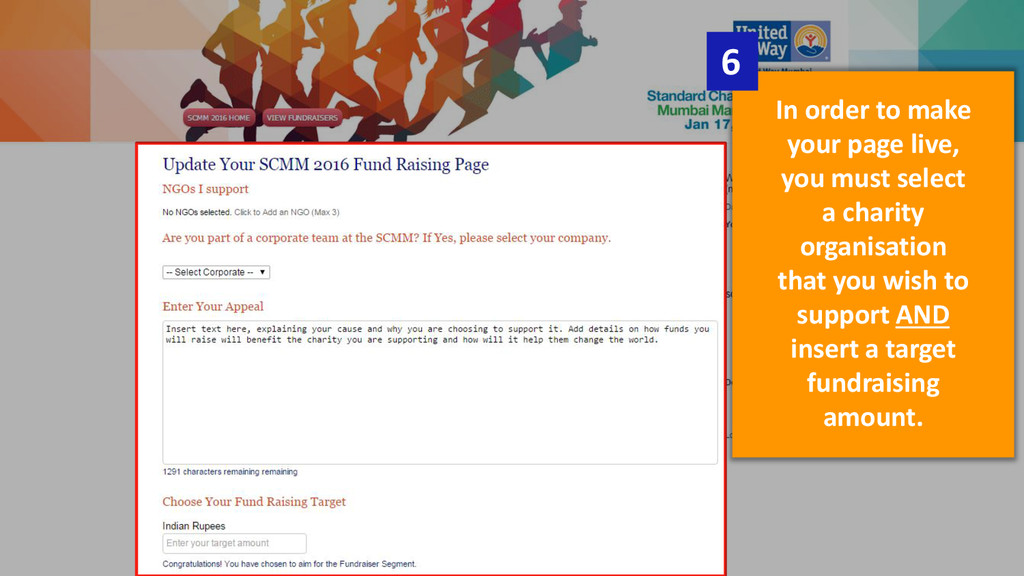
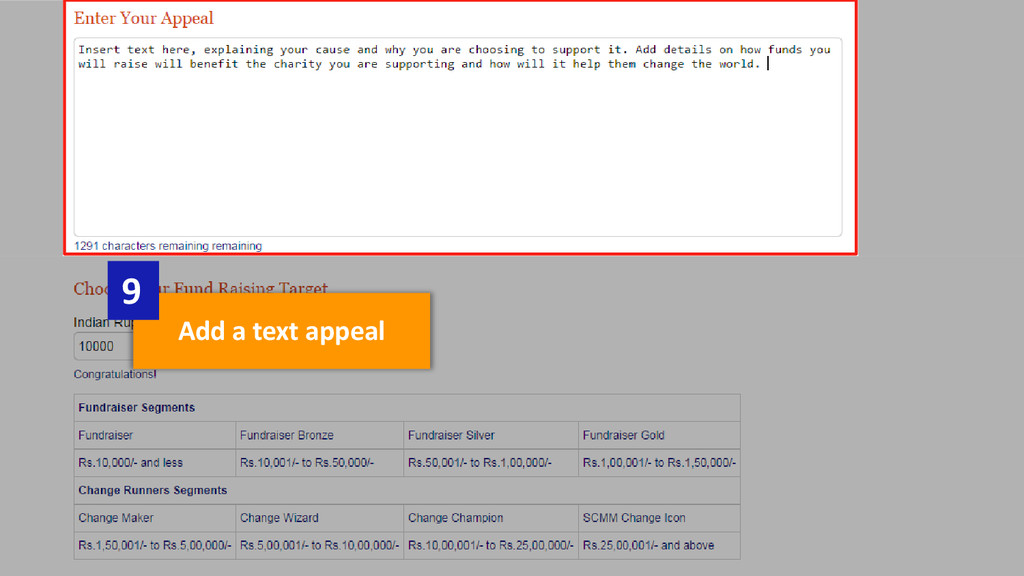
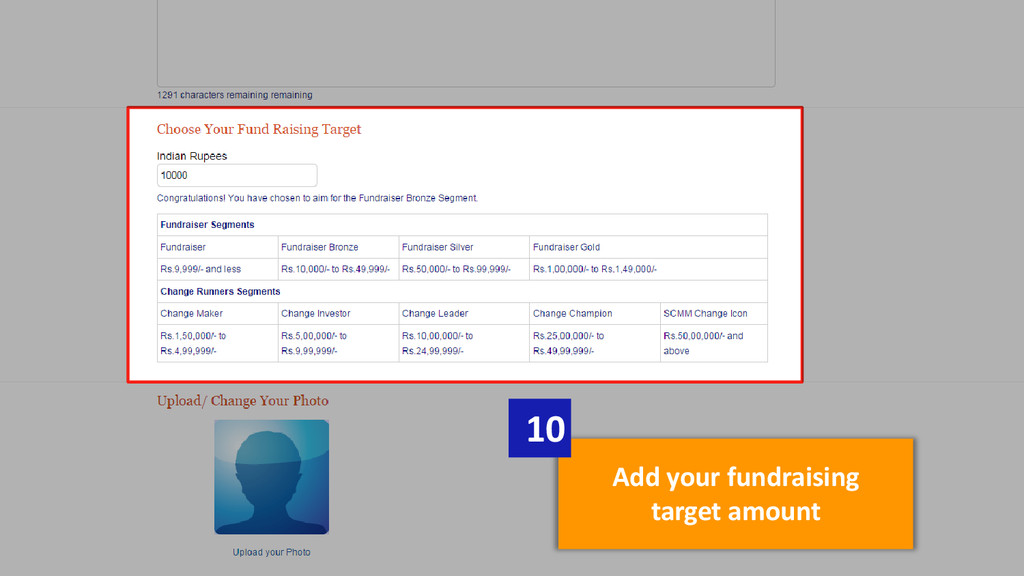
  5. In order to make your page live, you must select

    a charity organisation that you wish to support AND insert a target fundraising amount. 6
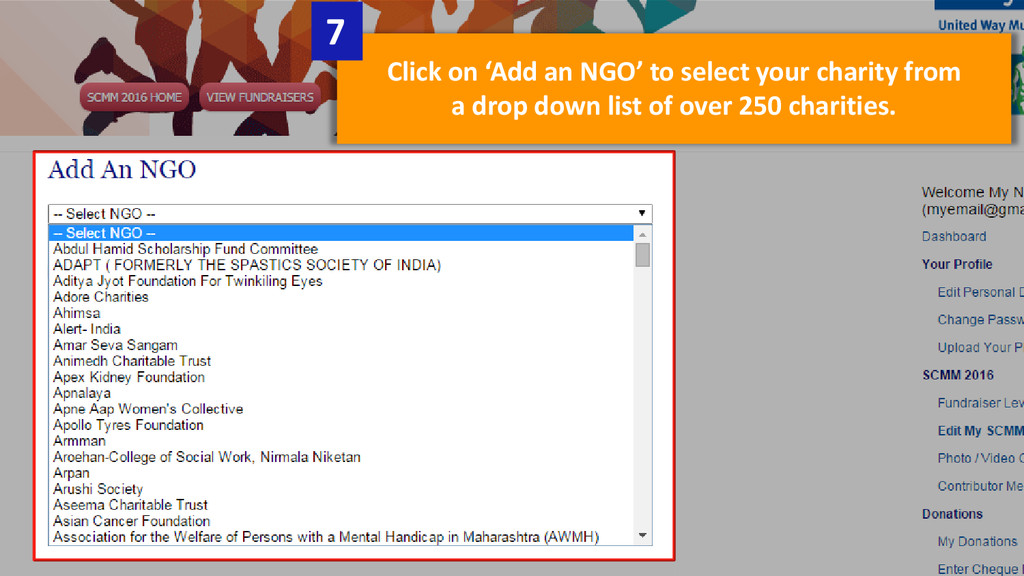
  6. Click on ‘Add an NGO’ to select your charity from

    a drop down list of over 250 charities. 7
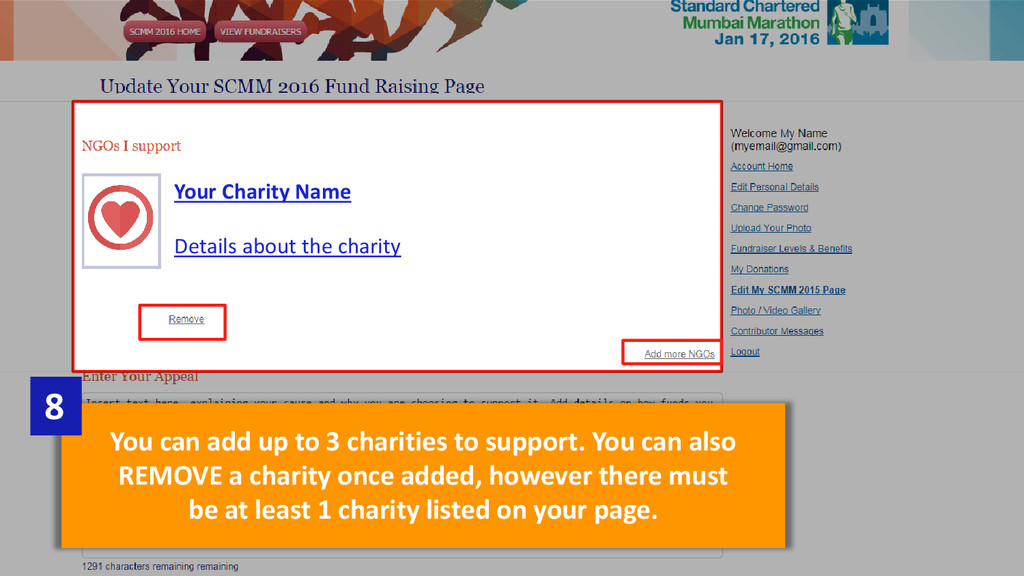
  7. Your Charity Name Details about the charity You can add

    up to 3 charities to support. You can also REMOVE a charity once added, however there must be at least 1 charity listed on your page. 8
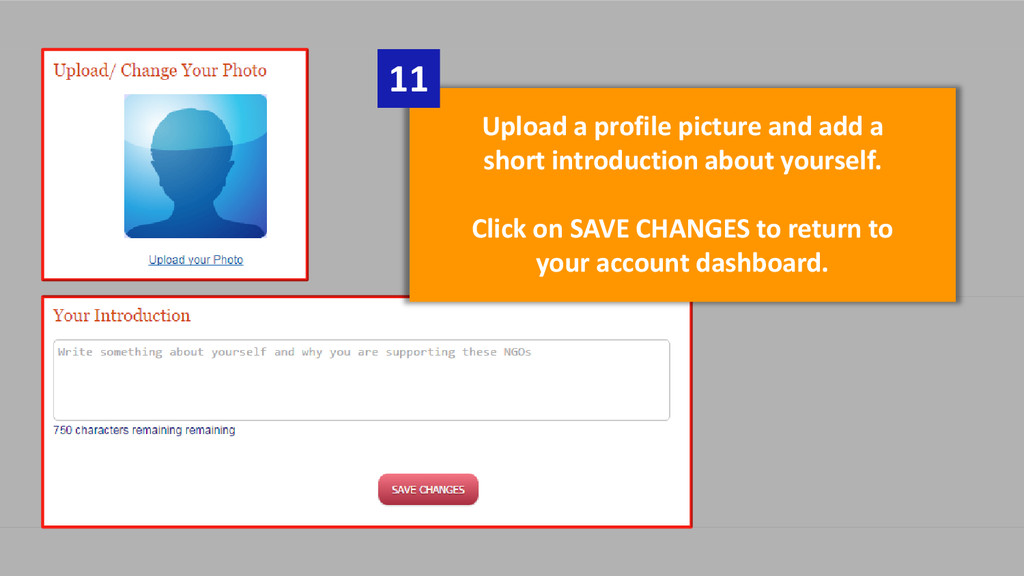
  8. Upload a profile picture and add a short introduction about

    yourself. Click on SAVE CHANGES to return to your account dashboard. 11
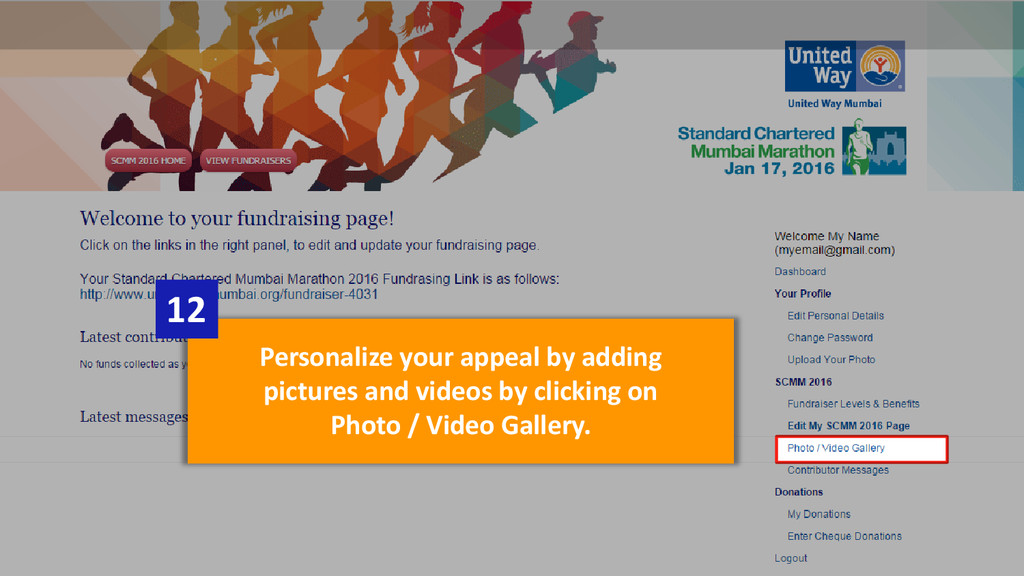
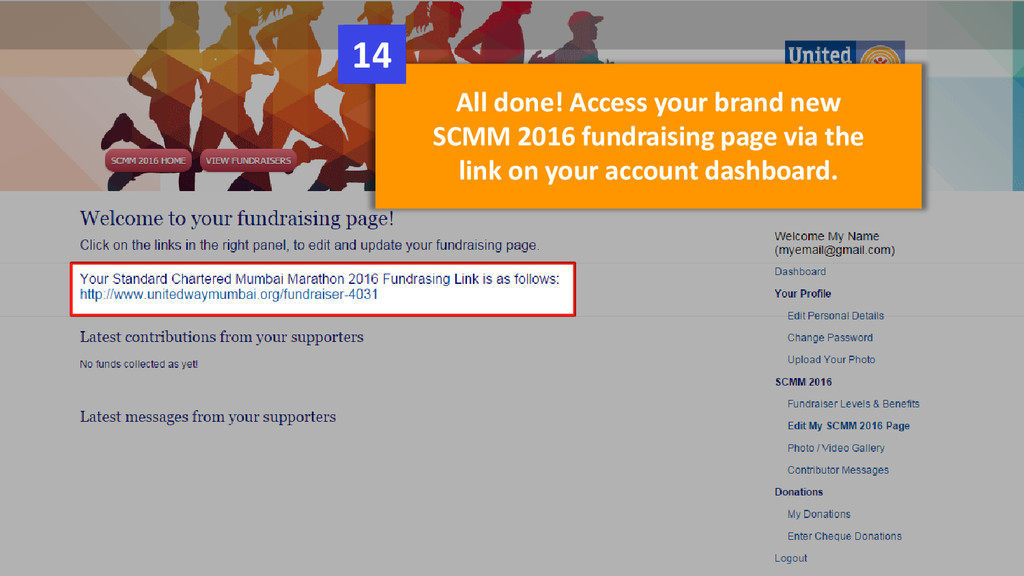
  9. All done! Access your brand new SCMM 2016 fundraising page

    via the link on your account dashboard. 14
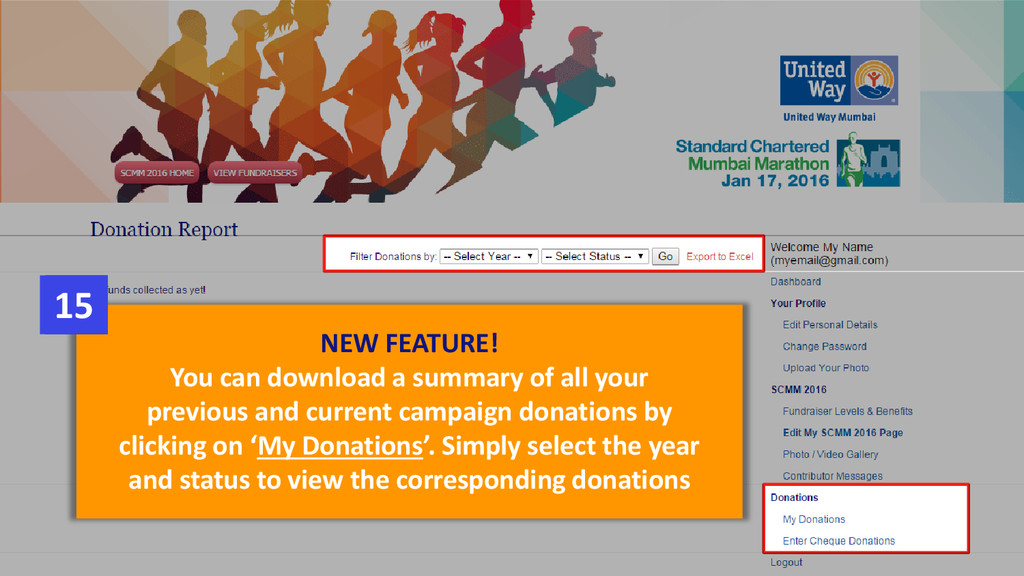
  10. NEW FEATURE! You can download a summary of all your

    previous and current campaign donations by clicking on ‘My Donations’. Simply select the year and status to view the corresponding donations 15
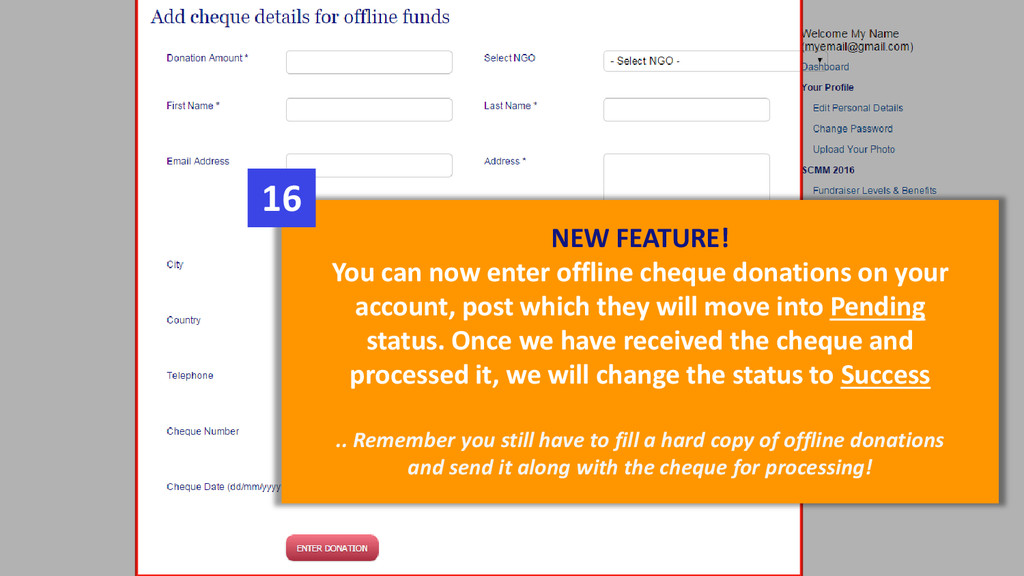
  11. NEW FEATURE! You can now enter offline cheque donations on

    your account, post which they will move into Pending status. Once we have received the cheque and processed it, we will change the status to Success .. Remember you still have to fill a hard copy of offline donations and send it along with the cheque for processing! 16