I — Introduction to Web Development Web Dev Strategies Internet Services & Tools History of the Web Protocols Client-Server Computing Mr. Shikhar Pandey Department of Computer Science & Engineering · GLBITM Writing Web Projects Connecting to the Internet
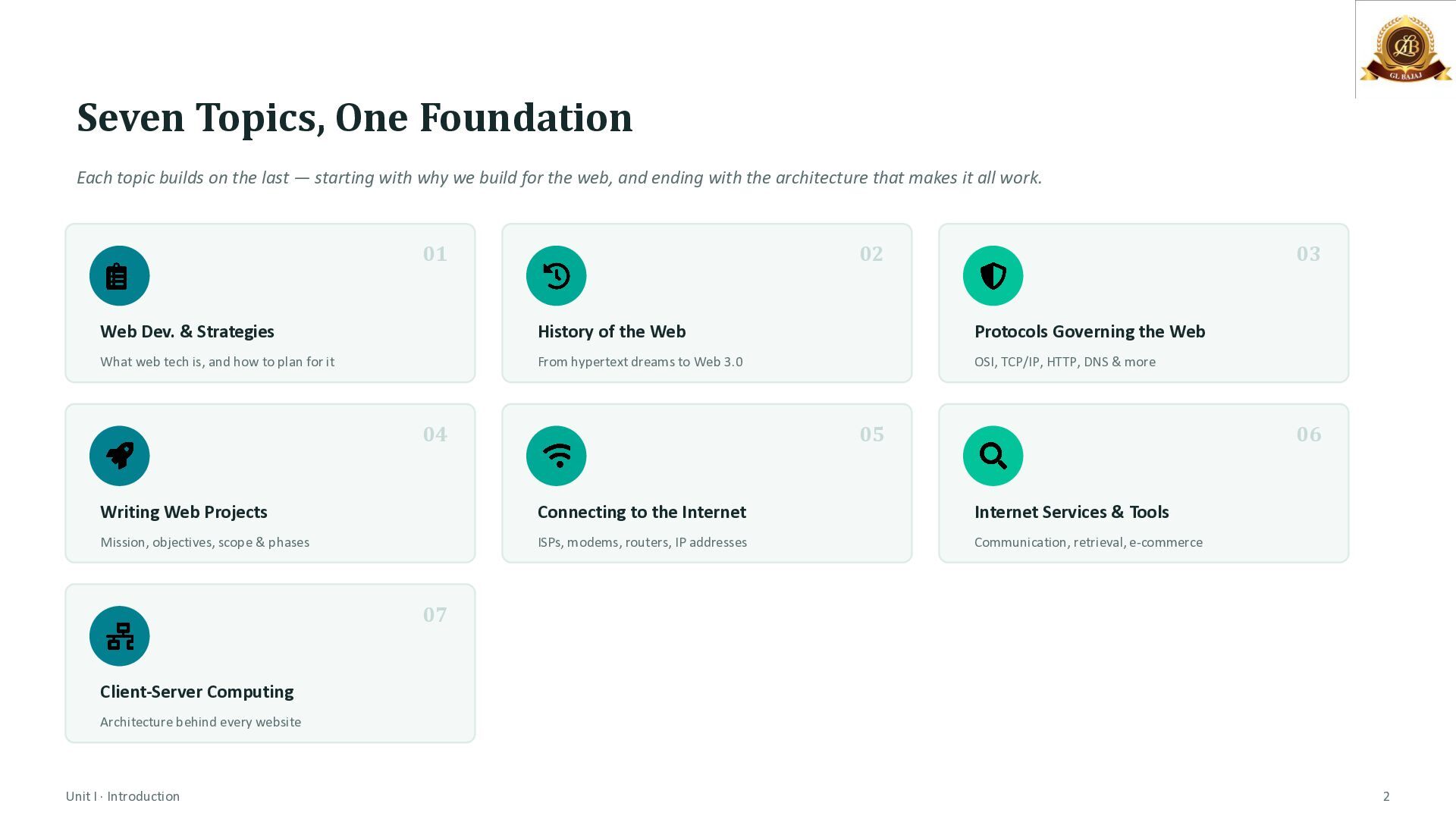
— starting with why we build for the web, and ending with the architecture that makes it all work. 01 02 03 Web Dev. & Strategies History of the Web Protocols Governing the Web What web tech is, and how to plan for it From hypertext dreams to Web 3.0 OSI, TCP/IP, HTTP, DNS & more 04 05 06 Writing Web Projects Connecting to the Internet Internet Services & Tools Mission, objectives, scope & phases ISPs, modems, routers, IP addresses Communication, retrieval, e-commerce 07 Client-Server Computing Architecture behind every website Unit I · Introduction 2
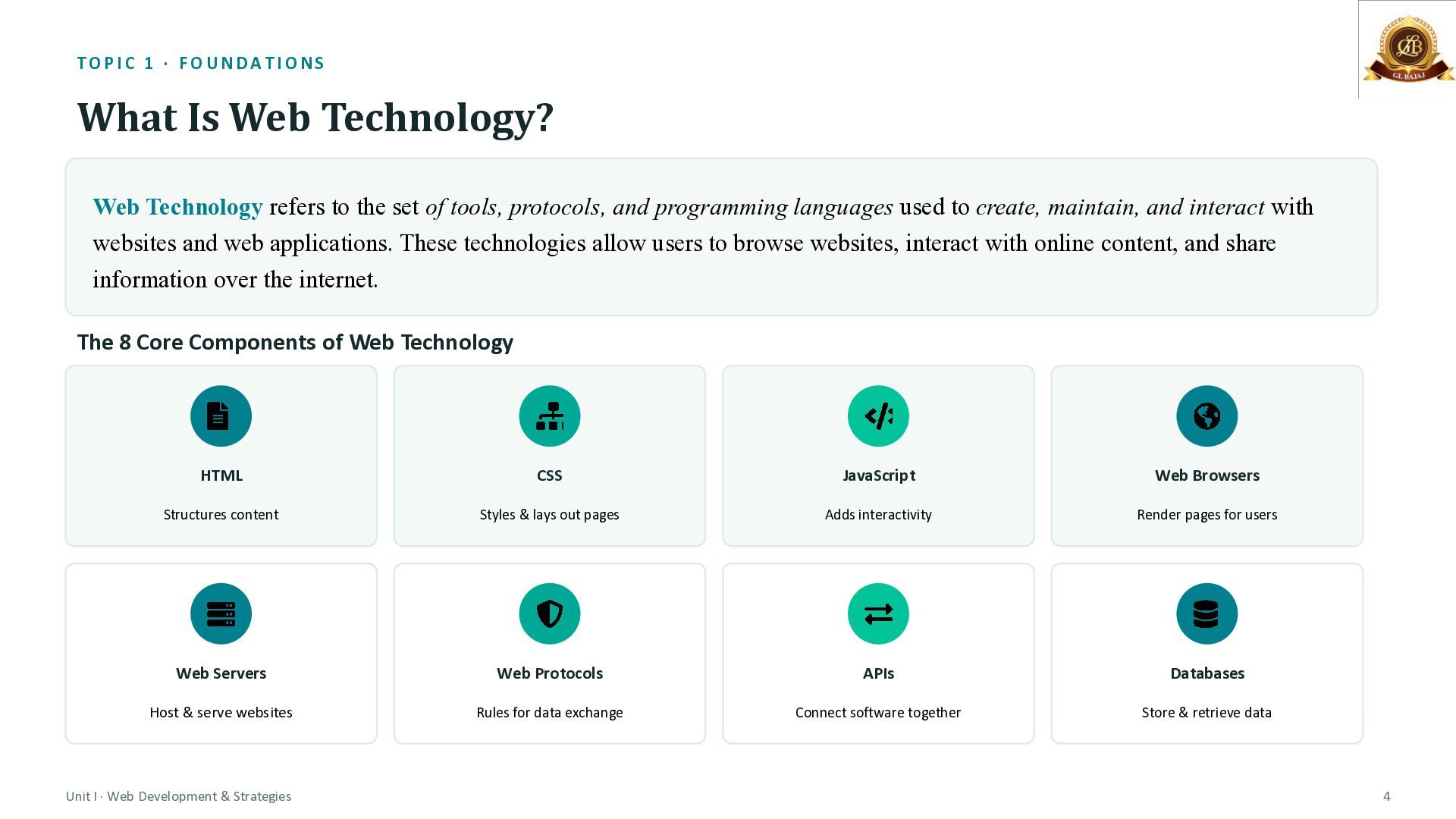
refers to the set of tools, protocols, and programming languages used to create, maintain, and interact with websites and web applications. These technologies allow users to browse websites, interact with online content, and share information over the internet. The 8 Core Components of Web Technology HTML CSS JavaScript Web Browsers Structures content Styles & lays out pages Adds interactivity Render pages for users Web Servers Web Protocols APIs Databases Host & serve websites Rules for data exchange Connect software together Store & retrieve data Unit I · Web Development & Strategies 4
every webpage. It doesn't make a page look pretty; it defines the structure like what is a heading, what is a paragraph, what is a link, what is an image. Without HTML, a browser has nothing to display. •CSS (Cascading Style Sheets) - This is the skin and clothing of the page. CSS controls colors, fonts, spacing, layout, and how elements are arranged on screen. The same HTML can look completely different depending on the CSS applied to it. •JavaScript - It makes a page interactive with dropdown menus, form validation, image sliders, live chat popups. Without JavaScript, a webpage is static and can't respond to user actions like clicks or typing. •Web Browsers - Software like Chrome, Firefox, or Edge that reads HTML/CSS/JavaScript and renders it visually for the user. The browser is the "translator" between the raw code and what the human eye sees. •Web Servers - Powerful computers (like Apache, Nginx) that store website files and send them to your browser whenever you request a page. Every website you've ever visited lives on a server somewhere. •Web Protocols - The agreed "rules of communication" (like HTTP) that let browsers and servers understand each other reliably, no matter what device or company built them. •APIs (Application Programming Interfaces) - A way for two different pieces of software to talk to each other. For example, when a food delivery app shows a Google Map inside it, that's the app "calling" Google Maps' API. •Databases - Where all the actual data lives - user accounts, product listings, messages, orders. Websites constantly read from and write to databases behind the scenes
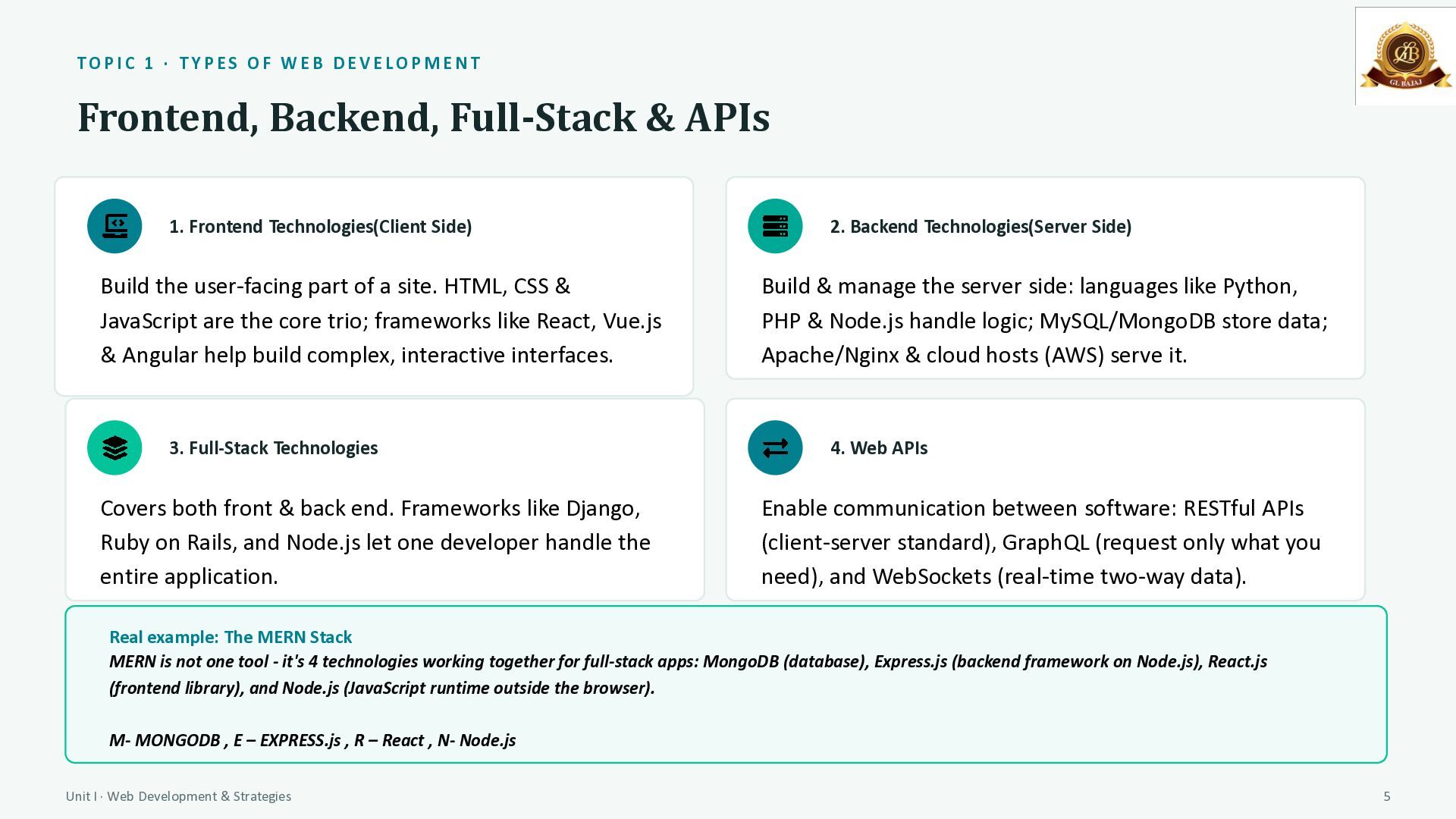
& APIs 1. Frontend Technologies(Client Side) Build the user-facing part of a site. HTML, CSS & JavaScript are the core trio; frameworks like React, Vue.js & Angular help build complex, interactive interfaces. 3. Full-Stack Technologies Covers both front & back end. Frameworks like Django, Ruby on Rails, and Node.js let one developer handle the entire application. 2. Backend Technologies(Server Side) Build & manage the server side: languages like Python, PHP & Node.js handle logic; MySQL/MongoDB store data; Apache/Nginx & cloud hosts (AWS) serve it. 4. Web APIs Enable communication between software: RESTful APIs (client-server standard), GraphQL (request only what you need), and WebSockets (real-time two-way data). Real example: The MERN Stack MERN is not one tool - it's 4 technologies working together for full-stack apps: MongoDB (database), Express.js (backend framework on Node.js), React.js (frontend library), and Node.js (JavaScript runtime outside the browser). M- MONGODB , E – EXPRESS.js , R – React , N- Node.js Unit I · Web Development & Strategies 5
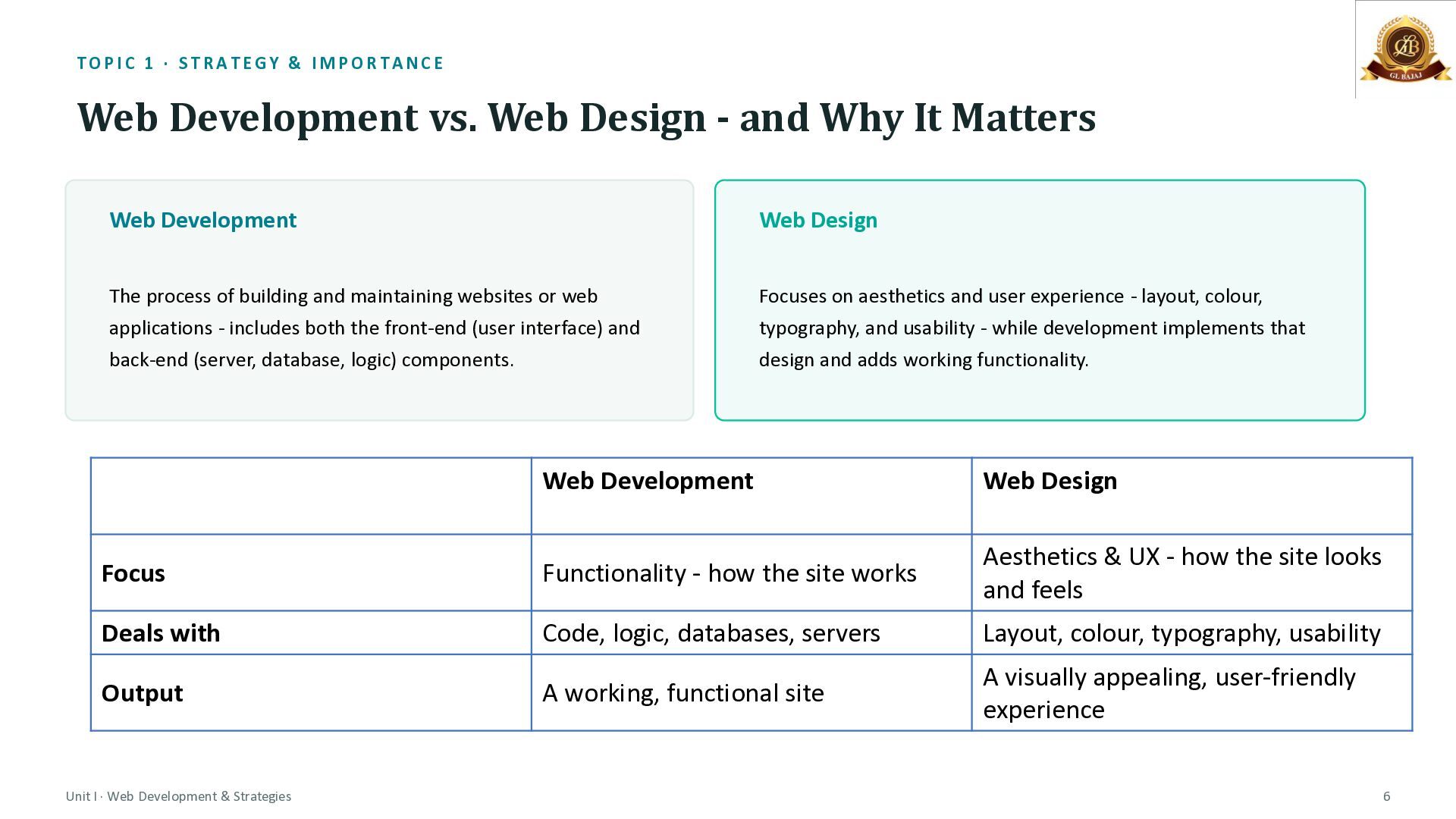
Design - and Why It Matters Web Development Web Design The process of building and maintaining websites or web applications - includes both the front-end (user interface) and back-end (server, database, logic) components. Focuses on aesthetics and user experience - layout, colour, typography, and usability - while development implements that design and adds working functionality. Web Development Web Design Focus Functionality - how the site works Aesthetics & UX - how the site looks and feels Deals with Code, logic, databases, servers Layout, colour, typography, usability Output A working, functional site A visually appealing, user-friendly experience Unit I · Web Development & Strategies 6
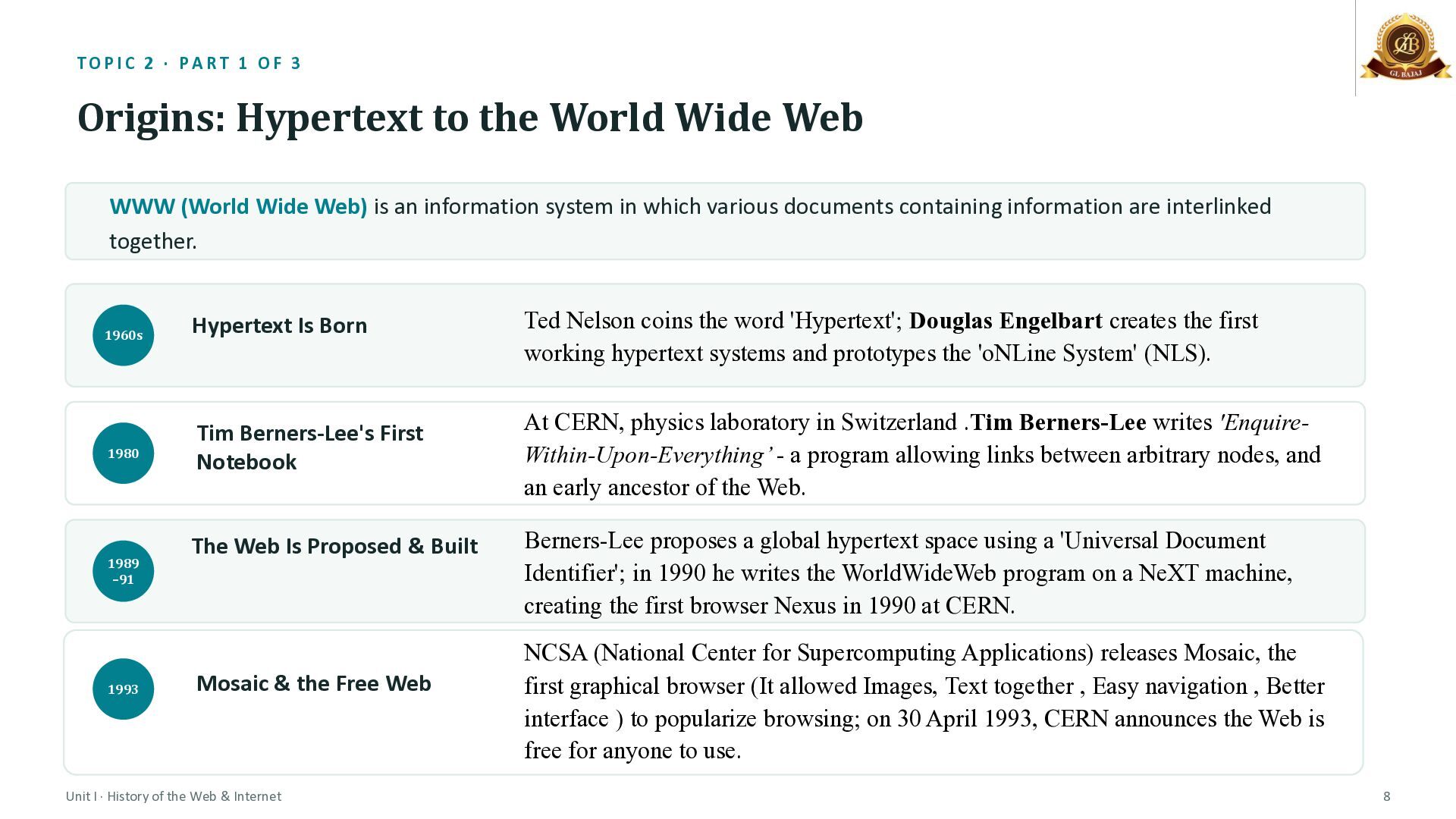
the World Wide Web WWW (World Wide Web) is an information system in which various documents containing information are interlinked together. 1960s 1980 1989 –91 1993 Hypertext Is Born Ted Nelson coins the word 'Hypertext'; Douglas Engelbart creates the first working hypertext systems and prototypes the 'oNLine System' (NLS). Tim Berners-Lee's First Notebook At CERN, physics laboratory in Switzerland .Tim Berners-Lee writes 'EnquireWithin-Upon-Everything’ - a program allowing links between arbitrary nodes, and an early ancestor of the Web. The Web Is Proposed & Built Mosaic & the Free Web Unit I · History of the Web & Internet Berners-Lee proposes a global hypertext space using a 'Universal Document Identifier'; in 1990 he writes the WorldWideWeb program on a NeXT machine, creating the first browser Nexus in 1990 at CERN. NCSA (National Center for Supercomputing Applications) releases Mosaic, the first graphical browser (It allowed Images, Text together , Easy navigation , Better interface ) to popularize browsing; on 30 April 1993, CERN announces the Web is free for anyone to use. 8
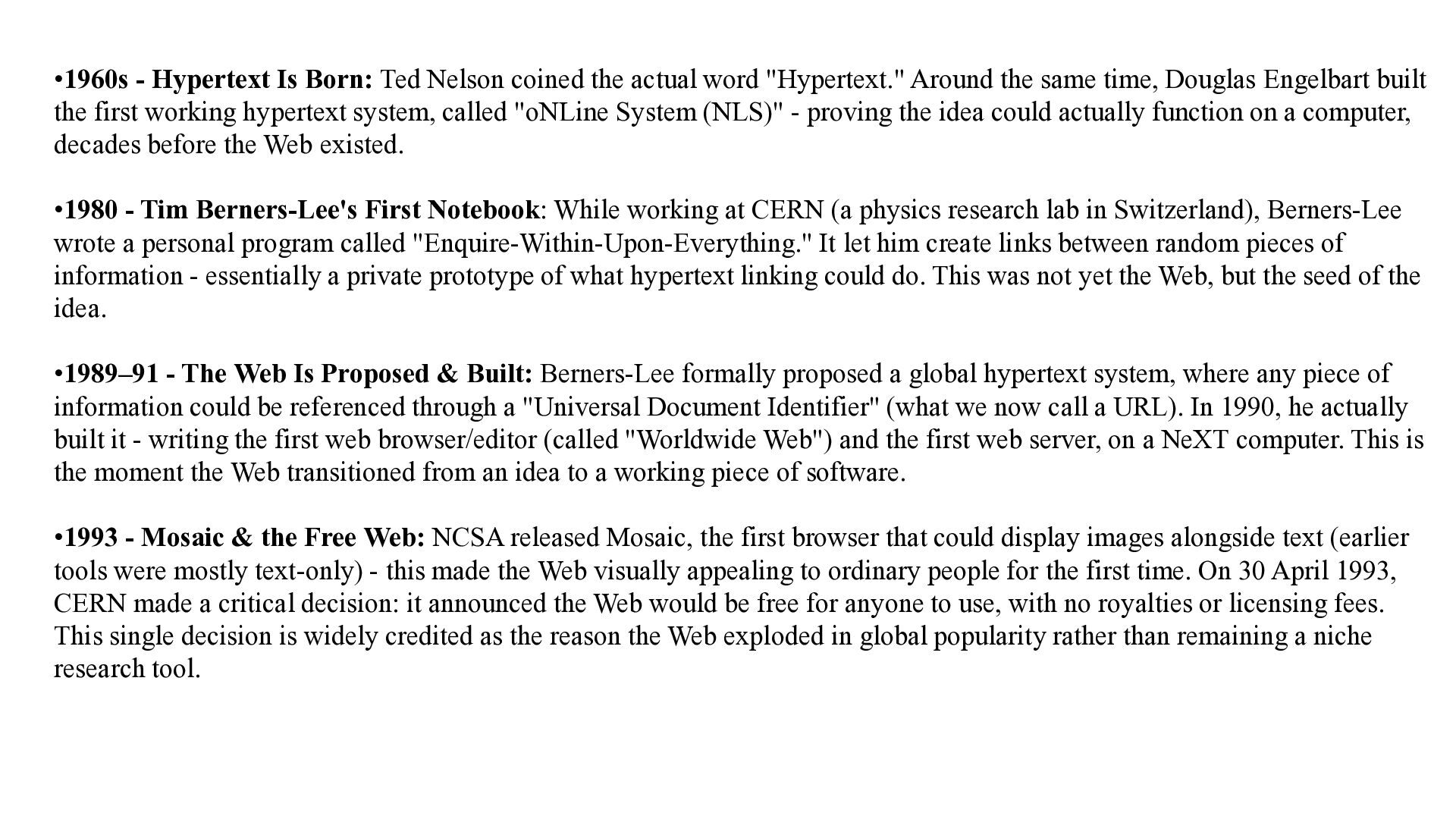
word "Hypertext." Around the same time, Douglas Engelbart built the first working hypertext system, called "oNLine System (NLS)" - proving the idea could actually function on a computer, decades before the Web existed. •1980 - Tim Berners-Lee's First Notebook: While working at CERN (a physics research lab in Switzerland), Berners-Lee wrote a personal program called "Enquire-Within-Upon-Everything." It let him create links between random pieces of information - essentially a private prototype of what hypertext linking could do. This was not yet the Web, but the seed of the idea. •1989–91 - The Web Is Proposed & Built: Berners-Lee formally proposed a global hypertext system, where any piece of information could be referenced through a "Universal Document Identifier" (what we now call a URL). In 1990, he actually built it - writing the first web browser/editor (called "Worldwide Web") and the first web server, on a NeXT computer. This is the moment the Web transitioned from an idea to a working piece of software. •1993 - Mosaic & the Free Web: NCSA released Mosaic, the first browser that could display images alongside text (earlier tools were mostly text-only) - this made the Web visually appealing to ordinary people for the first time. On 30 April 1993, CERN made a critical decision: it announced the Web would be free for anyone to use, with no royalties or licensing fees. This single decision is widely credited as the reason the Web exploded in global popularity rather than remaining a niche research tool.
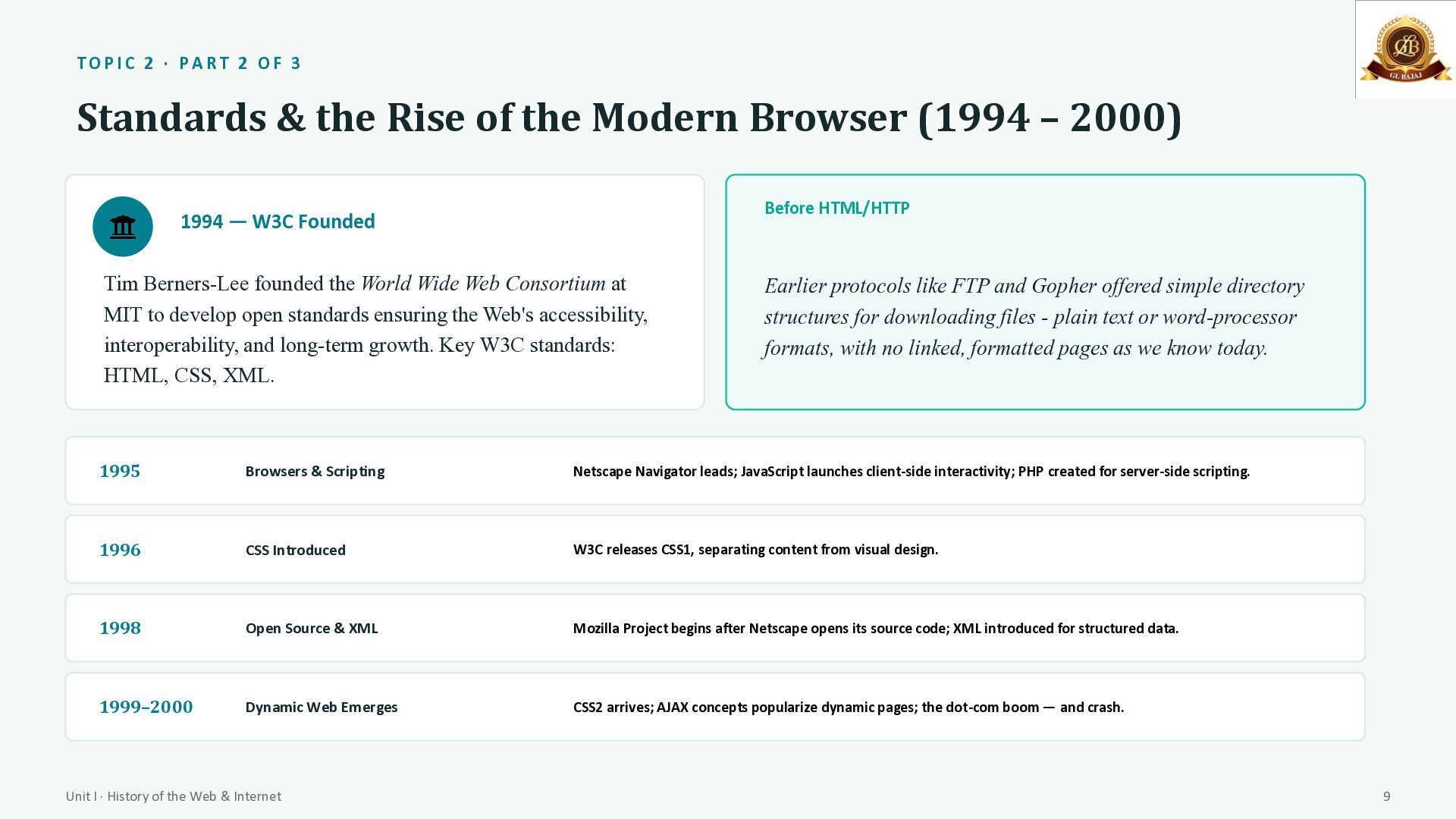
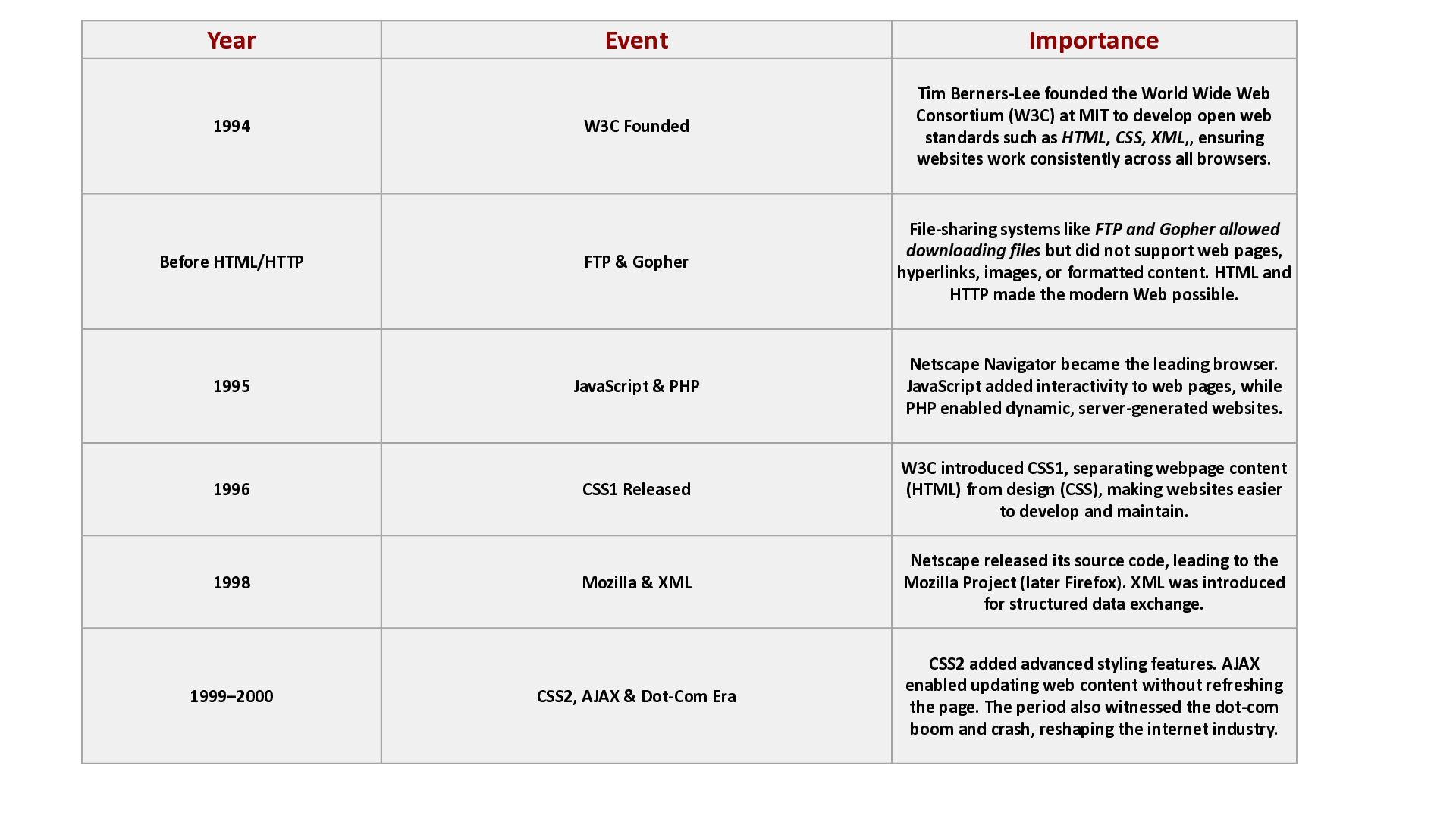
Rise of the Modern Browser (1994 – 2000) Before HTML/HTTP 1994 — W3C Founded Tim Berners-Lee founded the World Wide Web Consortium at MIT to develop open standards ensuring the Web's accessibility, interoperability, and long-term growth. Key W3C standards: HTML, CSS, XML. Earlier protocols like FTP and Gopher offered simple directory structures for downloading files - plain text or word-processor formats, with no linked, formatted pages as we know today. 1995 Browsers & Scripting Netscape Navigator leads; JavaScript launches client-side interactivity; PHP created for server-side scripting. 1996 CSS Introduced W3C releases CSS1, separating content from visual design. 1998 Open Source & XML Mozilla Project begins after Netscape opens its source code; XML introduced for structured data. 1999–2000 Dynamic Web Emerges CSS2 arrives; AJAX concepts popularize dynamic pages; the dot-com boom — and crash. Unit I · History of the Web & Internet 9
Wide Web Consortium (W3C) at MIT to develop open web standards such as HTML, CSS, XML,, ensuring websites work consistently across all browsers. Before HTML/HTTP FTP & Gopher File-sharing systems like FTP and Gopher allowed downloading files but did not support web pages, hyperlinks, images, or formatted content. HTML and HTTP made the modern Web possible. 1995 JavaScript & PHP Netscape Navigator became the leading browser. JavaScript added interactivity to web pages, while PHP enabled dynamic, server-generated websites. 1996 CSS1 Released W3C introduced CSS1, separating webpage content (HTML) from design (CSS), making websites easier to develop and maintain. 1998 Mozilla & XML Netscape released its source code, leading to the Mozilla Project (later Firefox). XML was introduced for structured data exchange. CSS2, AJAX & Dot-Com Era CSS2 added advanced styling features. AJAX enabled updating web content without refreshing the page. The period also witnessed the dot-com boom and crash, reshaping the internet industry. 1994 1999–2000
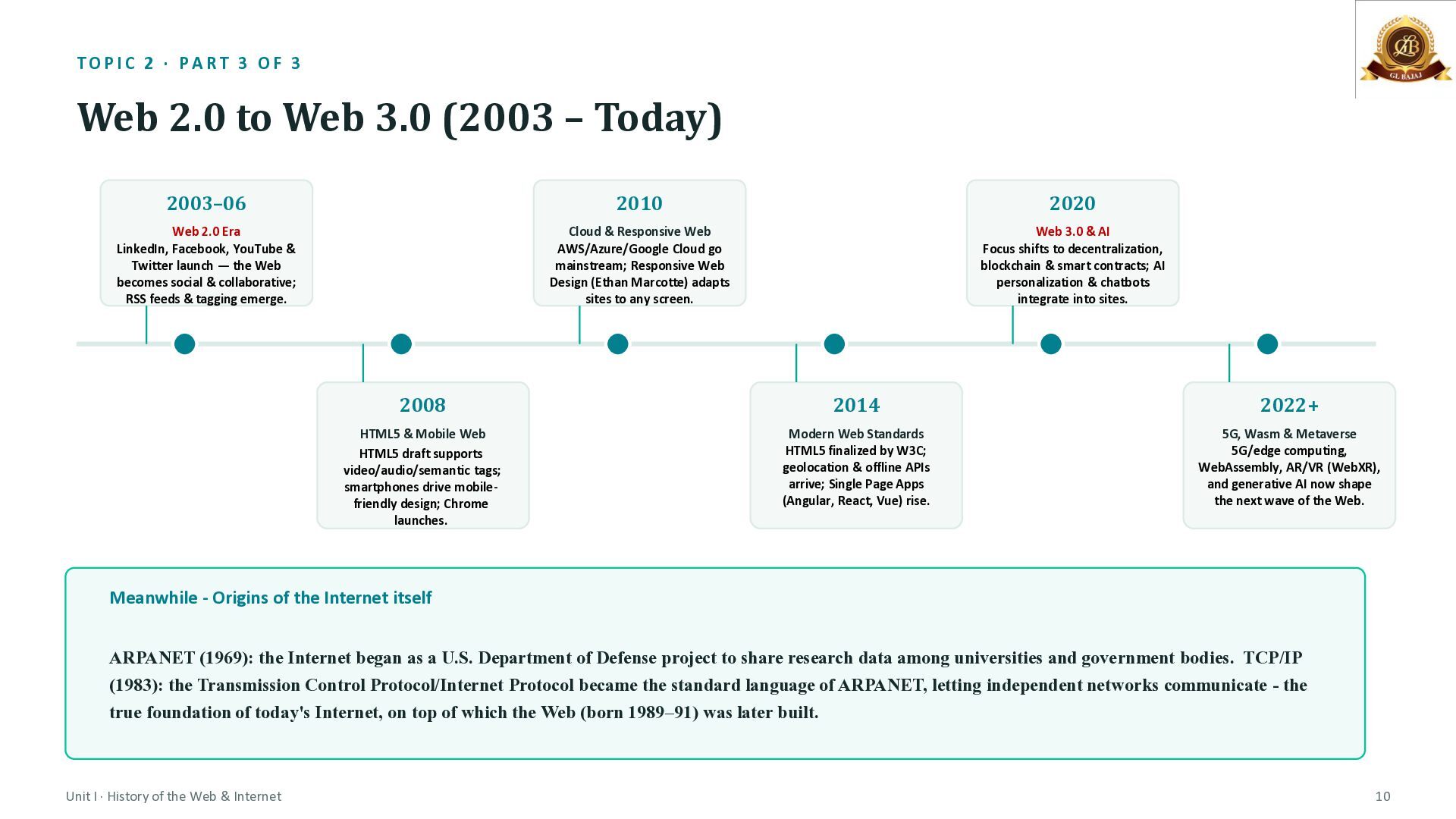
Web 3.0 (2003 – Today) 2003–06 2010 2020 Web 2.0 Era LinkedIn, Facebook, YouTube & Twitter launch — the Web becomes social & collaborative; RSS feeds & tagging emerge. Cloud & Responsive Web AWS/Azure/Google Cloud go mainstream; Responsive Web Design (Ethan Marcotte) adapts sites to any screen. Web 3.0 & AI Focus shifts to decentralization, blockchain & smart contracts; AI personalization & chatbots integrate into sites. 2008 2014 2022+ HTML5 & Mobile Web HTML5 draft supports video/audio/semantic tags; smartphones drive mobilefriendly design; Chrome launches. Modern Web Standards HTML5 finalized by W3C; geolocation & offline APIs arrive; Single Page Apps (Angular, React, Vue) rise. 5G, Wasm & Metaverse 5G/edge computing, WebAssembly, AR/VR (WebXR), and generative AI now shape the next wave of the Web. Meanwhile - Origins of the Internet itself ARPANET (1969): the Internet began as a U.S. Department of Defense project to share research data among universities and government bodies. TCP/IP (1983): the Transmission Control Protocol/Internet Protocol became the standard language of ARPANET, letting independent networks communicate - the true foundation of today's Internet, on top of which the Web (born 1989–91) was later built. Unit I · History of the Web & Internet 10
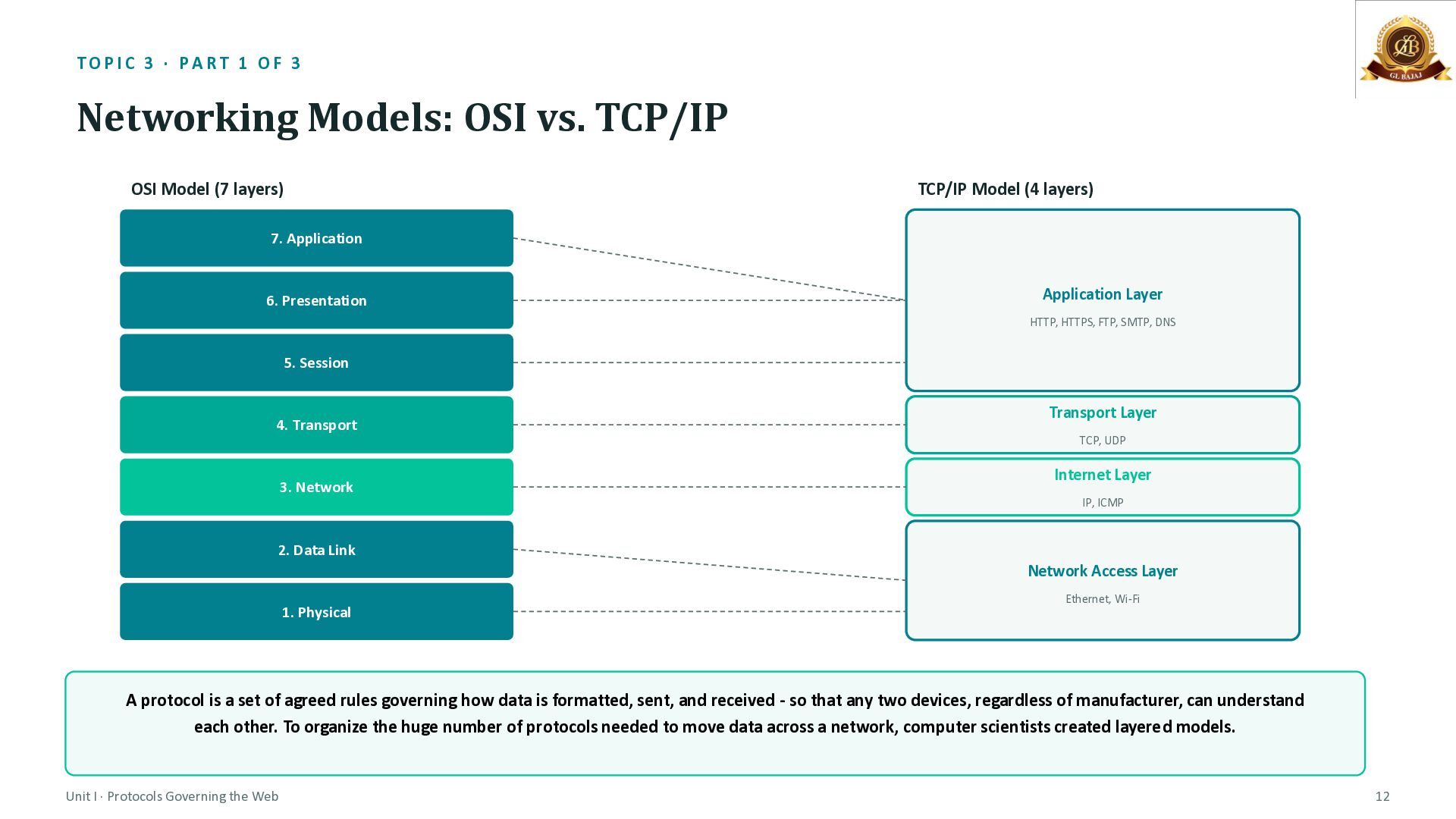
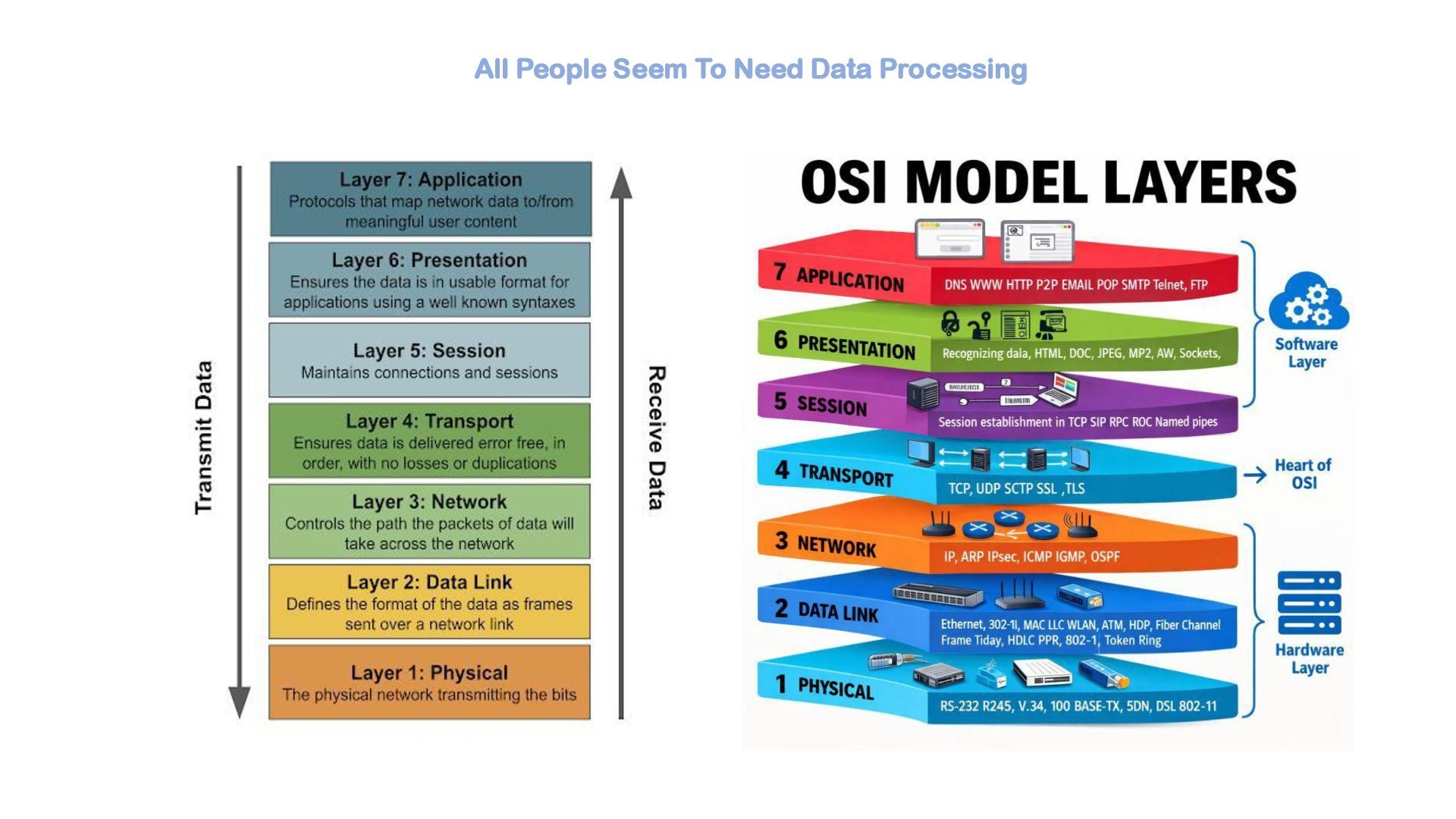
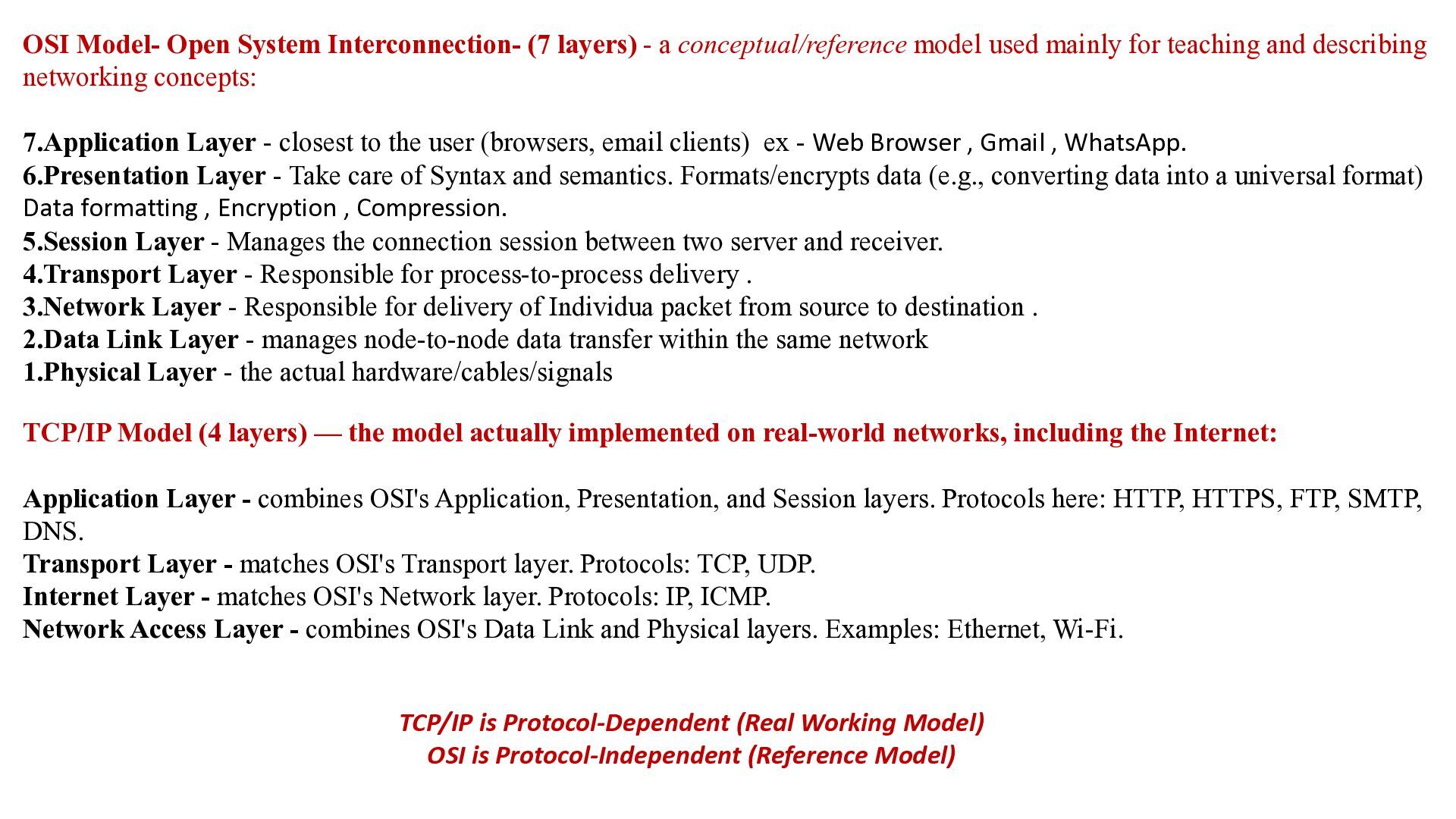
vs. TCP/IP OSI Model (7 layers) TCP/IP Model (4 layers) 7. Application 6. Presentation Application Layer HTTP, HTTPS, FTP, SMTP, DNS 5. Session 4. Transport Transport Layer TCP, UDP 3. Network Internet Layer IP, ICMP 2. Data Link Network Access Layer 1. Physical Ethernet, Wi-Fi A protocol is a set of agreed rules governing how data is formatted, sent, and received - so that any two devices, regardless of manufacturer, can understand each other. To organize the huge number of protocols needed to move data across a network, computer scientists created layered models. Unit I · Protocols Governing the Web 12
model used mainly for teaching and describing networking concepts: 7.Application Layer - closest to the user (browsers, email clients) ex - Web Browser , Gmail , WhatsApp. 6.Presentation Layer - Take care of Syntax and semantics. Formats/encrypts data (e.g., converting data into a universal format) Data formatting , Encryption , Compression. 5.Session Layer - Manages the connection session between two server and receiver. 4.Transport Layer - Responsible for process-to-process delivery . 3.Network Layer - Responsible for delivery of Individua packet from source to destination . 2.Data Link Layer - manages node-to-node data transfer within the same network 1.Physical Layer - the actual hardware/cables/signals TCP/IP Model (4 layers) — the model actually implemented on real-world networks, including the Internet: Application Layer - combines OSI's Application, Presentation, and Session layers. Protocols here: HTTP, HTTPS, FTP, SMTP, DNS. Transport Layer - matches OSI's Transport layer. Protocols: TCP, UDP. Internet Layer - matches OSI's Network layer. Protocols: IP, ICMP. Network Access Layer - combines OSI's Data Link and Physical layers. Examples: Ethernet, Wi-Fi. TCP/IP is Protocol-Dependent (Real Working Model) OSI is Protocol-Independent (Reference Model)
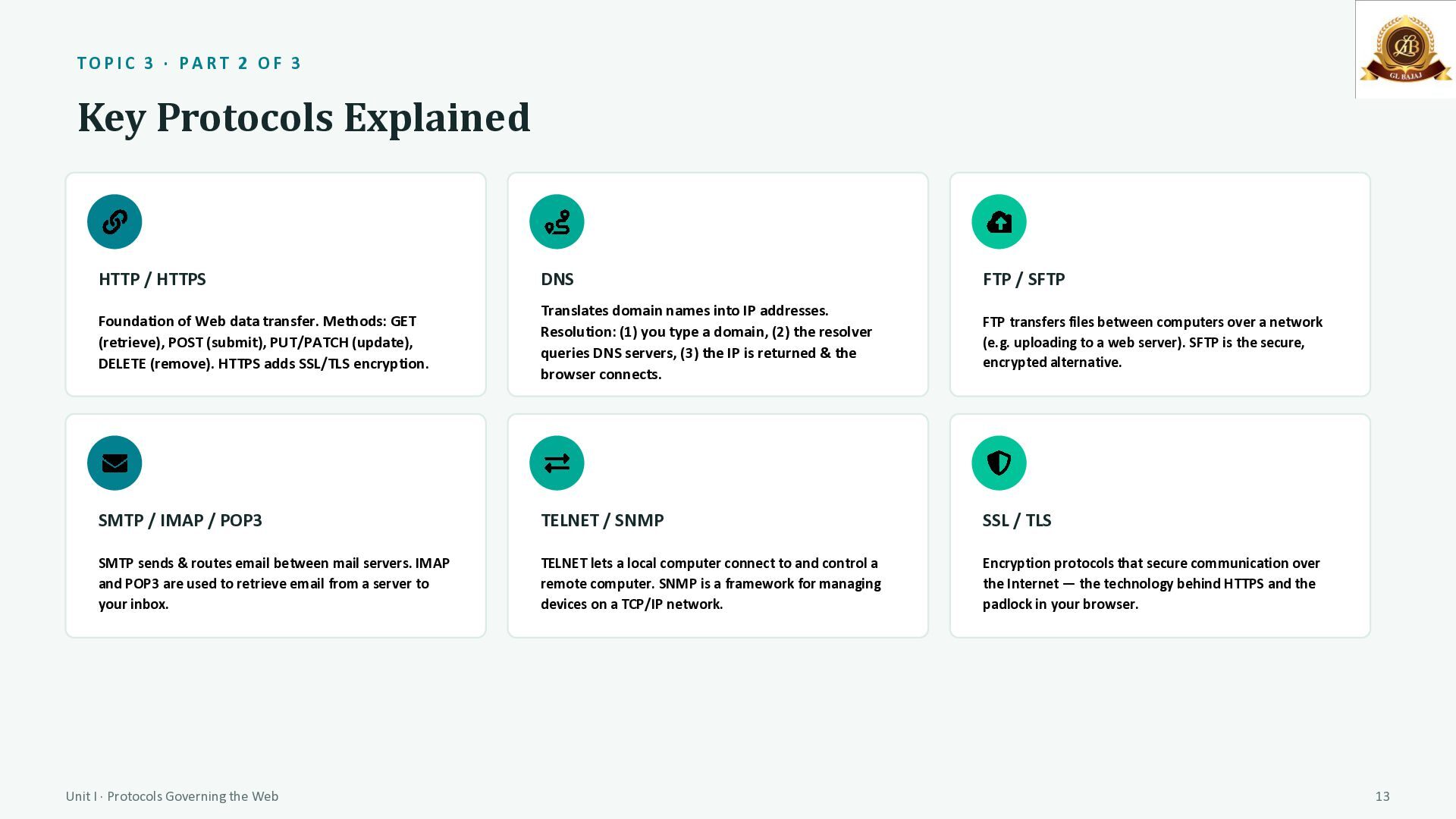
HTTP / HTTPS DNS FTP / SFTP Foundation of Web data transfer. Methods: GET (retrieve), POST (submit), PUT/PATCH (update), DELETE (remove). HTTPS adds SSL/TLS encryption. Translates domain names into IP addresses. Resolution: (1) you type a domain, (2) the resolver queries DNS servers, (3) the IP is returned & the browser connects. FTP transfers files between computers over a network (e.g. uploading to a web server). SFTP is the secure, encrypted alternative. SMTP / IMAP / POP3 TELNET / SNMP SSL / TLS SMTP sends & routes email between mail servers. IMAP and POP3 are used to retrieve email from a server to your inbox. TELNET lets a local computer connect to and control a remote computer. SNMP is a framework for managing devices on a TCP/IP network. Encryption protocols that secure communication over the Internet — the technology behind HTTPS and the padlock in your browser. Unit I · Protocols Governing the Web 13
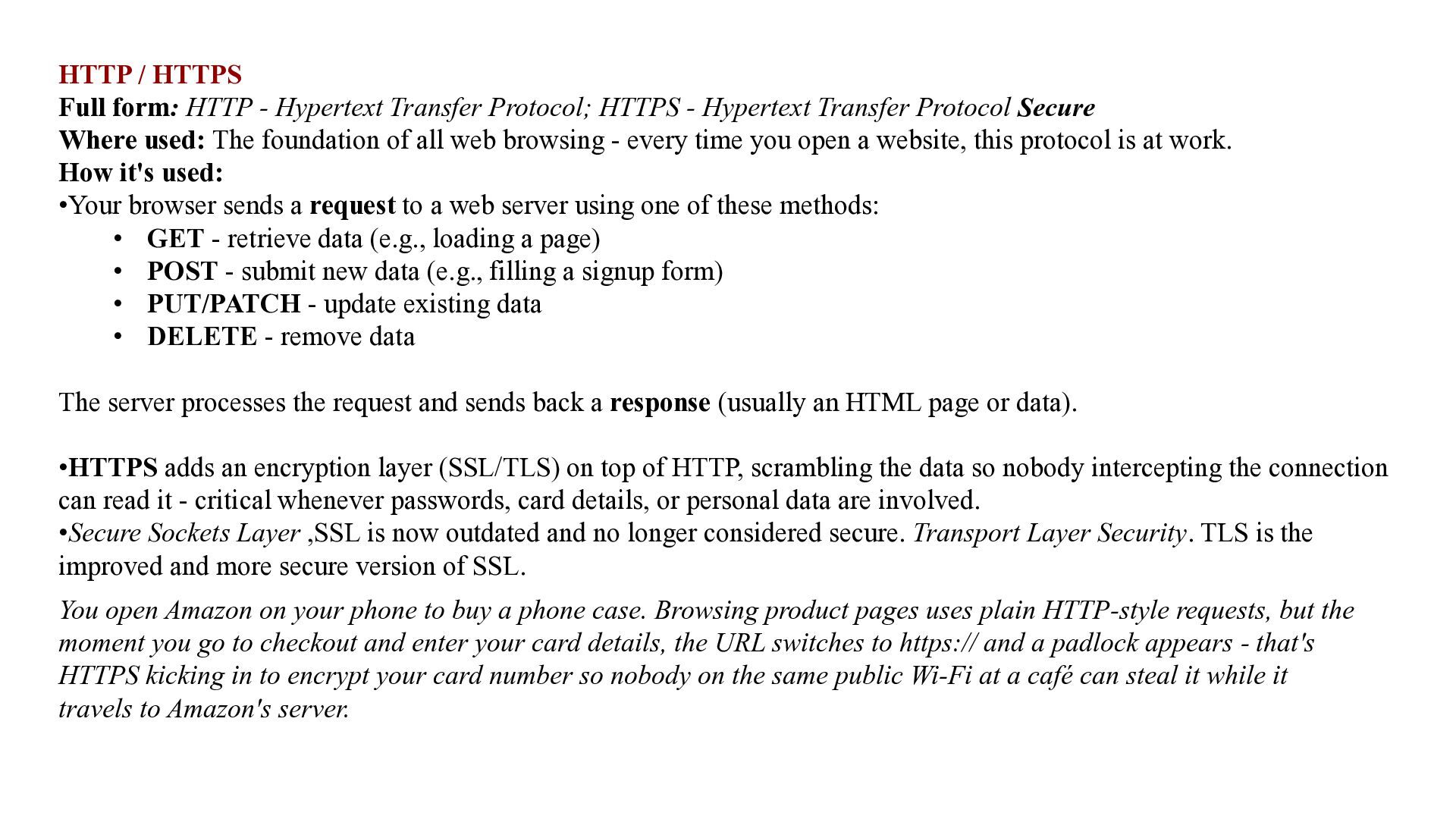
HTTPS - Hypertext Transfer Protocol Secure Where used: The foundation of all web browsing - every time you open a website, this protocol is at work. How it's used: •Your browser sends a request to a web server using one of these methods: • GET - retrieve data (e.g., loading a page) • POST - submit new data (e.g., filling a signup form) • PUT/PATCH - update existing data • DELETE - remove data The server processes the request and sends back a response (usually an HTML page or data). •HTTPS adds an encryption layer (SSL/TLS) on top of HTTP, scrambling the data so nobody intercepting the connection can read it - critical whenever passwords, card details, or personal data are involved. •Secure Sockets Layer ,SSL is now outdated and no longer considered secure. Transport Layer Security. TLS is the improved and more secure version of SSL. You open Amazon on your phone to buy a phone case. Browsing product pages uses plain HTTP-style requests, but the moment you go to checkout and enter your card details, the URL switches to https:// and a padlock appears - that's HTTPS kicking in to encrypt your card number so nobody on the same public Wi-Fi at a café can steal it while it travels to Amazon's server.
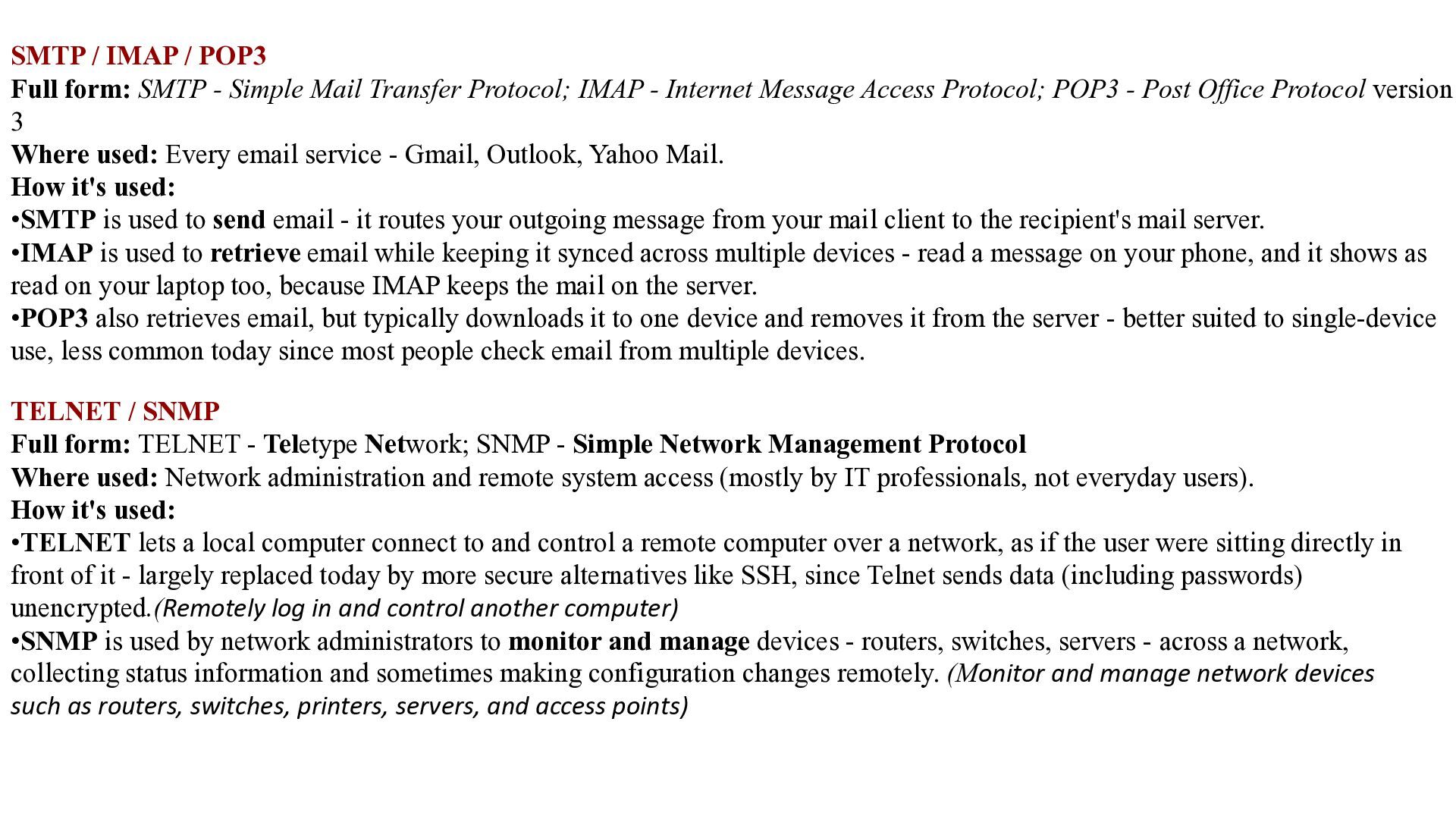
Mail Transfer Protocol; IMAP - Internet Message Access Protocol; POP3 - Post Office Protocol version 3 Where used: Every email service - Gmail, Outlook, Yahoo Mail. How it's used: •SMTP is used to send email - it routes your outgoing message from your mail client to the recipient's mail server. •IMAP is used to retrieve email while keeping it synced across multiple devices - read a message on your phone, and it shows as read on your laptop too, because IMAP keeps the mail on the server. •POP3 also retrieves email, but typically downloads it to one device and removes it from the server - better suited to single-device use, less common today since most people check email from multiple devices. TELNET / SNMP Full form: TELNET - Teletype Network; SNMP - Simple Network Management Protocol Where used: Network administration and remote system access (mostly by IT professionals, not everyday users). How it's used: •TELNET lets a local computer connect to and control a remote computer over a network, as if the user were sitting directly in front of it - largely replaced today by more secure alternatives like SSH, since Telnet sends data (including passwords) unencrypted.(Remotely log in and control another computer) •SNMP is used by network administrators to monitor and manage devices - routers, switches, servers - across a network, collecting status information and sometimes making configuration changes remotely. (Monitor and manage network devices such as routers, switches, printers, servers, and access points)
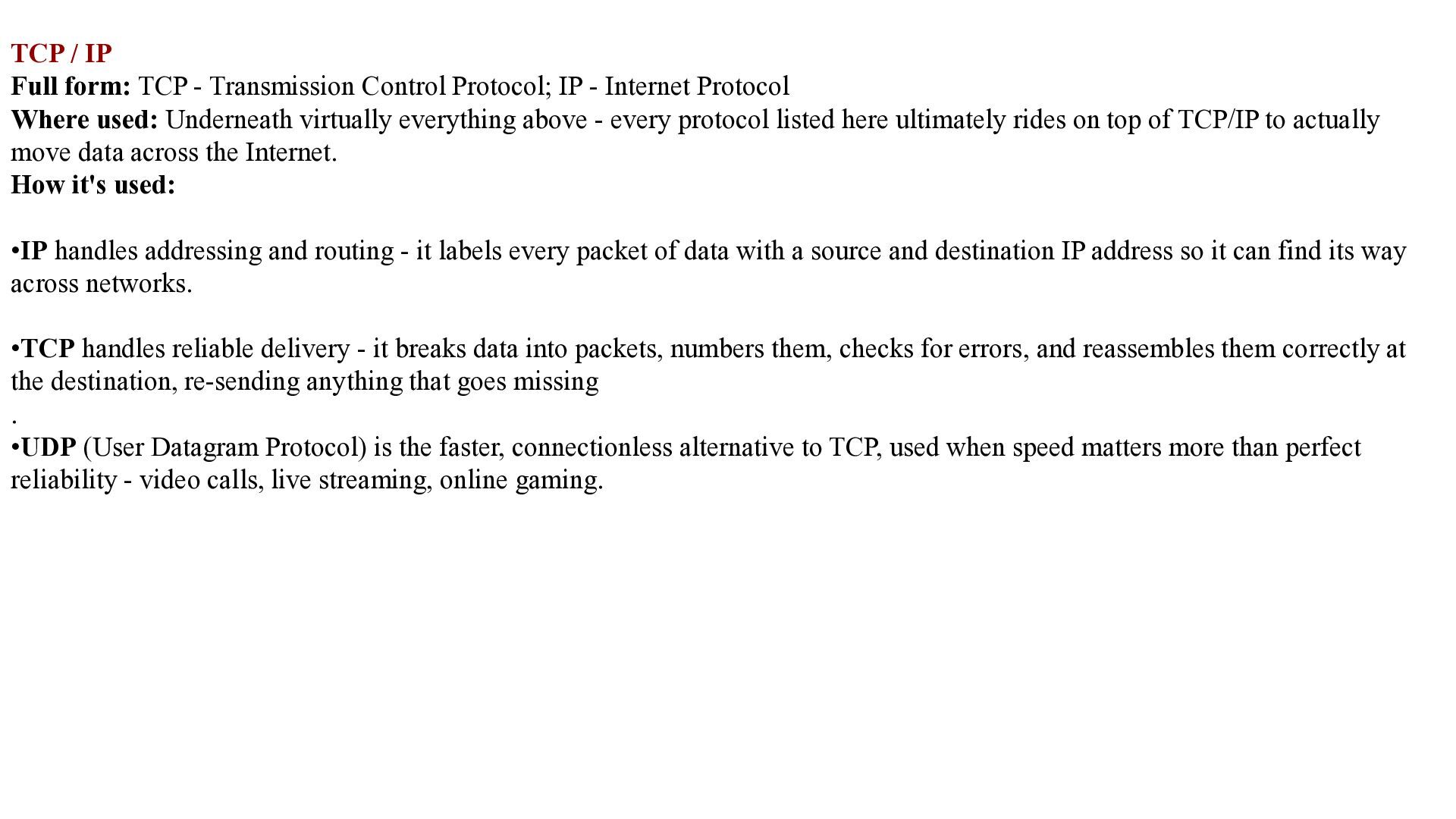
IP - Internet Protocol Where used: Underneath virtually everything above - every protocol listed here ultimately rides on top of TCP/IP to actually move data across the Internet. How it's used: •IP handles addressing and routing - it labels every packet of data with a source and destination IP address so it can find its way across networks. •TCP handles reliable delivery - it breaks data into packets, numbers them, checks for errors, and reassembles them correctly at the destination, re-sending anything that goes missing . •UDP (User Datagram Protocol) is the faster, connectionless alternative to TCP, used when speed matters more than perfect reliability - video calls, live streaming, online gaming.
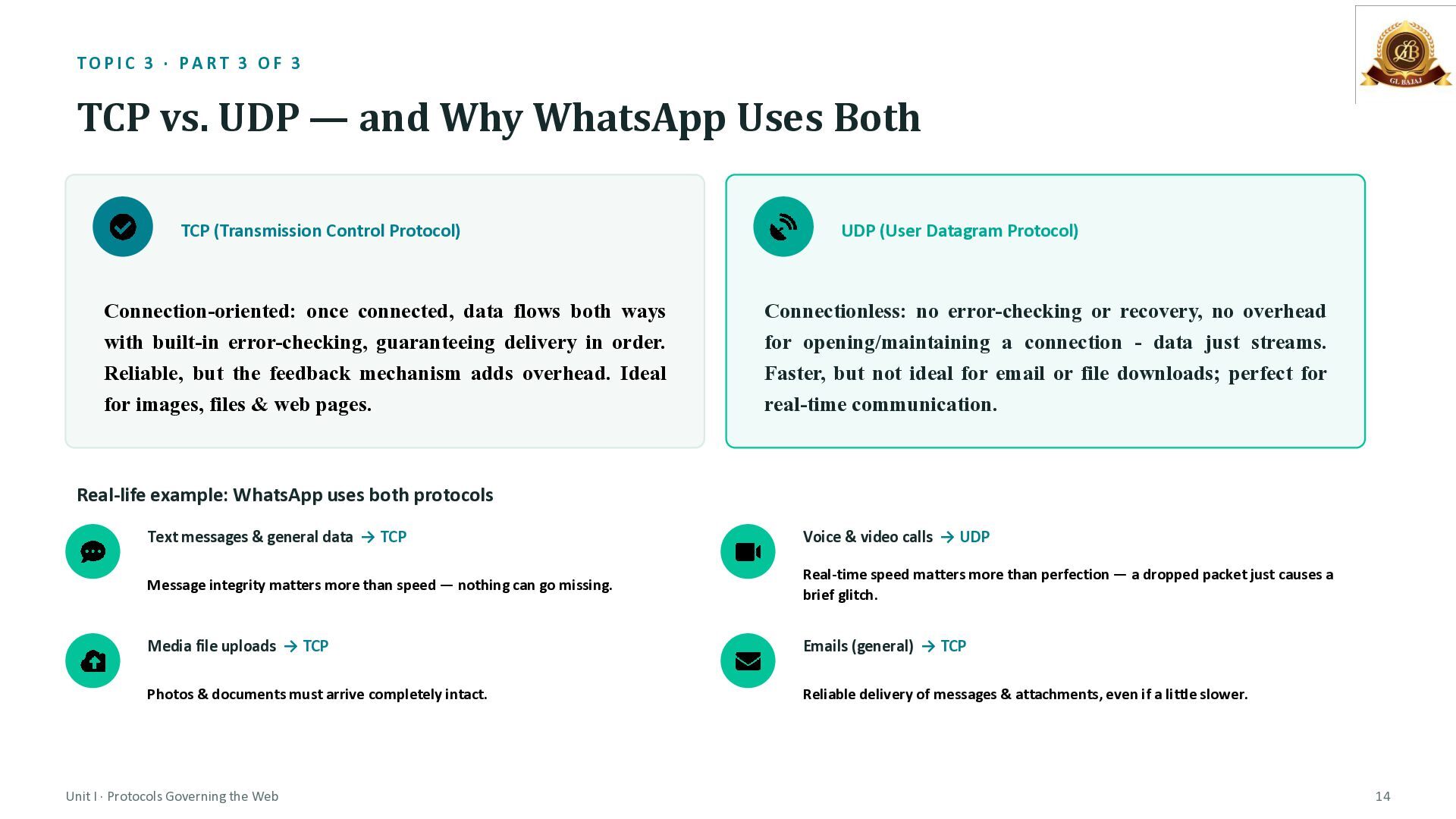
— and Why WhatsApp Uses Both TCP (Transmission Control Protocol) Connection-oriented: once connected, data flows both ways with built-in error-checking, guaranteeing delivery in order. Reliable, but the feedback mechanism adds overhead. Ideal for images, files & web pages. UDP (User Datagram Protocol) Connectionless: no error-checking or recovery, no overhead for opening/maintaining a connection - data just streams. Faster, but not ideal for email or file downloads; perfect for real-time communication. Real-life example: WhatsApp uses both protocols Text messages & general data → TCP Voice & video calls → UDP Message integrity matters more than speed — nothing can go missing. Real-time speed matters more than perfection — a dropped packet just causes a brief glitch. Media file uploads → TCP Emails (general) → TCP Photos & documents must arrive completely intact. Reliable delivery of messages & attachments, even if a little slower. Unit I · Protocols Governing the Web 14
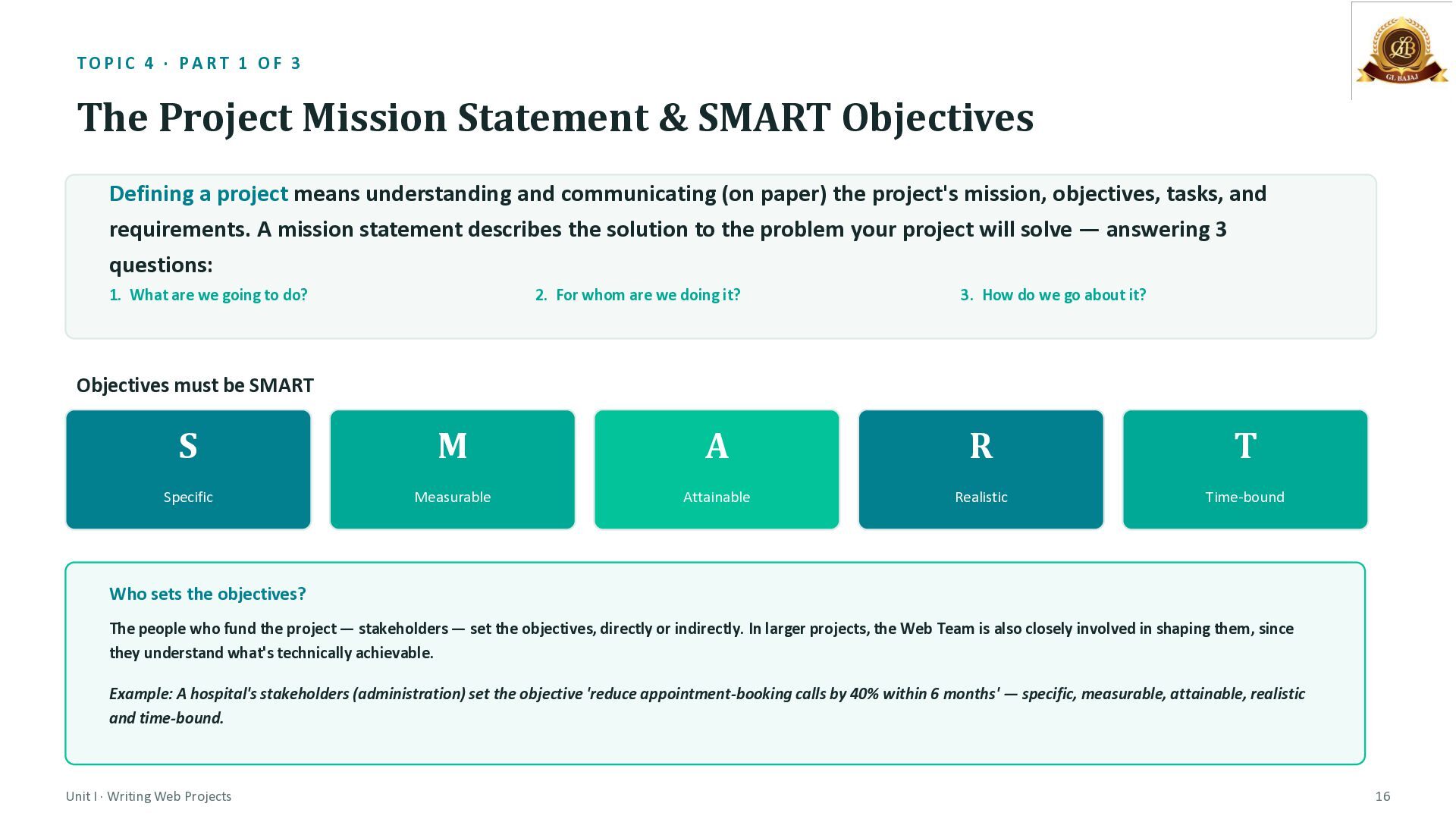
Statement & SMART Objectives Defining a project means understanding and communicating (on paper) the project's mission, objectives, tasks, and requirements. A mission statement describes the solution to the problem your project will solve — answering 3 questions: 1. What are we going to do? 2. For whom are we doing it? 3. How do we go about it? Objectives must be SMART S M A R T Specific Measurable Attainable Realistic Time-bound Who sets the objectives? The people who fund the project — stakeholders — set the objectives, directly or indirectly. In larger projects, the Web Team is also closely involved in shaping them, since they understand what's technically achievable. Example: A hospital's stakeholders (administration) set the objective 'reduce appointment-booking calls by 40% within 6 months' — specific, measurable, attainable, realistic and time-bound. Unit I · Writing Web Projects 16
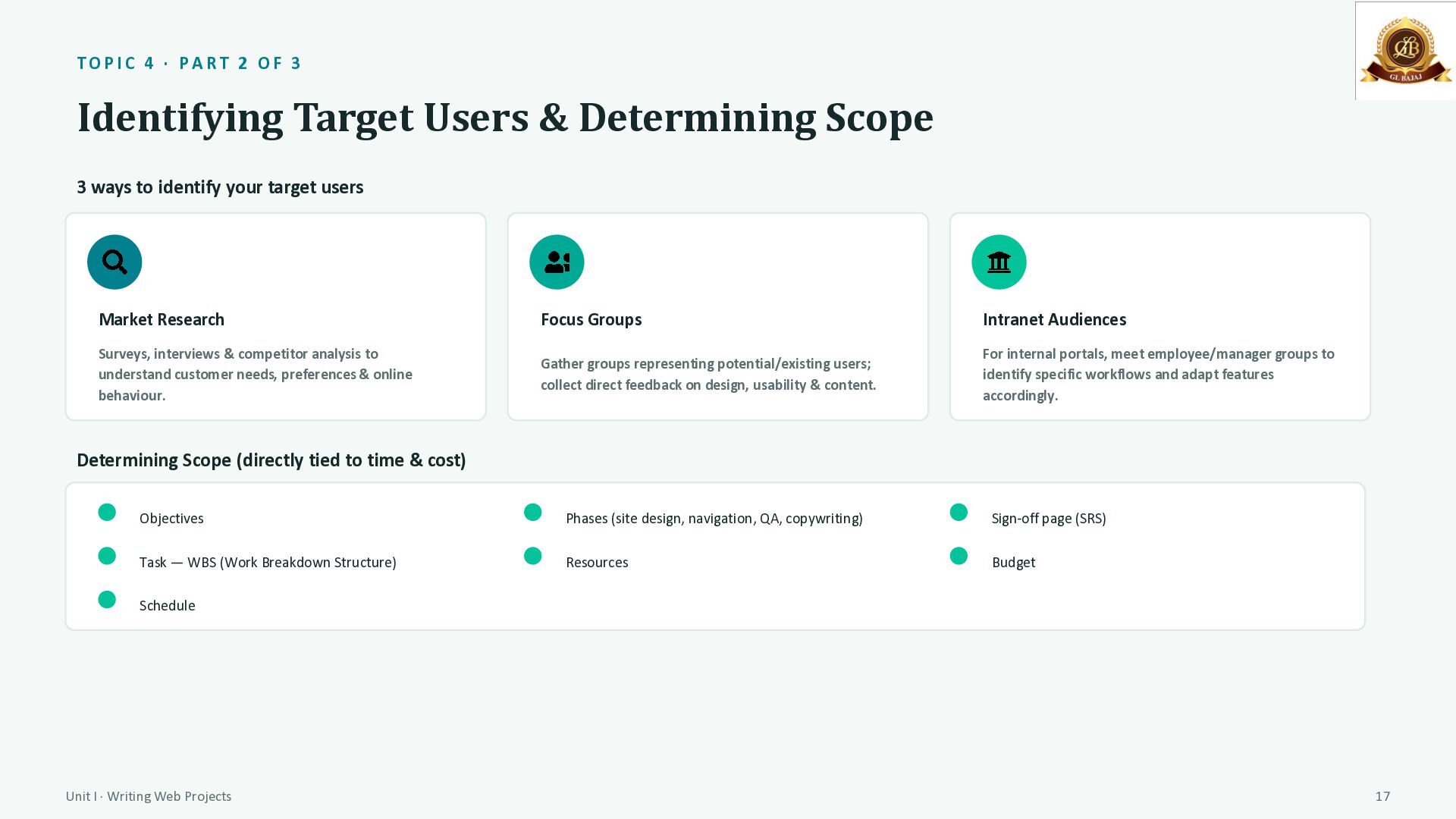
& Determining Scope 3 ways to identify your target users Market Research Focus Groups Intranet Audiences Surveys, interviews & competitor analysis to understand customer needs, preferences & online behaviour. Gather groups representing potential/existing users; collect direct feedback on design, usability & content. For internal portals, meet employee/manager groups to identify specific workflows and adapt features accordingly. Determining Scope (directly tied to time & cost) Objectives Phases (site design, navigation, QA, copywriting) Sign-off page (SRS) Task — WBS (Work Breakdown Structure) Resources Budget Schedule Unit I · Writing Web Projects 17
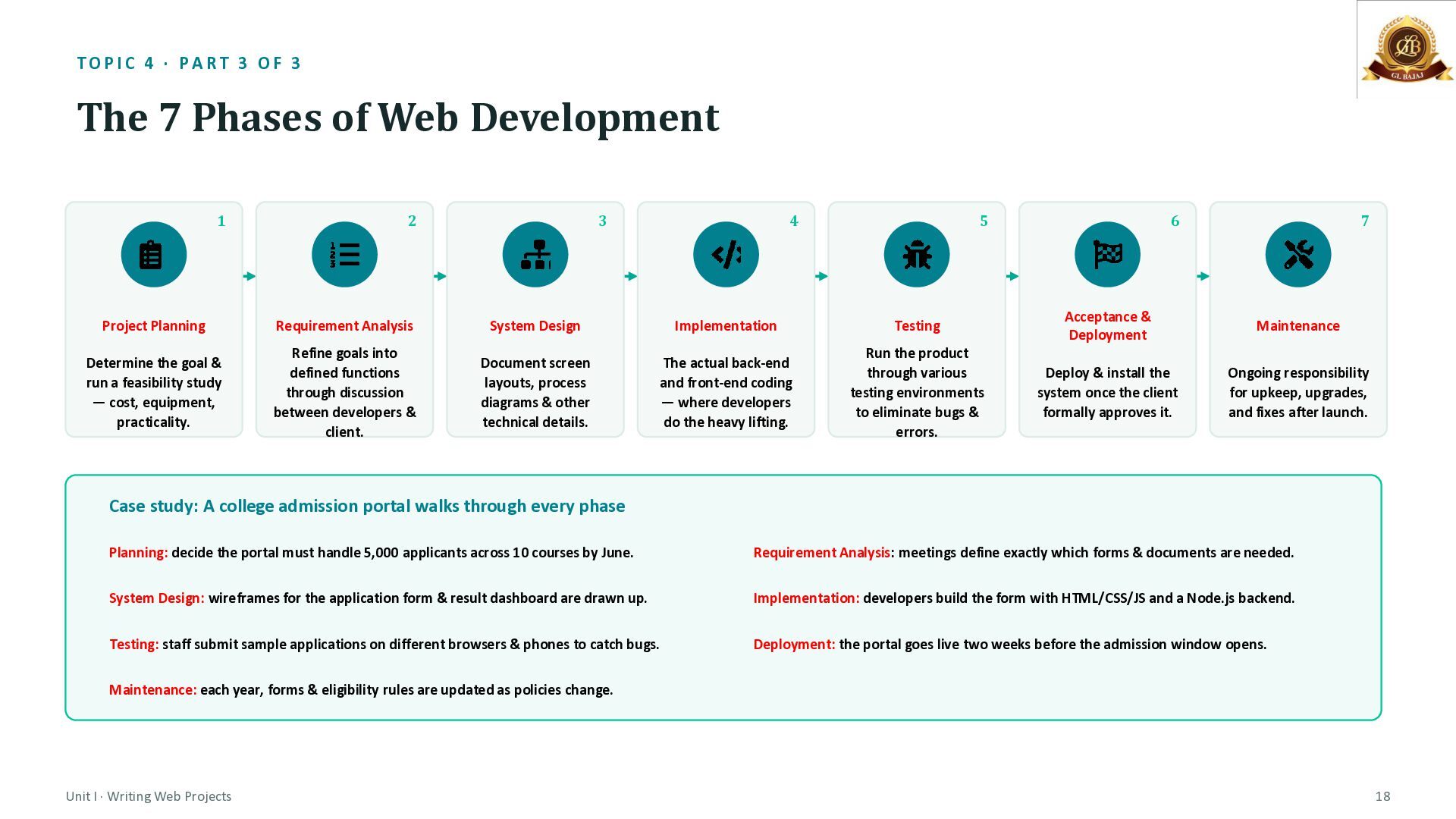
of Web Development 1 2 3 4 5 6 7 Project Planning Requirement Analysis System Design Implementation Testing Acceptance & Deployment Maintenance Determine the goal & run a feasibility study — cost, equipment, practicality. Refine goals into defined functions through discussion between developers & client. Document screen layouts, process diagrams & other technical details. The actual back-end and front-end coding — where developers do the heavy lifting. Run the product through various testing environments to eliminate bugs & errors. Deploy & install the system once the client formally approves it. Ongoing responsibility for upkeep, upgrades, and fixes after launch. Case study: A college admission portal walks through every phase Planning: decide the portal must handle 5,000 applicants across 10 courses by June. Requirement Analysis: meetings define exactly which forms & documents are needed. System Design: wireframes for the application form & result dashboard are drawn up. Implementation: developers build the form with HTML/CSS/JS and a Node.js backend. Testing: staff submit sample applications on different browsers & phones to catch bugs. Deployment: the portal goes live two weeks before the admission window opens. Maintenance: each year, forms & eligibility rules are updated as policies change. Unit I · Writing Web Projects 18
feasibility study, considering cost, equipment, and practicality before committing resources. •System Requirement Analysis - Through intensive discussion between the client and the development team, refine the broad project goals into specific, defined functions and operations the system must perform. •System Design - Document the technical details: screen layouts, process diagrams, data flow, and other design documentation that developers will actually build from. •Implementation - The actual coding phase - both back-end (server logic, database) and front-end (what users see) - where the bulk of technical development happens. •Testing - The product is run through various testing environments and tools to catch bugs and errors before real users encounter them. •Acceptance and Deployment - Once the client formally reviews and approves the finished product, the system is deployed (installed/published) to its live environment. •Maintenance - Development doesn't end at launch. The team remains responsible for ongoing upkeep, bug fixes, and upgrades as the site is used and requirements evolve.
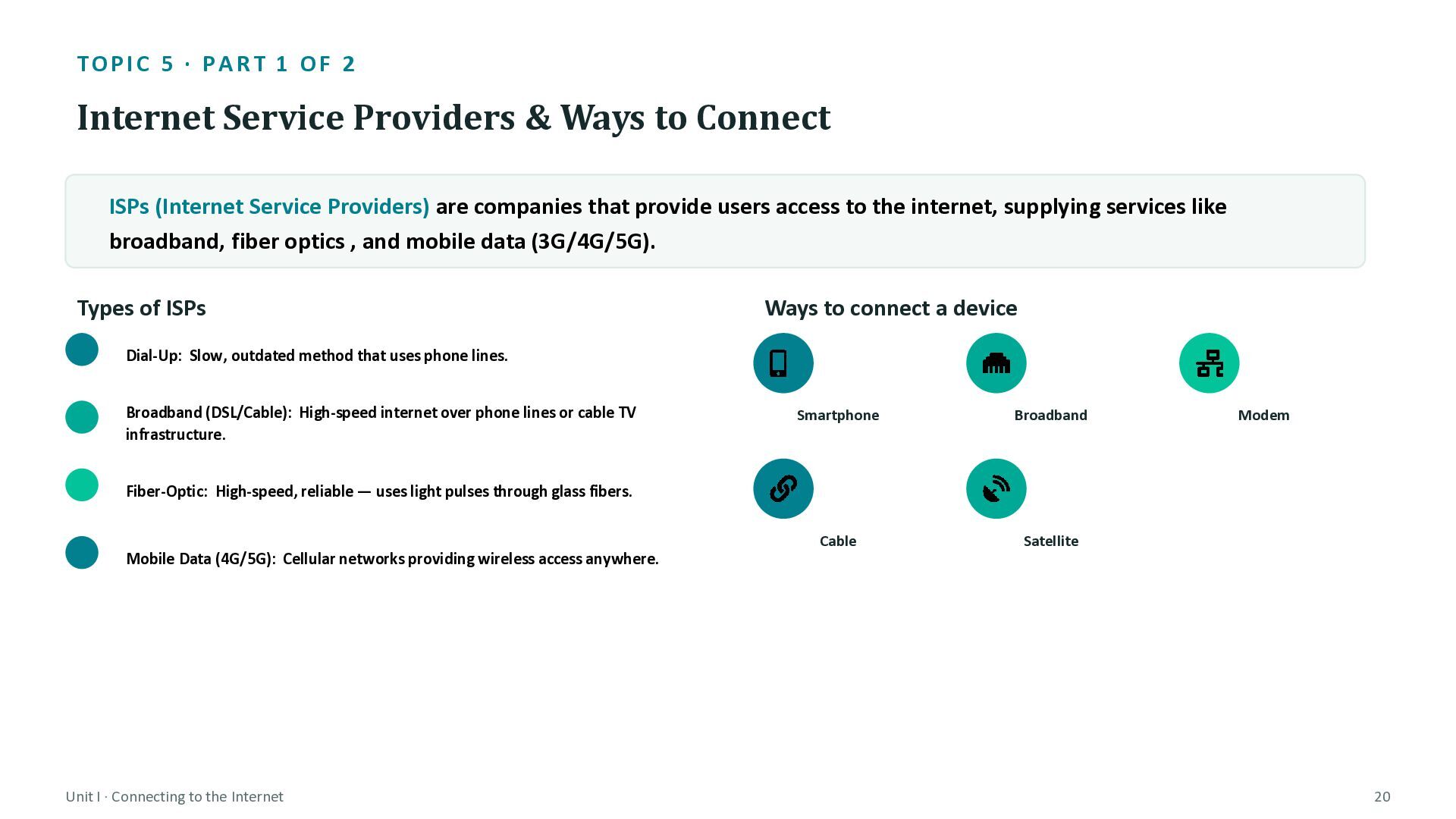
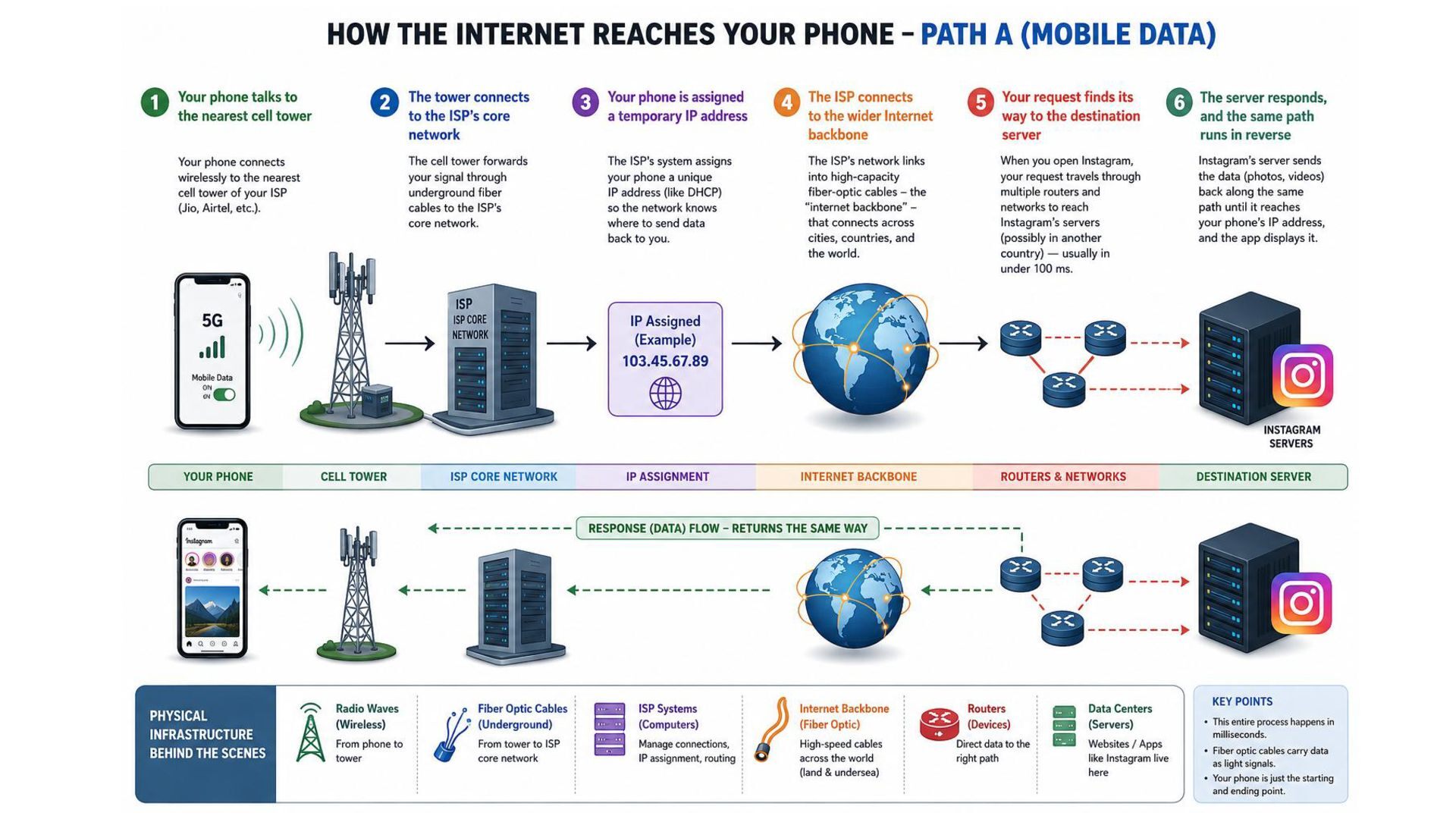
& Ways to Connect ISPs (Internet Service Providers) are companies that provide users access to the internet, supplying services like broadband, fiber optics , and mobile data (3G/4G/5G). Types of ISPs Ways to connect a device Dial-Up: Slow, outdated method that uses phone lines. Broadband (DSL/Cable): High-speed internet over phone lines or cable TV infrastructure. Smartphone Broadband Cable Satellite Modem Fiber-Optic: High-speed, reliable — uses light pulses through glass fibers. Mobile Data (4G/5G): Cellular networks providing wireless access anywhere. Unit I · Connecting to the Internet 20
Providers) are companies (e.g., Jio, Airtel, BSNL) that provide users access to the internet, offering services like broadband, fiber optics, DSL, and mobile data. Types of ISPs, explained: •Dial-Up - the oldest, slowest method, using ordinary phone lines; now essentially obsolete. •Broadband (DSL/Cable) — high-speed internet delivered over existing phone lines (DSL) or cable TV infrastructure — a major upgrade over dial-up. •Fiber-Optic — the fastest and most reliable option, transmitting data as pulses of light through glass fiber. •Mobile Data (3G/4G/5G) — cellular network-based wireless access, letting you connect to the internet anywhere there's tower coverage. Ways to physically connect a device: Smartphone, Broadband, Modem, Cable, Satellite-each representing a different "last mile" technology bridging your specific device to the ISP's larger network.
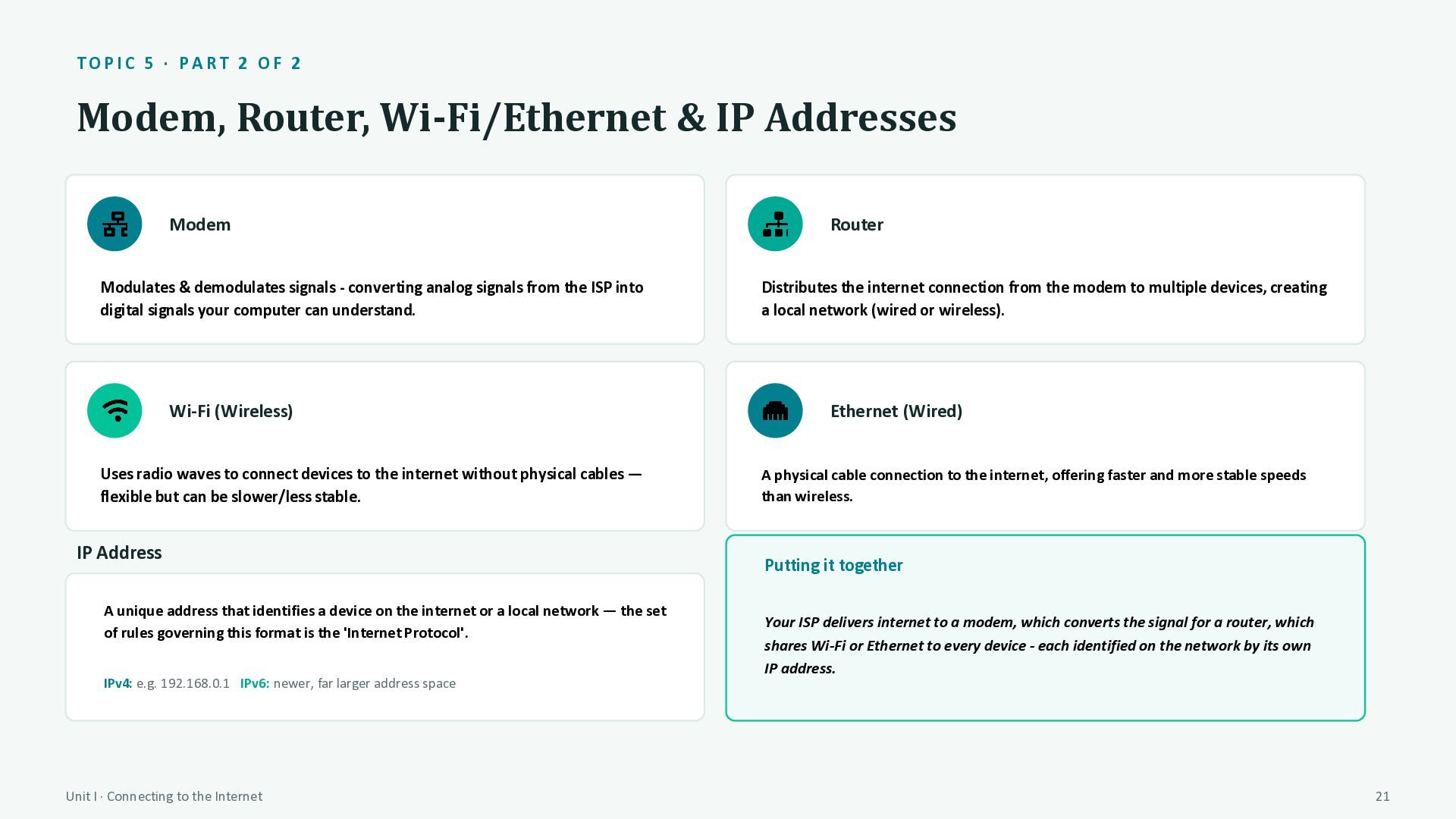
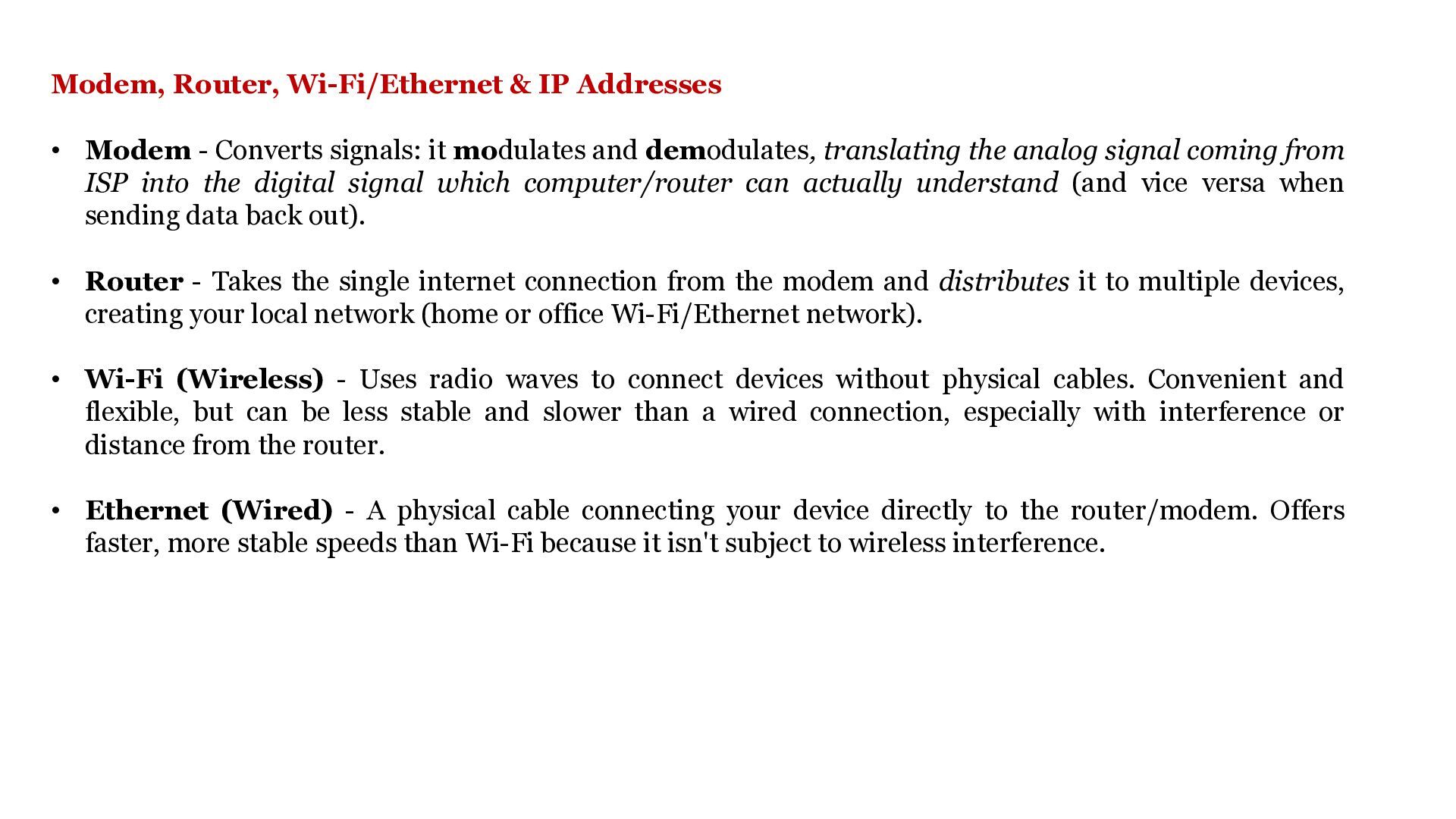
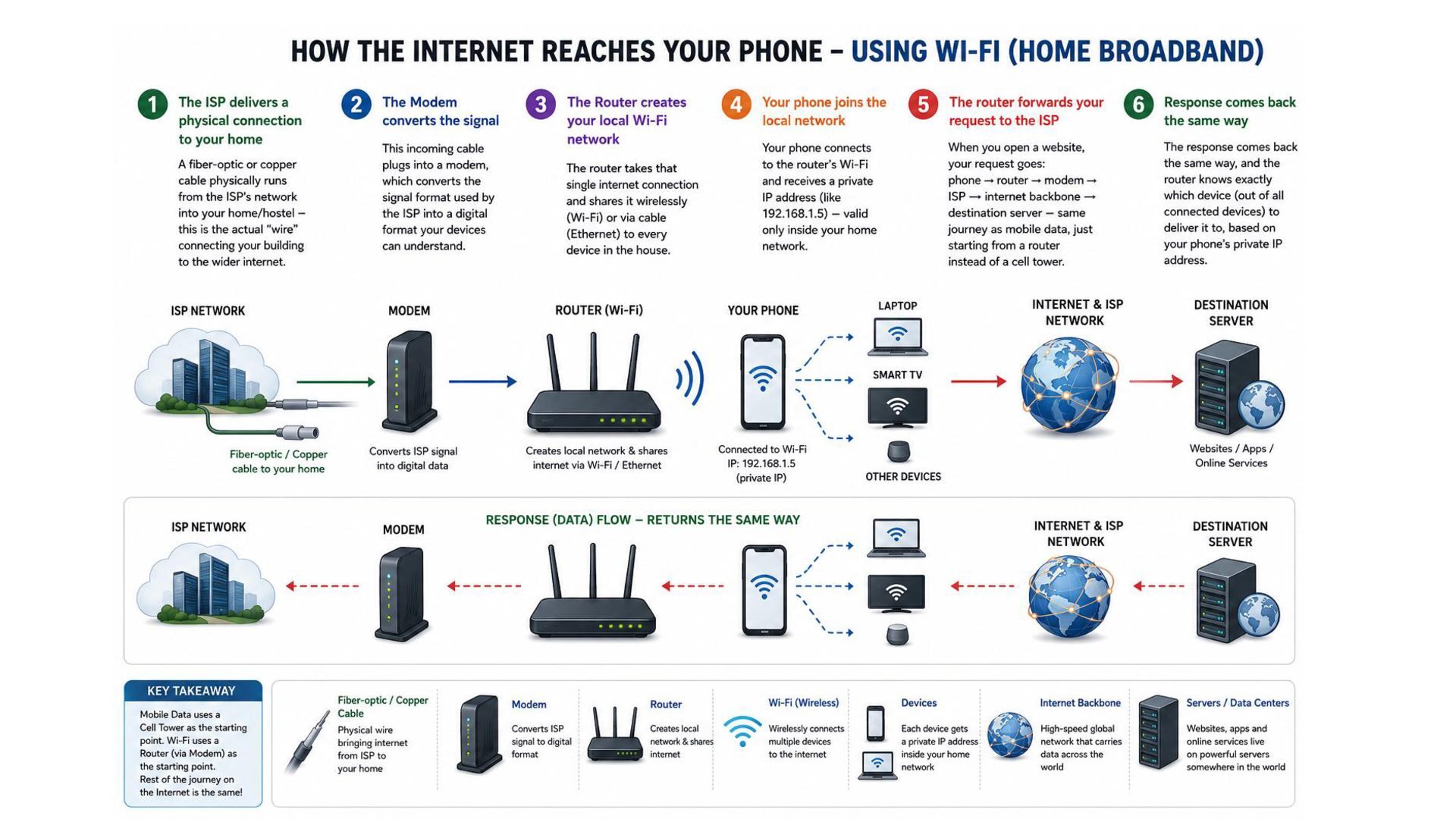
& IP Addresses Modem Modulates & demodulates signals - converting analog signals from the ISP into digital signals your computer can understand. Wi-Fi (Wireless) Uses radio waves to connect devices to the internet without physical cables — flexible but can be slower/less stable. IP Address A unique address that identifies a device on the internet or a local network — the set of rules governing this format is the 'Internet Protocol'. IPv4: e.g. 192.168.0.1 IPv6: newer, far larger address space Unit I · Connecting to the Internet Router Distributes the internet connection from the modem to multiple devices, creating a local network (wired or wireless). Ethernet (Wired) A physical cable connection to the internet, offering faster and more stable speeds than wireless. Putting it together Your ISP delivers internet to a modem, which converts the signal for a router, which shares Wi-Fi or Ethernet to every device - each identified on the network by its own IP address. 21
signals: it modulates and demodulates, translating the analog signal coming from ISP into the digital signal which computer/router can actually understand (and vice versa when sending data back out). • Router - Takes the single internet connection from the modem and distributes it to multiple devices, creating your local network (home or office Wi-Fi/Ethernet network). • Wi-Fi (Wireless) - Uses radio waves to connect devices without physical cables. Convenient and flexible, but can be less stable and slower than a wired connection, especially with interference or distance from the router. • Ethernet (Wired) - A physical cable connecting your device directly to the router/modem. Offers faster, more stable speeds than Wi-Fi because it isn't subject to wireless interference.
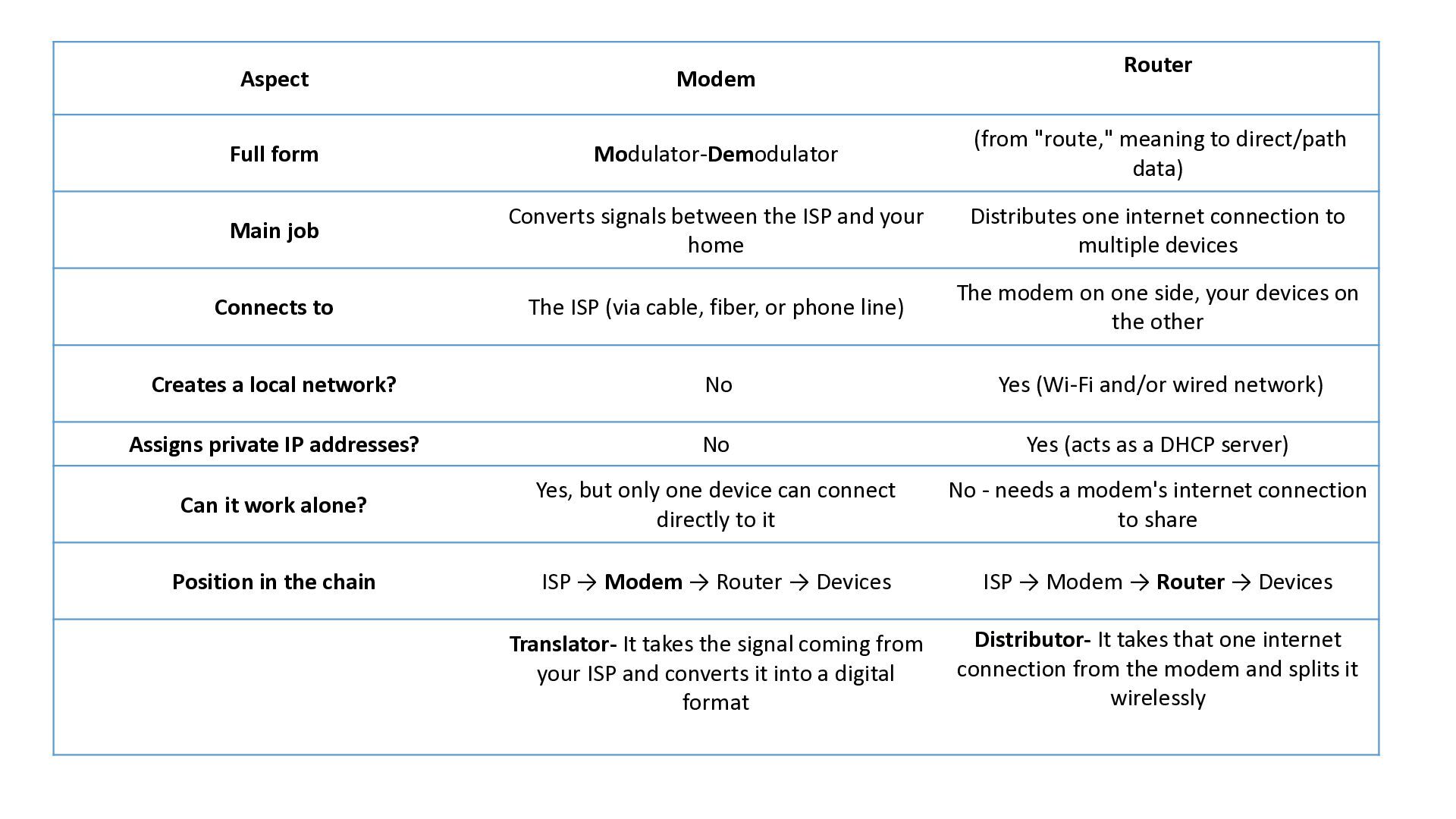
direct/path data) Main job Converts signals between the ISP and your home Distributes one internet connection to multiple devices Connects to The ISP (via cable, fiber, or phone line) The modem on one side, your devices on the other Creates a local network? No Yes (Wi-Fi and/or wired network) Assigns private IP addresses? No Yes (acts as a DHCP server) Can it work alone? Yes, but only one device can connect directly to it No - needs a modem's internet connection to share Position in the chain ISP → Modem → Router → Devices ISP → Modem → Router → Devices Translator- It takes the signal coming from your ISP and converts it into a digital format Distributor- It takes that one internet connection from the modem and splits it wirelessly
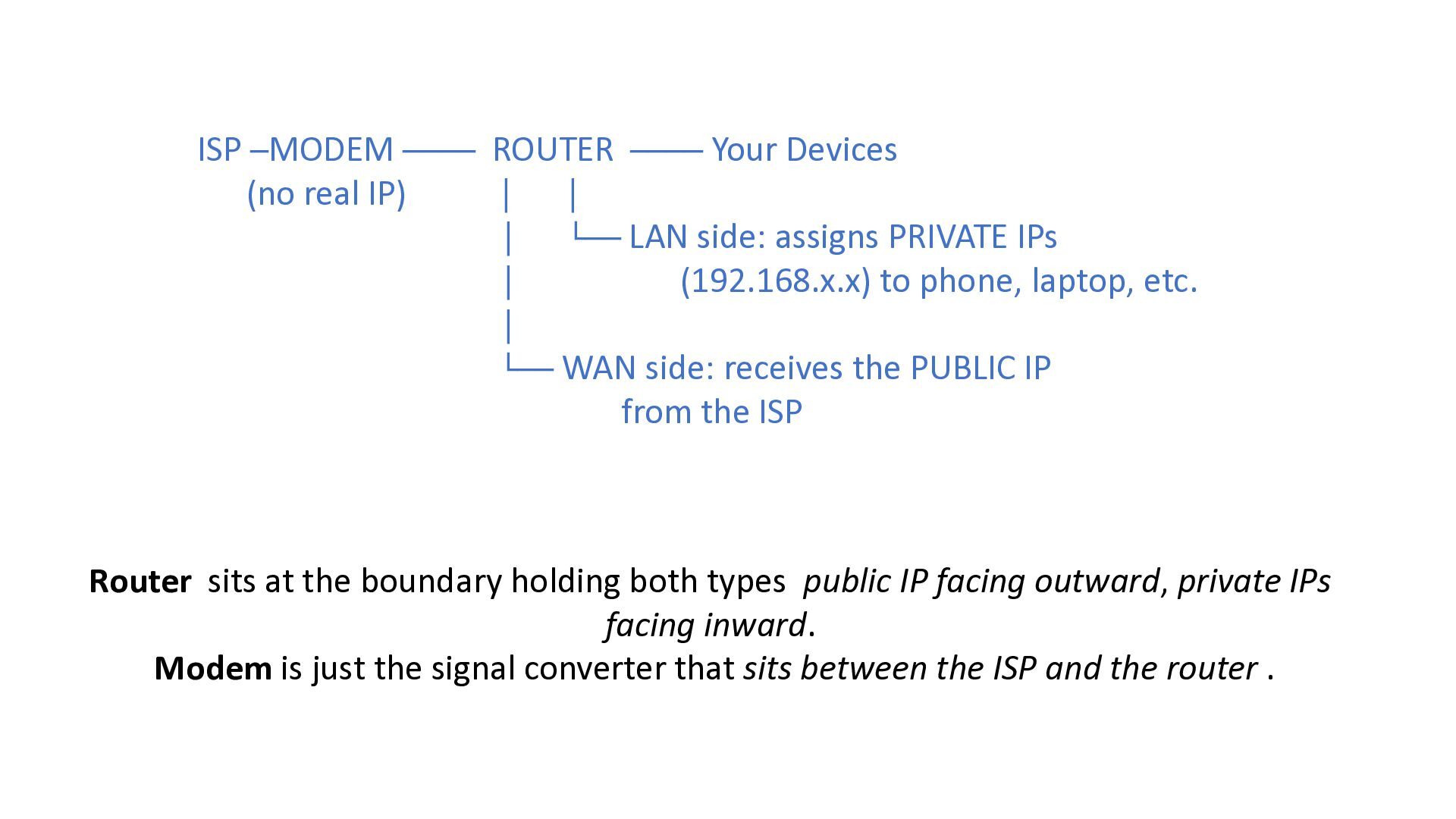
│ │ │ └── LAN side: assigns PRIVATE IPs │ (192.168.x.x) to phone, laptop, etc. │ └── WAN side: receives the PUBLIC IP from the ISP Router sits at the boundary holding both types public IP facing outward, private IPs facing inward. Modem is just the signal converter that sits between the ISP and the router .
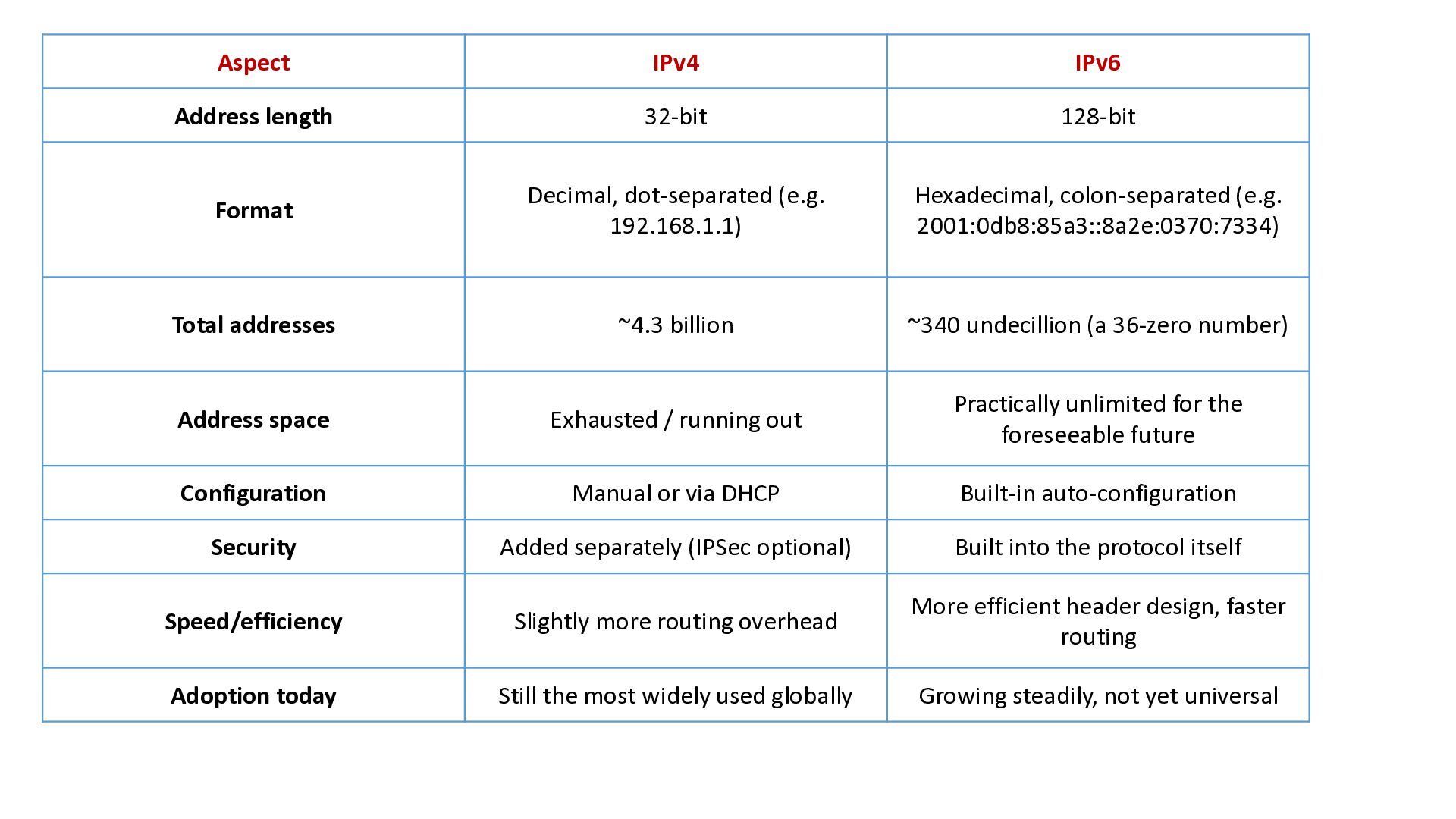
(e.g. 192.168.1.1) Hexadecimal, colon-separated (e.g. 2001:0db8:85a3::8a2e:0370:7334) Total addresses ~4.3 billion ~340 undecillion (a 36-zero number) Address space Exhausted / running out Practically unlimited for the foreseeable future Configuration Manual or via DHCP Built-in auto-configuration Security Added separately (IPSec optional) Built into the protocol itself Speed/efficiency Slightly more routing overhead More efficient header design, faster routing Adoption today Still the most widely used globally Growing steadily, not yet universal
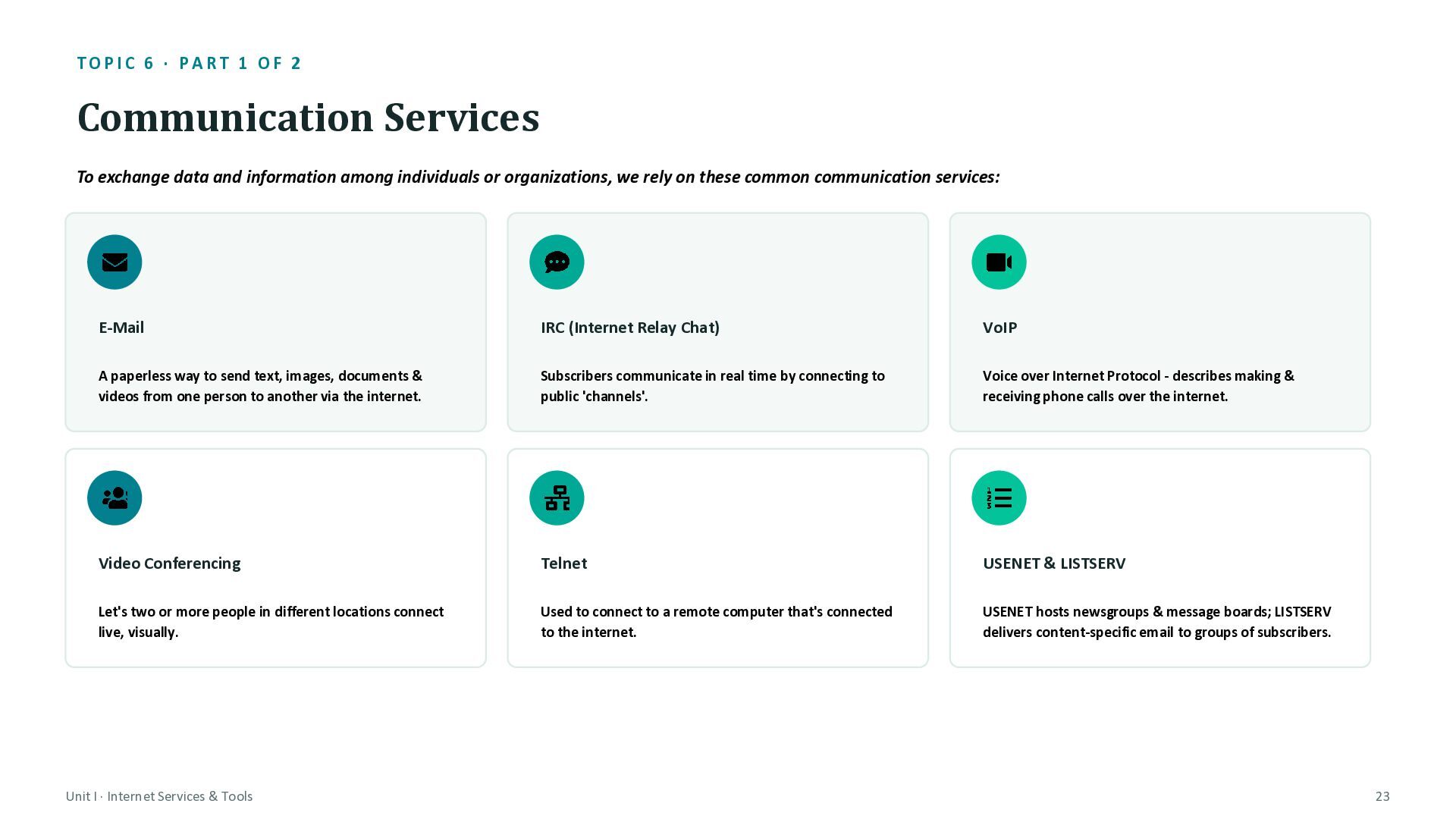
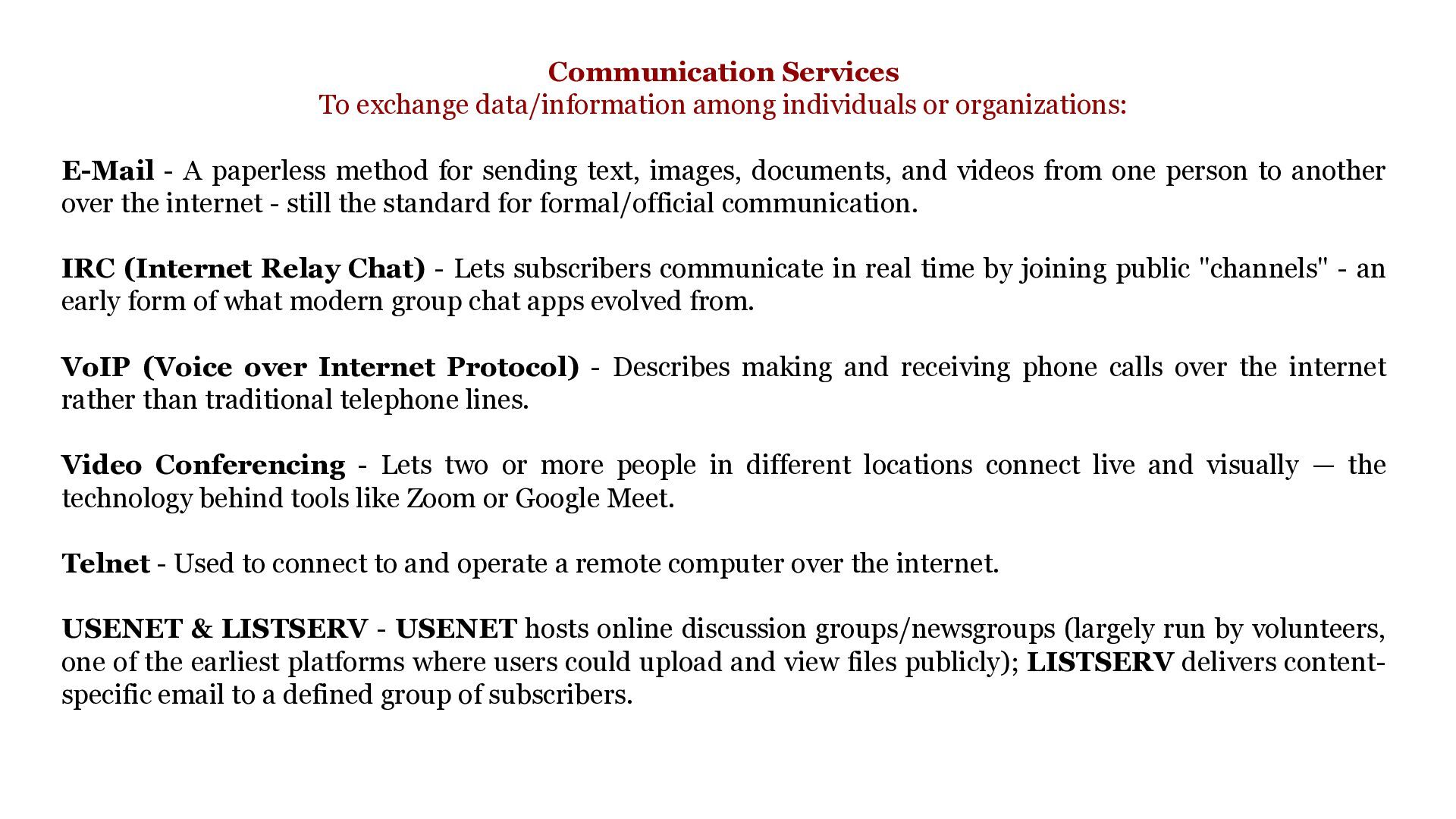
exchange data and information among individuals or organizations, we rely on these common communication services: E-Mail IRC (Internet Relay Chat) VoIP A paperless way to send text, images, documents & videos from one person to another via the internet. Subscribers communicate in real time by connecting to public 'channels'. Voice over Internet Protocol - describes making & receiving phone calls over the internet. Video Conferencing Telnet USENET & LISTSERV Let's two or more people in different locations connect live, visually. Used to connect to a remote computer that's connected to the internet. USENET hosts newsgroups & message boards; LISTSERV delivers content-specific email to groups of subscribers. Unit I · Internet Services & Tools 23
- A paperless method for sending text, images, documents, and videos from one person to another over the internet - still the standard for formal/official communication. IRC (Internet Relay Chat) - Lets subscribers communicate in real time by joining public "channels" - an early form of what modern group chat apps evolved from. VoIP (Voice over Internet Protocol) - Describes making and receiving phone calls over the internet rather than traditional telephone lines. Video Conferencing - Lets two or more people in different locations connect live and visually — the technology behind tools like Zoom or Google Meet. Telnet - Used to connect to and operate a remote computer over the internet. USENET & LISTSERV - USENET hosts online discussion groups/newsgroups (largely run by volunteers, one of the earliest platforms where users could upload and view files publicly); LISTSERV delivers contentspecific email to a defined group of subscribers.
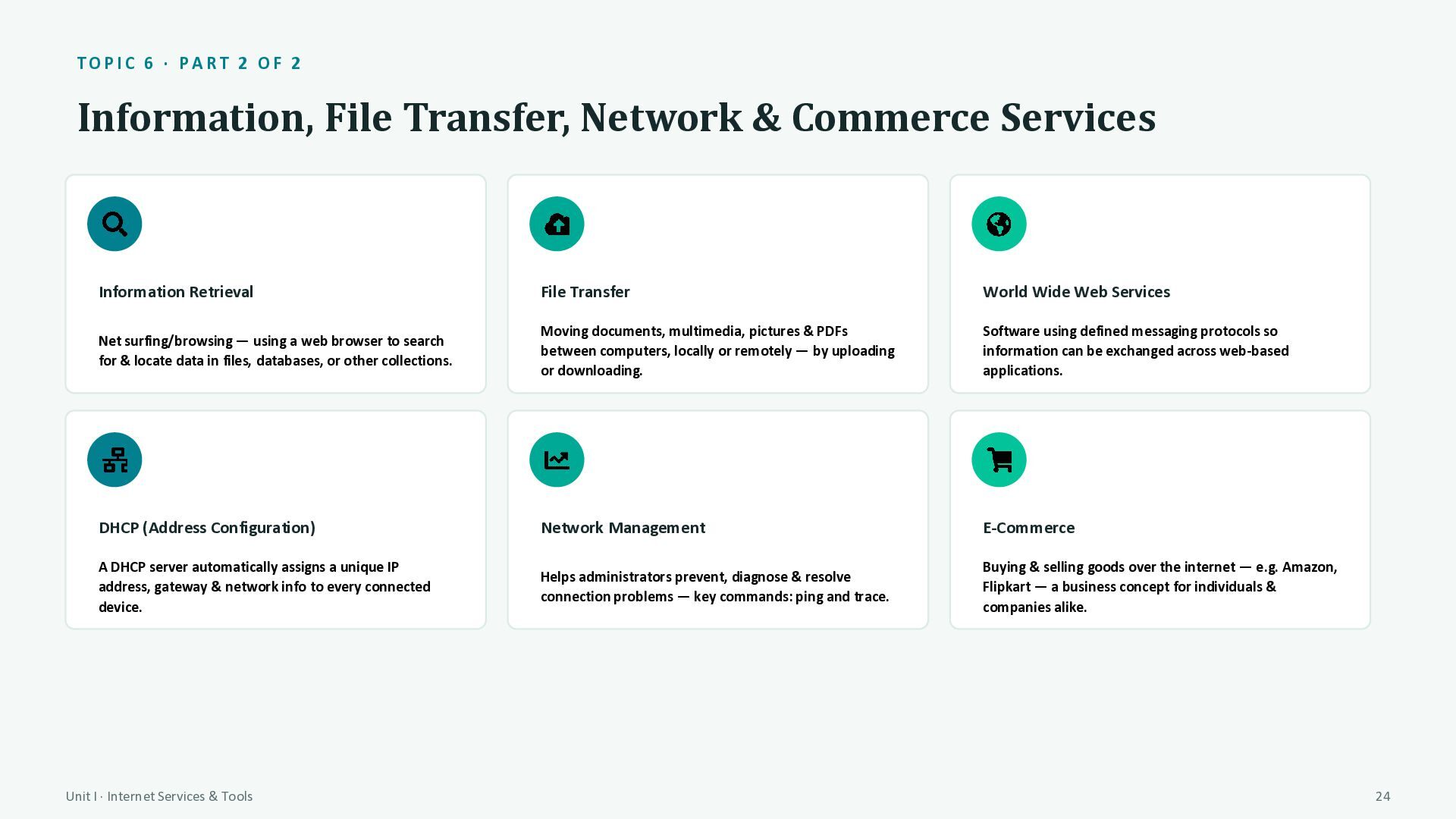
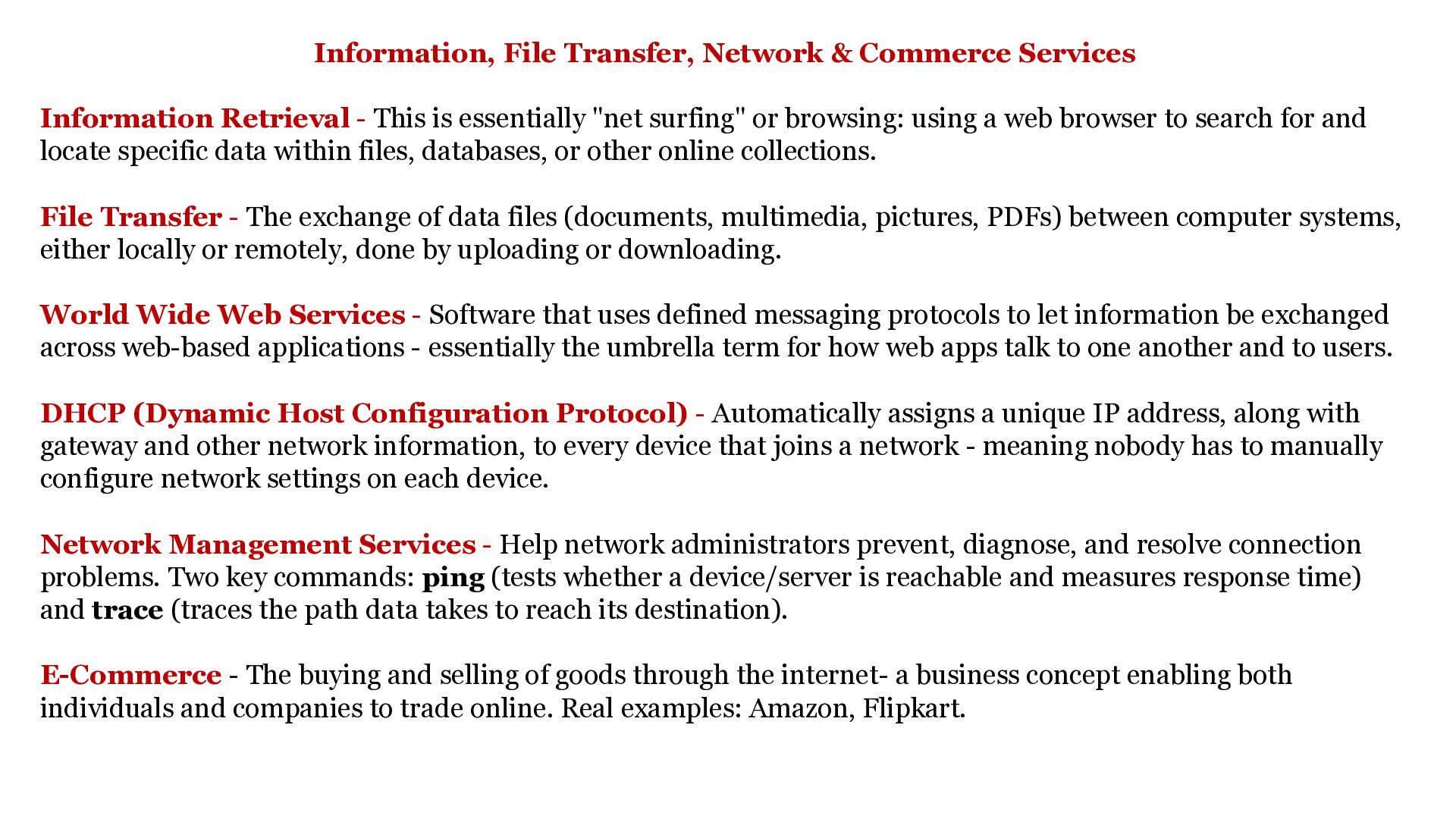
Network & Commerce Services Information Retrieval File Transfer World Wide Web Services Net surfing/browsing — using a web browser to search for & locate data in files, databases, or other collections. Moving documents, multimedia, pictures & PDFs between computers, locally or remotely — by uploading or downloading. Software using defined messaging protocols so information can be exchanged across web-based applications. DHCP (Address Configuration) Network Management E-Commerce A DHCP server automatically assigns a unique IP address, gateway & network info to every connected device. Helps administrators prevent, diagnose & resolve connection problems — key commands: ping and trace. Buying & selling goods over the internet — e.g. Amazon, Flipkart — a business concept for individuals & companies alike. Unit I · Internet Services & Tools 24
This is essentially "net surfing" or browsing: using a web browser to search for and locate specific data within files, databases, or other online collections. File Transfer - The exchange of data files (documents, multimedia, pictures, PDFs) between computer systems, either locally or remotely, done by uploading or downloading. World Wide Web Services - Software that uses defined messaging protocols to let information be exchanged across web-based applications - essentially the umbrella term for how web apps talk to one another and to users. DHCP (Dynamic Host Configuration Protocol) - Automatically assigns a unique IP address, along with gateway and other network information, to every device that joins a network - meaning nobody has to manually configure network settings on each device. Network Management Services - Help network administrators prevent, diagnose, and resolve connection problems. Two key commands: ping (tests whether a device/server is reachable and measures response time) and trace (traces the path data takes to reach its destination). E-Commerce - The buying and selling of goods through the internet- a business concept enabling both individuals and companies to trade online. Real examples: Amazon, Flipkart.
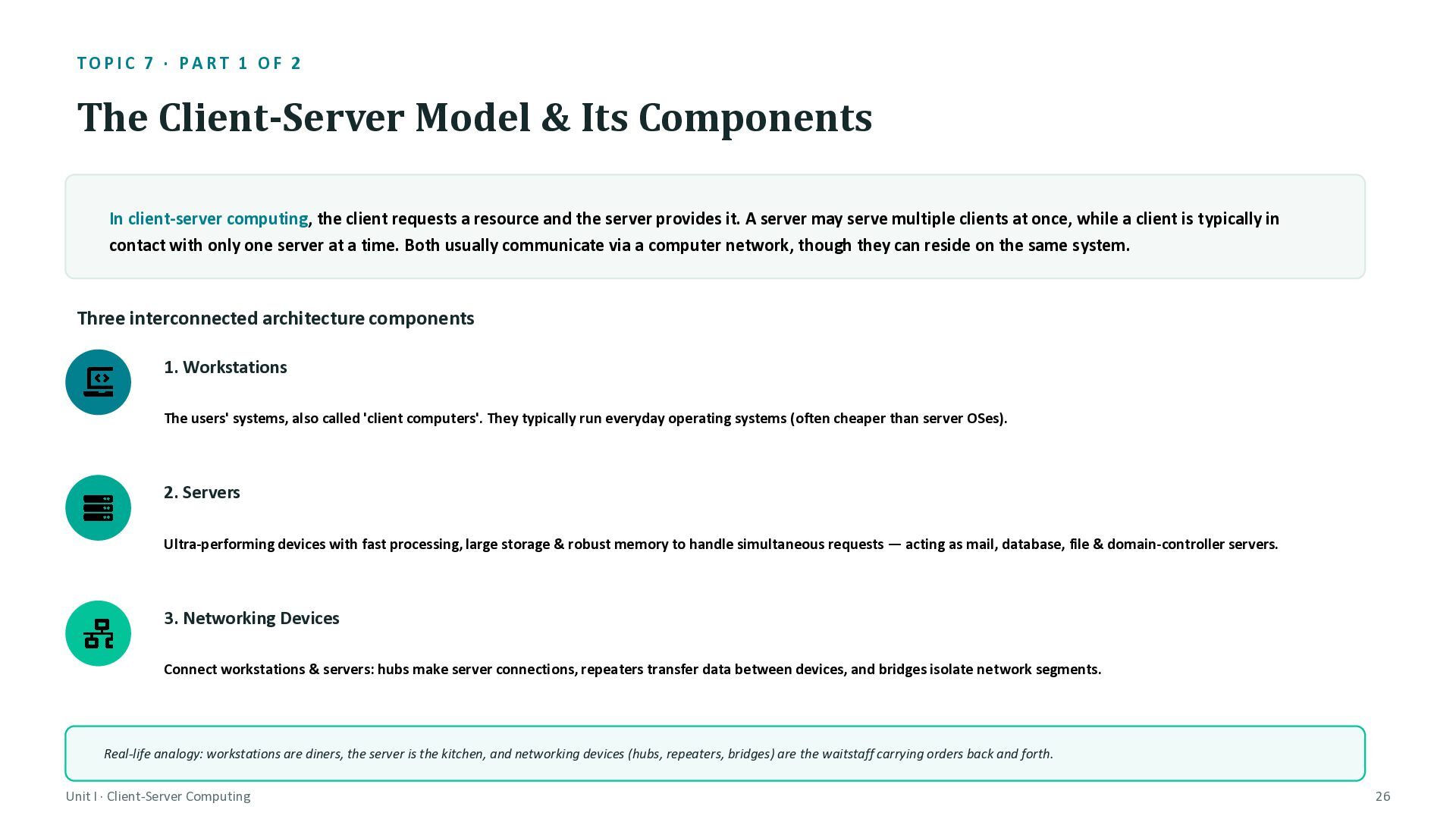
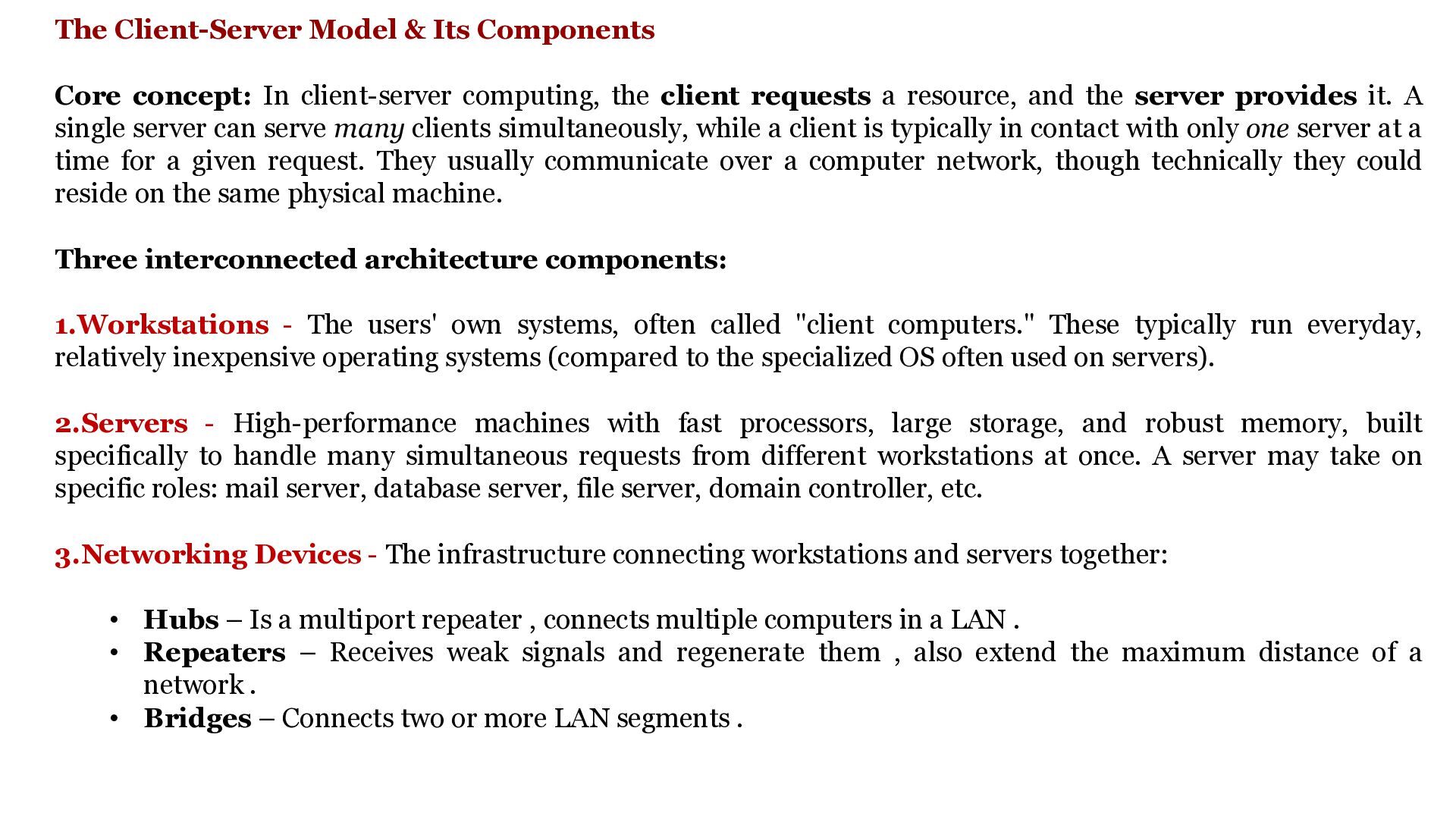
& Its Components In client-server computing, the client requests a resource and the server provides it. A server may serve multiple clients at once, while a client is typically in contact with only one server at a time. Both usually communicate via a computer network, though they can reside on the same system. Three interconnected architecture components 1. Workstations The users' systems, also called 'client computers'. They typically run everyday operating systems (often cheaper than server OSes). 2. Servers Ultra-performing devices with fast processing, large storage & robust memory to handle simultaneous requests — acting as mail, database, file & domain-controller servers. 3. Networking Devices Connect workstations & servers: hubs make server connections, repeaters transfer data between devices, and bridges isolate network segments. Real-life analogy: workstations are diners, the server is the kitchen, and networking devices (hubs, repeaters, bridges) are the waitstaff carrying orders back and forth. Unit I · Client-Server Computing 26
computing, the client requests a resource, and the server provides it. A single server can serve many clients simultaneously, while a client is typically in contact with only one server at a time for a given request. They usually communicate over a computer network, though technically they could reside on the same physical machine. Three interconnected architecture components: 1.Workstations - The users' own systems, often called "client computers." These typically run everyday, relatively inexpensive operating systems (compared to the specialized OS often used on servers). 2.Servers - High-performance machines with fast processors, large storage, and robust memory, built specifically to handle many simultaneous requests from different workstations at once. A server may take on specific roles: mail server, database server, file server, domain controller, etc. 3.Networking Devices - The infrastructure connecting workstations and servers together: • Hubs – Is a multiport repeater , connects multiple computers in a LAN . • Repeaters – Receives weak signals and regenerate them , also extend the maximum distance of a network . • Bridges – Connects two or more LAN segments .
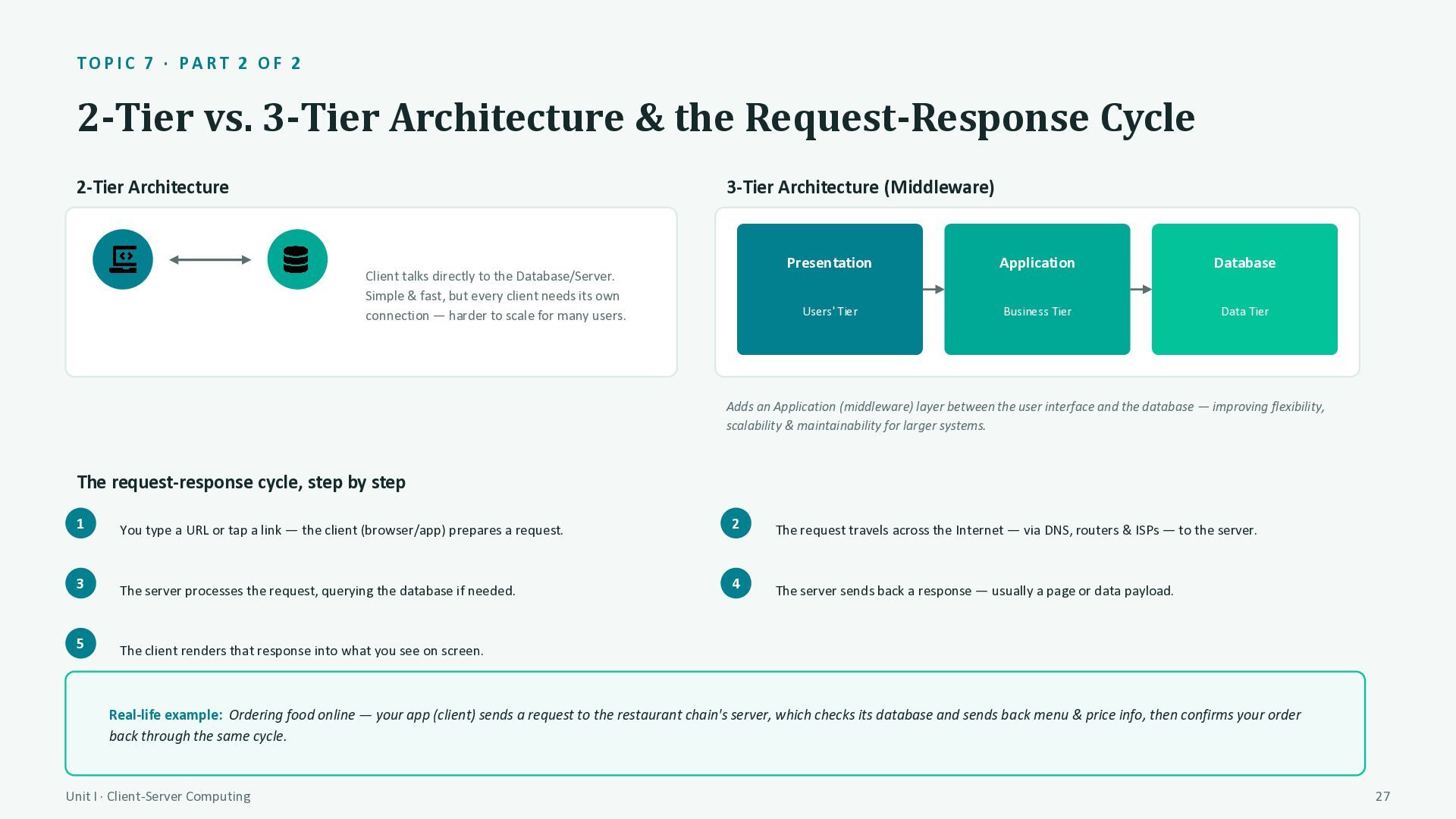
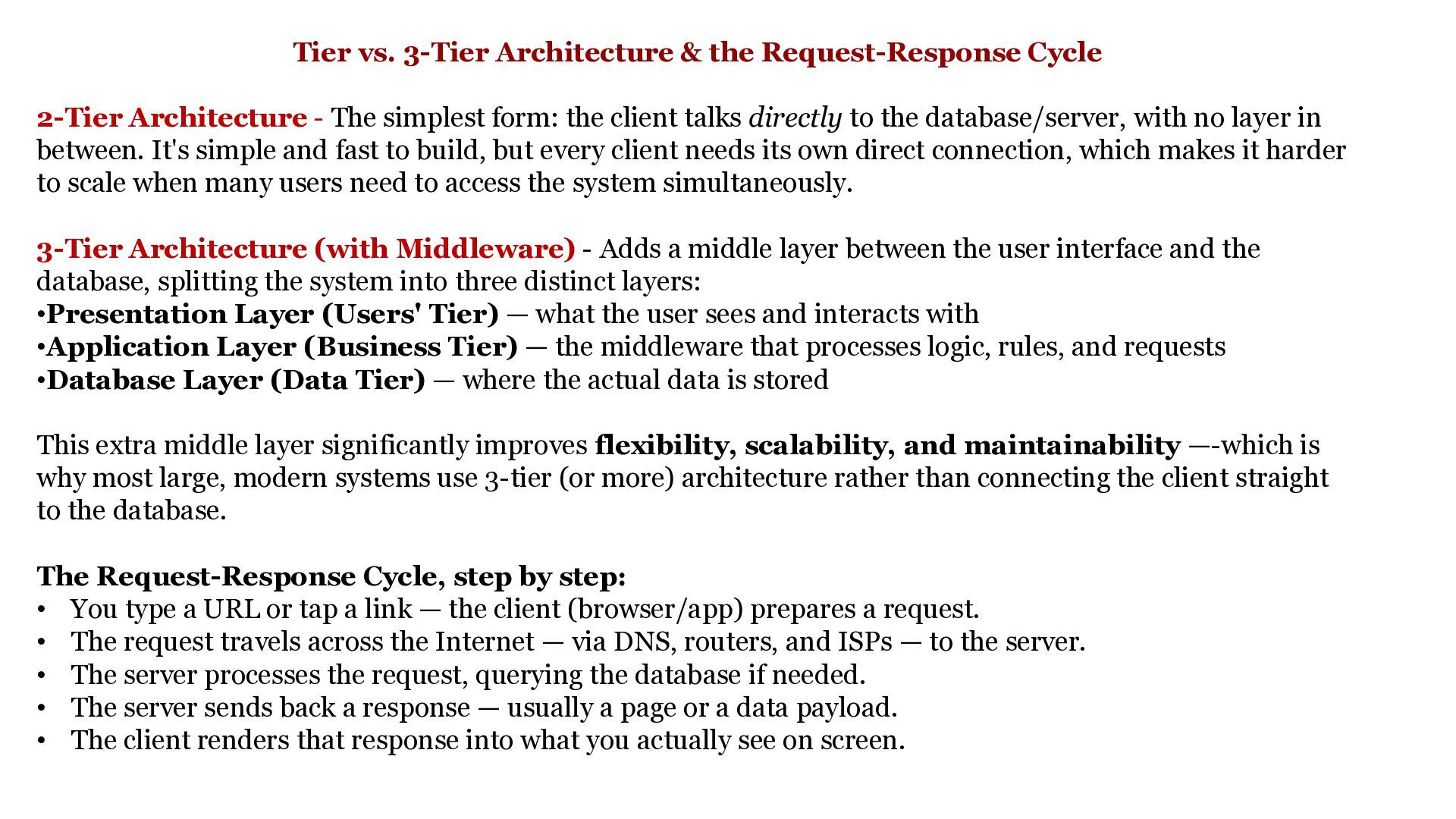
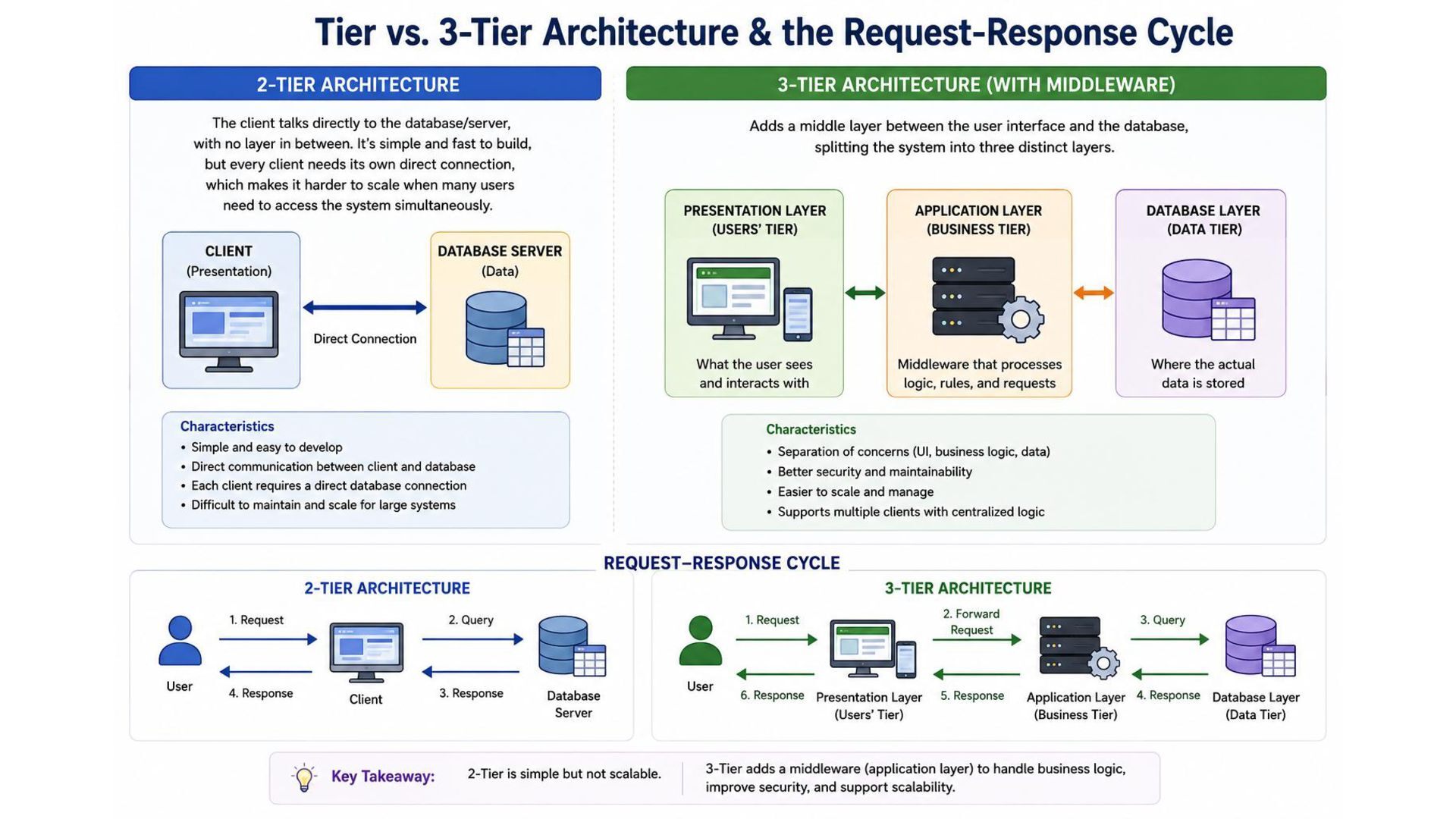
Architecture & the Request-Response Cycle 2-Tier Architecture 3-Tier Architecture (Middleware) Client talks directly to the Database/Server. Simple & fast, but every client needs its own connection — harder to scale for many users. Presentation Application Database Users' Tier Business Tier Data Tier Adds an Application (middleware) layer between the user interface and the database — improving flexibility, scalability & maintainability for larger systems. The request-response cycle, step by step 1 You type a URL or tap a link — the client (browser/app) prepares a request. 2 The request travels across the Internet — via DNS, routers & ISPs — to the server. 3 The server processes the request, querying the database if needed. 4 The server sends back a response — usually a page or data payload. 5 The client renders that response into what you see on screen. Real-life example: Ordering food online — your app (client) sends a request to the restaurant chain's server, which checks its database and sends back menu & price info, then confirms your order back through the same cycle. Unit I · Client-Server Computing 27
- The simplest form: the client talks directly to the database/server, with no layer in between. It's simple and fast to build, but every client needs its own direct connection, which makes it harder to scale when many users need to access the system simultaneously. 3-Tier Architecture (with Middleware) - Adds a middle layer between the user interface and the database, splitting the system into three distinct layers: •Presentation Layer (Users' Tier) — what the user sees and interacts with •Application Layer (Business Tier) — the middleware that processes logic, rules, and requests •Database Layer (Data Tier) — where the actual data is stored This extra middle layer significantly improves flexibility, scalability, and maintainability —-which is why most large, modern systems use 3-tier (or more) architecture rather than connecting the client straight to the database. The Request-Response Cycle, step by step: • You type a URL or tap a link — the client (browser/app) prepares a request. • The request travels across the Internet — via DNS, routers, and ISPs — to the server. • The server processes the request, querying the database if needed. • The server sends back a response — usually a page or a data payload. • The client renders that response into what you actually see on screen.
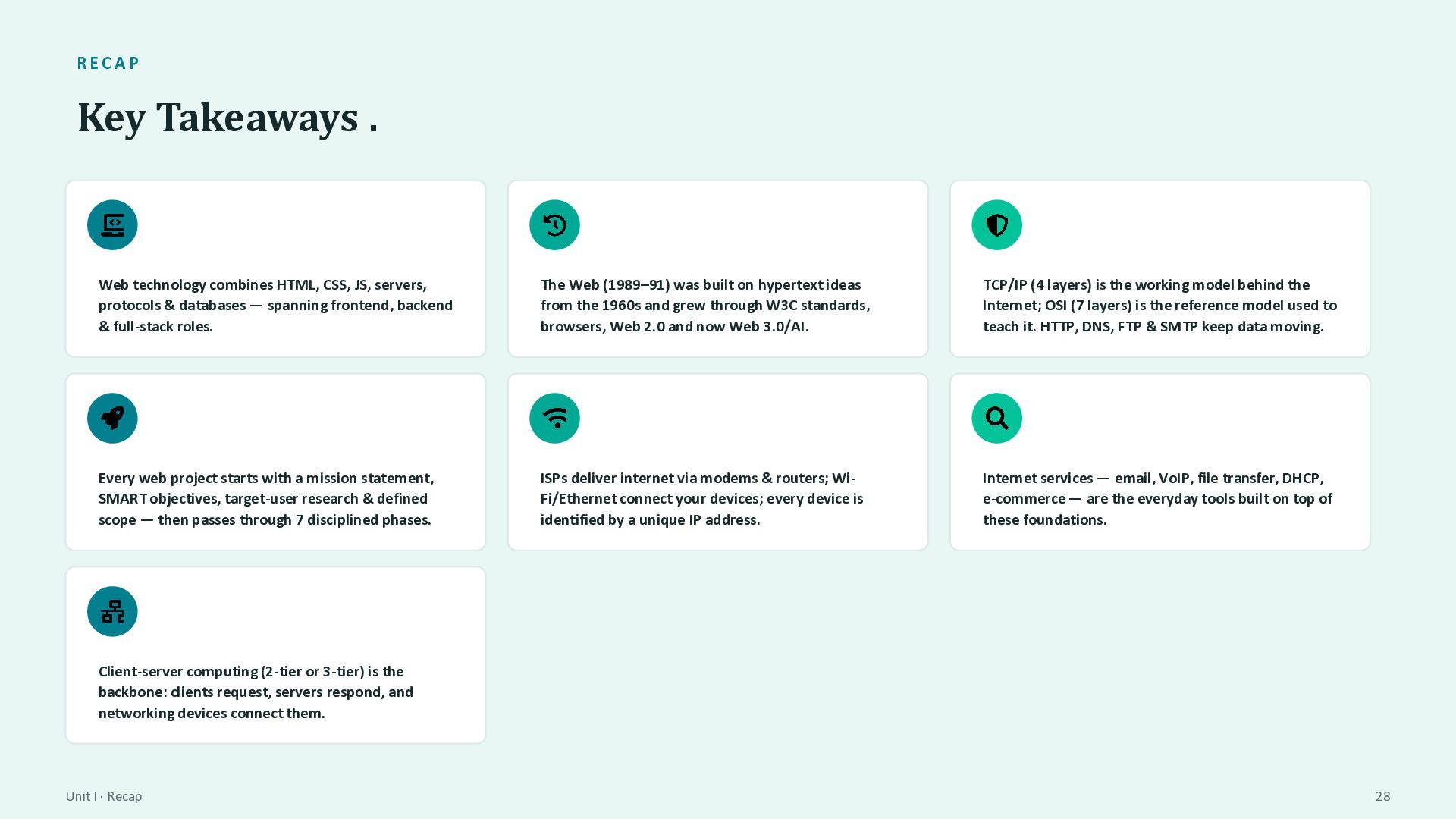
servers, protocols & databases — spanning frontend, backend & full-stack roles. The Web (1989–91) was built on hypertext ideas from the 1960s and grew through W3C standards, browsers, Web 2.0 and now Web 3.0/AI. TCP/IP (4 layers) is the working model behind the Internet; OSI (7 layers) is the reference model used to teach it. HTTP, DNS, FTP & SMTP keep data moving. Every web project starts with a mission statement, SMART objectives, target-user research & defined scope — then passes through 7 disciplined phases. ISPs deliver internet via modems & routers; WiFi/Ethernet connect your devices; every device is identified by a unique IP address. Internet services — email, VoIP, file transfer, DHCP, e-commerce — are the everyday tools built on top of these foundations. Client-server computing (2-tier or 3-tier) is the backbone: clients request, servers respond, and networking devices connect them. Unit I · Recap 28


 apex9090
 sachag
 axbom
axbom
 codingconduct
 aleyda
 madoxten
 akihiro_kokubo
 davidcarrasco
 apolaine
 sugarenia
 wjessup
 inesmontani
 panda_program