through 2016. All rights reserved – including the right to use these materials for RDz instruction. The information contained in these materials is provided for informational purposes only, and is provided AS IS without warranty of any kind, express or implied. IBM shall not be responsible for any damages arising out of the use of, or otherwise related to, these materials. Nothing contained in these materials is intended to, nor shall have the effect of, creating any warranties or representations from IBM or its suppliers or licensors, or altering the terms and conditions of the applicable license agreement governing the use of IBM software. References in these materials to IBM products, programs, or services do not imply that they will be available in all countries in which IBM operates. This information is based on current IBM product plans and strategy, which are subject to change by IBM without notice. Product release dates and/or capabilities referenced in these materials may change at any time at IBM’s sole discretion based on market opportunities or other factors, and are not intended to be a commitment to future product or feature availability in any way. IBM, the IBM logo, the on-demand business logo, Rational, the Rational logo, and other IBM Rational products and services are trademarks or registered trademarks of the International Business Machines Corporation, in the United States, other countries or both. Other company, product, or service names may be trademarks or service marks of others.
it for at least two years, doing production work on z/OS with COBOL, PL/I or Assembler Note that all of the workshops in this course are in COBOL – although files exist that are Assembler and other languages for you to experiment with – as time permits 2. You have: No experience with Eclipse or RDz Some experience with PC tools You have used MS-Windows applications for at least one year RDz installed and running on your workstation at version 8.0 or later Note that all ISPF discussion/examples and screen captures assume IBM-installed ISPF product defaults – not any 3rd party or custom Dialog Manager applications you may have installed on your mainframe
learn how to debug a COBOL program running on a z/OS mainframe. The screen captures all describe connecting to a public z/OS machine that IBM makes available – during classes. If you are taking this course through standard IBM services delivery you should be able to use the properties (I/P address, port#s, etc.), logon IDs and passwords that your instructor provides you with. But you may also be taking this course standalone – and in that case, you will need to speak to your company's Systems Programming staff to learn how to connect and logon. It goes without saying that the actual file names in the screen captures of mainframe libraries and datasets will vary. So you should focus on the process and steps and "how to" – and don't be perplexed at differences in screen captures. You also may be using your company's own Source Control Management system – to do things like builds, compiles, etc. In that case much of the remote functionality in RDz will be customized and tailored to your company's unique and idiosyncratic procedures and protocols.
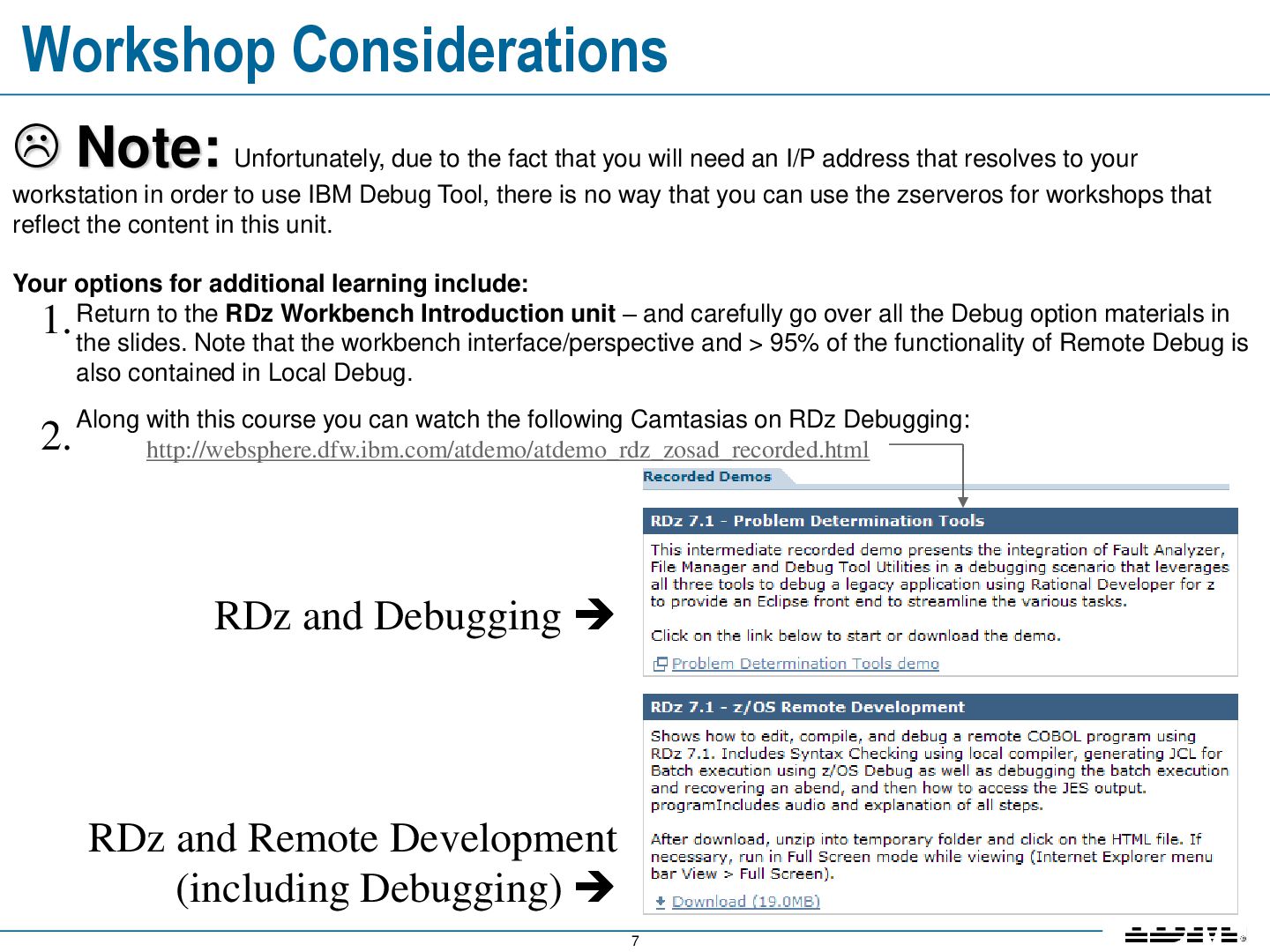
that you will need an I/P address that resolves to your workstation in order to use IBM Debug Tool, there is no way that you can use the zserveros for workshops that reflect the content in this unit. Your options for additional learning include: Return to the RDz Workbench Introduction unit – and carefully go over all the Debug option materials in the slides. Note that the workbench interface/perspective and > 95% of the functionality of Remote Debug is also contained in Local Debug. Along with this course you can watch the following Camtasias on RDz Debugging: http://websphere.dfw.ibm.com/atdemo/atdemo_rdz_zosad_recorded.html RDz and Debugging RDz and Remote Development (including Debugging) 1. 2.
able to: Describe the concept of source code debugging List the run-times that Debug Tool supports List the steps in preparing a program for debugging Debug a mainframe batch job – Describe the run/step/animate options – List PF-Keys associated with them – Set/unset/inspect conditional and unconditional break-points – Set "watch" break-points that halt execution when a value in a variable changes – Show how to access the LPEX editor functionality during debugging (such as Perform Hierarchy) – Be able to Jump to any given line, and run to a line – Show how to change variable values dynamically during debug – Show how to set different levels of variable display – Monitor specific variables you are interested in Debug a CICS online transaction – Discuss the Debug Option setup and configuration requirements for Online Debugging – DTCN Profile/View – DTCN Transaction – Launch a CICS transaction that invokes Debug Tool
the first time. Not at the level of production business logic That's why IBM invented source-level application debuggers, so that you can: View program execution, line-by-line Verify the value of a variable – during program execution Stop and start program execution, and analyze results at the speed that our procedural understanding of the application's execution flow can handle
Family Green-screen (TSO-based) or RDz/Workstation-based interface to z/OS- based debugging engines Debug: Online (CICS, or IMS TM) Batch Multiple languages (COBOL, PL/I, HLASM, Java, etc.) Seamless debugging of mixed-language/cross-platform applications Interactive, source-level debugging in RDz with program running on z/OS Display, monitor and alter program variables Set standard types of breakpoints View data in Hex (EBCDIC) or string values Multiple configurable views Ability to make adjustments to the program while debugging Debug Tool product web-site: http://www-01.ibm.com/software/awdtools/debugtool/
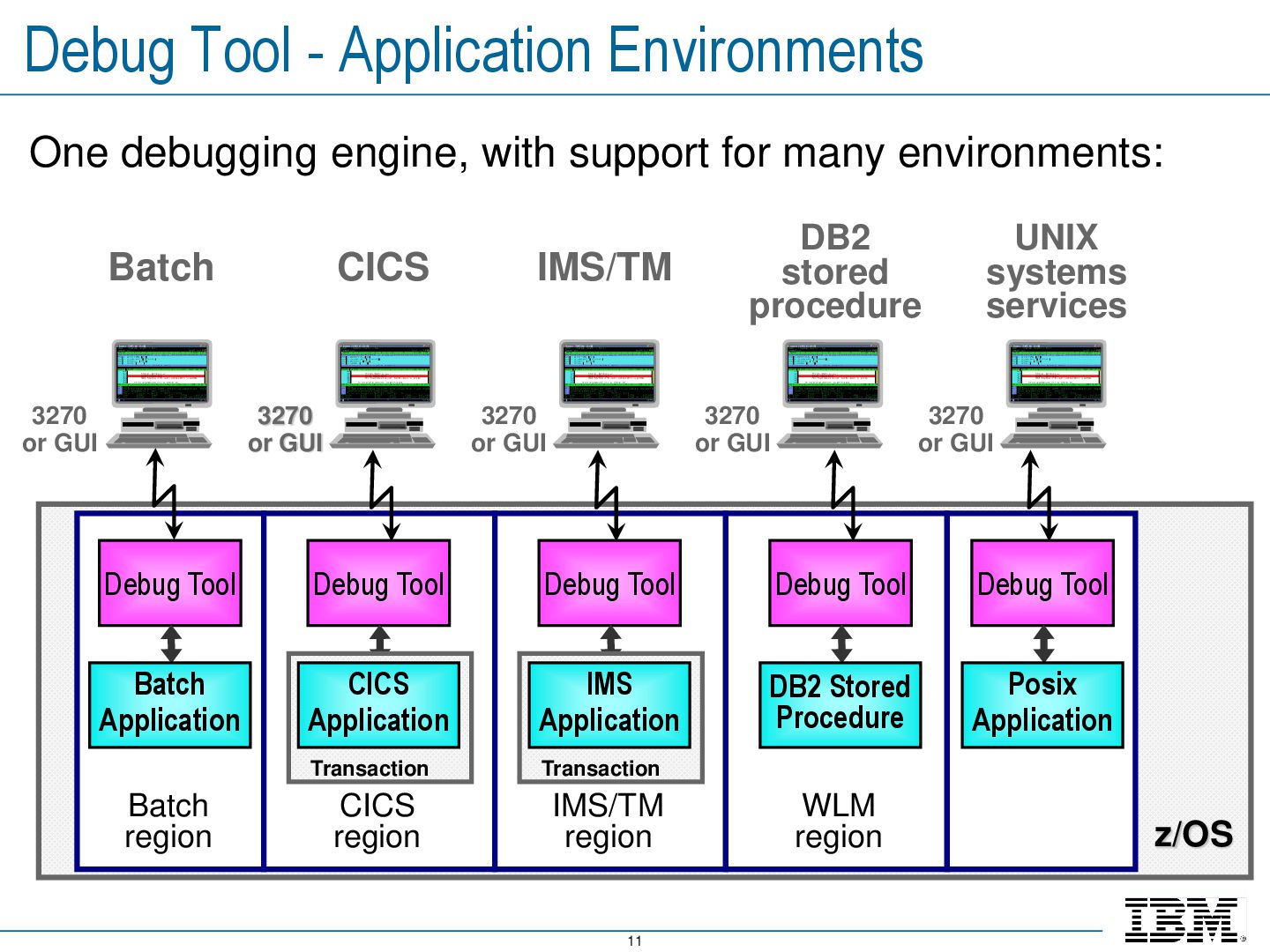
support for many environments: z/OS 3270 or GUI 3270 or GUI Debug Tool Batch Application Batch region Debug Tool Transaction CICS Application CICS region Debug Tool Transaction IMS Application IMS/TM region Debug Tool DB2 Stored Procedure WLM region Batch Debug Tool Posix Application 3270 or GUI 3270 or GUI 3270 or GUI CICS IMS/TM DB2 stored procedure UNIX systems services
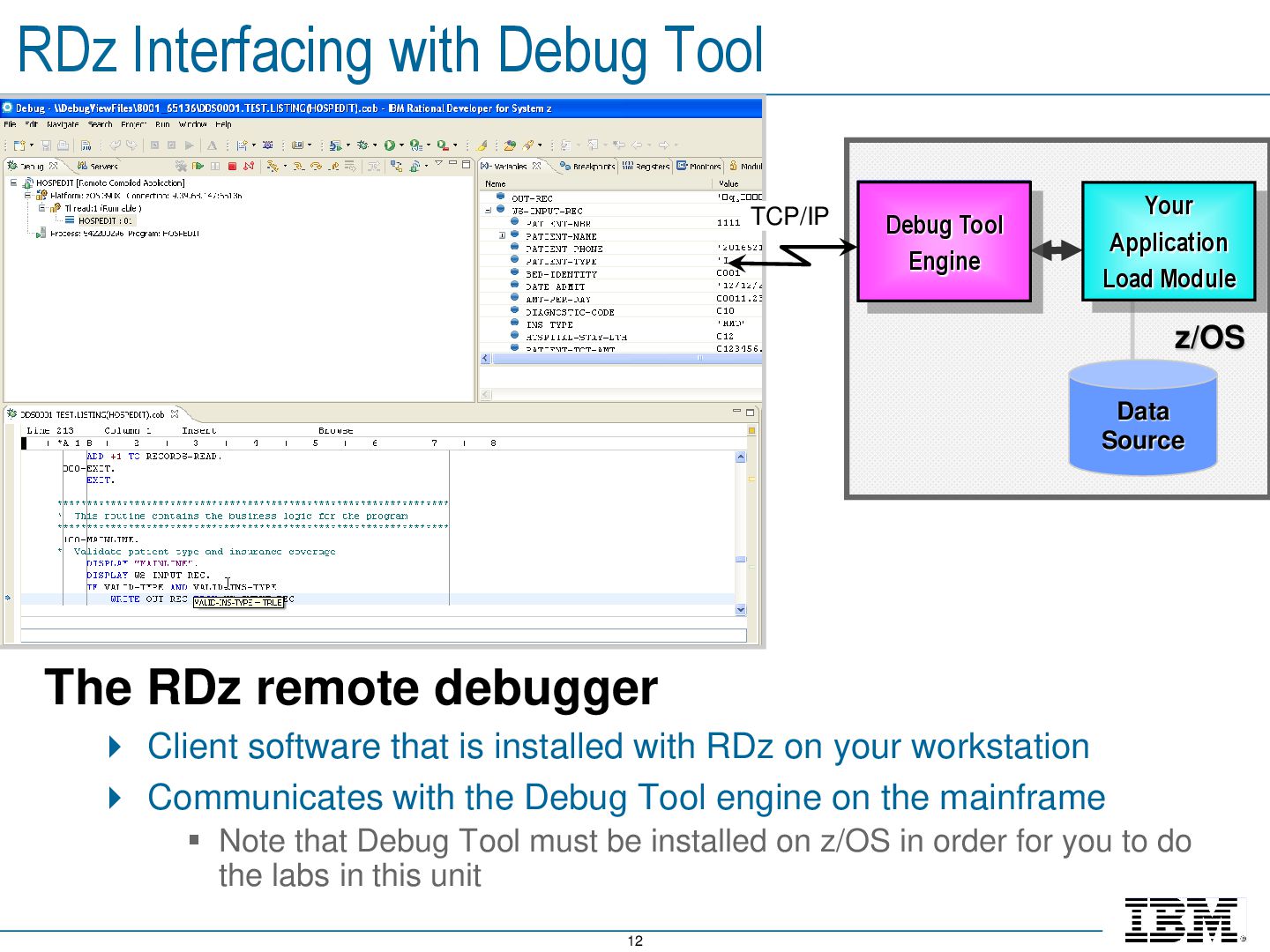
debugger Client software that is installed with RDz on your workstation Communicates with the Debug Tool engine on the mainframe Note that Debug Tool must be installed on z/OS in order for you to do the labs in this unit Debug Tool TCP/IP Debug Tool Engine Data Source Your Application Load Module
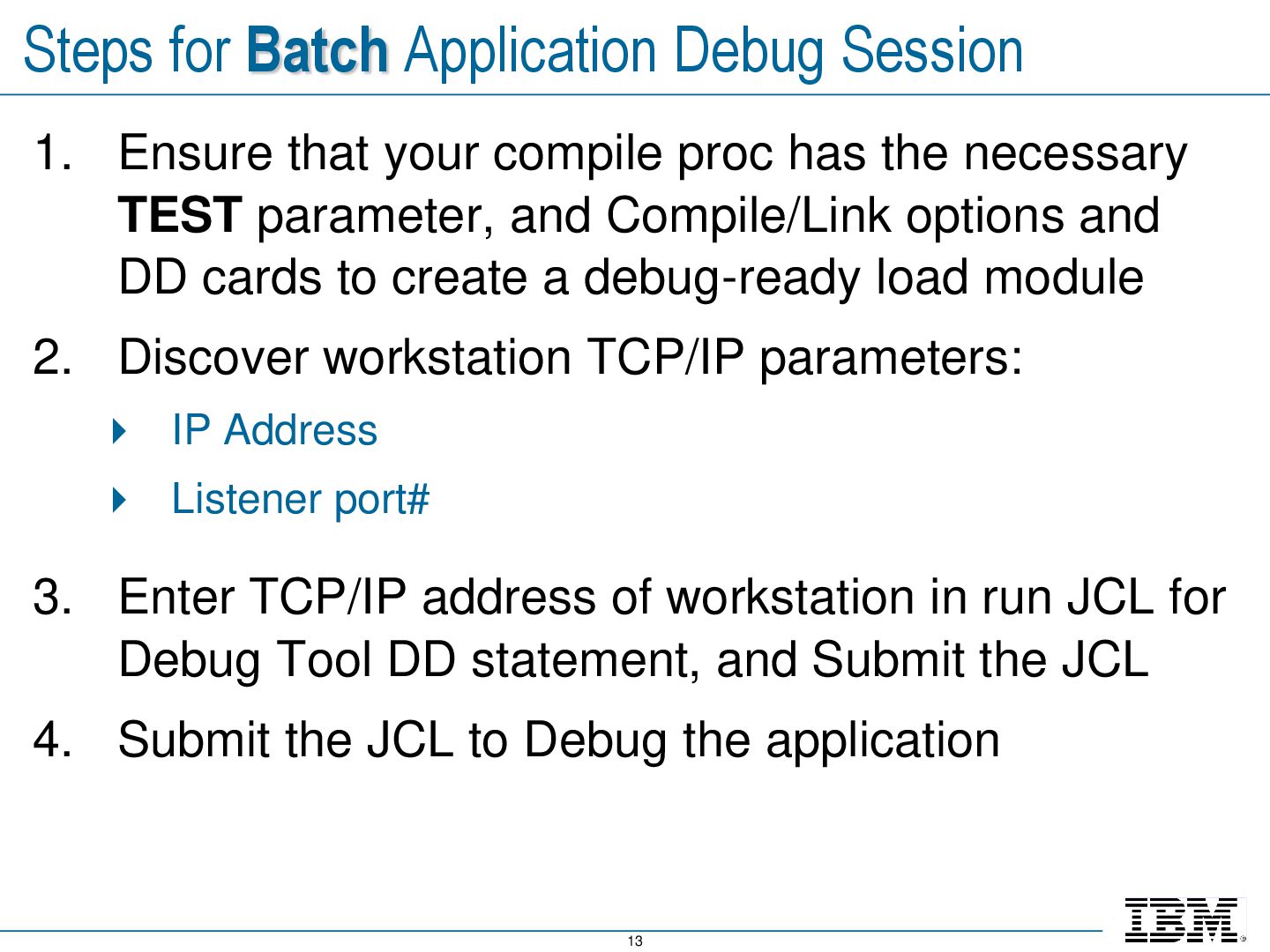
your compile proc has the necessary TEST parameter, and Compile/Link options and DD cards to create a debug-ready load module 2. Discover workstation TCP/IP parameters: IP Address Listener port# 3. Enter TCP/IP address of workstation in run JCL for Debug Tool DD statement, and Submit the JCL 4. Submit the JCL to Debug the application
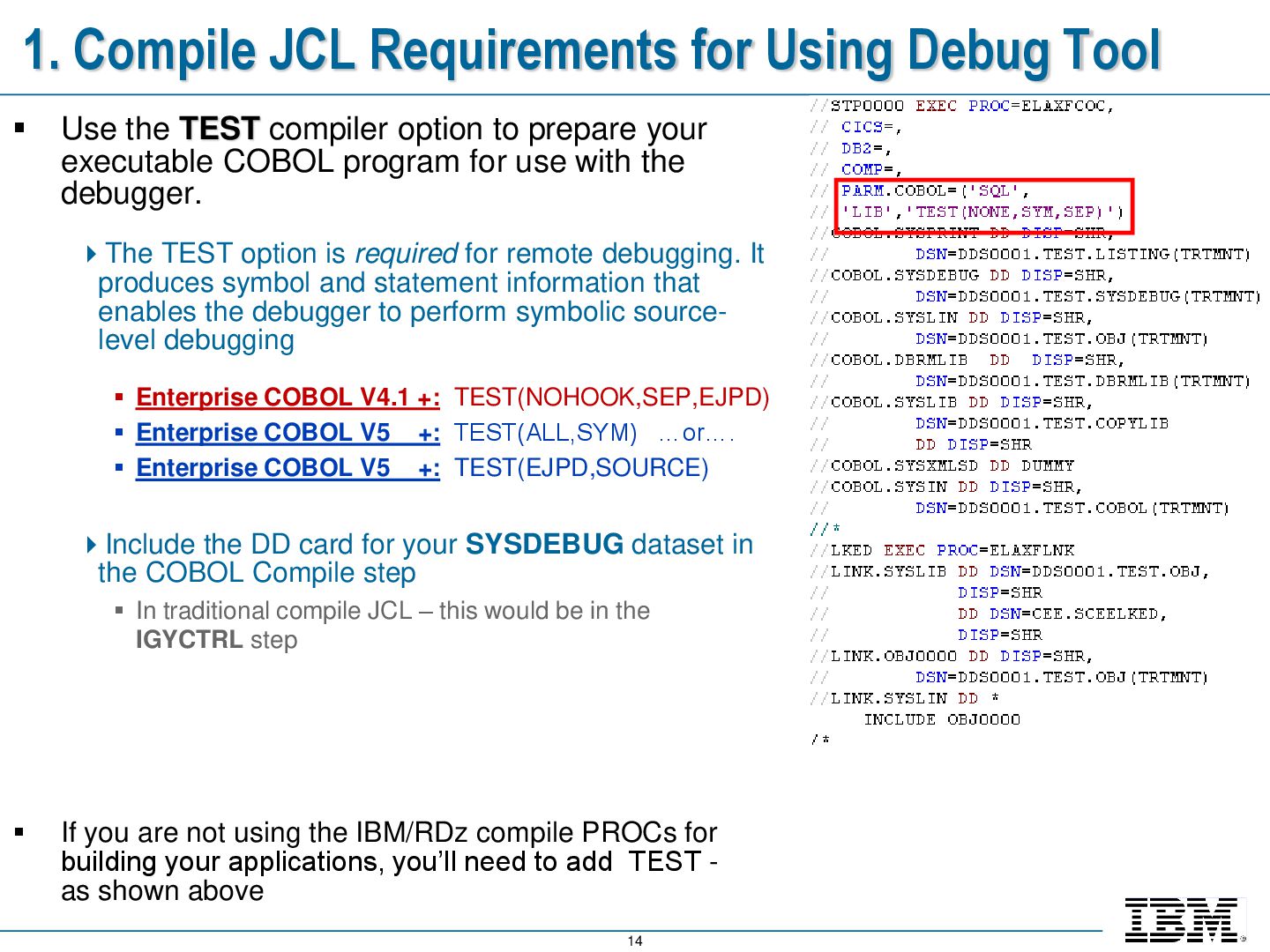
Use the TEST compiler option to prepare your executable COBOL program for use with the debugger. The TEST option is required for remote debugging. It produces symbol and statement information that enables the debugger to perform symbolic source- level debugging Enterprise COBOL V4.1 +: TEST(NOHOOK,SEP,EJPD) Enterprise COBOL V5 +: TEST(ALL,SYM) …or…. Enterprise COBOL V5 +: TEST(EJPD,SOURCE) Include the DD card for your SYSDEBUG dataset in the COBOL Compile step In traditional compile JCL – this would be in the IGYCTRL step If you are not using the IBM/RDz compile PROCs for building your applications, you’ll need to add TEST - as shown above
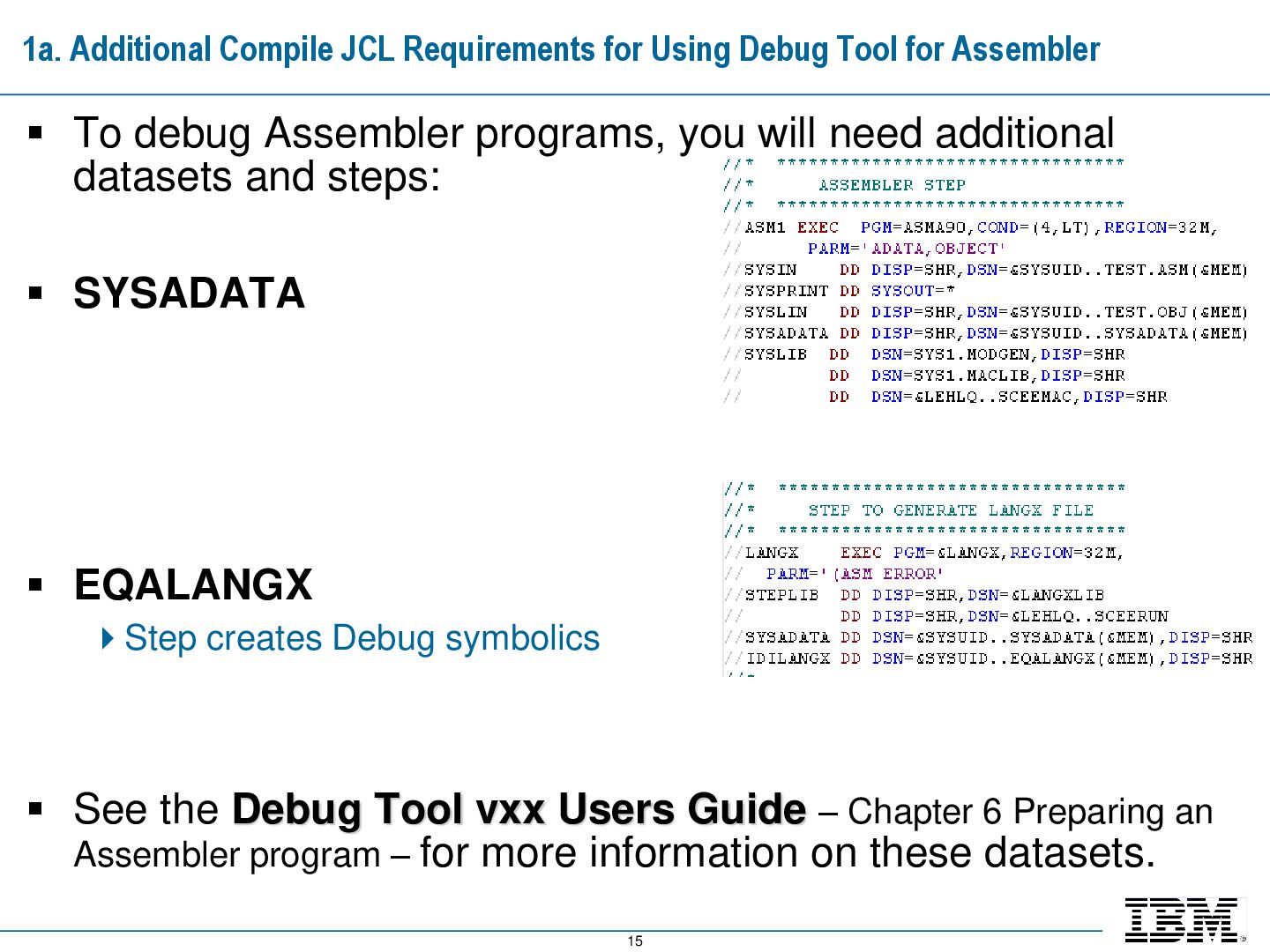
for Assembler To debug Assembler programs, you will need additional datasets and steps: SYSADATA EQALANGX Step creates Debug symbolics See the Debug Tool vxx Users Guide – Chapter 6 Preparing an Assembler program – for more information on these datasets.
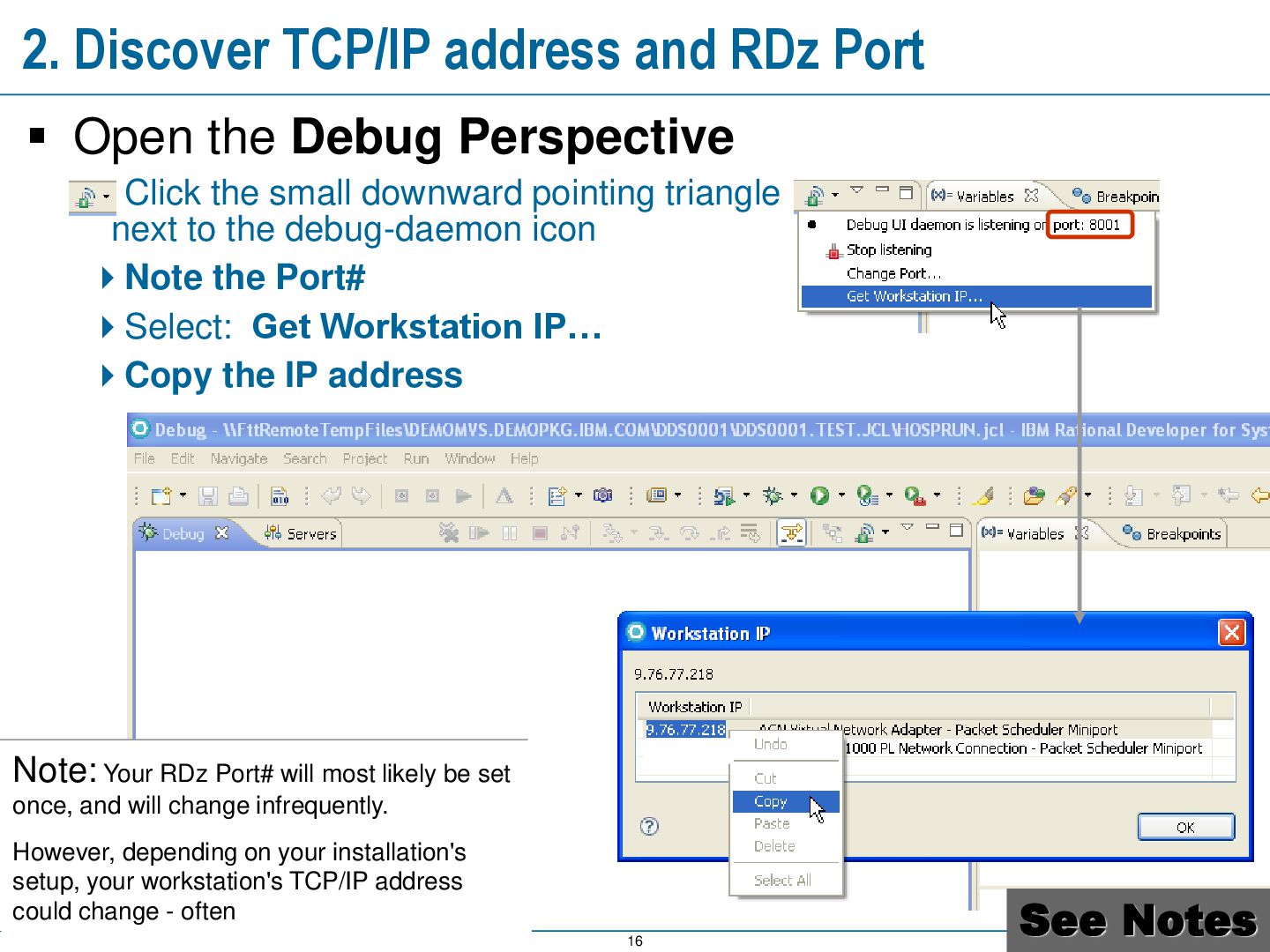
the Debug Perspective Click the small downward pointing triangle next to the debug-daemon icon Note the Port# Select: Get Workstation IP… Copy the IP address Note: Your RDz Port# will most likely be set once, and will change infrequently. However, depending on your installation's setup, your workstation's TCP/IP address could change - often See Notes
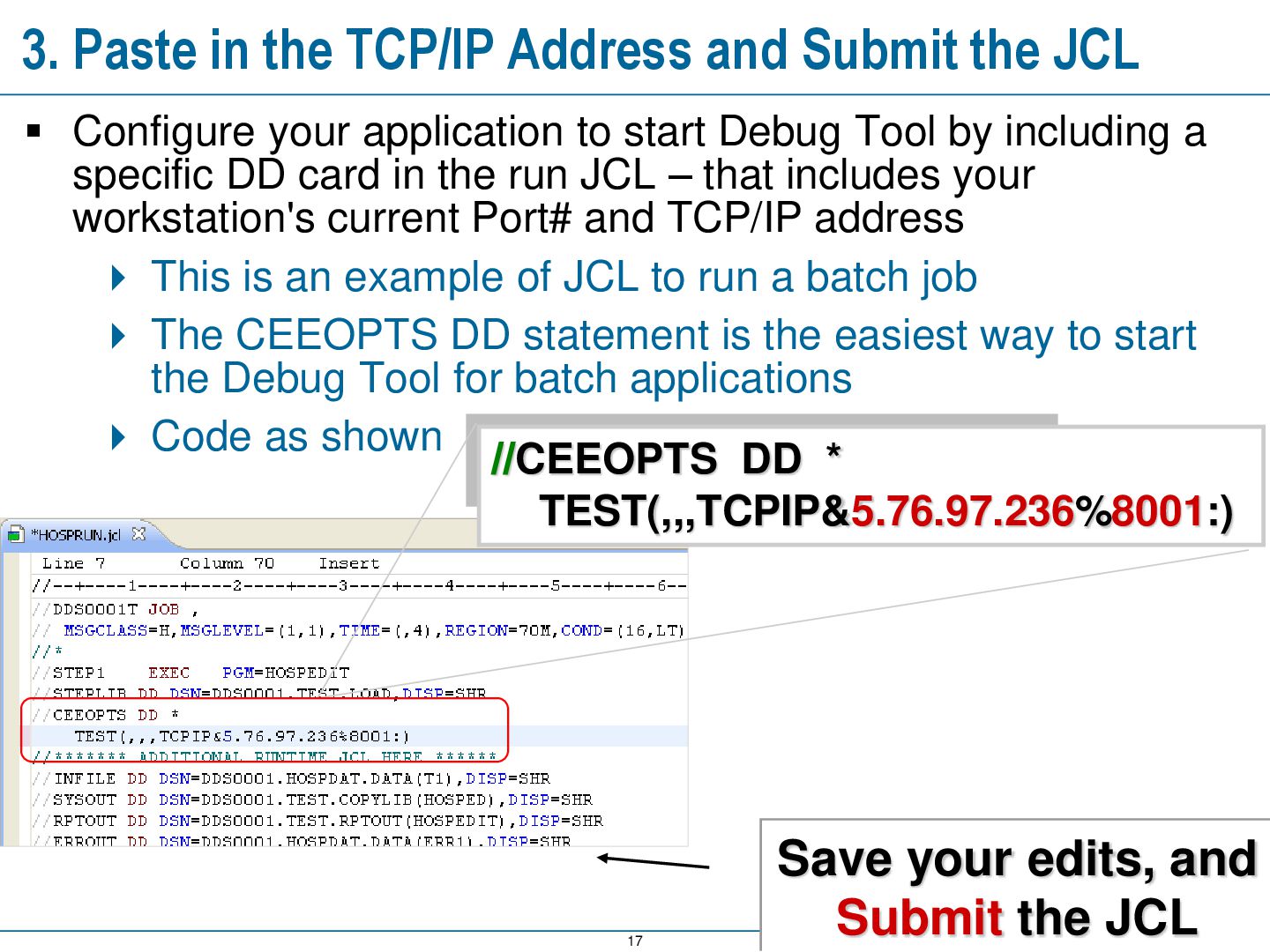
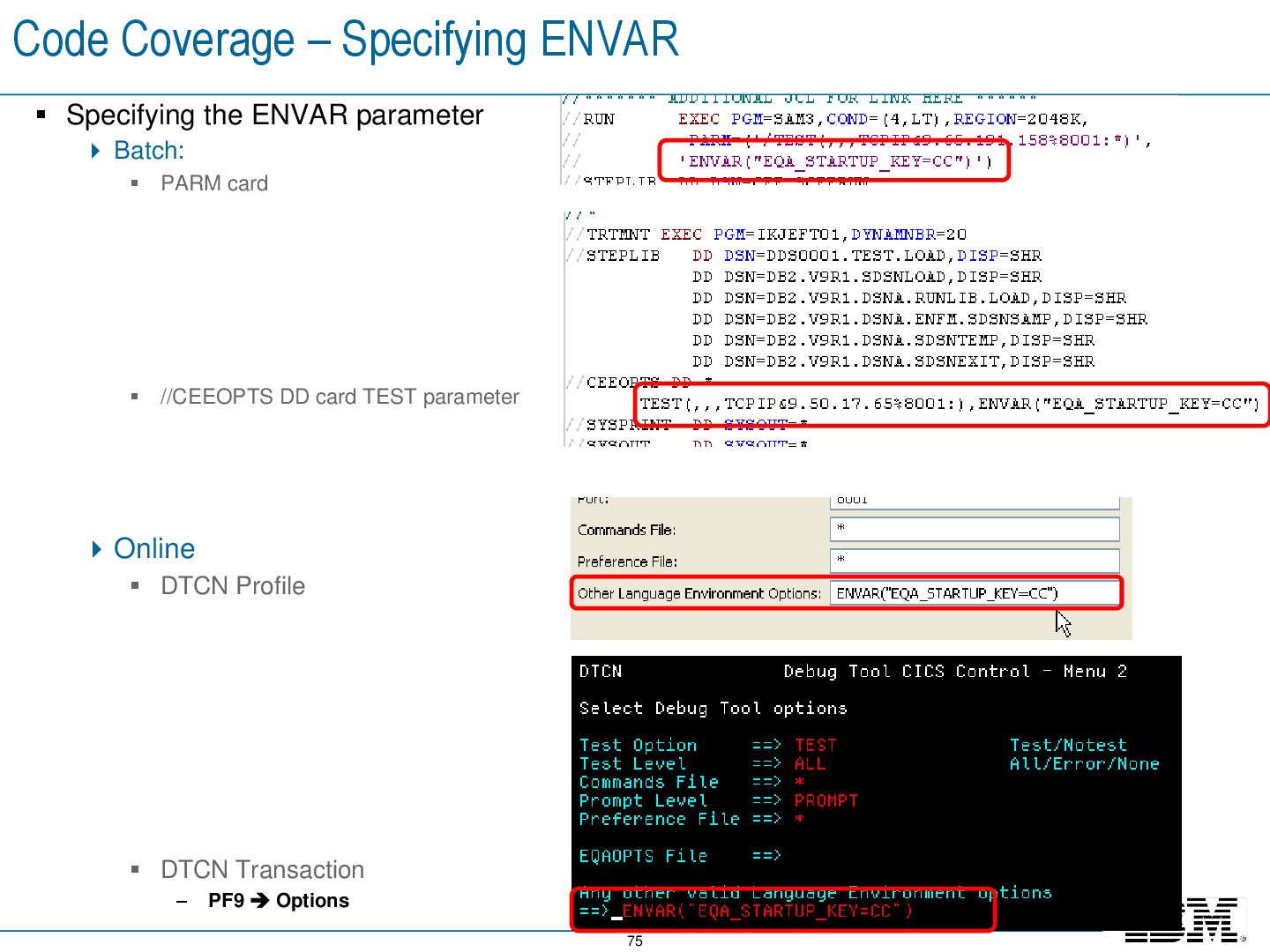
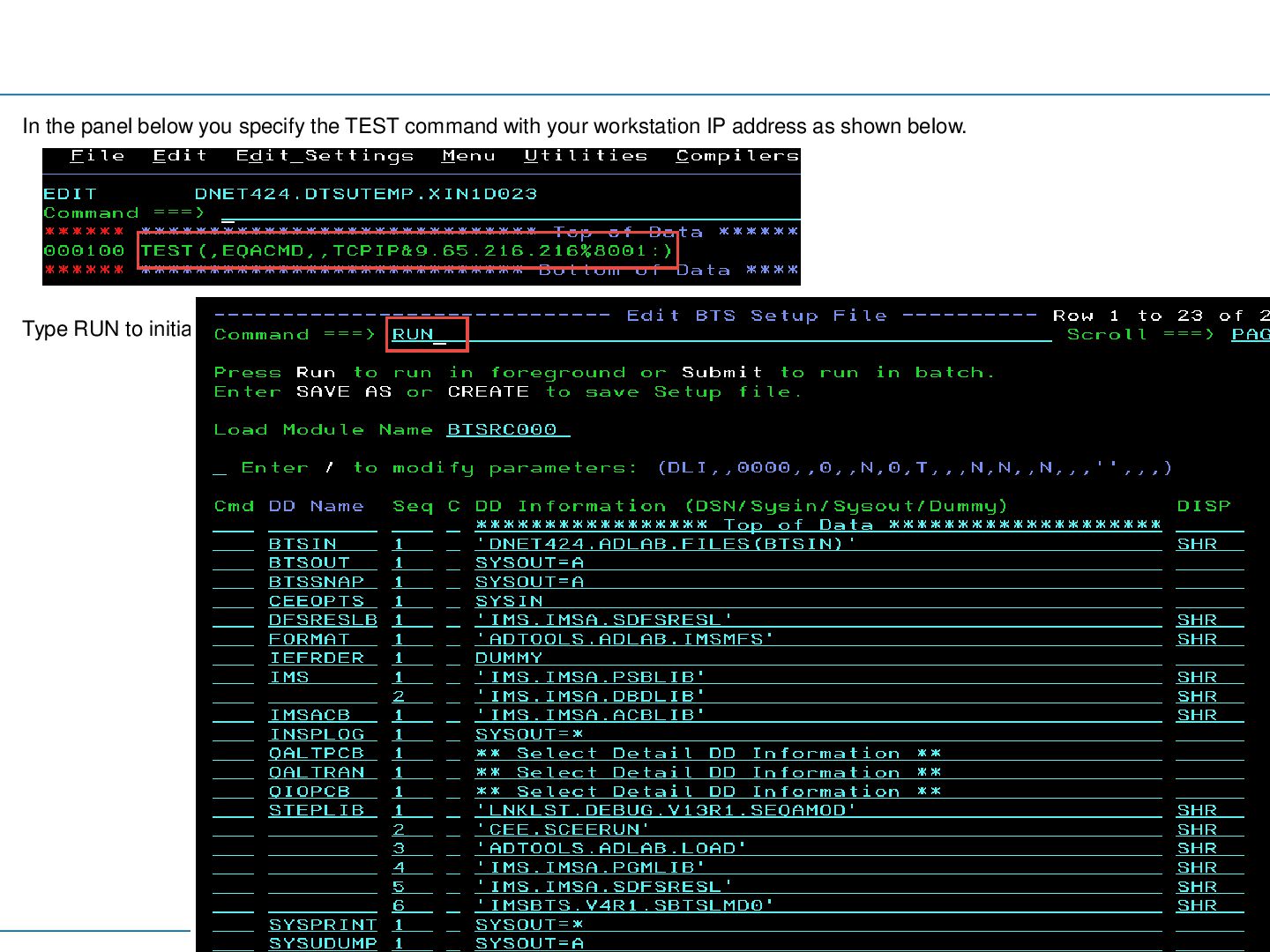
JCL Configure your application to start Debug Tool by including a specific DD card in the run JCL – that includes your workstation's current Port# and TCP/IP address This is an example of JCL to run a batch job The CEEOPTS DD statement is the easiest way to start the Debug Tool for batch applications Code as shown //CEEOPTS DD * TEST(,,,TCPIP&5.76.97.236%8001:) Save your edits, and Submit the JCL
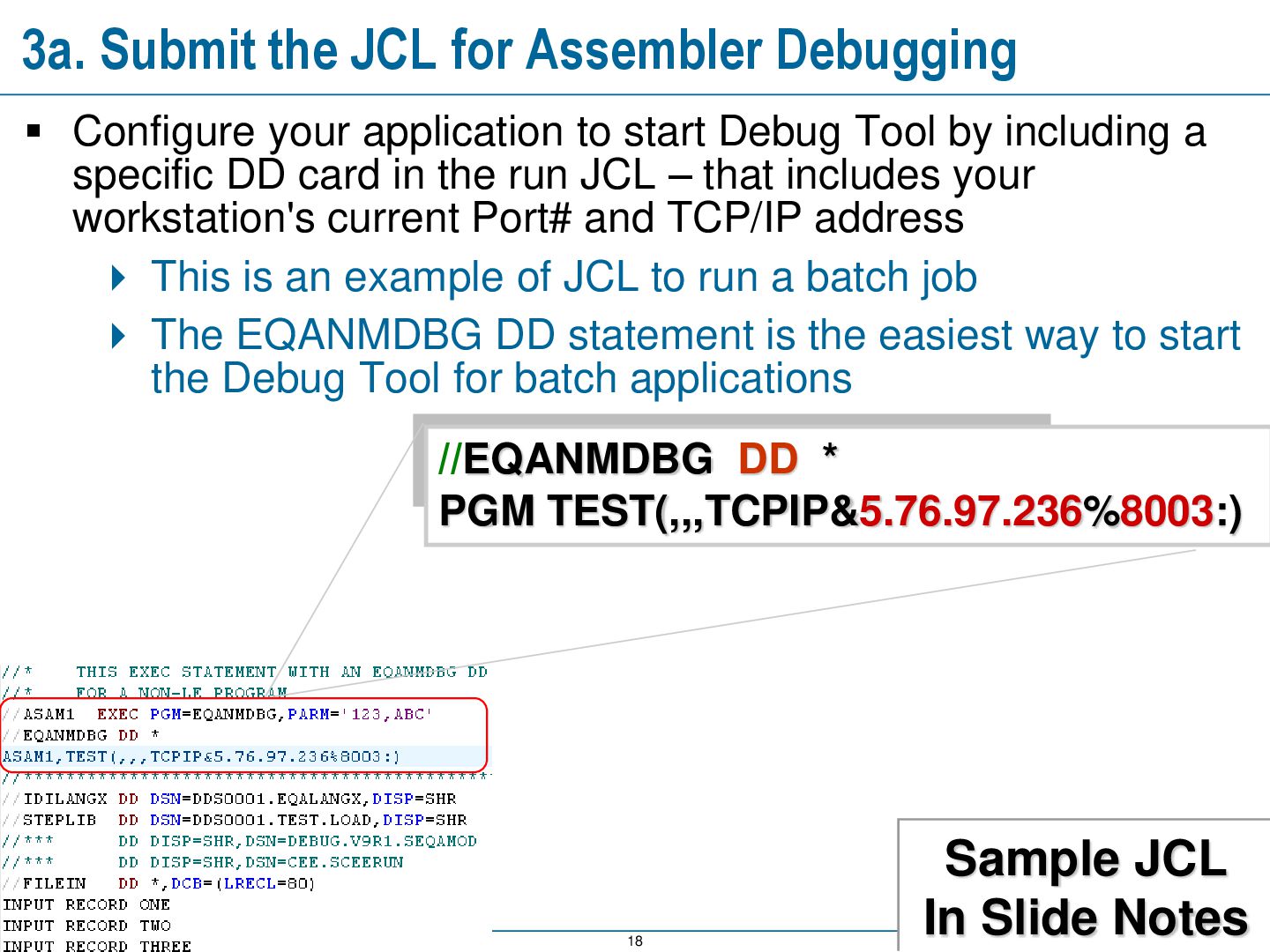
your application to start Debug Tool by including a specific DD card in the run JCL – that includes your workstation's current Port# and TCP/IP address This is an example of JCL to run a batch job The EQANMDBG DD statement is the easiest way to start the Debug Tool for batch applications //EQANMDBG DD * PGM TEST(,,,TCPIP&5.76.97.236%8003:) Sample JCL In Slide Notes
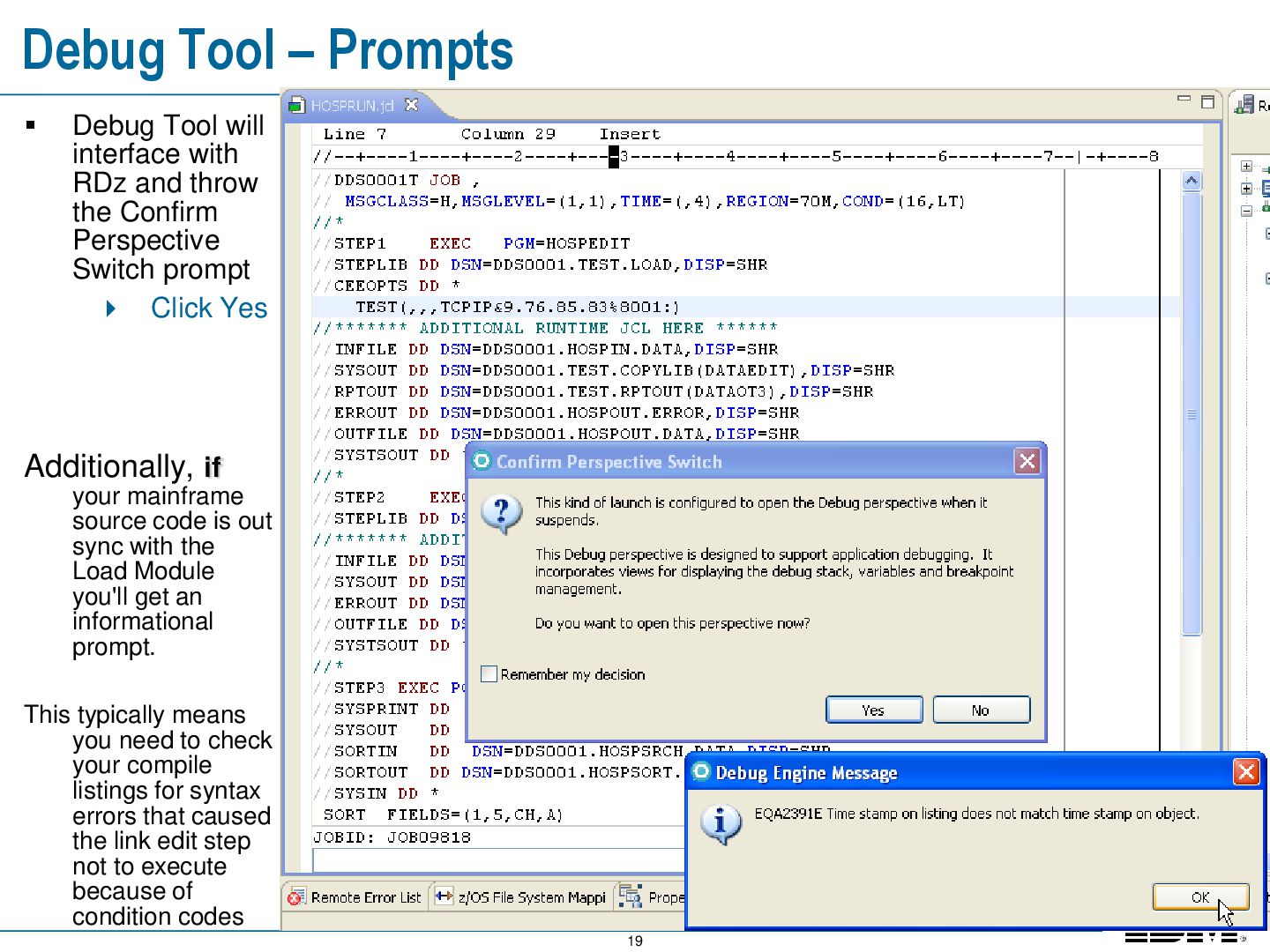
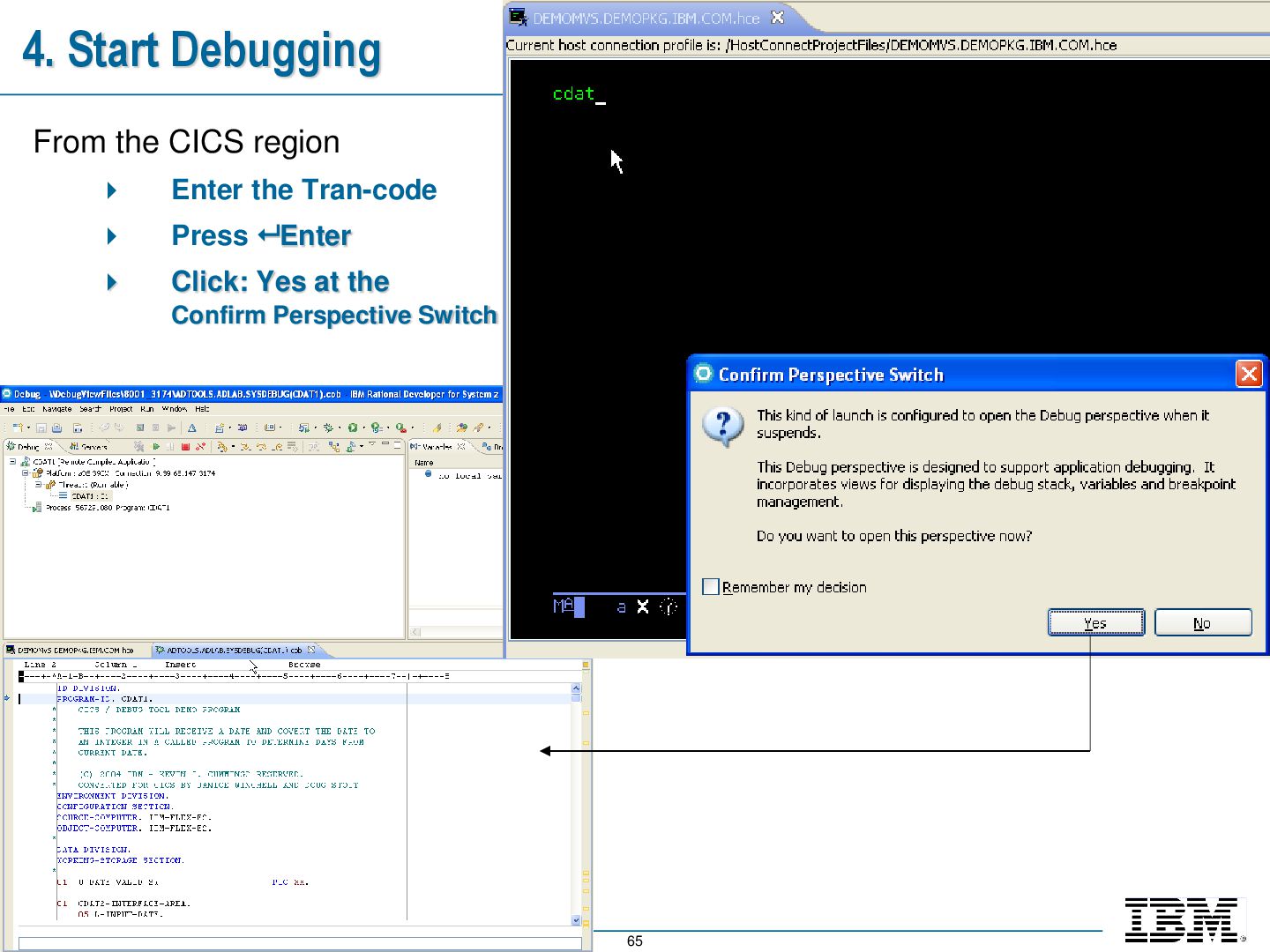
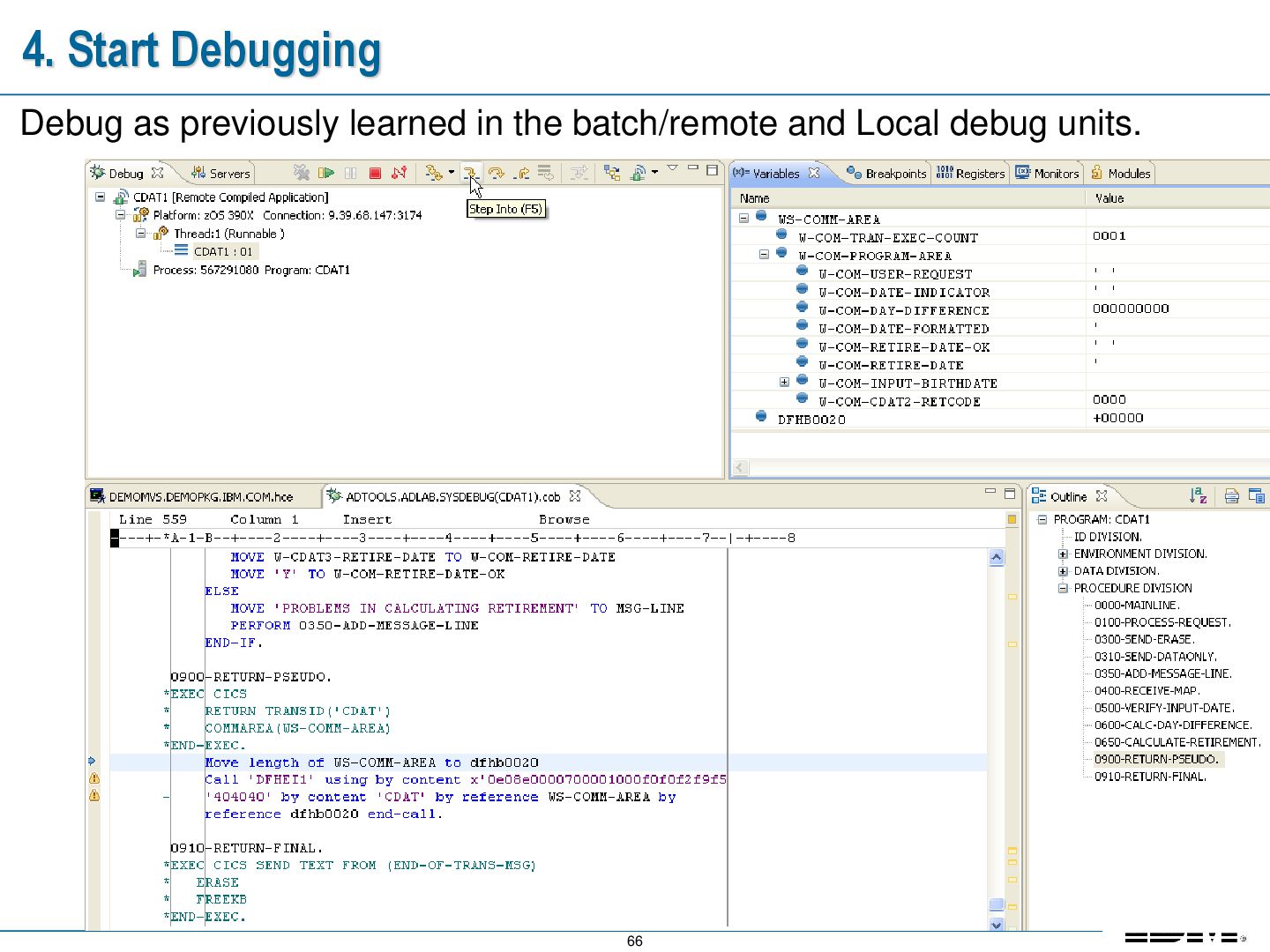
with RDz and throw the Confirm Perspective Switch prompt Click Yes Additionally, if your mainframe source code is out sync with the Load Module you'll get an informational prompt. This typically means you need to check your compile listings for syntax errors that caused the link edit step not to execute because of condition codes
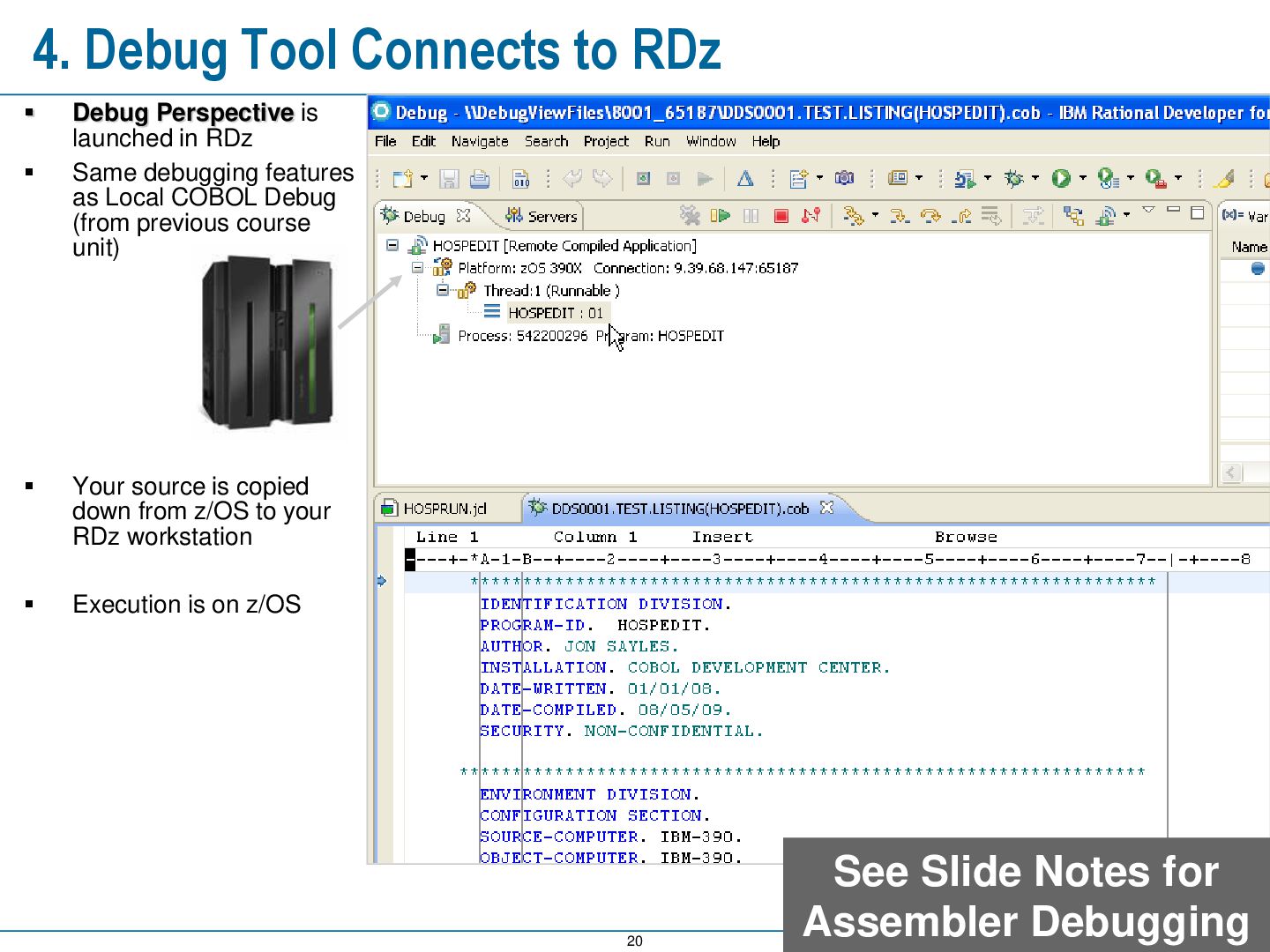
is launched in RDz Same debugging features as Local COBOL Debug (from previous course unit) Your source is copied down from z/OS to your RDz workstation Execution is on z/OS See Slide Notes for Assembler Debugging
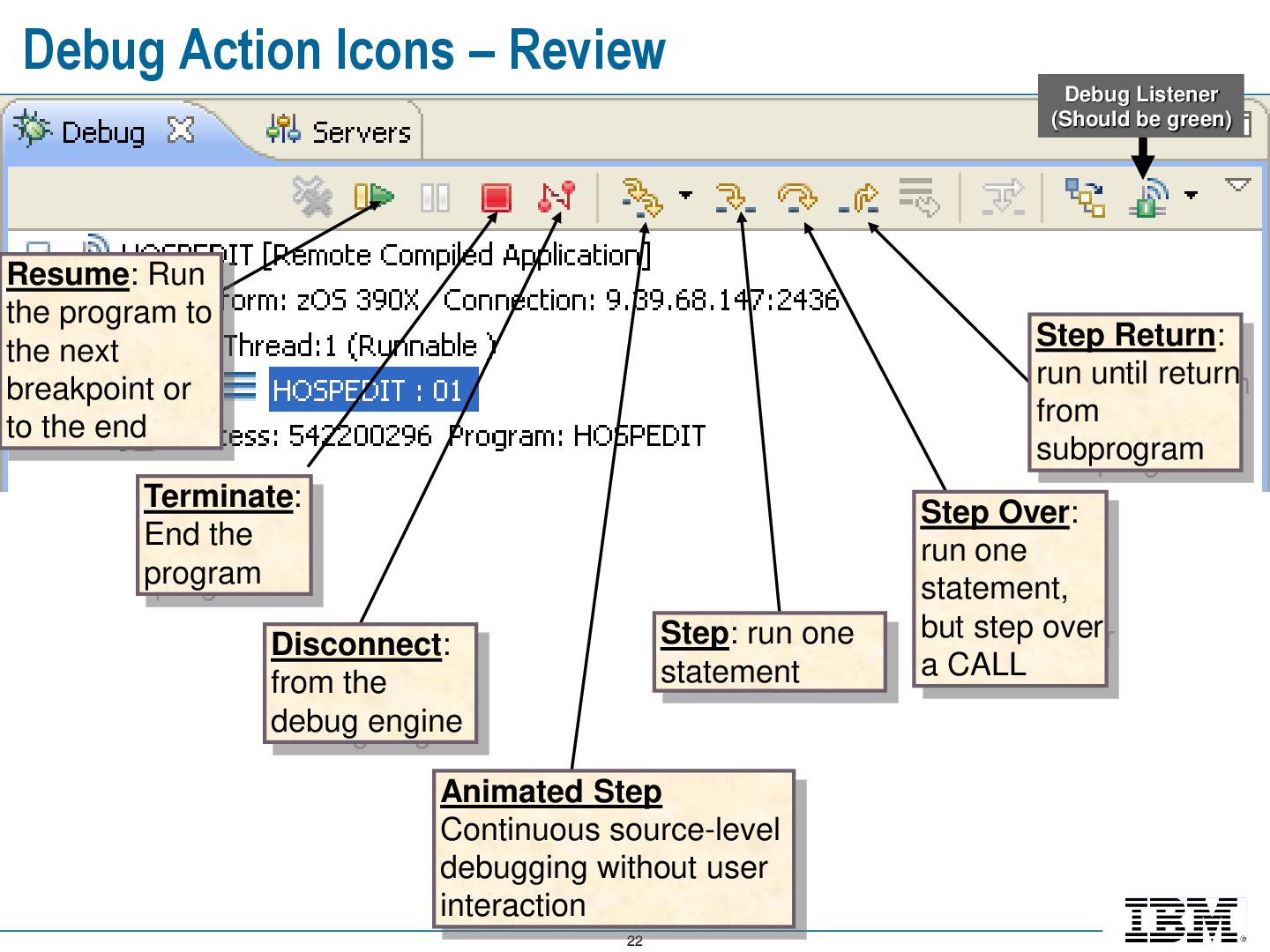
to the next breakpoint or to the end Terminate: End the program Step: run one statement Step Over: run one statement, but step over a CALL Step Return: run until return from subprogram Disconnect: from the debug engine Animated Step Continuous source-level debugging without user interaction Debug Listener (Should be green)
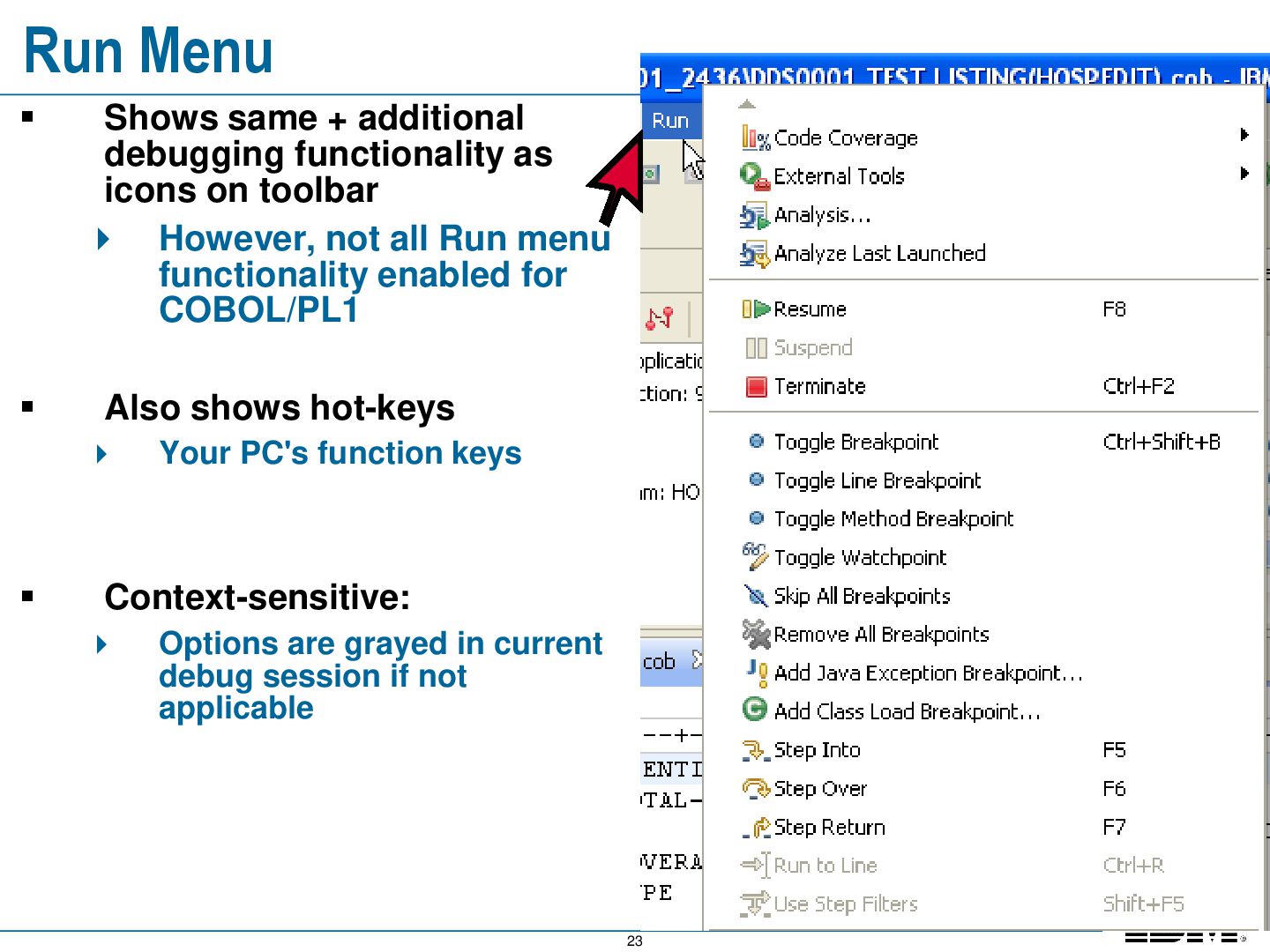
as icons on toolbar However, not all Run menu functionality enabled for COBOL/PL1 Also shows hot-keys Your PC's function keys Context-sensitive: Options are grayed in current debug session if not applicable
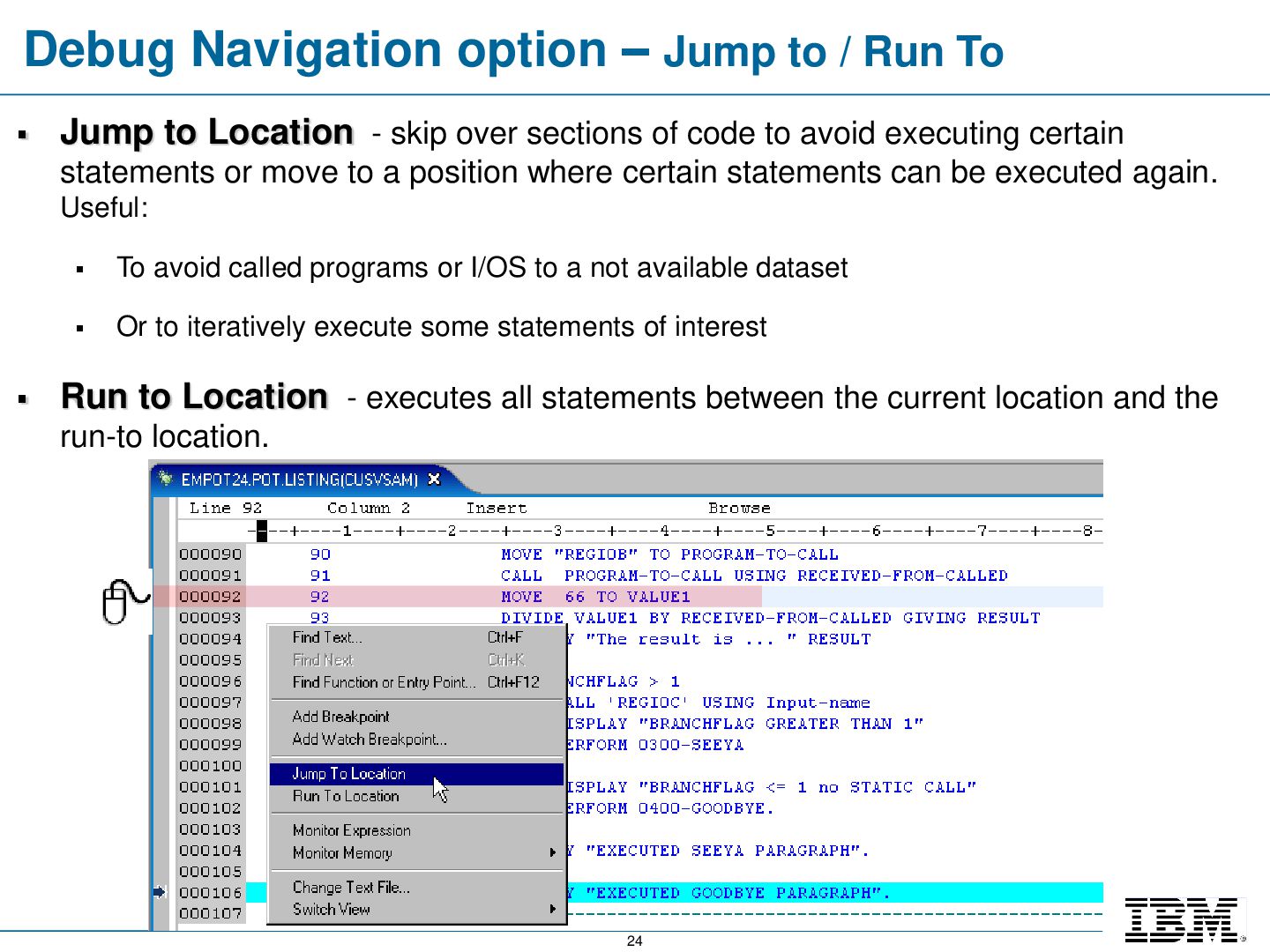
Jump to Location - skip over sections of code to avoid executing certain statements or move to a position where certain statements can be executed again. Useful: To avoid called programs or I/OS to a not available dataset Or to iteratively execute some statements of interest Run to Location - executes all statements between the current location and the run-to location.
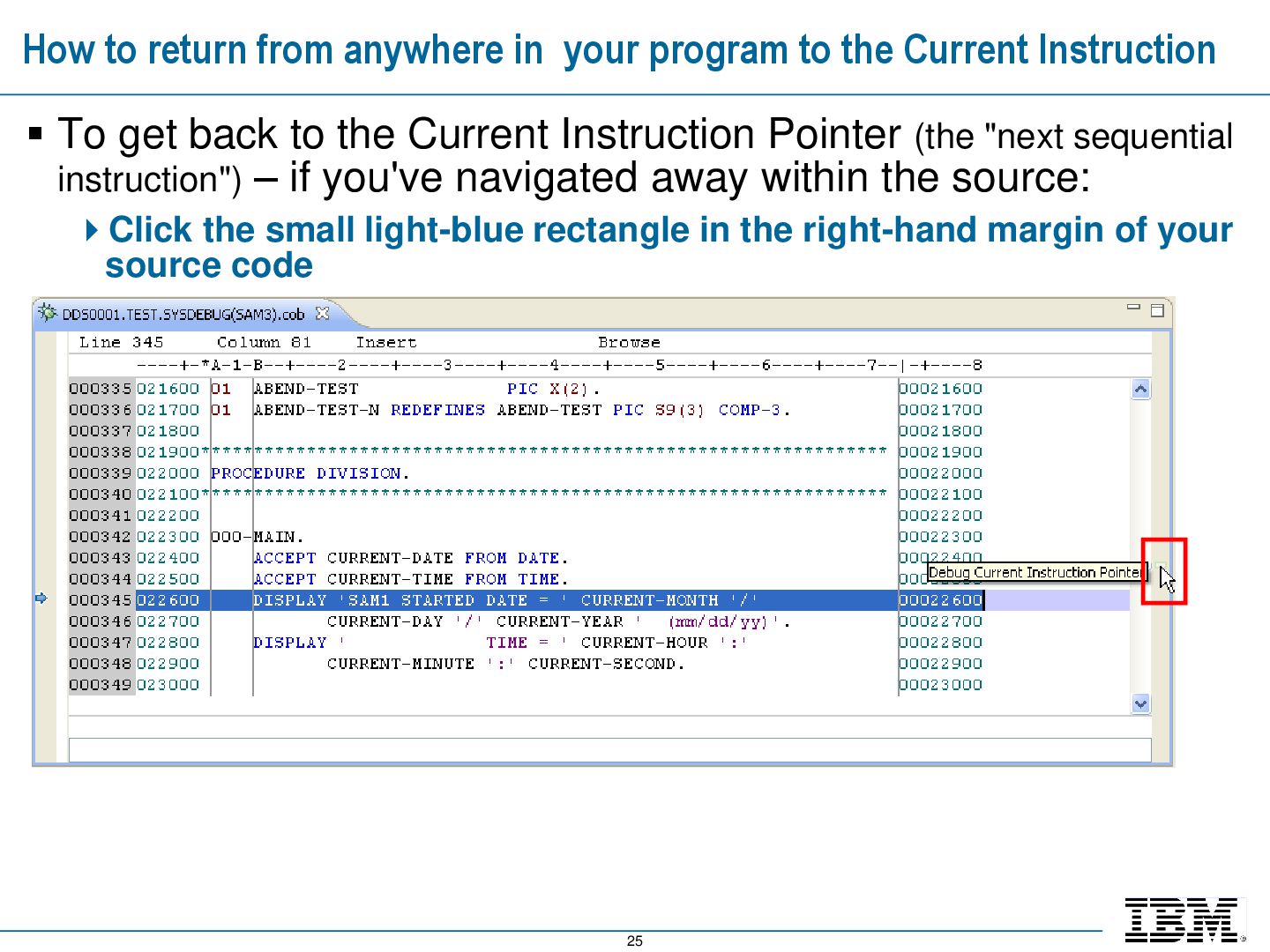
the Current Instruction To get back to the Current Instruction Pointer (the "next sequential instruction") – if you've navigated away within the source: Click the small light-blue rectangle in the right-hand margin of your source code
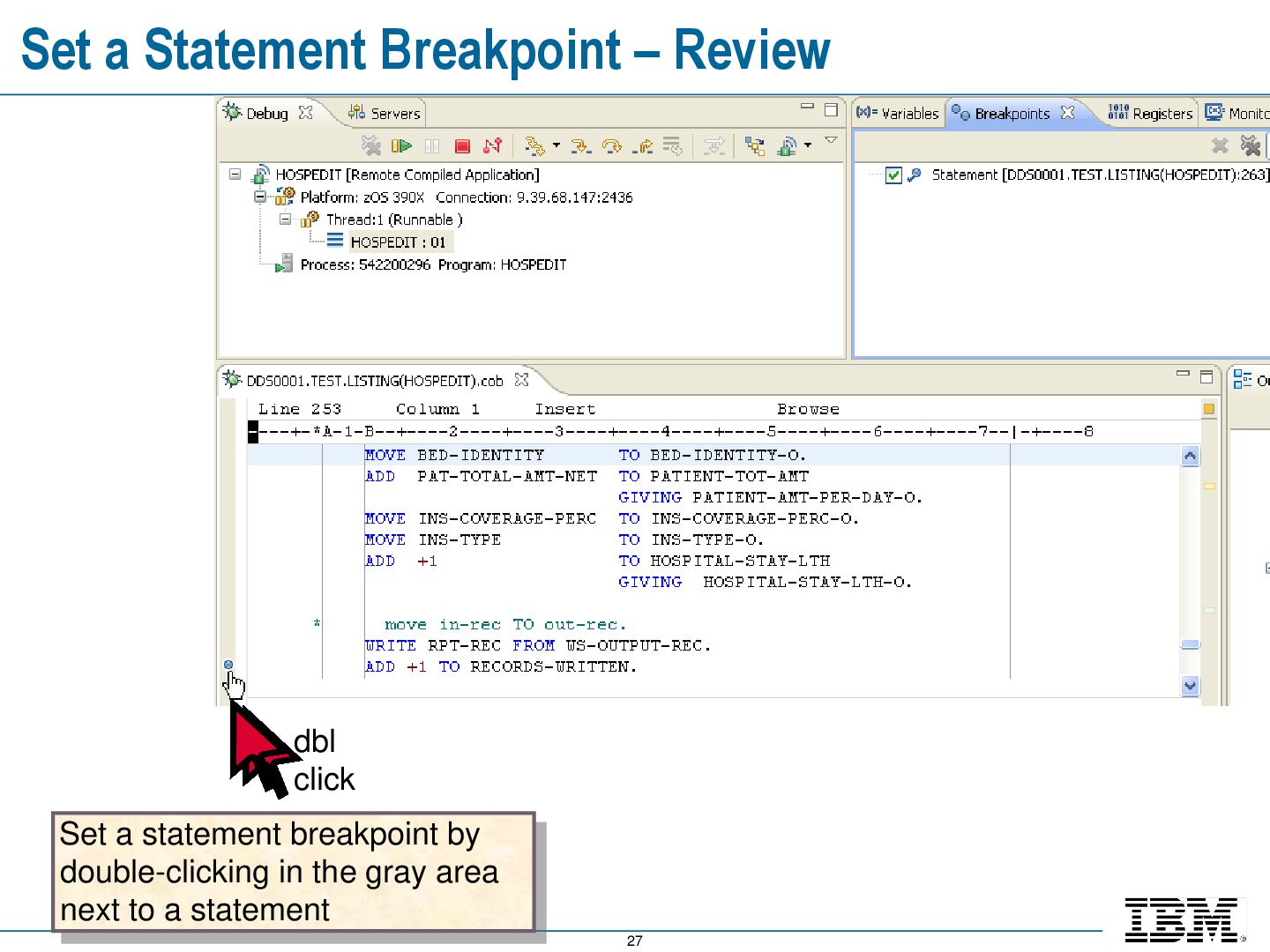
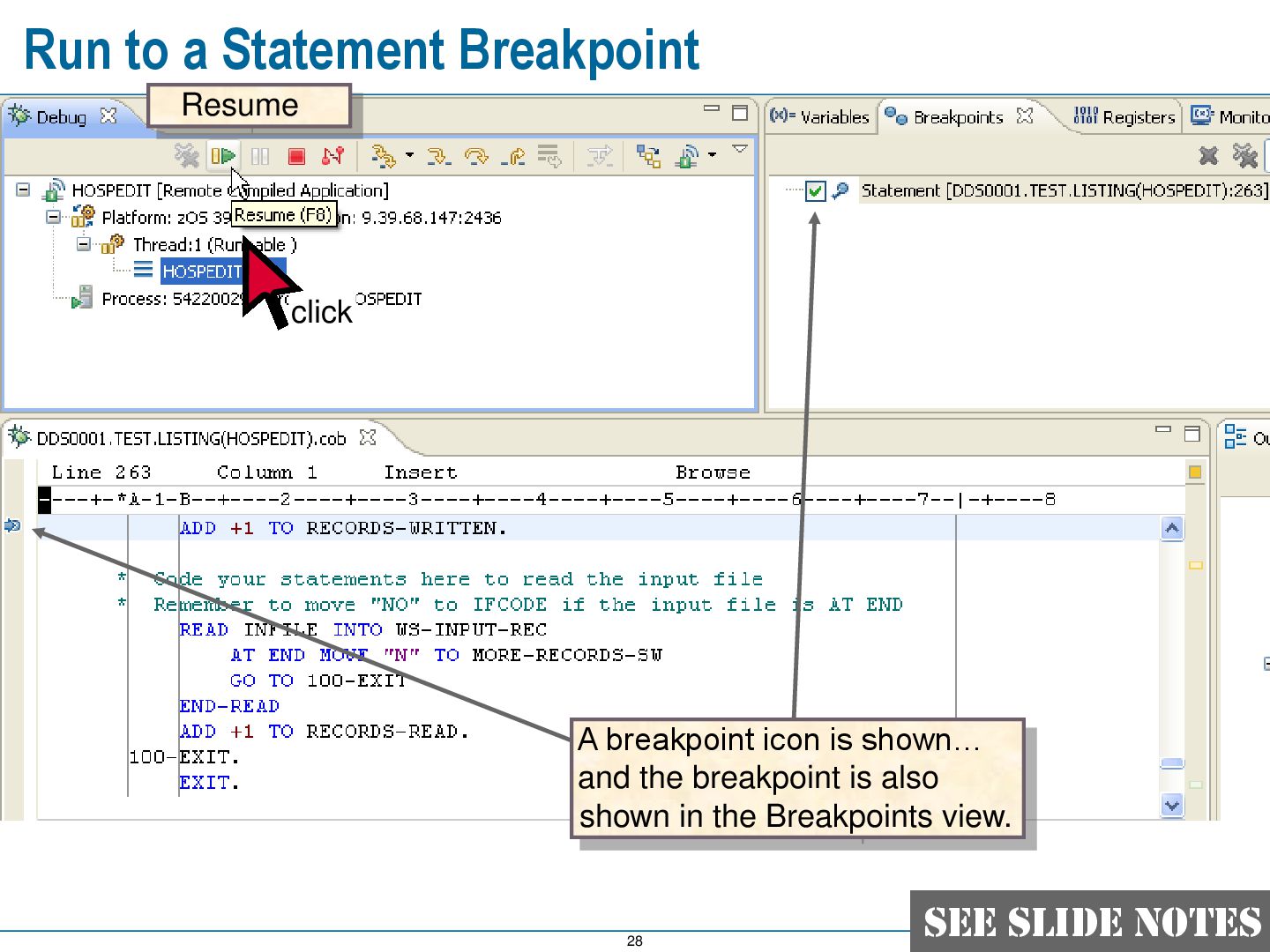
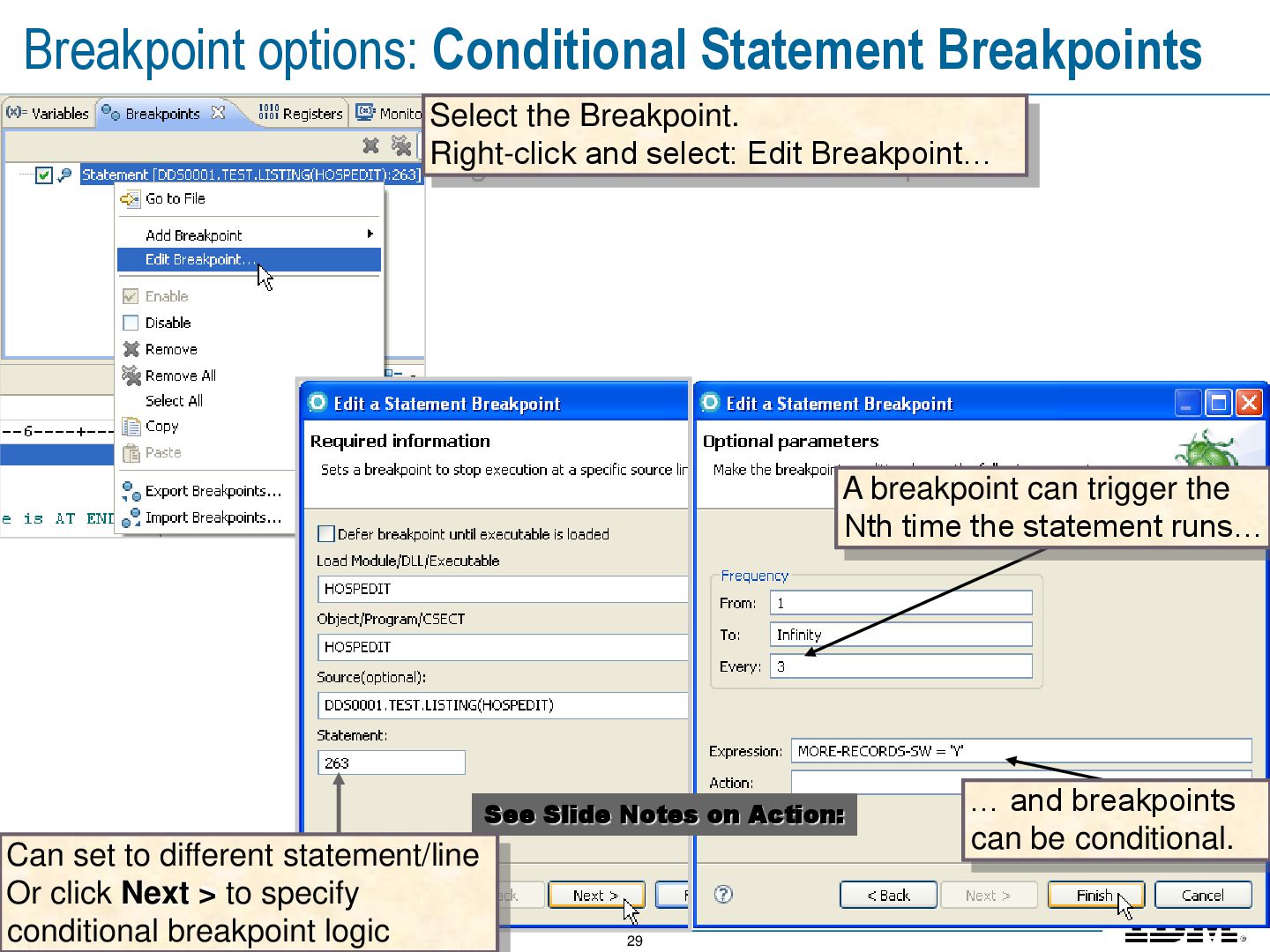
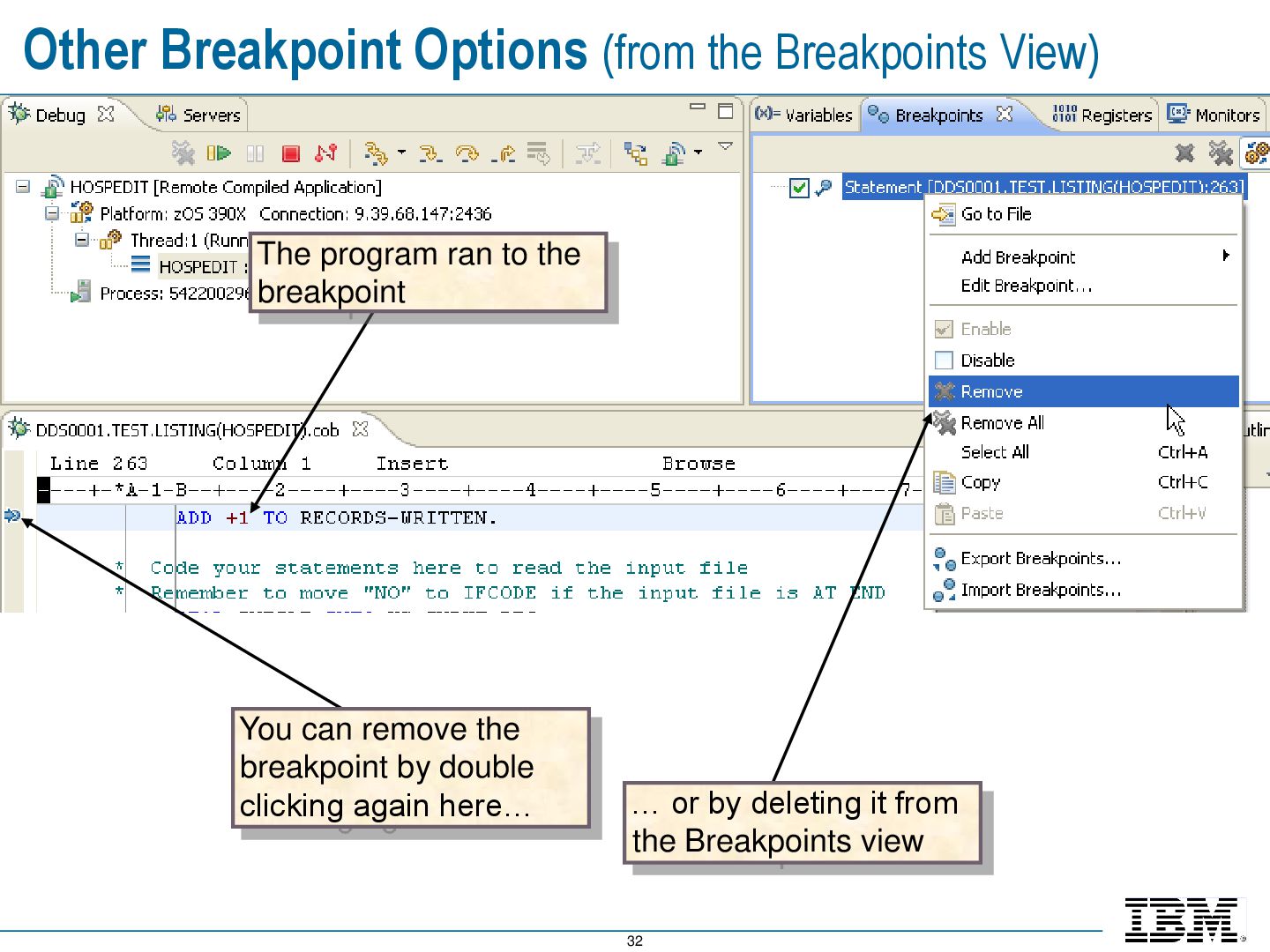
stop the program when it reaches a statement – and before the statement runs Line breakpoints can be made conditional A simple condition may be specified such as: VariableX > 999 …or… VariableY = 'Abc' Conditional breakpoint can be based on a frequency: Stop the Nth time a statement runs You can also break on: Variable value changes Subroutine Calls (Entry)
the Nth time the statement runs… … and breakpoints can be conditional. Select the Breakpoint. Right-click and select: Edit Breakpoint… See Slide Notes on Action: Can set to different statement/line Or click Next > to specify conditional breakpoint logic
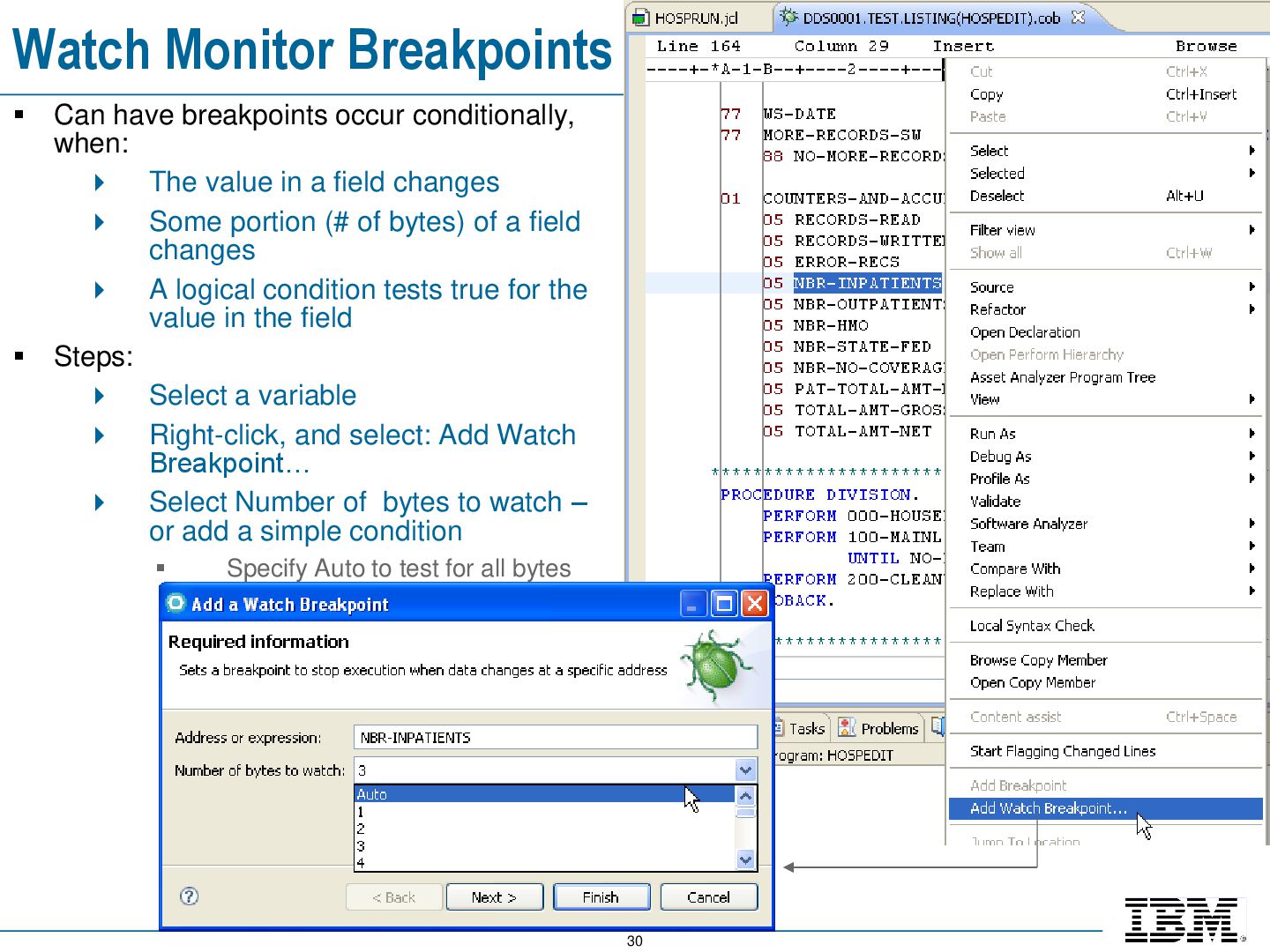
when: The value in a field changes Some portion (# of bytes) of a field changes A logical condition tests true for the value in the field Steps: Select a variable Right-click, and select: Add Watch Breakpoint… Select Number of bytes to watch – or add a simple condition Specify Auto to test for all bytes
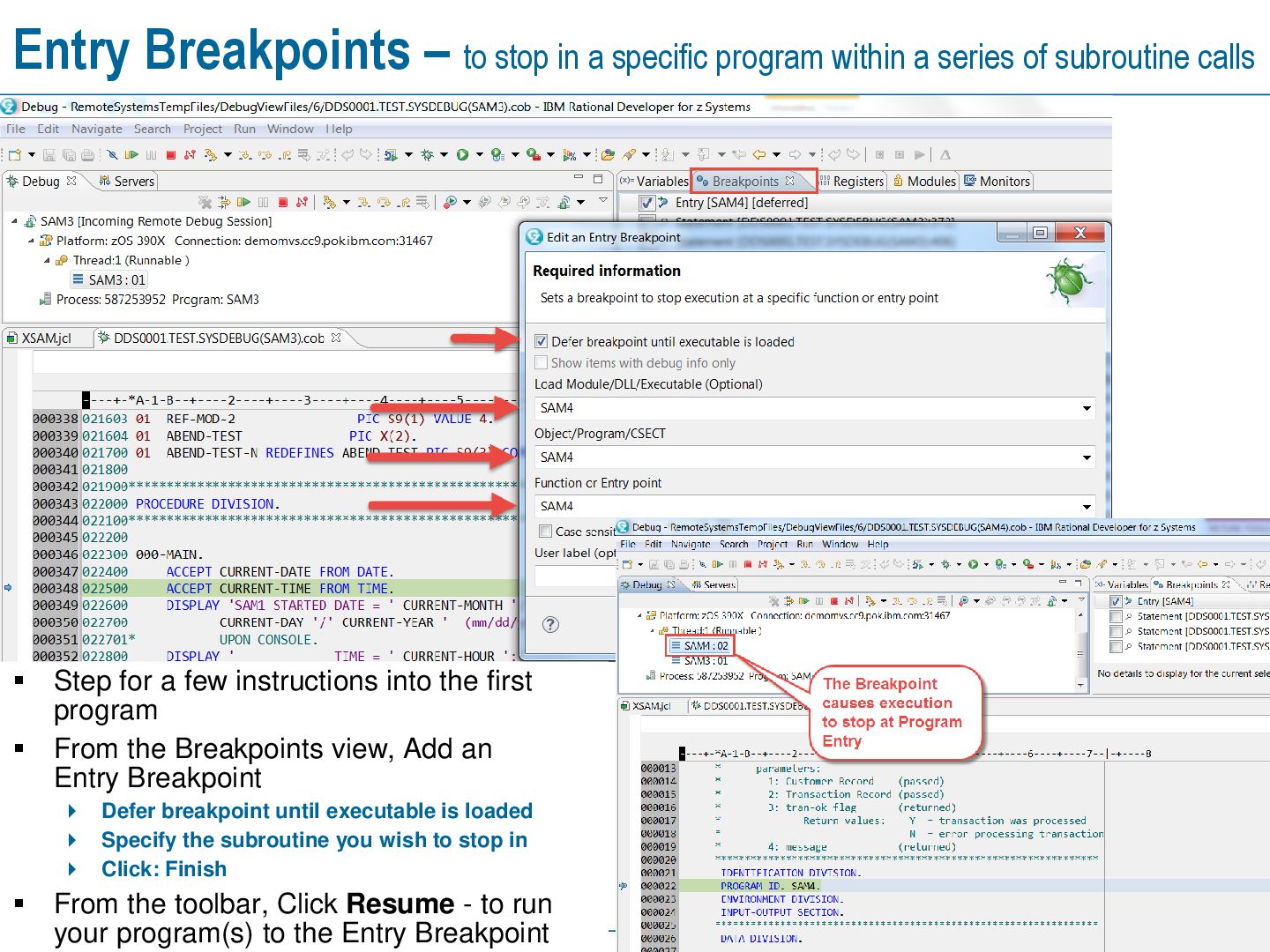
within a series of subroutine calls Step for a few instructions into the first program From the Breakpoints view, Add an Entry Breakpoint Defer breakpoint until executable is loaded Specify the subroutine you wish to stop in Click: Finish From the toolbar, Click Resume - to run your program(s) to the Entry Breakpoint
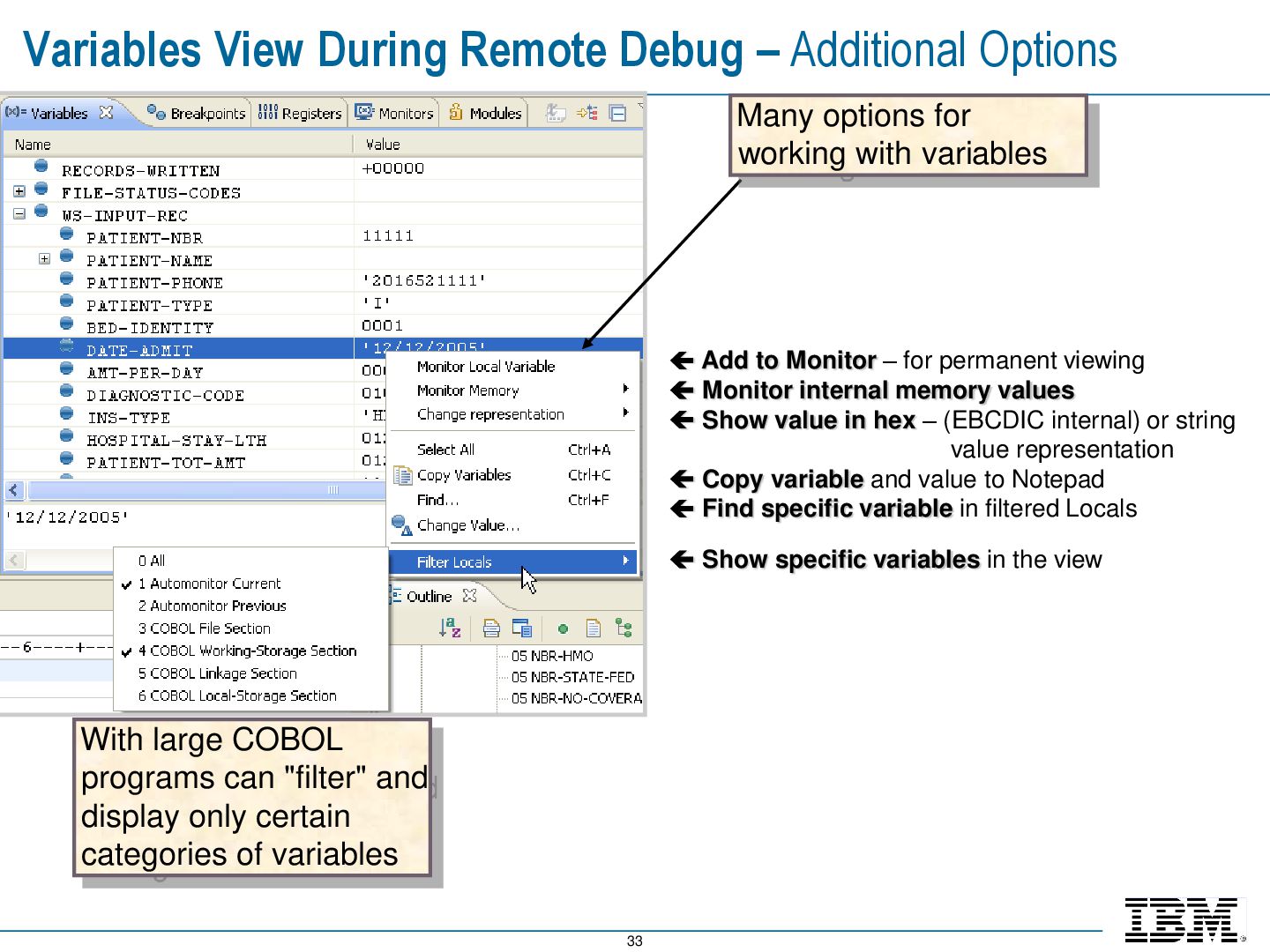
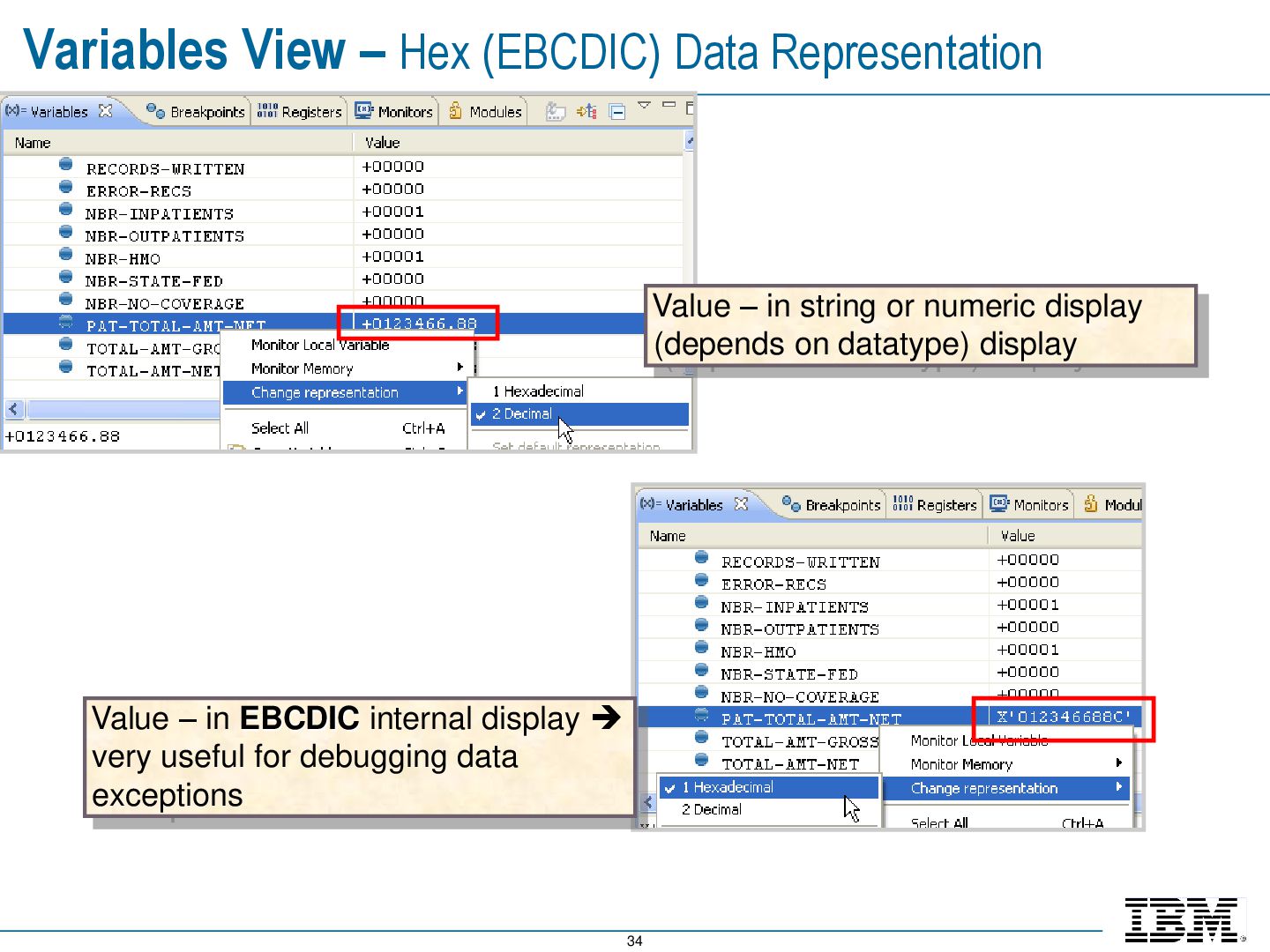
large COBOL programs can "filter" and display only certain categories of variables Many options for working with variables Add to Monitor – for permanent viewing Monitor internal memory values Show value in hex – (EBCDIC internal) or string value representation Copy variable and value to Notepad Find specific variable in filtered Locals Show specific variables in the view
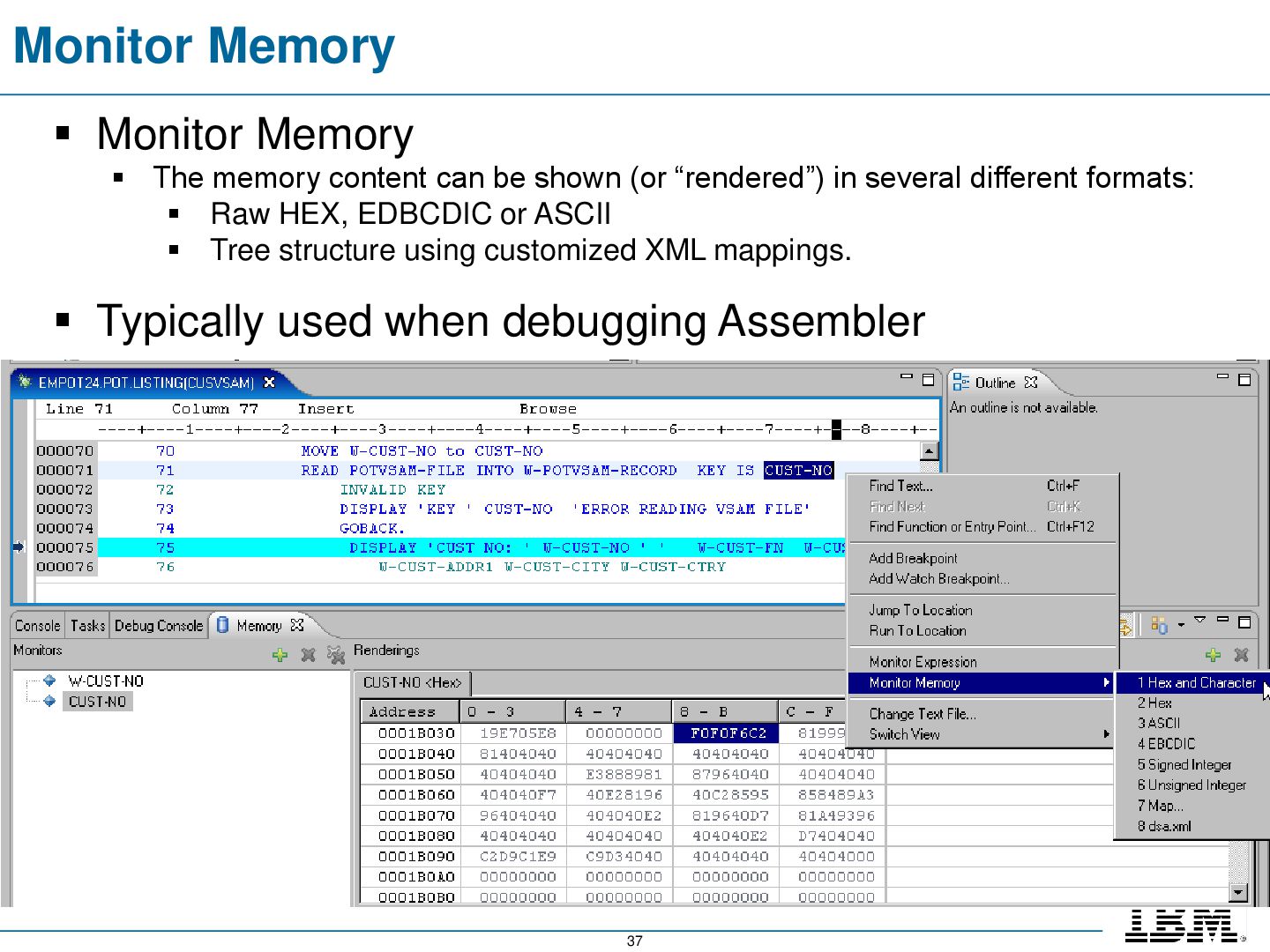
can be shown (or “rendered”) in several different formats: Raw HEX, EDBCDIC or ASCII Tree structure using customized XML mappings. Typically used when debugging Assembler
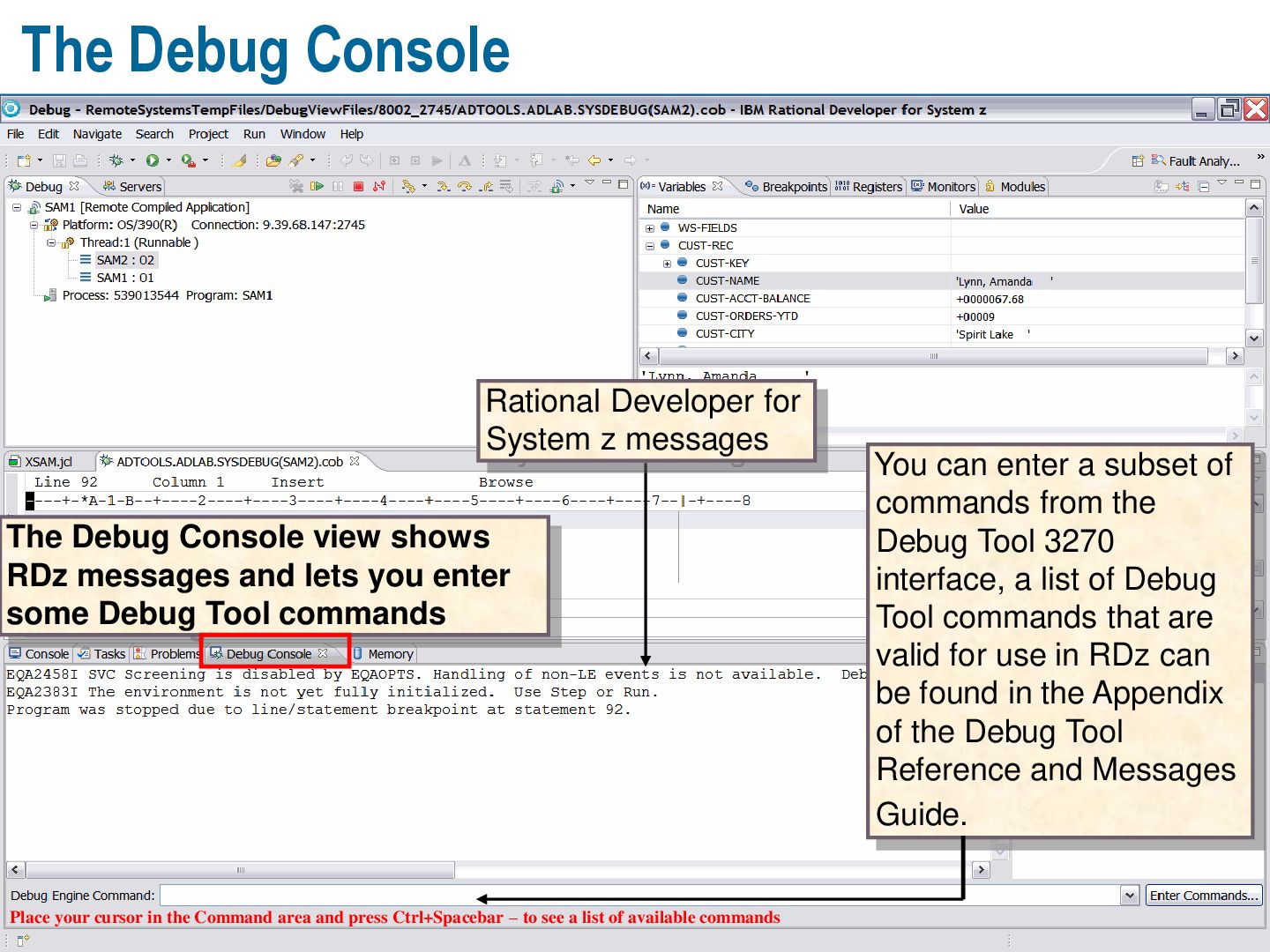
You can enter a subset of commands from the Debug Tool 3270 interface, a list of Debug Tool commands that are valid for use in RDz can be found in the Appendix of the Debug Tool Reference and Messages Guide. The Debug Console view shows RDz messages and lets you enter some Debug Tool commands Place your cursor in the Command area and press Ctrl+Spacebar – to see a list of available commands
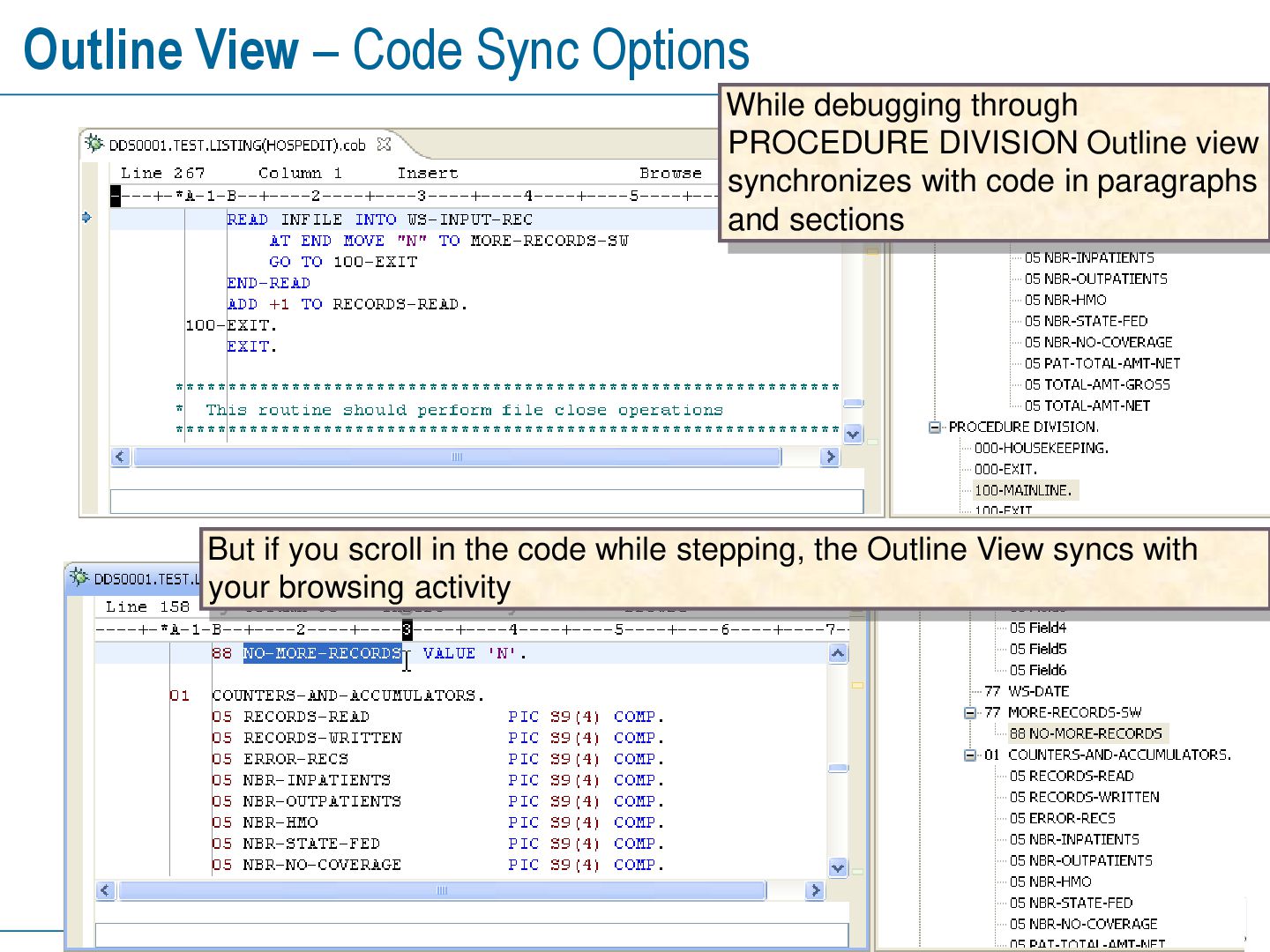
PROCEDURE DIVISION Outline view synchronizes with code in paragraphs and sections But if you scroll in the code while stepping, the Outline View syncs with your browsing activity
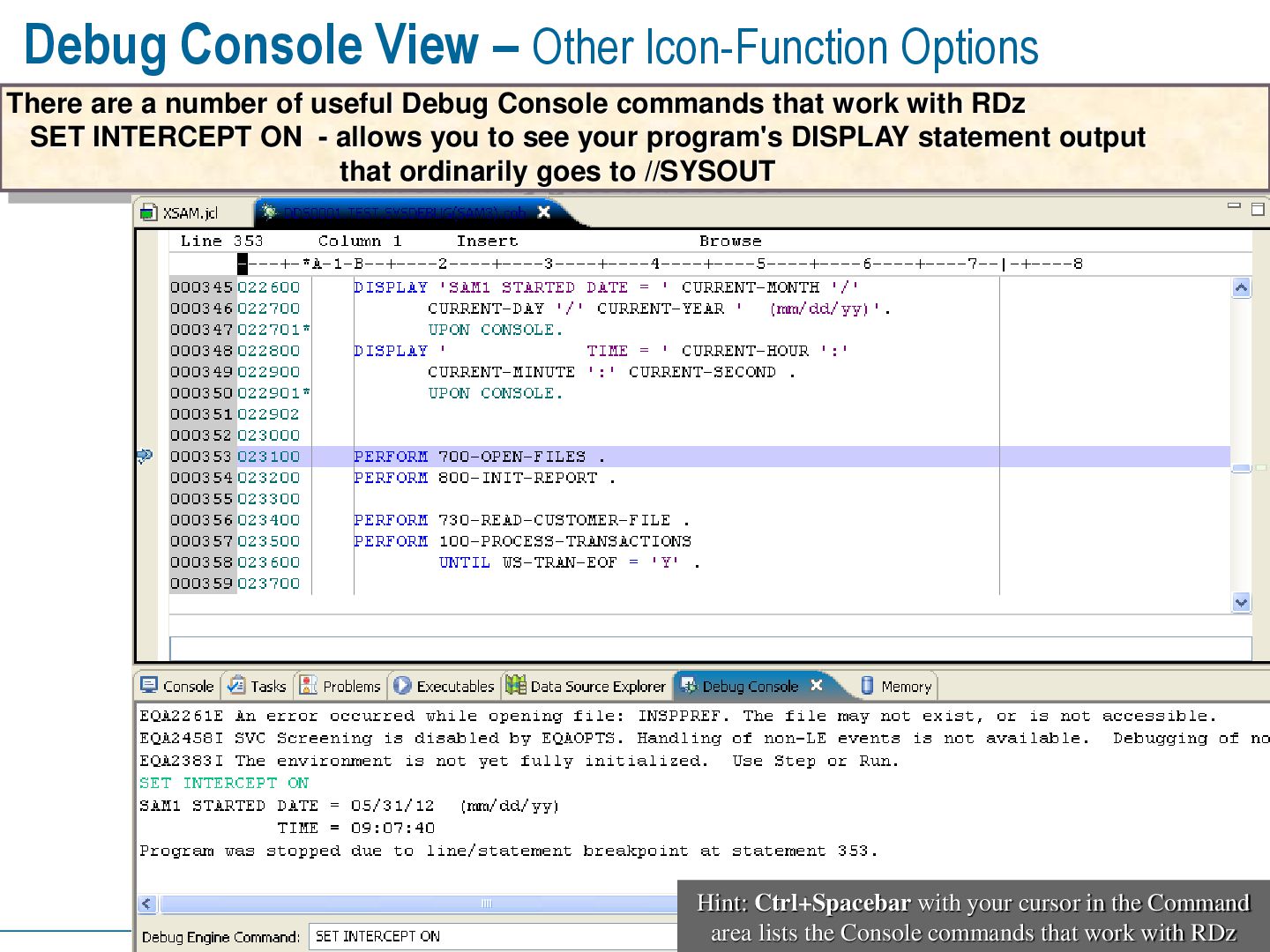
a number of useful Debug Console commands that work with RDz SET INTERCEPT ON - allows you to see your program's DISPLAY statement output that ordinarily goes to //SYSOUT Hint: Ctrl+Spacebar with your cursor in the Command area lists the Console commands that work with RDz
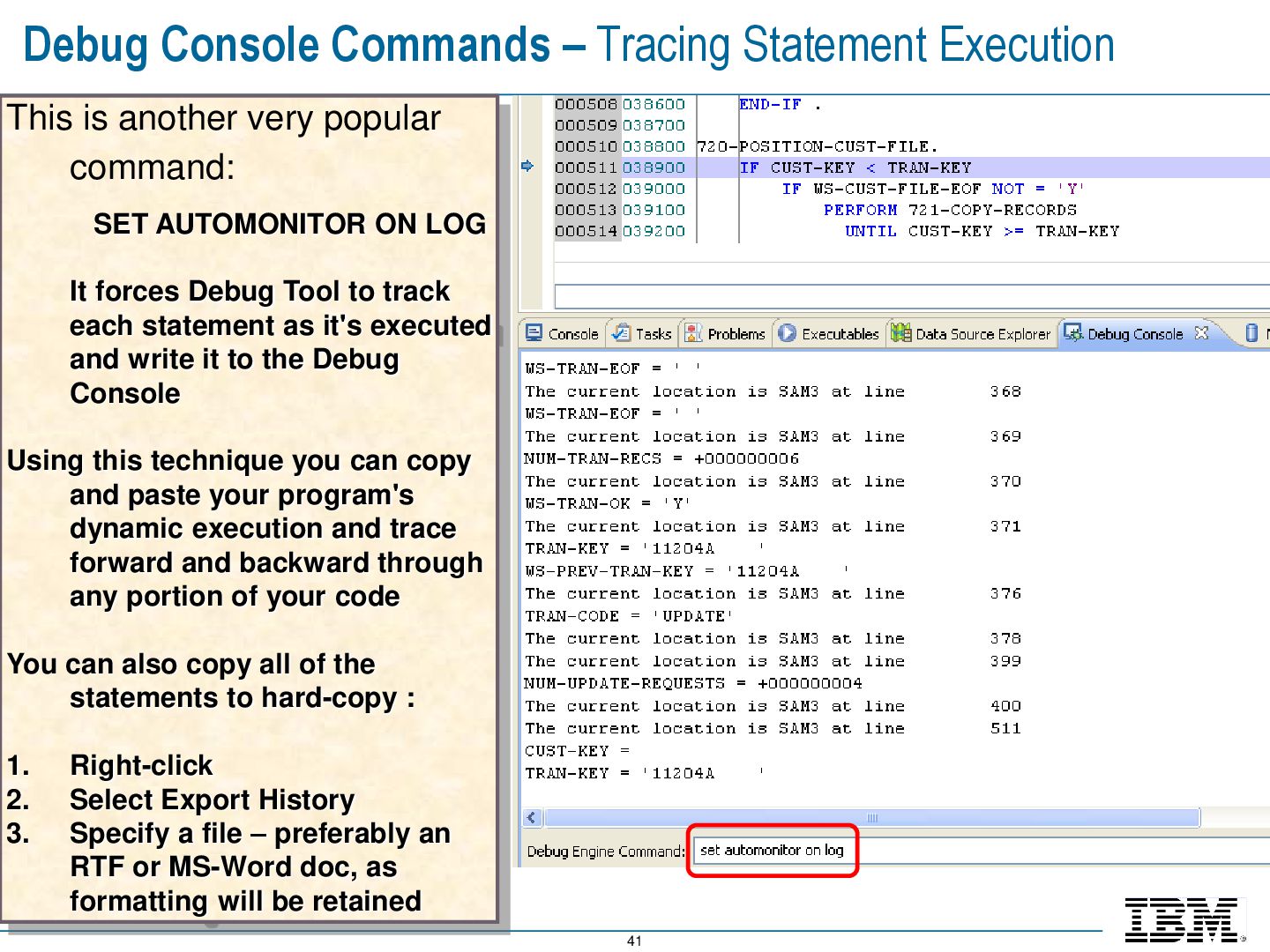
another very popular command: SET AUTOMONITOR ON LOG It forces Debug Tool to track each statement as it's executed and write it to the Debug Console Using this technique you can copy and paste your program's dynamic execution and trace forward and backward through any portion of your code You can also copy all of the statements to hard-copy : 1. Right-click 2. Select Export History 3. Specify a file – preferably an RTF or MS-Word doc, as formatting will be retained
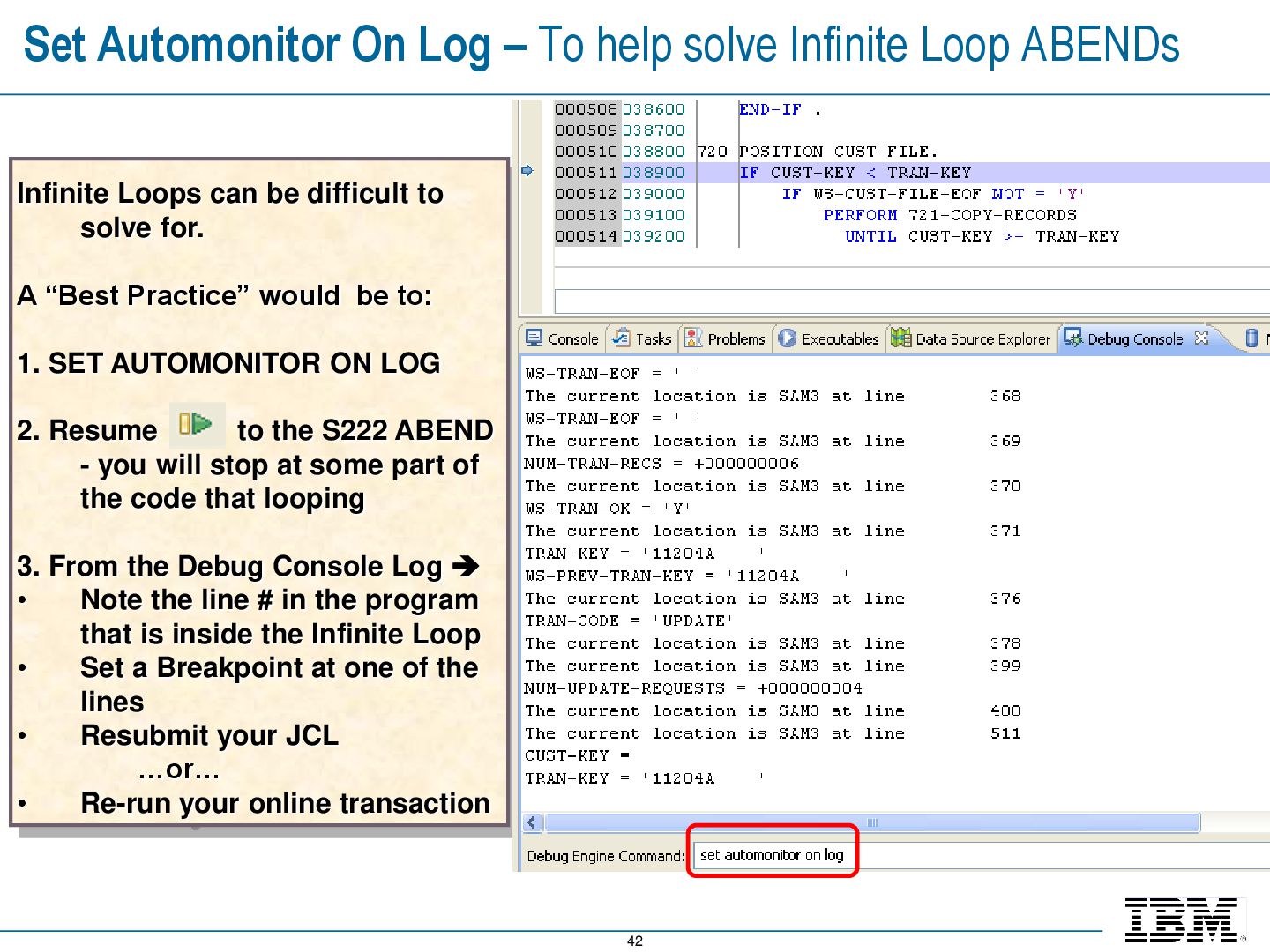
Loop ABENDs Infinite Loops can be difficult to solve for. A “Best Practice” would be to: 1. SET AUTOMONITOR ON LOG 2. Resume to the S222 ABEND - you will stop at some part of the code that looping 3. From the Debug Console Log • Note the line # in the program that is inside the Infinite Loop • Set a Breakpoint at one of the lines • Resubmit your JCL …or… • Re-run your online transaction
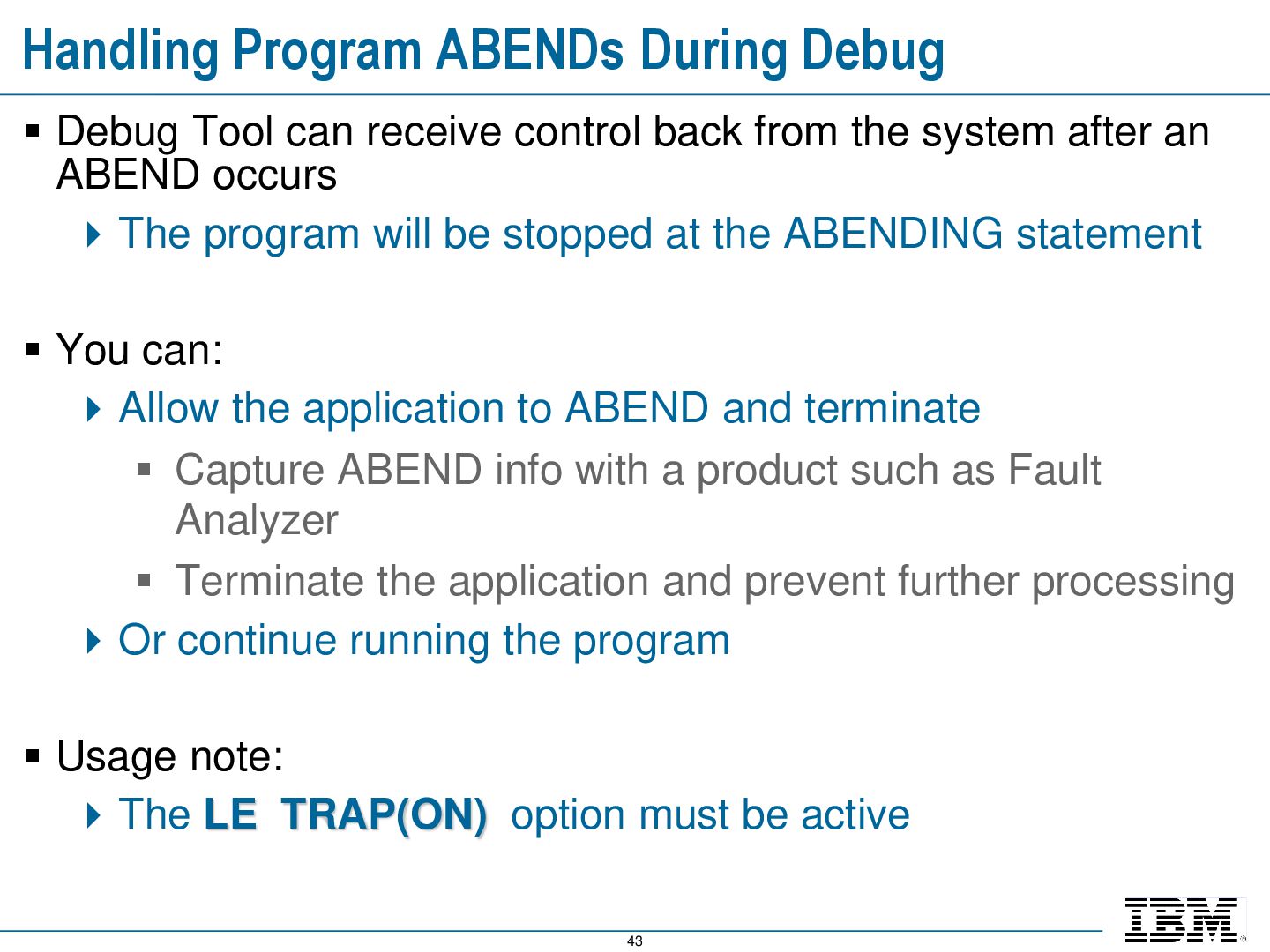
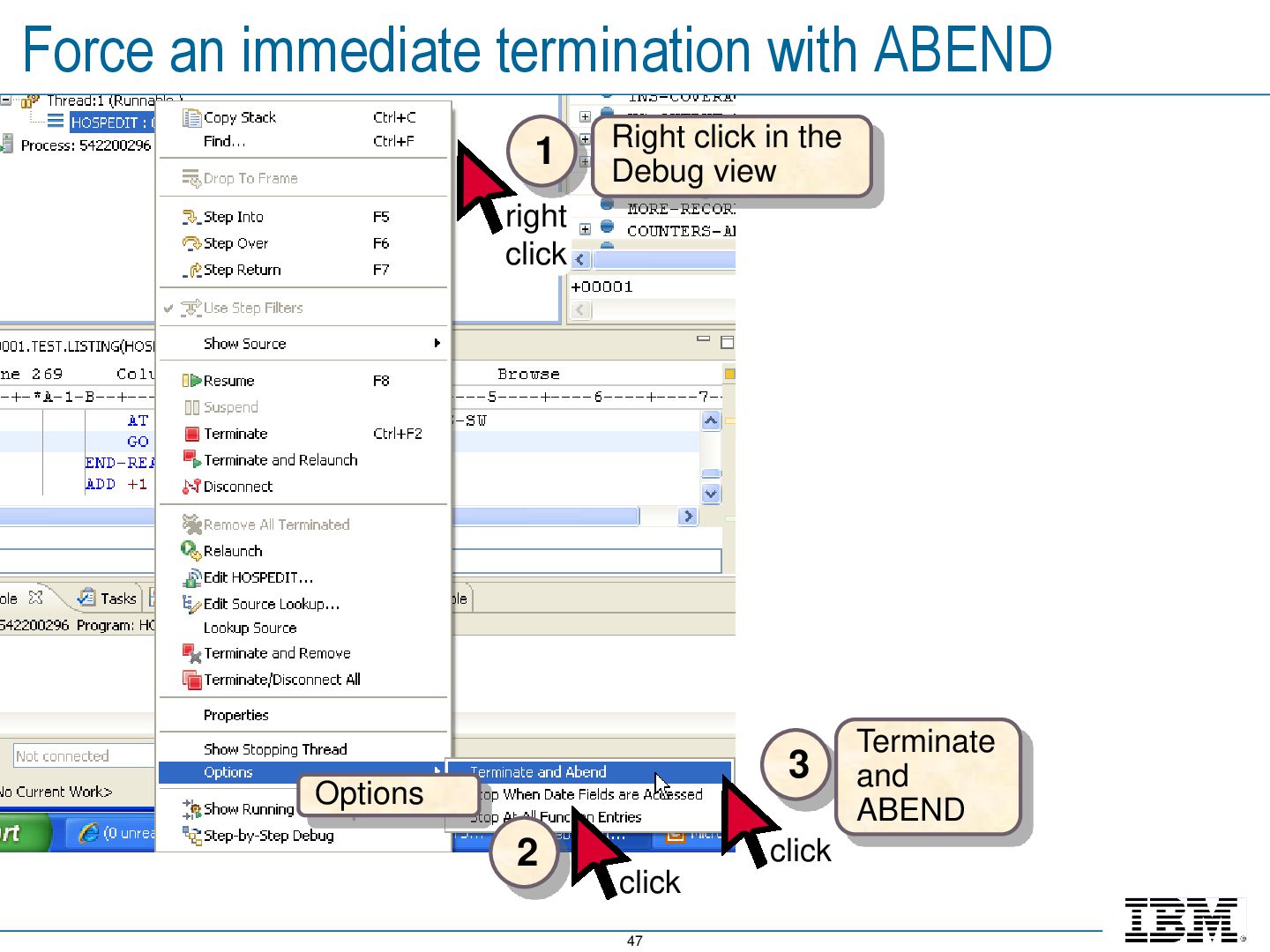
receive control back from the system after an ABEND occurs The program will be stopped at the ABENDING statement You can: Allow the application to ABEND and terminate Capture ABEND info with a product such as Fault Analyzer Terminate the application and prevent further processing Or continue running the program Usage note: The LE TRAP(ON) option must be active
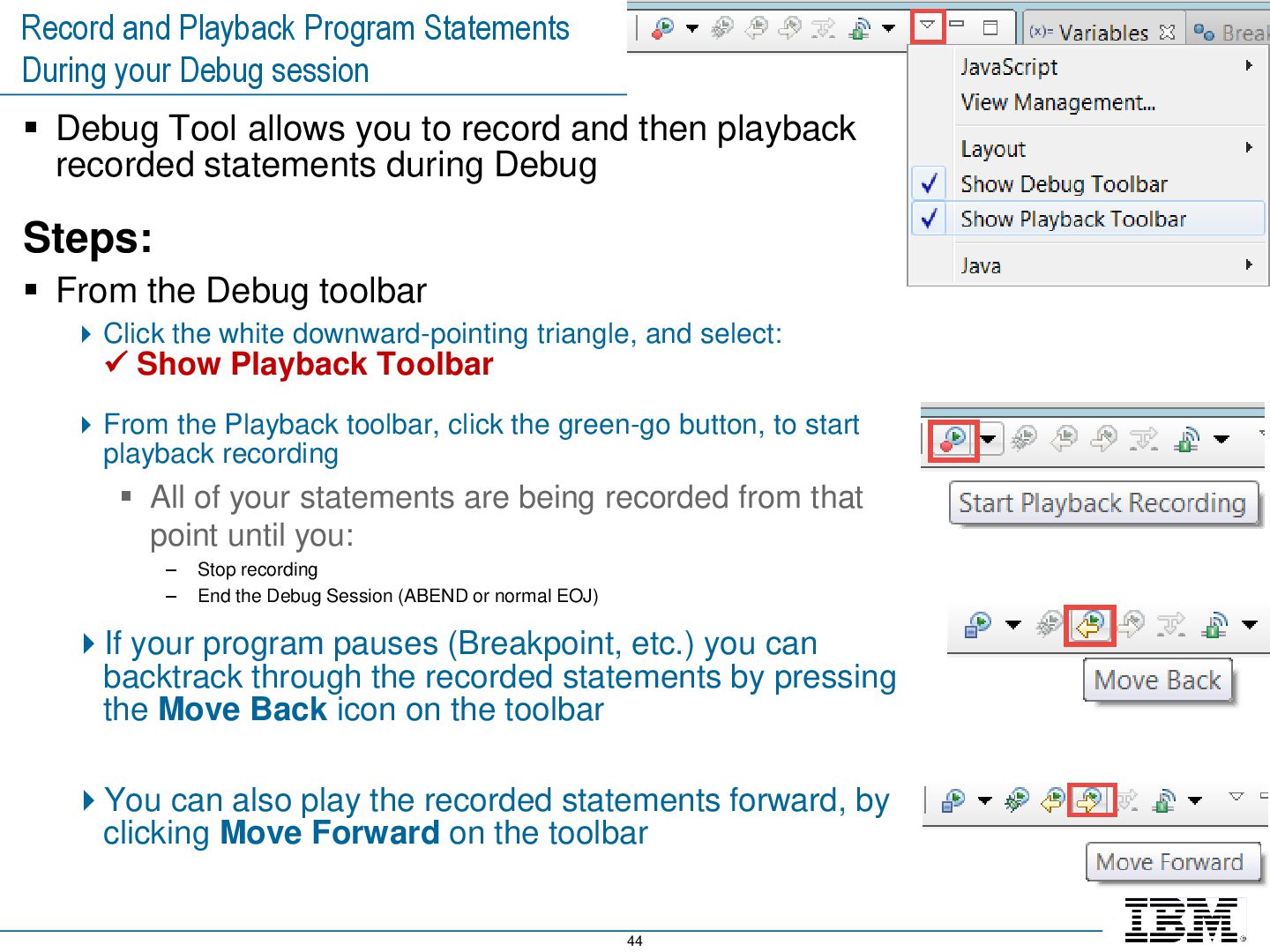
Debug Tool allows you to record and then playback recorded statements during Debug Steps: From the Debug toolbar Click the white downward-pointing triangle, and select: Show Playback Toolbar From the Playback toolbar, click the green-go button, to start playback recording All of your statements are being recorded from that point until you: – Stop recording – End the Debug Session (ABEND or normal EOJ) If your program pauses (Breakpoint, etc.) you can backtrack through the recorded statements by pressing the Move Back icon on the toolbar You can also play the recorded statements forward, by clicking Move Forward on the toolbar
terminating your application: Remain in the debugger, and RESUME until the program runs to completion The program will terminate normally or with an ABEND The return code is controlled by the program Disconnect the debugger, and allow the program to run to completion The program will terminate normally or with an ABEND The return code is controlled by the program
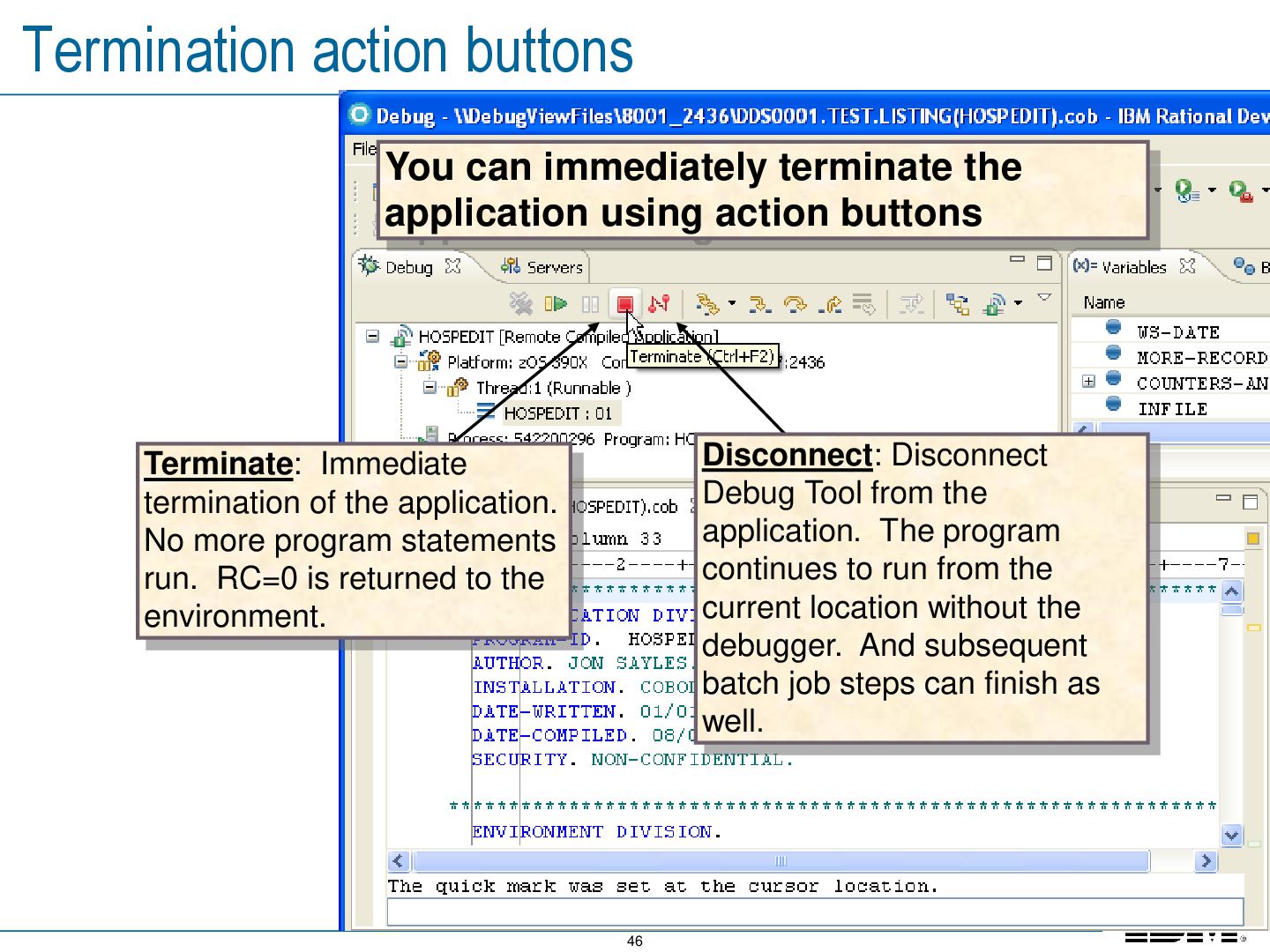
using action buttons Terminate: Immediate termination of the application. No more program statements run. RC=0 is returned to the environment. Disconnect: Disconnect Debug Tool from the application. The program continues to run from the current location without the debugger. And subsequent batch job steps can finish as well.
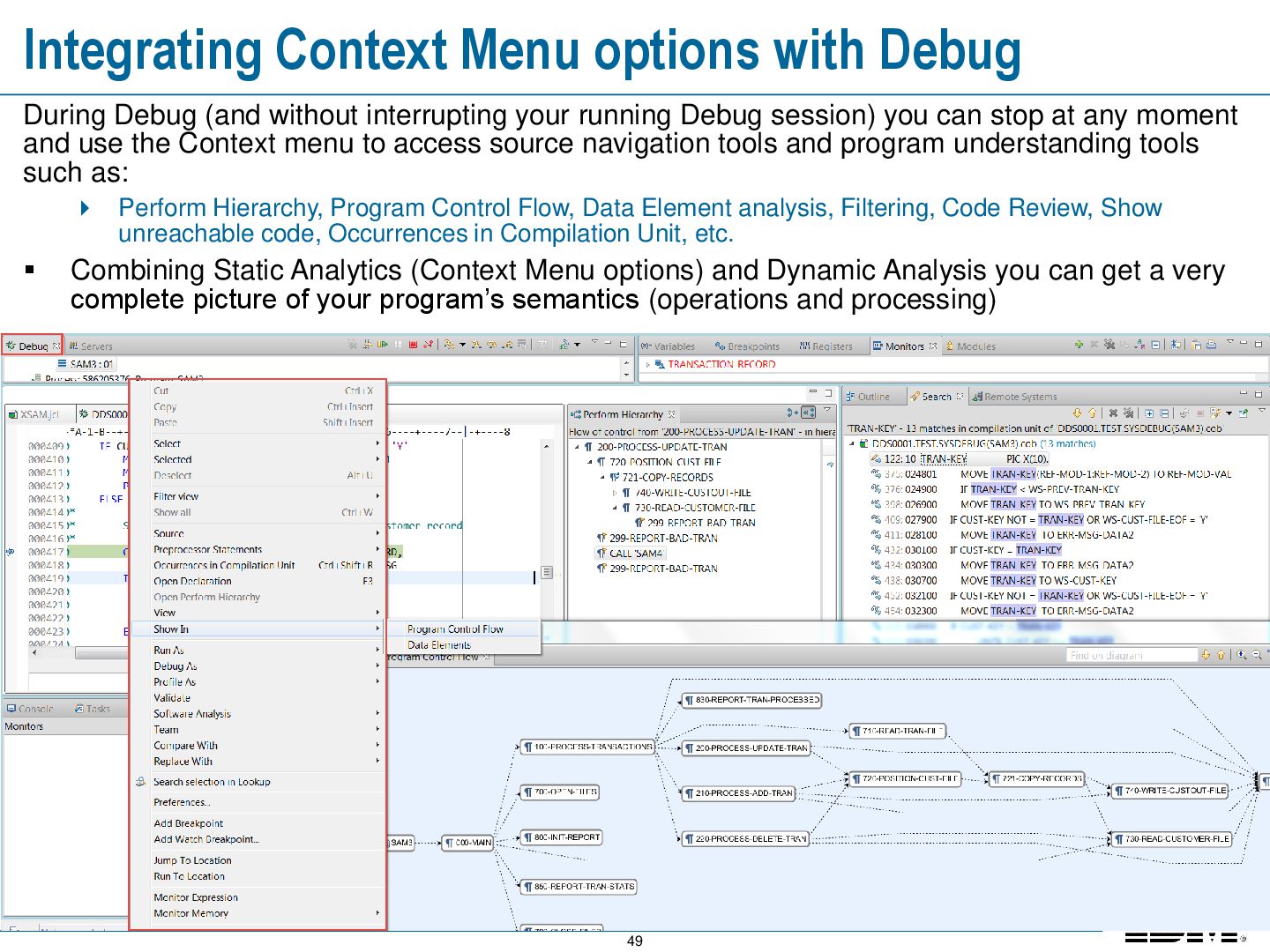
without interrupting your running Debug session) you can stop at any moment and use the Context menu to access source navigation tools and program understanding tools such as: Perform Hierarchy, Program Control Flow, Data Element analysis, Filtering, Code Review, Show unreachable code, Occurrences in Compilation Unit, etc. Combining Static Analytics (Context Menu options) and Dynamic Analysis you can get a very complete picture of your program’s semantics (operations and processing)
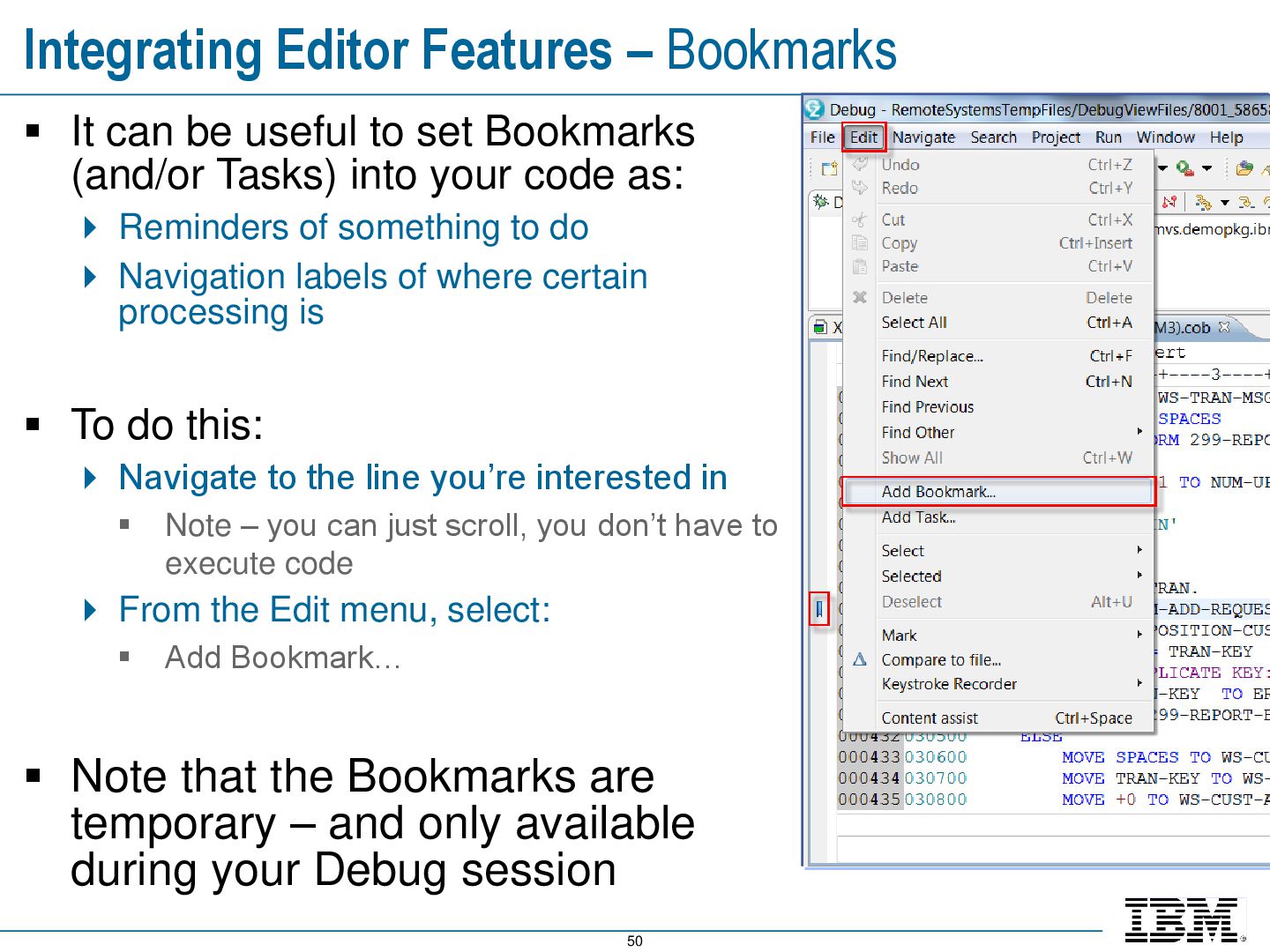
useful to set Bookmarks (and/or Tasks) into your code as: Reminders of something to do Navigation labels of where certain processing is To do this: Navigate to the line you’re interested in Note – you can just scroll, you don’t have to execute code From the Edit menu, select: Add Bookmark… Note that the Bookmarks are temporary – and only available during your Debug session
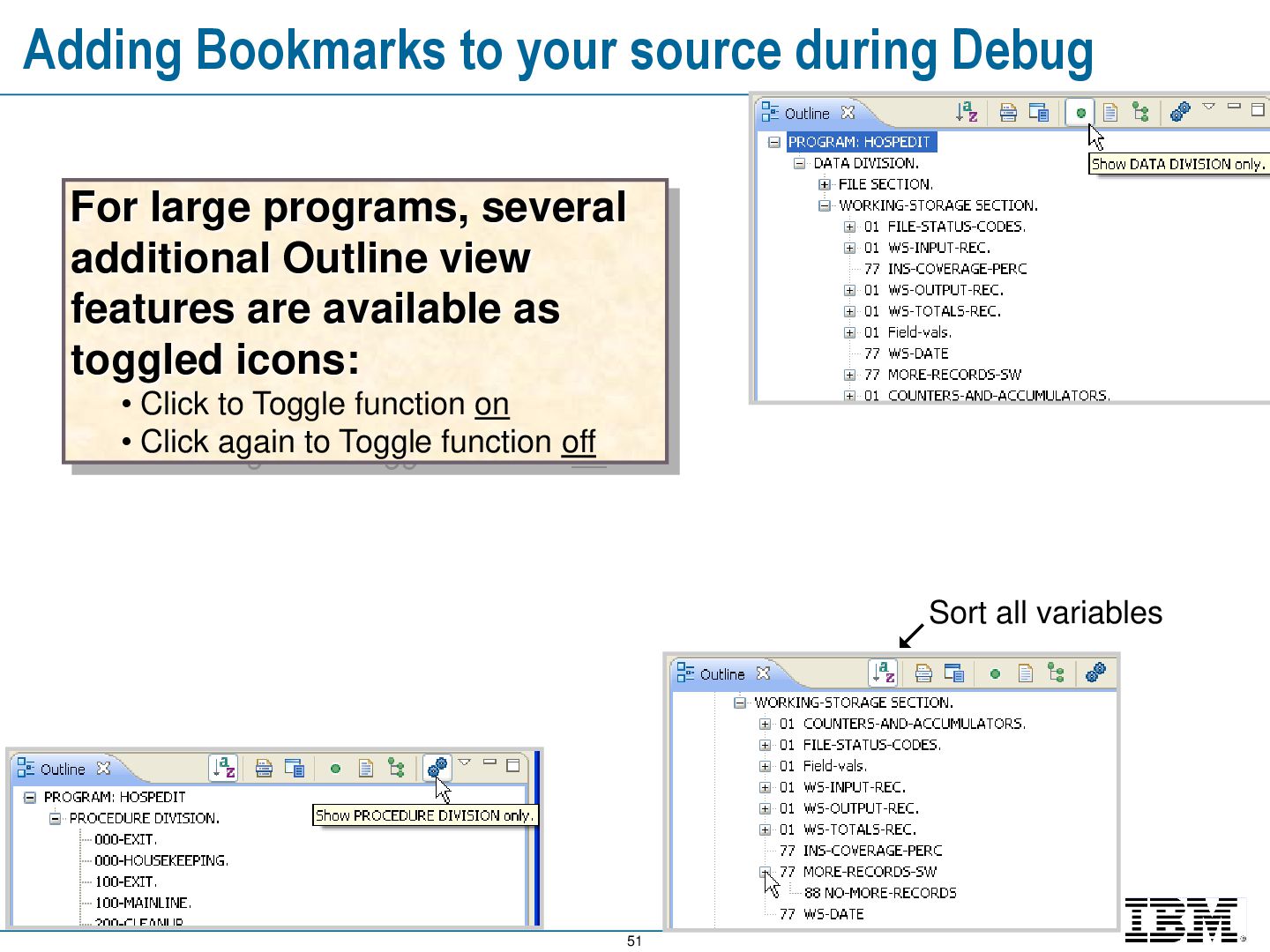
programs, several additional Outline view features are available as toggled icons: • Click to Toggle function on • Click again to Toggle function off Sort all variables
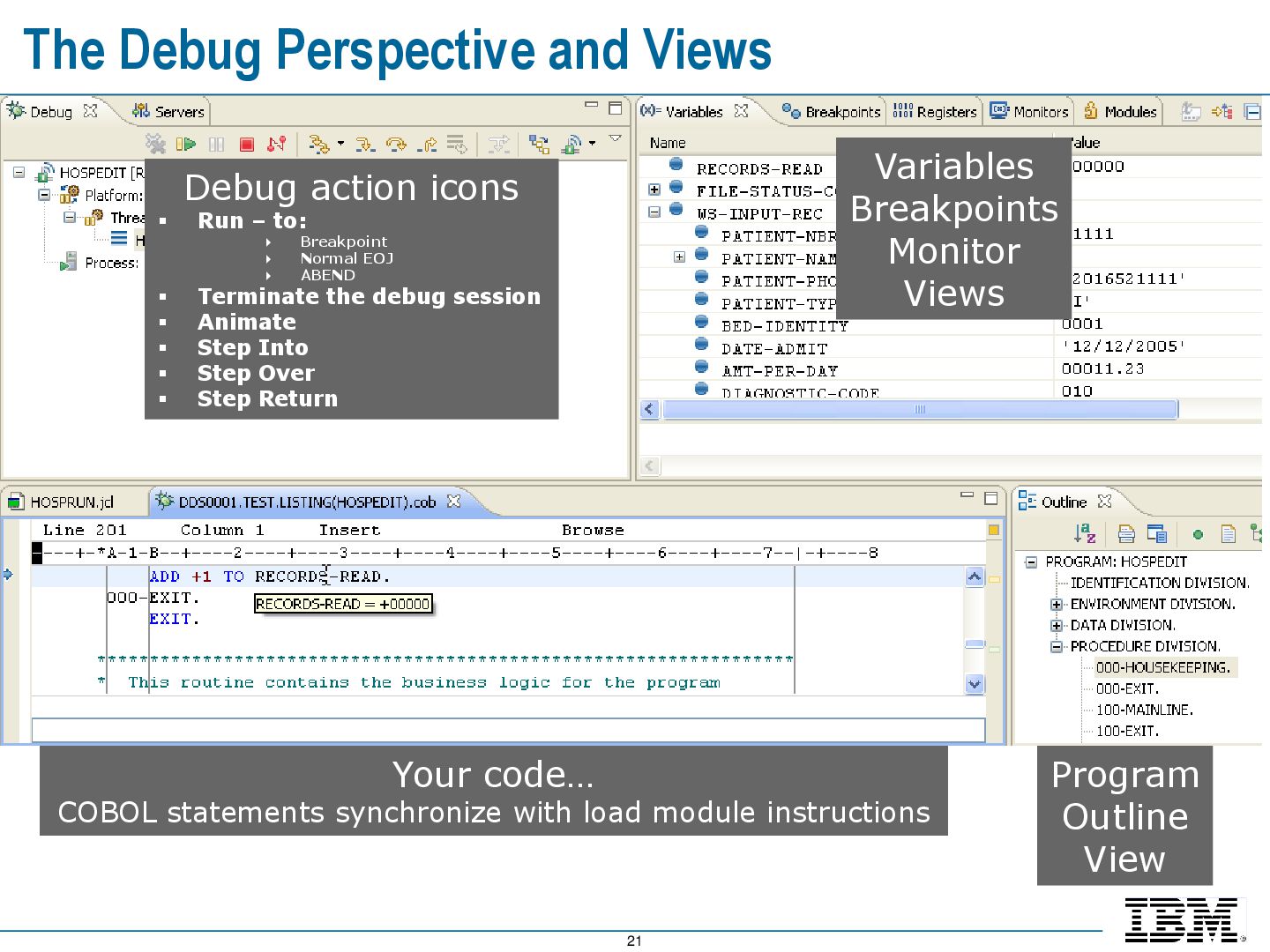
able to: Describe where the debug engines are located Show how to set the workbench preferences for running and debugging Show how to invoke the debugger for local programs Describe the views of the Debug perspective Demonstrate how to set breakpoints in COBOL code Explain how to set up the COBOL compile options for remote debugging Show how to debug a remote batch COBOL program
able to: Using the Problem Determination Tools, Debug Option and RDz: Debug a mainframe online transaction Describe the online transaction features for configuring your 3270 sessions with Debug Option Debug a CICS 3270 Application
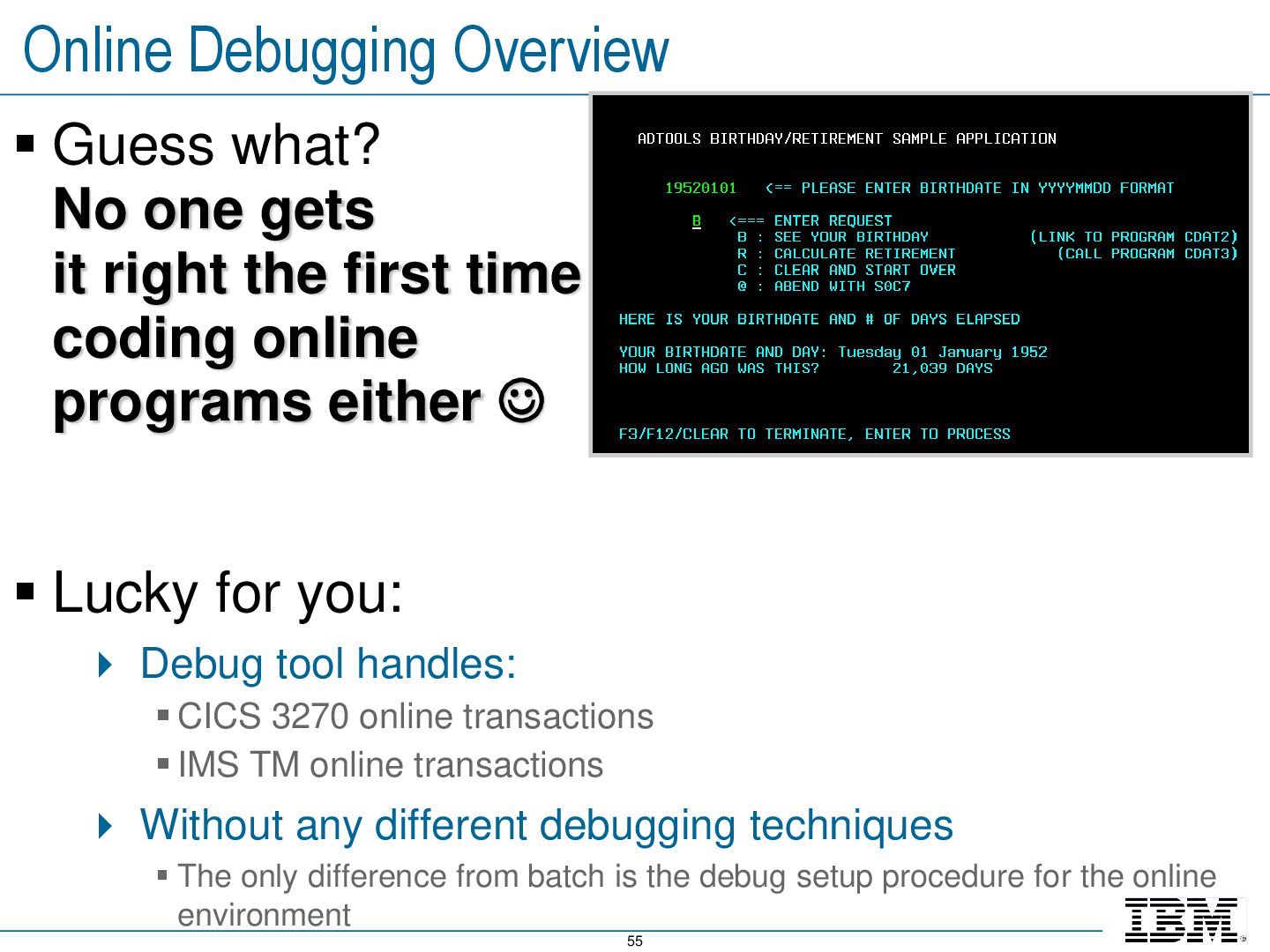
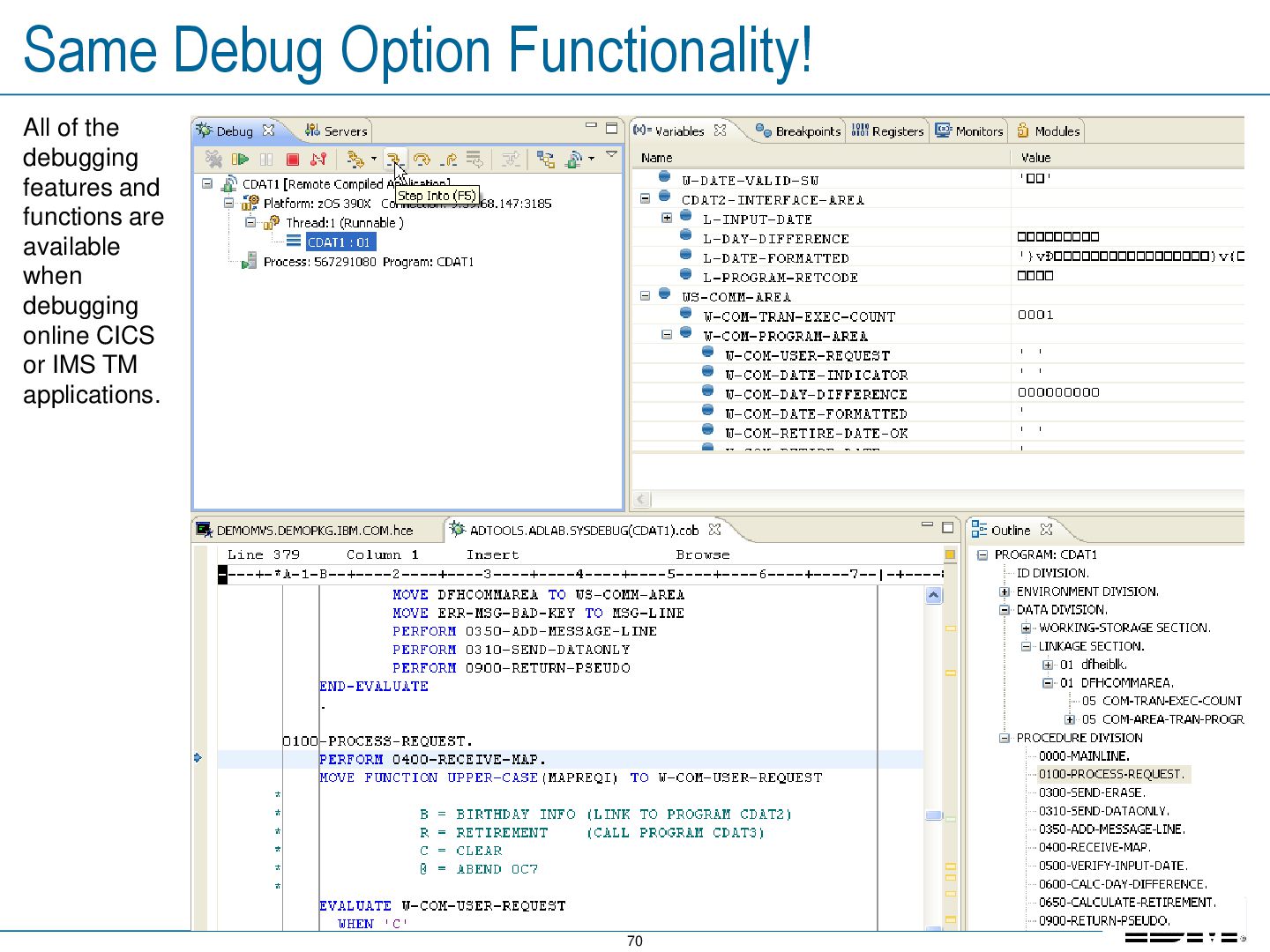
it right the first time coding online programs either Lucky for you: Debug tool handles: CICS 3270 online transactions IMS TM online transactions Without any different debugging techniques The only difference from batch is the debug setup procedure for the online environment
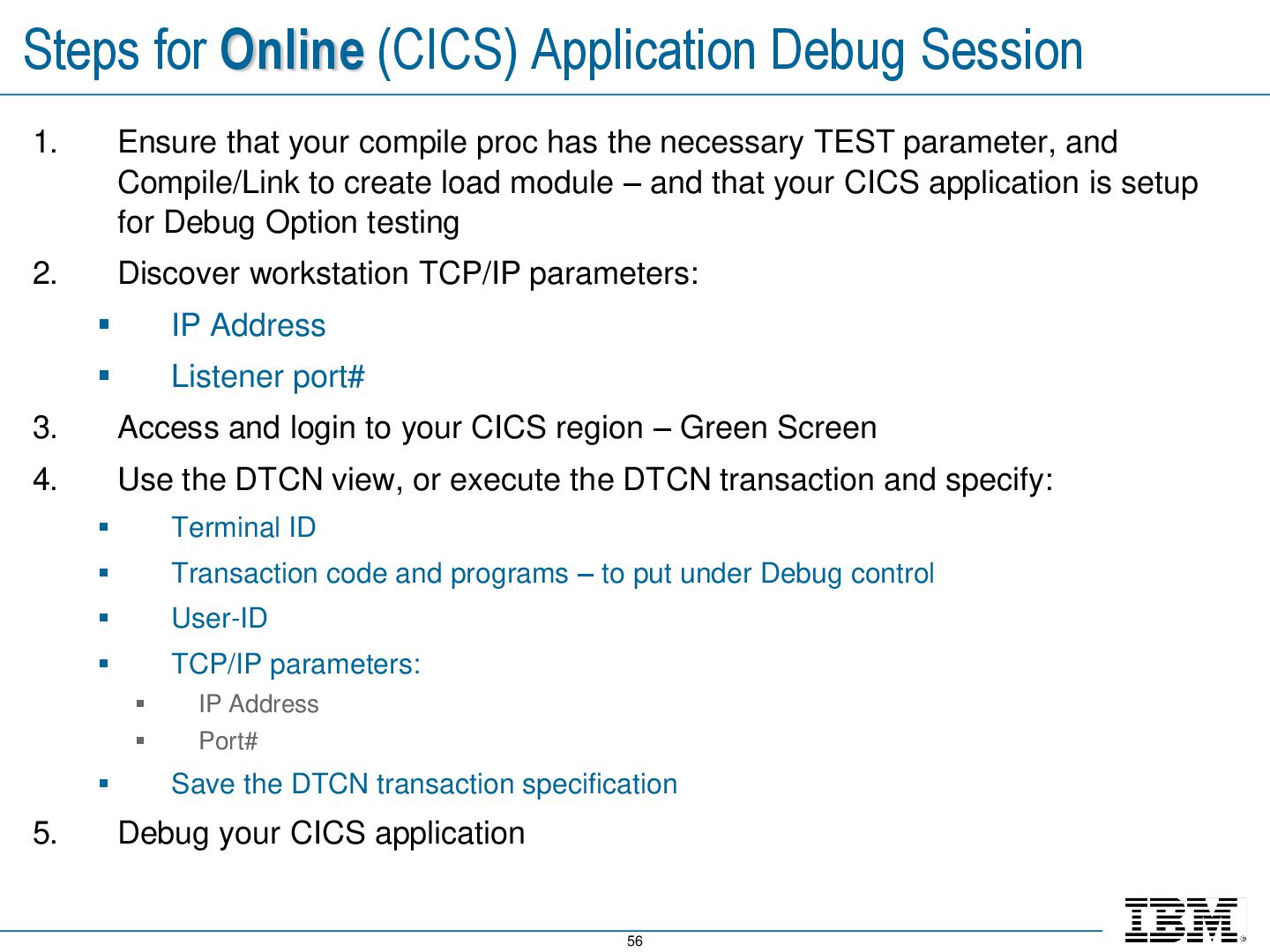
that your compile proc has the necessary TEST parameter, and Compile/Link to create load module – and that your CICS application is setup for Debug Option testing 2. Discover workstation TCP/IP parameters: IP Address Listener port# 3. Access and login to your CICS region – Green Screen 4. Use the DTCN view, or execute the DTCN transaction and specify: Terminal ID Transaction code and programs – to put under Debug control User-ID TCP/IP parameters: IP Address Port# Save the DTCN transaction specification 5. Debug your CICS application
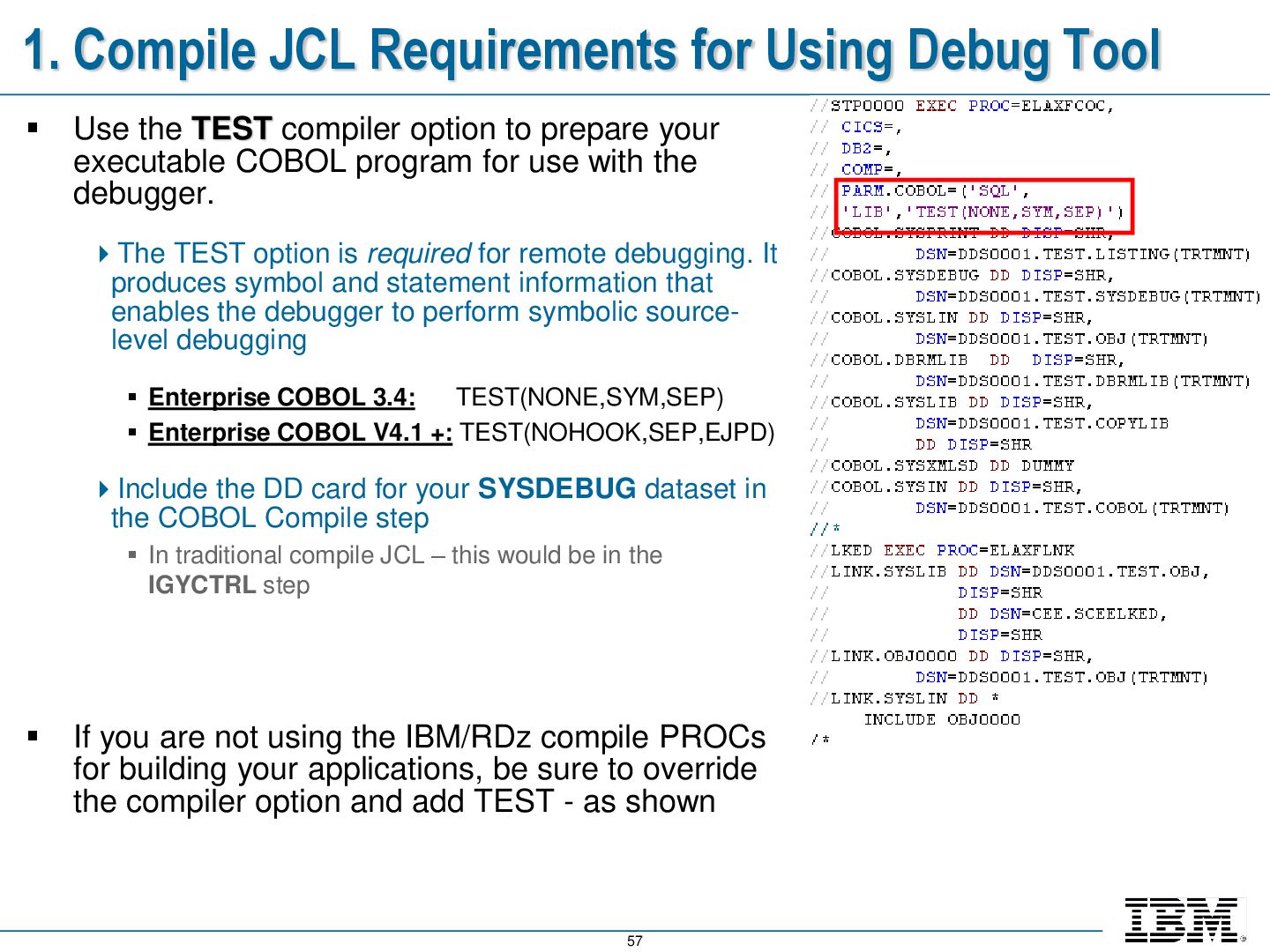
Use the TEST compiler option to prepare your executable COBOL program for use with the debugger. The TEST option is required for remote debugging. It produces symbol and statement information that enables the debugger to perform symbolic source- level debugging Enterprise COBOL 3.4: TEST(NONE,SYM,SEP) Enterprise COBOL V4.1 +: TEST(NOHOOK,SEP,EJPD) Include the DD card for your SYSDEBUG dataset in the COBOL Compile step In traditional compile JCL – this would be in the IGYCTRL step If you are not using the IBM/RDz compile PROCs for building your applications, be sure to override the compiler option and add TEST - as shown
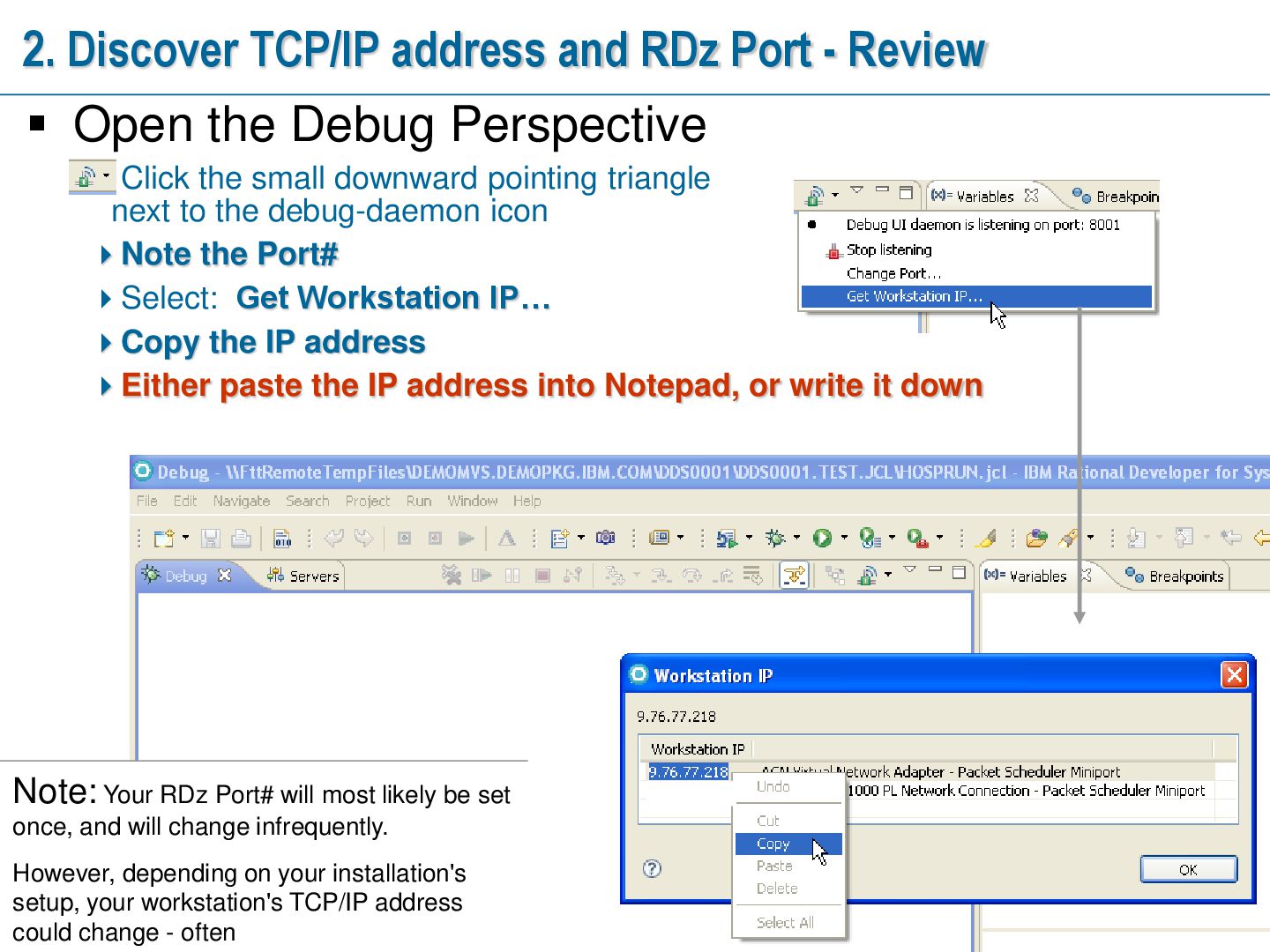
Open the Debug Perspective Click the small downward pointing triangle next to the debug-daemon icon Note the Port# Select: Get Workstation IP… Copy the IP address Either paste the IP address into Notepad, or write it down Note: Your RDz Port# will most likely be set once, and will change infrequently. However, depending on your installation's setup, your workstation's TCP/IP address could change - often
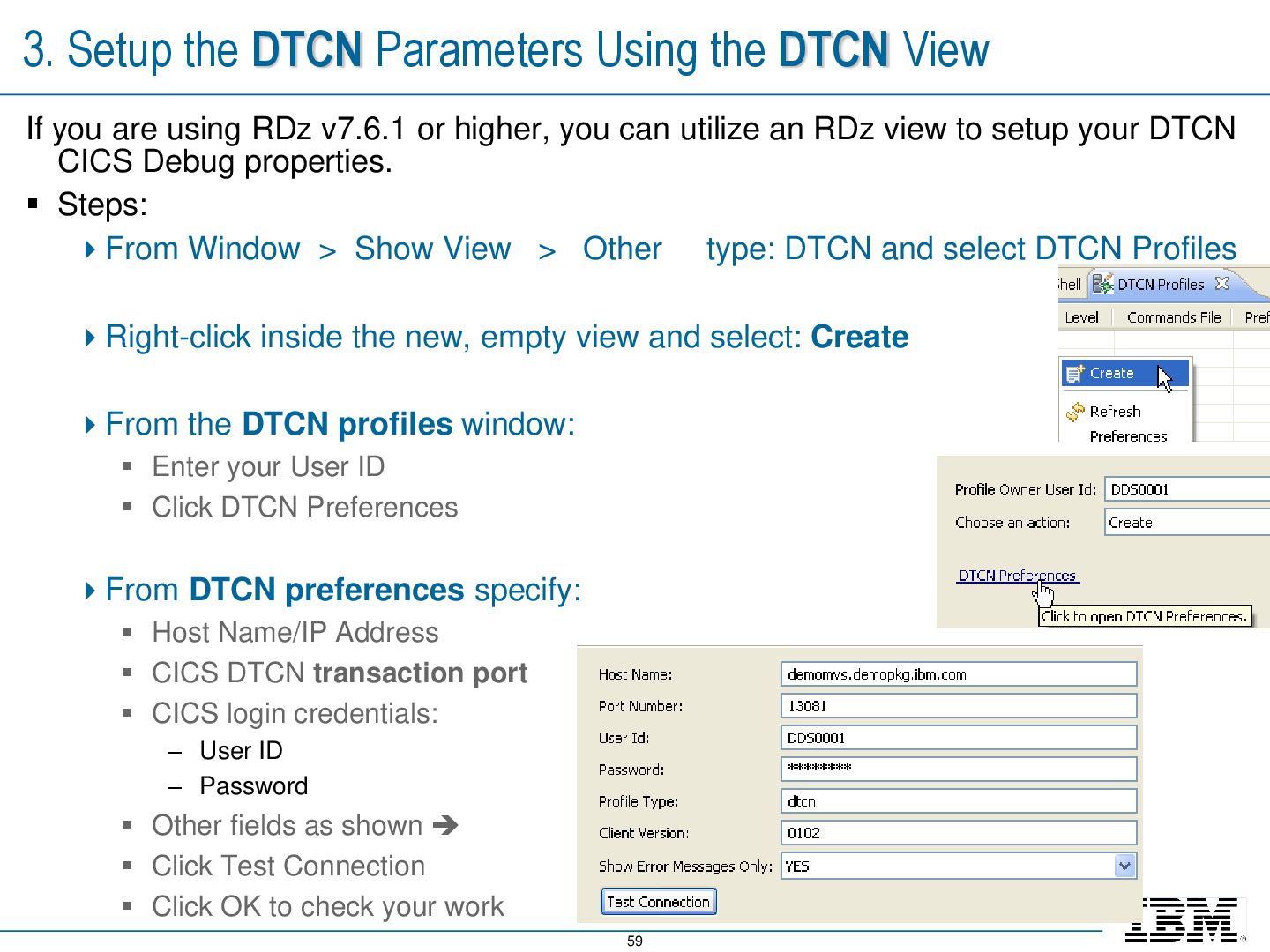
If you are using RDz v7.6.1 or higher, you can utilize an RDz view to setup your DTCN CICS Debug properties. Steps: From Window > Show View > Other type: DTCN and select DTCN Profiles Right-click inside the new, empty view and select: Create From the DTCN profiles window: Enter your User ID Click DTCN Preferences From DTCN preferences specify: Host Name/IP Address CICS DTCN transaction port CICS login credentials: – User ID – Password Other fields as shown Click Test Connection Click OK to check your work
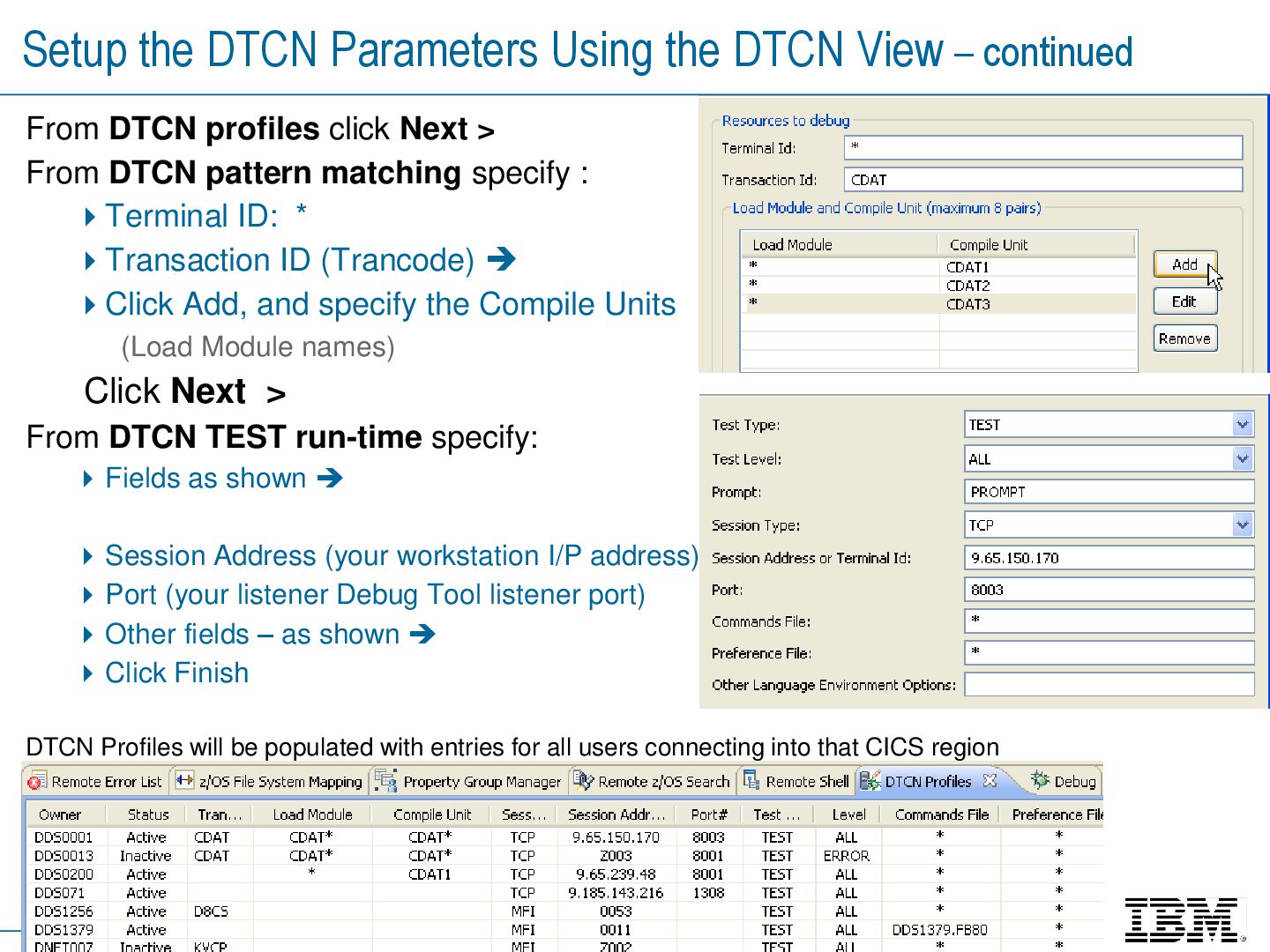
continued From DTCN profiles click Next > From DTCN pattern matching specify : Terminal ID: * Transaction ID (Trancode) Click Add, and specify the Compile Units (Load Module names) Click Next > From DTCN TEST run-time specify: Fields as shown Session Address (your workstation I/P address) Port (your listener Debug Tool listener port) Other fields – as shown Click Finish DTCN Profiles will be populated with entries for all users connecting into that CICS region
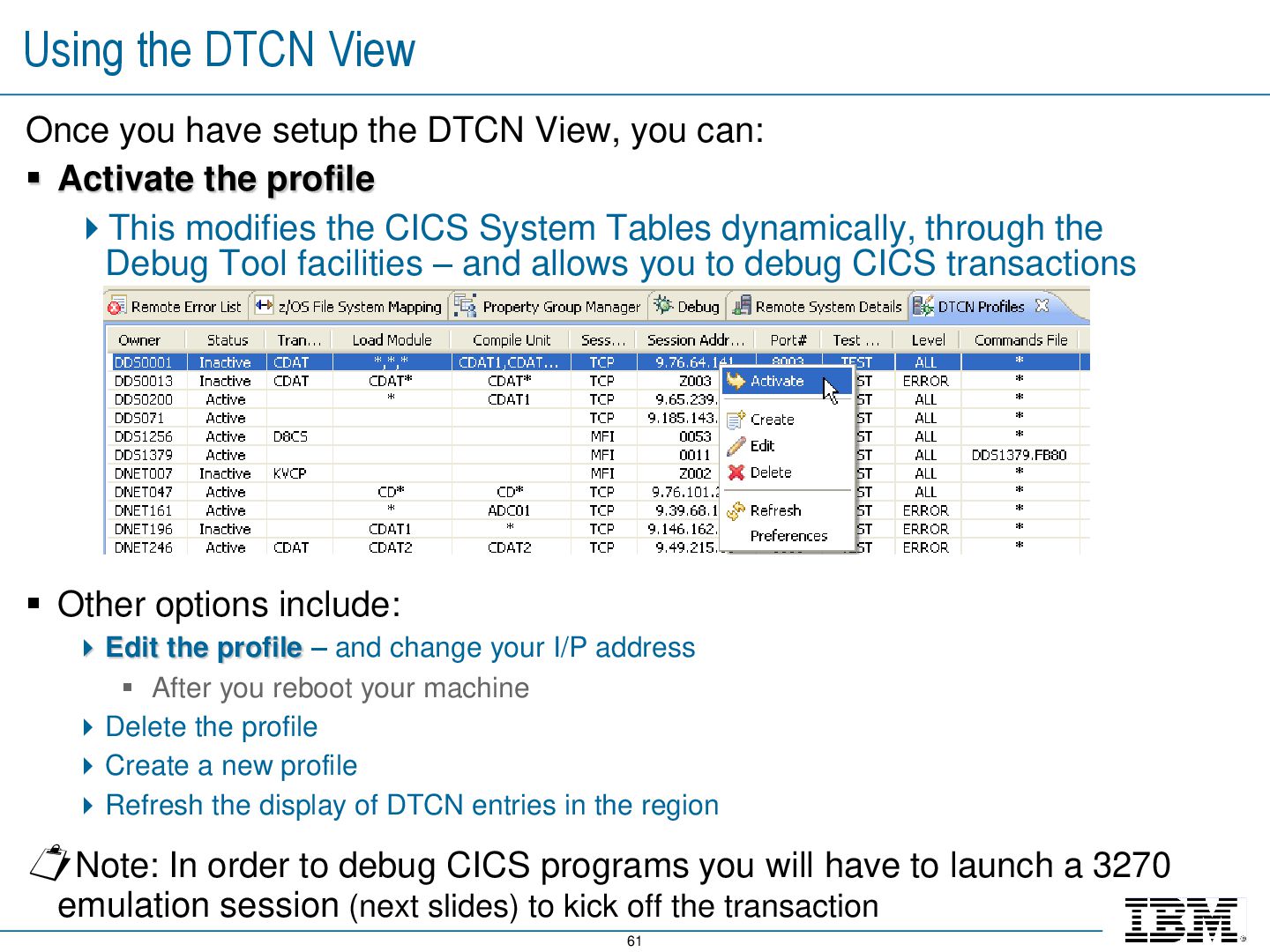
DTCN View, you can: Activate the profile This modifies the CICS System Tables dynamically, through the Debug Tool facilities – and allows you to debug CICS transactions Other options include: Edit the profile – and change your I/P address After you reboot your machine Delete the profile Create a new profile Refresh the display of DTCN entries in the region Note: In order to debug CICS programs you will have to launch a 3270 emulation session (next slides) to kick off the transaction
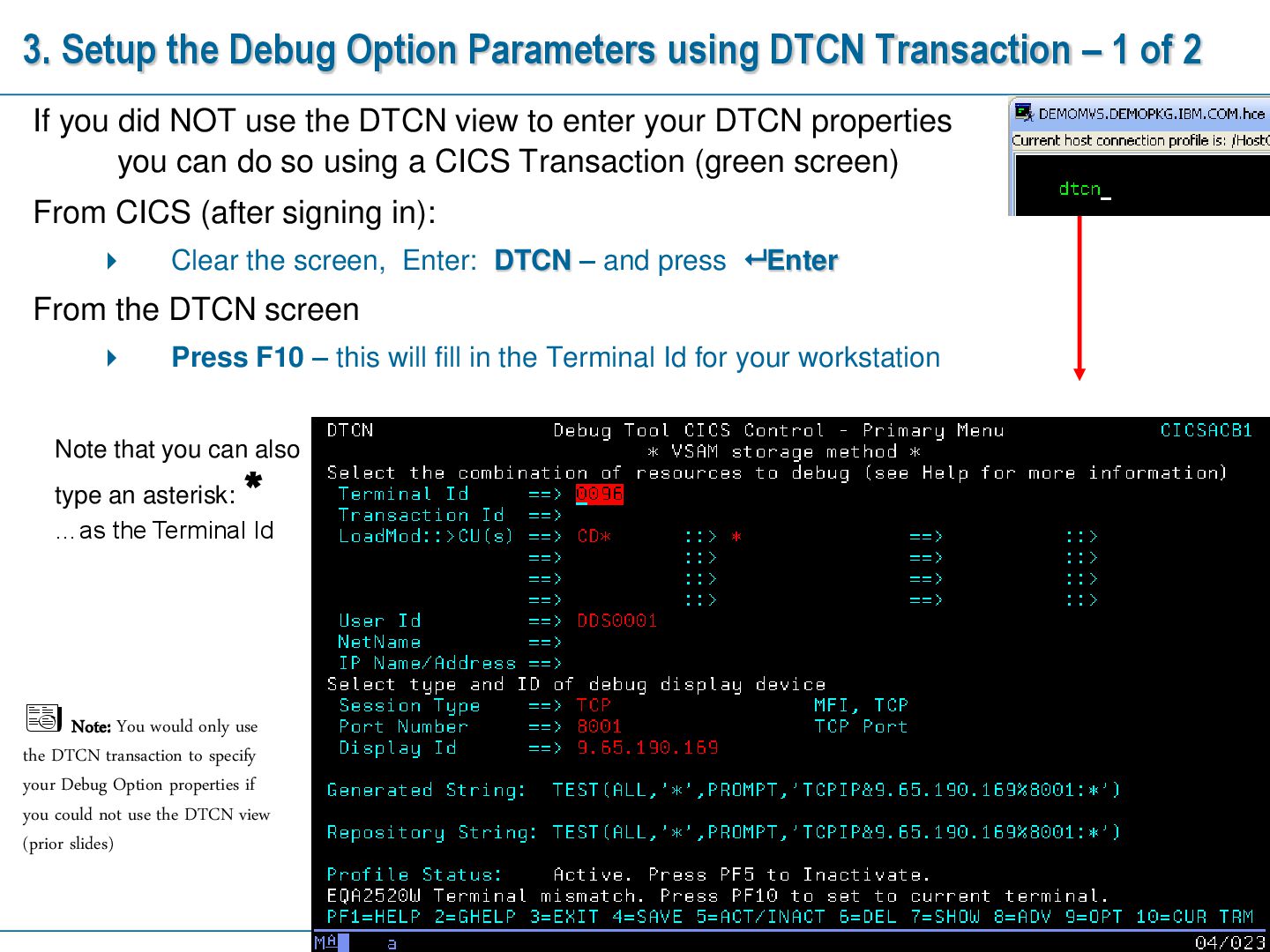
– 1 of 2 If you did NOT use the DTCN view to enter your DTCN properties you can do so using a CICS Transaction (green screen) From CICS (after signing in): Clear the screen, Enter: DTCN – and press Enter From the DTCN screen Press F10 – this will fill in the Terminal Id for your workstation Note that you can also type an asterisk: * …as the Terminal Id Note: You would only use the DTCN transaction to specify your Debug Option properties if you could not use the DTCN view (prior slides)
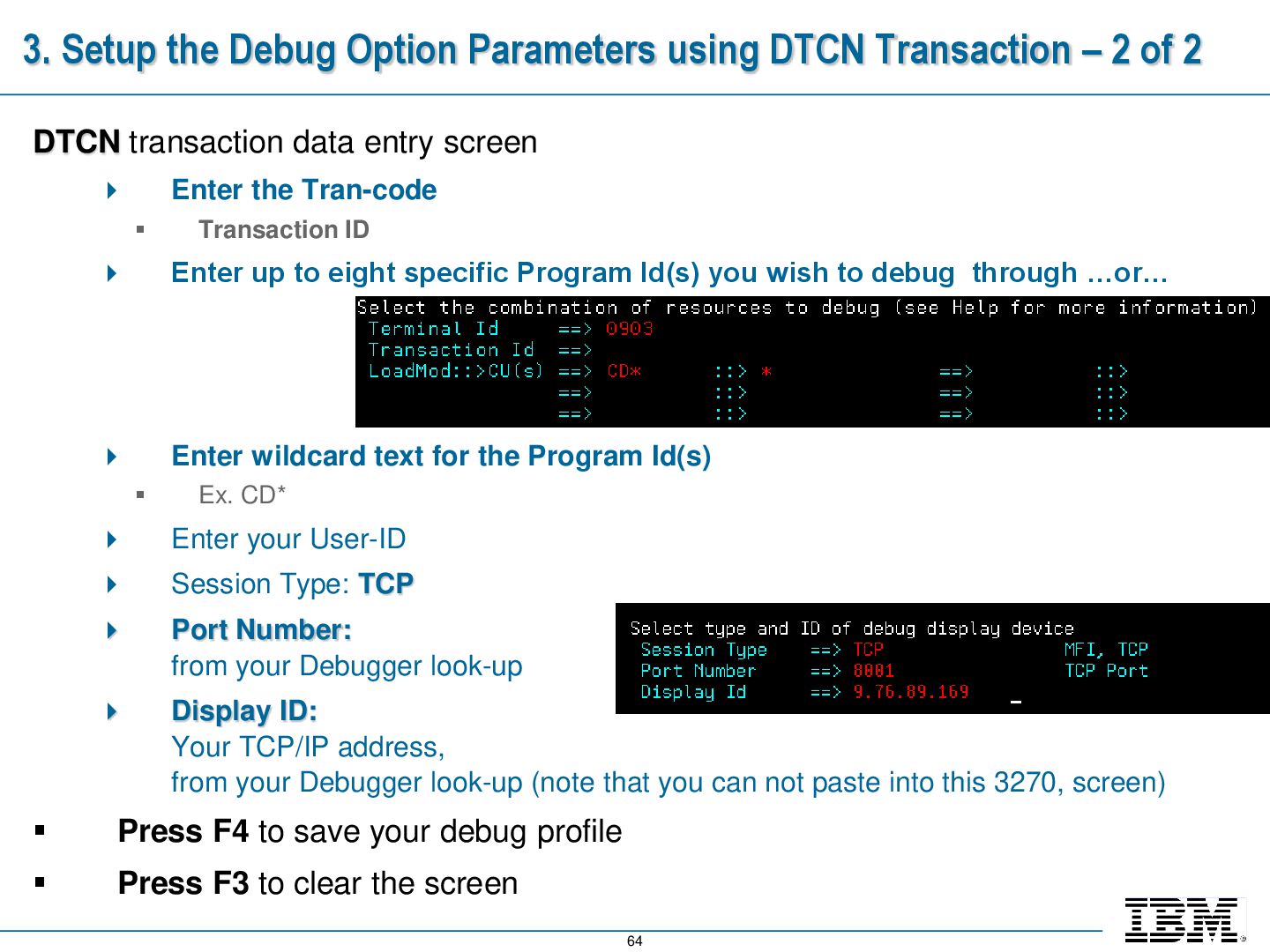
– 2 of 2 DTCN transaction data entry screen Enter the Tran-code Transaction ID Enter up to eight specific Program Id(s) you wish to debug through …or… Enter wildcard text for the Program Id(s) Ex. CD* Enter your User-ID Session Type: TCP Port Number: from your Debugger look-up Display ID: Your TCP/IP address, from your Debugger look-up (note that you can not paste into this 3270, screen) Press F4 to save your debug profile Press F3 to clear the screen
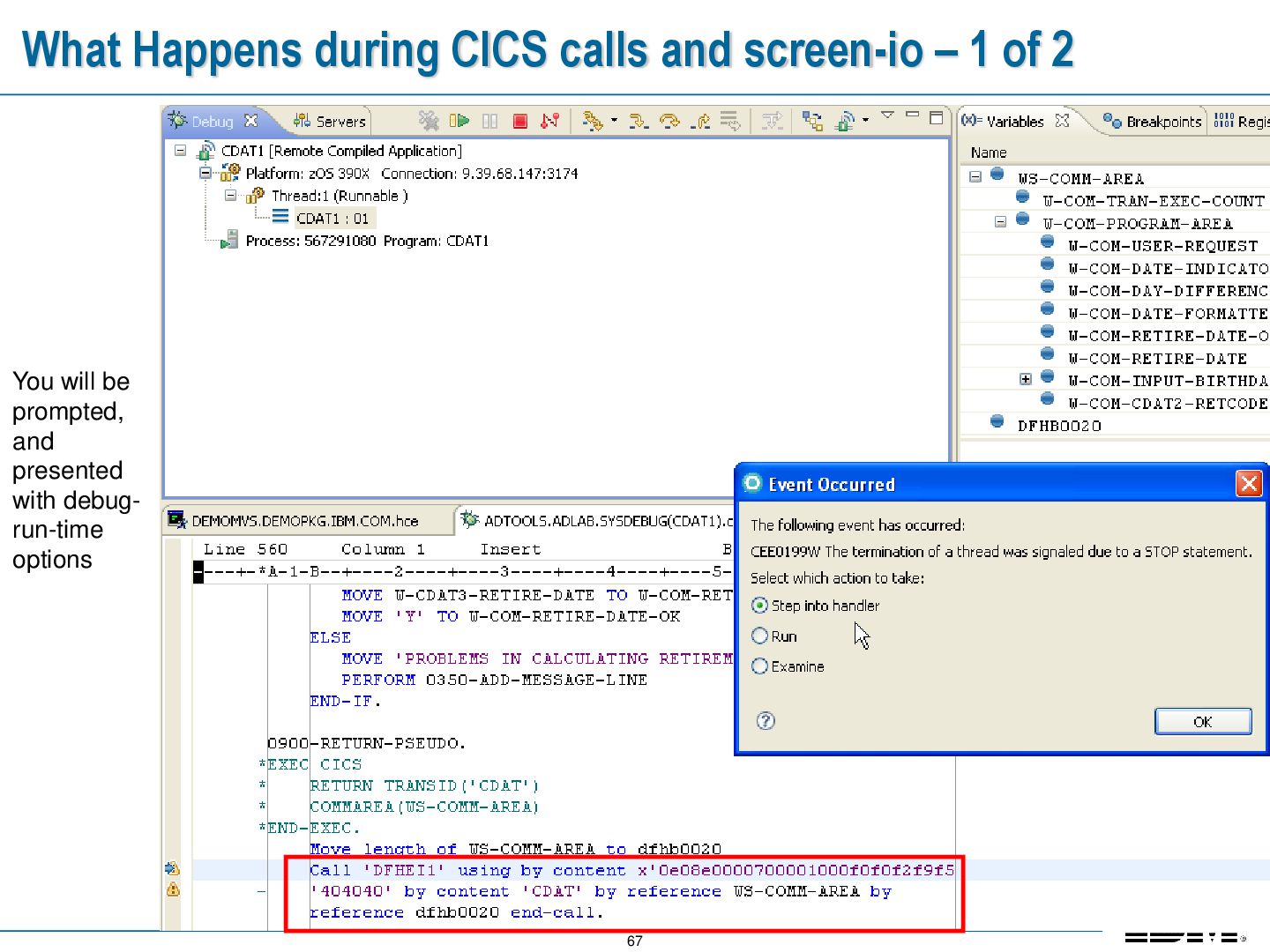
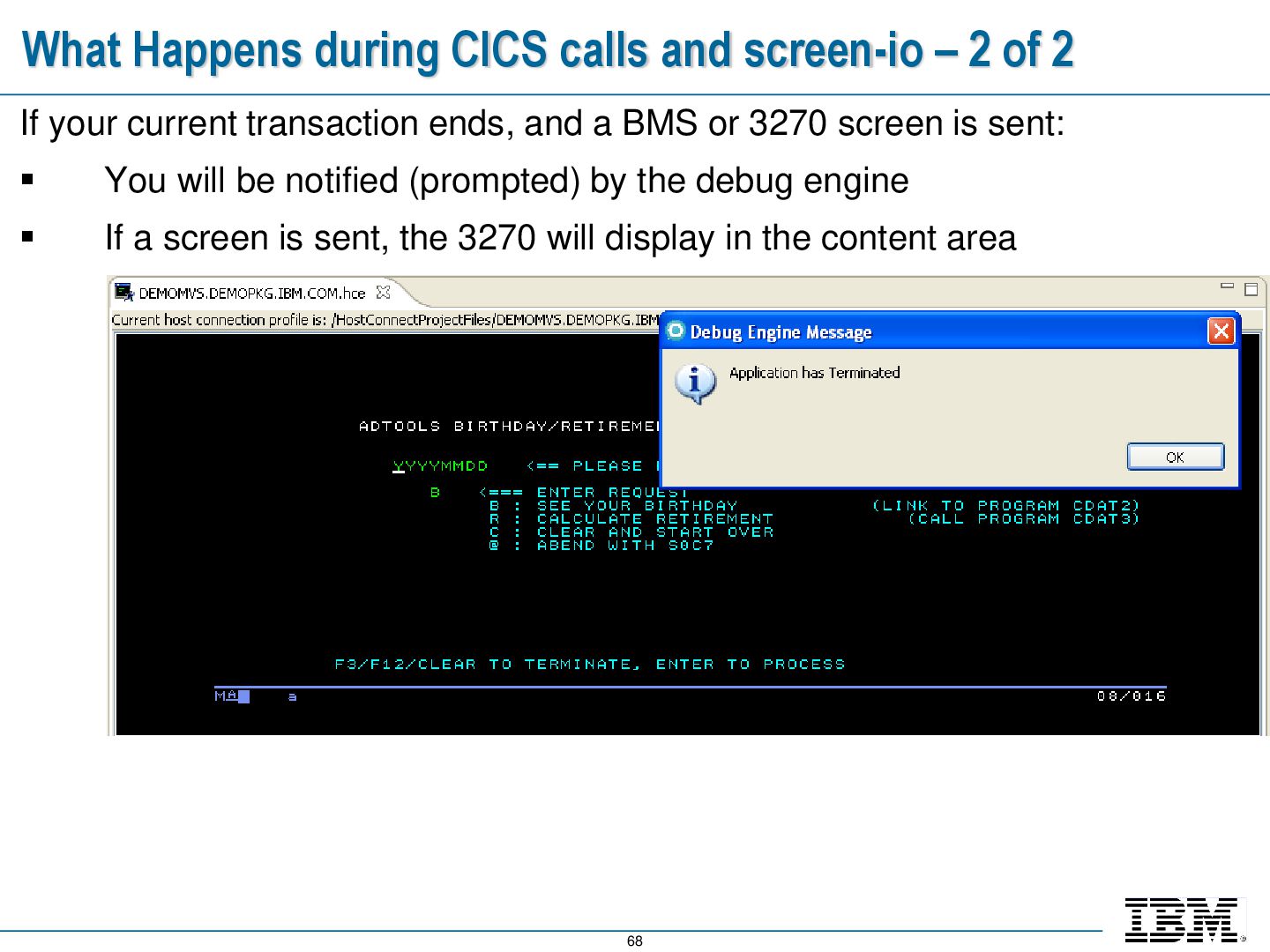
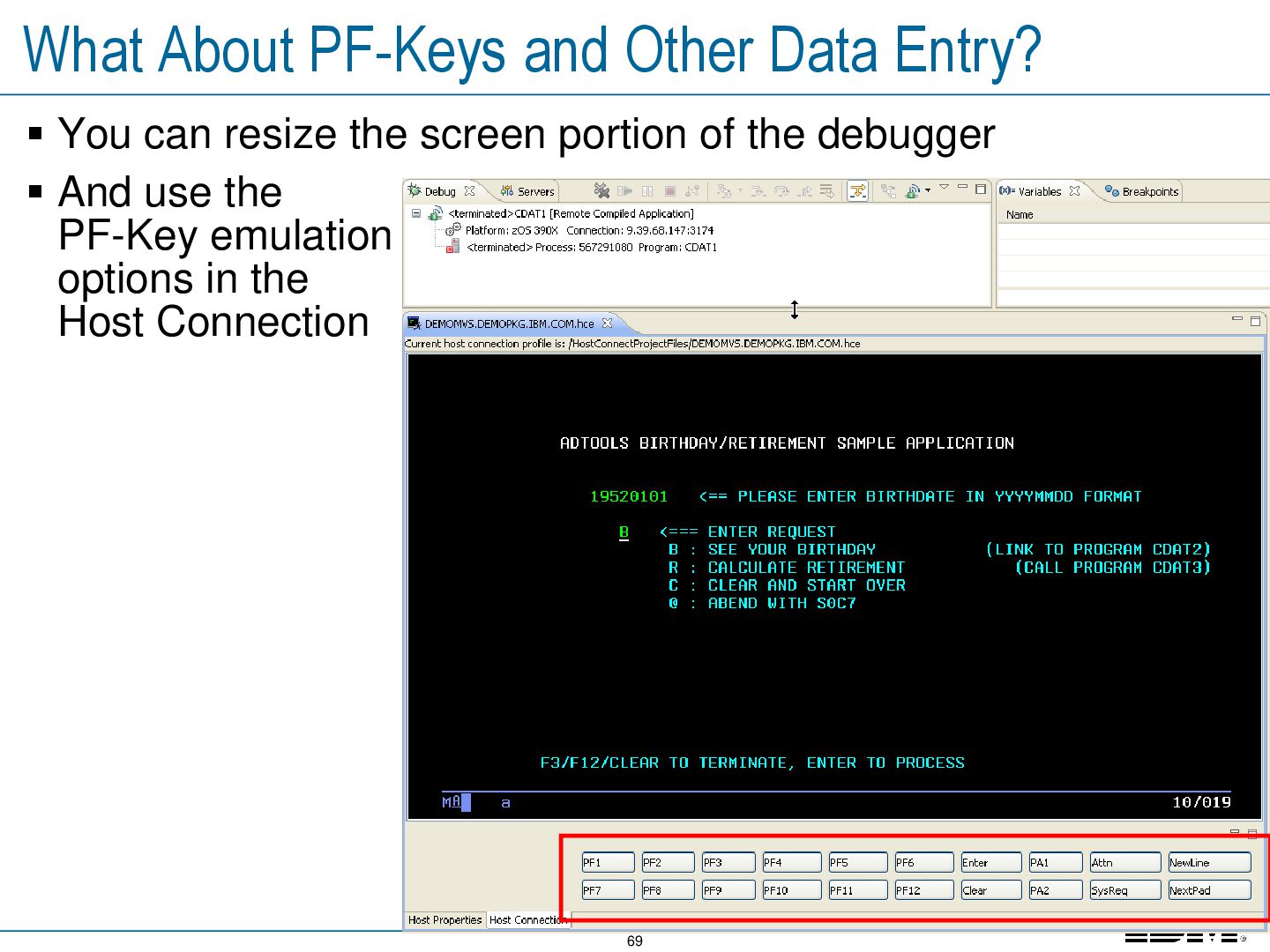
of 2 If your current transaction ends, and a BMS or 3270 screen is sent: You will be notified (prompted) by the debug engine If a screen is sent, the 3270 will display in the content area
should be able to: Using the Problem Determination Tools, Debug Option and RDz: Debug a mainframe online transaction Describe the online transaction features for configuring your 3270 sessions with Debug Option Debug a CICS 3270 Application
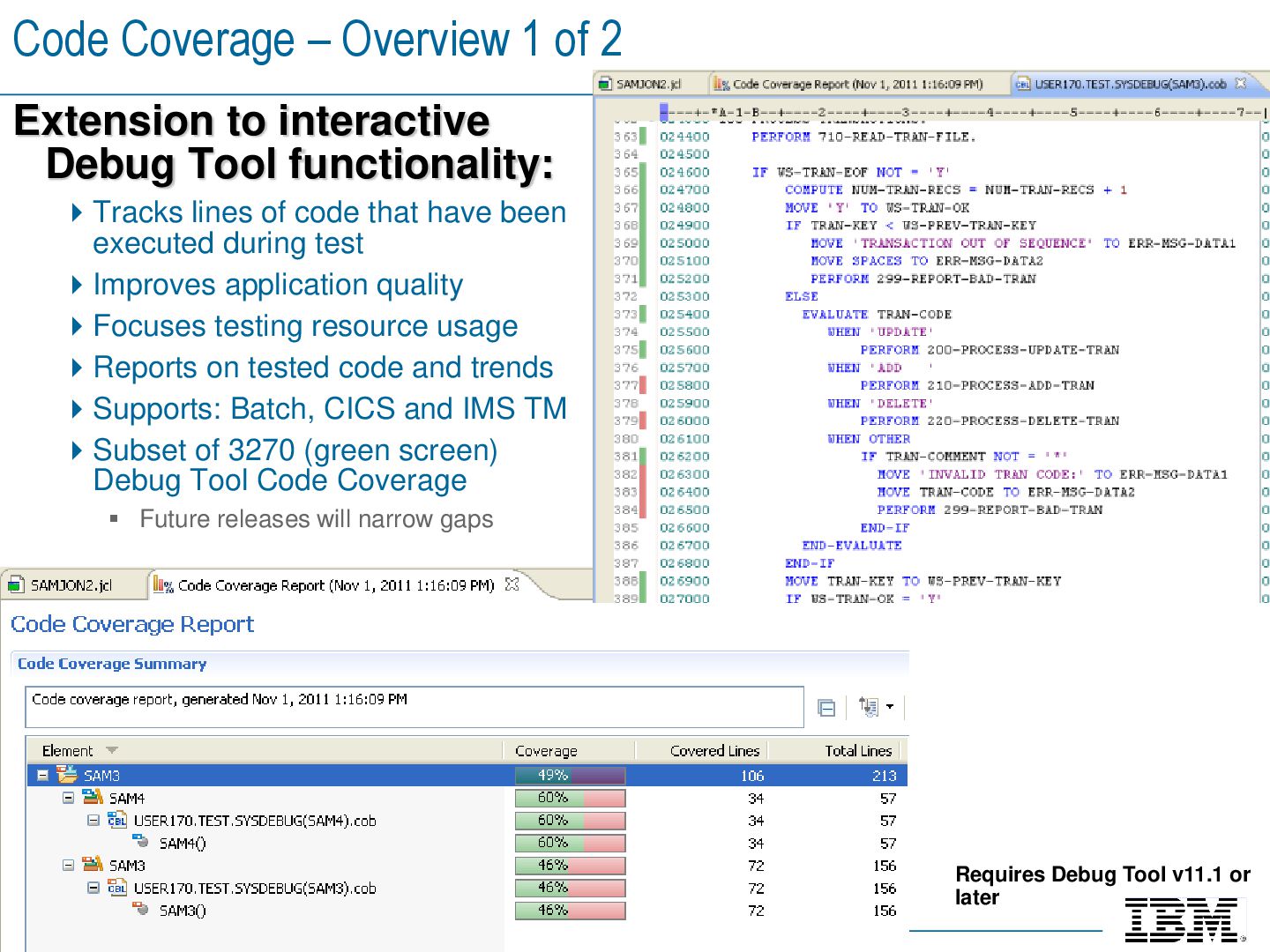
interactive Debug Tool functionality: Tracks lines of code that have been executed during test Improves application quality Focuses testing resource usage Reports on tested code and trends Supports: Batch, CICS and IMS TM Subset of 3270 (green screen) Debug Tool Code Coverage Future releases will narrow gaps Requires Debug Tool v11.1 or later
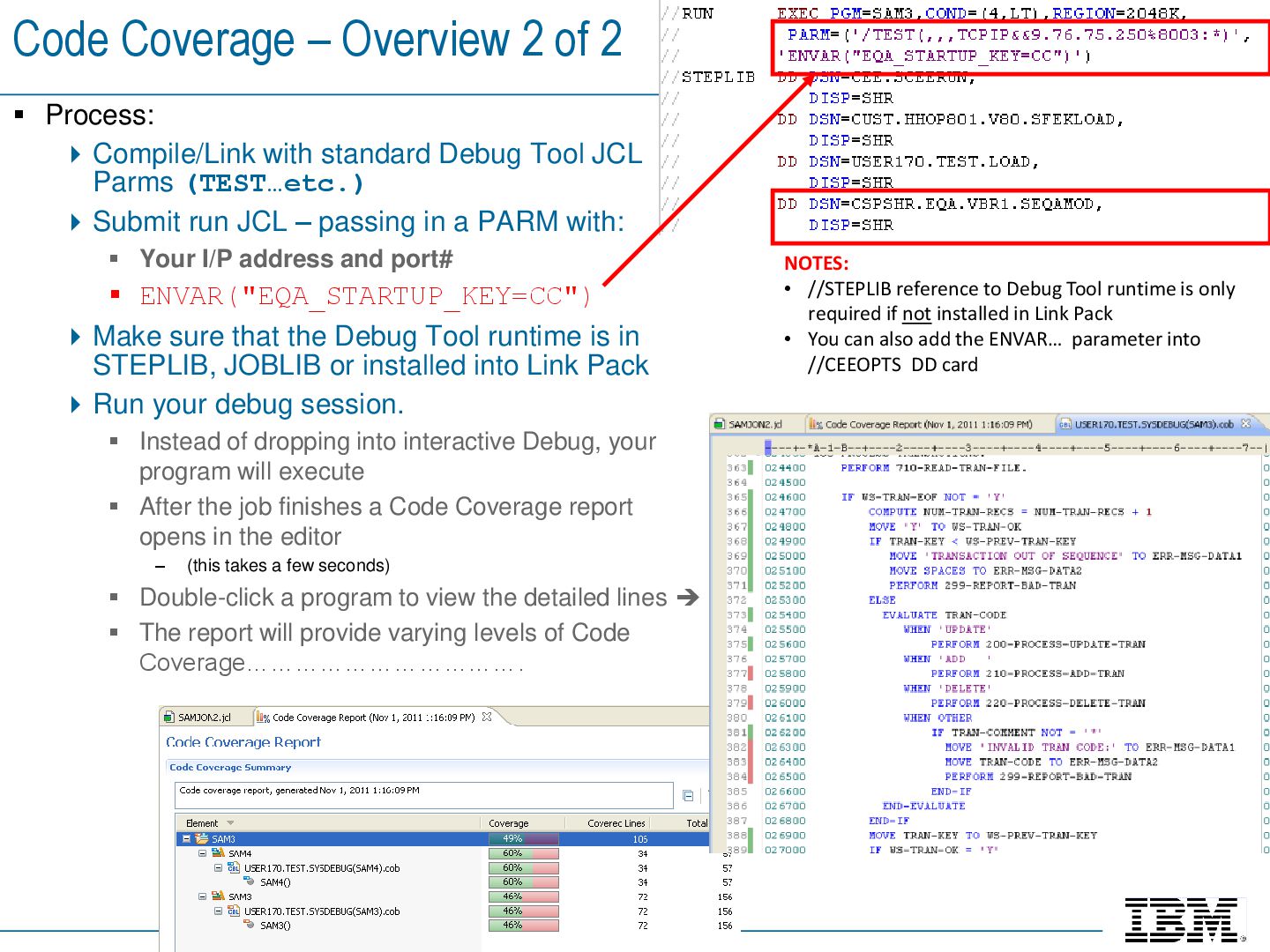
Compile/Link with standard Debug Tool JCL Parms (TEST…etc.) Submit run JCL – passing in a PARM with: Your I/P address and port# ENVAR("EQA_STARTUP_KEY=CC") Make sure that the Debug Tool runtime is in STEPLIB, JOBLIB or installed into Link Pack Run your debug session. Instead of dropping into interactive Debug, your program will execute After the job finishes a Code Coverage report opens in the editor – (this takes a few seconds) Double-click a program to view the detailed lines The report will provide varying levels of Code Coverage……………………………. NOTES: • //STEPLIB reference to Debug Tool runtime is only required if not installed in Link Pack • You can also add the ENVAR… parameter into //CEEOPTS DD card
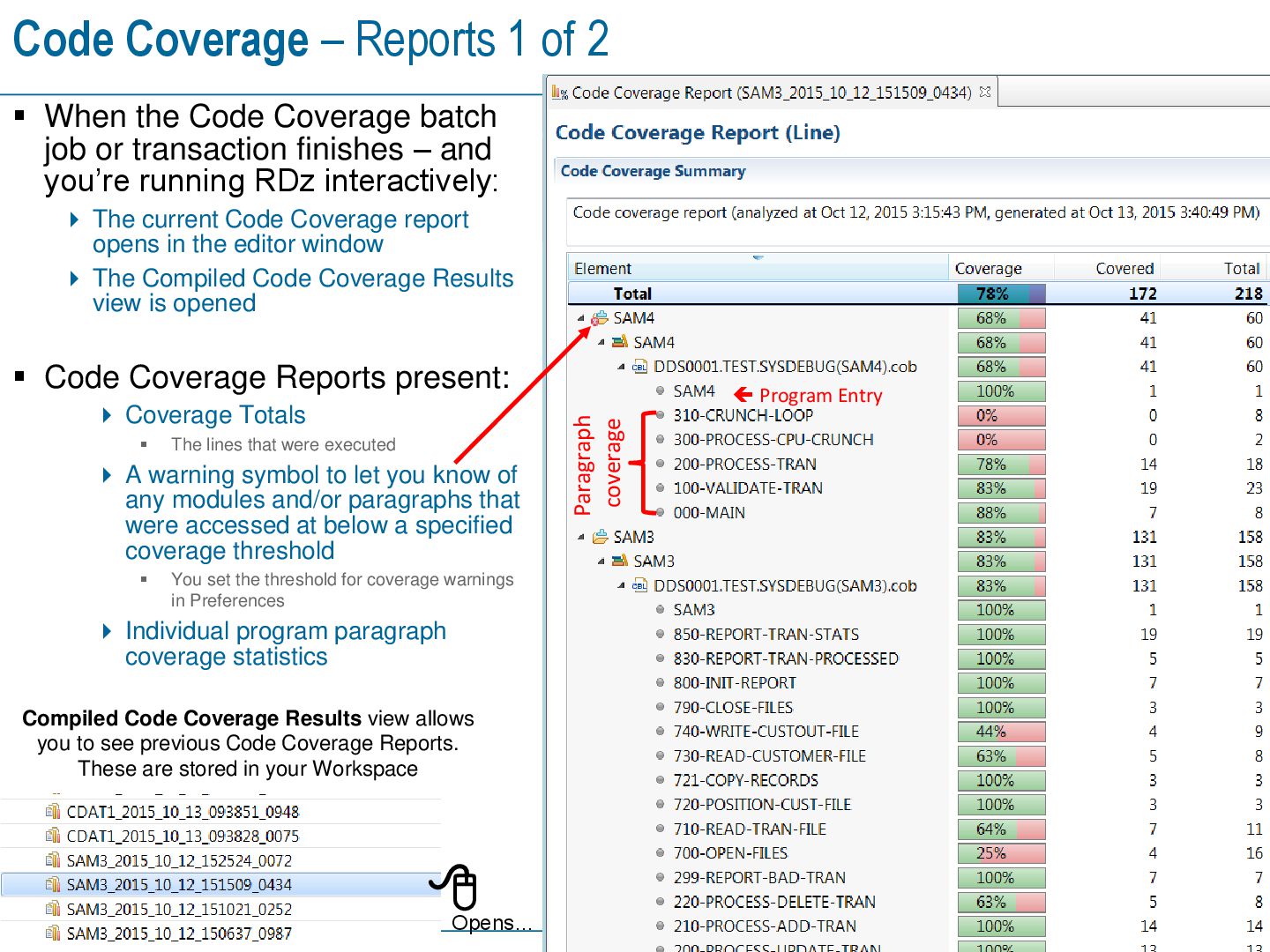
the Code Coverage batch job or transaction finishes – and you’re running RDz interactively: The current Code Coverage report opens in the editor window The Compiled Code Coverage Results view is opened Code Coverage Reports present: Coverage Totals The lines that were executed A warning symbol to let you know of any modules and/or paragraphs that were accessed at below a specified coverage threshold You set the threshold for coverage warnings in Preferences Individual program paragraph coverage statistics Program Entry Paragraph coverage Compiled Code Coverage Results view allows you to see previous Code Coverage Reports. These are stored in your Workspace Opens…
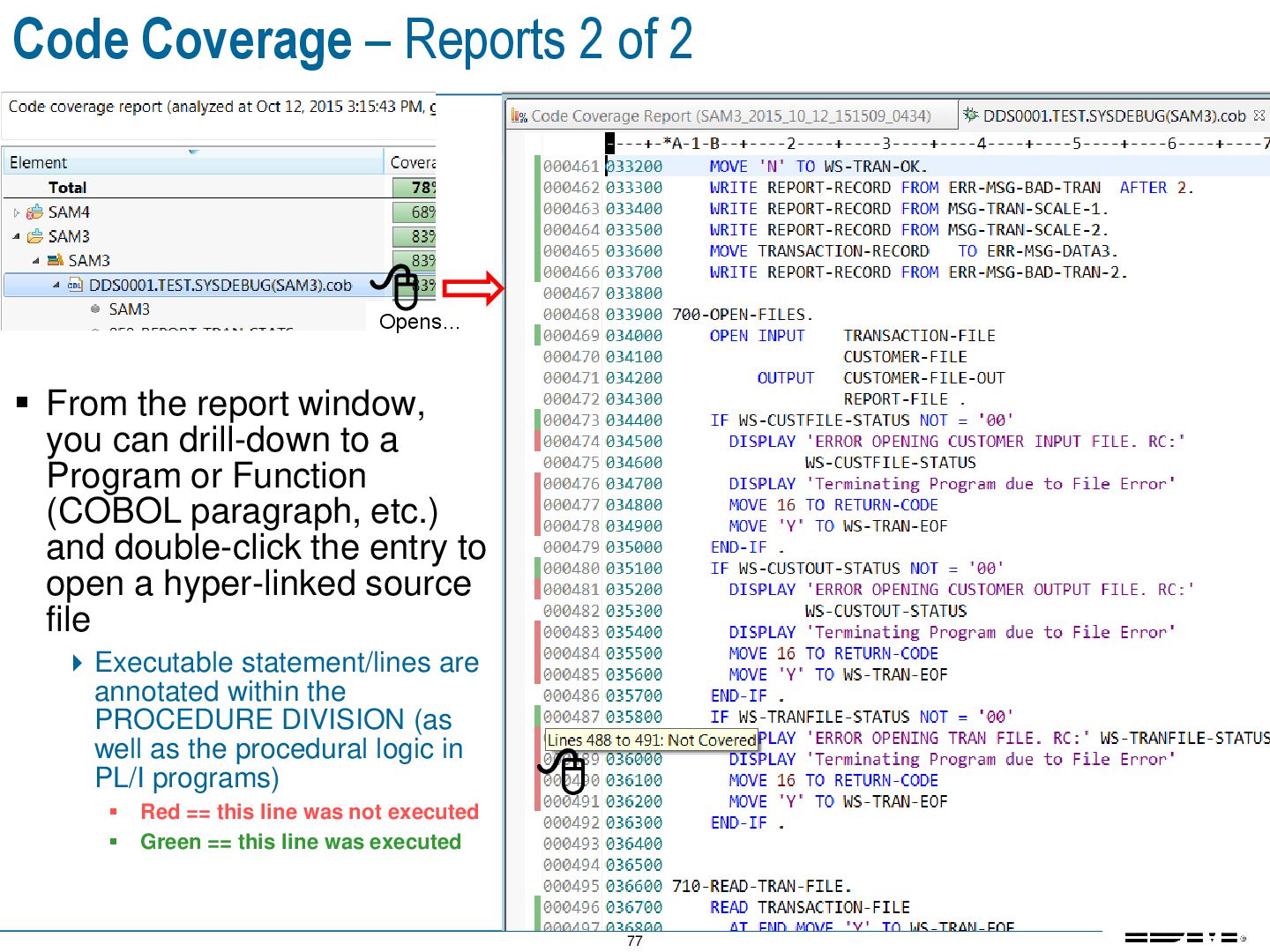
the report window, you can drill-down to a Program or Function (COBOL paragraph, etc.) and double-click the entry to open a hyper-linked source file Executable statement/lines are annotated within the PROCEDURE DIVISION (as well as the procedural logic in PL/I programs) Red == this line was not executed Green == this line was executed Opens…
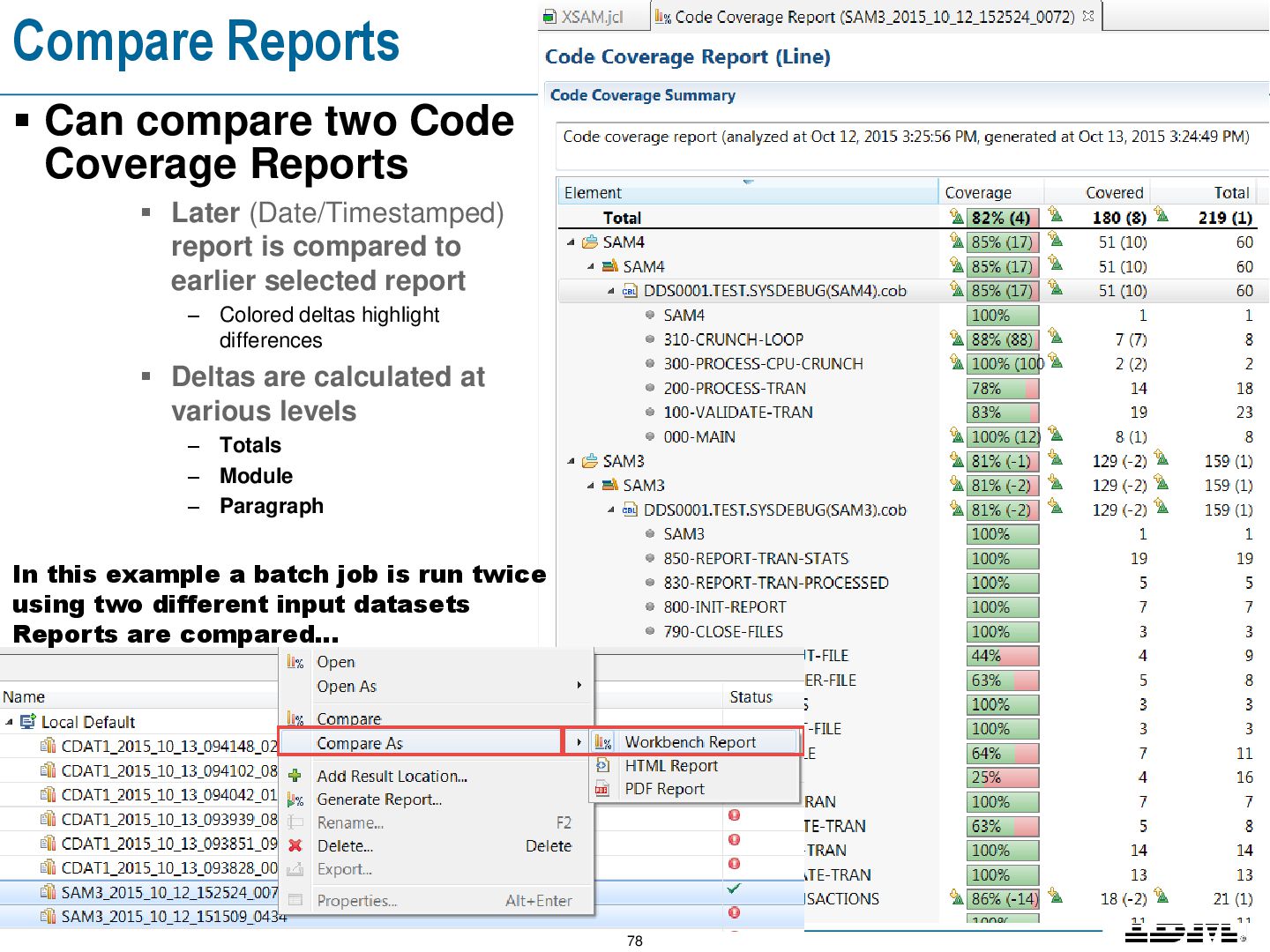
Later (Date/Timestamped) report is compared to earlier selected report – Colored deltas highlight differences Deltas are calculated at various levels – Totals – Module – Paragraph In this example a batch job is run twice using two different input datasets Reports are compared…
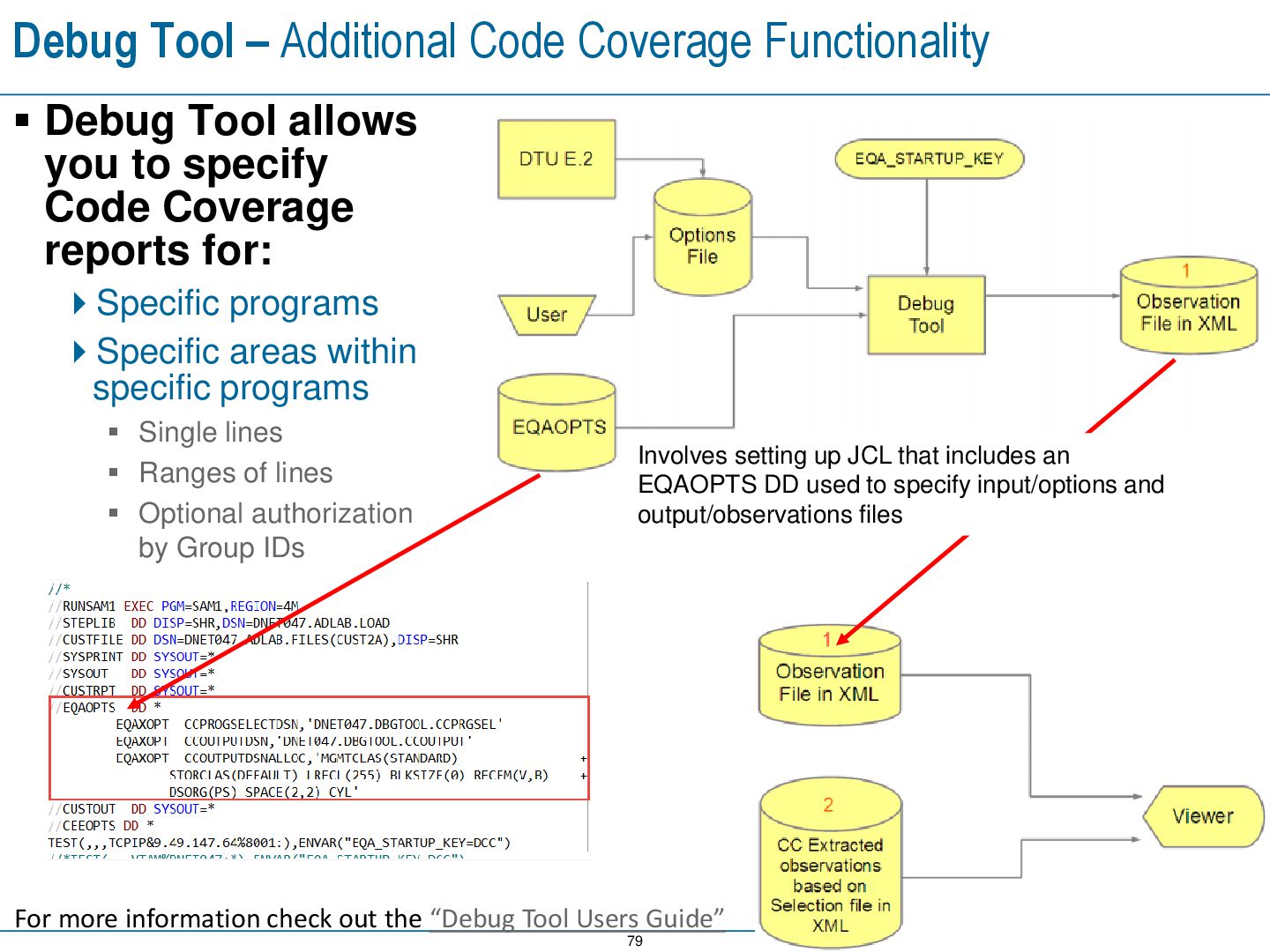
Tool allows you to specify Code Coverage reports for: Specific programs Specific areas within specific programs Single lines Ranges of lines Optional authorization by Group IDs For more information check out the “Debug Tool Users Guide” Involves setting up JCL that includes an EQAOPTS DD used to specify input/options and output/observations files
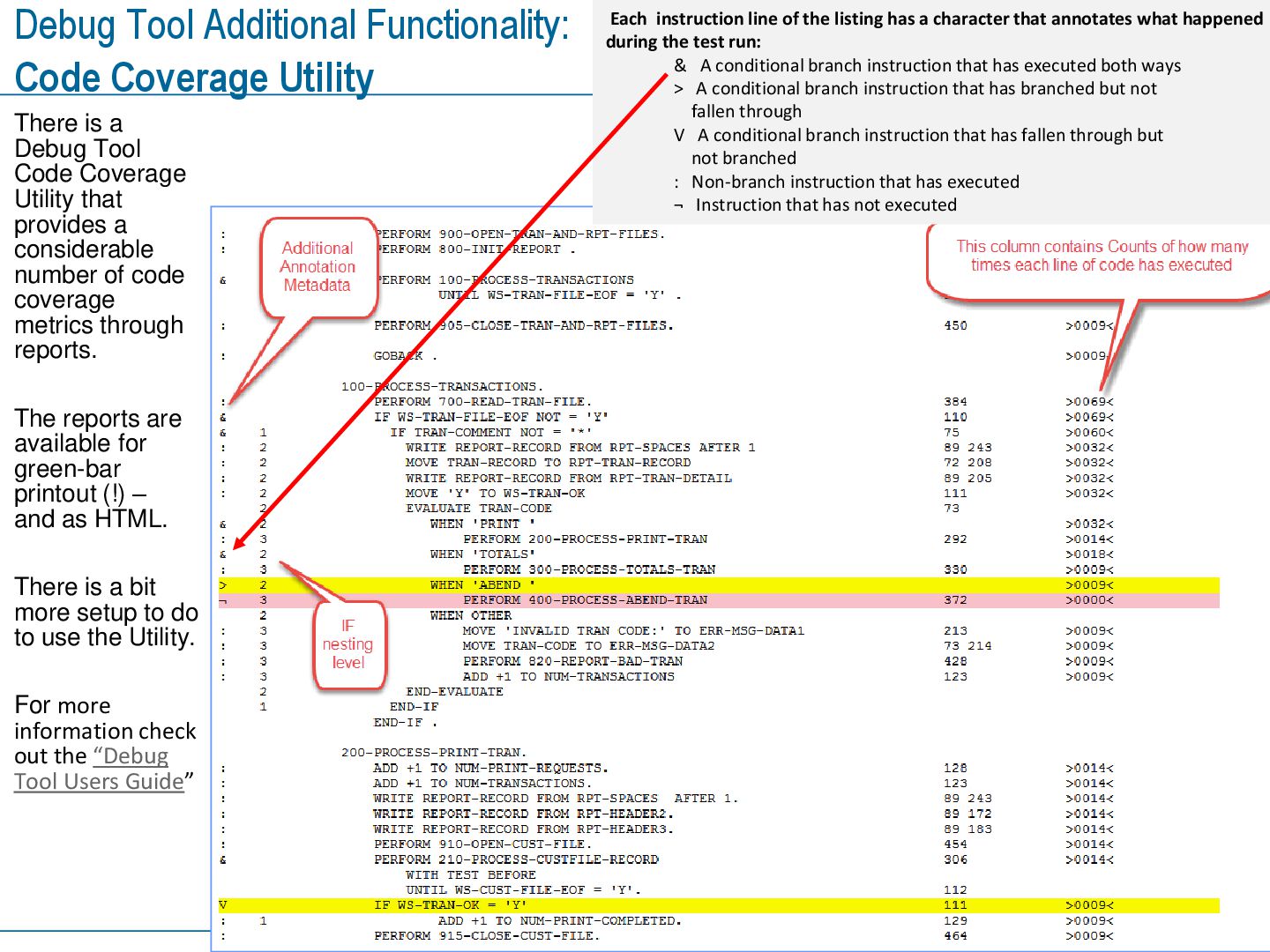
a Debug Tool Code Coverage Utility that provides a considerable number of code coverage metrics through reports. The reports are available for green-bar printout (!) – and as HTML. There is a bit more setup to do to use the Utility. For more information check out the “Debug Tool Users Guide” Each instruction line of the listing has a character that annotates what happened during the test run: & A conditional branch instruction that has executed both ways > A conditional branch instruction that has branched but not fallen through V A conditional branch instruction that has fallen through but not branched : Non-branch instruction that has executed ¬ Instruction that has not executed
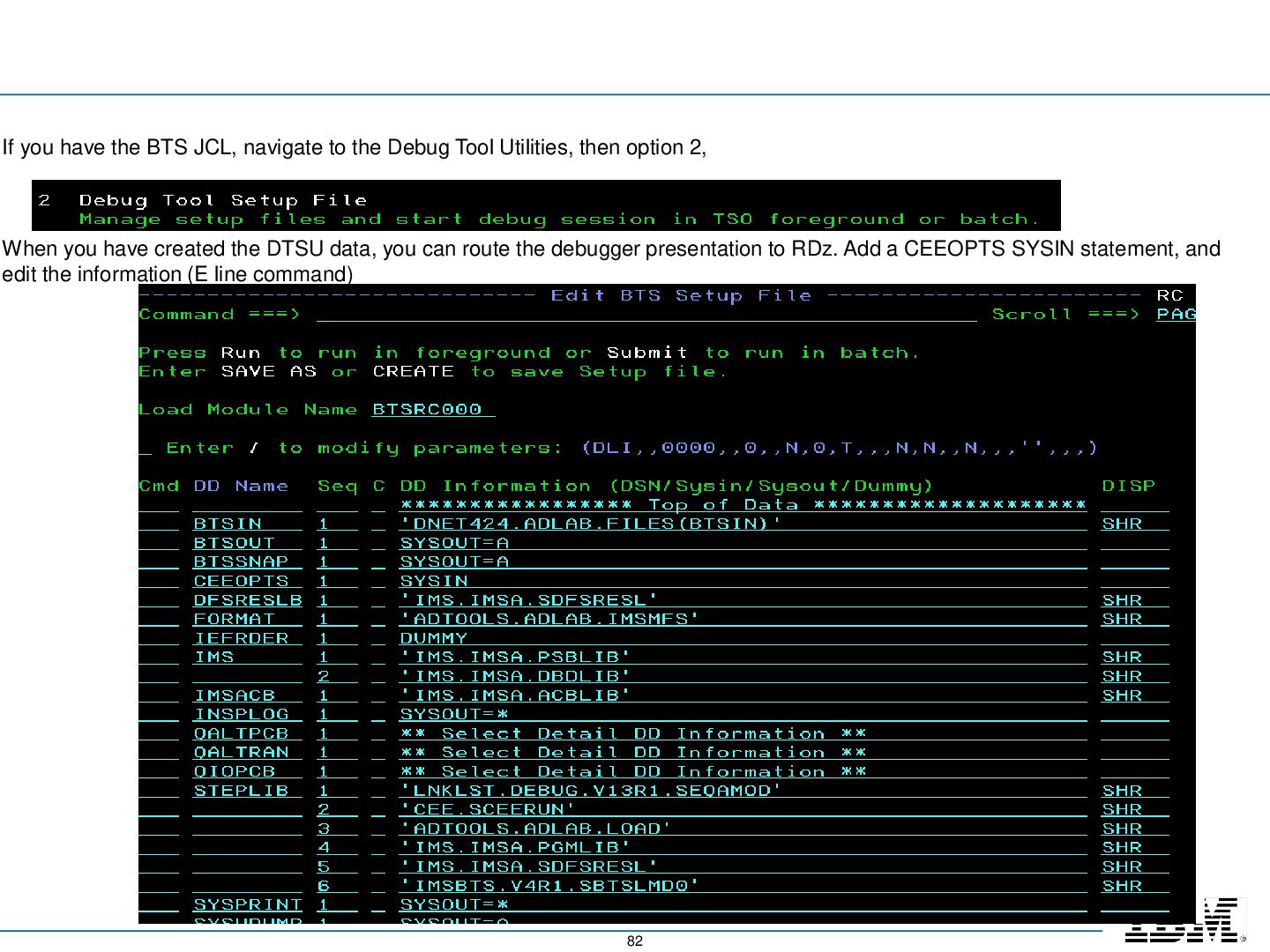
Debug Tool Utilities, then option 2, When you have created the DTSU data, you can route the debugger presentation to RDz. Add a CEEOPTS SYSIN statement, and edit the information (E line command)
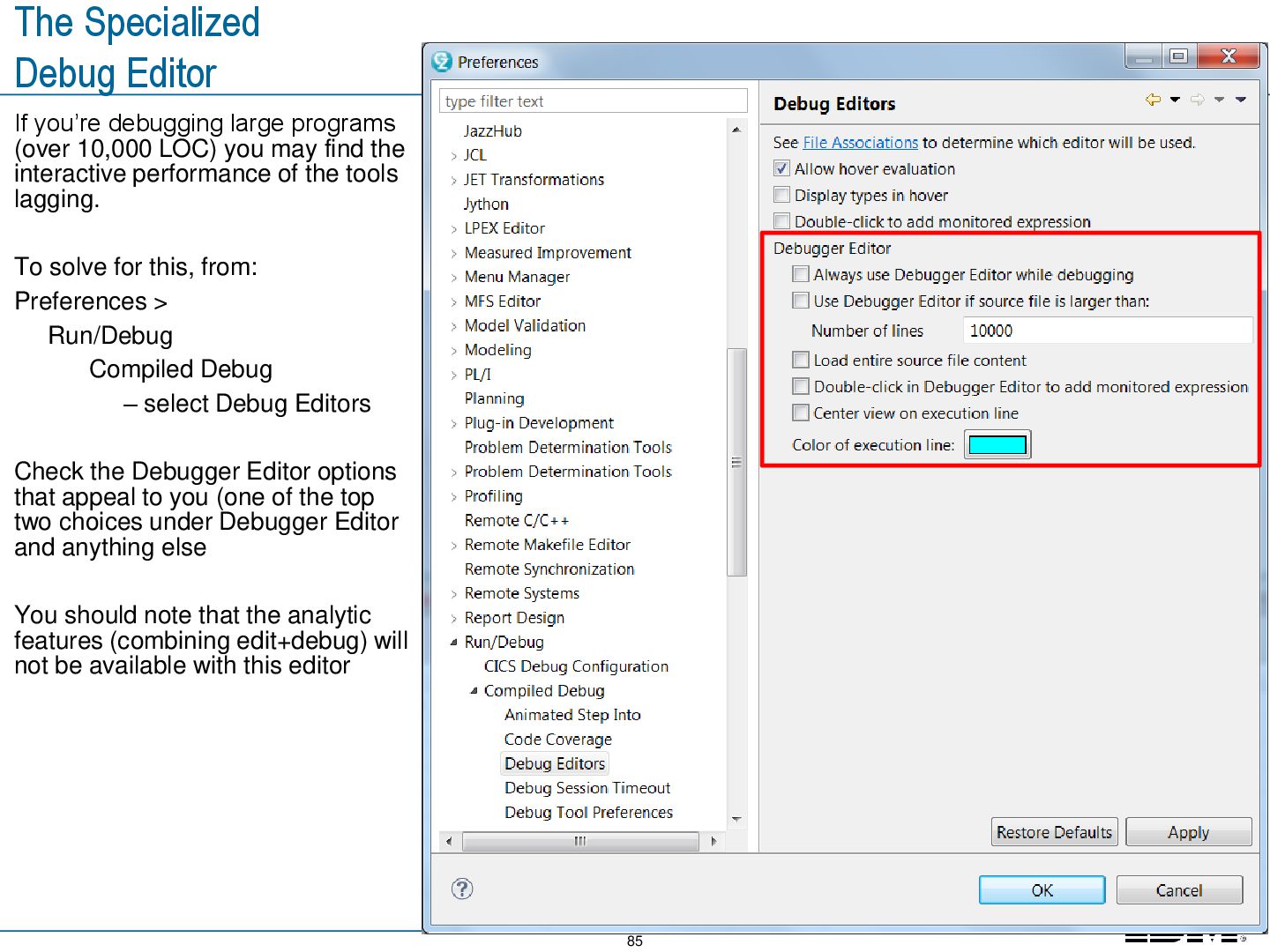
(over 10,000 LOC) you may find the interactive performance of the tools lagging. To solve for this, from: Preferences > Run/Debug Compiled Debug – select Debug Editors Check the Debugger Editor options that appeal to you (one of the top two choices under Debugger Editor and anything else You should note that the analytic features (combining edit+debug) will not be available with this editor


 kentarofujii
 kentapapa
 ykanoh
 camiha
 bengo4com
 riyaamemiya
 onk
onk
 takuroabe
 ueponx
 tokuty
 akitoshiga
 ezaki
ezaki
 palkan
 kristinabergwall1
 iamctodd
 jct
jct
 tammyeverts
 codingconduct
 tenderlove
 mkilby
 joshbly
 varn
varn
 davidcarrasco
 reverentgeek