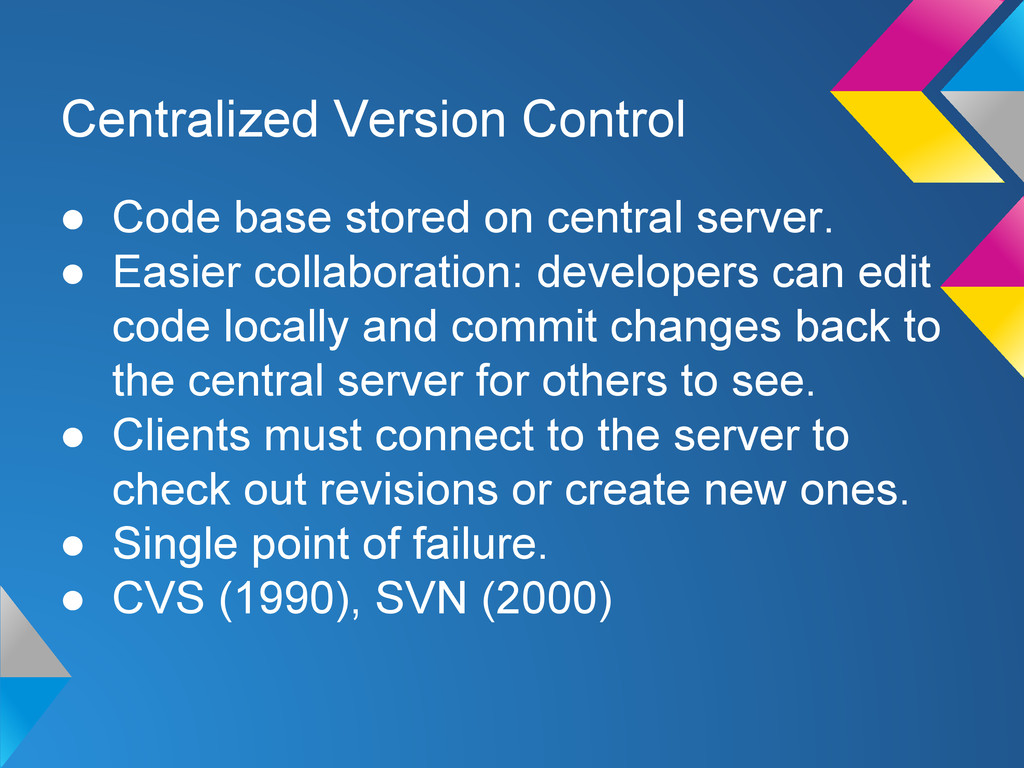
• Easier collaboration: developers can edit code locally and commit changes back to the central server for others to see. • Clients must connect to the server to check out revisions or create new ones. • Single point of failure. • CVS (1990), SVN (2000)
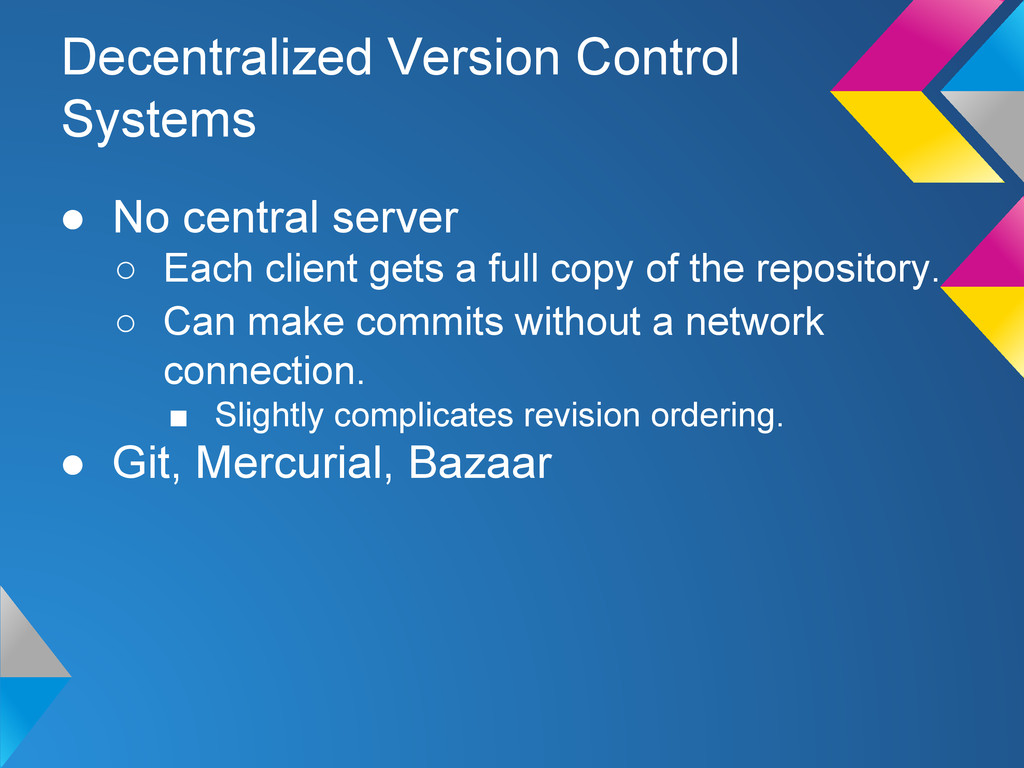
client gets a full copy of the repository. ◦ Can make commits without a network connection. ▪ Slightly complicates revision ordering. • Git, Mercurial, Bazaar
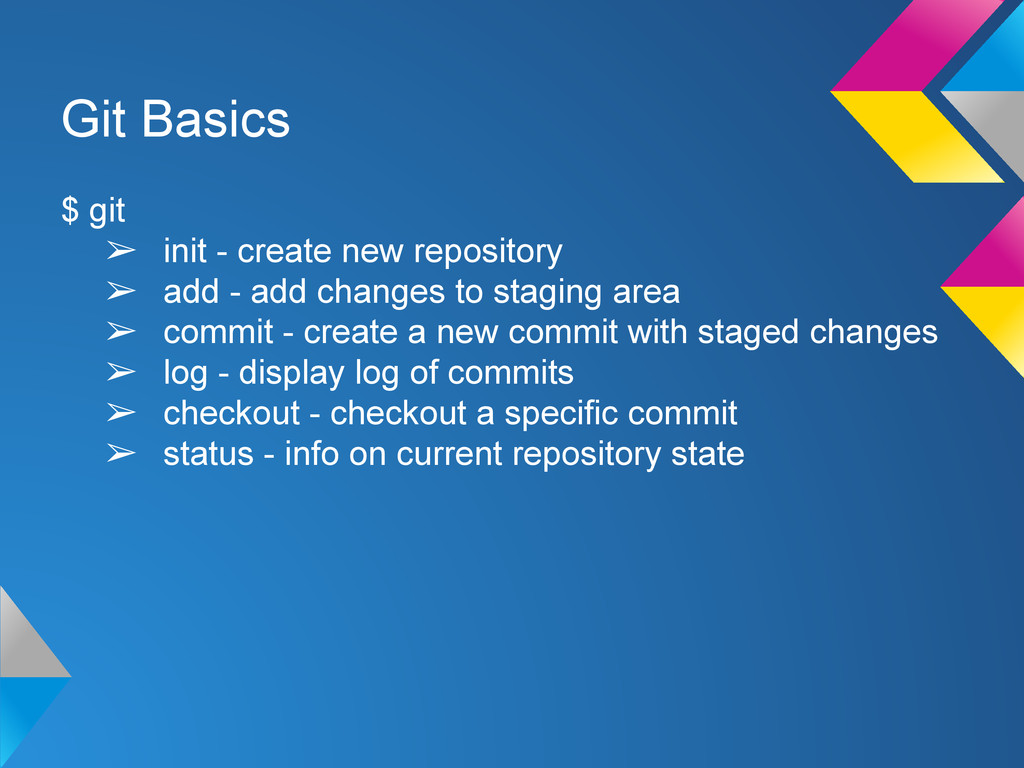
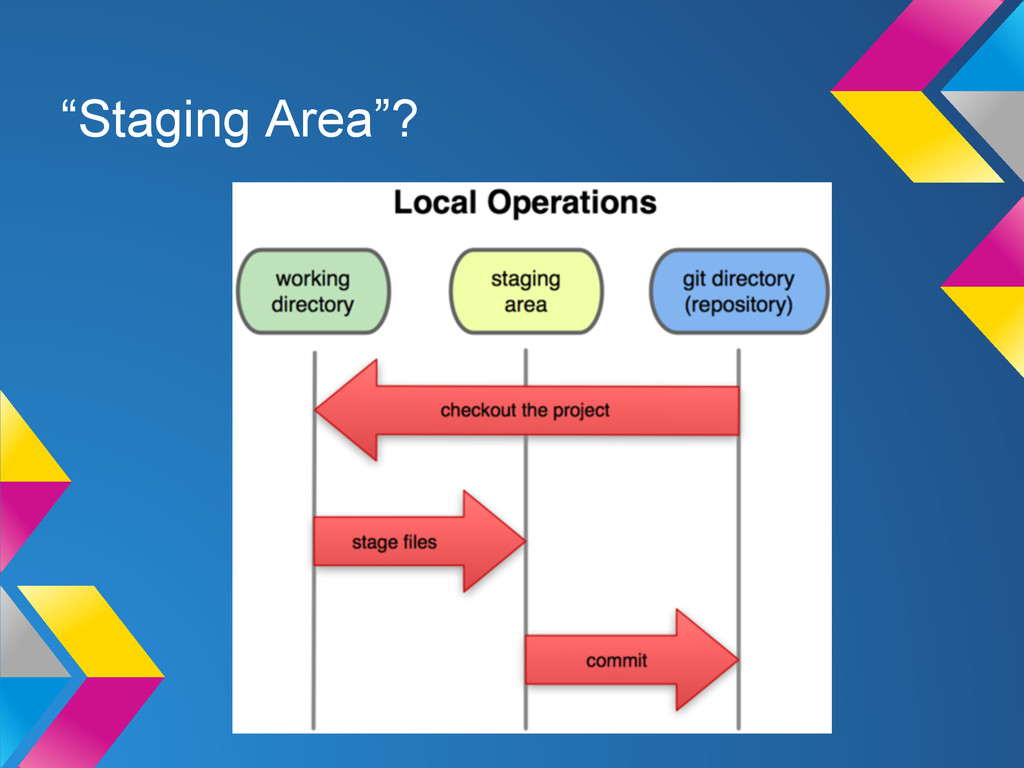
➢ add - add changes to staging area ➢ commit - create a new commit with staged changes ➢ log - display log of commits ➢ checkout - checkout a specific commit ➢ status - info on current repository state
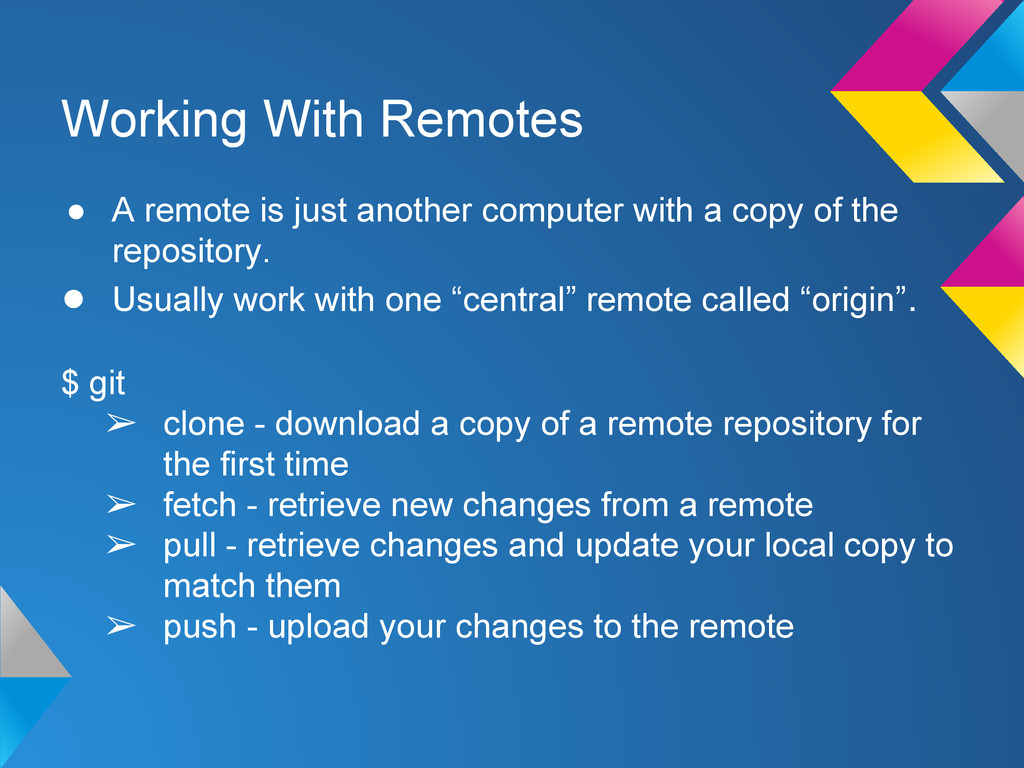
with a copy of the repository. • Usually work with one “central” remote called “origin”. $ git ➢ clone - download a copy of a remote repository for the first time ➢ fetch - retrieve new changes from a remote ➢ pull - retrieve changes and update your local copy to match them ➢ push - upload your changes to the remote
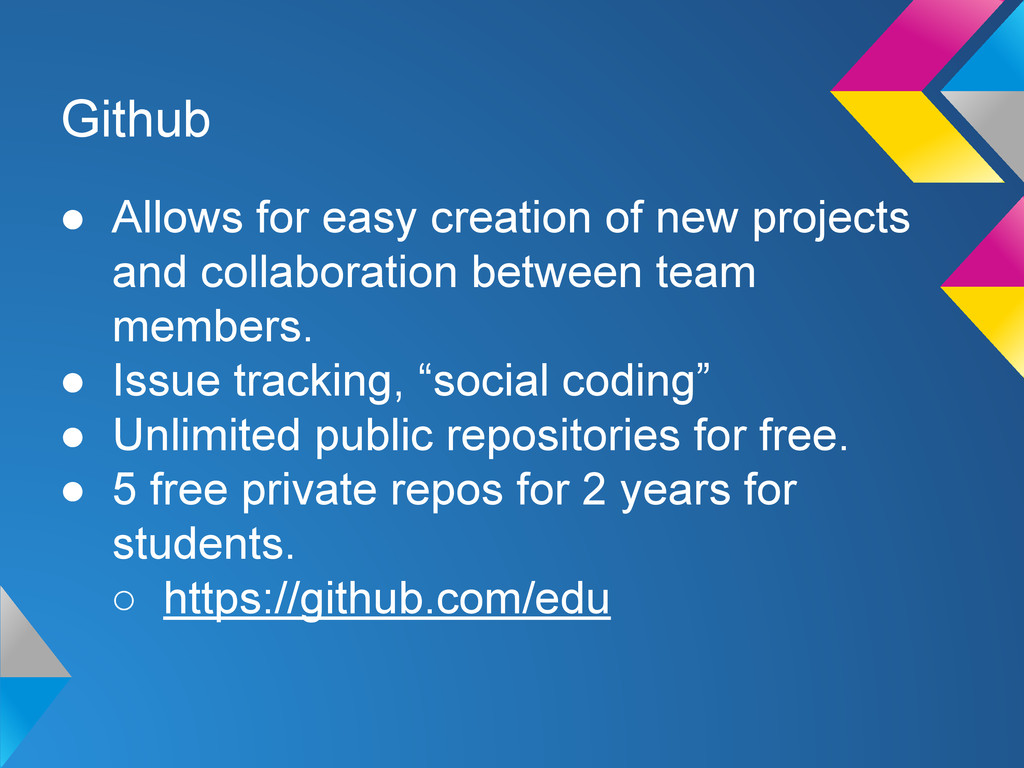
collaboration between team members. • Issue tracking, “social coding” • Unlimited public repositories for free. • 5 free private repos for 2 years for students. ◦ https://github.com/edu
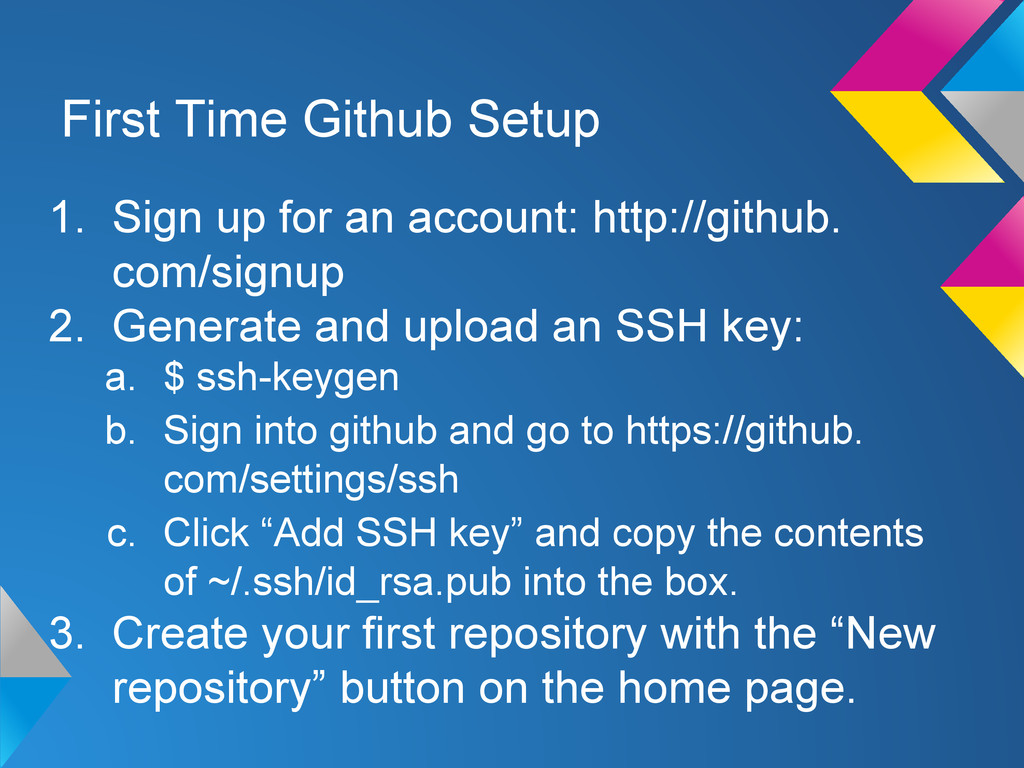
http://github. com/signup 2. Generate and upload an SSH key: a. $ ssh-keygen b. Sign into github and go to https://github. com/settings/ssh c. Click “Add SSH key” and copy the contents of ~/.ssh/id_rsa.pub into the box. 3. Create your first repository with the “New repository” button on the home page.
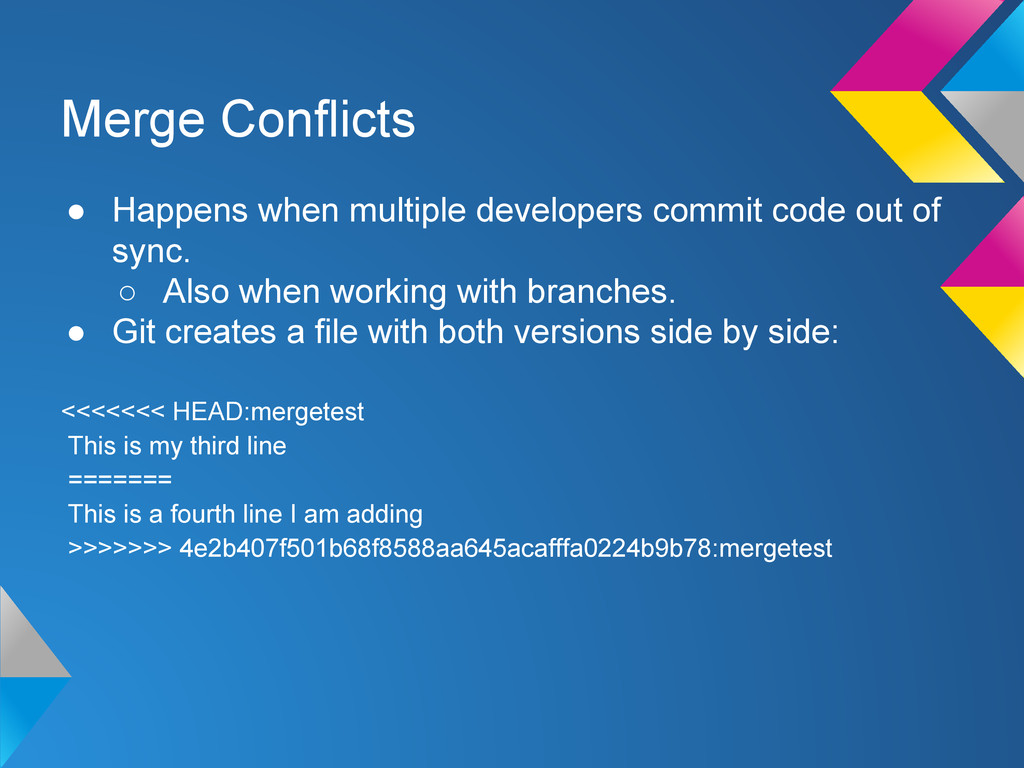
of sync. ◦ Also when working with branches. • Git creates a file with both versions side by side: <<<<<<< HEAD:mergetest This is my third line ======= This is a fourth line I am adding >>>>>>> 4e2b407f501b68f8588aa645acafffa0224b9b78:mergetest
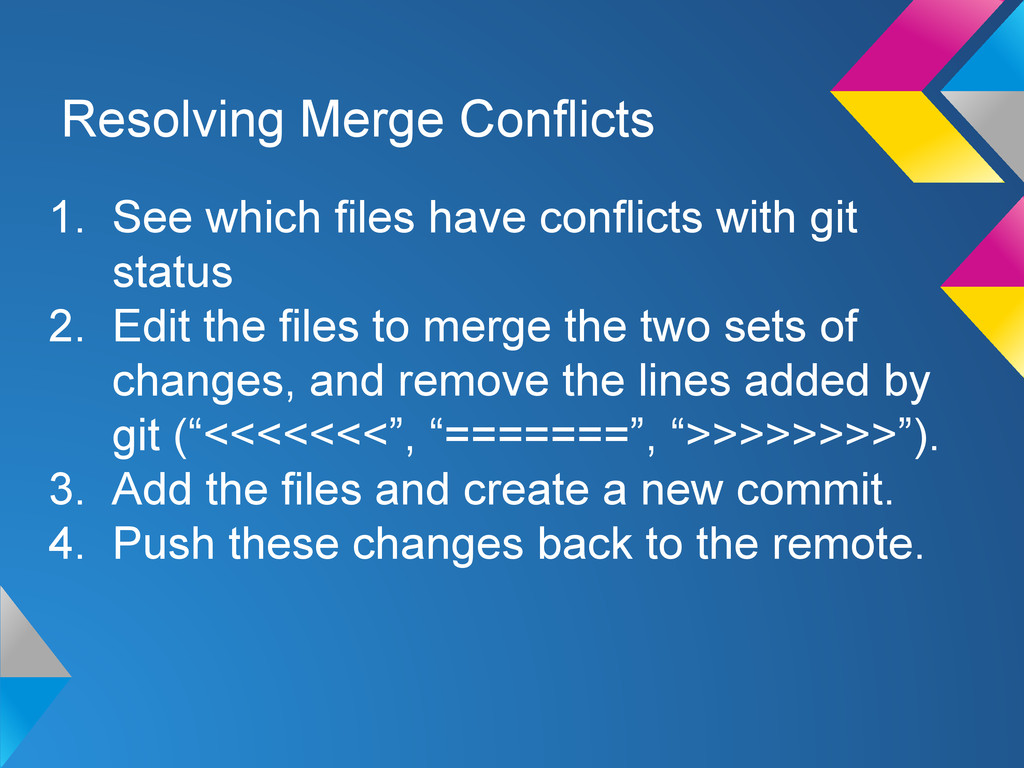
git status 2. Edit the files to merge the two sets of changes, and remove the lines added by git (“<<<<<<<”, “=======”, “>>>>>>>>”). 3. Add the files and create a new commit. 4. Push these changes back to the remote.
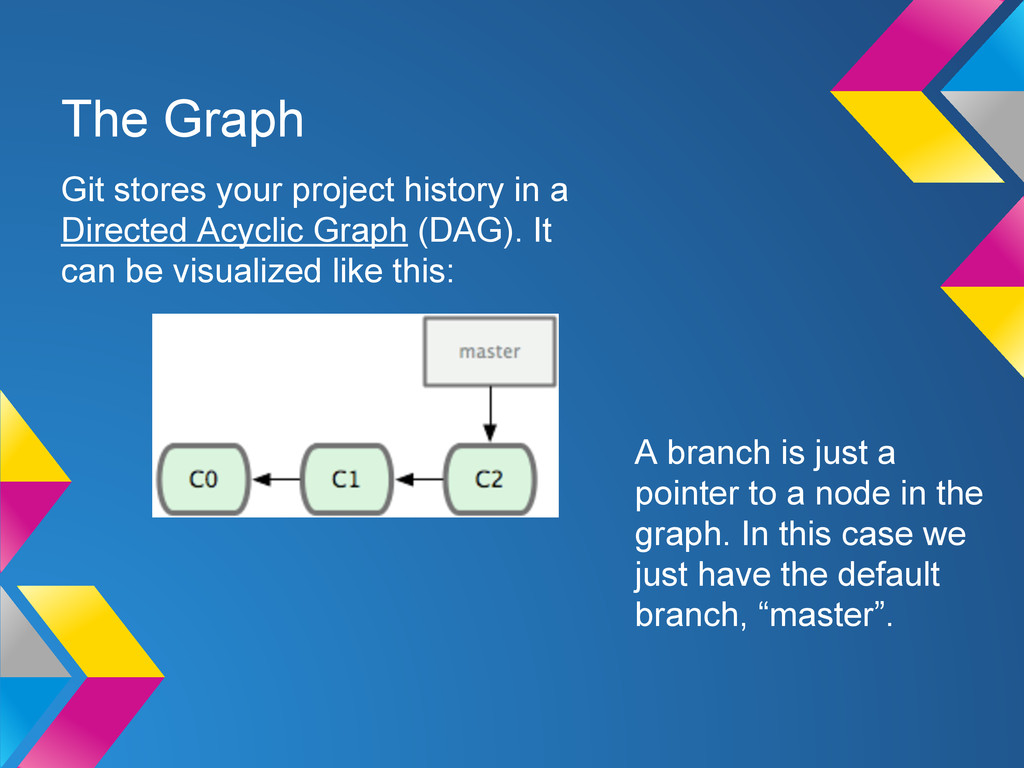
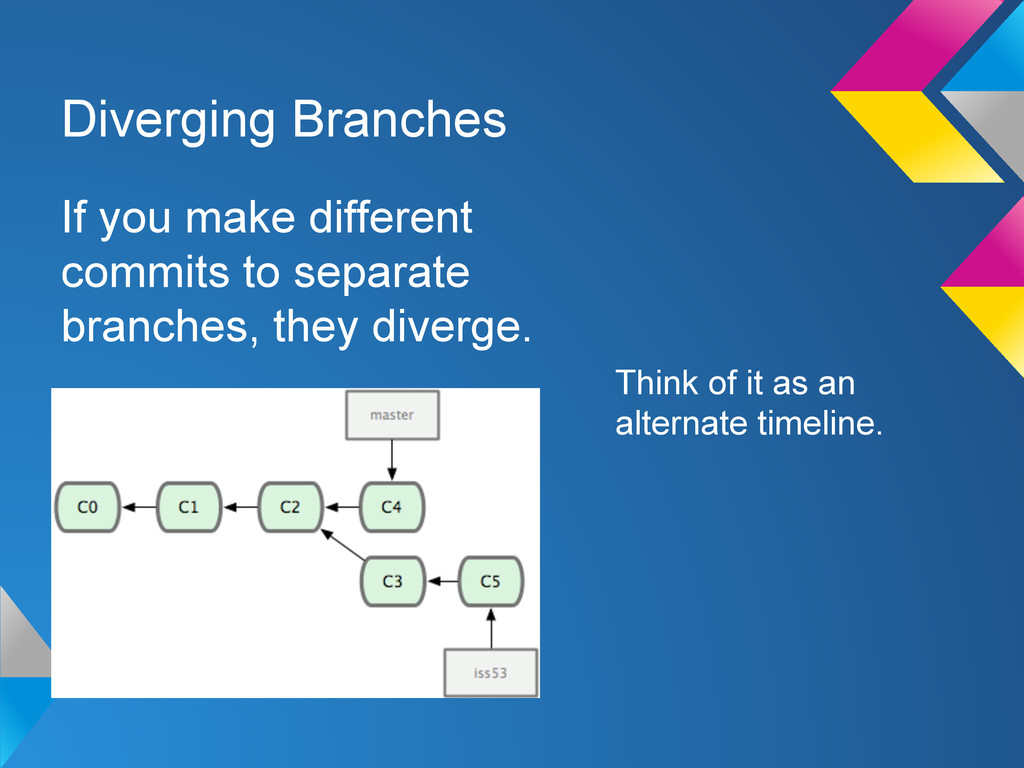
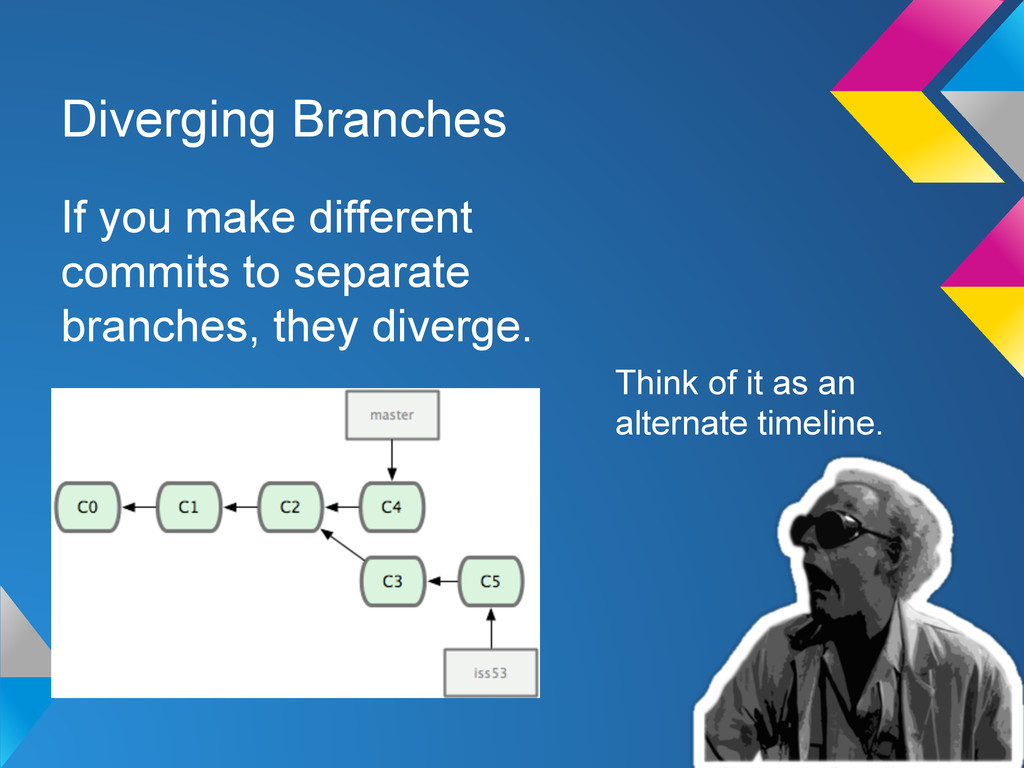
Acyclic Graph (DAG). It can be visualized like this: A branch is just a pointer to a node in the graph. In this case we just have the default branch, “master”.
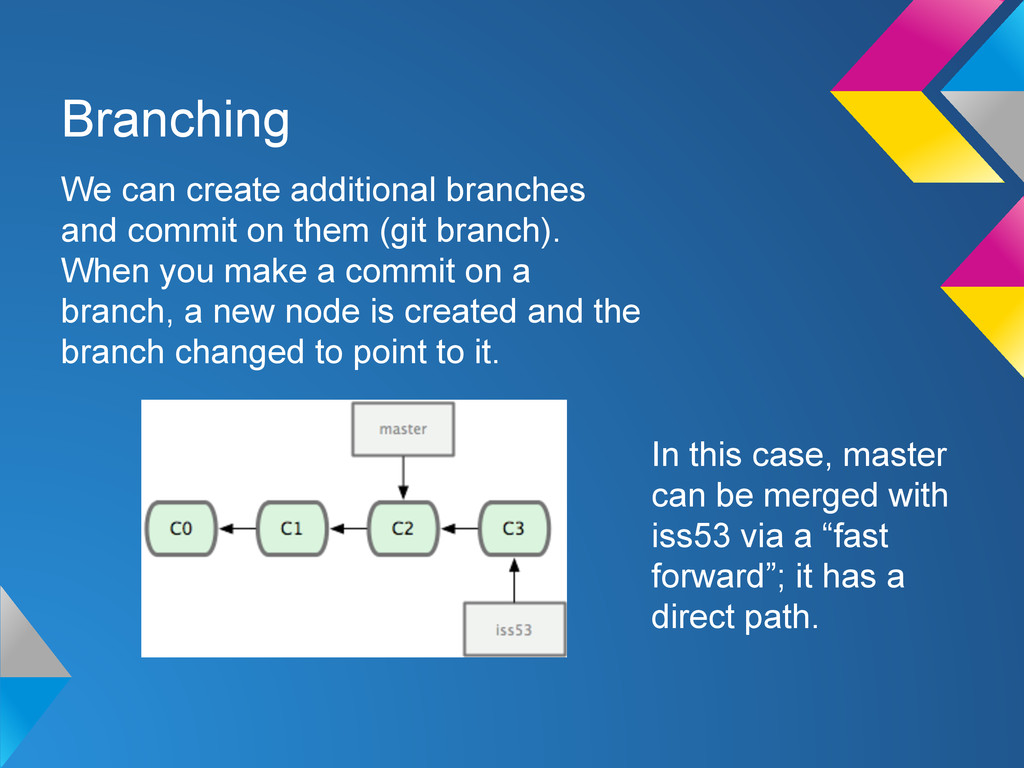
(git branch). When you make a commit on a branch, a new node is created and the branch changed to point to it. In this case, master can be merged with iss53 via a “fast forward”; it has a direct path.
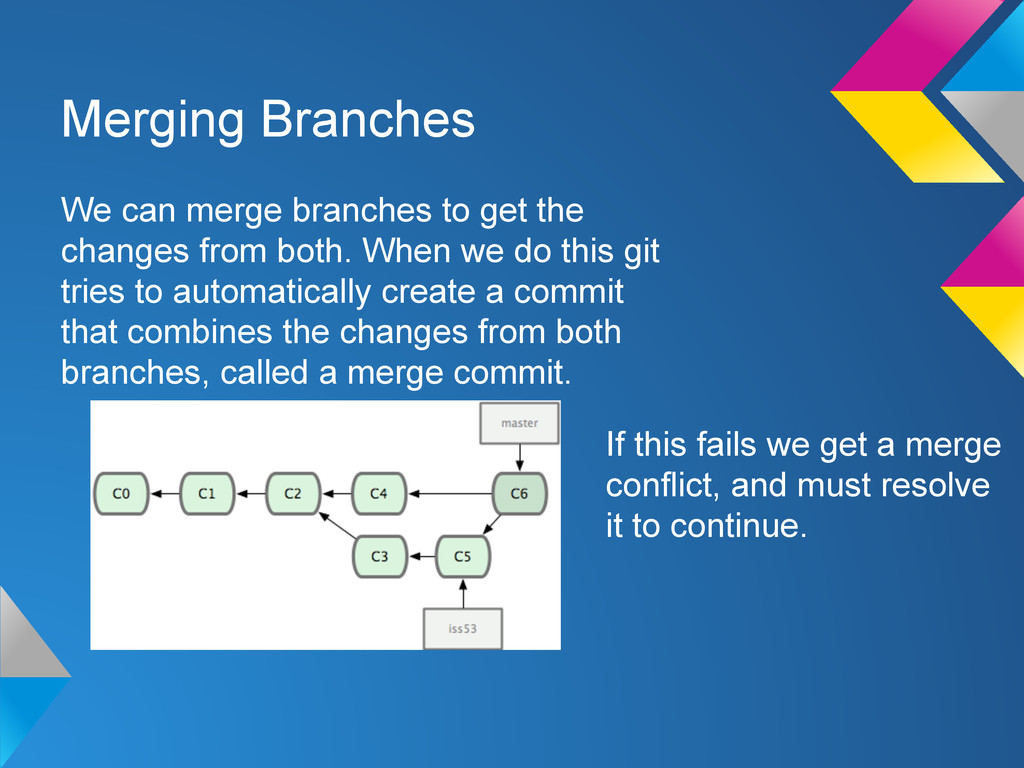
from both. When we do this git tries to automatically create a commit that combines the changes from both branches, called a merge commit. If this fails we get a merge conflict, and must resolve it to continue.
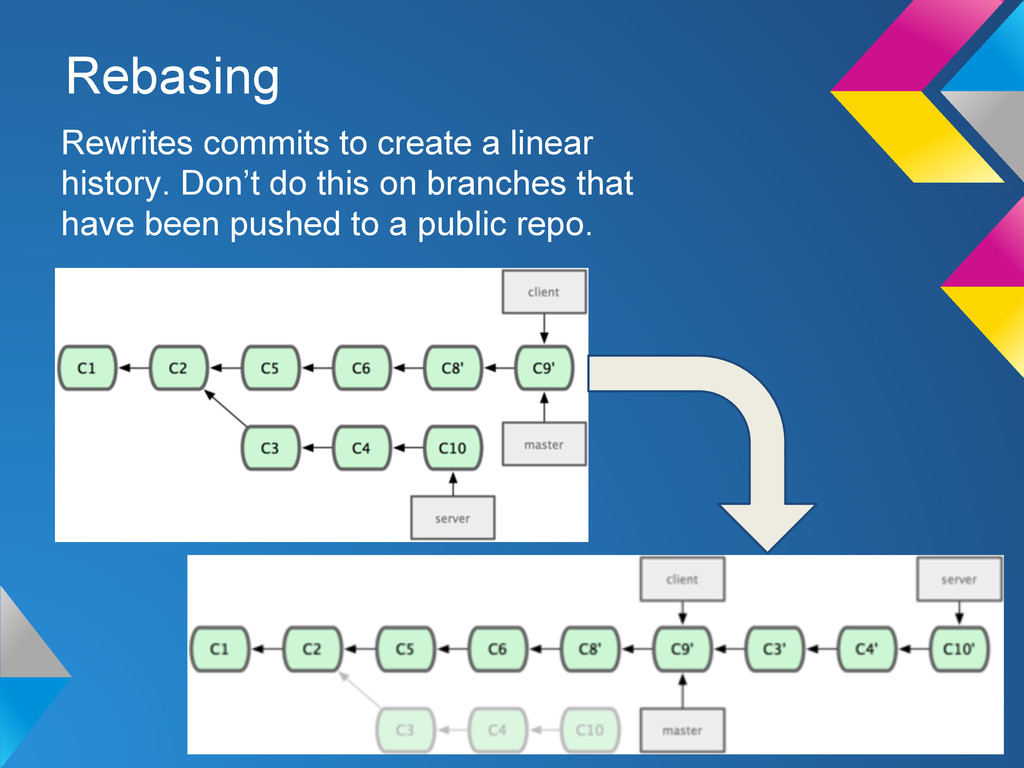
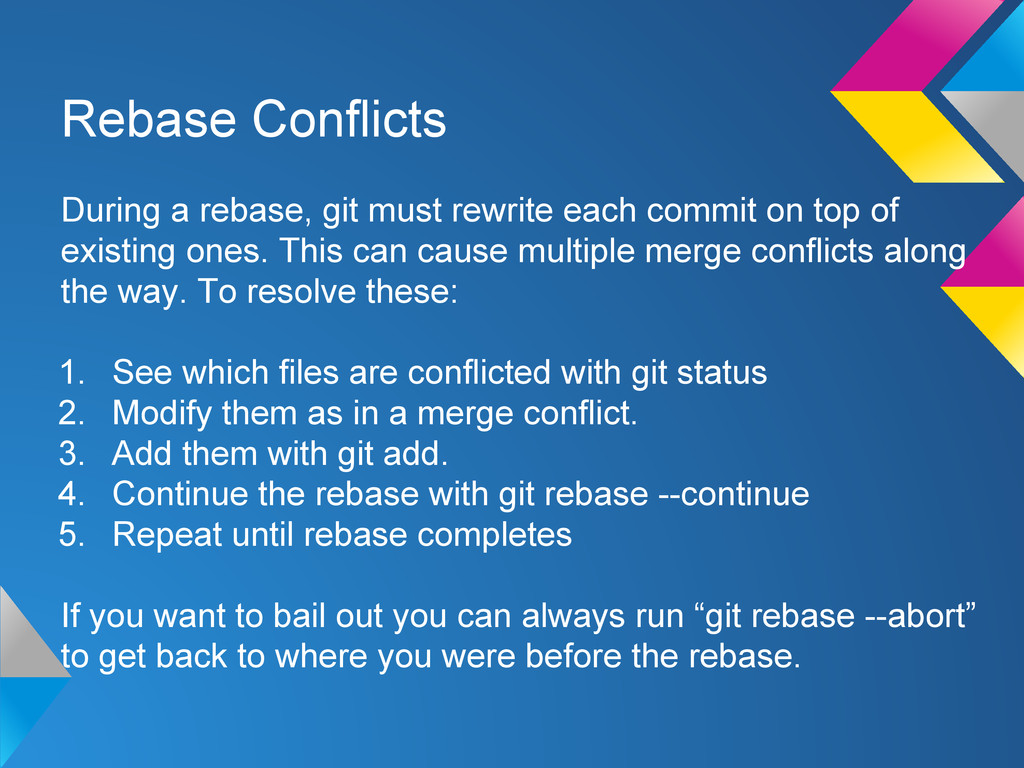
on top of existing ones. This can cause multiple merge conflicts along the way. To resolve these: 1. See which files are conflicted with git status 2. Modify them as in a merge conflict. 3. Add them with git add. 4. Continue the rebase with git rebase --continue 5. Repeat until rebase completes If you want to bail out you can always run “git rebase --abort” to get back to where you were before the rebase.
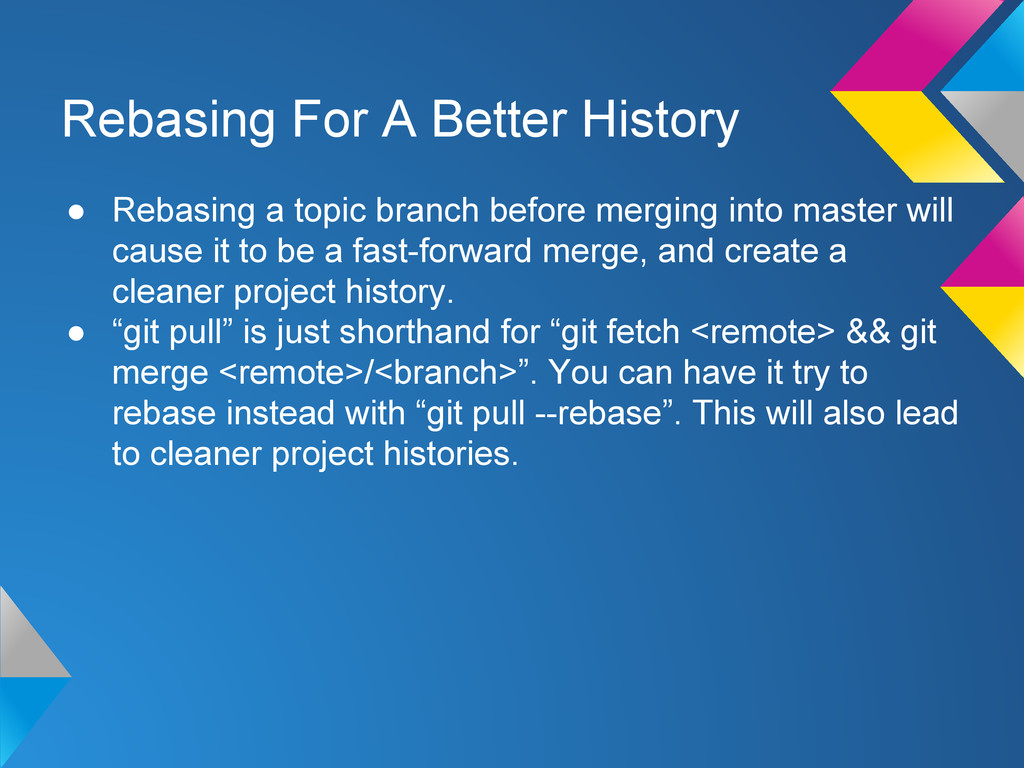
before merging into master will cause it to be a fast-forward merge, and create a cleaner project history. • “git pull” is just shorthand for “git fetch <remote> && git merge <remote>/<branch>”. You can have it try to rebase instead with “git pull --rebase”. This will also lead to cleaner project histories.


 teamlab
 taketakekaho
 endonanana
 yuuuuuuu168
 prog893
 recruitengineers
 pfn
pfn
 occhi
occhi
 makocchi
 maimyyym
 tetsuya28
 sh_fk2
 davidcarrasco
 maggiecrowley
 lcolladotor
 tessaabrams
 stephaniewalter
 kimpetersen
 scottboms
 bkeepers
 schroneko
 holman
 chriscoyier
 eileencodes