Upgrade to Pro — share decks privately, control downloads, hide ads and more …

mobilesolutionsliferay.pdf

Avatar for Liferay Users Group Spain Liferay Users Group Spain
February 28, 2018
12

 mobilesolutionsliferay.pdf

Avatar for Liferay Users Group Spain

Liferay Users Group Spain

February 28, 2018

Transcript

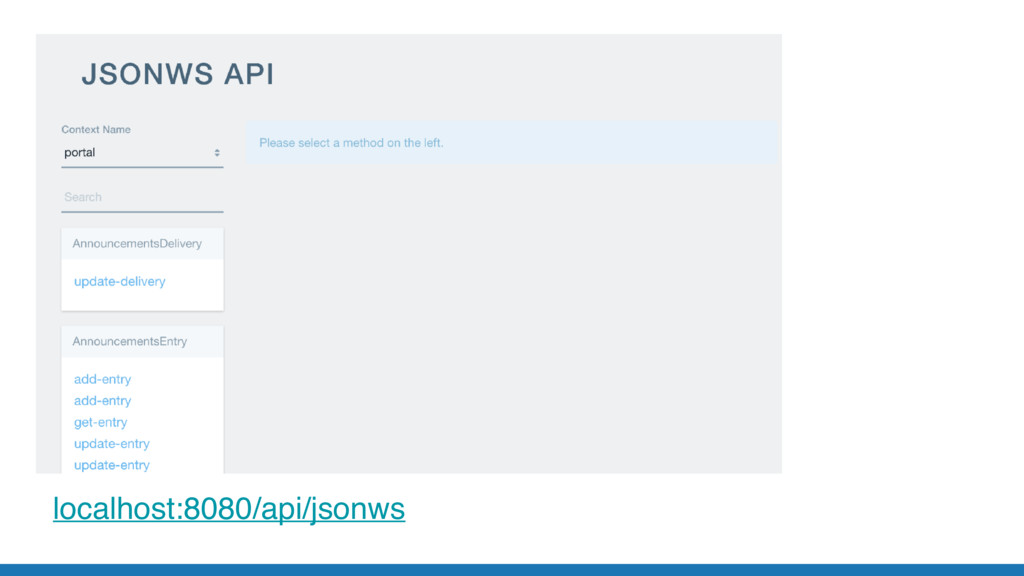
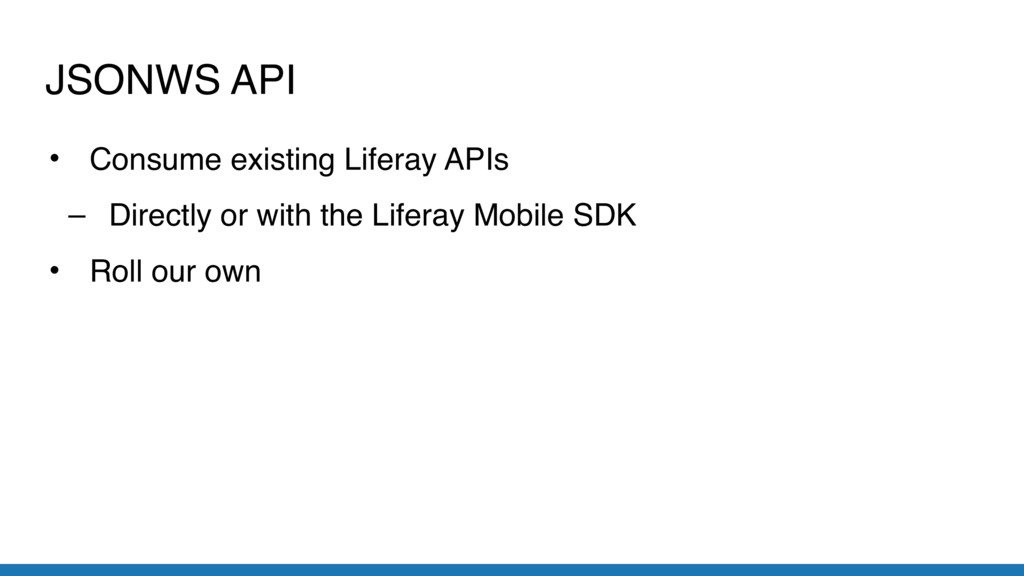
  1. • Consume existing Liferay APIs – Directly or with the

    Liferay Mobile SDK • Roll our own JSONWS API
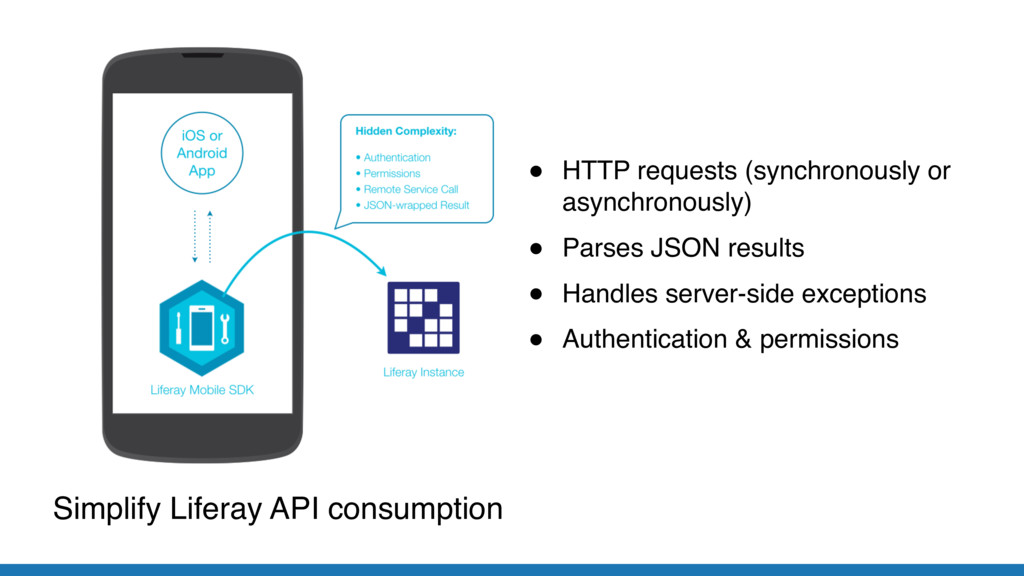
  2. Simplify Liferay API consumption • HTTP requests (synchronously or asynchronously)

    • Parses JSON results • Handles server-side exceptions • Authentication & permissions
  3. Calling services: iOS let authentication = LRBasicAuthentication(username: "[email protected]", password: "test")

    let session = LRSession(server: "http://localhost:8080", authentication: authentication) let service = LRGroupService_v7(session: session) let groups = service?.getUserSitesGroups()
  4. Calling services: Android Authentication authentication = new BasicAuthentication("[email protected]", "test"); Session

    session = new SessionImpl("http://localhost:8080", authentication); GroupService service = new GroupService(session); JSONArray groups = service.getUserSitesGroups();
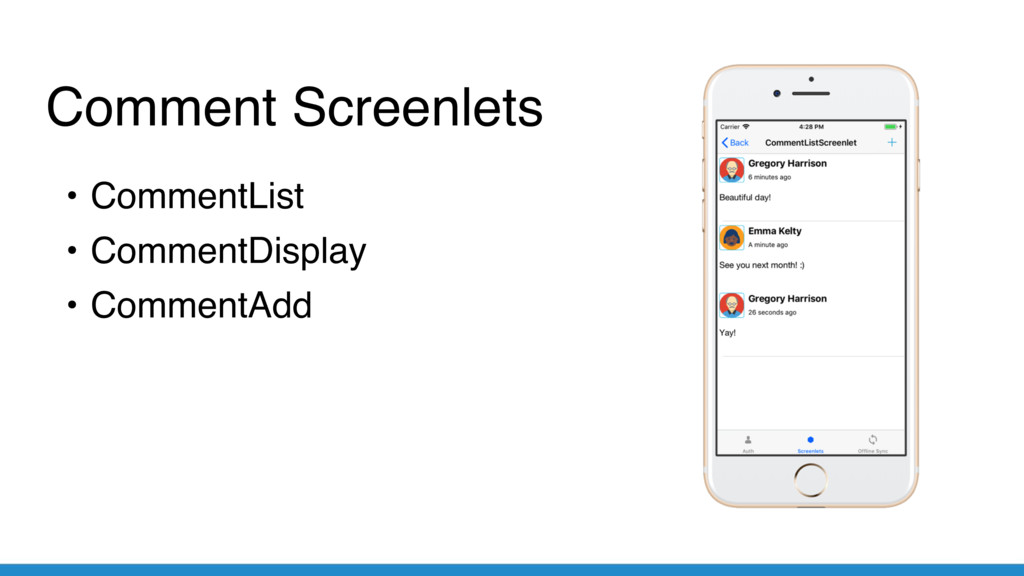
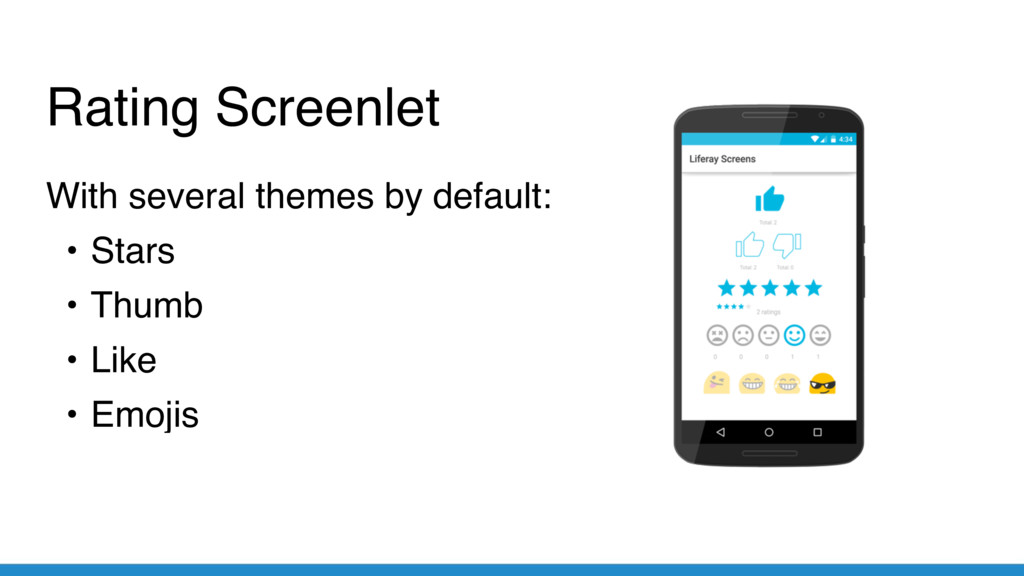
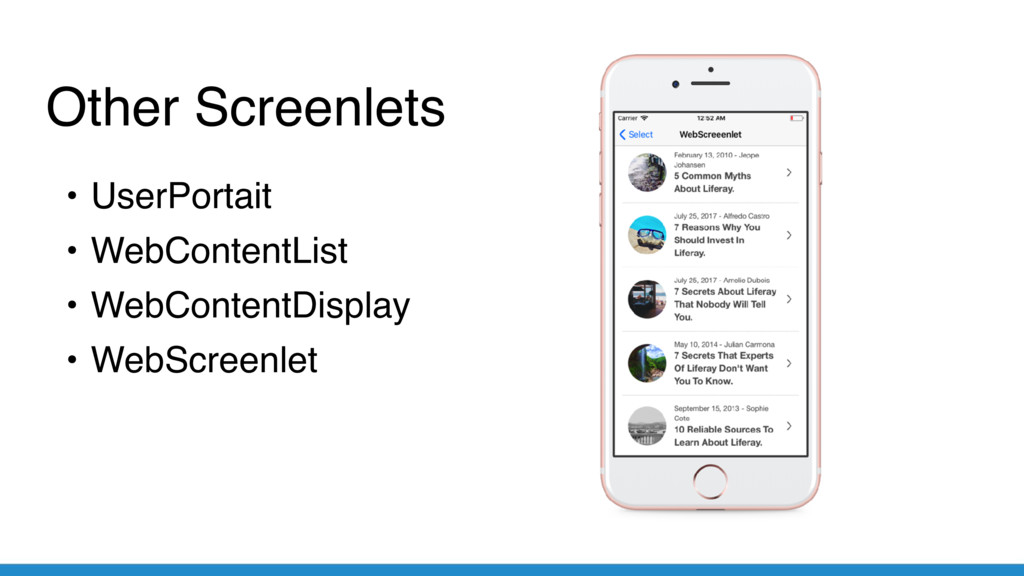
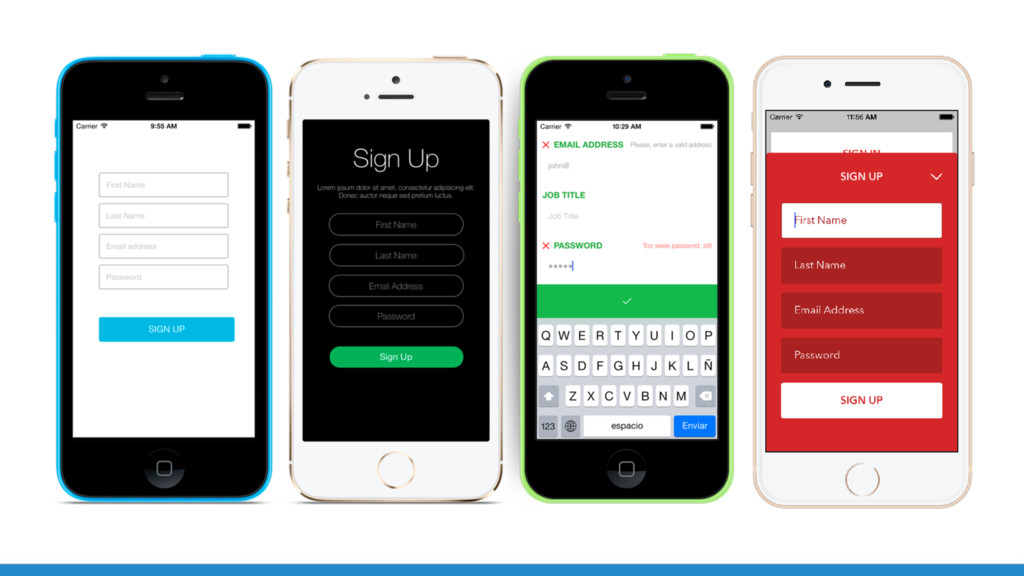
  5. Screenlets • Both platforms: Android and iOS • Connected with

    a Liferay instance • Default theme • You can use as many as you want!
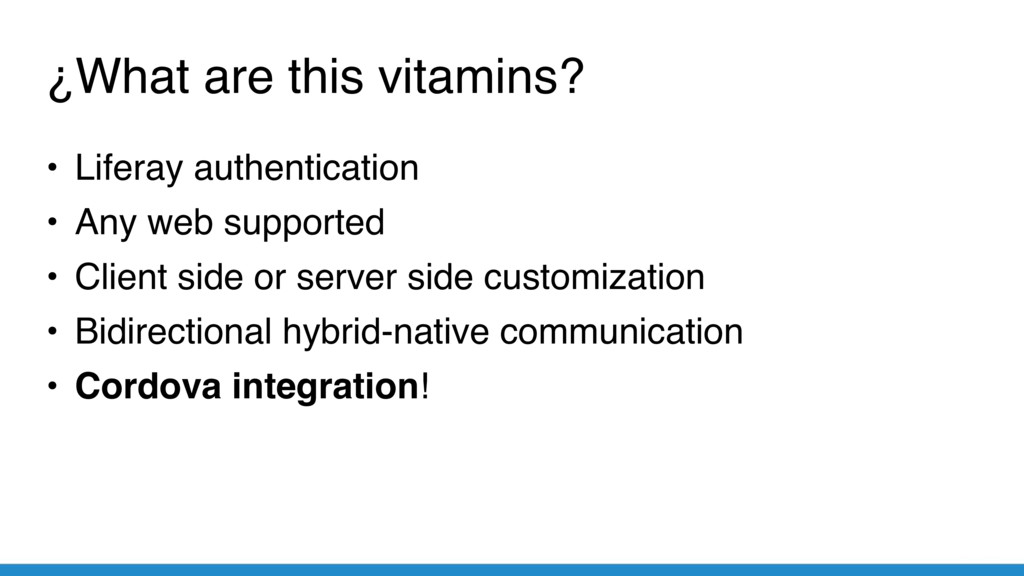
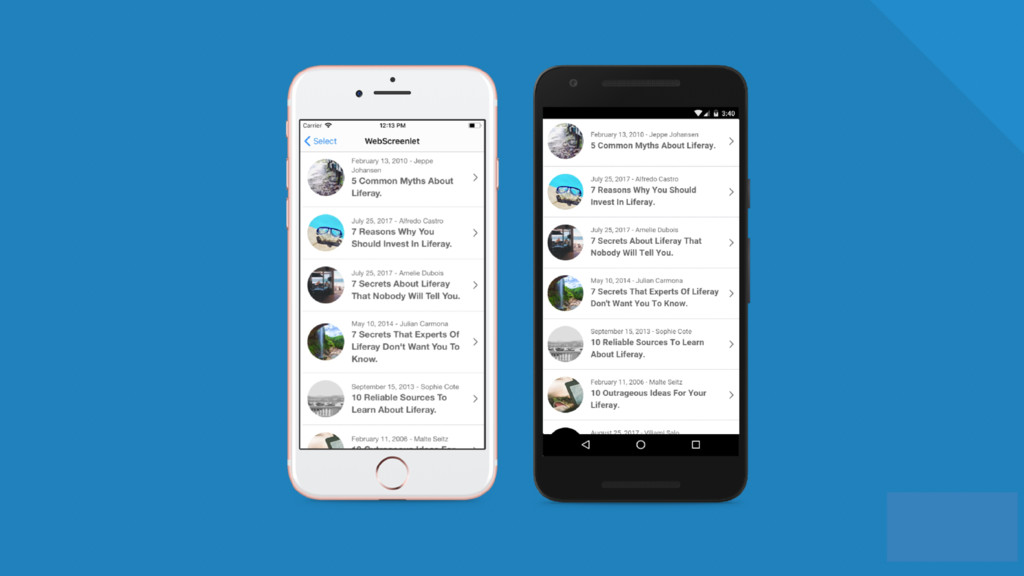
  6. ¿What are this vitamins? • Liferay authentication • Any web

    supported • Client side or server side customization • Bidirectional hybrid-native communication • Cordova integration!
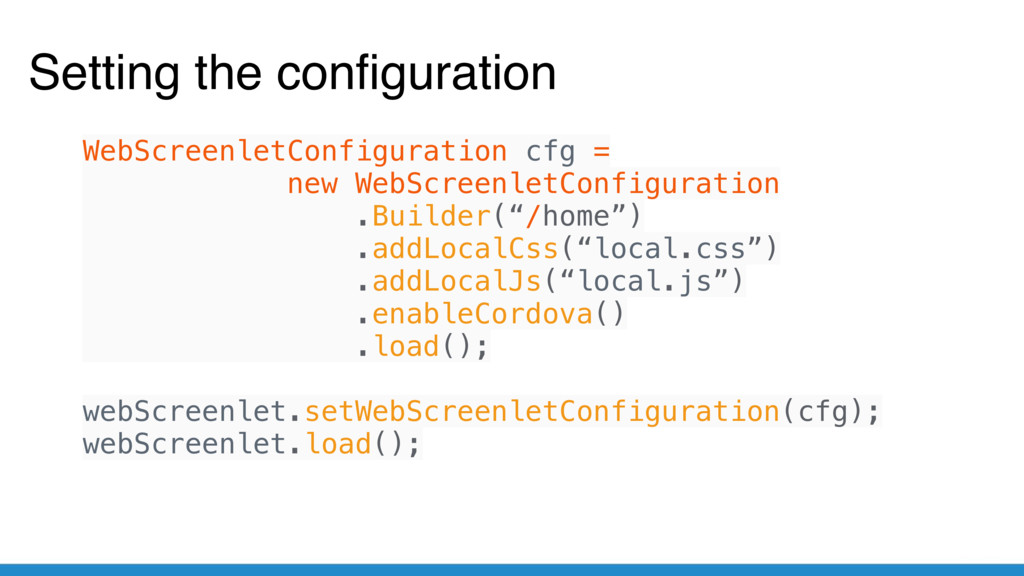
  7. Setting the configuration WebScreenletConfiguration cfg = new WebScreenletConfiguration .Builder(“/home”) .addLocalCss(“local.css”)

    .addLocalJs(“local.js”) .enableCordova() .load(); webScreenlet.setWebScreenletConfiguration(cfg); webScreenlet.load();
  8. for

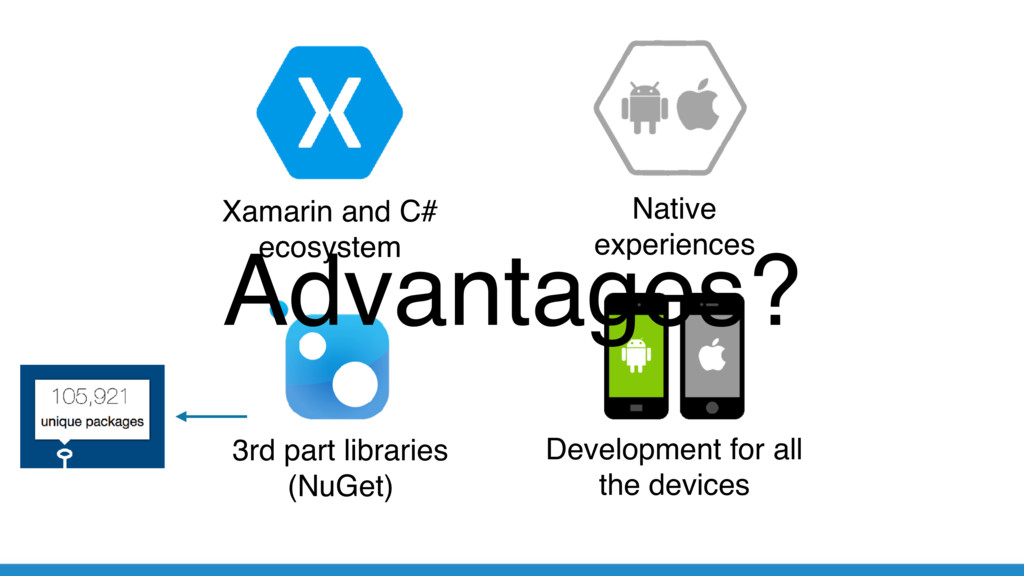
  9. Xamarin and C# ecosystem Native 
 experiences 3rd part libraries

    (NuGet) Development for all the devices Advantages?
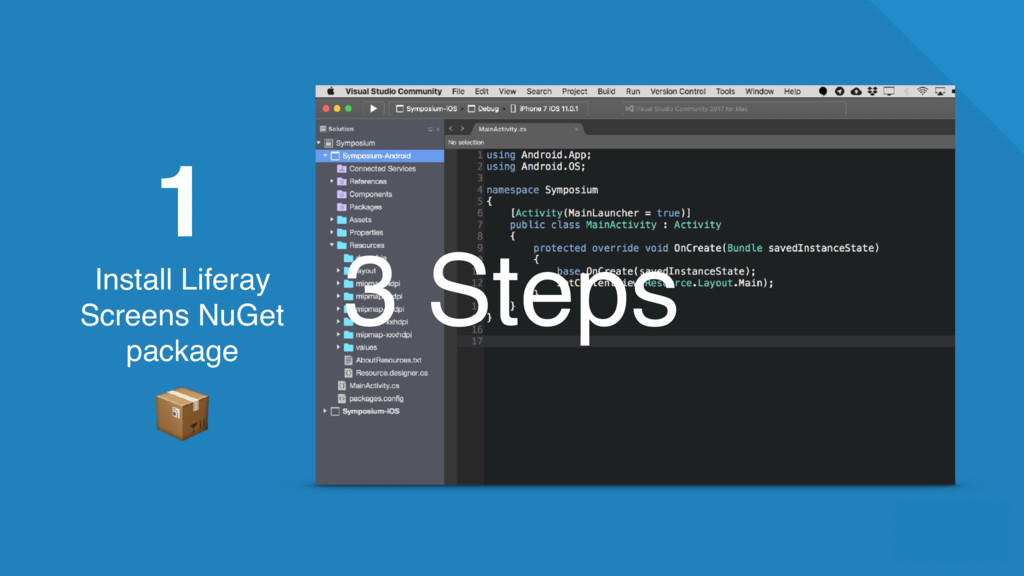
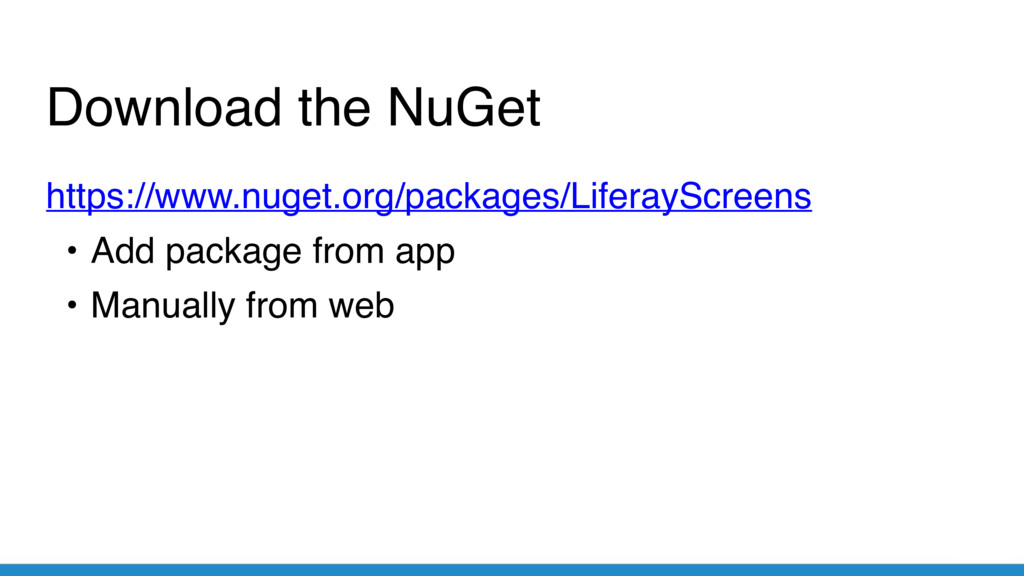
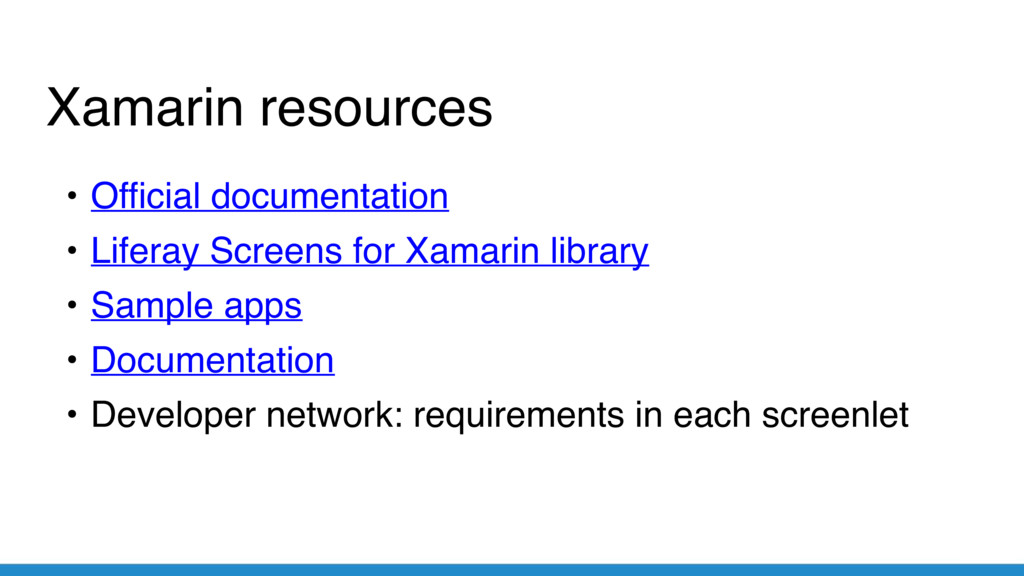
  10. Xamarin resources • Official documentation • Liferay Screens for Xamarin

    library • Sample apps • Documentation • Developer network: requirements in each screenlet
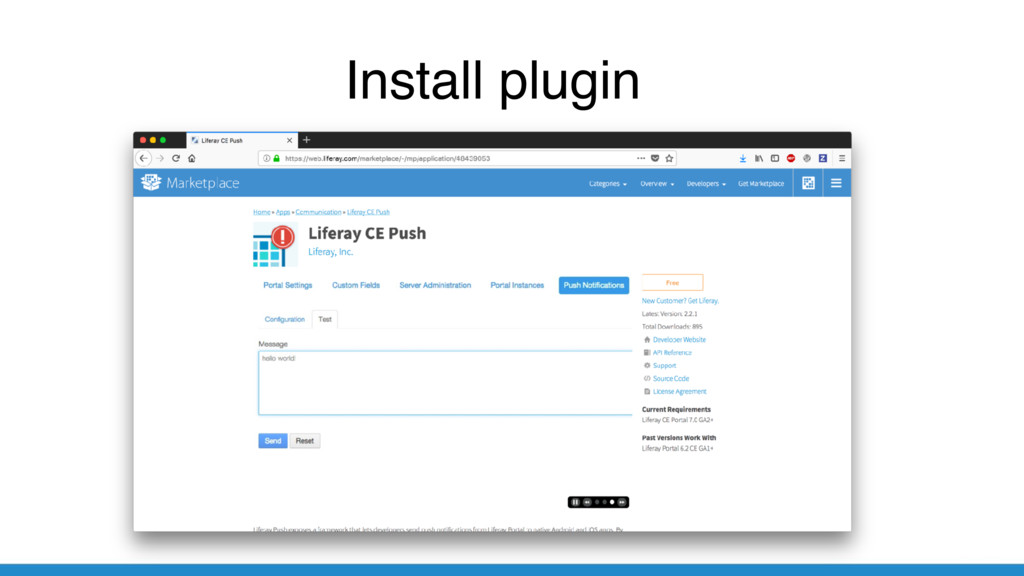
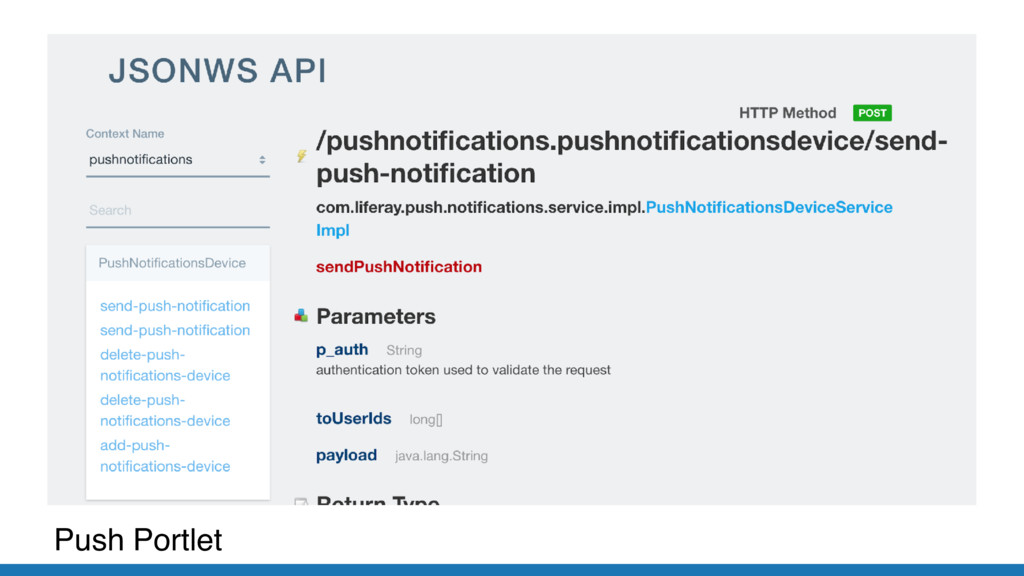
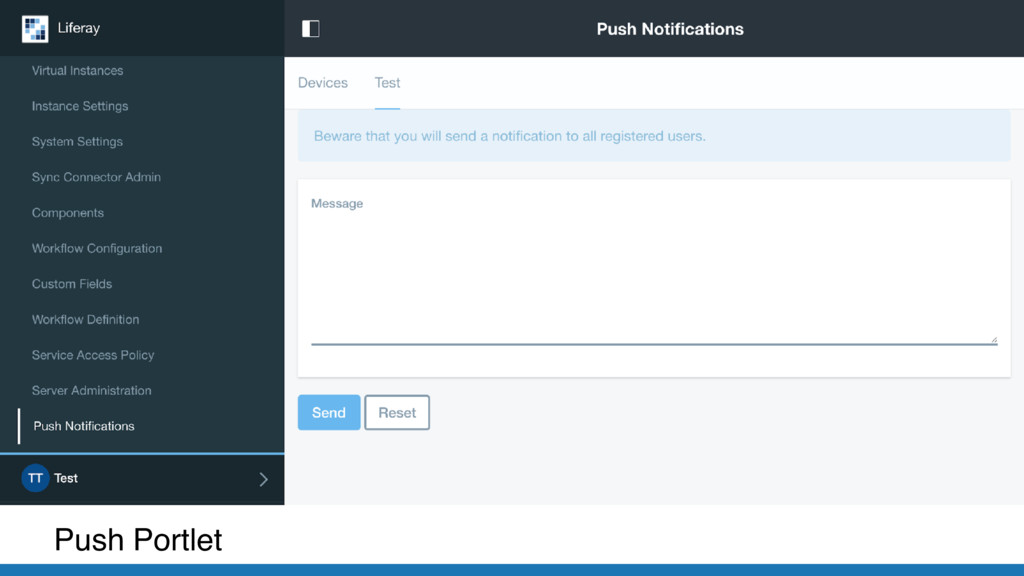
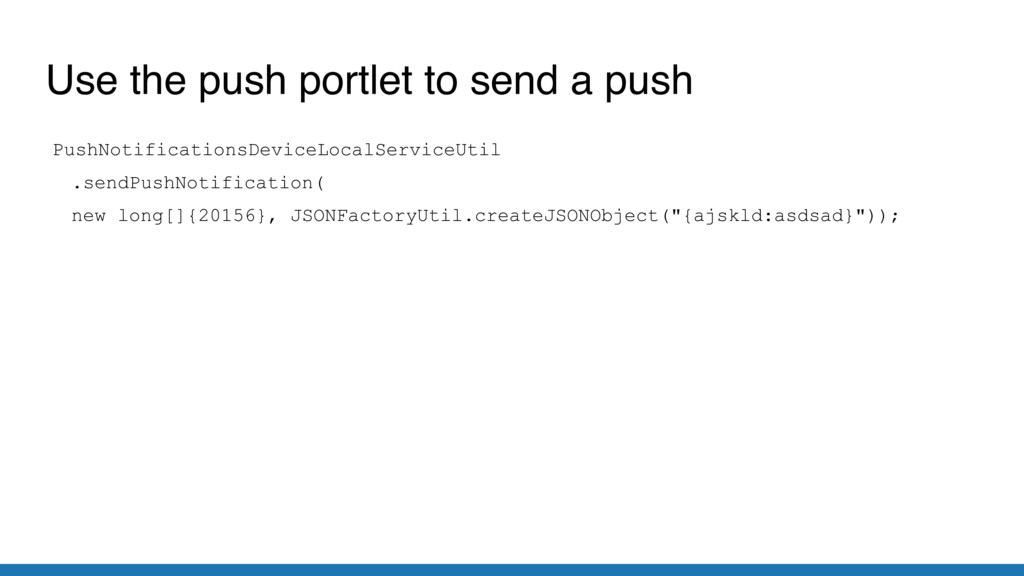
  11. Use the push portlet to send a push PushNotificationsDeviceLocalServiceUtil .sendPushNotification(

    new long[]{20156}, JSONFactoryUtil.createJSONObject("{ajskld:asdsad}"));
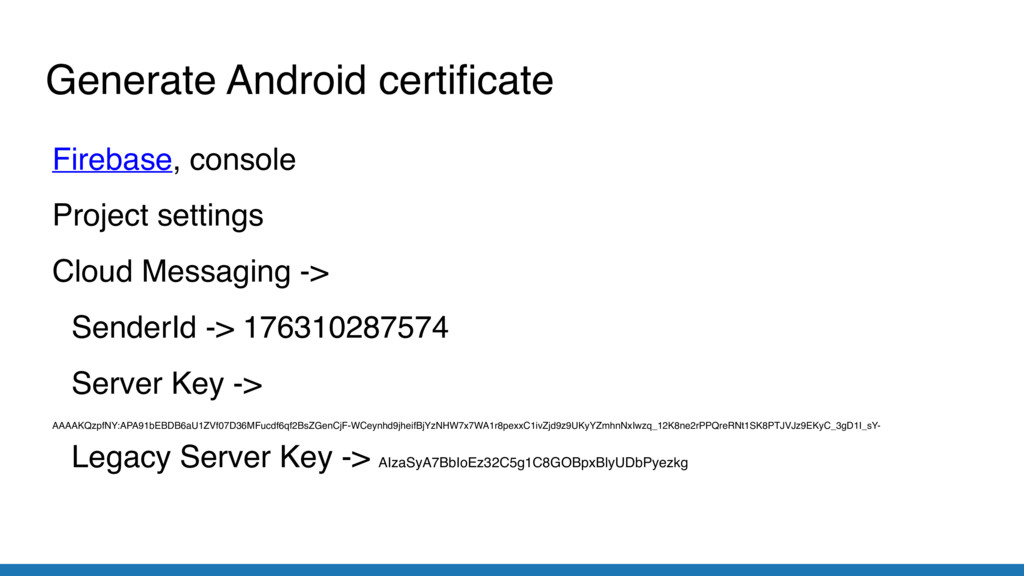
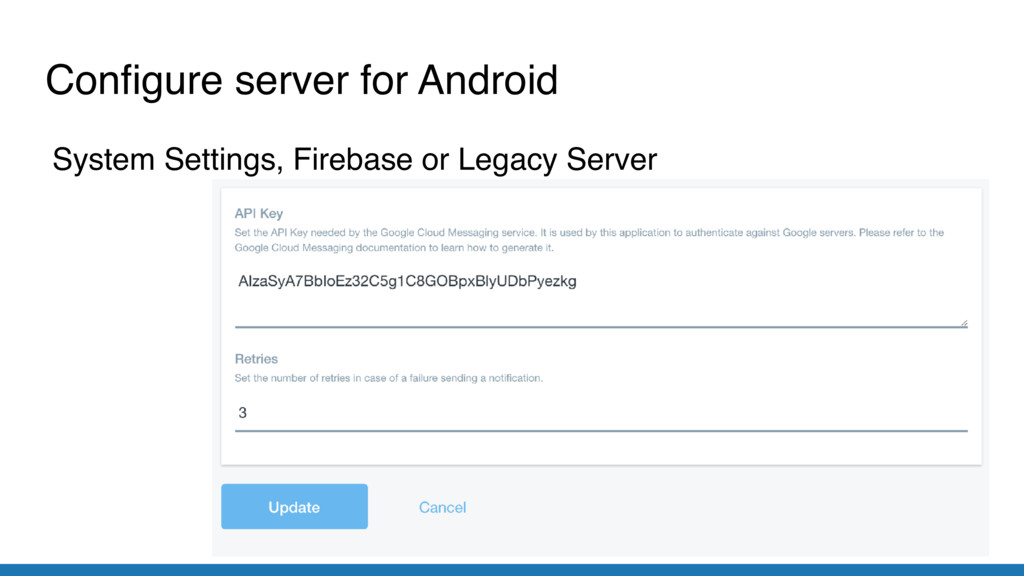
  12. Generate Android certificate Firebase, console Project settings Cloud Messaging ->

    SenderId -> 176310287574 Server Key -> AAAAKQzpfNY:APA91bEBDB6aU1ZVf07D36MFucdf6qf2BsZGenCjF-WCeynhd9jheifBjYzNHW7x7WA1r8pexxC1ivZjd9z9UKyYZmhnNxIwzq_12K8ne2rPPQreRNt1SK8PTJVJz9EKyC_3gD1I_sY- Legacy Server Key -> AIzaSyA7BbIoEz32C5g1C8GOBpxBlyUDbPyezkg
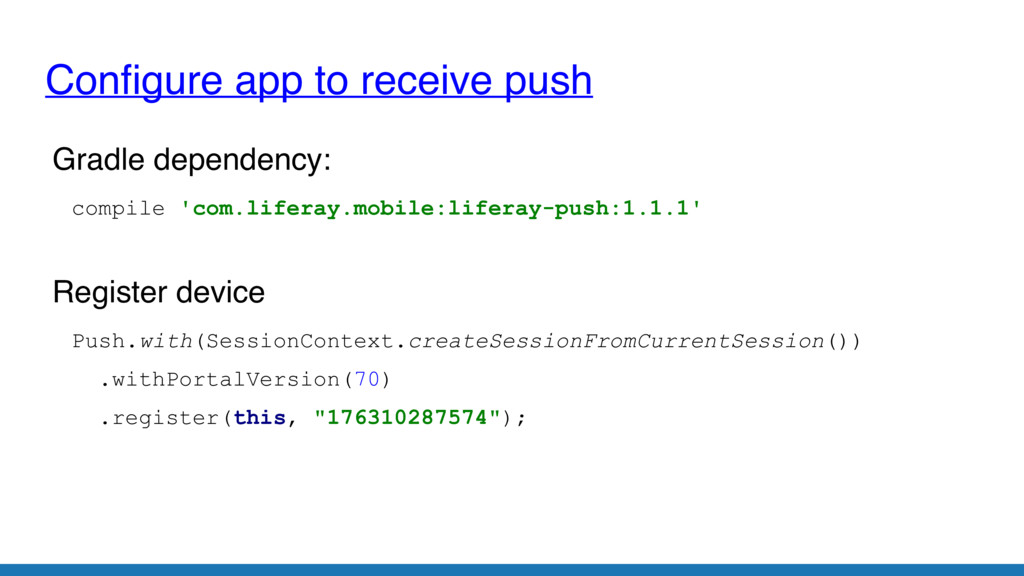
  13. Configure app to receive push Gradle dependency: compile 'com.liferay.mobile:liferay-push:1.1.1' Register

    device Push.with(SessionContext.createSessionFromCurrentSession()) .withPortalVersion(70) .register(this, "176310287574");
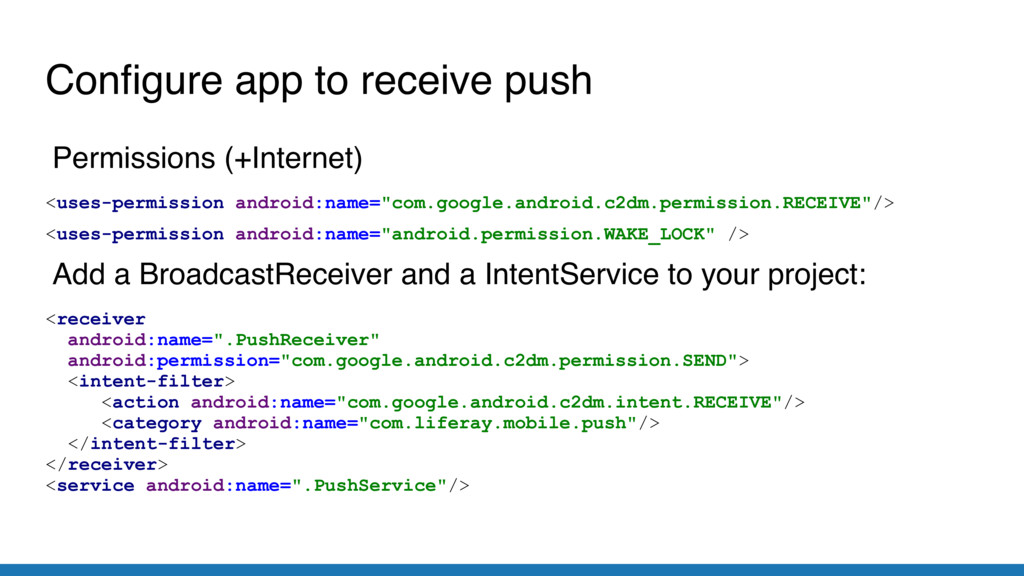
  14. Permissions (+Internet) <uses-permission android:name="com.google.android.c2dm.permission.RECEIVE"/> <uses-permission android:name="android.permission.WAKE_LOCK" /> Add a BroadcastReceiver

    and a IntentService to your project: <receiver android:name=".PushReceiver" android:permission="com.google.android.c2dm.permission.SEND"> <intent-filter> <action android:name="com.google.android.c2dm.intent.RECEIVE"/> <category android:name="com.liferay.mobile.push"/> </intent-filter> </receiver> <service android:name=".PushService"/> Configure app to receive push
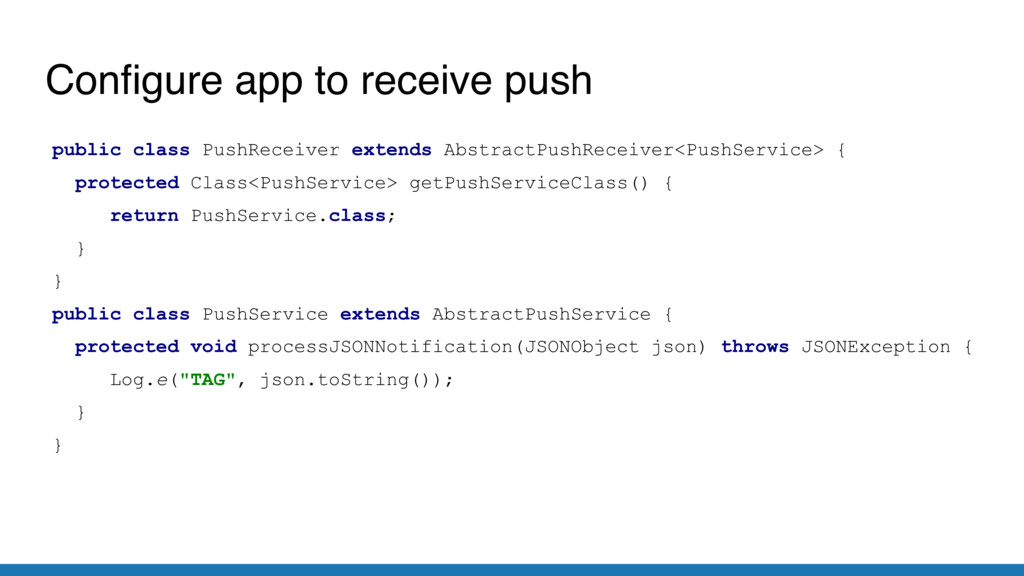
  15. Configure app to receive push public class PushReceiver extends AbstractPushReceiver<PushService>

    { protected Class<PushService> getPushServiceClass() { return PushService.class; } } public class PushService extends AbstractPushService { protected void processJSONNotification(JSONObject json) throws JSONException { Log.e("TAG", json.toString()); } }
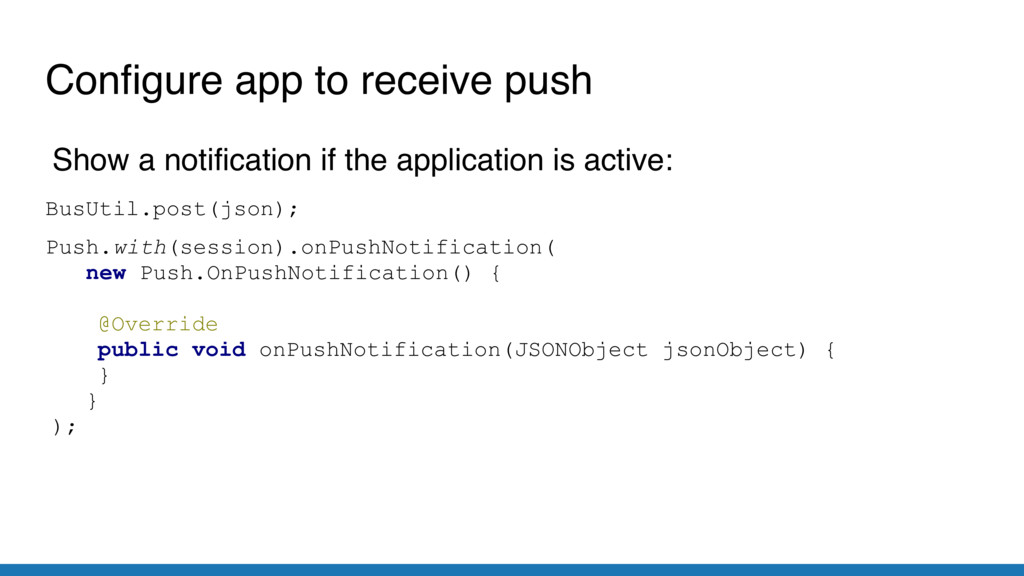
  16. Show a notification if the application is active: BusUtil.post(json); Push.with(session).onPushNotification(

    new Push.OnPushNotification() { @Override public void onPushNotification(JSONObject jsonObject) { } } ); Configure app to receive push
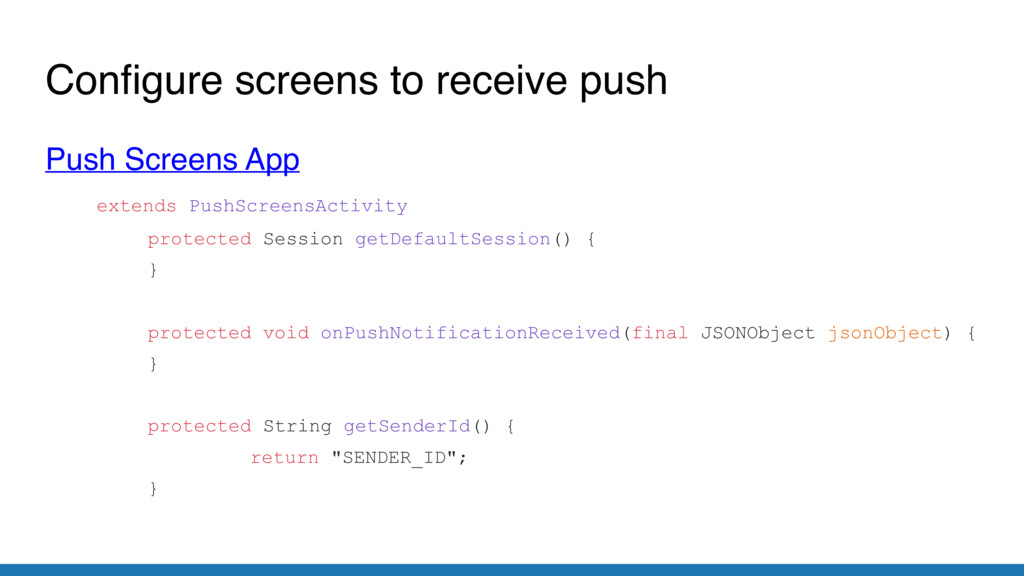
  17. Configure screens to receive push Push Screens App extends PushScreensActivity

    protected Session getDefaultSession() { } protected void onPushNotificationReceived(final JSONObject jsonObject) { } protected String getSenderId() { return "SENDER_ID"; }
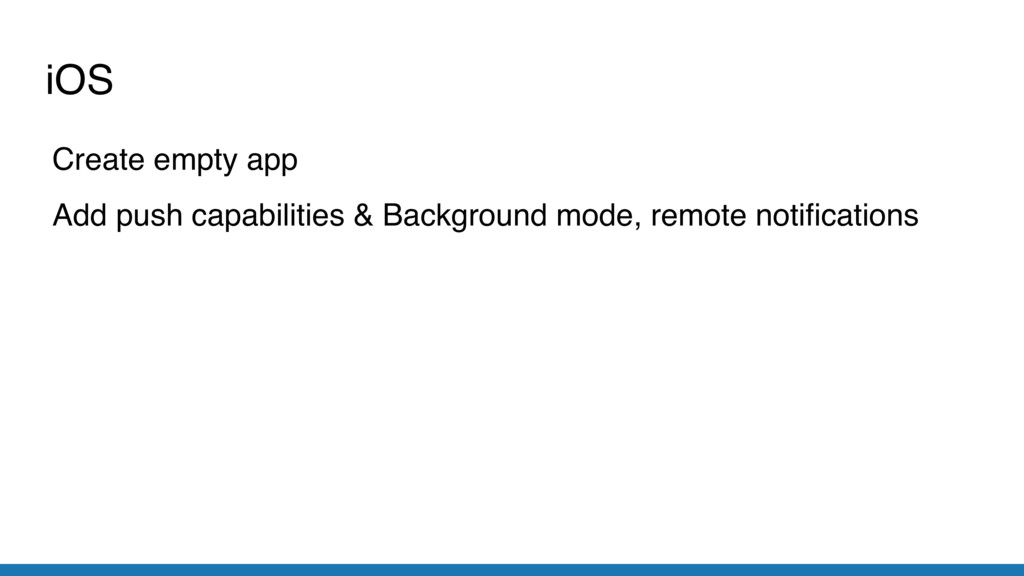
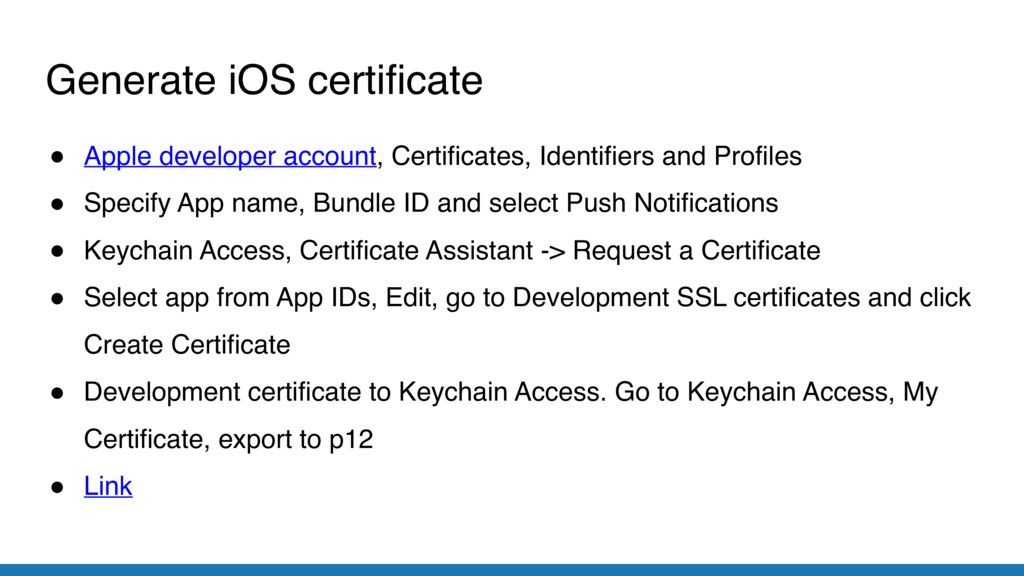
  18. Generate iOS certificate • Apple developer account, Certificates, Identifiers and

    Profiles • Specify App name, Bundle ID and select Push Notifications • Keychain Access, Certificate Assistant -> Request a Certificate • Select app from App IDs, Edit, go to Development SSL certificates and click Create Certificate • Development certificate to Keychain Access. Go to Keychain Access, My Certificate, export to p12 • Link
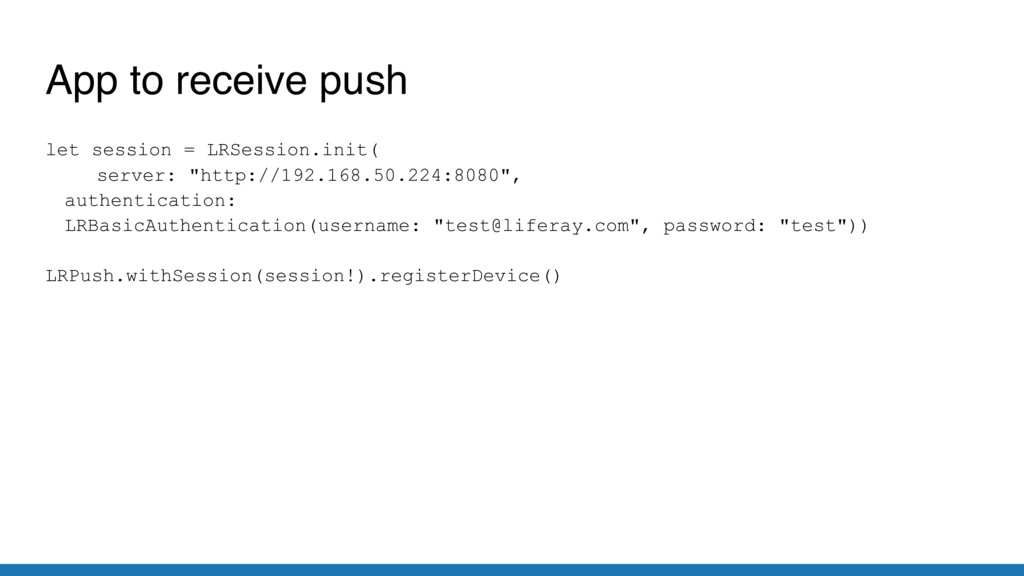
  19. App to receive push let session = LRSession.init( server: "http://192.168.50.224:8080",

    authentication: LRBasicAuthentication(username: "[email protected]", password: "test")) LRPush.withSession(session!).registerDevice()
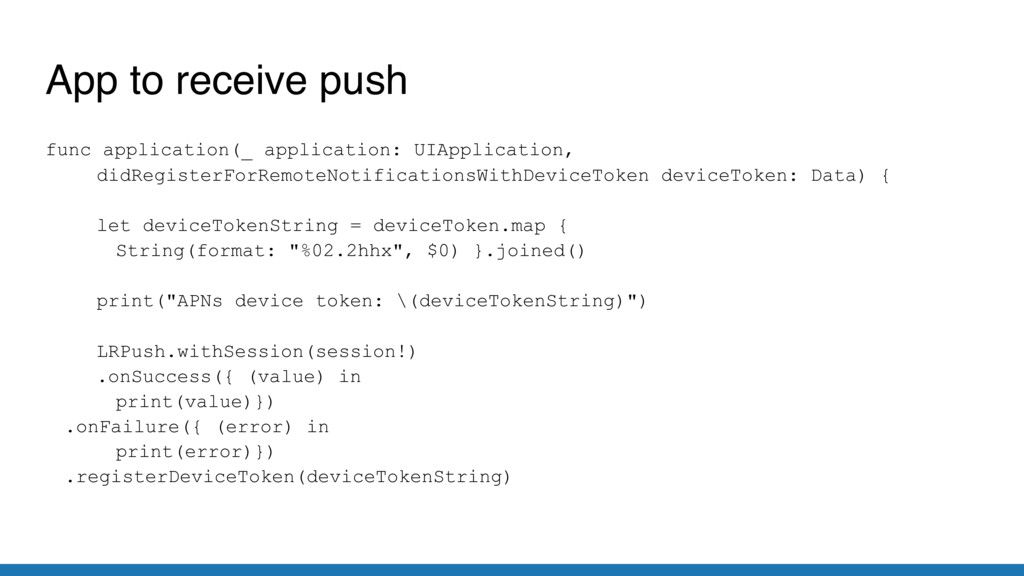
  20. App to receive push func application(_ application: UIApplication, didRegisterForRemoteNotificationsWithDeviceToken deviceToken:

    Data) { let deviceTokenString = deviceToken.map { String(format: "%02.2hhx", $0) }.joined() print("APNs device token: \(deviceTokenString)") LRPush.withSession(session!) .onSuccess({ (value) in print(value)}) .onFailure({ (error) in print(error)}) .registerDeviceToken(deviceTokenString)
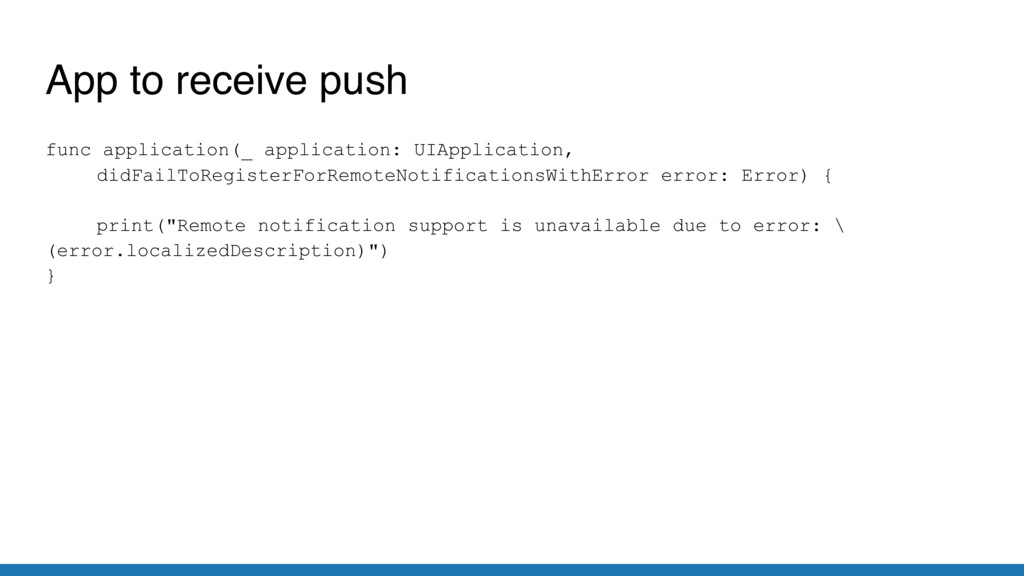
  21. App to receive push func application(_ application: UIApplication, didFailToRegisterForRemoteNotificationsWithError error:

    Error) { print("Remote notification support is unavailable due to error: \ (error.localizedDescription)") }
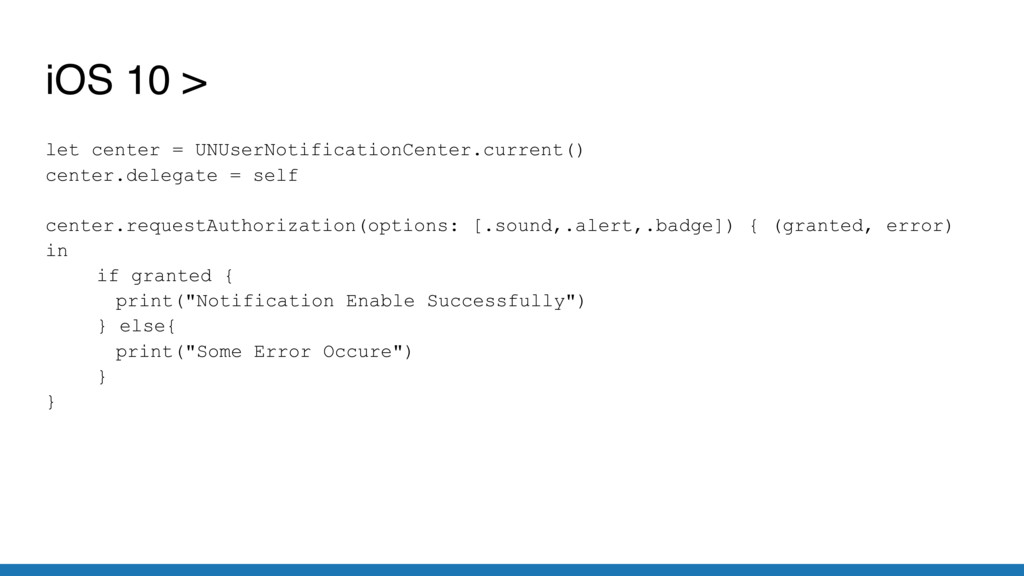
  22. iOS 10 > let center = UNUserNotificationCenter.current() center.delegate = self

    center.requestAuthorization(options: [.sound,.alert,.badge]) { (granted, error) in if granted { print("Notification Enable Successfully") } else{ print("Some Error Occure") } }