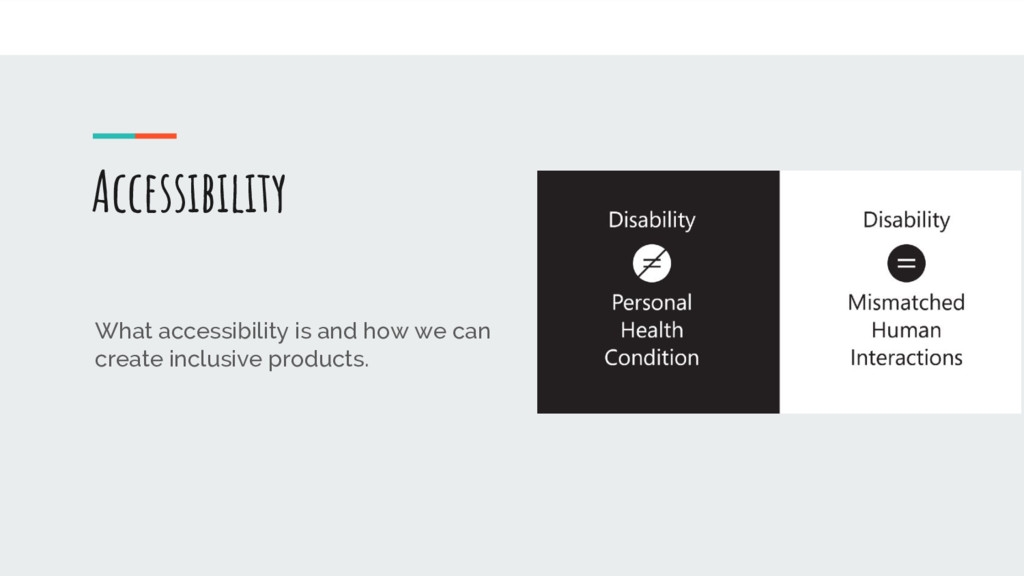
barriers that prevent interaction with, or access to, websites by people with disabilities. When sites are correctly designed, developed and edited, all users have equal access to information and functionality.
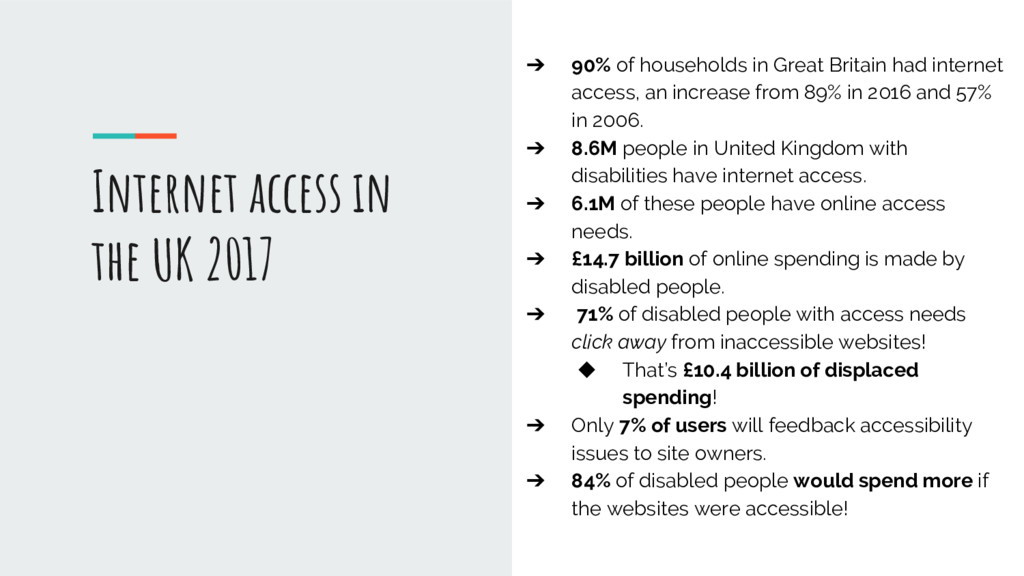
an increase from 89% in 2016 and 57% in 2006. ➔ 8.6M people in United Kingdom with disabilities have internet access. ➔ 6.1M of these people have online access needs. ➔ £14.7 billion of online spending is made by disabled people. ➔ 71% of disabled people with access needs click away from inaccessible websites! ◆ That’s £10.4 billion of displaced spending! ➔ Only 7% of users will feedback accessibility issues to site owners. ➔ 84% of disabled people would spend more if the websites were accessible! Internet access in the UK 2017
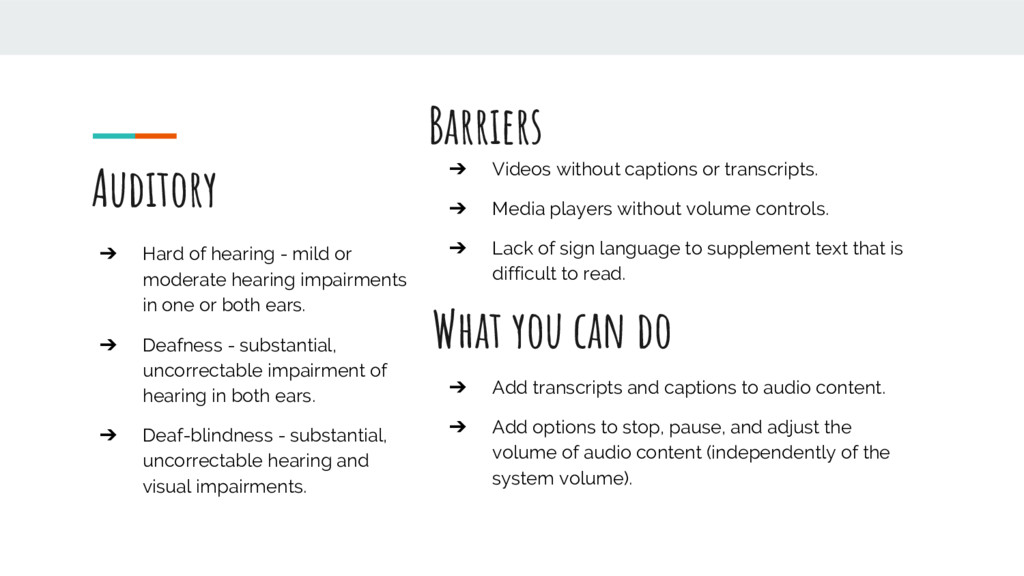
in one or both ears. ➔ Deafness - substantial, uncorrectable impairment of hearing in both ears. ➔ Deaf-blindness - substantial, uncorrectable hearing and visual impairments. Auditory ➔ Videos without captions or transcripts. ➔ Media players without volume controls. ➔ Lack of sign language to supplement text that is difficult to read. Barriers ➔ Add transcripts and captions to audio content. ➔ Add options to stop, pause, and adjust the volume of audio content (independently of the system volume). What you can do
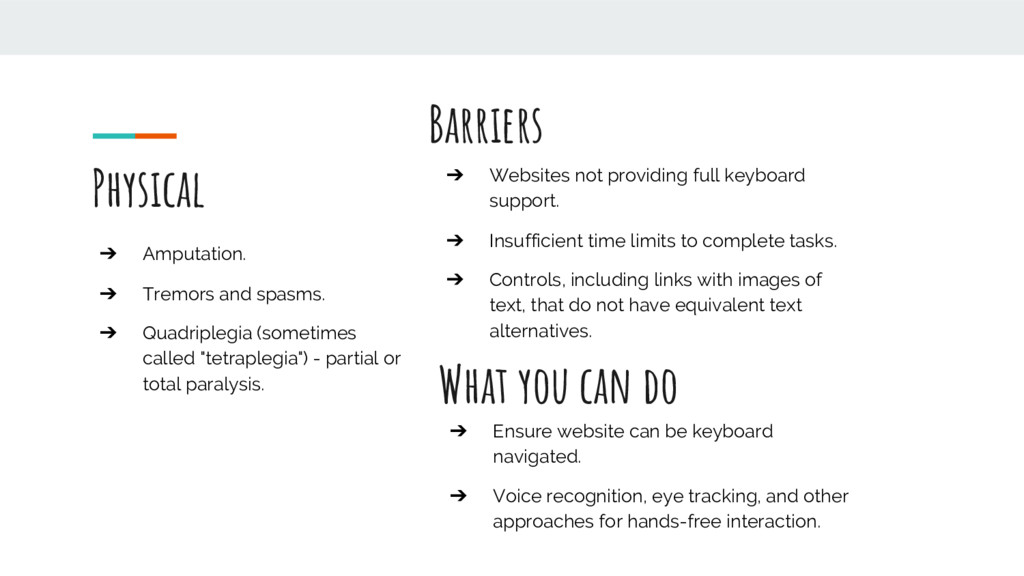
"tetraplegia") - partial or total paralysis. Physical ➔ Websites not providing full keyboard support. ➔ Insufficient time limits to complete tasks. ➔ Controls, including links with images of text, that do not have equivalent text alternatives. Barriers ➔ Ensure website can be keyboard navigated. ➔ Voice recognition, eye tracking, and other approaches for hands-free interaction. What you can do
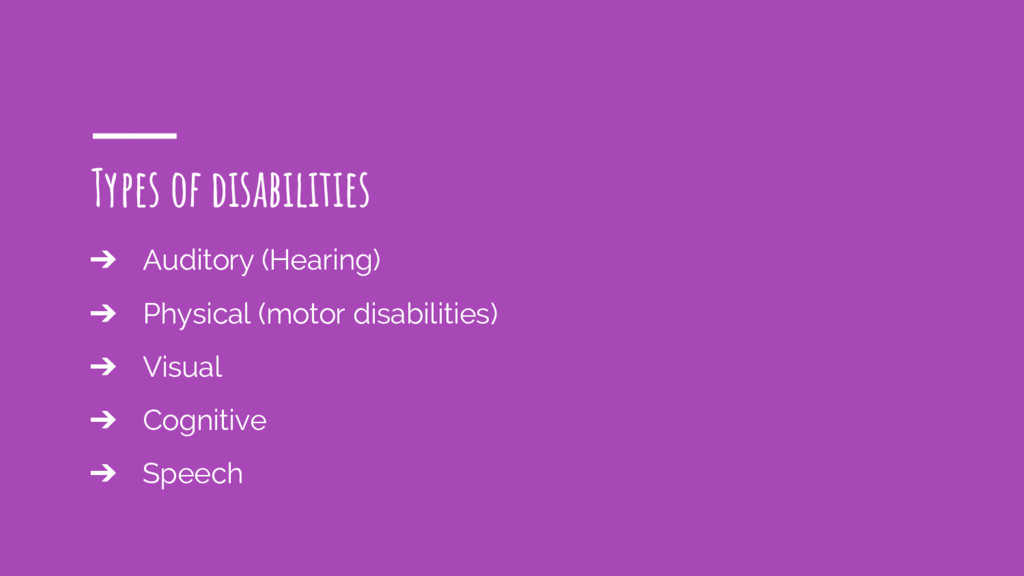
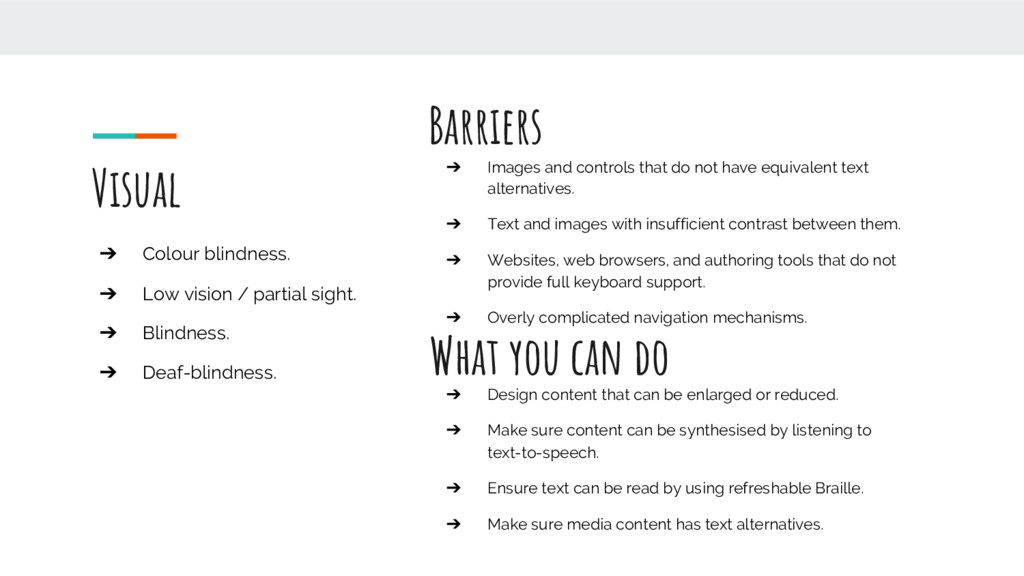
alternatives. ➔ Text and images with insufficient contrast between them. ➔ Websites, web browsers, and authoring tools that do not provide full keyboard support. ➔ Overly complicated navigation mechanisms. ➔ Colour blindness. ➔ Low vision / partial sight. ➔ Blindness. ➔ Deaf-blindness. Visual Barriers ➔ Design content that can be enlarged or reduced. ➔ Make sure content can be synthesised by listening to text-to-speech. ➔ Ensure text can be read by using refreshable Braille. ➔ Make sure media content has text alternatives. What you can do
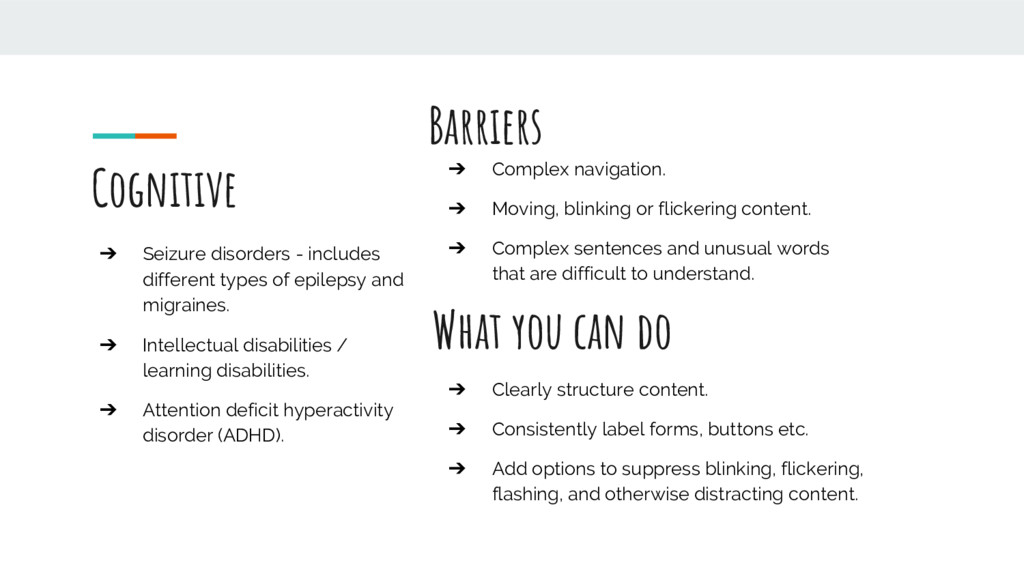
migraines. ➔ Intellectual disabilities / learning disabilities. ➔ Attention deficit hyperactivity disorder (ADHD). Cognitive ➔ Complex navigation. ➔ Moving, blinking or flickering content. ➔ Complex sentences and unusual words that are difficult to understand. Barriers ➔ Clearly structure content. ➔ Consistently label forms, buttons etc. ➔ Add options to suppress blinking, flickering, flashing, and otherwise distracting content. What you can do
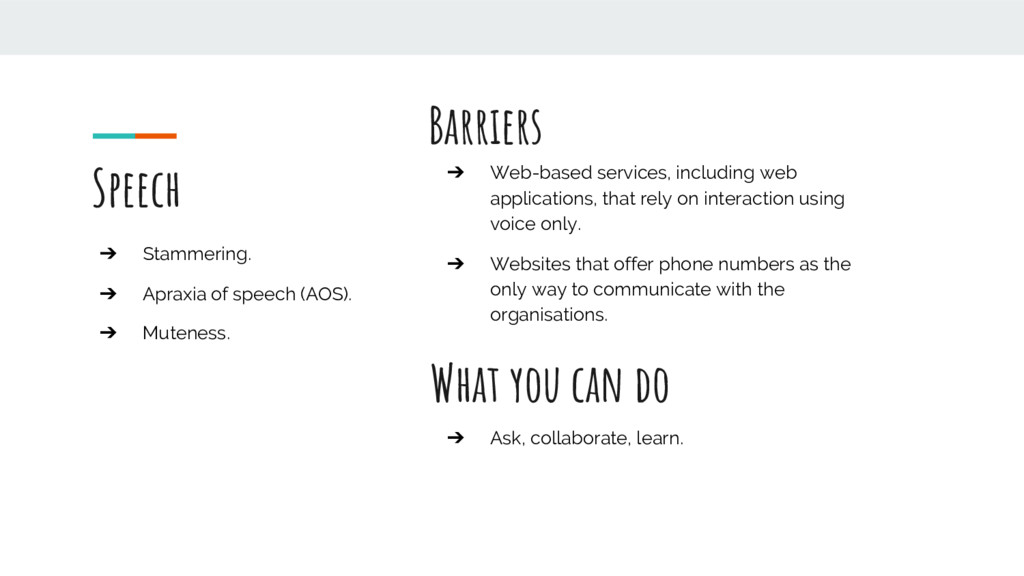
➔ Web-based services, including web applications, that rely on interaction using voice only. ➔ Websites that offer phone numbers as the only way to communicate with the organisations. Barriers ➔ Ask, collaborate, learn. What you can do
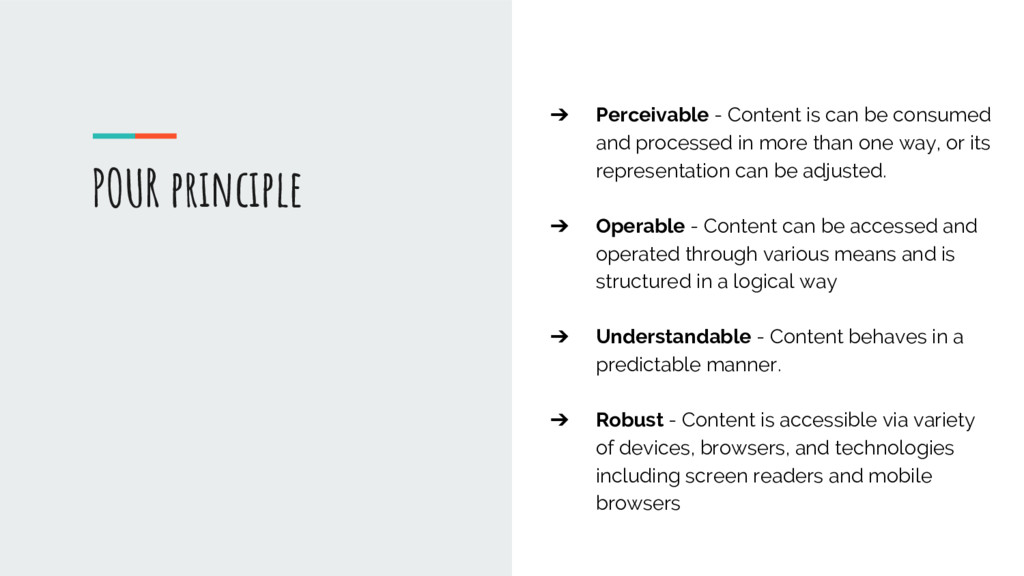
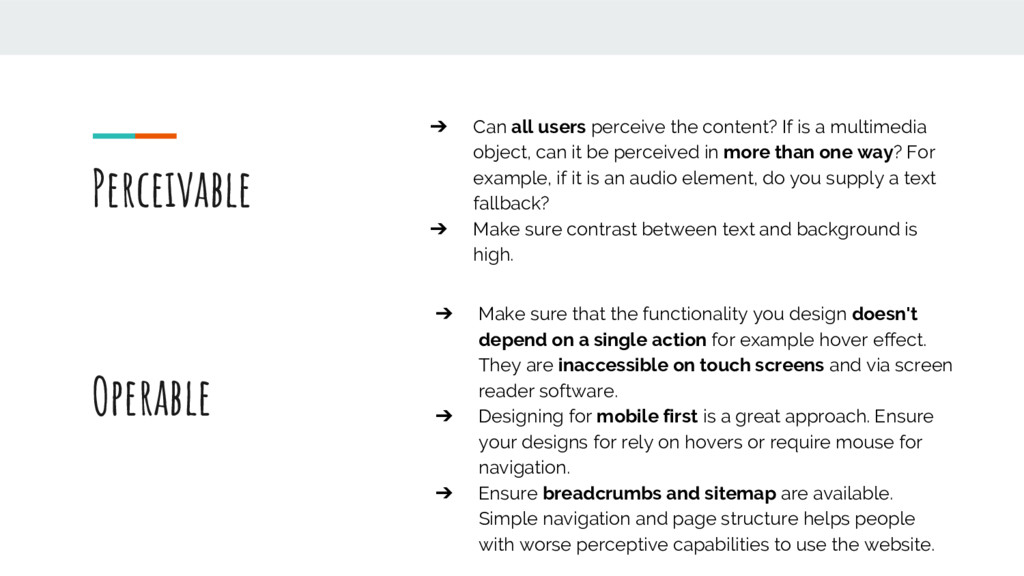
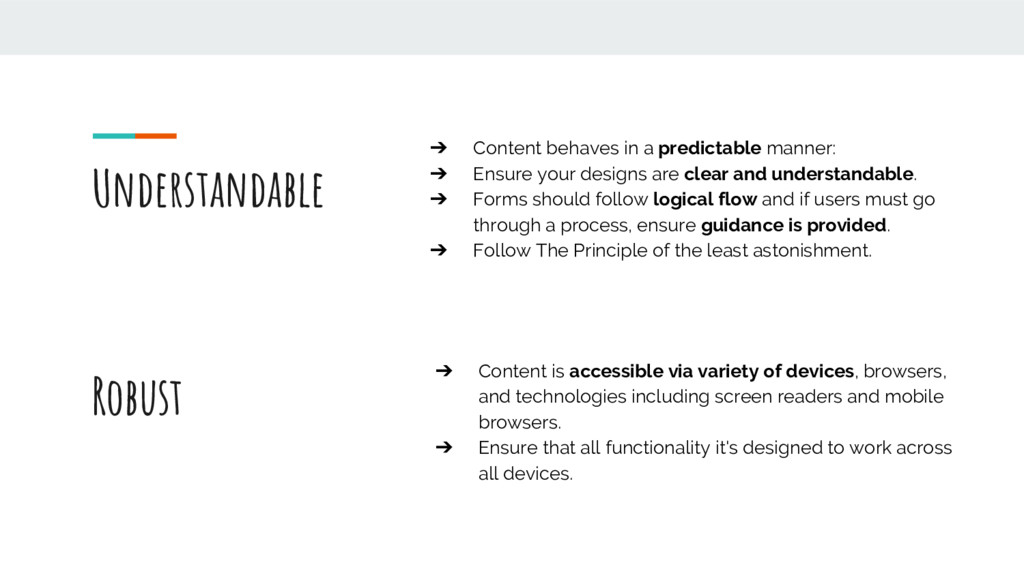
in more than one way, or its representation can be adjusted. ➔ Operable - Content can be accessed and operated through various means and is structured in a logical way ➔ Understandable - Content behaves in a predictable manner. ➔ Robust - Content is accessible via variety of devices, browsers, and technologies including screen readers and mobile browsers POUR principle
a multimedia object, can it be perceived in more than one way? For example, if it is an audio element, do you supply a text fallback? ➔ Make sure contrast between text and background is high. Operable ➔ Make sure that the functionality you design doesn't depend on a single action for example hover effect. They are inaccessible on touch screens and via screen reader software. ➔ Designing for mobile first is a great approach. Ensure your designs for rely on hovers or require mouse for navigation. ➔ Ensure breadcrumbs and sitemap are available. Simple navigation and page structure helps people with worse perceptive capabilities to use the website.
your designs are clear and understandable. ➔ Forms should follow logical flow and if users must go through a process, ensure guidance is provided. ➔ Follow The Principle of the least astonishment. Robust ➔ Content is accessible via variety of devices, browsers, and technologies including screen readers and mobile browsers. ➔ Ensure that all functionality it's designed to work across all devices.
practice. Many readers interact with the content using variety of different tools and devices including screen readers, Braille interface, keyboard navigation, and more.
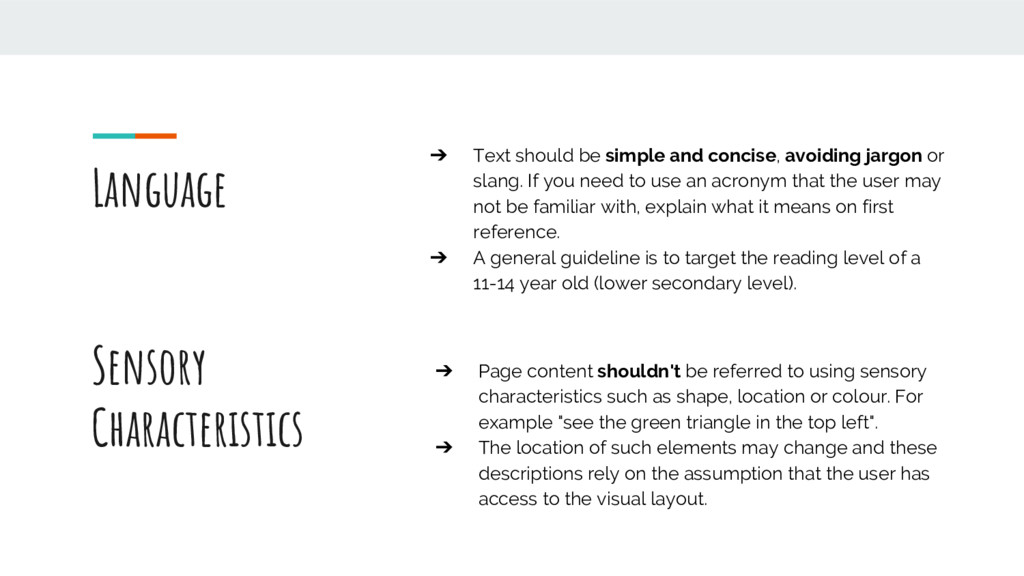
or slang. If you need to use an acronym that the user may not be familiar with, explain what it means on first reference. ➔ A general guideline is to target the reading level of a 11-14 year old (lower secondary level). Sensory Characteristics ➔ Page content shouldn't be referred to using sensory characteristics such as shape, location or colour. For example "see the green triangle in the top left". ➔ The location of such elements may change and these descriptions rely on the assumption that the user has access to the visual layout.
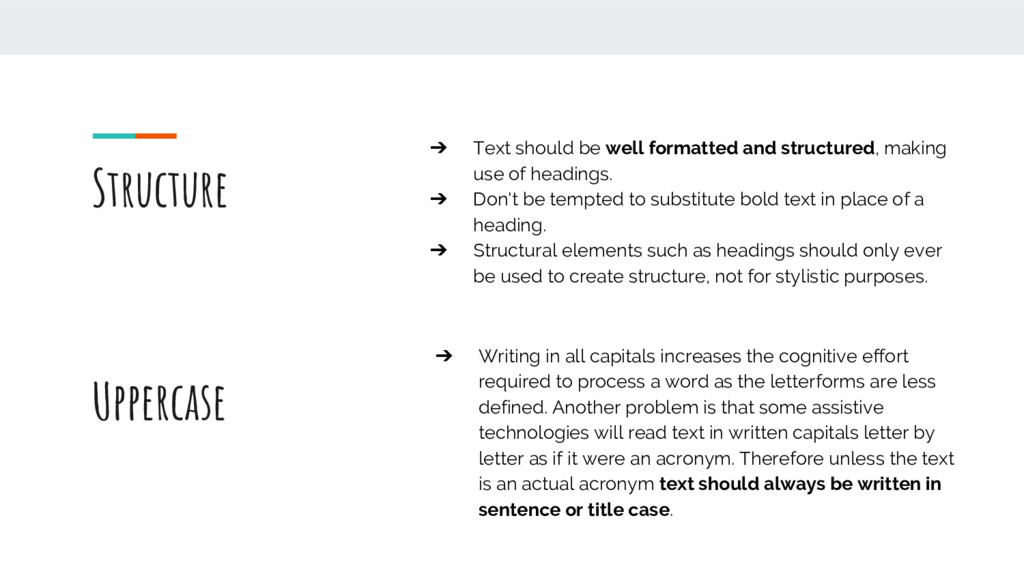
use of headings. ➔ Don't be tempted to substitute bold text in place of a heading. ➔ Structural elements such as headings should only ever be used to create structure, not for stylistic purposes. Uppercase ➔ Writing in all capitals increases the cognitive effort required to process a word as the letterforms are less defined. Another problem is that some assistive technologies will read text in written capitals letter by letter as if it were an acronym. Therefore unless the text is an actual acronym text should always be written in sentence or title case.
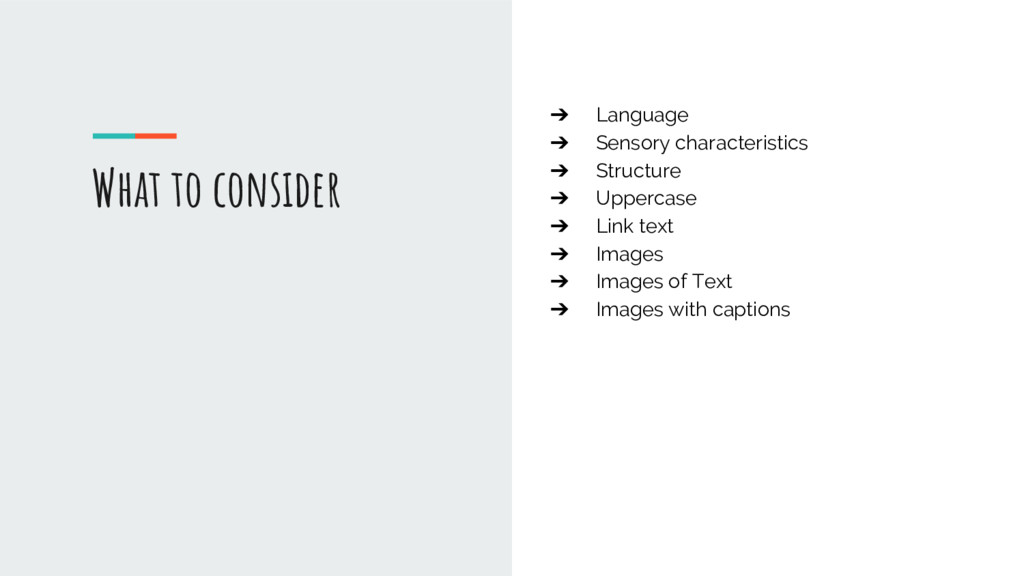
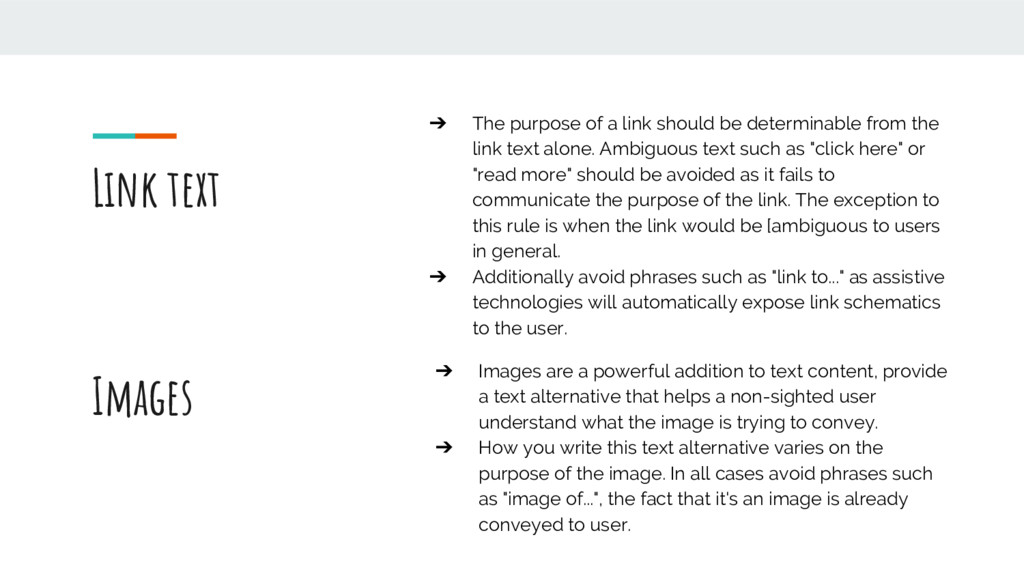
the link text alone. Ambiguous text such as "click here" or "read more" should be avoided as it fails to communicate the purpose of the link. The exception to this rule is when the link would be [ambiguous to users in general. ➔ Additionally avoid phrases such as "link to..." as assistive technologies will automatically expose link schematics to the user. Link text Images ➔ Images are a powerful addition to text content, provide a text alternative that helps a non-sighted user understand what the image is trying to convey. ➔ How you write this text alternative varies on the purpose of the image. In all cases avoid phrases such as "image of...", the fact that it's an image is already conveyed to user.
used as a last resort, if used then the alt text should match that of the text in the image. Images with captions ➔ If an image has a supporting caption then alternative text may not be necessary as the information is already conveyed in the caption. ➔ In this case "alt" text should only be added if it would provide additional information that is not already conveyed by the caption.
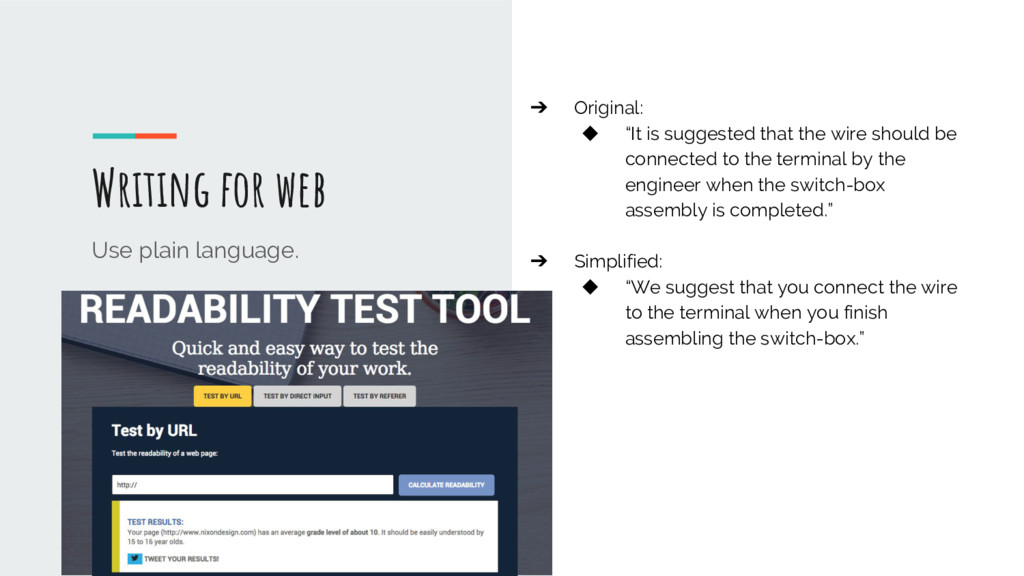
is suggested that the wire should be connected to the terminal by the engineer when the switch-box assembly is completed.” ➔ Simplified: ◆ “We suggest that you connect the wire to the terminal when you finish assembling the switch-box.”
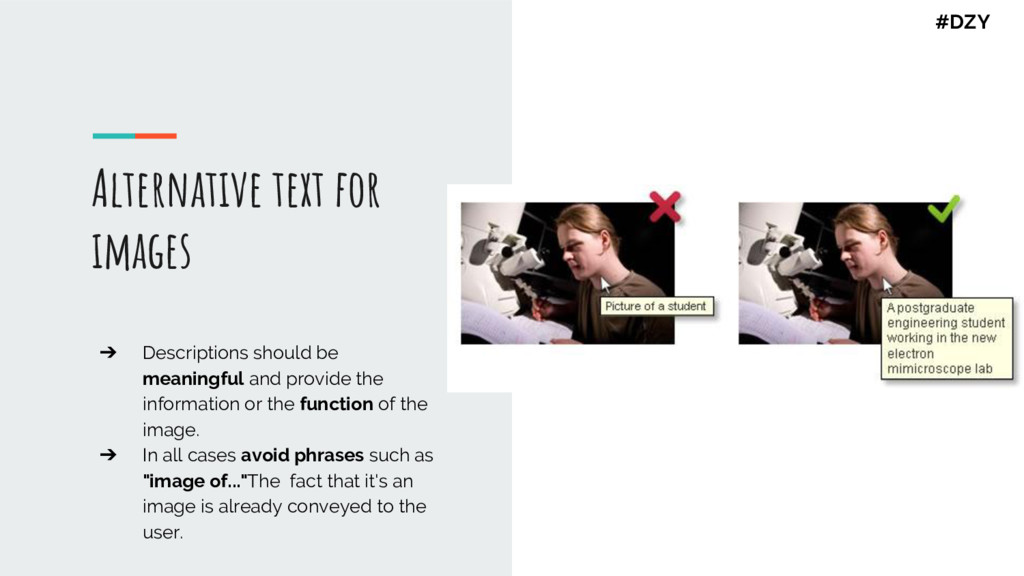
provide the information or the function of the image. ➔ In all cases avoid phrases such as "image of..."The fact that it's an image is already conveyed to the user. #DZY
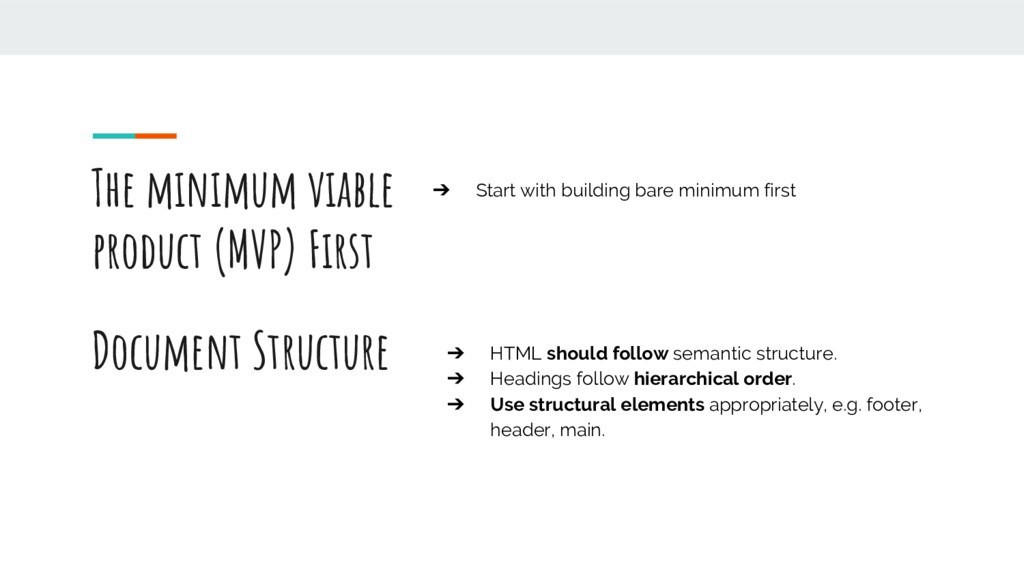
product (MVP) First Document Structure ➔ HTML should follow semantic structure. ➔ Headings follow hierarchical order. ➔ Use structural elements appropriately, e.g. footer, header, main.
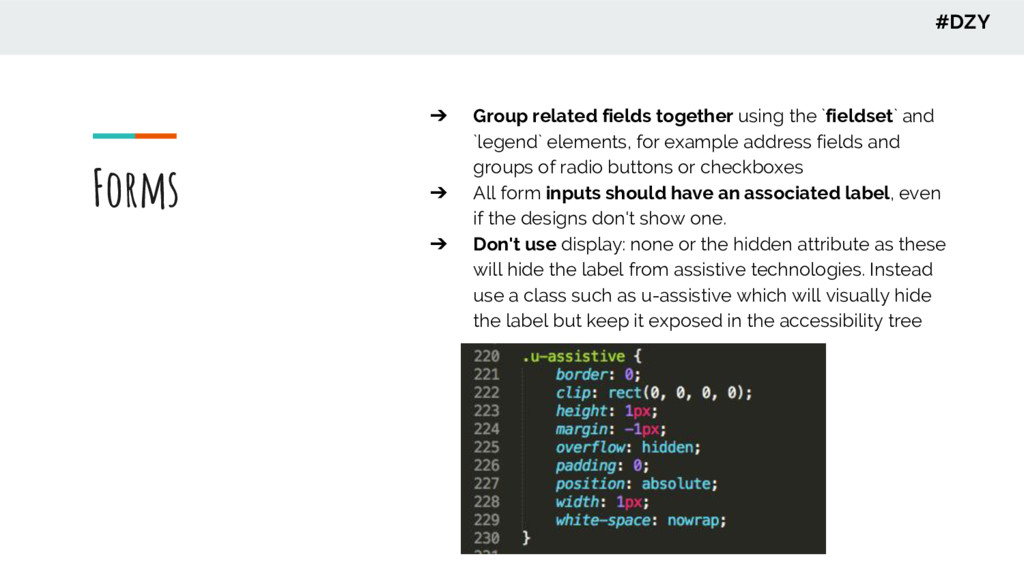
`legend` elements, for example address fields and groups of radio buttons or checkboxes ➔ All form inputs should have an associated label, even if the designs don't show one. ➔ Don't use display: none or the hidden attribute as these will hide the label from assistive technologies. Instead use a class such as u-assistive which will visually hide the label but keep it exposed in the accessibility tree #DZY
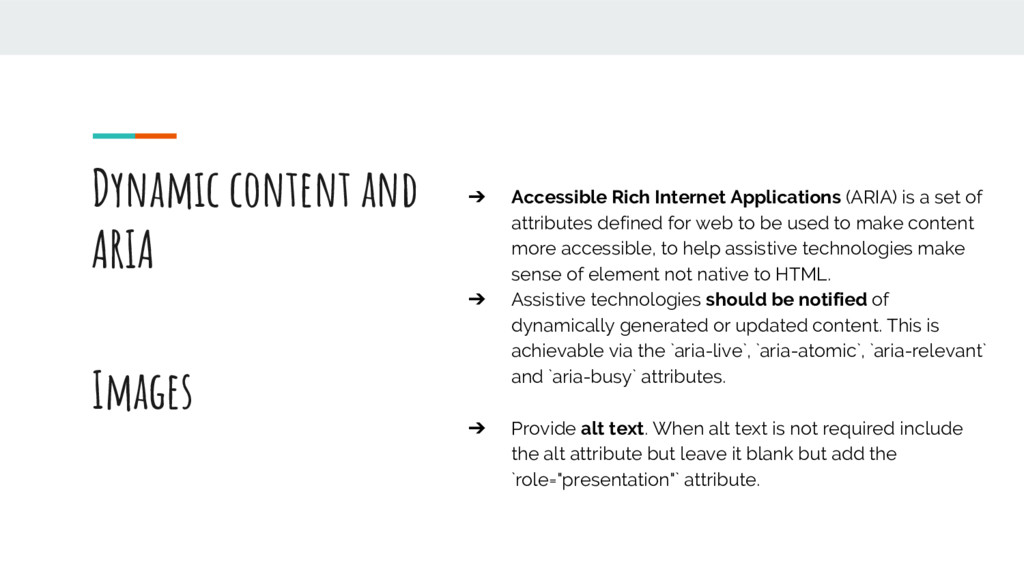
is a set of attributes defined for web to be used to make content more accessible, to help assistive technologies make sense of element not native to HTML. ➔ Assistive technologies should be notified of dynamically generated or updated content. This is achievable via the `aria-live`, `aria-atomic`, `aria-relevant` and `aria-busy` attributes. Images ➔ Provide alt text. When alt text is not required include the alt attribute but leave it blank but add the `role="presentation"` attribute.
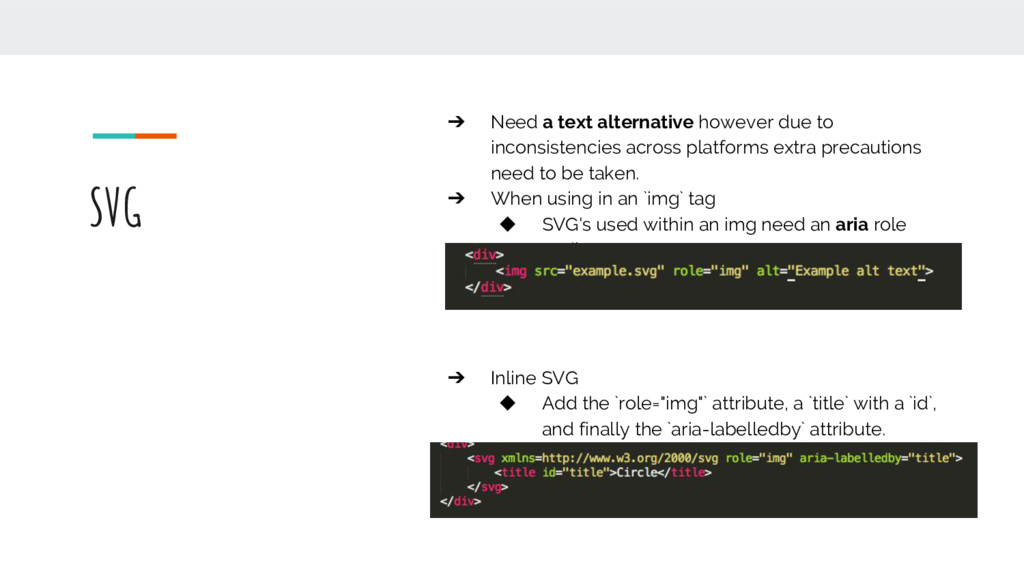
across platforms extra precautions need to be taken. ➔ When using in an `img` tag ◆ SVG's used within an img need an aria role attribute: ➔ Inline SVG ◆ Add the `role="img"` attribute, a `title` with a `id`, and finally the `aria-labelledby` attribute.
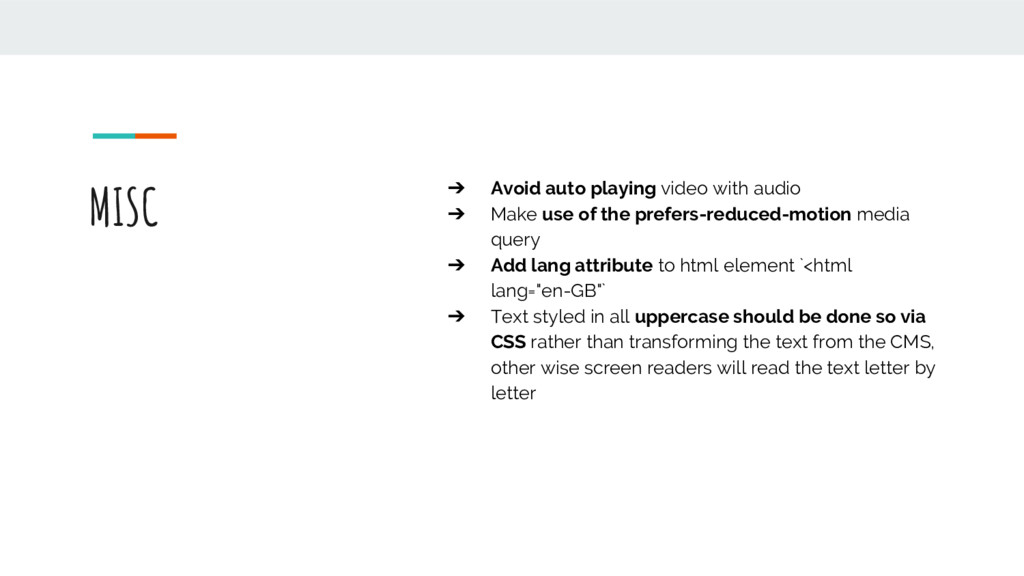
use of the prefers-reduced-motion media query ➔ Add lang attribute to html element `<html lang="en-GB"` ➔ Text styled in all uppercase should be done so via CSS rather than transforming the text from the CMS, other wise screen readers will read the text letter by letter
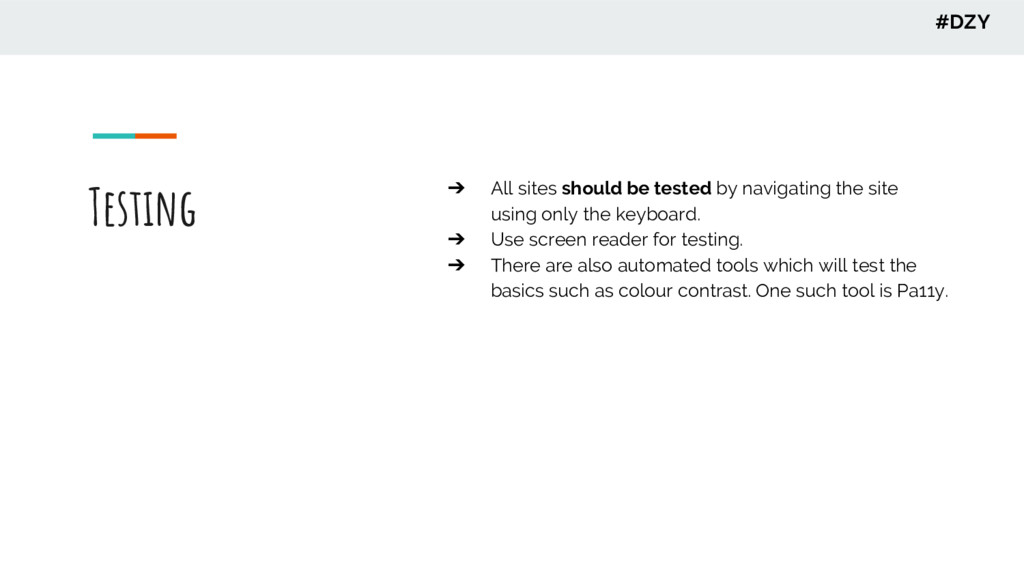
site using only the keyboard. ➔ Use screen reader for testing. ➔ There are also automated tools which will test the basics such as colour contrast. One such tool is Pa11y. #DZY


 natkuu
 4o1sobblue
 sudoakiy
 kaminashi
 keeg
keeg
 terurou
 teamlab
 akhino
 recruitengineers
 kenichiodo
 techtekt
 ymotongpoo
 akitoshiga
 trishagee
 tammyeverts
 shlominoach
 marktimemedia
 ipullrank
 bluesmoon
 katarinadahlin
 chrislema
 twada
twada
 inesmontani
 rasmusluckow