Collaborating with Git . . Git and Version Control GatorLUG: Gainesville Linux Users Group Benjamin Woodruff University of Florida September 19th, 2012 Benjamin Woodruff Git and Version Control
Collaborating with Git Disclaimers A large part of this talk is based on my own personal views and opinions, which you may not agree with Some information may be incorrect. Feel free to correct me. Send me a pull-request on github after the talk! This talk makes massive sweeping generalizations about lots of things This talk is focused on git. Discussion about other VCS systems is only for comparison, and to give us something else interesting to talk about Benjamin Woodruff Git and Version Control
Collaborating with Git Centralized Version Control Distributed Version Control What is a Version Control System (VCS)? Retains the history of a project (so that you don’t have to!) Turn this: my_project my_project_5e my_project_dontuse my_project_extras my_project_for_prof my_project_old my_project_refactor my_project_speedup …into one unified structured directory! Forgot what it was you removed 6 months ago? Look it up! Something causing a regression? git-bisect! Benjamin Woodruff Git and Version Control
Collaborating with Git Centralized Version Control Distributed Version Control What is a Version Control System (VCS)? Allows others to collaborate with you over the internet Sites like Github, Google Code, and Gitorious are great for this You can do things in private too Github (along with many others) offers paid private hosting You can use git remotely on any server with ssh You can use Gitolite and Gitweb to make your own personal Github! Are you a hermit and don’t have a server or money? You can do things locally too! Benjamin Woodruff Git and Version Control
Collaborating with Git Centralized Version Control Distributed Version Control Who Uses Version Control? Nearly every major software company Independent software developers Systems Administrators Graphics Designers Version control has many obvious uses, and many more less-than-obvious uses (such as git-annex, a file-management tool). Benjamin Woodruff Git and Version Control
Collaborating with Git Centralized Version Control Distributed Version Control Centralized Version Control Systems Examples: Subversion, CVS More traditional, simpler to think-about model Tend to work better with large binary files Sometimes uses locking to solve issues with multiple contributors Merging can often be complicated Apparently newer versions of Subversion are better at merging, but still have a lot of flaws Benjamin Woodruff Git and Version Control
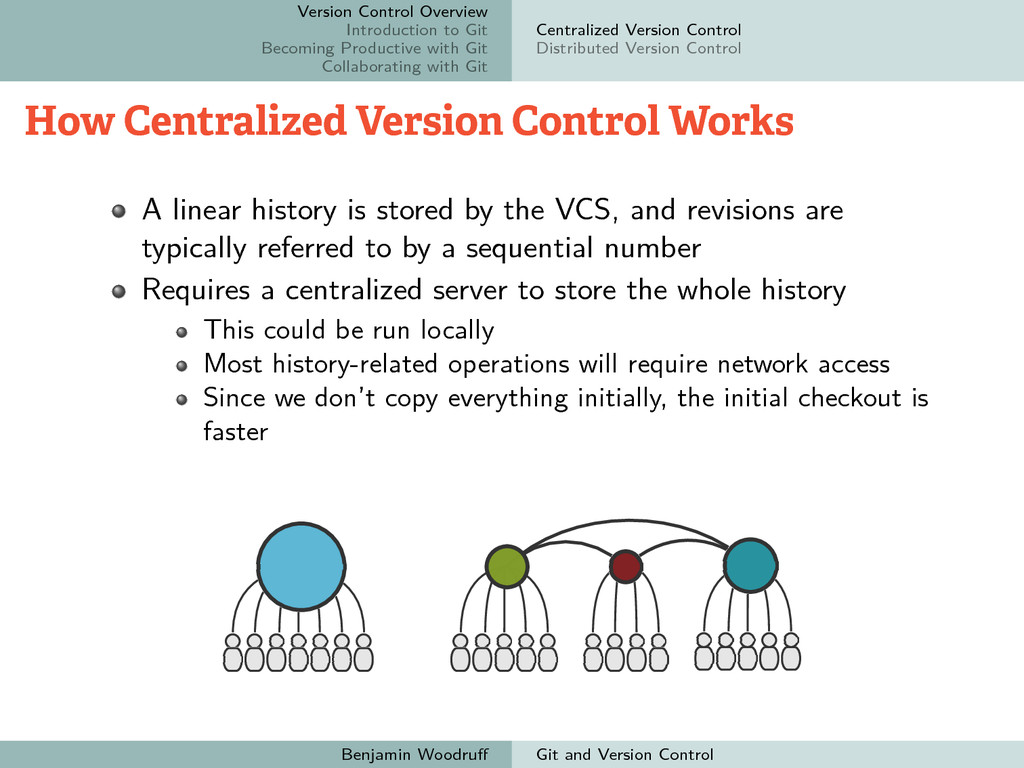
Collaborating with Git Centralized Version Control Distributed Version Control How Centralized Version Control Works A linear history is stored by the VCS, and revisions are typically referred to by a sequential number Requires a centralized server to store the whole history This could be run locally Most history-related operations will require network access Since we don’t copy everything initially, the initial checkout is faster Benjamin Woodruff Git and Version Control
Collaborating with Git Centralized Version Control Distributed Version Control Distributed Version Control Systems Examples: git, Mercurial, Bazaar, GNU Arch Represents a non-linear progression of the code Git uses hashes and tags to refer to commits State of the code is defined only by a sequence of differences Everyone owns the entire repository Slower initial clone, but faster operations on repository history Storing large binary files is awkward as a result, since everyone has to download every copy that ever existed of the binary 1 Distribution via pushing and pulling from other repositories No explicit hierarchy No lock-in. Switching hosting providers takes minutes Forking is trivial 1unless the VCS implements binary diffing, which most don’t Benjamin Woodruff Git and Version Control
Collaborating with Git Centralized Version Control Distributed Version Control Why a Non-Linear Progression? People assume that time is a strict progression of cause to effect. But actually from a non-linear, non-subjective viewpoint it’s more like a big ball of wibbly-wobbly timey-wimey…stuff. — The 10th Doctor (Doctor Who) Benjamin Woodruff Git and Version Control
Collaborating with Git Centralized Version Control Distributed Version Control Why a Non-Linear Progression? Software isn’t developed linearly. It’s not a path from A-to-B. Software is organic and living Feature branches, unstable and nightly versions, and experimental changes should all be tracked Different people work on projects, and they work at different paces We want cheap branching and merging! Since code is just a long sequence of changes, you only need to which changes you want, not the actual code to make a branch. Changes (or commits) can be shared between branches, and are managed somewhat independently But I like my linear software development style! DVCS doesn’t force you, it just gives you the option Benjamin Woodruff Git and Version Control
Collaborating with Git git init git add and git rm git commit Git Influences and Motivations Inspired by BitKeeper and Monotone Distributed Optimized for common workflows Designed to handle the scale requirements of managing the Linux kernel Fast, minimalistic, and transparent Strong (and cryptographically secure) safeguards against corruption and tampering Named after Torvalds, who considers himself a “git” ”the stupid content tracker” Benjamin Woodruff Git and Version Control
Collaborating with Git git init git add and git rm git commit Following Along The example repository we’ll make is available on github. You can clone it locally with: git clone https://github.com/GatorLUG/git-talk-example.git You can find the github page at: https://github.com/GatorLUG/git-talk-example Benjamin Woodruff Git and Version Control
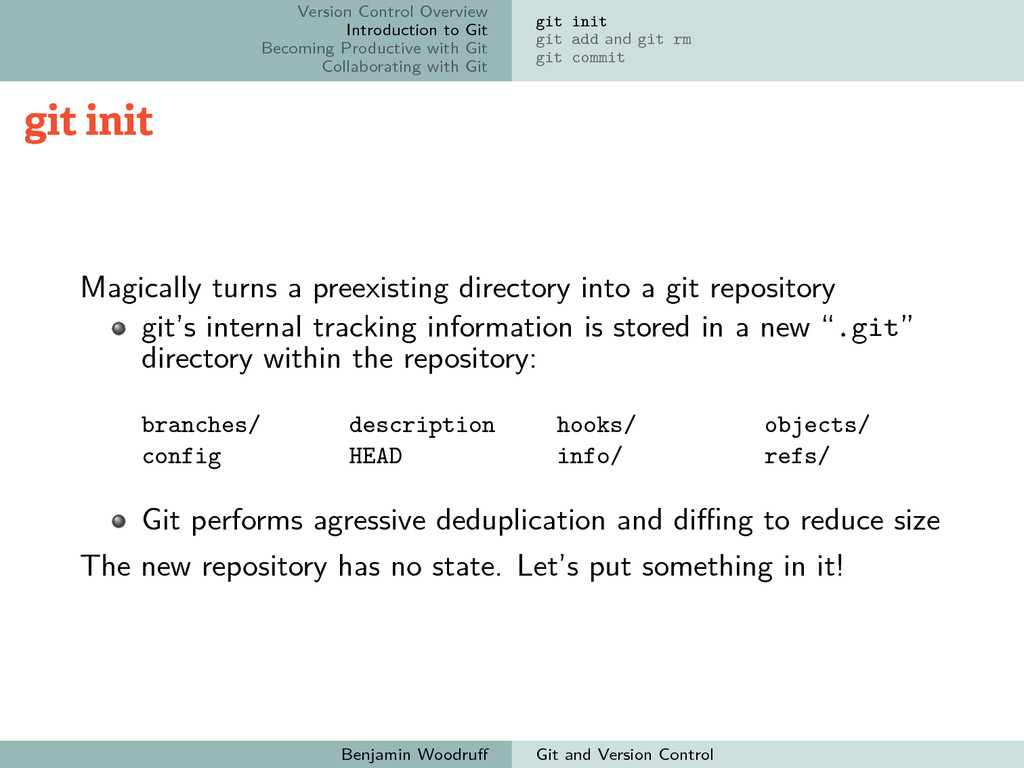
Collaborating with Git git init git add and git rm git commit git init Magically turns a preexisting directory into a git repository git’s internal tracking information is stored in a new “.git” directory within the repository: branches/ config description HEAD hooks/ info/ objects/ refs/ Git performs agressive deduplication and diffing to reduce size The new repository has no state. Let’s put something in it! Benjamin Woodruff Git and Version Control
Collaborating with Git git init git add and git rm git commit A Normal Directory Anything outside of .git/ is called your ”working directory” Until you have something new to commit, you can treat it like a normal folder. Let’s put some files in our working directory Benjamin Woodruff Git and Version Control
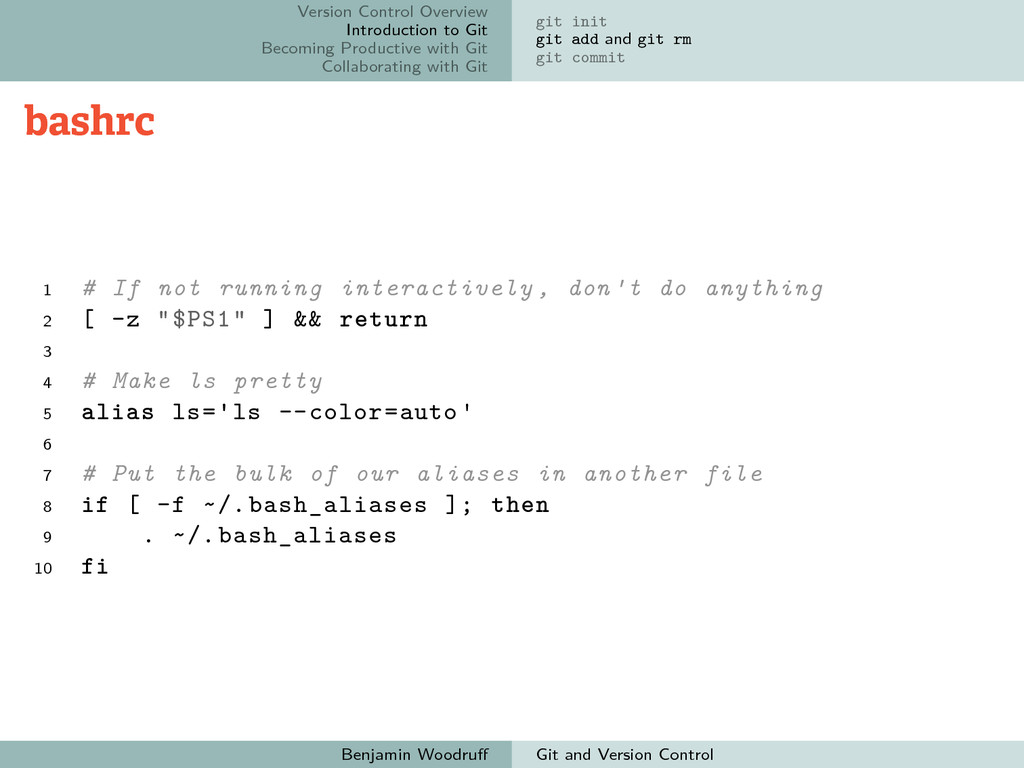
Collaborating with Git git init git add and git rm git commit bashrc 1 # If not running interactively , don't do anything 2 [ -z "$PS1" ] && return 3 4 # Make ls pretty 5 alias ls='ls --color=auto' 6 7 # Put the bulk of our aliases in another file 8 if [ -f ~/.bash_aliases ]; then 9 . ~/.bash_aliases 10 fi Benjamin Woodruff Git and Version Control
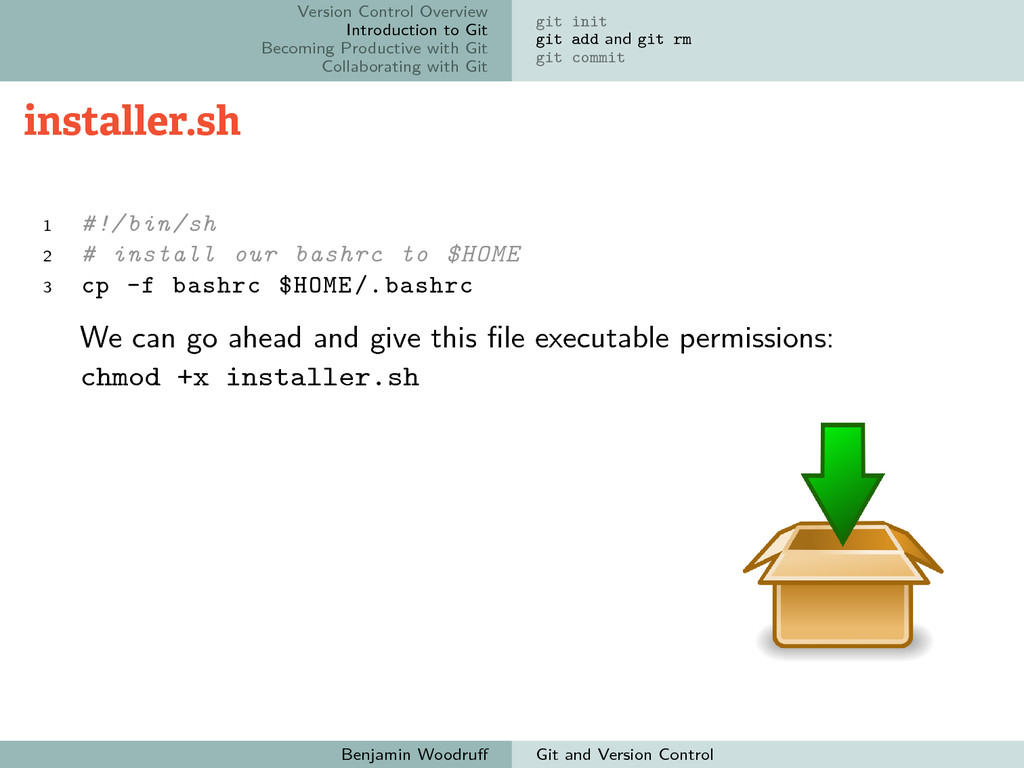
Collaborating with Git git init git add and git rm git commit installer.sh 1 #!/bin/sh 2 # install our bashrc to $HOME 3 cp -f bashrc $HOME/.bashrc We can go ahead and give this file executable permissions: chmod +x installer.sh Benjamin Woodruff Git and Version Control
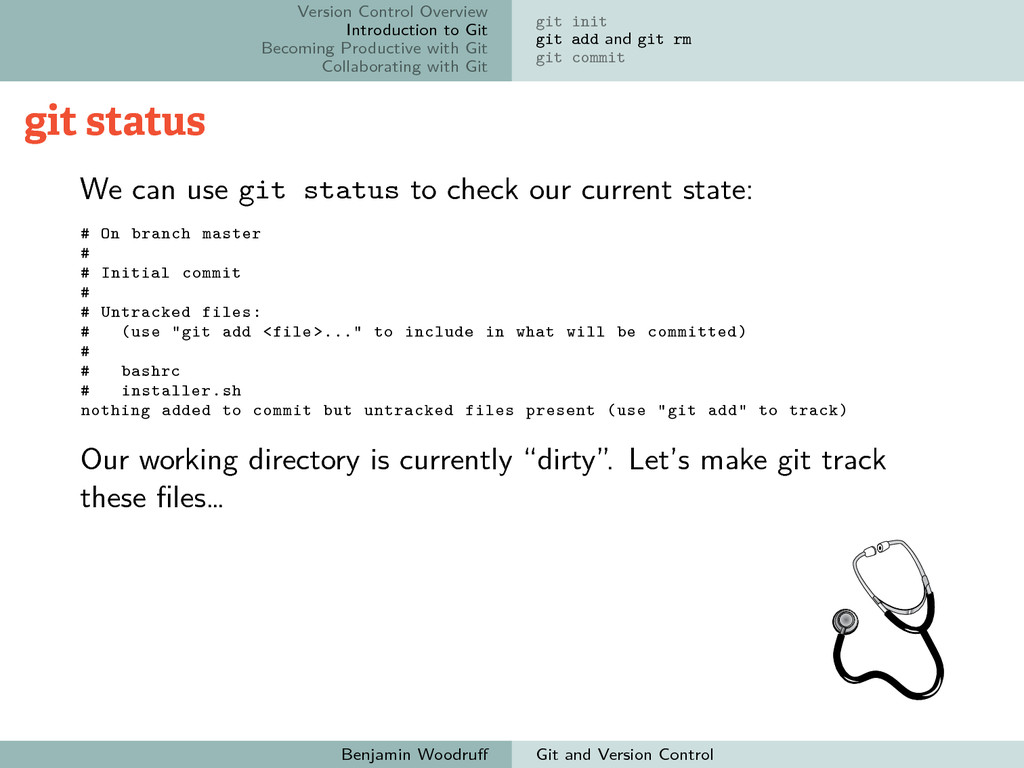
Collaborating with Git git init git add and git rm git commit git status We can use git status to check our current state: # On branch master # # Initial commit # # Untracked files: # (use "git add <file>..." to include in what will be committed) # # bashrc # installer.sh nothing added to commit but untracked files present (use "git add" to track) Our working directory is currently “dirty”. Let’s make git track these files… Benjamin Woodruff Git and Version Control
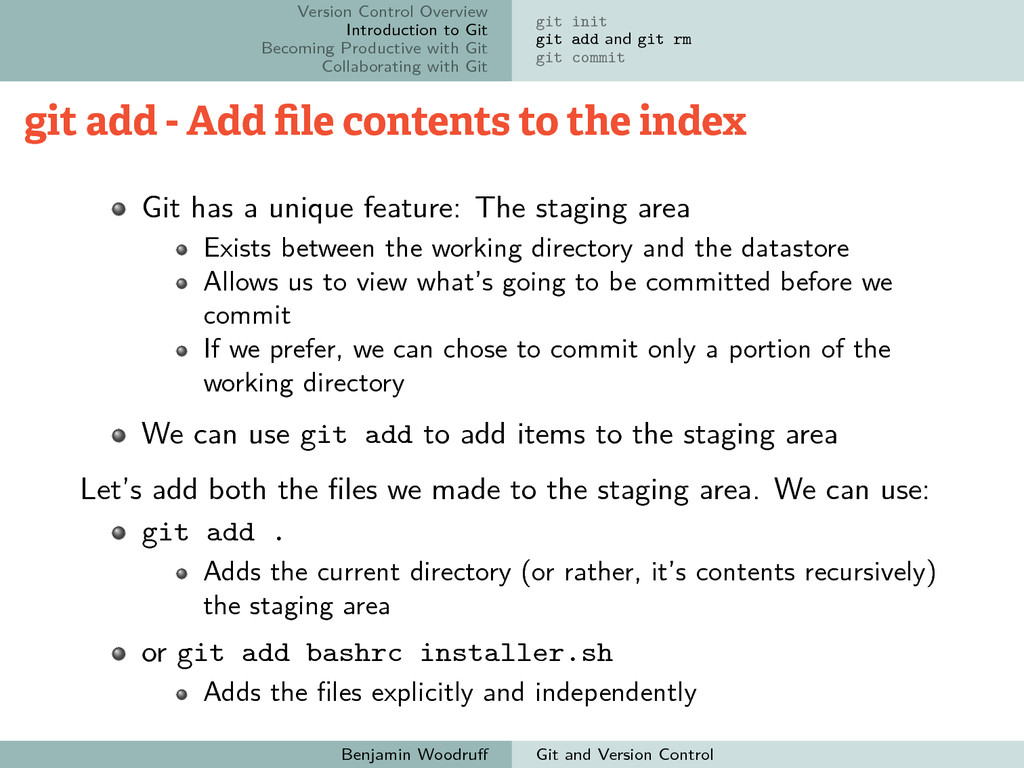
Collaborating with Git git init git add and git rm git commit git add - Add file contents to the index Git has a unique feature: The staging area Exists between the working directory and the datastore Allows us to view what’s going to be committed before we commit If we prefer, we can chose to commit only a portion of the working directory We can use git add to add items to the staging area Let’s add both the files we made to the staging area. We can use: git add . Adds the current directory (or rather, it’s contents recursively) the staging area or git add bashrc installer.sh Adds the files explicitly and independently Benjamin Woodruff Git and Version Control
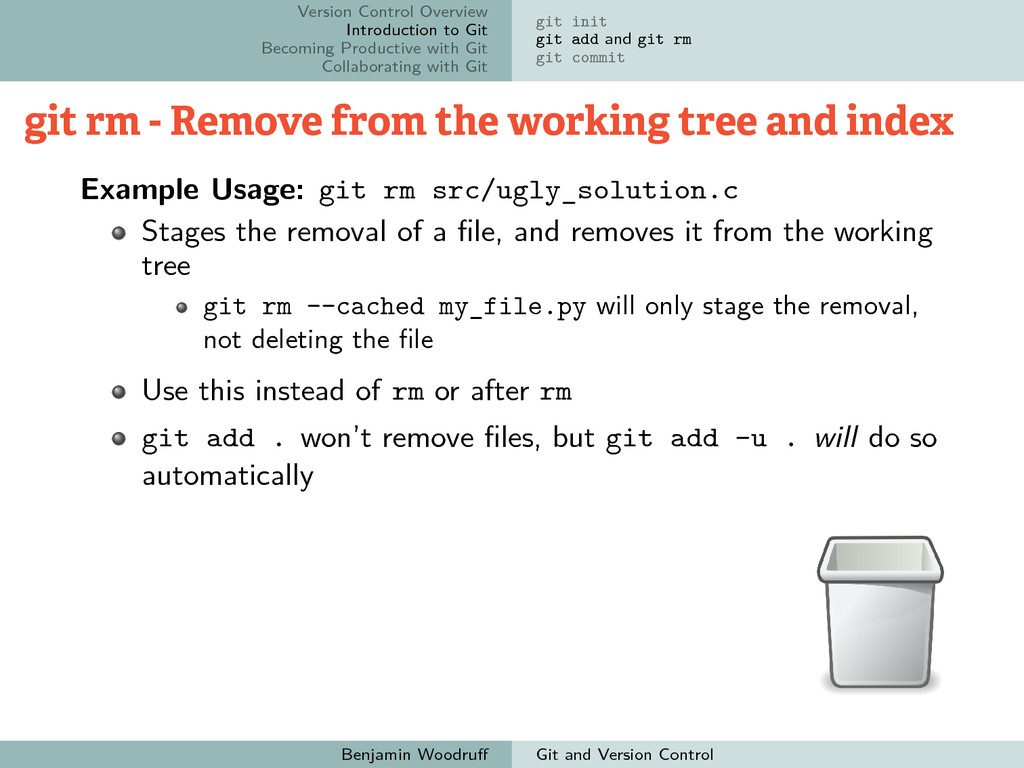
Collaborating with Git git init git add and git rm git commit git rm - Remove from the working tree and index Example Usage: git rm src/ugly_solution.c Stages the removal of a file, and removes it from the working tree git rm --cached my_file.py will only stage the removal, not deleting the file Use this instead of rm or after rm git add . won’t remove files, but git add -u . will do so automatically Benjamin Woodruff Git and Version Control
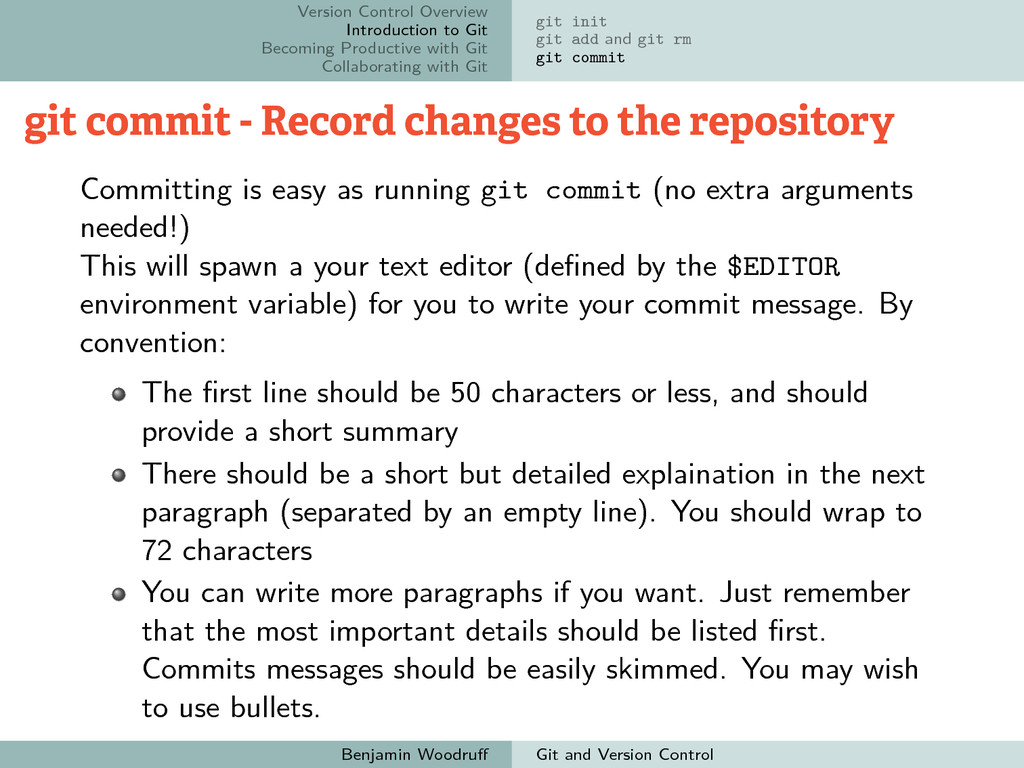
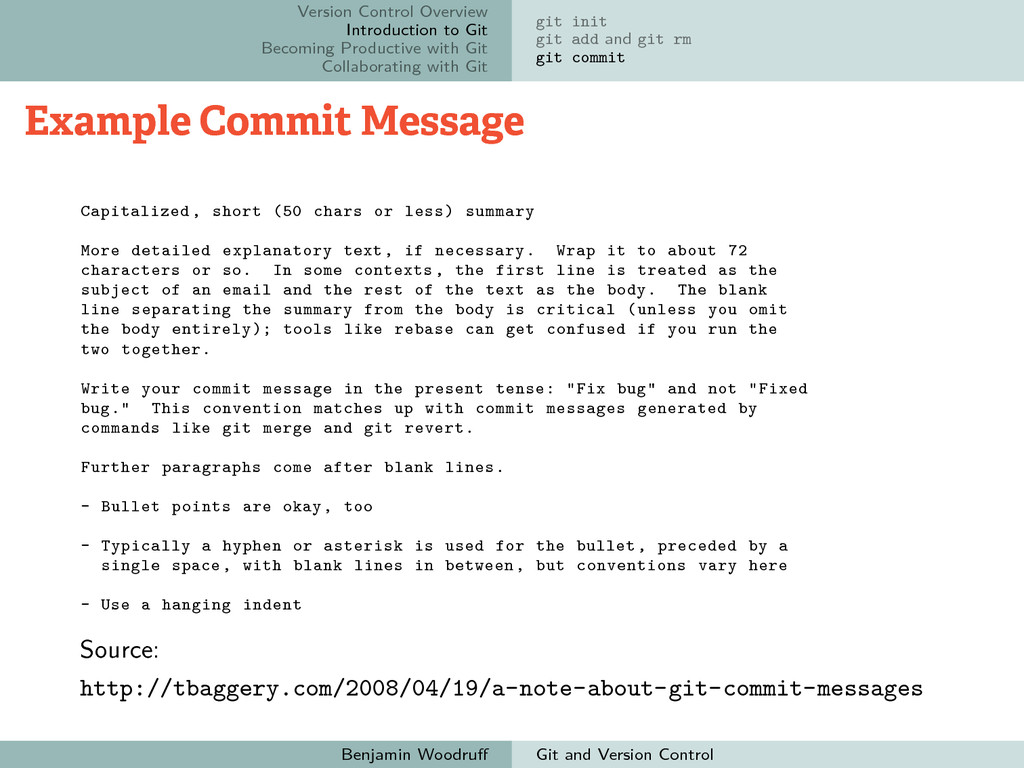
Collaborating with Git git init git add and git rm git commit git commit - Record changes to the repository Committing is easy as running git commit (no extra arguments needed!) This will spawn a your text editor (defined by the $EDITOR environment variable) for you to write your commit message. By convention: The first line should be 50 characters or less, and should provide a short summary There should be a short but detailed explaination in the next paragraph (separated by an empty line). You should wrap to 72 characters You can write more paragraphs if you want. Just remember that the most important details should be listed first. Commits messages should be easily skimmed. You may wish to use bullets. Benjamin Woodruff Git and Version Control
Collaborating with Git git init git add and git rm git commit Example Commit Message Capitalized , short (50 chars or less) summary More detailed explanatory text, if necessary. Wrap it to about 72 characters or so. In some contexts, the first line is treated as the subject of an email and the rest of the text as the body. The blank line separating the summary from the body is critical (unless you omit the body entirely); tools like rebase can get confused if you run the two together. Write your commit message in the present tense: "Fix bug" and not "Fixed bug." This convention matches up with commit messages generated by commands like git merge and git revert. Further paragraphs come after blank lines. - Bullet points are okay, too - Typically a hyphen or asterisk is used for the bullet, preceded by a single space, with blank lines in between, but conventions vary here - Use a hanging indent Source: http://tbaggery.com/2008/04/19/a-note-about-git-commit-messages Benjamin Woodruff Git and Version Control
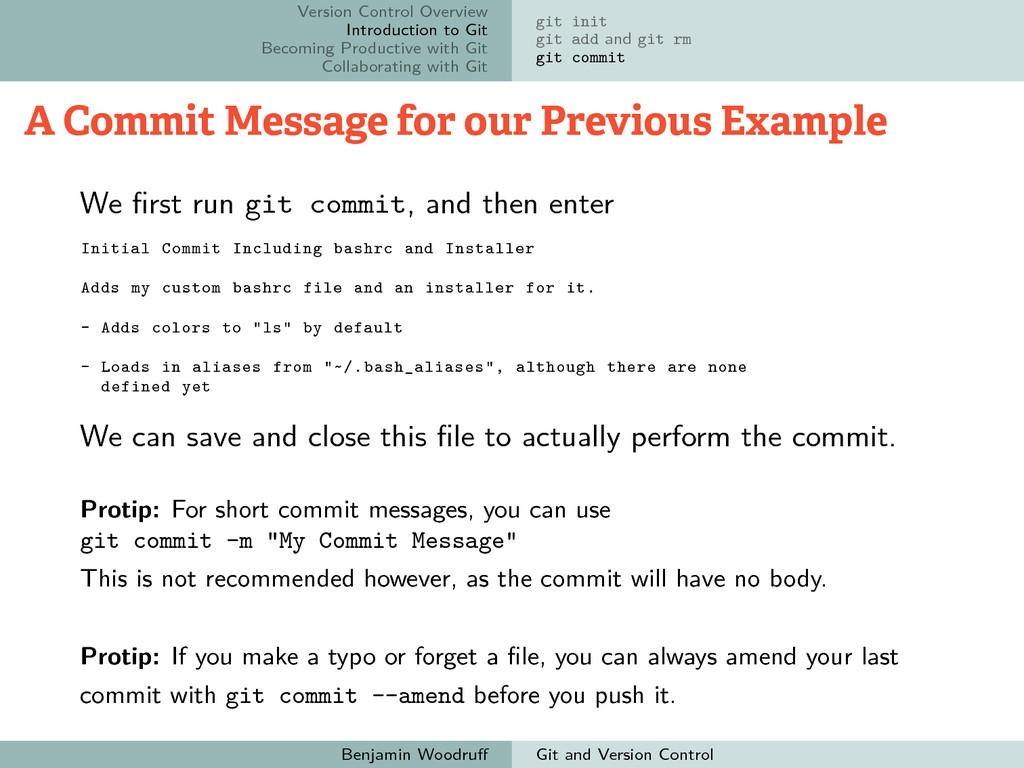
Collaborating with Git git init git add and git rm git commit A Commit Message for our Previous Example We first run git commit, and then enter Initial Commit Including bashrc and Installer Adds my custom bashrc file and an installer for it. - Adds colors to "ls" by default - Loads in aliases from "~/.bash_aliases", although there are none defined yet We can save and close this file to actually perform the commit. Protip: For short commit messages, you can use git commit -m "My Commit Message" This is not recommended however, as the commit will have no body. Protip: If you make a typo or forget a file, you can always amend your last commit with git commit --amend before you push it. Benjamin Woodruff Git and Version Control
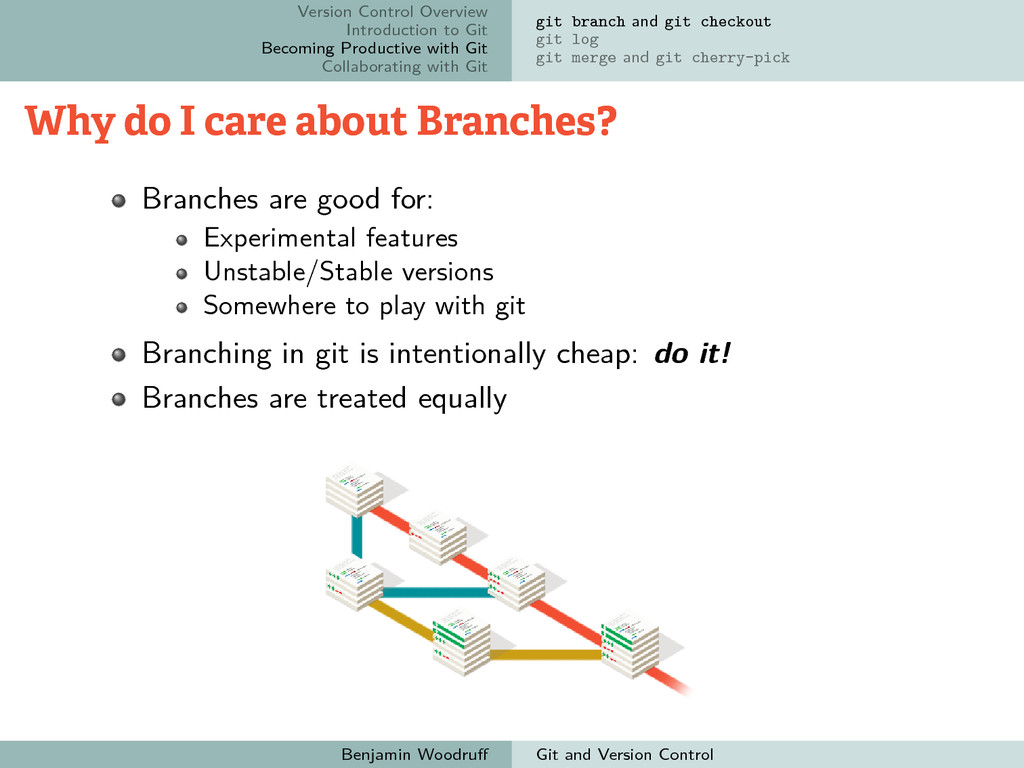
Collaborating with Git git branch and git checkout git log git merge and git cherry-pick Why do I care about Branches? Branches are good for: Experimental features Unstable/Stable versions Somewhere to play with git Branching in git is intentionally cheap: do it! Branches are treated equally Benjamin Woodruff Git and Version Control
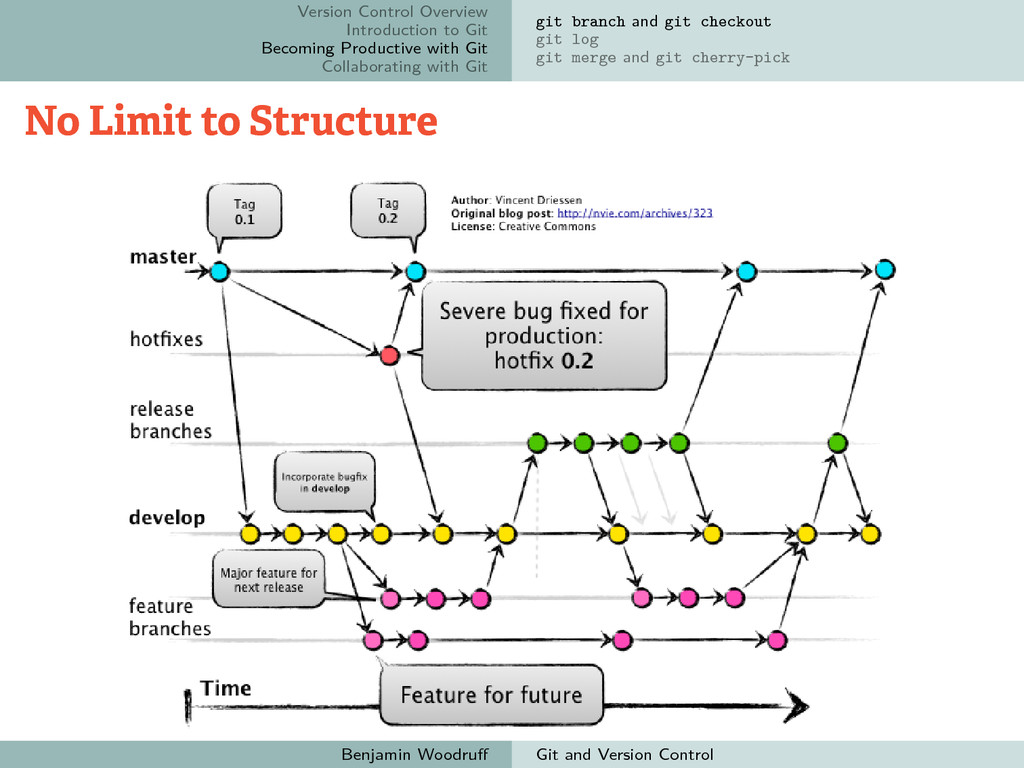
Collaborating with Git git branch and git checkout git log git merge and git cherry-pick No Limit to Structure Benjamin Woodruff Git and Version Control
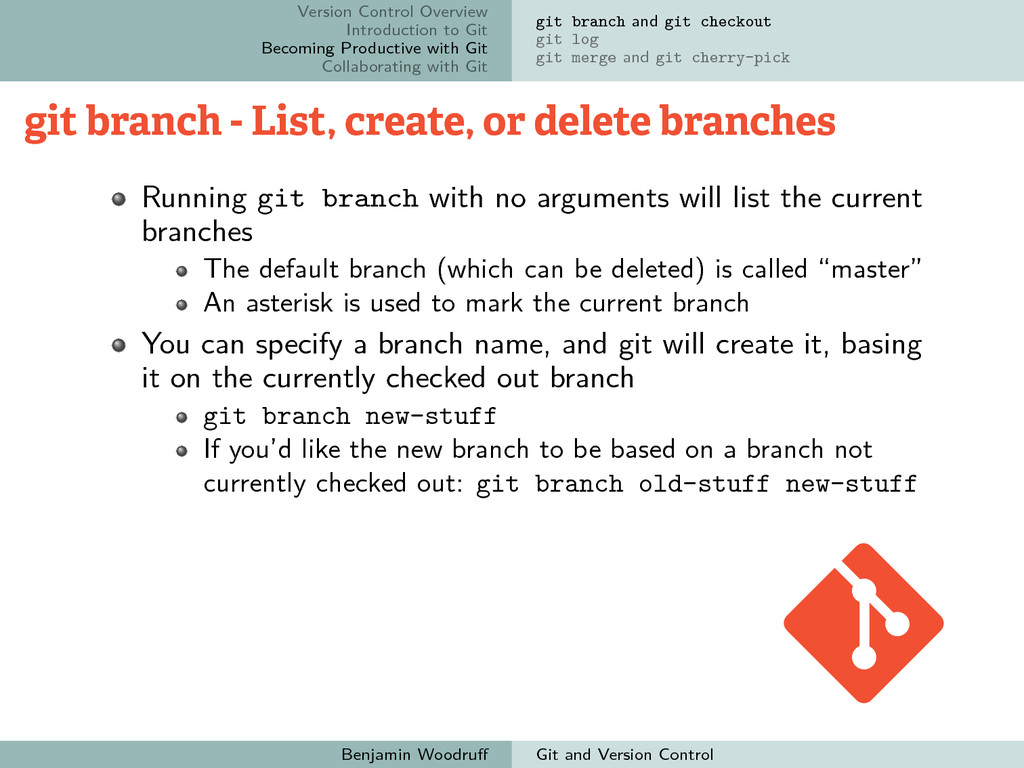
Collaborating with Git git branch and git checkout git log git merge and git cherry-pick git branch - List, create, or delete branches Running git branch with no arguments will list the current branches The default branch (which can be deleted) is called “master” An asterisk is used to mark the current branch You can specify a branch name, and git will create it, basing it on the currently checked out branch git branch new-stuff If you’d like the new branch to be based on a branch not currently checked out: git branch old-stuff new-stuff Benjamin Woodruff Git and Version Control
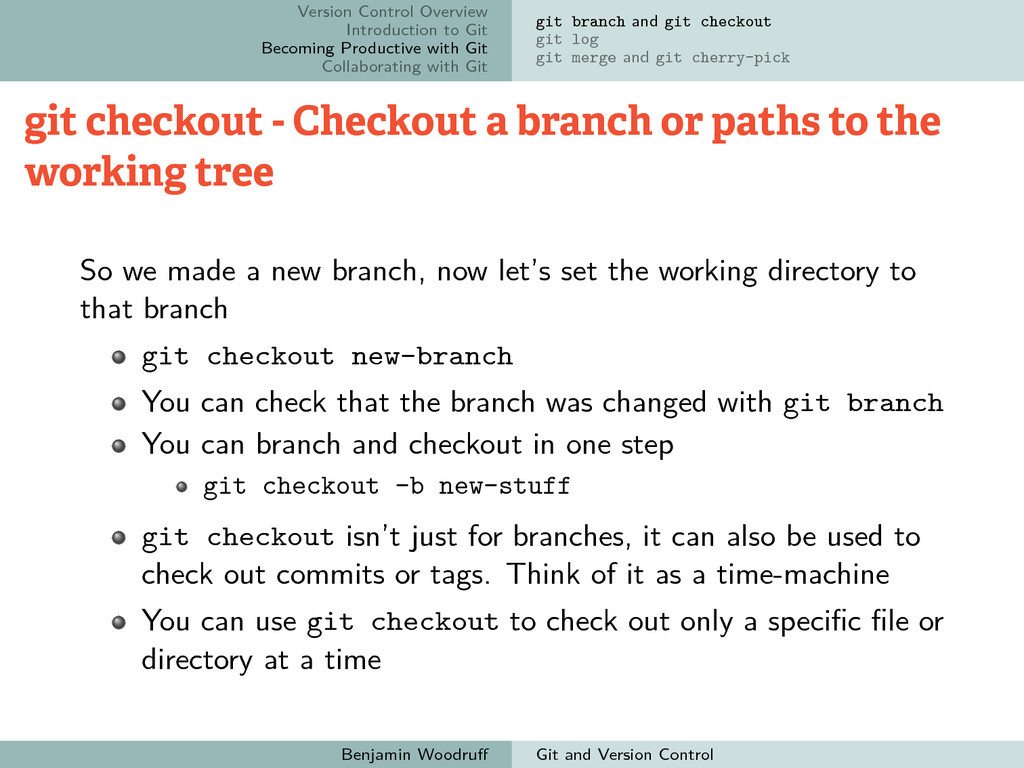
Collaborating with Git git branch and git checkout git log git merge and git cherry-pick git checkout - Checkout a branch or paths to the working tree So we made a new branch, now let’s set the working directory to that branch git checkout new-branch You can check that the branch was changed with git branch You can branch and checkout in one step git checkout -b new-stuff git checkout isn’t just for branches, it can also be used to check out commits or tags. Think of it as a time-machine You can use git checkout to check out only a specific file or directory at a time Benjamin Woodruff Git and Version Control
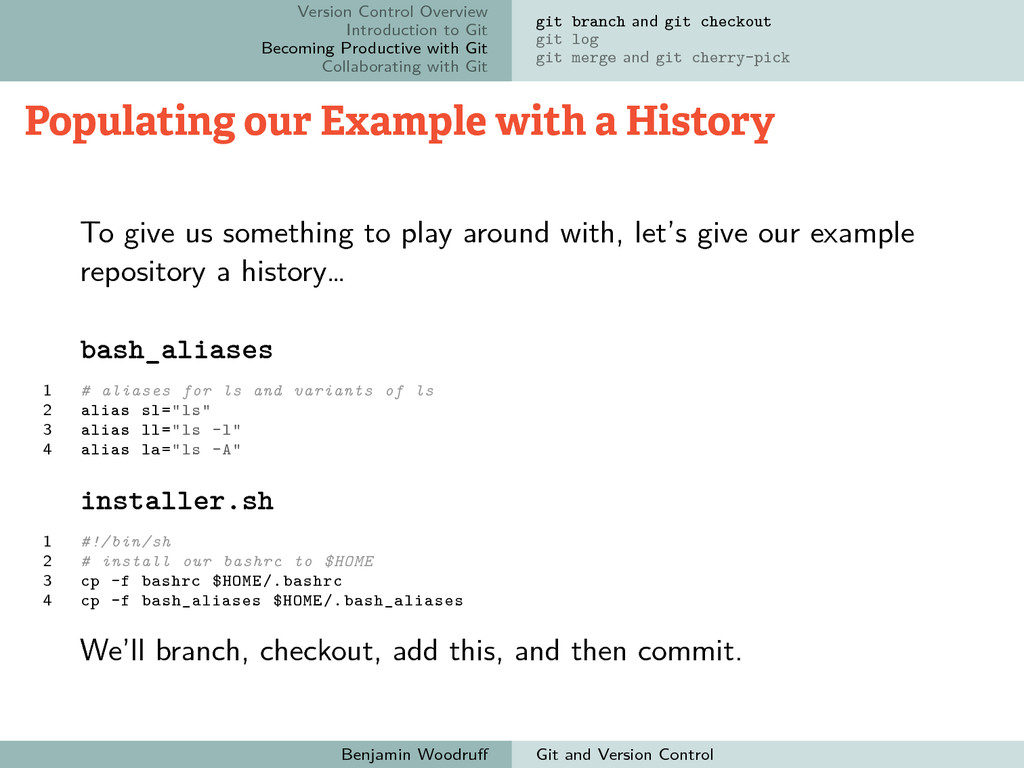
Collaborating with Git git branch and git checkout git log git merge and git cherry-pick Populating our Example with a History To give us something to play around with, let’s give our example repository a history… bash_aliases 1 # aliases for ls and variants of ls 2 alias sl="ls" 3 alias ll="ls -l" 4 alias la="ls -A" installer.sh 1 #!/bin/sh 2 # install our bashrc to $HOME 3 cp -f bashrc $HOME/.bashrc 4 cp -f bash_aliases $HOME/.bash_aliases We’ll branch, checkout, add this, and then commit. Benjamin Woodruff Git and Version Control
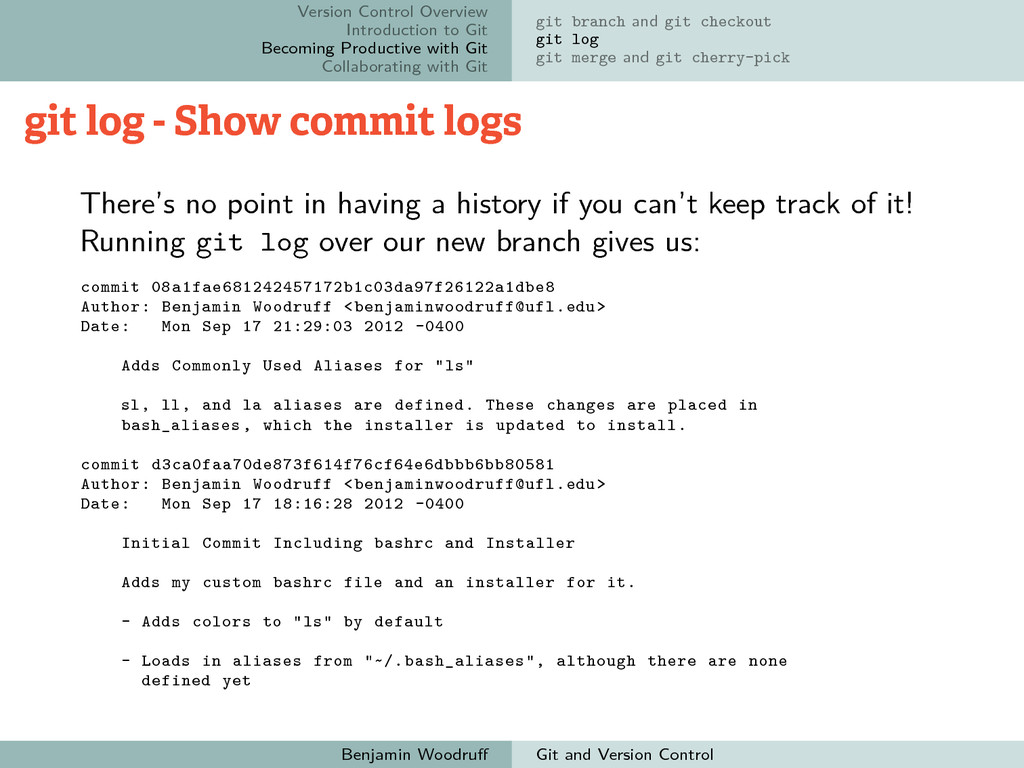
Collaborating with Git git branch and git checkout git log git merge and git cherry-pick git log - Show commit logs There’s no point in having a history if you can’t keep track of it! Running git log over our new branch gives us: commit 08a1fae681242457172b1c03da97f26122a1dbe8 Author: Benjamin Woodruff <[email protected]> Date: Mon Sep 17 21:29:03 2012 -0400 Adds Commonly Used Aliases for "ls" sl, ll, and la aliases are defined. These changes are placed in bash_aliases , which the installer is updated to install. commit d3ca0faa70de873f614f76cf64e6dbbb6bb80581 Author: Benjamin Woodruff <[email protected]> Date: Mon Sep 17 18:16:28 2012 -0400 Initial Commit Including bashrc and Installer Adds my custom bashrc file and an installer for it. - Adds colors to "ls" by default - Loads in aliases from "~/.bash_aliases", although there are none defined yet Benjamin Woodruff Git and Version Control
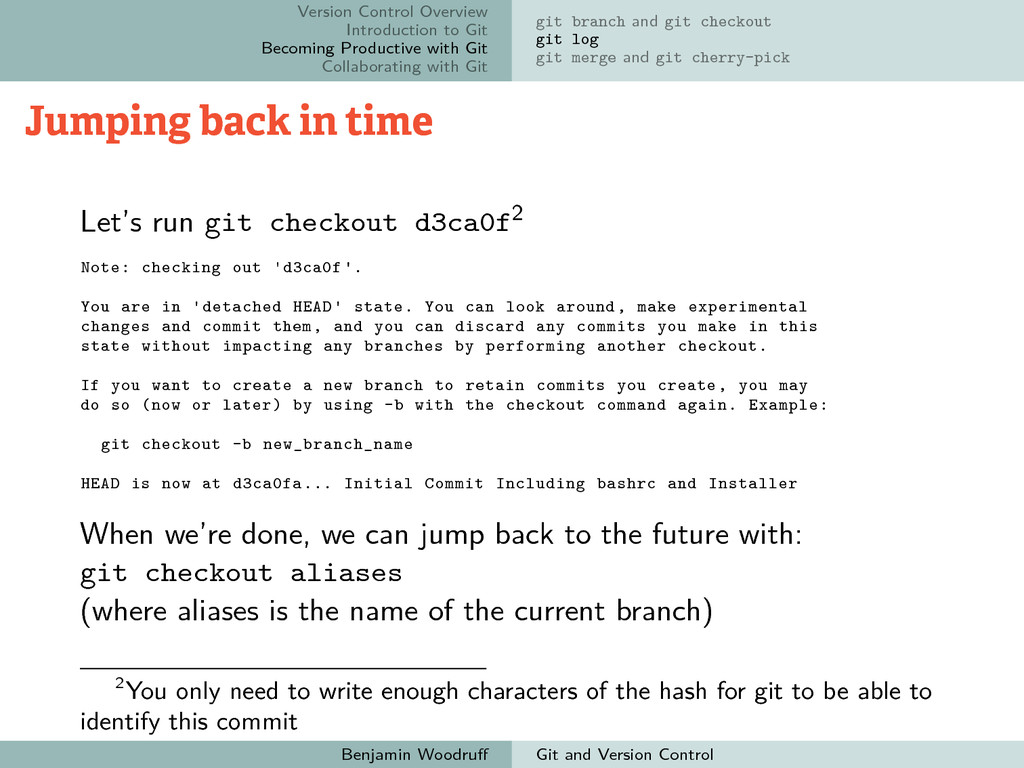
Collaborating with Git git branch and git checkout git log git merge and git cherry-pick Jumping back in time Let’s run git checkout d3ca0f2 Note: checking out 'd3ca0f'. You are in 'detached HEAD' state. You can look around, make experimental changes and commit them, and you can discard any commits you make in this state without impacting any branches by performing another checkout. If you want to create a new branch to retain commits you create, you may do so (now or later) by using -b with the checkout command again. Example: git checkout -b new_branch_name HEAD is now at d3ca0fa... Initial Commit Including bashrc and Installer When we’re done, we can jump back to the future with: git checkout aliases (where aliases is the name of the current branch) 2You only need to write enough characters of the hash for git to be able to identify this commit Benjamin Woodruff Git and Version Control
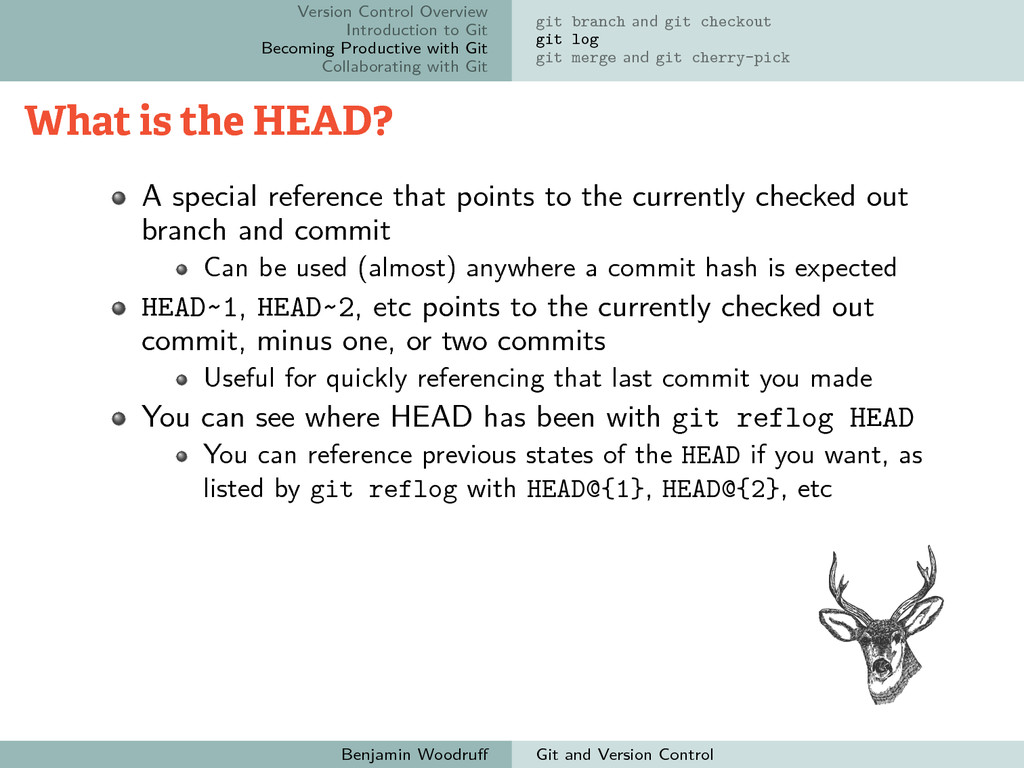
Collaborating with Git git branch and git checkout git log git merge and git cherry-pick What is the HEAD? A special reference that points to the currently checked out branch and commit Can be used (almost) anywhere a commit hash is expected HEAD~1, HEAD~2, etc points to the currently checked out commit, minus one, or two commits Useful for quickly referencing that last commit you made You can see where HEAD has been with git reflog HEAD You can reference previous states of the HEAD if you want, as listed by git reflog with HEAD@{1}, HEAD@{2}, etc Benjamin Woodruff Git and Version Control
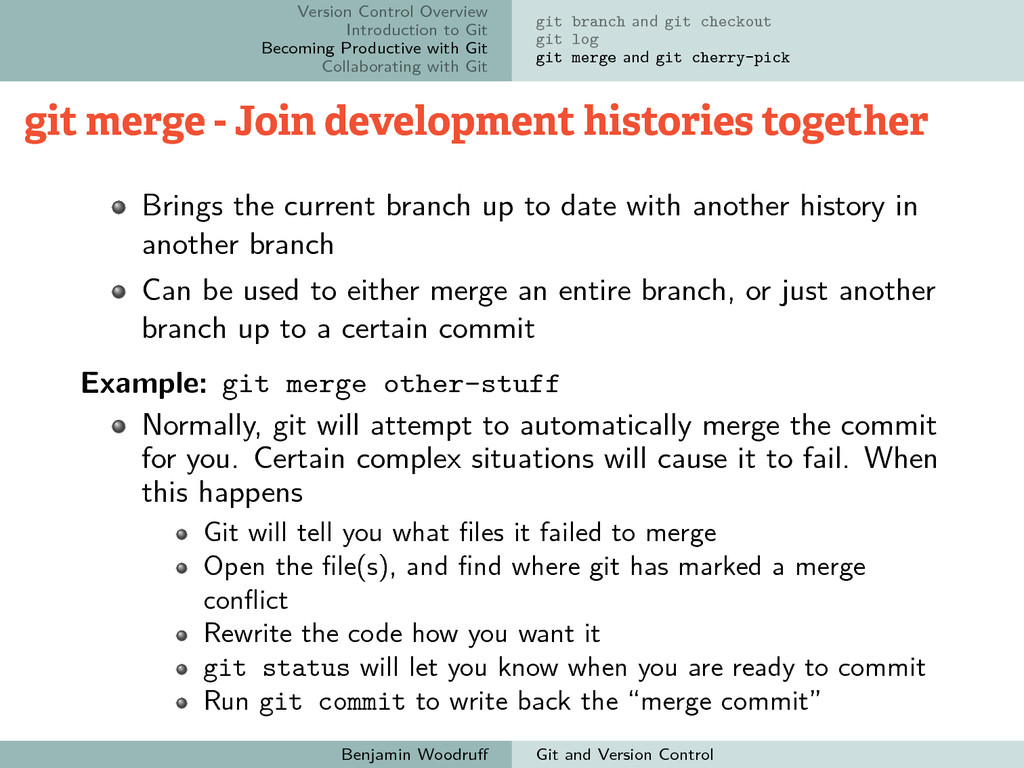
Collaborating with Git git branch and git checkout git log git merge and git cherry-pick git merge - Join development histories together Brings the current branch up to date with another history in another branch Can be used to either merge an entire branch, or just another branch up to a certain commit Example: git merge other-stuff Normally, git will attempt to automatically merge the commit for you. Certain complex situations will cause it to fail. When this happens Git will tell you what files it failed to merge Open the file(s), and find where git has marked a merge conflict Rewrite the code how you want it git status will let you know when you are ready to commit Run git commit to write back the “merge commit” Benjamin Woodruff Git and Version Control
Collaborating with Git git branch and git checkout git log git merge and git cherry-pick git cherry-pick - Apply the changes introduced by some existing commits Like git merge, but for only specific commits (instead of a whole branch, or an entire history of commits) Commits can be picked out of order Merge conflicts are handled identically to git merge Example Usage: git cherry-pick 08a1fa Benjamin Woodruff Git and Version Control
Collaborating with Git Github Configuring Git Github Most popular git hosting site in the world Other hosting sites exist, and are worth checking out Easy to use Provides large amounts of documentation Signing up for an account is easy They’ll guide you through setting up an ssh key Benjamin Woodruff Git and Version Control
Collaborating with Git Github Configuring Git ~/.gitconfig Refered to as your ”global” config If you wish, you can set options on a per-repository basis Can also be edited indirectly with git config --global Edit with git config --global -e, or just open it up with your favorite text editor When I say “your favorite text editor”, I mean vim Only idiots (with Lord Stallman being an exception) use emacs Benjamin Woodruff Git and Version Control
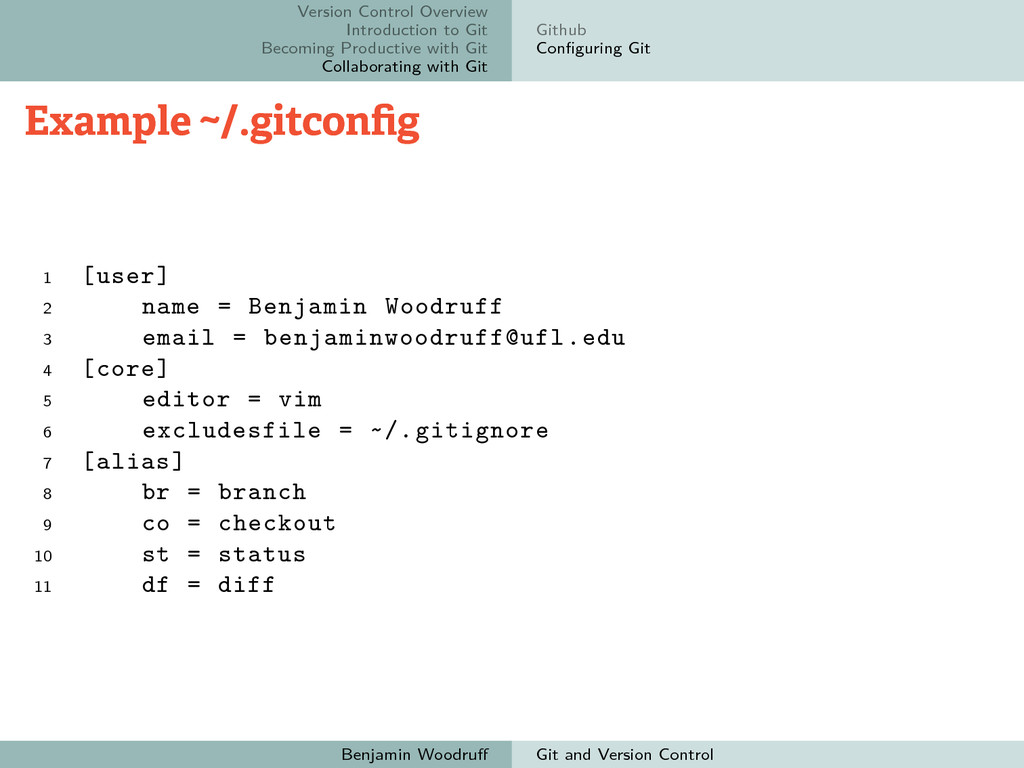
Collaborating with Git Github Configuring Git Example ~/.gitconfig 1 [user] 2 name = Benjamin Woodruff 3 email = [email protected] 4 [core] 5 editor = vim 6 excludesfile = ~/.gitignore 7 [alias] 8 br = branch 9 co = checkout 10 st = status 11 df = diff Benjamin Woodruff Git and Version Control


 pipeep
 codingconduct
 ivargrimstad
 mkilby
 geshan
 tanoku
 bkeepers
 sachag
 inesmontani
 csswizardry
 akademiya2063
 marketingsoph
 techseoconnect