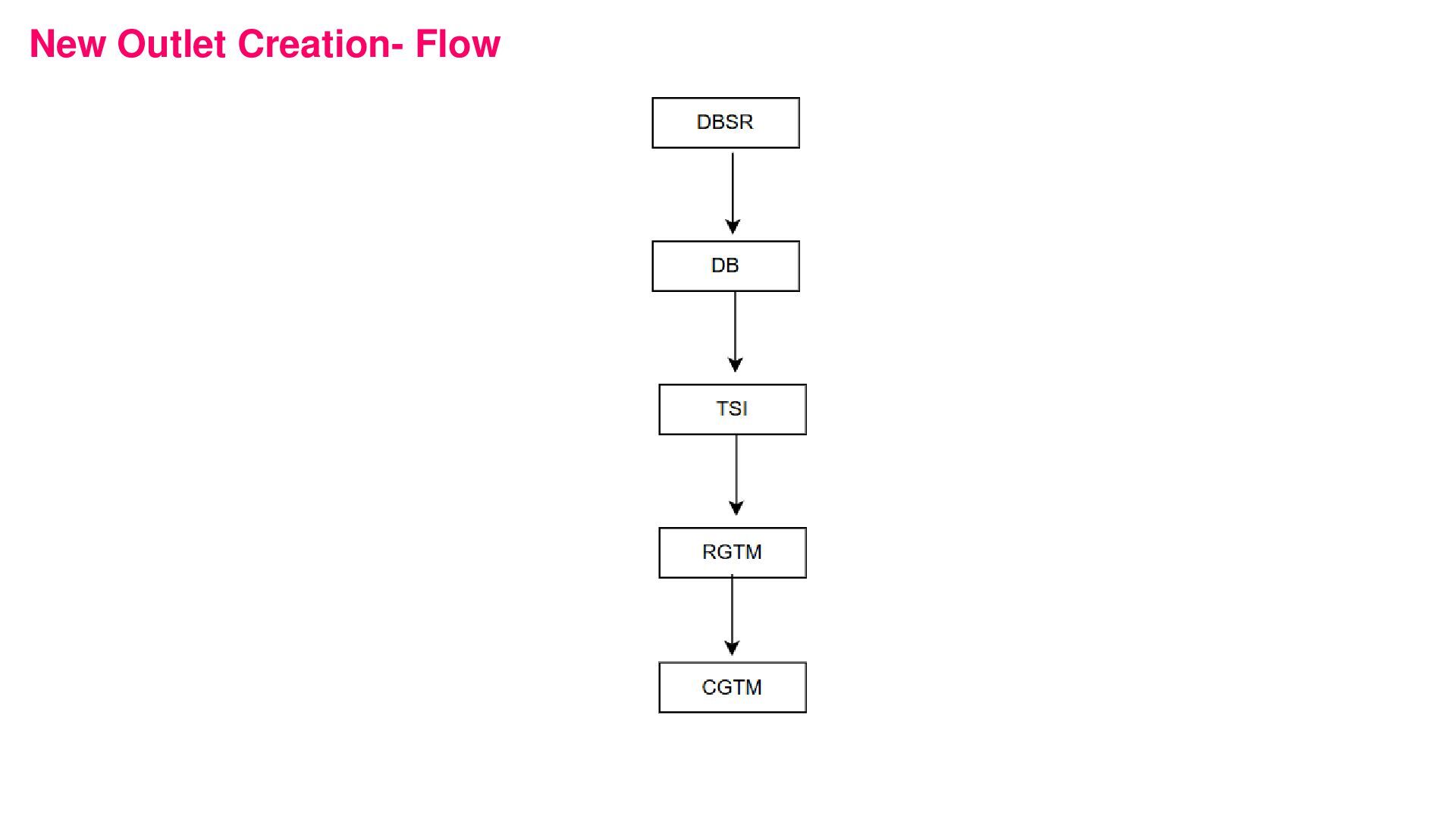
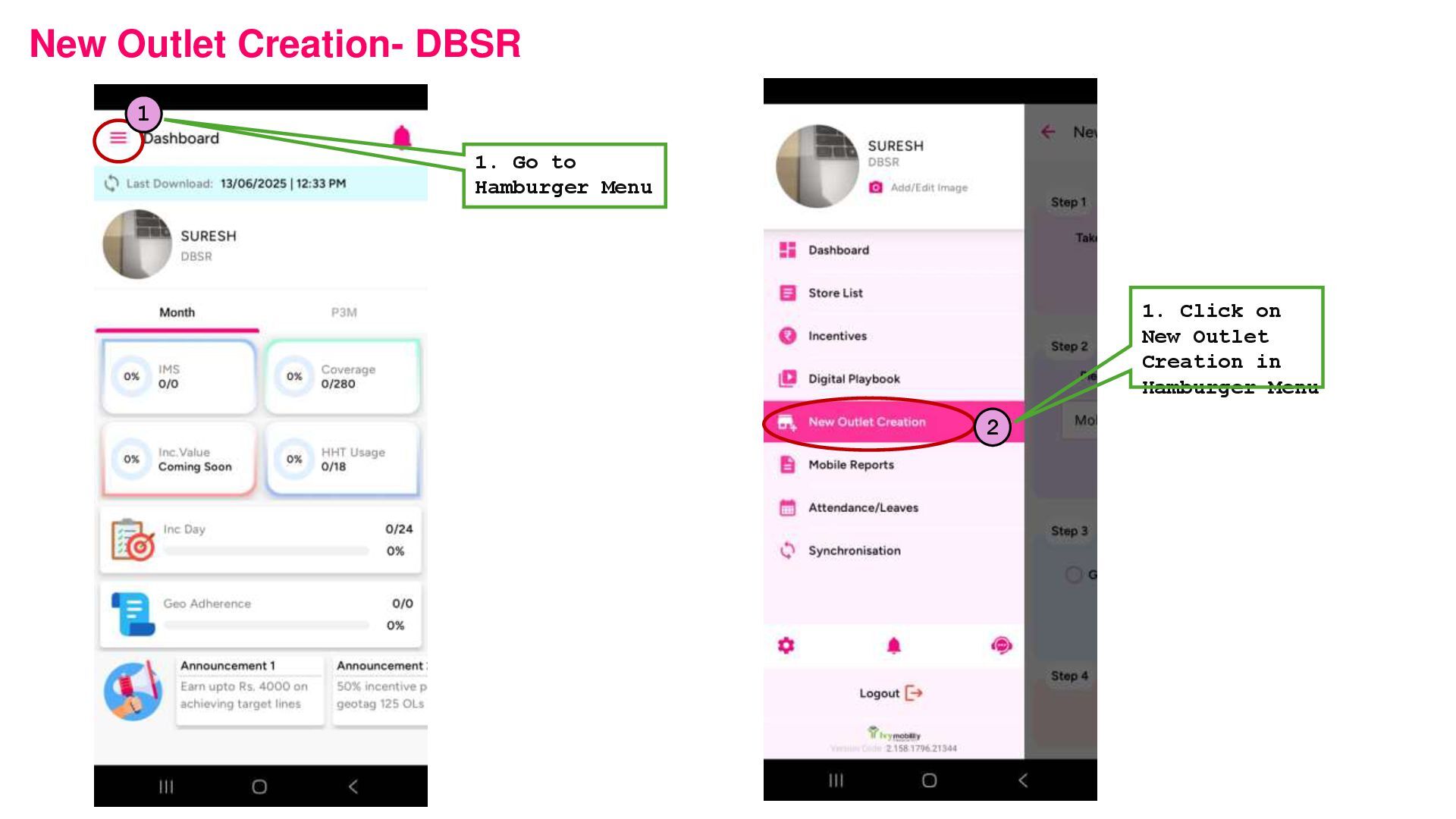
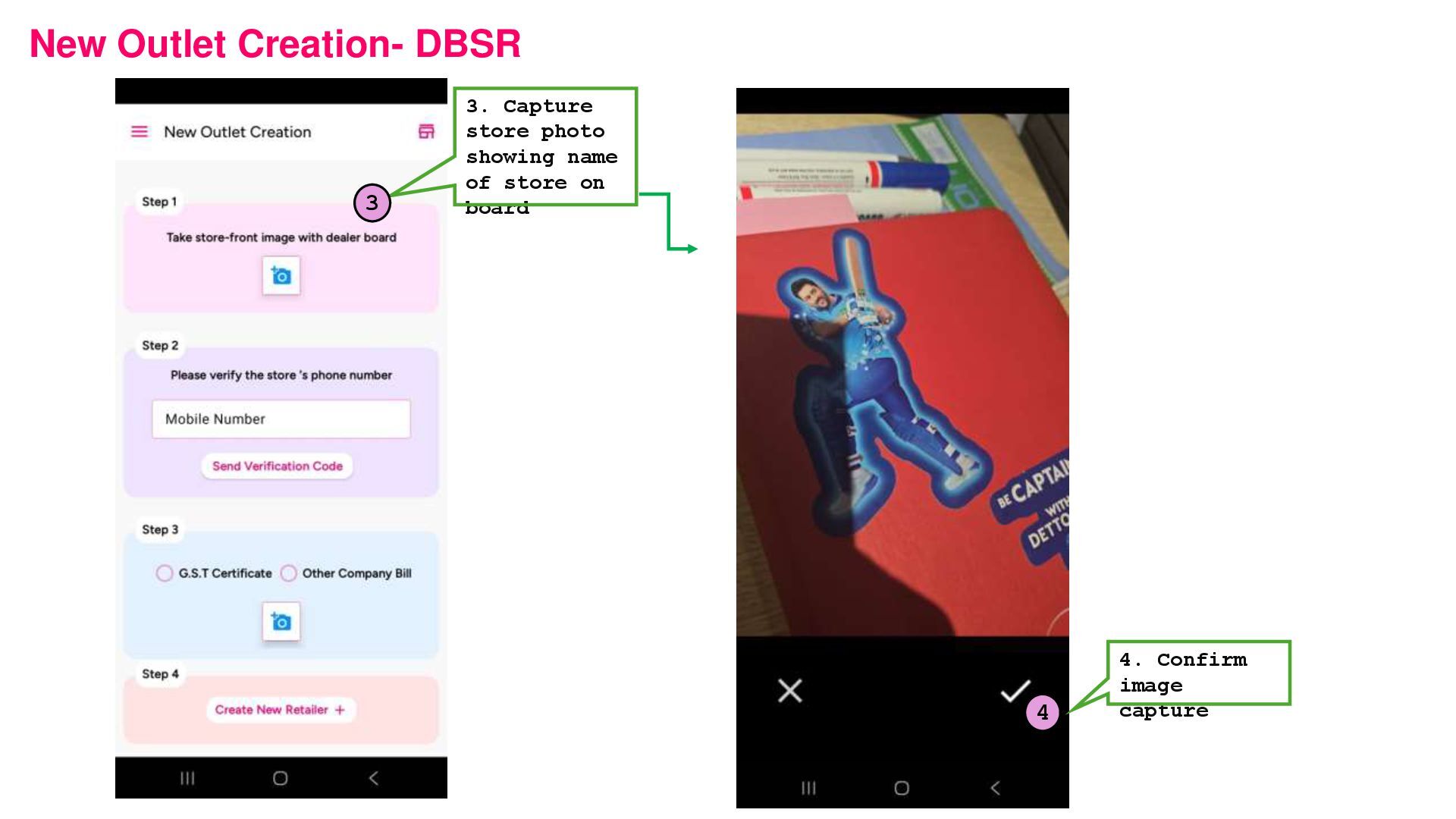
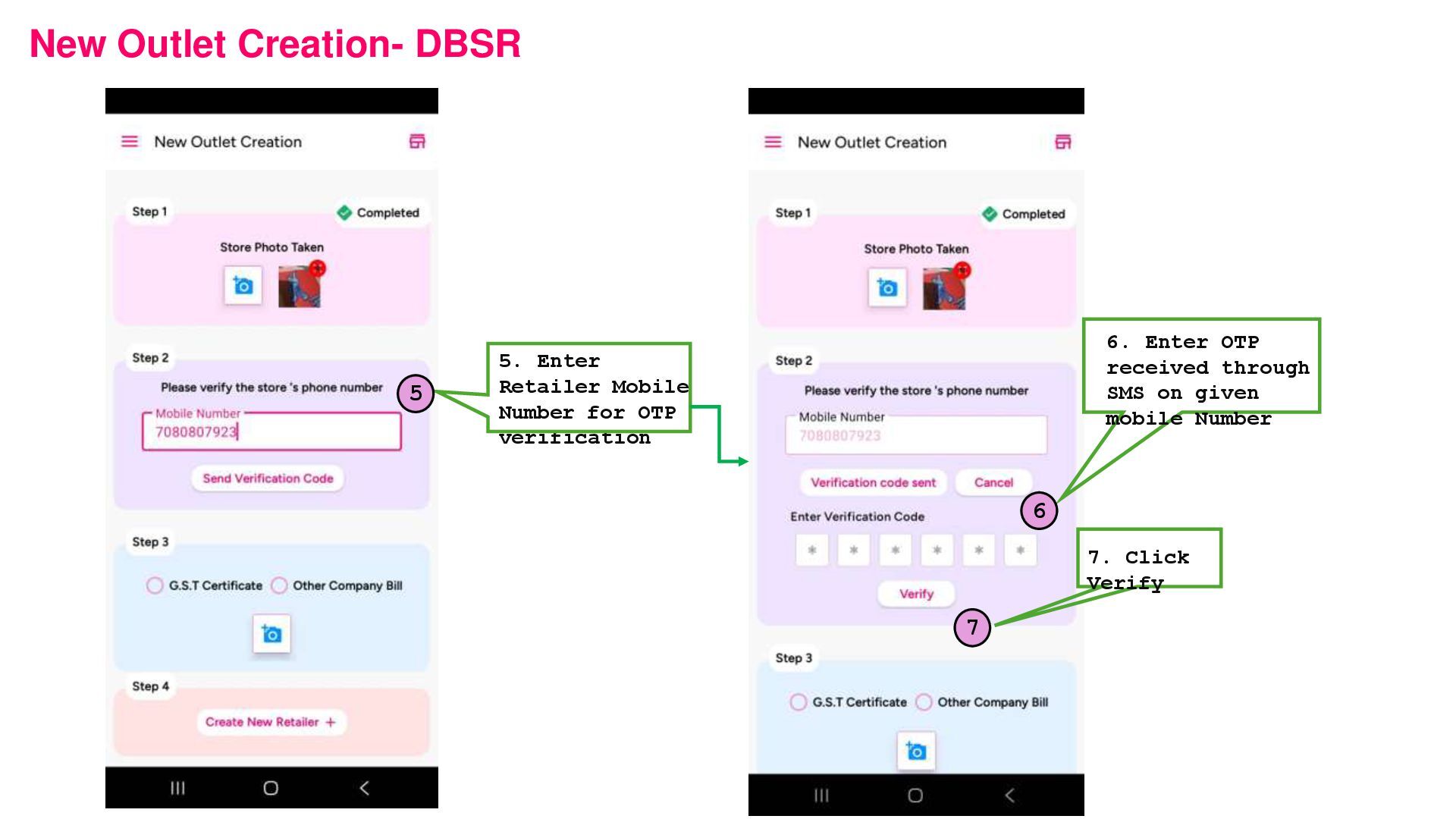
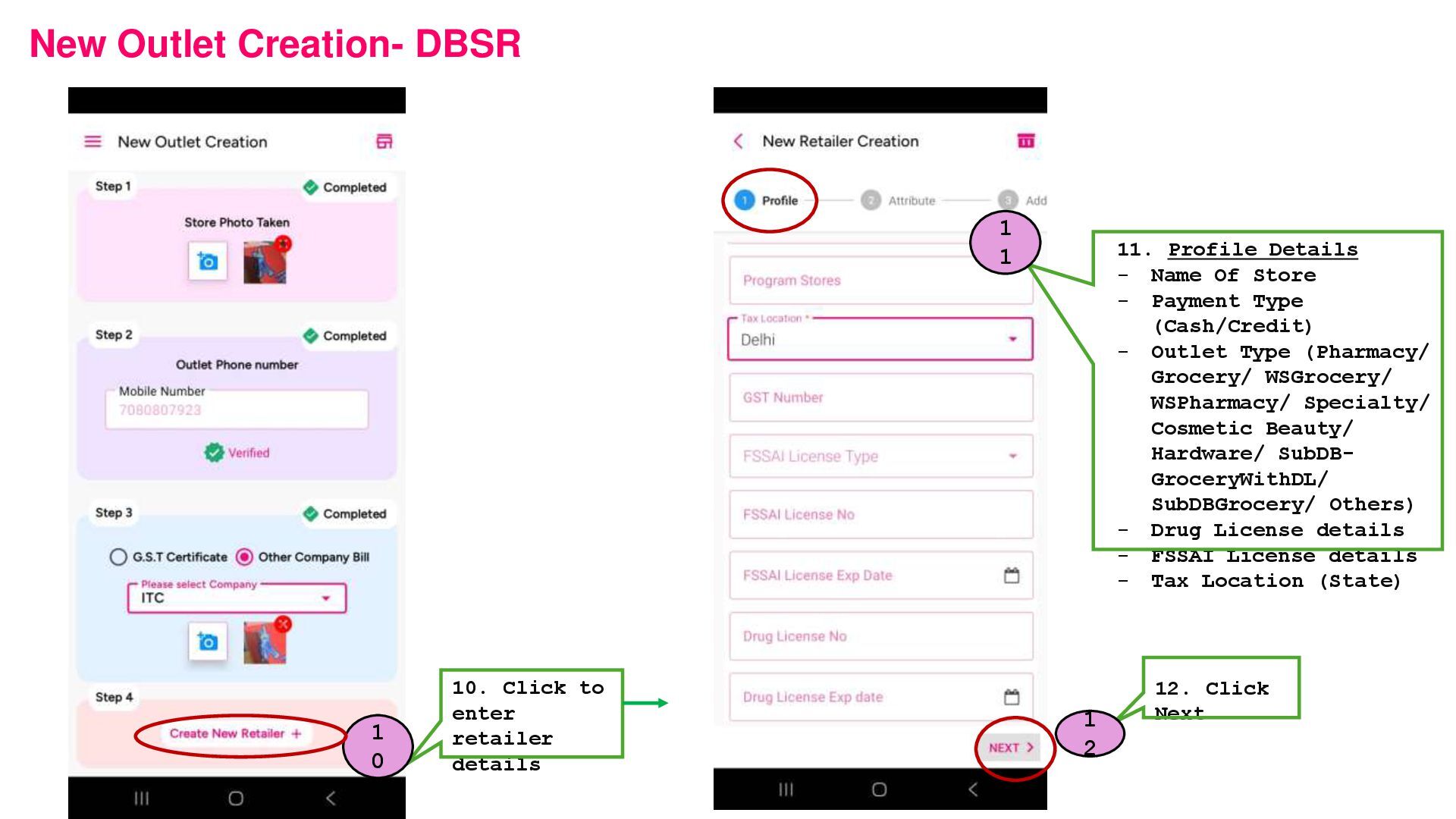
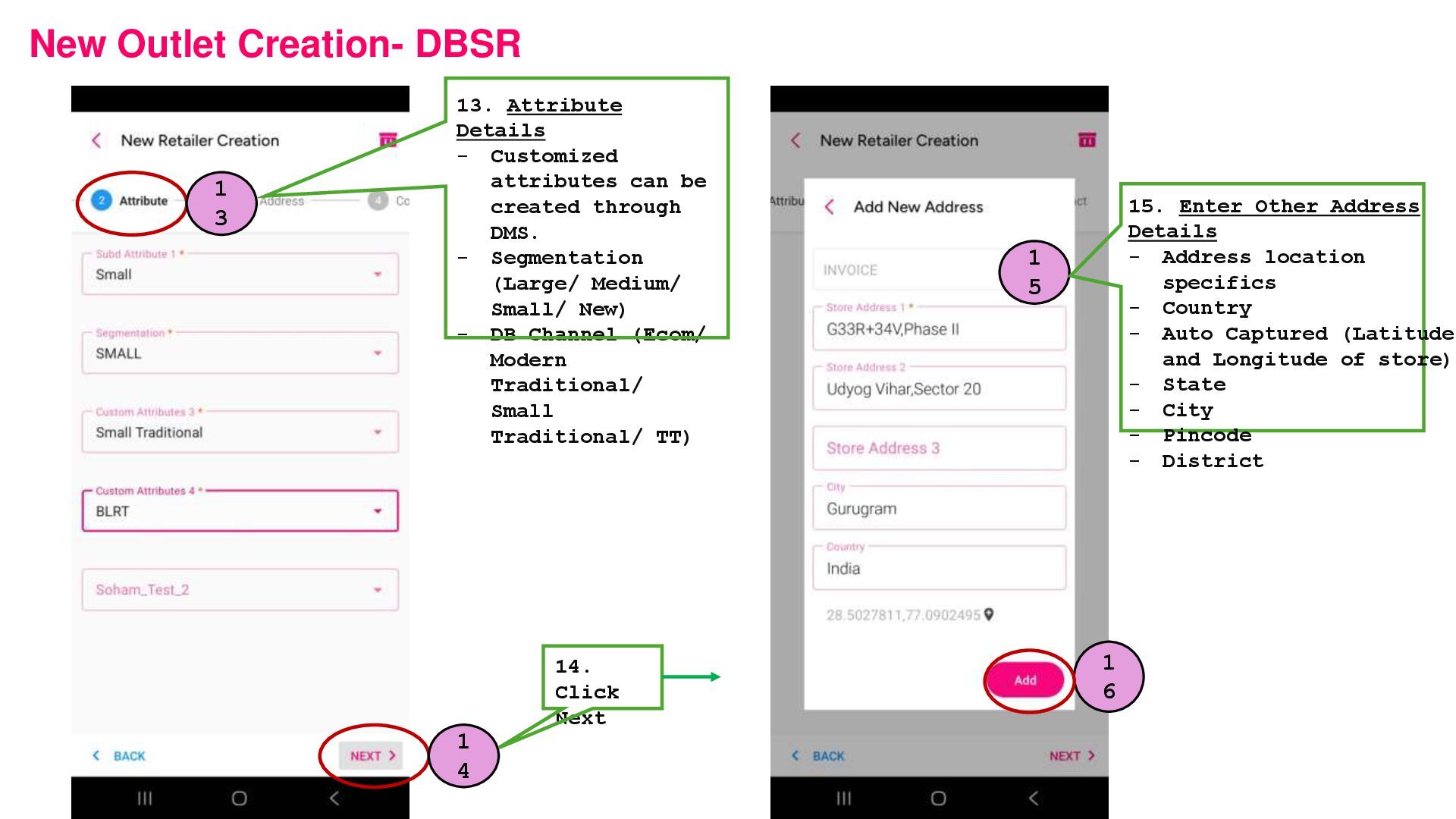
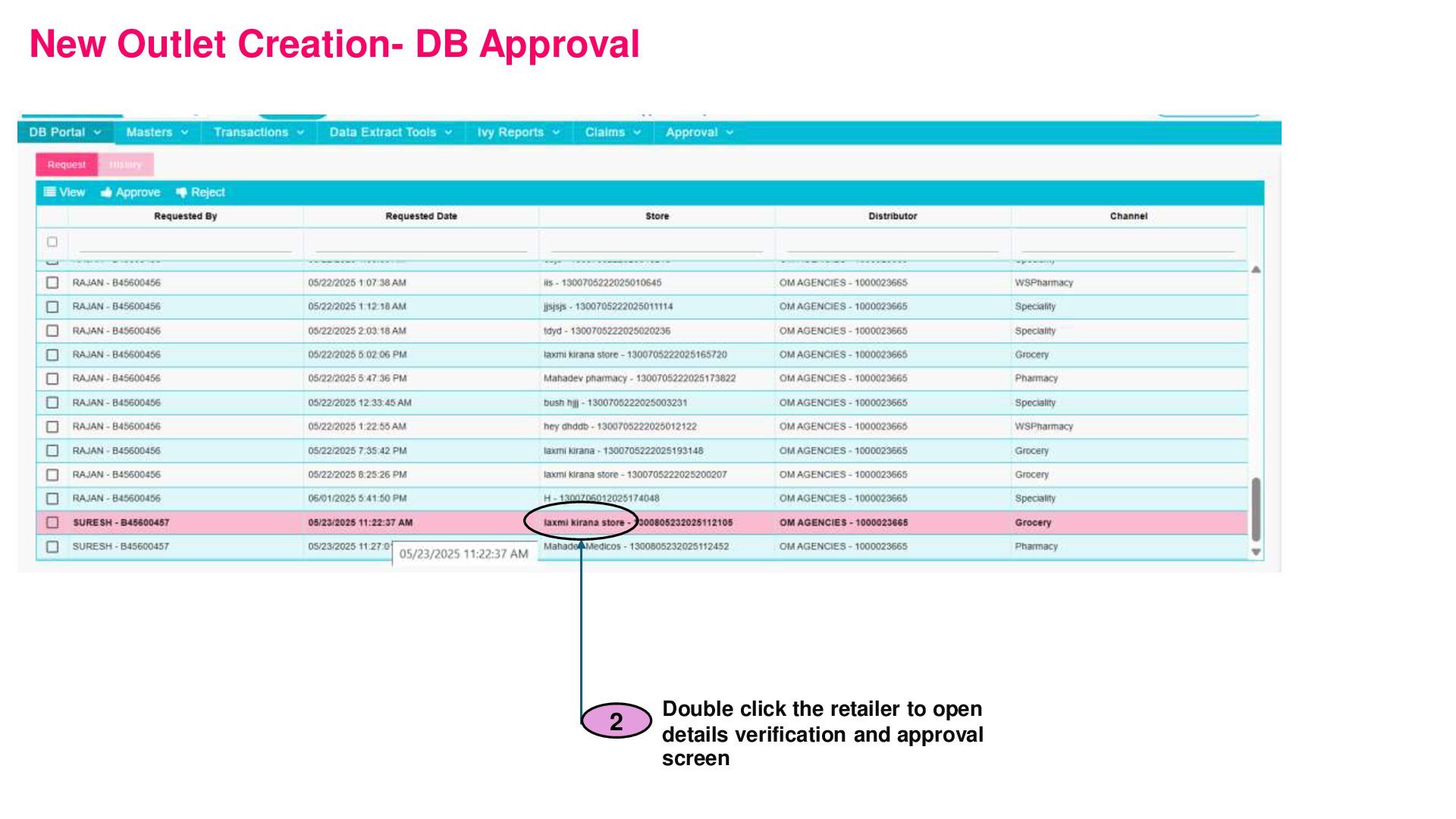
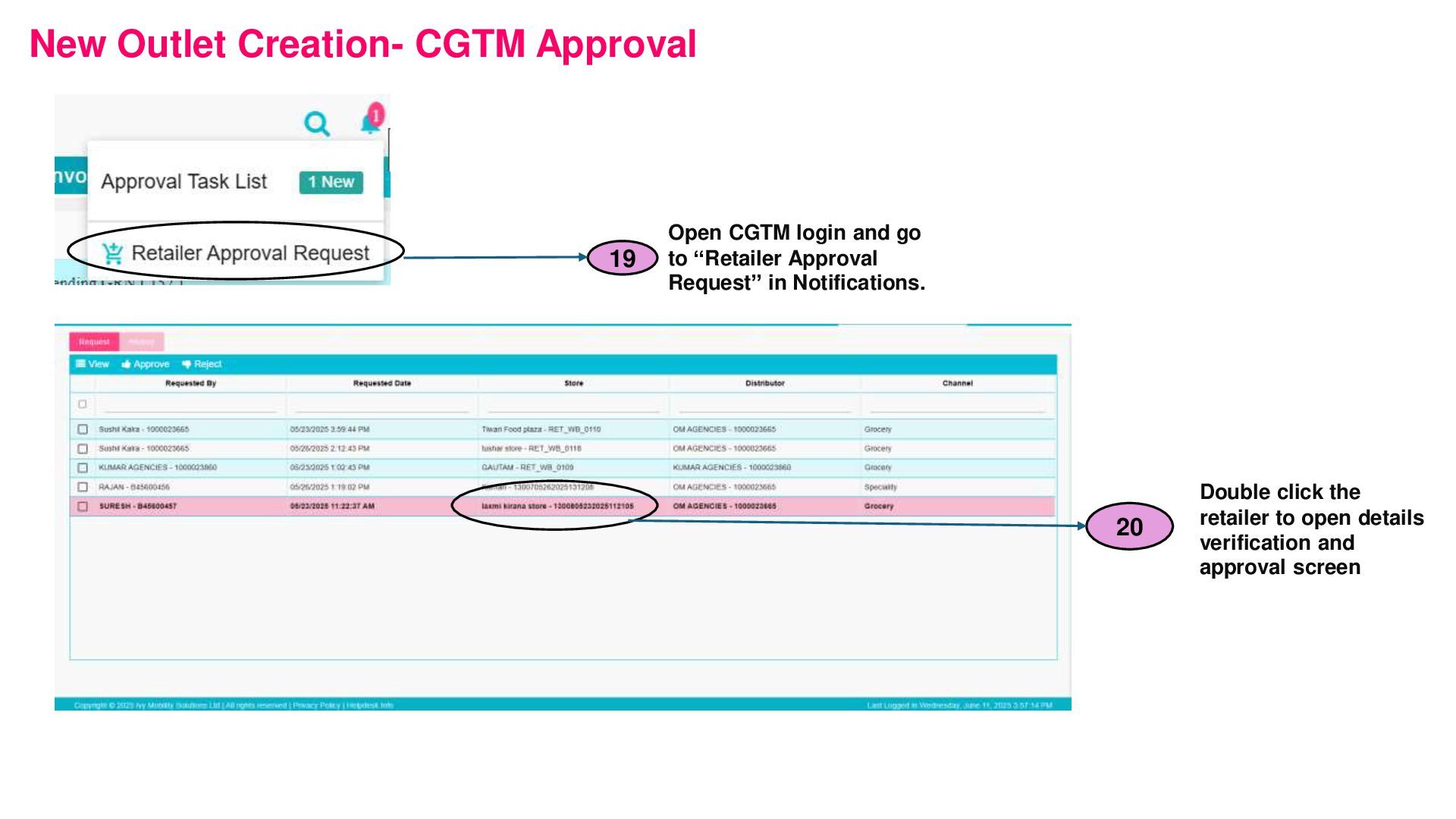
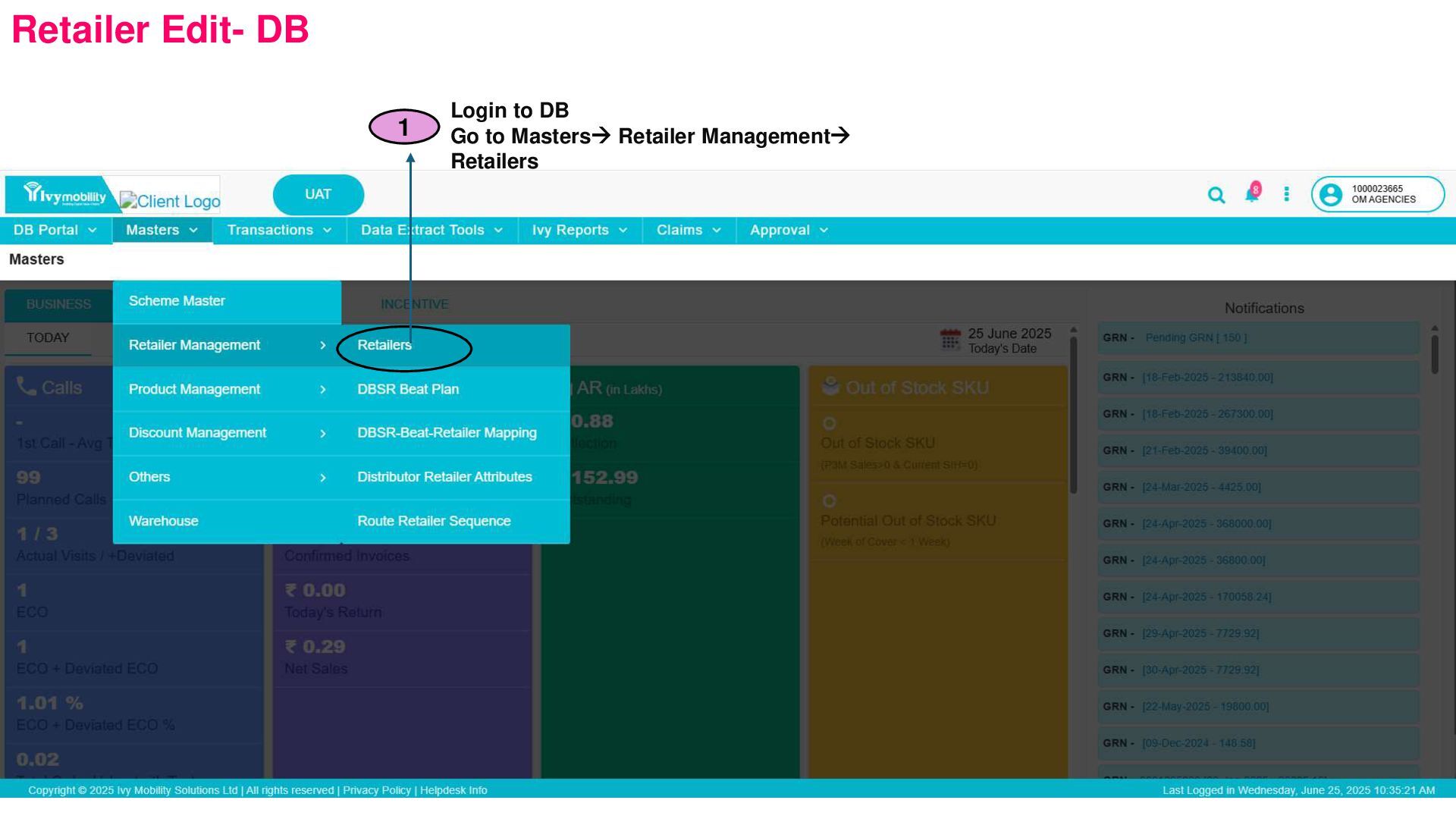
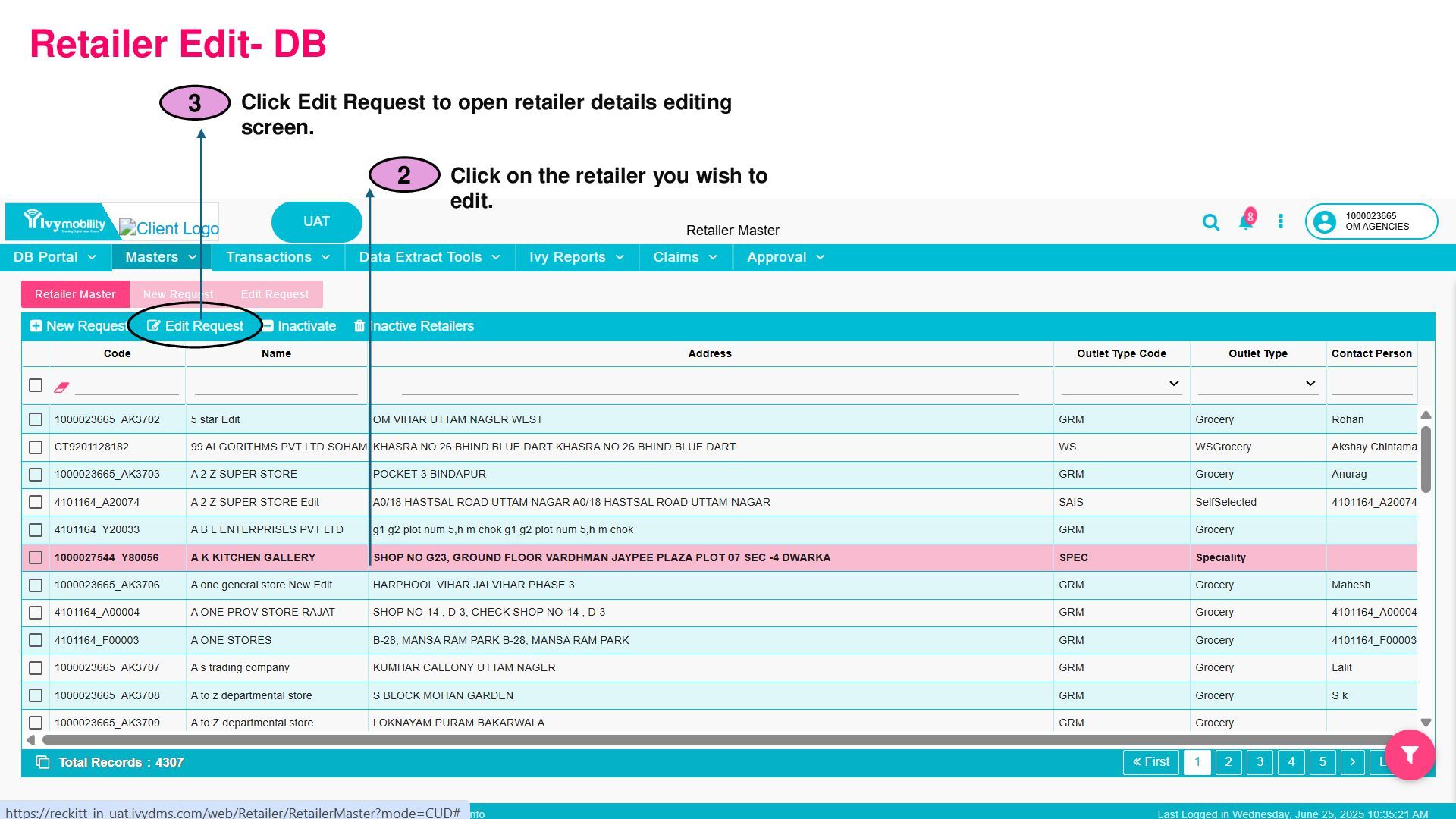
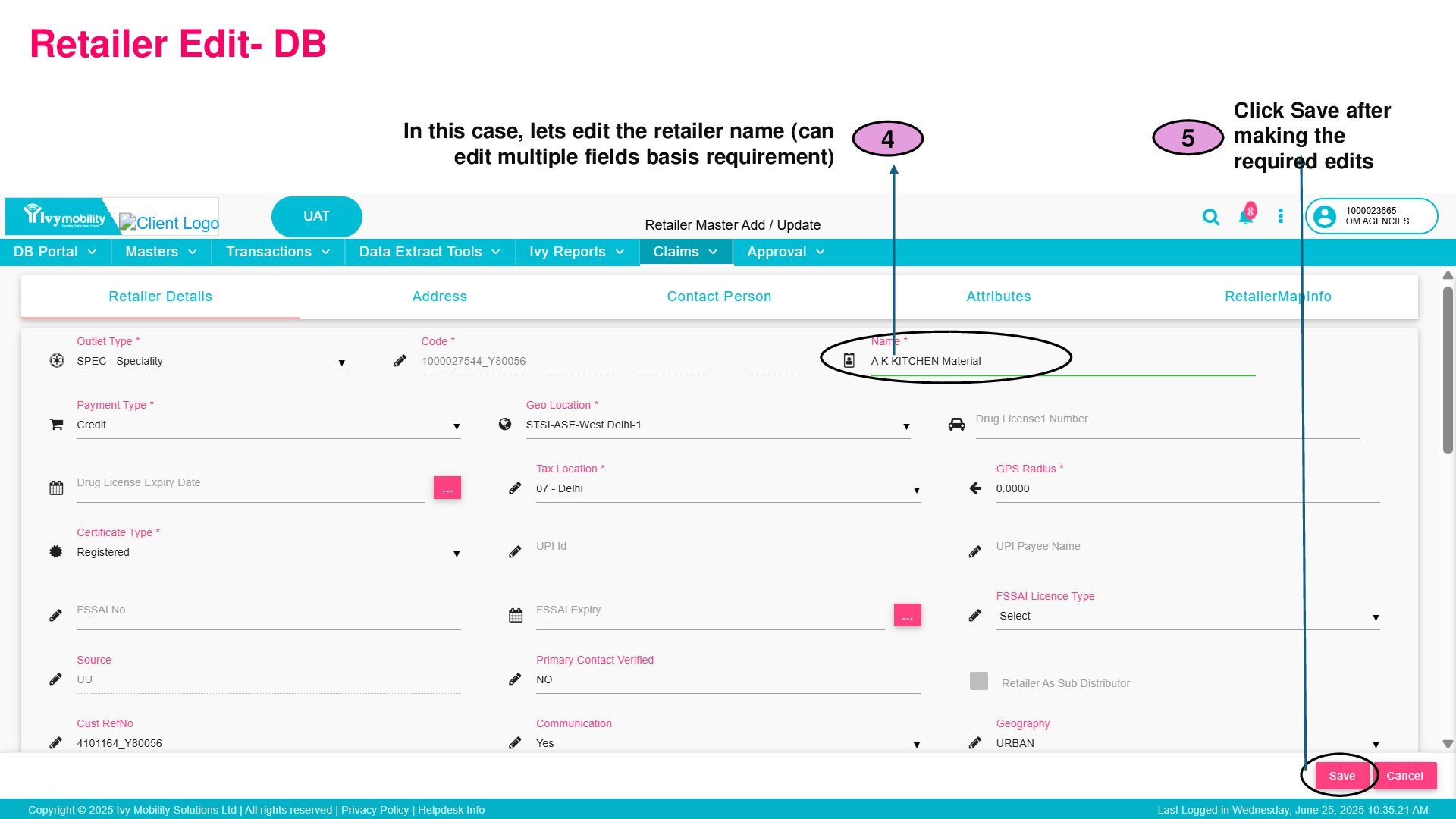
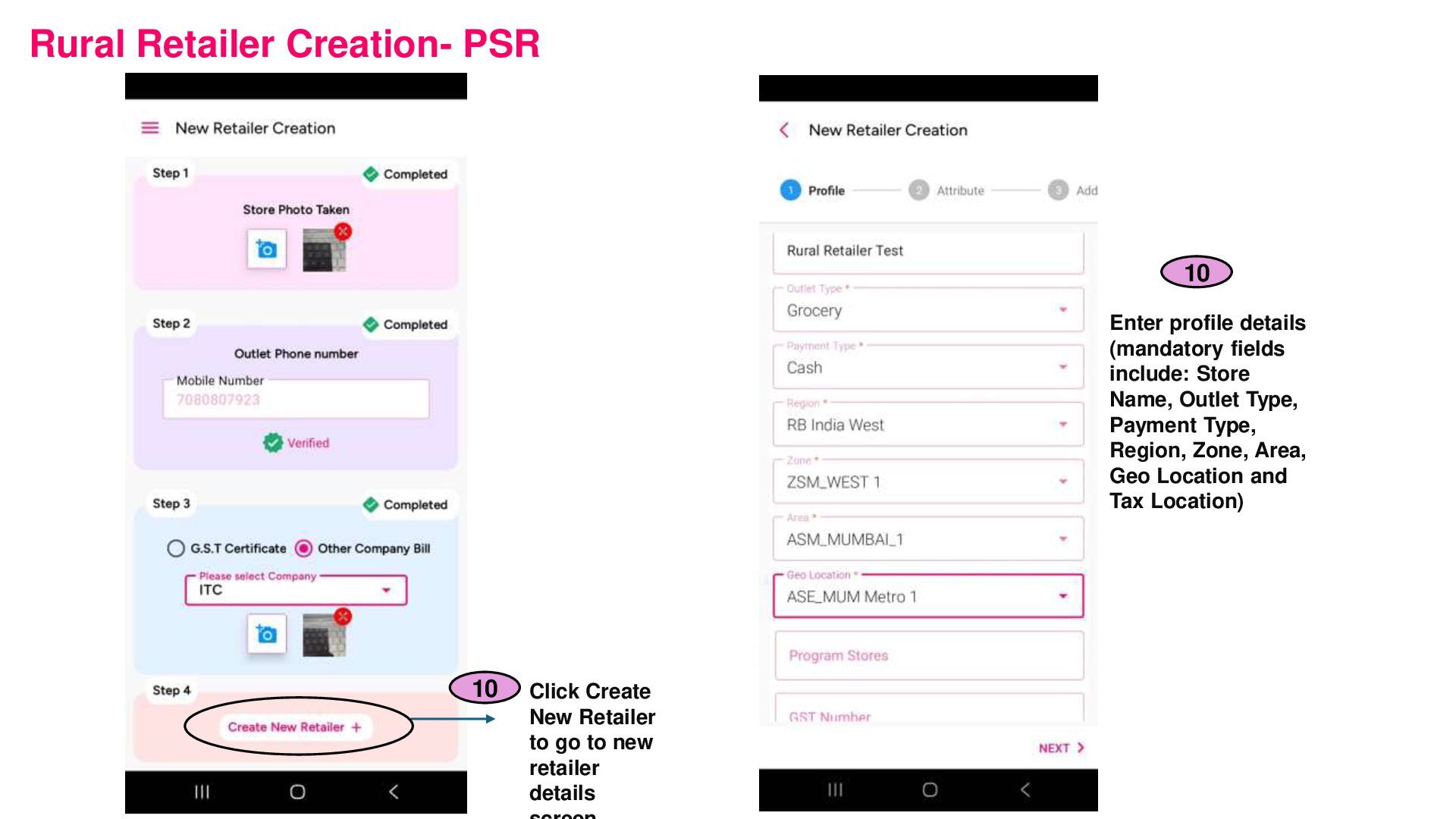
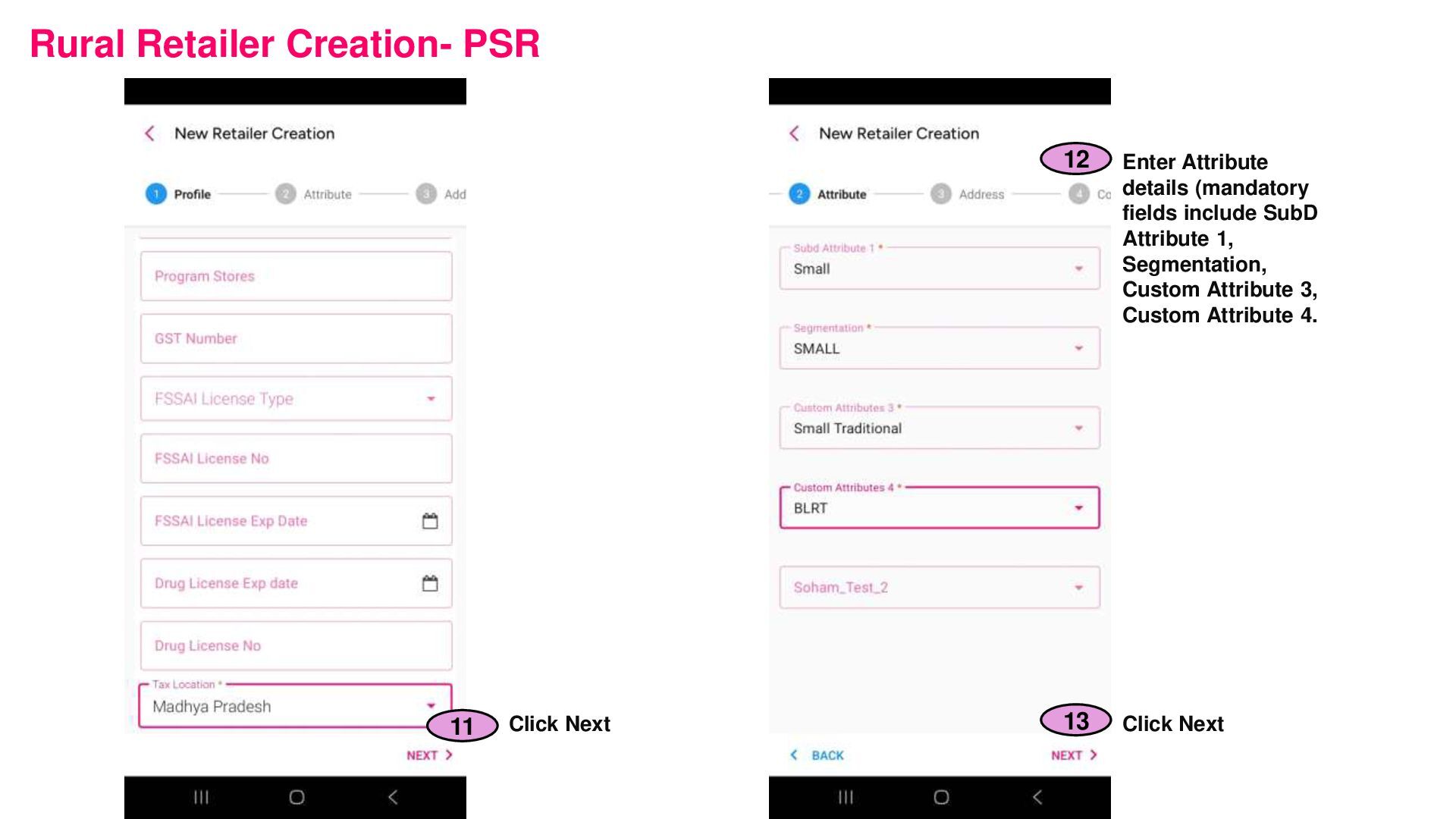
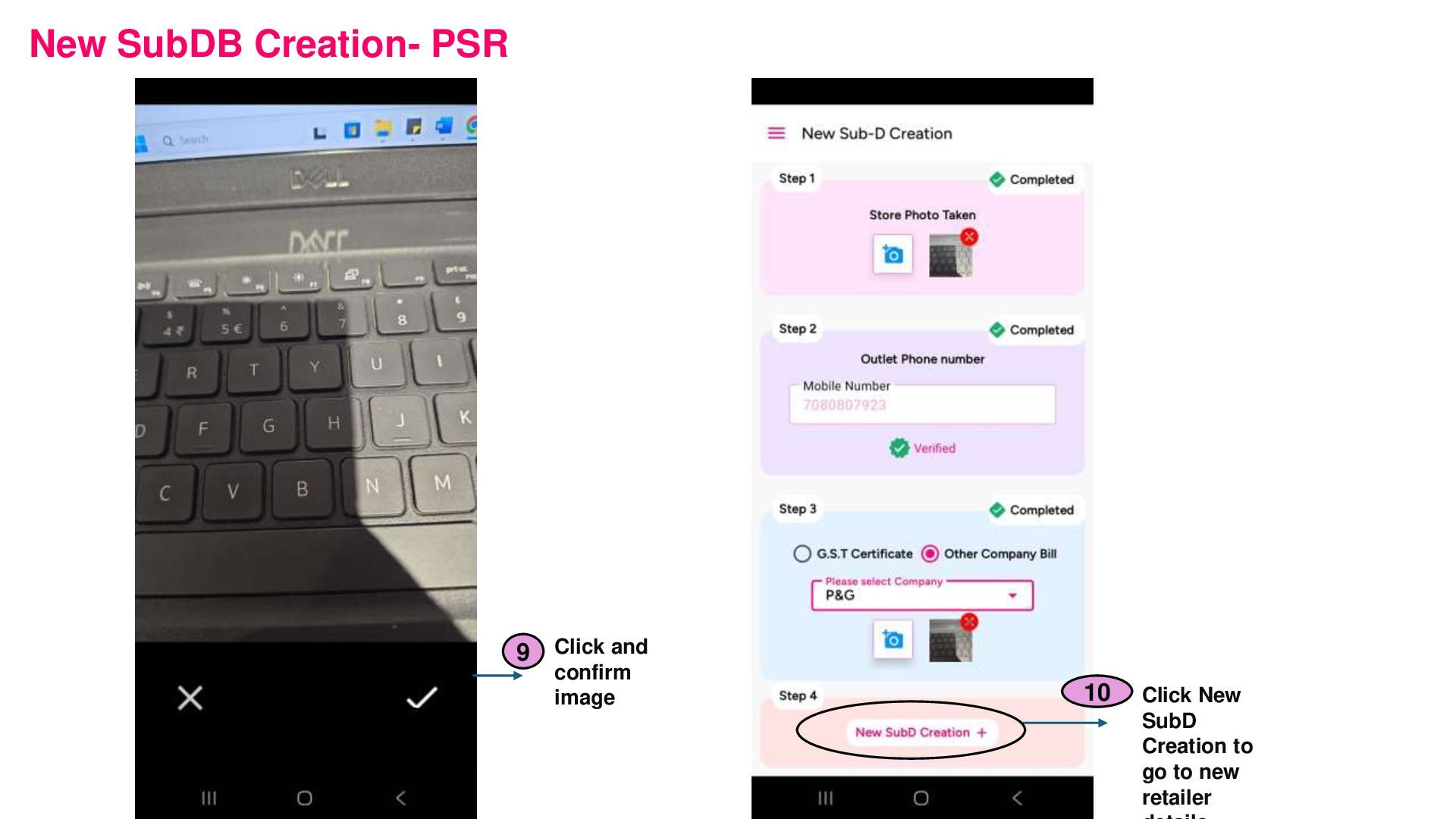
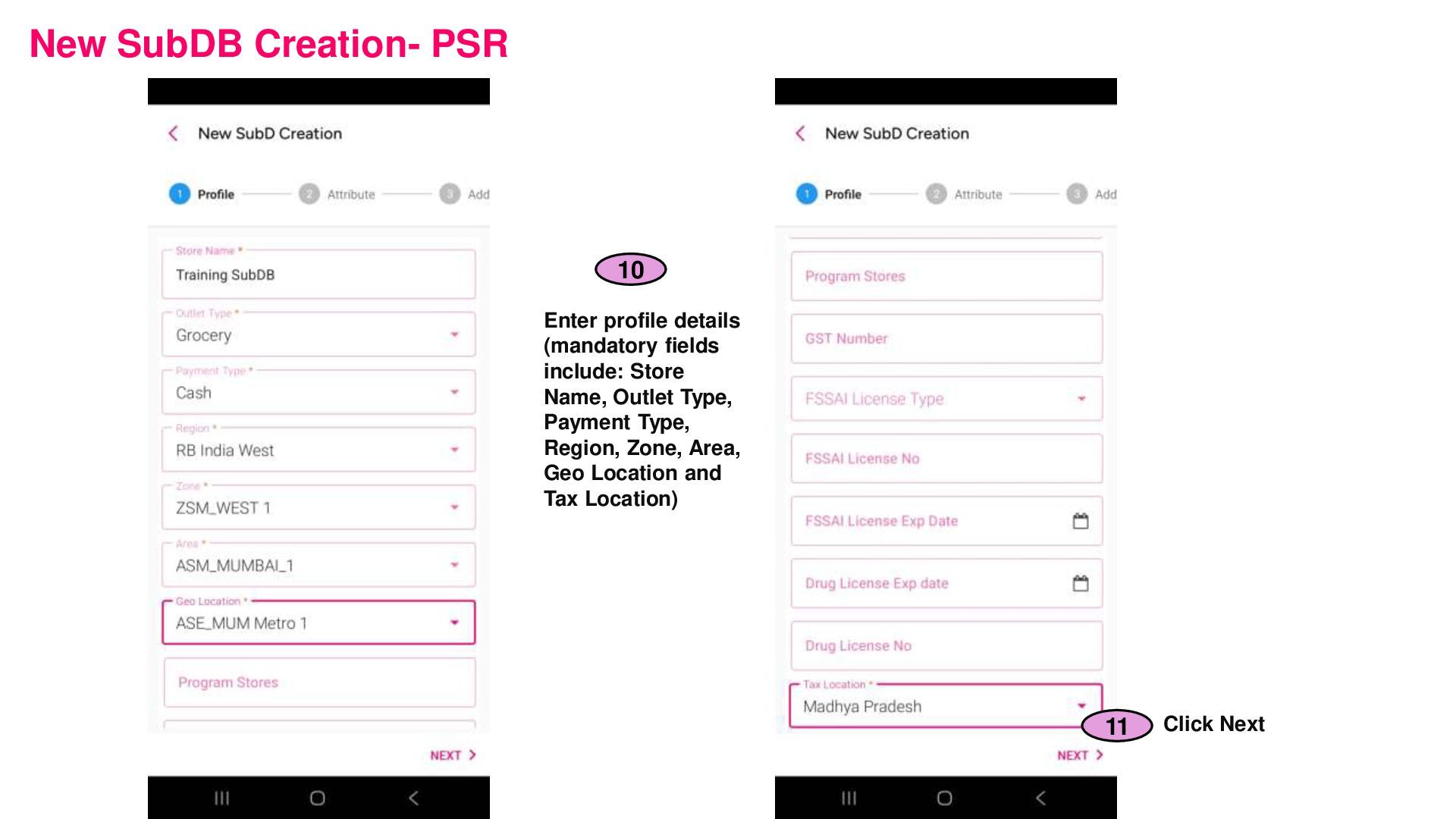
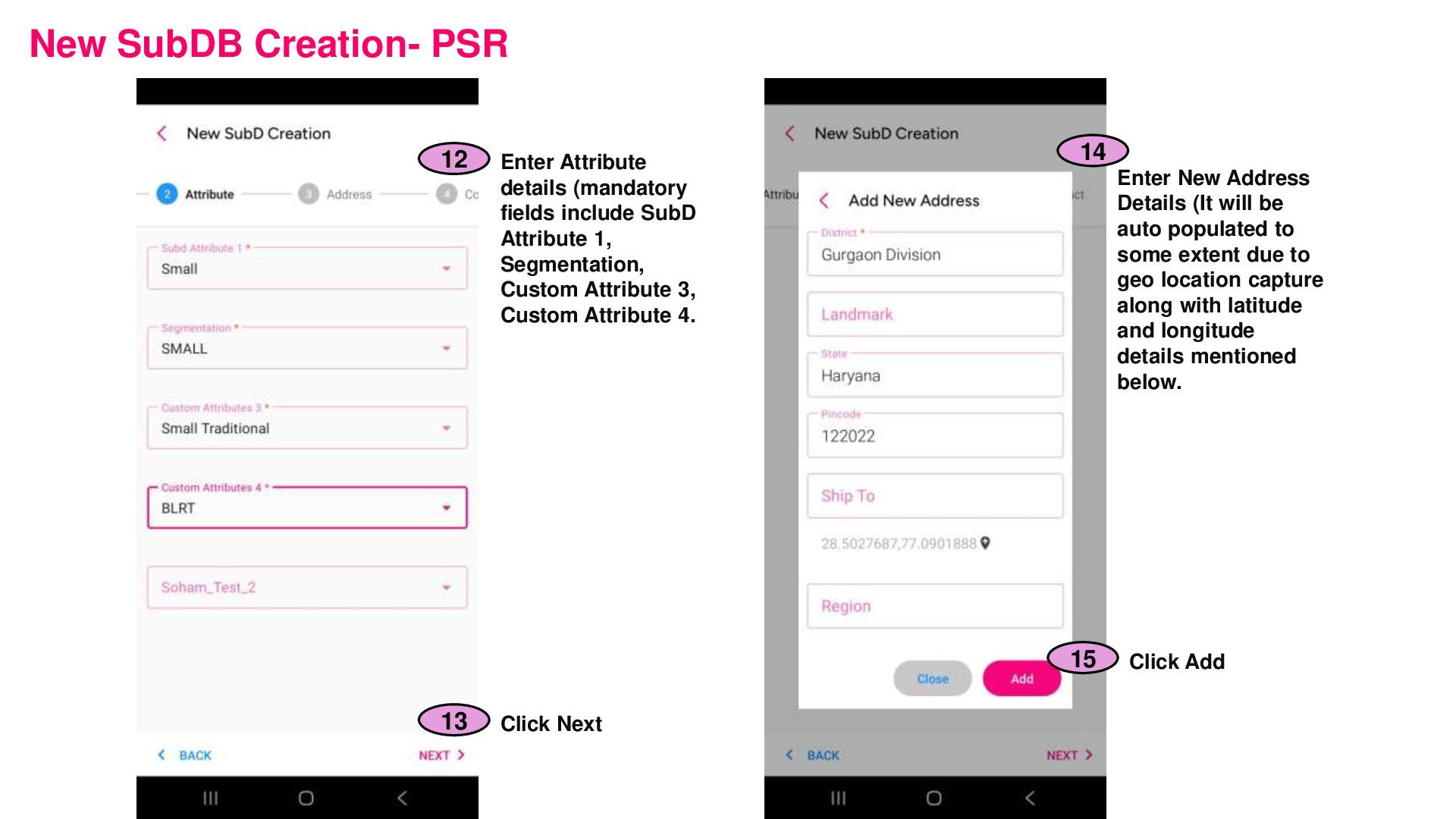
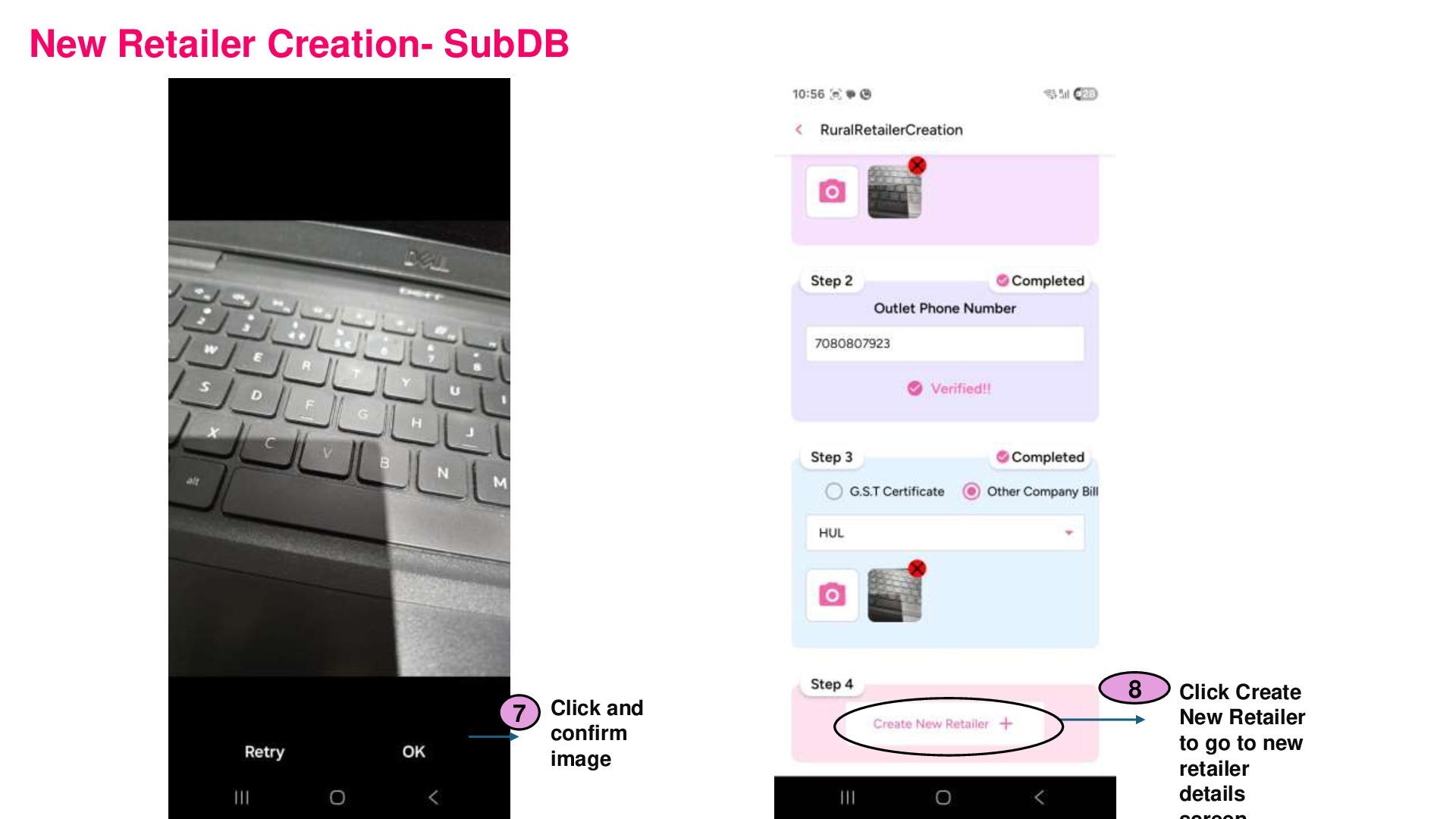
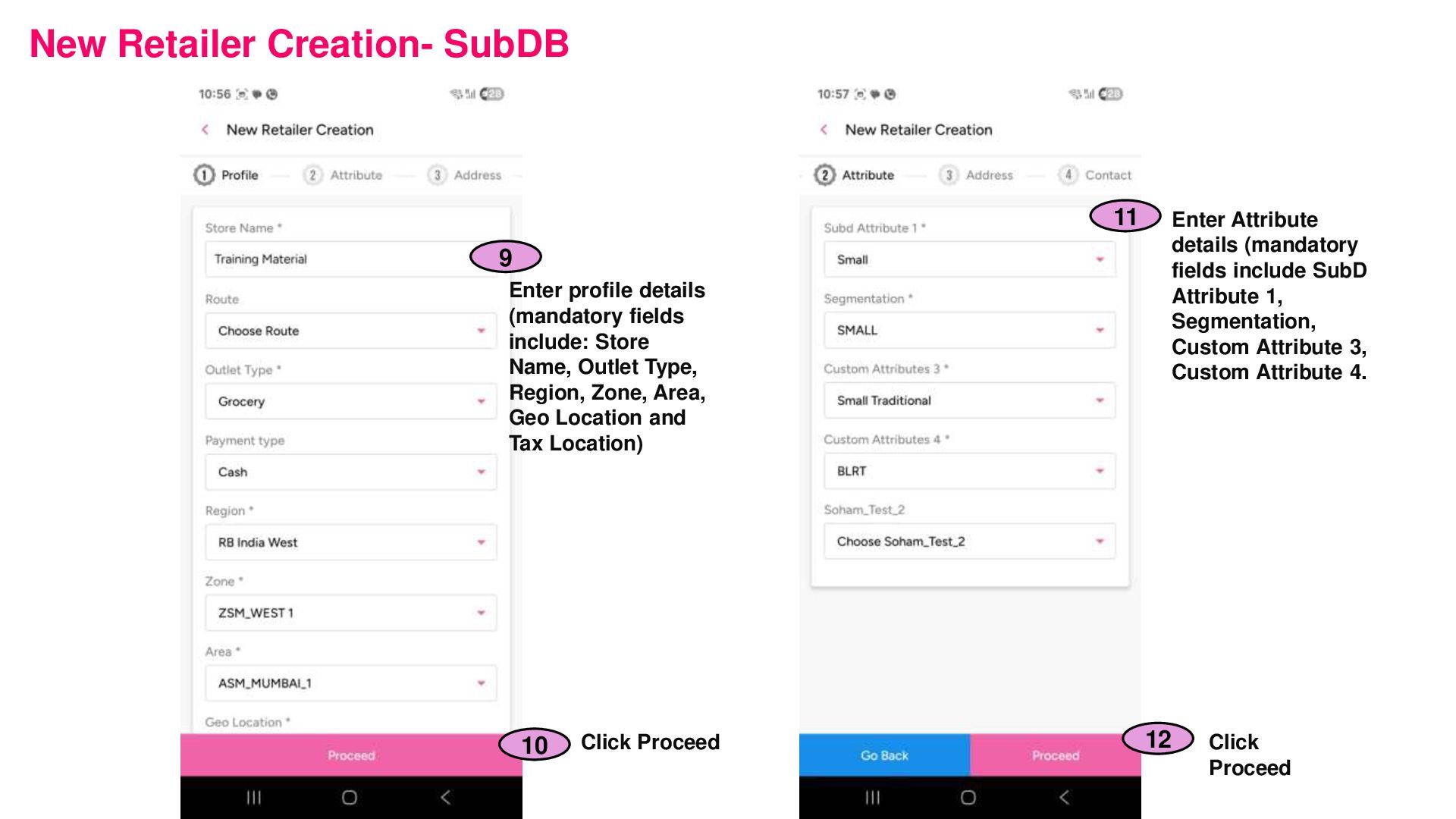
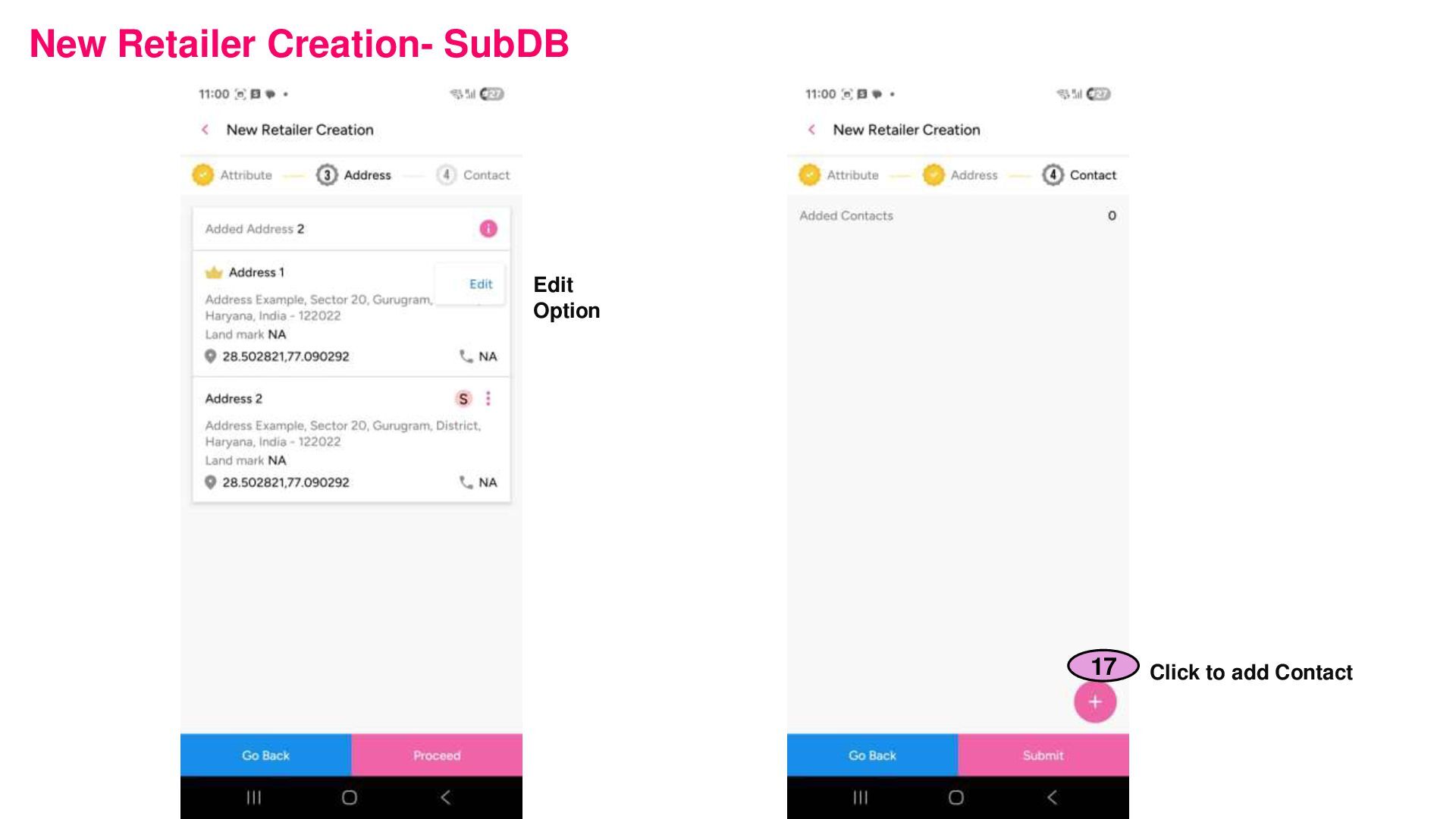
can be created through DMS. - Segmentation (Large/ Medium/ Small/ New) - DB Channel (Ecom/ Modern Traditional/ Small Traditional/ TT) 1 3 14. Click Next 1 4 1 5 15. Enter Other Address Details - Address location specifics - Country - Auto Captured (Latitude and Longitude of store) - State - City - Pincode - District 1 6
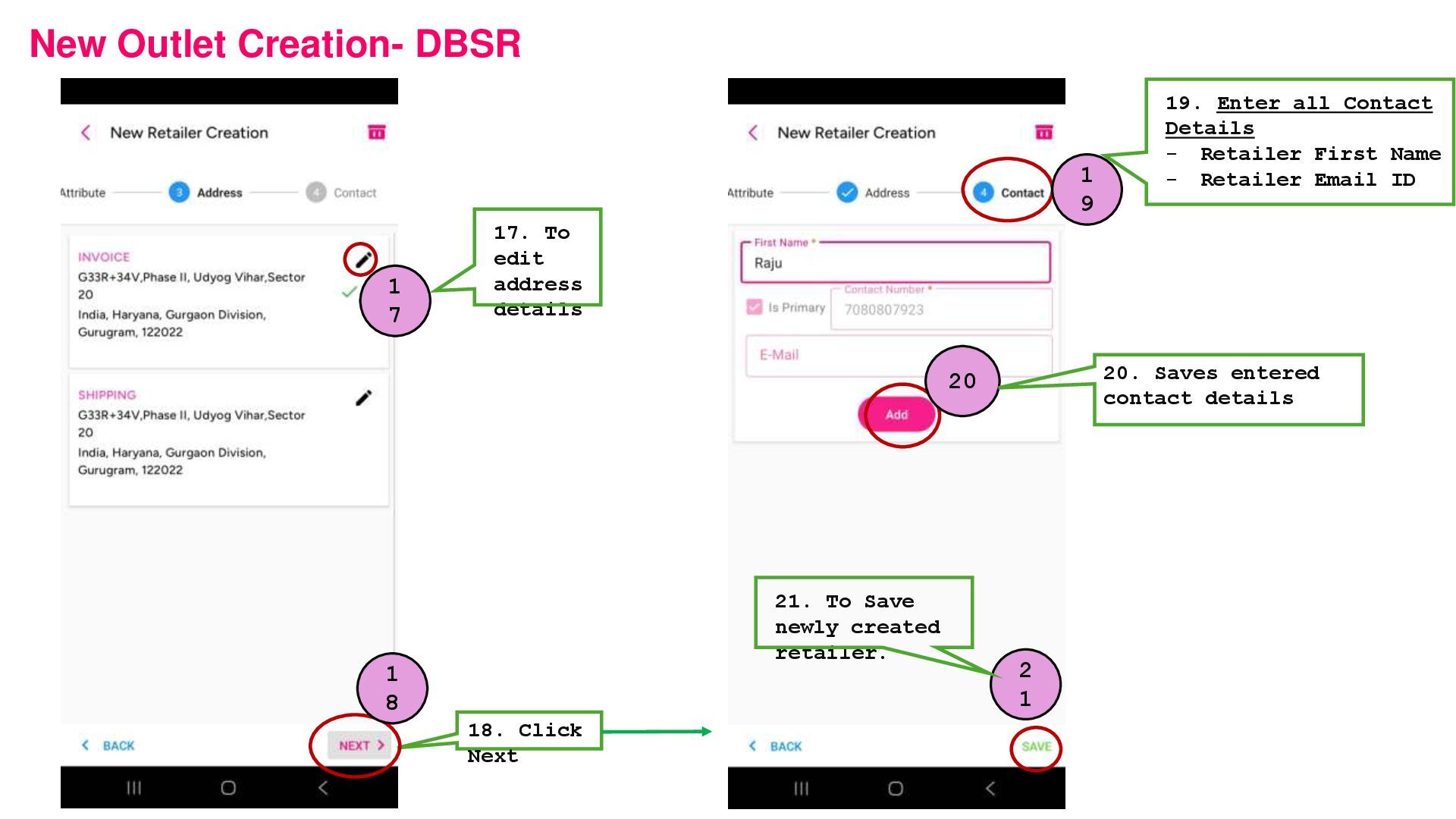
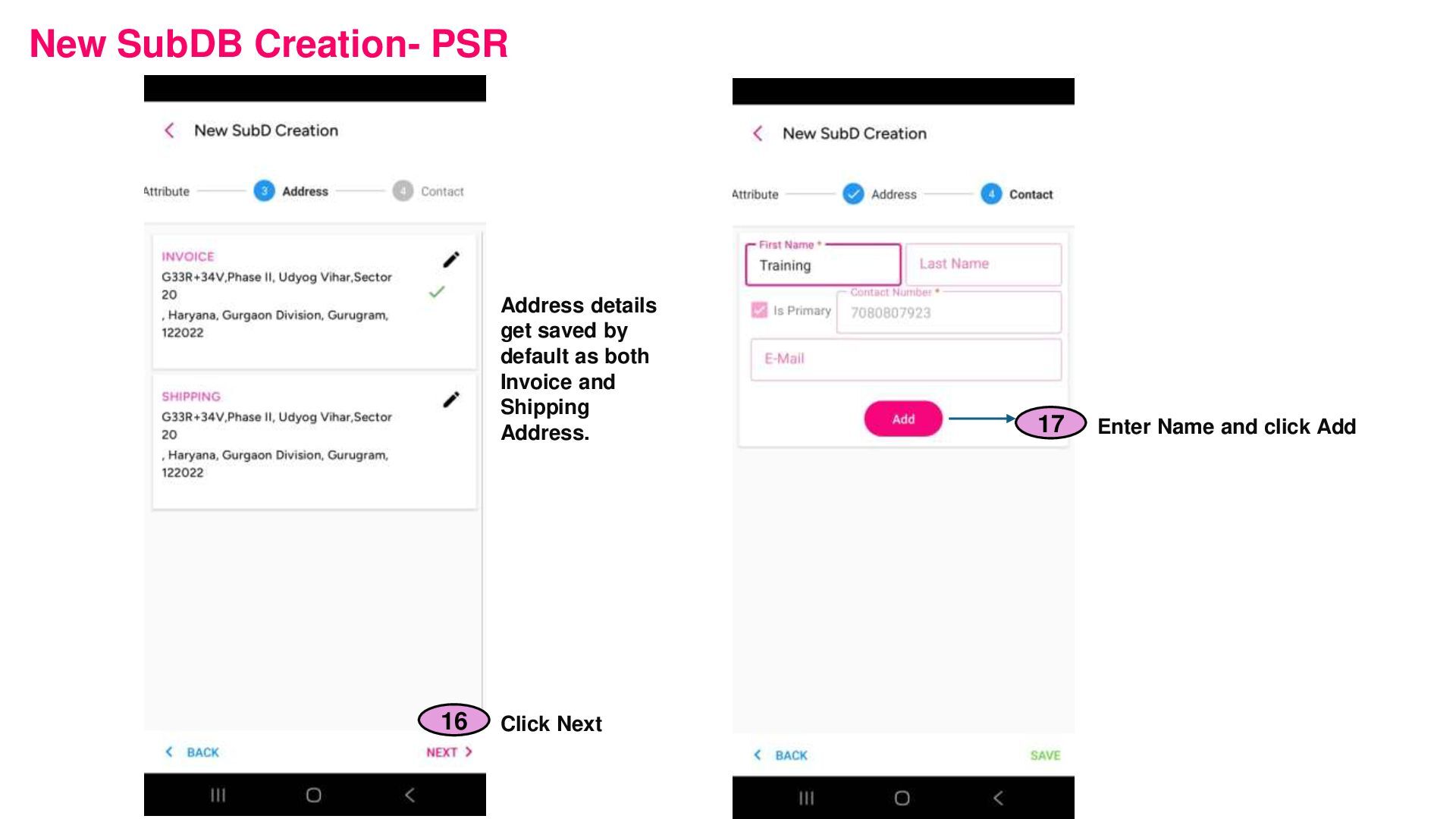
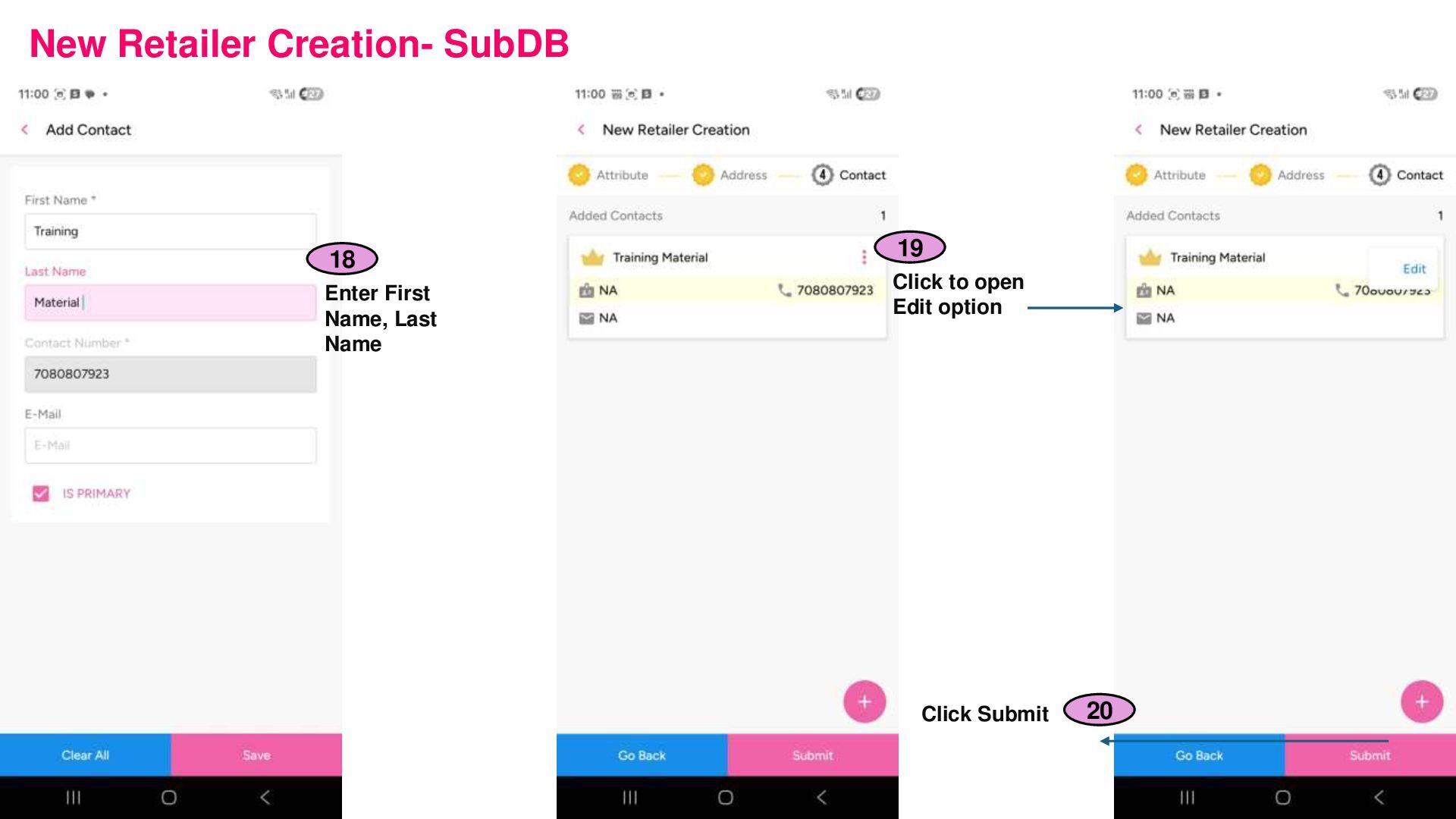
details 18. Click Next 1 8 1 9 19. Enter all Contact Details - Retailer First Name - Retailer Email ID 20 20. Saves entered contact details 2 1 21. To Save newly created retailer.
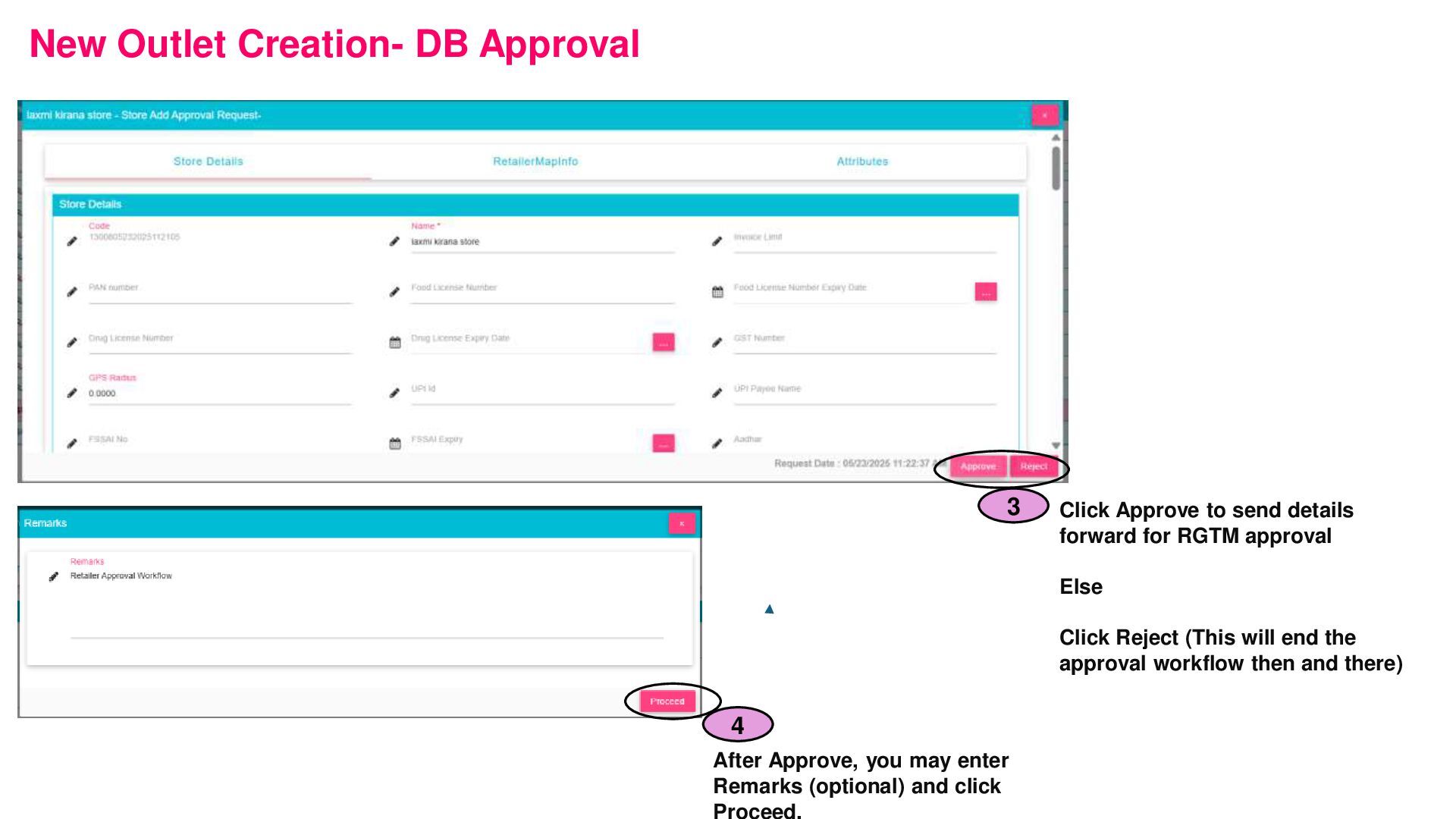
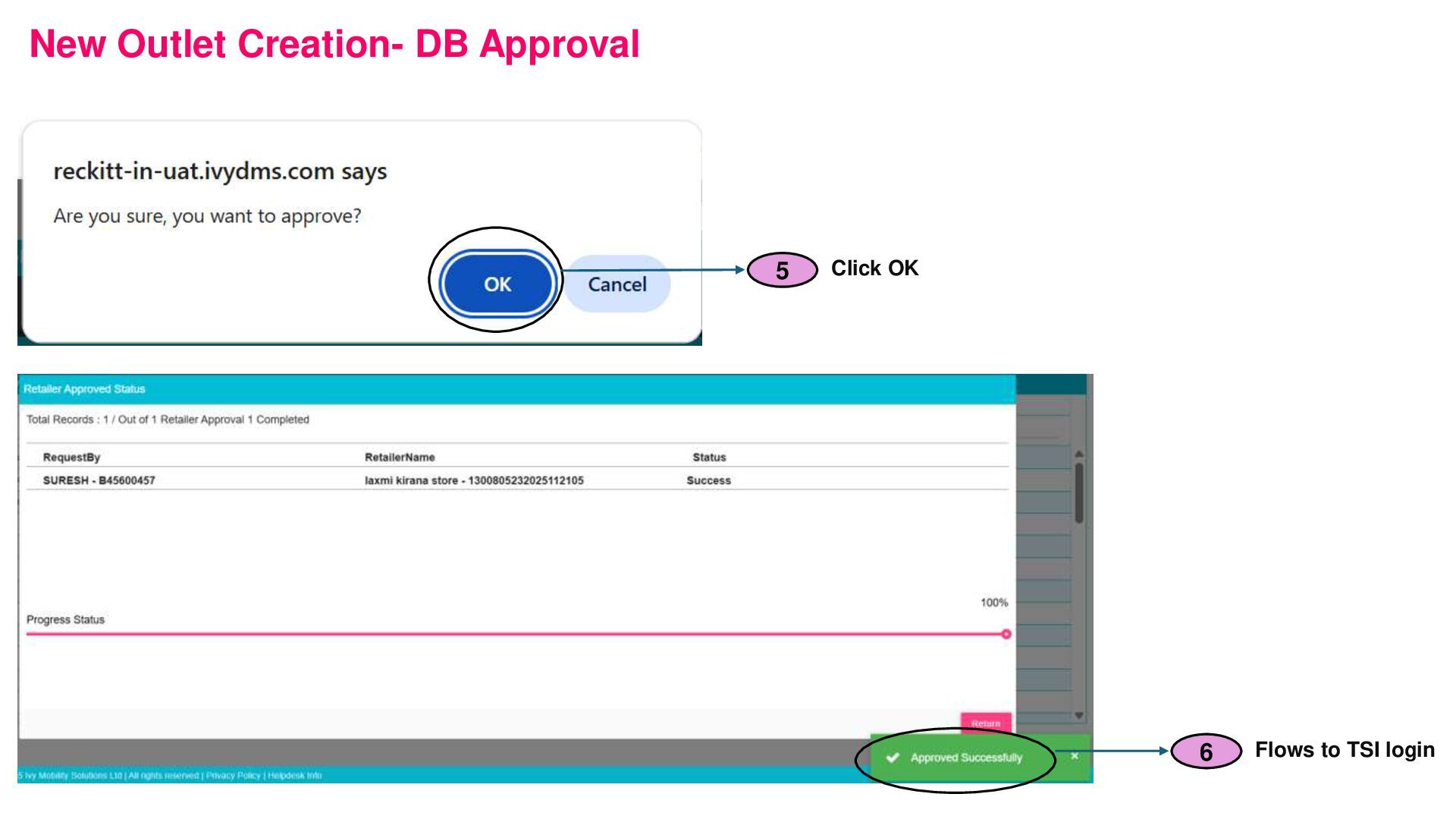
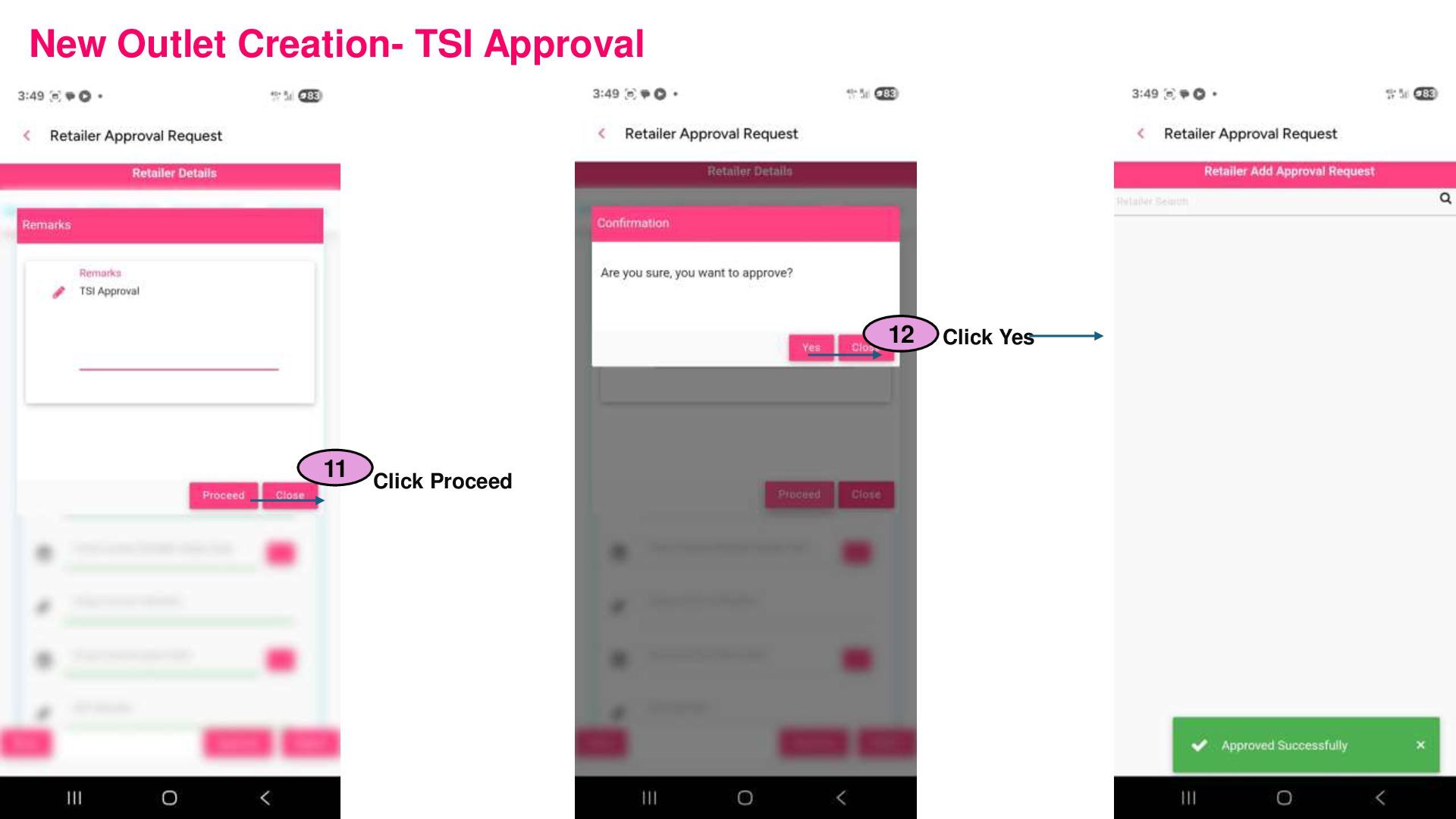
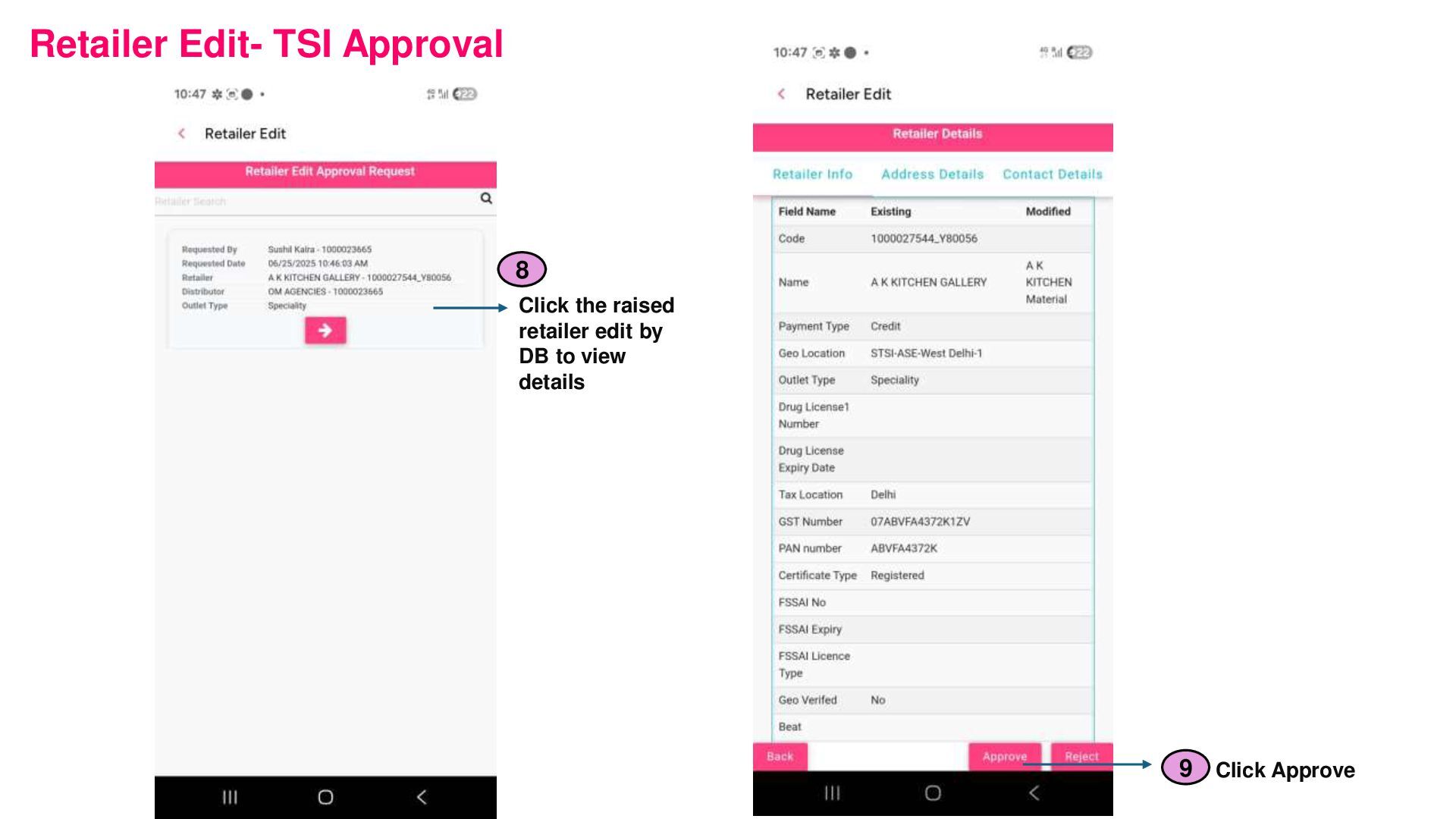
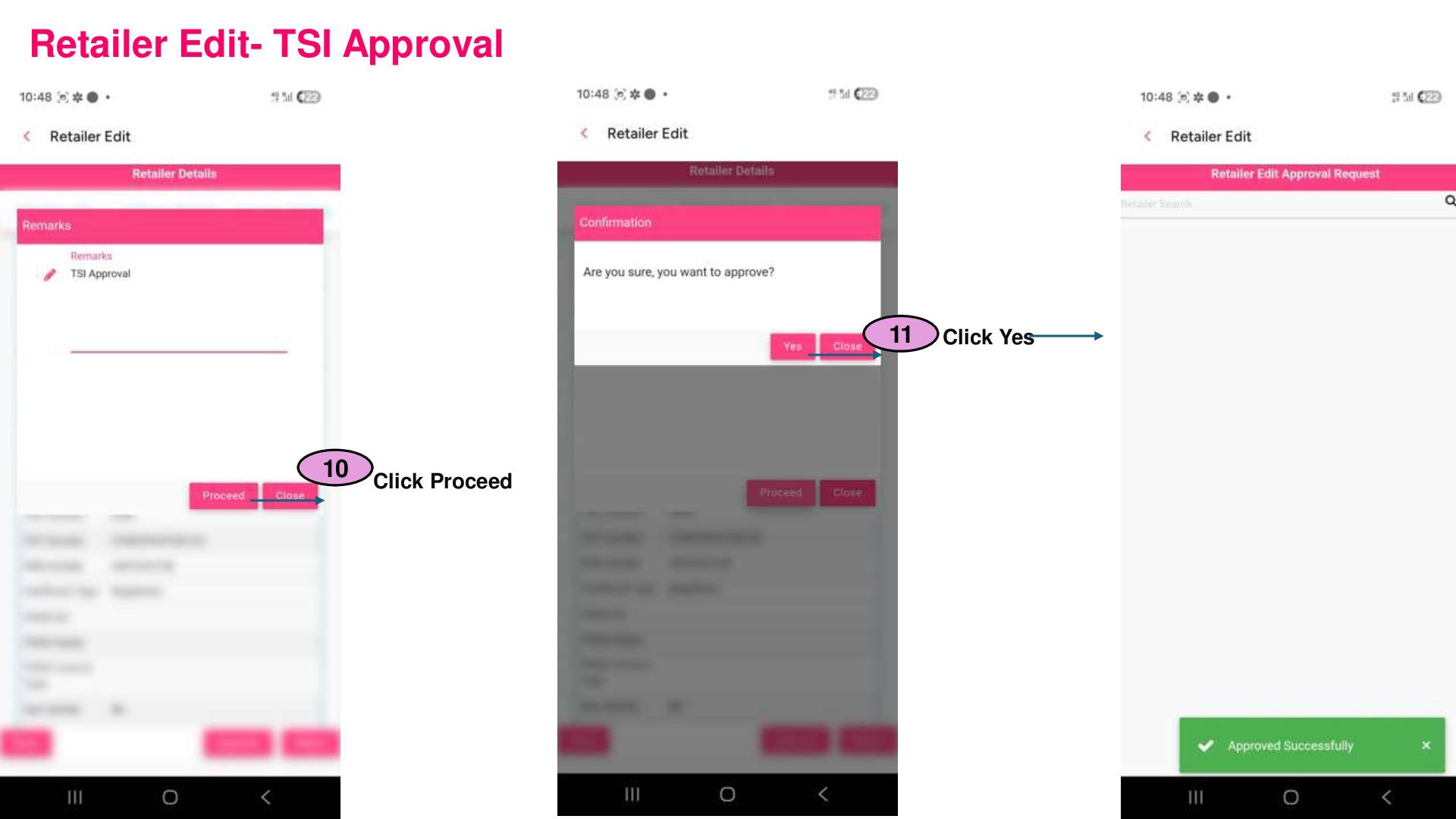
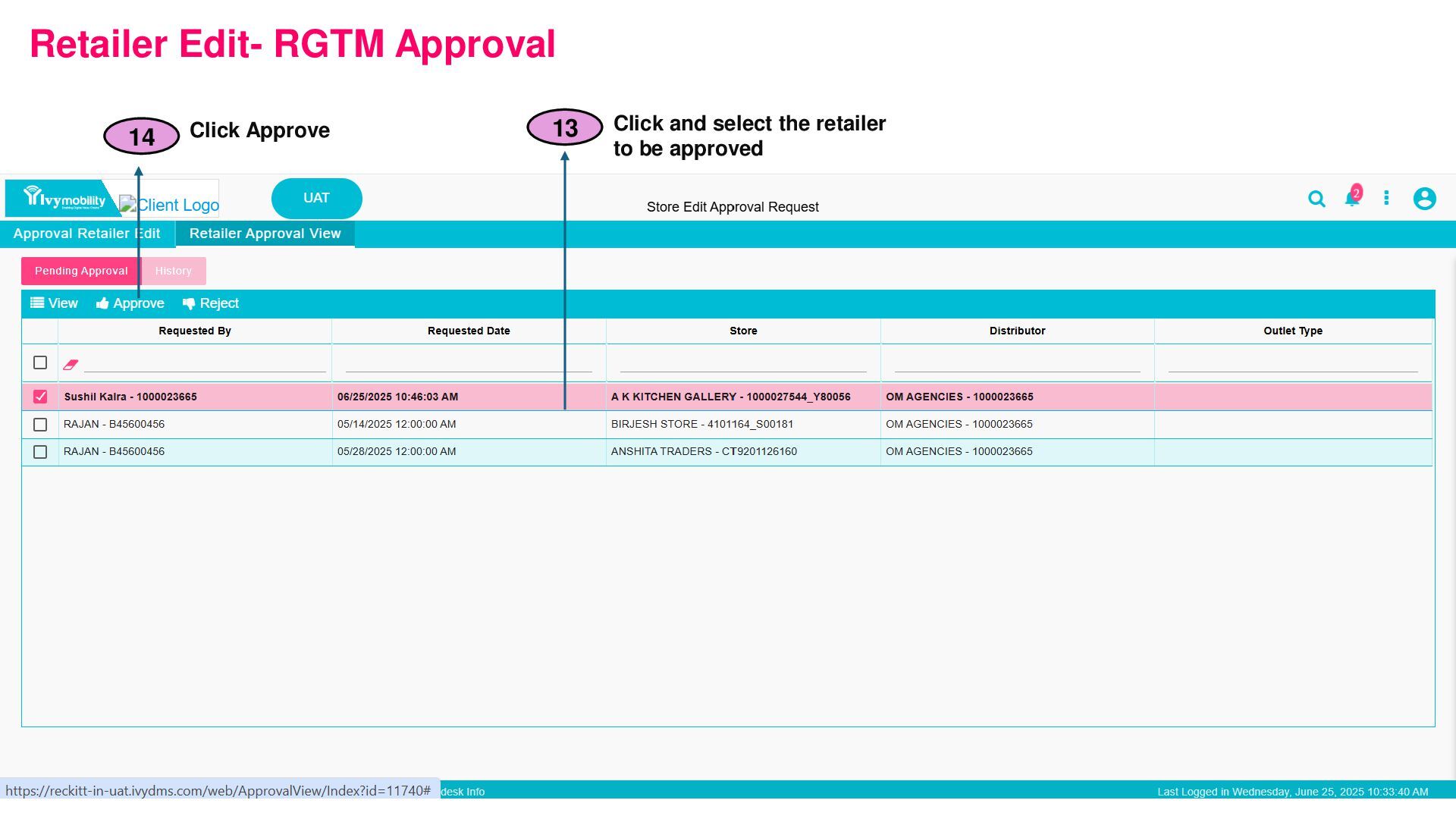
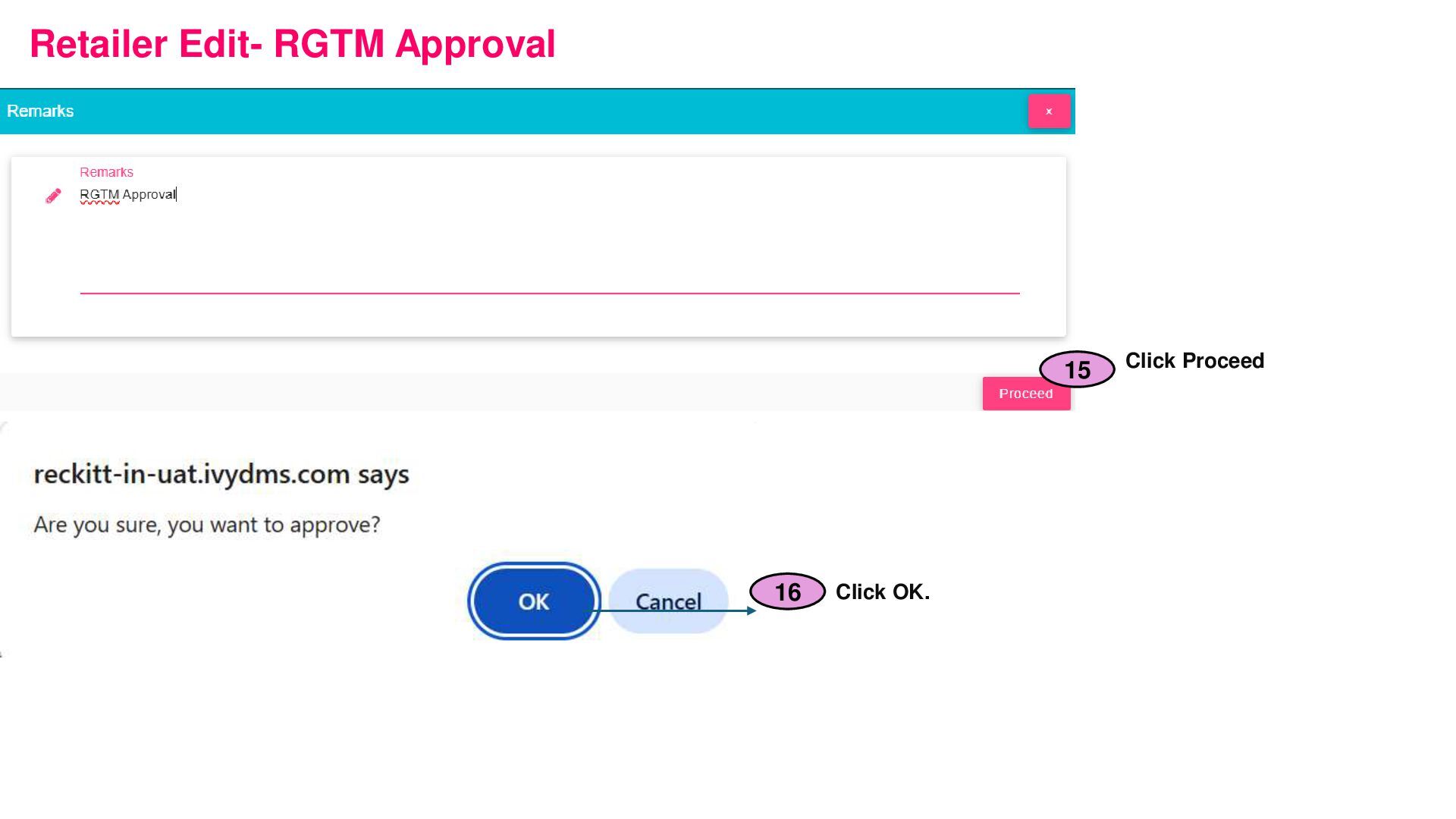
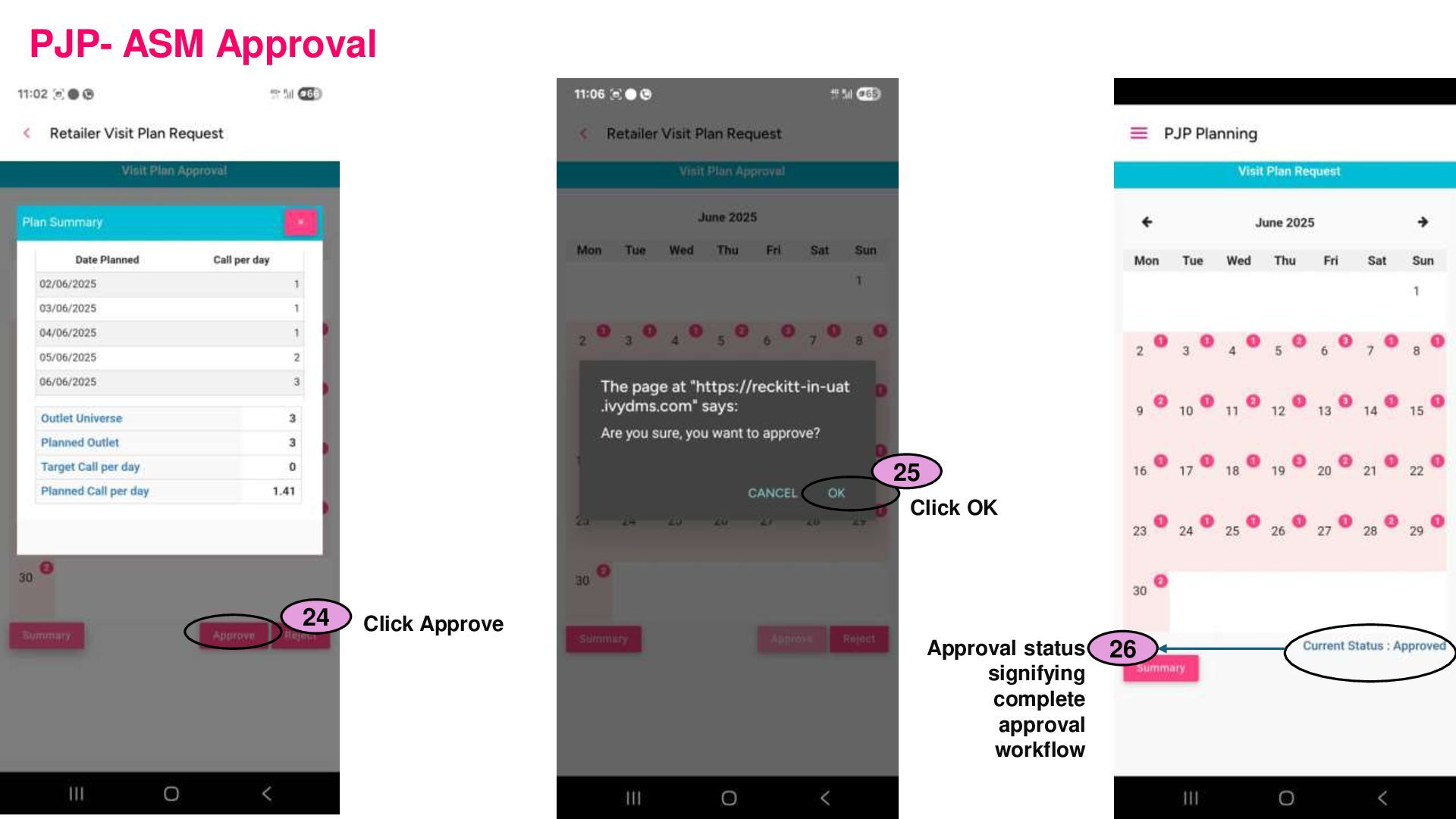
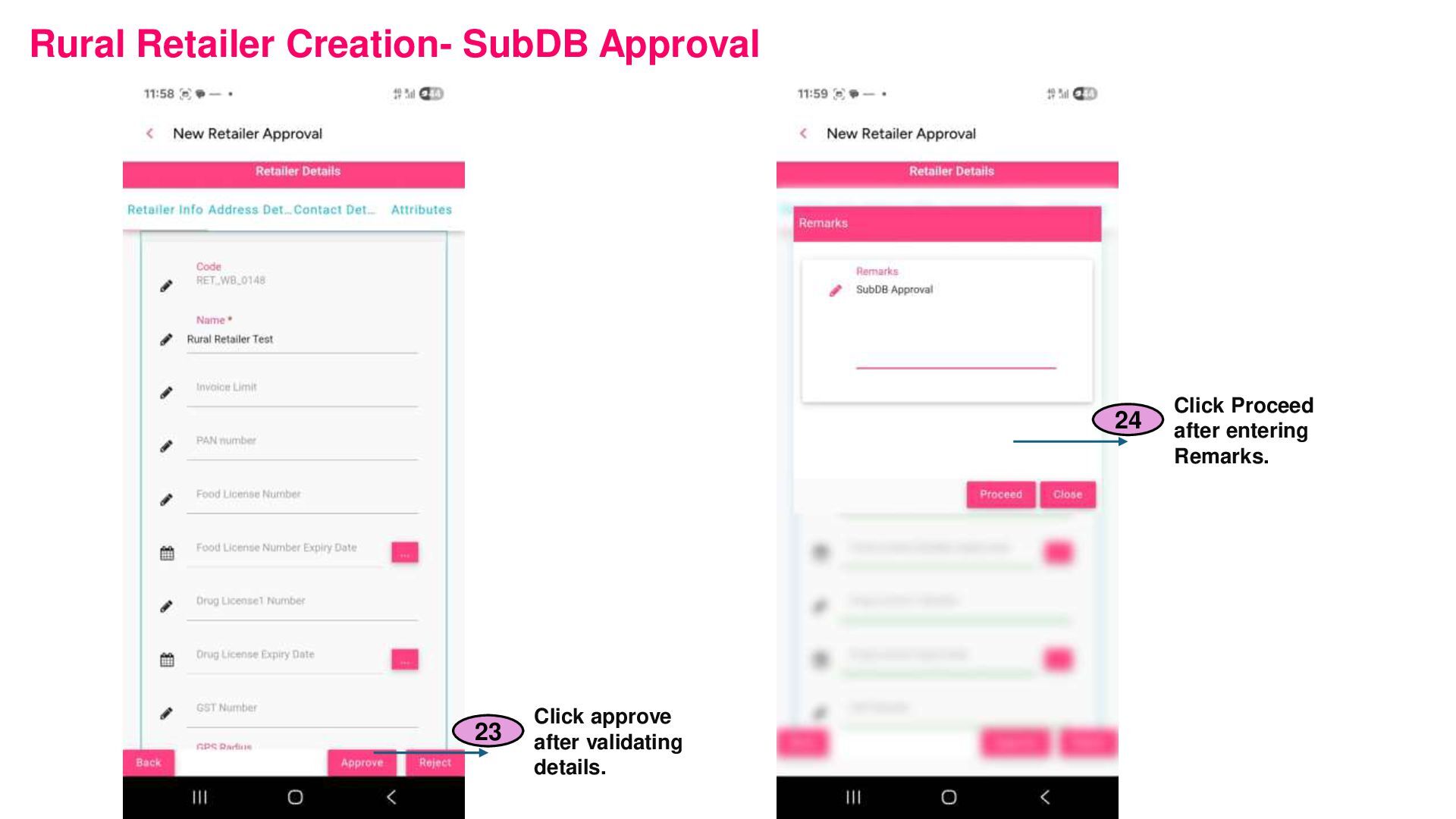
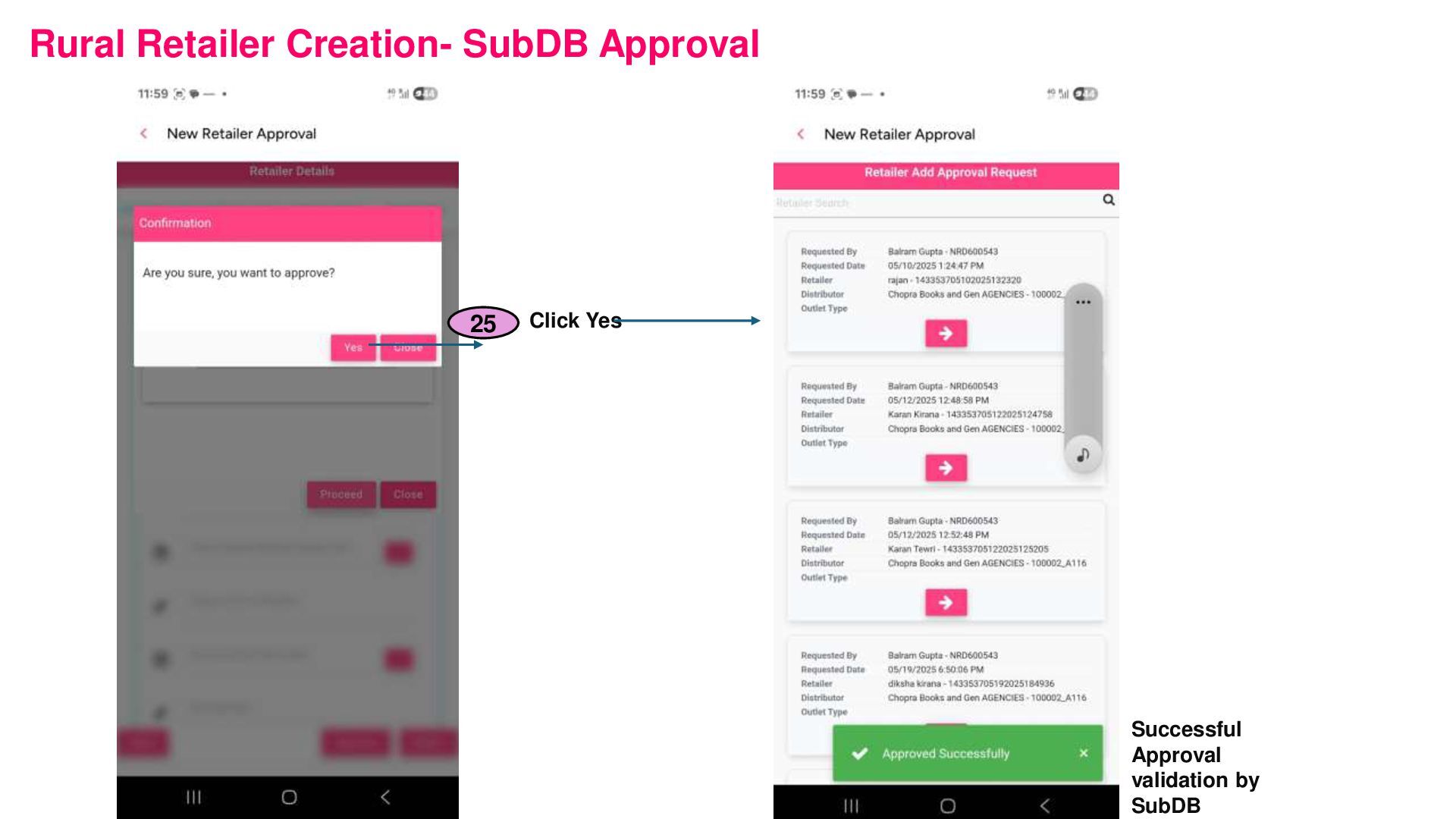
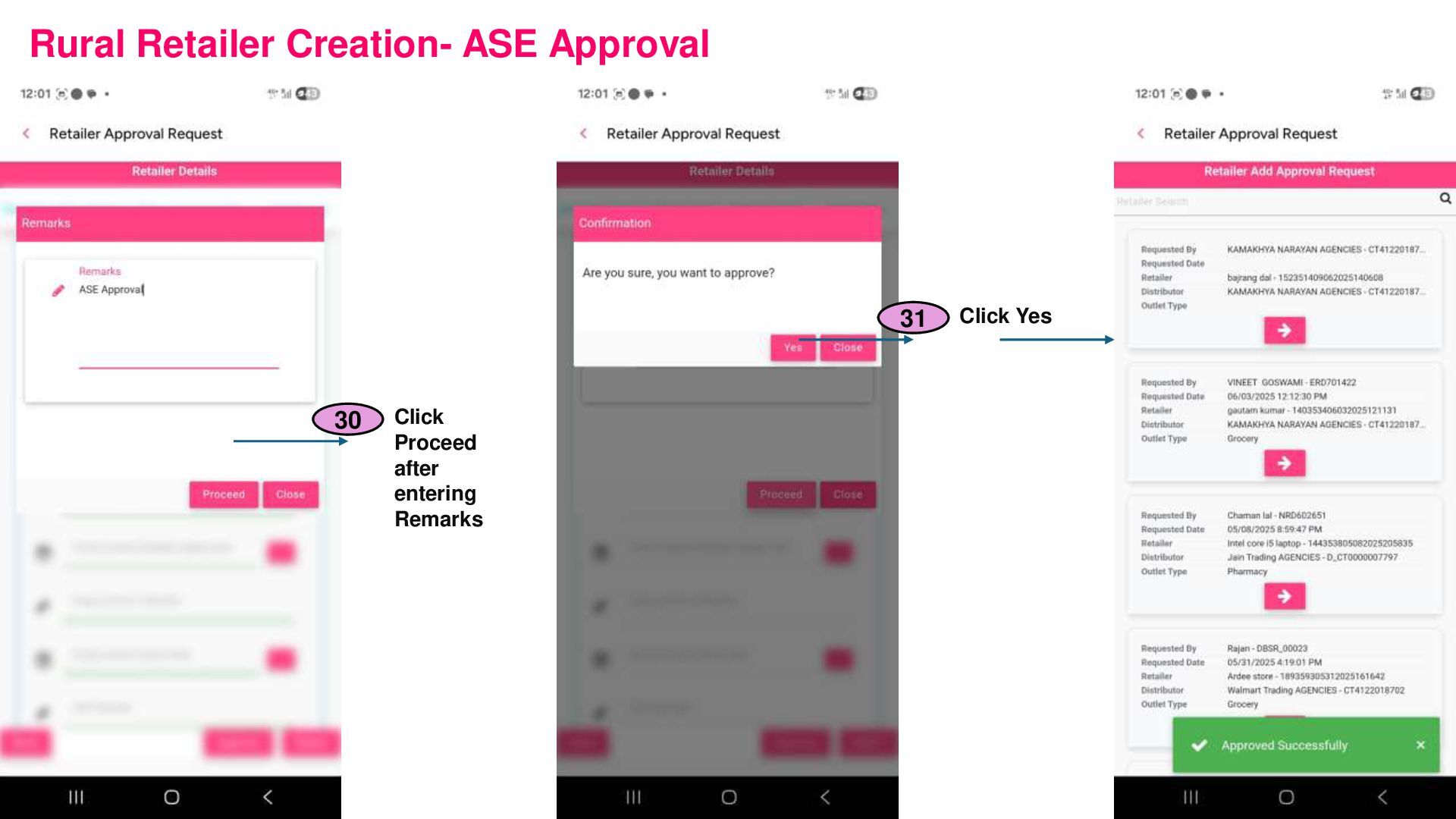
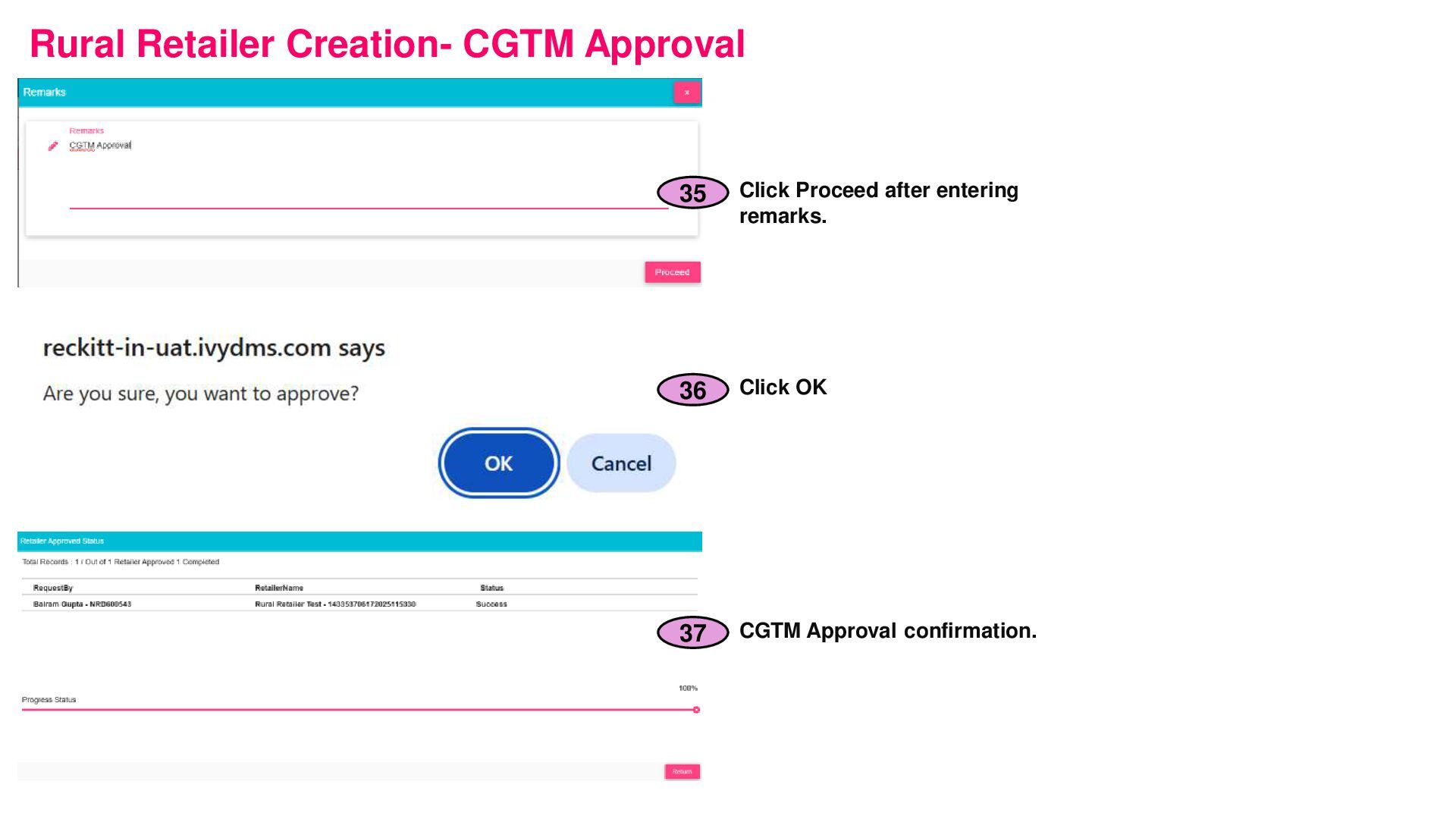
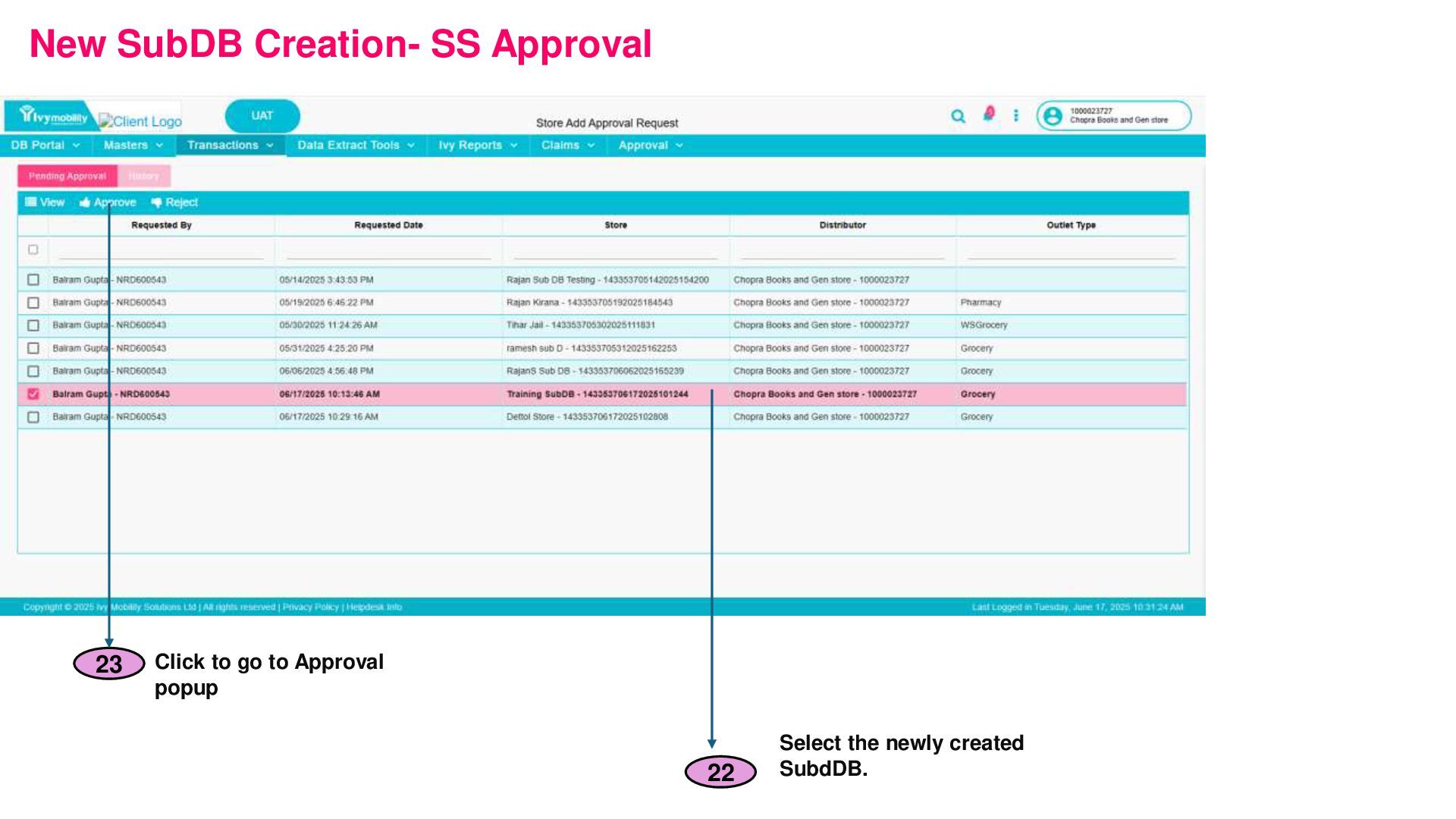
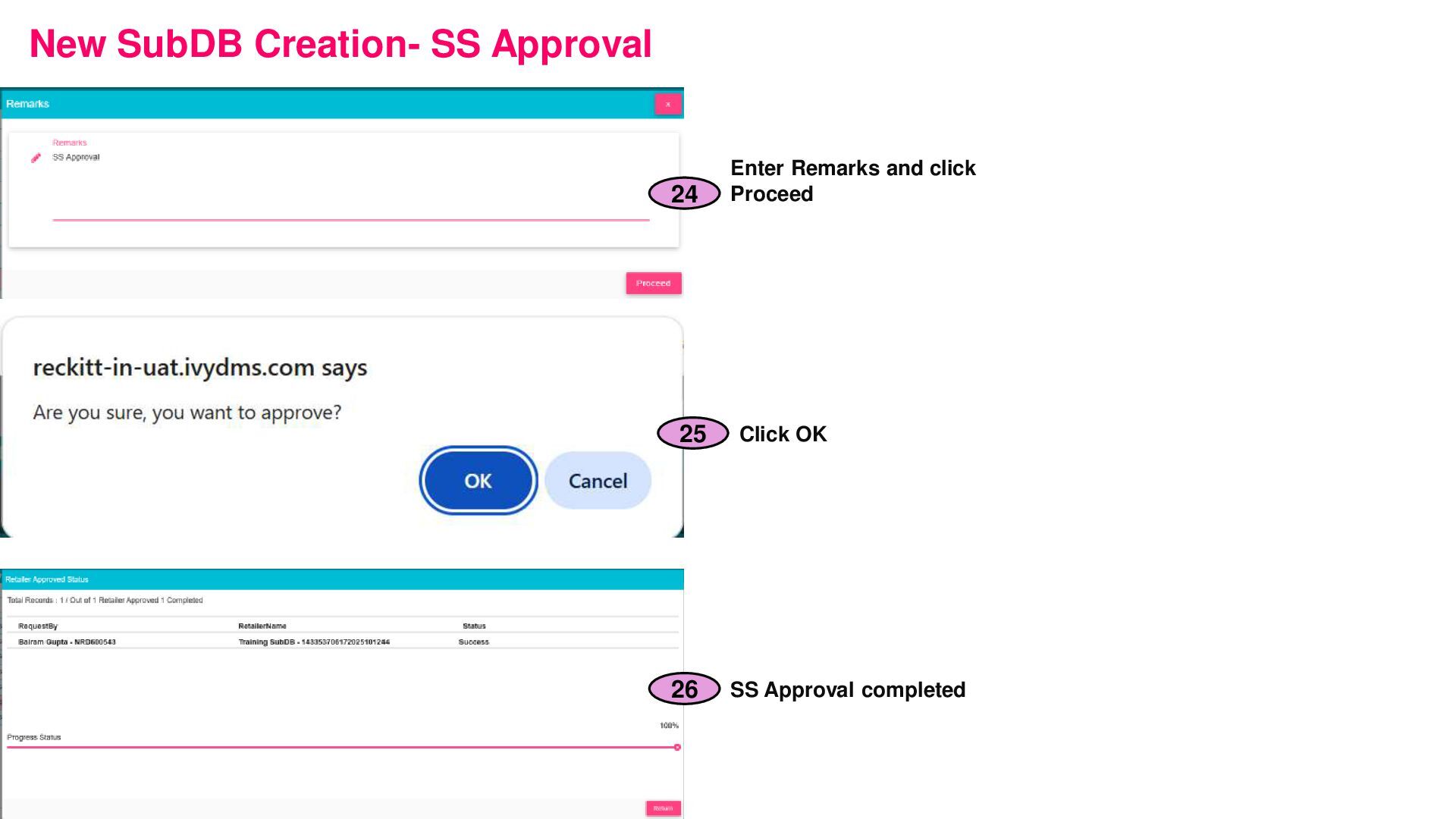
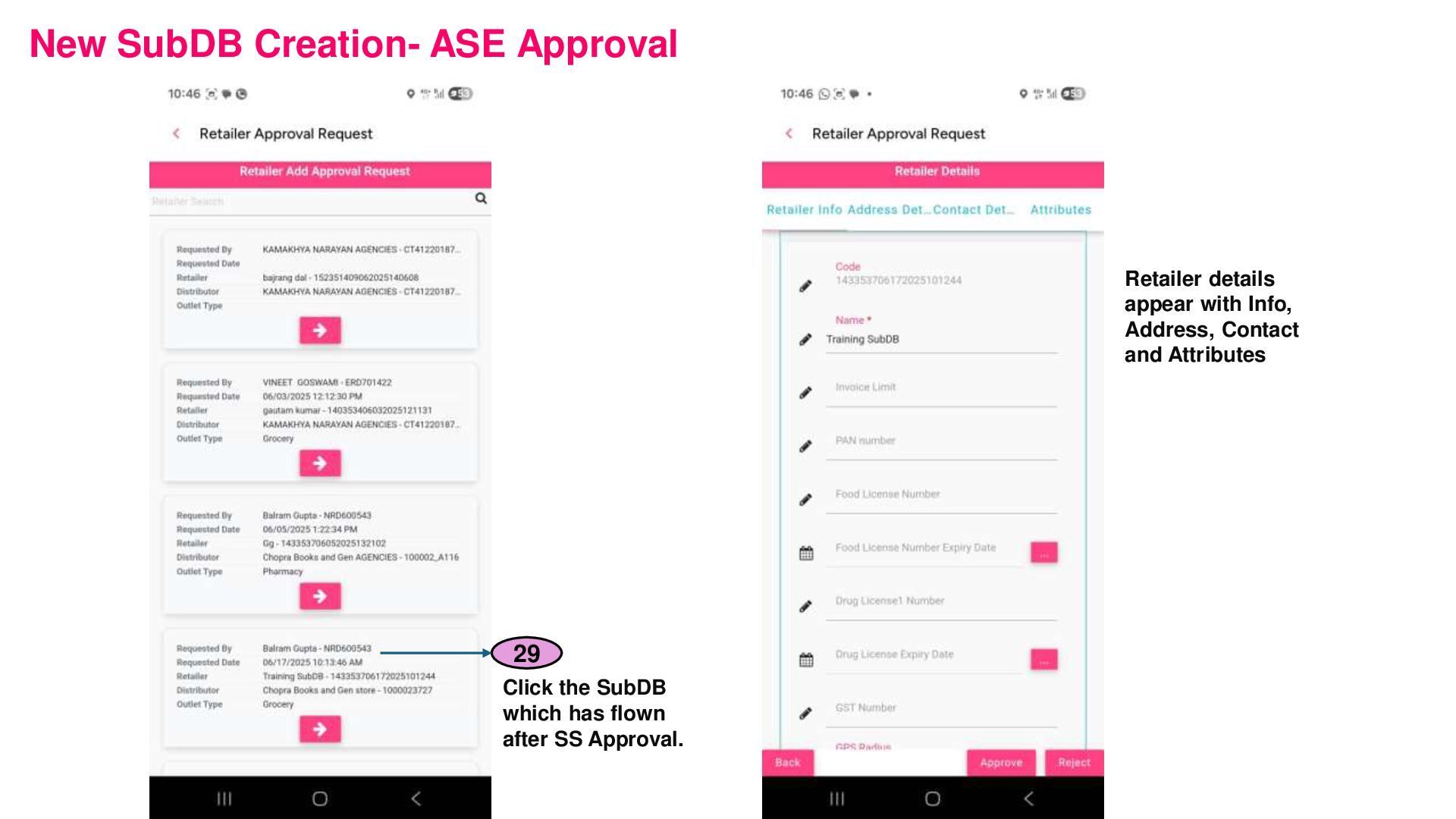
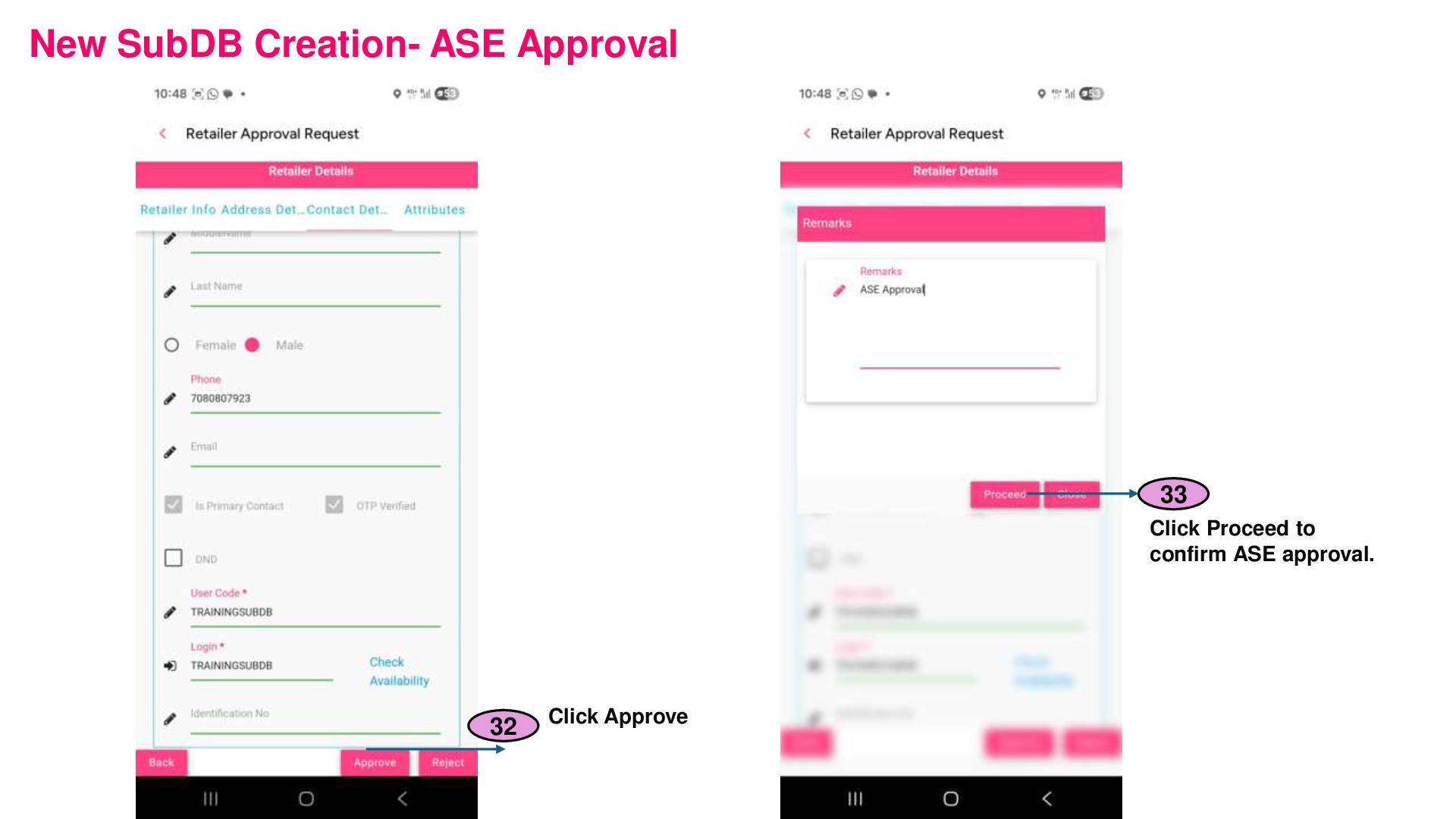
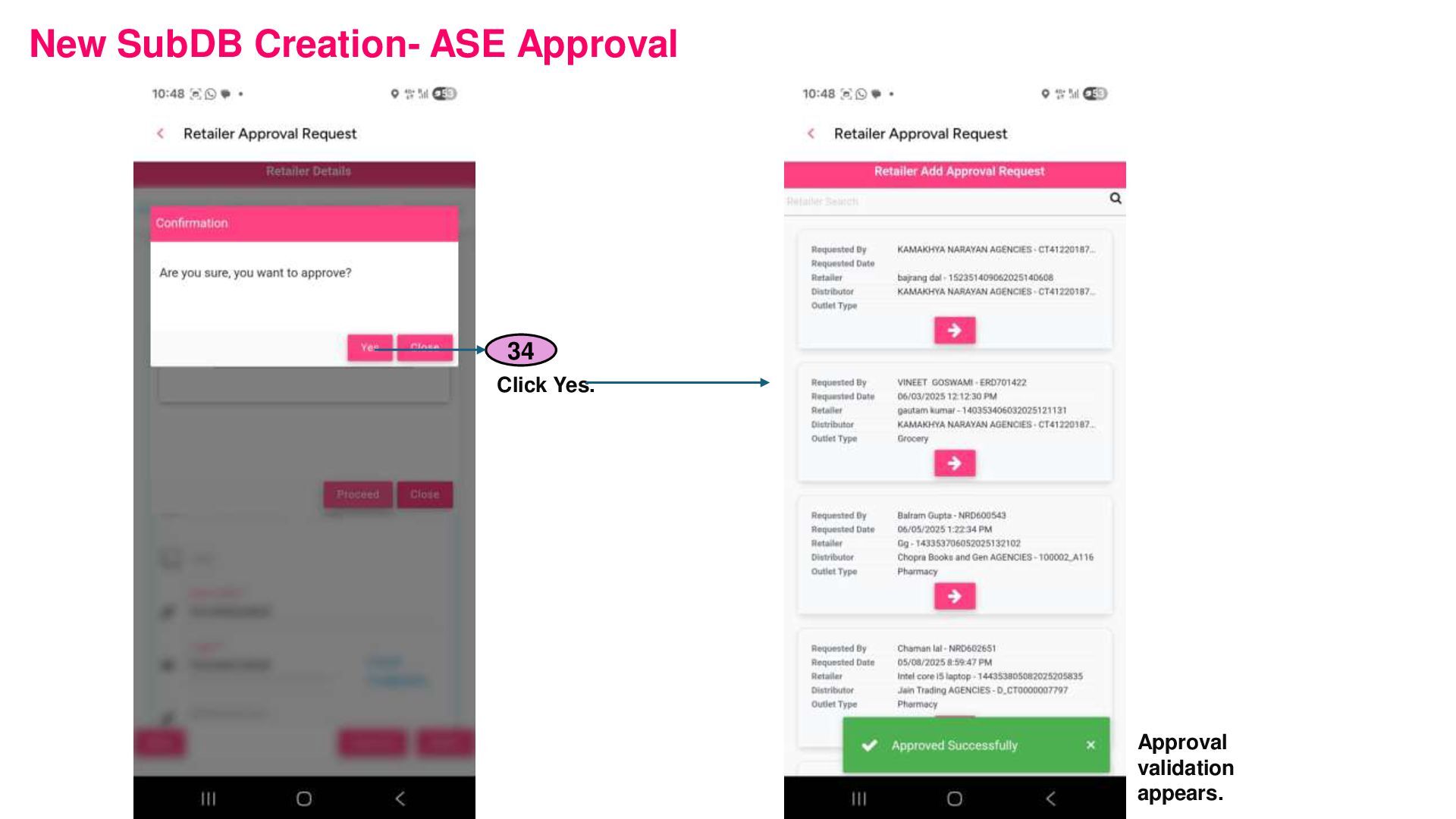
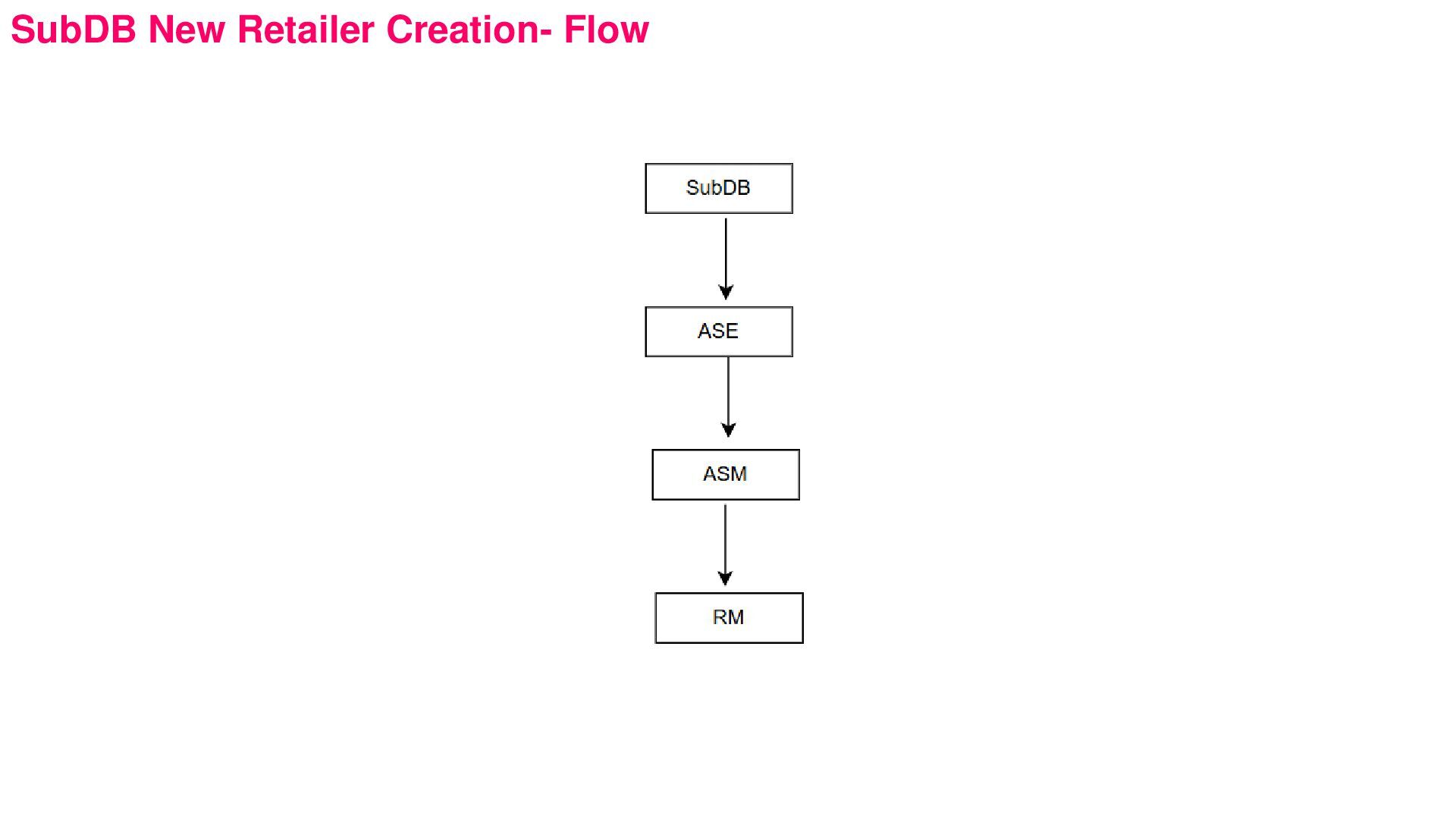
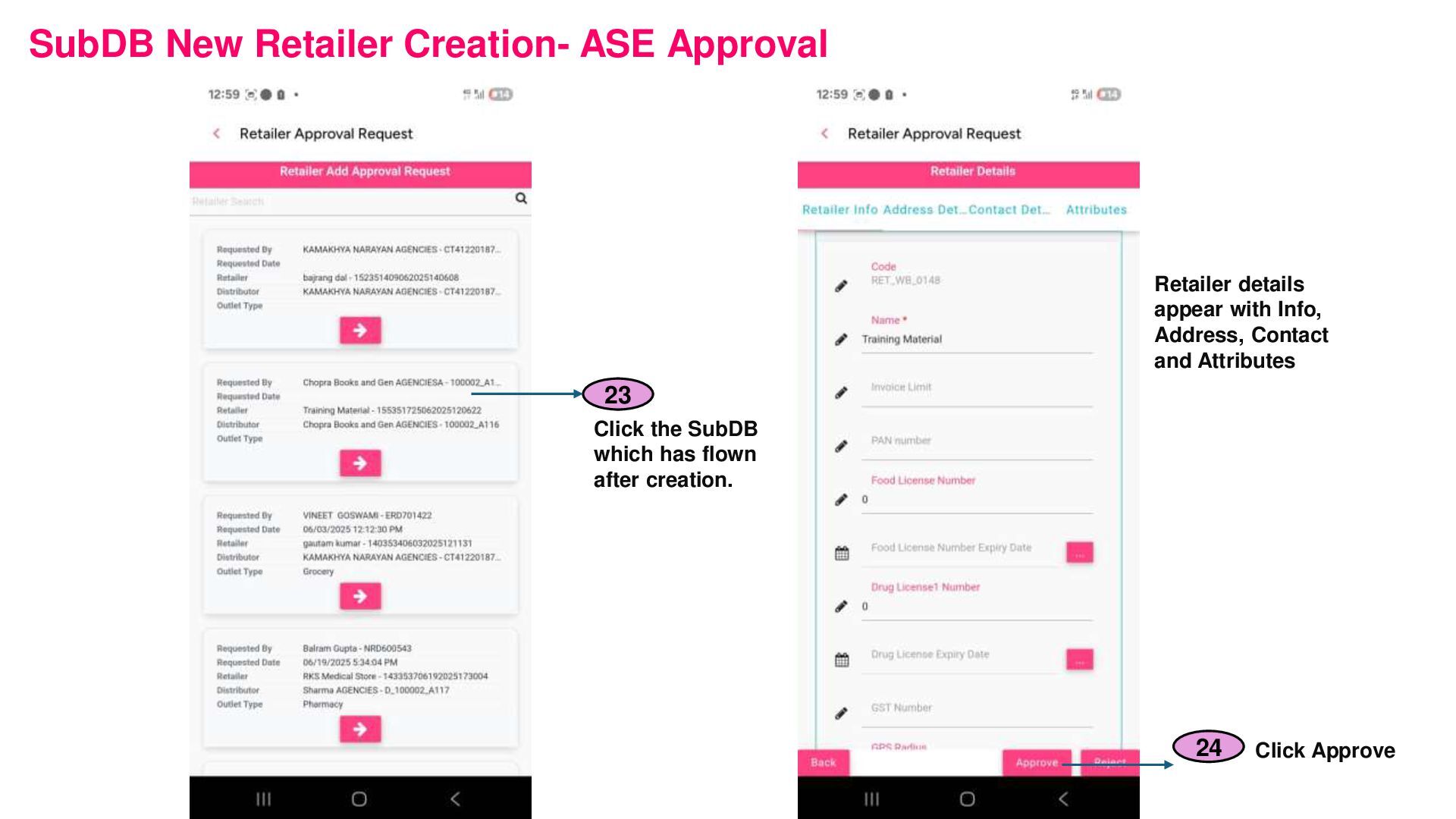
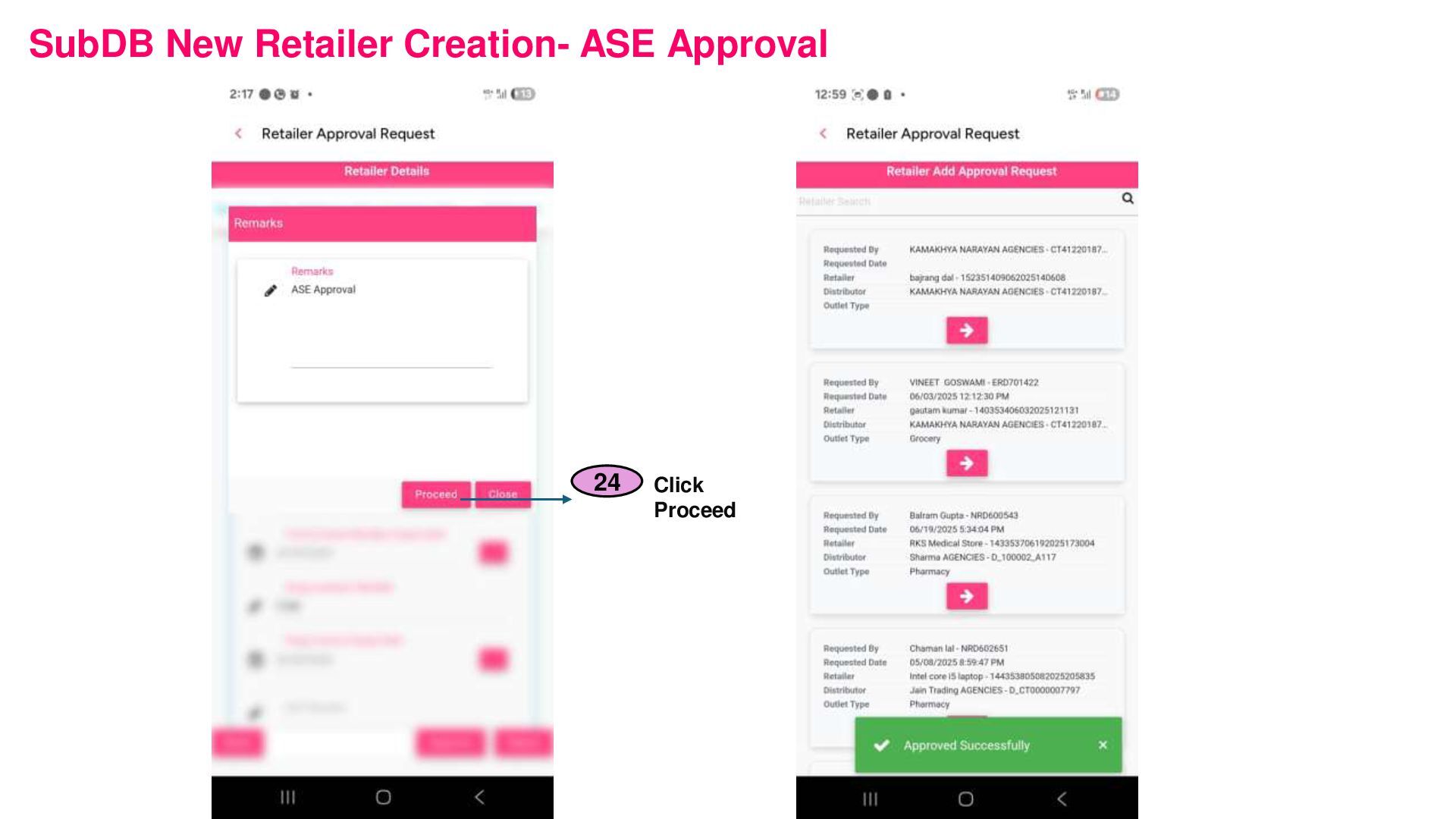
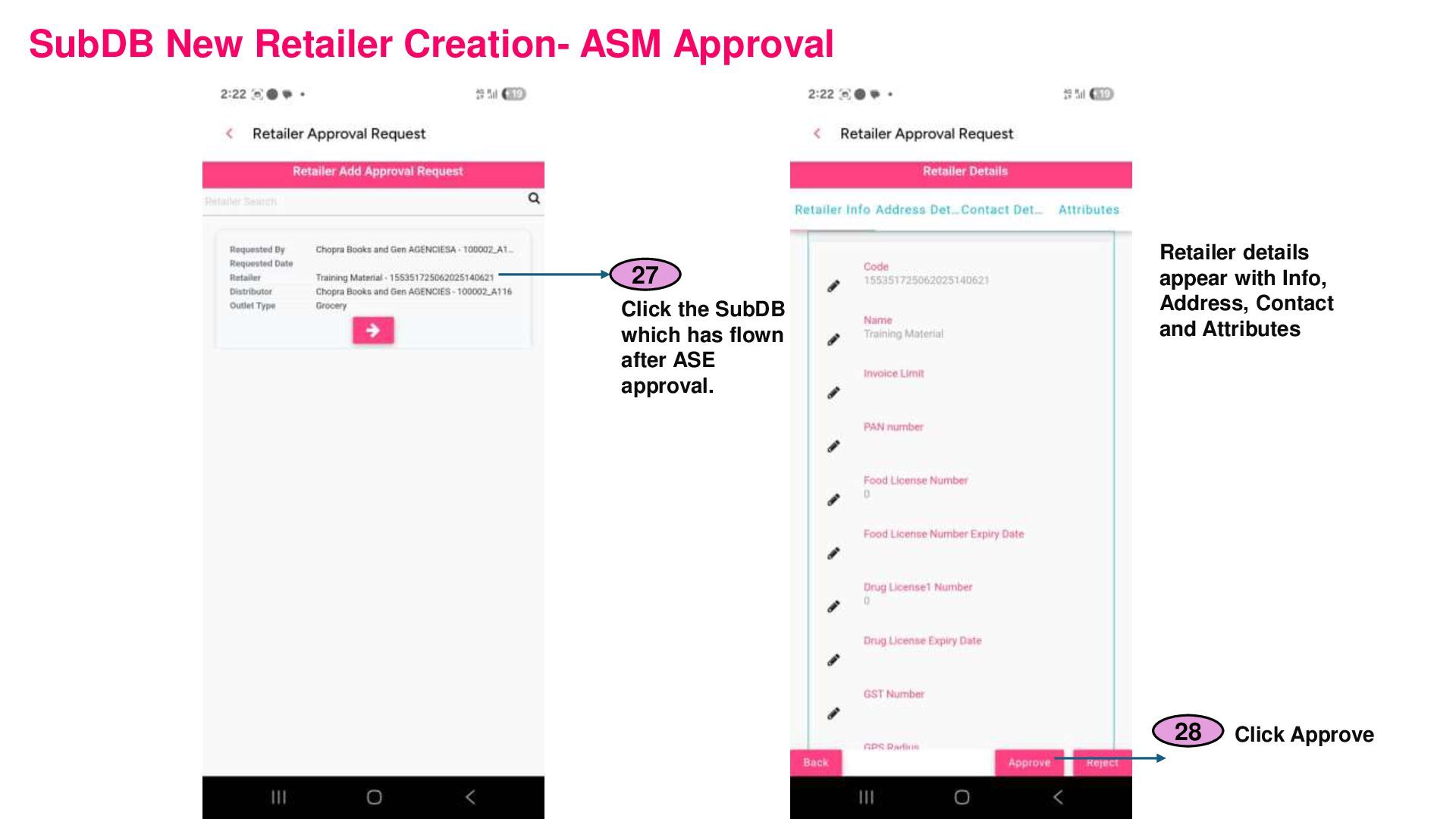
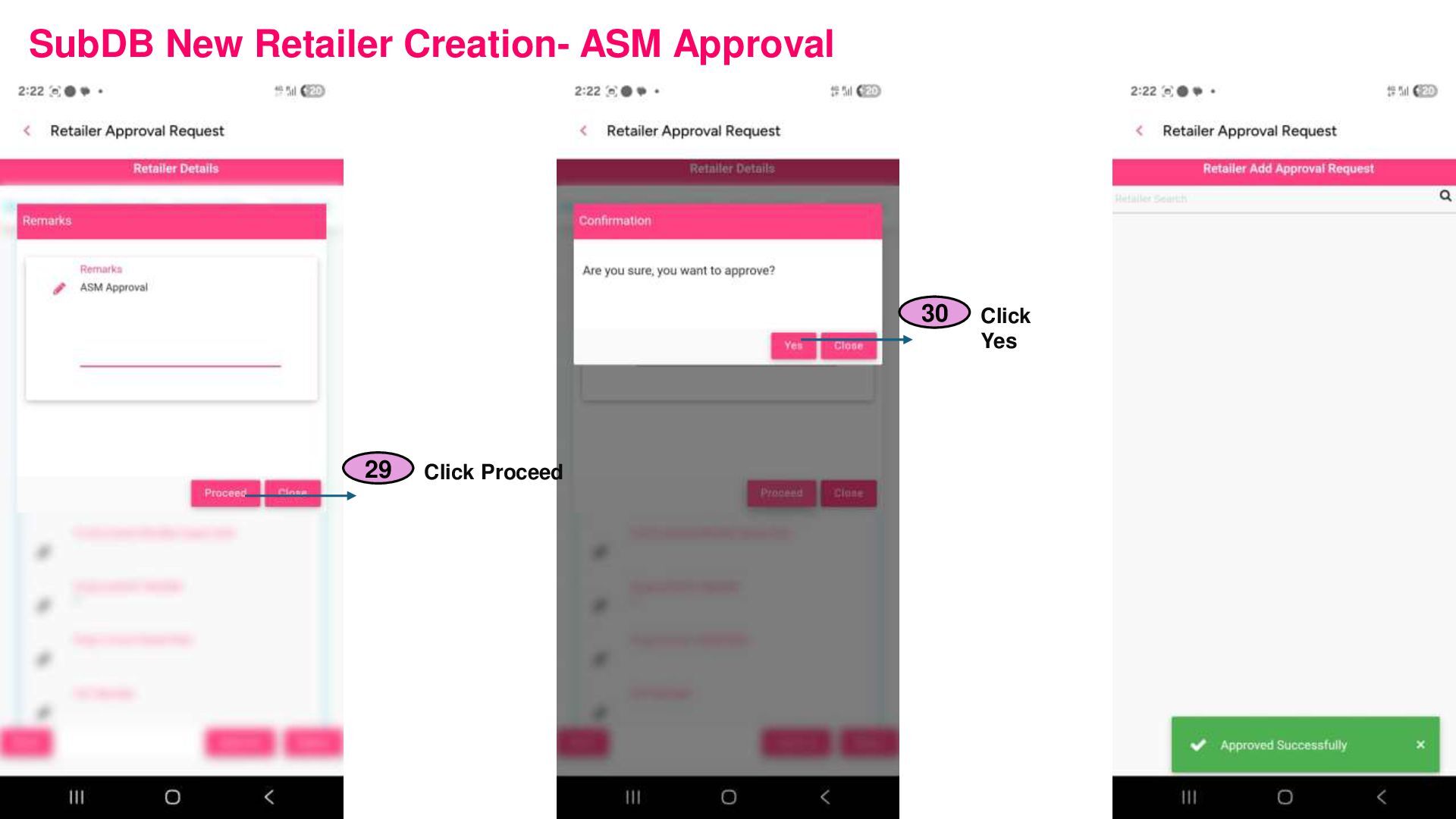
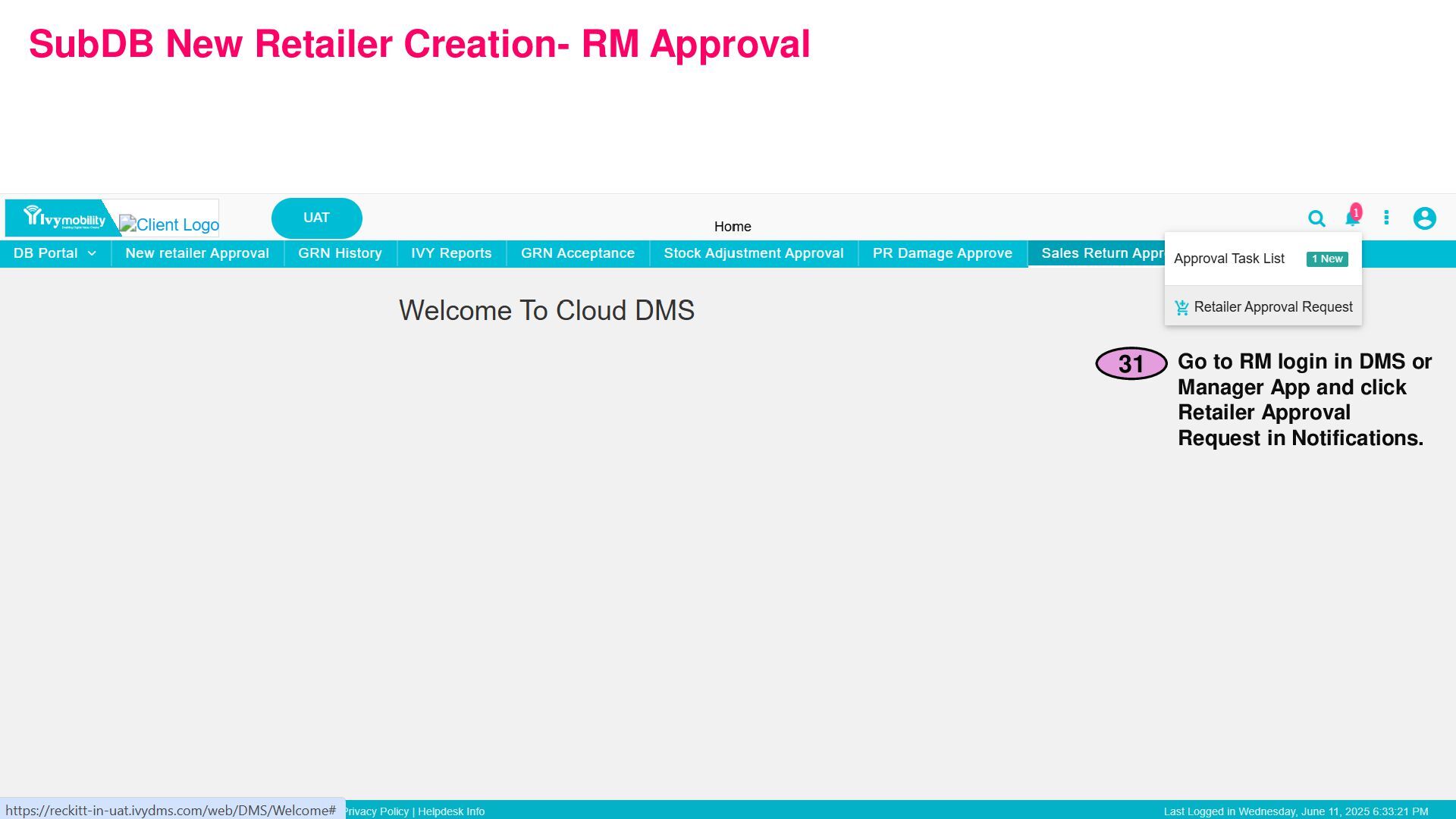
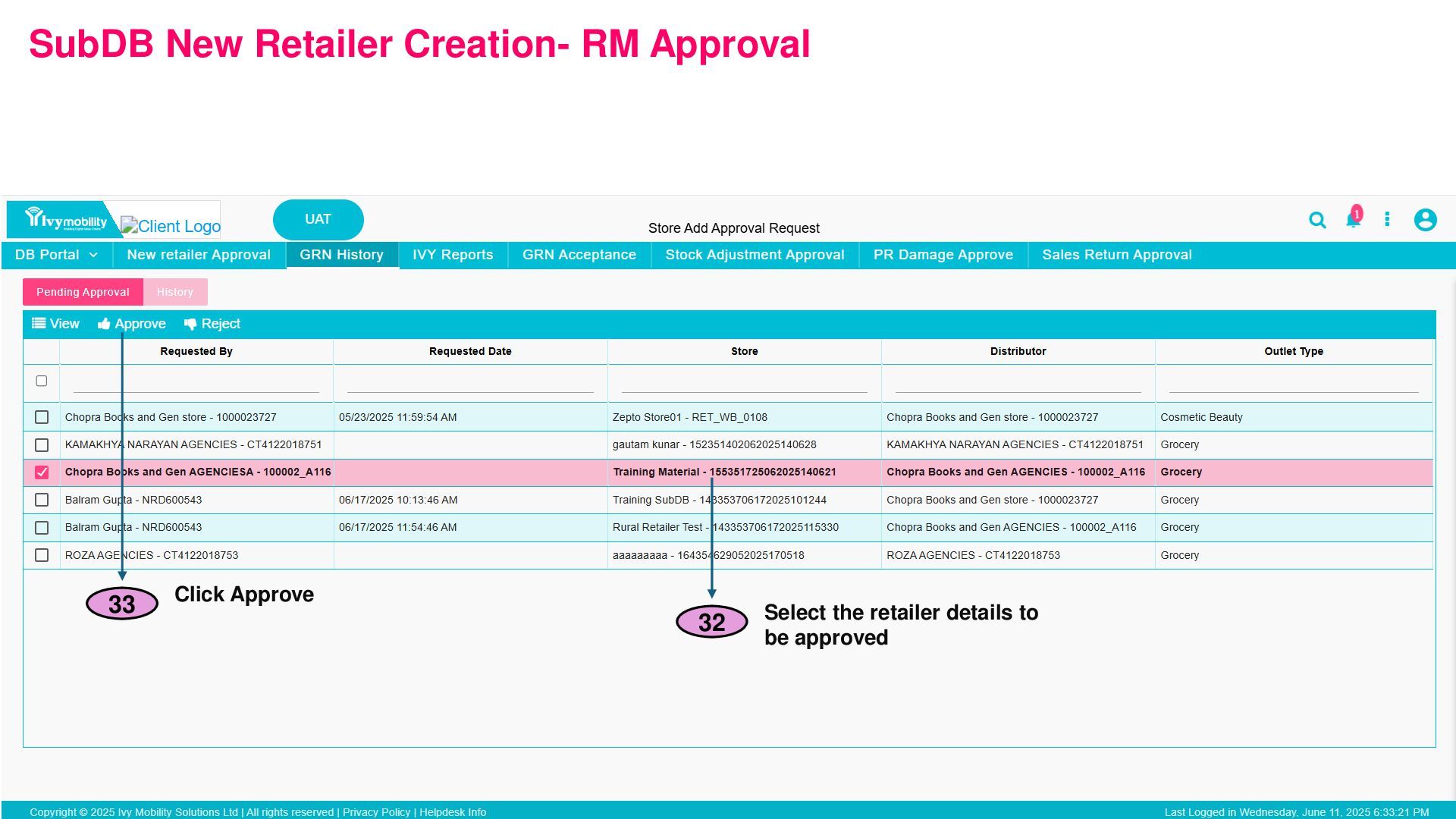
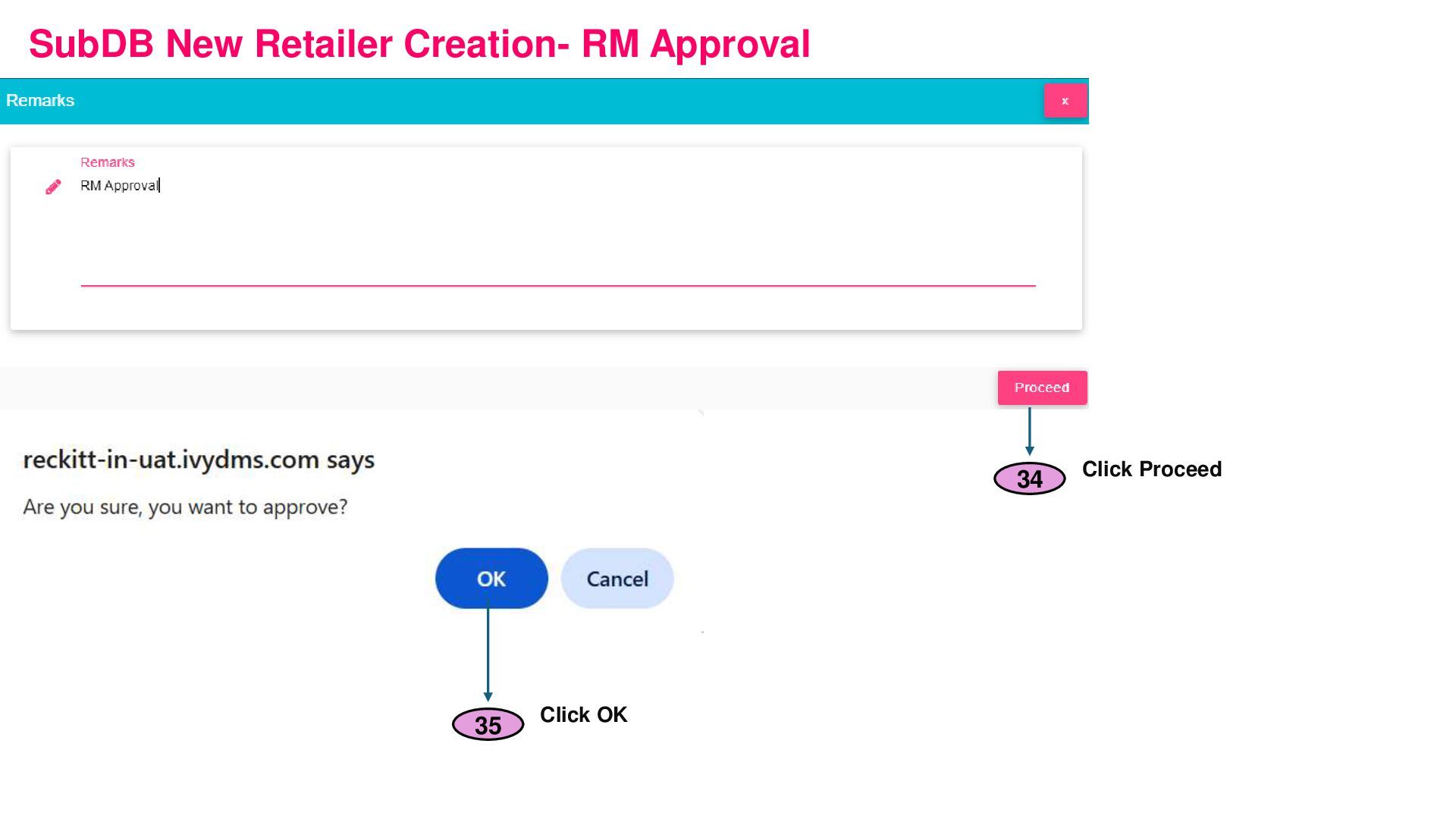
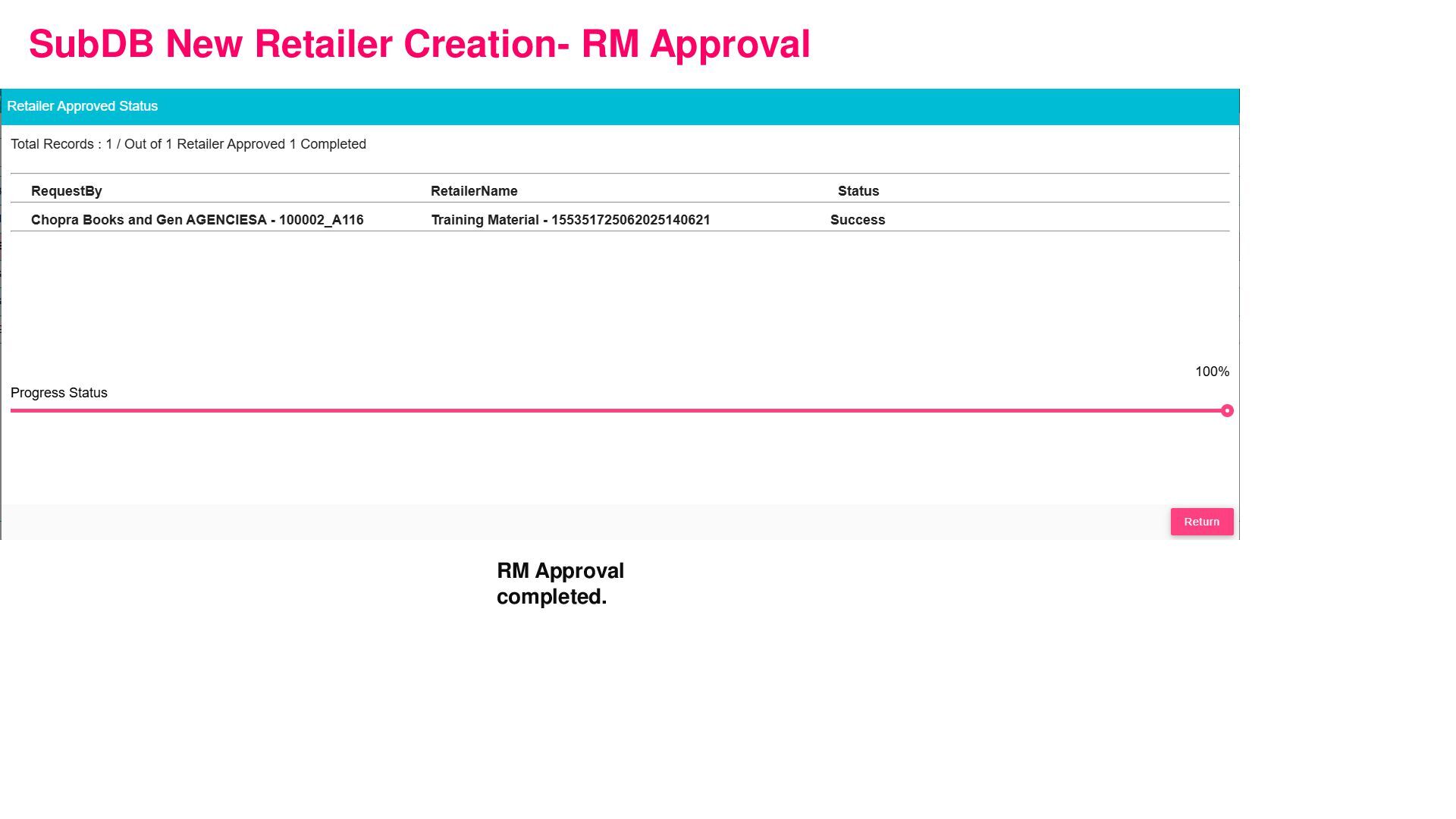
forward for RGTM approval Else Click Reject (This will end the approval workflow then and there) 3 After Approve, you may enter Remarks (optional) and click Proceed. 4
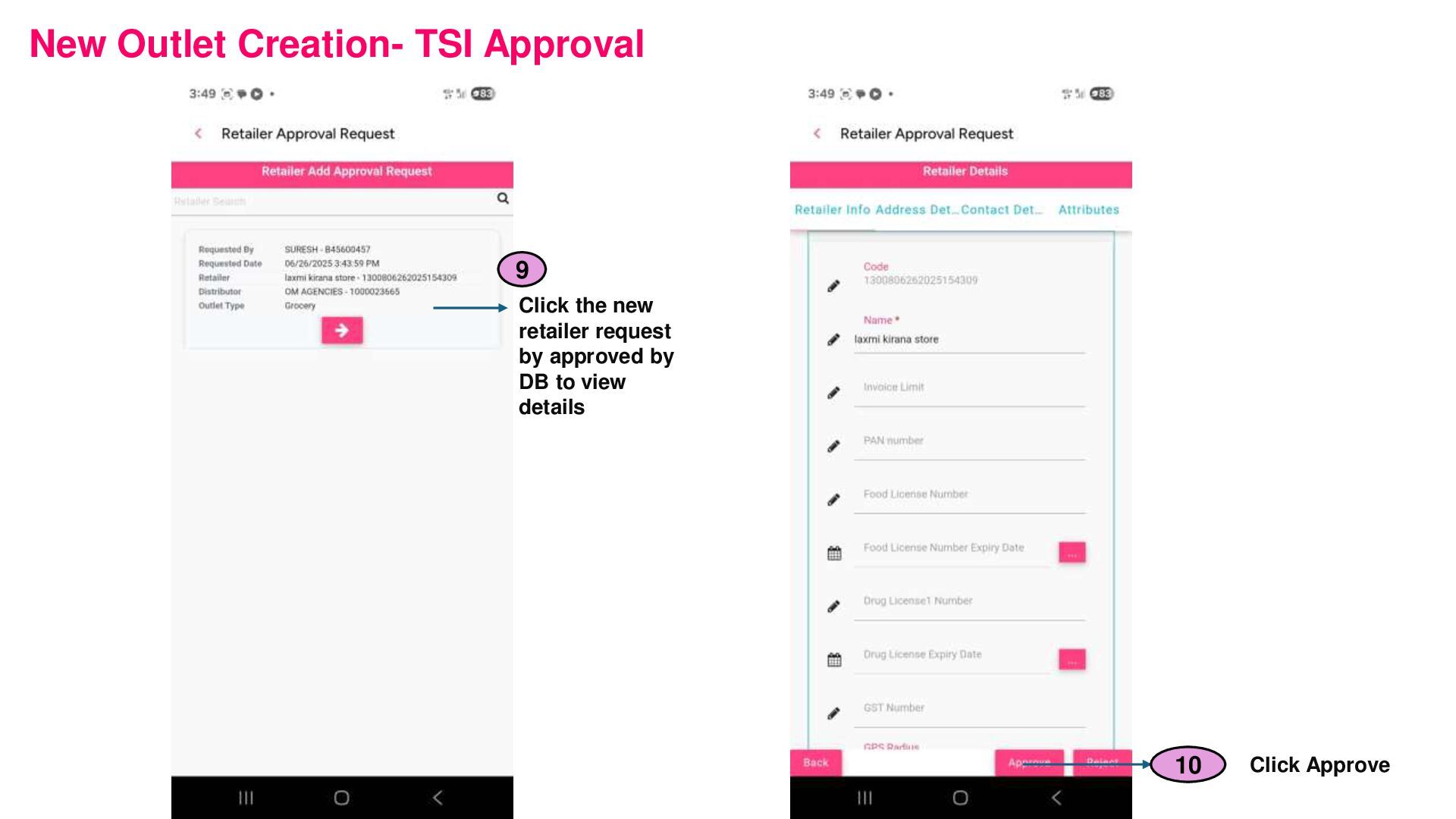
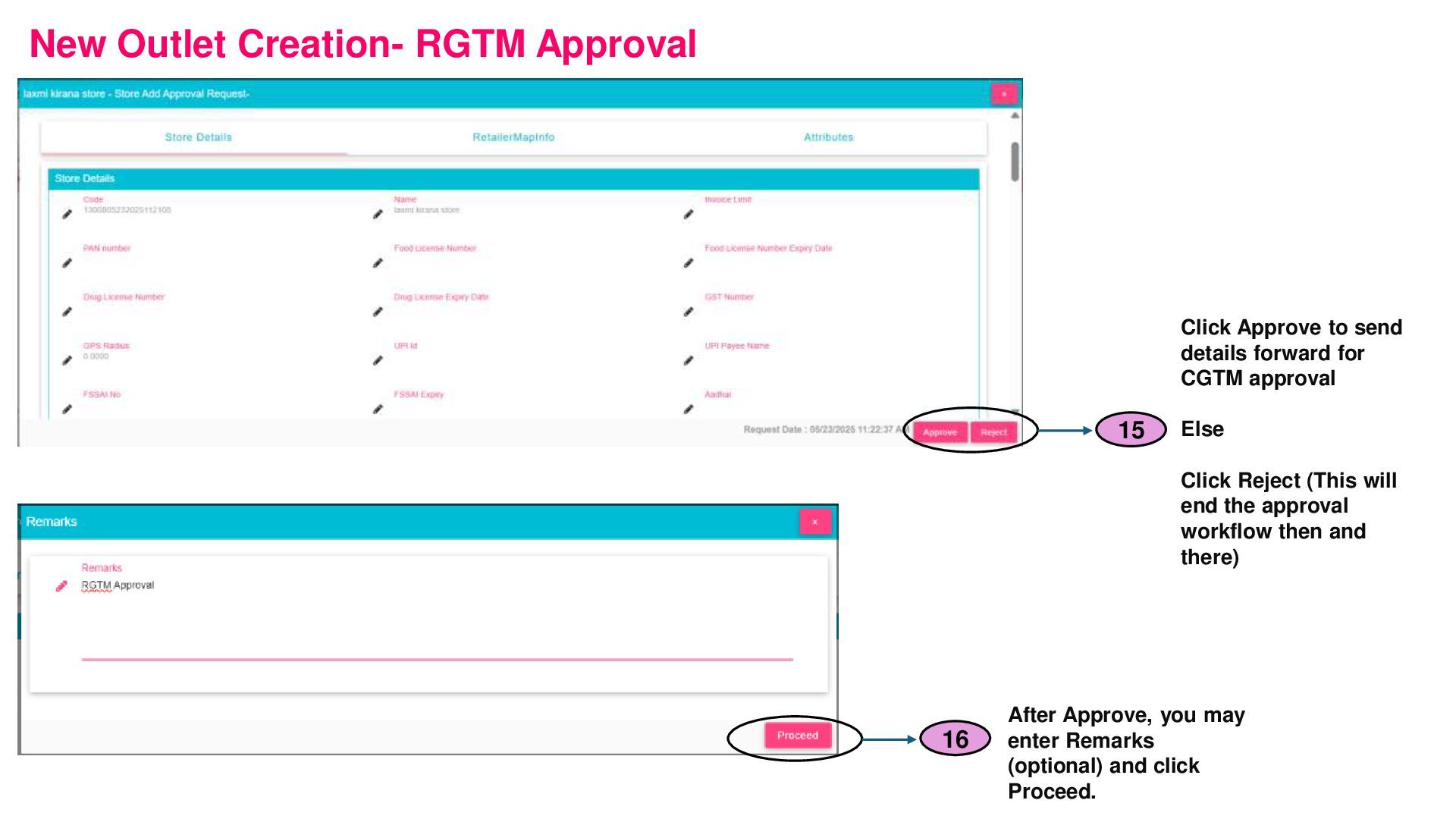
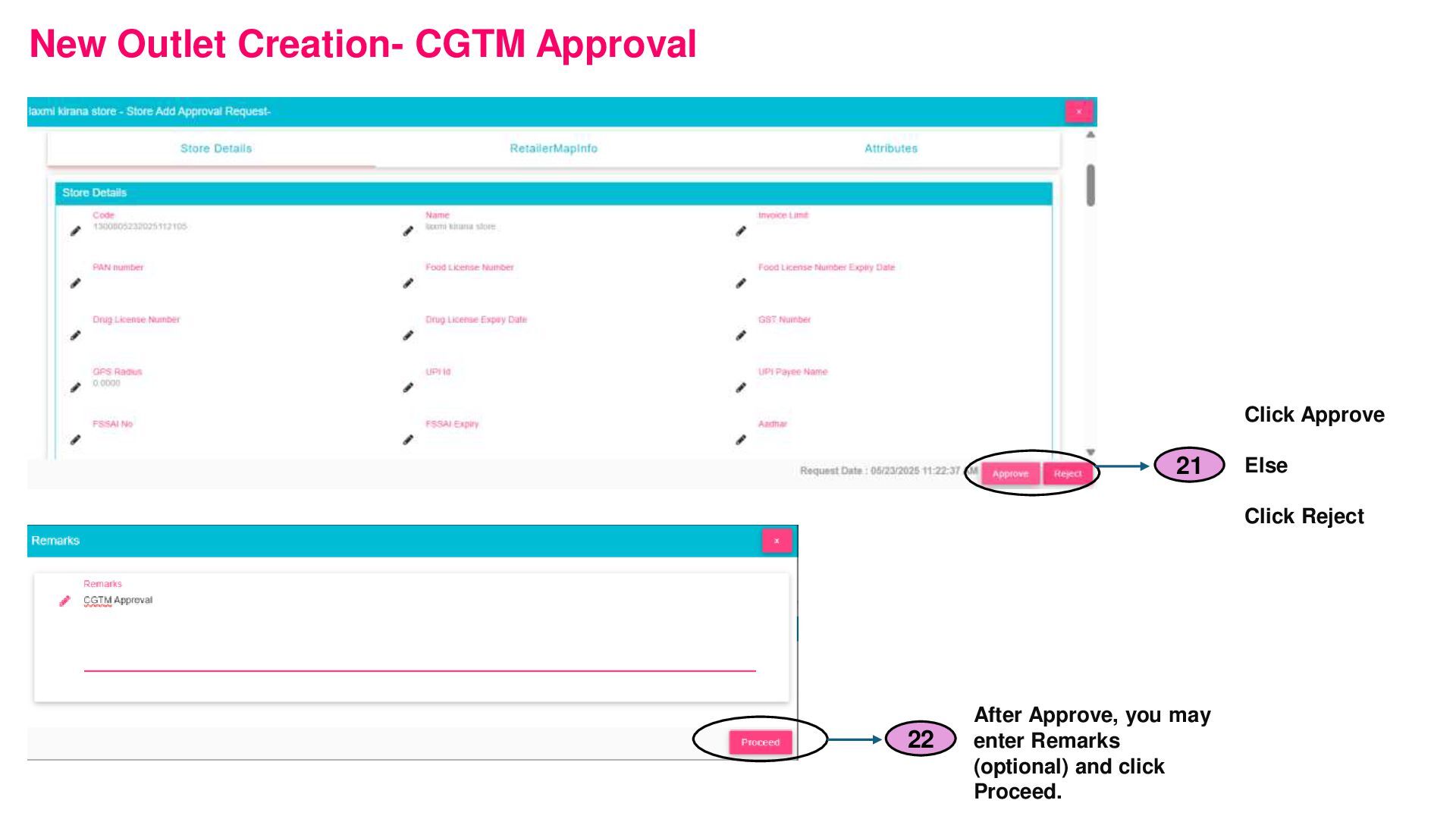
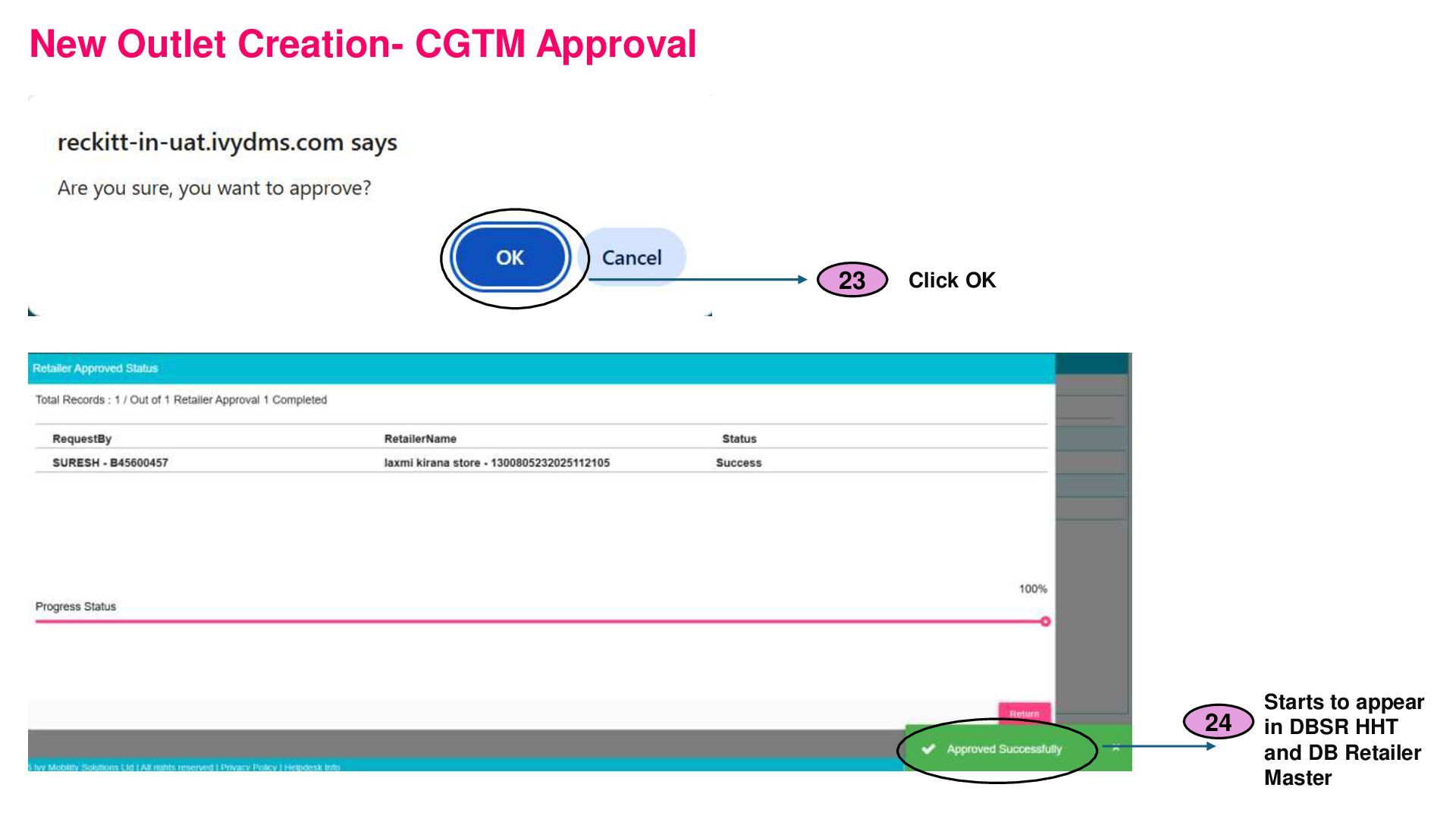
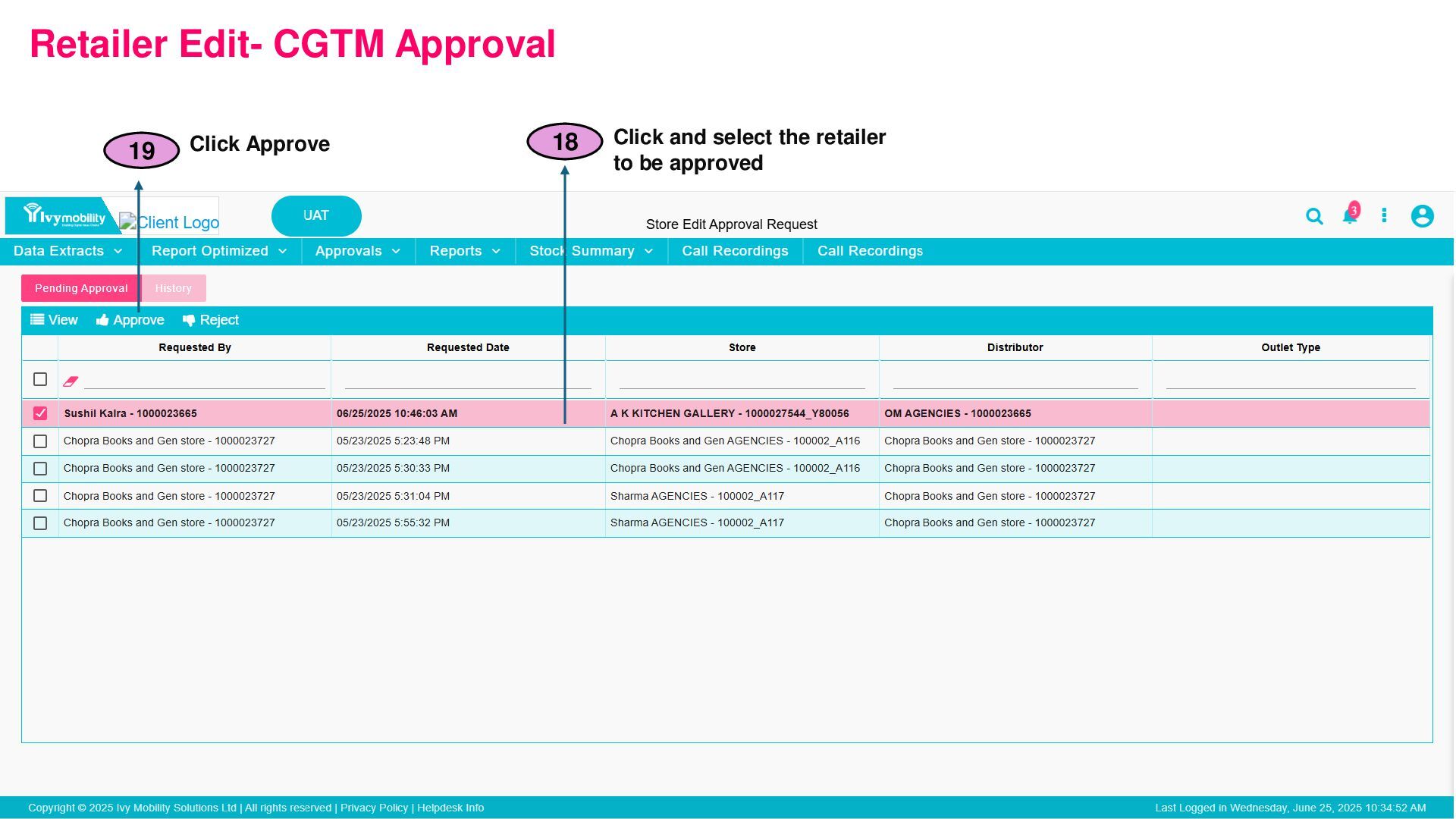
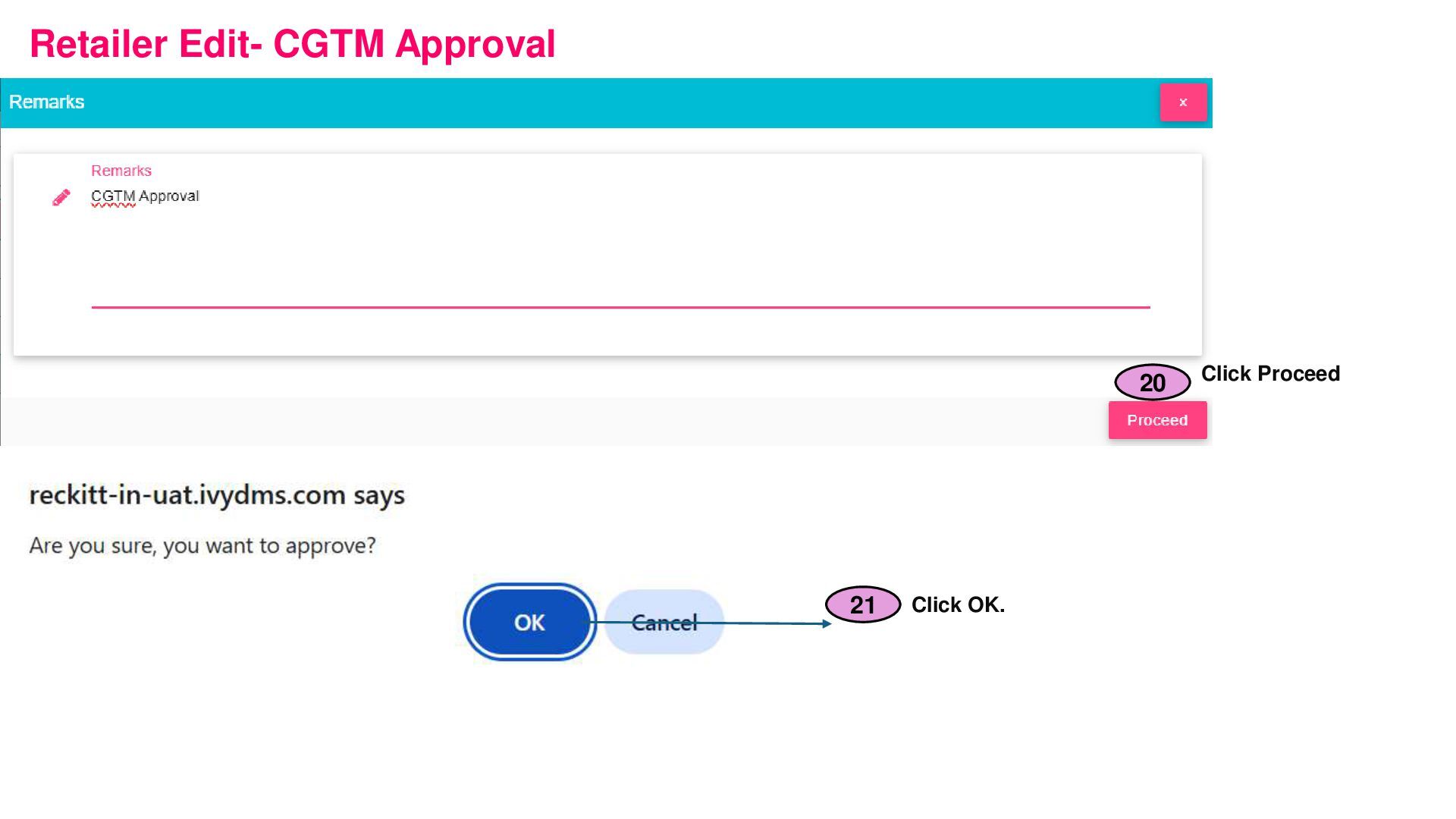
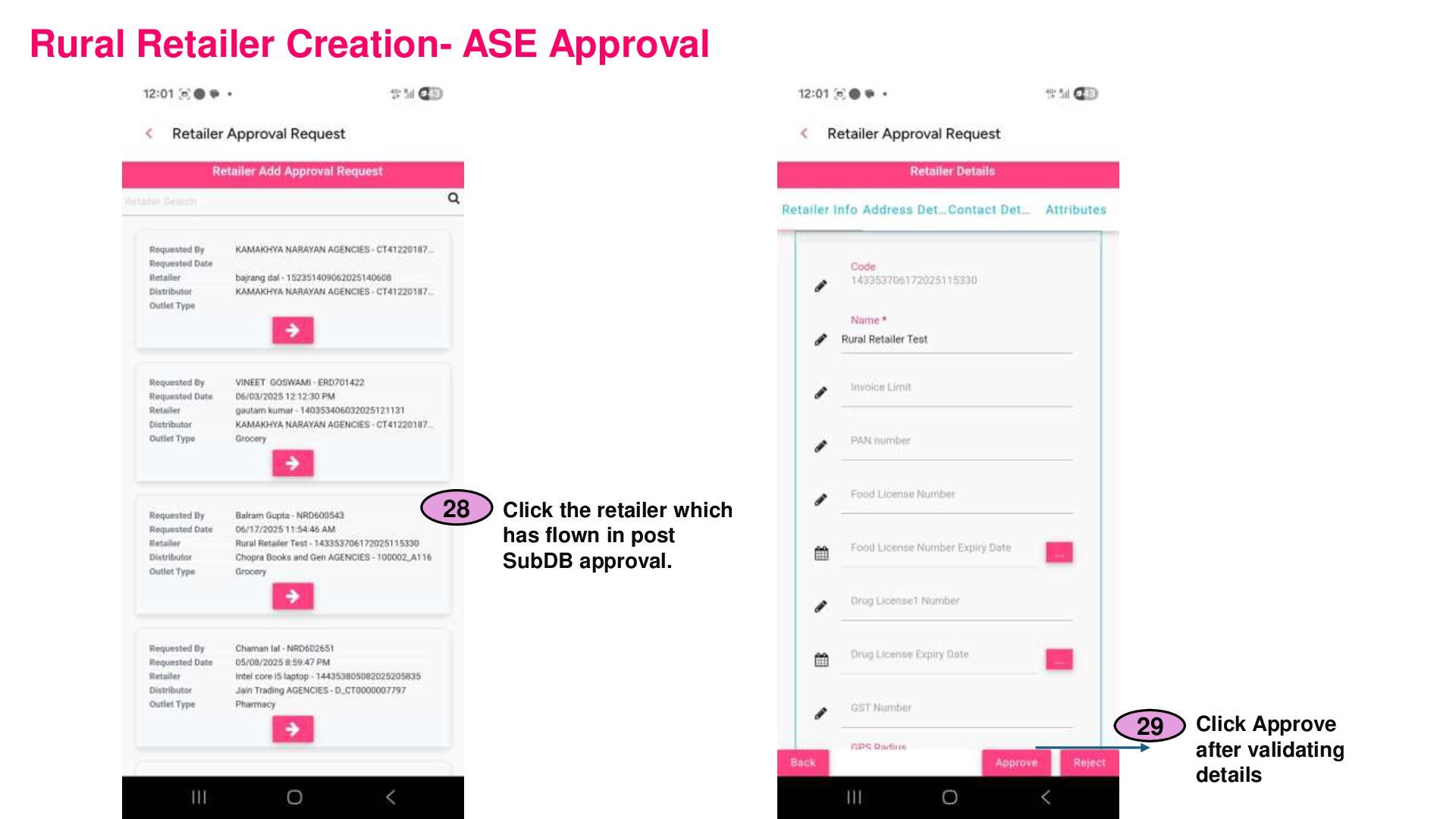
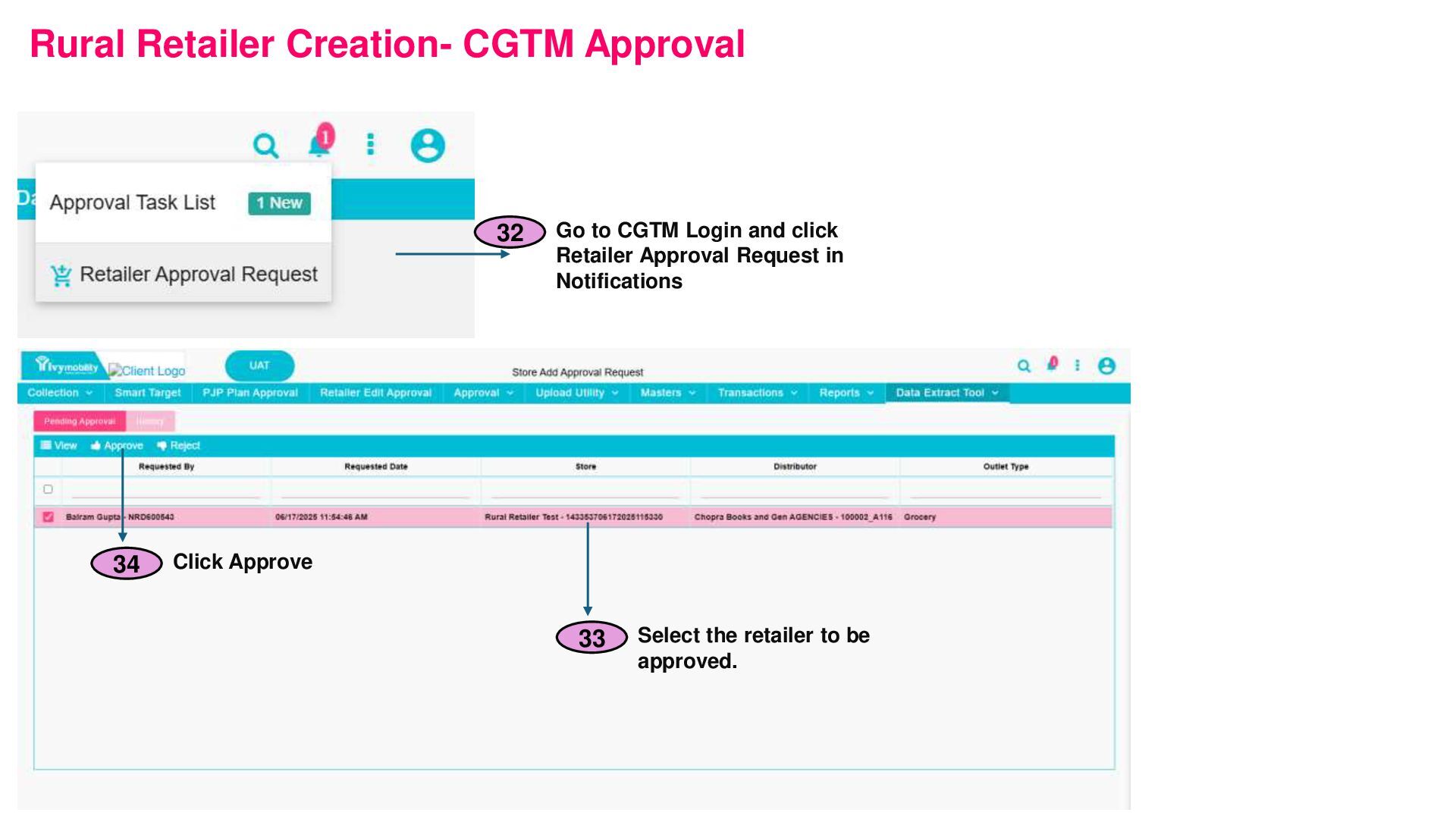
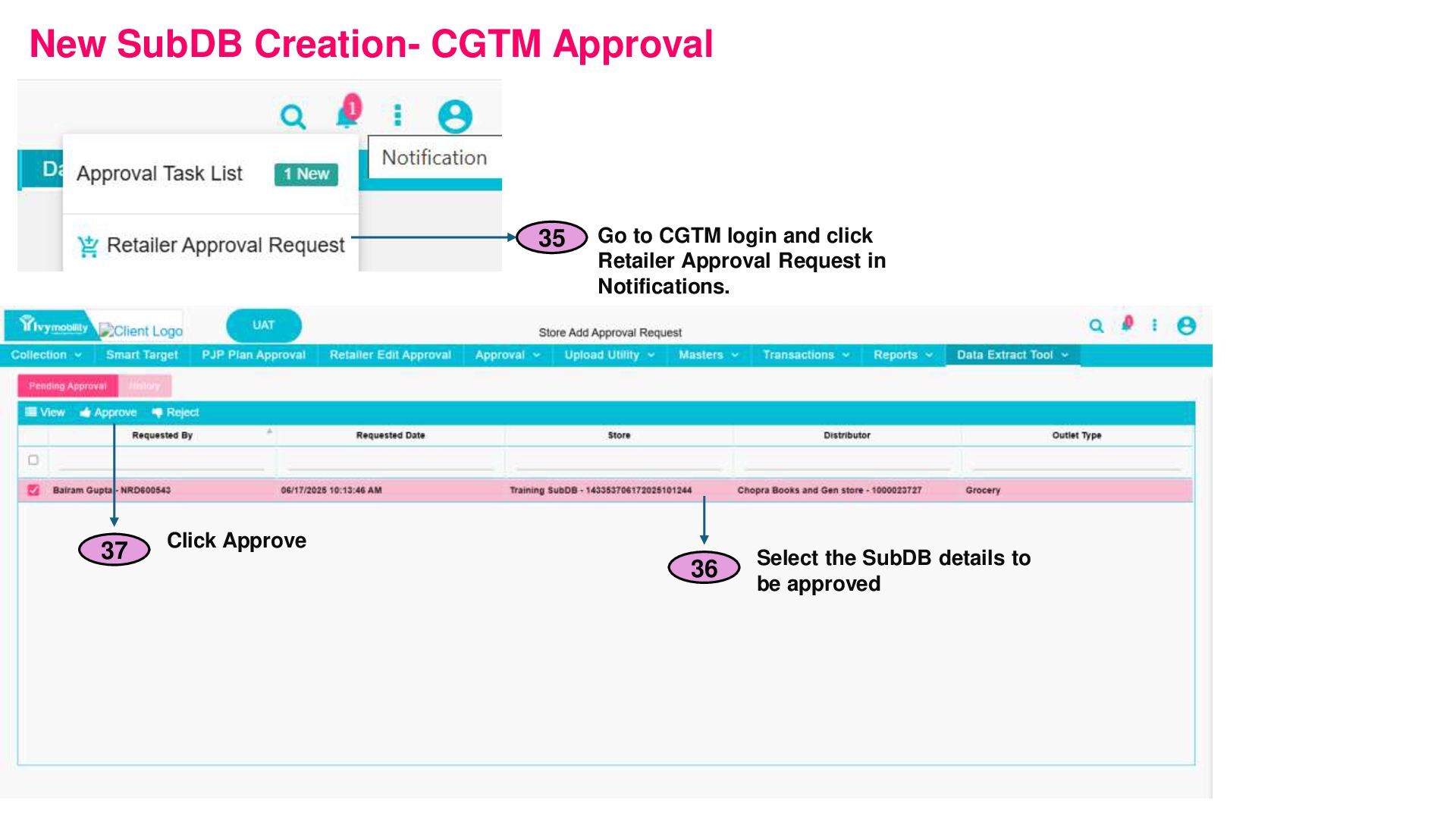
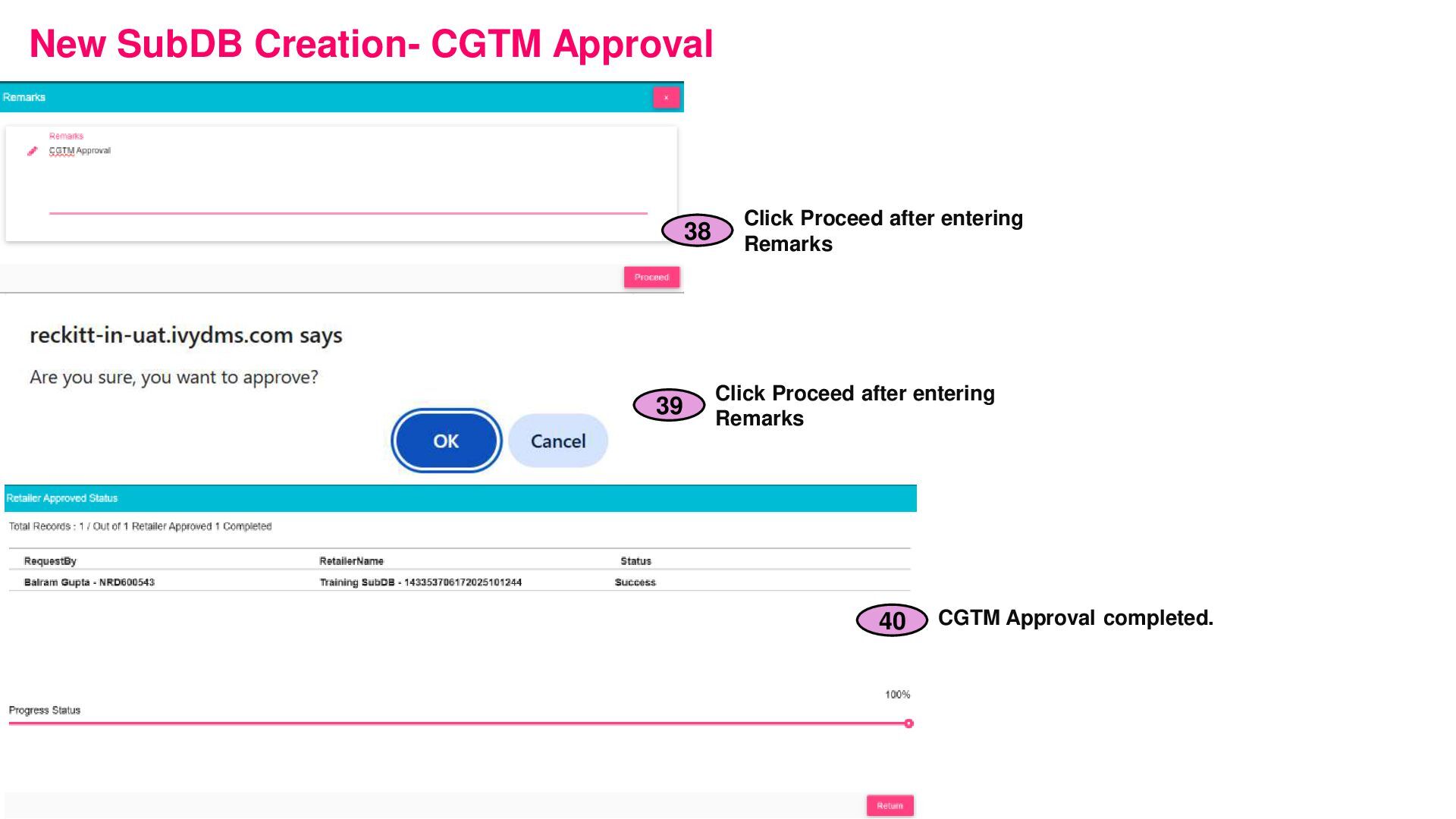
details forward for CGTM approval Else Click Reject (This will end the approval workflow then and there) 16 After Approve, you may enter Remarks (optional) and click Proceed.
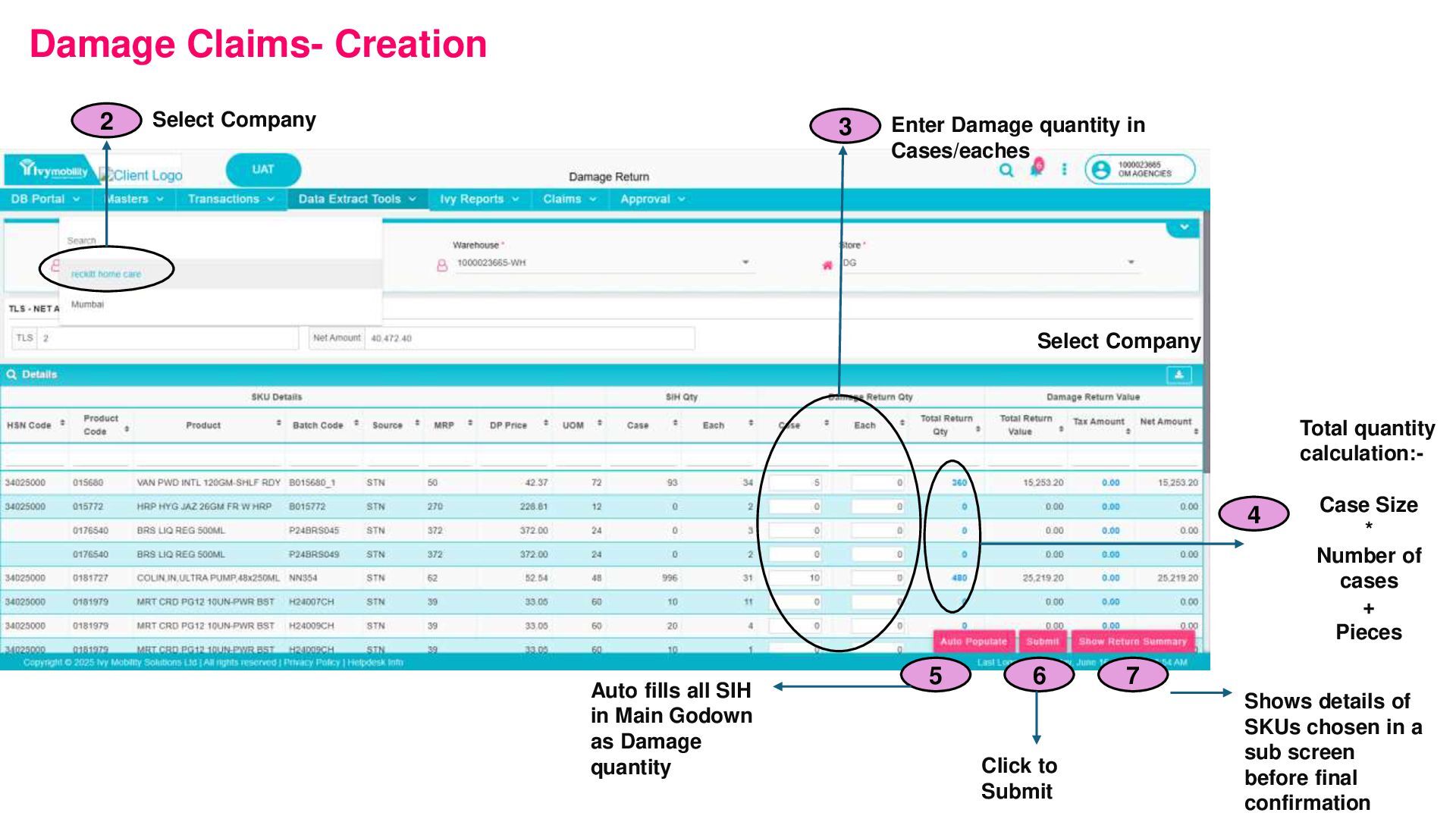
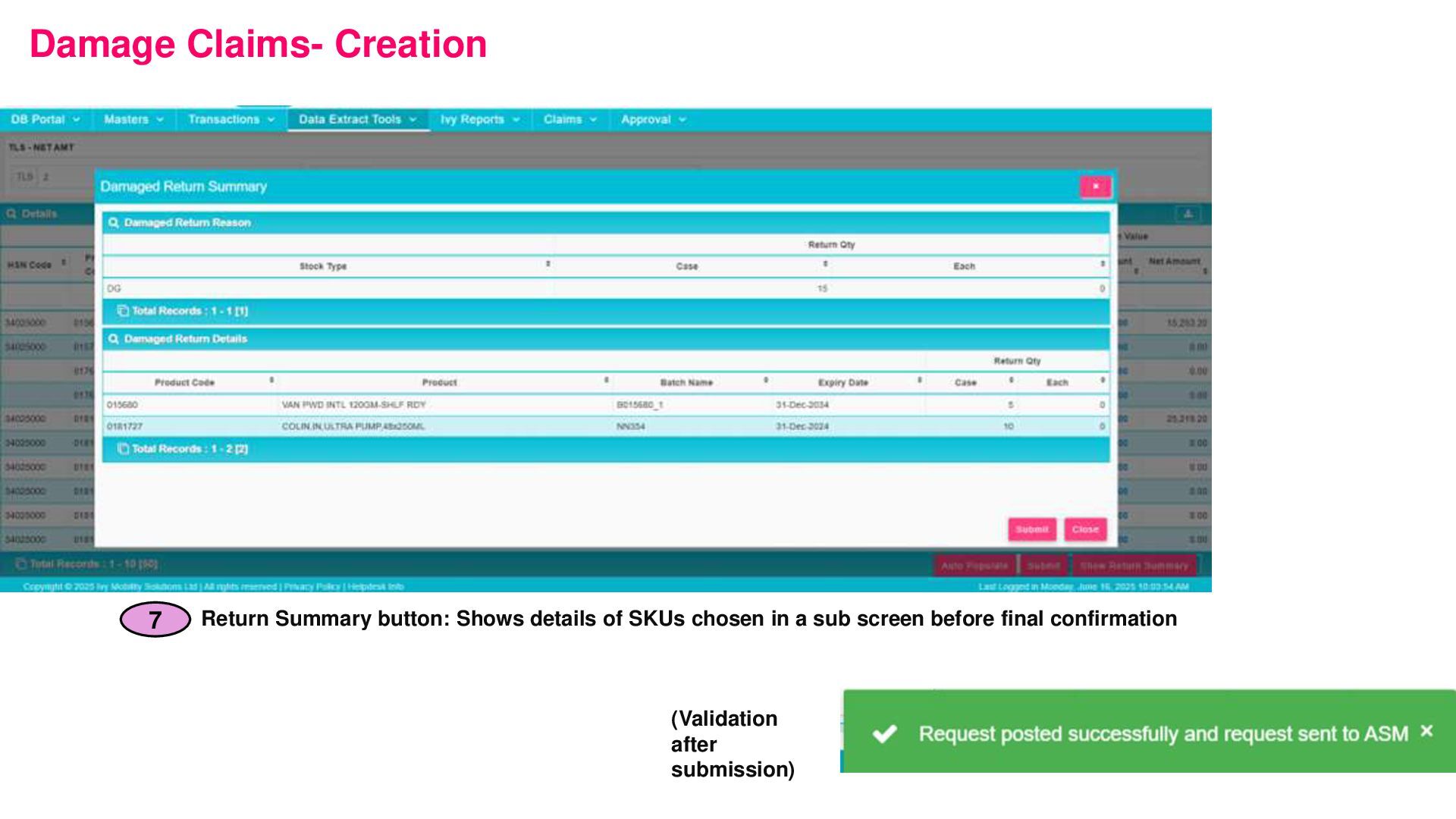
in Cases/eaches Select Company 4 Total quantity calculation:- Case Size * Number of cases + Pieces 7 6 5 Auto fills all SIH in Main Godown as Damage quantity Click to Submit Shows details of SKUs chosen in a sub screen before final confirmation
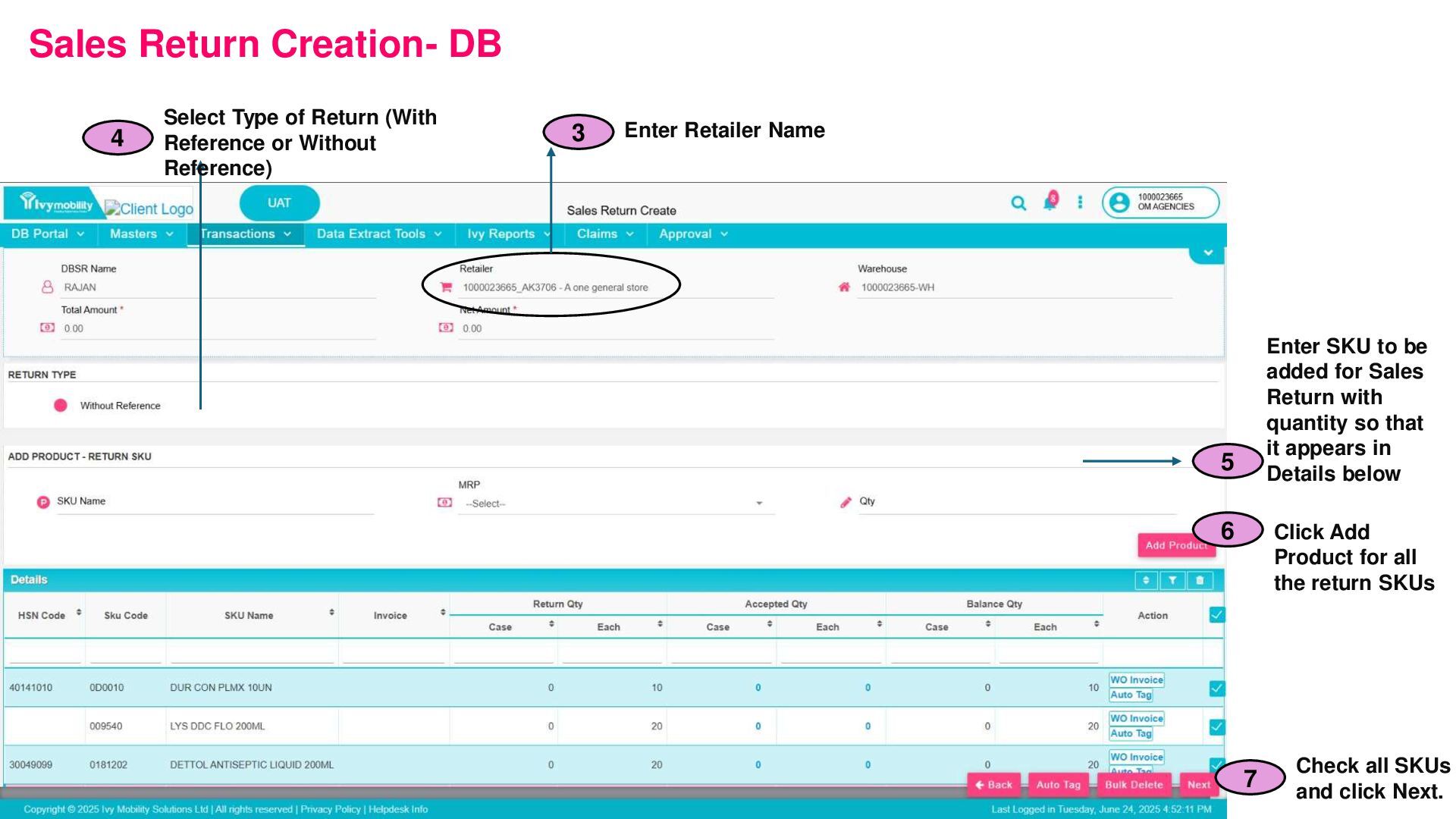
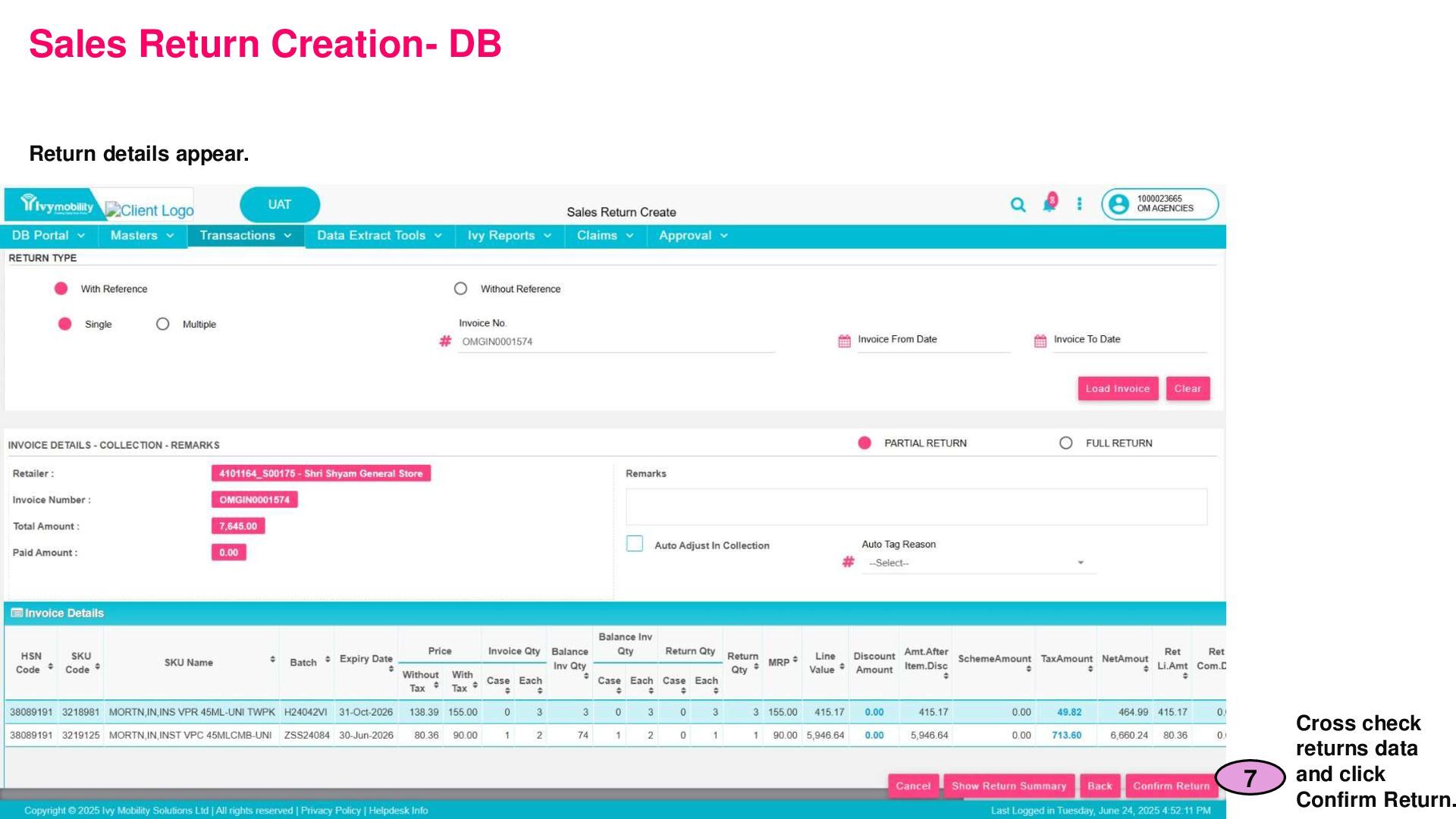
of Return (With Reference or Without Reference) 4 Enter SKU to be added for Sales Return with quantity so that it appears in Details below 5 Click Add Product for all the return SKUs 6 Check all SKUs and click Next. 7
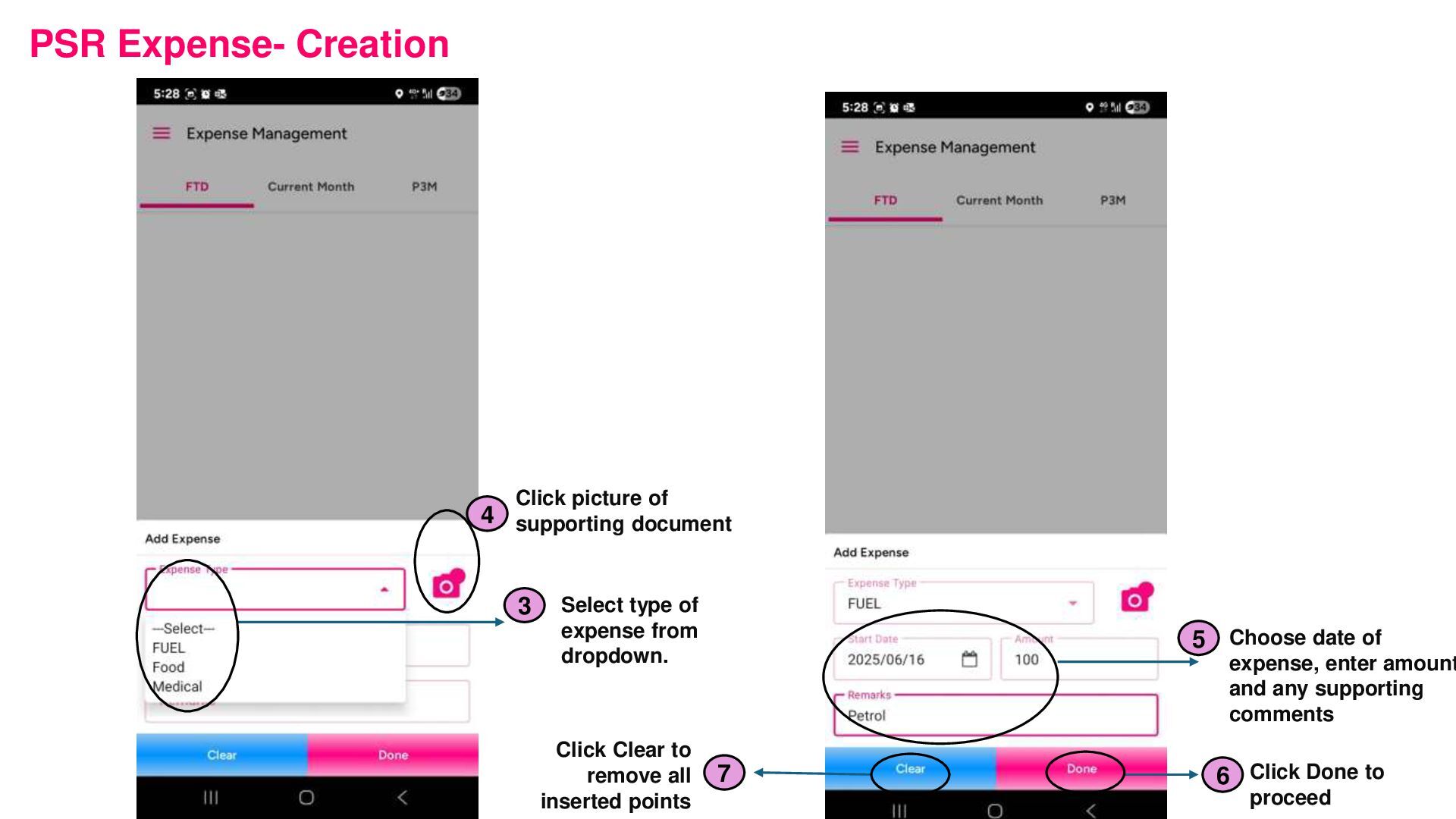
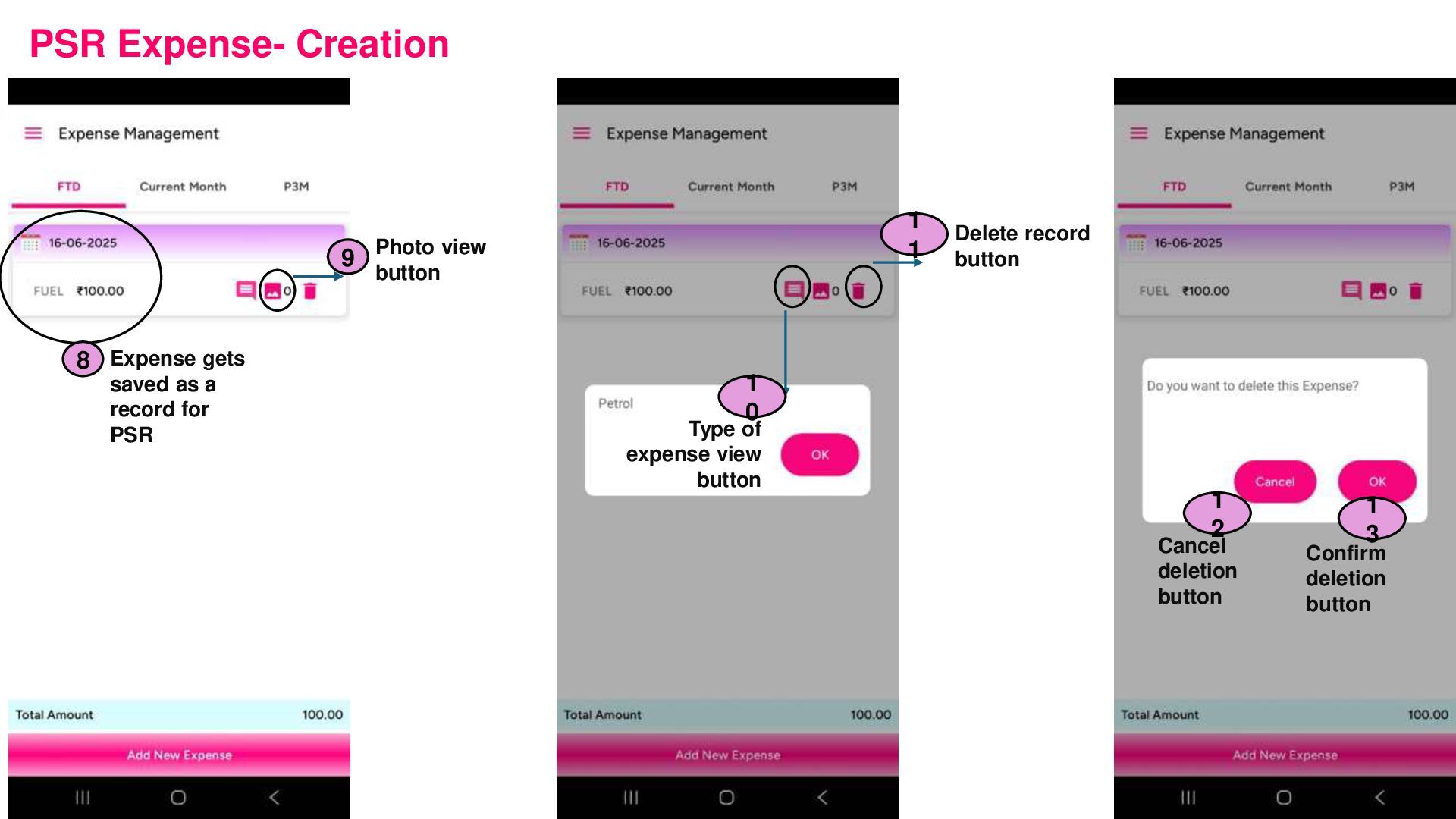
Click picture of supporting document 4 Choose date of expense, enter amount and any supporting comments 5 Click Done to proceed 6 Click Clear to remove all inserted points 7
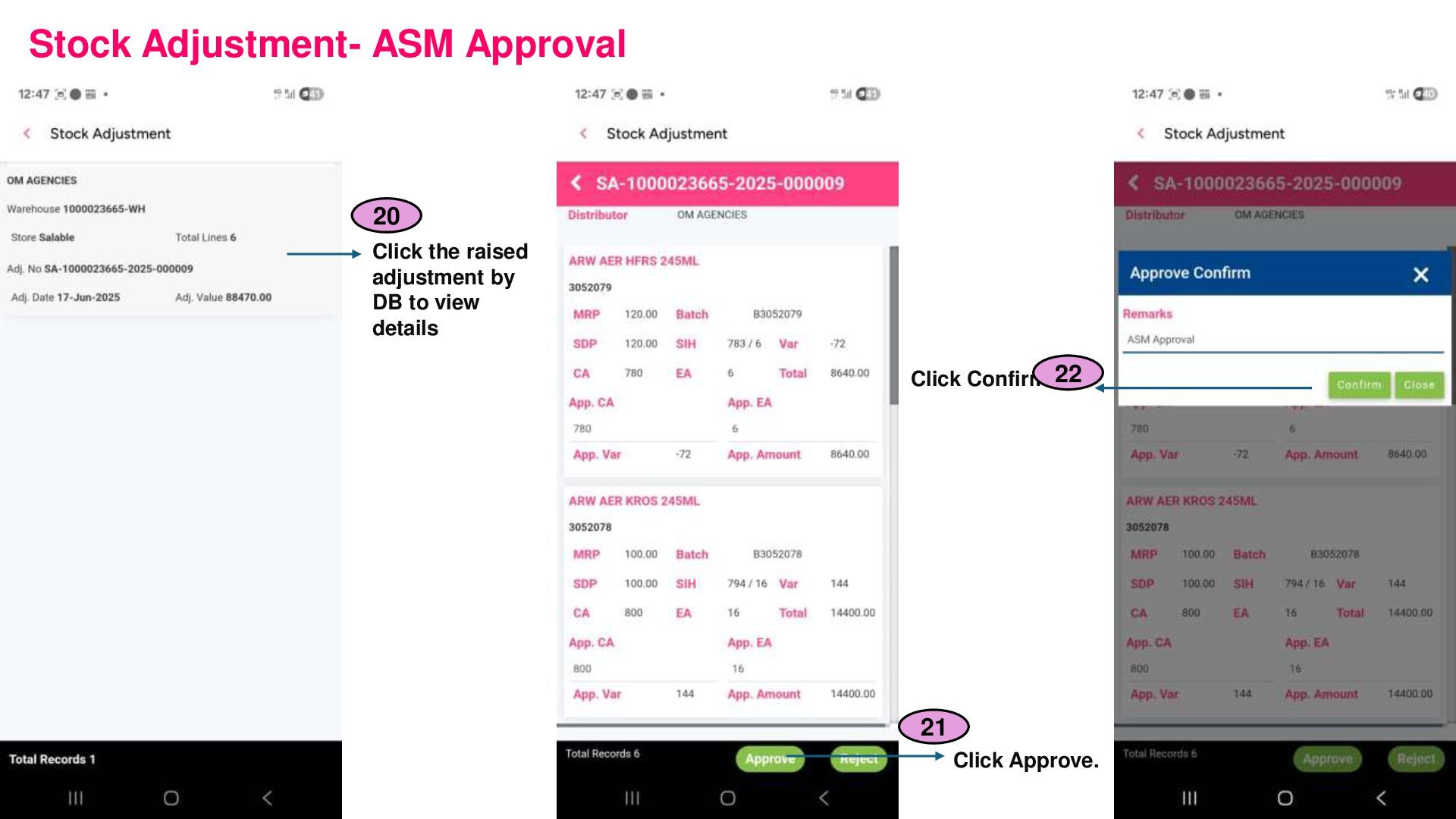
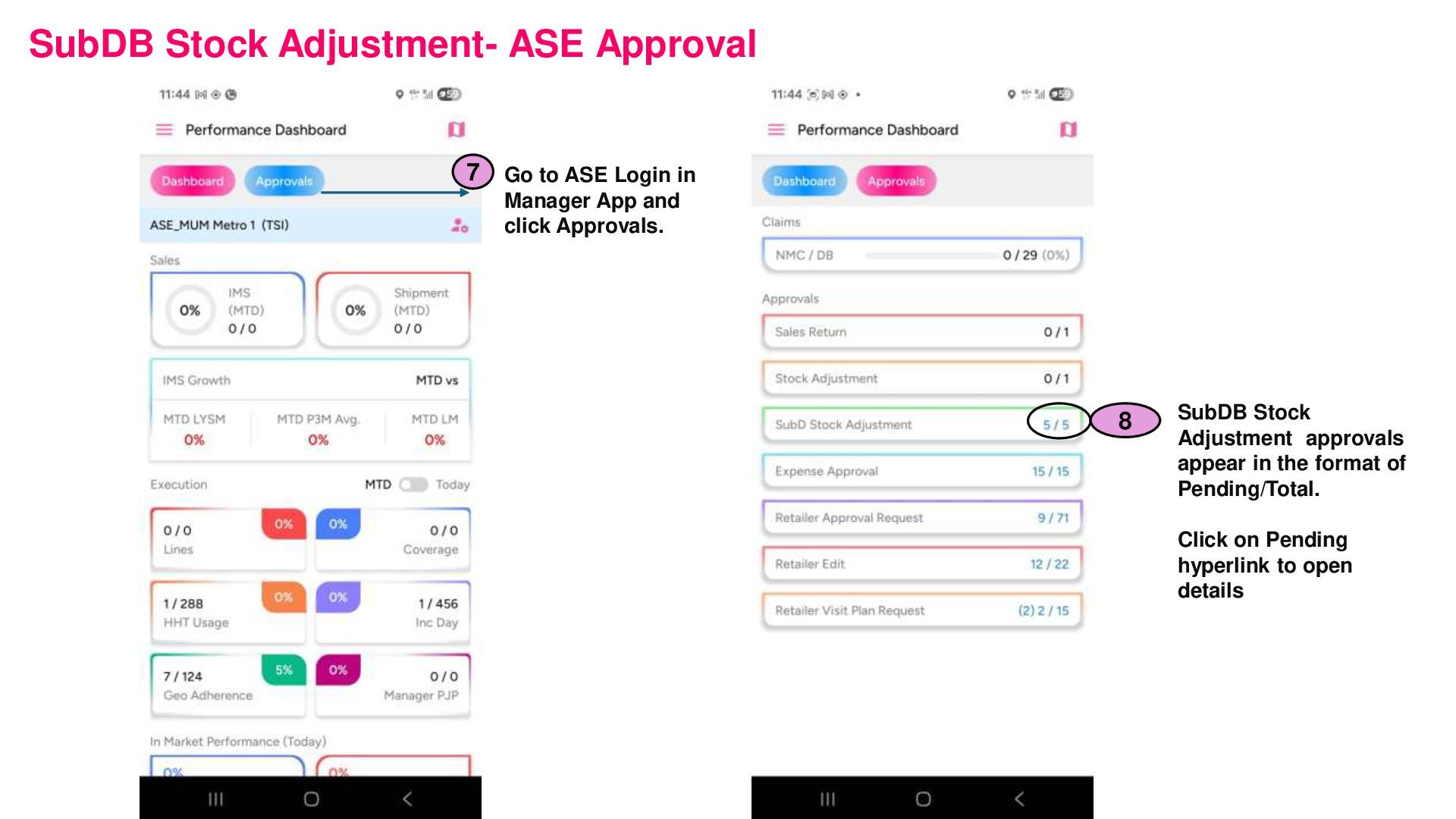
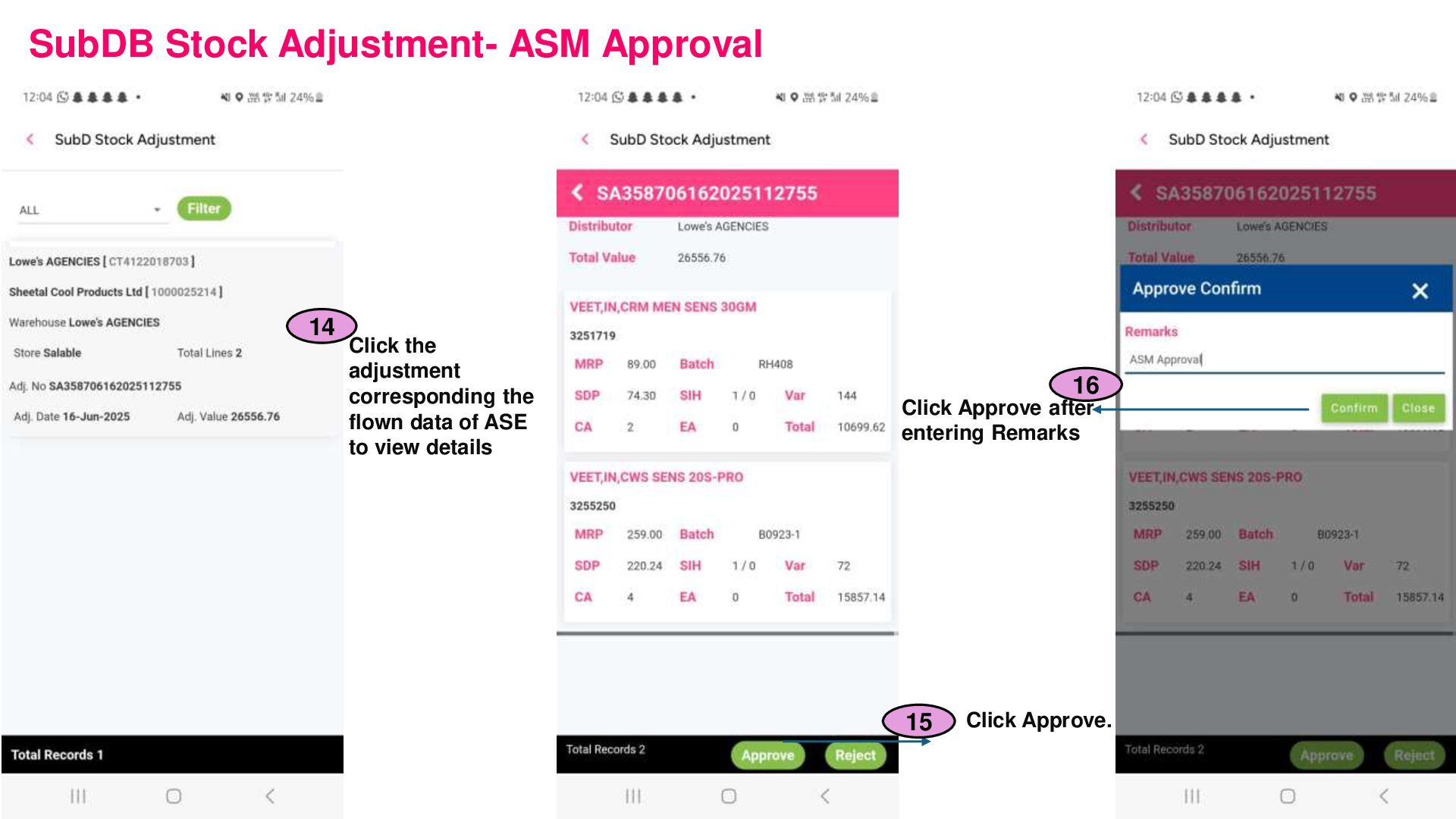
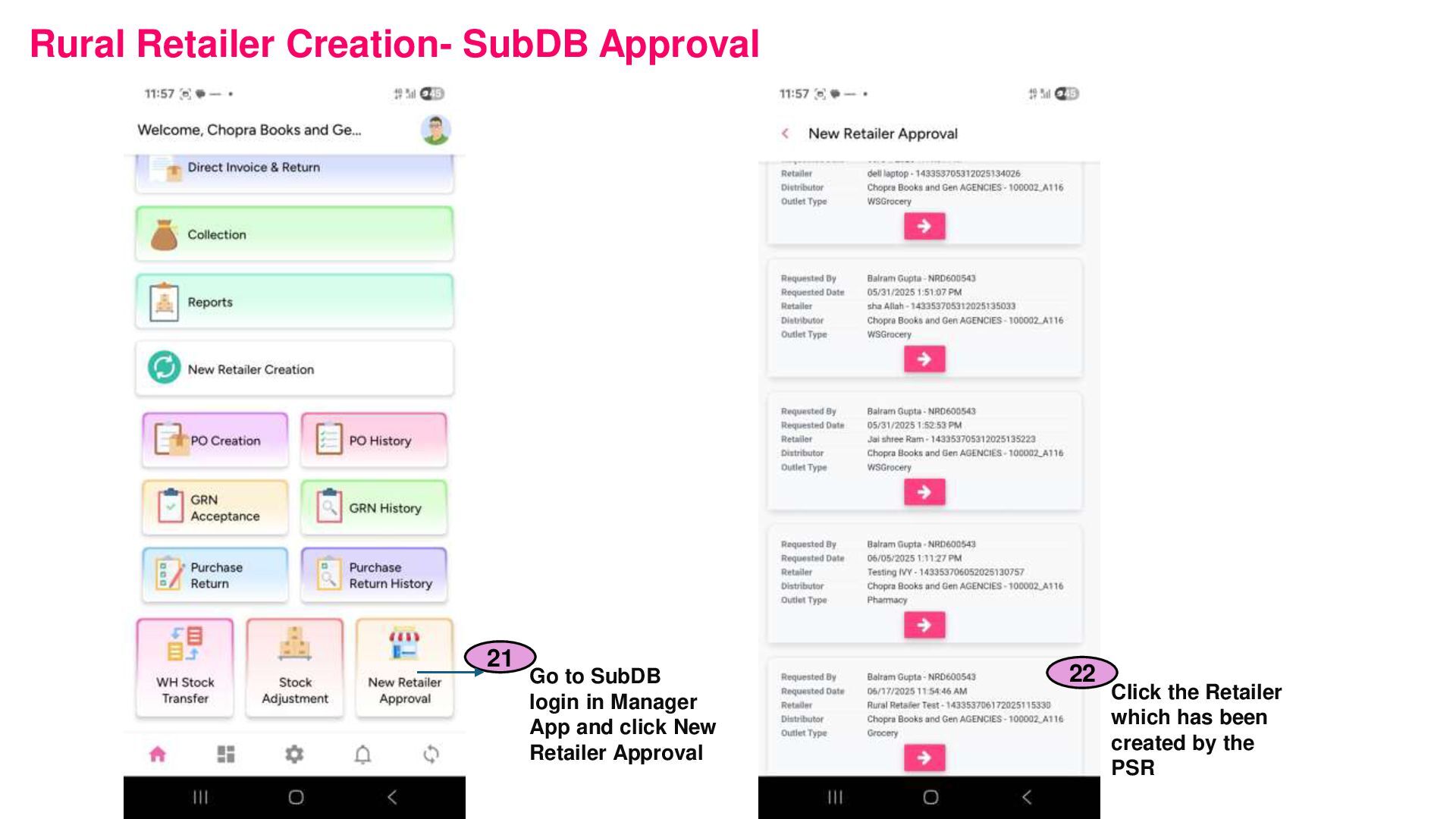
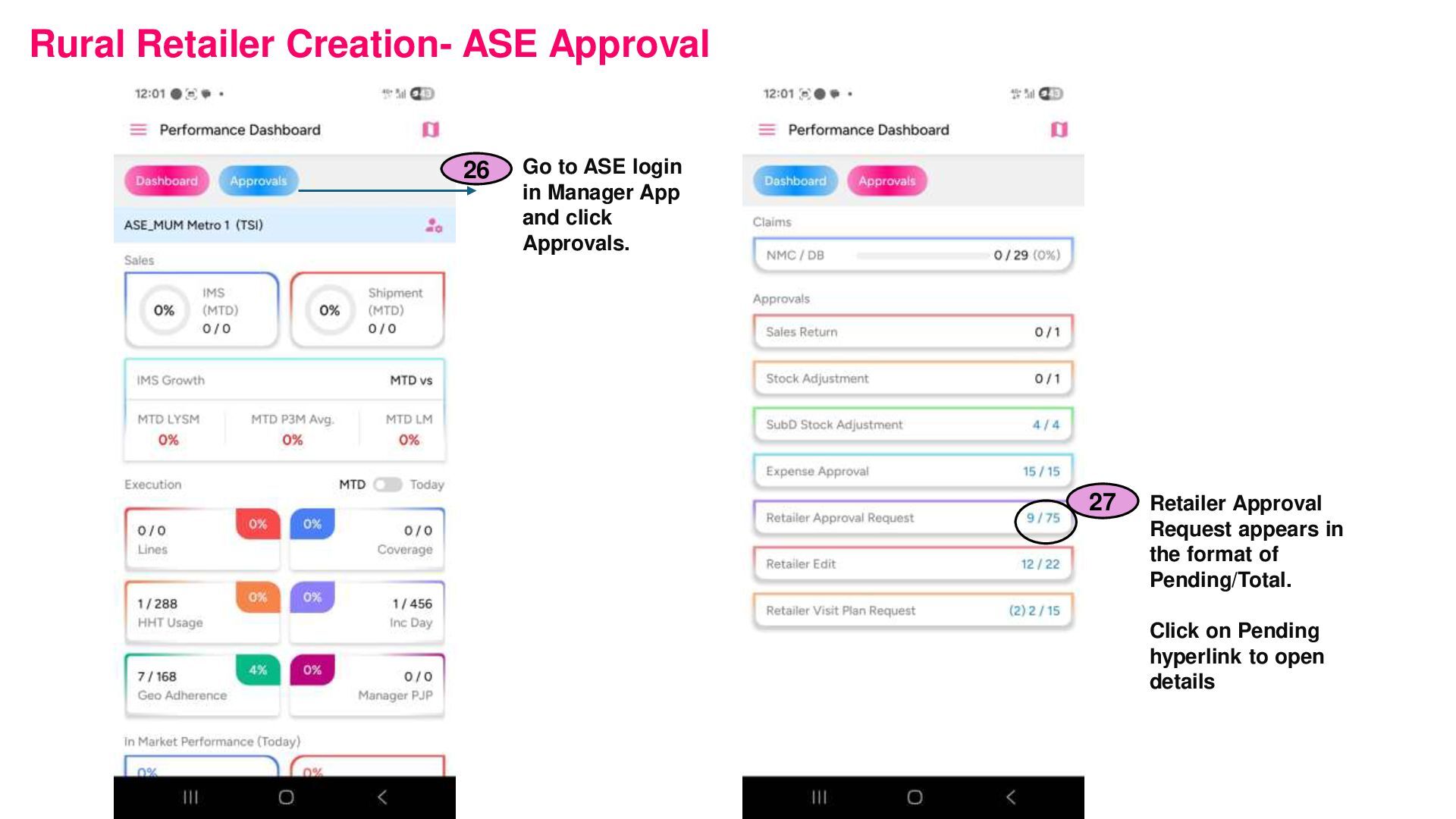
Manager App and click Approvals. 7 SubDB Stock Adjustment approvals appear in the format of Pending/Total. Click on Pending hyperlink to open details 8
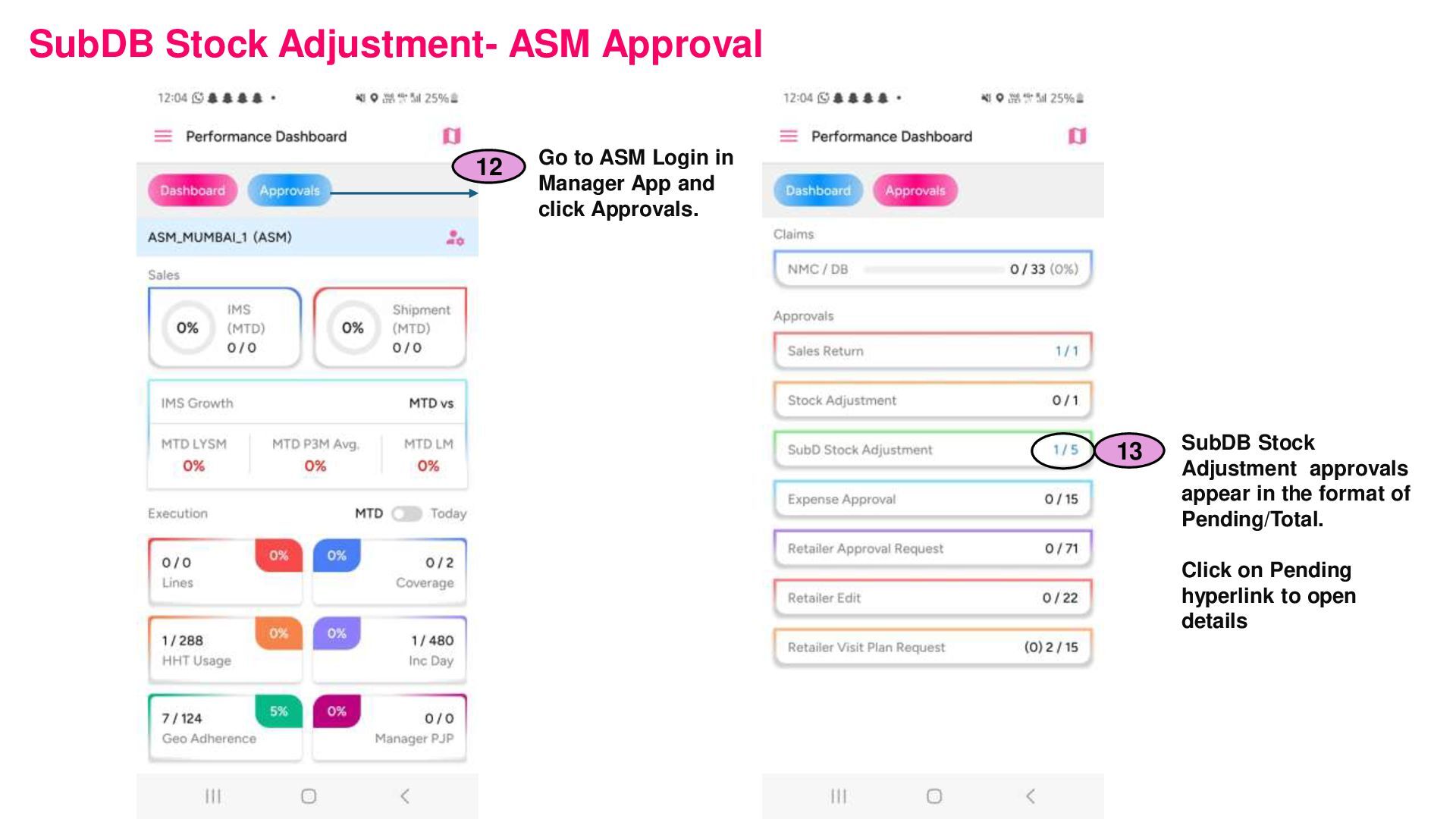
Manager App and click Approvals. 12 SubDB Stock Adjustment approvals appear in the format of Pending/Total. Click on Pending hyperlink to open details 13
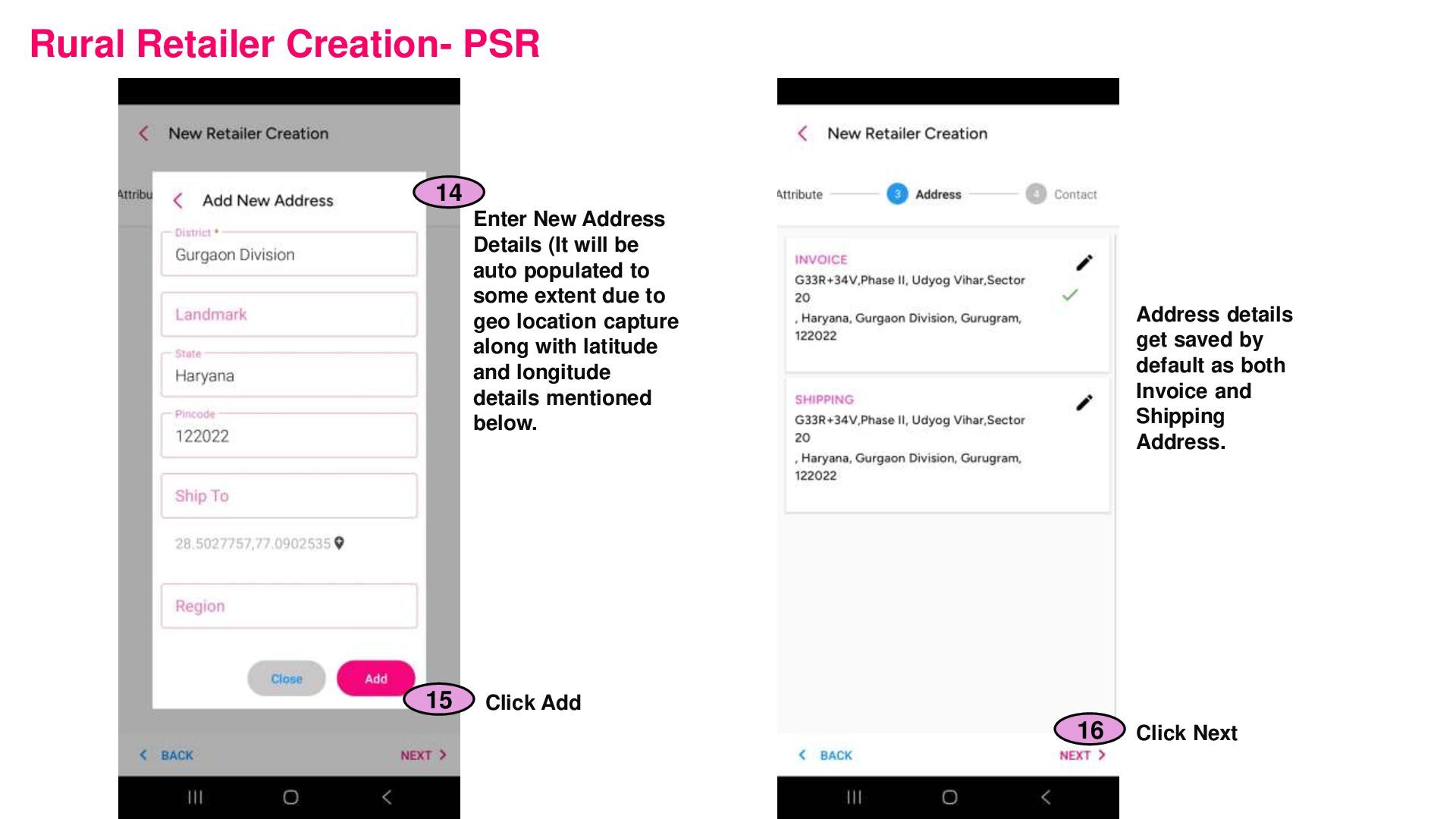
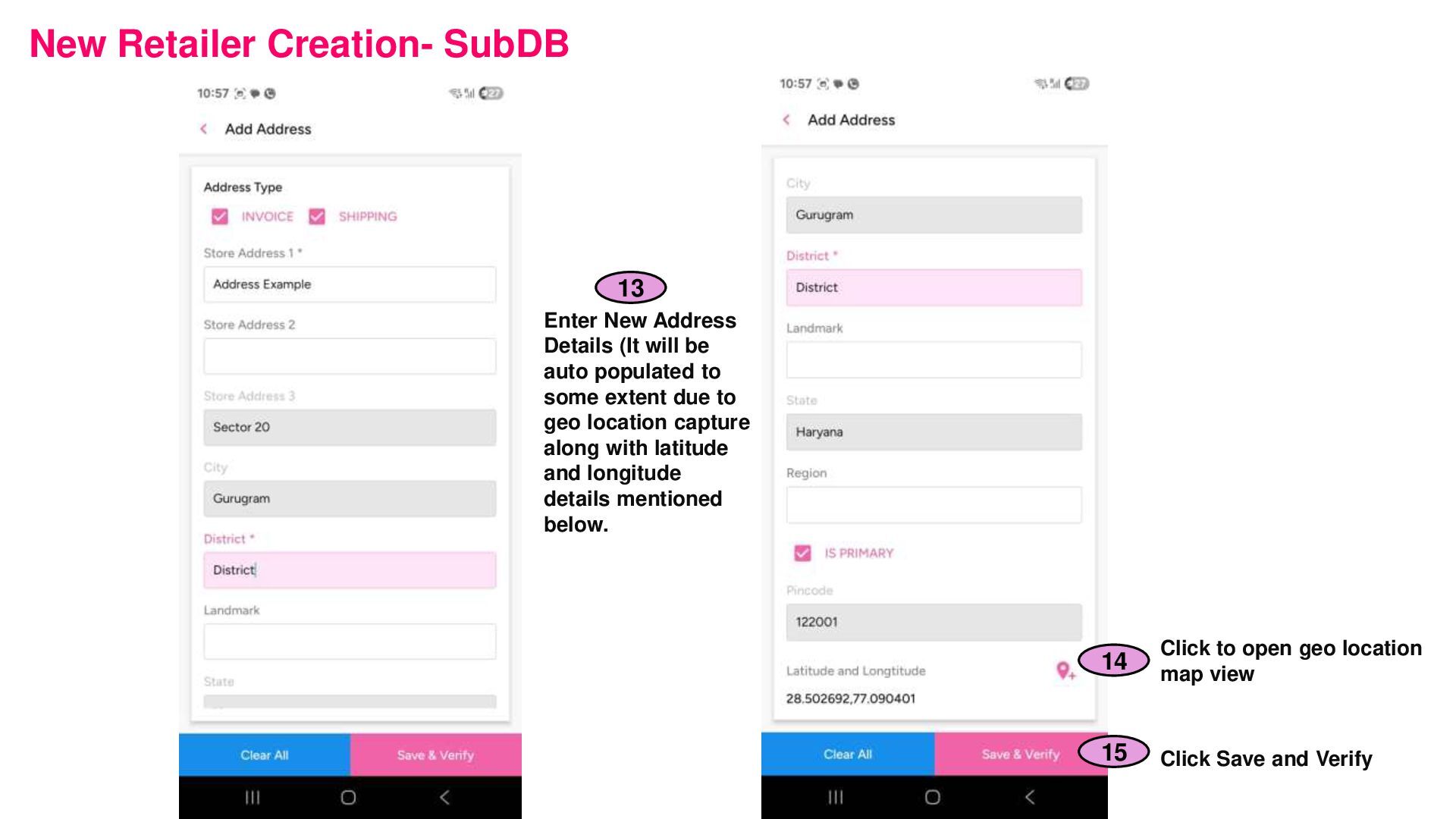
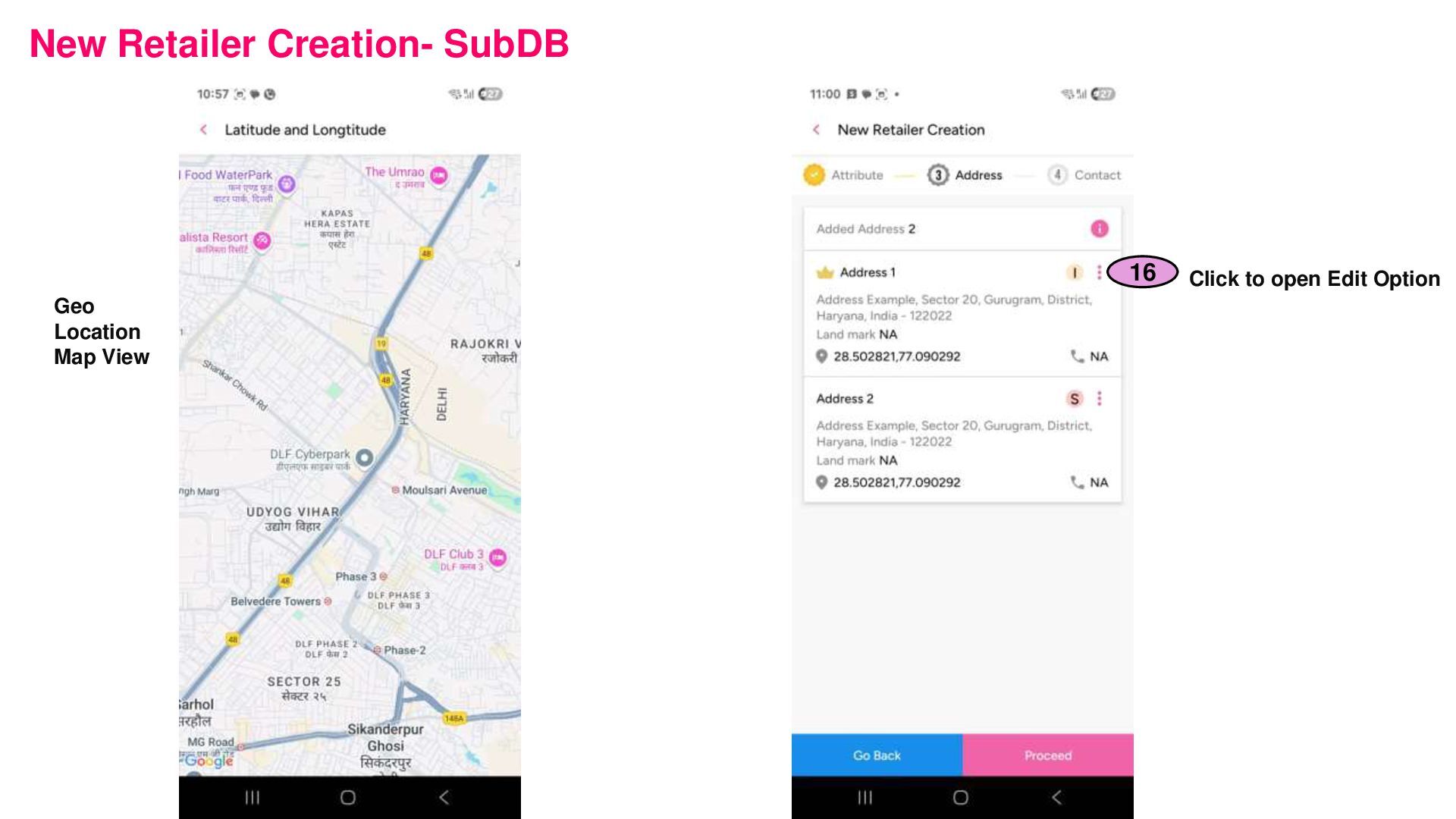
be auto populated to some extent due to geo location capture along with latitude and longitude details mentioned below. 14 Click Add 15 Click Next 16 Address details get saved by default as both Invoice and Shipping Address.
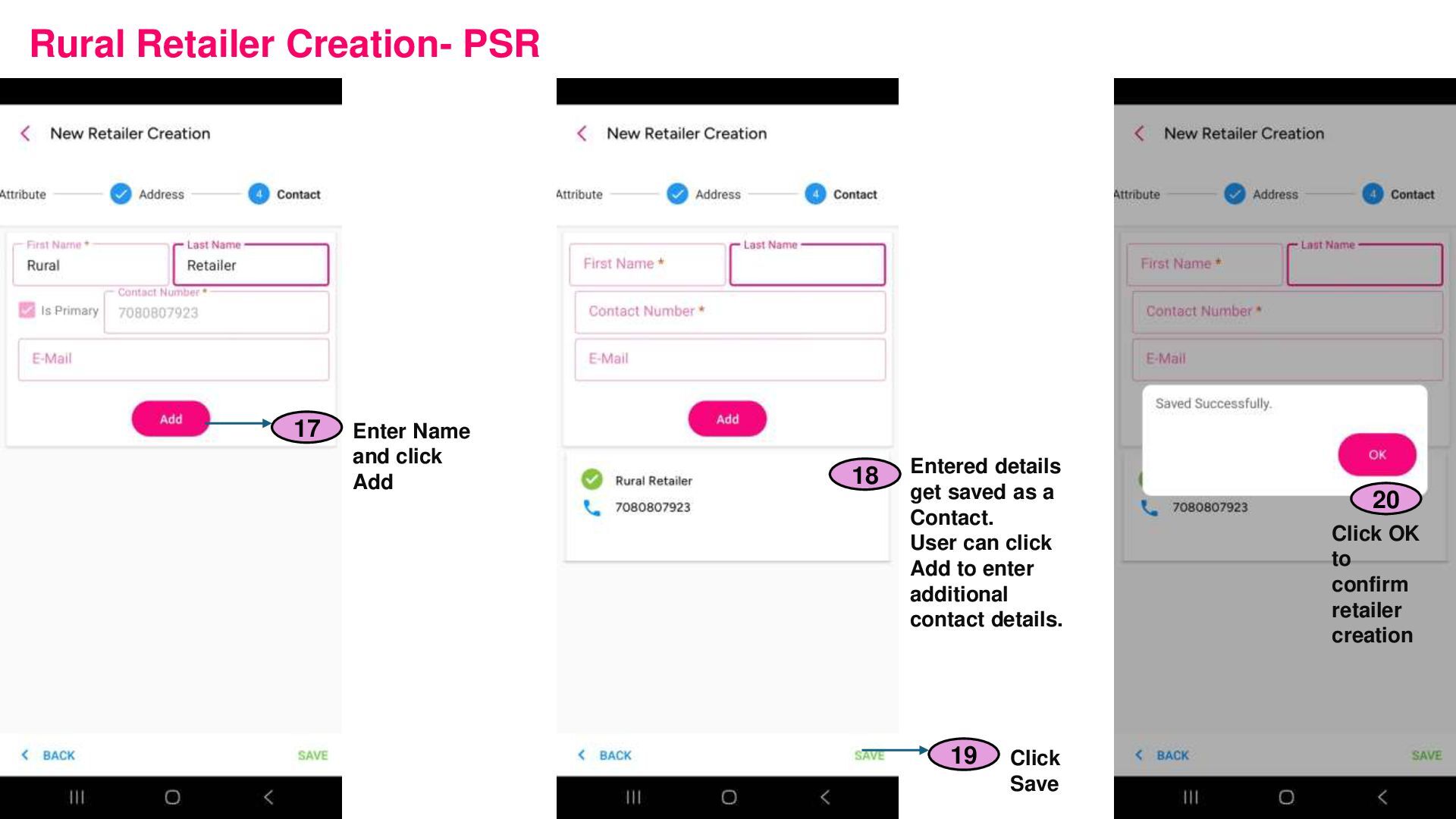
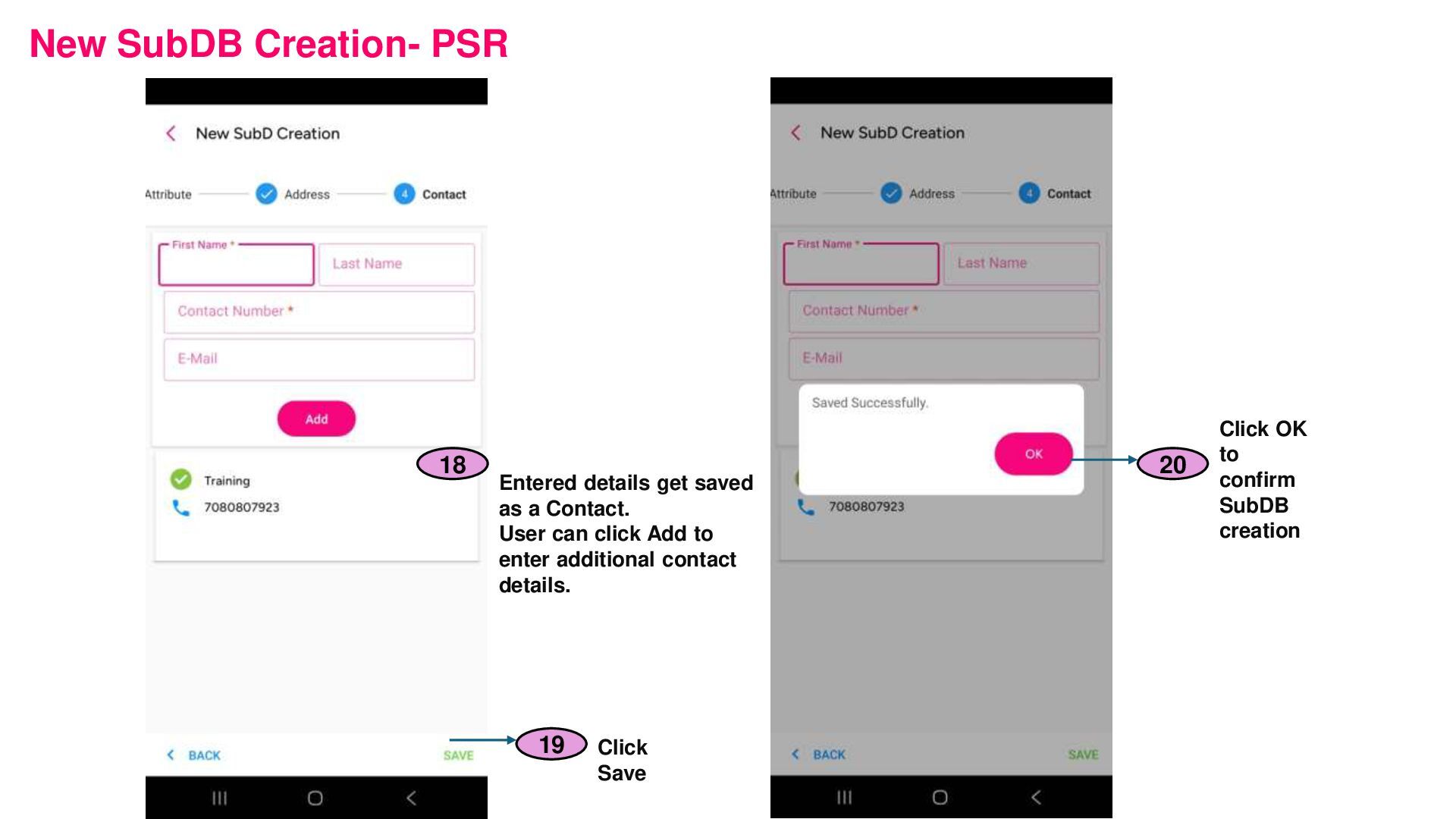
Entered details get saved as a Contact. User can click Add to enter additional contact details. 18 Click Save 19 Click OK to confirm retailer creation 20
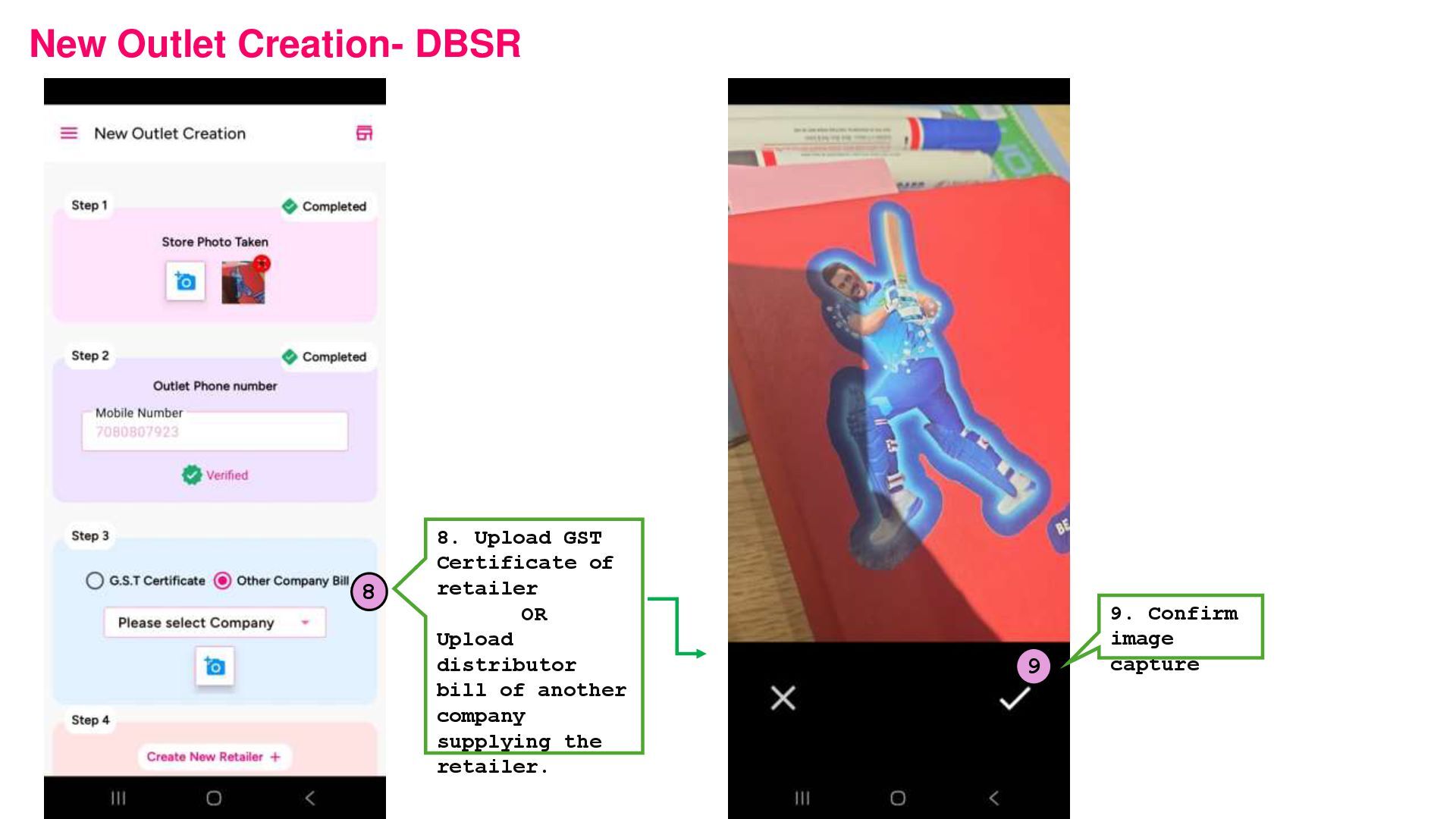
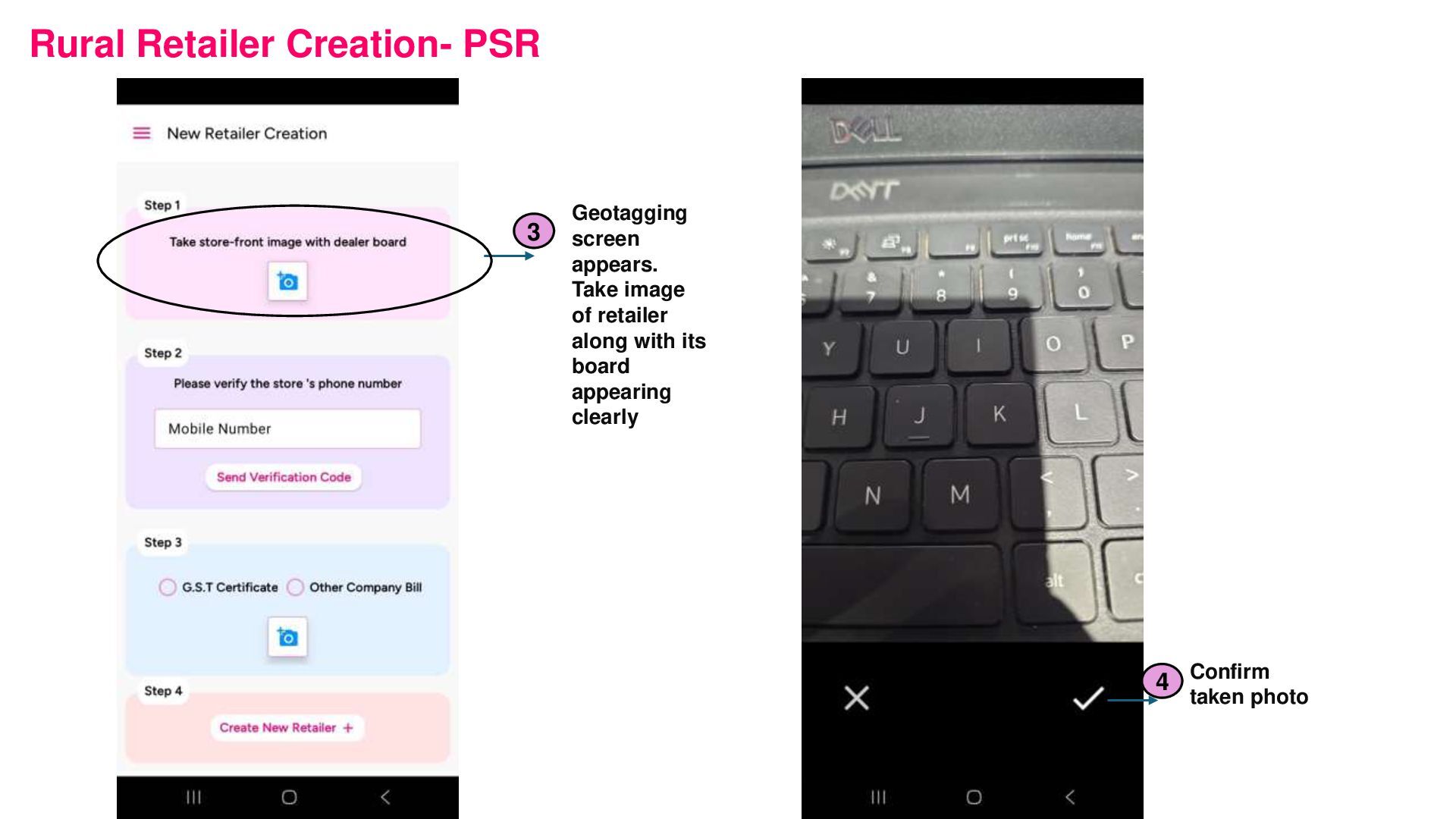
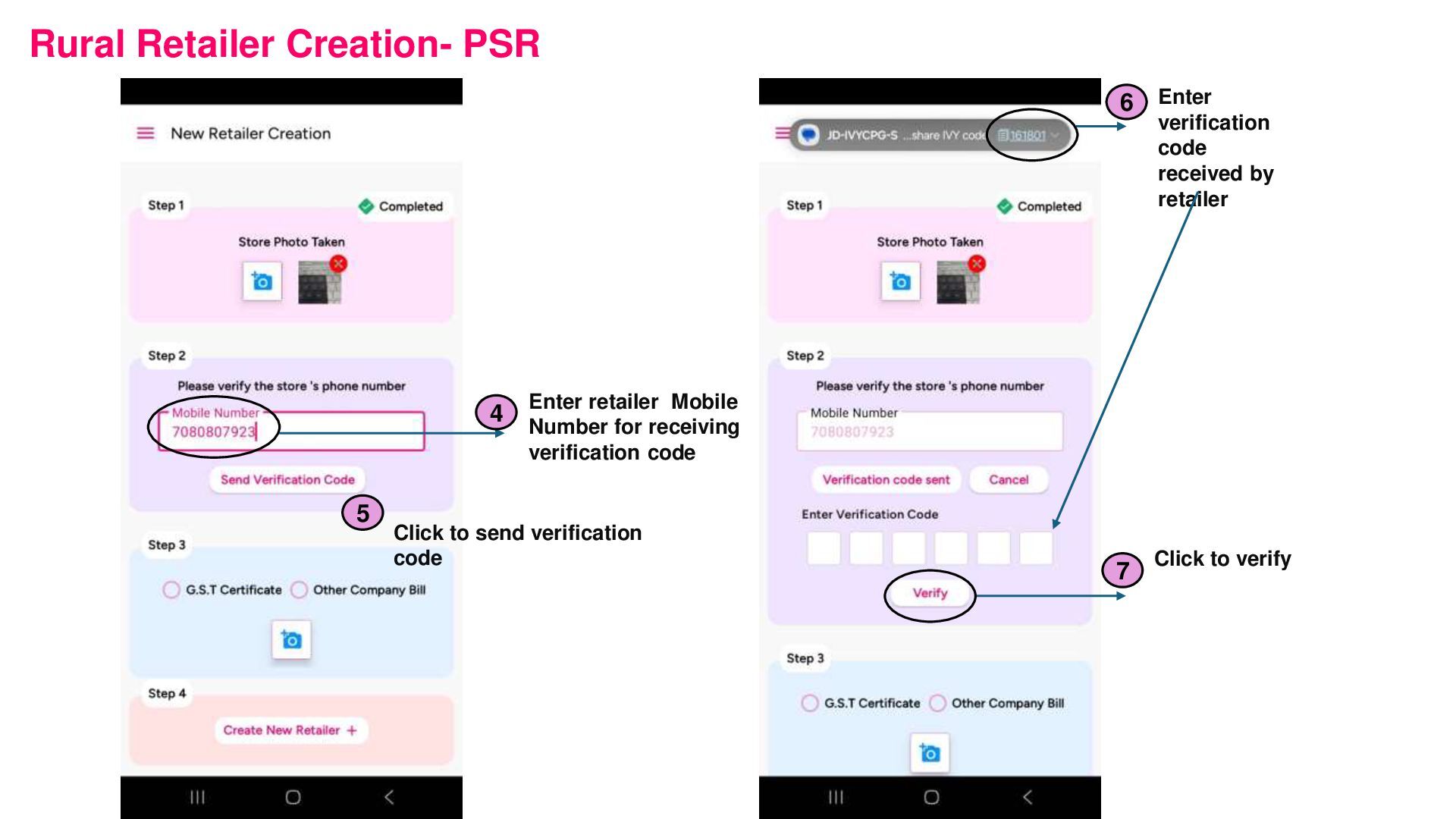
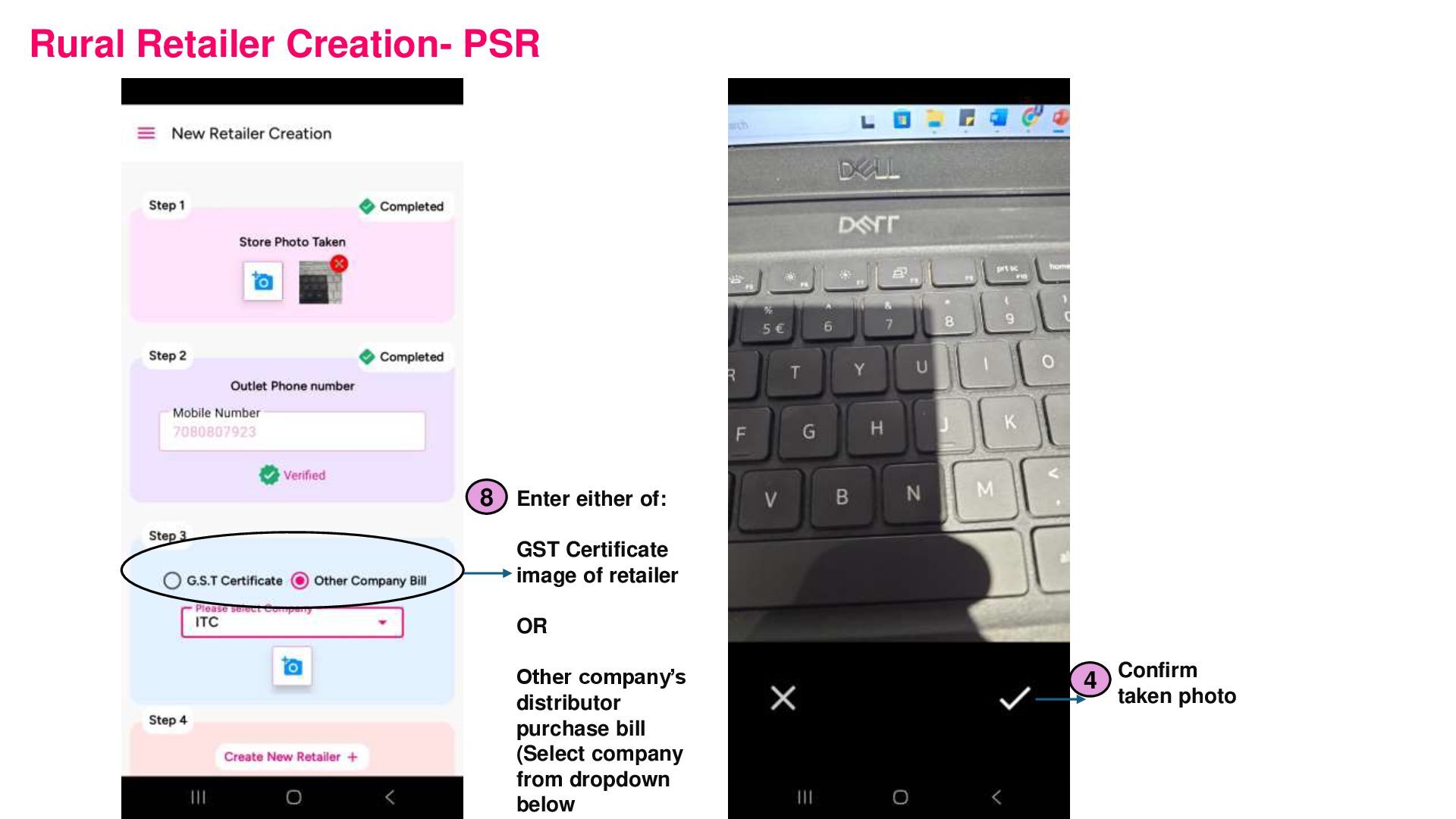
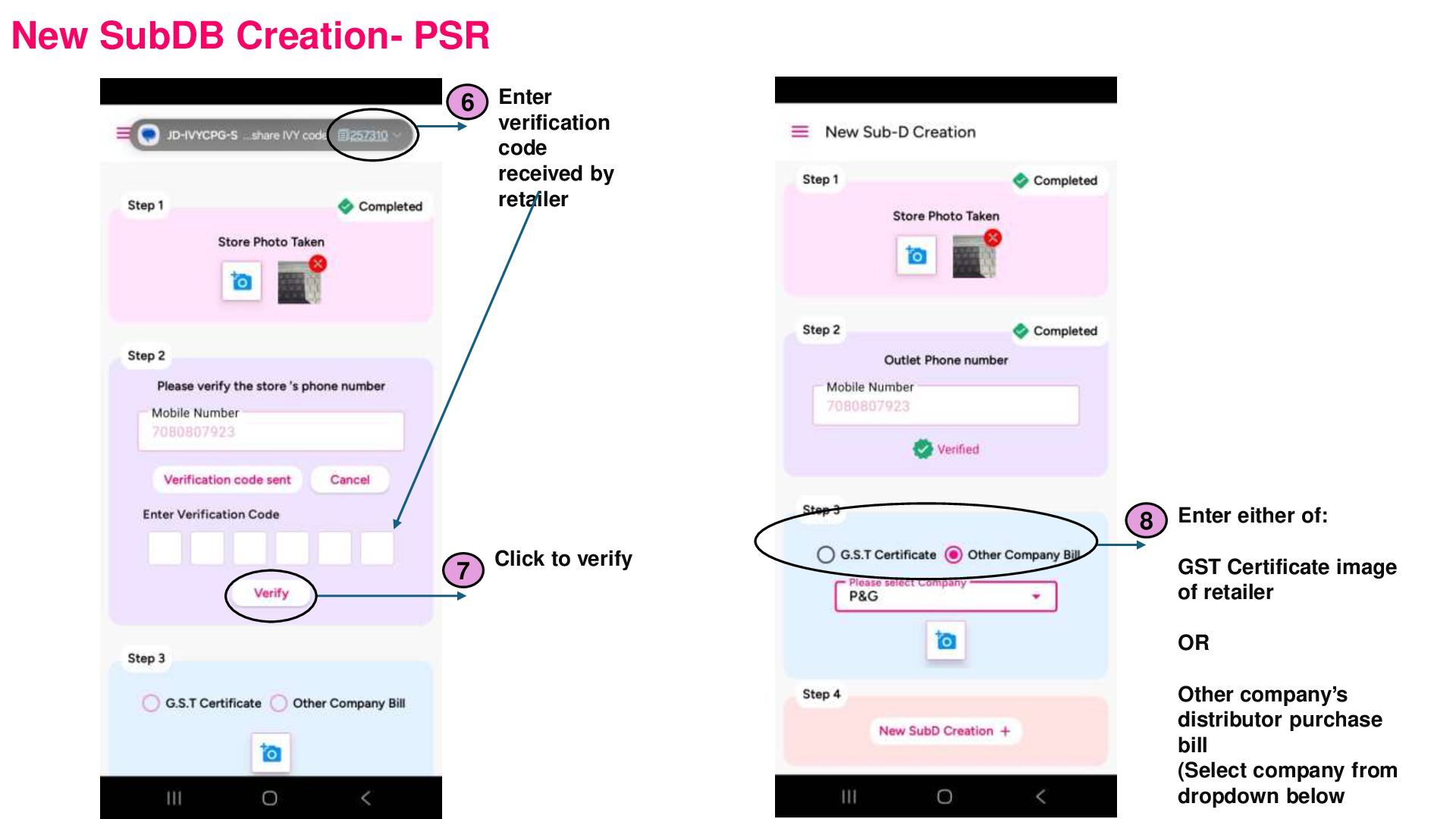
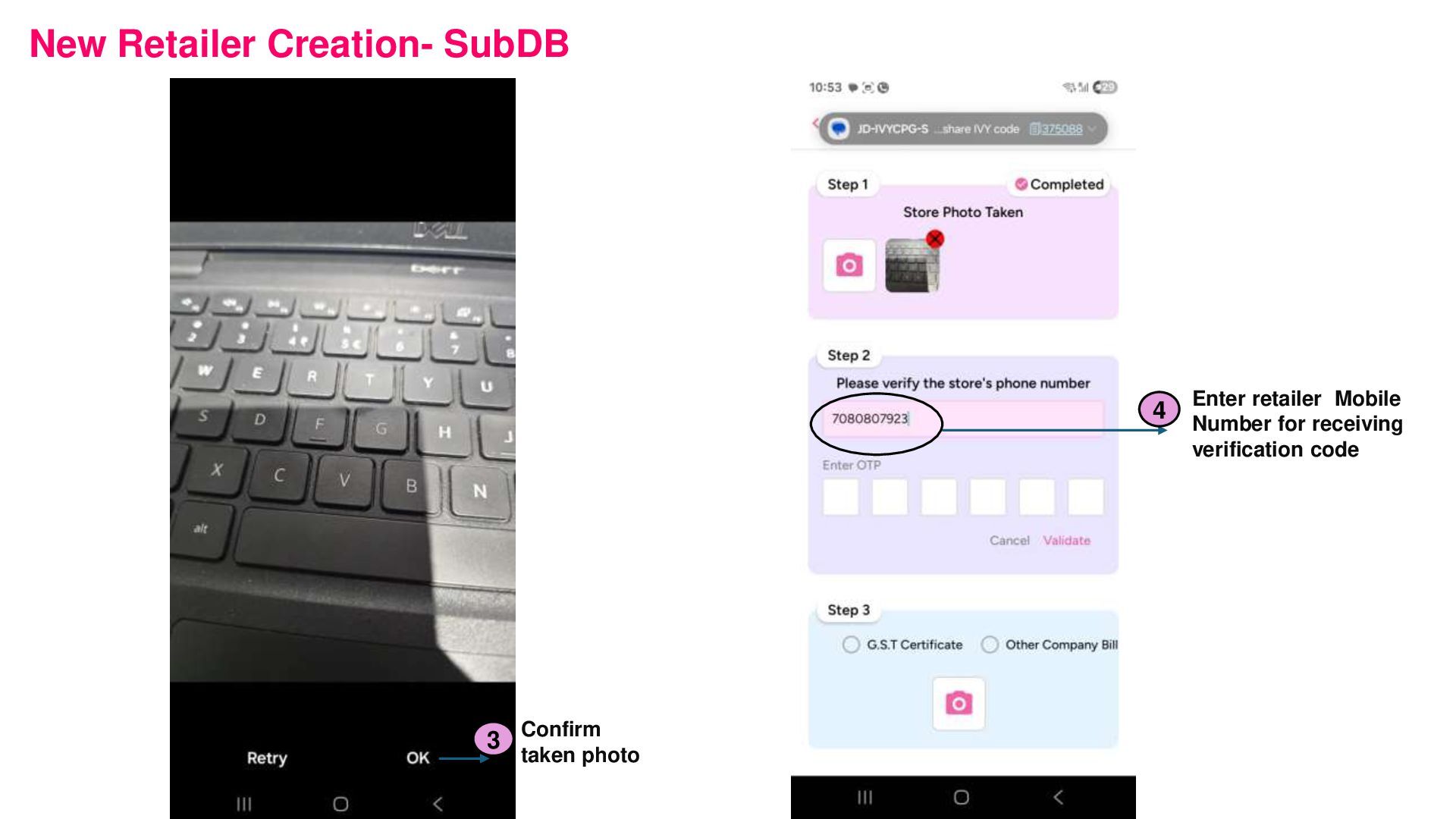
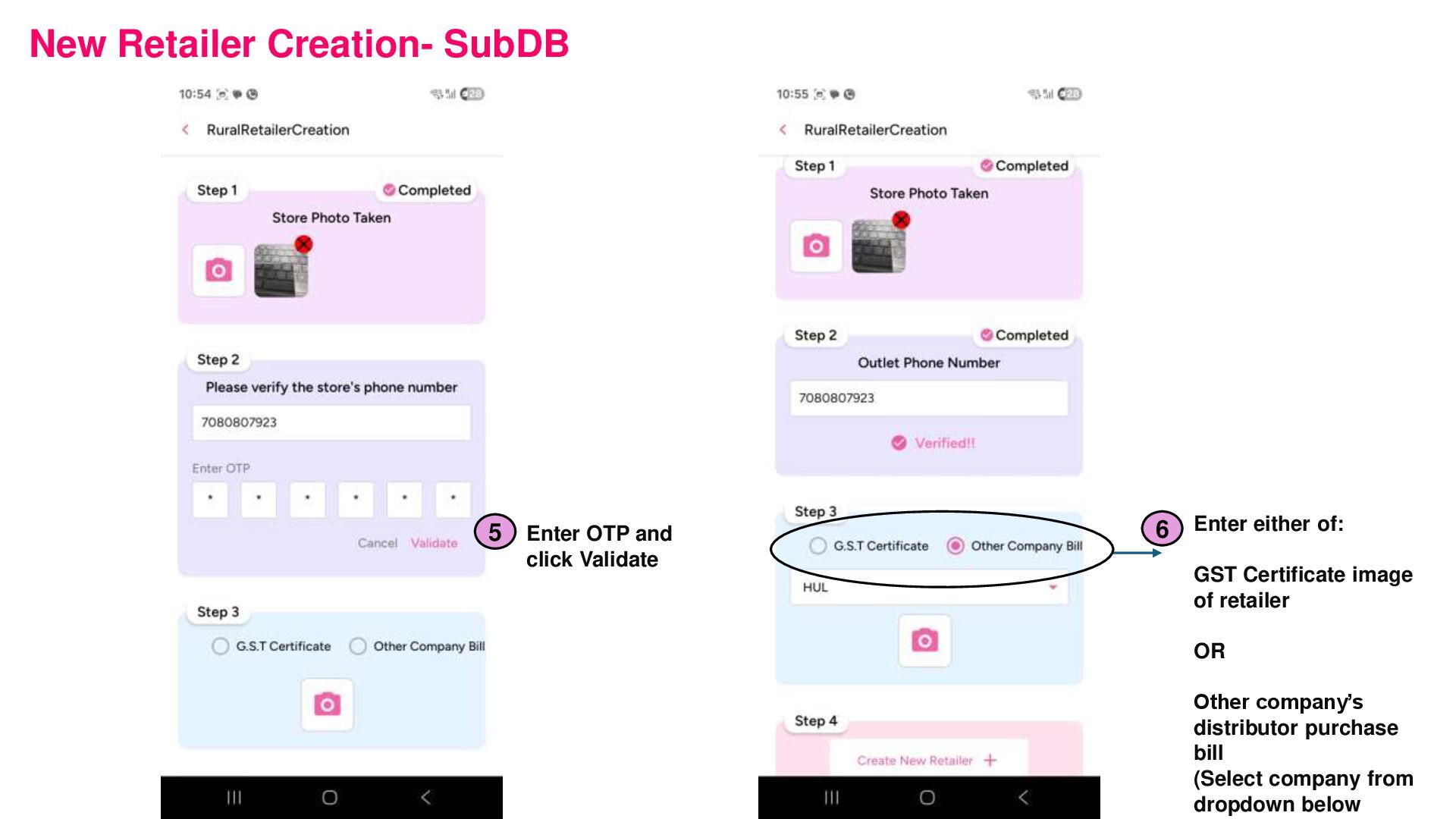
6 Click to verify 7 Enter either of: GST Certificate image of retailer OR Other company’s distributor purchase bill (Select company from dropdown below 8
SubD Attribute 1, Segmentation, Custom Attribute 3, Custom Attribute 4. 12 Enter New Address Details (It will be auto populated to some extent due to geo location capture along with latitude and longitude details mentioned below. 14 Click Next 13 Click Add 15
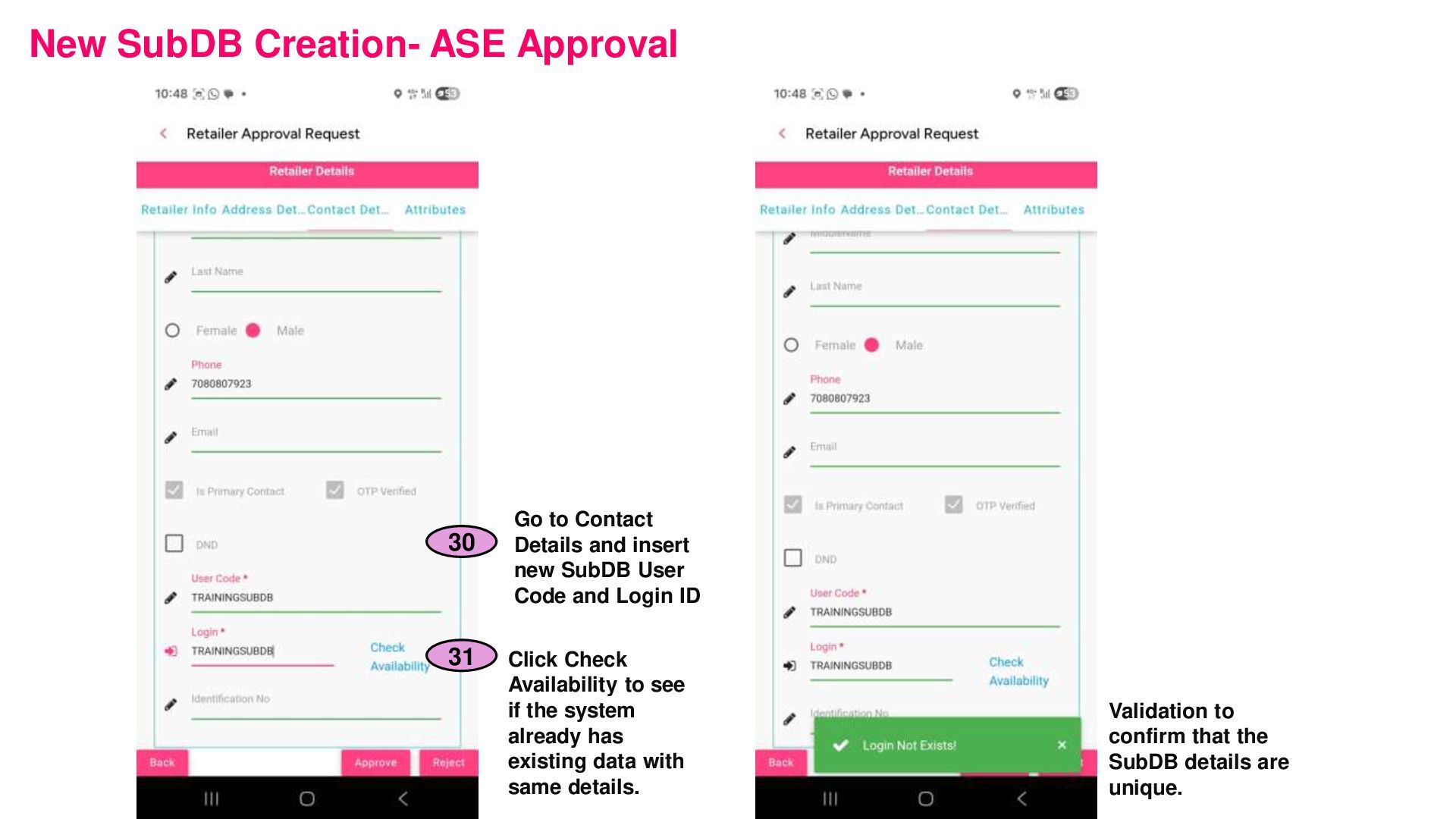
insert new SubDB User Code and Login ID 30 Click Check Availability to see if the system already has existing data with same details. 31 Validation to confirm that the SubDB details are unique.
be auto populated to some extent due to geo location capture along with latitude and longitude details mentioned below. 13 Click to open geo location map view 14 Click Save and Verify 15


 malarkey
 letsgokoyo
 tmiket
 jacobtomlinson
 chriscoyier
 techseoconnect
 brettharned
 lynnandtonic
 soudai
 palkan
 matthewcrist