Upgrade to Pro — share decks privately, control downloads, hide ads and more …

git by Example (Part 2)

Sponsored · SiteGround - Reliable hosting with speed, security, and support you can count on.

git by Example (Part 2)

An in-depth introduction to git

Avatar for agilis allievo

agilis allievo

February 15, 2014
Tweet

More Decks by agilis allievo

Other Decks in Programming

Transcript

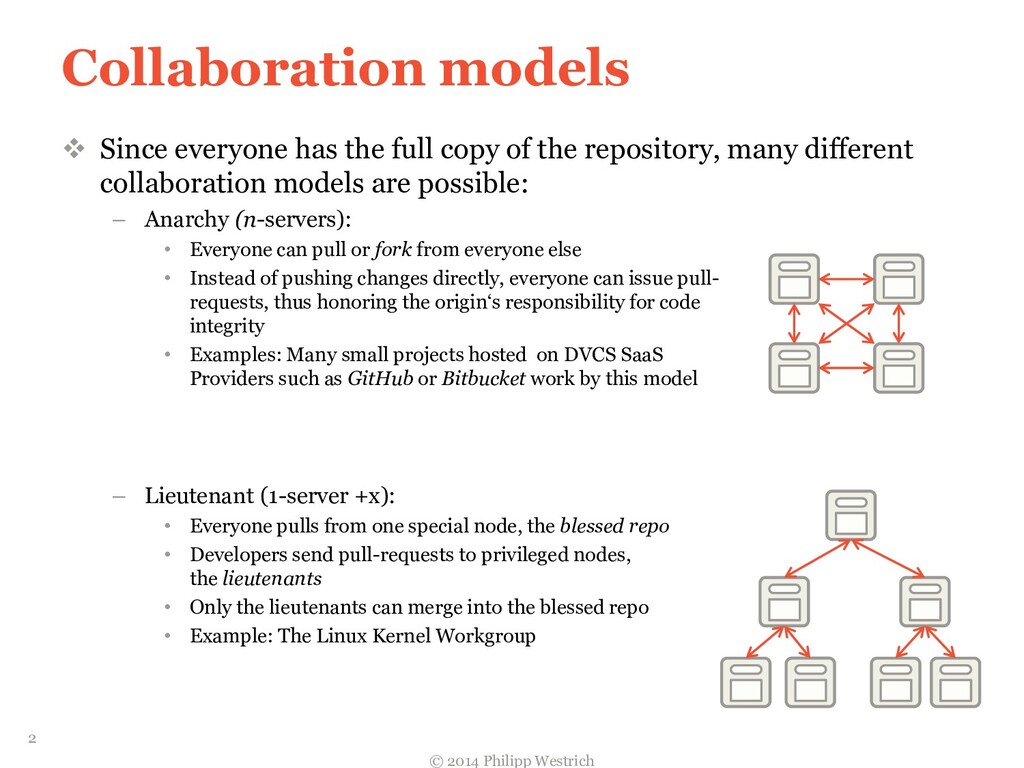
  1. Collaboration models  Since everyone has the full copy of

    the repository, many different collaboration models are possible: – Anarchy (n-servers): • Everyone can pull or fork from everyone else • Instead of pushing changes directly, everyone can issue pull- requests, thus honoring the origin‘s responsibility for code integrity • Examples: Many small projects hosted on DVCS SaaS Providers such as GitHub or Bitbucket work by this model – Lieutenant (1-server +x): • Everyone pulls from one special node, the blessed repo • Developers send pull-requests to privileged nodes, the lieutenants • Only the lieutenants can merge into the blessed repo • Example: The Linux Kernel Workgroup © 2014 Philipp Westrich 2
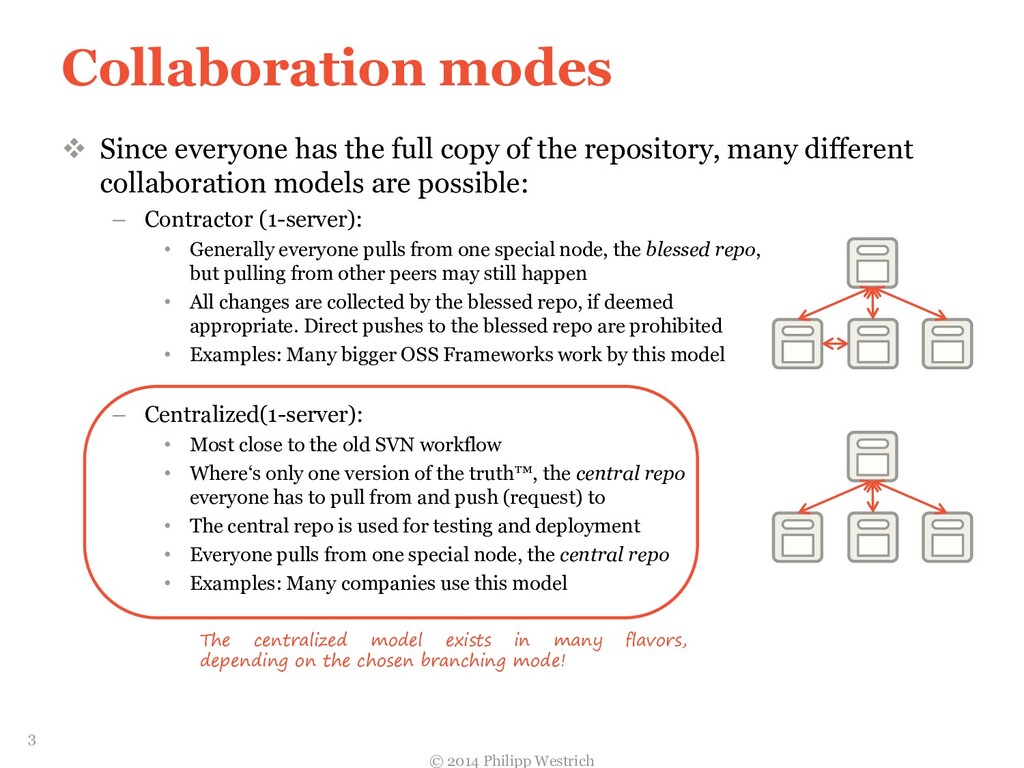
  2. Collaboration modes  Since everyone has the full copy of

    the repository, many different collaboration models are possible: – Contractor (1-server): • Generally everyone pulls from one special node, the blessed repo, but pulling from other peers may still happen • All changes are collected by the blessed repo, if deemed appropriate. Direct pushes to the blessed repo are prohibited • Examples: Many bigger OSS Frameworks work by this model – Centralized(1-server): • Most close to the old SVN workflow • Where‘s only one version of the truth™, the central repo everyone has to pull from and push (request) to • The central repo is used for testing and deployment • Everyone pulls from one special node, the central repo • Examples: Many companies use this model © 2014 Philipp Westrich 3 The centralized model exists in many flavors, depending on the chosen branching mode!
  3. Why branch?  Recall the concept of „branch“ – A

    change set container – An independent line of development with brand new working directory, staging area, and project history  Why local branches? – Cheap – Stay private as long as we want – Throw-away branches for new ideas, experiments, etc. – Allow working on different things „in parallel“, e.g. pushing aside the big feature work to quickly squash a bug  Why remote branches? – Separate different versions of a product – Allow fine-grained control of a software‘s evolution – Parallelize development © 2014 Philipp Westrich 4 Isolate change!
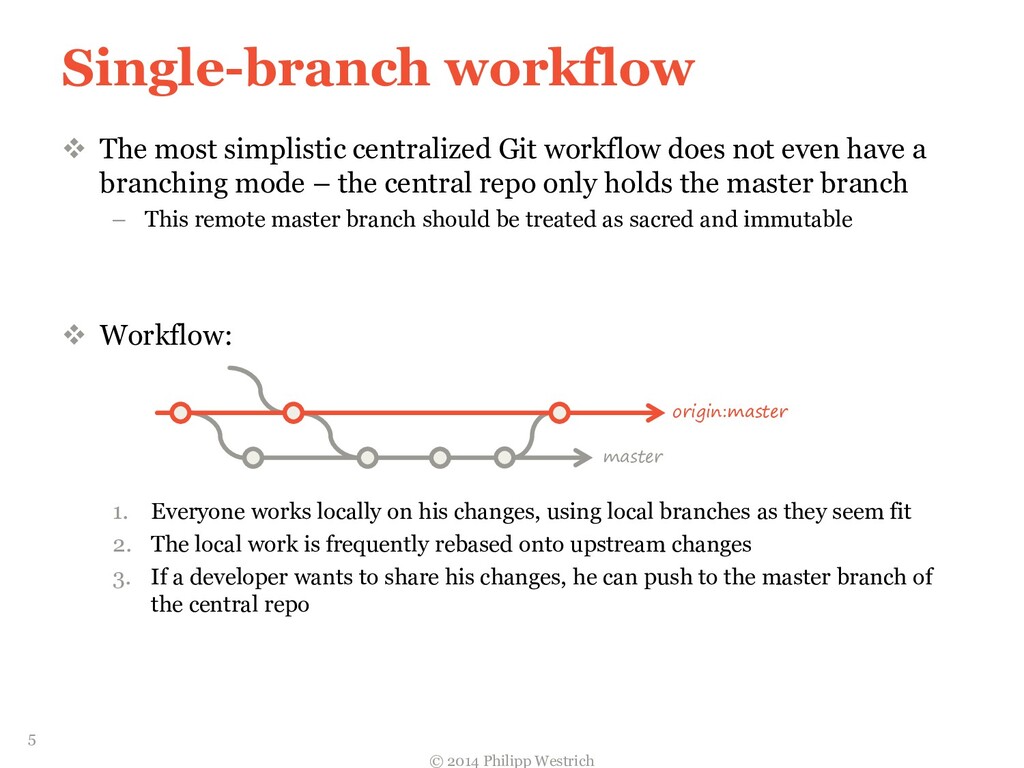
  4.  The most simplistic centralized Git workflow does not even

    have a branching mode – the central repo only holds the master branch – This remote master branch should be treated as sacred and immutable  Workflow: 1. Everyone works locally on his changes, using local branches as they seem fit 2. The local work is frequently rebased onto upstream changes 3. If a developer wants to share his changes, he can push to the master branch of the central repo Single-branch workflow © 2014 Philipp Westrich 5 origin:master master
  5. Remember  Commit often… – Git does not only version

    the central repo, but your local copy, too! – Small commits also help to isolate changes – TDD practitioners even go so far as to commit after each successful Unit-Test- Suit-run  …perfect later… – Git offers tools like commit --amend and rebase to „rewrite history“ if you want to prettify your local history before publishing it  … publish once – In most cases, publishing your work at least daily is a good bet – If others are affected by your changes, you should aim for more frequent pushes © 2014 Philipp Westrich 6
  6. Single-branch workflow  The workflow has one severe restriction: since

    all collaboration happens on the master branch, … – … all code changes are visible to all at all times – … one “broken commit” can stall the entire development  The Continues Integration camp is split in this regard – The “Purists” argue in its favor: • Only viable way to ensure a meaningful feedback-loop • Avoids the problem of branches staying around forever – The „Pragmatists“ argue against it: • Stop-the-Line-mentality not feasible for very large teams • Inflexible then it comes to parallel development © 2014 Philipp Westrich 7
  7. Git workflows and CI  “Purists” – Use feature flags

    to turn functionality on or off at will  „ Pragmatists“ – Frequently pull upstream changes! – Use an additional integration branch (acts as purist’s master branch) to frequently integrate daily change sets and alert about potential conflicts – Use server-side repository hooks for automation: • Trigger test runs • Propagate changes to other branches © 2014 Philipp Westrich 8
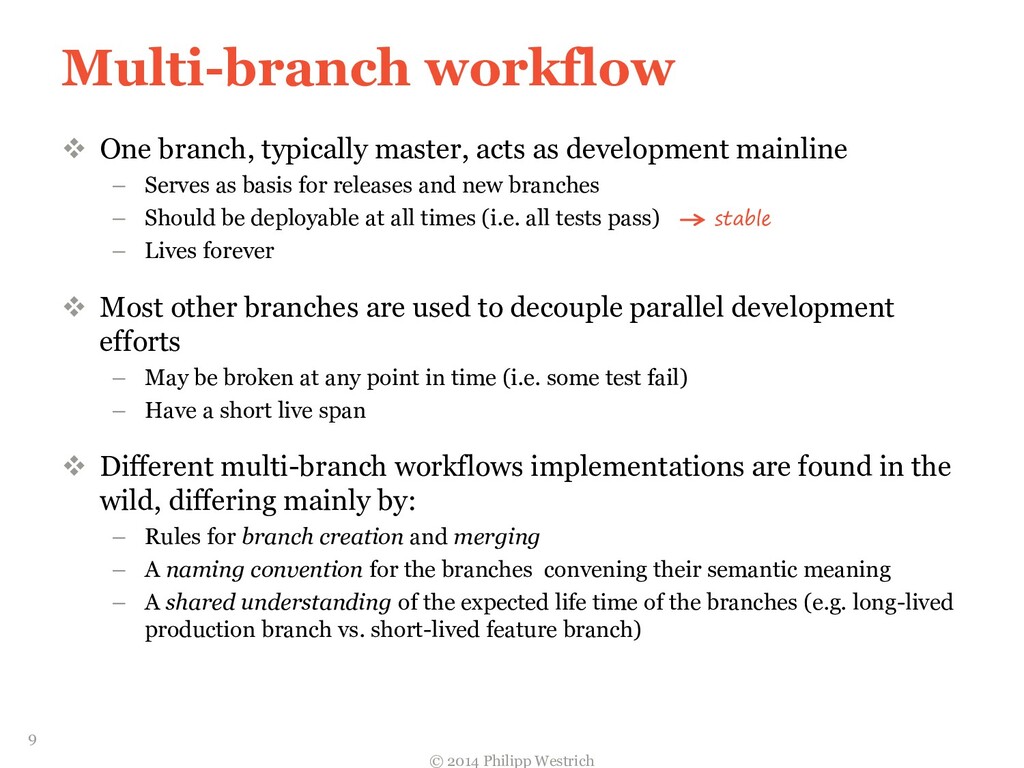
  8. Multi-branch workflow  One branch, typically master, acts as development

    mainline – Serves as basis for releases and new branches – Should be deployable at all times (i.e. all tests pass) – Lives forever  Most other branches are used to decouple parallel development efforts – May be broken at any point in time (i.e. some test fail) – Have a short live span  Different multi-branch workflows implementations are found in the wild, differing mainly by: – Rules for branch creation and merging – A naming convention for the branches convening their semantic meaning – A shared understanding of the expected life time of the branches (e.g. long-lived production branch vs. short-lived feature branch) © 2014 Philipp Westrich 9 stable
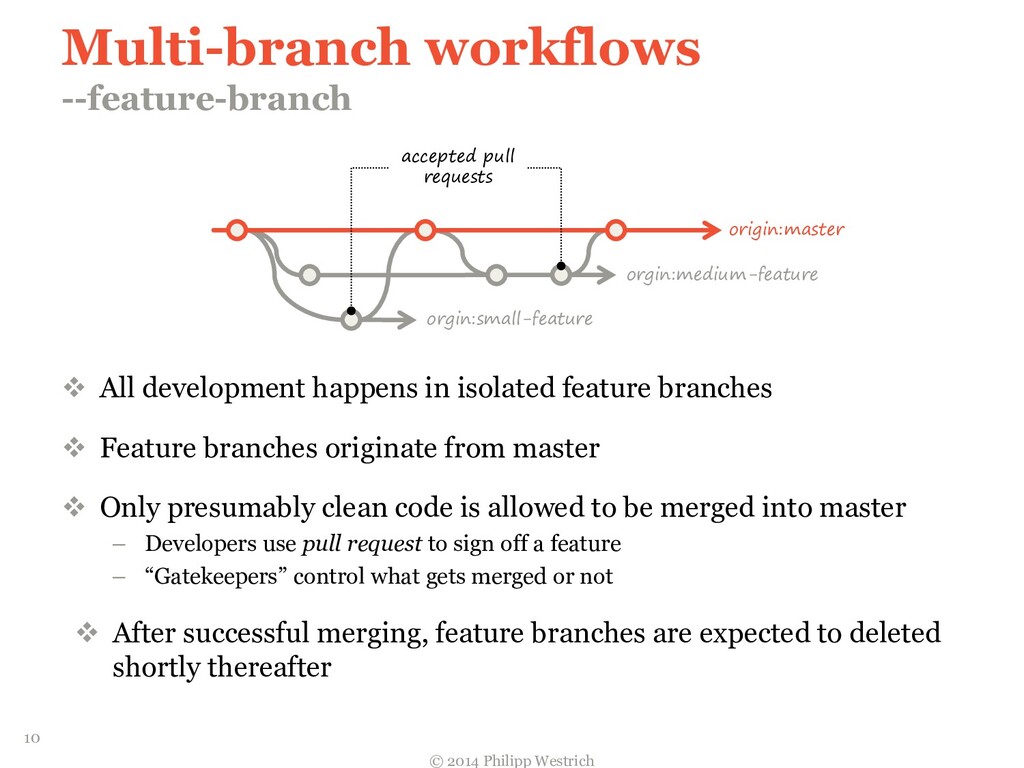
  9. Multi-branch workflows --feature-branch  All development happens in isolated feature

    branches  Feature branches originate from master  Only presumably clean code is allowed to be merged into master – Developers use pull request to sign off a feature – “Gatekeepers” control what gets merged or not  After successful merging, feature branches are expected to deleted shortly thereafter © 2014 Philipp Westrich 10 orgin:small-feature orgin:medium-feature origin:master accepted pull requests
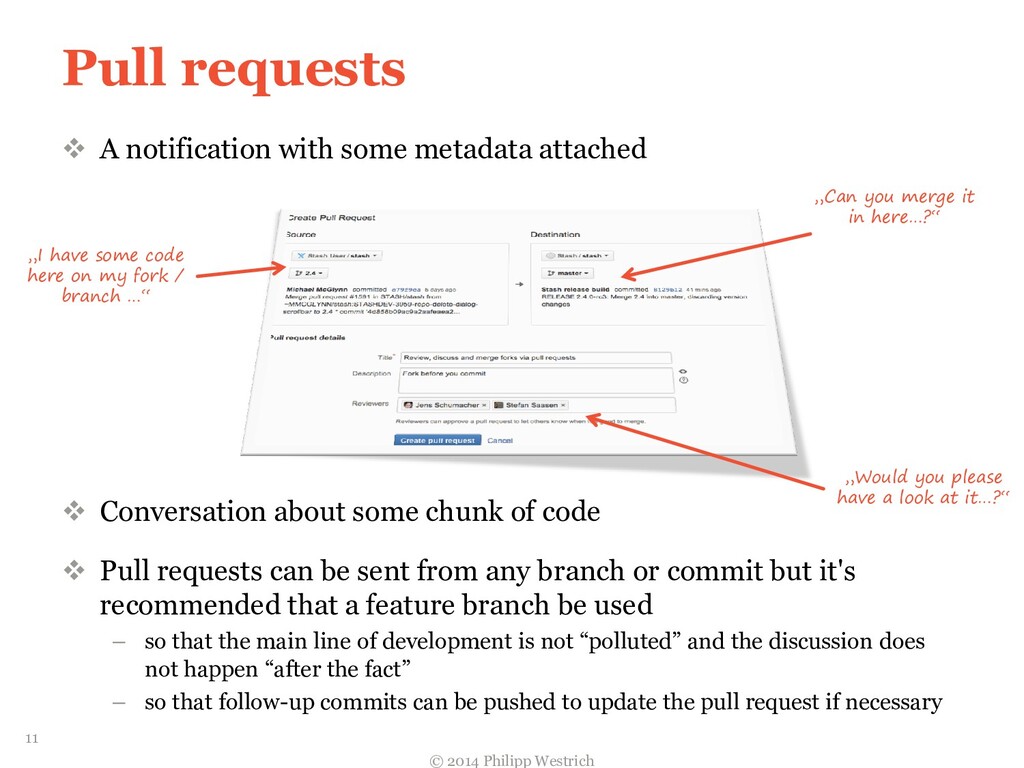
  10. Pull requests  A notification with some metadata attached 

    Conversation about some chunk of code  Pull requests can be sent from any branch or commit but it's recommended that a feature branch be used – so that the main line of development is not “polluted” and the discussion does not happen “after the fact” – so that follow-up commits can be pushed to update the pull request if necessary © 2014 Philipp Westrich 11 „I have some code here on my fork / branch …“ „Can you merge it in here…?“ „Would you please have a look at it…?“
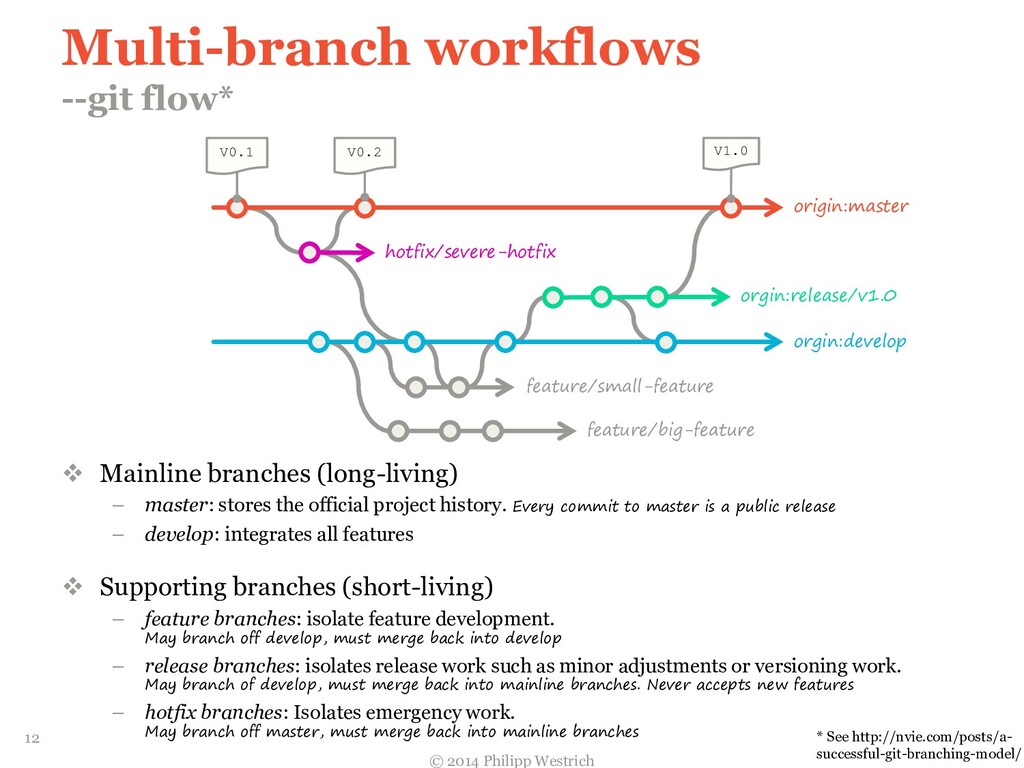
  11.  Mainline branches (long-living) – master: stores the official project

    history. Every commit to master is a public release – develop: integrates all features  Supporting branches (short-living) – feature branches: isolate feature development. May branch off develop, must merge back into develop – release branches: isolates release work such as minor adjustments or versioning work. May branch of develop, must merge back into mainline branches. Never accepts new features – hotfix branches: Isolates emergency work. May branch off master, must merge back into mainline branches Multi-branch workflows --git flow* © 2014 Philipp Westrich 12 orgin:release/v1.0 hotfix/severe-hotfix origin:master V0.1 V0.2 feature/small-feature feature/big-feature V1.0 orgin:develop * See http://nvie.com/posts/a- successful-git-branching-model/
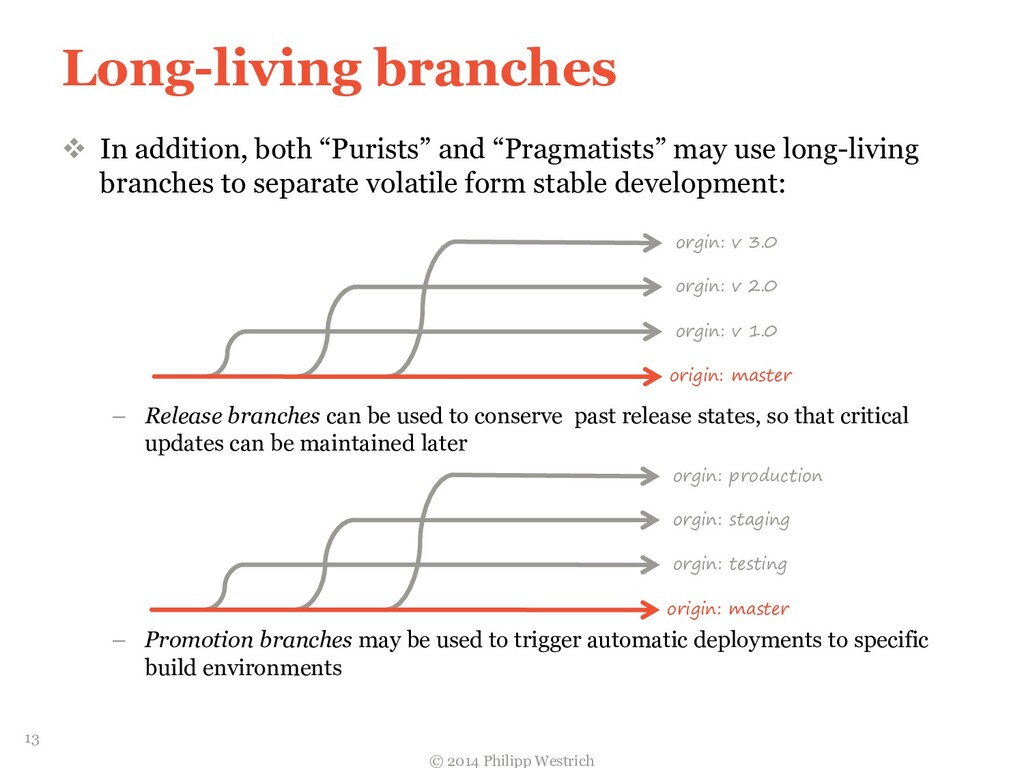
  12. Long-living branches  In addition, both “Purists” and “Pragmatists” may

    use long-living branches to separate volatile form stable development: – Release branches can be used to conserve past release states, so that critical updates can be maintained later – Promotion branches may be used to trigger automatic deployments to specific build environments © 2014 Philipp Westrich 13 origin: master orgin: v 1.0 orgin: v 2.0 orgin: v 3.0 origin: master orgin: testing orgin: staging orgin: production
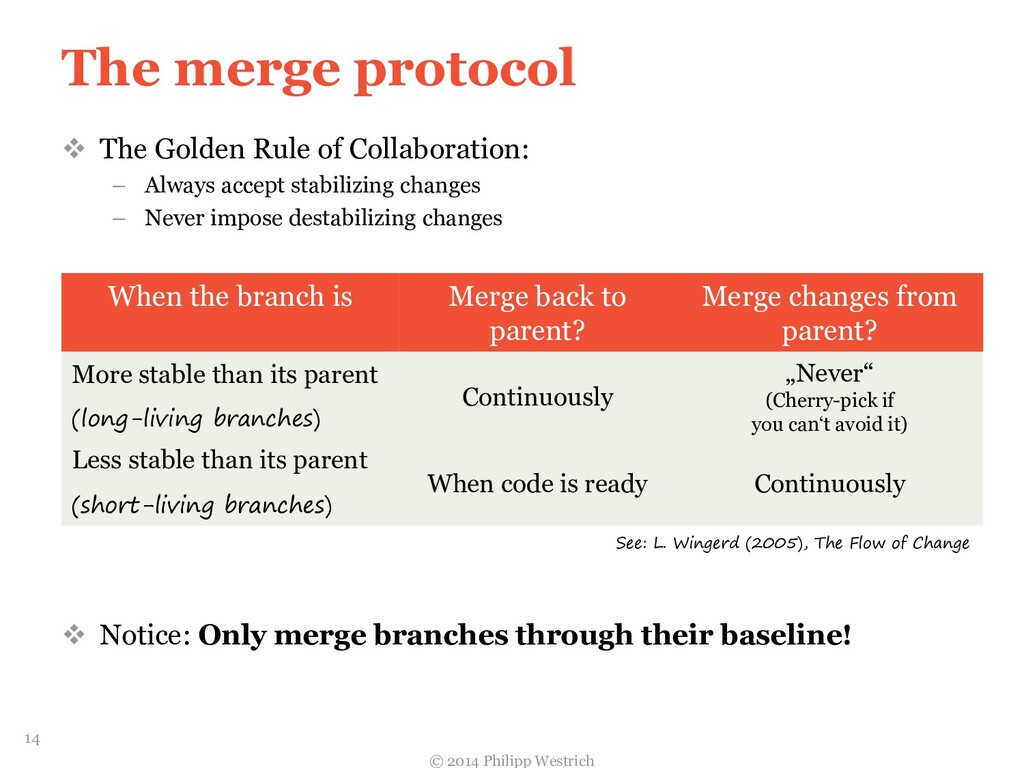
  13. The merge protocol When the branch is Merge back to

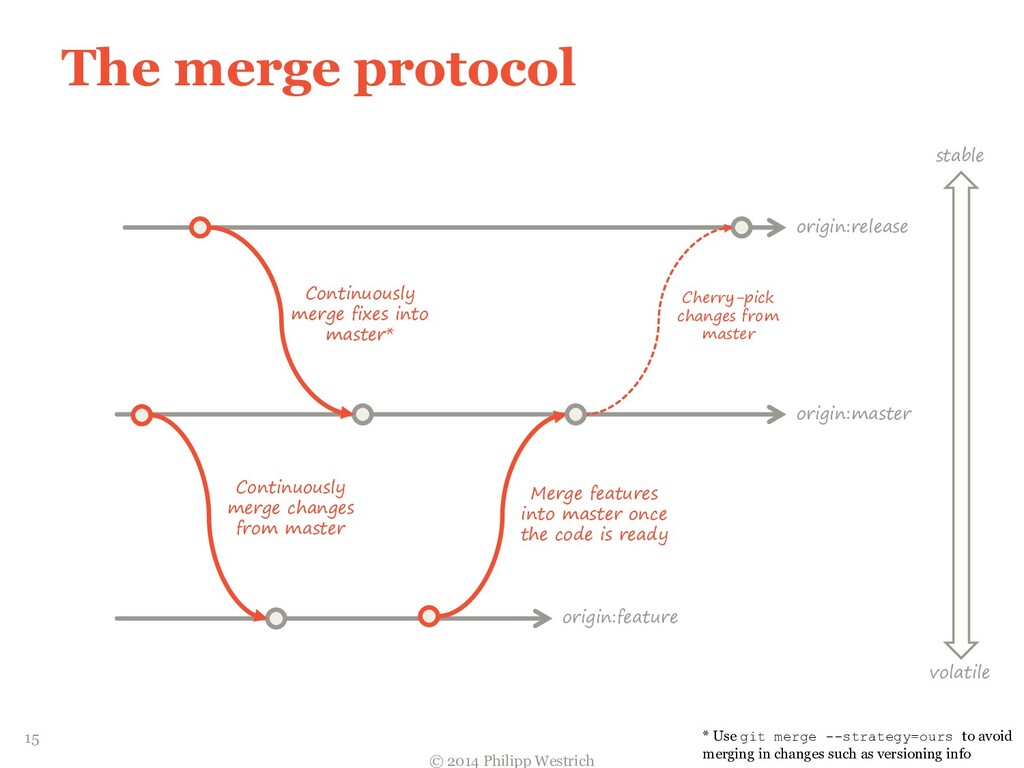
    parent? Merge changes from parent? More stable than its parent (long-living branches) Continuously „Never“ (Cherry-pick if you can‘t avoid it) Less stable than its parent (short-living branches) When code is ready Continuously © 2014 Philipp Westrich 14 See: L. Wingerd (2005), The Flow of Change  The Golden Rule of Collaboration: – Always accept stabilizing changes – Never impose destabilizing changes  Notice: Only merge branches through their baseline!
  14. The merge protocol © 2014 Philipp Westrich 15 origin:master origin:feature

    origin:release stable volatile Continuously merge changes from master Merge features into master once the code is ready Continuously merge fixes into master* Cherry-pick changes from master * Use git merge --strategy=ours to avoid merging in changes such as versioning info
  15. Prettifying the project‘s history  When sharing your work with

    others, it is often desired to present the code as well as the series of commits in “good shape”.  Git provides some powerful tools to alter your project’s history. We’ll cover the basic ones in this presentation.  But be warned! Messing with the Git history creates the potential to lose commits.  Also, never change history that has been published! © 2014 Philipp Westrich 16
  16. Demo --preconditions  Create an SSH-RSA key pair if necessary

    and copy the private key (named id_rsa) to ~/.ssh  Open your Terminal / Git Bash © 2014 Philipp Westrich 17
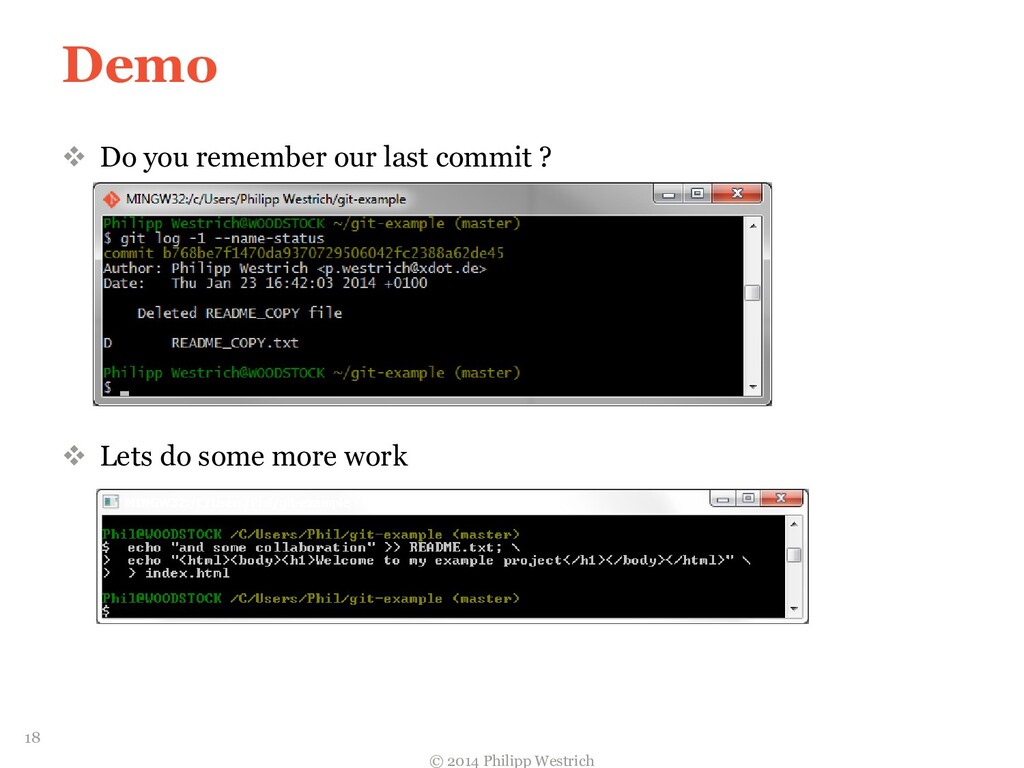
  17. Demo  Do you remember our last commit ? 

    Lets do some more work © 2014 Philipp Westrich 18
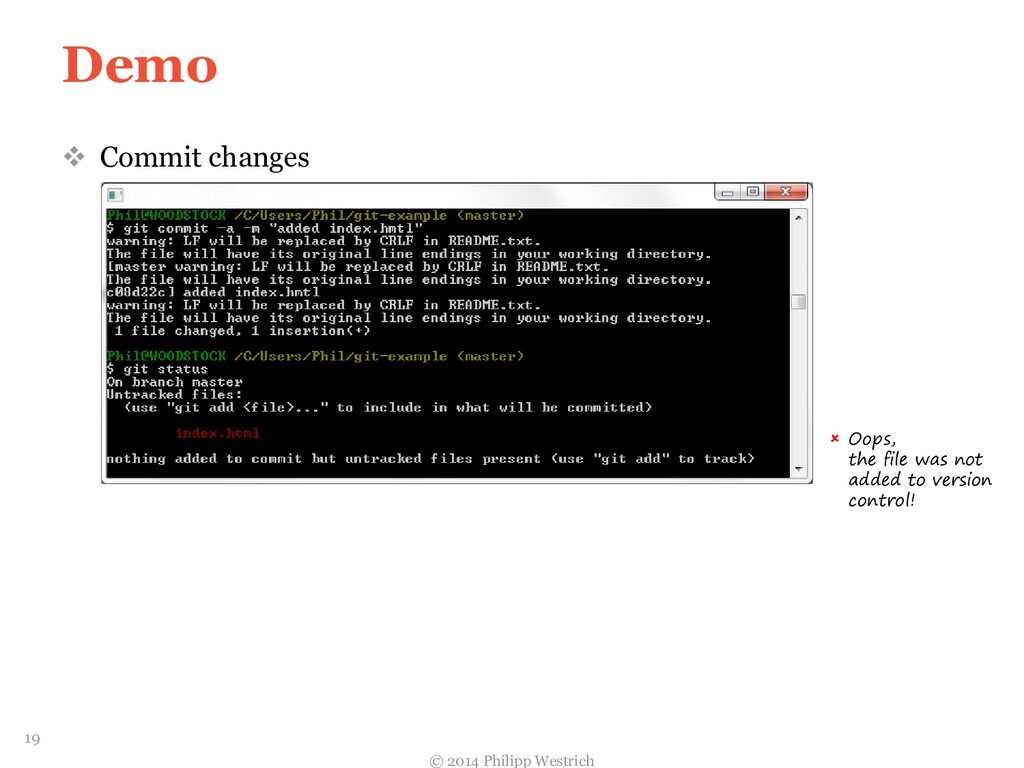
  18. Demo  Commit changes © 2014 Philipp Westrich 19 

    Oops, the file was not added to version control!
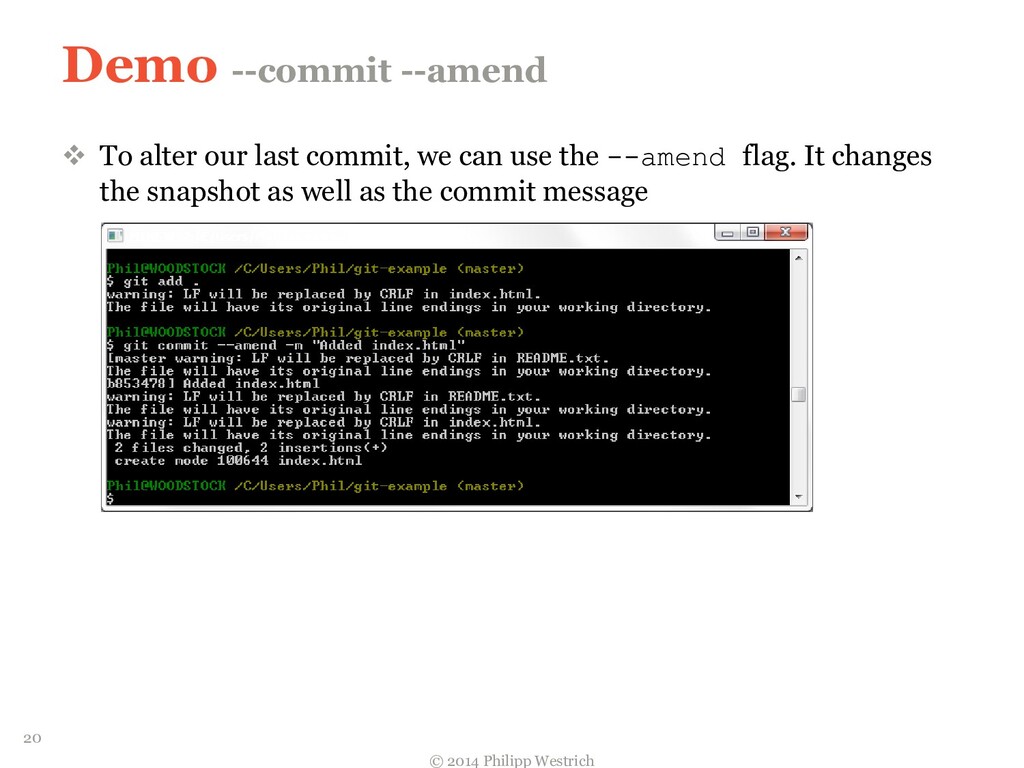
  19. Demo --commit --amend  To alter our last commit, we

    can use the --amend flag. It changes the snapshot as well as the commit message © 2014 Philipp Westrich 20
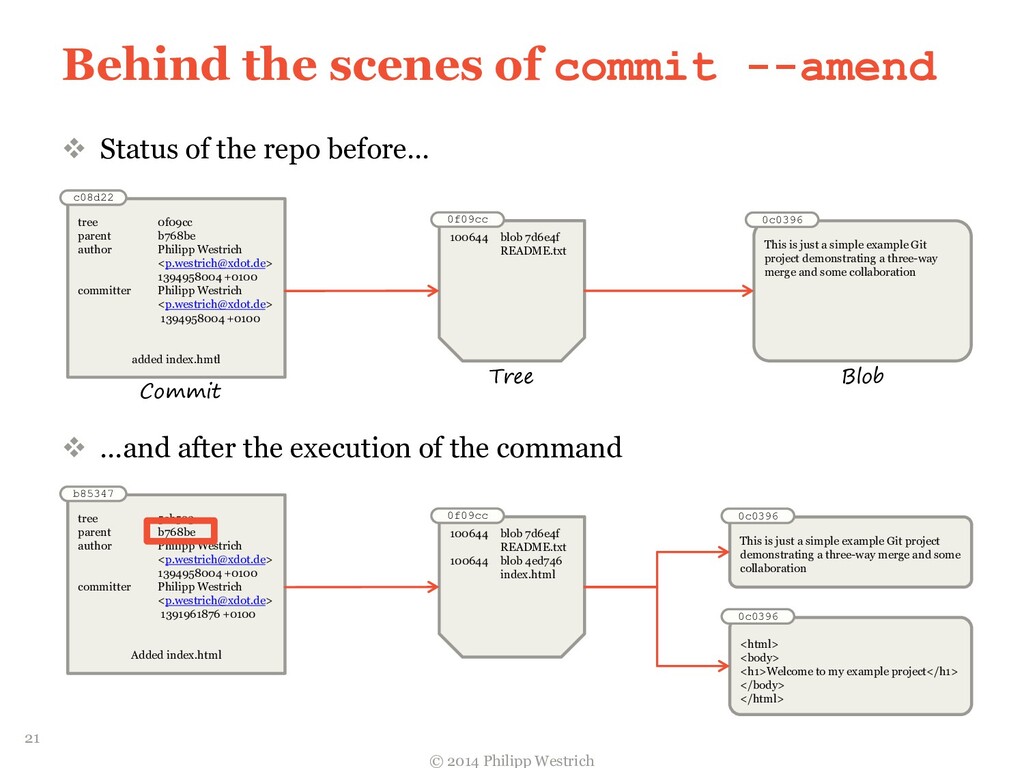
  20. Behind the scenes of commit --amend  Status of the

    repo before…  …and after the execution of the command © 2014 Philipp Westrich 21 Commit c08d22 tree 0f09cc parent b768be author Philipp Westrich <[email protected]> 1394958004 +0100 committer Philipp Westrich <[email protected]> 1394958004 +0100 added index.hmtl 0f09cc 100644 blob 7d6e4f README.txt Tree 0c0396 This is just a simple example Git project demonstrating a three-way merge and some collaboration Blob b85347 tree 5cb523 parent b768be author Philipp Westrich <[email protected]> 1394958004 +0100 committer Philipp Westrich <[email protected]> 1391961876 +0100 Added index.html 0f09cc 100644 blob 7d6e4f README.txt 100644 blob 4ed746 index.html 0c0396 This is just a simple example Git project demonstrating a three-way merge and some collaboration Blob 0c0396 <html> <body> <h1>Welcome to my example project</h1> </body> </html>
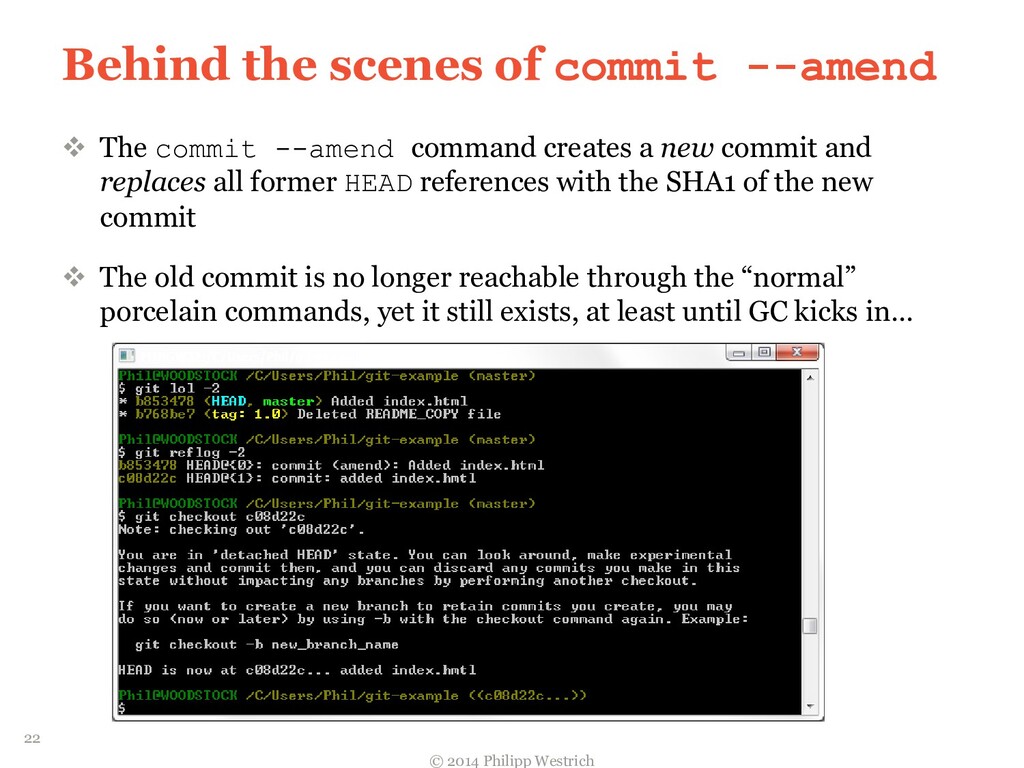
  21. Behind the scenes of commit --amend  The commit --amend

    command creates a new commit and replaces all former HEAD references with the SHA1 of the new commit  The old commit is no longer reachable through the “normal” porcelain commands, yet it still exists, at least until GC kicks in… © 2014 Philipp Westrich 22
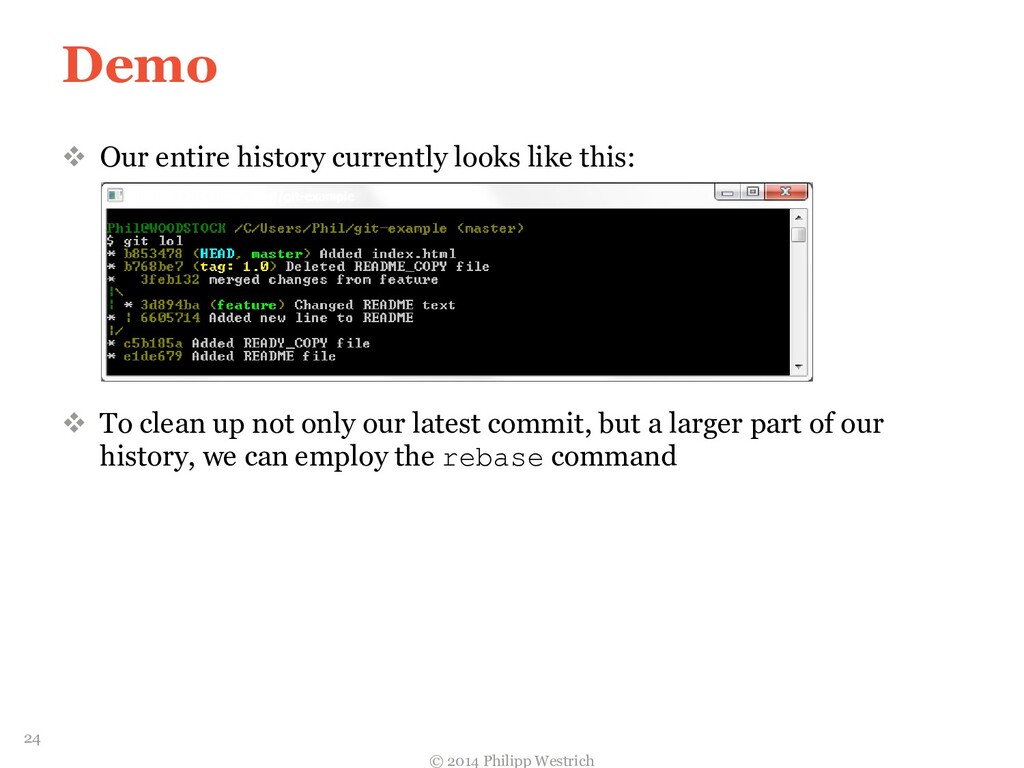
  22. Demo  Our entire history currently looks like this: 

    To clean up not only our latest commit, but a larger part of our history, we can employ the rebase command © 2014 Philipp Westrich 24
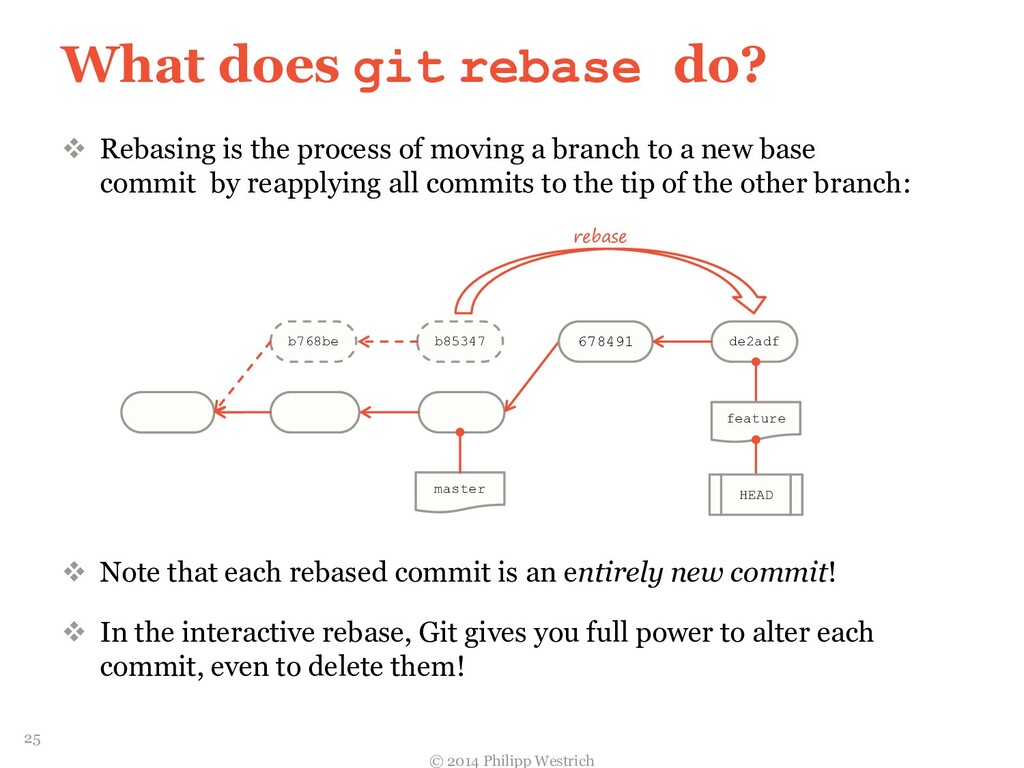
  23. What does git rebase do?  Rebasing is the process

    of moving a branch to a new base commit by reapplying all commits to the tip of the other branch:  Note that each rebased commit is an entirely new commit!  In the interactive rebase, Git gives you full power to alter each commit, even to delete them! © 2014 Philipp Westrich 25 master b768be 678491 b85347 de2adf feature HEAD rebase
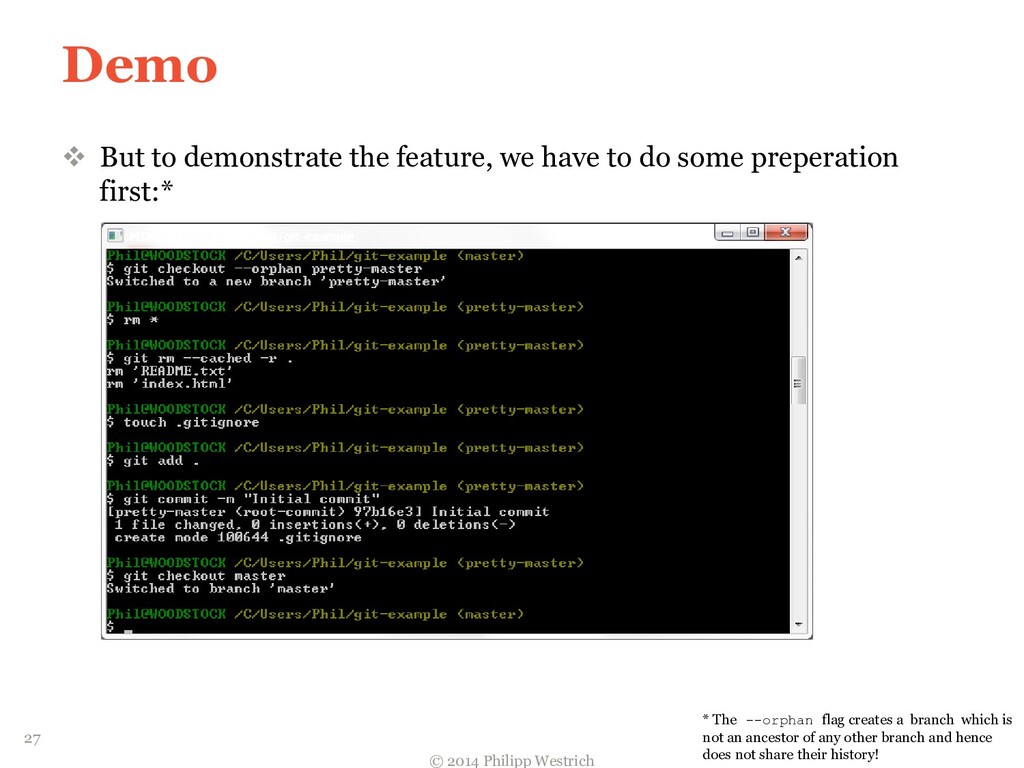
  24. Demo  But to demonstrate the feature, we have to

    do some preperation first:* © 2014 Philipp Westrich 27 * The --orphan flag creates a branch which is not an ancestor of any other branch and hence does not share their history!
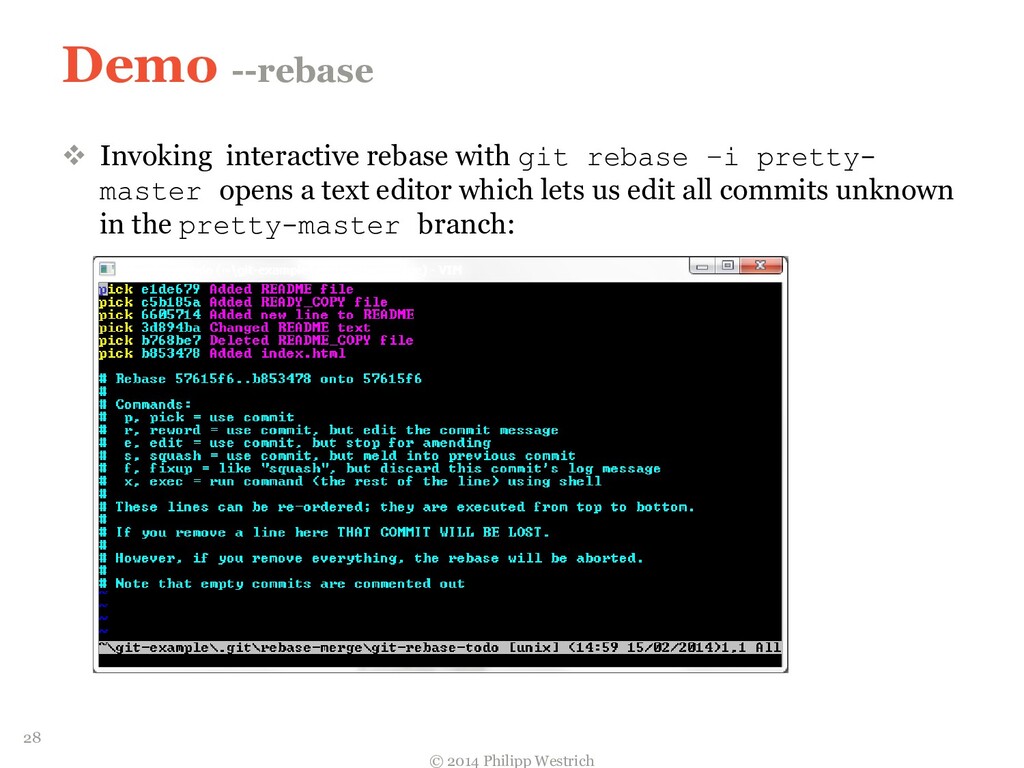
  25. Demo --rebase  Invoking interactive rebase with git rebase –i

    pretty- master opens a text editor which lets us edit all commits unknown in the pretty-master branch: © 2014 Philipp Westrich 28
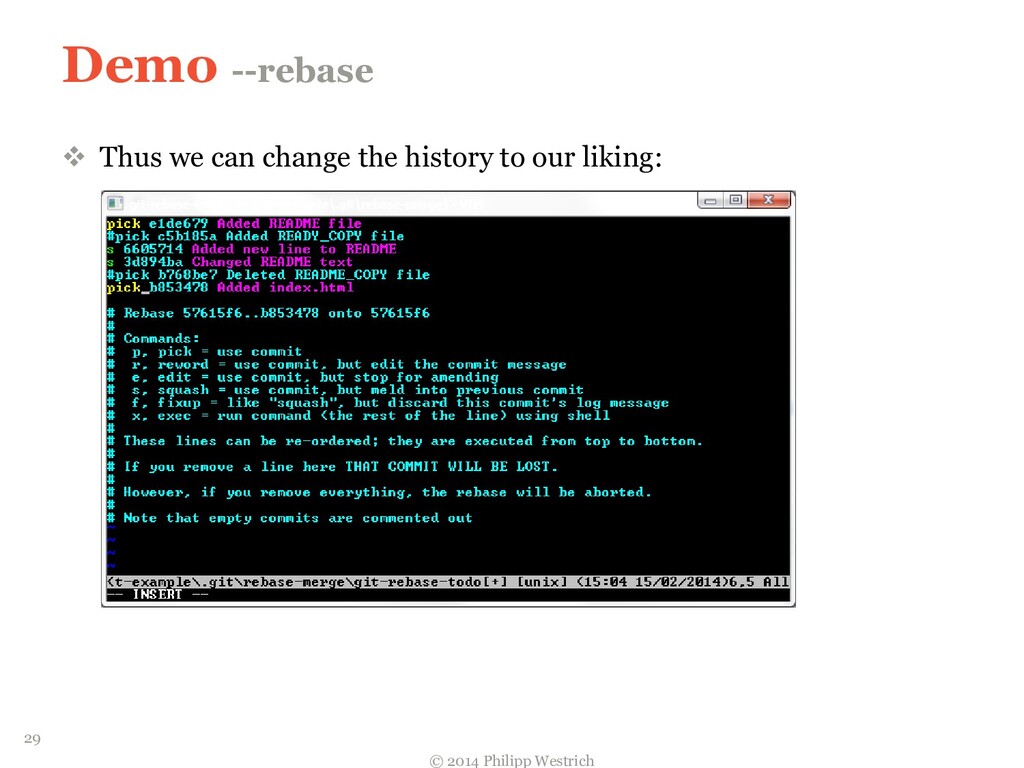
  26. Demo --rebase  Thus we can change the history to

    our liking: © 2014 Philipp Westrich 29
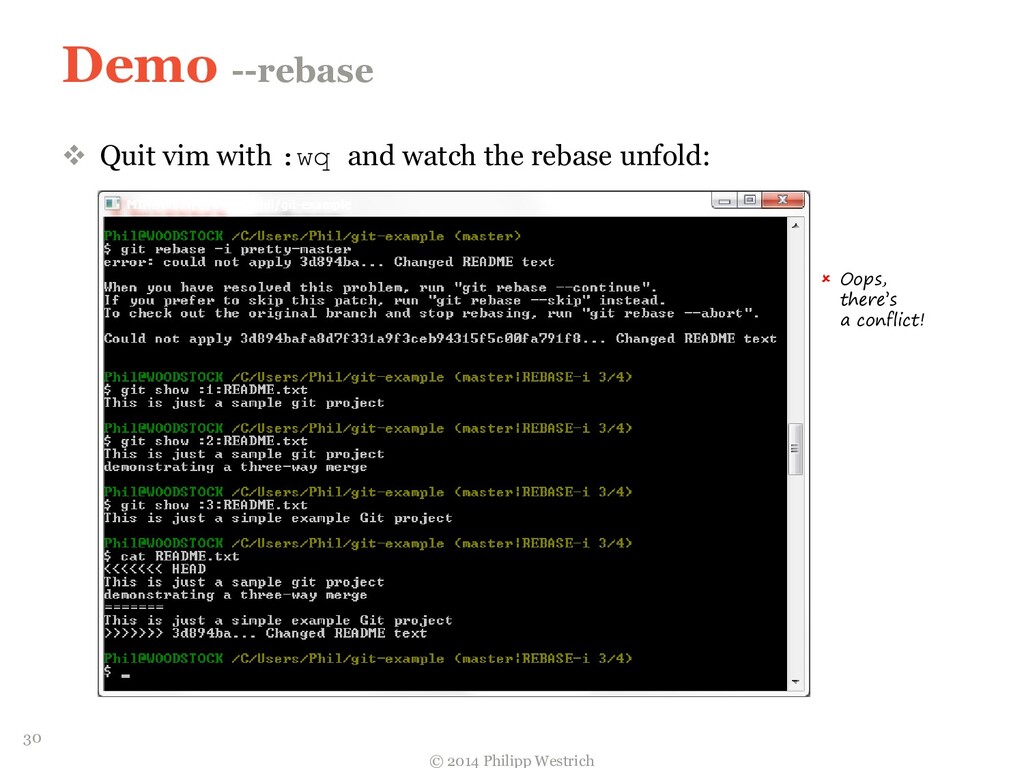
  27. Demo --rebase  Quit vim with :wq and watch the

    rebase unfold: © 2014 Philipp Westrich 30  Oops, there’s a conflict!
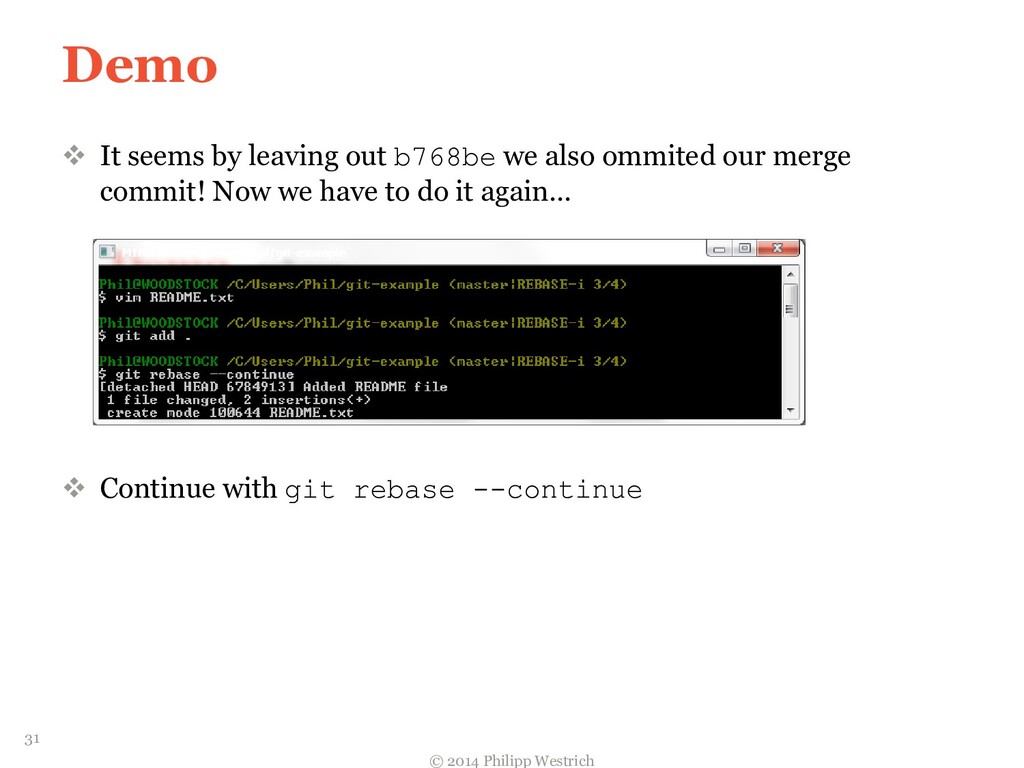
  28. Demo  It seems by leaving out b768be we also

    ommited our merge commit! Now we have to do it again…  Continue with git rebase --continue © 2014 Philipp Westrich 31
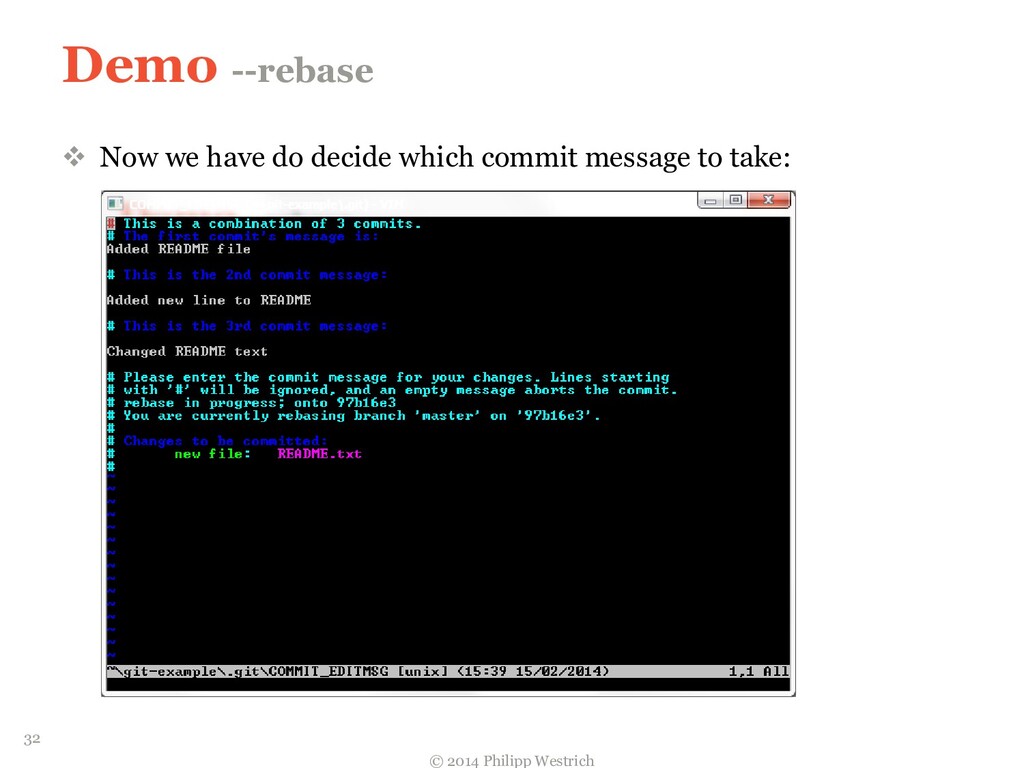
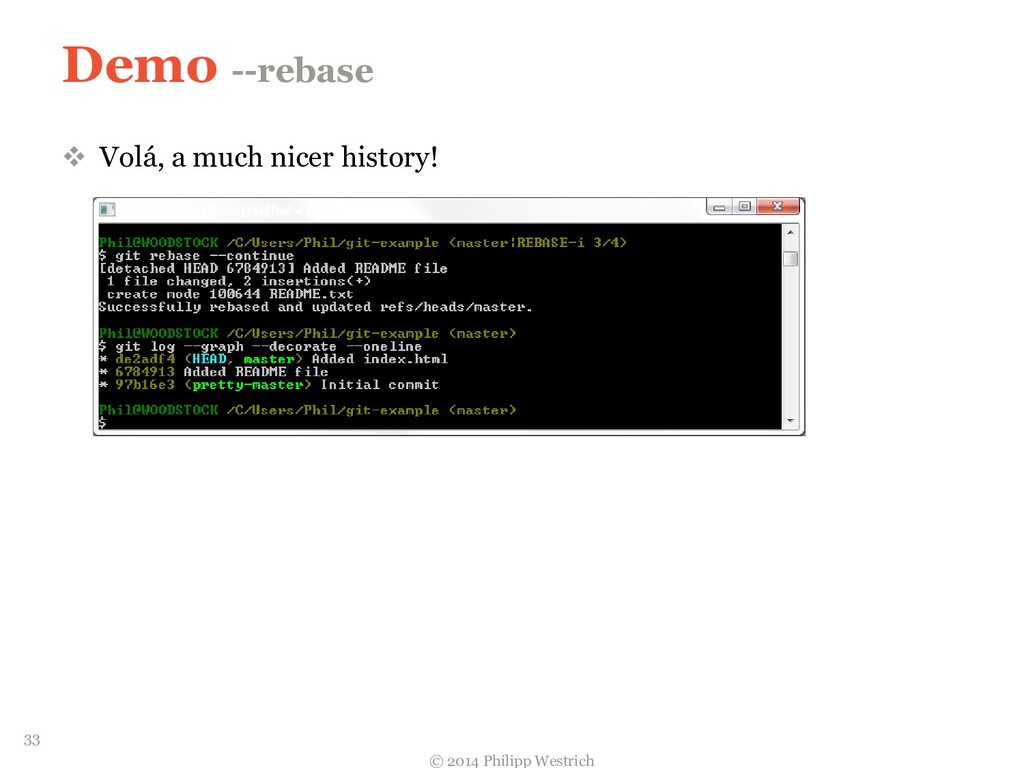
  29. Demo --rebase  Now we have do decide which commit

    message to take: © 2014 Philipp Westrich 32
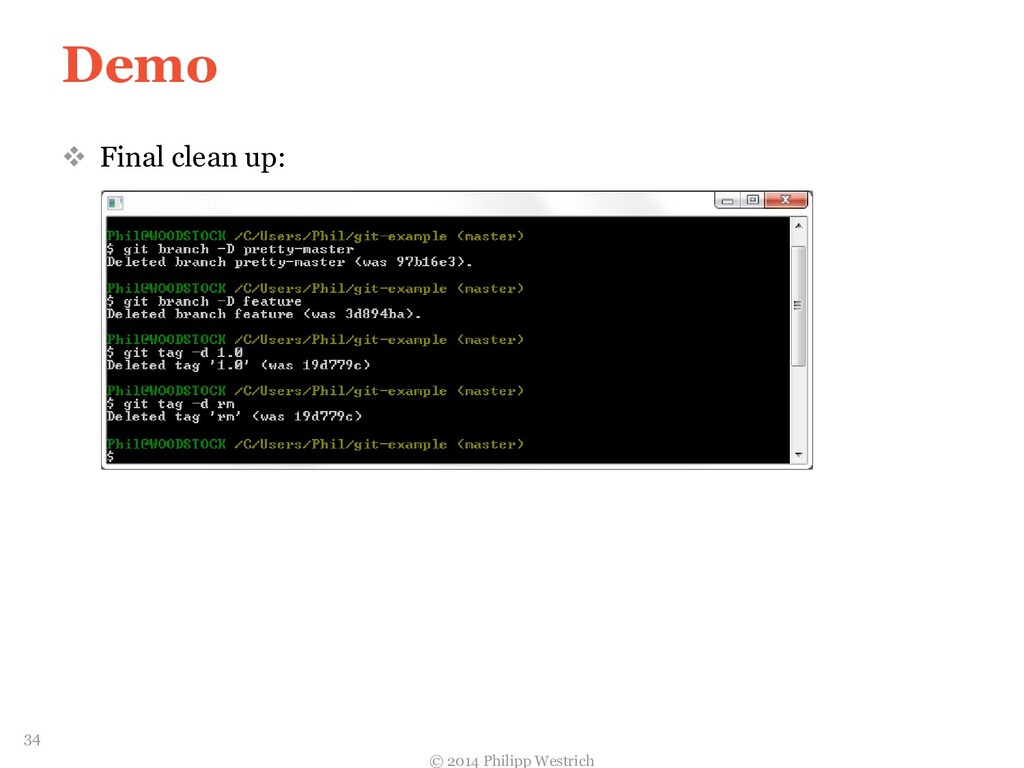
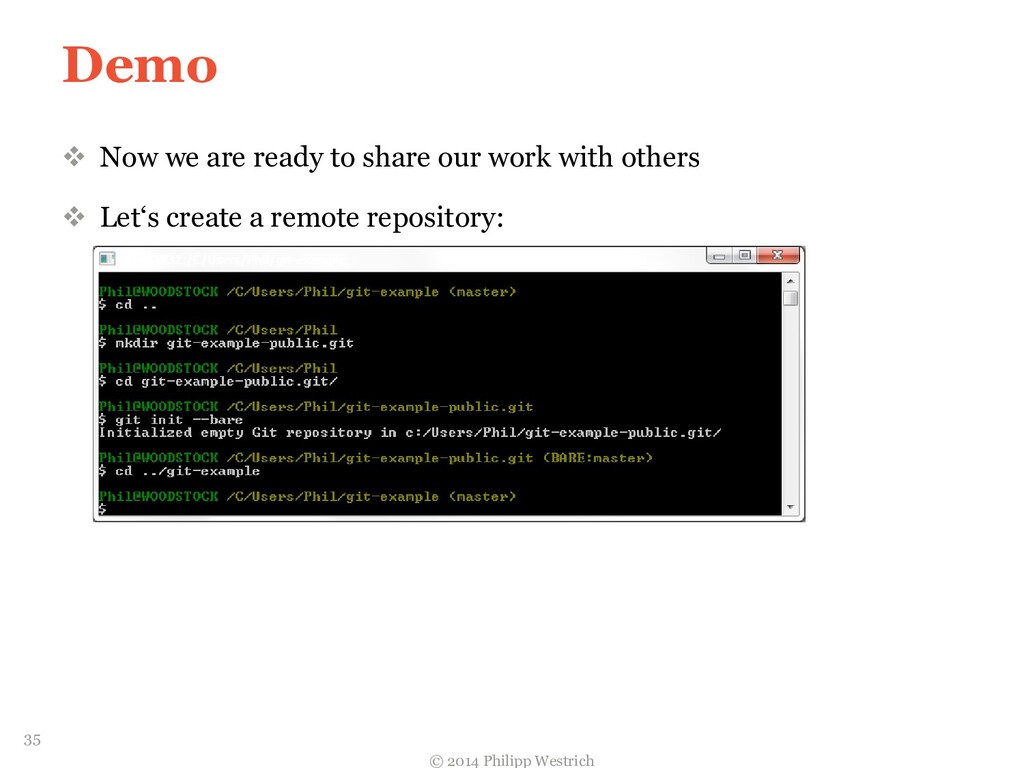
  30. Demo  Now we are ready to share our work

    with others  Let‘s create a remote repository: © 2014 Philipp Westrich 35
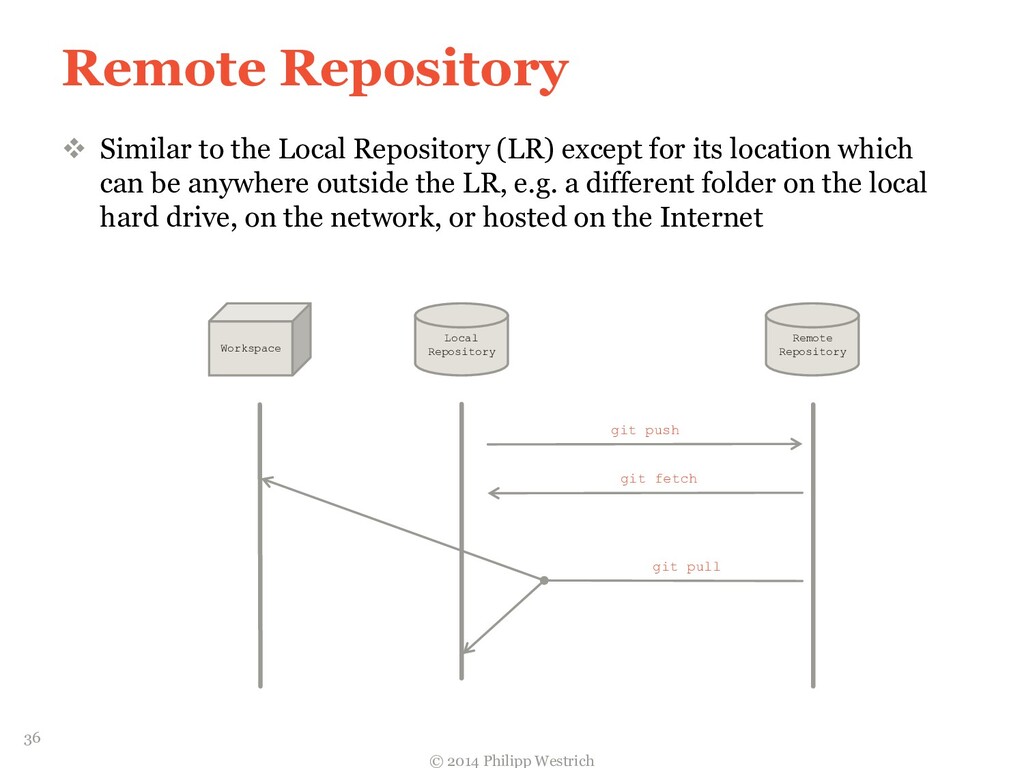
  31. Remote Repository  Similar to the Local Repository (LR) except

    for its location which can be anywhere outside the LR, e.g. a different folder on the local hard drive, on the network, or hosted on the Internet © 2014 Philipp Westrich 36 Remote Repository Local Repository Workspace git push git fetch git pull
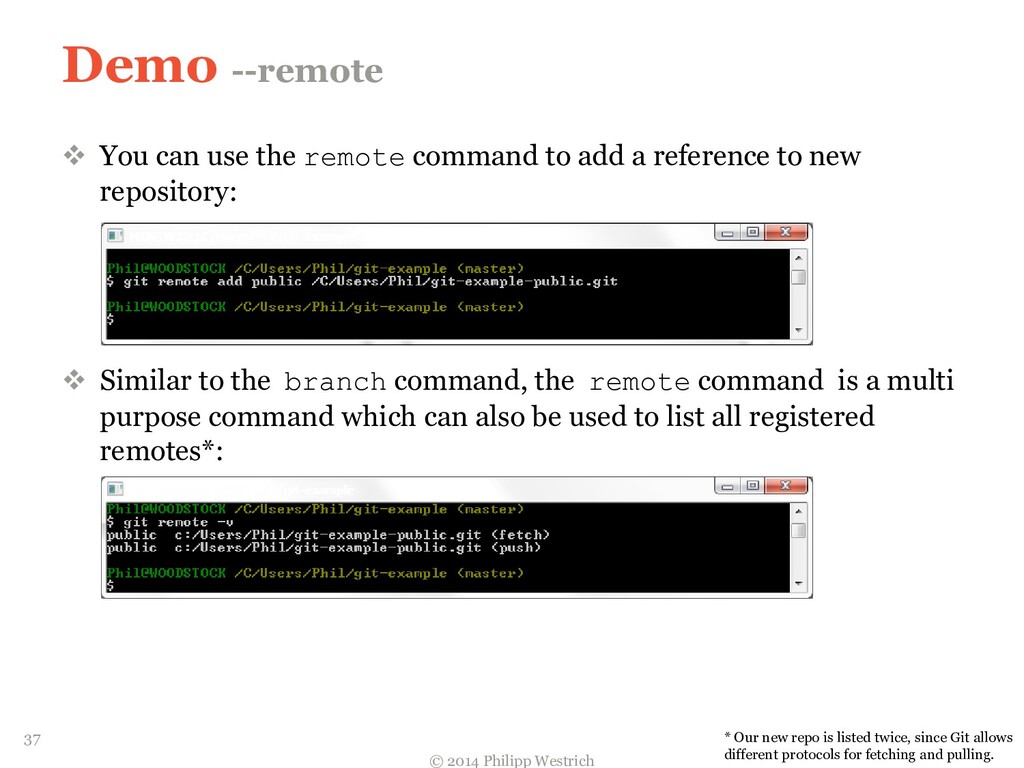
  32. Demo --remote  You can use the remote command to

    add a reference to new repository:  Similar to the branch command, the remote command is a multi purpose command which can also be used to list all registered remotes*: © 2014 Philipp Westrich 37 * Our new repo is listed twice, since Git allows different protocols for fetching and pulling.
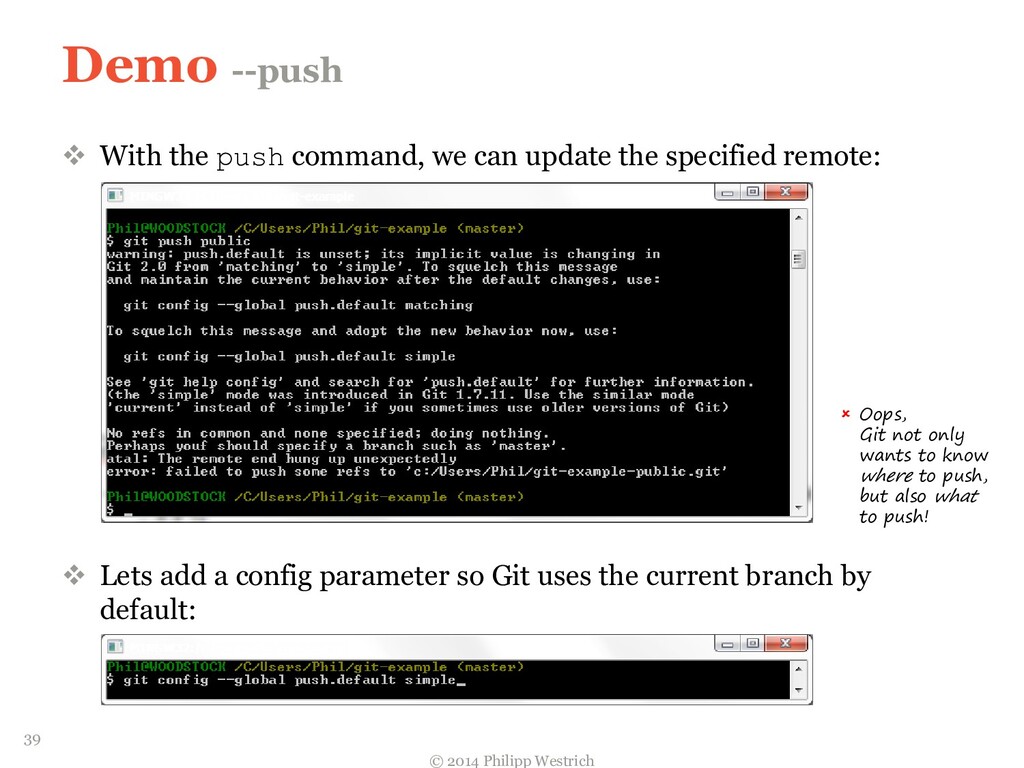
  33. Demo --push  With the push command, we can update

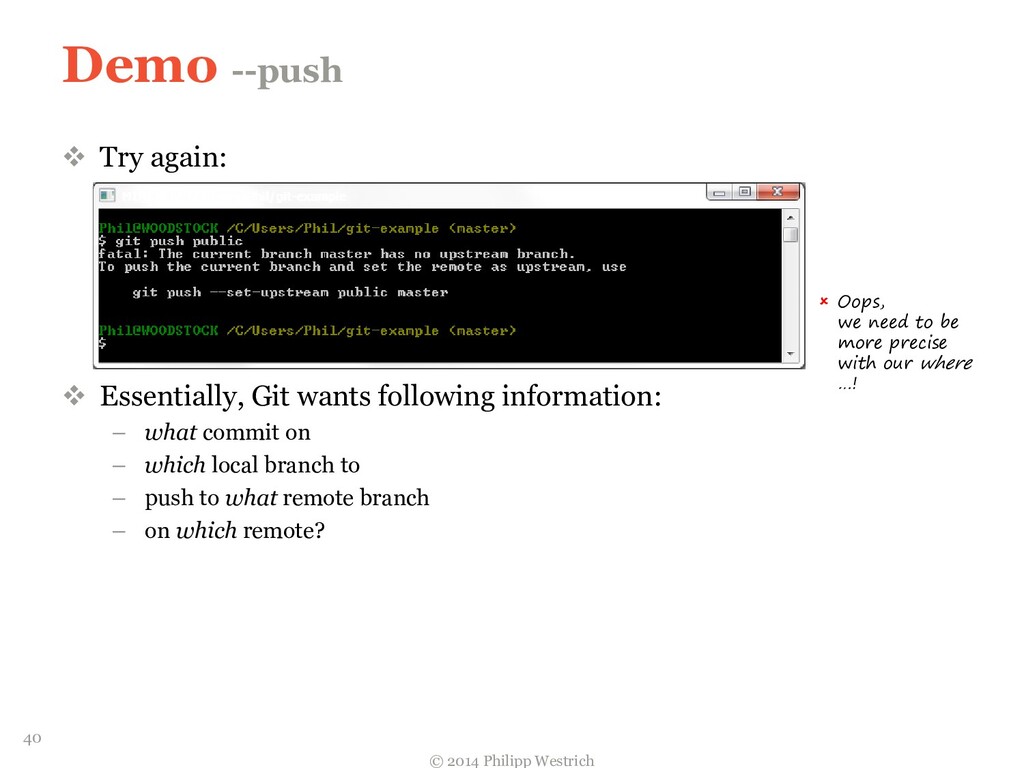
    the specified remote:  Lets add a config parameter so Git uses the current branch by default: © 2014 Philipp Westrich 39  Oops, Git not only wants to know where to push, but also what to push!
  34. Demo --push  Try again:  Essentially, Git wants following

    information: – what commit on – which local branch to – push to what remote branch – on which remote? © 2014 Philipp Westrich 40  Oops, we need to be more precise with our where …!
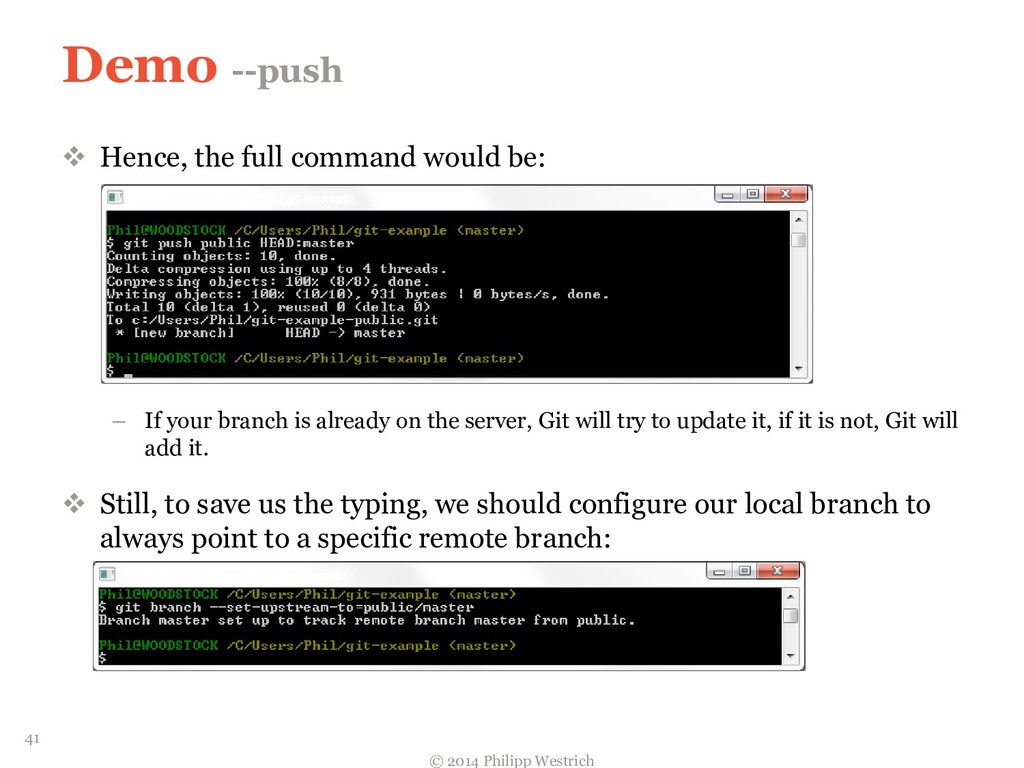
  35. Demo --push  Hence, the full command would be: –

    If your branch is already on the server, Git will try to update it, if it is not, Git will add it.  Still, to save us the typing, we should configure our local branch to always point to a specific remote branch: © 2014 Philipp Westrich 41
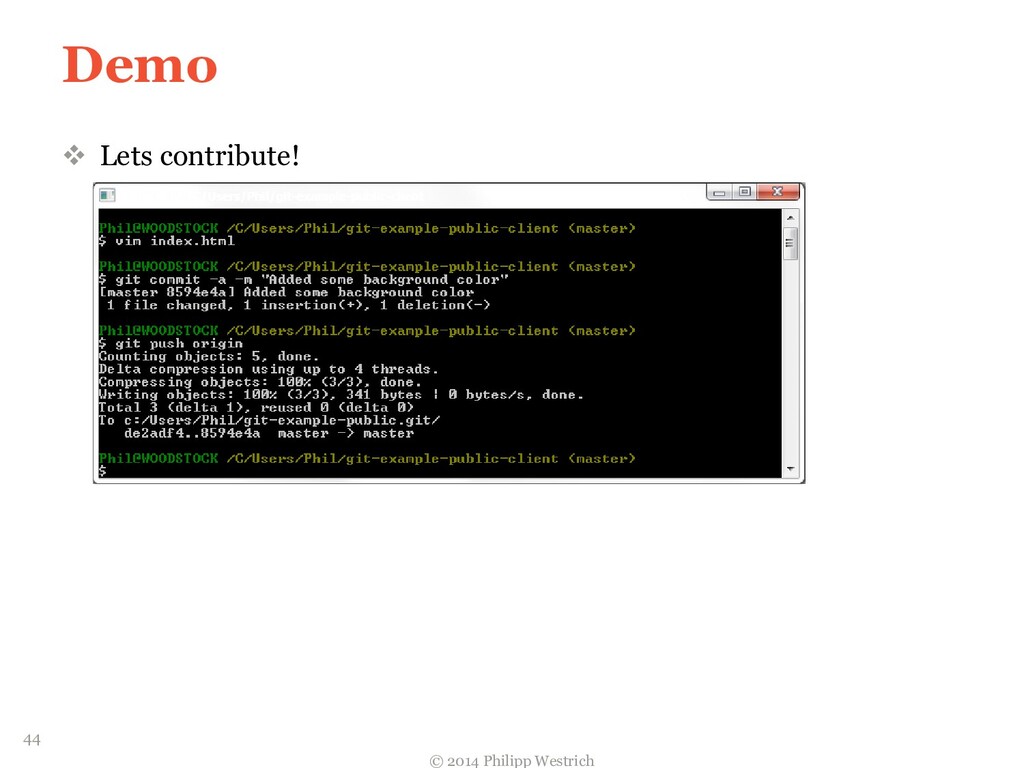
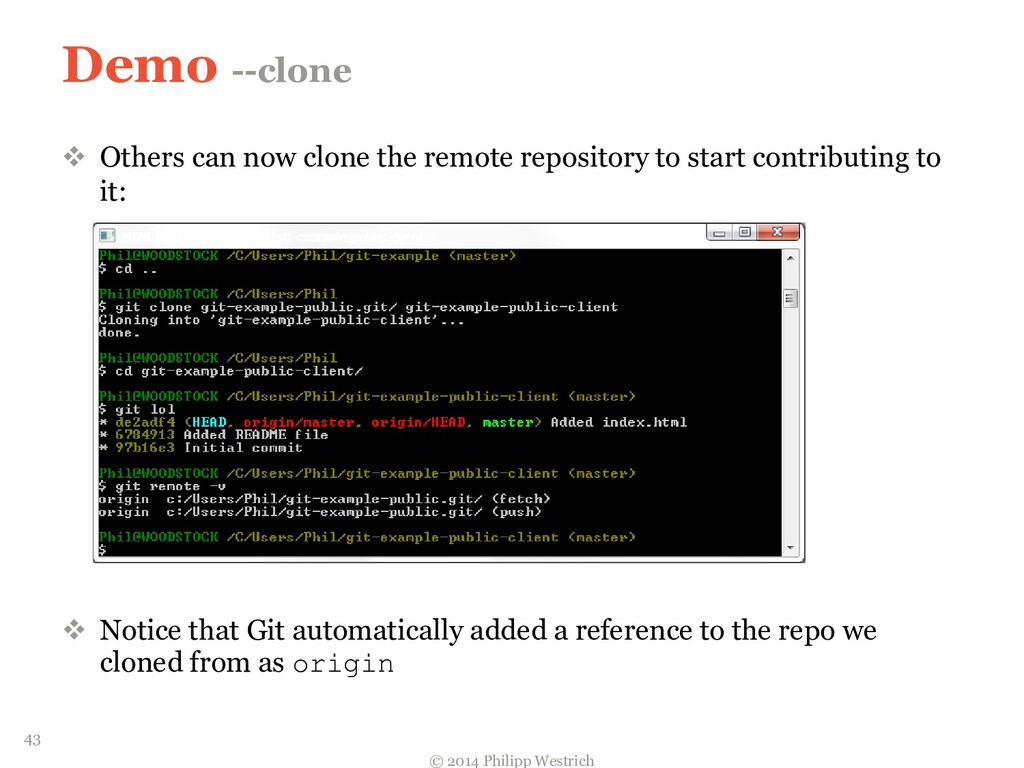
  36. Demo --clone  Others can now clone the remote repository

    to start contributing to it:  Notice that Git automatically added a reference to the repo we cloned from as origin © 2014 Philipp Westrich 43
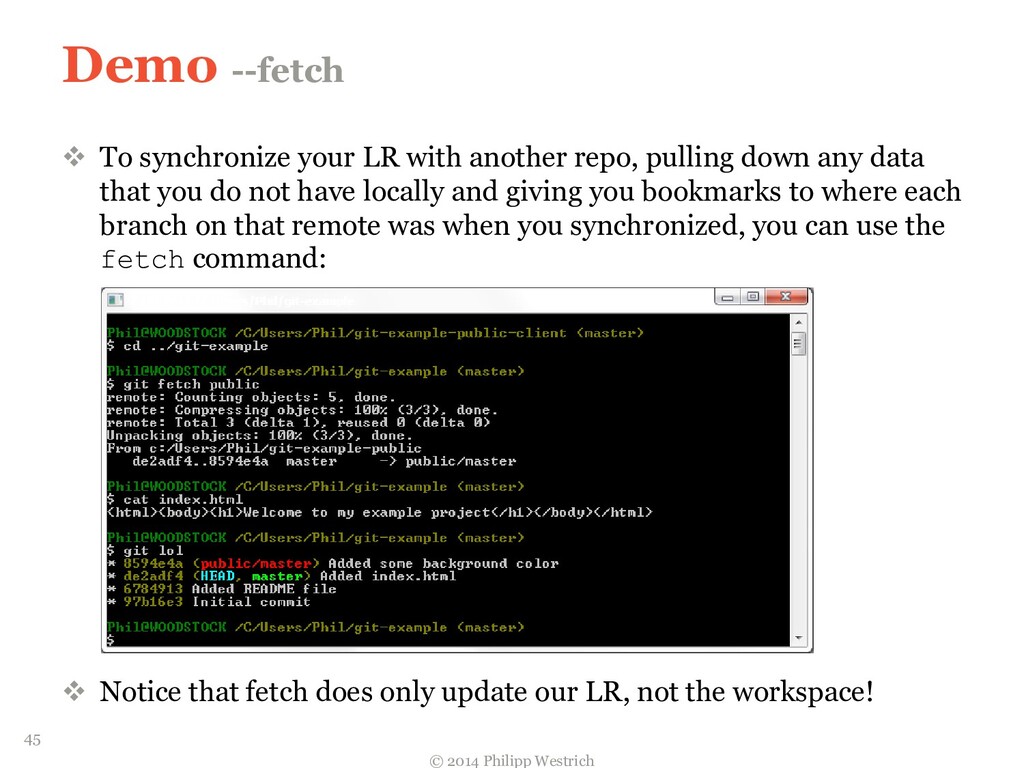
  37. Demo --fetch  To synchronize your LR with another repo,

    pulling down any data that you do not have locally and giving you bookmarks to where each branch on that remote was when you synchronized, you can use the fetch command:  Notice that fetch does only update our LR, not the workspace! © 2014 Philipp Westrich 45
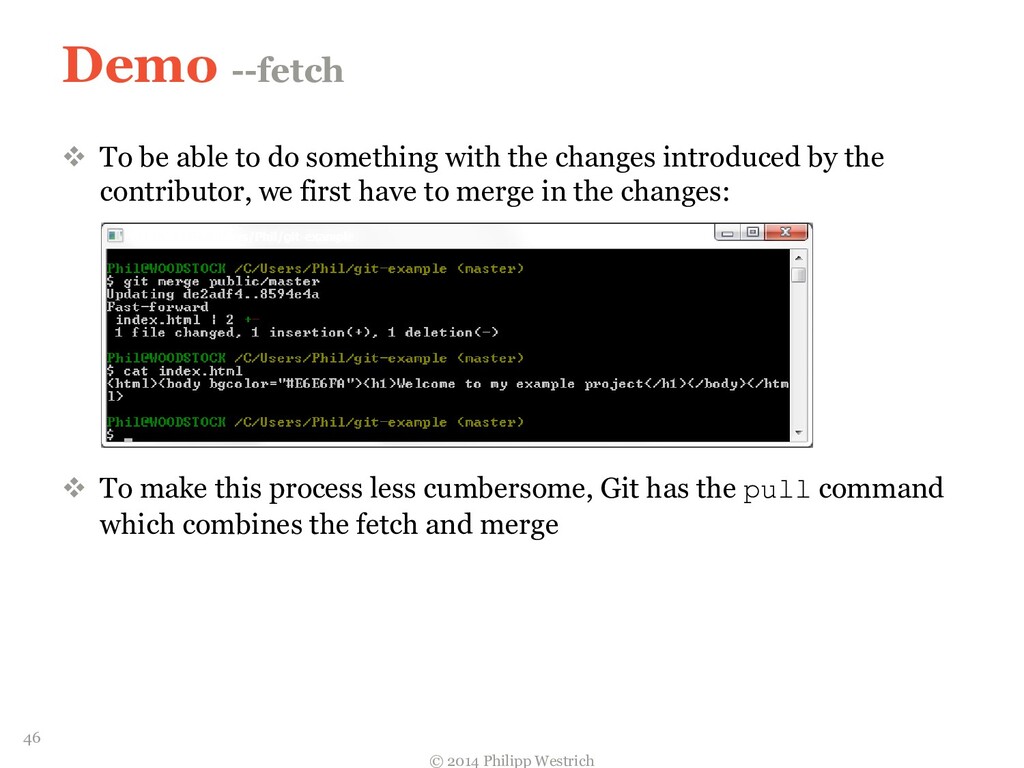
  38. Demo --fetch  To be able to do something with

    the changes introduced by the contributor, we first have to merge in the changes:  To make this process less cumbersome, Git has the pull command which combines the fetch and merge © 2014 Philipp Westrich 46
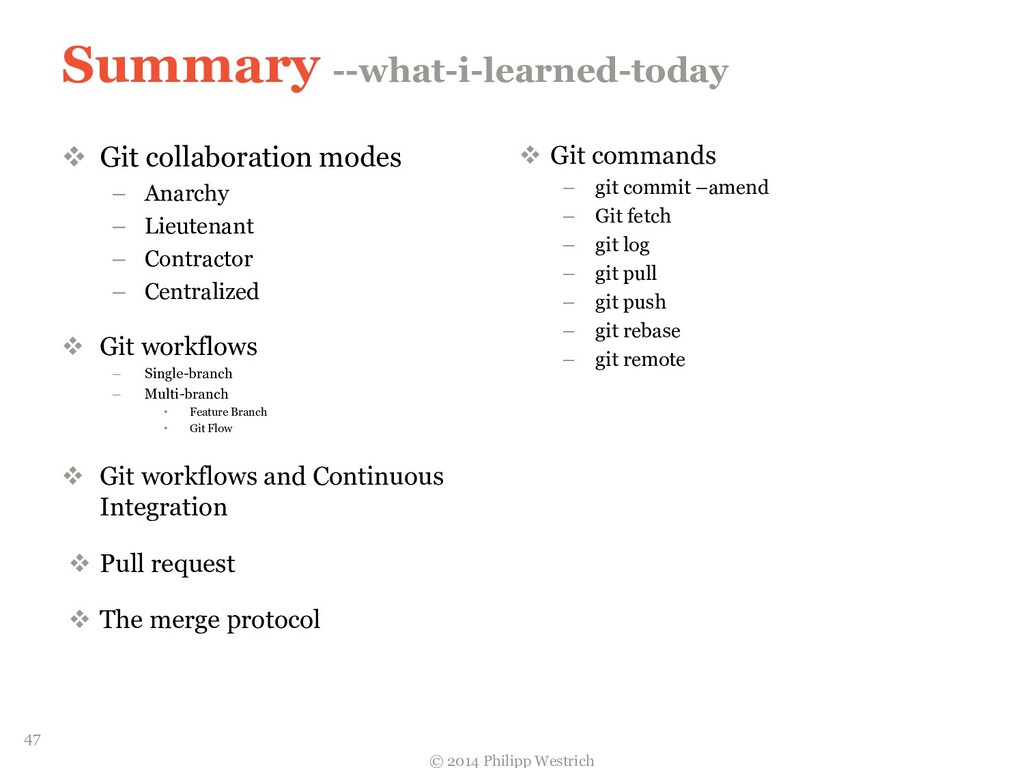
  39. Summary --what-i-learned-today  Git collaboration modes – Anarchy – Lieutenant

    – Contractor – Centralized  Git workflows – Single-branch – Multi-branch • Feature Branch • Git Flow  Git workflows and Continuous Integration  Pull request  The merge protocol  Git commands – git commit –amend – Git fetch – git log – git pull – git push – git rebase – git remote © 2014 Philipp Westrich 47