Upgrade to Pro — share decks privately, control downloads, hide ads and more …

git by Example (Part 1)

Sponsored · SiteGround - Reliable hosting with speed, security, and support you can count on.

git by Example (Part 1)

An in-depth introduction into the inner workings of git

Avatar for agilis allievo

agilis allievo

February 15, 2014
Tweet

More Decks by agilis allievo

Other Decks in Programming

Transcript

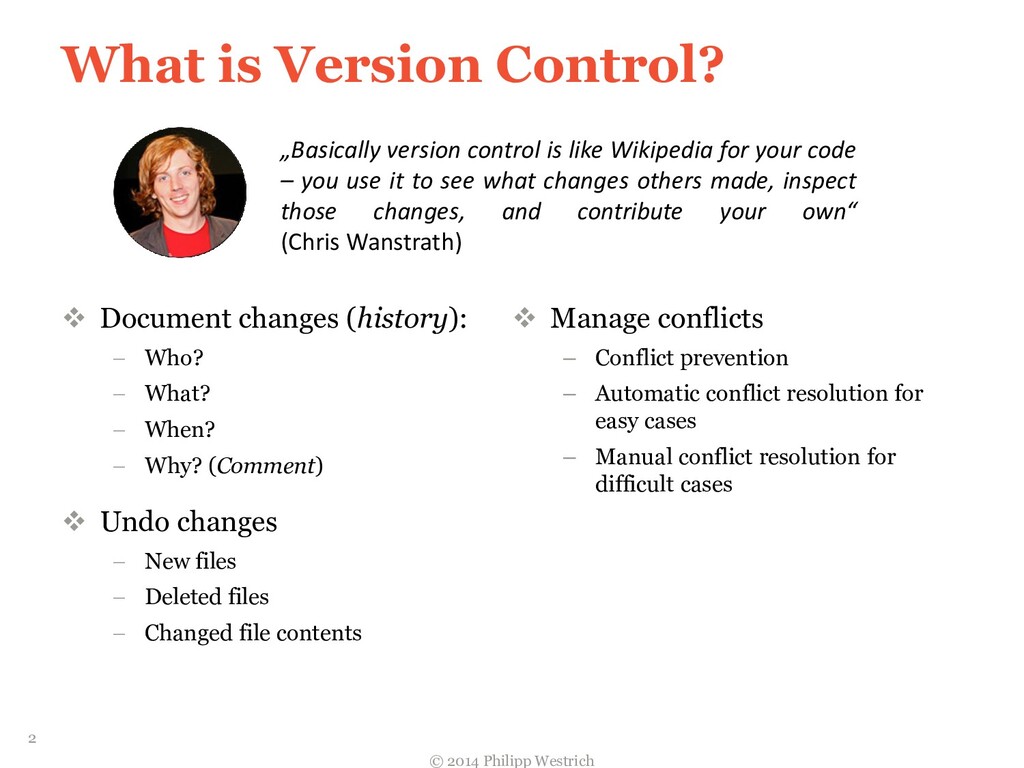
  1. What is Version Control?  Document changes (history):  Who?

     What?  When?  Why? (Comment)  Undo changes  New files  Deleted files  Changed file contents  Manage conflicts – Conflict prevention – Automatic conflict resolution for easy cases – Manual conflict resolution for difficult cases „Basically version control is like Wikipedia for your code – you use it to see what changes others made, inspect those changes, and contribute your own“ (Chris Wanstrath) © 2014 Philipp Westrich 2
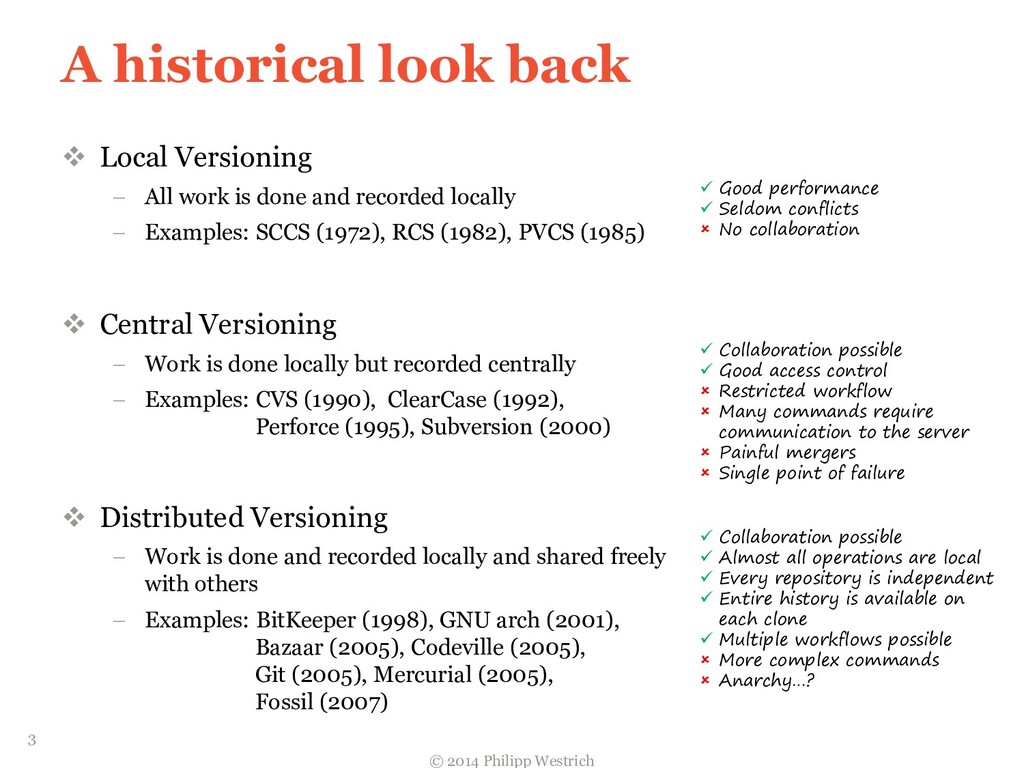
  2. A historical look back  Local Versioning  All work

    is done and recorded locally  Examples: SCCS (1972), RCS (1982), PVCS (1985)  Central Versioning  Work is done locally but recorded centrally  Examples: CVS (1990), ClearCase (1992), Perforce (1995), Subversion (2000)  Distributed Versioning  Work is done and recorded locally and shared freely with others  Examples: BitKeeper (1998), GNU arch (2001), Bazaar (2005), Codeville (2005), Git (2005), Mercurial (2005), Fossil (2007)  Good performance  Seldom conflicts  No collaboration  Collaboration possible  Good access control  Restricted workflow  Many commands require communication to the server  Painful mergers  Single point of failure  Collaboration possible  Almost all operations are local  Every repository is independent  Entire history is available on each clone  Multiple workflows possible  More complex commands  Anarchy…? © 2014 Philipp Westrich 3
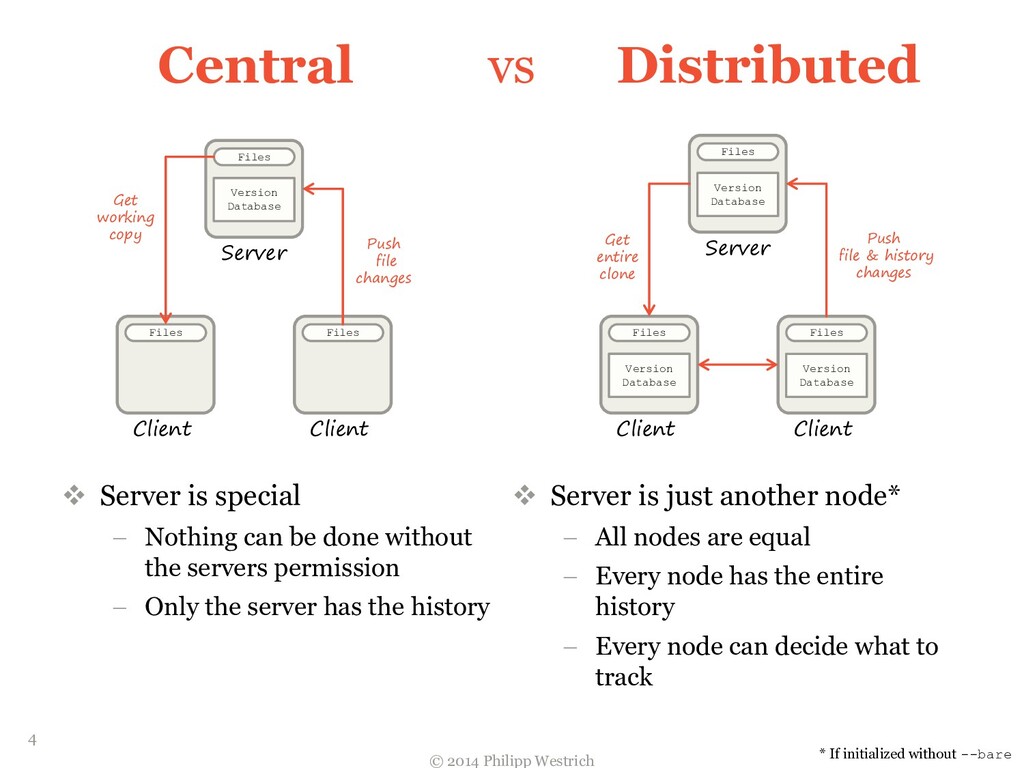
  3. Central Server Version Database Files Client Files Client Files Get

    working copy Push file changes Server Version Database Files Client Version Database Files Client Version Database Files Get entire clone Push file & history changes Distributed vs  Server is special  Nothing can be done without the servers permission  Only the server has the history  Server is just another node*  All nodes are equal  Every node has the entire history  Every node can decide what to track * If initialized without --bare © 2014 Philipp Westrich 4
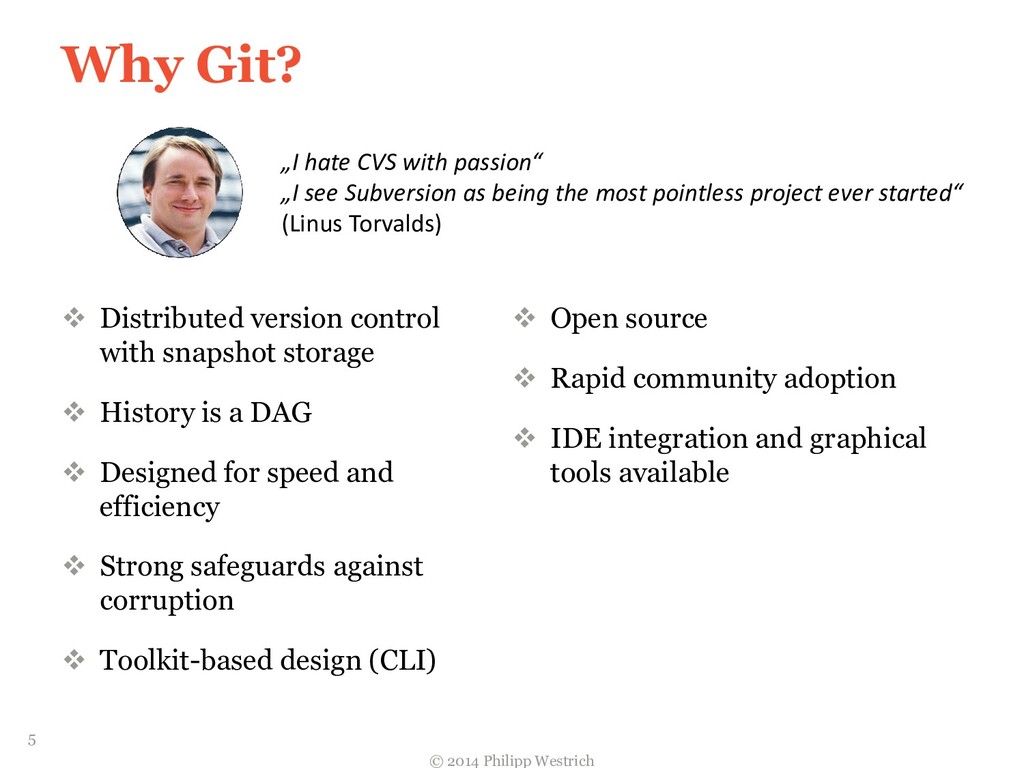
  4. Why Git?  Distributed version control with snapshot storage 

    History is a DAG  Designed for speed and efficiency  Strong safeguards against corruption  Toolkit-based design (CLI)  Open source  Rapid community adoption  IDE integration and graphical tools available „I hate CVS with passion“ „I see Subversion as being the most pointless project ever started“ (Linus Torvalds) © 2014 Philipp Westrich 5
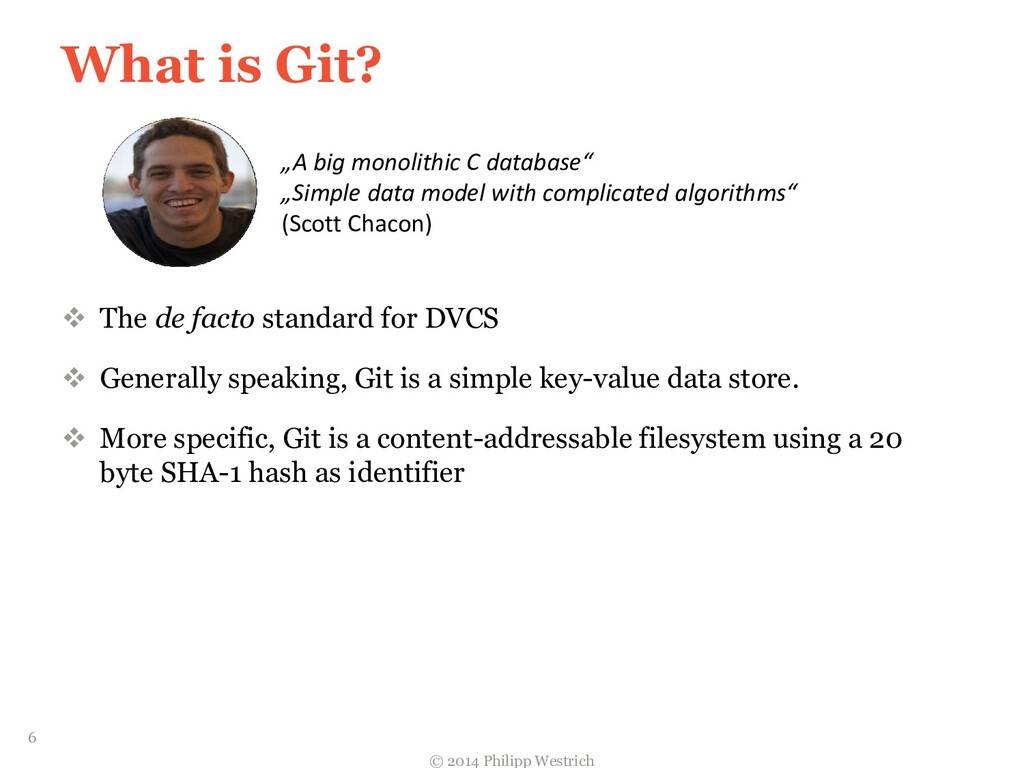
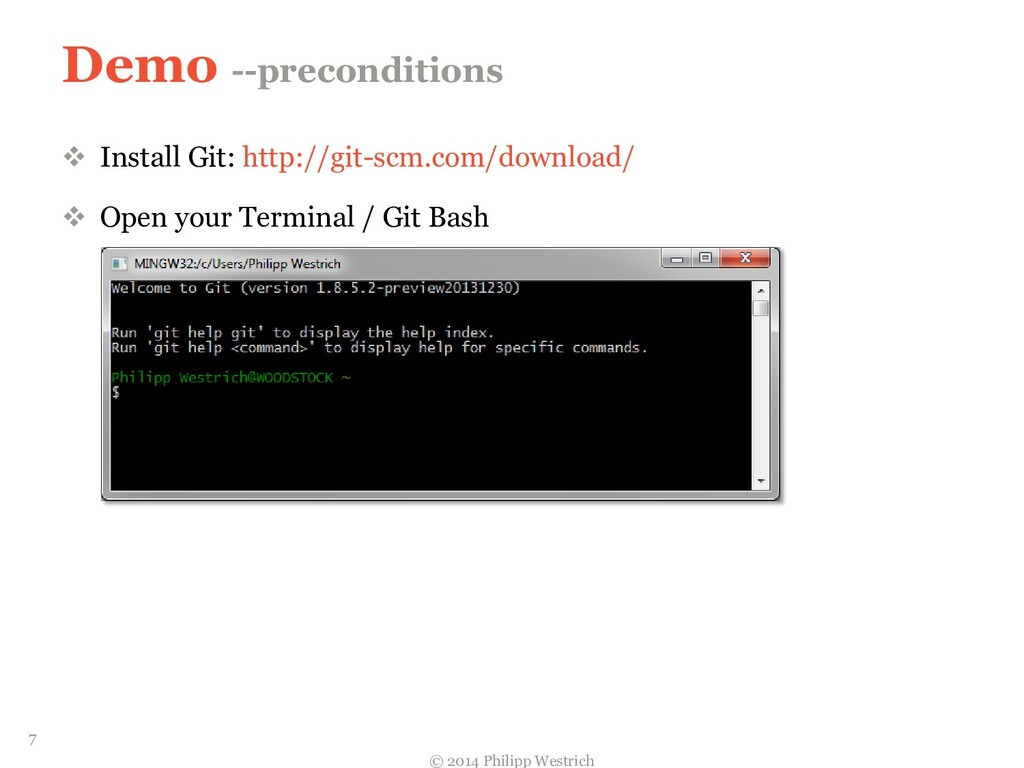
  5. What is Git?  The de facto standard for DVCS

     Generally speaking, Git is a simple key-value data store.  More specific, Git is a content-addressable filesystem using a 20 byte SHA-1 hash as identifier „A big monolithic C database“ „Simple data model with complicated algorithms“ (Scott Chacon) © 2014 Philipp Westrich 6
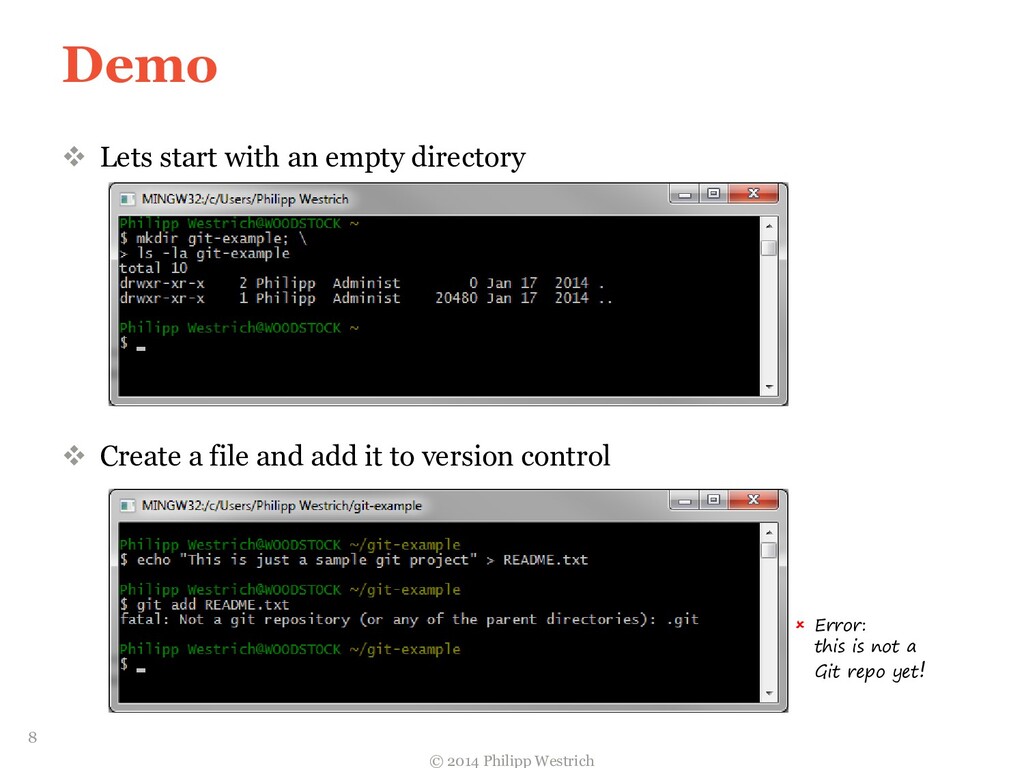
  6. Demo  Lets start with an empty directory  Create

    a file and add it to version control  Error: this is not a Git repo yet! © 2014 Philipp Westrich 8
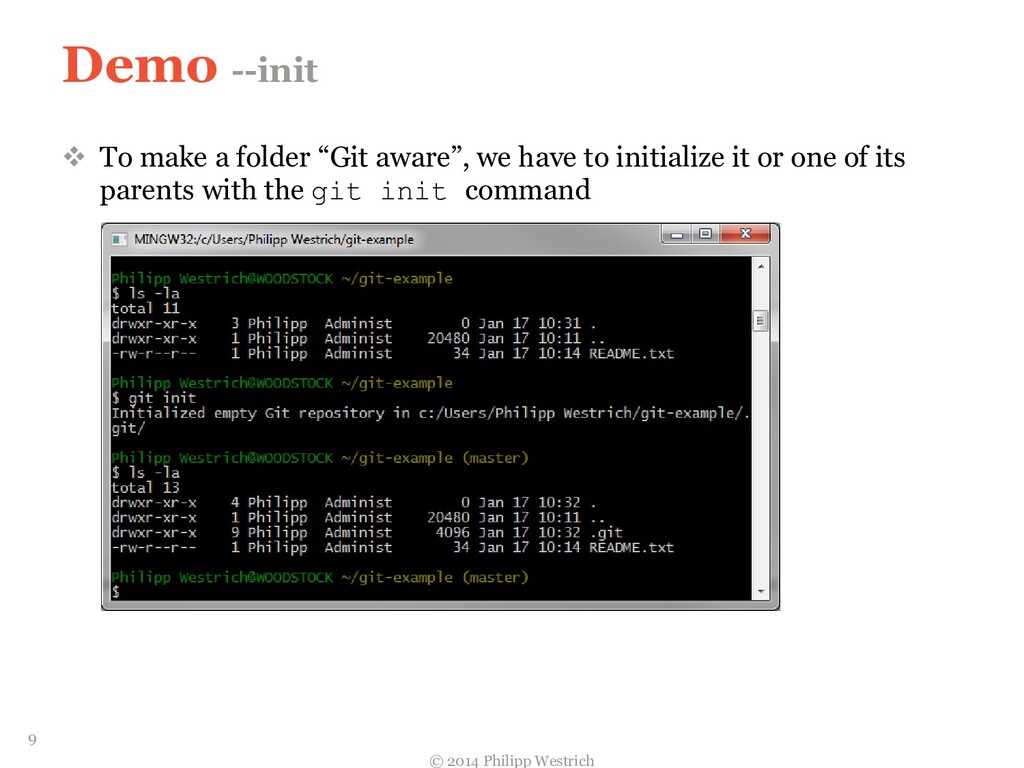
  7. Demo --init  To make a folder “Git aware”, we

    have to initialize it or one of its parents with the git init command © 2014 Philipp Westrich 9
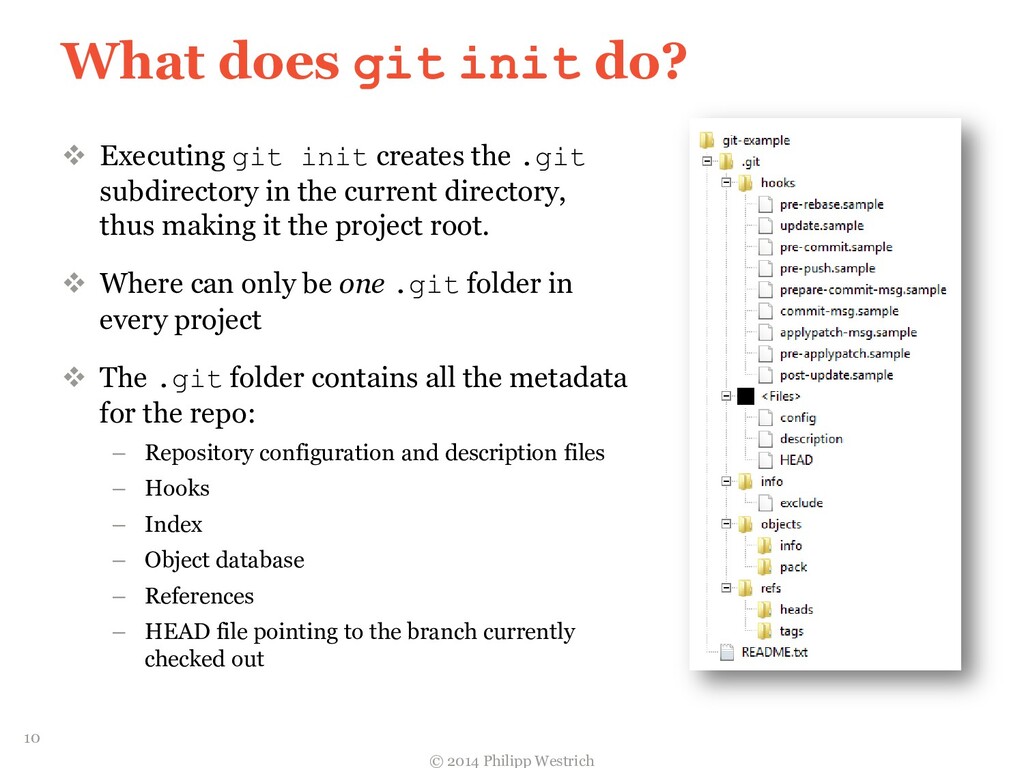
  8. What does git init do?  Executing git init creates

    the .git subdirectory in the current directory, thus making it the project root.  Where can only be one .git folder in every project  The .git folder contains all the metadata for the repo: – Repository configuration and description files – Hooks – Index – Object database – References – HEAD file pointing to the branch currently checked out © 2014 Philipp Westrich 10
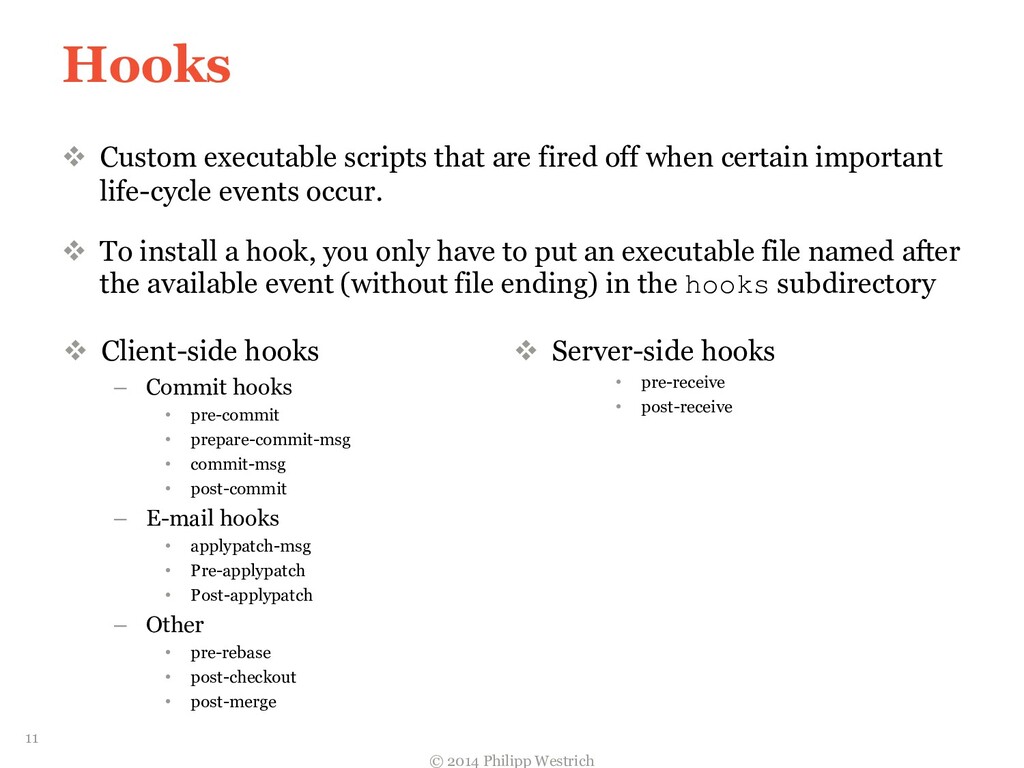
  9. Hooks  Custom executable scripts that are fired off when

    certain important life-cycle events occur.  To install a hook, you only have to put an executable file named after the available event (without file ending) in the hooks subdirectory © 2014 Philipp Westrich  Client-side hooks – Commit hooks • pre-commit • prepare-commit-msg • commit-msg • post-commit – E-mail hooks • applypatch-msg • Pre-applypatch • Post-applypatch – Other • pre-rebase • post-checkout • post-merge  Server-side hooks • pre-receive • post-receive 11
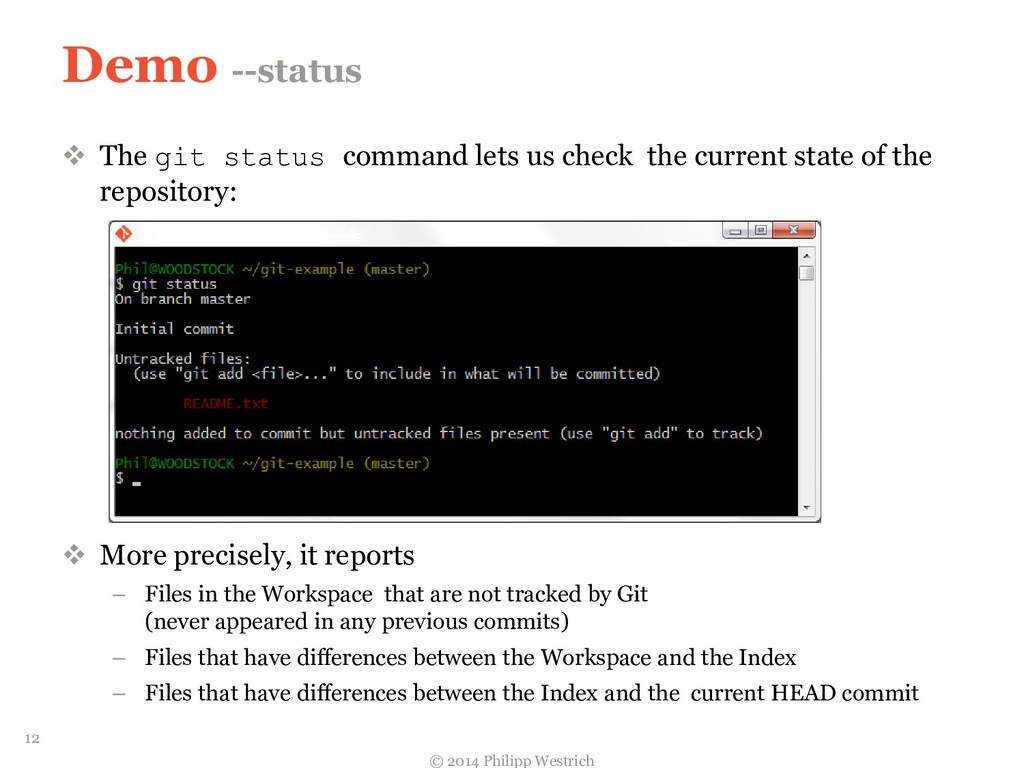
  10. Demo --status  The git status command lets us check

    the current state of the repository:  More precisely, it reports – Files in the Workspace that are not tracked by Git (never appeared in any previous commits) – Files that have differences between the Workspace and the Index – Files that have differences between the Index and the current HEAD commit © 2014 Philipp Westrich 12
  11. Workspace, Index…?  Workspace The local root folder containing a

    .git directory. This is where you make your changes.  Index A hand-curated snapshot of your workspace edits taken as the contents of the next commit  Local Repository A subdirectory named .git that contains all repository metadata and the projects history © 2014 Philipp Westrich 13
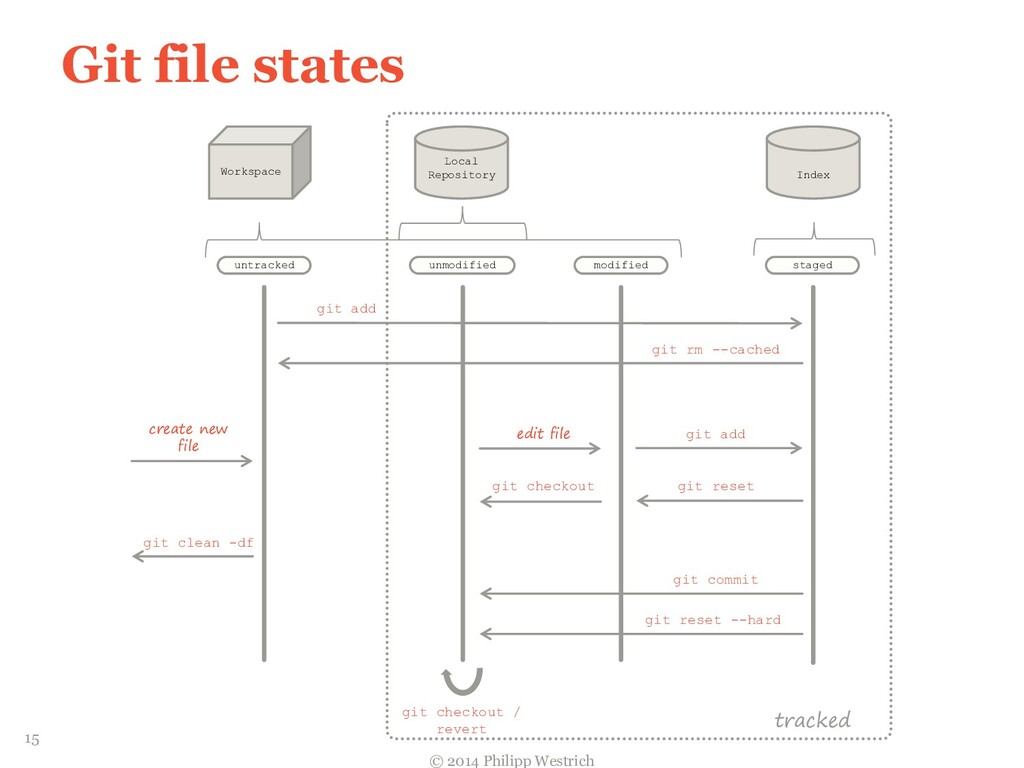
  12. Git file states © 2014 Philipp Westrich tracked untracked unmodified

    modified staged git add create new file edit file git add git commit git rm --cached git clean -df git checkout git reset git checkout / revert git reset --hard Index Local Repository Workspace 15
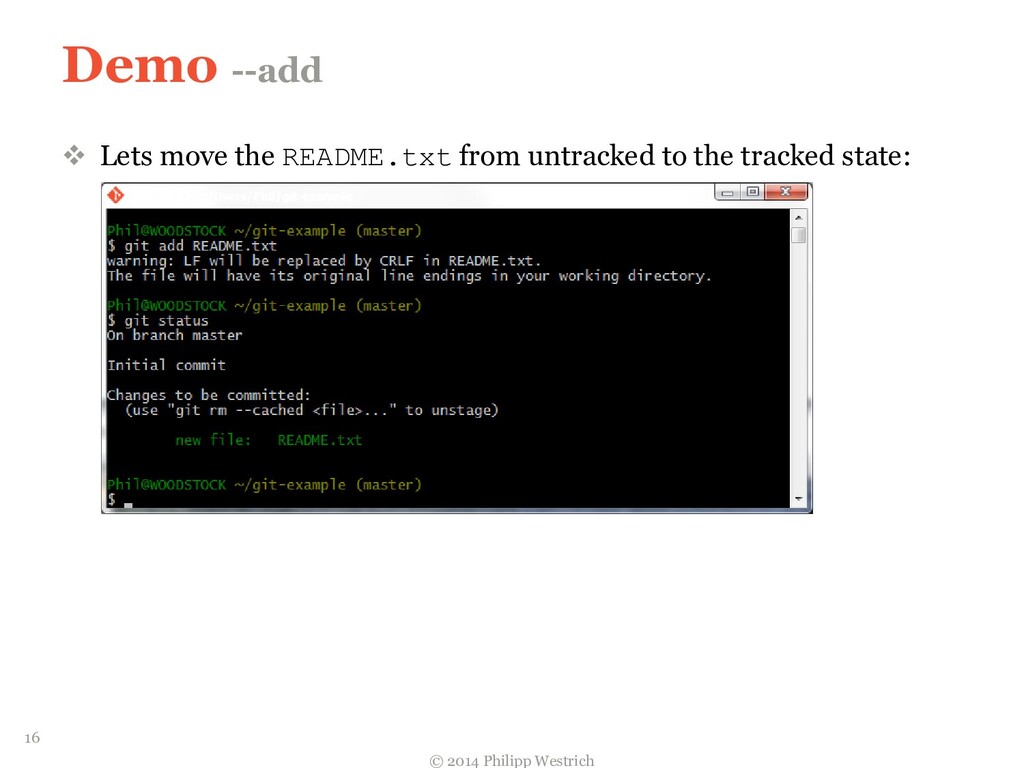
  13. Demo --add  Lets move the README.txt from untracked to

    the tracked state: © 2014 Philipp Westrich 16
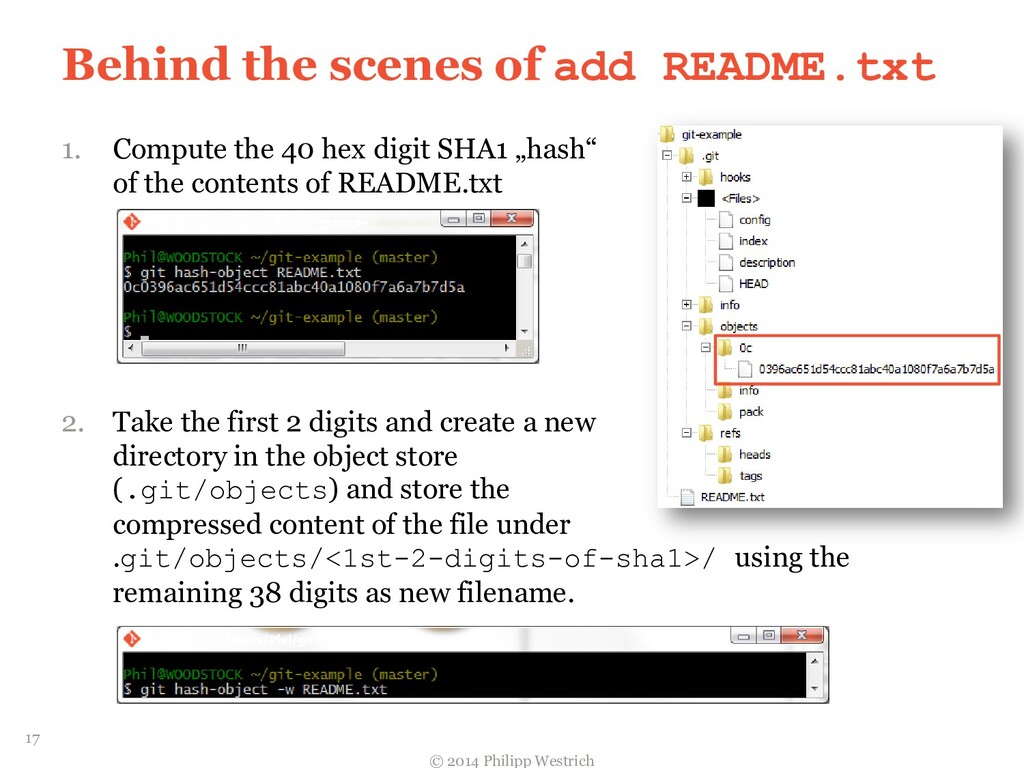
  14. Behind the scenes of add README.txt 1. Compute the 40

    hex digit SHA1 „hash“ of the contents of README.txt 2. Take the first 2 digits and create a new directory in the object store (.git/objects) and store the compressed content of the file under .git/objects/<1st-2-digits-of-sha1>/ using the remaining 38 digits as new filename. © 2014 Philipp Westrich 17
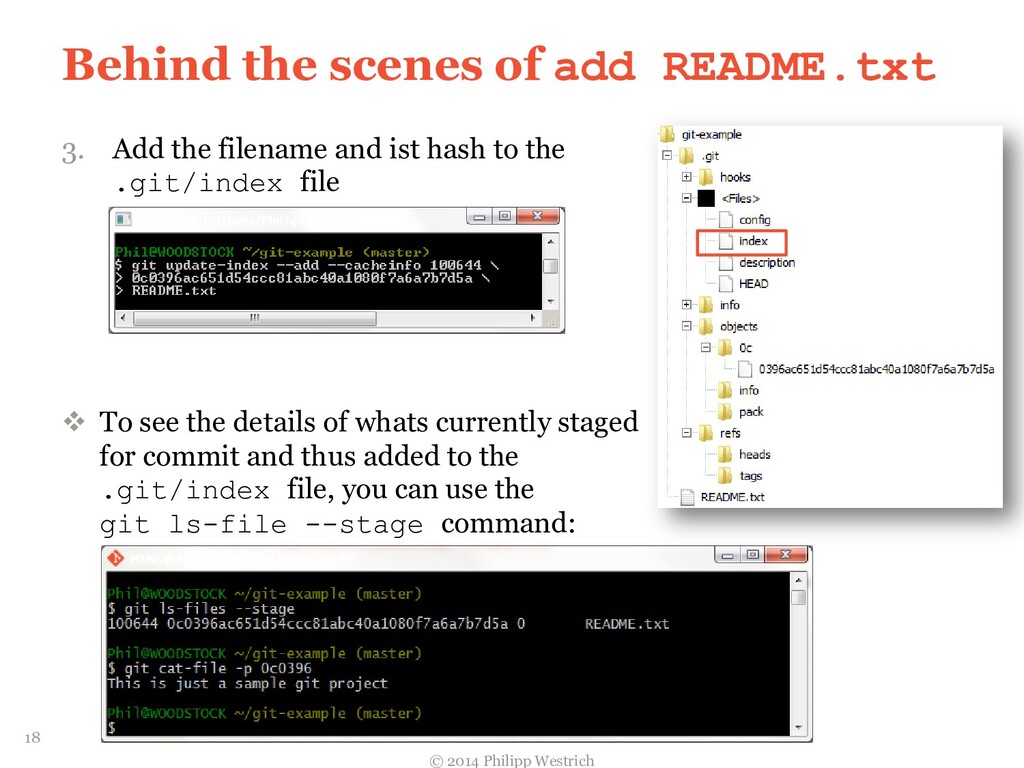
  15. Behind the scenes of add README.txt 3. Add the filename

    and ist hash to the .git/index file  To see the details of whats currently staged for commit and thus added to the .git/index file, you can use the git ls-file --stage command: © 2014 Philipp Westrich 18
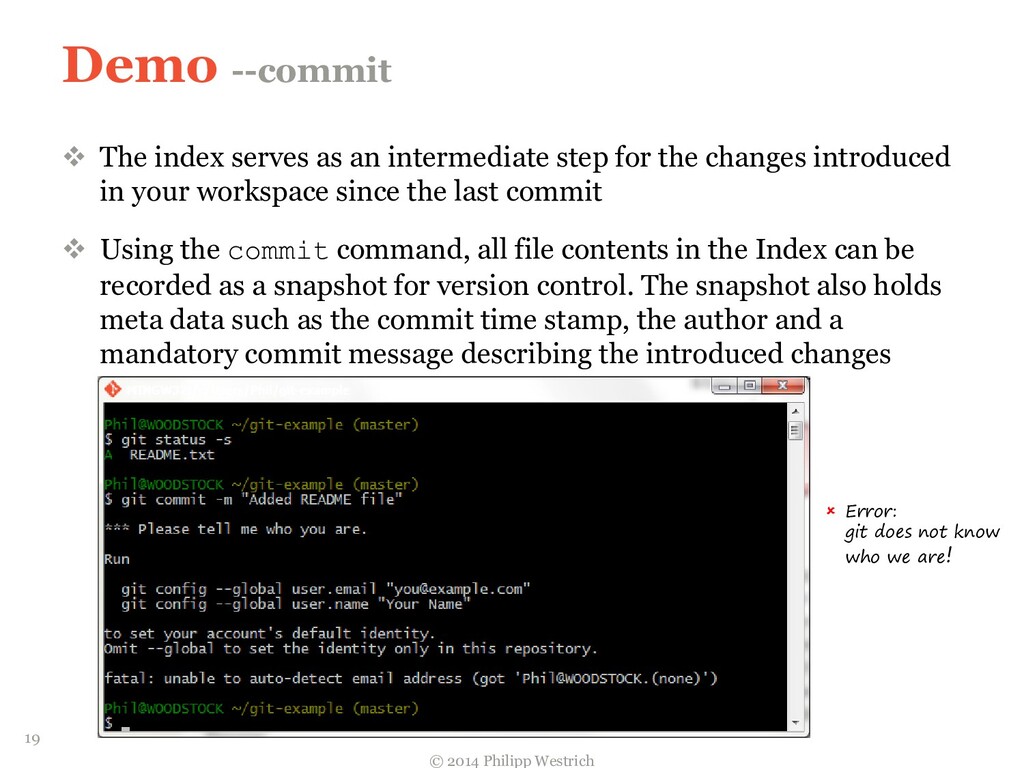
  16. Demo --commit  The index serves as an intermediate step

    for the changes introduced in your workspace since the last commit  Using the commit command, all file contents in the Index can be recorded as a snapshot for version control. The snapshot also holds meta data such as the commit time stamp, the author and a mandatory commit message describing the introduced changes © 2014 Philipp Westrich  Error: git does not know who we are! 19
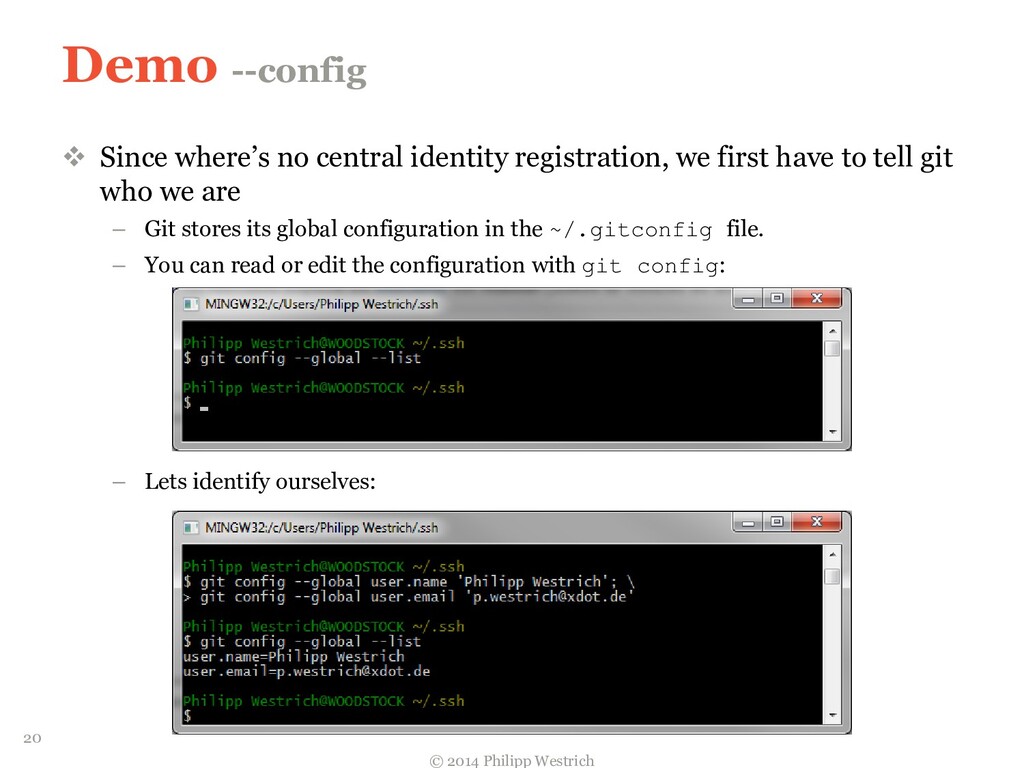
  17. Demo --config  Since where’s no central identity registration, we

    first have to tell git who we are – Git stores its global configuration in the ~/.gitconfig file. – You can read or edit the configuration with git config: – Lets identify ourselves: © 2014 Philipp Westrich 20
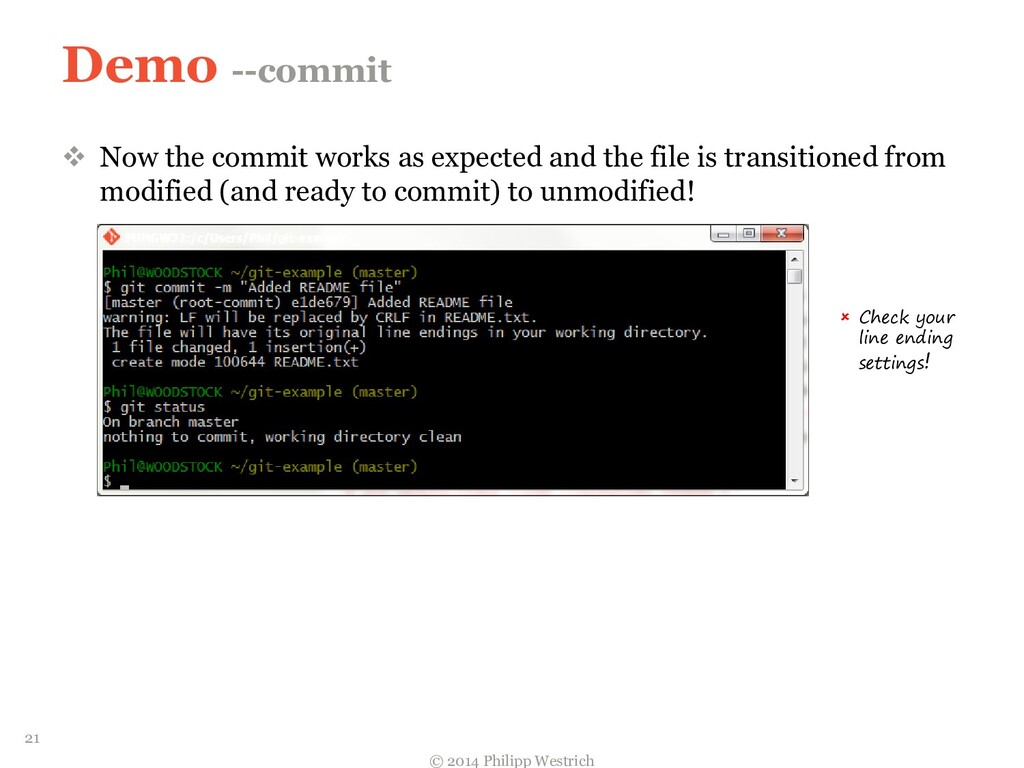
  18. Demo --commit  Now the commit works as expected and

    the file is transitioned from modified (and ready to commit) to unmodified! © 2014 Philipp Westrich  Check your line ending settings! 21
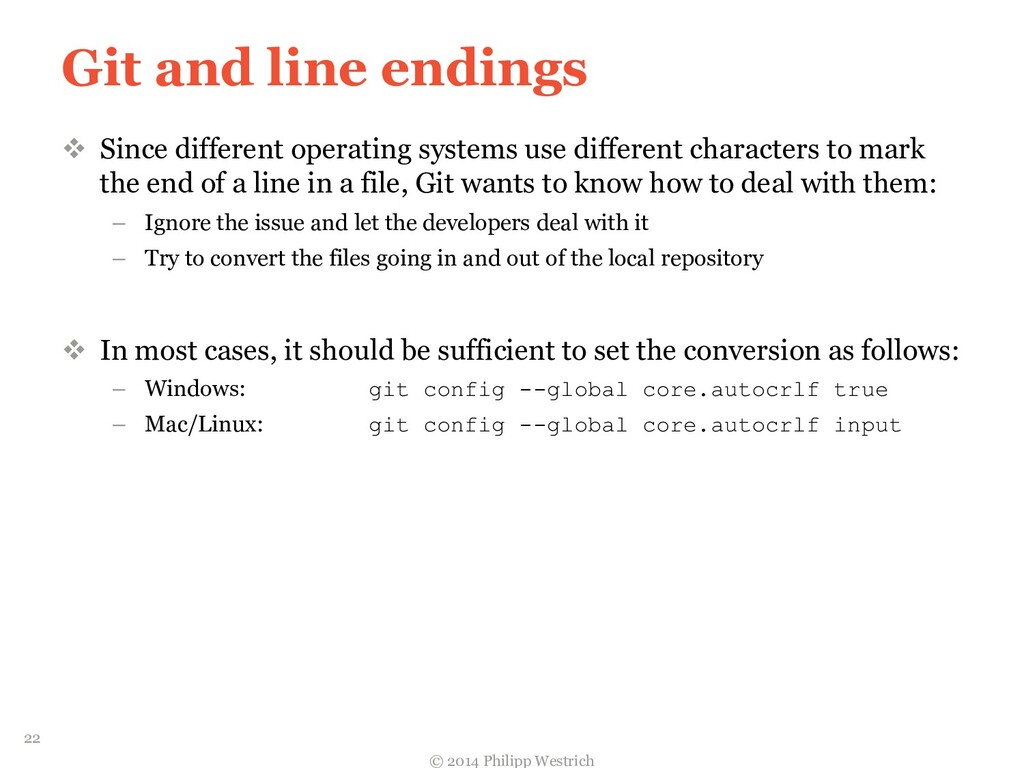
  19. Git and line endings  Since different operating systems use

    different characters to mark the end of a line in a file, Git wants to know how to deal with them: – Ignore the issue and let the developers deal with it – Try to convert the files going in and out of the local repository  In most cases, it should be sufficient to set the conversion as follows: – Windows: git config --global core.autocrlf true – Mac/Linux: git config --global core.autocrlf input © 2014 Philipp Westrich 22
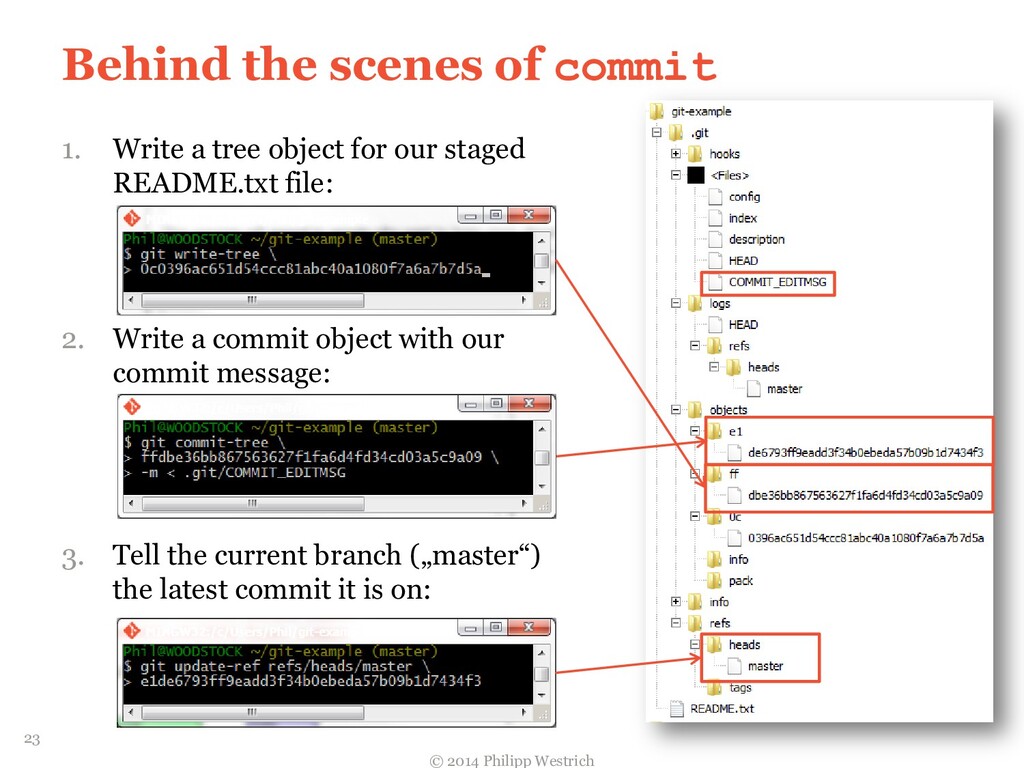
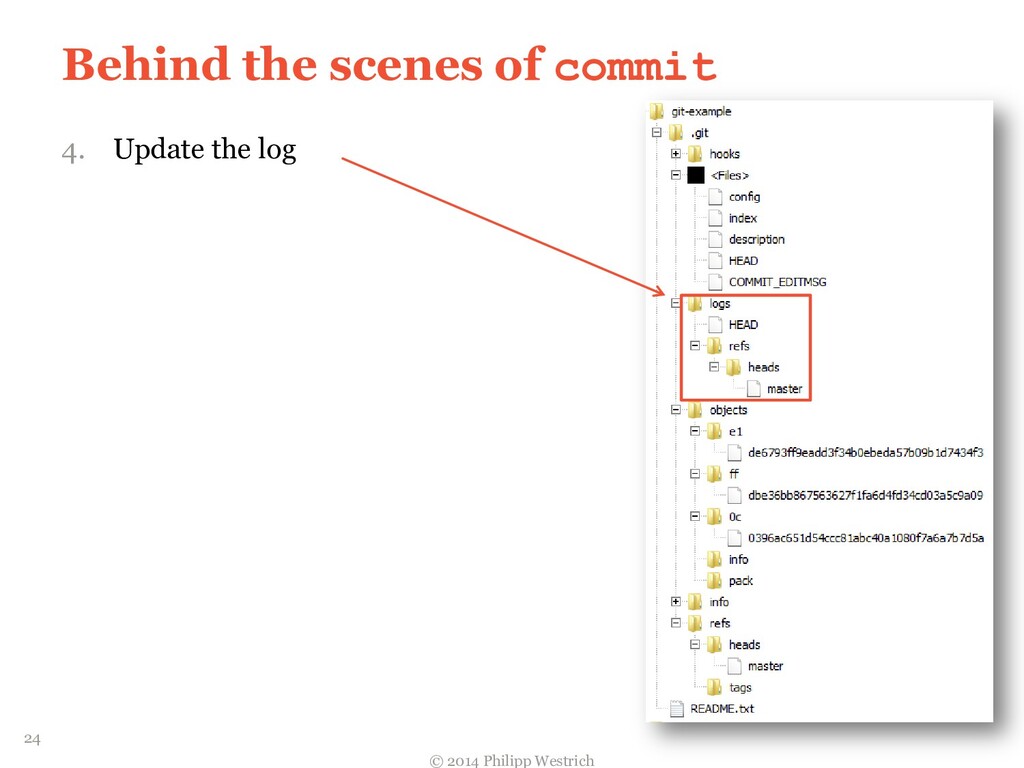
  20. Behind the scenes of commit 1. Write a tree object

    for our staged README.txt file: 2. Write a commit object with our commit message: 3. Tell the current branch („master“) the latest commit it is on: © 2014 Philipp Westrich 23
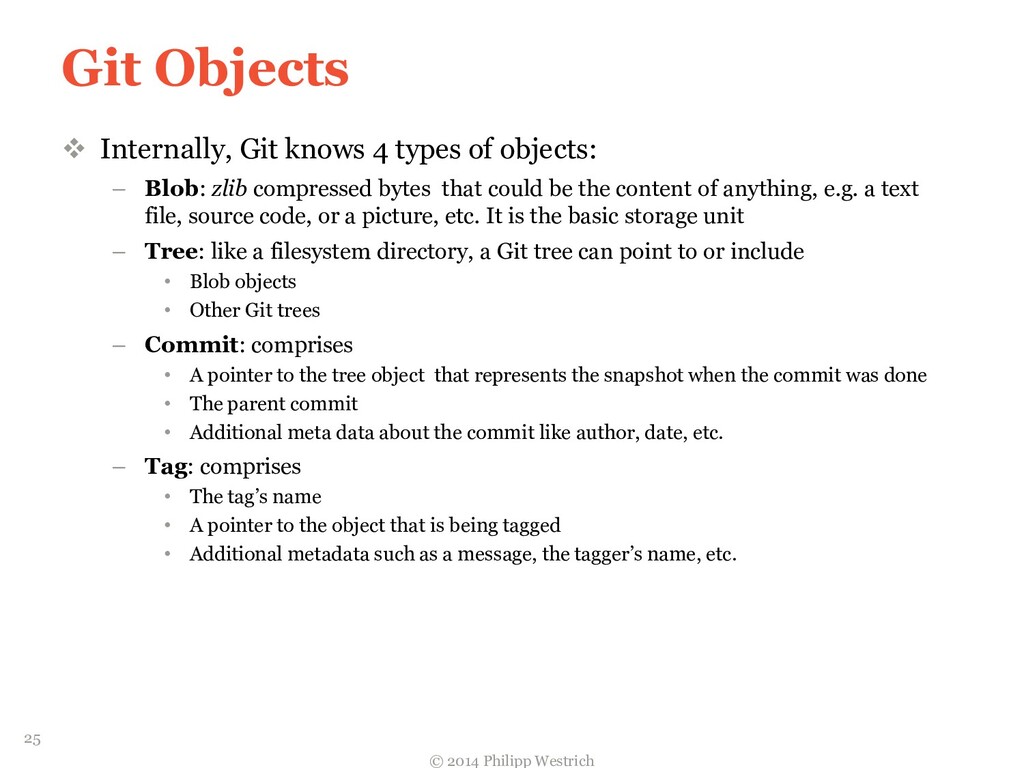
  21. Git Objects  Internally, Git knows 4 types of objects:

    – Blob: zlib compressed bytes that could be the content of anything, e.g. a text file, source code, or a picture, etc. It is the basic storage unit – Tree: like a filesystem directory, a Git tree can point to or include • Blob objects • Other Git trees – Commit: comprises • A pointer to the tree object that represents the snapshot when the commit was done • The parent commit • Additional meta data about the commit like author, date, etc. – Tag: comprises • The tag’s name • A pointer to the object that is being tagged • Additional metadata such as a message, the tagger’s name, etc. © 2014 Philipp Westrich 25
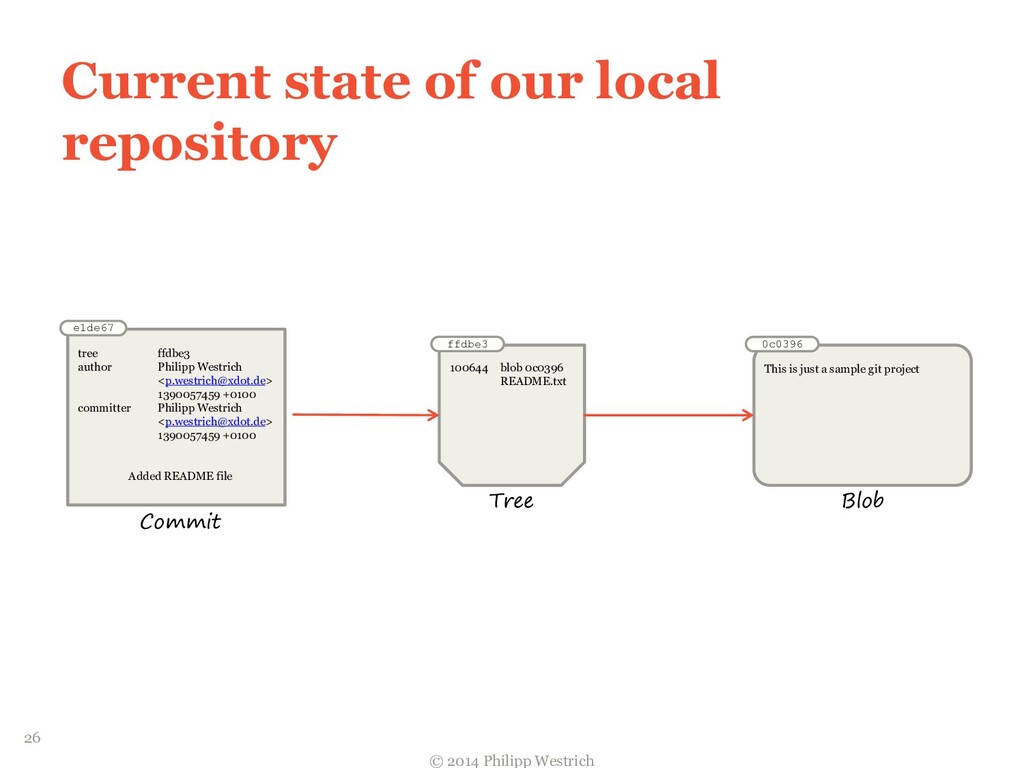
  22. Current state of our local repository © 2014 Philipp Westrich

    Commit e1de67 tree ffdbe3 author Philipp Westrich <[email protected]> 1390057459 +0100 committer Philipp Westrich <[email protected]> 1390057459 +0100 Added README file ffdbe3 100644 blob 0c0396 README.txt Tree 0c0396 This is just a sample git project Blob 26
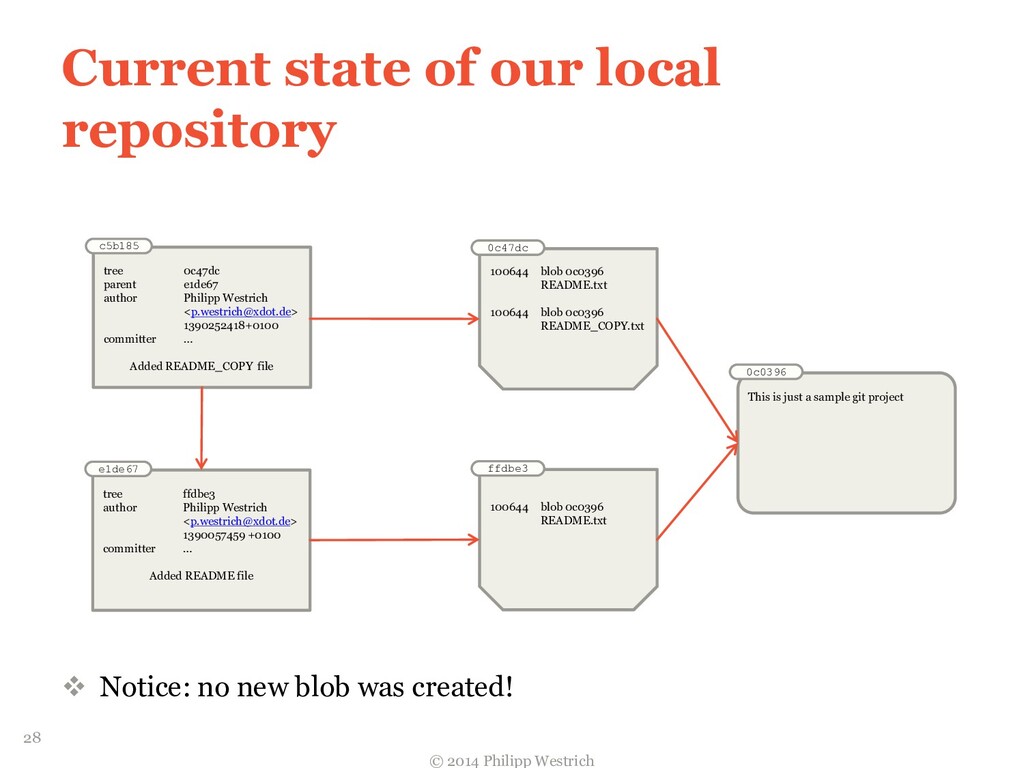
  23. Current state of our local repository  Notice: no new

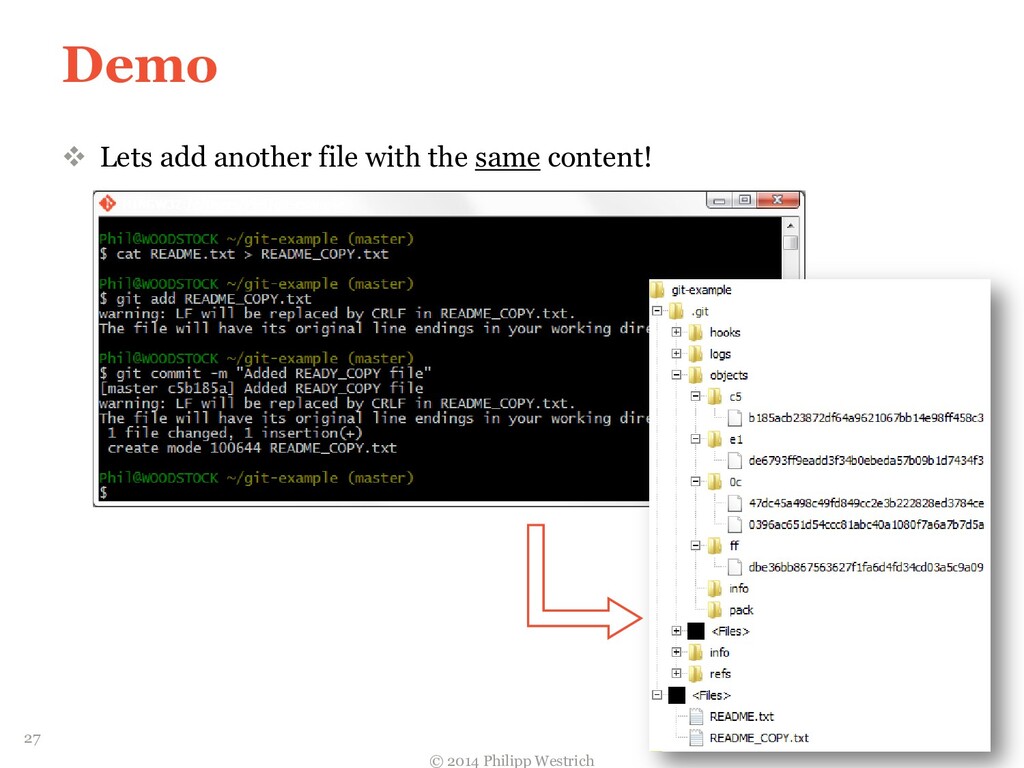
    blob was created! © 2014 Philipp Westrich e1de67 tree ffdbe3 author Philipp Westrich <[email protected]> 1390057459 +0100 committer … Added README file ffdbe3 100644 blob 0c0396 README.txt 0c0396 This is just a sample git project c5b185 tree 0c47dc parent e1de67 author Philipp Westrich <[email protected]> 1390252418+0100 committer … Added README_COPY file 0c47dc 100644 blob 0c0396 README.txt 100644 blob 0c0396 README_COPY.txt 28
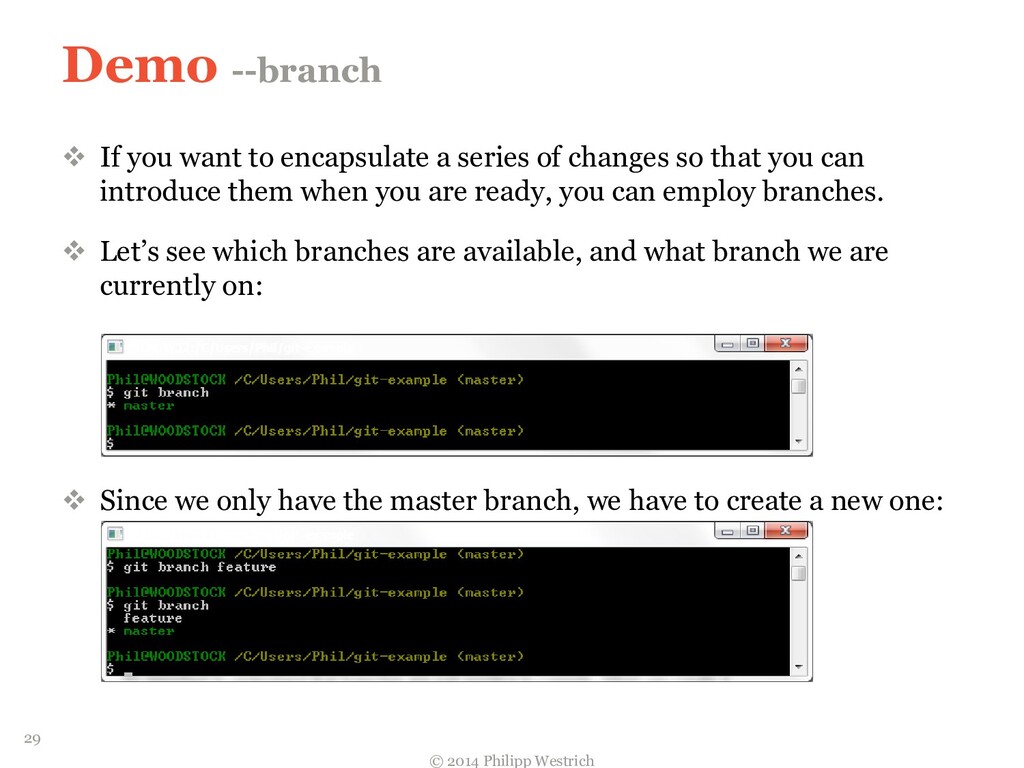
  24. Demo --branch  If you want to encapsulate a series

    of changes so that you can introduce them when you are ready, you can employ branches.  Let’s see which branches are available, and what branch we are currently on:  Since we only have the master branch, we have to create a new one: © 2014 Philipp Westrich 29
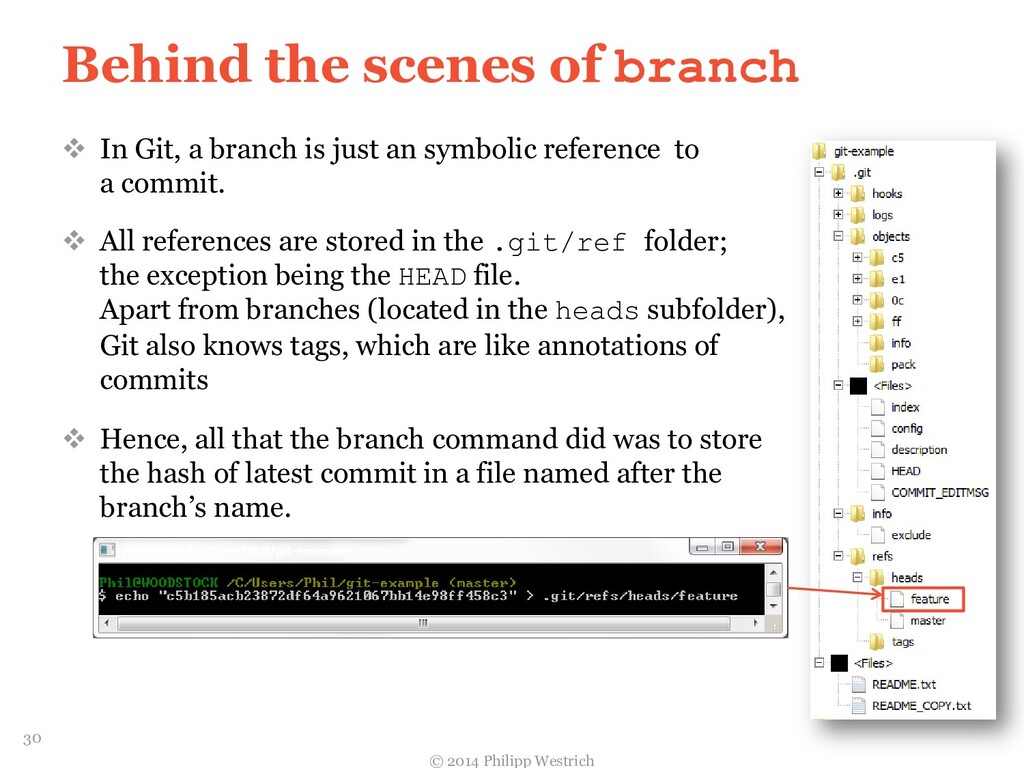
  25. Behind the scenes of branch  In Git, a branch

    is just an symbolic reference to a commit.  All references are stored in the .git/ref folder; the exception being the HEAD file. Apart from branches (located in the heads subfolder), Git also knows tags, which are like annotations of commits  Hence, all that the branch command did was to store the hash of latest commit in a file named after the branch’s name. © 2014 Philipp Westrich 30
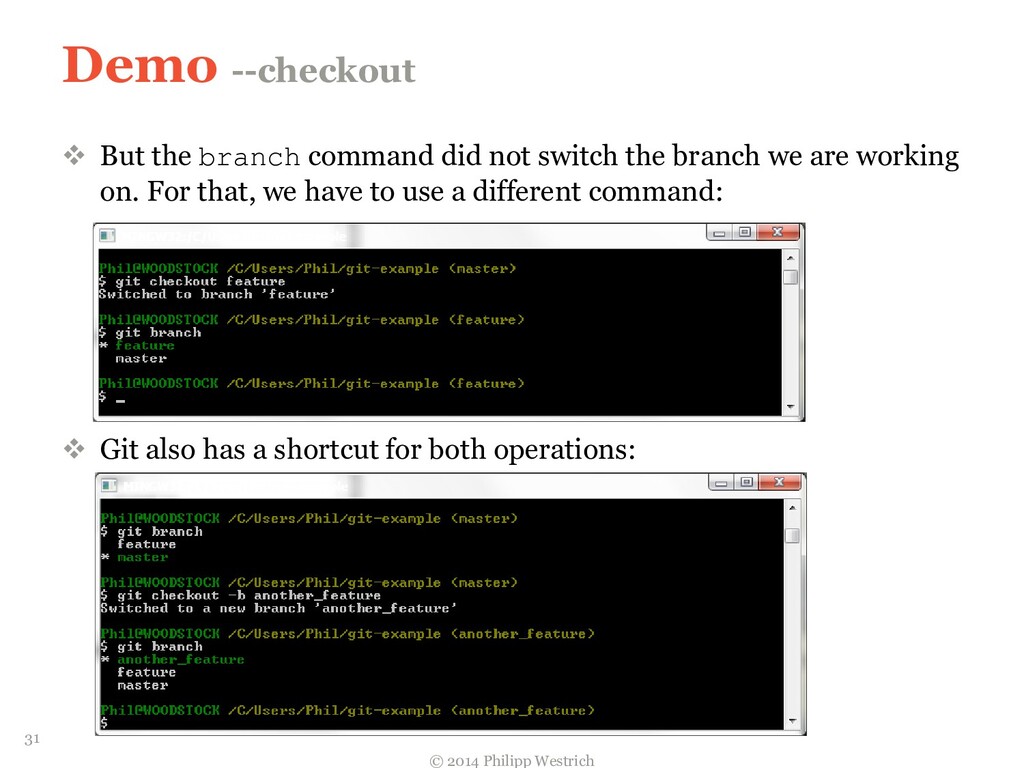
  26. Demo --checkout  But the branch command did not switch

    the branch we are working on. For that, we have to use a different command:  Git also has a shortcut for both operations: © 2014 Philipp Westrich 31
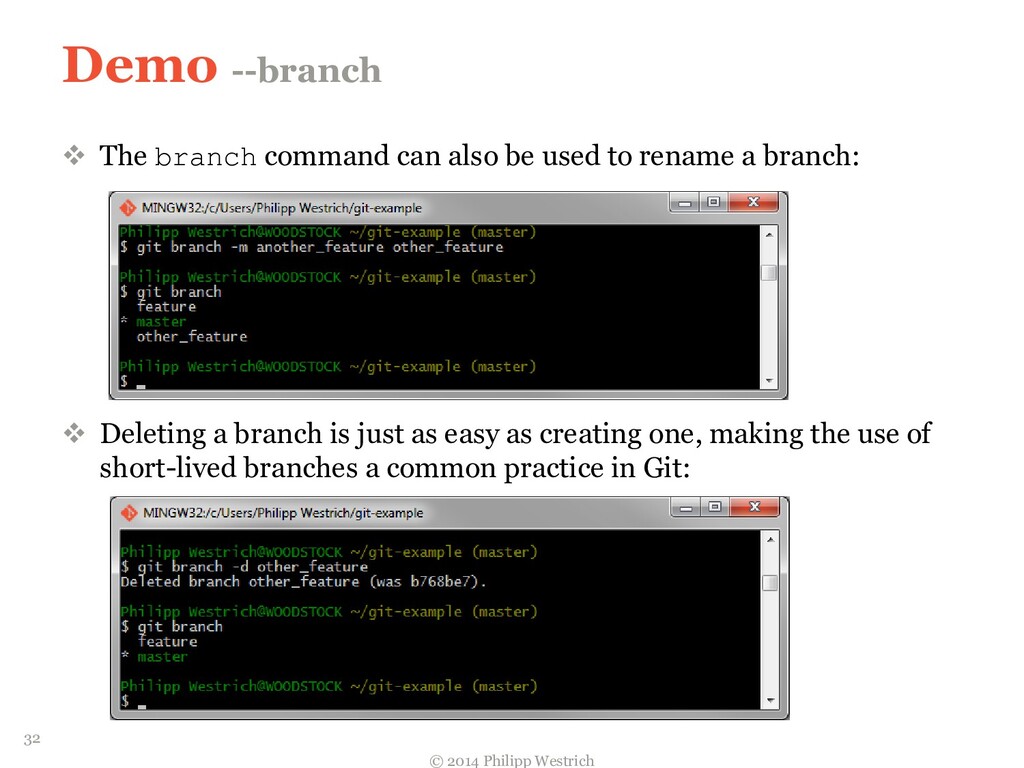
  27. Demo --branch  The branch command can also be used

    to rename a branch:  Deleting a branch is just as easy as creating one, making the use of short-lived branches a common practice in Git: © 2014 Philipp Westrich 32
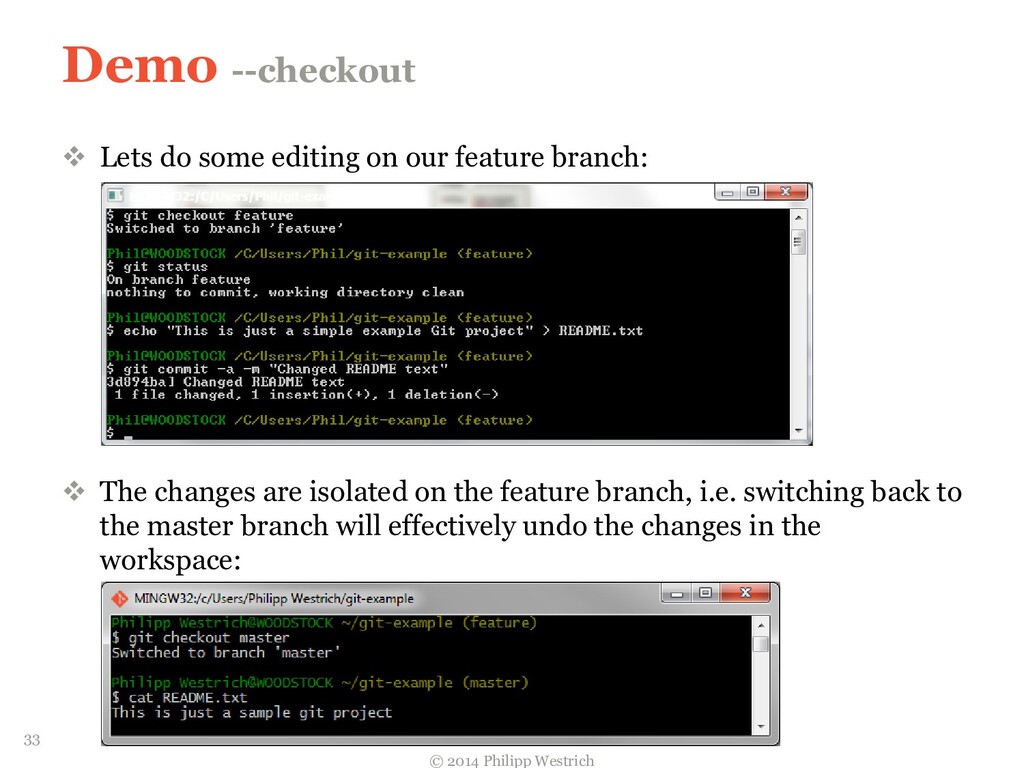
  28. Demo --checkout  Lets do some editing on our feature

    branch:  The changes are isolated on the feature branch, i.e. switching back to the master branch will effectively undo the changes in the workspace: © 2014 Philipp Westrich 33
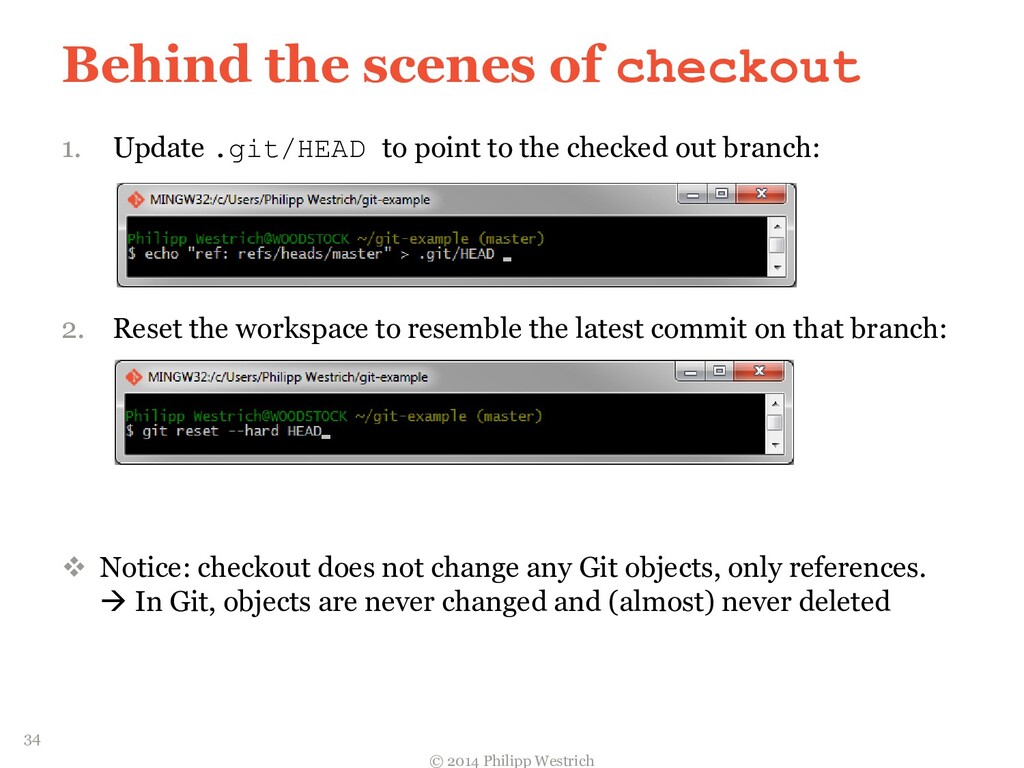
  29. Behind the scenes of checkout 1. Update .git/HEAD to point

    to the checked out branch: 2. Reset the workspace to resemble the latest commit on that branch:  Notice: checkout does not change any Git objects, only references.  In Git, objects are never changed and (almost) never deleted © 2014 Philipp Westrich 34
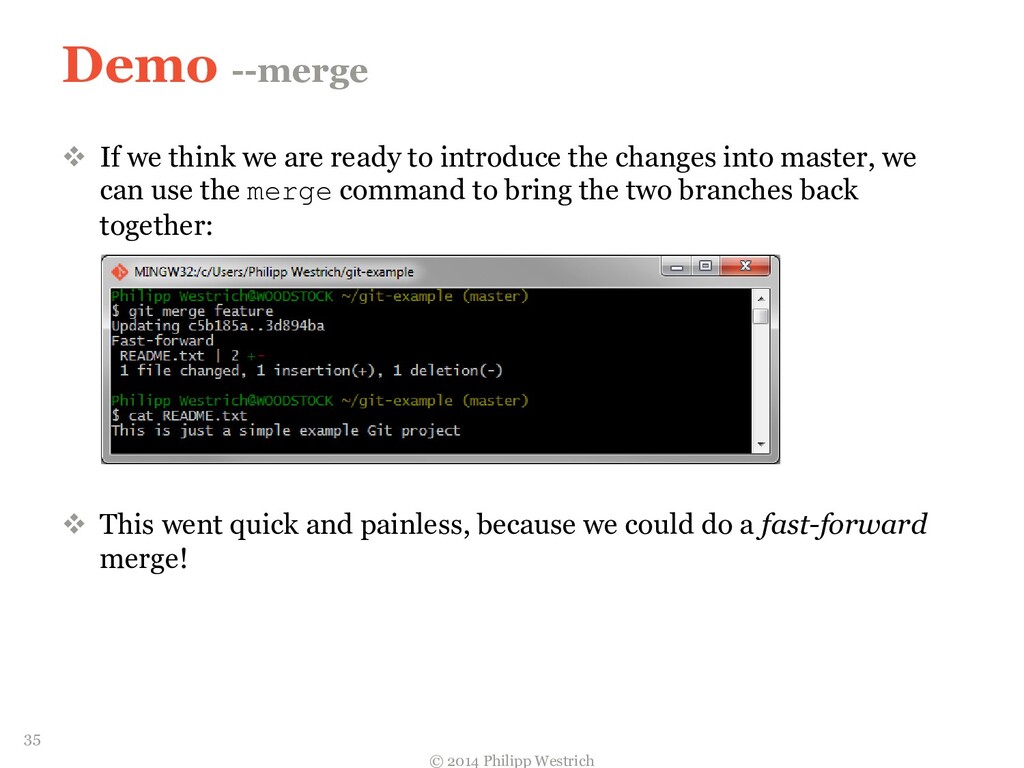
  30. Demo --merge  If we think we are ready to

    introduce the changes into master, we can use the merge command to bring the two branches back together:  This went quick and painless, because we could do a fast-forward merge! © 2014 Philipp Westrich 35
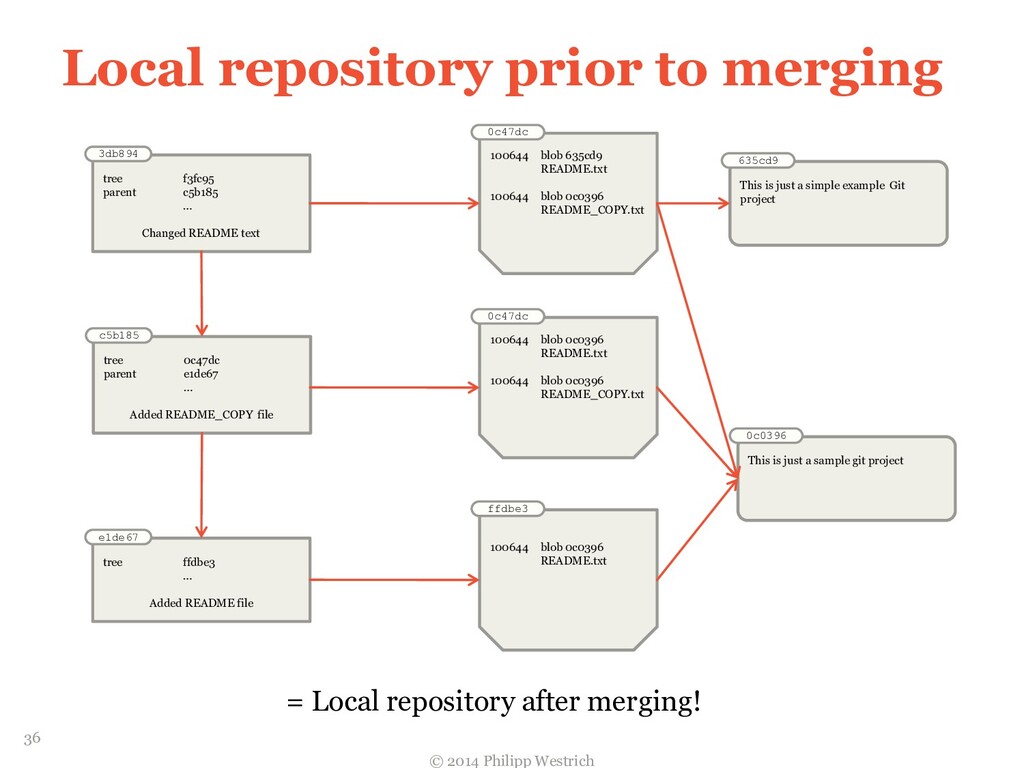
  31. Local repository prior to merging © 2014 Philipp Westrich e1de67

    tree ffdbe3 … Added README file ffdbe3 100644 blob 0c0396 README.txt 0c0396 This is just a sample git project c5b185 tree 0c47dc parent e1de67 … Added README_COPY file 0c47dc 100644 blob 0c0396 README.txt 100644 blob 0c0396 README_COPY.txt 3db894 tree f3fc95 parent c5b185 … Changed README text 0c47dc 100644 blob 635cd9 README.txt 100644 blob 0c0396 README_COPY.txt 635cd9 This is just a simple example Git project = Local repository after merging! 36
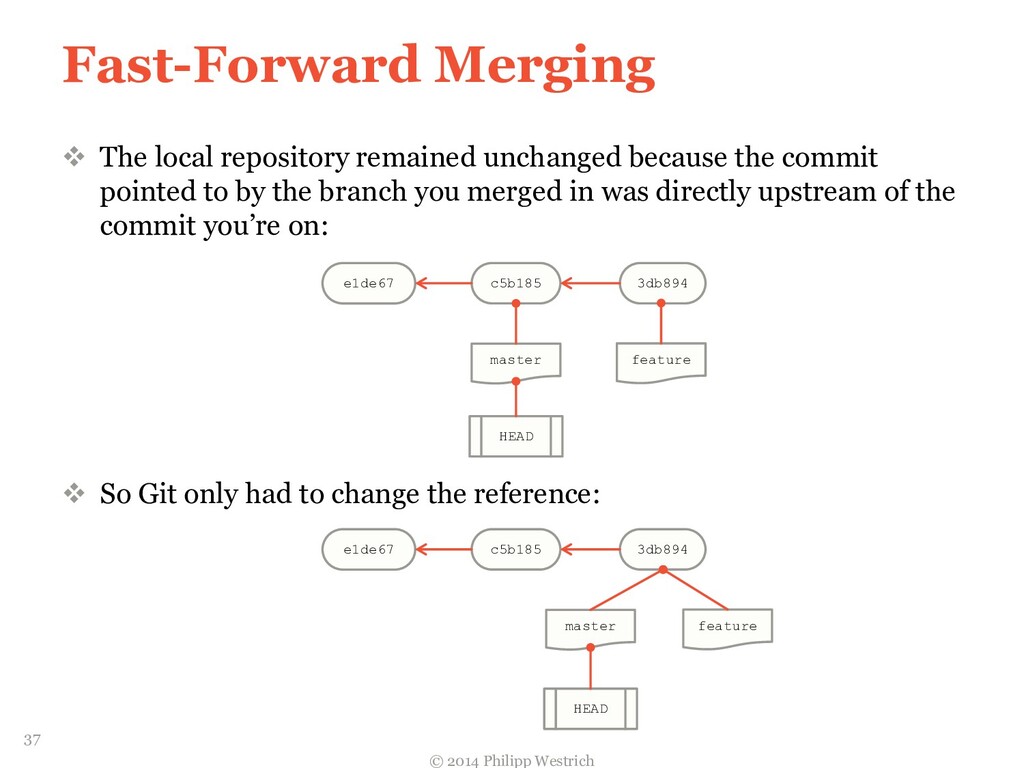
  32. Fast-Forward Merging  The local repository remained unchanged because the
    commit pointed to by the branch you merged in was directly upstream of the commit you’re on:  So Git only had to change the reference: © 2014 Philipp Westrich e1de67 c5b185 3db894 master feature e1de67 c5b185 3db894 master feature HEAD HEAD 37
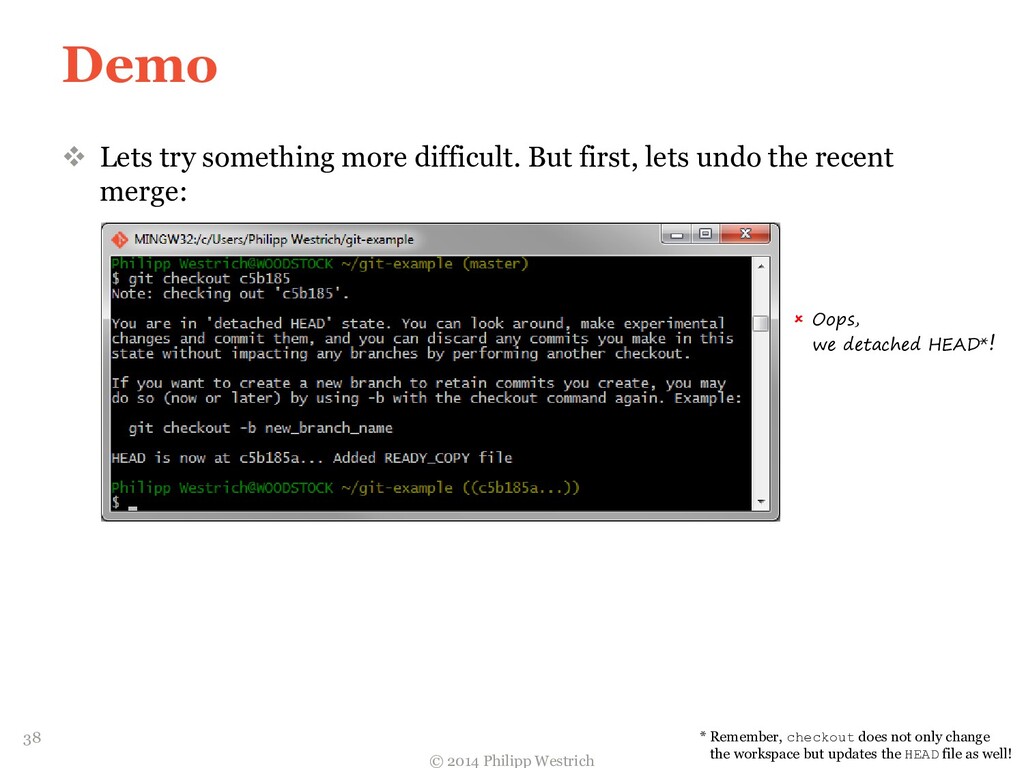
  33. Demo  Lets try something more difficult. But first, lets

    undo the recent merge: © 2014 Philipp Westrich  Oops, we detached HEAD*! * Remember, checkout does not only change the workspace but updates the HEAD file as well! 38
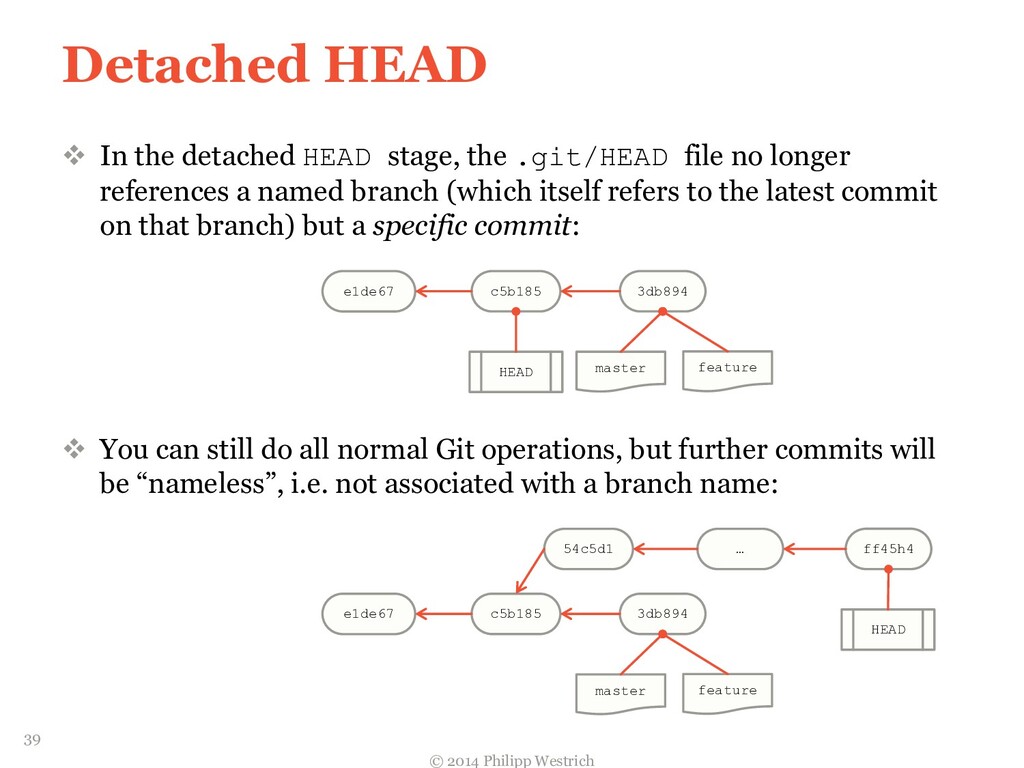
  34. Detached HEAD  In the detached HEAD stage, the .git/HEAD

    file no longer references a named branch (which itself refers to the latest commit on that branch) but a specific commit:  You can still do all normal Git operations, but further commits will be “nameless”, i.e. not associated with a branch name: © 2014 Philipp Westrich e1de67 c5b185 3db894 master feature HEAD e1de67 c5b185 3db894 master feature HEAD 54c5d1 … ff45h4 39
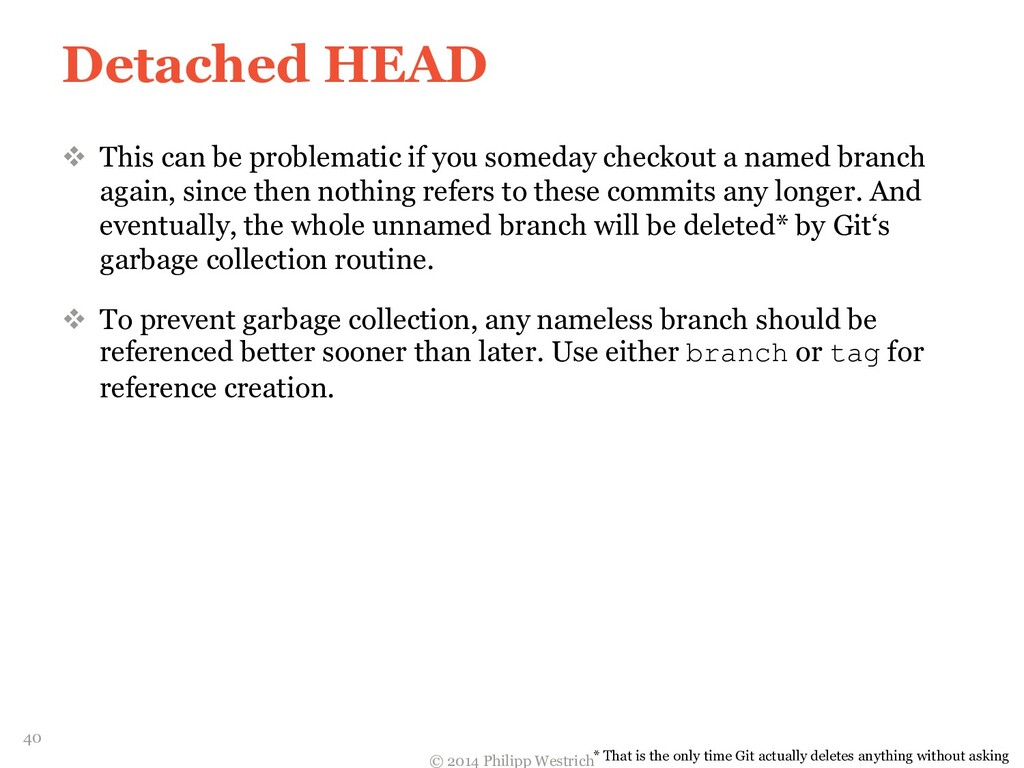
  35. Detached HEAD  This can be problematic if you someday

    checkout a named branch again, since then nothing refers to these commits any longer. And eventually, the whole unnamed branch will be deleted* by Git‘s garbage collection routine.  To prevent garbage collection, any nameless branch should be referenced better sooner than later. Use either branch or tag for reference creation. © 2014 Philipp Westrich * That is the only time Git actually deletes anything without asking 40
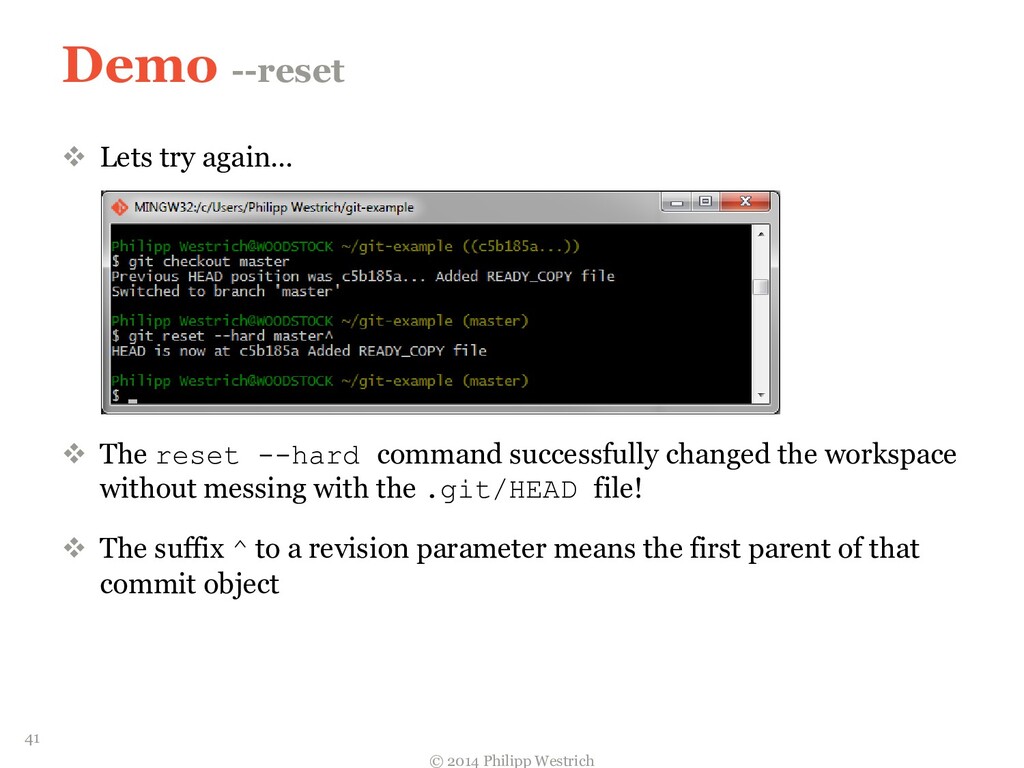
  36. Demo --reset  Lets try again…  The reset --hard

    command successfully changed the workspace without messing with the .git/HEAD file!  The suffix ^ to a revision parameter means the first parent of that commit object © 2014 Philipp Westrich 41
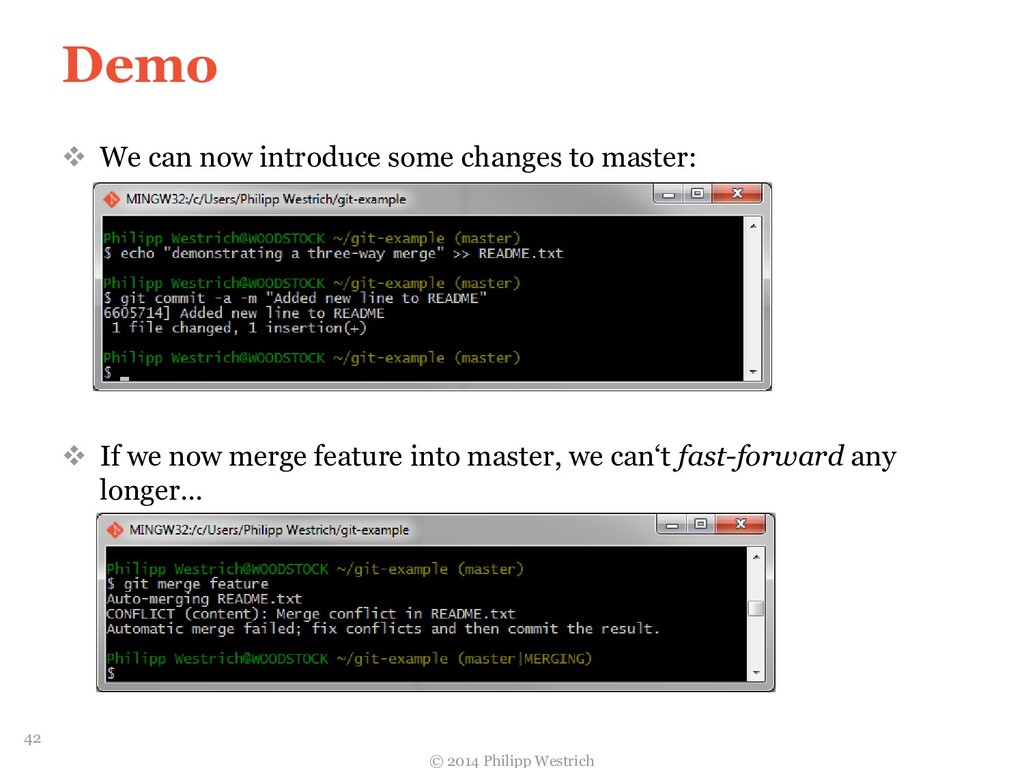
  37. Demo  We can now introduce some changes to master:

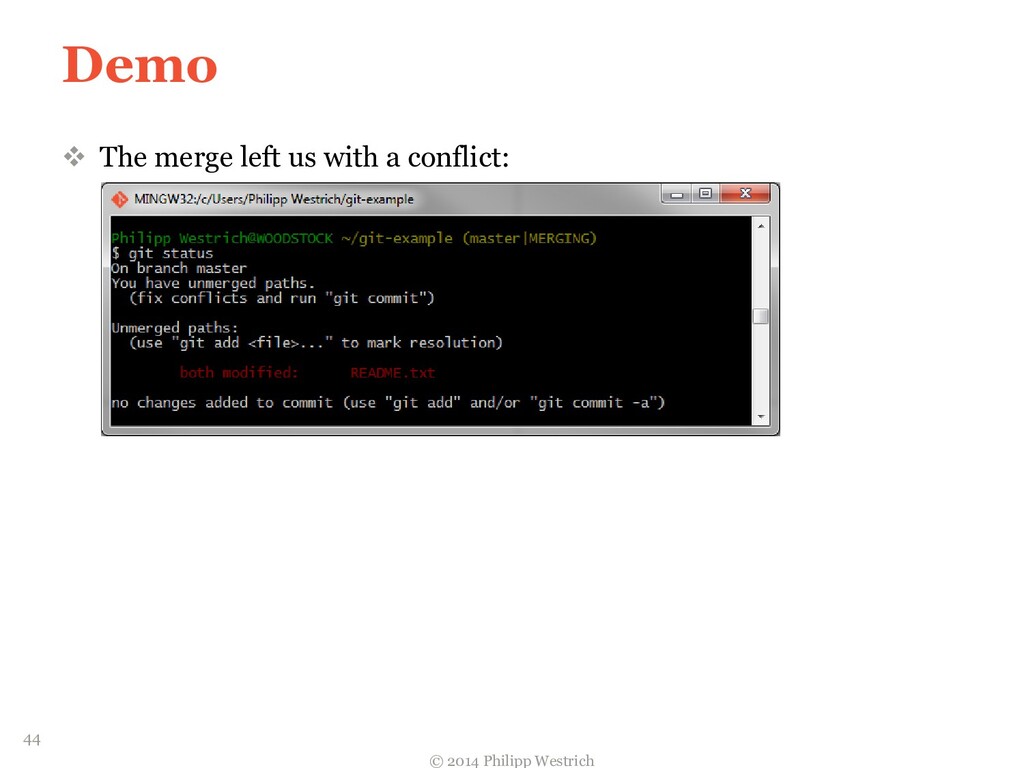
     If we now merge feature into master, we can‘t fast-forward any longer… © 2014 Philipp Westrich 42
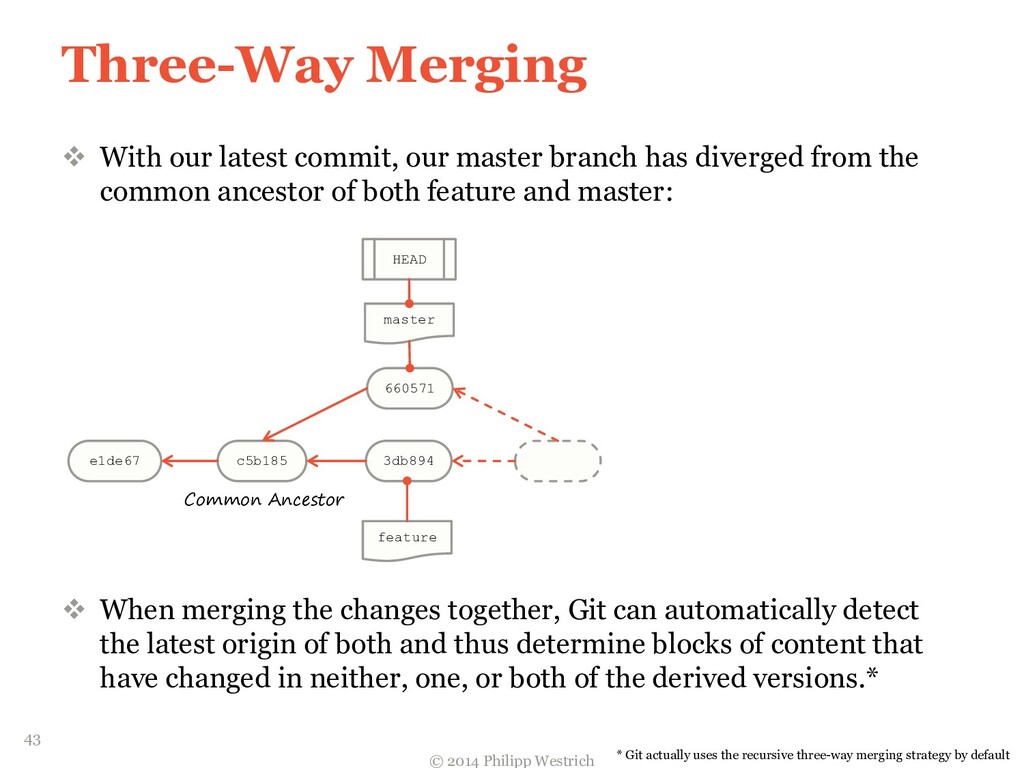
  38. Three-Way Merging  With our latest commit, our master branch

    has diverged from the common ancestor of both feature and master:  When merging the changes together, Git can automatically detect the latest origin of both and thus determine blocks of content that have changed in neither, one, or both of the derived versions.* © 2014 Philipp Westrich e1de67 c5b185 3db894 master feature HEAD 660571 Common Ancestor * Git actually uses the recursive three-way merging strategy by default 43
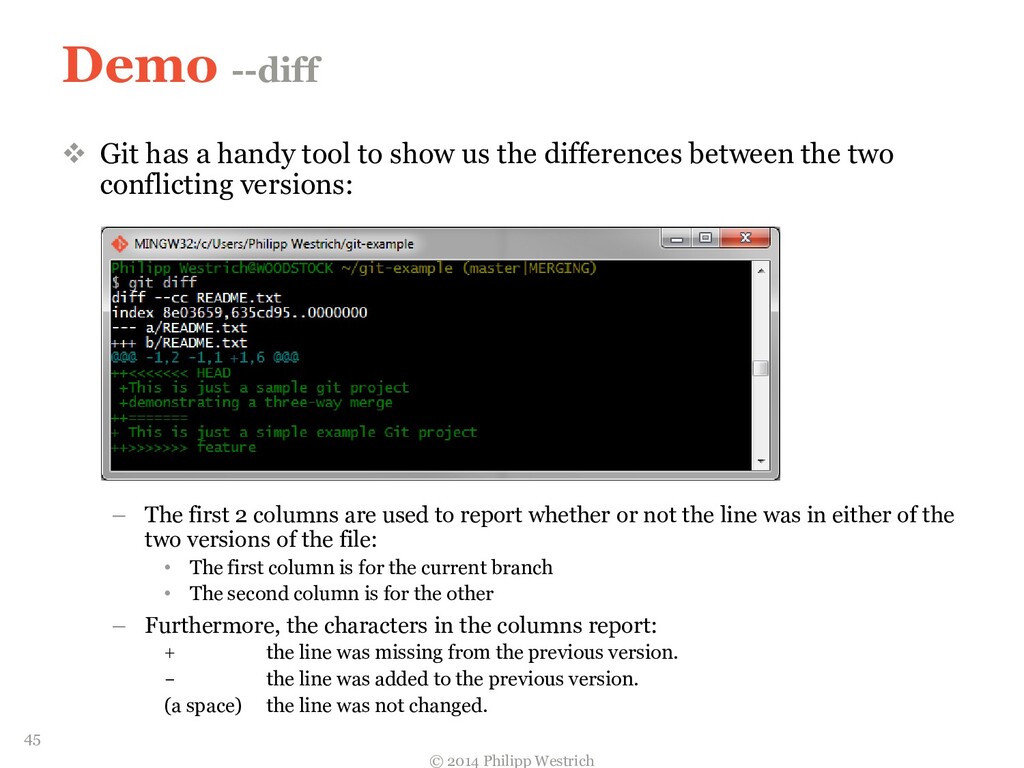
  39. Demo --diff  Git has a handy tool to show

    us the differences between the two conflicting versions: – The first 2 columns are used to report whether or not the line was in either of the two versions of the file: • The first column is for the current branch • The second column is for the other – Furthermore, the characters in the columns report: + the line was missing from the previous version. - the line was added to the previous version. (a space) the line was not changed. © 2014 Philipp Westrich 45
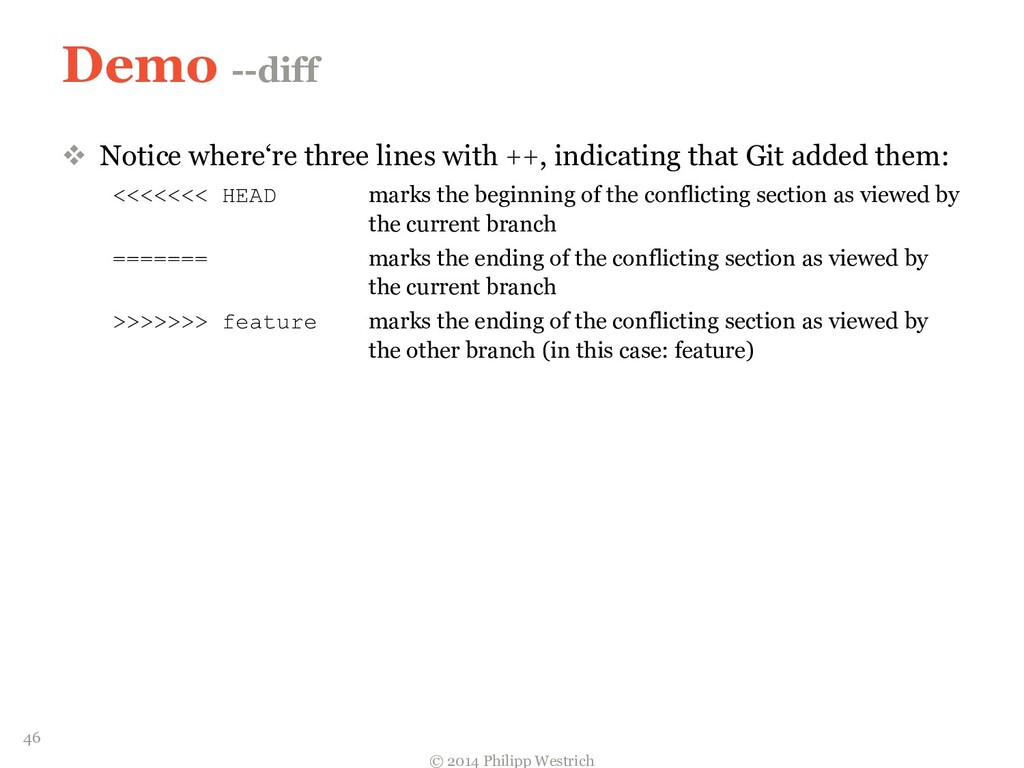
  40. Demo --diff  Notice where‘re three lines with ++, indicating

    that Git added them: <<<<<<< HEAD marks the beginning of the conflicting section as viewed by the current branch ======= marks the ending of the conflicting section as viewed by the current branch >>>>>>> feature marks the ending of the conflicting section as viewed by the other branch (in this case: feature) © 2014 Philipp Westrich 46
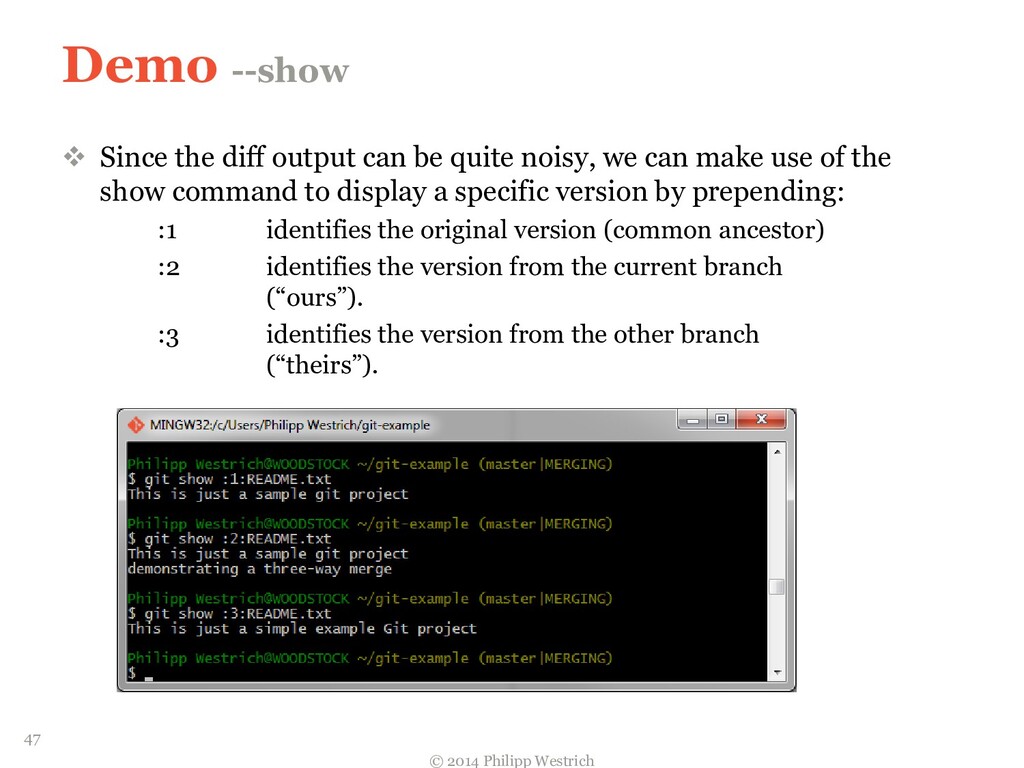
  41. Demo --show  Since the diff output can be quite

    noisy, we can make use of the show command to display a specific version by prepending: :1 identifies the original version (common ancestor) :2 identifies the version from the current branch (“ours”). :3 identifies the version from the other branch (“theirs”). © 2014 Philipp Westrich 47
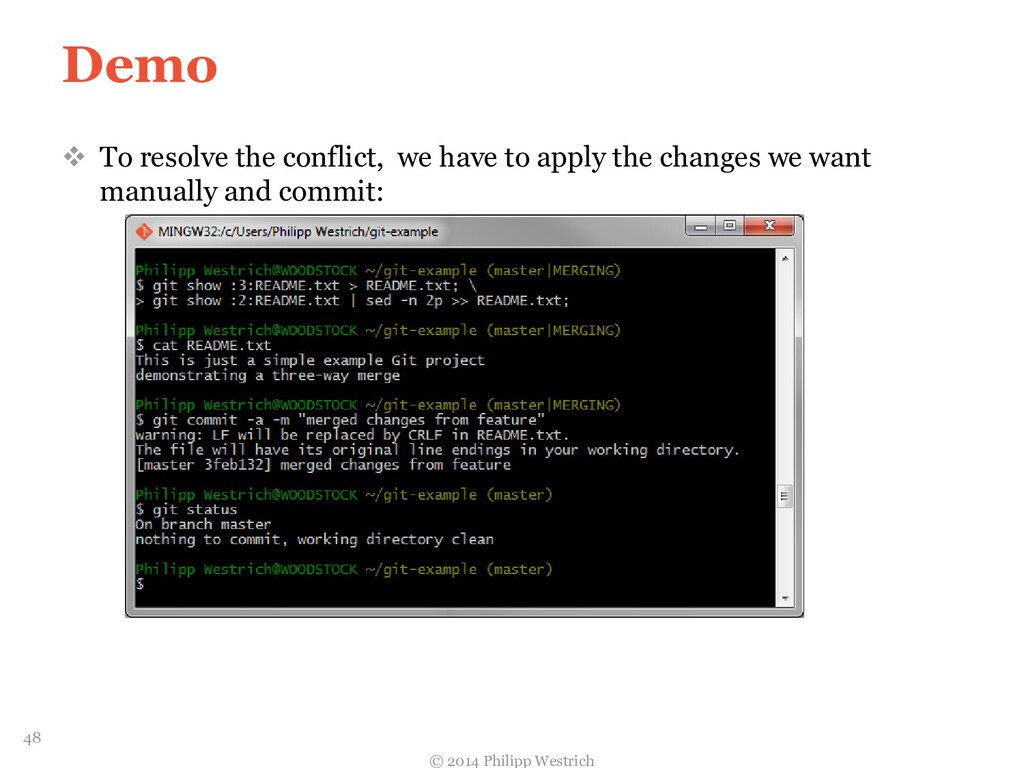
  42. Demo  To resolve the conflict, we have to apply

    the changes we want manually and commit: © 2014 Philipp Westrich 48
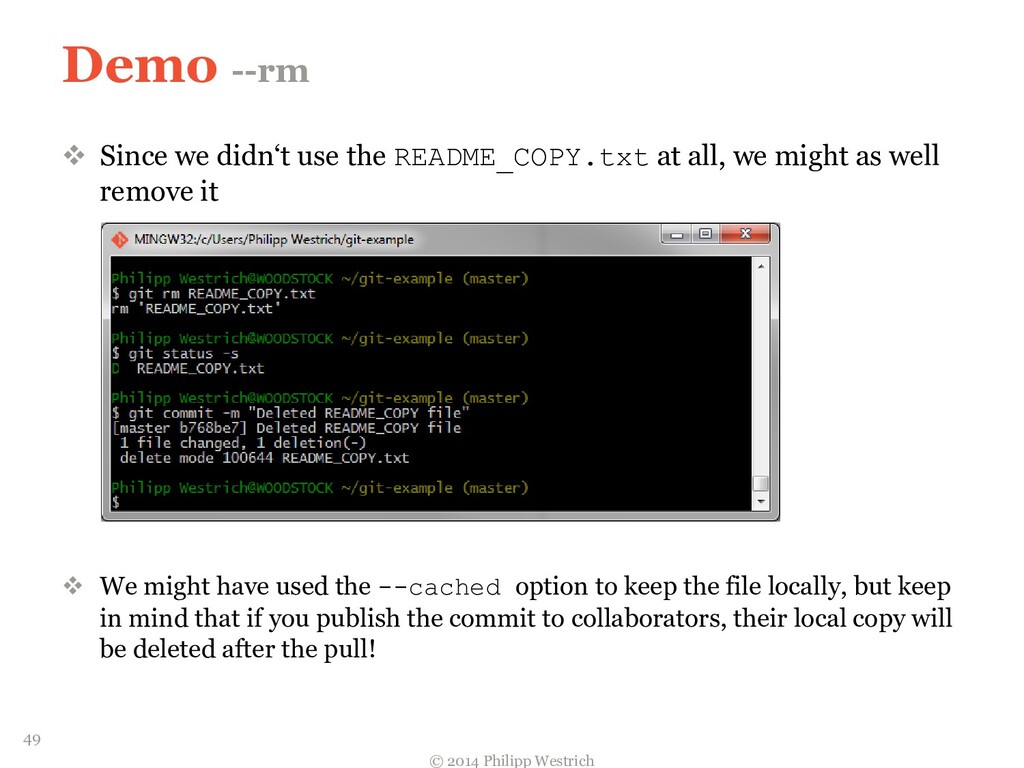
  43. Demo --rm  Since we didn‘t use the README_COPY.txt at

    all, we might as well remove it  We might have used the --cached option to keep the file locally, but keep in mind that if you publish the commit to collaborators, their local copy will be deleted after the pull! © 2014 Philipp Westrich 49
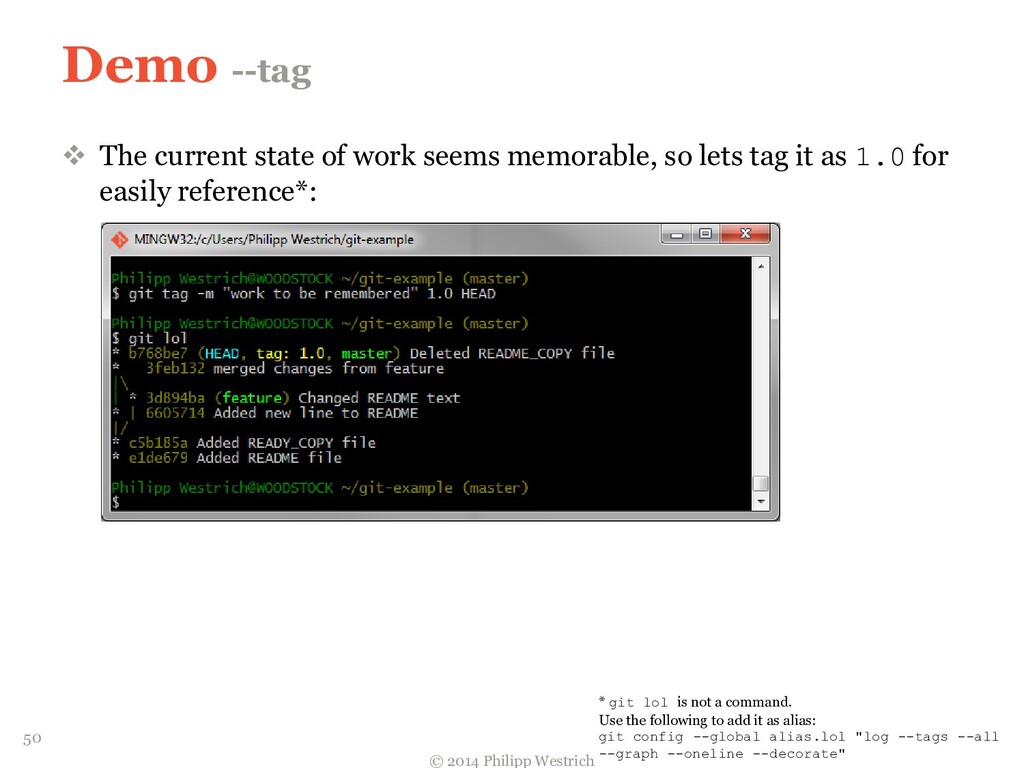
  44. Demo --tag  The current state of work seems memorable,

    so lets tag it as 1.0 for easily reference*: © 2014 Philipp Westrich * git lol is not a command. Use the following to add it as alias: git config --global alias.lol "log --tags --all --graph --oneline --decorate" 50
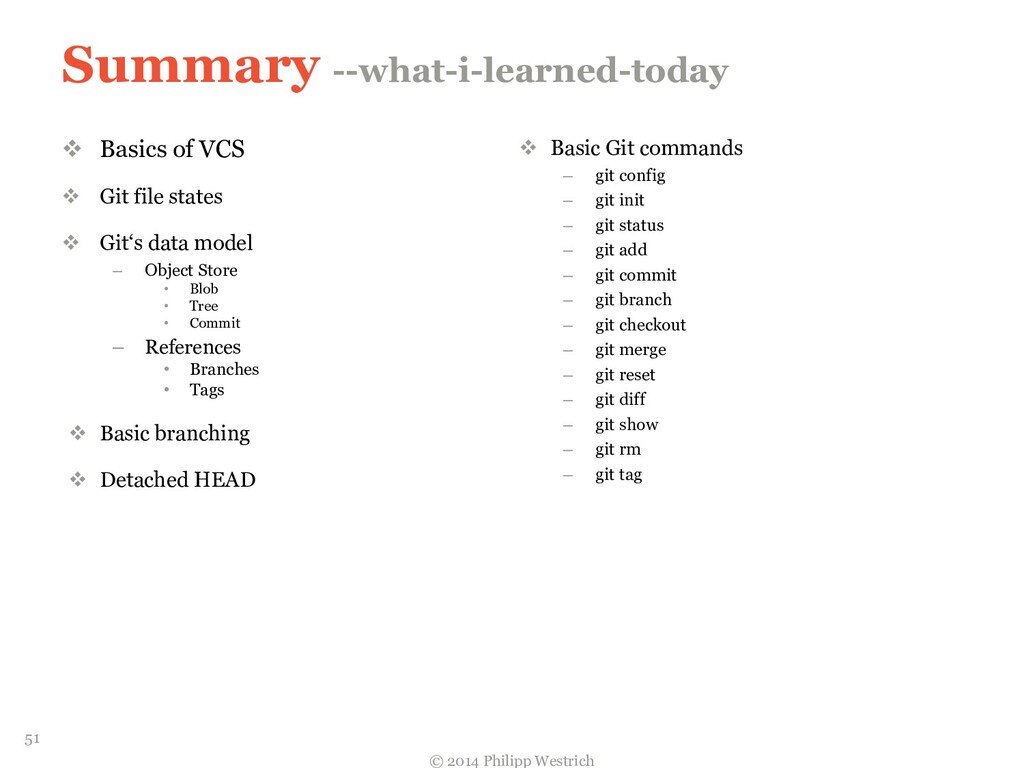
  45. Summary --what-i-learned-today  Basics of VCS  Git file states

     Git‘s data model – Object Store • Blob • Tree • Commit – References • Branches • Tags  Basic branching  Detached HEAD  Basic Git commands – git config – git init – git status – git add – git commit – git branch – git checkout – git merge – git reset – git diff – git show – git rm – git tag © 2014 Philipp Westrich 51