software from Microsoft. In your academic career (undergrad, graduate, or professional) there is a good chance that you have been or will be exposed to this tool. Furthermore, most of you will need to use it. This slide show is intended not only to be presented as a user guide to PowerPoint, but to be distributed as a way to practice what you learn as you learn it. Tuesday, 2 April 13
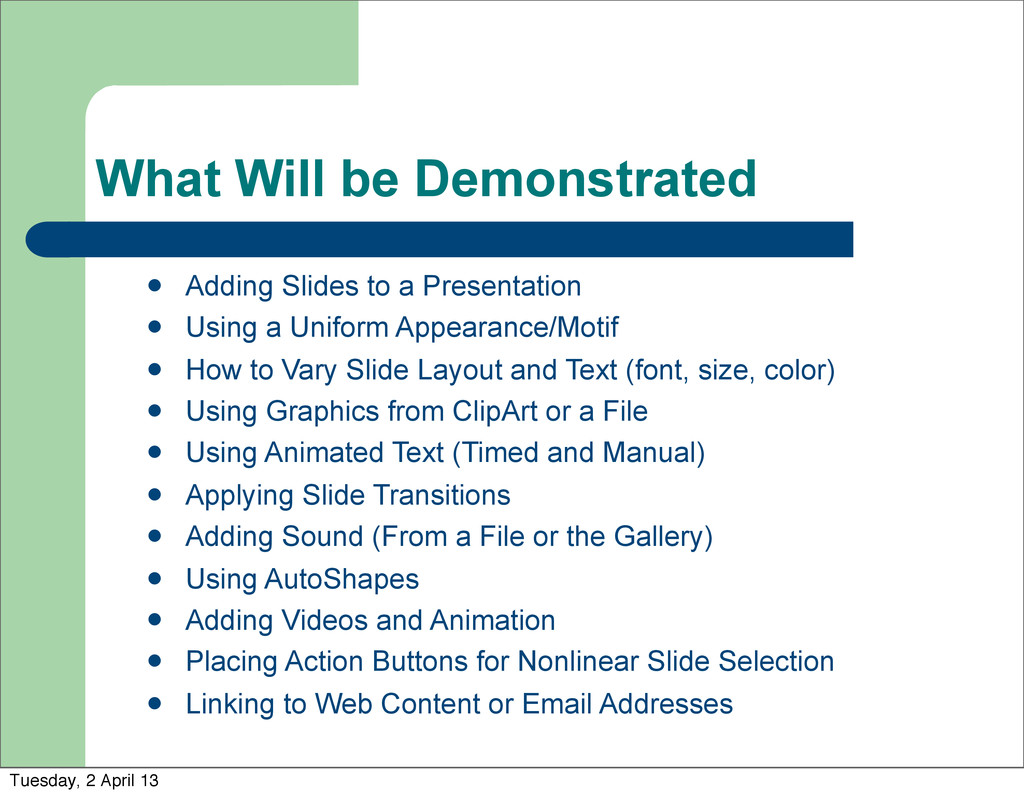
Using a Uniform Appearance/Motif How to Vary Slide Layout and Text (font, size, color) Using Graphics from ClipArt or a File Using Animated Text (Timed and Manual) Applying Slide Transitions Adding Sound (From a File or the Gallery) Using AutoShapes Adding Videos and Animation Placing Action Buttons for Nonlinear Slide Selection Linking to Web Content or Email Addresses Tuesday, 2 April 13
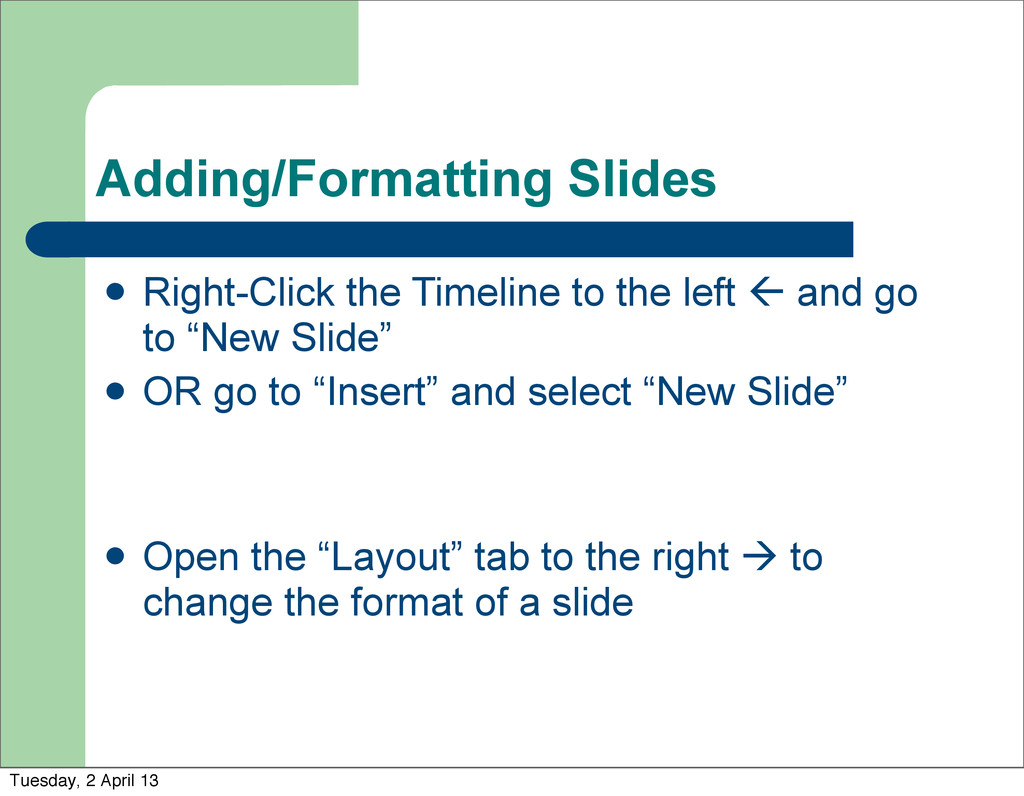
and go to “New Slide” OR go to “Insert” and select “New Slide” Open the “Layout” tab to the right to change the format of a slide Tuesday, 2 April 13
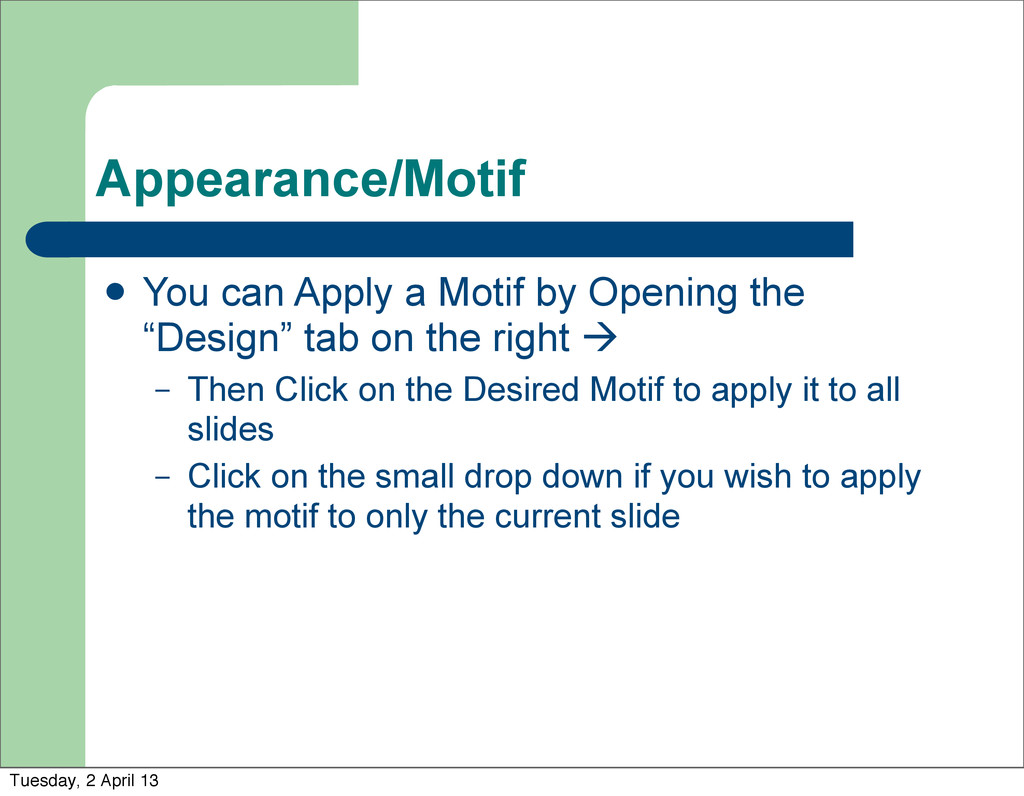
“Design” tab on the right – Then Click on the Desired Motif to apply it to all slides – Click on the small drop down if you wish to apply the motif to only the current slide Tuesday, 2 April 13
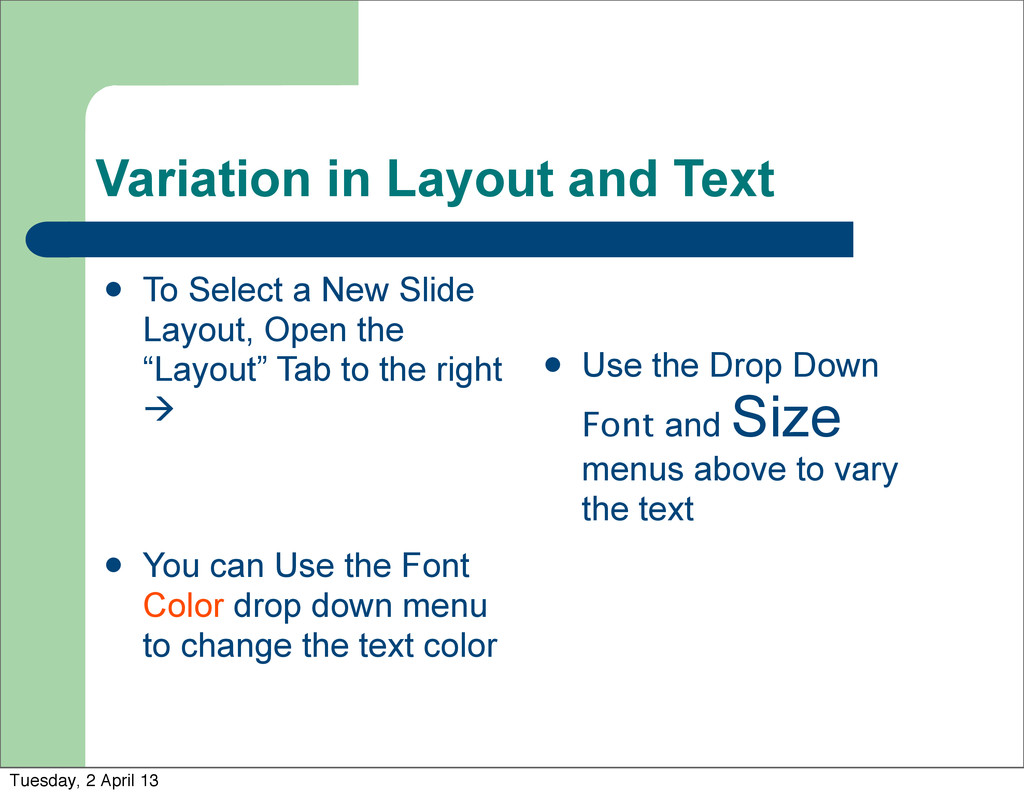
Slide Layout, Open the “Layout” Tab to the right You can Use the Font Color drop down menu to change the text color Use the Drop Down Font and Size menus above to vary the text Tuesday, 2 April 13
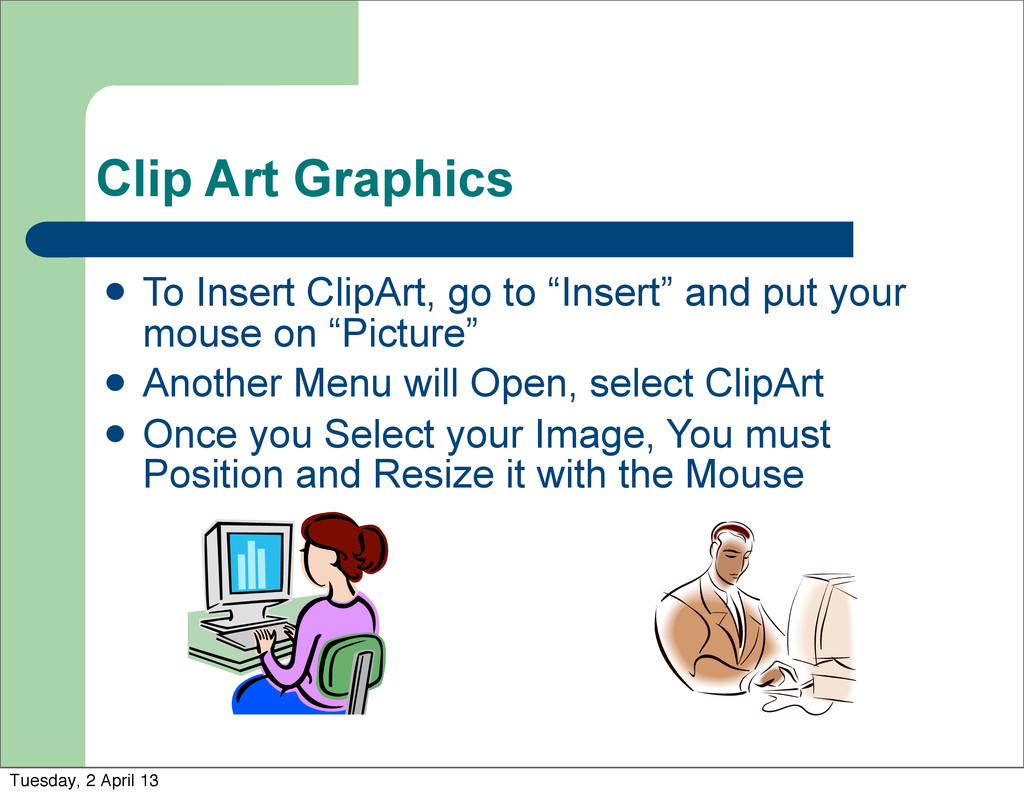
and put your mouse on “Picture” Another Menu will Open, select ClipArt Once you Select your Image, You must Position and Resize it with the Mouse Tuesday, 2 April 13
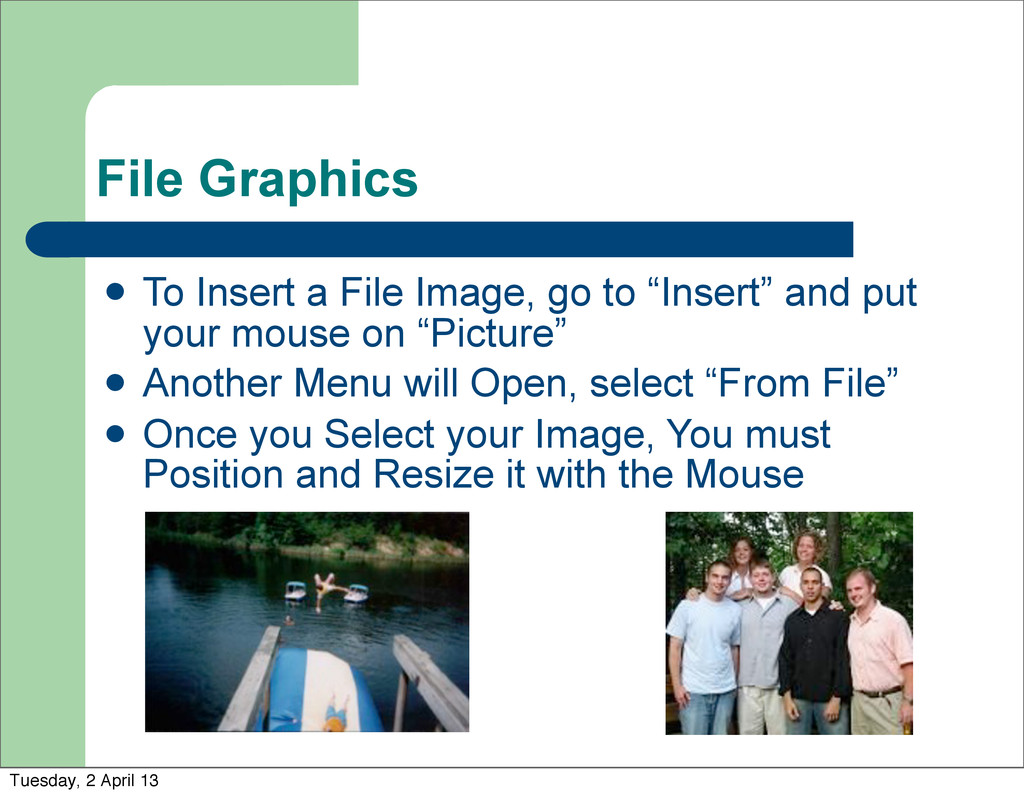
“Insert” and put your mouse on “Picture” Another Menu will Open, select “From File” Once you Select your Image, You must Position and Resize it with the Mouse Tuesday, 2 April 13
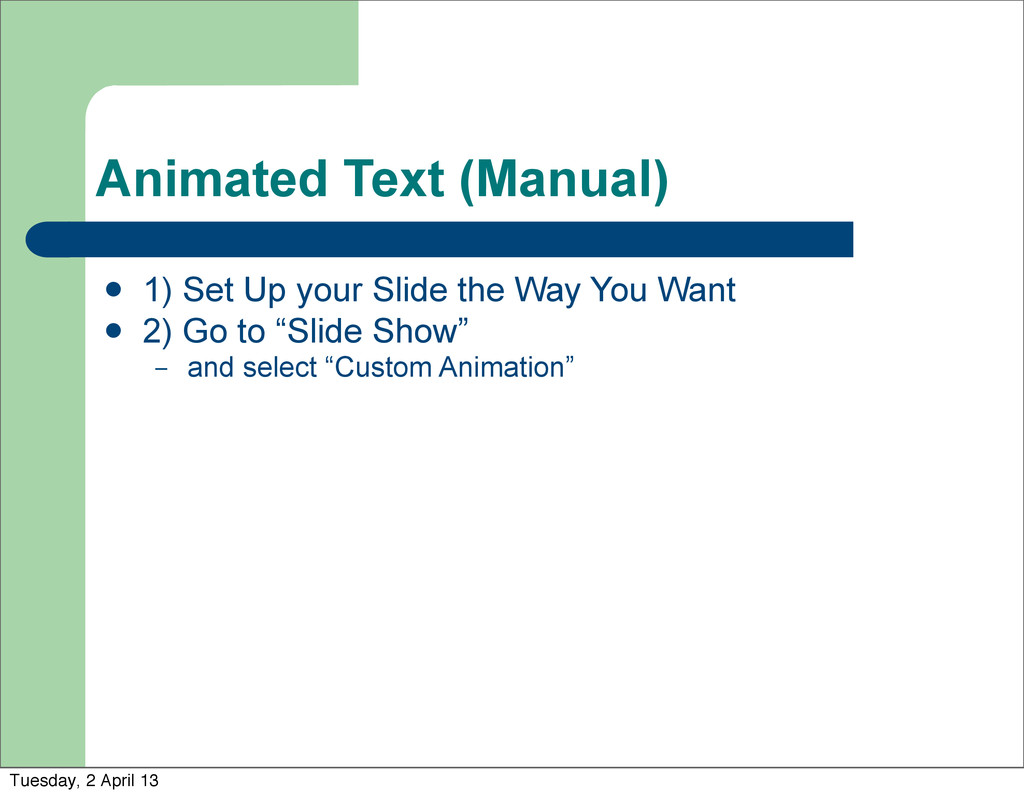
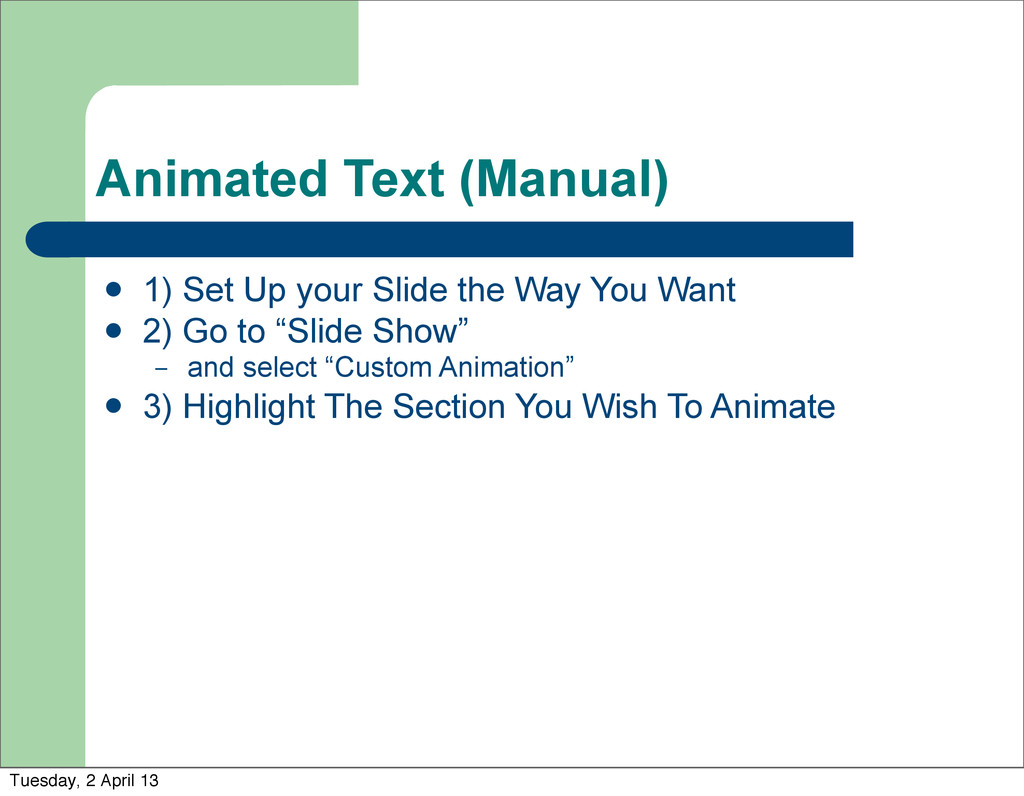
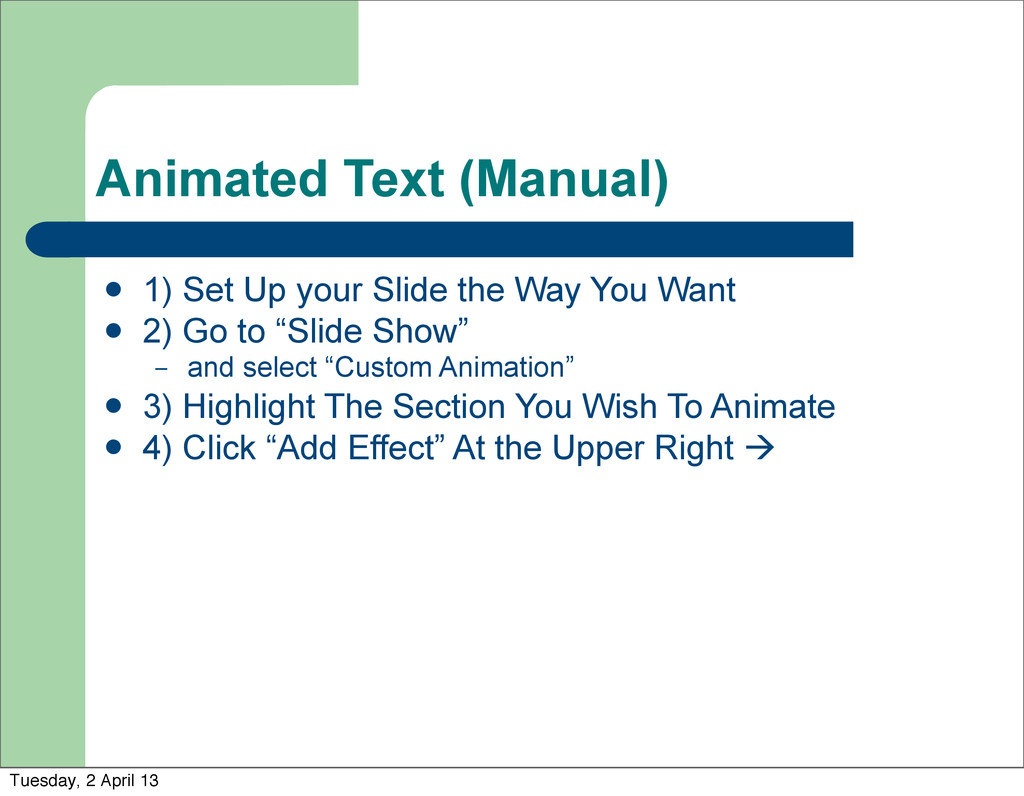
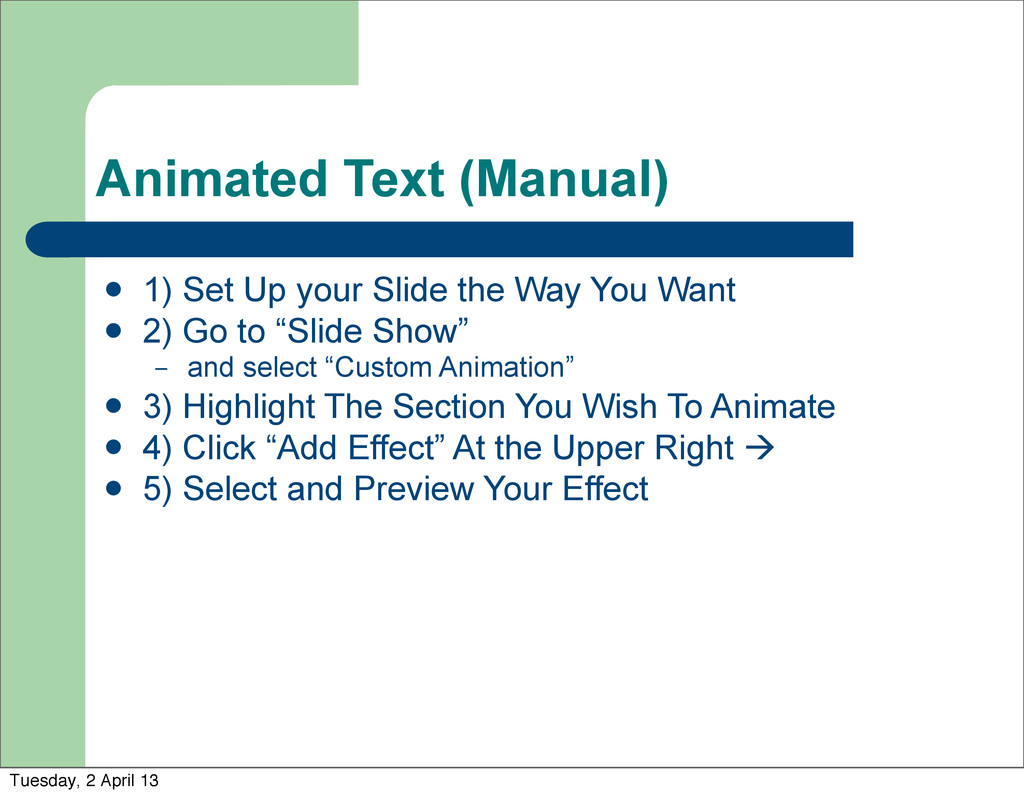
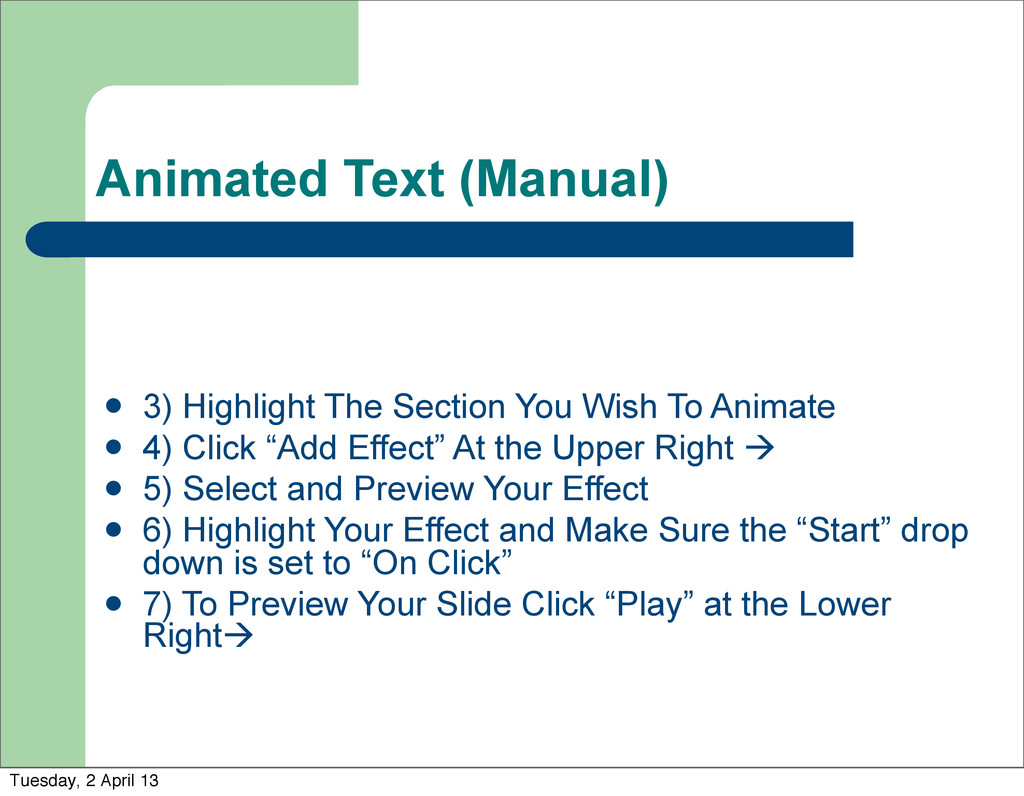
Way You Want 2) Go to “Slide Show” – and select “Custom Animation” 3) Highlight The Section You Wish To Animate 4) Click “Add Effect” At the Upper Right Tuesday, 2 April 13
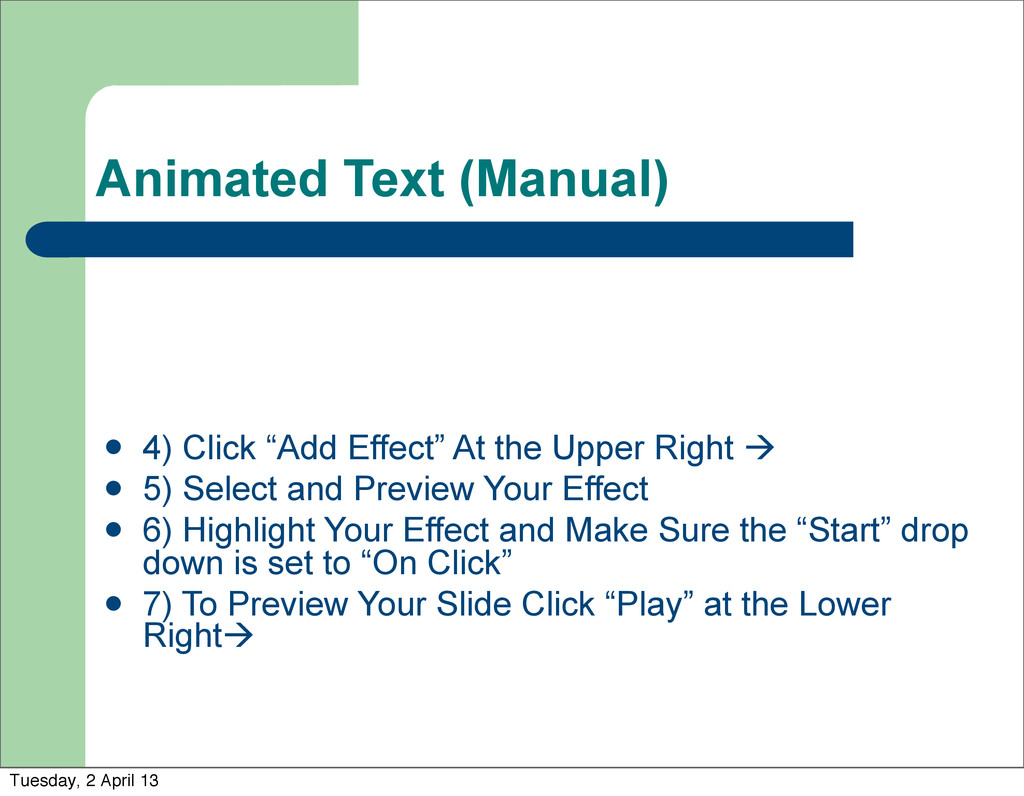
Way You Want 2) Go to “Slide Show” – and select “Custom Animation” 3) Highlight The Section You Wish To Animate 4) Click “Add Effect” At the Upper Right 5) Select and Preview Your Effect Tuesday, 2 April 13
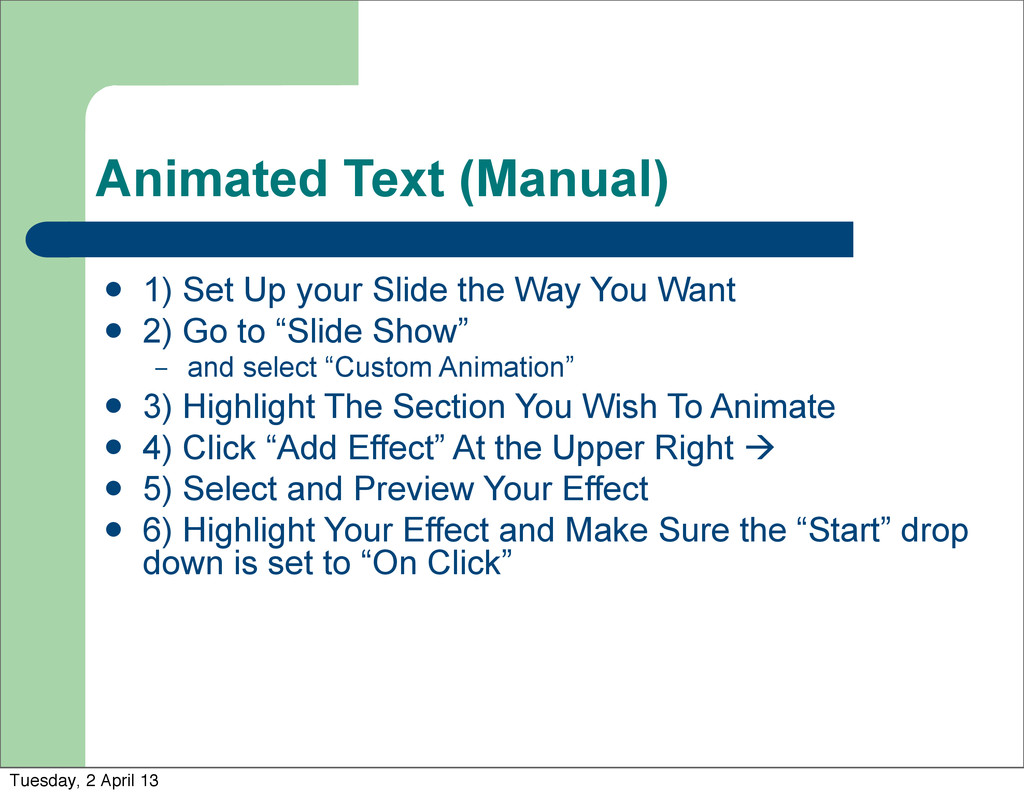
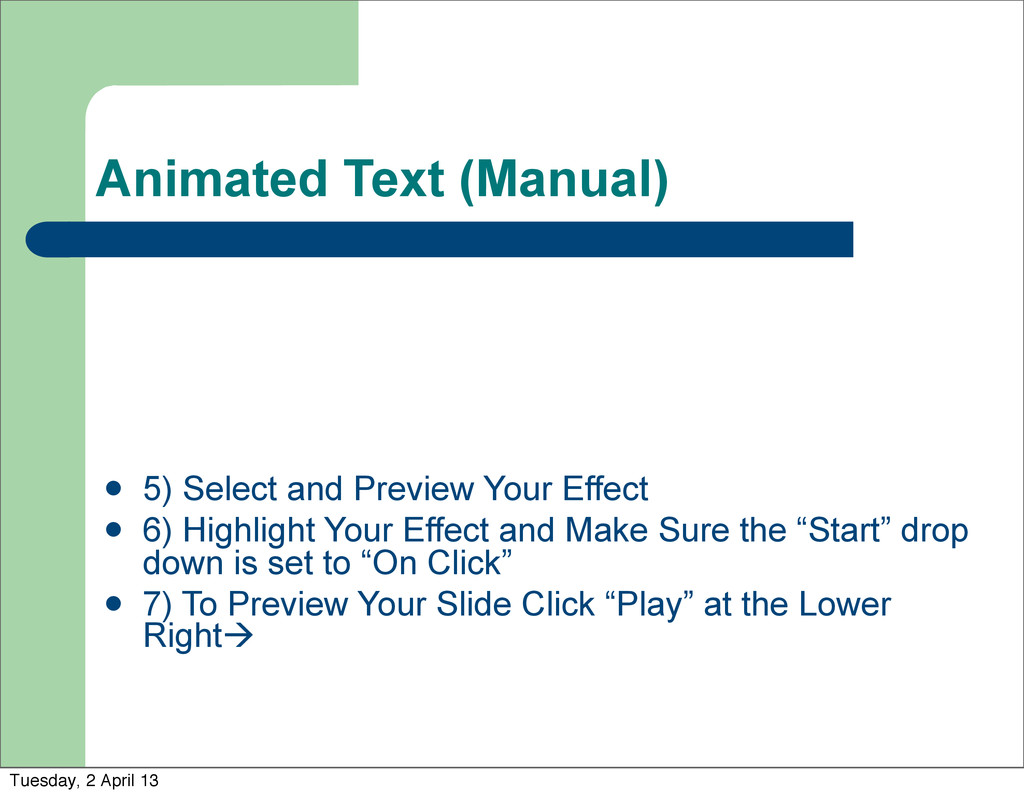
Way You Want 2) Go to “Slide Show” – and select “Custom Animation” 3) Highlight The Section You Wish To Animate 4) Click “Add Effect” At the Upper Right 5) Select and Preview Your Effect 6) Highlight Your Effect and Make Sure the “Start” drop down is set to “On Click” Tuesday, 2 April 13
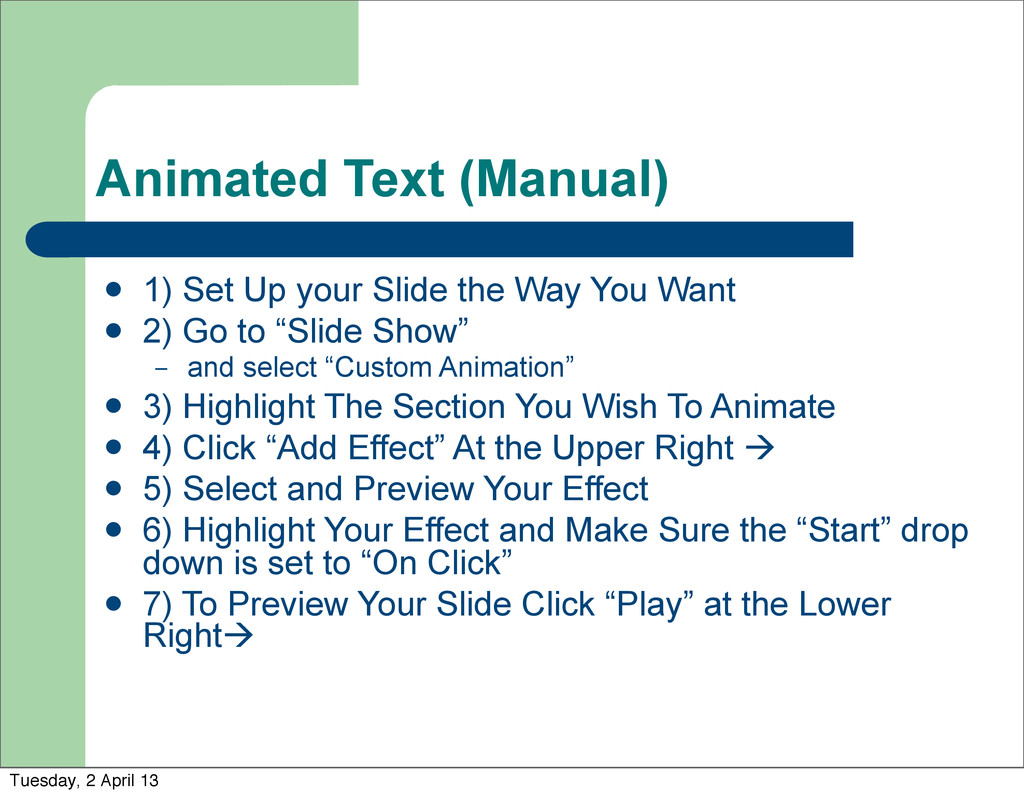
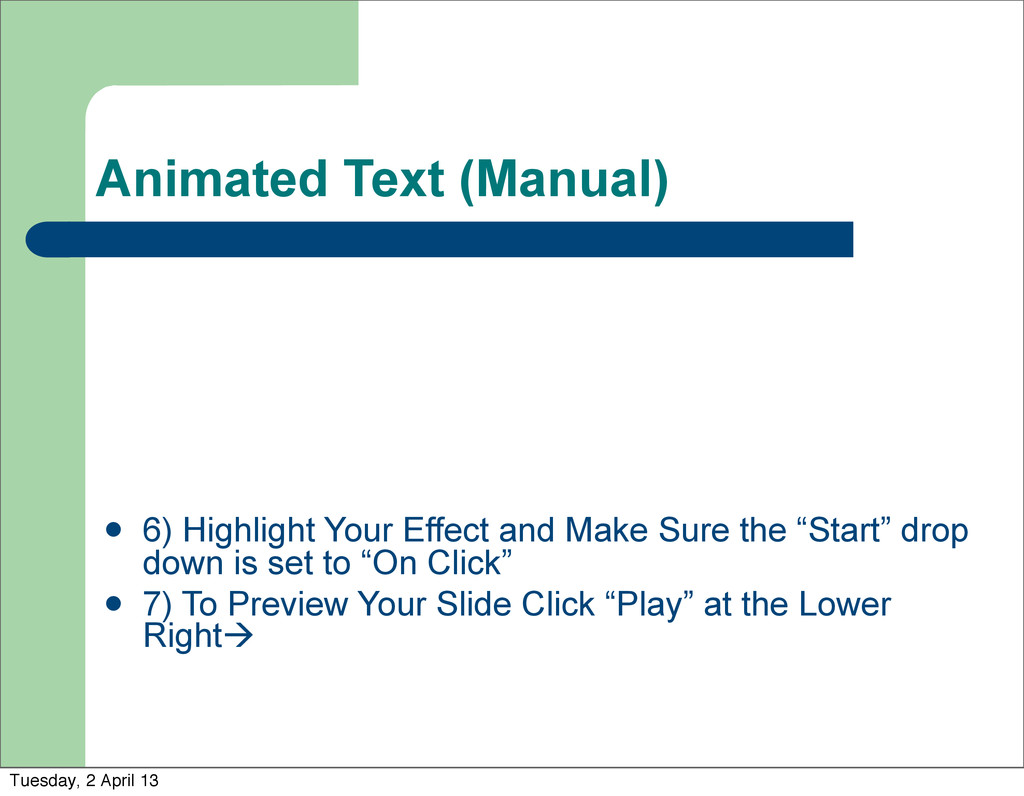
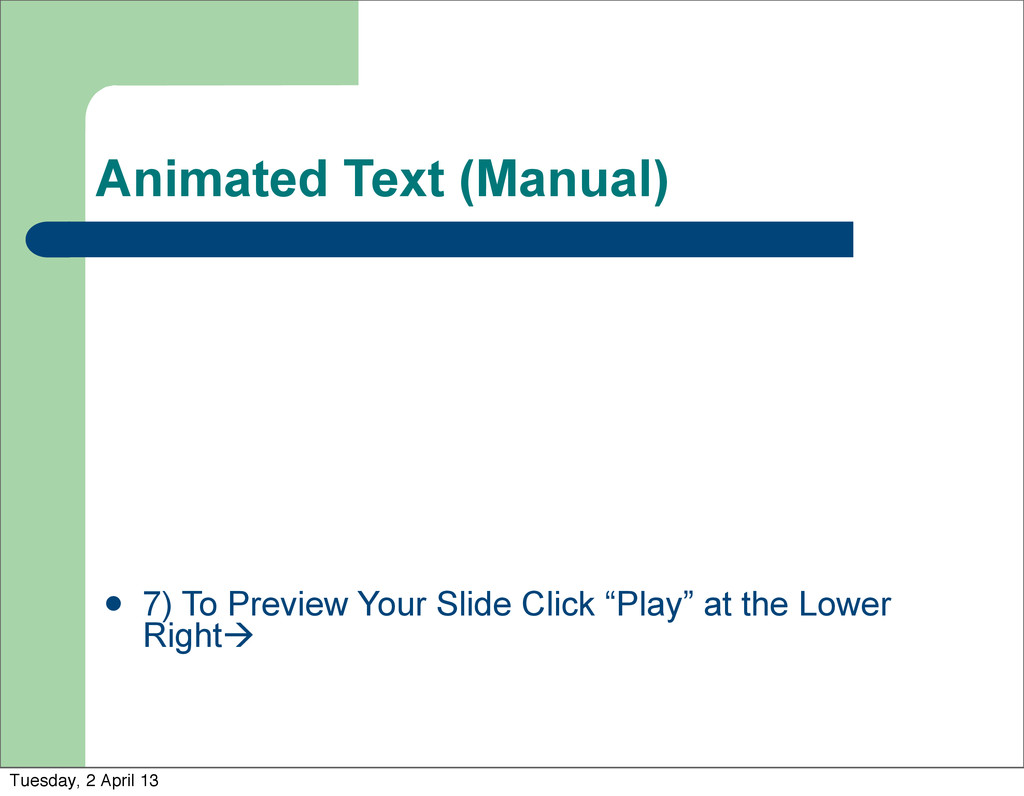
Way You Want 2) Go to “Slide Show” – and select “Custom Animation” 3) Highlight The Section You Wish To Animate 4) Click “Add Effect” At the Upper Right 5) Select and Preview Your Effect 6) Highlight Your Effect and Make Sure the “Start” drop down is set to “On Click” 7) To Preview Your Slide Click “Play” at the Lower Right Tuesday, 2 April 13
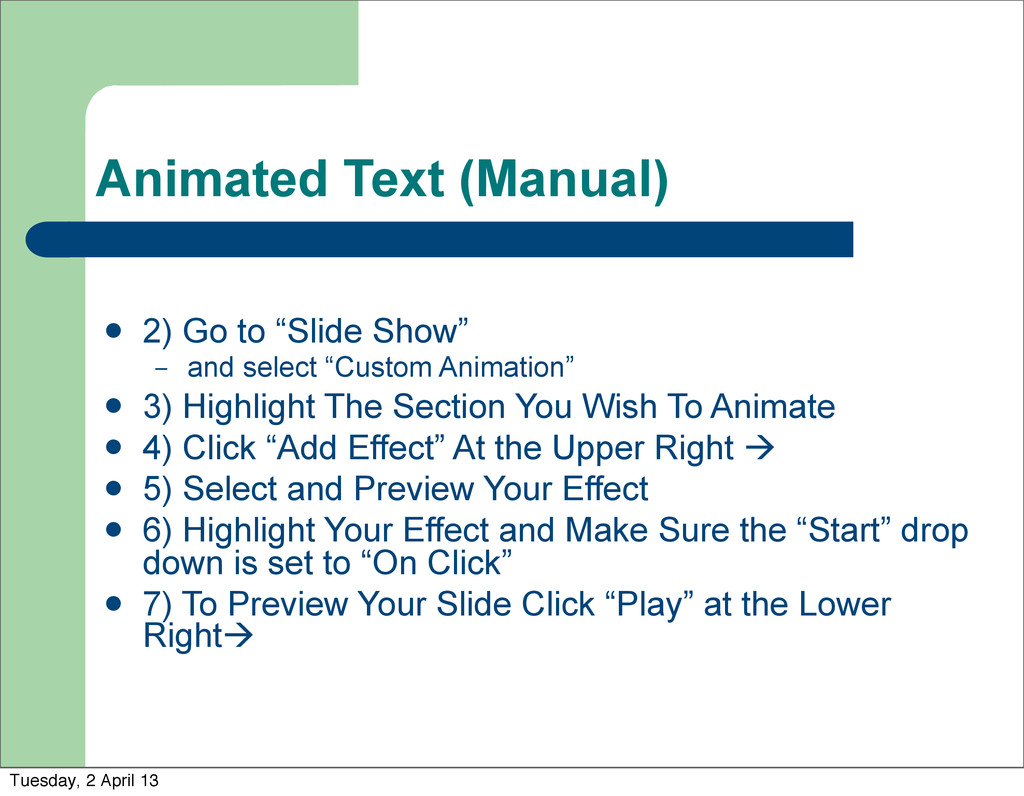
and select “Custom Animation” 3) Highlight The Section You Wish To Animate 4) Click “Add Effect” At the Upper Right 5) Select and Preview Your Effect 6) Highlight Your Effect and Make Sure the “Start” drop down is set to “On Click” 7) To Preview Your Slide Click “Play” at the Lower Right Tuesday, 2 April 13
To Animate 4) Click “Add Effect” At the Upper Right 5) Select and Preview Your Effect 6) Highlight Your Effect and Make Sure the “Start” drop down is set to “On Click” 7) To Preview Your Slide Click “Play” at the Lower Right Tuesday, 2 April 13
Upper Right 5) Select and Preview Your Effect 6) Highlight Your Effect and Make Sure the “Start” drop down is set to “On Click” 7) To Preview Your Slide Click “Play” at the Lower Right Tuesday, 2 April 13
6) Highlight Your Effect and Make Sure the “Start” drop down is set to “On Click” 7) To Preview Your Slide Click “Play” at the Lower Right Tuesday, 2 April 13
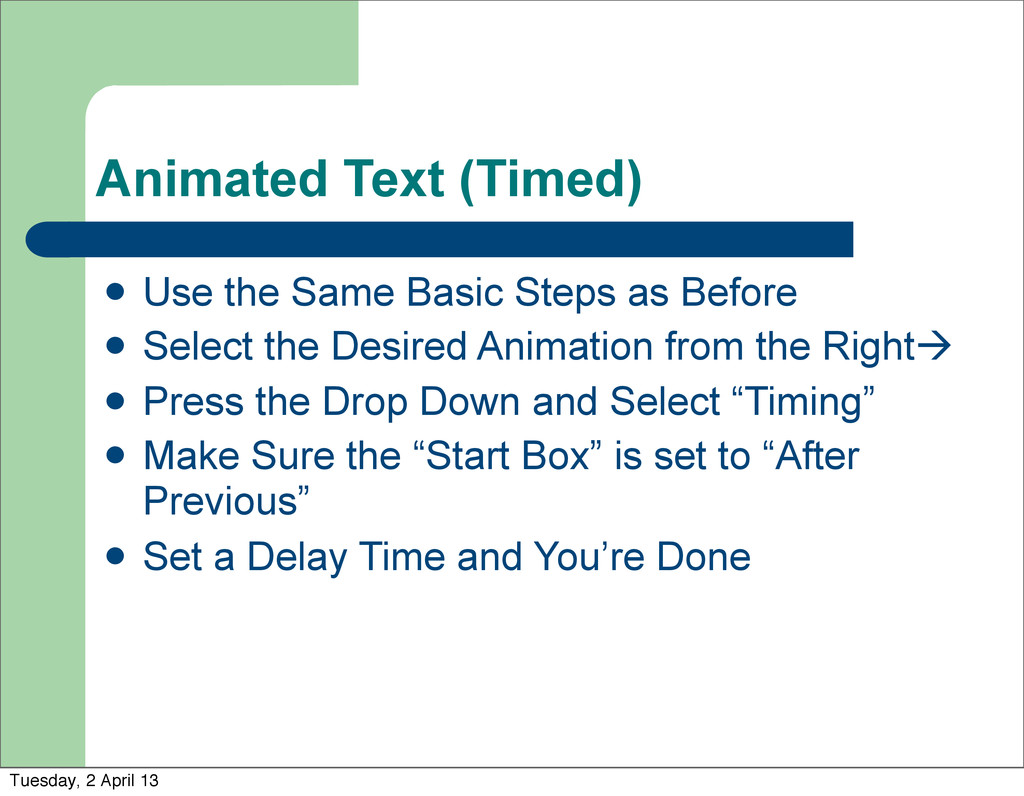
Before Select the Desired Animation from the Right Press the Drop Down and Select “Timing” Make Sure the “Start Box” is set to “After Previous” Set a Delay Time and You’re Done Tuesday, 2 April 13
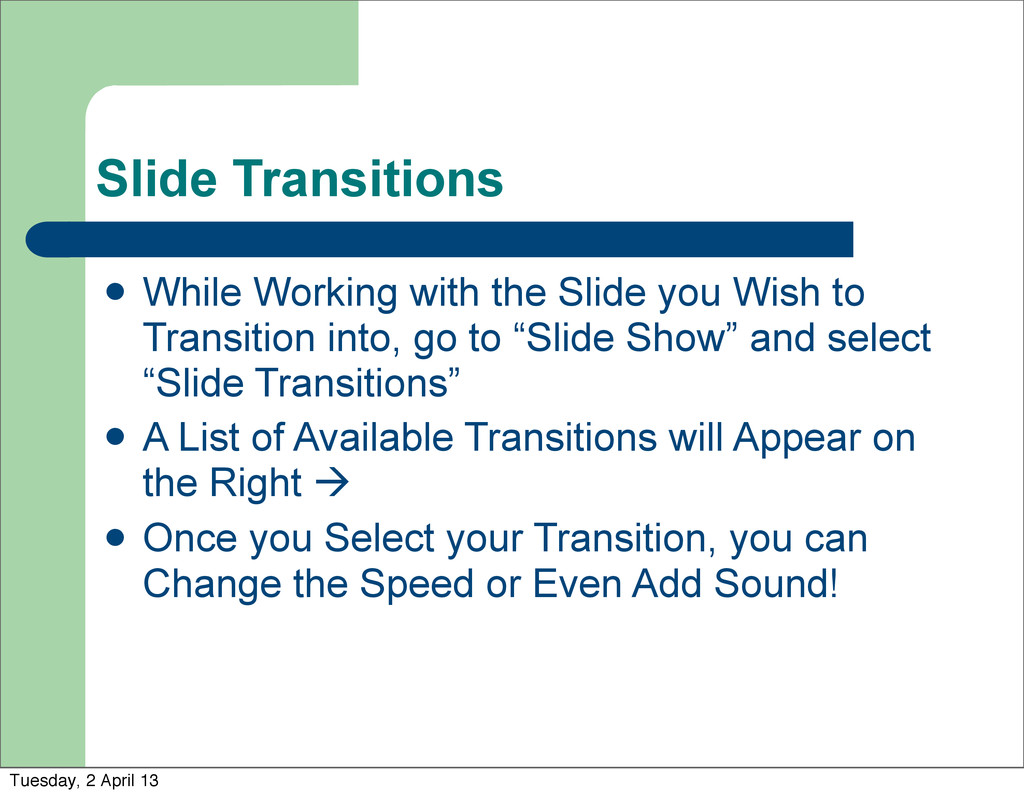
to Transition into, go to “Slide Show” and select “Slide Transitions” A List of Available Transitions will Appear on the Right Once you Select your Transition, you can Change the Speed or Even Add Sound! Tuesday, 2 April 13
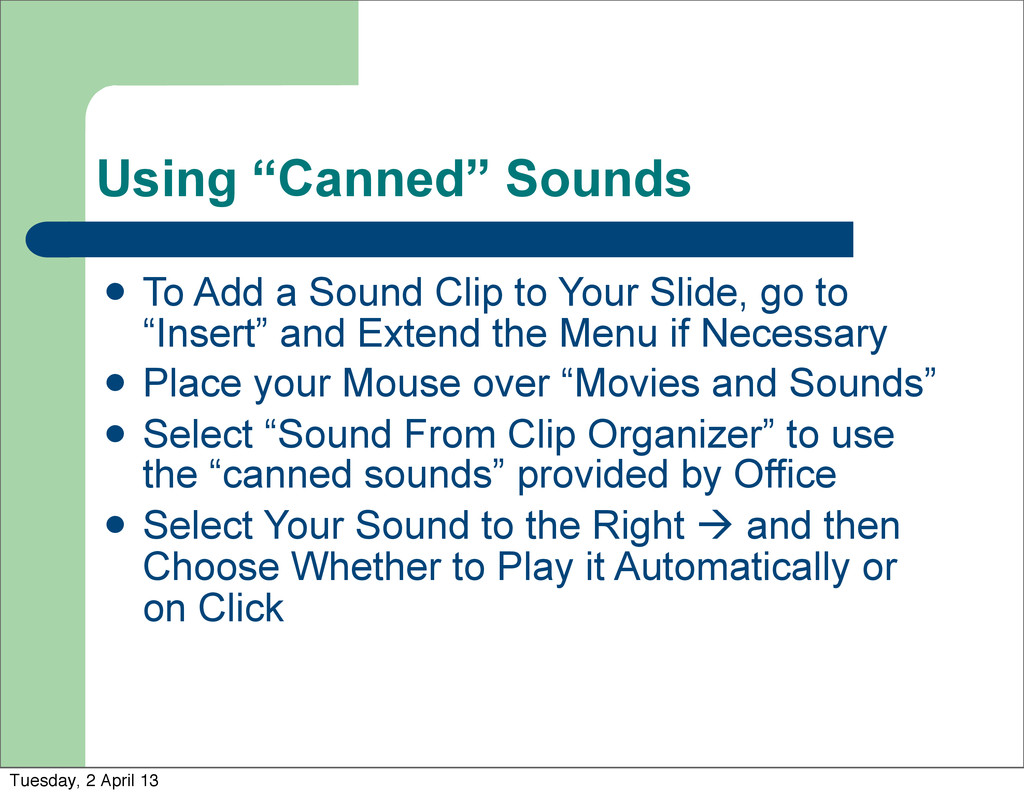
Your Slide, go to “Insert” and Extend the Menu if Necessary Place your Mouse over “Movies and Sounds” Select “Sound From Clip Organizer” to use the “canned sounds” provided by Office Select Your Sound to the Right and then Choose Whether to Play it Automatically or on Click Tuesday, 2 April 13
Your Slide, go to “Insert” and Extend the Menu if Necessary Place your Mouse over “Movies and Sounds” Select “Sound From Clip Organizer” to use the “canned sounds” provided by Office Select Your Sound to the Right and then Choose Whether to Play it Automatically or on Click Tuesday, 2 April 13
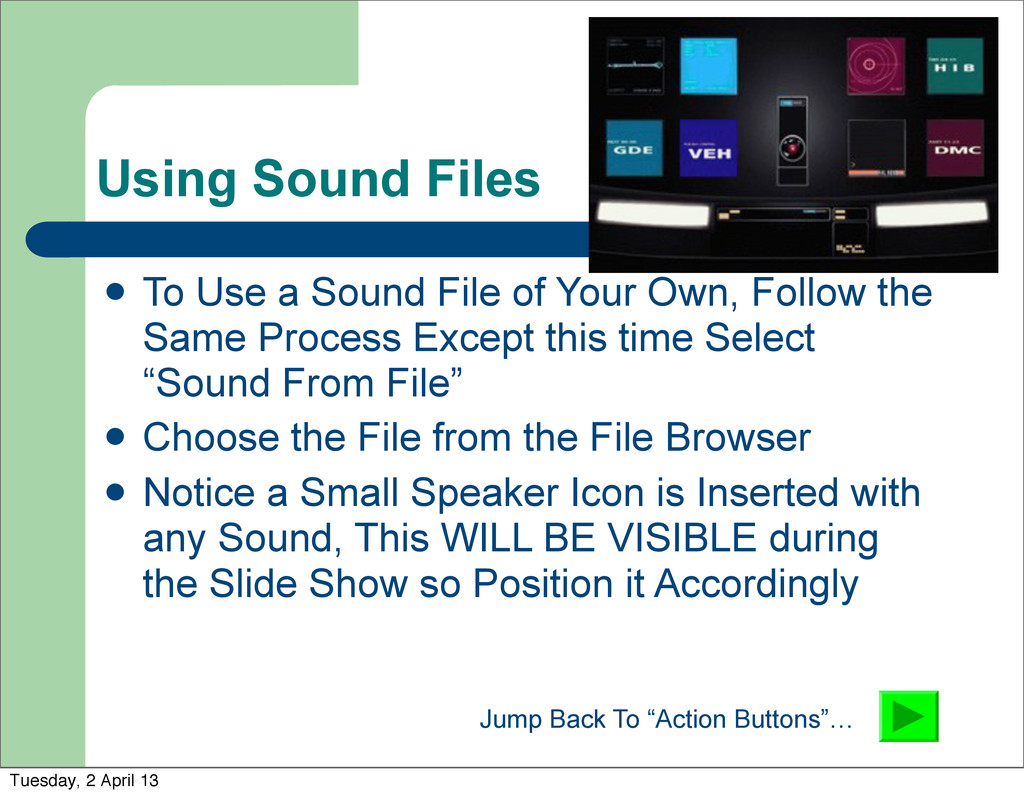
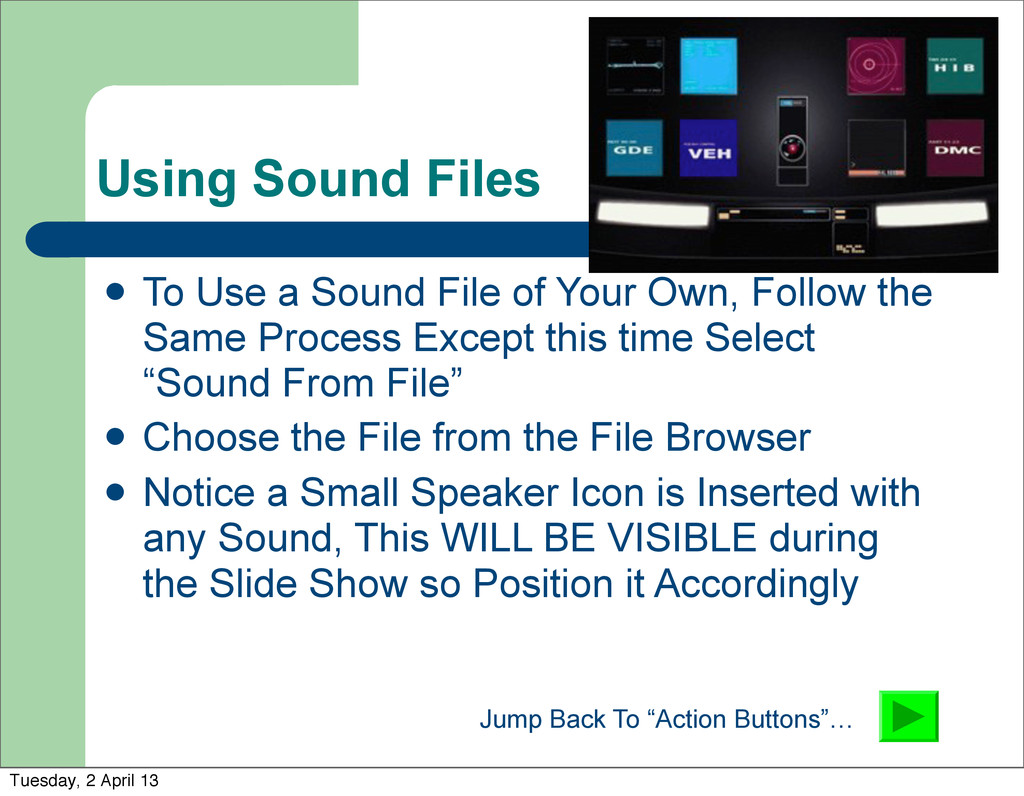
Your Own, Follow the Same Process Except this time Select “Sound From File” Choose the File from the File Browser Notice a Small Speaker Icon is Inserted with any Sound, This WILL BE VISIBLE during the Slide Show so Position it Accordingly Jump Back To “Action Buttons”… Tuesday, 2 April 13
Your Own, Follow the Same Process Except this time Select “Sound From File” Choose the File from the File Browser Notice a Small Speaker Icon is Inserted with any Sound, This WILL BE VISIBLE during the Slide Show so Position it Accordingly Jump Back To “Action Buttons”… Tuesday, 2 April 13
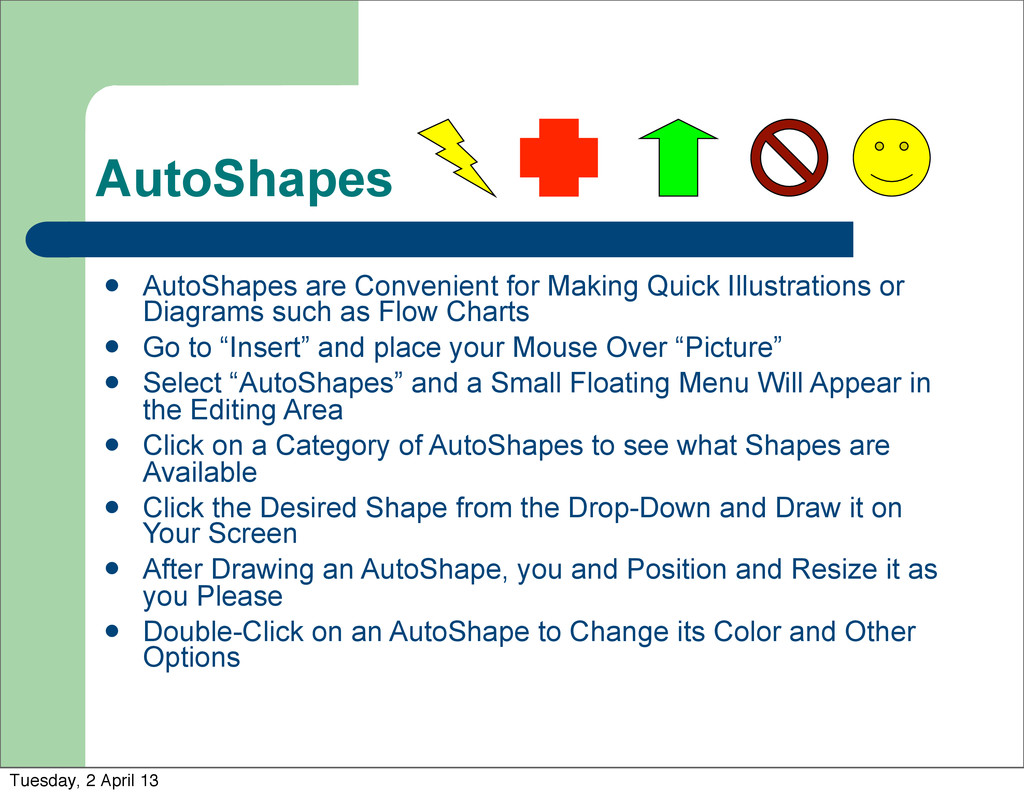
Diagrams such as Flow Charts Go to “Insert” and place your Mouse Over “Picture” Select “AutoShapes” and a Small Floating Menu Will Appear in the Editing Area Click on a Category of AutoShapes to see what Shapes are Available Click the Desired Shape from the Drop-Down and Draw it on Your Screen After Drawing an AutoShape, you and Position and Resize it as you Please Double-Click on an AutoShape to Change its Color and Other Options Tuesday, 2 April 13
you can group them together. Any of the Custom Animations we Used for Text Sections can be Applied to Groups or Single AutoShapes Tuesday, 2 April 13
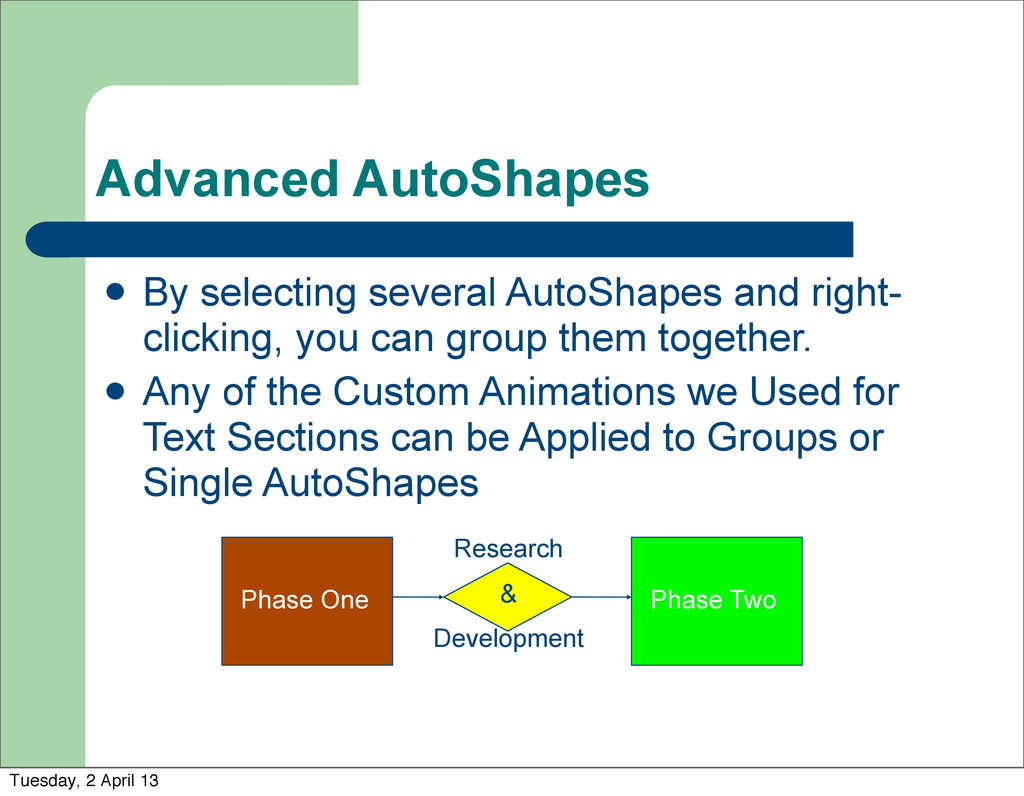
By selecting several AutoShapes and right- clicking, you can group them together. Any of the Custom Animations we Used for Text Sections can be Applied to Groups or Single AutoShapes Tuesday, 2 April 13
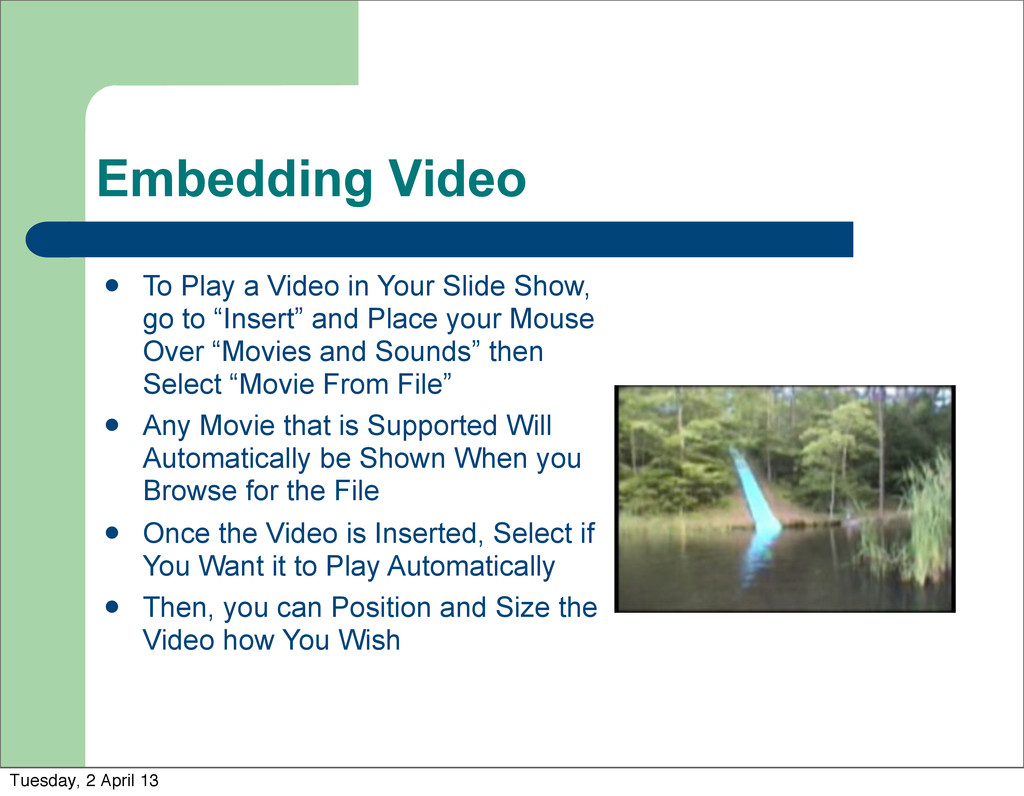
Show, go to “Insert” and Place your Mouse Over “Movies and Sounds” then Select “Movie From File” Any Movie that is Supported Will Automatically be Shown When you Browse for the File Once the Video is Inserted, Select if You Want it to Play Automatically Then, you can Position and Size the Video how You Wish Tuesday, 2 April 13
Show, go to “Insert” and Place your Mouse Over “Movies and Sounds” then Select “Movie From File” Any Movie that is Supported Will Automatically be Shown When you Browse for the File Once the Video is Inserted, Select if You Want it to Play Automatically Then, you can Position and Size the Video how You Wish Tuesday, 2 April 13
Around non- linearly in Your Presentation Go to “Slide Show” and Select “Action Buttons” Select Your Desired Button Type then Draw Your Button and a Window Will Appear Set Up your Properties, then you can Double Click the Button to Change Color You Can Also Resize and Position the Button After it is Created Go See HAL Again… Tuesday, 2 April 13
Content and Open it During Your Slide Show The Computer You Used During the Slide Show MUST Have Internet Access Highlight a Section of Text and Right-Click it Select “Hyperlink” (Any Spelling or Grammar Errors must be corrected or ignored to select “hyperlink”) Fill In the Address for Your Target Content Click HERE to Visit www.campcaleb.com Tuesday, 2 April 13
Your Email Address or other Contact Information to Your Slide Show You Add an Email Address the Same Way you Link to Web Content, EXCEPT in the Address Field You Need to Type: – “mailto:[email protected]” For More Help or Information Contact Me: – Ryan N. McKenzie – (859) 257-8745 – [email protected] Tuesday, 2 April 13


 tonyrice
 rasmusluckow
 geoffreycrofte
 vanstee
 aleyda
 baasie
 emna__ayadi
 panda_program
 chriscoyier
 helmedeiros
 inesmontani
 addyosmani