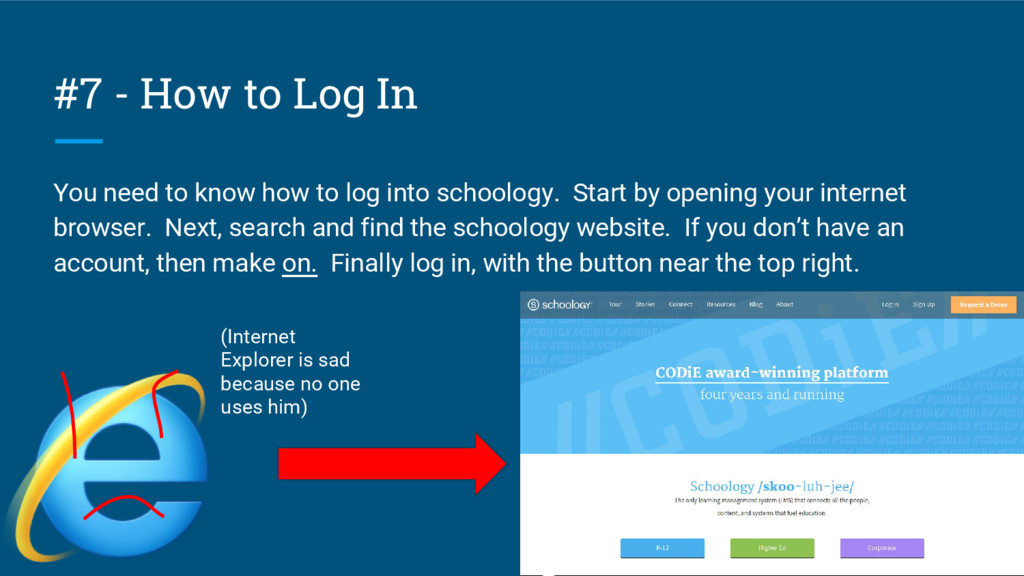
how to log into schoology. Start by opening your internet browser. Next, search and find the schoology website. If you don’t have an account, then make on. Finally log in, with the button near the top right. (Internet Explorer is sad because no one uses him)
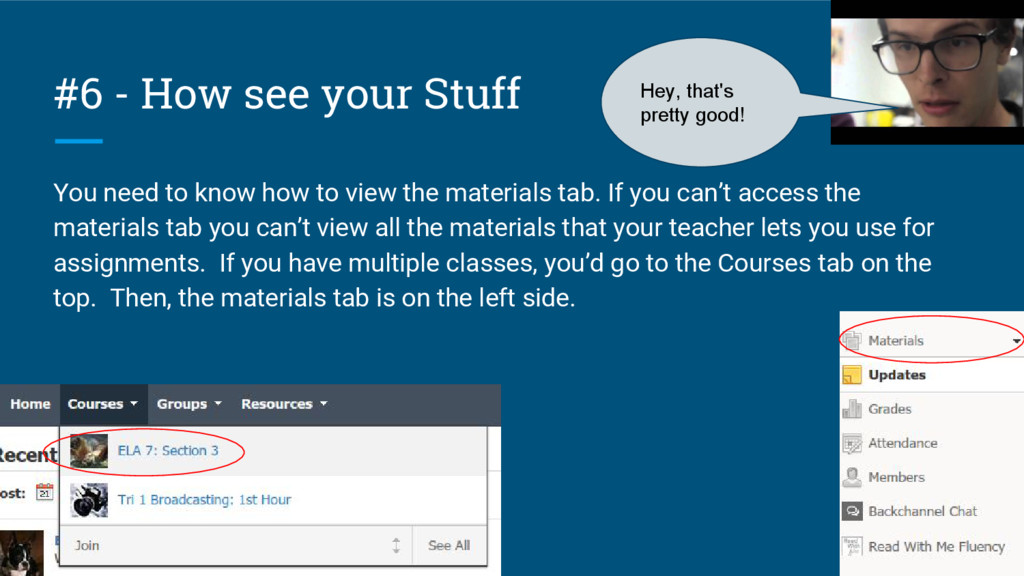
how to view the materials tab. If you can’t access the materials tab you can’t view all the materials that your teacher lets you use for assignments. If you have multiple classes, you’d go to the Courses tab on the top. Then, the materials tab is on the left side. Hey, that's pretty good!
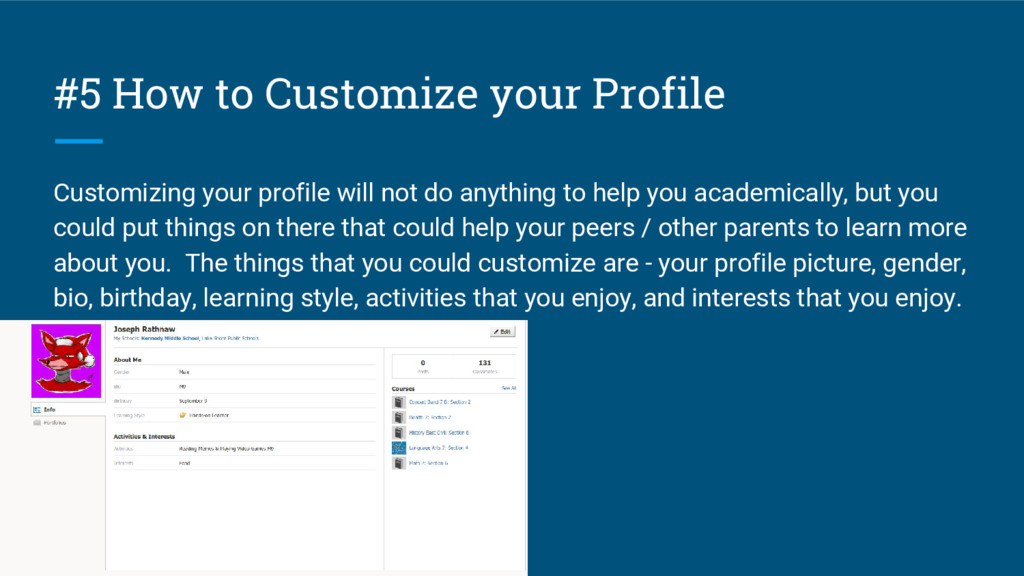
not do anything to help you academically, but you could put things on there that could help your peers / other parents to learn more about you. The things that you could customize are - your profile picture, gender, bio, birthday, learning style, activities that you enjoy, and interests that you enjoy.
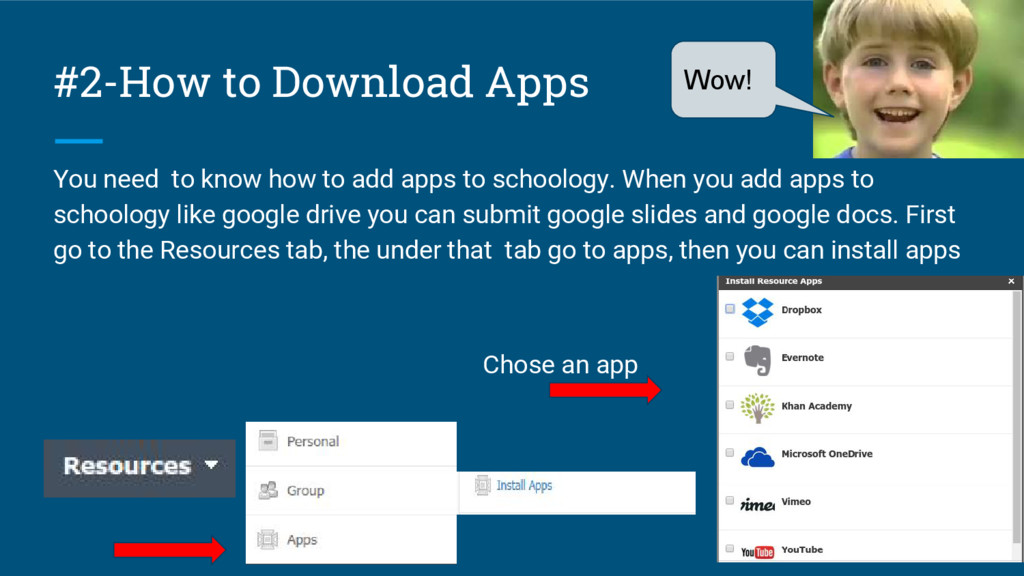
add apps to schoology. When you add apps to schoology like google drive you can submit google slides and google docs. First go to the Resources tab, the under that tab go to apps, then you can install apps Chose an app Wow!
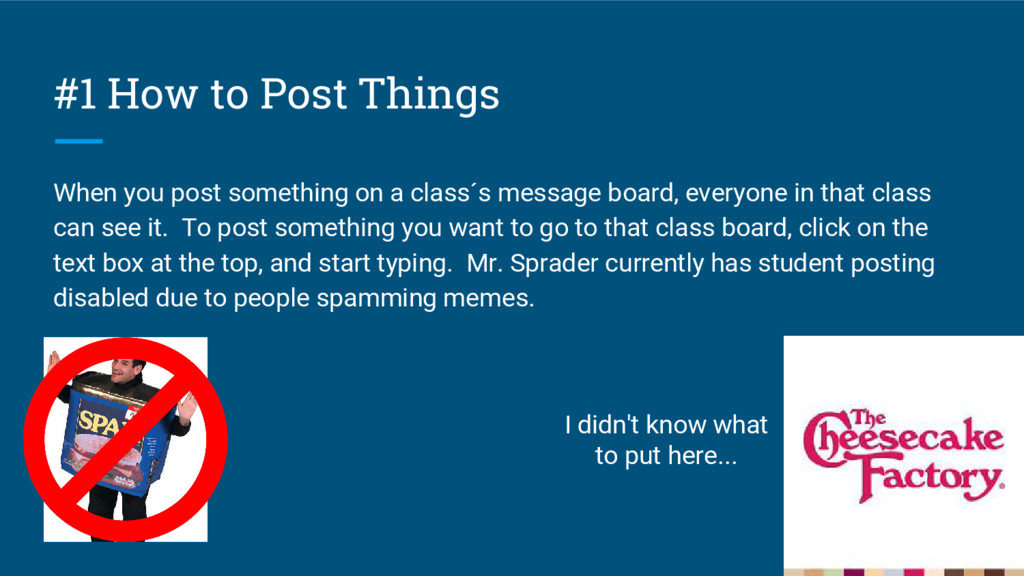
a class´s message board, everyone in that class can see it. To post something you want to go to that class board, click on the text box at the top, and start typing. Mr. Sprader currently has student posting disabled due to people spamming memes. I didn't know what to put here...


 kentarofujii
 techtekt
 hiracky16
 taketakekaho
 recruitengineers
 carta_engineering
 koukihosaka
 gionn
gionn
 yuuuuuuu168
 bitkey
 maimyyym
 willnet
 aleyda
 danielanewman
 csswizardry
 chriscoyier
 tenderlove
 dougneiner
 maltzj
 uxyall
 charlesmeaden
 pedronauck
 panda_program
 kimpetersen