Sales 8 Distribution Facilities Servicing 11 States 2.5 Million Square Feet of Warehousing Acquired Winn Meat 2008 2nd Largest Anheuser-Bush Distributor Began Distributing A/B Product in 1928 800 Million in Sales 11 DCs Servicing AB products to 61 North Texas Counties Distributes Beer from 31 Countries & 21 States to the entire state of Texas
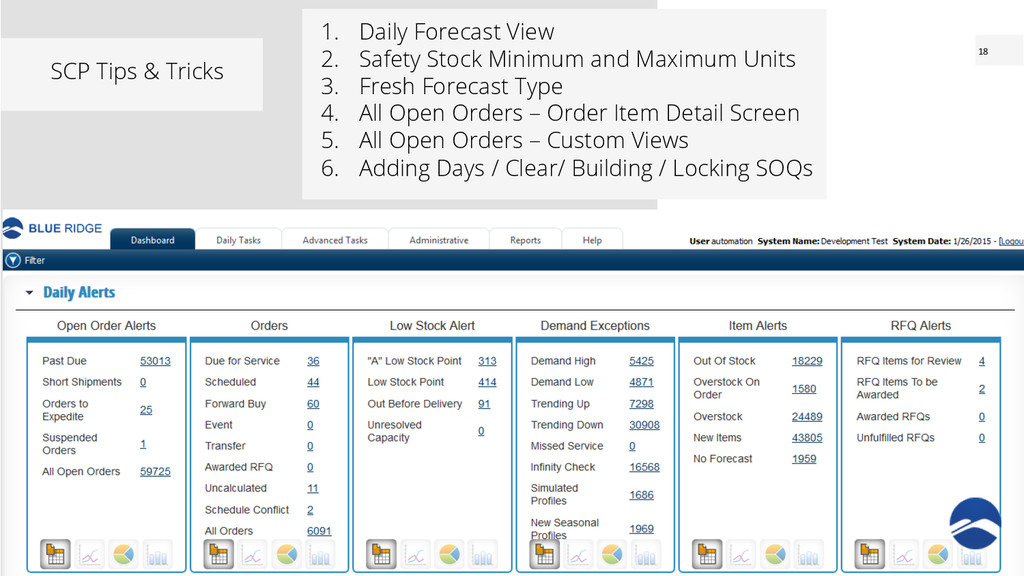
Daily Forecast View 2. Safety Stock Minimum and Maximum Units 3. Fresh Forecast Type 4. All Open Orders – Order Item Detail Screen 5. All Open Orders – Custom Views 6. Adding Days / Clear/ Building / Locking SOQs
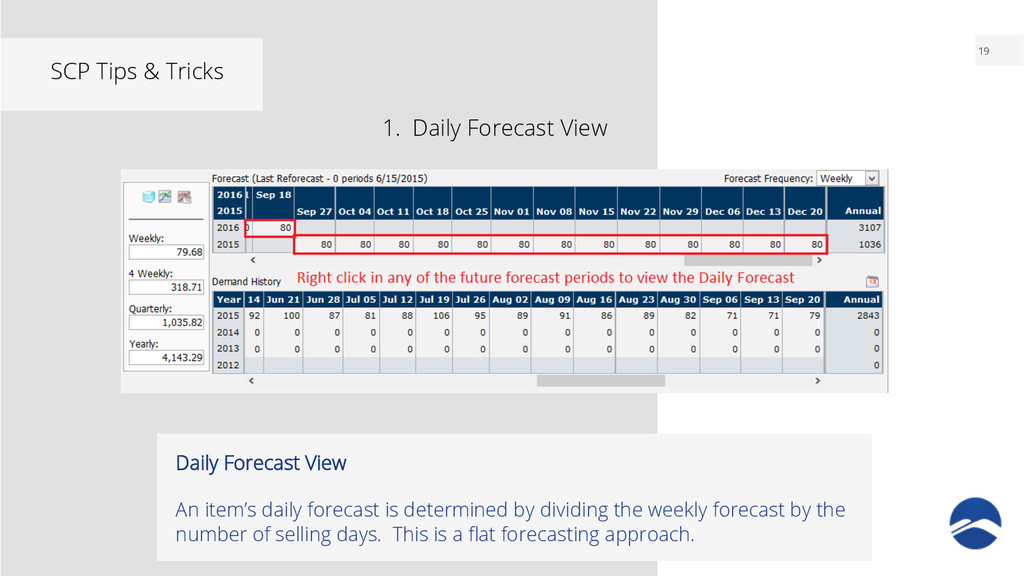
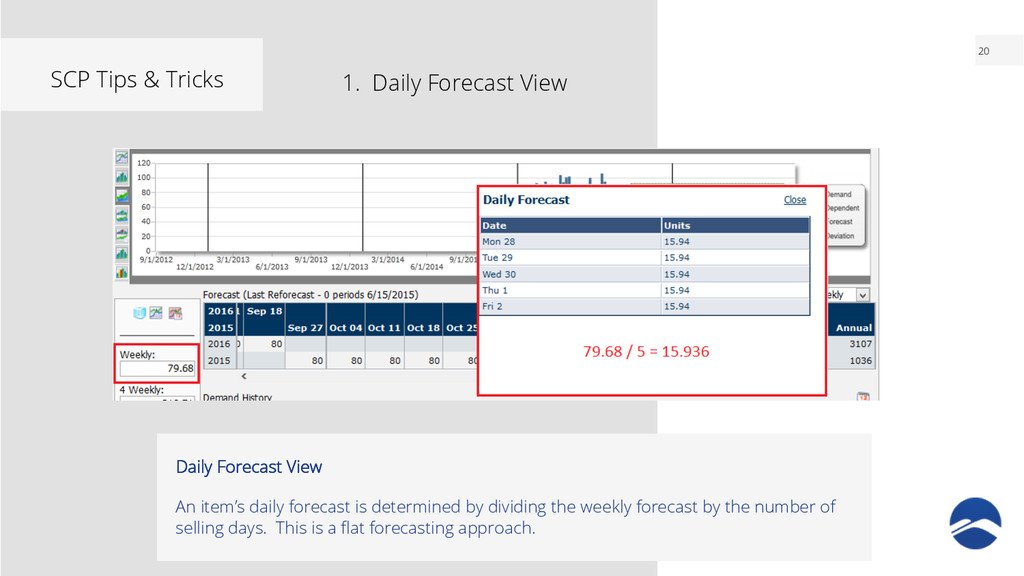
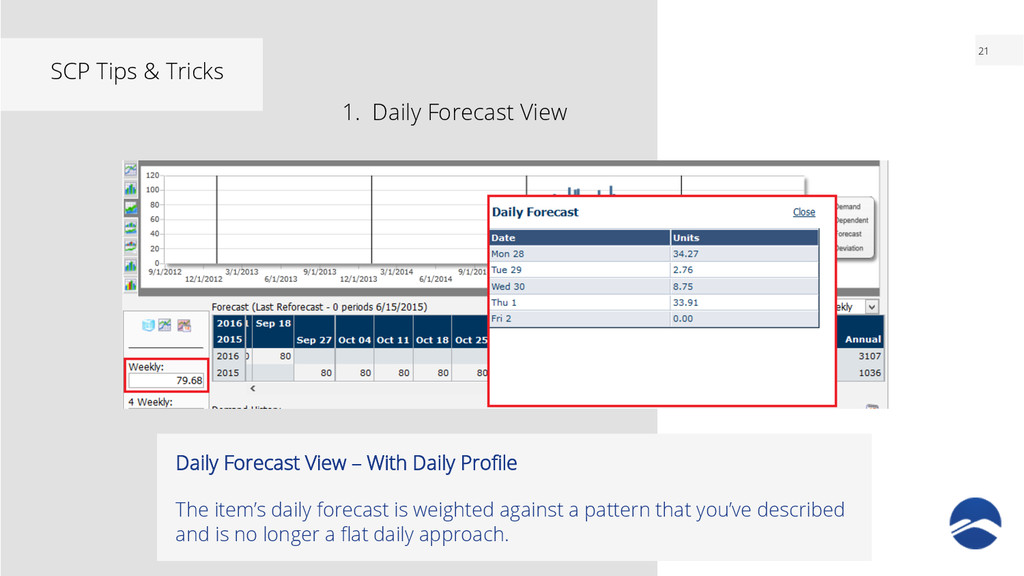
Daily Profile The item’s daily forecast is weighted against a pattern that you’ve described and is no longer a flat daily approach. 1. Daily Forecast View
to view an item’s daily forecast • Ability to see an item’s daily seasonalized forecast • Greater understanding of Order Item Detail screen days to units
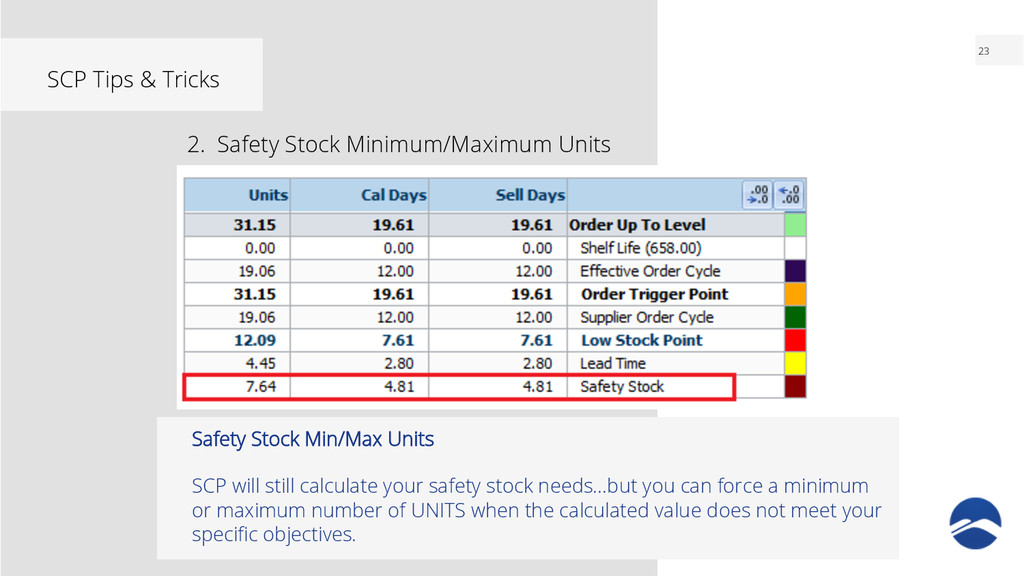
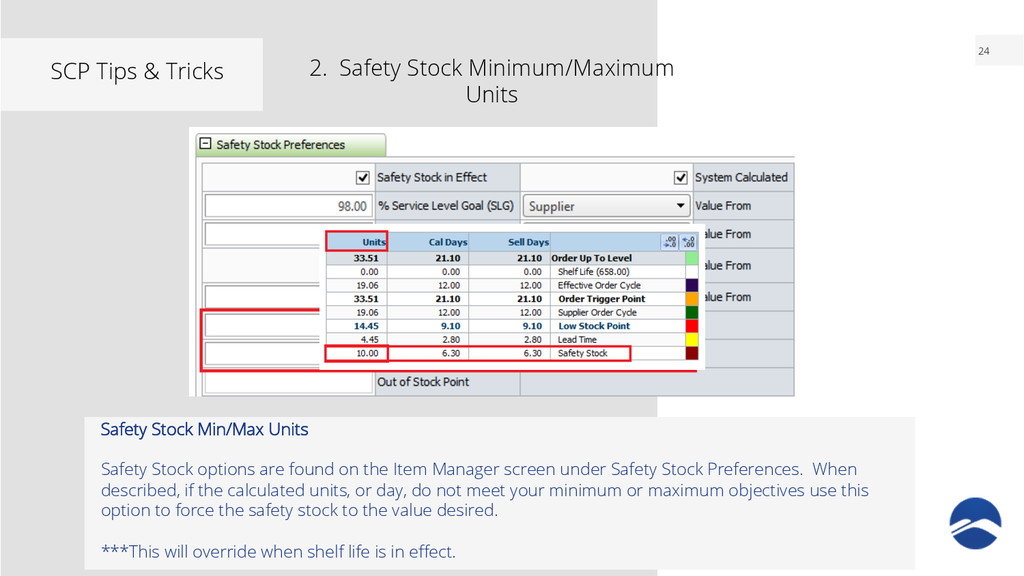
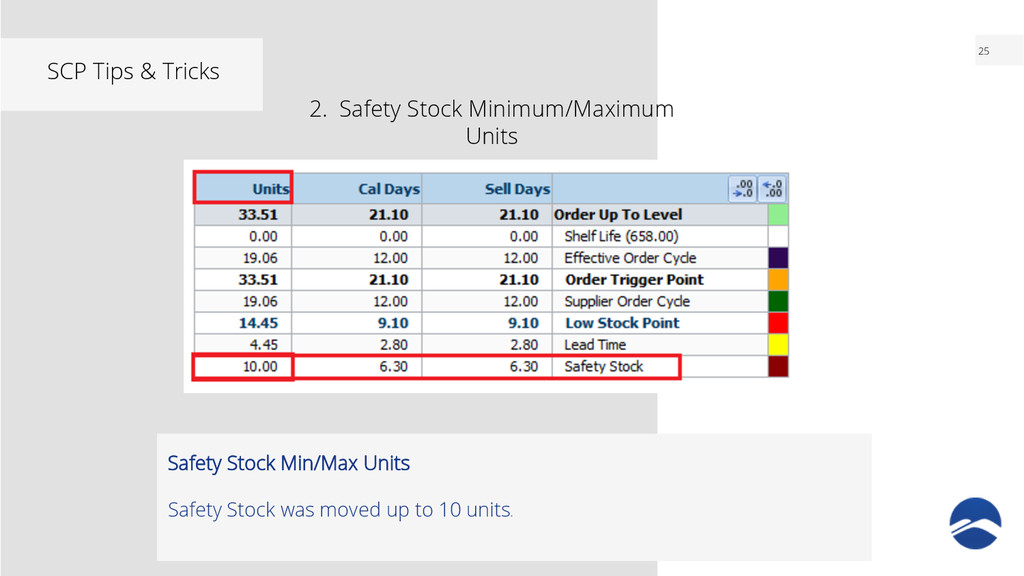
will still calculate your safety stock needs…but you can force a minimum or maximum number of UNITS when the calculated value does not meet your specific objectives. 2. Safety Stock Minimum/Maximum Units
Stock options are found on the Item Manager screen under Safety Stock Preferences. When described, if the calculated units, or day, do not meet your minimum or maximum objectives use this option to force the safety stock to the value desired. ***This will override when shelf life is in effect. 2. Safety Stock Minimum/Maximum Units
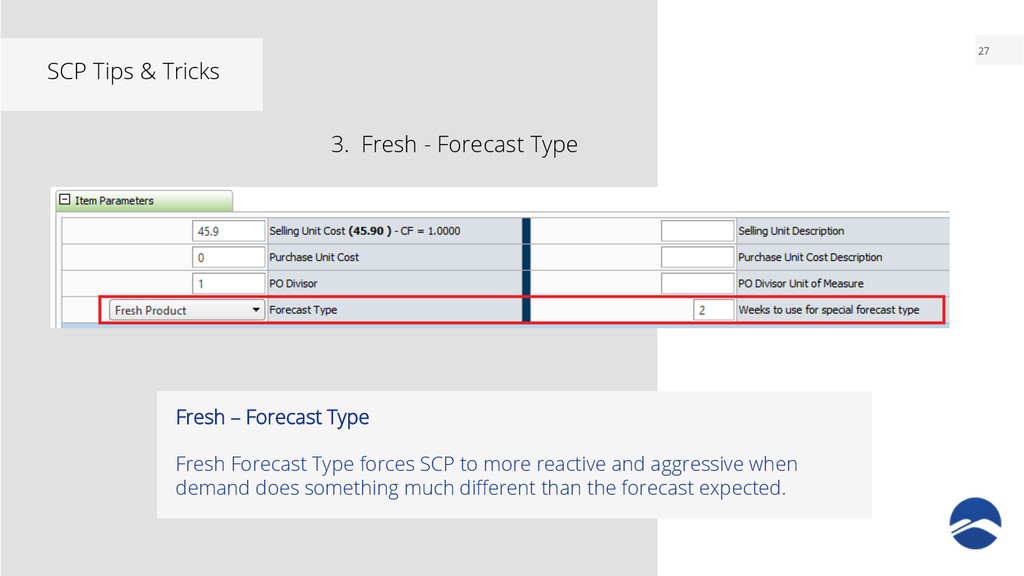
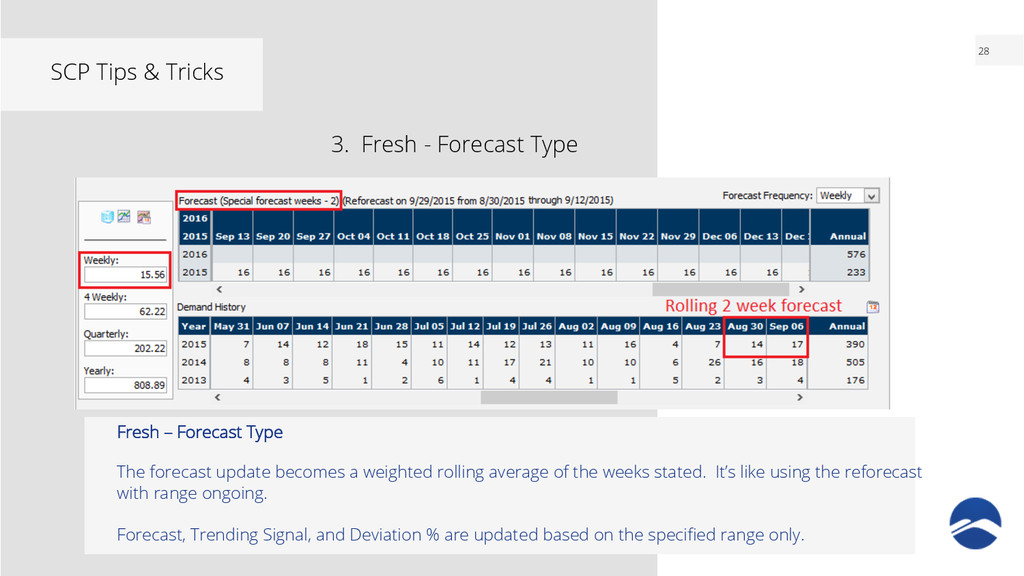
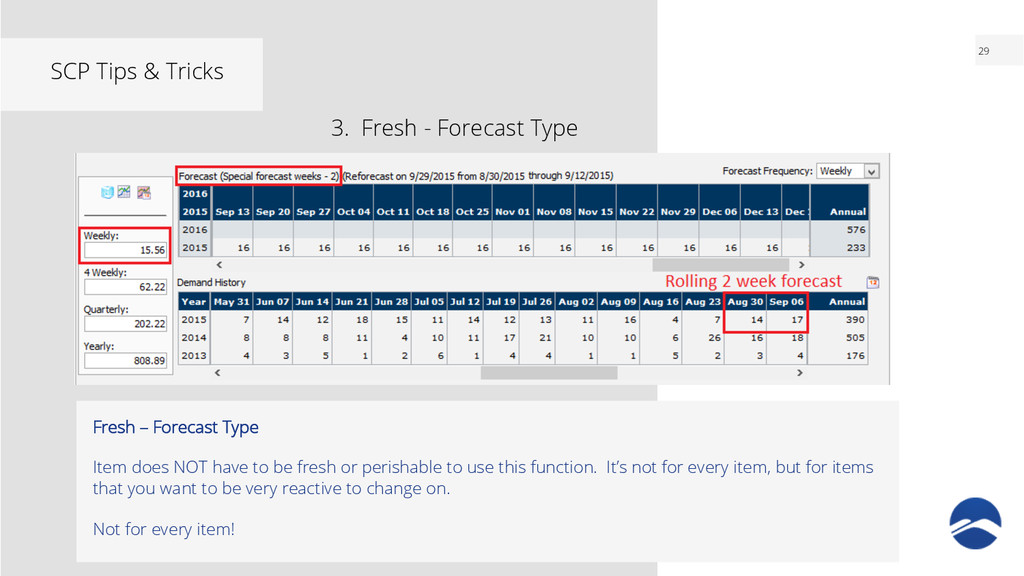
forecast update becomes a weighted rolling average of the weeks stated. It’s like using the reforecast with range ongoing. Forecast, Trending Signal, and Deviation % are updated based on the specified range only. 3. Fresh - Forecast Type
does NOT have to be fresh or perishable to use this function. It’s not for every item, but for items that you want to be very reactive to change on. Not for every item! 3. Fresh - Forecast Type
Forecast Type • The ability to be more aggressive in period end forecast updates • Weeks to use are rolling weighted average • Item does not have to be perishable to use this function
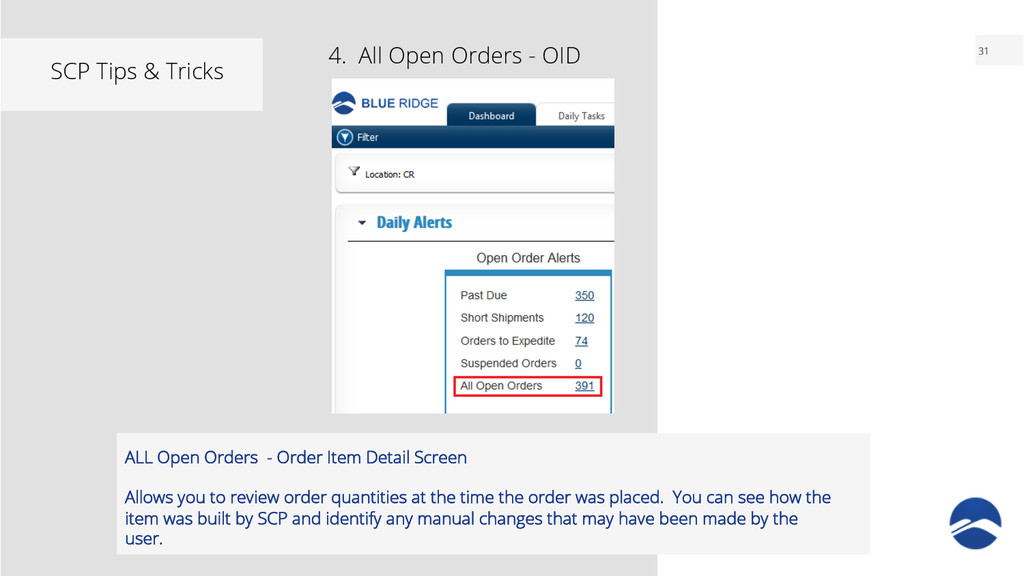
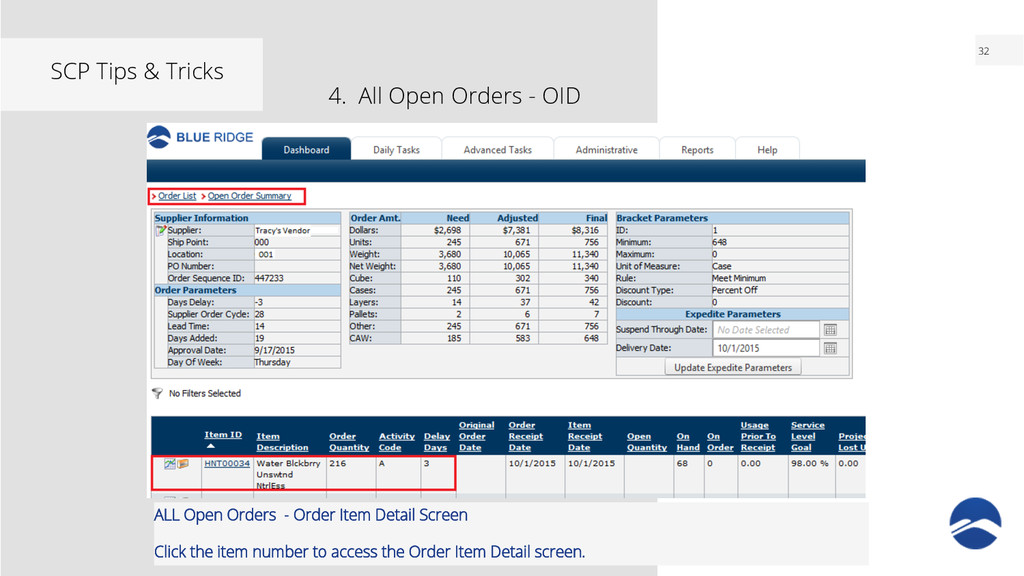
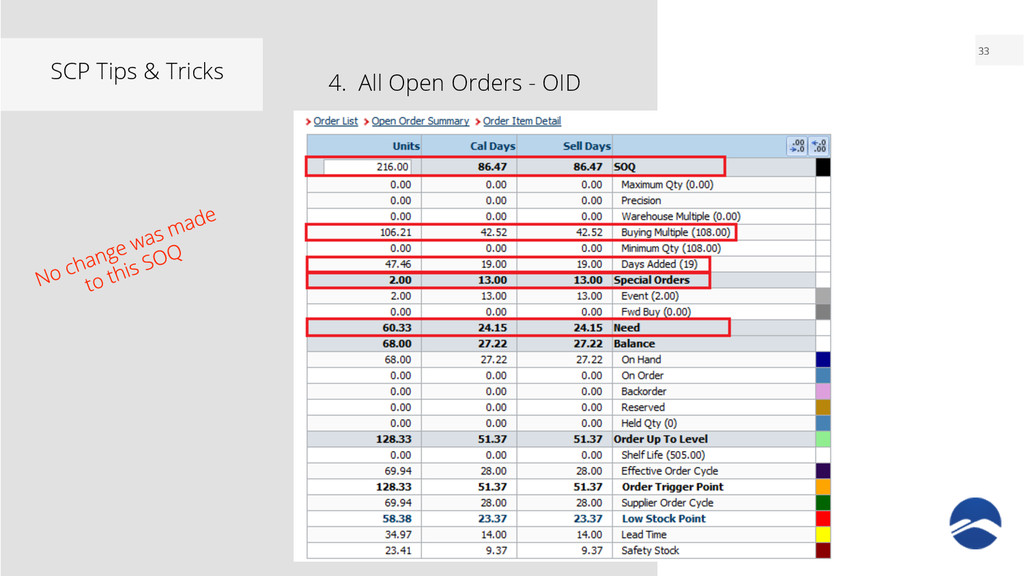
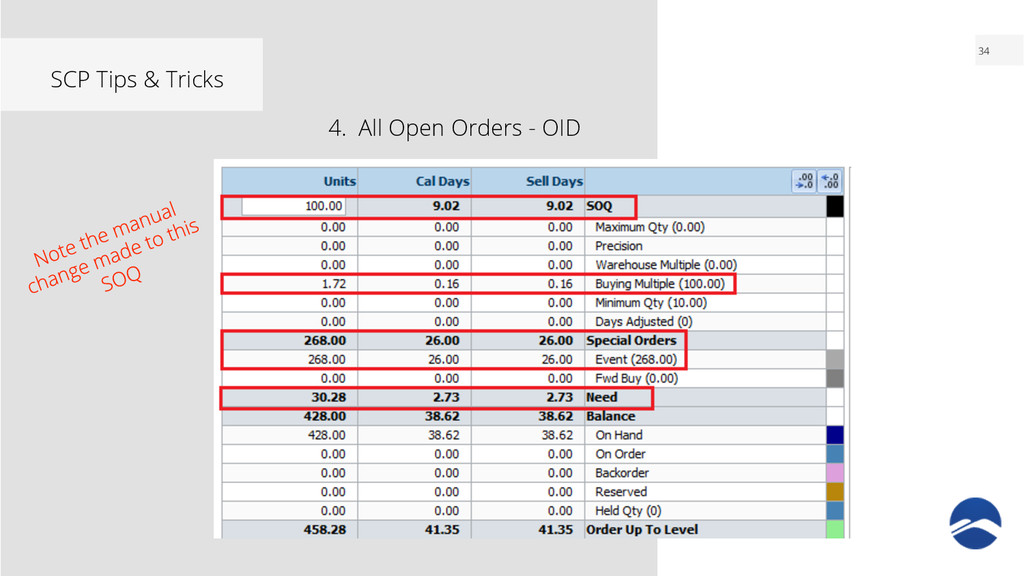
Item Detail Screen Allows you to review order quantities at the time the order was placed. You can see how the item was built by SCP and identify any manual changes that may have been made by the user. 4. All Open Orders - OID
• Users can explain WHY the amount was ordered • Management can easily identify when SCP is being overridden and can explain out of stock and overstock inventory • Good indicator of trust in setup and identifies additional training opportunities • Should be used with SOQ Change reporting from SCA All Open Orders – OID Screen The Order Item Detail screen is a snapshot of the building of the SOQ at the time the order was placed.
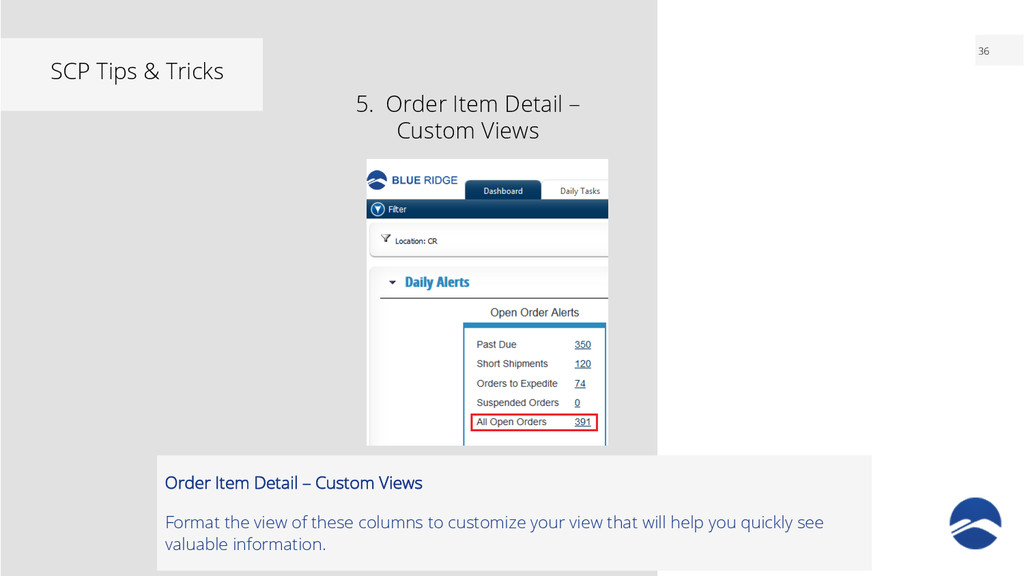
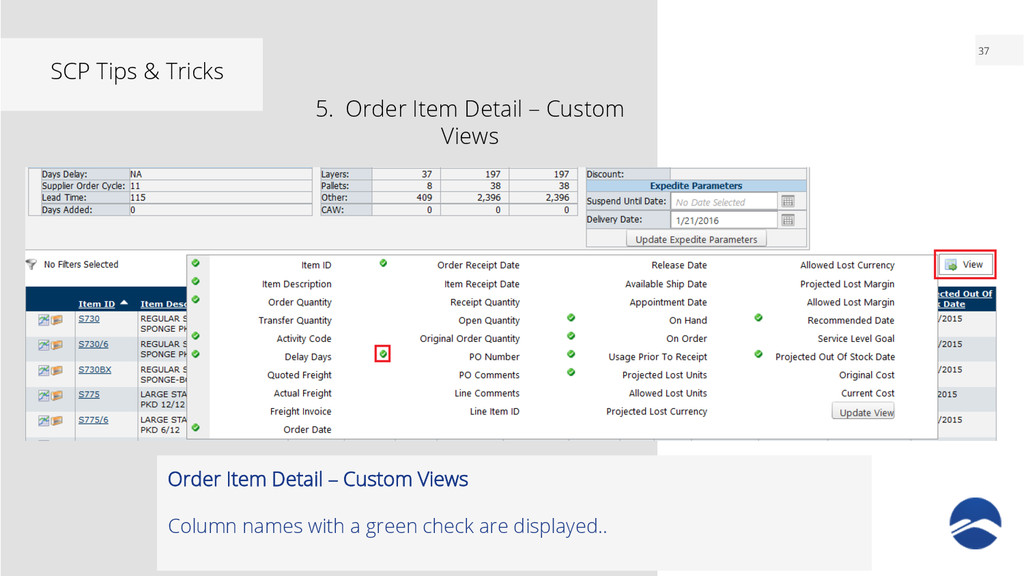
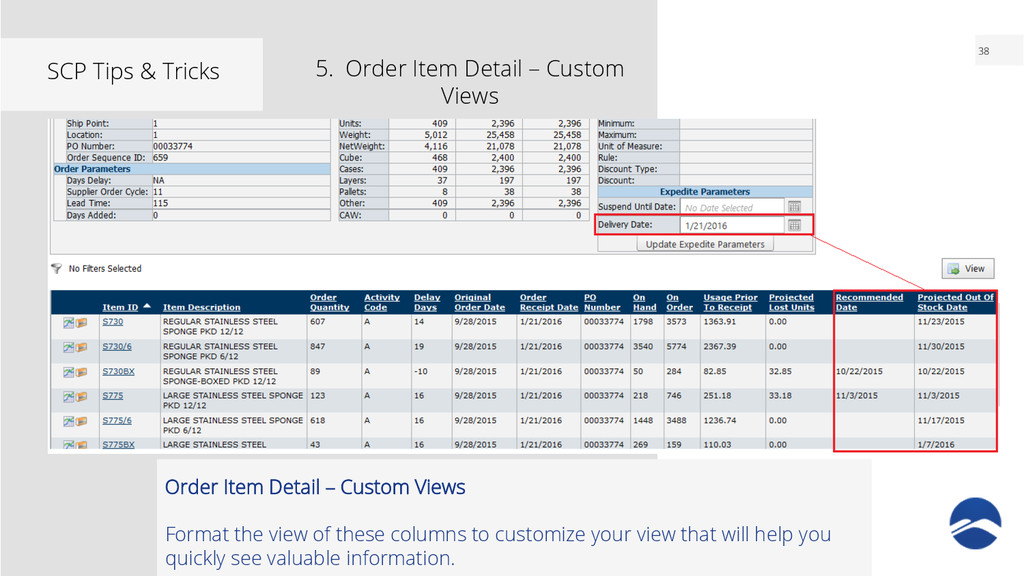
Views • VIEW is unique for each user login • VIEW is not the default for All Open Orders view • Customize your VIEW to easily identify future out of stock items
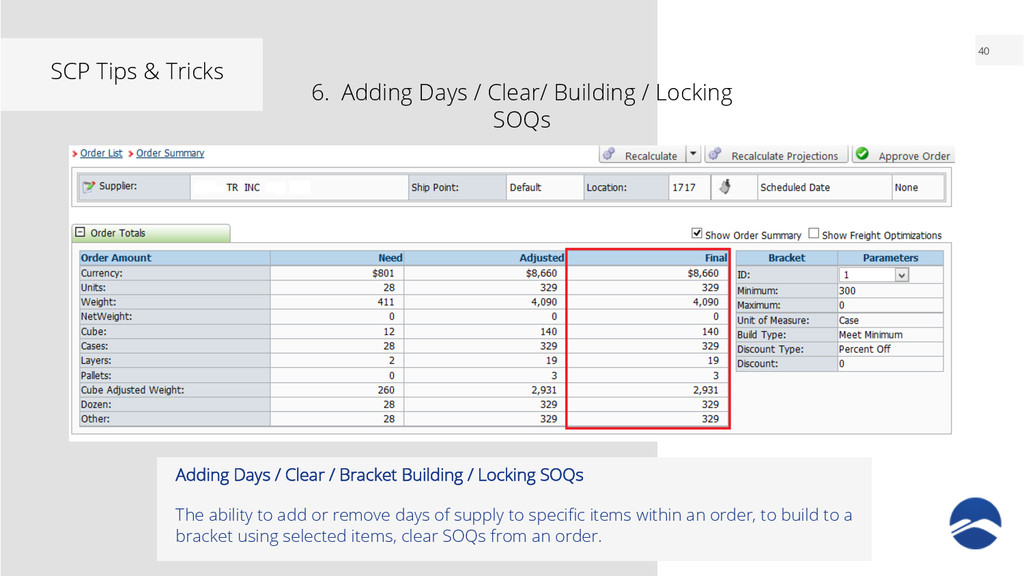
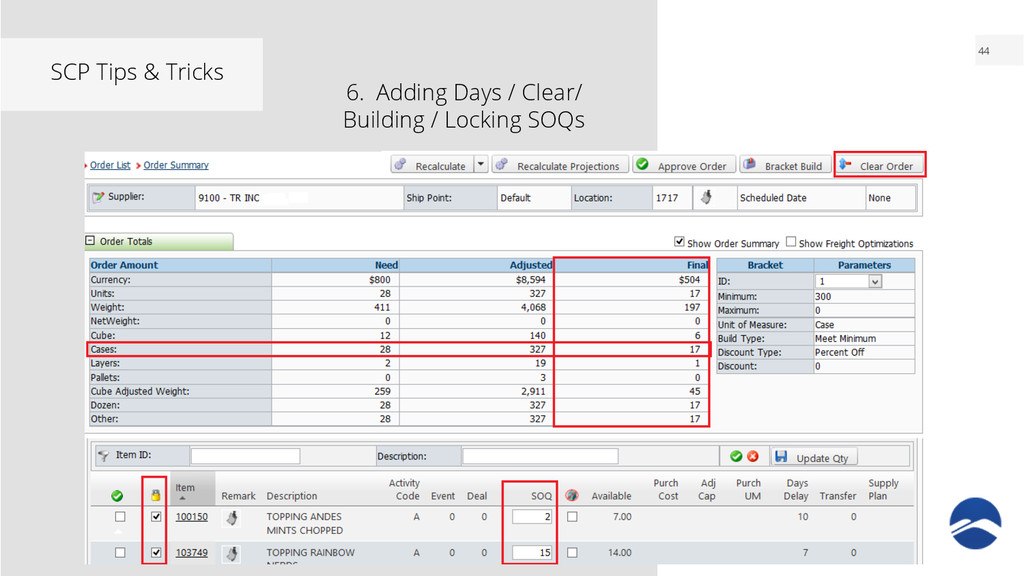
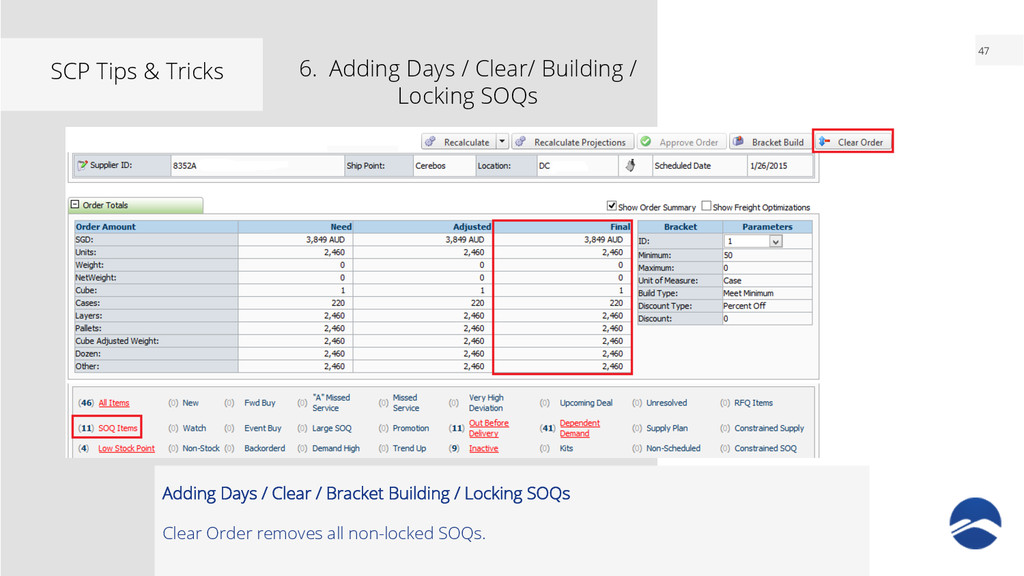
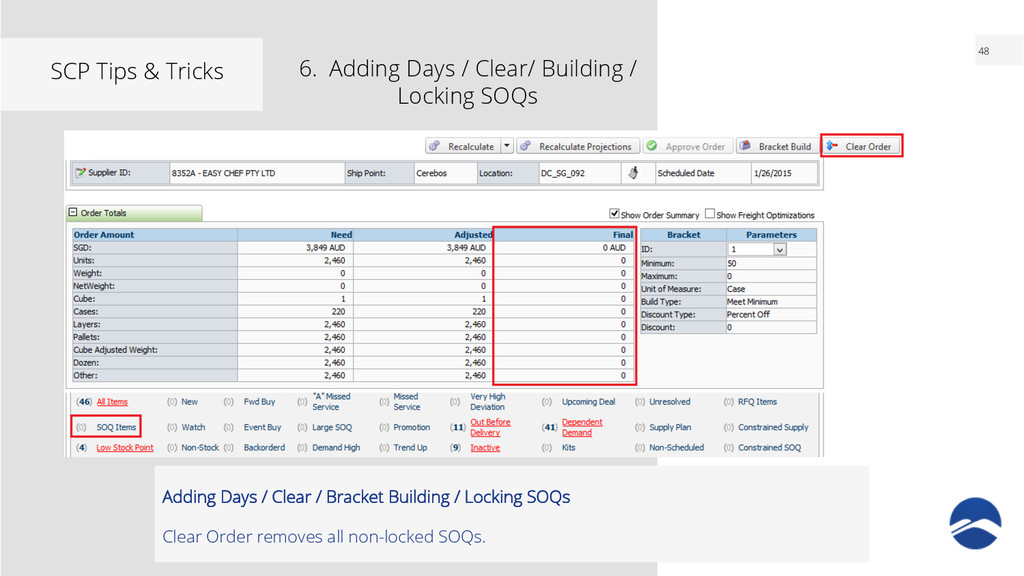
Building / Locking SOQs Adding Days / Clear / Bracket Building / Locking SOQs The ability to add or remove days of supply to specific items within an order, to build to a bracket using selected items, clear SOQs from an order.
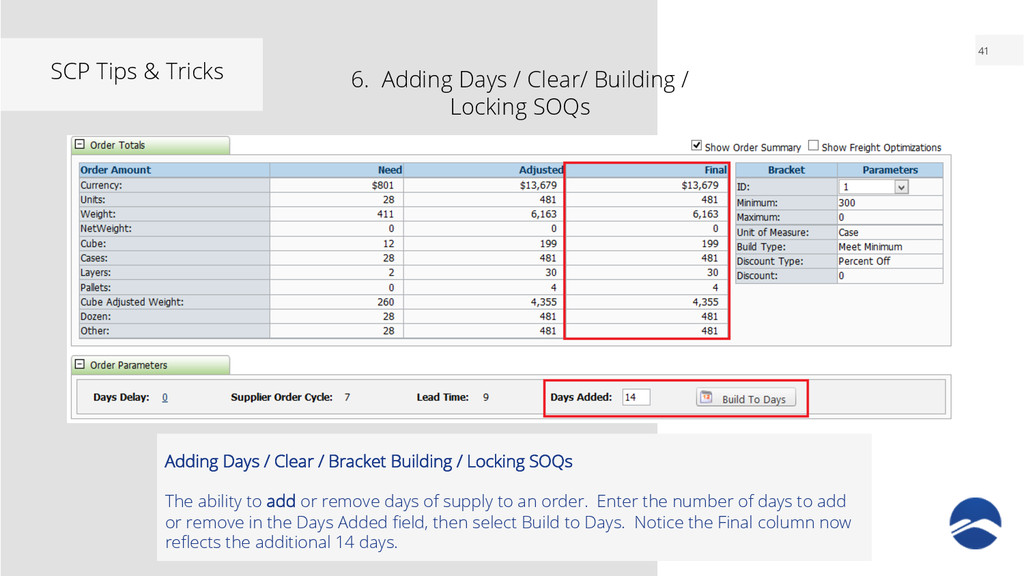
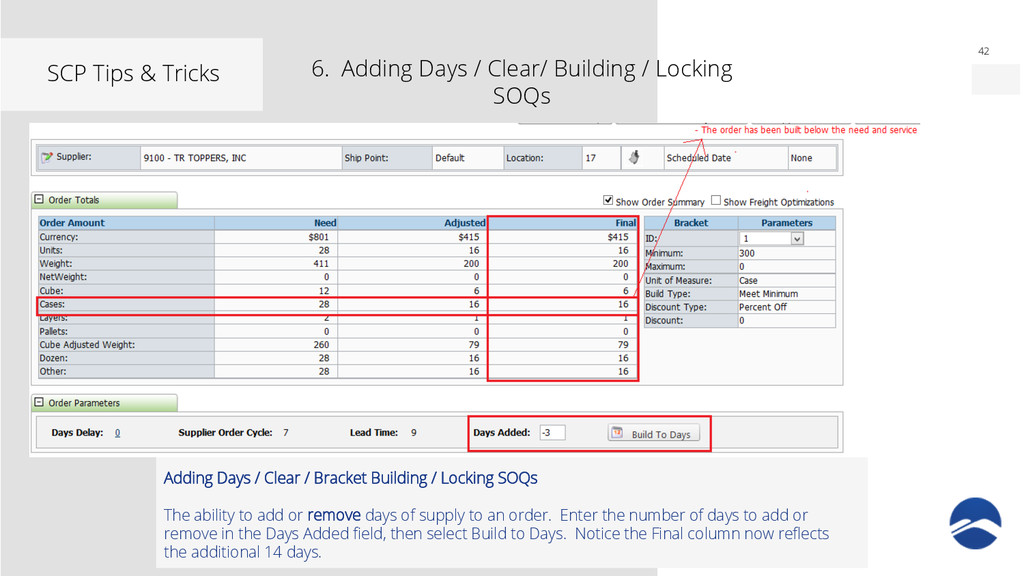
Bracket Building / Locking SOQs The ability to add or remove days of supply to an order. Enter the number of days to add or remove in the Days Added field, then select Build to Days. Notice the Final column now reflects the additional 14 days. 6. Adding Days / Clear/ Building / Locking SOQs
Bracket Building / Locking SOQs The ability to add or remove days of supply to an order. Enter the number of days to add or remove in the Days Added field, then select Build to Days. Notice the Final column now reflects the additional 14 days. 6. Adding Days / Clear/ Building / Locking SOQs
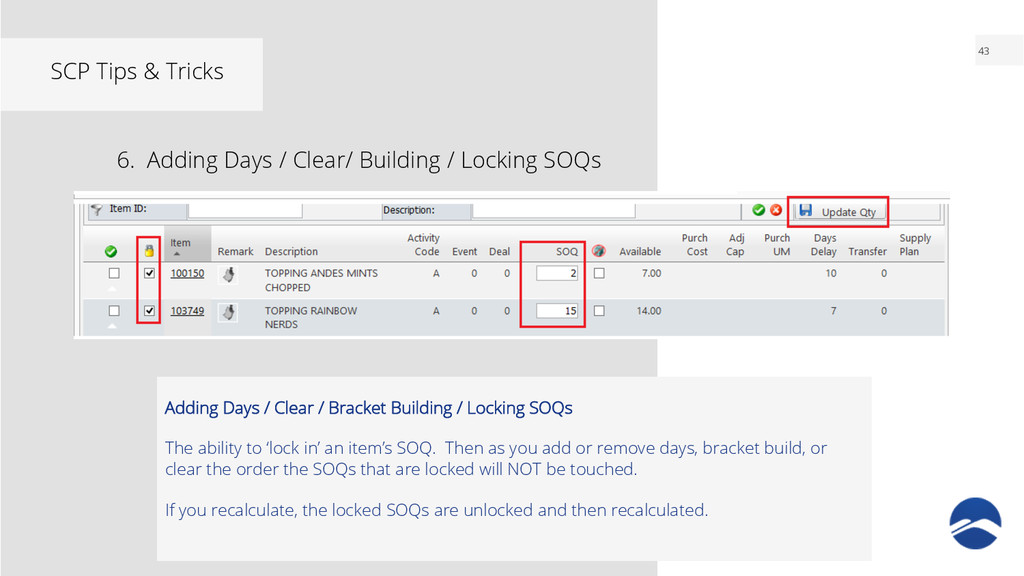
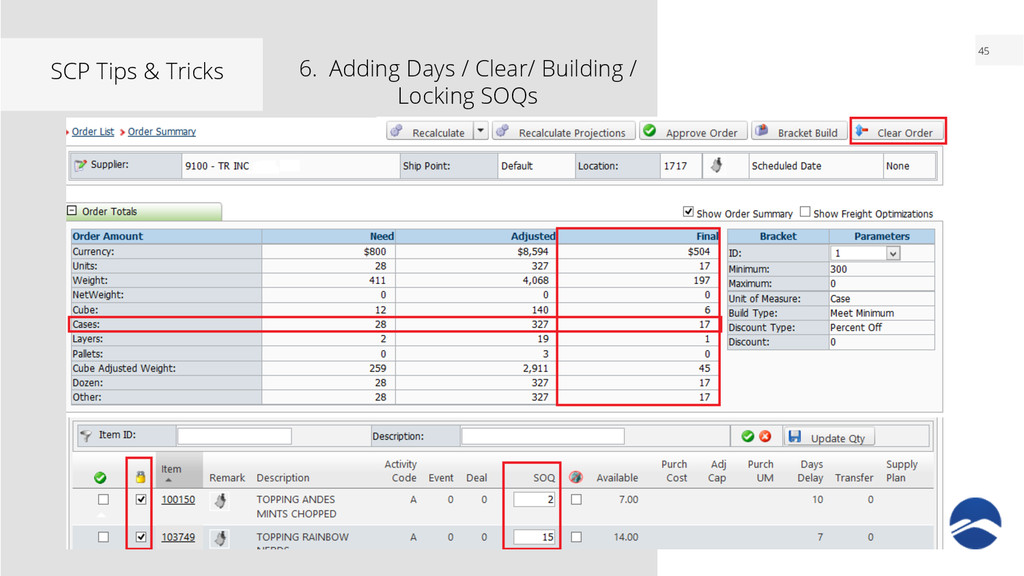
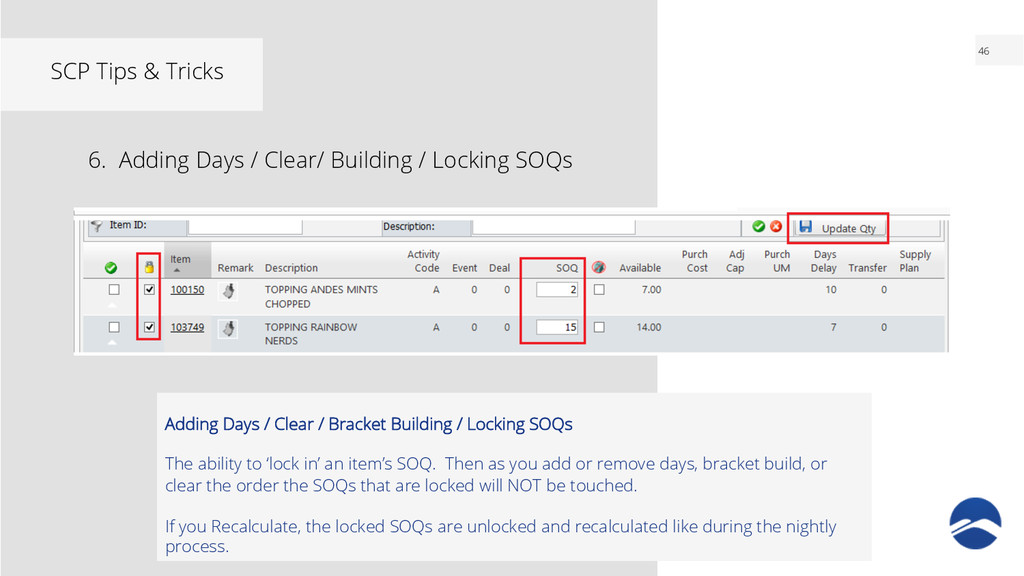
Bracket Building / Locking SOQs The ability to ‘lock in’ an item’s SOQ. Then as you add or remove days, bracket build, or clear the order the SOQs that are locked will NOT be touched. If you recalculate, the locked SOQs are unlocked and then recalculated. 6. Adding Days / Clear/ Building / Locking SOQs
Bracket Building / Locking SOQs The ability to ‘lock in’ an item’s SOQ. Then as you add or remove days, bracket build, or clear the order the SOQs that are locked will NOT be touched. If you Recalculate, the locked SOQs are unlocked and recalculated like during the nightly process. 6. Adding Days / Clear/ Building / Locking SOQs


 carolyndinapoli7
 jonoalderson
 bryan
bryan
 geshan
 tessaabrams
 baasie
 lara
lara
 ianozsvald
 techseoconnect
 cassininazir
 aleyda
 jcasabona
 ipullrank