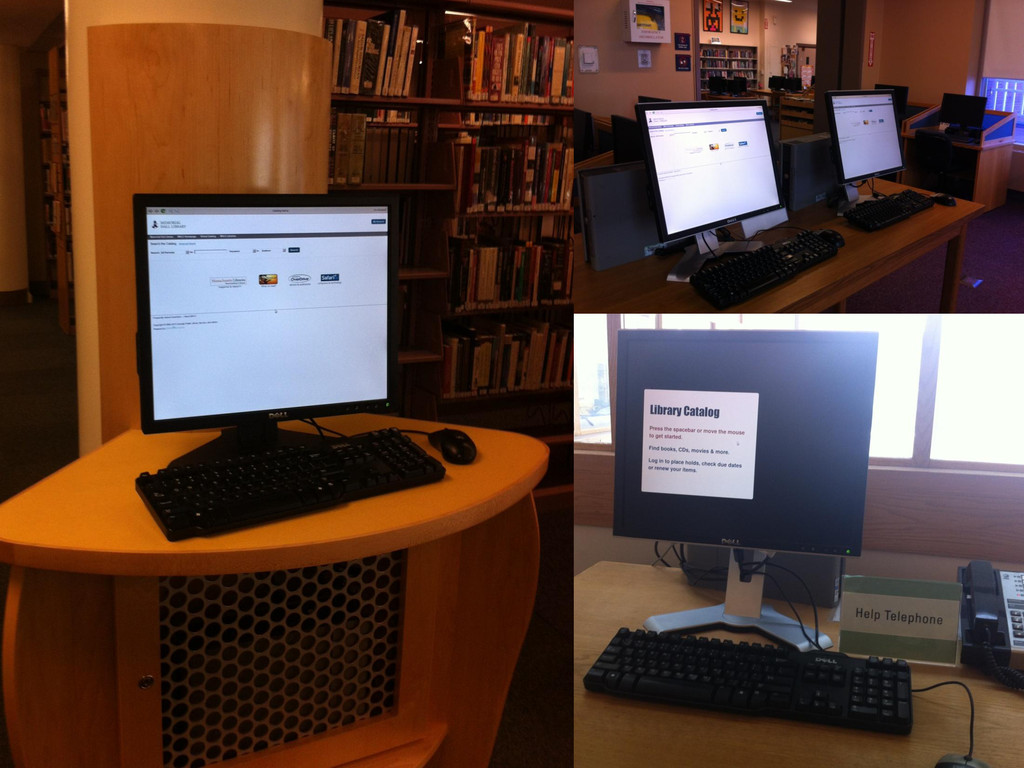
no signup or login required • hardly ever any wait • staff involved only if patron wants help • for some, easier to use than mobile tech • we want people to find our stuff!
monitor, keyboard & mouse (or touchscreen) • hardware to run software (e.g., web browser) • standalone computers, or • a server plus terminals • a place big enough to accommodate the above
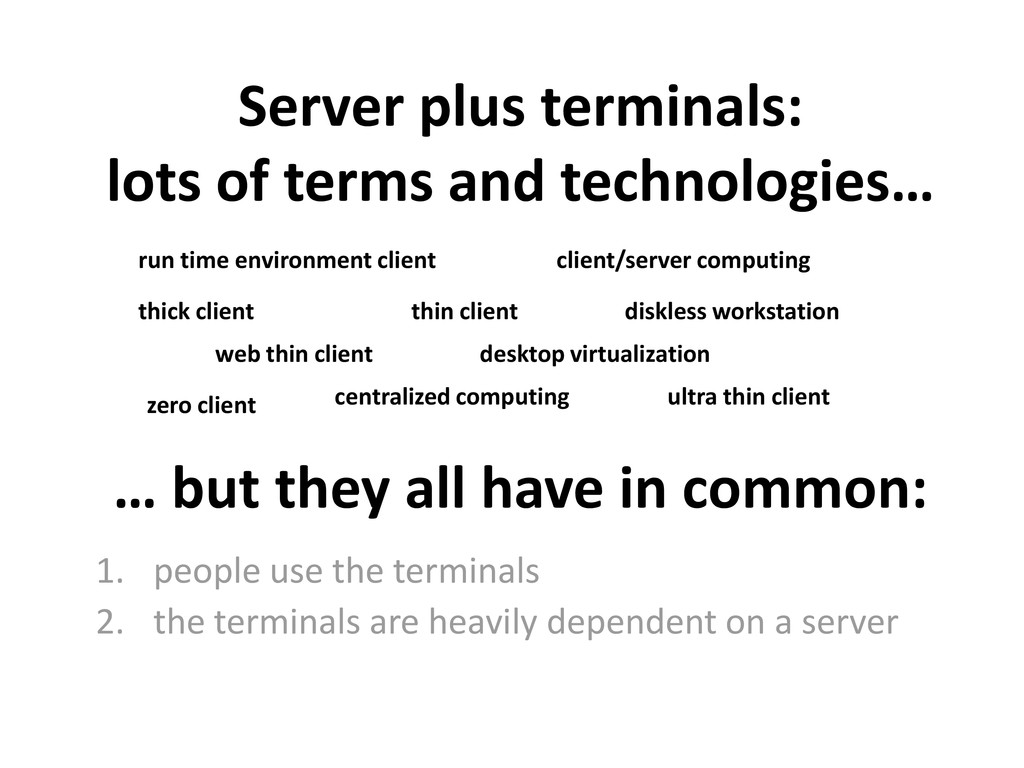
thick client zero client web thin client ultra thin client run time environment client desktop virtualization client/server computing diskless workstation centralized computing … but they all have in common: 1. people use the terminals 2. the terminals are heavily dependent on a server
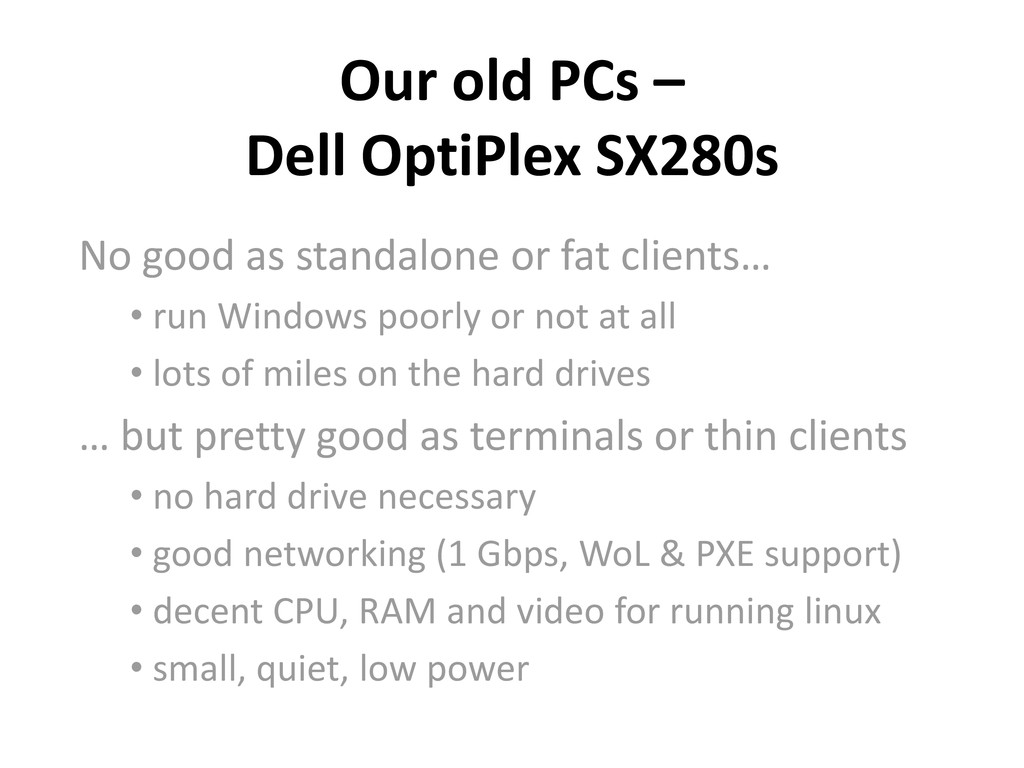
standalone or fat clients… • run Windows poorly or not at all • lots of miles on the hard drives … but pretty good as terminals or thin clients • no hard drive necessary • good networking (1 Gbps, WoL & PXE support) • decent CPU, RAM and video for running linux • small, quiet, low power
no longer suitable for running full desktop operating systems • easy management – update software on server once and all clients get the update • long history with decent community support • other libraries, schools use and like it • free and open source
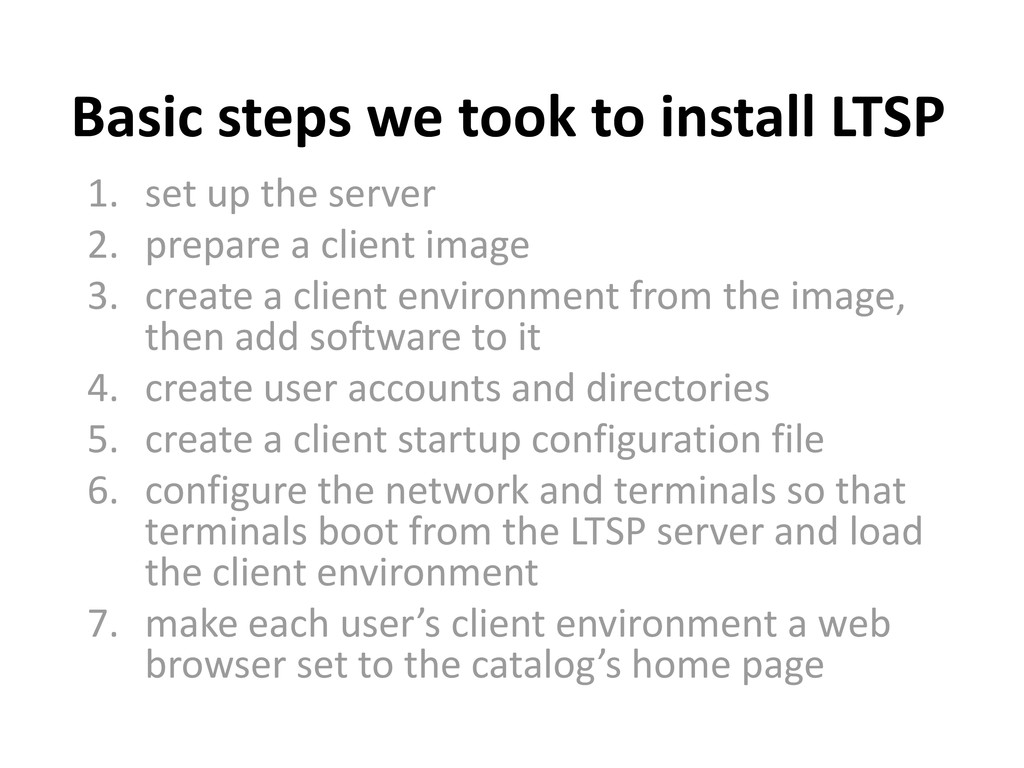
the server 2. prepare a client image 3. create a client environment from the image, then add software to it 4. create user accounts and directories 5. create a client startup configuration file 6. configure the network and terminals so that terminals boot from the LTSP server and load the client environment 7. make each user’s client environment a web browser set to the catalog’s home page
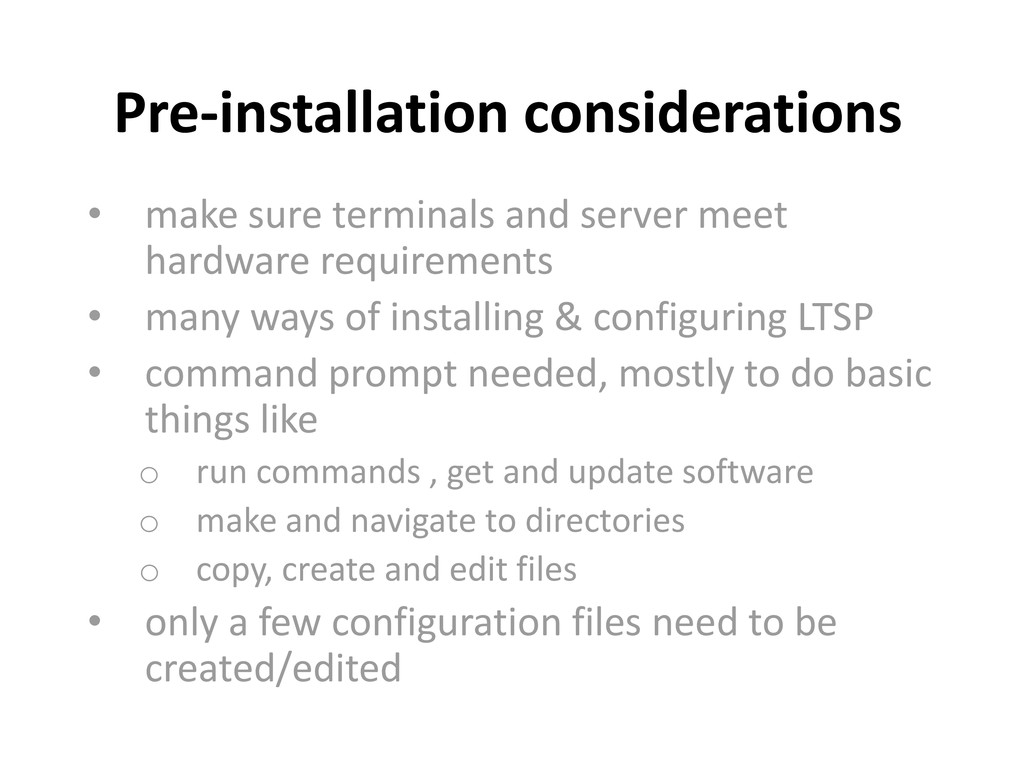
requirements • many ways of installing & configuring LTSP • command prompt needed, mostly to do basic things like o run commands , get and update software o make and navigate to directories o copy, create and edit files • only a few configuration files need to be created/edited
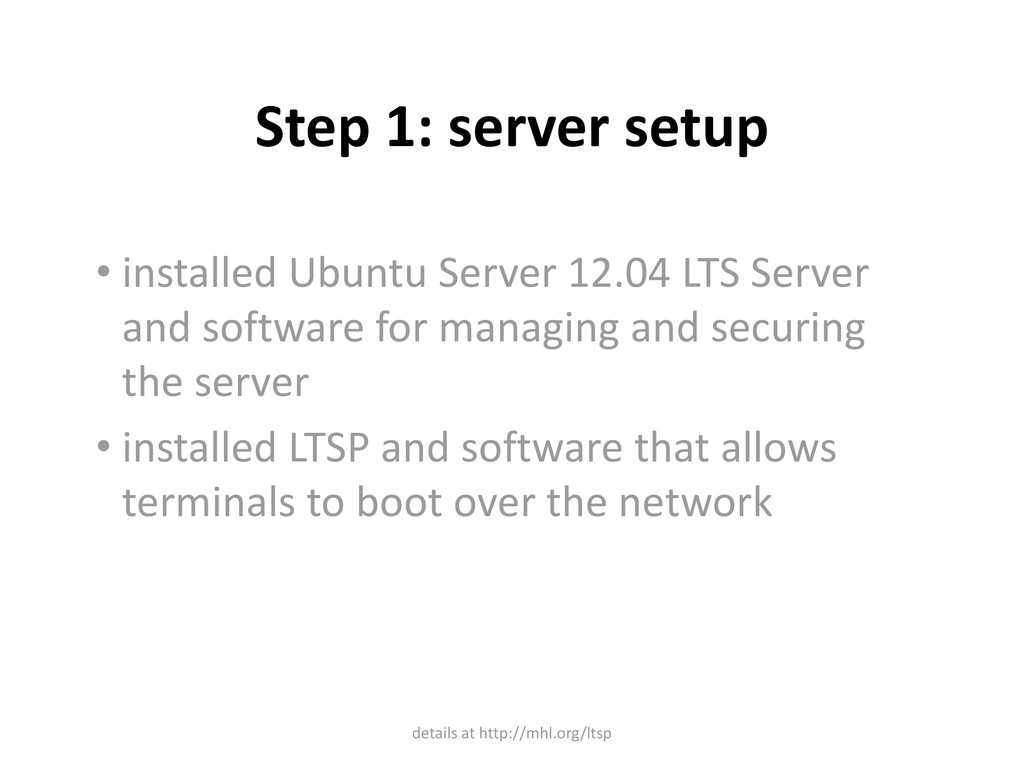
Server and software for managing and securing the server • installed LTSP and software that allows terminals to boot over the network details at http://mhl.org/ltsp
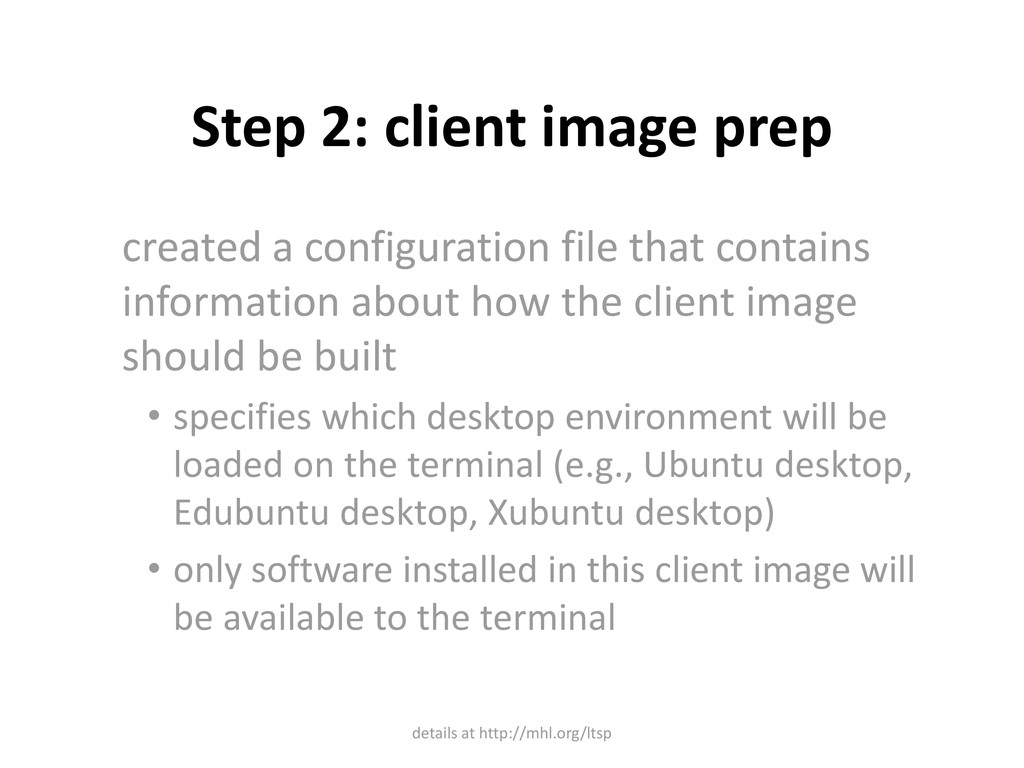
contains information about how the client image should be built • specifies which desktop environment will be loaded on the terminal (e.g., Ubuntu desktop, Edubuntu desktop, Xubuntu desktop) • only software installed in this client image will be available to the terminal details at http://mhl.org/ltsp
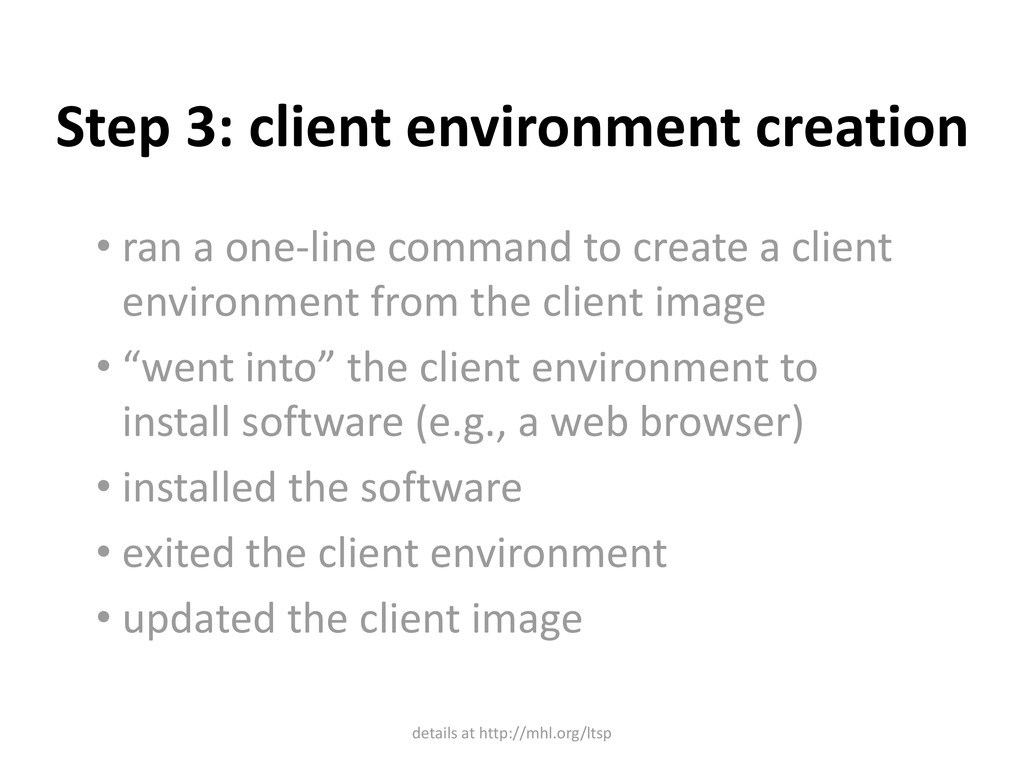
to create a client environment from the client image • “went into” the client environment to install software (e.g., a web browser) • installed the software • exited the client environment • updated the client image details at http://mhl.org/ltsp
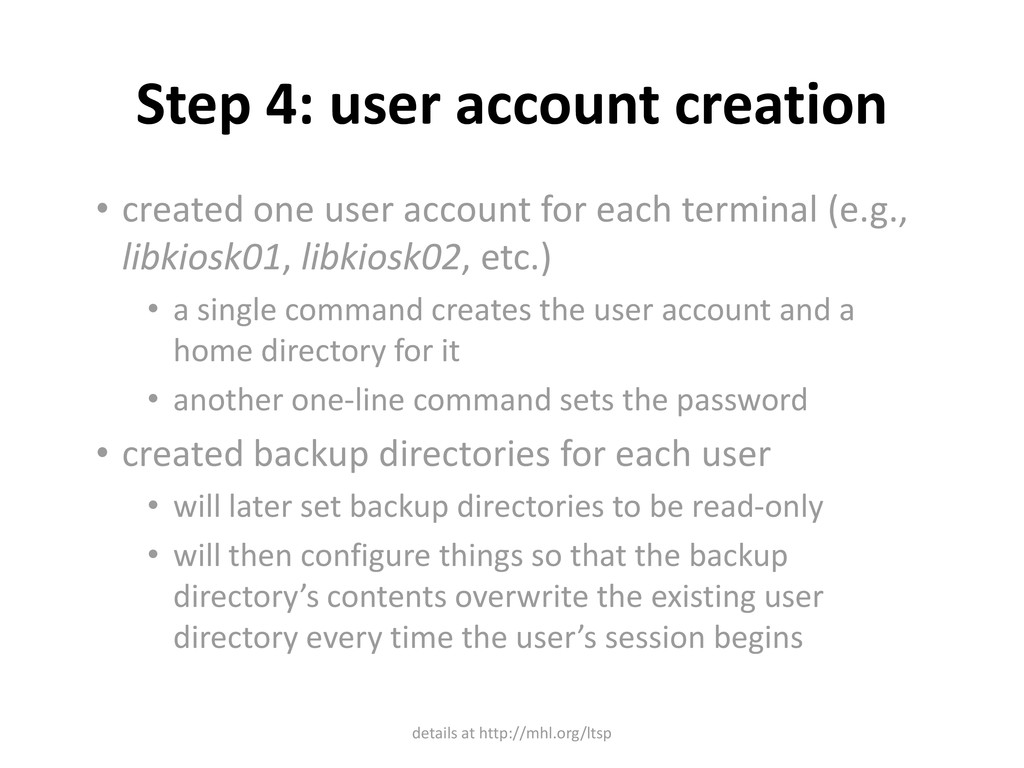
for each terminal (e.g., libkiosk01, libkiosk02, etc.) • a single command creates the user account and a home directory for it • another one-line command sets the password • created backup directories for each user • will later set backup directories to be read-only • will then configure things so that the backup directory’s contents overwrite the existing user directory every time the user’s session begins details at http://mhl.org/ltsp
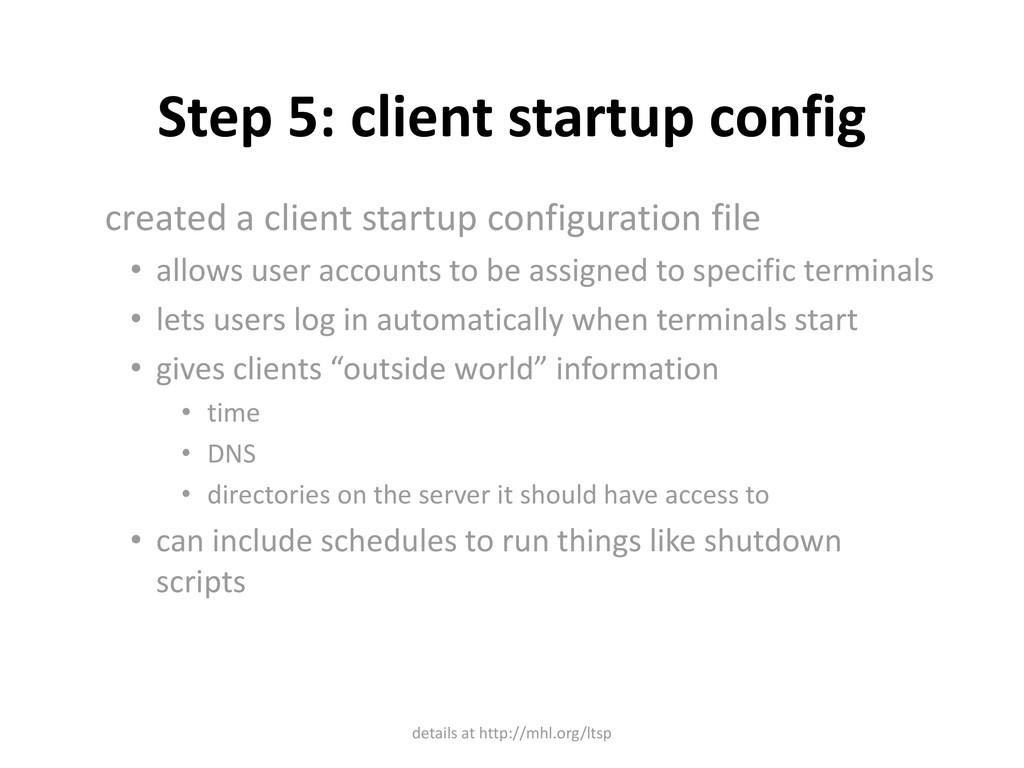
file • allows user accounts to be assigned to specific terminals • lets users log in automatically when terminals start • gives clients “outside world” information • time • DNS • directories on the server it should have access to • can include schedules to run things like shutdown scripts details at http://mhl.org/ltsp
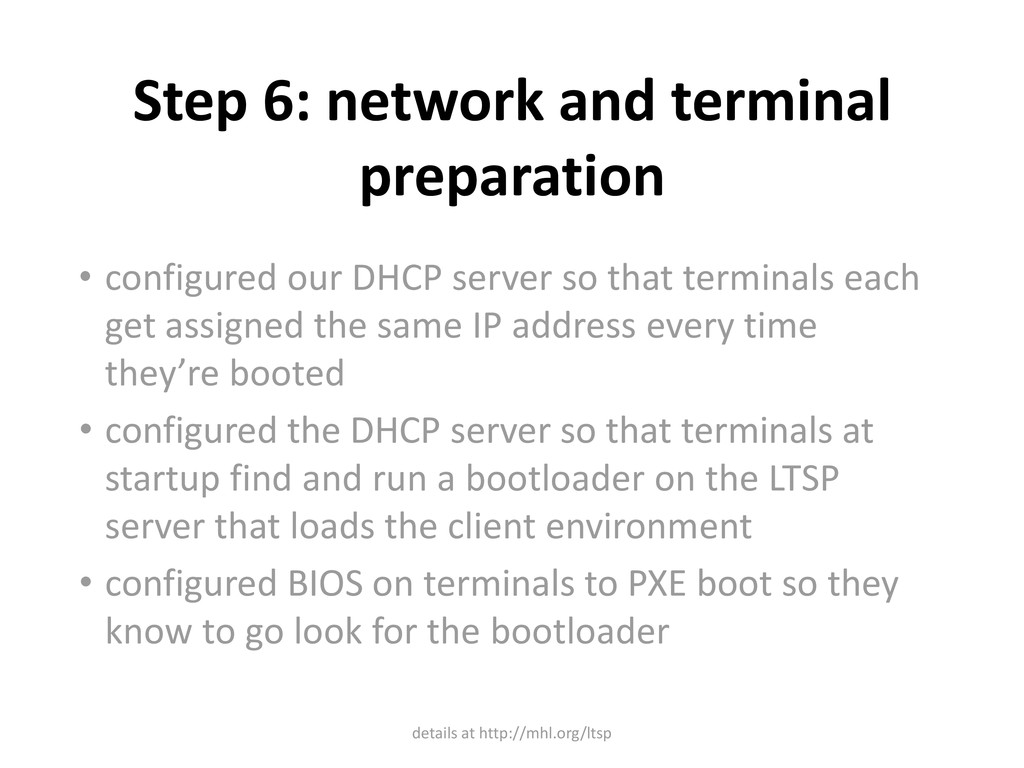
server so that terminals each get assigned the same IP address every time they’re booted • configured the DHCP server so that terminals at startup find and run a bootloader on the LTSP server that loads the client environment • configured BIOS on terminals to PXE boot so they know to go look for the bootloader details at http://mhl.org/ltsp
from the server and log in automatically to a desktop • the next step is to configure the client environment so the terminal runs only a browser • if you put an .xsession file in the user’s home directory, whatever commands are in it will run (e.g., launch a browser) instead of the default graphical session (i.e., the desktop) details at http://mhl.org/ltsp
etc. • all are modern and can be locked down somewhat with administrative template files and/or add-ons • WCGBrowser • based on webkit browser engine (which powers Safari) • built specifically for web kiosks • can be configured to use whitelists/blacklists • can run a screensaver on idle • simple interface • configurable via text files details at http://mhl.org/ltsp
the user’s session to time out and restart after a given number of minutes of inactivity from the mouse/keyboard • runs a command that causes a pristine copy of the user’s directory to overwrite whatever was left from the user’s previous session • runs a command that launches the web browser and loads the catalog’s web page details at http://mhl.org/ltsp
down the terminals at given times of day for different days • disabled virtual console switching • disabled power buttons on terminals • configured terminals’ BIOSes to respond to a Wake on LAN signal (i.e., power on) • scheduled WoL signals to be sent a few minutes before the start of business on days that the library is open details at http://mhl.org/ltsp


 paigeccino
 emna__ayadi
 jeffersonlam
 tomoyanonymous
 pwiseman
 nikkihalliwell
 gr2m
gr2m
 jonoalderson
 aleyda
 tamaranovitovic
 reverentgeek
 eileencodes
![Thank you! Questions? Dean Baumeister [email protected]](https://files.speakerdeck.com/presentations/4181aa0019590131a22b46e1acff672f/slide_21.jpg)