Upgrade to Pro
— share decks privately, control downloads, hide ads and more …
Speaker Deck
Sign up for free
Menu
Search
Features
All features
Private URLs
Password Protection
Custom URLS
Scheduled publishing
Remove Branding
Restrict embedding
Deck Collections
Notes
Features
All features
Private URLs
Password Protection
Custom URLS
Scheduled publishing
Remove Branding
Restrict embedding
Deck Collections
Notes
Explore
Featured decks
Featured speakers
Programming
Technology
Storyboards
Explore
Featured decks
Featured speakers
Programming
Technology
Storyboards
Pricing
Search
Sign in
Sign up for free
空間情報システム入門Ⅰ 3
Search
kota ishida
June 16, 2016
43
0
Share
Embed
Copy iframe code
Copy JS code
Copy link
Start on current slide
空間情報システム入門Ⅰ 3
kota ishida
June 16, 2016
More Decks by kota ishida
See All by kota ishida
KotaIshida
greandbum7280
0
35
空間情報システム入門Ⅰ #02 2016/06/16
greandbum7280
0
35
Featured
See All Featured
Put a Button on it: Removing Barriers to Going Fast.
kastner
60
4.6k
The Art of Programming - Codeland 2020
erikaheidi
57
14k
Agile Actions for Facilitating Distributed Teams - ADO2019
mkilby
0
310
A brief & incomplete history of UX Design for the World Wide Web: 1989–2019
jct
2
530
実際に使うSQLの書き方 徹底解説 / pgcon21j-tutorial
soudai
PRO
203
77k
Large-scale JavaScript Application Architecture
addyosmani
516
110k
Amusing Abliteration
ianozsvald
1
350
End of SEO as We Know It (SMX Advanced Version)
ipullrank
3
4.4k
Stop Working from a Prison Cell
hatefulcrawdad
274
21k
The AI Search Optimization Roadmap by Aleyda Solis
aleyda
2
6.3k
Refactoring Trust on Your Teams (GOTO; Chicago 2020)
rmw
35
3.8k
How to train your dragon (web standard)
notwaldorf
96
6.9k
Transcript
Tasking Manager マニュアル ~ログインからtask完了まで~
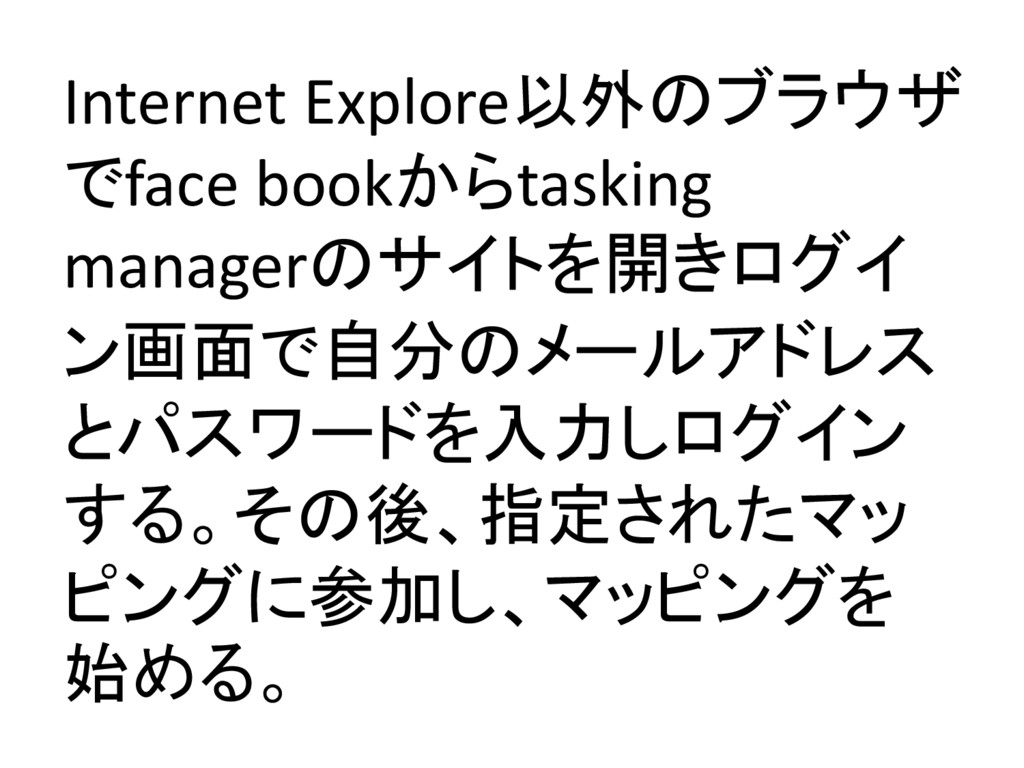
Internet Explore以外のブラウザ でface bookからtasking managerのサイトを開きログイ ン画面で自分のメールアドレス とパスワードを入力しログイン する。その後、指定されたマッ ピングに参加し、マッピングを 始める。
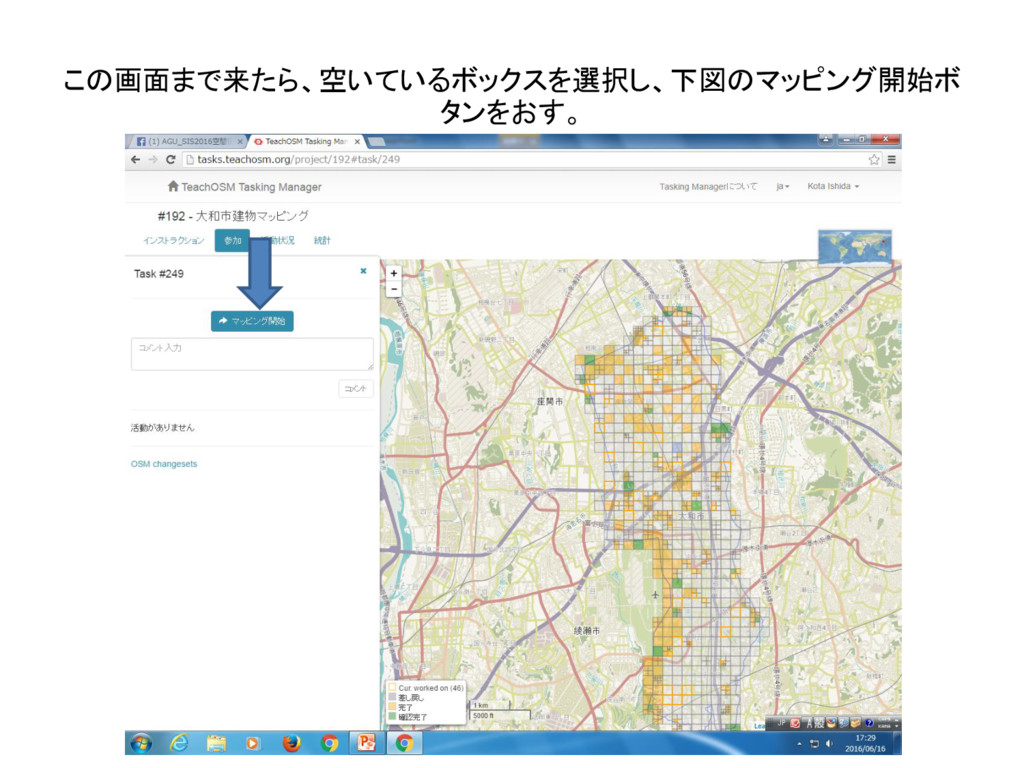
この画面まで来たら、空いているボックスを選択し、下図のマッピング開始ボ タンをおす。
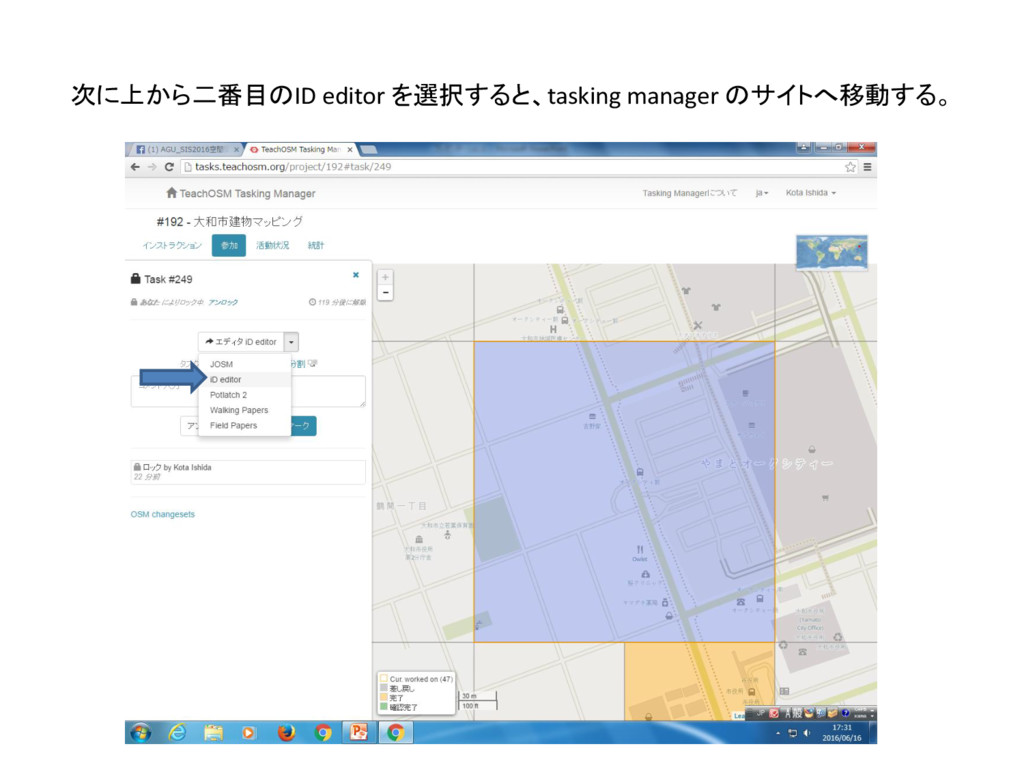
次に上から二番目のID editor を選択すると、tasking manager のサイトへ移動する。
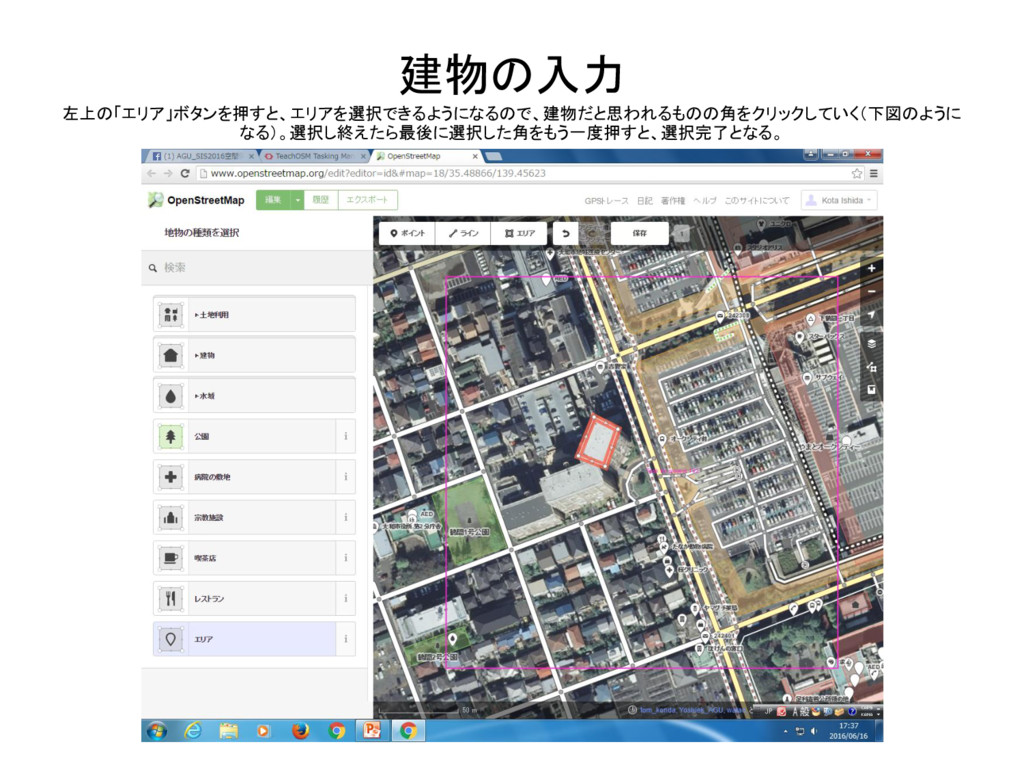
建物の入力 左上の「エリア」ボタンを押すと、エリアを選択できるようになるので、建物だと思われるものの角をクリックしていく(下図のように なる)。選択し終えたら最後に選択した角をもう一度押すと、選択完了となる。
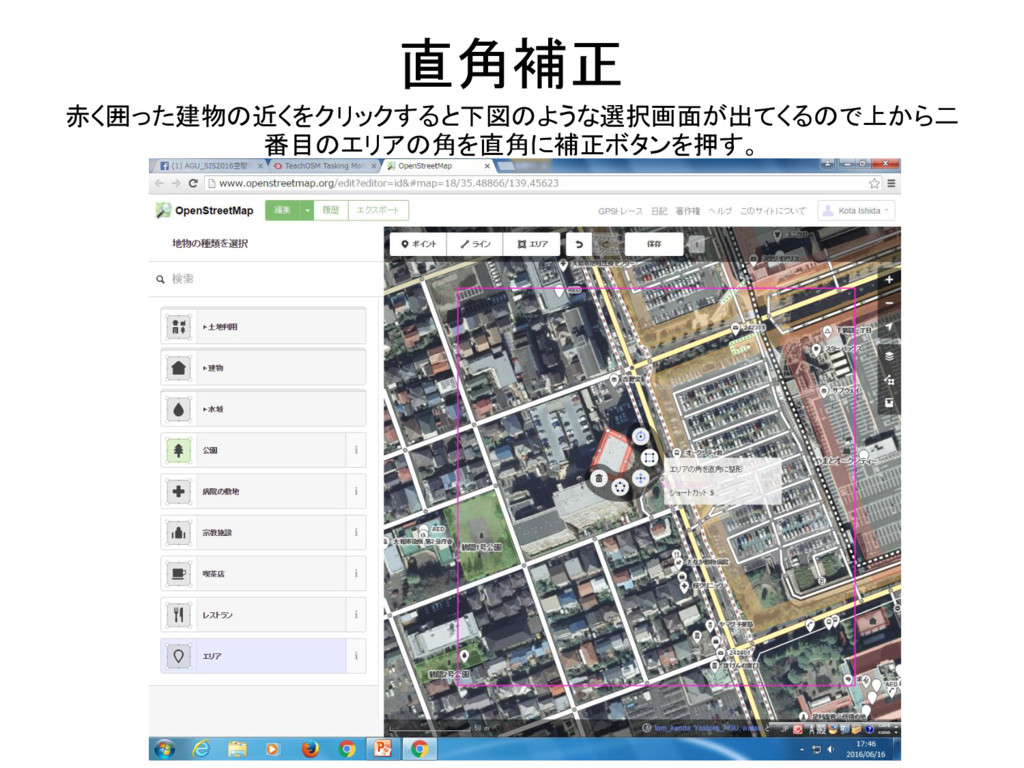
直角補正 赤く囲った建物の近くをクリックすると下図のような選択画面が出てくるので上から二 番目のエリアの角を直角に補正ボタンを押す。
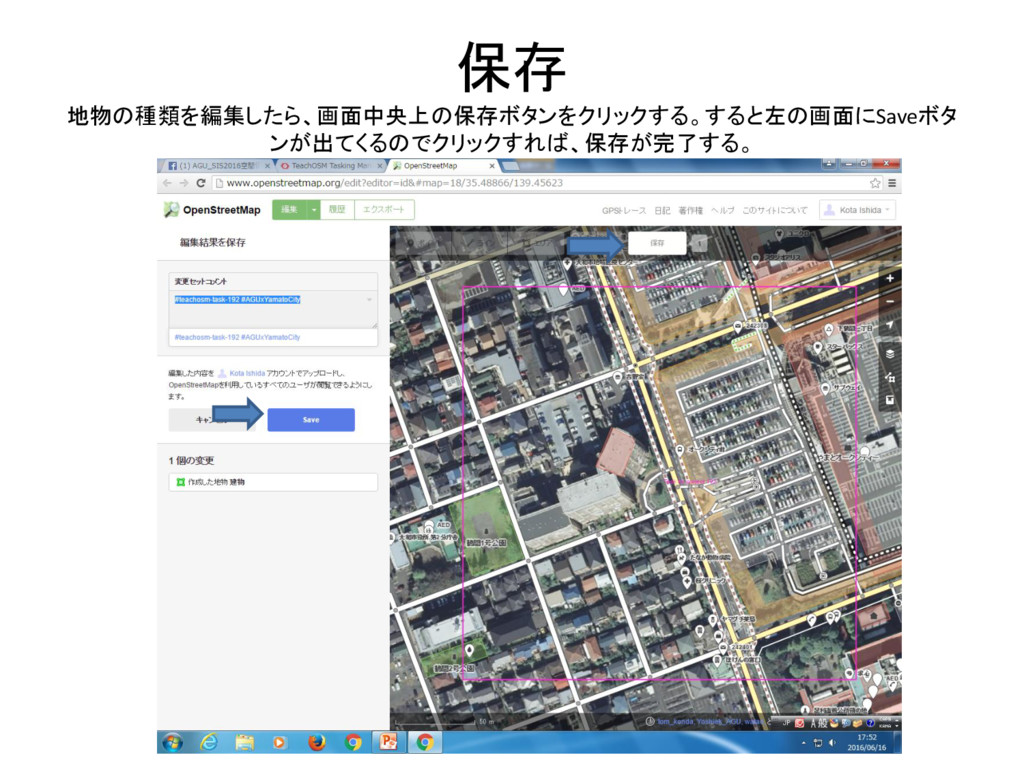
保存 地物の種類を編集したら、画面中央上の保存ボタンをクリックする。すると左の画面にSaveボタ ンが出てくるのでクリックすれば、保存が完了する。
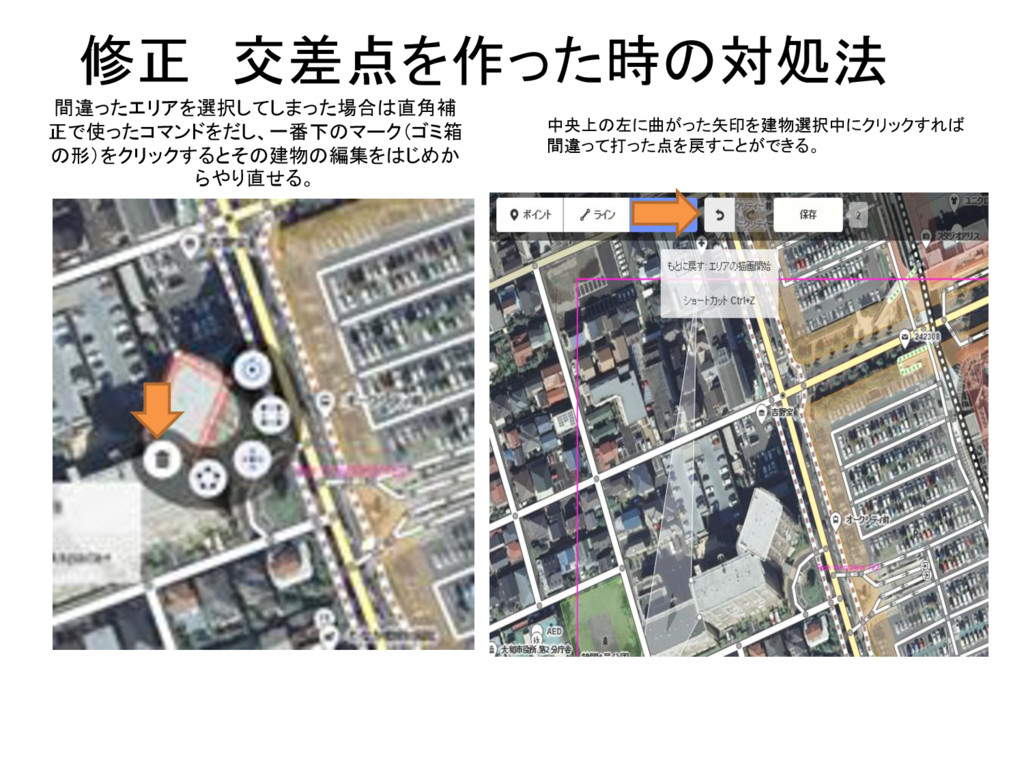
間違ったエリアを選択してしまった場合は直角補 正で使ったコマンドをだし、一番下のマーク(ゴミ箱 の形)をクリックするとその建物の編集をはじめか らやり直せる。 修正 交差点を作った時の対処法 中央上の左に曲がった矢印を建物選択中にクリックすれば 間違って打った点を戻すことができる。
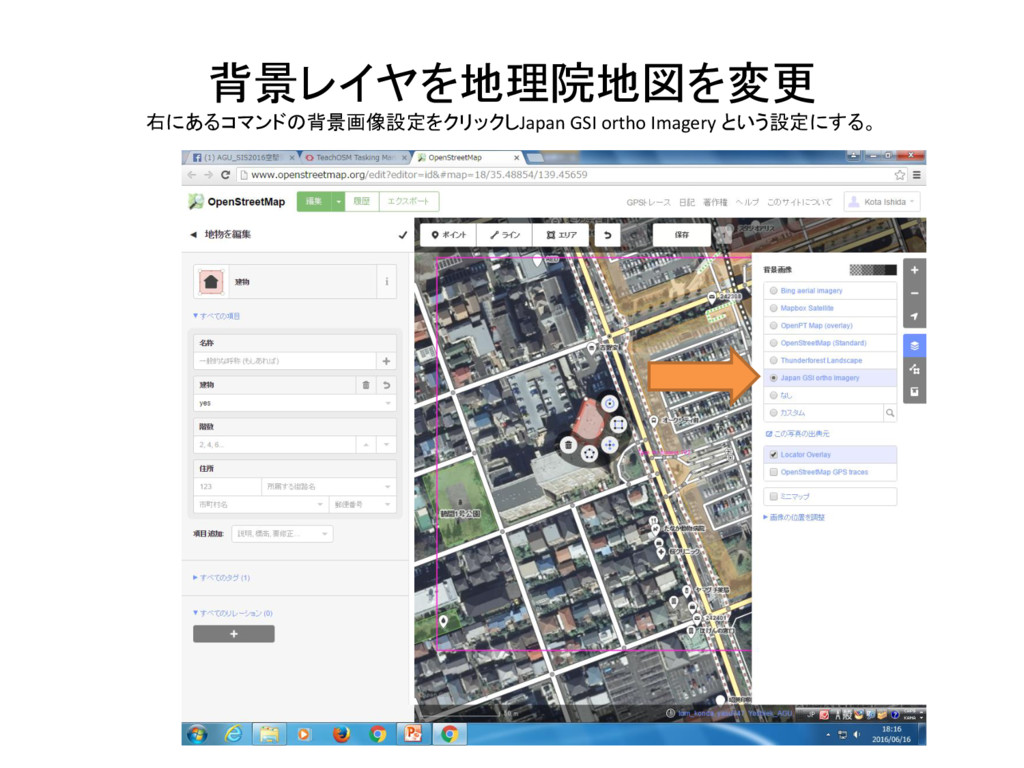
背景レイヤを地理院地図を変更 右にあるコマンドの背景画像設定をクリックしJapan GSI ortho Imagery という設定にする。
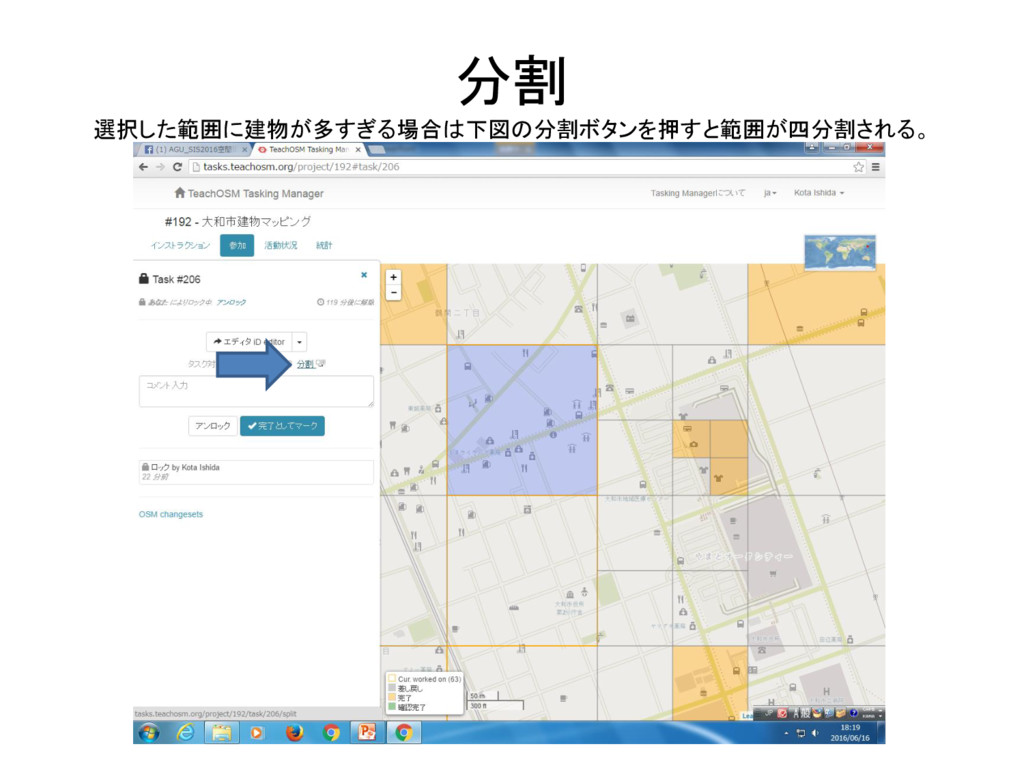
分割 選択した範囲に建物が多すぎる場合は下図の分割ボタンを押すと範囲が四分割される。
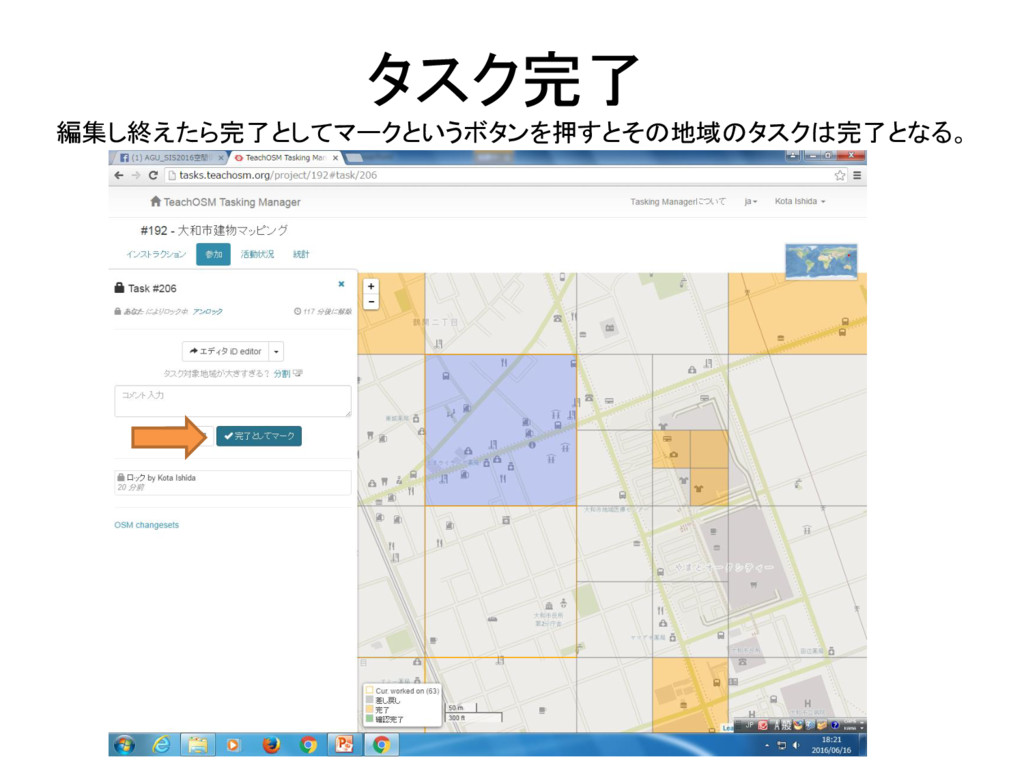
タスク完了 編集し終えたら完了としてマークというボタンを押すとその地域のタスクは完了となる。


 greandbum7280
 kastner
 erikaheidi
 mkilby
 jct
jct
 soudai
 addyosmani
 ianozsvald
 ipullrank
 hatefulcrawdad
 aleyda
 rmw
rmw
 notwaldorf