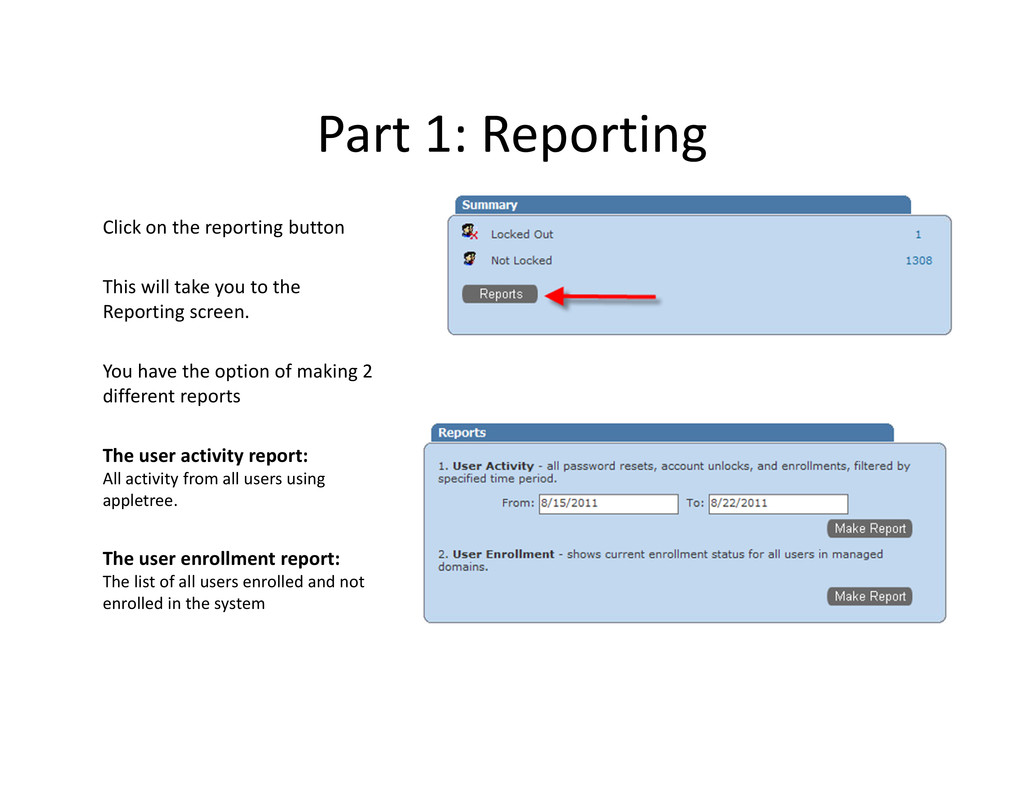
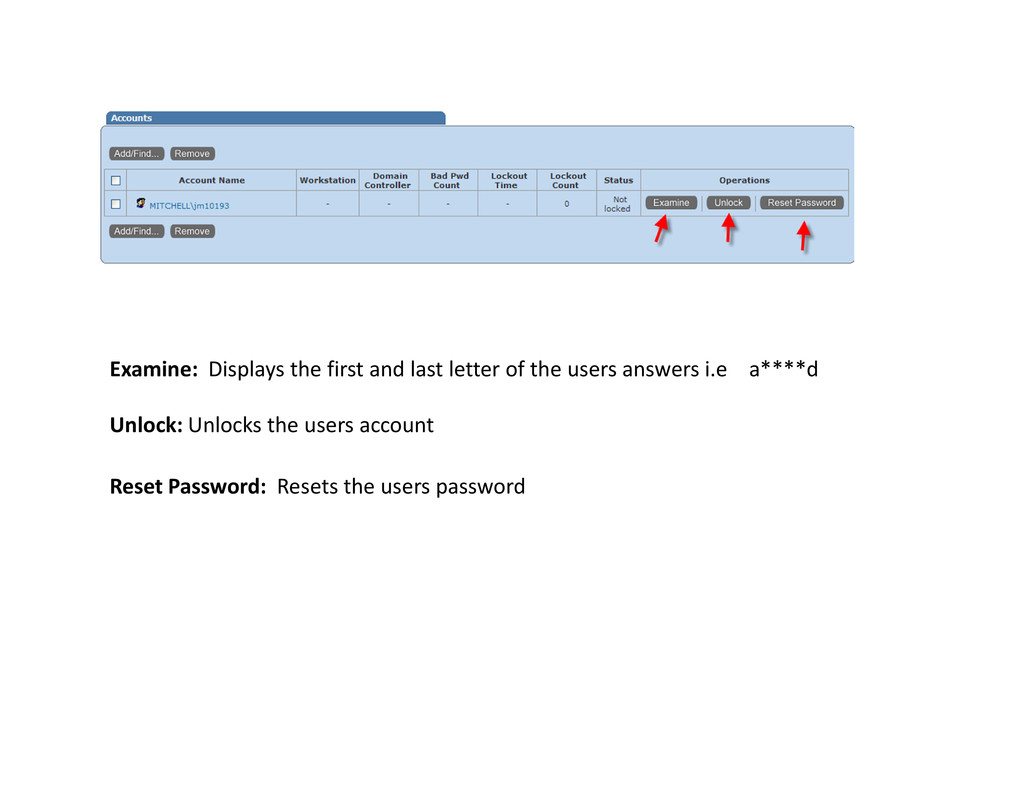
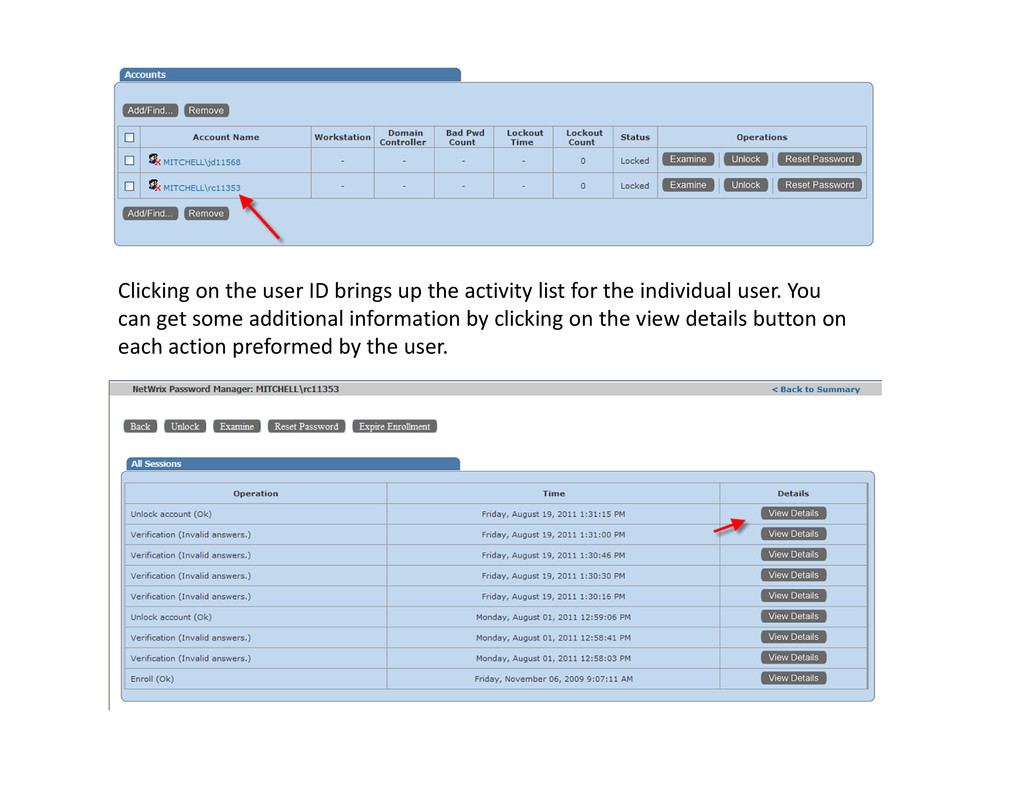
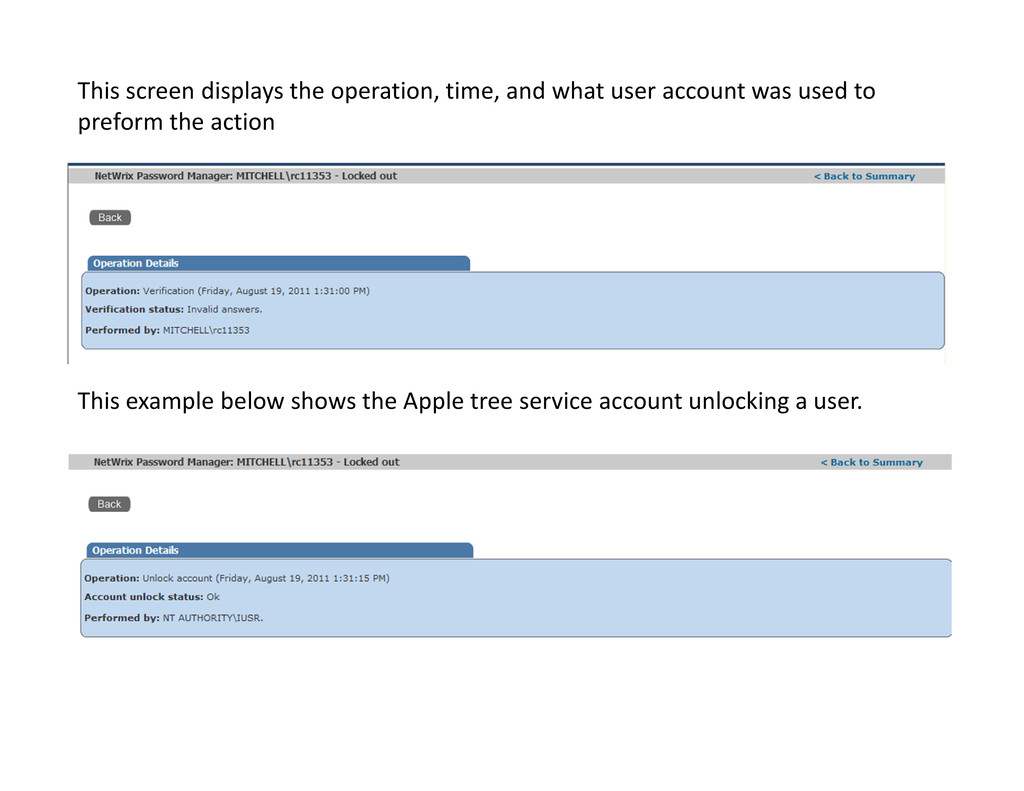
take you to the Reporting screen. You have the option of making 2 different reports The user activity report: All activity from all users using appletree. The user enrollment report: The list of all users enrolled and not enrolled in the system
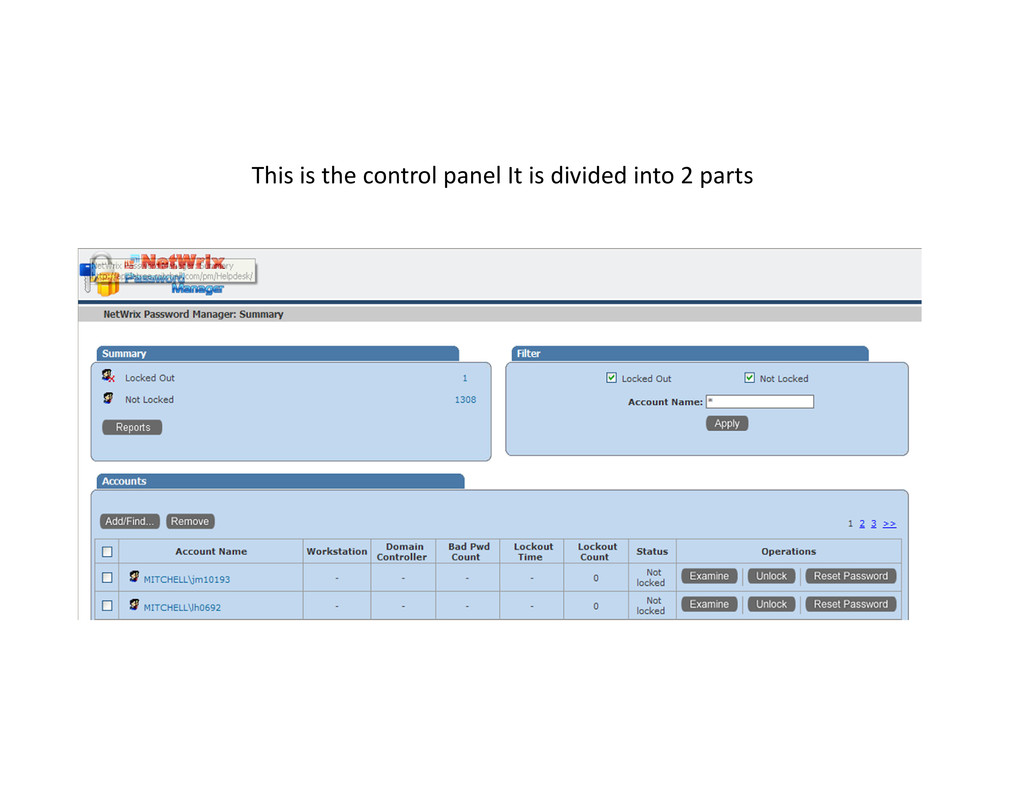
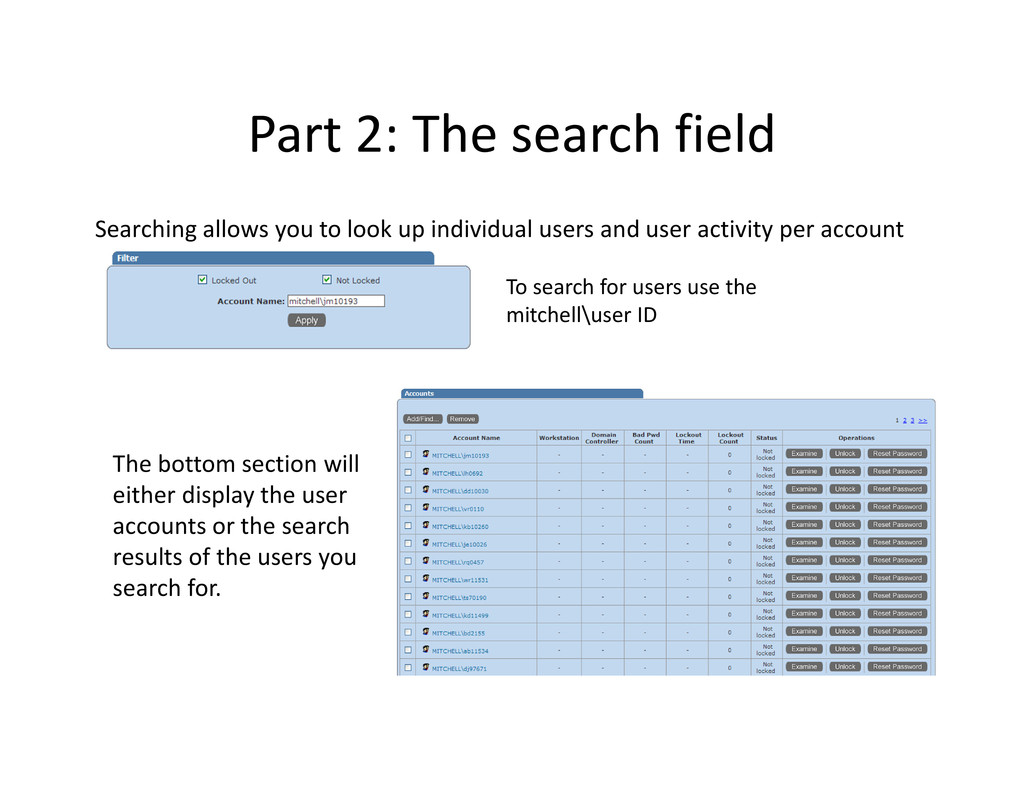
up individual users and user activity per account To search for users use the mitchell\user ID The bottom section will either display the user accounts or the search results of the users you search for.


 techseoconnect
 lfama
lfama
 axbom
axbom
 elsirapls
 tamaranovitovic
 jonoalderson
 davidcarrasco
 bluesmoon
 schroneko
 tammyeverts
 tessaabrams
 leimatthew05