Upgrade to Pro
— share decks privately, control downloads, hide ads and more …
Speaker Deck
Sign up for free
Menu
Search
Features
All features
Private URLs
Password Protection
Custom URLS
Scheduled publishing
Remove Branding
Restrict embedding
Deck Collections
Notes
Features
All features
Private URLs
Password Protection
Custom URLS
Scheduled publishing
Remove Branding
Restrict embedding
Deck Collections
Notes
Explore
Featured decks
Featured speakers
Programming
Technology
Storyboards
Explore
Featured decks
Featured speakers
Programming
Technology
Storyboards
Pricing
Search
Sign in
Sign up for free
1A116220 森川直樹
Search
森川直樹
June 22, 2016
42
0
Share
Embed
Copy iframe code
Copy JS code
Copy link
Start on current slide
1A116220 森川直樹
空間情報システム入門課題
森川直樹
June 22, 2016
Featured
See All Featured
Tell your own story through comics
letsgokoyo
1
1.1k
Bridging the Design Gap: How Collaborative Modelling removes blockers to flow between stakeholders and teams @FastFlow conf
baasie
0
730
Designing Experiences People Love
moore
143
24k
Everyday Curiosity
cassininazir
0
360
Art, The Web, and Tiny UX
lynnandtonic
304
22k
What the history of the web can teach us about the future of AI
inesmontani
PRO
2
740
Pawsitive SEO: Lessons from My Dog (and Many Mistakes) on Thriving as a Consultant in the Age of AI
davidcarrasco
0
260
How to build an LLM SEO readiness audit: a practical framework
nmsamuel
2
950
We Analyzed 250 Million AI Search Results: Here's What I Found
joshbly
2
2k
Unlocking the hidden potential of vector embeddings in international SEO
frankvandijk
0
1k
Game over? The fight for quality and originality in the time of robots
wayneb77
1
310
Being A Developer After 40
akosma
92
590k
Transcript
OSMの作り⽅ 1A116220 森川直樹
分割 • ID editorの下の⽅にある「分割」を選択する • 選択すると⾃動的にその部分が四分割される
建物の⼊⼒ • まず、写真の左上の、ポイント、ライン、エリアの三つの中の 「エリアを選択する • エリアを選択したら、ピンクの正⽅形の中の建物をクリックす る • 建物の⾓をクリックするとピンクの左中央が⽩く囲まれる
直⾓補正 • 建物を⽩い線で囲めたら、戦場でクリックをする • クリックをすると五つの表⽰が現れる • その中の「エリアの⾓を直⾓に整形」を選択する • ⽩い線の囲みの⾓の全てが直⾓になる
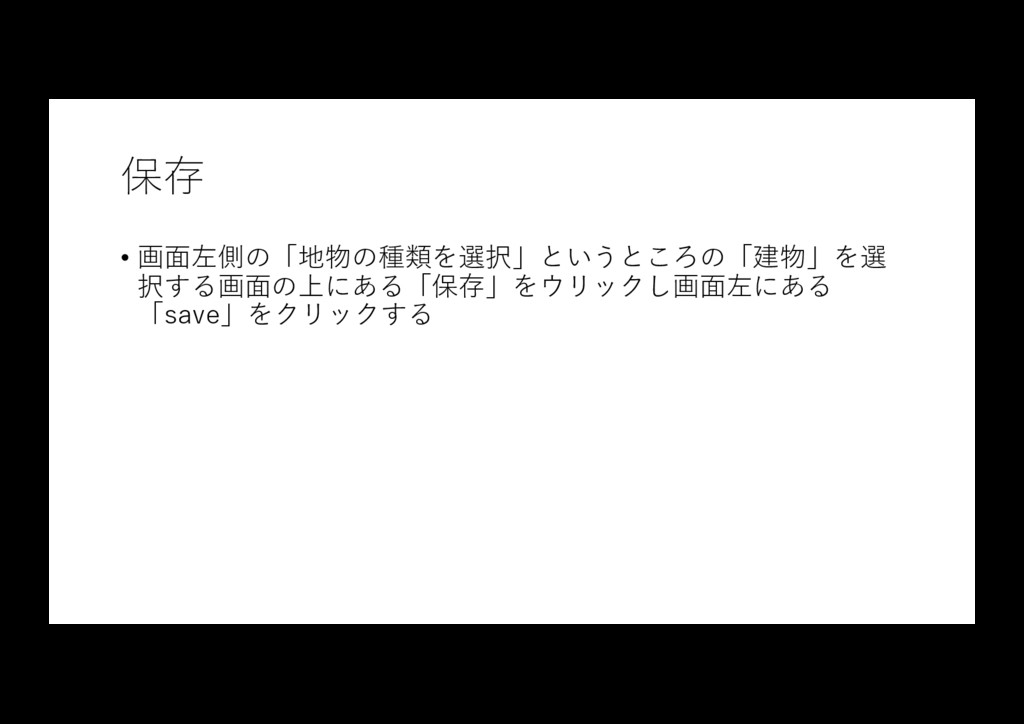
保存 • 画⾯左側の「地物の種類を選択」というところの「建物」を選 択する画⾯の上にある「保存」をウリックし画⾯左にある 「save」をクリックする
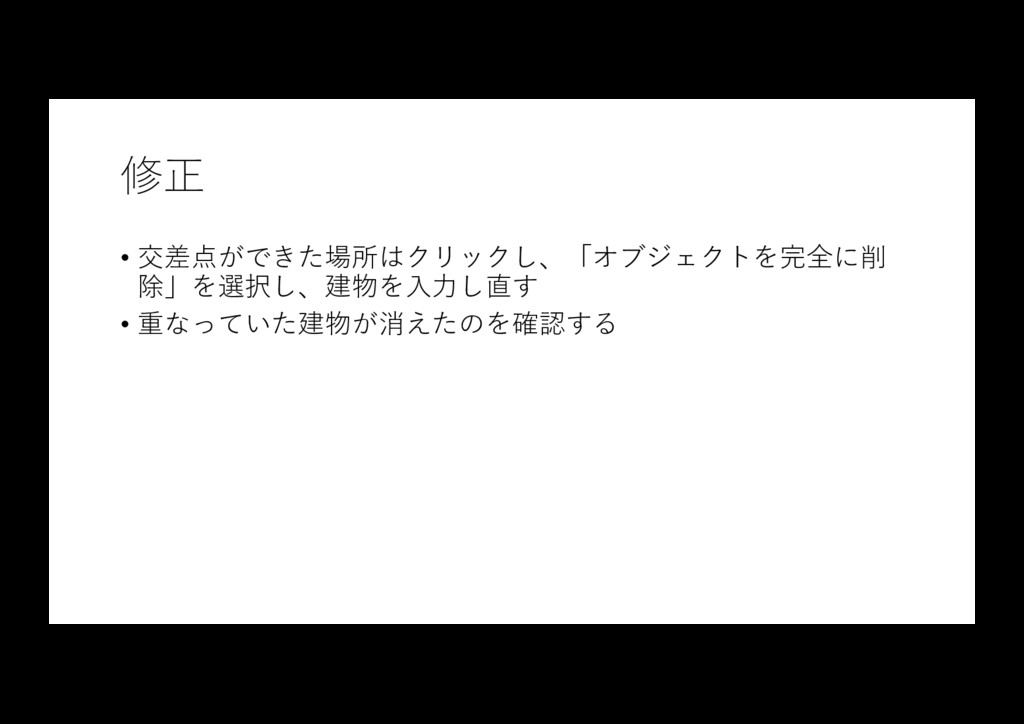
修正 • 交差点ができた場所はクリックし、「オブジェクトを完全に削 除」を選択し、建物を⼊⼒し直す • 重なっていた建物が消えたのを確認する
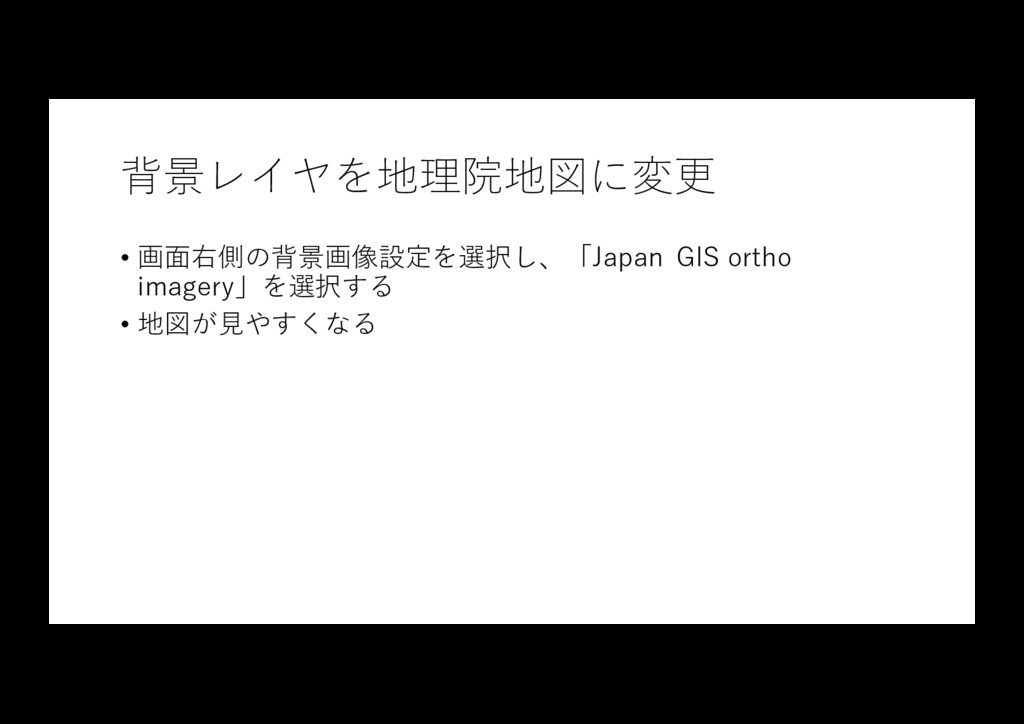
背景レイヤを地理院地図に変更 • 画⾯右側の背景画像設定を選択し、「Japan GIS ortho imagery」を選択する • 地図が⾒やすくなる
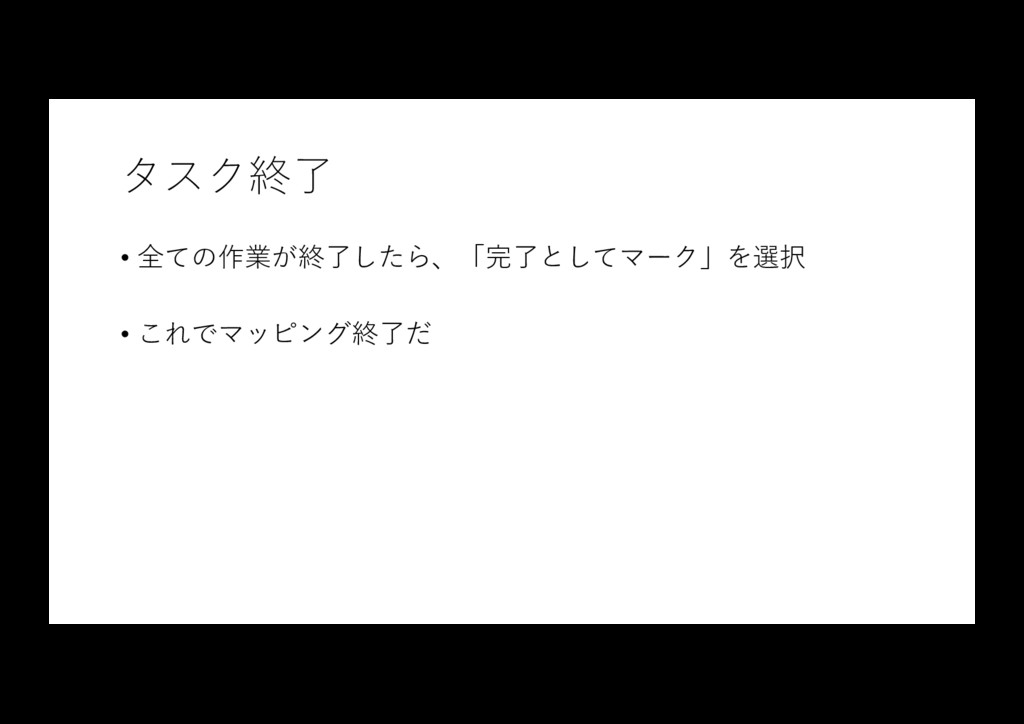
タスク終了 • 全ての作業が終了したら、「完了としてマーク」を選択 • これでマッピング終了だ


 letsgokoyo
 baasie
 moore
moore
 cassininazir
 lynnandtonic
 inesmontani
 davidcarrasco
 nmsamuel
 joshbly
 frankvandijk
 wayneb77
 akosma