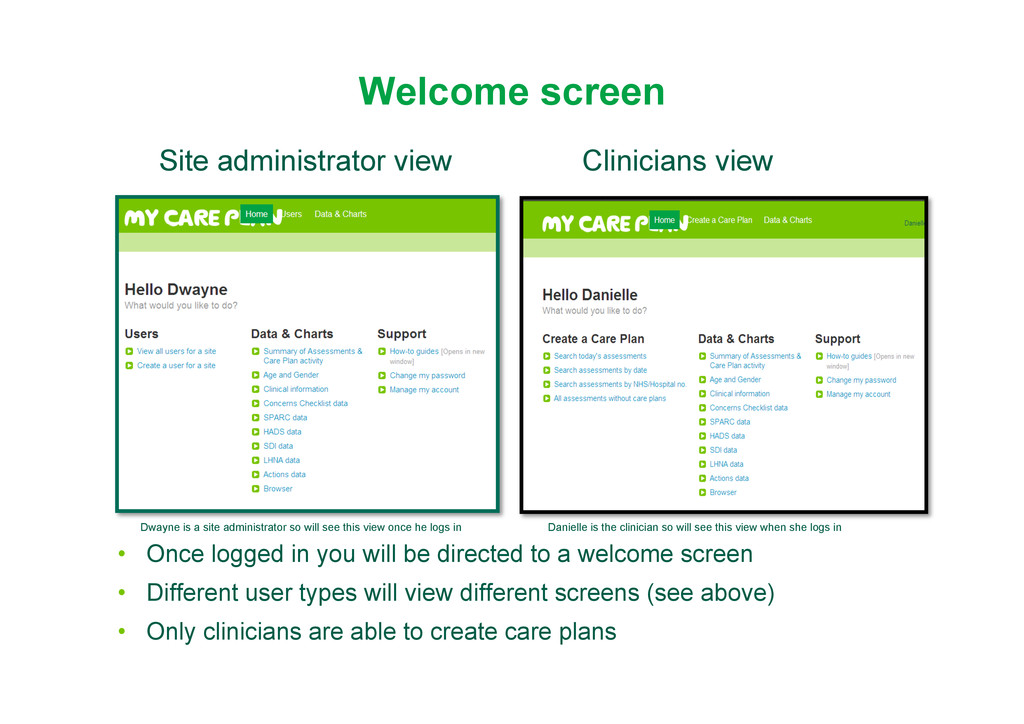
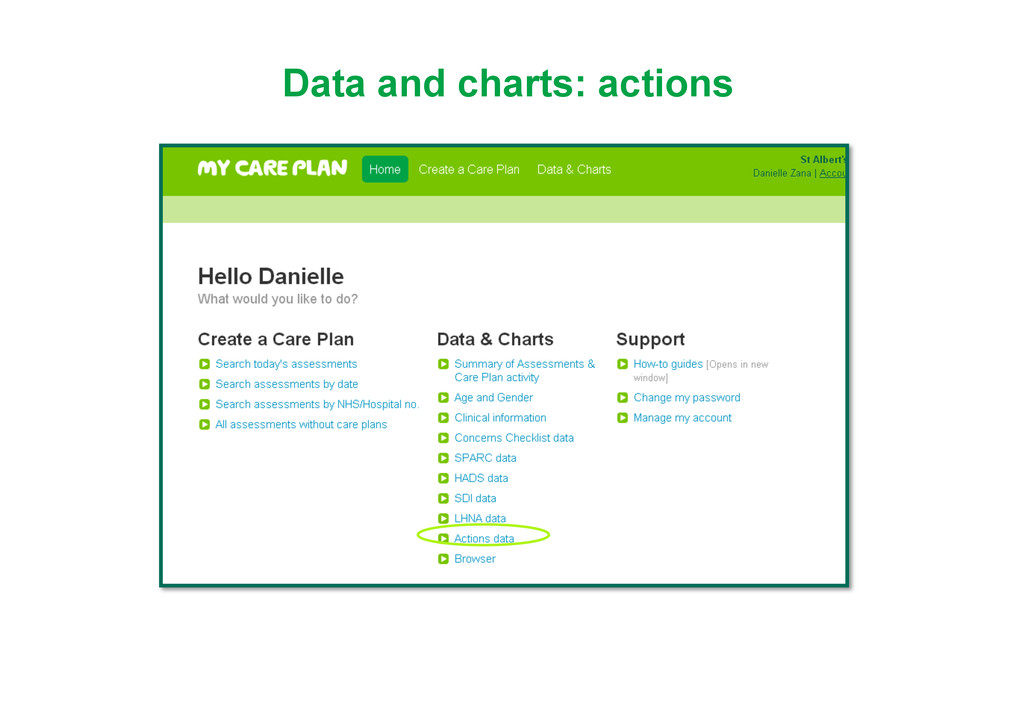
site administrator so will see this view once he logs in Danielle is the clinician so will see this view when she logs in • Once logged in you will be directed to a welcome screen • Different user types will view different screens (see above) • Only clinicians are able to create care plans
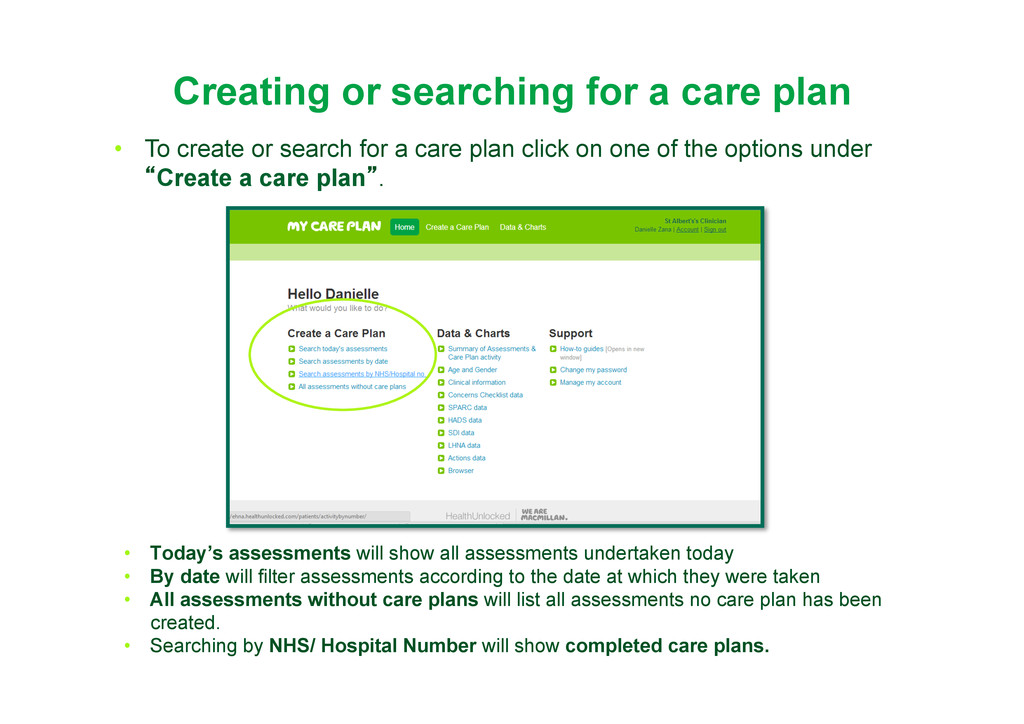
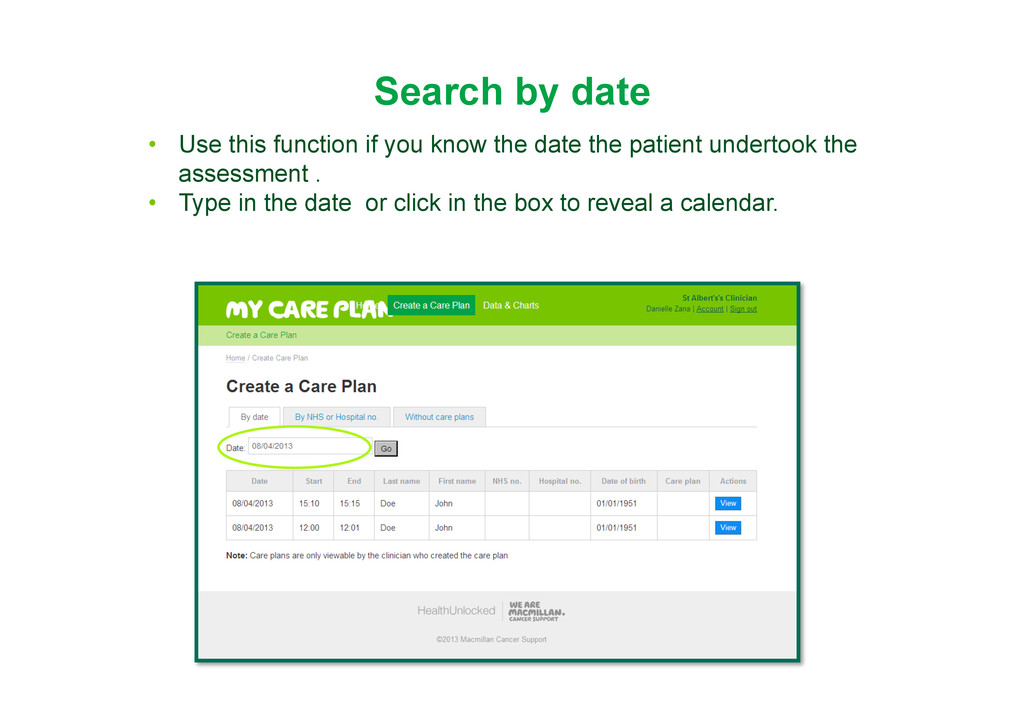
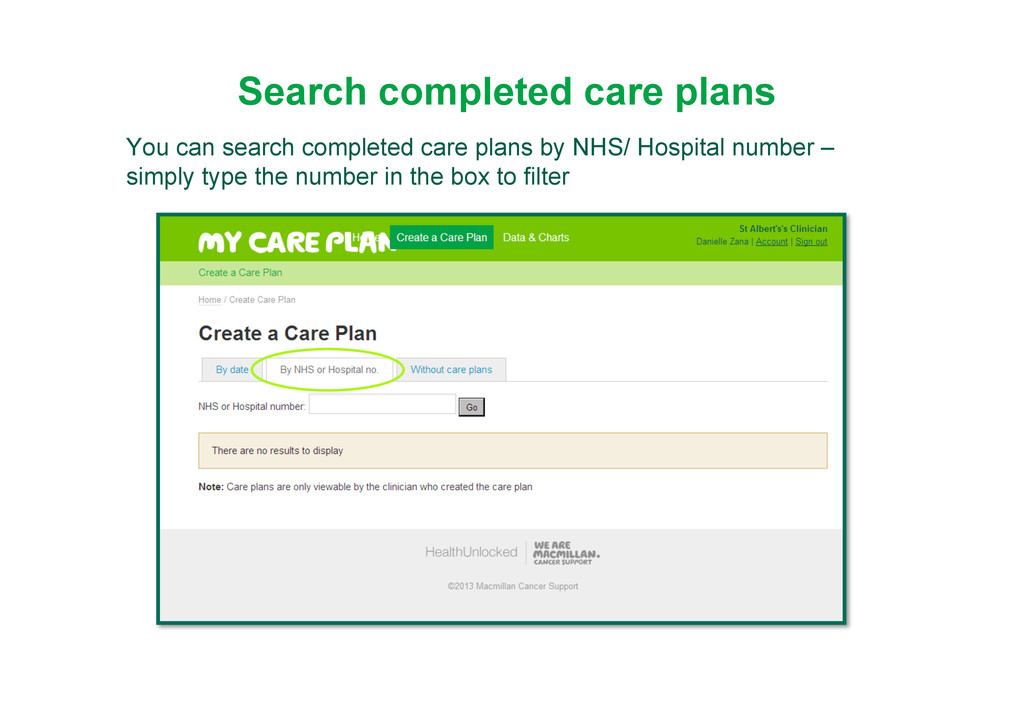
will show all assessments undertaken today • By date will filter assessments according to the date at which they were taken • All assessments without care plans will list all assessments no care plan has been created. • Searching by NHS/ Hospital Number will show completed care plans. • To create or search for a care plan click on one of the options under “Create a care plan”.
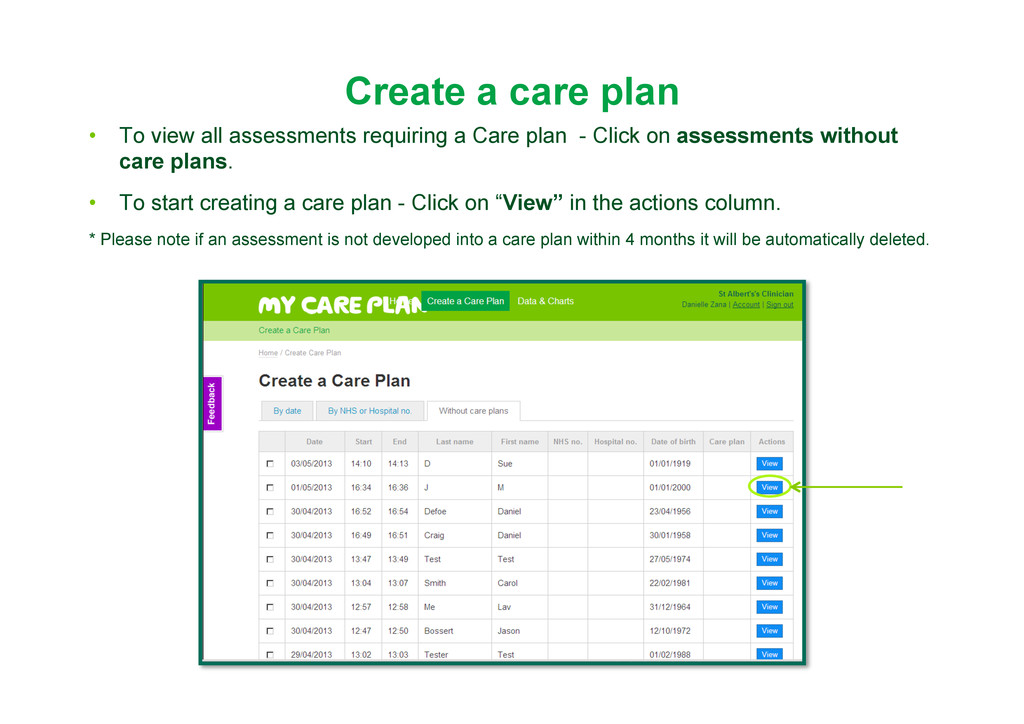
a Care plan - Click on assessments without care plans. • To start creating a care plan - Click on “View” in the actions column. * Please note if an assessment is not developed into a care plan within 4 months it will be automatically deleted.
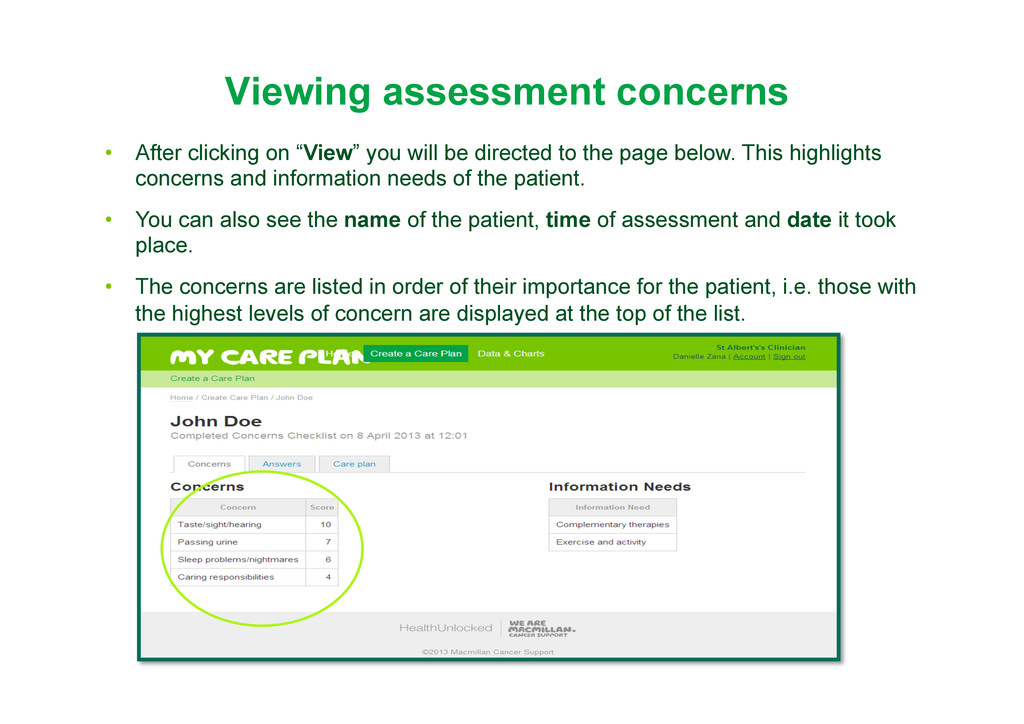
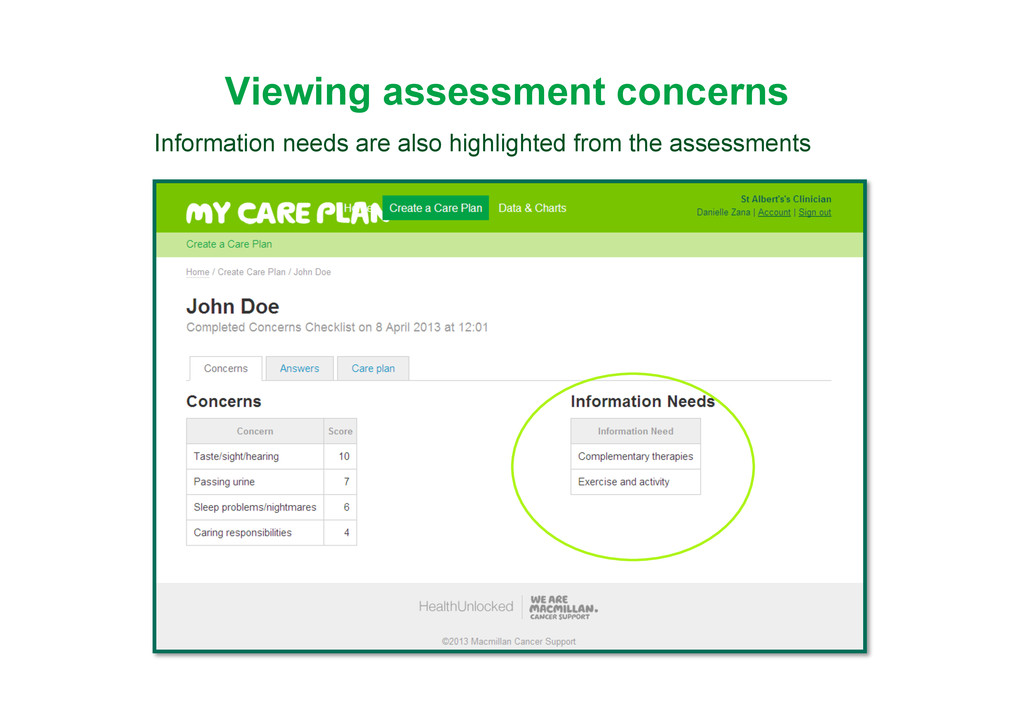
be directed to the page below. This highlights concerns and information needs of the patient. • You can also see the name of the patient, time of assessment and date it took place. • The concerns are listed in order of their importance for the patient, i.e. those with the highest levels of concern are displayed at the top of the list.
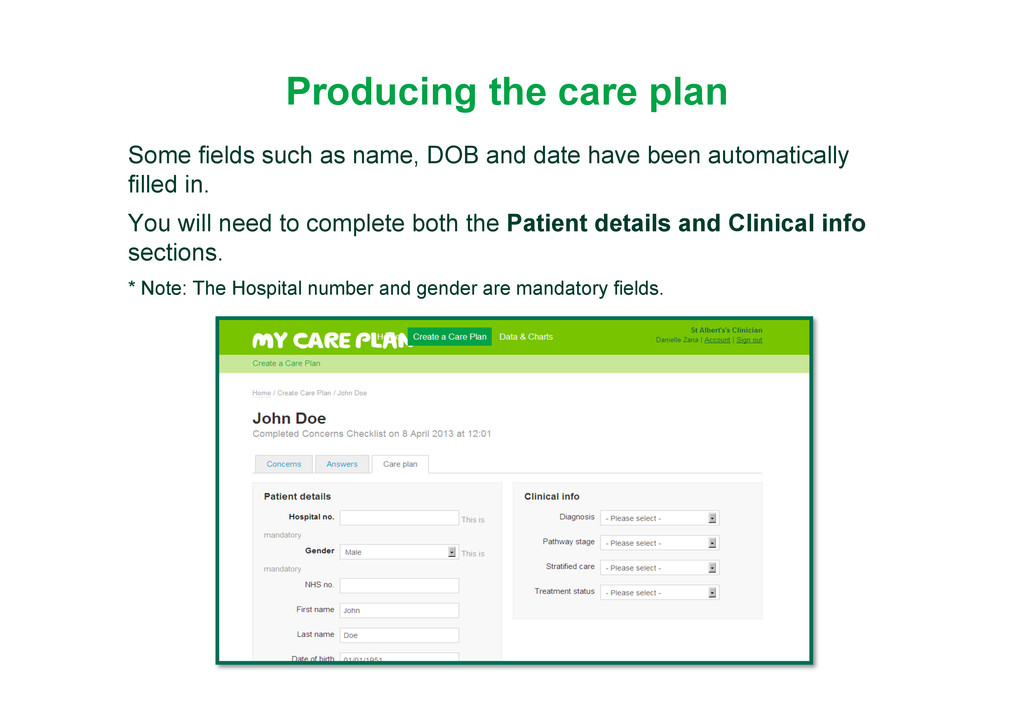
and date have been automatically filled in. You will need to complete both the Patient details and Clinical info sections. * Note: The Hospital number and gender are mandatory fields.
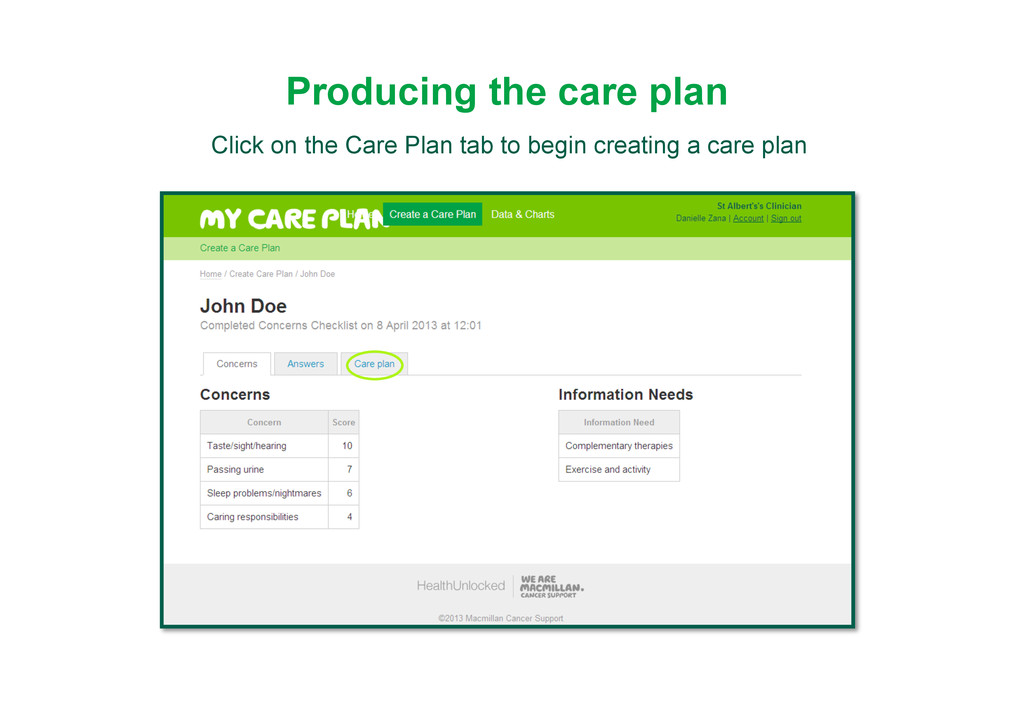
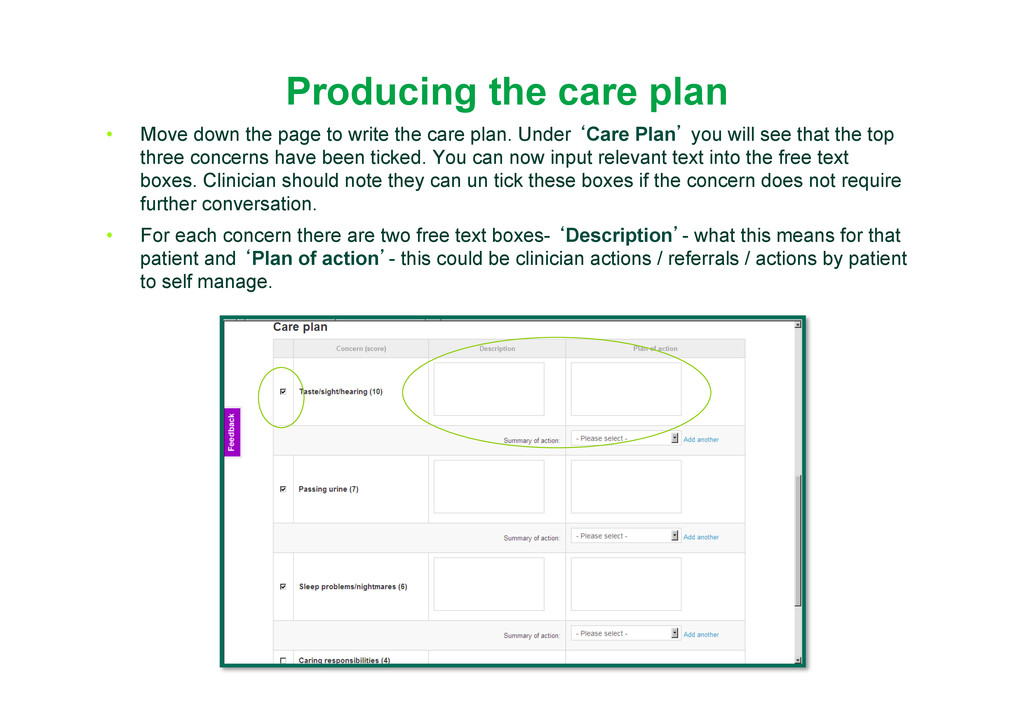
write the care plan. Under ‘Care Plan’ you will see that the top three concerns have been ticked. You can now input relevant text into the free text boxes. Clinician should note they can un tick these boxes if the concern does not require further conversation. • For each concern there are two free text boxes- ‘Description’- what this means for that patient and ‘Plan of action’- this could be clinician actions / referrals / actions by patient to self manage.
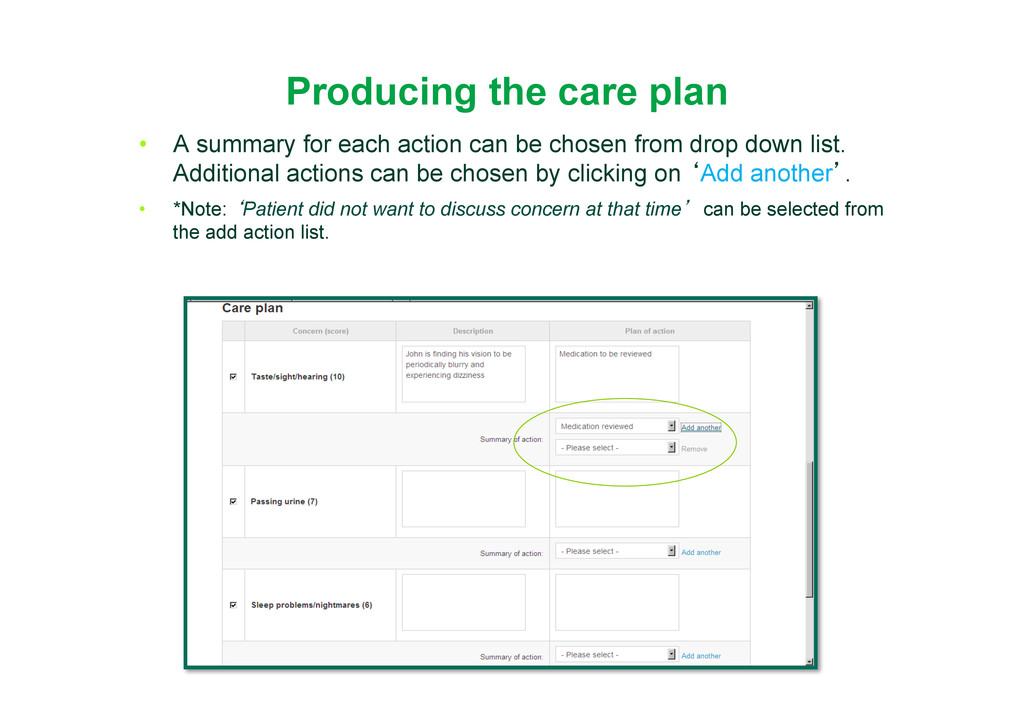
can be chosen from drop down list. Additional actions can be chosen by clicking on ‘Add another’. • *Note: ‘Patient did not want to discuss concern at that time’ can be selected from the add action list.
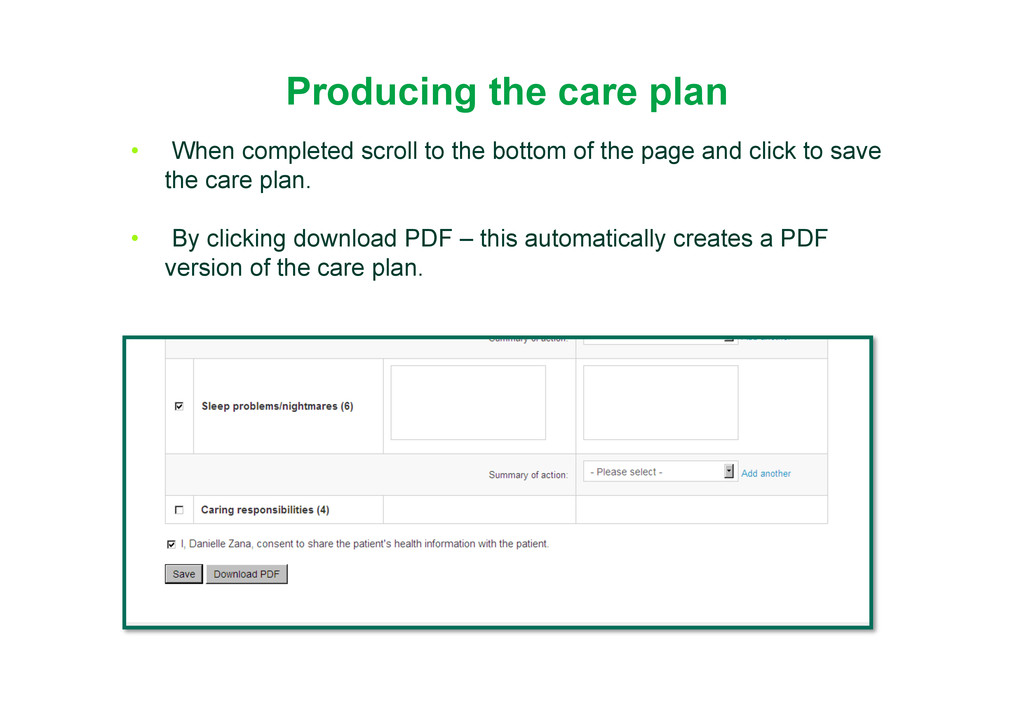
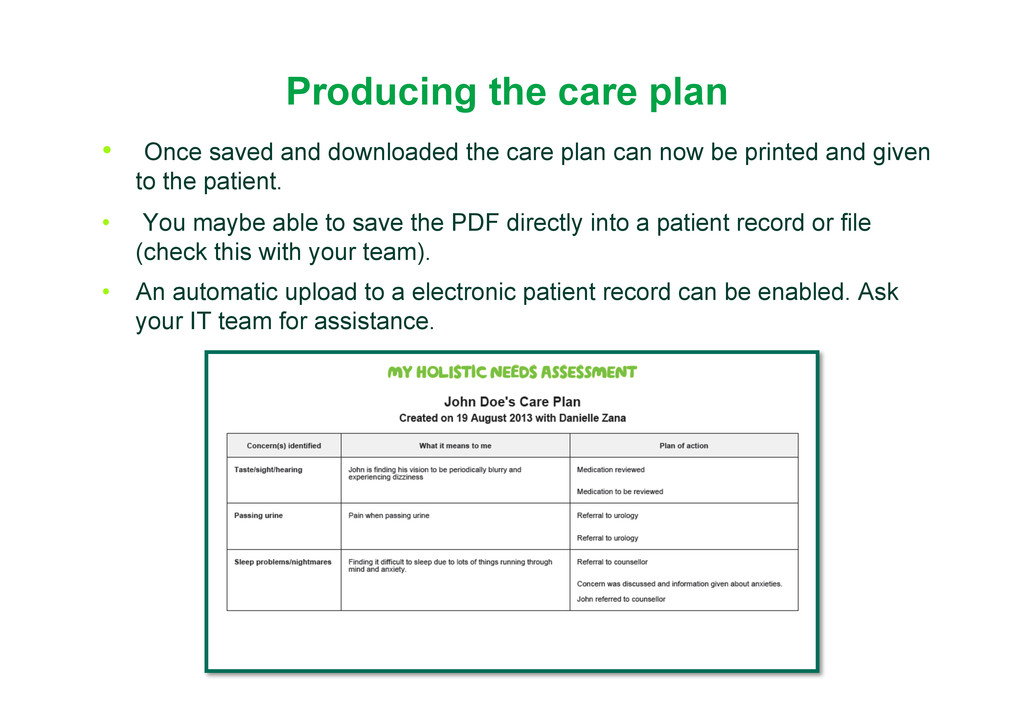
care plan can now be printed and given to the patient. • You maybe able to save the PDF directly into a patient record or file (check this with your team). • An automatic upload to a electronic patient record can be enabled. Ask your IT team for assistance.
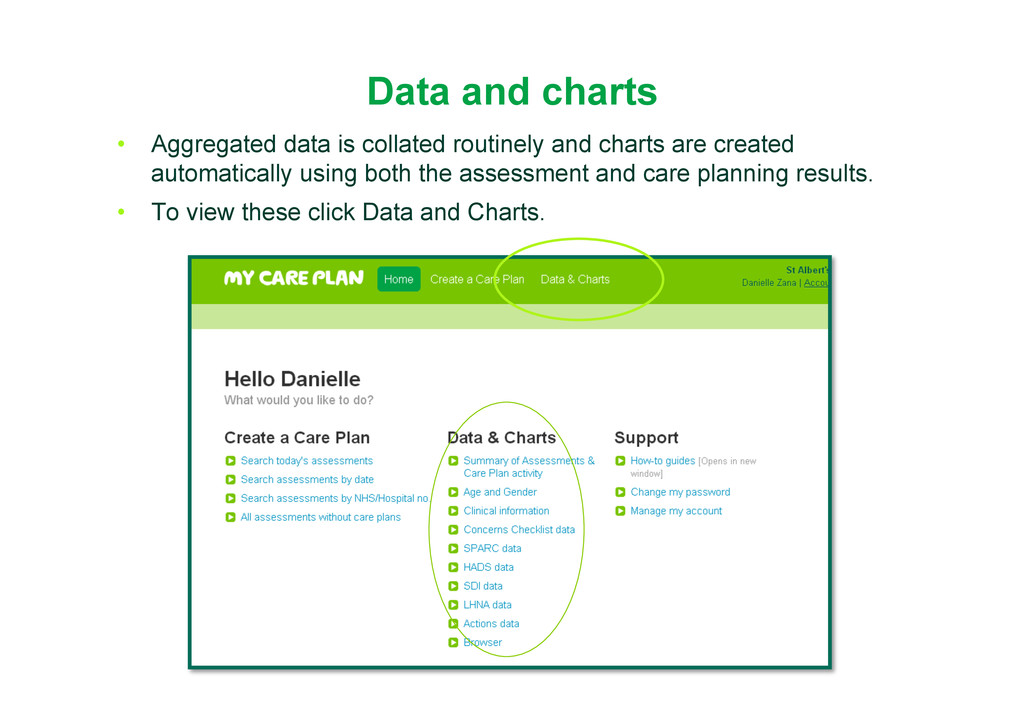
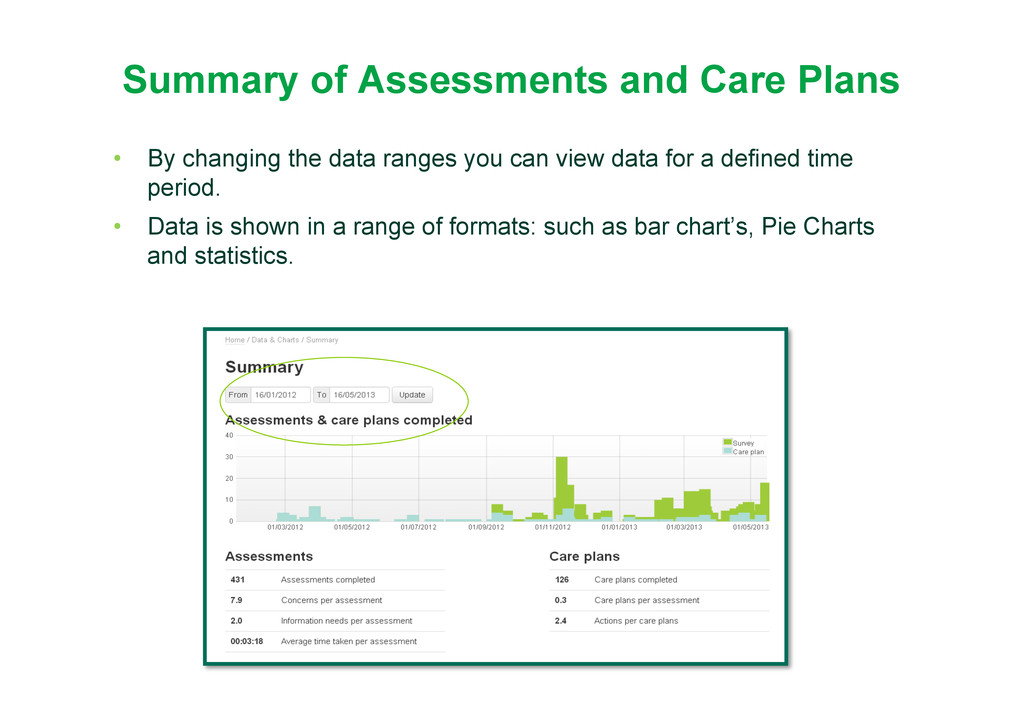
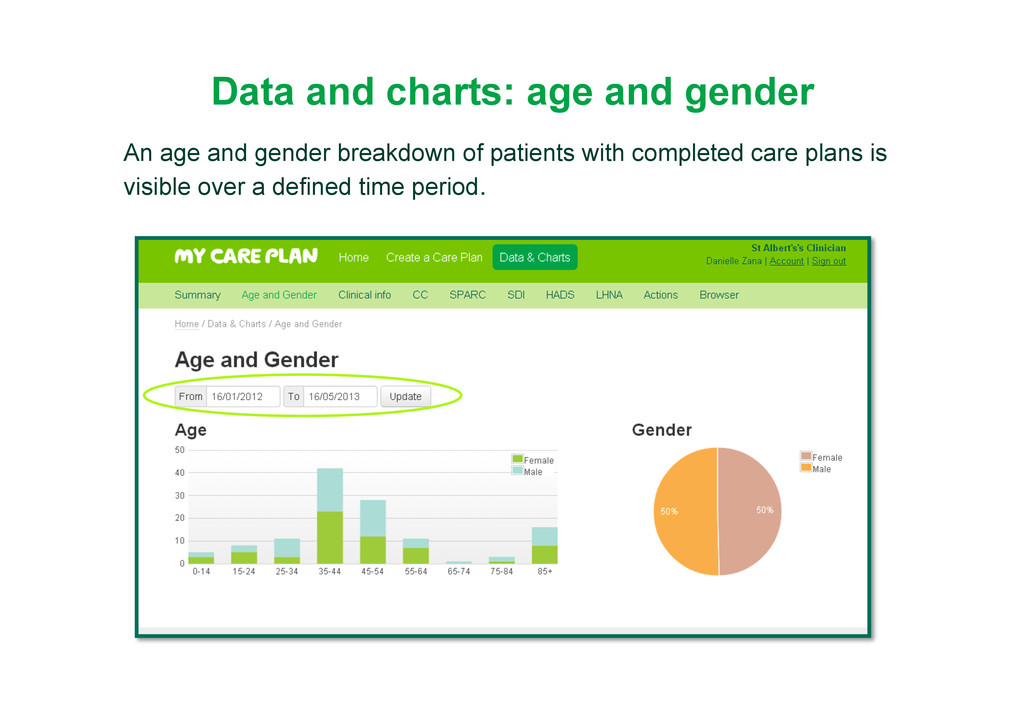
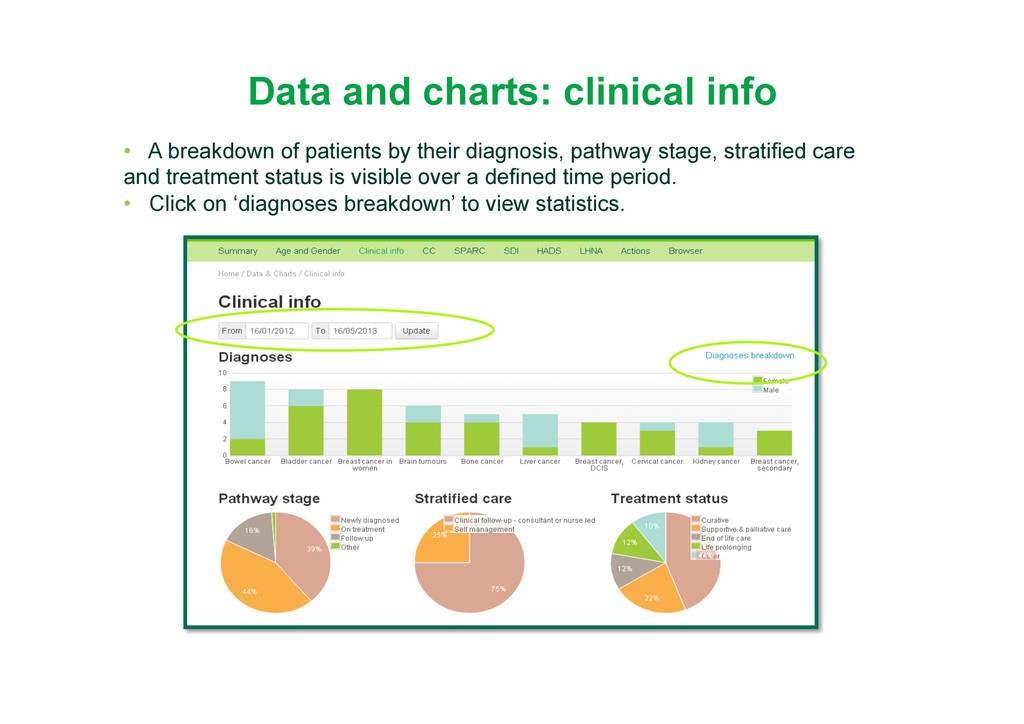
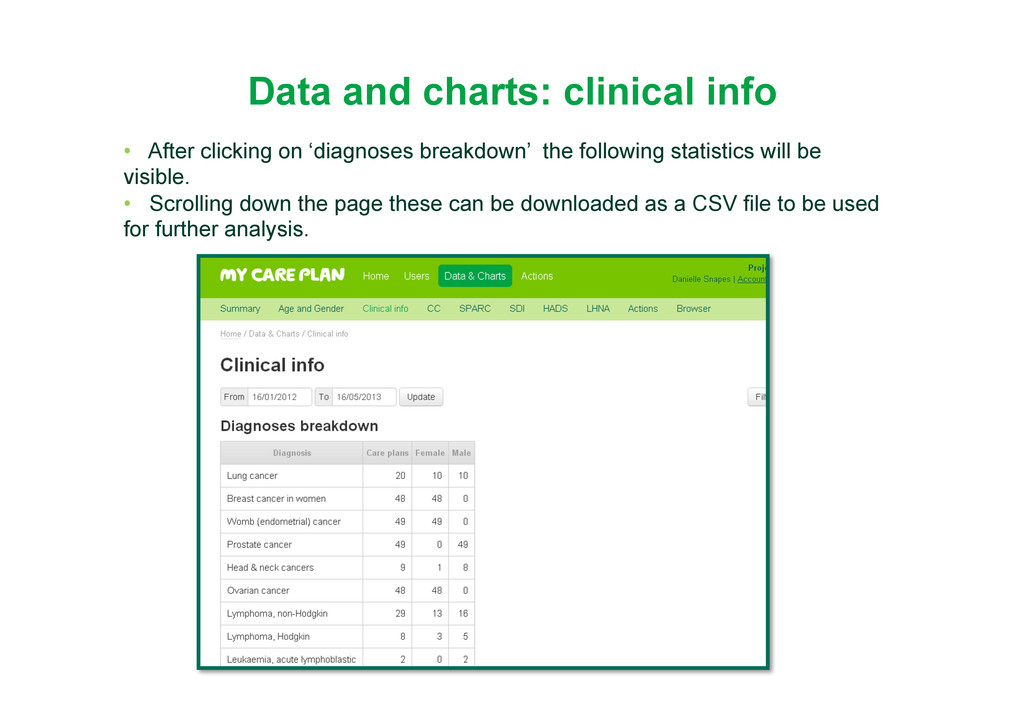
by their diagnosis, pathway stage, stratified care and treatment status is visible over a defined time period. • Click on ‘diagnoses breakdown’ to view statistics.
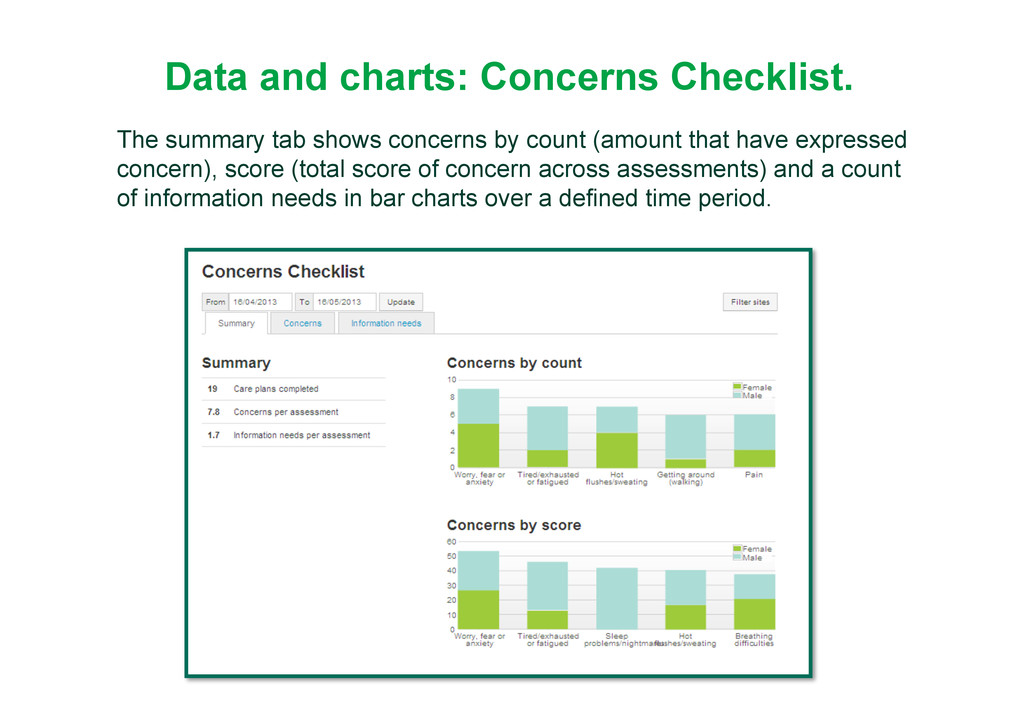
by count (amount that have expressed concern), score (total score of concern across assessments) and a count of information needs in bar charts over a defined time period.
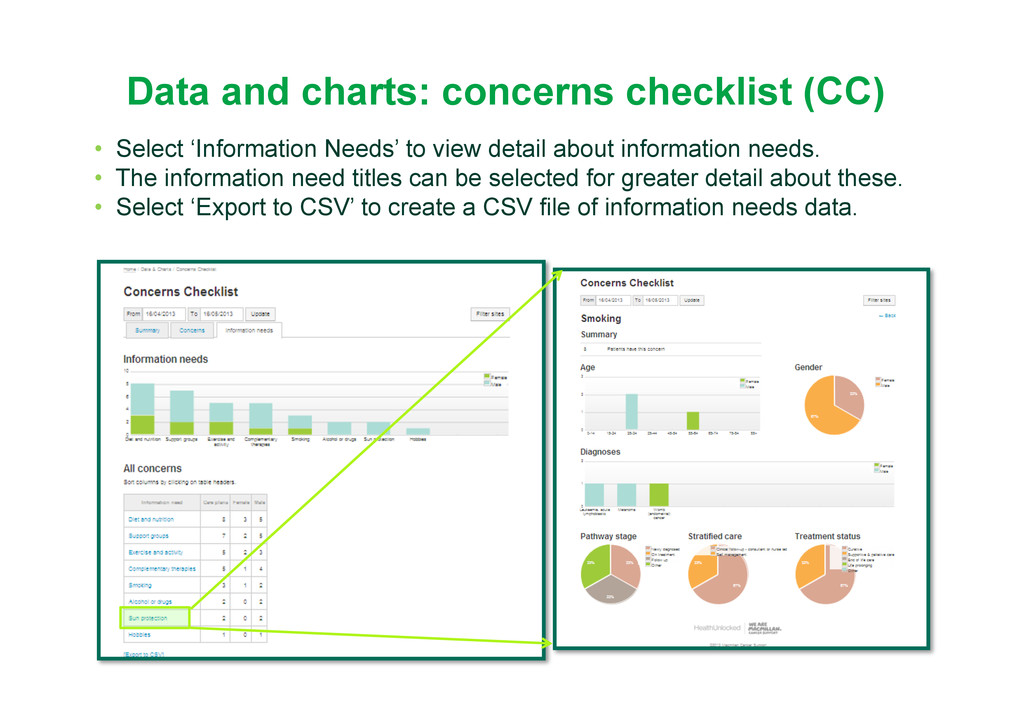
to view detail about information needs. • The information need titles can be selected for greater detail about these. • Select ‘Export to CSV’ to create a CSV file of information needs data.
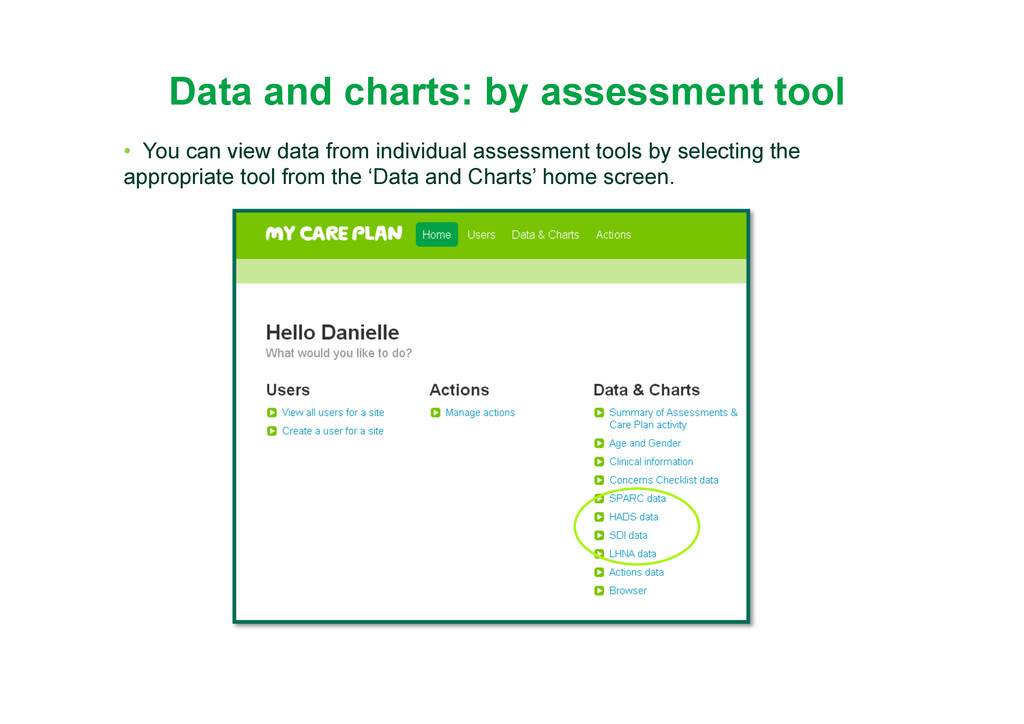
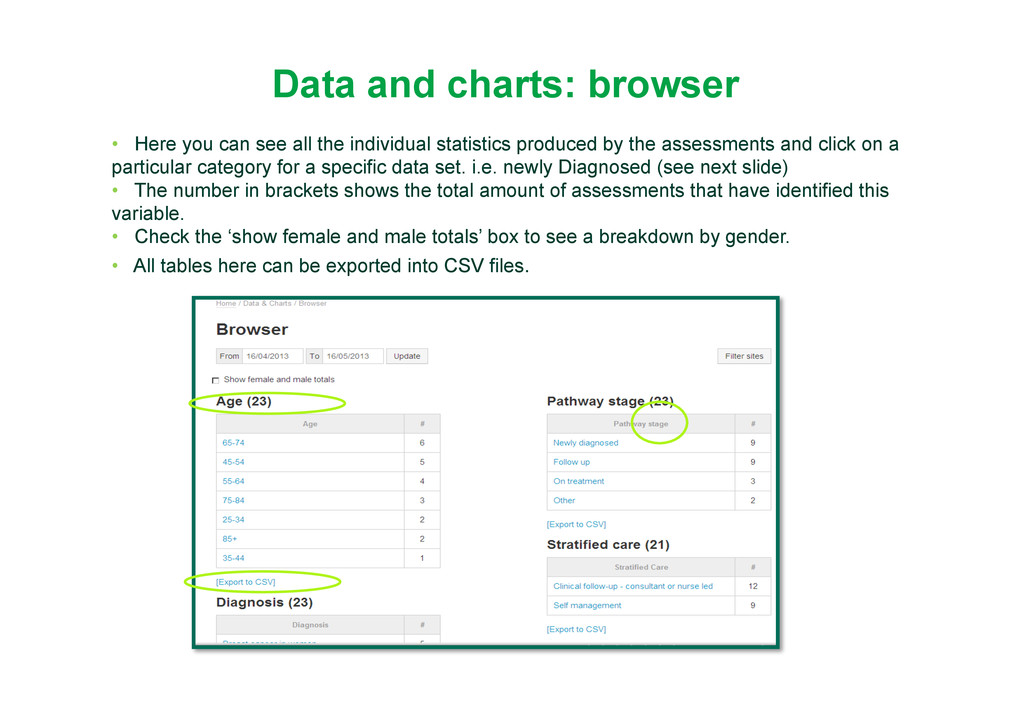
the individual statistics produced by the assessments and click on a particular category for a specific data set. i.e. newly Diagnosed (see next slide) • The number in brackets shows the total amount of assessments that have identified this variable. • Check the ‘show female and male totals’ box to see a breakdown by gender. • All tables here can be exported into CSV files.
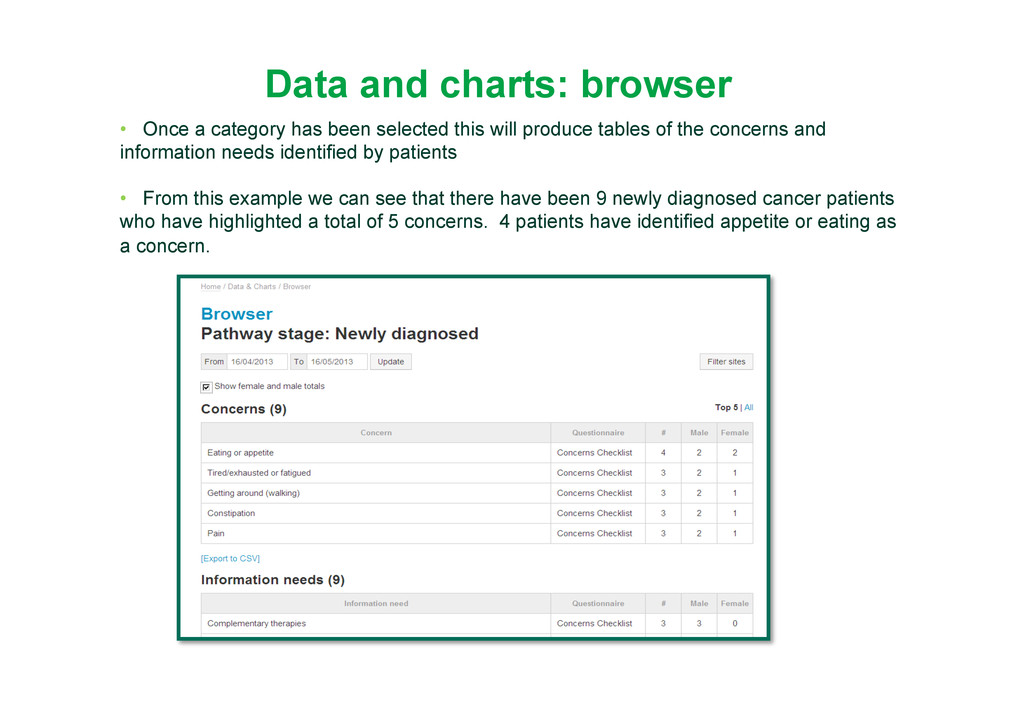
selected this will produce tables of the concerns and information needs identified by patients • From this example we can see that there have been 9 newly diagnosed cancer patients who have highlighted a total of 5 concerns. 4 patients have identified appetite or eating as a concern.
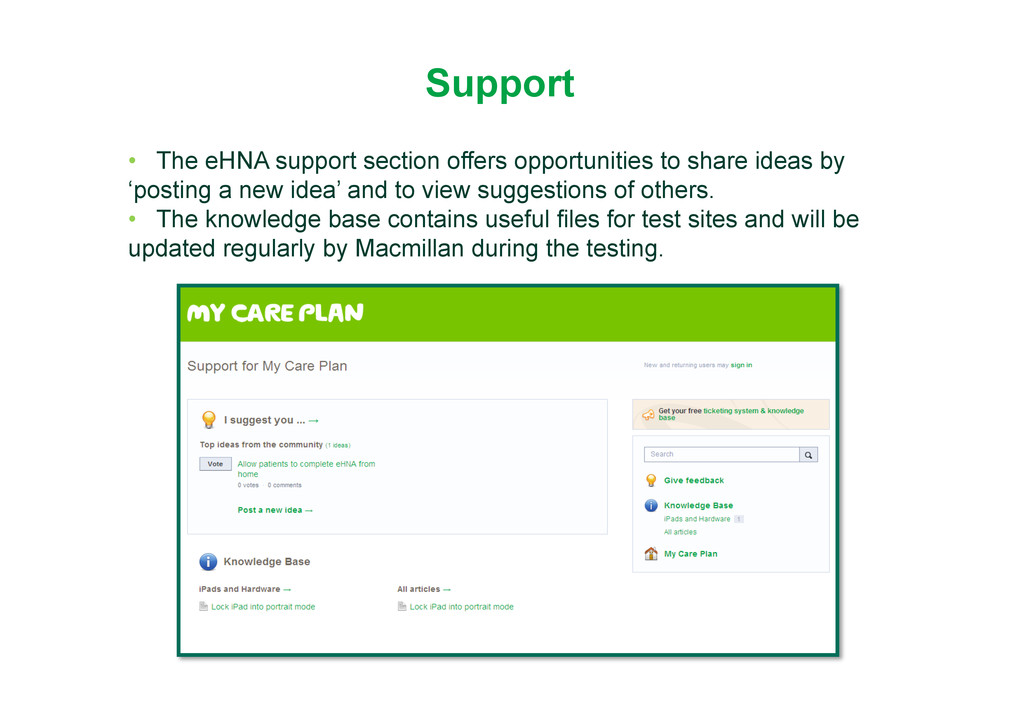
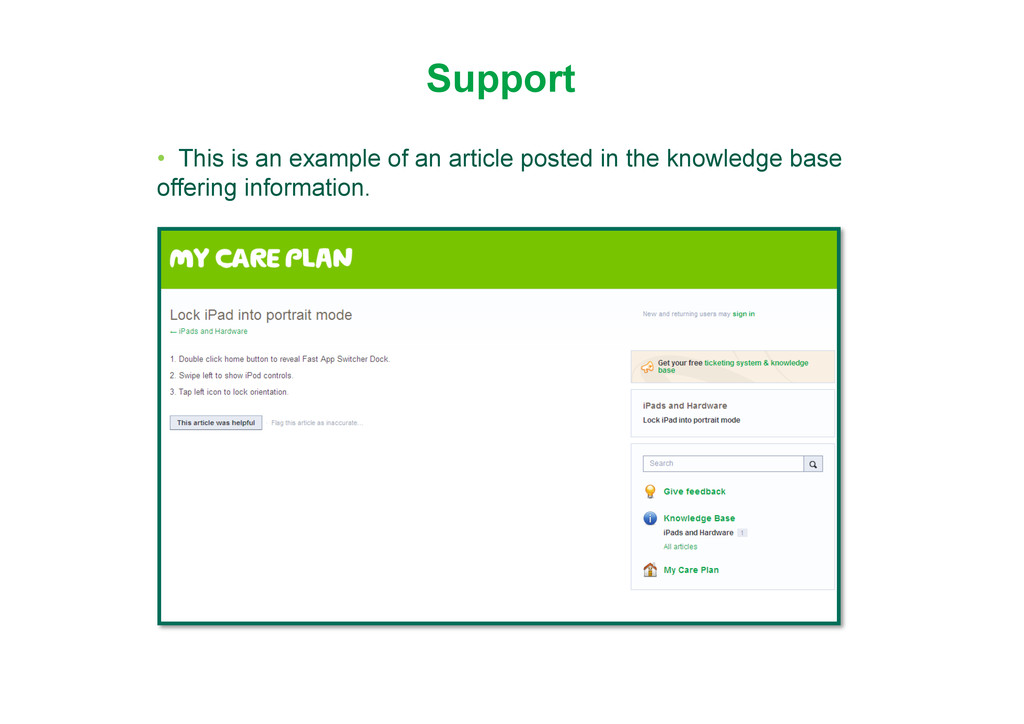
ideas by ‘posting a new idea’ and to view suggestions of others. • The knowledge base contains useful files for test sites and will be updated regularly by Macmillan during the testing.
you do not have to be a Macmillan professional to place an order) Macmillan organiser MAC13281 Assessment and Care planning folder MAC13689 Assessment and Care planning booklet MAC12957
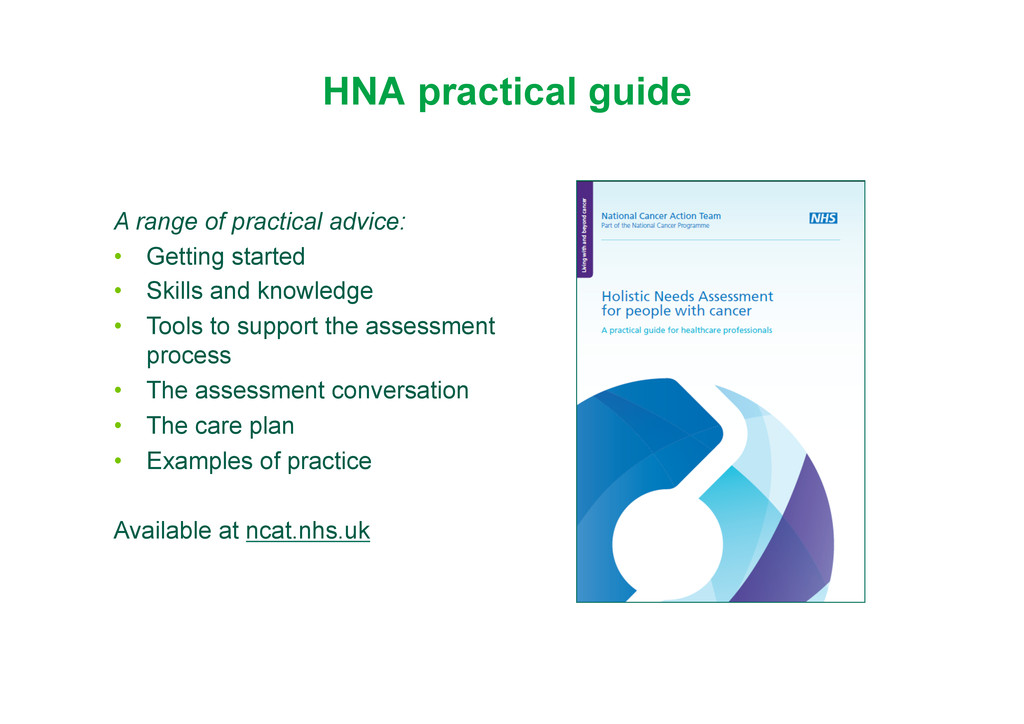
started • Skills and knowledge • Tools to support the assessment process • The assessment conversation • The care plan • Examples of practice Available at ncat.nhs.uk


 mycareplan
 kimpetersen
 schlessera
 smashingmag
 reverentgeek
 vanstee
 aleyda
 marcduiker
 axbom
axbom
 csswizardry