Upgrade to Pro — share decks privately, control downloads, hide ads and more …

Applied Firebase ML Kit

Applied Firebase ML Kit

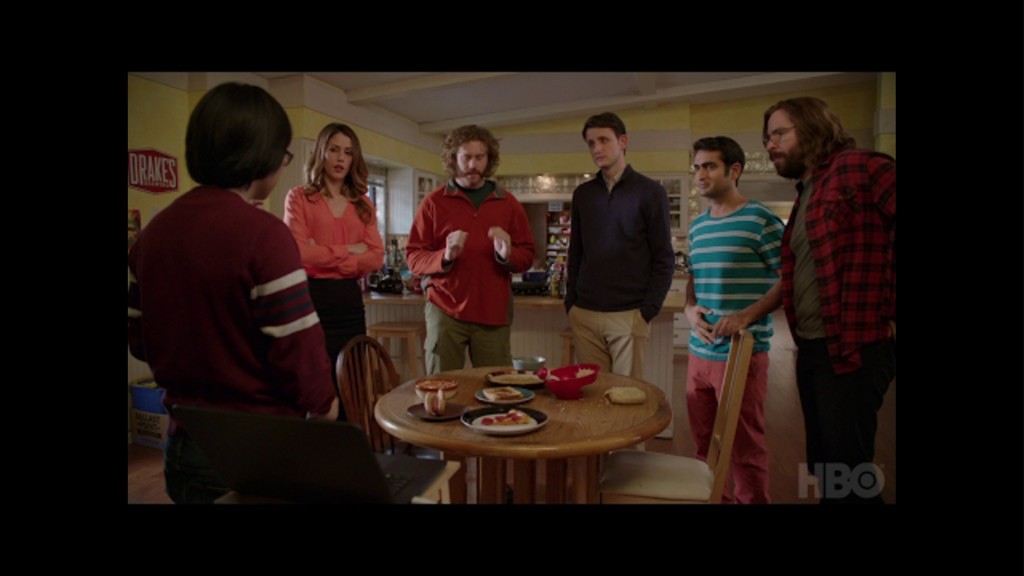
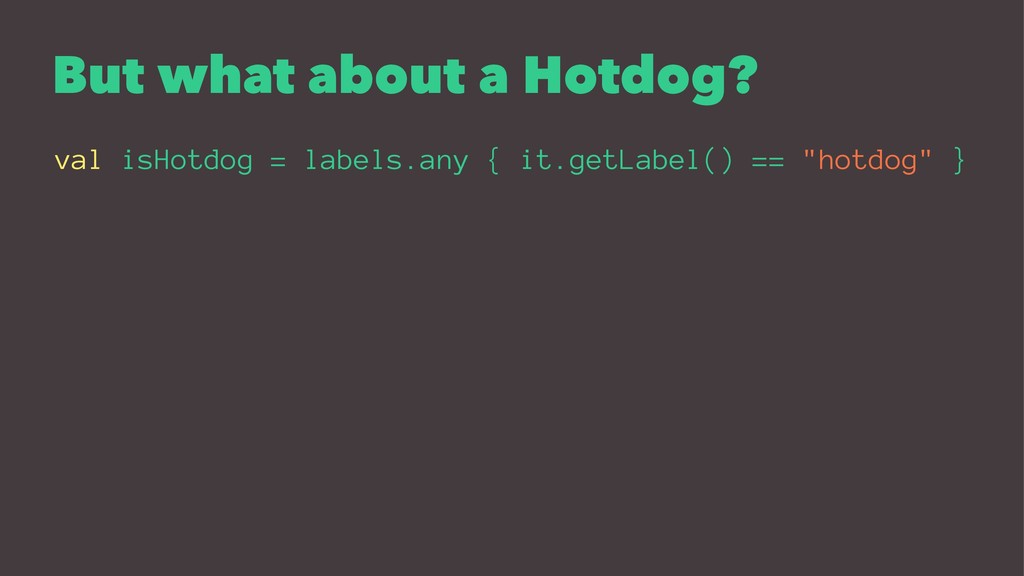
Learn about the exciting new Firebase MLKit SDK, discover how top apps are leveraging it to solve real-world problems, and follow along as Tyler walks us through how he used ML Kit to create a real version of the "Hotdog / Not-Hotdog" app from the popular Silicon Valley TV Series on HBO.

Tech talk given at https://dcnyc-extended-2018.splashthat.com/

Avatar for Tyler Eastman

Tyler Eastman

August 29, 2018

Other Decks in Programming

Transcript

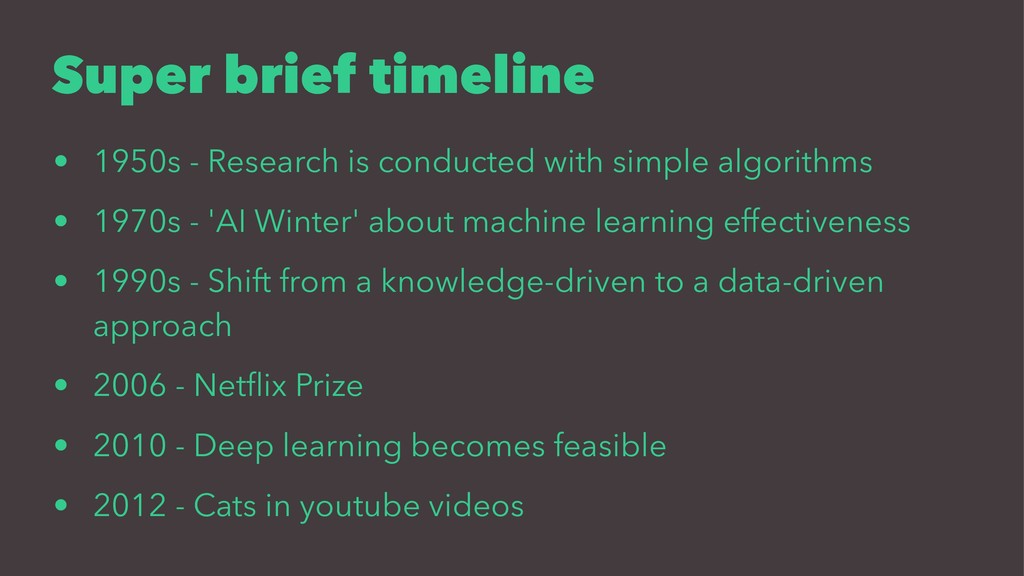
  1. Super brief timeline • 1950s - Research is conducted with
    simple algorithms • 1970s - 'AI Winter' about machine learning effectiveness • 1990s - Shift from a knowledge-driven to a data-driven approach • 2006 - Netflix Prize • 2010 - Deep learning becomes feasible • 2012 - Cats in youtube videos
  2. Tensorflow • Open source • Works on CPUs and GPUs

    • Huge complex models • Best for cloud applications • 'tensor' is a multi-dimensional data array
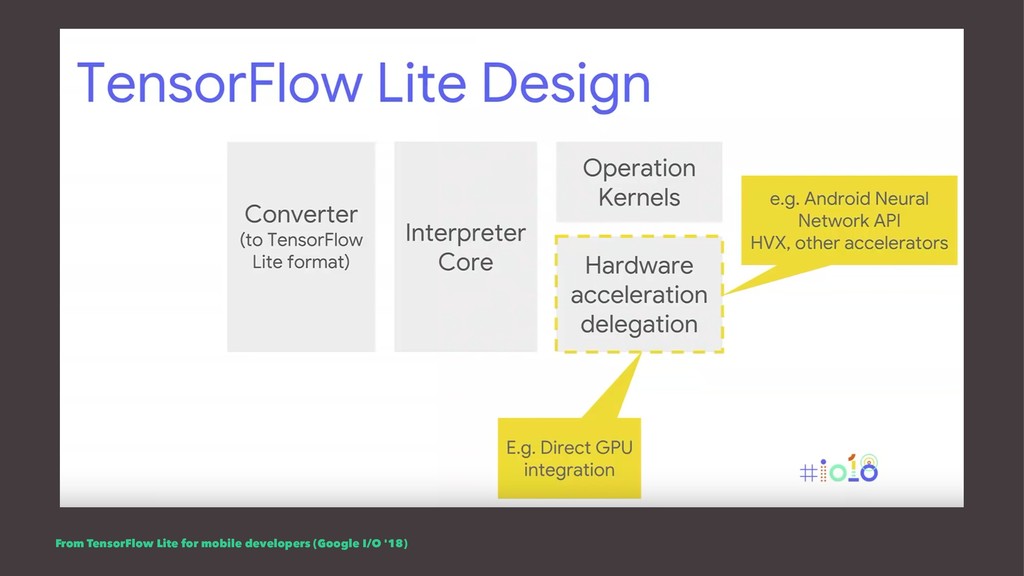
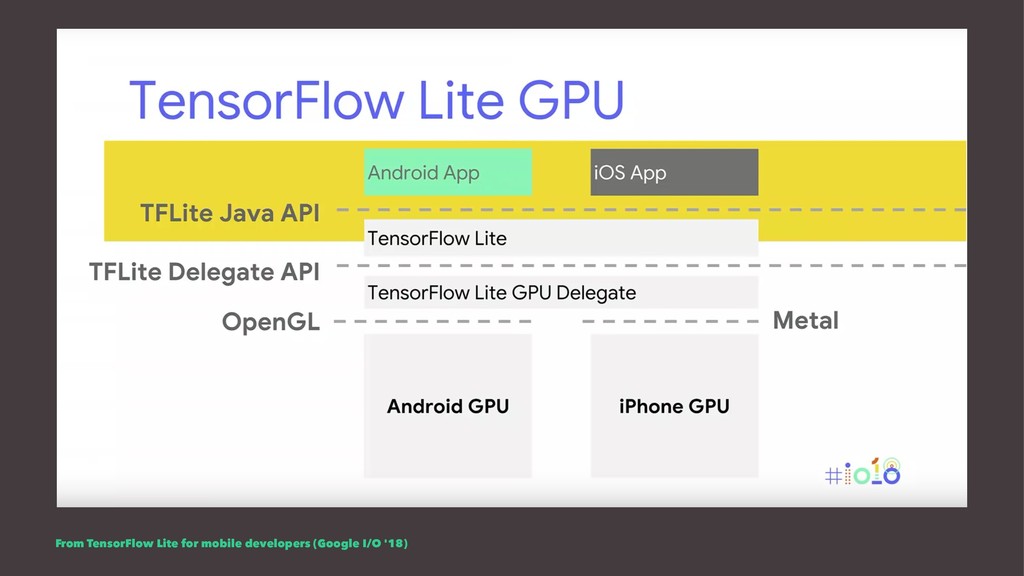
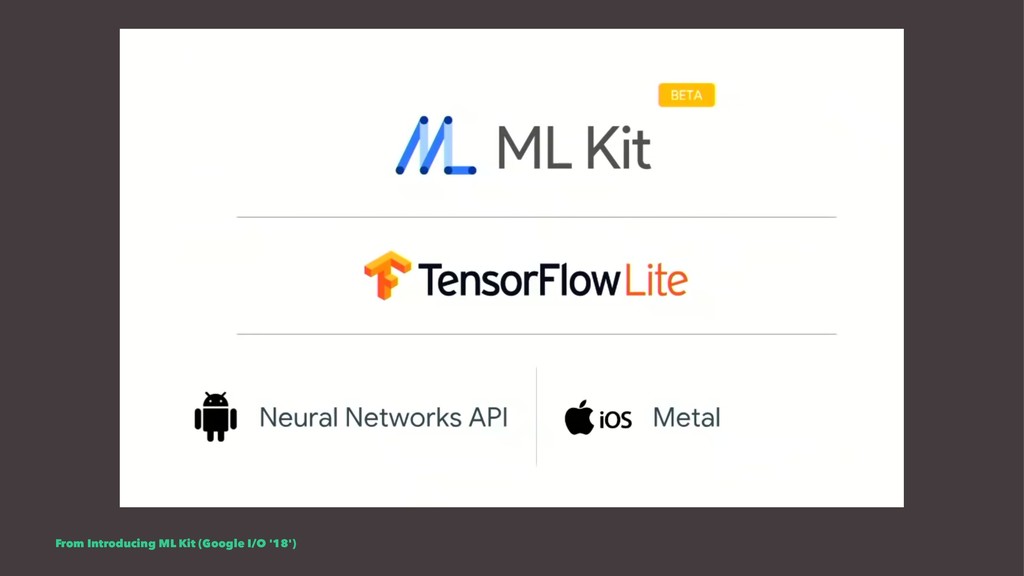
  3. Tensorflow Lite • Lightweight solution for mobile devices • Android

    Only initially, cross platform just announced • Hardware accelerated • Supports a subset of TF models • Best solution for running on your device!
  4. • Pros • Latency • Works when not connected •

    Pricing • Privacy (data stays on device) • (More) battery efficient • Can take advantage of the sensor data right on the device
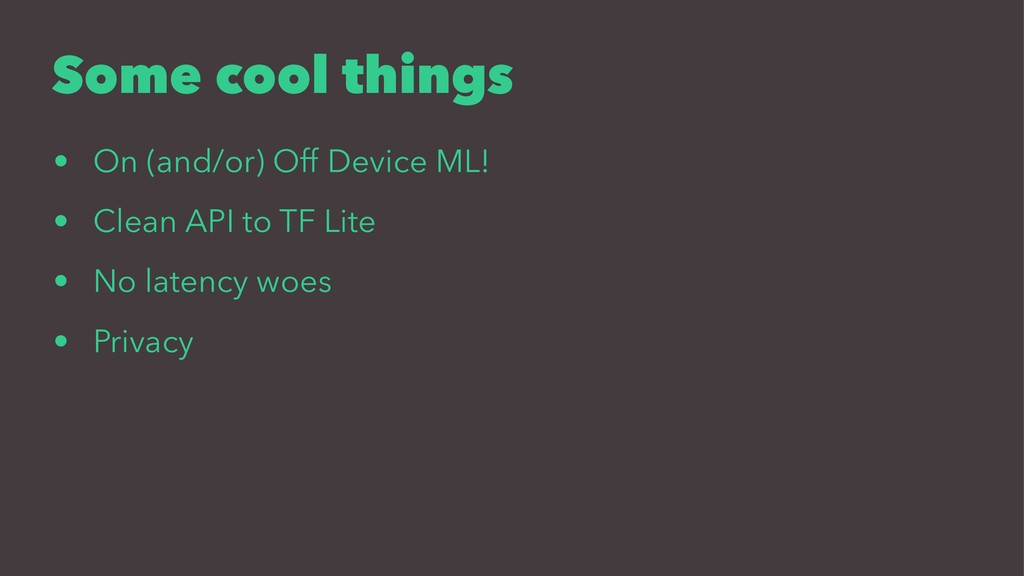
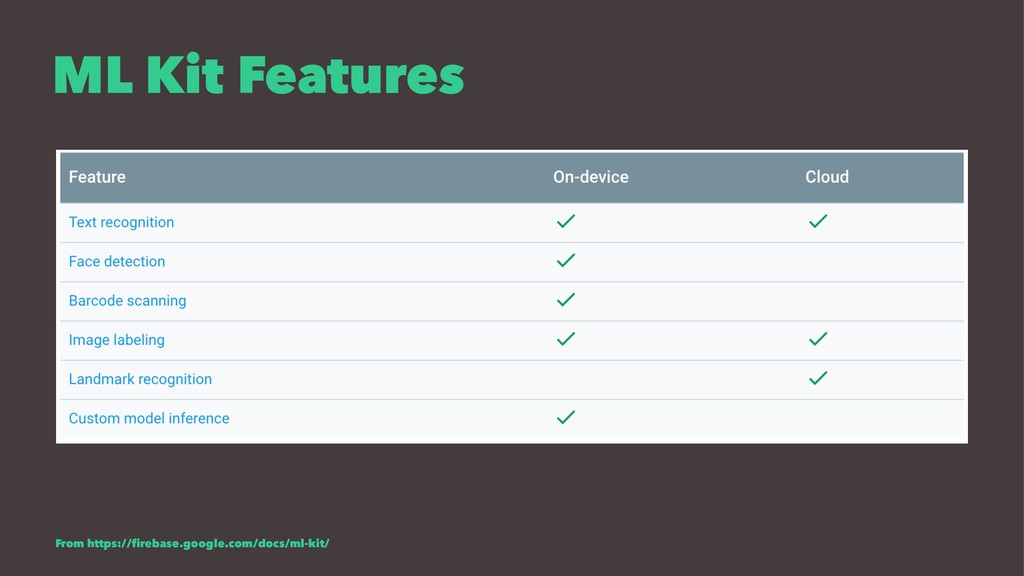
  5. Some cool things • On (and/or) Off Device ML! •

    Clean API to TF Lite • No latency woes • Privacy
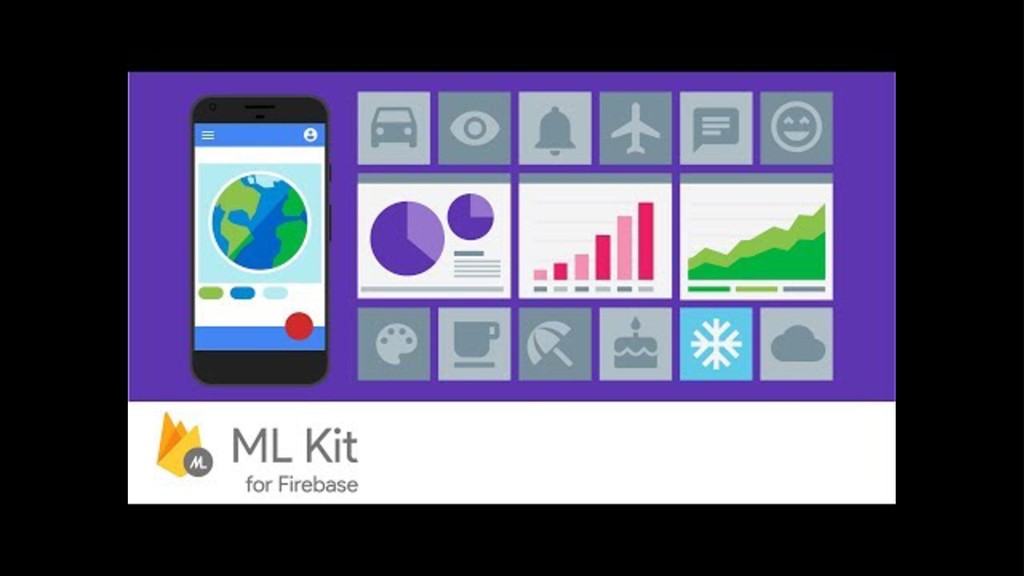
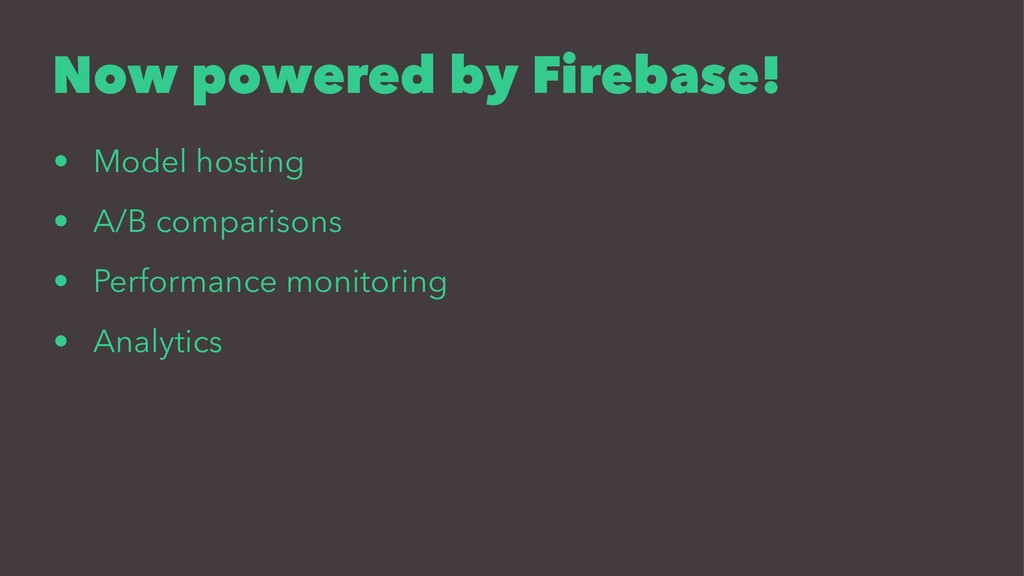
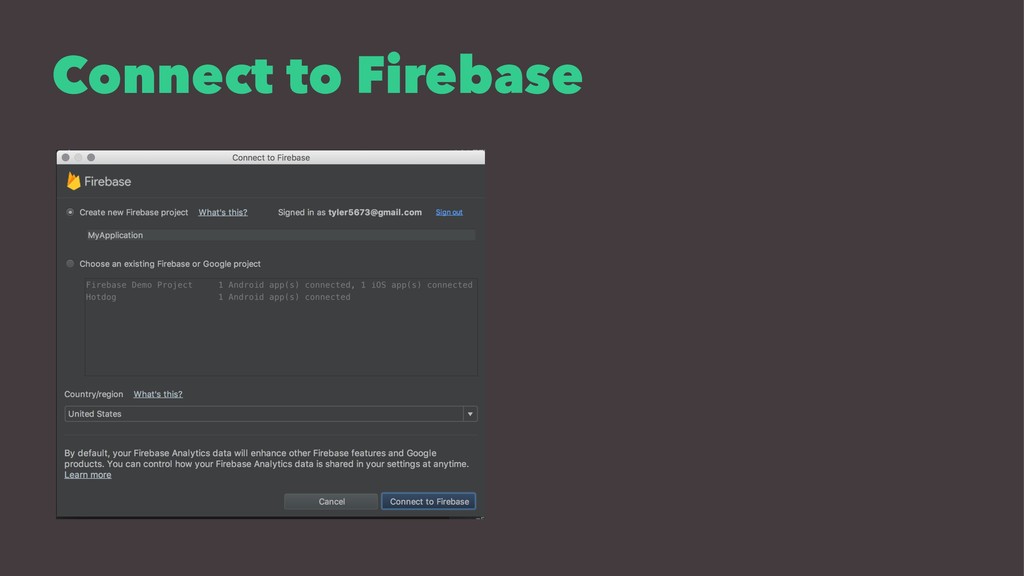
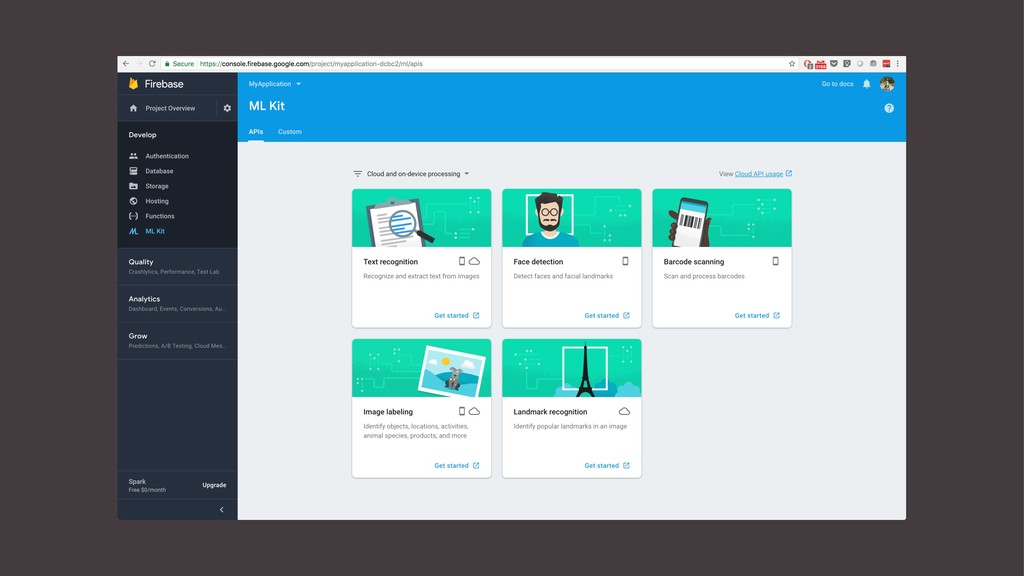
  6. Now powered by Firebase! • Model hosting • A/B comparisons

    • Performance monitoring • Analytics
  7. You miss %100 of the shots you don't take —

    Wayne Gretsky Michael Scott
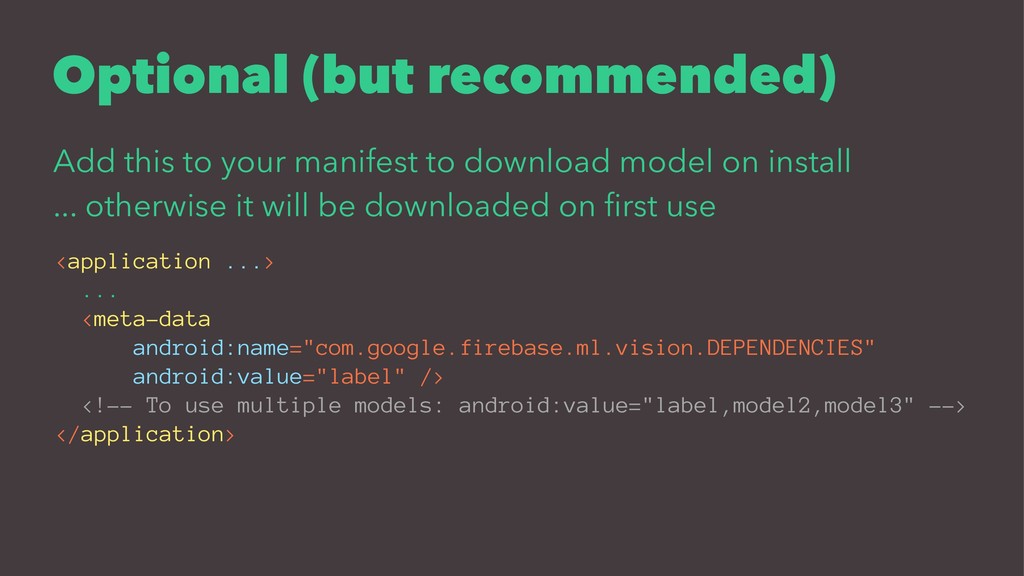
  8. Optional (but recommended) Add this to your manifest to download

    model on install ... otherwise it will be downloaded on first use <application ...> ... <meta-data android:name="com.google.firebase.ml.vision.DEPENDENCIES" android:value="label" /> <!-- To use multiple models: android:value="label,model2,model3" --> </application>
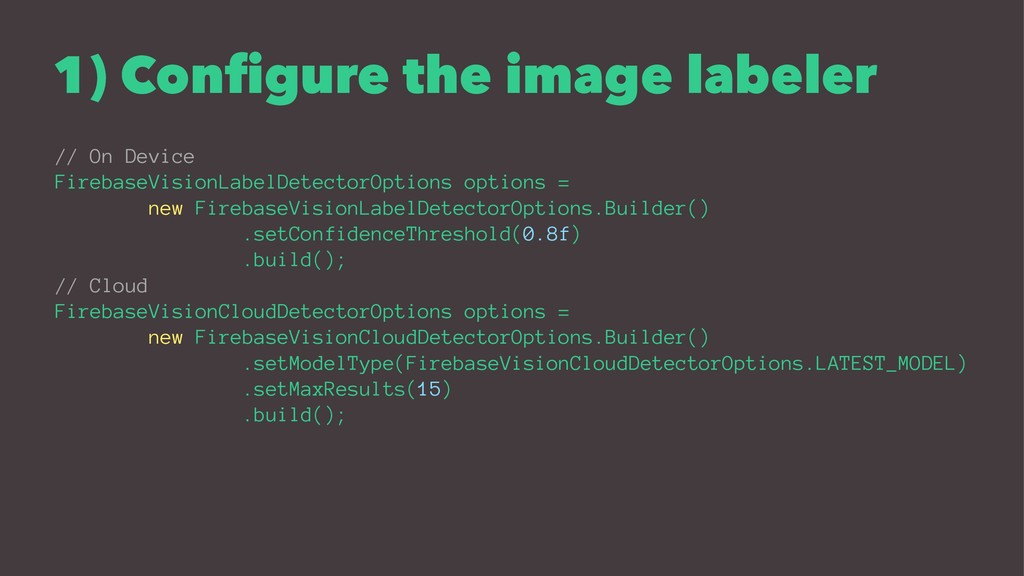
  9. 1) Configure the image labeler // On Device FirebaseVisionLabelDetectorOptions options

    = new FirebaseVisionLabelDetectorOptions.Builder() .setConfidenceThreshold(0.8f) .build(); // Cloud FirebaseVisionCloudDetectorOptions options = new FirebaseVisionCloudDetectorOptions.Builder() .setModelType(FirebaseVisionCloudDetectorOptions.LATEST_MODEL) .setMaxResults(15) .build();
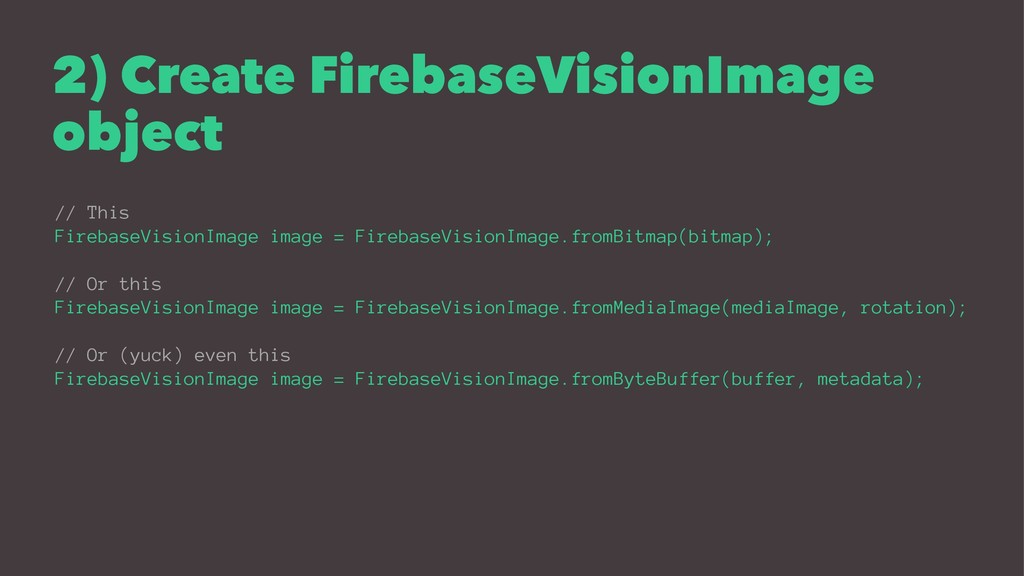
  10. 2) Create FirebaseVisionImage object // This FirebaseVisionImage image = FirebaseVisionImage.fromBitmap(bitmap);

    // Or this FirebaseVisionImage image = FirebaseVisionImage.fromMediaImage(mediaImage, rotation); // Or (yuck) even this FirebaseVisionImage image = FirebaseVisionImage.fromByteBuffer(buffer, metadata);
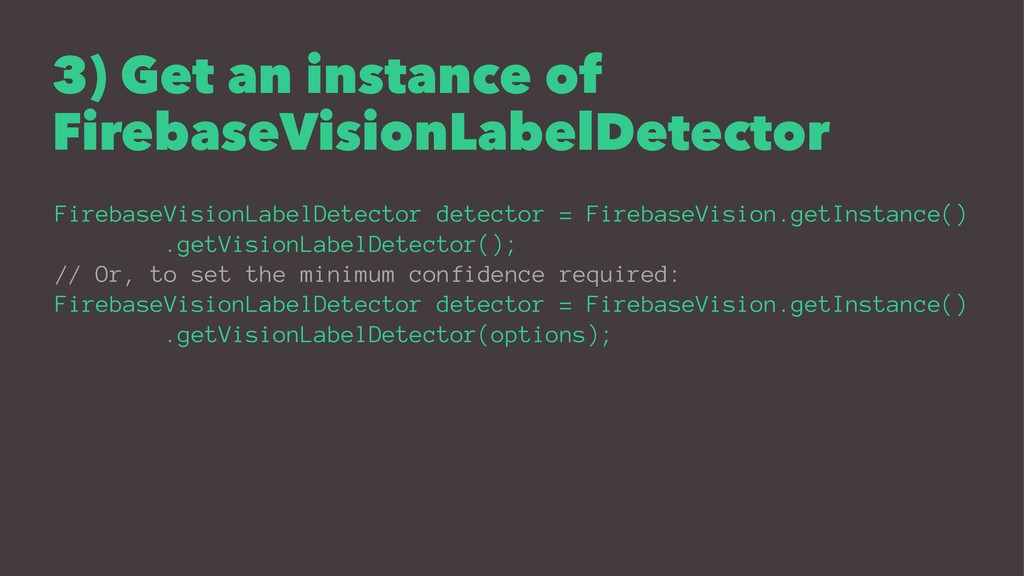
  11. 3) Get an instance of FirebaseVisionLabelDetector FirebaseVisionLabelDetector detector = FirebaseVision.getInstance()

    .getVisionLabelDetector(); // Or, to set the minimum confidence required: FirebaseVisionLabelDetector detector = FirebaseVision.getInstance() .getVisionLabelDetector(options);
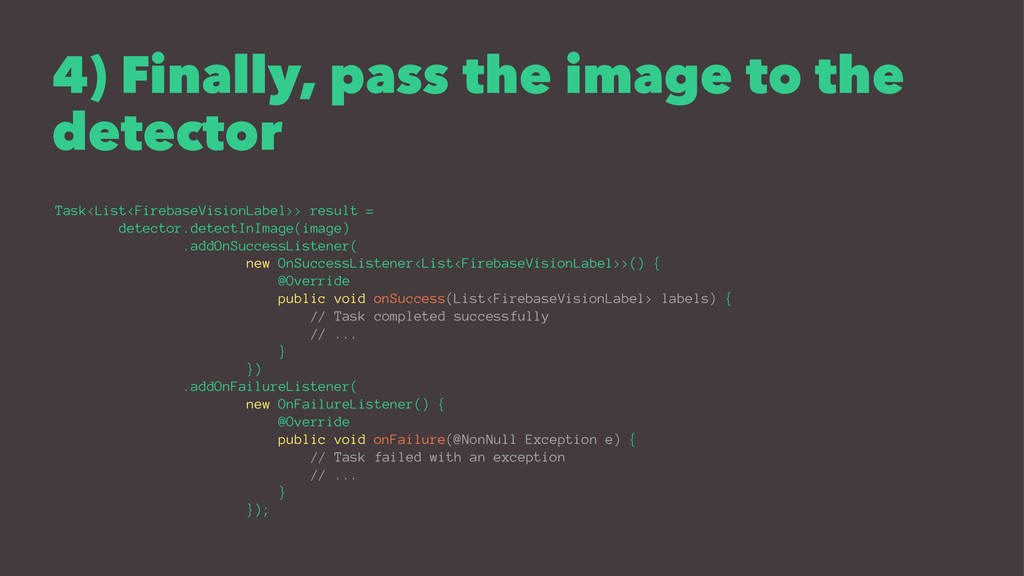
  12. 4) Finally, pass the image to the detector Task<List<FirebaseVisionLabel>> result

    = detector.detectInImage(image) .addOnSuccessListener( new OnSuccessListener<List<FirebaseVisionLabel>>() { @Override public void onSuccess(List<FirebaseVisionLabel> labels) { // Task completed successfully // ... } }) .addOnFailureListener( new OnFailureListener() { @Override public void onFailure(@NonNull Exception e) { // Task failed with an exception // ... } });
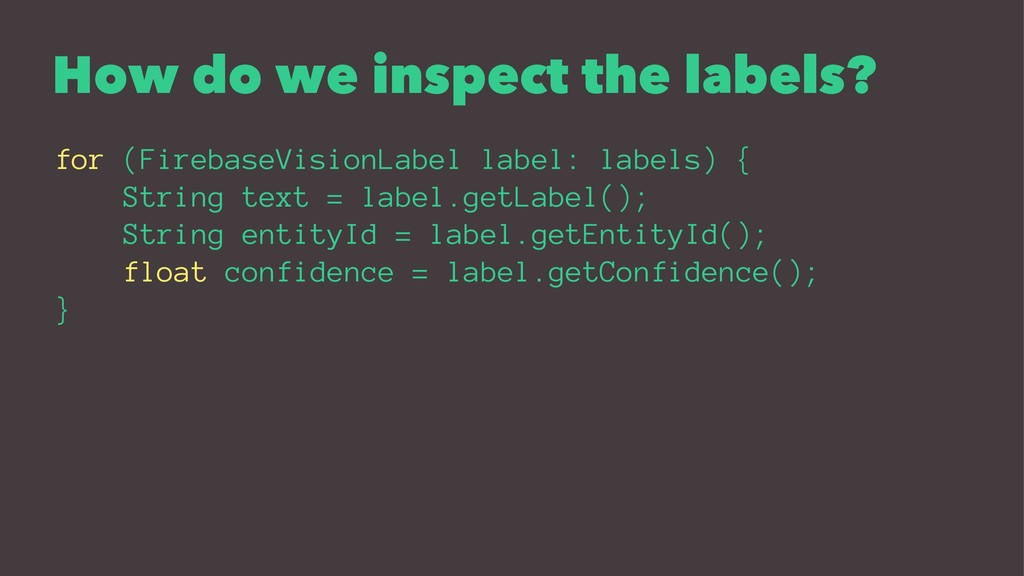
  13. How do we inspect the labels? for (FirebaseVisionLabel label: labels)

    { String text = label.getLabel(); String entityId = label.getEntityId(); float confidence = label.getConfidence(); }
  14. Q&A