Upgrade to Pro — share decks privately, control downloads, hide ads and more …

Deck Test

Avatar for Andrew Lee Andrew Lee
January 10, 2013
67

Deck Test

Avatar for Andrew Lee

Andrew Lee

January 10, 2013

Transcript

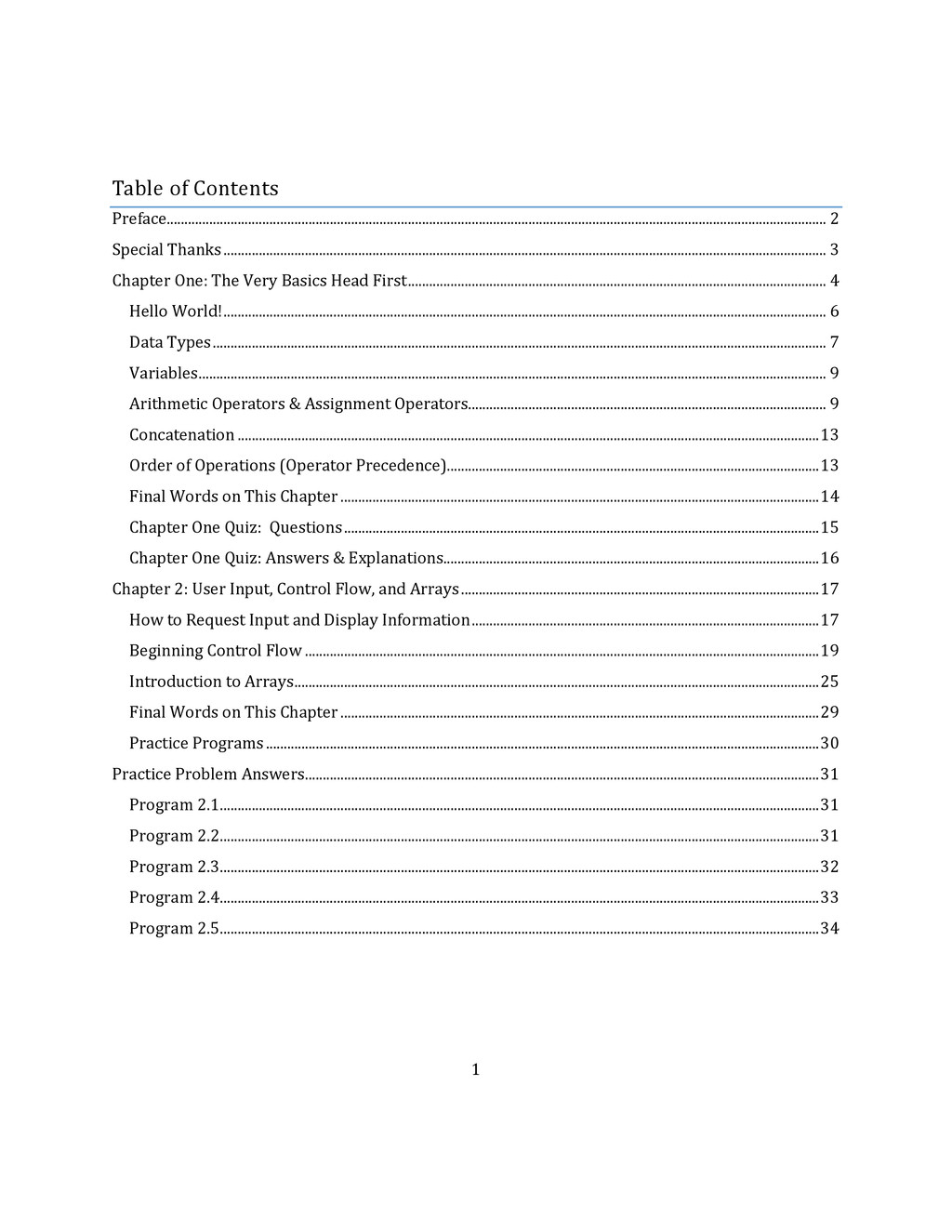
  1. 1 Table of Contents Preface .......................................................................................................................................................................................... 2 Special Thanks ..........................................................................................................................................................................

    3 Chapter One: The Very Basics Head First ...................................................................................................................... 4 Hello World! .......................................................................................................................................................................... 6 Data Types ............................................................................................................................................................................. 7 Variables ................................................................................................................................................................................. 9 Arithmetic Operators & Assignment Operators ..................................................................................................... 9 Concatenation .................................................................................................................................................................... 13 Order of Operations (Operator Precedence) ......................................................................................................... 13 Final Words on This Chapter ....................................................................................................................................... 14 Chapter One Quiz: Questions ...................................................................................................................................... 15 Chapter One Quiz: Answers & Explanations.......................................................................................................... 16 Chapter 2: User Input, Control Flow, and Arrays ..................................................................................................... 17 How to Request Input and Display Information .................................................................................................. 17 Beginning Control Flow ................................................................................................................................................. 19 Introduction to Arrays .................................................................................................................................................... 25 Final Words on This Chapter ....................................................................................................................................... 29 Practice Programs ............................................................................................................................................................ 30 Practice Problem Answers ................................................................................................................................................. 31 Program 2.1 ......................................................................................................................................................................... 31 Program 2.2 ......................................................................................................................................................................... 31 Program 2.3 ......................................................................................................................................................................... 32 Program 2.4 ......................................................................................................................................................................... 33 Program 2.5 ......................................................................................................................................................................... 34
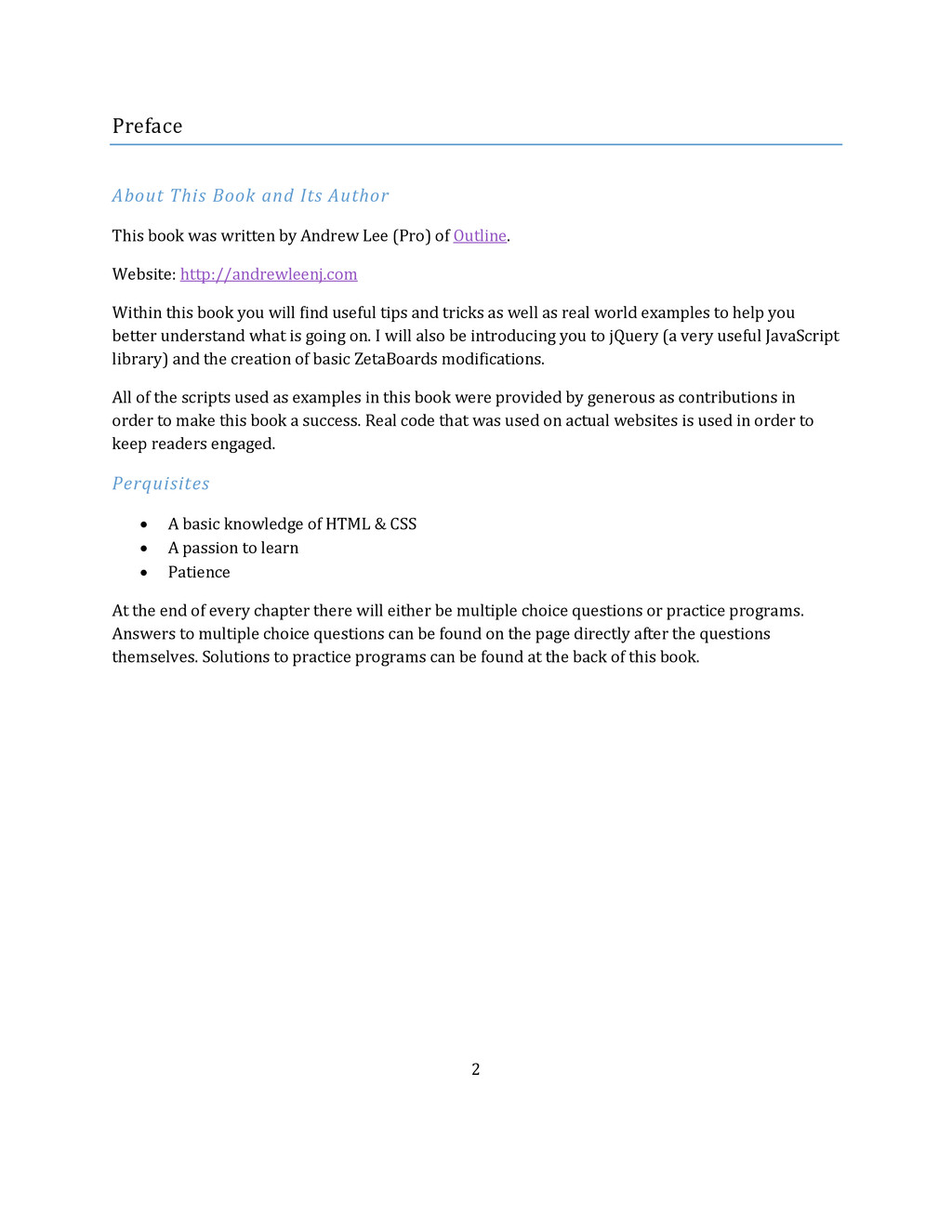
  2. 2 Preface About This Book and Its Author This book

    was written by Andrew Lee (Pro) of Outline. Website: http://andrewleenj.com Within this book you will find useful tips and tricks as well as real world examples to help you better understand what is going on. I will also be introducing you to jQuery (a very useful JavaScript library) and the creation of basic ZetaBoards modifications. All of the scripts used as examples in this book were provided by generous as contributions in order to make this book a success. Real code that was used on actual websites is used in order to keep readers engaged. Perquisites  A basic knowledge of HTML & CSS  A passion to learn  Patience At the end of every chapter there will either be multiple choice questions or practice programs. Answers to multiple choice questions can be found on the page directly after the questions themselves. Solutions to practice programs can be found at the back of this book.
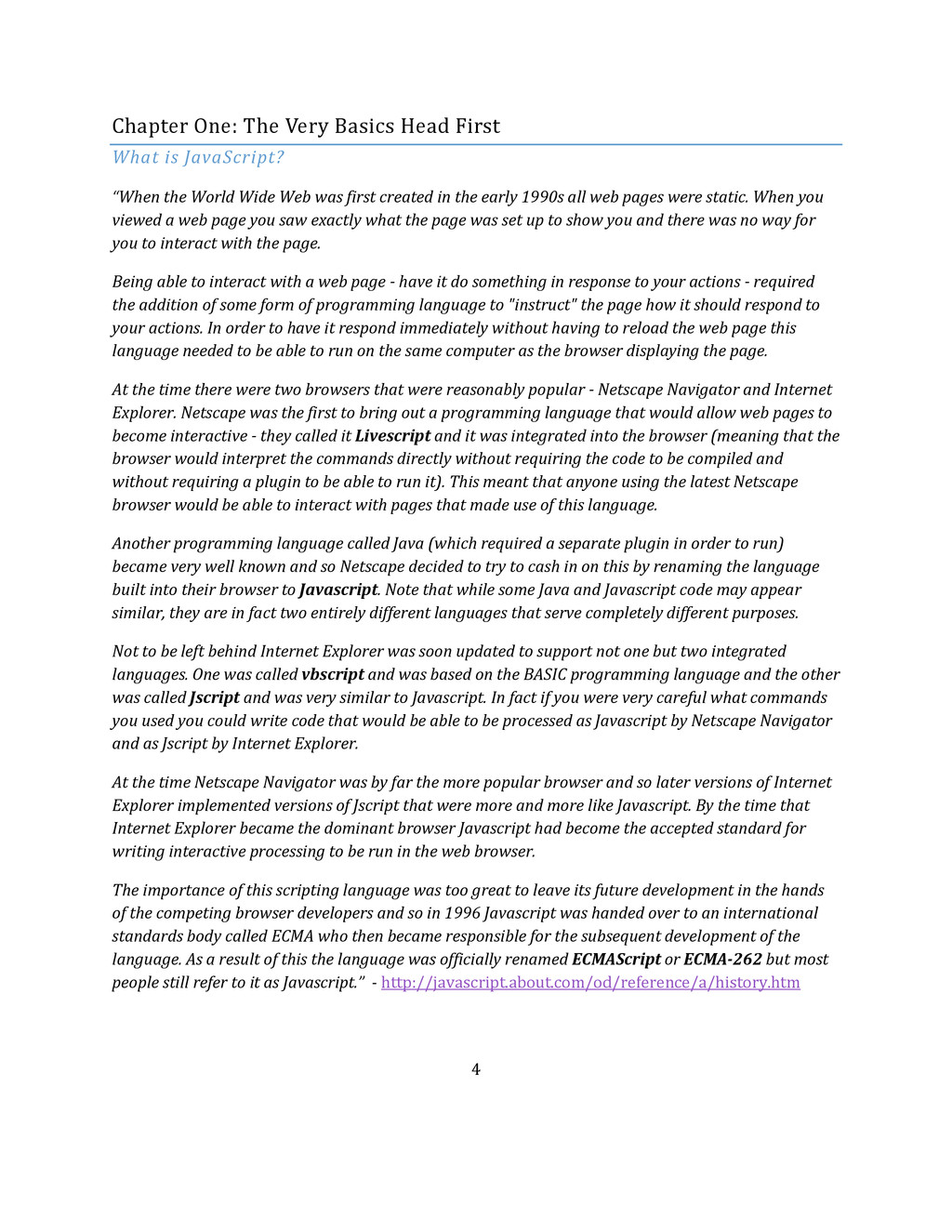
  3. 4 Chapter One: The Very Basics Head First What is

    JavaScript? “When the World Wide Web was first created in the early 1990s all web pages were static. When you viewed a web page you saw exactly what the page was set up to show you and there was no way for you to interact with the page. Being able to interact with a web page - have it do something in response to your actions - required the addition of some form of programming language to "instruct" the page how it should respond to your actions. In order to have it respond immediately without having to reload the web page this language needed to be able to run on the same computer as the browser displaying the page. At the time there were two browsers that were reasonably popular - Netscape Navigator and Internet Explorer. Netscape was the first to bring out a programming language that would allow web pages to become interactive - they called it Livescript and it was integrated into the browser (meaning that the browser would interpret the commands directly without requiring the code to be compiled and without requiring a plugin to be able to run it). This meant that anyone using the latest Netscape browser would be able to interact with pages that made use of this language. Another programming language called Java (which required a separate plugin in order to run) became very well known and so Netscape decided to try to cash in on this by renaming the language built into their browser to Javascript. Note that while some Java and Javascript code may appear similar, they are in fact two entirely different languages that serve completely different purposes. Not to be left behind Internet Explorer was soon updated to support not one but two integrated languages. One was called vbscript and was based on the BASIC programming language and the other was called Jscript and was very similar to Javascript. In fact if you were very careful what commands you used you could write code that would be able to be processed as Javascript by Netscape Navigator and as Jscript by Internet Explorer. At the time Netscape Navigator was by far the more popular browser and so later versions of Internet Explorer implemented versions of Jscript that were more and more like Javascript. By the time that Internet Explorer became the dominant browser Javascript had become the accepted standard for writing interactive processing to be run in the web browser. The importance of this scripting language was too great to leave its future development in the hands of the competing browser developers and so in 1996 Javascript was handed over to an international standards body called ECMA who then became responsible for the subsequent development of the language. As a result of this the language was officially renamed ECMAScript or ECMA-262 but most people still refer to it as Javascript.” - http://javascript.about.com/od/reference/a/history.htm
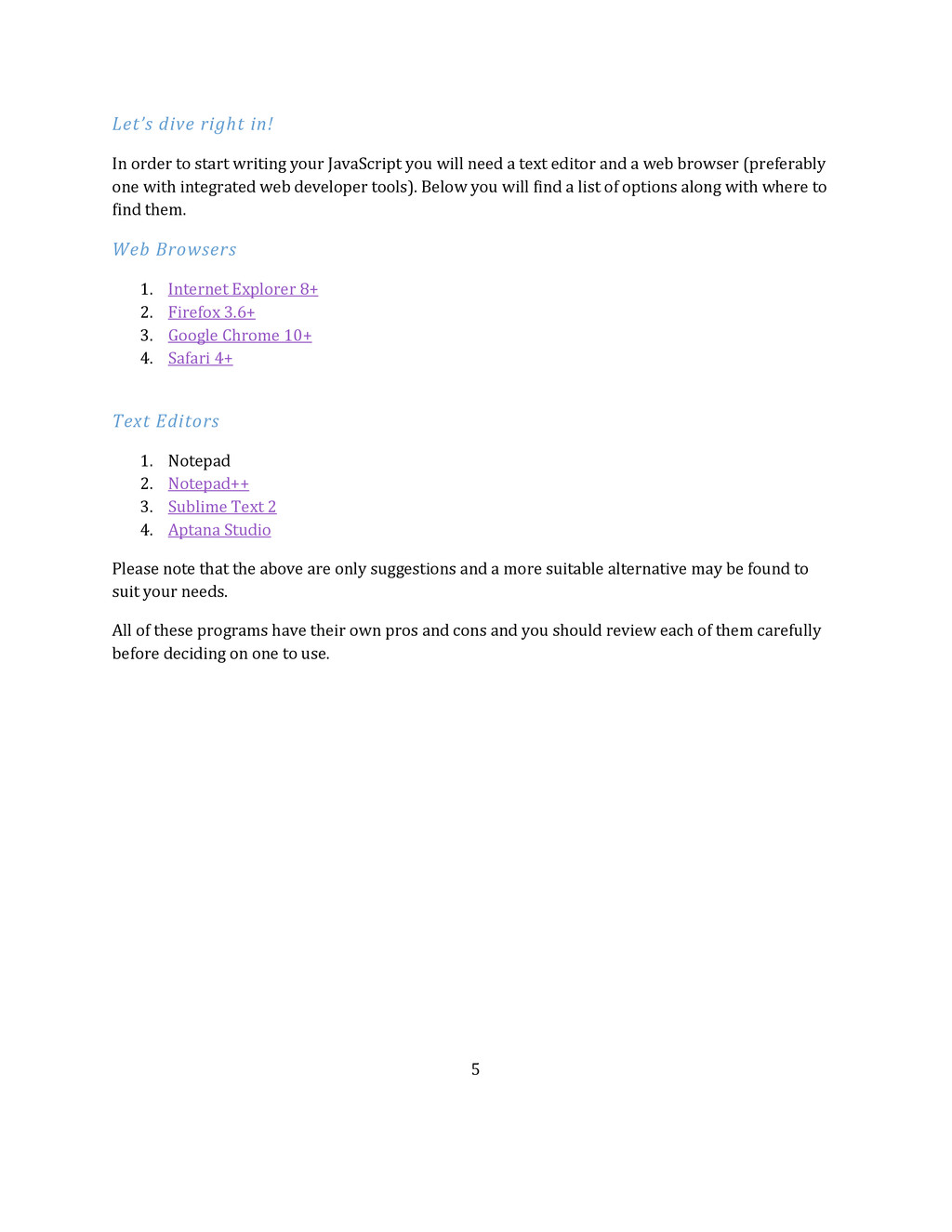
  4. 5 Let’s dive right in! In order to start writing

    your JavaScript you will need a text editor and a web browser (preferably one with integrated web developer tools). Below you will find a list of options along with where to find them. Web Browsers 1. Internet Explorer 8+ 2. Firefox 3.6+ 3. Google Chrome 10+ 4. Safari 4+ Text Editors 1. Notepad 2. Notepad++ 3. Sublime Text 2 4. Aptana Studio Please note that the above are only suggestions and a more suitable alternative may be found to suit your needs. All of these programs have their own pros and cons and you should review each of them carefully before deciding on one to use.
  5. 6 Hello World! Now that you have acquired the required

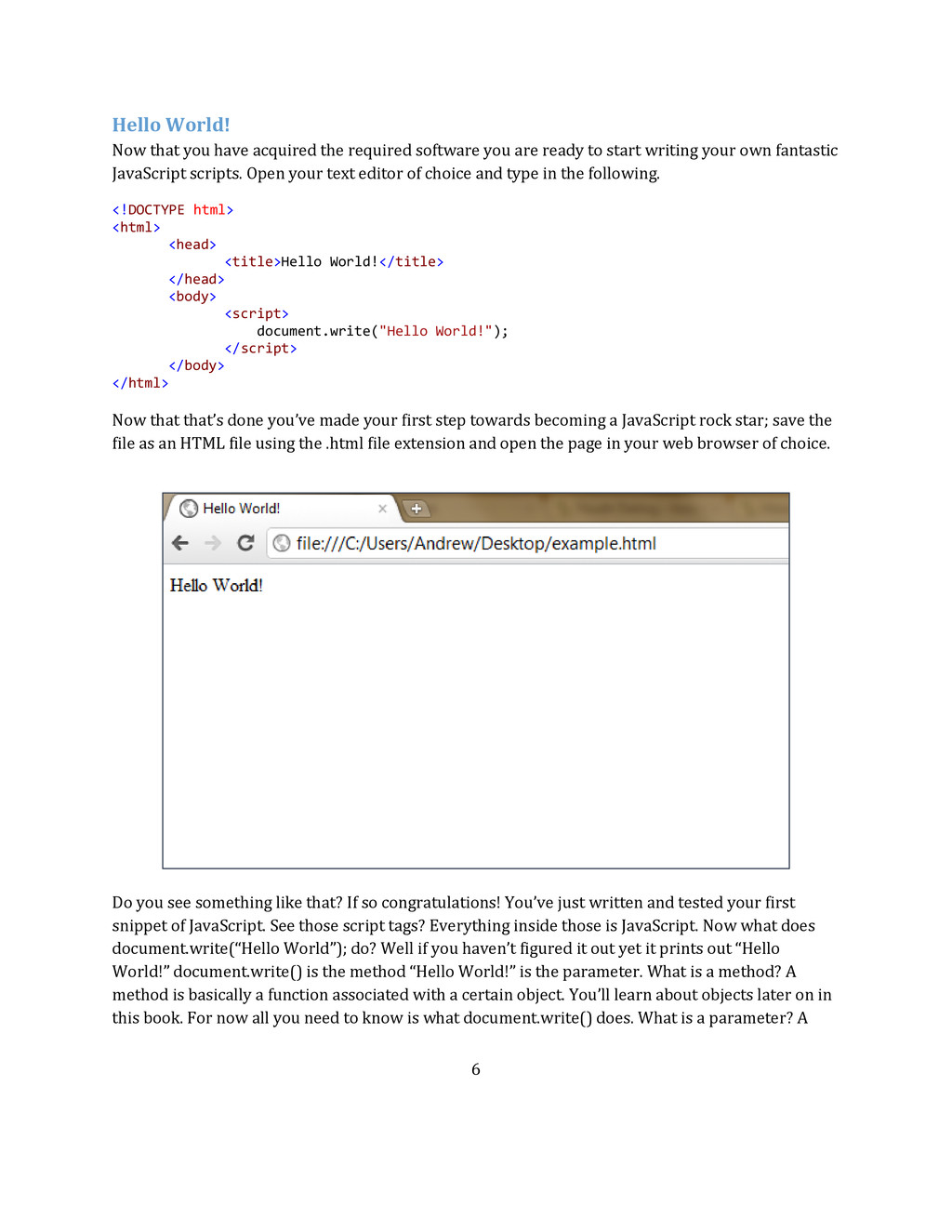
    software you are ready to start writing your own fantastic JavaScript scripts. Open your text editor of choice and type in the following. <!DOCTYPE html> <html> <head> <title>Hello World!</title> </head> <body> <script> document.write("Hello World!"); </script> </body> </html> Now that that’s done you’ve made your first step towards becoming a JavaScript rock star; save the file as an HTML file using the .html file extension and open the page in your web browser of choice. Do you see something like that? If so congratulations! You’ve just written and tested your first snippet of JavaScript. See those script tags? Everything inside those is JavaScript. Now what does document.write(“Hello World”); do? Well if you haven’t figured it out yet it prints out “Hello World!” document.write() is the method “Hello World!” is the parameter. What is a method? A method is basically a function associated with a certain object. You’ll learn about objects later on in this book. For now all you need to know is what document.write() does. What is a parameter? A
  6. 7 parameter is something that you pass to a method

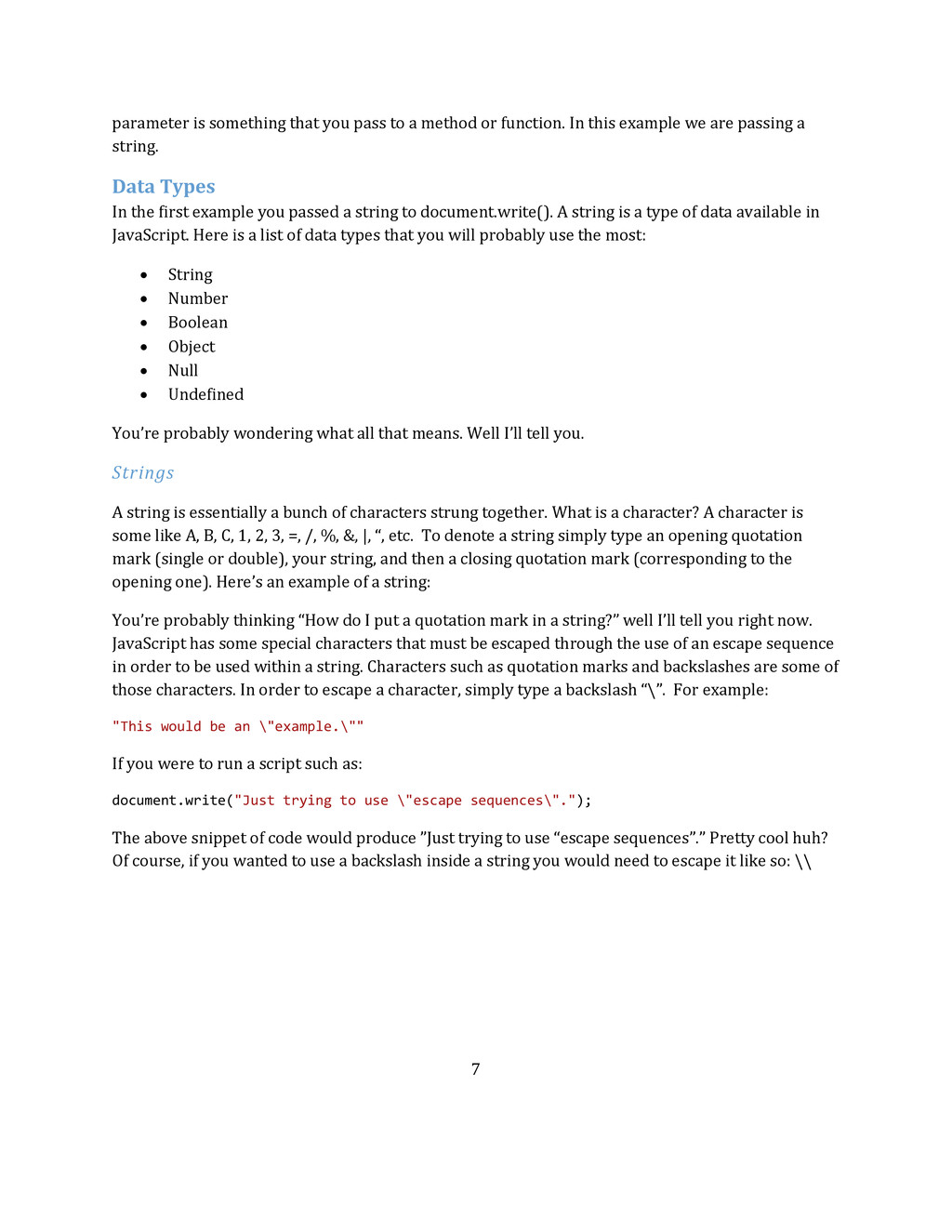
    or function. In this example we are passing a string. Data Types In the first example you passed a string to document.write(). A string is a type of data available in JavaScript. Here is a list of data types that you will probably use the most:  String  Number  Boolean  Object  Null  Undefined You’re probably wondering what all that means. Well I’ll tell you. Strings A string is essentially a bunch of characters strung together. What is a character? A character is some like A, B, C, 1, 2, 3, =, /, %, &, |, “, etc. To denote a string simply type an opening quotation mark (single or double), your string, and then a closing quotation mark (corresponding to the opening one). Here’s an example of a string: You’re probably thinking “How do I put a quotation mark in a string?” well I’ll tell you right now. JavaScript has some special characters that must be escaped through the use of an escape sequence in order to be used within a string. Characters such as quotation marks and backslashes are some of those characters. In order to escape a character, simply type a backslash “\”. For example: "This would be an \"example.\"" If you were to run a script such as: document.write("Just trying to use \"escape sequences\"."); The above snippet of code would produce ”Just trying to use “escape sequences”.” Pretty cool huh? Of course, if you wanted to use a backslash inside a string you would need to escape it like so: \\
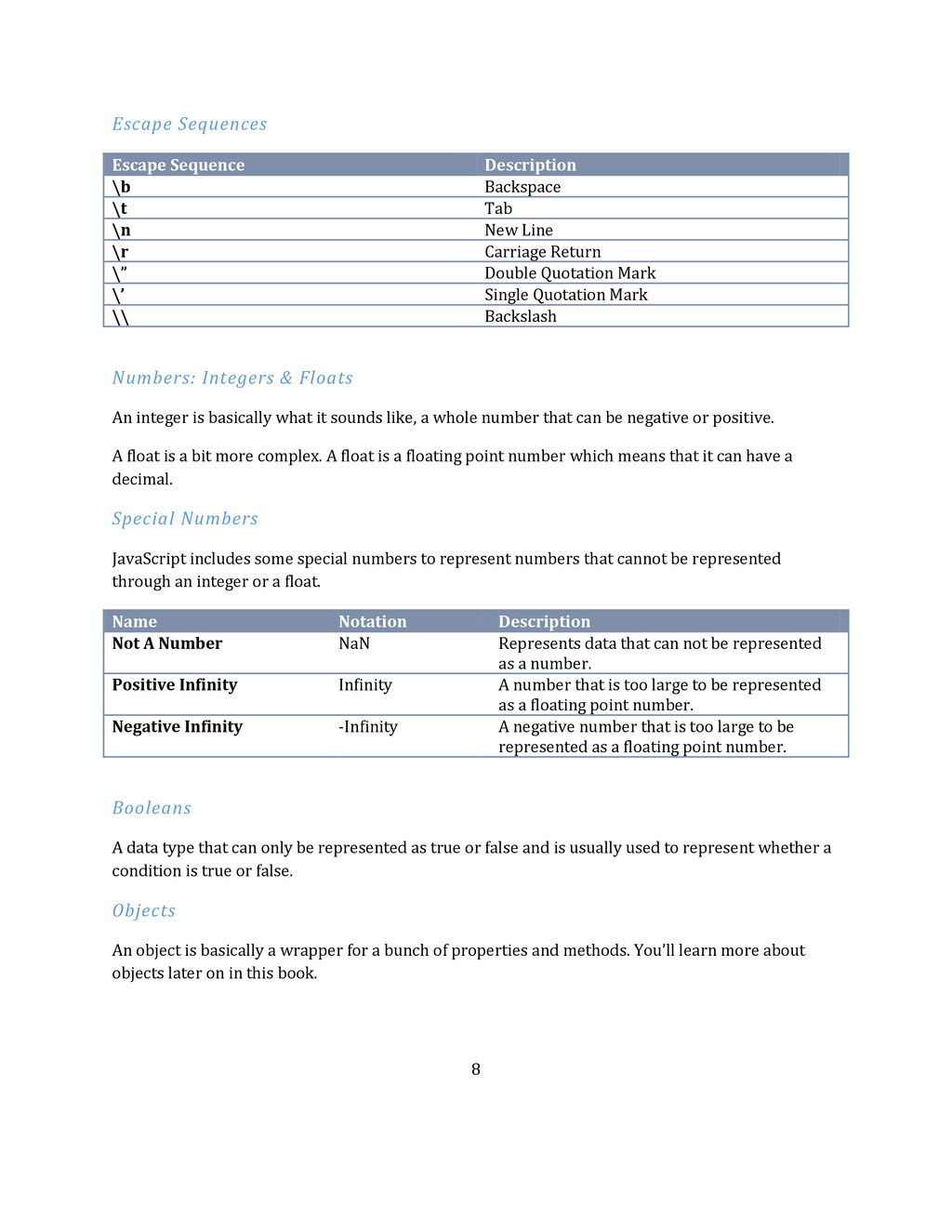
  7. 8 Escape Sequences Escape Sequence Description \b Backspace \t Tab

    \n New Line \r Carriage Return \” Double Quotation Mark \’ Single Quotation Mark \\ Backslash Numbers: Integers & Floats An integer is basically what it sounds like, a whole number that can be negative or positive. A float is a bit more complex. A float is a floating point number which means that it can have a decimal. Special Numbers JavaScript includes some special numbers to represent numbers that cannot be represented through an integer or a float. Name Notation Description Not A Number NaN Represents data that can not be represented as a number. Positive Infinity Infinity A number that is too large to be represented as a floating point number. Negative Infinity -Infinity A negative number that is too large to be represented as a floating point number. Booleans A data type that can only be represented as true or false and is usually used to represent whether a condition is true or false. Objects An object is basically a wrapper for a bunch of properties and methods. You’ll learn more about objects later on in this book.
  8. 9 Null Null represents a value that can not be

    represented as a data type. Undefined The undefined data type represents a variable or object that does not exist, or has not been defined. Variables What is a variable? A variable is basically a reference to a data type. In order to create a variable you use the “var” keyword. For example: var aString = "This is a string"; The variable aString now holds the value “This is a string”. What we did was declare and instantiate a variable all in one line. In order to declare a variable just type var and then the name for the variable. Of course if you don’t instantiate a variable, your variable will be undefined (page 7). To instantiate a variable just type = and then whatever you want your variable to hold. Now on to using variables, to use a variable simply type it’s name. For example: document.write(aString); Building onto our previous example, the above snippet of code will output “This is a string”. Remember, when declaring a variable you may only use the characters A-Z, a-z, 0-9, and the underscore. You may not declare a variable with a number at the start of a variable name. JavaScript variables are case-sensitive so watch out. aVariable and avariable are completely different. Pro Tip: You can declare and instantiate multiple variables at once by separating declarations with commas. For example: var x = 5, y = 10, z = 15; Arithmetic Operators & Assignment Operators Arithmetic Operators Just like the title of the book, we’re going to dive head first into this. Arithmetic operators should be fairly self-explanatory so I’ll just give you a list of operators.
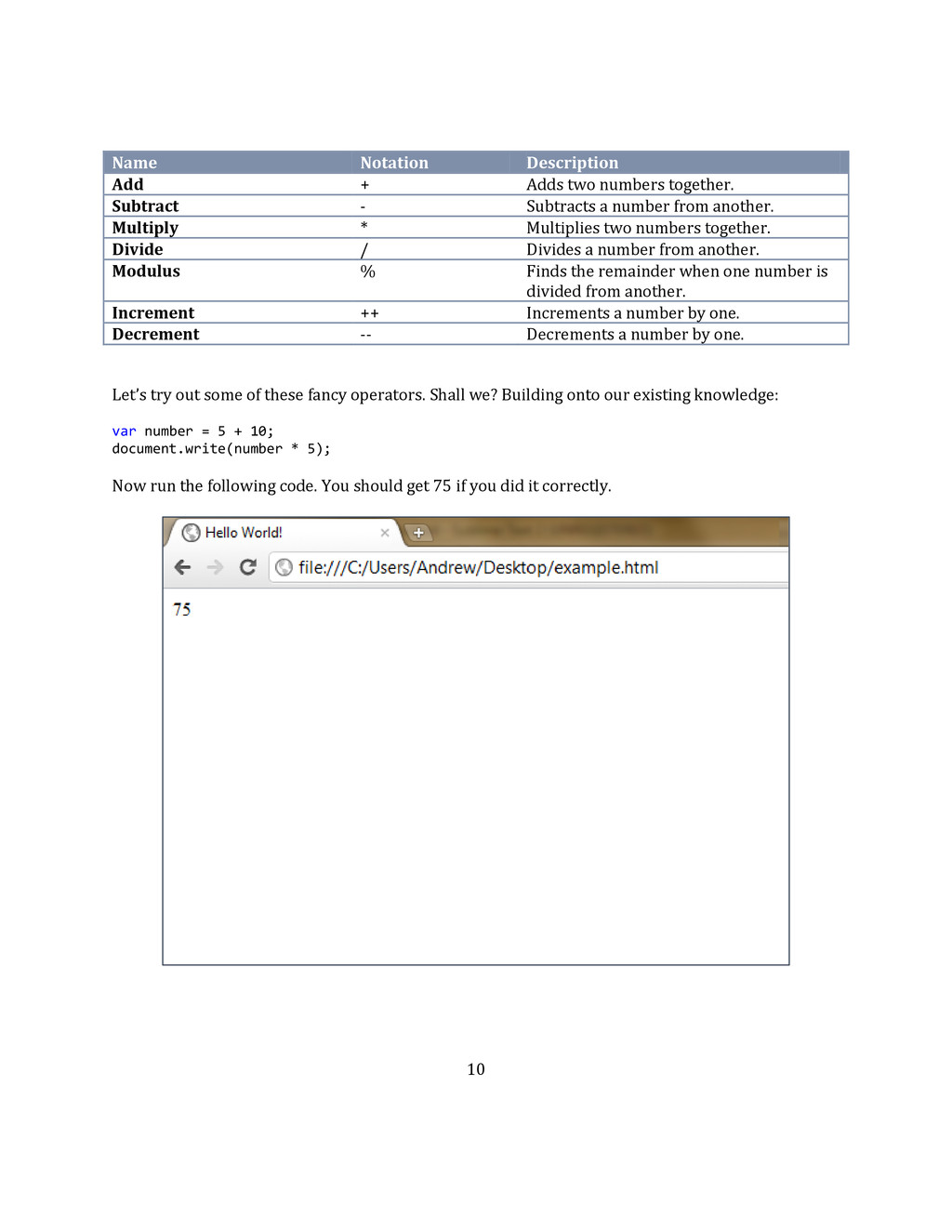
  9. 10 Name Notation Description Add + Adds two numbers together.

    Subtract - Subtracts a number from another. Multiply * Multiplies two numbers together. Divide / Divides a number from another. Modulus % Finds the remainder when one number is divided from another. Increment ++ Increments a number by one. Decrement -- Decrements a number by one. Let’s try out some of these fancy operators. Shall we? Building onto our existing knowledge: var number = 5 + 10; document.write(number * 5); Now run the following code. You should get 75 if you did it correctly.
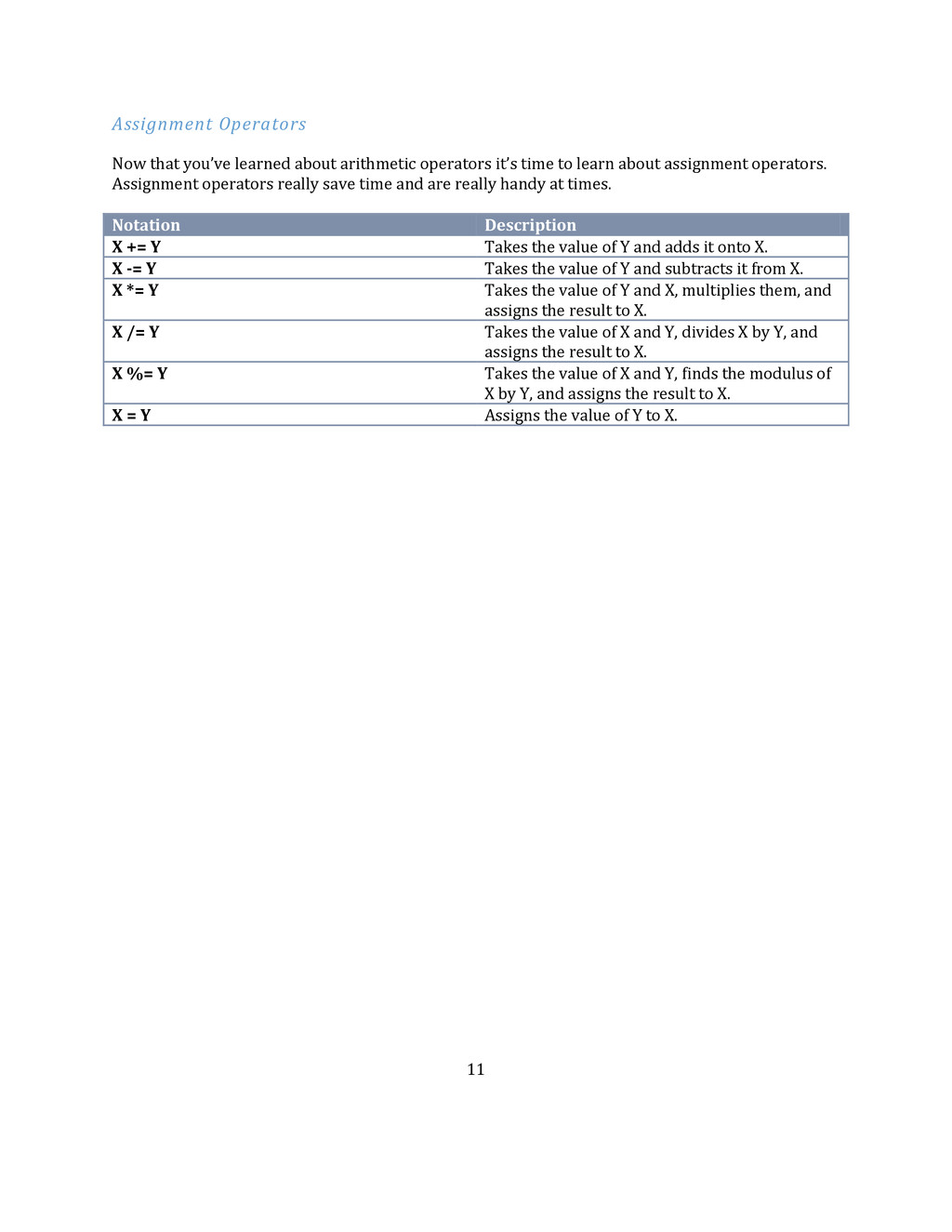
  10. 11 Assignment Operators Now that you’ve learned about arithmetic operators

    it’s time to learn about assignment operators. Assignment operators really save time and are really handy at times. Notation Description X += Y Takes the value of Y and adds it onto X. X -= Y Takes the value of Y and subtracts it from X. X *= Y Takes the value of Y and X, multiplies them, and assigns the result to X. X /= Y Takes the value of X and Y, divides X by Y, and assigns the result to X. X %= Y Takes the value of X and Y, finds the modulus of X by Y, and assigns the result to X. X = Y Assigns the value of Y to X.
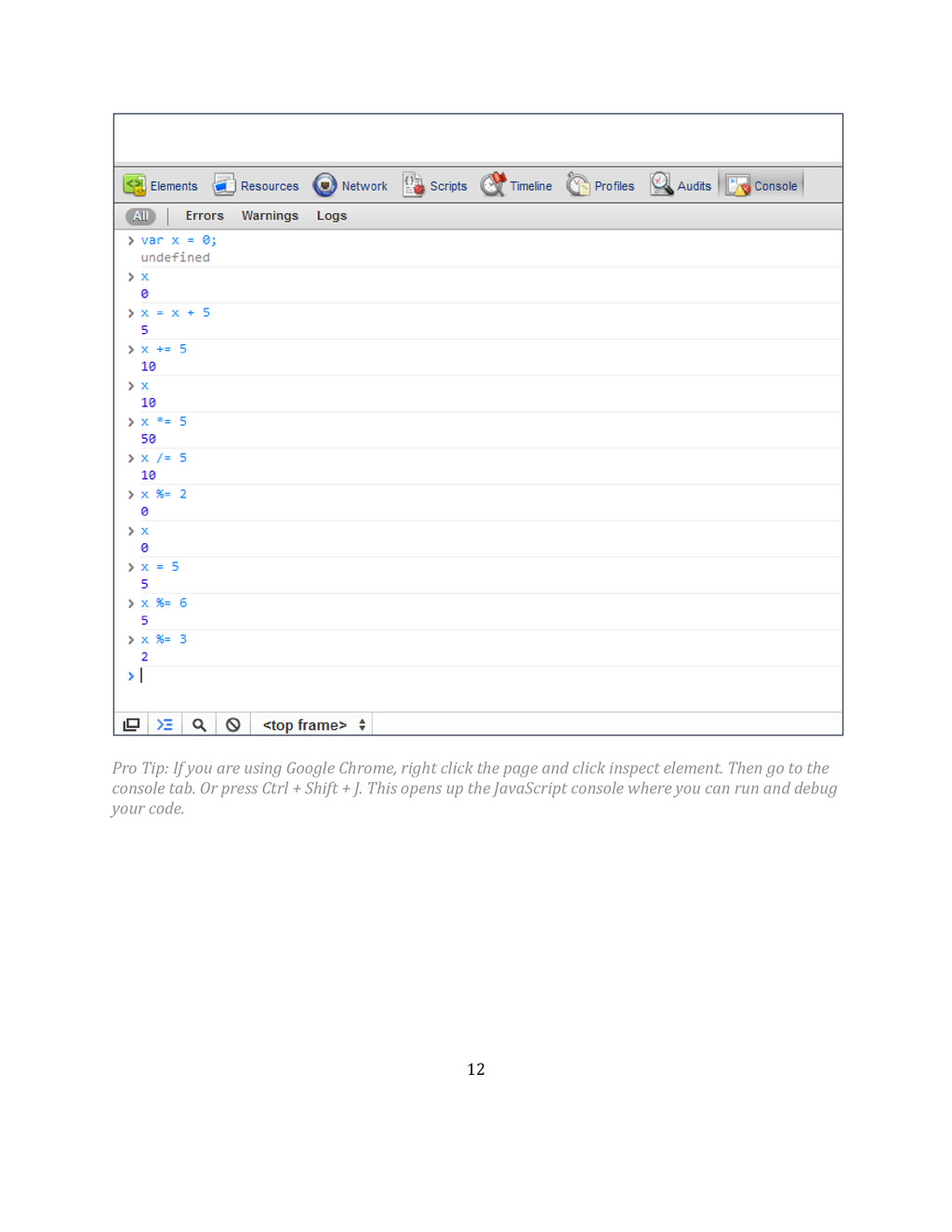
  11. 12 Pro Tip: If you are using Google Chrome, right

    click the page and click inspect element. Then go to the console tab. Or press Ctrl + Shift + J. This opens up the JavaScript console where you can run and debug your code.
  12. 13 Concatenation There are other uses for the plus sign

    other than adding numbers. It can be powerful tool when used correctly. The plus sign can append two strings together like so: var aString = "Hi" + " " + "there!"; The value of aString would be “Hi There!” See what I mean? It can be very powerful. Be careful when using it though, 5 + 5 + “hi” + 5 + 5 is completely different from 5 + 5 + “hi” + (5 + 5). The later would print the result everybody expects. When you concatenate a string onto a number the number becomes a string and as such all numbers appended onto the string will become a string too. This means that “5 + 5 = “ + 5 + 5 will print out “5 + 5 = 55” and not “5 + 5 = 10”. Order of Operations (Operator Precedence) You probably didn’t think that JavaScript used order of operations. Order of operations is important in JavaScript as it defines the order in which operations are done. Associativity There are two orders in which operators are evaluated in JavaScript, from left to write, and right to left. For example, when you do something such as “var x = 5 + 5” 5 + 5 is evaluated first, after that the equals operator is evaluated assigning the result to variable x. This is an example of right to left associativity. An example of left to right associativity is when you declare and instantiate a variable. For instance: var x = 5 + 5, y = 10 + 10; Since variable declarations are left to right associativity var x is evaluated first, then since assignments are right to left associativity 5 + 5 is evaluated and then the result is assigned to x. After that y is evaluated, 10 + 10 is evaluated first and shortly after the result is assigned to y. Operator Precedence I would have loved to put the entire list in this book but since the folks over at the MDN have done such a fantastic job compiling a list of operators I felt that I would just give you a link to it. It not only has a list of operators but it also does a recap of operator associativity. A list of operators from highest to lowest precedence can be found here.
  13. 14 Final Words on This Chapter Having covered document.write(), data

    types, variables, arithmetic operators, assignment operators, and operator precedence I felt that this was a good time to end this chapter and do a quick recap. The following questions have been provided as practice.
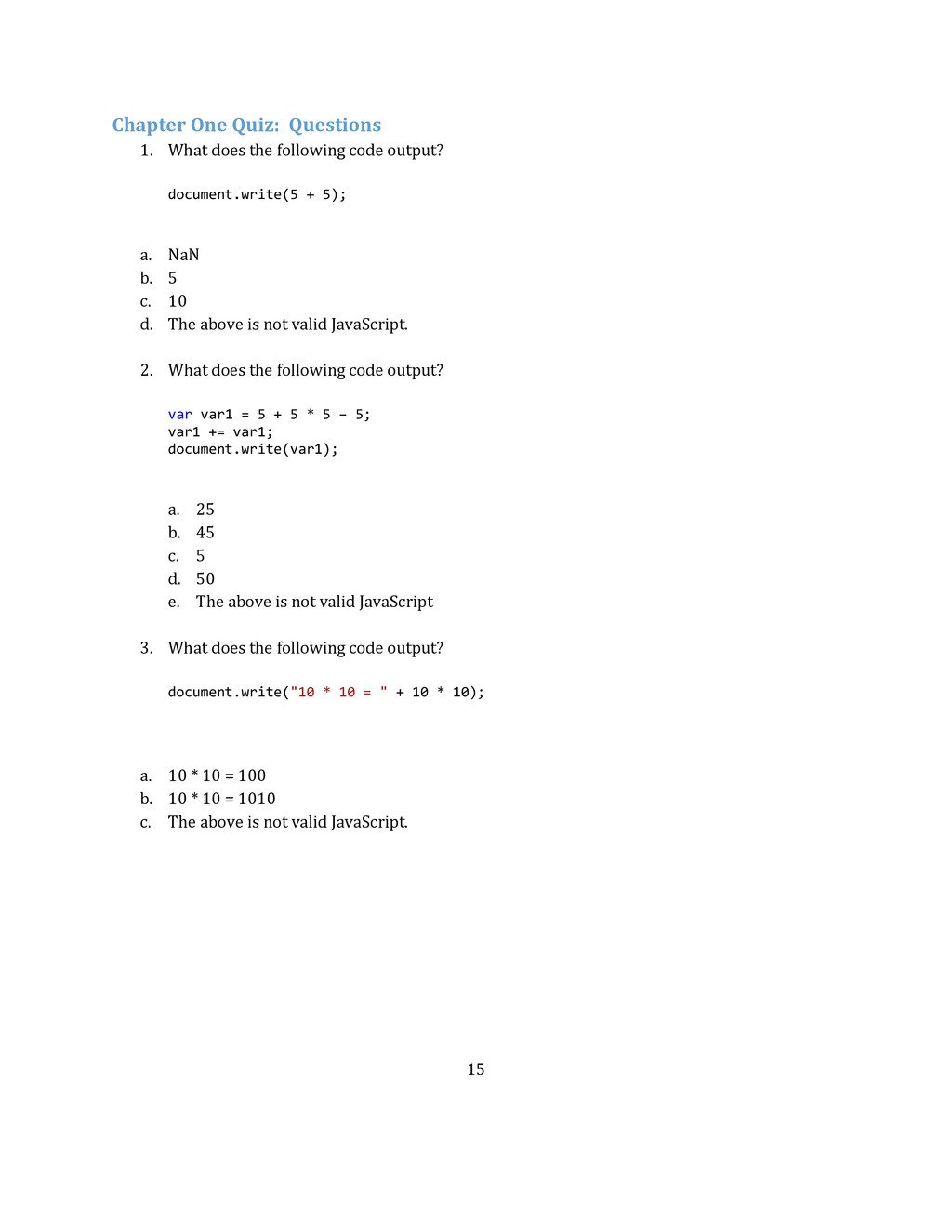
  14. 15 Chapter One Quiz: Questions 1. What does the following

    code output? document.write(5 + 5); a. NaN b. 5 c. 10 d. The above is not valid JavaScript. 2. What does the following code output? var var1 = 5 + 5 * 5 – 5; var1 += var1; document.write(var1); a. 25 b. 45 c. 5 d. 50 e. The above is not valid JavaScript 3. What does the following code output? document.write("10 * 10 = " + 10 * 10); a. 10 * 10 = 100 b. 10 * 10 = 1010 c. The above is not valid JavaScript.
  15. 16 Chapter One Quiz: Answers & Explanations 1. The answer

    would be A because the result of 5 + 5 would be passed to document.write(). The result of 5 + 5 is 10 so 10 is printed. 2. The answer would be D because first var1 is evaluated. The value of var1 is evaluated to be 25 because 5 * 5 is evaluated first, then 5 is added and then subtracted. The result is assigned to var1. After that the value of var1 is added onto var1 essentially doubling var1. After var1 is passed to document.write() which prints 50. 3. The answer would be A because the multiplication operator has precedence over the addition/concatenation operator, therefore 10 * 10 is evaluated first. The result is then concatenated to the initial string. After that the result is printed.
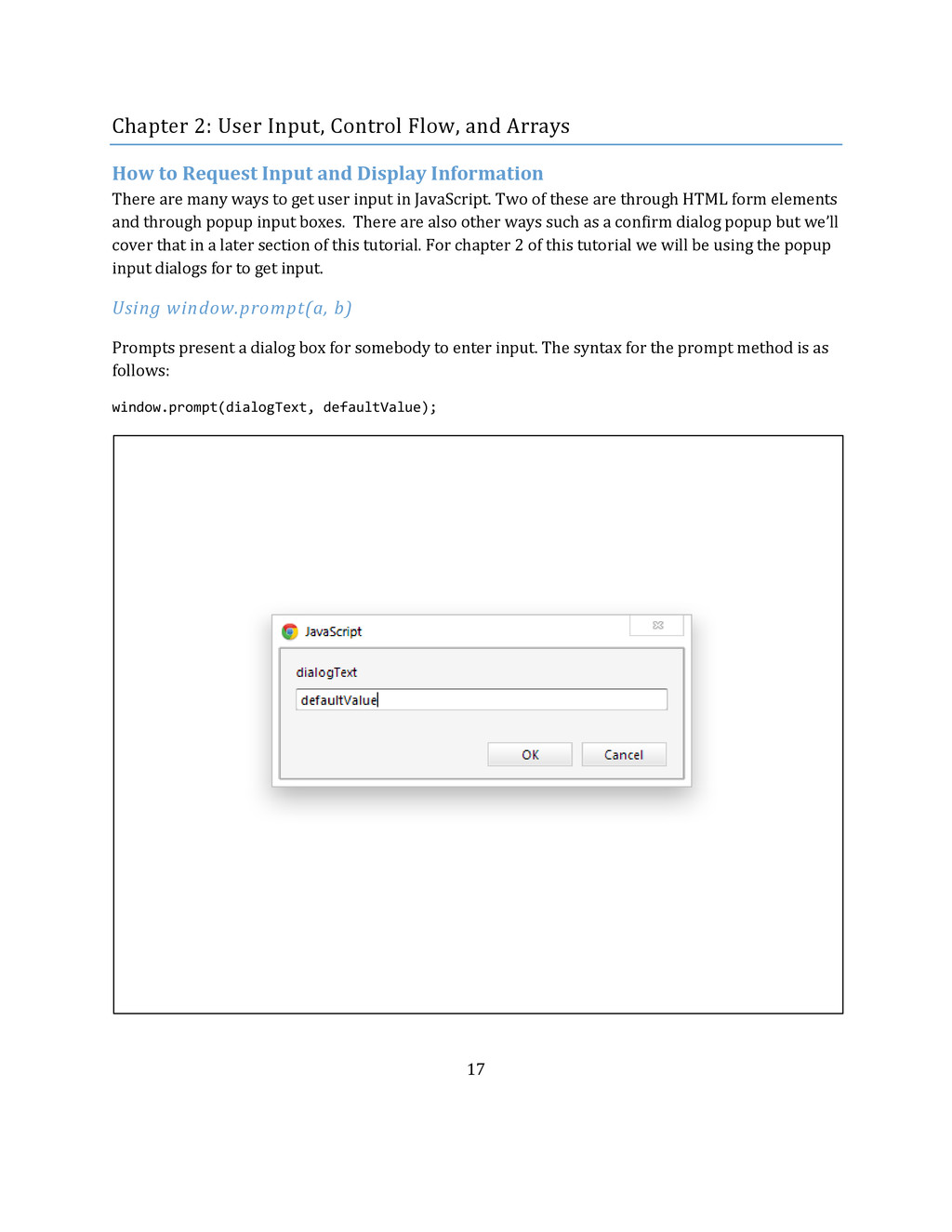
  16. 17 Chapter 2: User Input, Control Flow, and Arrays How

    to Request Input and Display Information There are many ways to get user input in JavaScript. Two of these are through HTML form elements and through popup input boxes. There are also other ways such as a confirm dialog popup but we’ll cover that in a later section of this tutorial. For chapter 2 of this tutorial we will be using the popup input dialogs for to get input. Using window.prompt(a, b) Prompts present a dialog box for somebody to enter input. The syntax for the prompt method is as follows: window.prompt(dialogText, defaultValue);
  17. 18 The syntax is pretty much self-explanatory for the prompt

    method. In addition, the default value for the prompt is optional and as such you may call the prompt method using: window.prompt(dialogText); prompt(dialogText); Since prompt is part of the window object it is also possible to call prompt without first referencing the global window object. Alert Boxes An alert box is pretty much what it is. It displays some text to the user through a popup box. The syntax for the method is: window.alert(text); alert(text); The alert method is also part of the global window object and takes a string as its argument. Accessing User Input Now that you know how to prompt the user for input and make alerts pop up let’s write a simple program that takes input and displays it to the user. The prompt method returns whatever was entered as a string so all we need to do is assign the value entered to a variable and then display that variable. var input = prompt("Enter something:"); alert(input); //Condensed Version alert(prompt("Enter something:")); Simple enough right? Let’s try something a bit more complex. Now we’re going to take two numbers from the user and display their sum. You were probably thinking how we’re going to do that since prompt returns strings. Well there is a useful function called parseInt that returns the numeric value of numbers in the form of a string. For example: document.write(parseInt(5 + 5 + "")); The above code would print out the number 10. Notice how I concatenated an empty string to the end of 5 + 5. Now it’s time to create our program. If you’re done and would like to see the answer then go to the next page otherwise start coding.
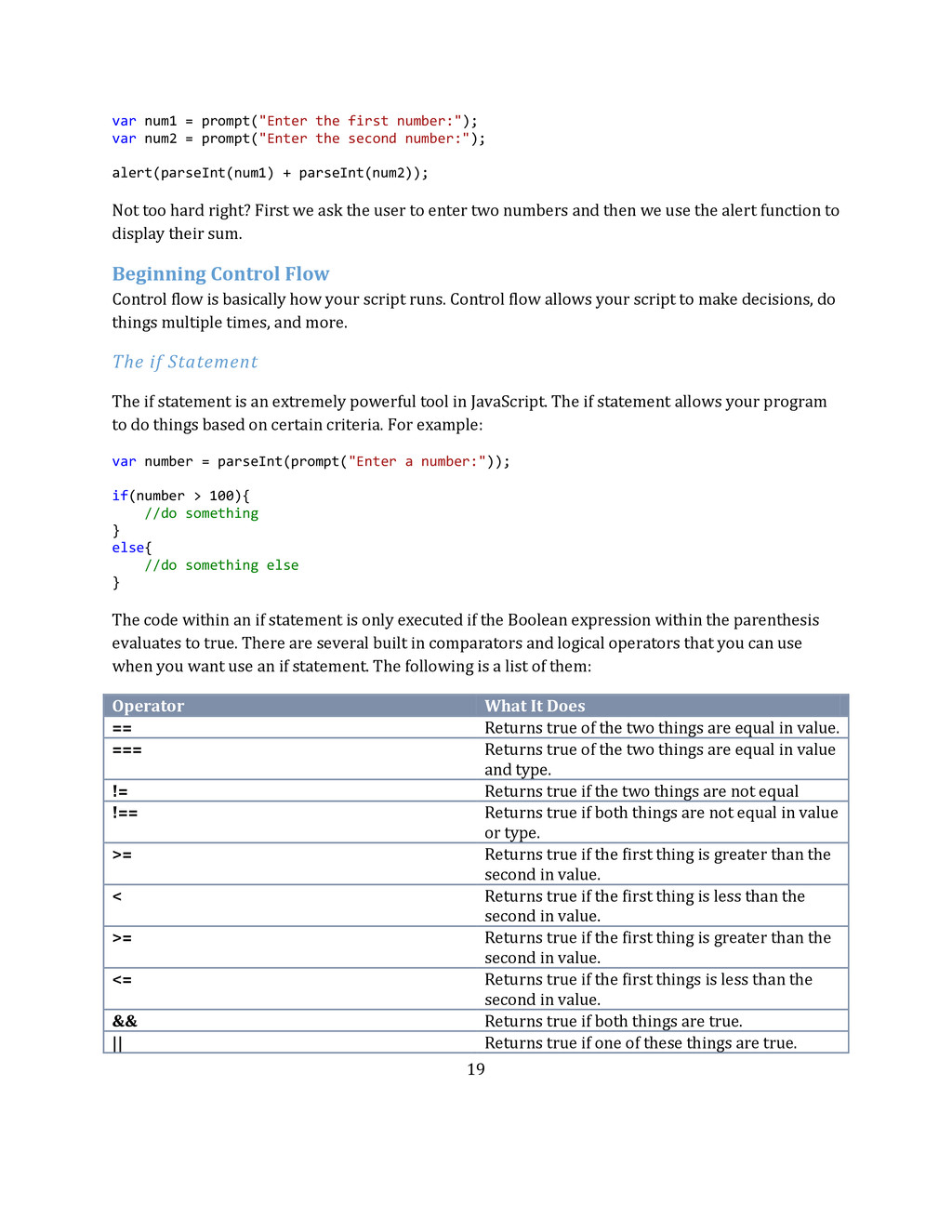
  18. 19 var num1 = prompt("Enter the first number:"); var num2

    = prompt("Enter the second number:"); alert(parseInt(num1) + parseInt(num2)); Not too hard right? First we ask the user to enter two numbers and then we use the alert function to display their sum. Beginning Control Flow Control flow is basically how your script runs. Control flow allows your script to make decisions, do things multiple times, and more. The if Statement The if statement is an extremely powerful tool in JavaScript. The if statement allows your program to do things based on certain criteria. For example: var number = parseInt(prompt("Enter a number:")); if(number > 100){ //do something } else{ //do something else } The code within an if statement is only executed if the Boolean expression within the parenthesis evaluates to true. There are several built in comparators and logical operators that you can use when you want use an if statement. The following is a list of them: Operator What It Does == Returns true of the two things are equal in value. === Returns true of the two things are equal in value and type. != Returns true if the two things are not equal !== Returns true if both things are not equal in value or type. >= Returns true if the first thing is greater than the second in value. < Returns true if the first thing is less than the second in value. >= Returns true if the first thing is greater than the second in value. <= Returns true if the first things is less than the second in value. && Returns true if both things are true. || Returns true if one of these things are true.
  19. 20 Pro Tip: The second thing in the and operator

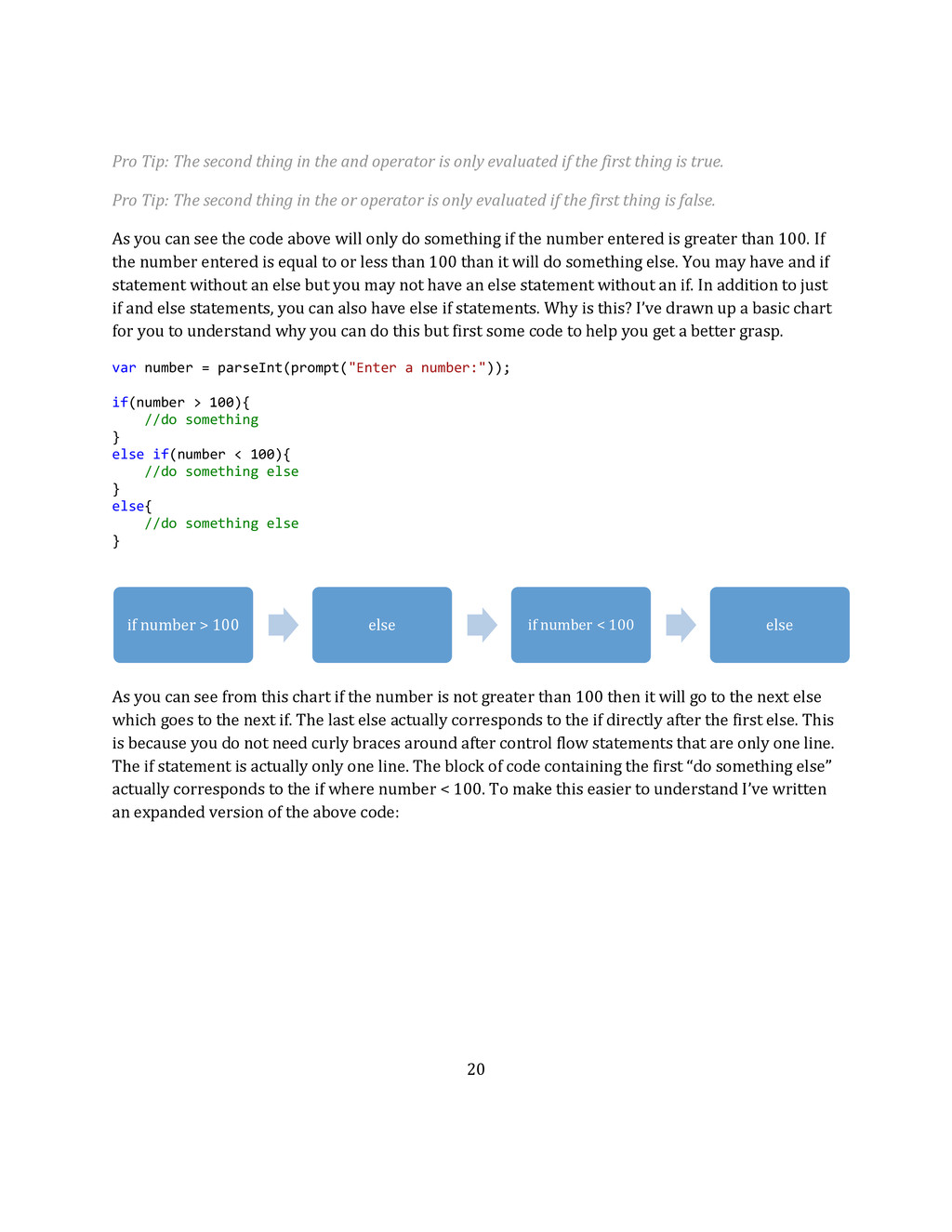
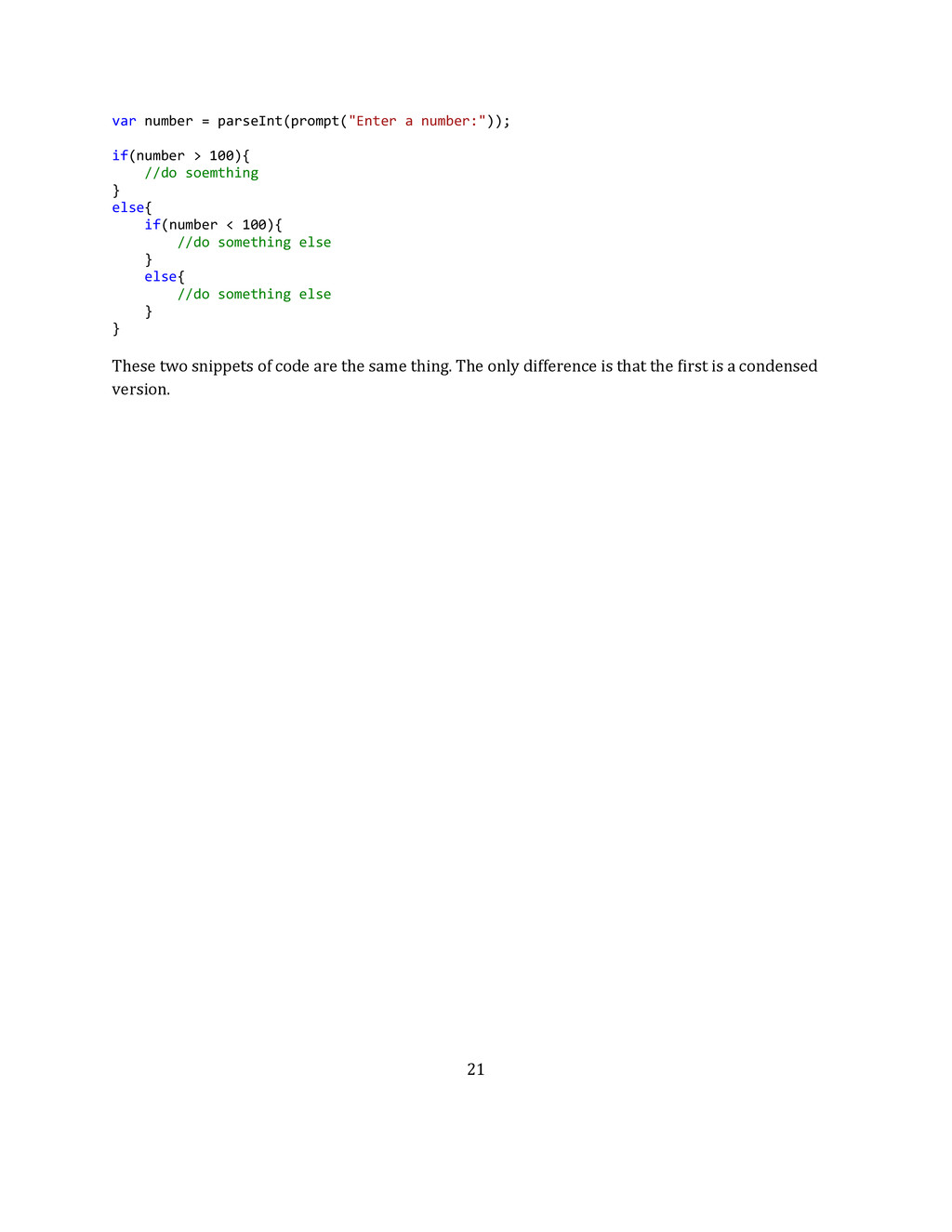
    is only evaluated if the first thing is true. Pro Tip: The second thing in the or operator is only evaluated if the first thing is false. As you can see the code above will only do something if the number entered is greater than 100. If the number entered is equal to or less than 100 than it will do something else. You may have and if statement without an else but you may not have an else statement without an if. In addition to just if and else statements, you can also have else if statements. Why is this? I’ve drawn up a basic chart for you to understand why you can do this but first some code to help you get a better grasp. var number = parseInt(prompt("Enter a number:")); if(number > 100){ //do something } else if(number < 100){ //do something else } else{ //do something else } As you can see from this chart if the number is not greater than 100 then it will go to the next else which goes to the next if. The last else actually corresponds to the if directly after the first else. This is because you do not need curly braces around after control flow statements that are only one line. The if statement is actually only one line. The block of code containing the first “do something else” actually corresponds to the if where number < 100. To make this easier to understand I’ve written an expanded version of the above code: if number > 100 else if number < 100 else
  20. 21 var number = parseInt(prompt("Enter a number:")); if(number > 100){

    //do soemthing } else{ if(number < 100){ //do something else } else{ //do something else } } These two snippets of code are the same thing. The only difference is that the first is a condensed version.
  21. 22 The while Loop Loops are one of the best

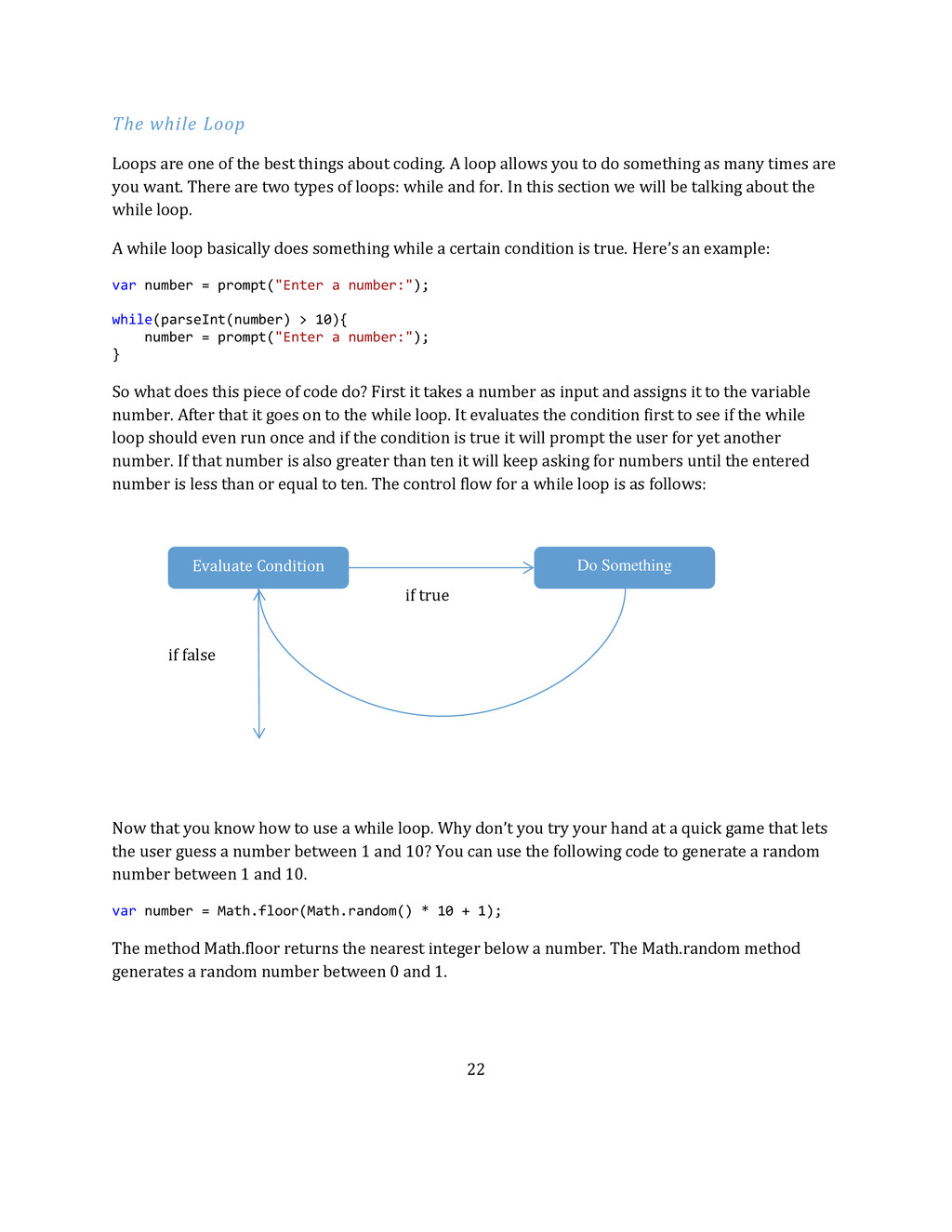
    things about coding. A loop allows you to do something as many times are you want. There are two types of loops: while and for. In this section we will be talking about the while loop. A while loop basically does something while a certain condition is true. Here’s an example: var number = prompt("Enter a number:"); while(parseInt(number) > 10){ number = prompt("Enter a number:"); } So what does this piece of code do? First it takes a number as input and assigns it to the variable number. After that it goes on to the while loop. It evaluates the condition first to see if the while loop should even run once and if the condition is true it will prompt the user for yet another number. If that number is also greater than ten it will keep asking for numbers until the entered number is less than or equal to ten. The control flow for a while loop is as follows: Now that you know how to use a while loop. Why don’t you try your hand at a quick game that lets the user guess a number between 1 and 10? You can use the following code to generate a random number between 1 and 10. var number = Math.floor(Math.random() * 10 + 1); The method Math.floor returns the nearest integer below a number. The Math.random method generates a random number between 0 and 1. Evaluate Condition Do Something if true if false
  22. 23 If you’re done or you’re stuck the code for

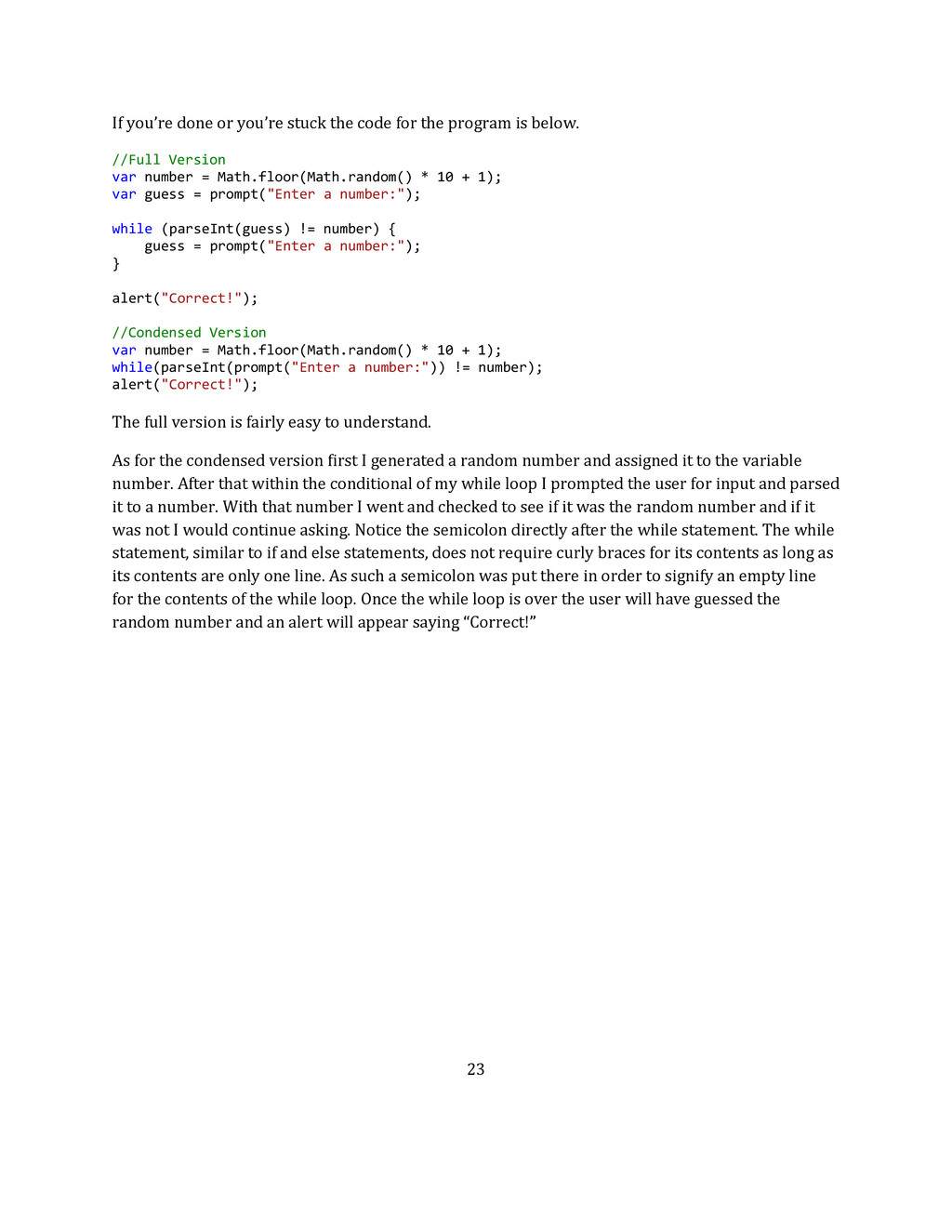
    the program is below. //Full Version var number = Math.floor(Math.random() * 10 + 1); var guess = prompt("Enter a number:"); while (parseInt(guess) != number) { guess = prompt("Enter a number:"); } alert("Correct!"); //Condensed Version var number = Math.floor(Math.random() * 10 + 1); while(parseInt(prompt("Enter a number:")) != number); alert("Correct!"); The full version is fairly easy to understand. As for the condensed version first I generated a random number and assigned it to the variable number. After that within the conditional of my while loop I prompted the user for input and parsed it to a number. With that number I went and checked to see if it was the random number and if it was not I would continue asking. Notice the semicolon directly after the while statement. The while statement, similar to if and else statements, does not require curly braces for its contents as long as its contents are only one line. As such a semicolon was put there in order to signify an empty line for the contents of the while loop. Once the while loop is over the user will have guessed the random number and an alert will appear saying “Correct!”
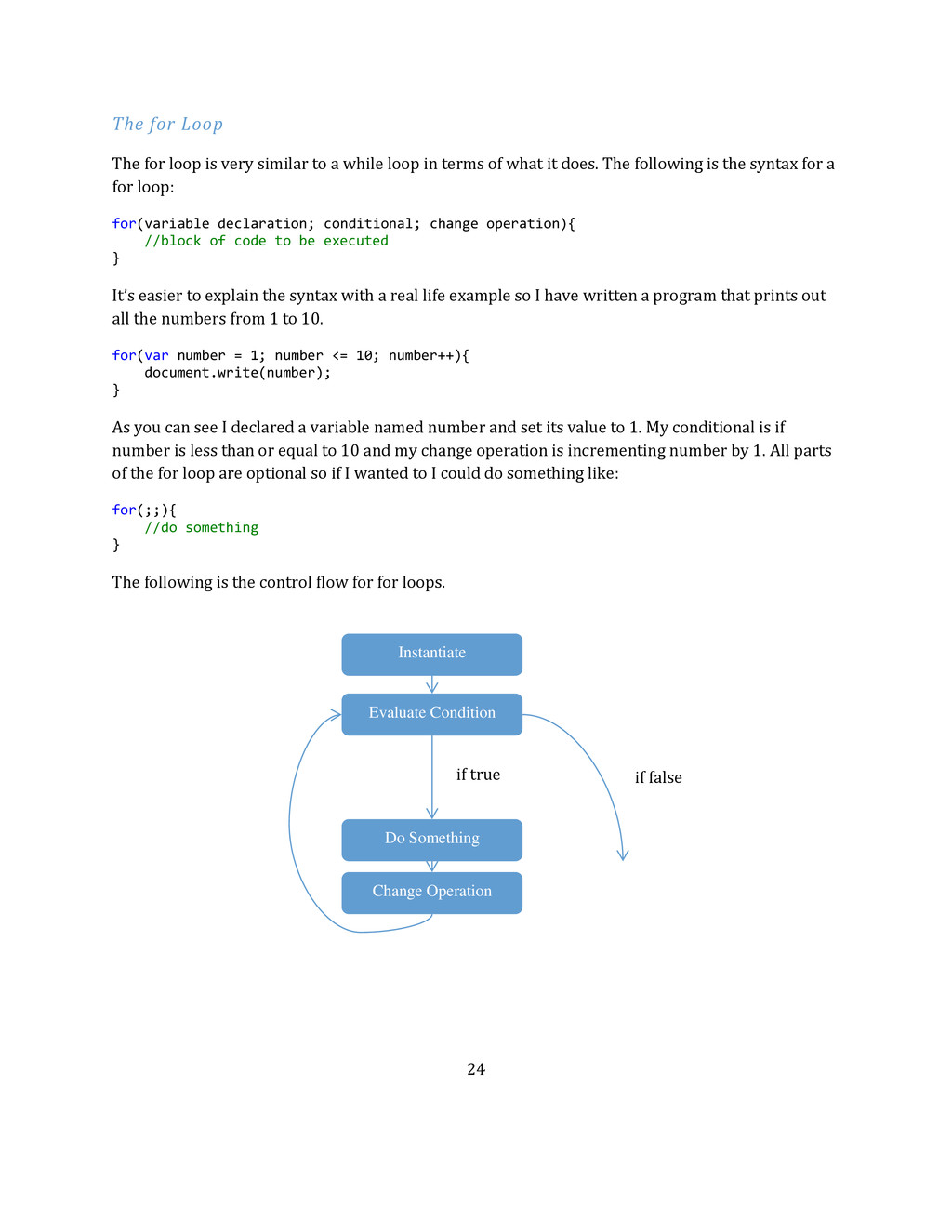
  23. 24 The for Loop The for loop is very similar

    to a while loop in terms of what it does. The following is the syntax for a for loop: for(variable declaration; conditional; change operation){ //block of code to be executed } It’s easier to explain the syntax with a real life example so I have written a program that prints out all the numbers from 1 to 10. for(var number = 1; number <= 10; number++){ document.write(number); } As you can see I declared a variable named number and set its value to 1. My conditional is if number is less than or equal to 10 and my change operation is incrementing number by 1. All parts of the for loop are optional so if I wanted to I could do something like: for(;;){ //do something } The following is the control flow for for loops. Instantiate Evaluate Condition Do Something Change Operation if true if false
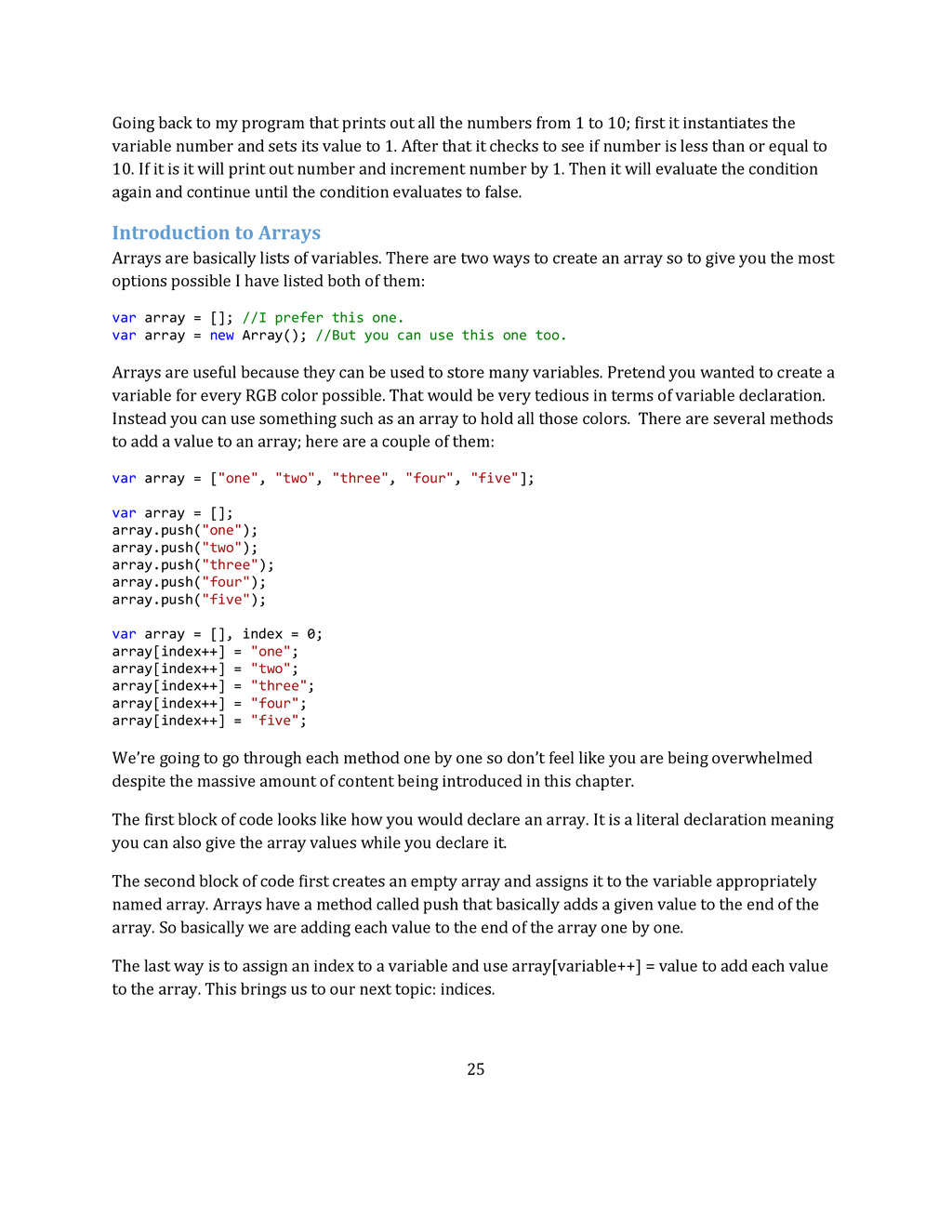
  24. 25 Going back to my program that prints out all

    the numbers from 1 to 10; first it instantiates the variable number and sets its value to 1. After that it checks to see if number is less than or equal to 10. If it is it will print out number and increment number by 1. Then it will evaluate the condition again and continue until the condition evaluates to false. Introduction to Arrays Arrays are basically lists of variables. There are two ways to create an array so to give you the most options possible I have listed both of them: var array = []; //I prefer this one. var array = new Array(); //But you can use this one too. Arrays are useful because they can be used to store many variables. Pretend you wanted to create a variable for every RGB color possible. That would be very tedious in terms of variable declaration. Instead you can use something such as an array to hold all those colors. There are several methods to add a value to an array; here are a couple of them: var array = ["one", "two", "three", "four", "five"]; var array = []; array.push("one"); array.push("two"); array.push("three"); array.push("four"); array.push("five"); var array = [], index = 0; array[index++] = "one"; array[index++] = "two"; array[index++] = "three"; array[index++] = "four"; array[index++] = "five"; We’re going to go through each method one by one so don’t feel like you are being overwhelmed despite the massive amount of content being introduced in this chapter. The first block of code looks like how you would declare an array. It is a literal declaration meaning you can also give the array values while you declare it. The second block of code first creates an empty array and assigns it to the variable appropriately named array. Arrays have a method called push that basically adds a given value to the end of the array. So basically we are adding each value to the end of the array one by one. The last way is to assign an index to a variable and use array[variable++] = value to add each value to the array. This brings us to our next topic: indices.
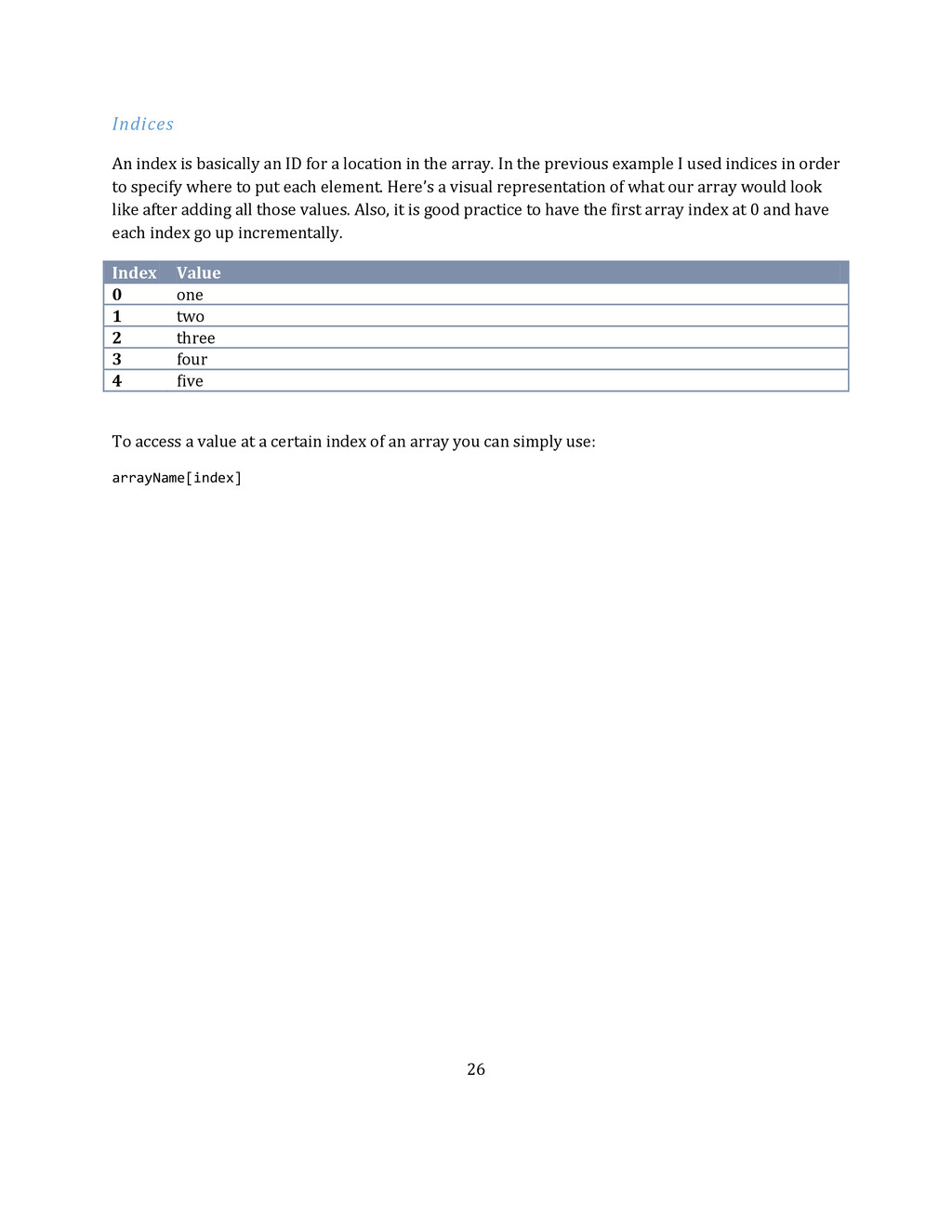
  25. 26 Indices An index is basically an ID for a

    location in the array. In the previous example I used indices in order to specify where to put each element. Here’s a visual representation of what our array would look like after adding all those values. Also, it is good practice to have the first array index at 0 and have each index go up incrementally. Index Value 0 one 1 two 2 three 3 four 4 five To access a value at a certain index of an array you can simply use: arrayName[index]
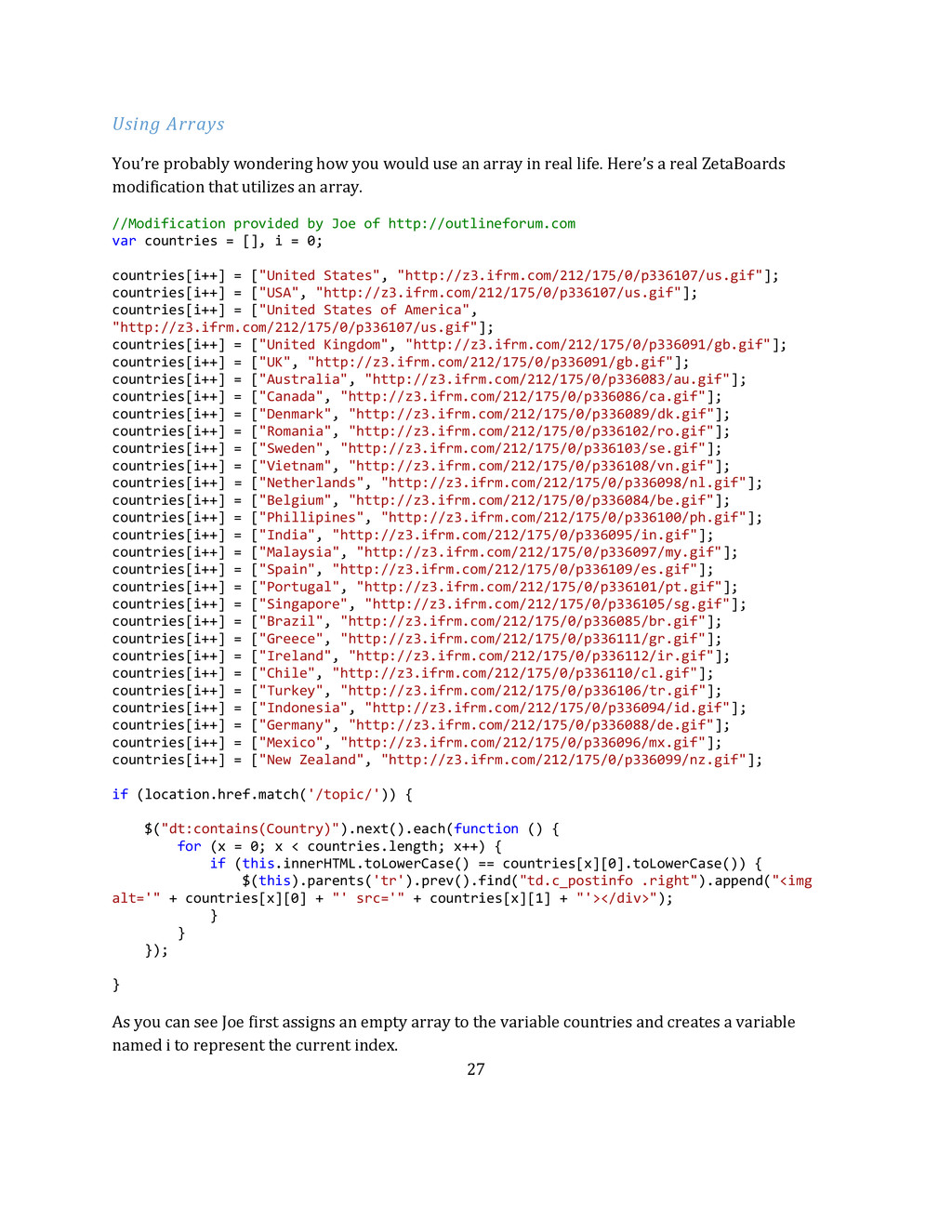
  26. 27 Using Arrays You’re probably wondering how you would use

    an array in real life. Here’s a real ZetaBoards modification that utilizes an array. //Modification provided by Joe of http://outlineforum.com var countries = [], i = 0; countries[i++] = ["United States", "http://z3.ifrm.com/212/175/0/p336107/us.gif"]; countries[i++] = ["USA", "http://z3.ifrm.com/212/175/0/p336107/us.gif"]; countries[i++] = ["United States of America", "http://z3.ifrm.com/212/175/0/p336107/us.gif"]; countries[i++] = ["United Kingdom", "http://z3.ifrm.com/212/175/0/p336091/gb.gif"]; countries[i++] = ["UK", "http://z3.ifrm.com/212/175/0/p336091/gb.gif"]; countries[i++] = ["Australia", "http://z3.ifrm.com/212/175/0/p336083/au.gif"]; countries[i++] = ["Canada", "http://z3.ifrm.com/212/175/0/p336086/ca.gif"]; countries[i++] = ["Denmark", "http://z3.ifrm.com/212/175/0/p336089/dk.gif"]; countries[i++] = ["Romania", "http://z3.ifrm.com/212/175/0/p336102/ro.gif"]; countries[i++] = ["Sweden", "http://z3.ifrm.com/212/175/0/p336103/se.gif"]; countries[i++] = ["Vietnam", "http://z3.ifrm.com/212/175/0/p336108/vn.gif"]; countries[i++] = ["Netherlands", "http://z3.ifrm.com/212/175/0/p336098/nl.gif"]; countries[i++] = ["Belgium", "http://z3.ifrm.com/212/175/0/p336084/be.gif"]; countries[i++] = ["Phillipines", "http://z3.ifrm.com/212/175/0/p336100/ph.gif"]; countries[i++] = ["India", "http://z3.ifrm.com/212/175/0/p336095/in.gif"]; countries[i++] = ["Malaysia", "http://z3.ifrm.com/212/175/0/p336097/my.gif"]; countries[i++] = ["Spain", "http://z3.ifrm.com/212/175/0/p336109/es.gif"]; countries[i++] = ["Portugal", "http://z3.ifrm.com/212/175/0/p336101/pt.gif"]; countries[i++] = ["Singapore", "http://z3.ifrm.com/212/175/0/p336105/sg.gif"]; countries[i++] = ["Brazil", "http://z3.ifrm.com/212/175/0/p336085/br.gif"]; countries[i++] = ["Greece", "http://z3.ifrm.com/212/175/0/p336111/gr.gif"]; countries[i++] = ["Ireland", "http://z3.ifrm.com/212/175/0/p336112/ir.gif"]; countries[i++] = ["Chile", "http://z3.ifrm.com/212/175/0/p336110/cl.gif"]; countries[i++] = ["Turkey", "http://z3.ifrm.com/212/175/0/p336106/tr.gif"]; countries[i++] = ["Indonesia", "http://z3.ifrm.com/212/175/0/p336094/id.gif"]; countries[i++] = ["Germany", "http://z3.ifrm.com/212/175/0/p336088/de.gif"]; countries[i++] = ["Mexico", "http://z3.ifrm.com/212/175/0/p336096/mx.gif"]; countries[i++] = ["New Zealand", "http://z3.ifrm.com/212/175/0/p336099/nz.gif"]; if (location.href.match('/topic/')) { $("dt:contains(Country)").next().each(function () { for (x = 0; x < countries.length; x++) { if (this.innerHTML.toLowerCase() == countries[x][0].toLowerCase()) { $(this).parents('tr').prev().find("td.c_postinfo .right").append("<img alt='" + countries[x][0] + "' src='" + countries[x][1] + "'></div>"); } } }); } As you can see Joe first assigns an empty array to the variable countries and creates a variable named i to represent the current index.
  27. 28 After that he adds a large number of arrays

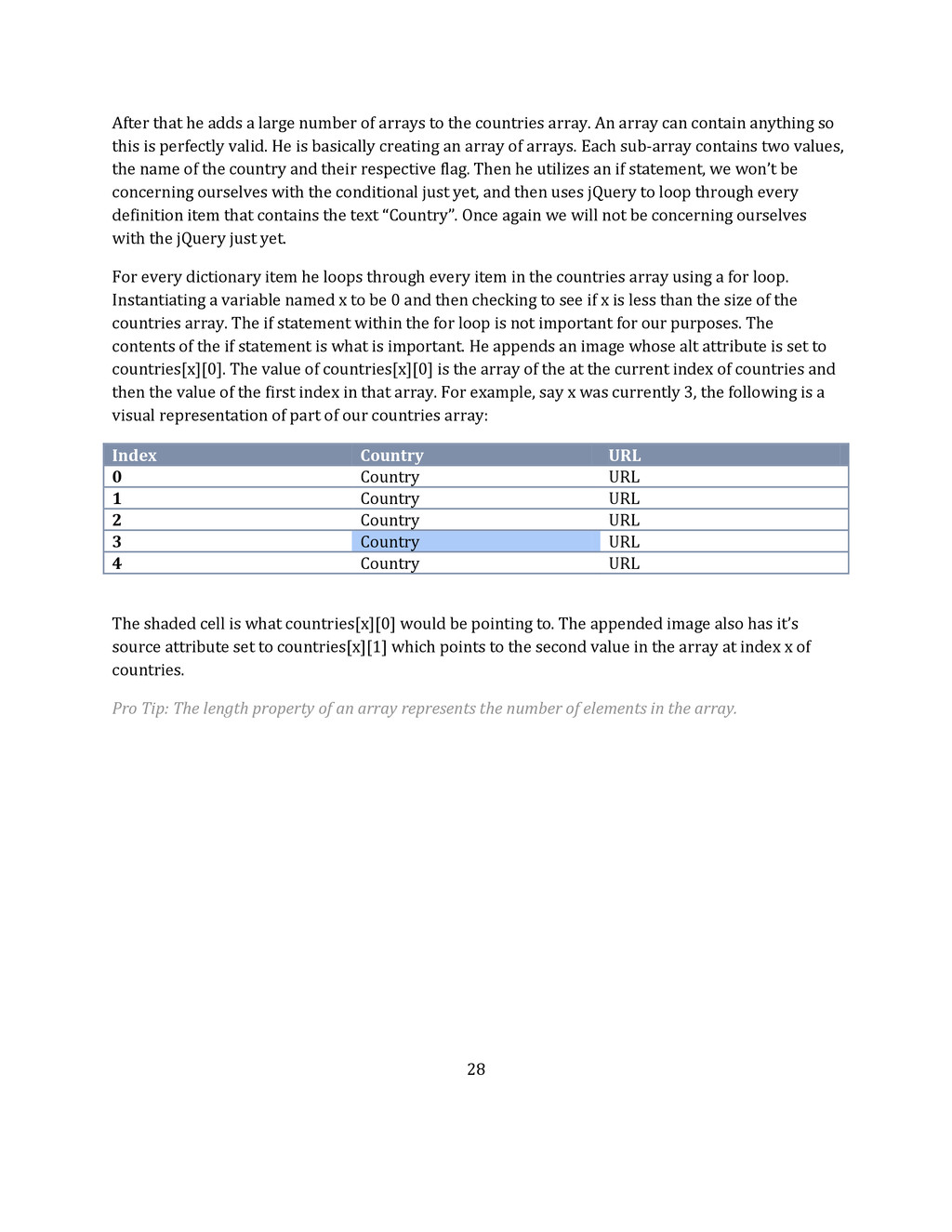
    to the countries array. An array can contain anything so this is perfectly valid. He is basically creating an array of arrays. Each sub-array contains two values, the name of the country and their respective flag. Then he utilizes an if statement, we won’t be concerning ourselves with the conditional just yet, and then uses jQuery to loop through every definition item that contains the text “Country”. Once again we will not be concerning ourselves with the jQuery just yet. For every dictionary item he loops through every item in the countries array using a for loop. Instantiating a variable named x to be 0 and then checking to see if x is less than the size of the countries array. The if statement within the for loop is not important for our purposes. The contents of the if statement is what is important. He appends an image whose alt attribute is set to countries[x][0]. The value of countries[x][0] is the array of the at the current index of countries and then the value of the first index in that array. For example, say x was currently 3, the following is a visual representation of part of our countries array: Index Country URL 0 Country URL 1 Country URL 2 Country URL 3 Country URL 4 Country URL The shaded cell is what countries[x][0] would be pointing to. The appended image also has it’s source attribute set to countries[x][1] which points to the second value in the array at index x of countries. Pro Tip: The length property of an array represents the number of elements in the array.
  28. 29 Final Words on This Chapter In this chapter we

    covered a lot of material. User input, dialog boxes, loops, and arrays were covered. The pace of this book will only increase so if you don’t have a firm grasp on the material so far go back and read the previous chapters again. If you feel that you are comfortable with the current material then test your knowledge with the programs on the next page.
  29. 30 Practice Programs Instead of multiple choice questions this chapter

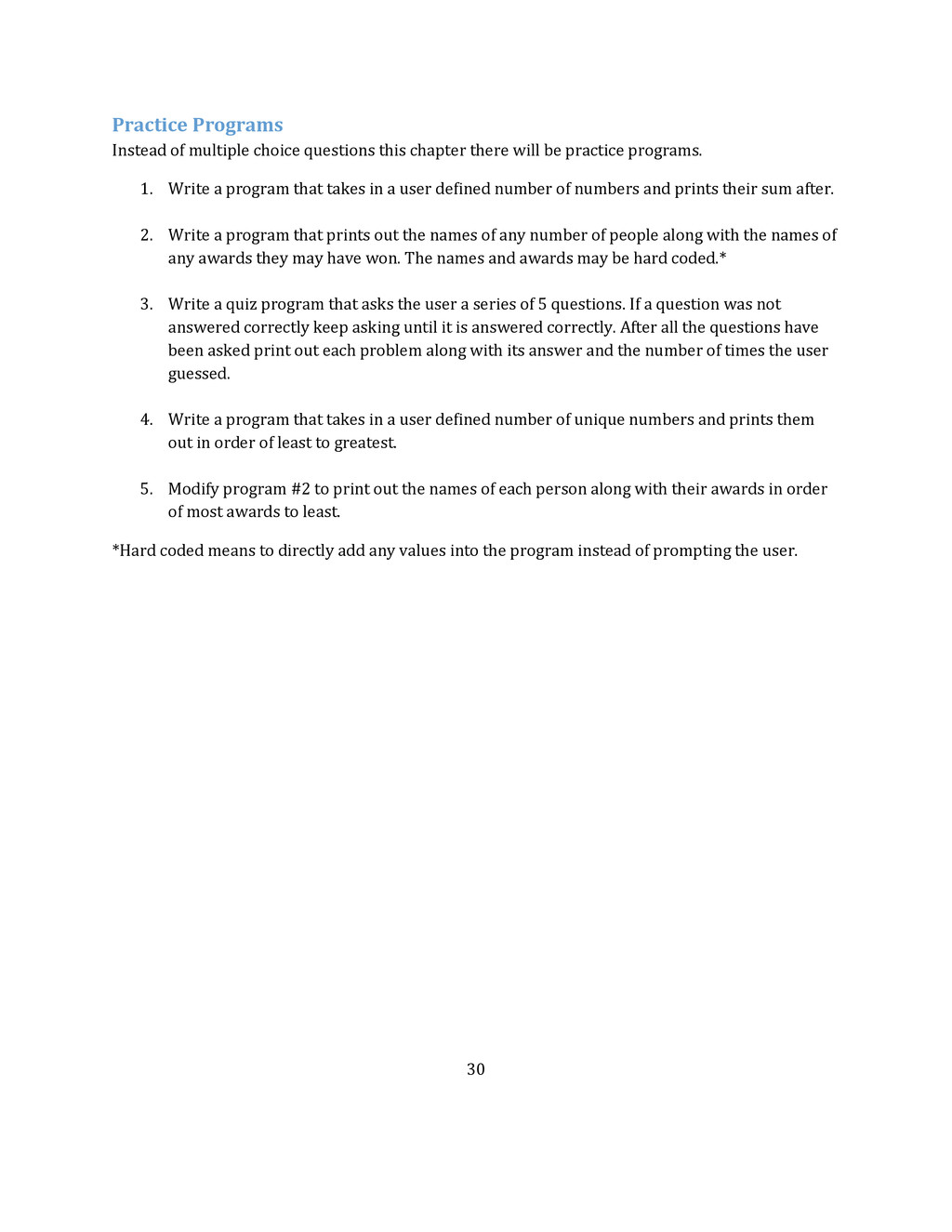
    there will be practice programs. 1. Write a program that takes in a user defined number of numbers and prints their sum after. 2. Write a program that prints out the names of any number of people along with the names of any awards they may have won. The names and awards may be hard coded.* 3. Write a quiz program that asks the user a series of 5 questions. If a question was not answered correctly keep asking until it is answered correctly. After all the questions have been asked print out each problem along with its answer and the number of times the user guessed. 4. Write a program that takes in a user defined number of unique numbers and prints them out in order of least to greatest. 5. Modify program #2 to print out the names of each person along with their awards in order of most awards to least. *Hard coded means to directly add any values into the program instead of prompting the user.
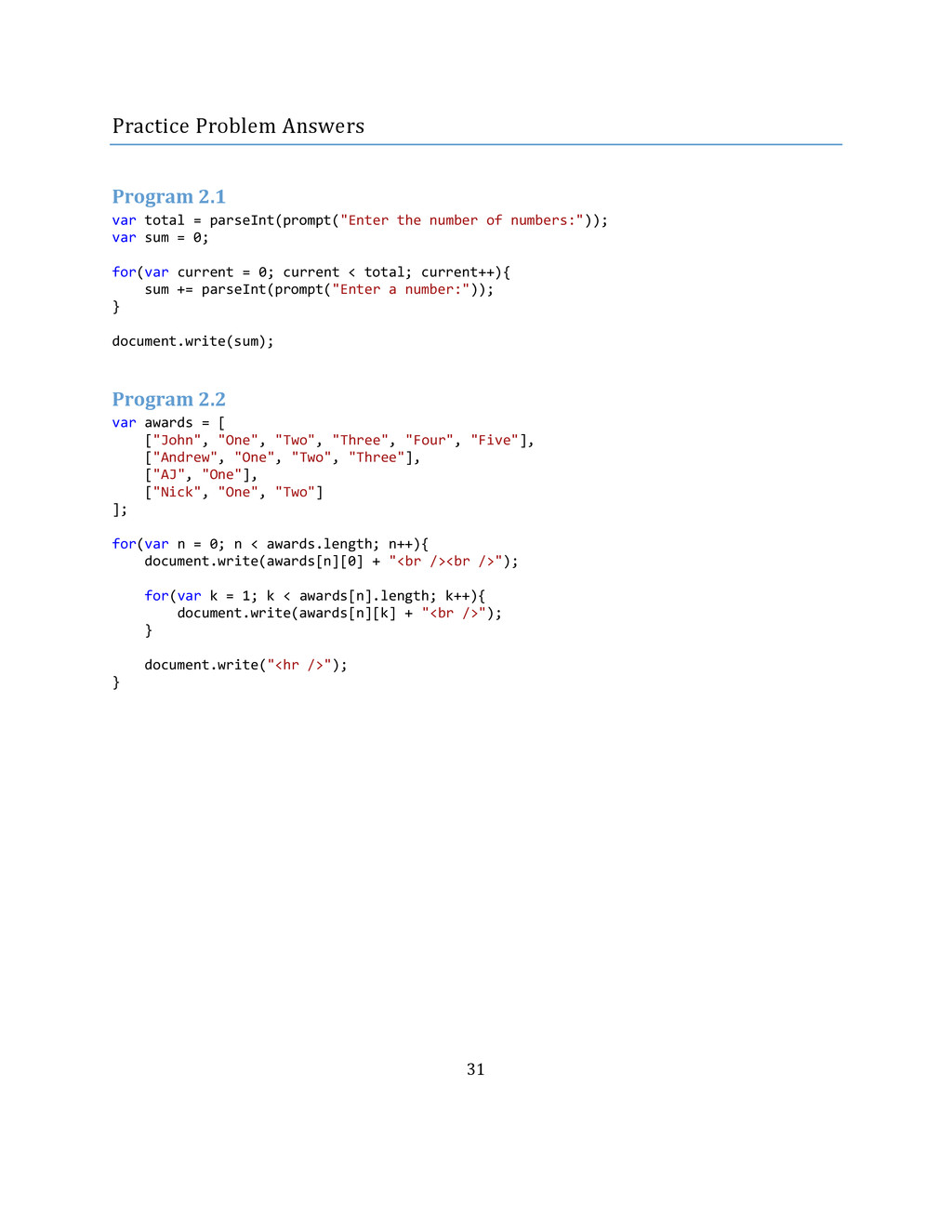
  30. 31 Practice Problem Answers Program 2.1 var total = parseInt(prompt("Enter

    the number of numbers:")); var sum = 0; for(var current = 0; current < total; current++){ sum += parseInt(prompt("Enter a number:")); } document.write(sum); Program 2.2 var awards = [ ["John", "One", "Two", "Three", "Four", "Five"], ["Andrew", "One", "Two", "Three"], ["AJ", "One"], ["Nick", "One", "Two"] ]; for(var n = 0; n < awards.length; n++){ document.write(awards[n][0] + "<br /><br />"); for(var k = 1; k < awards[n].length; k++){ document.write(awards[n][k] + "<br />"); } document.write("<hr />"); }
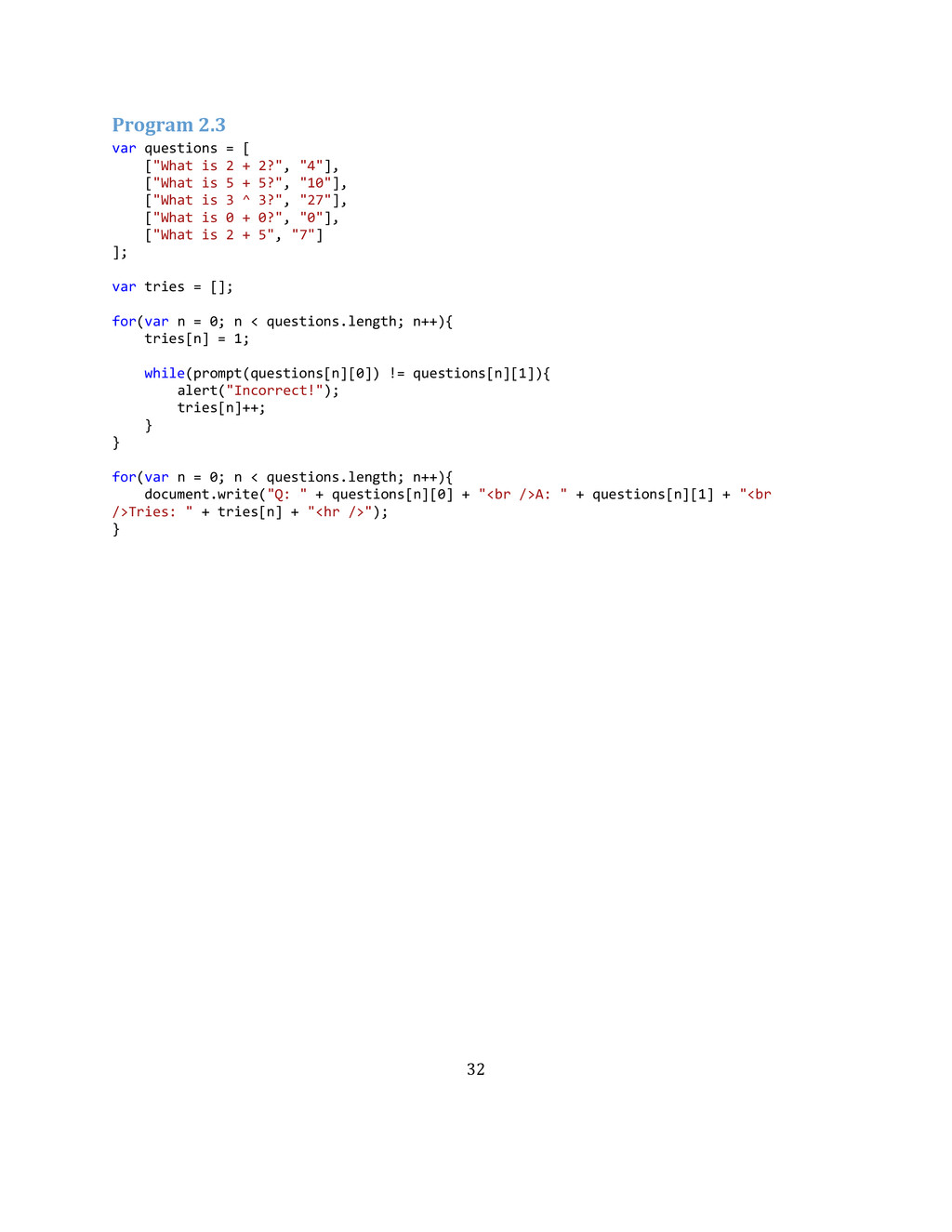
  31. 32 Program 2.3 var questions = [ ["What is 2

    + 2?", "4"], ["What is 5 + 5?", "10"], ["What is 3 ^ 3?", "27"], ["What is 0 + 0?", "0"], ["What is 2 + 5", "7"] ]; var tries = []; for(var n = 0; n < questions.length; n++){ tries[n] = 1; while(prompt(questions[n][0]) != questions[n][1]){ alert("Incorrect!"); tries[n]++; } } for(var n = 0; n < questions.length; n++){ document.write("Q: " + questions[n][0] + "<br />A: " + questions[n][1] + "<br />Tries: " + tries[n] + "<hr />"); }
  32. 33 Program 2.4 var numbers = []; var num =

    parseInt(prompt("Enter the number of numbers:")); for(var n = 0; n < num; n++){ numbers[n] = parseInt(prompt("Enter a number:")); } var highest = -1; for(var n = 0; n < numbers.length; n++){ var current = -1; for(var k = 0; k < numbers.length; k++){ if(highest == -1 && current == -1){ current = k; } else if(highest == -1 && numbers[k] > numbers[current]){ current = k; } else if(current == -1 && numbers[k] < numbers[highest]){ current = k; } else if(current != -1 && numbers[k] > numbers[current] && numbers[k] < numbers[highest]){ current = k; } } highest = current; document.write(numbers[current] + "<br />"); }
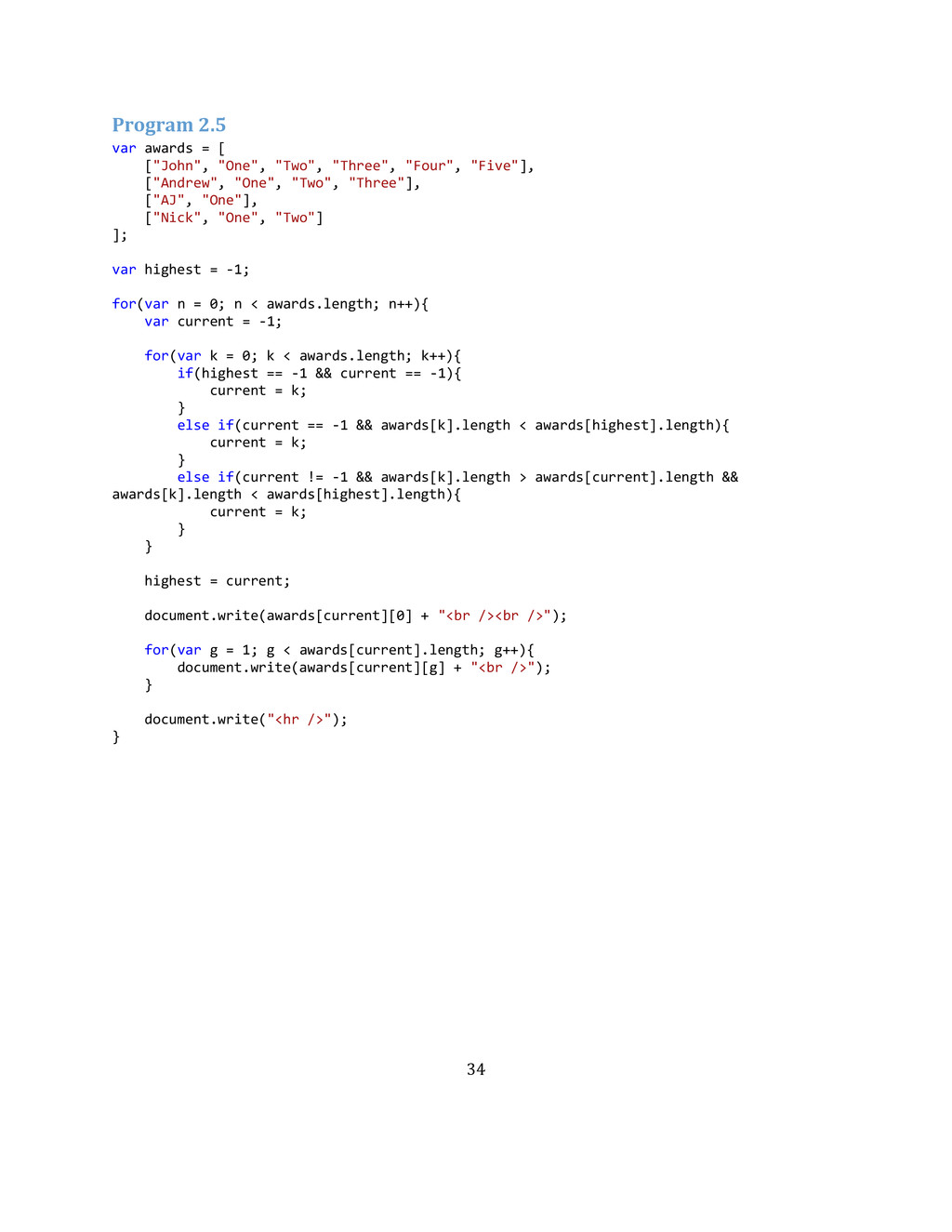
  33. 34 Program 2.5 var awards = [ ["John", "One", "Two",

    "Three", "Four", "Five"], ["Andrew", "One", "Two", "Three"], ["AJ", "One"], ["Nick", "One", "Two"] ]; var highest = -1; for(var n = 0; n < awards.length; n++){ var current = -1; for(var k = 0; k < awards.length; k++){ if(highest == -1 && current == -1){ current = k; } else if(current == -1 && awards[k].length < awards[highest].length){ current = k; } else if(current != -1 && awards[k].length > awards[current].length && awards[k].length < awards[highest].length){ current = k; } } highest = current; document.write(awards[current][0] + "<br /><br />"); for(var g = 1; g < awards[current].length; g++){ document.write(awards[current][g] + "<br />"); } document.write("<hr />"); }