Upgrade to Pro — share decks privately, control downloads, hide ads and more …

Learn WordPress Basics

Avatar for Breeze.io Breeze.io
September 12, 2018

Learn WordPress Basics

WordPress is known for the ease it provides to its users. All you need is a little time and you will soon be able to create a website of your own.
You can also have a look at the complete article here https://bit.ly/2p0nCr6

Avatar for Breeze.io

Breeze.io

September 12, 2018

More Decks by Breeze.io

Other Decks in Technology

Transcript

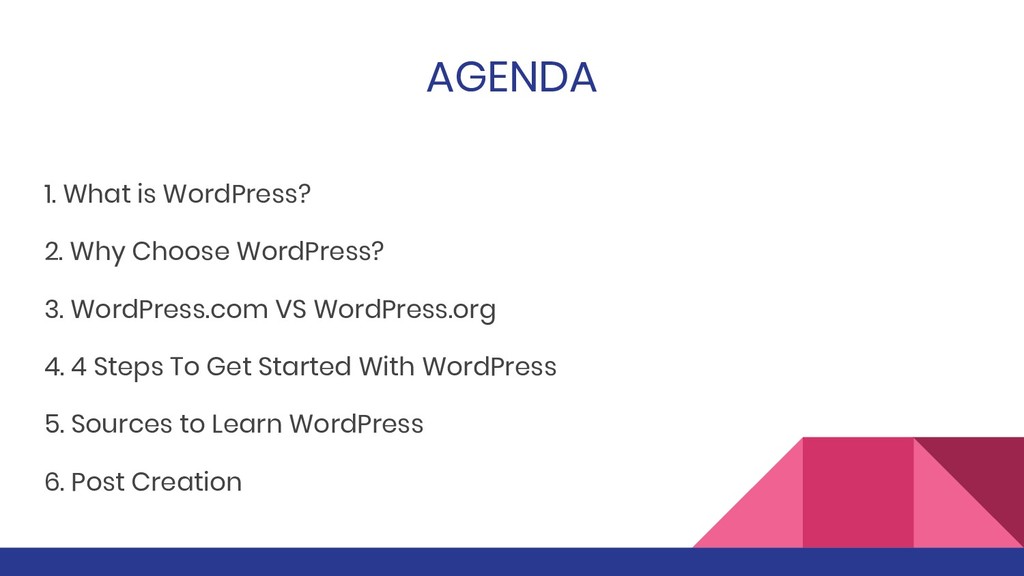
  1. AGENDA 1. What is WordPress? 2. Why Choose WordPress? 3.

    WordPress.com VS WordPress.org 4. 4 Steps To Get Started With WordPress 5. Sources to Learn WordPress 6. Post Creation
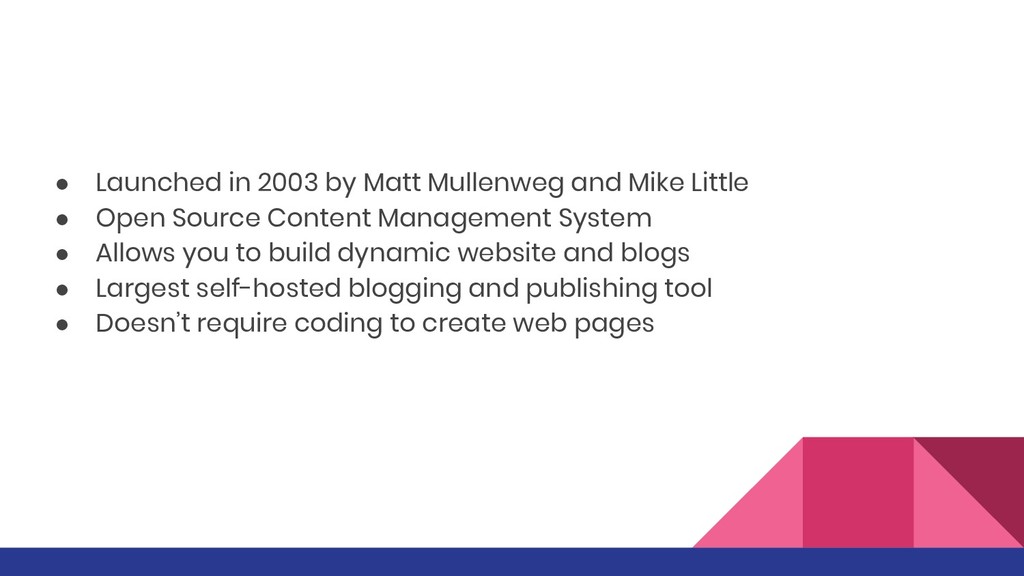
  2. • Launched in 2003 by Matt Mullenweg and Mike Little

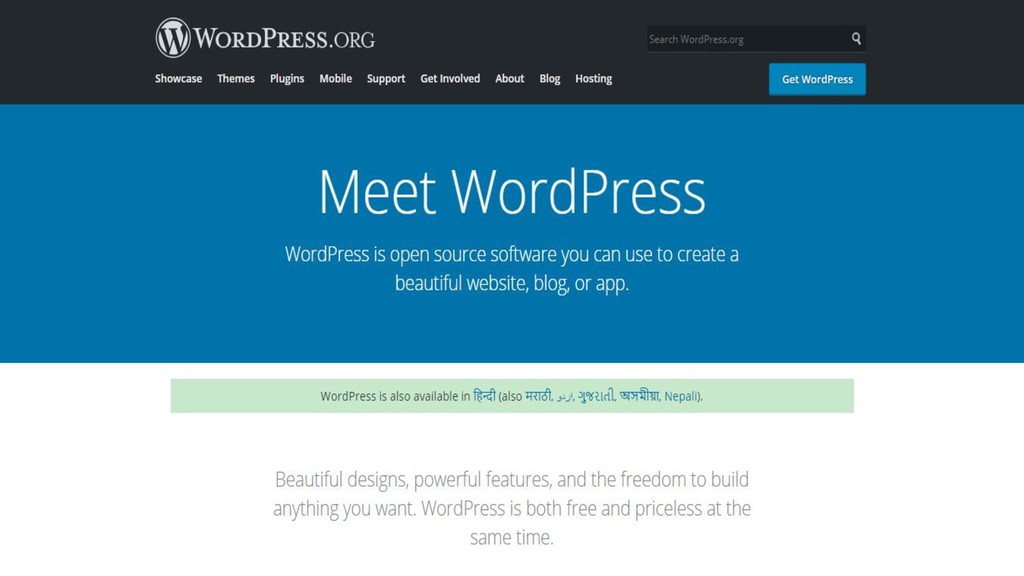
    • Open Source Content Management System • Allows you to build dynamic website and blogs • Largest self-hosted blogging and publishing tool • Doesn’t require coding to create web pages
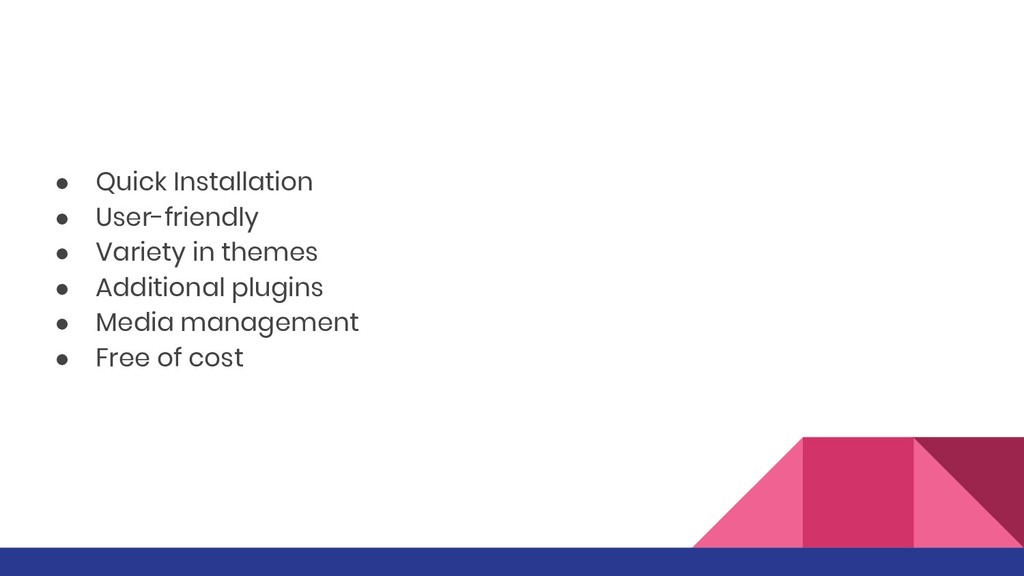
  3. • Quick Installation • User-friendly • Variety in themes •

    Additional plugins • Media management • Free of cost
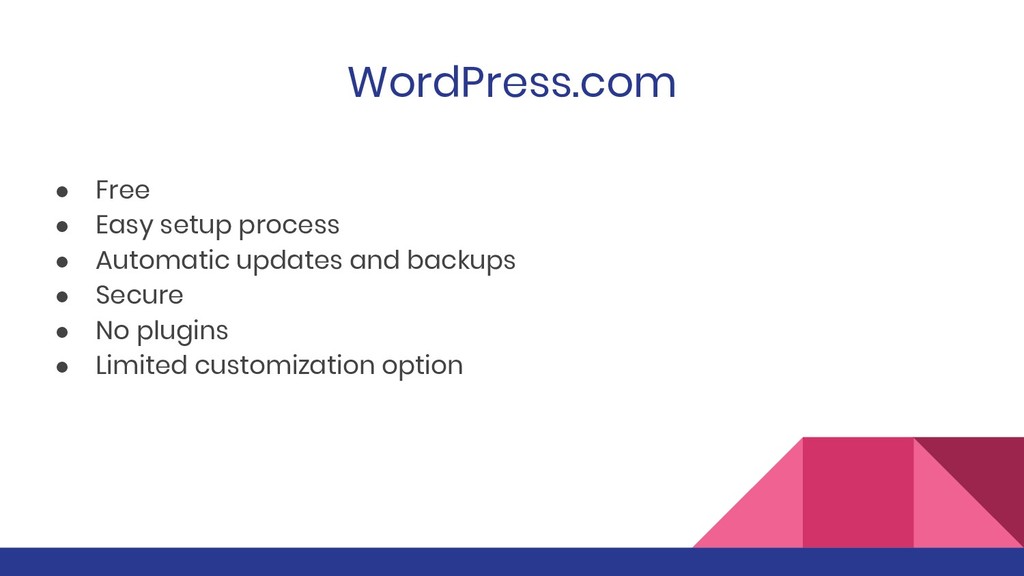
  4. WordPress.com • Free • Easy setup process • Automatic updates

    and backups • Secure • No plugins • Limited customization option
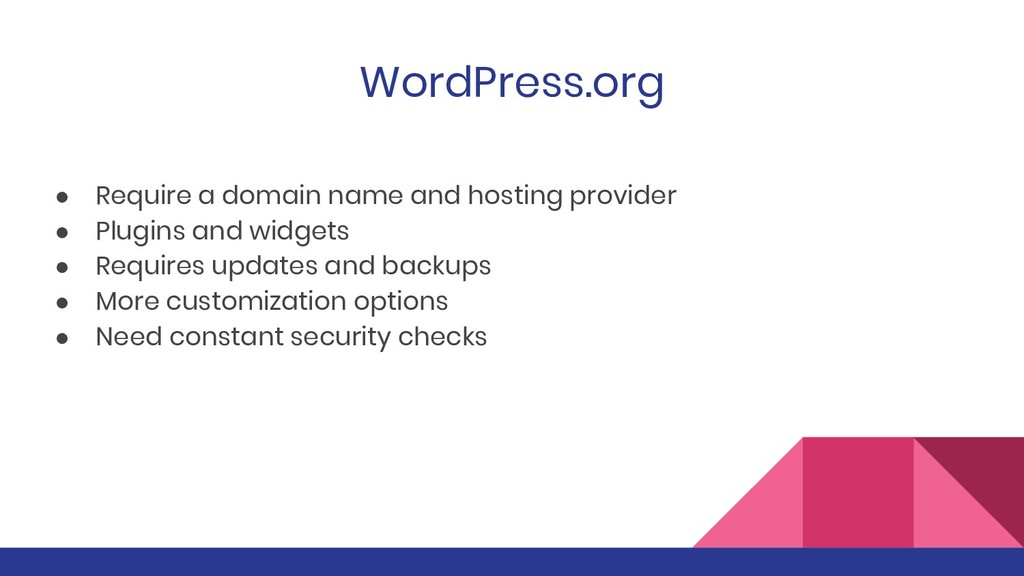
  5. WordPress.org • Require a domain name and hosting provider •

    Plugins and widgets • Requires updates and backups • More customization options • Need constant security checks
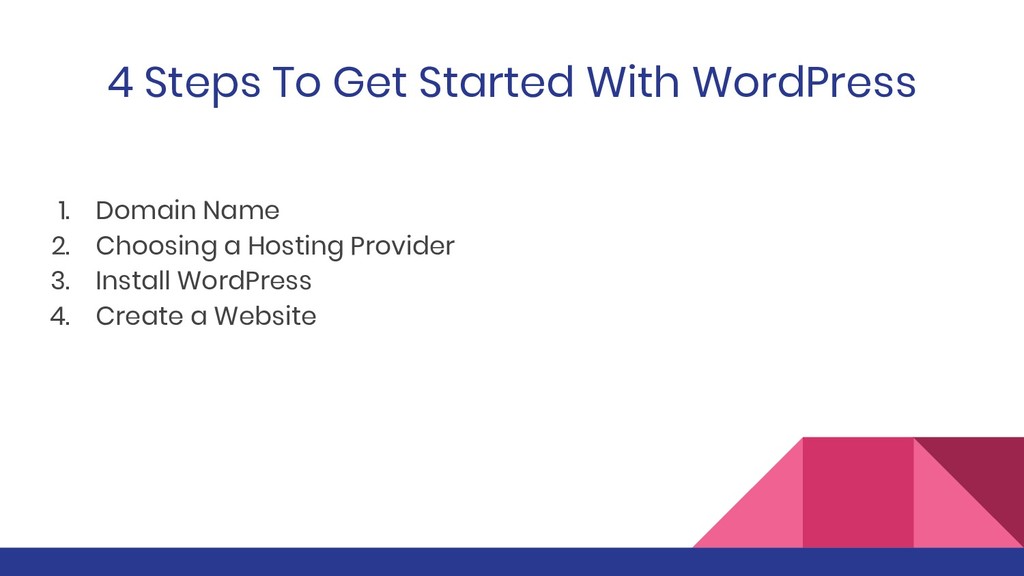
  6. 4 Steps To Get Started With WordPress 1. Domain Name

    2. Choosing a Hosting Provider 3. Install WordPress 4. Create a Website
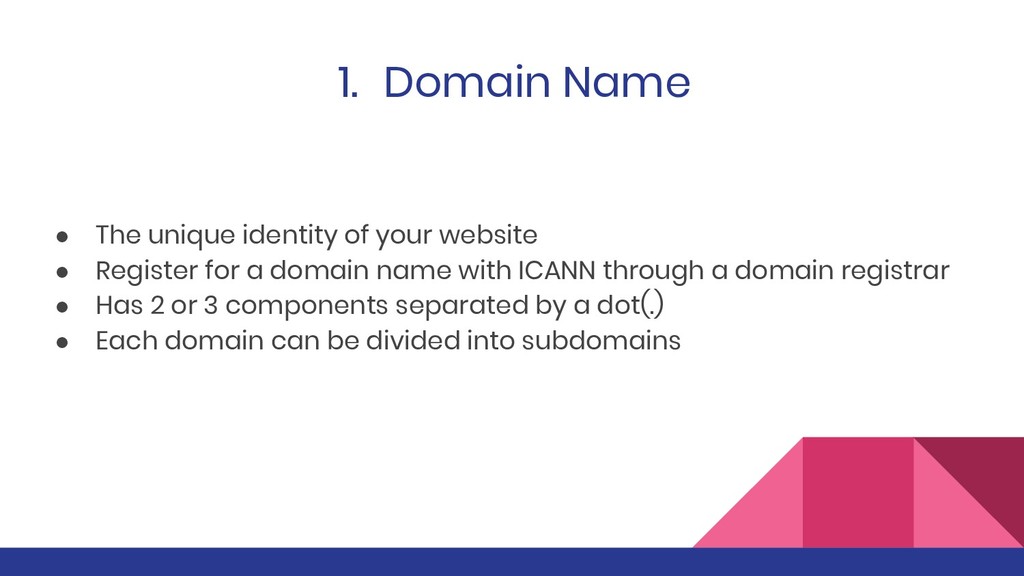
  7. 1. Domain Name • The unique identity of your website

    • Register for a domain name with ICANN through a domain registrar • Has 2 or 3 components separated by a dot(.) • Each domain can be divided into subdomains
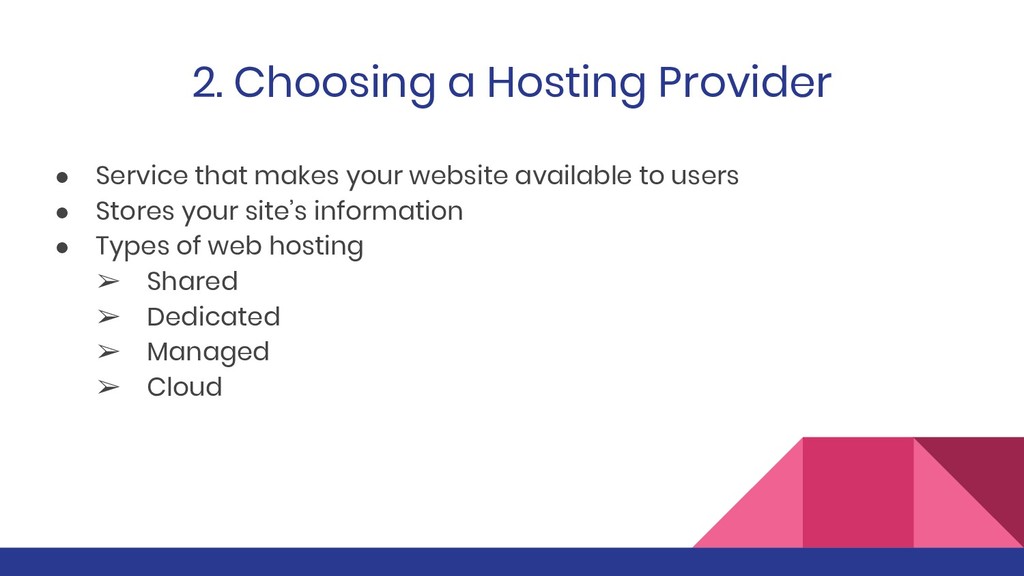
  8. 2. Choosing a Hosting Provider • Service that makes your

    website available to users • Stores your site’s information • Types of web hosting ➢ Shared ➢ Dedicated ➢ Managed ➢ Cloud
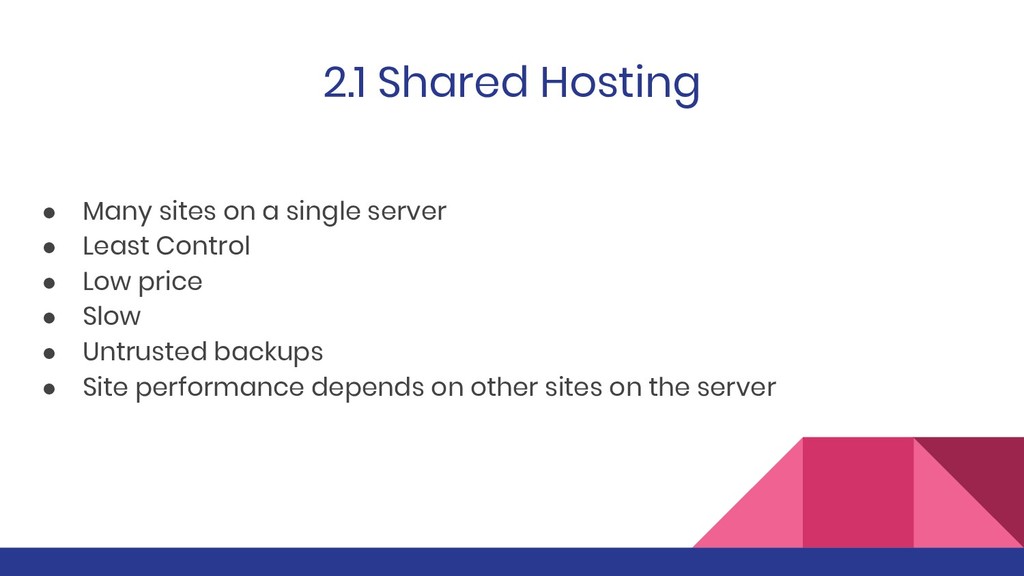
  9. 2.1 Shared Hosting • Many sites on a single server

    • Least Control • Low price • Slow • Untrusted backups • Site performance depends on other sites on the server
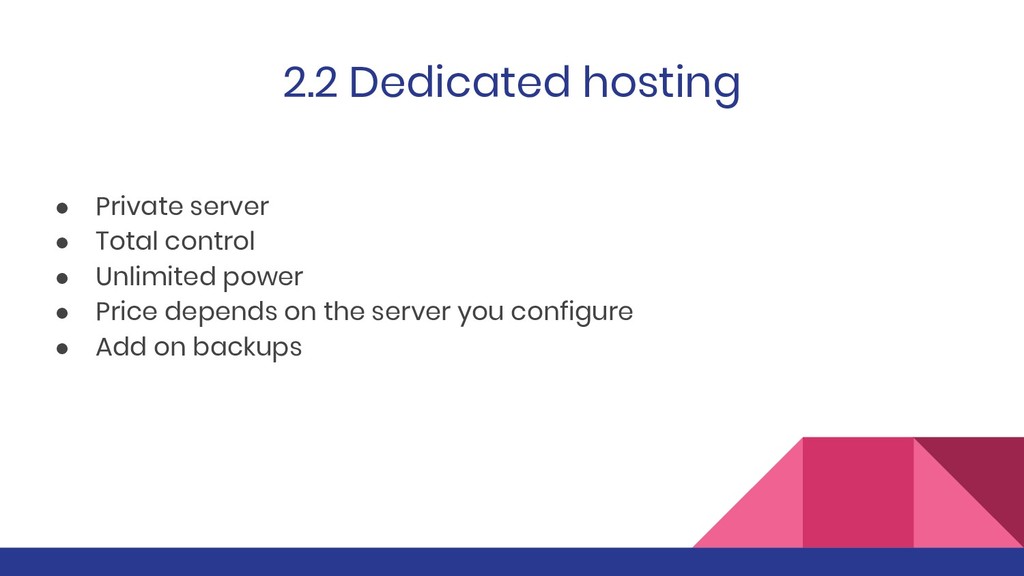
  10. 2.2 Dedicated hosting • Private server • Total control •

    Unlimited power • Price depends on the server you configure • Add on backups
  11. 2.3 Managed hosting • Expert hosting providers • Provide dedicated

    resources for your site • Regular backups • Complete security • 24*7 support
  12. 2.4 Cloud hosting • Host on virtual servers • Flexible

    and scalable • Powerful • Reliable • Very affordable
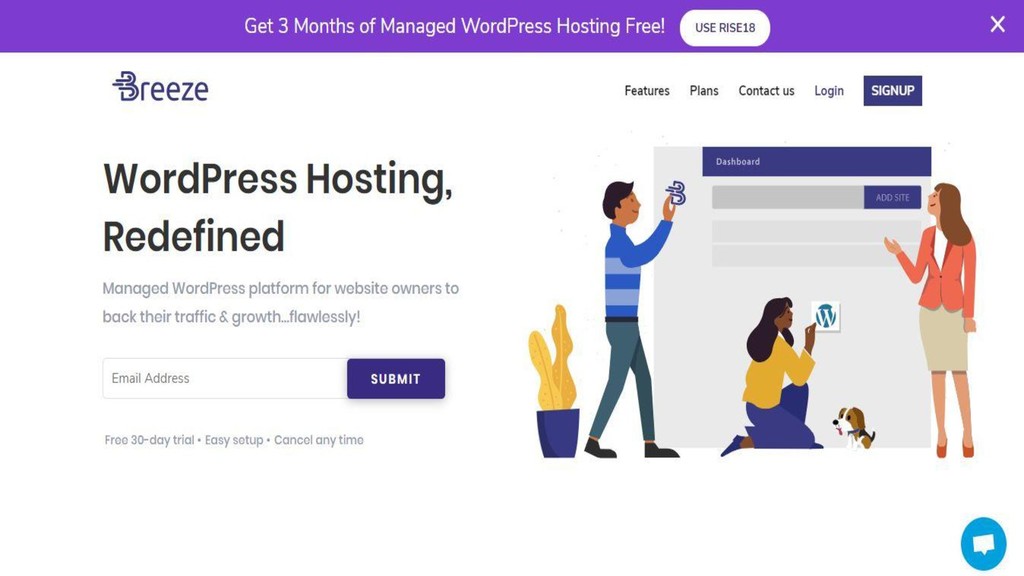
  13. 2.5 Managed WordPress Hosting At Breeze we provide best in

    class Managed WordPress Hosting with: • Free CDN • Free SSL • Automatic daily backups • Daily malware scan • One click staging • Expert help Sign Up today and get 3 months Managed WordPress hosting free!
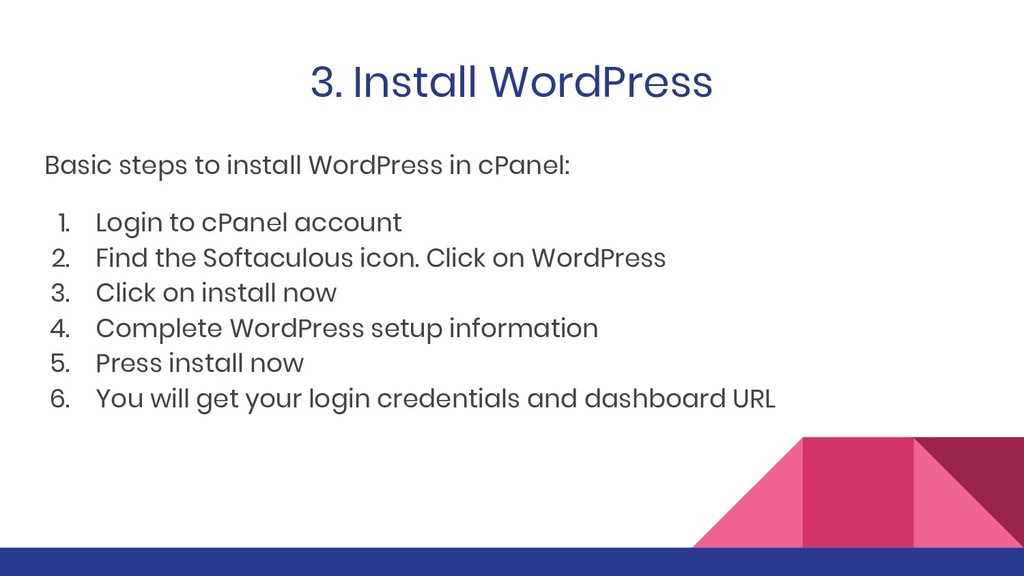
  14. 3. Install WordPress Basic steps to install WordPress in cPanel:

    1. Login to cPanel account 2. Find the Softaculous icon. Click on WordPress 3. Click on install now 4. Complete WordPress setup information 5. Press install now 6. You will get your login credentials and dashboard URL
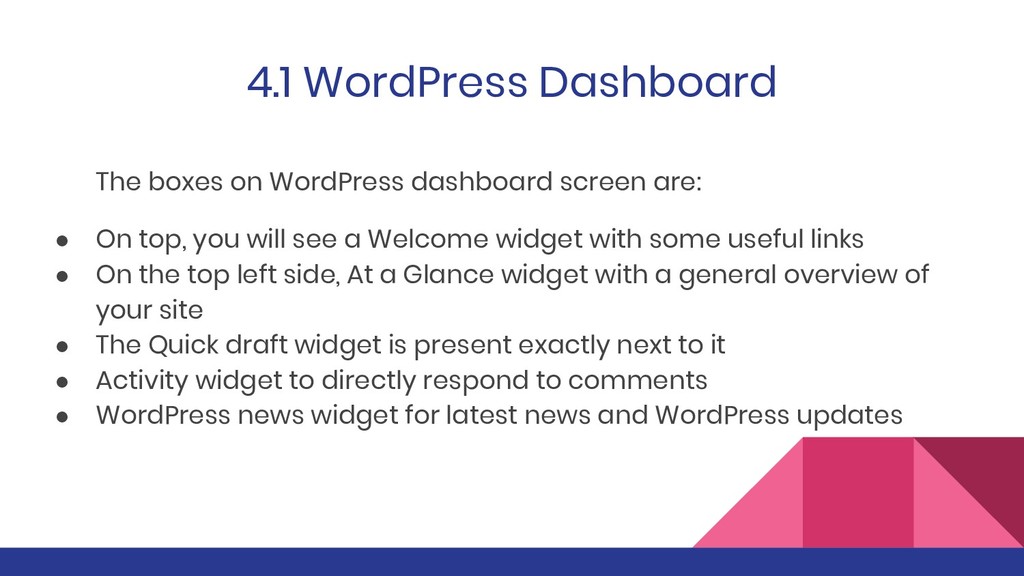
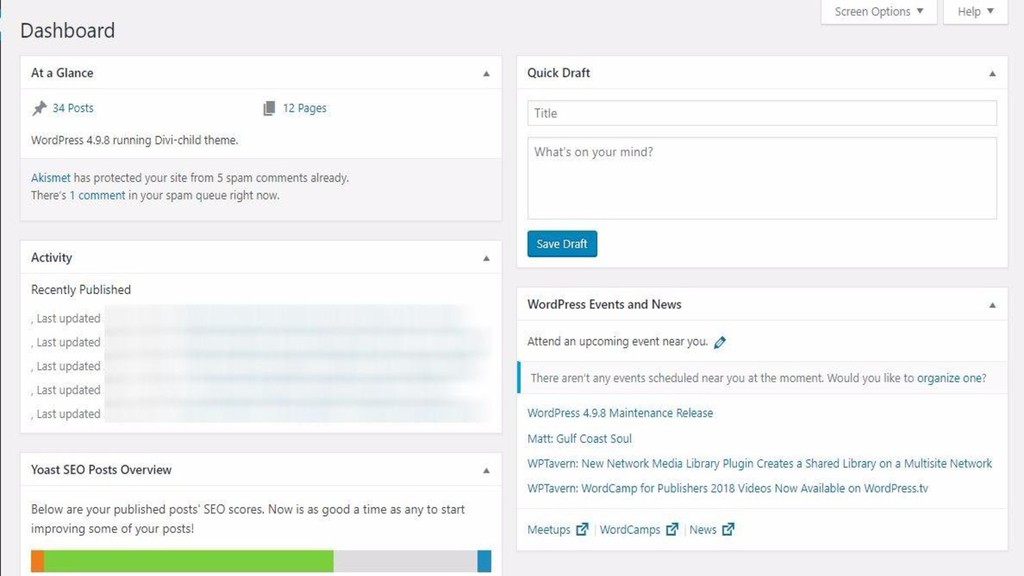
  15. 4.1 WordPress Dashboard The boxes on WordPress dashboard screen are:

    • On top, you will see a Welcome widget with some useful links • On the top left side, At a Glance widget with a general overview of your site • The Quick draft widget is present exactly next to it • Activity widget to directly respond to comments • WordPress news widget for latest news and WordPress updates
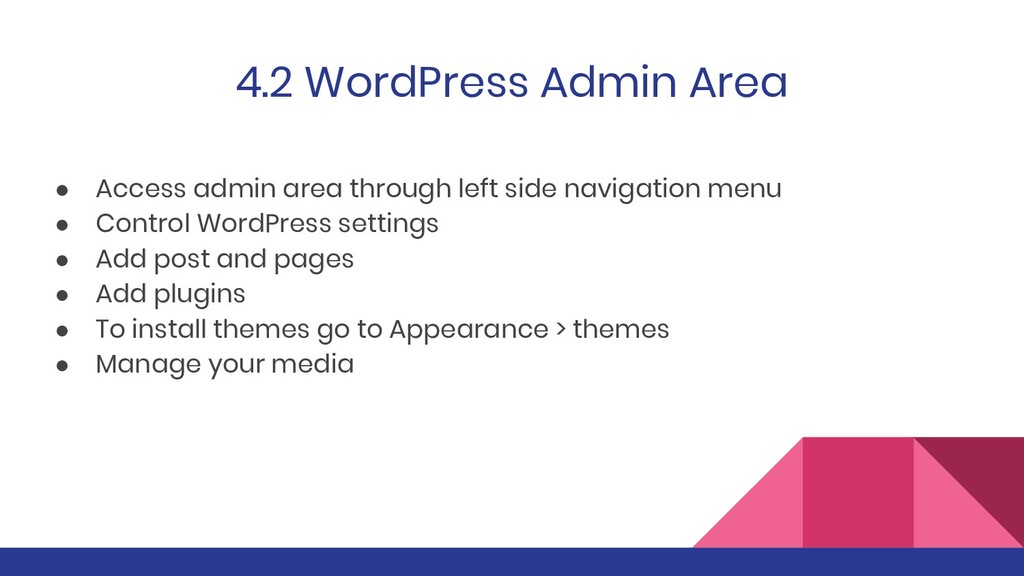
  16. 4.2 WordPress Admin Area • Access admin area through left

    side navigation menu • Control WordPress settings • Add post and pages • Add plugins • To install themes go to Appearance > themes • Manage your media
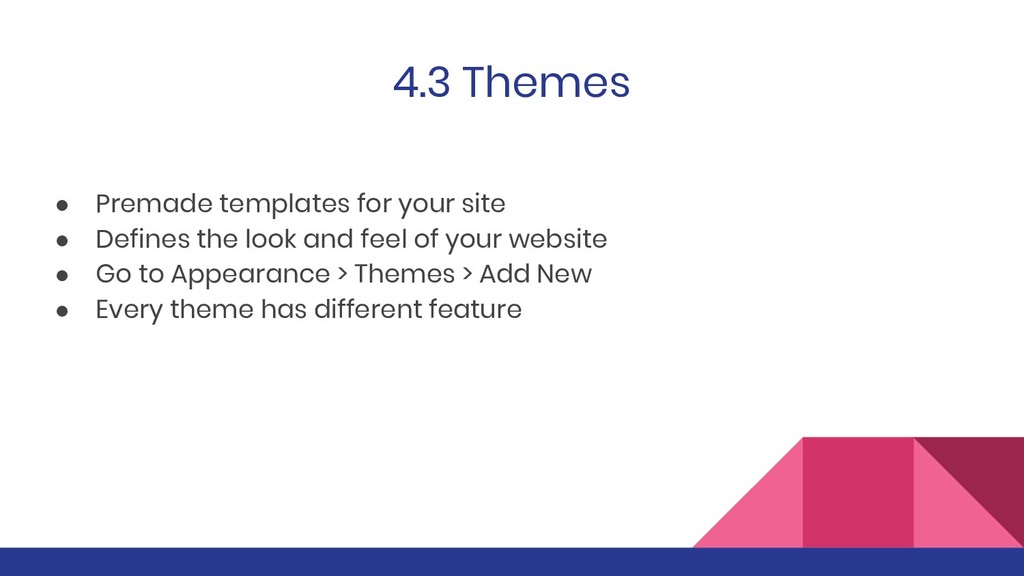
  17. 4.3 Themes • Premade templates for your site • Defines

    the look and feel of your website • Go to Appearance > Themes > Add New • Every theme has different feature
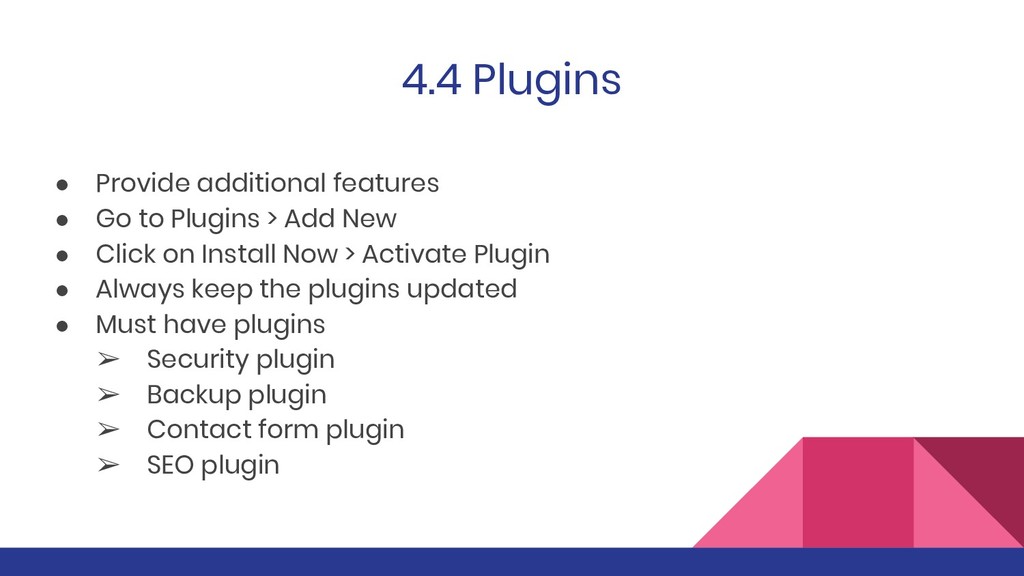
  18. 4.4 Plugins • Provide additional features • Go to Plugins

    > Add New • Click on Install Now > Activate Plugin • Always keep the plugins updated • Must have plugins ➢ Security plugin ➢ Backup plugin ➢ Contact form plugin ➢ SEO plugin
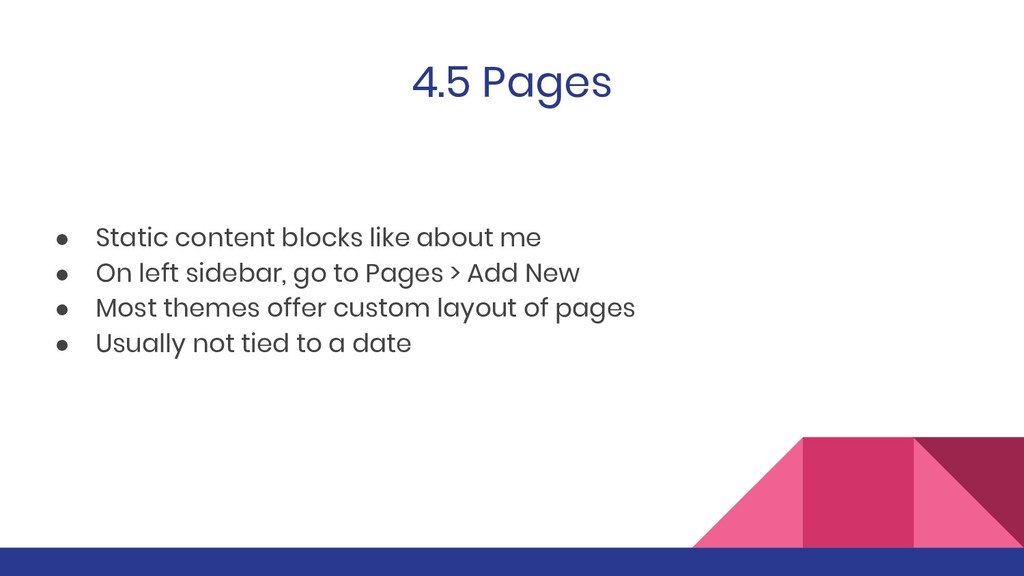
  19. 4.5 Pages • Static content blocks like about me •

    On left sidebar, go to Pages > Add New • Most themes offer custom layout of pages • Usually not tied to a date
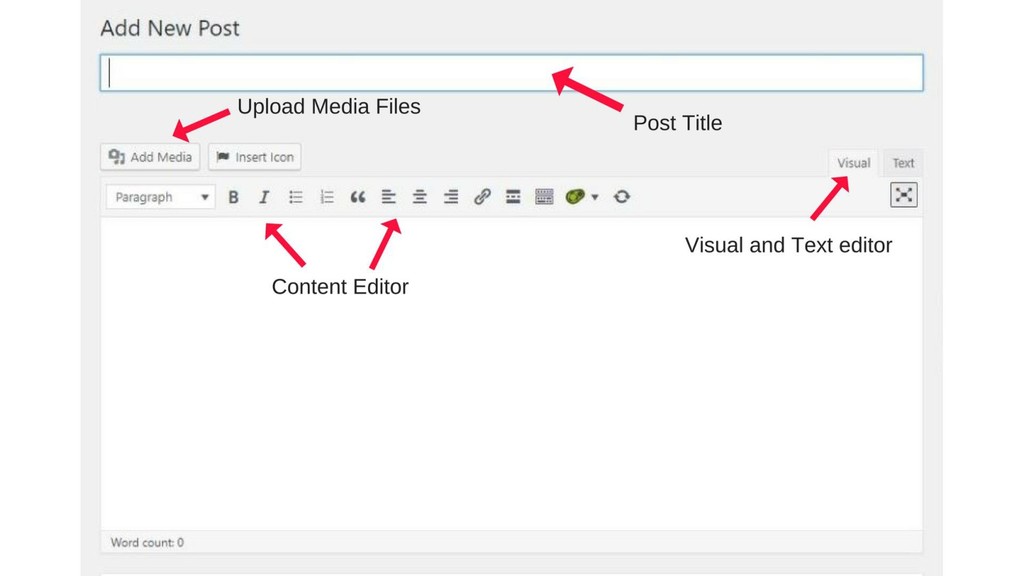
  20. 4.6 Post • Individual pieces of content usually blogs •

    Divided into categories and tags • Listed in reverse chronological order • Associated with date and author
  21. 1. Tutorials • Most WordPress tutorials and guides cover every

    aspect • Video tutorials are most sought after • Check out our knowledge base at breeze.io
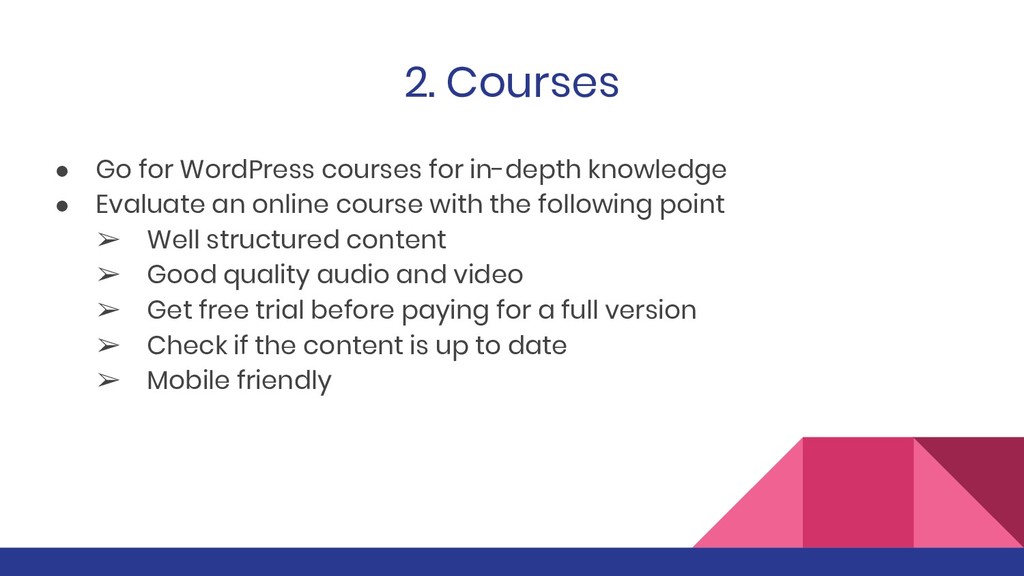
  22. 2. Courses • Go for WordPress courses for in-depth knowledge

    • Evaluate an online course with the following point ➢ Well structured content ➢ Good quality audio and video ➢ Get free trial before paying for a full version ➢ Check if the content is up to date ➢ Mobile friendly
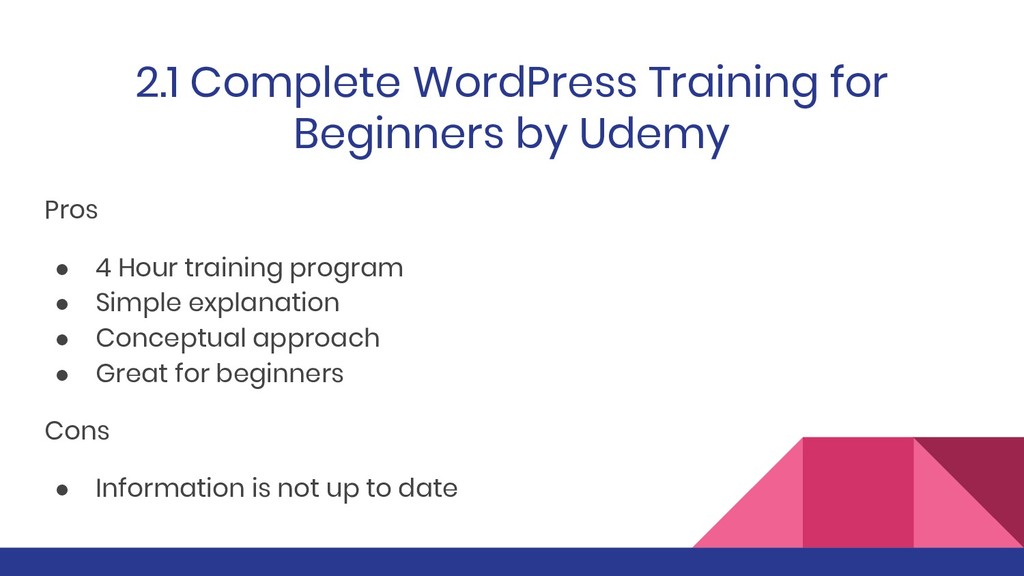
  23. 2.1 Complete WordPress Training for Beginners by Udemy Pros •

    4 Hour training program • Simple explanation • Conceptual approach • Great for beginners Cons • Information is not up to date
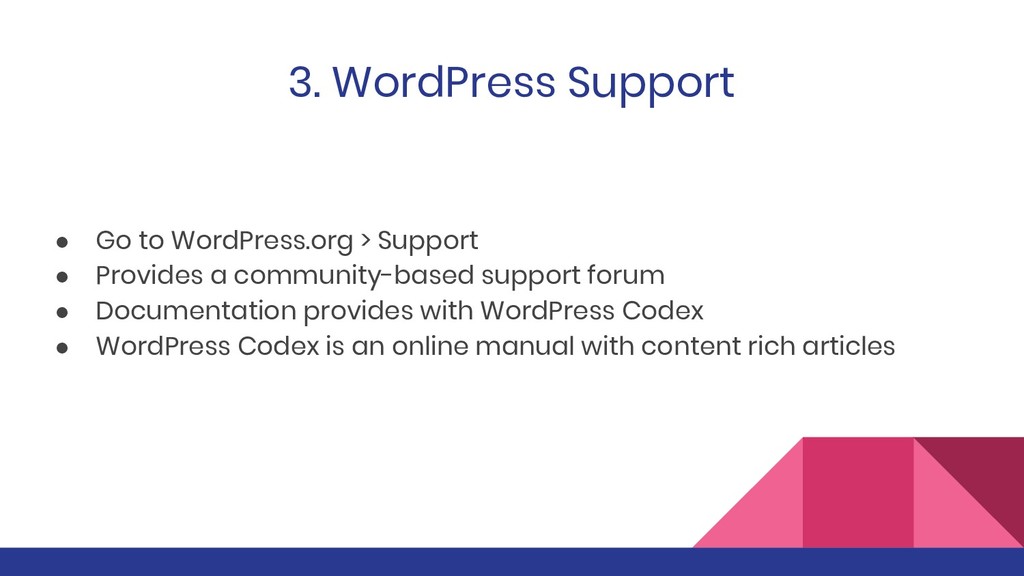
  24. 3. WordPress Support • Go to WordPress.org > Support •

    Provides a community-based support forum • Documentation provides with WordPress Codex • WordPress Codex is an online manual with content rich articles
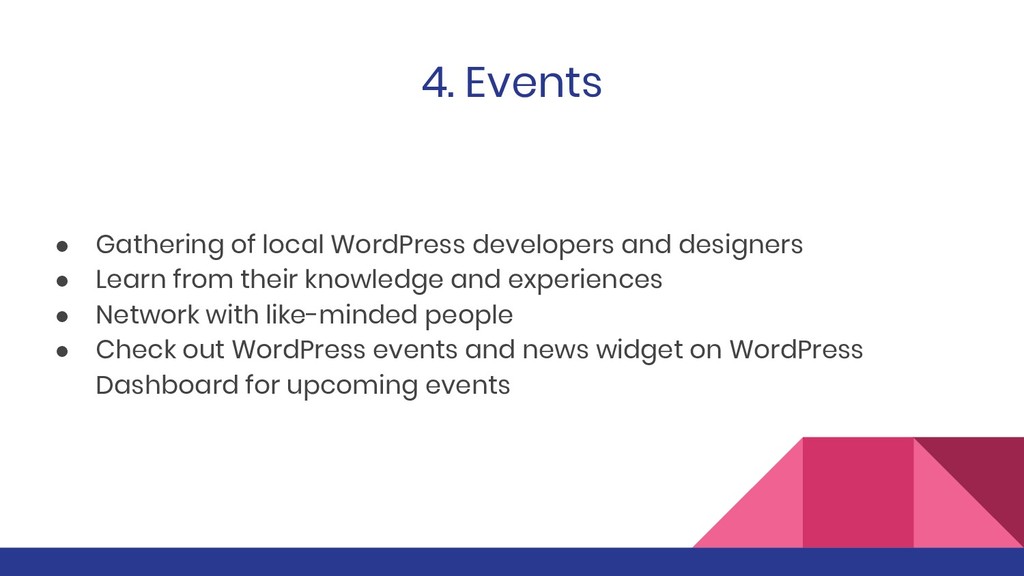
  25. 4. Events • Gathering of local WordPress developers and designers

    • Learn from their knowledge and experiences • Network with like-minded people • Check out WordPress events and news widget on WordPress Dashboard for upcoming events
  26. 5. Communities • Provide online help especially to beginners •

    Social media groups and WordPress forums • Popular WordPress communities ➢ WordPress help for beginners ➢ WordPress 101 ➢ Intermediate WordPress
  27. 6. Top Influencer Follow them on their social for latest
    updates and news • Matt Mullenweg Founder of WordPress • Joost De Valk Founder of Yoast SEO plugin • Syed Balkhi Founder of WPBeginner
  28. 1. SEO • Make your content SEO friendly to get

    more traffic • Use SEO plugins • Best SEO plugins ➢ Yoast SEO ➢ SEO Squirrly ➢ All In One SEO Pack ➢ W3 Total Cache
  29. 2. Customization • WordPress has unlimited customization options • Add

    themes and plugins • Add contact details, company logo etc • Create a brand using the power of WordPress
  30. Conclusion WordPress might look overwhelming in the beginning but you

    can learn WordPress within a week That’s the beauty of WordPress