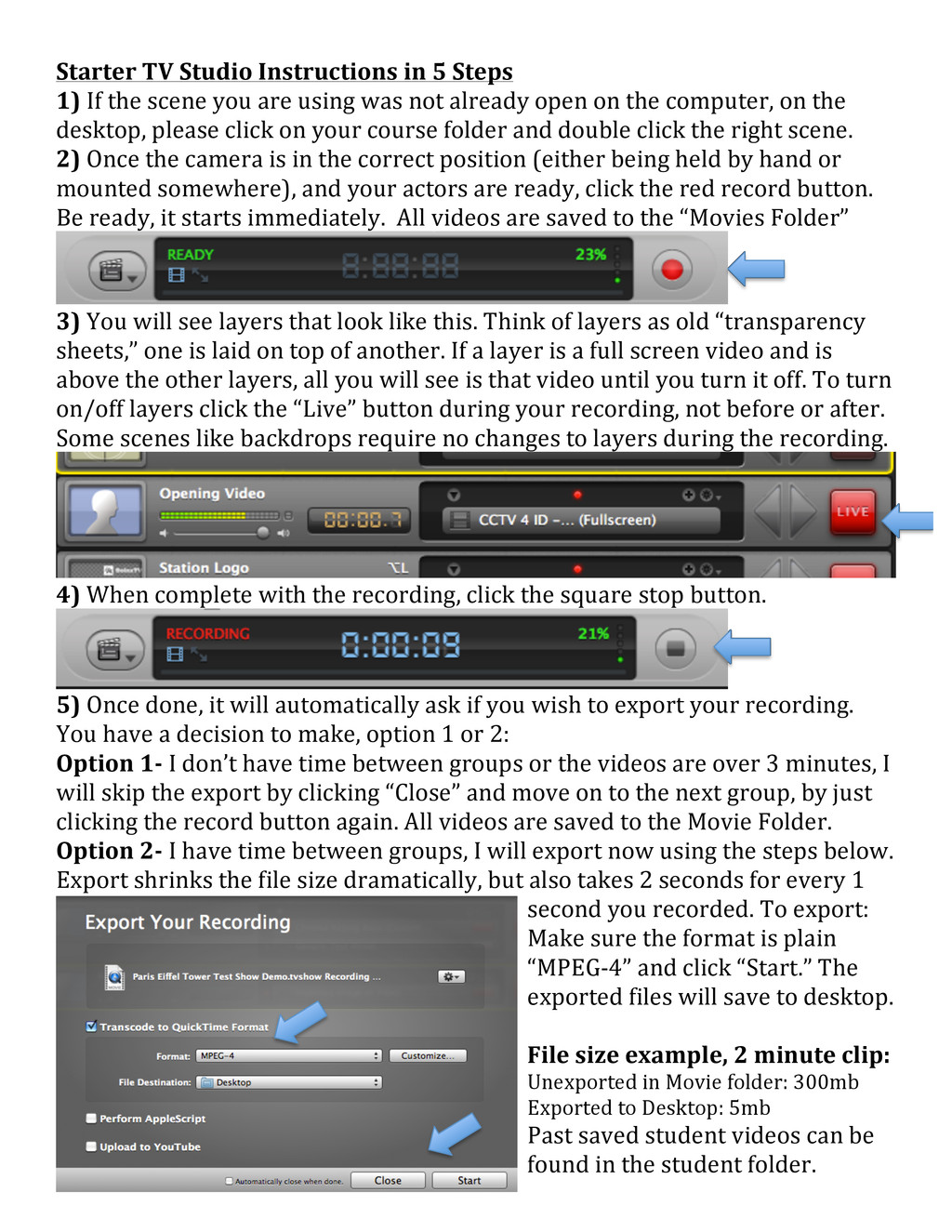
the scene you are using was not already open on the computer, on the desktop, please click on your course folder and double click the right scene. 2) Once the camera is in the correct position (either being held by hand or mounted somewhere), and your actors are ready, click the red record button. Be ready, it starts immediately. All videos are saved to the “Movies Folder” 3) You will see layers that look like this. Think of layers as old “transparency sheets,” one is laid on top of another. If a layer is a full screen video and is above the other layers, all you will see is that video until you turn it off. To turn on/off layers click the “Live” button during your recording, not before or after. Some scenes like backdrops require no changes to layers during the recording. 4) When complete with the recording, click the square stop button. 5) Once done, it will automatically ask if you wish to export your recording. You have a decision to make, option 1 or 2: Option 1-‐ I don’t have time between groups or the videos are over 3 minutes, I will skip the export by clicking “Close” and move on to the next group, by just clicking the record button again. All videos are saved to the Movie Folder. Option 2-‐ I have time between groups, I will export now using the steps below. Export shrinks the file size dramatically, but also takes 2 seconds for every 1 second you recorded. To export: Make sure the format is plain “MPEG-‐4” and click “Start.” The exported files will save to desktop. File size example, 2 minute clip: Unexported in Movie folder: 300mb Exported to Desktop: 5mb Past saved student videos can be found in the student folder.
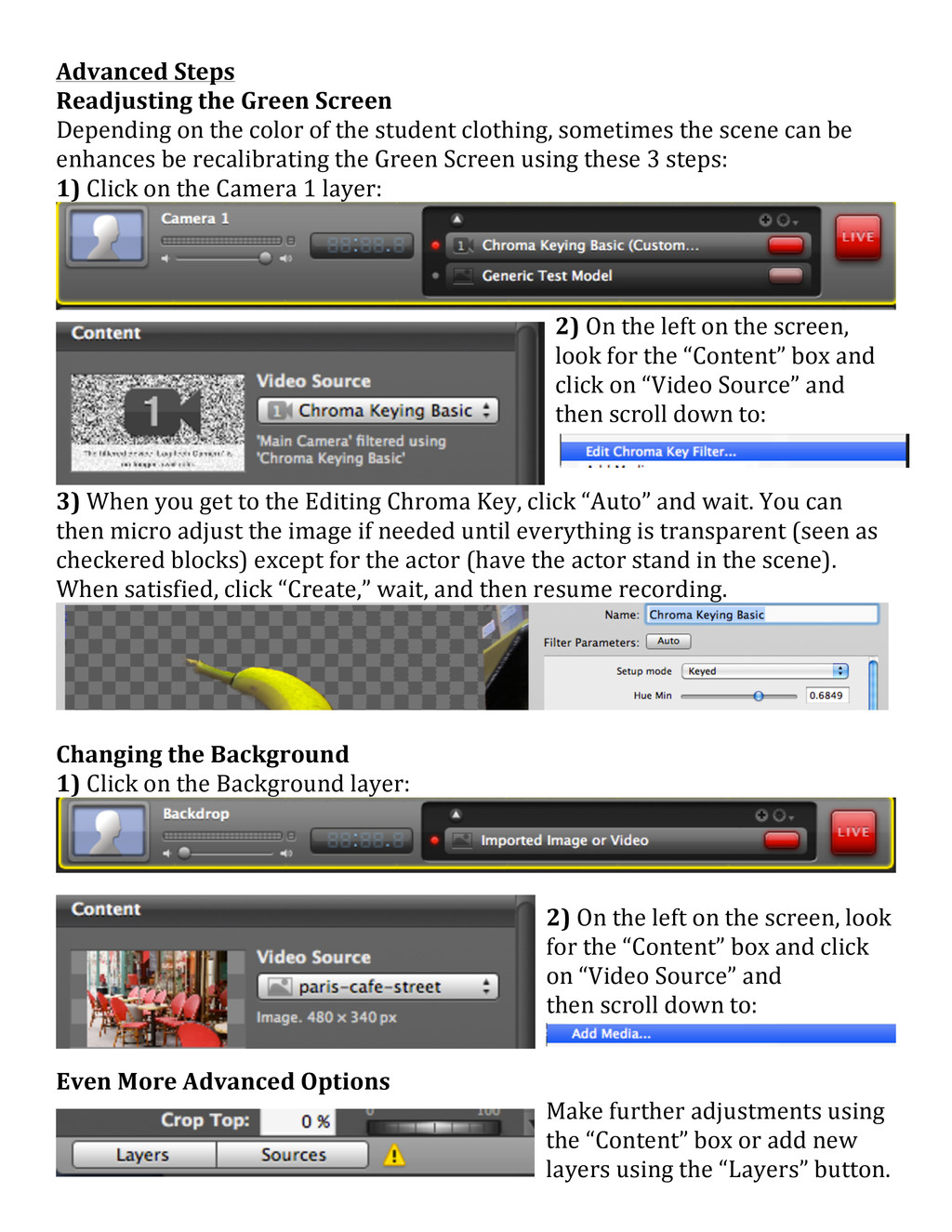
the color of the student clothing, sometimes the scene can be enhances be recalibrating the Green Screen using these 3 steps: 1) Click on the Camera 1 layer: 2) On the left on the screen, look for the “Content” box and click on “Video Source” and then scroll down to: 3) When you get to the Editing Chroma Key, click “Auto” and wait. You can then micro adjust the image if needed until everything is transparent (seen as checkered blocks) except for the actor (have the actor stand in the scene). When satisfied, click “Create,” wait, and then resume recording. Changing the Background 1) Click on the Background layer: 2) On the left on the screen, look for the “Content” box and click on “Video Source” and then scroll down to: Even More Advanced Options Make further adjustments using the “Content” box or add new layers using the “Layers” button.


 madoxten
 tammyeverts
 smashingmag
 scottboms
 eileencodes
 reverentgeek
 jmmastey
 lfama
lfama
 aki_iinuma
 tmiket