Upgrade to Pro — share decks privately, control downloads, hide ads and more …

Google drive handson session at Women On Web (W...

Avatar for Dipali Vyas Dipali Vyas
December 12, 2015

Google drive handson session at Women On Web (WOW Ahmedabad)

You can store and access your files anywhere with Google Drive — on the web, on your hard drive, or on the go. The presentation and my session was designed for WomenOnWeb Initiative in Ahmedabad in Association with Utkarsh Trust for Elderly Women to learn Google Drive usage to help them in their profession, business or personal usage.

Avatar for Dipali Vyas

Dipali Vyas

December 12, 2015
Tweet

More Decks by Dipali Vyas

Other Decks in Technology

Transcript

  1. Why Google Drive? You can store and access your files

    anywhere with Google Drive — on the web, on your hard drive, or on the go. Key Benefits : ❏ Mobility of your documents and content ❏ Create and collaborate with others. ❏ Reusability and ease of access
  2. How to Access Google Drive? 1. Go to Google Chrome

    2. Type in the address bar drive.google.com 3. Enter your Gmail Address or Create a new google account 4. Click Next 5. Enter your Password 6. Click Sign in
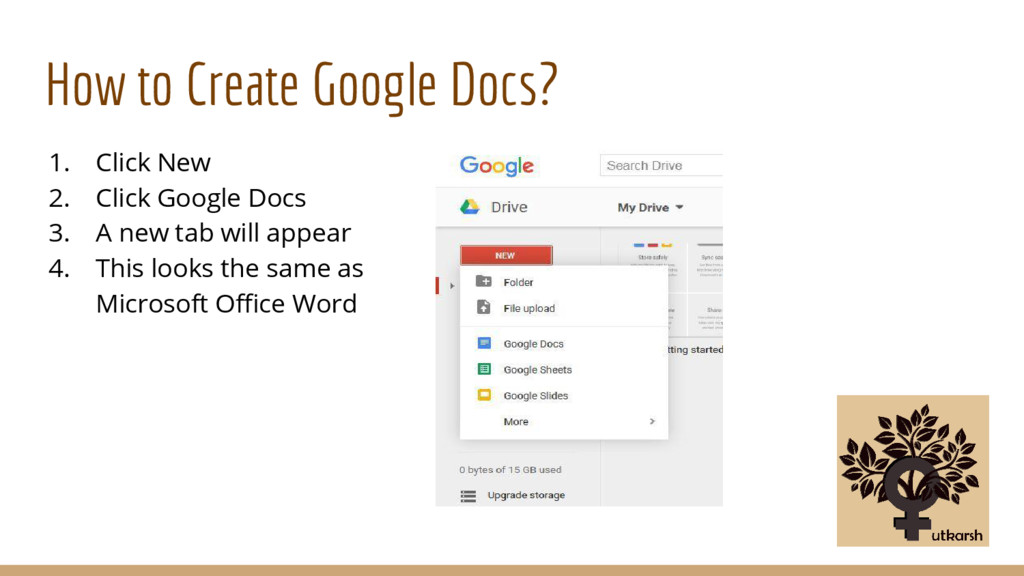
  3. How to Create Google Docs? 1. Click New 2. Click

    Google Docs 3. A new tab will appear 4. This looks the same as Microsoft Office Word
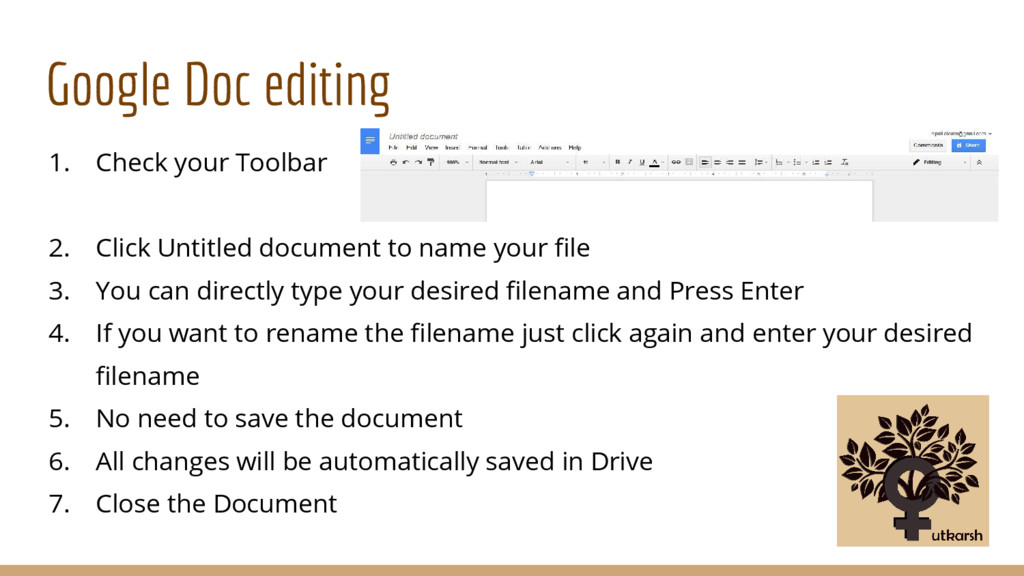
  4. Google Doc editing 1. Check your Toolbar 2. Click Untitled

    document to name your file 3. You can directly type your desired filename and Press Enter 4. If you want to rename the filename just click again and enter your desired filename 5. No need to save the document 6. All changes will be automatically saved in Drive 7. Close the Document
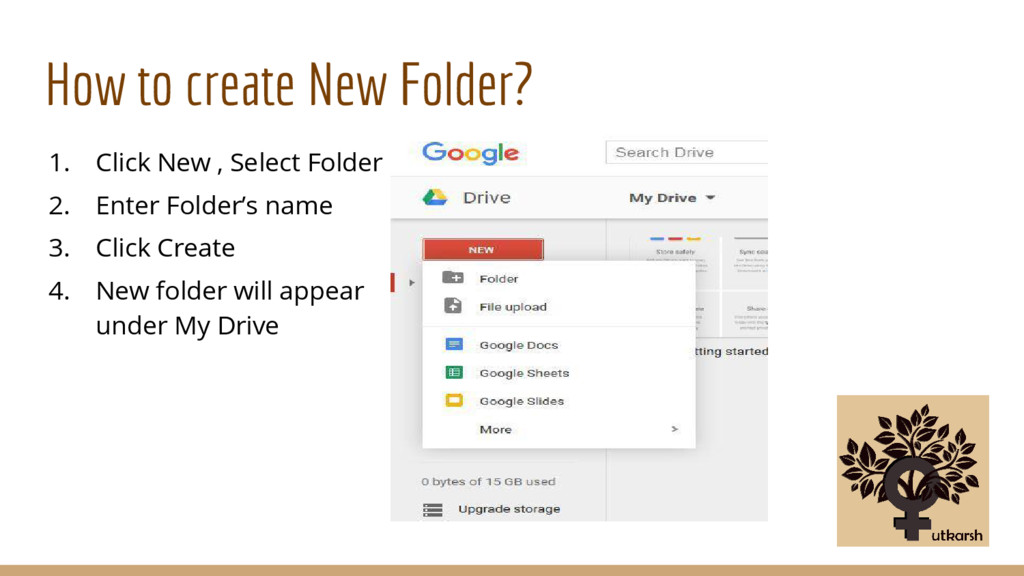
  5. How to create New Folder? 1. Click New , Select

    Folder 2. Enter Folder’s name 3. Click Create 4. New folder will appear under My Drive
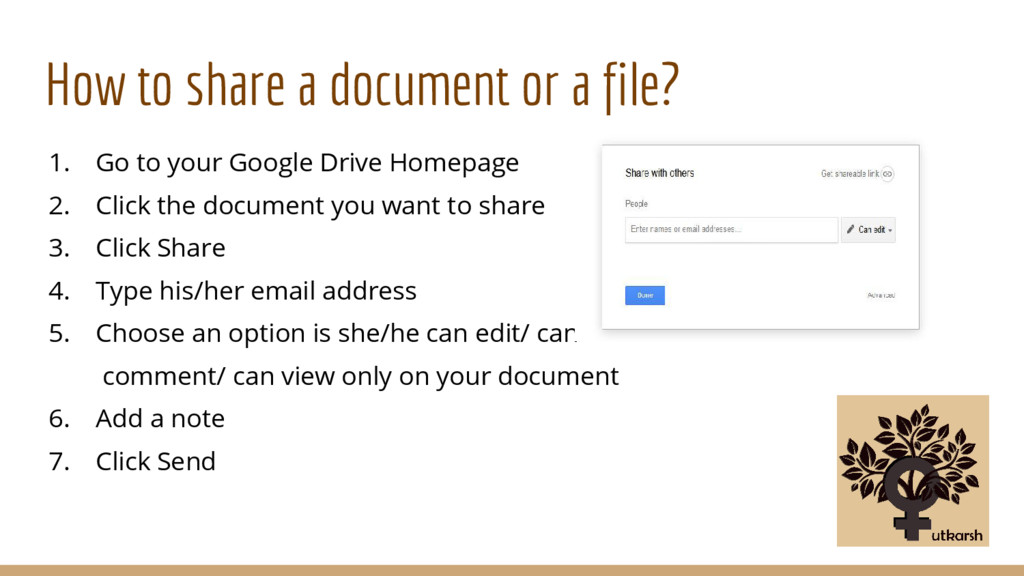
  6. How to share a document or a file? 1. Go

    to your Google Drive Homepage 2. Click the document you want to share 3. Click Share 4. Type his/her email address 5. Choose an option is she/he can edit/ can comment/ can view only on your document 6. Add a note 7. Click Send
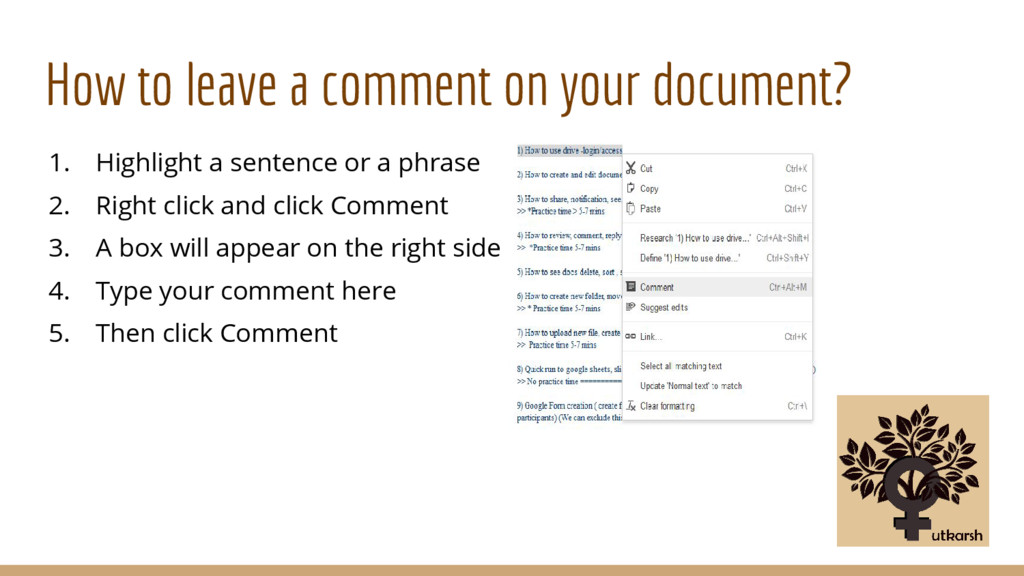
  7. How to leave a comment on your document? 1. Highlight

    a sentence or a phrase 2. Right click and click Comment 3. A box will appear on the right side 4. Type your comment here 5. Then click Comment
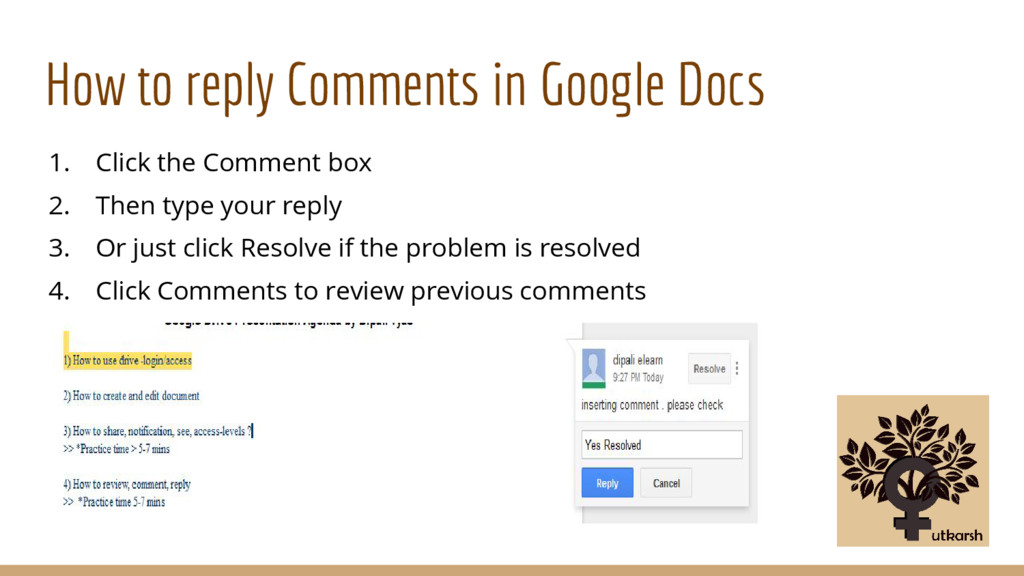
  8. How to reply Comments in Google Docs 1. Click the

    Comment box 2. Then type your reply 3. Or just click Resolve if the problem is resolved 4. Click Comments to review previous comments
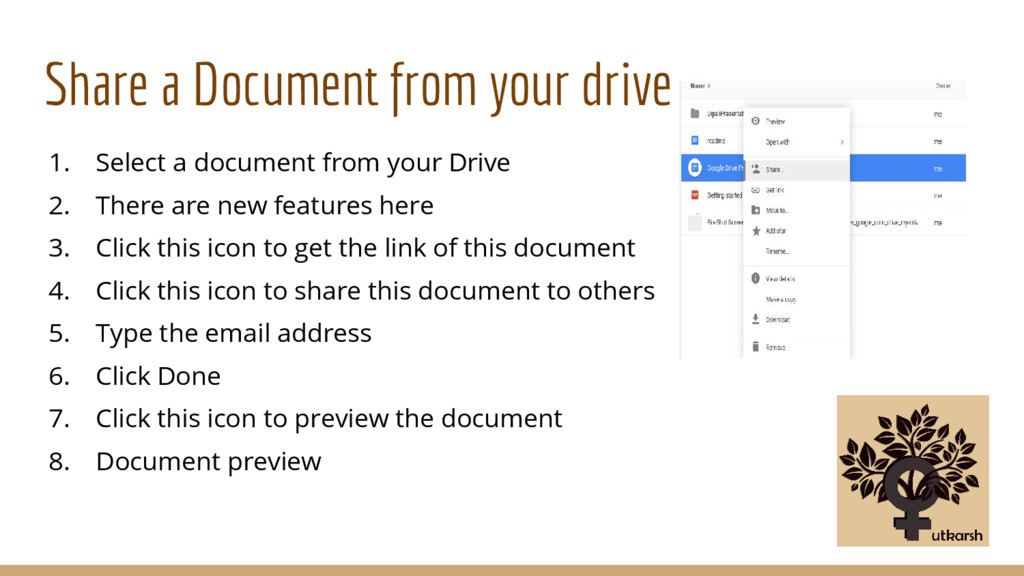
  9. Share a Document from your drive 1. Select a document

    from your Drive 2. There are new features here 3. Click this icon to get the link of this document 4. Click this icon to share this document to others 5. Type the email address 6. Click Done 7. Click this icon to preview the document 8. Document preview
  10. Deletion of Docs 1. Click this icon to delete a

    document 2. Deleted documents can be check on Bin
  11. Some more… More options 1. Click this icon to change

    your view List/Grid View 2. List View 3. Grid View 4. Click this icon to view other sorting options 5. Now Practice ...
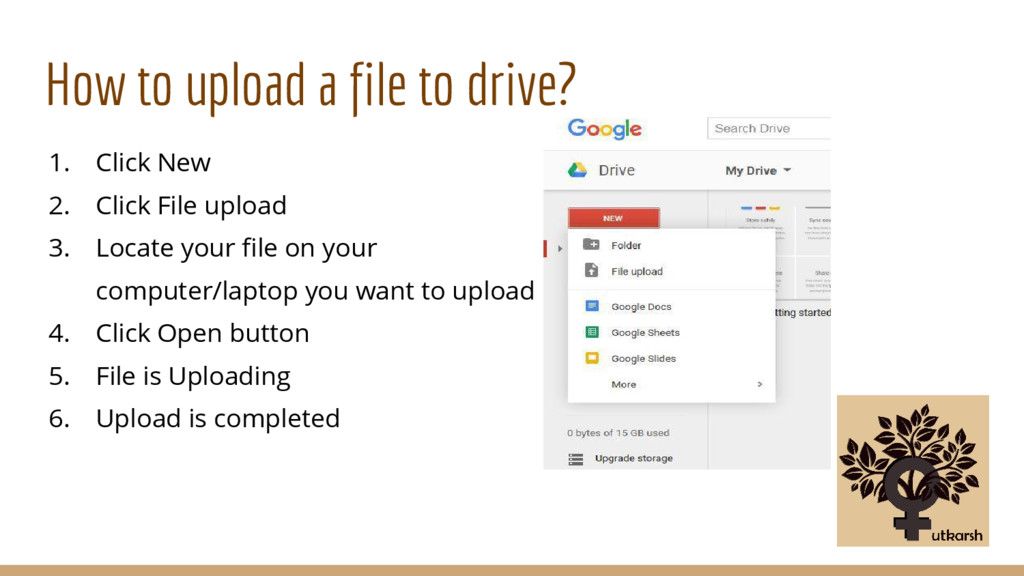
  12. How to upload a file to drive? 1. Click New

    2. Click File upload 3. Locate your file on your computer/laptop you want to upload 4. Click Open button 5. File is Uploading 6. Upload is completed
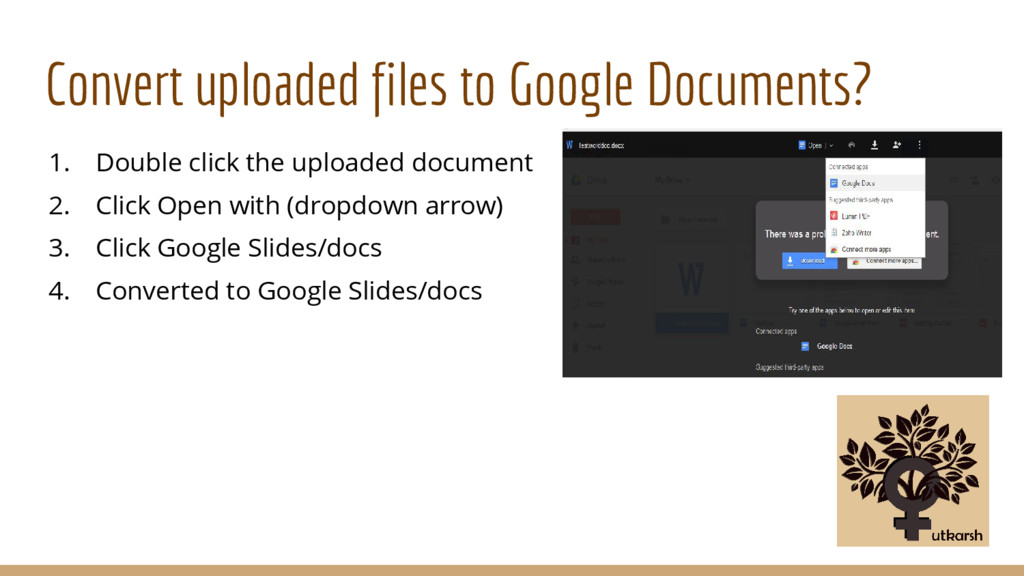
  13. Convert uploaded files to Google Documents? 1. Double click the

    uploaded document 2. Click Open with (dropdown arrow) 3. Click Google Slides/docs 4. Converted to Google Slides/docs
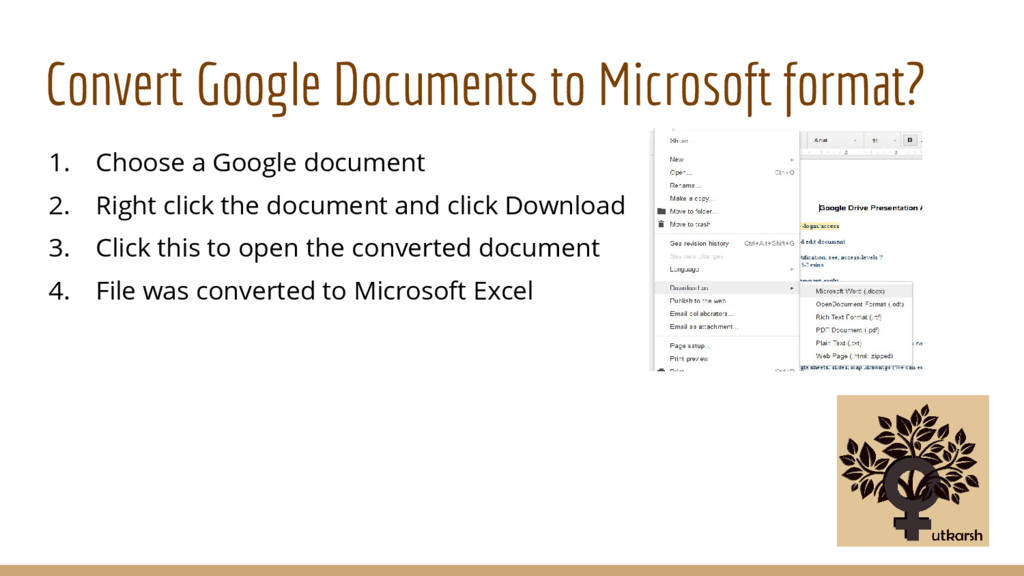
  14. Convert Google Documents to Microsoft format? 1. Choose a Google

    document 2. Right click the document and click Download 3. Click this to open the converted document 4. File was converted to Microsoft Excel
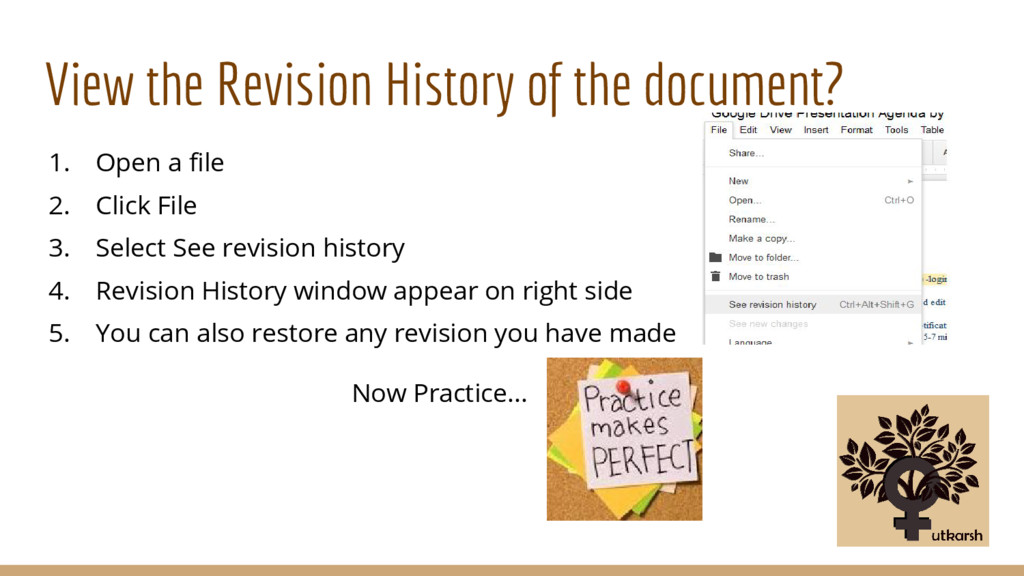
  15. View the Revision History of the document? 1. Open a

    file 2. Click File 3. Select See revision history 4. Revision History window appear on right side 5. You can also restore any revision you have made Now Practice...
  16. Quickrun: How to Create Google Sheets? 1. Click New 2.

    Click Google Sheets 3. This looks the same as Microsoft Office Excel 4. This is your toolbar here 5. Click Untitled spreadsheet to name your file 6. Close the File 7. Your Spreadsheet will appear in your Drive Homepage
  17. Quickrun: How to Create Google Slides? 1. Click New 2.

    Click Google Slides 3. This looks the same as Microsoft Office PowerPoint 4. Select your desired theme for your presentation 5. This is your toolbar here 6. Click Untitled presentation to name your file 7. Close your presentation 8. Your Presentation will appear in your Drive Homepage
  18. How to Create Google Forms? 1. Click New 2. Click

    More 3. Click Google Forms 4. This is your Google Form 5. By using Google Forms you can create a Custom Forms for Surveys & Questionnaires
  19. Editing Form 1. Enter your Form’s Title 2. Enter your

    Form description 3. Enter your Question Title 4. Enter your Question Type 5. Click Done 6. Click Add Item button to add a field 7. Click dropdown arrow beside Add Item 8. Try using Multiple Choice for your next question
  20. Enter 2nd Question title 1. Enter multiple choice answer 2.

    Click Done 3. You can edit the question 4. You can delete a question 5. All questions are required put check on Required question
  21. Complete the form and go ahead 1. You can share

    to other people the link of your form. 2. Copy the link and share it to others 3. Close the document 4. Your Form will appear in your Drive Homepage
  22. How to create Google Drawing? 1. Click New 2. Click

    More 3. Click Google Drawing 4. Create your chart/diagram 5. This is your toolbar here
  23. How to create Google Map? 1. Click New 2. Click

    More 3. Click Google My Maps 4. Start creating your map here Now Practice...
  24. Thank you and Questions? Now Please keep Practicing … Because

    Practice makes Men Perfect & it equally applies to Women…