Upgrade to Pro — share decks privately, control downloads, hide ads and more …

The Power of the Attribute Template Extended to...

Sponsored · SiteGround - Reliable hosting with speed, security, and support you can count on. →

The Power of the Attribute Template Extended to Drive Metrics Collection

Wouldn't it be nice if you could come up with all the things you wanted to count in your requirements specification(s) and then without having to know any custom DXL get numbers produced for each count (i.e. how many requirements do I have? how many child requirements do not trace up to a parent requirement? etc...) on a by requirement module basis? This is the reality of using the Attribute Template to drive your Metrics collection, now let me show you how.

Avatar for Alex Ivanov

Alex Ivanov

June 26, 2012

Other Decks in Technology

Transcript

  1. The Power of the Attribute Template Extended to Drive Metrics

    Collection Page 1 Alex Ivanov DOORS Architect/SME Raytheon Company June 26th, 2012 Collection Copyright © 2012 Raytheon Company. All rights reserved. Customer Success Is Our Mission is a registered trademark of Raytheon Company.
  2. Presenter Biography Alex Ivanov, a Senior Software Engineer II with

    Honors at Raytheon Integrated Defense Systems, graduated from Boston University in 2000 with a BS degree in Computer Systems Engineering. For the past 10 years he has written numerous DXL scripts, helped maintain several DOORS databases, and worked with hundreds of users to help them improve their understanding of DOORS. Alex specializes in consulting with programs large and small to help them get the most Page 2 2 specializes in consulting with programs large and small to help them get the most out of IBM Rational DOORS. Alex has attended numerous Telelogic/IBM conferences to share his knowledge and is well respected within the DOORS support community. Alex is an IBM Certified Deployment Specialist DOORS v9 and in 2011 was awarded the title of IBM Champion (re-elected in 2012).
  3. Agenda The Attribute Template How we use it to –

    Keep track of attributes – Keep track of views – Produce documentation Page 3 – Produce documentation – Push out attributes and views into the database How we use it to capture metrics – Overview of current metrics process – Metrics based on Attribute Template Questions? 3
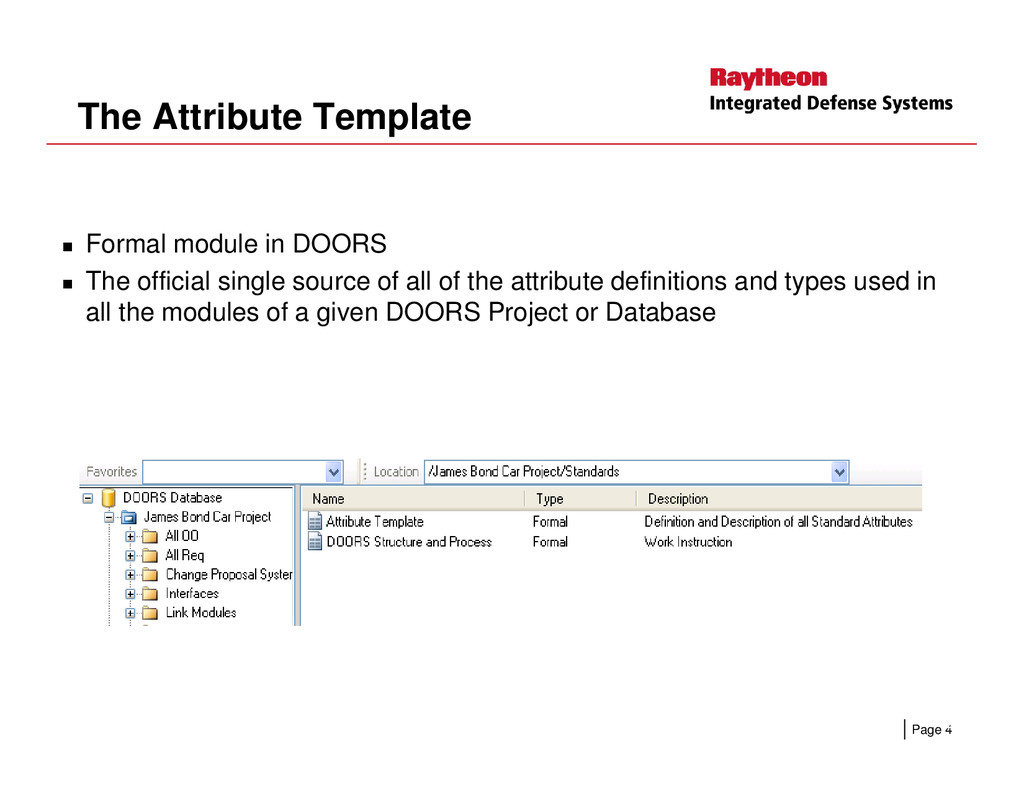
  4. The Attribute Template Formal module in DOORS The official single

    source of all of the attribute definitions and types used in all the modules of a given DOORS Project or Database Page 4 4
  5. The Attribute Template is a… Starting point for new modules

    from Word, Excel, archives Official source of the standard attribute definitions and types Official source of information about attributes Simple look up for what each attribute means and what it is Page 5 Simple look up for what each attribute means and what it is used for 5
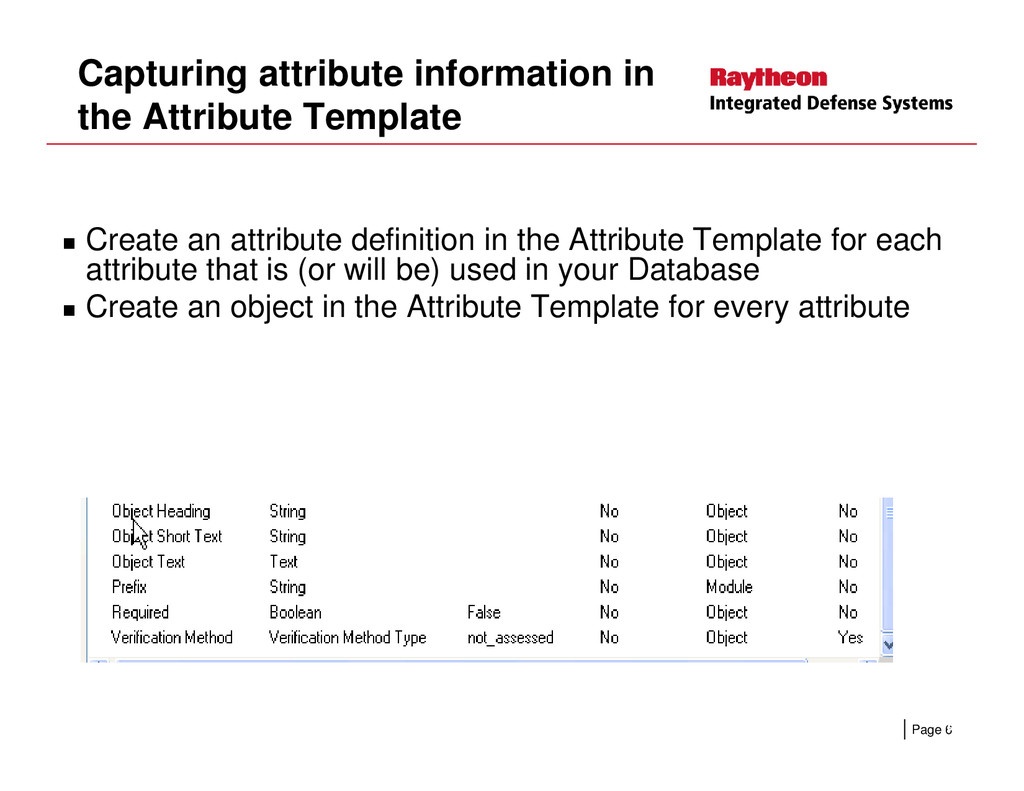
  6. Capturing attribute information in the Attribute Template Create an attribute

    definition in the Attribute Template for each attribute that is (or will be) used in your Database Create an object in the Attribute Template for every attribute Page 6 6
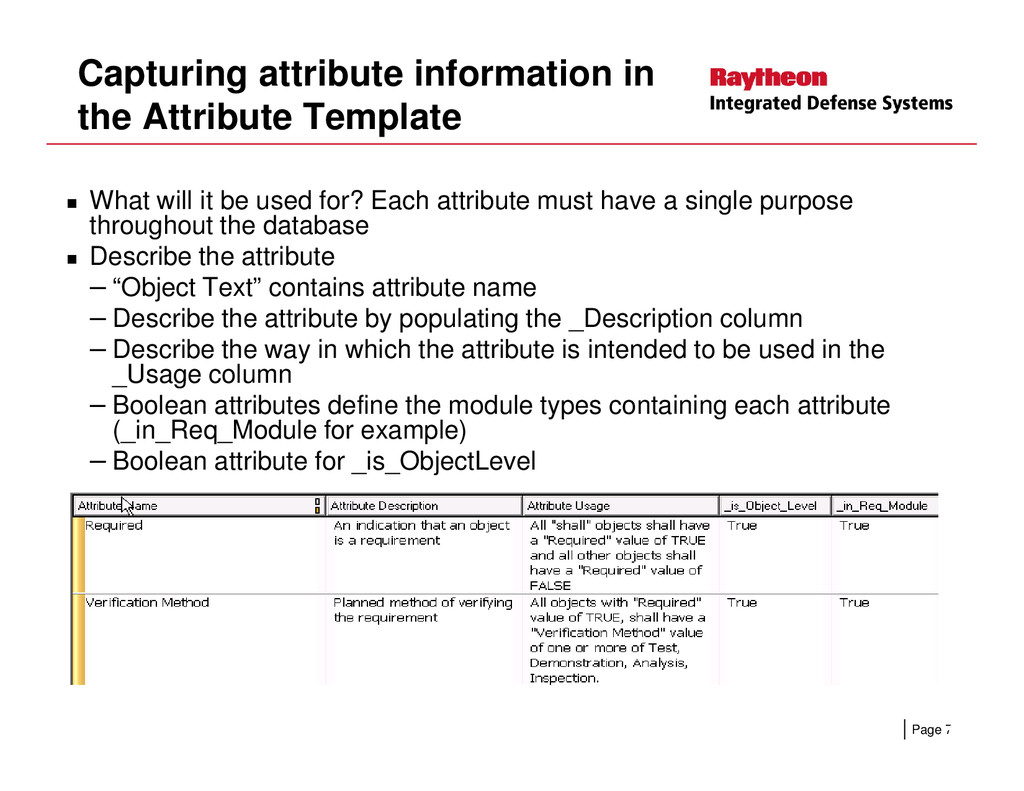
  7. Capturing attribute information in the Attribute Template What will it

    be used for? Each attribute must have a single purpose throughout the database Describe the attribute – “Object Text” contains attribute name – Describe the attribute by populating the _Description column – Describe the way in which the attribute is intended to be used in the _Usage column – Boolean attributes define the module types containing each attribute Page 7 – Boolean attributes define the module types containing each attribute (_in_Req_Module for example) – Boolean attribute for _is_ObjectLevel 7
  8. Attribute Template contains all the official views Official source of

    supported views Having attributes in one place allows all the view definitions to be in the same location Columns can also have layout DXL Page 8 Can save filter and sorting information with the view once for re-use 8
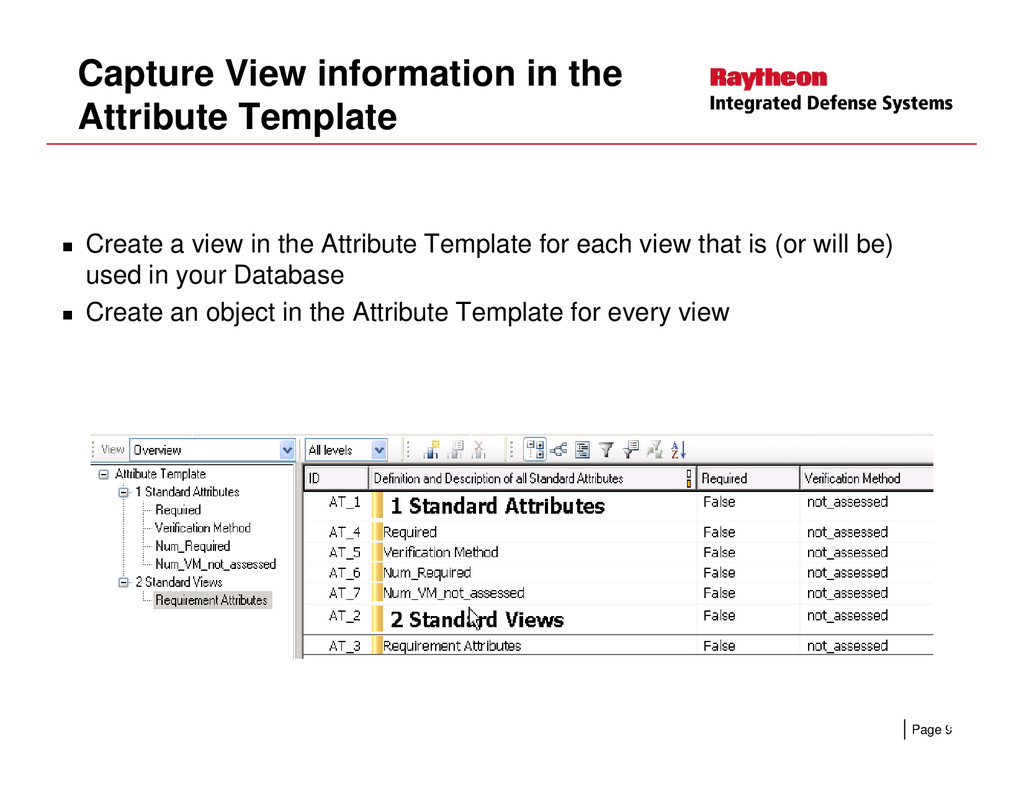
  9. Capture View information in the Attribute Template Create a view

    in the Attribute Template for each view that is (or will be) used in your Database Create an object in the Attribute Template for every view Page 9 9
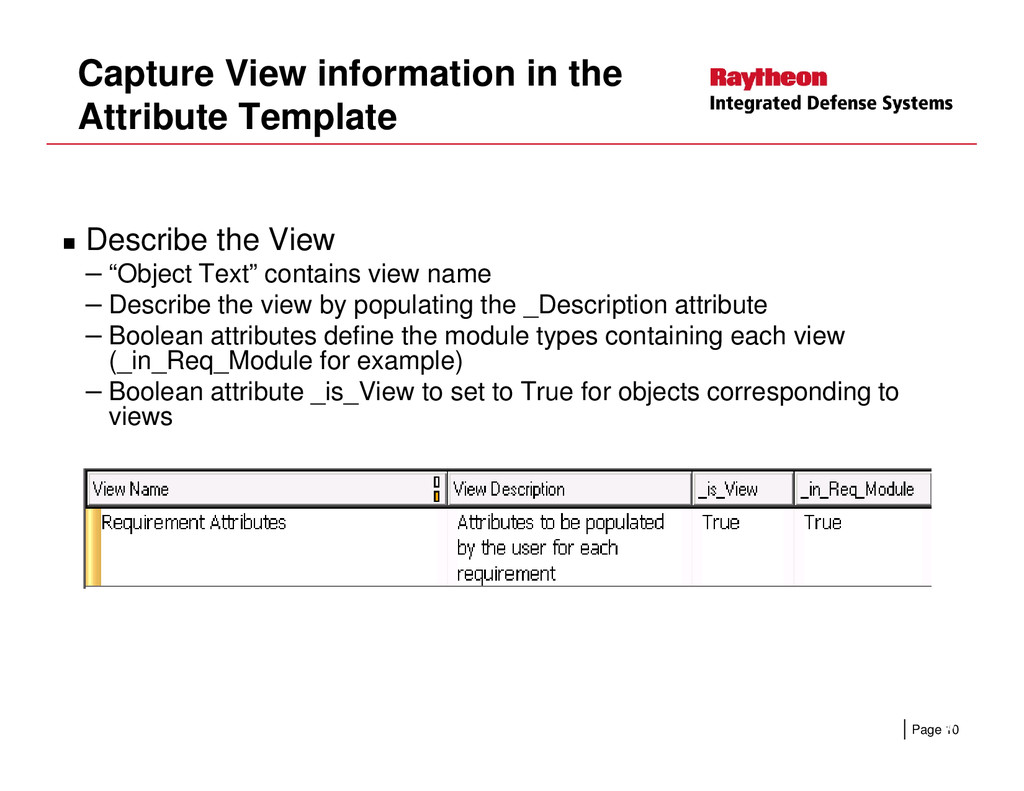
  10. Capture View information in the Attribute Template Describe the View

    – “Object Text” contains view name – Describe the view by populating the _Description attribute – Boolean attributes define the module types containing each view (_in_Req_Module for example) – Boolean attribute _is_View to set to True for objects corresponding to Page 10 – Boolean attribute _is_View to set to True for objects corresponding to views 10
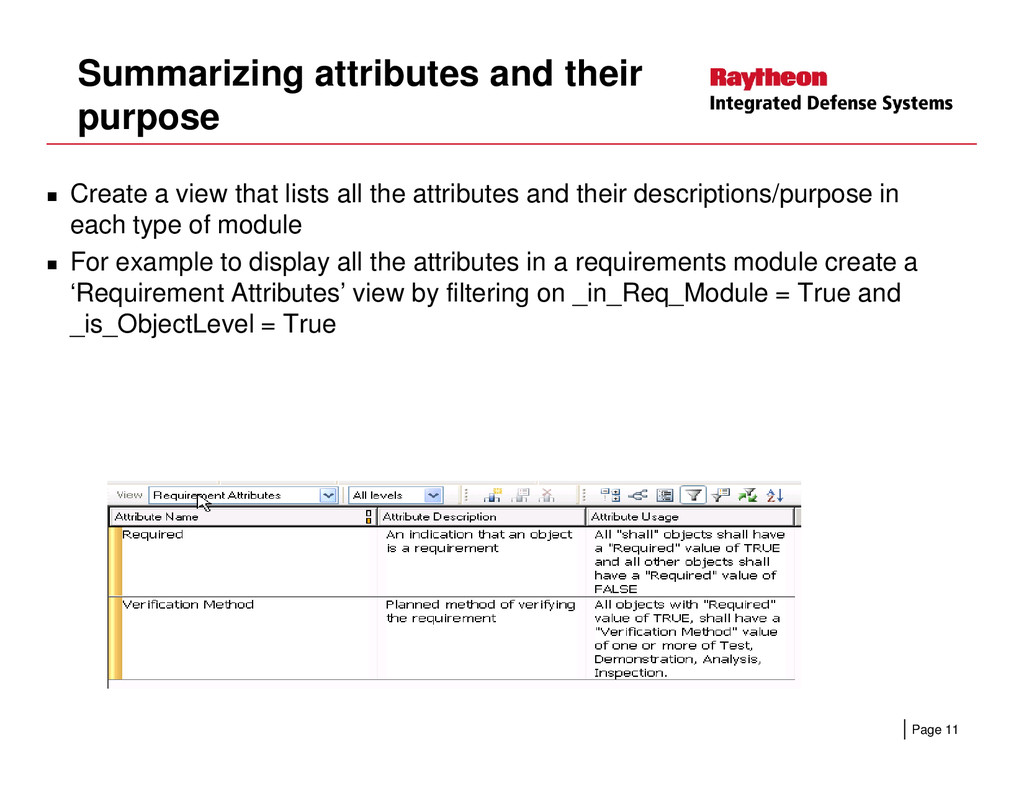
  11. Summarizing attributes and their purpose Create a view that lists

    all the attributes and their descriptions/purpose in each type of module For example to display all the attributes in a requirements module create a ‘Requirement Attributes’ view by filtering on _in_Req_Module = True and _is_ObjectLevel = True Page 11 11
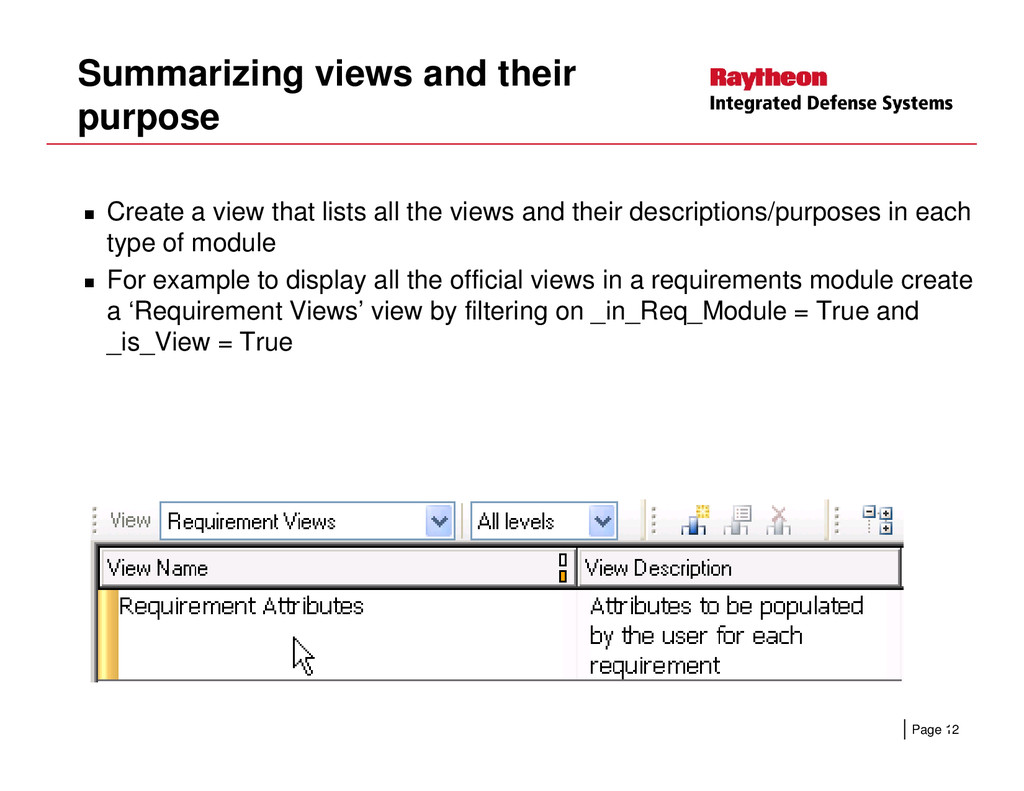
  12. Summarizing views and their purpose Create a view that lists

    all the views and their descriptions/purposes in each type of module For example to display all the official views in a requirements module create a ‘Requirement Views’ view by filtering on _in_Req_Module = True and _is_View = True Page 12 12
  13. Documentation Help users see how to use attributes by loading

    views Export to Word and include in another document Insert it as a table into another DOORS module (DOORS WI) Page 13 13
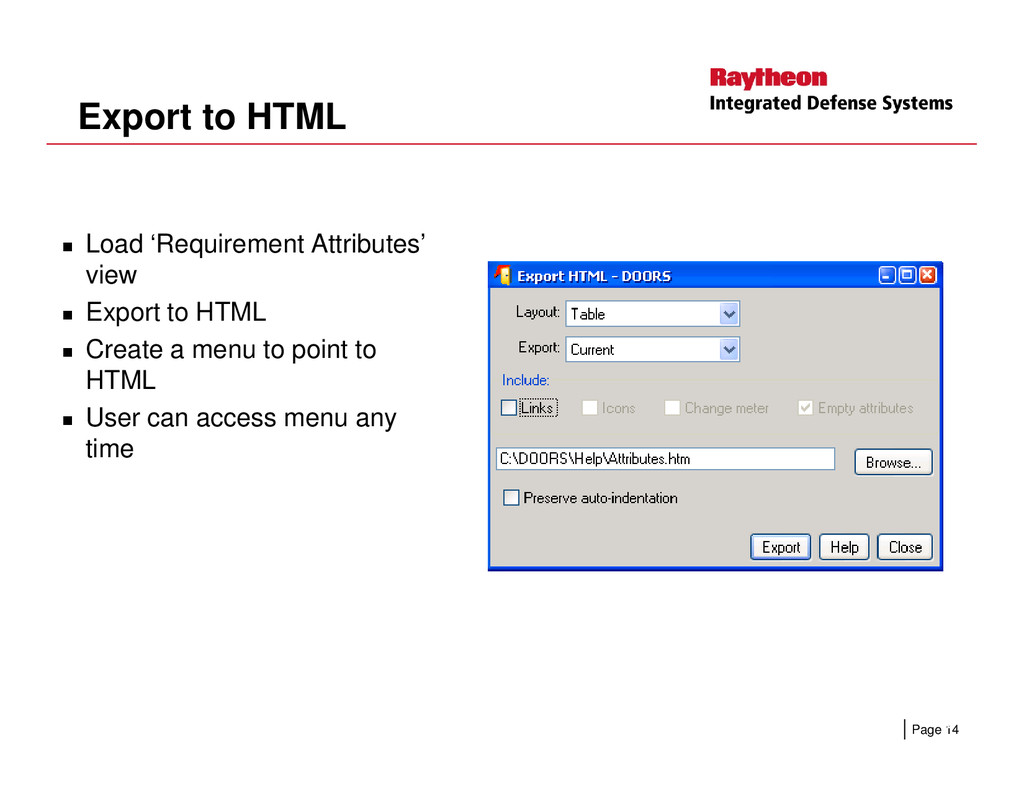
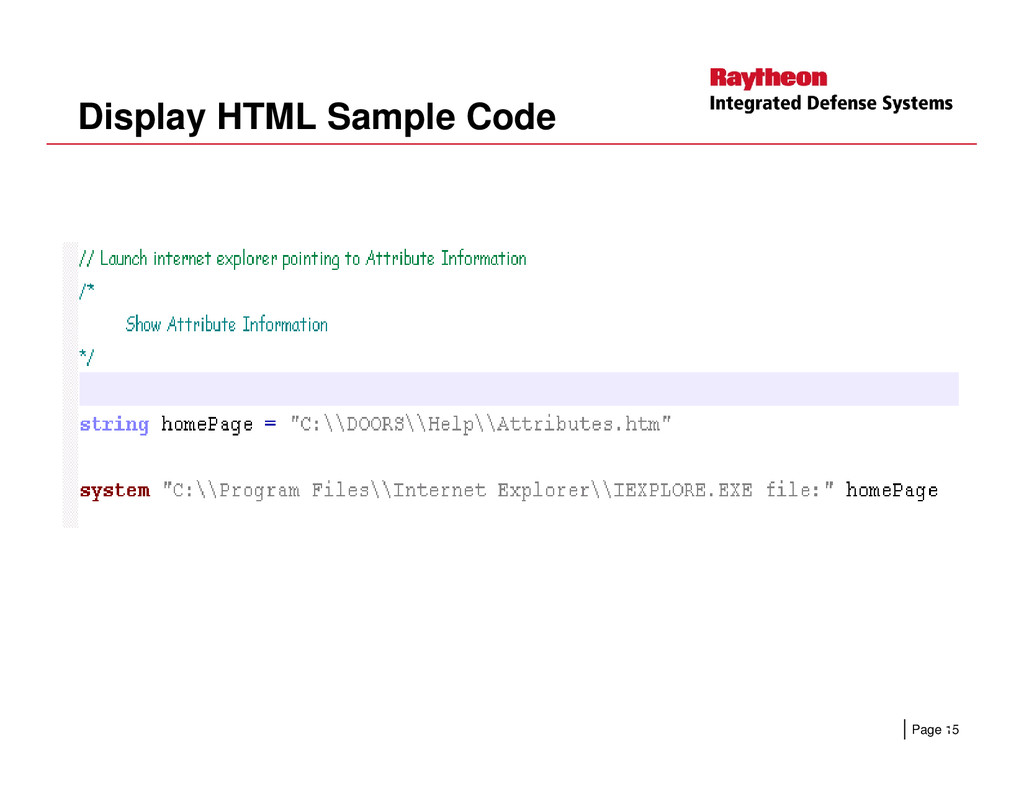
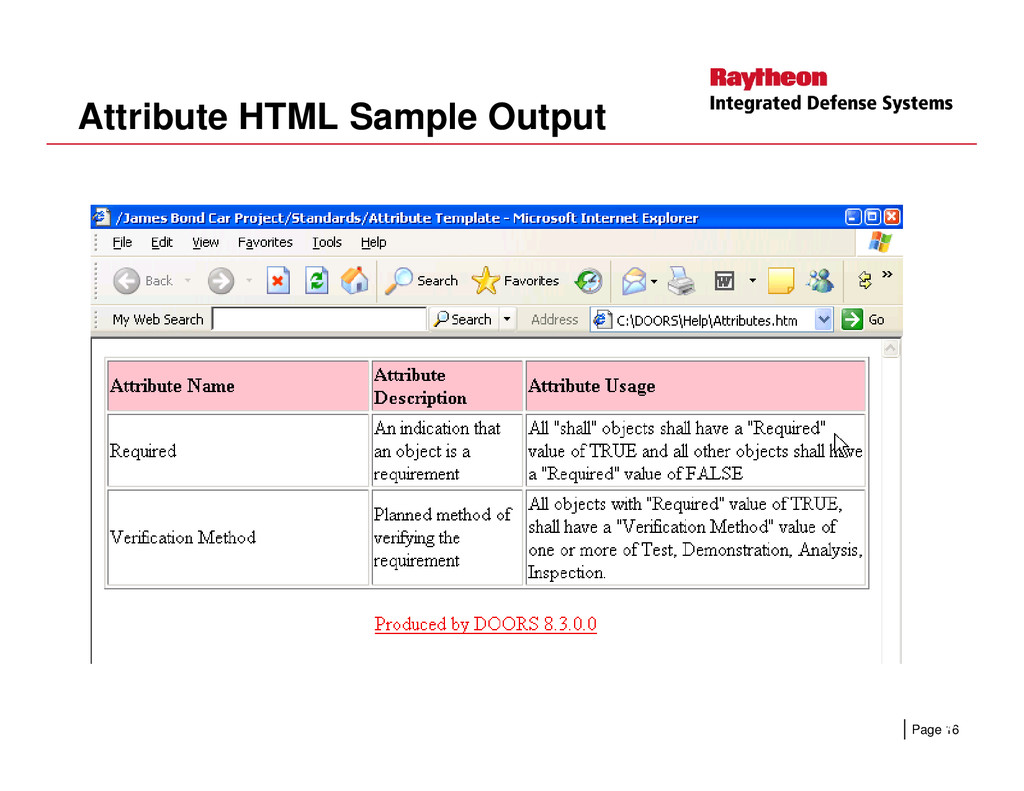
  14. Export to HTML Load ‘Requirement Attributes’ view Export to HTML

    Create a menu to point to HTML Page 14 User can access menu any time 14
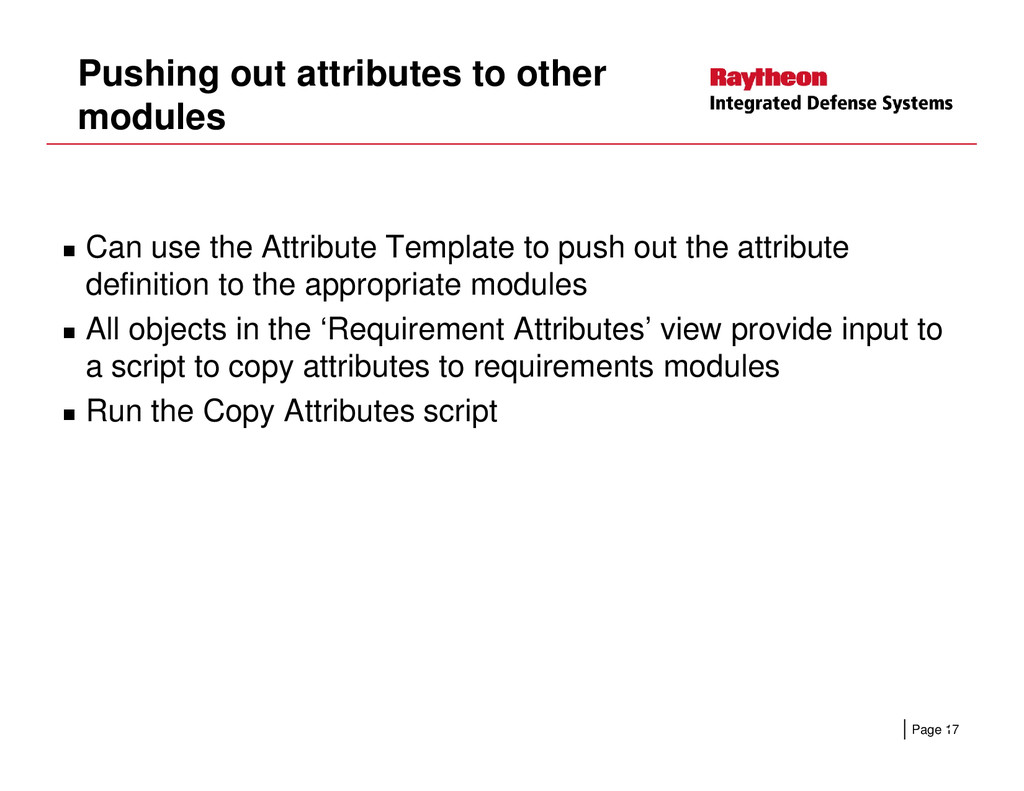
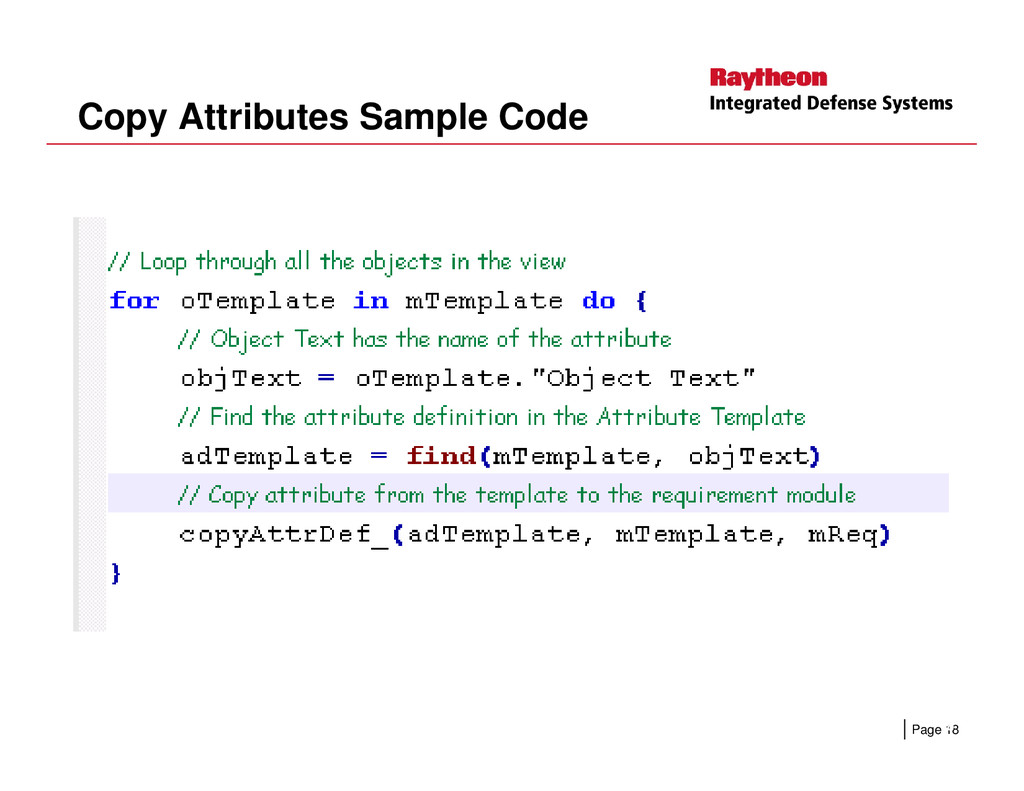
  15. Pushing out attributes to other modules Can use the Attribute

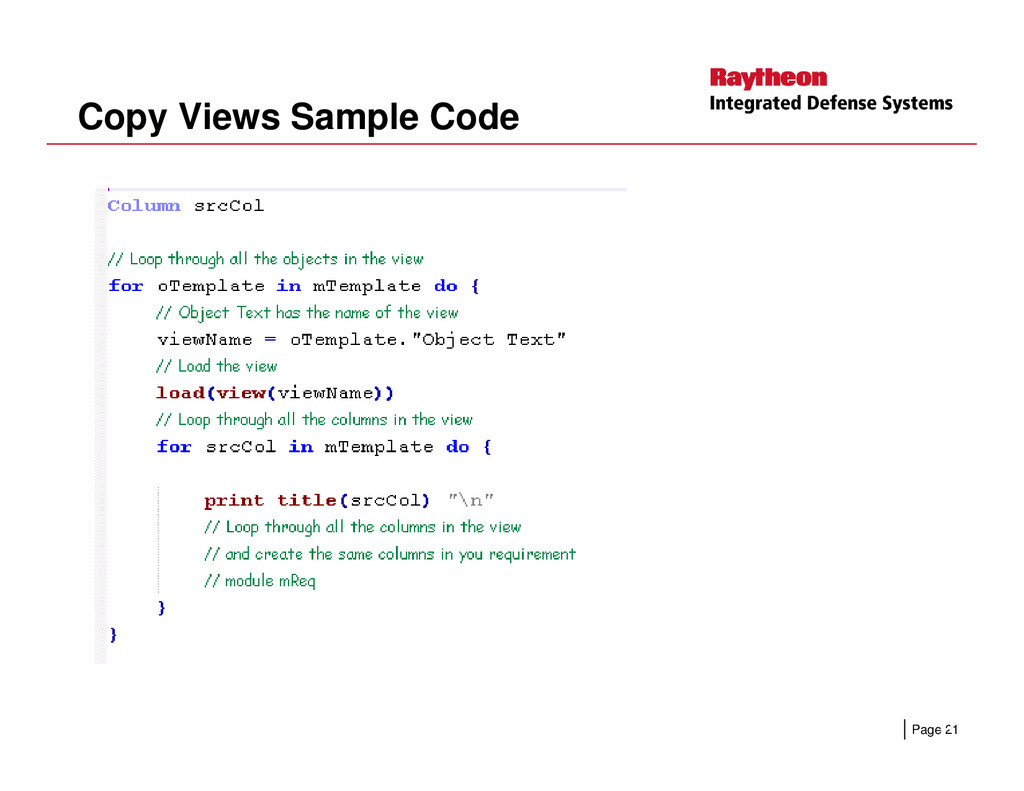
    Template to push out the attribute definition to the appropriate modules All objects in the ‘Requirement Attributes’ view provide input to a script to copy attributes to requirements modules Run the Copy Attributes script Page 17 Run the Copy Attributes script 17
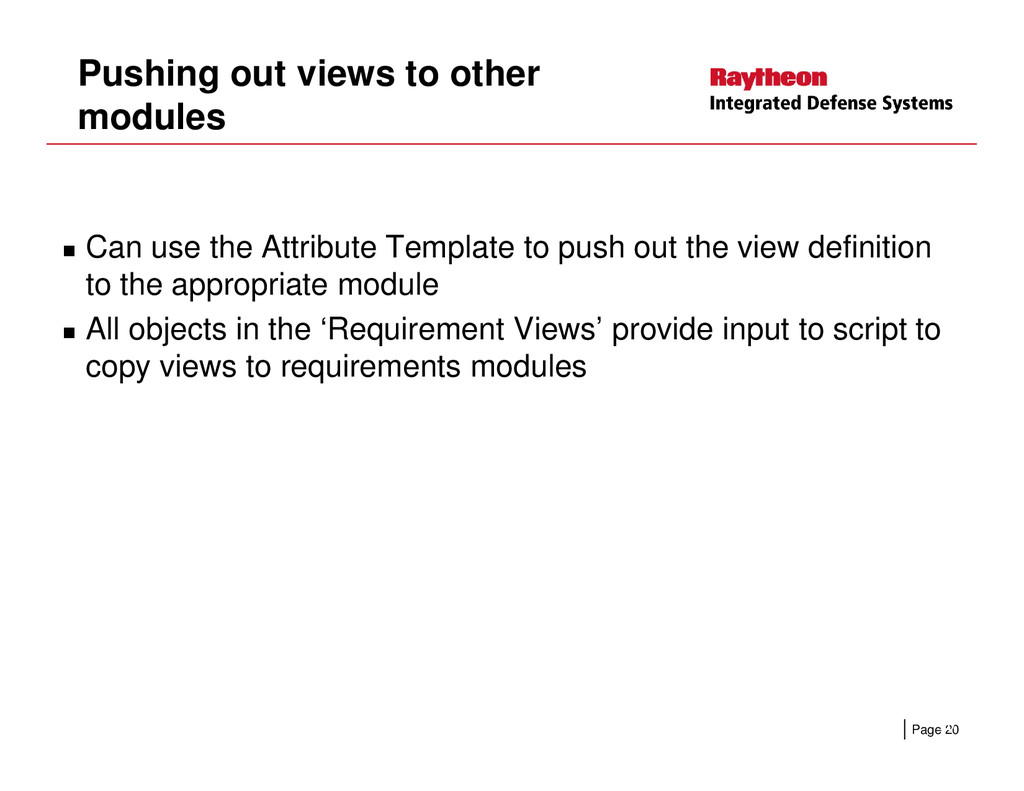
  16. Pushing out views to other modules Can use the Attribute

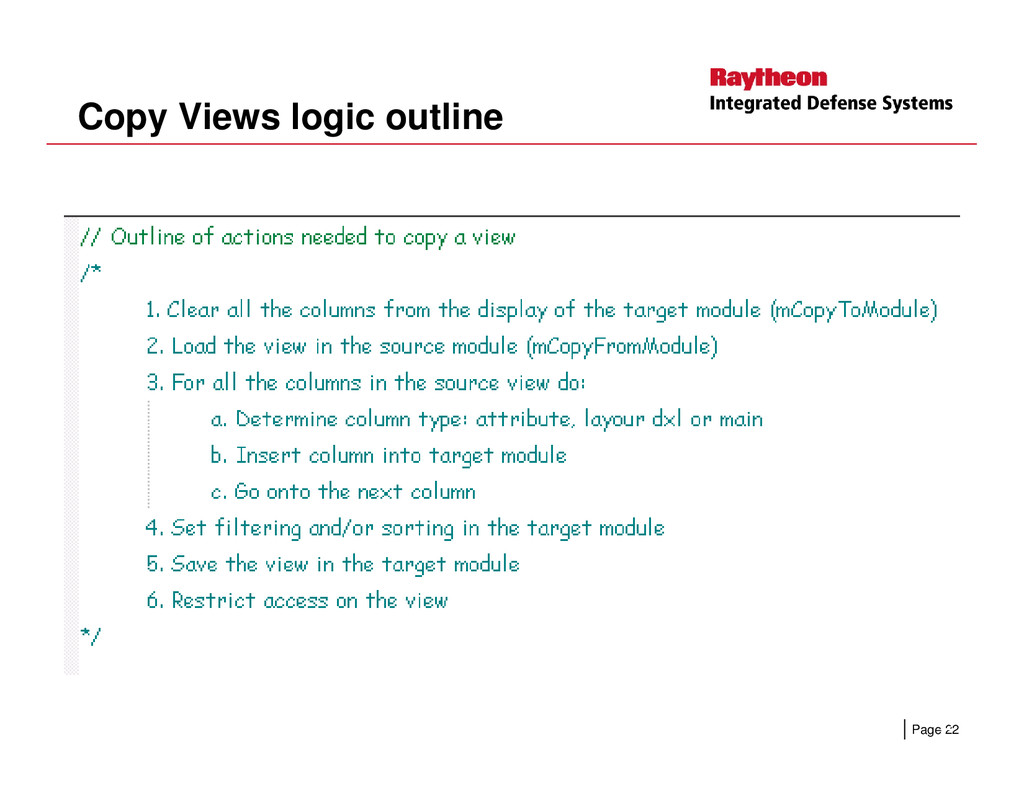
    Template to push out the view definition to the appropriate module All objects in the ‘Requirement Views’ provide input to script to copy views to requirements modules Page 20 20
  17. Using the Attribute Template to drive Metrics Can use the

    attributes and views in the Attribute Template to drive metrics collection Consistent attribute definitions allow for easier metrics collection The Metrics module is a Formal module in DOORS with many Page 23 The Metrics module is a Formal module in DOORS with many counts (i.e. attributes) 23
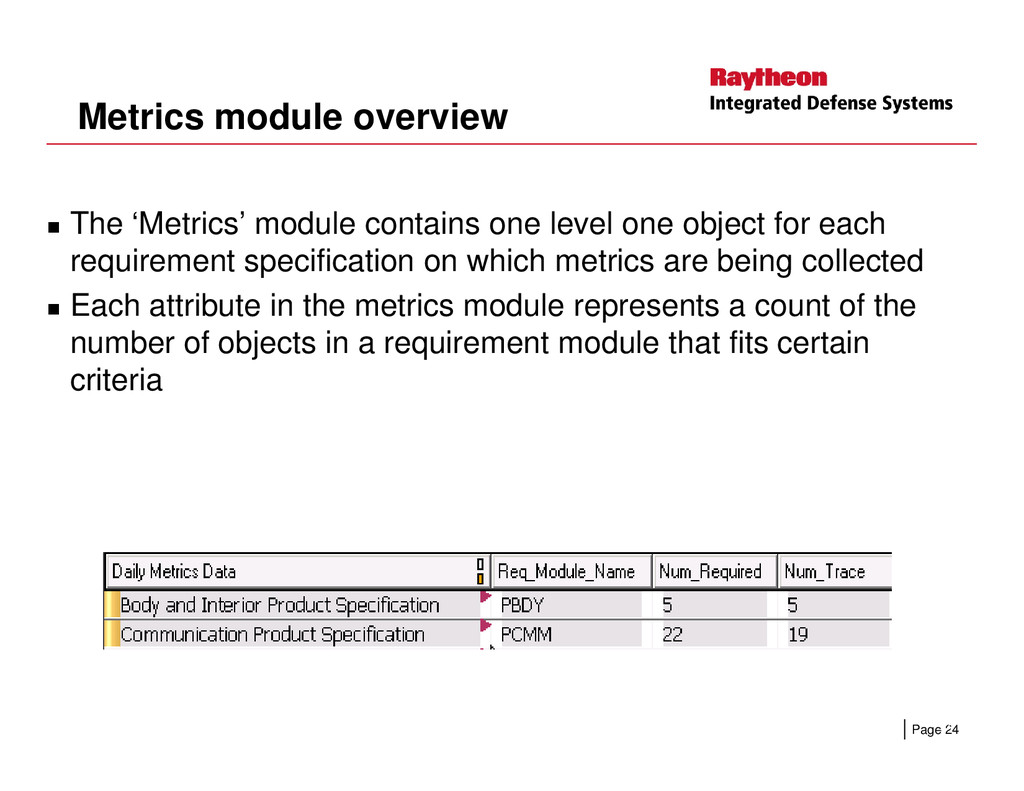
  18. Metrics module overview The ‘Metrics’ module contains one level one

    object for each requirement specification on which metrics are being collected Each attribute in the metrics module represents a count of the number of objects in a requirement module that fits certain criteria Page 24 criteria 24
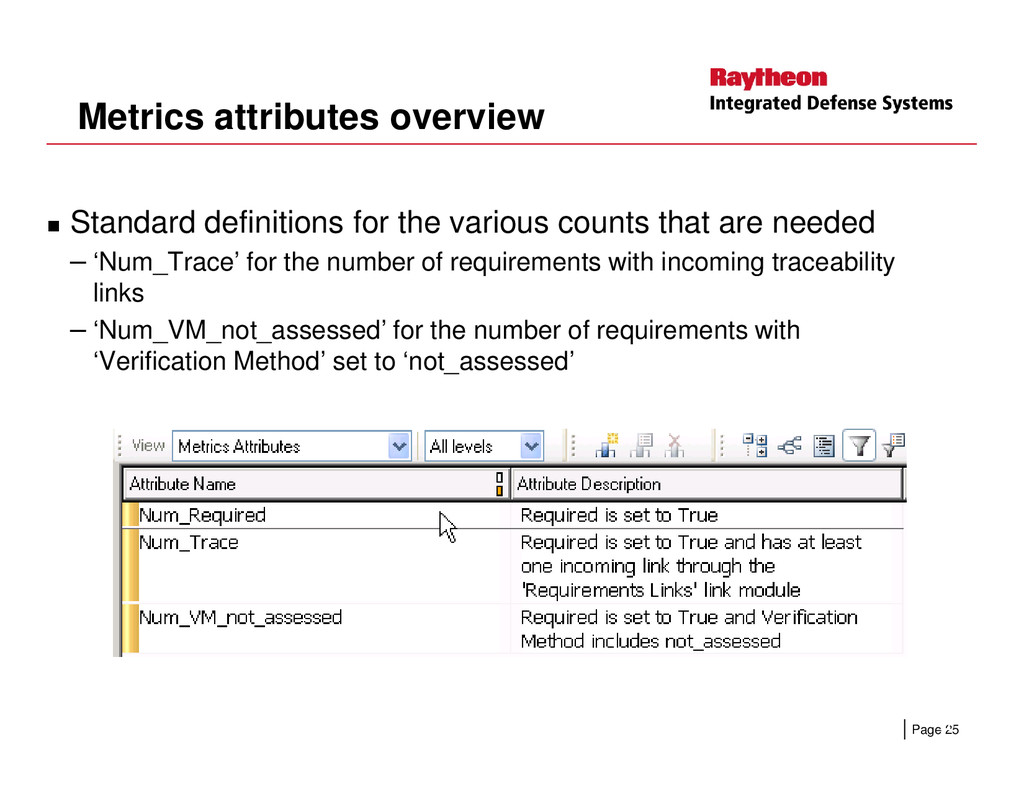
  19. Metrics attributes overview Standard definitions for the various counts that

    are needed – ‘Num_Trace’ for the number of requirements with incoming traceability links – ‘Num_VM_not_assessed’ for the number of requirements with ‘Verification Method’ set to ‘not_assessed’ Page 25 25
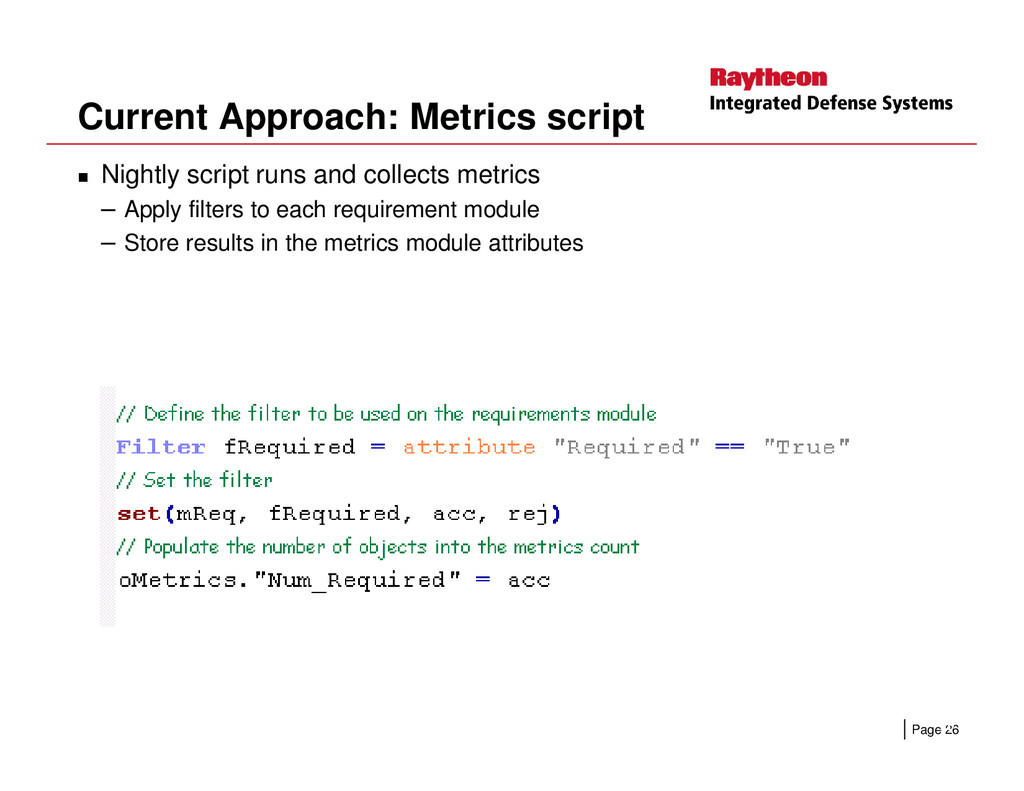
  20. Current Approach: Metrics script Nightly script runs and collects metrics

    – Apply filters to each requirement module – Store results in the metrics module attributes Page 26 26
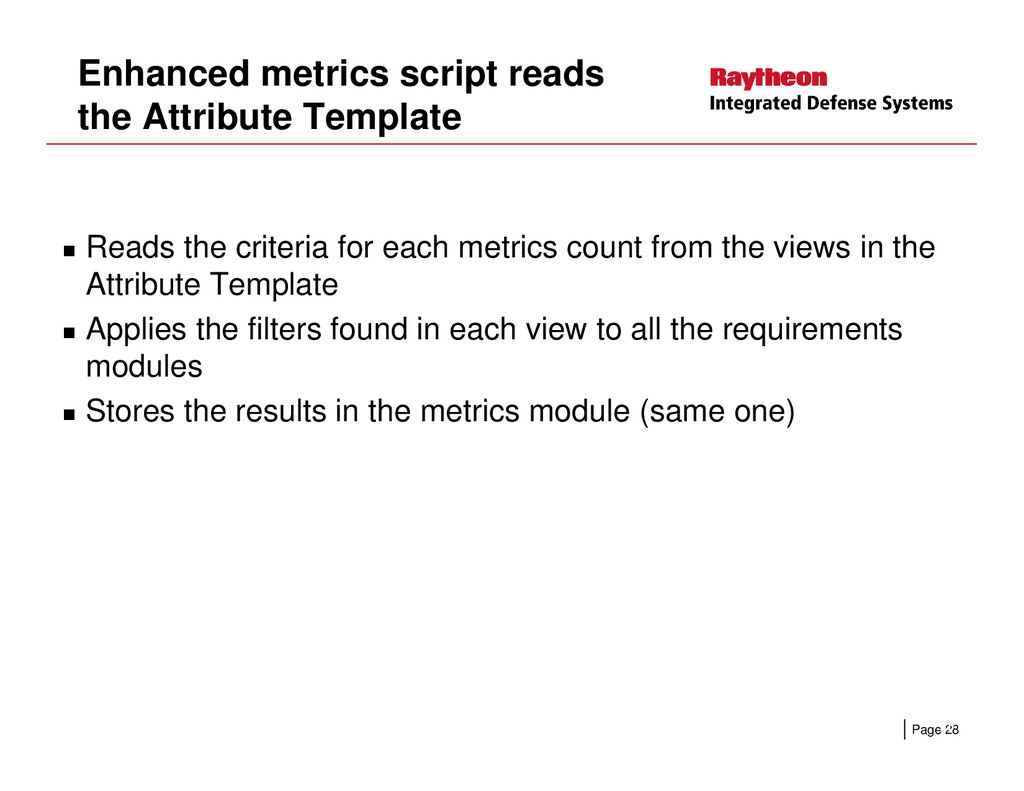
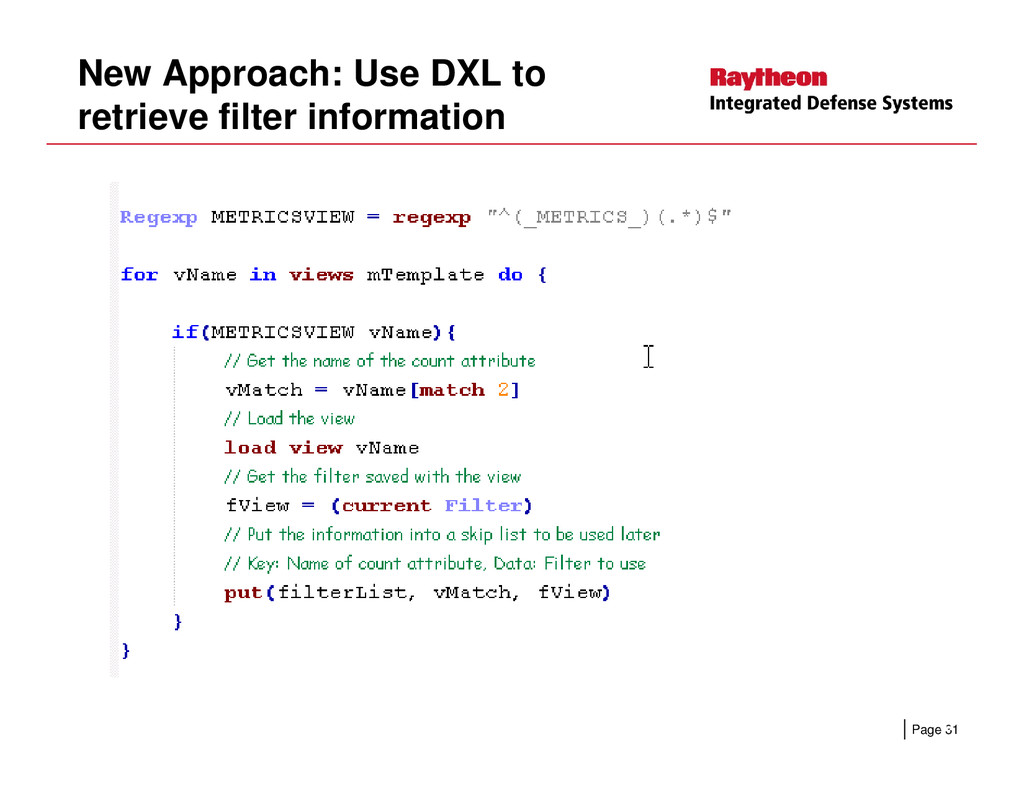
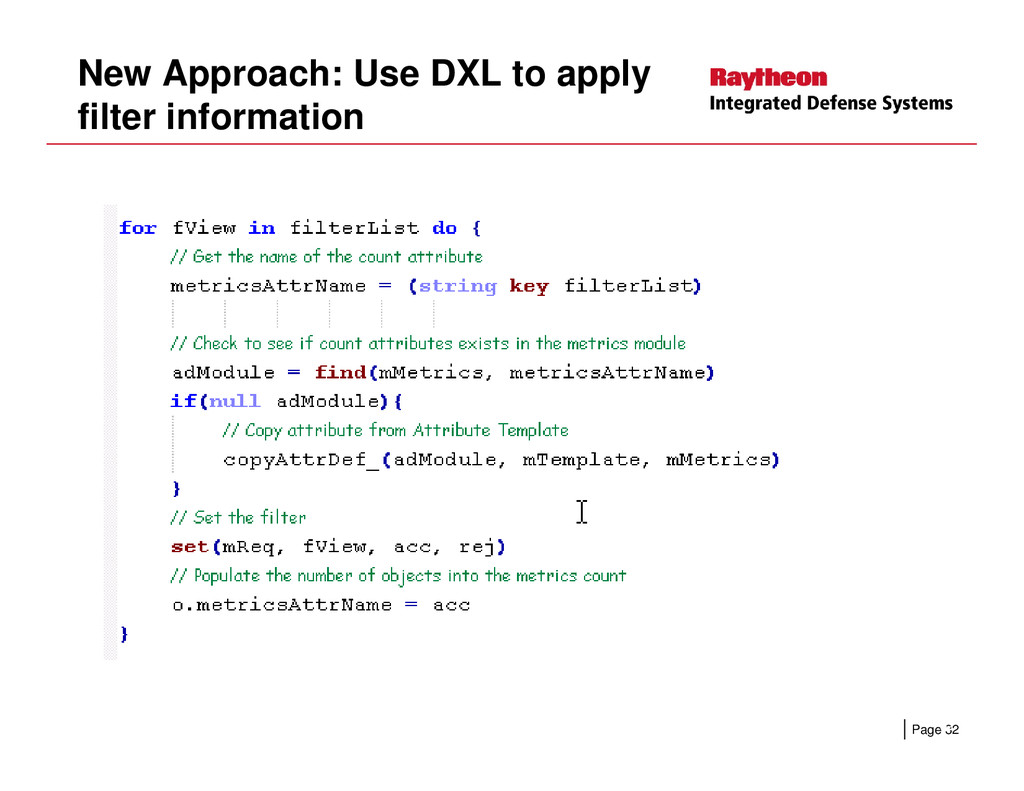
  21. Enhanced metrics script reads the Attribute Template Reads the criteria

    for each metrics count from the views in the Attribute Template Applies the filters found in each view to all the requirements modules Stores the results in the metrics module (same one) Page 28 Stores the results in the metrics module (same one) 28
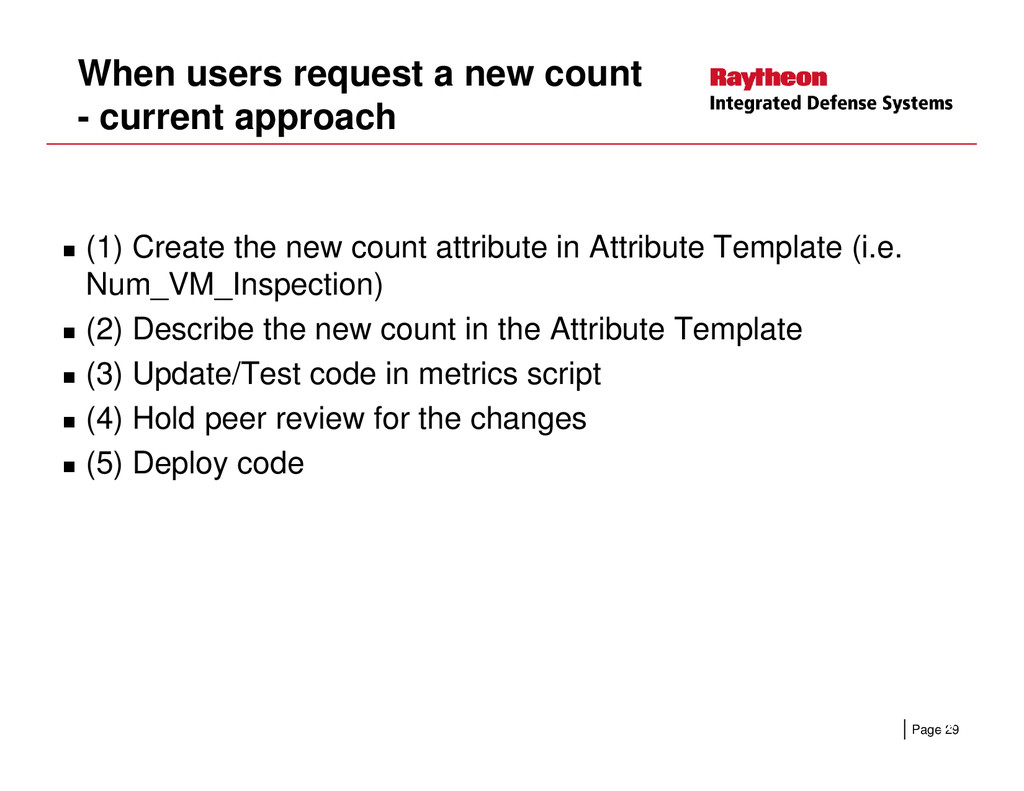
  22. When users request a new count - current approach (1)

    Create the new count attribute in Attribute Template (i.e. Num_VM_Inspection) (2) Describe the new count in the Attribute Template (3) Update/Test code in metrics script Page 29 (4) Hold peer review for the changes (5) Deploy code 29
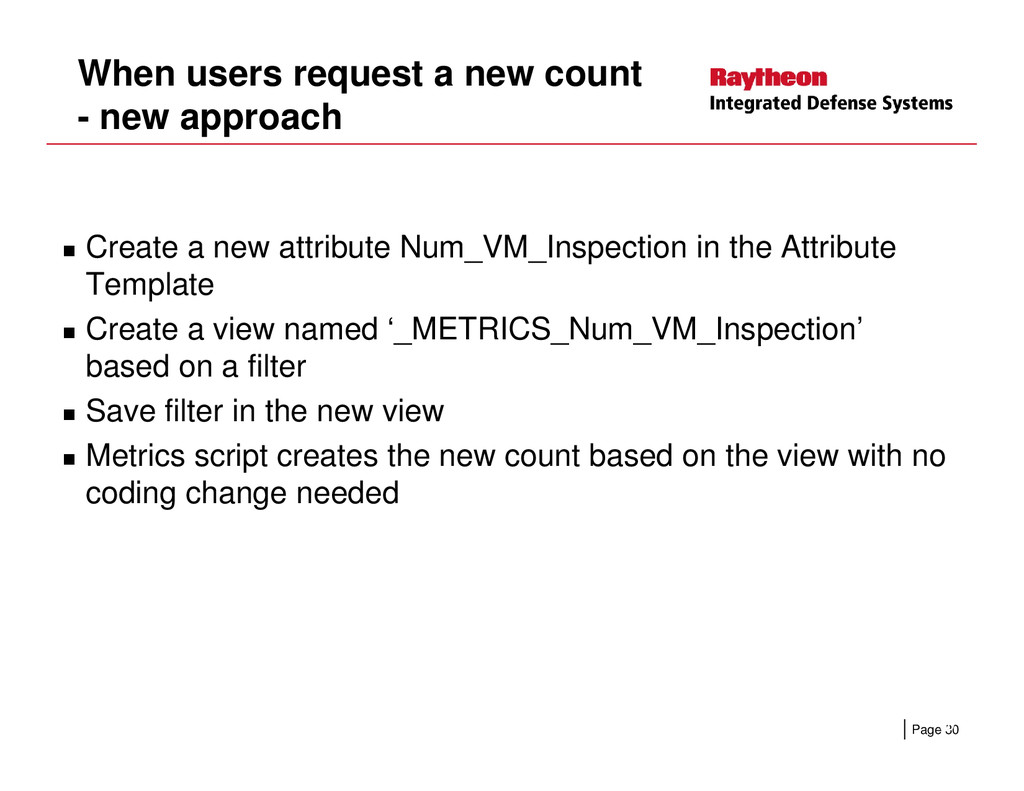
  23. When users request a new count - new approach Create

    a new attribute Num_VM_Inspection in the Attribute Template Create a view named ‘_METRICS_Num_VM_Inspection’ based on a filter Save filter in the new view Page 30 Save filter in the new view Metrics script creates the new count based on the view with no coding change needed 30
  24. Customizations Some criteria cannot be represented with a filter Metrics

    script executes custom code for these counts Page 33 33
  25. In Summary Same approach can be used on any project

    that has the Attribute Template Other uses for the Attribute Template? Page 34 34
  26. Please visit the Rational User Community to download the replay

    of this webcast and presentation slides and to gain access to other exclusive content – just for members! To Login or Join: www.rational-ug.org Continue the discussion in our Community Forums where Continue the discussion in our Community Forums where you can find questions and answers posted from today’s webcast: http://rational-ug.org/community-forums/default.aspx