Upgrade to Pro — share decks privately, control downloads, hide ads and more …

Google Tag Manager Setup & Best Practices: A Pr...

Google Tag Manager Setup & Best Practices: A Practical Guide For Marketers and Analysts

A practical guide to implementing Google Tag Manager correctly. Learn how to structure your GTM container, use the data layer effectively, configure tags and triggers, test changes safely, and follow best practices that help maintain accurate analytics and conversion tracking over time.

For more resources on analytics, GA4, Google Tag Manager, conversion tracking, and measurement best practices, visit Driffico: https://driffico.com.

Avatar for Driffico

Driffico

June 11, 2026

Other Decks in Marketing & SEO

Transcript

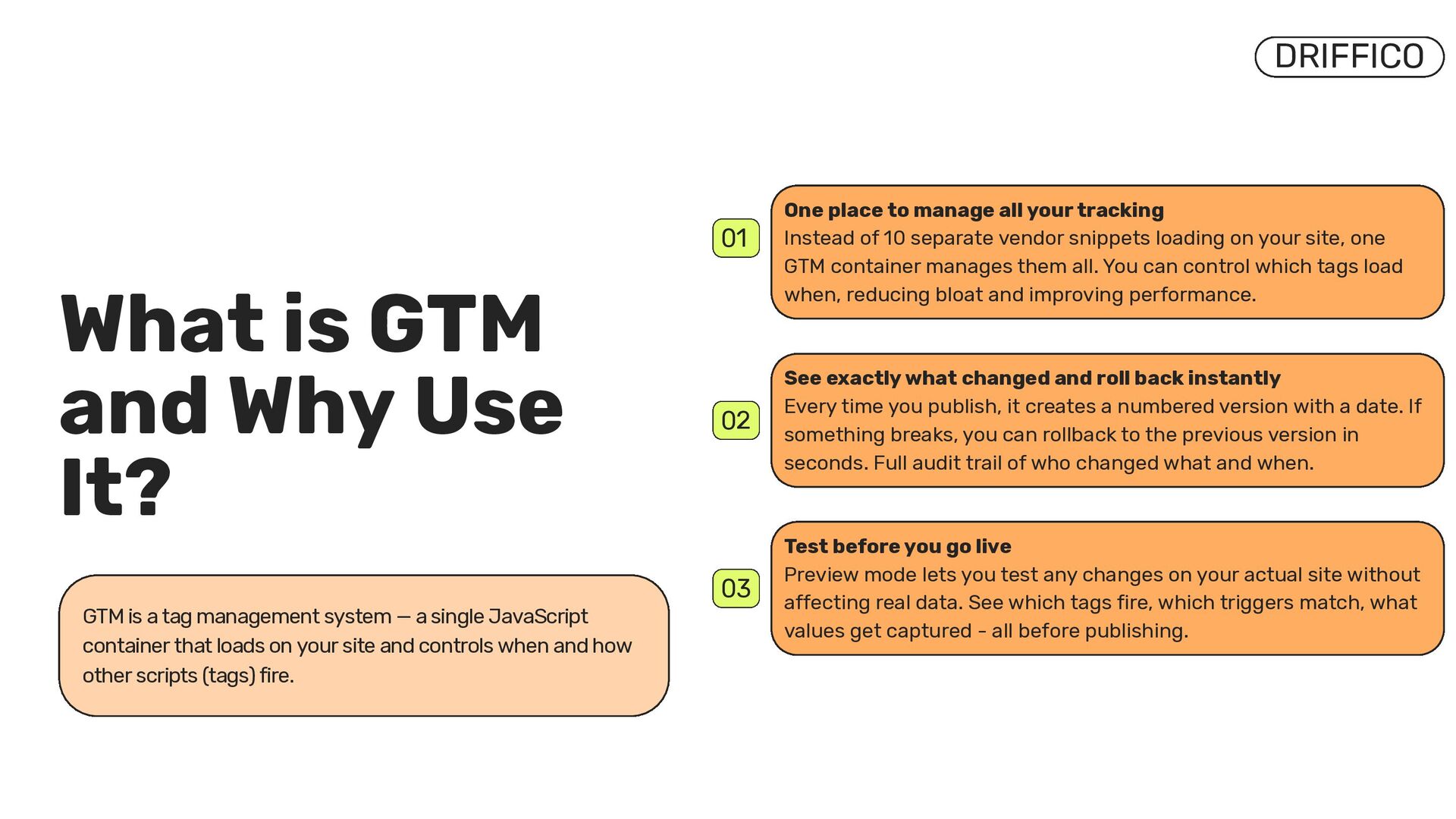
  1. GTM is a tag management system — a single JavaScript

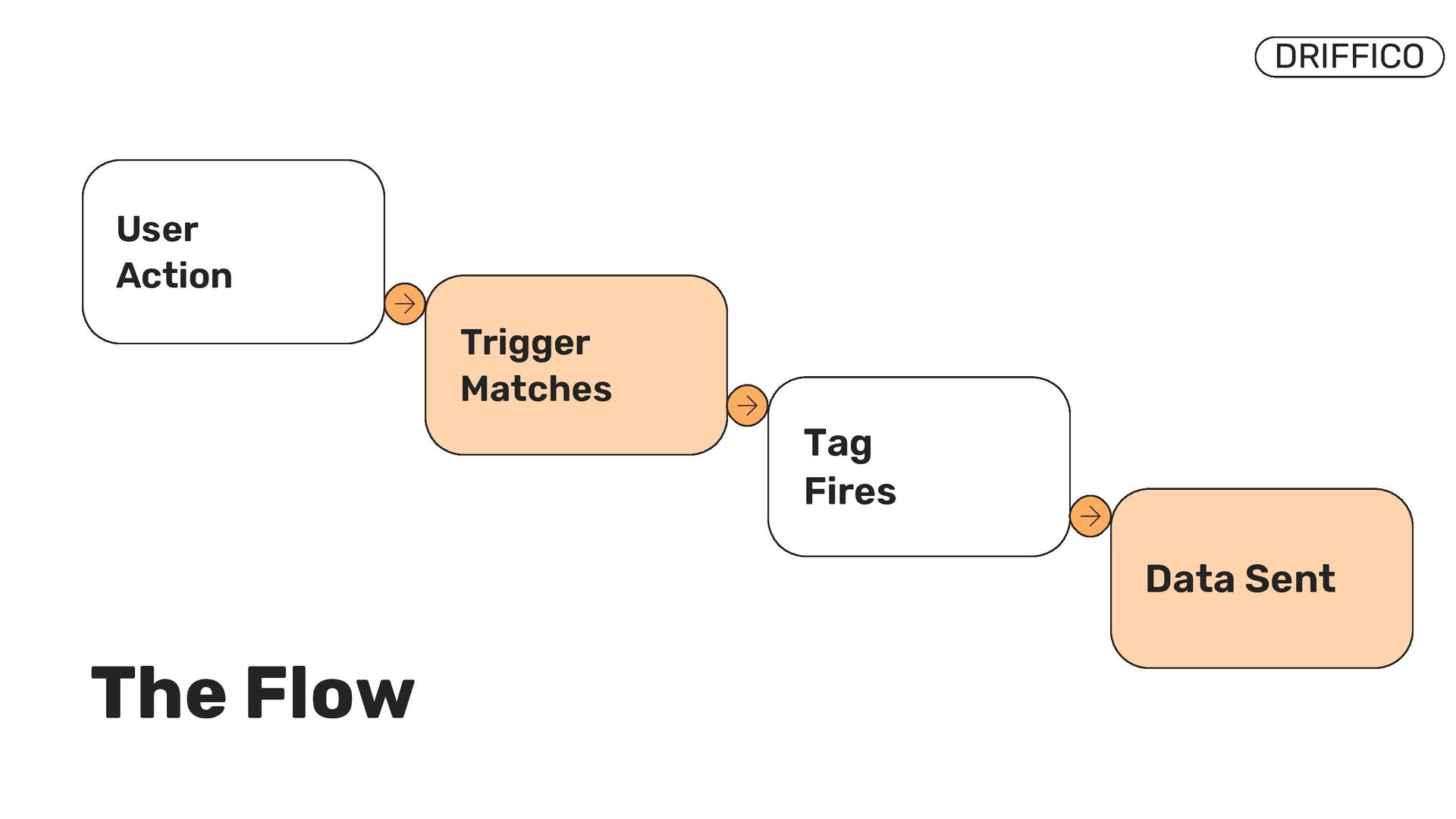
    container that loads on your site and controls when and how other scripts (tags) fire. What is GTM and Why Use It? 01 One place to manage all your tracking Instead of 10 separate vendor snippets loading on your site, one GTM container manages them all. You can control which tags load when, reducing bloat and improving performance. 02 See exactly what changed and roll back instantly Every time you publish, it creates a numbered version with a date. If something breaks, you can rollback to the previous version in seconds. Full audit trail of who changed what and when. 03 Test before you go live Preview mode lets you test any changes on your actual site without affecting real data. See which tags fire, which triggers match, what values get captured - all before publishing. DRIFFICO
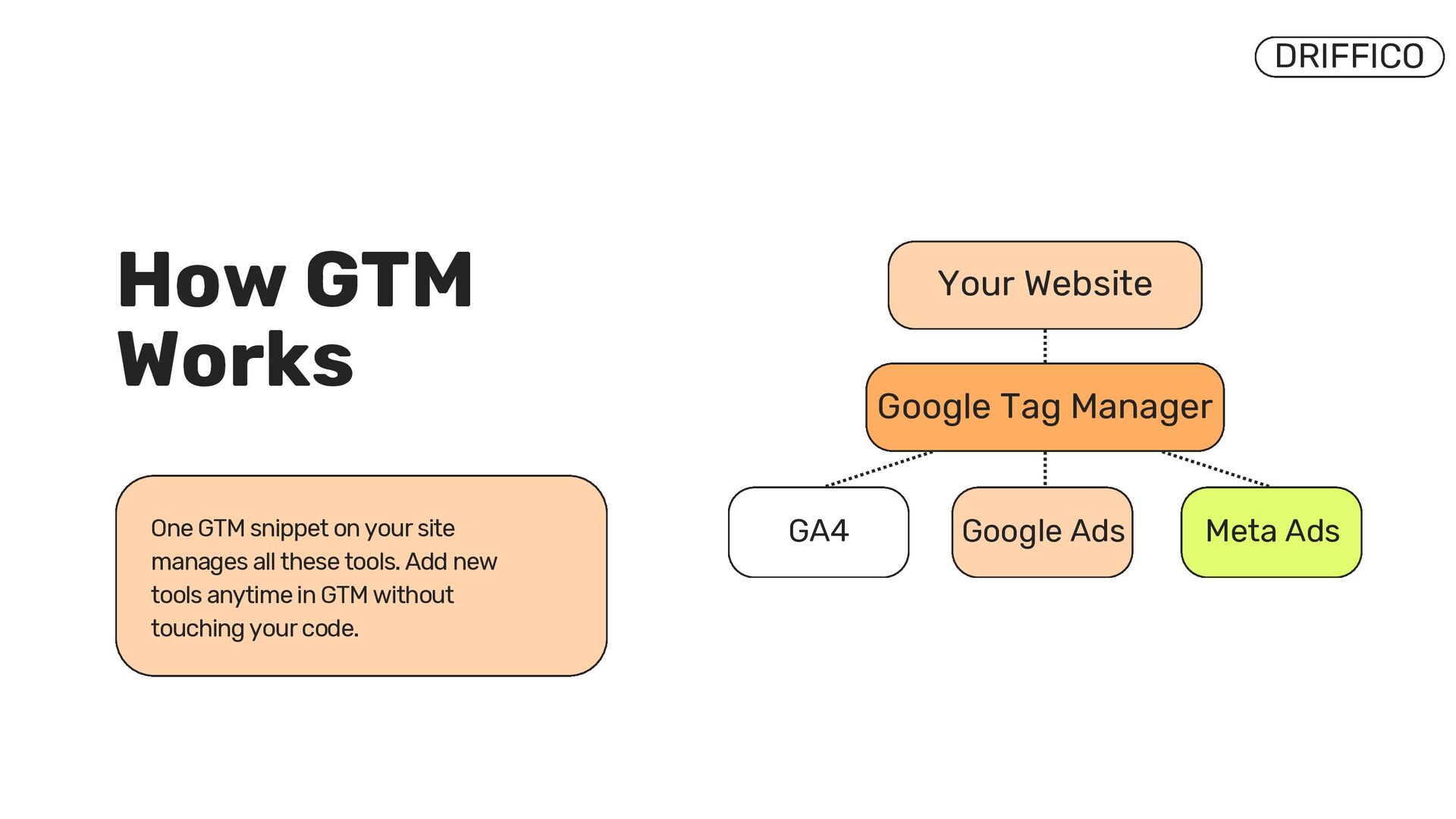
  2. DRIFFICO Google Tag Manager Your Website GA4 Google Ads Meta

    Ads One GTM snippet on your site manages all these tools. Add new tools anytime in GTM without touching your code. How GTM Works
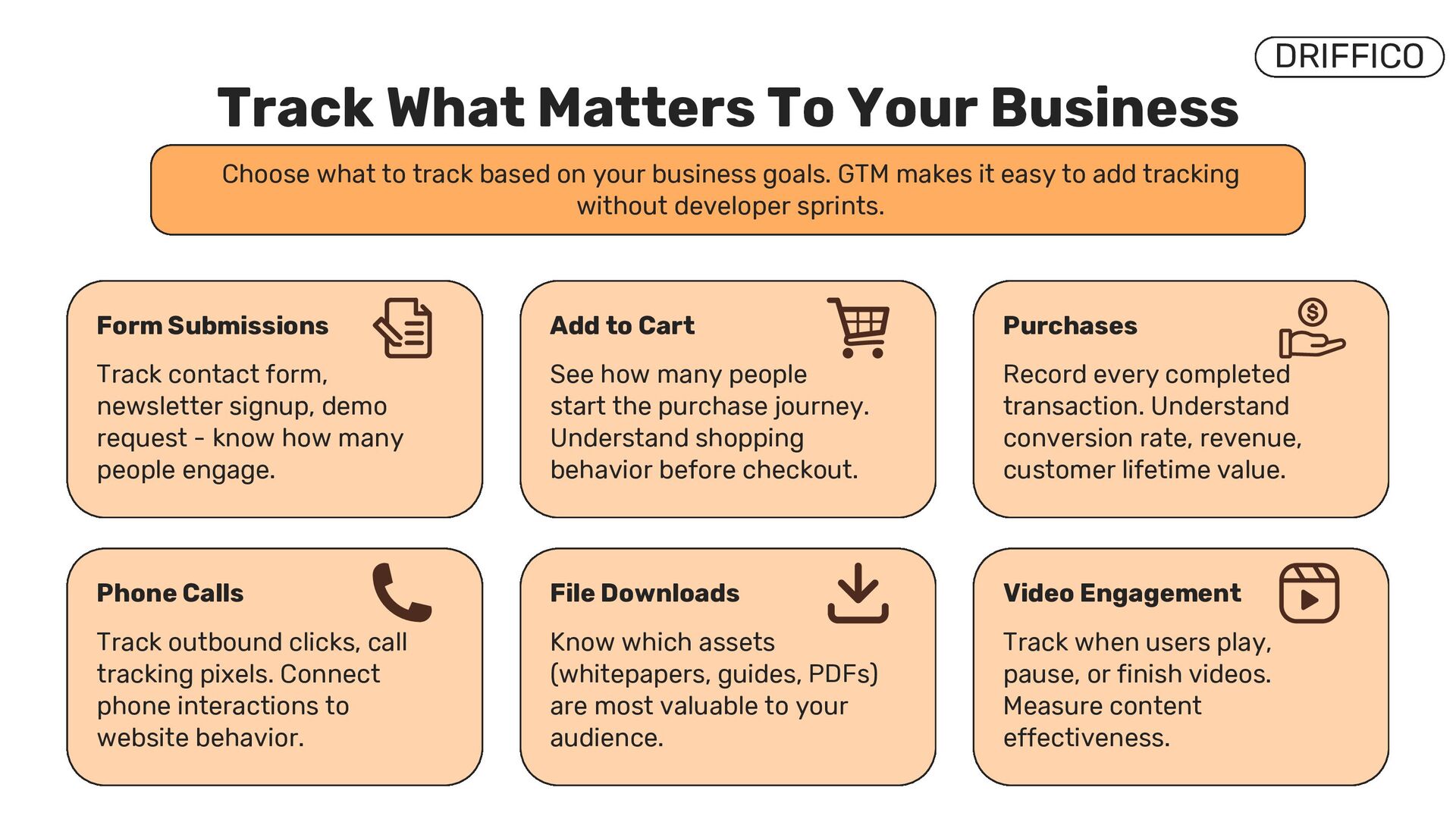
  3. Track What Matters To Your Business Form Submissions Track contact

    form, newsletter signup, demo request - know how many people engage. Add to Cart See how many people start the purchase journey. Understand shopping behavior before checkout. Purchases Record every completed transaction. Understand conversion rate, revenue, customer lifetime value. Choose what to track based on your business goals. GTM makes it easy to add tracking without developer sprints. DRIFFICO Phone Calls Track outbound clicks, call tracking pixels. Connect phone interactions to website behavior. File Downloads Know which assets (whitepapers, guides, PDFs) are most valuable to your audience. Video Engagement Track when users play, pause, or finish videos. Measure content effectiveness.
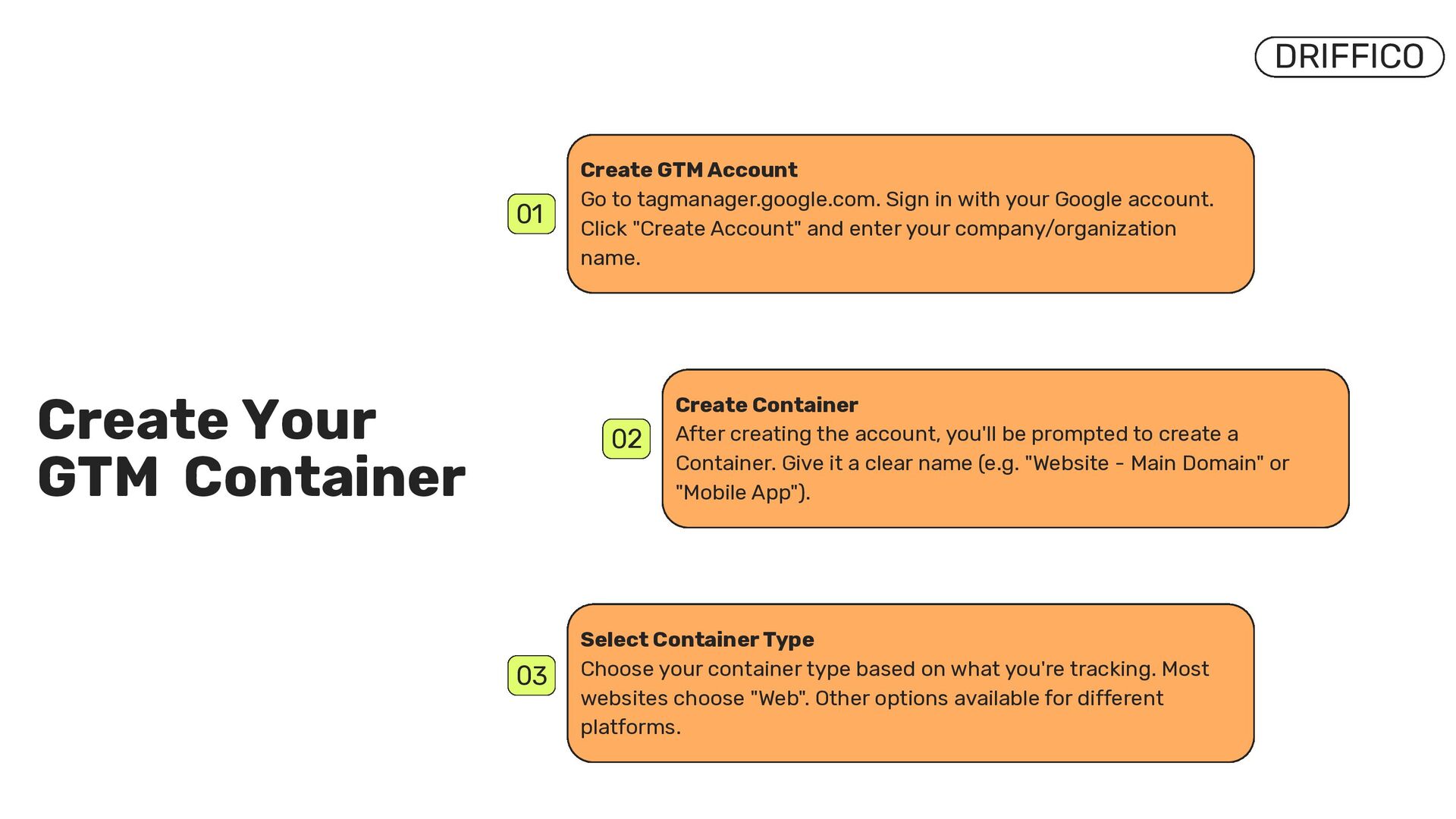
  4. Create Your GTM Container DRIFFICO 01 Create GTM Account Go

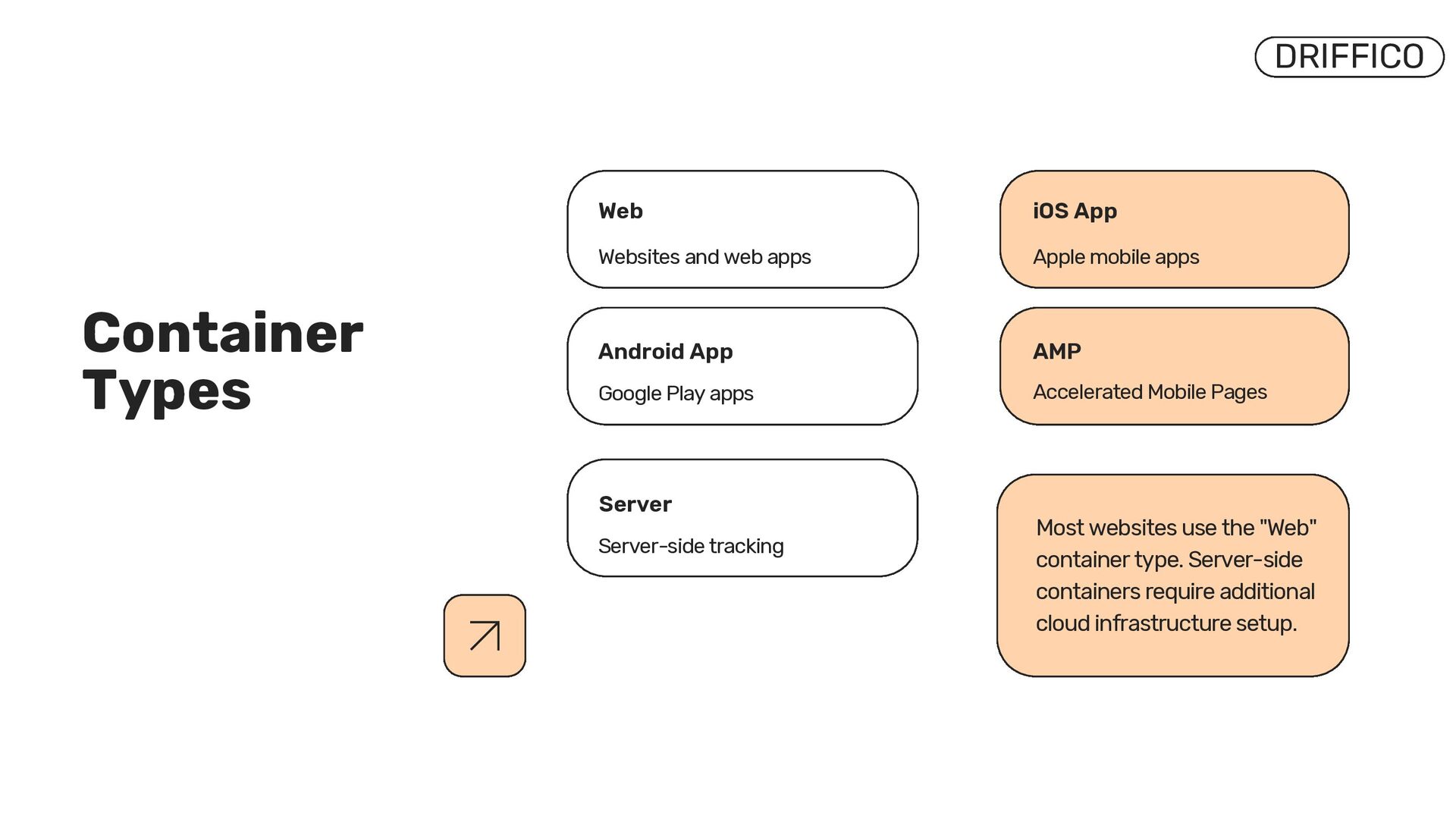
    to tagmanager.google.com. Sign in with your Google account. Click "Create Account" and enter your company/organization name. 02 Create Container After creating the account, you'll be prompted to create a Container. Give it a clear name (e.g. "Website - Main Domain" or "Mobile App"). 03 Select Container Type Choose your container type based on what you're tracking. Most websites choose "Web". Other options available for different platforms.
  5. DRIFFICO Most websites use the "Web" container type. Server-side containers

    require additional cloud infrastructure setup. iOS App Apple mobile apps Web Websites and web apps Android App Google Play apps Server Server-side tracking AMP Accelerated Mobile Pages Container Types
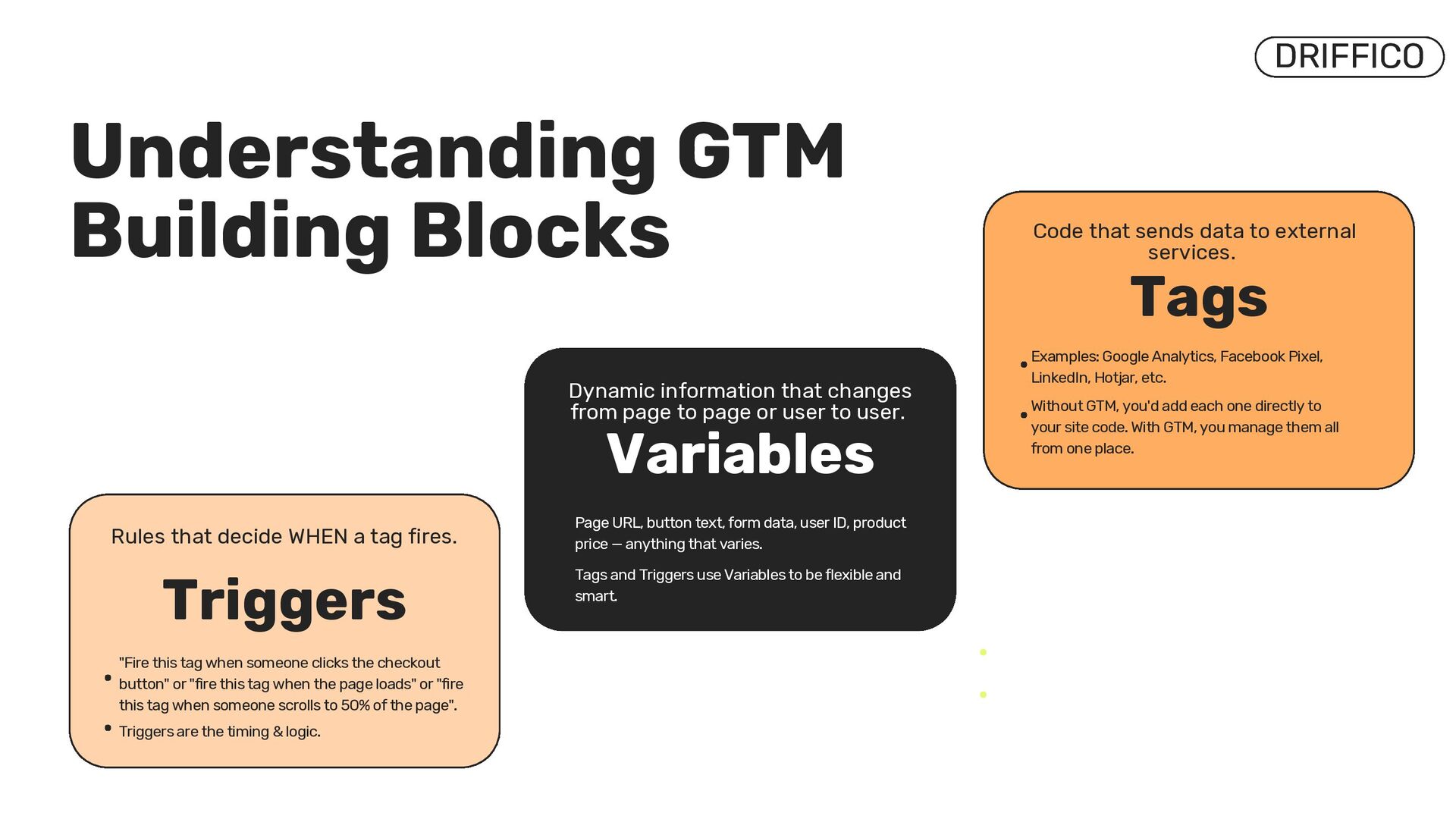
  6. Tags Code that sends data to external services. Examples: Google

    Analytics, Facebook Pixel, LinkedIn, Hotjar, etc. Without GTM, you'd add each one directly to your site code. With GTM, you manage them all from one place. Understanding GTM Building Blocks Triggers Rules that decide WHEN a tag fires. "Fire this tag when someone clicks the checkout button" or "fire this tag when the page loads" or "fire this tag when someone scrolls to 50% of the page". Triggers are the timing & logic. DRIFFICO DRIFFICO Variables Dynamic information that changes from page to page or user to user. Page URL, button text, form data, user ID, product price — anything that varies. Tags and Triggers use Variables to be flexible and smart.
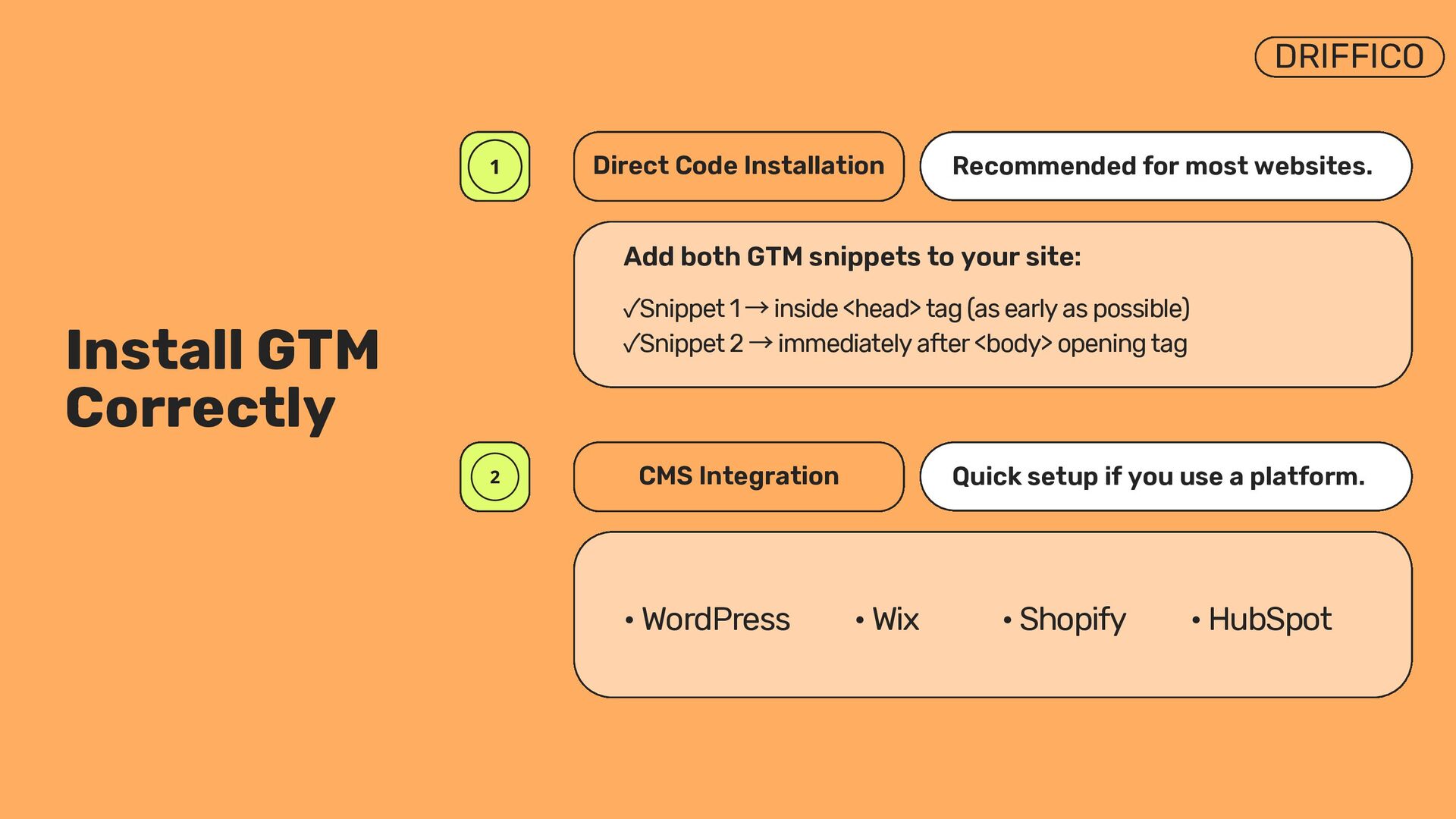
  7. Install GTM Correctly DRIFFICO Recommended for most websites. Direct Code

    Installation Add both GTM snippets to your site: ✓Snippet 1 → inside <head> tag (as early as possible) ✓Snippet 2 → immediately after <body> opening tag Quick setup if you use a platform. CMS Integration • WordPress • Wix • Shopify • HubSpot
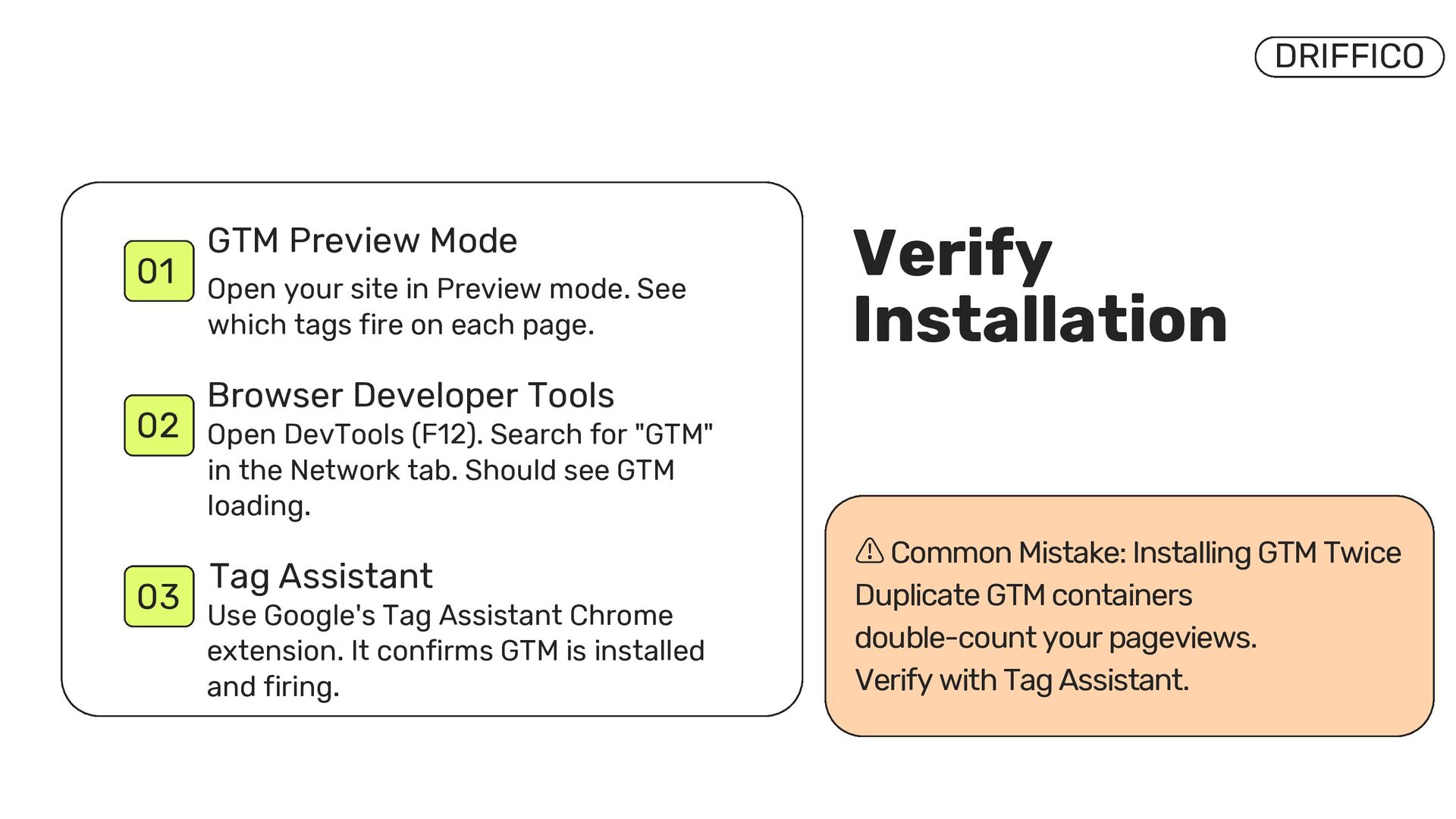
  8. DRIFFICO ⚠ Common Mistake: Installing GTM Twice Duplicate GTM containers

    double-count your pageviews. Verify with Tag Assistant. 01 GTM Preview Mode Open your site in Preview mode. See which tags fire on each page. Open DevTools (F12). Search for "GTM" in the Network tab. Should see GTM loading. Browser Developer Tools 02 03 Use Google's Tag Assistant Chrome extension. It confirms GTM is installed and firing. Tag Assistant Verify Installation
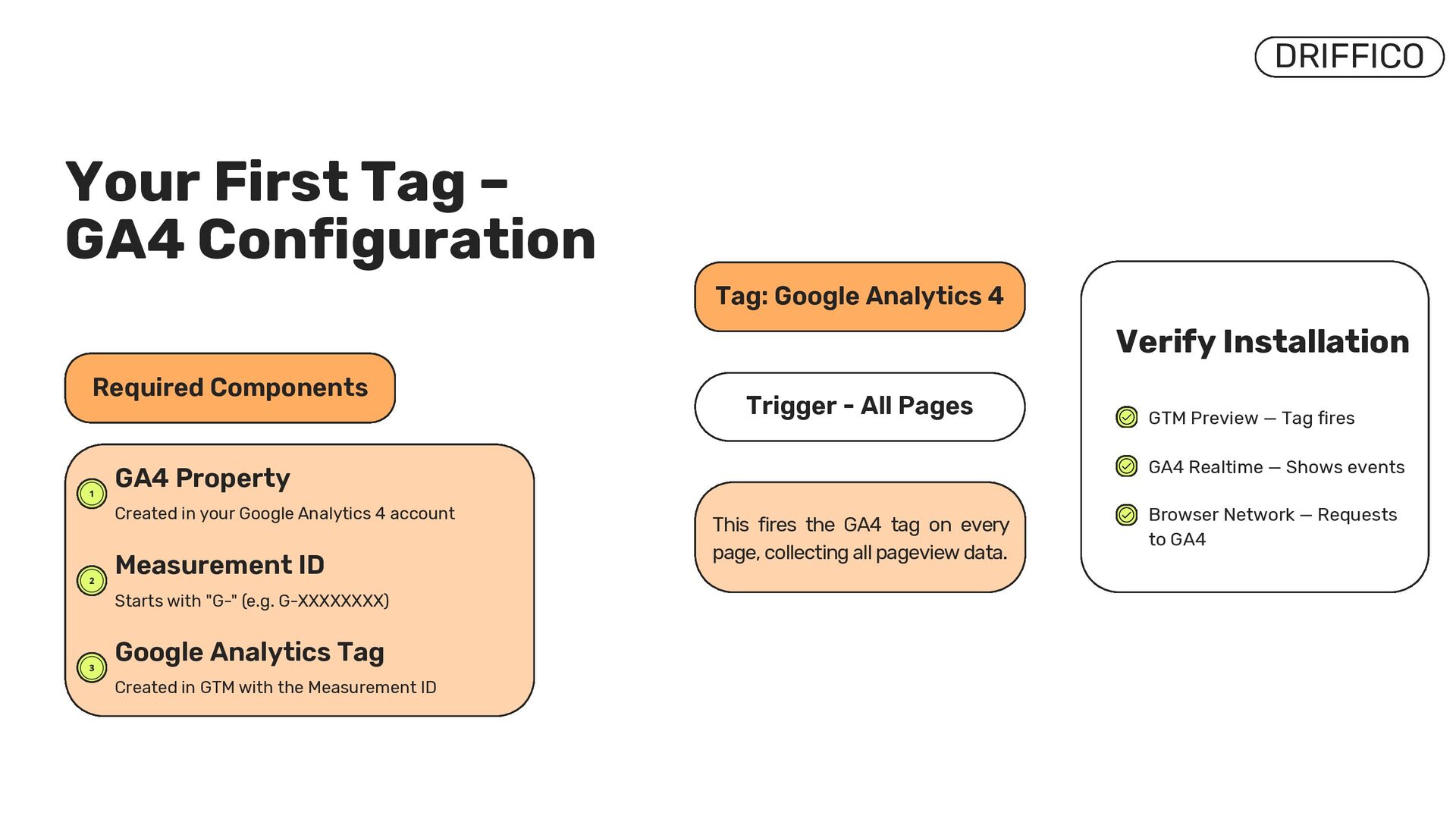
  9. DRIFFICO Starts with "G-" (e.g. G-XXXXXXXX) Measurement ID Created in

    GTM with the Measurement ID Google Analytics Tag Required Components Created in your Google Analytics 4 account GA4 Property Trigger - All Pages Tag: Google Analytics 4 This fires the GA4 tag on every page, collecting all pageview data. Verify Installation GTM Preview — Tag fires GA4 Realtime — Shows events Browser Network — Requests to GA4 Your First Tag – GA4 Configuration
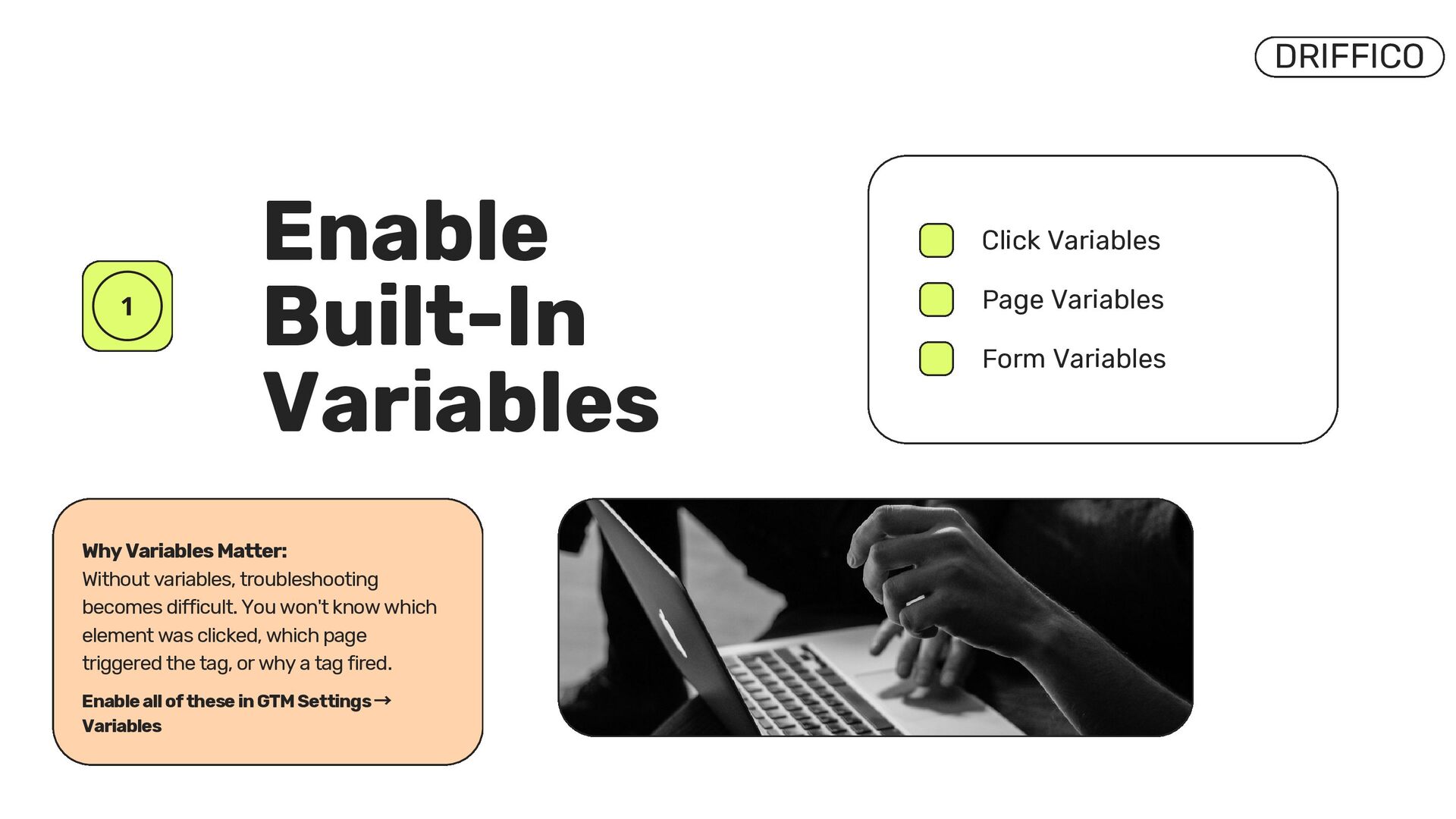
  10. Enable Built-In Variables Why Variables Matter: Without variables, troubleshooting becomes

    difficult. You won't know which element was clicked, which page triggered the tag, or why a tag fired. Click Variables Page Variables Form Variables DRIFFICO Enable all of these in GTM Settings → Variables
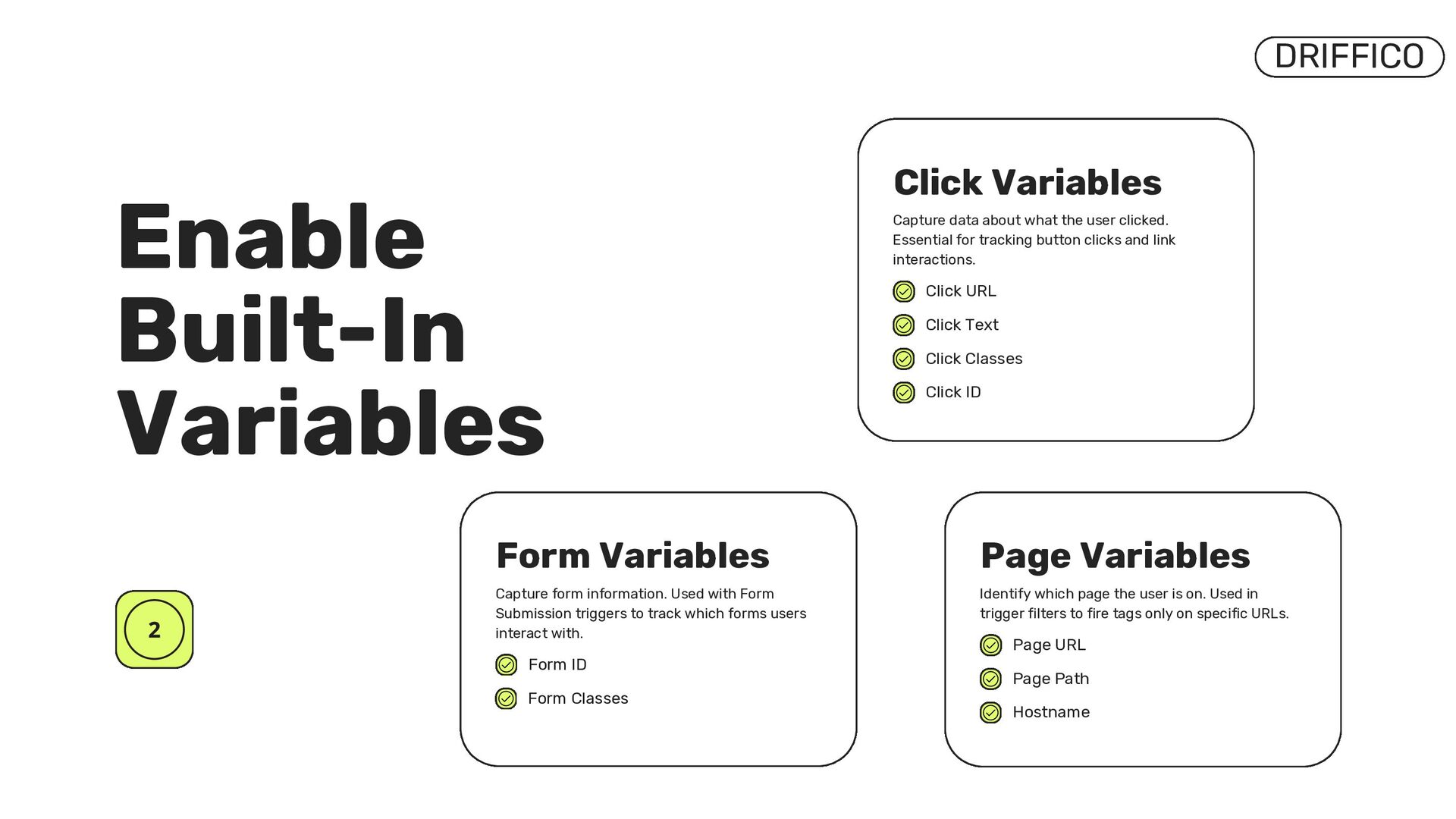
  11. DRIFFICO Enable Built-In Variables Capture data about what the user

    clicked. Essential for tracking button clicks and link interactions. Click Variables Click URL Click Text Click Classes Click ID Identify which page the user is on. Used in trigger filters to fire tags only on specific URLs. Page Variables Page URL Page Path Hostname Capture form information. Used with Form Submission triggers to track which forms users interact with. Form Variables Form ID Form Classes
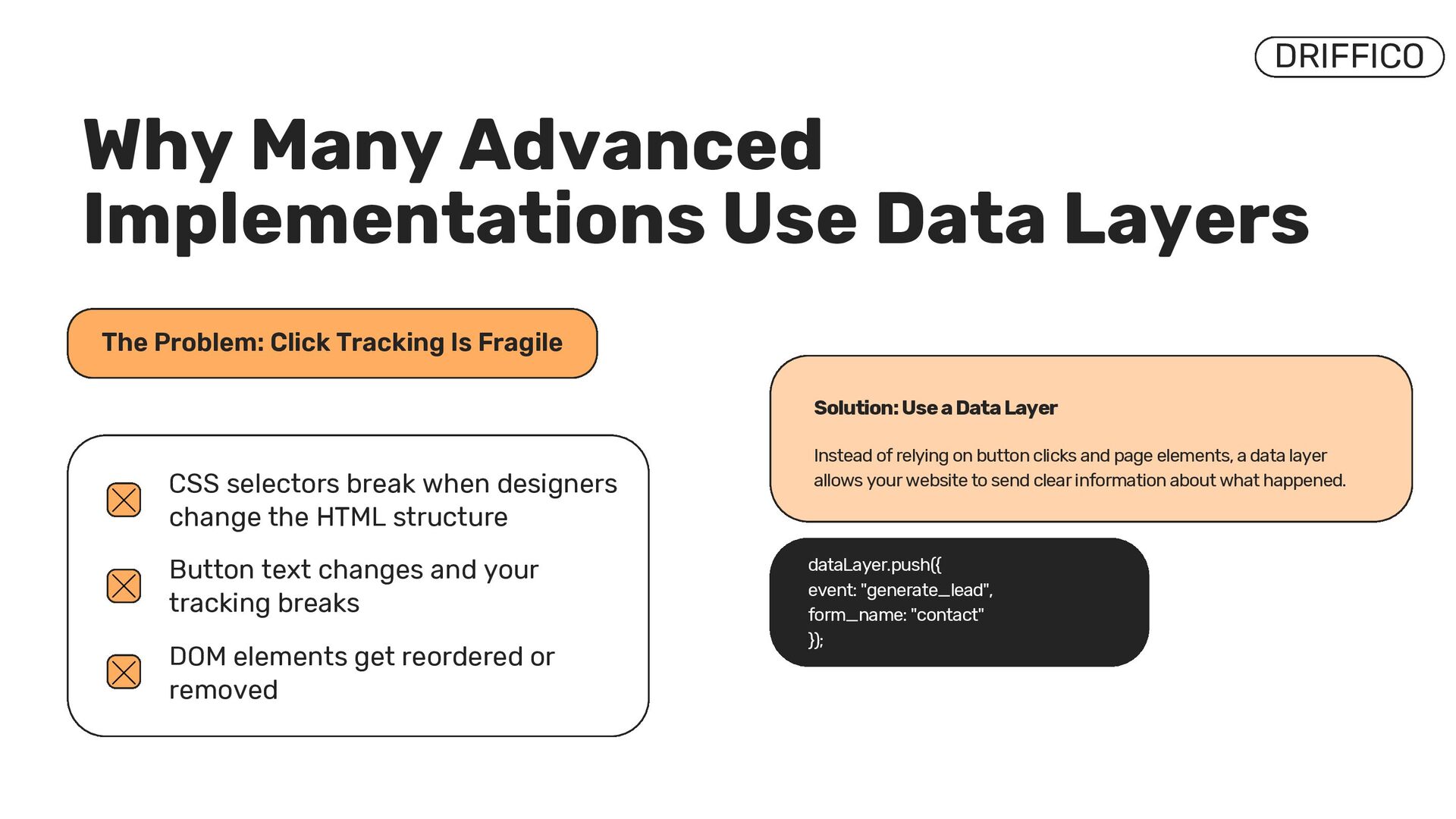
  12. DRIFFICO Solution: Use a Data Layer Instead of relying on

    button clicks and page elements, a data layer allows your website to send clear information about what happened. dataLayer.push({ event: "generate_lead", form_name: "contact" }); The Problem: Click Tracking Is Fragile CSS selectors break when designers change the HTML structure Button text changes and your tracking breaks DOM elements get reordered or removed Why Many Advanced Implementations Use Data Layers
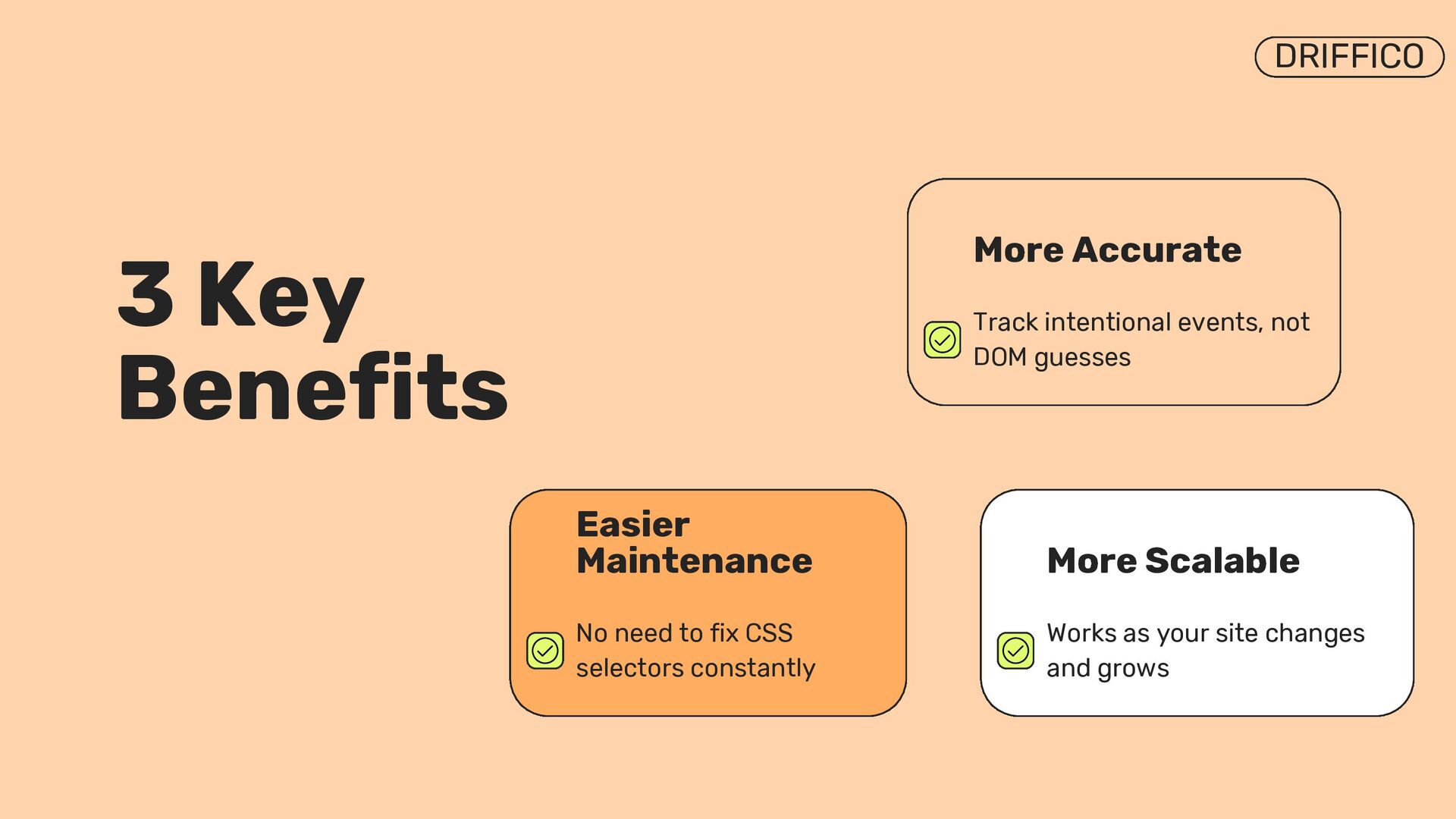
  13. Easier Maintenance No need to fix CSS selectors constantly Works

    as your site changes and grows More Scalable DRIFFICO 3 Key Benefits Track intentional events, not DOM guesses More Accurate
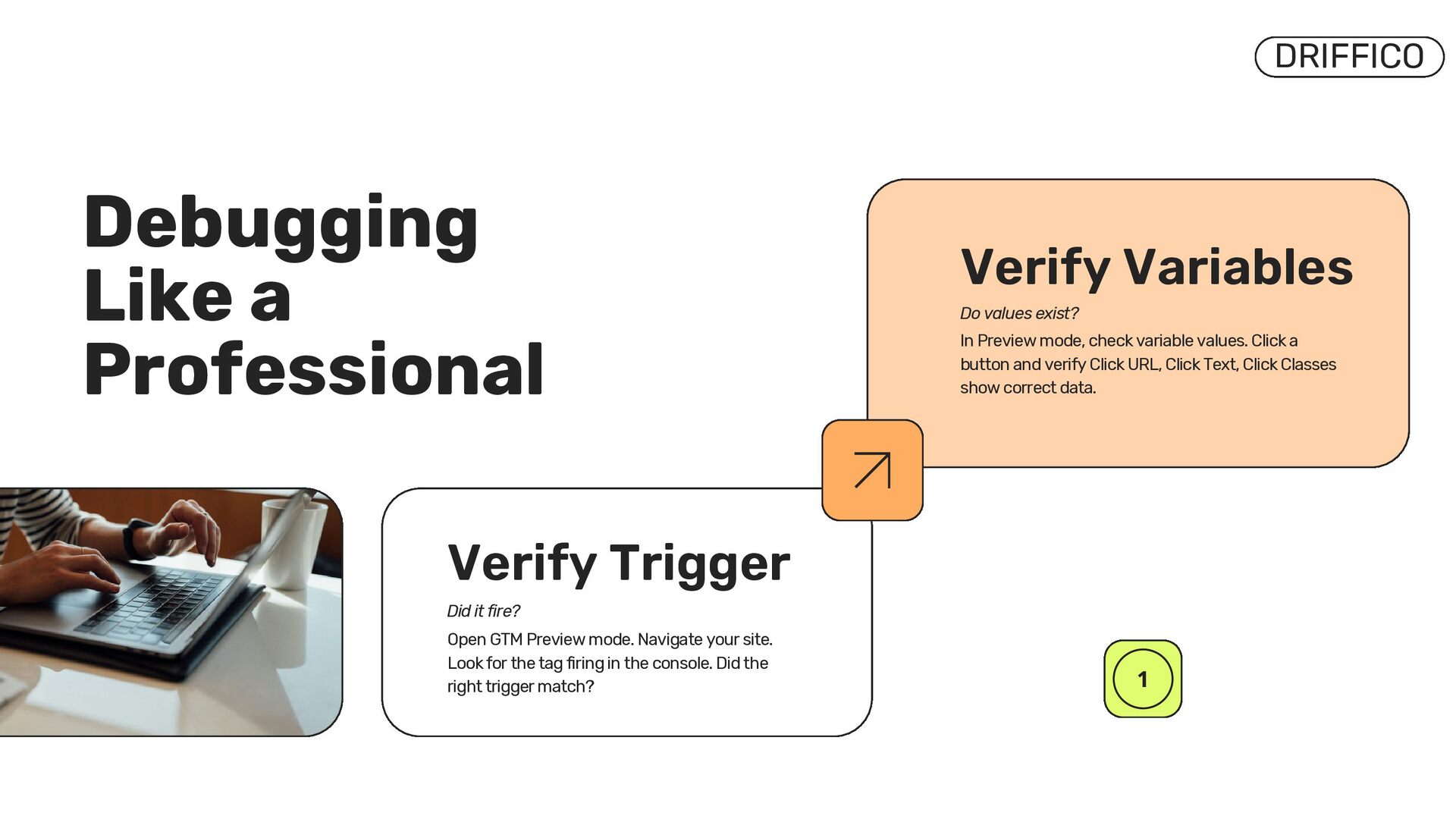
  14. DRIFFICO Debugging Like a Professional Verify Trigger Verify Variables Open

    GTM Preview mode. Navigate your site. Look for the tag firing in the console. Did the right trigger match? In Preview mode, check variable values. Click a button and verify Click URL, Click Text, Click Classes show correct data. Did it fire? Do values exist?
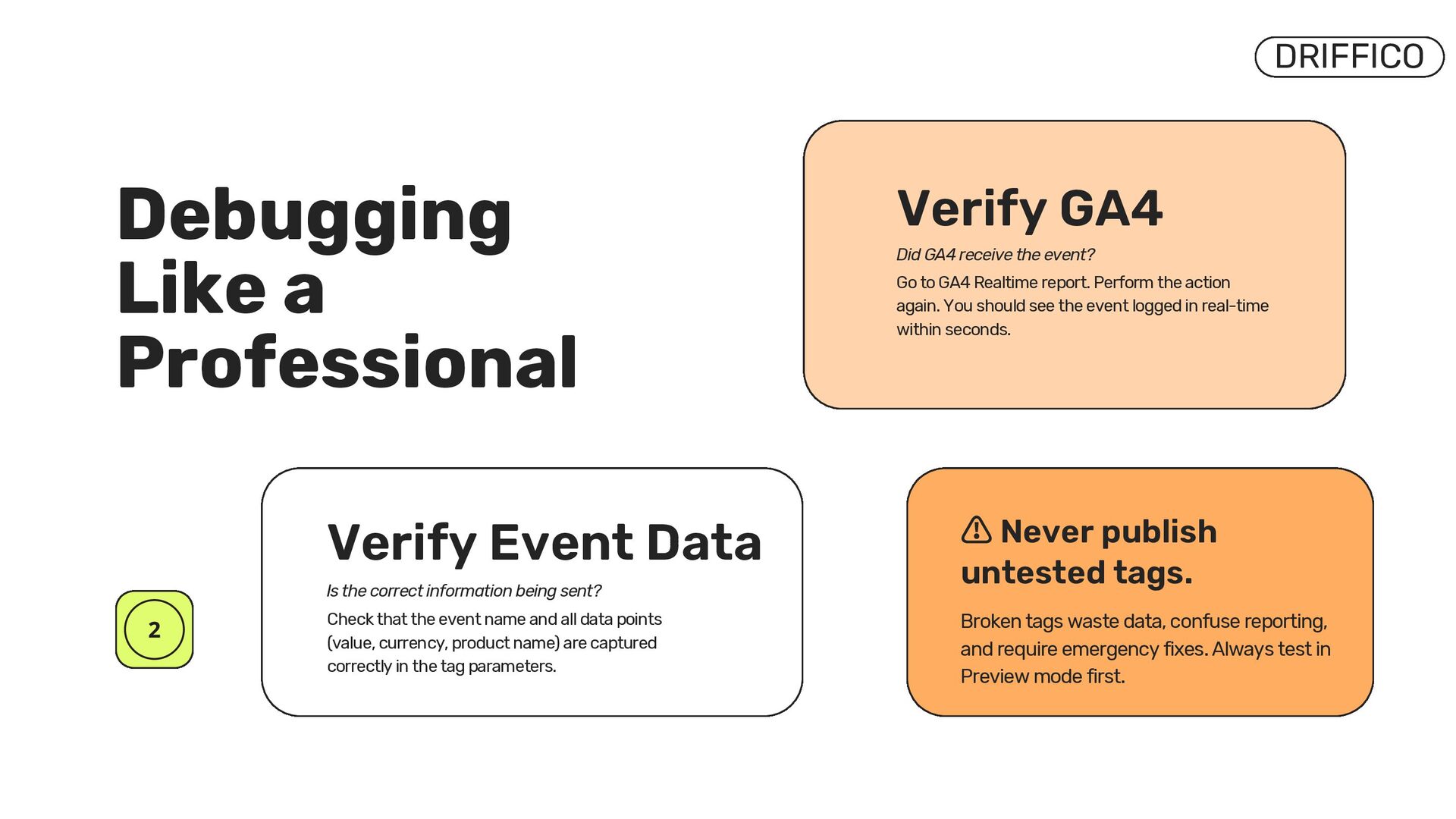
  15. DRIFFICO Debugging Like a Professional Verify Event Data Check that

    the event name and all data points (value, currency, product name) are captured correctly in the tag parameters. Is the correct information being sent? Verify GA4 Go to GA4 Realtime report. Perform the action again. You should see the event logged in real-time within seconds. Did GA4 receive the event? Broken tags waste data, confuse reporting, and require emergency fixes. Always test in Preview mode first. ⚠ Never publish untested tags.
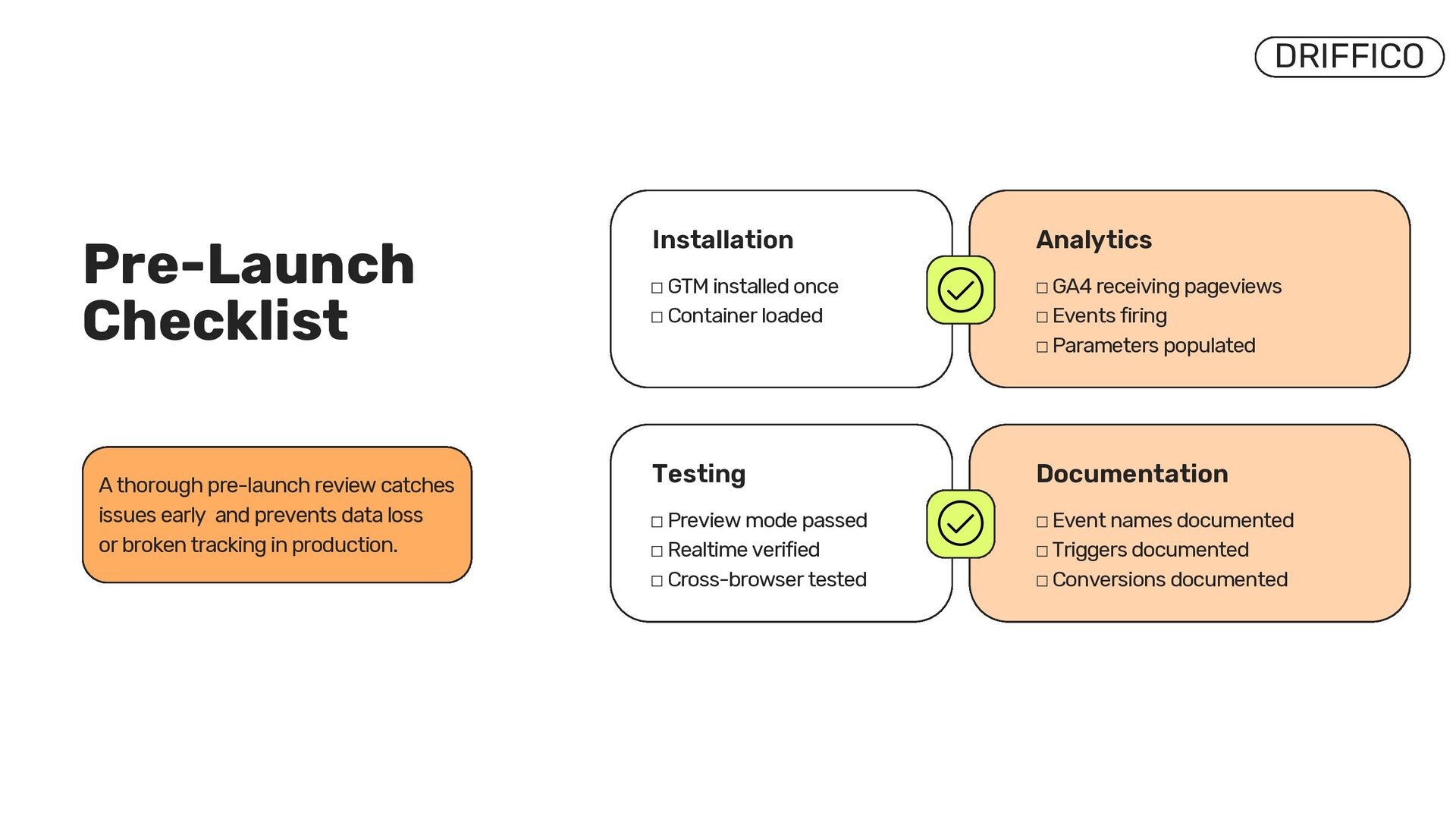
  16. DRIFFICO Pre-Launch Checklist Installation Analytics ☐ GA4 receiving pageviews ☐

    Events firing ☐ Parameters populated ☐ GTM installed once ☐ Container loaded Testing Documentation ☐ Event names documented ☐ Triggers documented ☐ Conversions documented ☐ Preview mode passed ☐ Realtime verified ☐ Cross-browser tested A thorough pre-launch review catches issues early and prevents data loss or broken tracking in production.
  17. Enforce a naming convention [Tag Type] – [Tool] – [Event/Trigger]

    e.g. "Tag – GA4 – Purchase Event" Apply the same pattern to triggers & variables. Keep a shared spec doc (Google Sheet or Notion) listing every event name, each key, its data type, and when it fires. Align with developers before implementation. Document your dataLayer schema Always preview before publishing Preview mode is a full debug session. Verify: tag fired ✓, correct trigger matched ✓, variable values resolved correctly ✓. Then check GA4 Realtime. DRIFFICO GTM Best Practices
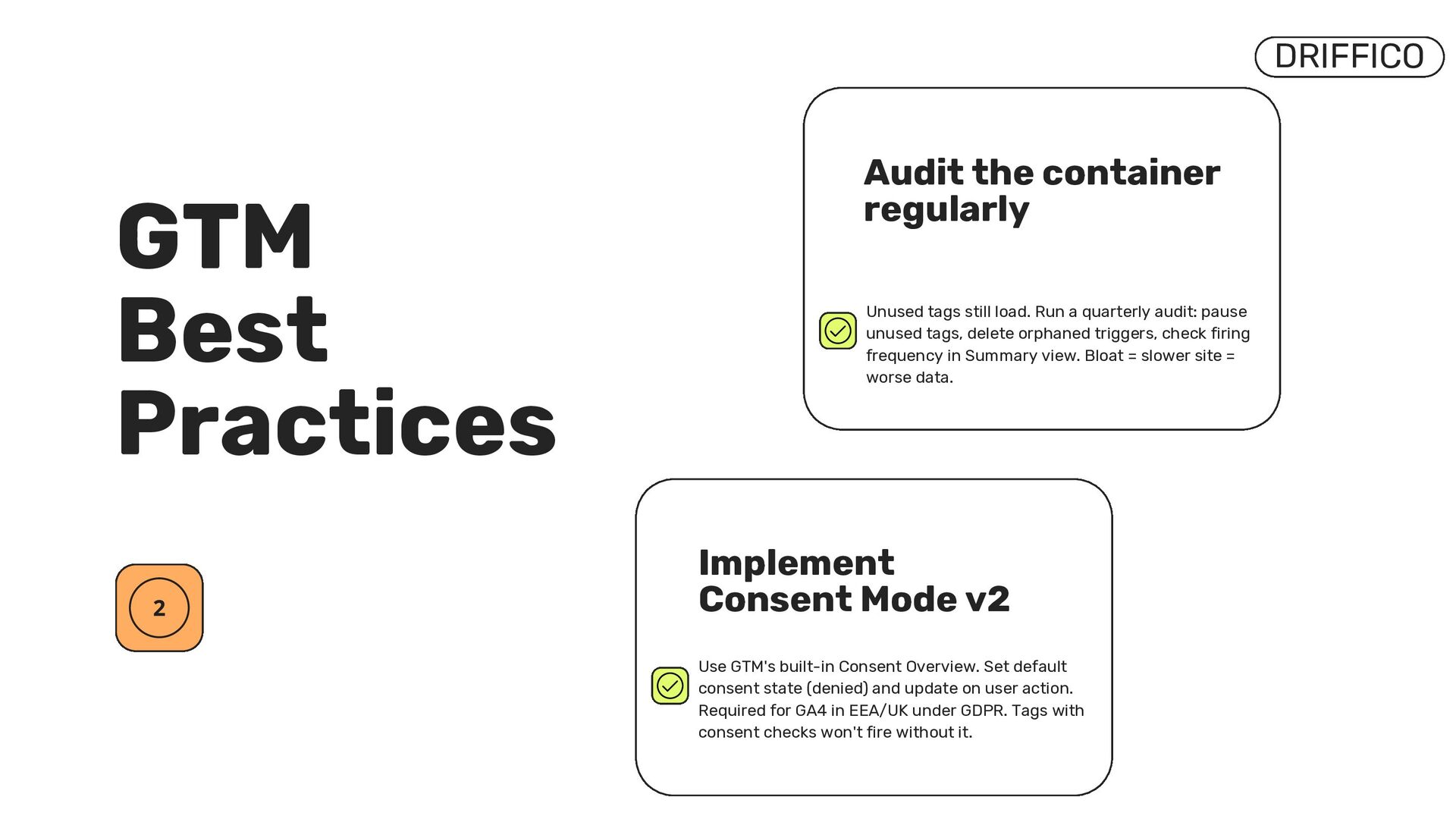
  18. Implement Consent Mode v2 Use GTM's built-in Consent Overview. Set

    default consent state (denied) and update on user action. Required for GA4 in EEA/UK under GDPR. Tags with consent checks won't fire without it. DRIFFICO GTM Best Practices Unused tags still load. Run a quarterly audit: pause unused tags, delete orphaned triggers, check firing frequency in Summary view. Bloat = slower site = worse data. Audit the container regularly
  19. DRIFFICO Thank You driffico.com LinkedIn [email protected] At Driffico, we help

    businesses build reliable analytics and tracking setups that support better decision-making. If you need assistance with Google Tag Manager, GA4, conversion tracking, or analytics audits, our team is here to help.