Share
From chat to deliverables (Response modes, sources, docs, decks, and spreadsheets) | AWS Quick: Zero to Hero 04
Level 200. A handout for people who use AWS Quick, an AI assistant for work, and want better answers and files from chat. It covers how to write a request with three parts (what you want, what Quick should look at, and the format), how to point Quick to materials with the data scope and attachments, the response modes Fast, Balanced, and Smart and thinking effort in the desktop app, and how to check answers with citations, Sources, and the explanation for number answers. It then shows how to create a Word invitation, a PowerPoint deck, and an Excel table in chat, how company brand templates work (Enterprise edition), what visual creation can do and where, and how to revise a file with follow-up requests. The running example is organizing an internal learning session, with screenshots from the English web and desktop apps. The appendix has request examples, a glossary, and sources. Based on public documentation as of November 2026. Deck 04 (Go deeper) of the series AWS Quick: Zero to Hero.
Riku INADA PRO
Annual Pro sale · Save $30
Have presentations of your own?
Share with private links, password protection, and more control over your work.
Transcript
28 slides
-
AWS Quick: Zero to Hero Go deeper From chat to
deliverables Response modes, sources, docs, decks, and spreadsheets 04 Level 200 / As of November 2026 November 2026 Riku Inada Amazon Web Services Japan © 2026, Amazon Web © 2026, Services, Amazon Inc. or Web its Services, affiliates.Inc. All or rights its affiliates. reserved.All rights reserved. 1 -
Introduction About me Riku Inada Amazon Web Services Japan G.K.
Solutions Architect Works mainly with manufacturing customers Recent work Promoting the AI-Driven Development Life Cycle (AI-DLC) Writing and speaking about Kiro and AWS Amplify © 2026, Amazon Web Services, Inc. or its affiliates. All rights reserved. X @inada_riku Speaker Deck speakerdeck.com/inariku Zenn zenn.dev/inariku GitHub github.com/inariku 2 -
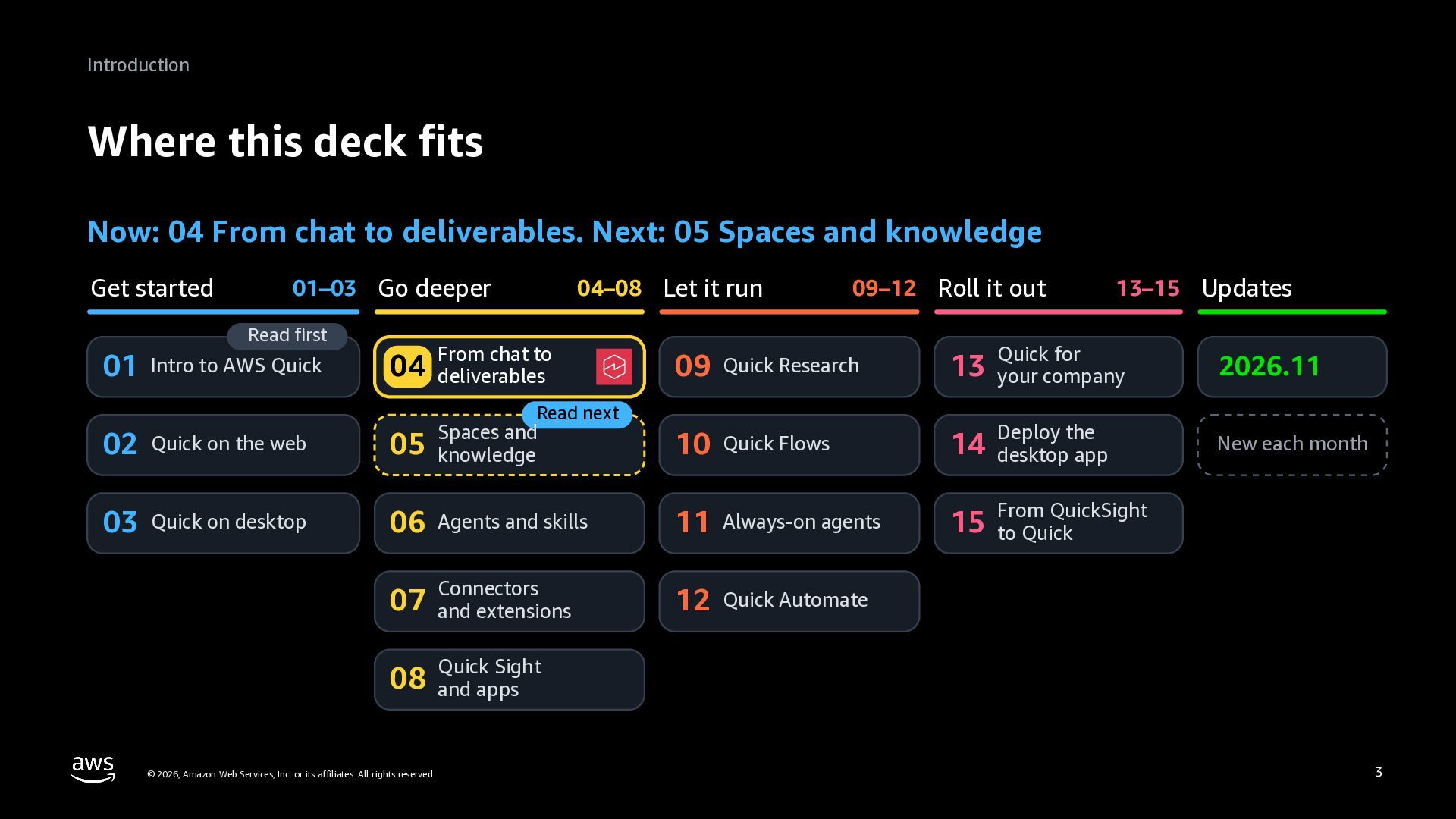
Introduction Where this deck fits Now: 04 From chat to
deliverables. Next: 05 Spaces and knowledge Get started 01–03 Go deeper Read first 04–08 Let it run From chat to 01 Intro to AWS Quick 04 deliverables 09–12 Roll it out 13–15 Updates Quick for 09 Quick Research 13 your company 02 Quick on the web Spaces and 05 knowledge 10 Quick Flows 14 desktop app 03 Quick on desktop 06 Agents and skills 11 Always-on agents QuickSight 15 From to Quick 07 Connectors and extensions 12 Quick Automate Read next Deploy the 2026.11 New each month Sight 08 Quick and apps © 2026, Amazon Web Services, Inc. or its affiliates. All rights reserved. 3 -
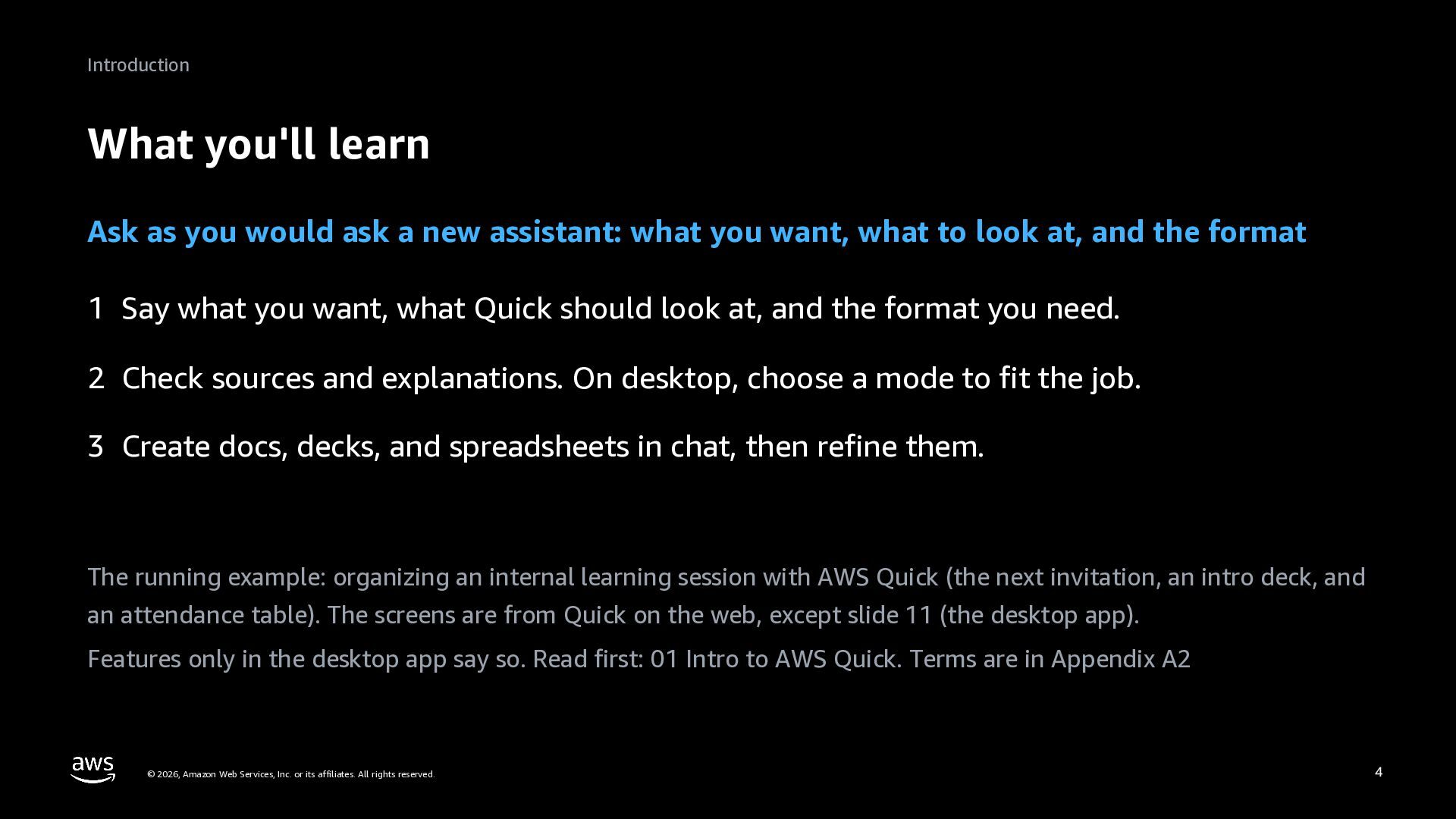
Introduction What you'll learn Ask as you would ask a
new assistant: what you want, what to look at, and the format 1 Say what you want, what Quick should look at, and the format you need. 2 Check sources and explanations. On desktop, choose a mode to fit the job. 3 Create docs, decks, and spreadsheets in chat, then refine them. The running example: organizing an internal learning session with AWS Quick (the next invitation, an intro deck, and an attendance table). The screens are from Quick on the web, except slide 11 (the desktop app). Features only in the desktop app say so. Read first: 01 Intro to AWS Quick. Terms are in Appendix A2 © 2026, Amazon Web Services, Inc. or its affiliates. All rights reserved. 4 -
1 How to ask © 2026, Amazon Web Services, Inc.
or its affiliates. All rights reserved. 5 -
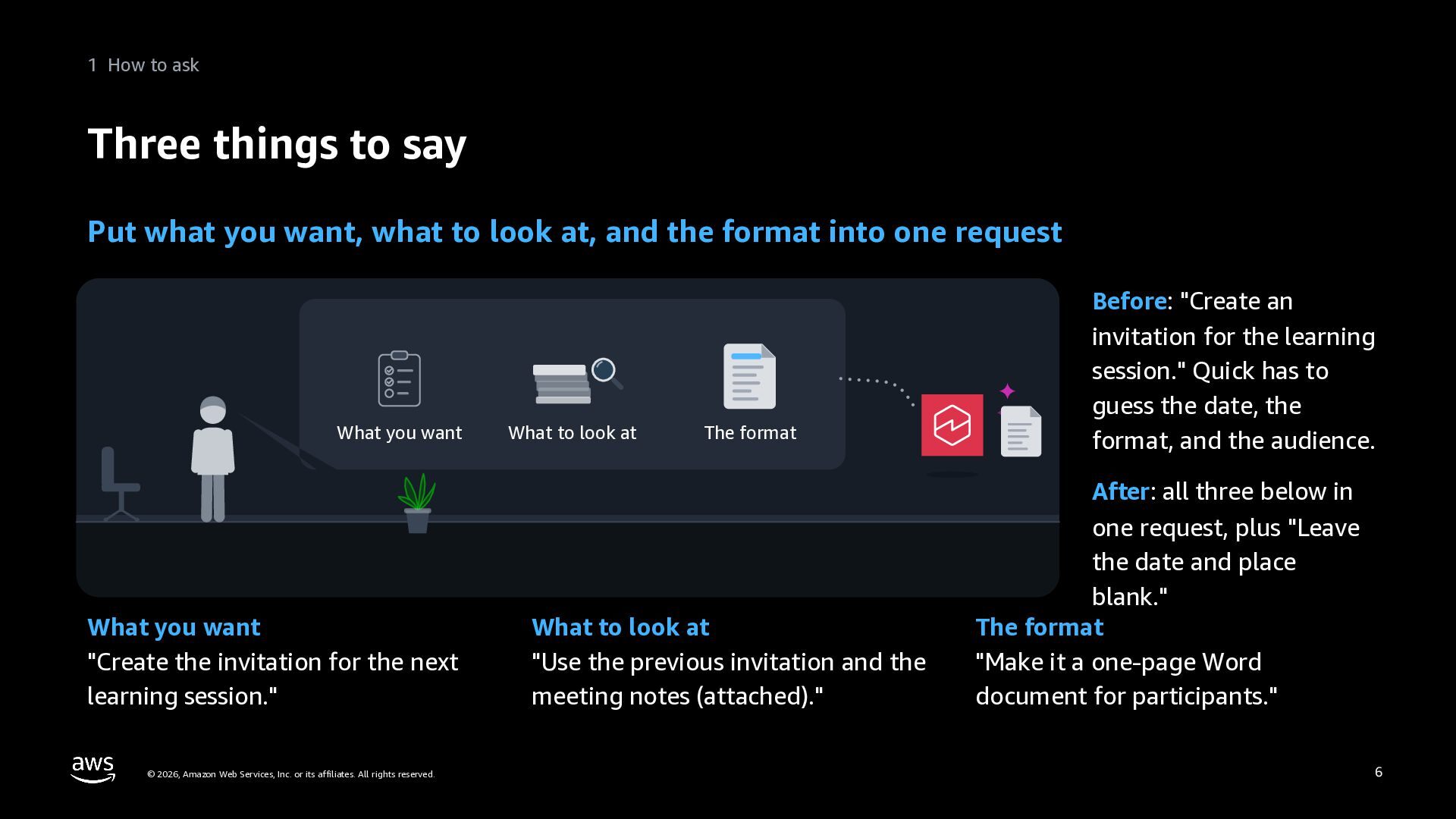
1 How to ask Three things to say Put what
you want, what to look at, and the format into one request What you want What to look at The format Before: "Create an invitation for the learning session." Quick has to guess the date, the format, and the audience. After: all three below in What you want "Create the invitation for the next learning session." © 2026, Amazon Web Services, Inc. or its affiliates. All rights reserved. What to look at "Use the previous invitation and the meeting notes (attached)." one request, plus "Leave the date and place blank." The format "Make it a one-page Word document for participants." 6 -
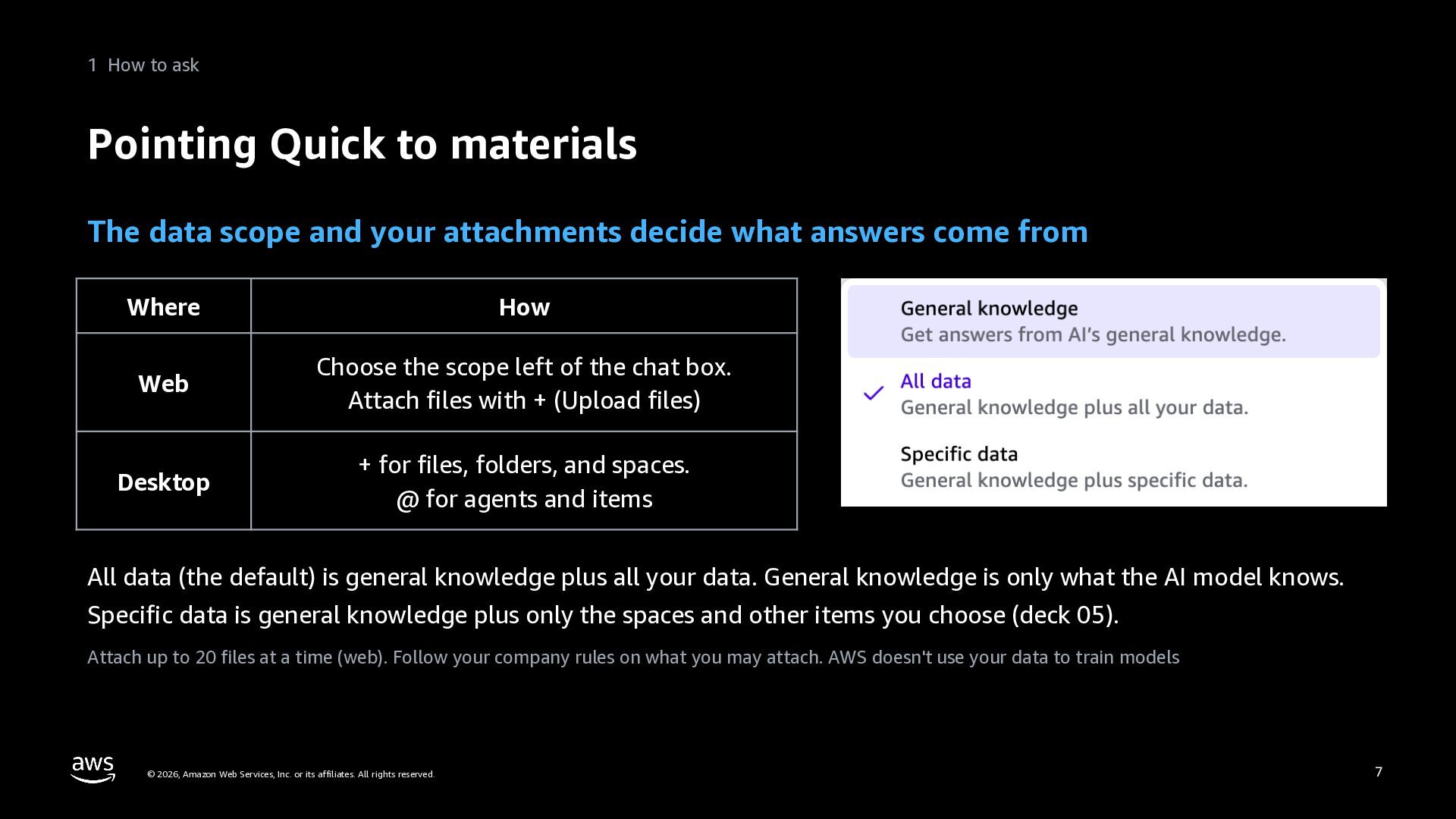
1 How to ask Pointing Quick to materials The data
scope and your attachments decide what answers come from Where How Web Choose the scope left of the chat box. Attach files with + (Upload files) Desktop + for files, folders, and spaces. @ for agents and items All data (the default) is general knowledge plus all your data. General knowledge is only what the AI model knows. Specific data is general knowledge plus only the spaces and other items you choose (deck 05). Attach up to 20 files at a time (web). Follow your company rules on what you may attach. AWS doesn't use your data to train models © 2026, Amazon Web Services, Inc. or its affiliates. All rights reserved. 7 -
2 Modes and checking answers © 2026, Amazon Web Services,
Inc. or its affiliates. All rights reserved. 8 -
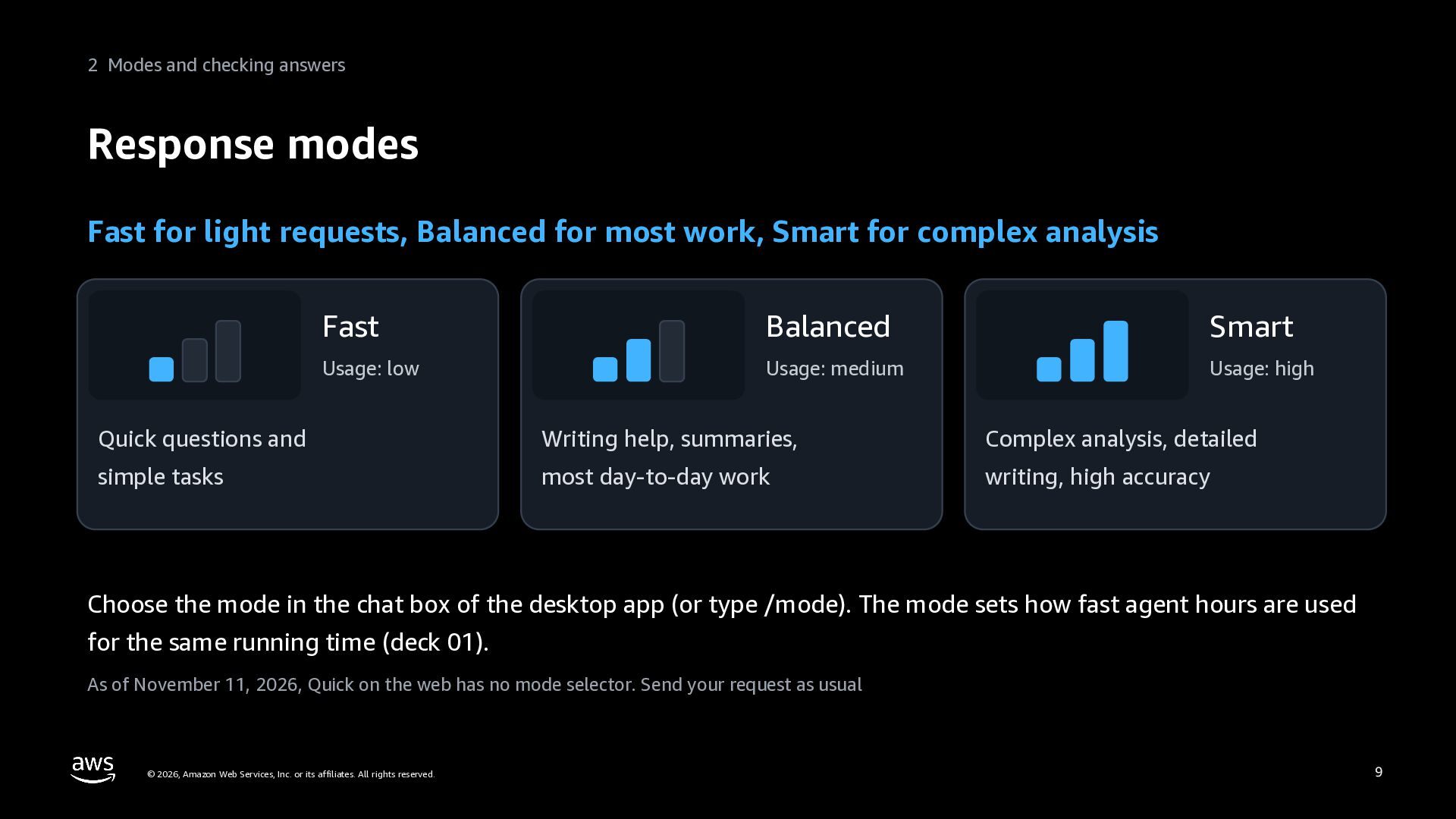
2 Modes and checking answers Response modes Fast for light
requests, Balanced for most work, Smart for complex analysis Fast Balanced Smart Usage: low Usage: medium Usage: high Quick questions and Writing help, summaries, Complex analysis, detailed simple tasks most day-to-day work writing, high accuracy Choose the mode in the chat box of the desktop app (or type /mode). The mode sets how fast agent hours are used for the same running time (deck 01). As of November 11, 2026, Quick on the web has no mode selector. Send your request as usual © 2026, Amazon Web Services, Inc. or its affiliates. All rights reserved. 9 -
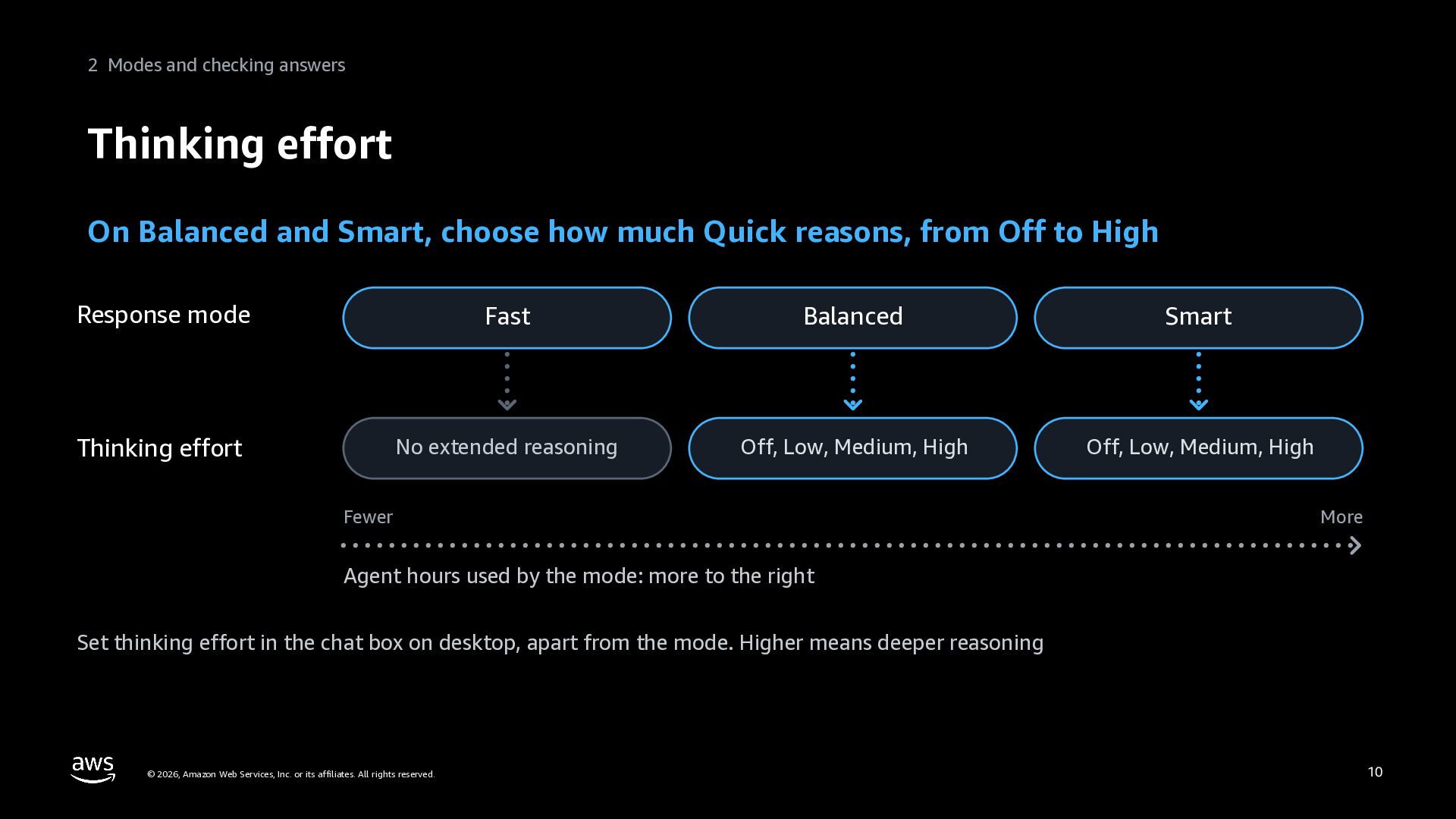
2 Modes and checking answers Thinking effort On Balanced and
Smart, choose how much Quick reasons, from Off to High Response mode Fast Balanced Smart Thinking effort No extended reasoning Off, Low, Medium, High Off, Low, Medium, High Fewer More Agent hours used by the mode: more to the right Set thinking effort in the chat box on desktop, apart from the mode. Higher means deeper reasoning © 2026, Amazon Web Services, Inc. or its affiliates. All rights reserved. 10 -
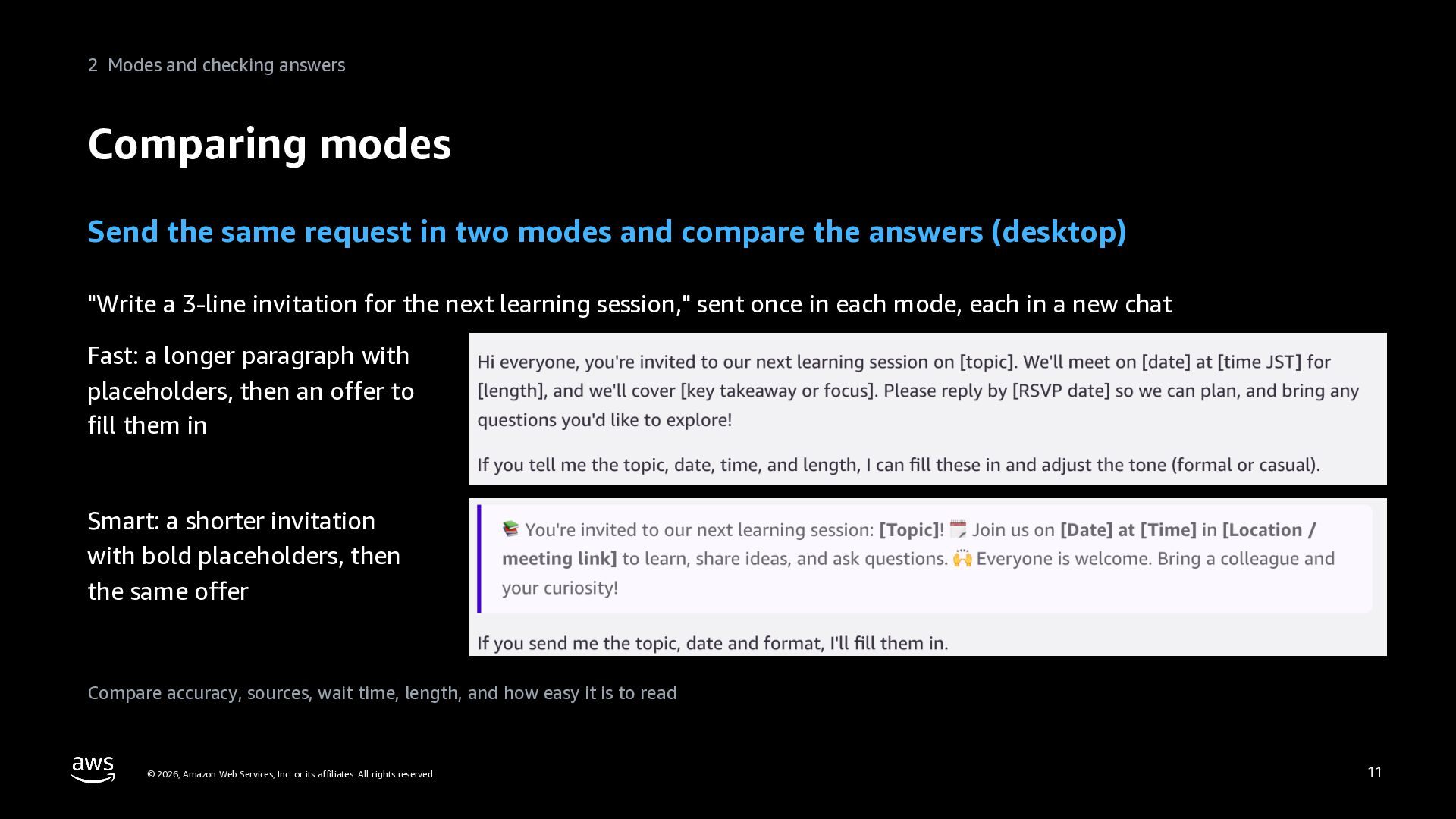
2 Modes and checking answers Comparing modes Send the same
request in two modes and compare the answers (desktop) "Write a 3-line invitation for the next learning session," sent once in each mode, each in a new chat Fast: a longer paragraph with placeholders, then an offer to fill them in Smart: a shorter invitation with bold placeholders, then the same offer Compare accuracy, sources, wait time, length, and how easy it is to read © 2026, Amazon Web Services, Inc. or its affiliates. All rights reserved. 11 -
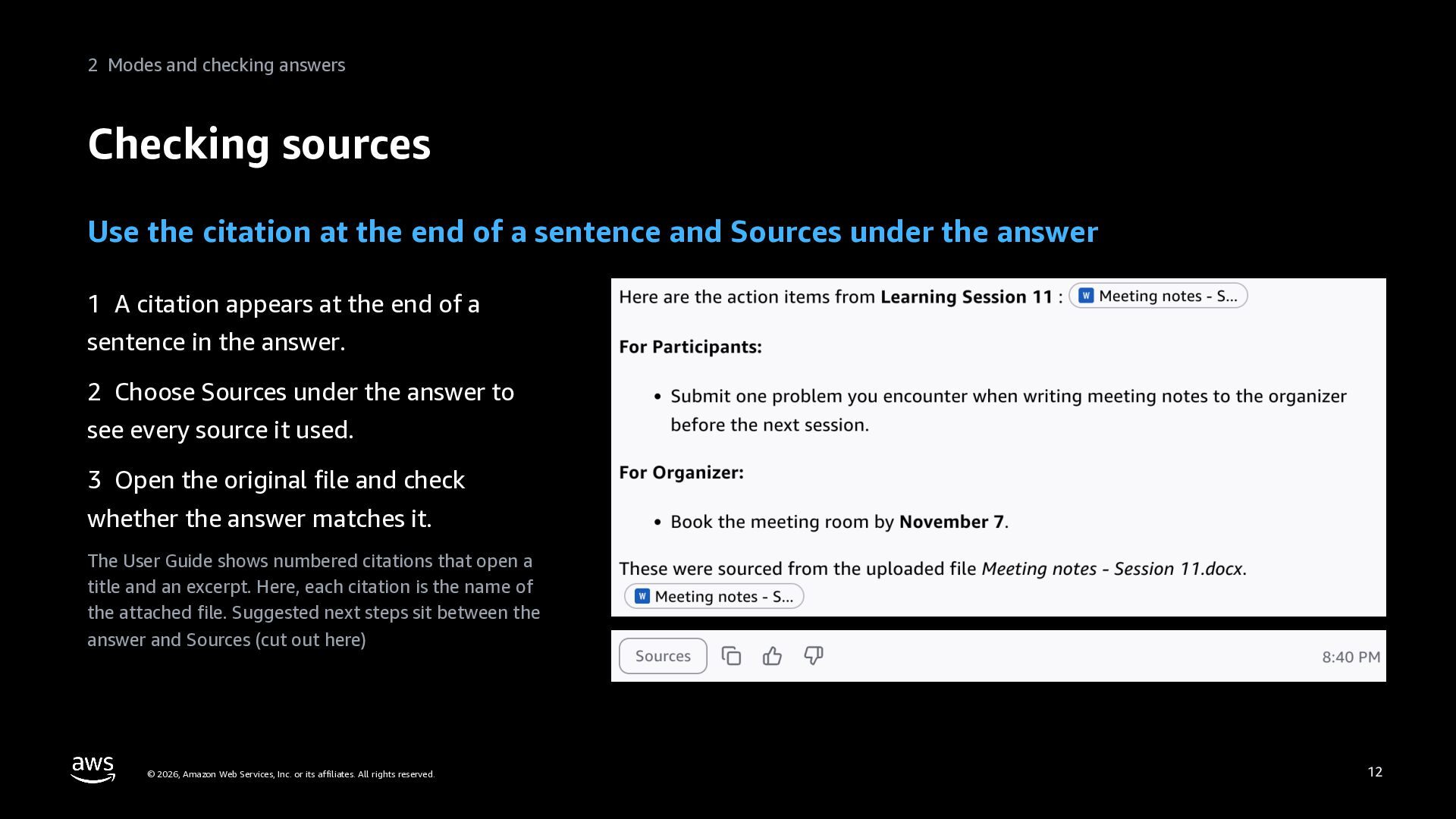
2 Modes and checking answers Checking sources Use the citation
at the end of a sentence and Sources under the answer 1 A citation appears at the end of a sentence in the answer. 2 Choose Sources under the answer to see every source it used. 3 Open the original file and check whether the answer matches it. The User Guide shows numbered citations that open a title and an excerpt. Here, each citation is the name of the attached file. Suggested next steps sit between the answer and Sources (cut out here) © 2026, Amazon Web Services, Inc. or its affiliates. All rights reserved. 12 -
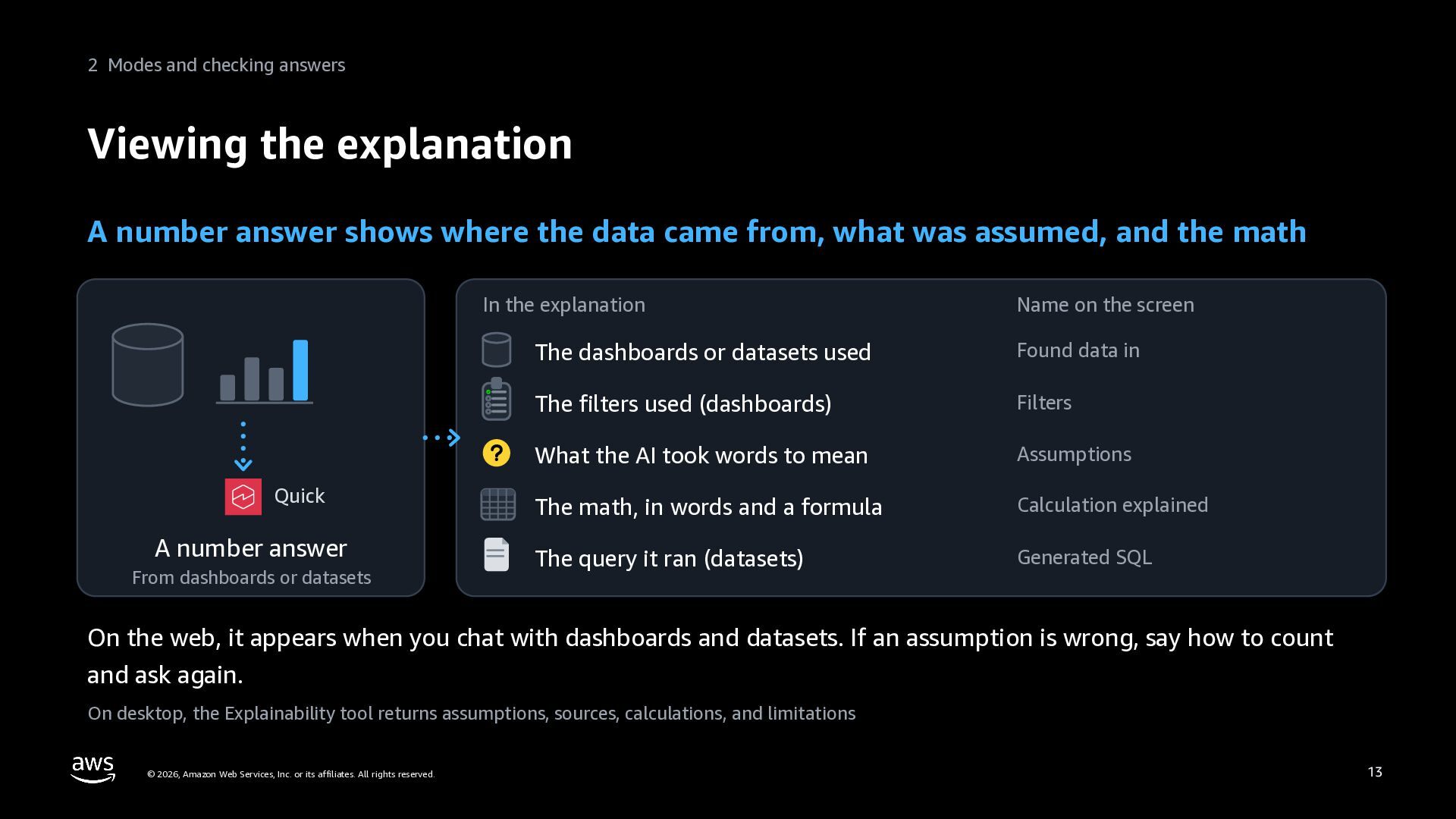
2 Modes and checking answers Viewing the explanation A number
answer shows where the data came from, what was assumed, and the math In the explanation Quick A number answer From dashboards or datasets Name on the screen The dashboards or datasets used Found data in The filters used (dashboards) Filters What the AI took words to mean Assumptions The math, in words and a formula Calculation explained The query it ran (datasets) Generated SQL On the web, it appears when you chat with dashboards and datasets. If an assumption is wrong, say how to count and ask again. On desktop, the Explainability tool returns assumptions, sources, calculations, and limitations © 2026, Amazon Web Services, Inc. or its affiliates. All rights reserved. 13 -
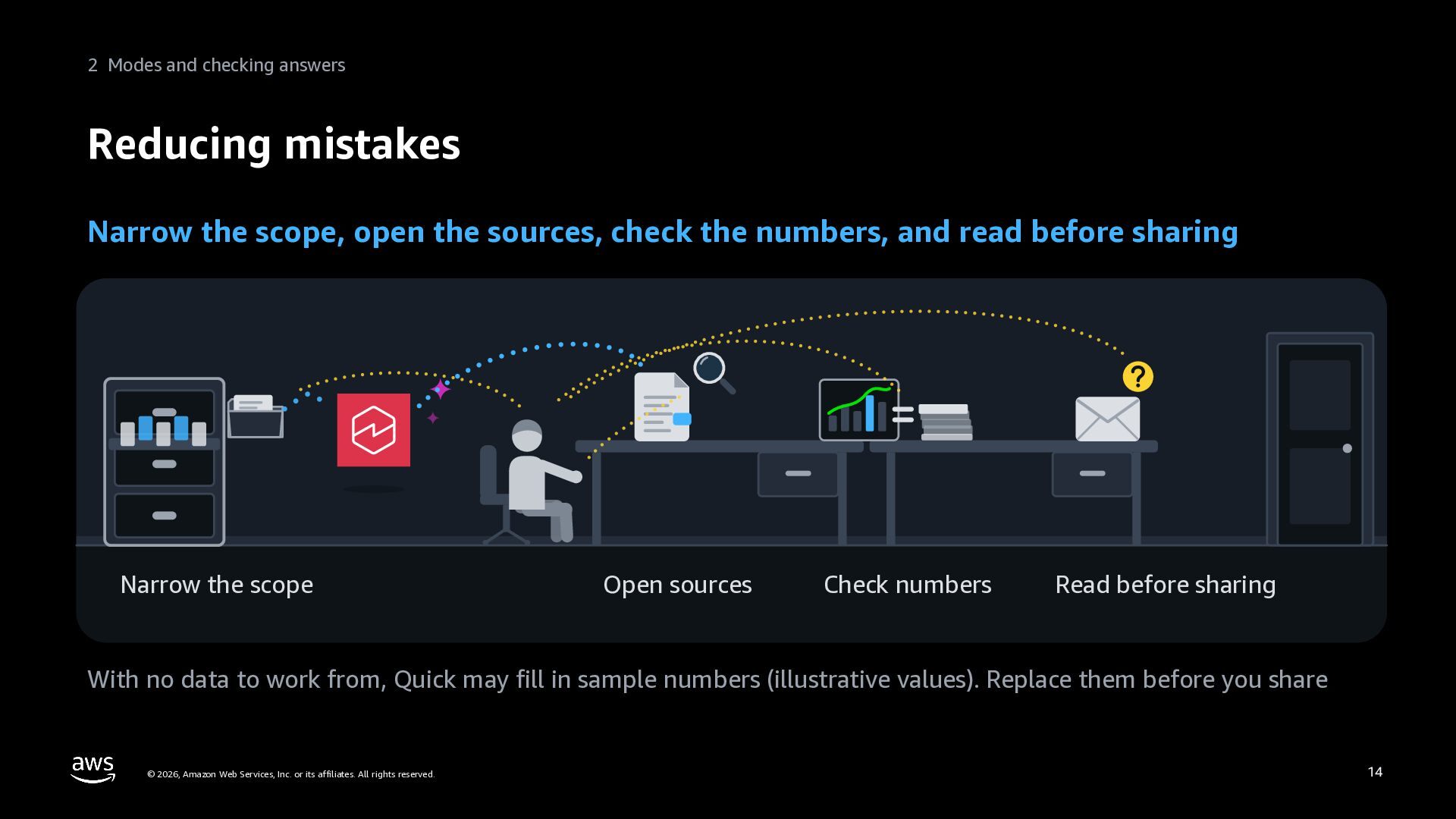
2 Modes and checking answers Reducing mistakes Narrow the scope,
open the sources, check the numbers, and read before sharing Narrow the scope Open sources Check numbers Read before sharing With no data to work from, Quick may fill in sample numbers (illustrative values). Replace them before you share © 2026, Amazon Web Services, Inc. or its affiliates. All rights reserved. 14 -
3 Creating deliverables © 2026, Amazon Web Services, Inc. or
its affiliates. All rights reserved. 15 -
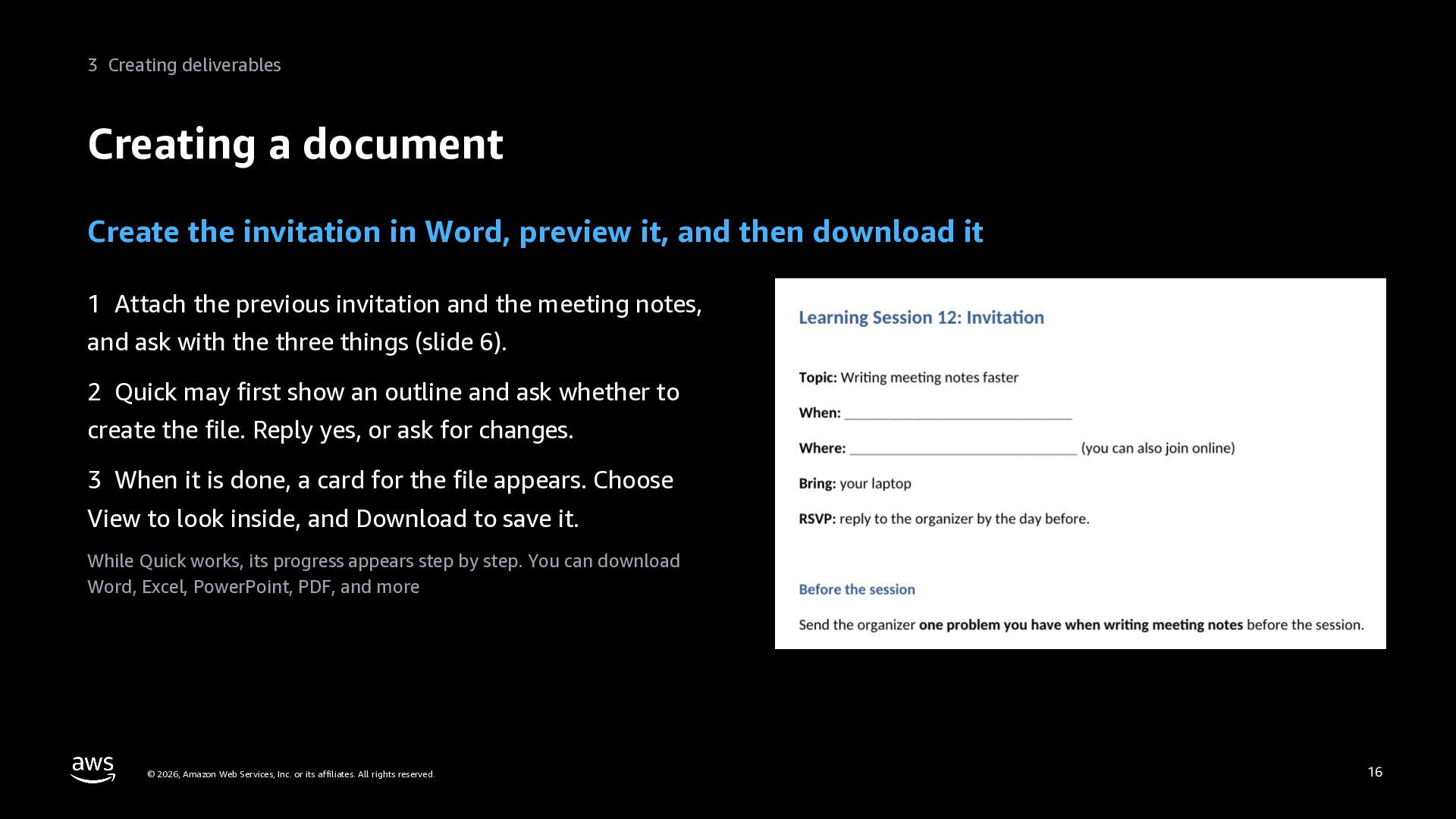
3 Creating deliverables Creating a document Create the invitation in
Word, preview it, and then download it 1 Attach the previous invitation and the meeting notes, and ask with the three things (slide 6). 2 Quick may first show an outline and ask whether to create the file. Reply yes, or ask for changes. 3 When it is done, a card for the file appears. Choose View to look inside, and Download to save it. While Quick works, its progress appears step by step. You can download Word, Excel, PowerPoint, PDF, and more © 2026, Amazon Web Services, Inc. or its affiliates. All rights reserved. 16 -
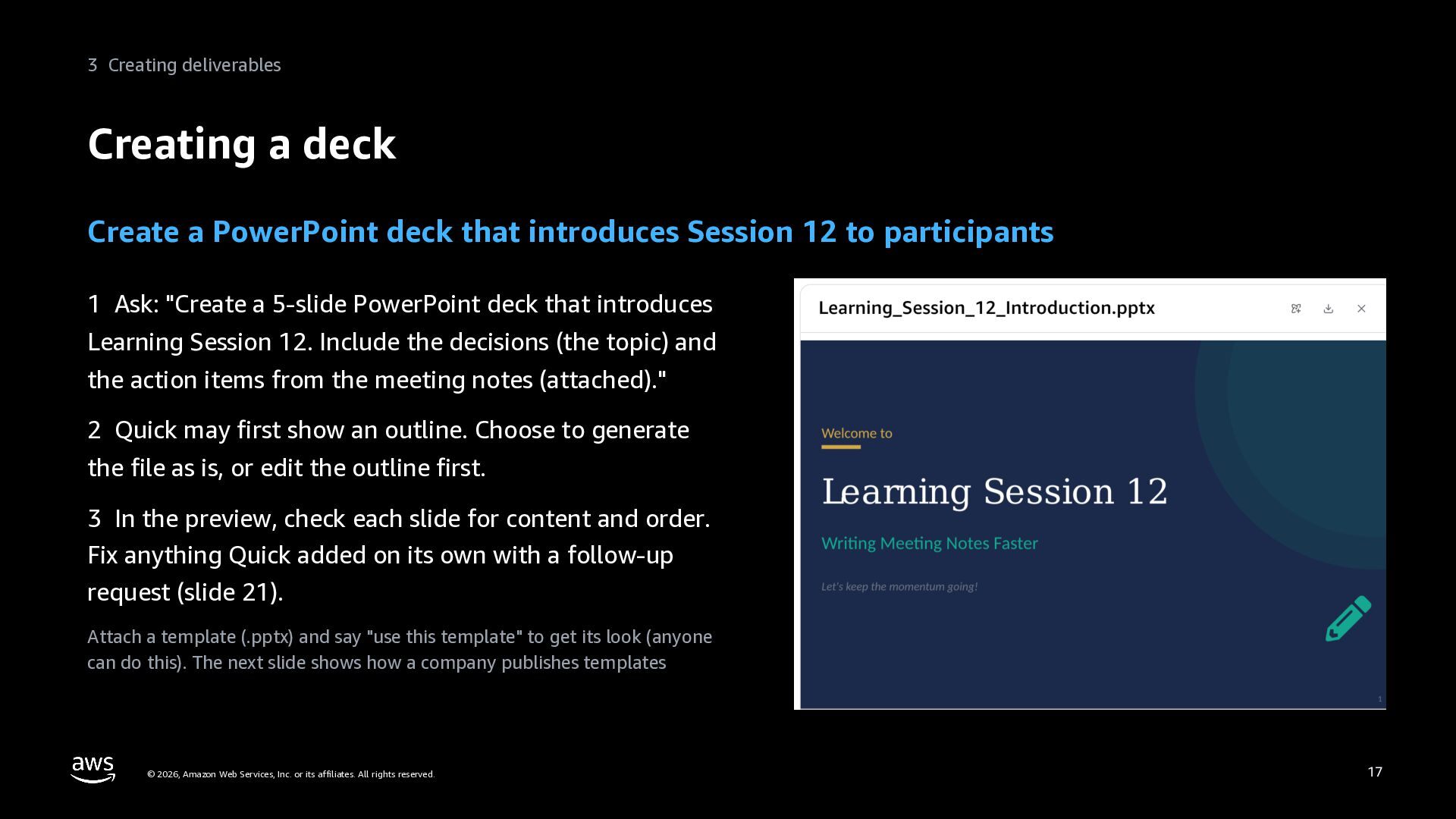
3 Creating deliverables Creating a deck Create a PowerPoint deck
that introduces Session 12 to participants 1 Ask: "Create a 5-slide PowerPoint deck that introduces Learning Session 12. Include the decisions (the topic) and the action items from the meeting notes (attached)." 2 Quick may first show an outline. Choose to generate the file as is, or edit the outline first. 3 In the preview, check each slide for content and order. Fix anything Quick added on its own with a follow-up request (slide 21). Attach a template (.pptx) and say "use this template" to get its look (anyone can do this). The next slide shows how a company publishes templates © 2026, Amazon Web Services, Inc. or its affiliates. All rights reserved. 17 -
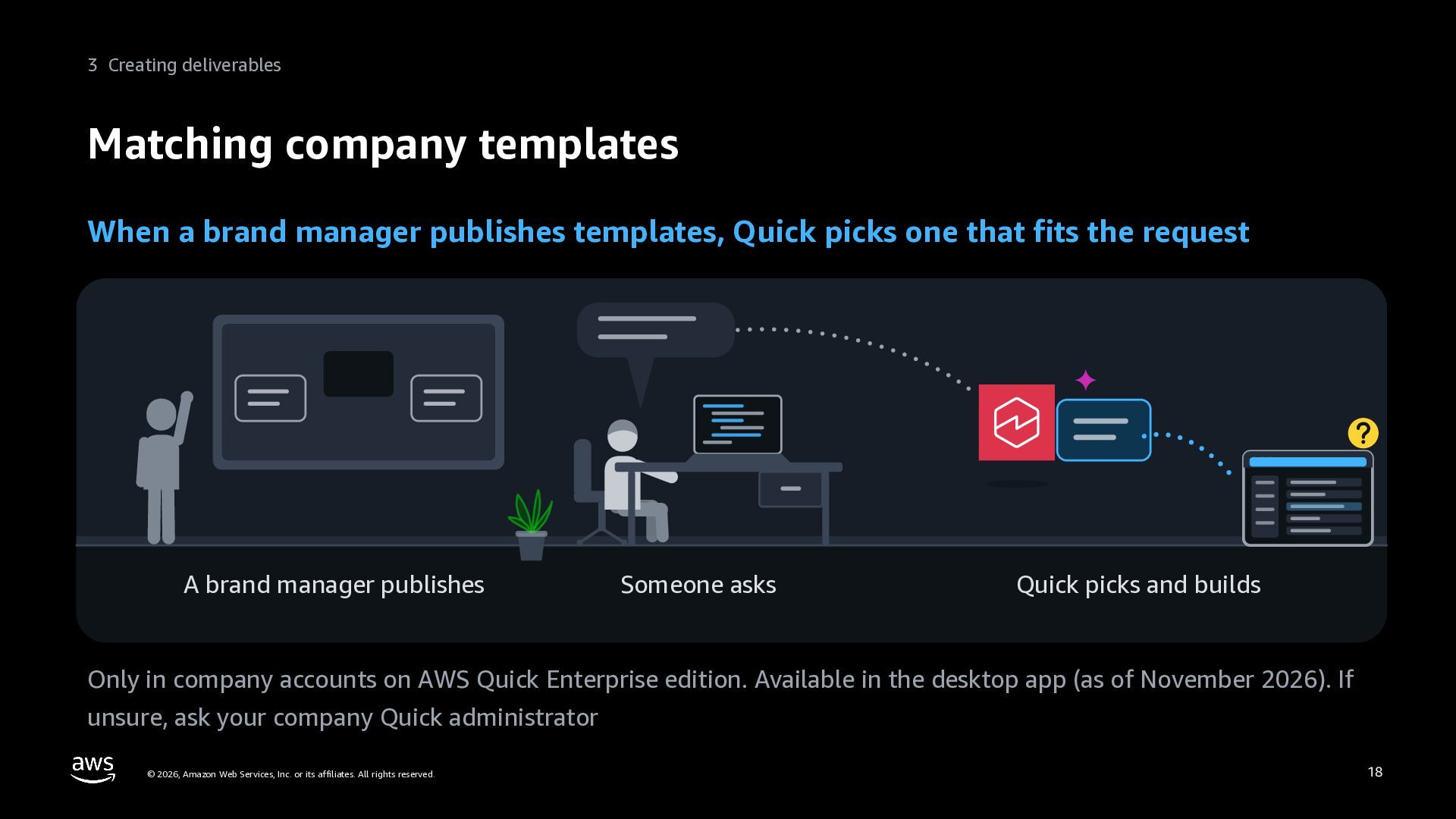
3 Creating deliverables Matching company templates When a brand manager
publishes templates, Quick picks one that fits the request A brand manager publishes Someone asks Quick picks and builds Only in company accounts on AWS Quick Enterprise edition. Available in the desktop app (as of November 2026). If unsure, ask your company Quick administrator © 2026, Amazon Web Services, Inc. or its affiliates. All rights reserved. 18 -
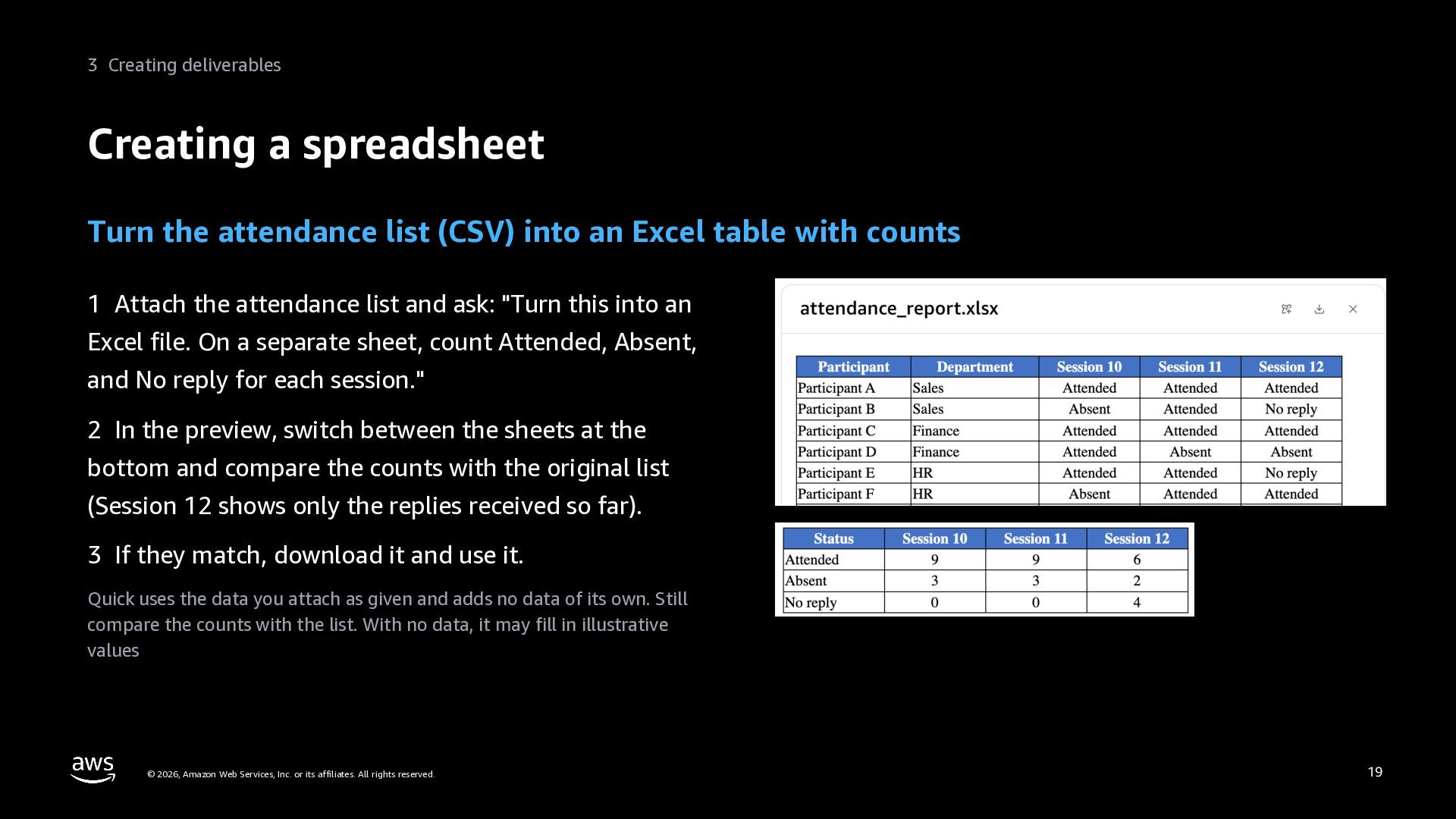
3 Creating deliverables Creating a spreadsheet Turn the attendance list
(CSV) into an Excel table with counts 1 Attach the attendance list and ask: "Turn this into an Excel file. On a separate sheet, count Attended, Absent, and No reply for each session." 2 In the preview, switch between the sheets at the bottom and compare the counts with the original list (Session 12 shows only the replies received so far). 3 If they match, download it and use it. Quick uses the data you attach as given and adds no data of its own. Still compare the counts with the list. With no data, it may fill in illustrative values © 2026, Amazon Web Services, Inc. or its affiliates. All rights reserved. 19 -
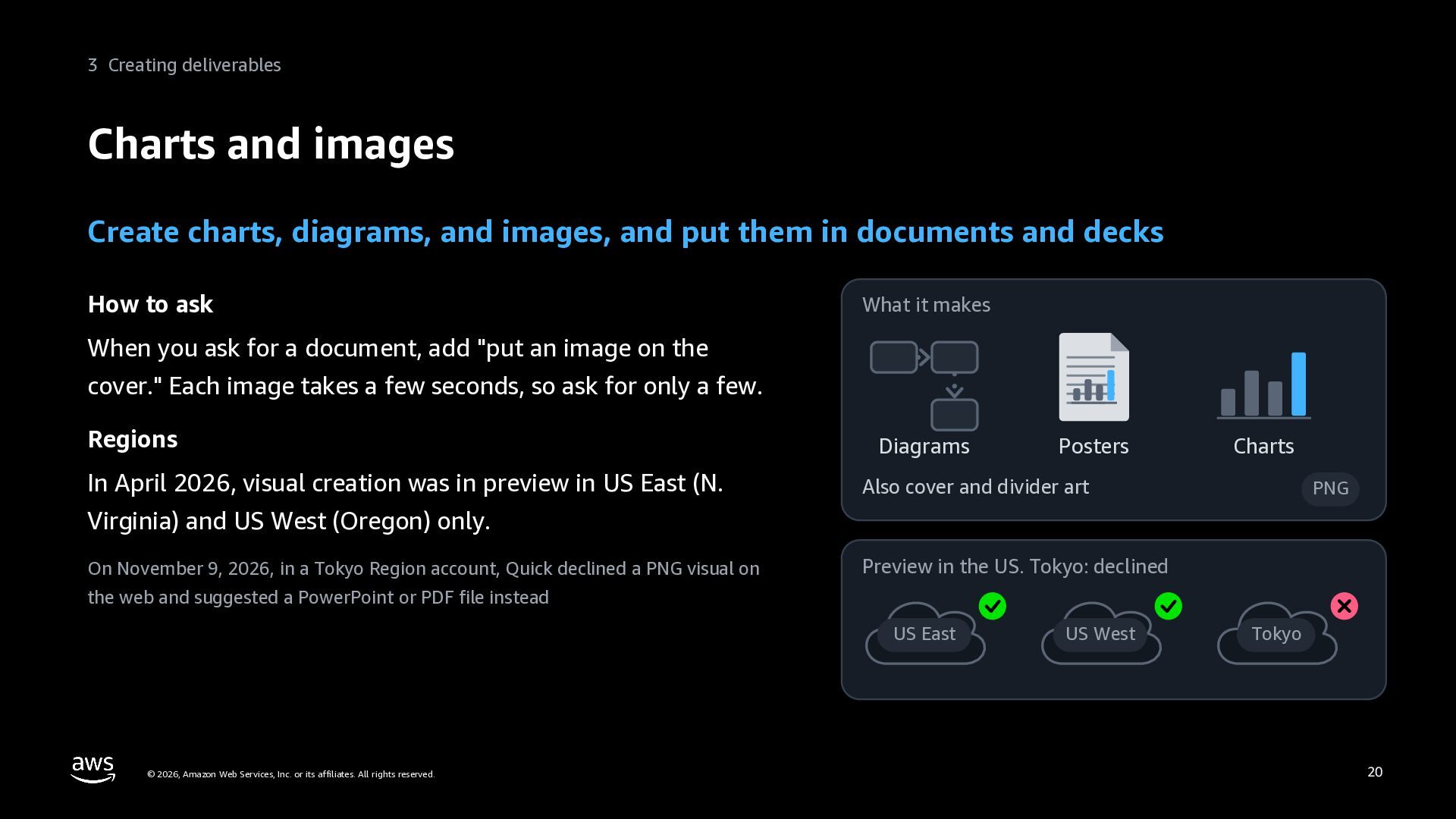
3 Creating deliverables Charts and images Create charts, diagrams, and
images, and put them in documents and decks How to ask What it makes When you ask for a document, add "put an image on the cover." Each image takes a few seconds, so ask for only a few. Regions In April 2026, visual creation was in preview in US East (N. Diagrams Posters Charts Also cover and divider art PNG Virginia) and US West (Oregon) only. On November 9, 2026, in a Tokyo Region account, Quick declined a PNG visual on Preview in the US. Tokyo: declined the web and suggested a PowerPoint or PDF file instead US East © 2026, Amazon Web Services, Inc. or its affiliates. All rights reserved. US West Tokyo 20 -
3 Creating deliverables Revising in chat Ask a follow-up, or
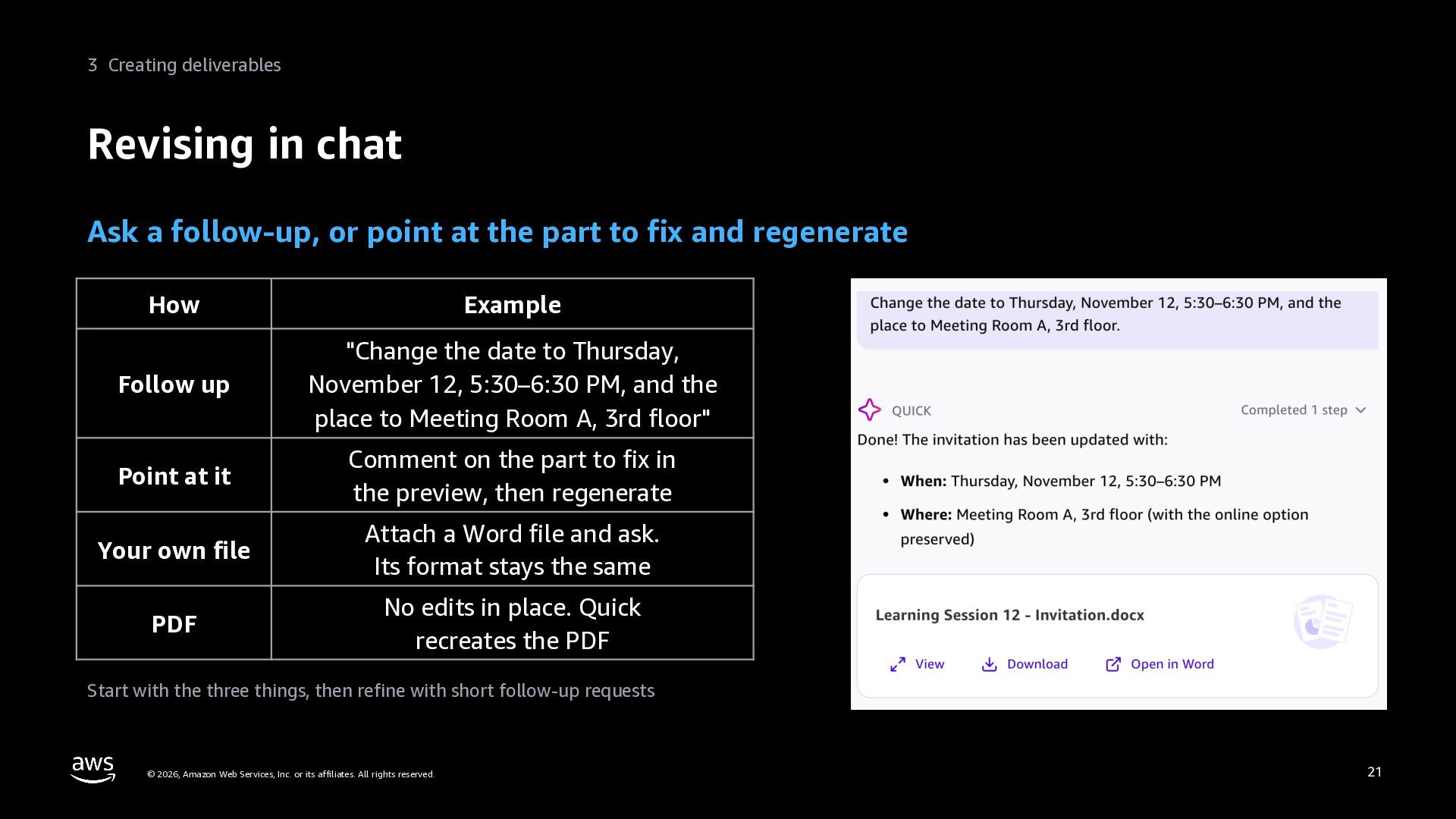
point at the part to fix and regenerate How Example Follow up "Change the date to Thursday, November 12, 5:30–6:30 PM, and the place to Meeting Room A, 3rd floor" Point at it Comment on the part to fix in the preview, then regenerate Your own file Attach a Word file and ask. Its format stays the same PDF No edits in place. Quick recreates the PDF Start with the three things, then refine with short follow-up requests © 2026, Amazon Web Services, Inc. or its affiliates. All rights reserved. 21 -
Summary © 2026, Amazon Web Services, Inc. or its affiliates.
All rights reserved. 22 -
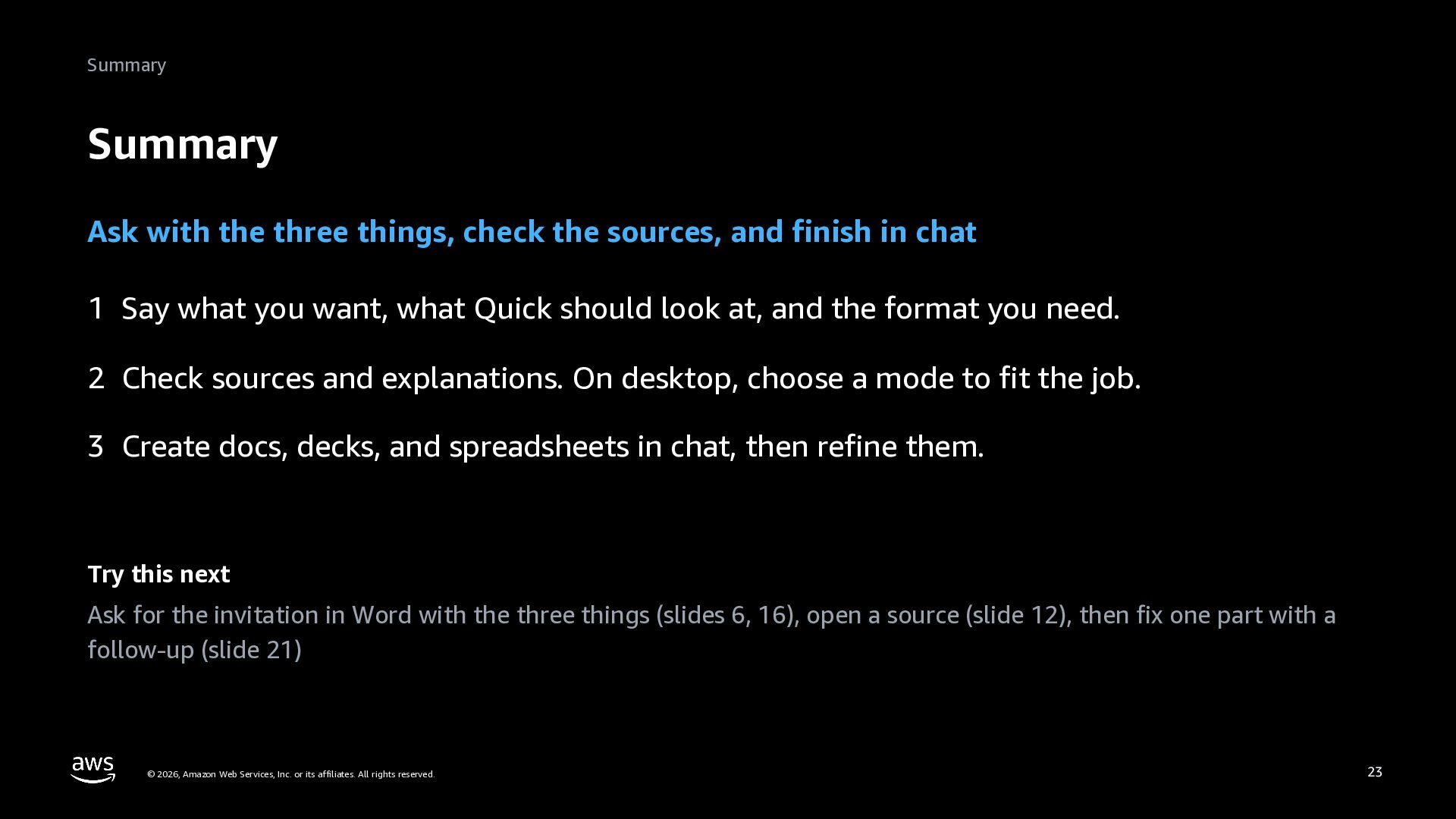
Summary Summary Ask with the three things, check the sources,
and finish in chat 1 Say what you want, what Quick should look at, and the format you need. 2 Check sources and explanations. On desktop, choose a mode to fit the job. 3 Create docs, decks, and spreadsheets in chat, then refine them. Try this next Ask for the invitation in Word with the three things (slides 6, 16), open a source (slide 12), then fix one part with a follow-up (slide 21) © 2026, Amazon Web Services, Inc. or its affiliates. All rights reserved. 23 -
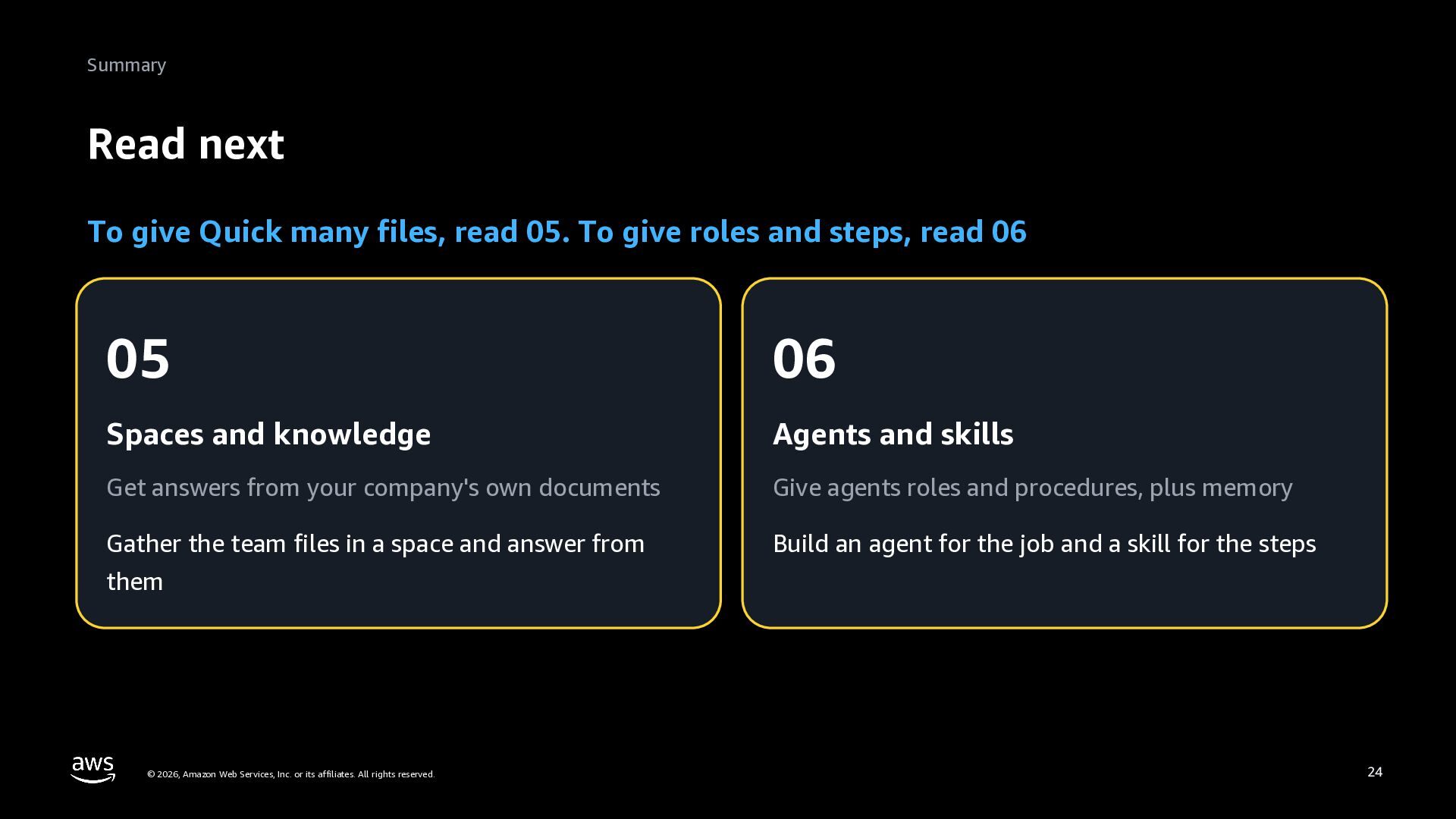
Summary Read next To give Quick many files, read 05.
To give roles and steps, read 06 05 06 Spaces and knowledge Agents and skills Get answers from your company's own documents Give agents roles and procedures, plus memory Gather the team files in a space and answer from Build an agent for the job and a skill for the steps them © 2026, Amazon Web Services, Inc. or its affiliates. All rights reserved. 24 -
Appendix © 2026, Amazon Web Services, Inc. or its affiliates.
All rights reserved. 25 -
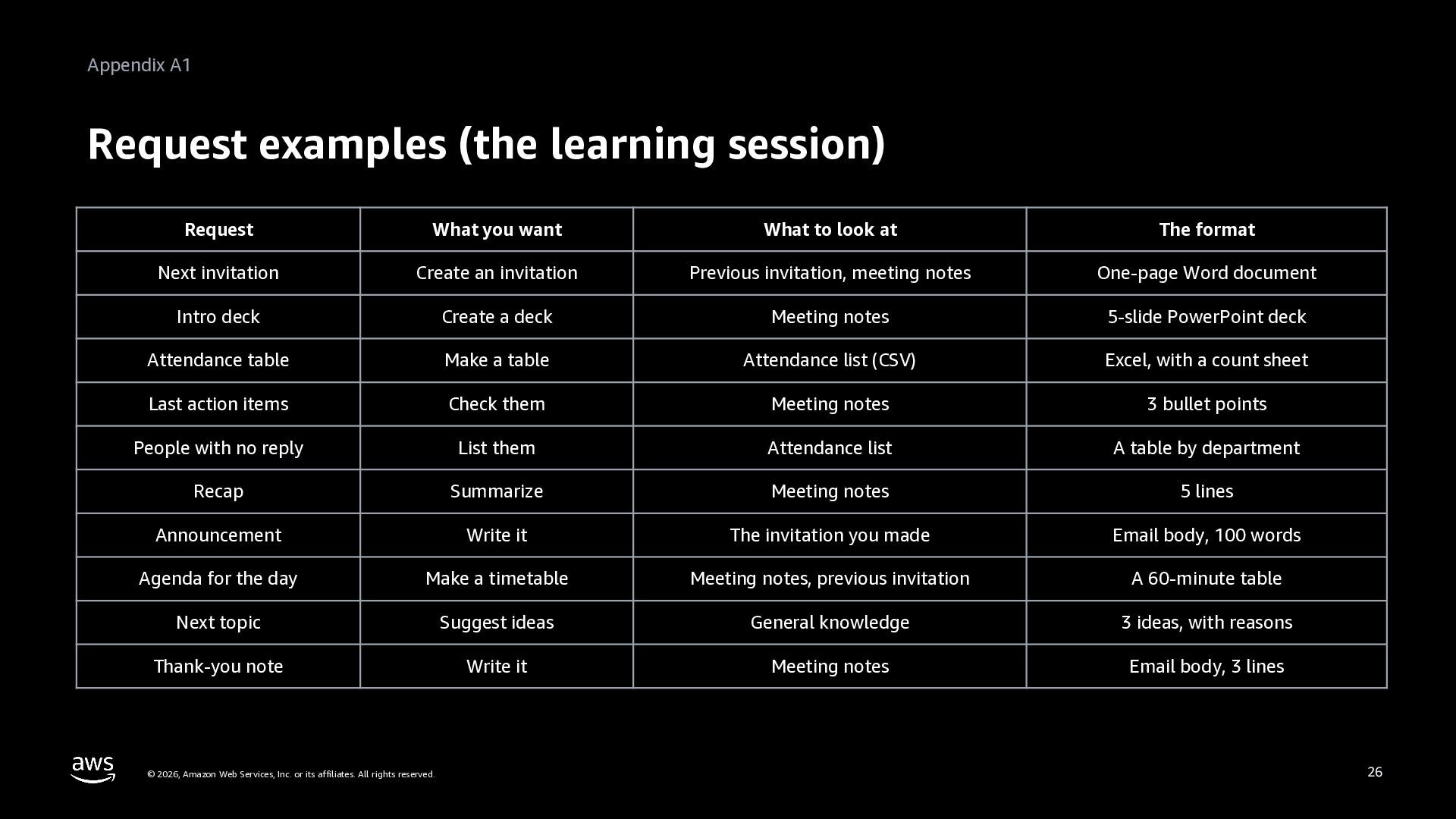
Appendix A1 Request examples (the learning session) Request What you
want What to look at The format Next invitation Create an invitation Previous invitation, meeting notes One-page Word document Intro deck Create a deck Meeting notes 5-slide PowerPoint deck Attendance table Make a table Attendance list (CSV) Excel, with a count sheet Last action items Check them Meeting notes 3 bullet points People with no reply List them Attendance list A table by department Recap Summarize Meeting notes 5 lines Announcement Write it The invitation you made Email body, 100 words Agenda for the day Make a timetable Meeting notes, previous invitation A 60-minute table Next topic Suggest ideas General knowledge 3 ideas, with reasons Thank-you note Write it Meeting notes Email body, 3 lines © 2026, Amazon Web Services, Inc. or its affiliates. All rights reserved. 26 -
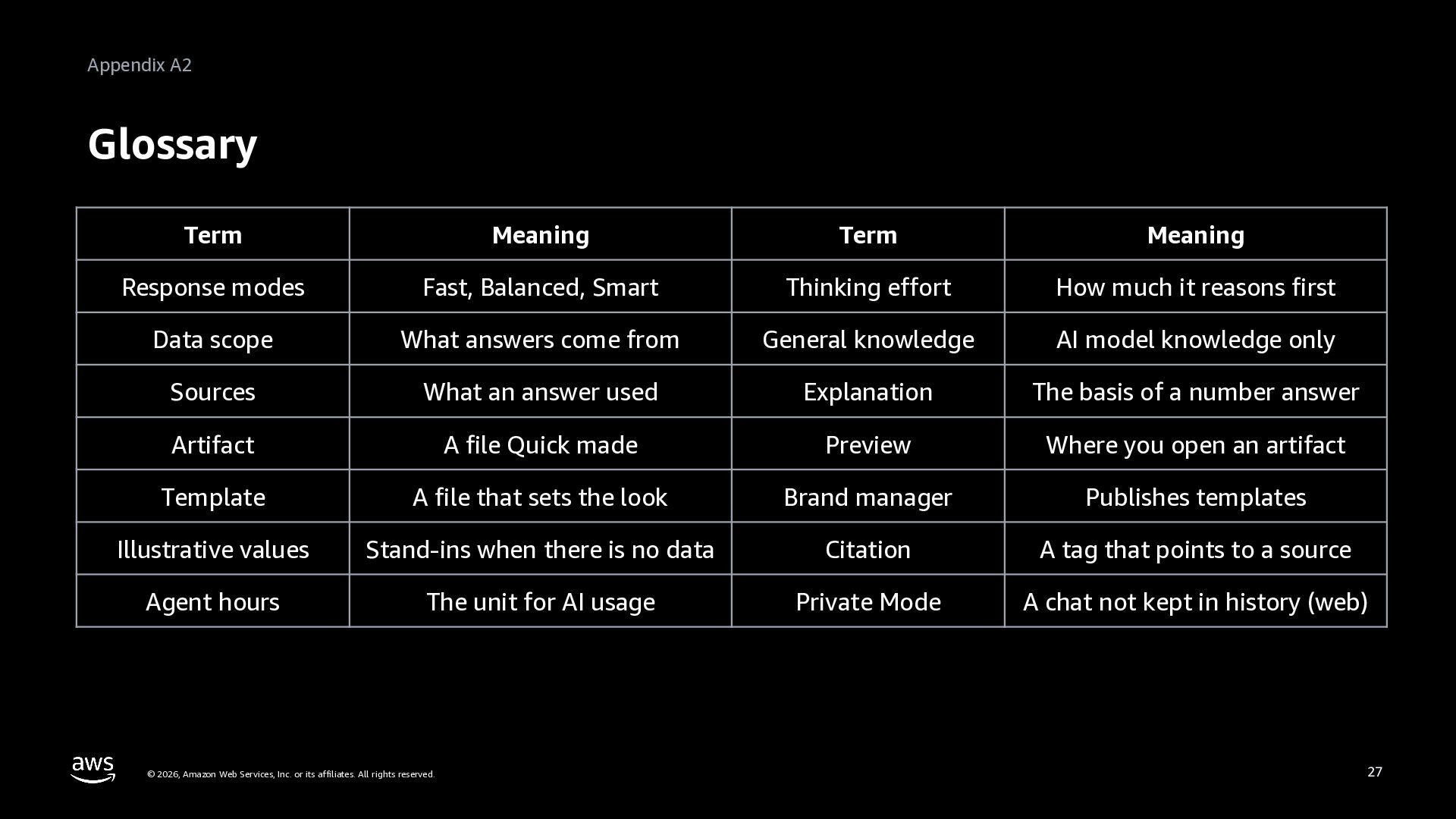
Appendix A2 Glossary Term Meaning Term Meaning Response modes Fast,
Balanced, Smart Thinking effort How much it reasons first Data scope What answers come from General knowledge AI model knowledge only Sources What an answer used Explanation The basis of a number answer Artifact A file Quick made Preview Where you open an artifact Template A file that sets the look Brand manager Publishes templates Illustrative values Stand-ins when there is no data Citation A tag that points to a source Agent hours The unit for AI usage Private Mode A chat not kept in history (web) © 2026, Amazon Web Services, Inc. or its affiliates. All rights reserved. 27 -
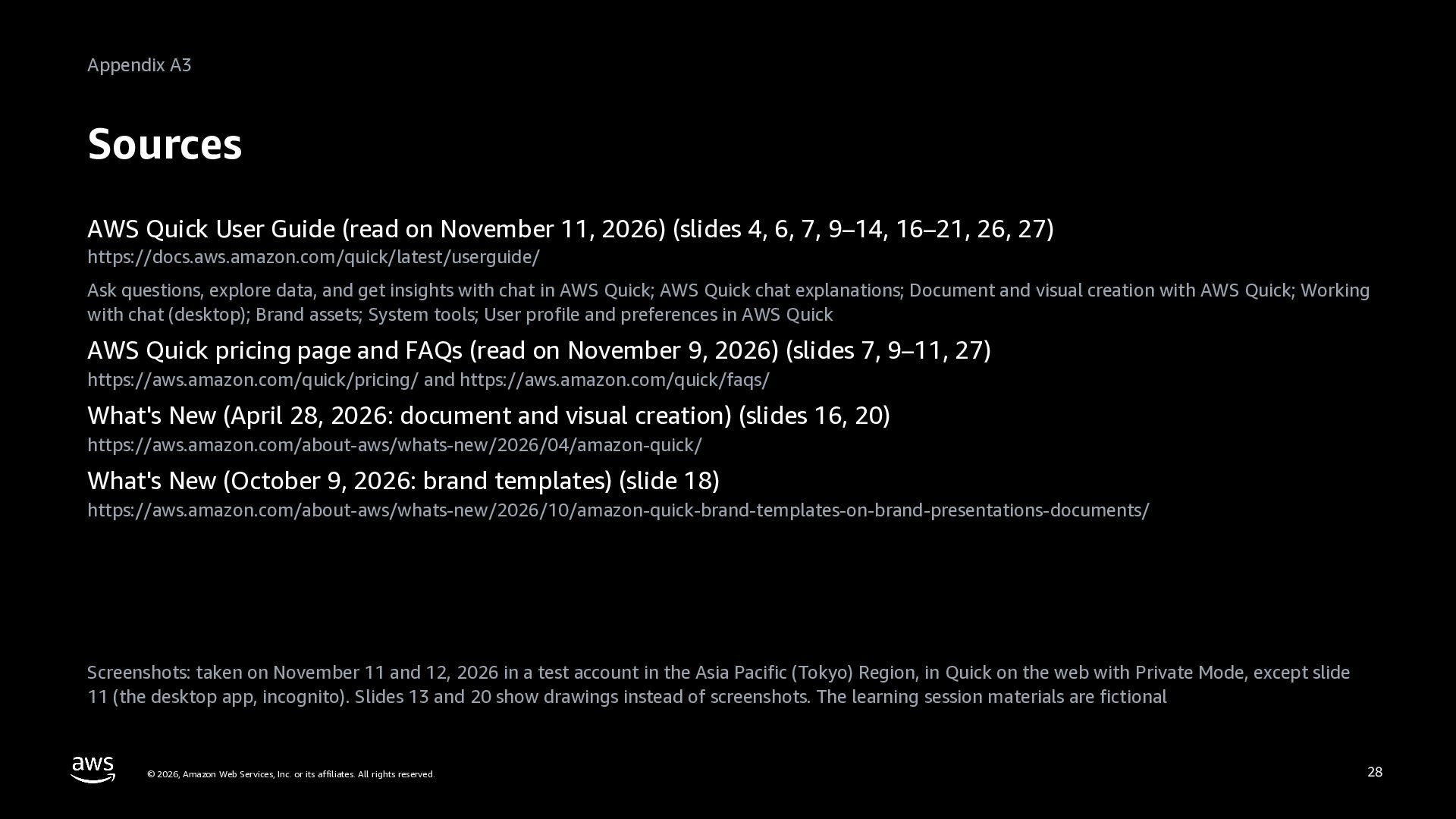
Appendix A3 Sources AWS Quick User Guide (read on November
11, 2026) (slides 4, 6, 7, 9–14, 16–21, 26, 27) https://docs.aws.amazon.com/quick/latest/userguide/ Ask questions, explore data, and get insights with chat in AWS Quick; AWS Quick chat explanations; Document and visual creation with AWS Quick; Working with chat (desktop); Brand assets; System tools; User profile and preferences in AWS Quick AWS Quick pricing page and FAQs (read on November 9, 2026) (slides 7, 9–11, 27) https://aws.amazon.com/quick/pricing/ and https://aws.amazon.com/quick/faqs/ What's New (April 28, 2026: document and visual creation) (slides 16, 20) https://aws.amazon.com/about-aws/whats-new/2026/04/amazon-quick/ What's New (October 9, 2026: brand templates) (slide 18) https://aws.amazon.com/about-aws/whats-new/2026/10/amazon-quick-brand-templates-on-brand-presentations-documents/ Screenshots: taken on November 11 and 12, 2026 in a test account in the Asia Pacific (Tokyo) Region, in Quick on the web with Private Mode, except slide 11 (the desktop app, incognito). Slides 13 and 20 show drawings instead of screenshots. The learning session materials are fictional © 2026, Amazon Web Services, Inc. or its affiliates. All rights reserved. 28