Quick Flows (Turn repeated work into a fixed se...

Sponsored · Ship Features Fearlessly Turn features on and off without deploys. Used by thousands of Ruby developers. →
Riku INADA PRO
November 11, 2026

Quick Flows (Turn repeated work into a fixed set of steps) | AWS Quick: Zero to Hero 10

Level 200. A handout on AWS Quick Flows, for people who use AWS Quick at work and ask it for the same thing again and again. It covers what Quick Flows is (steps you decide once and run any time, and how it differs from routines and Quick Automate); building a flow (describing it in words to get a draft, the five kinds of steps, a flow that turns meeting notes into key points and action items, and fixing a step prompt with @ references); and running and keeping it (Run mode, downloading the answers as PDF or Word or saving them to a space, schedule triggers, versions, sharing and approval review, and the limits). The screenshots show the web app with the English display language. The running example, a monthly internal learning session, is fictional. The appendix has the kinds of steps, a glossary, and sources. Based on public documentation as of November 2026. Deck 10 (Let it run) of the series AWS Quick: Zero to Hero.

Riku INADA PRO

November 11, 2026

Annual Pro sale · Save $30

Have presentations of your own?

Share with private links, password protection, and more control over your work.

Transcript

27 slides
  1. AWS Quick: Zero to Hero Let it run Quick Flows

    Turn repeated work into a fixed set of steps 10 Level 200 / As of November 2026 November 2026 Riku Inada Amazon Web Services Japan © 2026, Amazon Web © 2026, Services, Amazon Inc. or Web its Services, affiliates.Inc. All or rights its affiliates. reserved.All rights reserved. 1
  2. Introduction About me Riku Inada Amazon Web Services Japan G.K.

    Solutions Architect Works mainly with manufacturing customers Recent work Promoting the AI-Driven Development Life Cycle (AI-DLC) Writing and speaking about Kiro and AWS Amplify © 2026, Amazon Web Services, Inc. or its affiliates. All rights reserved. X @inada_riku Speaker Deck speakerdeck.com/inariku Zenn zenn.dev/inariku GitHub github.com/inariku 2
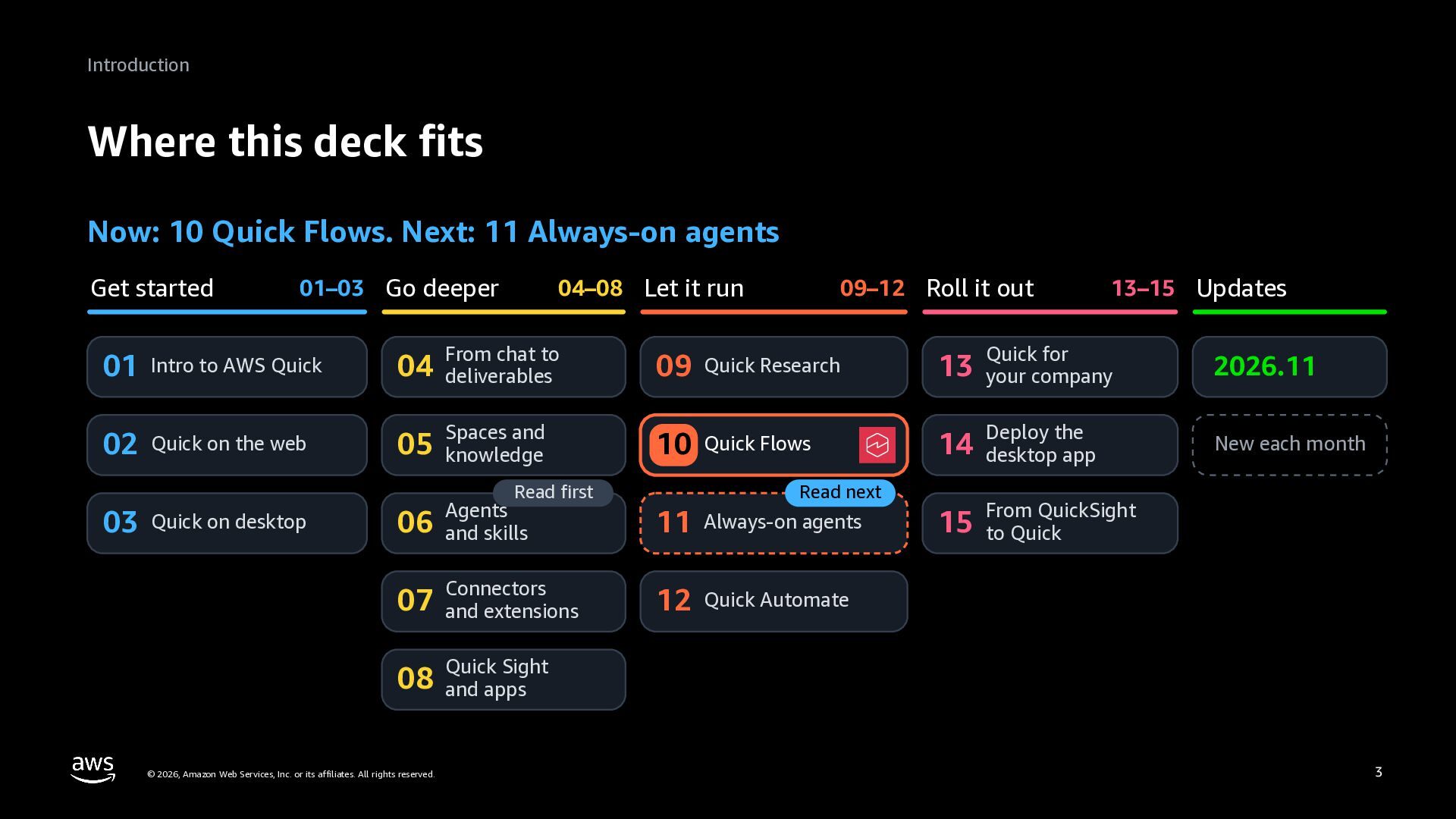
  3. Introduction Where this deck fits Now: 10 Quick Flows. Next:

    11 Always-on agents Get started 01–03 Go deeper 04–08 Let it run 09–12 Roll it out 13–15 Updates From chat to 09 Quick Research 13 your company Spaces and 10 Quick Flows 14 desktop app 01 Intro to AWS Quick 04 deliverables 02 Quick on the web 05 knowledge 03 Quick on desktop 06 Agents and skills 11 Always-on agents 07 Connectors and extensions 12 Quick Automate Read first Read next Quick for Deploy the 2026.11 New each month QuickSight 15 From to Quick Sight 08 Quick and apps © 2026, Amazon Web Services, Inc. or its affiliates. All rights reserved. 3
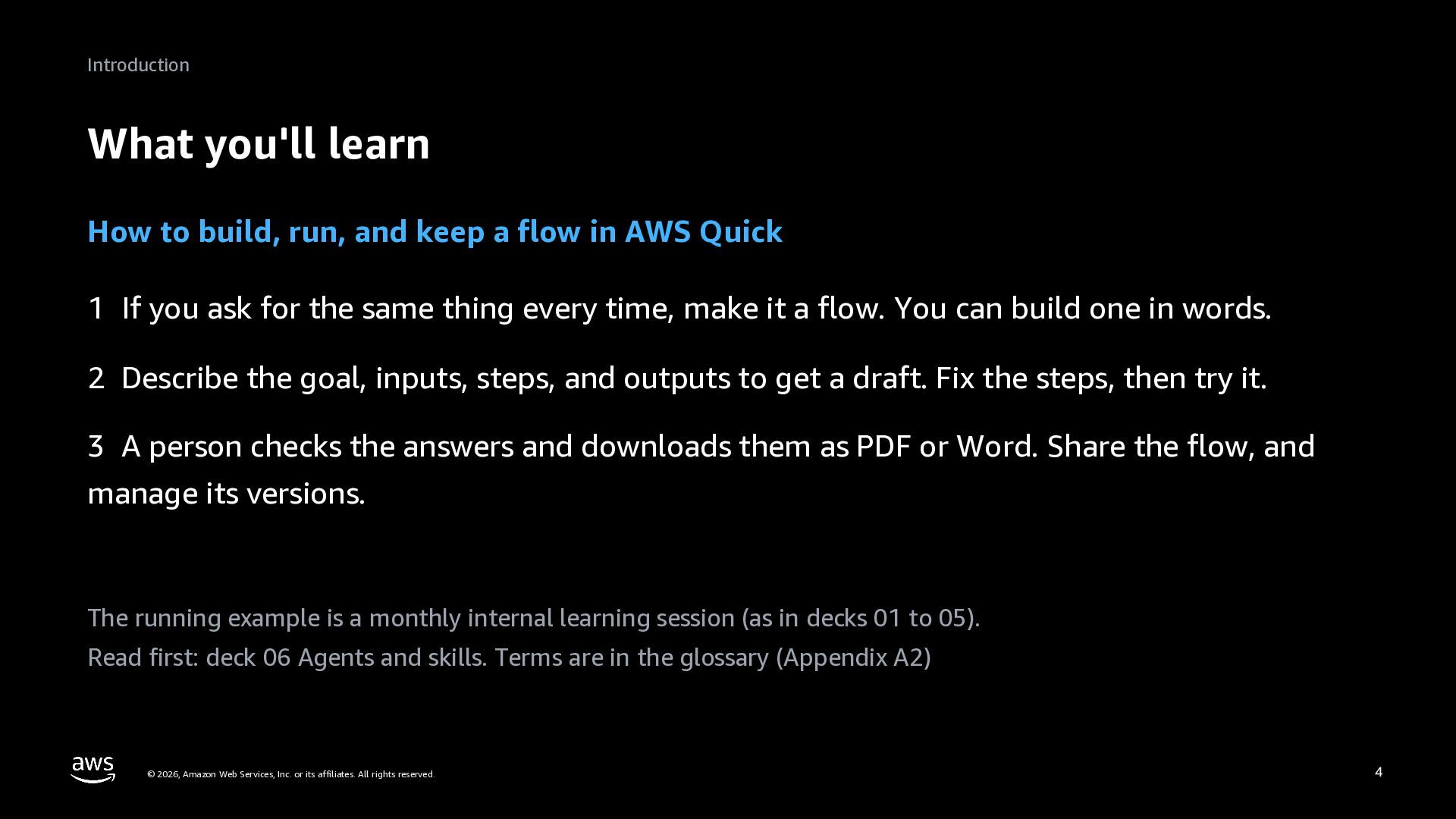
  4. Introduction What you'll learn How to build, run, and keep

    a flow in AWS Quick 1 If you ask for the same thing every time, make it a flow. You can build one in words. 2 Describe the goal, inputs, steps, and outputs to get a draft. Fix the steps, then try it. 3 A person checks the answers and downloads them as PDF or Word. Share the flow, and manage its versions. The running example is a monthly internal learning session (as in decks 01 to 05). Read first: deck 06 Agents and skills. Terms are in the glossary (Appendix A2) © 2026, Amazon Web Services, Inc. or its affiliates. All rights reserved. 4
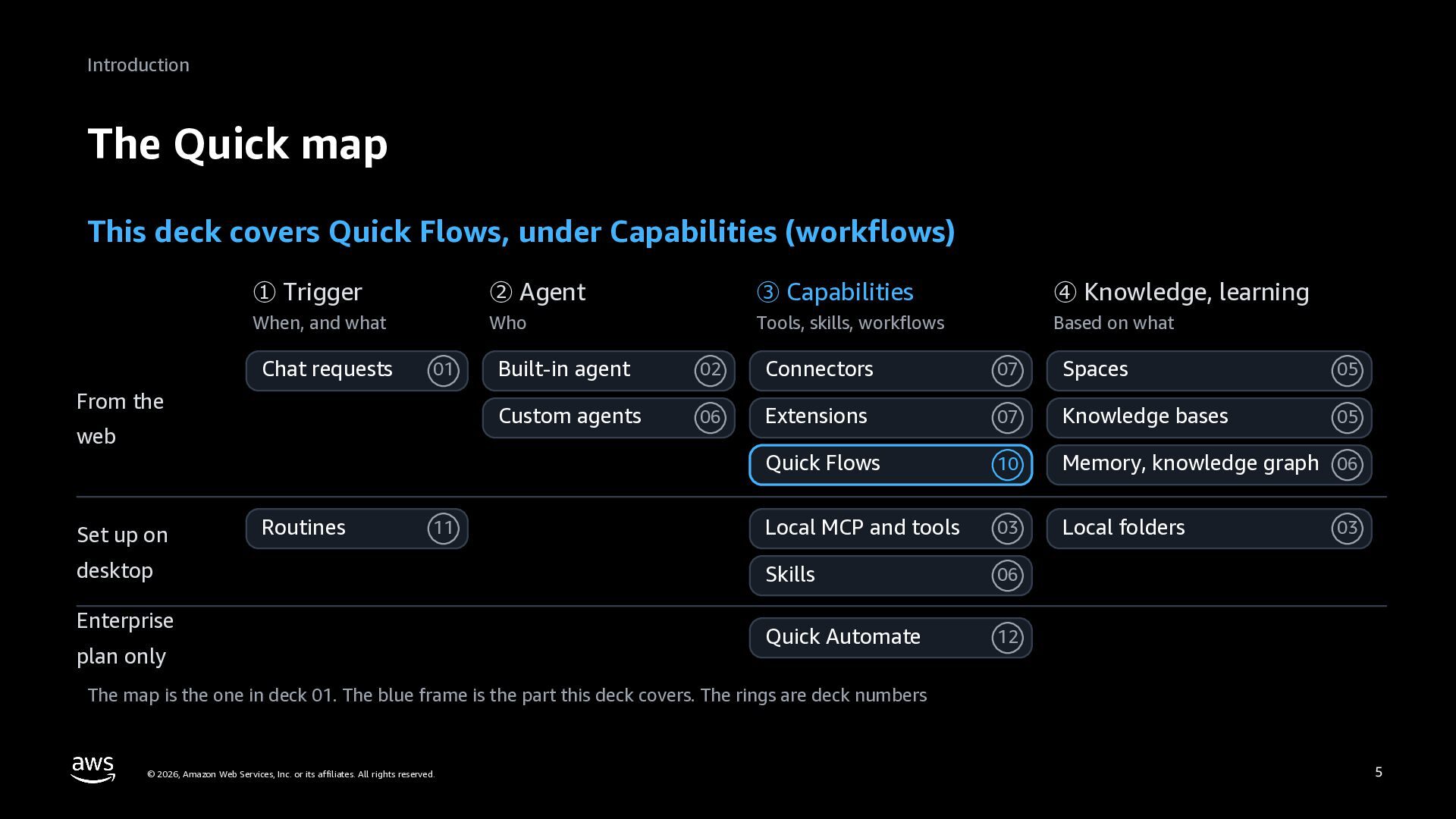
  5. Introduction The Quick map This deck covers Quick Flows, under

    Capabilities (workflows) ① Trigger ② Agent ③ Capabilities ④ Knowledge, learning When, and what Who Tools, skills, workflows Based on what Chat requests 01 From the web Set up on Routines 11 desktop Enterprise plan only Built-in agent 02 Connectors 07 Spaces 05 Custom agents 06 Extensions 07 Knowledge bases 05 Quick Flows 10 Memory, knowledge graph 06 Local MCP and tools 03 Local folders Skills 06 Quick Automate 12 03 The map is the one in deck 01. The blue frame is the part this deck covers. The rings are deck numbers © 2026, Amazon Web Services, Inc. or its affiliates. All rights reserved. 5
  6. 1 What Quick Flows is © 2026, Amazon Web Services,

    Inc. or its affiliates. All rights reserved. 6
  7. 1 What Quick Flows is What Quick Flows is Turn

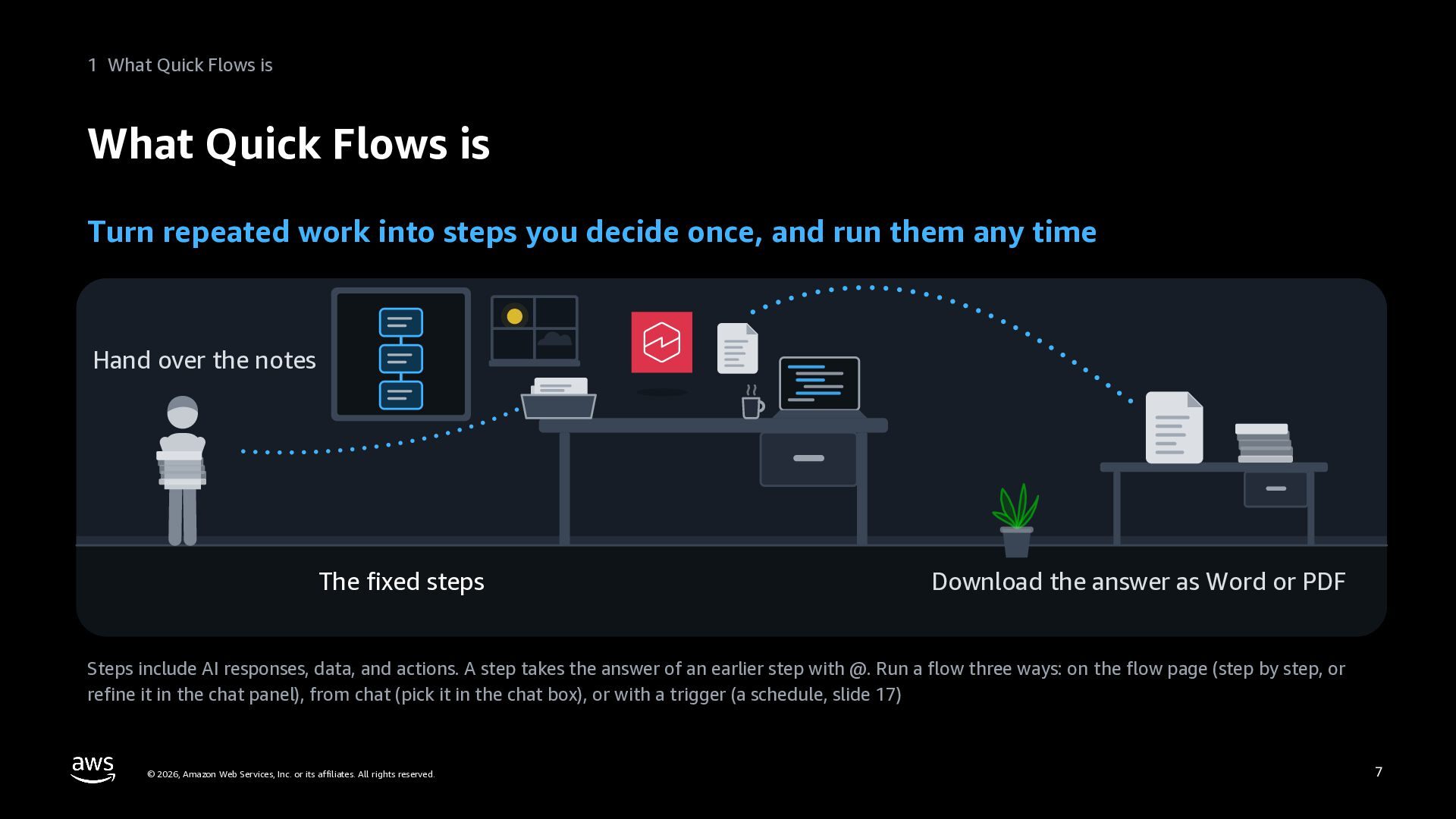
    repeated work into steps you decide once, and run them any time Hand over the notes The fixed steps Download the answer as Word or PDF Steps include AI responses, data, and actions. A step takes the answer of an earlier step with @. Run a flow three ways: on the flow page (step by step, or refine it in the chat panel), from chat (pick it in the chat box), or with a trigger (a schedule, slide 17) © 2026, Amazon Web Services, Inc. or its affiliates. All rights reserved. 7
  8. 1 What Quick Flows is Quick Flows, routines, and Quick

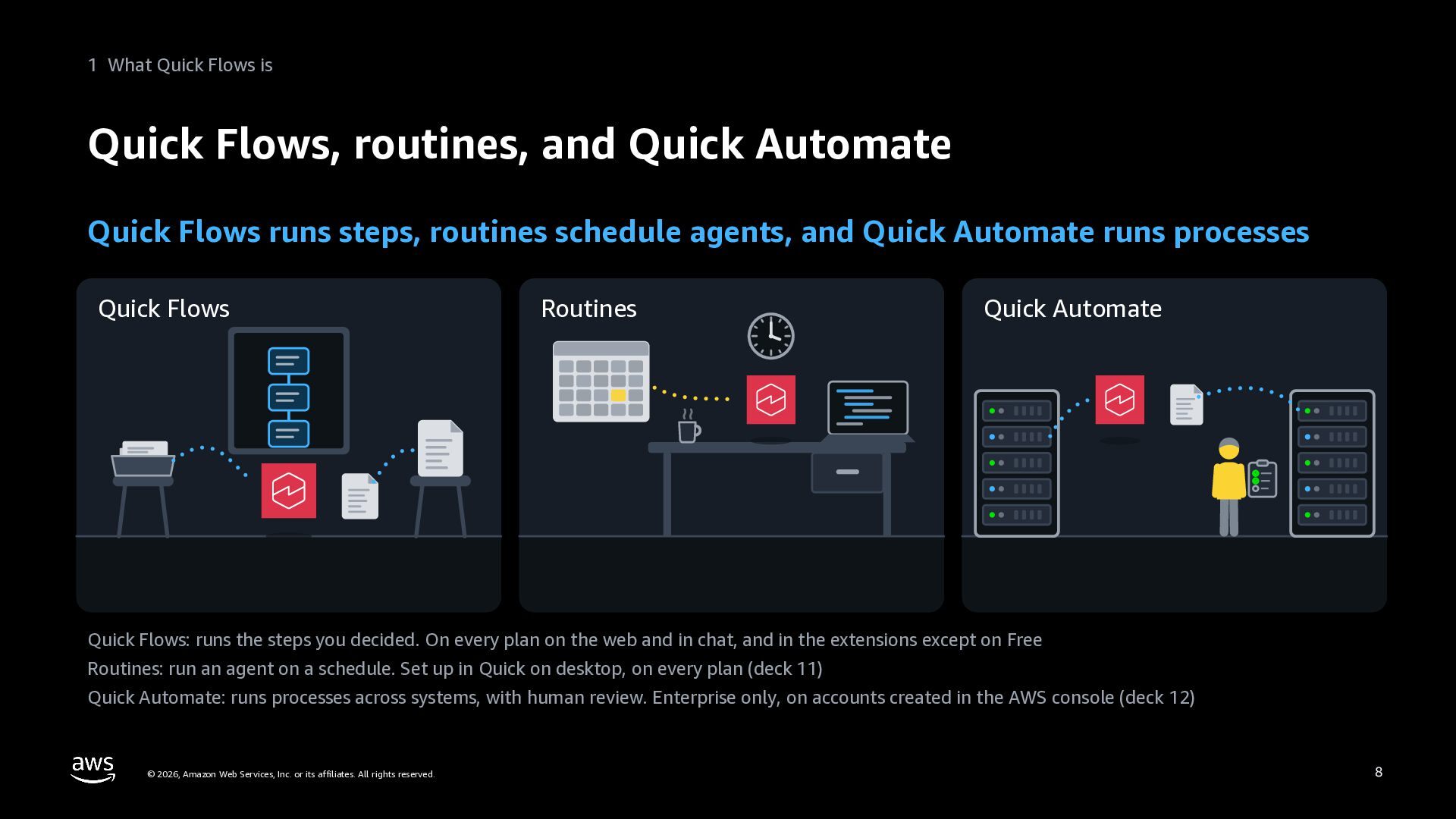
    Automate Quick Flows runs steps, routines schedule agents, and Quick Automate runs processes Quick Flows Routines Quick Automate Quick Flows: runs the steps you decided. On every plan on the web and in chat, and in the extensions except on Free Routines: run an agent on a schedule. Set up in Quick on desktop, on every plan (deck 11) Quick Automate: runs processes across systems, with human review. Enterprise only, on accounts created in the AWS console (deck 12) © 2026, Amazon Web Services, Inc. or its affiliates. All rights reserved. 8
  9. 2 Build a flow © 2026, Amazon Web Services, Inc.

    or its affiliates. All rights reserved. 9
  10. 2 Build a flow Build it in words Describe the

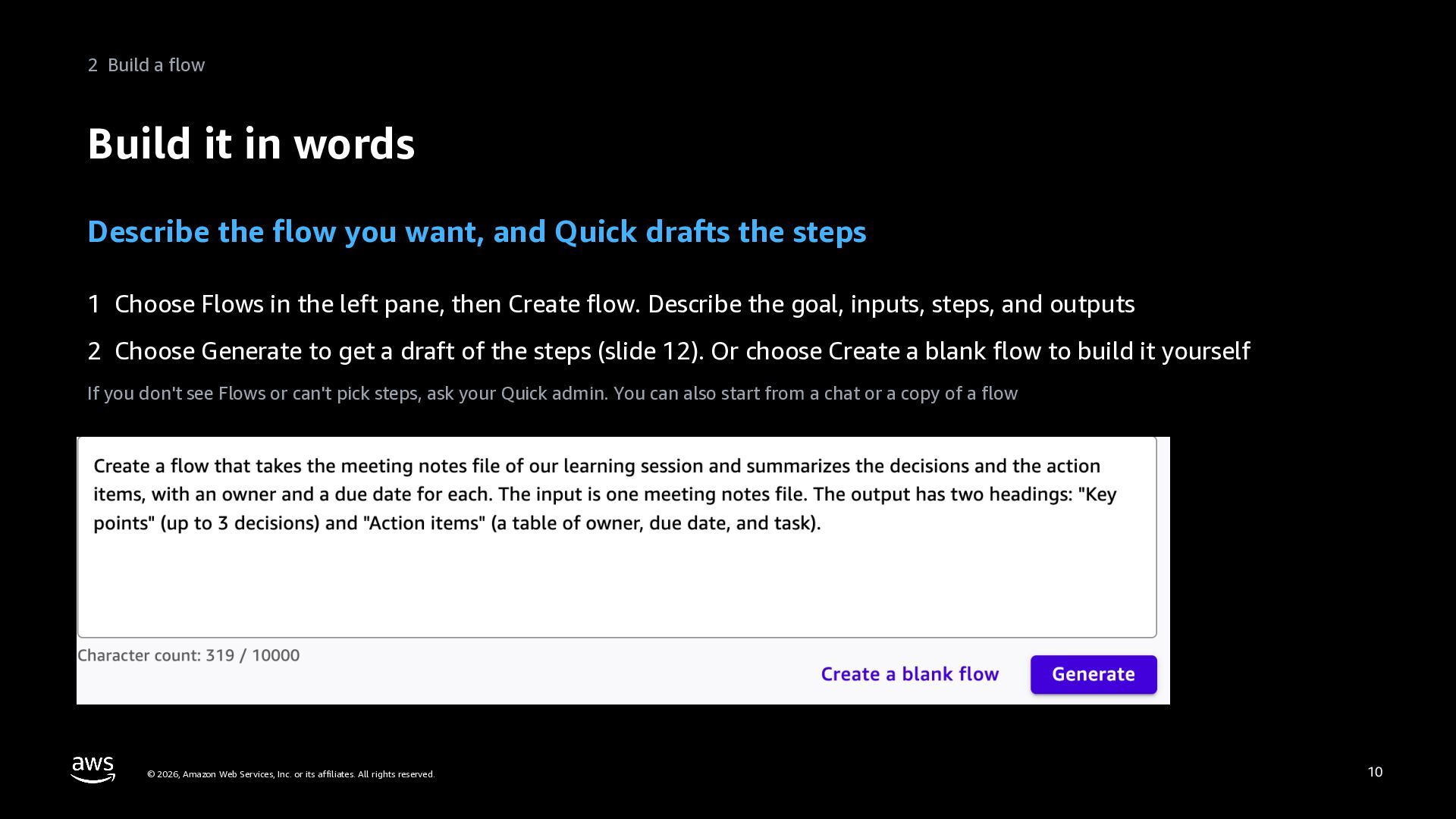
    flow you want, and Quick drafts the steps 1 Choose Flows in the left pane, then Create flow. Describe the goal, inputs, steps, and outputs 2 Choose Generate to get a draft of the steps (slide 12). Or choose Create a blank flow to build it yourself If you don't see Flows or can't pick steps, ask your Quick admin. You can also start from a chat or a copy of a flow © 2026, Amazon Web Services, Inc. or its affiliates. All rights reserved. 10
  11. 2 Build a flow Kinds of steps Pick steps from

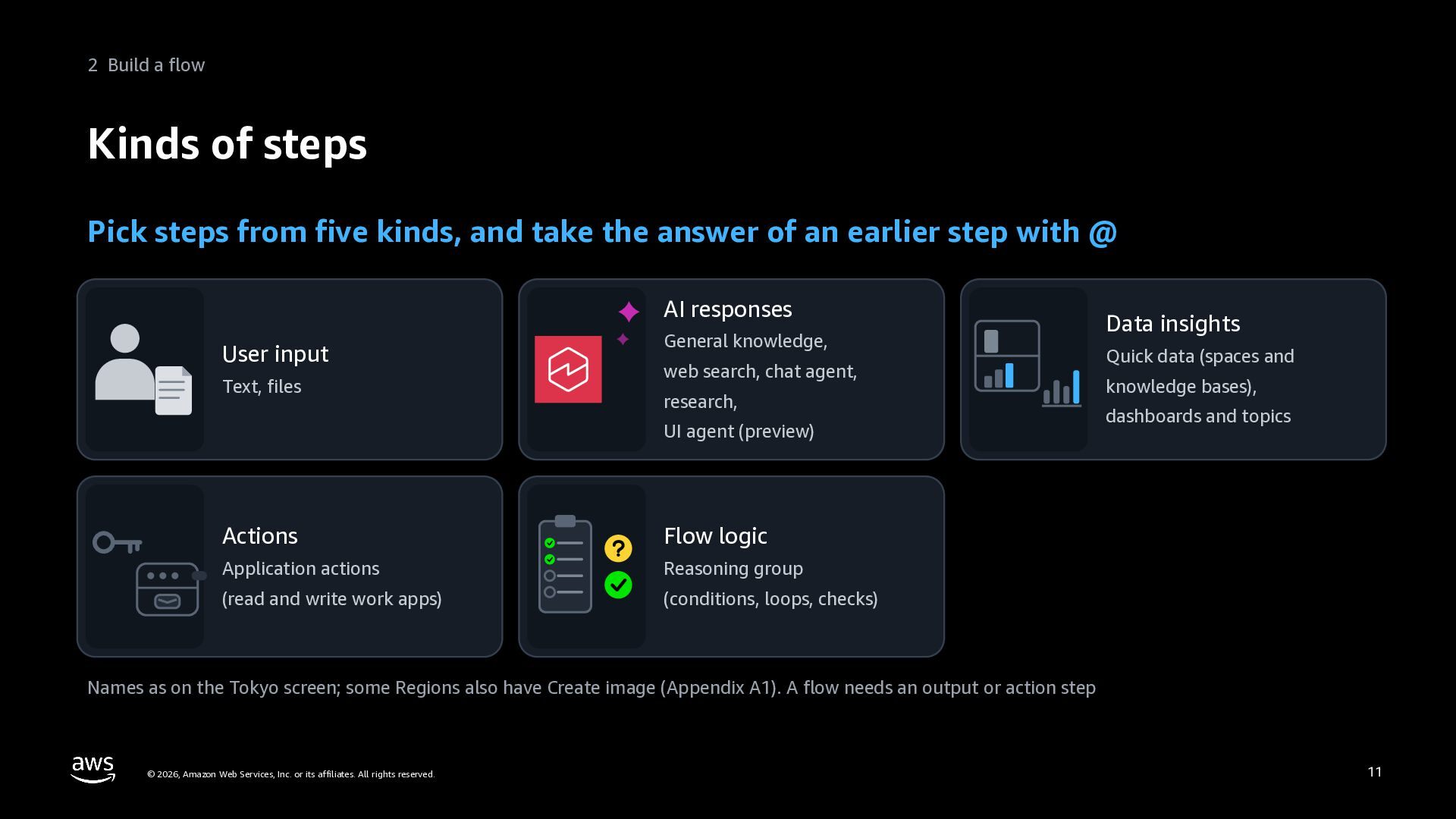
    five kinds, and take the answer of an earlier step with @ AI responses User input Text, files General knowledge, web search, chat agent, research, UI agent (preview) Actions Flow logic Application actions Reasoning group (read and write work apps) (conditions, loops, checks) Data insights Quick data (spaces and knowledge bases), dashboards and topics Names as on the Tokyo screen; some Regions also have Create image (Appendix A1). A flow needs an output or action step © 2026, Amazon Web Services, Inc. or its affiliates. All rights reserved. 11
  12. 2 Build a flow From meeting notes to key points

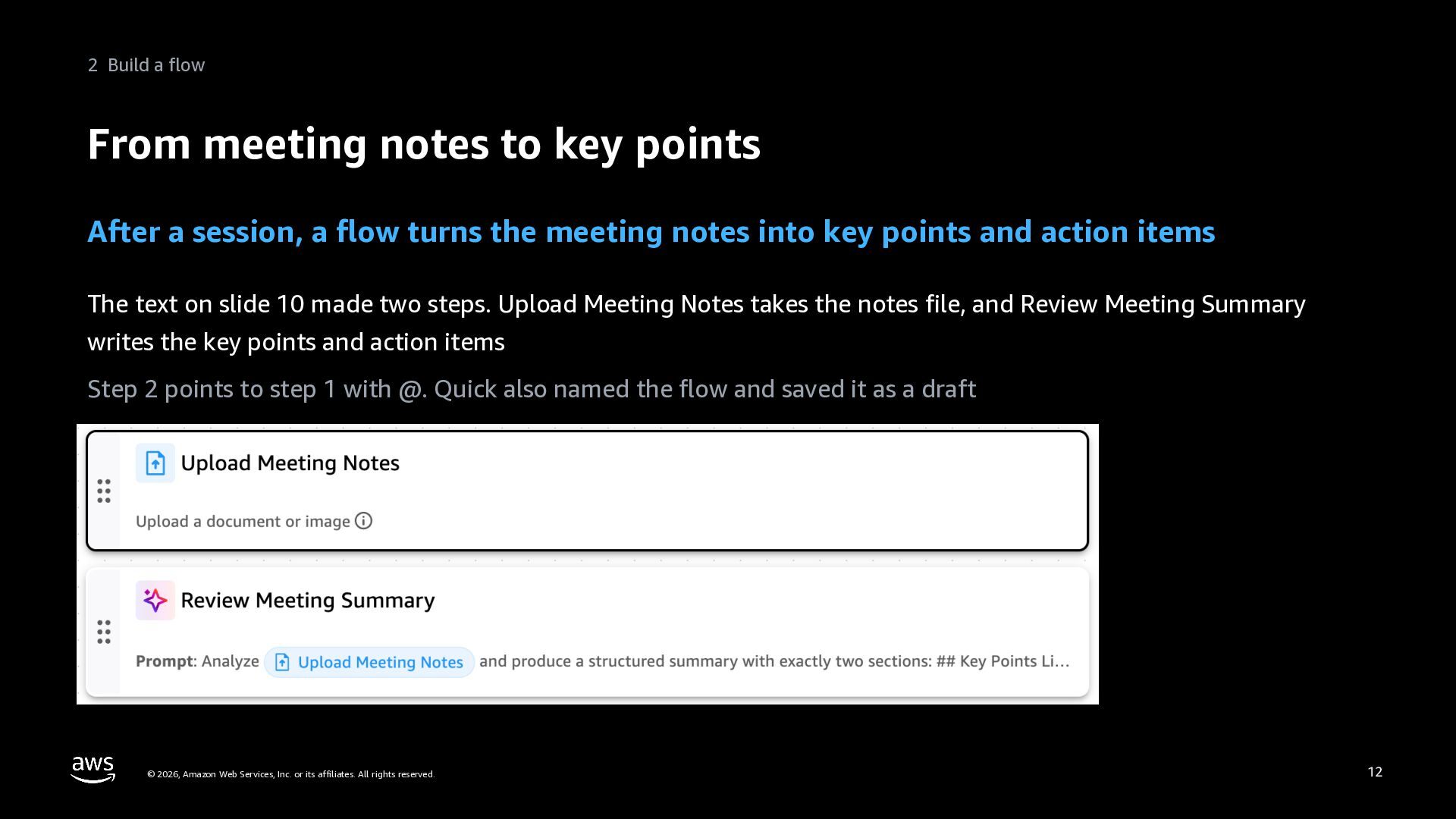
    After a session, a flow turns the meeting notes into key points and action items The text on slide 10 made two steps. Upload Meeting Notes takes the notes file, and Review Meeting Summary writes the key points and action items Step 2 points to step 1 with @. Quick also named the flow and saved it as a draft © 2026, Amazon Web Services, Inc. or its affiliates. All rights reserved. 12
  13. 2 Build a flow Fix a step Pick a step

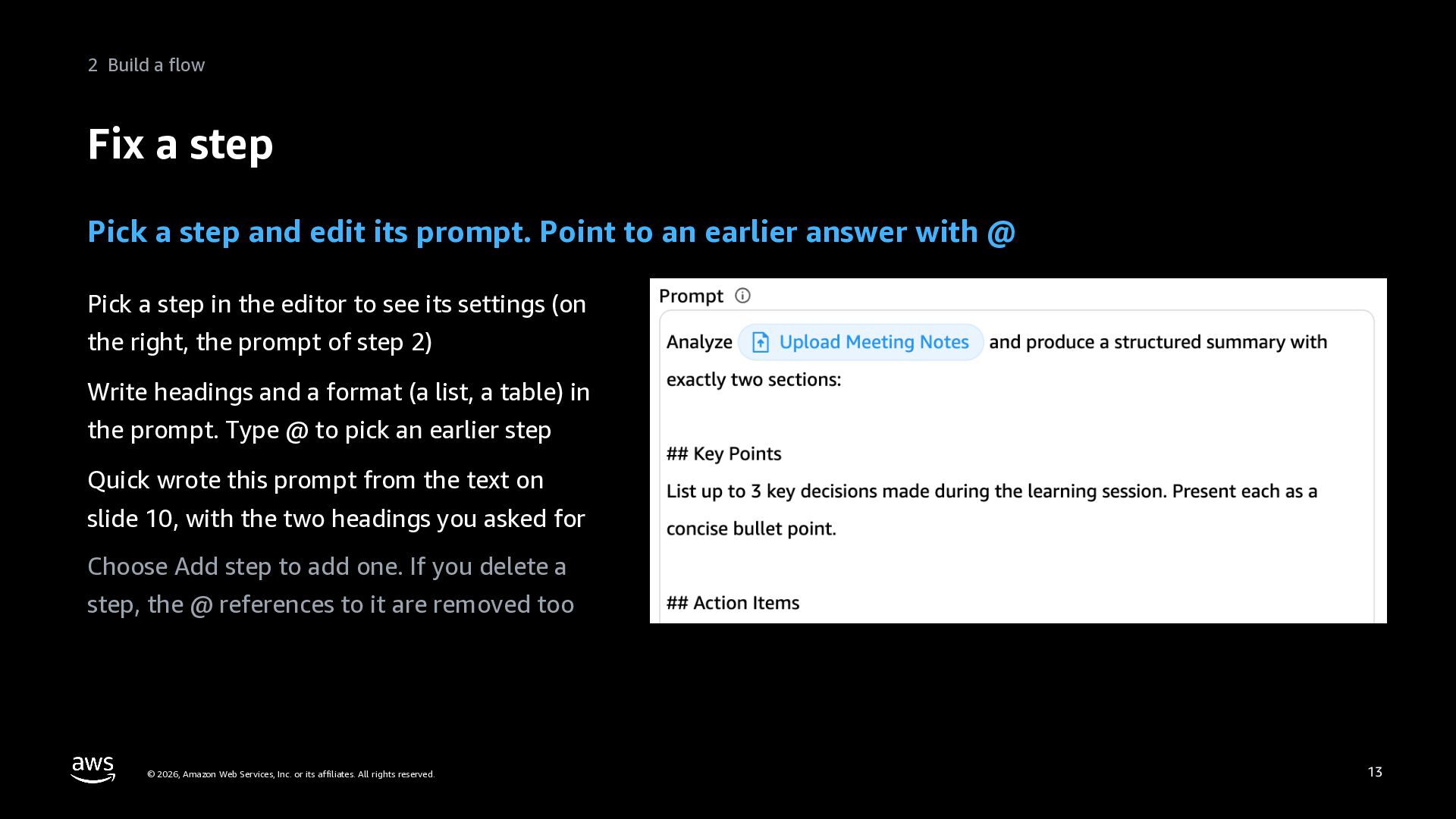
    and edit its prompt. Point to an earlier answer with @ Pick a step in the editor to see its settings (on the right, the prompt of step 2) Write headings and a format (a list, a table) in the prompt. Type @ to pick an earlier step Quick wrote this prompt from the text on slide 10, with the two headings you asked for Choose Add step to add one. If you delete a step, the @ references to it are removed too © 2026, Amazon Web Services, Inc. or its affiliates. All rights reserved. 13
  14. 3 Run and keep it © 2026, Amazon Web Services,

    Inc. or its affiliates. All rights reserved. 14
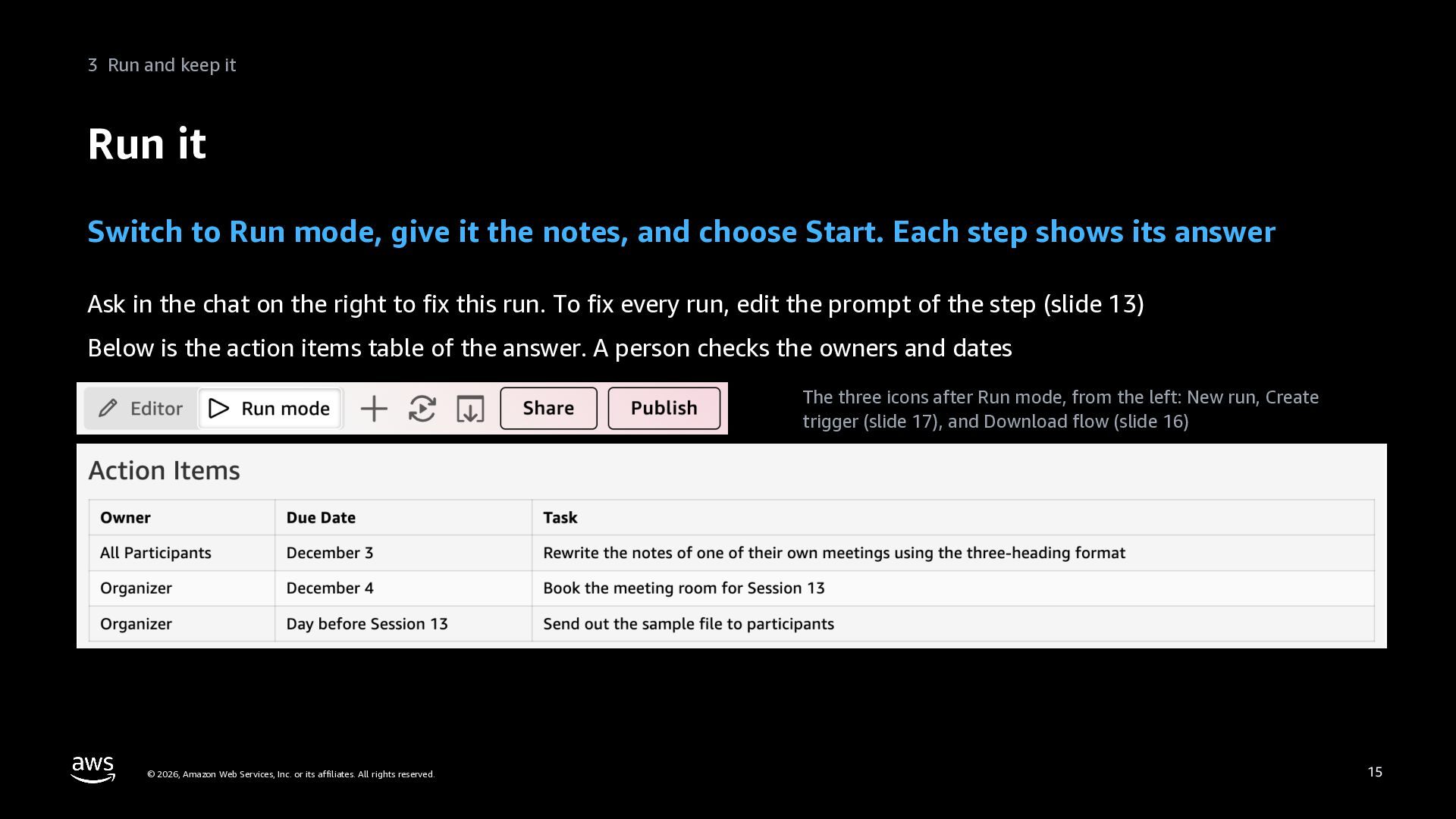
  15. 3 Run and keep it Run it Switch to Run

    mode, give it the notes, and choose Start. Each step shows its answer Ask in the chat on the right to fix this run. To fix every run, edit the prompt of the step (slide 13) Below is the action items table of the answer. A person checks the owners and dates The three icons after Run mode, from the left: New run, Create trigger (slide 17), and Download flow (slide 16) © 2026, Amazon Web Services, Inc. or its affiliates. All rights reserved. 15
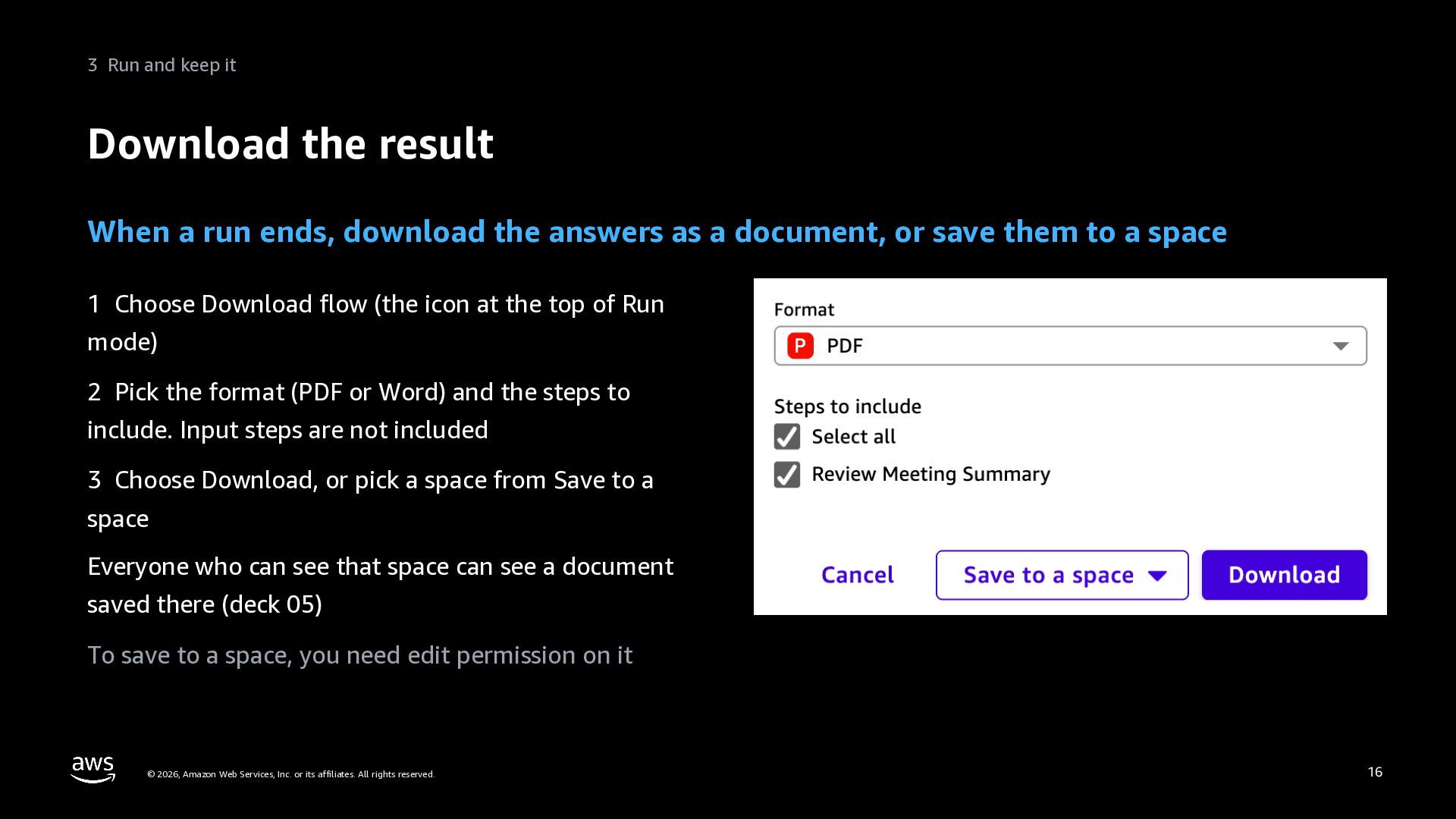
  16. 3 Run and keep it Download the result When a

    run ends, download the answers as a document, or save them to a space 1 Choose Download flow (the icon at the top of Run mode) 2 Pick the format (PDF or Word) and the steps to include. Input steps are not included 3 Choose Download, or pick a space from Save to a space Everyone who can see that space can see a document saved there (deck 05) To save to a space, you need edit permission on it © 2026, Amazon Web Services, Inc. or its affiliates. All rights reserved. 16
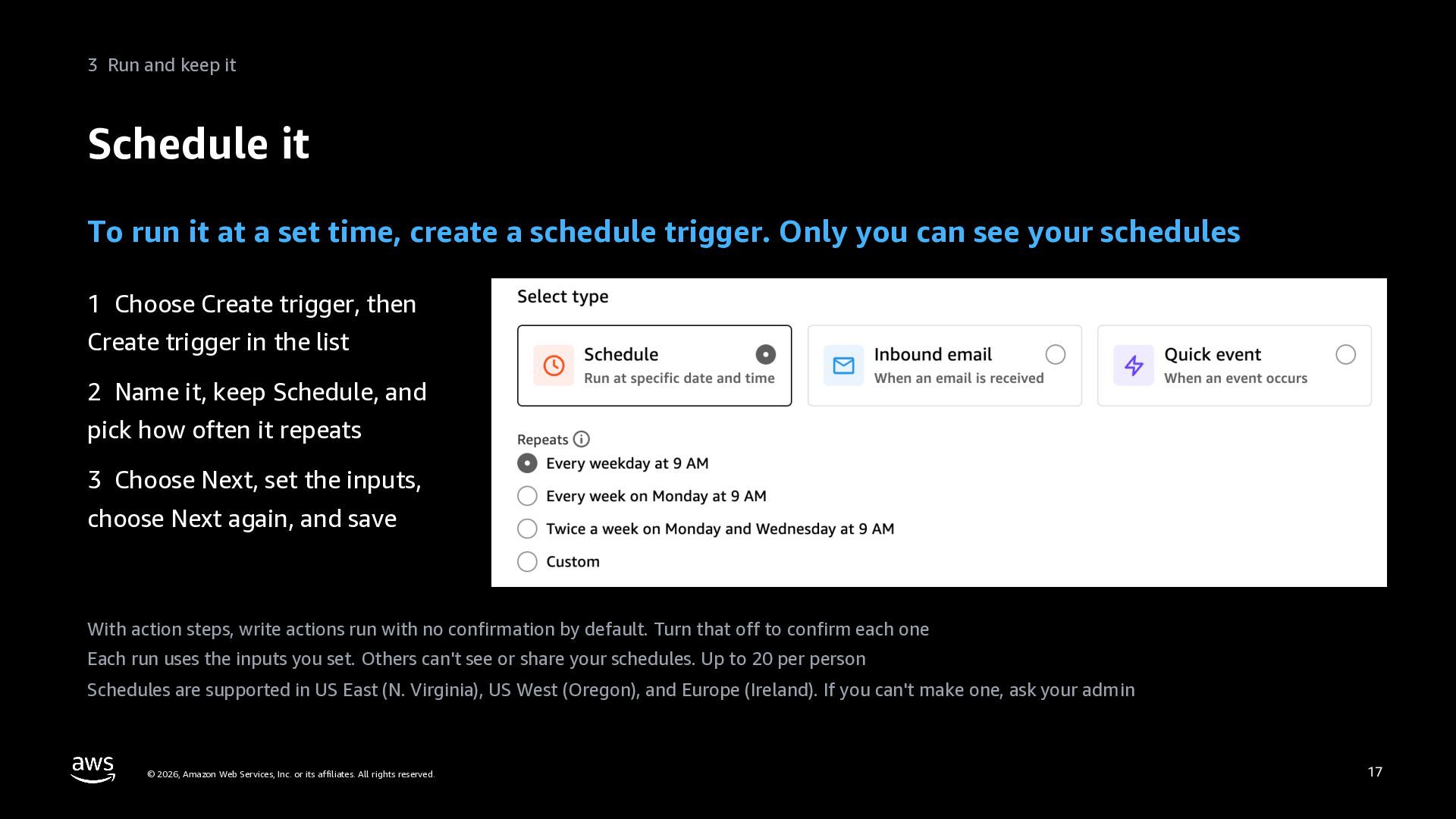
  17. 3 Run and keep it Schedule it To run it

    at a set time, create a schedule trigger. Only you can see your schedules 1 Choose Create trigger, then Create trigger in the list 2 Name it, keep Schedule, and pick how often it repeats 3 Choose Next, set the inputs, choose Next again, and save With action steps, write actions run with no confirmation by default. Turn that off to confirm each one Each run uses the inputs you set. Others can't see or share your schedules. Up to 20 per person Schedules are supported in US East (N. Virginia), US West (Oregon), and Europe (Ireland). If you can't make one, ask your admin © 2026, Amazon Web Services, Inc. or its affiliates. All rights reserved. 17
  18. 3 Run and keep it Versions You edit the draft.

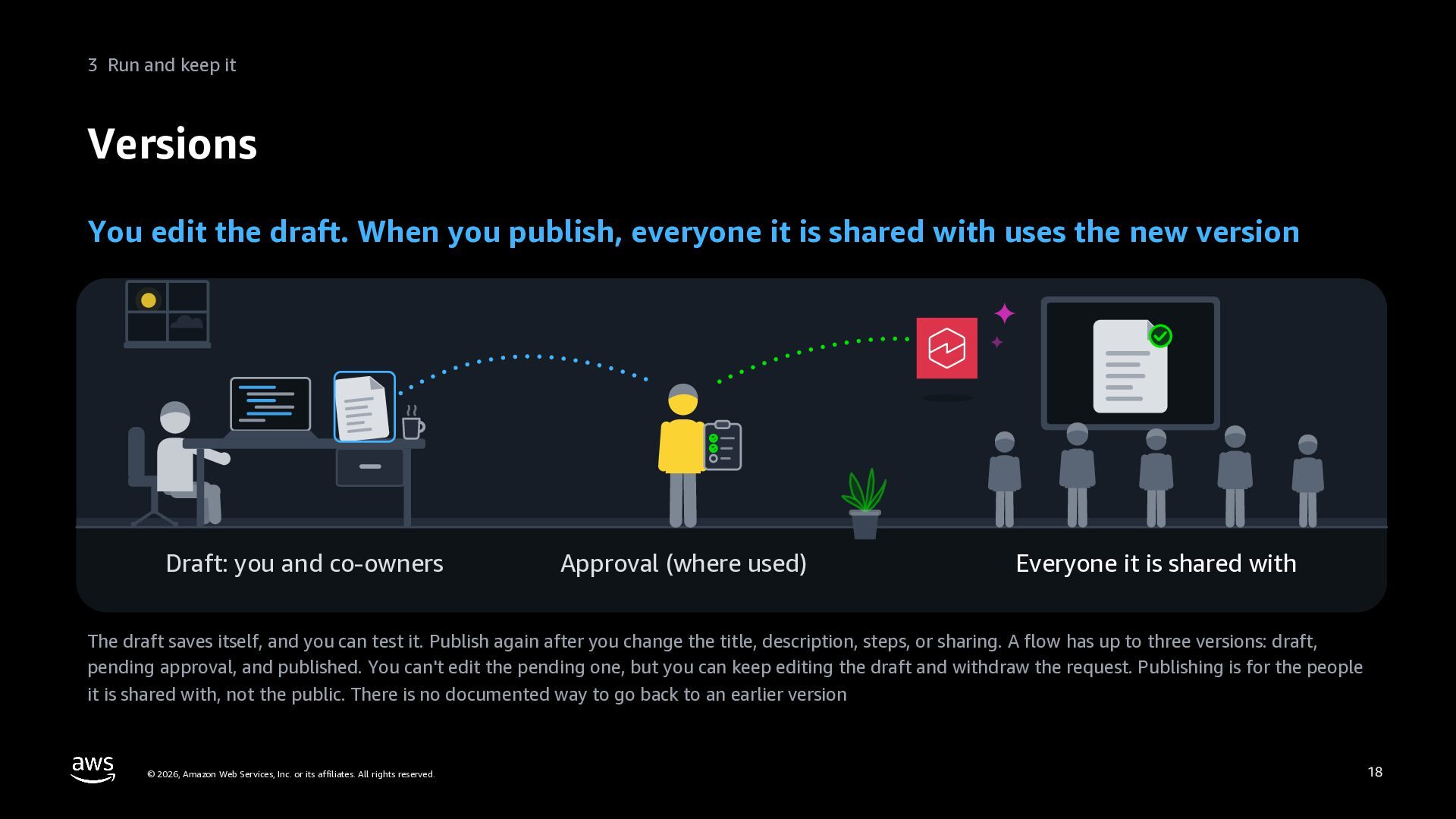
    When you publish, everyone it is shared with uses the new version Draft: you and co-owners Approval (where used) Everyone it is shared with The draft saves itself, and you can test it. Publish again after you change the title, description, steps, or sharing. A flow has up to three versions: draft, pending approval, and published. You can't edit the pending one, but you can keep editing the draft and withdraw the request. Publishing is for the people it is shared with, not the public. There is no documented way to go back to an earlier version © 2026, Amazon Web Services, Inc. or its affiliates. All rights reserved. 18
  19. 3 Run and keep it Sharing and approval review Viewers

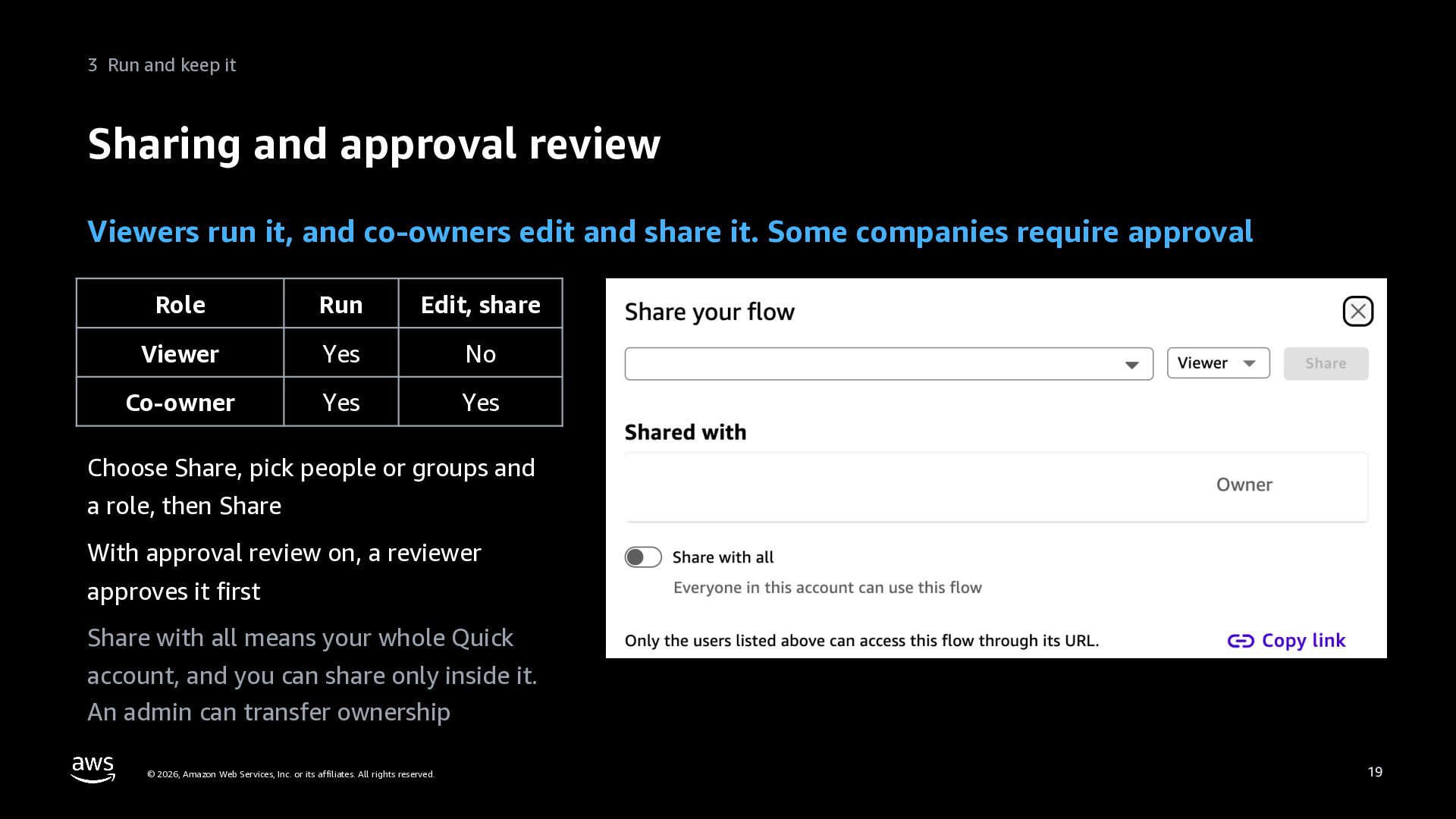
    run it, and co-owners edit and share it. Some companies require approval Role Run Edit, share Viewer Yes No Co-owner Yes Yes Choose Share, pick people or groups and a role, then Share With approval review on, a reviewer approves it first Share with all means your whole Quick account, and you can share only inside it. An admin can transfer ownership © 2026, Amazon Web Services, Inc. or its affiliates. All rights reserved. 19
  20. 3 Run and keep it Limits There are limits on

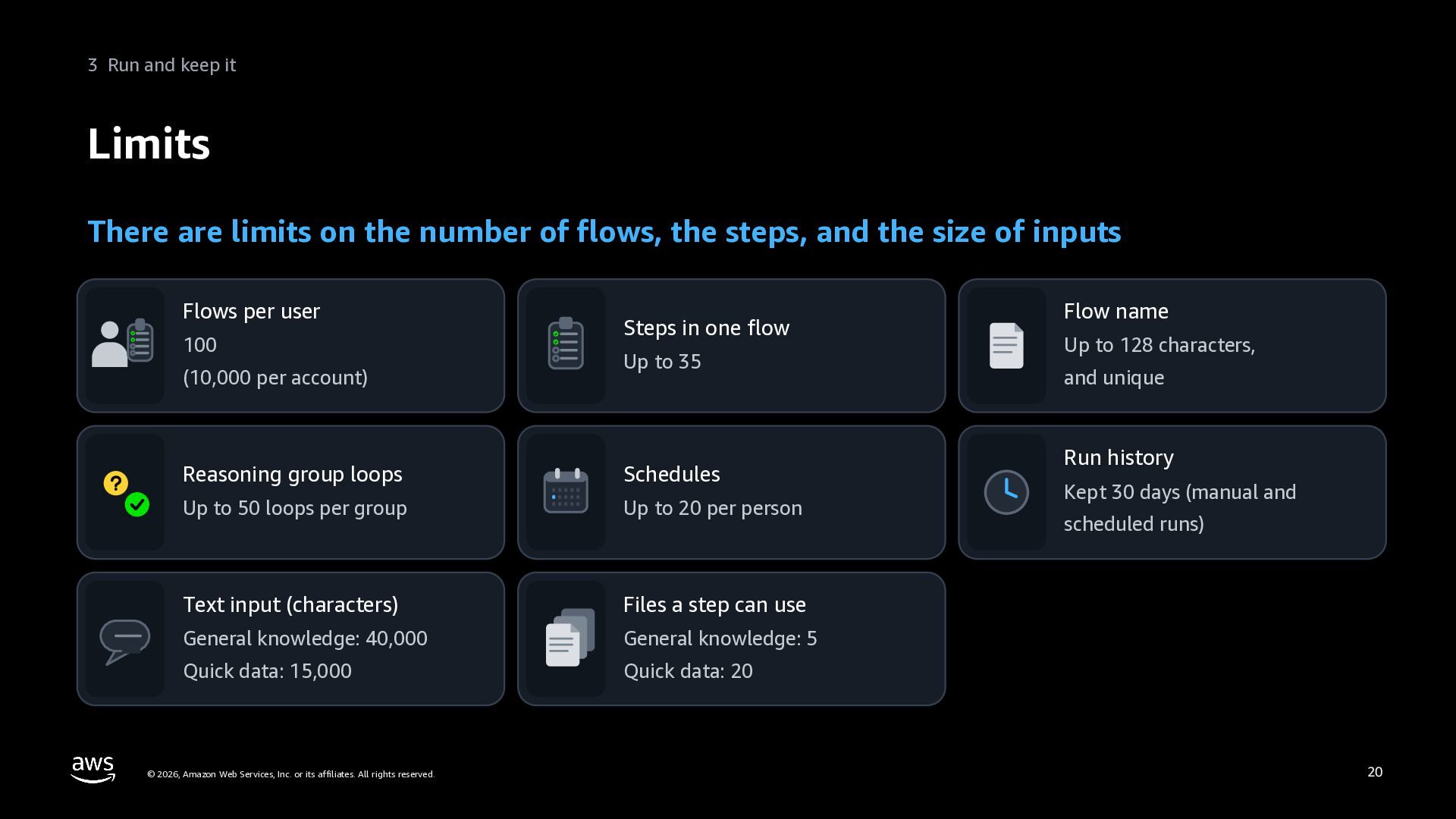
    the number of flows, the steps, and the size of inputs Flows per user 100 (10,000 per account) Steps in one flow Up to 35 Reasoning group loops Schedules Up to 50 loops per group Up to 20 per person Text input (characters) Files a step can use General knowledge: 40,000 General knowledge: 5 Quick data: 15,000 Quick data: 20 © 2026, Amazon Web Services, Inc. or its affiliates. All rights reserved. Flow name Up to 128 characters, and unique Run history Kept 30 days (manual and scheduled runs) 20
  21. Summary Summary Make repeated requests a flow, then run it,

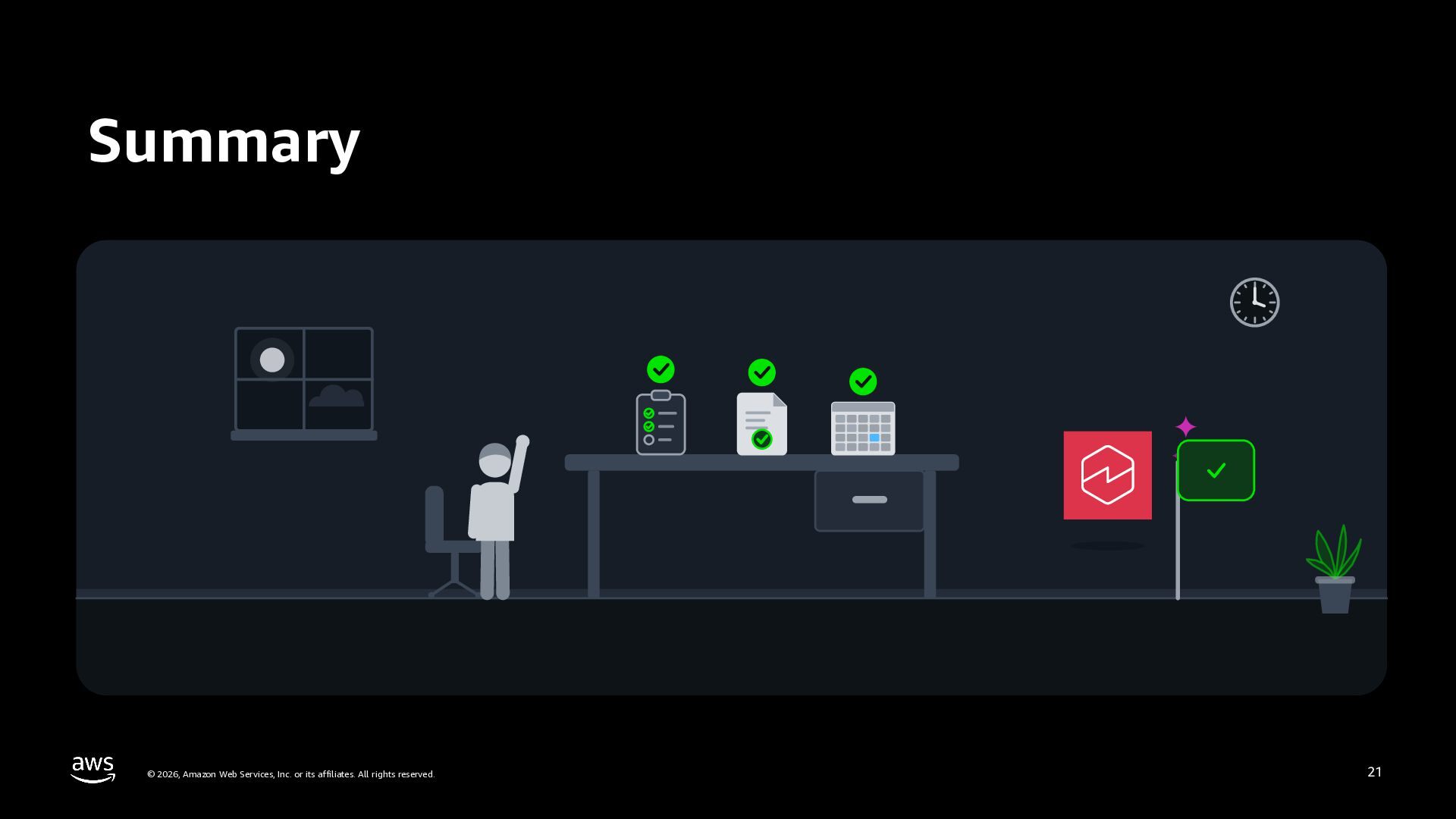
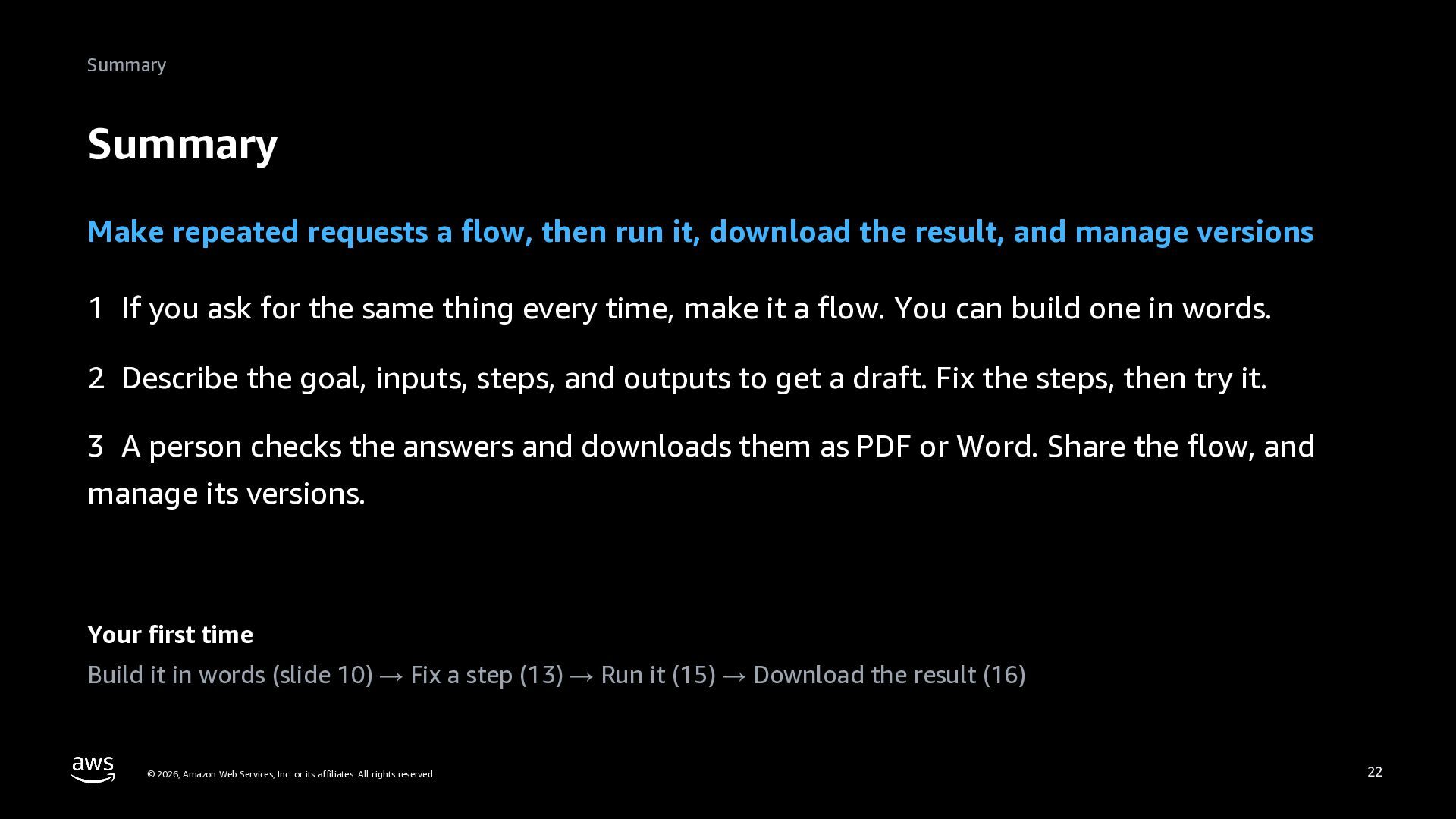
    download the result, and manage versions 1 If you ask for the same thing every time, make it a flow. You can build one in words. 2 Describe the goal, inputs, steps, and outputs to get a draft. Fix the steps, then try it. 3 A person checks the answers and downloads them as PDF or Word. Share the flow, and manage its versions. Your first time Build it in words (slide 10) → Fix a step (13) → Run it (15) → Download the result (16) © 2026, Amazon Web Services, Inc. or its affiliates. All rights reserved. 22
  22. Summary Read next Scheduled agents: deck 11. Business processes: deck

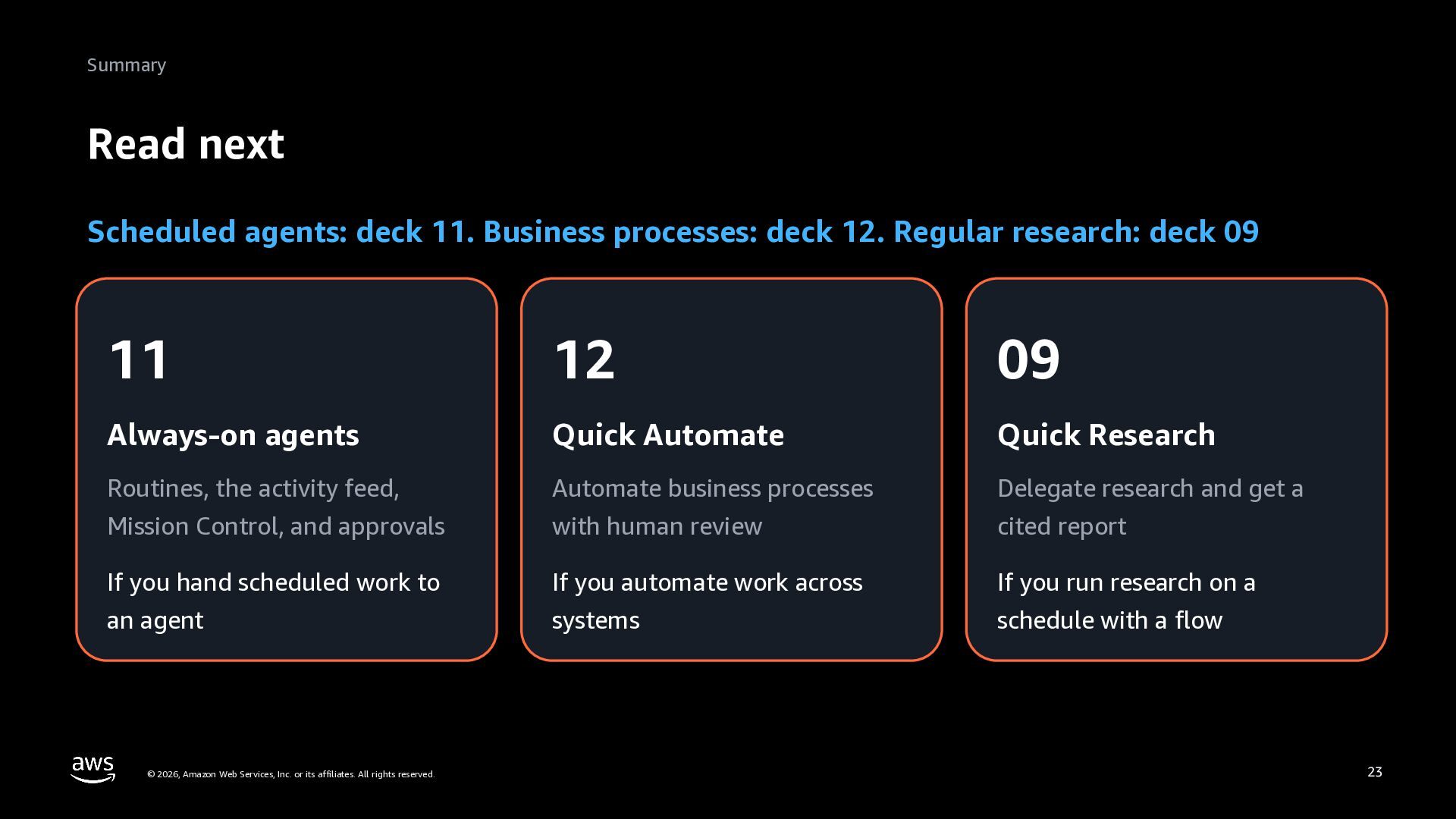
    12. Regular research: deck 09 11 12 09 Always-on agents Quick Automate Quick Research Routines, the activity feed, Automate business processes Delegate research and get a Mission Control, and approvals with human review cited report If you hand scheduled work to If you automate work across If you run research on a an agent systems schedule with a flow © 2026, Amazon Web Services, Inc. or its affiliates. All rights reserved. 23
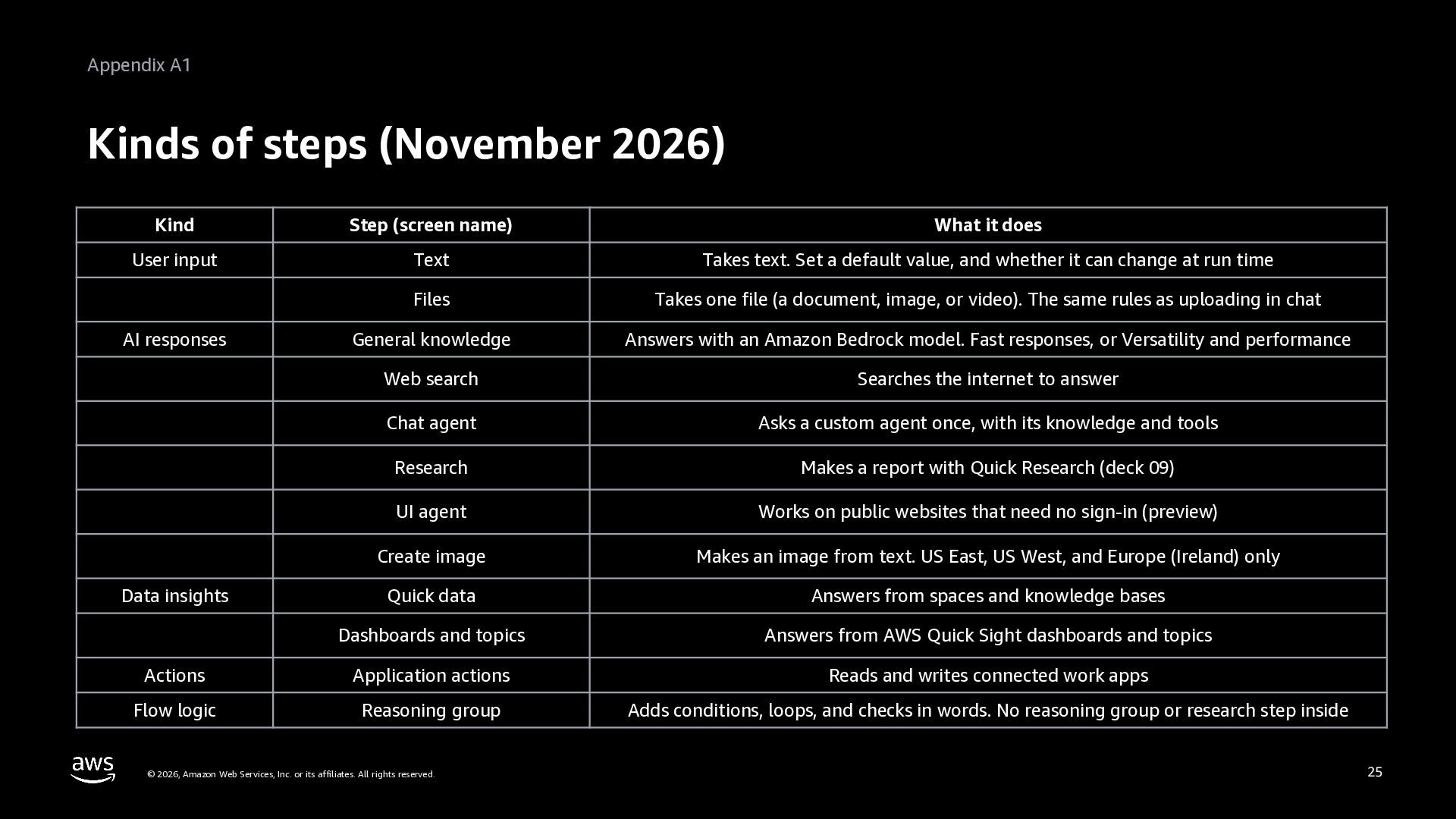
  23. Appendix A1 Kinds of steps (November 2026) Kind Step (screen

    name) What it does User input Text Takes text. Set a default value, and whether it can change at run time Files Takes one file (a document, image, or video). The same rules as uploading in chat General knowledge Answers with an Amazon Bedrock model. Fast responses, or Versatility and performance Web search Searches the internet to answer Chat agent Asks a custom agent once, with its knowledge and tools Research Makes a report with Quick Research (deck 09) UI agent Works on public websites that need no sign-in (preview) Create image Makes an image from text. US East, US West, and Europe (Ireland) only Quick data Answers from spaces and knowledge bases Dashboards and topics Answers from AWS Quick Sight dashboards and topics Actions Application actions Reads and writes connected work apps Flow logic Reasoning group Adds conditions, loops, and checks in words. No reasoning group or research step inside AI responses Data insights © 2026, Amazon Web Services, Inc. or its affiliates. All rights reserved. 25
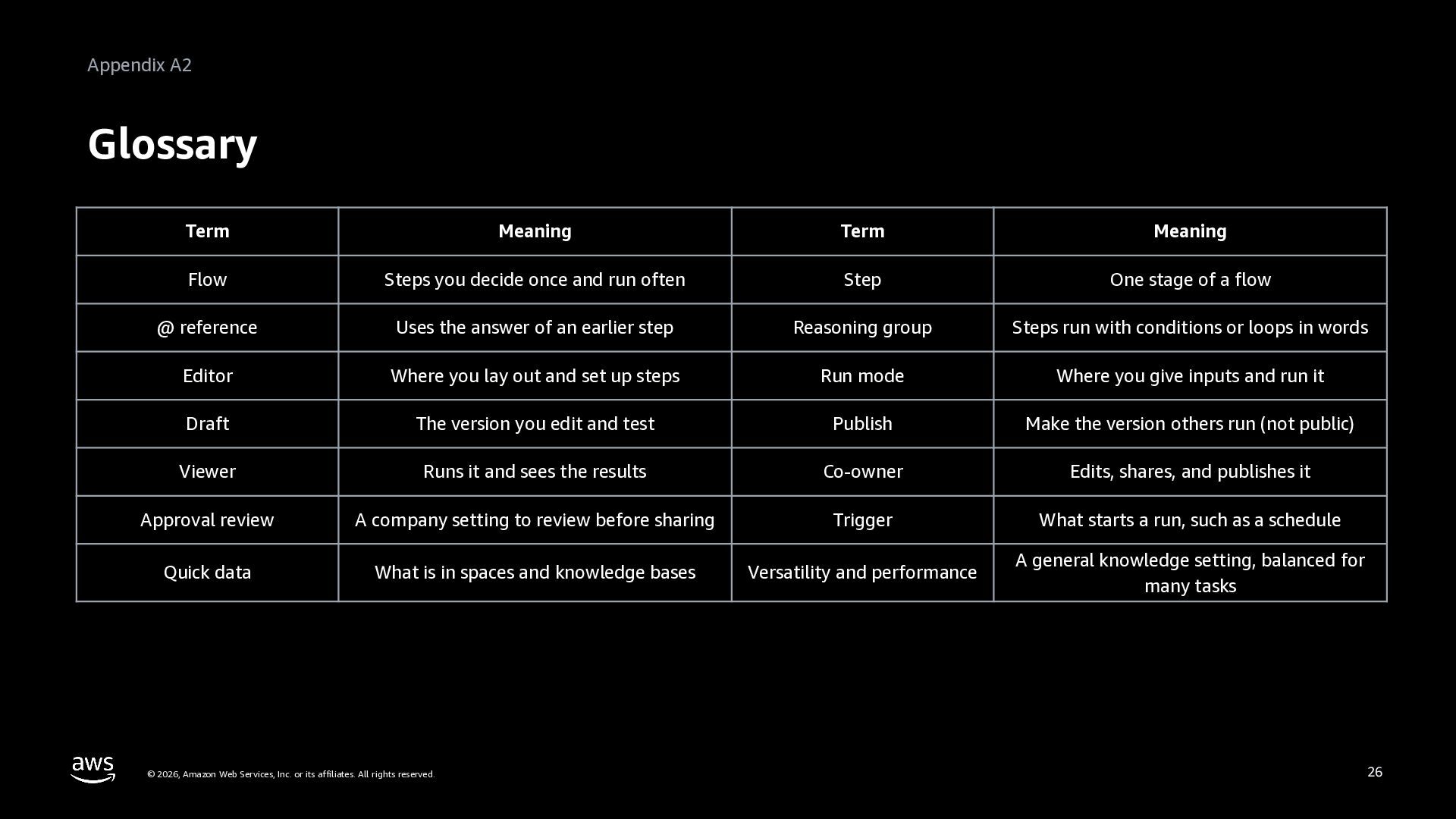
  24. Appendix A2 Glossary Term Meaning Term Meaning Flow Steps you

    decide once and run often Step One stage of a flow @ reference Uses the answer of an earlier step Reasoning group Steps run with conditions or loops in words Editor Where you lay out and set up steps Run mode Where you give inputs and run it Draft The version you edit and test Publish Make the version others run (not public) Viewer Runs it and sees the results Co-owner Edits, shares, and publishes it Approval review A company setting to review before sharing Trigger What starts a run, such as a schedule Quick data What is in spaces and knowledge bases Versatility and performance A general knowledge setting, balanced for many tasks © 2026, Amazon Web Services, Inc. or its affiliates. All rights reserved. 26
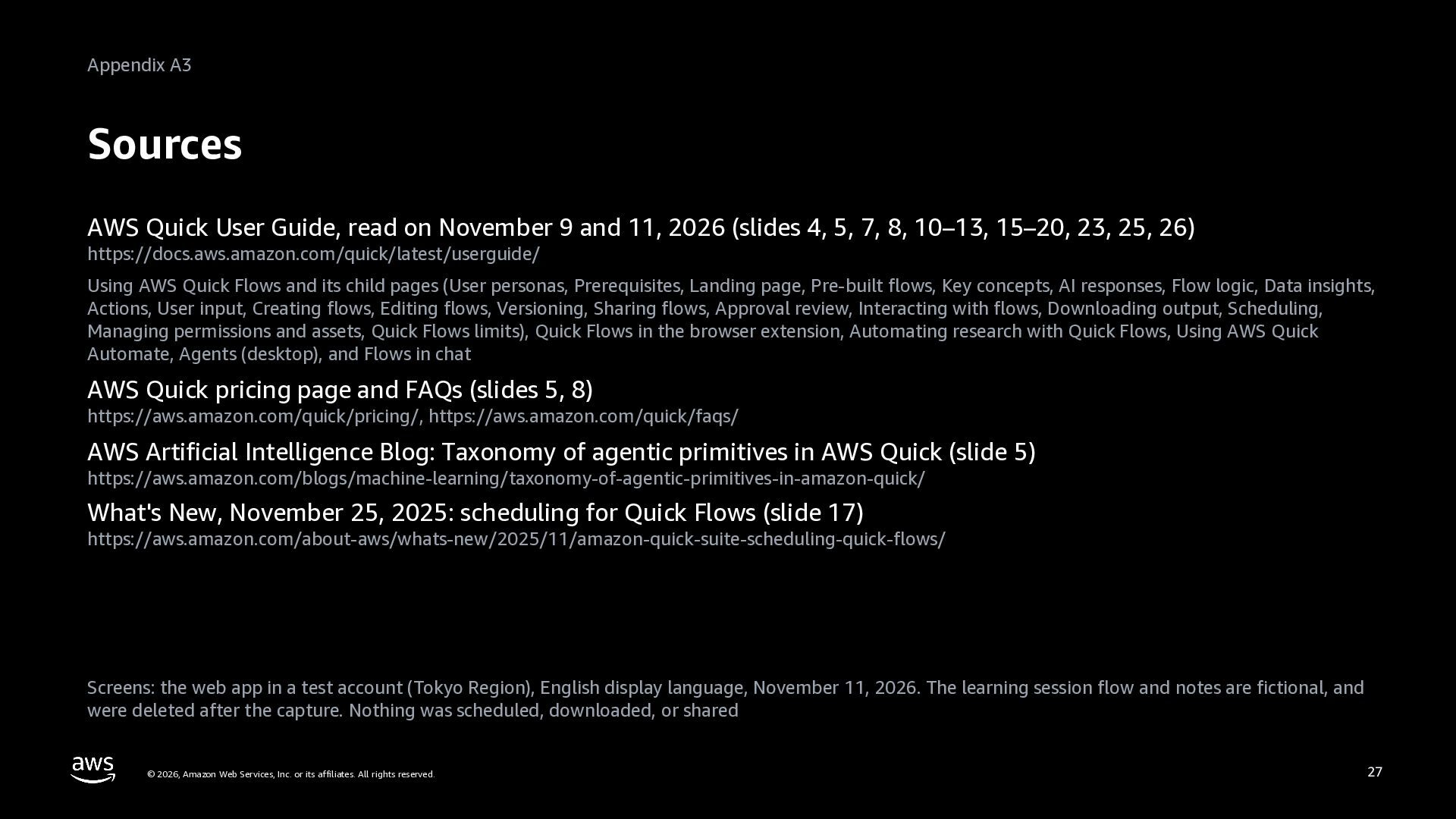
  25. Appendix A3 Sources AWS Quick User Guide, read on November

    9 and 11, 2026 (slides 4, 5, 7, 8, 10–13, 15–20, 23, 25, 26) https://docs.aws.amazon.com/quick/latest/userguide/ Using AWS Quick Flows and its child pages (User personas, Prerequisites, Landing page, Pre-built flows, Key concepts, AI responses, Flow logic, Data insights, Actions, User input, Creating flows, Editing flows, Versioning, Sharing flows, Approval review, Interacting with flows, Downloading output, Scheduling, Managing permissions and assets, Quick Flows limits), Quick Flows in the browser extension, Automating research with Quick Flows, Using AWS Quick Automate, Agents (desktop), and Flows in chat AWS Quick pricing page and FAQs (slides 5, 8) https://aws.amazon.com/quick/pricing/, https://aws.amazon.com/quick/faqs/ AWS Artificial Intelligence Blog: Taxonomy of agentic primitives in AWS Quick (slide 5) https://aws.amazon.com/blogs/machine-learning/taxonomy-of-agentic-primitives-in-amazon-quick/ What's New, November 25, 2025: scheduling for Quick Flows (slide 17) https://aws.amazon.com/about-aws/whats-new/2025/11/amazon-quick-suite-scheduling-quick-flows/ Screens: the web app in a test account (Tokyo Region), English display language, November 11, 2026. The learning session flow and notes are fictional, and were deleted after the capture. Nothing was scheduled, downloaded, or shared © 2026, Amazon Web Services, Inc. or its affiliates. All rights reserved. 27

More Decks by Riku INADA

Other Decks in Technology