High level overview of Git. Discusses how commits relate to each other and trees and blobs. Go over basic local and remote operations on files and branches.
common Git usage Heavy usage was made of the book Pro Git by Scott Chacon of GitHub (including images). Also made usage of the talk “Git Graphs, Hashes, and Compression, Oh My” by Matthew McCullough also of GitHub.
authoritative central repository that is the “source of truth”. • Committing requires a network connection. • Branching can be expensive as it means copying some or all of the files in the repository. • Example systems: CVS, Subversion, Perforce
can proceed independently on different hosts and be merged together at a later time. • Each host can have a complete copy of the repository. If network connection is lost work can continue. • There may still be a server that everyone agrees is the “central” repository. • Branching is inexpensive as it involves creating a reference to a commit and not a copy of the repository. • Example systems: Git, Mercurial
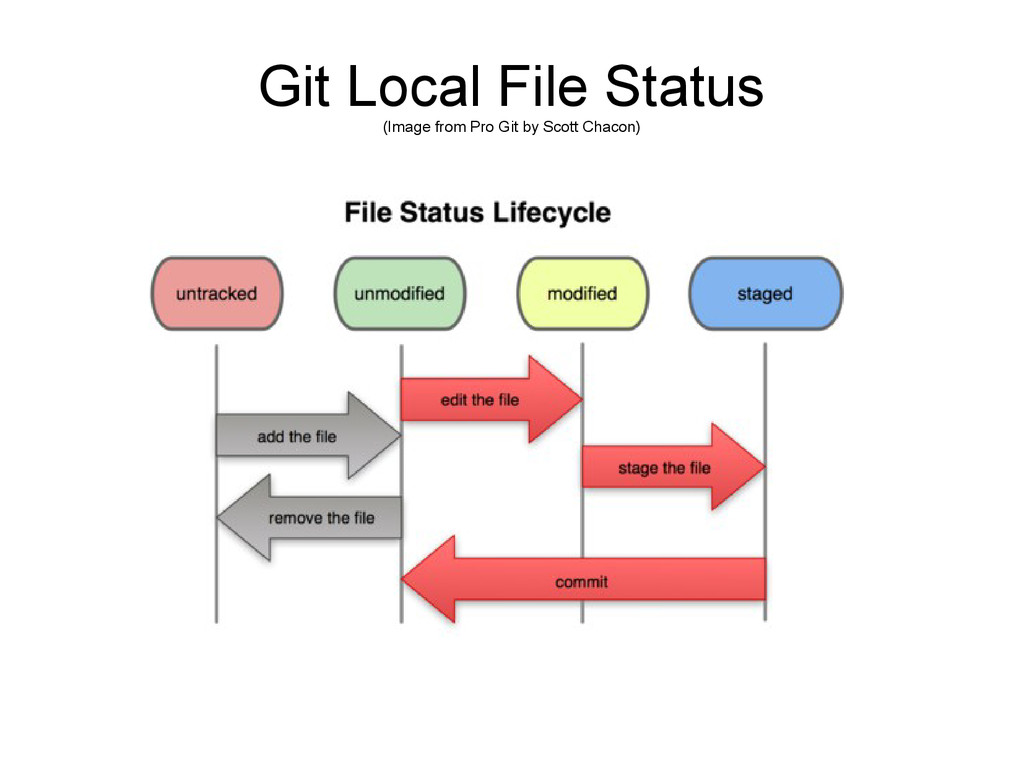
• Git adds only a single .git directory to the project and does not add files to every directory in the project like some central VCS's like SVN. • Git uses a mini Unix style file system to keep track of snapshots of the entire project over time. • History in Git describes the project as a whole and not individual files though it is possible to look at history on individual files.
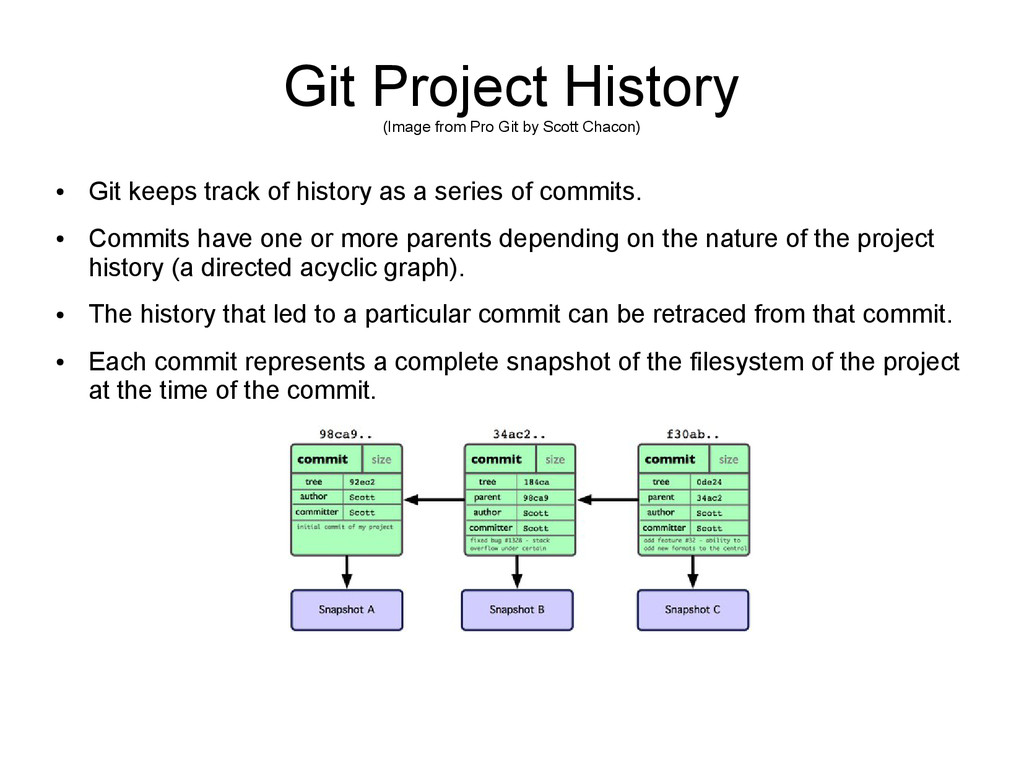
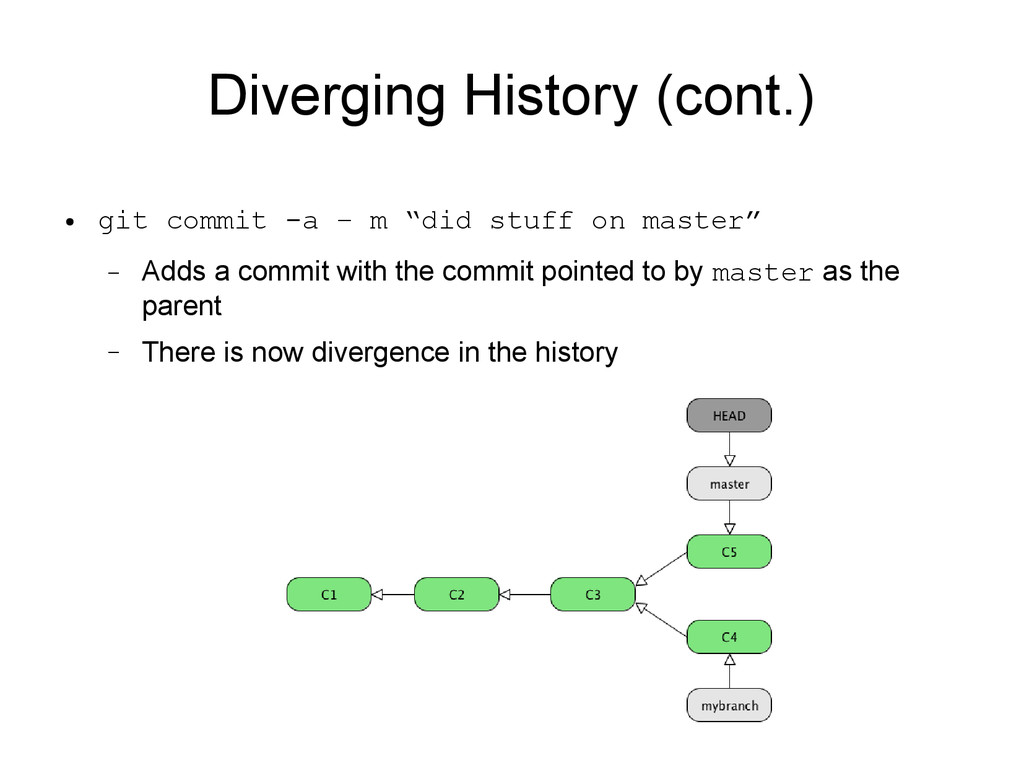
• Git keeps track of history as a series of commits. • Commits have one or more parents depending on the nature of the project history (a directed acyclic graph). • The history that led to a particular commit can be retraced from that commit. • Each commit represents a complete snapshot of the filesystem of the project at the time of the commit.
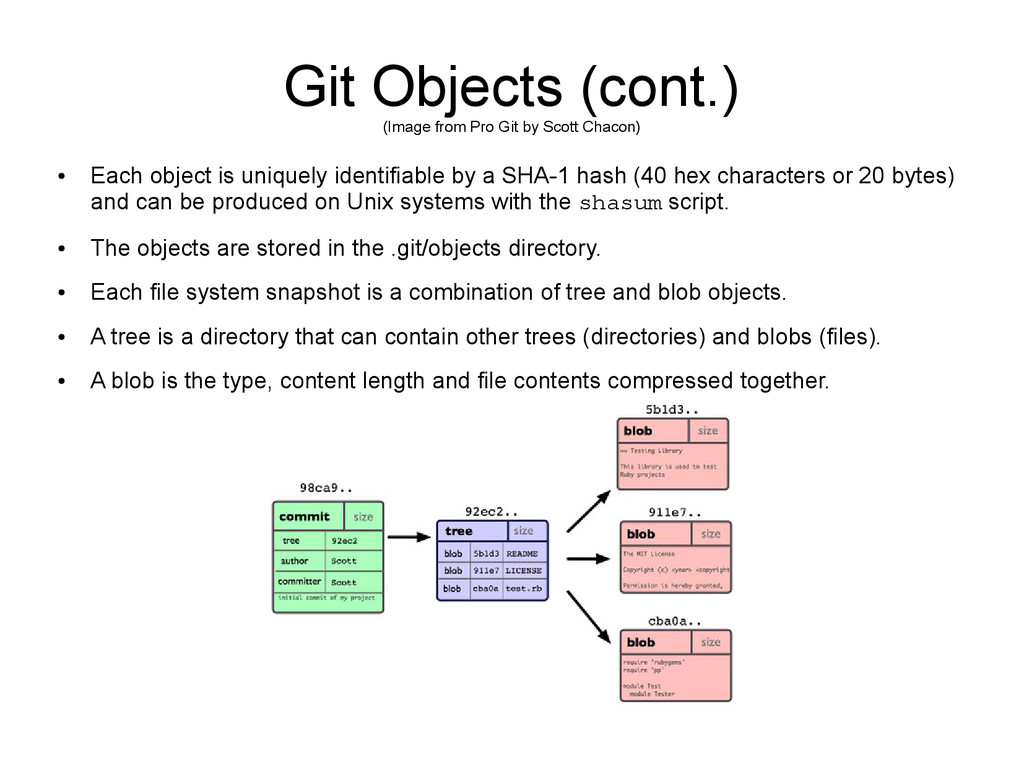
• Each object is uniquely identifiable by a SHA-1 hash (40 hex characters or 20 bytes) and can be produced on Unix systems with the shasum script. • The objects are stored in the .git/objects directory. • Each file system snapshot is a combination of tree and blob objects. • A tree is a directory that can contain other trees (directories) and blobs (files). • A blob is the type, content length and file contents compressed together.
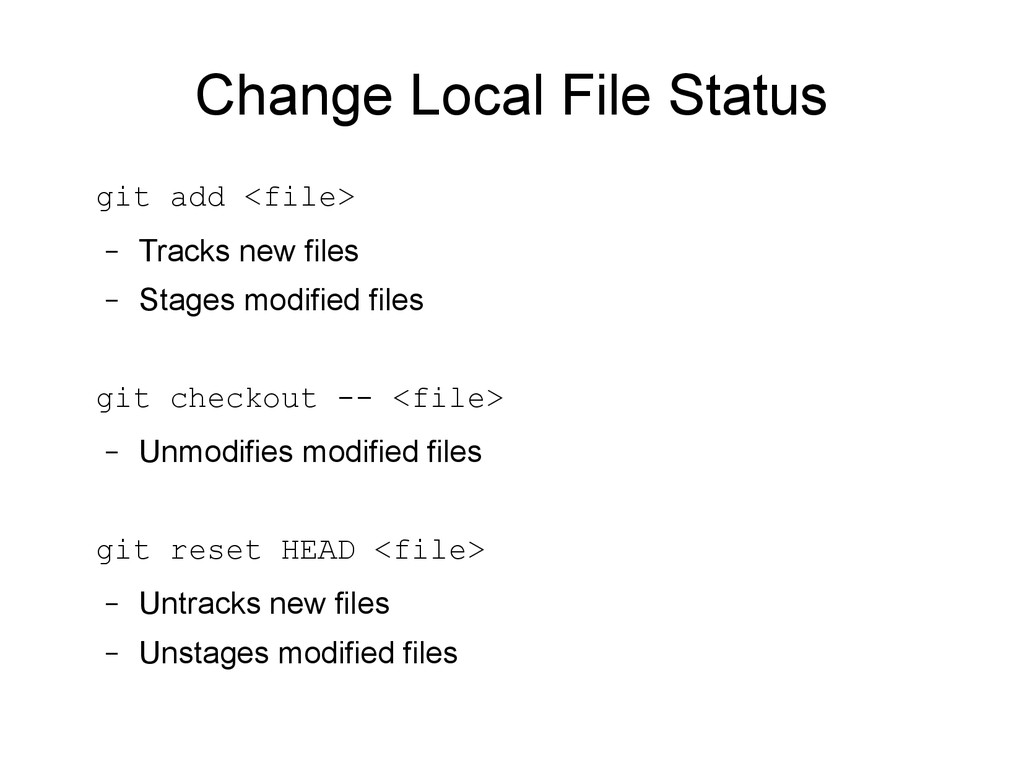
and the files within into a Git repository by the addition of a .git directory – No files are yet tracked by Git. Any files that require tracking need to be added
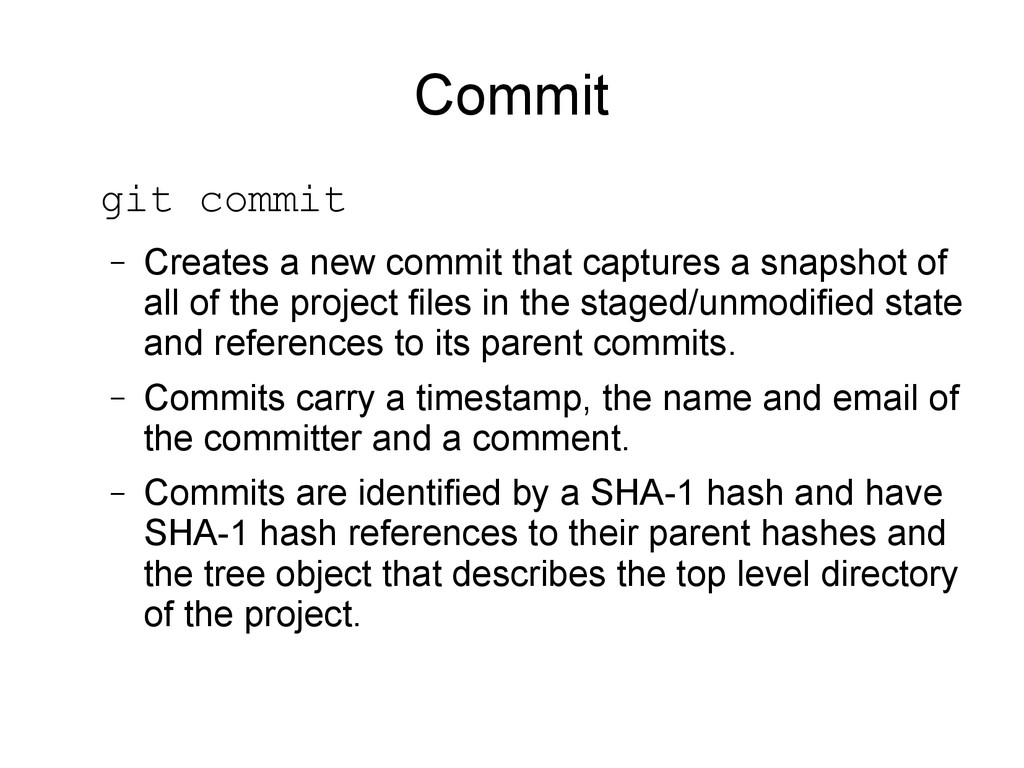
a snapshot of all of the project files in the staged/unmodified state and references to its parent commits. – Commits carry a timestamp, the name and email of the committer and a comment. – Commits are identified by a SHA-1 hash and have SHA-1 hash references to their parent hashes and the tree object that describes the top level directory of the project.
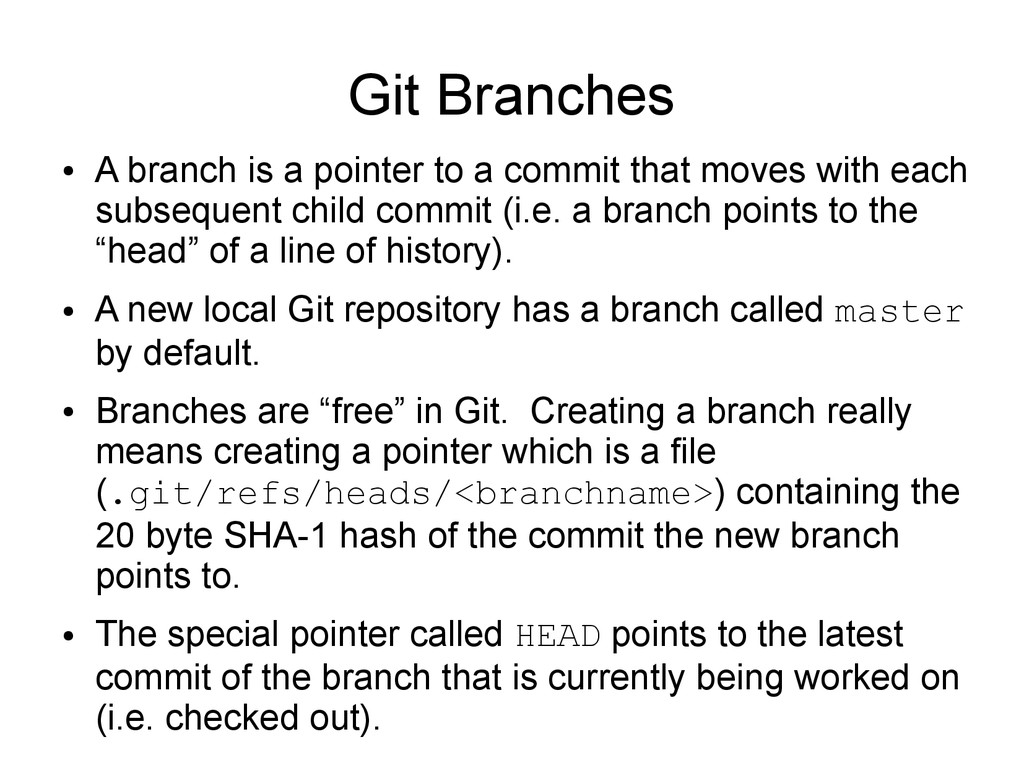
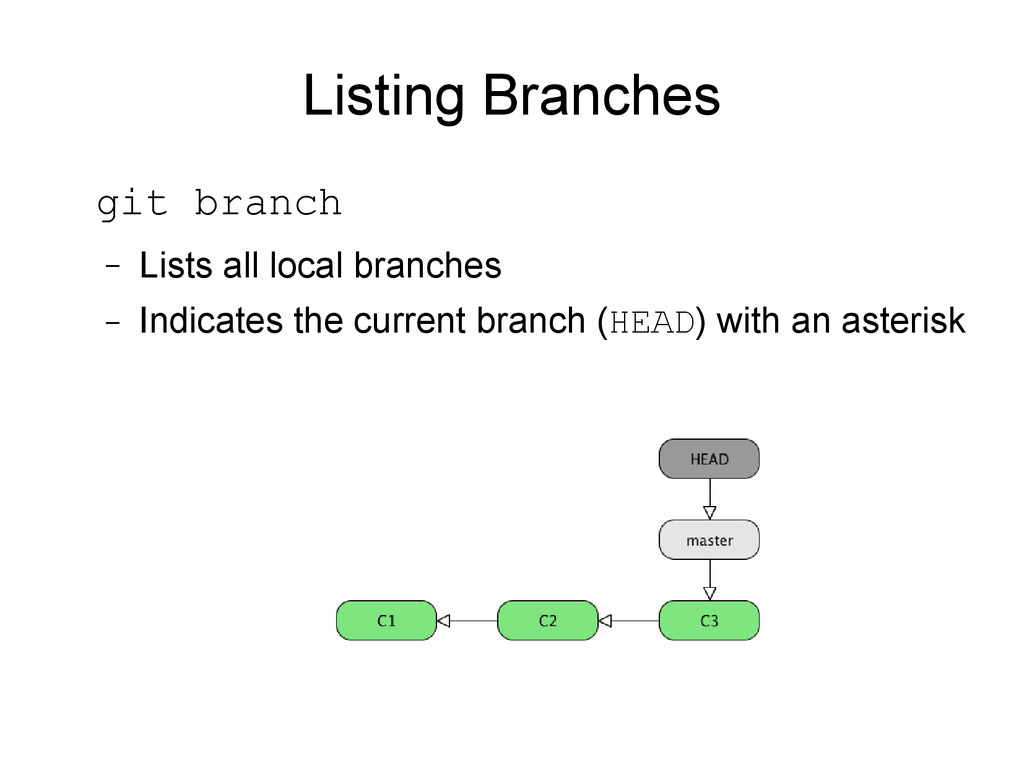
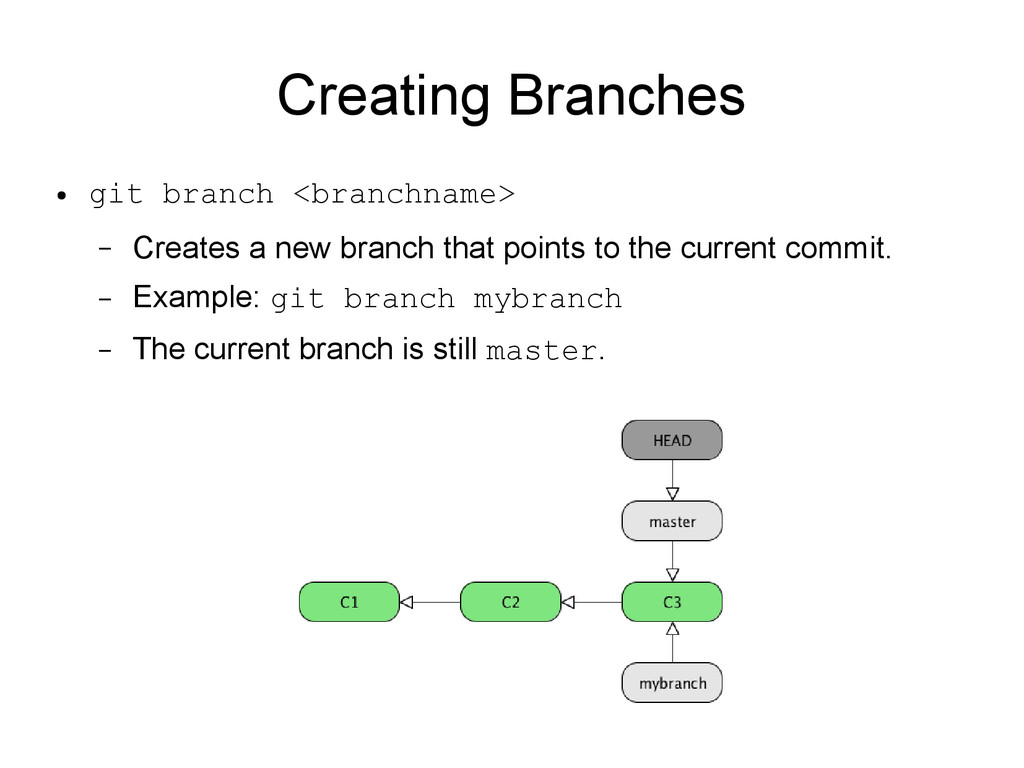
commit that moves with each subsequent child commit (i.e. a branch points to the “head” of a line of history). • A new local Git repository has a branch called master by default. • Branches are “free” in Git. Creating a branch really means creating a pointer which is a file (.git/refs/heads/<branchname>) containing the 20 byte SHA-1 hash of the commit the new branch points to. • The special pointer called HEAD points to the latest commit of the branch that is currently being worked on (i.e. checked out).
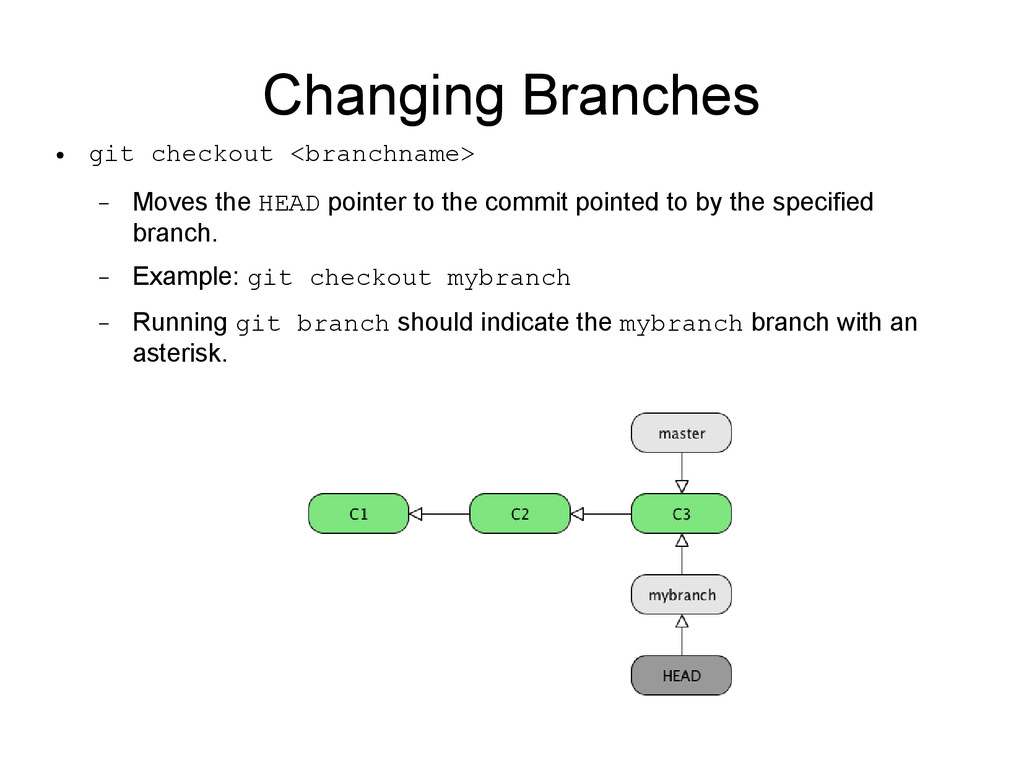
pointer to the commit pointed to by the specified branch. – Example: git checkout mybranch – Running git branch should indicate the mybranch branch with an asterisk.
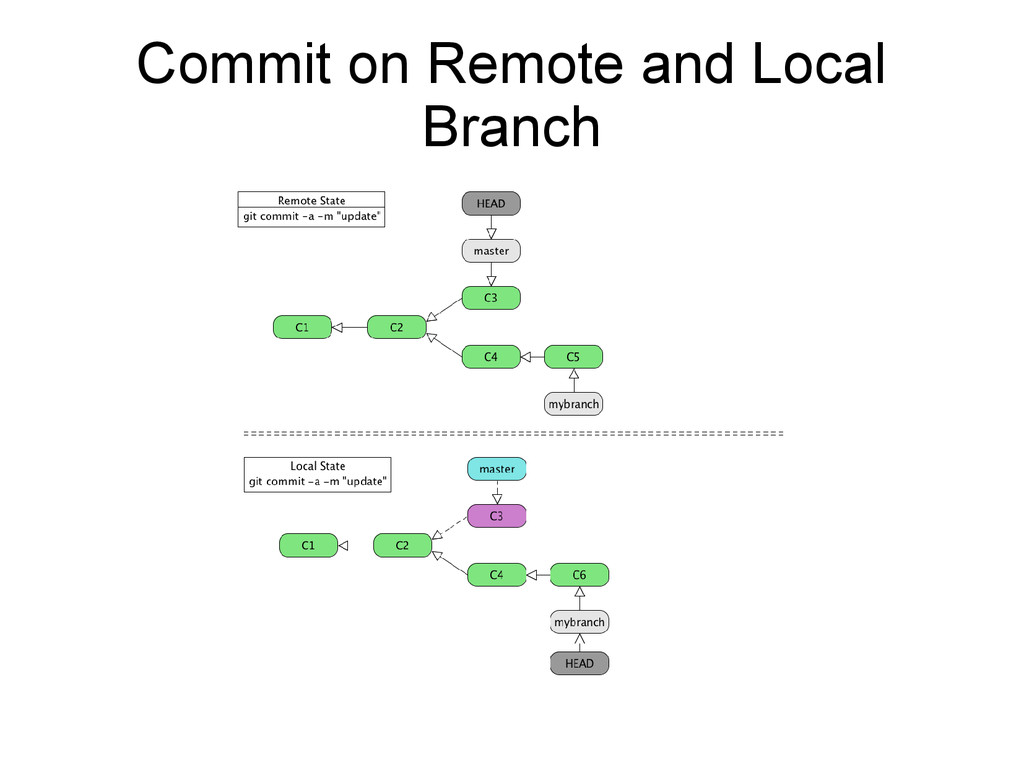
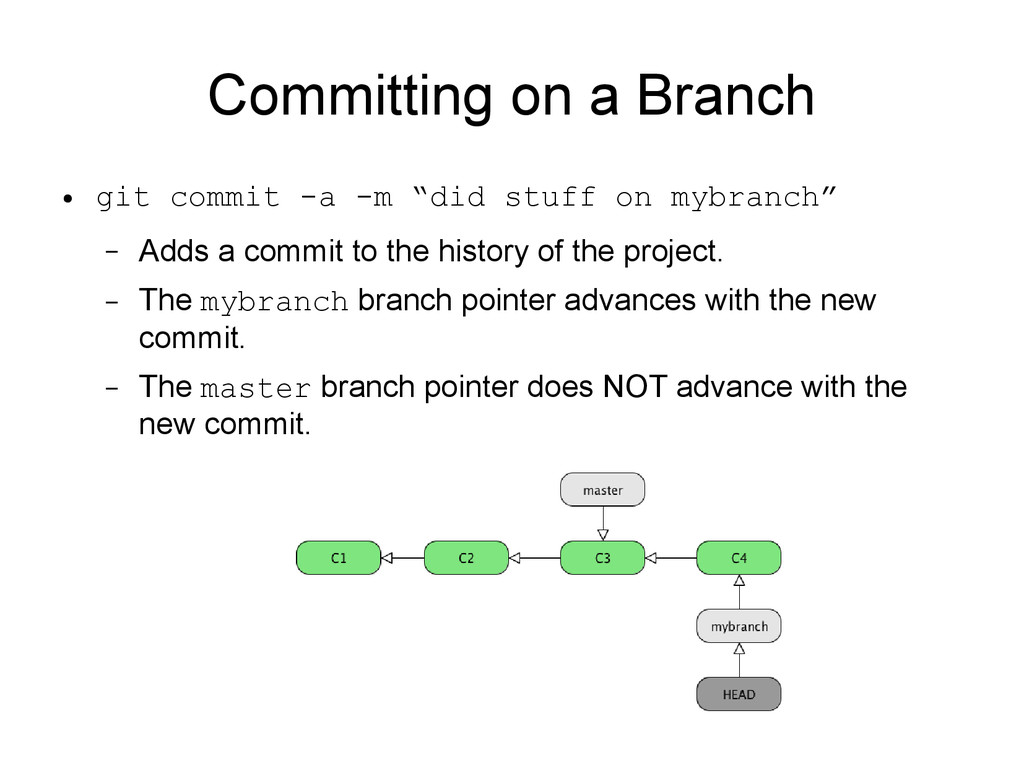
stuff on mybranch” – Adds a commit to the history of the project. – The mybranch branch pointer advances with the new commit. – The master branch pointer does NOT advance with the new commit.
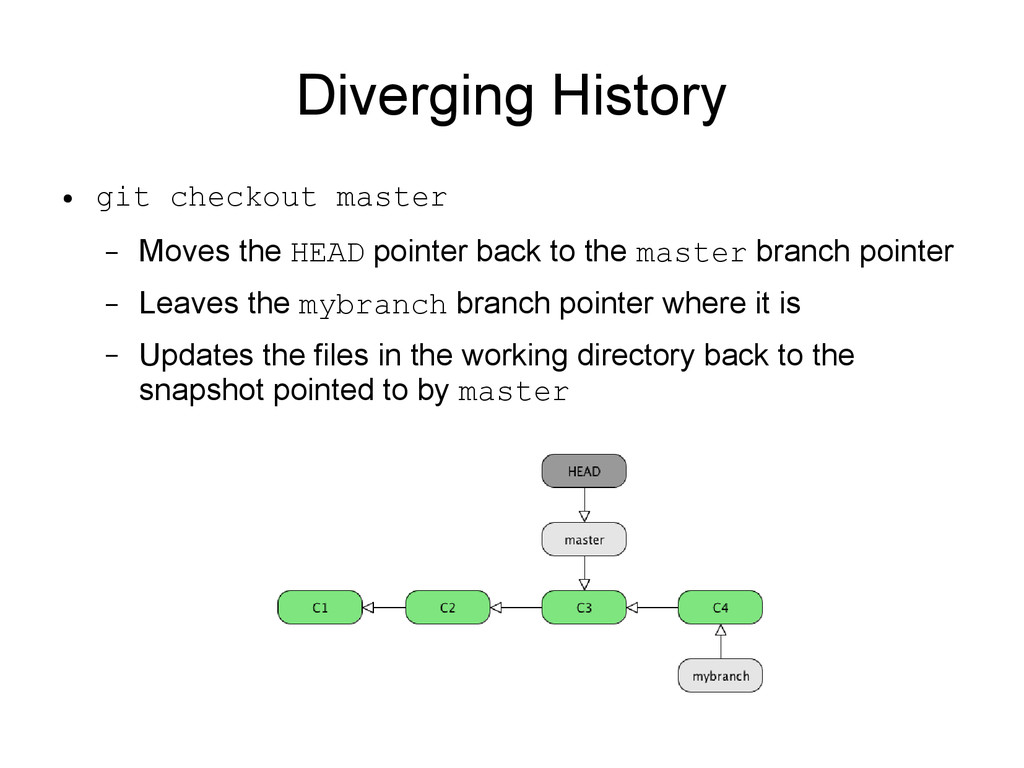
pointer back to the master branch pointer – Leaves the mybranch branch pointer where it is – Updates the files in the working directory back to the snapshot pointed to by master
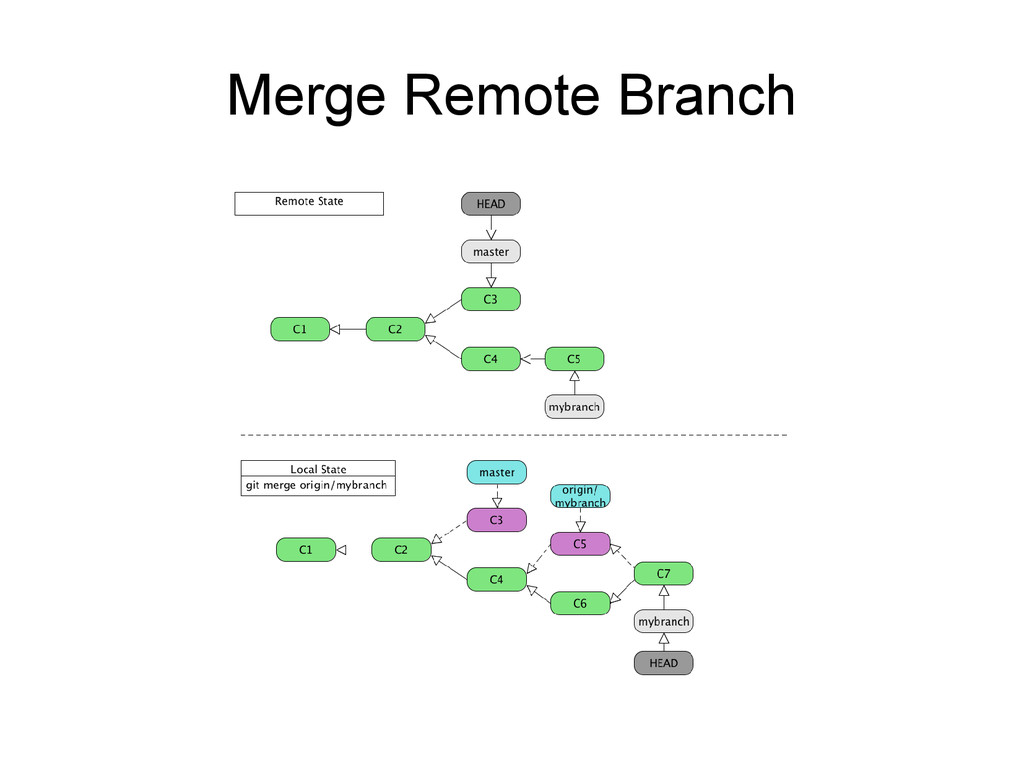
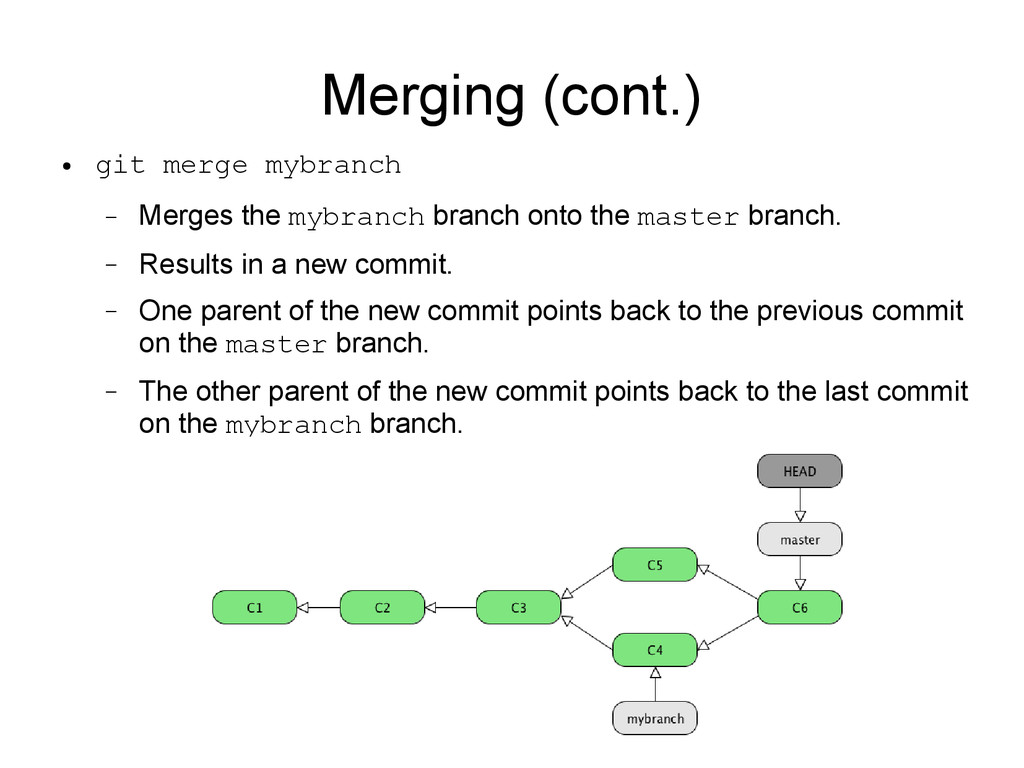
the current branch from the specified branches (one or more can be specified, if more than one it's called an “Octopus” merge). – Merges the files from the snapshot pointed to by each <branchname> with the files in the snapshot pointed to by the current branch. – Creates a new commit with two (or more in the case of an Octopus) parents that indicates which files got merged. – If there are merge conflicts they need to be resolved (either by hand or with a graphical merge tool) before the merge can proceed.
branch onto the master branch. – Results in a new commit. – One parent of the new commit points back to the previous commit on the master branch. – The other parent of the new commit points back to the last commit on the mybranch branch.
Git repository either on the same host or a different host. • Git can communicate with remote repositories over a variety of protocols (file, SSH, HTTP): – Local (file) – Git (no authentication, generally read only) – SSH (can use public/private keys for authentication) – HTTP(S) • With the proper authentication a remote repository can be cloned/fetched from or pushed to.
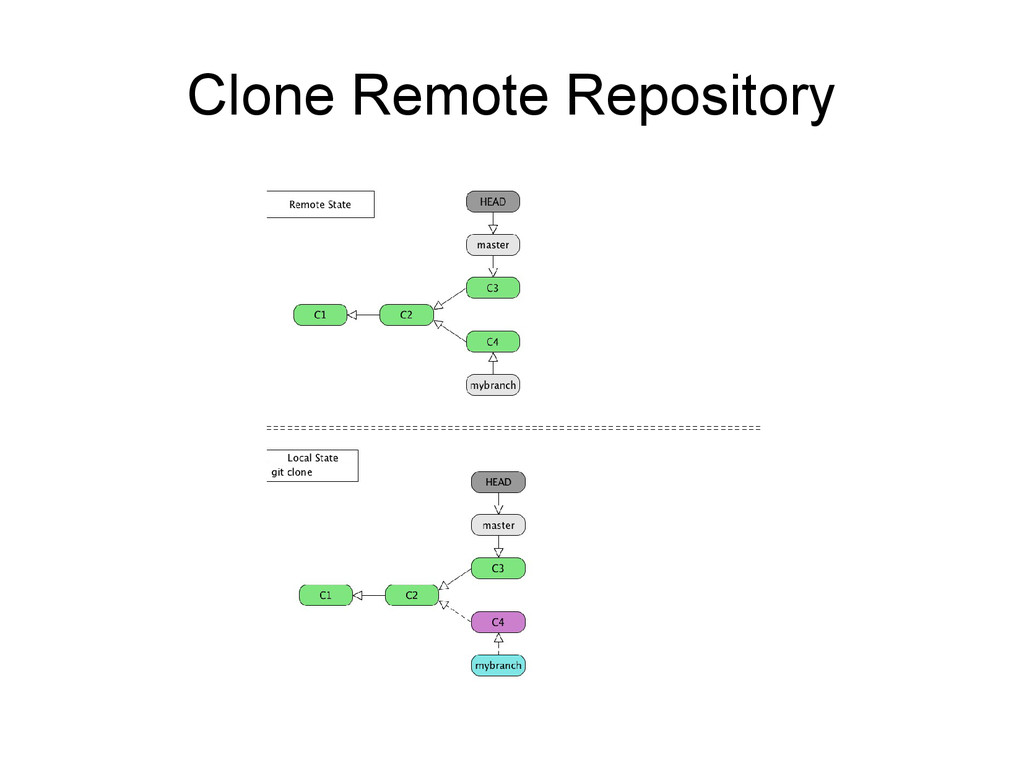
– Creates a local directory with either the specified name or the name of the remote Git repository if not specified – Initializes the local directory with a .git directory and copies all relevant Git database information down (refs, objects, etc.) – The new local repository contains all the commit history of the remote repository – The default local branch will be whatever HEAD pointed to in the remote repository
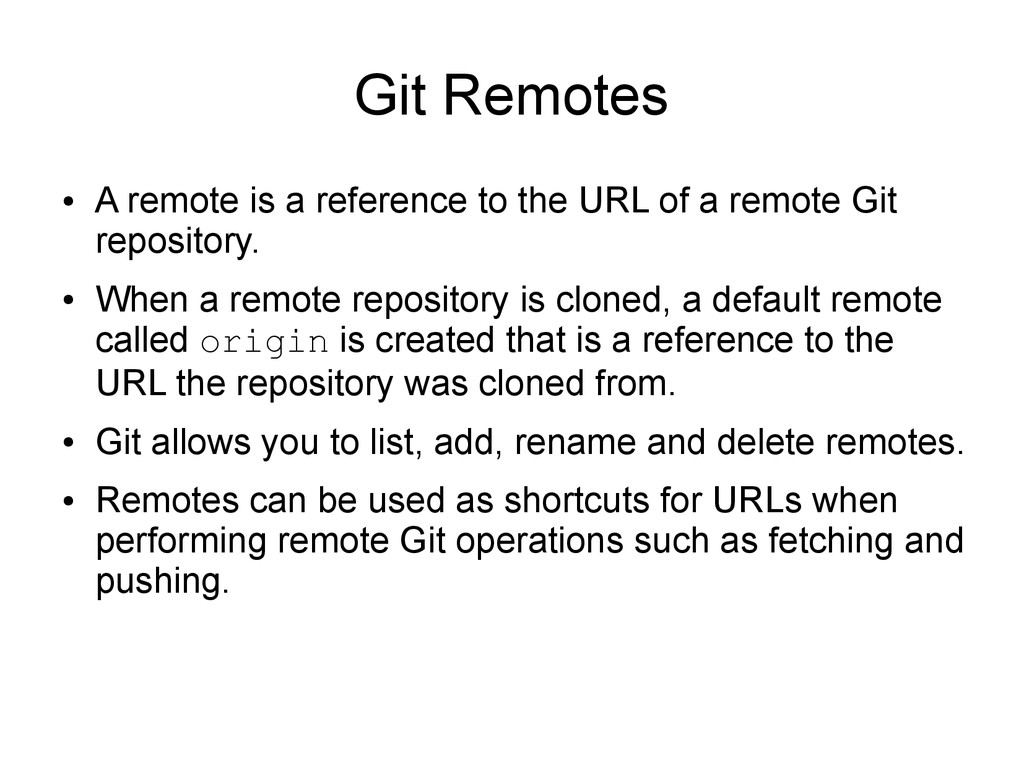
URL of a remote Git repository. • When a remote repository is cloned, a default remote called origin is created that is a reference to the URL the repository was cloned from. • Git allows you to list, add, rename and delete remotes. • Remotes can be used as shortcuts for URLs when performing remote Git operations such as fetching and pushing.
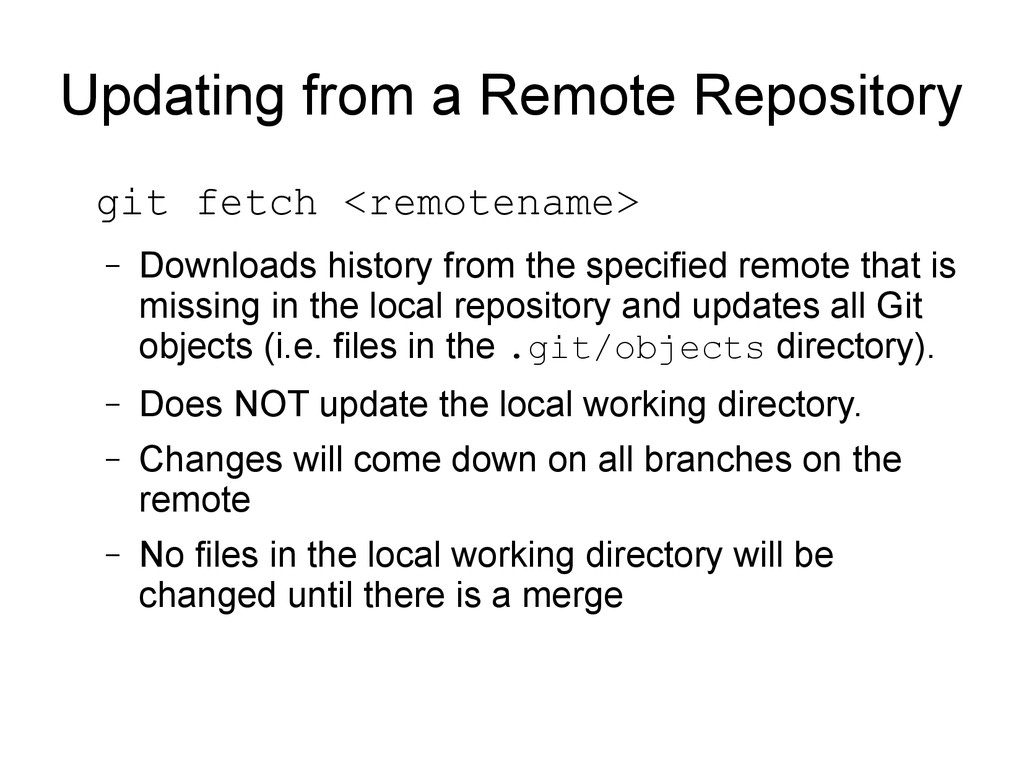
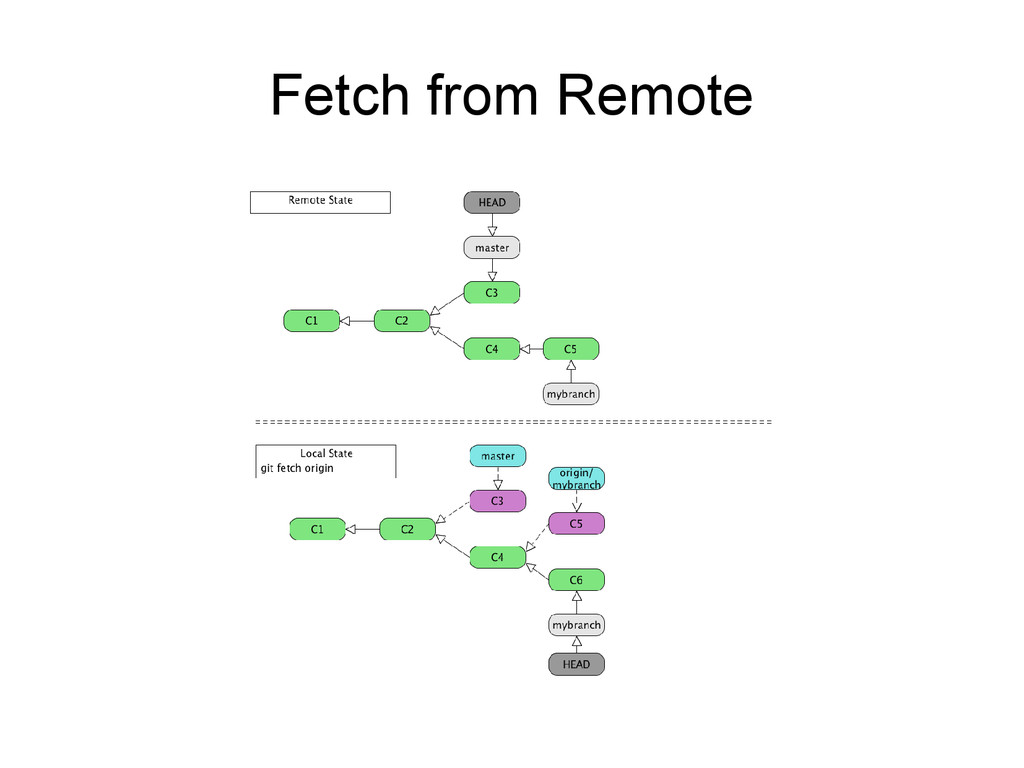
history from the specified remote that is missing in the local repository and updates all Git objects (i.e. files in the .git/objects directory). – Does NOT update the local working directory. – Changes will come down on all branches on the remote – No files in the local working directory will be changed until there is a merge
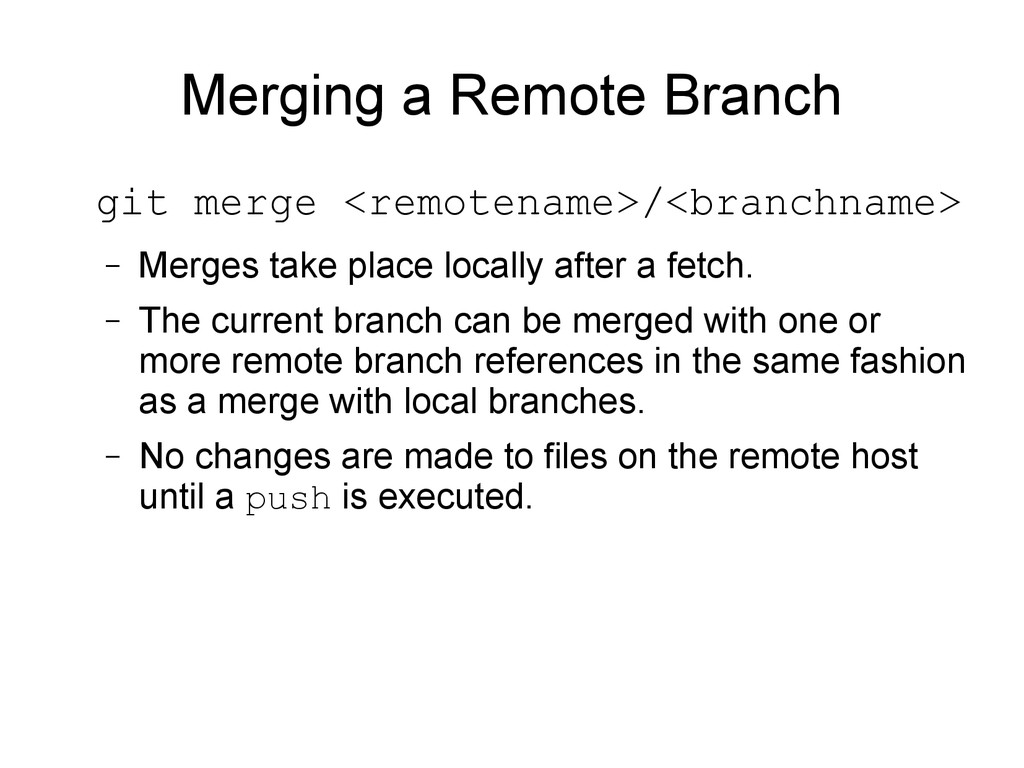
place locally after a fetch. – The current branch can be merged with one or more remote branch references in the same fashion as a merge with local branches. – No changes are made to files on the remote host until a push is executed.
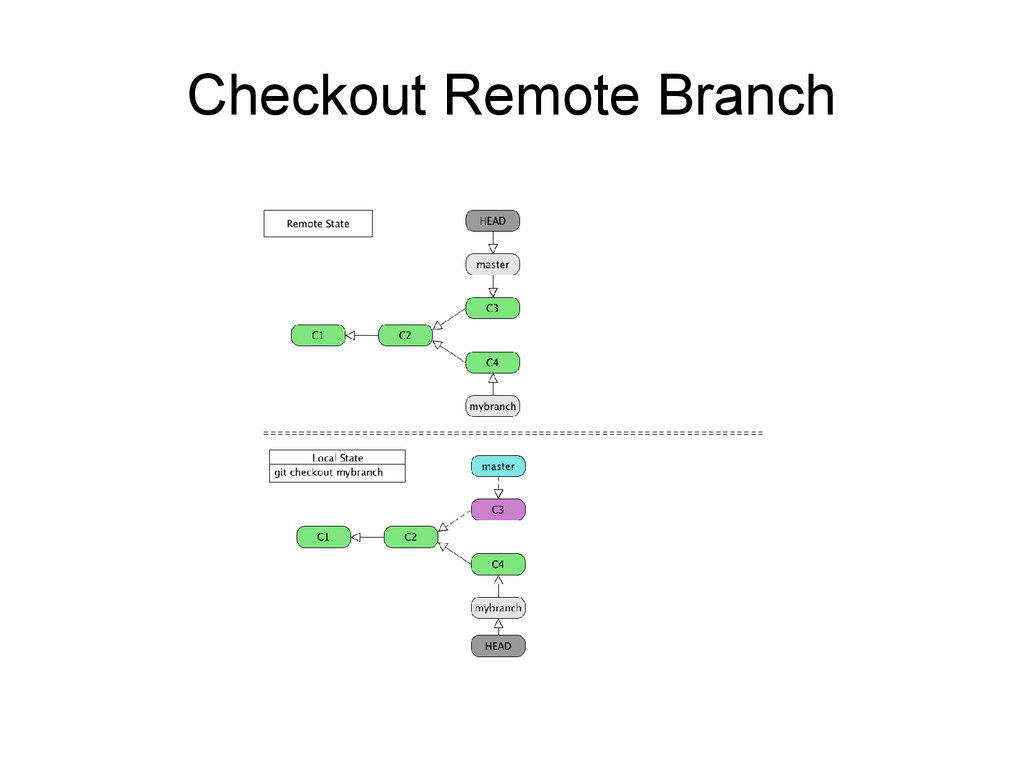
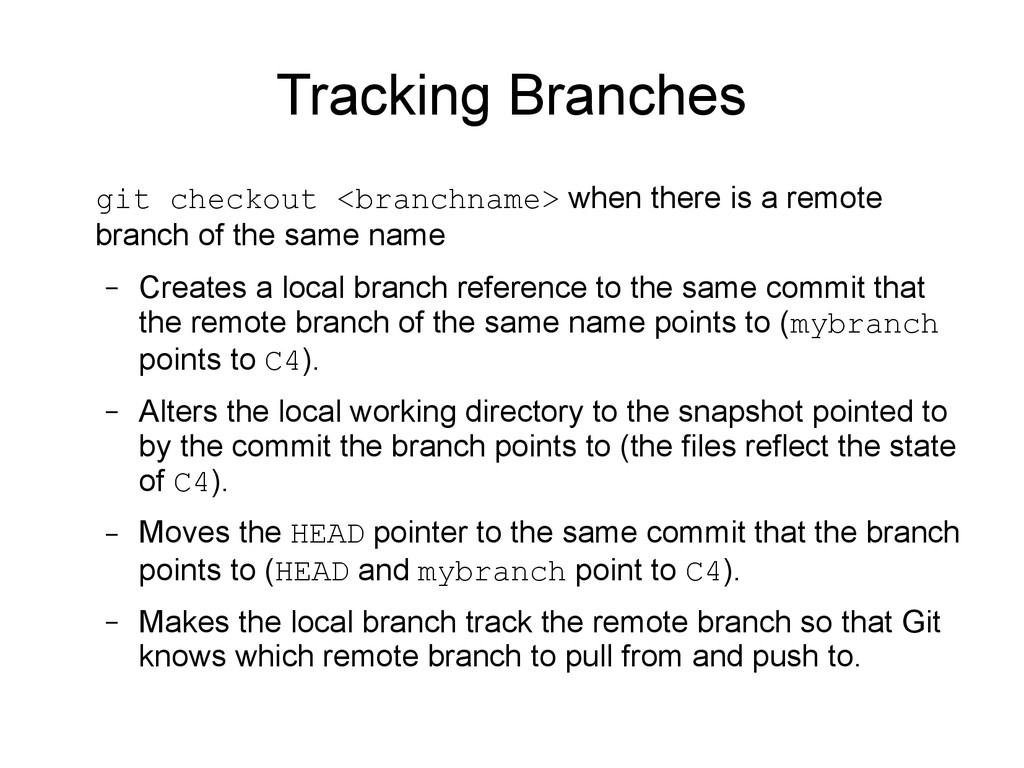
branch of the same name – Creates a local branch reference to the same commit that the remote branch of the same name points to (mybranch points to C4). – Alters the local working directory to the snapshot pointed to by the commit the branch points to (the files reflect the state of C4). – Moves the HEAD pointer to the same commit that the branch points to (HEAD and mybranch point to C4). – Makes the local branch track the remote branch so that Git knows which remote branch to pull from and push to.
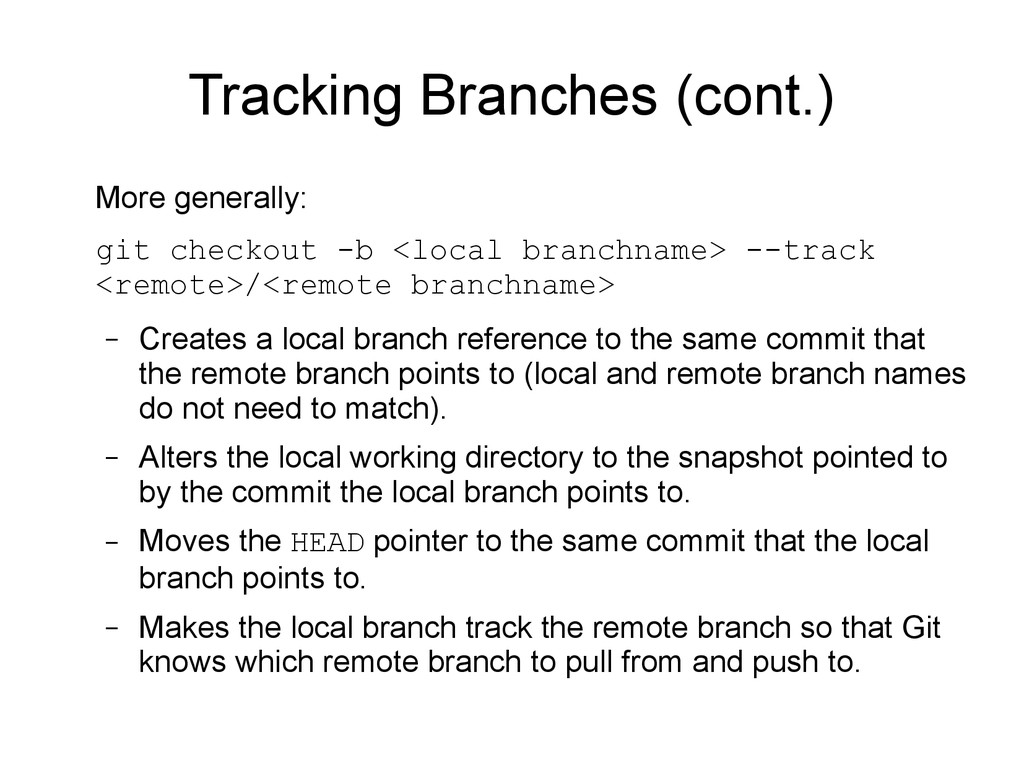
--track <remote>/<remote branchname> – Creates a local branch reference to the same commit that the remote branch points to (local and remote branch names do not need to match). – Alters the local working directory to the snapshot pointed to by the commit the local branch points to. – Moves the HEAD pointer to the same commit that the local branch points to. – Makes the local branch track the remote branch so that Git knows which remote branch to pull from and push to.
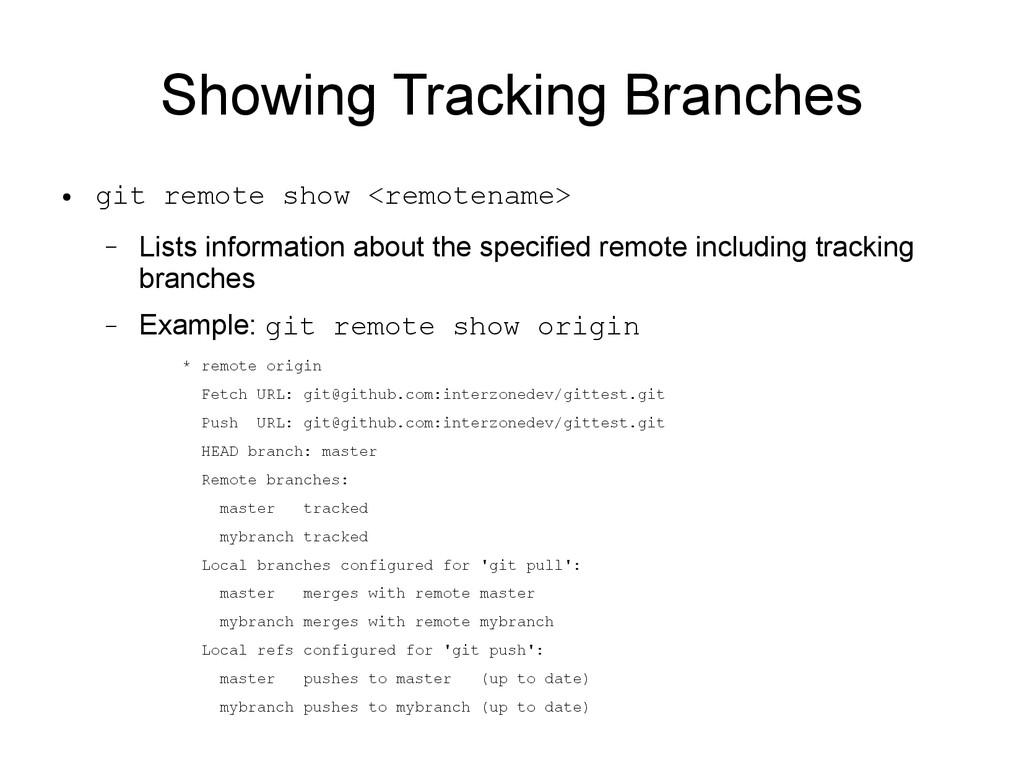
information about the specified remote including tracking branches – Example: git remote show origin * remote origin Fetch URL: [email protected]:interzonedev/gittest.git Push URL: [email protected]:interzonedev/gittest.git HEAD branch: master Remote branches: master tracked mybranch tracked Local branches configured for 'git pull': master merges with remote master mybranch merges with remote mybranch Local refs configured for 'git push': master pushes to master (up to date) mybranch pushes to mybranch (up to date)
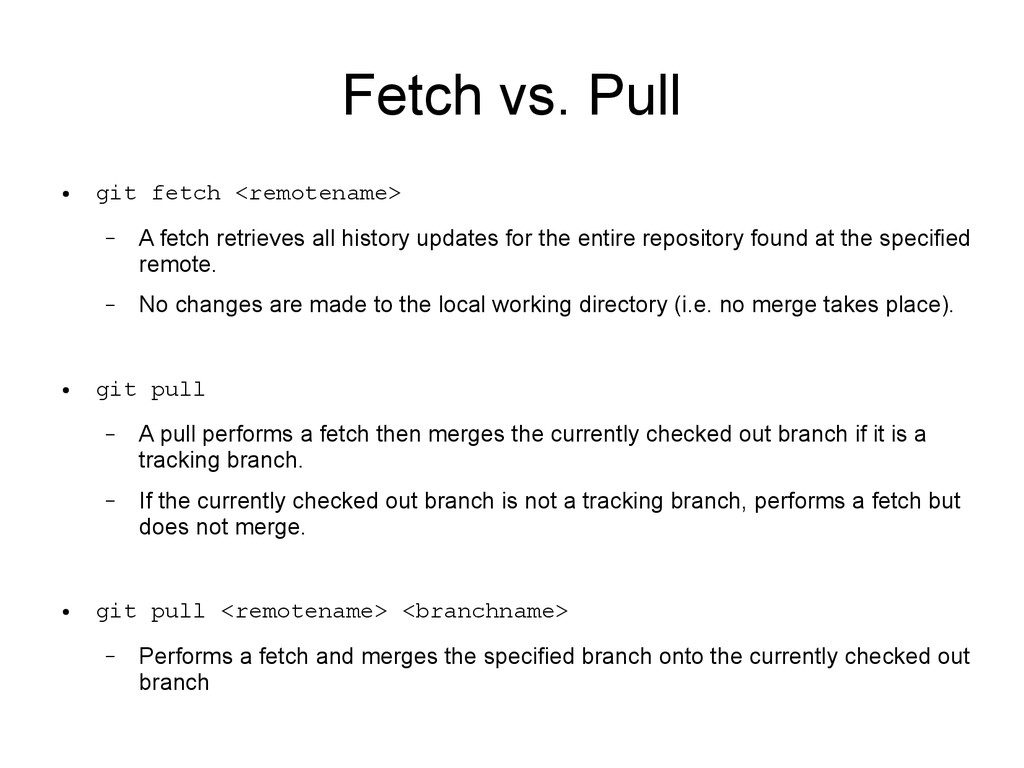
retrieves all history updates for the entire repository found at the specified remote. – No changes are made to the local working directory (i.e. no merge takes place). • git pull – A pull performs a fetch then merges the currently checked out branch if it is a tracking branch. – If the currently checked out branch is not a tracking branch, performs a fetch but does not merge. • git pull <remotename> <branchname> – Performs a fetch and merges the specified branch onto the currently checked out branch
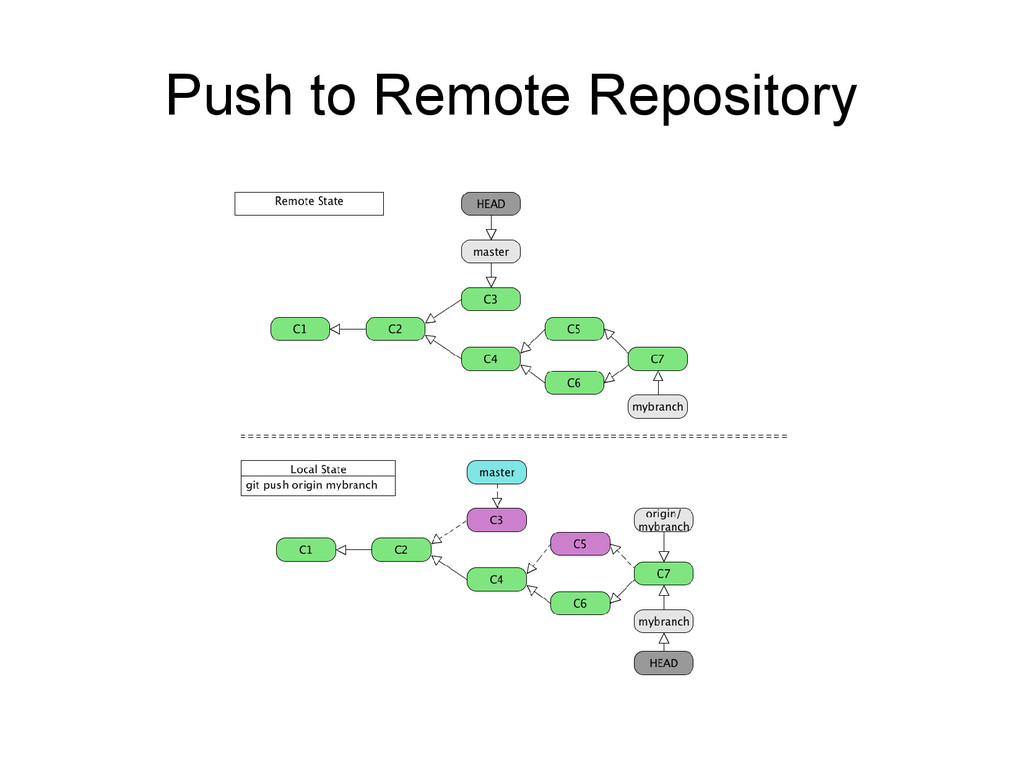
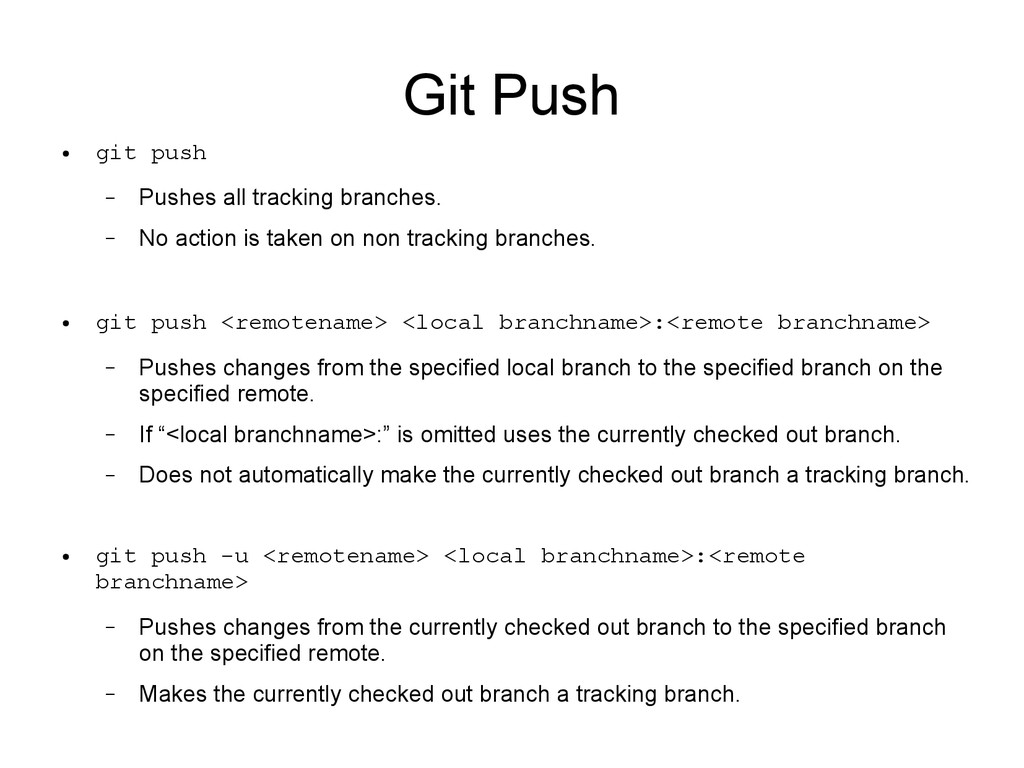
– No action is taken on non tracking branches. • git push <remotename> <local branchname>:<remote branchname> – Pushes changes from the specified local branch to the specified branch on the specified remote. – If “<local branchname>:” is omitted uses the currently checked out branch. – Does not automatically make the currently checked out branch a tracking branch. • git push -u <remotename> <local branchname>:<remote branchname> – Pushes changes from the currently checked out branch to the specified branch on the specified remote. – Makes the currently checked out branch a tracking branch.
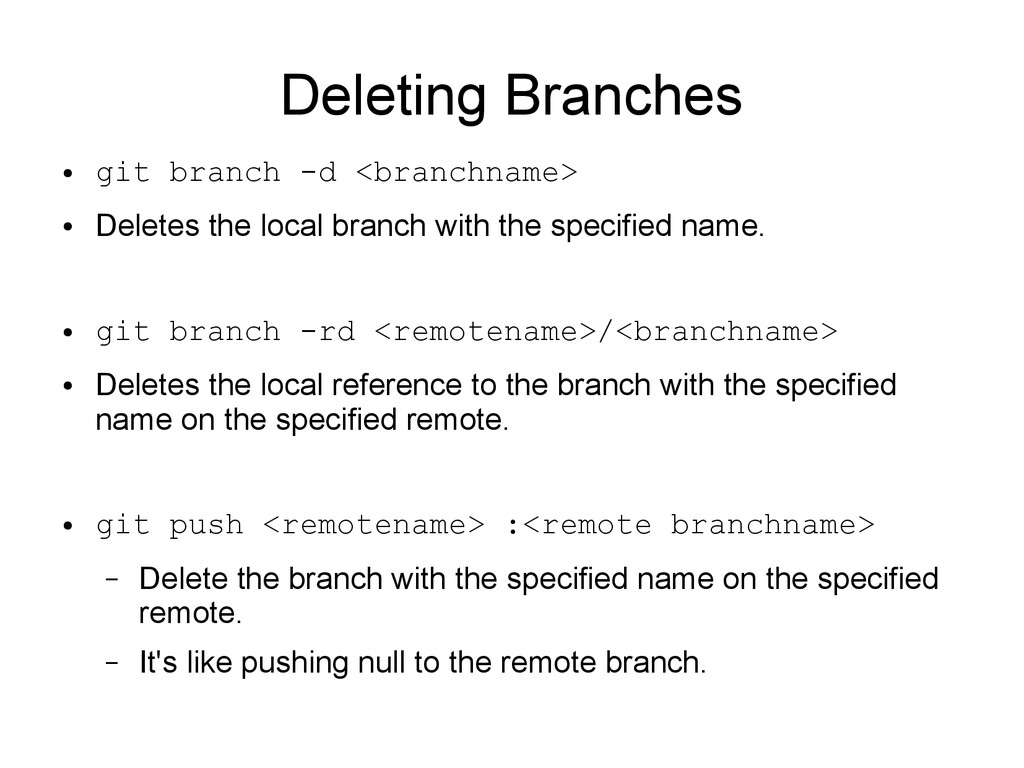
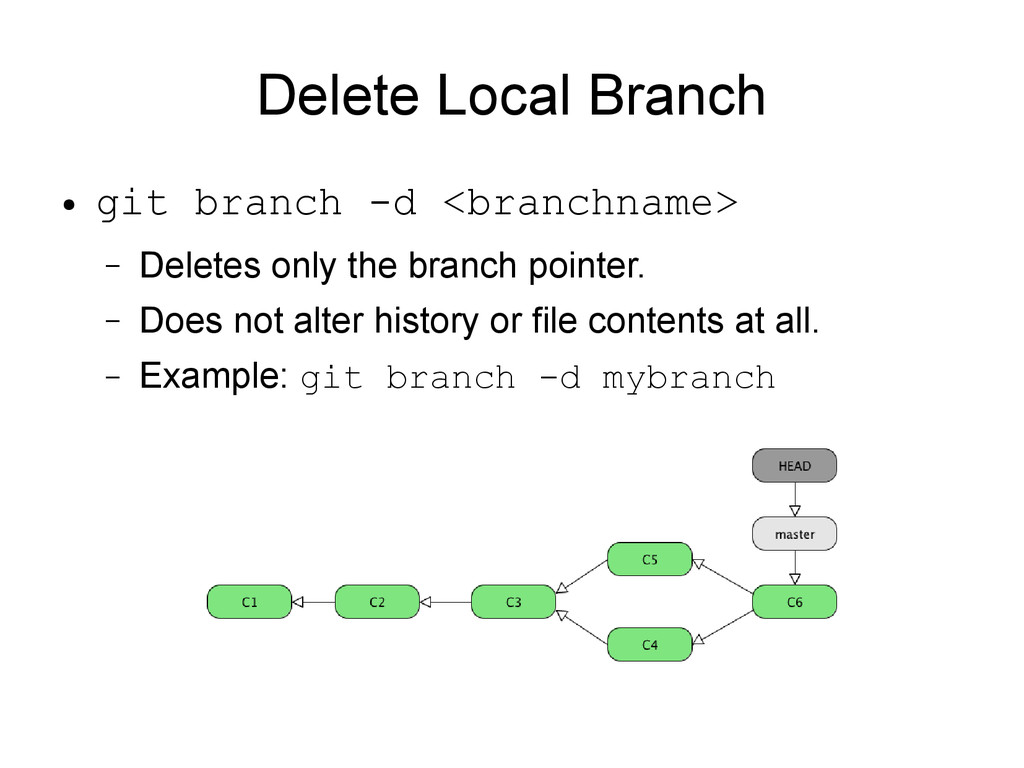
local branch with the specified name. • git branch -rd <remotename>/<branchname> • Deletes the local reference to the branch with the specified name on the specified remote. • git push <remotename> :<remote branchname> – Delete the branch with the specified name on the specified remote. – It's like pushing null to the remote branch.
site: https://www.kernel.org/pub/software/scm/git/docs • Pro Git by Scott Chacon: http://git-scm.com • Talk on advanced Git by Matthew McCullough: http://www.youtube.com/watch?v=ig5E8CcdM9g • The corresponding slide deck: https://speakerdeck.com/matthewmccullough/git- graphs-hashes-and-compression-oh-my-1 • Lars Vogel Git Tutorial: http://www.vogella.com/articles/Git/article.html • Github learning resources: http://learn.github.com


 nabondance
 rshindo
 kishida
 kinopeee
 oku053
 ryu1013
 satoshi256kbyte
 utakaha
 panda728
 kmars0605
 ichirokano2
 ivargrimstad
 raygrieselhuber
 thoeni
 notwaldorf
 tammyeverts
 inesmontani
 aemeredith
 dugsong
 chrisshort
 sonatard
 deanohume
 sarafernandez
 honnibal
![Merging • git merge [<branchname>...] – Performs a merge onto](https://files.speakerdeck.com/presentations/a3af760089bc0130a2c61231380faed3/slide_20.jpg)
![Getting a Remote Repository • git clone <URL> [directory name]](https://files.speakerdeck.com/presentations/a3af760089bc0130a2c61231380faed3/slide_24.jpg)