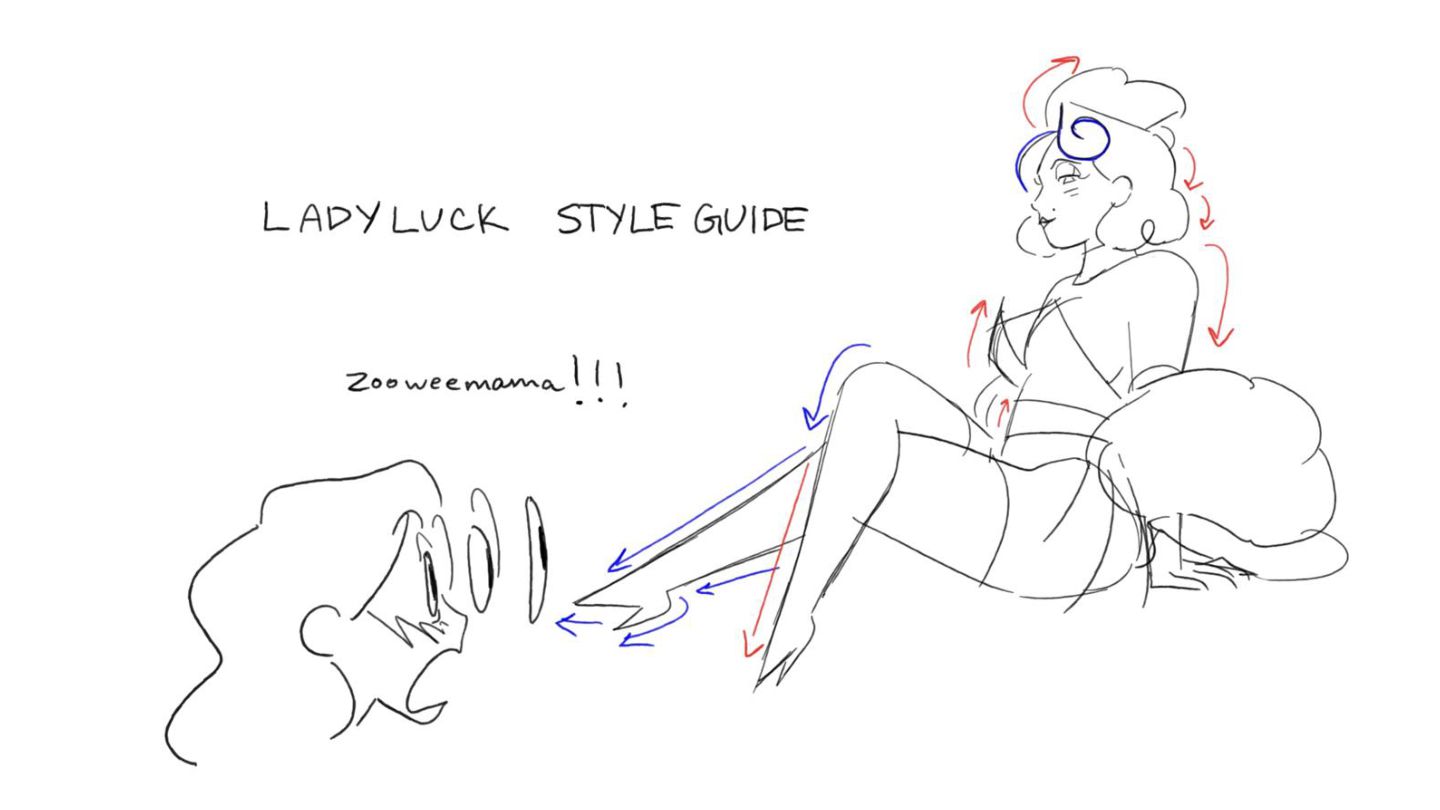
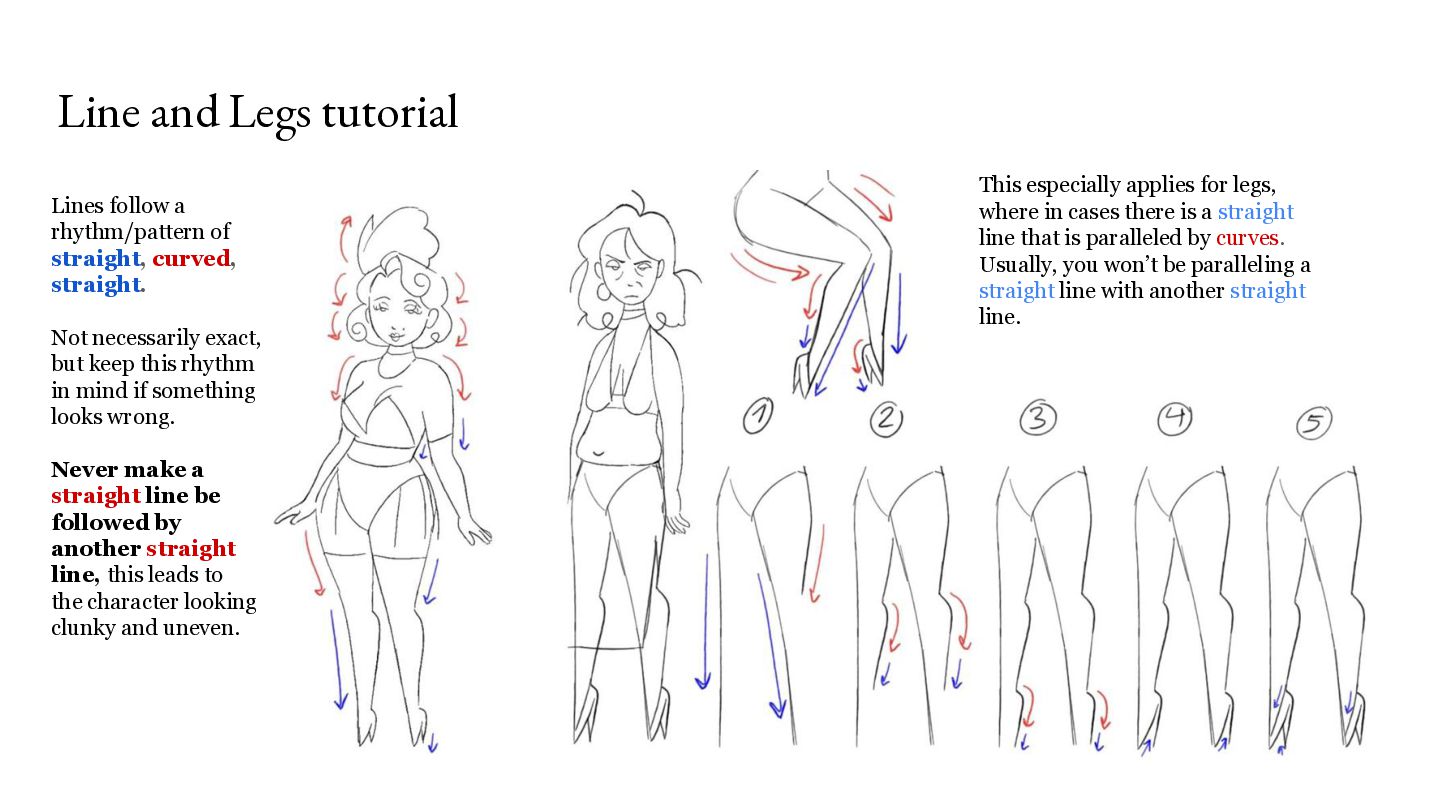
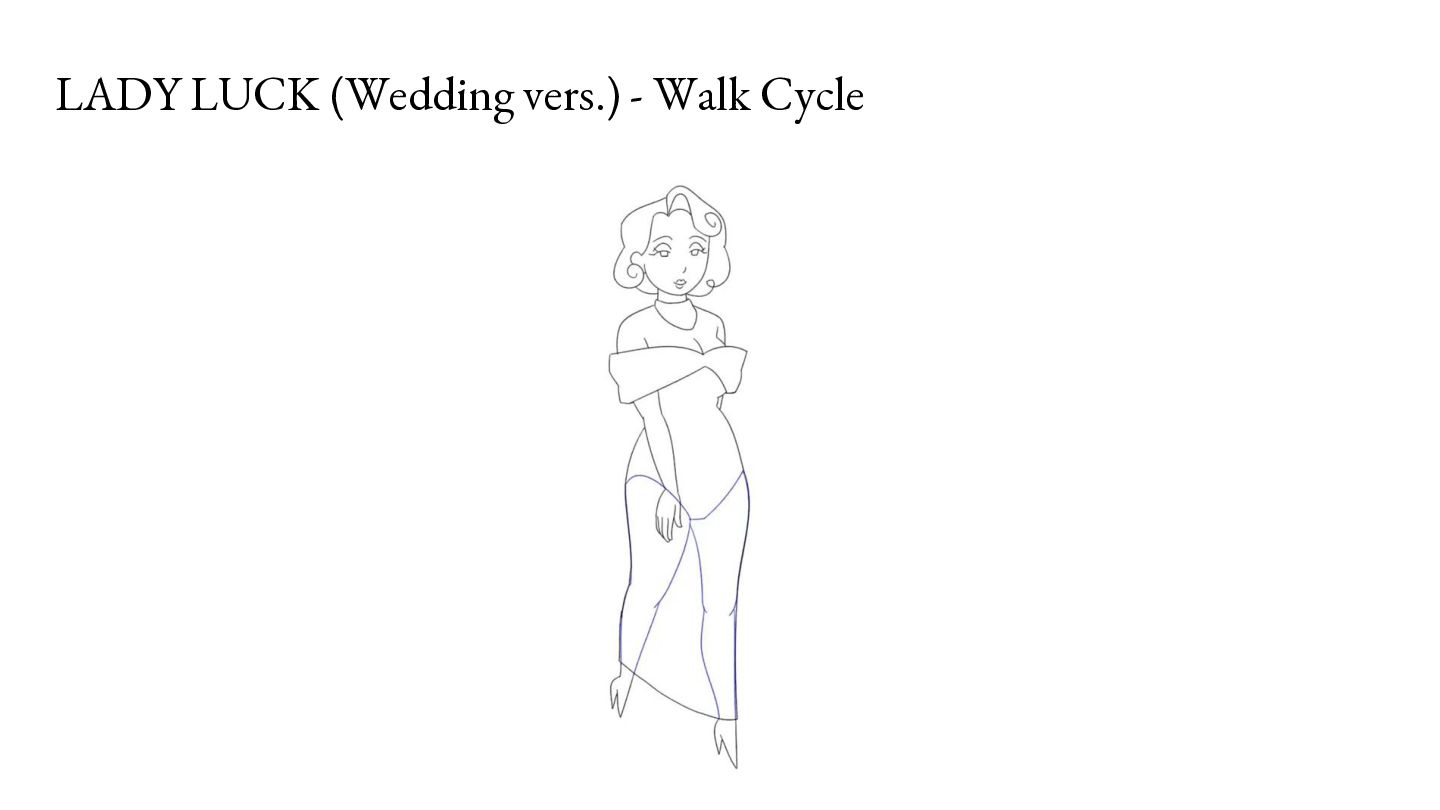
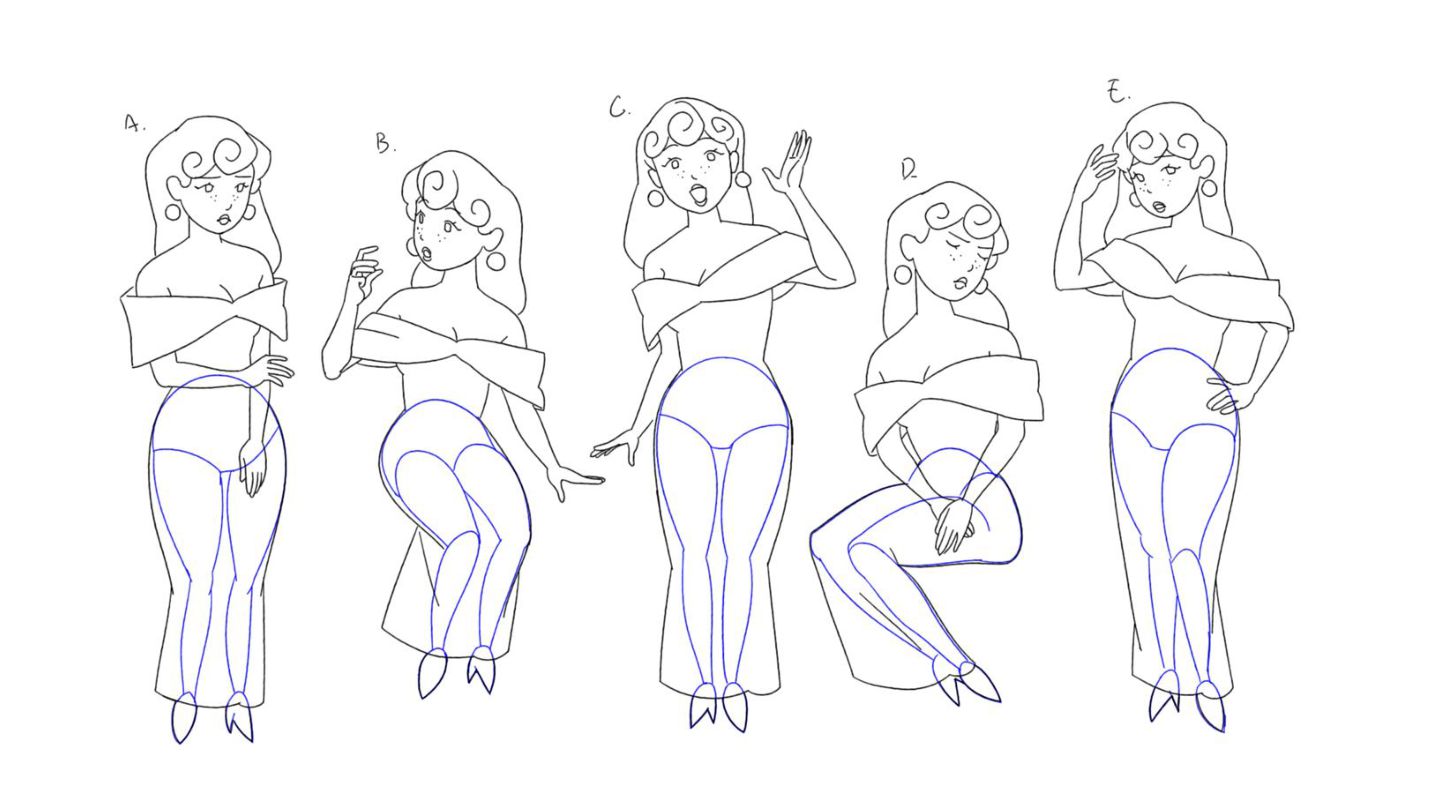
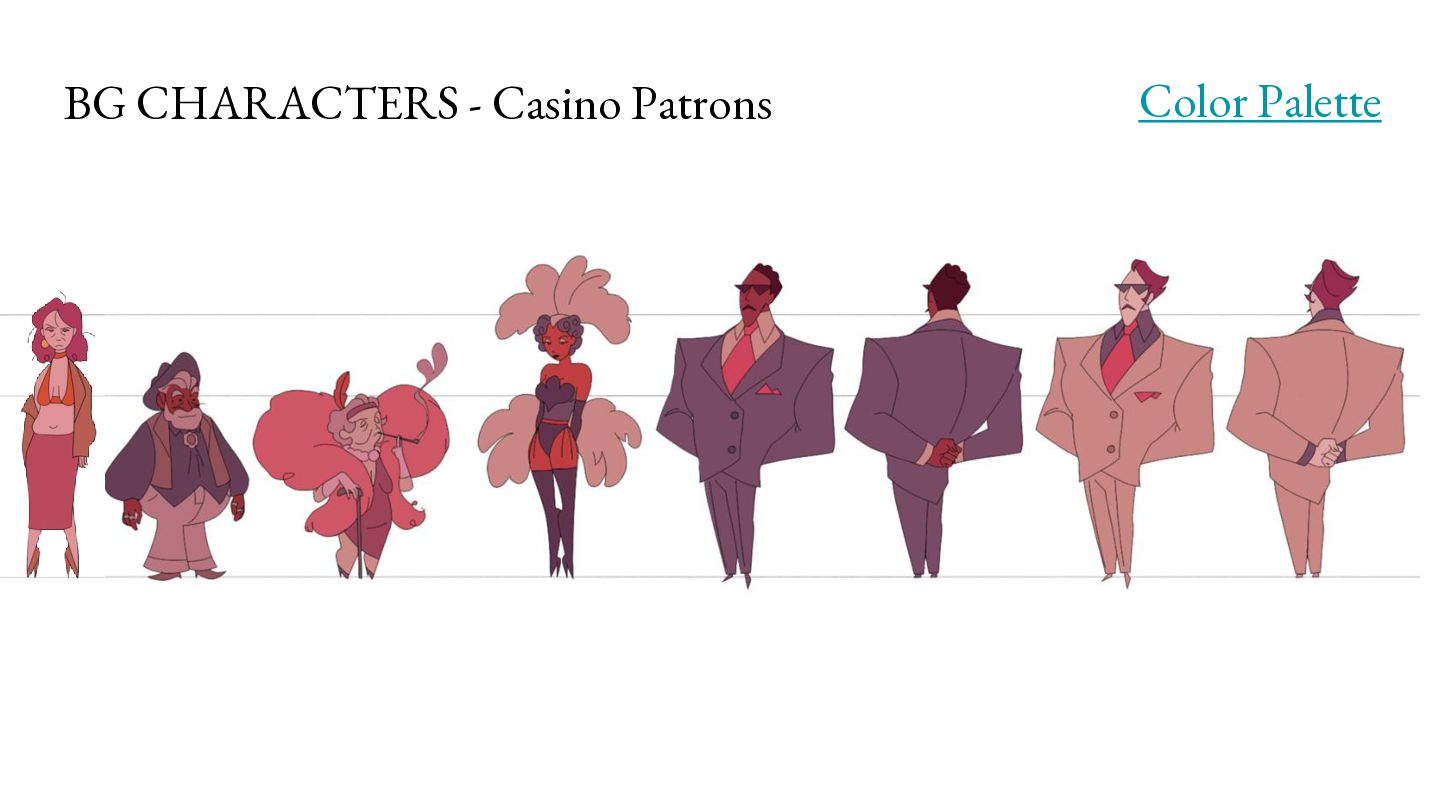
curved, straight. Not necessarily exact, but keep this rhythm in mind if something looks wrong. Never make a straight line be followed by another straight line, this leads to the character looking clunky and uneven. This especially applies for legs, where in cases there is a straight line that is paralleled by curves. Usually, you won’t be paralleling a straight line with another straight line.
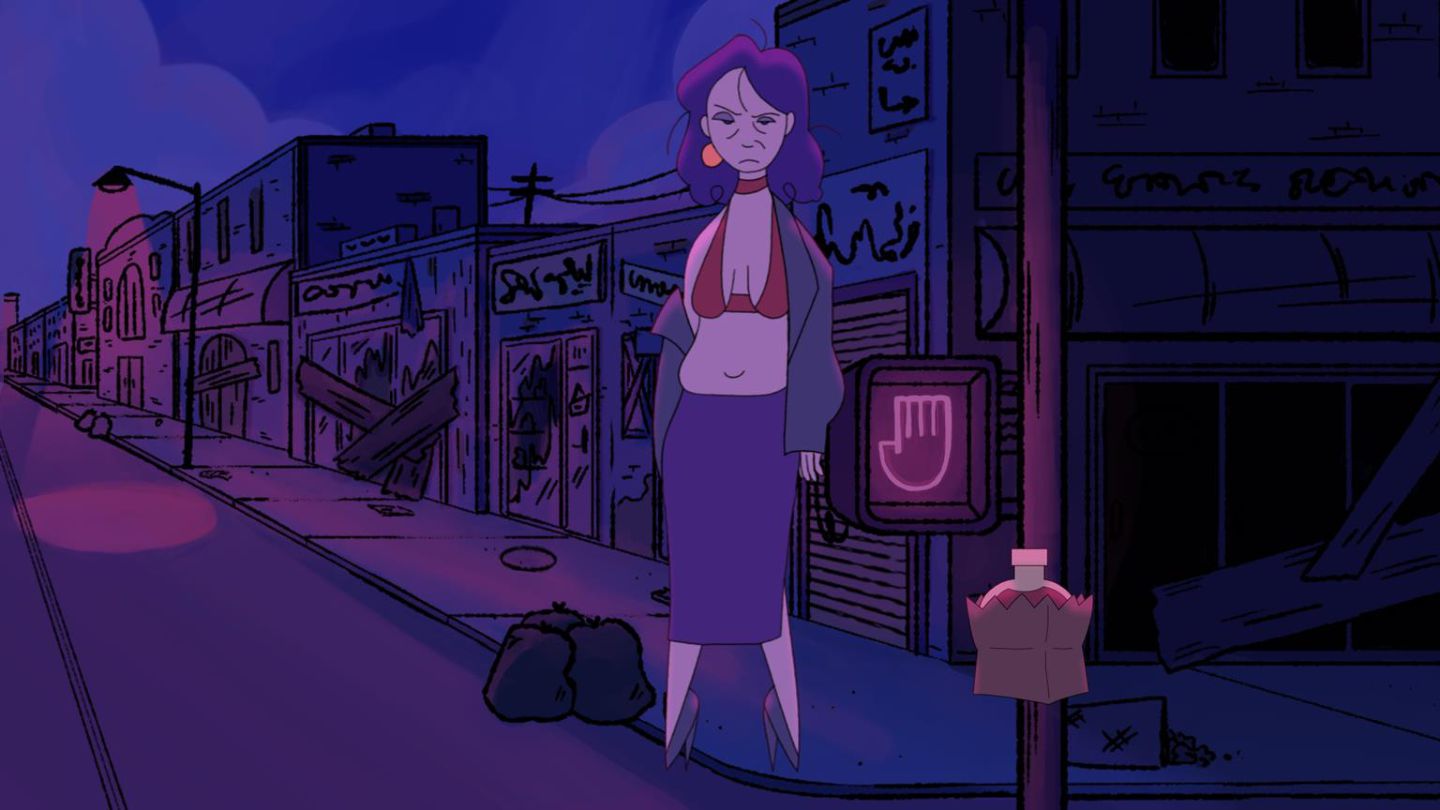
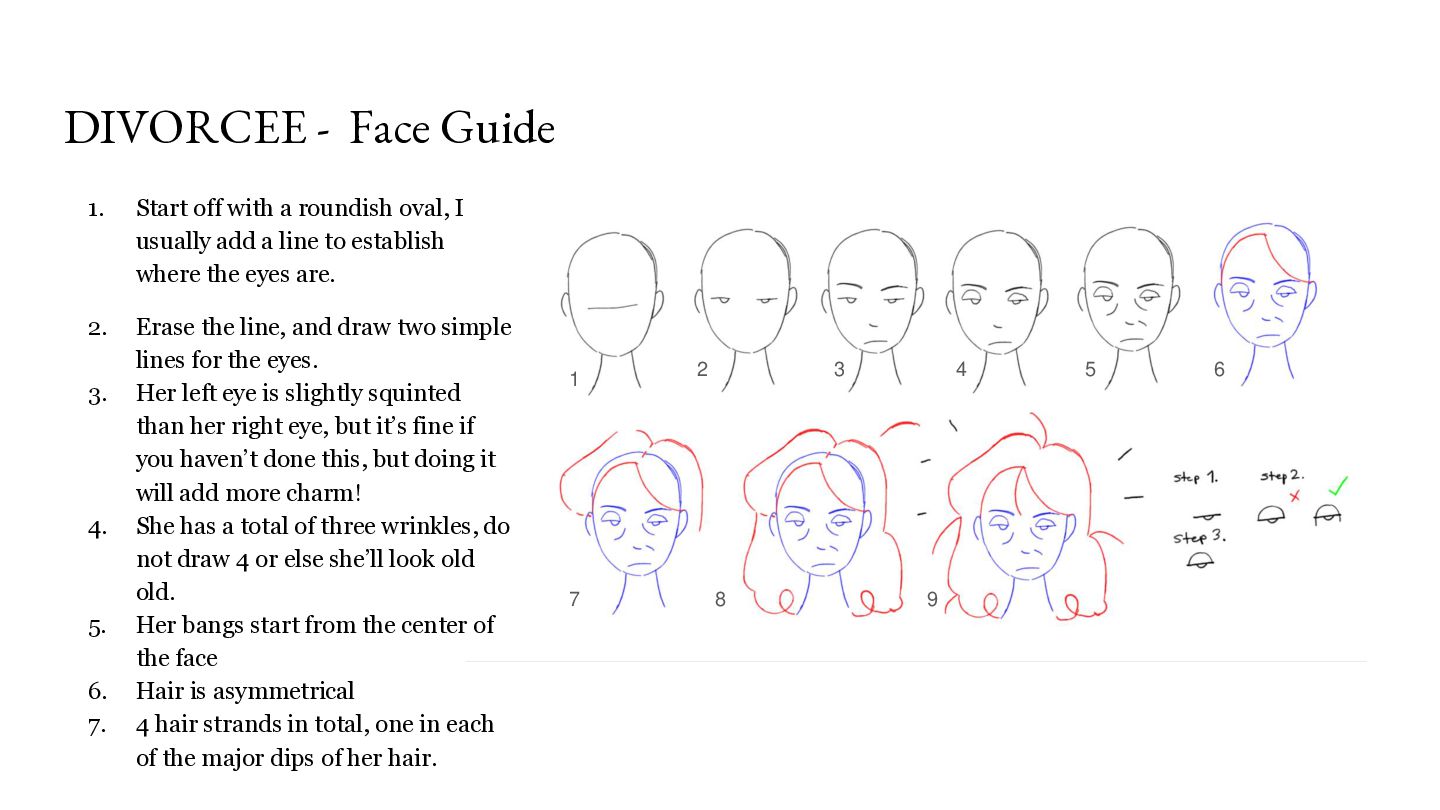
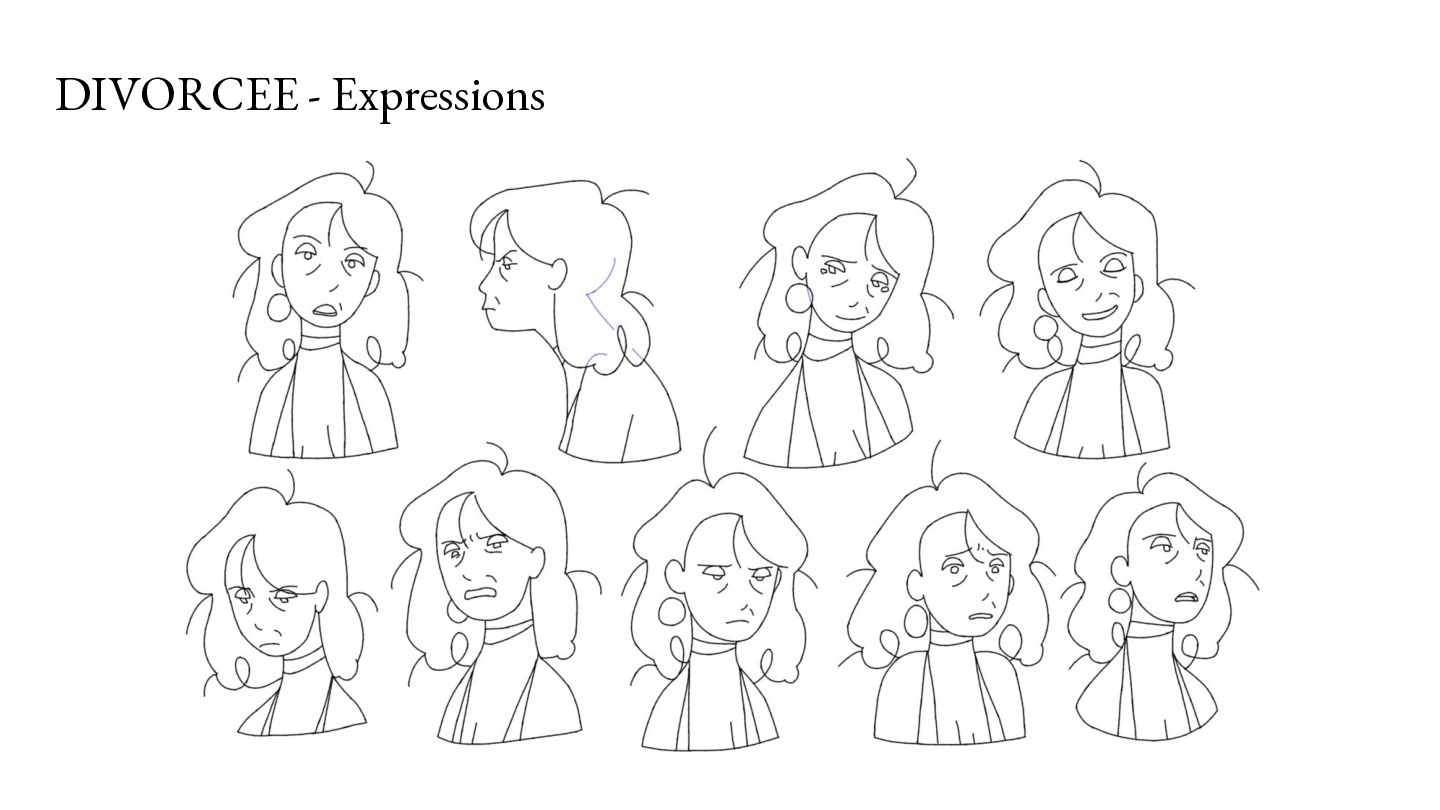
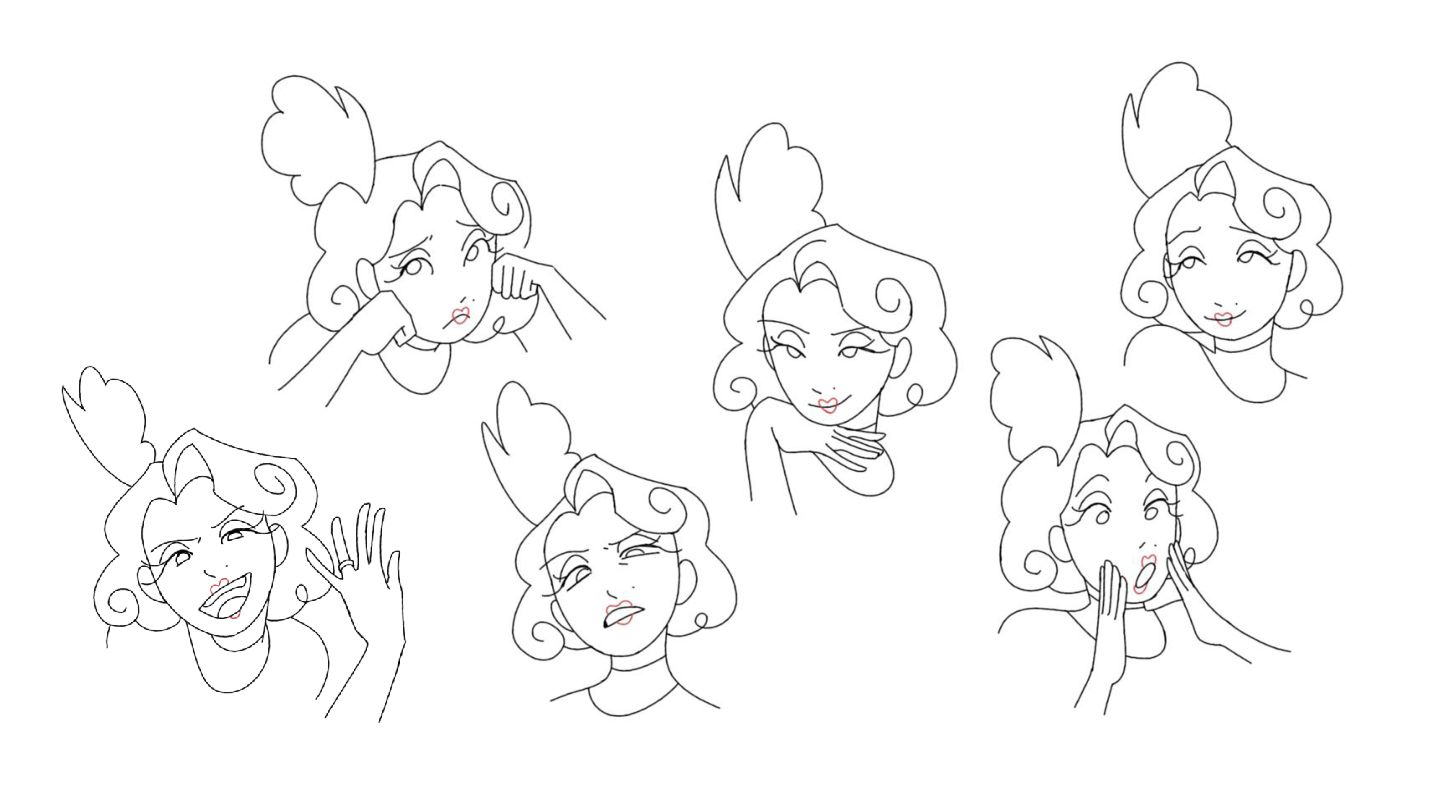
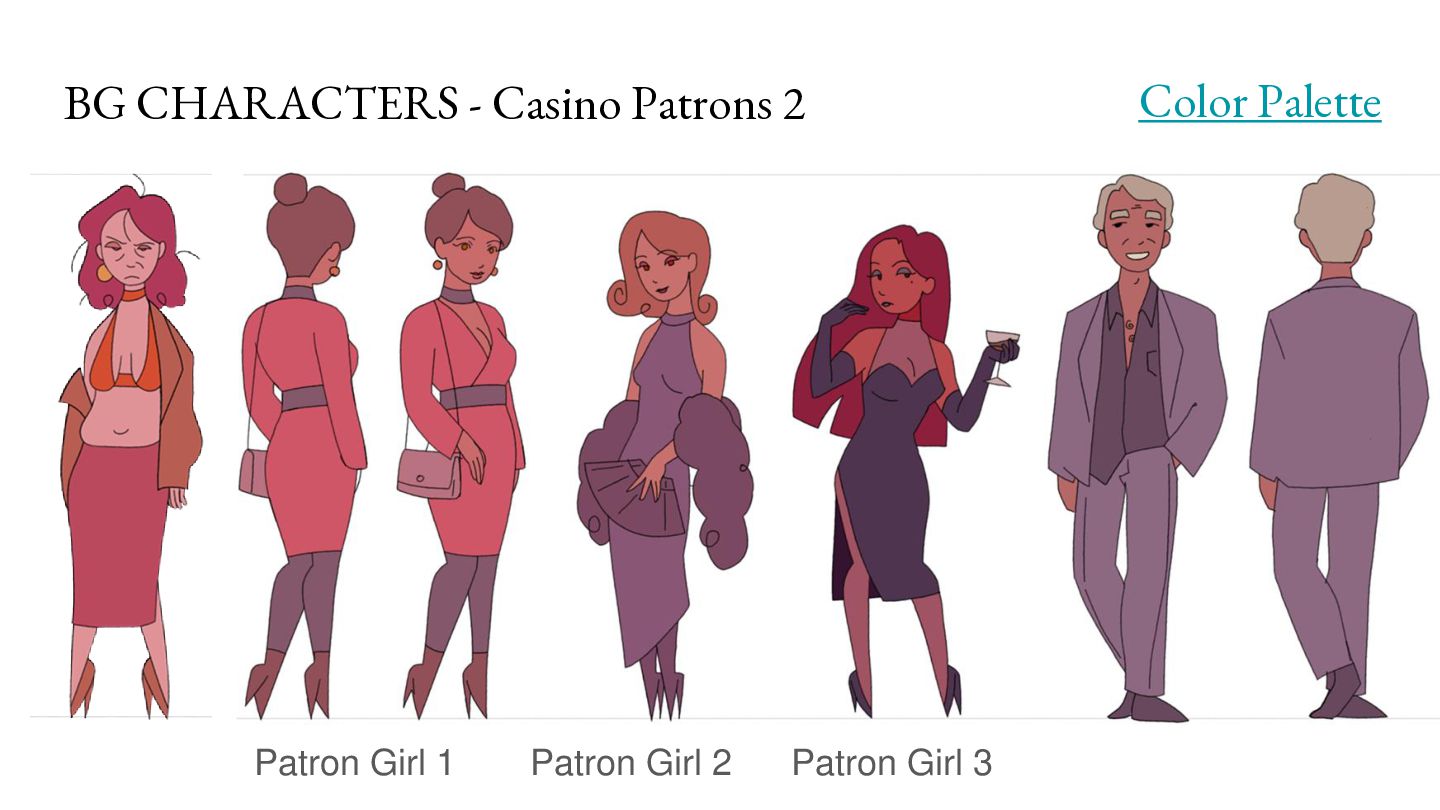
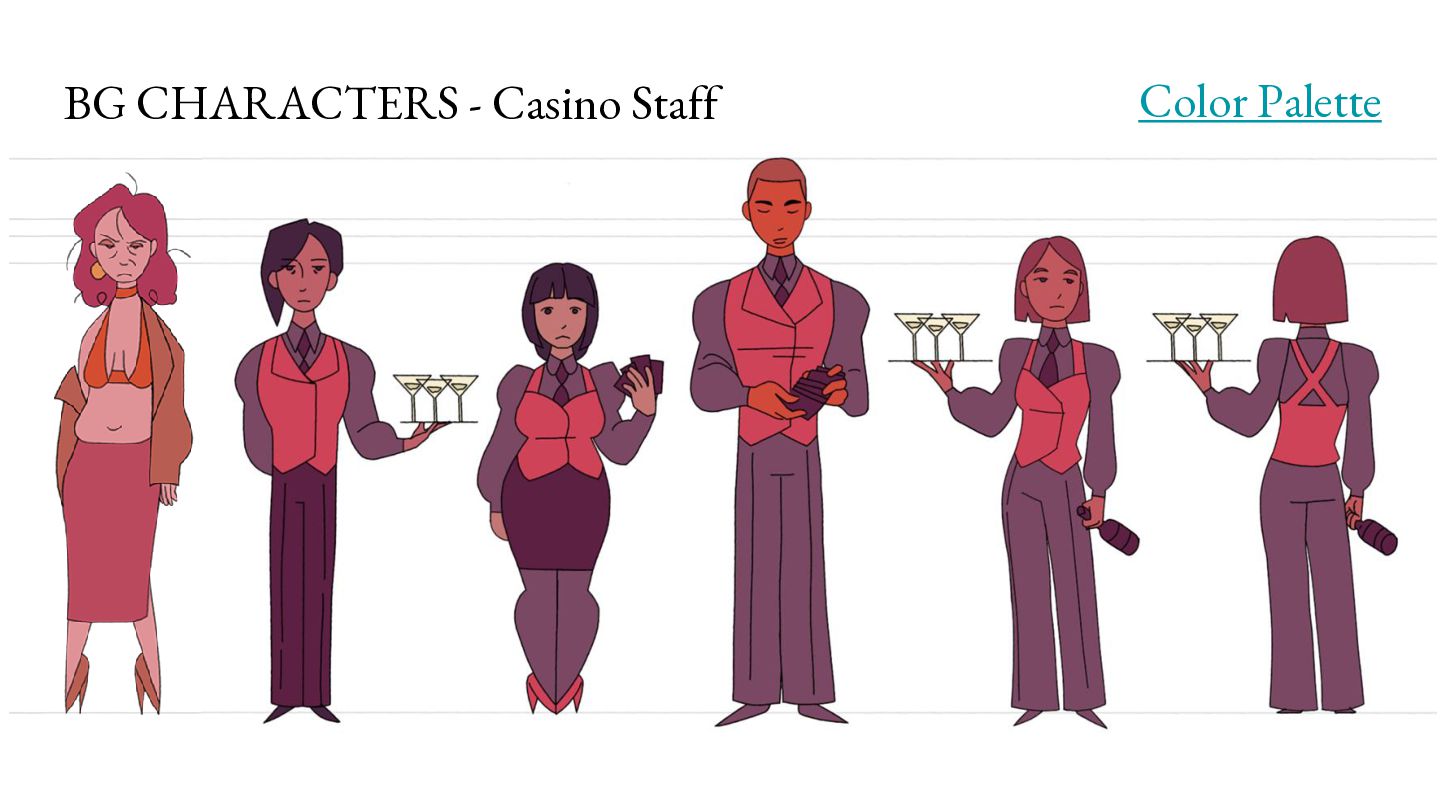
oval, I usually add a line to establish where the eyes are. 2. Erase the line, and draw two simple lines for the eyes. Her left eye is slightly squinted than her right eye, but it’s fine if you haven’t done this, but doing it will add more charm! She has a total of three wrinkles, do not draw 4 or else she’ll look old old. Her bangs start from the center of the face Hair is asymmetrical 4 hair strands in total, one in each of the major dips of her hair. 3. 4. 5. 6. 7. 1 7 2 3 8 4 9 5 6
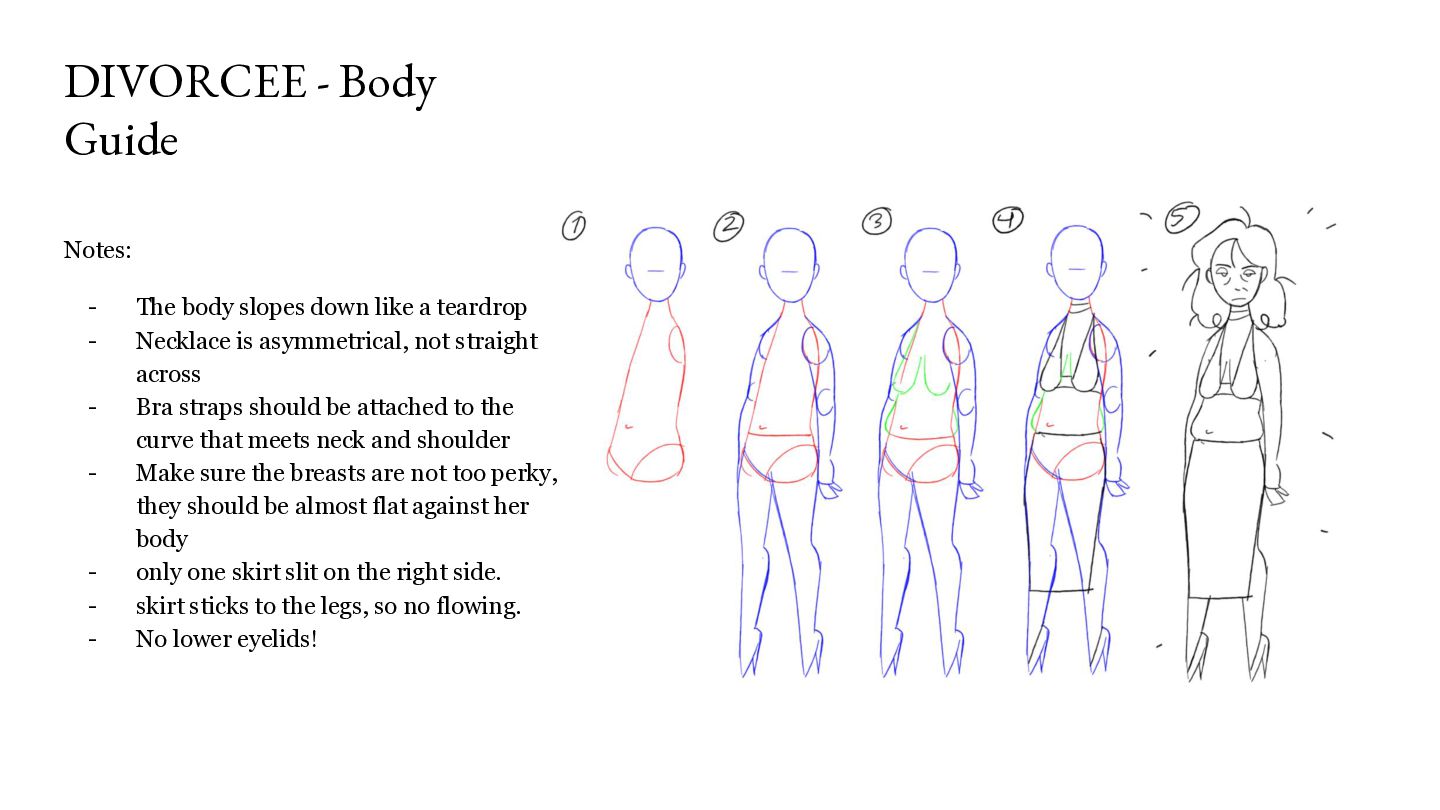
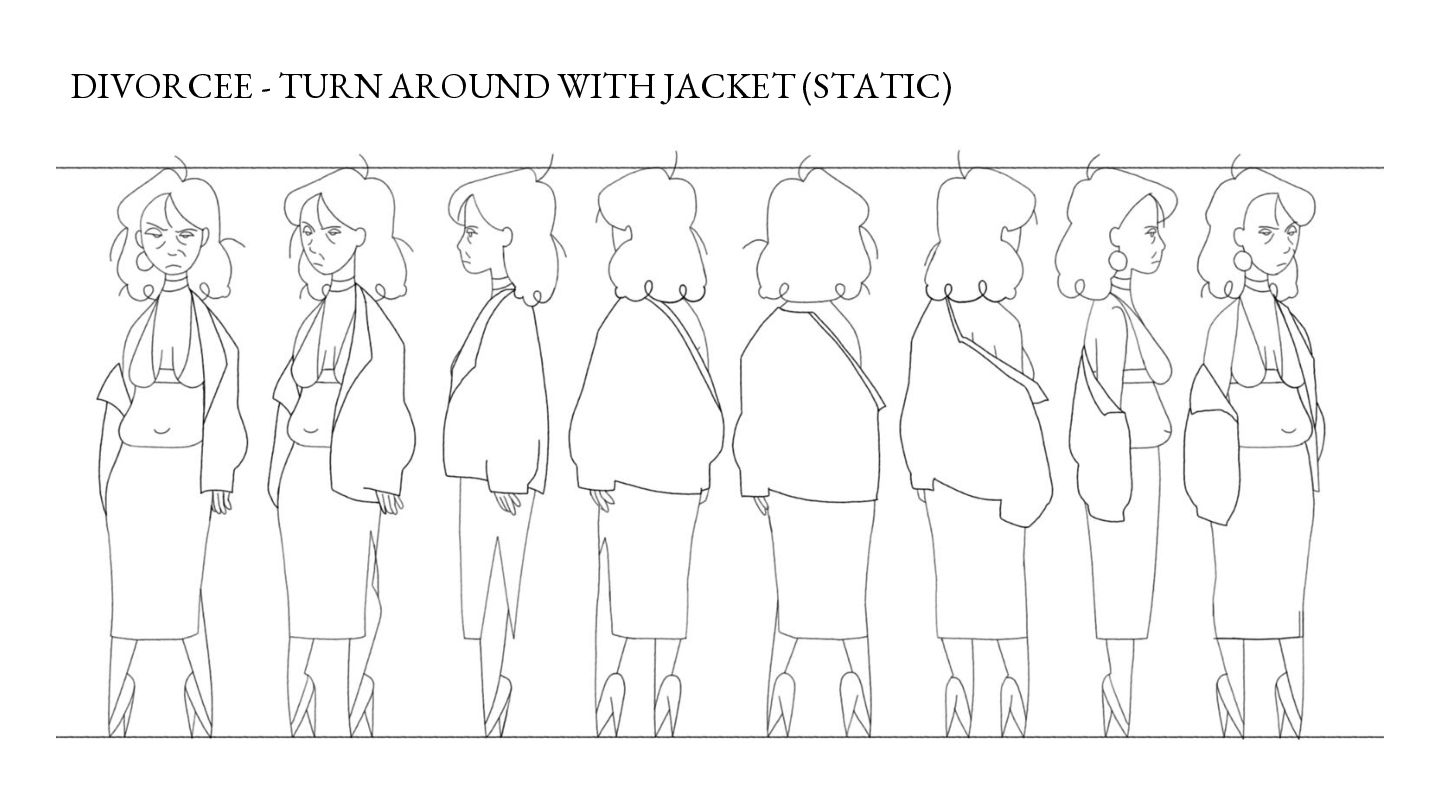
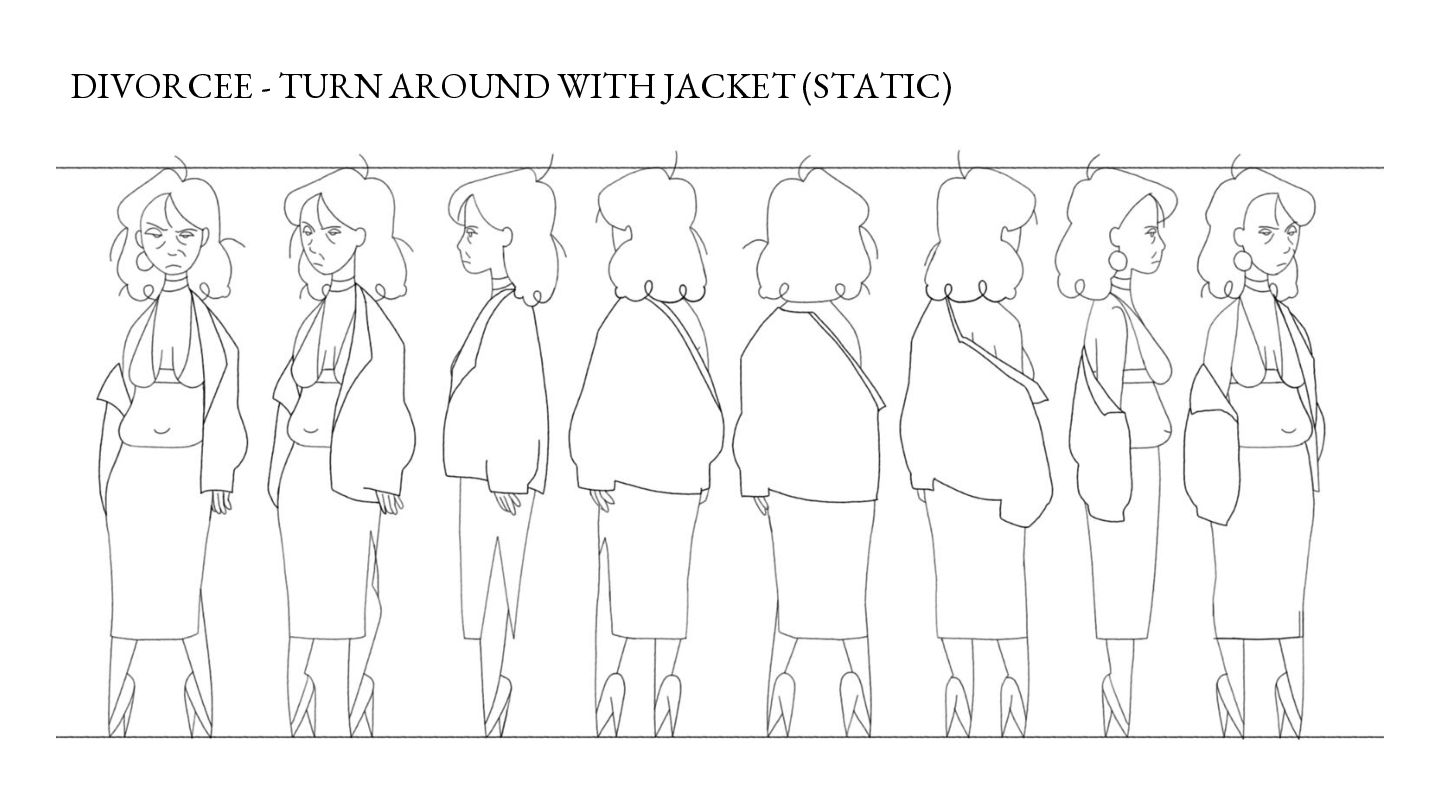
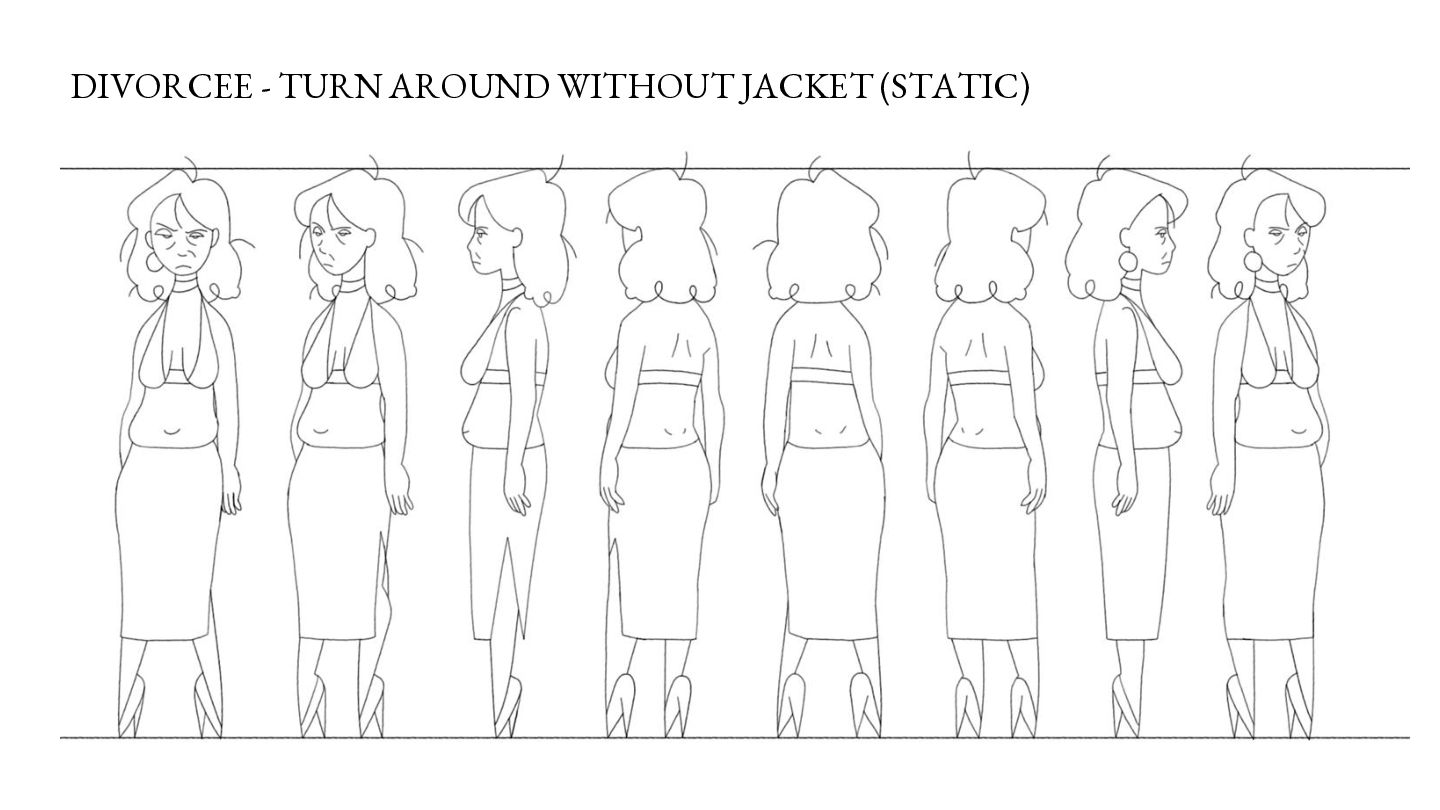
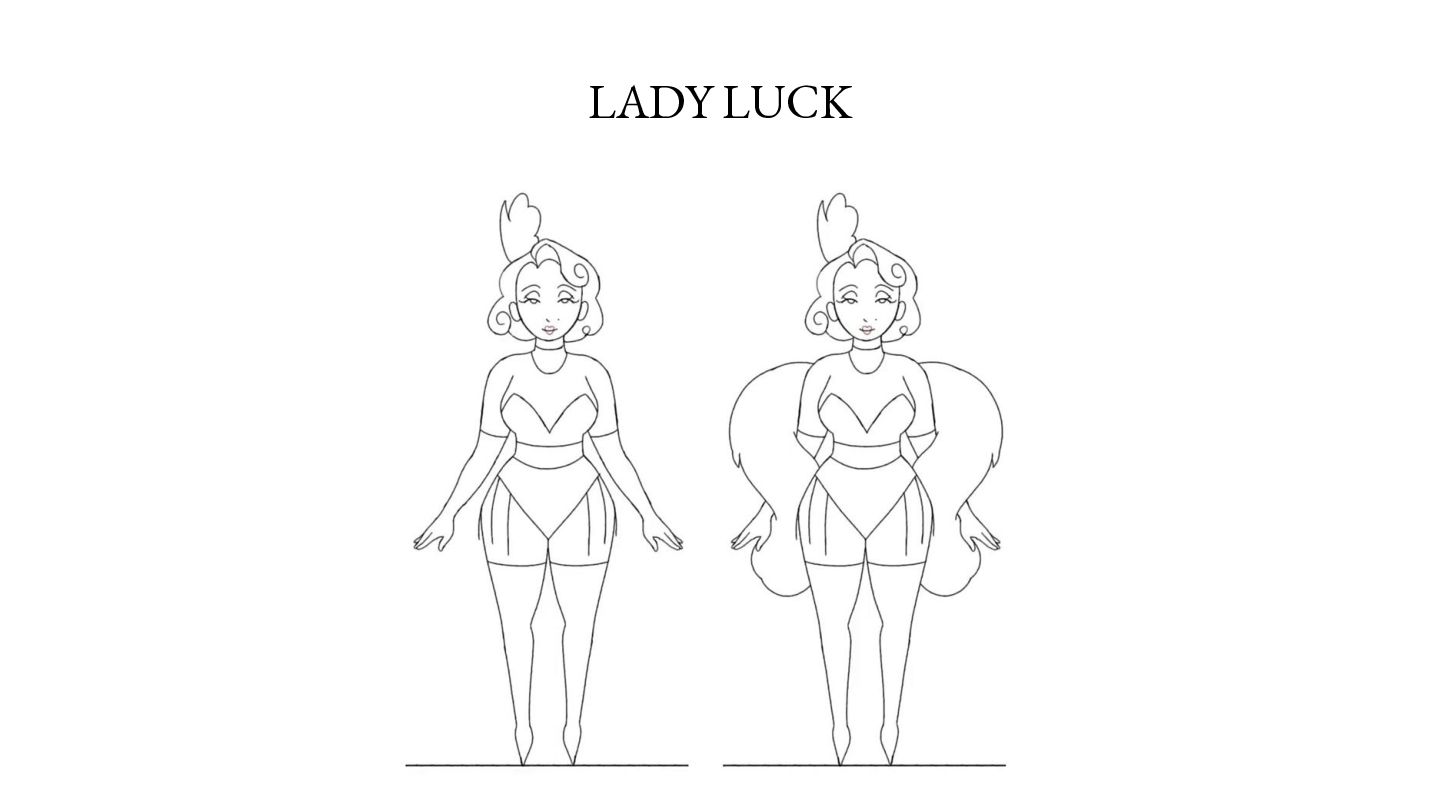
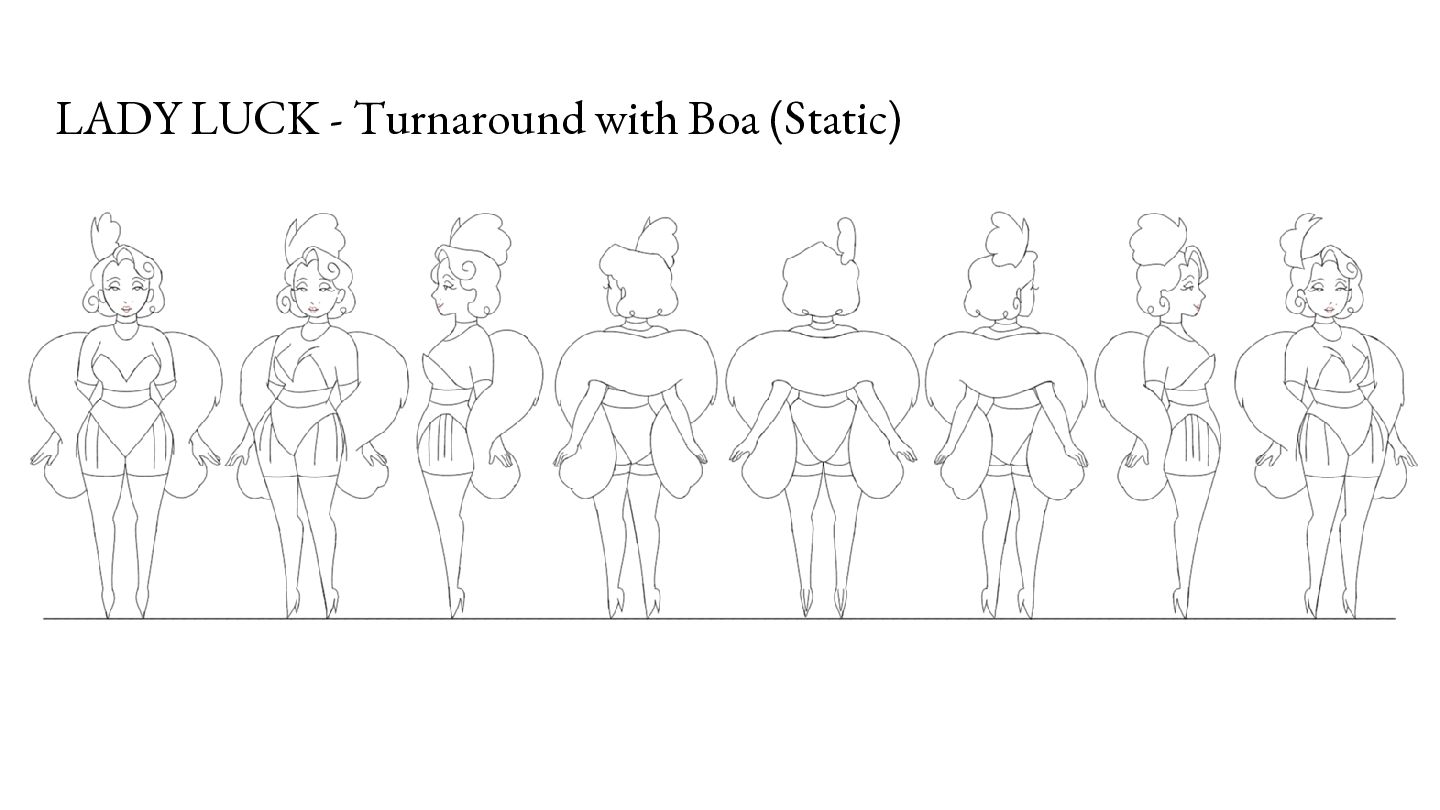
slopes down like a teardrop Necklace is asymmetrical, not straight across Bra straps should be attached to the curve that meets neck and shoulder Make sure the breasts are not too perky, they should be almost flat against her body only one skirt slit on the right side. skirt sticks to the legs, so no flowing. No lower eyelids!
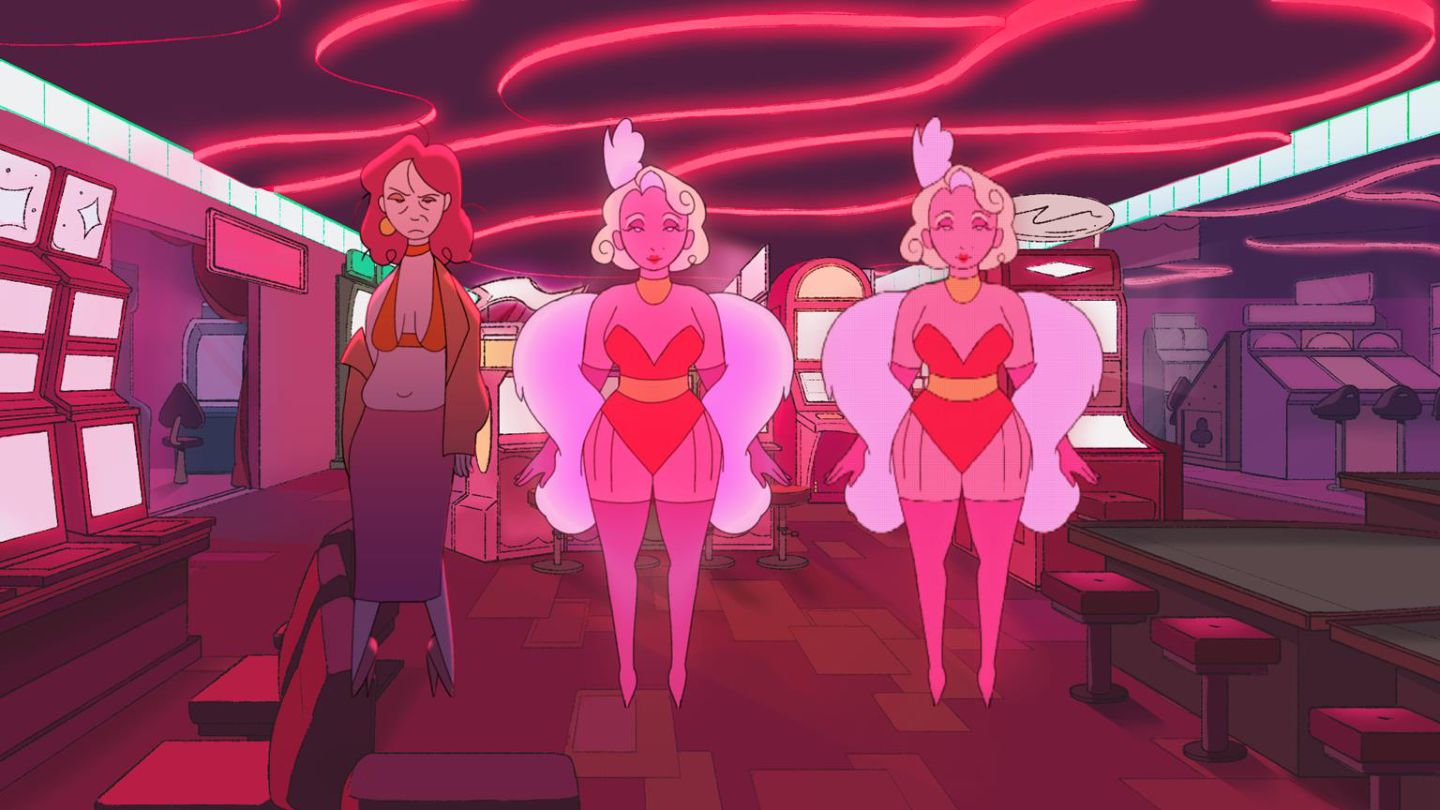
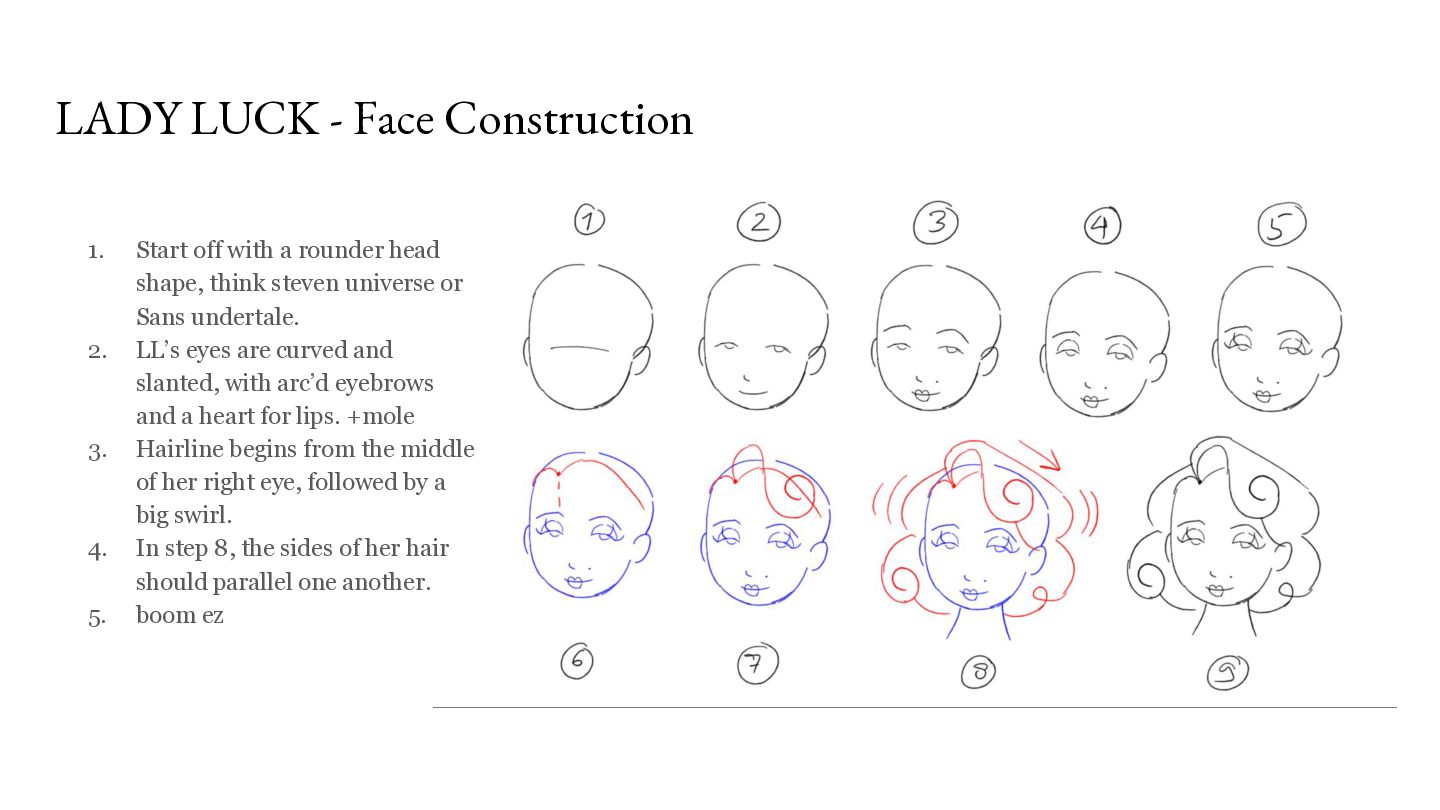
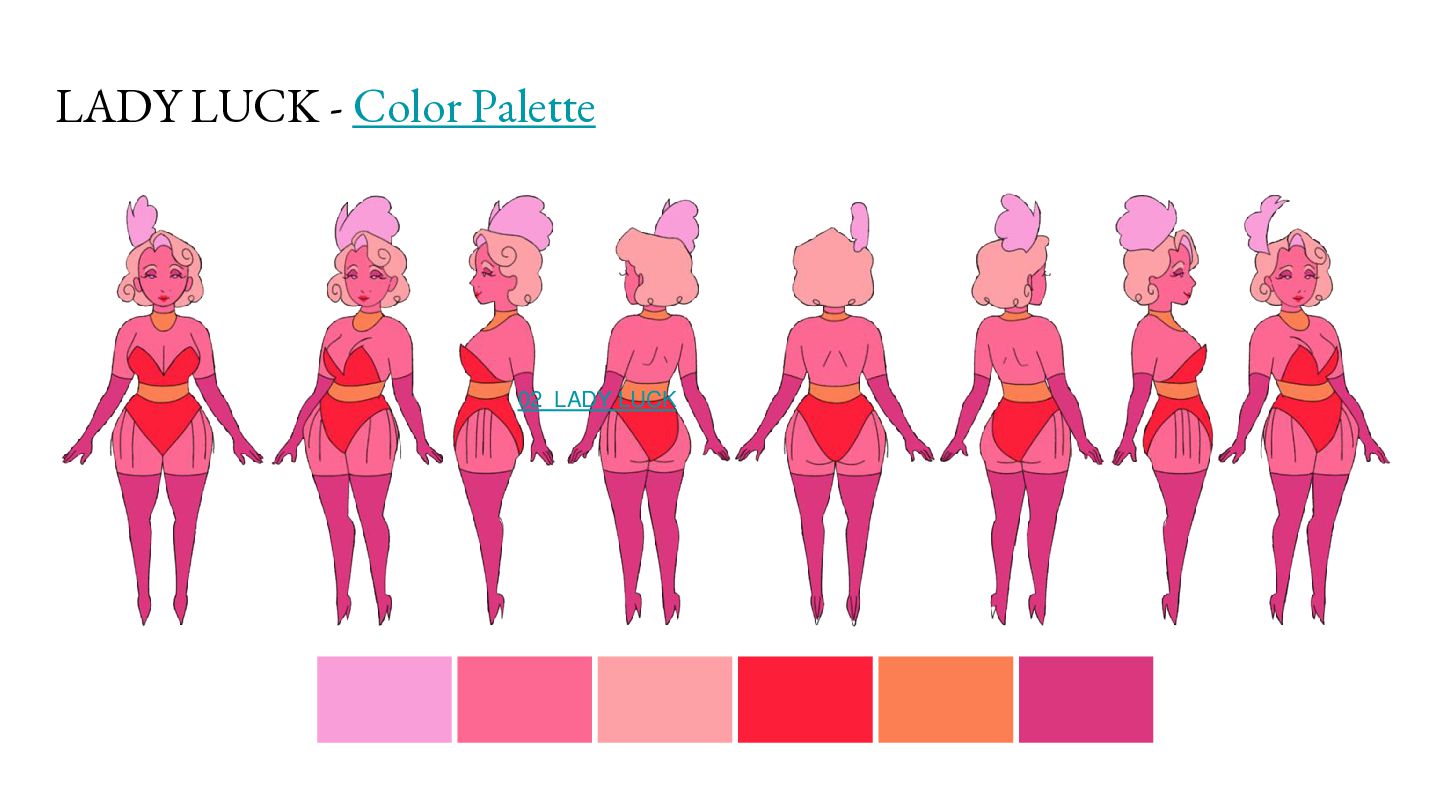
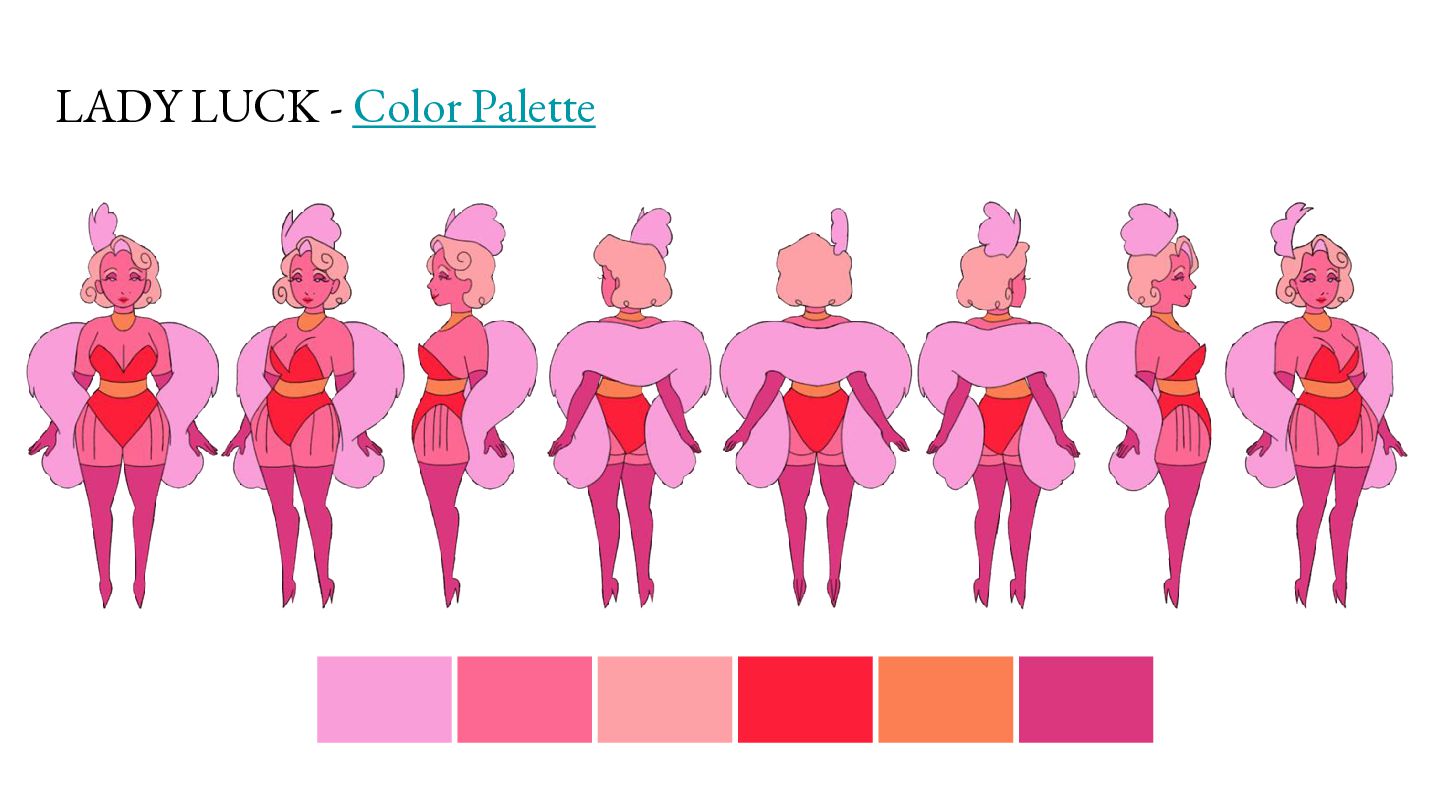
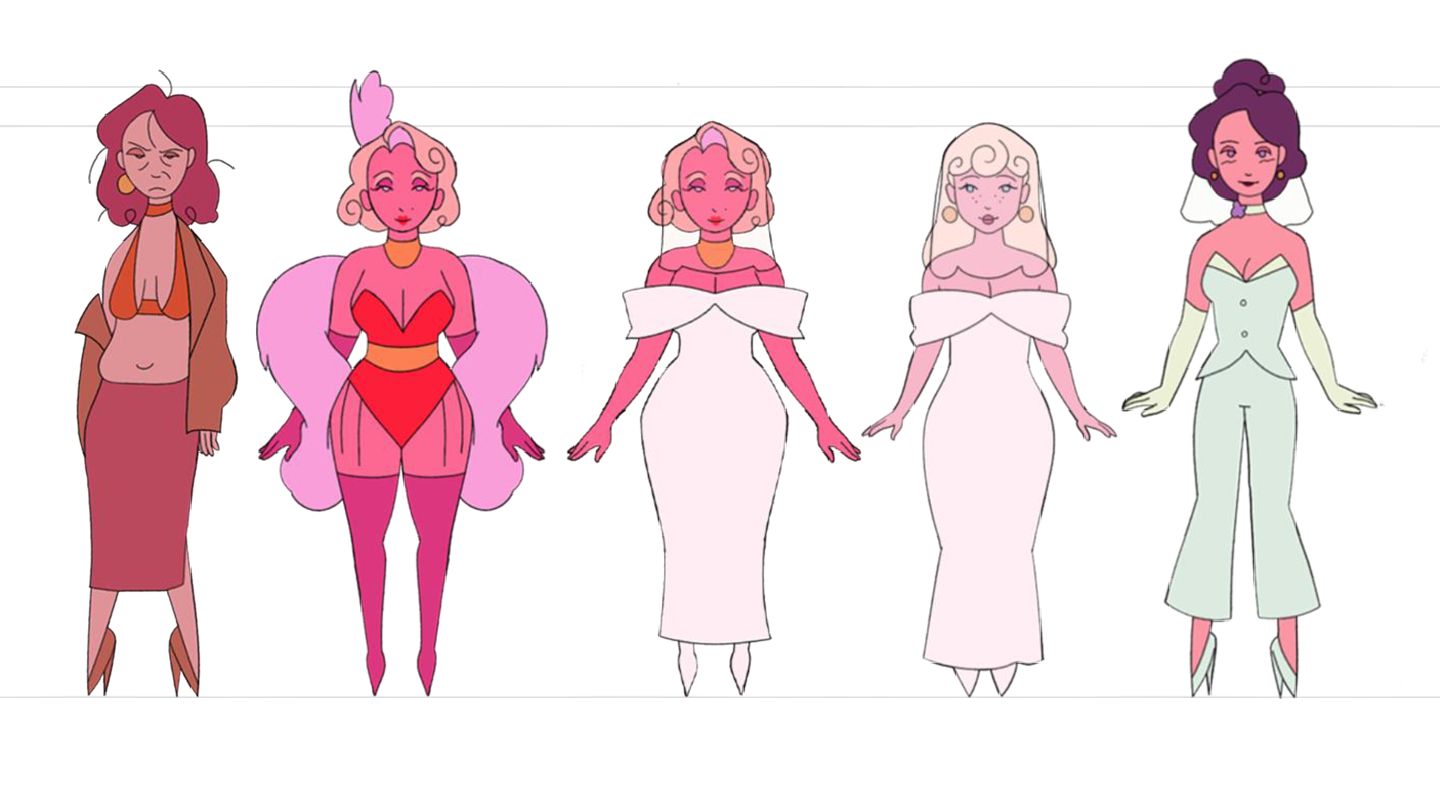
Start off with a rounder head shape, think steven universe or Sans undertale. LL’s eyes are curved and slanted, with arc’d eyebrows and a heart for lips. +mole Hairline begins from the middle of her right eye, followed by a big swirl. In step 8, the sides of her hair should parallel one another. boom ez
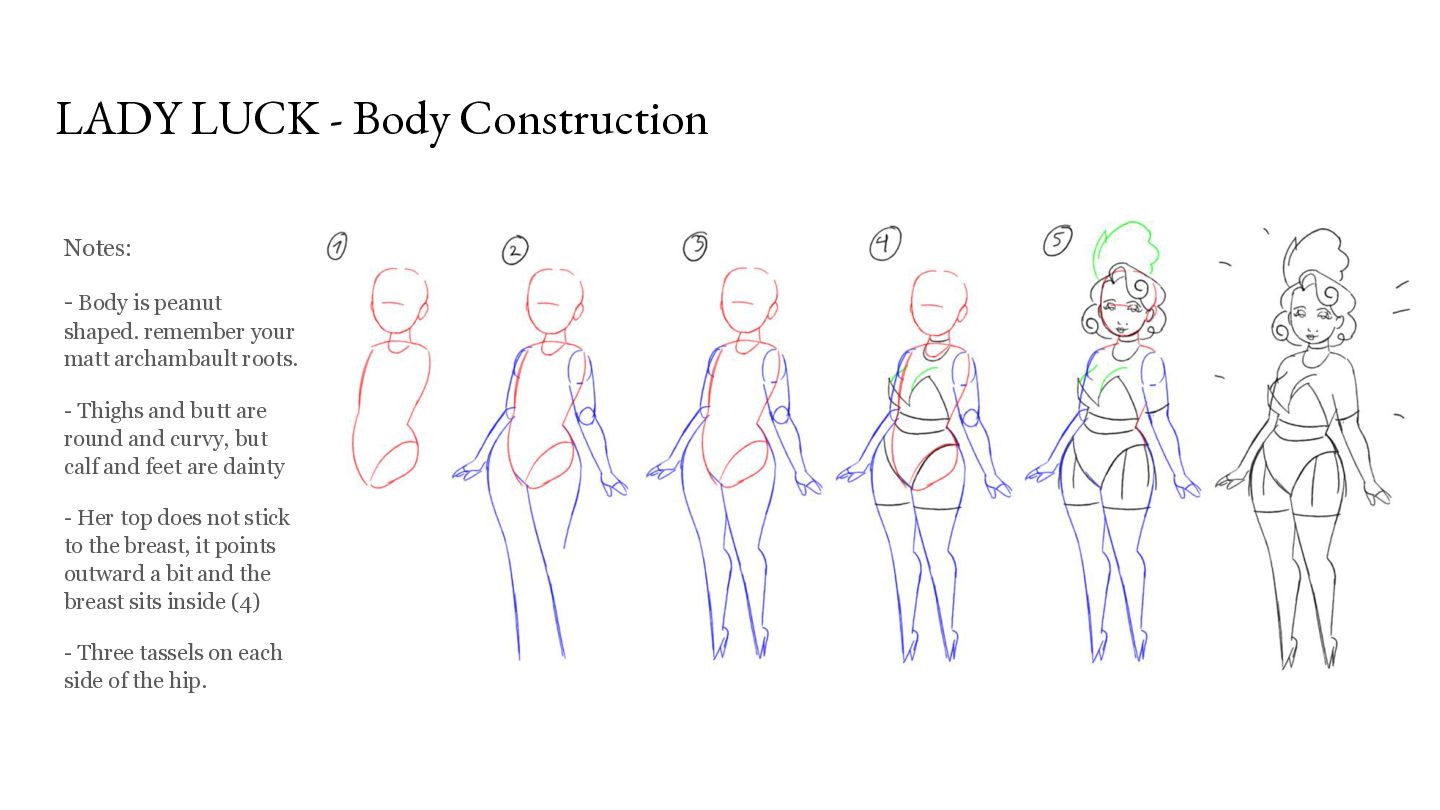
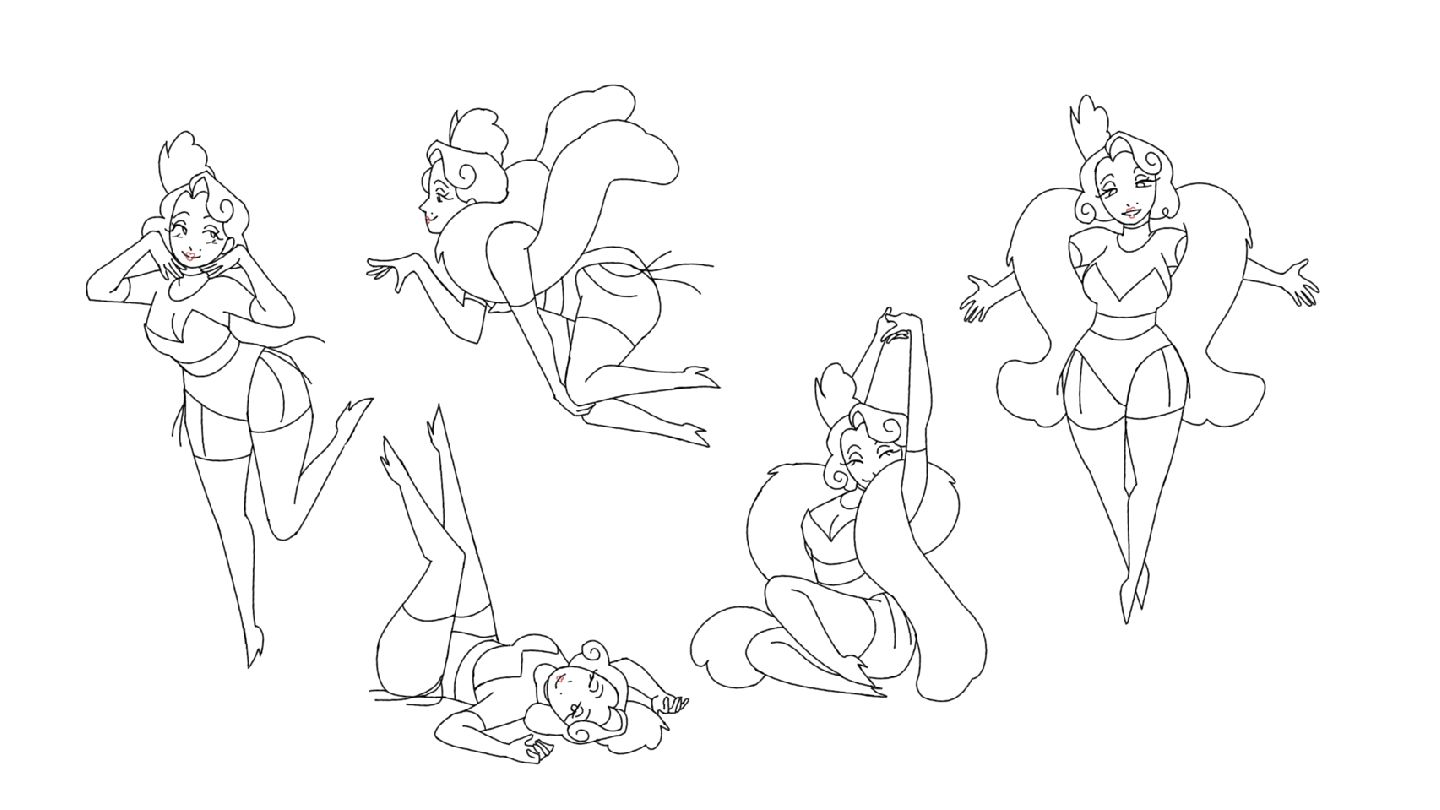
shaped. remember your matt archambault roots. - Thighs and butt are round and curvy, but calf and feet are dainty - Her top does not stick to the breast, it points outward a bit and the breast sits inside (4) - Three tassels on each side of the hip.
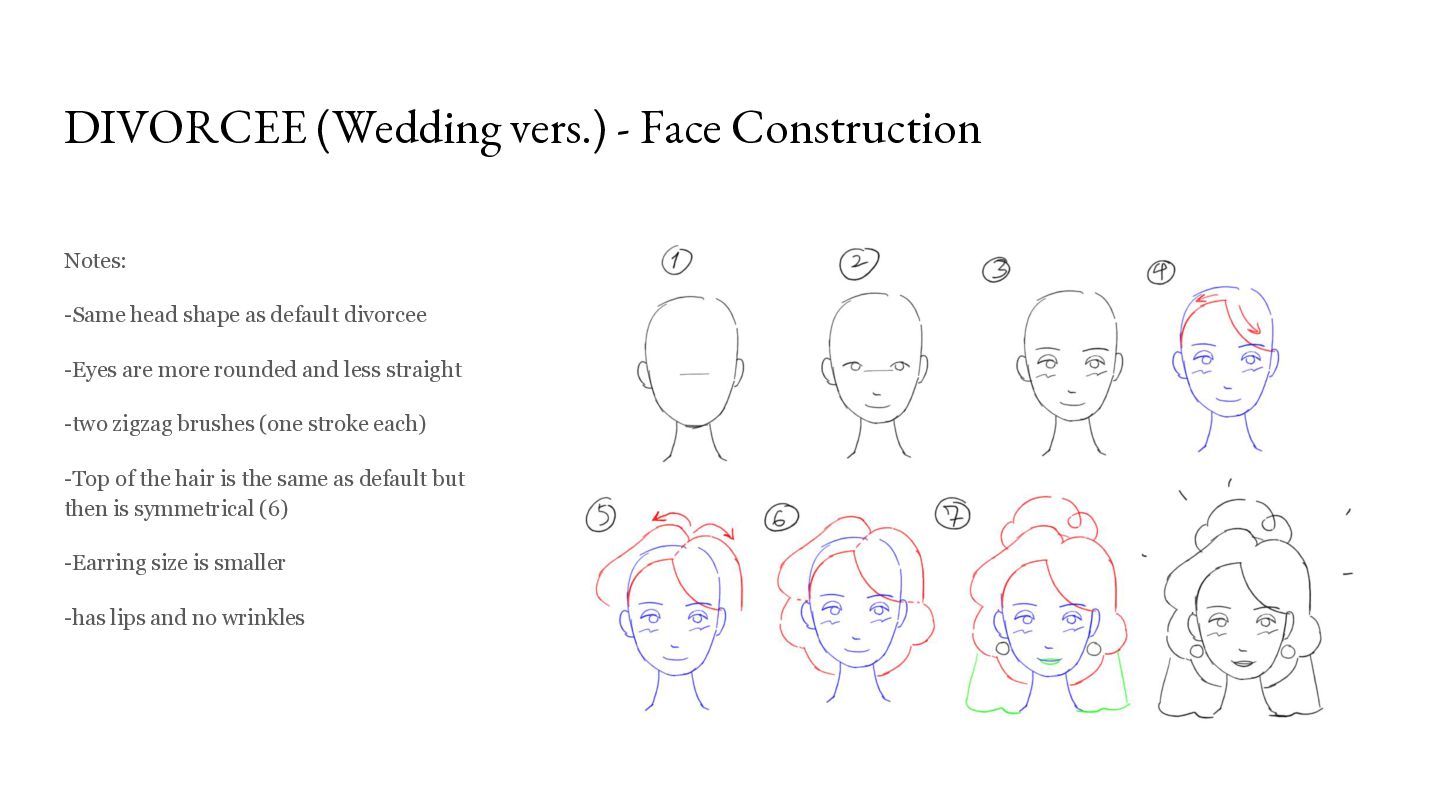
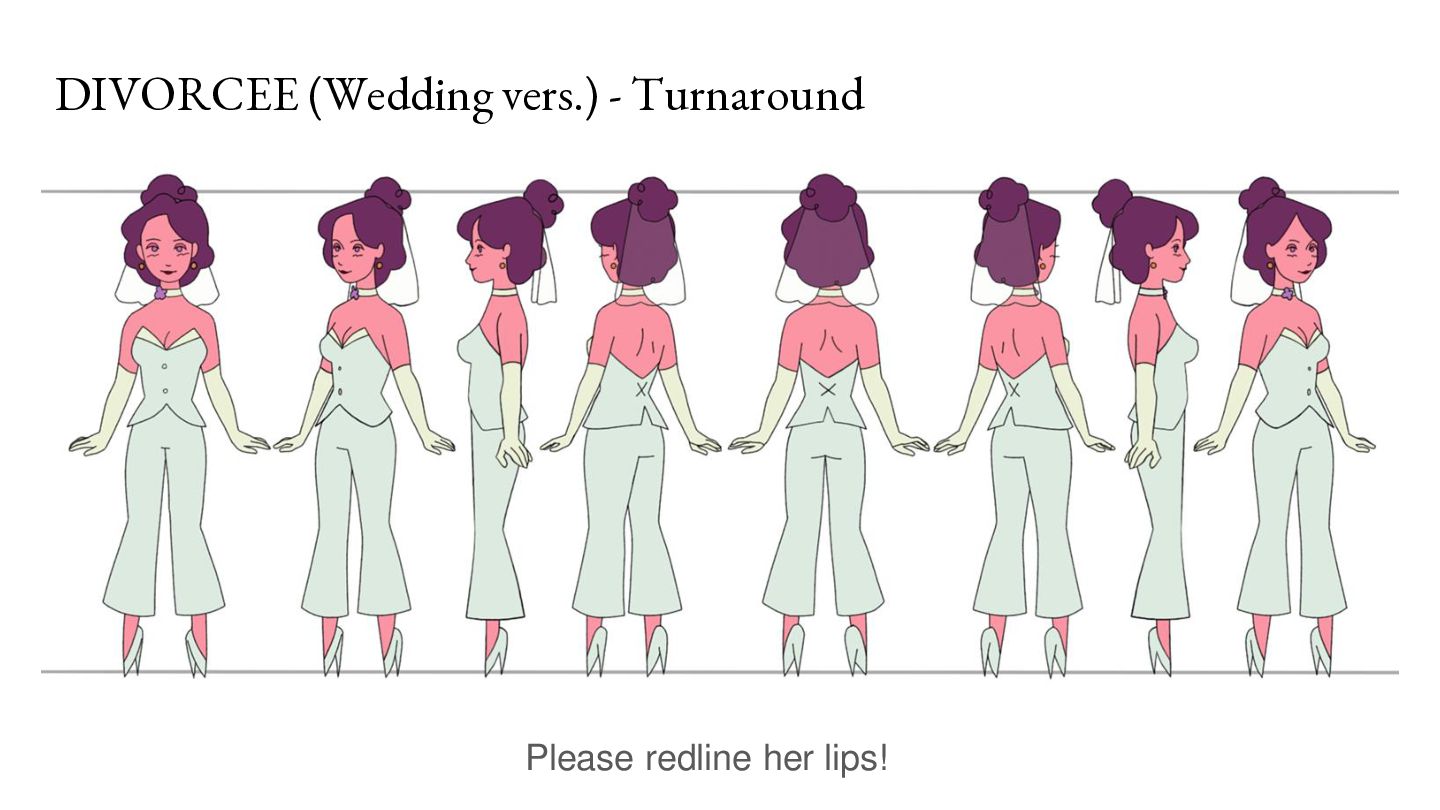
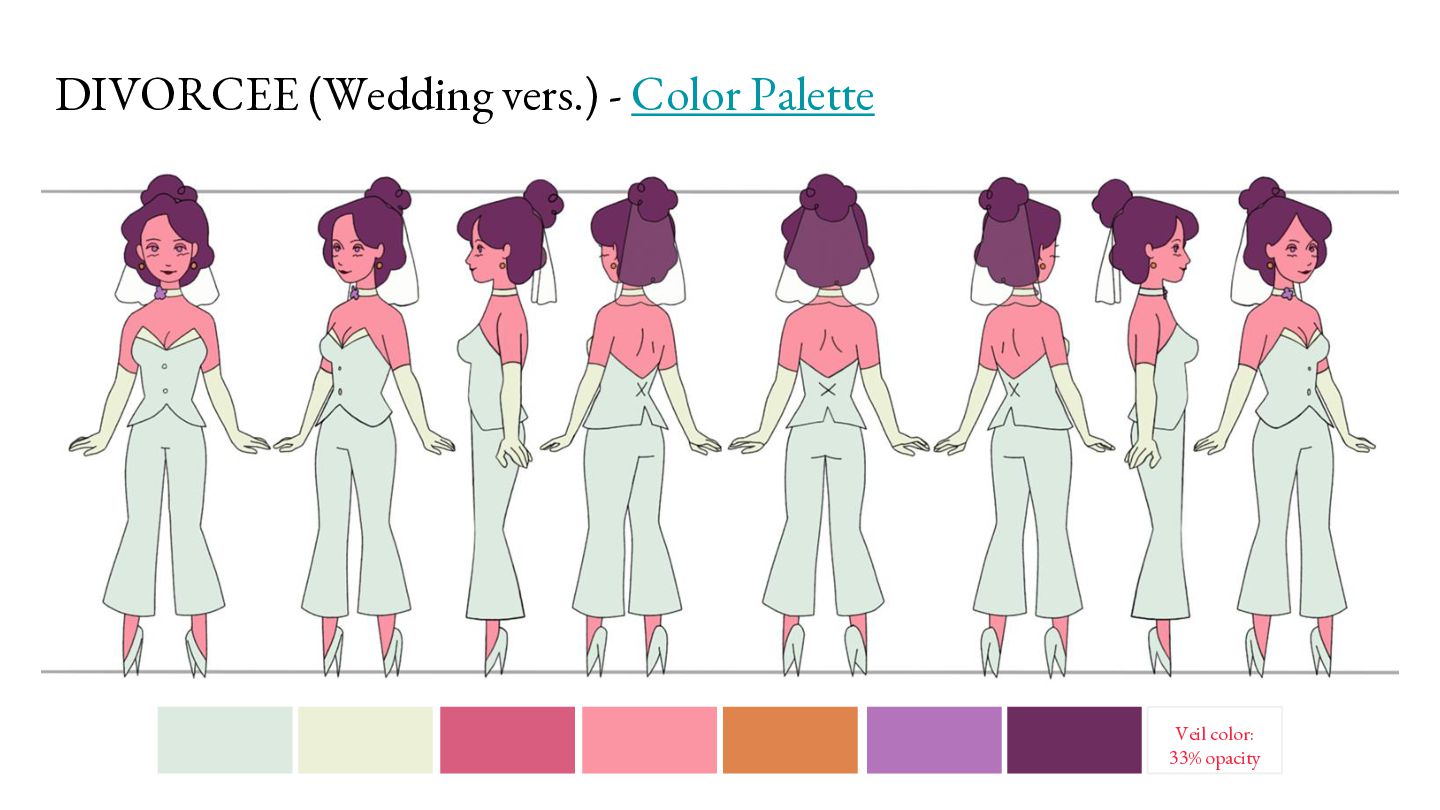
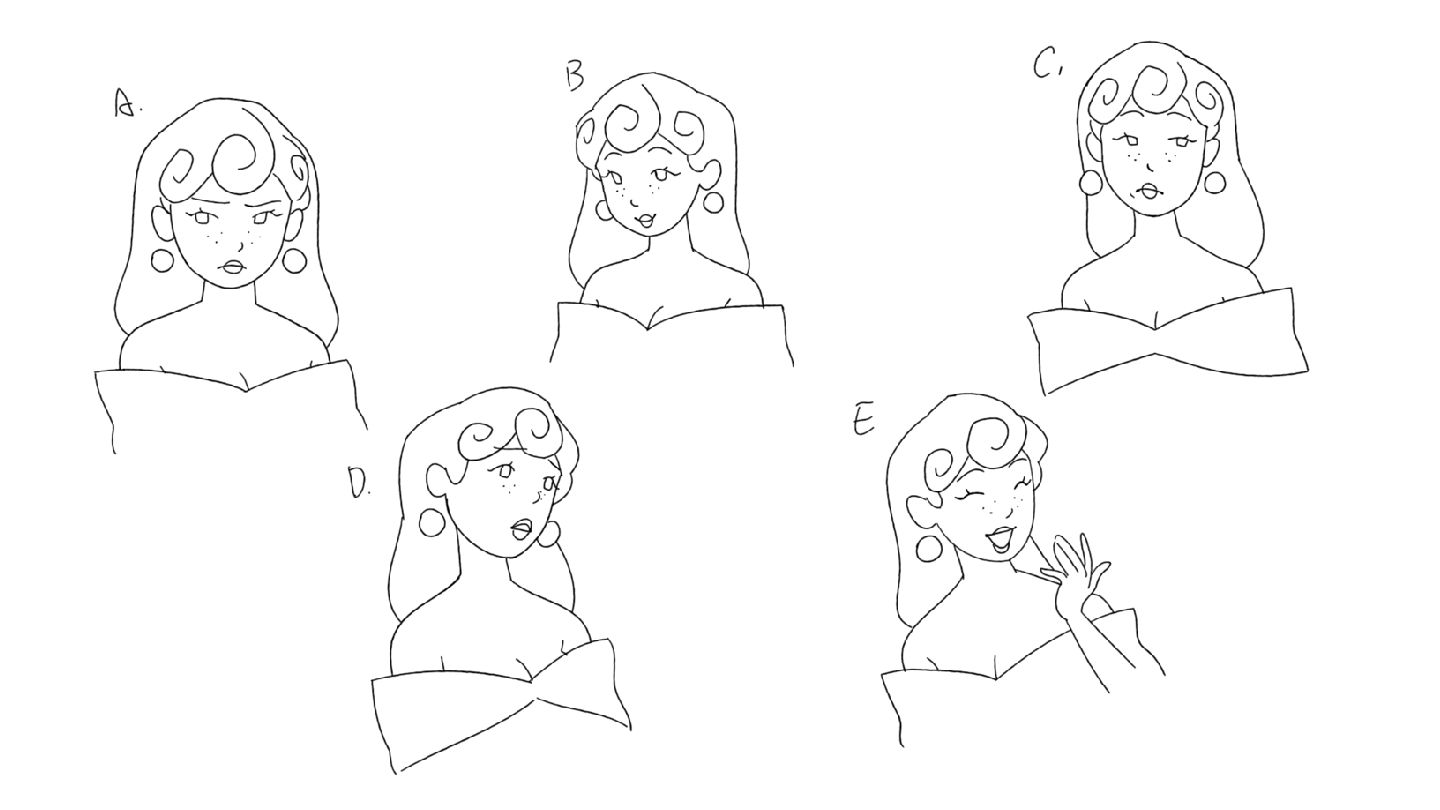
as default divorcee -Eyes are more rounded and less straight -two zigzag brushes (one stroke each) -Top of the hair is the same as default but then is symmetrical (6) -Earring size is smaller -has lips and no wrinkles
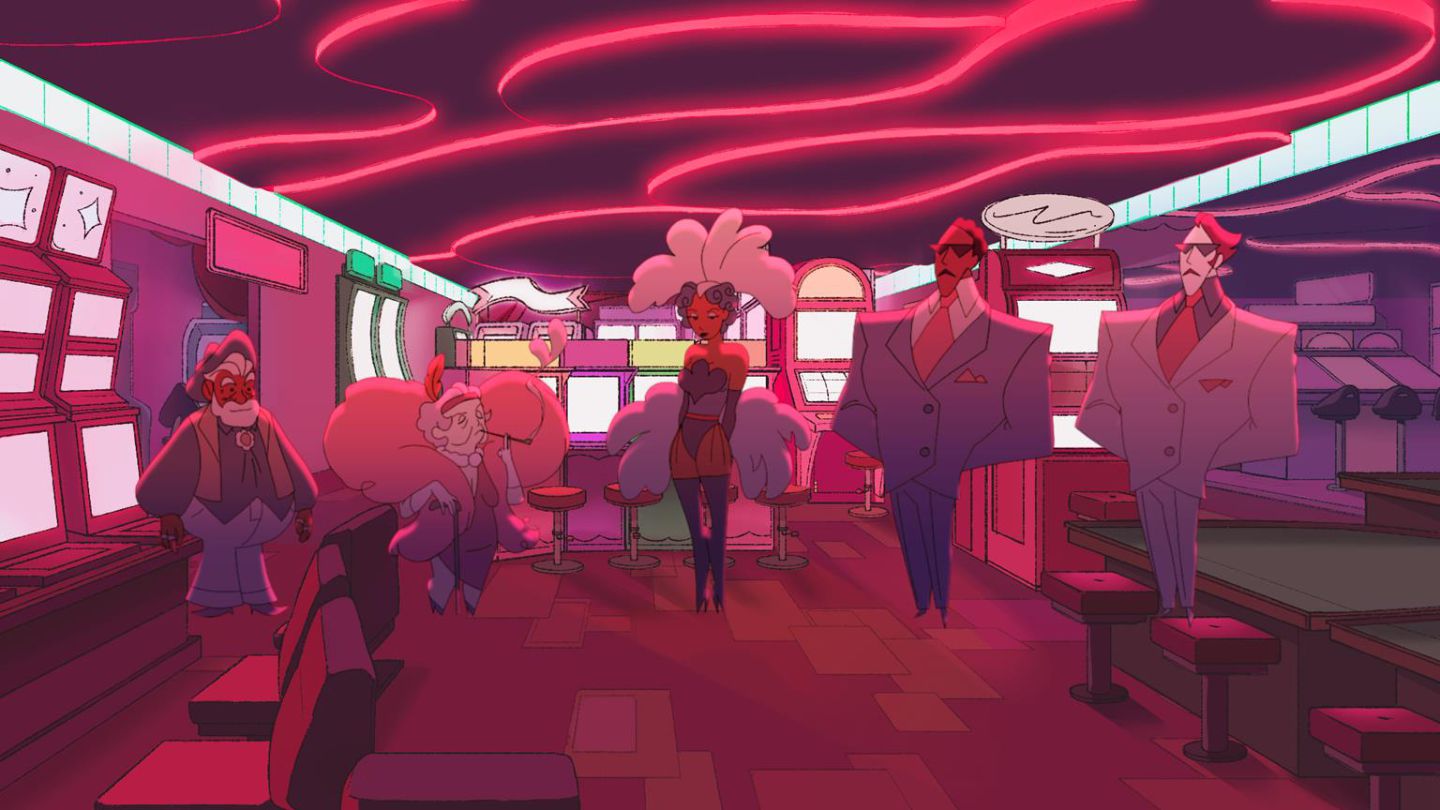
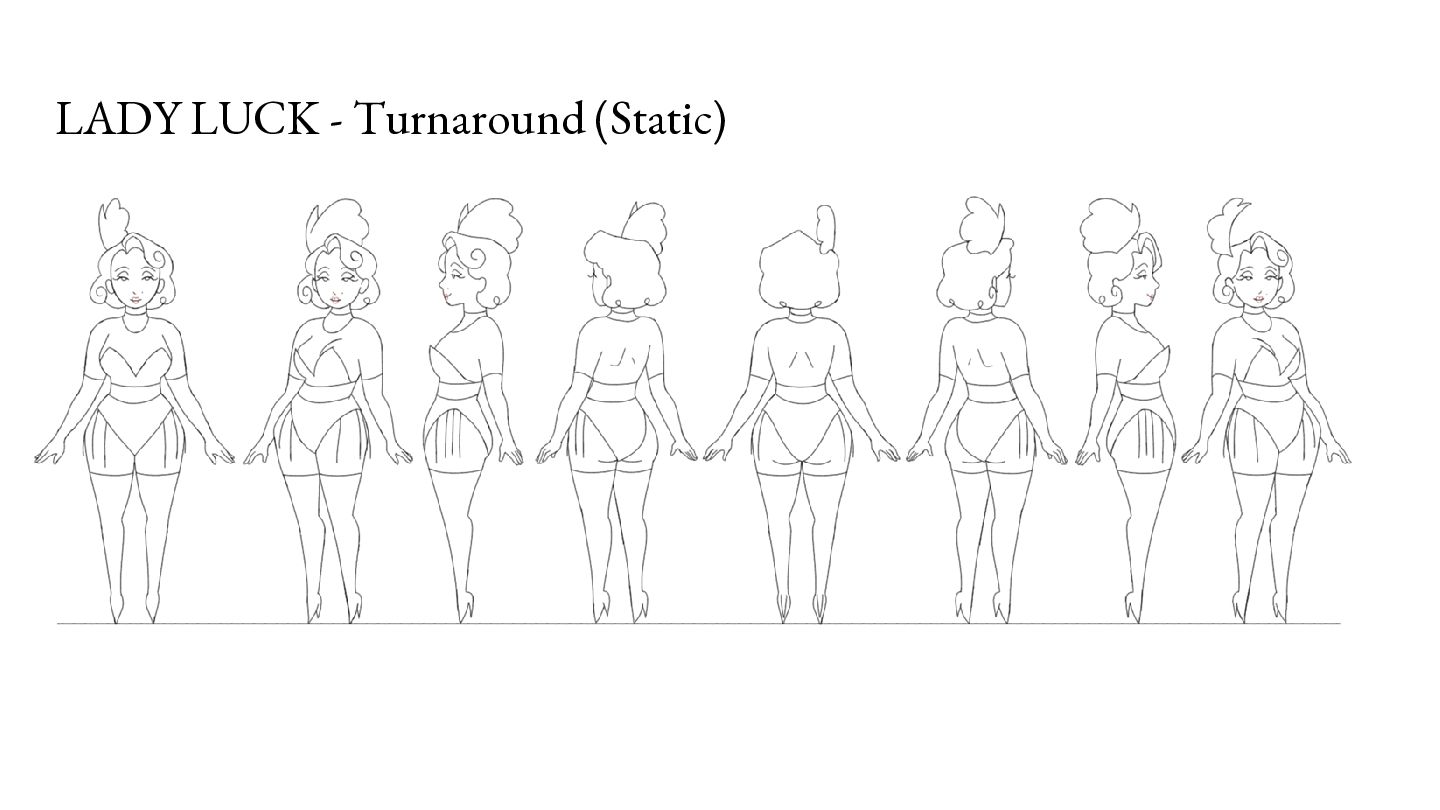
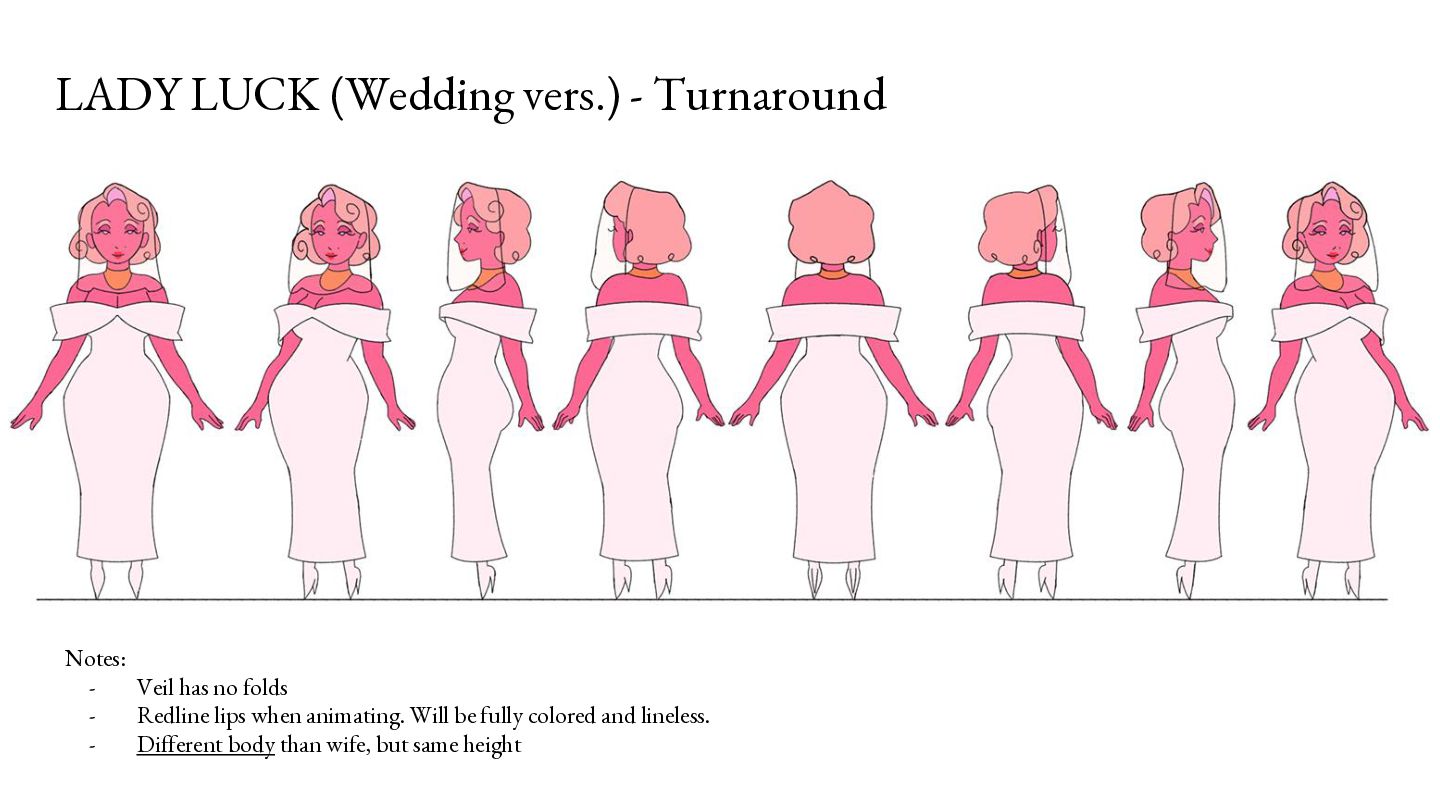
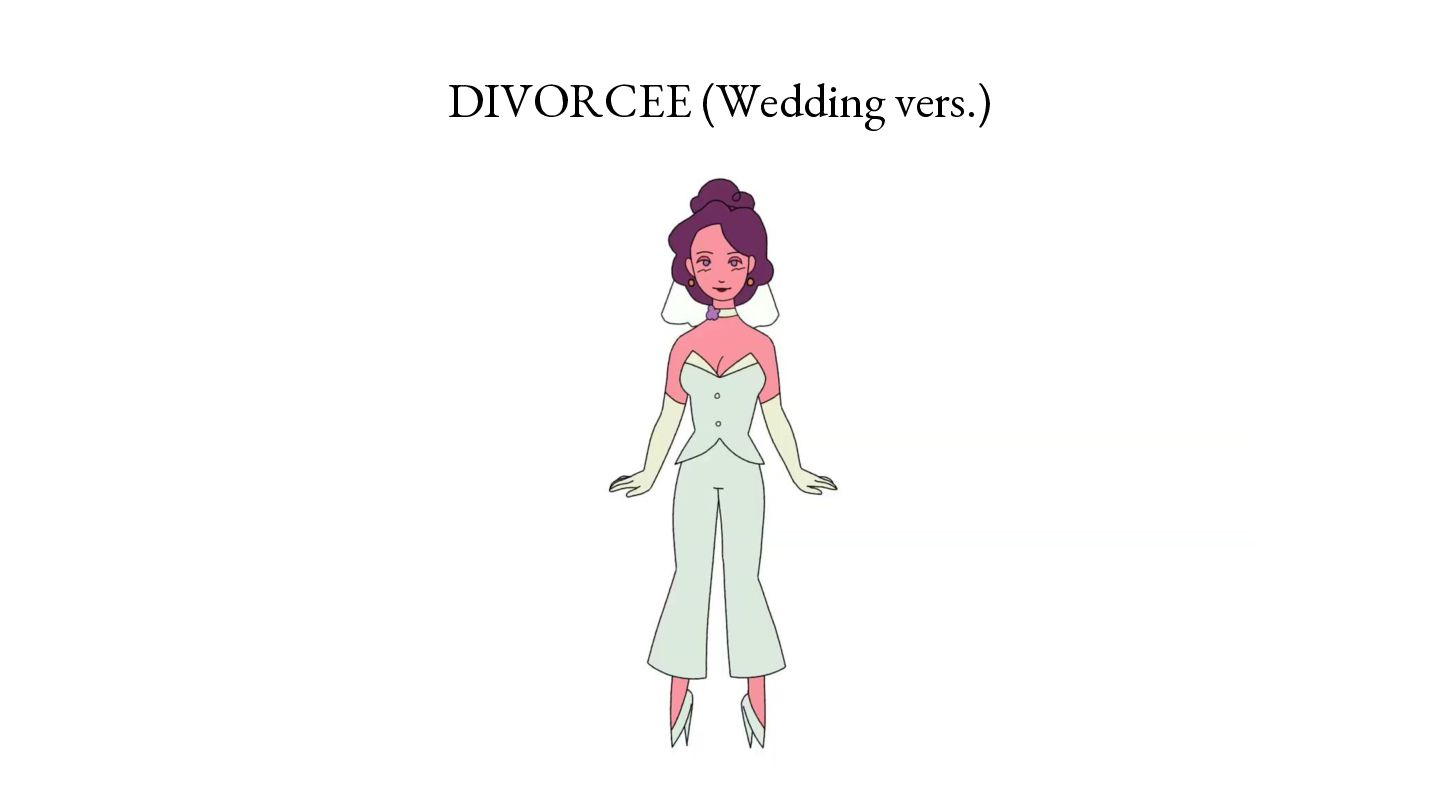
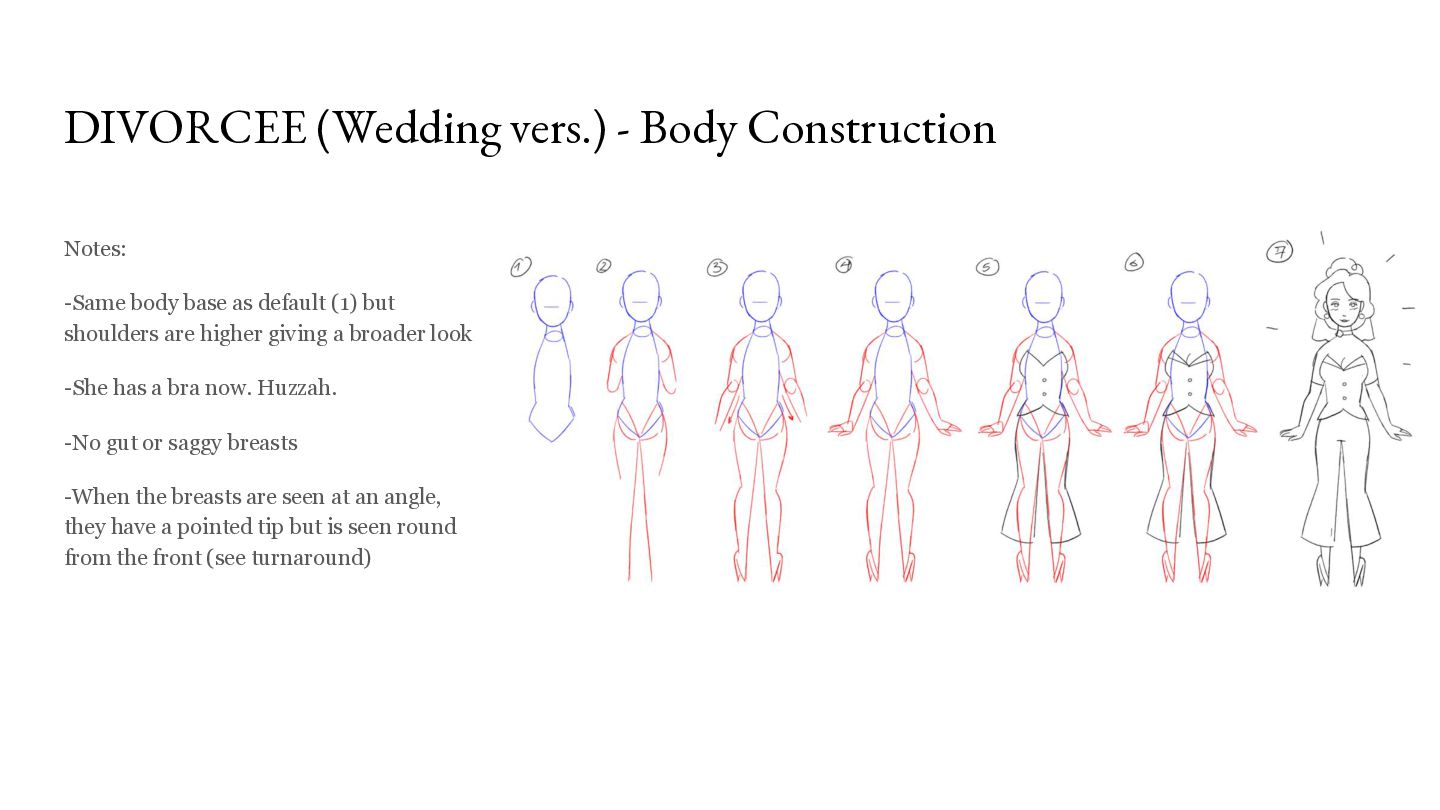
as default (1) but shoulders are higher giving a broader look -She has a bra now. Huzzah. -No gut or saggy breasts -When the breasts are seen at an angle, they have a pointed tip but is seen round from the front (see turnaround)
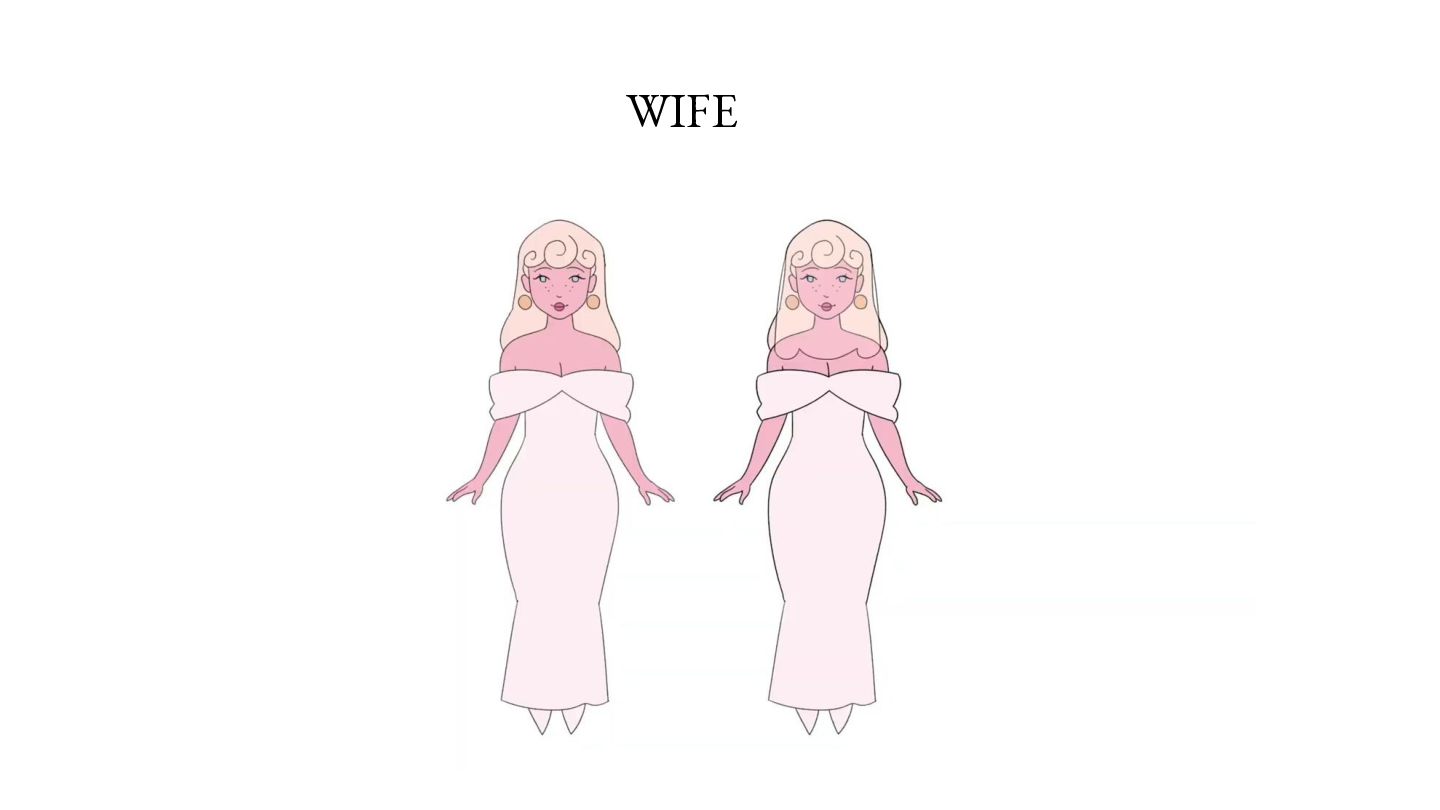
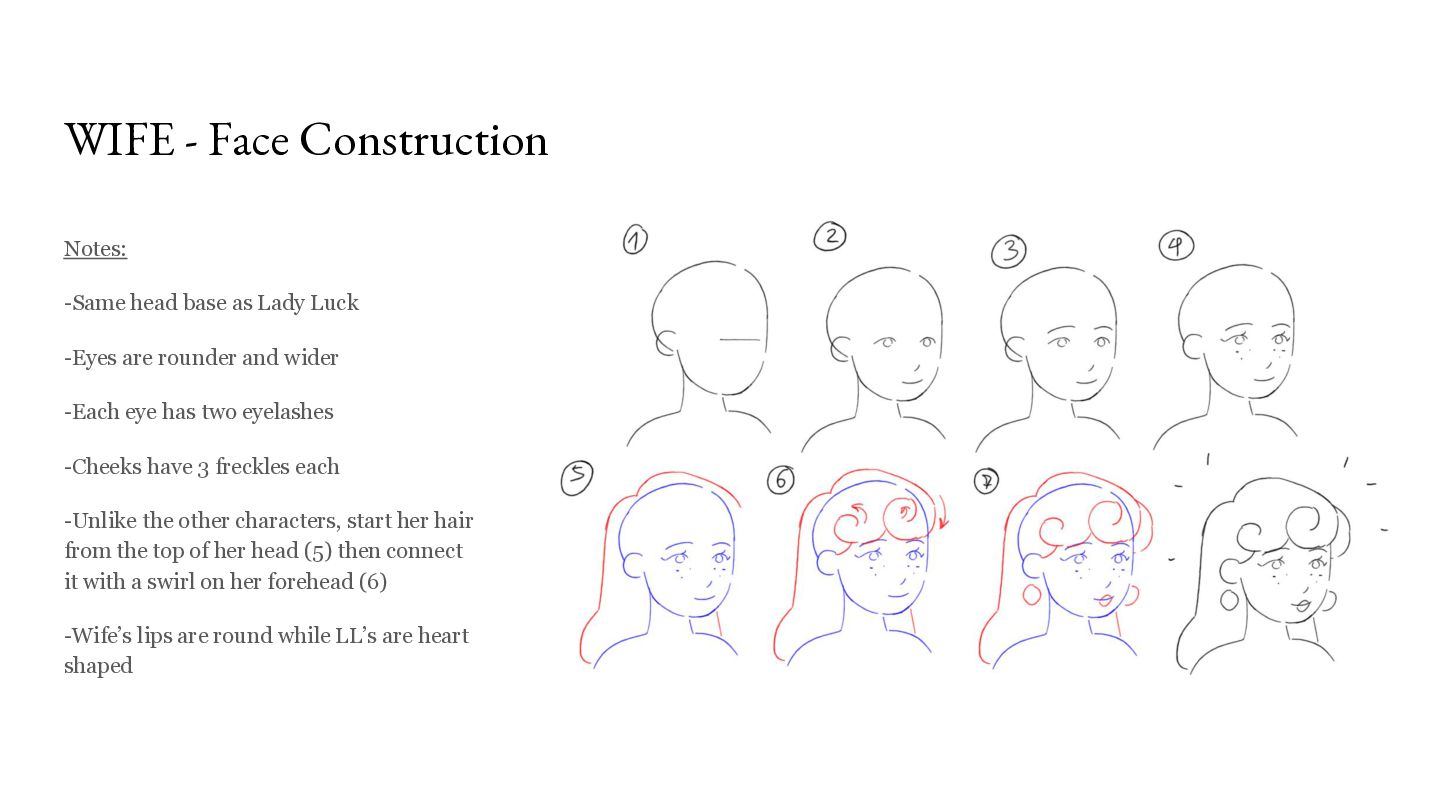
Luck -Eyes are rounder and wider -Each eye has two eyelashes -Cheeks have 3 freckles each -Unlike the other characters, start her hair from the top of her head (5) then connect it with a swirl on her forehead (6) -Wife’s lips are round while LL’s are heart shaped
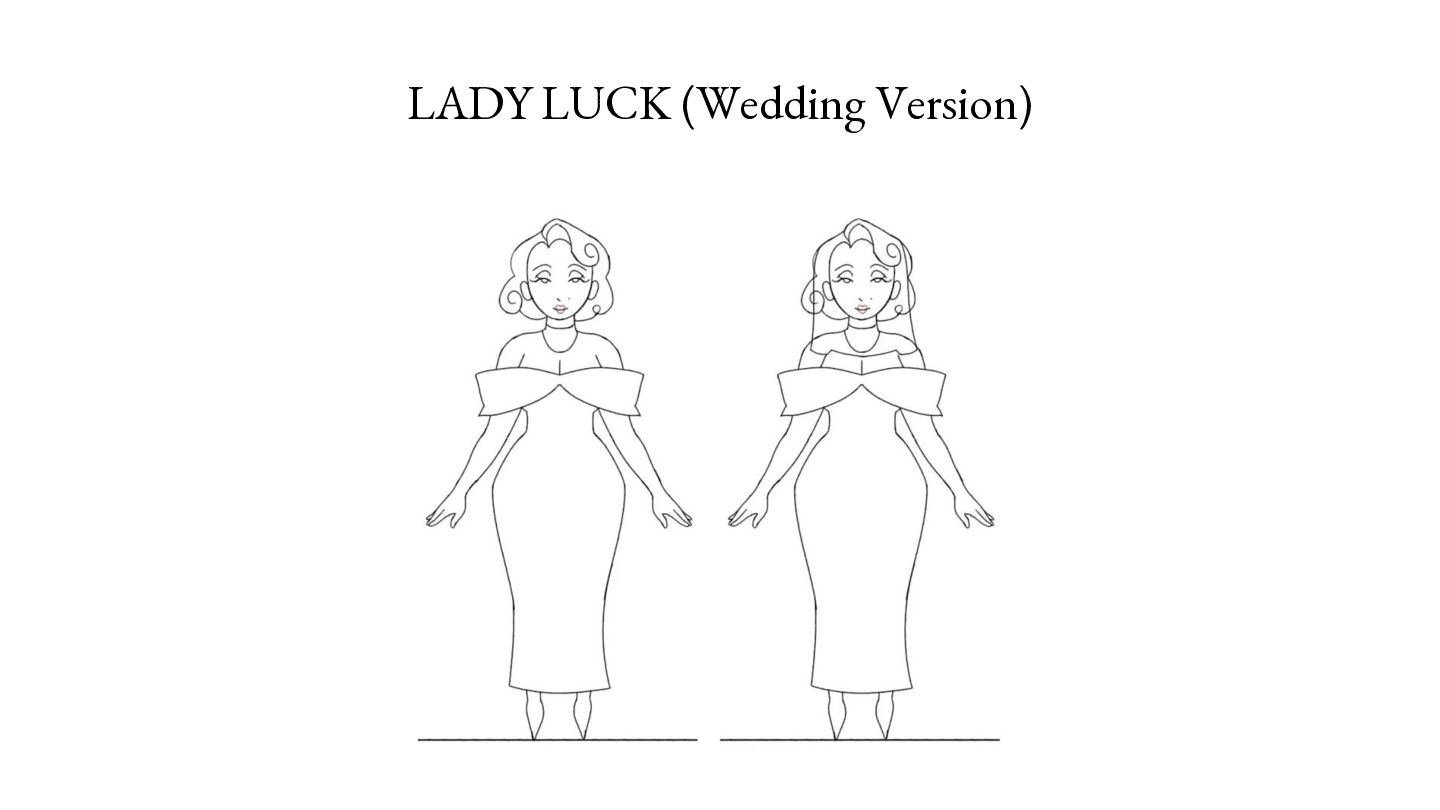
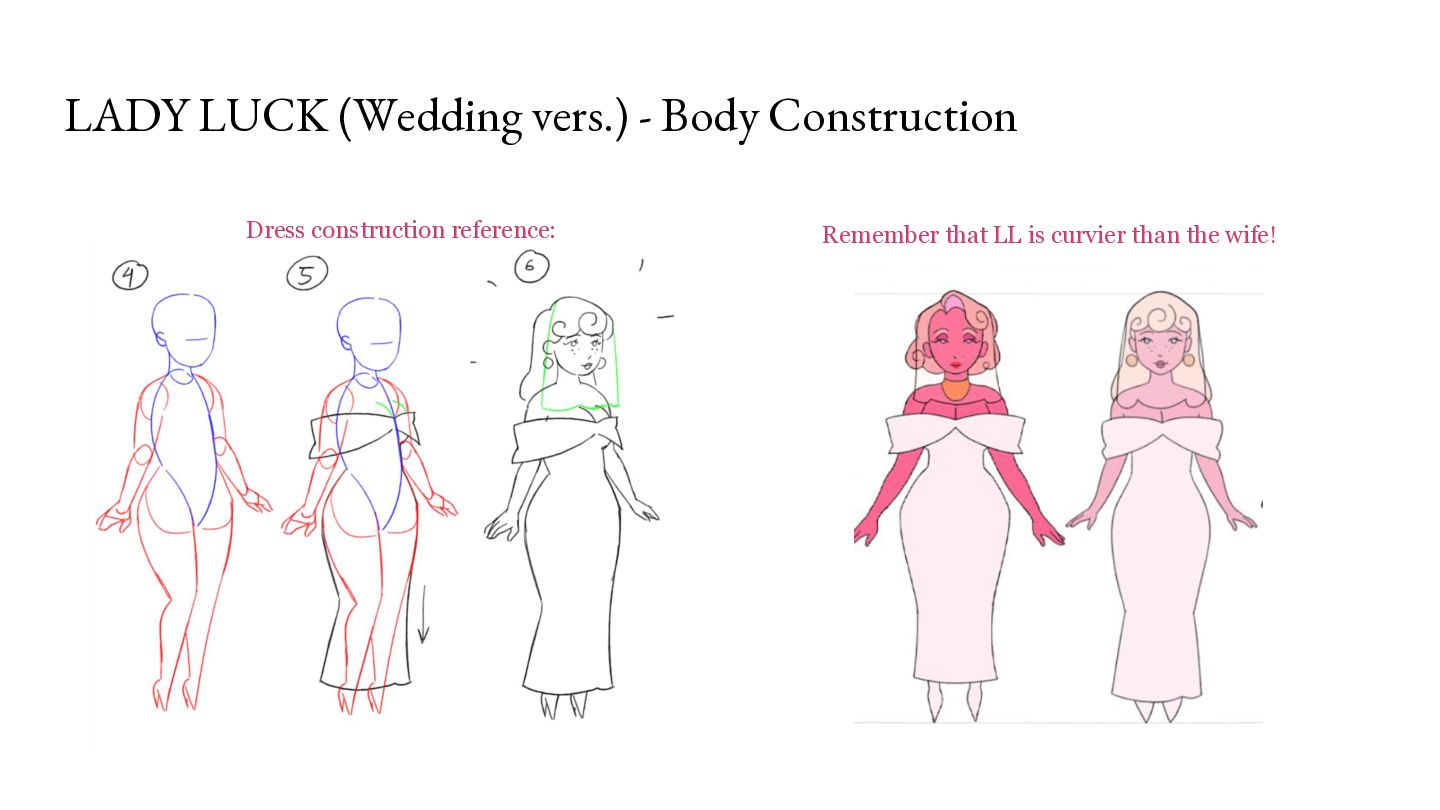
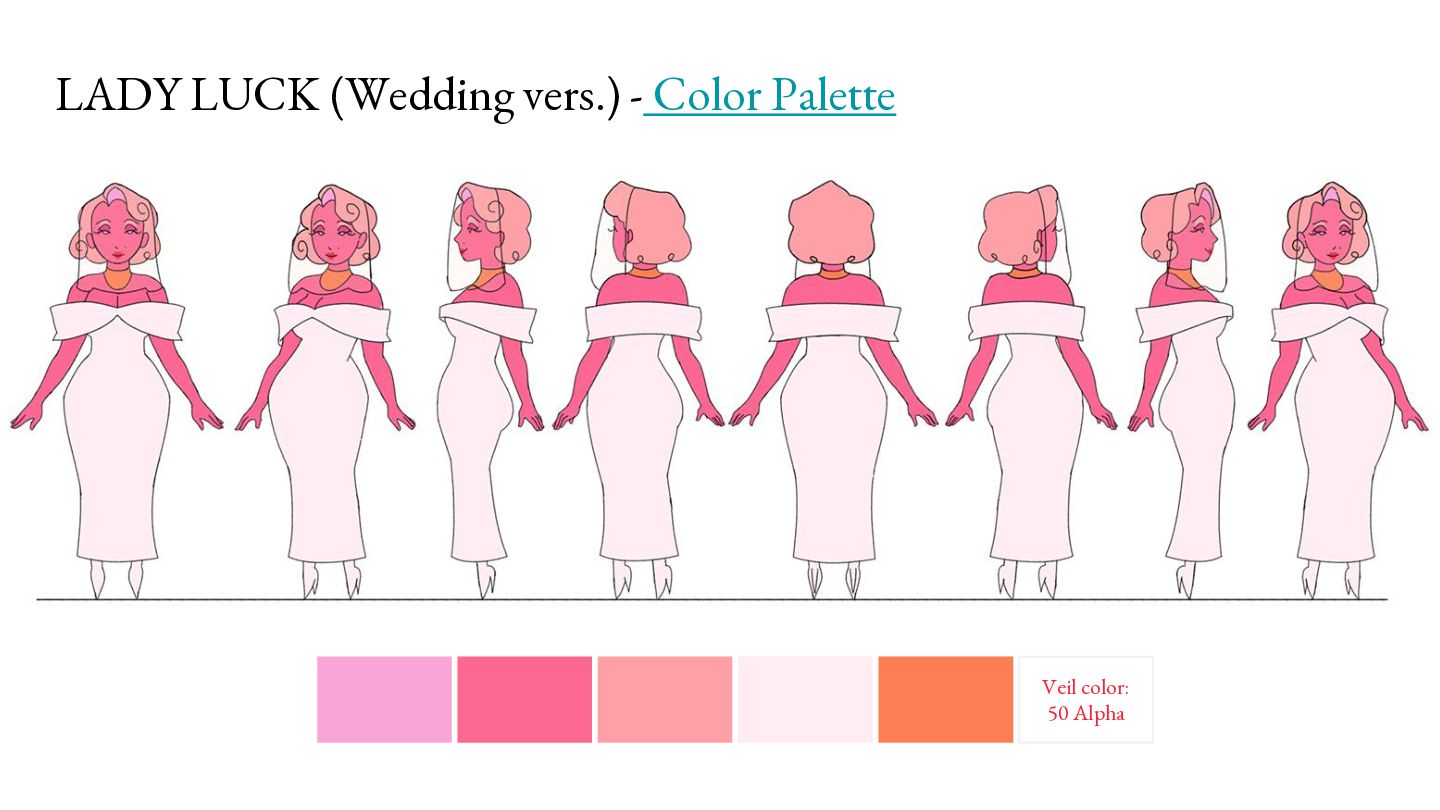
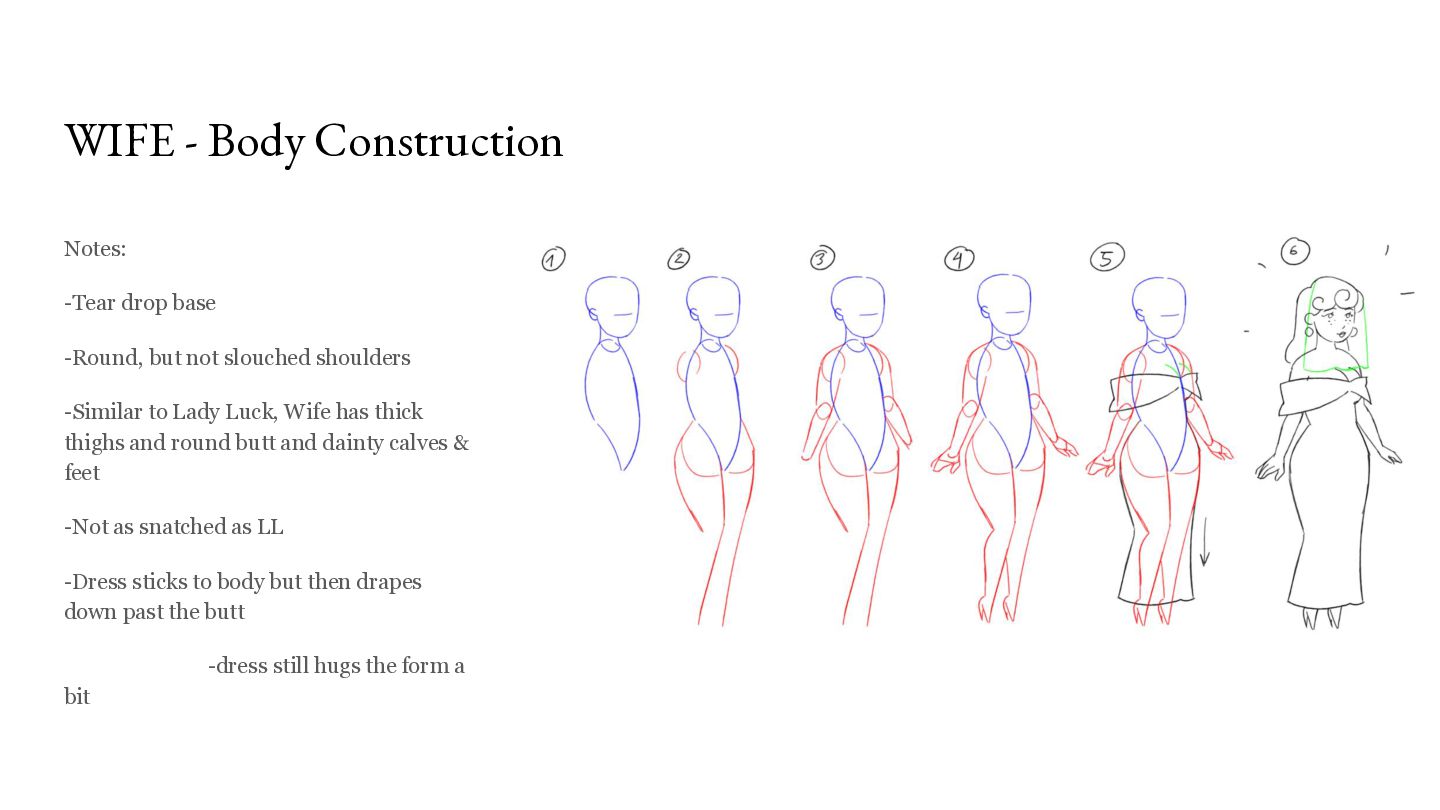
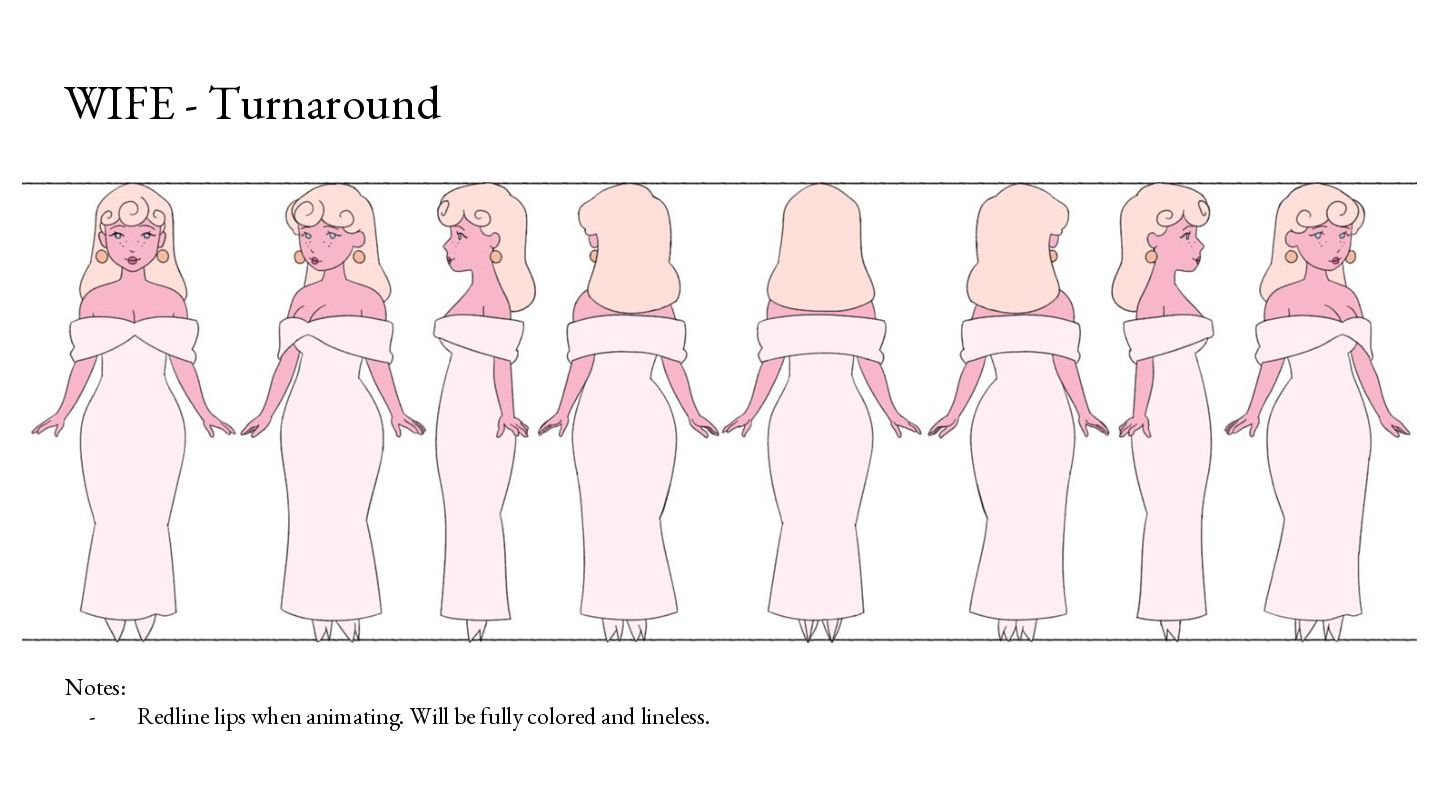
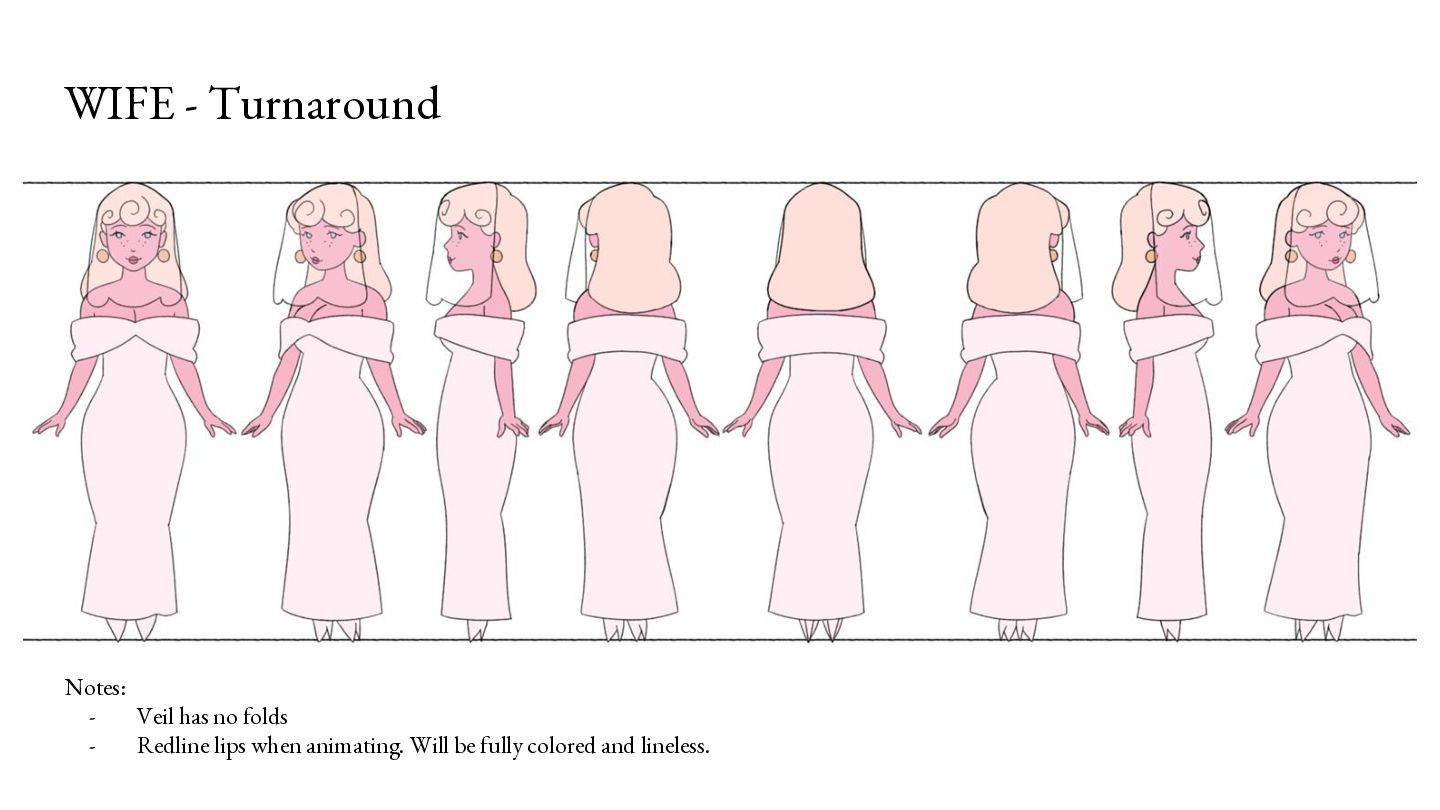
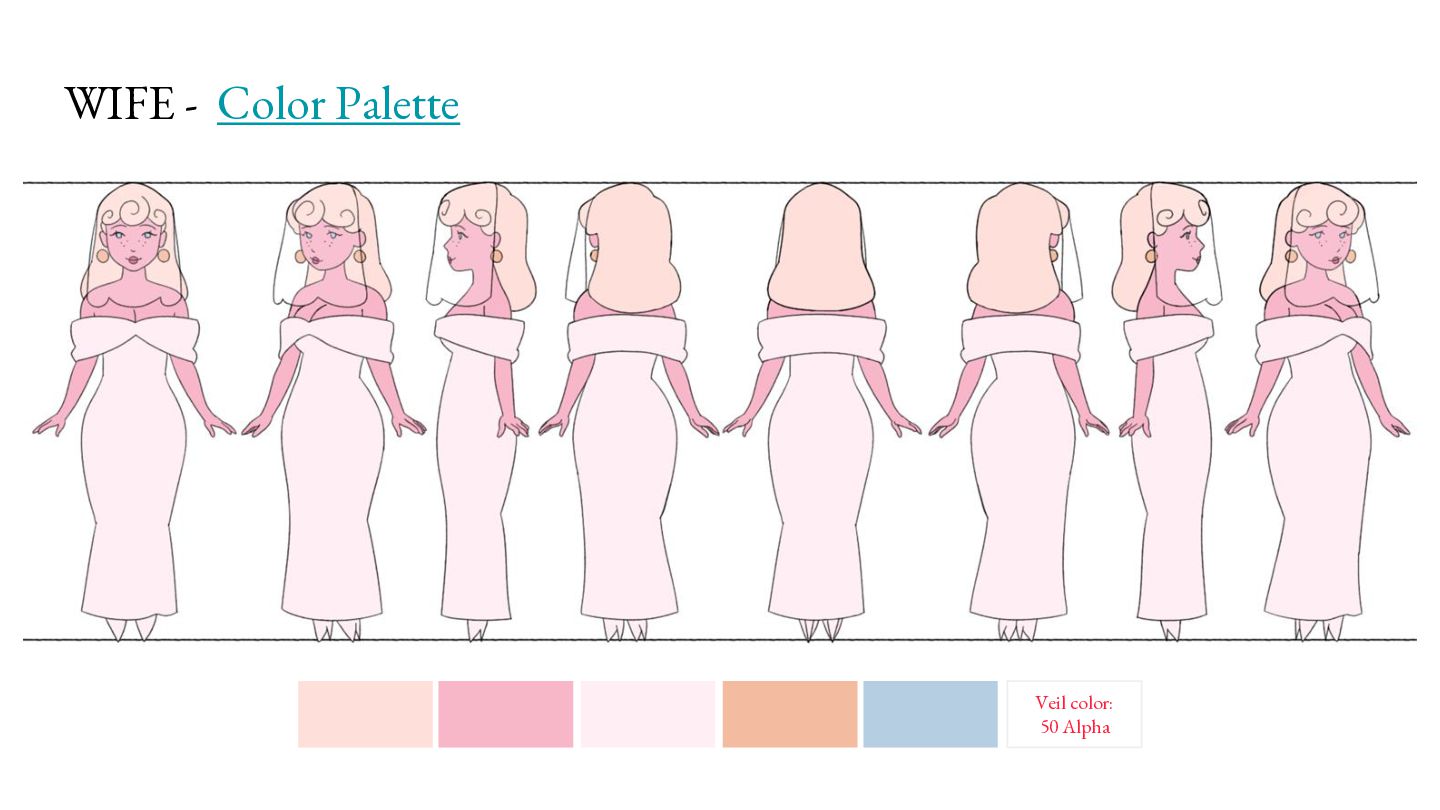
not slouched shoulders -Similar to Lady Luck, Wife has thick thighs and round butt and dainty calves & feet -Not as snatched as LL -Dress sticks to body but then drapes down past the butt -dress still hugs the form a bit
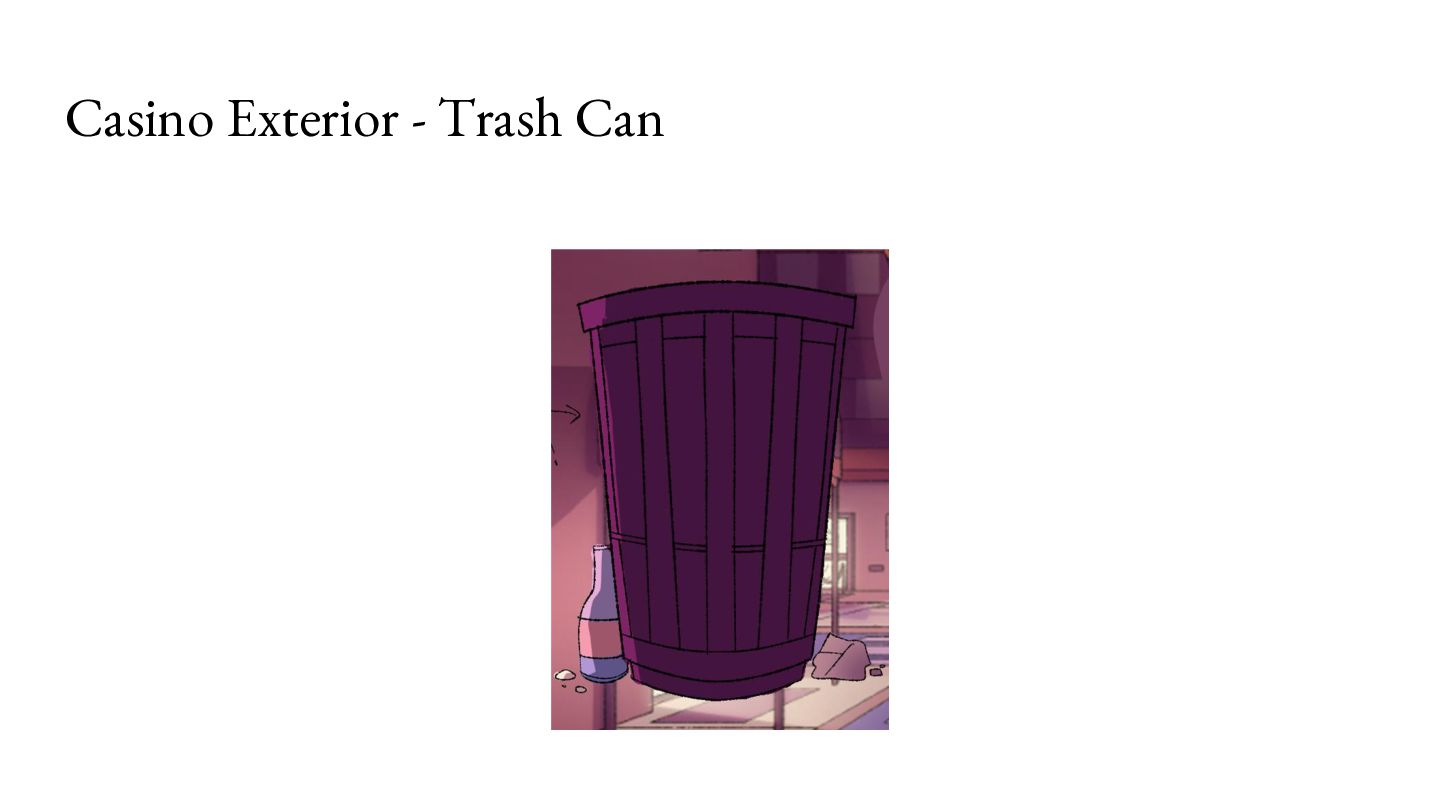
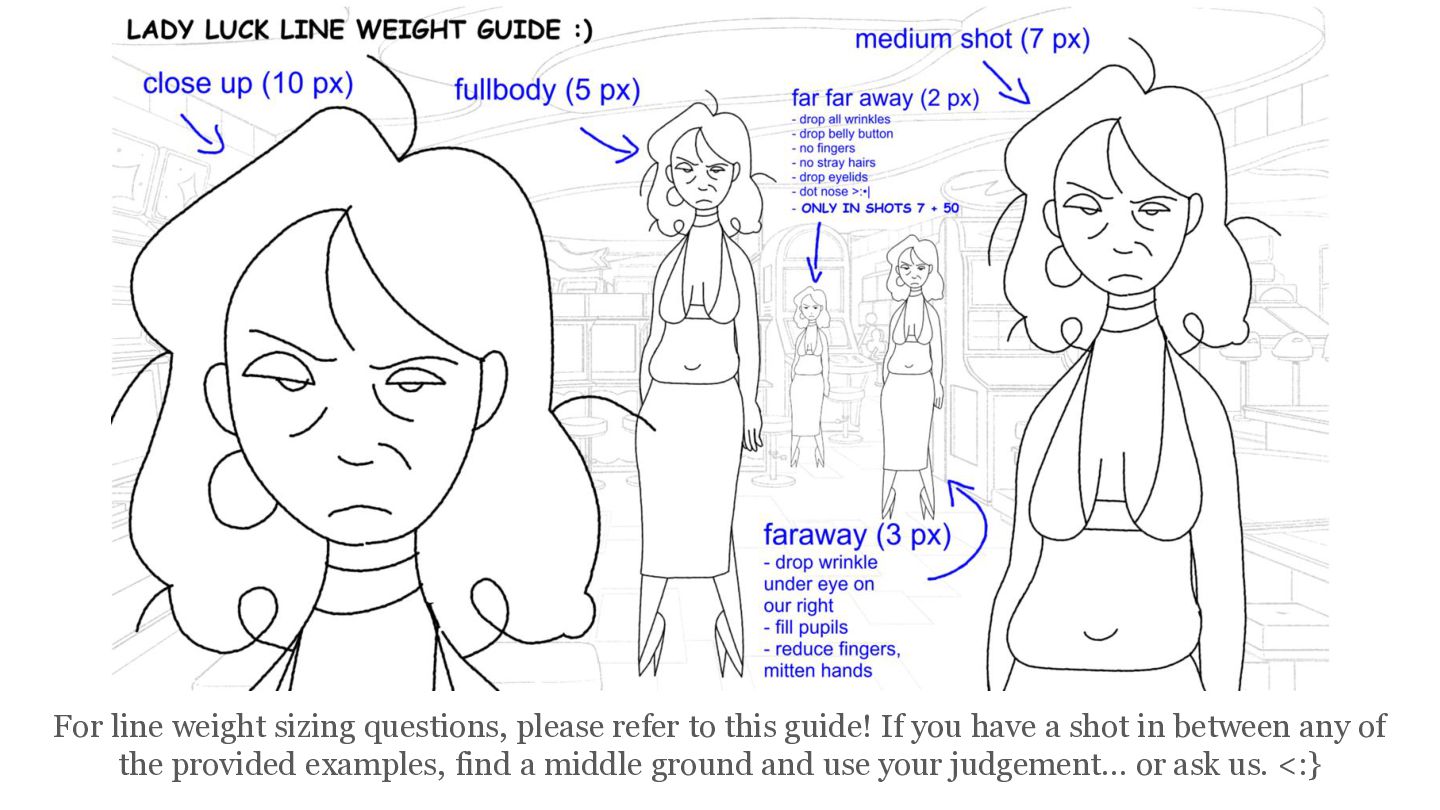
tfLPMRGX993shsP_H9ZVqT6V_48E/view?usp=drive _link - lose/simplify the detail in the further aspects of the backgrounds - avoid bunching the lines in order to keep them from looking thicker/crowded - For panning locations, please use a 600 dpi canvas
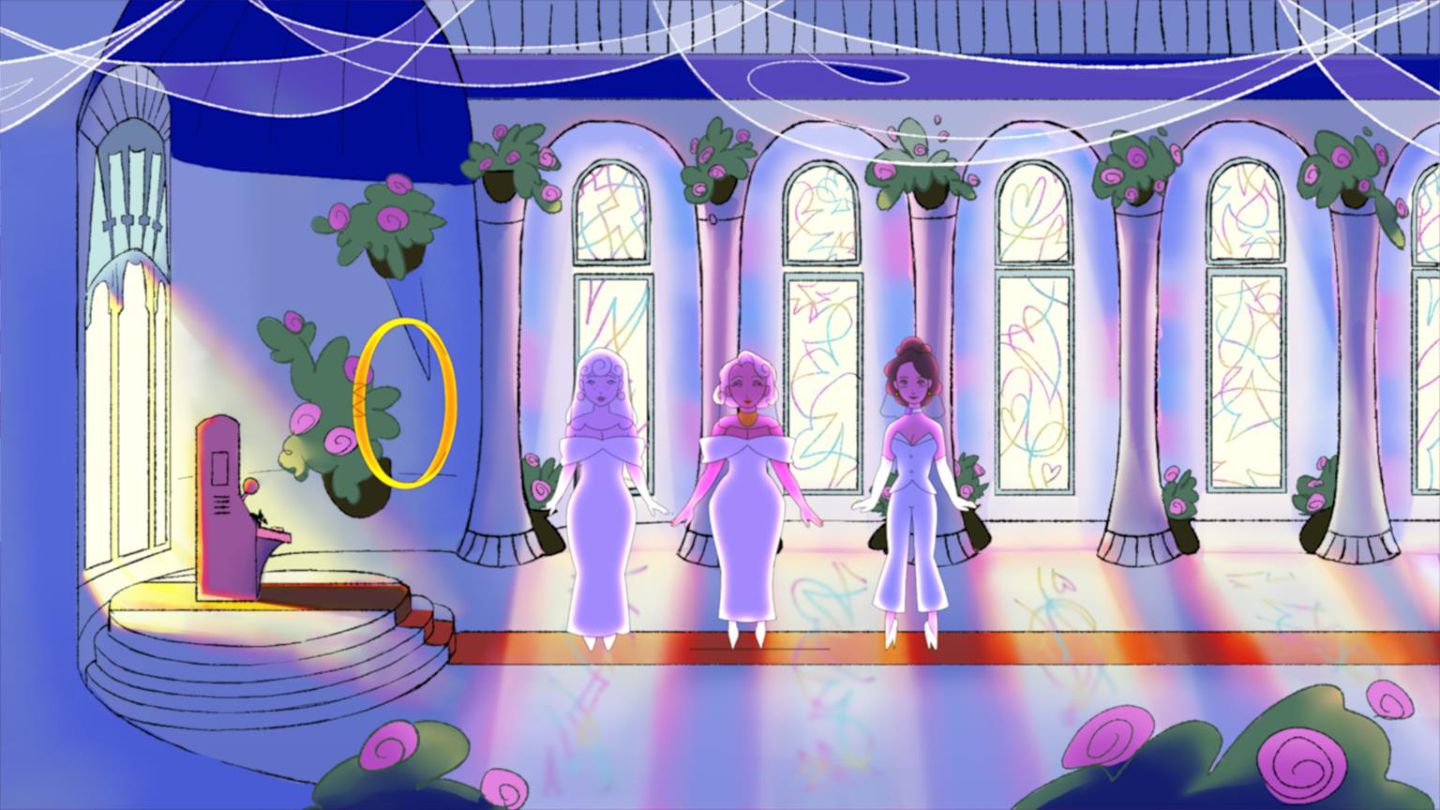
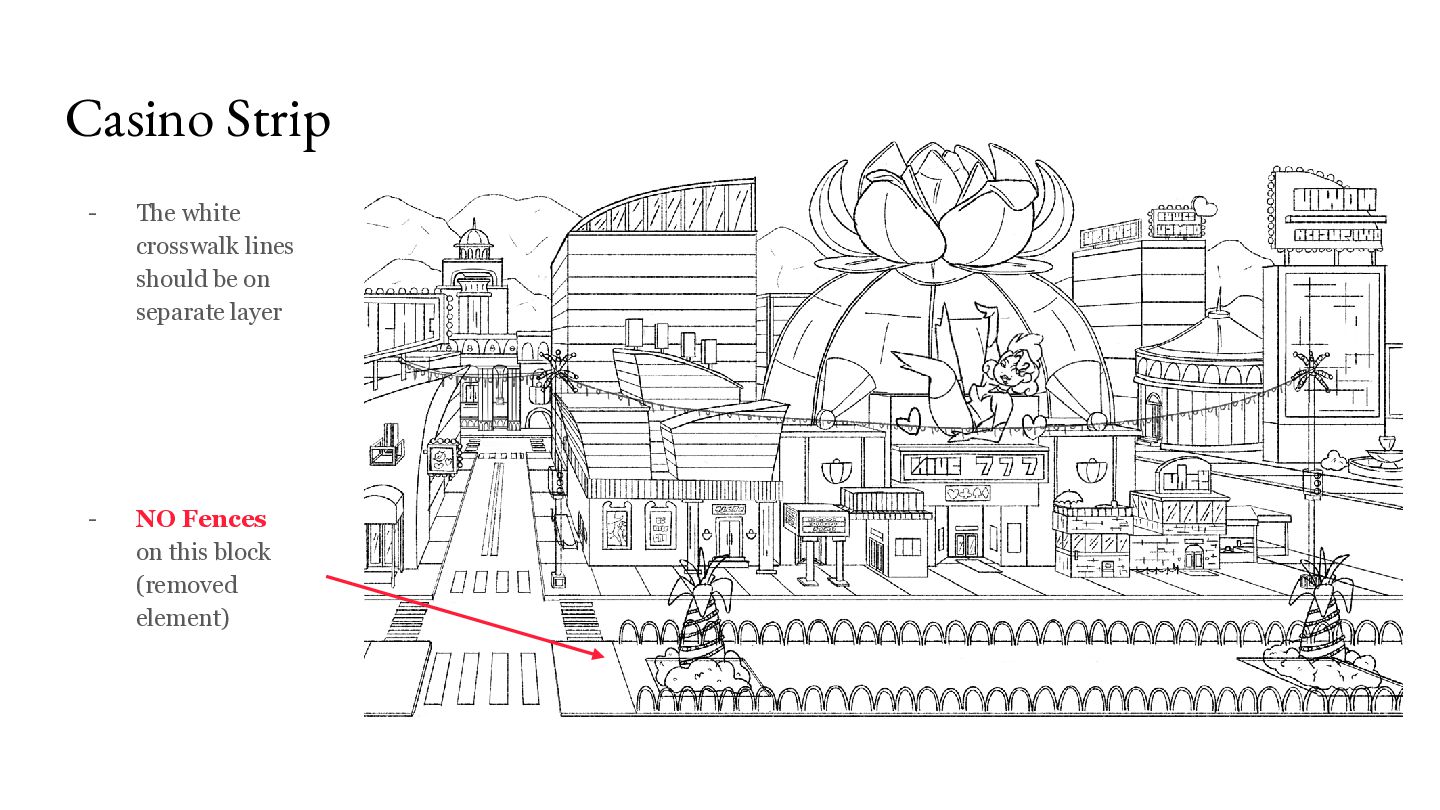
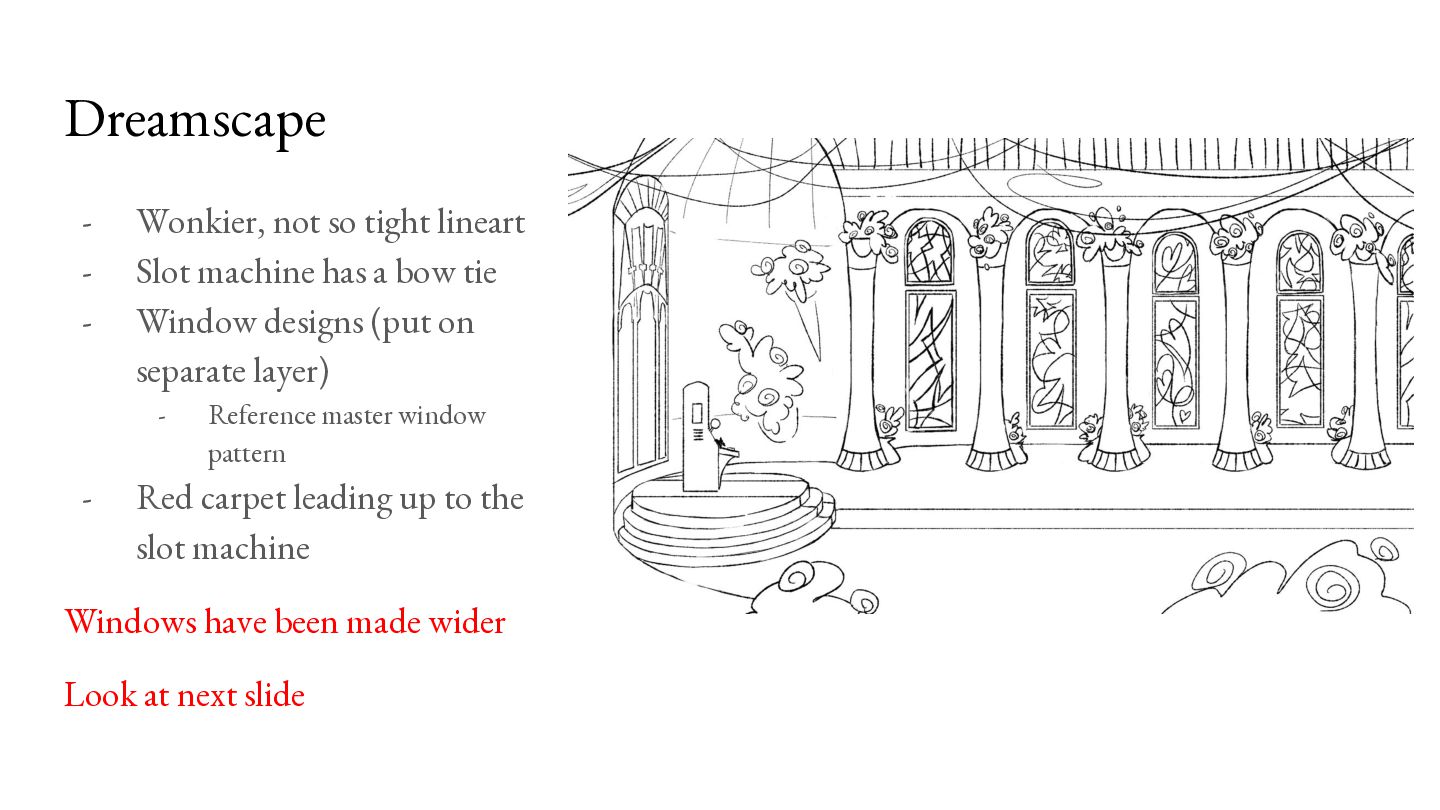
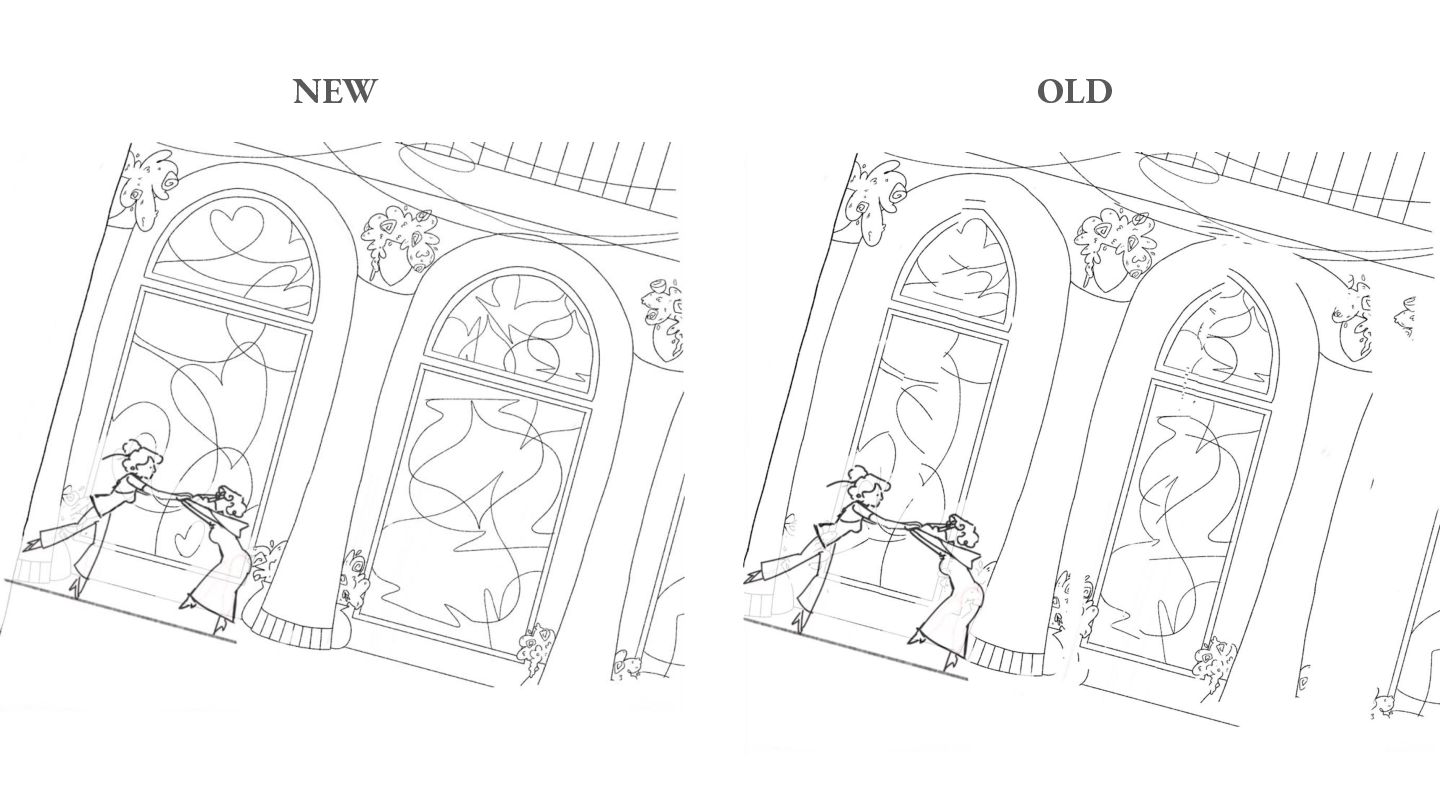
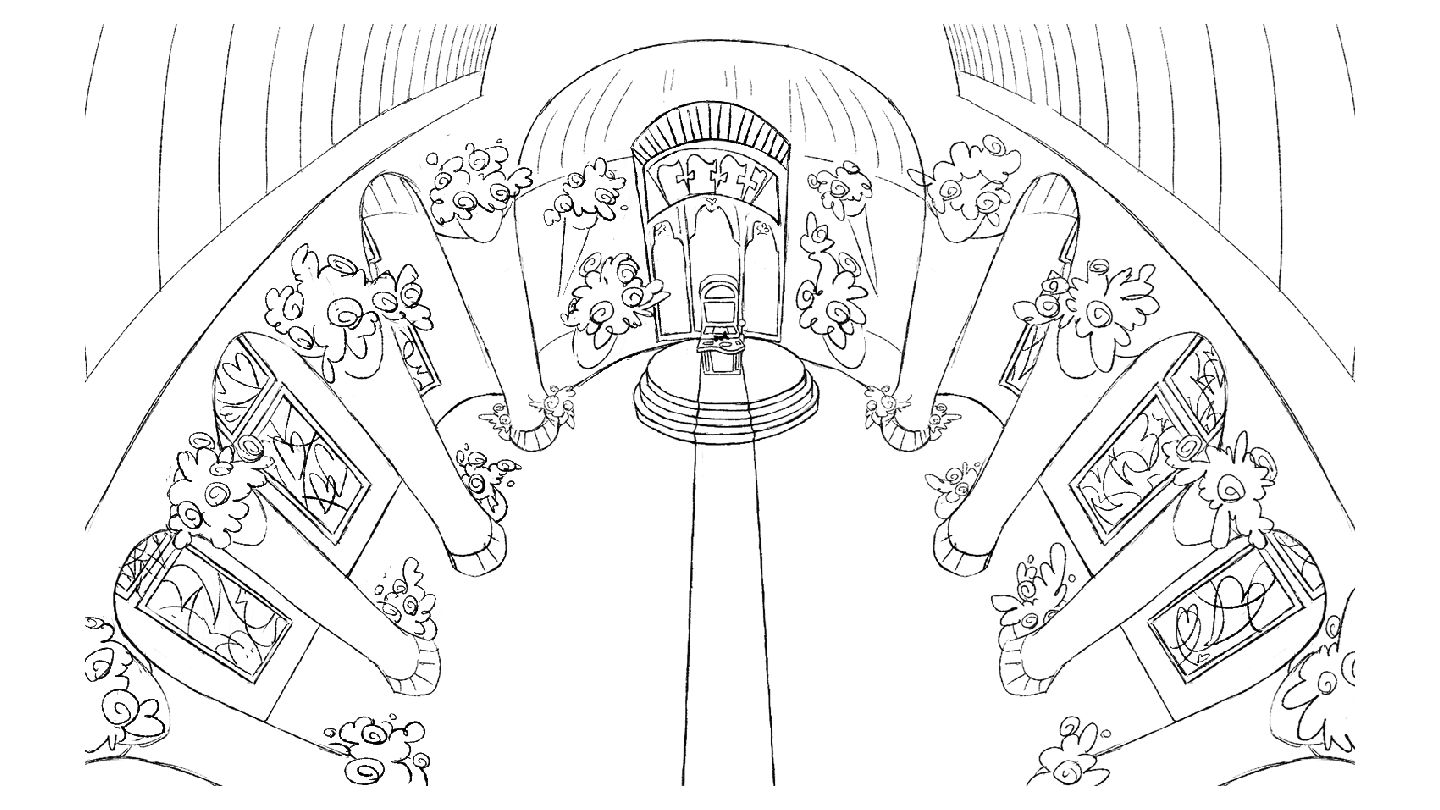
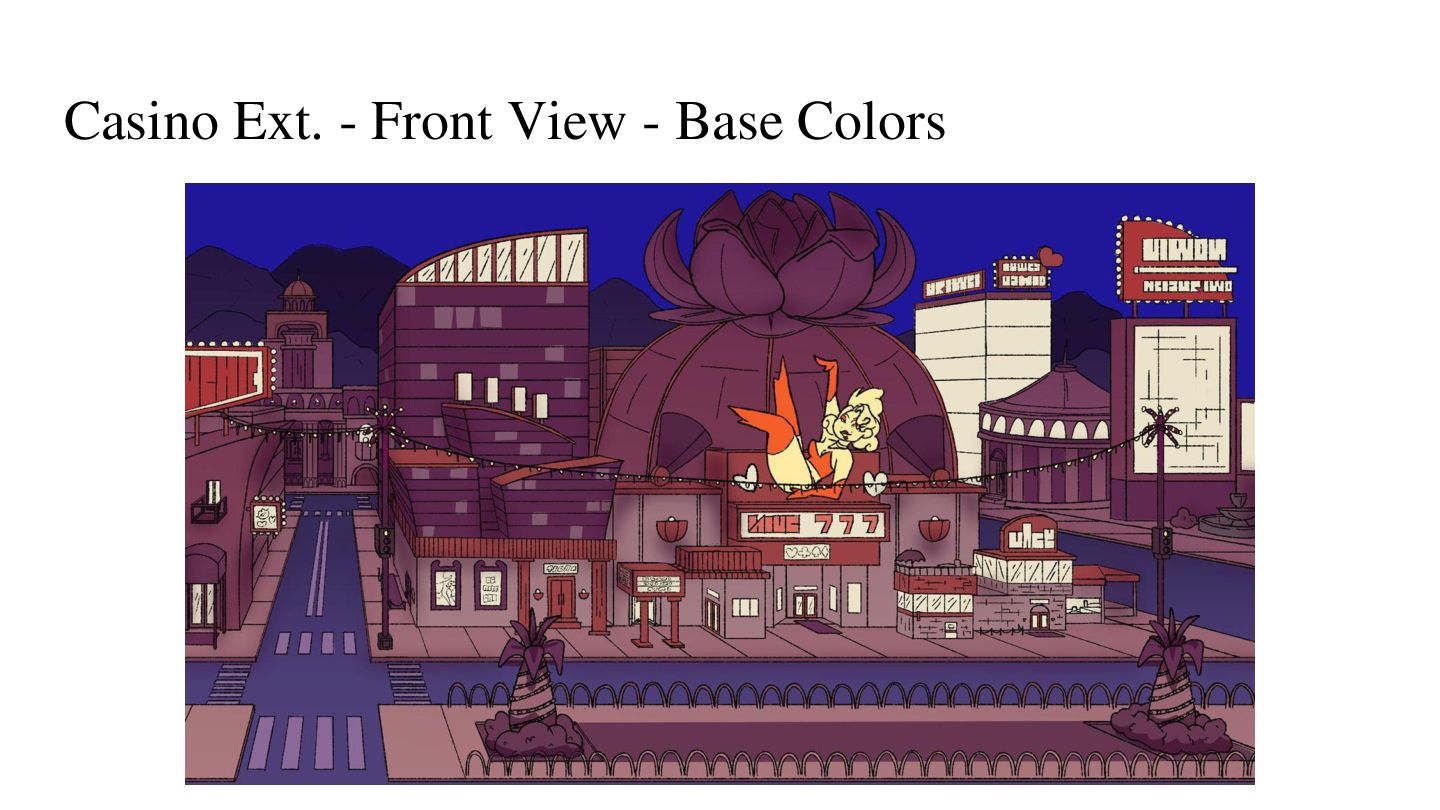
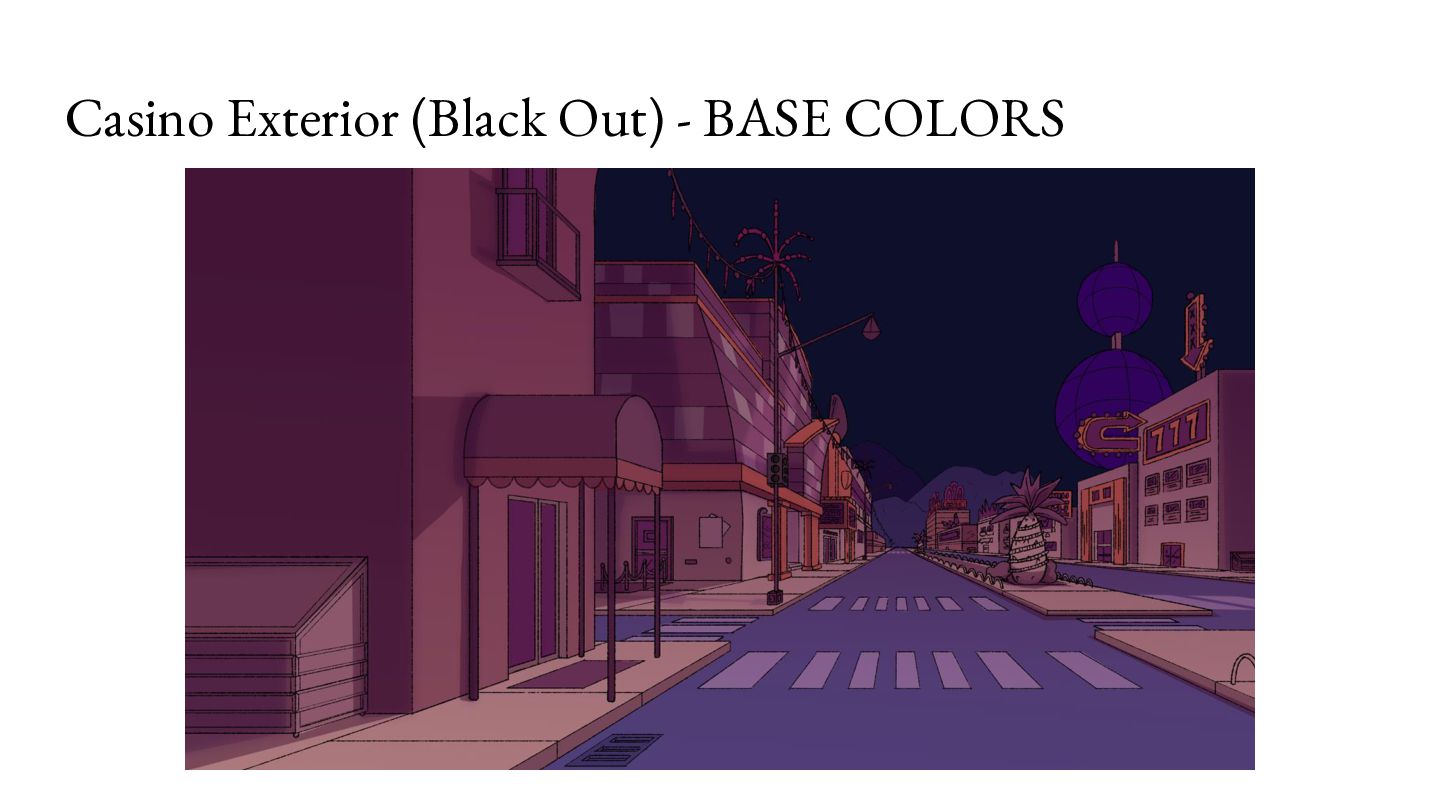
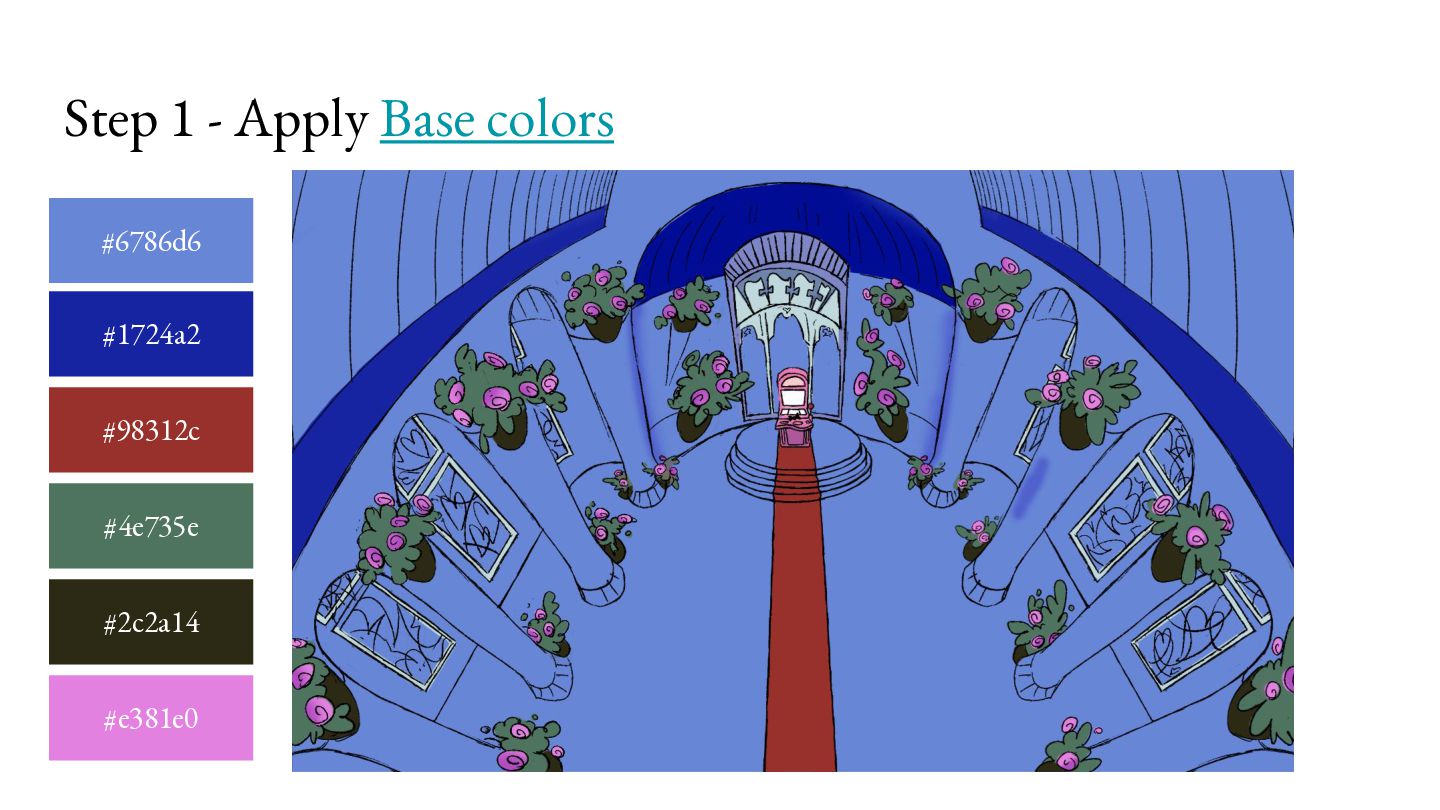
a bow tie Window designs (put on separate layer) - - Reference master window pattern Red carpet leading up to the slot machine Windows have been made wider Look at next slide
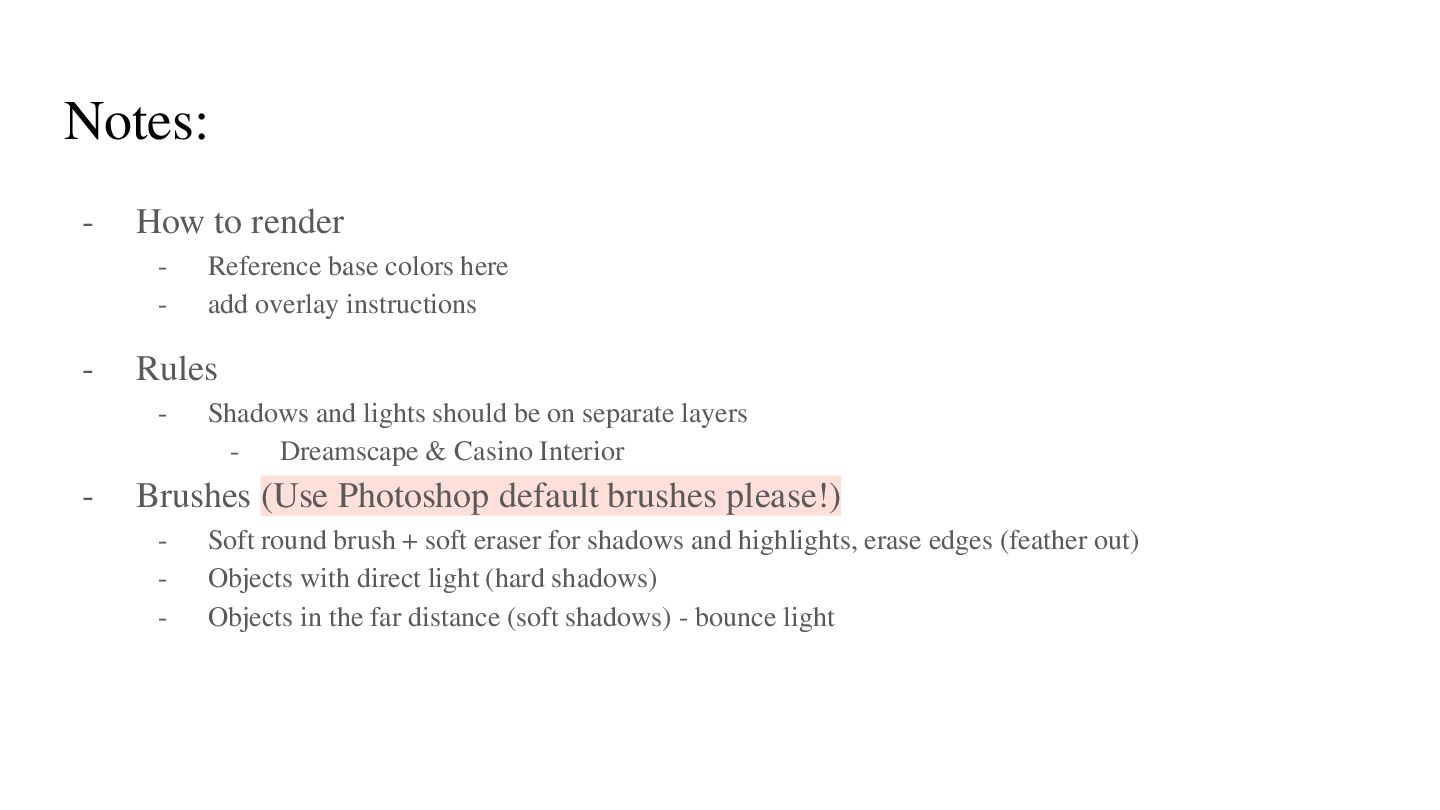
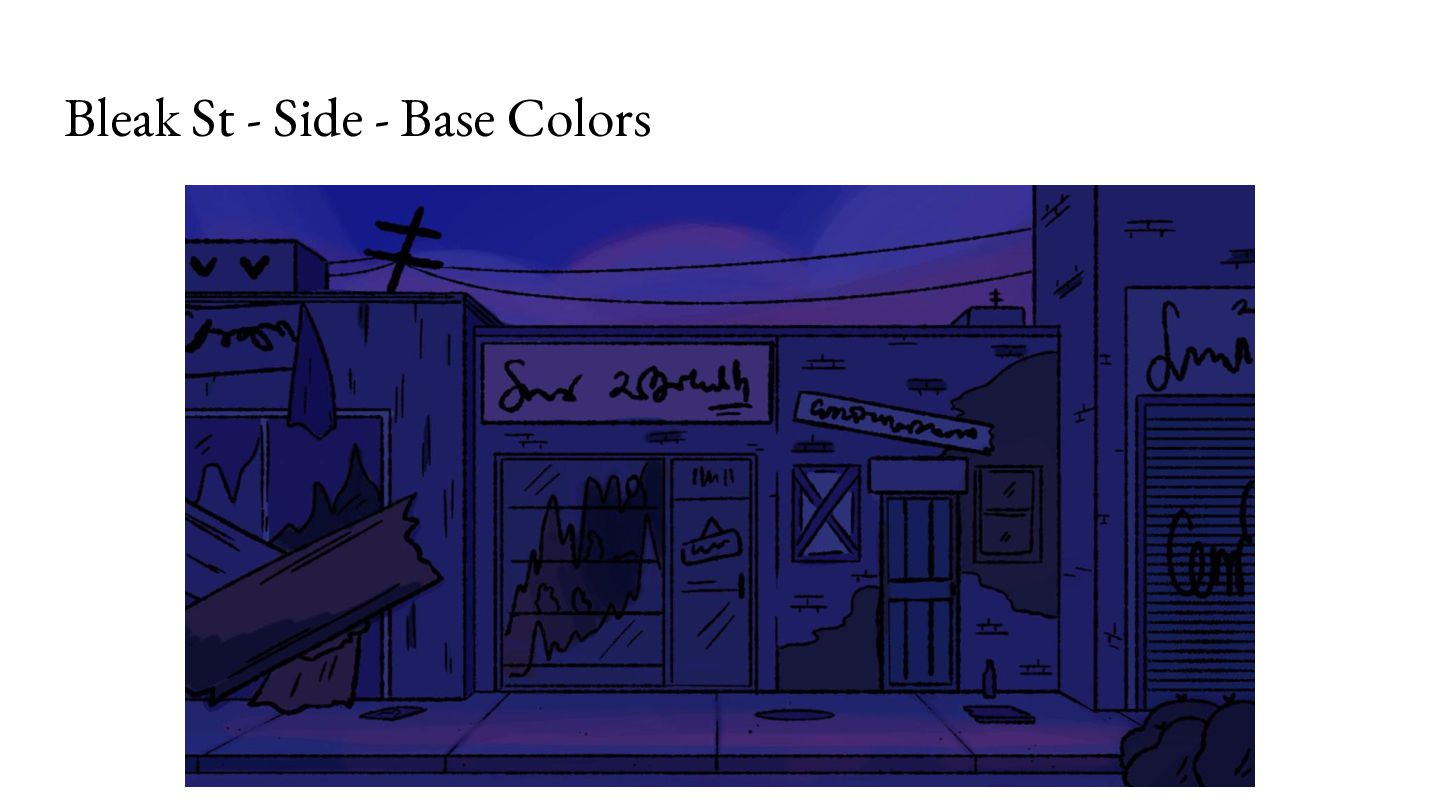
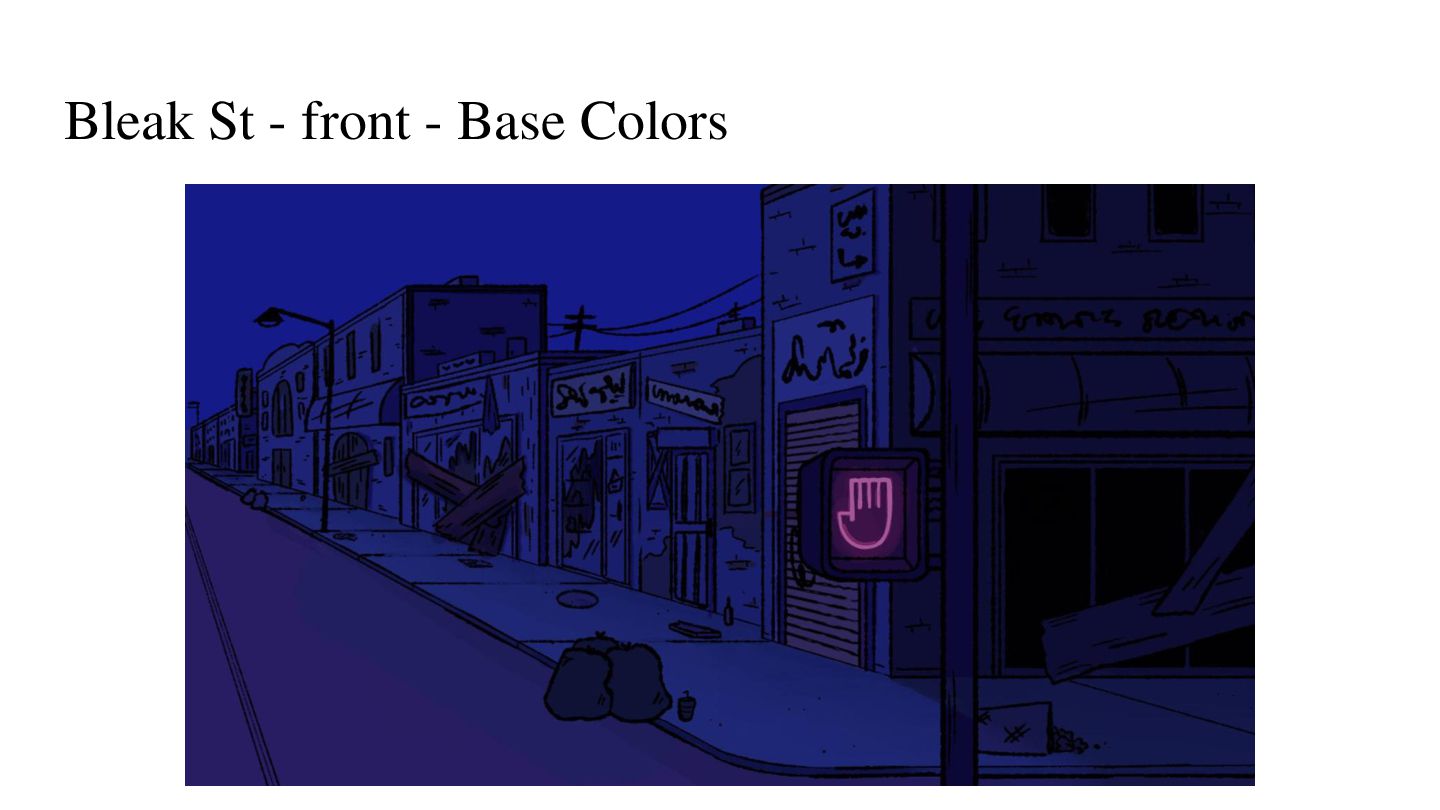
Reference base colors here add overlay instructions Shadows and lights should be on separate layers - Dreamscape & Casino Interior Brushes (Use Photoshop default brushes please!) - Soft round brush + soft eraser for shadows and highlights, erase edges (feather out) Objects with direct light (hard shadows) Objects in the far distance (soft shadows) - bounce light
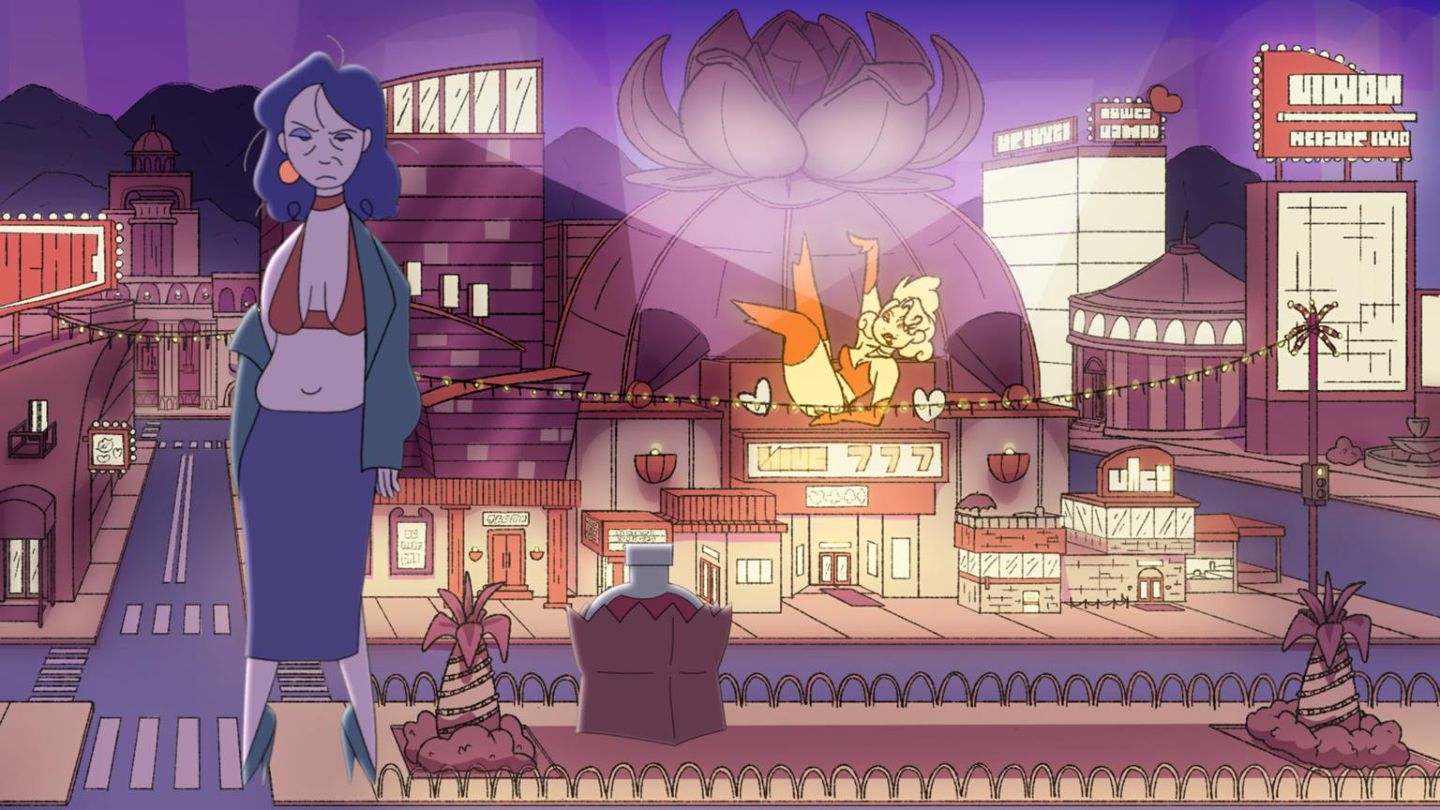
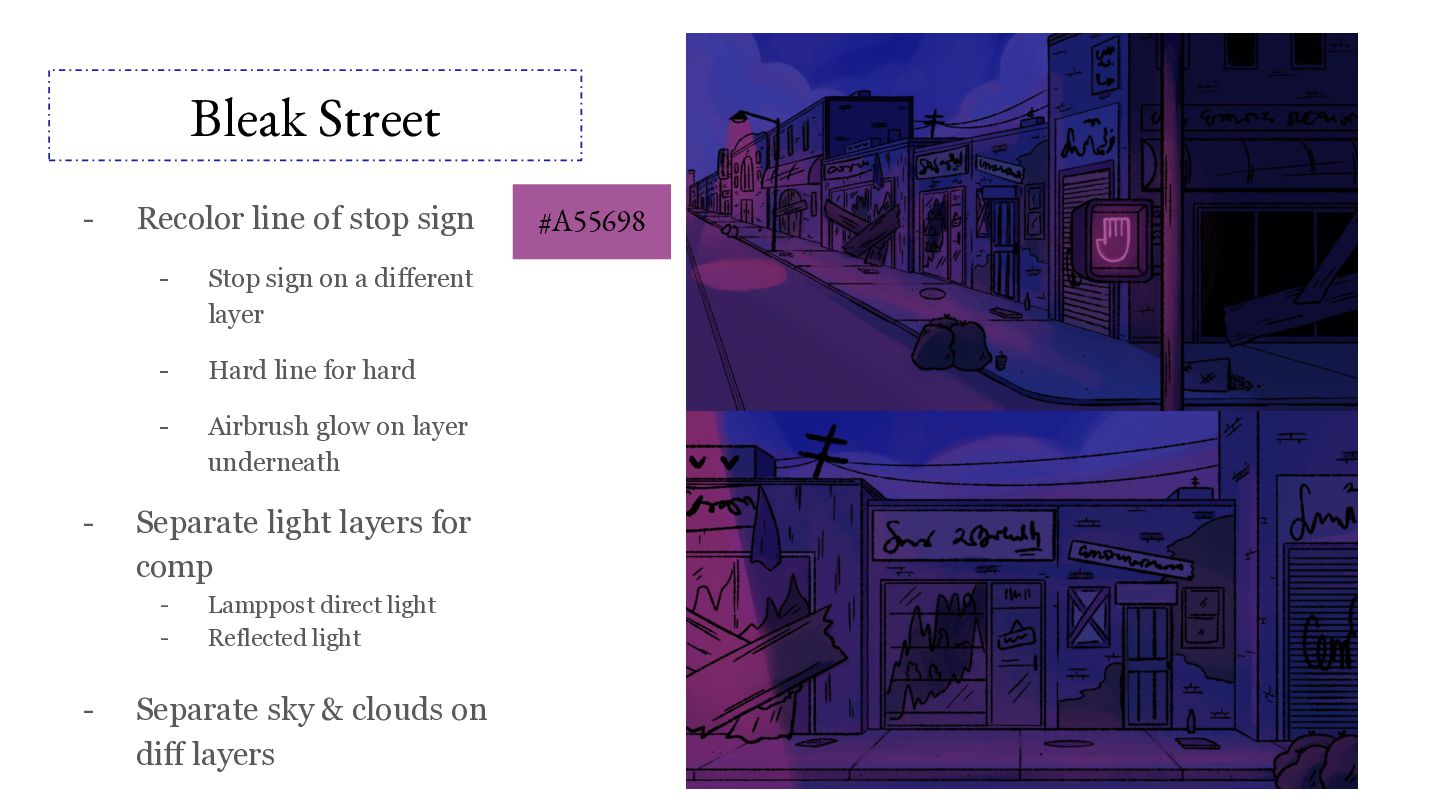
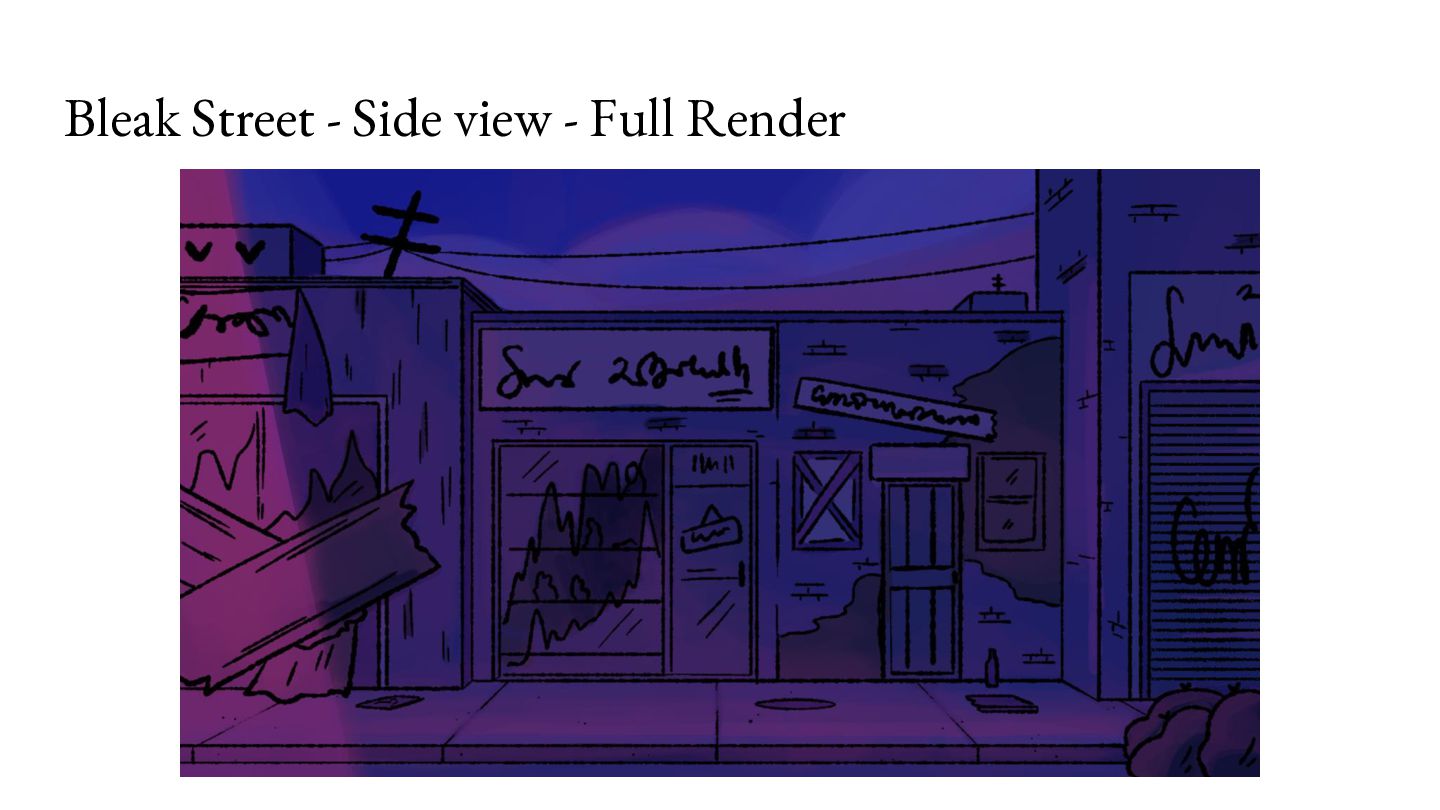
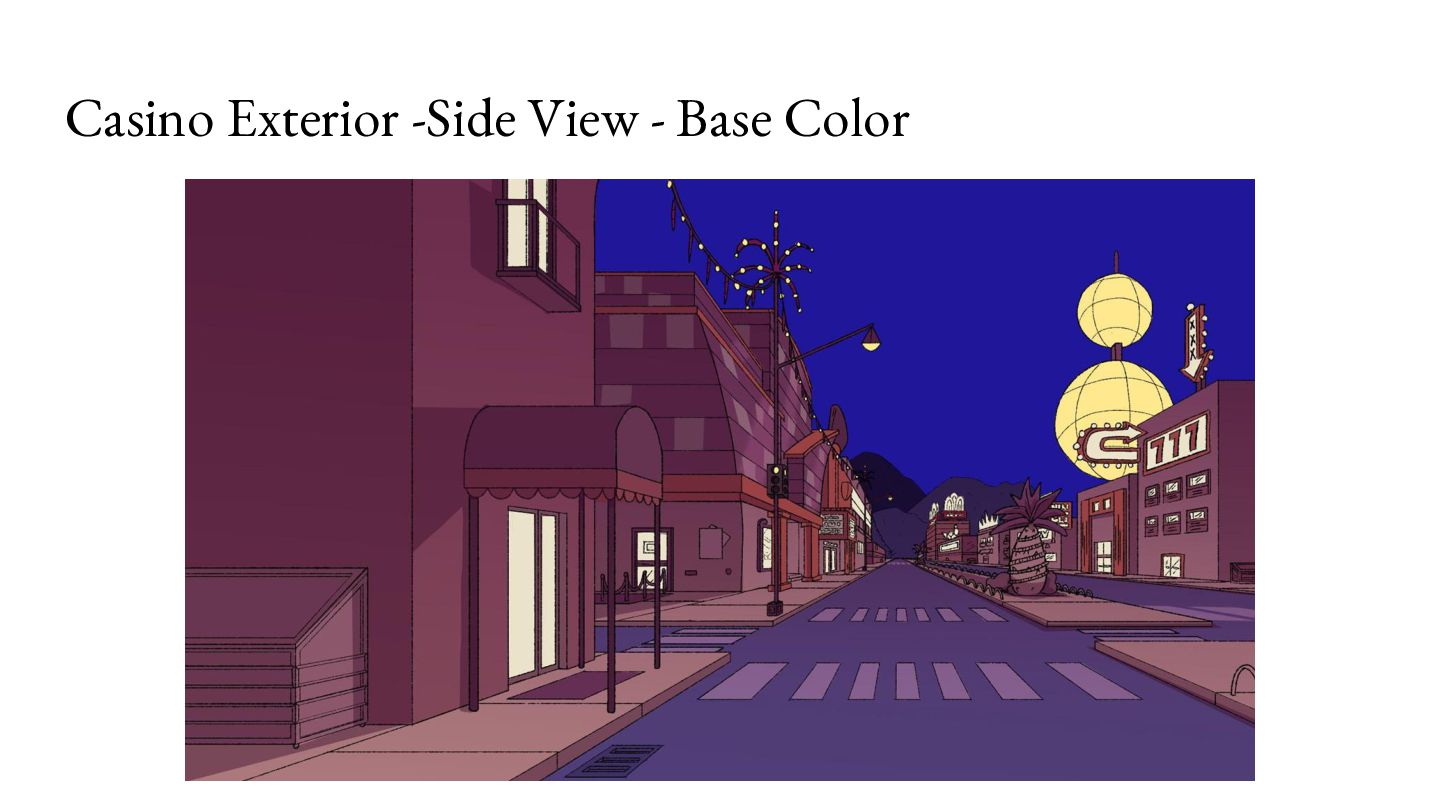
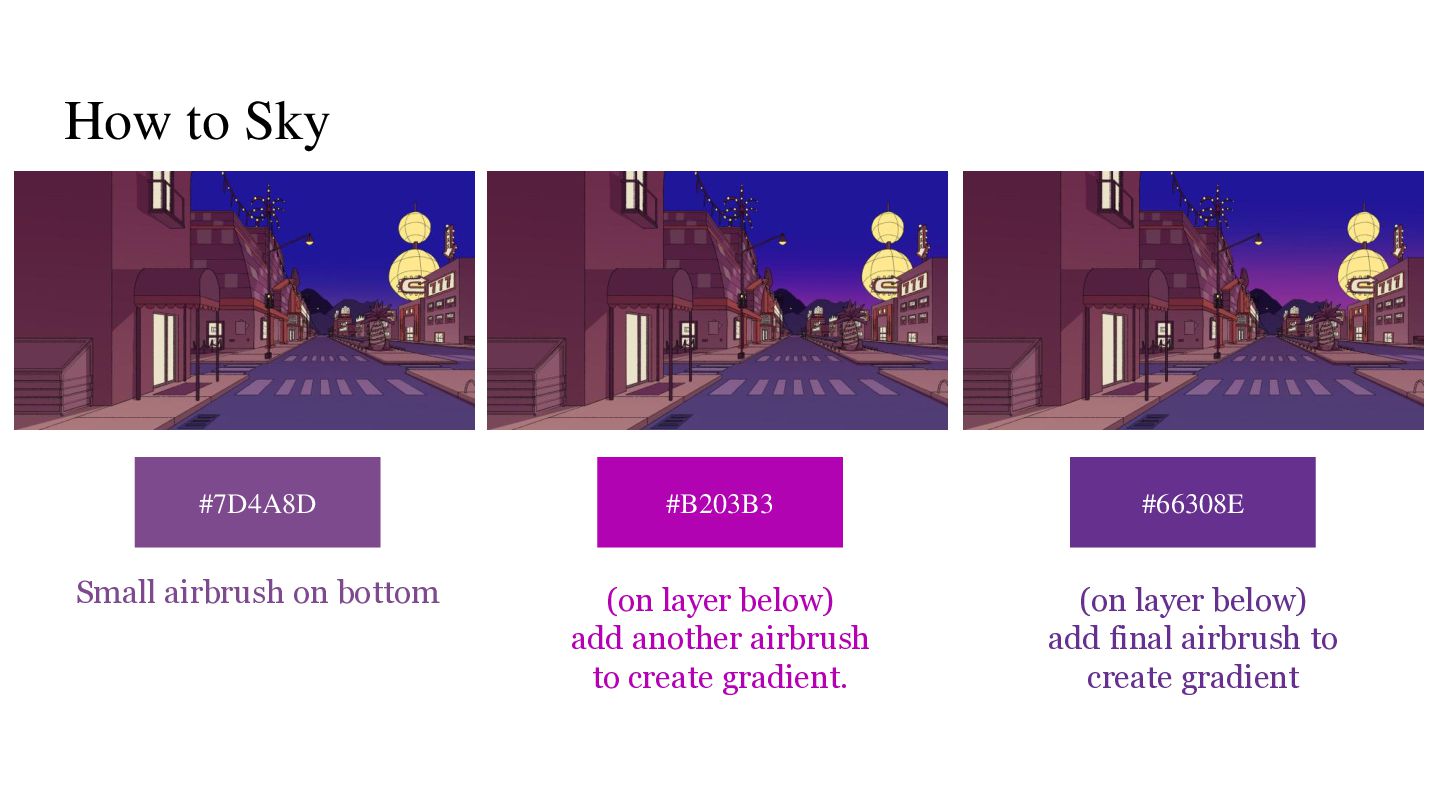
Stop sign on a different layer - Hard line for hard - Airbrush glow on layer underneath Separate light layers for comp - - Lamppost direct light Reflected light Separate sky & clouds on diff layers #A55698
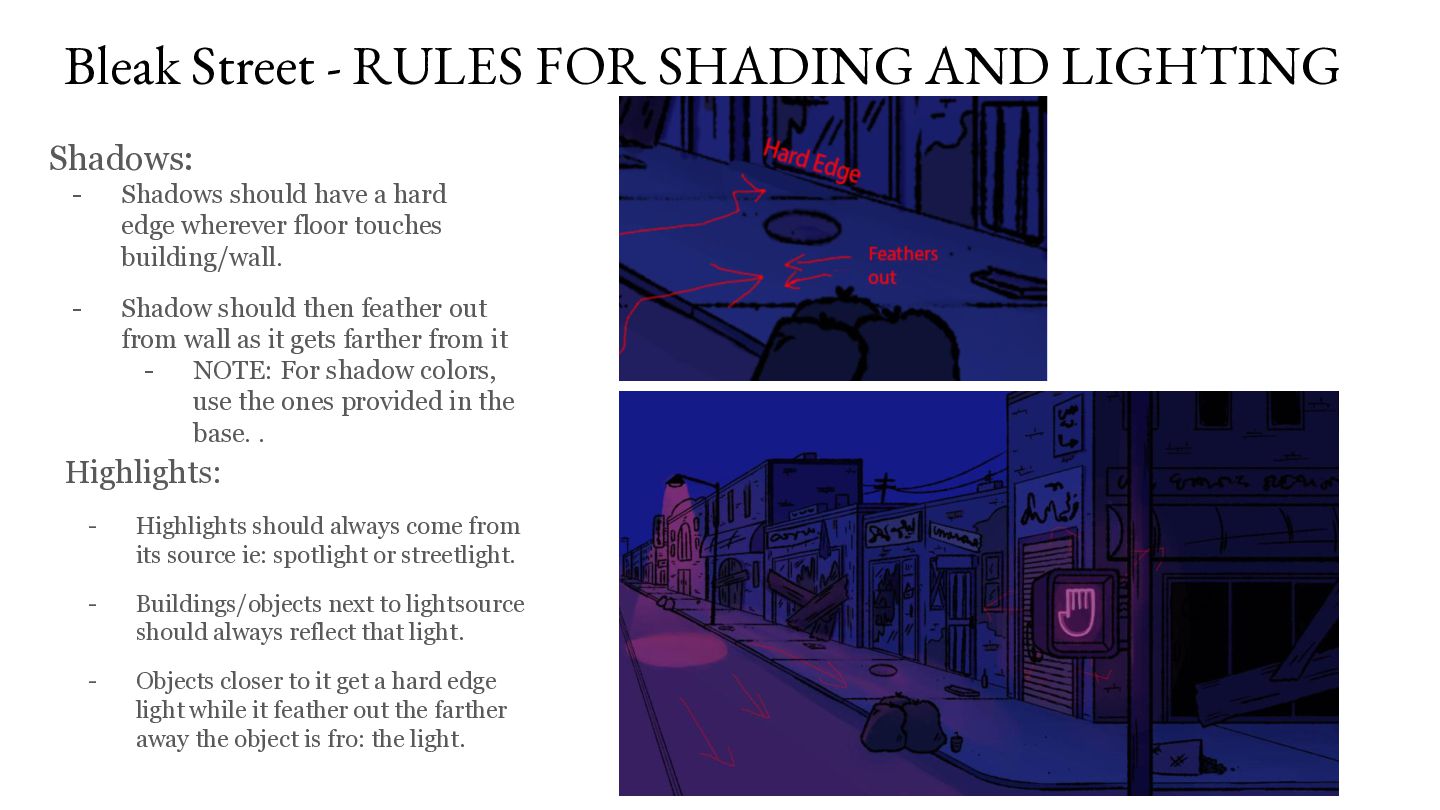
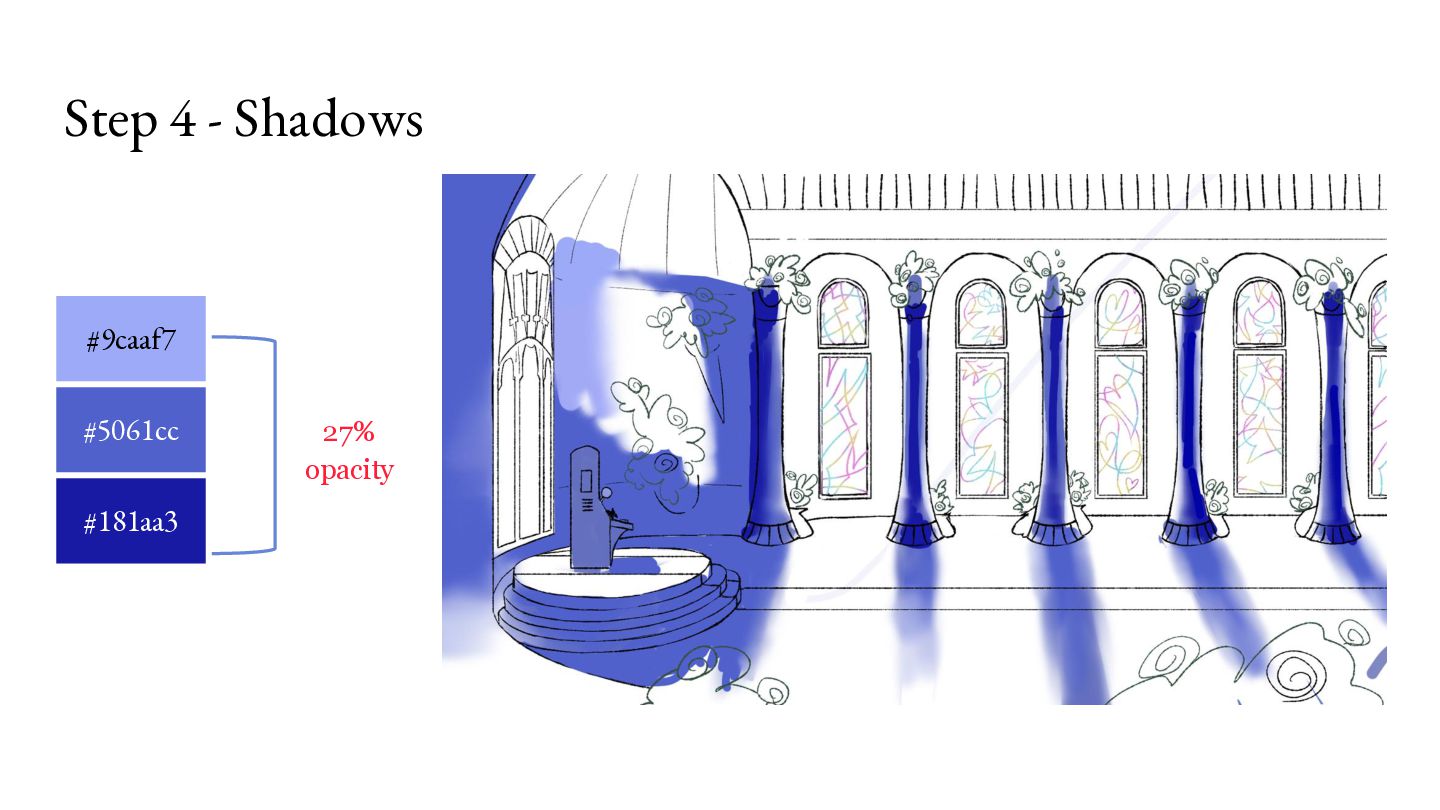
Shadows should have a hard edge wherever floor touches building/wall. - Shadow should then feather out from wall as it gets farther from it NOTE: For shadow colors, use the ones provided in the base. . Highlights: - Highlights should always come from its source ie: spotlight or streetlight. - Buildings/objects next to lightsource should always reflect that light. - Objects closer to it get a hard edge light while it feather out the farther away the object is fro: the light.
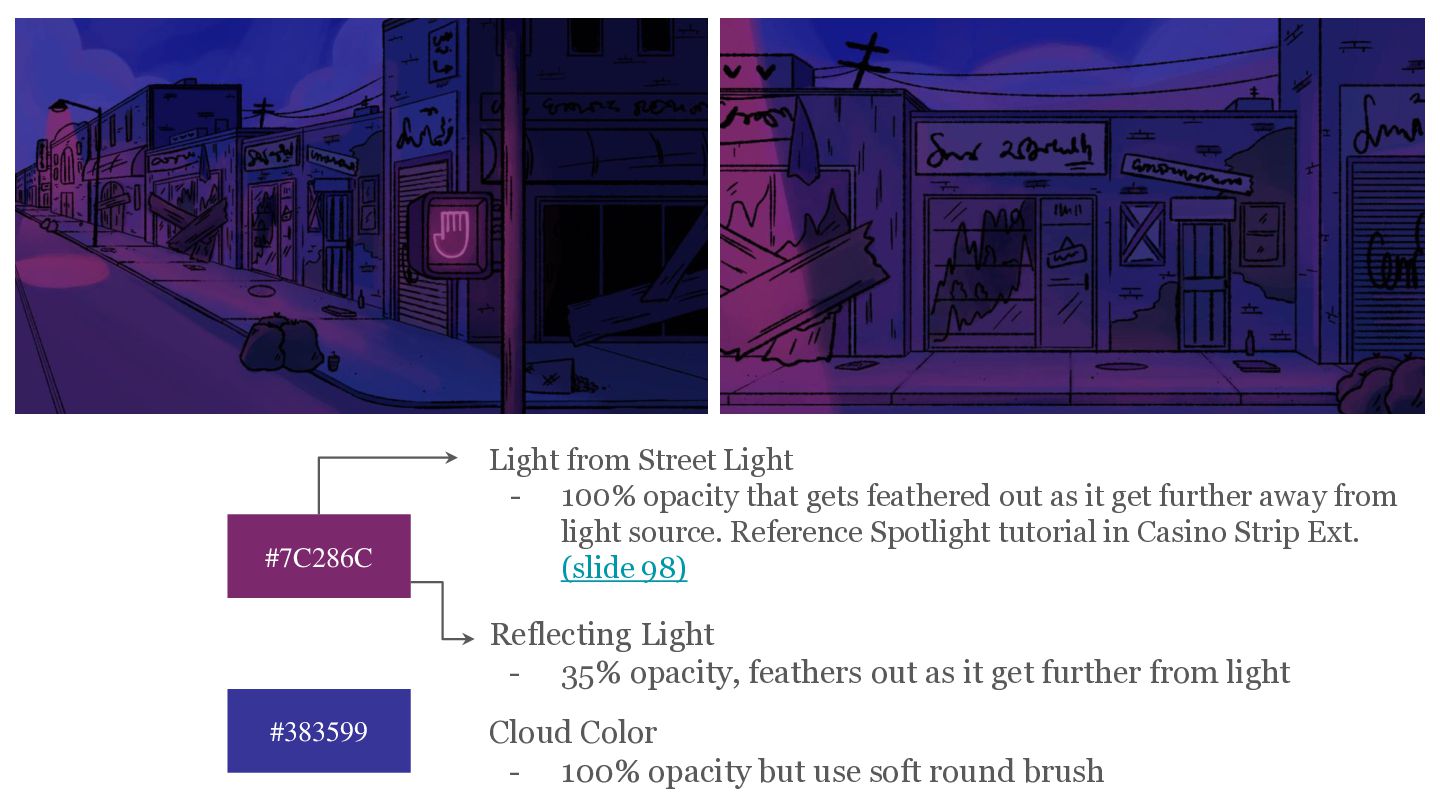
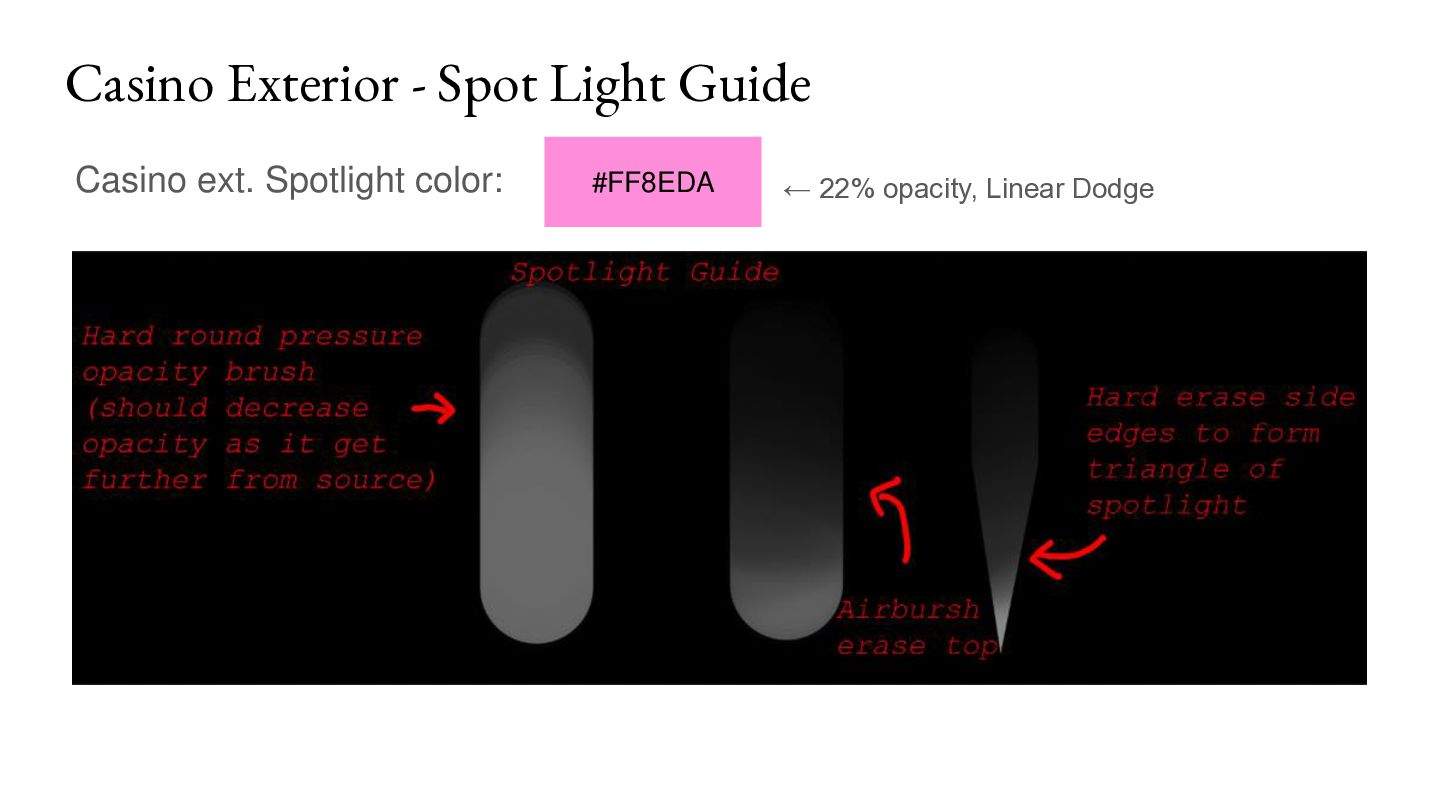
feathered out as it get further away from light source. Reference Spotlight tutorial in Casino Strip Ext. (slide 98) Reflecting Light - 35% opacity, feathers out as it get further from light #383599 Cloud Color - 100% opacity but use soft round brush
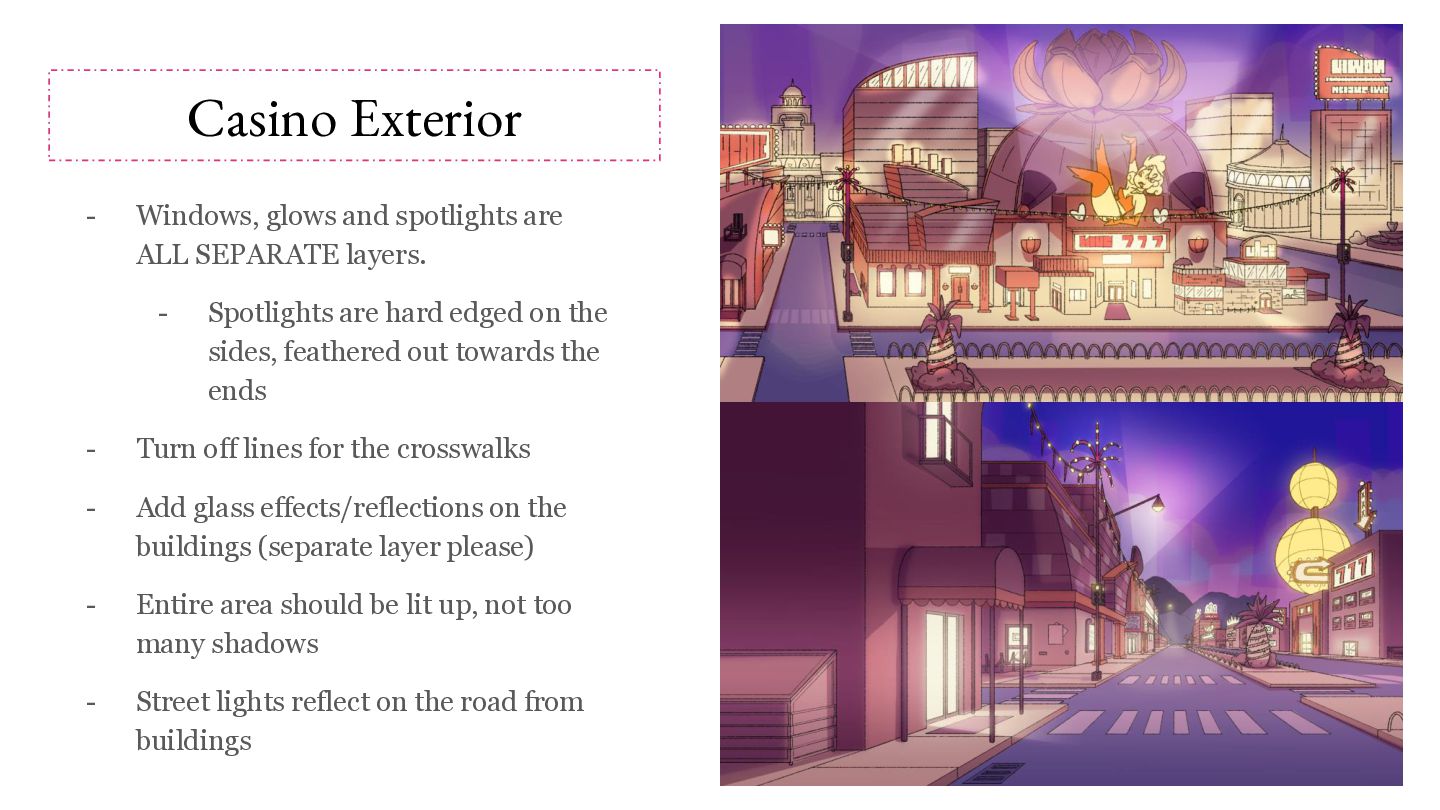
layers. - Spotlights are hard edged on the sides, feathered out towards the ends - Turn off lines for the crosswalks - Add glass effects/reflections on the buildings (separate layer please) - Entire area should be lit up, not too many shadows - Street lights reflect on the road from buildings
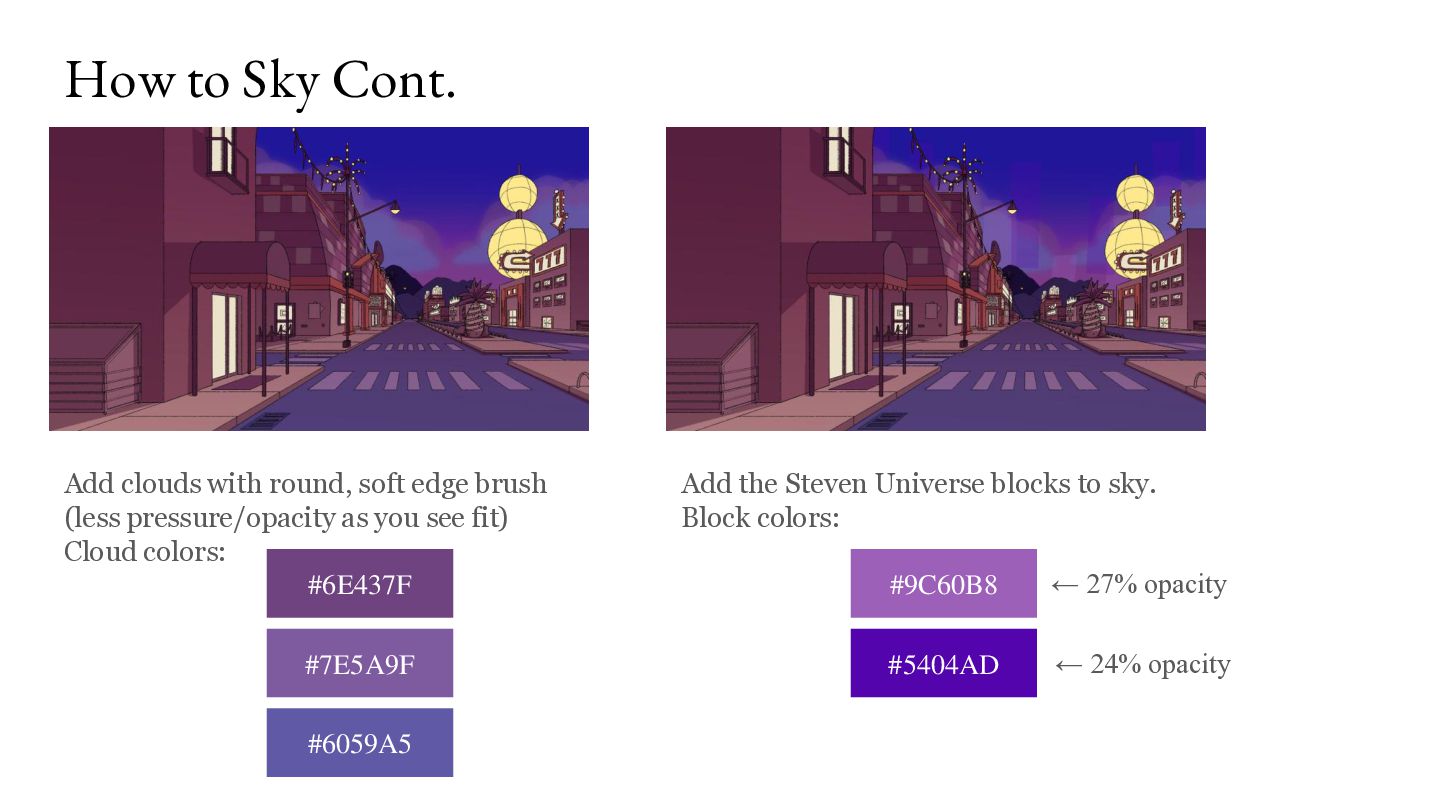
brush (less pressure/opacity as you see fit) Cloud colors: #6E437F #7E5A9F #6059A5 Add the Steven Universe blocks to sky. Block colors: #9C60B8 ← 27% opacity #5404AD ← 24% opacity
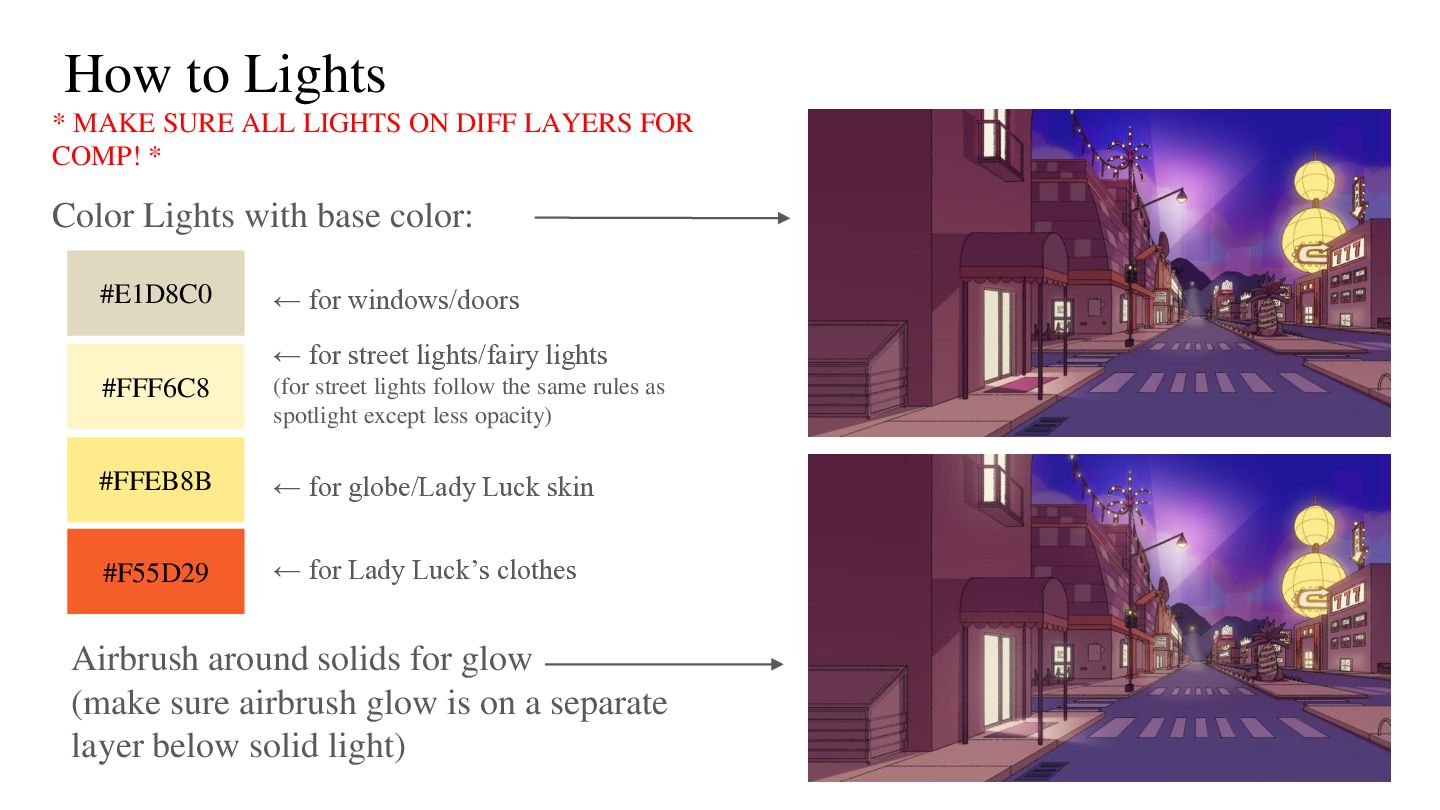
LAYERS FOR COMP! * Color Lights with base color: #E1D8C0 ← for windows/doors ← for street lights/fairy lights #FFF6C8 (for street lights follow the same rules as spotlight except less opacity) #FFEB8B ← for globe/Lady Luck skin #F55D29 ← for Lady Luck’s clothes Airbrush around solids for glow (make sure airbrush glow is on a separate layer below solid light)
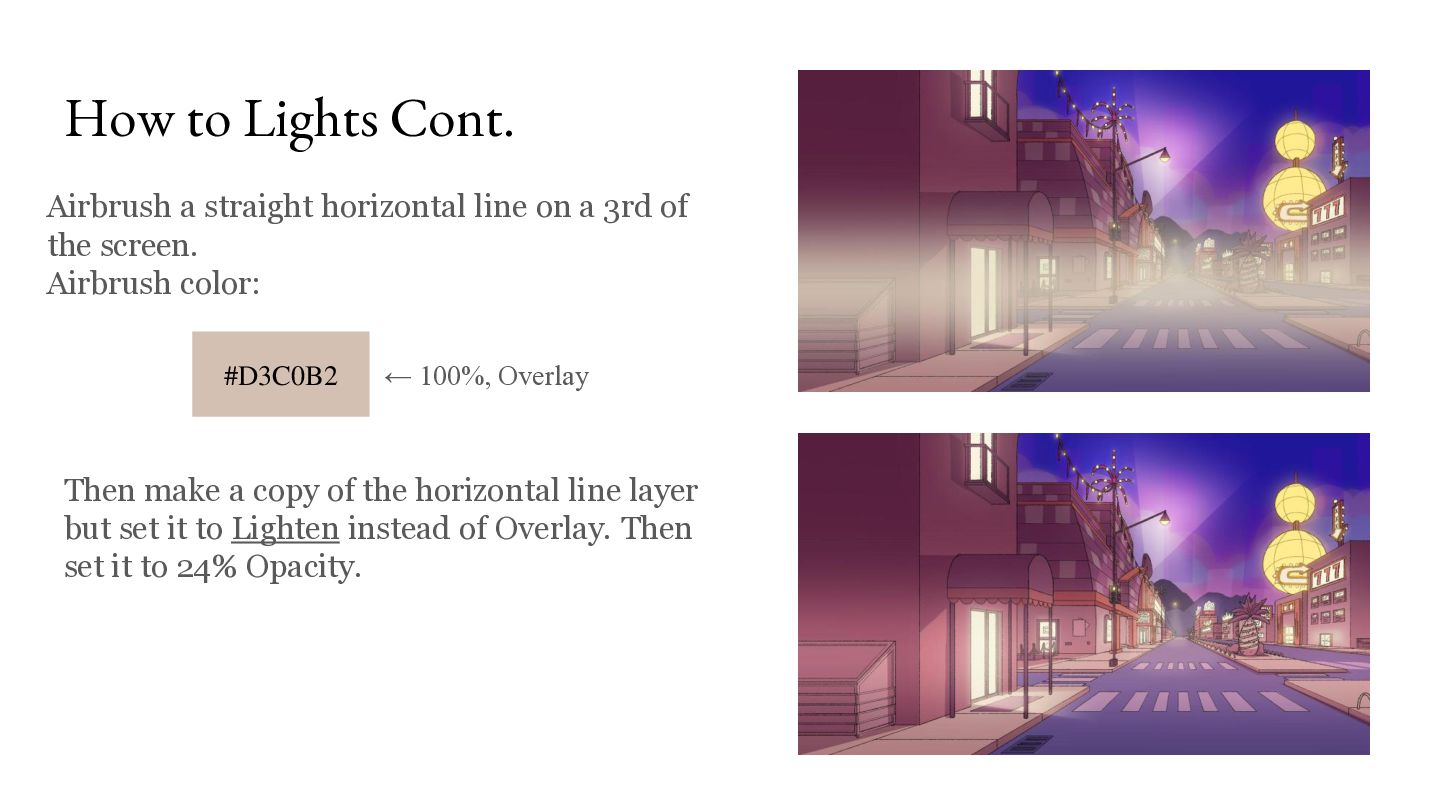
a 3rd of the screen. Airbrush color: #D3C0B2 ← 100%, Overlay Then make a copy of the horizontal line layer but set it to Lighten instead of Overlay. Then set it to 24% Opacity.
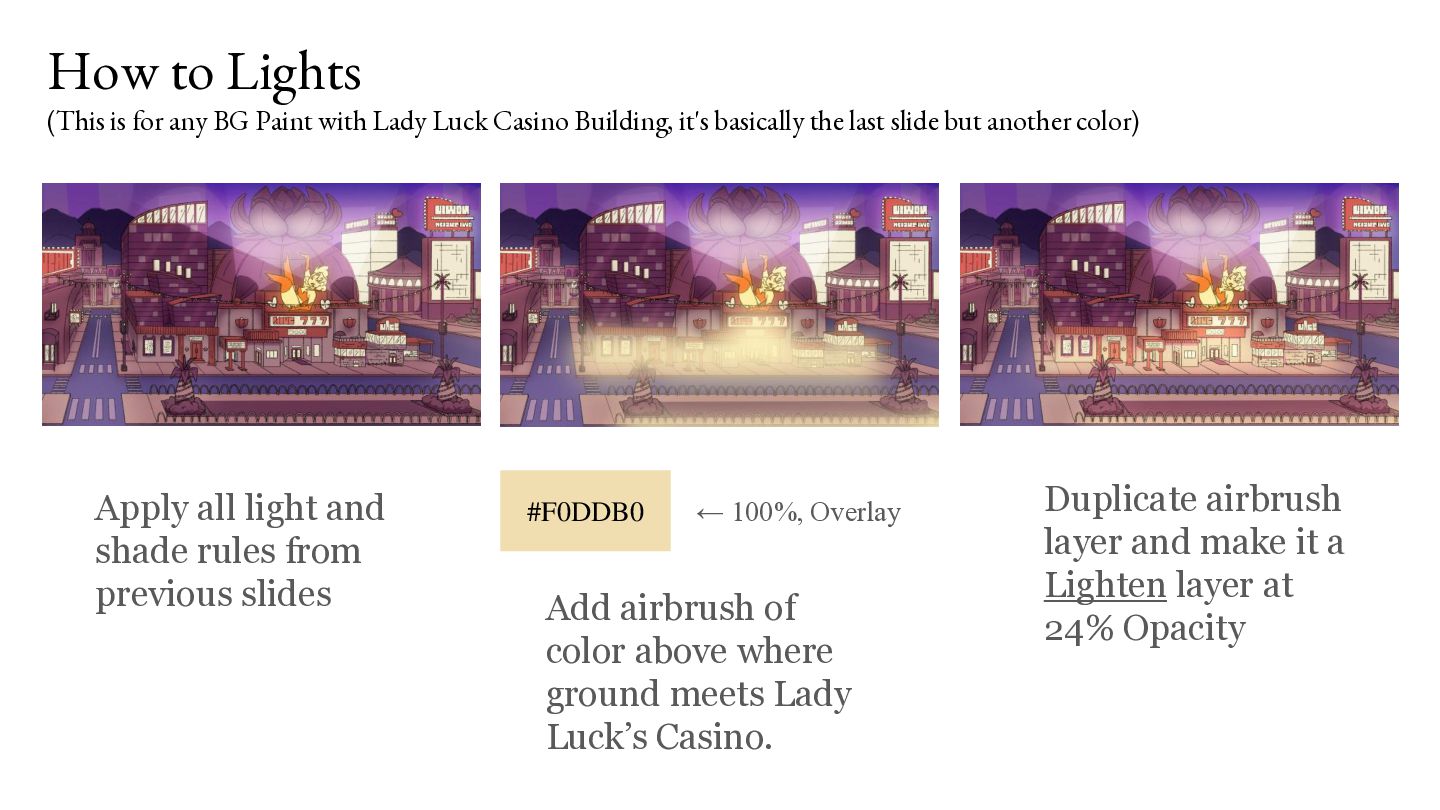
Lady Luck Casino Building, it's basically the last slide but another color) Apply all light and shade rules from previous slides #F0DDB0 ← 100%, Overlay Add airbrush of color above where ground meets Lady Luck’s Casino. Duplicate airbrush layer and make it a Lighten layer at 24% Opacity
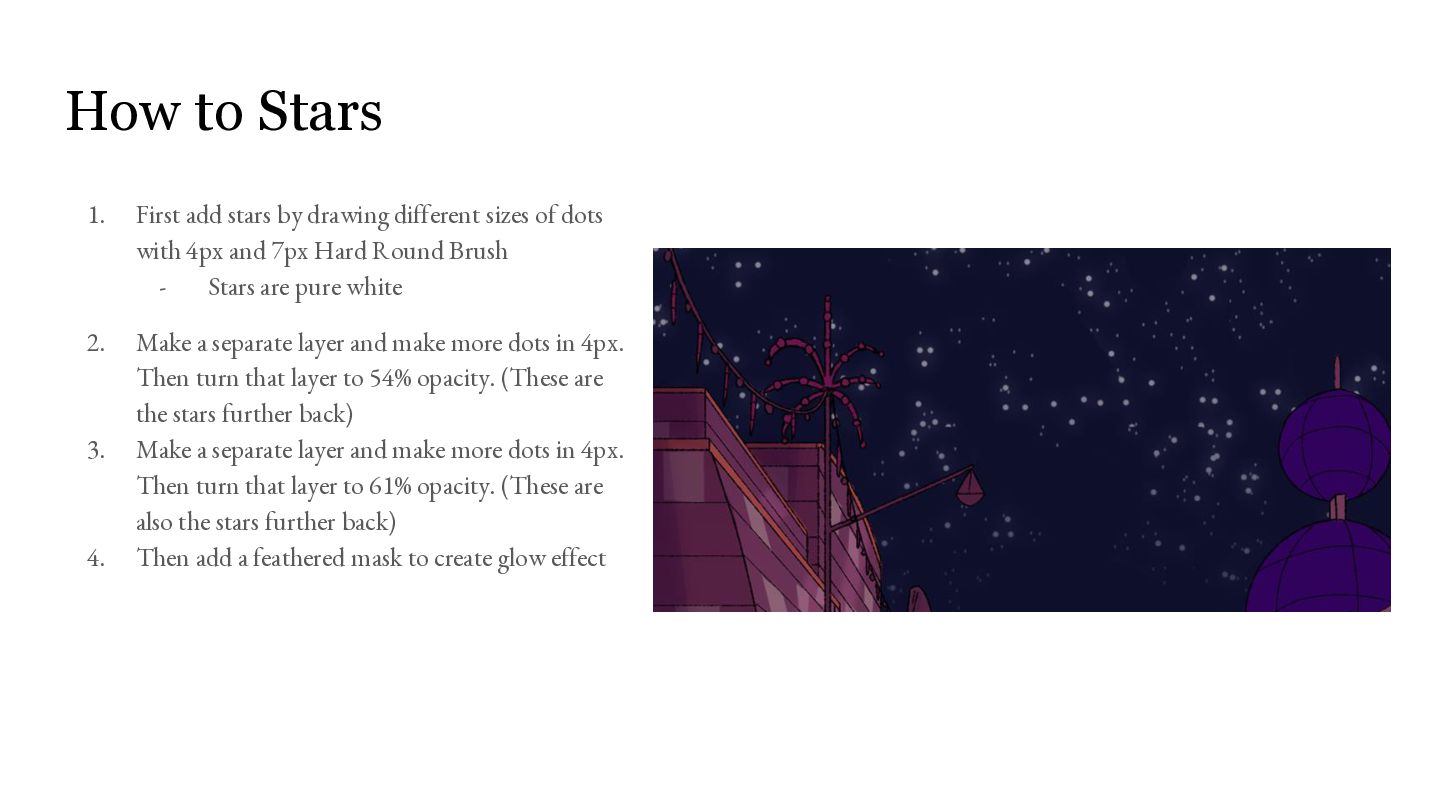
sizes of dots with 4px and 7px Hard Round Brush Stars are pure white 2. Make a separate layer and make more dots in 4px. Then turn that layer to 54% opacity. (These are the stars further back) Make a separate layer and make more dots in 4px. Then turn that layer to 61% opacity. (These are also the stars further back) Then add a feathered mask to create glow effect 3. 4.
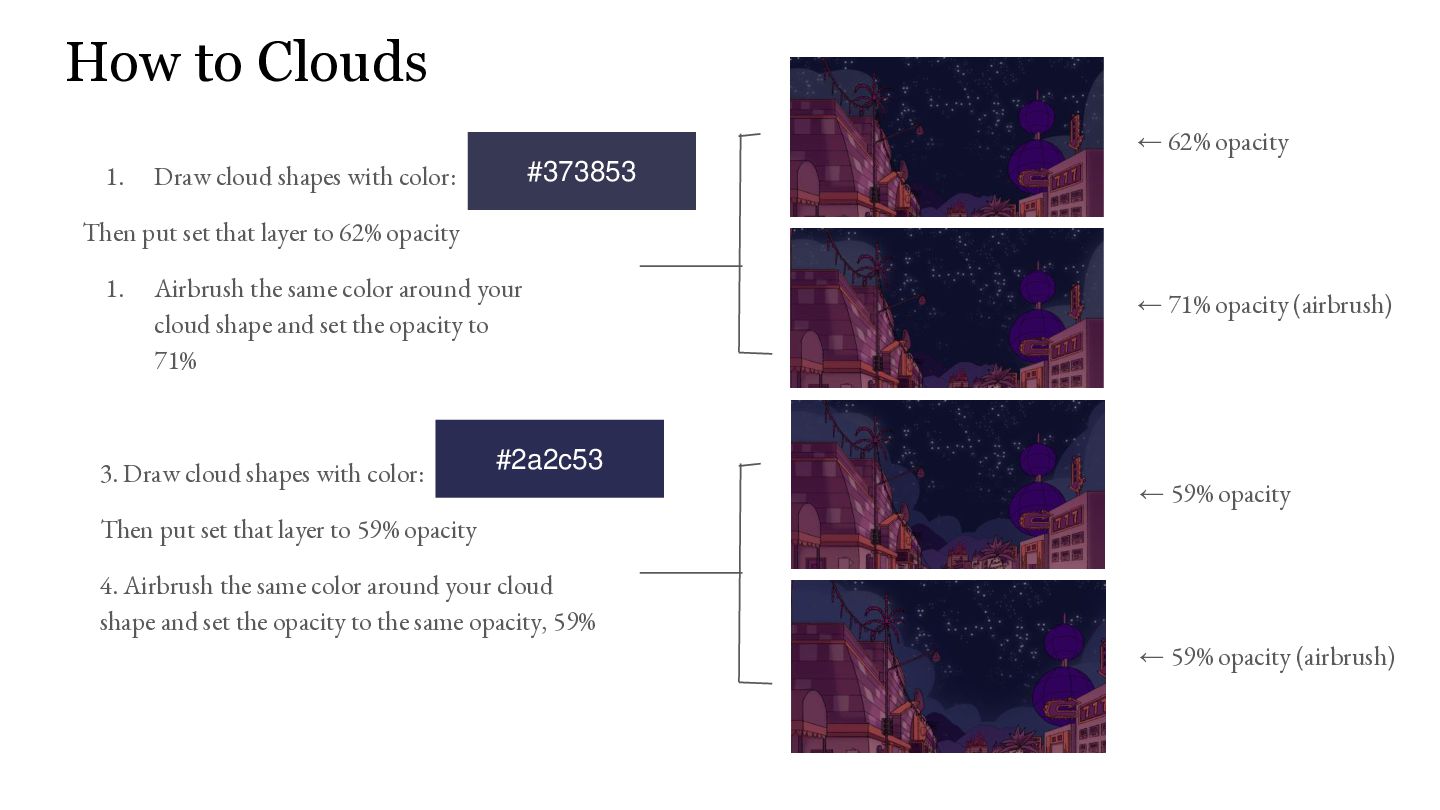
with color: #373853 Then put set that layer to 62% opacity 1. Airbrush the same color around your cloud shape and set the opacity to 71% 3. Draw cloud shapes with color: ← 71% opacity (airbrush) #2a2c53 ← 59% opacity Then put set that layer to 59% opacity 4. Airbrush the same color around your cloud shape and set the opacity to the same opacity, 59% ← 59% opacity (airbrush)
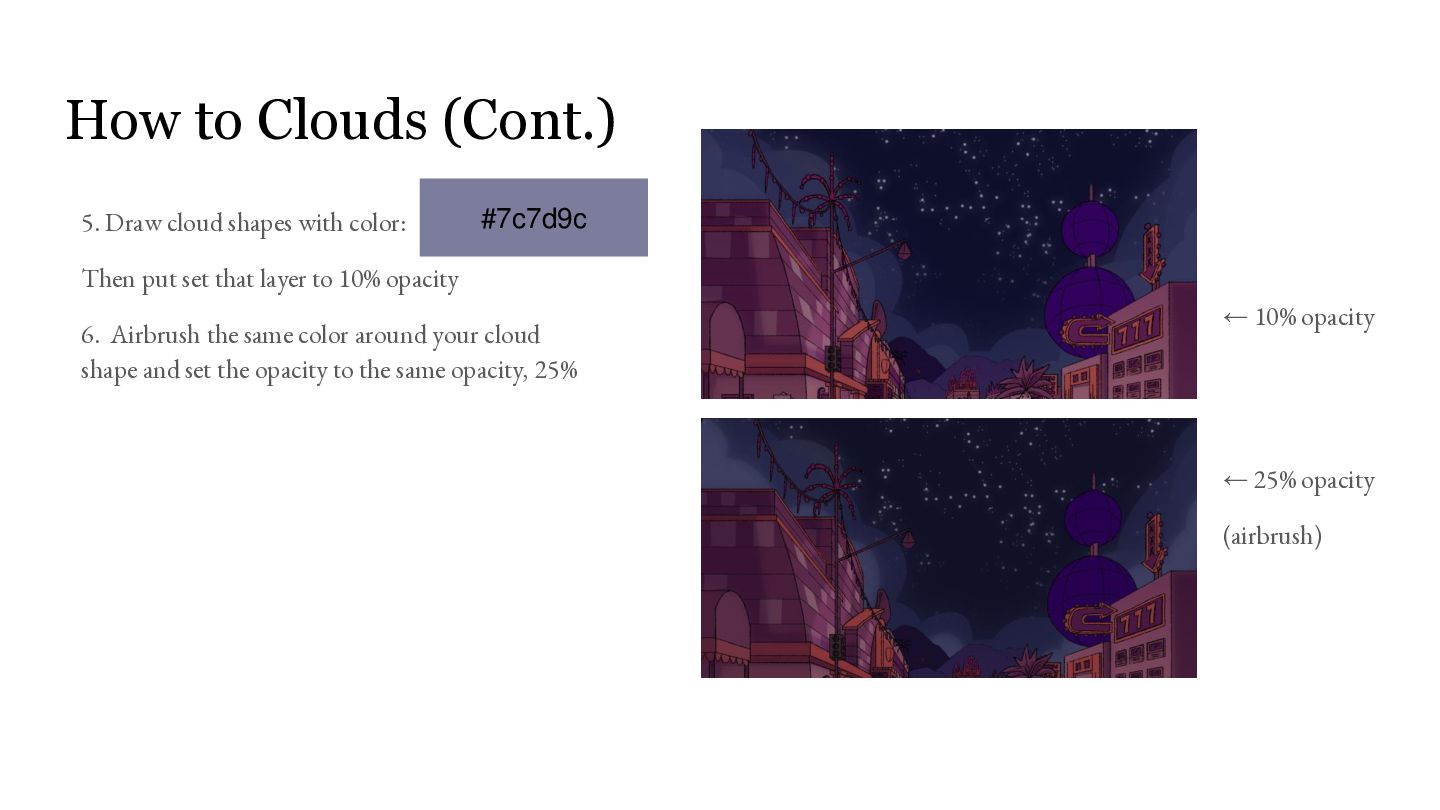
#7c7d9c Then put set that layer to 10% opacity 6. Airbrush the same color around your cloud shape and set the opacity to the same opacity, 25% ← 10% opacity ← 25% opacity (airbrush)
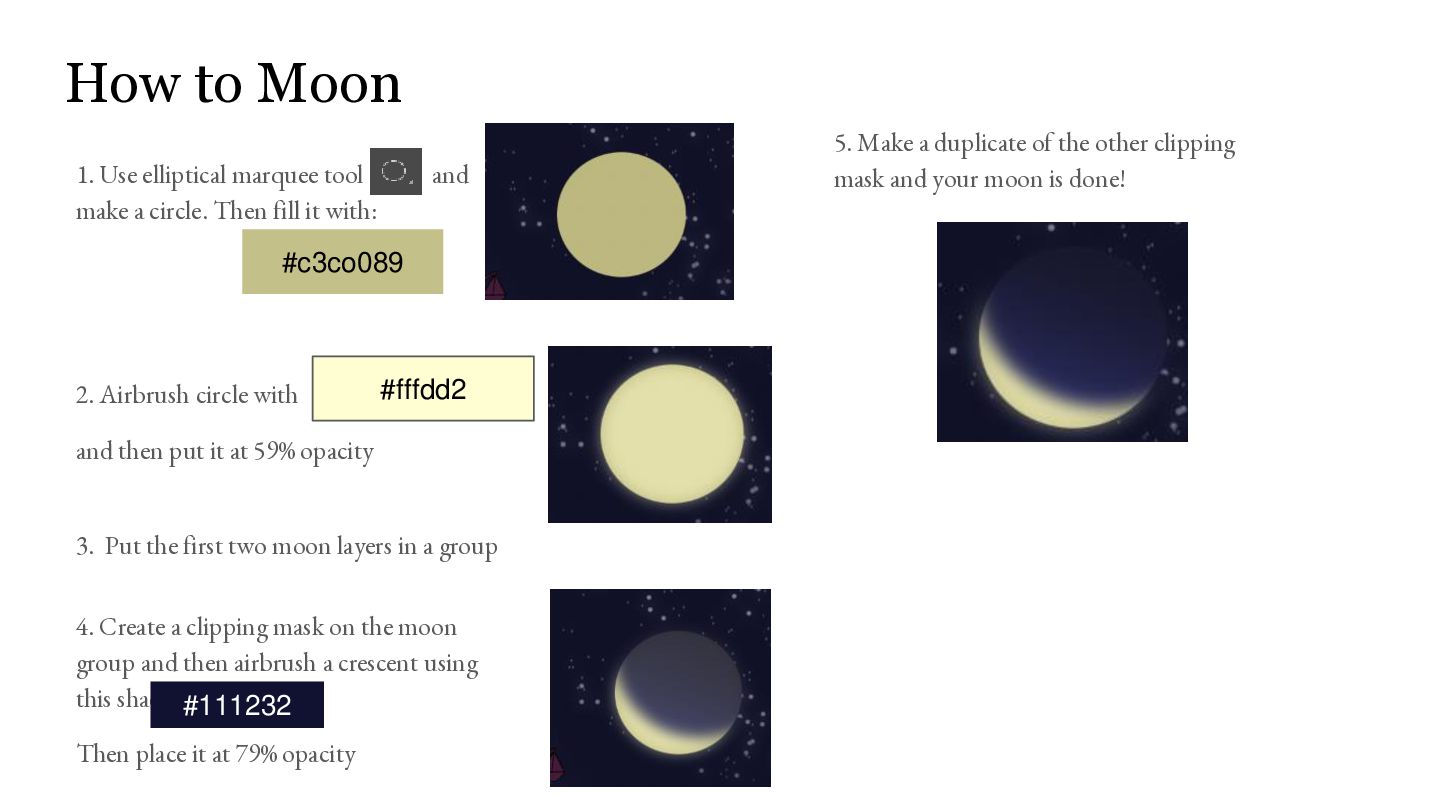
circle. Then fill it with: and #c3co089 2. Airbrush circle with #fffdd2 and then put it at 59% opacity 3. Put the first two moon layers in a group 4. Create a clipping mask on the moon group and then airbrush a crescent using this shade: #111232 Then place it at 79% opacity 5. Make a duplicate of the other clipping mask and your moon is done!
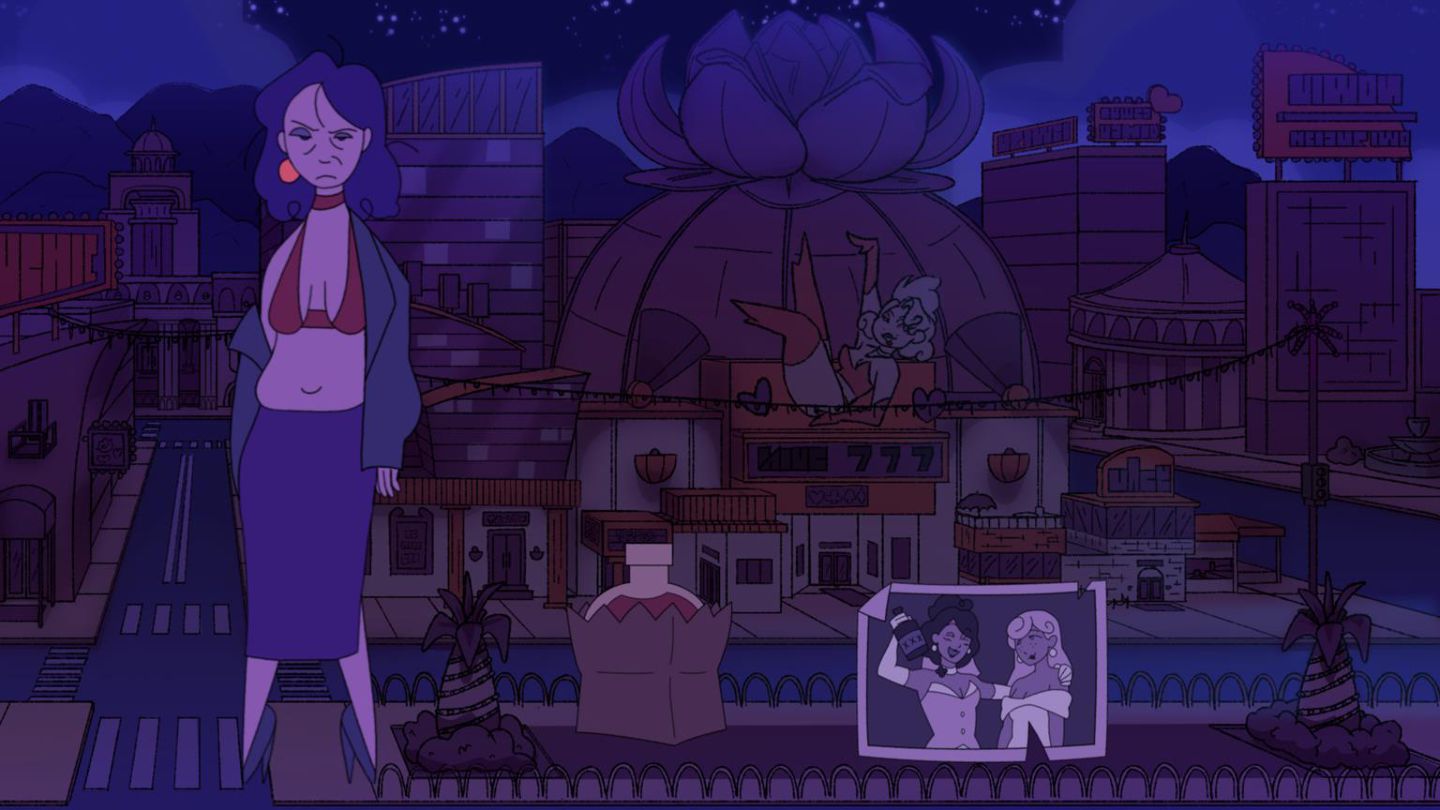
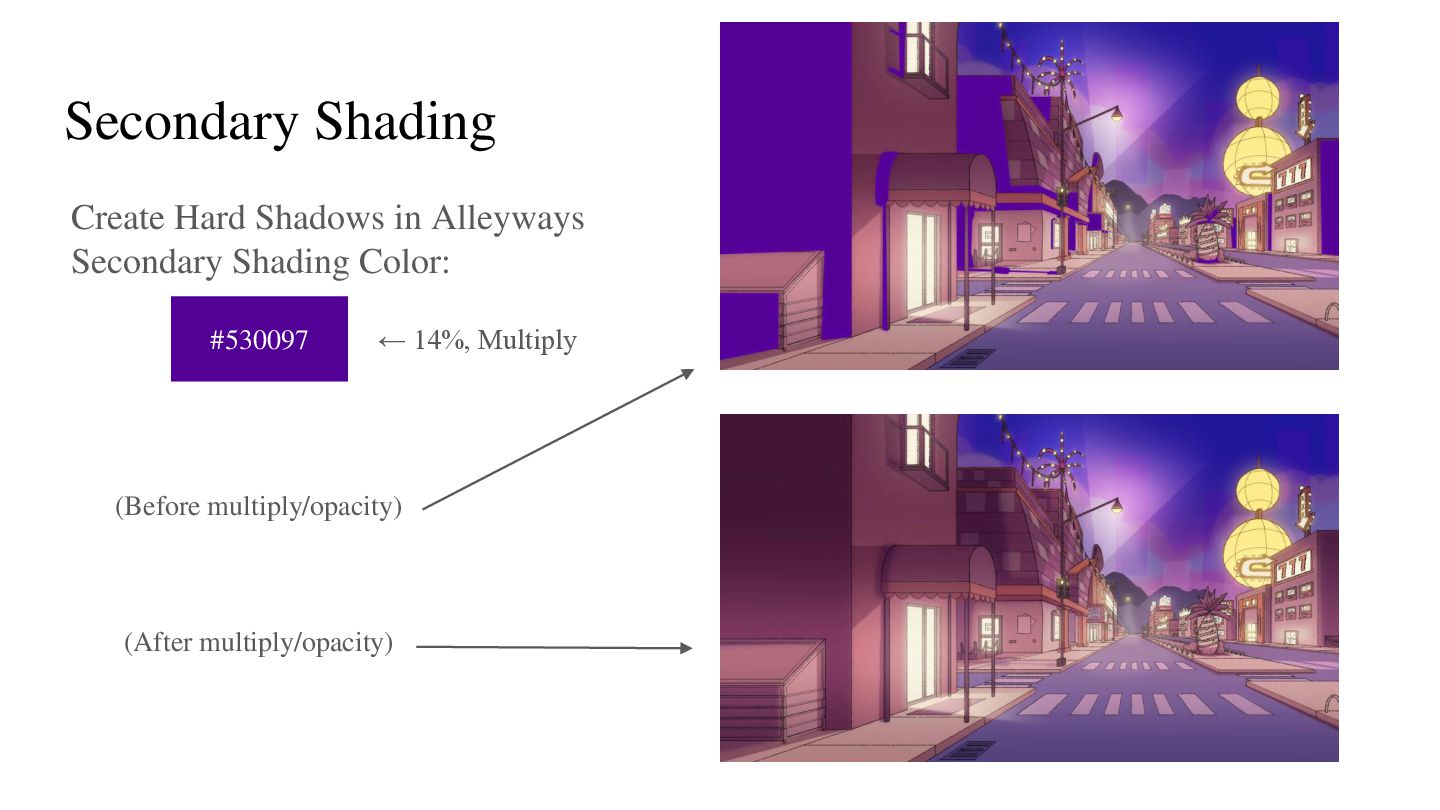
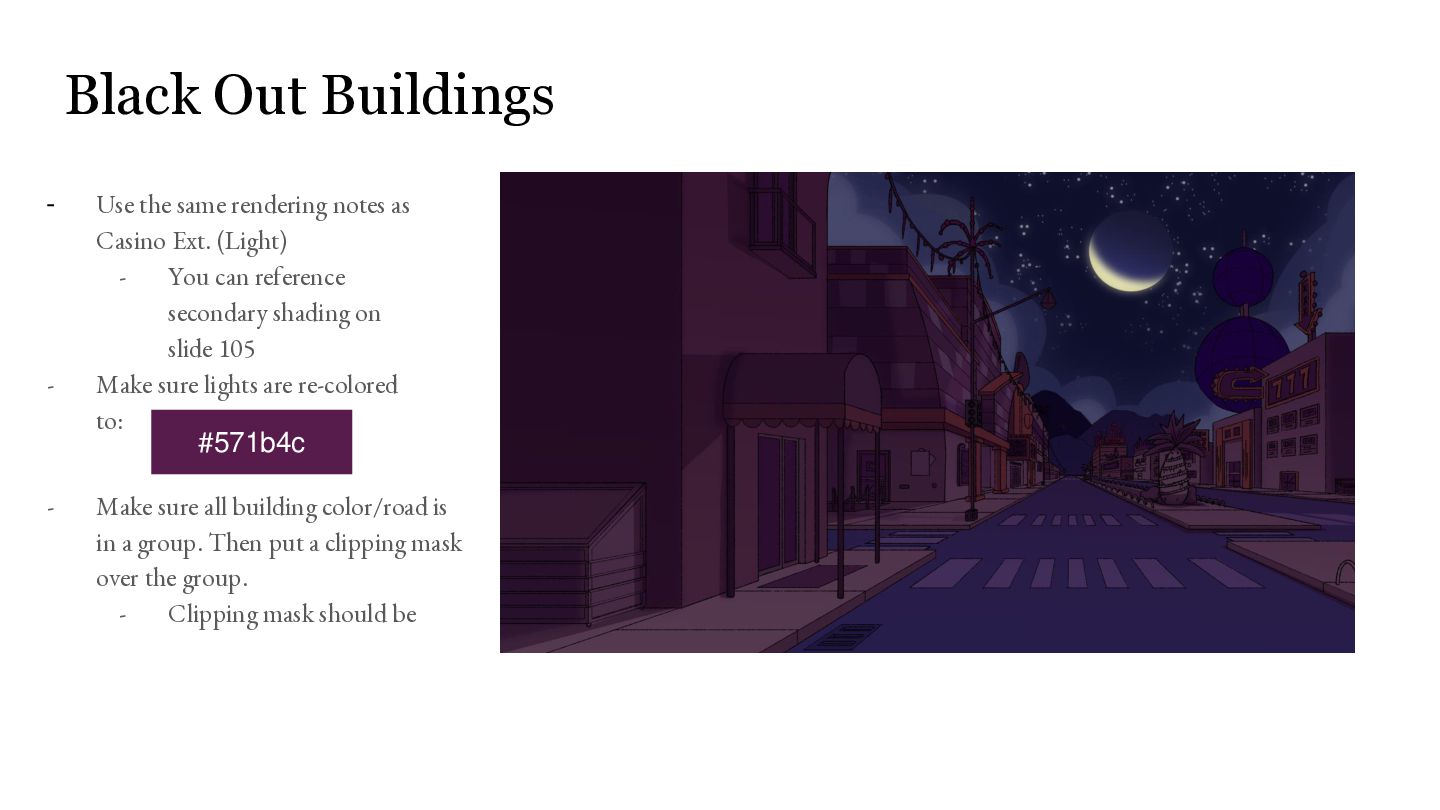
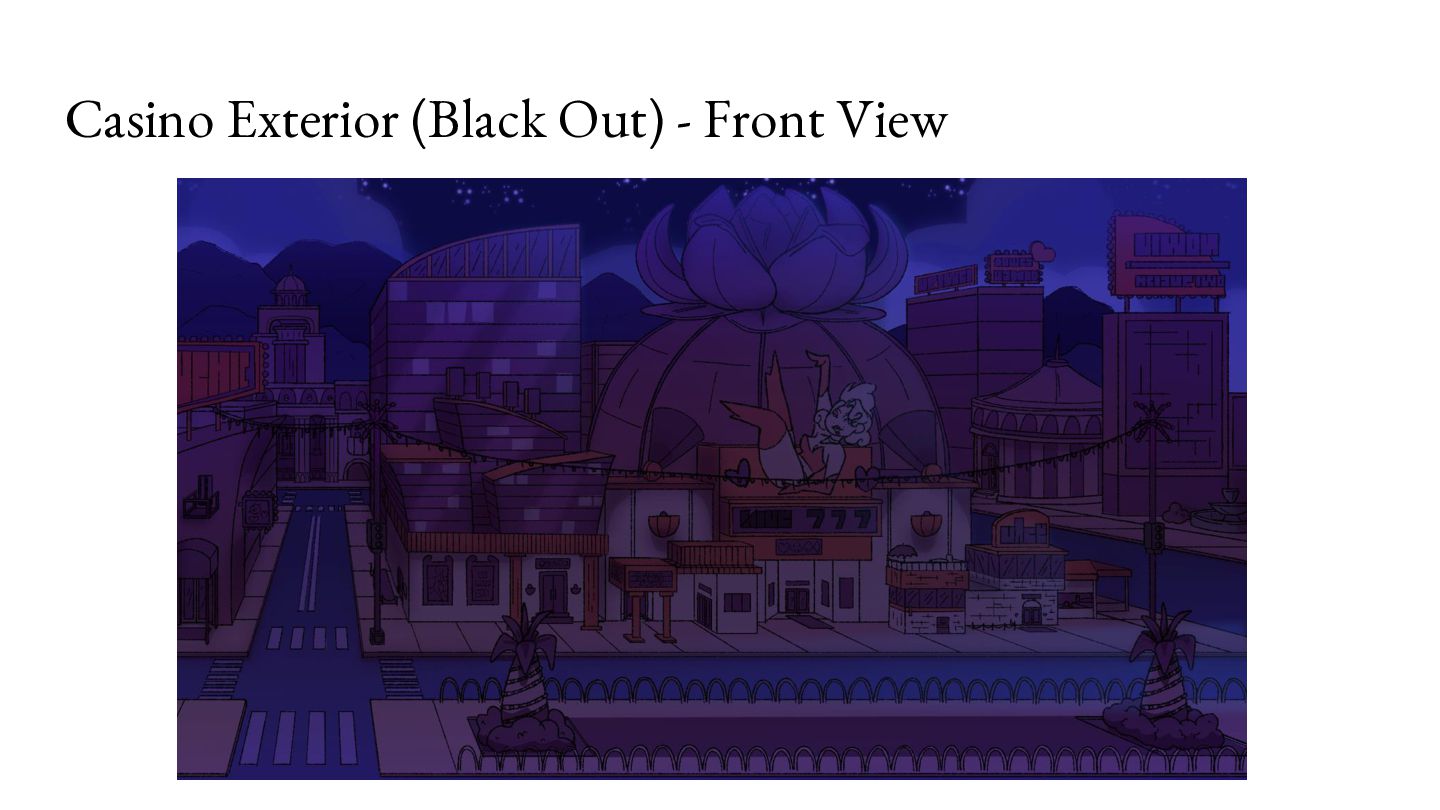
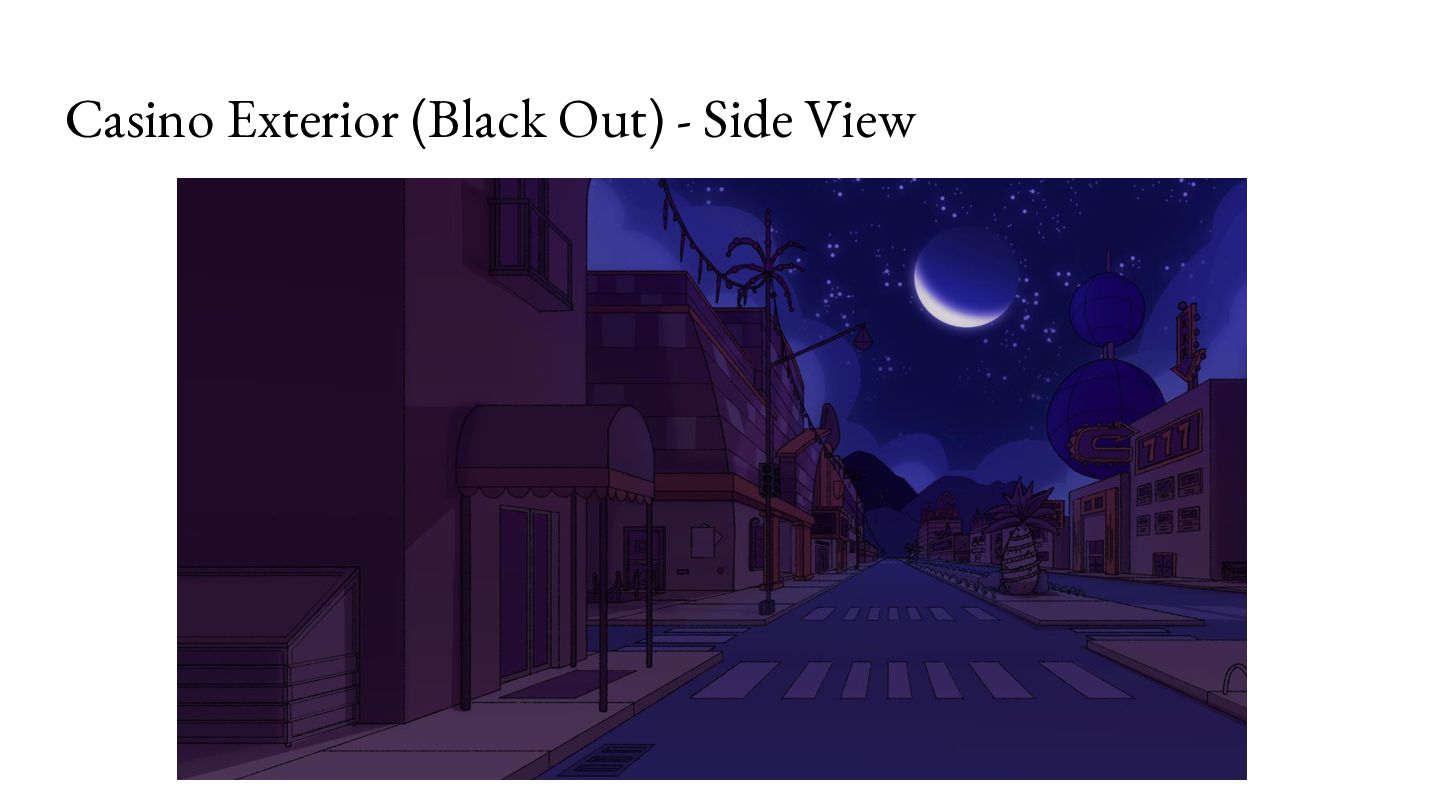
as Casino Ext. (Light) You can reference secondary shading on slide 105 Make sure lights are re-colored to: #571b4c - Make sure all building color/road is in a group. Then put a clipping mask over the group. Clipping mask should be
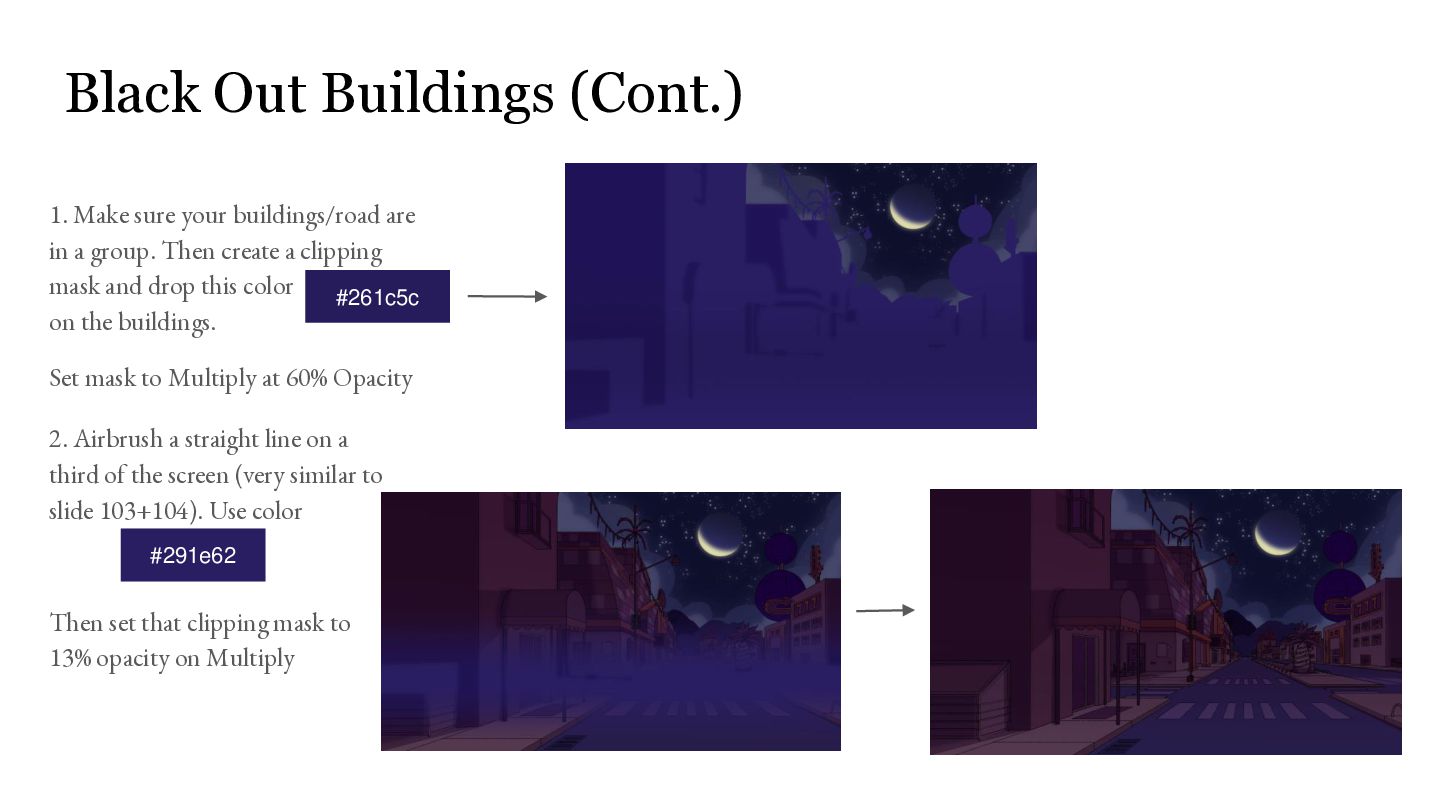
in a group. Then create a clipping mask and drop this color #261c5c on the buildings. Set mask to Multiply at 60% Opacity 2. Airbrush a straight line on a third of the screen (very similar to slide 103+104). Use color #291e62 Then set that clipping mask to 13% opacity on Multiply
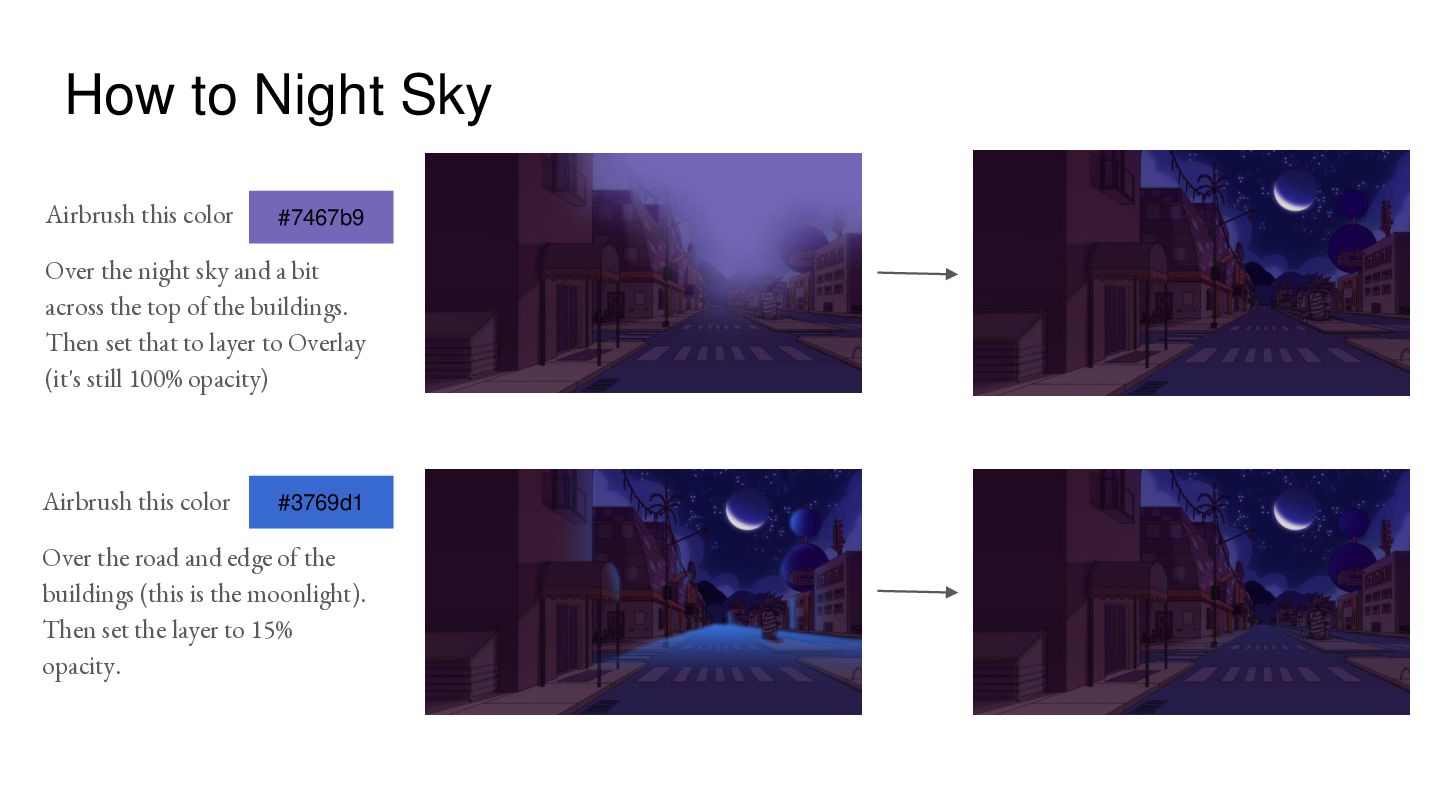
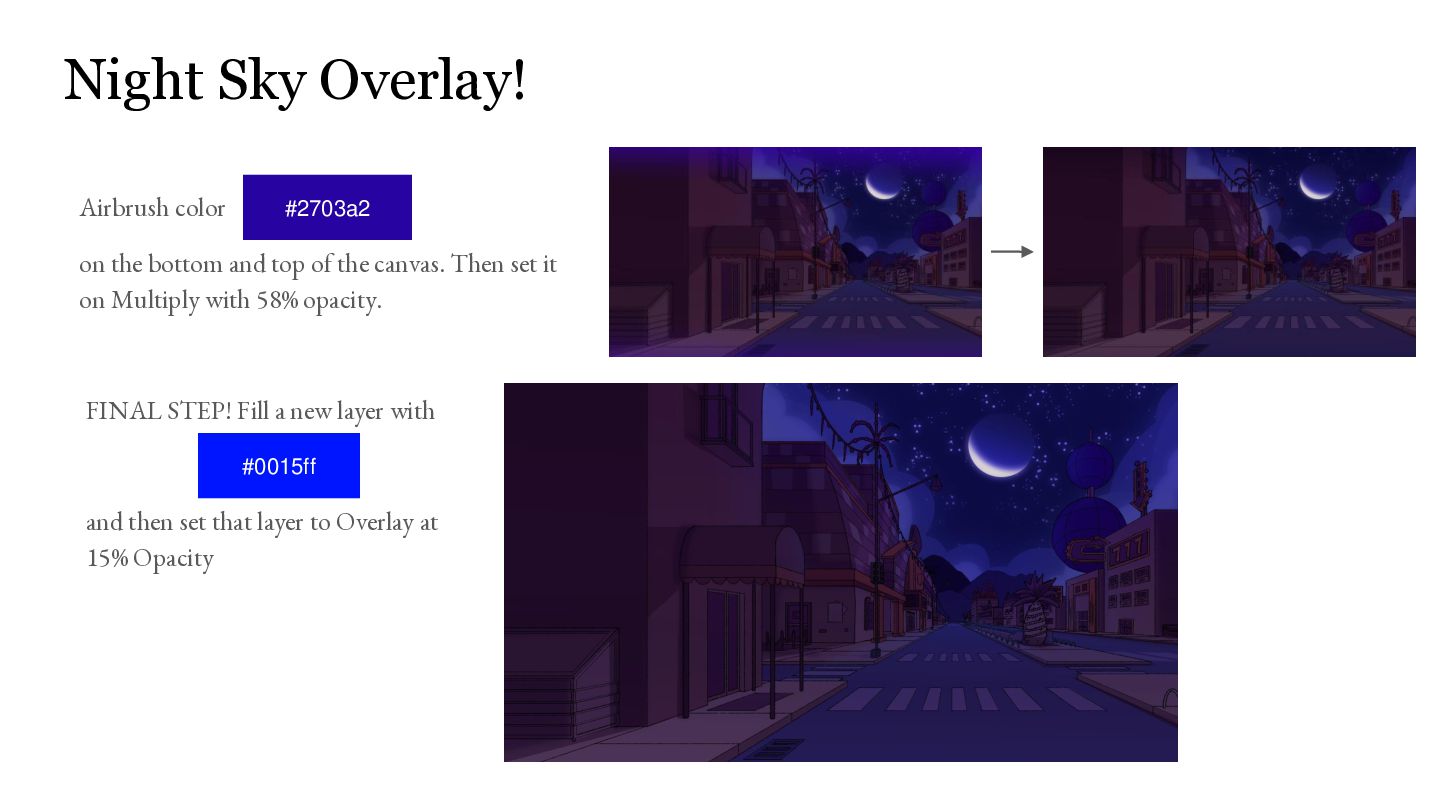
night sky and a bit across the top of the buildings. Then set that to layer to Overlay (it's still 100% opacity) Airbrush this color #3769d1 Over the road and edge of the buildings (this is the moonlight). Then set the layer to 15% opacity.
top of the canvas. Then set it on Multiply with 58% opacity. FINAL STEP! Fill a new layer with #0015ff and then set that layer to Overlay at 15% Opacity
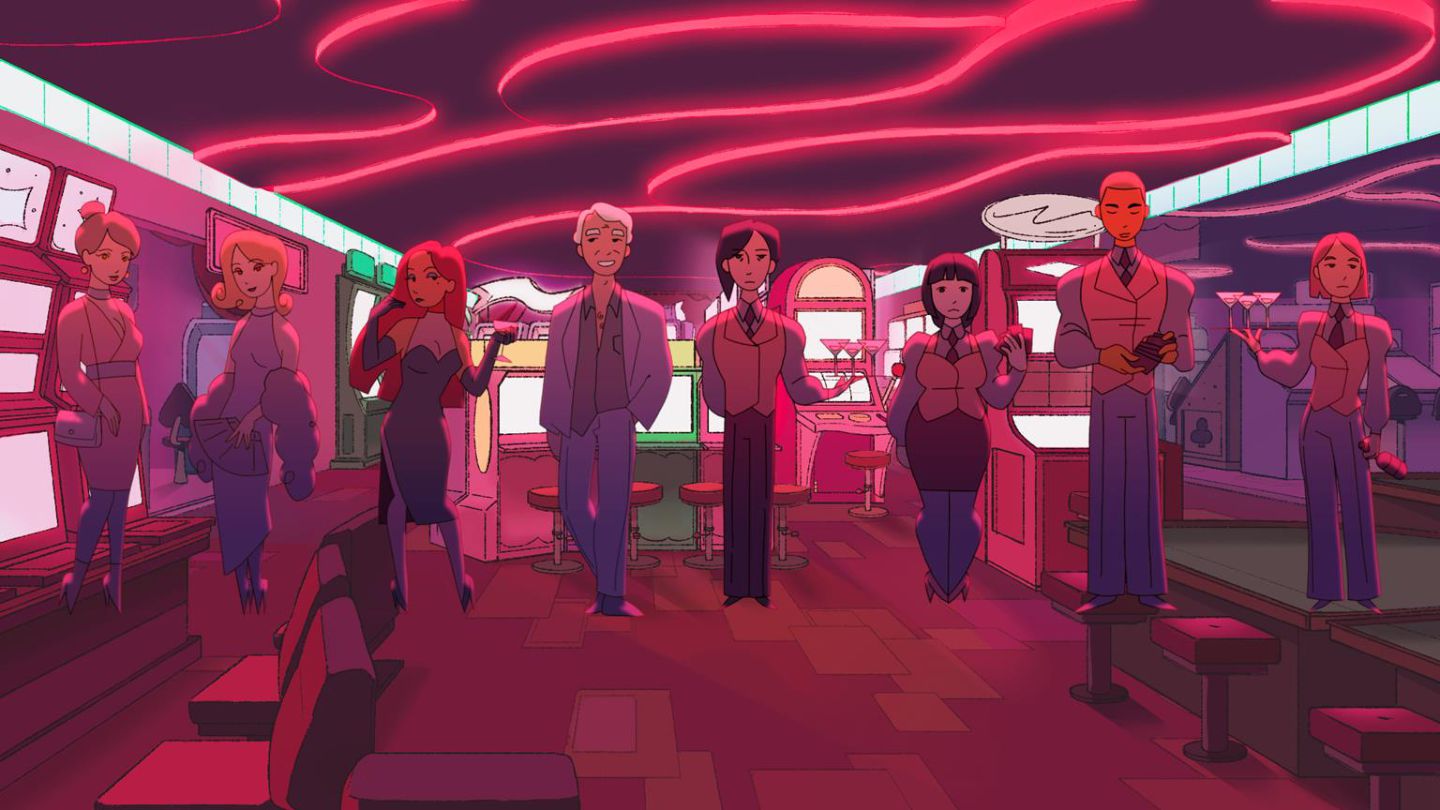
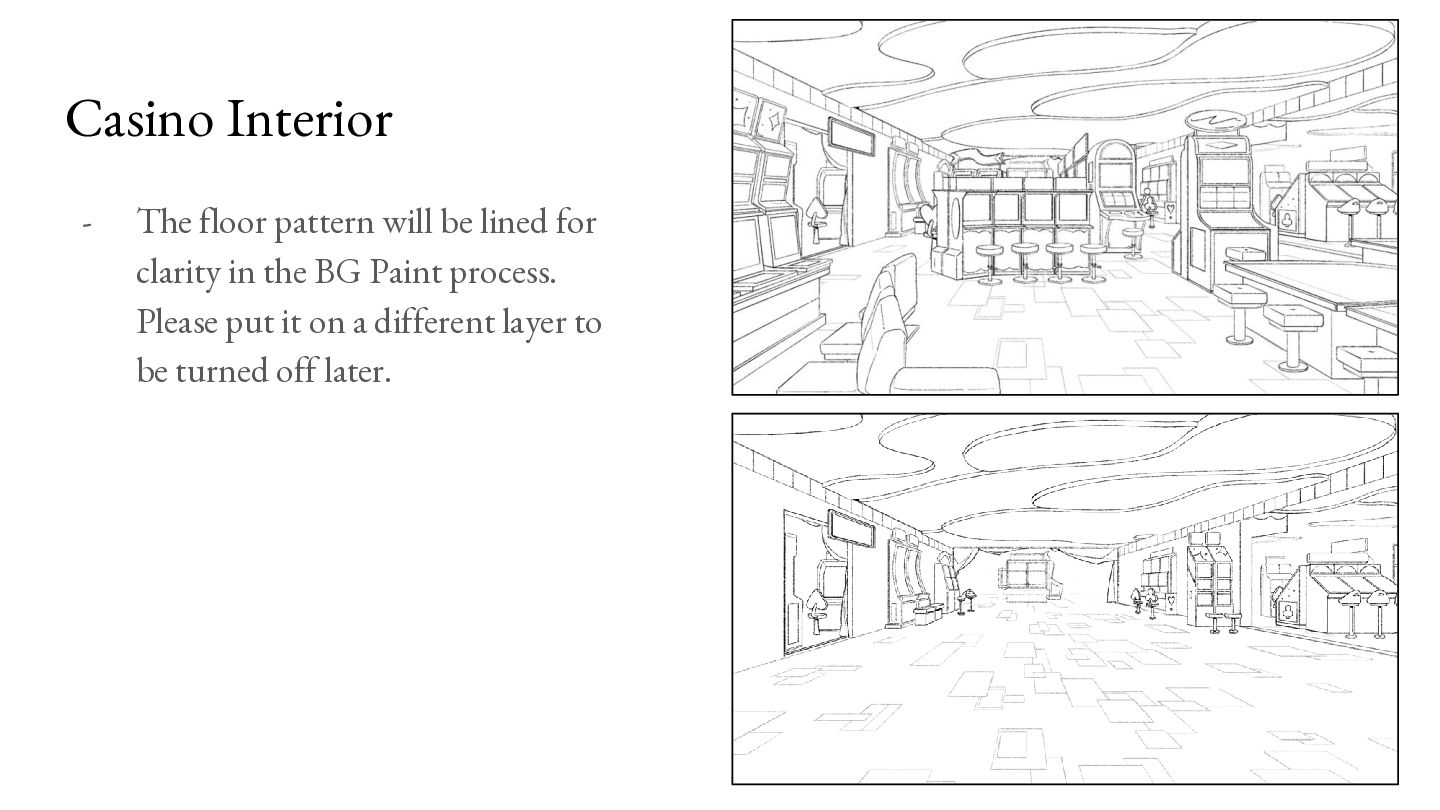
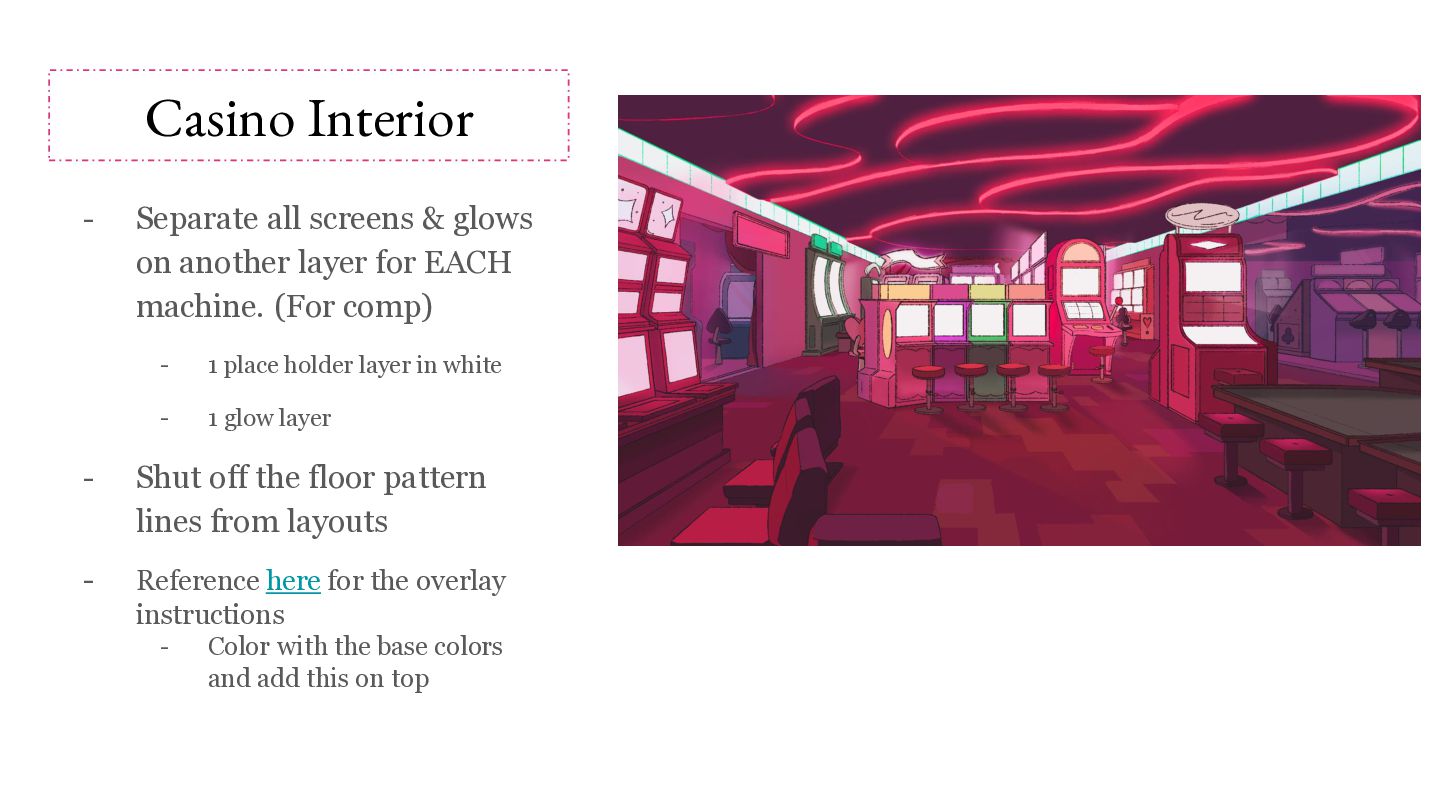
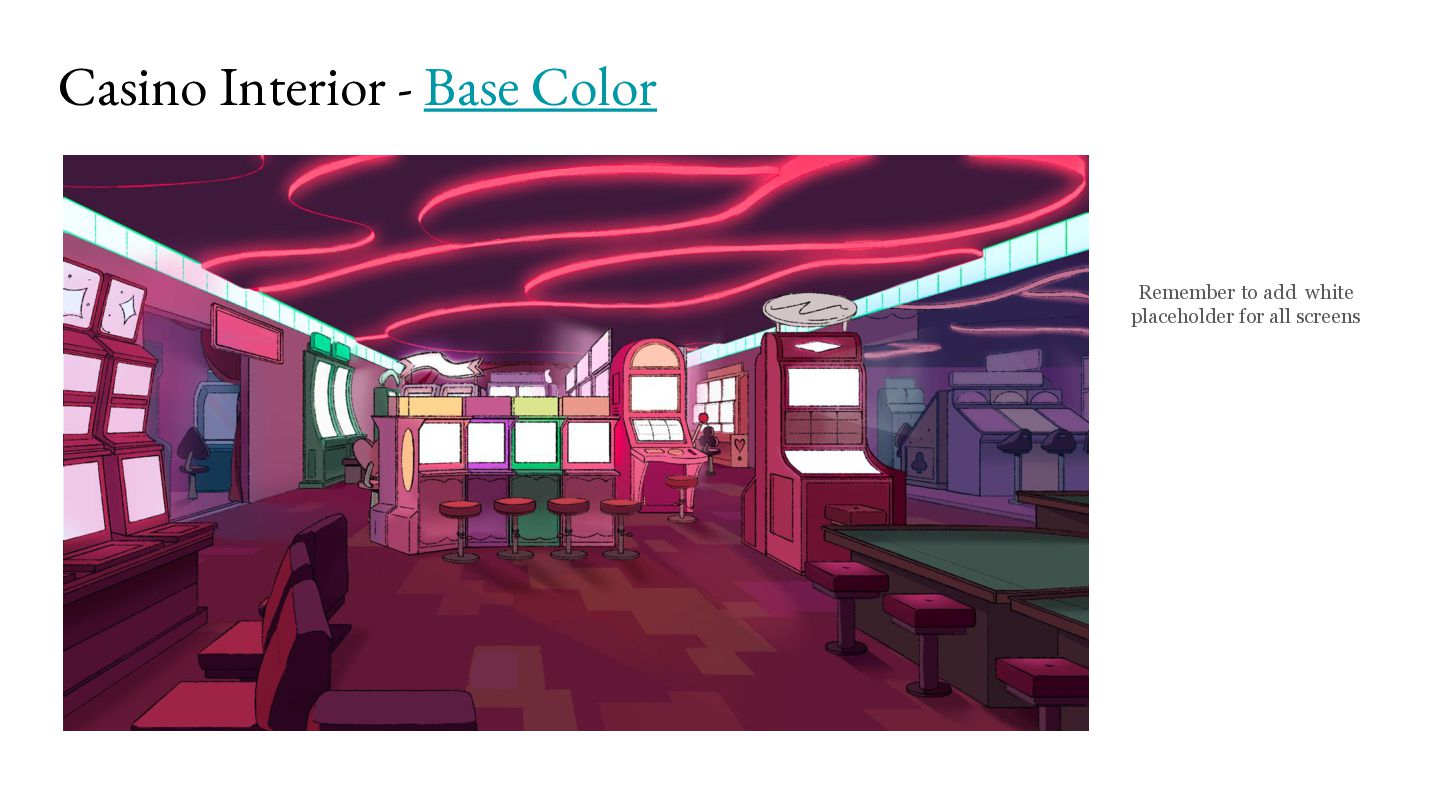
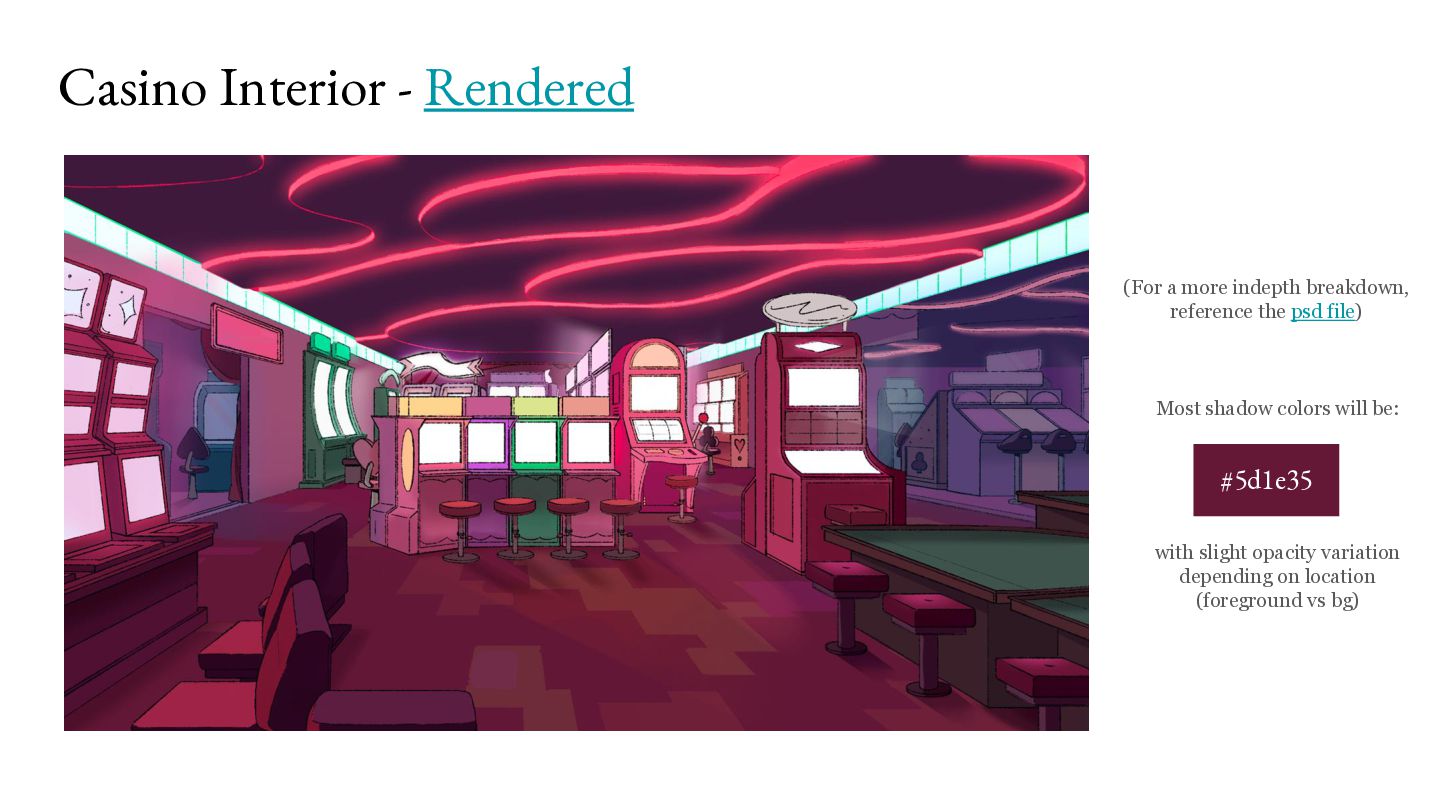
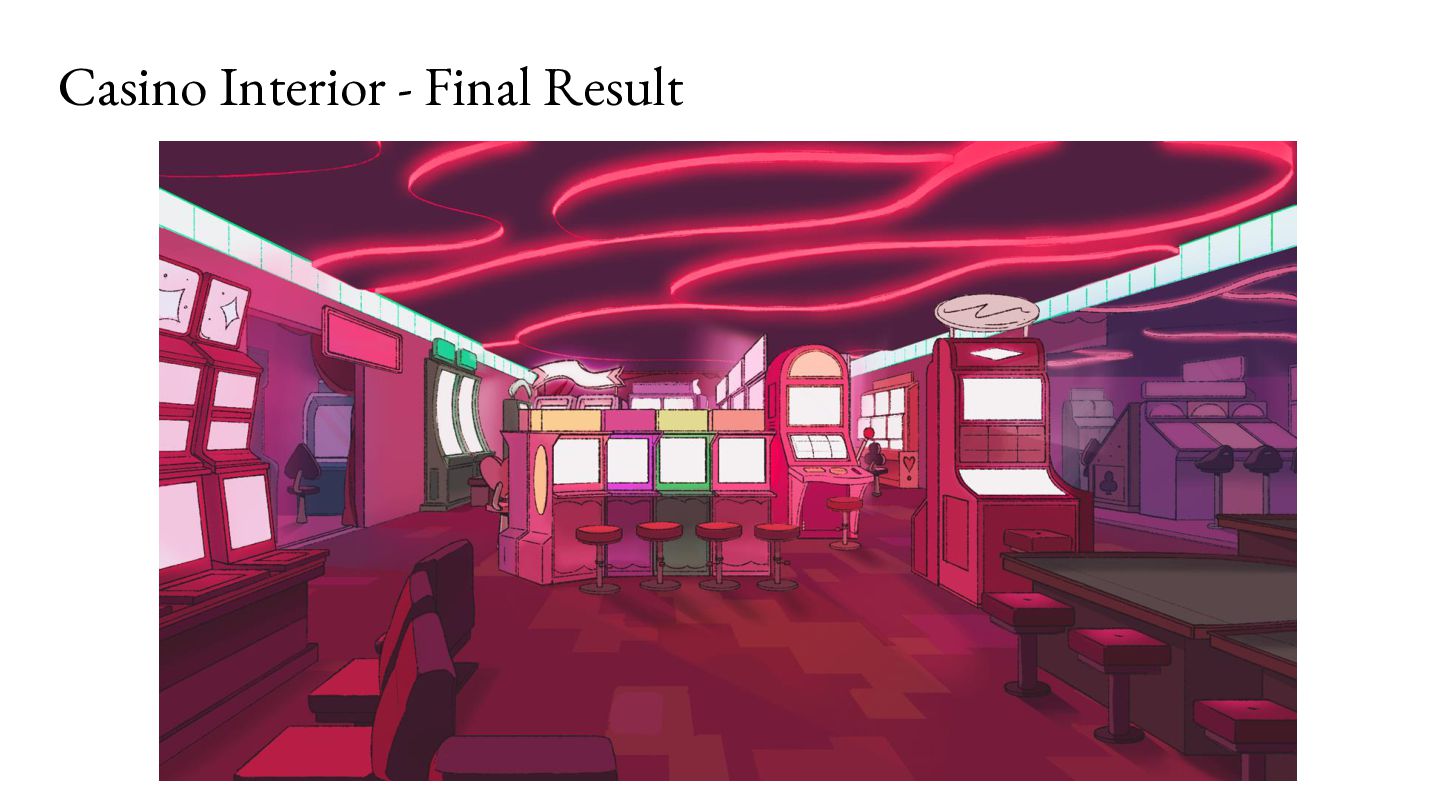
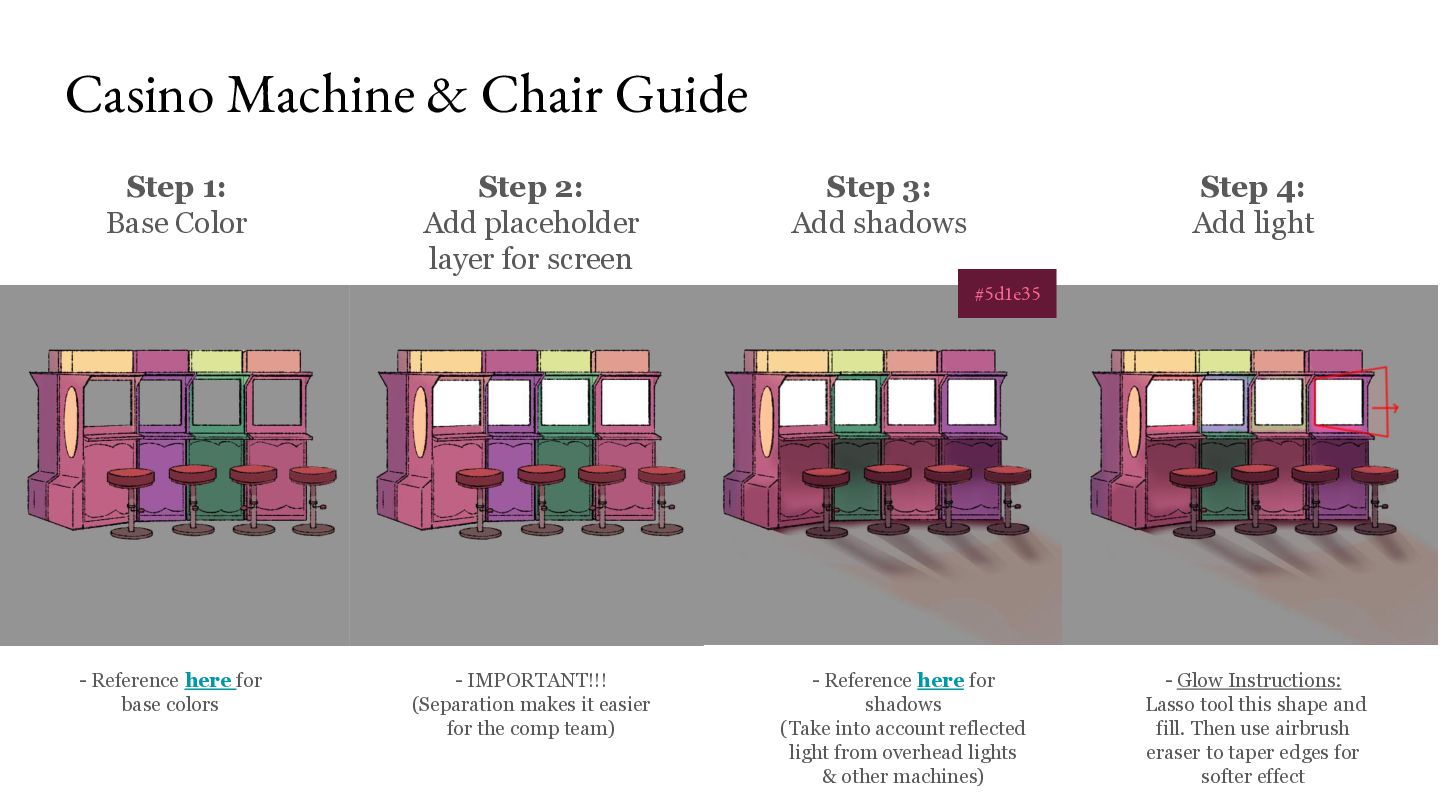
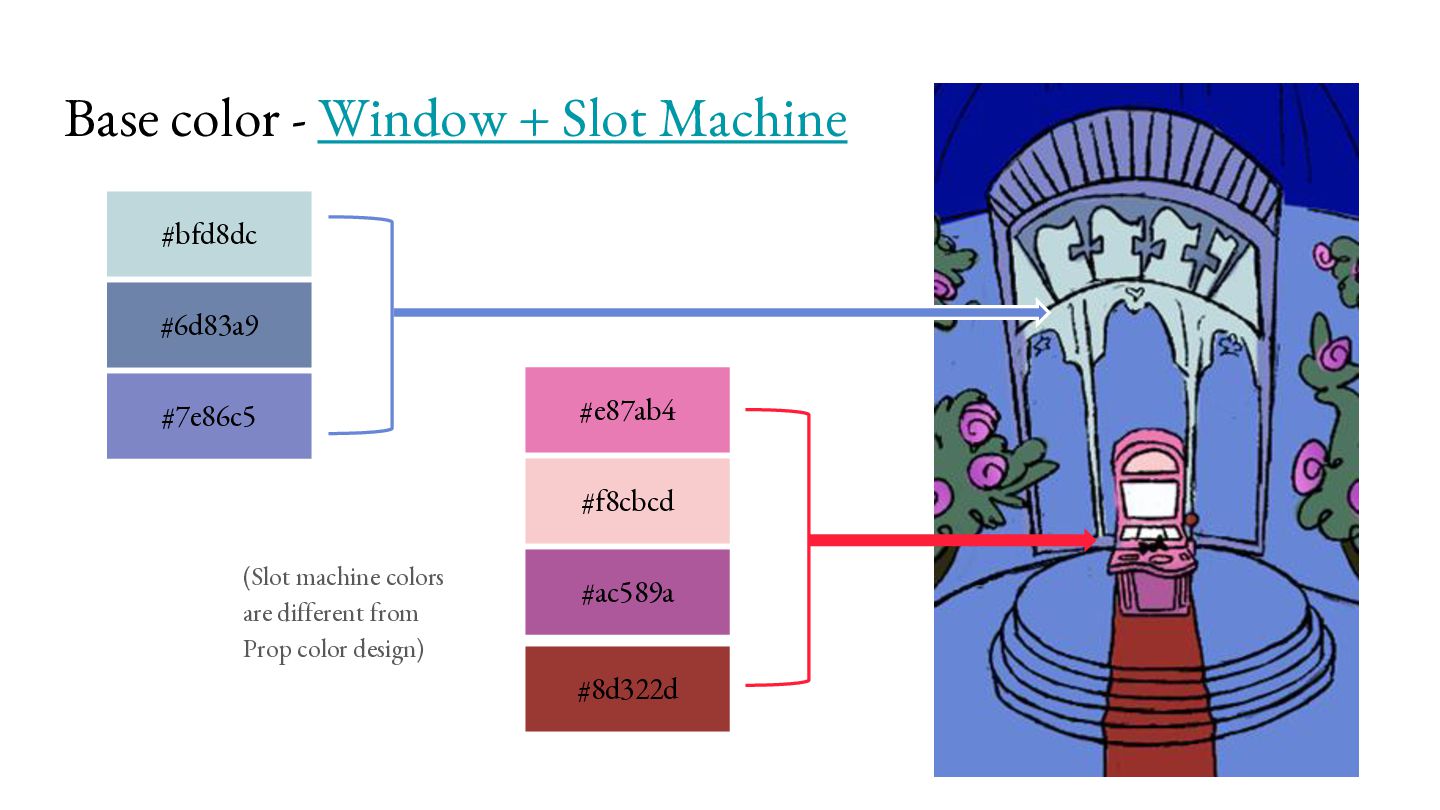
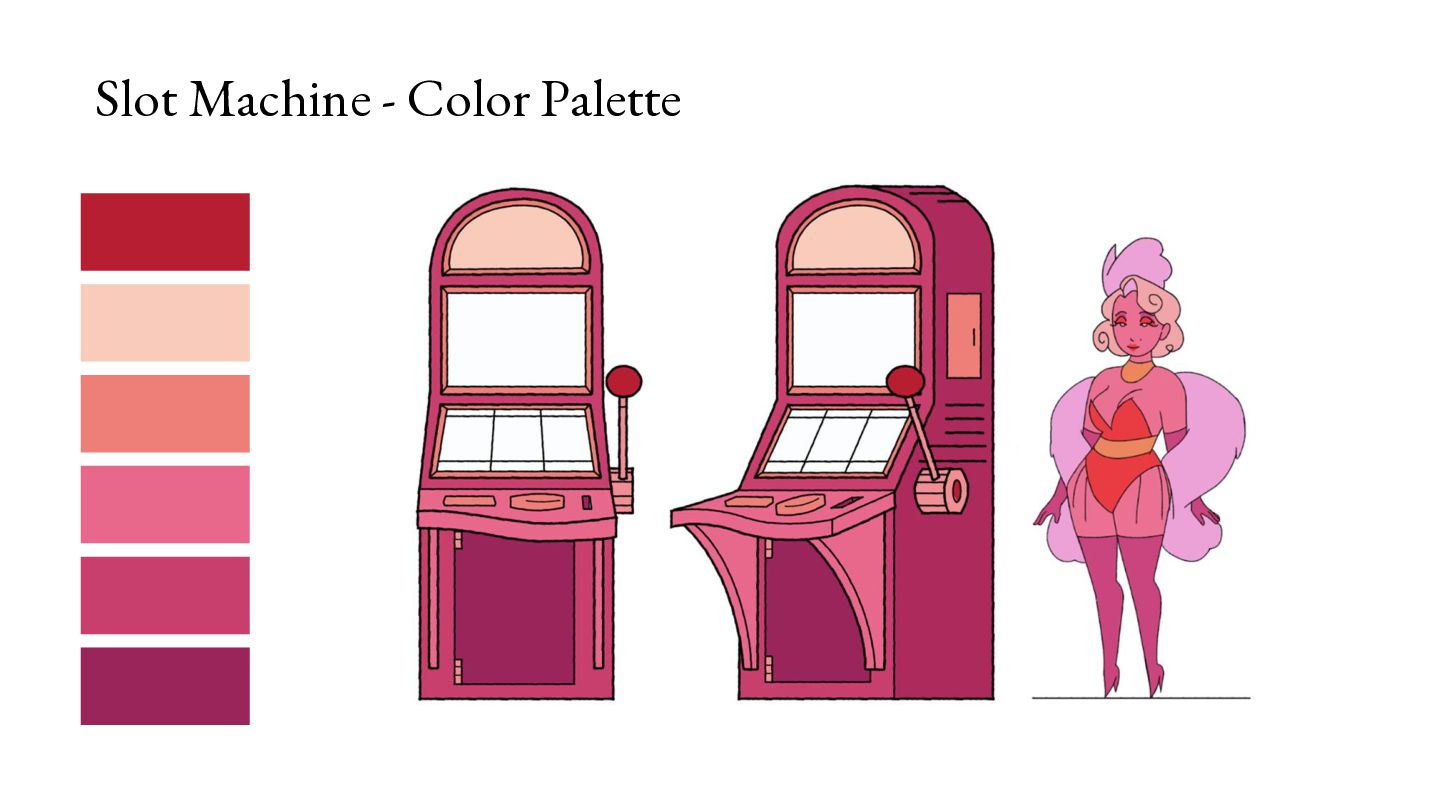
layer for EACH machine. (For comp) - 1 place holder layer in white - 1 glow layer - Shut off the floor pattern lines from layouts - Reference here for the overlay instructions - Color with the base colors and add this on top
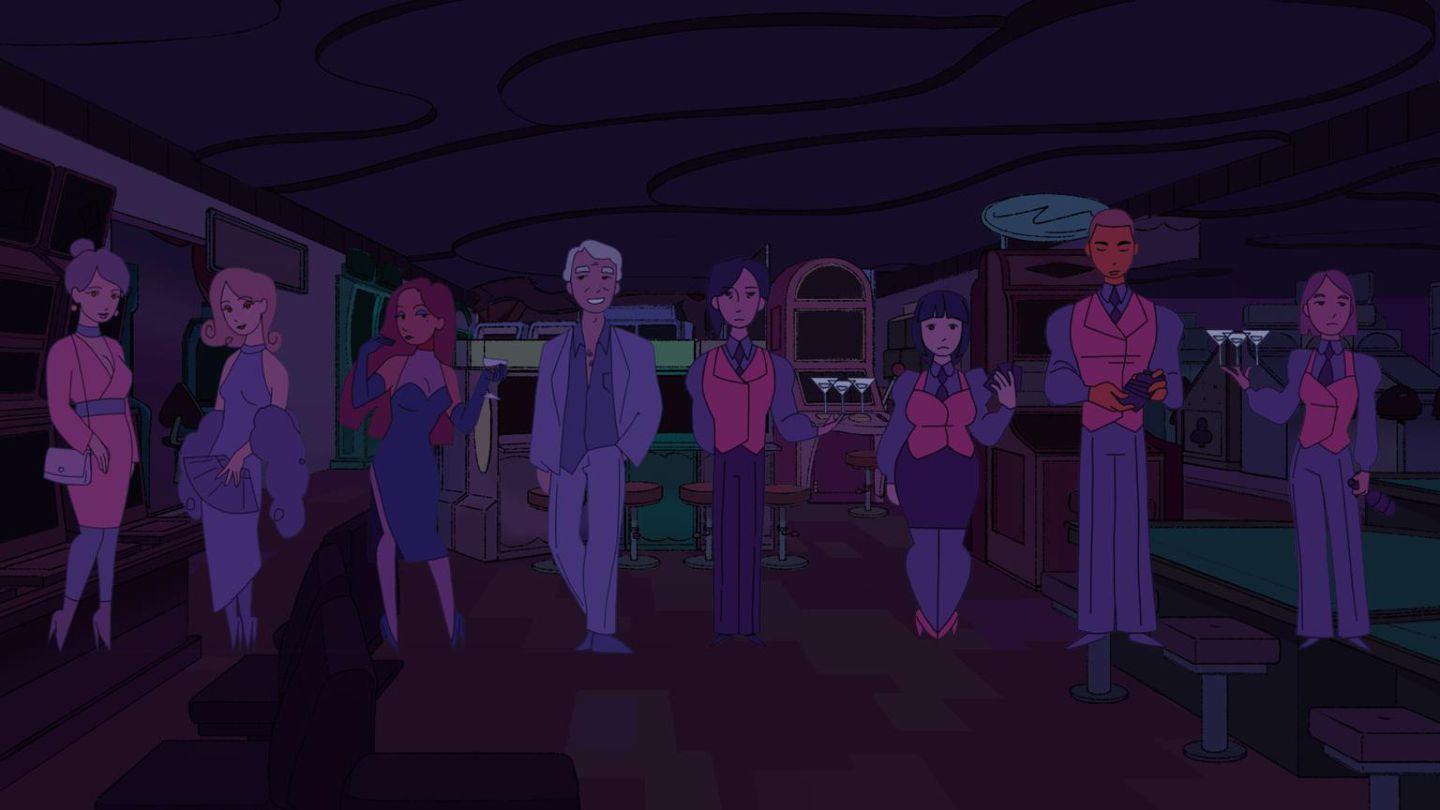
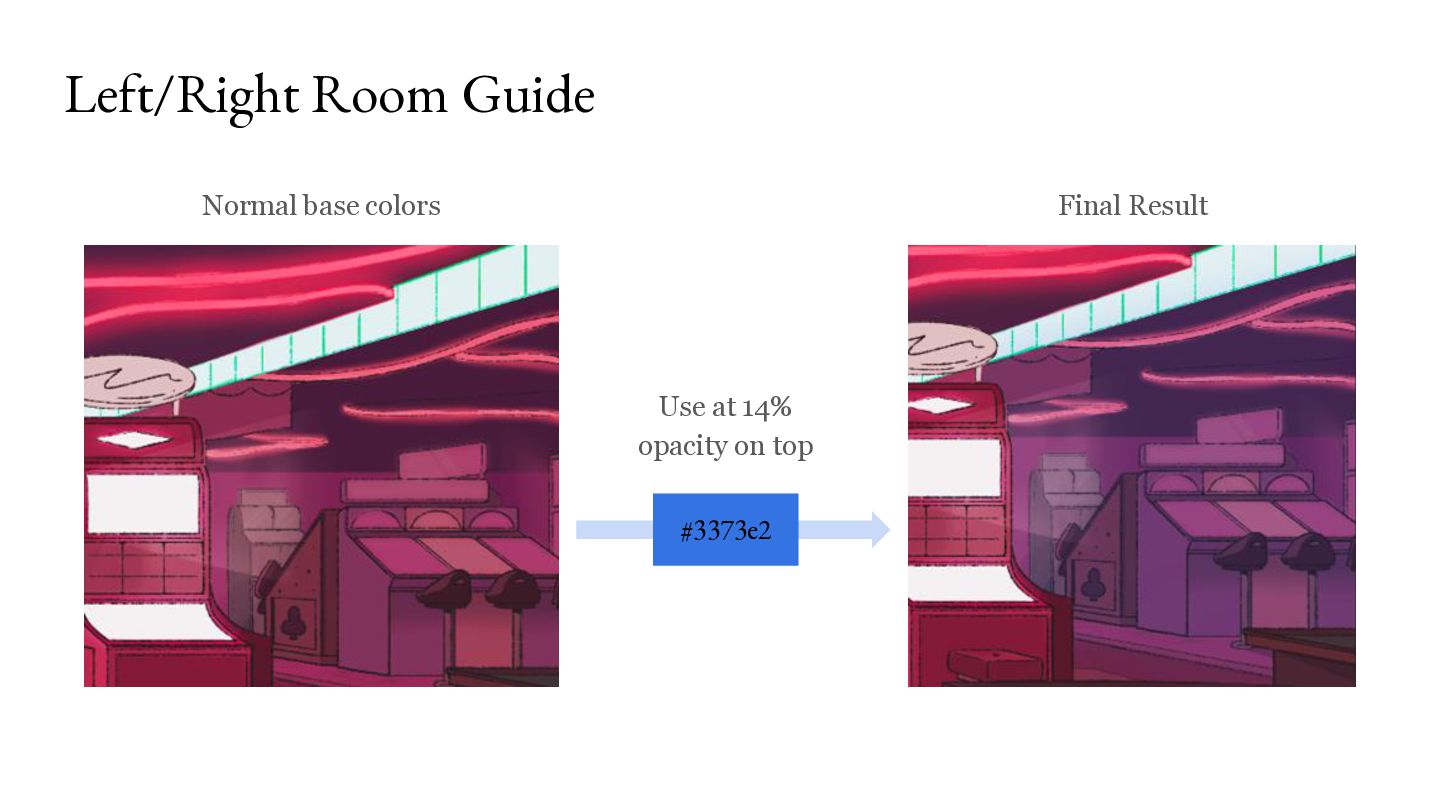
OVERLAY folder from this photoshop file Remember, FIRST color using the base colors, THEN add in the shadows. LASTLY put the overlay folder on top of the finished BG paint.
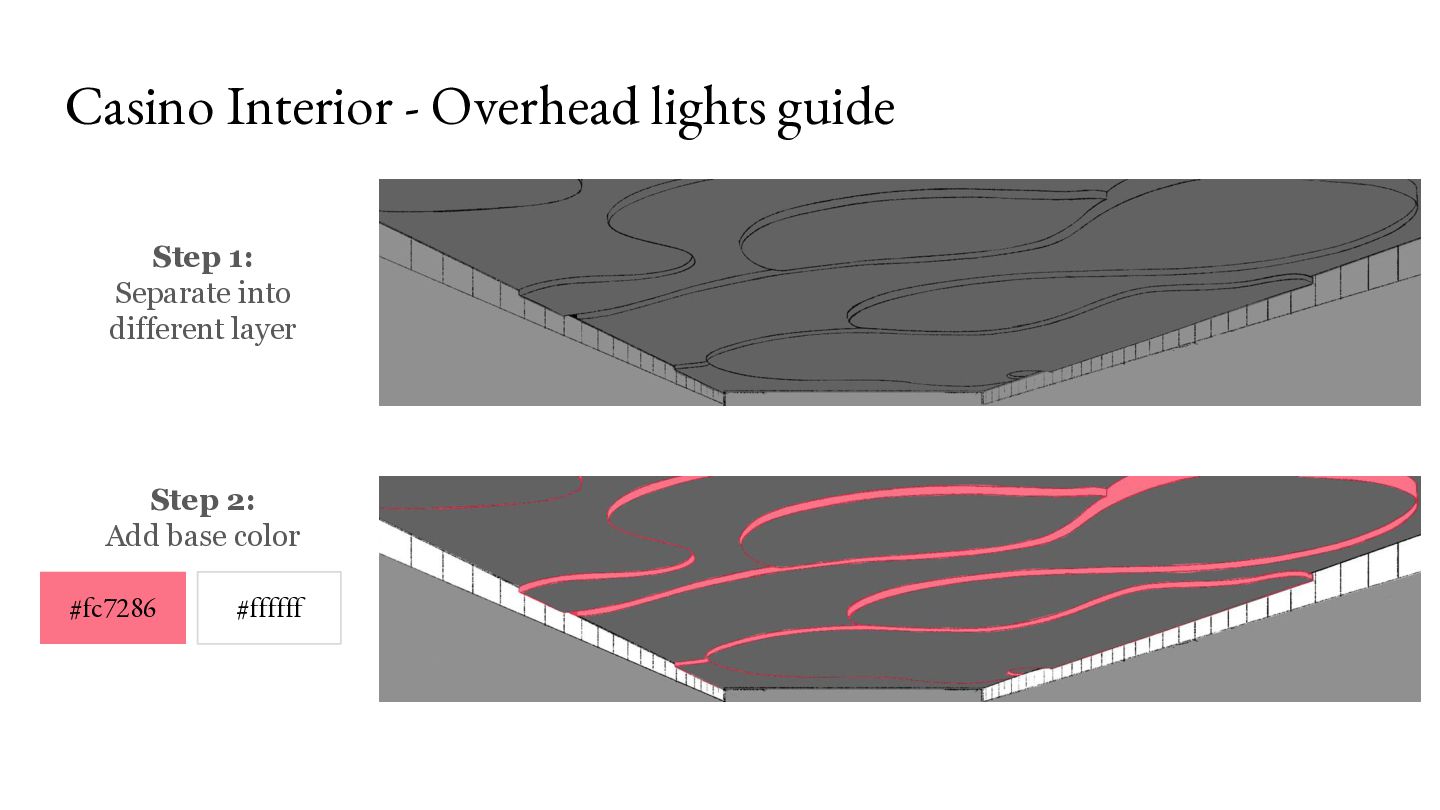
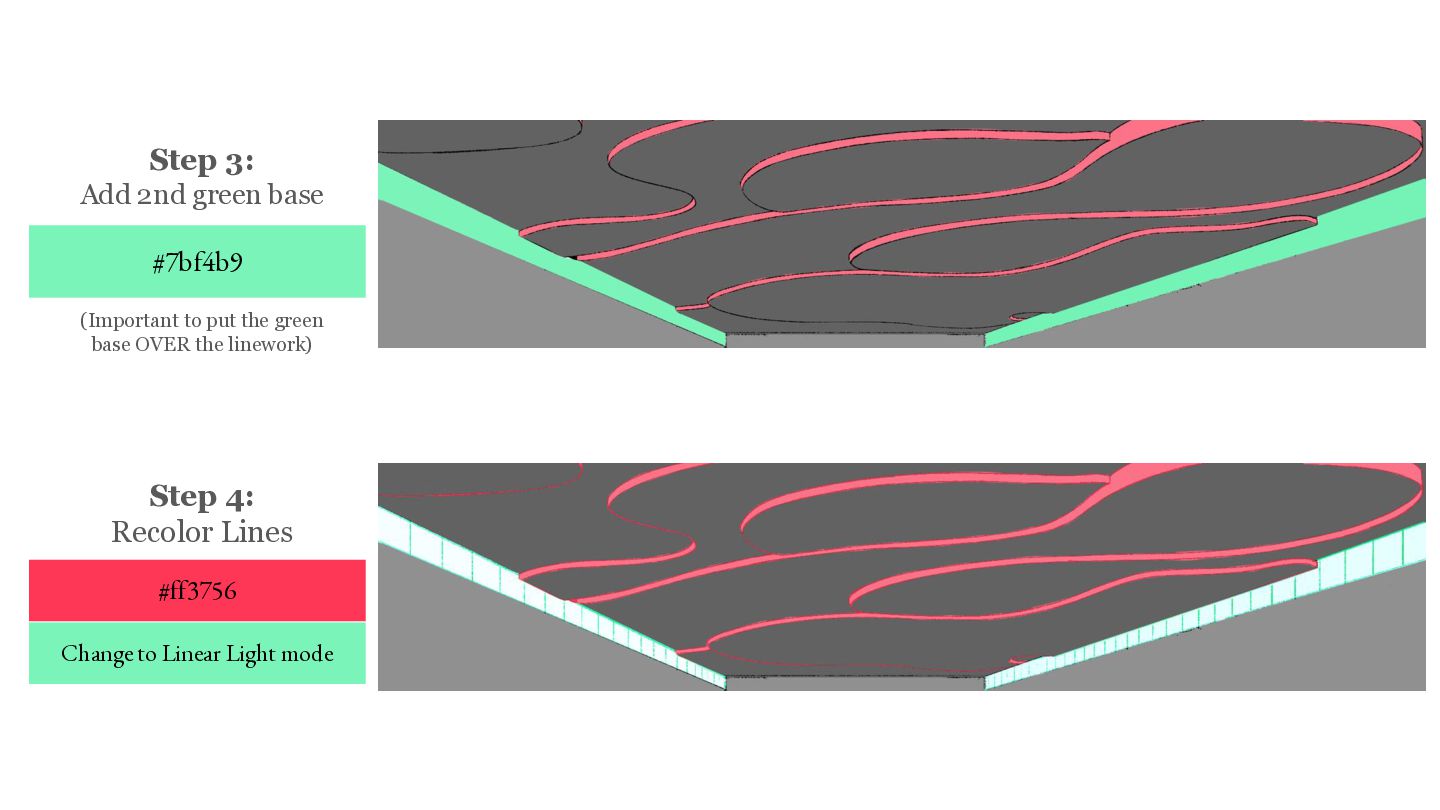
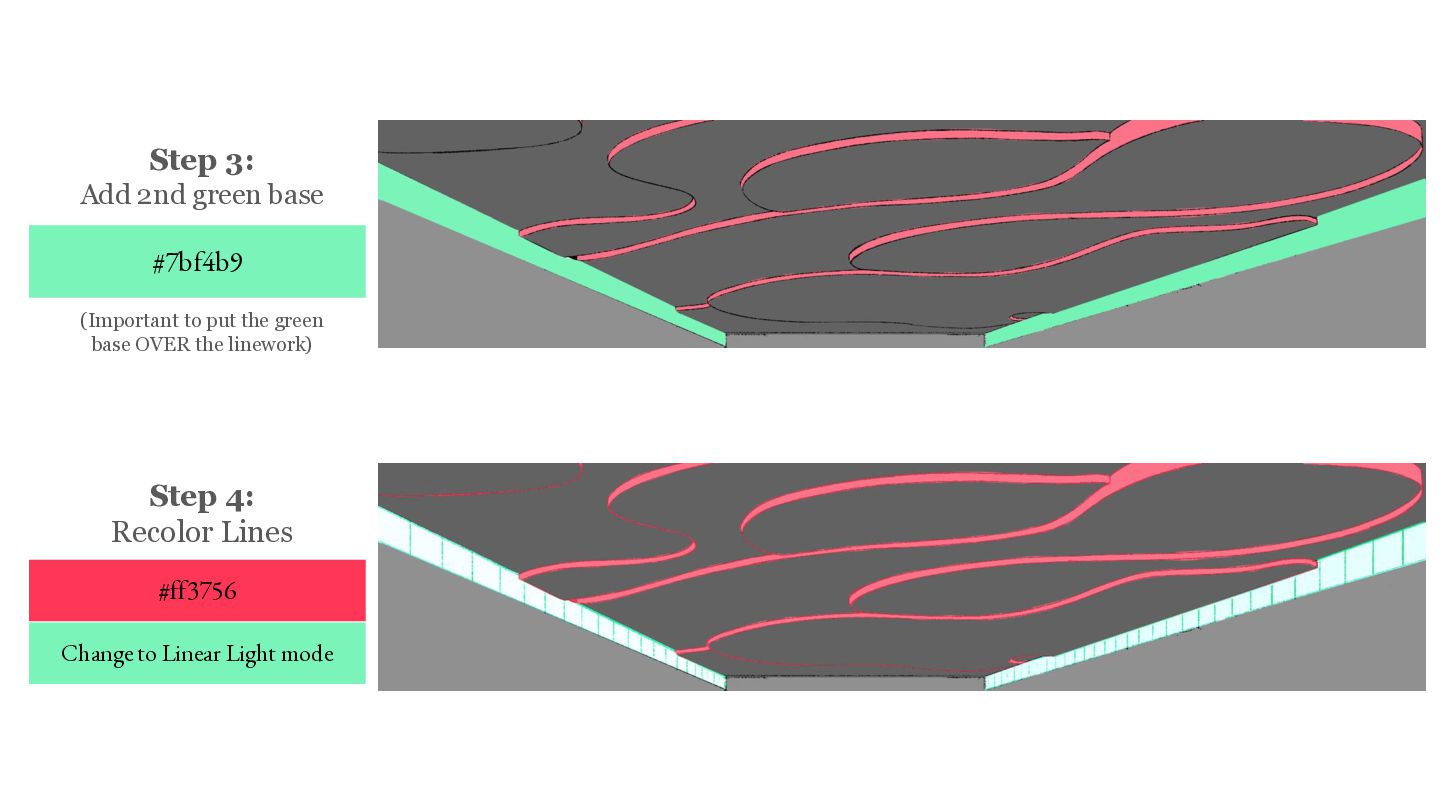
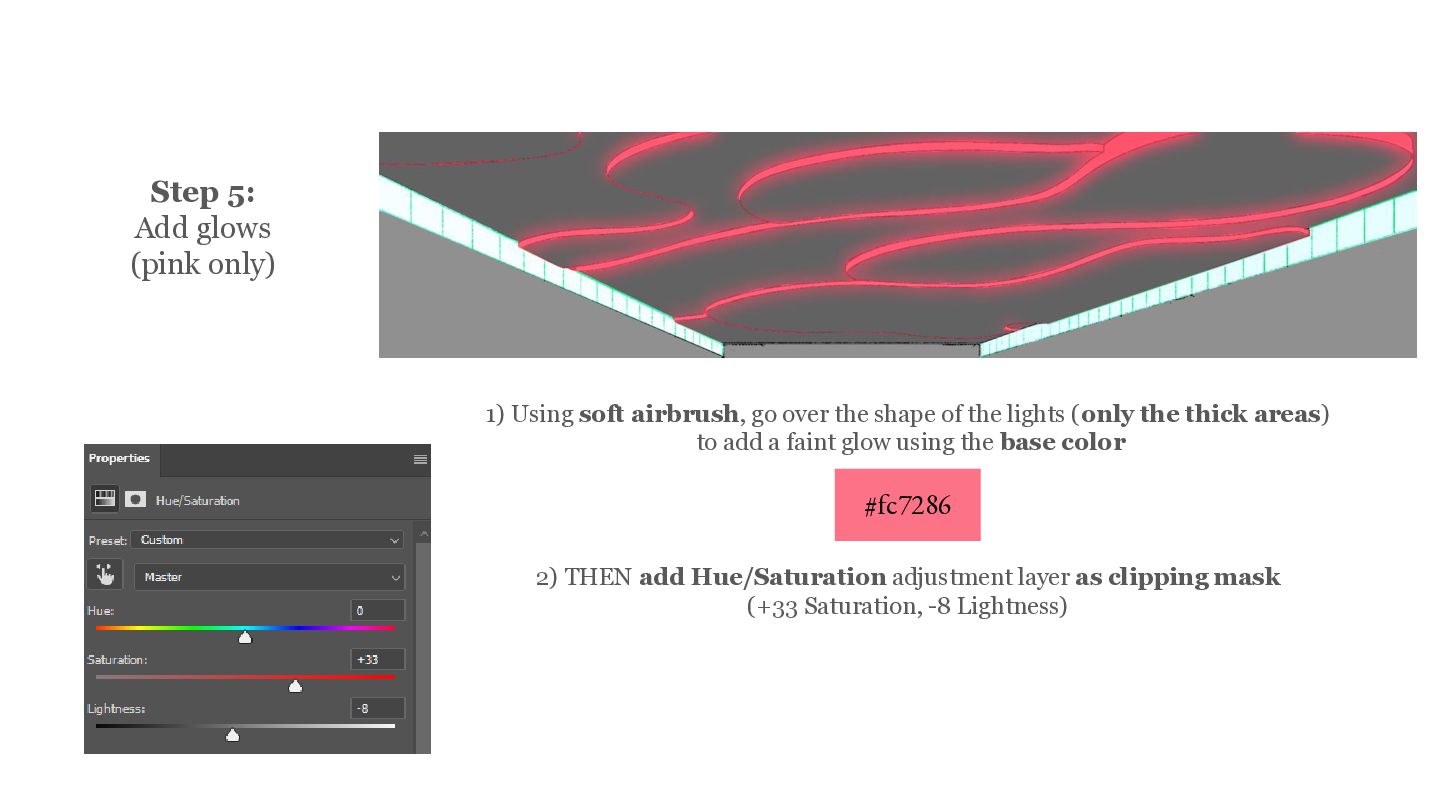
go over the shape of the lights (only the thick areas) to add a faint glow using the base color #fc7286 2) THEN add Hue/Saturation adjustment layer as clipping mask (+33 Saturation, -8 Lightness)
2: Add placeholder layer for screen Step 3: Add shadows Step 4: Add light #5d1e35 - Reference here for base colors - IMPORTANT!!! (Separation makes it easier for the comp team) - Reference here for shadows (Take into account reflected light from overhead lights & other machines) - Glow Instructions: Lasso tool this shape and fill. Then use airbrush eraser to taper edges for softer effect
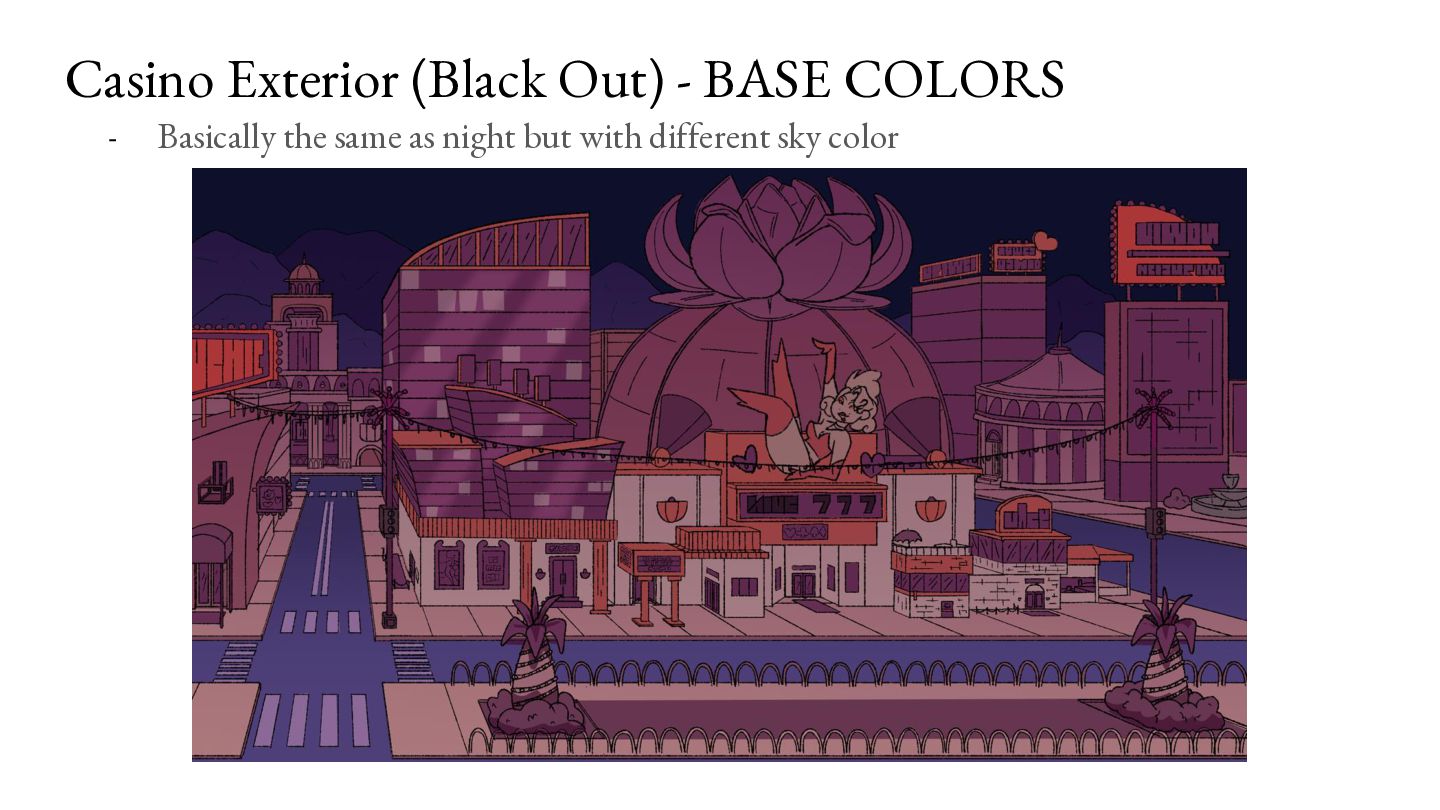
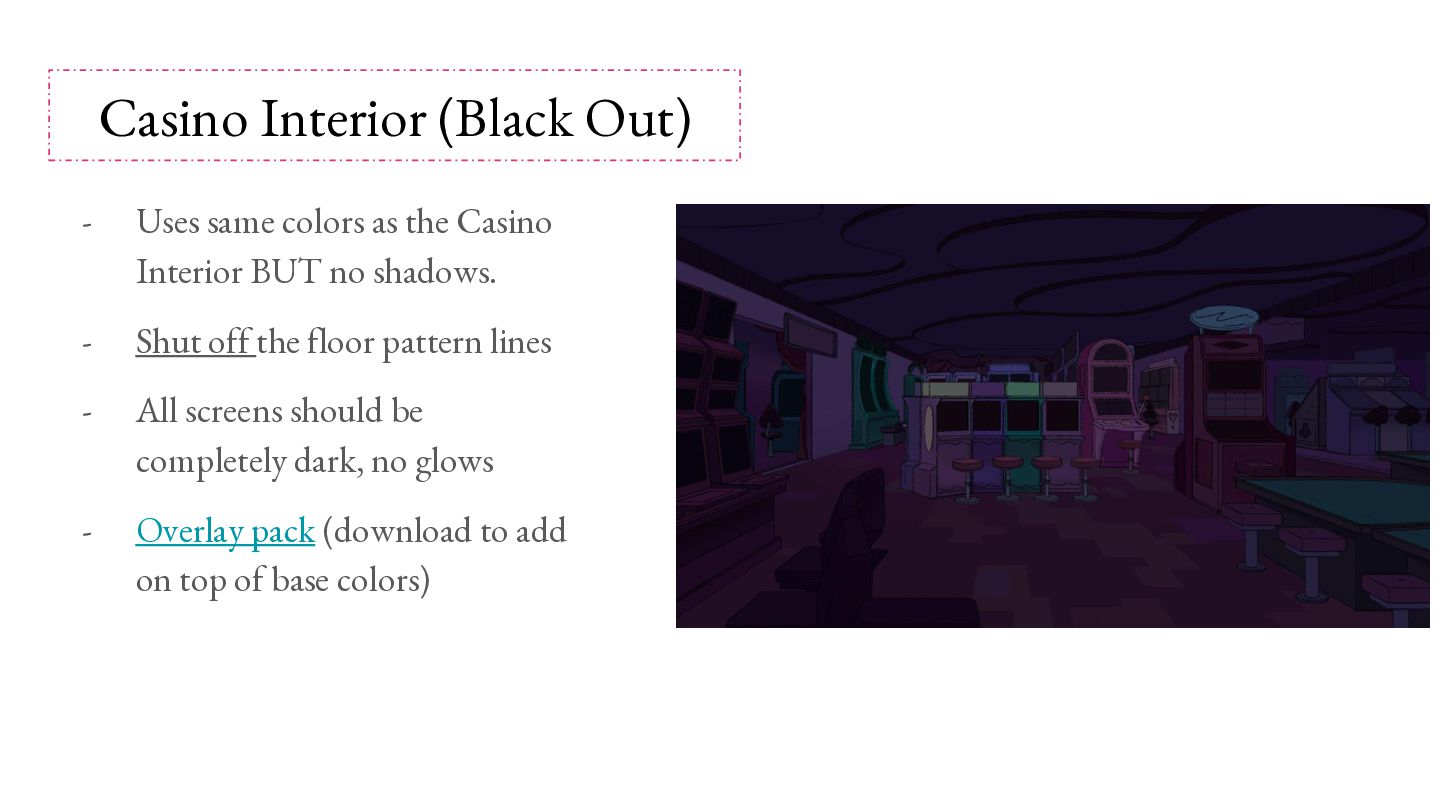
Casino Interior BUT no shadows. - Shut off the floor pattern lines - All screens should be completely dark, no glows - Overlay pack (download to add on top of base colors)
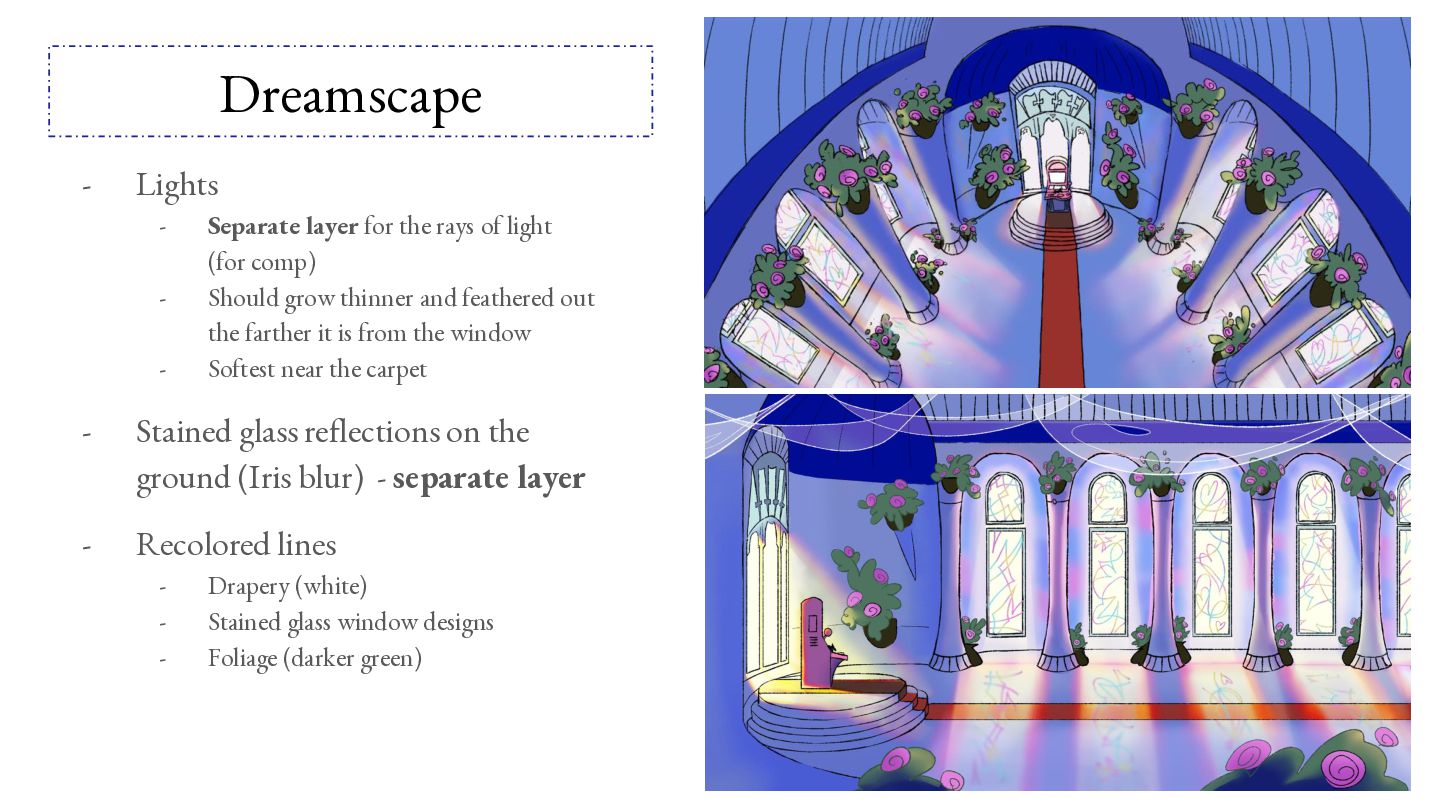
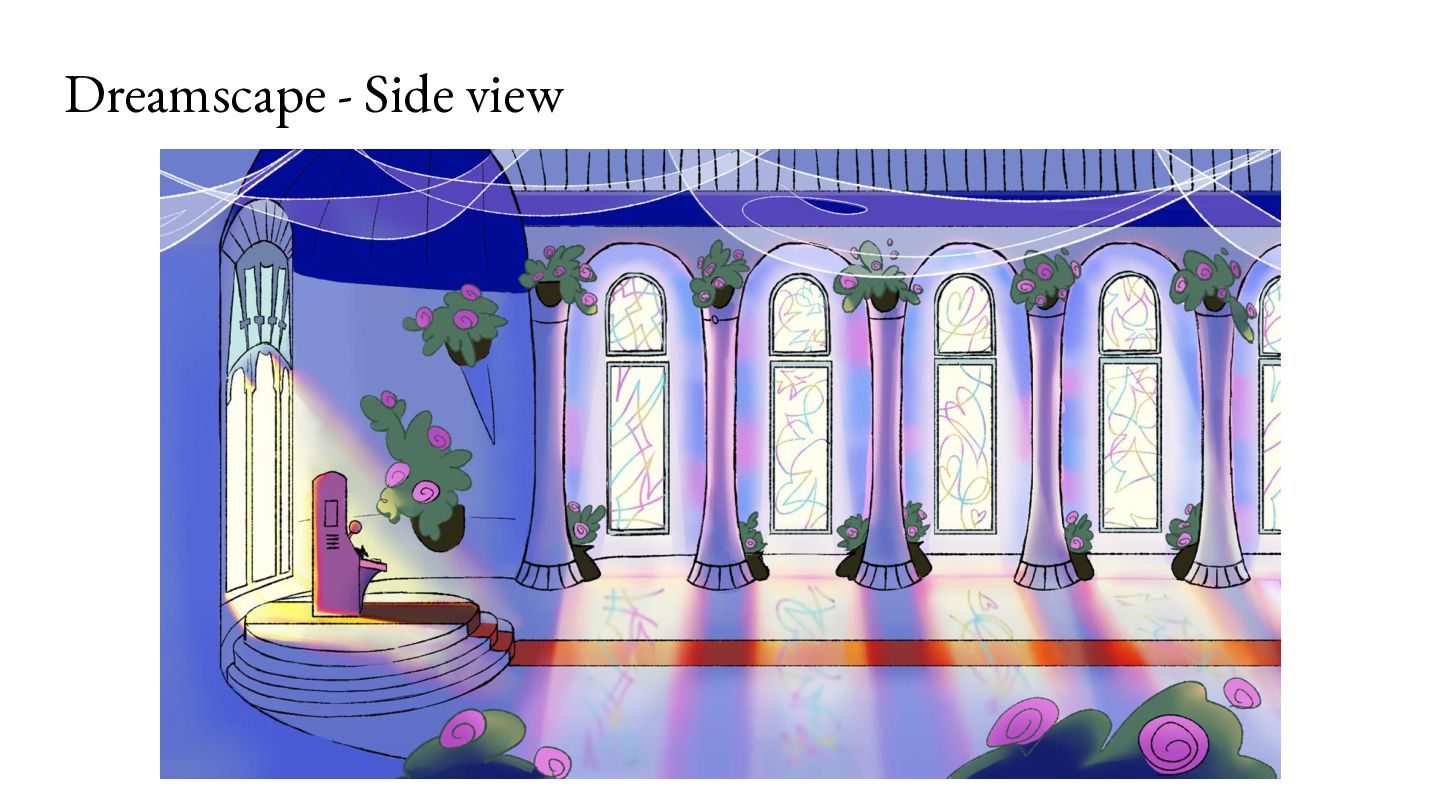
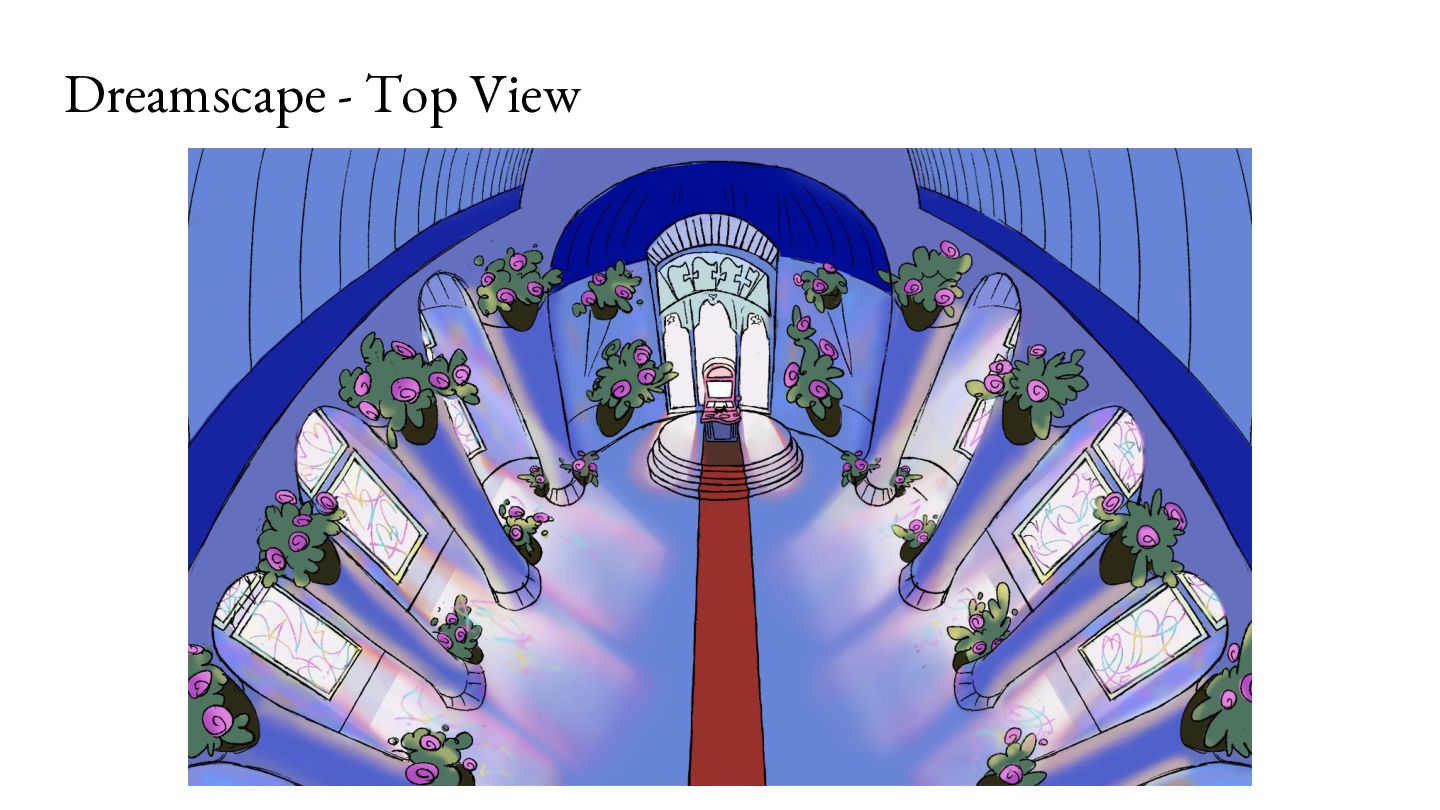
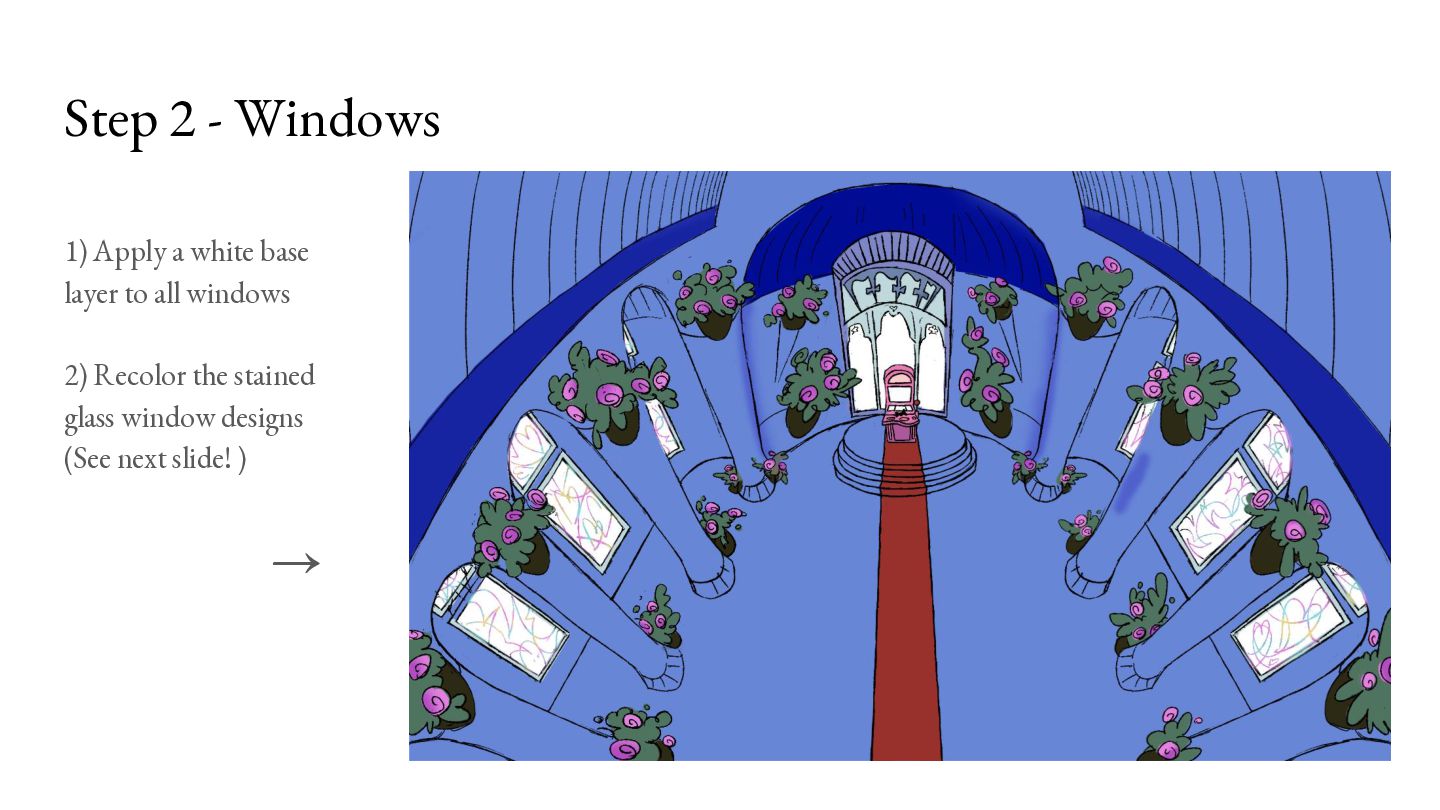
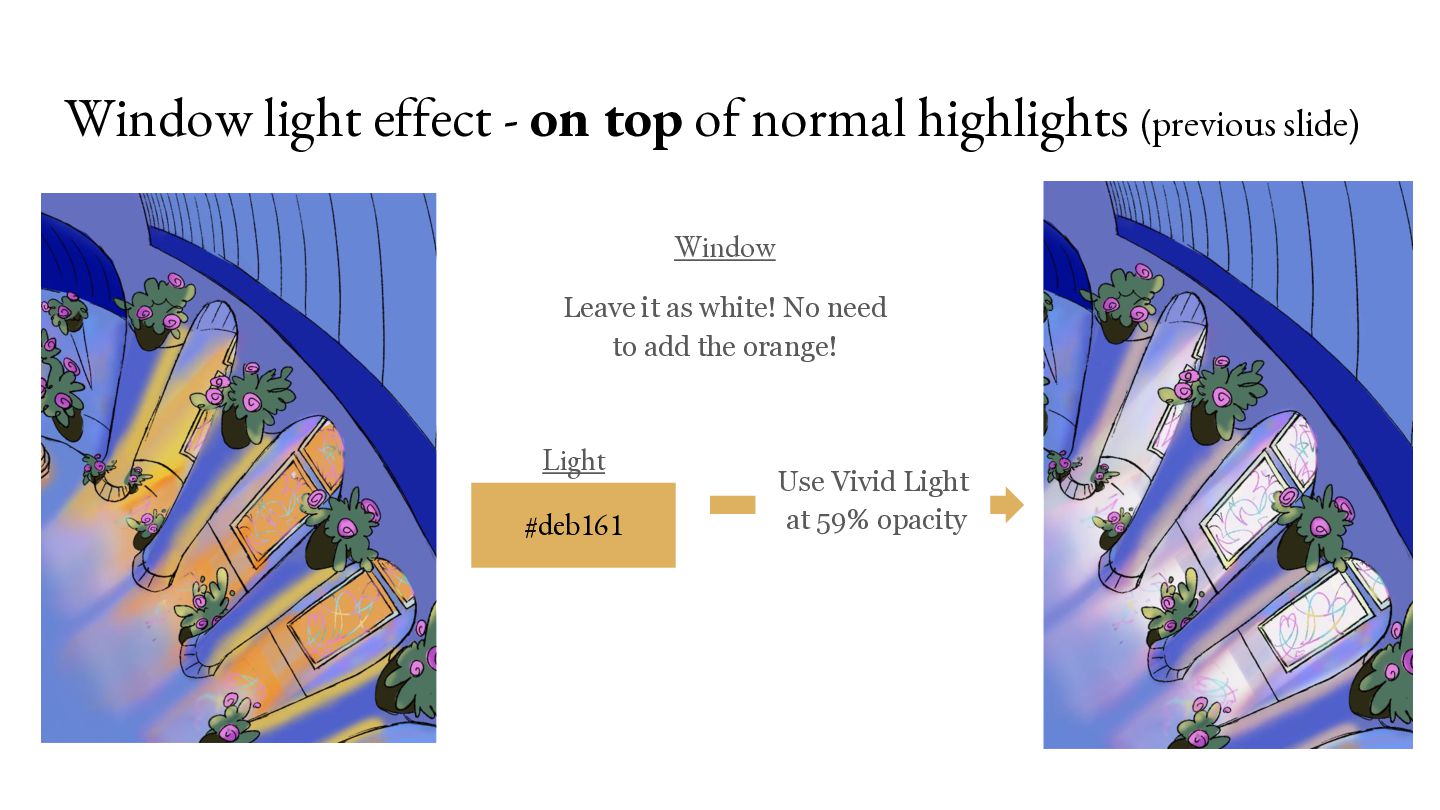
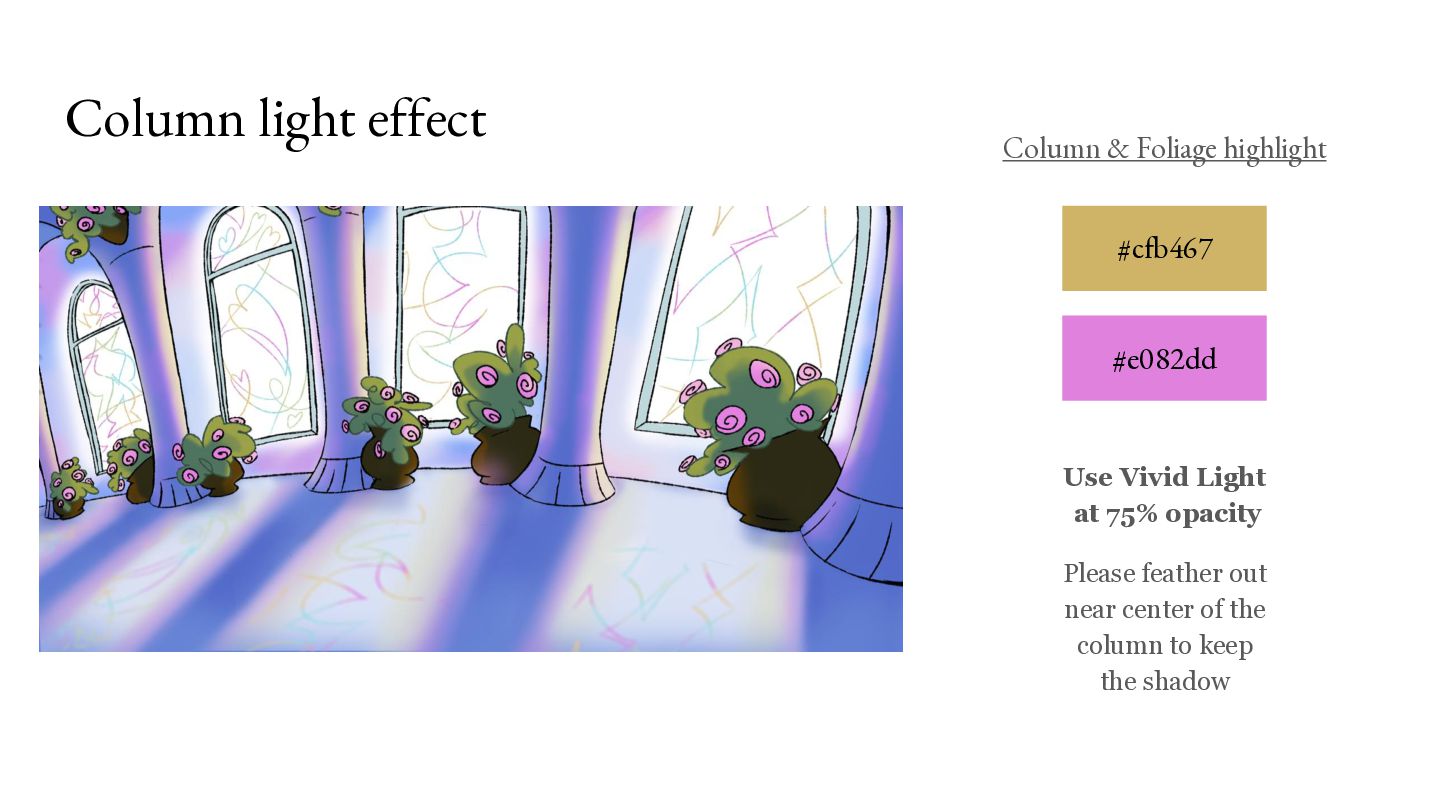
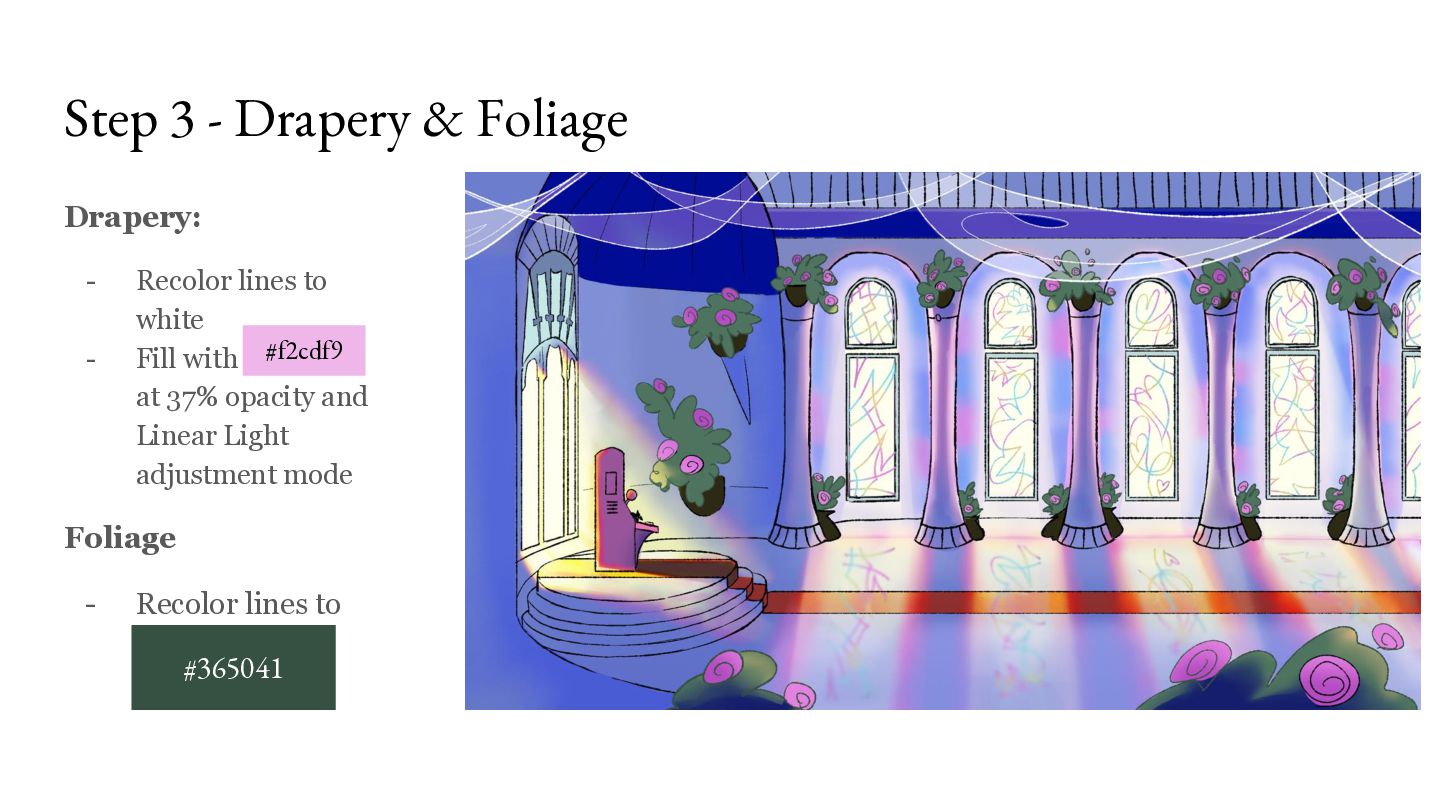
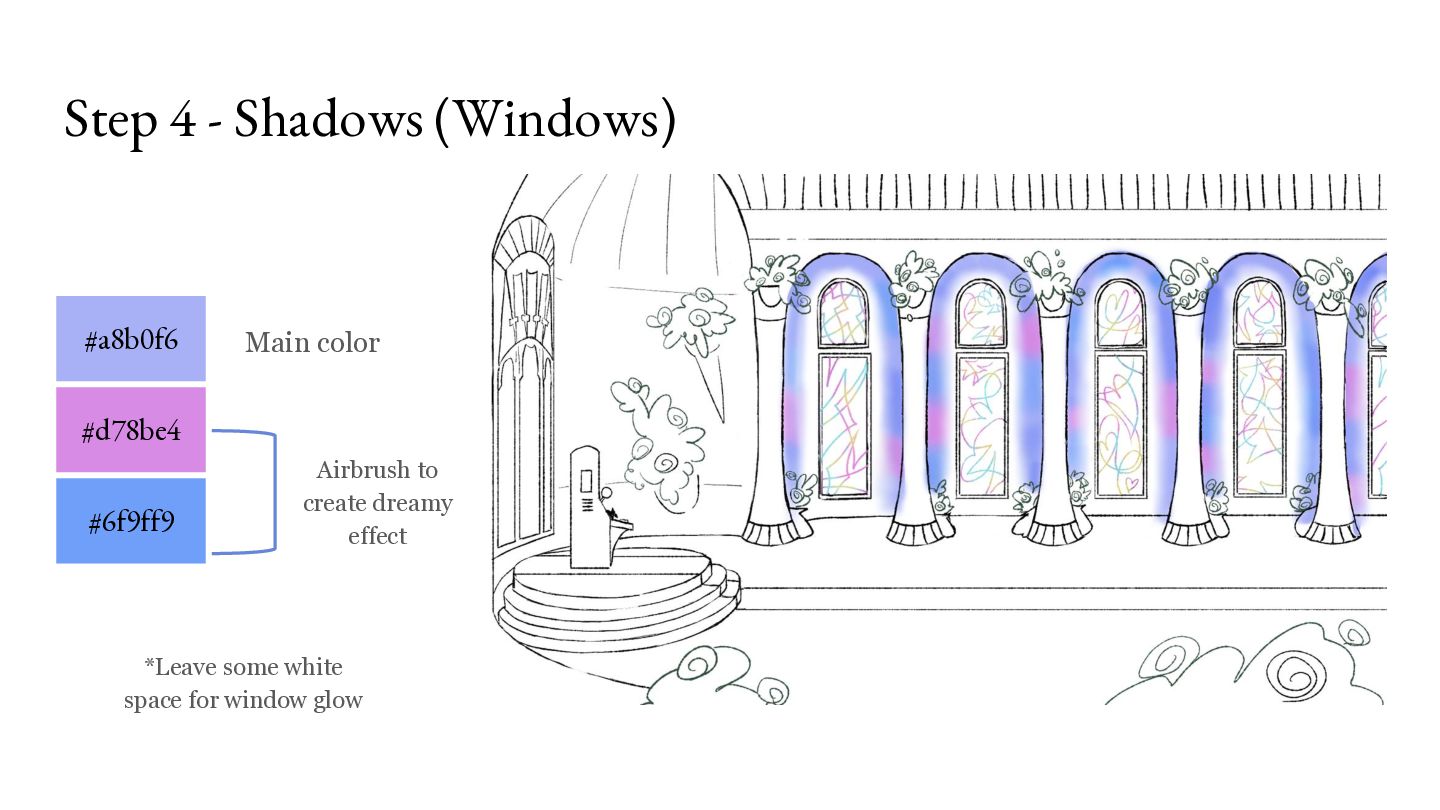
light (for comp) Should grow thinner and feathered out the farther it is from the window Softest near the carpet - Stained glass reflections on the ground (Iris blur) - separate layer - Recolored lines - Drapery (white) Stained glass window designs Foliage (darker green)
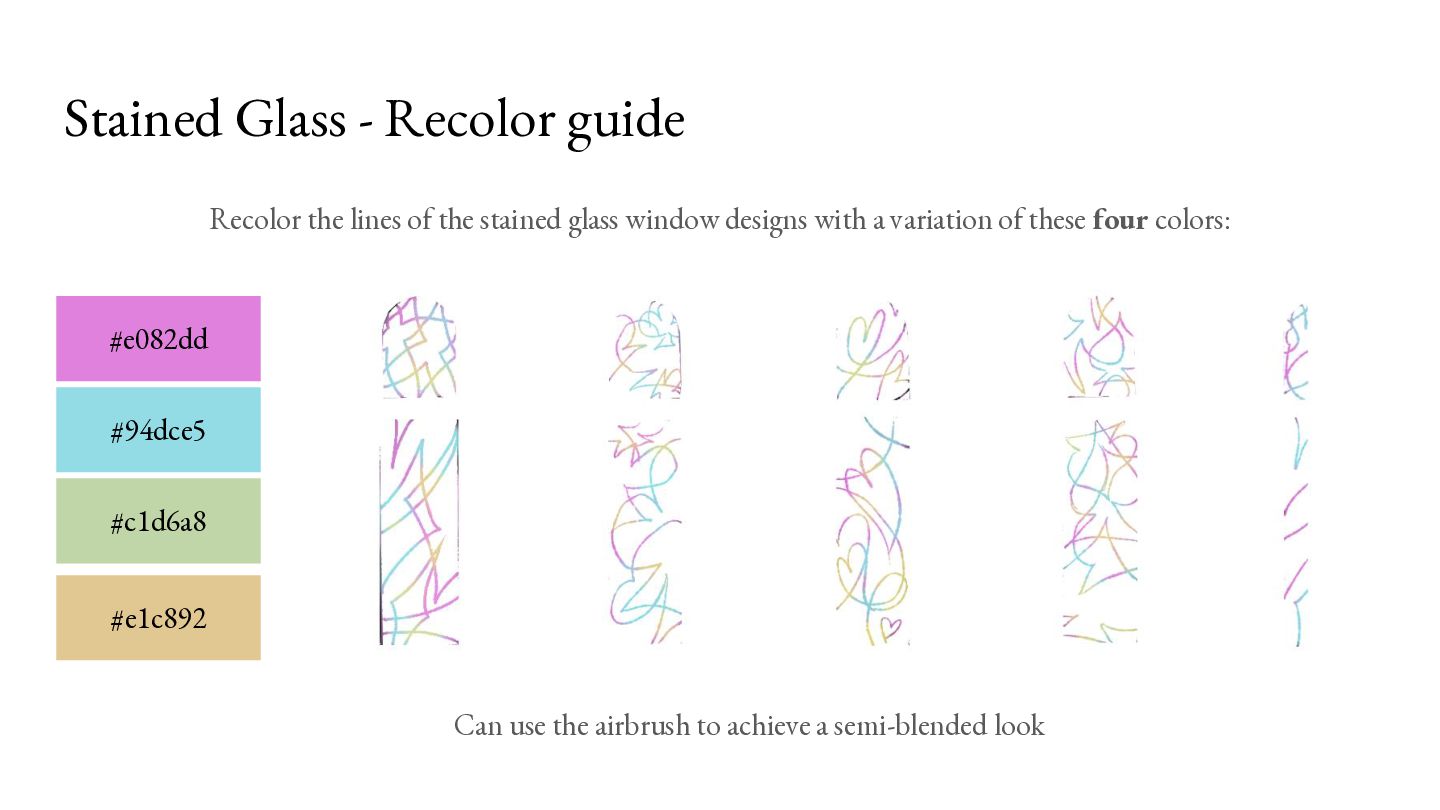
stained glass window designs with a variation of these four colors: #e082dd #94dce5 #c1d6a8 #e1c892 Can use the airbrush to achieve a semi-blended look
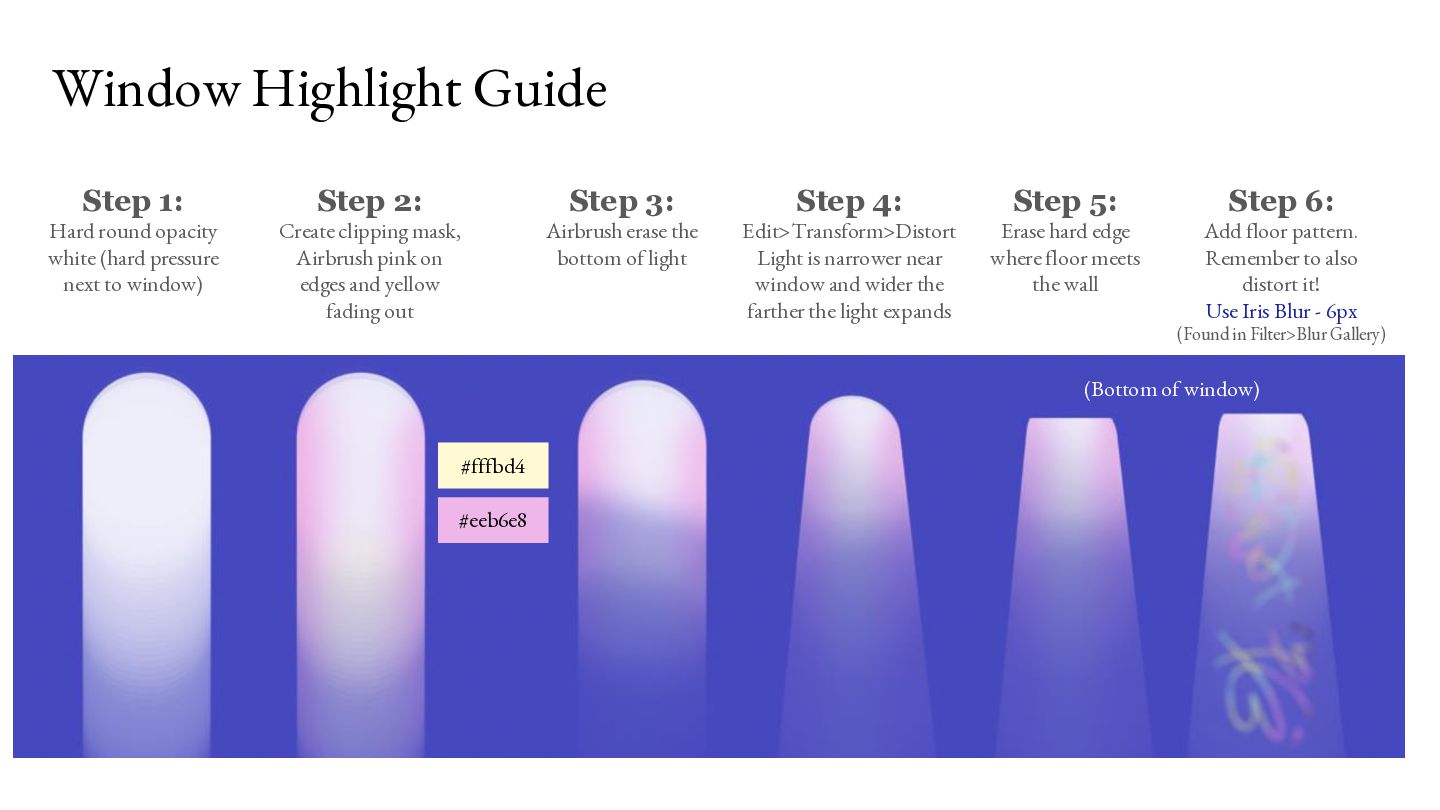
pressure next to window) Step 2: Step 3: Create clipping mask, Airbrush pink on edges and yellow fading out Airbrush erase the bottom of light Step 4: Edit>Transform>Distort Light is narrower near window and wider the farther the light expands Step 5: Erase hard edge where floor meets the wall Step 6: Add floor pattern. Remember to also distort it! Use Iris Blur - 6px (Found in Filter>Blur Gallery) (Bottom of window) #fffbd4 #eeb6e8
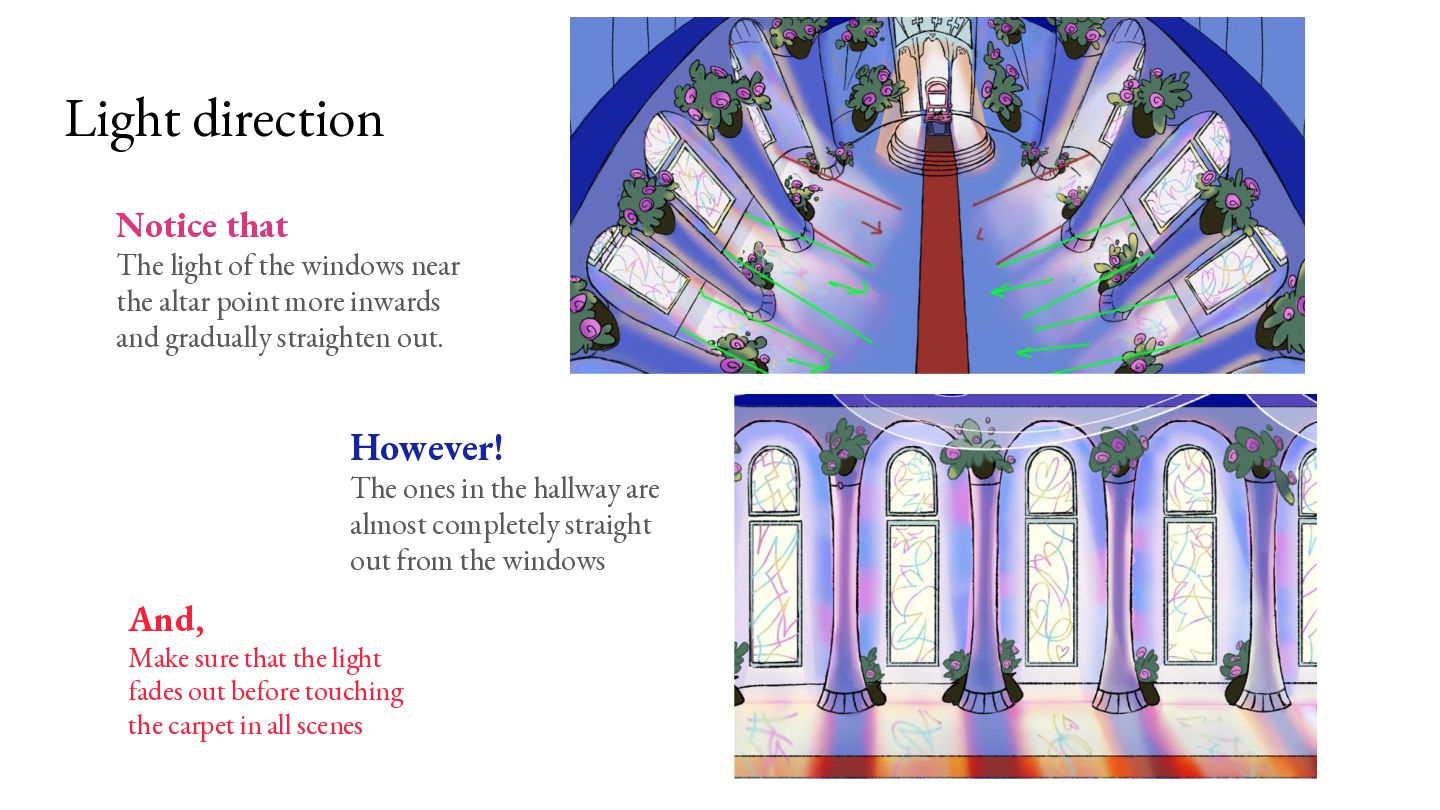
the altar point more inwards and gradually straighten out. However! The ones in the hallway are almost completely straight out from the windows And, Make sure that the light fades out before touching the carpet in all scenes


 mfonobong
 tamaranovitovic
 thekraken
 davidcarrasco
 ipullrank
 techseoconnect
 varn
varn
 mkilby
 addyosmani
 kastner
 samlambert
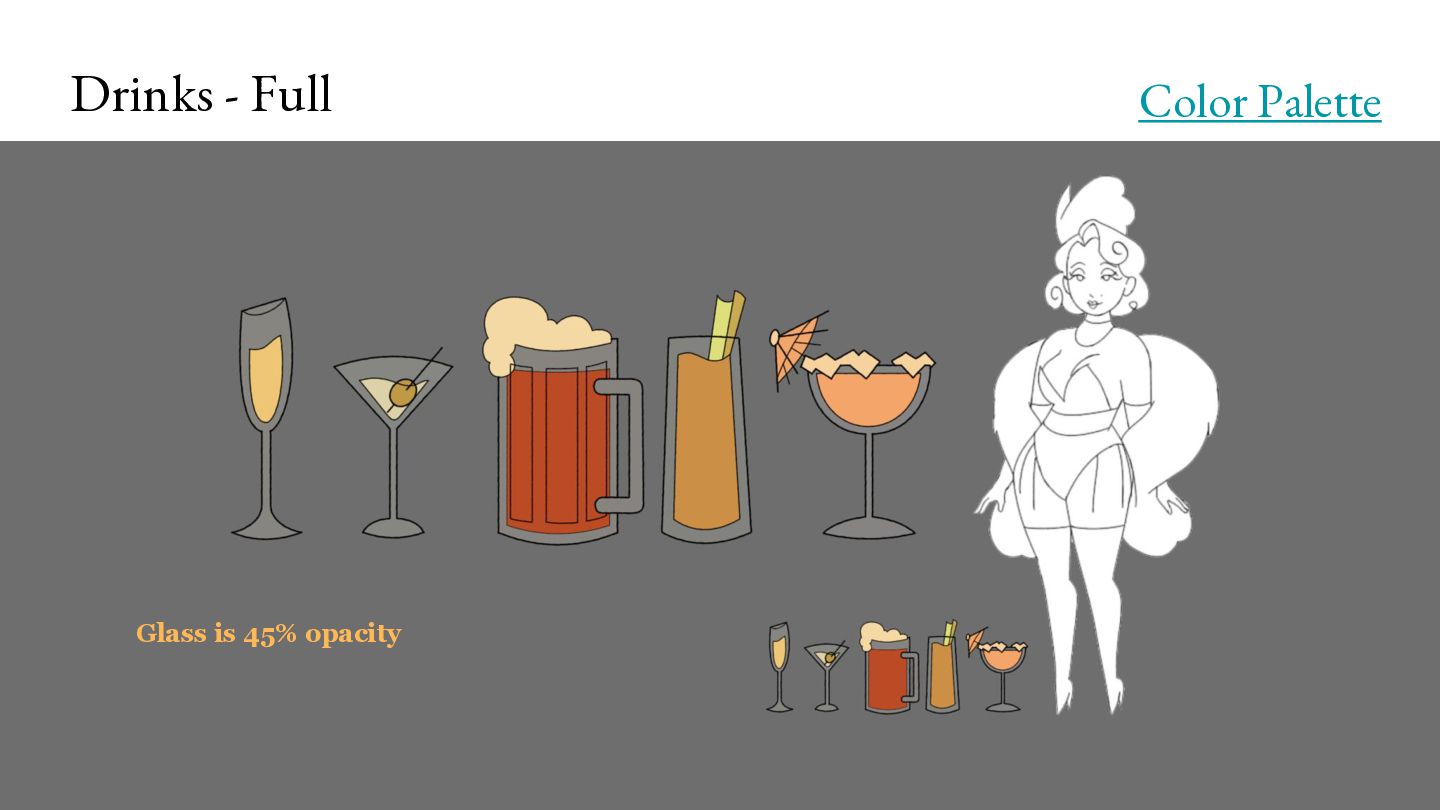
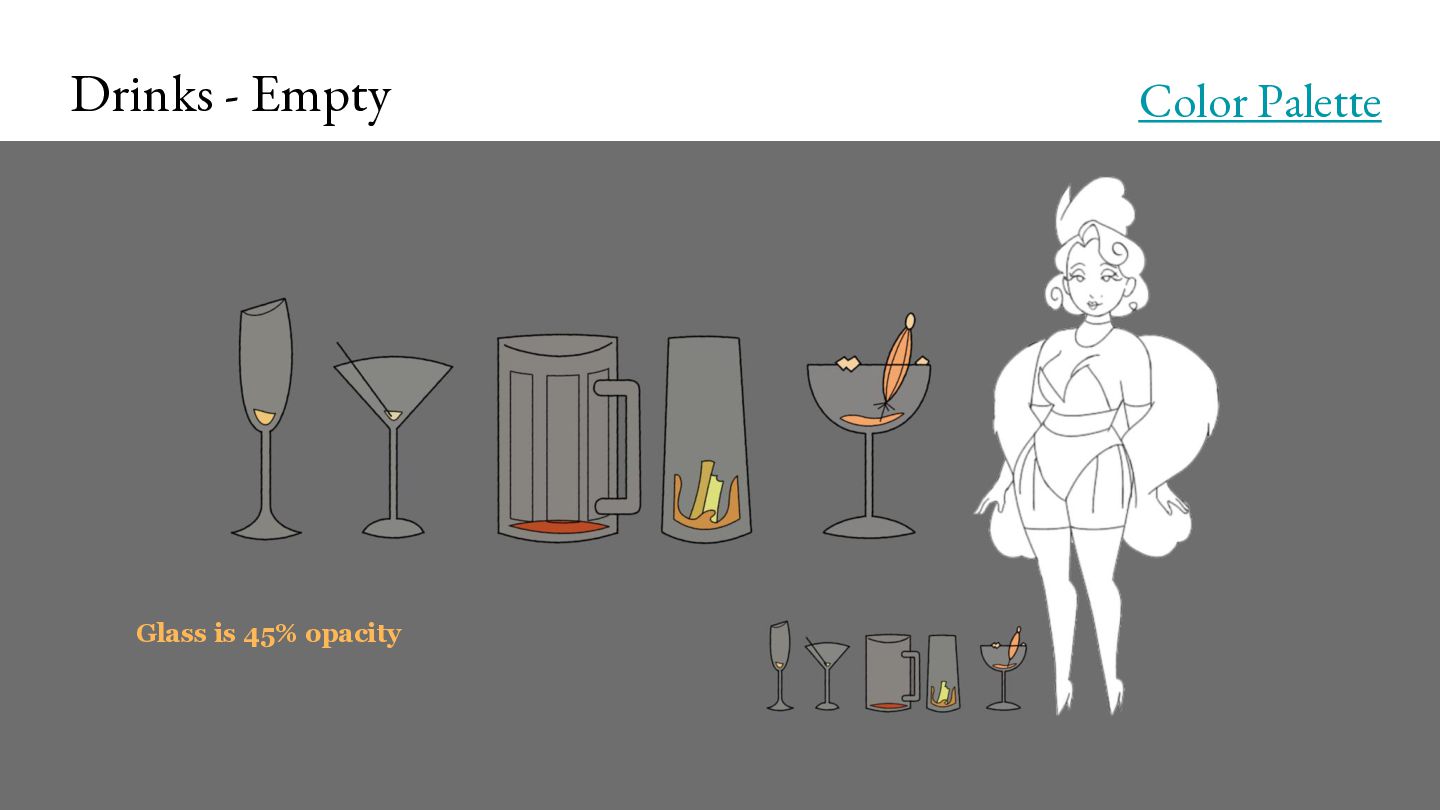
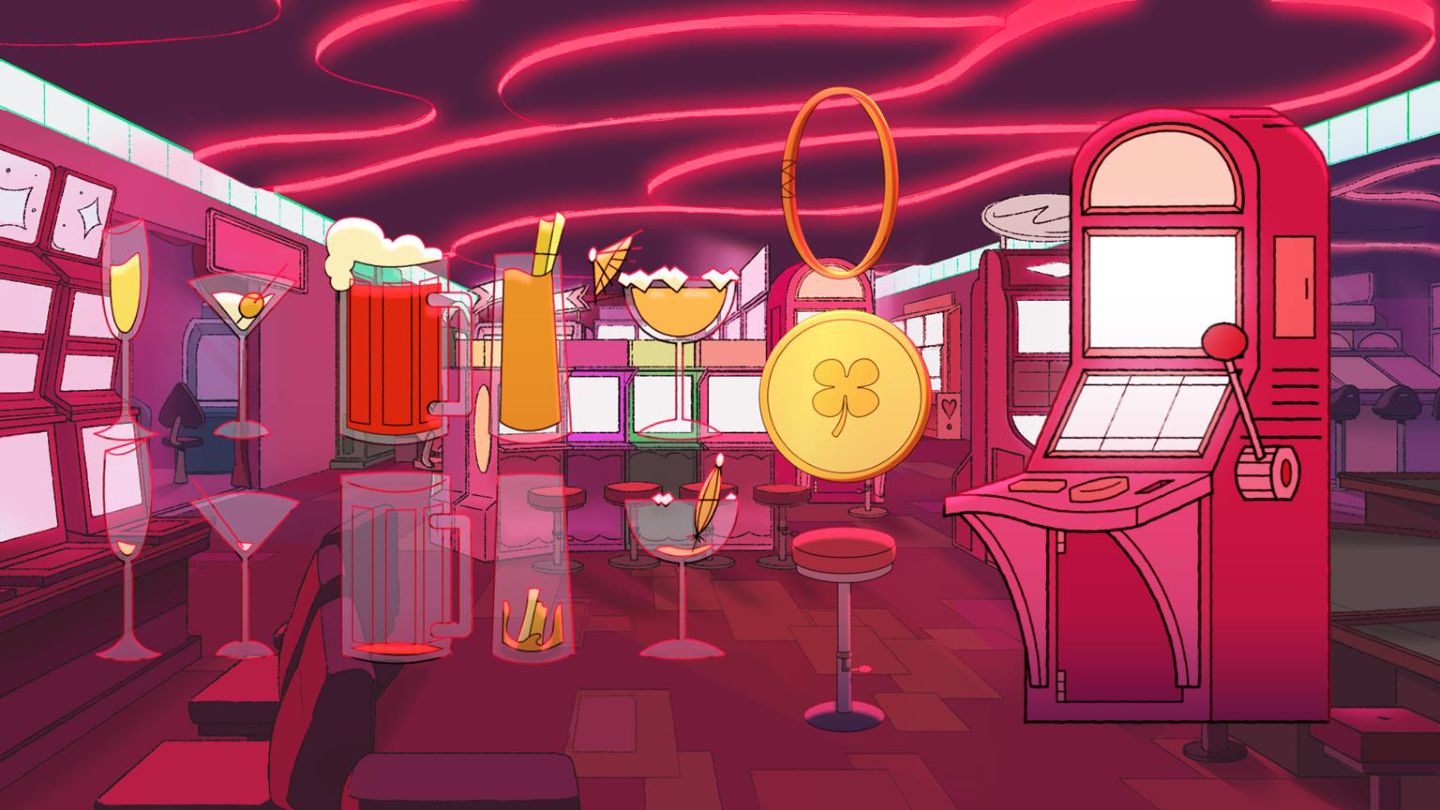
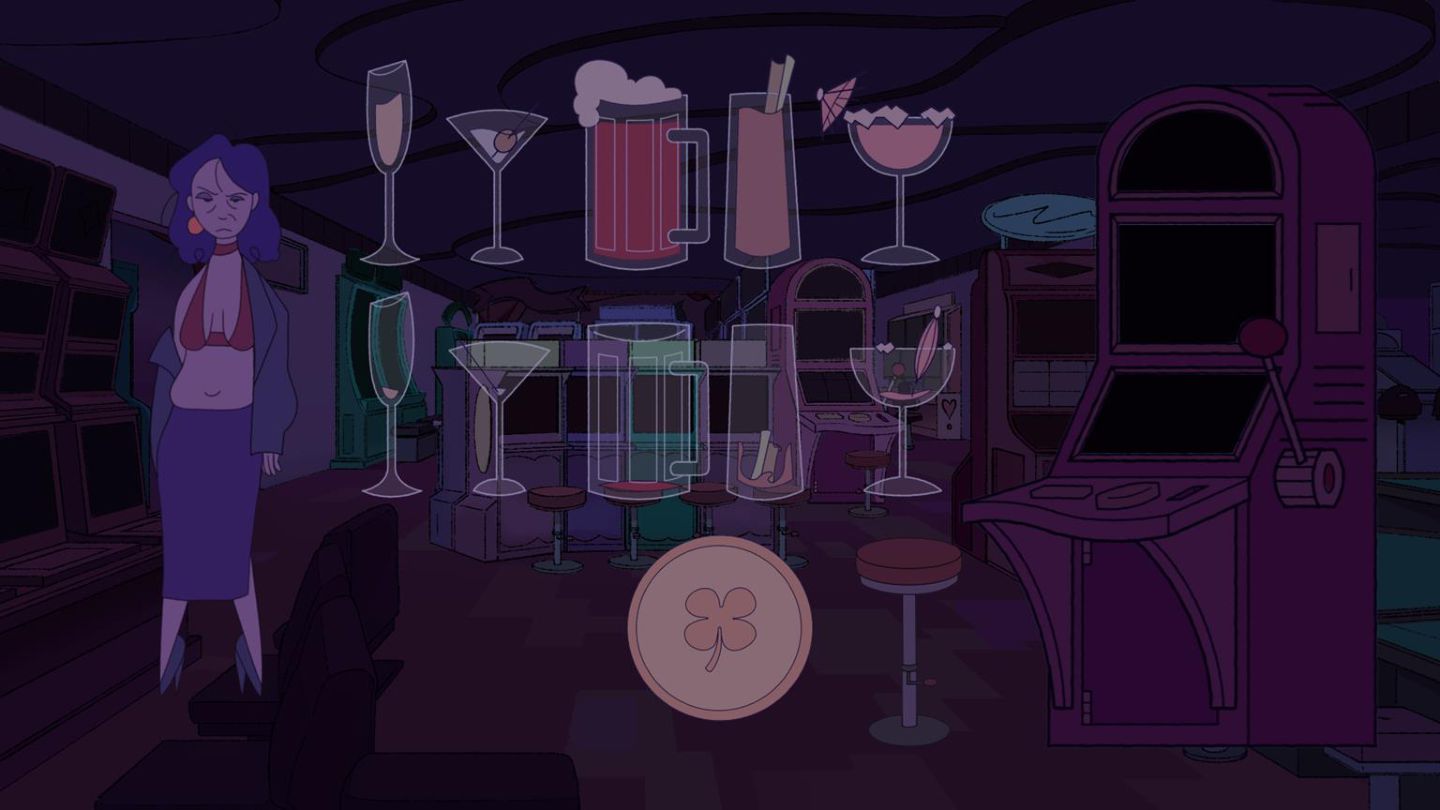
![Drinks - Full [Blackout Vers] Glass is 45% opacity Color](https://files.speakerdeck.com/presentations/70fc0a9af1dc4af39d6225e3a38ad17b/slide_58.jpg)
![Drinks - Full [Blackout Vers] Glass is 45% opacity Color](https://files.speakerdeck.com/presentations/70fc0a9af1dc4af39d6225e3a38ad17b/slide_59.jpg)