broad-spectrum ideas meant to produce products and environments that are inherently accessible to: – older people, – people without disabilities – people with disabilities. 5.5.2015. 3
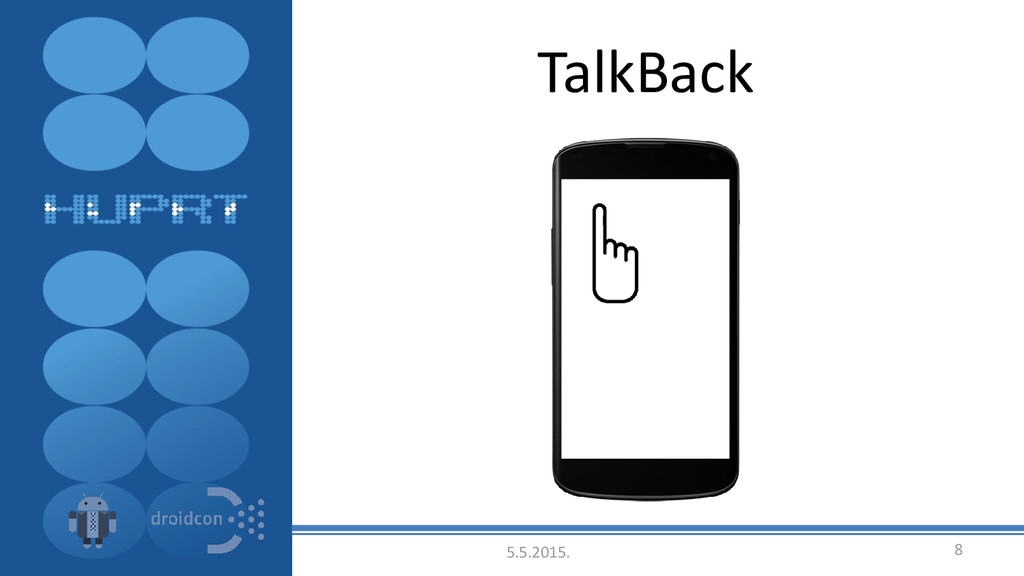
aloud content that’s on your screen. For example, when you place your finger anywhere on the screen, the system will tell you what’s underneath your finger. Once an item is selected, you’ll need to double-tap anywhere to confirm that option 5.5.2015. 7
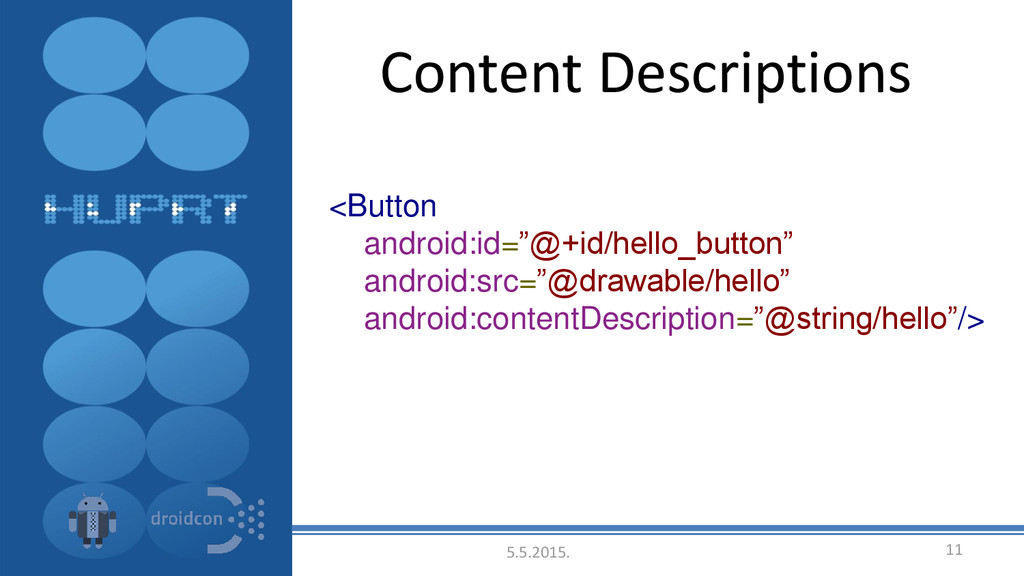
to change during the lifecycle of the application, you can add it via the XML layout, by setting a UI element's android:contentDescription attribute 5.5.2015. 10
of a content description, to help users understand what content is expected when the text field is empty and allow the contents of the field to be spoken when it is filled. 5.5.2015. 14
android:nextFocusLeft, android:nextFocusRight, which you can use to designate the next view to receive focus when the user navigates in that direction. 5.5.2015. 17
Android framework, an AccessibilityEvent is created whenever you select an item or change focus in your UI. These events are examined by the accessibility service, enabling it to provide features like text-to-speech to the user. 5.5.2015. 18
it fires events at the appropriate times. Generate events by calling sendAccessibilityEvent(int), with a parameter representing the type of event that occurred. 5.5.2015. 19
captioning to assist users who are deaf or hard of hearing. Your video playback controls must also clearly indicate if captioning is available for a video and provide a clear way of enabling captions. 5.5.2015. 20
x 48 pixels The recommended minimum touch target size for any element is 48 x 48 dp. Space between elements of your mobile design should be at least 8dp. 5.5.2015. 22
all parts of the design, including every user task and mouse over information, keyboard-accessible on web interfaces and accessible with the basic interaction gestures on mobile devices? Keyboard shortcuts should be consistent with platform standards. 5.5.2015. 23
user get lost when navigating between dropdowns, alerts and various screens? Think about how users will return to a screen after closing a dropdown window. Make sure that their focus will return to where it was before the dropdown opened. 5.5.2015. 24
larger font sizes Is the text still legible when a user magnifies the screen or enlarges the font? Are the essential elements still visible, usable, and not overlapping? Test font adjustments on your app using any of the built-in OS/Browser/App accessibility tools for zooming and viewing large fonts. 5.5.2015. 25
Using a contrast ratio of 4.5:1 between the background and text or critical elements addresses most contrast issues and allows users, particularly those with poor vision, to read text more easily. Smaller text needs lots of contrast, while big headings can tolerate a wider range of colors and backgrounds. 5.5.2015. 26
convey information. This is especially crucial for color blind users. If colors in a design communicate specific information it is important to offer an alternate way for the user to get the same information. Combining color with other elements like shapes, patterns, texture, or text can leverage multiple ways to articulate the information. 5.5.2015. 27
conveyed spatially, using layout, that wouldn't be discoverable to a blind user who navigates one element at a time? As assistive technologies don't indicate the distance between elements, provide additional clues about how elements are related, such as sharing a common heading. 5.5.2015. 28
you have audio elements or system sound alerts, do you provide closed captions, a transcript, or another visual alternative? Any flashing or blinking needs to be translated into a sound, and vice versa. 5.5.2015. 29
interactive controls have text labels, tooltips, or placeholder text to indicate their purpose? Provide the most relevant information first to the assistive technologies. When naming elements, be consistent in your terminology throughout your app. 5.5.2015. 30
you relying on graphical elements to convey information that isn't also provided in a written format? Do labels provide sufficient semantic context for the task (e.g., not just "download" but "download dinner menu")? Provide alternative text for all images and icons, and avoid using images of text in cases where a standard widget would work. 5.5.2015. 31
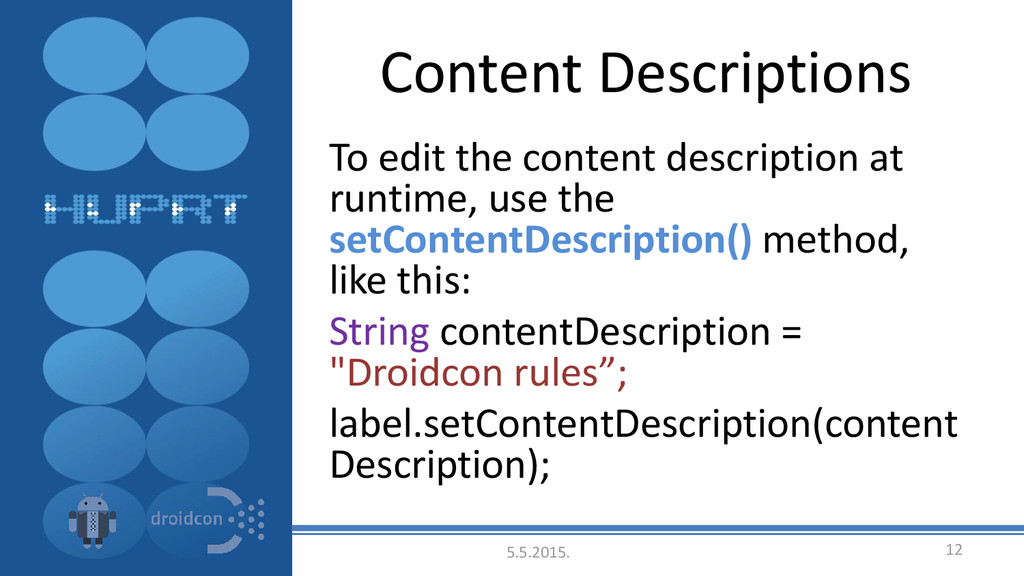
interface components that do not have visible text, particularly ImageButton, ImageView and CheckBox components. • Use theandroid:contentDescription XML layout attribute or the setContentDescription(CharSequence) method to provide this information for accessibility services 5.5.2015. 32
help quickly when they do not know what an element means? If a critical element times out, is there a way for the user to reactivate it? Provide clear and easy-to-find contextual help so that the user can look up keyboard shortcuts, gestures, and how to access and use features. 5.5.2015. 33
make navigation more efficient by letting the user scan just the links, ignoring other content. Is the purpose of each link clear? Put the purpose of the link in the link text itself. Generic anchor text like “click here” does not serve this purpose. A better solution is a concrete link, like “Device settings." 5.5.2015. 34


 optim
optim
 dske104
 a_matsuda
 rkaga
rkaga
 iwatsukayura
 panda728
 teyamagu
 drumath2237
 texmeijin
 ___akari11
 timakin
 kaityo256
 joshbly
 raygrieselhuber
 sabderemane
 colly
colly
 sergeychernyshev
 chriscoyier
 tamaranovitovic
 holman
 inesmontani
 codingconduct
 akosma
![5.5.2015. 35 Marijan Jurešić [email protected] Association HUPRT: www.huprt.hr E-mail: [email protected]](https://files.speakerdeck.com/presentations/e49accf29df141c49fda6d55db5b41e2/slide_34.jpg)