Upgrade to Pro — share decks privately, control downloads, hide ads and more …

Material Design en Android - GDG Foz

Material Design en Android - GDG Foz

Avatar for Rodrigo Garcete

Rodrigo Garcete

August 19, 2016

More Decks by Rodrigo Garcete

Other Decks in Technology

Transcript

  1. Add dependency archivo build.gradle dependencies { compile fileTree(include: ['*.jar'], dir:

    'libs') compile ‘com.android.support:appcompat-v7:21.0.3’ }
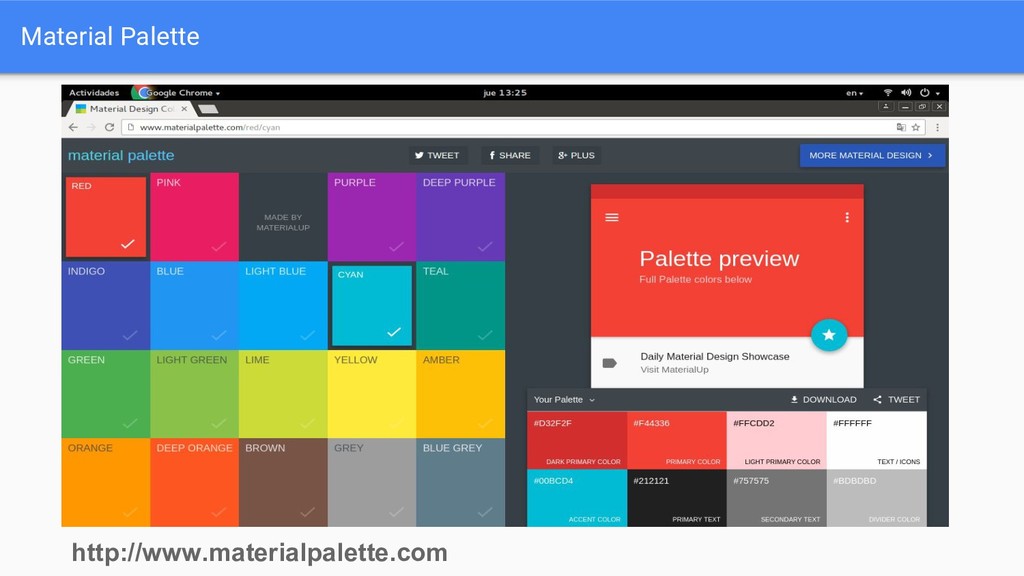
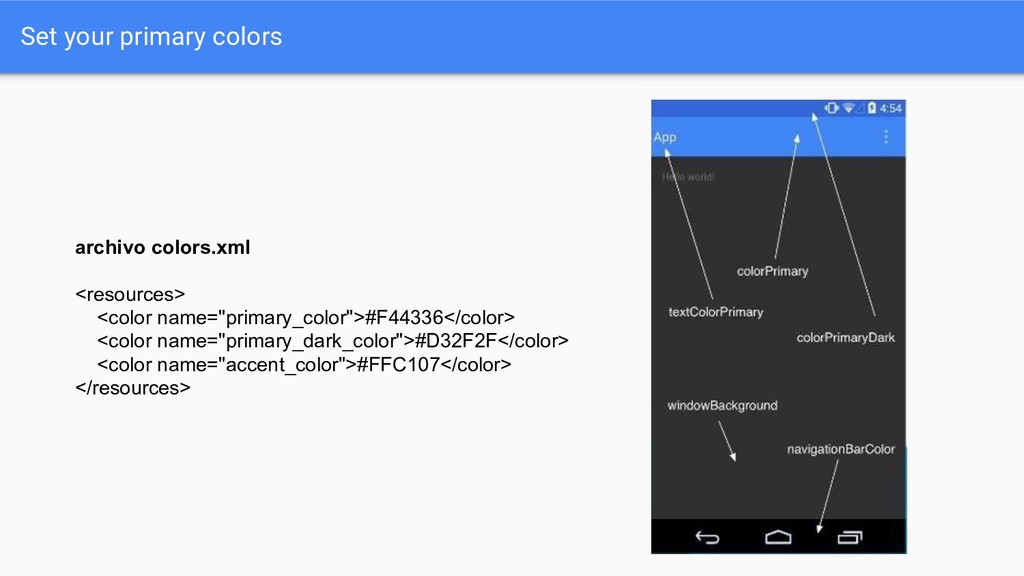
  2. Set your primary colors archivo colors.xml <resources> <color name="primary_color">#F44336</color> <color

    name="primary_dark_color">#D32F2F</color> <color name="accent_color">#FFC107</color> </resources>
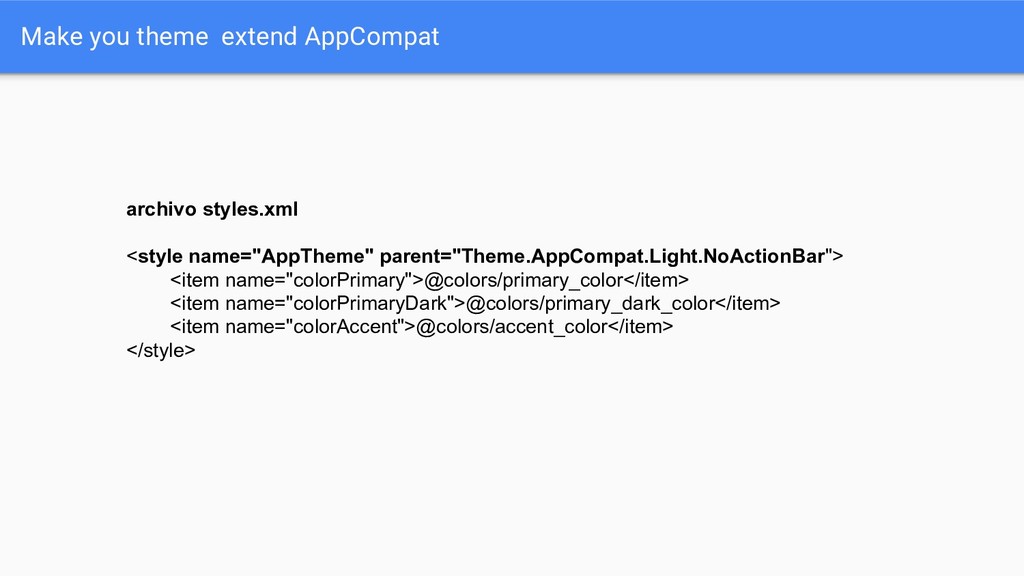
  3. Make you theme extend AppCompat archivo styles.xml <style name="AppTheme" parent="Theme.AppCompat.Light.NoActionBar">

    <item name="colorPrimary">@colors/primary_color</item> <item name="colorPrimaryDark">@colors/primary_dark_color</item> <item name="colorAccent">@colors/accent_color</item> </style>
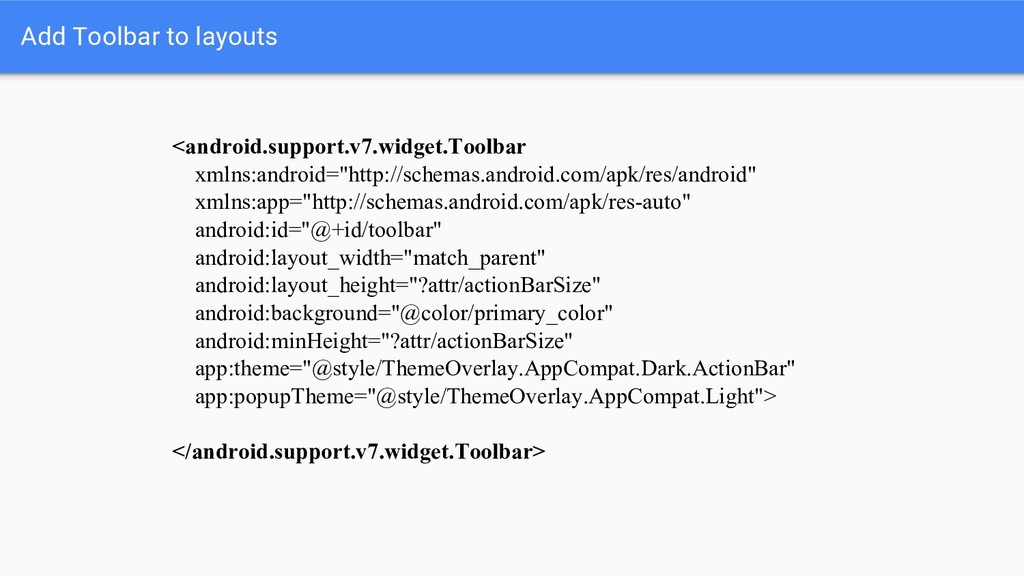
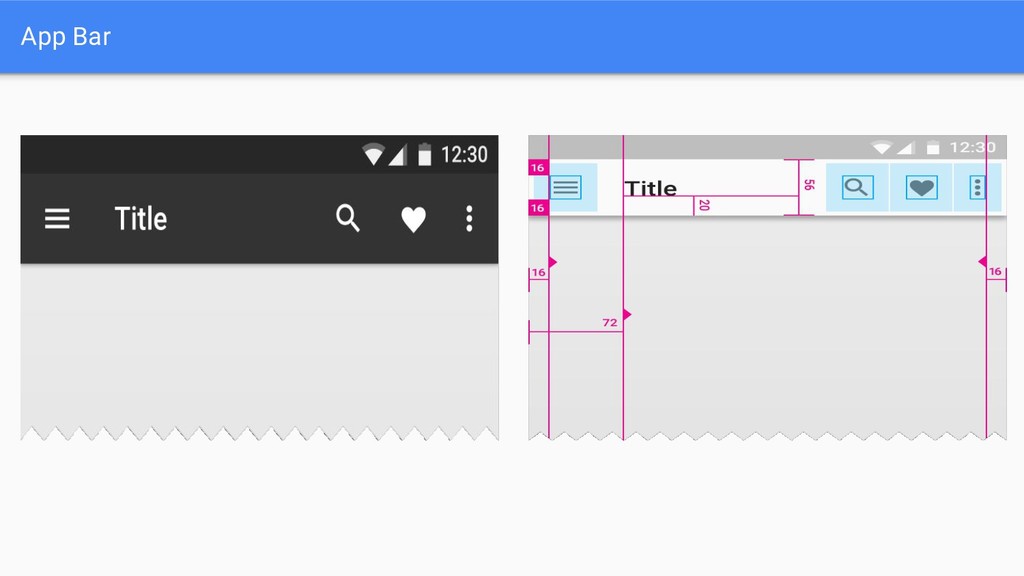
  4. Add Toolbar to layouts <android.support.v7.widget.Toolbar xmlns:android="http://schemas.android.com/apk/res/android" xmlns:app="http://schemas.android.com/apk/res-auto" android:id="@+id/toolbar" android:layout_width="match_parent" android:layout_height="?attr/actionBarSize"

    android:background="@color/primary_color" android:minHeight="?attr/actionBarSize" app:theme="@style/ThemeOverlay.AppCompat.Dark.ActionBar" app:popupTheme="@style/ThemeOverlay.AppCompat.Light"> </android.support.v7.widget.Toolbar>
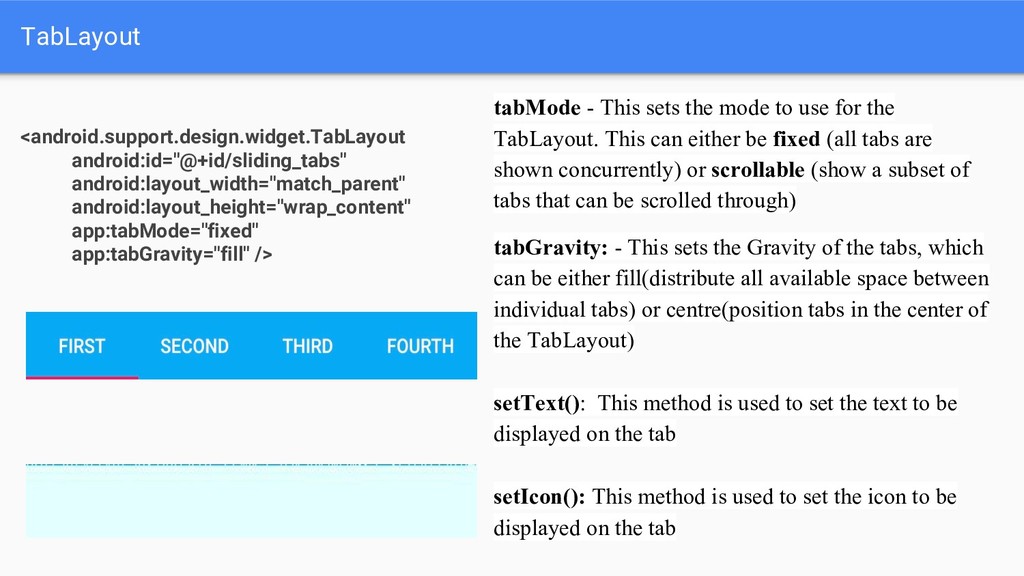
  5. TabLayout <android.support.design.widget.TabLayout android:id="@+id/sliding_tabs" android:layout_width="match_parent" android:layout_height="wrap_content" app:tabMode="fixed" app:tabGravity="fill" /> tabMode -

    This sets the mode to use for the TabLayout. This can either be fixed (all tabs are shown concurrently) or scrollable (show a subset of tabs that can be scrolled through) tabGravity: - This sets the Gravity of the tabs, which can be either fill(distribute all available space between individual tabs) or centre(position tabs in the center of the TabLayout) setText(): This method is used to set the text to be displayed on the tab setIcon(): This method is used to set the icon to be displayed on the tab
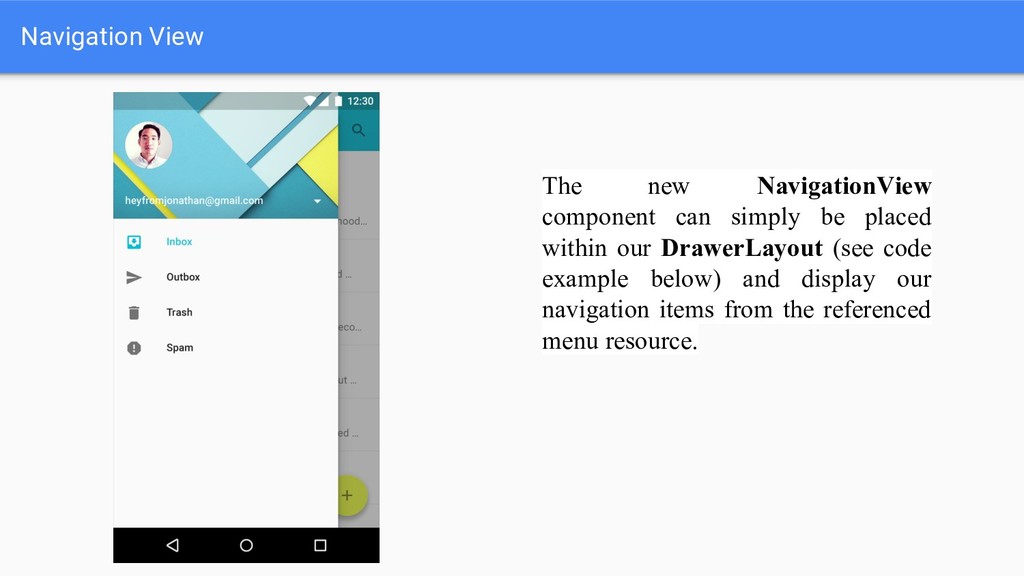
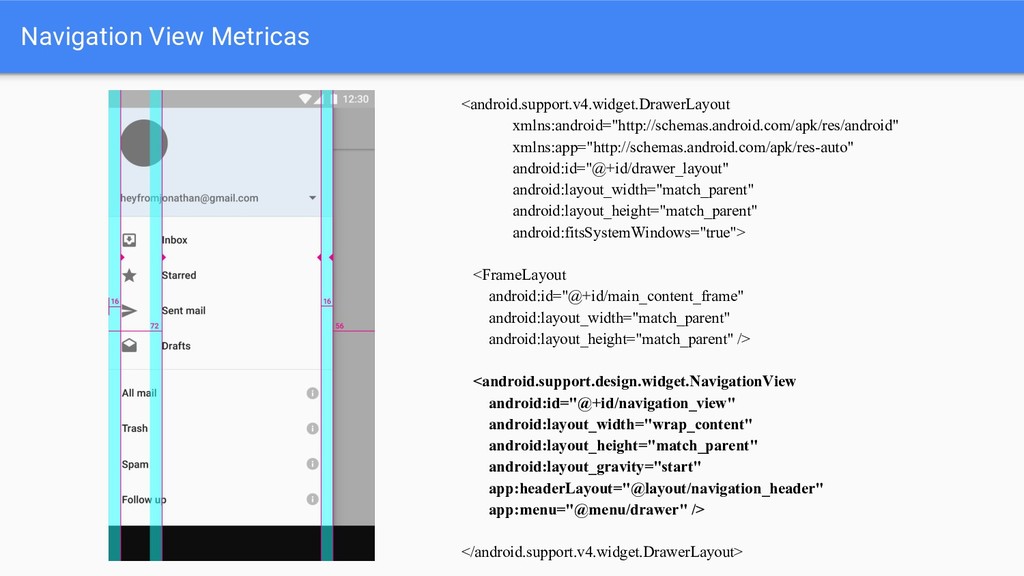
  6. Navigation View The new NavigationView component can simply be placed

    within our DrawerLayout (see code example below) and display our navigation items from the referenced menu resource.
  7. Navigation View Metricas <android.support.v4.widget.DrawerLayout xmlns:android="http://schemas.android.com/apk/res/android" xmlns:app="http://schemas.android.com/apk/res-auto" android:id="@+id/drawer_layout" android:layout_width="match_parent" android:layout_height="match_parent" android:fitsSystemWindows="true">

    <FrameLayout android:id="@+id/main_content_frame" android:layout_width="match_parent" android:layout_height="match_parent" /> <android.support.design.widget.NavigationView android:id="@+id/navigation_view" android:layout_width="wrap_content" android:layout_height="match_parent" android:layout_gravity="start" app:headerLayout="@layout/navigation_header" app:menu="@menu/drawer" /> </android.support.v4.widget.DrawerLayout>
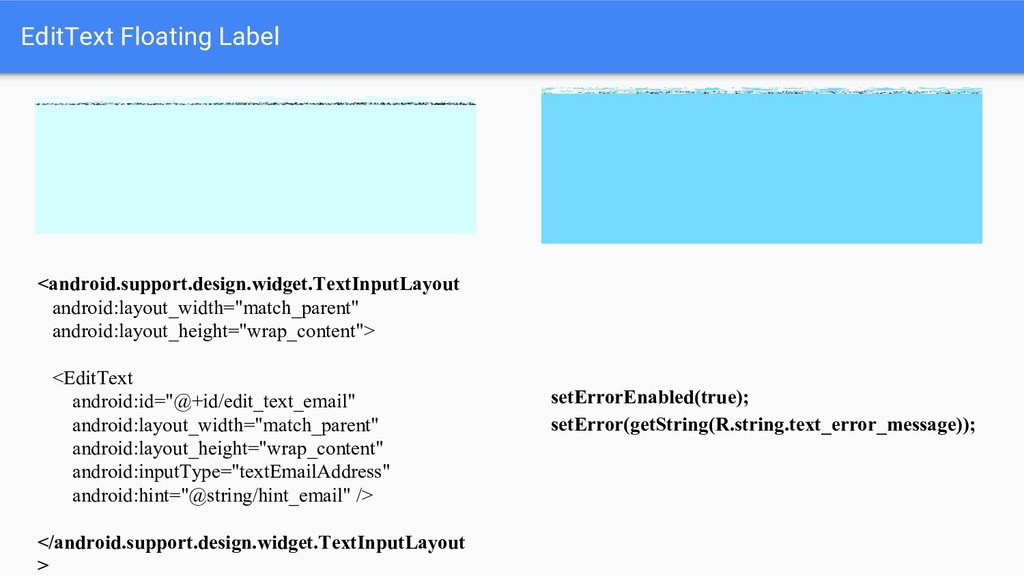
  8. EditText Floating Label <android.support.design.widget.TextInputLayout android:layout_width="match_parent" android:layout_height="wrap_content"> <EditText android:id="@+id/edit_text_email" android:layout_width="match_parent" android:layout_height="wrap_content"

    android:inputType="textEmailAddress" android:hint="@string/hint_email" /> </android.support.design.widget.TextInputLayout > setErrorEnabled(true); setError(getString(R.string.text_error_message));
  9. Coordinator Layout The CoordinatorLayout builds on-top of the motion effects

    already provided by adding the ability to transition views based on the motion of others archivo build.gradle dependencies { compile fileTree(include: ['*.jar'], dir: 'libs') compile ‘com.android.support:appcompat-v7:21.0.3’ compile ‘com.android.support:design:21.0.3’ }
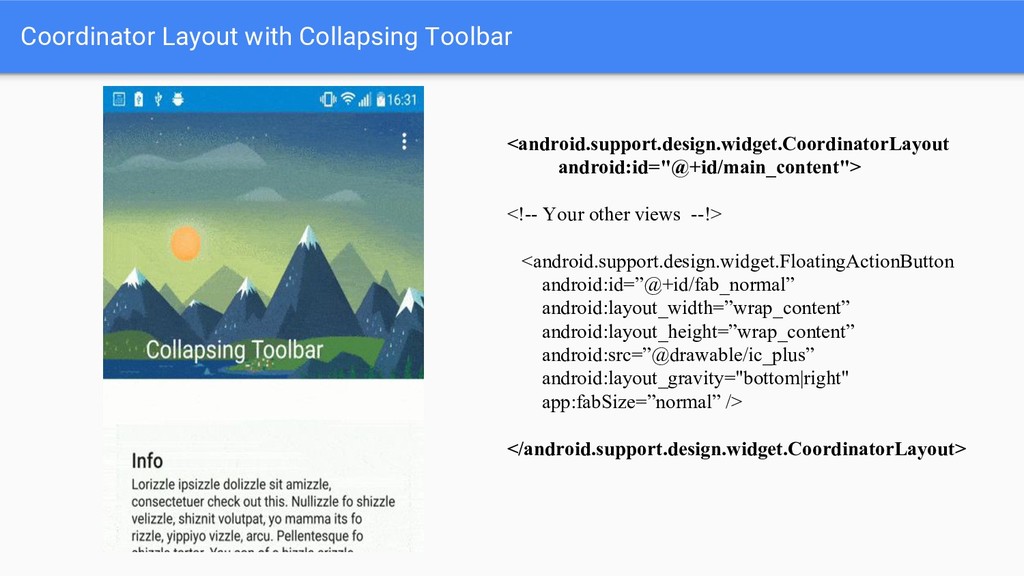
  10. Coordinator Layout with Collapsing Toolbar <android.support.design.widget.CoordinatorLayout android:id="@+id/main_content"> <!-- Your other

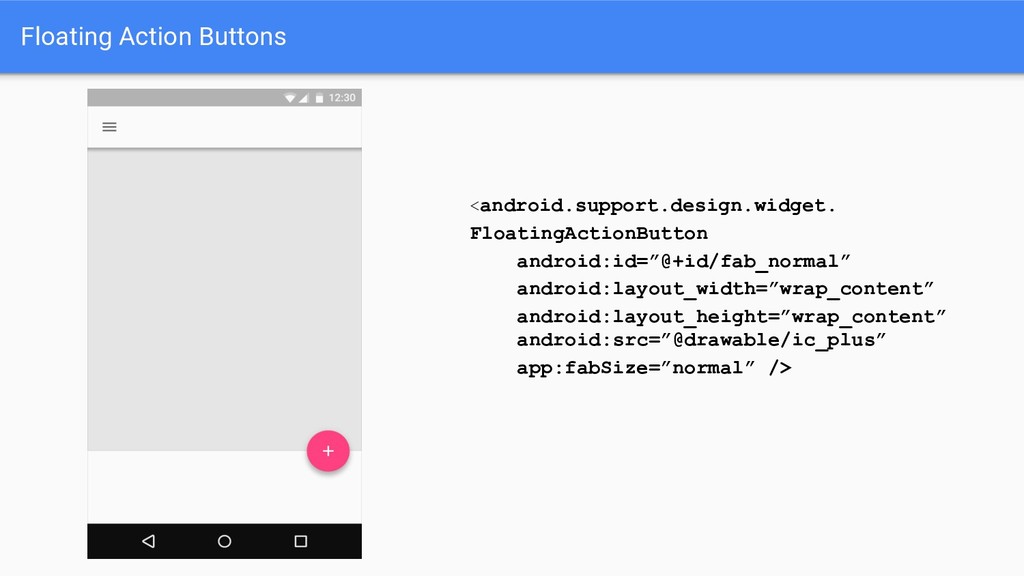
    views --!> <android.support.design.widget.FloatingActionButton android:id=”@+id/fab_normal” android:layout_width=”wrap_content” android:layout_height=”wrap_content” android:src=”@drawable/ic_plus” android:layout_gravity="bottom|right" app:fabSize=”normal” /> </android.support.design.widget.CoordinatorLayout>
  11. RecyclerView archivo build.gradle dependencies { compile fileTree(include: ['*.jar'], dir: 'libs')

    compile ‘com.android.support:appcompat-v7:21.0.3’ compile ‘com.android.support:recyclerview-v7:21.0.3’ }
  12. CardView archivo build.gradle dependencies { compile fileTree(include: ['*.jar'], dir: 'libs')

    compile ‘com.android.support:appcompat-v7:21.0.3’ compile ‘com.android.support:cardview-v7:21.0.3’ }