Upgrade to Pro — share decks privately, control downloads, hide ads and more …

How to Build a Chrome Extension* (*or anything ...

Avatar for Kate Beard Kate Beard
September 24, 2018

How to Build a Chrome Extension* (*or anything else, for that matter)

Talk given at Codebar London's September monthly event at Unruly.

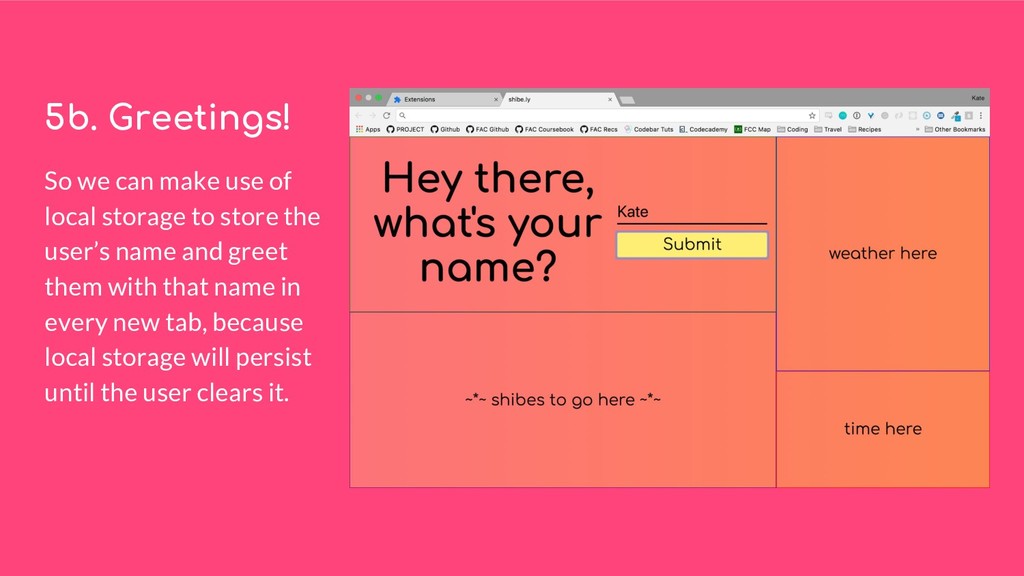
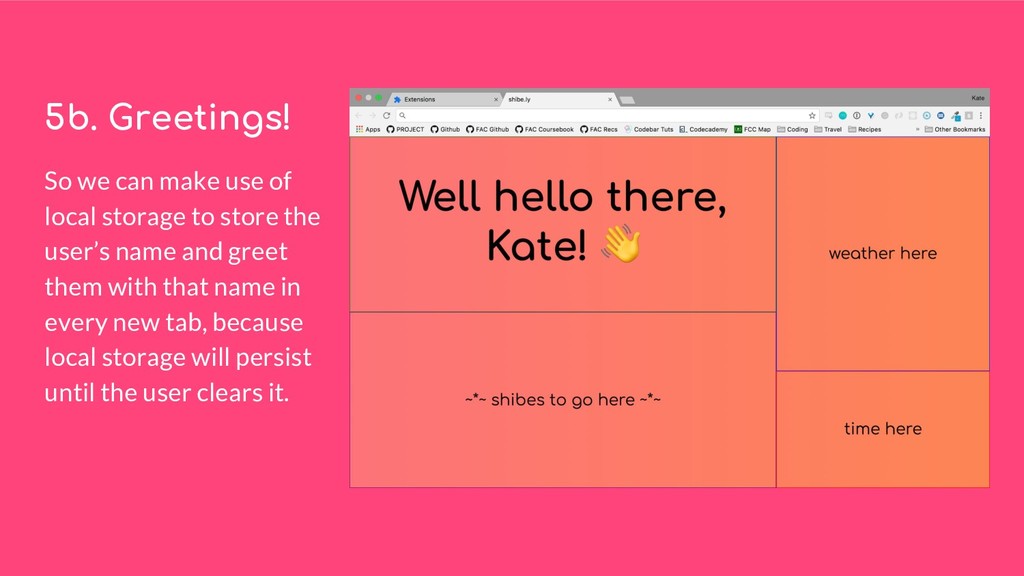
How do you build a Chrome extension? And what happens when, no matter what you're building, you run into inevitable roadblocks.

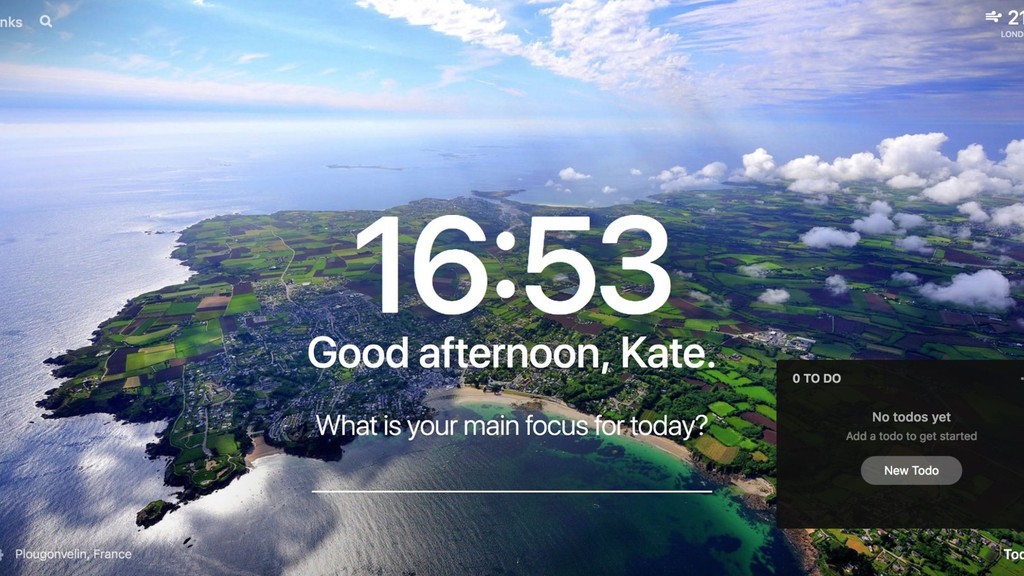
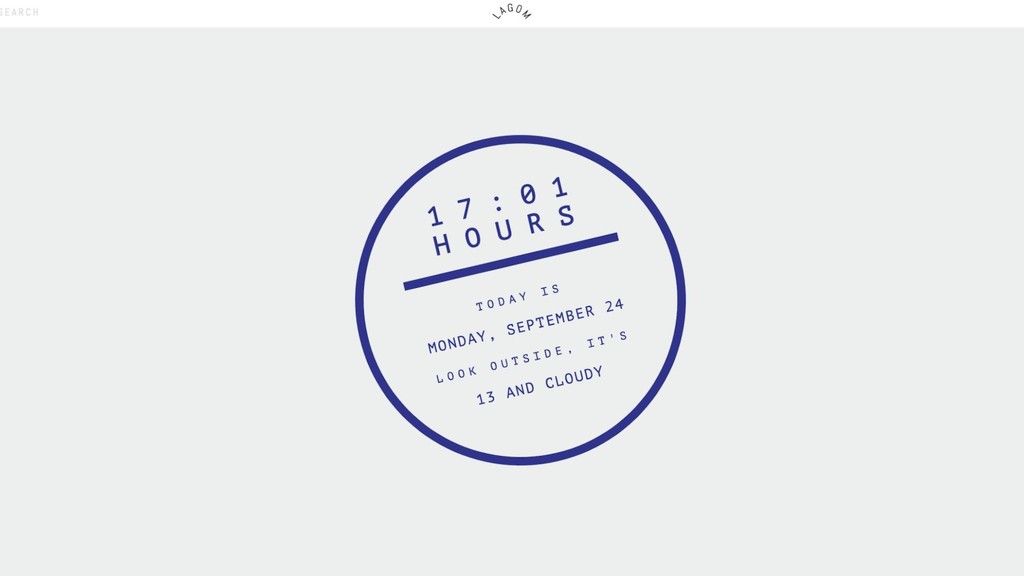
This talk will give a high level overview of the steps needed to create any Chrome extension (with the example used in the presentation being a new tab productivity extension like Momentum or Lagom) and then hopefully some inspiration for getting any project done, no matter what it is.

Avatar for Kate Beard

Kate Beard

September 24, 2018

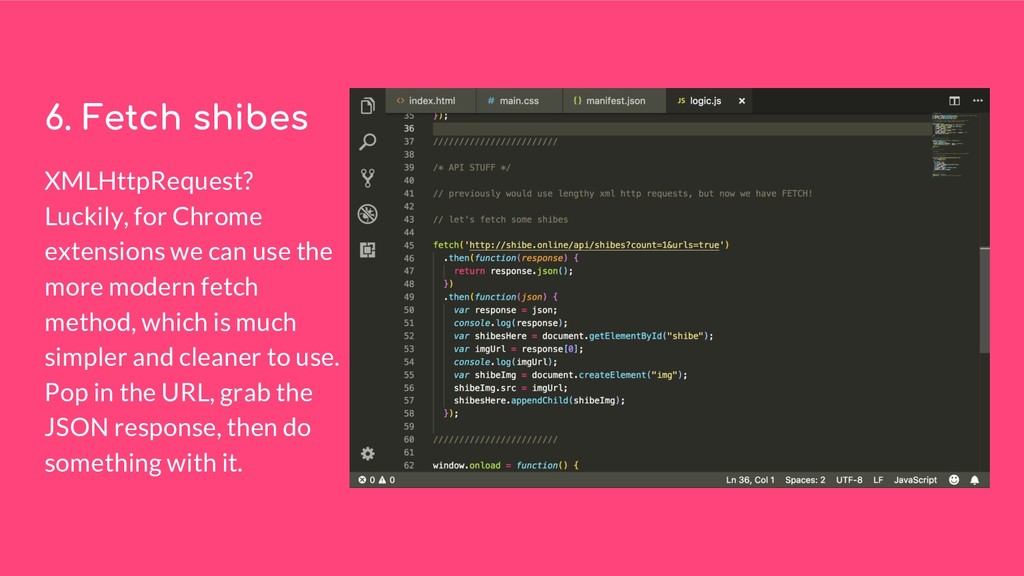
More Decks by Kate Beard

Other Decks in Programming

Transcript

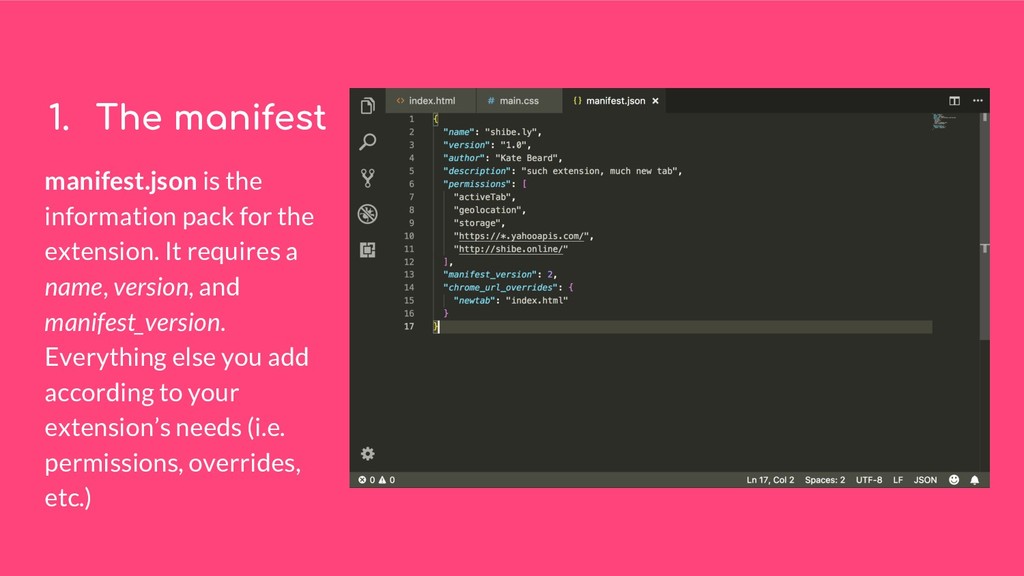
  1. 1. The manifest manifest.json is the information pack for the

    extension. It requires a name, version, and manifest_version. Everything else you add according to your extension’s needs (i.e. permissions, overrides, etc.)


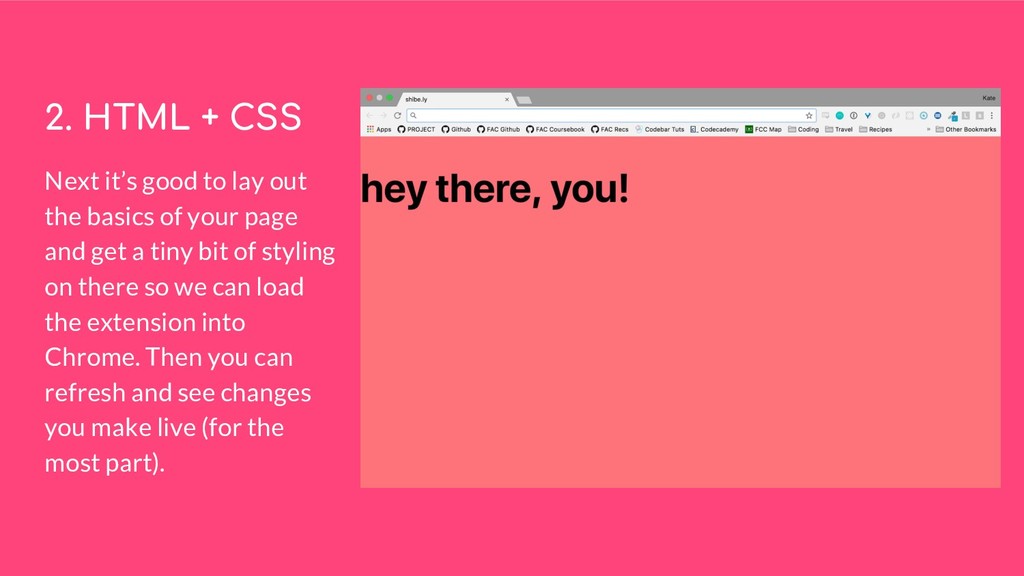
  2. 2. HTML + CSS Next it’s good to lay out

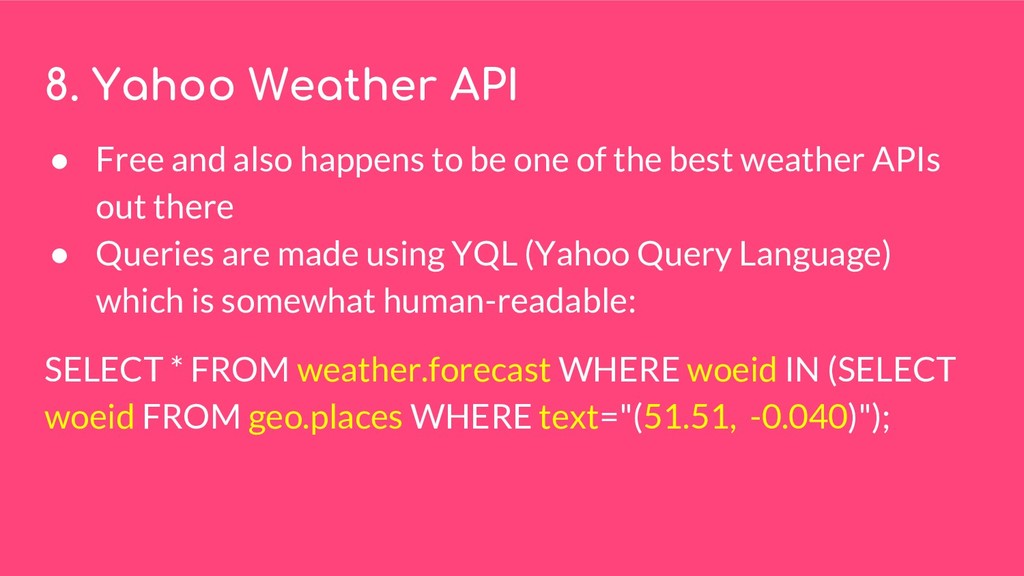
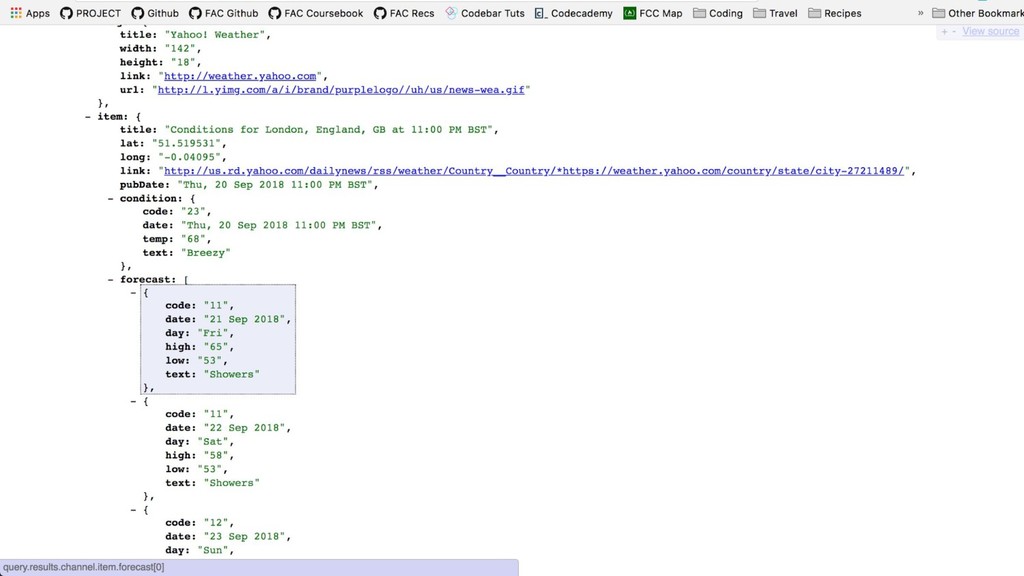
    the basics of your page and get a tiny bit of styling on there so we can load the extension into Chrome. Then you can refresh and see changes you make live (for the most part).
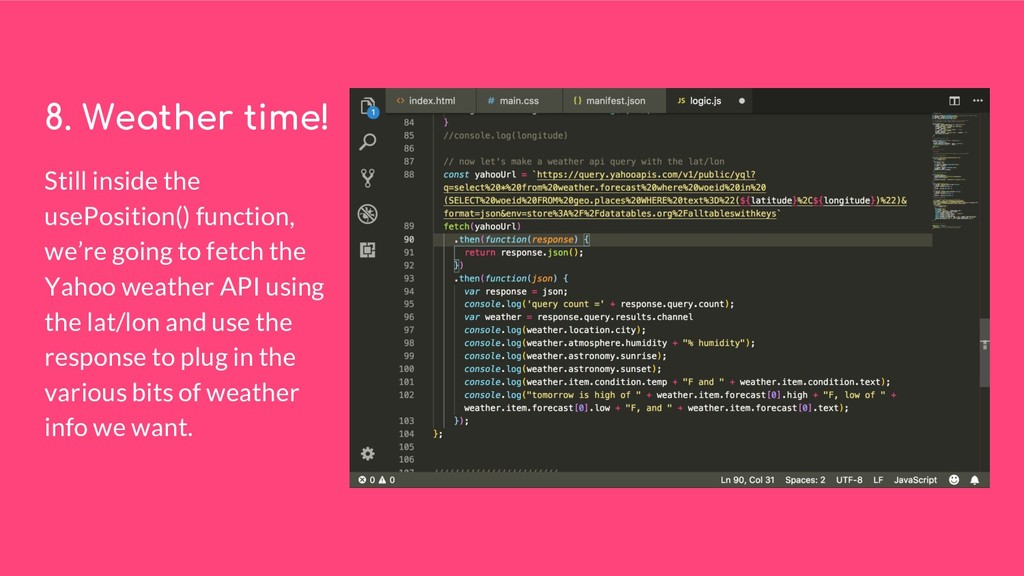
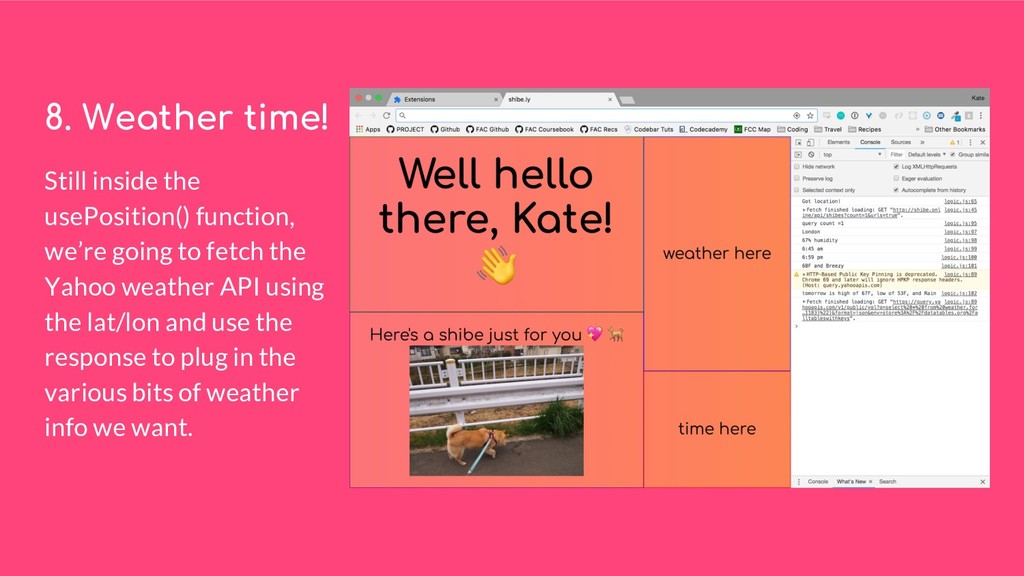
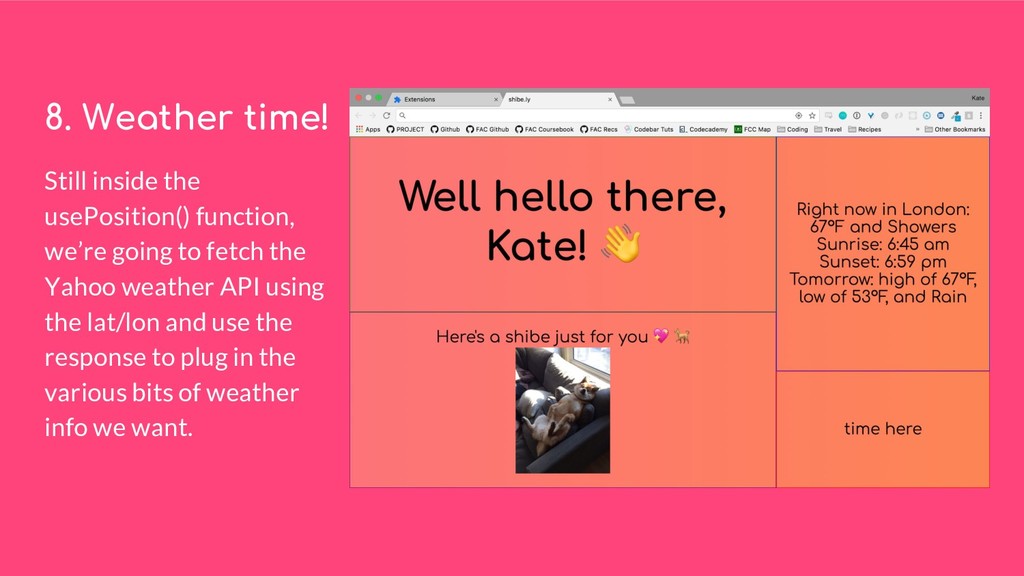
  3. 3. Load it into Chrome Go to the Chrome extensions

    page (Window > Extensions), turn on developer mode, and click ‘load unpacked extension’. Make sure the extension is turned on, then open a new tab - voila!
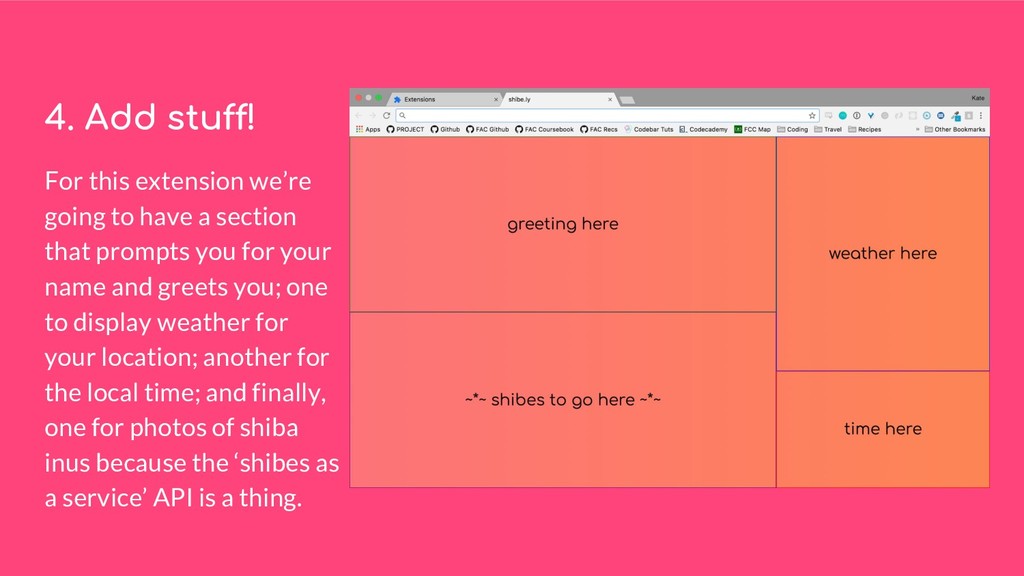
  4. 4. Add stuff! For this extension we’re going to have

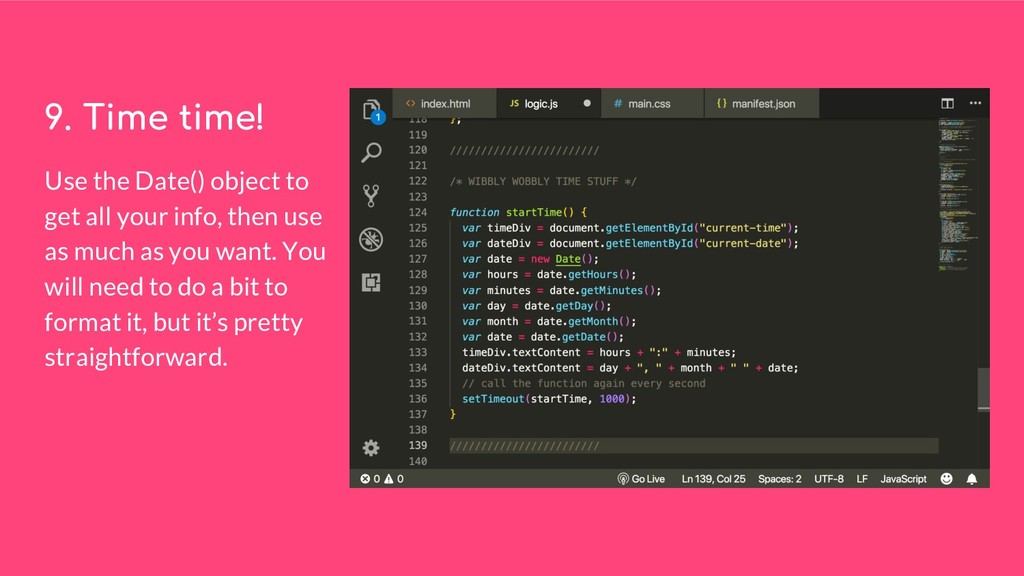
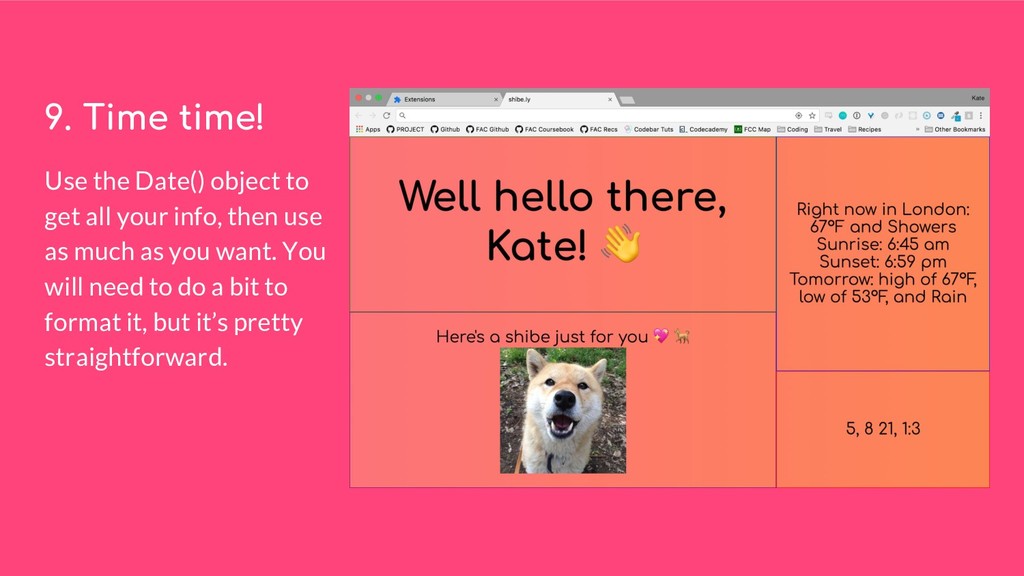
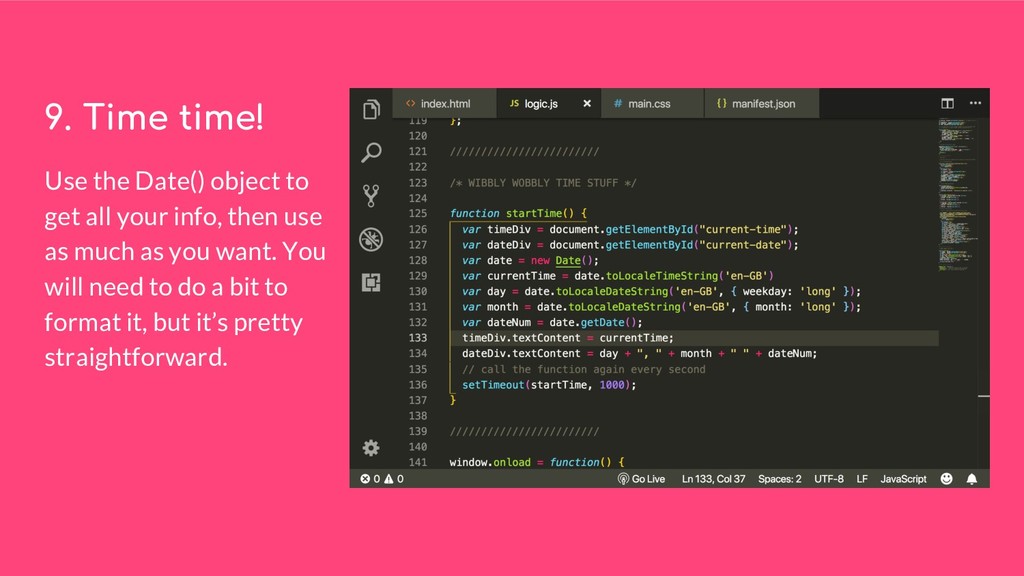
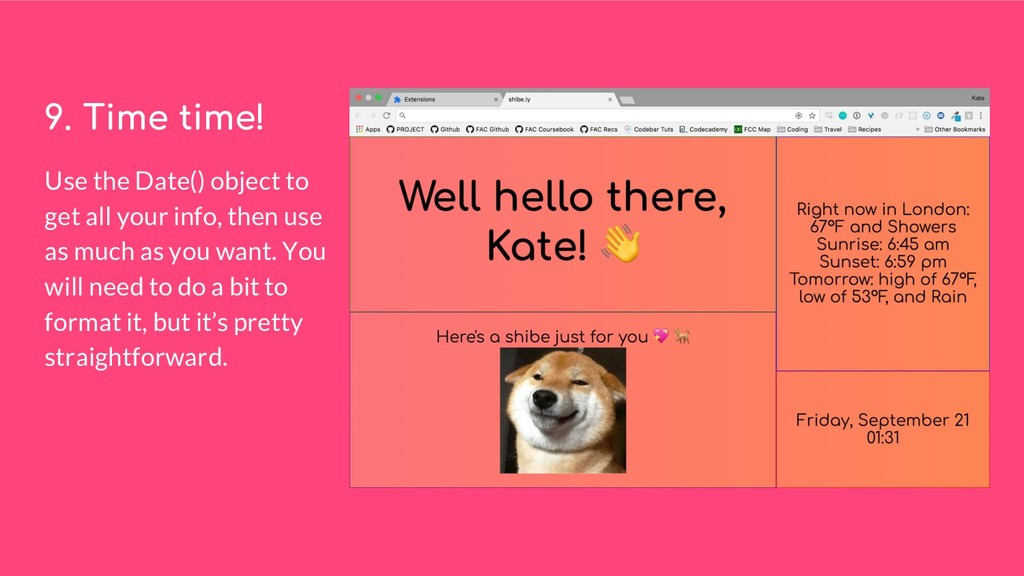
    a section that prompts you for your name and greets you; one to display weather for your location; another for the local time; and finally, one for photos of shiba inus because the ‘shibes as a service’ API is a thing.
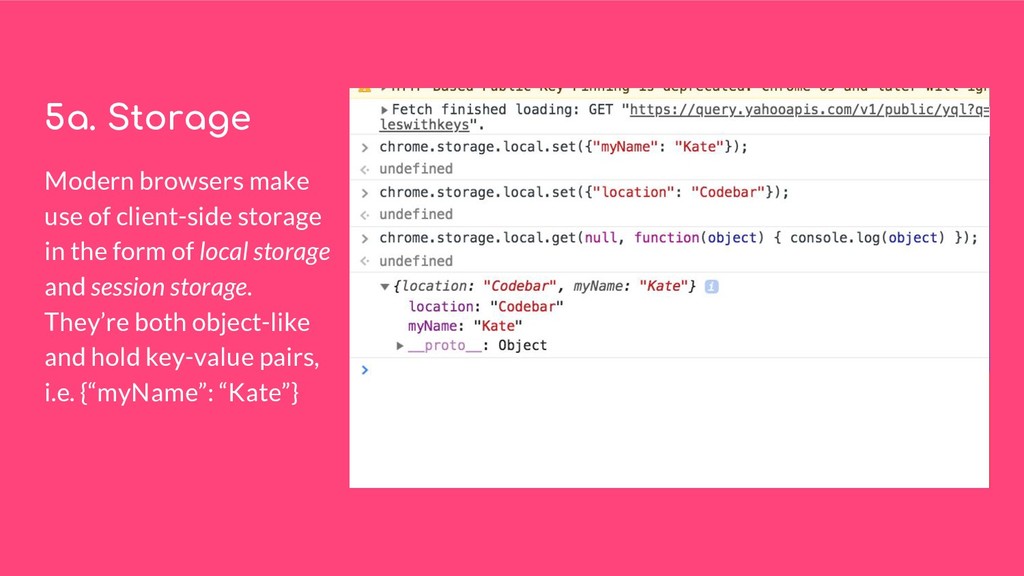
  5. 5a. Storage Modern browsers make use of client-side storage in

    the form of local storage and session storage. They’re both object-like and hold key-value pairs, i.e. {“myName”: “Kate”}
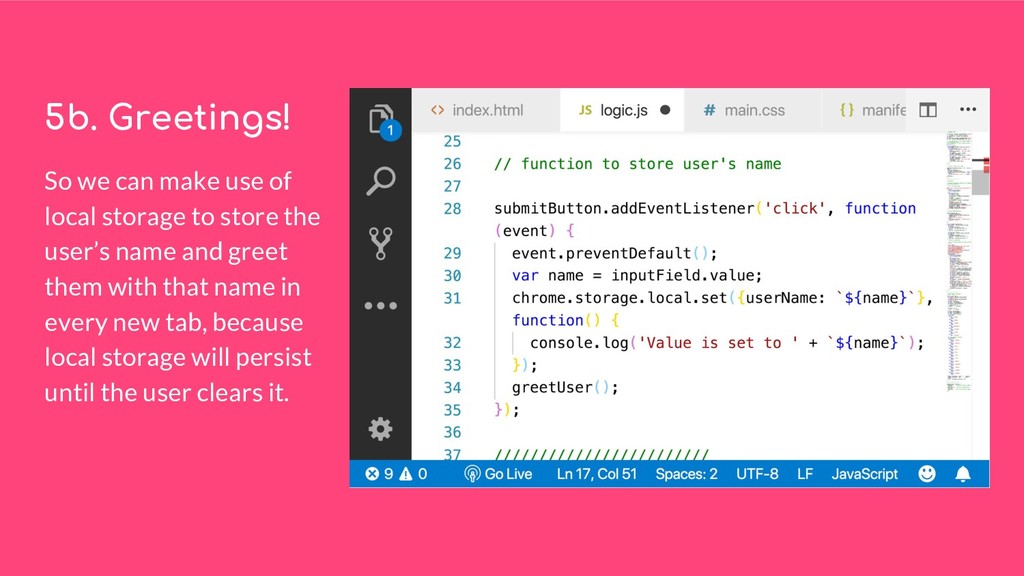
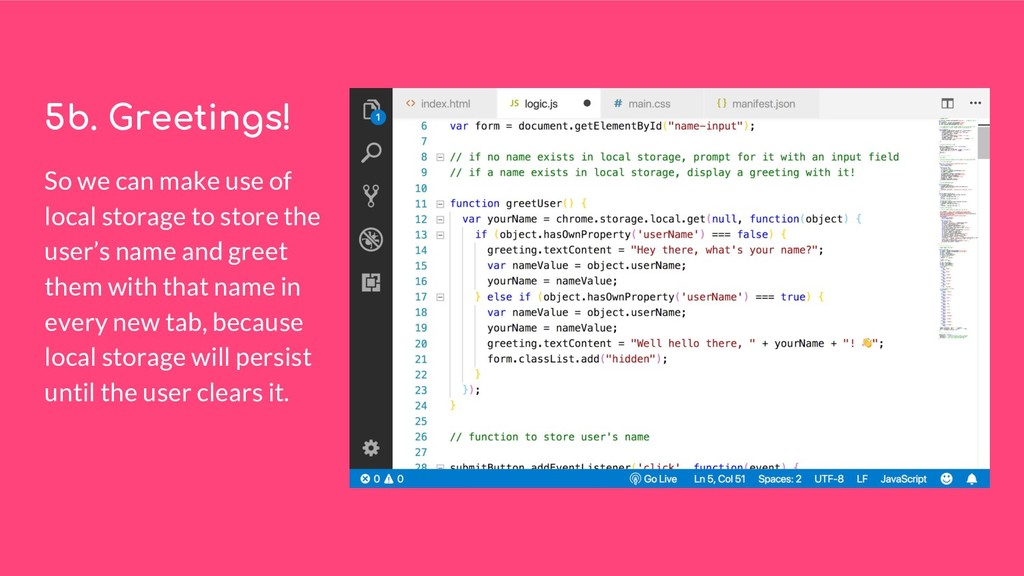
  6. 5b. Greetings! So we can make use of local storage

    to store the user’s name and greet them with that name in every new tab, because local storage will persist until the user clears it.
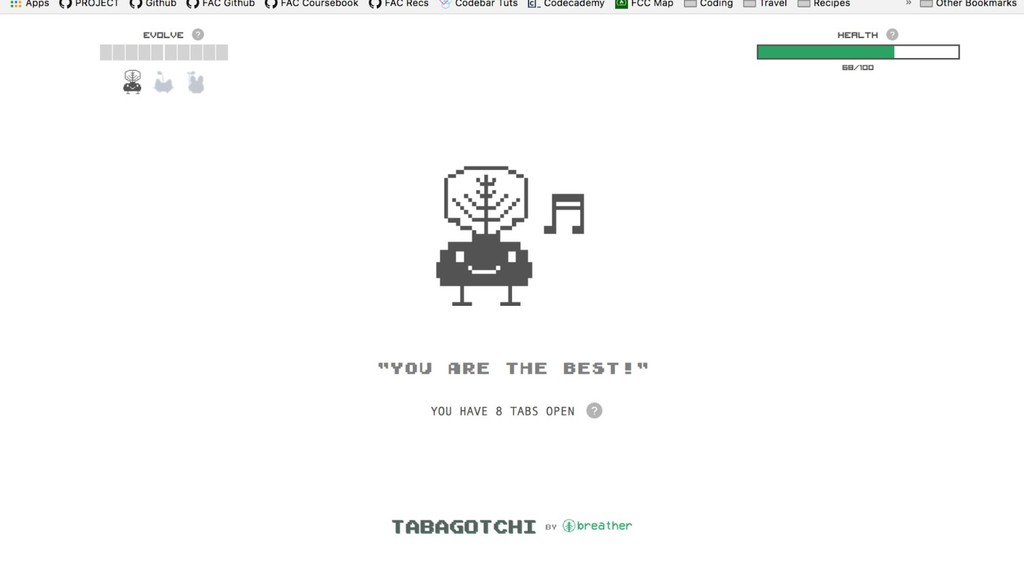
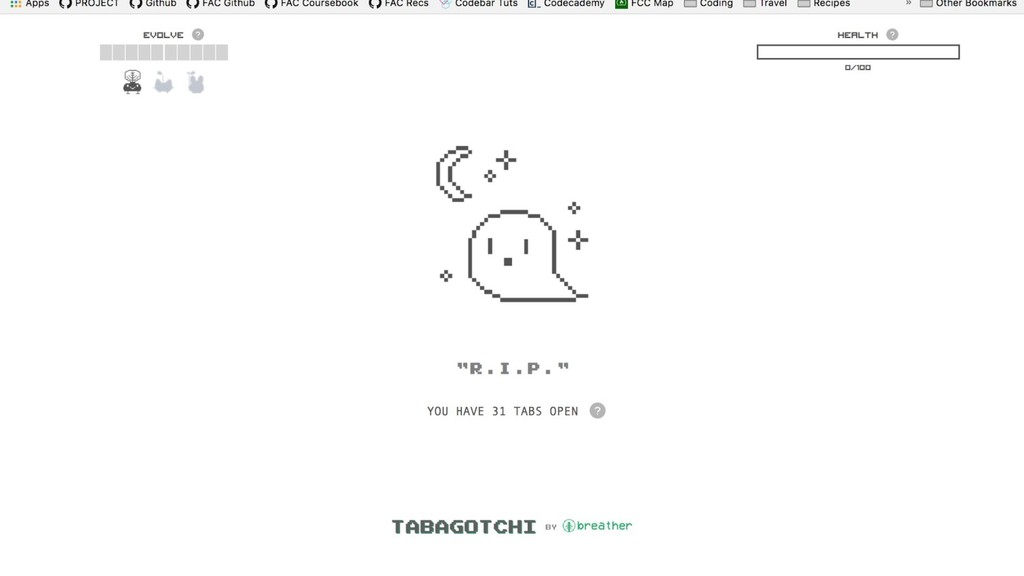
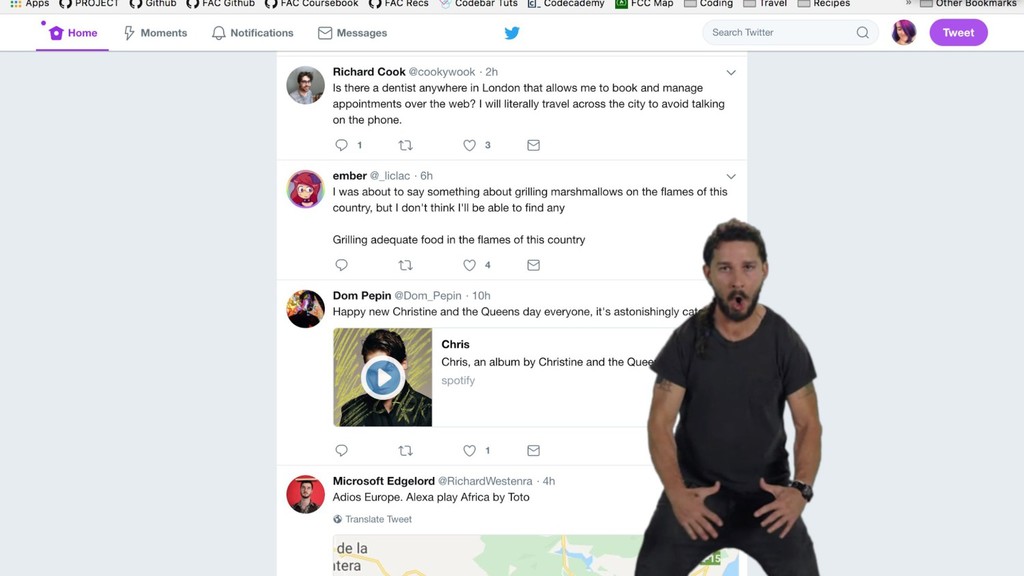
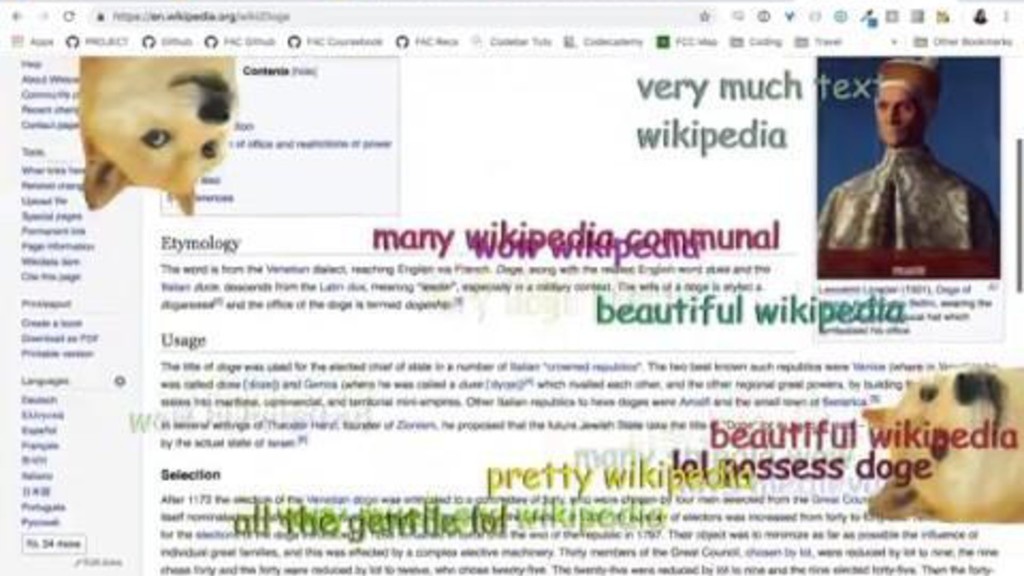
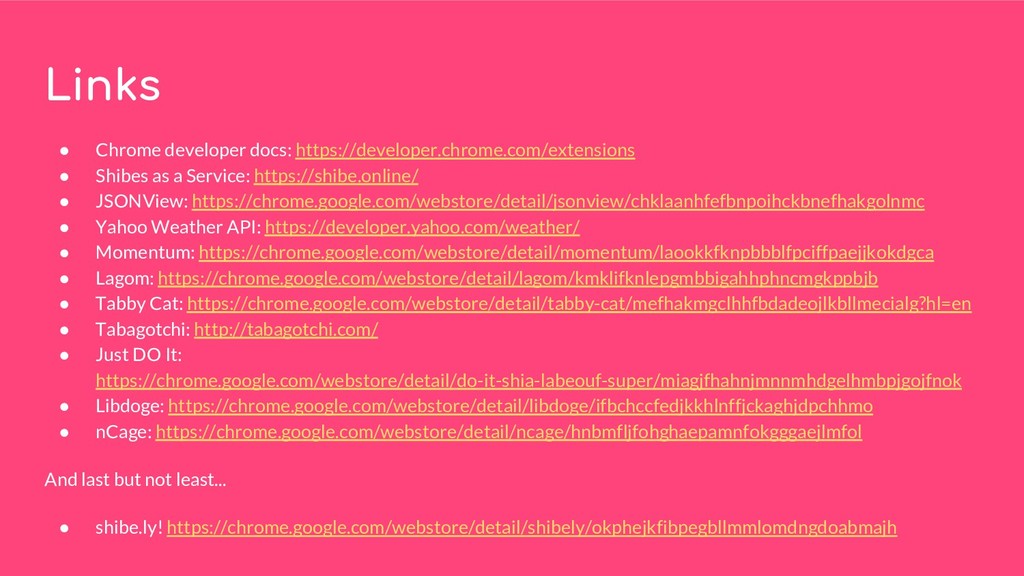
  7. 5b. Greetings! So we can make use of local storage

    to store the user’s name and greet them with that name in every new tab, because local storage will persist until the user clears it.
  8. 5b. Greetings! So we can make use of local storage

    to store the user’s name and greet them with that name in every new tab, because local storage will persist until the user clears it.
  9. 5b. Greetings! So we can make use of local storage

    to store the user’s name and greet them with that name in every new tab, because local storage will persist until the user clears it.
  10. * A quick note on APIs • Most APIs out

    there require you to have a key to access them. You should never reveal this key anywhere or use it in client-side code. • Unfortunately, this is an issue for making simple extensions like this one. • The APIs used in this extension don’t require keys, which is a good option unless you want to take on a bigger challenge.
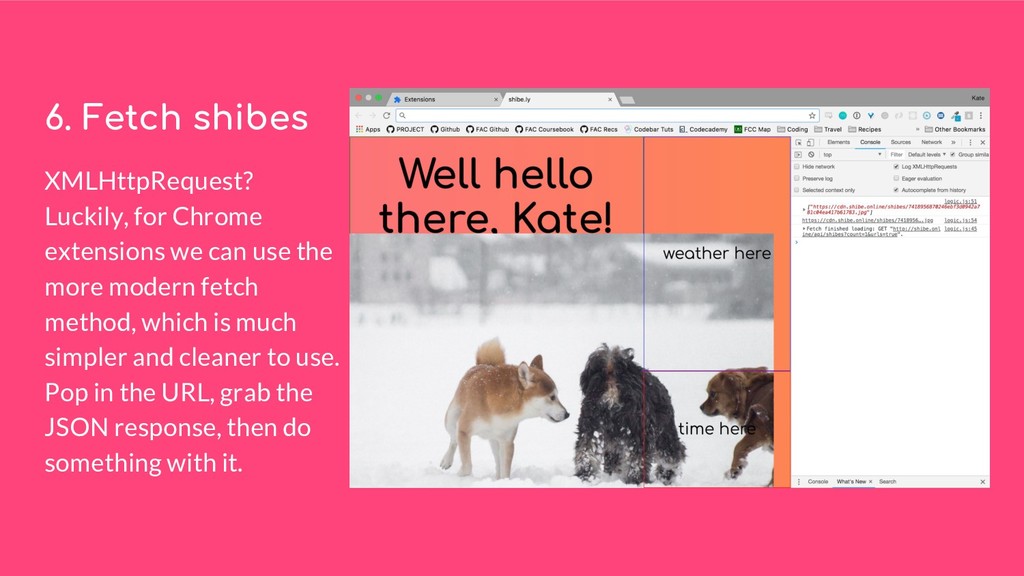
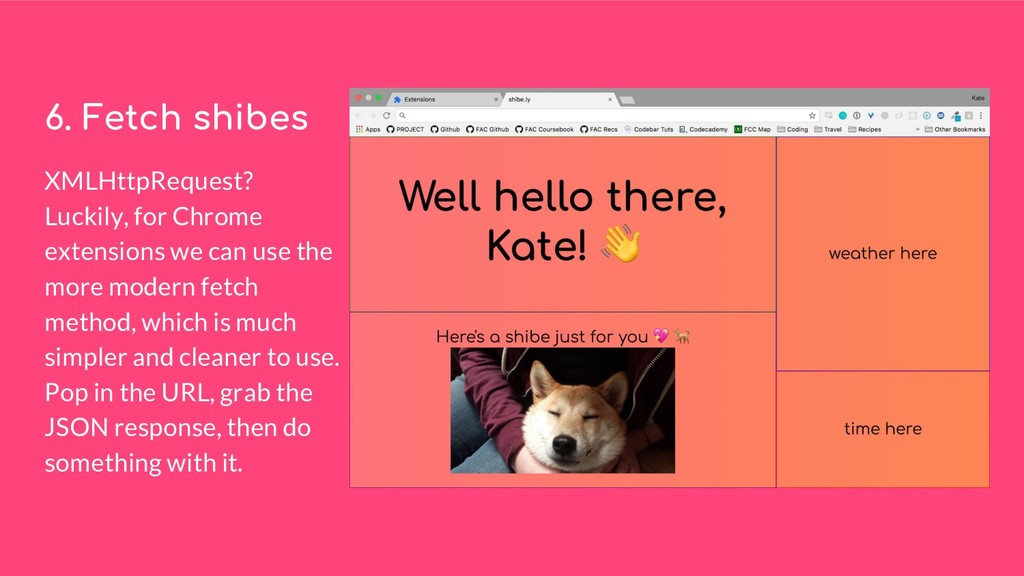
  11. 6. Fetch shibes XMLHttpRequest? Luckily, for Chrome extensions we can

    use the more modern fetch method, which is much simpler and cleaner to use. Pop in the URL, grab the JSON response, then do something with it.
  12. 6. Fetch shibes XMLHttpRequest? Luckily, for Chrome extensions we can

    use the more modern fetch method, which is much simpler and cleaner to use. Pop in the URL, grab the JSON response, then do something with it.
  13. 6. Fetch shibes XMLHttpRequest? Luckily, for Chrome extensions we can

    use the more modern fetch method, which is much simpler and cleaner to use. Pop in the URL, grab the JSON response, then do something with it.
  14. 6. Fetch shibes XMLHttpRequest? Luckily, for Chrome extensions we can

    use the more modern fetch method, which is much simpler and cleaner to use. Pop in the URL, grab the JSON response, then do something with it.
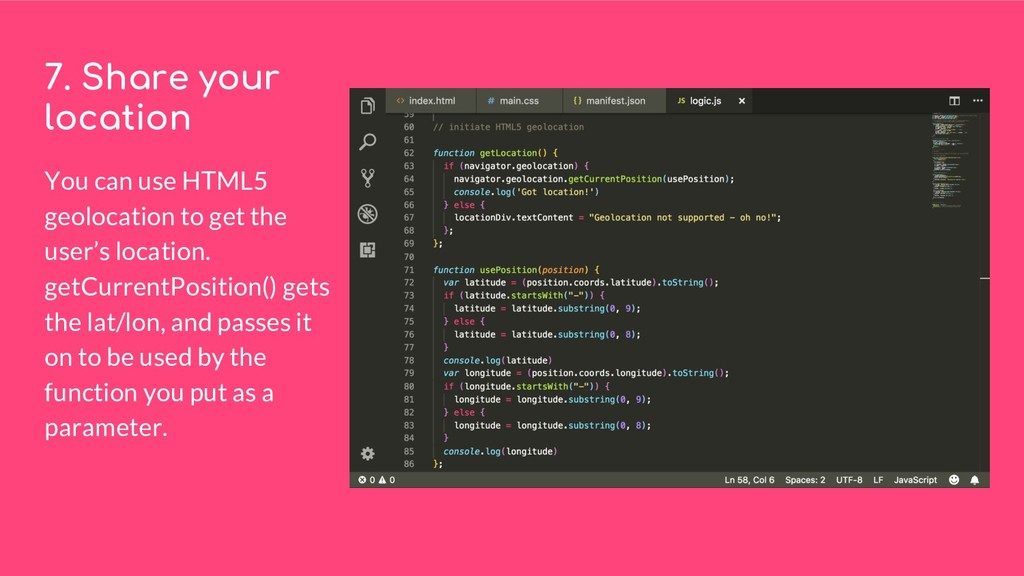
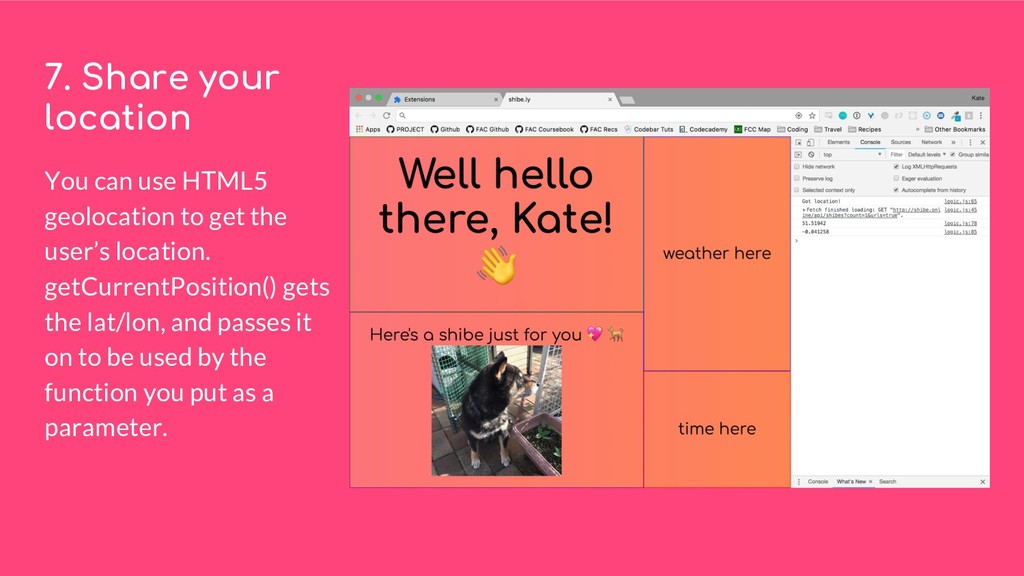
  15. 7. Share your location You can use HTML5 geolocation to

    get the user’s location. getCurrentPosition() gets the lat/lon, and passes it on to be used by the function you put as a parameter.
  16. 7. Share your location You can use HTML5 geolocation to

    get the user’s location. getCurrentPosition() gets the lat/lon, and passes it on to be used by the function you put as a parameter.
  17. 8. Yahoo Weather API • Free and also happens to

    be one of the best weather APIs out there • Queries are made using YQL (Yahoo Query Language) which is somewhat human-readable: SELECT * FROM weather.forecast WHERE woeid IN (SELECT woeid FROM geo.places WHERE text="(51.51, -0.040)");
  18. 8. Weather time! Still inside the usePosition() function, we’re going

    to fetch the Yahoo weather API using the lat/lon and use the response to plug in the various bits of weather info we want.
  19. 8. Weather time! Still inside the usePosition() function, we’re going

    to fetch the Yahoo weather API using the lat/lon and use the response to plug in the various bits of weather info we want.
  20. 8. Weather time! Still inside the usePosition() function, we’re going

    to fetch the Yahoo weather API using the lat/lon and use the response to plug in the various bits of weather info we want.
  21. 9. Time time! Use the Date() object to get all

    your info, then use as much as you want. You will need to do a bit to format it, but it’s pretty straightforward.
  22. 9. Time time! Use the Date() object to get all

    your info, then use as much as you want. You will need to do a bit to format it, but it’s pretty straightforward.
  23. 9. Time time! Use the Date() object to get all

    your info, then use as much as you want. You will need to do a bit to format it, but it’s pretty straightforward.
  24. 9. Time time! Use the Date() object to get all

    your info, then use as much as you want. You will need to do a bit to format it, but it’s pretty straightforward.
  25. 10. Put it out into the world! • Create a

    zip file of the folder containing all your files, including the manifest • Go to the web store developer dashboard • Click ‘Add new item’ and upload the zip file, then fill in the information (icon, description, screenshot, etc) • Pay developer fee ($5) • Publish!
  26. Links • Chrome developer docs: https://developer.chrome.com/extensions • Shibes as a

    Service: https://shibe.online/ • JSONView: https://chrome.google.com/webstore/detail/jsonview/chklaanhfefbnpoihckbnefhakgolnmc • Yahoo Weather API: https://developer.yahoo.com/weather/ • Momentum: https://chrome.google.com/webstore/detail/momentum/laookkfknpbbblfpciffpaejjkokdgca • Lagom: https://chrome.google.com/webstore/detail/lagom/kmklifknlepgmbbigahhphncmgkppbjb • Tabby Cat: https://chrome.google.com/webstore/detail/tabby-cat/mefhakmgclhhfbdadeojlkbllmecialg?hl=en • Tabagotchi: http://tabagotchi.com/ • Just DO It: https://chrome.google.com/webstore/detail/do-it-shia-labeouf-super/miagjfhahnjmnnmhdgelhmbpjgojfnok • Libdoge: https://chrome.google.com/webstore/detail/libdoge/ifbchccfedjkkhlnffjckaghjdpchhmo • nCage: https://chrome.google.com/webstore/detail/ncage/hnbmfljfohghaepamnfokgggaejlmfol And last but not least... • shibe.ly! https://chrome.google.com/webstore/detail/shibely/okphejkfibpegbllmmlomdngdoabmajh