Upgrade to Pro — share decks privately, control downloads, hide ads and more …

All your history are belong to Git

All your history are belong to Git

An in-depth look on how we use Git. An analysis on it's architecture and our daily use with the goal to understand the what/why/how so we can better adapt to new situations and stop depending on memorized formulas.

Avatar for Luciano Longo

Luciano Longo

July 10, 2015

Other Decks in Programming

Transcript

  1. WTF is GIT!? WTF is GIT!? Tree Tree of of

    changes changes over time? over time? Not quite. Git is a Git is a DAG DAG of of snapshots snapshots. .
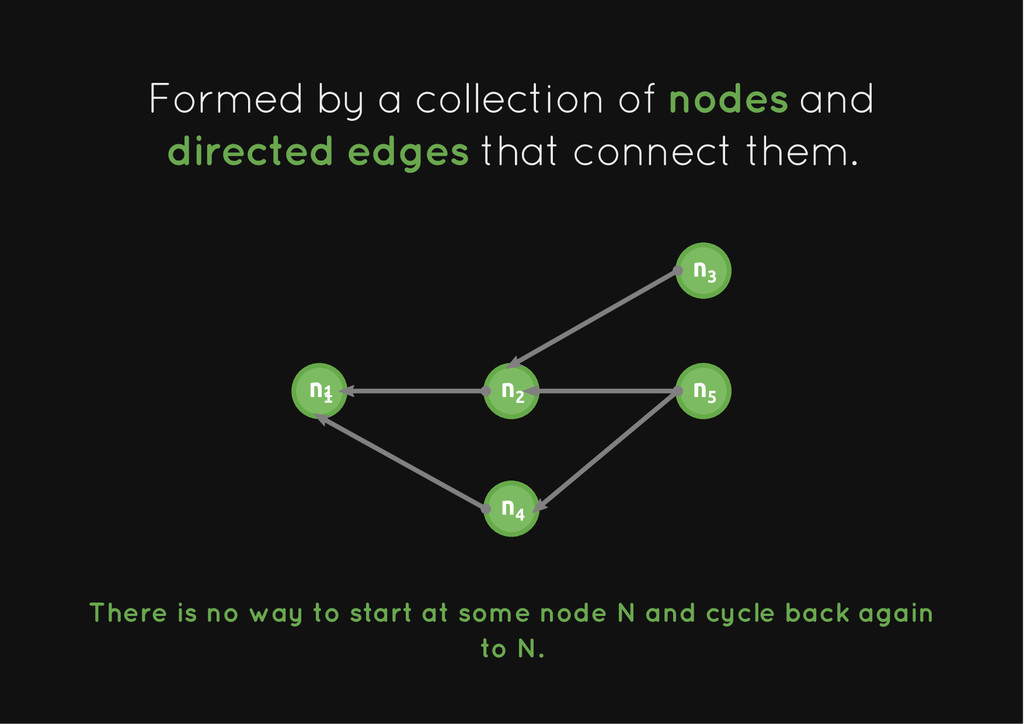
  2. Directed Acyclic Graph Directed Acyclic Graph A A DAG DAG,

    is a , is a directed graph directed graph with with no directed cycles no directed cycles. .
  3. Formed by a collection of Formed by a collection of

    nodes nodes and and directed edges directed edges that connect them. that connect them. n1 n2 n2 n2 n2 There is no way to start at some node N and cycle back again to N.
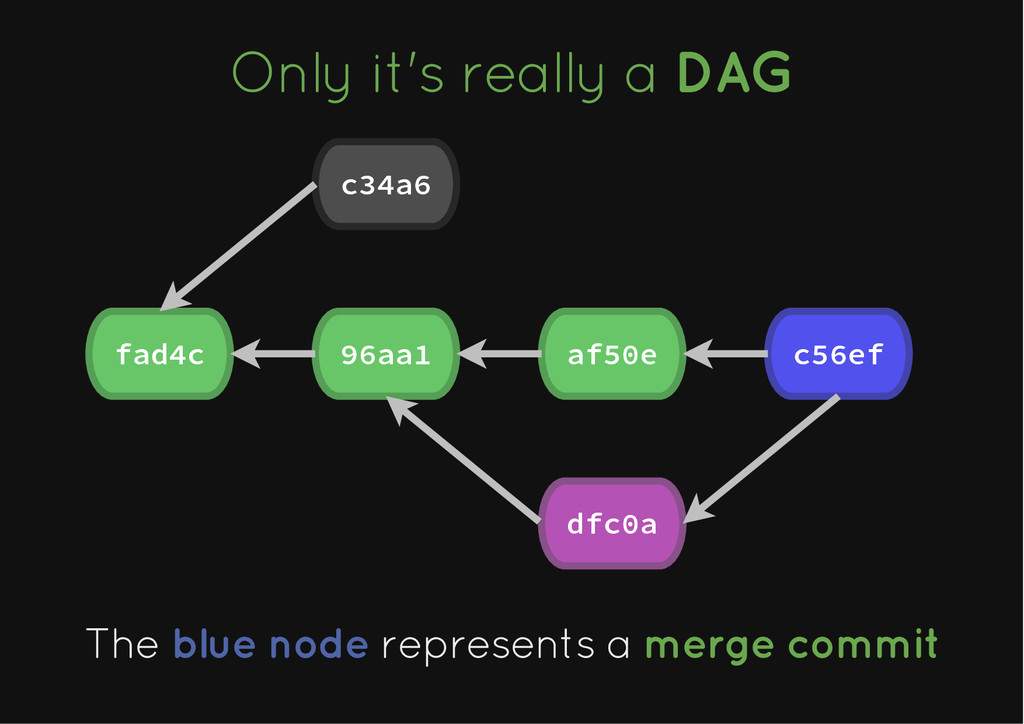
  4. The difference with a tree is that The difference with

    a tree is that . . A tree doesn't allow nodes to have multiple A tree doesn't allow nodes to have multiple parents. parents. odes in a DAG can have multiple parents odes in a DAG can have multiple parents
  5. The most common case of this in git is The

    most common case of this in git is when you do a merge. when you do a merge. A merge commit will have all of the A merge commit will have all of the commits that were merged as parents. commits that were merged as parents.
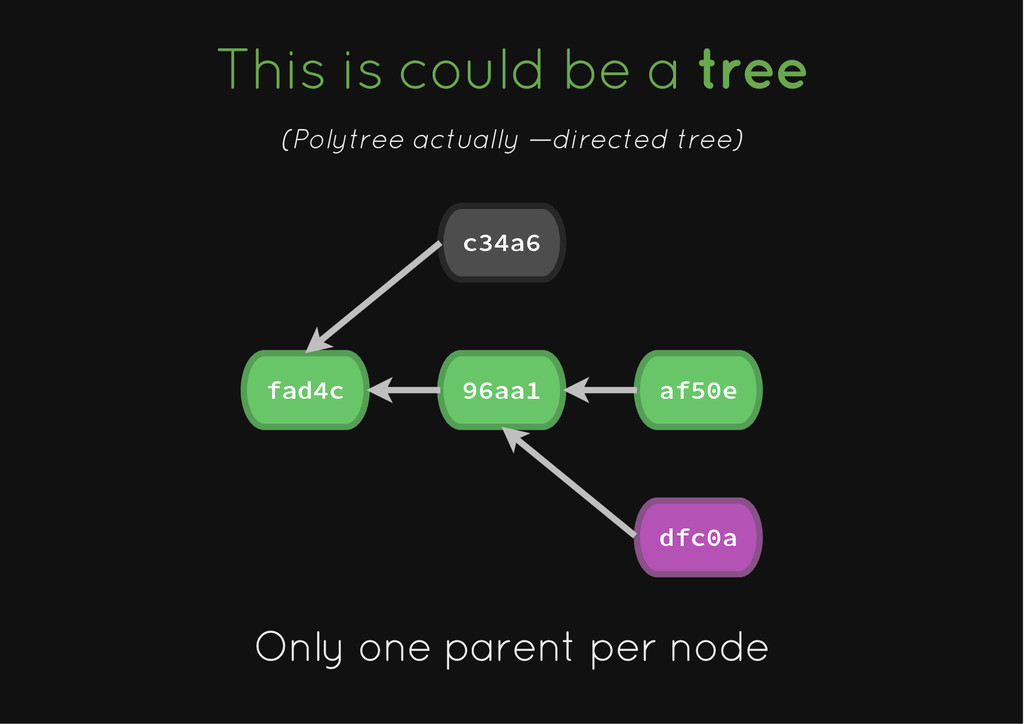
  6. This is could be a This is could be a

    tree tree (Polytree actually —directed tree) fad4c 96aa1 dfc0a af50e c34a6 Only one parent per node Only one parent per node
  7. Only it's really a Only it's really a DAG DAG

    fad4c 96aa1 dfc0a af50e c56ef c34a6 The The blue node blue node represents a represents a merge commit merge commit
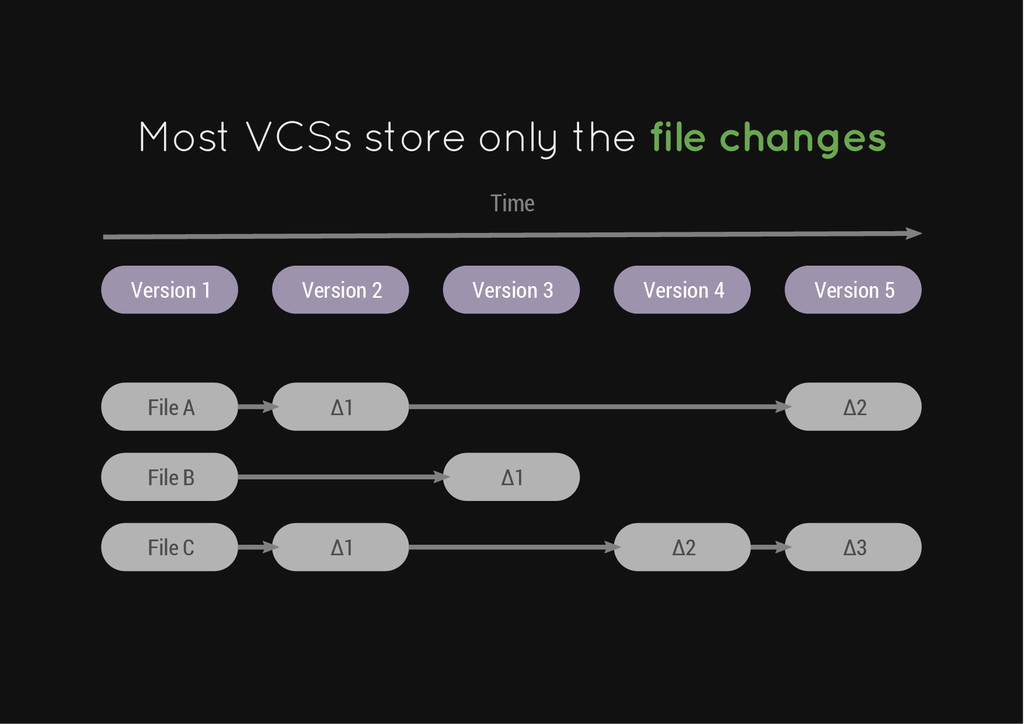
  8. Most VCSs store only the Most VCSs store only the

    file changes file changes Version 1 Version 2 Version 3 Version 4 Version 5 File A ∆1 ∆2 File B File C ∆1 ∆2 ∆3 Time ∆1
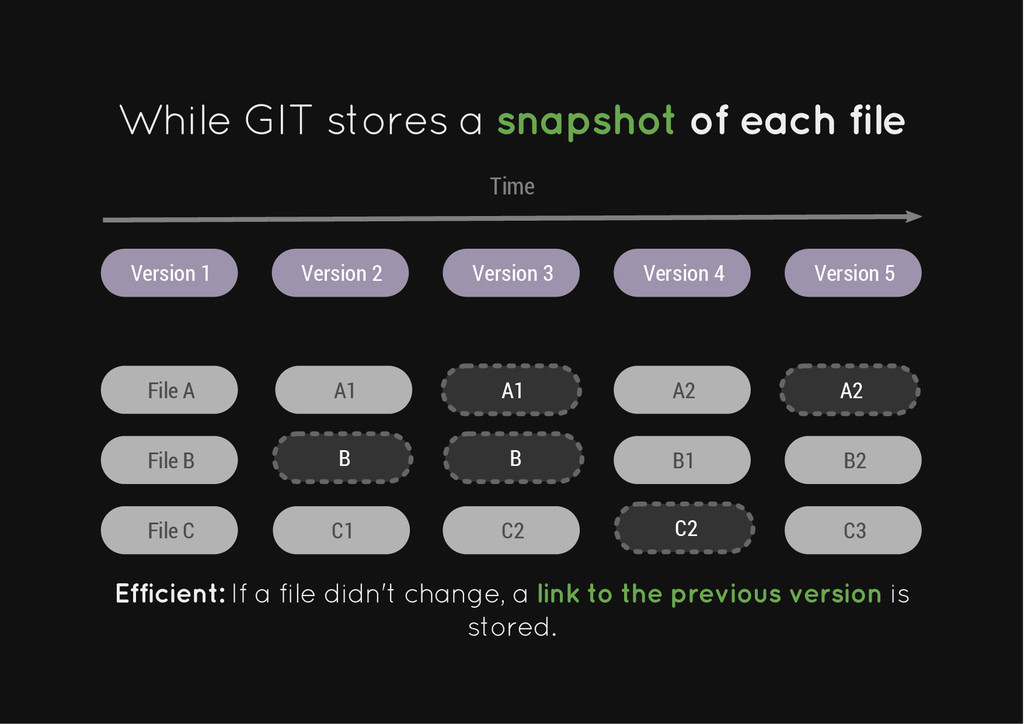
  9. While GIT stores a While GIT stores a snapshot snapshot

    of each file of each file Version 1 Version 2 Version 3 Version 4 Version 5 File A File B File C ∆1 Time A1 C1 A1 A2 A2 B B B1 B2 C2 C3 C2 Efficient: Efficient: If a file didn't change, a If a file didn't change, a link to the previous version link to the previous version is is stored. stored.
  10. What's a commit? What's a commit? A commit contains a

    snapshot of the files at a given point in time.
  11. It also contains some other information. It also contains some

    other information. Id (hash) Author Committer Comment Parent commits (if any) Tree Date
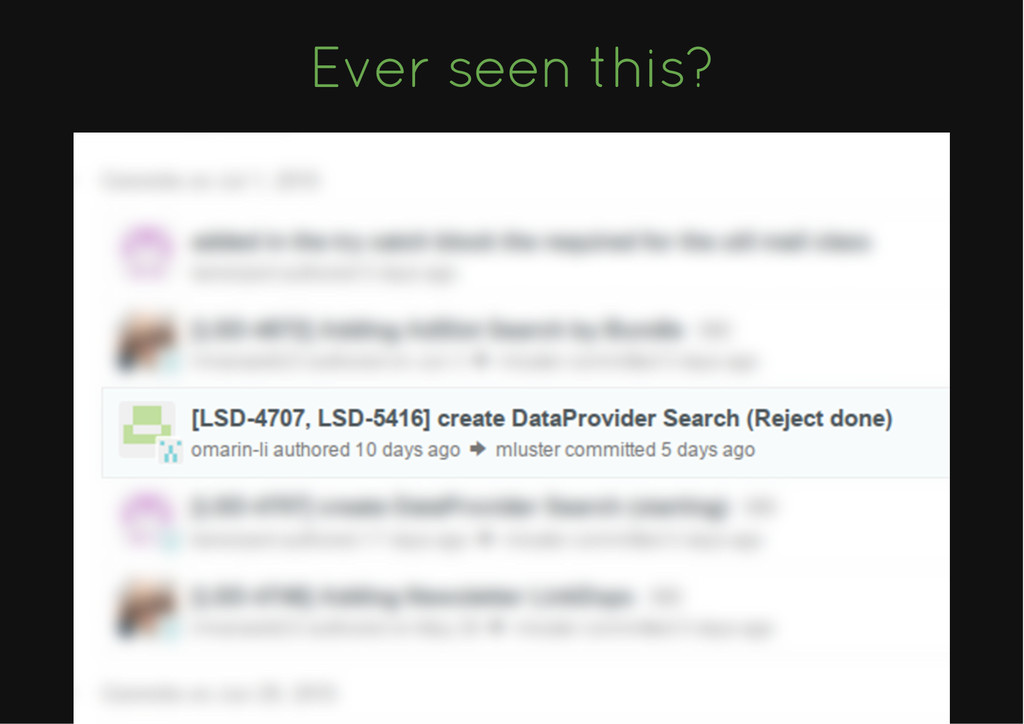
  12. Wait a second... Aren't Author & Commiter the same thing?

    Aren't Author & Commiter the same thing? Actually... Actually... no. no. They might be the same. But they mean different things.
  13. But enough of this, it's just metadata. What's a commit

    What's a commit really really made made of? of?
  14. Git Git is actually a very simple is actually a

    very simple key-value data key-value data store store. . You can give it anything, it will store it and You can give it anything, it will store it and give you back a key. give you back a key.
  15. The file it creates is called a The file it

    creates is called a blob blob. It is the . It is the zlib-deflated representation of any given zlib-deflated representation of any given content. content. Git uses blobs to save the different versions Git uses blobs to save the different versions of your files. of your files.
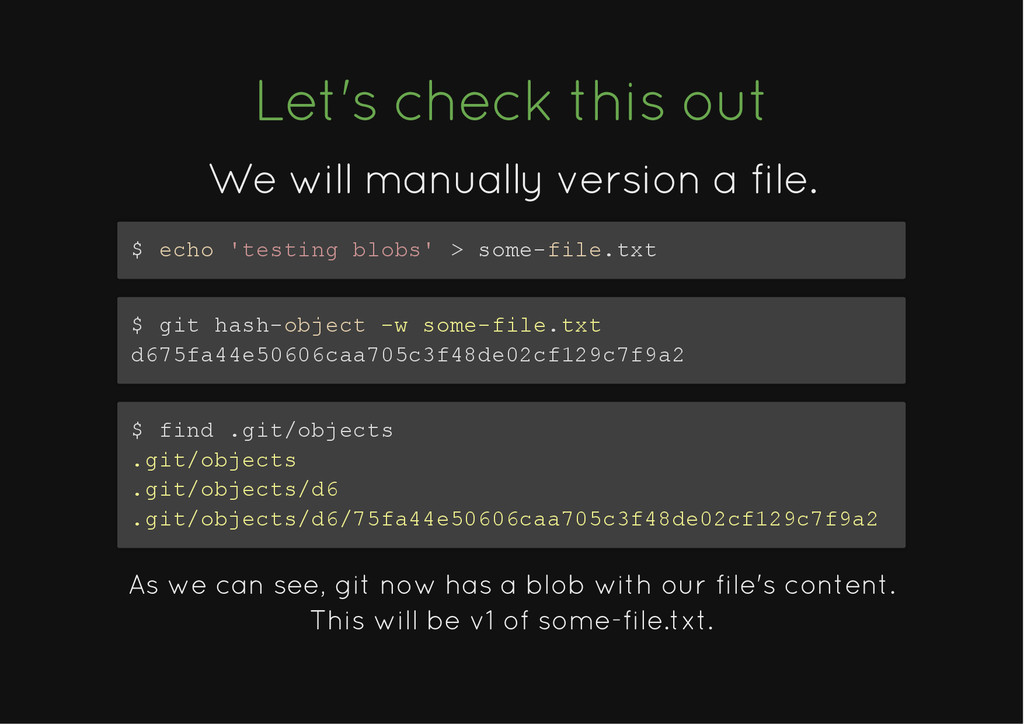
  16. Let's check this out Let's check this out We will

    manually version a file. We will manually version a file. $ echo 'testing blobs' > some-file.txt $ git hash-object -w some-file.txt d675fa44e50606caa705c3f48de02cf129c7f9a2 $ find .git/objects .git/objects .git/objects/d6 .git/objects/d6/75fa44e50606caa705c3f48de02cf129c7f9a2 As we can see, git now has a blob with our file's content. This will be v1 of some-file.txt.
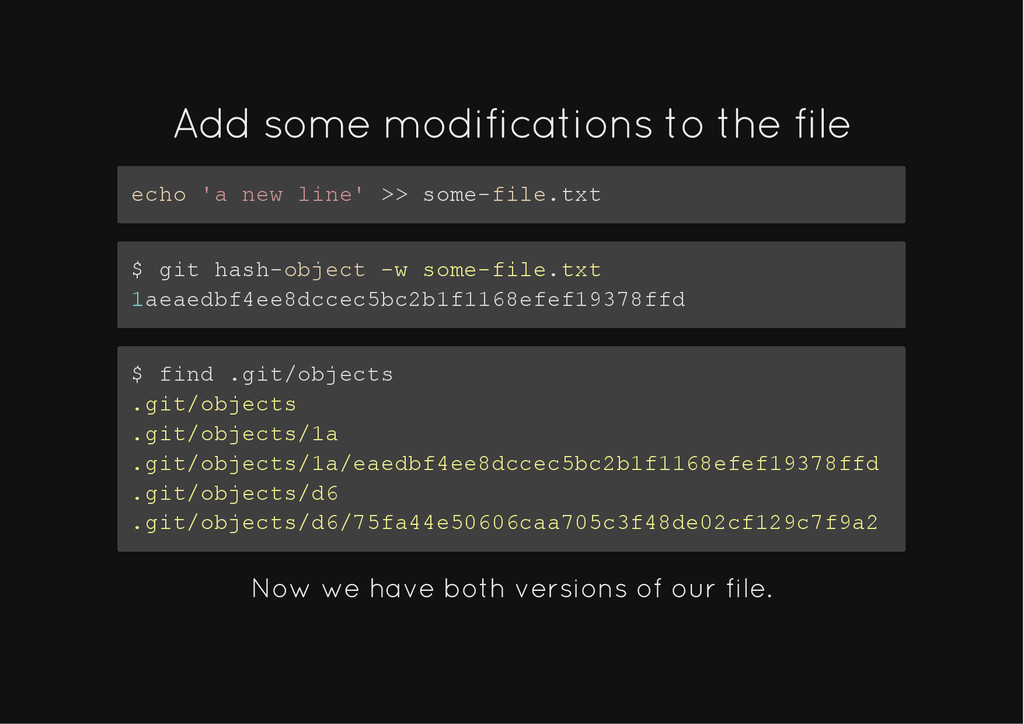
  17. Add some modifications to the file Add some modifications to

    the file echo 'a new line' >> some-file.txt $ git hash-object -w some-file.txt 1aeaedbf4ee8dccec5bc2b1f1168efef19378ffd $ find .git/objects .git/objects .git/objects/1a .git/objects/1a/eaedbf4ee8dccec5bc2b1f1168efef19378ffd .git/objects/d6 .git/objects/d6/75fa44e50606caa705c3f48de02cf129c7f9a2 Now we have both versions of our file.
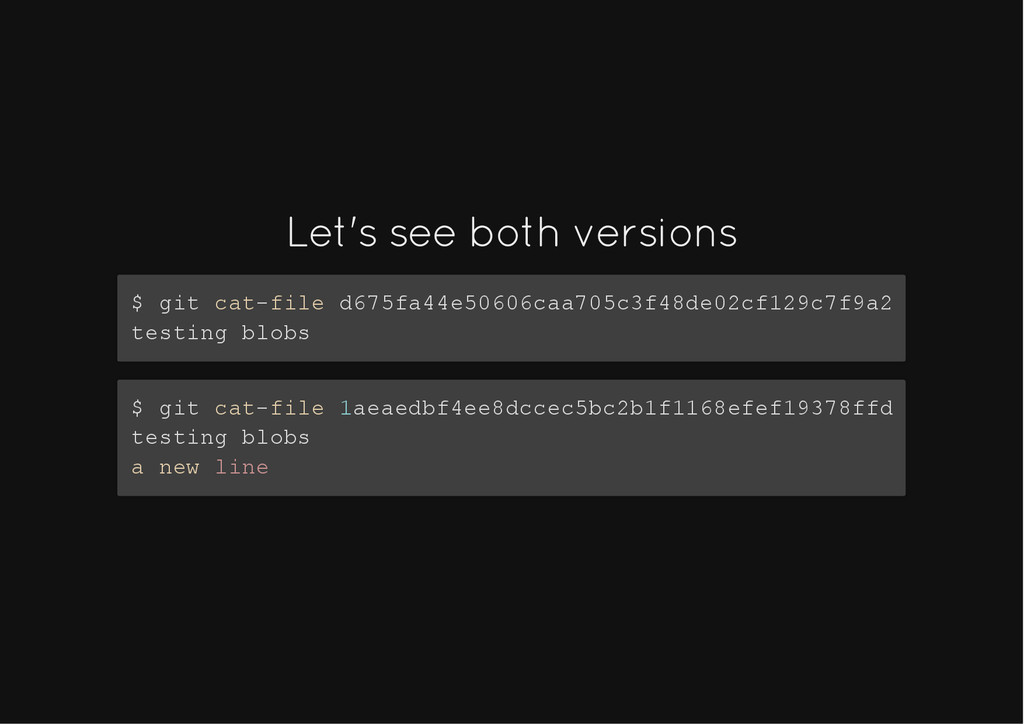
  18. Let's see both versions Let's see both versions $ git

    cat-file d675fa44e50606caa705c3f48de02cf129c7f9a2 testing blobs $ git cat-file 1aeaedbf4ee8dccec5bc2b1f1168efef19378ffd testing blobs a new line
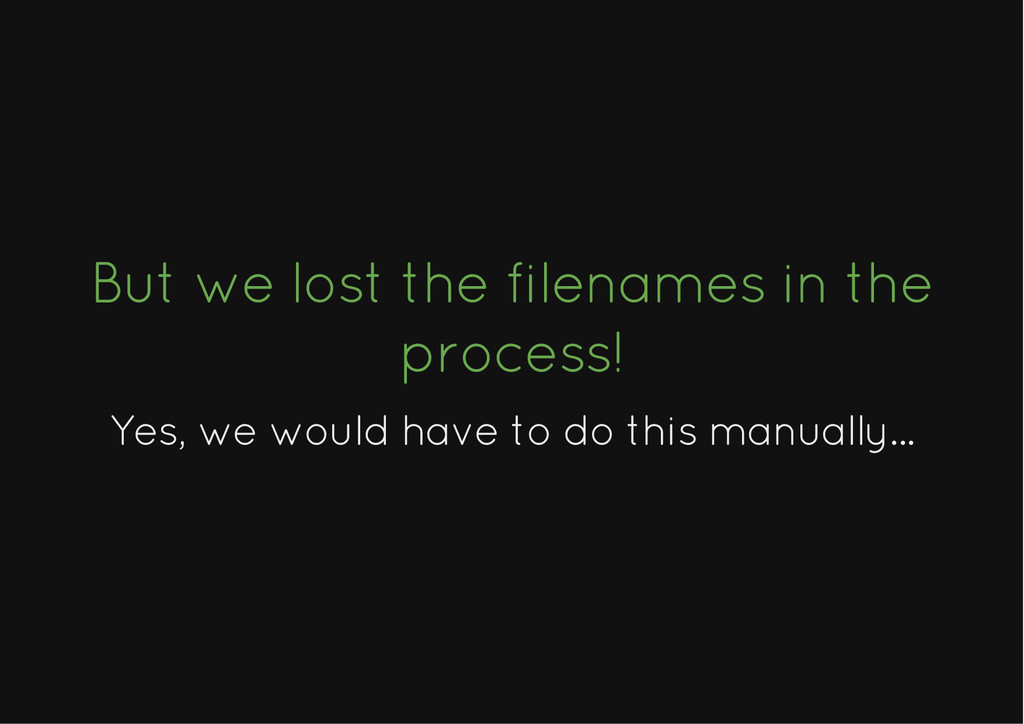
  19. But we lost the filenames in the But we lost

    the filenames in the process! process! Yes, we would have to do this manually... Yes, we would have to do this manually...
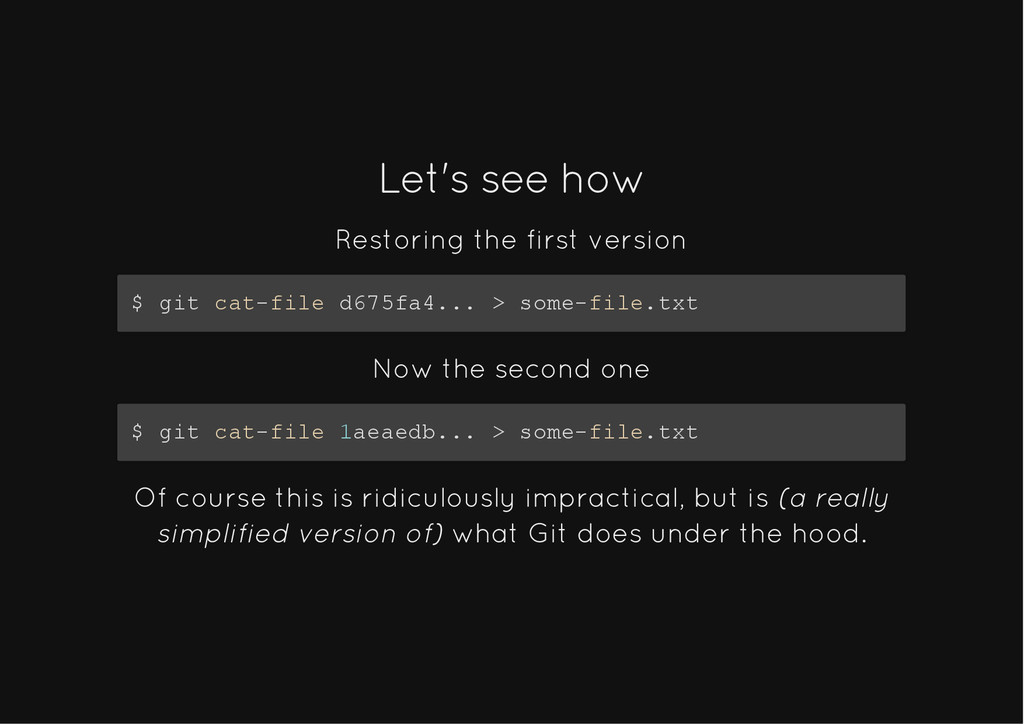
  20. Let's see how Let's see how Restoring the first version

    $ git cat-file d675fa4... > some-file.txt Now the second one $ git cat-file 1aeaedb... > some-file.txt Of course this is ridiculously impractical, but is (a really simplified version of) what Git does under the hood.
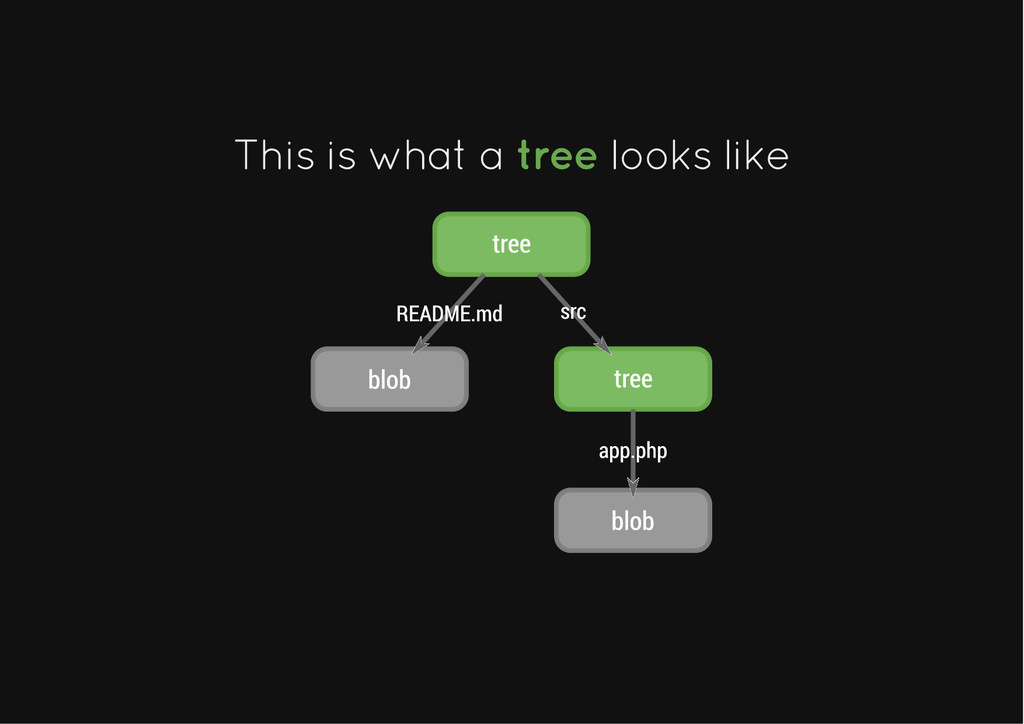
  21. Enter the Enter the Tree object Tree object. . A

    A tree tree references references other trees other trees and and blobs blobs. It . It also stores the also stores the filename filename that correspond to that correspond to each tree and blob it contains. each tree and blob it contains.
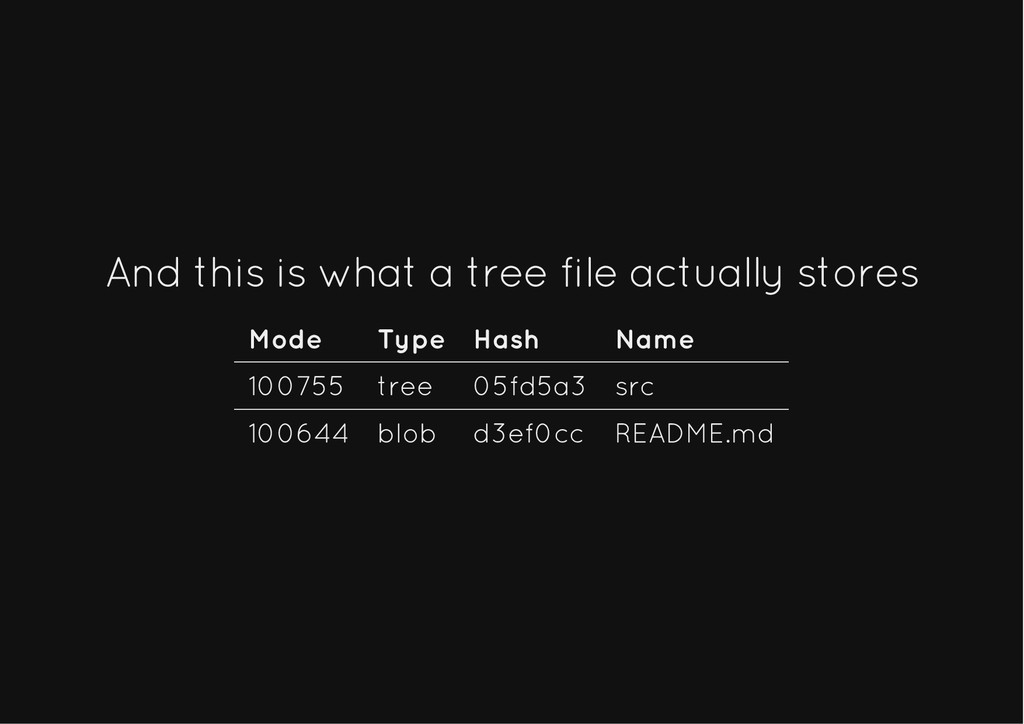
  22. And this is what a tree file actually stores And

    this is what a tree file actually stores Mode Type Hash Name 100755 tree 05fd5a3 src 100644 blob d3ef0cc README.md
  23. Yes, it does look like a Yes, it does look

    like a filesystem. filesystem. That's because That's because it's Git's representation of the files in the it's Git's representation of the files in the repository. repository. A A tree tree is a is a directory directory and a and a blob blob is a is a file file. .
  24. You may have noticed that You may have noticed that

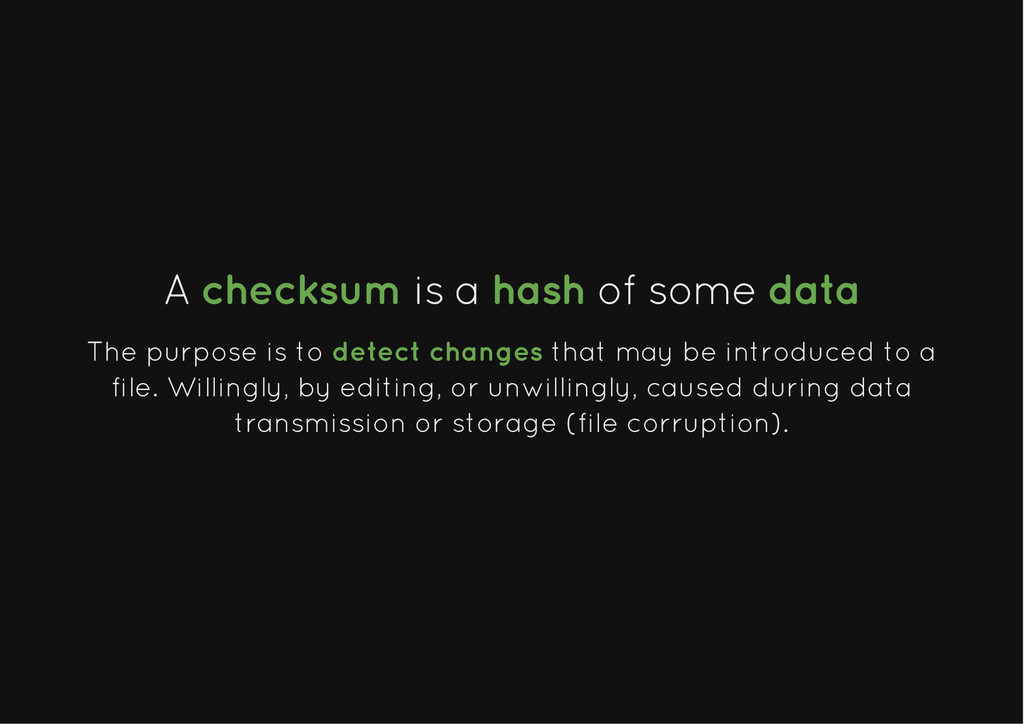
    blobs blobs and and trees trees are identified by a are identified by a hash hash. . This is not just a simple identifier This is not just a simple identifier
  25. A A checksum checksum is a is a hash hash

    of some of some data data The purpose is to detect changes that may be introduced to a file. Willingly, by editing, or unwillingly, caused during data transmission or storage (file corruption).
  26. Commits Commits, , blobs blobs and and trees trees are

    are checksumed checksumed. . And the resulting hash is used to identify each of this objects. This also means...
  27. Data integrity FTW! Data integrity FTW! There is There is

    no data corruption no data corruption that can go that can go unnoticed to Git. unnoticed to Git.
  28. The The Working Directory Working Directory The working directory are

    your files at a given point in time (commit). These are the files you work on.
  29. The Staging Area The Staging Area The staging area (AKA

    The Index) is a pre-commit stage that you use to add the changes to be commited next.
  30. Remote Repository Remote Repository The remote repository is a copy

    of your local repository in some other machine. When you clone a repository you're downloading a copy of it. It will remember where's the original, to know where it should fetch from and push to. This will be called origin by default.
  31. What do we talk about when we talk about What

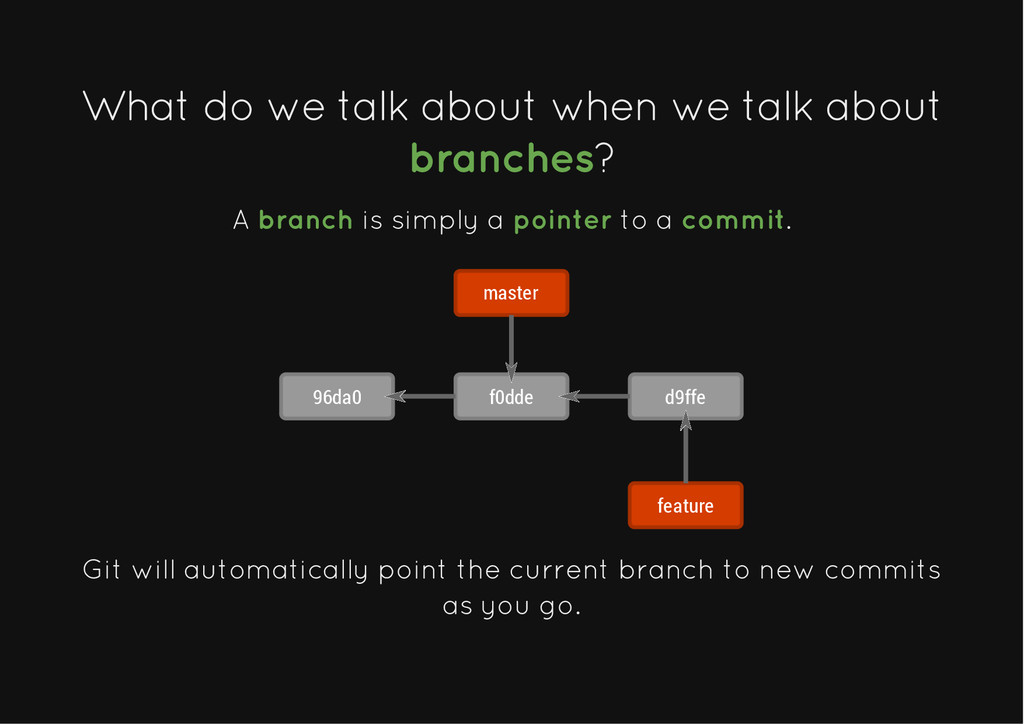
    do we talk about when we talk about branches branches? ? A branch is simply a pointer to a commit. 96da0 f0dde d9ffe feature master Git will automatically point the current branch to new commits as you go.
  32. But, how does Git know which is the But, how

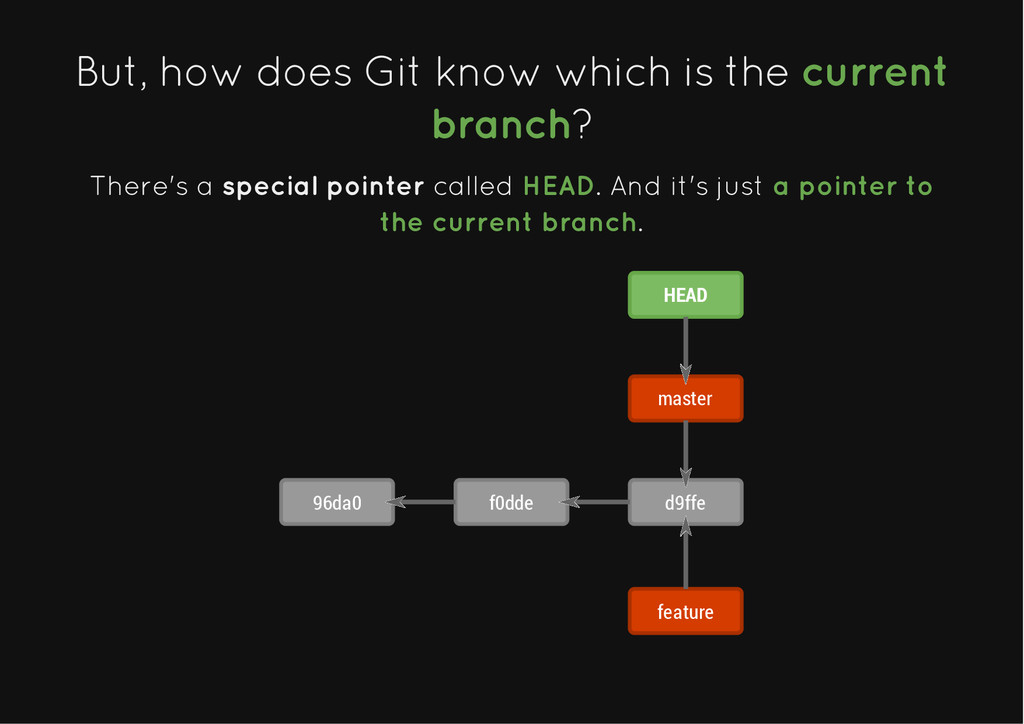
    does Git know which is the current current branch branch? ? There's a special pointer called HEAD. And it's just a pointer to the current branch. 96da0 f0dde d9ffe feature master HEAD
  33. Bonus: Bonus: Detached HEAD State Detached HEAD State Note: checking

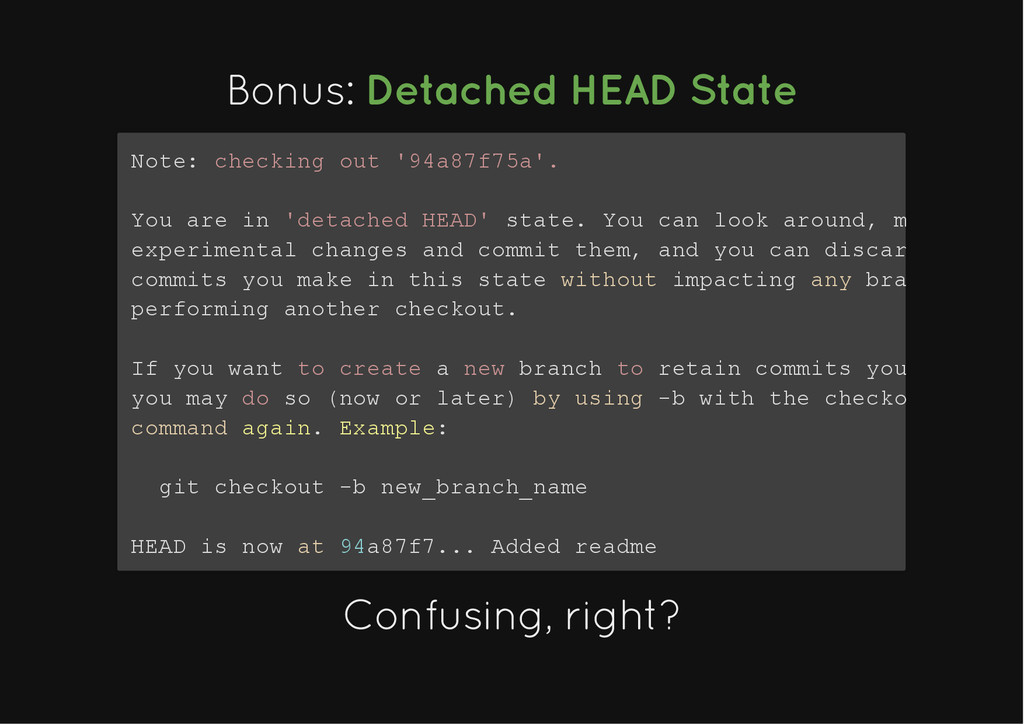
    out '94a87f75a'. You are in 'detached HEAD' state. You can look around, make experimental changes and commit them, and you can discard commits you make in this state without impacting any branches performing another checkout. If you want to create a new branch to retain commits you you may do so (now or later) by using -b with the checkout command again. Example: git checkout -b new_branch_name HEAD is now at 94a87f7... Added readme Confusing, right? Confusing, right?
  34. It's It's a lot simpler a lot simpler than it

    looks like than it looks like The detached HEAD state happens when you check out a commit or a tag that is not the latest in the branch, i.e. your HEAD no longer points to a branch. Git will let you make new commits, creating a tangent in history, which you can keep by creating a new branch, or discard, by checking out another branch.
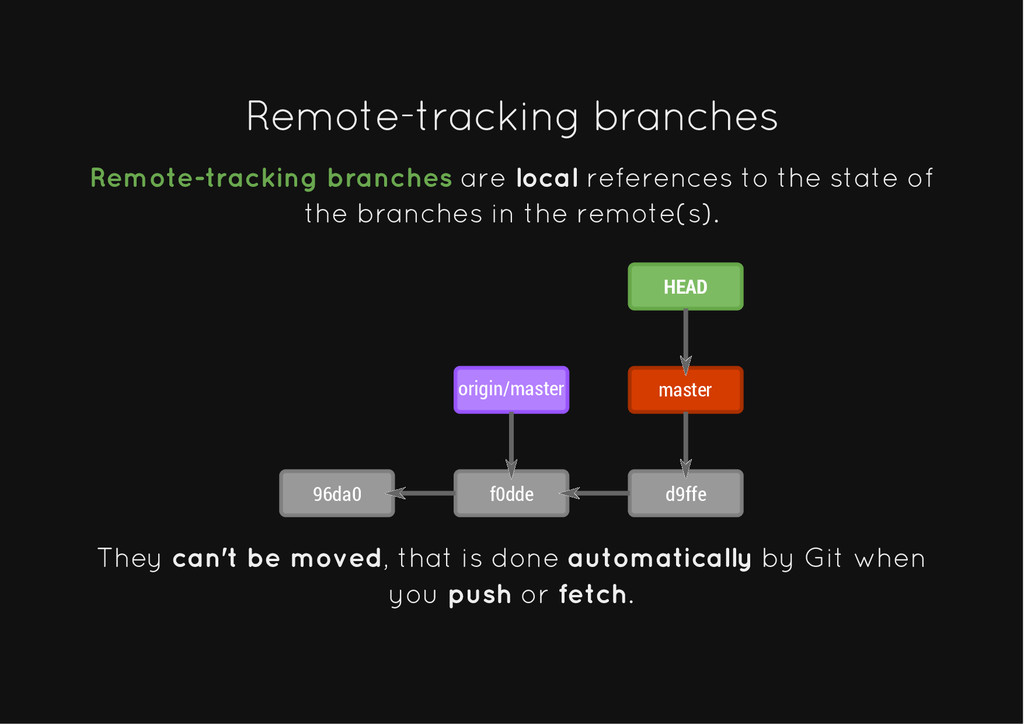
  35. Remote-tracking branches Remote-tracking branches Remote-tracking branches are local references to

    the state of the branches in the remote(s). 96da0 f0dde d9ffe origin/master master HEAD They can't be moved, that is done automatically by Git when you push or fetch.
  36. Go with the flow Go with the flow Phew! We've

    covered the basics! But it's not over... We'll go into THE WORKFLOW We'll go into THE WORKFLOW
  37. What do we do every day? What do we do

    every day? Besides commit... Push & Pull Push & Pull
  38. You probaby know this already You probaby know this already

    But you need to get this right, otherwise... YOU'RE GONNA HAVE A BAD TIME
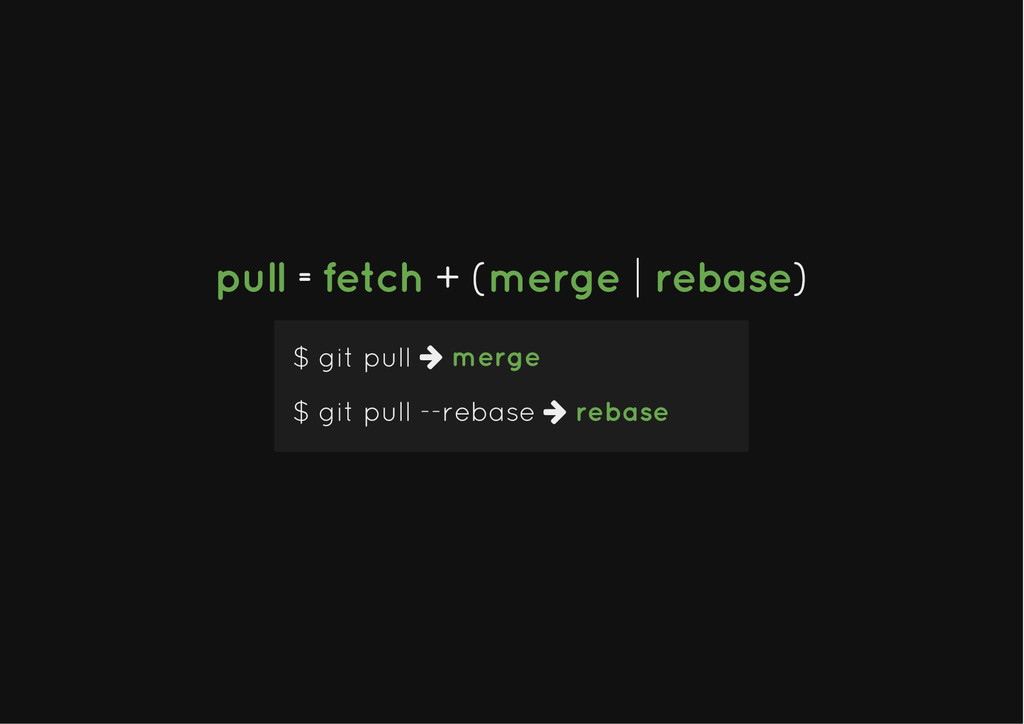
  39. pull pull = =fetch fetch + ( + (merge merge

    | | rebase rebase) ) $ git pull $ git pull --rebase merge  rebase 
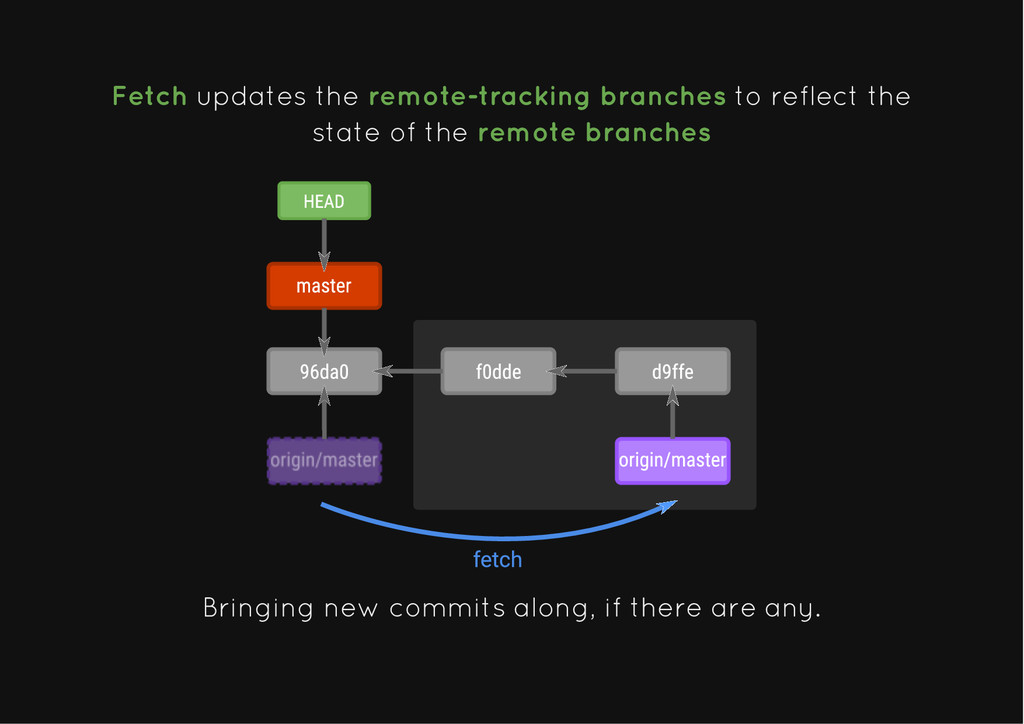
  40. Fetch updates the remote-tracking branches to reflect the state of

    the remote branches Bringing new commits along, if there are any.
  41. Yep! Just that Yep! Just that We have the new

    commits, and the updated remote-tracking branches... BUT! BUT!
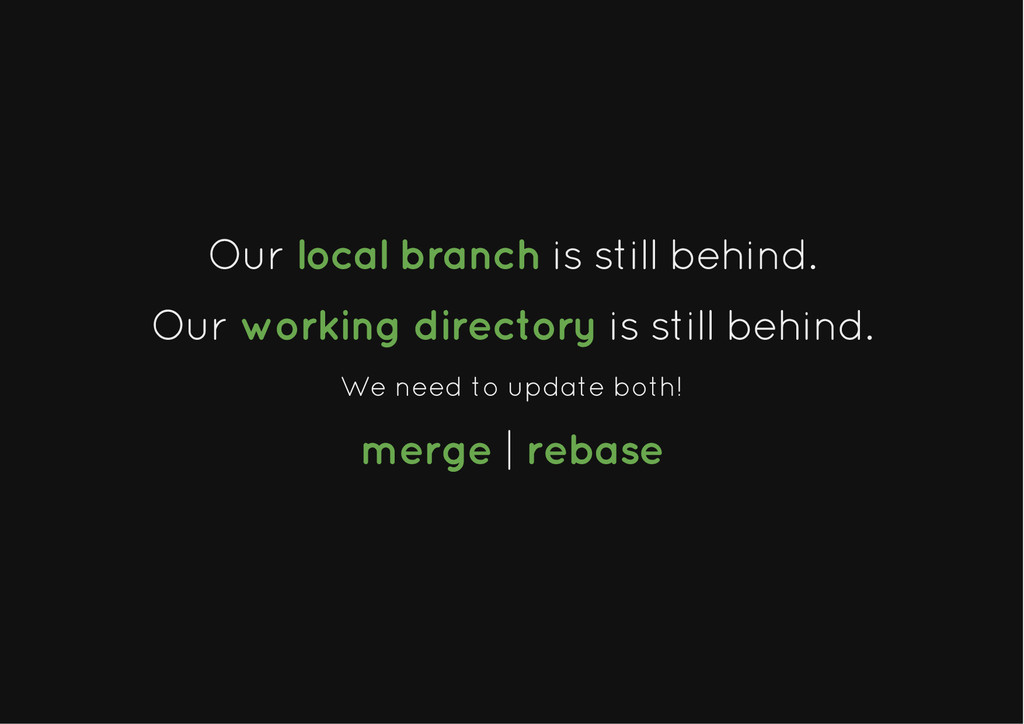
  42. Our Our local branch local branch is still behind. is

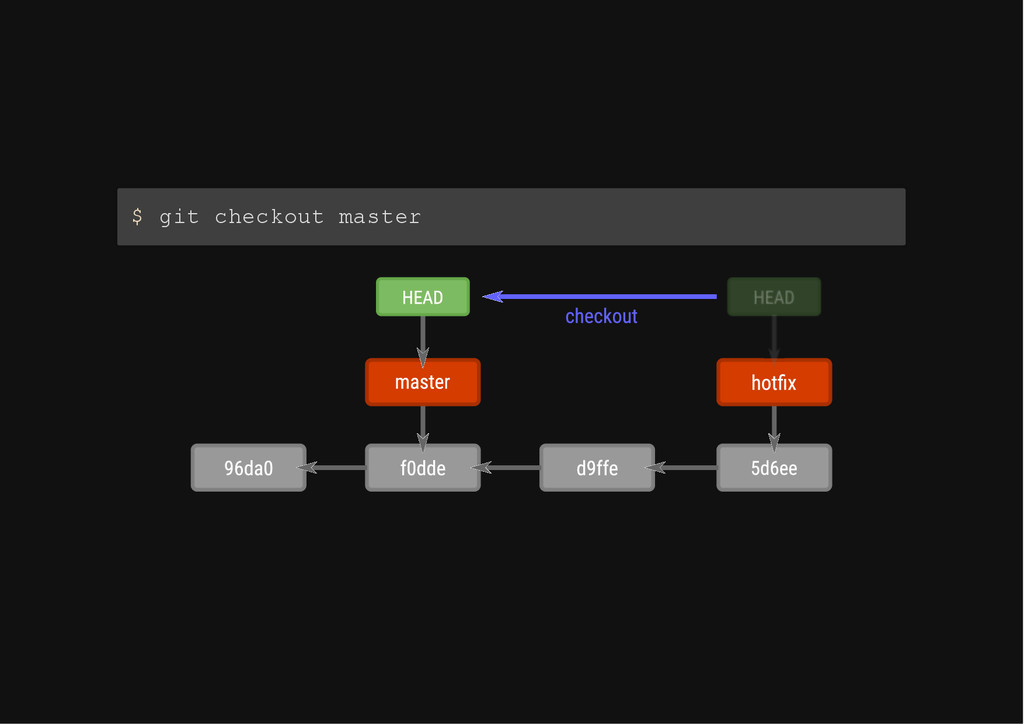
    still behind. Our Our working directory working directory is still behind. is still behind. We need to update both! merge merge | | rebase rebase
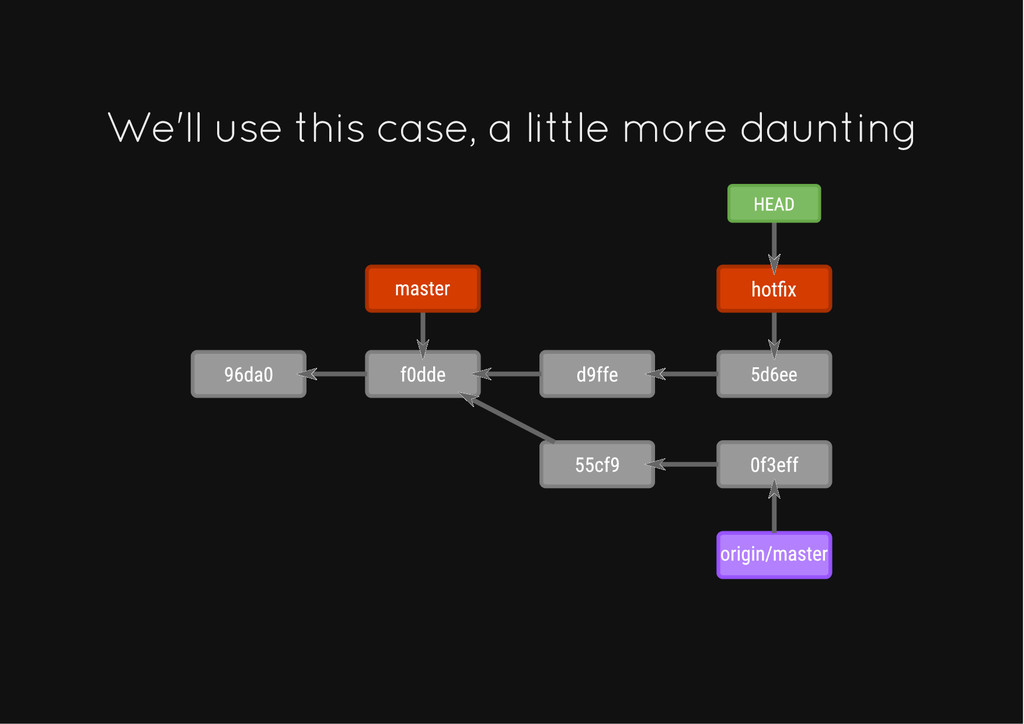
  43. We'll use this case, a little more daunting We'll use

    this case, a little more daunting
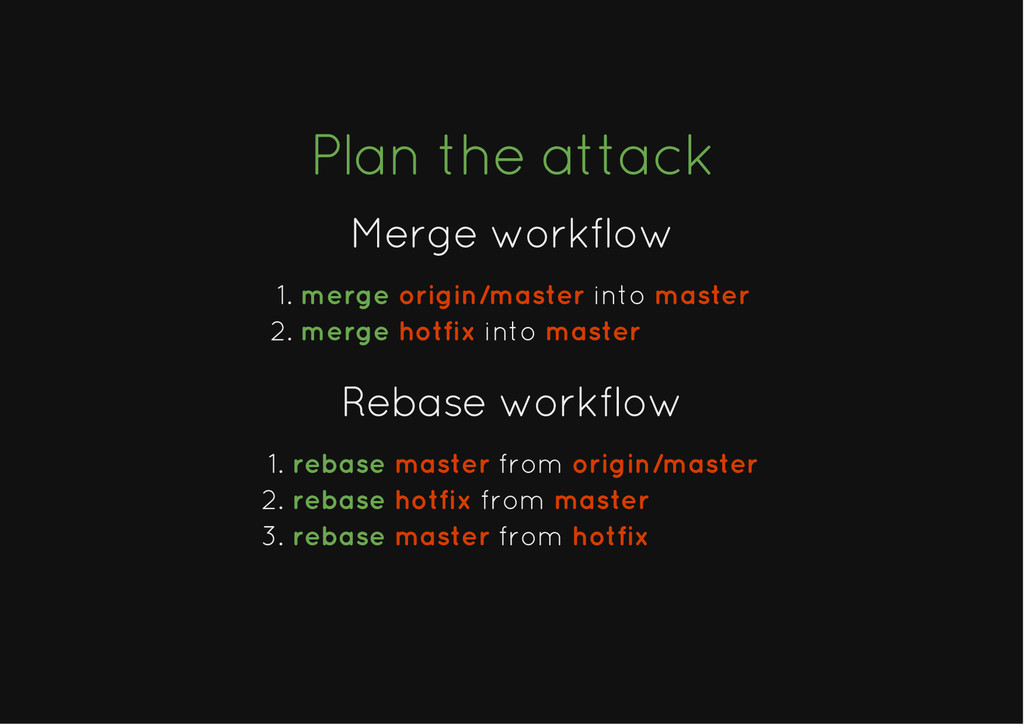
  44. Plan the attack Plan the attack Merge workflow Merge workflow

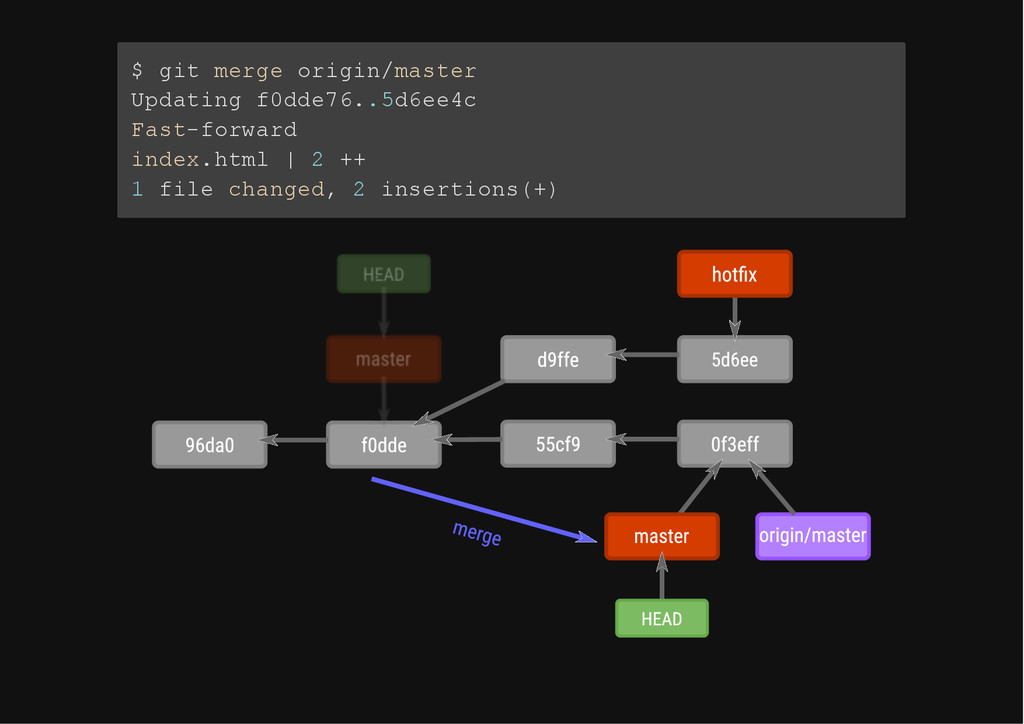
    merge origin/master into master 1. merge hotfix into master 2. Rebase workflow Rebase workflow rebase master from origin/master 1. rebase hotfix from master 2. rebase master from hotfix 3.
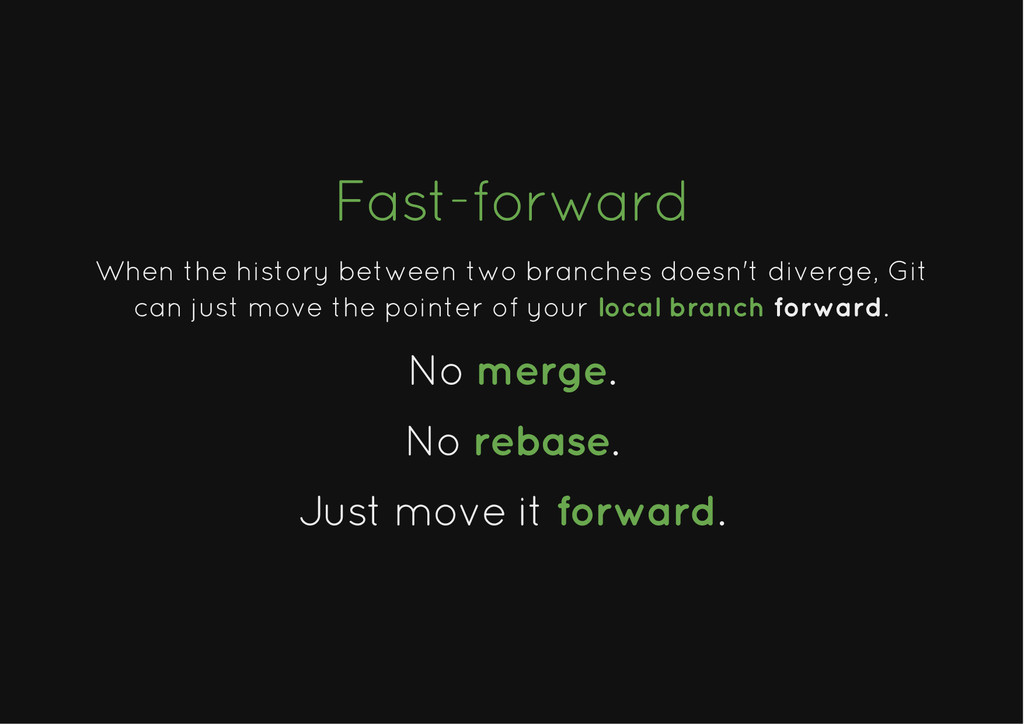
  45. Fast-forward Fast-forward When the history between two branches doesn't diverge,

    Git can just move the pointer of your local branch forward. No No merge merge. . No No rebase rebase. . Just move it Just move it forward forward. .
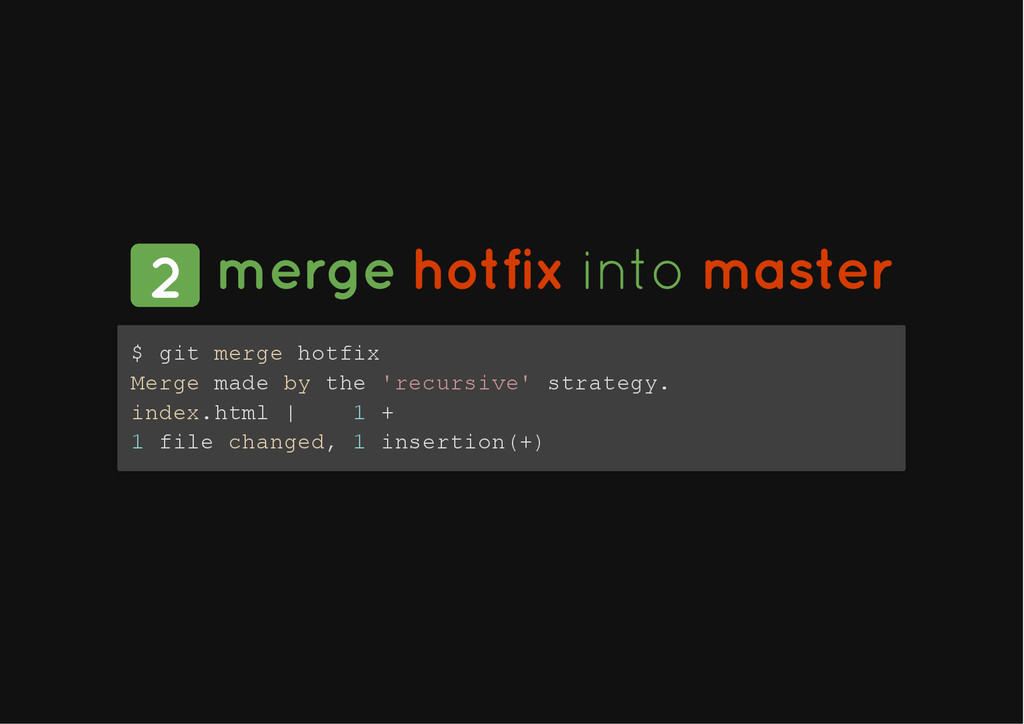
  46. 2 2 merge merge hotfix hotfix into into master master

    $ git merge hotfix Merge made by the 'recursive' strategy. index.html | 1 + 1 file changed, 1 insertion(+)
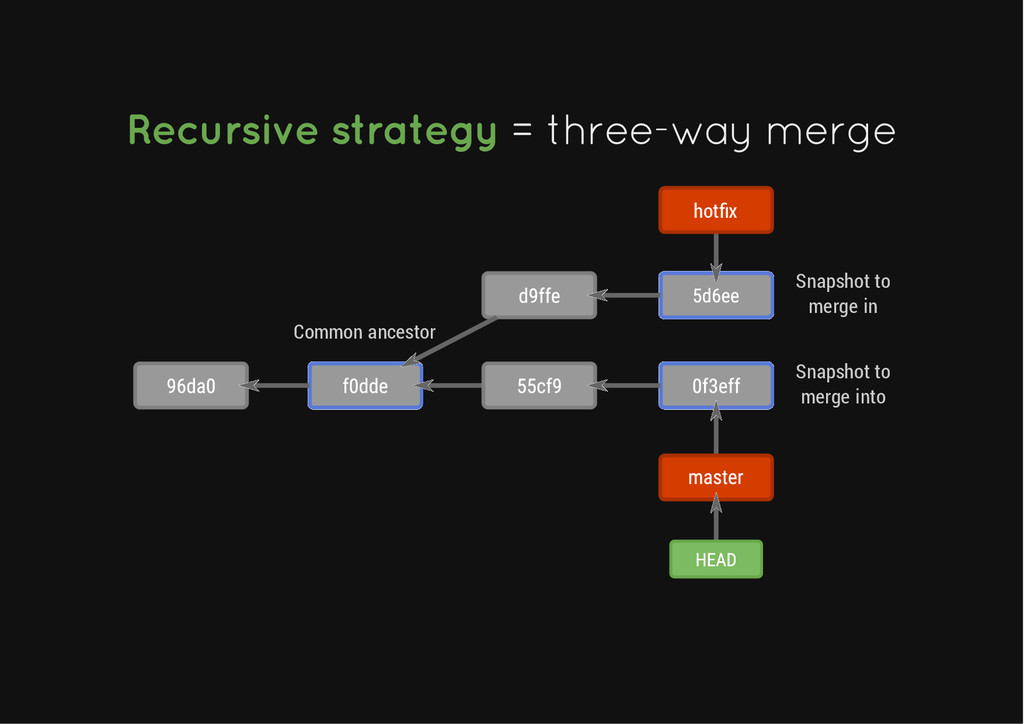
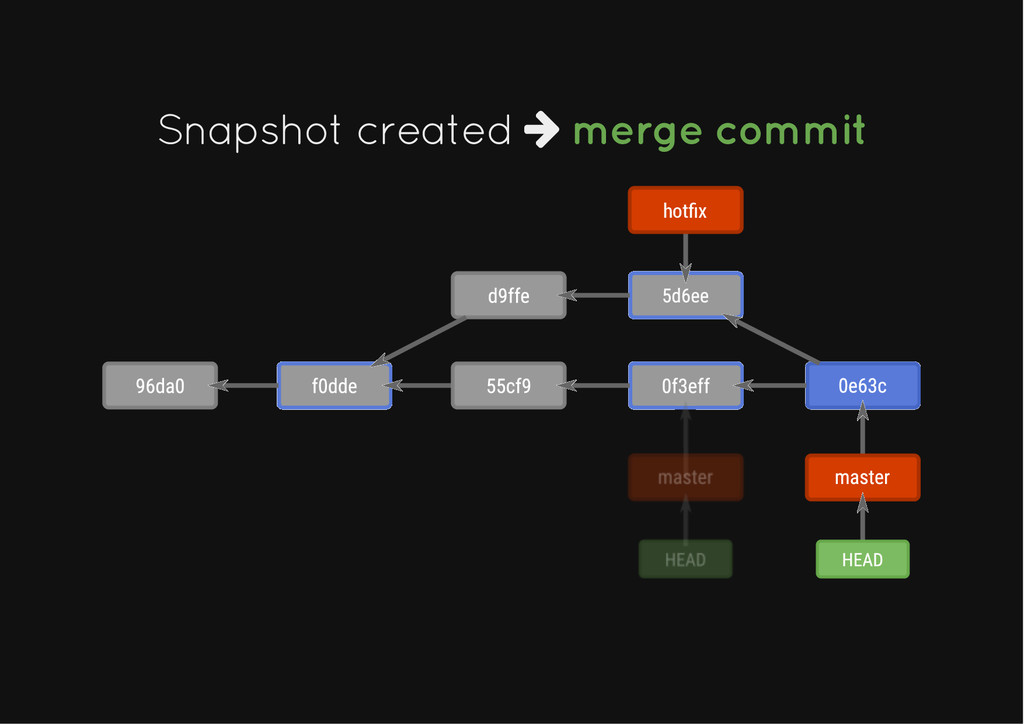
  47. Recursive strategy Recursive strategy = three-way merge = three-way merge

    Common ancestor Snapshot to merge in hotfix Snapshot to merge into
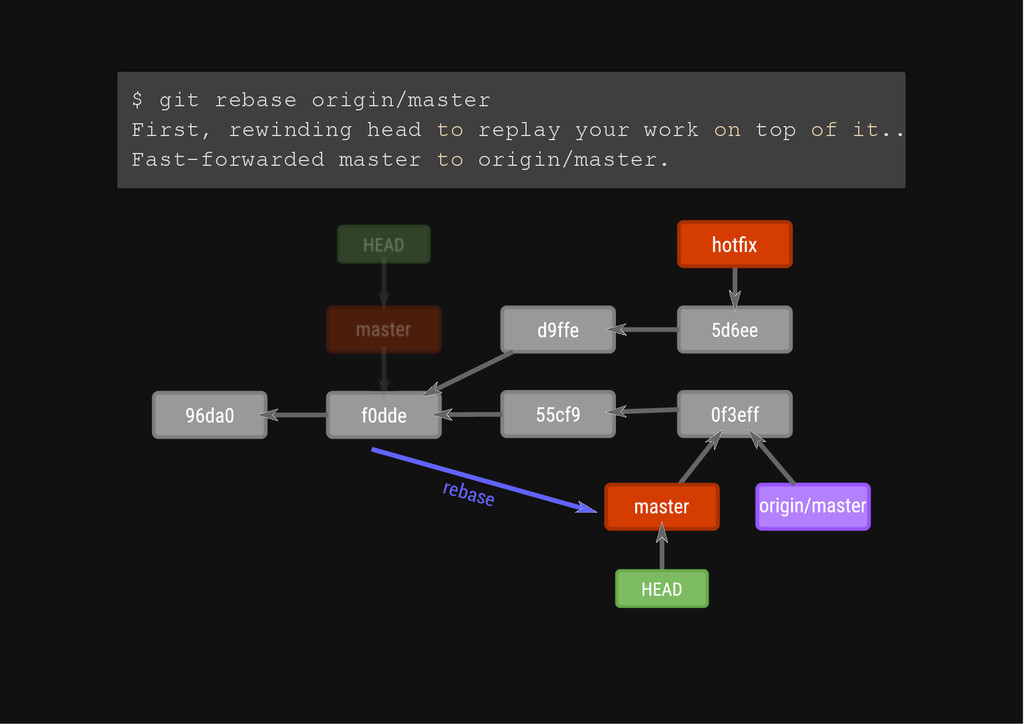
  48. $ git rebase origin/master First, rewinding head to replay your

    work on top of it... Fast-forwarded master to origin/master. rebase
  49. Yep! Fast-forward again! Yep! Fast-forward again! Using rebase or merge

    when the history has not diverged will both result in a fast-forward. Unless --no-ff flag is passed.
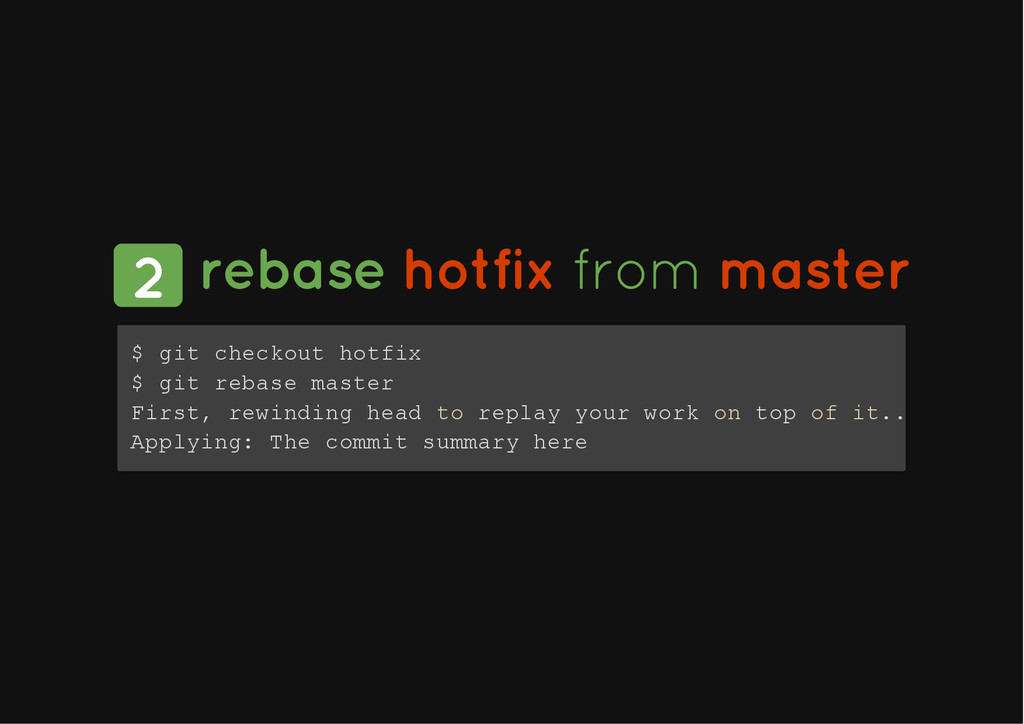
  50. 2 2 rebase rebase hotfix hotfix from from master master

    $ git checkout hotfix $ git rebase master First, rewinding head to replay your work on top of it... Applying: The commit summary here
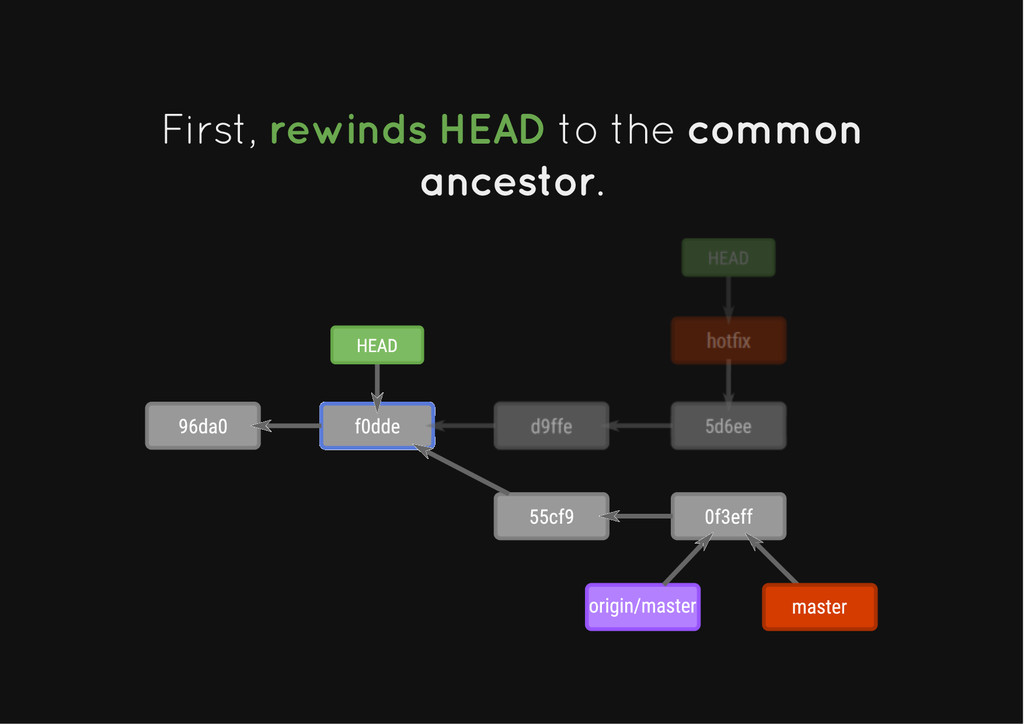
  51. First, First, rewinds HEAD rewinds HEAD to the to the

    common common ancestor ancestor. .
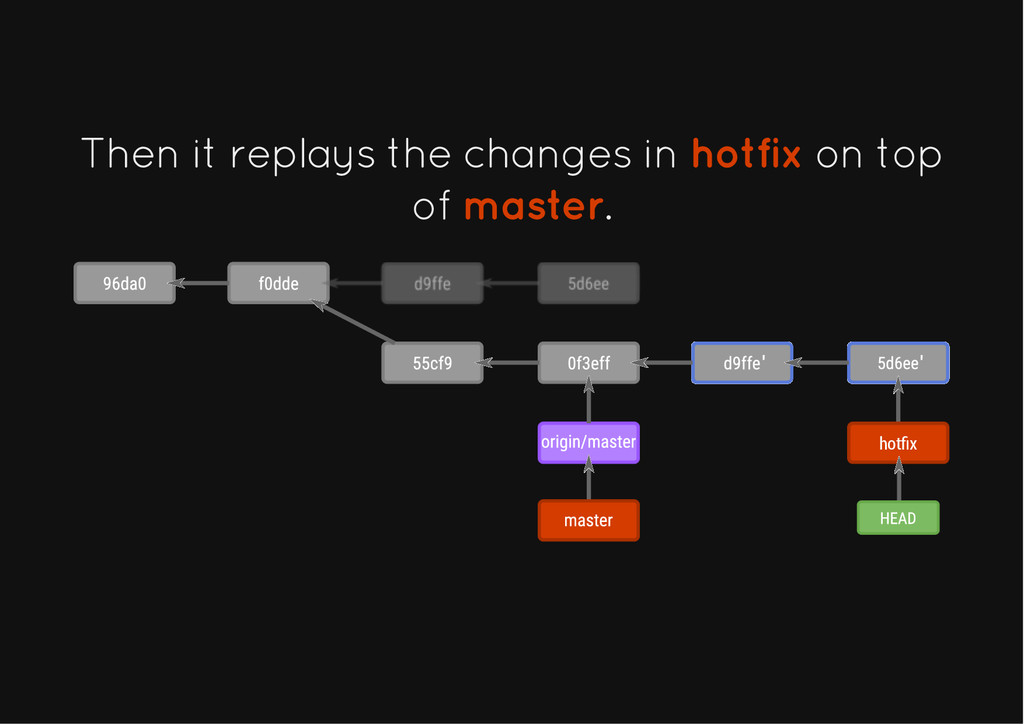
  52. Then it replays the changes in Then it replays the

    changes in hotfix hotfix on top on top of of master master. . hotfix
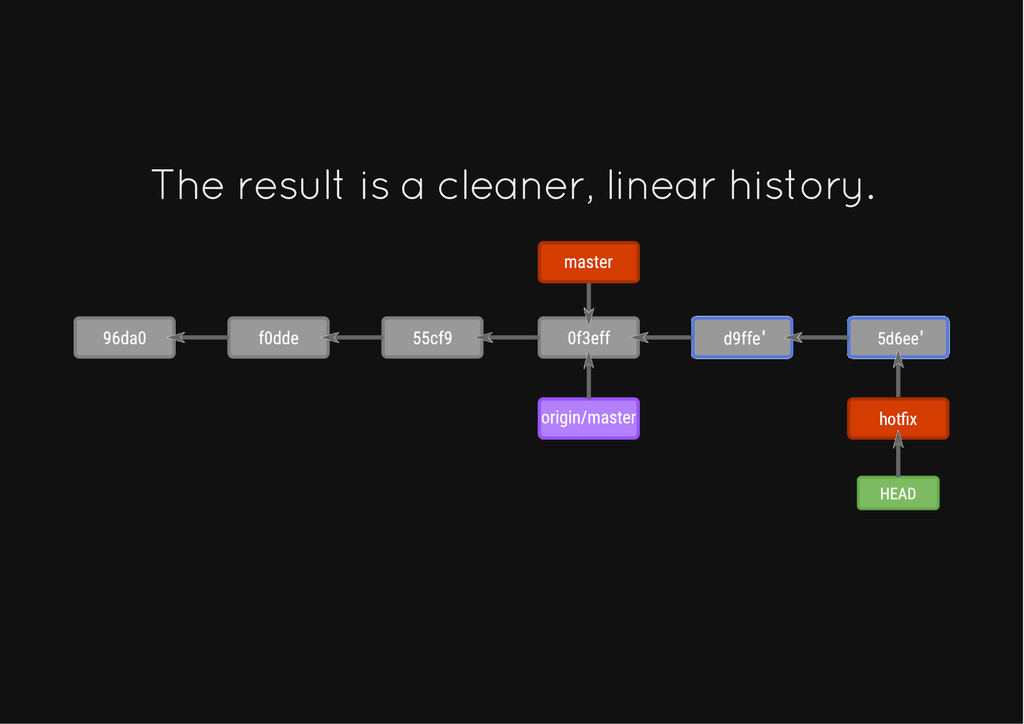
  53. The result is a cleaner, linear history. The result is

    a cleaner, linear history. hotfix
  54. 3 3 Now we can Now we can merge merge

    or or rebase rebase master master from from hotfix hotfix. .
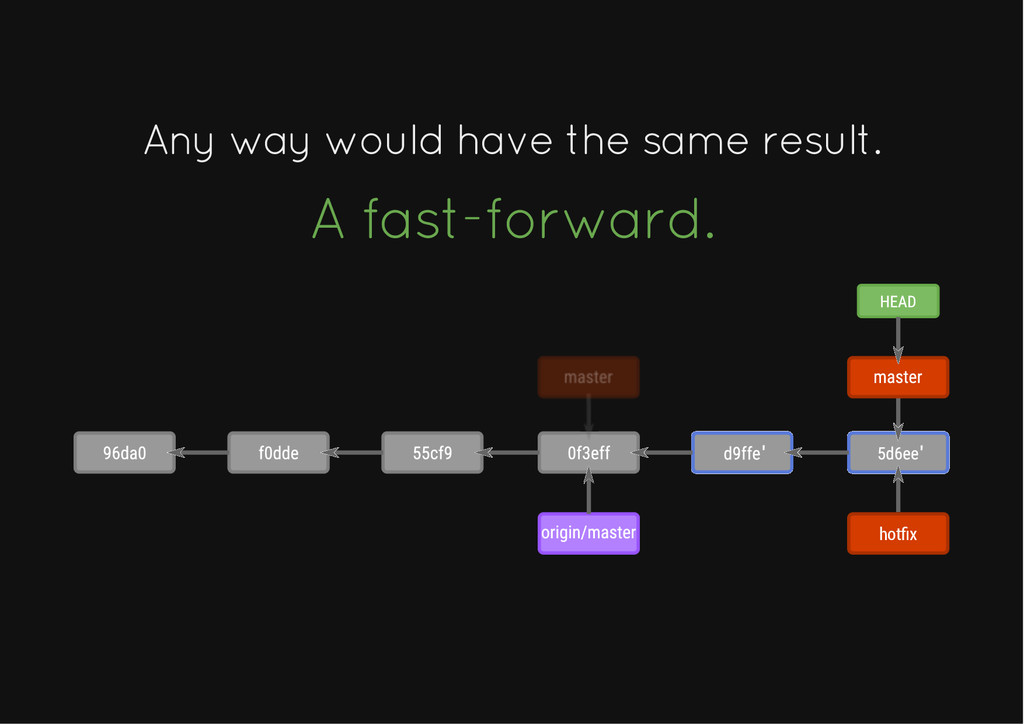
  55. Any way would have the same result. Any way would

    have the same result. A fast-forward. A fast-forward. hotfix
  56. Push Push This command This command pushes pushes our history

    to the our history to the remote remote. .
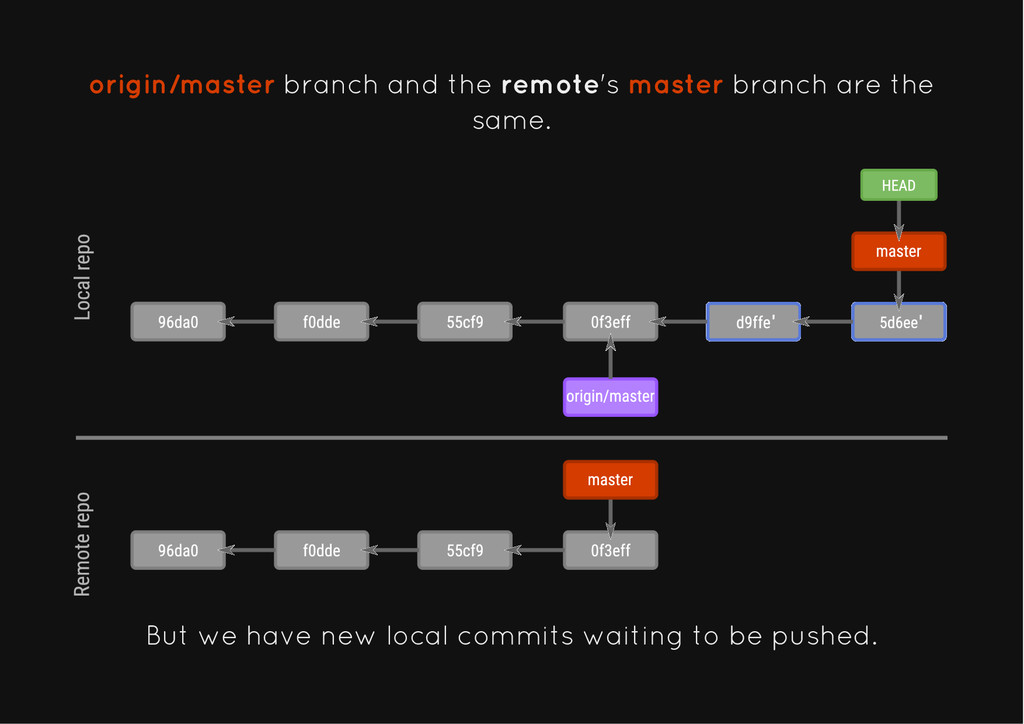
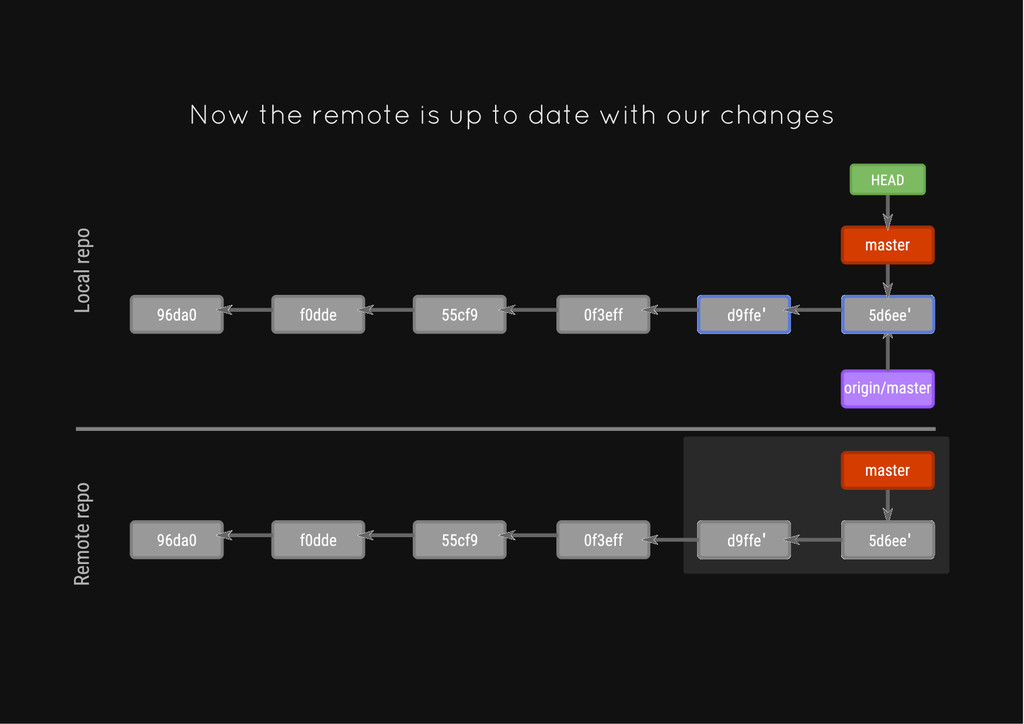
  57. origin/master branch and the remote's master branch are the same.

    But we have new local commits waiting to be pushed.
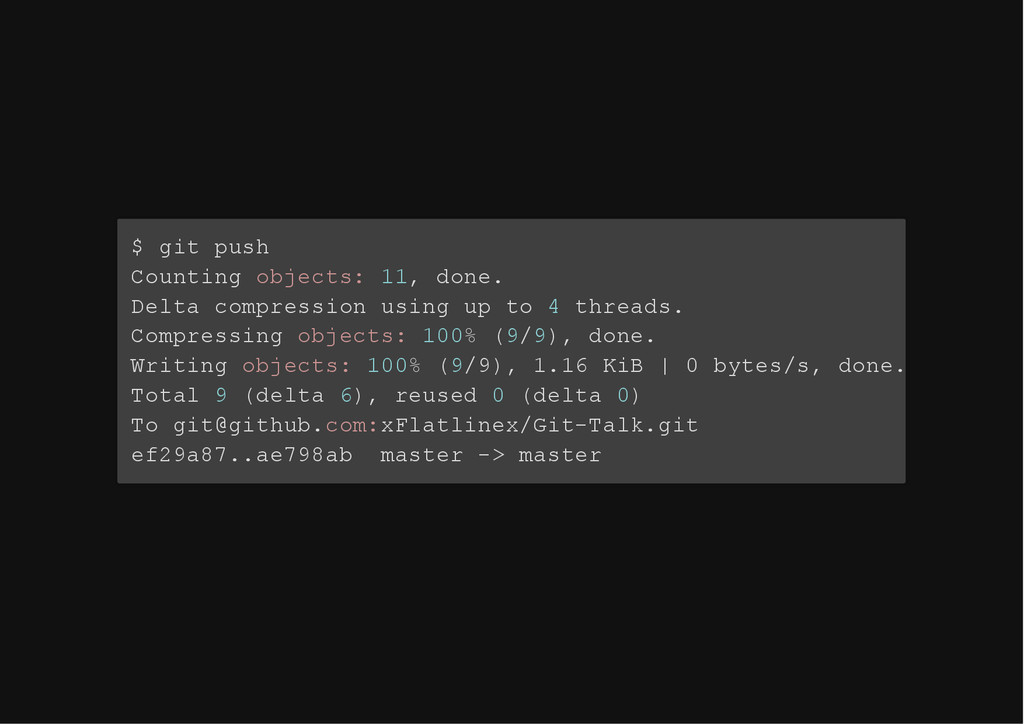
  58. $ git push Counting objects: 11, done. Delta compression using

    up to 4 threads. Compressing objects: 100% (9/9), done. Writing objects: 100% (9/9), 1.16 KiB | 0 bytes/s, done. Total 9 (delta 6), reused 0 (delta 0) To [email protected]:xFlatlinex/Git-Talk.git ef29a87..ae798ab master -> master
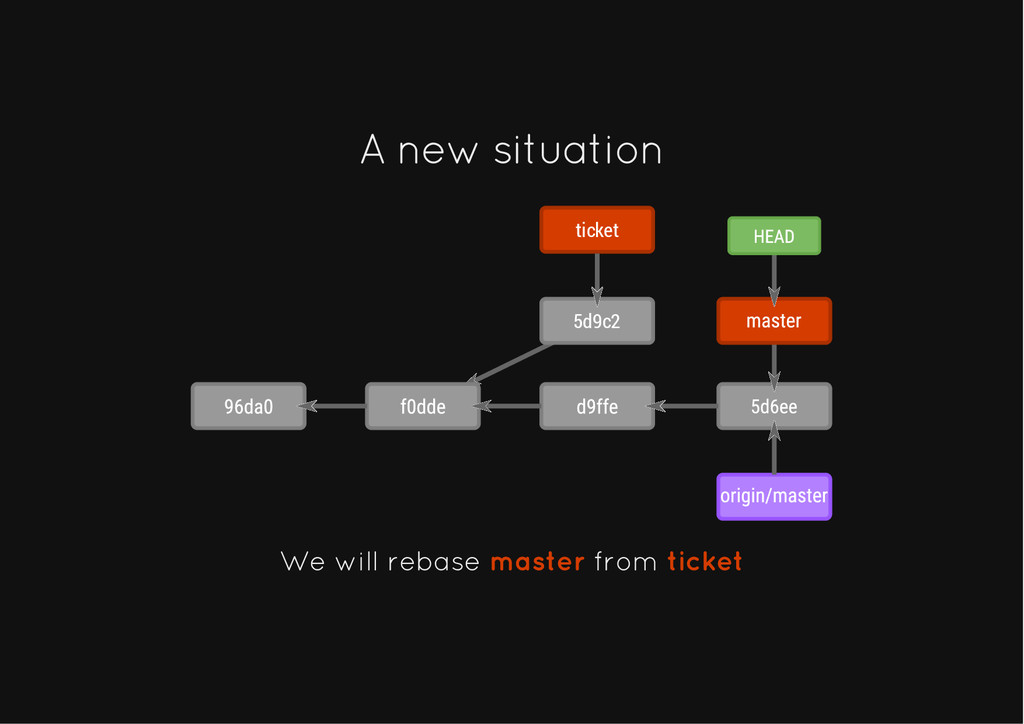
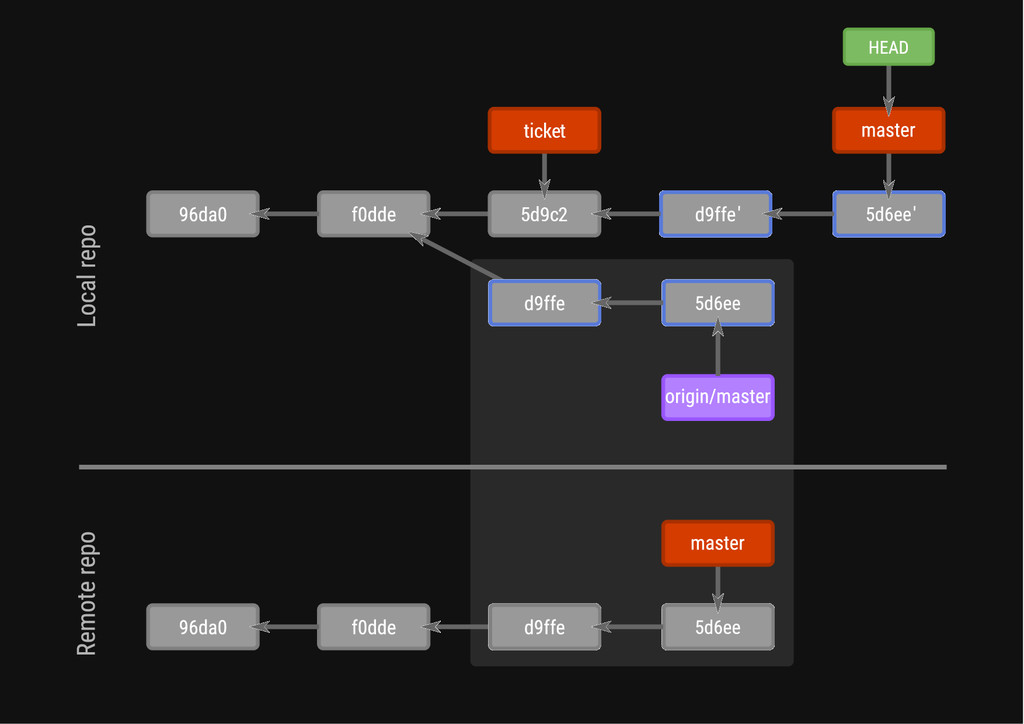
  59. We rewrote We rewrote master master's history. 's history. We

    have introduced a change before our master changes. So the original changes are still there. But the local history is now completely different.
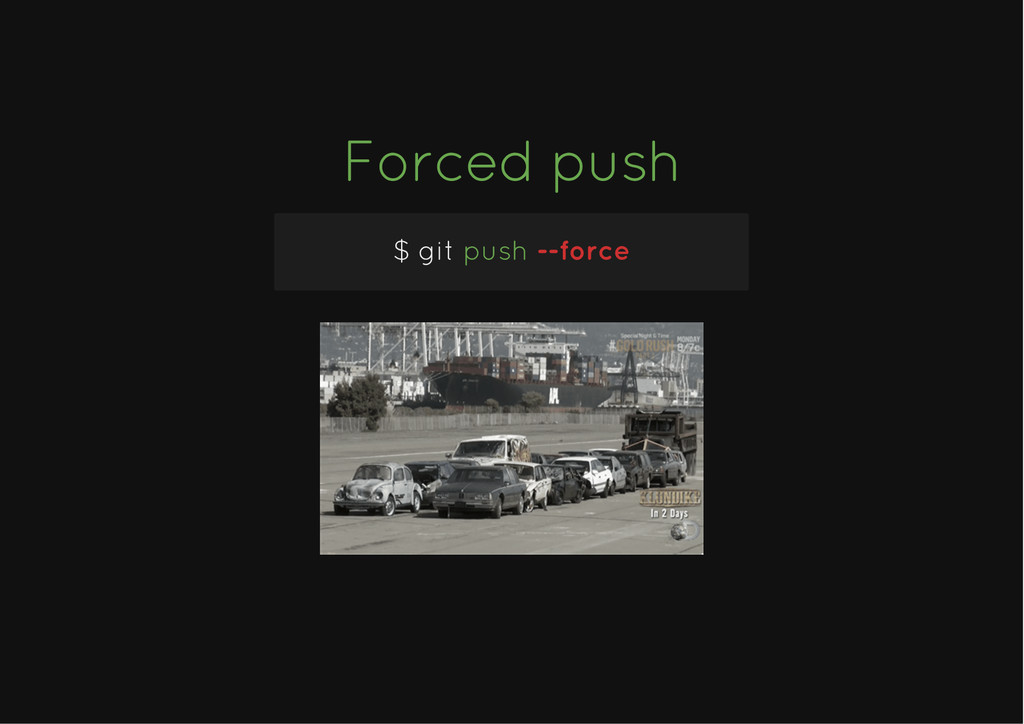
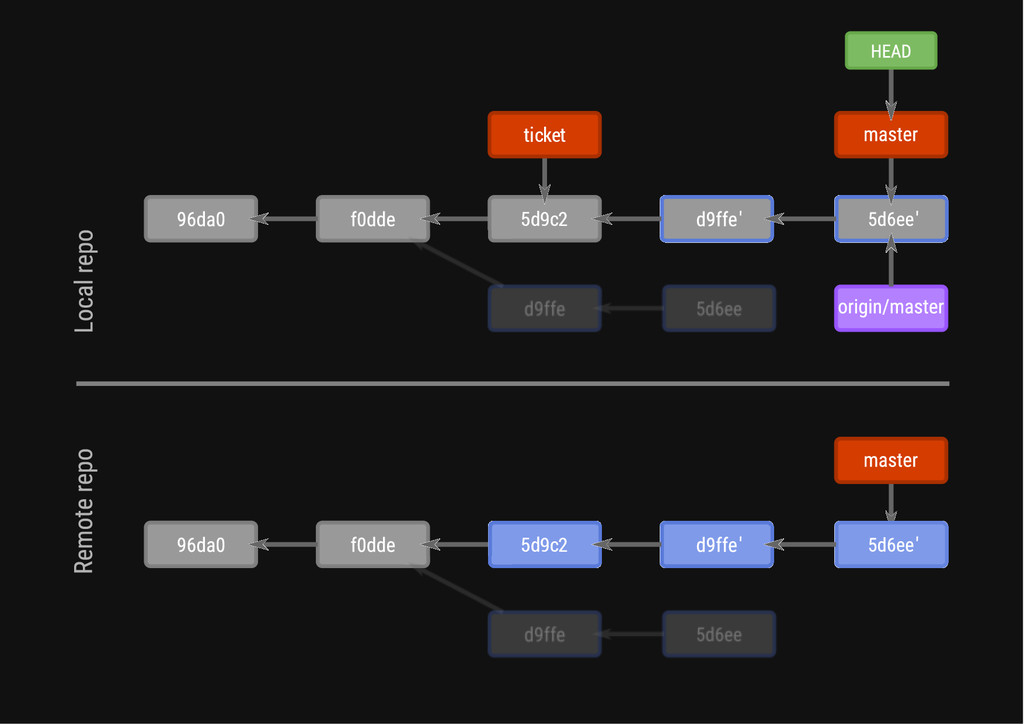
  60. Only Only in situations like this in situations like this

    it is justified to it is justified to force push force push It is never safe, but with proper coordination with your team mates it can go painlessly.
  61. Everything you Everything you (n) (n)ever wanted ever wanted to

    know about push/pull syntax to know about push/pull syntax
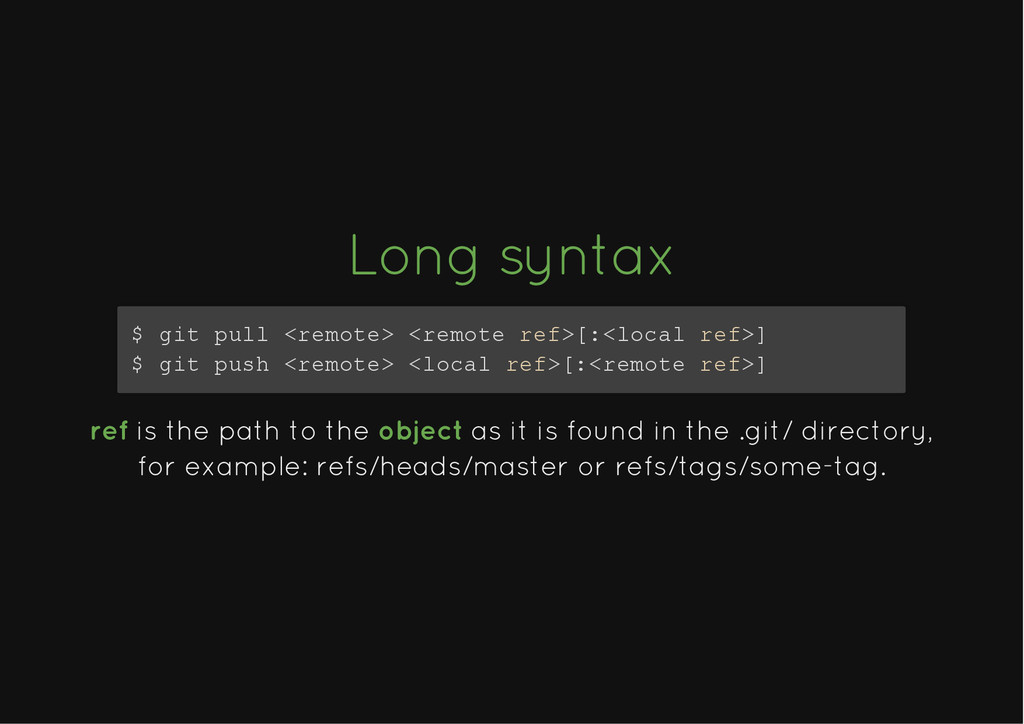
  62. Long syntax Long syntax $ git pull <remote> <remote ref>[:<local

    ref>] $ git push <remote> <local ref>[:<remote ref>] ref is the path to the object as it is found in the .git/ directory, for example: refs/heads/master or refs/tags/some-tag.
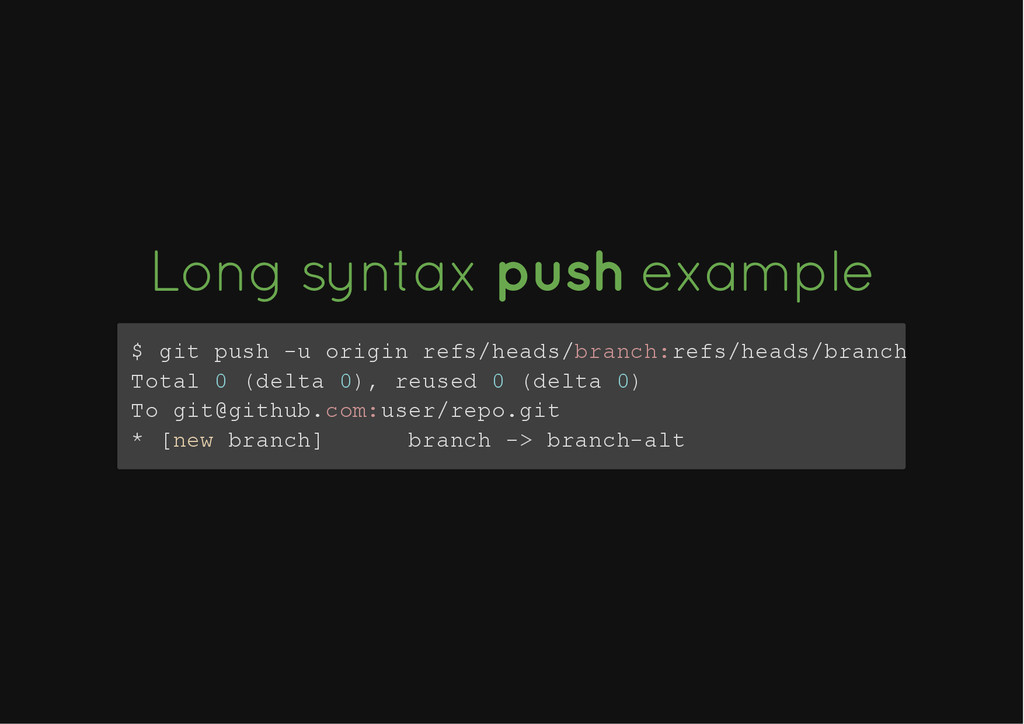
  63. Long syntax Long syntax push push example example $ git

    push -u origin refs/heads/branch:refs/heads/branch-alt Total 0 (delta 0), reused 0 (delta 0) To [email protected]:user/repo.git * [new branch] branch -> branch-alt
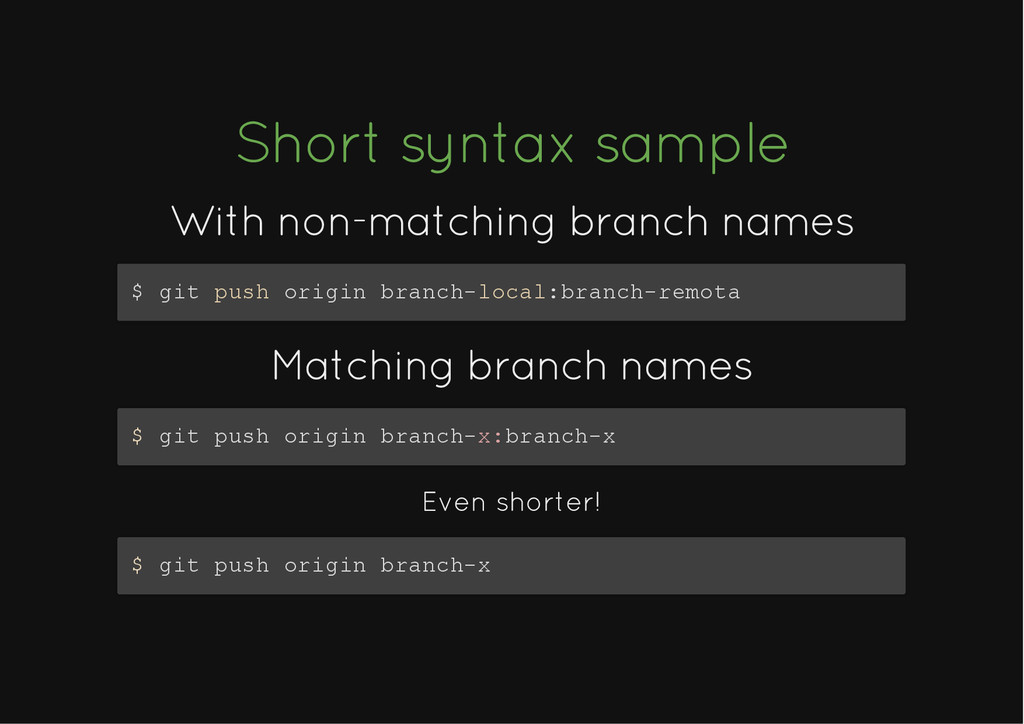
  64. Short syntax sample Short syntax sample With non-matching branch names

    With non-matching branch names $ git push origin branch-local:branch-remota Matching branch names Matching branch names $ git push origin branch-x:branch-x Even shorter! $ git push origin branch-x
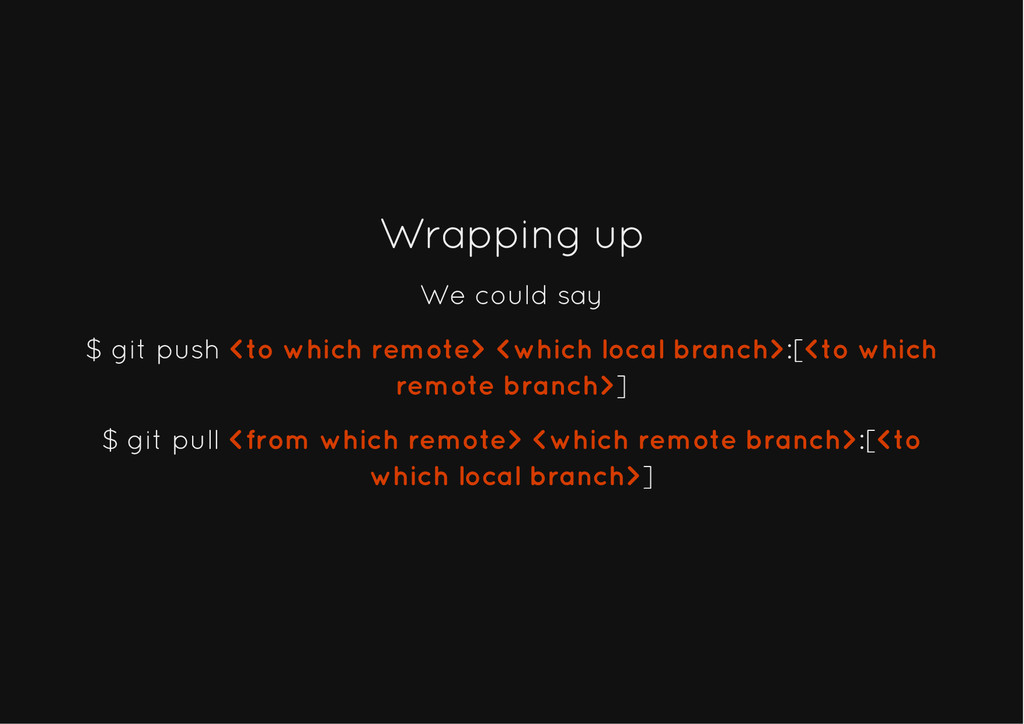
  65. Wrapping up Wrapping up We could say $ git push

    <to which remote> <which local branch>:[<to which remote branch>] $ git pull <from which remote> <which remote branch>:[<to which local branch>]