Upgrade to Pro — share decks privately, control downloads, hide ads and more …

Production Process

Sponsored · Your Podcast. Everywhere. Effortlessly. Share. Educate. Inspire. Entertain. You do you. We'll handle the rest. →
Avatar for amber9296 amber9296
February 24, 2015

Production Process

production process of my magazine

Avatar for amber9296

amber9296

February 24, 2015

Other Decks in Education

Transcript

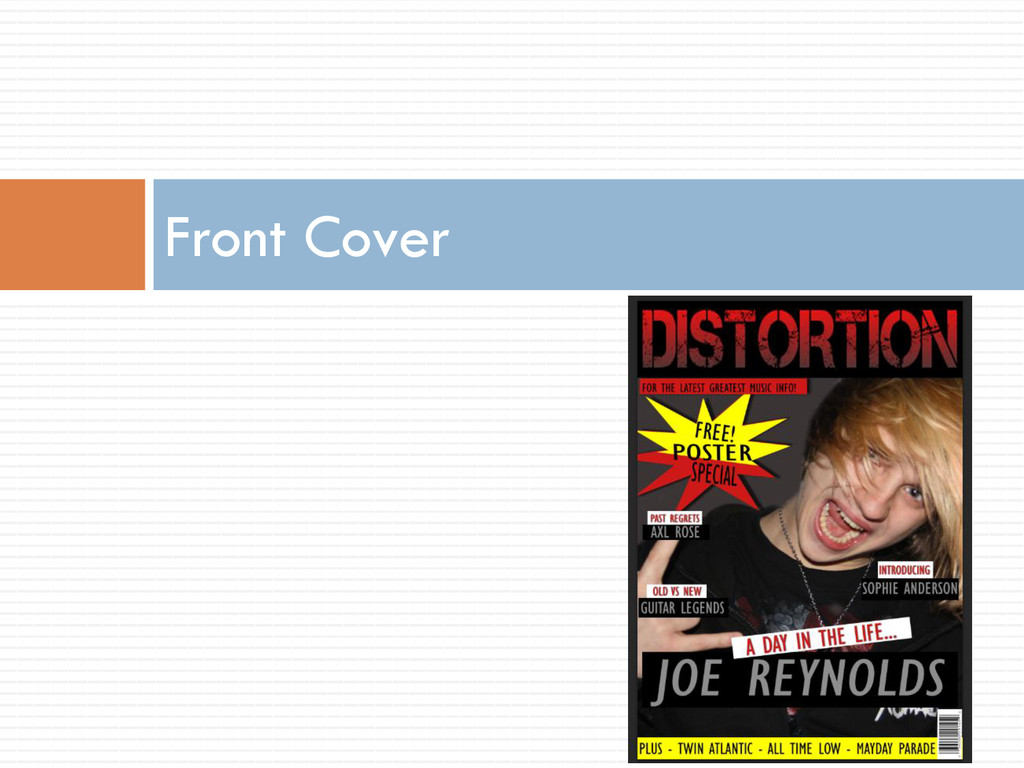
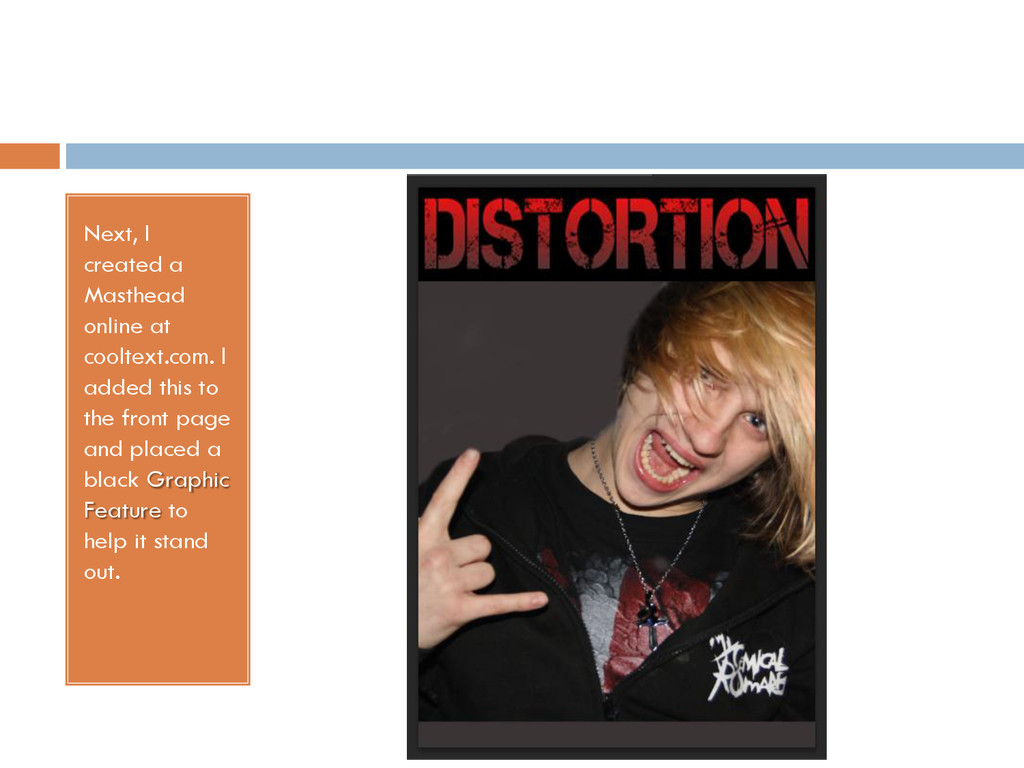
  1. Next, I created a Masthead online at cooltext.com. I added

    this to the front page and placed a black Graphic Feature to help it stand out.
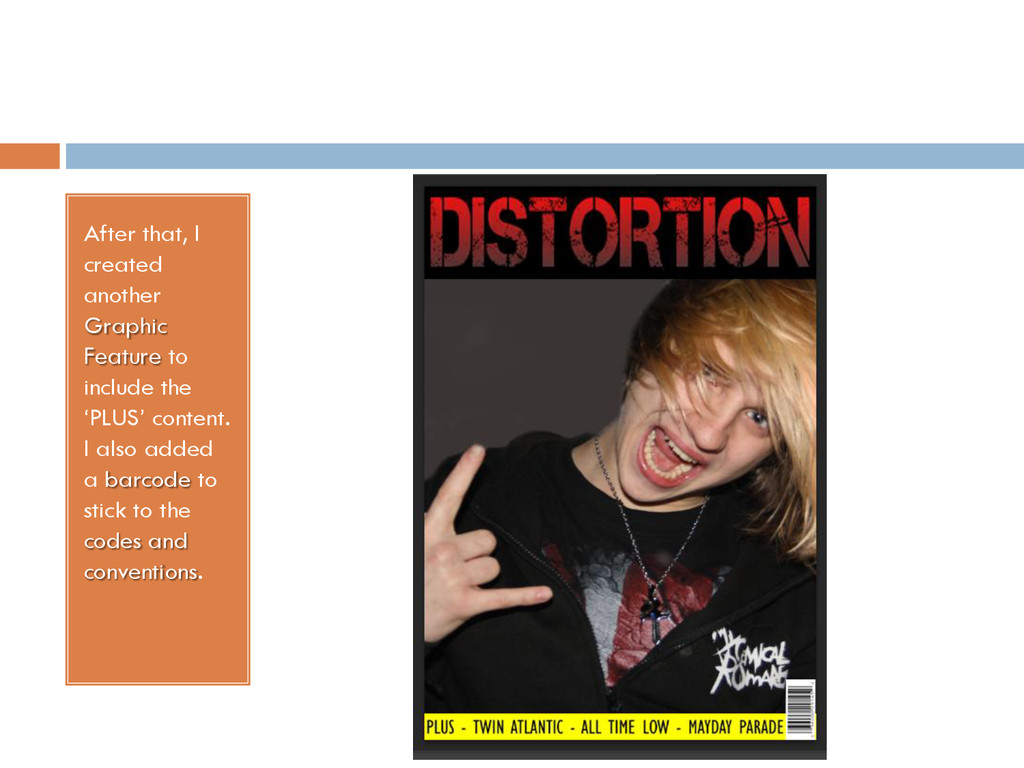
  2. After that, I created another Graphic Feature to include the

    ‘PLUS’ content. I also added a barcode to stick to the codes and conventions.
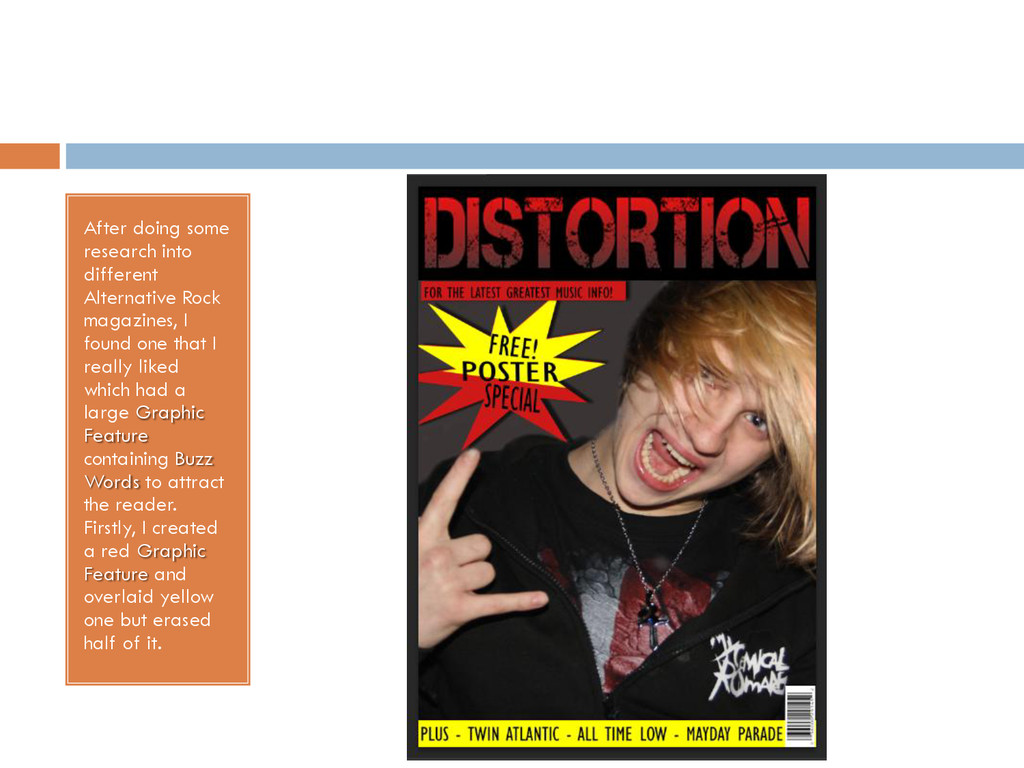
  3. After doing some research into different Alternative Rock magazines, I

    found one that I really liked which had a large Graphic Feature containing Buzz Words to attract the reader. Firstly, I created a red Graphic Feature and overlaid yellow one but erased half of it.
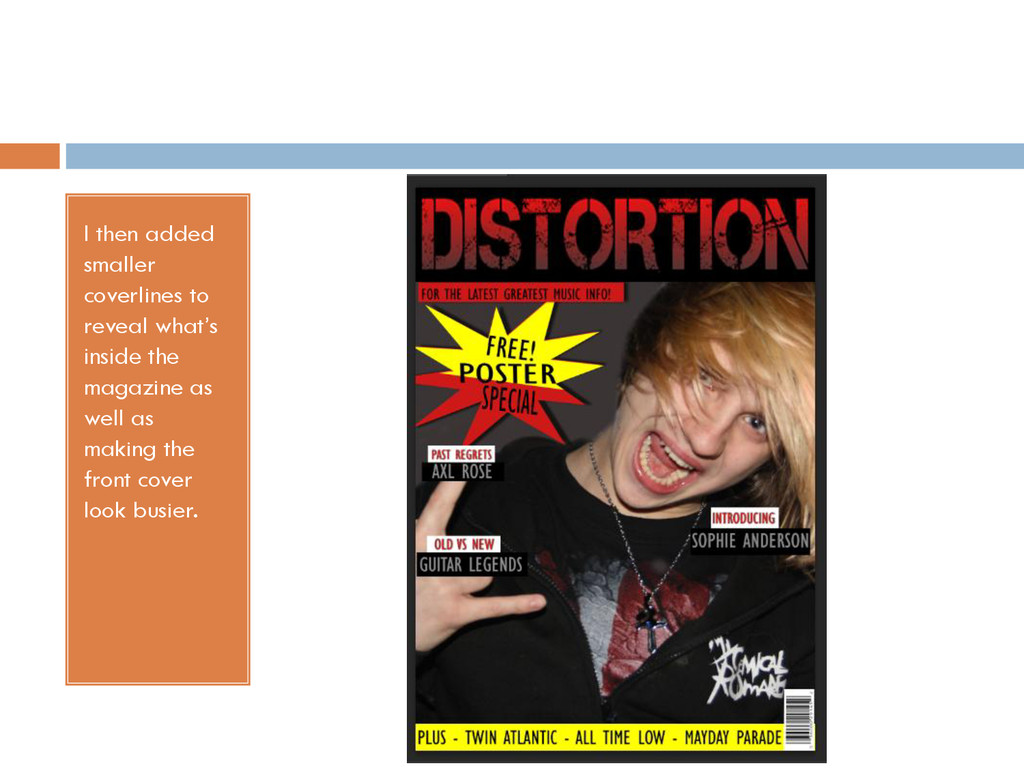
  4. I then added smaller coverlines to reveal what’s inside the

    magazine as well as making the front cover look busier.
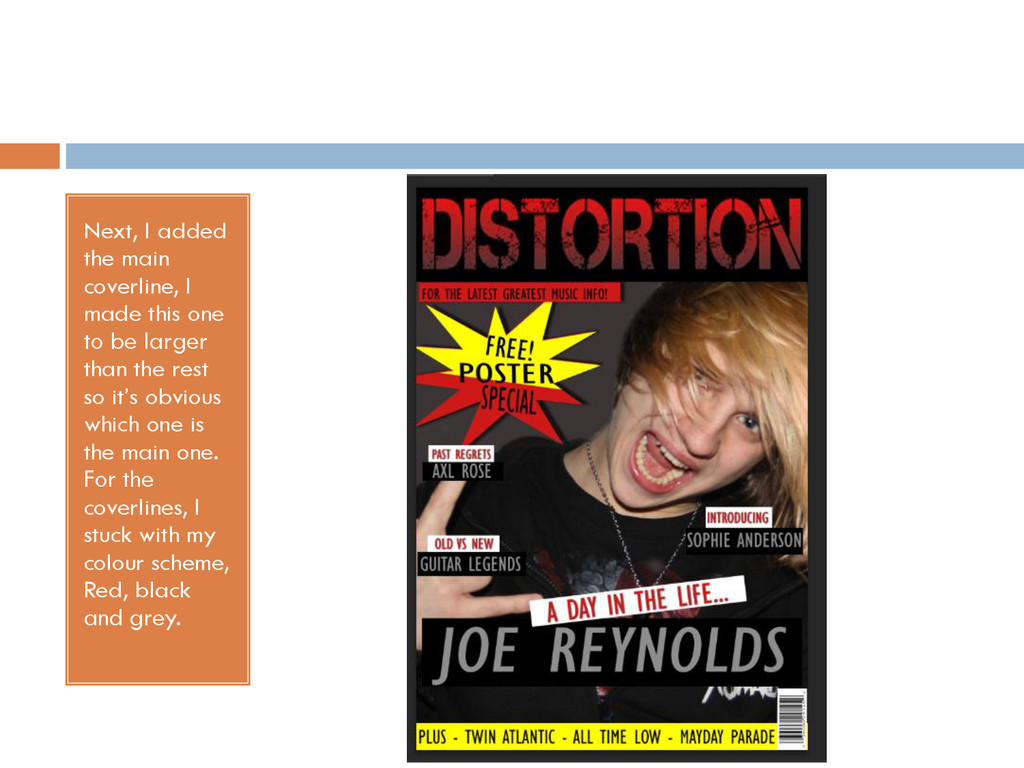
  5. Next, I added the main coverline, I made this one

    to be larger than the rest so it’s obvious which one is the main one. For the coverlines, I stuck with my colour scheme, Red, black and grey.
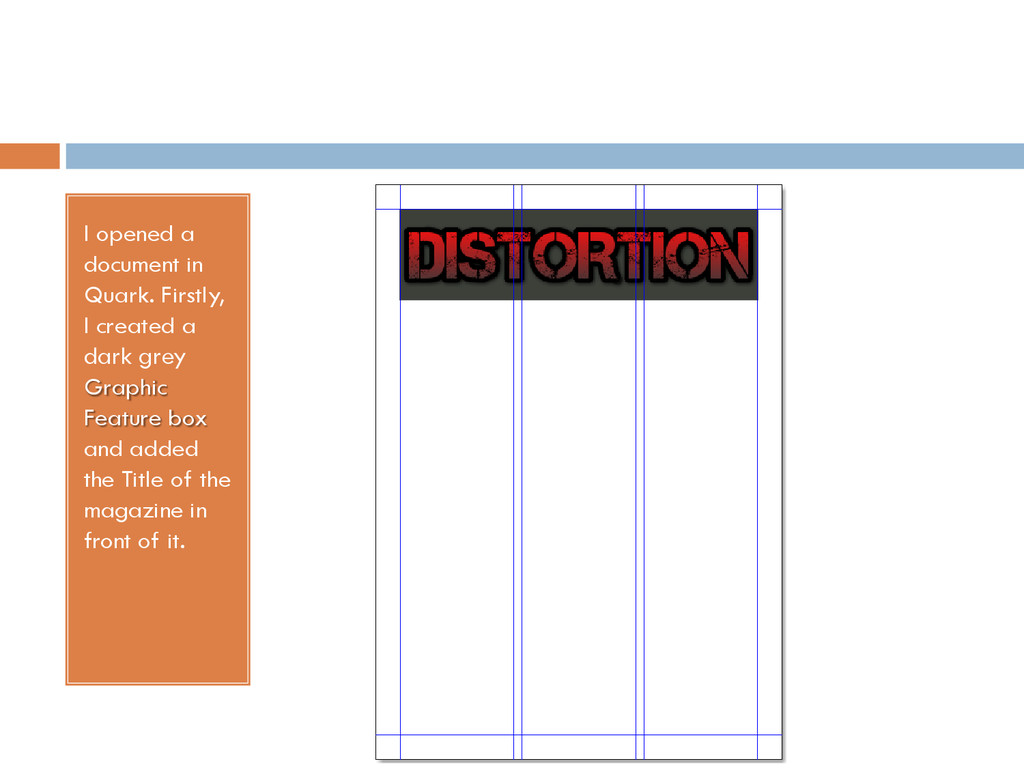
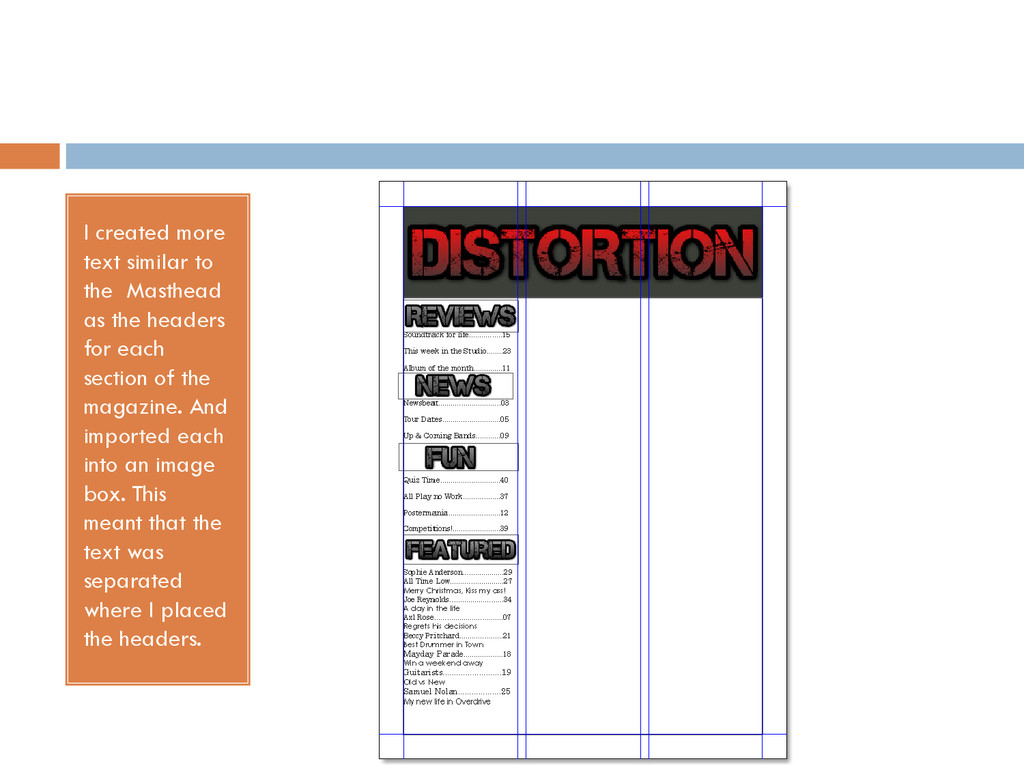
  6. I opened a document in Quark. Firstly, I created a

    dark grey Graphic Feature box and added the Title of the magazine in front of it.
  7. I created more text similar to the Masthead as the

    headers for each section of the magazine. And imported each into an image box. This meant that the text was separated where I placed the headers.
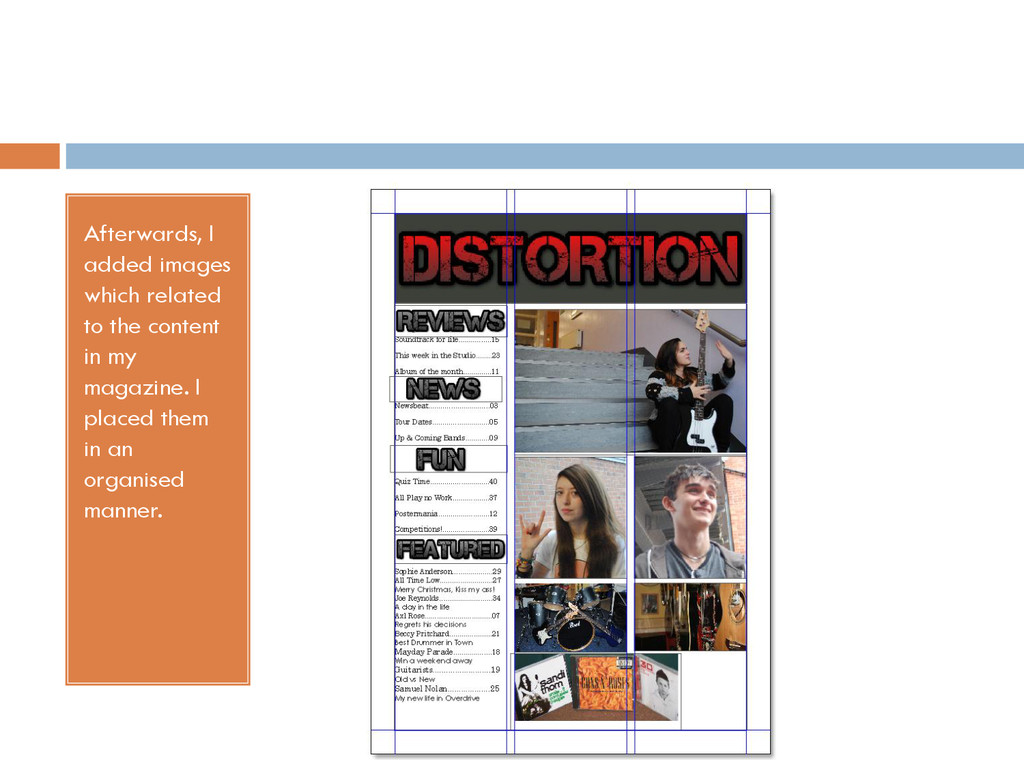
  8. Afterwards, I added images which related to the content in

    my magazine. I placed them in an organised manner.
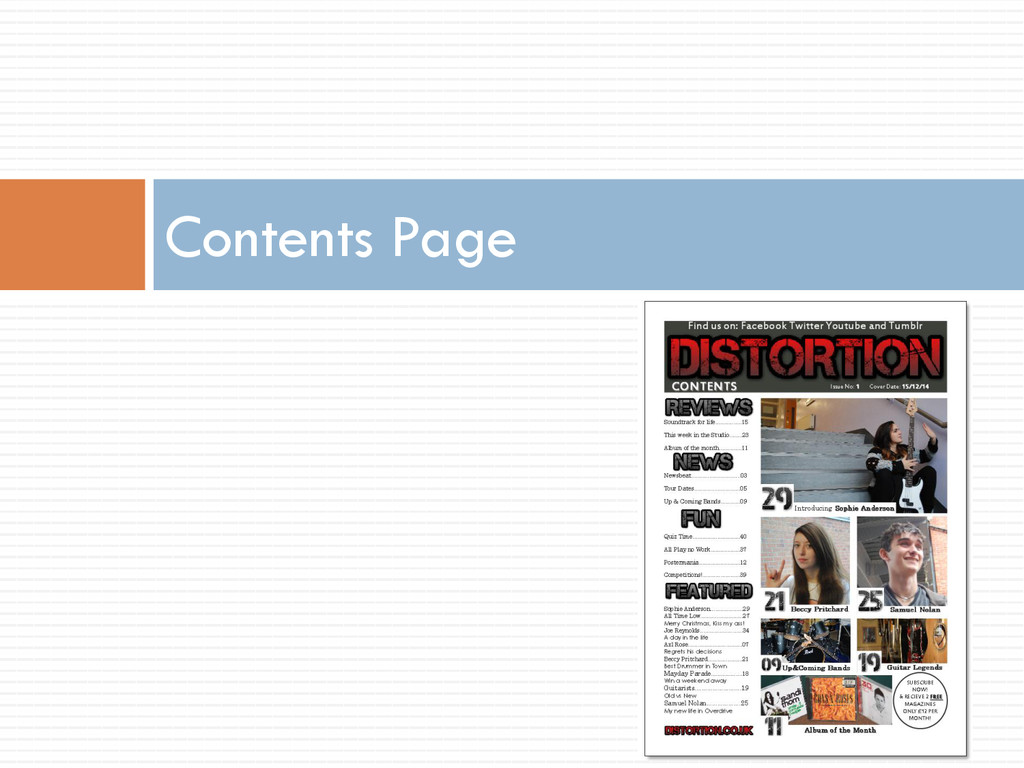
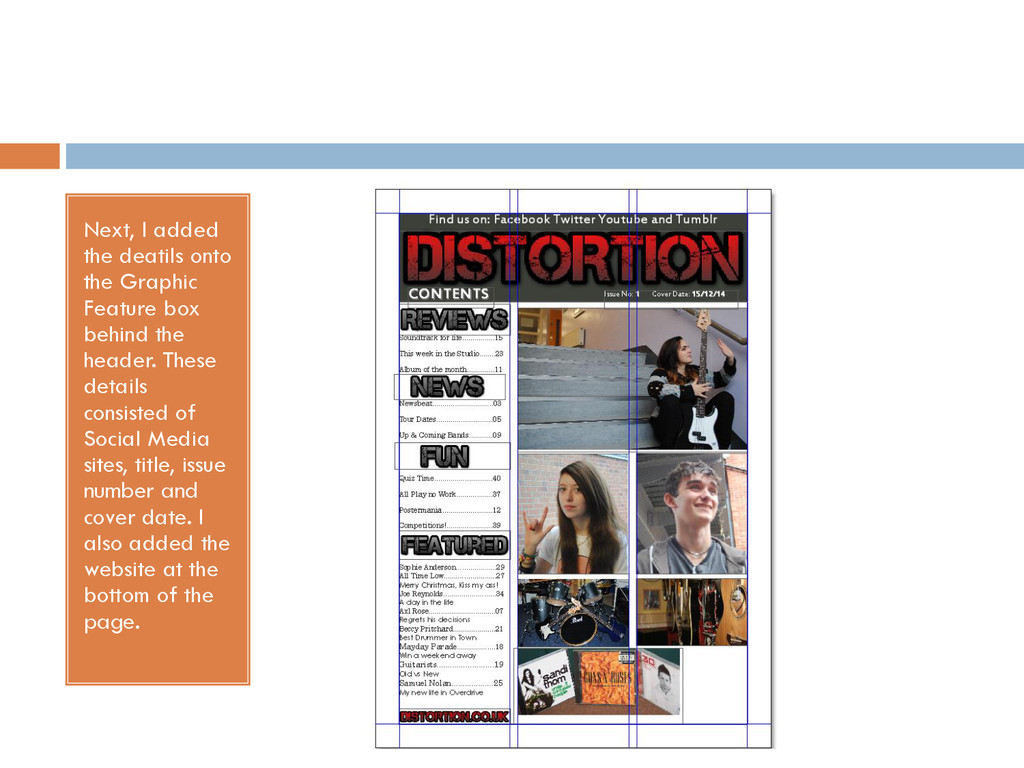
  9. Next, I added the deatils onto the Graphic Feature box

    behind the header. These details consisted of Social Media sites, title, issue number and cover date. I also added the website at the bottom of the page.
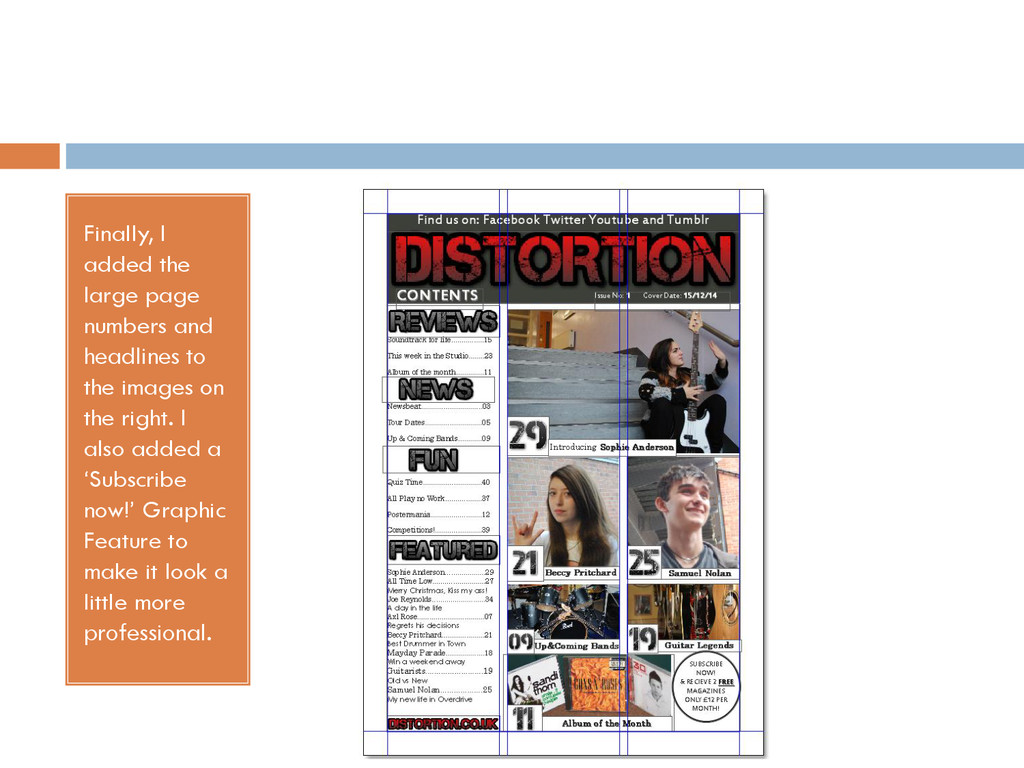
  10. Finally, I added the large page numbers and headlines to

    the images on the right. I also added a ‘Subscribe now!’ Graphic Feature to make it look a little more professional.
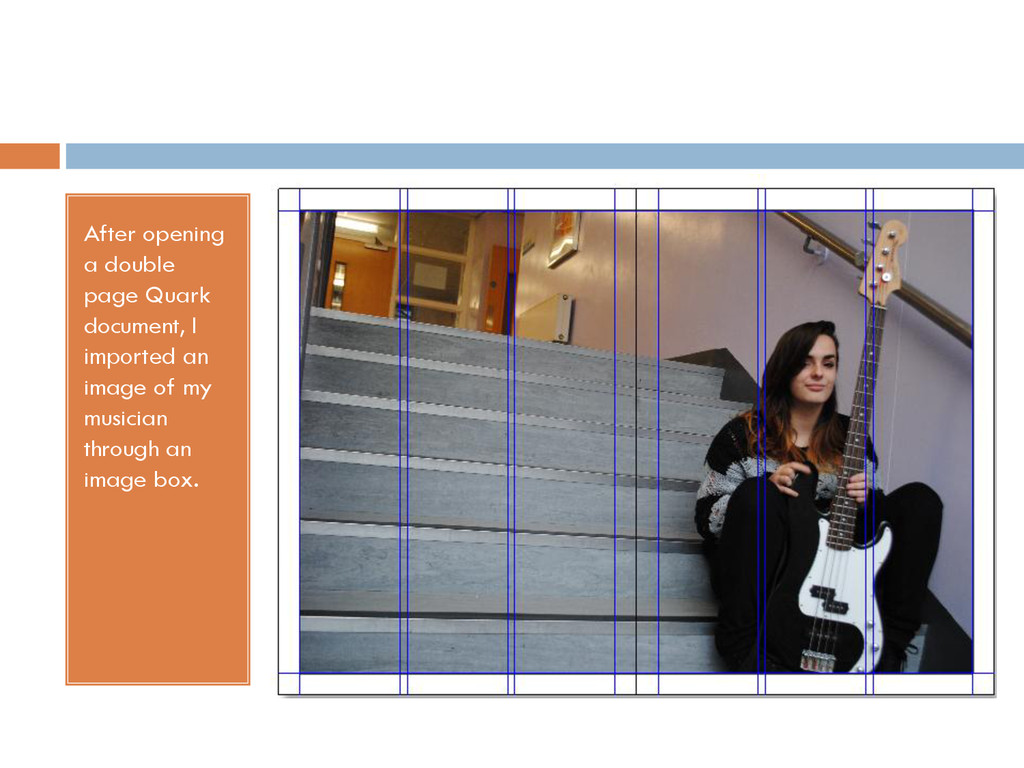
  11. After opening a double page Quark document, I imported an

    image of my musician through an image box.
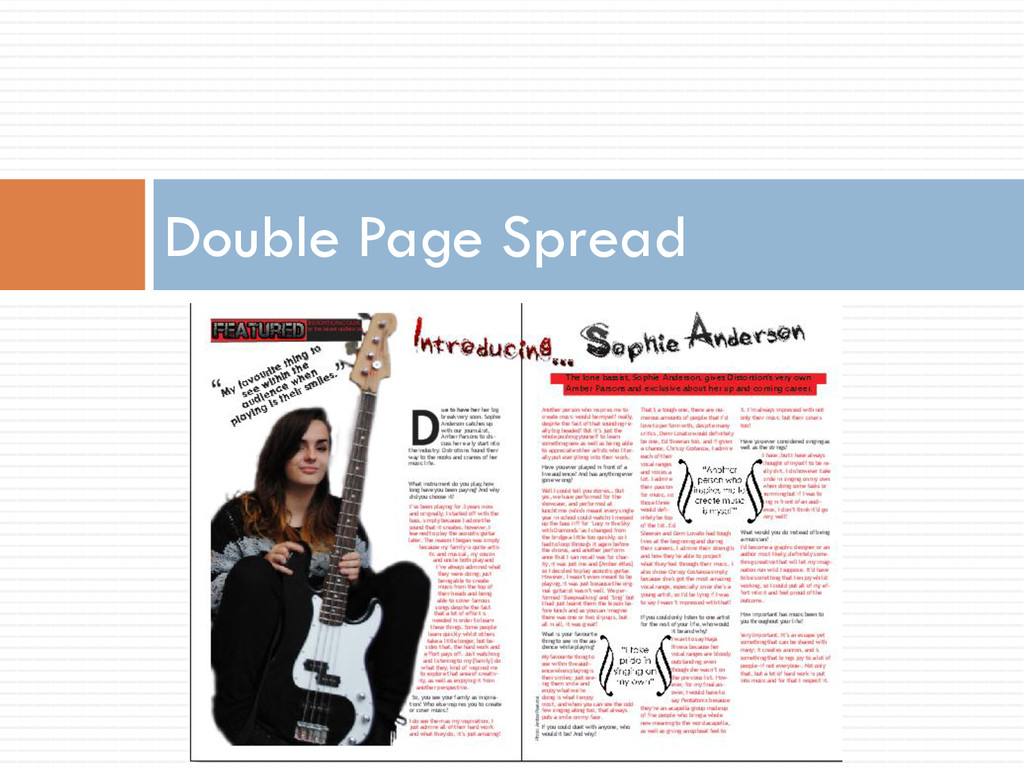
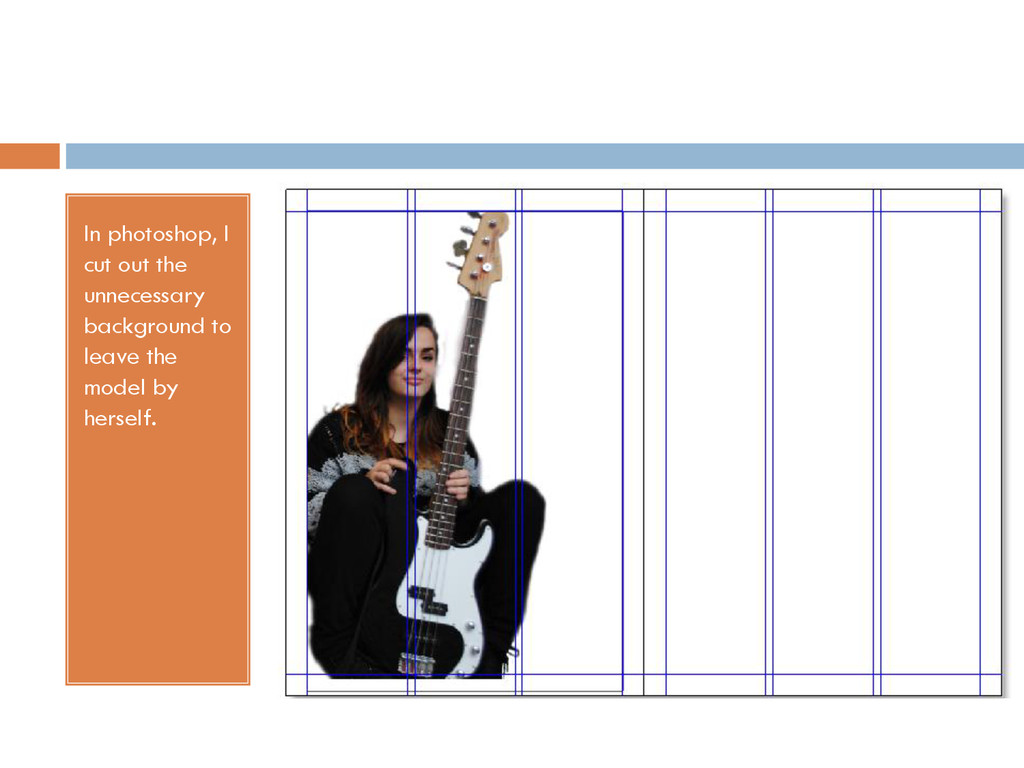
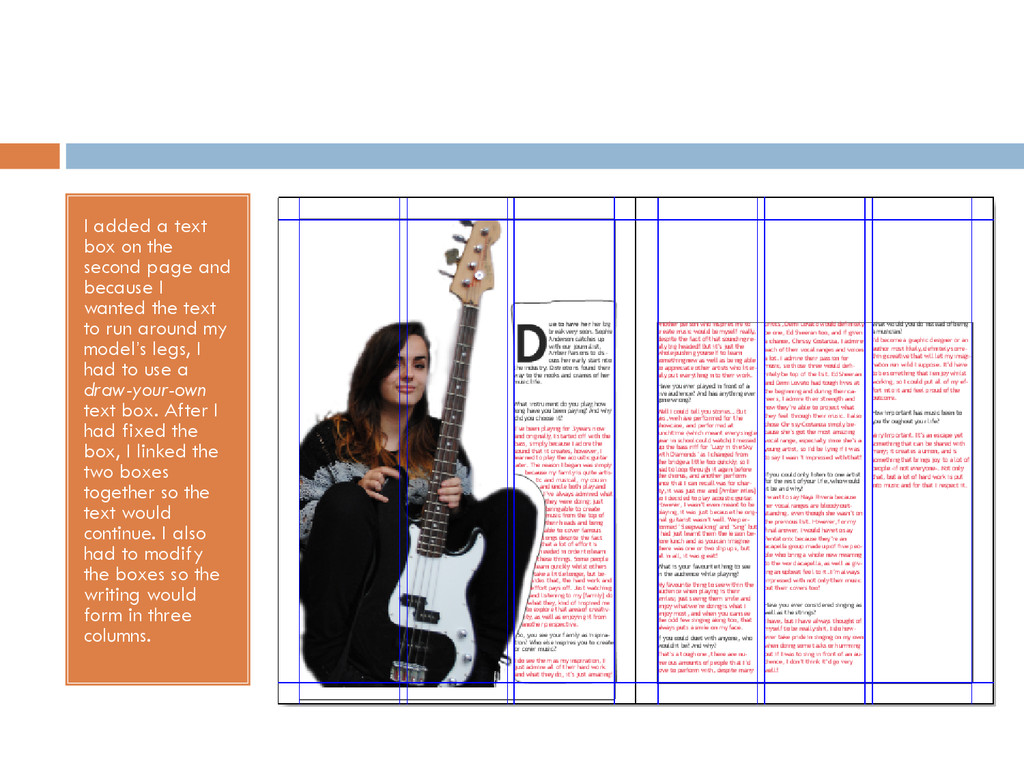
  12. I added a text box on the second page and

    because I wanted the text to run around my model’s legs, I had to use a draw-your-own text box. After I had fixed the box, I linked the two boxes together so the text would continue. I also had to modify the boxes so the writing would form in three columns.
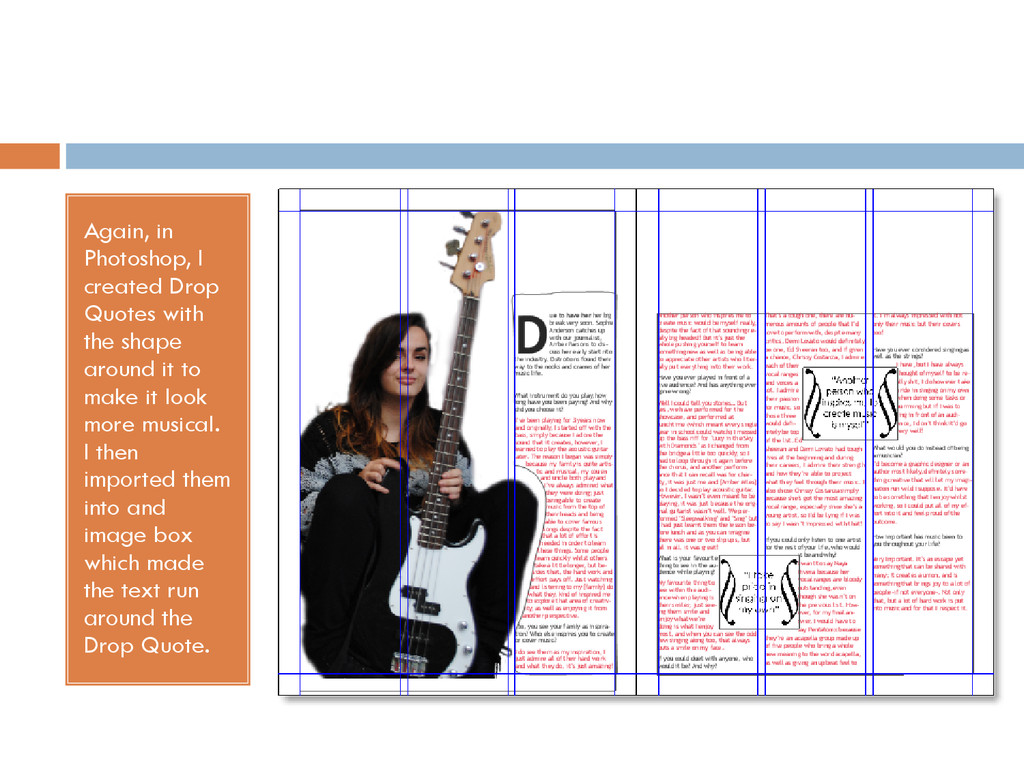
  13. Again, in Photoshop, I created Drop Quotes with the shape

    around it to make it look more musical. I then imported them into and image box which made the text run around the Drop Quote.
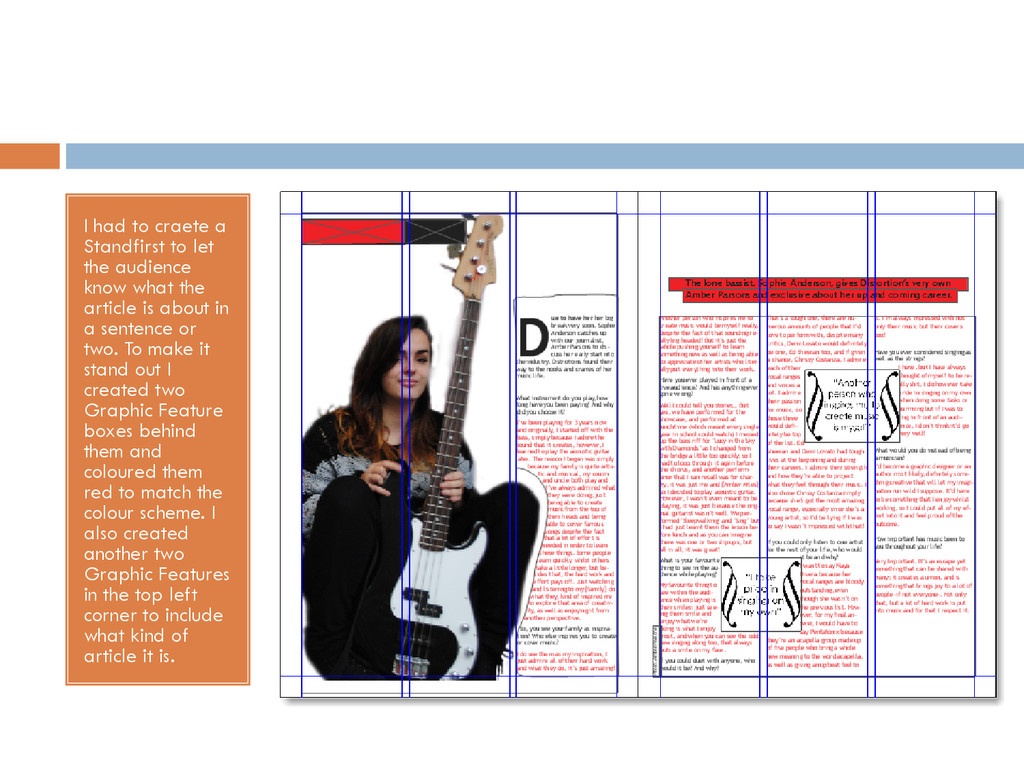
  14. I had to craete a Standfirst to let the audience

    know what the article is about in a sentence or two. To make it stand out I created two Graphic Feature boxes behind them and coloured them red to match the colour scheme. I also created another two Graphic Features in the top left corner to include what kind of article it is.
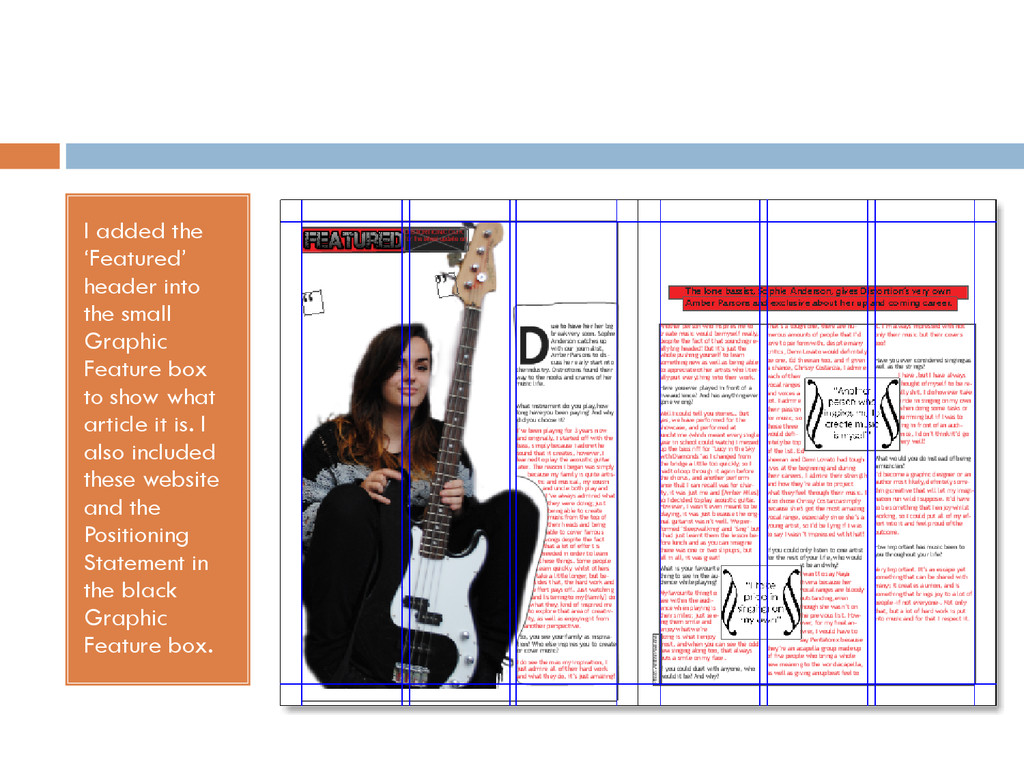
  15. I added the ‘Featured’ header into the small Graphic Feature

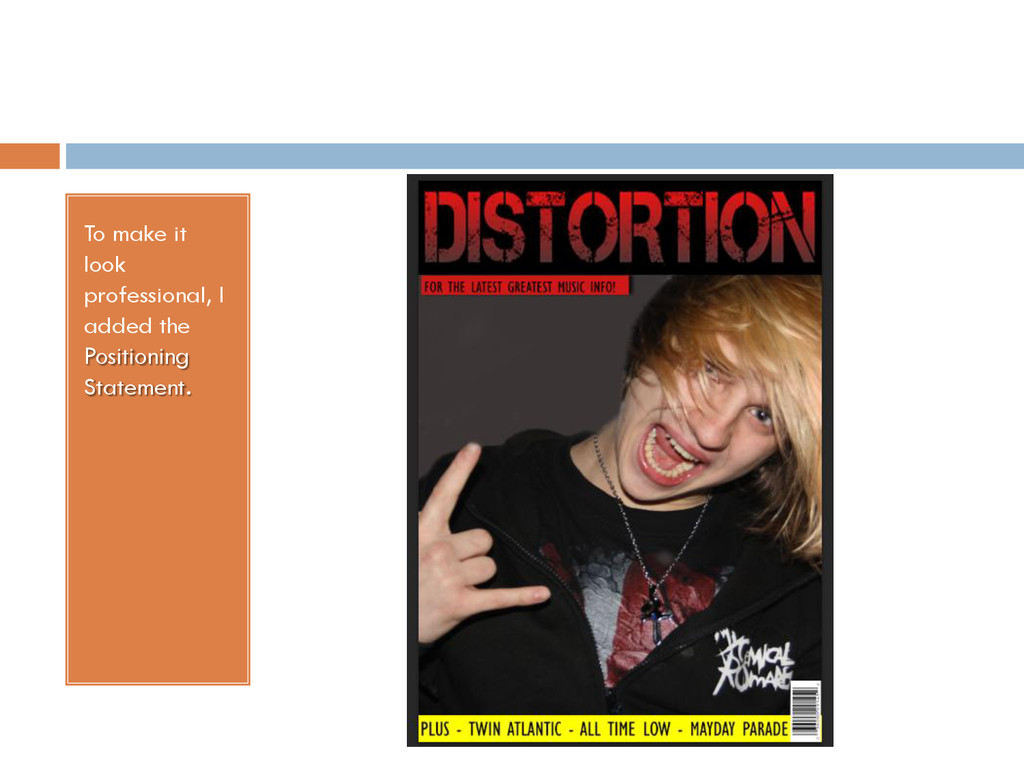
    box to show what article it is. I also included these website and the Positioning Statement in the black Graphic Feature box.
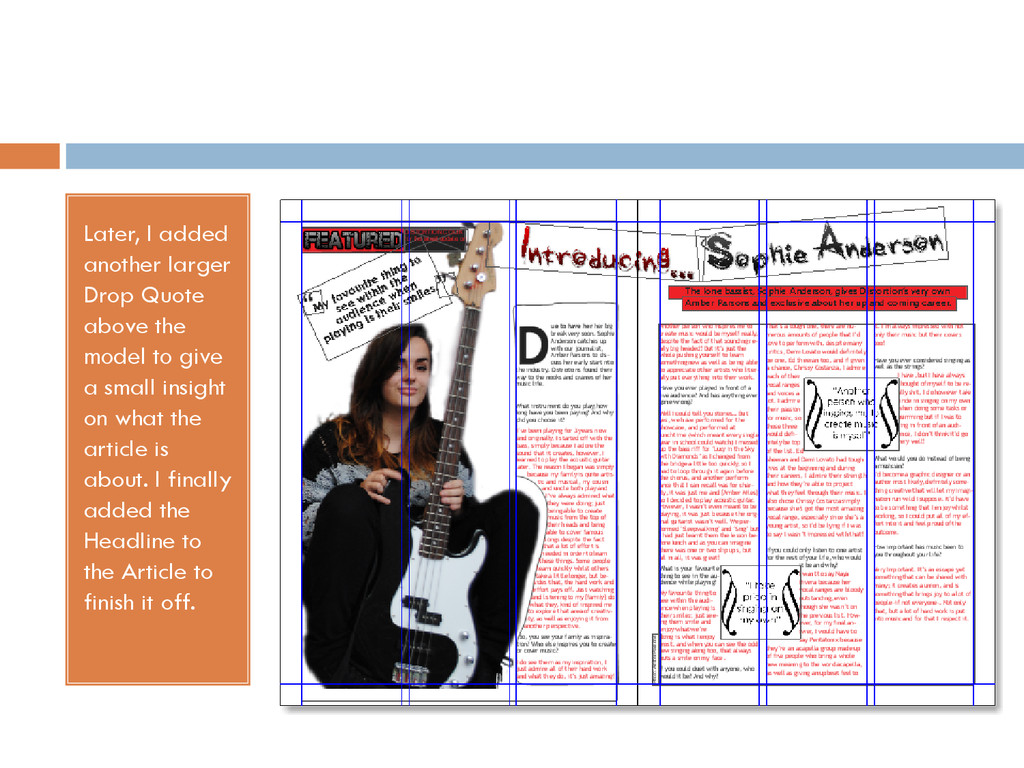
  16. Later, I added another larger Drop Quote above the model

    to give a small insight on what the article is about. I finally added the Headline to the Article to finish it off.