4004 chip, in 1971. After 1979 he worked across most sectors, educational, commercial and finance, in some seriously technical, managerial and hands-on roles. Brian organises Linuxing In London, co-organises London JavaScript Community, Covent Garden Pi Jam and the all London Raspberry Pi Jam. He is rather fond of opera and history books. NB: Brian speaks in paragraphs. He is a freelance IT manager, a thinker and do-er for hire. Linux 101 by Brian Byrne. Twitter: @BrianLinuxing Email: [email protected]
verbal equivalent of Wikipedia on everything in computing. However, it will provide: A detailed Linux 101, covering the theory, hands-on of installing and managing a laptop with Linux, and the gotchas! It will teach you basic proficiency with Linux, the rest is up to you! Linux 101 by Brian Byrne. Twitter: @BrianLinuxing Email: [email protected]
lot Linux is used on 100% of the world’s supercomputer, Everyone runs Linux: AWS, Netflix, Google, Facebook, even Microsoft. Distrowatch lists 306 live distros (Linux, BSD, etc), as of Nov 2018. Linux is free. Linux 101 by Brian Byrne. Twitter: @BrianLinuxing Email: [email protected]
better. It is used extensively in businesses. Most backend computing involves the use of Linux. It is all over the Cloud, even at Microsoft. Plenty of choice (306+ varieties). Linux 101 by Brian Byrne. Twitter: @BrianLinuxing Email: [email protected]
lot of information to take in, it's best done in pairs or as team. I will come around and help during the workshop, but please do write things down, I talk a lot! Linux 101 by Brian Byrne. Twitter: @BrianLinuxing Email: [email protected]
problems and plan solutions. Don’t assume everything will work out of the box. Linux 101 by Brian Byrne. Twitter: @BrianLinuxing Email: [email protected]
distros. Reduce other partitions to allow space for Linux to be installed. Practice partitioning on an old laptop hard drive, watch out for common mistakes, play around. Linux 101 by Brian Byrne. Twitter: @BrianLinuxing Email: [email protected]
Boot each machine with System Rescue. Inspect your laptop. Partition it ready for Linux. Linux 101 by Brian Byrne. Twitter: @BrianLinuxing Email: [email protected]
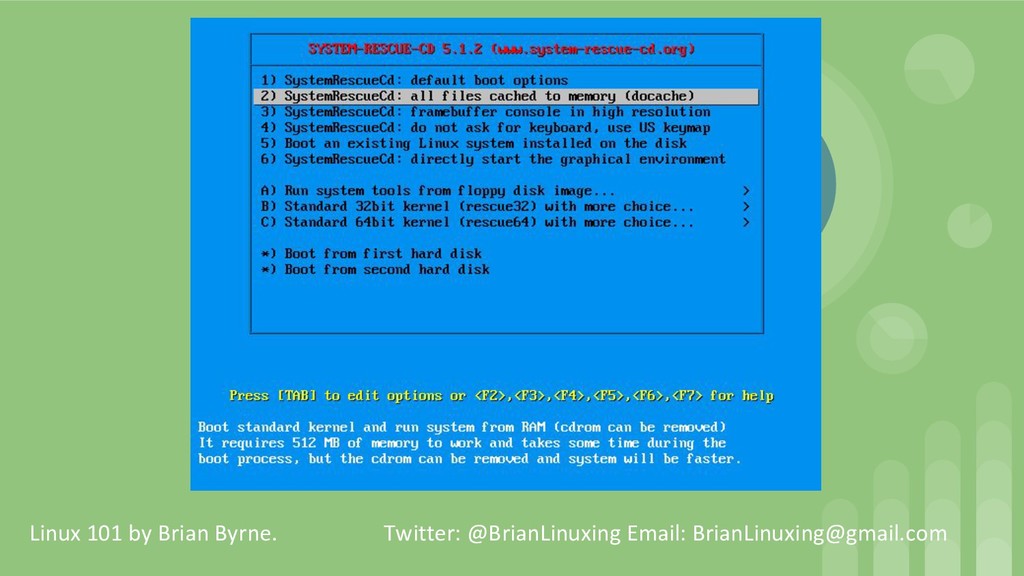
your BIOS requires) Move down to the second line “2) SystemRescuecd: all files cached to memory (doscache)” Hit the Enter at main screen Put in keyboard type, 40 for UK When it has finished booting type, startx The terminal windows appears (yellow background) maximise it Linux 101 by Brian Byrne. Twitter: @BrianLinuxing Email: [email protected]
note down the CPU. type lspci - Look for any wireless device and write down its details. Also, write down details of VGA and Ethernet devices Linux 101 by Brian Byrne. Twitter: @BrianLinuxing Email: [email protected]
left, select the hard drive Click on the device Right click and delete, now press green tick Apply, then close Click on the device, right click and New Linux 101 by Brian Byrne. Twitter: @BrianLinuxing Email: [email protected]
Apply, then Close Click on the device, right click and New New size (about 10% of disk or 4-6 Gb) File System as linux-swap (Smart tip: use the label as well) Add, green tick and Apply, then Close Similar, click on unallocated Linux 101 by Brian Byrne. Twitter: @BrianLinuxing Email: [email protected]
use the label as well) Add, green tick and Apply, then Close Exit gparted and type halt Return any media, we are ready for Linux proper!!!! Linux 101 by Brian Byrne. Twitter: @BrianLinuxing Email: [email protected]
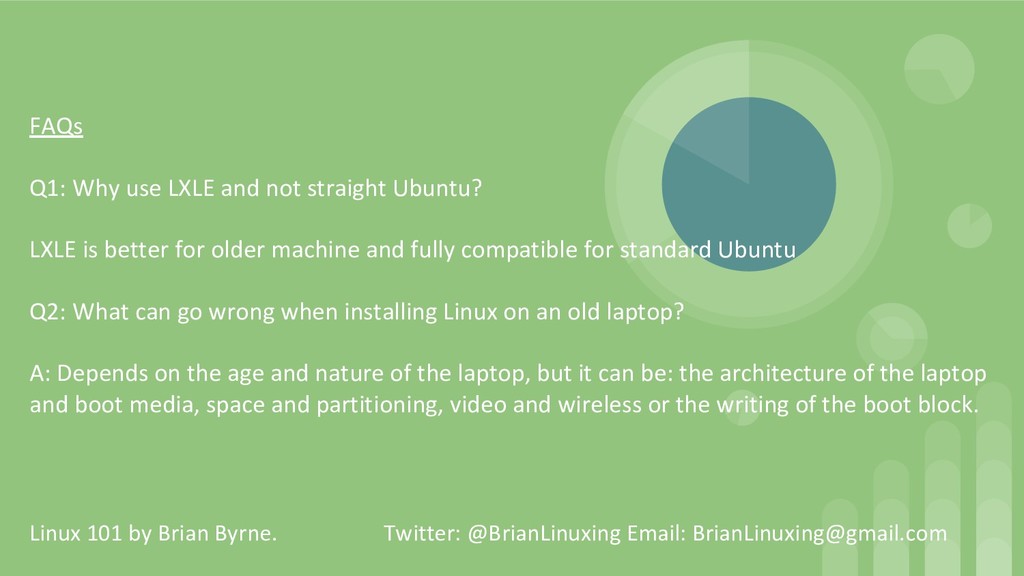
is better for older machine and fully compatible for standard Ubuntu Q2: What can go wrong when installing Linux on an old laptop? A: Depends on the age and nature of the laptop, but it can be: the architecture of the laptop and boot media, space and partitioning, video and wireless or the writing of the boot block. Linux 101 by Brian Byrne. Twitter: @BrianLinuxing Email: [email protected]
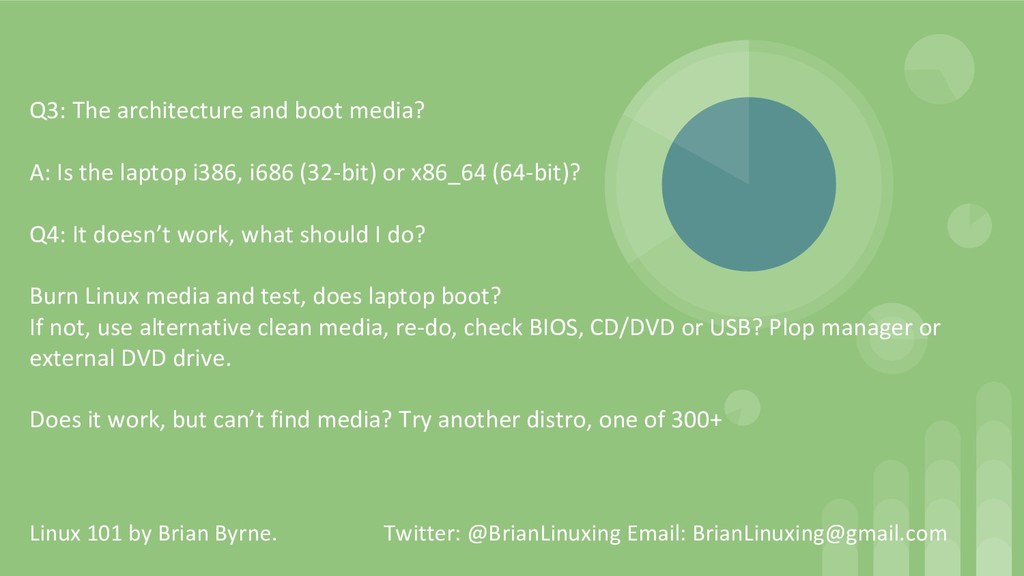
i386, i686 (32-bit) or x86_64 (64-bit)? Q4: It doesn’t work, what should I do? Burn Linux media and test, does laptop boot? If not, use alternative clean media, re-do, check BIOS, CD/DVD or USB? Plop manager or external DVD drive. Does it work, but can’t find media? Try another distro, one of 300+ Linux 101 by Brian Byrne. Twitter: @BrianLinuxing Email: [email protected]
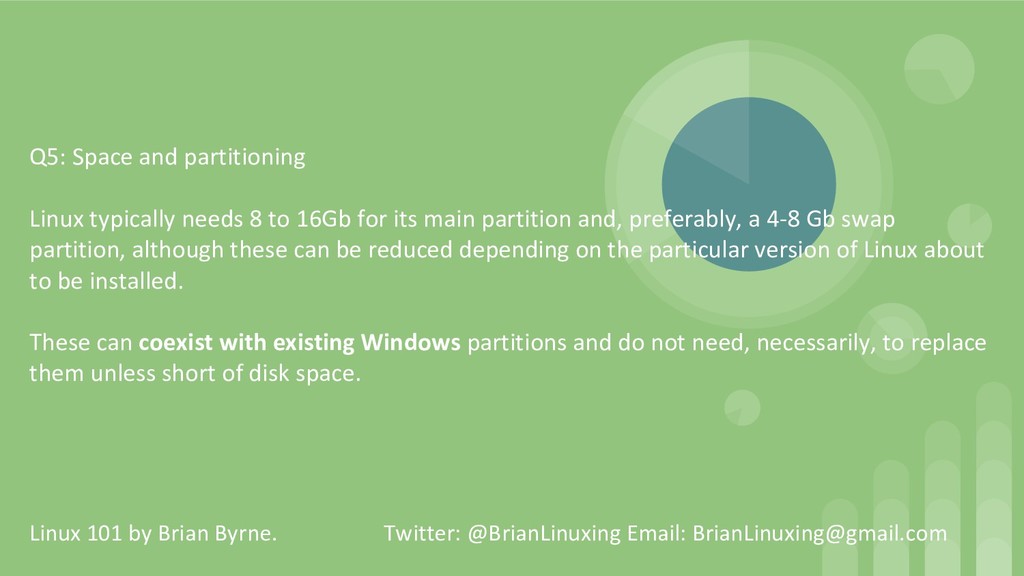
for its main partition and, preferably, a 4-8 Gb swap partition, although these can be reduced depending on the particular version of Linux about to be installed. These can coexist with existing Windows partitions and do not need, necessarily, to replace them unless short of disk space. Linux 101 by Brian Byrne. Twitter: @BrianLinuxing Email: [email protected]
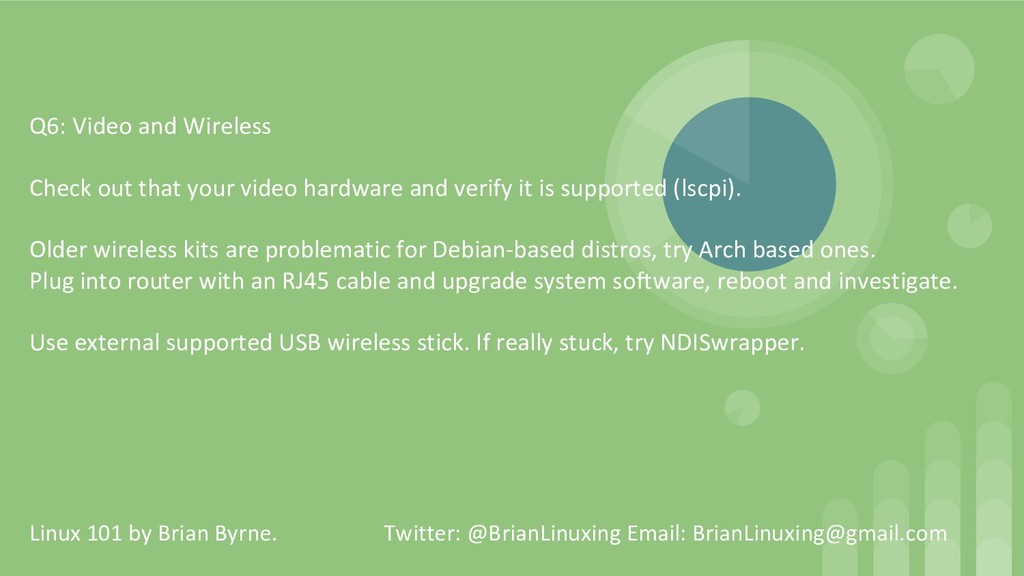
and verify it is supported (lscpi). Older wireless kits are problematic for Debian-based distros, try Arch based ones. Plug into router with an RJ45 cable and upgrade system software, reboot and investigate. Use external supported USB wireless stick. If really stuck, try NDISwrapper. Linux 101 by Brian Byrne. Twitter: @BrianLinuxing Email: [email protected]
final stage of any Linux installation, very rarely during that last part will there be an error the writing boot block. If it fails to write the boot block, re-do the installation. If problem persists, try another distro. Linux 101 by Brian Byrne. Twitter: @BrianLinuxing Email: [email protected]
systems Linux is comparatively trouble free during installation, but if they do occur most errors are minor and can be fixed with time Linux 101 by Brian Byrne. Twitter: @BrianLinuxing Email: [email protected]


 brianlinuxing
 munakata
 riyaamemiya
 oidfj
 fortegp05
 birgitta410
 kobayashiyorimitsu
 pipepasta
 okiyuki99
 wadayusuke
 yuutosi
 ivry_presentationmaterials
 geoffreycrofte
 kimpetersen
 badams
 livdayseo
 orderedlist
 holman
 axbom
 akashhashmi
 sergeychernyshev
 colly
 afnizarnur