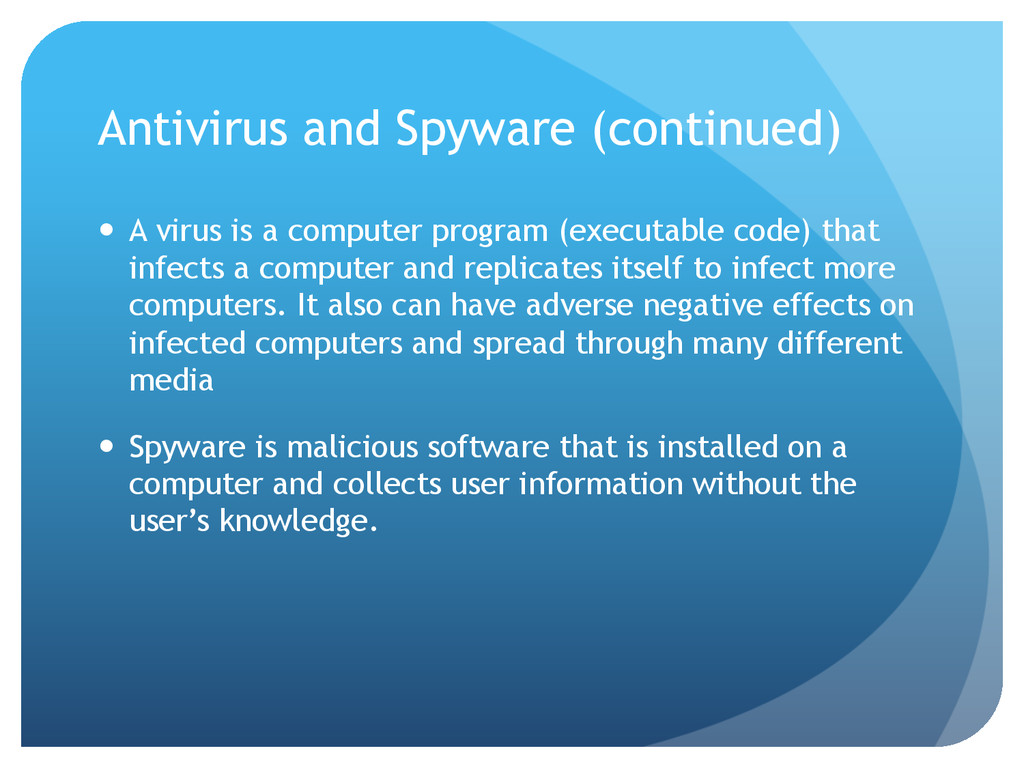
program (executable code) that infects a computer and replicates itself to infect more computers. It also can have adverse negative effects on infected computers and spread through many different media Spyware is malicious software that is installed on a computer and collects user information without the user’s knowledge.
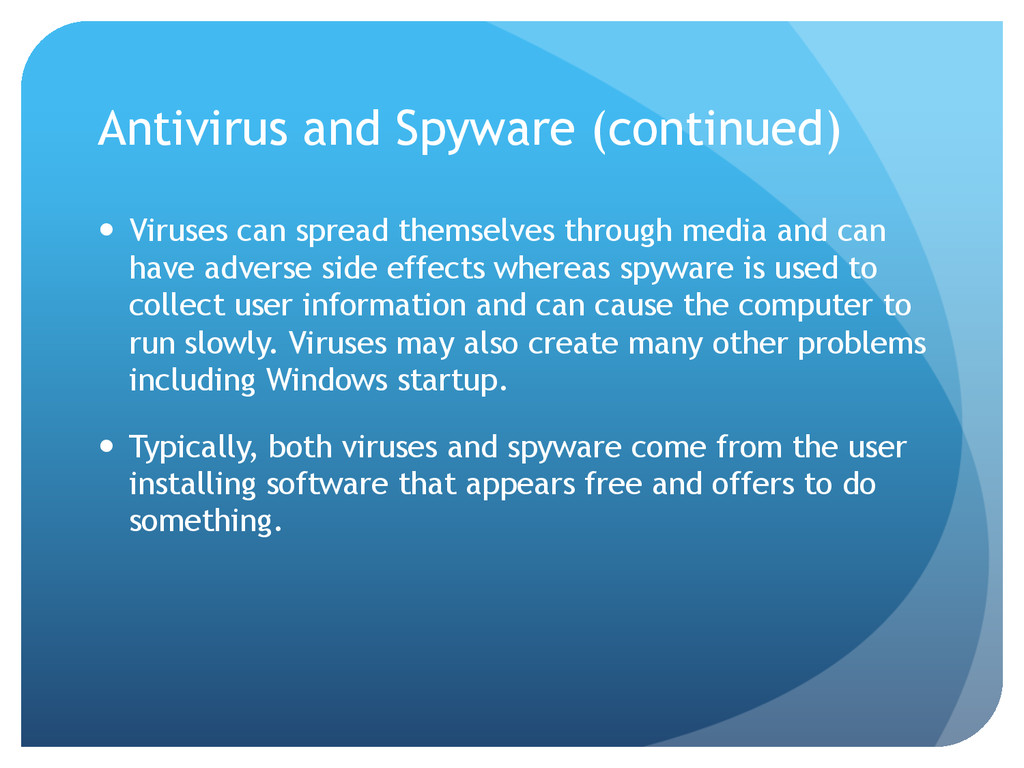
media and can have adverse side effects whereas spyware is used to collect user information and can cause the computer to run slowly. Viruses may also create many other problems including Windows startup. Typically, both viruses and spyware come from the user installing software that appears free and offers to do something.
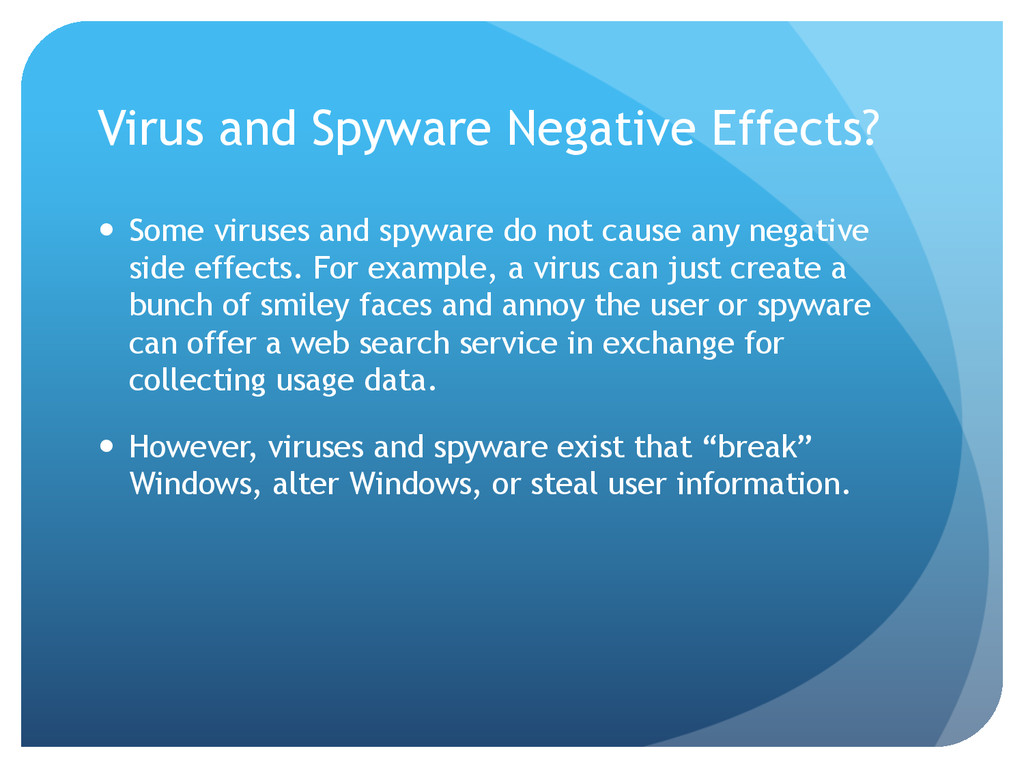
do not cause any negative side effects. For example, a virus can just create a bunch of smiley faces and annoy the user or spyware can offer a web search service in exchange for collecting usage data. However, viruses and spyware exist that “break” Windows, alter Windows, or steal user information.
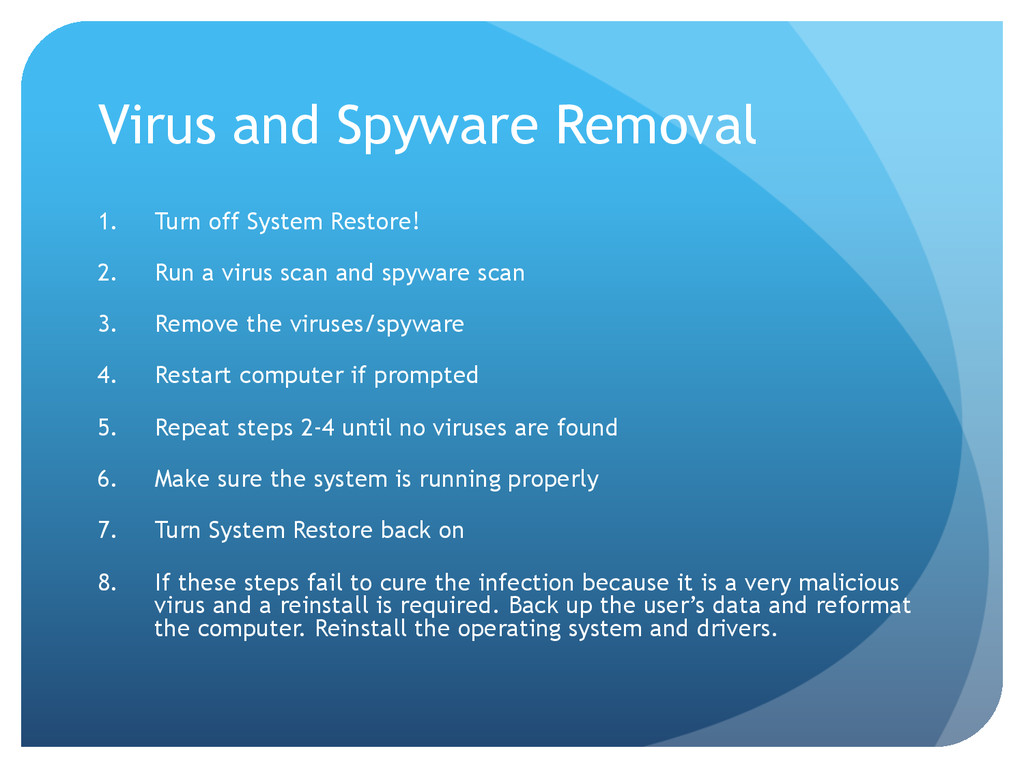
Run a virus scan and spyware scan 3. Remove the viruses/spyware 4. Restart computer if prompted 5. Repeat steps 2-4 until no viruses are found 6. Make sure the system is running properly 7. Turn System Restore back on 8. If these steps fail to cure the infection because it is a very malicious virus and a reinstall is required. Back up the user’s data and reformat the computer. Reinstall the operating system and drivers.
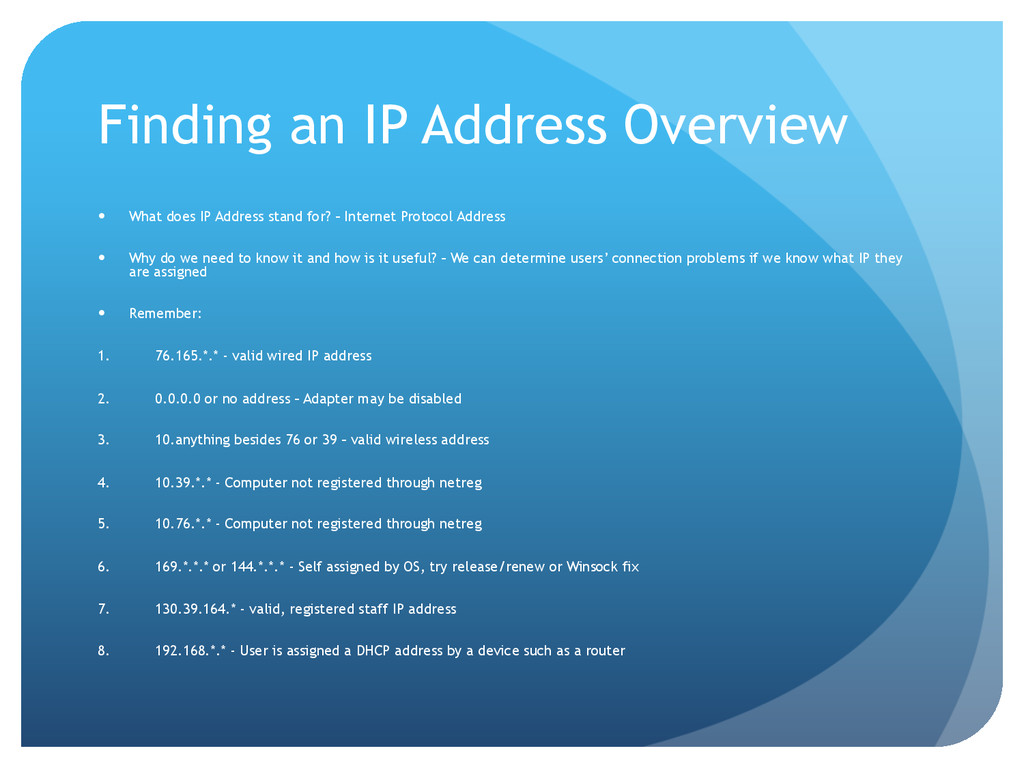
stand for? – Internet Protocol Address Why do we need to know it and how is it useful? – We can determine users’ connection problems if we know what IP they are assigned Remember: 1. 76.165.*.* - valid wired IP address 2. 0.0.0.0 or no address – Adapter may be disabled 3. 10.anything besides 76 or 39 – valid wireless address 4. 10.39.*.* - Computer not registered through netreg 5. 10.76.*.* - Computer not registered through netreg 6. 169.*.*.* or 144.*.*.* - Self assigned by OS, try release/renew or Winsock fix 7. 130.39.164.* - valid, registered staff IP address 8. 192.168.*.* - User is assigned a DHCP address by a device such as a router
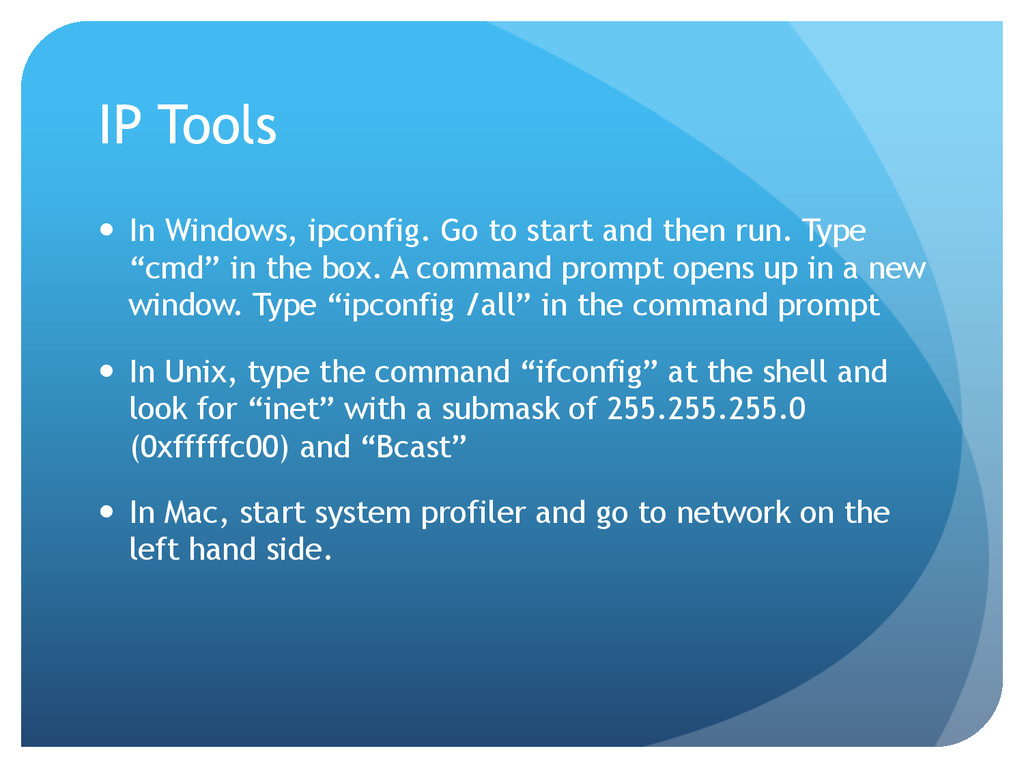
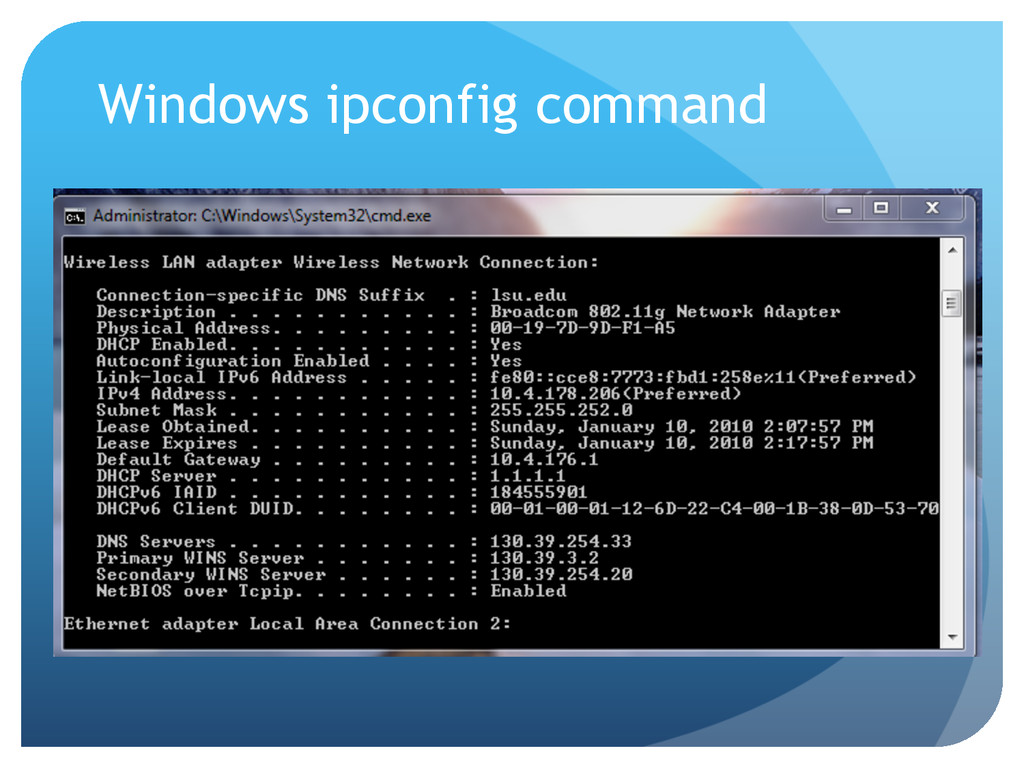
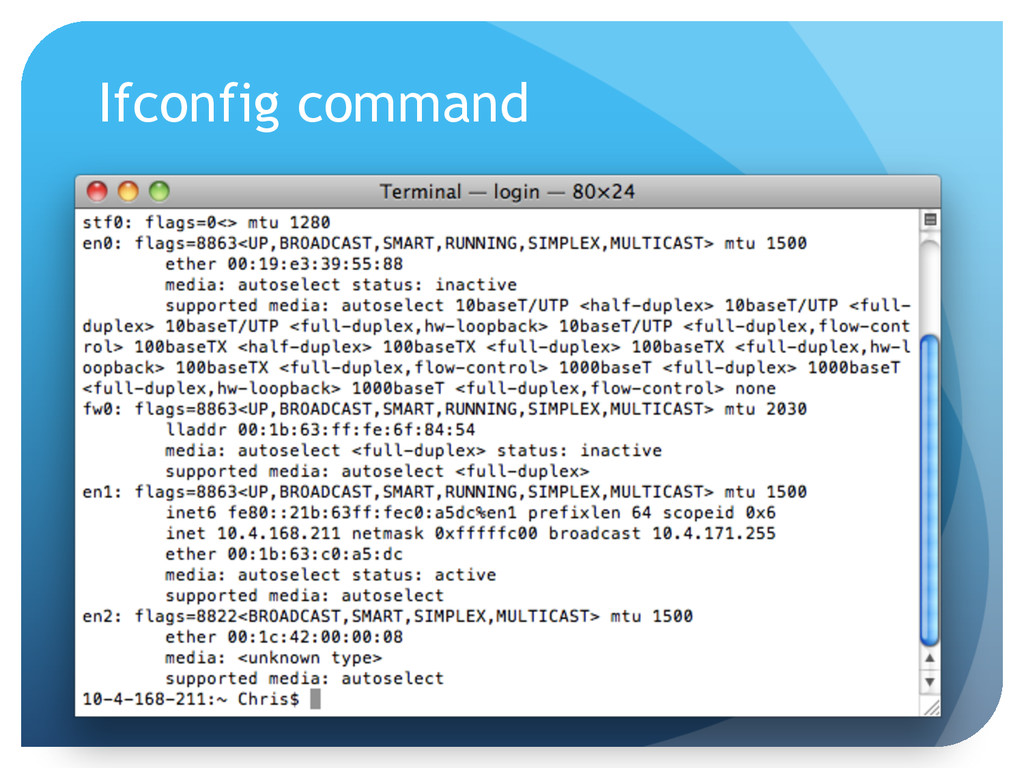
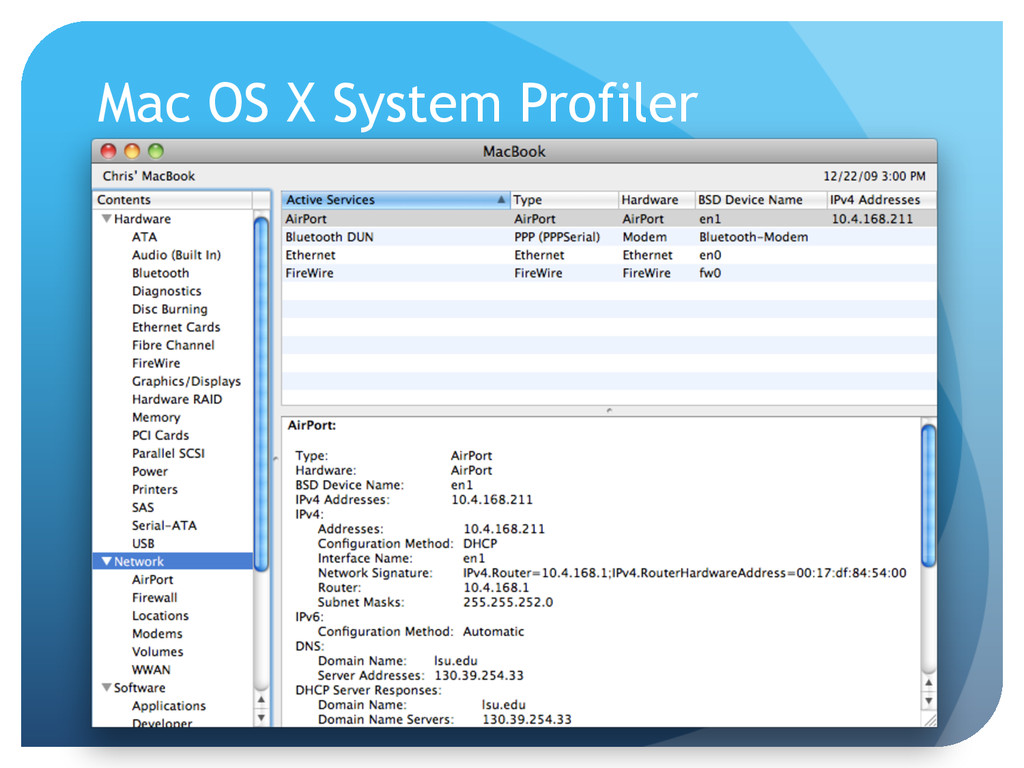
then run. Type “cmd” in the box. A command prompt opens up in a new window. Type “ipconfig /all” in the command prompt In Unix, type the command “ifconfig” at the shell and look for “inet” with a submask of 255.255.255.0 (0xfffffc00) and “Bcast” In Mac, start system profiler and go to network on the left hand side.
an IP address also. However, they will not be correct for a local address if on a network. These will show the external address of the computer that you visit them from www.ipchicken.com
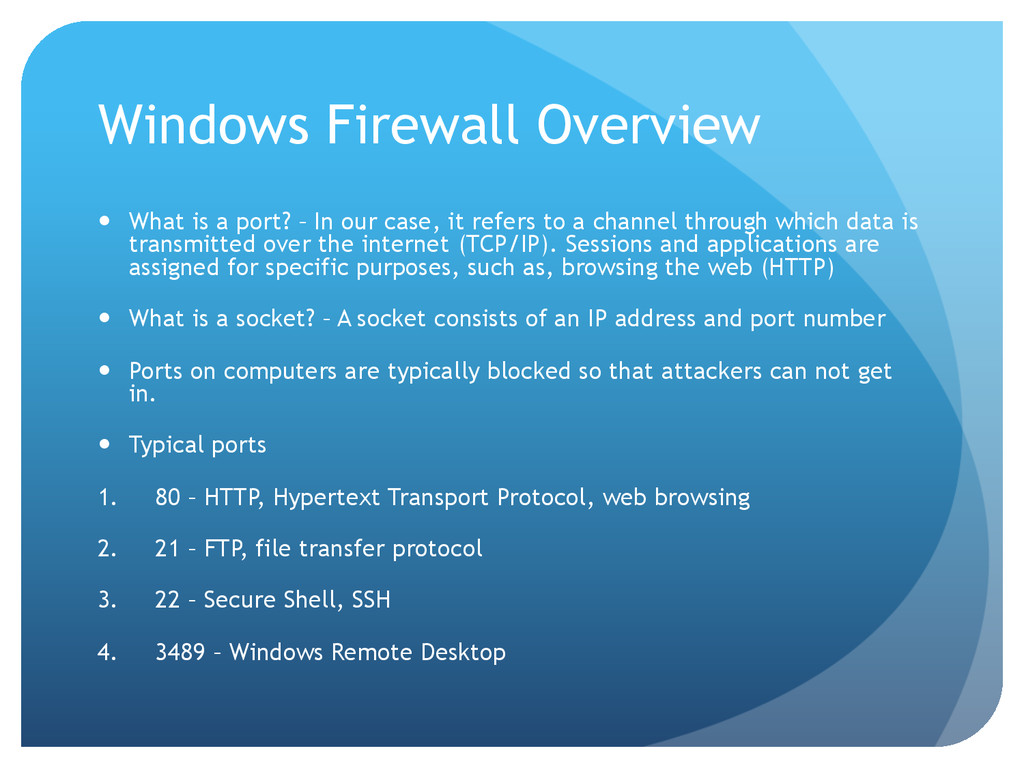
our case, it refers to a channel through which data is transmitted over the internet (TCP/IP). Sessions and applications are assigned for specific purposes, such as, browsing the web (HTTP) What is a socket? – A socket consists of an IP address and port number Ports on computers are typically blocked so that attackers can not get in. Typical ports 1. 80 – HTTP, Hypertext Transport Protocol, web browsing 2. 21 – FTP, file transfer protocol 3. 22 – Secure Shell, SSH 4. 3489 – Windows Remote Desktop
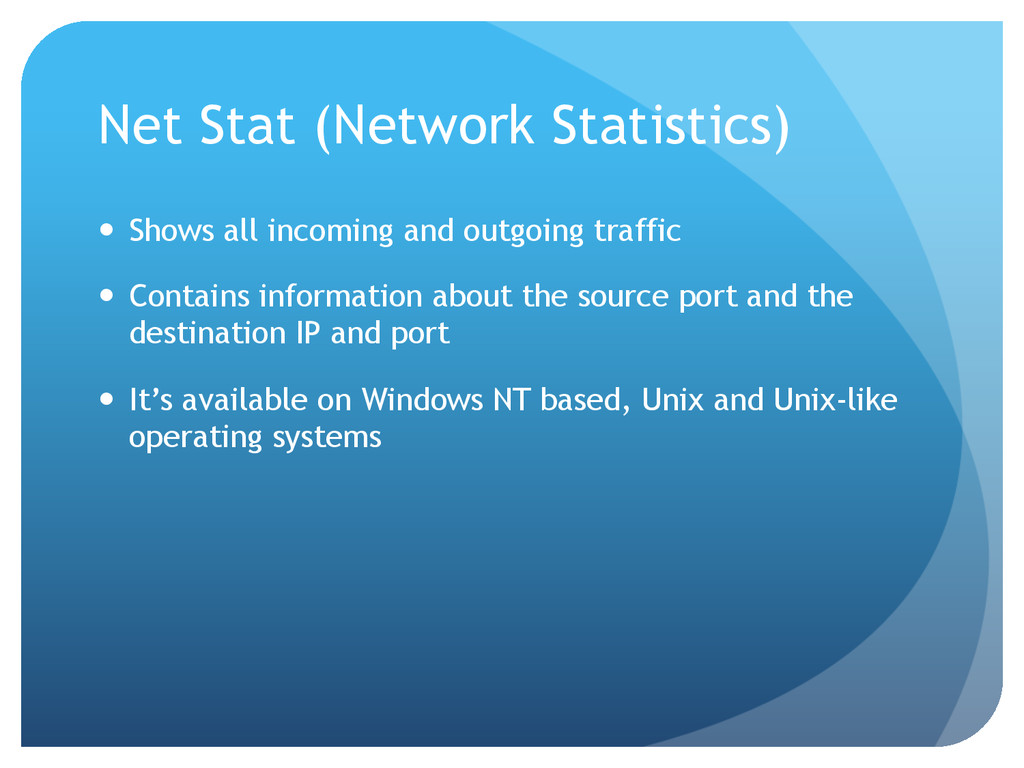
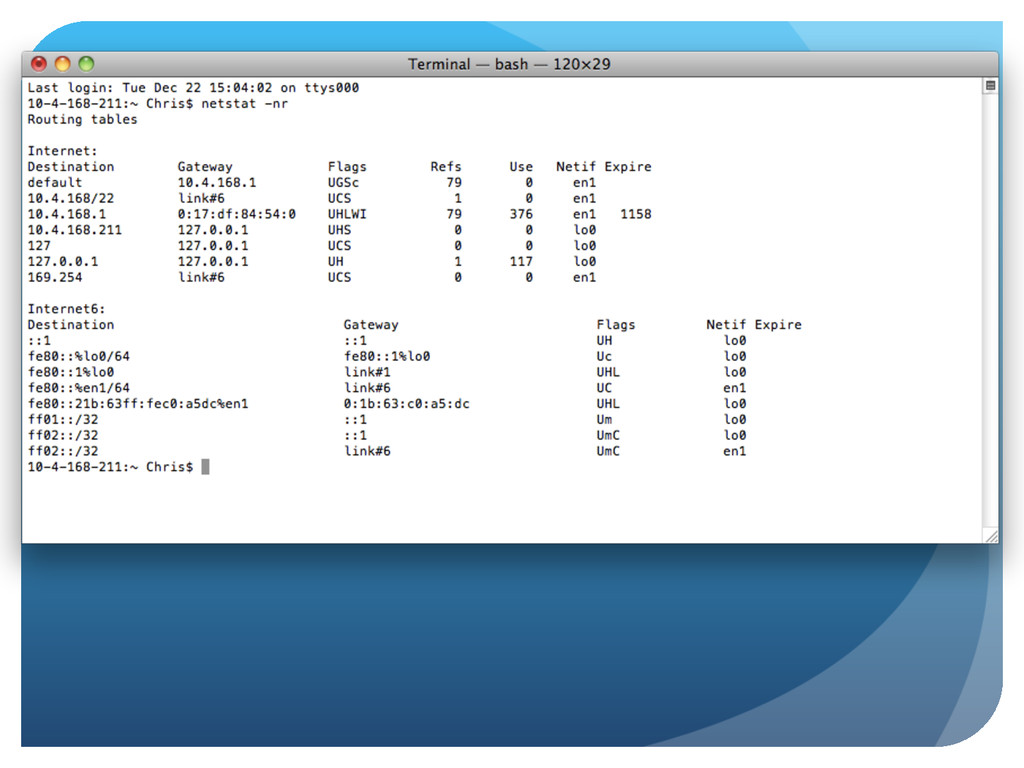
traffic Contains information about the source port and the destination IP and port It’s available on Windows NT based, Unix and Unix-like operating systems
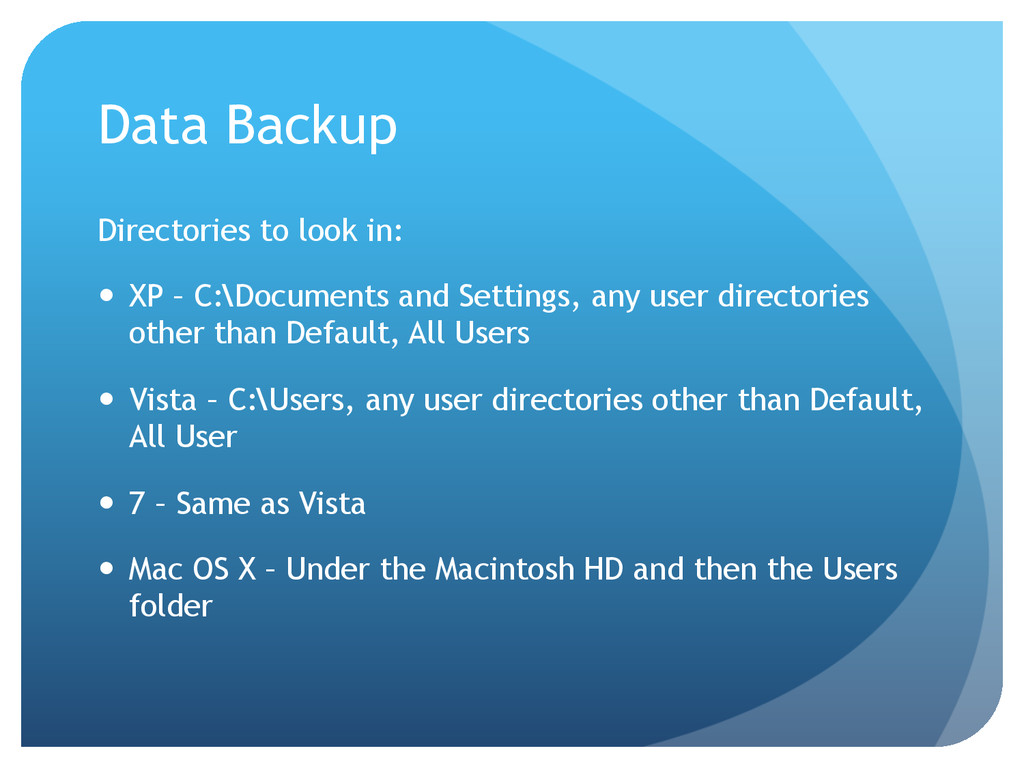
and Settings, any user directories other than Default, All Users Vista – C:\Users, any user directories other than Default, All User 7 – Same as Vista Mac OS X – Under the Macintosh HD and then the Users folder
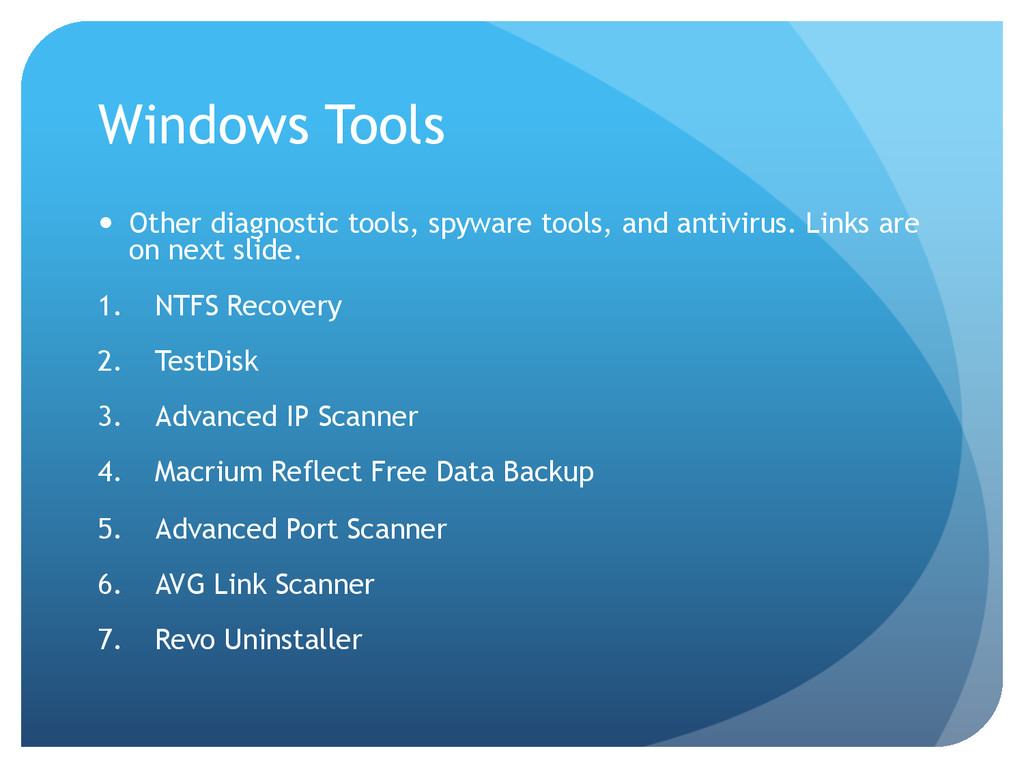
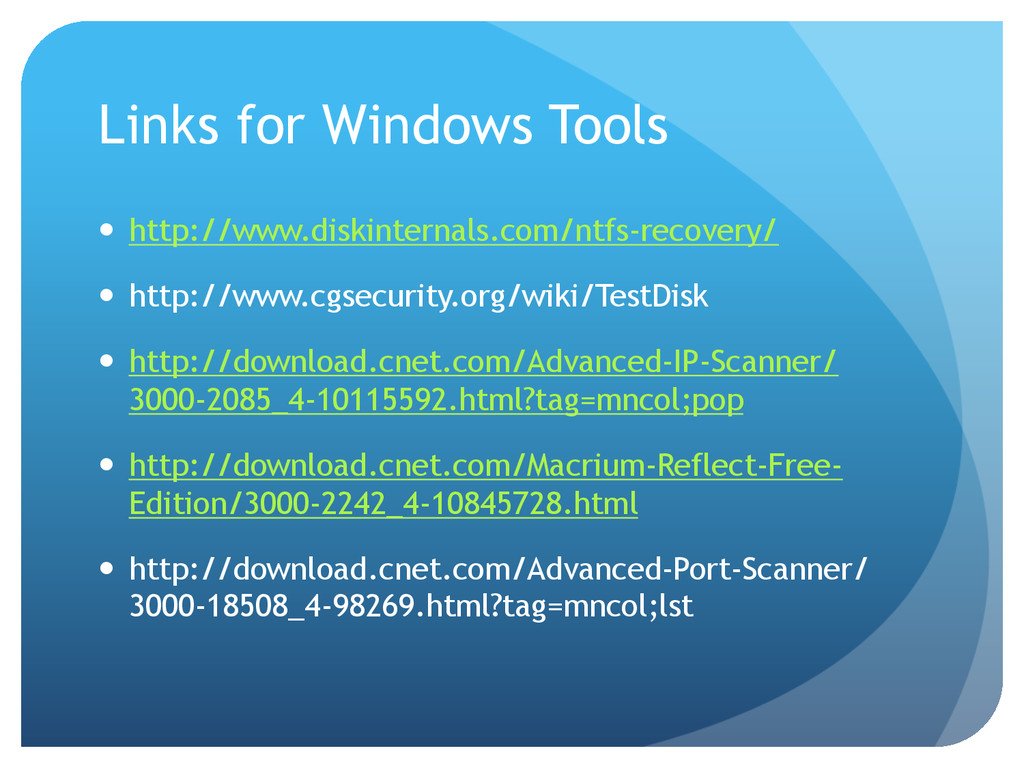
Links are on next slide. 1. NTFS Recovery 2. TestDisk 3. Advanced IP Scanner 4. Macrium Reflect Free Data Backup 5. Advanced Port Scanner 6. AVG Link Scanner 7. Revo Uninstaller


 cmckni3
 mhrtech
 maimyyym
 prog893
 taketakekaho
 willnet
 kizawa2020
 mohab1
 camiha
 odashi
 riyaamemiya
 y0hgi
y0hgi
 rfdnxbro
 maggiecrowley
 mojombo
 akihiro_kokubo
 kimpetersen
 jct
jct
 chikuwait
 inesmontani
 garrettdimon
 morganepeng
 addyosmani
 tanoku
 mkilby