Upgrade to Pro — share decks privately, control downloads, hide ads and more …

Building apps for everyone: Getting started wit...

Sponsored · Your Podcast. Everywhere. Effortlessly. Share. Educate. Inspire. Entertain. You do you. We'll handle the rest. →

Building apps for everyone: Getting started with Android accessibility - rockndroid

In this talk, you'll learn a few quick and easy tips to make your app usable for everyone, including people with accessibility needs. Moreover, you'll discover thay accessibility is not only avoir helping people with disabilities use your app, but a way to make the experience better for everyone. We'll also see how some brand new technologies such as Material You or Jetpack Compose can help making the experience better

Avatar for Cris Barreiro

Cris Barreiro

April 13, 2022

Other Decks in Programming

Transcript

  1. Cris Barreiro // @CrisBarreiro_ Android Engineer @ Spotify Making apps

    for everyone: Getting started with Android accessibility
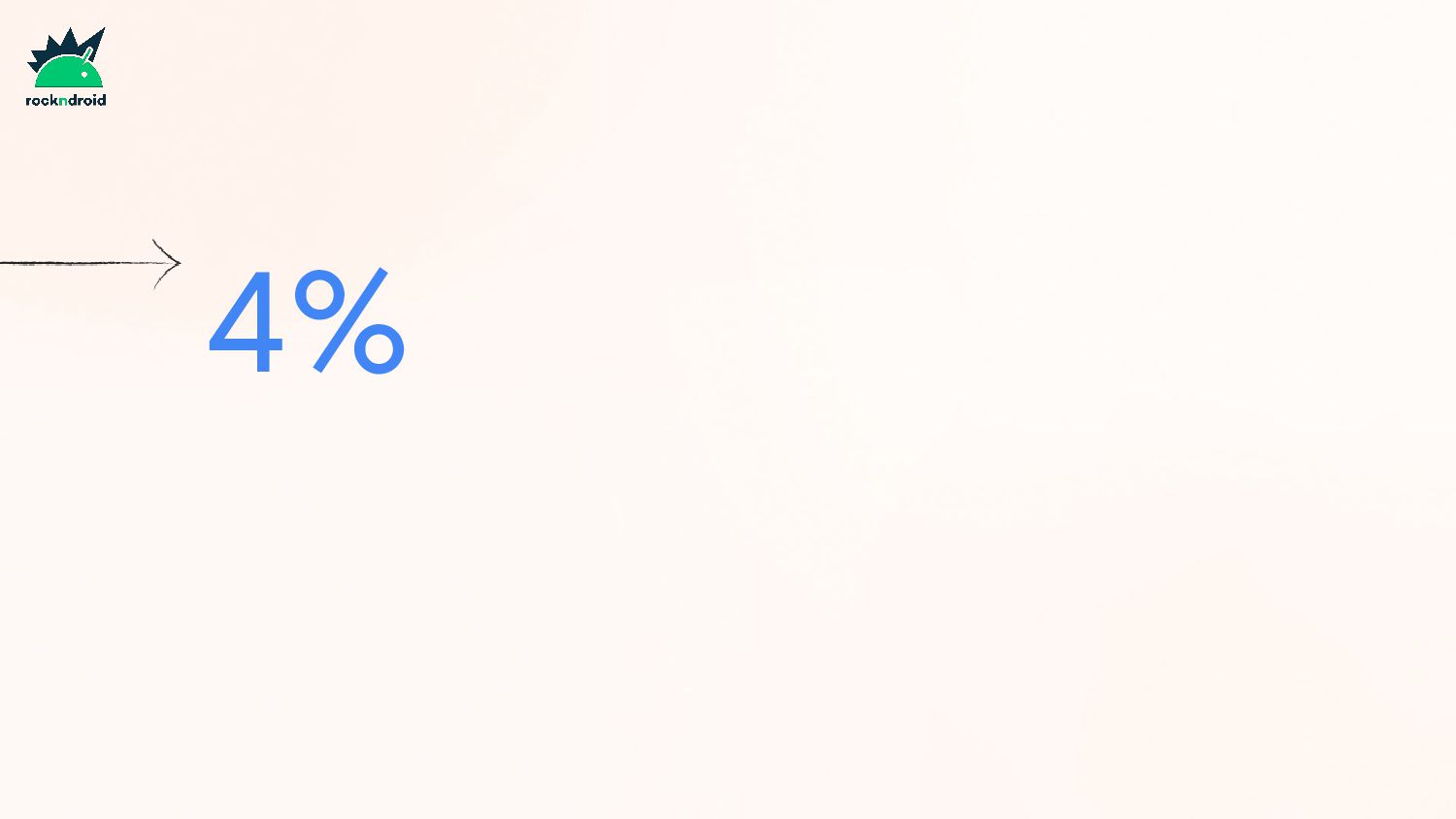
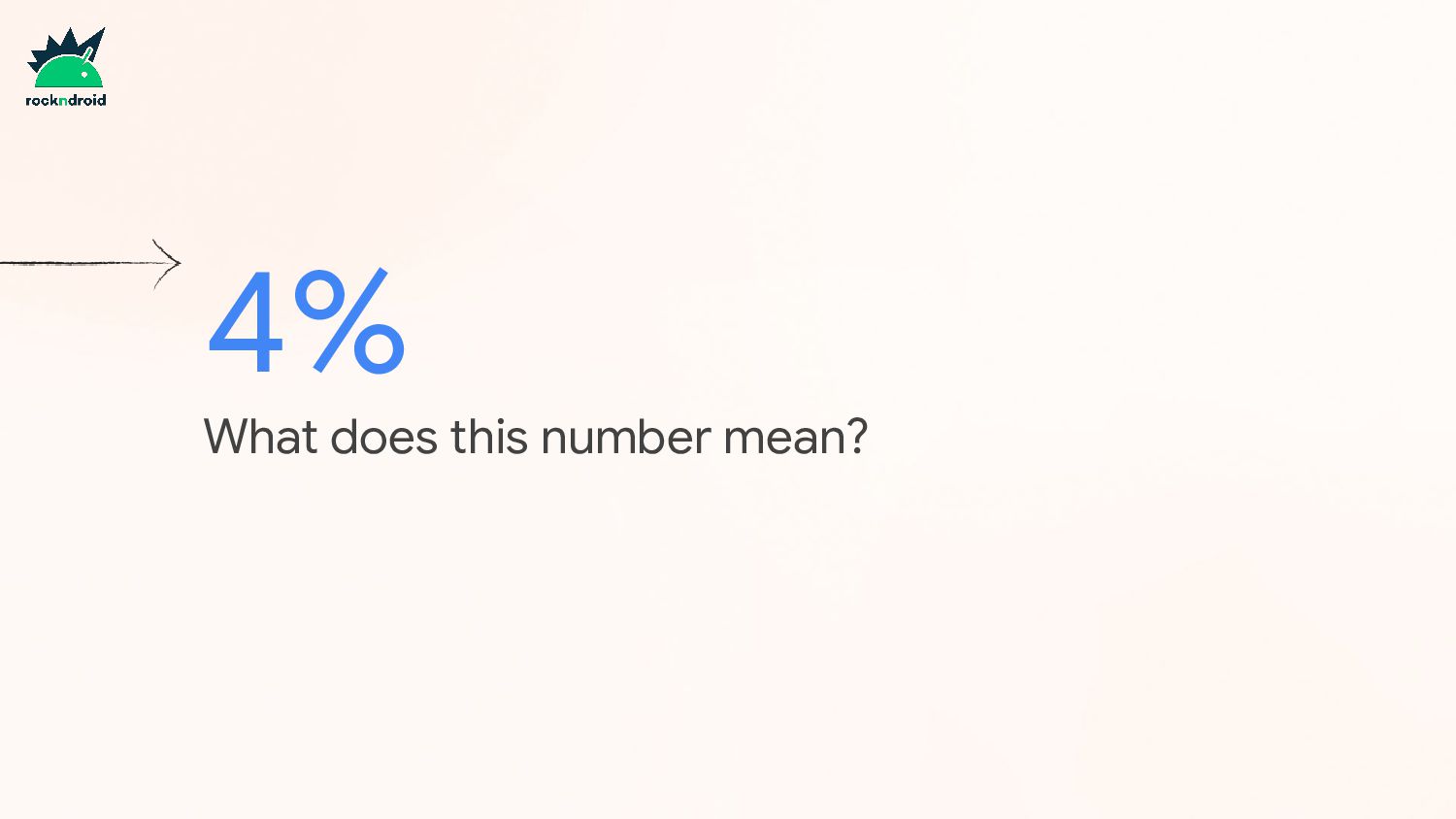
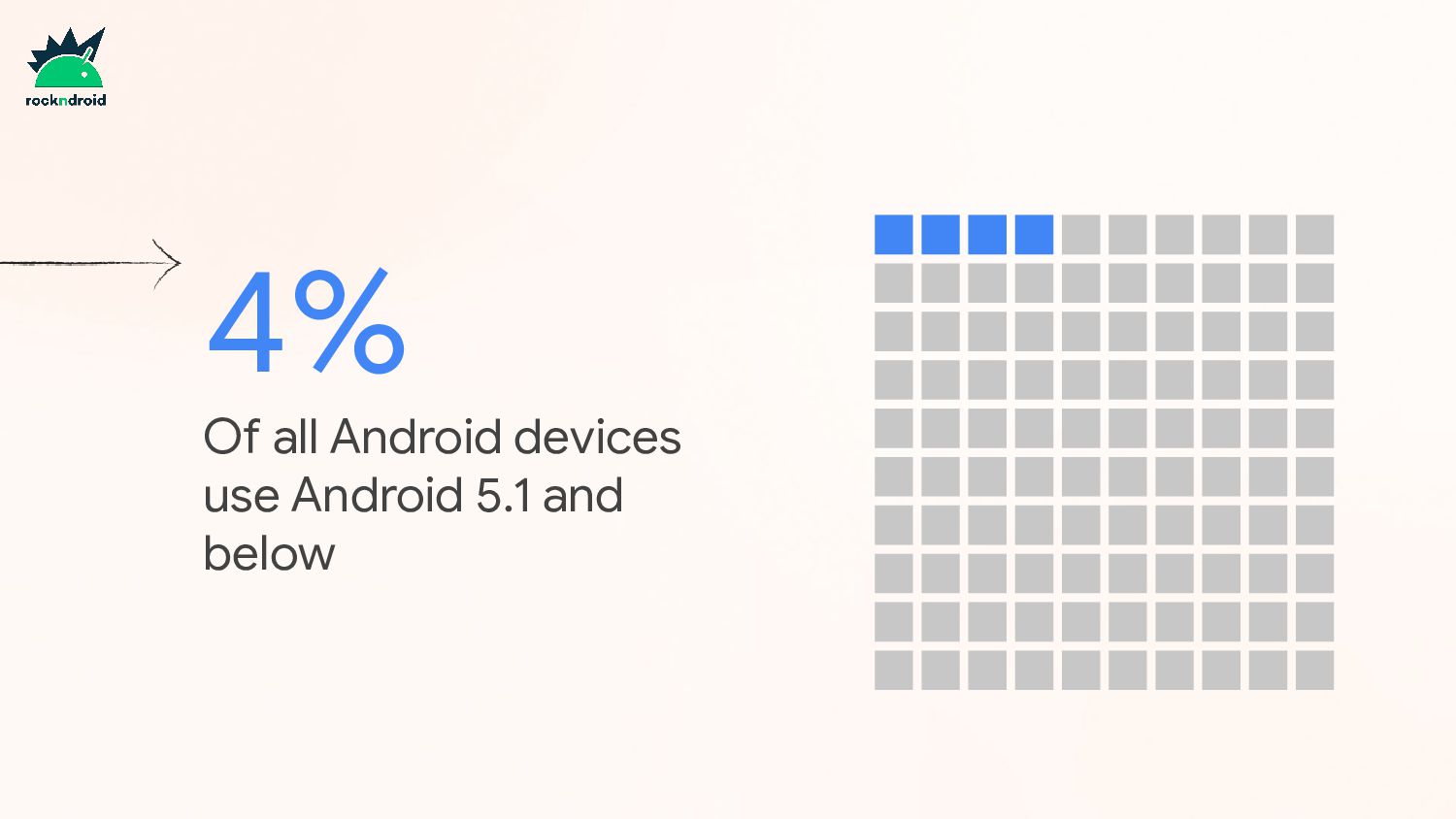
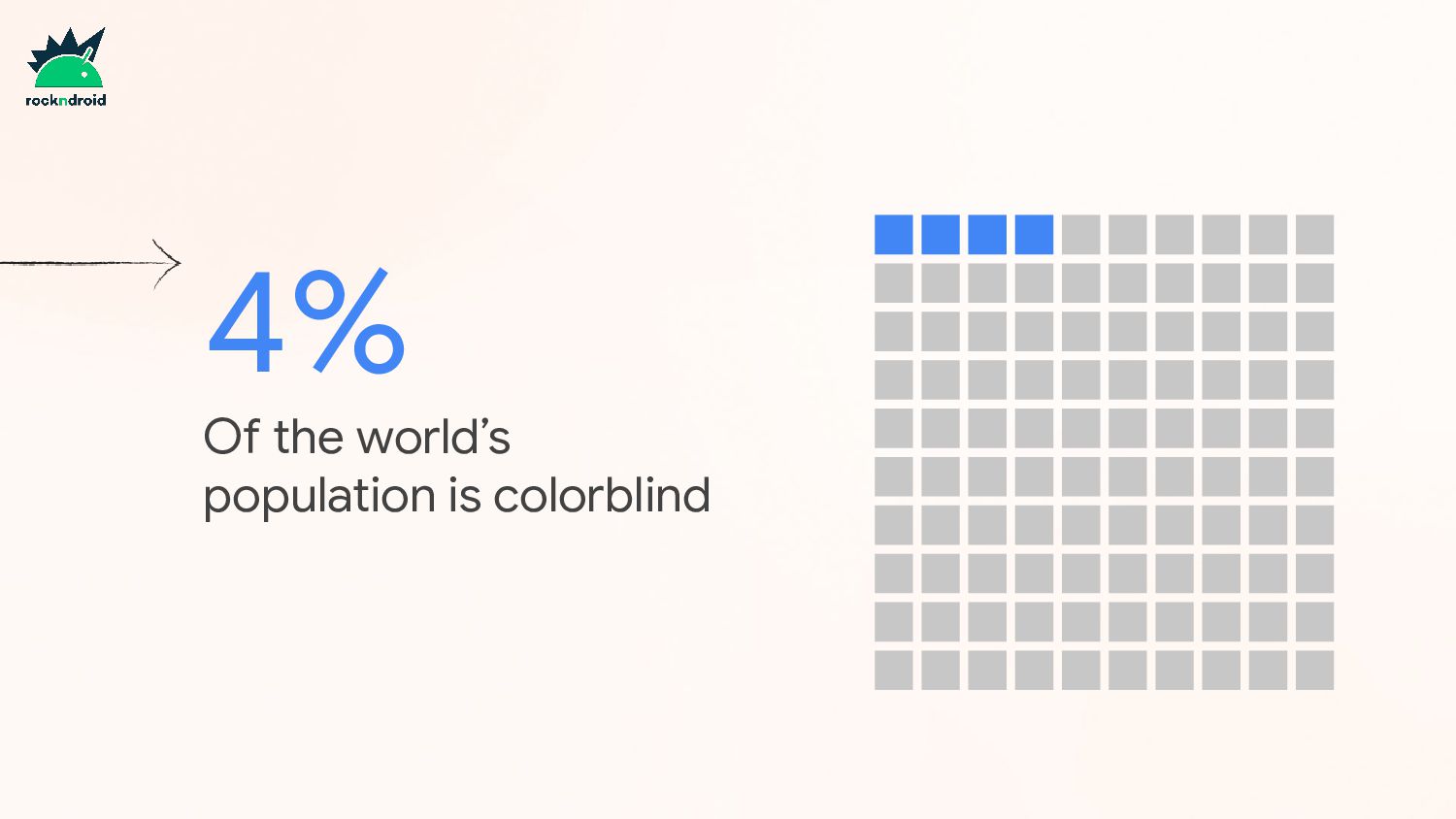
  2. 4%

  3. Contents 1. Accessibility services 2. How to make our apps

    accessible 3. Test for accessibility 4. Material You 5. Jetpack Compose
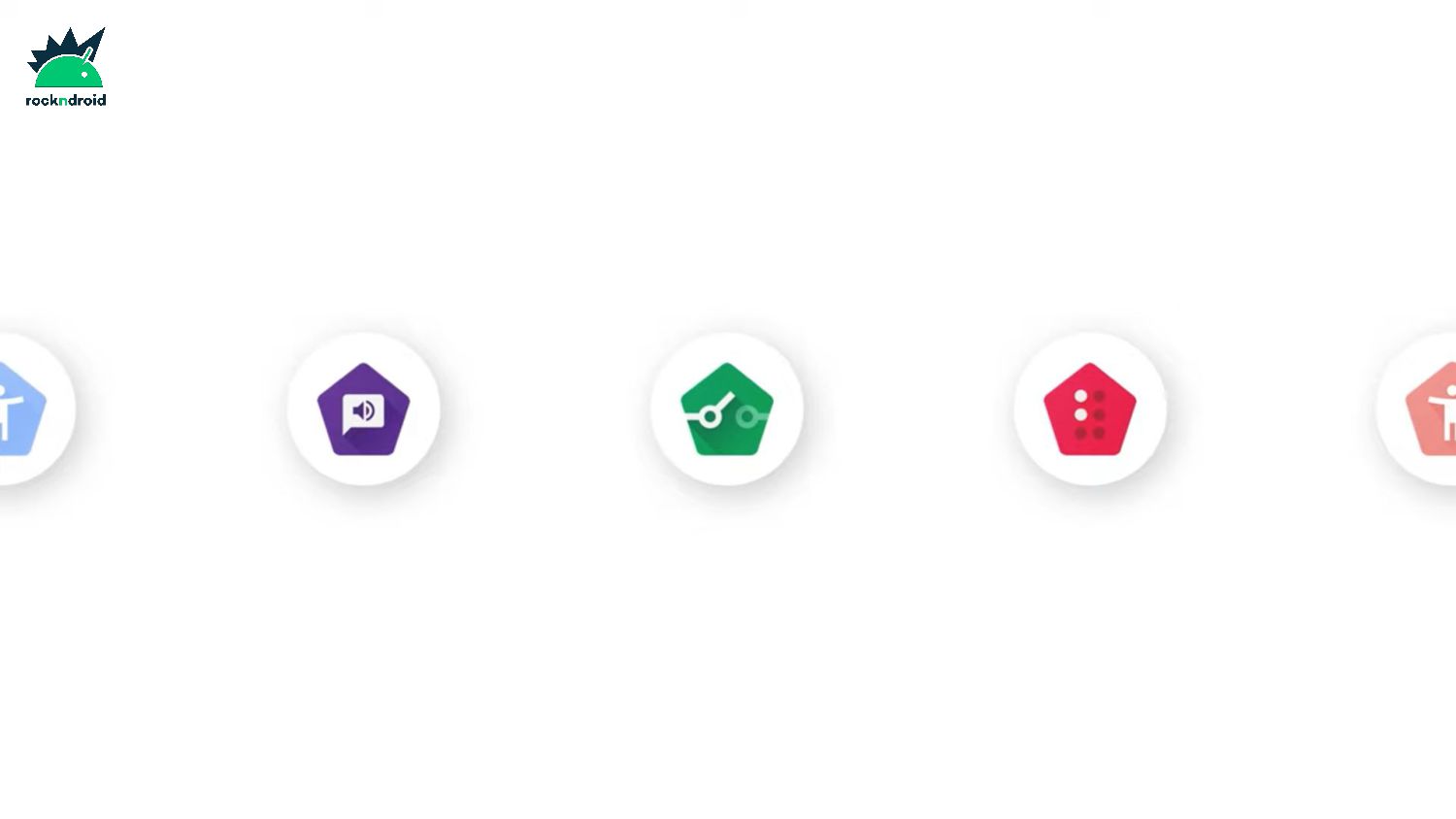
  4. TalkBack • Blind and visually impaired people • Removes the

    assumption that the user can see but leans into their ability to hear and touch the screen
  5. SwitchAccess • Two or more switches, one to navigate, one

    to interact • Removes the assumption that the user can touch the screen
  6. VoiceAccess • Interaction based on voice commands • Removes the

    assumption that the user can touch the screen
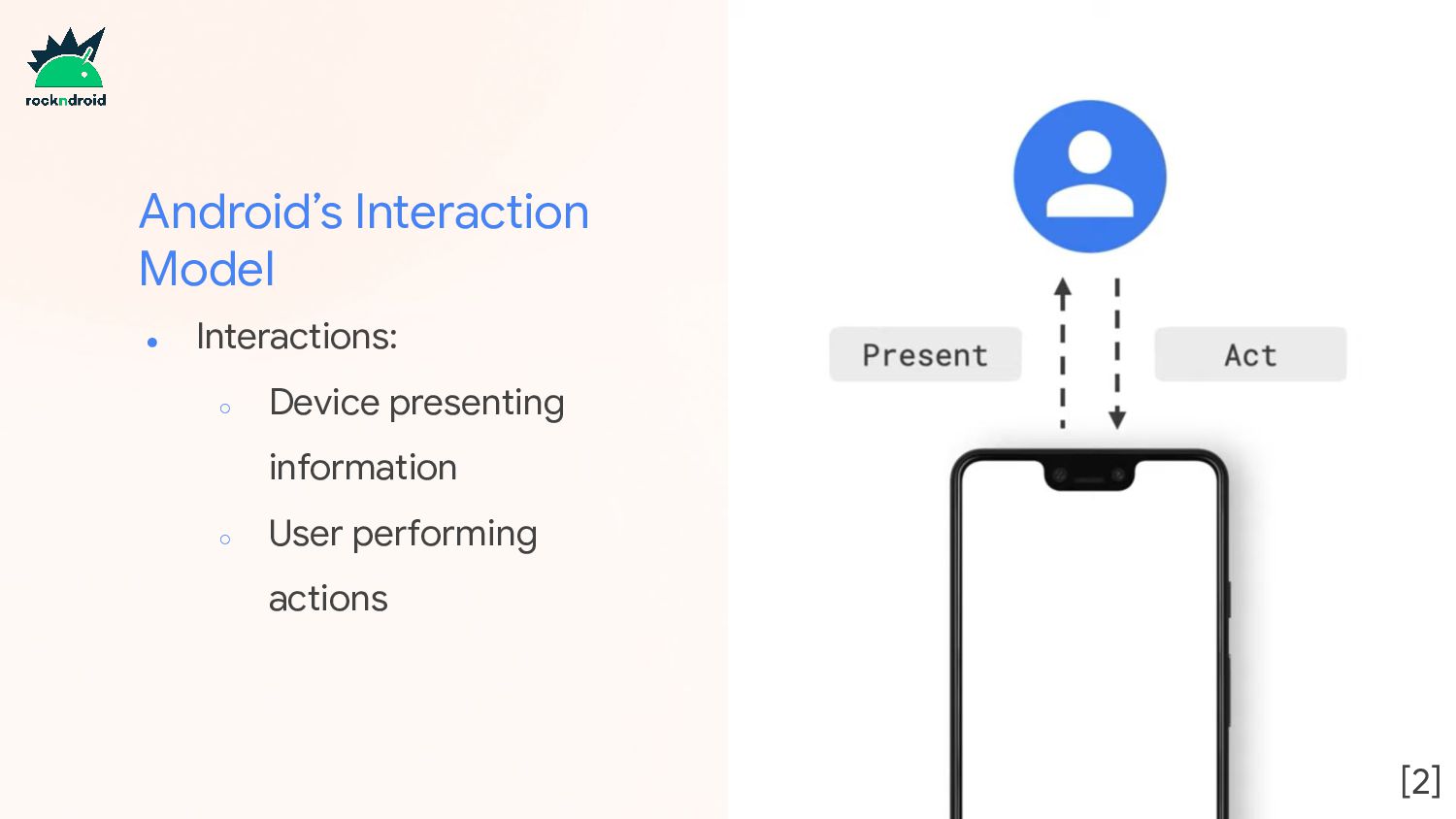
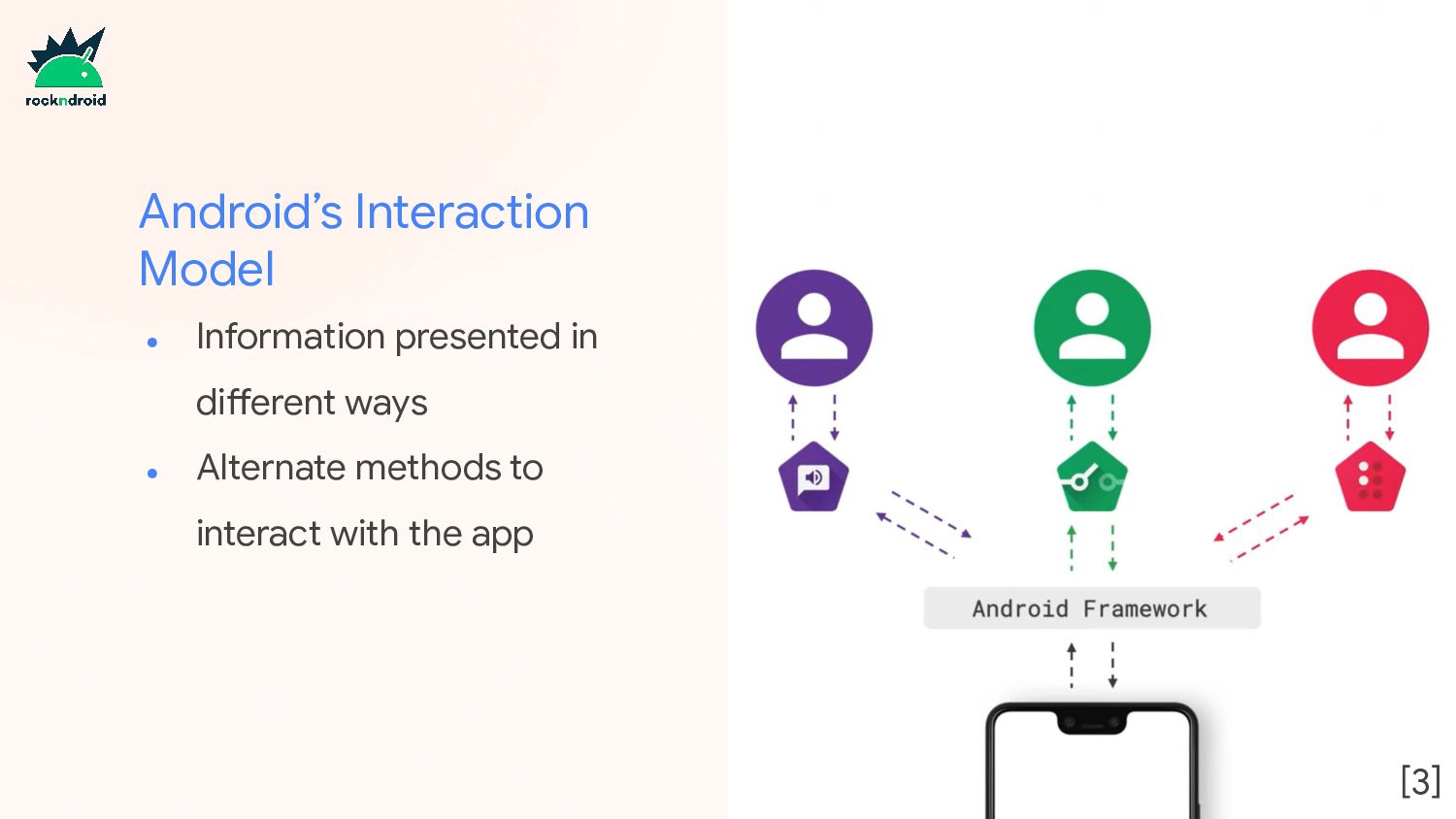
  7. • Information presented in different ways • Alternate methods to

    interact with the app Android’s Interaction Model [3]
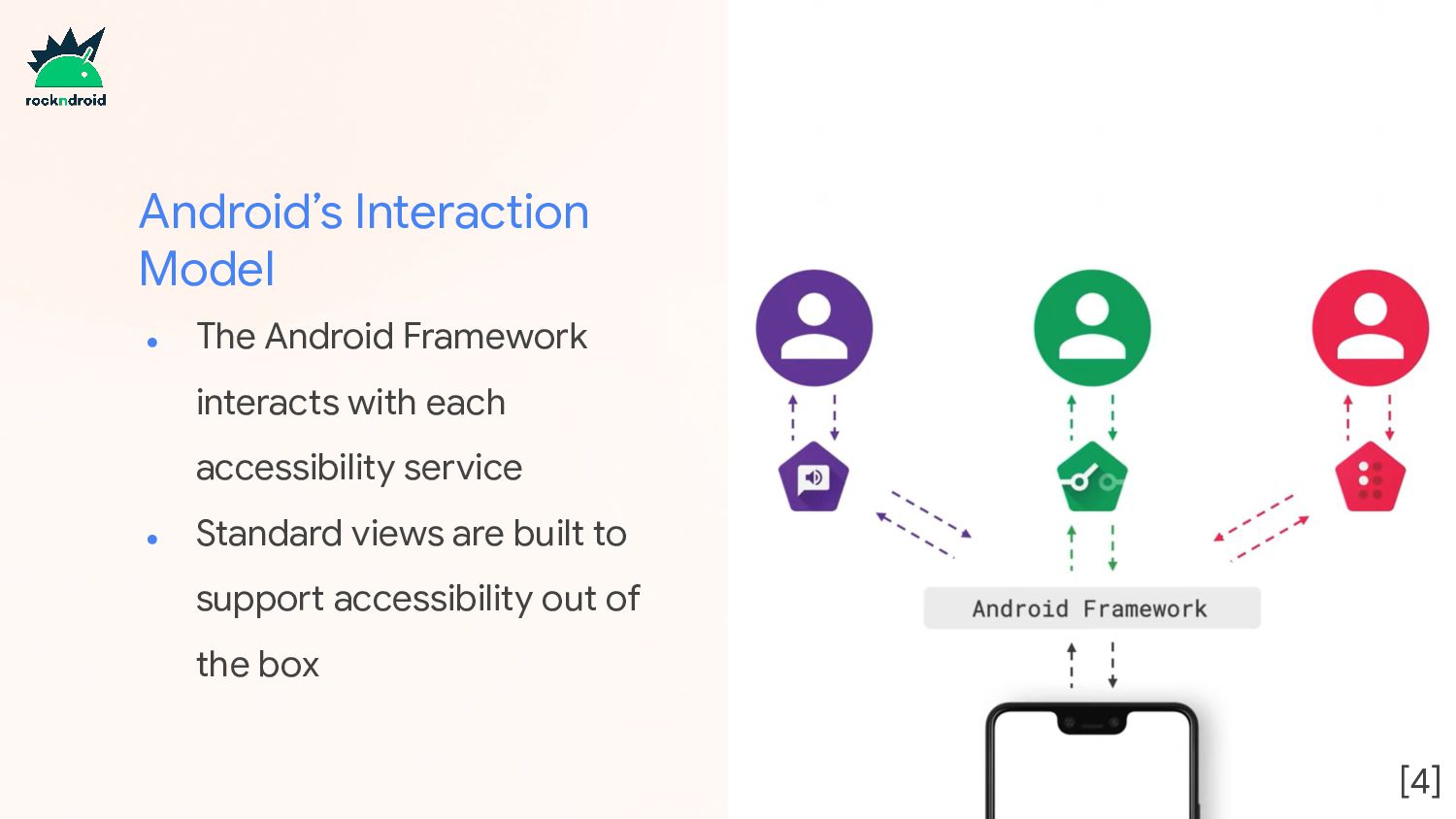
  8. • The Android Framework interacts with each accessibility service •

    Standard views are built to support accessibility out of the box Android’s Interaction Model [4]
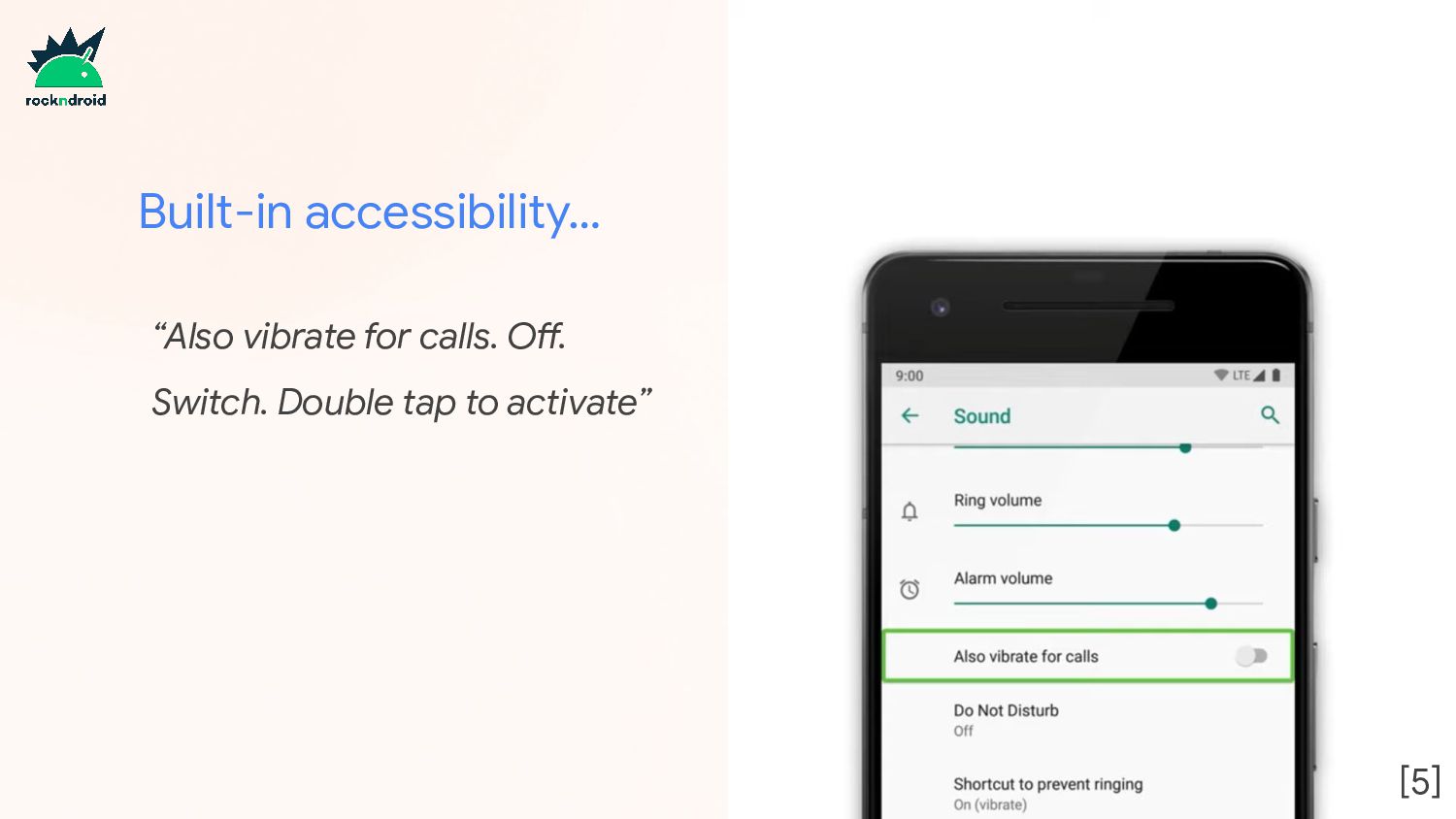
  9. Use standard Android components • Built-in accessibility support • Avoid

    clickable TextView or ImageView, use text styled Button and ImageButton instead
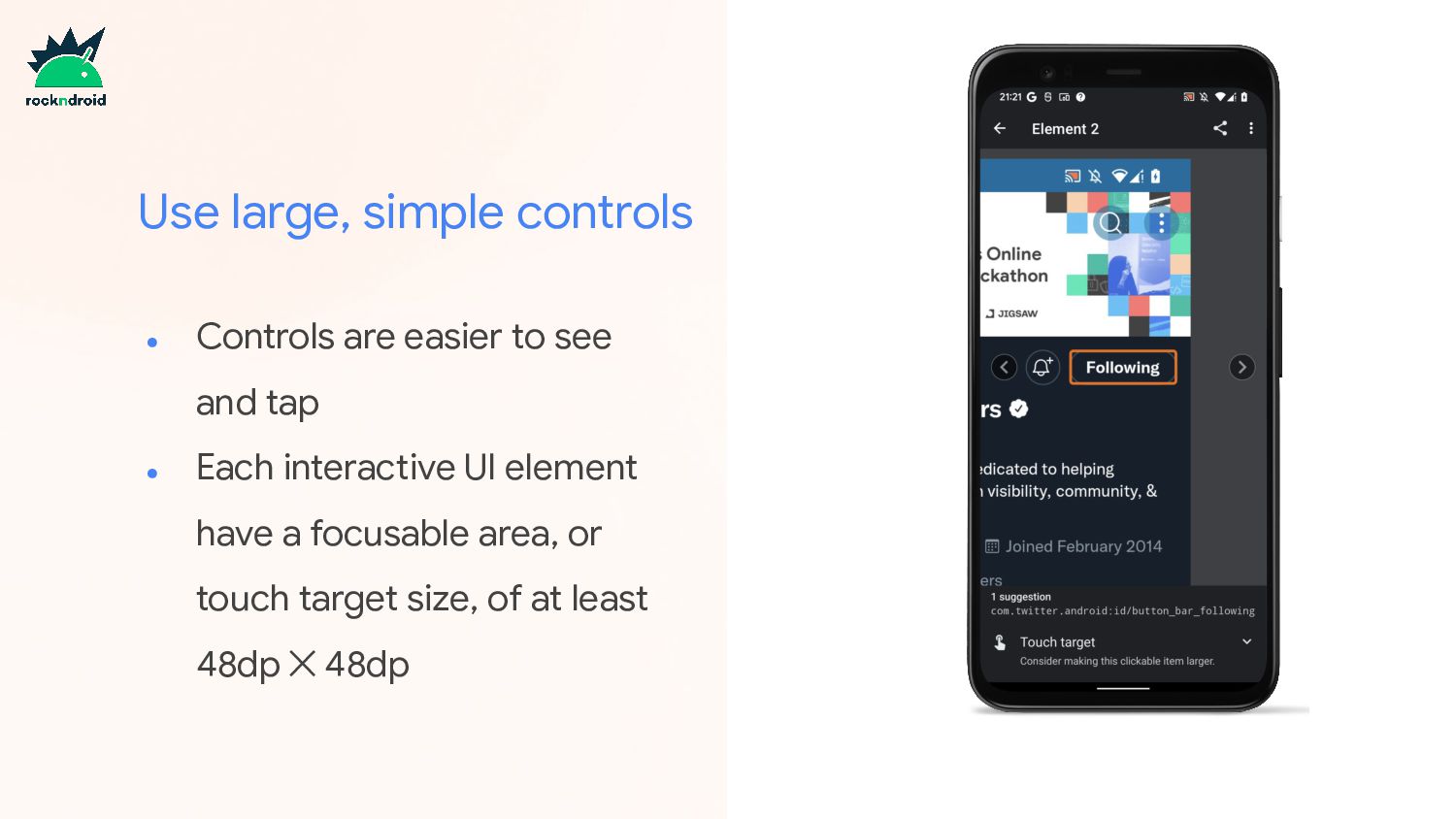
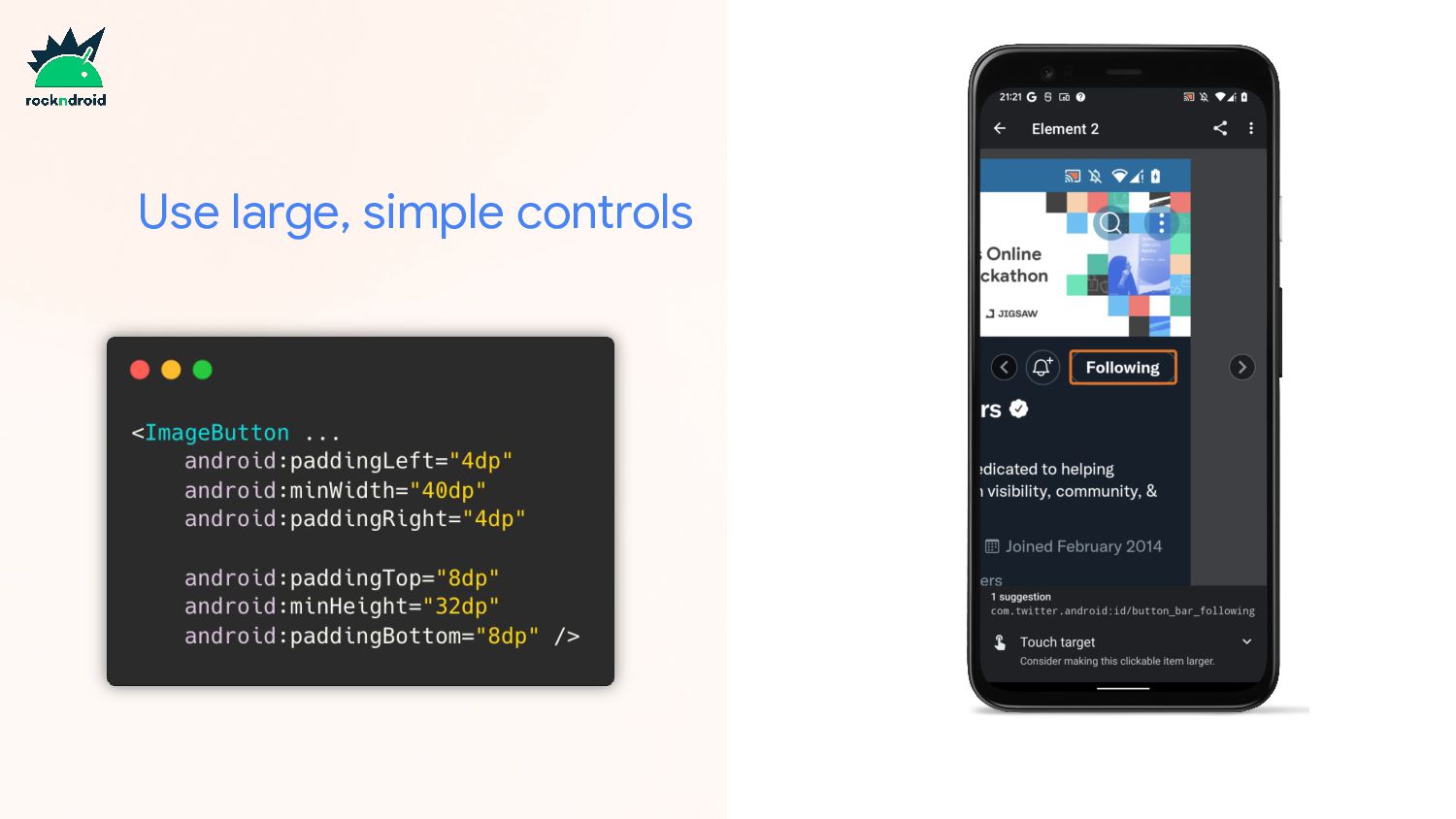
  10. Use large, simple controls • Controls are easier to see

    and tap • Each interactive UI element have a focusable area, or touch target size, of at least 48dp ✕ 48dp
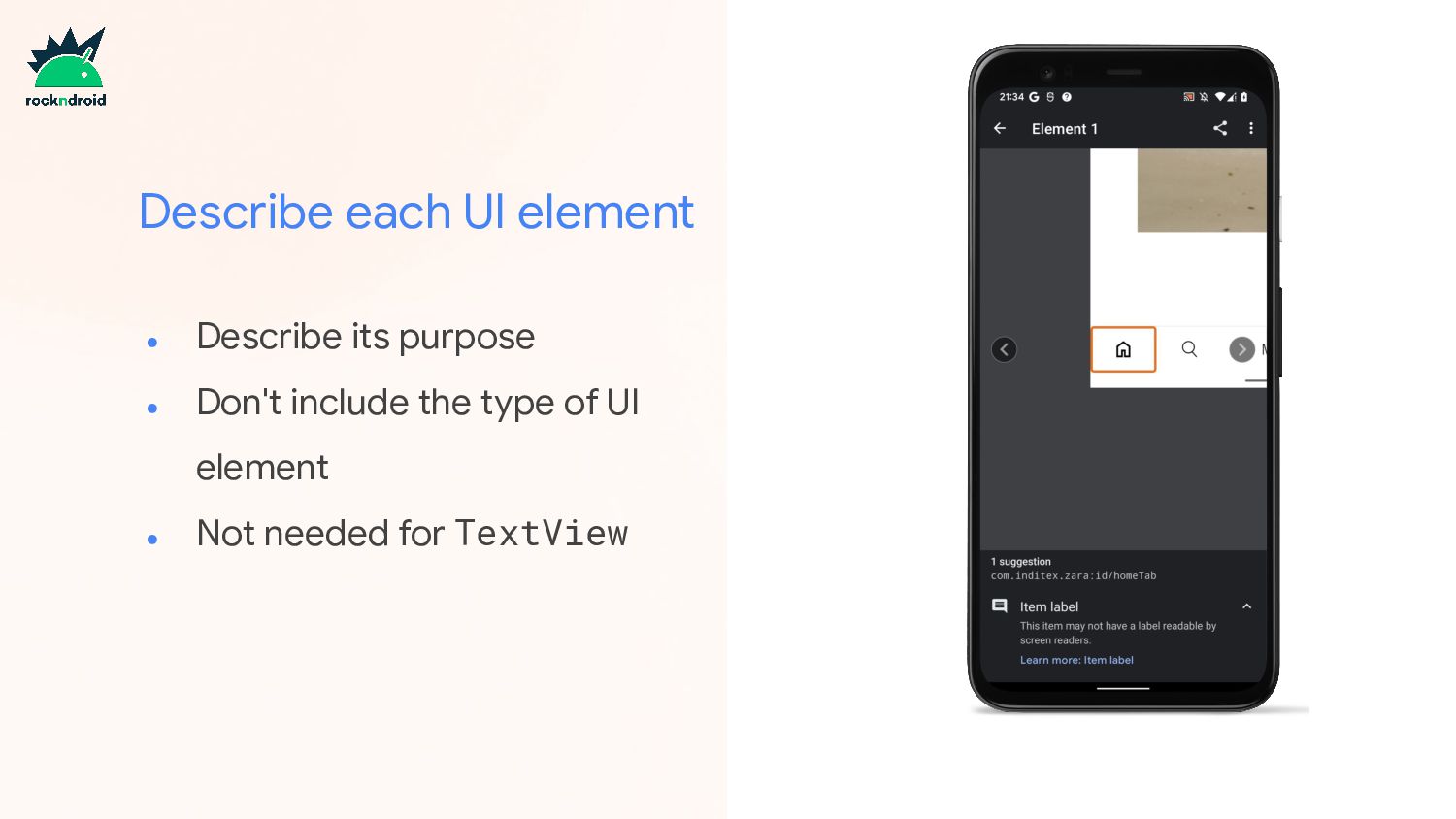
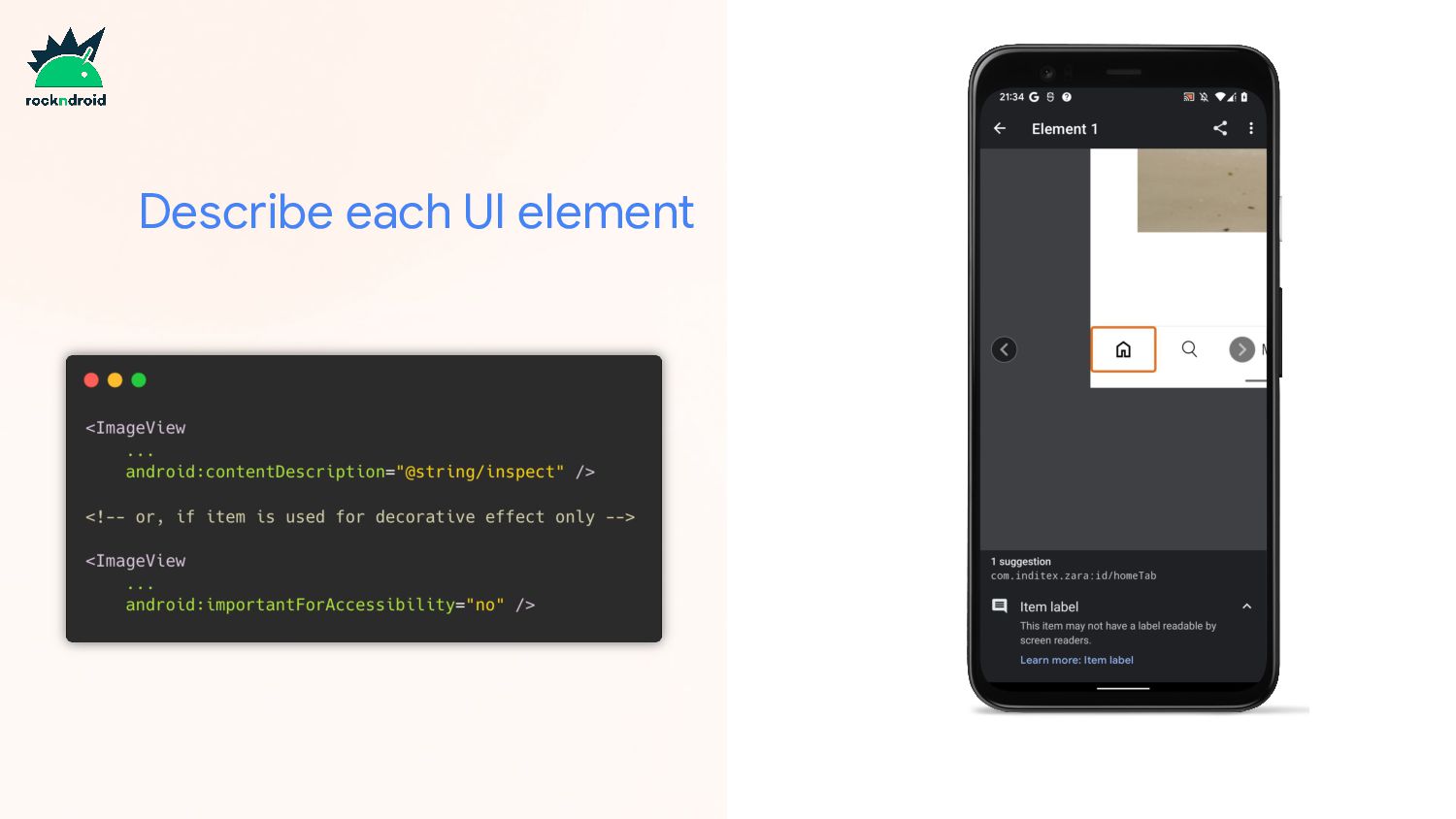
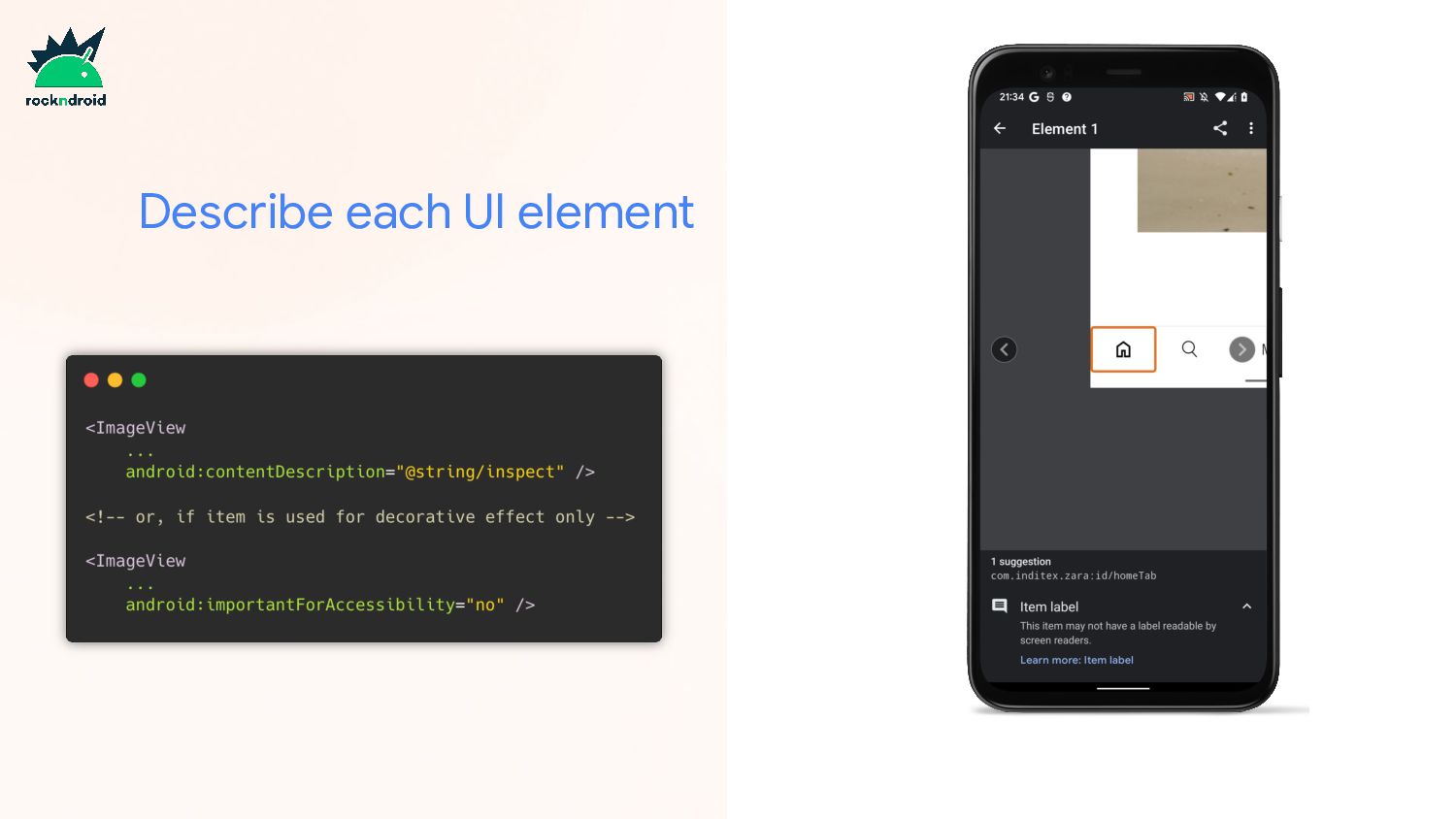
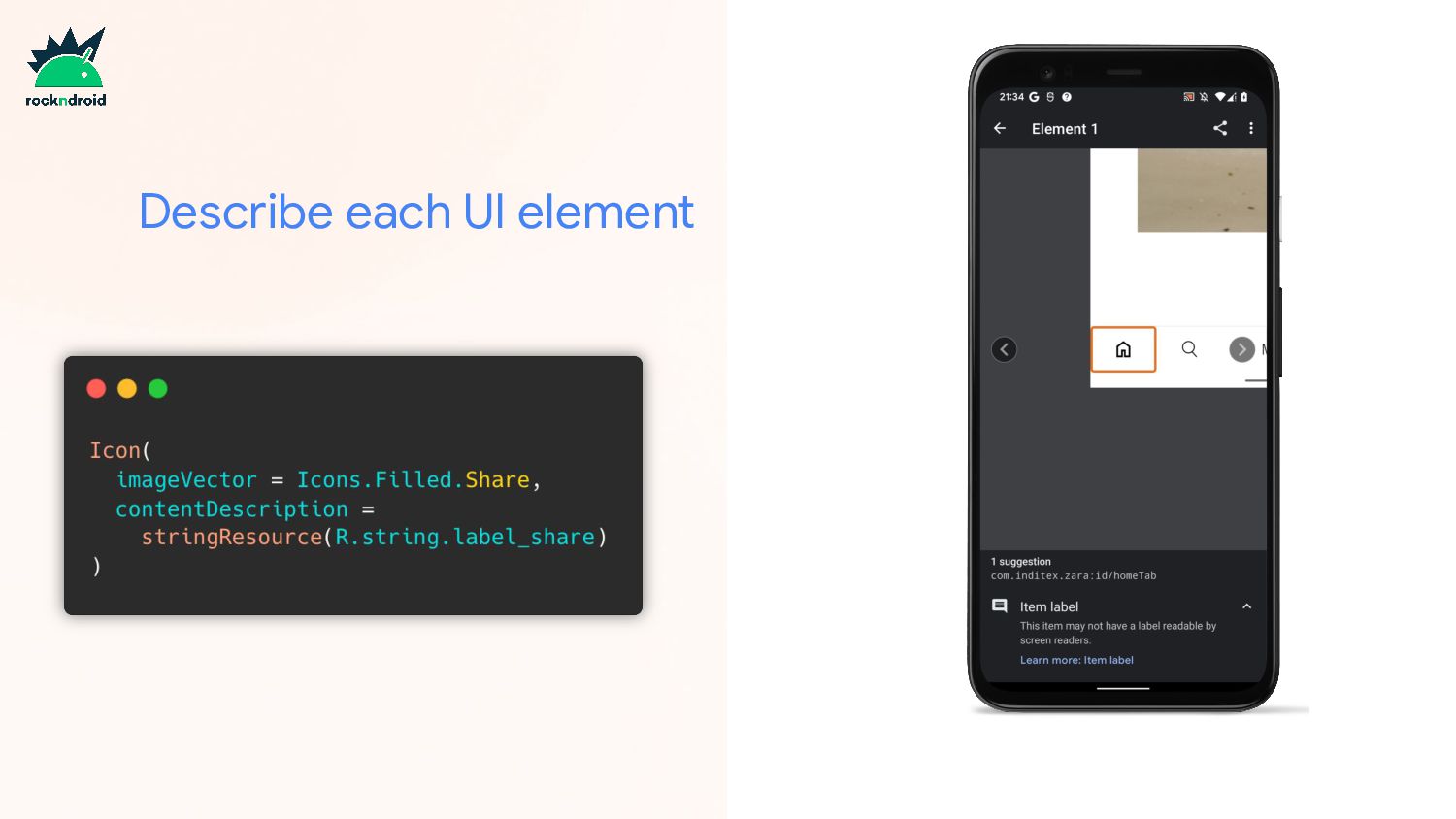
  11. Describe each UI element • Describe its purpose • Don't

    include the type of UI element • Not needed for TextView
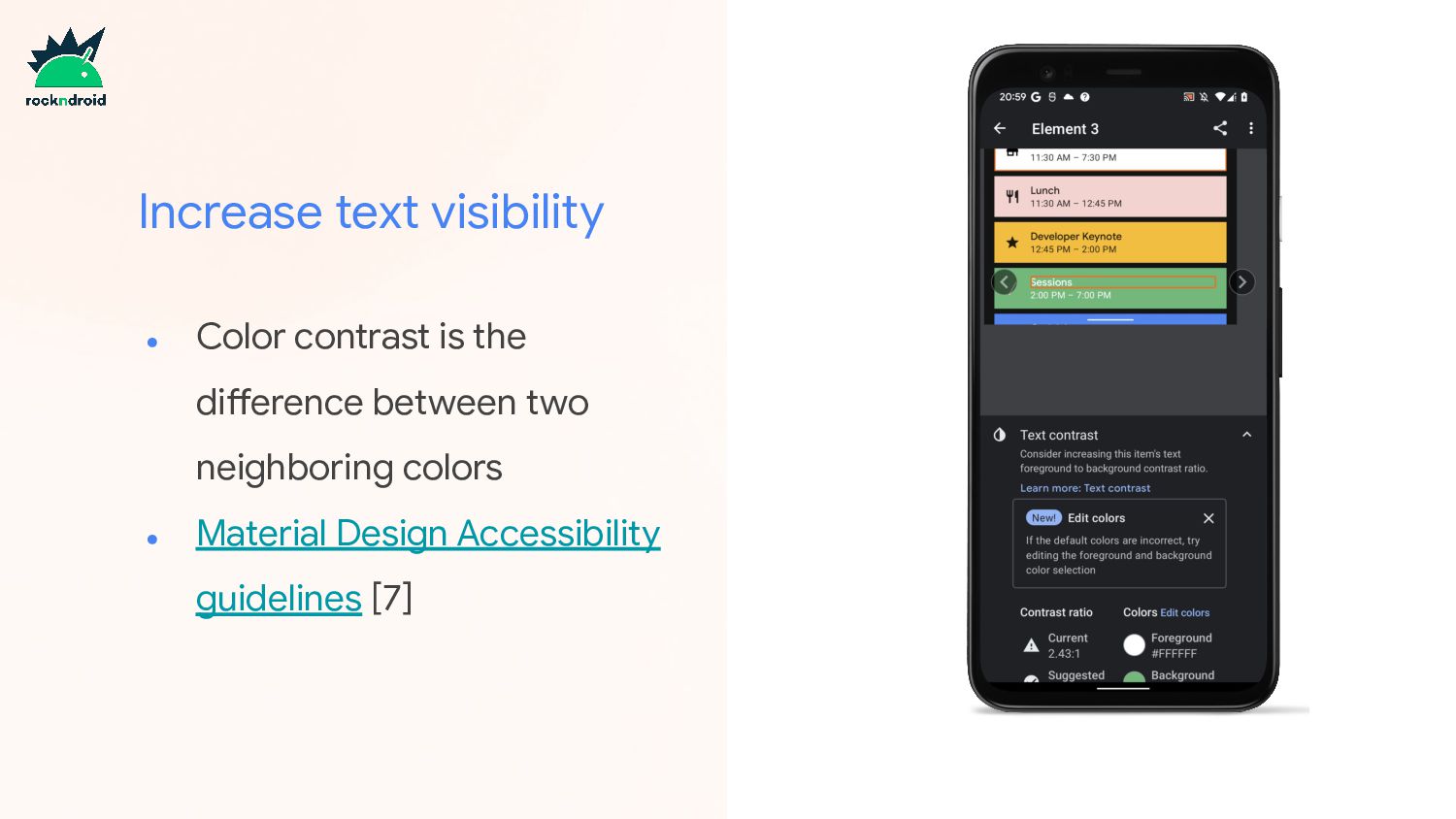
  12. Increase text visibility • Color contrast is the difference between

    two neighboring colors • Material Design Accessibility guidelines [7]
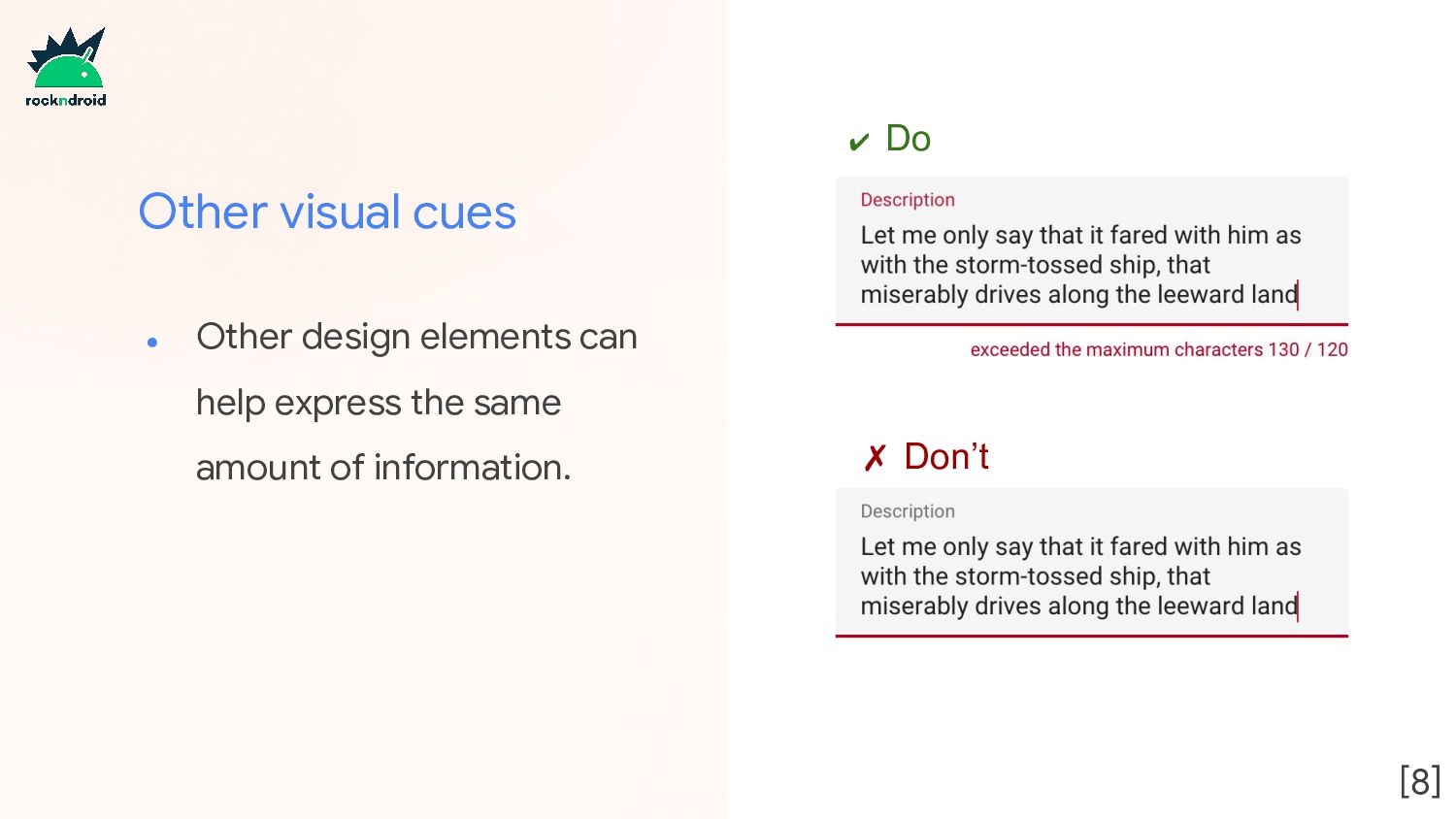
  13. Other visual cues • Other design elements can help express

    the same amount of information. ✔ Do ✗ Don’t [8]
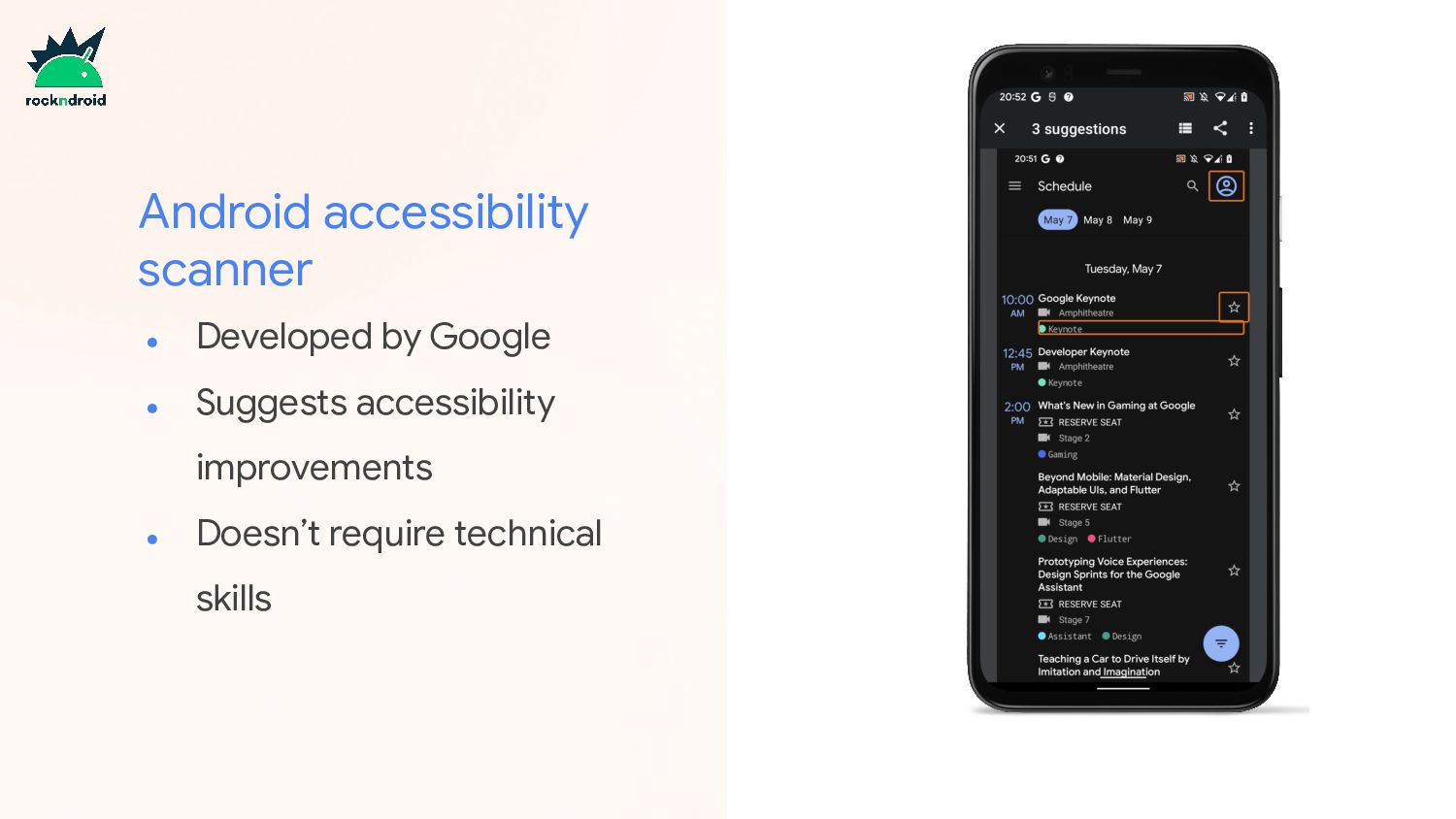
  14. Android accessibility scanner • Developed by Google • Suggests accessibility

    improvements • Doesn’t require technical skills
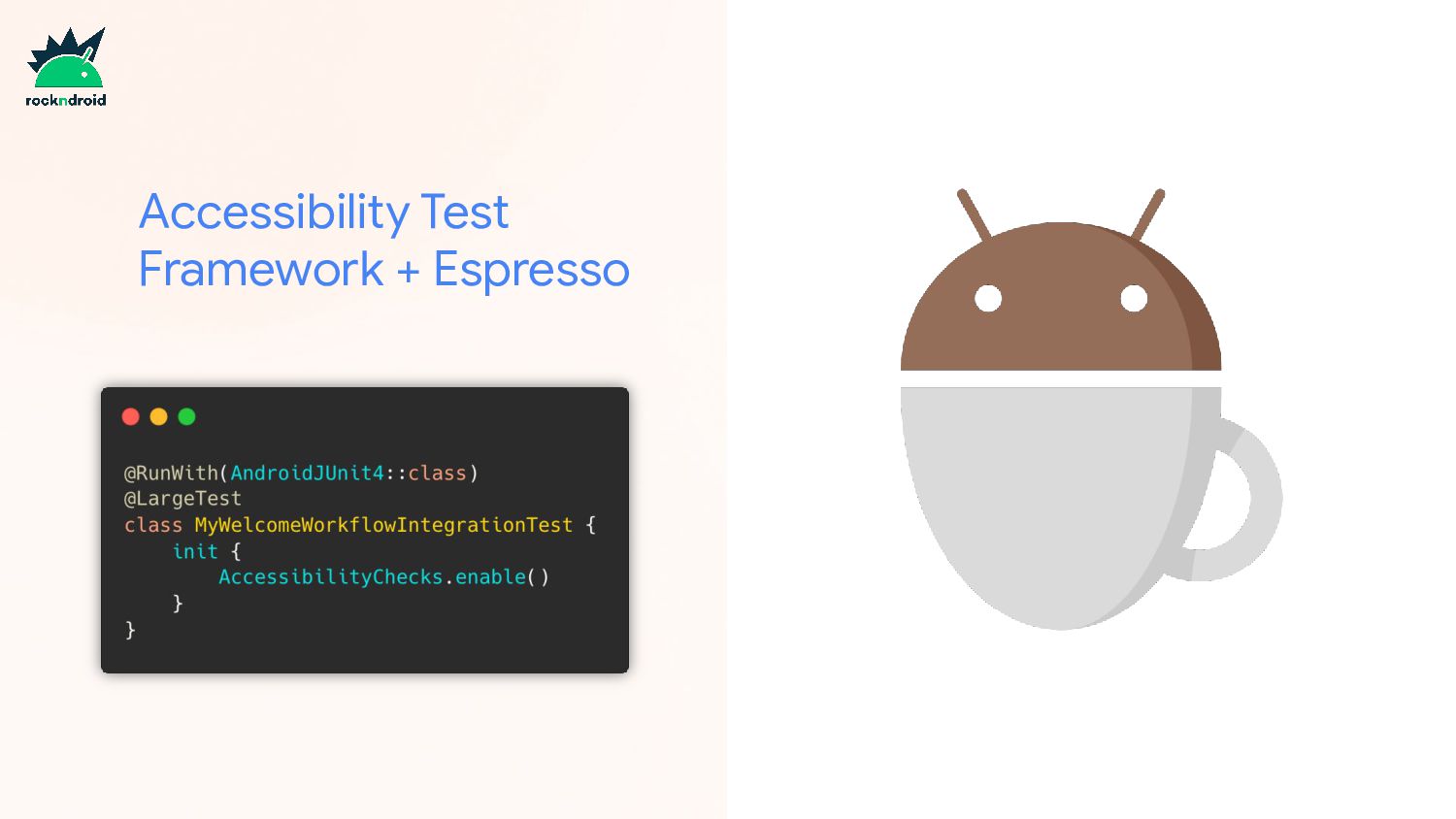
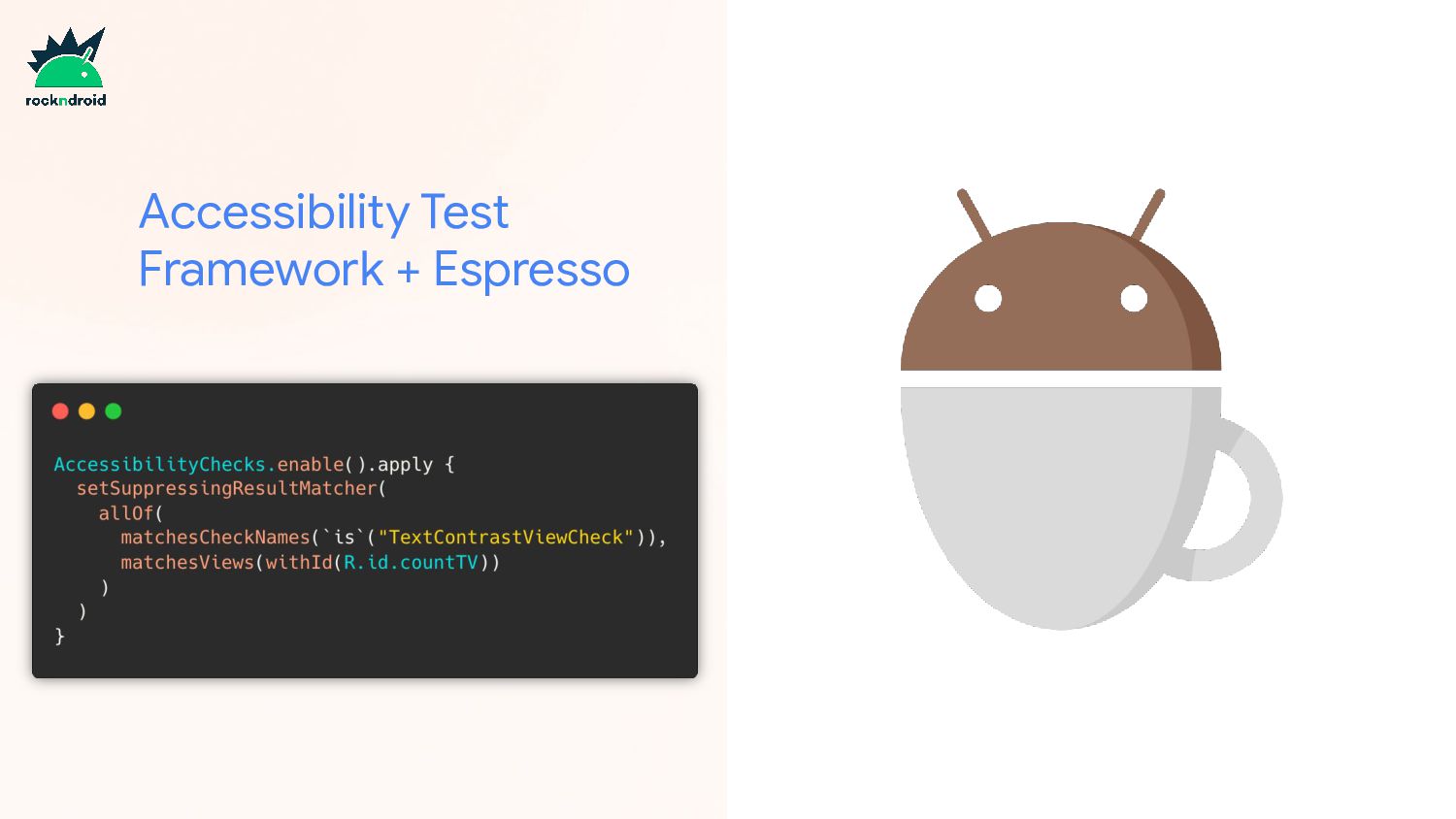
  15. Android Studio • Integrates the Android Accessibility Test Framework •

    To launch the panel, click on the error report button in the Layout Editor
  16. [9]

  17. Pre-launch reports • Generated when you upload an APK to

    the Play Store • Issues are categorized, clustered, and ranked by severity
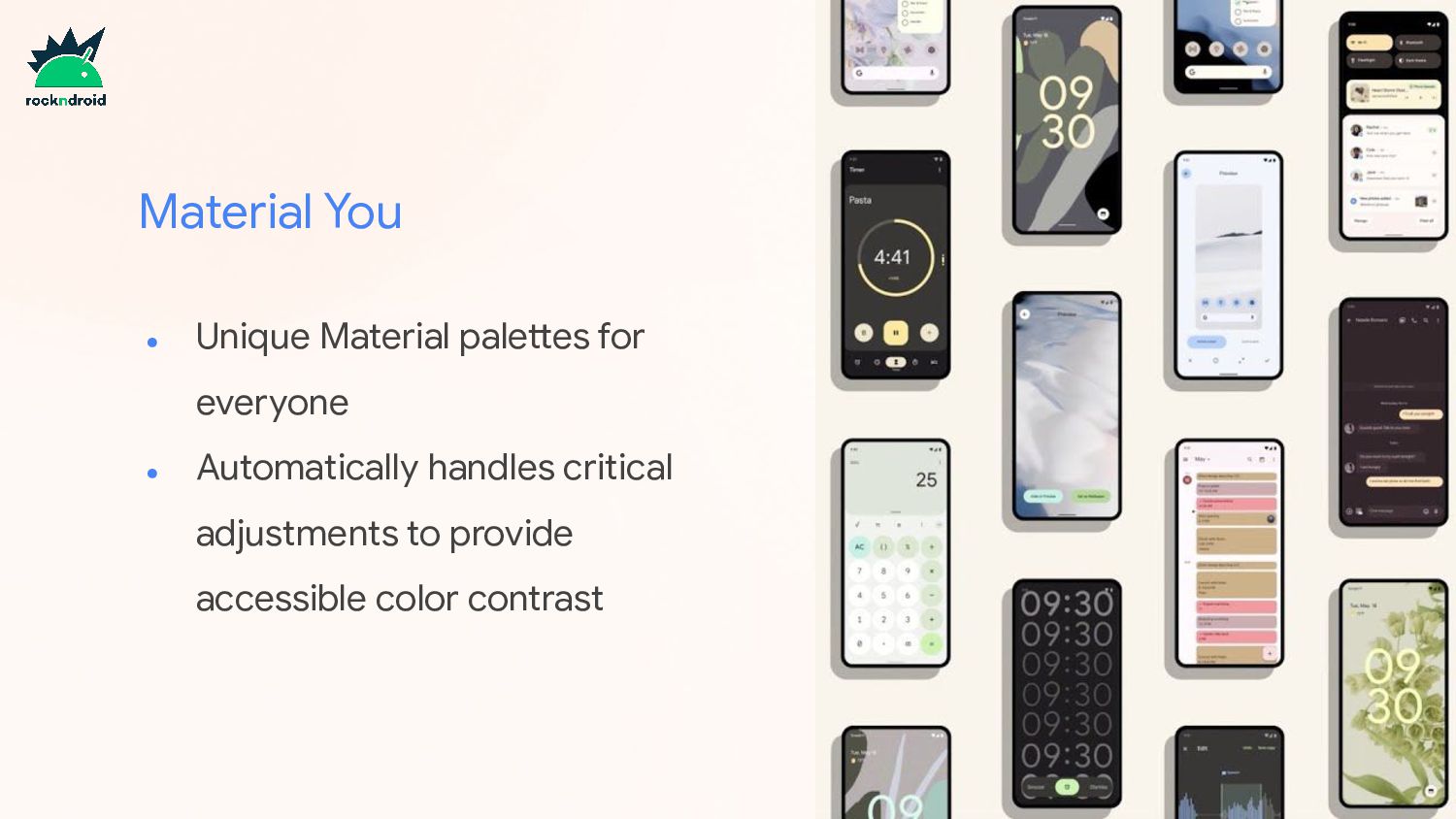
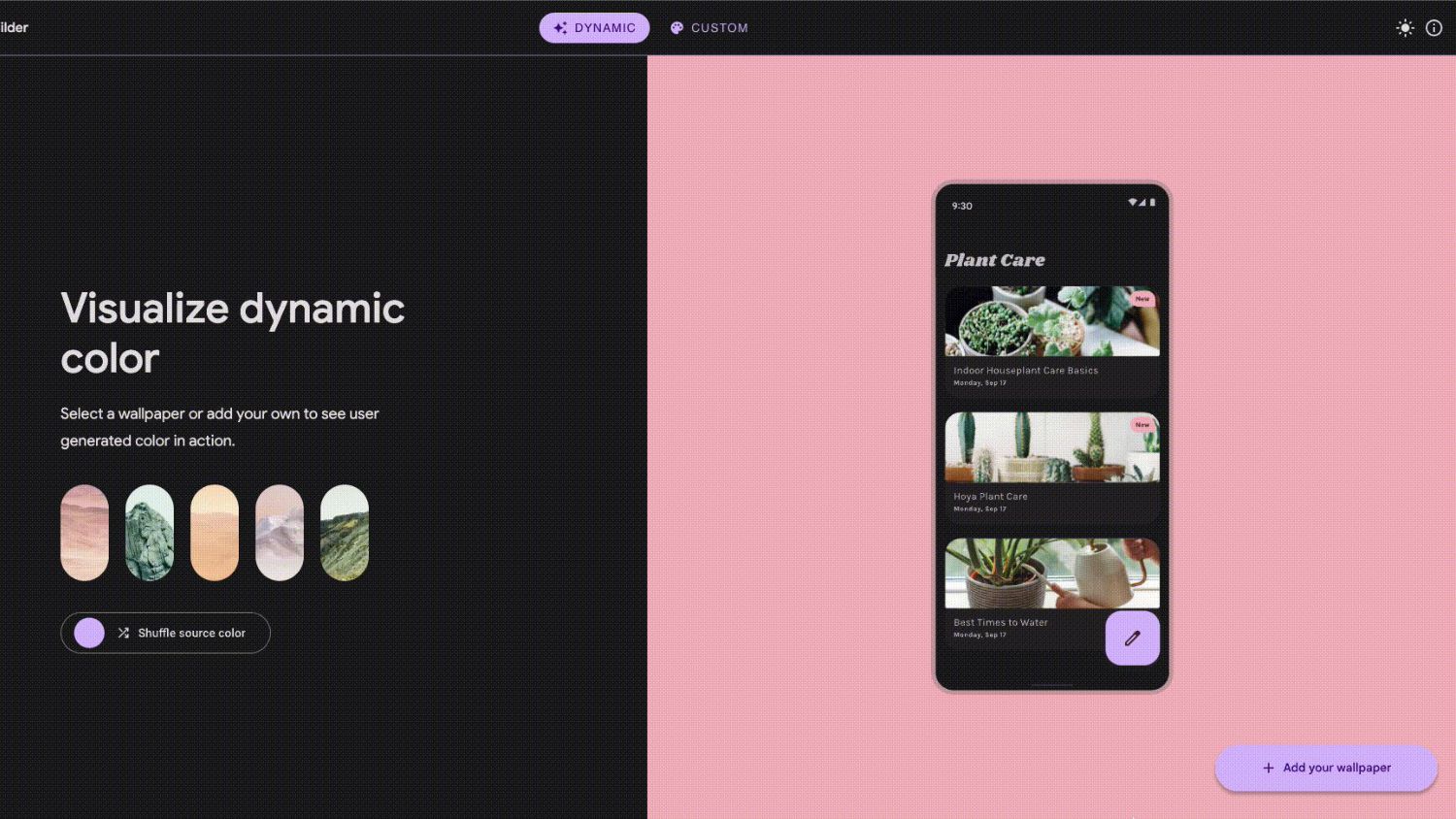
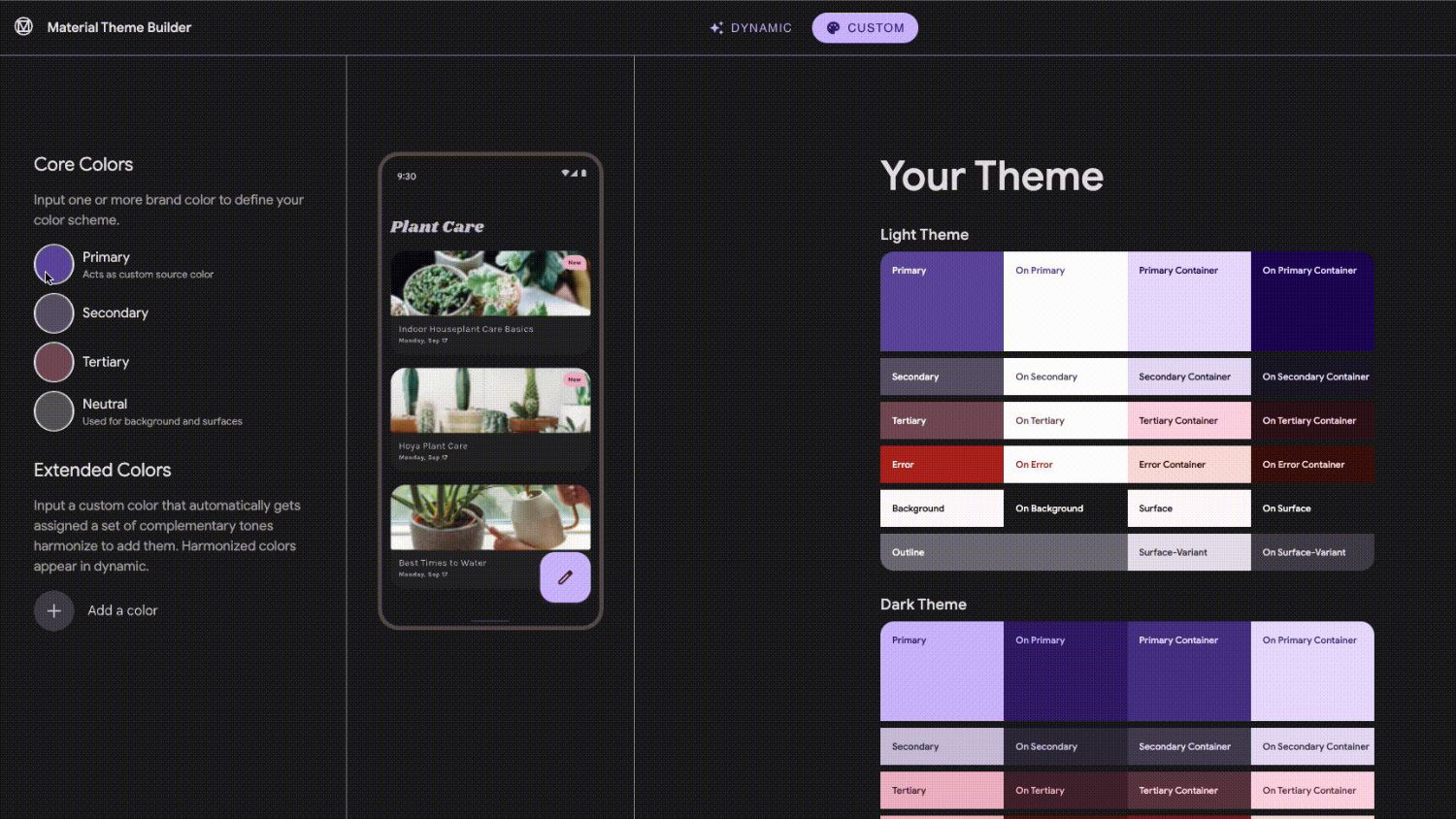
  18. Material You • Unique Material palettes for everyone • Automatically

    handles critical adjustments to provide accessible color contrast
  19. Jetpack Compose • Built with accessibility in mind • Clickable

    components already set minimum size • Touch target size is increased if needed
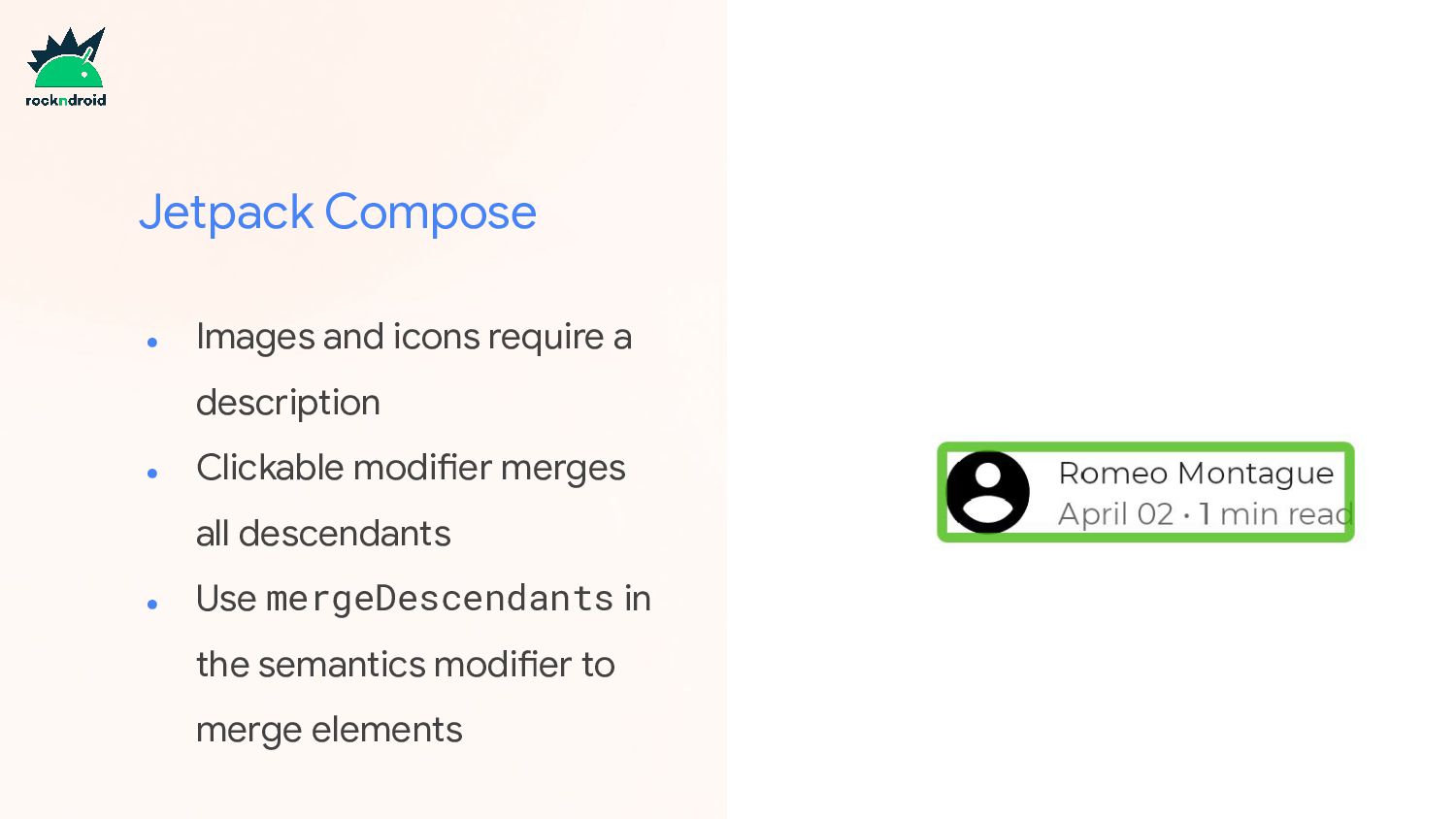
  20. Jetpack Compose • Images and icons require a description •

    Clickable modifier merges all descendants • Use mergeDescendants in the semantics modifier to merge elements
  21. References • https://devblogs.microsoft.com/xamarin/the-journey-to-accessible-apps/ [1] • https://www.youtube.com/watch?v=LxKat_m7mHk [2, 3, 4, 5,

    6] • https://material.io/design/usability/accessibility.html#color-and-contrast [7, 8] • https://developer.android.com/guide/topics/ui/accessibility/testing [9, 10] • https://material-foundation.github.io/material-theme-builder/ [11]