Upgrade to Pro
— share decks privately, control downloads, hide ads and more …
Speaker Deck
Sign up for free
Menu
Search
Features
All features
Private URLs
Password Protection
Custom URLS
Scheduled publishing
Remove Branding
Restrict embedding
Deck Collections
Notes
Features
All features
Private URLs
Password Protection
Custom URLS
Scheduled publishing
Remove Branding
Restrict embedding
Deck Collections
Notes
Explore
Featured decks
Featured speakers
Programming
Technology
Storyboards
Explore
Featured decks
Featured speakers
Programming
Technology
Storyboards
Pricing
Search
Sign in
Sign up for free
空間情報システム入門Ⅰ#02 2016/06/20
Search
Daiki
June 20, 2016
48
0
Share
Embed
Copy iframe code
Copy JS code
Copy link
Start on current slide
空間情報システム入門Ⅰ#02 2016/06/20
Daiki
June 20, 2016
More Decks by Daiki
See All by Daiki
タイの車の売り方
daikitaniguchi
0
59
空間情報システム入門Ⅰ 7/14
daikitaniguchi
0
88
k
daikitaniguchi
0
47
Featured
See All Featured
Optimizing for Happiness
mojombo
378
71k
For a Future-Friendly Web
brad_frost
184
10k
Leveraging LLMs for student feedback in introductory data science courses - posit::conf(2025)
minecr
1
440
Producing Creativity
orderedlist
PRO
348
41k
How to Talk to Developers About Accessibility
jct
2
580
Visual Storytelling: How to be a Superhuman Communicator
reverentgeek
2
710
The Director’s Chair: Orchestrating AI for Truly Effective Learning
tmiket
1
330
The untapped power of vector embeddings
frankvandijk
2
1.9k
New Earth Scene 8
popppiees
4
2.7k
Collaborative Software Design: How to facilitate domain modelling decisions
baasie
1
340
The innovator’s Mindset - Leading Through an Era of Exponential Change - McGill University 2025
jdejongh
PRO
1
380
The Cost Of JavaScript in 2023
addyosmani
55
10k
Transcript
マッピング作業のマニュアル 1A116141 谷口 大輝
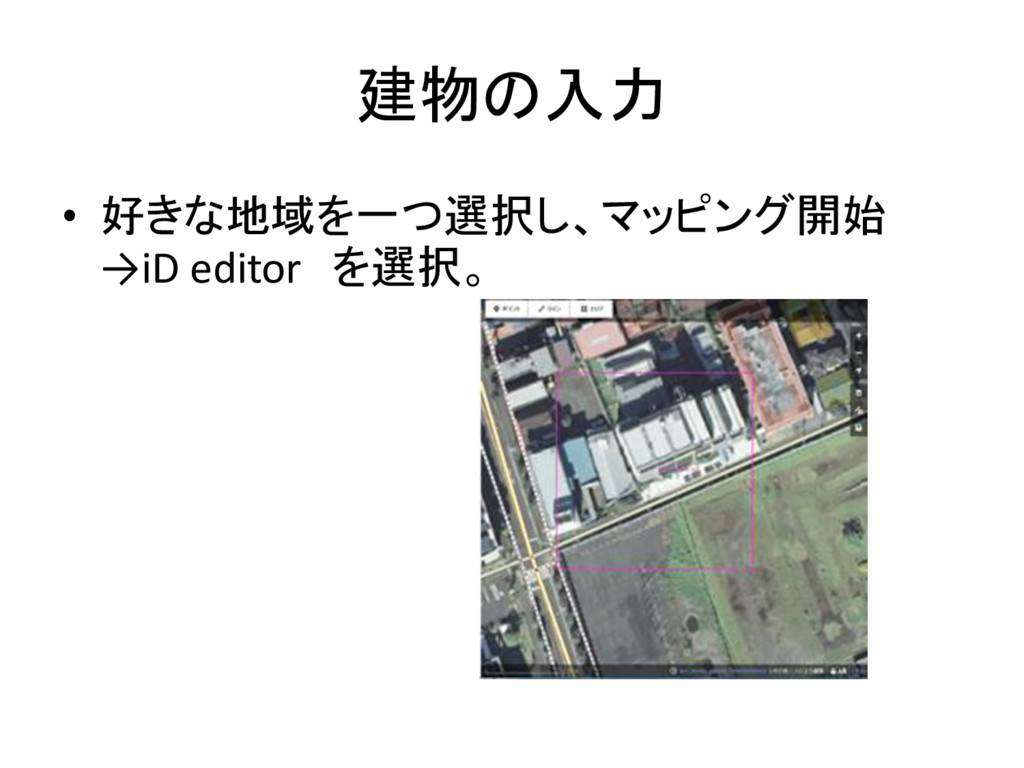
建物の入力 • 好きな地域を一つ選択し、マッピング開始 →iD editor を選択。
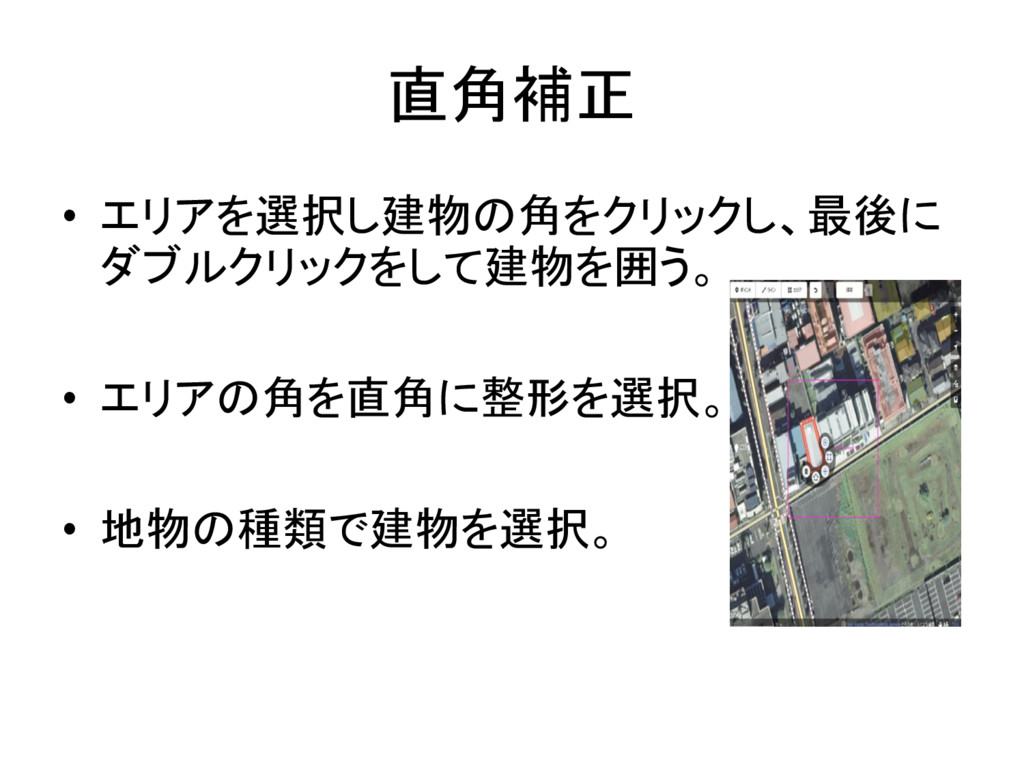
直角補正 • エリアを選択し建物の角をクリックし、最後に ダブルクリックをして建物を囲う。 • エリアの角を直角に整形を選択。 • 地物の種類で建物を選択。
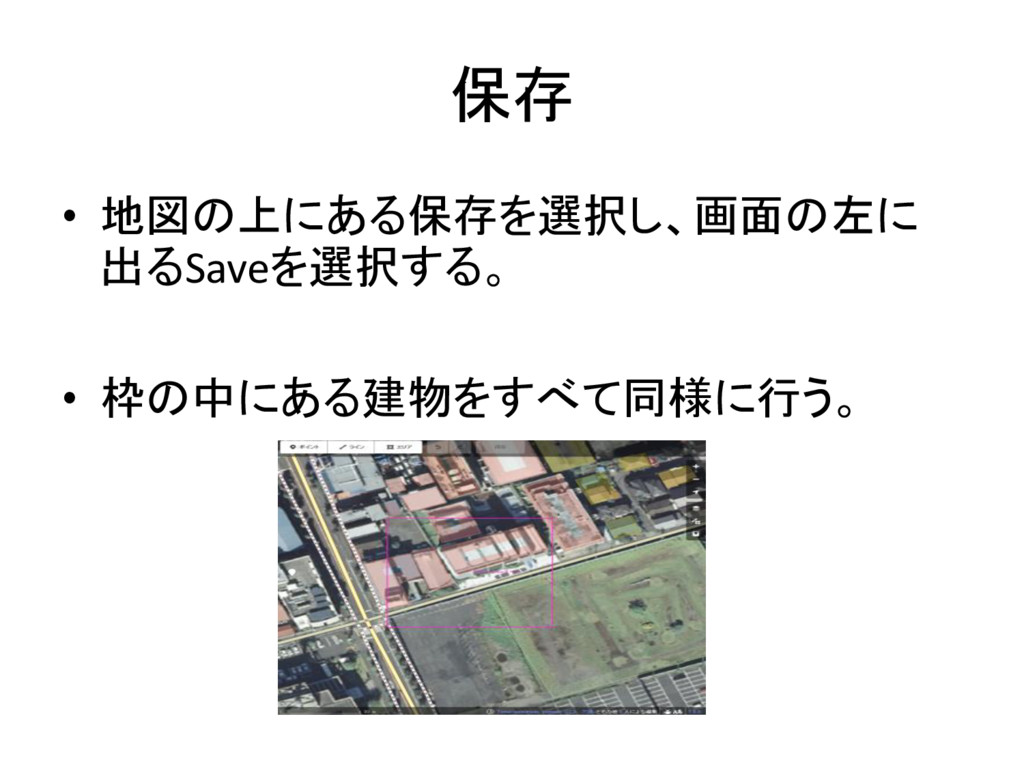
保存 • 地図の上にある保存を選択し、画面の左に 出るSaveを選択する。 • 枠の中にある建物をすべて同様に行う。
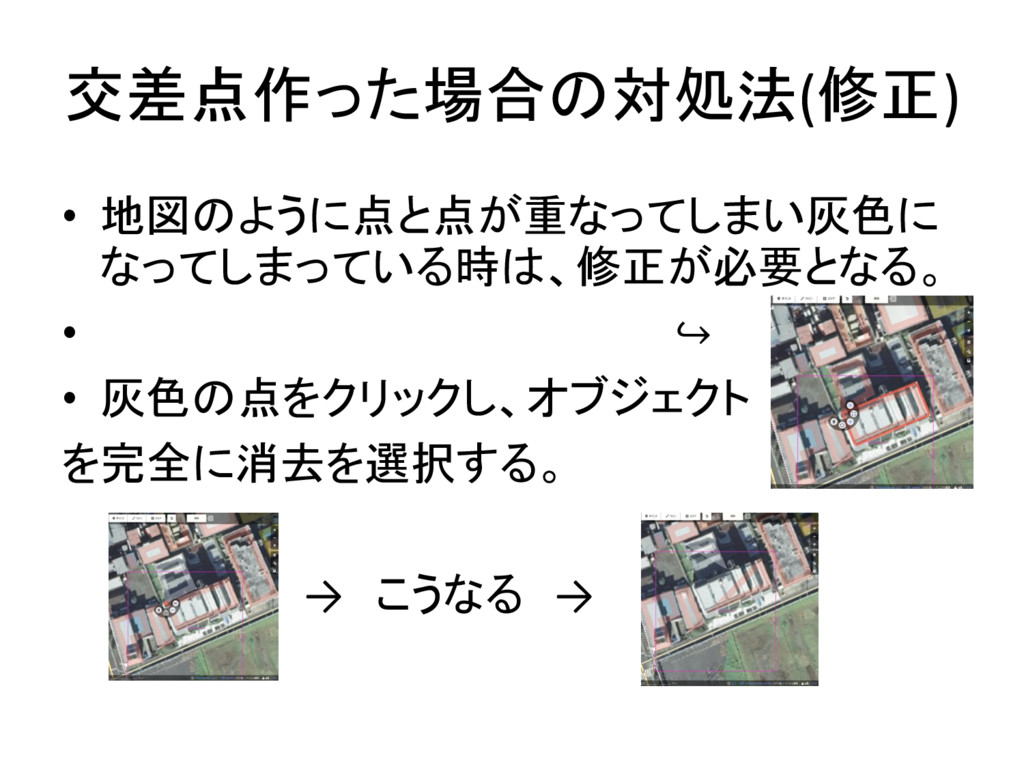
交差点作った場合の対処法(修正) • 地図のように点と点が重なってしまい灰色に なってしまっている時は、修正が必要となる。 • ↪ • 灰色の点をクリックし、オブジェクト を完全に消去を選択する。 →
こうなる →
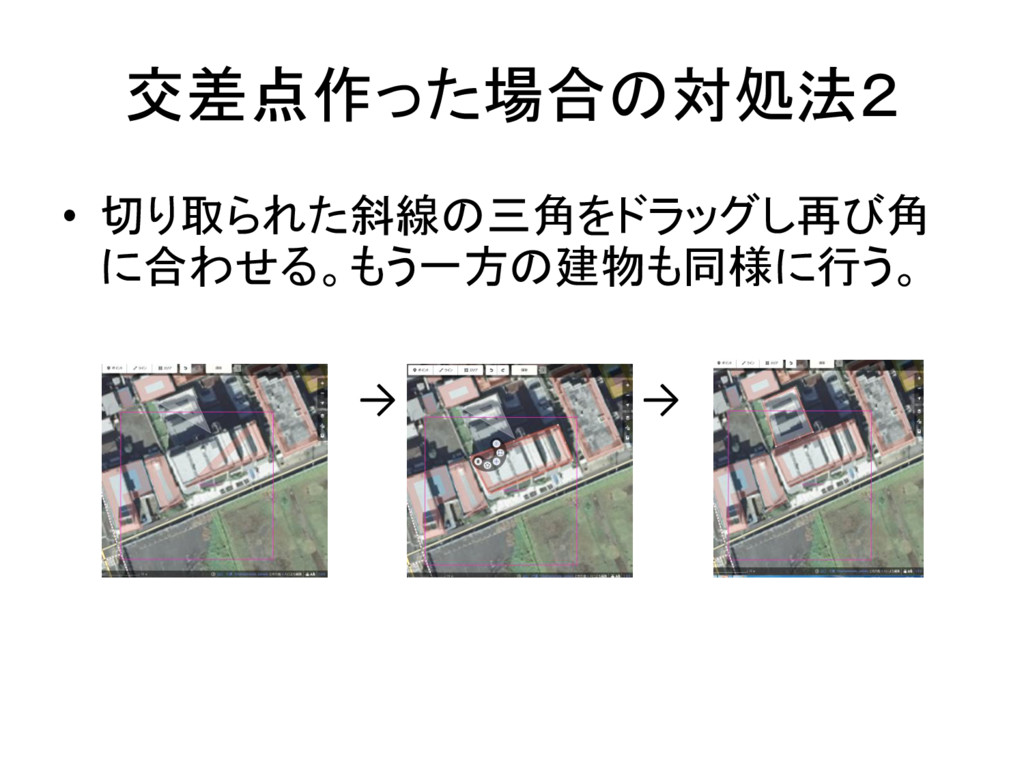
交差点作った場合の対処法2 • 切り取られた斜線の三角をドラッグし再び角 に合わせる。もう一方の建物も同様に行う。 → →
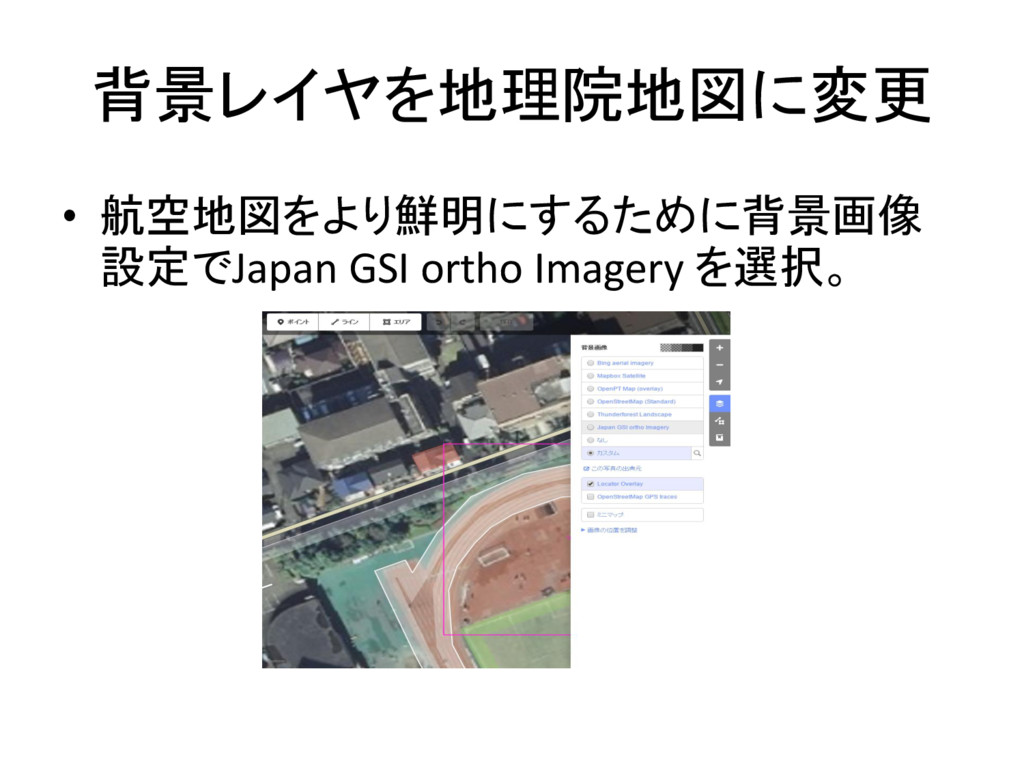
背景レイヤを地理院地図に変更 • 航空地図をより鮮明にするために背景画像 設定でJapan GSI ortho Imagery を選択。
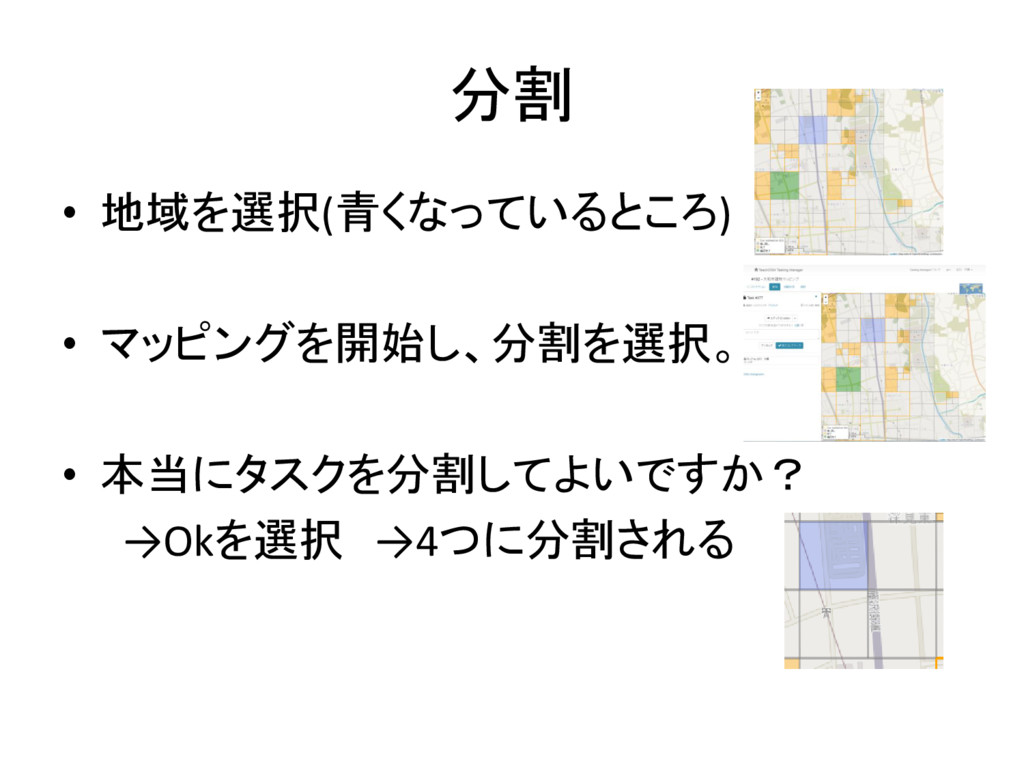
分割 • 地域を選択(青くなっているところ) • マッピングを開始し、分割を選択。 • 本当にタスクを分割してよいですか? →Okを選択 →4つに分割される
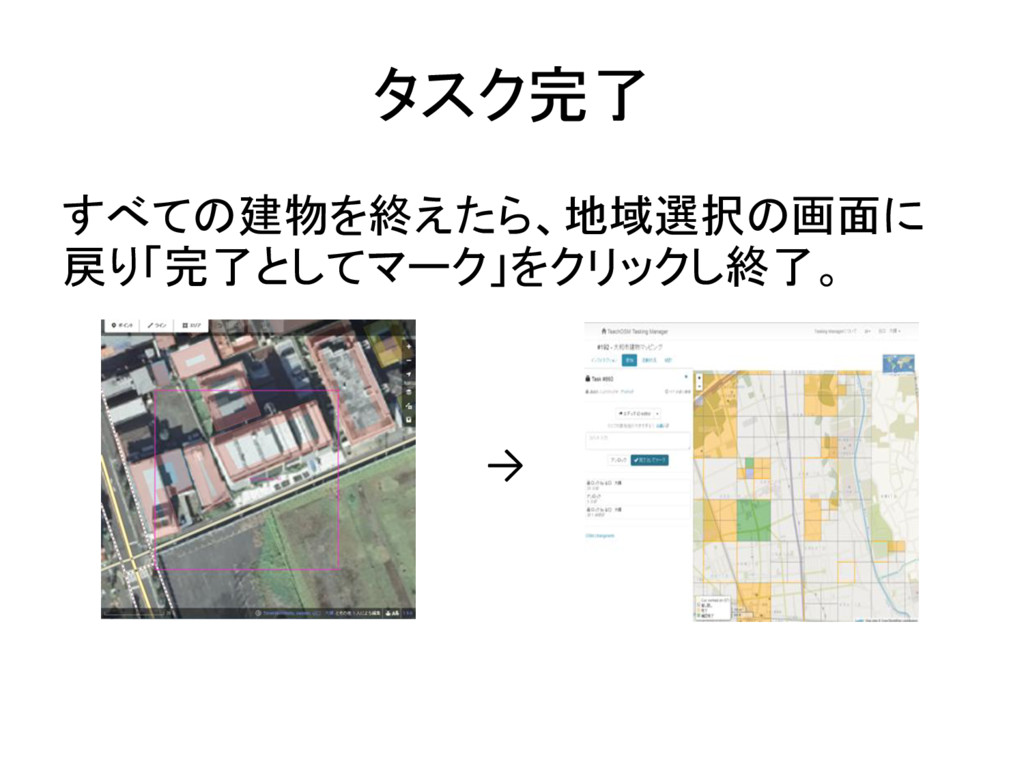
タスク完了 すべての建物を終えたら、地域選択の画面に 戻り「完了としてマーク」をクリックし終了。 →


 daikitaniguchi
 mojombo
 brad_frost
 minecr
 orderedlist
 jct
jct
 reverentgeek
 tmiket
 frankvandijk
 popppiees
 baasie
 jdejongh
 addyosmani