Upgrade to Pro — share decks privately, control downloads, hide ads and more …

Build18 CV Tutorial

Avatar for Esha Uboweja Esha Uboweja
November 15, 2015

Build18 CV Tutorial

Build18 Computer Vision with OpenCV tutorial, 2016

Avatar for Esha Uboweja

Esha Uboweja

November 15, 2015

Other Decks in Programming

Transcript

  1. Outline • “Hello World!” in OpenCV • Install OpenCV 2.x

    or OpenCV 3.0 for Python 2.7 • Read and display an image • Color spaces: • RGB v/s HSV • Tracking objects • Image Filtering/Convolution • Mean, Median, Gaussian Blur, Histogram Equalization • Edge Detection • Harris Corner detection/ SIFT detection* • List of good resources • Mention about signals from last year’s tutorial
  2. Installing OpenCV for Python • Installing OpenCV 3.0: • http://www.pyimagesearch.com/2015/06/22/install-

    opencv-3-0-and-python-2-7-on-ubuntu/ • OpenCV 3.0 v/s OpenCV 2.x • There are more algorithms in OpenCV 3.0 • OpenCV 3.0 is compatible with Python 3 • That said, choose the version that helps you most, for example if there are more resources for OpenCV 2.x on Arduino, RaspberryPi, etc. suitable for your needs.
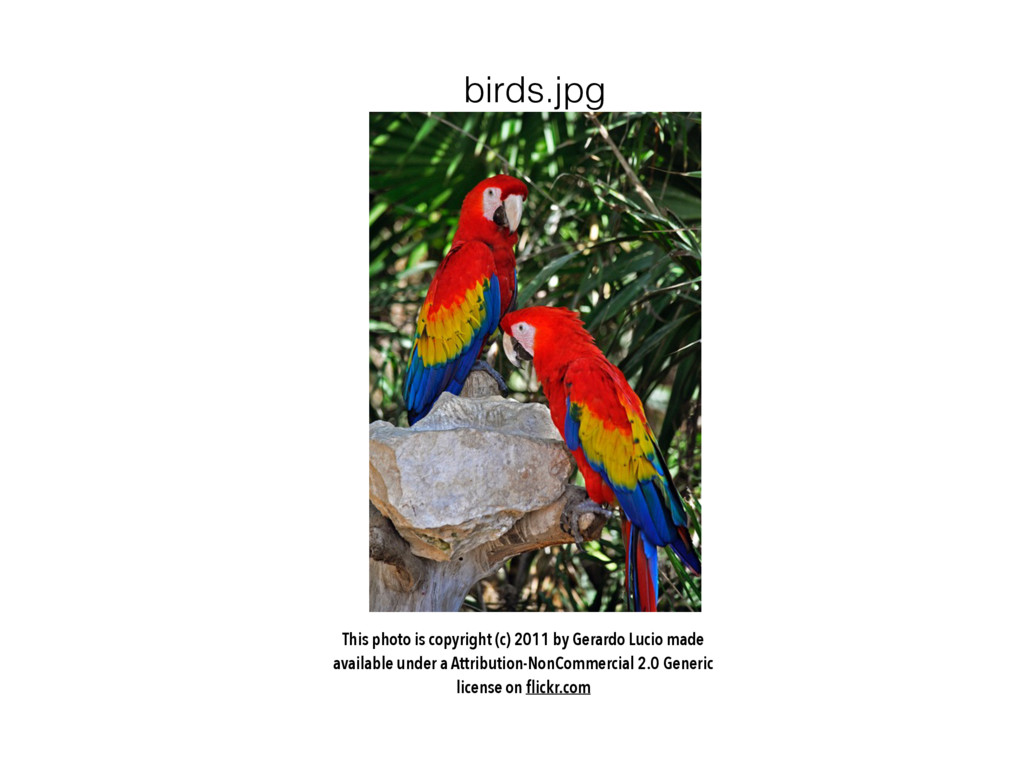
  3. This photo is copyright (c) 2011 by Gerardo Lucio made

    available under a Attribution-NonCommercial 2.0 Generic license on flickr.com birds.jpg
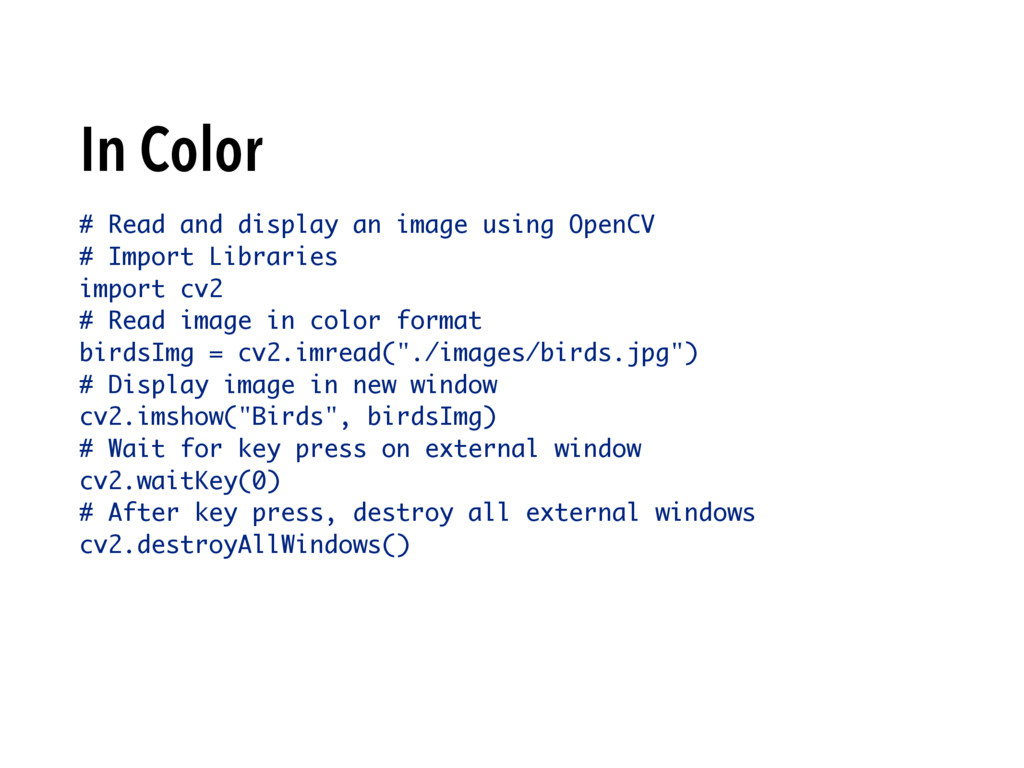
  4. # Read and display an image using OpenCV # Import

    Libraries import cv2 # Read image in color format birdsImg = cv2.imread("./images/birds.jpg") # Display image in new window cv2.imshow("Birds", birdsImg) # Wait for key press on external window cv2.waitKey(0) # After key press, destroy all external windows cv2.destroyAllWindows() In Color
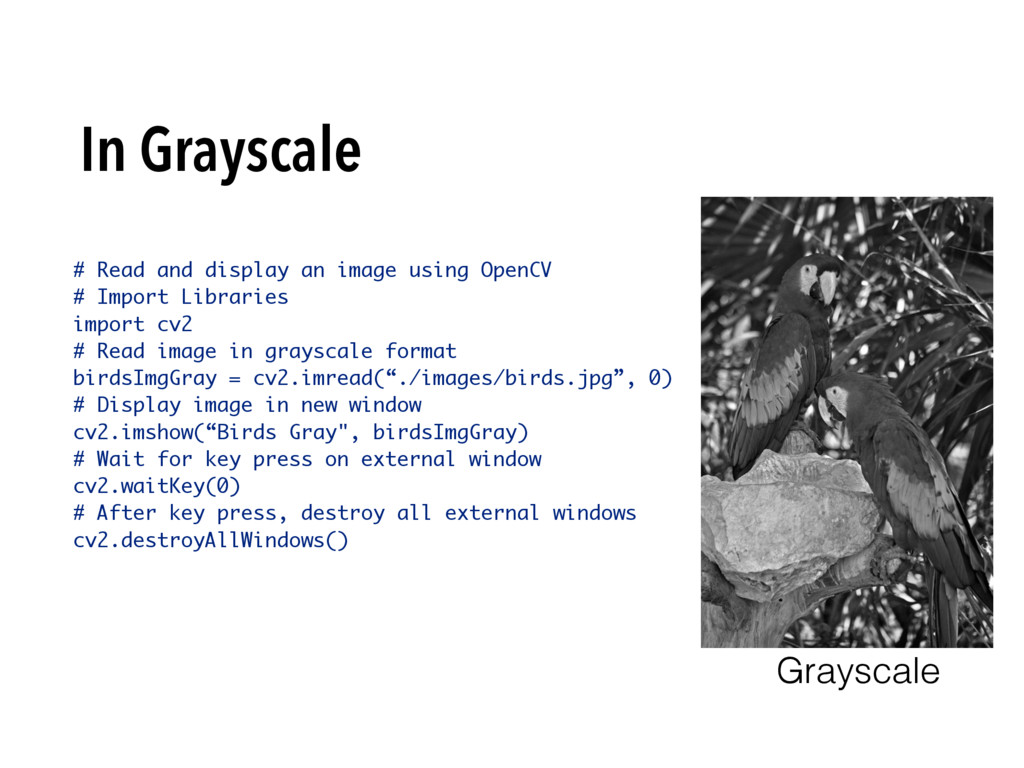
  5. # Read and display an image using OpenCV # Import

    Libraries import cv2 # Read image in grayscale format birdsImgGray = cv2.imread(“./images/birds.jpg”, 0) # Display image in new window cv2.imshow(“Birds Gray", birdsImgGray) # Wait for key press on external window cv2.waitKey(0) # After key press, destroy all external windows cv2.destroyAllWindows() In Grayscale Grayscale
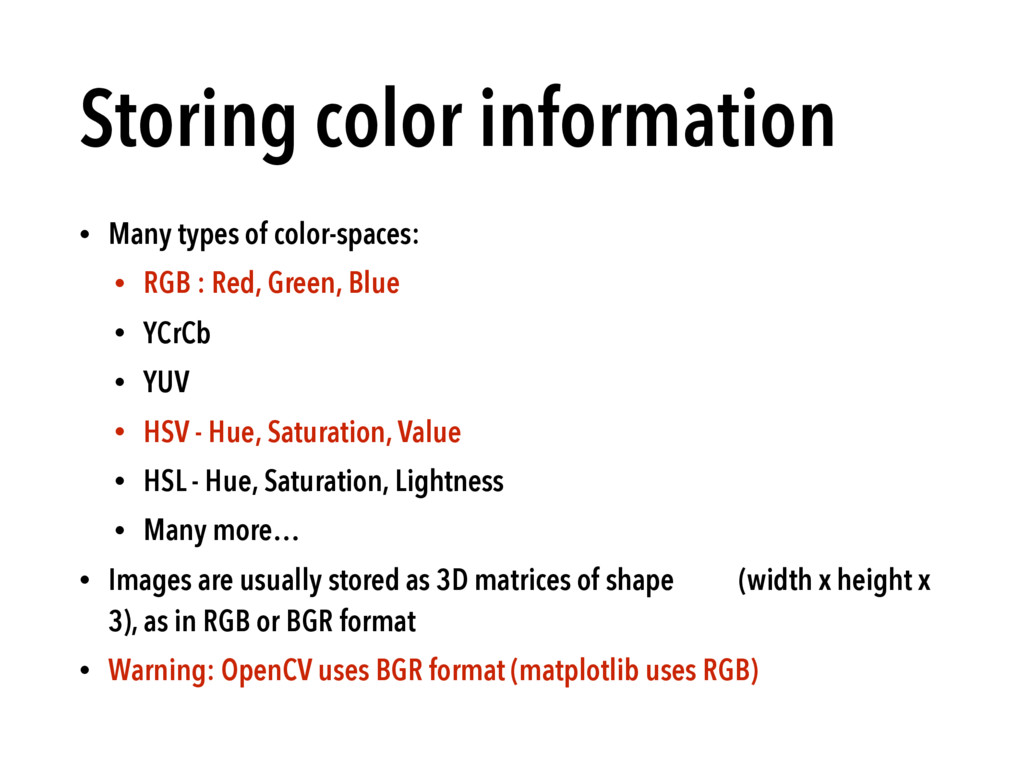
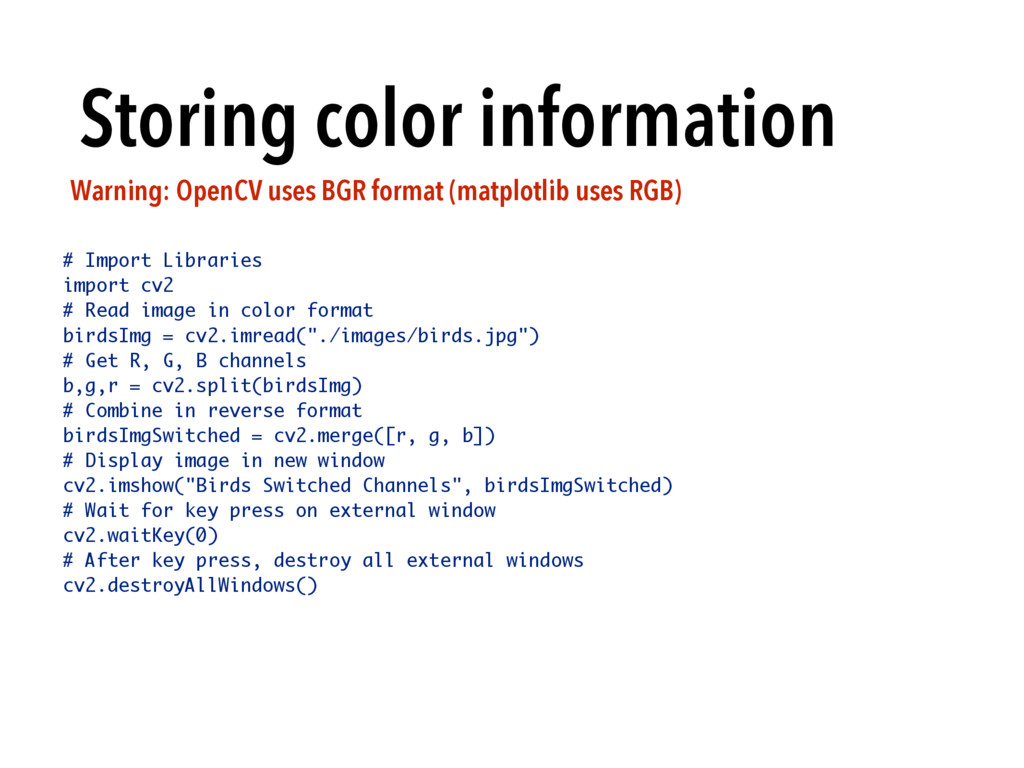
  6. Storing color information • Many types of color-spaces: • RGB

    : Red, Green, Blue • YCrCb • YUV • HSV - Hue, Saturation, Value • HSL - Hue, Saturation, Lightness • Many more… • Images are usually stored as 3D matrices of shape (width x height x 3), as in RGB or BGR format • Warning: OpenCV uses BGR format (matplotlib uses RGB)
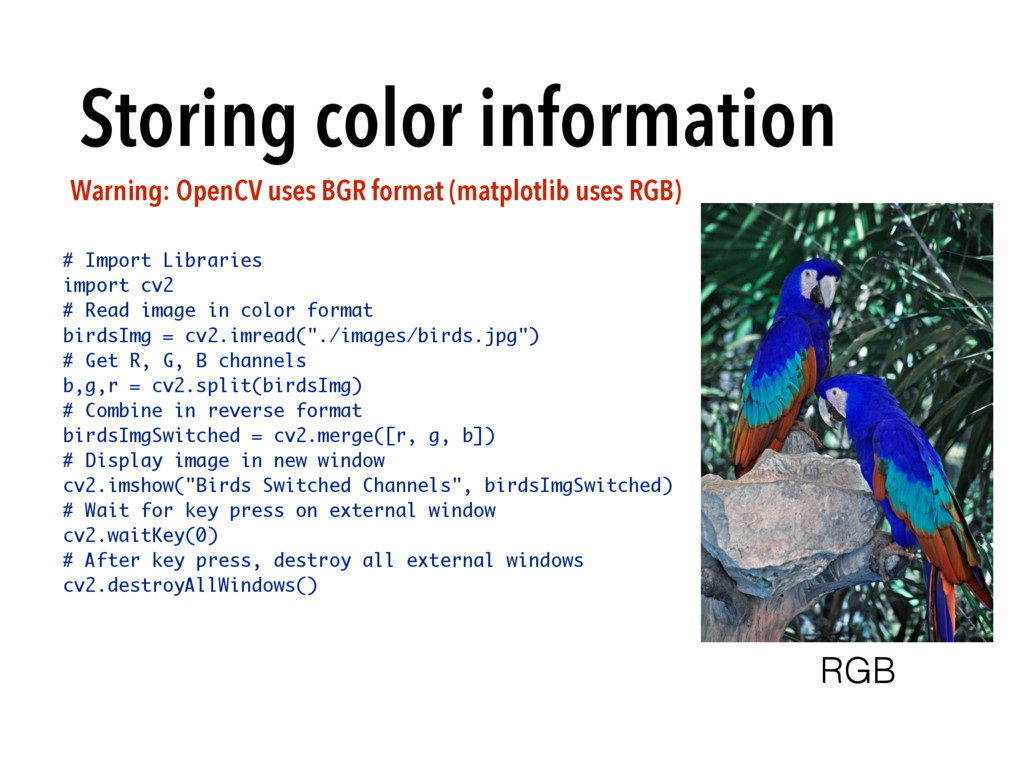
  7. Storing color information Warning: OpenCV uses BGR format (matplotlib uses

    RGB) # Import Libraries import cv2 # Read image in color format birdsImg = cv2.imread("./images/birds.jpg") # Get R, G, B channels b,g,r = cv2.split(birdsImg) # Combine in reverse format birdsImgSwitched = cv2.merge([r, g, b]) # Display image in new window cv2.imshow("Birds Switched Channels", birdsImgSwitched) # Wait for key press on external window cv2.waitKey(0) # After key press, destroy all external windows cv2.destroyAllWindows()
  8. Storing color information Warning: OpenCV uses BGR format (matplotlib uses

    RGB) # Import Libraries import cv2 # Read image in color format birdsImg = cv2.imread("./images/birds.jpg") # Get R, G, B channels b,g,r = cv2.split(birdsImg) # Combine in reverse format birdsImgSwitched = cv2.merge([r, g, b]) # Display image in new window cv2.imshow("Birds Switched Channels", birdsImgSwitched) # Wait for key press on external window cv2.waitKey(0) # After key press, destroy all external windows cv2.destroyAllWindows() RGB
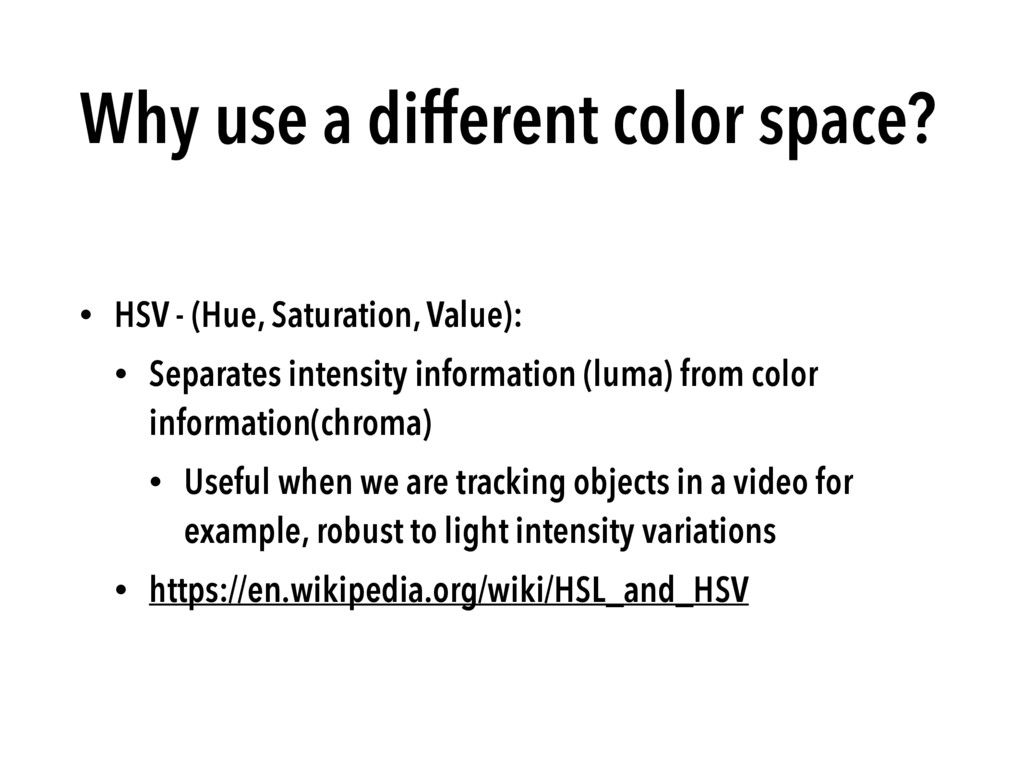
  9. Why use a different color space? • HSV - (Hue,

    Saturation, Value): • Separates intensity information (luma) from color information(chroma) • Useful when we are tracking objects in a video for example, robust to light intensity variations • https://en.wikipedia.org/wiki/HSL_and_HSV
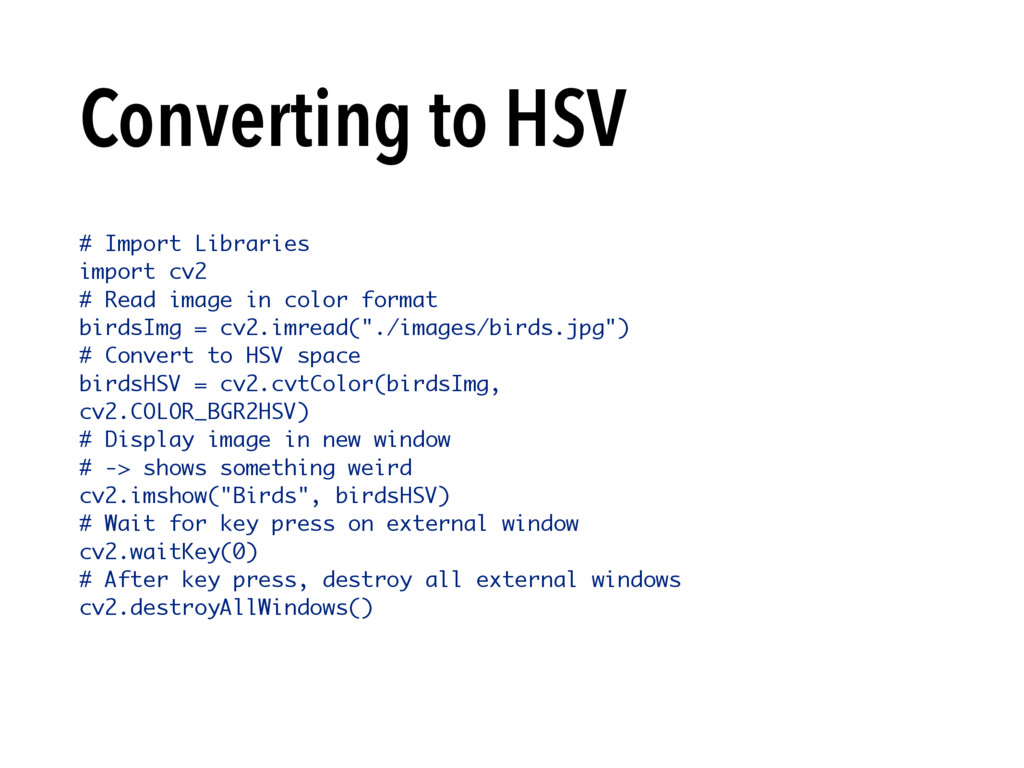
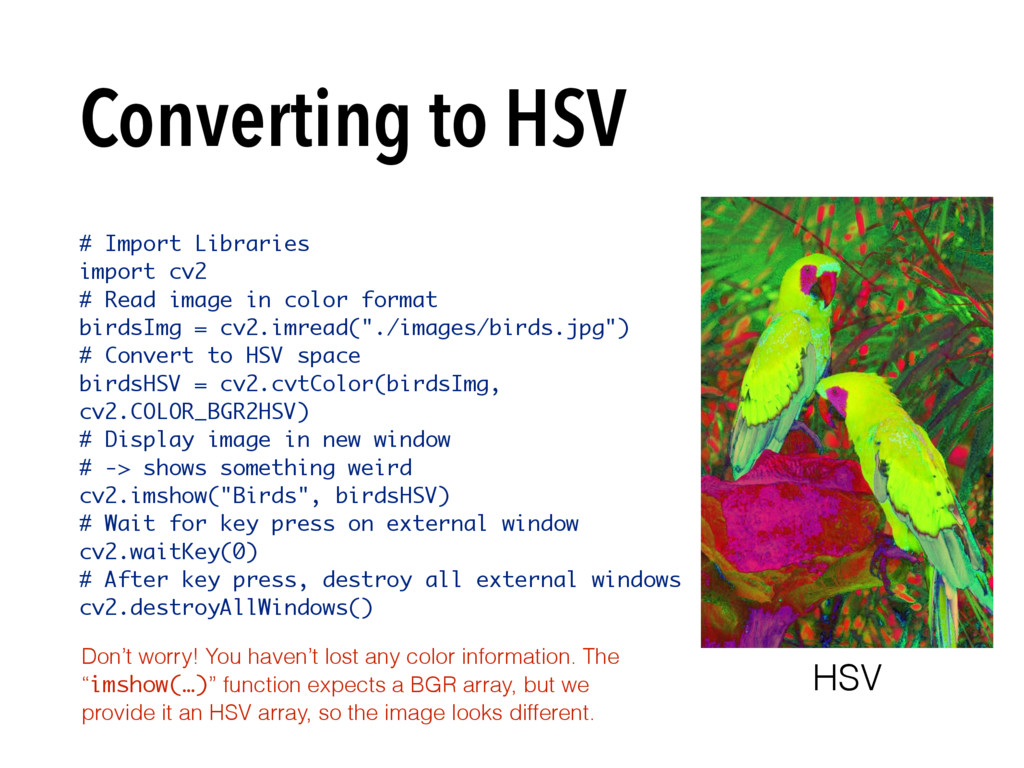
  10. Converting to HSV # Import Libraries import cv2 # Read

    image in color format birdsImg = cv2.imread("./images/birds.jpg") # Convert to HSV space birdsHSV = cv2.cvtColor(birdsImg, cv2.COLOR_BGR2HSV) # Display image in new window # -> shows something weird cv2.imshow("Birds", birdsHSV) # Wait for key press on external window cv2.waitKey(0) # After key press, destroy all external windows cv2.destroyAllWindows()
  11. Converting to HSV # Import Libraries import cv2 # Read

    image in color format birdsImg = cv2.imread("./images/birds.jpg") # Convert to HSV space birdsHSV = cv2.cvtColor(birdsImg, cv2.COLOR_BGR2HSV) # Display image in new window # -> shows something weird cv2.imshow("Birds", birdsHSV) # Wait for key press on external window cv2.waitKey(0) # After key press, destroy all external windows cv2.destroyAllWindows() Don’t worry! You haven’t lost any color information. The “imshow(…)” function expects a BGR array, but we provide it an HSV array, so the image looks different. HSV
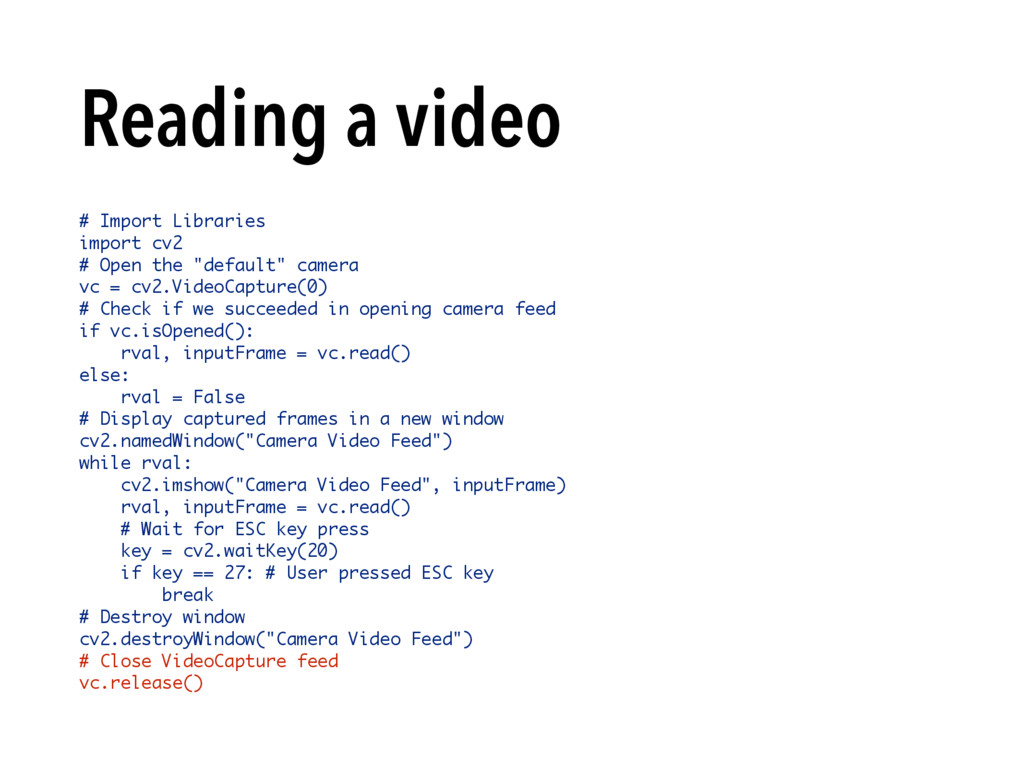
  12. Reading a video # Import Libraries import cv2 # Open

    the "default" camera vc = cv2.VideoCapture(0) # Check if we succeeded in opening camera feed if vc.isOpened(): rval, inputFrame = vc.read() else: rval = False # Display captured frames in a new window cv2.namedWindow("Camera Video Feed") while rval: cv2.imshow("Camera Video Feed", inputFrame) rval, inputFrame = vc.read() # Wait for ESC key press key = cv2.waitKey(20) if key == 27: # User pressed ESC key break # Destroy window cv2.destroyWindow("Camera Video Feed") # Close VideoCapture feed vc.release()
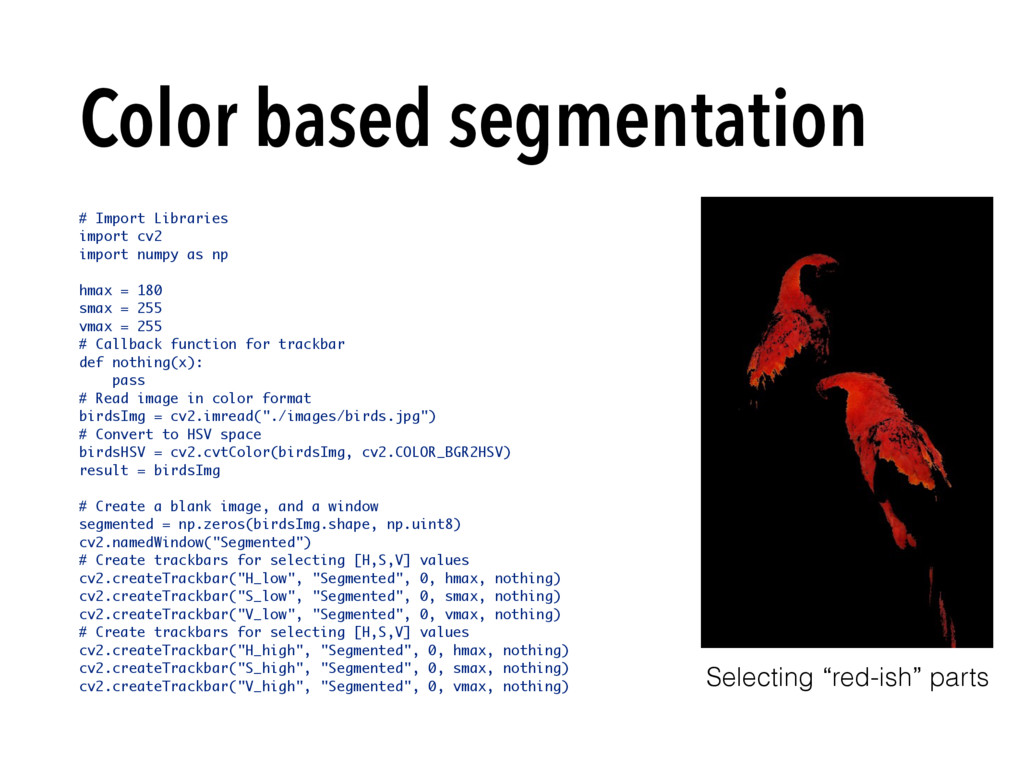
  13. Color based segmentation # Import Libraries import cv2 import numpy

    as np hmax = 180 smax = 255 vmax = 255 # Callback function for trackbar def nothing(x): pass # Read image in color format birdsImg = cv2.imread("./images/birds.jpg") # Convert to HSV space birdsHSV = cv2.cvtColor(birdsImg, cv2.COLOR_BGR2HSV) result = birdsImg # Create a blank image, and a window segmented = np.zeros(birdsImg.shape, np.uint8) cv2.namedWindow("Segmented") # Create trackbars for selecting [H,S,V] values cv2.createTrackbar("H_low", "Segmented", 0, hmax, nothing) cv2.createTrackbar("S_low", "Segmented", 0, smax, nothing) cv2.createTrackbar("V_low", "Segmented", 0, vmax, nothing) # Create trackbars for selecting [H,S,V] values cv2.createTrackbar("H_high", "Segmented", 0, hmax, nothing) cv2.createTrackbar("S_high", "Segmented", 0, smax, nothing) cv2.createTrackbar("V_high", "Segmented", 0, vmax, nothing) Selecting “red-ish” parts
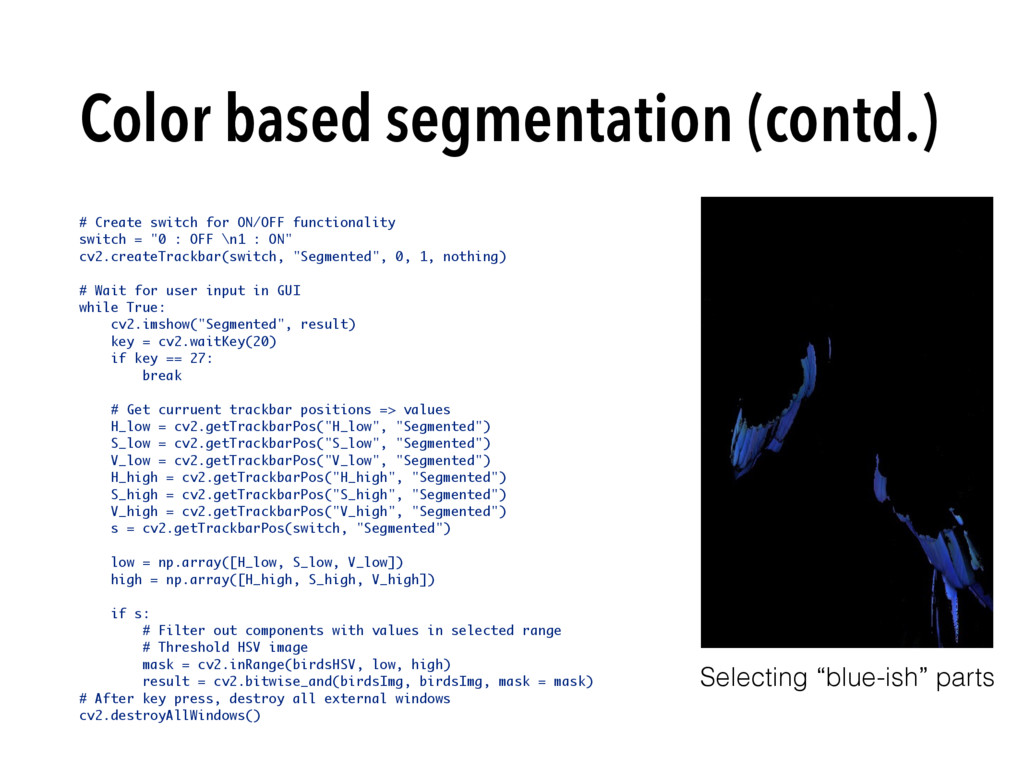
  14. Color based segmentation (contd.) # Create switch for ON/OFF functionality

    switch = "0 : OFF \n1 : ON" cv2.createTrackbar(switch, "Segmented", 0, 1, nothing) # Wait for user input in GUI while True: cv2.imshow("Segmented", result) key = cv2.waitKey(20) if key == 27: break # Get curruent trackbar positions => values H_low = cv2.getTrackbarPos("H_low", "Segmented") S_low = cv2.getTrackbarPos("S_low", "Segmented") V_low = cv2.getTrackbarPos("V_low", "Segmented") H_high = cv2.getTrackbarPos("H_high", "Segmented") S_high = cv2.getTrackbarPos("S_high", "Segmented") V_high = cv2.getTrackbarPos("V_high", "Segmented") s = cv2.getTrackbarPos(switch, "Segmented") low = np.array([H_low, S_low, V_low]) high = np.array([H_high, S_high, V_high]) if s: # Filter out components with values in selected range # Threshold HSV image mask = cv2.inRange(birdsHSV, low, high) result = cv2.bitwise_and(birdsImg, birdsImg, mask = mask) # After key press, destroy all external windows cv2.destroyAllWindows() Selecting “blue-ish” parts
  15. Exercise: Color based object tracking! Demos - Blue Umbrella (http://www.bogotobogo.com/python/

    OpenCV_Python/ python_opencv3_Changing_ColorSpaces_RGB_HSV_HLS.php) - Red Raisin Box
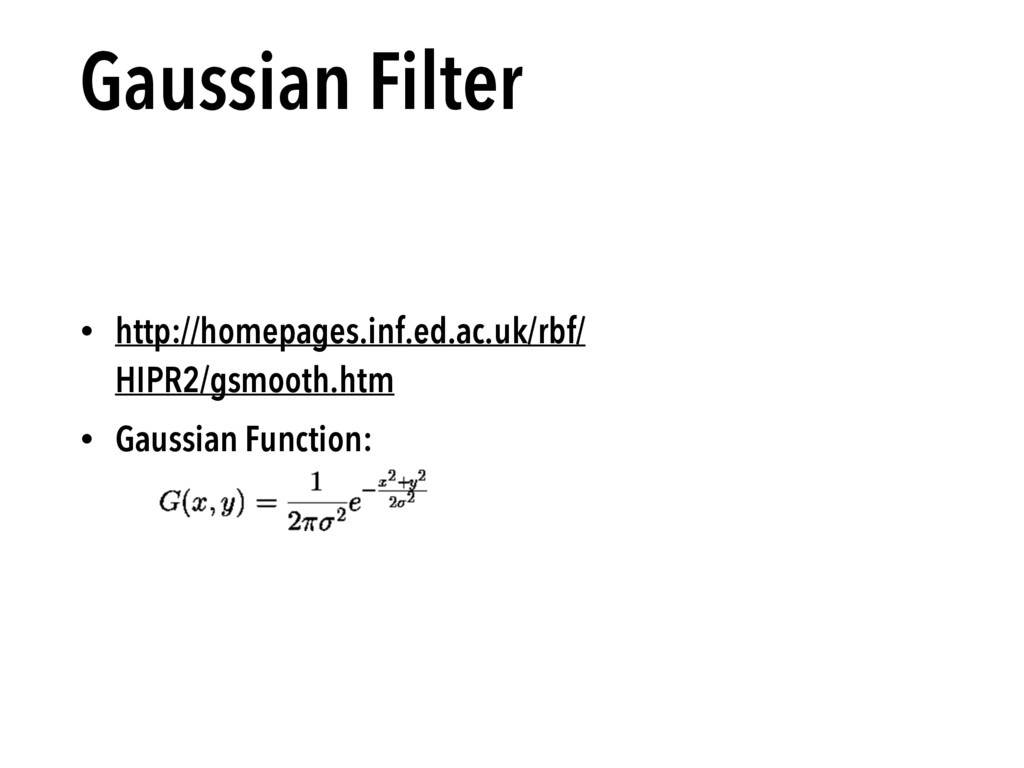
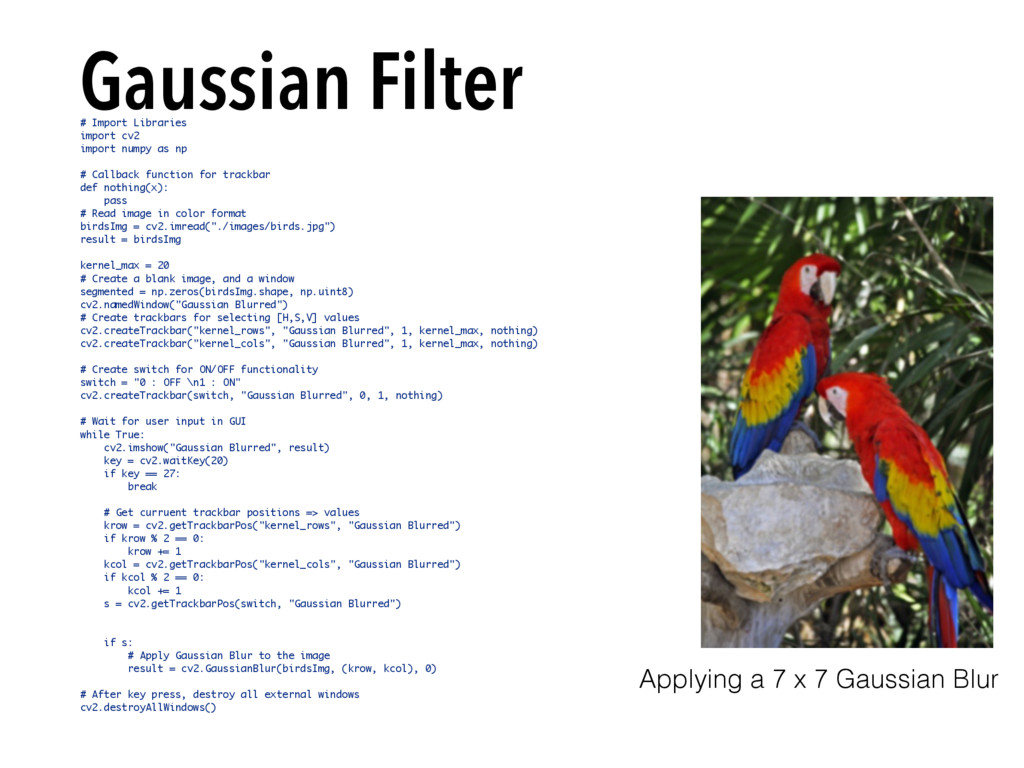
  16. Gaussian Filter # Import Libraries import cv2 import numpy as

    np # Callback function for trackbar def nothing(x): pass # Read image in color format birdsImg = cv2.imread("./images/birds.jpg") result = birdsImg kernel_max = 20 # Create a blank image, and a window segmented = np.zeros(birdsImg.shape, np.uint8) cv2.namedWindow("Gaussian Blurred") # Create trackbars for selecting [H,S,V] values cv2.createTrackbar("kernel_rows", "Gaussian Blurred", 1, kernel_max, nothing) cv2.createTrackbar("kernel_cols", "Gaussian Blurred", 1, kernel_max, nothing) # Create switch for ON/OFF functionality switch = "0 : OFF \n1 : ON" cv2.createTrackbar(switch, "Gaussian Blurred", 0, 1, nothing) # Wait for user input in GUI while True: cv2.imshow("Gaussian Blurred", result) key = cv2.waitKey(20) if key == 27: break # Get curruent trackbar positions => values krow = cv2.getTrackbarPos("kernel_rows", "Gaussian Blurred") if krow % 2 == 0: krow += 1 kcol = cv2.getTrackbarPos("kernel_cols", "Gaussian Blurred") if kcol % 2 == 0: kcol += 1 s = cv2.getTrackbarPos(switch, "Gaussian Blurred") if s: # Apply Gaussian Blur to the image result = cv2.GaussianBlur(birdsImg, (krow, kcol), 0) # After key press, destroy all external windows cv2.destroyAllWindows() Applying a 7 x 7 Gaussian Blur
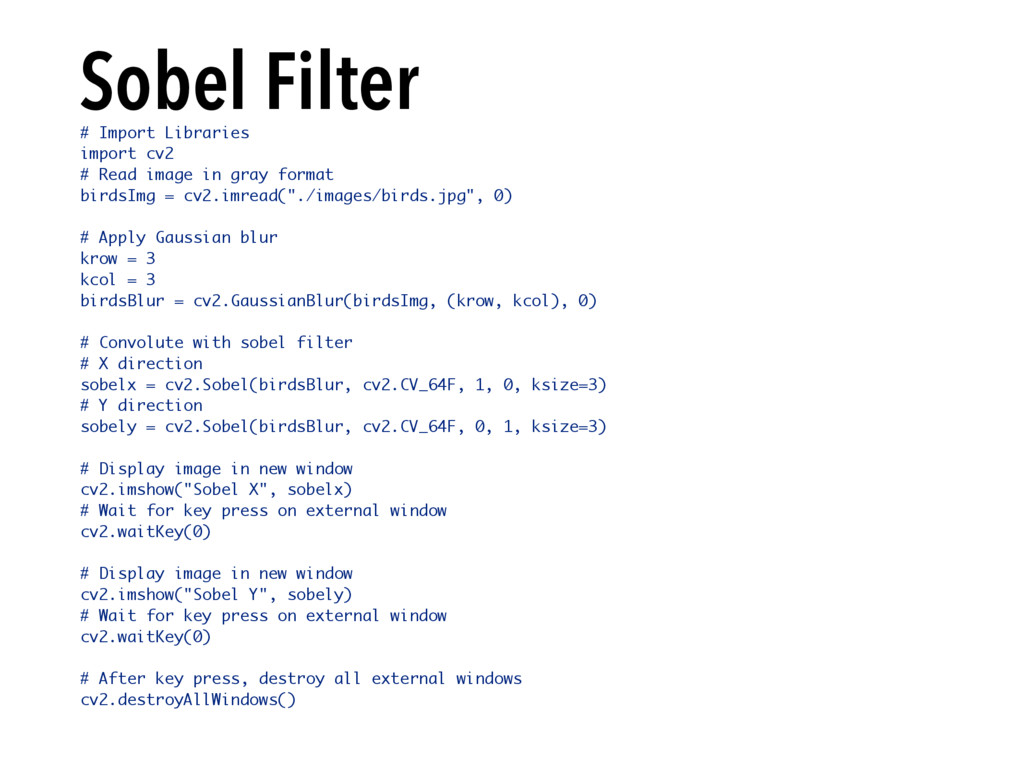
  17. Sobel Filter # Import Libraries import cv2 # Read image

    in gray format birdsImg = cv2.imread("./images/birds.jpg", 0) # Apply Gaussian blur krow = 3 kcol = 3 birdsBlur = cv2.GaussianBlur(birdsImg, (krow, kcol), 0) # Convolute with sobel filter # X direction sobelx = cv2.Sobel(birdsBlur, cv2.CV_64F, 1, 0, ksize=3) # Y direction sobely = cv2.Sobel(birdsBlur, cv2.CV_64F, 0, 1, ksize=3) # Display image in new window cv2.imshow("Sobel X", sobelx) # Wait for key press on external window cv2.waitKey(0) # Display image in new window cv2.imshow("Sobel Y", sobely) # Wait for key press on external window cv2.waitKey(0) # After key press, destroy all external windows cv2.destroyAllWindows()
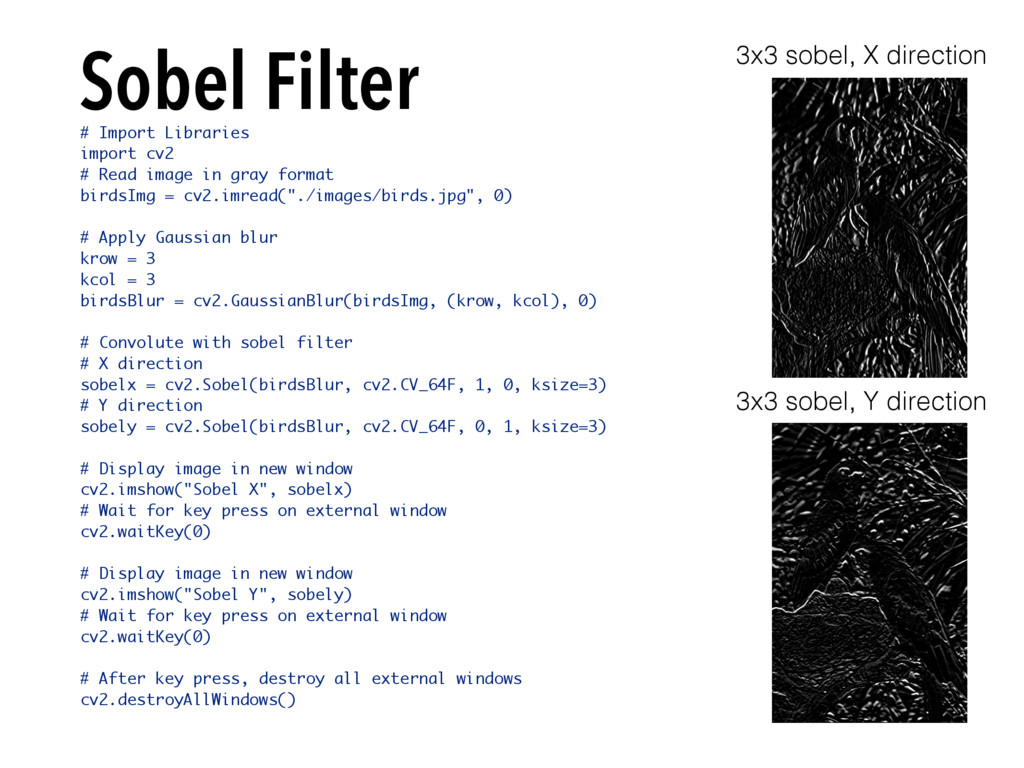
  18. Sobel Filter # Import Libraries import cv2 # Read image

    in gray format birdsImg = cv2.imread("./images/birds.jpg", 0) # Apply Gaussian blur krow = 3 kcol = 3 birdsBlur = cv2.GaussianBlur(birdsImg, (krow, kcol), 0) # Convolute with sobel filter # X direction sobelx = cv2.Sobel(birdsBlur, cv2.CV_64F, 1, 0, ksize=3) # Y direction sobely = cv2.Sobel(birdsBlur, cv2.CV_64F, 0, 1, ksize=3) # Display image in new window cv2.imshow("Sobel X", sobelx) # Wait for key press on external window cv2.waitKey(0) # Display image in new window cv2.imshow("Sobel Y", sobely) # Wait for key press on external window cv2.waitKey(0) # After key press, destroy all external windows cv2.destroyAllWindows() 3x3 sobel, X direction 3x3 sobel, Y direction
  19. Keep in mind during the hackathon • Prototype first: •

    If you need to use OpenCV in C++ or Java for some reason, if possible, try to prototype your system in Python first (development time will be faster)
  20. Keep in mind during the hackathon • Prototype first: •

    If you need to use OpenCV in C++ or Java for some reason, if possible, try to prototype your system in Python first (development time will be faster) • Breakdown complicated problems: • If you need to do something complicated, try to breakdown the problem into simple steps. For example, if you have a noisy video of multiple objects to track, first solve the noise issues (filtering), deal with individual objects, then combine the programs for an ideal multi-object tracker perhaps.
  21. Keep in mind during the hackathon • Prototype first: •

    If you need to use OpenCV in C++ or Java for some reason, if possible, try to prototype your system in Python first (development time will be faster) • Breakdown complicated problems: • If you need to do something complicated, try to breakdown the problem into simple steps. For example, if you have a noisy video of multiple objects to track, first solve the noise issues (filtering), deal with individual objects, then combine the programs for an ideal multi-object tracker perhaps. • Ask questions: • Its okay to get stuck! Ask some of your peers or the build officers. Even if we don’t know answers specific to your project, we can point to something that may be helpful :)
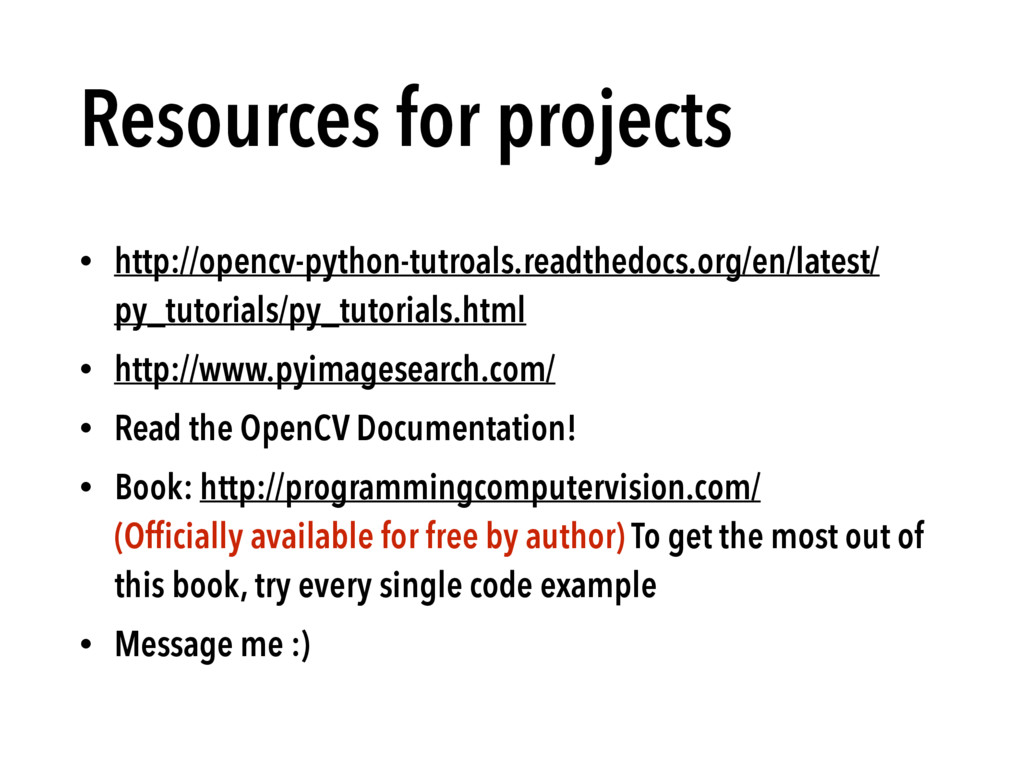
  22. Resources for projects • http://opencv-python-tutroals.readthedocs.org/en/latest/ py_tutorials/py_tutorials.html • http://www.pyimagesearch.com/ • Read

    the OpenCV Documentation! • Book: http://programmingcomputervision.com/ (Officially available for free by author) To get the most out of this book, try every single code example • Message me :)