Upgrade to Pro — share decks privately, control downloads, hide ads and more …

Vezur AI

Vezur AI

A practical guide to improving video quality for creators working with soft, low-resolution, or compressed footage.

Learn the difference between upscaling and enhancement, how to prepare a useful test clip, and what to check when reviewing faces, text, textures, and motion. Includes an example workflow using Vezur AI and explains where AI enhancement has its limits.

Created by the team behind Vezur AI.

Explore Vezur AI: https://vezurai.com/

Avatar for Leanna Yoder

Leanna Yoder

October 05, 2026

Other Decks in Technology

Transcript

  1. VEZUR AI FIELD GUIDE / VIDEO QUALITY MAKE EVERY FRAME

    COUNT How to improve video quality A practical guide for creators working with soft or compressed footage. Assess the source. Test a clip. Review the details. LOOK CLOSER A workflow, not a promise of perfect restoration. Created by the team behind Vezur AI A PRACTICAL GUIDE FOR CREATORS 01 / 08
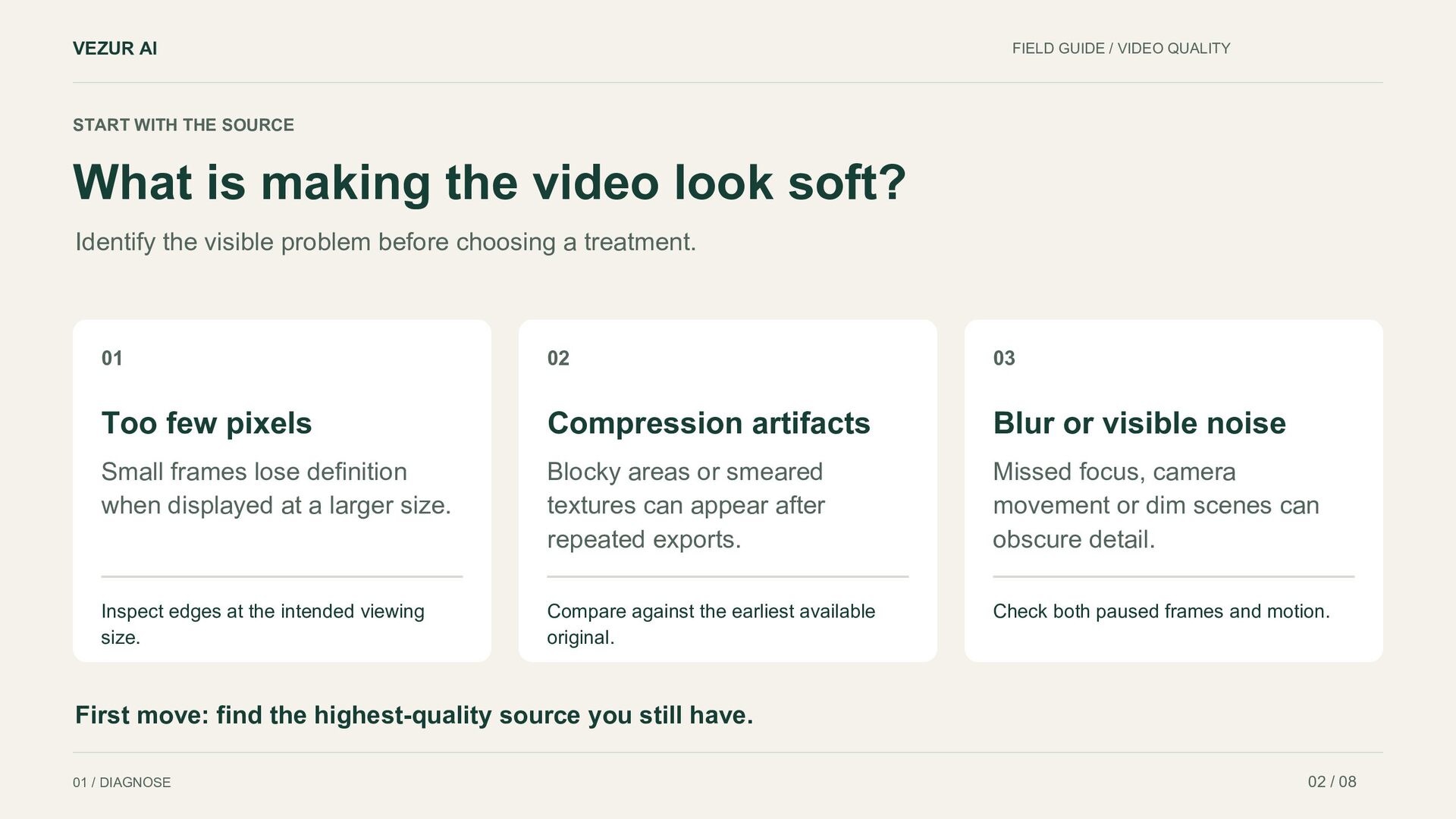
  2. VEZUR AI FIELD GUIDE / VIDEO QUALITY START WITH THE

    SOURCE What is making the video look soft? Identify the visible problem before choosing a treatment. 01 02 03 Too few pixels Compression artifacts Blur or visible noise Small frames lose definition when displayed at a larger size. Blocky areas or smeared textures can appear after repeated exports. Missed focus, camera movement or dim scenes can obscure detail. Inspect edges at the intended viewing size. Compare against the earliest available original. Check both paused frames and motion. First move: find the highest-quality source you still have. 01 / DIAGNOSE 02 / 08
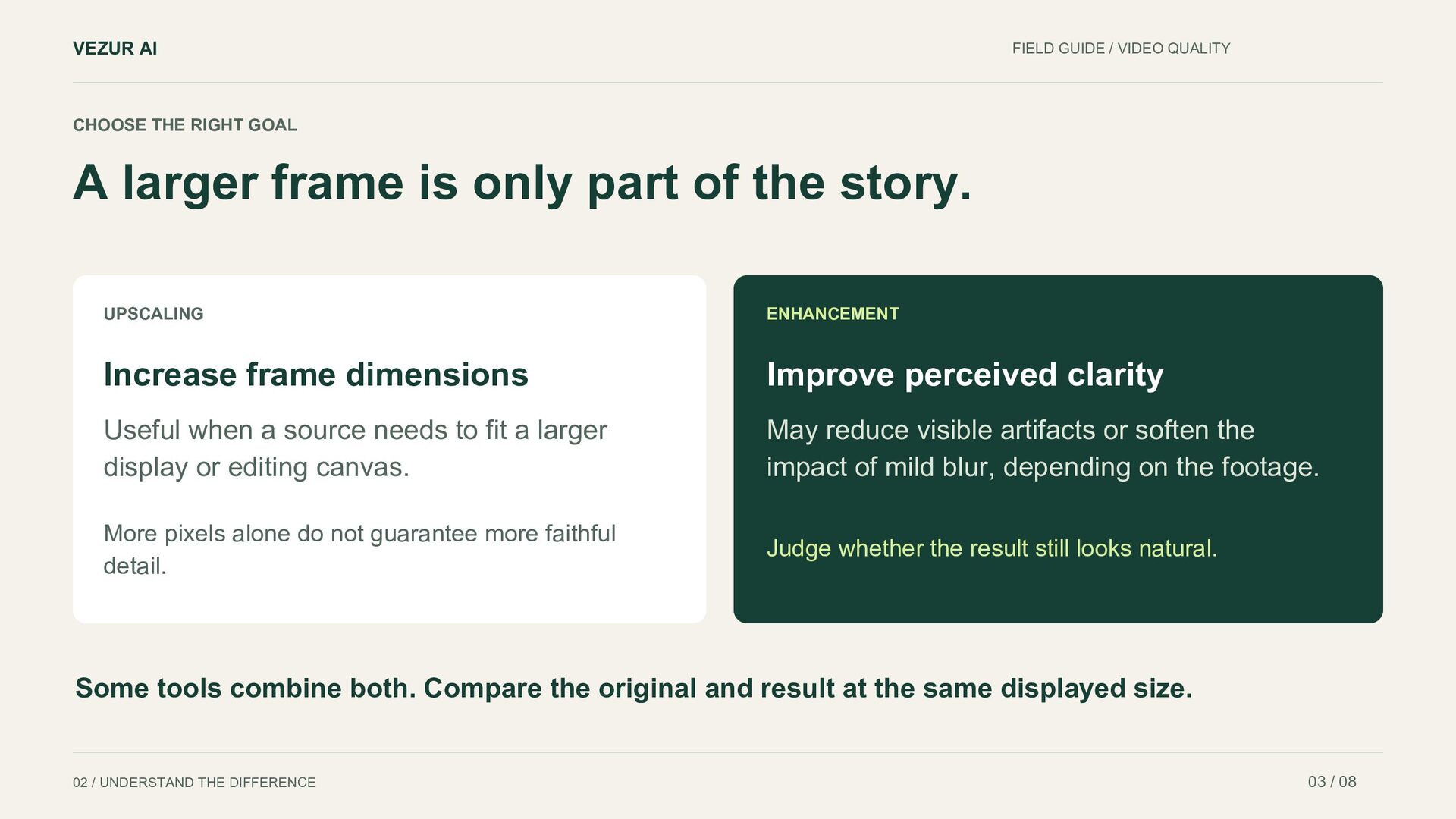
  3. VEZUR AI FIELD GUIDE / VIDEO QUALITY CHOOSE THE RIGHT

    GOAL A larger frame is only part of the story. UPSCALING ENHANCEMENT Increase frame dimensions Improve perceived clarity Useful when a source needs to fit a larger display or editing canvas. May reduce visible artifacts or soften the impact of mild blur, depending on the footage. More pixels alone do not guarantee more faithful detail. Judge whether the result still looks natural. Some tools combine both. Compare the original and result at the same displayed size. 02 / UNDERSTAND THE DIFFERENCE 03 / 08
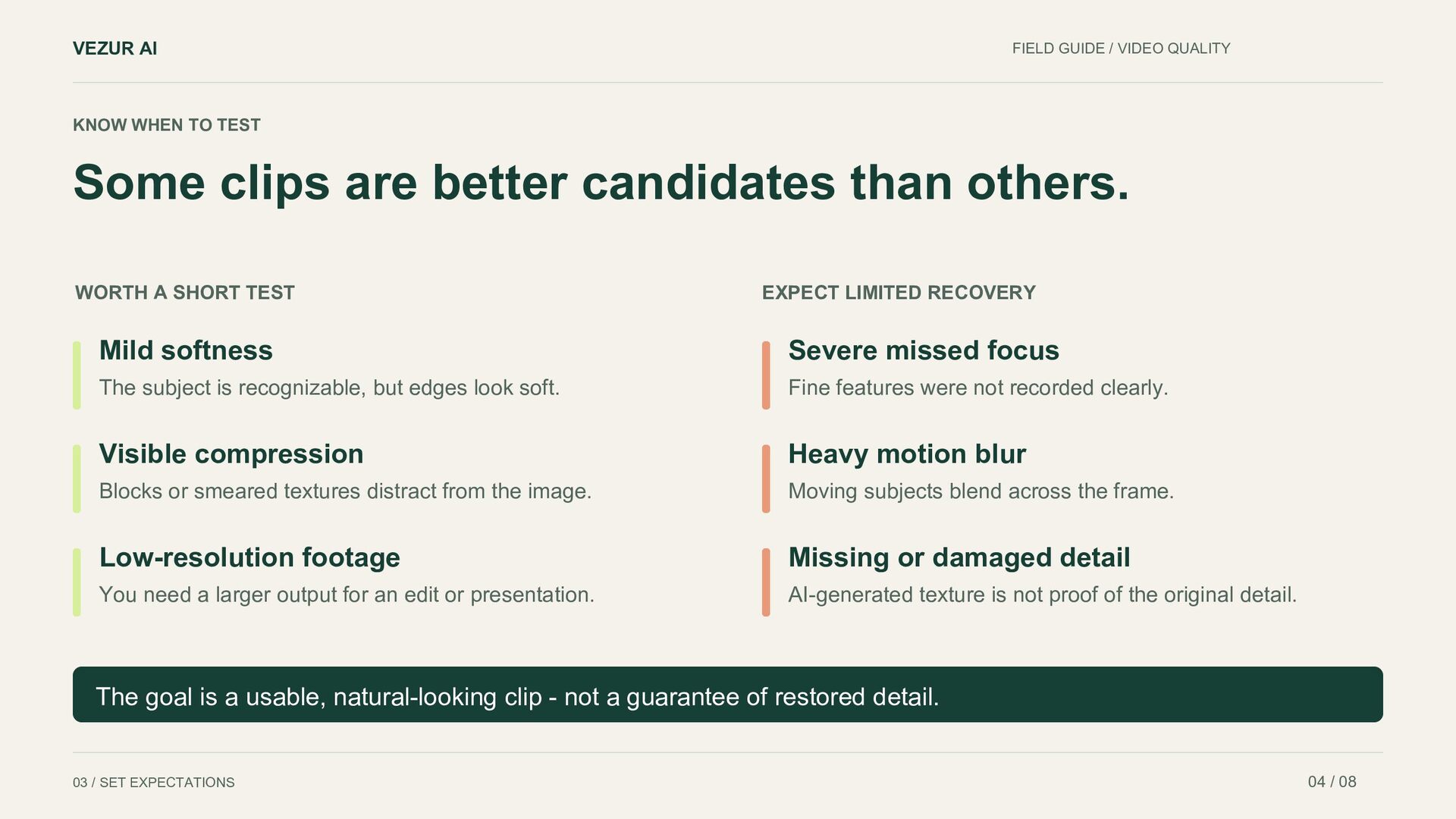
  4. VEZUR AI FIELD GUIDE / VIDEO QUALITY KNOW WHEN TO

    TEST Some clips are better candidates than others. WORTH A SHORT TEST EXPECT LIMITED RECOVERY Mild softness Severe missed focus The subject is recognizable, but edges look soft. Fine features were not recorded clearly. Visible compression Heavy motion blur Blocks or smeared textures distract from the image. Moving subjects blend across the frame. Low-resolution footage Missing or damaged detail You need a larger output for an edit or presentation. AI-generated texture is not proof of the original detail. The goal is a usable, natural-looking clip - not a guarantee of restored detail. 03 / SET EXPECTATIONS 04 / 08
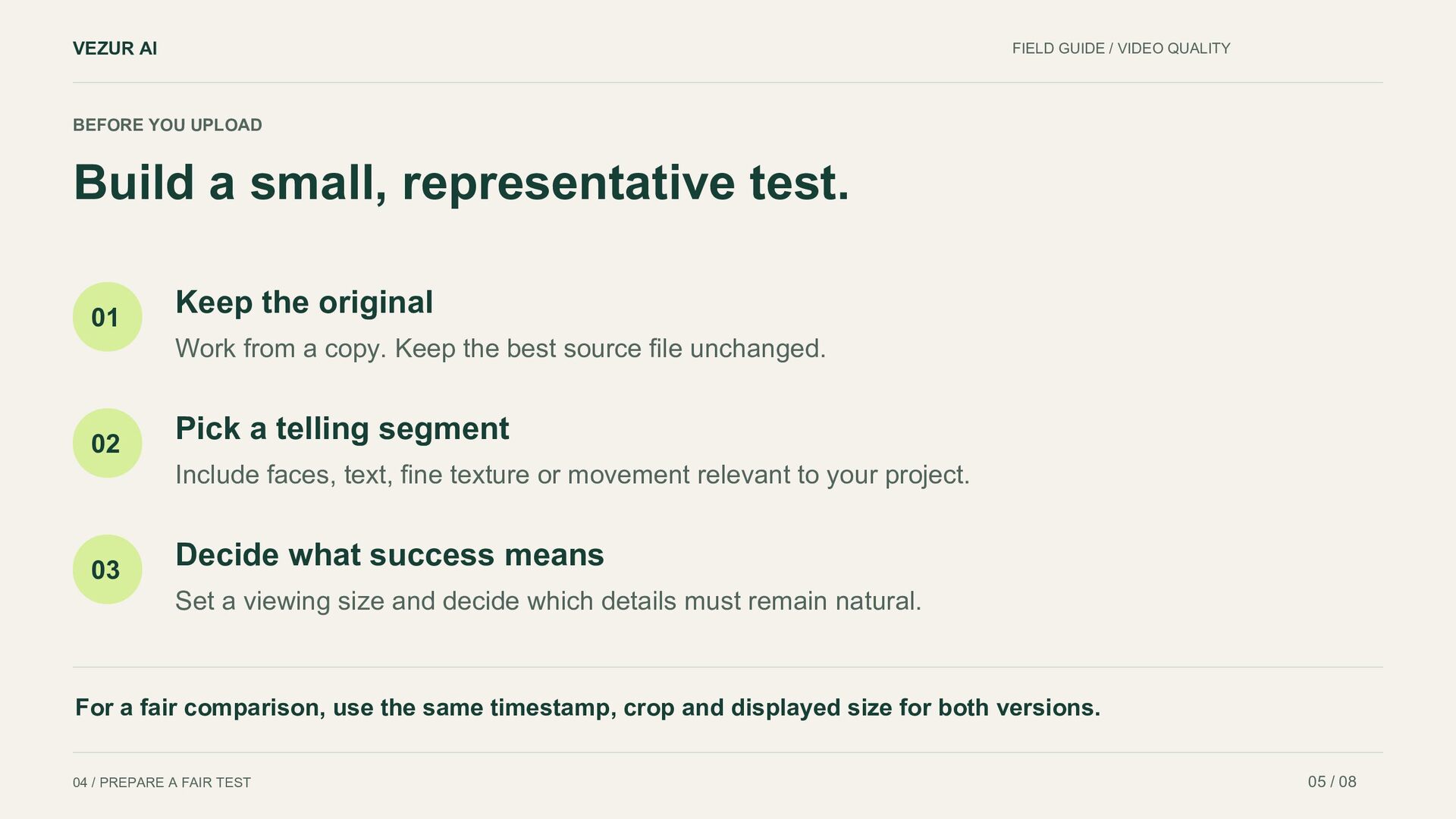
  5. VEZUR AI FIELD GUIDE / VIDEO QUALITY BEFORE YOU UPLOAD

    Build a small, representative test. 01 Keep the original Work from a copy. Keep the best source file unchanged. 02 Pick a telling segment Include faces, text, fine texture or movement relevant to your project. 03 Decide what success means Set a viewing size and decide which details must remain natural. For a fair comparison, use the same timestamp, crop and displayed size for both versions. 04 / PREPARE A FAIR TEST 05 / 08
  6. VEZUR AI FIELD GUIDE / VIDEO QUALITY USING VEZUR AI

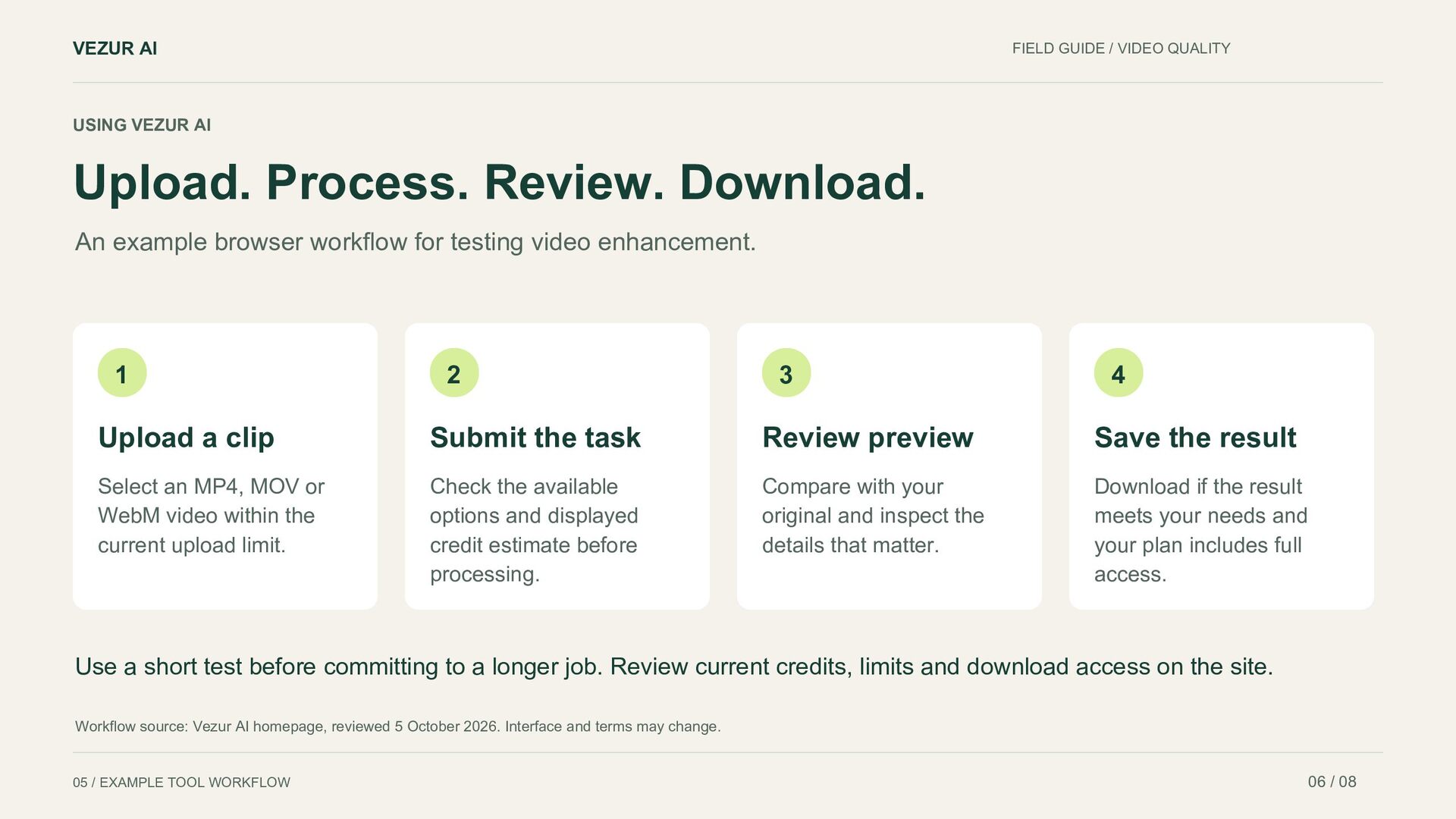
    Upload. Process. Review. Download. An example browser workflow for testing video enhancement. 1 2 3 4 Upload a clip Submit the task Review preview Save the result Select an MP4, MOV or WebM video within the current upload limit. Check the available options and displayed credit estimate before processing. Compare with your original and inspect the details that matter. Download if the result meets your needs and your plan includes full access. Use a short test before committing to a longer job. Review current credits, limits and download access on the site. Workflow source: Vezur AI homepage, reviewed 5 October 2026. Interface and terms may change. 05 / EXAMPLE TOOL WORKFLOW 06 / 08
  7. VEZUR AI FIELD GUIDE / VIDEO QUALITY A PRACTICAL QUALITY

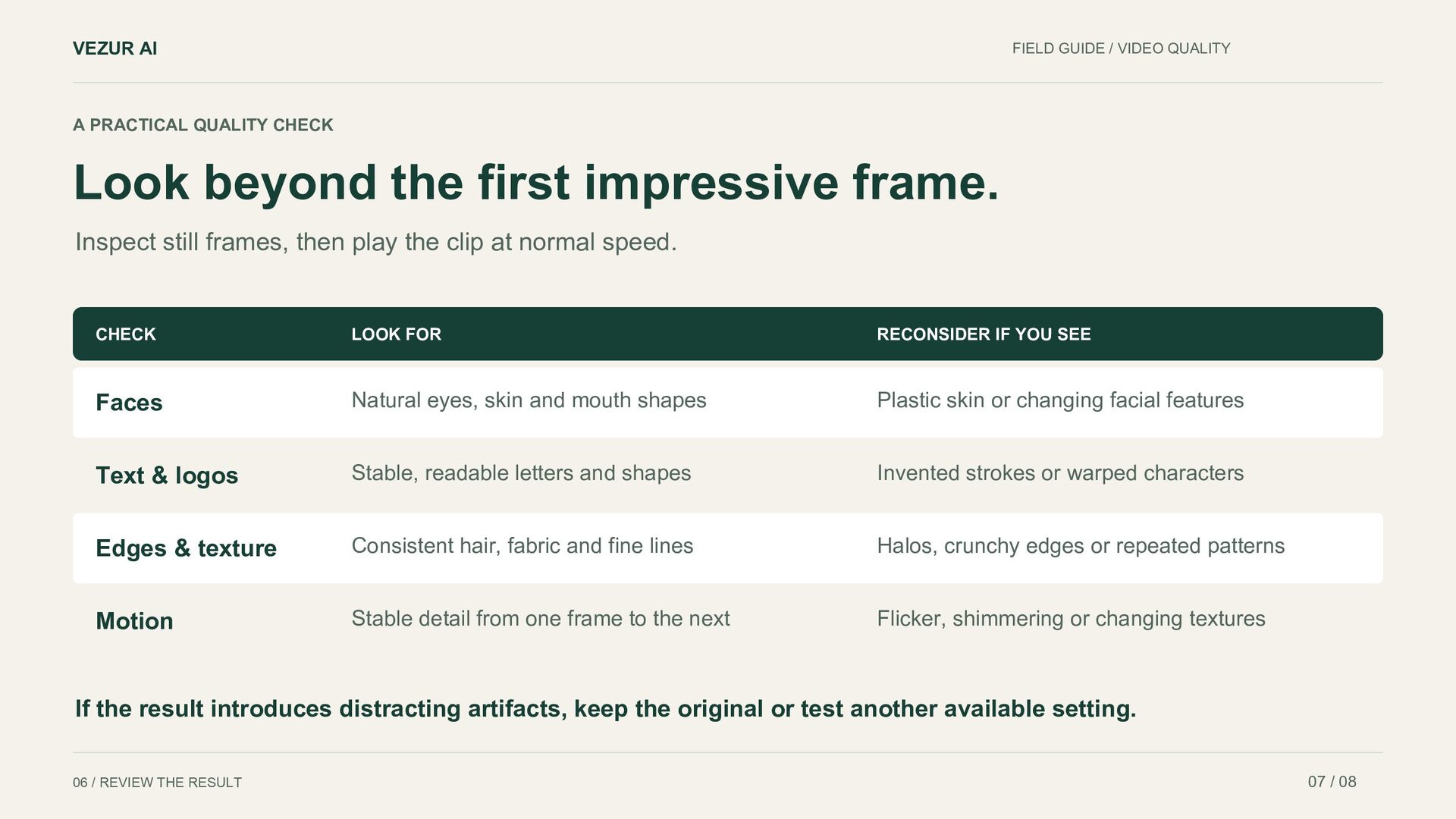
    CHECK Look beyond the first impressive frame. Inspect still frames, then play the clip at normal speed. CHECK LOOK FOR RECONSIDER IF YOU SEE Faces Natural eyes, skin and mouth shapes Plastic skin or changing facial features Text & logos Stable, readable letters and shapes Invented strokes or warped characters Edges & texture Consistent hair, fabric and fine lines Halos, crunchy edges or repeated patterns Motion Stable detail from one frame to the next Flicker, shimmering or changing textures If the result introduces distracting artifacts, keep the original or test another available setting. 06 / REVIEW THE RESULT 07 / 08
  8. VEZUR AI FIELD GUIDE / VIDEO QUALITY YOUR NEXT STEP

    Start with one clip. Keep what works. Choose a representative sample. Compare it fairly. Use the version that serves your final edit. Explore Vezur AI https://vezurai.com/ Created by the team behind Vezur AI. This guide introduces our tool as one example workflow. RESOURCES / CONTINUE THE WORKFLOW 08 / 08